

EXPERT
SYSTEMS
By
Ali Abdel-Haleem Mohamed
Emad-eldin Ahmed
Karem Mohamed Ahmed
? WHAT IS AN EXPERT SYSTEM
An expert system is a computer program that
contains some of the subject-specific
knowledge of one or more human experts
To make a program intelligent, provide it with
lots of high-quality, specific knowledge about
. some problem area
Knowledge Base
The component of an expert system that
. contains the system’s knowledge
Expert systems are also known as Knowledge. based systems
Knowledge Representation
Knowledge is represented in a computer in the
(. form of rules
( Production rule
. Consists of an IF part and THEN part
IF part lists a set of conditions in some logical
. combination
If the IF part of the rule is satisfied;
consequently, the THEN part can be
. concluded
Chaining of IF-THEN rules to form a line of
reasoning
( Forward chaining (facts driven
( Backward chaining (goal driven
Inference Engine
An inference engine tries to derive answers from a
. knowledge base
It is the brain of the expert systems that provides a
methodology for reasoning about the information in
the knowledge base, and for formulating
. conclusions
User Interface
It enables the user to communicate with an
. expert system
Developing Expert Systems

. Determining the characteristics of the problem
Knowledge engineer and domain expert work
. together closely to describe the problem
The engineer then translates the knowledge into a computerusable language, and designs an inference engine, a
. reasoning structure, that uses the knowledge appropriately
He also determines how to integrate the use of uncertain
knowledge in the reasoning process, and what kinds of
. explanation would be useful to the end user
Advantages of ES
.It enhances decision quality
.It reduces the cost of consulting experts for problem solving
It provides quick and efficient solutions to problems in narrow
.area of specialization
.It offers high reliability of expert suggestions or decisions
It gathers scarce expertise and uses it efficiently. It can tackle
very complex problems that are difficult for human experts
.to solve
.It can work on standard computer hardware
It can not only give solutions, but also the decision logic and
. how the solution was arrived at
Dis advantages of Es
. The knowledge base may not be complete
Each problem is different. Hence the solution from
a human expert too may be different
Expensive to build and maintain
Takes long time to develop and fine tune ES
Large ES is difficult to build and maintain
Applications of ES
Diagnose(1 •
2)repairing
3)mointoring and control
4)software development
5)production scheduling
CVIP TOOLS
File
Show Histogram:
Selecting this option helps viewing the histogram of the presently selected image in the image queue. To use,
select ‘File->Show Histogram’ option from the menu bar on top.
Show Spectrum:
This option enables you to view the ‘FFT Phase’, ‘Magnitude’ or the ‘Log-remapped’ Spectrums of the selected
image in the image queue. To use, select one of the choices from the ‘File->Show Spectrum’ option from
the menu bar on top.
View Band:
This option enables the user to view any one of the three ‘Red’, ‘Green’ or ‘Blue’ bands of the selected image
from the image queue. To use, select ‘File->View Band’ option and choice of band you want to view from
the menu bar on top. This feature can also be from the Toolbar just below the menu bar.

OPEN:
SAVE: Save an image
PRINT:
EXIT:
VIEW
Toolbar:
Selecting this option from the ‘View->Toolbar’ on the menu bar causes the toolbar to appear on
the screen right below the menu bar. Deselecting this option will cause the toolbar to
disappear from the screen.
Image Queue:
Selecting this option from the ‘View->Image Queue’
on the menu bar causes the image queue, ‘Delete’,
‘Delete all’ and ‘Lock Input’ options to appear on the
left of the screen right below the menu bar. Deselecting this
option will cause the image queue, ‘Delete’, ‘Delete all’ and
‘Lock Input’ options to disappear from the left of the screen.
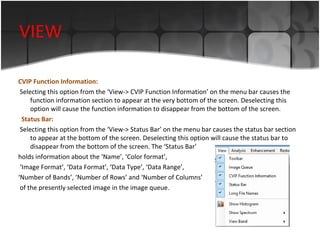
VIEW
CVIP Function Information:
Selecting this option from the ‘View-> CVIP Function Information’ on the menu bar causes the
function information section to appear at the very bottom of the screen. Deselecting this
option will cause the function information to disappear from the bottom of the screen.
Status Bar:
Selecting this option from the ‘View-> Status Bar’ on the menu bar causes the status bar section
to appear at the bottom of the screen. Deselecting this option will cause the status bar to
disappear from the bottom of the screen. The ‘Status Bar’
holds information about the ‘Name’, ‘Color format’,
‘Image Format’, ‘Data Format’, ‘Data Type’, ‘Data Range’,
‘Number of Bands’, ‘Number of Rows’ and ‘Number of Columns’
of the presently selected image in the image queue.
Analysis
Geometry
Edge/Line Detection

Segmentation
Transforms
Features
Pattern Classification
: Enhancement
Histogram/Contrast
Pseudocolor
Sharpening
Smoothing
: Restoration
Noise
Spatial Filters
Frequency filter
Geometric Transforms
Compression
Preprocessing
LOSSLESS
LOSSY
Utilities

Arith/Logic
Compare
Convert
Create
Enhance
Filter
Size
Stats
help
THE END
THANK YOU

Expert systems&cviptools

  • 1.
  • 2.
    ? WHAT ISAN EXPERT SYSTEM An expert system is a computer program that contains some of the subject-specific knowledge of one or more human experts
  • 3.
    To make aprogram intelligent, provide it with lots of high-quality, specific knowledge about . some problem area
  • 4.
    Knowledge Base The componentof an expert system that . contains the system’s knowledge Expert systems are also known as Knowledge. based systems
  • 5.
    Knowledge Representation Knowledge isrepresented in a computer in the (. form of rules ( Production rule . Consists of an IF part and THEN part IF part lists a set of conditions in some logical . combination If the IF part of the rule is satisfied; consequently, the THEN part can be . concluded
  • 6.
    Chaining of IF-THENrules to form a line of reasoning ( Forward chaining (facts driven ( Backward chaining (goal driven
  • 7.
    Inference Engine An inferenceengine tries to derive answers from a . knowledge base It is the brain of the expert systems that provides a methodology for reasoning about the information in the knowledge base, and for formulating . conclusions
  • 8.
    User Interface It enablesthe user to communicate with an . expert system
  • 9.
    Developing Expert Systems .Determining the characteristics of the problem Knowledge engineer and domain expert work . together closely to describe the problem
  • 10.
    The engineer thentranslates the knowledge into a computerusable language, and designs an inference engine, a . reasoning structure, that uses the knowledge appropriately He also determines how to integrate the use of uncertain knowledge in the reasoning process, and what kinds of . explanation would be useful to the end user
  • 11.
    Advantages of ES .Itenhances decision quality .It reduces the cost of consulting experts for problem solving It provides quick and efficient solutions to problems in narrow .area of specialization .It offers high reliability of expert suggestions or decisions It gathers scarce expertise and uses it efficiently. It can tackle very complex problems that are difficult for human experts .to solve .It can work on standard computer hardware It can not only give solutions, but also the decision logic and . how the solution was arrived at
  • 12.
    Dis advantages ofEs . The knowledge base may not be complete Each problem is different. Hence the solution from a human expert too may be different Expensive to build and maintain Takes long time to develop and fine tune ES Large ES is difficult to build and maintain
  • 13.
    Applications of ES Diagnose(1• 2)repairing 3)mointoring and control 4)software development 5)production scheduling
  • 14.
  • 15.
    File Show Histogram: Selecting thisoption helps viewing the histogram of the presently selected image in the image queue. To use, select ‘File->Show Histogram’ option from the menu bar on top. Show Spectrum: This option enables you to view the ‘FFT Phase’, ‘Magnitude’ or the ‘Log-remapped’ Spectrums of the selected image in the image queue. To use, select one of the choices from the ‘File->Show Spectrum’ option from the menu bar on top. View Band: This option enables the user to view any one of the three ‘Red’, ‘Green’ or ‘Blue’ bands of the selected image from the image queue. To use, select ‘File->View Band’ option and choice of band you want to view from the menu bar on top. This feature can also be from the Toolbar just below the menu bar. OPEN: SAVE: Save an image PRINT: EXIT:
  • 16.
    VIEW Toolbar: Selecting this optionfrom the ‘View->Toolbar’ on the menu bar causes the toolbar to appear on the screen right below the menu bar. Deselecting this option will cause the toolbar to disappear from the screen. Image Queue: Selecting this option from the ‘View->Image Queue’ on the menu bar causes the image queue, ‘Delete’, ‘Delete all’ and ‘Lock Input’ options to appear on the left of the screen right below the menu bar. Deselecting this option will cause the image queue, ‘Delete’, ‘Delete all’ and ‘Lock Input’ options to disappear from the left of the screen.
  • 17.
    VIEW CVIP Function Information: Selectingthis option from the ‘View-> CVIP Function Information’ on the menu bar causes the function information section to appear at the very bottom of the screen. Deselecting this option will cause the function information to disappear from the bottom of the screen. Status Bar: Selecting this option from the ‘View-> Status Bar’ on the menu bar causes the status bar section to appear at the bottom of the screen. Deselecting this option will cause the status bar to disappear from the bottom of the screen. The ‘Status Bar’ holds information about the ‘Name’, ‘Color format’, ‘Image Format’, ‘Data Format’, ‘Data Type’, ‘Data Range’, ‘Number of Bands’, ‘Number of Rows’ and ‘Number of Columns’ of the presently selected image in the image queue.
  • 18.
  • 19.
  • 20.
  • 21.
  • 22.
  • 23.