A Little info about Evernote 
• There are several reasons for Evernote's phenomenal 
success, both for personal use and all types of businesses: 
• Stores notes both in the cloud and on your computer. 
• Makes getting notes of all types easy, whether from a 
computer right-click, a cell phone photo, Web clipping, or 
even calling in and having a voice transcription stored as a 
note. 
• Even converts text in images for searches. Take a photo of a 
printed page and send to Evernote and the text will be 
converted so you can search on text that's in the photo. 
• Searches, saved searches and shared folders. 
• More...
PC, Smart Phone, Ipad, Window, 
Apple, Droid 
• Let's face it, we're not going to use something, 
no matter how nice the output, unless the 
input is convenient for us. This is true in our 
daily personal lives as well as our busy 
business pursuits. A primary factor in the 
success of Evernote is that their development 
team has consistently enhanced the ways in 
which you can get your notes, photos and 
information into Evernote, and on just about 
any mobile device you might be carrying.
Some great Uses For Real Estate 
Professionals because… 
Is better than
Webclipper 
• There is a free “web clipper” for Evernote for 
all the popular web browsers. You will want 
that web clipper because you will be using 
Evernote to capture everything, organize it 
and find it fast when you need it. What good 
does it do to read some important statistic 
about local real estate sales, or home 
decorating trends if you are just going to 
forget it?
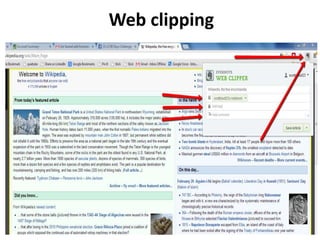
Web Clipping 
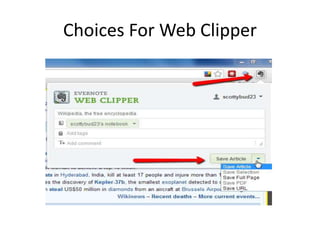
• There is a "bookmarklet" type web clipping 
tool for Explorer, Firefox, and Chrome that 
allows you to highlight text or clip entire web 
pages with just a click or two. You can have 
them filed in a selected Evernote folder in the 
process, as well as attach tags to aid in 
searching for them later.
Web clipping
Choices For Web Clipper
Email in a Note 
• If you receive an email, are replying to one, or 
sending out a new one that you want filed in 
Evernote, just Bcc Evernote at a special email 
address that takes it to your account. You can 
even indicate which folder you want it to go 
into, and specify tags for organization as well.
Email notes, photos and audio to the buyer 
after the property tour 
• Remind your buyer of which homes they liked 
and why by sharing 
• this information with them via email, straight 
from your Evernote 
• account. Giving the buyer access to this 
information will help 
• them narrow down the search and remind them 
of things they 
• may not have otherwise remembered from the 
visit.
Forward all client-related emails directly to your 
Evernote account 
• Capture and forward all email communication you 
have with a buyer to your Evernote Buyer 
Notebook. You’ll have a complete repository of all 
communications with your buyer over the course of 
the buying lifecycle in one, easily-searchable place.
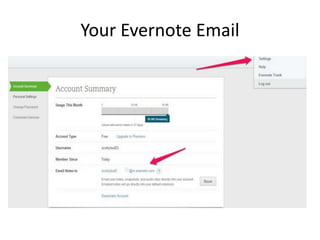
Your Evernote Email
Cell phone photos 
• Sending photos from your cell phone is easy, 
just by emailing them to your private Evernote 
email address. If you take a photo of a 
document, Evernote will even index text 
within the photo for later searching.
Power Uses of Dropbox and Evernote 
for Real Estate 
• One reason that Dropbox should be used in conjunction with Evernote is 
the fact that the closing document will not be able to be created or saved 
in Evernote because more than likely you will need to use Microsoft Word 
or a compatible program. By using Dropbox, the document can be created 
in Word, saved to Dropbox and instantly shared with the client for review. 
Dropbox is integrated with Docusign as well for easy document signing and 
sharing. PDFs can quickly be created and shared as well. 
• The main power use of Dropbox is the superior sharing capabilities. The 
back office probably uses (or should use) Dropbox for simple sharing of 
documents, photos, files, and other important data. Dropbox has much 
better sharing than Evernote, and the simplicity of a “drag-and-drop” file 
system makes it much more sufficient for office workers with a heavy 
workload
Here is how simple it is to share folders using 
Dropbox: 
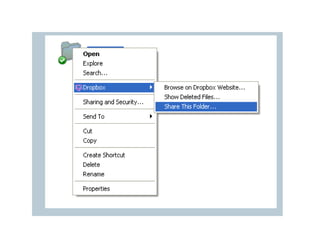
• When you open Dropbox on your computer, it 
will look like any other Windows folder. You 
can create or move existing folders (and files) 
to this folder. Once you have a folder you wish 
to share, it’s easy to share. If you want to 
choose the share settings straight from your 
computer, simply right click on the folder and 
choose “Share this folder.” Input the email 
address of the person you wish to share with 
and it’s done.
If you are accessing Dropbox from the Dropbox 
website, simply follow these steps: 
• Sign in to the Dropbox website Click on 
Sharing from the sidebar on the left Press the 
button labeled “New shared folder” Input the 
email address of the person you wish to share 
it with.
Create a dedicated notebook for each 
customer 
• Creating a notebook for each customer you 
deal with offers better organization and easy 
searching. You can store every kind of 
information you need in Evernote- notes, 
interviews or other audio recordings, photos, 
and even PDF documents. Most aspects of a 
transaction can be completed within Evernote 
and the rest can be completed through 
Dropbox. With these two tools, you have a 
perfect power plan for selling real estate.
• Within this dedicated Evernote notebook, you 
can store important documents, emails, 
inspection results, contracts, and other 
important information with the client. Make a 
notebook for the client, store all documents in 
a dedicated Evernote notebook, and share 
that notebook with the client. This way, they 
have access to information they need and you 
have, plus it can make the signing of 
documents a much faster and efficient task.
Managing transactions 
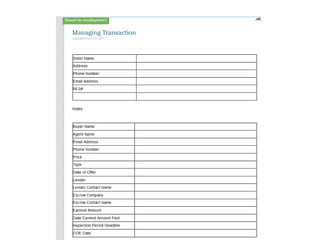
• With Evernote, it’s simple to make a 
transaction table with all of the pertinent 
information stored in it. You can also add tags 
to this document for even easier searching. 
• See links on final page to obtain evernote 
transaction table.
“to-do” checklist 
• You can also have a “to-do” checklist of 
everything that needs to be done during the 
course of the transaction.
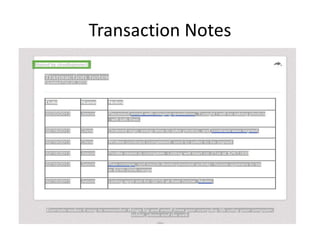
• You should make an organized list, noting 
everything that happens during the course of 
the transaction. Any contact with the client, 
agents, or other sources, can be recorded-everything 
should be documented, and you 
can even provide links to relevant documents 
or other sources within this table.
Transaction Notes
Creating templates 
• You can create a variety of templates within Evernote 
that can help you during transactions. Unless you want 
to create the same tables and documents every time 
you deal with another transaction, it is advisable for 
you to create templates such as the transaction table, 
the “to-do” checklist, and the transaction notes table 
that I listed above. Of course, you can create your own, 
or revise these to meet the needs of your real estate 
business. 
• You can create a special notebook called “Templates” 
and add notes with empty tables there.
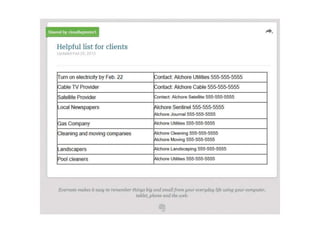
Create informative, helpful lists for 
clients 
• Creating an informational list on everything the 
client needs to do before the closing on their home, 
as well as contact information for local companies 
that can handle these tasks, is something that can 
help them immensely.
You don’t need to be Einstein
However, you must make a decision!
There, you have the perfect power plan for 
real estate. Your work will be more organized, 
tasks will be completed more efficiently and 
will not be overlooked, and documents can be 
shared within seconds. Take real estate selling 
to the next level with this power plan.
Our goal is to help the Realtors in our market area. 
We have many ways to help you. Currently we are 
looking to add several professional Realtors to our 
team. If you need a mortgage lender that is your 
partner in success, make sure we arrange a one-on-one 
power meeting. Sign up sheet is being passed 
around.
Special Thanks to

Evernote powerpoint remax northwest

  • 2.
    A Little infoabout Evernote • There are several reasons for Evernote's phenomenal success, both for personal use and all types of businesses: • Stores notes both in the cloud and on your computer. • Makes getting notes of all types easy, whether from a computer right-click, a cell phone photo, Web clipping, or even calling in and having a voice transcription stored as a note. • Even converts text in images for searches. Take a photo of a printed page and send to Evernote and the text will be converted so you can search on text that's in the photo. • Searches, saved searches and shared folders. • More...
  • 3.
    PC, Smart Phone,Ipad, Window, Apple, Droid • Let's face it, we're not going to use something, no matter how nice the output, unless the input is convenient for us. This is true in our daily personal lives as well as our busy business pursuits. A primary factor in the success of Evernote is that their development team has consistently enhanced the ways in which you can get your notes, photos and information into Evernote, and on just about any mobile device you might be carrying.
  • 4.
    Some great UsesFor Real Estate Professionals because… Is better than
  • 5.
    Webclipper • Thereis a free “web clipper” for Evernote for all the popular web browsers. You will want that web clipper because you will be using Evernote to capture everything, organize it and find it fast when you need it. What good does it do to read some important statistic about local real estate sales, or home decorating trends if you are just going to forget it?
  • 6.
    Web Clipping •There is a "bookmarklet" type web clipping tool for Explorer, Firefox, and Chrome that allows you to highlight text or clip entire web pages with just a click or two. You can have them filed in a selected Evernote folder in the process, as well as attach tags to aid in searching for them later.
  • 7.
  • 8.
  • 9.
    Email in aNote • If you receive an email, are replying to one, or sending out a new one that you want filed in Evernote, just Bcc Evernote at a special email address that takes it to your account. You can even indicate which folder you want it to go into, and specify tags for organization as well.
  • 10.
    Email notes, photosand audio to the buyer after the property tour • Remind your buyer of which homes they liked and why by sharing • this information with them via email, straight from your Evernote • account. Giving the buyer access to this information will help • them narrow down the search and remind them of things they • may not have otherwise remembered from the visit.
  • 11.
    Forward all client-relatedemails directly to your Evernote account • Capture and forward all email communication you have with a buyer to your Evernote Buyer Notebook. You’ll have a complete repository of all communications with your buyer over the course of the buying lifecycle in one, easily-searchable place.
  • 12.
  • 13.
    Cell phone photos • Sending photos from your cell phone is easy, just by emailing them to your private Evernote email address. If you take a photo of a document, Evernote will even index text within the photo for later searching.
  • 14.
    Power Uses ofDropbox and Evernote for Real Estate • One reason that Dropbox should be used in conjunction with Evernote is the fact that the closing document will not be able to be created or saved in Evernote because more than likely you will need to use Microsoft Word or a compatible program. By using Dropbox, the document can be created in Word, saved to Dropbox and instantly shared with the client for review. Dropbox is integrated with Docusign as well for easy document signing and sharing. PDFs can quickly be created and shared as well. • The main power use of Dropbox is the superior sharing capabilities. The back office probably uses (or should use) Dropbox for simple sharing of documents, photos, files, and other important data. Dropbox has much better sharing than Evernote, and the simplicity of a “drag-and-drop” file system makes it much more sufficient for office workers with a heavy workload
  • 15.
    Here is howsimple it is to share folders using Dropbox: • When you open Dropbox on your computer, it will look like any other Windows folder. You can create or move existing folders (and files) to this folder. Once you have a folder you wish to share, it’s easy to share. If you want to choose the share settings straight from your computer, simply right click on the folder and choose “Share this folder.” Input the email address of the person you wish to share with and it’s done.
  • 17.
    If you areaccessing Dropbox from the Dropbox website, simply follow these steps: • Sign in to the Dropbox website Click on Sharing from the sidebar on the left Press the button labeled “New shared folder” Input the email address of the person you wish to share it with.
  • 18.
    Create a dedicatednotebook for each customer • Creating a notebook for each customer you deal with offers better organization and easy searching. You can store every kind of information you need in Evernote- notes, interviews or other audio recordings, photos, and even PDF documents. Most aspects of a transaction can be completed within Evernote and the rest can be completed through Dropbox. With these two tools, you have a perfect power plan for selling real estate.
  • 19.
    • Within thisdedicated Evernote notebook, you can store important documents, emails, inspection results, contracts, and other important information with the client. Make a notebook for the client, store all documents in a dedicated Evernote notebook, and share that notebook with the client. This way, they have access to information they need and you have, plus it can make the signing of documents a much faster and efficient task.
  • 20.
    Managing transactions •With Evernote, it’s simple to make a transaction table with all of the pertinent information stored in it. You can also add tags to this document for even easier searching. • See links on final page to obtain evernote transaction table.
  • 21.
    “to-do” checklist •You can also have a “to-do” checklist of everything that needs to be done during the course of the transaction.
  • 23.
    • You shouldmake an organized list, noting everything that happens during the course of the transaction. Any contact with the client, agents, or other sources, can be recorded-everything should be documented, and you can even provide links to relevant documents or other sources within this table.
  • 24.
  • 25.
    Creating templates •You can create a variety of templates within Evernote that can help you during transactions. Unless you want to create the same tables and documents every time you deal with another transaction, it is advisable for you to create templates such as the transaction table, the “to-do” checklist, and the transaction notes table that I listed above. Of course, you can create your own, or revise these to meet the needs of your real estate business. • You can create a special notebook called “Templates” and add notes with empty tables there.
  • 26.
    Create informative, helpfullists for clients • Creating an informational list on everything the client needs to do before the closing on their home, as well as contact information for local companies that can handle these tasks, is something that can help them immensely.
  • 28.
    You don’t needto be Einstein
  • 29.
    However, you mustmake a decision!
  • 30.
    There, you havethe perfect power plan for real estate. Your work will be more organized, tasks will be completed more efficiently and will not be overlooked, and documents can be shared within seconds. Take real estate selling to the next level with this power plan.
  • 31.
    Our goal isto help the Realtors in our market area. We have many ways to help you. Currently we are looking to add several professional Realtors to our team. If you need a mortgage lender that is your partner in success, make sure we arrange a one-on-one power meeting. Sign up sheet is being passed around.
  • 32.