Release Notes
ArcSight ESM™
Version 6.0c Patch 3
June 04, 2014
Copyright © 2014 Hewlett-Packard Development Company, L.P.
Confidential computer software. Valid license from HP required for possession, use or copying. Consistent
with FAR 12.211 and 12.212, Commercial Computer Software, Computer Software Documentation, and
Technical Data for Commercial Items are licensed to the U.S. Government under vendor's standard
commercial license.
The information contained herein is subject to change without notice. The only warranties for HP products
and services are set forth in the express warranty statements accompanying such products and services.
Nothing herein should be construed as constituting an additional warranty. HP shall not be liable for
technical or editorial errors or omissions contained herein.
Follow this link to see a complete statement of copyrights and acknowledgements:
http://www.hpenterprisesecurity.com/copyright
Contact Information
Revision History
Phone A list of phone numbers is available on the HP ArcSight Technical
Support page: http://www8.hp.com/us/en/software-
solutions/software.html?compURI=1345981#.URitMaVwpWI
Support Web Site http://support.openview.hp.com
Protect 724 Community https://protect724.hp.com
Date Product Version Description
6/04/2014 ArcSight ESM Version 6.0c
Patch 3
Release Notes for ArcSight ESM Version 6.0c Patch 3
Confidential Release Notes ArcSight ESM 6.0c Patch 3 3
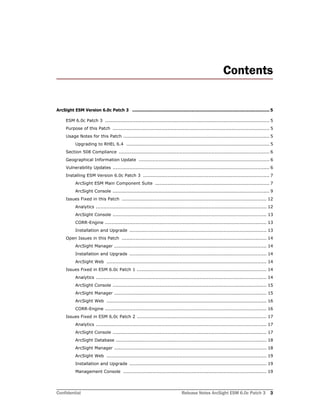
Contents
ArcSight ESM Version 6.0c Patch 3 ......................................................................................................... 5
ESM 6.0c Patch 3 ............................................................................................................ 5
Purpose of this Patch ....................................................................................................... 5
Usage Notes for this Patch ................................................................................................ 5
Upgrading to RHEL 6.4 .............................................................................................. 5
Section 508 Compliance ................................................................................................... 6
Geographical Information Update ...................................................................................... 6
Vulnerability Updates ....................................................................................................... 6
Installing ESM Version 6.0c Patch 3 ................................................................................... 7
ArcSight ESM Main Component Suite ........................................................................... 7
ArcSight Console ....................................................................................................... 9
Issues Fixed in this Patch ............................................................................................... 12
Analytics ................................................................................................................ 12
ArcSight Console ..................................................................................................... 13
CORR-Engine .......................................................................................................... 13
Installation and Upgrade .......................................................................................... 13
Open Issues in this Patch ............................................................................................... 14
ArcSight Manager .................................................................................................... 14
Installation and Upgrade .......................................................................................... 14
ArcSight Web ......................................................................................................... 14
Issues Fixed in ESM 6.0c Patch 1 ..................................................................................... 14
Analytics ................................................................................................................ 14
ArcSight Console ..................................................................................................... 15
ArcSight Manager .................................................................................................... 15
ArcSight Web ......................................................................................................... 16
CORR-Engine .......................................................................................................... 16
Issues Fixed in ESM 6.0c Patch 2 ..................................................................................... 17
Analytics ................................................................................................................ 17
ArcSight Console ..................................................................................................... 17
ArcSight Database ................................................................................................... 18
ArcSight Manager .................................................................................................... 18
ArcSight Web ......................................................................................................... 19
Installation and Upgrade .......................................................................................... 19
Management Console .............................................................................................. 19
4 Release Notes ArcSight ESM 6.0c Patch 3 Confidential
ArcSight ESM 6.0c
Open and Closed Issues in ESM 6.0c ................................................................................ 19
Confidential Release Notes ArcSight ESM 6.0c Patch 3 5
ArcSight ESM Version 6.0c Patch 3 
ESM 6.0c Patch 3
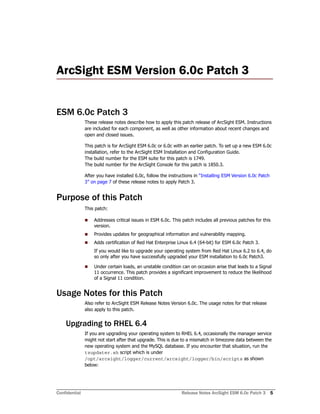
These release notes describe how to apply this patch release of ArcSight ESM. Instructions
are included for each component, as well as other information about recent changes and
open and closed issues.
This patch is for ArcSight ESM 6.0c or 6.0c with an earlier patch. To set up a new ESM 6.0c
installation, refer to the ArcSight ESM Installation and Configuration Guide.
The build number for the ESM suite for this patch is 1749.
The build number for the ArcSight Console for this patch is 1850.3.
After you have installed 6.0c, follow the instructions in “Installing ESM Version 6.0c Patch
3” on page 7 of these release notes to apply Patch 3.
Purpose of this Patch
This patch:
 Addresses critical issues in ESM 6.0c. This patch includes all previous patches for this
version.
 Provides updates for geographical information and vulnerability mapping.
 Adds certification of Red Hat Enterprise Linux 6.4 (64-bit) for ESM 6.0c Patch 3.
If you would like to upgrade your operating system from Red Hat Linux 6.2 to 6.4, do
so only after you have successfully upgraded your ESM installation to 6.0c Patch3.
 Under certain loads, an unstable condition can on occasion arise that leads to a Signal
11 occurrence. This patch provides a significant improvement to reduce the likelihood
of a Signal 11 condition.
Usage Notes for this Patch
Also refer to ArcSight ESM Release Notes Version 6.0c. The usage notes for that release
also apply to this patch.
Upgrading to RHEL 6.4
If you are upgrading your operating system to RHEL 6.4, occasionally the manager service
might not start after that upgrade. This is due to a mismatch in timezone data between the
new operating system and the MySQL database. If you encounter that situation, run the
tzupdater.sh script which is under
/opt/arcsight/logger/current/arcsight/logger/bin/scripts as shown
below:
Section 508 Compliance
6 Release Notes ArcSight ESM 6.0c Patch 3 Confidential
/opt/arcsight/logger/current/arcsight/logger/bin/arcsight
tzupdater /opt/arcsight/logger
/opt/arcsight/web/lib/jre-tools/tzupdater <password>
In the above syntax, <password> is the password for the “arcsight” database user that is
specified during ESM 6.0c installation as the CORR-Engine password.
After running this script the manager service will start successfully.
Section 508 Compliance
ArcSight recognizes the importance of accessibility as a product initiative. To that end,
ArcSight continues to make advances in the area of accessibility in its product lines.
Geographical Information Update
This version of ESM includes an update to the geographical information used in graphic
displays. The version is GeoIP-532_20140501.
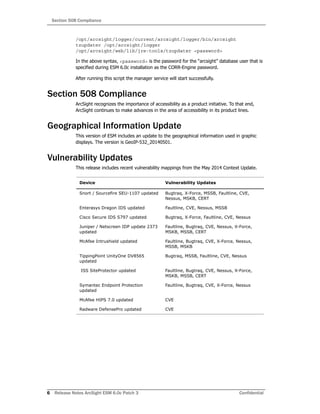
Vulnerability Updates
This release includes recent vulnerability mappings from the May 2014 Context Update.
Device Vulnerability Updates
Snort / Sourcefire SEU-1107 updated Bugtraq, X-Force, MSSB, Faultline, CVE,
Nessus, MSKB, CERT
Enterasys Dragon IDS updated Faultline, CVE, Nessus, MSSB
Cisco Secure IDS S797 updated Bugtraq, X-Force, Faultline, CVE, Nessus
Juniper / Netscreen IDP update 2373
updated
Faultline, Bugtraq, CVE, Nessus, X-Force,
MSKB, MSSB, CERT
McAfee Intrushield updated Faultline, Bugtraq, CVE, X-Force, Nessus,
MSSB, MSKB
TippingPoint UnityOne DV8565
updated
Bugtraq, MSSB, Faultline, CVE, Nessus
ISS SiteProtector updated Faultline, Bugtraq, CVE, Nessus, X-Force,
MSKB, MSSB, CERT
Symantec Endpoint Protection
updated
Faultline, Bugtraq, CVE, X-Force, Nessus
McAfee HIPS 7.0 updated CVE
Radware DefensePro updated CVE
Installing ESM Version 6.0c Patch 3
Confidential Release Notes ArcSight ESM 6.0c Patch 3 7
Installing ESM Version 6.0c Patch 3
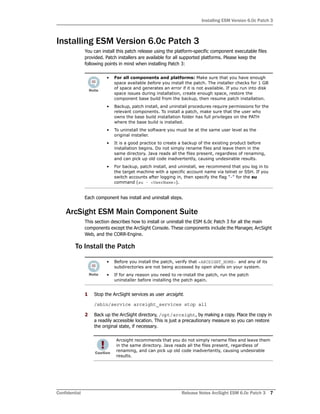
You can install this patch release using the platform-specific component executable files
provided. Patch installers are available for all supported platforms. Please keep the
following points in mind when installing Patch 3:
Each component has install and uninstall steps.
ArcSight ESM Main Component Suite
This section describes how to install or uninstall the ESM 6.0c Patch 3 for all the main
components except the ArcSight Console. These components include the Manager, ArcSight
Web, and the CORR-Engine.
To Install the Patch
1 Stop the ArcSight services as user arcsight.
/sbin/service arcsight_services stop all
2 Back up the ArcSight directory, /opt/arcsight, by making a copy. Place the copy in
a readily accessible location. This is just a precautionary measure so you can restore
the original state, if necessary.
• For all components and platforms: Make sure that you have enough
space available before you install the patch. The installer checks for 1 GB
of space and generates an error if it is not available. If you run into disk
space issues during installation, create enough space, restore the
component base build from the backup, then resume patch installation.
• Backup, patch install, and uninstall procedures require permissions for the
relevant components. To install a patch, make sure that the user who
owns the base build installation folder has full privileges on the PATH
where the base build is installed.
• To uninstall the software you must be at the same user level as the
original installer.
• It is a good practice to create a backup of the existing product before
installation begins. Do not simply rename files and leave them in the
same directory. Java reads all the files present, regardless of renaming,
and can pick up old code inadvertently, causing undesirable results.
• For backup, patch install, and uninstall, we recommend that you log in to
the target machine with a specific account name via telnet or SSH. If you
switch accounts after logging in, then specify the flag "-" for the su
command (su - <UserName>).
• Before you install the patch, verify that <ARCSIGHT_HOME> and any of its
subdirectories are not being accessed by open shells on your system.
• If for any reason you need to re-install the patch, run the patch
uninstaller before installing the patch again.
Arcsight recommends that you do not simply rename files and leave them
in the same directory. Java reads all the files present, regardless of
renaming, and can pick up old code inadvertently, causing undesirable
results.
Installing ESM Version 6.0c Patch 3
8 Release Notes ArcSight ESM 6.0c Patch 3 Confidential
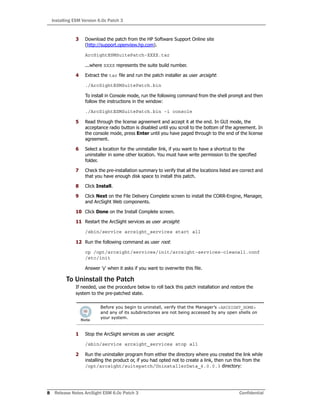
3 Download the patch from the HP Software Support Online site
(http://support.openview.hp.com).
ArcSightESMSuitePatch-XXXX.tar
...where XXXX represents the suite build number.
4 Extract the tar file and run the patch installer as user arcsight:
./ArcSightESMSuitePatch.bin
To install in Console mode, run the following command from the shell prompt and then
follow the instructions in the window:
./ArcSightESMSuitePatch.bin -i console
5 Read through the license agreement and accept it at the end. In GUI mode, the
acceptance radio button is disabled until you scroll to the bottom of the agreement. In
the console mode, press Enter until you have paged through to the end of the license
agreement.
6 Select a location for the uninstaller link, if you want to have a shortcut to the
uninstaller in some other location. You must have write permission to the specified
folder.
7 Check the pre-installation summary to verify that all the locations listed are correct and
that you have enough disk space to install this patch.
8 Click Install.
9 Click Next on the File Delivery Complete screen to install the CORR-Engine, Manager,
and ArcSight Web components.
10 Click Done on the Install Complete screen.
11 Restart the ArcSight services as user arcsight:
/sbin/service arcsight_services start all
12 Run the following command as user root:
cp /opt/arcsight/services/init/arcsight-services-cleanall.conf
/etc/init
Answer 'y' when it asks if you want to overwrite this file.
To Uninstall the Patch
If needed, use the procedure below to roll back this patch installation and restore the
system to the pre-patched state.
1 Stop the ArcSight services as user arcsight.
/sbin/service arcsight_services stop all
2 Run the uninstaller program from either the directory where you created the link while
installing the product or, if you had opted not to create a link, then run this from the
/opt/arcsight/suitepatch/UninstallerData_6.0.0.3 directory:
Before you begin to uninstall, verify that the Manager’s <ARCSIGHT_HOME>
and any of its subdirectories are not being accessed by any open shells on
your system.
Installing ESM Version 6.0c Patch 3
Confidential Release Notes ArcSight ESM 6.0c Patch 3 9
./Uninstall_ArcSight_ESM_Suite_Patch
Alternatively, you can run the following command from the /home/arcsight (or
wherever you installed the shortcut link) directory:
./Uninstall_ArcSight_ESM_Suite_Patch_6.0.0.3
Or, to uninstall using Console mode, run:
./Uninstall_ArcSight_ESM_Suite_Patch_6.0.0.3 -i console
Run the uninstaller in the same mode (GUI or Console) in which you ran the installer .
3 Click Done on the Uninstall Complete screen.
4 Navigate to /opt/arcsight/services/init and do the following:
Rename arcsight-services-cleanall.conf.pre6.0.0.3 to arcsight-services-cleanall.conf
mv arcsight-services-cleanall.conf.pre6.0.0.3
arcsight-services-cleanall.conf
Rename arcsight-monit.conf.pre6.0.0.3 to arcsight-monit.conf
mv arcsight-monit.conf.pre6.0.0.3 arcsight-monit.conf
5 Restart services by running the following command as user root or as user arcsight:
/sbin/service arcsight_services start all
6 Run the following command as user root:
cp /opt/arcsight/services/init/arcsight-services-cleanall.conf
/etc/init
Answer 'Y' when it asks if you want to overwrite this file.
ArcSight Console
This section describes how to install or uninstall the ESM 6.0c Patch 3 for ArcSight Console
on Windows, Mac, and Linux platforms.
To Install the Patch
1 Exit the ArcSight Console.
The ArcSight ESM Console is not supported on AIX or Solaris. The following
steps do not include information for installing a Console patch on those
platforms.
• Before you install the patch, verify that the Console’s <ARCSIGHT_HOME>
directory and any of its subdirectories are not being accessed by any open
shells on your system.
• If you need to re-install the patch, run the patch uninstaller before
installing the patch again.
Installing ESM Version 6.0c Patch 3
10 Release Notes ArcSight ESM 6.0c Patch 3 Confidential
2 Back up the Console directory (for example, /home/arcsight/console/current)
by making a copy. Place the copy in a readily accessible location. This is a
precautionary measure so you can restore the original state, if necessary.
Download the executable file specific to your platform from the HP Software Support
Online site (http://support.openview.hp.com). YYYY.Y represents the Console build
number.
 Patch-6.0.0.YYYY.Y-Console-Win.exe
 Patch-6.0.0.YYYY.Y-Console-Linux.bin
 Patch-6.0.0.YYYY.Y-Console-MacOSX.zip
For the Mac, see To Install the Patch on a Mac, below.
3 Run one of the following executables specific to your platform:
 On Windows:
Double-click Patch-6.0.0.YYYY.Y-Console-Win.exe
 On Linux:
Verify that you are logged in as user arcsight:, and then run the following
command:
./Patch-6.0.0.YYYY.Y-Console-Linux.bin
To install in Console mode, run the following command from the shell prompt and
then follow the instructions in the window:
./Patch-6.0.0.YYYY.Y-Console-Linux.bin -i console
The installer launches the Introduction window.
4 Read the instructions provided and click Next.
5 Accept the terms of the license agreement and click Next. The acceptance radio
button is disabled until you scroll to the bottom of the agreement.
6 Enter the location of your existing <ARCSIGHT_HOME> directory for your Console
installation in the text box provided or navigate to the location by clicking Choose…
If you want to restore the installer-provided default location, click Restore Default
Folder.
7 Click Next.
8 Choose a Link Location (on Linux) or Shortcut location (on Windows) by clicking the
appropriate radio button and click Next.
9 Check the pre-installation summary to verify that all the locations listed are correct and
that you have enough disk space to install this patch.
10 Click Install.
11 Click Done on the Install Complete screen.
Arcsight recommends that you do not simply rename files and leave
them in the same directory. Java reads all the files present, regardless of
renaming, and can pick up old code inadvertently, causing undesirable
results.
Installing ESM Version 6.0c Patch 3
Confidential Release Notes ArcSight ESM 6.0c Patch 3 11
To Install the Patch on a Mac
The patch installer download and run procedure is slightly different on the Mac than on the
other supported platforms.
1 Exit the ArcSight Console.
2 Back up the Console directory (for example, /home/arcsight/console/current)
by making a copy. Place the copy in a readily accessible location. This is just a
precautionary measure so you can restore the original state, if necessary.
3 Download the file Patch-6.0.0.YYYY.Y-Console-MacOSX.zip to anywhere on
your system.
4 Launch the patch installer by double-clicking the ArcSightConsolePatch file.
5 Follow the steps on the patch install wizard, providing the information as prompted:
 Accept the terms of the license agreement and click Next. The acceptance radio
button is disabled until you scroll to the bottom of the agreement.
 Choose the location where you want to install the patch. Browse to
<ARCSIGHT_HOME>, where your previous Console was installed.
 Choose an alias location for the Console application (or opt to not use aliases).
This is the same as a link location on UNIX systems or shortcut location on
Windows systems.
6 Click Next.
7 Verify your settings and click Install.
To Uninstall the Patch
If needed, use the procedure below to roll back this patch installation.
1 Exit the ArcSight Console.
2 Run the uninstaller program:
On Windows:
 Double-click the icon you created for the uninstaller when installing the Console.
For example, if you created an uninstaller icon on your desktop, double-click that
icon.
 If you created a link in the Start menu, click:
Start > All Programs > ArcSight ESM Console 6.0c Patch 3 > Uninstall
ArcSight ESM Console 6.0c Patch 3
The patch installer file shows as a ZIP file on the download site, but
downloads as ArcSightConsolePatch.app on the Mac. A single or
double-click on this APP file launches the patch installer, depending on
how you have set these options. There is no need to “extract” or “unzip”
the file; it downloads as an APP file.
Before you begin to uninstall, verify that the Console’s <ARCSIGHT_HOME> and
any of its subdirectories are not being accessed by any open shells on your
system.
Issues Fixed in this Patch
12 Release Notes ArcSight ESM 6.0c Patch 3 Confidential
 Or, run the following from the Console’s
<ARCSIGHT_HOME>currentUninstallerData_6.0.0.3 directory:
Uninstall_ArcSight_ESM_Console_Patch
On Linux:
 From the directory where you created the link when installing the Console (your
home directory or some other location), run:
./Uninstall_ArcSight_ESM_Console_6.0.0.3
 Or, to uninstall using Console mode, run:
./Uninstall_ArcSight_ESM_Console_6.0.0.3 -i console
 If you did not create a link, execute the command from the Console’s
<ARCSIGHT_HOME>/current/UninstallerData6.0.0.3 directory:
./Uninstall_ArcSight_ESM_Console_Patch
On a Mac:
 From the directory where you created the link when installing the Console, run:
Uninstall_ArcSight_Console_6.0.0.3
 From the Console’s
<ARCSIGHT_HOME>/current/UninstallerData_6.0.0.3 directory, run:
Uninstall_ArcSight_ESM_Console_Patch
3 Click Done on the Uninstall Complete screen.
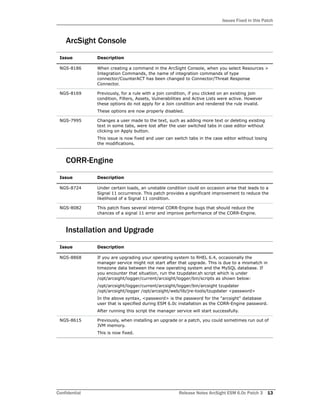
Issues Fixed in this Patch
The following issues are fixed in this patch.
Analytics
Issue Description
NGS-8178 In certain cases, once a rule gets disabled due to too many firings, it will continue
getting disabled even without new firings, because the calculation of number of
firings per minute does not get reset properly. This issue is now fixed.
NGS-8177 Users can now delete a Trend used in a Query that in turn is used in a Query
Viewer.
NGS-8148 Previously, when rule modification was done by a user who didn't have read
access to all the rules, the modification appeared to succeed, but was not applied.
Now this issue is fixed and rule modification by user is applied properly.
NGS-5308 Automatically exporting cases in a search group to an xml file using
"external.export.querygroup.uri" property was not working. This issue is now
fixed.
Issues Fixed in this Patch
Confidential Release Notes ArcSight ESM 6.0c Patch 3 13
ArcSight Console
CORR-Engine
Installation and Upgrade
Issue Description
NGS-8186 When creating a command in the ArcSight Console, when you select Resources >
Integration Commands, the name of integration commands of type
connector/CounterACT has been changed to Connector/Threat Response
Connector.
NGS-8169 Previously, for a rule with a join condition, if you clicked on an existing join
condition, Filters, Assets, Vulnerabilities and Active Lists were active. However
these options do not apply for a Join condition and rendered the rule invalid.
These options are now properly disabled.
NGS-7995 Changes a user made to the text, such as adding more text or deleting existing
text in some tabs, were lost after the user switched tabs in case editor without
clicking on Apply button.
This issue is now fixed and user can switch tabs in the case editor without losing
the modifications.
Issue Description
NGS-8724 Under certain loads, an unstable condition could on occasion arise that leads to a
Signal 11 occurrence. This patch provides a significant improvement to reduce the
likelihood of a Signal 11 condition.
NGS-8082 This patch fixes several internal CORR-Engine bugs that should reduce the
chances of a signal 11 error and improve performance of the CORR-Engine.
Issue Description
NGS-8868 If you are upgrading your operating system to RHEL 6.4, occasionally the
manager service might not start after that upgrade. This is due to a mismatch in
timezone data between the new operating system and the MySQL database. If
you encounter that situation, run the tzupdater.sh script which is under
/opt/arcsight/logger/current/arcsight/logger/bin/scripts as shown below:
/opt/arcsight/logger/current/arcsight/logger/bin/arcsight tzupdater
/opt/arcsight/logger /opt/arcsight/web/lib/jre-tools/tzupdater <password>
In the above syntax, <password> is the password for the "arcsight" database
user that is specified during ESM 6.0c installation as the CORR-Engine password.
After running this script the manager service will start successfully.
NGS-8615 Previously, when installing an upgrade or a patch, you could sometimes run out of
JVM memory.
This is now fixed.
Open Issues in this Patch
14 Release Notes ArcSight ESM 6.0c Patch 3 Confidential
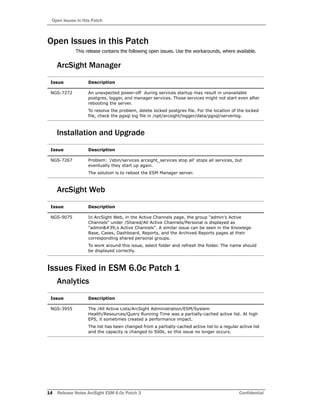
Open Issues in this Patch
This release contains the following open issues. Use the workarounds, where available.
ArcSight Manager
Installation and Upgrade
ArcSight Web
Issues Fixed in ESM 6.0c Patch 1
Analytics
Issue Description
NGS-7272 An unexpected power-off during services startup may result in unavailable
postgres, logger, and manager services. Those services might not start even after
rebooting the server.
To resolve the problem, delete locked postgres file. For the location of the locked
file, check the pgsql log file in /opt/arcsight/logger/data/pgsql/serverlog.
Issue Description
NGS-7267 Problem: '/sbin/services arcsight_services stop all' stops all services, but
eventually they start up again.
The solution is to reboot the ESM Manager server.
Issue Description
NGS-9075 In ArcSight Web, in the Active Channels page, the group "admin's Active
Channels" under /Shared/All Active Channels/Personal is displayed as
"admin&#39;s Active Channels". A similar issue can be seen in the Knowlege
Base, Cases, Dashboard, Reports, and the Archived Reports pages at their
corresponding shared personal groups.
To work around this issue, select folder and refresh the folder. The name should
be displayed correctly.
Issue Description
NGS-3955 The /All Active Lists/ArcSight Administration/ESM/System
Health/Resources/Query Running Time was a partially-cached active list. At high
EPS, it sometimes created a performance impact.
The list has been changed from a partially-cached active list to a regular active list
and the capacity is changed to 500k, so this issue no longer occurs.
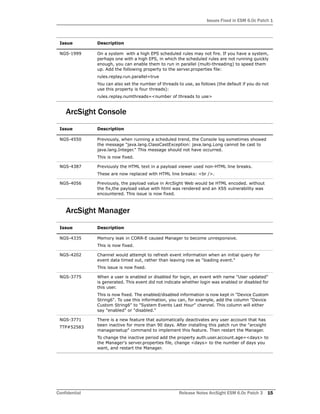
Issues Fixed in ESM 6.0c Patch 1
Confidential Release Notes ArcSight ESM 6.0c Patch 3 15
ArcSight Console
ArcSight Manager
NGS-1999 On a system with a high EPS scheduled rules may not fire. If you have a system,
perhaps one with a high EPS, in which the scheduled rules are not running quickly
enough, you can enable them to run in parallel (multi-threading) to speed them
up. Add the following property to the server.properties file:
rules.replay.run.parallel=true
You can also set the number of threads to use, as follows (the default if you do not
use this property is four threads):
rules.replay.numthreads=<number of threads to use>
Issue Description
NGS-4550 Previously, when running a scheduled trend, the Console log sometimes showed
the message "java.lang.ClassCastException: java.lang.Long cannot be cast to
java.lang.Integer." This message should not have occurred.
This is now fixed.
NGS-4387 Previously the HTML text in a payload viewer used non-HTML line breaks.
These are now replaced with HTML line breaks: <br />.
NGS-4056 Previously, the payload value in ArcSight Web would be HTML encoded. without
the fix,the payload value with html was rendered and an XSS vulnerability was
encountered. This issue is now fixed.
Issue Description
NGS-4335 Memory leak in CORR-E caused Manager to become unresponsive.
This is now fixed.
NGS-4202 Channel would attempt to refresh event information when an initial query for
event data timed out, rather than leaving row as "loading event."
This issue is now fixed.
NGS-3775 When a user is enabled or disabled for login, an event with name "User updated"
is generated. This event did not indicate whether login was enabled or disabled for
this user.
This is now fixed. The enabled/disabled information is now kept in "Device Custom
String6". To use this information, you can, for example, add the column "Device
Custom String6" to "System Events Last Hour" channel. This column will either
say "enabled" or "disabled."
NGS-3771
TTP#52583
There is a new feature that automatically deactivates any user account that has
been inactive for more than 90 days. After installing this patch run the "arcsight
managersetup" command to implement this feature. Then restart the Manager.
To change the inactive period add the property auth.user.account.age=<days> to
the Manager's server.properties file, change <days> to the number of days you
want, and restart the Manager.
Issue Description
Issues Fixed in ESM 6.0c Patch 1
16 Release Notes ArcSight ESM 6.0c Patch 3 Confidential
ArcSight Web
CORR-Engine
Issue Description
NGS-5004 Display of exception stack in page source is fixed now.
Add the following property in webserver.properties
"web.display.exception.stack=false" to NOT display exception stack in page
source. Also, please clear browser cache.
NGS-4219 A report would fail to run if a web user logged in to the ArcSight Web Console and
selected a user's email address for 'Email to' option. The problem occurred when
the web user was configured with an Active Directory external id.
This issue is now fixed.
NGS-4124 Previously, the payload value in ArcSight Web would be HTML encoded. without
the fix,the payload value with html was rendered and an XSS vulnerability was
encountered. This issue is now fixed.
NGS-3989 The ArcSight Web Login banner displayed newline characters as n instead of
adding a new line.
Now this banner displays correctly.
Issue Description
NGS-4893 In a disaster-recovery scenario where event archives were restored onto a brand
new, plain vanilla system, you could not restore annotations for event archives
that were in the online state. This fix resolves that problem. The offline archives
were unaffected.
NGS-4229 Archive stopped working after Daylight Saving Time ended in Brazil at midnight on
10/22 when the clock was turned back one hour. The following error that
appeared in the Logger log file: "An archive with duplicate date already exists in
the database". This issue is now fixed.
NGS-4082 If the buffer pool is too small, it can cause slow channel performance or prevent
logging in to the Console. If you get an error message like this:
[ERROR][default.com.arcsight.common.persist.mysql.MysqlNotificationBroker][p
urgeOldNotifications]
java.sql.SQLException: The total number of locks exceeds the lock table size
...you can solve the problem by editing the file
/opt/arcsight/logger/data/mysql/my.cnf to set innodb_buffer_pool_size = 512M
(the default was 128).
Then restart all services.
NGS-3948 When restoring archives from an old ESM 6.0c system to another ESM 6.0c
system, if the archives contained forwarded events, the restore of that archive
would fail due to a highly restrictive eventID check.
Now the restore properly accounts for forwarded events.
NGS-3921 Previously, the command "arcsight_services restart mysqld" did not properly
restart the mysql process.
This command now works correctly.
Issues Fixed in ESM 6.0c Patch 2
Confidential Release Notes ArcSight ESM 6.0c Patch 3 17
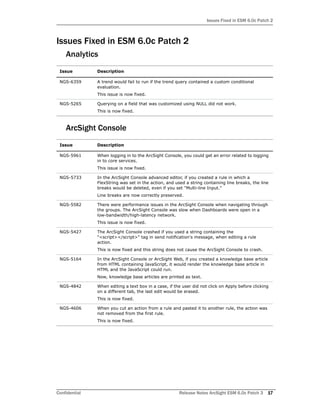
Issues Fixed in ESM 6.0c Patch 2
Analytics
ArcSight Console
Issue Description
NGS-6359 A trend would fail to run if the trend query contained a custom conditional
evaluation.
This issue is now fixed.
NGS-5265 Querying on a field that was customized using NULL did not work.
This is now fixed.
Issue Description
NGS-5961 When logging in to the ArcSight Console, you could get an error related to logging
in to core services.
This issue is now fixed.
NGS-5733 In the ArcSight Console advanced editor, if you created a rule in which a
FlexString was set in the action, and used a string containing line breaks, the line
breaks would be deleted, even if you set "Multi-line Input."
Line breaks are now correctly preserved.
NGS-5582 There were performance issues in the ArcSight Console when navigating through
the groups. The ArcSight Console was slow when Dashboards were open in a
low-bandwidth/high-latency network.
This issue is now fixed.
NGS-5427 The ArcSight Console crashed if you used a string containing the
"<script></script>" tag in send notification's message, when editing a rule
action.
This is now fixed and this string does not cause the ArcSight Console to crash.
NGS-5164 In the ArcSight Console or ArcSight Web, if you created a knowledge base article
from HTML containing JavaScript, it would render the knowledge base article in
HTML and the JavaScript could run.
Now, knowledge base articles are printed as text.
NGS-4842 When editing a text box in a case, if the user did not click on Apply before clicking
on a different tab, the last edit would be erased.
This is now fixed.
NGS-4606 When you cut an action from a rule and pasted it to another rule, the action was
not removed from the first rule.
This is now fixed.
Issues Fixed in ESM 6.0c Patch 2
18 Release Notes ArcSight ESM 6.0c Patch 3 Confidential
ArcSight Database
ArcSight Manager
Issue Description
NGS-5970 There was a hanging issue with the error returns when trying to log in to mysql if
the system was under stress load:
"[ERROR] Cannot find or open table
arcsight/arc_sld_res56d_base#P#ARC_SLD_RES56D_BASE_20130708" from
the internal data dictionary of InnoDB though the .frm file for the table exists. ..."
The issue is now fixed.
NGS-5483 Excessive temporary file space is being used when Group By (or sorting) is
performed on the Event table. Solution: use the ArcSight substring function on
varchar/string event fields to minimize the data manipulation during grouping. No
fix is required for this change and you can use existing local/global variables to
achieve this behavior and replace the existing field in the query with the variable.
If the file space usage is still not satisfactory, you can leverage this fix to convert
the character set automatically to Latin and use less space. To trigger this new
code, set the event.query.charset.conversion property to 1 in the
server.properties file to convert the existing charset to latin1. Alternatively, set
the property to 2 for conversion to binary and then to Latin (to minimize
conversion error for non-English character set). The default value of this property
is zero.
Note: Use this property carefully to avoid character conversion error of multi-byte
character to one byte (latin1) truncation.
NGS-5282 The Instance of Mysql was getting into an inconsistent state during shutdown.
Improvements have been made to handle the scenario which could lead to the
corruption of these files .
Issue Description
NGS-6022 An exception was observed during search index creation.
This issue is now fixed.
NGS-5454 ESM was not able to start because of corruption of time zone files.
Improvements have made to handle the scenario which could lead to the
corruption of these files.
NGS-5329 You would get an error if you used $CurrentYear in a report parameter.
$CurrentYear is always the beginning of the year. In the current user interface,
the $CurrentYear value is not available from the drop-down menu. However, with
this fix you can set it explicitly and generate a report, without getting a report
execution error.
NGS-4810 If you used a password containing a double quote ("), it would cause an error
message in the server.std log that exposed the password in clear text.
Now a double quote no longer causes an error and the password is not exposed.
NGS-3147 The 'arcsight sendlogs -g' command could cause a fatal exception.
Now this command works correctly with the -g option.
NGS-1973 The help option (-help) for the arcsight manageinventory command showed help
for the arcsight monitor command.
It now shows the correct help.
Open and Closed Issues in ESM 6.0c
Confidential Release Notes ArcSight ESM 6.0c Patch 3 19
ArcSight Web
Installation and Upgrade
Management Console
Open and Closed Issues in ESM 6.0c
For information about open and closed issues for ESM 6.0c see the release notes for that
version.
Issue Description
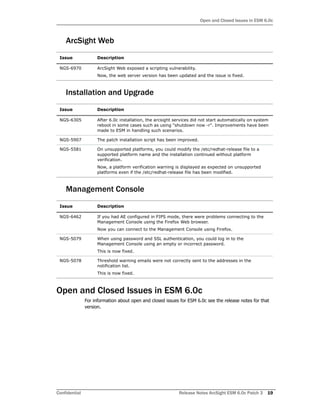
NGS-6970 ArcSight Web exposed a scripting vulnerability.
Now, the web server version has been updated and the issue is fixed.
Issue Description
NGS-6305 After 6.0c installation, the arcsight services did not start automatically on system
reboot in some cases such as using "shutdown now -r". Improvements have been
made to ESM in handling such scenarios.
NGS-5907 The patch installation script has been improved.
NGS-5581 On unsupported platforms, you could modify the /etc/redhat-release file to a
supported platform name and the installation continued without platform
verification.
Now, a platform verification warning is displayed as expected on unsupported
platforms even if the /etc/redhat-release file has been modified.
Issue Description
NGS-6462 If you had AE configured in FIPS mode, there were problems connecting to the
Management Console using the Firefox Web browser.
Now you can connect to the Management Console using Firefox.
NGS-5079 When using password and SSL authentication, you could log in to the
Management Console using an empty or incorrect password.
This is now fixed.
NGS-5078 Threshold warning emails were not correctly sent to the addresses in the
notification list.
This is now fixed.
Open and Closed Issues in ESM 6.0c
20 Release Notes ArcSight ESM 6.0c Patch 3 Confidential

Esm rel notes_6.0cp3

  • 1.
    Release Notes ArcSight ESM™ Version6.0c Patch 3 June 04, 2014
  • 2.
    Copyright © 2014Hewlett-Packard Development Company, L.P. Confidential computer software. Valid license from HP required for possession, use or copying. Consistent with FAR 12.211 and 12.212, Commercial Computer Software, Computer Software Documentation, and Technical Data for Commercial Items are licensed to the U.S. Government under vendor's standard commercial license. The information contained herein is subject to change without notice. The only warranties for HP products and services are set forth in the express warranty statements accompanying such products and services. Nothing herein should be construed as constituting an additional warranty. HP shall not be liable for technical or editorial errors or omissions contained herein. Follow this link to see a complete statement of copyrights and acknowledgements: http://www.hpenterprisesecurity.com/copyright Contact Information Revision History Phone A list of phone numbers is available on the HP ArcSight Technical Support page: http://www8.hp.com/us/en/software- solutions/software.html?compURI=1345981#.URitMaVwpWI Support Web Site http://support.openview.hp.com Protect 724 Community https://protect724.hp.com Date Product Version Description 6/04/2014 ArcSight ESM Version 6.0c Patch 3 Release Notes for ArcSight ESM Version 6.0c Patch 3
  • 3.
    Confidential Release NotesArcSight ESM 6.0c Patch 3 3 Contents ArcSight ESM Version 6.0c Patch 3 ......................................................................................................... 5 ESM 6.0c Patch 3 ............................................................................................................ 5 Purpose of this Patch ....................................................................................................... 5 Usage Notes for this Patch ................................................................................................ 5 Upgrading to RHEL 6.4 .............................................................................................. 5 Section 508 Compliance ................................................................................................... 6 Geographical Information Update ...................................................................................... 6 Vulnerability Updates ....................................................................................................... 6 Installing ESM Version 6.0c Patch 3 ................................................................................... 7 ArcSight ESM Main Component Suite ........................................................................... 7 ArcSight Console ....................................................................................................... 9 Issues Fixed in this Patch ............................................................................................... 12 Analytics ................................................................................................................ 12 ArcSight Console ..................................................................................................... 13 CORR-Engine .......................................................................................................... 13 Installation and Upgrade .......................................................................................... 13 Open Issues in this Patch ............................................................................................... 14 ArcSight Manager .................................................................................................... 14 Installation and Upgrade .......................................................................................... 14 ArcSight Web ......................................................................................................... 14 Issues Fixed in ESM 6.0c Patch 1 ..................................................................................... 14 Analytics ................................................................................................................ 14 ArcSight Console ..................................................................................................... 15 ArcSight Manager .................................................................................................... 15 ArcSight Web ......................................................................................................... 16 CORR-Engine .......................................................................................................... 16 Issues Fixed in ESM 6.0c Patch 2 ..................................................................................... 17 Analytics ................................................................................................................ 17 ArcSight Console ..................................................................................................... 17 ArcSight Database ................................................................................................... 18 ArcSight Manager .................................................................................................... 18 ArcSight Web ......................................................................................................... 19 Installation and Upgrade .......................................................................................... 19 Management Console .............................................................................................. 19
  • 4.
    4 Release NotesArcSight ESM 6.0c Patch 3 Confidential ArcSight ESM 6.0c Open and Closed Issues in ESM 6.0c ................................................................................ 19
  • 5.
    Confidential Release NotesArcSight ESM 6.0c Patch 3 5 ArcSight ESM Version 6.0c Patch 3  ESM 6.0c Patch 3 These release notes describe how to apply this patch release of ArcSight ESM. Instructions are included for each component, as well as other information about recent changes and open and closed issues. This patch is for ArcSight ESM 6.0c or 6.0c with an earlier patch. To set up a new ESM 6.0c installation, refer to the ArcSight ESM Installation and Configuration Guide. The build number for the ESM suite for this patch is 1749. The build number for the ArcSight Console for this patch is 1850.3. After you have installed 6.0c, follow the instructions in “Installing ESM Version 6.0c Patch 3” on page 7 of these release notes to apply Patch 3. Purpose of this Patch This patch:  Addresses critical issues in ESM 6.0c. This patch includes all previous patches for this version.  Provides updates for geographical information and vulnerability mapping.  Adds certification of Red Hat Enterprise Linux 6.4 (64-bit) for ESM 6.0c Patch 3. If you would like to upgrade your operating system from Red Hat Linux 6.2 to 6.4, do so only after you have successfully upgraded your ESM installation to 6.0c Patch3.  Under certain loads, an unstable condition can on occasion arise that leads to a Signal 11 occurrence. This patch provides a significant improvement to reduce the likelihood of a Signal 11 condition. Usage Notes for this Patch Also refer to ArcSight ESM Release Notes Version 6.0c. The usage notes for that release also apply to this patch. Upgrading to RHEL 6.4 If you are upgrading your operating system to RHEL 6.4, occasionally the manager service might not start after that upgrade. This is due to a mismatch in timezone data between the new operating system and the MySQL database. If you encounter that situation, run the tzupdater.sh script which is under /opt/arcsight/logger/current/arcsight/logger/bin/scripts as shown below:
  • 6.
    Section 508 Compliance 6Release Notes ArcSight ESM 6.0c Patch 3 Confidential /opt/arcsight/logger/current/arcsight/logger/bin/arcsight tzupdater /opt/arcsight/logger /opt/arcsight/web/lib/jre-tools/tzupdater <password> In the above syntax, <password> is the password for the “arcsight” database user that is specified during ESM 6.0c installation as the CORR-Engine password. After running this script the manager service will start successfully. Section 508 Compliance ArcSight recognizes the importance of accessibility as a product initiative. To that end, ArcSight continues to make advances in the area of accessibility in its product lines. Geographical Information Update This version of ESM includes an update to the geographical information used in graphic displays. The version is GeoIP-532_20140501. Vulnerability Updates This release includes recent vulnerability mappings from the May 2014 Context Update. Device Vulnerability Updates Snort / Sourcefire SEU-1107 updated Bugtraq, X-Force, MSSB, Faultline, CVE, Nessus, MSKB, CERT Enterasys Dragon IDS updated Faultline, CVE, Nessus, MSSB Cisco Secure IDS S797 updated Bugtraq, X-Force, Faultline, CVE, Nessus Juniper / Netscreen IDP update 2373 updated Faultline, Bugtraq, CVE, Nessus, X-Force, MSKB, MSSB, CERT McAfee Intrushield updated Faultline, Bugtraq, CVE, X-Force, Nessus, MSSB, MSKB TippingPoint UnityOne DV8565 updated Bugtraq, MSSB, Faultline, CVE, Nessus ISS SiteProtector updated Faultline, Bugtraq, CVE, Nessus, X-Force, MSKB, MSSB, CERT Symantec Endpoint Protection updated Faultline, Bugtraq, CVE, X-Force, Nessus McAfee HIPS 7.0 updated CVE Radware DefensePro updated CVE
  • 7.
    Installing ESM Version6.0c Patch 3 Confidential Release Notes ArcSight ESM 6.0c Patch 3 7 Installing ESM Version 6.0c Patch 3 You can install this patch release using the platform-specific component executable files provided. Patch installers are available for all supported platforms. Please keep the following points in mind when installing Patch 3: Each component has install and uninstall steps. ArcSight ESM Main Component Suite This section describes how to install or uninstall the ESM 6.0c Patch 3 for all the main components except the ArcSight Console. These components include the Manager, ArcSight Web, and the CORR-Engine. To Install the Patch 1 Stop the ArcSight services as user arcsight. /sbin/service arcsight_services stop all 2 Back up the ArcSight directory, /opt/arcsight, by making a copy. Place the copy in a readily accessible location. This is just a precautionary measure so you can restore the original state, if necessary. • For all components and platforms: Make sure that you have enough space available before you install the patch. The installer checks for 1 GB of space and generates an error if it is not available. If you run into disk space issues during installation, create enough space, restore the component base build from the backup, then resume patch installation. • Backup, patch install, and uninstall procedures require permissions for the relevant components. To install a patch, make sure that the user who owns the base build installation folder has full privileges on the PATH where the base build is installed. • To uninstall the software you must be at the same user level as the original installer. • It is a good practice to create a backup of the existing product before installation begins. Do not simply rename files and leave them in the same directory. Java reads all the files present, regardless of renaming, and can pick up old code inadvertently, causing undesirable results. • For backup, patch install, and uninstall, we recommend that you log in to the target machine with a specific account name via telnet or SSH. If you switch accounts after logging in, then specify the flag "-" for the su command (su - <UserName>). • Before you install the patch, verify that <ARCSIGHT_HOME> and any of its subdirectories are not being accessed by open shells on your system. • If for any reason you need to re-install the patch, run the patch uninstaller before installing the patch again. Arcsight recommends that you do not simply rename files and leave them in the same directory. Java reads all the files present, regardless of renaming, and can pick up old code inadvertently, causing undesirable results.
  • 8.
    Installing ESM Version6.0c Patch 3 8 Release Notes ArcSight ESM 6.0c Patch 3 Confidential 3 Download the patch from the HP Software Support Online site (http://support.openview.hp.com). ArcSightESMSuitePatch-XXXX.tar ...where XXXX represents the suite build number. 4 Extract the tar file and run the patch installer as user arcsight: ./ArcSightESMSuitePatch.bin To install in Console mode, run the following command from the shell prompt and then follow the instructions in the window: ./ArcSightESMSuitePatch.bin -i console 5 Read through the license agreement and accept it at the end. In GUI mode, the acceptance radio button is disabled until you scroll to the bottom of the agreement. In the console mode, press Enter until you have paged through to the end of the license agreement. 6 Select a location for the uninstaller link, if you want to have a shortcut to the uninstaller in some other location. You must have write permission to the specified folder. 7 Check the pre-installation summary to verify that all the locations listed are correct and that you have enough disk space to install this patch. 8 Click Install. 9 Click Next on the File Delivery Complete screen to install the CORR-Engine, Manager, and ArcSight Web components. 10 Click Done on the Install Complete screen. 11 Restart the ArcSight services as user arcsight: /sbin/service arcsight_services start all 12 Run the following command as user root: cp /opt/arcsight/services/init/arcsight-services-cleanall.conf /etc/init Answer 'y' when it asks if you want to overwrite this file. To Uninstall the Patch If needed, use the procedure below to roll back this patch installation and restore the system to the pre-patched state. 1 Stop the ArcSight services as user arcsight. /sbin/service arcsight_services stop all 2 Run the uninstaller program from either the directory where you created the link while installing the product or, if you had opted not to create a link, then run this from the /opt/arcsight/suitepatch/UninstallerData_6.0.0.3 directory: Before you begin to uninstall, verify that the Manager’s <ARCSIGHT_HOME> and any of its subdirectories are not being accessed by any open shells on your system.
  • 9.
    Installing ESM Version6.0c Patch 3 Confidential Release Notes ArcSight ESM 6.0c Patch 3 9 ./Uninstall_ArcSight_ESM_Suite_Patch Alternatively, you can run the following command from the /home/arcsight (or wherever you installed the shortcut link) directory: ./Uninstall_ArcSight_ESM_Suite_Patch_6.0.0.3 Or, to uninstall using Console mode, run: ./Uninstall_ArcSight_ESM_Suite_Patch_6.0.0.3 -i console Run the uninstaller in the same mode (GUI or Console) in which you ran the installer . 3 Click Done on the Uninstall Complete screen. 4 Navigate to /opt/arcsight/services/init and do the following: Rename arcsight-services-cleanall.conf.pre6.0.0.3 to arcsight-services-cleanall.conf mv arcsight-services-cleanall.conf.pre6.0.0.3 arcsight-services-cleanall.conf Rename arcsight-monit.conf.pre6.0.0.3 to arcsight-monit.conf mv arcsight-monit.conf.pre6.0.0.3 arcsight-monit.conf 5 Restart services by running the following command as user root or as user arcsight: /sbin/service arcsight_services start all 6 Run the following command as user root: cp /opt/arcsight/services/init/arcsight-services-cleanall.conf /etc/init Answer 'Y' when it asks if you want to overwrite this file. ArcSight Console This section describes how to install or uninstall the ESM 6.0c Patch 3 for ArcSight Console on Windows, Mac, and Linux platforms. To Install the Patch 1 Exit the ArcSight Console. The ArcSight ESM Console is not supported on AIX or Solaris. The following steps do not include information for installing a Console patch on those platforms. • Before you install the patch, verify that the Console’s <ARCSIGHT_HOME> directory and any of its subdirectories are not being accessed by any open shells on your system. • If you need to re-install the patch, run the patch uninstaller before installing the patch again.
  • 10.
    Installing ESM Version6.0c Patch 3 10 Release Notes ArcSight ESM 6.0c Patch 3 Confidential 2 Back up the Console directory (for example, /home/arcsight/console/current) by making a copy. Place the copy in a readily accessible location. This is a precautionary measure so you can restore the original state, if necessary. Download the executable file specific to your platform from the HP Software Support Online site (http://support.openview.hp.com). YYYY.Y represents the Console build number.  Patch-6.0.0.YYYY.Y-Console-Win.exe  Patch-6.0.0.YYYY.Y-Console-Linux.bin  Patch-6.0.0.YYYY.Y-Console-MacOSX.zip For the Mac, see To Install the Patch on a Mac, below. 3 Run one of the following executables specific to your platform:  On Windows: Double-click Patch-6.0.0.YYYY.Y-Console-Win.exe  On Linux: Verify that you are logged in as user arcsight:, and then run the following command: ./Patch-6.0.0.YYYY.Y-Console-Linux.bin To install in Console mode, run the following command from the shell prompt and then follow the instructions in the window: ./Patch-6.0.0.YYYY.Y-Console-Linux.bin -i console The installer launches the Introduction window. 4 Read the instructions provided and click Next. 5 Accept the terms of the license agreement and click Next. The acceptance radio button is disabled until you scroll to the bottom of the agreement. 6 Enter the location of your existing <ARCSIGHT_HOME> directory for your Console installation in the text box provided or navigate to the location by clicking Choose… If you want to restore the installer-provided default location, click Restore Default Folder. 7 Click Next. 8 Choose a Link Location (on Linux) or Shortcut location (on Windows) by clicking the appropriate radio button and click Next. 9 Check the pre-installation summary to verify that all the locations listed are correct and that you have enough disk space to install this patch. 10 Click Install. 11 Click Done on the Install Complete screen. Arcsight recommends that you do not simply rename files and leave them in the same directory. Java reads all the files present, regardless of renaming, and can pick up old code inadvertently, causing undesirable results.
  • 11.
    Installing ESM Version6.0c Patch 3 Confidential Release Notes ArcSight ESM 6.0c Patch 3 11 To Install the Patch on a Mac The patch installer download and run procedure is slightly different on the Mac than on the other supported platforms. 1 Exit the ArcSight Console. 2 Back up the Console directory (for example, /home/arcsight/console/current) by making a copy. Place the copy in a readily accessible location. This is just a precautionary measure so you can restore the original state, if necessary. 3 Download the file Patch-6.0.0.YYYY.Y-Console-MacOSX.zip to anywhere on your system. 4 Launch the patch installer by double-clicking the ArcSightConsolePatch file. 5 Follow the steps on the patch install wizard, providing the information as prompted:  Accept the terms of the license agreement and click Next. The acceptance radio button is disabled until you scroll to the bottom of the agreement.  Choose the location where you want to install the patch. Browse to <ARCSIGHT_HOME>, where your previous Console was installed.  Choose an alias location for the Console application (or opt to not use aliases). This is the same as a link location on UNIX systems or shortcut location on Windows systems. 6 Click Next. 7 Verify your settings and click Install. To Uninstall the Patch If needed, use the procedure below to roll back this patch installation. 1 Exit the ArcSight Console. 2 Run the uninstaller program: On Windows:  Double-click the icon you created for the uninstaller when installing the Console. For example, if you created an uninstaller icon on your desktop, double-click that icon.  If you created a link in the Start menu, click: Start > All Programs > ArcSight ESM Console 6.0c Patch 3 > Uninstall ArcSight ESM Console 6.0c Patch 3 The patch installer file shows as a ZIP file on the download site, but downloads as ArcSightConsolePatch.app on the Mac. A single or double-click on this APP file launches the patch installer, depending on how you have set these options. There is no need to “extract” or “unzip” the file; it downloads as an APP file. Before you begin to uninstall, verify that the Console’s <ARCSIGHT_HOME> and any of its subdirectories are not being accessed by any open shells on your system.
  • 12.
    Issues Fixed inthis Patch 12 Release Notes ArcSight ESM 6.0c Patch 3 Confidential  Or, run the following from the Console’s <ARCSIGHT_HOME>currentUninstallerData_6.0.0.3 directory: Uninstall_ArcSight_ESM_Console_Patch On Linux:  From the directory where you created the link when installing the Console (your home directory or some other location), run: ./Uninstall_ArcSight_ESM_Console_6.0.0.3  Or, to uninstall using Console mode, run: ./Uninstall_ArcSight_ESM_Console_6.0.0.3 -i console  If you did not create a link, execute the command from the Console’s <ARCSIGHT_HOME>/current/UninstallerData6.0.0.3 directory: ./Uninstall_ArcSight_ESM_Console_Patch On a Mac:  From the directory where you created the link when installing the Console, run: Uninstall_ArcSight_Console_6.0.0.3  From the Console’s <ARCSIGHT_HOME>/current/UninstallerData_6.0.0.3 directory, run: Uninstall_ArcSight_ESM_Console_Patch 3 Click Done on the Uninstall Complete screen. Issues Fixed in this Patch The following issues are fixed in this patch. Analytics Issue Description NGS-8178 In certain cases, once a rule gets disabled due to too many firings, it will continue getting disabled even without new firings, because the calculation of number of firings per minute does not get reset properly. This issue is now fixed. NGS-8177 Users can now delete a Trend used in a Query that in turn is used in a Query Viewer. NGS-8148 Previously, when rule modification was done by a user who didn't have read access to all the rules, the modification appeared to succeed, but was not applied. Now this issue is fixed and rule modification by user is applied properly. NGS-5308 Automatically exporting cases in a search group to an xml file using "external.export.querygroup.uri" property was not working. This issue is now fixed.
  • 13.
    Issues Fixed inthis Patch Confidential Release Notes ArcSight ESM 6.0c Patch 3 13 ArcSight Console CORR-Engine Installation and Upgrade Issue Description NGS-8186 When creating a command in the ArcSight Console, when you select Resources > Integration Commands, the name of integration commands of type connector/CounterACT has been changed to Connector/Threat Response Connector. NGS-8169 Previously, for a rule with a join condition, if you clicked on an existing join condition, Filters, Assets, Vulnerabilities and Active Lists were active. However these options do not apply for a Join condition and rendered the rule invalid. These options are now properly disabled. NGS-7995 Changes a user made to the text, such as adding more text or deleting existing text in some tabs, were lost after the user switched tabs in case editor without clicking on Apply button. This issue is now fixed and user can switch tabs in the case editor without losing the modifications. Issue Description NGS-8724 Under certain loads, an unstable condition could on occasion arise that leads to a Signal 11 occurrence. This patch provides a significant improvement to reduce the likelihood of a Signal 11 condition. NGS-8082 This patch fixes several internal CORR-Engine bugs that should reduce the chances of a signal 11 error and improve performance of the CORR-Engine. Issue Description NGS-8868 If you are upgrading your operating system to RHEL 6.4, occasionally the manager service might not start after that upgrade. This is due to a mismatch in timezone data between the new operating system and the MySQL database. If you encounter that situation, run the tzupdater.sh script which is under /opt/arcsight/logger/current/arcsight/logger/bin/scripts as shown below: /opt/arcsight/logger/current/arcsight/logger/bin/arcsight tzupdater /opt/arcsight/logger /opt/arcsight/web/lib/jre-tools/tzupdater <password> In the above syntax, <password> is the password for the "arcsight" database user that is specified during ESM 6.0c installation as the CORR-Engine password. After running this script the manager service will start successfully. NGS-8615 Previously, when installing an upgrade or a patch, you could sometimes run out of JVM memory. This is now fixed.
  • 14.
    Open Issues inthis Patch 14 Release Notes ArcSight ESM 6.0c Patch 3 Confidential Open Issues in this Patch This release contains the following open issues. Use the workarounds, where available. ArcSight Manager Installation and Upgrade ArcSight Web Issues Fixed in ESM 6.0c Patch 1 Analytics Issue Description NGS-7272 An unexpected power-off during services startup may result in unavailable postgres, logger, and manager services. Those services might not start even after rebooting the server. To resolve the problem, delete locked postgres file. For the location of the locked file, check the pgsql log file in /opt/arcsight/logger/data/pgsql/serverlog. Issue Description NGS-7267 Problem: '/sbin/services arcsight_services stop all' stops all services, but eventually they start up again. The solution is to reboot the ESM Manager server. Issue Description NGS-9075 In ArcSight Web, in the Active Channels page, the group "admin's Active Channels" under /Shared/All Active Channels/Personal is displayed as "admin&#39;s Active Channels". A similar issue can be seen in the Knowlege Base, Cases, Dashboard, Reports, and the Archived Reports pages at their corresponding shared personal groups. To work around this issue, select folder and refresh the folder. The name should be displayed correctly. Issue Description NGS-3955 The /All Active Lists/ArcSight Administration/ESM/System Health/Resources/Query Running Time was a partially-cached active list. At high EPS, it sometimes created a performance impact. The list has been changed from a partially-cached active list to a regular active list and the capacity is changed to 500k, so this issue no longer occurs.
  • 15.
    Issues Fixed inESM 6.0c Patch 1 Confidential Release Notes ArcSight ESM 6.0c Patch 3 15 ArcSight Console ArcSight Manager NGS-1999 On a system with a high EPS scheduled rules may not fire. If you have a system, perhaps one with a high EPS, in which the scheduled rules are not running quickly enough, you can enable them to run in parallel (multi-threading) to speed them up. Add the following property to the server.properties file: rules.replay.run.parallel=true You can also set the number of threads to use, as follows (the default if you do not use this property is four threads): rules.replay.numthreads=<number of threads to use> Issue Description NGS-4550 Previously, when running a scheduled trend, the Console log sometimes showed the message "java.lang.ClassCastException: java.lang.Long cannot be cast to java.lang.Integer." This message should not have occurred. This is now fixed. NGS-4387 Previously the HTML text in a payload viewer used non-HTML line breaks. These are now replaced with HTML line breaks: <br />. NGS-4056 Previously, the payload value in ArcSight Web would be HTML encoded. without the fix,the payload value with html was rendered and an XSS vulnerability was encountered. This issue is now fixed. Issue Description NGS-4335 Memory leak in CORR-E caused Manager to become unresponsive. This is now fixed. NGS-4202 Channel would attempt to refresh event information when an initial query for event data timed out, rather than leaving row as "loading event." This issue is now fixed. NGS-3775 When a user is enabled or disabled for login, an event with name "User updated" is generated. This event did not indicate whether login was enabled or disabled for this user. This is now fixed. The enabled/disabled information is now kept in "Device Custom String6". To use this information, you can, for example, add the column "Device Custom String6" to "System Events Last Hour" channel. This column will either say "enabled" or "disabled." NGS-3771 TTP#52583 There is a new feature that automatically deactivates any user account that has been inactive for more than 90 days. After installing this patch run the "arcsight managersetup" command to implement this feature. Then restart the Manager. To change the inactive period add the property auth.user.account.age=<days> to the Manager's server.properties file, change <days> to the number of days you want, and restart the Manager. Issue Description
  • 16.
    Issues Fixed inESM 6.0c Patch 1 16 Release Notes ArcSight ESM 6.0c Patch 3 Confidential ArcSight Web CORR-Engine Issue Description NGS-5004 Display of exception stack in page source is fixed now. Add the following property in webserver.properties "web.display.exception.stack=false" to NOT display exception stack in page source. Also, please clear browser cache. NGS-4219 A report would fail to run if a web user logged in to the ArcSight Web Console and selected a user's email address for 'Email to' option. The problem occurred when the web user was configured with an Active Directory external id. This issue is now fixed. NGS-4124 Previously, the payload value in ArcSight Web would be HTML encoded. without the fix,the payload value with html was rendered and an XSS vulnerability was encountered. This issue is now fixed. NGS-3989 The ArcSight Web Login banner displayed newline characters as n instead of adding a new line. Now this banner displays correctly. Issue Description NGS-4893 In a disaster-recovery scenario where event archives were restored onto a brand new, plain vanilla system, you could not restore annotations for event archives that were in the online state. This fix resolves that problem. The offline archives were unaffected. NGS-4229 Archive stopped working after Daylight Saving Time ended in Brazil at midnight on 10/22 when the clock was turned back one hour. The following error that appeared in the Logger log file: "An archive with duplicate date already exists in the database". This issue is now fixed. NGS-4082 If the buffer pool is too small, it can cause slow channel performance or prevent logging in to the Console. If you get an error message like this: [ERROR][default.com.arcsight.common.persist.mysql.MysqlNotificationBroker][p urgeOldNotifications] java.sql.SQLException: The total number of locks exceeds the lock table size ...you can solve the problem by editing the file /opt/arcsight/logger/data/mysql/my.cnf to set innodb_buffer_pool_size = 512M (the default was 128). Then restart all services. NGS-3948 When restoring archives from an old ESM 6.0c system to another ESM 6.0c system, if the archives contained forwarded events, the restore of that archive would fail due to a highly restrictive eventID check. Now the restore properly accounts for forwarded events. NGS-3921 Previously, the command "arcsight_services restart mysqld" did not properly restart the mysql process. This command now works correctly.
  • 17.
    Issues Fixed inESM 6.0c Patch 2 Confidential Release Notes ArcSight ESM 6.0c Patch 3 17 Issues Fixed in ESM 6.0c Patch 2 Analytics ArcSight Console Issue Description NGS-6359 A trend would fail to run if the trend query contained a custom conditional evaluation. This issue is now fixed. NGS-5265 Querying on a field that was customized using NULL did not work. This is now fixed. Issue Description NGS-5961 When logging in to the ArcSight Console, you could get an error related to logging in to core services. This issue is now fixed. NGS-5733 In the ArcSight Console advanced editor, if you created a rule in which a FlexString was set in the action, and used a string containing line breaks, the line breaks would be deleted, even if you set "Multi-line Input." Line breaks are now correctly preserved. NGS-5582 There were performance issues in the ArcSight Console when navigating through the groups. The ArcSight Console was slow when Dashboards were open in a low-bandwidth/high-latency network. This issue is now fixed. NGS-5427 The ArcSight Console crashed if you used a string containing the "<script></script>" tag in send notification's message, when editing a rule action. This is now fixed and this string does not cause the ArcSight Console to crash. NGS-5164 In the ArcSight Console or ArcSight Web, if you created a knowledge base article from HTML containing JavaScript, it would render the knowledge base article in HTML and the JavaScript could run. Now, knowledge base articles are printed as text. NGS-4842 When editing a text box in a case, if the user did not click on Apply before clicking on a different tab, the last edit would be erased. This is now fixed. NGS-4606 When you cut an action from a rule and pasted it to another rule, the action was not removed from the first rule. This is now fixed.
  • 18.
    Issues Fixed inESM 6.0c Patch 2 18 Release Notes ArcSight ESM 6.0c Patch 3 Confidential ArcSight Database ArcSight Manager Issue Description NGS-5970 There was a hanging issue with the error returns when trying to log in to mysql if the system was under stress load: "[ERROR] Cannot find or open table arcsight/arc_sld_res56d_base#P#ARC_SLD_RES56D_BASE_20130708" from the internal data dictionary of InnoDB though the .frm file for the table exists. ..." The issue is now fixed. NGS-5483 Excessive temporary file space is being used when Group By (or sorting) is performed on the Event table. Solution: use the ArcSight substring function on varchar/string event fields to minimize the data manipulation during grouping. No fix is required for this change and you can use existing local/global variables to achieve this behavior and replace the existing field in the query with the variable. If the file space usage is still not satisfactory, you can leverage this fix to convert the character set automatically to Latin and use less space. To trigger this new code, set the event.query.charset.conversion property to 1 in the server.properties file to convert the existing charset to latin1. Alternatively, set the property to 2 for conversion to binary and then to Latin (to minimize conversion error for non-English character set). The default value of this property is zero. Note: Use this property carefully to avoid character conversion error of multi-byte character to one byte (latin1) truncation. NGS-5282 The Instance of Mysql was getting into an inconsistent state during shutdown. Improvements have been made to handle the scenario which could lead to the corruption of these files . Issue Description NGS-6022 An exception was observed during search index creation. This issue is now fixed. NGS-5454 ESM was not able to start because of corruption of time zone files. Improvements have made to handle the scenario which could lead to the corruption of these files. NGS-5329 You would get an error if you used $CurrentYear in a report parameter. $CurrentYear is always the beginning of the year. In the current user interface, the $CurrentYear value is not available from the drop-down menu. However, with this fix you can set it explicitly and generate a report, without getting a report execution error. NGS-4810 If you used a password containing a double quote ("), it would cause an error message in the server.std log that exposed the password in clear text. Now a double quote no longer causes an error and the password is not exposed. NGS-3147 The 'arcsight sendlogs -g' command could cause a fatal exception. Now this command works correctly with the -g option. NGS-1973 The help option (-help) for the arcsight manageinventory command showed help for the arcsight monitor command. It now shows the correct help.
  • 19.
    Open and ClosedIssues in ESM 6.0c Confidential Release Notes ArcSight ESM 6.0c Patch 3 19 ArcSight Web Installation and Upgrade Management Console Open and Closed Issues in ESM 6.0c For information about open and closed issues for ESM 6.0c see the release notes for that version. Issue Description NGS-6970 ArcSight Web exposed a scripting vulnerability. Now, the web server version has been updated and the issue is fixed. Issue Description NGS-6305 After 6.0c installation, the arcsight services did not start automatically on system reboot in some cases such as using "shutdown now -r". Improvements have been made to ESM in handling such scenarios. NGS-5907 The patch installation script has been improved. NGS-5581 On unsupported platforms, you could modify the /etc/redhat-release file to a supported platform name and the installation continued without platform verification. Now, a platform verification warning is displayed as expected on unsupported platforms even if the /etc/redhat-release file has been modified. Issue Description NGS-6462 If you had AE configured in FIPS mode, there were problems connecting to the Management Console using the Firefox Web browser. Now you can connect to the Management Console using Firefox. NGS-5079 When using password and SSL authentication, you could log in to the Management Console using an empty or incorrect password. This is now fixed. NGS-5078 Threshold warning emails were not correctly sent to the addresses in the notification list. This is now fixed.
  • 20.
    Open and ClosedIssues in ESM 6.0c 20 Release Notes ArcSight ESM 6.0c Patch 3 Confidential