Release Notes
ArcSight ESM™ 5.2 Patch 2
November 15, 2012
Release Notes, ArcSight ESM™ 5.2 Patch 2
Copyright © 2012 Hewlett-Packard Development Company, L.P.
Confidential computer software. Valid license from HP required for possession, use or copying. Consistent
with FAR 12.211 and 12.212, Commercial Computer Software, Computer Software Documentation, and
Technical Data for Commercial Items are licensed to the U.S. Government under vendor's standard
commercial license.
The information contained herein is subject to change without notice. The only warranties for HP products
and services are set forth in the express warranty statements accompanying such products and services.
Nothing herein should be construed as constituting an additional warranty. HP shall not be liable for
technical or editorial errors or omissions contained herein.
Follow this link to see a complete statement of copyrights and acknowledgements:
http://www.hpenterprisesecurity.com/copyright
The network information used in the examples in this document (including IP addresses and hostnames) is
for illustration purposes only.
This document is confidential.
Contact Information
Revision History
Phone 1-866-535-3285 (North America)
+44 203-564-1189 (EMEA)
+49 69380789455 (Germany)
Support Web Site http://support.openview.hp.com
Protect 724 Community https://protect724.arcsight.com
Date Product Version Description
11/15/2012 ArcSight ESM™ 5.2 Patch 2 ESM 5.2 Patch 2 Release Notes
Confidential Release Notes ArcSight ESM™ 5.2 Patch 2 3
Contents
ArcSight ESM Version 5.2 Patch 2 ........................................................................................................... 5
ESM 5.2.0 Patch 2, Build 6964 .......................................................................................... 5
Purpose of this Patch ....................................................................................................... 5
Usage Notes for this Patch ................................................................................................ 5
Section 508 Compliance ................................................................................................... 5
Geographical Information Update ...................................................................................... 5
Vulnerability Updates ....................................................................................................... 6
Installing ESM Version 5.2 Patch 2 ..................................................................................... 7
ArcSight Database ..................................................................................................... 8
ArcSight ESM Manager ............................................................................................. 11
ArcSight Console ..................................................................................................... 14
ArcSight Web Server ............................................................................................... 17
Issues Fixed in this Patch ............................................................................................... 19
Analytics ................................................................................................................ 19
ArcSight Console ..................................................................................................... 19
ArcSight Database ................................................................................................... 20
ArcSight Manager .................................................................................................... 20
ArcSight Web ......................................................................................................... 21
Installation and Upgrade .......................................................................................... 21
Open Issues in this Patch ............................................................................................... 21
ArcSight Console ..................................................................................................... 21
ArcSight Database ................................................................................................... 22
ArcSight Web ......................................................................................................... 22
Installation and Upgrade .......................................................................................... 22
Issues Fixed in ESM 5.2.0 Patch 1 ................................................................................... 23
Manager ................................................................................................................ 23
Console ................................................................................................................. 24
Open and Closed Issues in ESM v5.2 ................................................................................ 24
4 Release Notes ArcSight ESM™ 5.2 Patch 2 Confidential
Release Notes ArcSight ESM™
Confidential Release Notes ArcSight ESM™ 5.2 Patch 2 5
ArcSight ESM Version 5.2 Patch 2 
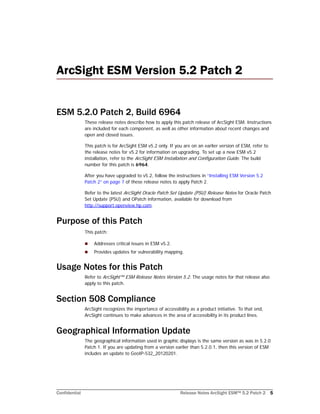
ESM 5.2.0 Patch 2, Build 6964
These release notes describe how to apply this patch release of ArcSight ESM. Instructions
are included for each component, as well as other information about recent changes and
open and closed issues.
This patch is for ArcSight ESM v5.2 only. If you are on an earlier version of ESM, refer to
the release notes for v5.2 for information on upgrading. To set up a new ESM v5.2
installation, refer to the ArcSight ESM Installation and Configuration Guide. The build
number for this patch is 6964.
After you have upgraded to v5.2, follow the instructions in “Installing ESM Version 5.2
Patch 2” on page 7 of these release notes to apply Patch 2.
Refer to the latest ArcSight Oracle Patch Set Update (PSU) Release Notes for Oracle Patch
Set Update (PSU) and OPatch information, available for download from
http://support.openview.hp.com.
Purpose of this Patch
This patch:
 Addresses critical issues in ESM v5.2.
 Provides updates for vulnerability mapping.
Usage Notes for this Patch
Refer to ArcSight™ ESM Release Notes Version 5.2. The usage notes for that release also
apply to this patch.
Section 508 Compliance
ArcSight recognizes the importance of accessibility as a product initiative. To that end,
ArcSight continues to make advances in the area of accessibility in its product lines.
Geographical Information Update
The geographical information used in graphic displays is the same version as was in 5.2.0
Patch 1. If you are updating from a version earlier than 5.2.0.1, then this version of ESM
includes an update to GeoIP-532_20120201.
Vulnerability Updates
6 Release Notes ArcSight ESM™ 5.2 Patch 2 Confidential
Vulnerability Updates
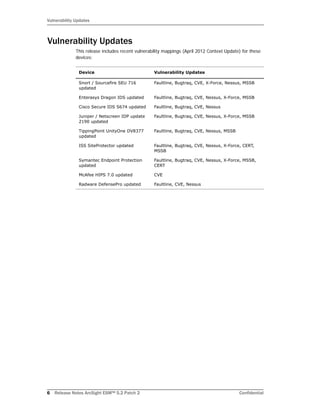
This release includes recent vulnerability mappings (April 2012 Context Update) for these
devices:
Device Vulnerability Updates
Snort / Sourcefire SEU 716
updated
Faultline, Bugtraq, CVE, X-Force, Nessus, MSSB
Enterasys Dragon IDS updated Faultline, Bugtraq, CVE, Nessus, X-Force, MSSB
Cisco Secure IDS S674 updated Faultline, Bugtraq, CVE, Nessus
Juniper / Netscreen IDP update
2190 updated
Faultline, Bugtraq, CVE, Nessus, X-Force, MSSB
TippingPoint UnityOne DV8377
updated
Faultline, Bugtraq, CVE, Nessus, MSSB
ISS SiteProtector updated Faultline, Bugtraq, CVE, Nessus, X-Force, CERT,
MSSB
Symantec Endpoint Protection
updated
Faultline, Bugtraq, CVE, Nessus, X-Force, MSSB,
CERT
McAfee HIPS 7.0 updated CVE
Radware DefensePro updated Faultline, CVE, Nessus
Installing ESM Version 5.2 Patch 2
Confidential Release Notes ArcSight ESM™ 5.2 Patch 2 7
Installing ESM Version 5.2 Patch 2
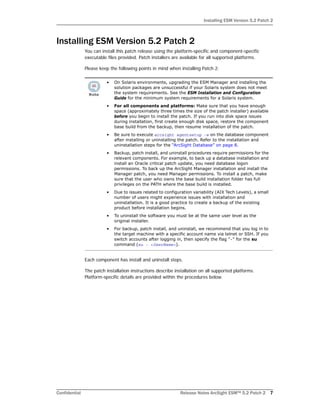
You can install this patch release using the platform-specific and component-specific
executable files provided. Patch installers are available for all supported platforms.
Please keep the following points in mind when installing Patch 2:
Each component has install and uninstall steps.
The patch installation instructions describe installation on all supported platforms.
Platform-specific details are provided within the procedures below.
• On Solaris environments, upgrading the ESM Manager and installing the
solution packages are unsuccessful if your Solaris system does not meet
the system requirements. See the ESM Installation and Configuration
Guide for the minimum system requirements for a Solaris system.
• For all components and platforms: Make sure that you have enough
space (approximately three times the size of the patch installer) available
before you begin to install the patch. If you run into disk space issues
during installation, first create enough disk space, restore the component
base build from the backup, then resume installation of the patch.
• Be sure to execute arcsight agentsetup -w on the database component
after installing or uninstalling the patch. Refer to the installation and
uninstallation steps for the “ArcSight Database” on page 8.
• Backup, patch install, and uninstall procedures require permissions for the
relevant components. For example, to back up a database installation and
install an Oracle critical patch update, you need database logon
permissions. To back up the ArcSight Manager installation and install the
Manager patch, you need Manager permissions. To install a patch, make
sure that the user who owns the base build installation folder has full
privileges on the PATH where the base build is installed.
• Due to issues related to configuration variability (AIX Tech Levels), a small
number of users might experience issues with installation and
uninstallation. It is a good practice to create a backup of the existing
product before installation begins.
• To uninstall the software you must be at the same user level as the
original installer.
• For backup, patch install, and uninstall, we recommend that you log in to
the target machine with a specific account name via telnet or SSH. If you
switch accounts after logging in, then specify the flag "-" for the su
command (su - <UserName>).
Installing ESM Version 5.2 Patch 2
8 Release Notes ArcSight ESM™ 5.2 Patch 2 Confidential
ArcSight Database
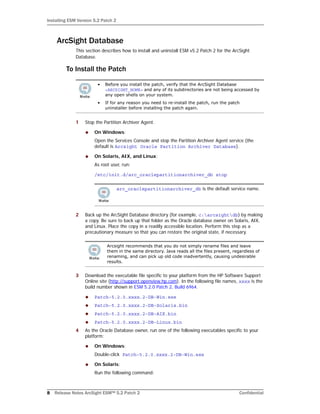
This section describes how to install and uninstall ESM v5.2 Patch 2 for the ArcSight
Database.
To Install the Patch
1 Stop the Partition Archiver Agent.
 On Windows:
Open the Services Console and stop the Partition Archiver Agent service (the
default is Arcsight Oracle Partition Archiver Database).
 On Solaris, AIX, and Linux:
As root user, run:
/etc/init.d/arc_oraclepartitionarchiver_db stop
2 Back up the ArcSight Database directory (for example, c:arcsightdb) by making
a copy. Be sure to back up that folder as the Oracle database owner on Solaris, AIX,
and Linux. Place the copy in a readily accessible location. Perform this step as a
precautionary measure so that you can restore the original state, if necessary.
3 Download the executable file specific to your platform from the HP Software Support
Online site (http://support.openview.hp.com). In the following file names, xxxx is the
build number shown in ESM 5.2.0 Patch 2, Build 6964.
 Patch-5.2.0.xxxx.2-DB-Win.exe
 Patch-5.2.0.xxxx.2-DB-Solaris.bin
 Patch-5.2.0.xxxx.2-DB-AIX.bin
 Patch-5.2.0.xxxx.2-DB-Linux.bin
4 As the Oracle Database owner, run one of the following executables specific to your
platform:
 On Windows:
Double-click Patch-5.2.0.xxxx.2-DB-Win.exe
 On Solaris:
Run the following command:
• Before you install the patch, verify that the ArcSight Database
<ARCSIGHT_HOME> and any of its subdirectories are not being accessed by
any open shells on your system.
• If for any reason you need to re-install the patch, run the patch
uninstaller before installing the patch again.
arc_oraclepartitionarchiver_db is the default service name.
Arcsight recommends that you do not simply rename files and leave
them in the same directory. Java reads all the files present, regardless of
renaming, and can pick up old code inadvertently, causing undesirable
results.
Installing ESM Version 5.2 Patch 2
Confidential Release Notes ArcSight ESM™ 5.2 Patch 2 9
./Patch-5.2.0.xxxx.2-DB-Solaris.bin
To install in Console mode, run the following command from the shell prompt and
then follow the instructions in the window.
./Patch-5.2.0.xxxx.2-DB-Solaris.bin -i console
 On AIX:
Run the following command:
./Patch-5.2.0.xxxx.2-DB-AIX.bin
To install in Console mode, run the following command from the shell prompt and
then follow the instructions in the window:
./Patch-5.2.0.xxxx.2-DB-AIX.bin -i console
 On Linux:
Run the following command:
./Patch-5.2.0.xxxx.2-DB-Linux.bin
To install in Console mode, run the following command from the shell prompt and
then follow the instructions in the window:
./Patch-5.2.0.xxxx.2-DB-Linux.bin -i console
The installer launches the Introduction window.
5 Read the instructions provided and click Next.
6 Accept the terms of the license agreement and click Next. The acceptance radio
button is disabled until you scroll to the bottom of the agreement.
7 Enter the location of your existing ArcSight Database <ARCSIGHT_HOME> for your
v5.2 database installation in the text box provided, or navigate to the location by
clicking Choose…
8 To restore the installer-provided default location, click Restore Default Folder.
9 Click Next.
10 Choose a Link Location (on Solaris, AIX, and Linux) or Shortcut location (on Windows)
by clicking the appropriate radio button, and then click Next.
11 Check the pre-installation summary to verify that all the locations listed are correct and
that you have enough disk space to install this patch.
12 Click Install.
13 Click Done on the Install Complete screen.
After you have installed both the database and ArcSight Manager patch, update the
Partition Archiver. These steps are required to update the Partition Archiver version when
viewed from the Console. Verify that the Manager is running, and then:
1 Run the following command from the Database bin directory to update the Partition
Archiver.
arcsight agentsetup -w
2 Click Next through the wizard screens until you reach the screen that prompts you to
either review or modify the parameters.
Installing ESM Version 5.2 Patch 2
10 Release Notes ArcSight ESM™ 5.2 Patch 2 Confidential
3 Select I do not want to change any settings, and then click Next.
4 Click Finish in the last screen.
5 On Windows Only: Click Cancel in the Archiver Service Configuration screen.
6 Start the Partition Archiver Agent.
 On Windows:
Open the Service Console and start the Partition Archiver Agent service (the
default is Arcsight Oracle Partition Archiver Database).
 On Solaris, AIX, and Linux:
Run the following command.
/etc/init.d/arc_oraclepartitionarchiver_db start
To Uninstall the Patch
If needed, use the procedure below to roll back this patch installation.
1 Stop the ArcSight Partition Archiver.
2 Run the uninstaller program:
Windows:
 Double-click the icon you created for the uninstaller when installing the database.
For example, if you created an uninstaller icon on your desktop, double-click that
icon.
 Or, if you created a link in the Start menu, click
Start > All Programs > ArcSight DB 5.2 GA Patch 2 > Uninstall ArcSight
Database 5.2 GA Patch 2
 Or, run the following from the
<ARCSIGHT_HOME>UninstallerDataSP0Patch2 directory:
Uninstall_ArcSight_DB_Patch.exe
Solaris, AIX, and Linux:
 From the directory where you created the links (your home folder or another
location) when installing the database, run:
./Uninstall_ArcSight_Database_5.2_GAPatch2
 Or, to uninstall in Console mode, run:
./Uninstall_ArcSight_Database_5.2_GAPatch2 -i console
 If you did not create a link, execute the following command from the Database’s
<ARCSIGHT_HOME>/UninstallerDataSP0Patch2:
arc_oraclepartitionarchiver_db is the default service name.
Before you begin to uninstall, verify that the Database <ARCSIGHT_HOME>
directory and any of its subdirectories are not being accessed by open shells
on your system.
Installing ESM Version 5.2 Patch 2
Confidential Release Notes ArcSight ESM™ 5.2 Patch 2 11
./Uninstall_ArcSight_DB_Patch
3 Click Done on the Uninstall Complete screen.
After uninstallation of the database patch is complete, update the Partition Archiver:
1 Uninstall the patch on the Manager.
2 Start the Manager.
3 Run the following command from the Database bin directory to update the Partition
Archiver:
arcsight agentsetup -w
4 Click Next through the wizard screens until you reach the screen that prompts you to
either review or modify the parameters.
5 Select I do not want to change any settings and click Next.
6 Click Finish in the last screen.
7 For Windows Only, click Cancel in the Archiver Service Configuration screen.
8 Start the Partition Archiver Agent.
 Windows:
Open the Service Console and start the Partition Archiver Agent service (the
default is Arcsight Oracle Partition Archiver Database).
 Solaris, AIX, and Linux:
Run the following command:
/etc/init.d/arc_oraclepartitionarchiver_db start
ArcSight ESM Manager
This section describes how to install or uninstall v5.2 Patch 2 for ArcSight Manager.
To Install the Patch
1 Stop the ArcSight Manager.
arc_oraclepartitionarchiver_db is the default service name.
• Before you install the patch, verify that <ARCSIGHT_HOME> and any of its
subdirectories are not being accessed by open shells on your system.
• If for any reason you need to re-install the patch, run the patch
uninstaller before installing the patch again.
Installing ESM Version 5.2 Patch 2
12 Release Notes ArcSight ESM™ 5.2 Patch 2 Confidential
2 Back up the Manager directory (for example, c:arcsightmanager) by making a
copy. Place the copy in a readily accessible location. This is just a precautionary
measure so you can restore the original state, if necessary.
3 Download the executable file specific to your platform from the HP Software Support
Online site (http://support.openview.hp.com). In the following file names, xxxx
represents the build number shown in ESM 5.2.0 Patch 2, Build 6964.
 Patch-5.2.0.xxxx.2-Manager-Win.exe
 Patch-5.2.0.xxxx.2-Manager-Solaris.bin
 Patch-5.2.0.xxxx.2-Manager-AIX.bin
 Patch-5.2.0.xxxx.2-Manager-Linux.bin
4 While logged in as the ArcSight user, run one of the following executables specific to
your platform.
 Windows:
Double-click Patch-5.2.0.xxxx.2-Manager-Win.exe
 Solaris:
Run the following command:
./Patch-5.2.0.xxxx.2-Manager-Solaris.bin
To install in Console mode, run the following from the shell prompt and then
follow the instructions in the window:
./Patch-5.2.0.xxxx.2-Manager-Solaris.bin -i console
 AIX:
Run the following command:
./Patch-5.2.0.xxxx.2-Manager-AIX.bin
To install in Console mode, run the following from the shell prompt and then
follow the instructions in the window:
./Patch-5.2.0.xxxx.2-Manager-AIX.bin -i console
 Linux:
Run the following command:
./Patch-5.2.0.xxxx.2-Manager-Linux.bin
To install in Console mode, run the following from the shell prompt and then
follow the instructions in the window:
./Patch-5.2.0.xxxx.2-Manager-Linux.bin -i console
The installer launches the Introduction window.
5 Read the instructions provided and click Next.
6 Accept the terms of the license agreement and click Next. The acceptance radio
button is disabled until you scroll to the bottom of the agreement.
Arcsight recommends that you do not simply rename files and leave them
in the same directory. Java reads all the files present, regardless of
renaming, and can pick up old code inadvertently, causing undesirable
results.
Installing ESM Version 5.2 Patch 2
Confidential Release Notes ArcSight ESM™ 5.2 Patch 2 13
7 Enter the location of your existing <ARCSIGHT_HOME> for your v5.2 Manager
installation in the text box provided or navigate to the location by clicking Choose…
If you want to restore the installer-provided default location, click Restore Default
Folder.
8 Click Next.
9 Choose a Link Location (on Solaris, AIX, and Linux) or Shortcut location (on Windows)
by clicking the appropriate radio button, then click Next.
10 Check the pre-installation summary to verify that all the locations listed are correct and
that you have enough disk space to install this patch.
11 Click Install.
12 Click Done on the Install Complete screen.
To Uninstall the Patch
If needed, use the procedure below to roll back this patch installation.
1 Stop the ArcSight Manager.
2 Run the uninstaller program:
Windows:
 Double-click the icon you created for the uninstaller when installing the Manager.
For example, if you created an uninstaller icon on your desktop, double-click that
icon.
 Or, if you created a link in the Start menu, click
Start > All Programs > ArcSight Manager 5.2 GA Patch 2 > Uninstall
ArcSight Manager 5.2 GA Patch 2
 Or, run the following from the
<ARCSIGHT_HOME>UninstallerDataSP0Patch2 directory:
Uninstall_ArcSight_Manager_Patch.exe
Solaris, AIX, and Linux:
 From the directory where you created the links when installing the Manager (your
home folder or some other location), run:
./Uninstall_ArcSight_Manager_5.2_GAPatch2
 Or, to uninstall using Console mode, run:
./Uninstall_ArcSight_Manager_5.2_GAPatch2 -i console
 If you did not create a link, execute the following command from the
<ARCSIGHT_HOME>UninstallerDataSP0Patch2 directory:
./Uninstall_ArcSight_Manager_Patch
3 Click Done on the Uninstall Complete screen.
Before you begin to uninstall, verify that the Manager’s <ARCSIGHT_HOME>
and any of its subdirectories are not being accessed by any open shells on
your system.
Installing ESM Version 5.2 Patch 2
14 Release Notes ArcSight ESM™ 5.2 Patch 2 Confidential
ArcSight Console
This section describes how to install or uninstall the v5.2 Patch 2 for ArcSight Console on
Windows, Mac, Solaris, and Linux platforms.
To Install the Patch
1 Exit the ArcSight Console.
2 Back up the Console directory (for example, /home/arcsight/console/current)
by making a copy. Place the copy in a readily accessible location. This is a
precautionary measure so you can restore the original state, if necessary.
3 Download the executable file specific to your platform from the HP Software Support
Online site (http://support.openview.hp.com). In the following file names, xxxx
represents the build number shown in ESM 5.2.0 Patch 2, Build 6964.
 Patch-5.2.0.xxxx.2-Console-Win.exe
 Patch-5.2.0.xxxx.2-Console-Solaris.bin
 Patch-5.2.0.xxxx.2-Console-Linux.bin
4 Run one of the following executables specific to your platform:
 On Windows:
Double-click Patch-5.2.0.xxxx.2-Console-Win.exe
 On Solaris:
Verify that you are logged in as the ArcSight user, and then run this command:
./Patch-5.2.0.xxxx.2-Console-Solaris.bin
To install in Console mode, run the following command from the shell prompt and
then follow the instructions in the window:
./Patch-5.2.0.xxxx.2-Console-Solaris.bin -i console
 On Linux:
Verify that you are logged in as the ArcSight user, and then run the following
command:
./Patch-5.2.0.xxxx.2-Console-Linux.bin
The ArcSight ESM Console is not supported on AIX. The following steps do not
include information for installing a Console patch on AIX.
• Before you install the patch, verify that the Console’s <ARCSIGHT_HOME>
directory and any of its subdirectories are not being accessed by any open
shells on your system.
• If you need to re-install the patch, run the patch uninstaller before
installing the patch again.
Arcsight recommends that you do not simply rename files and leave
them in the same directory. Java reads all the files present, regardless of
renaming, and can pick up old code inadvertently, causing undesirable
results.
Installing ESM Version 5.2 Patch 2
Confidential Release Notes ArcSight ESM™ 5.2 Patch 2 15
To install in Console mode, run the following command from the shell prompt and
then follow the instructions in the window:
./Patch-5.2.0.xxxx.2-Console-Linux.bin -i console
The installer launches the Introduction window.
5 Read the instructions provided and click Next.
6 Accept the terms of the license agreement and click Next. The acceptance radio
button is disabled until you scroll to the bottom of the agreement.
7 Enter the location of your existing <ARCSIGHT_HOME> directory for your v5.2 Console
installation in the text box provided or navigate to the location by clicking Choose…
If you want to restore the installer-provided default location, click Restore Default
Folder.
8 Click Next.
9 Choose a Link Location (on Solaris and Linux) or Shortcut location (on Windows) by
clicking the appropriate radio button and click Next.
10 Check the pre-installation summary to verify that all the locations listed are correct and
that you have enough disk space to install this patch.
11 Click Install.
12 Click Done on the Install Complete screen.
To Install the Patch on a Mac
The patch installer download and run procedure is slightly different on the Mac than on the
other supported platforms.
1 Exit the ArcSight Console.
2 Back up the Console directory (for example, /home/arcsight/console/current)
by making a copy. Place the copy in a readily accessible location. This is just a
precautionary measure so you can restore the original state, if necessary.
3 Download the file Patch-5.2.0.xxxx.2-Console-MacOSX.zip to anywhere on
your system. (xxxx is the build number.)
4 Launch the patch installer by double-clicking the ArcSightConsolePatch2 file.
5 Follow the steps on the patch install wizard, providing the information as prompted:
 Accept the terms of the license agreement and click Next. The acceptance radio
button is disabled until you scroll to the bottom of the agreement.
 Choose the location where you want to install the patch. Browse to
<ARCSIGHT_HOME>, where your previous Console was installed.
 Choose an alias location for the Console application (or opt to not use aliases).
This is the same as a link location on UNIX systems or shortcut location on
Windows systems.
6 Click Next.
The patch installer file (that shows as a ZIP file on the download site)
downloads as Patch-5.2.0.xxxx.2-Console-MacOSX.app on the Mac. A
single or double-click on this APP file launches the patch installer,
depending on how you have set these options. There is no need to
“extract” or “unzip” the file; it downloads as an APP file.
Installing ESM Version 5.2 Patch 2
16 Release Notes ArcSight ESM™ 5.2 Patch 2 Confidential
7 Verify your settings and click Install.
To Uninstall the Patch
If needed, use the procedure below to roll back this patch installation.
1 Exit the ArcSight Console.
2 Run the uninstaller program:
On Windows:
 Double-click the icon you created for the uninstaller when installing the Console.
For example, if you created an uninstaller icon on your desktop, double-click that
icon.
 If you created a link in the Start menu, click:
Start > All Programs > ArcSight Console 5.2 GA Patch 2 > Uninstall
ArcSight Console 5.2 GA Patch 2
 Or, run the following from the Console’s
<ARCSIGHT_HOME>currentUninstallerDataSP0Patch2 directory:
Uninstall_ArcSight_Console_Patch.exe
On Solaris and Linux:
 From the directory where you created the links when installing the Console (your
home directory or some other location), run:
./Uninstall_ArcSight_Console_5.2_GAPatch2
 Or, to uninstall using Console mode, run:
./Uninstall_ArcSight_Console_5.2_GAPatch2 -i console
 If you did not create a link, execute the command from the Console’s
<ARCSIGHT_HOME>/current/UninstallerDataSP0Patch2 directory:
./Uninstall_ArcSight_Console_Patch
On a Mac:
 From the directory where you created the links when installing the Console, run:
Uninstall_ArcSight_Console_5.2_GAPatch2
 From the Console’s
<ARCSIGHT_HOME>/current/UninstallerDataSP0Patch2 directory, run:
Uninstall_ArcSight_Console_Patch
3 Click Done on the Uninstall Complete screen.
Before you begin to uninstall, verify that the Console’s <ARCSIGHT_HOME> and
any of its subdirectories are not being accessed by any open shells on your
system.
Installing ESM Version 5.2 Patch 2
Confidential Release Notes ArcSight ESM™ 5.2 Patch 2 17
ArcSight Web Server
This section describes how to install or uninstall ESM v5.2 Patch 2 for ArcSight Web.
To Install the Patch
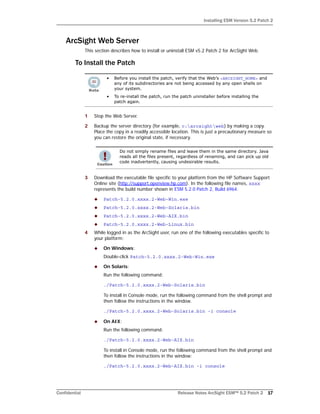
1 Stop the Web Server.
2 Backup the server directory (for example, c:arcsightweb) by making a copy.
Place the copy in a readily accessible location. This is just a precautionary measure so
you can restore the original state, if necessary.
3 Download the executable file specific to your platform from the HP Software Support
Online site (http://support.openview.hp.com). In the following file names, xxxx
represents the build number shown in ESM 5.2.0 Patch 2, Build 6964.
 Patch-5.2.0.xxxx.2-Web-Win.exe
 Patch-5.2.0.xxxx.2-Web-Solaris.bin
 Patch-5.2.0.xxxx.2-Web-AIX.bin
 Patch-5.2.0.xxxx.2-Web-Linux.bin
4 While logged in as the ArcSight user, run one of the following executables specific to
your platform:
 On Windows:
Double-click Patch-5.2.0.xxxx.2-Web-Win.exe
 On Solaris:
Run the following command:
./Patch-5.2.0.xxxx.2-Web-Solaris.bin
To install in Console mode, run the following command from the shell prompt and
then follow the instructions in the window.
./Patch-5.2.0.xxxx.2-Web-Solaris.bin -i console
 On AIX:
Run the following command:
./Patch-5.2.0.xxxx.2-Web-AIX.bin
To install in Console mode, run the following command from the shell prompt and
then follow the instructions in the window:
./Patch-5.2.0.xxxx.2-Web-AIX.bin -i console
• Before you install the patch, verify that the Web’s <ARCSIGHT_HOME> and
any of its subdirectories are not being accessed by any open shells on
your system.
• To re-install the patch, run the patch uninstaller before installing the
patch again.
Do not simply rename files and leave them in the same directory. Java
reads all the files present, regardless of renaming, and can pick up old
code inadvertently, causing undesirable results.
Installing ESM Version 5.2 Patch 2
18 Release Notes ArcSight ESM™ 5.2 Patch 2 Confidential
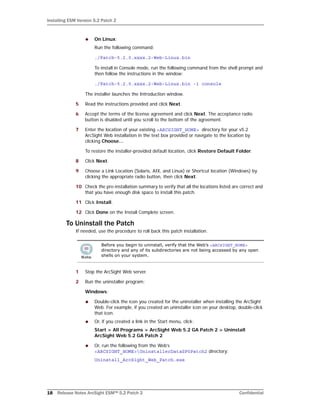
 On Linux:
Run the following command:
./Patch-5.2.0.xxxx.2-Web-Linux.bin
To install in Console mode, run the following command from the shell prompt and
then follow the instructions in the window:
./Patch-5.2.0.xxxx.2-Web-Linux.bin -i console
The installer launches the Introduction window.
5 Read the instructions provided and click Next.
6 Accept the terms of the license agreement and click Next. The acceptance radio
button is disabled until you scroll to the bottom of the agreement.
7 Enter the location of your existing <ARCSIGHT_HOME> directory for your v5.2
ArcSight Web installation in the text box provided or navigate to the location by
clicking Choose…
To restore the installer-provided default location, click Restore Default Folder.
8 Click Next.
9 Choose a Link Location (Solaris, AIX, and Linux) or Shortcut location (Windows) by
clicking the appropriate radio button, then click Next.
10 Check the pre-installation summary to verify that all the locations listed are correct and
that you have enough disk space to install this patch.
11 Click Install.
12 Click Done on the Install Complete screen.
To Uninstall the Patch
If needed, use the procedure to roll back this patch installation.
1 Stop the ArcSight Web server.
2 Run the uninstaller program:
Windows:
 Double-click the icon you created for the uninstaller when installing the ArcSight
Web. For example, if you created an uninstaller icon on your desktop, double-click
that icon.
 Or, if you created a link in the Start menu, click:
Start > All Programs > ArcSight Web 5.2 GA Patch 2 > Uninstall
ArcSight Web 5.2 GA Patch 2
 Or, run the following from the Web’s
<ARCSIGHT_HOME>UninstallerDataSP0Patch2 directory:
Uninstall_ArcSight_Web_Patch.exe
Before you begin to uninstall, verify that the Web’s <ARCSIGHT_HOME>
directory and any of its subdirectories are not being accessed by any open
shells on your system.
Issues Fixed in this Patch
Confidential Release Notes ArcSight ESM™ 5.2 Patch 2 19
Solaris, AIX, and Linux:
 From the directory where you created the links when installing the ArcSight Web
(in your home directory or another location), run:
./Uninstall_ArcSight_Web_5.2_GAPatch2
 Or, to uninstall using Console mode, run:
./Uninstall_ArcSight_Web_5.2_GAPatch2 -i console
 If you did not create a link, execute the command from the
<ARCSIGHT_HOME>/UninstallerDataSP0Patch2 directory:
./Uninstall_ArcSight_Web_Patch
3 Click Done on the Uninstall Complete screen.
Issues Fixed in this Patch
The following issues are fixed in this patch.
Analytics
ArcSight Console
Issue Description
ESM-50318 Previously, attempting to persist data exceeding the size of 1024 characters or
precision of a column in the active list would result in an ORA-00001 error in the
server.log or on the ArcSight Console such as: "ORA-00001: unique constraint
(<table>) violated".
Now, validation and exception handling handles this scenario.
ESM-50301 Previously, invalid Active List entries were stopping ESM from processing all other
valid entries in the batch.
This issue is now resolved.
ESM-50273 If a variable value was blank, the 'Set Event Field' rule action was setting the
event field value to the name of the variable instead of being blank.
Now variables whose value is null appear as blank.
Issue Description
ESM-50374 Previously, in the Event Inspector, the right-click menu for a data field had an
entry for "Copy Ctrl-C" when in fact, Copy works differently than Ctrl-C.
Now, the right-click menu just says Copy, which copies just the value of the field.
If you use Ctrl-C, it copies the name of the field and its value.
ESM-50244 Previously filters for data monitors would allow unfiltered, random events to
appear in the data monitor after the data monitor had been disabled and then
enabled.
This issue has been fixed.
ESM-50150 ESM 5.2 Patch1 failed to install the ArcSight Console if there was a space in the
installation path.
Now you can install the ArcSight Console even if there is a space in the path.
Issues Fixed in this Patch
20 Release Notes ArcSight ESM™ 5.2 Patch 2 Confidential
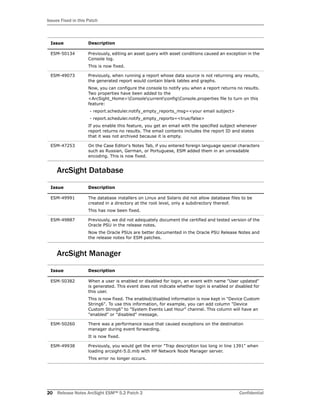
ArcSight Database
ArcSight Manager
ESM-50134 Previously, editing an asset query with asset conditions caused an exception in the
Console log.
This is now fixed.
ESM-49073 Previously, when running a report whose data source is not returning any results,
the generated report would contain blank tables and graphs.
Now, you can configure the console to notify you when a report returns no results.
Two properties have been added to the
<ArcSight_Home>ConsolecurrentconfigConsole.properties file to turn on this
feature:
- report.scheduler.notify_empty_reports_msg=<your email subject>
- report.scheduler.notify_empty_reports=<true/false>
If you enable this feature, you get an email with the specified subject whenever
report returns no results. The email contents includes the report ID and states
that it was not archived because it is empty.
ESM-47253 On the Case Editor's Notes Tab, if you entered foreign language special characters
such as Russian, German, or Portuguese, ESM added them in an unreadable
encoding. This is now fixed.
Issue Description
ESM-49991 The database installers on Linux and Solaris did not allow database files to be
created in a directory at the root level, only a subdirectory thereof.
This has now been fixed.
ESM-49887 Previously, we did not adequately document the certified and tested version of the
Oracle PSU in the release notes.
Now the Oracle PSUs are better documented in the Oracle PSU Release Notes and
the release notes for ESM patches.
Issue Description
ESM-50382 When a user is enabled or disabled for login, an event with name "User updated"
is generated. This event does not indicate whether login is enabled or disabled for
this user.
This is now fixed. The enabled/disabled information is now kept in "Device Custom
String6". To use this information, for example, you can add column "Device
Custom String6" to "System Events Last Hour" channel. This column will have an
"enabled" or "disabled" message.
ESM-50260 There was a performance issue that caused exceptions on the destination
manager during event forwarding.
It is now fixed.
ESM-49938 Previously, you would get the error "Trap description too long in line 1391" when
loading arcsight-5.0.mib with HP Network Node Manager server.
This error no longer occurs.
Issue Description
Open Issues in this Patch
Confidential Release Notes ArcSight ESM™ 5.2 Patch 2 21
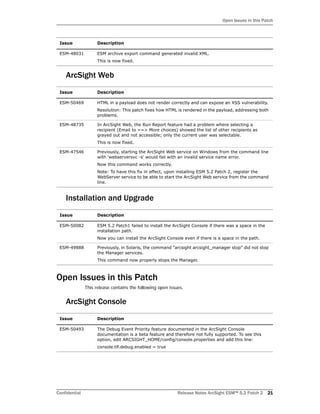
ArcSight Web
Installation and Upgrade
Open Issues in this Patch
This release contains the following open issues.
ArcSight Console
ESM-48031 ESM archive export command generated invalid XML.
This is now fixed.
Issue Description
ESM-50469 HTML in a payload does not render correctly and can expose an XSS vulnerability.
Resolution: This patch fixes how HTML is rendered in the payload, addressing both
problems.
ESM-48735 In ArcSight Web, the Run Report feature had a problem where selecting a
recipient (Email to ==> More choices) showed the list of other recipients as
grayed out and not accessible; only the current user was selectable.
This is now fixed.
ESM-47546 Previously, starting the ArcSight Web service on Windows from the command line
with 'webserversvc -s' would fail with an invalid service name error.
Now this command works correctly.
Note: To have this fix in effect, upon installing ESM 5.2 Patch 2, register the
WebServer service to be able to start the ArcSight Web service from the command
line.
Issue Description
ESM-50082 ESM 5.2 Patch1 failed to install the ArcSight Console if there was a space in the
installation path.
Now you can install the ArcSight Console even if there is a space in the path.
ESM-49888 Previously, in Solaris, the command "arcsight arcsight_manager stop" did not stop
the Manager services.
This command now properly stops the Manager.
Issue Description
ESM-50493 The Debug Event Priority feature documented in the ArcSight Console
documentation is a beta feature and therefore not fully supported. To see this
option, edit ARCSIGHT_HOME/config/console.properties and add this line:
console.tlf.debug.enabled = true
Issue Description
Open Issues in this Patch
22 Release Notes ArcSight ESM™ 5.2 Patch 2 Confidential
ArcSight Database
ArcSight Web
Installation and Upgrade
ESM-50407 When you select Help > About in the ArcSight Console, the link to
ThirdParty_Copyright_Notices_and_License_Term.pdf no longer works. The
correct link for all copyright information is now
http://www.hpenterprisesecurity.com/copyright.
Issue Description
ESM-49066 Using the Zip archive type on Suse 11 is not working for Partition Archiving.
For large archives we do not recommend using the Zip archive type while
configuring the Partition Archiver service on Suse 11.
Issue Description
ESM-50464 After configuring SSL authentication, ArcSight Web cannot be started successfully
by following the instructions in the Administrator's Guide. The workaround is to
manually export ArcSight Web's certificate and import it onto the Manager's
truststore.
ESM-50445 To connect a browser to a FIPS web server, the browser must be configured to
support FIPS. Review the documentation for your browser and follow the
instructions to make it FIPS compliant before using it for ArcSight Console online
help or to connect to ArcSight Web.
If you are using Firefox 13 or 14 you must change the preference
network.http.spdy.enabled to false.
1. In the URL address window type about:config.
2. Find the preference "network.http.spdy.enabled."
3. If the value is true, double click the entry to change it to false.
Issue Description
ESM-50466 While setting up Partition Archiver in Suite B mode, the setup wizard might fail
with a pop up error dialog. To resolve this problem:
1. Close this error dialog and click Cancel to exit the agent setup wizard.
2. Create or edit the <ARCSIGHT_HOME>/user/agent/agent.properties file and
add the following line to this file:
fips.enabled=true
3. Run "arcsight agentsetup" again to register PA.
ESM-50390 The ESM Installation & Configuration Guide is missing an important clarification
with respect to running the Partition Archiver as a service.
The recommendation is:
"ArcSight recommends that you install Partition Archiver as a service and do not
change the default values unless necessary. Partition Archiver must be run as the
Oracle software owner (that is, oracle, by default) on UNIX and as a user
(Administrator, by default) on Windows in the local user group ORA_DBA."
Issue Description
Issues Fixed in ESM 5.2.0 Patch 1
Confidential Release Notes ArcSight ESM™ 5.2 Patch 2 23
Issues Fixed in ESM 5.2.0 Patch 1
Manager
ESM-50248 When upgrading your system from Oracle 10g to 11g, some of the object
statistics seem to be missing. Please do the following to fix the missing object
statistics.
arcdbutil sql / as sysdba
Select OWNER, TABLE_NAME, LAST_ANALYZED from dba_tab_statistics where
table_name='X$KGLDP';
As the last_analyzed is null that means there are no stats for the fixed objects.
According to Oracle, the stats should be re-run after every database upgrade
exec DBMS_STATS.GATHER_DICTIONARY_STATS( );
exec DBMS_STATS.GATHER_FIXED_OBJECTS_STATS;
exit;
ESM-34741
TTP#53754
The Patch Uninstaller for the Manager and ArcSight Web does not remove the link
on Unix and the shortcut on Windows.
The workaround is to delete this link manually after the uninstall is complete.
ESM-32088
TTP#47996
If you start the patch installation wizard, then navigate back and forward using
the Previous and Next buttons (for example, to reset configuration options on
previous screens), but then exit from the wizard without actually installing, the
base component fails to launch. The same launch failure occurs if you cancel the
installation at any point. This is because the preparatory step of backing up the
files has already occurred.
If you encounter this situation, the workaround is to restore the functionality of
the base Console by running the following commands to restore the backup files:
On Windows: <ARCSIGHT_HOME>binrollbacksp0p2.bat
On Unix: <ARCSIGHT_HOME>/bin/rollbacksp0p2.bat
ESM-31705
TTP#46995
In Console mode, the installer sometimes does not validate the Uninstall Links
folder. The system successfully validates the Base folder, but without user write
permissions it does not create an uninstall link.
Issue Description
ESM-49867 When a Source ESM Manager was set up to forward correlated events to a
Destination ESM Manager with a correct filter configuration setting, even though
correlation events could be seen from the destination Manager, it was unable to
retrieve the correlated base events associated with them. Users would see "Event
ID either does not exist or you don't have permission to view it" in the
Inspect/Edit panel. The only way to see these base events was to right-click the
'Correlation options > Detailed Chain' option.
Now correlated base events appear correctly.
ESM-49830 In a hierarchical ESM deployment where you have source Managers and
destination Managers, the destination Manager would occasionally misidentify the
forwarded event when the event is forwarded from source to destination. This
resulted in an Event ID that could be a duplicate of an existing event in the
database on the destination Manager, or resulted in an Event ID that would soon
be a duplicate of a future Event ID.
In either case, the end result was local and remote events with duplicate Event
IDs. This is now fixed.
Issue Description
Open and Closed Issues in ESM v5.2
24 Release Notes ArcSight ESM™ 5.2 Patch 2 Confidential
Console
Open and Closed Issues in ESM v5.2
For information about open and closed issues for ESM v5.2, see the release notes for that
version.
Issue Description
ESM-49827 When upgrading to ESM 5.2 from previous versions, drill-downs for user-created
query viewers were not migrated to the upgraded system. Now drill-downs are
migrated correctly.

ESM 5.2 Patch 2 Release Notes

  • 1.
    Release Notes ArcSight ESM™5.2 Patch 2 November 15, 2012
  • 2.
    Release Notes, ArcSightESM™ 5.2 Patch 2 Copyright © 2012 Hewlett-Packard Development Company, L.P. Confidential computer software. Valid license from HP required for possession, use or copying. Consistent with FAR 12.211 and 12.212, Commercial Computer Software, Computer Software Documentation, and Technical Data for Commercial Items are licensed to the U.S. Government under vendor's standard commercial license. The information contained herein is subject to change without notice. The only warranties for HP products and services are set forth in the express warranty statements accompanying such products and services. Nothing herein should be construed as constituting an additional warranty. HP shall not be liable for technical or editorial errors or omissions contained herein. Follow this link to see a complete statement of copyrights and acknowledgements: http://www.hpenterprisesecurity.com/copyright The network information used in the examples in this document (including IP addresses and hostnames) is for illustration purposes only. This document is confidential. Contact Information Revision History Phone 1-866-535-3285 (North America) +44 203-564-1189 (EMEA) +49 69380789455 (Germany) Support Web Site http://support.openview.hp.com Protect 724 Community https://protect724.arcsight.com Date Product Version Description 11/15/2012 ArcSight ESM™ 5.2 Patch 2 ESM 5.2 Patch 2 Release Notes
  • 3.
    Confidential Release NotesArcSight ESM™ 5.2 Patch 2 3 Contents ArcSight ESM Version 5.2 Patch 2 ........................................................................................................... 5 ESM 5.2.0 Patch 2, Build 6964 .......................................................................................... 5 Purpose of this Patch ....................................................................................................... 5 Usage Notes for this Patch ................................................................................................ 5 Section 508 Compliance ................................................................................................... 5 Geographical Information Update ...................................................................................... 5 Vulnerability Updates ....................................................................................................... 6 Installing ESM Version 5.2 Patch 2 ..................................................................................... 7 ArcSight Database ..................................................................................................... 8 ArcSight ESM Manager ............................................................................................. 11 ArcSight Console ..................................................................................................... 14 ArcSight Web Server ............................................................................................... 17 Issues Fixed in this Patch ............................................................................................... 19 Analytics ................................................................................................................ 19 ArcSight Console ..................................................................................................... 19 ArcSight Database ................................................................................................... 20 ArcSight Manager .................................................................................................... 20 ArcSight Web ......................................................................................................... 21 Installation and Upgrade .......................................................................................... 21 Open Issues in this Patch ............................................................................................... 21 ArcSight Console ..................................................................................................... 21 ArcSight Database ................................................................................................... 22 ArcSight Web ......................................................................................................... 22 Installation and Upgrade .......................................................................................... 22 Issues Fixed in ESM 5.2.0 Patch 1 ................................................................................... 23 Manager ................................................................................................................ 23 Console ................................................................................................................. 24 Open and Closed Issues in ESM v5.2 ................................................................................ 24
  • 4.
    4 Release NotesArcSight ESM™ 5.2 Patch 2 Confidential Release Notes ArcSight ESM™
  • 5.
    Confidential Release NotesArcSight ESM™ 5.2 Patch 2 5 ArcSight ESM Version 5.2 Patch 2  ESM 5.2.0 Patch 2, Build 6964 These release notes describe how to apply this patch release of ArcSight ESM. Instructions are included for each component, as well as other information about recent changes and open and closed issues. This patch is for ArcSight ESM v5.2 only. If you are on an earlier version of ESM, refer to the release notes for v5.2 for information on upgrading. To set up a new ESM v5.2 installation, refer to the ArcSight ESM Installation and Configuration Guide. The build number for this patch is 6964. After you have upgraded to v5.2, follow the instructions in “Installing ESM Version 5.2 Patch 2” on page 7 of these release notes to apply Patch 2. Refer to the latest ArcSight Oracle Patch Set Update (PSU) Release Notes for Oracle Patch Set Update (PSU) and OPatch information, available for download from http://support.openview.hp.com. Purpose of this Patch This patch:  Addresses critical issues in ESM v5.2.  Provides updates for vulnerability mapping. Usage Notes for this Patch Refer to ArcSight™ ESM Release Notes Version 5.2. The usage notes for that release also apply to this patch. Section 508 Compliance ArcSight recognizes the importance of accessibility as a product initiative. To that end, ArcSight continues to make advances in the area of accessibility in its product lines. Geographical Information Update The geographical information used in graphic displays is the same version as was in 5.2.0 Patch 1. If you are updating from a version earlier than 5.2.0.1, then this version of ESM includes an update to GeoIP-532_20120201.
  • 6.
    Vulnerability Updates 6 ReleaseNotes ArcSight ESM™ 5.2 Patch 2 Confidential Vulnerability Updates This release includes recent vulnerability mappings (April 2012 Context Update) for these devices: Device Vulnerability Updates Snort / Sourcefire SEU 716 updated Faultline, Bugtraq, CVE, X-Force, Nessus, MSSB Enterasys Dragon IDS updated Faultline, Bugtraq, CVE, Nessus, X-Force, MSSB Cisco Secure IDS S674 updated Faultline, Bugtraq, CVE, Nessus Juniper / Netscreen IDP update 2190 updated Faultline, Bugtraq, CVE, Nessus, X-Force, MSSB TippingPoint UnityOne DV8377 updated Faultline, Bugtraq, CVE, Nessus, MSSB ISS SiteProtector updated Faultline, Bugtraq, CVE, Nessus, X-Force, CERT, MSSB Symantec Endpoint Protection updated Faultline, Bugtraq, CVE, Nessus, X-Force, MSSB, CERT McAfee HIPS 7.0 updated CVE Radware DefensePro updated Faultline, CVE, Nessus
  • 7.
    Installing ESM Version5.2 Patch 2 Confidential Release Notes ArcSight ESM™ 5.2 Patch 2 7 Installing ESM Version 5.2 Patch 2 You can install this patch release using the platform-specific and component-specific executable files provided. Patch installers are available for all supported platforms. Please keep the following points in mind when installing Patch 2: Each component has install and uninstall steps. The patch installation instructions describe installation on all supported platforms. Platform-specific details are provided within the procedures below. • On Solaris environments, upgrading the ESM Manager and installing the solution packages are unsuccessful if your Solaris system does not meet the system requirements. See the ESM Installation and Configuration Guide for the minimum system requirements for a Solaris system. • For all components and platforms: Make sure that you have enough space (approximately three times the size of the patch installer) available before you begin to install the patch. If you run into disk space issues during installation, first create enough disk space, restore the component base build from the backup, then resume installation of the patch. • Be sure to execute arcsight agentsetup -w on the database component after installing or uninstalling the patch. Refer to the installation and uninstallation steps for the “ArcSight Database” on page 8. • Backup, patch install, and uninstall procedures require permissions for the relevant components. For example, to back up a database installation and install an Oracle critical patch update, you need database logon permissions. To back up the ArcSight Manager installation and install the Manager patch, you need Manager permissions. To install a patch, make sure that the user who owns the base build installation folder has full privileges on the PATH where the base build is installed. • Due to issues related to configuration variability (AIX Tech Levels), a small number of users might experience issues with installation and uninstallation. It is a good practice to create a backup of the existing product before installation begins. • To uninstall the software you must be at the same user level as the original installer. • For backup, patch install, and uninstall, we recommend that you log in to the target machine with a specific account name via telnet or SSH. If you switch accounts after logging in, then specify the flag "-" for the su command (su - <UserName>).
  • 8.
    Installing ESM Version5.2 Patch 2 8 Release Notes ArcSight ESM™ 5.2 Patch 2 Confidential ArcSight Database This section describes how to install and uninstall ESM v5.2 Patch 2 for the ArcSight Database. To Install the Patch 1 Stop the Partition Archiver Agent.  On Windows: Open the Services Console and stop the Partition Archiver Agent service (the default is Arcsight Oracle Partition Archiver Database).  On Solaris, AIX, and Linux: As root user, run: /etc/init.d/arc_oraclepartitionarchiver_db stop 2 Back up the ArcSight Database directory (for example, c:arcsightdb) by making a copy. Be sure to back up that folder as the Oracle database owner on Solaris, AIX, and Linux. Place the copy in a readily accessible location. Perform this step as a precautionary measure so that you can restore the original state, if necessary. 3 Download the executable file specific to your platform from the HP Software Support Online site (http://support.openview.hp.com). In the following file names, xxxx is the build number shown in ESM 5.2.0 Patch 2, Build 6964.  Patch-5.2.0.xxxx.2-DB-Win.exe  Patch-5.2.0.xxxx.2-DB-Solaris.bin  Patch-5.2.0.xxxx.2-DB-AIX.bin  Patch-5.2.0.xxxx.2-DB-Linux.bin 4 As the Oracle Database owner, run one of the following executables specific to your platform:  On Windows: Double-click Patch-5.2.0.xxxx.2-DB-Win.exe  On Solaris: Run the following command: • Before you install the patch, verify that the ArcSight Database <ARCSIGHT_HOME> and any of its subdirectories are not being accessed by any open shells on your system. • If for any reason you need to re-install the patch, run the patch uninstaller before installing the patch again. arc_oraclepartitionarchiver_db is the default service name. Arcsight recommends that you do not simply rename files and leave them in the same directory. Java reads all the files present, regardless of renaming, and can pick up old code inadvertently, causing undesirable results.
  • 9.
    Installing ESM Version5.2 Patch 2 Confidential Release Notes ArcSight ESM™ 5.2 Patch 2 9 ./Patch-5.2.0.xxxx.2-DB-Solaris.bin To install in Console mode, run the following command from the shell prompt and then follow the instructions in the window. ./Patch-5.2.0.xxxx.2-DB-Solaris.bin -i console  On AIX: Run the following command: ./Patch-5.2.0.xxxx.2-DB-AIX.bin To install in Console mode, run the following command from the shell prompt and then follow the instructions in the window: ./Patch-5.2.0.xxxx.2-DB-AIX.bin -i console  On Linux: Run the following command: ./Patch-5.2.0.xxxx.2-DB-Linux.bin To install in Console mode, run the following command from the shell prompt and then follow the instructions in the window: ./Patch-5.2.0.xxxx.2-DB-Linux.bin -i console The installer launches the Introduction window. 5 Read the instructions provided and click Next. 6 Accept the terms of the license agreement and click Next. The acceptance radio button is disabled until you scroll to the bottom of the agreement. 7 Enter the location of your existing ArcSight Database <ARCSIGHT_HOME> for your v5.2 database installation in the text box provided, or navigate to the location by clicking Choose… 8 To restore the installer-provided default location, click Restore Default Folder. 9 Click Next. 10 Choose a Link Location (on Solaris, AIX, and Linux) or Shortcut location (on Windows) by clicking the appropriate radio button, and then click Next. 11 Check the pre-installation summary to verify that all the locations listed are correct and that you have enough disk space to install this patch. 12 Click Install. 13 Click Done on the Install Complete screen. After you have installed both the database and ArcSight Manager patch, update the Partition Archiver. These steps are required to update the Partition Archiver version when viewed from the Console. Verify that the Manager is running, and then: 1 Run the following command from the Database bin directory to update the Partition Archiver. arcsight agentsetup -w 2 Click Next through the wizard screens until you reach the screen that prompts you to either review or modify the parameters.
  • 10.
    Installing ESM Version5.2 Patch 2 10 Release Notes ArcSight ESM™ 5.2 Patch 2 Confidential 3 Select I do not want to change any settings, and then click Next. 4 Click Finish in the last screen. 5 On Windows Only: Click Cancel in the Archiver Service Configuration screen. 6 Start the Partition Archiver Agent.  On Windows: Open the Service Console and start the Partition Archiver Agent service (the default is Arcsight Oracle Partition Archiver Database).  On Solaris, AIX, and Linux: Run the following command. /etc/init.d/arc_oraclepartitionarchiver_db start To Uninstall the Patch If needed, use the procedure below to roll back this patch installation. 1 Stop the ArcSight Partition Archiver. 2 Run the uninstaller program: Windows:  Double-click the icon you created for the uninstaller when installing the database. For example, if you created an uninstaller icon on your desktop, double-click that icon.  Or, if you created a link in the Start menu, click Start > All Programs > ArcSight DB 5.2 GA Patch 2 > Uninstall ArcSight Database 5.2 GA Patch 2  Or, run the following from the <ARCSIGHT_HOME>UninstallerDataSP0Patch2 directory: Uninstall_ArcSight_DB_Patch.exe Solaris, AIX, and Linux:  From the directory where you created the links (your home folder or another location) when installing the database, run: ./Uninstall_ArcSight_Database_5.2_GAPatch2  Or, to uninstall in Console mode, run: ./Uninstall_ArcSight_Database_5.2_GAPatch2 -i console  If you did not create a link, execute the following command from the Database’s <ARCSIGHT_HOME>/UninstallerDataSP0Patch2: arc_oraclepartitionarchiver_db is the default service name. Before you begin to uninstall, verify that the Database <ARCSIGHT_HOME> directory and any of its subdirectories are not being accessed by open shells on your system.
  • 11.
    Installing ESM Version5.2 Patch 2 Confidential Release Notes ArcSight ESM™ 5.2 Patch 2 11 ./Uninstall_ArcSight_DB_Patch 3 Click Done on the Uninstall Complete screen. After uninstallation of the database patch is complete, update the Partition Archiver: 1 Uninstall the patch on the Manager. 2 Start the Manager. 3 Run the following command from the Database bin directory to update the Partition Archiver: arcsight agentsetup -w 4 Click Next through the wizard screens until you reach the screen that prompts you to either review or modify the parameters. 5 Select I do not want to change any settings and click Next. 6 Click Finish in the last screen. 7 For Windows Only, click Cancel in the Archiver Service Configuration screen. 8 Start the Partition Archiver Agent.  Windows: Open the Service Console and start the Partition Archiver Agent service (the default is Arcsight Oracle Partition Archiver Database).  Solaris, AIX, and Linux: Run the following command: /etc/init.d/arc_oraclepartitionarchiver_db start ArcSight ESM Manager This section describes how to install or uninstall v5.2 Patch 2 for ArcSight Manager. To Install the Patch 1 Stop the ArcSight Manager. arc_oraclepartitionarchiver_db is the default service name. • Before you install the patch, verify that <ARCSIGHT_HOME> and any of its subdirectories are not being accessed by open shells on your system. • If for any reason you need to re-install the patch, run the patch uninstaller before installing the patch again.
  • 12.
    Installing ESM Version5.2 Patch 2 12 Release Notes ArcSight ESM™ 5.2 Patch 2 Confidential 2 Back up the Manager directory (for example, c:arcsightmanager) by making a copy. Place the copy in a readily accessible location. This is just a precautionary measure so you can restore the original state, if necessary. 3 Download the executable file specific to your platform from the HP Software Support Online site (http://support.openview.hp.com). In the following file names, xxxx represents the build number shown in ESM 5.2.0 Patch 2, Build 6964.  Patch-5.2.0.xxxx.2-Manager-Win.exe  Patch-5.2.0.xxxx.2-Manager-Solaris.bin  Patch-5.2.0.xxxx.2-Manager-AIX.bin  Patch-5.2.0.xxxx.2-Manager-Linux.bin 4 While logged in as the ArcSight user, run one of the following executables specific to your platform.  Windows: Double-click Patch-5.2.0.xxxx.2-Manager-Win.exe  Solaris: Run the following command: ./Patch-5.2.0.xxxx.2-Manager-Solaris.bin To install in Console mode, run the following from the shell prompt and then follow the instructions in the window: ./Patch-5.2.0.xxxx.2-Manager-Solaris.bin -i console  AIX: Run the following command: ./Patch-5.2.0.xxxx.2-Manager-AIX.bin To install in Console mode, run the following from the shell prompt and then follow the instructions in the window: ./Patch-5.2.0.xxxx.2-Manager-AIX.bin -i console  Linux: Run the following command: ./Patch-5.2.0.xxxx.2-Manager-Linux.bin To install in Console mode, run the following from the shell prompt and then follow the instructions in the window: ./Patch-5.2.0.xxxx.2-Manager-Linux.bin -i console The installer launches the Introduction window. 5 Read the instructions provided and click Next. 6 Accept the terms of the license agreement and click Next. The acceptance radio button is disabled until you scroll to the bottom of the agreement. Arcsight recommends that you do not simply rename files and leave them in the same directory. Java reads all the files present, regardless of renaming, and can pick up old code inadvertently, causing undesirable results.
  • 13.
    Installing ESM Version5.2 Patch 2 Confidential Release Notes ArcSight ESM™ 5.2 Patch 2 13 7 Enter the location of your existing <ARCSIGHT_HOME> for your v5.2 Manager installation in the text box provided or navigate to the location by clicking Choose… If you want to restore the installer-provided default location, click Restore Default Folder. 8 Click Next. 9 Choose a Link Location (on Solaris, AIX, and Linux) or Shortcut location (on Windows) by clicking the appropriate radio button, then click Next. 10 Check the pre-installation summary to verify that all the locations listed are correct and that you have enough disk space to install this patch. 11 Click Install. 12 Click Done on the Install Complete screen. To Uninstall the Patch If needed, use the procedure below to roll back this patch installation. 1 Stop the ArcSight Manager. 2 Run the uninstaller program: Windows:  Double-click the icon you created for the uninstaller when installing the Manager. For example, if you created an uninstaller icon on your desktop, double-click that icon.  Or, if you created a link in the Start menu, click Start > All Programs > ArcSight Manager 5.2 GA Patch 2 > Uninstall ArcSight Manager 5.2 GA Patch 2  Or, run the following from the <ARCSIGHT_HOME>UninstallerDataSP0Patch2 directory: Uninstall_ArcSight_Manager_Patch.exe Solaris, AIX, and Linux:  From the directory where you created the links when installing the Manager (your home folder or some other location), run: ./Uninstall_ArcSight_Manager_5.2_GAPatch2  Or, to uninstall using Console mode, run: ./Uninstall_ArcSight_Manager_5.2_GAPatch2 -i console  If you did not create a link, execute the following command from the <ARCSIGHT_HOME>UninstallerDataSP0Patch2 directory: ./Uninstall_ArcSight_Manager_Patch 3 Click Done on the Uninstall Complete screen. Before you begin to uninstall, verify that the Manager’s <ARCSIGHT_HOME> and any of its subdirectories are not being accessed by any open shells on your system.
  • 14.
    Installing ESM Version5.2 Patch 2 14 Release Notes ArcSight ESM™ 5.2 Patch 2 Confidential ArcSight Console This section describes how to install or uninstall the v5.2 Patch 2 for ArcSight Console on Windows, Mac, Solaris, and Linux platforms. To Install the Patch 1 Exit the ArcSight Console. 2 Back up the Console directory (for example, /home/arcsight/console/current) by making a copy. Place the copy in a readily accessible location. This is a precautionary measure so you can restore the original state, if necessary. 3 Download the executable file specific to your platform from the HP Software Support Online site (http://support.openview.hp.com). In the following file names, xxxx represents the build number shown in ESM 5.2.0 Patch 2, Build 6964.  Patch-5.2.0.xxxx.2-Console-Win.exe  Patch-5.2.0.xxxx.2-Console-Solaris.bin  Patch-5.2.0.xxxx.2-Console-Linux.bin 4 Run one of the following executables specific to your platform:  On Windows: Double-click Patch-5.2.0.xxxx.2-Console-Win.exe  On Solaris: Verify that you are logged in as the ArcSight user, and then run this command: ./Patch-5.2.0.xxxx.2-Console-Solaris.bin To install in Console mode, run the following command from the shell prompt and then follow the instructions in the window: ./Patch-5.2.0.xxxx.2-Console-Solaris.bin -i console  On Linux: Verify that you are logged in as the ArcSight user, and then run the following command: ./Patch-5.2.0.xxxx.2-Console-Linux.bin The ArcSight ESM Console is not supported on AIX. The following steps do not include information for installing a Console patch on AIX. • Before you install the patch, verify that the Console’s <ARCSIGHT_HOME> directory and any of its subdirectories are not being accessed by any open shells on your system. • If you need to re-install the patch, run the patch uninstaller before installing the patch again. Arcsight recommends that you do not simply rename files and leave them in the same directory. Java reads all the files present, regardless of renaming, and can pick up old code inadvertently, causing undesirable results.
  • 15.
    Installing ESM Version5.2 Patch 2 Confidential Release Notes ArcSight ESM™ 5.2 Patch 2 15 To install in Console mode, run the following command from the shell prompt and then follow the instructions in the window: ./Patch-5.2.0.xxxx.2-Console-Linux.bin -i console The installer launches the Introduction window. 5 Read the instructions provided and click Next. 6 Accept the terms of the license agreement and click Next. The acceptance radio button is disabled until you scroll to the bottom of the agreement. 7 Enter the location of your existing <ARCSIGHT_HOME> directory for your v5.2 Console installation in the text box provided or navigate to the location by clicking Choose… If you want to restore the installer-provided default location, click Restore Default Folder. 8 Click Next. 9 Choose a Link Location (on Solaris and Linux) or Shortcut location (on Windows) by clicking the appropriate radio button and click Next. 10 Check the pre-installation summary to verify that all the locations listed are correct and that you have enough disk space to install this patch. 11 Click Install. 12 Click Done on the Install Complete screen. To Install the Patch on a Mac The patch installer download and run procedure is slightly different on the Mac than on the other supported platforms. 1 Exit the ArcSight Console. 2 Back up the Console directory (for example, /home/arcsight/console/current) by making a copy. Place the copy in a readily accessible location. This is just a precautionary measure so you can restore the original state, if necessary. 3 Download the file Patch-5.2.0.xxxx.2-Console-MacOSX.zip to anywhere on your system. (xxxx is the build number.) 4 Launch the patch installer by double-clicking the ArcSightConsolePatch2 file. 5 Follow the steps on the patch install wizard, providing the information as prompted:  Accept the terms of the license agreement and click Next. The acceptance radio button is disabled until you scroll to the bottom of the agreement.  Choose the location where you want to install the patch. Browse to <ARCSIGHT_HOME>, where your previous Console was installed.  Choose an alias location for the Console application (or opt to not use aliases). This is the same as a link location on UNIX systems or shortcut location on Windows systems. 6 Click Next. The patch installer file (that shows as a ZIP file on the download site) downloads as Patch-5.2.0.xxxx.2-Console-MacOSX.app on the Mac. A single or double-click on this APP file launches the patch installer, depending on how you have set these options. There is no need to “extract” or “unzip” the file; it downloads as an APP file.
  • 16.
    Installing ESM Version5.2 Patch 2 16 Release Notes ArcSight ESM™ 5.2 Patch 2 Confidential 7 Verify your settings and click Install. To Uninstall the Patch If needed, use the procedure below to roll back this patch installation. 1 Exit the ArcSight Console. 2 Run the uninstaller program: On Windows:  Double-click the icon you created for the uninstaller when installing the Console. For example, if you created an uninstaller icon on your desktop, double-click that icon.  If you created a link in the Start menu, click: Start > All Programs > ArcSight Console 5.2 GA Patch 2 > Uninstall ArcSight Console 5.2 GA Patch 2  Or, run the following from the Console’s <ARCSIGHT_HOME>currentUninstallerDataSP0Patch2 directory: Uninstall_ArcSight_Console_Patch.exe On Solaris and Linux:  From the directory where you created the links when installing the Console (your home directory or some other location), run: ./Uninstall_ArcSight_Console_5.2_GAPatch2  Or, to uninstall using Console mode, run: ./Uninstall_ArcSight_Console_5.2_GAPatch2 -i console  If you did not create a link, execute the command from the Console’s <ARCSIGHT_HOME>/current/UninstallerDataSP0Patch2 directory: ./Uninstall_ArcSight_Console_Patch On a Mac:  From the directory where you created the links when installing the Console, run: Uninstall_ArcSight_Console_5.2_GAPatch2  From the Console’s <ARCSIGHT_HOME>/current/UninstallerDataSP0Patch2 directory, run: Uninstall_ArcSight_Console_Patch 3 Click Done on the Uninstall Complete screen. Before you begin to uninstall, verify that the Console’s <ARCSIGHT_HOME> and any of its subdirectories are not being accessed by any open shells on your system.
  • 17.
    Installing ESM Version5.2 Patch 2 Confidential Release Notes ArcSight ESM™ 5.2 Patch 2 17 ArcSight Web Server This section describes how to install or uninstall ESM v5.2 Patch 2 for ArcSight Web. To Install the Patch 1 Stop the Web Server. 2 Backup the server directory (for example, c:arcsightweb) by making a copy. Place the copy in a readily accessible location. This is just a precautionary measure so you can restore the original state, if necessary. 3 Download the executable file specific to your platform from the HP Software Support Online site (http://support.openview.hp.com). In the following file names, xxxx represents the build number shown in ESM 5.2.0 Patch 2, Build 6964.  Patch-5.2.0.xxxx.2-Web-Win.exe  Patch-5.2.0.xxxx.2-Web-Solaris.bin  Patch-5.2.0.xxxx.2-Web-AIX.bin  Patch-5.2.0.xxxx.2-Web-Linux.bin 4 While logged in as the ArcSight user, run one of the following executables specific to your platform:  On Windows: Double-click Patch-5.2.0.xxxx.2-Web-Win.exe  On Solaris: Run the following command: ./Patch-5.2.0.xxxx.2-Web-Solaris.bin To install in Console mode, run the following command from the shell prompt and then follow the instructions in the window. ./Patch-5.2.0.xxxx.2-Web-Solaris.bin -i console  On AIX: Run the following command: ./Patch-5.2.0.xxxx.2-Web-AIX.bin To install in Console mode, run the following command from the shell prompt and then follow the instructions in the window: ./Patch-5.2.0.xxxx.2-Web-AIX.bin -i console • Before you install the patch, verify that the Web’s <ARCSIGHT_HOME> and any of its subdirectories are not being accessed by any open shells on your system. • To re-install the patch, run the patch uninstaller before installing the patch again. Do not simply rename files and leave them in the same directory. Java reads all the files present, regardless of renaming, and can pick up old code inadvertently, causing undesirable results.
  • 18.
    Installing ESM Version5.2 Patch 2 18 Release Notes ArcSight ESM™ 5.2 Patch 2 Confidential  On Linux: Run the following command: ./Patch-5.2.0.xxxx.2-Web-Linux.bin To install in Console mode, run the following command from the shell prompt and then follow the instructions in the window: ./Patch-5.2.0.xxxx.2-Web-Linux.bin -i console The installer launches the Introduction window. 5 Read the instructions provided and click Next. 6 Accept the terms of the license agreement and click Next. The acceptance radio button is disabled until you scroll to the bottom of the agreement. 7 Enter the location of your existing <ARCSIGHT_HOME> directory for your v5.2 ArcSight Web installation in the text box provided or navigate to the location by clicking Choose… To restore the installer-provided default location, click Restore Default Folder. 8 Click Next. 9 Choose a Link Location (Solaris, AIX, and Linux) or Shortcut location (Windows) by clicking the appropriate radio button, then click Next. 10 Check the pre-installation summary to verify that all the locations listed are correct and that you have enough disk space to install this patch. 11 Click Install. 12 Click Done on the Install Complete screen. To Uninstall the Patch If needed, use the procedure to roll back this patch installation. 1 Stop the ArcSight Web server. 2 Run the uninstaller program: Windows:  Double-click the icon you created for the uninstaller when installing the ArcSight Web. For example, if you created an uninstaller icon on your desktop, double-click that icon.  Or, if you created a link in the Start menu, click: Start > All Programs > ArcSight Web 5.2 GA Patch 2 > Uninstall ArcSight Web 5.2 GA Patch 2  Or, run the following from the Web’s <ARCSIGHT_HOME>UninstallerDataSP0Patch2 directory: Uninstall_ArcSight_Web_Patch.exe Before you begin to uninstall, verify that the Web’s <ARCSIGHT_HOME> directory and any of its subdirectories are not being accessed by any open shells on your system.
  • 19.
    Issues Fixed inthis Patch Confidential Release Notes ArcSight ESM™ 5.2 Patch 2 19 Solaris, AIX, and Linux:  From the directory where you created the links when installing the ArcSight Web (in your home directory or another location), run: ./Uninstall_ArcSight_Web_5.2_GAPatch2  Or, to uninstall using Console mode, run: ./Uninstall_ArcSight_Web_5.2_GAPatch2 -i console  If you did not create a link, execute the command from the <ARCSIGHT_HOME>/UninstallerDataSP0Patch2 directory: ./Uninstall_ArcSight_Web_Patch 3 Click Done on the Uninstall Complete screen. Issues Fixed in this Patch The following issues are fixed in this patch. Analytics ArcSight Console Issue Description ESM-50318 Previously, attempting to persist data exceeding the size of 1024 characters or precision of a column in the active list would result in an ORA-00001 error in the server.log or on the ArcSight Console such as: "ORA-00001: unique constraint (<table>) violated". Now, validation and exception handling handles this scenario. ESM-50301 Previously, invalid Active List entries were stopping ESM from processing all other valid entries in the batch. This issue is now resolved. ESM-50273 If a variable value was blank, the 'Set Event Field' rule action was setting the event field value to the name of the variable instead of being blank. Now variables whose value is null appear as blank. Issue Description ESM-50374 Previously, in the Event Inspector, the right-click menu for a data field had an entry for "Copy Ctrl-C" when in fact, Copy works differently than Ctrl-C. Now, the right-click menu just says Copy, which copies just the value of the field. If you use Ctrl-C, it copies the name of the field and its value. ESM-50244 Previously filters for data monitors would allow unfiltered, random events to appear in the data monitor after the data monitor had been disabled and then enabled. This issue has been fixed. ESM-50150 ESM 5.2 Patch1 failed to install the ArcSight Console if there was a space in the installation path. Now you can install the ArcSight Console even if there is a space in the path.
  • 20.
    Issues Fixed inthis Patch 20 Release Notes ArcSight ESM™ 5.2 Patch 2 Confidential ArcSight Database ArcSight Manager ESM-50134 Previously, editing an asset query with asset conditions caused an exception in the Console log. This is now fixed. ESM-49073 Previously, when running a report whose data source is not returning any results, the generated report would contain blank tables and graphs. Now, you can configure the console to notify you when a report returns no results. Two properties have been added to the <ArcSight_Home>ConsolecurrentconfigConsole.properties file to turn on this feature: - report.scheduler.notify_empty_reports_msg=<your email subject> - report.scheduler.notify_empty_reports=<true/false> If you enable this feature, you get an email with the specified subject whenever report returns no results. The email contents includes the report ID and states that it was not archived because it is empty. ESM-47253 On the Case Editor's Notes Tab, if you entered foreign language special characters such as Russian, German, or Portuguese, ESM added them in an unreadable encoding. This is now fixed. Issue Description ESM-49991 The database installers on Linux and Solaris did not allow database files to be created in a directory at the root level, only a subdirectory thereof. This has now been fixed. ESM-49887 Previously, we did not adequately document the certified and tested version of the Oracle PSU in the release notes. Now the Oracle PSUs are better documented in the Oracle PSU Release Notes and the release notes for ESM patches. Issue Description ESM-50382 When a user is enabled or disabled for login, an event with name "User updated" is generated. This event does not indicate whether login is enabled or disabled for this user. This is now fixed. The enabled/disabled information is now kept in "Device Custom String6". To use this information, for example, you can add column "Device Custom String6" to "System Events Last Hour" channel. This column will have an "enabled" or "disabled" message. ESM-50260 There was a performance issue that caused exceptions on the destination manager during event forwarding. It is now fixed. ESM-49938 Previously, you would get the error "Trap description too long in line 1391" when loading arcsight-5.0.mib with HP Network Node Manager server. This error no longer occurs. Issue Description
  • 21.
    Open Issues inthis Patch Confidential Release Notes ArcSight ESM™ 5.2 Patch 2 21 ArcSight Web Installation and Upgrade Open Issues in this Patch This release contains the following open issues. ArcSight Console ESM-48031 ESM archive export command generated invalid XML. This is now fixed. Issue Description ESM-50469 HTML in a payload does not render correctly and can expose an XSS vulnerability. Resolution: This patch fixes how HTML is rendered in the payload, addressing both problems. ESM-48735 In ArcSight Web, the Run Report feature had a problem where selecting a recipient (Email to ==> More choices) showed the list of other recipients as grayed out and not accessible; only the current user was selectable. This is now fixed. ESM-47546 Previously, starting the ArcSight Web service on Windows from the command line with 'webserversvc -s' would fail with an invalid service name error. Now this command works correctly. Note: To have this fix in effect, upon installing ESM 5.2 Patch 2, register the WebServer service to be able to start the ArcSight Web service from the command line. Issue Description ESM-50082 ESM 5.2 Patch1 failed to install the ArcSight Console if there was a space in the installation path. Now you can install the ArcSight Console even if there is a space in the path. ESM-49888 Previously, in Solaris, the command "arcsight arcsight_manager stop" did not stop the Manager services. This command now properly stops the Manager. Issue Description ESM-50493 The Debug Event Priority feature documented in the ArcSight Console documentation is a beta feature and therefore not fully supported. To see this option, edit ARCSIGHT_HOME/config/console.properties and add this line: console.tlf.debug.enabled = true Issue Description
  • 22.
    Open Issues inthis Patch 22 Release Notes ArcSight ESM™ 5.2 Patch 2 Confidential ArcSight Database ArcSight Web Installation and Upgrade ESM-50407 When you select Help > About in the ArcSight Console, the link to ThirdParty_Copyright_Notices_and_License_Term.pdf no longer works. The correct link for all copyright information is now http://www.hpenterprisesecurity.com/copyright. Issue Description ESM-49066 Using the Zip archive type on Suse 11 is not working for Partition Archiving. For large archives we do not recommend using the Zip archive type while configuring the Partition Archiver service on Suse 11. Issue Description ESM-50464 After configuring SSL authentication, ArcSight Web cannot be started successfully by following the instructions in the Administrator's Guide. The workaround is to manually export ArcSight Web's certificate and import it onto the Manager's truststore. ESM-50445 To connect a browser to a FIPS web server, the browser must be configured to support FIPS. Review the documentation for your browser and follow the instructions to make it FIPS compliant before using it for ArcSight Console online help or to connect to ArcSight Web. If you are using Firefox 13 or 14 you must change the preference network.http.spdy.enabled to false. 1. In the URL address window type about:config. 2. Find the preference "network.http.spdy.enabled." 3. If the value is true, double click the entry to change it to false. Issue Description ESM-50466 While setting up Partition Archiver in Suite B mode, the setup wizard might fail with a pop up error dialog. To resolve this problem: 1. Close this error dialog and click Cancel to exit the agent setup wizard. 2. Create or edit the <ARCSIGHT_HOME>/user/agent/agent.properties file and add the following line to this file: fips.enabled=true 3. Run "arcsight agentsetup" again to register PA. ESM-50390 The ESM Installation & Configuration Guide is missing an important clarification with respect to running the Partition Archiver as a service. The recommendation is: "ArcSight recommends that you install Partition Archiver as a service and do not change the default values unless necessary. Partition Archiver must be run as the Oracle software owner (that is, oracle, by default) on UNIX and as a user (Administrator, by default) on Windows in the local user group ORA_DBA." Issue Description
  • 23.
    Issues Fixed inESM 5.2.0 Patch 1 Confidential Release Notes ArcSight ESM™ 5.2 Patch 2 23 Issues Fixed in ESM 5.2.0 Patch 1 Manager ESM-50248 When upgrading your system from Oracle 10g to 11g, some of the object statistics seem to be missing. Please do the following to fix the missing object statistics. arcdbutil sql / as sysdba Select OWNER, TABLE_NAME, LAST_ANALYZED from dba_tab_statistics where table_name='X$KGLDP'; As the last_analyzed is null that means there are no stats for the fixed objects. According to Oracle, the stats should be re-run after every database upgrade exec DBMS_STATS.GATHER_DICTIONARY_STATS( ); exec DBMS_STATS.GATHER_FIXED_OBJECTS_STATS; exit; ESM-34741 TTP#53754 The Patch Uninstaller for the Manager and ArcSight Web does not remove the link on Unix and the shortcut on Windows. The workaround is to delete this link manually after the uninstall is complete. ESM-32088 TTP#47996 If you start the patch installation wizard, then navigate back and forward using the Previous and Next buttons (for example, to reset configuration options on previous screens), but then exit from the wizard without actually installing, the base component fails to launch. The same launch failure occurs if you cancel the installation at any point. This is because the preparatory step of backing up the files has already occurred. If you encounter this situation, the workaround is to restore the functionality of the base Console by running the following commands to restore the backup files: On Windows: <ARCSIGHT_HOME>binrollbacksp0p2.bat On Unix: <ARCSIGHT_HOME>/bin/rollbacksp0p2.bat ESM-31705 TTP#46995 In Console mode, the installer sometimes does not validate the Uninstall Links folder. The system successfully validates the Base folder, but without user write permissions it does not create an uninstall link. Issue Description ESM-49867 When a Source ESM Manager was set up to forward correlated events to a Destination ESM Manager with a correct filter configuration setting, even though correlation events could be seen from the destination Manager, it was unable to retrieve the correlated base events associated with them. Users would see "Event ID either does not exist or you don't have permission to view it" in the Inspect/Edit panel. The only way to see these base events was to right-click the 'Correlation options > Detailed Chain' option. Now correlated base events appear correctly. ESM-49830 In a hierarchical ESM deployment where you have source Managers and destination Managers, the destination Manager would occasionally misidentify the forwarded event when the event is forwarded from source to destination. This resulted in an Event ID that could be a duplicate of an existing event in the database on the destination Manager, or resulted in an Event ID that would soon be a duplicate of a future Event ID. In either case, the end result was local and remote events with duplicate Event IDs. This is now fixed. Issue Description
  • 24.
    Open and ClosedIssues in ESM v5.2 24 Release Notes ArcSight ESM™ 5.2 Patch 2 Confidential Console Open and Closed Issues in ESM v5.2 For information about open and closed issues for ESM v5.2, see the release notes for that version. Issue Description ESM-49827 When upgrading to ESM 5.2 from previous versions, drill-downs for user-created query viewers were not migrated to the upgraded system. Now drill-downs are migrated correctly.