ArcSight™ Developer’s
Guide
for Asset Model Import FlexConnector™
5.2.1.6190.0
February, 2012
ArcSight™ Developer’s Guide for Asset Model Import FlexConnector™
Copyright © 2012 Hewlett-Packard Development Company, L.P.
Confidential computer software. Valid license from HP required for possession, use or copying. Consistent
with FAR 12.211 and 12.212, Commercial Computer Software, Computer Software Documentation, and
Technical Data for Commercial Items are licensed to the U.S. Government under vendor's standard
commercial license.
The information contained herein is subject to change without notice. The only warranties for HP products
and services are set forth in the express warranty statements accompanying such products and services.
Nothing herein should be construed as constituting an additional warranty. HP shall not be liable for
technical or editorial errors or omissions contained herein.
Follow this link to see a complete statement of copyrights and acknowledgements:
http://www.arcsight.com/copyrightnotice
The network information used in the examples in this document (including IP addresses and hostnames) is
for illustration purposes only.
This document is confidential.
Revision History
Document template version: 2.1
Contact Information
Date Product Version Description
02/23/12 5.2.1.6190.0 Initial release of the Asset Model Import FlexConnector.
Phone 1-866-535-3285 (North America)
+44 (0)870 141 7487 (EMEA)
Support Web Site http://support.openview.hp.com
Protect 724 Community https://protect724.arcsight.com
Confidential Asset Model Import FlexConnector Developer’s Guide 3
Contents
Chapter 1: Overview ........................................................................................................... 5
Assumptions ................................................................................................................... 5
Chapter 2: Asset Model Import FlexConnector Attributes ................................................... 7
CSV File Attributes .......................................................................................................... 7
Chapter 3: Installing and Configuring the Asset Model Import FlexConnector ................... 9
Prerequisites .................................................................................................................. 9
Supported Platforms ........................................................................................................ 9
Installing the Asset Model Import FlexConnector ................................................................ 10
Configuring the Asset Model Import FlexConnector ............................................................ 10
Running SmartConnectors .............................................................................................. 15
Set the Model Import User .............................................................................................. 15
CSV Format and Parser Example ..................................................................................... 16
Default CSV Format ................................................................................................. 16
Parser Example and Template ................................................................................... 16
CSV File Attributes .................................................................................................. 19
Reloading Asset Model Data ............................................................................................ 19
4 Asset Model Import FlexConnector Developer’s Guide Confidential
1 Overview
Confidential Asset Model Import FlexConnector Developer’s Guide 5
Chapter 1
Overview
The Asset Model Import FlexConnector allows you to develop a model import connector to
import the asset model data from a file. This enables you to create and maintain ESM
Network Model data, and keep this data in sync with the data in your Asset Management
system. Based on configuration, files are read by the connector, converted to XML based on
parser attributes. Upon generation, the XML files are automatically transferred by the
connector to the ESM server.
You configure the connector using the SmartConnector Configuration Wizard. Also, you
must create parser files from the provided template that match the format of the CSV files.
The connector supports two modes of operation:
 Initial read and import
 Ongoing detection and import of updates
During the initial read and import for attributes specified in the CSV files, the connector can
import a full set or subset of attributes for each asset based on CSV file content and
corresponding matching parser configuration.
Once the information is imported into ESM, the list of attributes the connector sends to
ESM for existing assets is not updated. If you add or remove attributes to be sent to ESM
from the connector after you import the asset data, you will not get a history of the new
attributes. Updates will only be from the point of time the attributes were added. If you
want a history of the added attributes, re-import the asset data.
Assumptions
You should be familiar with writing a Log File FlexConnector. Refer to the FlexConnector
Developer's Guide for more information about writing a parser.
CSV is the only file format supported.
1 Overview
6 Asset Model Import FlexConnector Developer’s Guide Confidential
2 Asset Model Import FlexConnector Attributes
Confidential Asset Model Import FlexConnector Developer’s Guide 7
Chapter 2
Asset Model Import FlexConnector
Attributes
CSV File Attributes
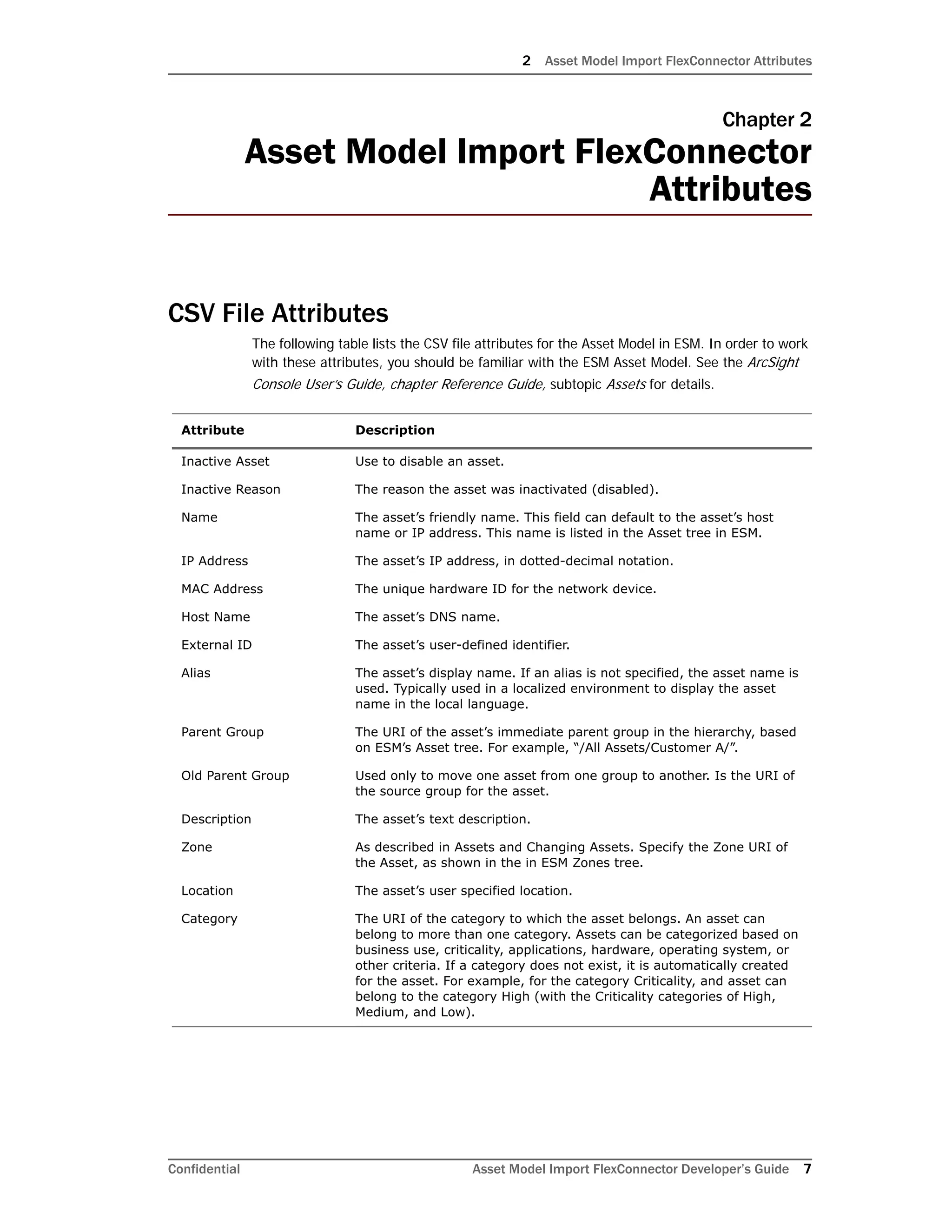
The following table lists the CSV file attributes for the Asset Model in ESM. In order to work
with these attributes, you should be familiar with the ESM Asset Model. See the ArcSight
Console User’s Guide, chapter Reference Guide, subtopic Assets for details.
Attribute Description
Inactive Asset Use to disable an asset.
Inactive Reason The reason the asset was inactivated (disabled).
Name The asset’s friendly name. This field can default to the asset’s host
name or IP address. This name is listed in the Asset tree in ESM.
IP Address The asset’s IP address, in dotted-decimal notation.
MAC Address The unique hardware ID for the network device.
Host Name The asset’s DNS name.
External ID The asset’s user-defined identifier.
Alias The asset’s display name. If an alias is not specified, the asset name is
used. Typically used in a localized environment to display the asset
name in the local language.
Parent Group The URI of the asset’s immediate parent group in the hierarchy, based
on ESM’s Asset tree. For example, “/All Assets/Customer A/”.
Old Parent Group Used only to move one asset from one group to another. Is the URI of
the source group for the asset.
Description The asset’s text description.
Zone As described in Assets and Changing Assets. Specify the Zone URI of
the Asset, as shown in the in ESM Zones tree.
Location The asset’s user specified location.
Category The URI of the category to which the asset belongs. An asset can
belong to more than one category. Assets can be categorized based on
business use, criticality, applications, hardware, operating system, or
other criteria. If a category does not exist, it is automatically created
for the asset. For example, for the category Criticality, and asset can
belong to the category High (with the Criticality categories of High,
Medium, and Low).
2 Asset Model Import FlexConnector Attributes
8 Asset Model Import FlexConnector Developer’s Guide Confidential
3 Installing and Configuring the Asset Model Import FlexConnector
Confidential Asset Model Import FlexConnector Developer’s Guide 9
Chapter 3
Installing and Configuring the Asset
Model Import FlexConnector
This chapter provides information about the prerequisites, installation and configuration of
the Asset Model Import FlexConnector.
The following topics are covered:
Prerequisites
Before installing the Asset Model Import FlexConnector, the following prerequisites must be
met:
 Ensure that ArcSight ESM 5.2 or later, Database and Console are installed. For more
information, see the ArcSight Installation and Configuration Guide.
 Local access to the machine where the Asset Model Import FlexConnector is to be
installed and administrator privileges to that machine.
 A minimum of 256 MB of memory and 3 GB of available hard disk space on the host
machine.
 Run the ArcSight ESM Manager. The command prompt window or terminal box
displays a Ready message when the ESM Manager starts successfully. If the ArcSight
ESM Manager is running as a Windows NT/2000 Service, monitor the
server.std.log file located in $ARCSIGHT_HOMElogsdefault. Although not
required, it is helpful to have the Console running when installing the Asset Model
Import FlexConnector to verify a successful installation.
 Zones must have been created in ESM to use with the assets, using the Network
Modeling Wizard in the ESM Console. If the zones are not created, assets are not
assigned to zones, and the zone information for the asset is ignored.
 ArcSight ESM and database components must be up and running to configure the
Asset Model Import FlexConnector.
Supported Platforms
The Asset Model Import FlexConnector supports the following platforms:
“Prerequisites” on page 9
“Supported Platforms” on page 9
“Installing the Asset Model Import FlexConnector” on page 10
“Configuring the Asset Model Import FlexConnector” on page 10
“Running SmartConnectors” on page 15
“Set the Model Import User” on page 15
“CSV Format and Parser Example” on page 16
“Reloading Asset Model Data” on page 19
3 Installing and Configuring the Asset Model Import FlexConnector
10 Asset Model Import FlexConnector Developer’s Guide Confidential
 Microsoft Windows Server 2003 R2 (SP2), 64-bit
 Microsoft Windows Server 2008 R2, 64-bit
 Red Hat Enterprise Linux (RHEL) 5.5 AS, 64-bit
Installing the Asset Model Import FlexConnector
This section provides instructions on how to install the Asset Model Import FlexConnector.
1 Using the log-in credentials supplied to you by ArcSight, download the Asset Model
Import FlexConnector installation executable file from the HP SSO site to the machine
where the connector will run.
2 Place the executable file in a directory.
3 Double-click the executable file to start the installer.
4 Follow the installation wizard through the following folder selection tasks and
installation of the core connector software:
 Introduction
 Choose Install Folder
 Choose Shortcut Folder
 Pre-Installation Summary
 Installing...
Configuring the Asset Model Import FlexConnector
This section provides information about configuring the Asset Model Import FlexConnector.
After installation completes, the SmartConnector Configuration Wizard displays.
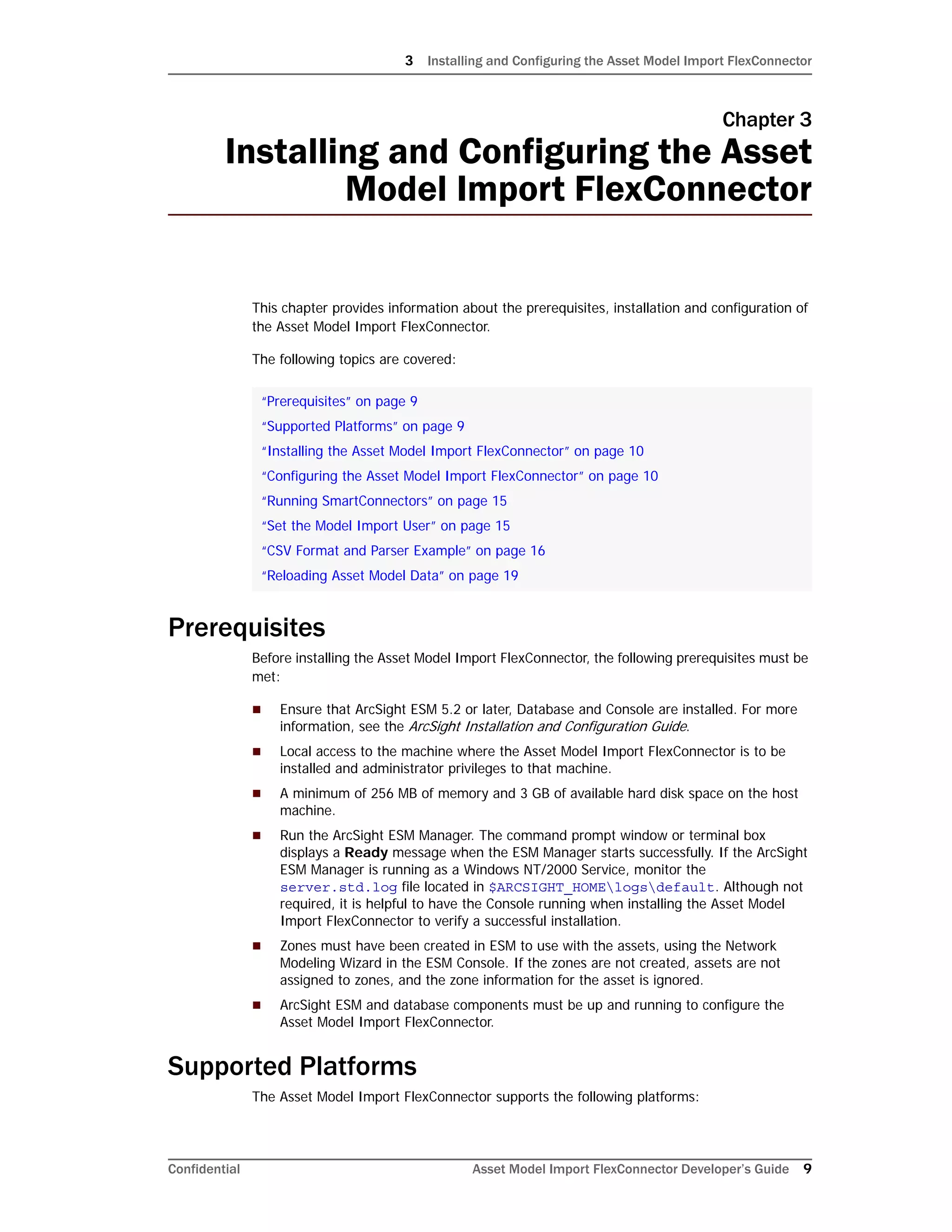
1 The destination selection window is displayed.
3 Installing and Configuring the Asset Model Import FlexConnector
Confidential Asset Model Import FlexConnector Developer’s Guide 11
Make sure ArcSight Manager (encrypted) is selected an click Next.
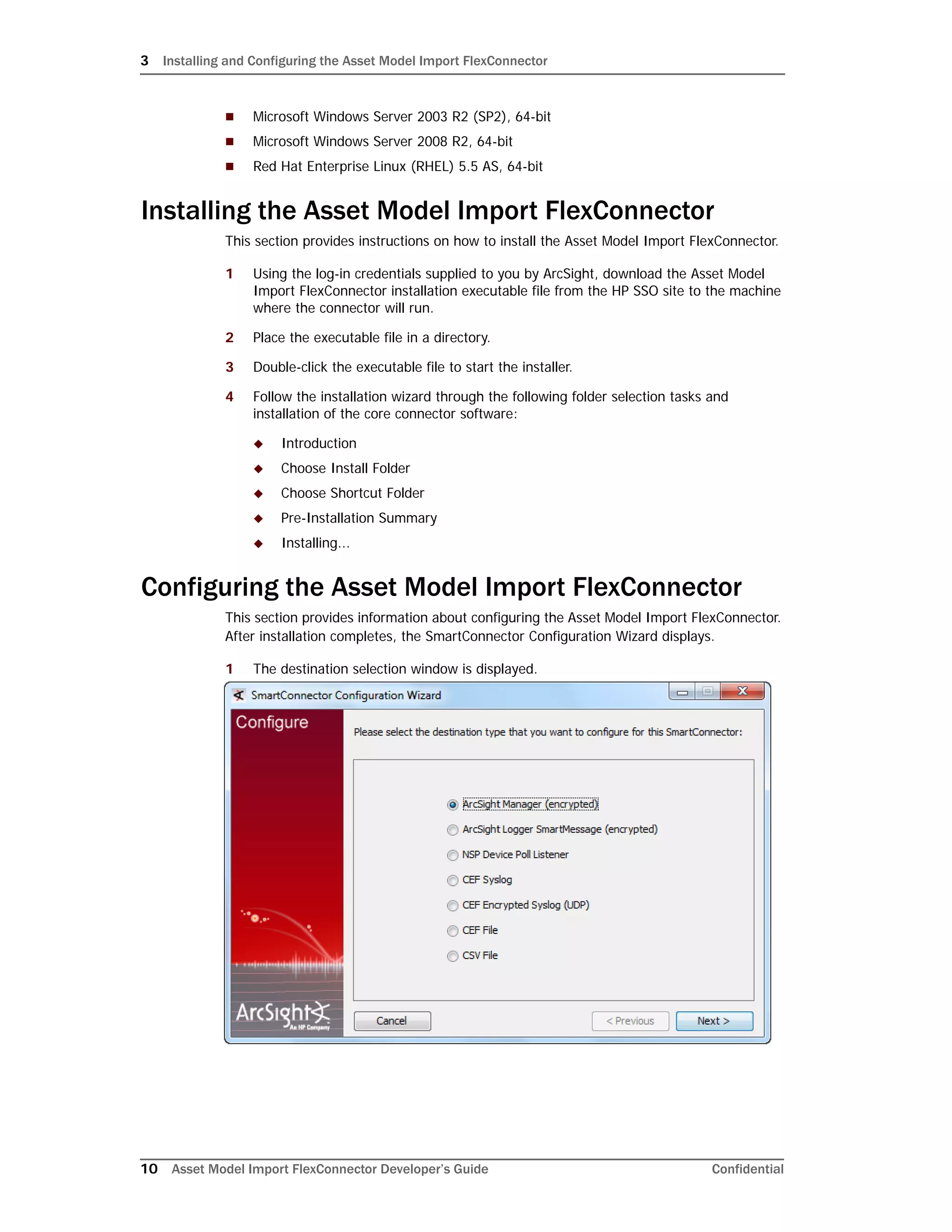
2 The wizard prompts you for SSL certificate information.
The default selection is No, the ArcSight Manager is not using a demo
certificate. Choose Yes if the ArcSight Manager is using a demo certificate. (Before
selecting this option, verify that the Manager is, in fact, using a demo certificate.
If you are not certain, select No, or consult your system administrator.) If the Manager
is using a self-signed or CA-signed SSL certificate, select No.
Click Next.
When selecting destinations for the Asset Model Import FlexConnector, select
ArcSight Manager (Encrypted) only. No other destinations are supported.
3 Installing and Configuring the Asset Model Import FlexConnector
12 Asset Model Import FlexConnector Developer’s Guide Confidential
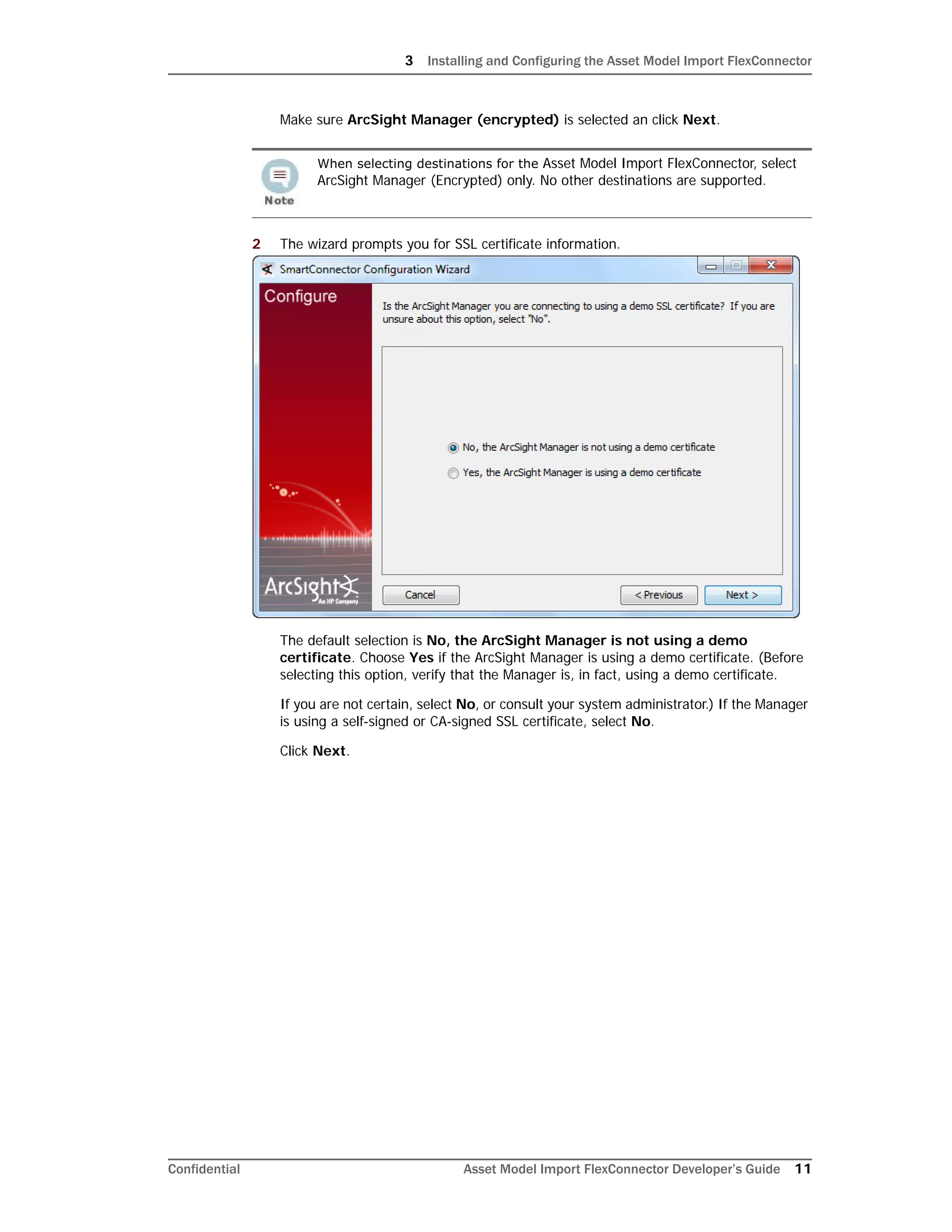
3 Enter the host and port information and click Next.
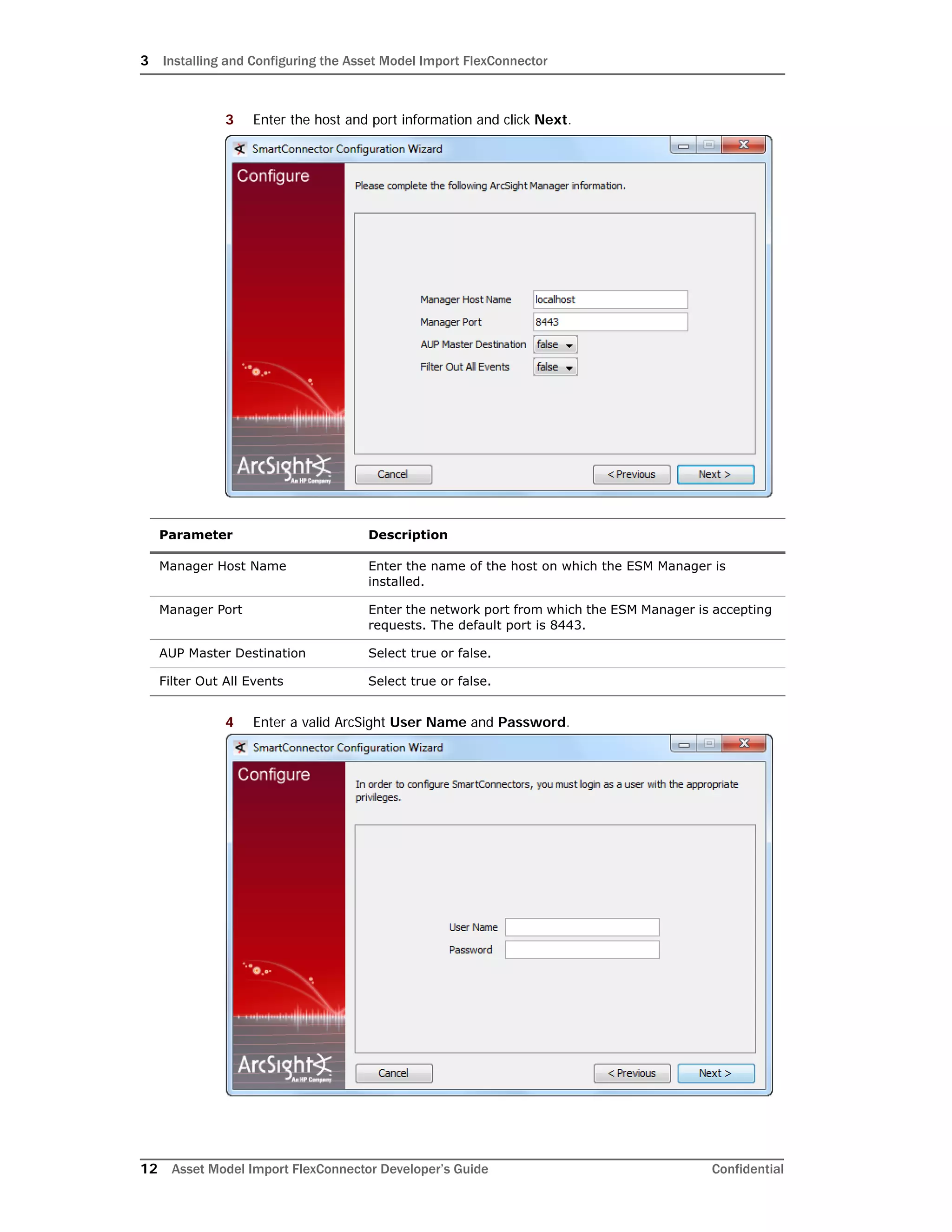
4 Enter a valid ArcSight User Name and Password.
Parameter Description
Manager Host Name Enter the name of the host on which the ESM Manager is
installed.
Manager Port Enter the network port from which the ESM Manager is accepting
requests. The default port is 8443.
AUP Master Destination Select true or false.
Filter Out All Events Select true or false.
3 Installing and Configuring the Asset Model Import FlexConnector
Confidential Asset Model Import FlexConnector Developer’s Guide 13
This is same user name and password you created during the Arcsight Manager
installation. Click Next.
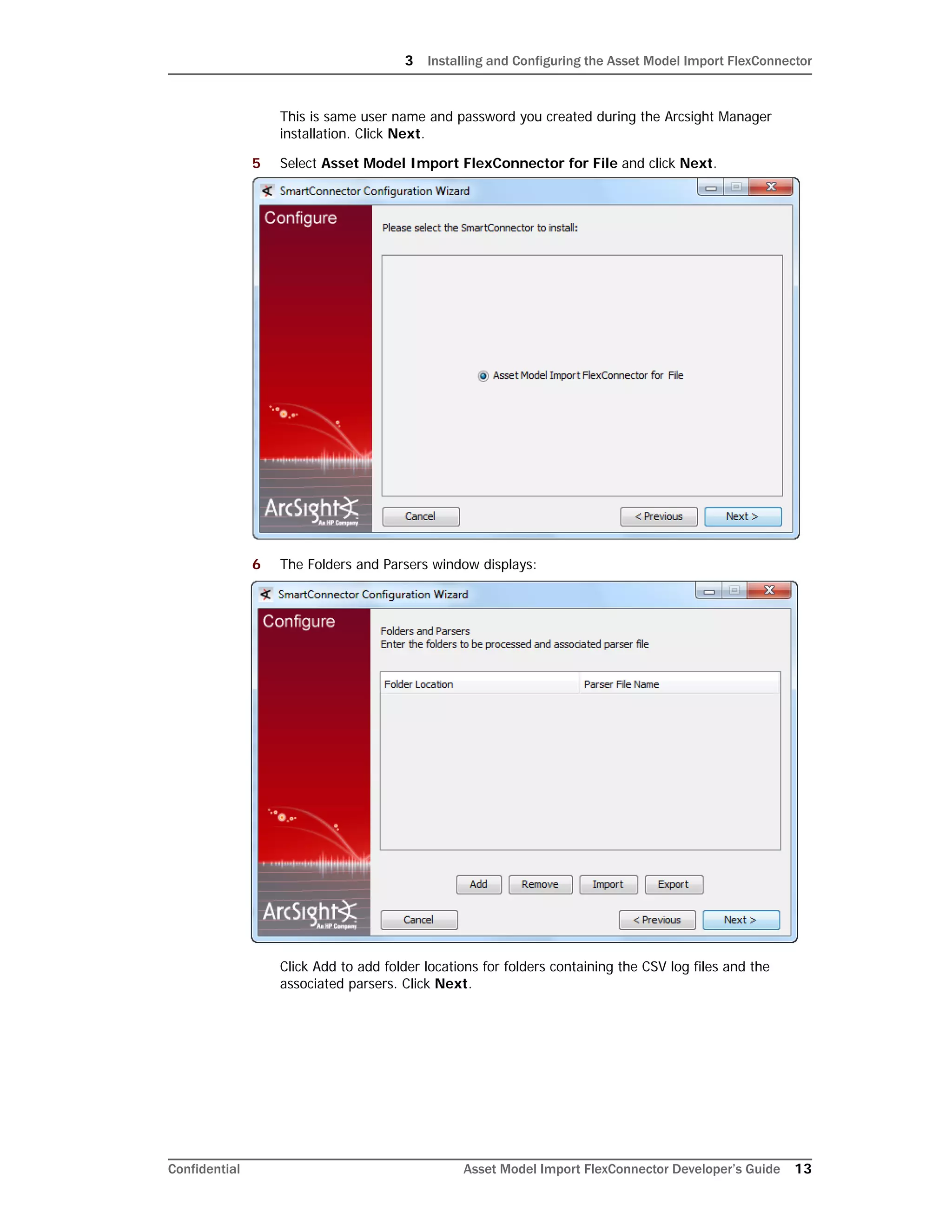
5 Select Asset Model Import FlexConnector for File and click Next.
6 The Folders and Parsers window displays:
Click Add to add folder locations for folders containing the CSV log files and the
associated parsers. Click Next.
3 Installing and Configuring the Asset Model Import FlexConnector
14 Asset Model Import FlexConnector Developer’s Guide Confidential
Use Import and Export to copy the list of folders and parsers to or from a
spreadsheet if needed.
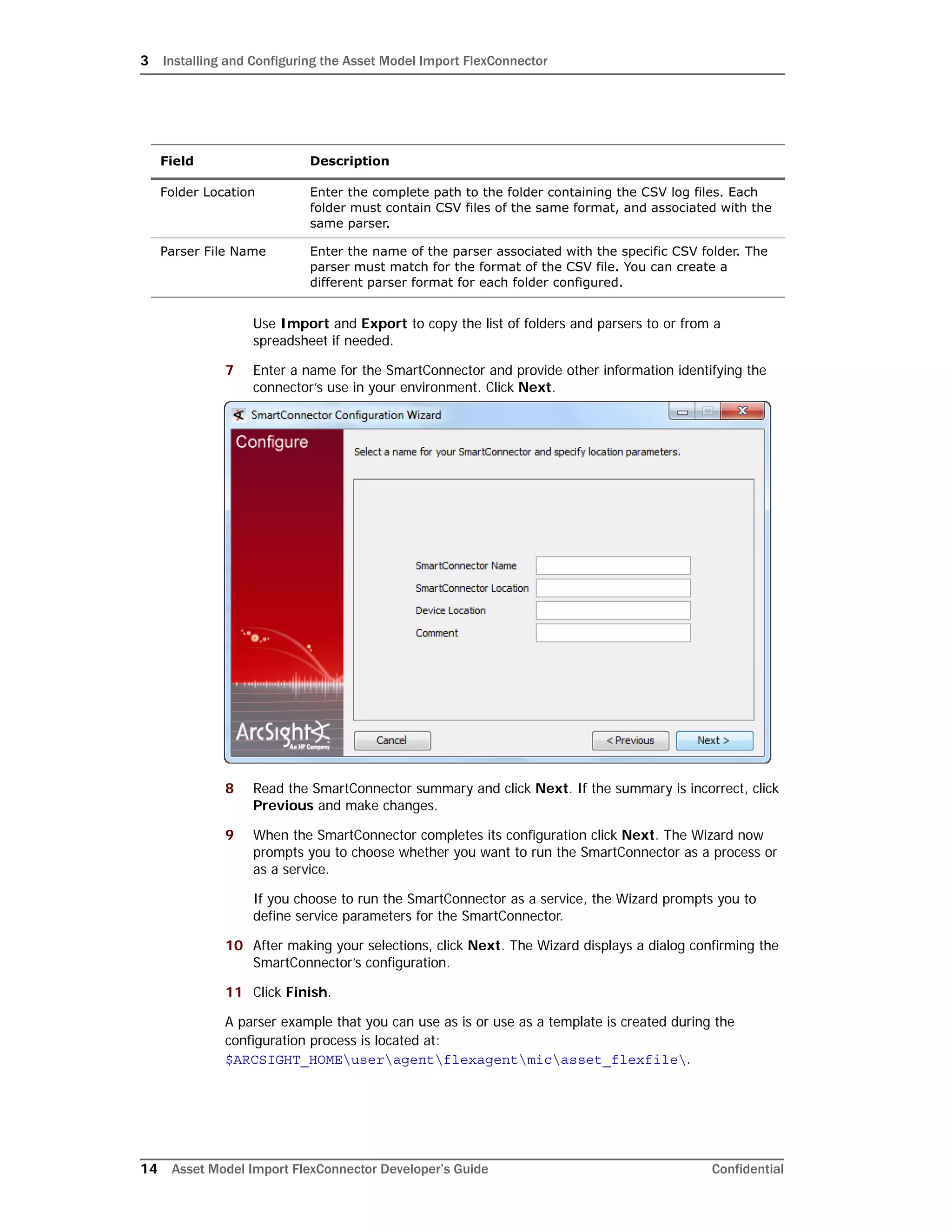
7 Enter a name for the SmartConnector and provide other information identifying the
connector’s use in your environment. Click Next.
8 Read the SmartConnector summary and click Next. If the summary is incorrect, click
Previous and make changes.
9 When the SmartConnector completes its configuration click Next. The Wizard now
prompts you to choose whether you want to run the SmartConnector as a process or
as a service.
If you choose to run the SmartConnector as a service, the Wizard prompts you to
define service parameters for the SmartConnector.
10 After making your selections, click Next. The Wizard displays a dialog confirming the
SmartConnector’s configuration.
11 Click Finish.
A parser example that you can use as is or use as a template is created during the
configuration process is located at:
$ARCSIGHT_HOMEuseragentflexagentmicasset_flexfile.
Field Description
Folder Location Enter the complete path to the folder containing the CSV log files. Each
folder must contain CSV files of the same format, and associated with the
same parser.
Parser File Name Enter the name of the parser associated with the specific CSV folder. The
parser must match for the format of the CSV file. You can create a
different parser format for each folder configured.
3 Installing and Configuring the Asset Model Import FlexConnector
Confidential Asset Model Import FlexConnector Developer’s Guide 15
Running SmartConnectors
SmartConnectors can be installed and run in standalone mode, on Windows platforms as a
Windows service, or on UNIX platforms as a UNIX daemon, depending upon the platform
supported. On Windows platforms, SmartConnectors also can be run using shortcuts and
optional Start menu entries.
If installed standalone, the SmartConnector must be started manually, and is not
automatically active when a host is re-started. If installed as a service or daemon, the
SmartConnector runs automatically when the host is re-started. For information about
connectors running as services or daemons, see the ArcSight SmartConnector User's
Guide.
For connectors installed standalone, to run all installed SmartConnectors on a particular
host, open a command window, go to $ARCSIGHT_HOMEcurrentbin and run:
arcsight connectors
To view the SmartConnector log, read the file:
$ARCSIGHT_HOMEcurrentlogsagent.log
To stop all SmartConnectors, enter Ctrl+C in the command window.
Set the Model Import User
After installing, configuring, and starting the connector, from the ArcSight ESM Console set
the Model Import User for the connector (this can be admin or some other user). Setting
the user links the user to the assets, and that user is then treated as the “creator” of the
assets. The connector is then run on that user’s behalf.
1 From the ESM Console, go to the Navigator panel and choose the Resources tab.
2 Under Resources, choose the Connector tab.
3 From under the All Connector directory, navigate to your Asset Model Import
FlexConnector.
4 Move to the Inspect/Edit panel and choose the Connector tab.
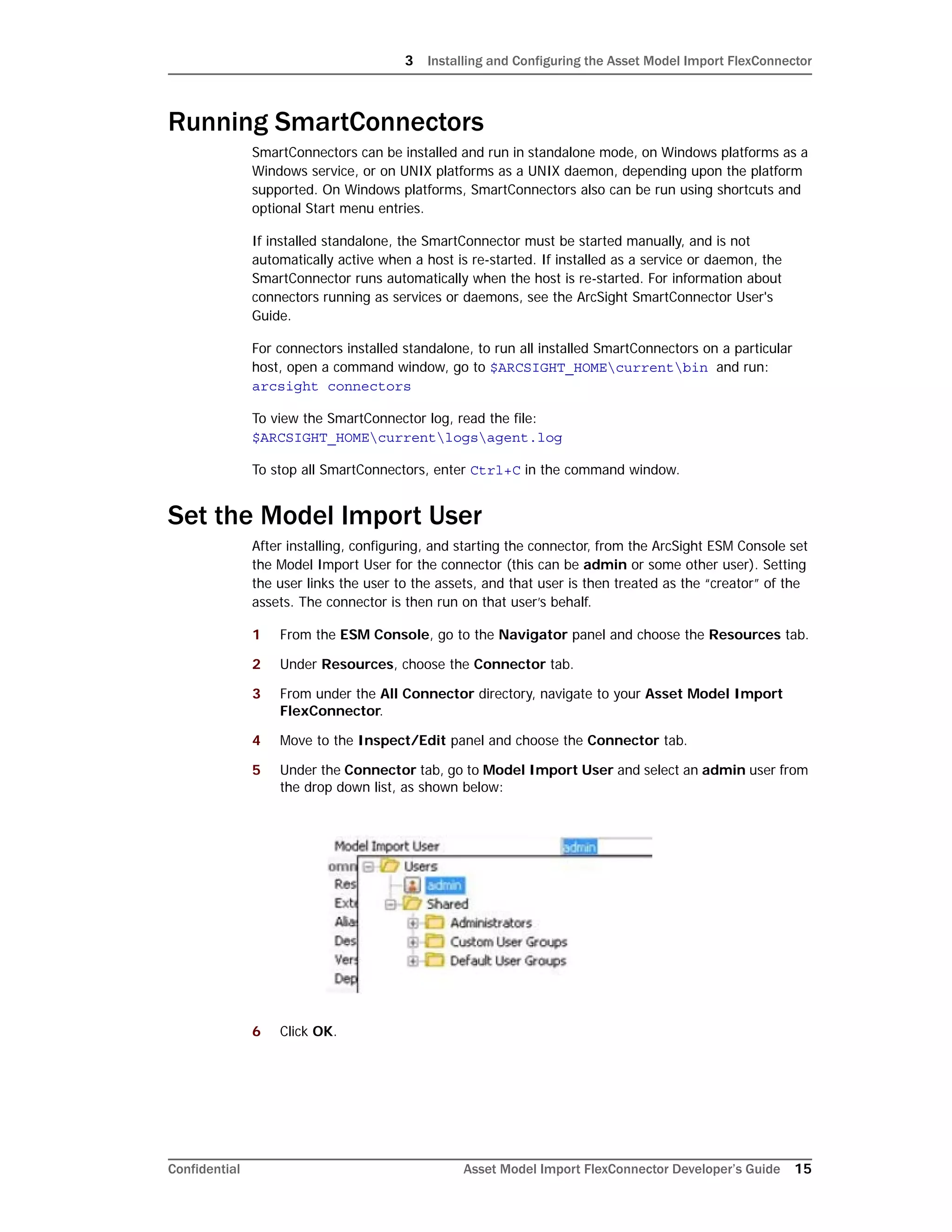
5 Under the Connector tab, go to Model Import User and select an admin user from
the drop down list, as shown below:
6 Click OK.
3 Installing and Configuring the Asset Model Import FlexConnector
16 Asset Model Import FlexConnector Developer’s Guide Confidential
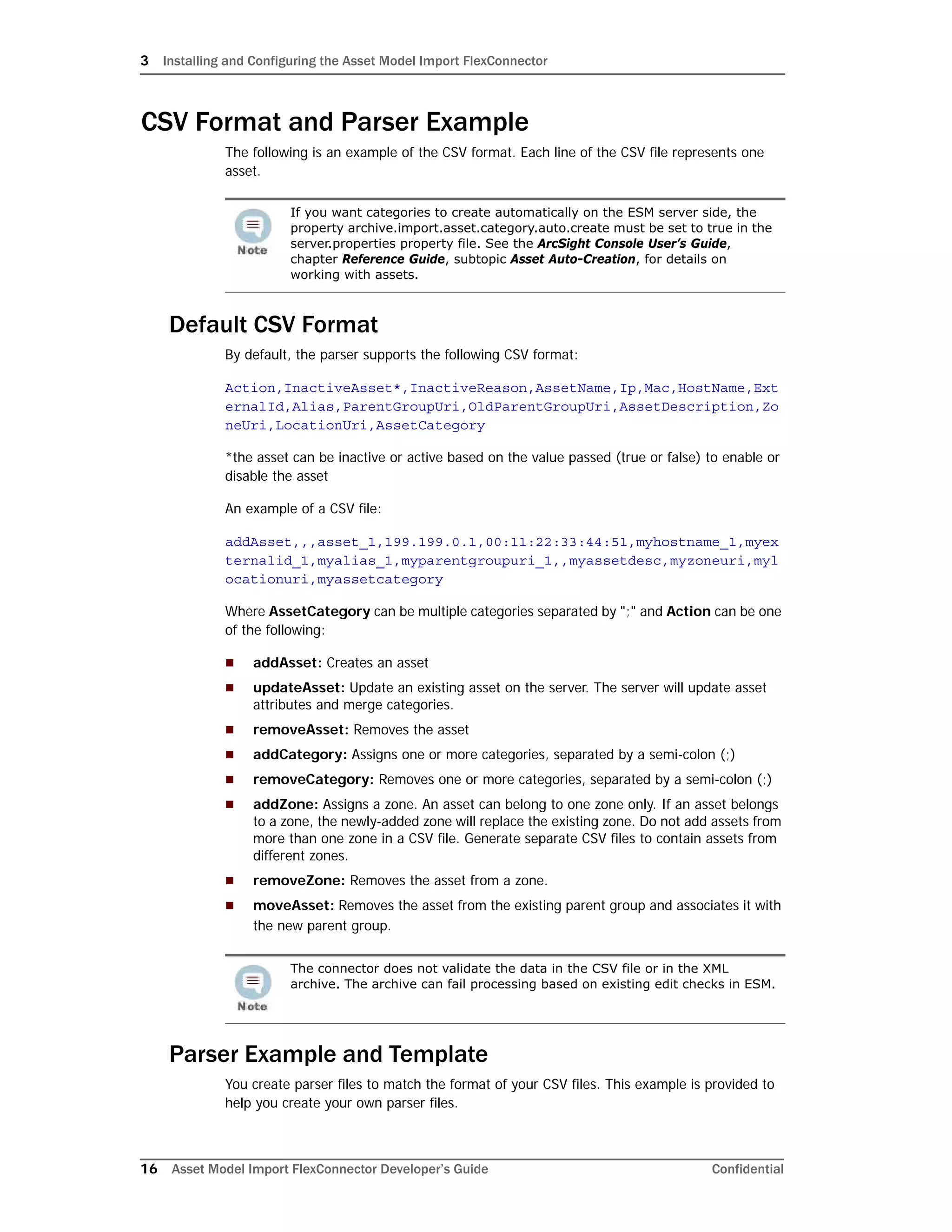
CSV Format and Parser Example
The following is an example of the CSV format. Each line of the CSV file represents one
asset.
Default CSV Format
By default, the parser supports the following CSV format:
Action,InactiveAsset*,InactiveReason,AssetName,Ip,Mac,HostName,Ext
ernalId,Alias,ParentGroupUri,OldParentGroupUri,AssetDescription,Zo
neUri,LocationUri,AssetCategory
*the asset can be inactive or active based on the value passed (true or false) to enable or
disable the asset
An example of a CSV file:
addAsset,,,asset_1,199.199.0.1,00:11:22:33:44:51,myhostname_1,myex
ternalid_1,myalias_1,myparentgroupuri_1,,myassetdesc,myzoneuri,myl
ocationuri,myassetcategory
Where AssetCategory can be multiple categories separated by ";" and Action can be one
of the following:
 addAsset: Creates an asset
 updateAsset: Update an existing asset on the server. The server will update asset
attributes and merge categories.
 removeAsset: Removes the asset
 addCategory: Assigns one or more categories, separated by a semi-colon (;)
 removeCategory: Removes one or more categories, separated by a semi-colon (;)
 addZone: Assigns a zone. An asset can belong to one zone only. If an asset belongs
to a zone, the newly-added zone will replace the existing zone. Do not add assets from
more than one zone in a CSV file. Generate separate CSV files to contain assets from
different zones.
 removeZone: Removes the asset from a zone.
 moveAsset: Removes the asset from the existing parent group and associates it with
the new parent group.
Parser Example and Template
You create parser files to match the format of your CSV files. This example is provided to
help you create your own parser files.
If you want categories to create automatically on the ESM server side, the
property archive.import.asset.category.auto.create must be set to true in the
server.properties property file. See the ArcSight Console User’s Guide,
chapter Reference Guide, subtopic Asset Auto-Creation, for details on
working with assets.
The connector does not validate the data in the CSV file or in the XML
archive. The archive can fail processing based on existing edit checks in ESM.
3 Installing and Configuring the Asset Model Import FlexConnector
Confidential Asset Model Import FlexConnector Developer’s Guide 17
comments.start.with=#
delimiter=,
token.count=15
token[0].name=Action
token[0].type=String
token[1].name=Inactive
token[1].type=String
token[2].name=InactiveReason
token[2].type=String
token[3].name=AssetName
token[3].type=String
token[4].name=Ip
token[4].type=String
token[5].name=Mac
token[5].type=String
token[6].name=HostName
token[6].type=String
token[7].name=ExternalId
token[7].type=String
token[8].name=Alias
token[8].type=String
token[9].name=ParentGroupUri
token[9].type=String
token[10].name=OldParentGroupUri
token[10].type=String
token[11].name=AssetDescription
token[11].type=String
token[12].name=ZoneUri
token[12].type=String
token[13].name=LocationUri
token[13].type=String
token[14].name=AssetCategory
3 Installing and Configuring the Asset Model Import FlexConnector
18 Asset Model Import FlexConnector Developer’s Guide Confidential
token[14].type=String
###keep these 7 fields unchanged###
additionaldata.enabled=true
additionaldata.duplicate.keys.allowed=false
event.deviceEventCategory=__stringConstant(Asset)
event.deviceCustomString1Label=__stringConstant(model.sender)
event.deviceCustomString1=__stringConstant(flexcsv)
event.deviceCustomString2Label=__stringConstant(model.template)
event.deviceCustomString2=__stringConstant(mic/asset_flexcsv/asset
.vm)
###field mappings###
event.deviceVendor=__getVendor(CSV File)
event.deviceProduct=__stringConstant(Assets)
event.deviceAction=Action
additionaldata.Action=Action
event.externalId=ExternalId
event.flexString1=AssetName
#following mappings maybe removed in future but required for now
additionaldata.UniqueUserId=AssetName
event.destinationUserId=AssetName
3 Installing and Configuring the Asset Model Import FlexConnector
Confidential Asset Model Import FlexConnector Developer’s Guide 19
CSV File Attributes
Reloading Asset Model Data
A redeployment, reconfiguration or mistaken deletion of attributes of your ESM structure
may require reloading all asset data. Use the following procedure to reload asset data:
1 Stop the connector if running.
2 From the ESM Console, go to the Navigator panel and choose the Resources tab.
3 Under Resources, choose the Asset tab.
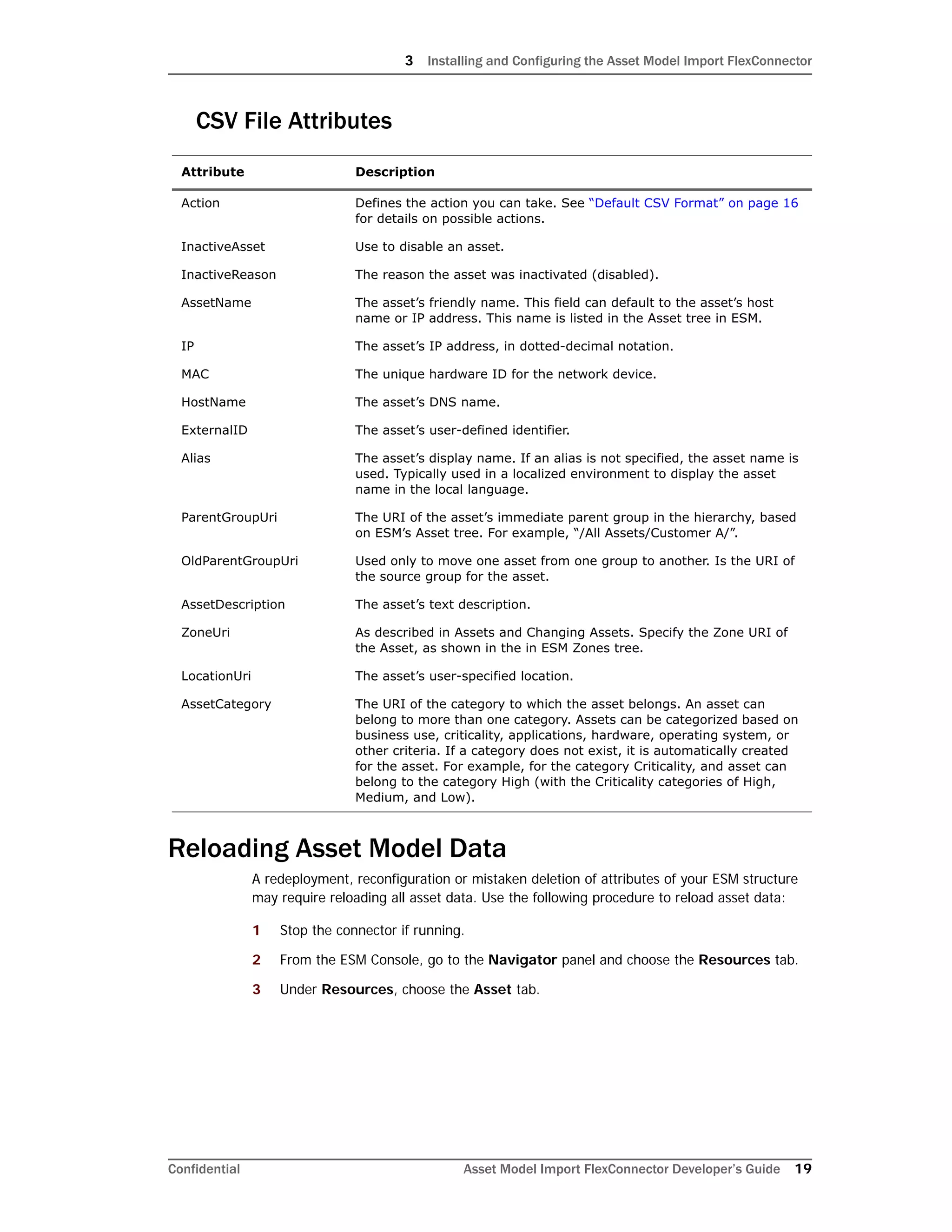
Attribute Description
Action Defines the action you can take. See “Default CSV Format” on page 16
for details on possible actions.
InactiveAsset Use to disable an asset.
InactiveReason The reason the asset was inactivated (disabled).
AssetName The asset’s friendly name. This field can default to the asset’s host
name or IP address. This name is listed in the Asset tree in ESM.
IP The asset’s IP address, in dotted-decimal notation.
MAC The unique hardware ID for the network device.
HostName The asset’s DNS name.
ExternalID The asset’s user-defined identifier.
Alias The asset’s display name. If an alias is not specified, the asset name is
used. Typically used in a localized environment to display the asset
name in the local language.
ParentGroupUri The URI of the asset’s immediate parent group in the hierarchy, based
on ESM’s Asset tree. For example, “/All Assets/Customer A/”.
OldParentGroupUri Used only to move one asset from one group to another. Is the URI of
the source group for the asset.
AssetDescription The asset’s text description.
ZoneUri As described in Assets and Changing Assets. Specify the Zone URI of
the Asset, as shown in the in ESM Zones tree.
LocationUri The asset’s user-specified location.
AssetCategory The URI of the category to which the asset belongs. An asset can
belong to more than one category. Assets can be categorized based on
business use, criticality, applications, hardware, operating system, or
other criteria. If a category does not exist, it is automatically created
for the asset. For example, for the category Criticality, and asset can
belong to the category High (with the Criticality categories of High,
Medium, and Low).
3 Installing and Configuring the Asset Model Import FlexConnector
20 Asset Model Import FlexConnector Developer’s Guide Confidential
4 Under All Assets, go to the top level directory. Highlight the asset data, right-click
and choose Delete Group from the shortcut menu.
5 On the connector side, reconstitute the asset data by recopying it from its original
source, or renaming the backup files to their original file names.
Be sure not to delete all assets. Delete only the assets managed by this
connector.

Asset modelimportconn devguide_5.2.1.6190.0

  • 1.
    ArcSight™ Developer’s Guide for AssetModel Import FlexConnector™ 5.2.1.6190.0 February, 2012
  • 2.
    ArcSight™ Developer’s Guidefor Asset Model Import FlexConnector™ Copyright © 2012 Hewlett-Packard Development Company, L.P. Confidential computer software. Valid license from HP required for possession, use or copying. Consistent with FAR 12.211 and 12.212, Commercial Computer Software, Computer Software Documentation, and Technical Data for Commercial Items are licensed to the U.S. Government under vendor's standard commercial license. The information contained herein is subject to change without notice. The only warranties for HP products and services are set forth in the express warranty statements accompanying such products and services. Nothing herein should be construed as constituting an additional warranty. HP shall not be liable for technical or editorial errors or omissions contained herein. Follow this link to see a complete statement of copyrights and acknowledgements: http://www.arcsight.com/copyrightnotice The network information used in the examples in this document (including IP addresses and hostnames) is for illustration purposes only. This document is confidential. Revision History Document template version: 2.1 Contact Information Date Product Version Description 02/23/12 5.2.1.6190.0 Initial release of the Asset Model Import FlexConnector. Phone 1-866-535-3285 (North America) +44 (0)870 141 7487 (EMEA) Support Web Site http://support.openview.hp.com Protect 724 Community https://protect724.arcsight.com
  • 3.
    Confidential Asset ModelImport FlexConnector Developer’s Guide 3 Contents Chapter 1: Overview ........................................................................................................... 5 Assumptions ................................................................................................................... 5 Chapter 2: Asset Model Import FlexConnector Attributes ................................................... 7 CSV File Attributes .......................................................................................................... 7 Chapter 3: Installing and Configuring the Asset Model Import FlexConnector ................... 9 Prerequisites .................................................................................................................. 9 Supported Platforms ........................................................................................................ 9 Installing the Asset Model Import FlexConnector ................................................................ 10 Configuring the Asset Model Import FlexConnector ............................................................ 10 Running SmartConnectors .............................................................................................. 15 Set the Model Import User .............................................................................................. 15 CSV Format and Parser Example ..................................................................................... 16 Default CSV Format ................................................................................................. 16 Parser Example and Template ................................................................................... 16 CSV File Attributes .................................................................................................. 19 Reloading Asset Model Data ............................................................................................ 19
  • 4.
    4 Asset ModelImport FlexConnector Developer’s Guide Confidential
  • 5.
    1 Overview Confidential AssetModel Import FlexConnector Developer’s Guide 5 Chapter 1 Overview The Asset Model Import FlexConnector allows you to develop a model import connector to import the asset model data from a file. This enables you to create and maintain ESM Network Model data, and keep this data in sync with the data in your Asset Management system. Based on configuration, files are read by the connector, converted to XML based on parser attributes. Upon generation, the XML files are automatically transferred by the connector to the ESM server. You configure the connector using the SmartConnector Configuration Wizard. Also, you must create parser files from the provided template that match the format of the CSV files. The connector supports two modes of operation:  Initial read and import  Ongoing detection and import of updates During the initial read and import for attributes specified in the CSV files, the connector can import a full set or subset of attributes for each asset based on CSV file content and corresponding matching parser configuration. Once the information is imported into ESM, the list of attributes the connector sends to ESM for existing assets is not updated. If you add or remove attributes to be sent to ESM from the connector after you import the asset data, you will not get a history of the new attributes. Updates will only be from the point of time the attributes were added. If you want a history of the added attributes, re-import the asset data. Assumptions You should be familiar with writing a Log File FlexConnector. Refer to the FlexConnector Developer's Guide for more information about writing a parser. CSV is the only file format supported.
  • 6.
    1 Overview 6 AssetModel Import FlexConnector Developer’s Guide Confidential
  • 7.
    2 Asset ModelImport FlexConnector Attributes Confidential Asset Model Import FlexConnector Developer’s Guide 7 Chapter 2 Asset Model Import FlexConnector Attributes CSV File Attributes The following table lists the CSV file attributes for the Asset Model in ESM. In order to work with these attributes, you should be familiar with the ESM Asset Model. See the ArcSight Console User’s Guide, chapter Reference Guide, subtopic Assets for details. Attribute Description Inactive Asset Use to disable an asset. Inactive Reason The reason the asset was inactivated (disabled). Name The asset’s friendly name. This field can default to the asset’s host name or IP address. This name is listed in the Asset tree in ESM. IP Address The asset’s IP address, in dotted-decimal notation. MAC Address The unique hardware ID for the network device. Host Name The asset’s DNS name. External ID The asset’s user-defined identifier. Alias The asset’s display name. If an alias is not specified, the asset name is used. Typically used in a localized environment to display the asset name in the local language. Parent Group The URI of the asset’s immediate parent group in the hierarchy, based on ESM’s Asset tree. For example, “/All Assets/Customer A/”. Old Parent Group Used only to move one asset from one group to another. Is the URI of the source group for the asset. Description The asset’s text description. Zone As described in Assets and Changing Assets. Specify the Zone URI of the Asset, as shown in the in ESM Zones tree. Location The asset’s user specified location. Category The URI of the category to which the asset belongs. An asset can belong to more than one category. Assets can be categorized based on business use, criticality, applications, hardware, operating system, or other criteria. If a category does not exist, it is automatically created for the asset. For example, for the category Criticality, and asset can belong to the category High (with the Criticality categories of High, Medium, and Low).
  • 8.
    2 Asset ModelImport FlexConnector Attributes 8 Asset Model Import FlexConnector Developer’s Guide Confidential
  • 9.
    3 Installing andConfiguring the Asset Model Import FlexConnector Confidential Asset Model Import FlexConnector Developer’s Guide 9 Chapter 3 Installing and Configuring the Asset Model Import FlexConnector This chapter provides information about the prerequisites, installation and configuration of the Asset Model Import FlexConnector. The following topics are covered: Prerequisites Before installing the Asset Model Import FlexConnector, the following prerequisites must be met:  Ensure that ArcSight ESM 5.2 or later, Database and Console are installed. For more information, see the ArcSight Installation and Configuration Guide.  Local access to the machine where the Asset Model Import FlexConnector is to be installed and administrator privileges to that machine.  A minimum of 256 MB of memory and 3 GB of available hard disk space on the host machine.  Run the ArcSight ESM Manager. The command prompt window or terminal box displays a Ready message when the ESM Manager starts successfully. If the ArcSight ESM Manager is running as a Windows NT/2000 Service, monitor the server.std.log file located in $ARCSIGHT_HOMElogsdefault. Although not required, it is helpful to have the Console running when installing the Asset Model Import FlexConnector to verify a successful installation.  Zones must have been created in ESM to use with the assets, using the Network Modeling Wizard in the ESM Console. If the zones are not created, assets are not assigned to zones, and the zone information for the asset is ignored.  ArcSight ESM and database components must be up and running to configure the Asset Model Import FlexConnector. Supported Platforms The Asset Model Import FlexConnector supports the following platforms: “Prerequisites” on page 9 “Supported Platforms” on page 9 “Installing the Asset Model Import FlexConnector” on page 10 “Configuring the Asset Model Import FlexConnector” on page 10 “Running SmartConnectors” on page 15 “Set the Model Import User” on page 15 “CSV Format and Parser Example” on page 16 “Reloading Asset Model Data” on page 19
  • 10.
    3 Installing andConfiguring the Asset Model Import FlexConnector 10 Asset Model Import FlexConnector Developer’s Guide Confidential  Microsoft Windows Server 2003 R2 (SP2), 64-bit  Microsoft Windows Server 2008 R2, 64-bit  Red Hat Enterprise Linux (RHEL) 5.5 AS, 64-bit Installing the Asset Model Import FlexConnector This section provides instructions on how to install the Asset Model Import FlexConnector. 1 Using the log-in credentials supplied to you by ArcSight, download the Asset Model Import FlexConnector installation executable file from the HP SSO site to the machine where the connector will run. 2 Place the executable file in a directory. 3 Double-click the executable file to start the installer. 4 Follow the installation wizard through the following folder selection tasks and installation of the core connector software:  Introduction  Choose Install Folder  Choose Shortcut Folder  Pre-Installation Summary  Installing... Configuring the Asset Model Import FlexConnector This section provides information about configuring the Asset Model Import FlexConnector. After installation completes, the SmartConnector Configuration Wizard displays. 1 The destination selection window is displayed.
  • 11.
    3 Installing andConfiguring the Asset Model Import FlexConnector Confidential Asset Model Import FlexConnector Developer’s Guide 11 Make sure ArcSight Manager (encrypted) is selected an click Next. 2 The wizard prompts you for SSL certificate information. The default selection is No, the ArcSight Manager is not using a demo certificate. Choose Yes if the ArcSight Manager is using a demo certificate. (Before selecting this option, verify that the Manager is, in fact, using a demo certificate. If you are not certain, select No, or consult your system administrator.) If the Manager is using a self-signed or CA-signed SSL certificate, select No. Click Next. When selecting destinations for the Asset Model Import FlexConnector, select ArcSight Manager (Encrypted) only. No other destinations are supported.
  • 12.
    3 Installing andConfiguring the Asset Model Import FlexConnector 12 Asset Model Import FlexConnector Developer’s Guide Confidential 3 Enter the host and port information and click Next. 4 Enter a valid ArcSight User Name and Password. Parameter Description Manager Host Name Enter the name of the host on which the ESM Manager is installed. Manager Port Enter the network port from which the ESM Manager is accepting requests. The default port is 8443. AUP Master Destination Select true or false. Filter Out All Events Select true or false.
  • 13.
    3 Installing andConfiguring the Asset Model Import FlexConnector Confidential Asset Model Import FlexConnector Developer’s Guide 13 This is same user name and password you created during the Arcsight Manager installation. Click Next. 5 Select Asset Model Import FlexConnector for File and click Next. 6 The Folders and Parsers window displays: Click Add to add folder locations for folders containing the CSV log files and the associated parsers. Click Next.
  • 14.
    3 Installing andConfiguring the Asset Model Import FlexConnector 14 Asset Model Import FlexConnector Developer’s Guide Confidential Use Import and Export to copy the list of folders and parsers to or from a spreadsheet if needed. 7 Enter a name for the SmartConnector and provide other information identifying the connector’s use in your environment. Click Next. 8 Read the SmartConnector summary and click Next. If the summary is incorrect, click Previous and make changes. 9 When the SmartConnector completes its configuration click Next. The Wizard now prompts you to choose whether you want to run the SmartConnector as a process or as a service. If you choose to run the SmartConnector as a service, the Wizard prompts you to define service parameters for the SmartConnector. 10 After making your selections, click Next. The Wizard displays a dialog confirming the SmartConnector’s configuration. 11 Click Finish. A parser example that you can use as is or use as a template is created during the configuration process is located at: $ARCSIGHT_HOMEuseragentflexagentmicasset_flexfile. Field Description Folder Location Enter the complete path to the folder containing the CSV log files. Each folder must contain CSV files of the same format, and associated with the same parser. Parser File Name Enter the name of the parser associated with the specific CSV folder. The parser must match for the format of the CSV file. You can create a different parser format for each folder configured.
  • 15.
    3 Installing andConfiguring the Asset Model Import FlexConnector Confidential Asset Model Import FlexConnector Developer’s Guide 15 Running SmartConnectors SmartConnectors can be installed and run in standalone mode, on Windows platforms as a Windows service, or on UNIX platforms as a UNIX daemon, depending upon the platform supported. On Windows platforms, SmartConnectors also can be run using shortcuts and optional Start menu entries. If installed standalone, the SmartConnector must be started manually, and is not automatically active when a host is re-started. If installed as a service or daemon, the SmartConnector runs automatically when the host is re-started. For information about connectors running as services or daemons, see the ArcSight SmartConnector User's Guide. For connectors installed standalone, to run all installed SmartConnectors on a particular host, open a command window, go to $ARCSIGHT_HOMEcurrentbin and run: arcsight connectors To view the SmartConnector log, read the file: $ARCSIGHT_HOMEcurrentlogsagent.log To stop all SmartConnectors, enter Ctrl+C in the command window. Set the Model Import User After installing, configuring, and starting the connector, from the ArcSight ESM Console set the Model Import User for the connector (this can be admin or some other user). Setting the user links the user to the assets, and that user is then treated as the “creator” of the assets. The connector is then run on that user’s behalf. 1 From the ESM Console, go to the Navigator panel and choose the Resources tab. 2 Under Resources, choose the Connector tab. 3 From under the All Connector directory, navigate to your Asset Model Import FlexConnector. 4 Move to the Inspect/Edit panel and choose the Connector tab. 5 Under the Connector tab, go to Model Import User and select an admin user from the drop down list, as shown below: 6 Click OK.
  • 16.
    3 Installing andConfiguring the Asset Model Import FlexConnector 16 Asset Model Import FlexConnector Developer’s Guide Confidential CSV Format and Parser Example The following is an example of the CSV format. Each line of the CSV file represents one asset. Default CSV Format By default, the parser supports the following CSV format: Action,InactiveAsset*,InactiveReason,AssetName,Ip,Mac,HostName,Ext ernalId,Alias,ParentGroupUri,OldParentGroupUri,AssetDescription,Zo neUri,LocationUri,AssetCategory *the asset can be inactive or active based on the value passed (true or false) to enable or disable the asset An example of a CSV file: addAsset,,,asset_1,199.199.0.1,00:11:22:33:44:51,myhostname_1,myex ternalid_1,myalias_1,myparentgroupuri_1,,myassetdesc,myzoneuri,myl ocationuri,myassetcategory Where AssetCategory can be multiple categories separated by ";" and Action can be one of the following:  addAsset: Creates an asset  updateAsset: Update an existing asset on the server. The server will update asset attributes and merge categories.  removeAsset: Removes the asset  addCategory: Assigns one or more categories, separated by a semi-colon (;)  removeCategory: Removes one or more categories, separated by a semi-colon (;)  addZone: Assigns a zone. An asset can belong to one zone only. If an asset belongs to a zone, the newly-added zone will replace the existing zone. Do not add assets from more than one zone in a CSV file. Generate separate CSV files to contain assets from different zones.  removeZone: Removes the asset from a zone.  moveAsset: Removes the asset from the existing parent group and associates it with the new parent group. Parser Example and Template You create parser files to match the format of your CSV files. This example is provided to help you create your own parser files. If you want categories to create automatically on the ESM server side, the property archive.import.asset.category.auto.create must be set to true in the server.properties property file. See the ArcSight Console User’s Guide, chapter Reference Guide, subtopic Asset Auto-Creation, for details on working with assets. The connector does not validate the data in the CSV file or in the XML archive. The archive can fail processing based on existing edit checks in ESM.
  • 17.
    3 Installing andConfiguring the Asset Model Import FlexConnector Confidential Asset Model Import FlexConnector Developer’s Guide 17 comments.start.with=# delimiter=, token.count=15 token[0].name=Action token[0].type=String token[1].name=Inactive token[1].type=String token[2].name=InactiveReason token[2].type=String token[3].name=AssetName token[3].type=String token[4].name=Ip token[4].type=String token[5].name=Mac token[5].type=String token[6].name=HostName token[6].type=String token[7].name=ExternalId token[7].type=String token[8].name=Alias token[8].type=String token[9].name=ParentGroupUri token[9].type=String token[10].name=OldParentGroupUri token[10].type=String token[11].name=AssetDescription token[11].type=String token[12].name=ZoneUri token[12].type=String token[13].name=LocationUri token[13].type=String token[14].name=AssetCategory
  • 18.
    3 Installing andConfiguring the Asset Model Import FlexConnector 18 Asset Model Import FlexConnector Developer’s Guide Confidential token[14].type=String ###keep these 7 fields unchanged### additionaldata.enabled=true additionaldata.duplicate.keys.allowed=false event.deviceEventCategory=__stringConstant(Asset) event.deviceCustomString1Label=__stringConstant(model.sender) event.deviceCustomString1=__stringConstant(flexcsv) event.deviceCustomString2Label=__stringConstant(model.template) event.deviceCustomString2=__stringConstant(mic/asset_flexcsv/asset .vm) ###field mappings### event.deviceVendor=__getVendor(CSV File) event.deviceProduct=__stringConstant(Assets) event.deviceAction=Action additionaldata.Action=Action event.externalId=ExternalId event.flexString1=AssetName #following mappings maybe removed in future but required for now additionaldata.UniqueUserId=AssetName event.destinationUserId=AssetName
  • 19.
    3 Installing andConfiguring the Asset Model Import FlexConnector Confidential Asset Model Import FlexConnector Developer’s Guide 19 CSV File Attributes Reloading Asset Model Data A redeployment, reconfiguration or mistaken deletion of attributes of your ESM structure may require reloading all asset data. Use the following procedure to reload asset data: 1 Stop the connector if running. 2 From the ESM Console, go to the Navigator panel and choose the Resources tab. 3 Under Resources, choose the Asset tab. Attribute Description Action Defines the action you can take. See “Default CSV Format” on page 16 for details on possible actions. InactiveAsset Use to disable an asset. InactiveReason The reason the asset was inactivated (disabled). AssetName The asset’s friendly name. This field can default to the asset’s host name or IP address. This name is listed in the Asset tree in ESM. IP The asset’s IP address, in dotted-decimal notation. MAC The unique hardware ID for the network device. HostName The asset’s DNS name. ExternalID The asset’s user-defined identifier. Alias The asset’s display name. If an alias is not specified, the asset name is used. Typically used in a localized environment to display the asset name in the local language. ParentGroupUri The URI of the asset’s immediate parent group in the hierarchy, based on ESM’s Asset tree. For example, “/All Assets/Customer A/”. OldParentGroupUri Used only to move one asset from one group to another. Is the URI of the source group for the asset. AssetDescription The asset’s text description. ZoneUri As described in Assets and Changing Assets. Specify the Zone URI of the Asset, as shown in the in ESM Zones tree. LocationUri The asset’s user-specified location. AssetCategory The URI of the category to which the asset belongs. An asset can belong to more than one category. Assets can be categorized based on business use, criticality, applications, hardware, operating system, or other criteria. If a category does not exist, it is automatically created for the asset. For example, for the category Criticality, and asset can belong to the category High (with the Criticality categories of High, Medium, and Low).
  • 20.
    3 Installing andConfiguring the Asset Model Import FlexConnector 20 Asset Model Import FlexConnector Developer’s Guide Confidential 4 Under All Assets, go to the top level directory. Highlight the asset data, right-click and choose Delete Group from the shortcut menu. 5 On the connector side, reconstitute the asset data by recopying it from its original source, or renaming the backup files to their original file names. Be sure not to delete all assets. Delete only the assets managed by this connector.