ESM Installation and
Configuration Guide
ArcSight™ ESM Version 5.2
January 2012
ESM Installation and Configuration Guide ArcSight™ ESM Version 5.2
Copyright © 2012 Hewlett-Packard Development Company, L.P.
Confidential computer software. Valid license from HP required for possession, use or copying. Consistent
with FAR 12.211 and 12.212, Commercial Computer Software, Computer Software Documentation, and
Technical Data for Commercial Items are licensed to the U.S. Government under vendor's standard
commercial license.
The information contained herein is subject to change without notice. The only warranties for HP products
and services are set forth in the express warranty statements accompanying such products and services.
Nothing herein should be construed as constituting an additional warranty. HP shall not be liable for
technical or editorial errors or omissions contained herein.
Follow this link to see a complete statement of copyrights and acknowledgements:
http://www.arcsight.com/copyrightnotice
The network information used in the examples in this document (including IP addresses and hostnames) is
for illustration purposes only.
This document is confidential.
Revision History
Contact Information
Date Product Version Description
02/15/2012 ArcSight ESM Version 5.2 Enhancements for the v5.2 release
Phone 1-866-535-3285 (North America)
+44 (0)870 141 7487 (EMEA)
Support Web Site http://support.openview.hp.com
Protect 724 Community https://protect724.arcsight.com
Confidential ESM Installation and Configuration Guide 3
Contents
Chapter 1: Planning and Installation Overview ................................................................. 11
What is ArcSight ESM? ................................................................................................... 11
ArcSight Components .................................................................................................... 11
ArcSight SmartConnector ......................................................................................... 12
ArcSight Manager .................................................................................................... 13
ArcSight Database ................................................................................................... 13
ArcSight Console ..................................................................................................... 13
ArcSight Web ......................................................................................................... 14
Deployment Overview. ................................................................................................... 16
ArcSight ESM Communication Overview ........................................................................... 16
Effect on communication when components fail ........................................................... 17
Deployment Order ......................................................................................................... 18
Supported Platforms ...................................................................................................... 18
Installation Planning ...................................................................................................... 18
Inventory your devices ............................................................................................ 19
Determine the size and topology of Managers ............................................................. 19
Size your database .................................................................................................. 19
Event Volume ................................................................................................... 19
Retention Policy ................................................................................................ 20
Identify or procure hardware and software ................................................................. 20
Choosing between FIPS Mode or Default Mode ............................................................ 20
An Overview of Differences Between Default Mode, FIPS Mode, and FIPS with Suite B Mode
21
Using PKCS#11 ...................................................................................................... 21
Import Control Issues .............................................................................................. 22
Directory Structure for ArcSight Installation ...................................................................... 22
Securing your ArcSight ESM System ................................................................................ 23
Protecting ArcSight Manager ..................................................................................... 23
Protecting ArcSight Database .................................................................................... 25
ArcSight Built-In Security ................................................................................... 26
Physical Security for the Hardware ...................................................................... 26
Operating System Security ................................................................................. 27
General Guidelines and Policies about Security ............................................................ 27
Deployment Scenarios ................................................................................................... 28
4 ESM Installation and Configuration Guide Confidential
Scenario 1: A simple, monolithic deployment .............................................................. 28
Scenario 2: A high availability, transparent failover deployment .................................... 29
Scenario 3: A hierarchical deployment ...................................................................... 30
Scenario 4: A test environment deployment .............................................................. 31
Where to go From Here .................................................................................................. 31
Chapter 2: Installing ArcSight Database ........................................................................... 33
Key Database Installation Success Factors ........................................................................ 33
Supported Platforms for Database Installation .................................................................. 34
General Guidelines for Installing Oracle ............................................................................ 34
Storage Guidelines .................................................................................................. 35
Volume 1: SYSTEM Volume ................................................................................ 36
Volume 2: DATABASE Volume ............................................................................ 37
Volume 3: REDO Volume ................................................................................... 39
Volume 4: ARCHIVE Volume ............................................................................... 39
Oracle Control Files ........................................................................................... 41
Selecting an ArcSight Database Template ................................................................... 41
Preparing your Platform for Database Installation .............................................................. 42
UNIX Platforms ....................................................................................................... 42
Preparing a Linux System .................................................................................. 43
Preparing a Solaris System ................................................................................ 45
Preparing an AIX System ......................................................................................... 47
Preparing a Windows System .................................................................................... 47
Installing ArcSight Database .......................................................................................... 48
Installing the ArcSight Database Software .................................................................. 48
Installing Oracle 11g Database Software ................................................................... 51
Configuring Shared Memory on Solaris ....................................................................... 55
Configuring Shared Memory on Linux ......................................................................... 55
Creating a New Oracle 11g Instance .......................................................................... 57
Important AIX Issue ................................................................................................ 62
Avoiding DB Write Performance Issues with Oracle 11g ................................................ 63
Initializing ArcSight Tablespaces, Schema, and Resources ............................................ 63
Restarting or Reconfiguring ArcSight Database .................................................................. 75
Configuring Partition Management ................................................................................... 75
Overview ............................................................................................................... 76
Partition Configuration Parameters ............................................................................ 79
Changing Partition Management Configurations ........................................................... 82
Setting Up Partition Archiver ..................................................................................... 82
Starting and Stopping Partition Archiver ............................................................... 84
Re-registering Partition Archiver with ArcSight Manager ......................................... 84
Deleting the Partition Archiver Service ................................................................. 84
Reinstalling the Partition Archiver Service ............................................................ 85
Changing the Password for Partition Archiver ........................................................ 85
Confidential ESM Installation and Configuration Guide 5
Uninstalling the ArcSight Database Software ..................................................................... 85
Chapter 3: Installing ArcSight Manager ............................................................................ 87
ArcSight Manager Supported Platforms ............................................................................ 88
Installing the Manager ................................................................................................... 89
Transferring Configuration from an Existing Installation ................................................ 91
Selecting the Mode in which to Configure ArcSight Manager .......................................... 91
Configuring the Manager’s Host Name, Port, and Location ............................................ 92
Java Heap Memory Size ........................................................................................... 93
SSL Certification Selection ........................................................................................ 94
Deciding which SSL certificate to select ................................................................ 94
Selecting the SSL certificate ............................................................................... 95
Database Connection ............................................................................................... 97
Authentication ........................................................................................................ 98
How external authentication works ...................................................................... 98
Guidelines for setting up external authentication ................................................... 98
Password Based Authentication ........................................................................... 99
Password Based and SSL Client Based Authentication ...........................................106
Password Based or SSL Client Based Authentication .............................................106
SSL Client Only Authentication ...........................................................................107
ArcSight Manager Administrator Account Setup ..........................................................107
Select Packages .....................................................................................................108
Mail Server ...........................................................................................................109
ArcSight Web ........................................................................................................112
Asset Auto Creation ................................................................................................113
Setting up as a Service or Daemon ...........................................................................113
Starting and Stopping the Manager .................................................................................115
Starting the Manager ..............................................................................................115
Stopping the Manually Started Manager ..............................................................116
Running the Manager as a Service .....................................................................116
Verifying the Manager Installation ..................................................................................117
Reconfiguring ArcSight Manager .....................................................................................117
Securing the ArcSight Manager Properties File ............................................................117
Sending Events as SNMP Traps ................................................................................118
Uninstalling ArcSight Manager ........................................................................................120
Chapter 4: Installing ArcSight Console ............................................................................ 121
Console Supported Platforms .........................................................................................121
Using a PKCS#11 Token ................................................................................................122
Installing the Console ......................................................................................122
Transferring Configuration from an Existing Installation ...............................................124
Selecting the Mode in which to Configure ArcSight Console ..........................................125
Manager Connection ...............................................................................................125
6 ESM Installation and Configuration Guide Confidential
Authentication .........................................................................................128
Web Browser .........................................................................................................129
Starting the ArcSight Console ........................................................................................132
Logging into the Console .........................................................................................134
Reconnecting to the ArcSight Manager ............................................................................134
Reconfiguring the ArcSight Console ................................................................................134
Turn Off Database Recycle Bin .......................................................................................135
Uninstalling the ArcSight Console ...................................................................................135
Chapter 5: Installing ArcSight Web ................................................................................. 137
ArcSight Web Supported Platforms .................................................................................137
Web Browsers .......................................................................................................138
Using a PKCS#11 Token ................................................................................................138
Installing ArcSight Web .................................................................................................138
Setting up SSL Client Authentication .........................................................................140
Selecting the Mode in which to Configure ArcSight Web ...............................................140
Web server Host Name and Port ..............................................................................141
Java Heap Memory Size ..........................................................................................142
Enable Case and Events Exports ..............................................................................142
Display Links to Support Web site ............................................................................143
ArcSight Manager Host Name and Port ......................................................................143
Trust Manager Certificate ........................................................................................144
Select Type of Key Pair ...........................................................................................144
Authentication .......................................................................................................146
Setting ArcSight Web as a Service or Daemon ...........................................................146
Starting ArcSight Web Manually .....................................................................................147
Connecting to ArcSight Web ..........................................................................................147
Styling ArcSight Web ....................................................................................................148
Uninstalling ArcSight Web .............................................................................................148
Chapter 6: Installing ArcSight SmartConnectors ............................................................. 149
Deployment Considerations ...........................................................................................149
Installing ArcSight SmartConnectors ...............................................................................149
Chapter 7: Establishing Initial ArcSight Resources ......................................................... 151
Defining Zones and Assets ............................................................................................151
Defining Asset Categories ..............................................................................................154
Creating Customers and Users .......................................................................................155
Tuning Data Monitors and Rules .....................................................................................155
Appendix A: Using UNCOMPRESSED Archive Type ........................................................... 157
Archiving Uncompressed Files ........................................................................................157
Examples ..............................................................................................................158
Confidential ESM Installation and Configuration Guide 7
Appendix B: Setting up RADIUS User Authentication ...................................................... 161
Passcodes ...................................................................................................................161
Defining Shorter ArcSight Internal Login User Names ........................................................161
Two-Factor Challenge Responses ....................................................................................162
Steps for Setting Up ACE/Server RADIUS Authentication ...................................................163
Installing the ACE/Server and ACE/Server RADIUS Service ................................................163
Configuring the ACE/Server to allow RADIUS Requests ......................................................163
Enabling User Accounts in ACE/Server ......................................................................164
Configuring ArcSight Manager ..................................................................................164
Migrating from Internal Authentication to ACE/Server .................................................165
Authentication Troubleshooting ................................................................................165
Appendix C: Integrating with iDefense Database ............................................................ 167
Configuring Manager for iDefense ...................................................................................167
Appendix D: ArcSight Manager Failover .......................................................................... 169
Architecture ................................................................................................................169
Starting Processes ........................................................................................................171
Monitoring Processes ....................................................................................................171
Next Steps ..................................................................................................................172
Appendix E: FIPS Compliant State Auditing .................................................................... 173
Compliance State Auditing with Active Channels ...............................................................173
Compliance State Auditing with Dashboards .....................................................................174
Compliance State Auditing with Reports ..........................................................................174
Compliance State Auditing with Rules .............................................................................175
Appendix F: Installing ArcSight ESM in FIPS Mode ......................................................... 177
What is FIPS? ..............................................................................................................178
Network Security Services Database (NSS DB) .................................................................178
What is PKCS? .............................................................................................................179
PKCS #11 .............................................................................................................179
PKCS #12 .............................................................................................................179
NSS Tools Used to Configure Components in FIPS Mode ....................................................179
For More information on NSS Tools ...........................................................................180
TLS Configuration in a Nutshell ......................................................................................180
Understanding Server Side Authentication .................................................................181
Understanding Client Side Authentication ..................................................................181
Setting up Authentication on ArcSight Web - A Special Case ........................................182
Using PKCS #11 Token With a FIPS Mode ESM Setup ........................................................183
Installing ArcSight Database ..........................................................................................183
Installing ArcSight Manager in FIPS mode ........................................................................183
Setting up Partition Archiver in FIPS Mode .......................................................................190
8 ESM Installation and Configuration Guide Confidential
Installing ArcSight Console in FIPS Mode .........................................................................192
Connecting a Default Mode Console to a FIPS Enabled Manager ....................................199
Connecting a FIPS Enabled Console to Multiple Managers Running in FIPS 140-2 Mode ....200
Installing ArcSight Web in FIPS Mode ..............................................................................200
Configuring Firefox 3.x to Make it FIPS 140-2 Compliant .............................................208
Configuring Internet Explorer to Make it FIPS 140-2 Compliant ....................................210
Installing SmartConnectors in FIPS mode ........................................................................210
How do I Know Whether My Existing ESM Installation is FIPS Enabled? ................................210
Migrating an Existing Default Mode ESM Installation to FIPS Mode ......................................211
Manager ...............................................................................................................211
Console ................................................................................................................213
ArcSight Web ........................................................................................................215
Partition Archiver ...................................................................................................217
Appendix G: Installing ArcSight ESM in 
FIPS with Suite B Mode .................................................................................................. 219
What is Suite B? ..........................................................................................................219
Suite B support in ESM ...........................................................................................220
Installing ArcSight Database ..........................................................................................220
Installing ArcSight Manager in FIPS with Suite B Mode ......................................................220
Setting up Partition Archiver in FIPS with 
Suite B Mode ...............................................................................................................226
Installing ArcSight Console in FIPS with Suite B Mode .......................................................226
Installing ArcSight Web in FIPS with Suite B Mode ............................................................227
Installing SmartConnectors in FIPS with Suite B Mode .......................................................233
Appendix H: Using the PKCS#11 Token .......................................................................... 235
What is PKCS? .............................................................................................................235
PKCS#11 ..............................................................................................................235
PKCS#12 ..............................................................................................................236
PKCS#11 Token Support in ESM ....................................................................................236
An Example - Using the ActivClient CAC Card ...................................................................236
Using CAC with ArcSight Console .............................................................................236
Install the CAC Provider’s Software ....................................................................236
Map a User’s External ID in the Manager to the CAC’s Subject CN ..........................237
Obtain the CAC’s Issuers’ Root Certificate ...........................................................238
Extract the Root CA Certificate From the CAC Certificate you Exported ....................240
FIPS Mode - Import the CAC Card’s Root CA Certificate into the ESM Manager’s nssdb ...
241
Default Mode - Import the CAC Card’s Root CA Certificate into the Manager’s Truststore
241
Select Authentication Option in Manager Setup ....................................................242
Select Authentication Option in Console Setup .....................................................243
Logging in to the Console Using CAC ..................................................................244
Using CAC with ArcSight Web ..................................................................................245
Confidential ESM Installation and Configuration Guide 9
Connecting to ArcSight Web Using CAC ...............................................................246
Appendix I: About ESM Locales and Encodings ............................................................... 249
Terminology used in this document .................................................................................249
Internationalization ................................................................................................249
Locale ..................................................................................................................249
Character Set ........................................................................................................249
Code Set ...............................................................................................................249
Code Point ............................................................................................................250
Encoding ...............................................................................................................250
Unicode ................................................................................................................250
Before you Install a Localized Version of ArcSight ESM ......................................................250
ArcSight Database ........................................................................................................250
Selecting an Encoding .............................................................................................251
ArcSight Manager .........................................................................................................252
ArcSight Console ..........................................................................................................252
ArcSight SmartConnectors .............................................................................................252
Setting the Encoding for Selected SmartConnectors ....................................................252
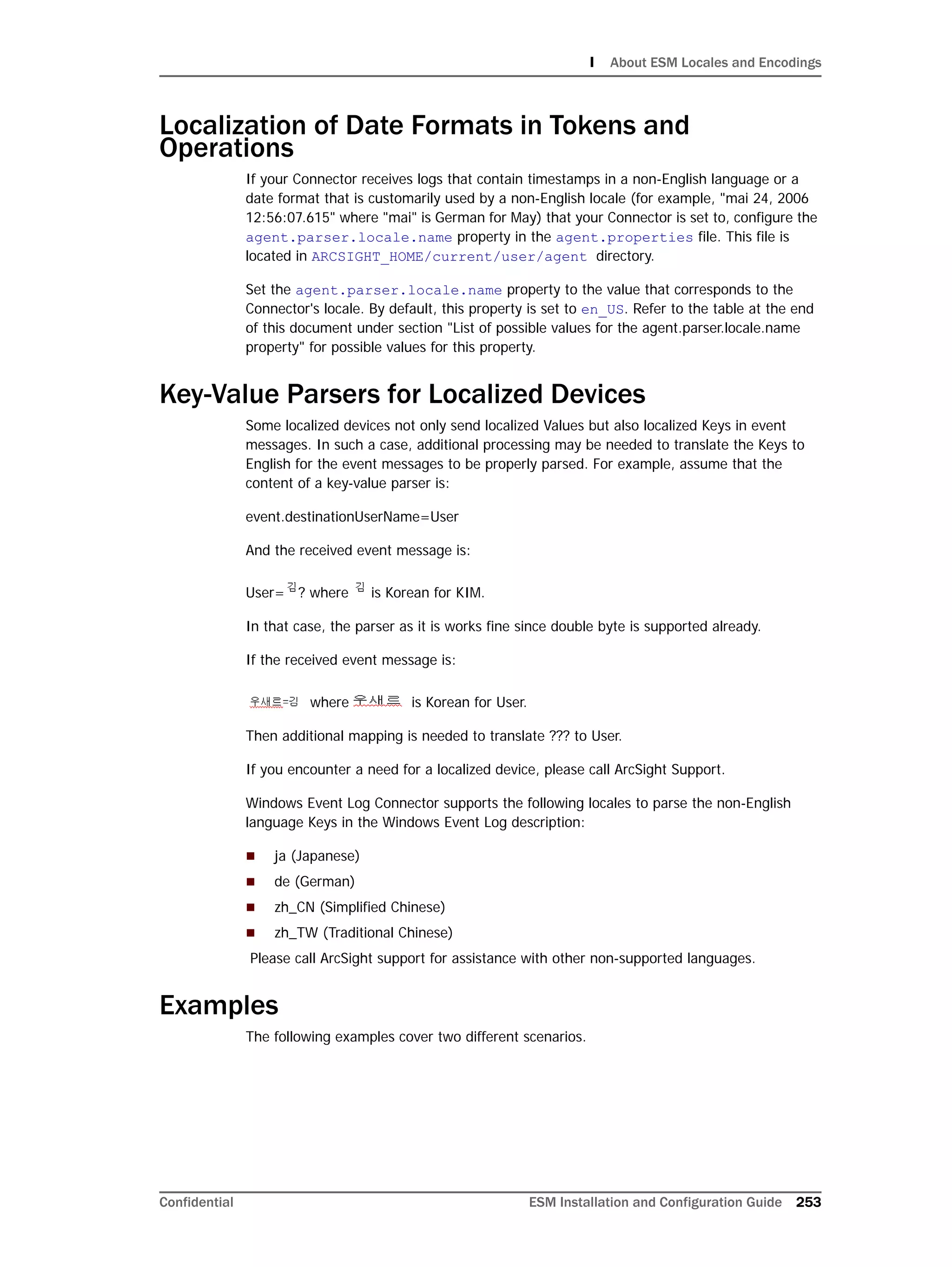
Localization of Date Formats in Tokens and Operations ......................................................253
Key-Value Parsers for Localized Devices ..........................................................................253
Examples ....................................................................................................................253
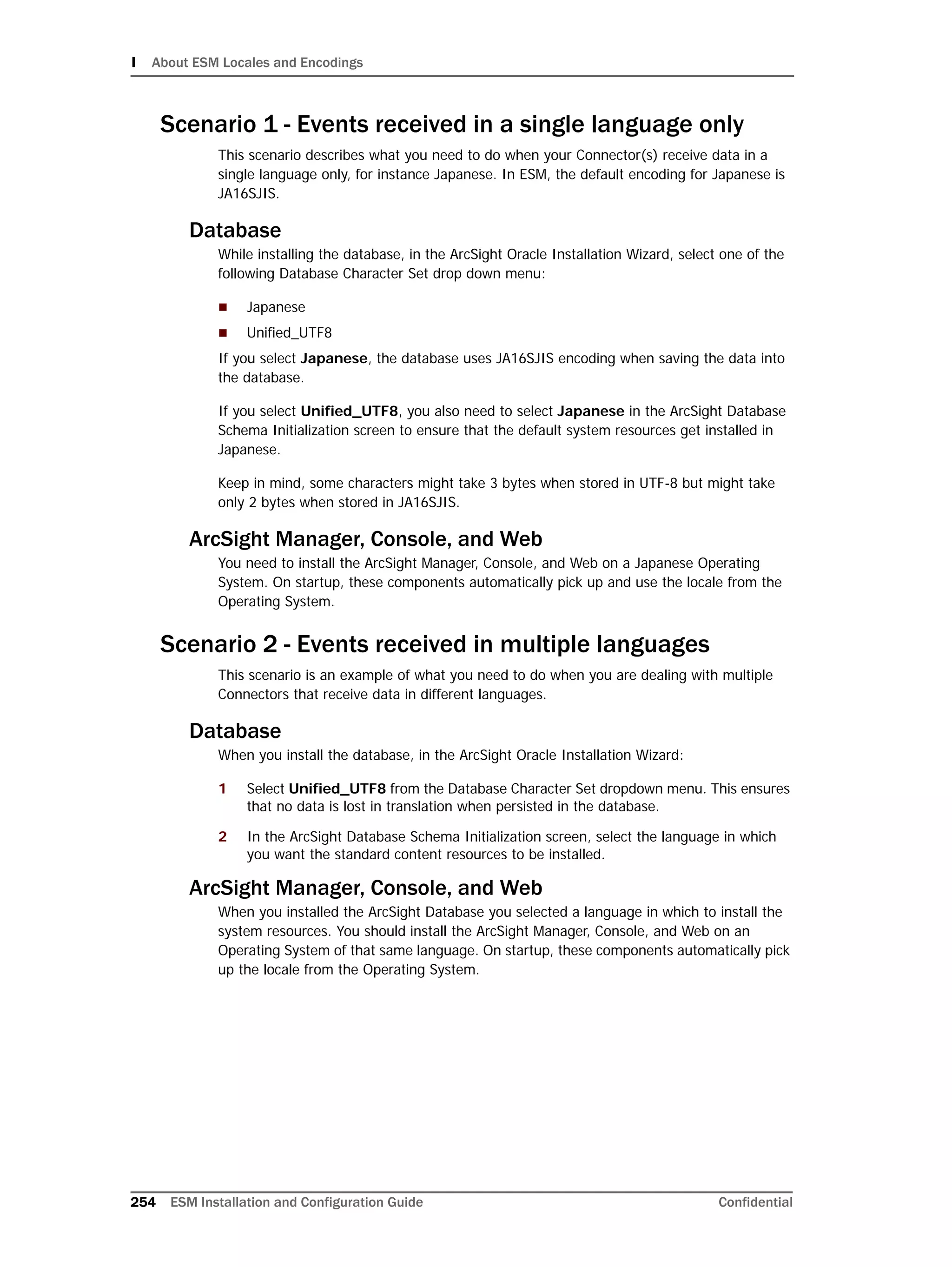
Scenario 1 - Events received in a single language only ................................................254
Database ........................................................................................................254
ArcSight Manager, Console, and Web .................................................................254
Scenario 2 - Events received in multiple languages .....................................................254
Database ........................................................................................................254
ArcSight Manager, Console, and Web .................................................................254
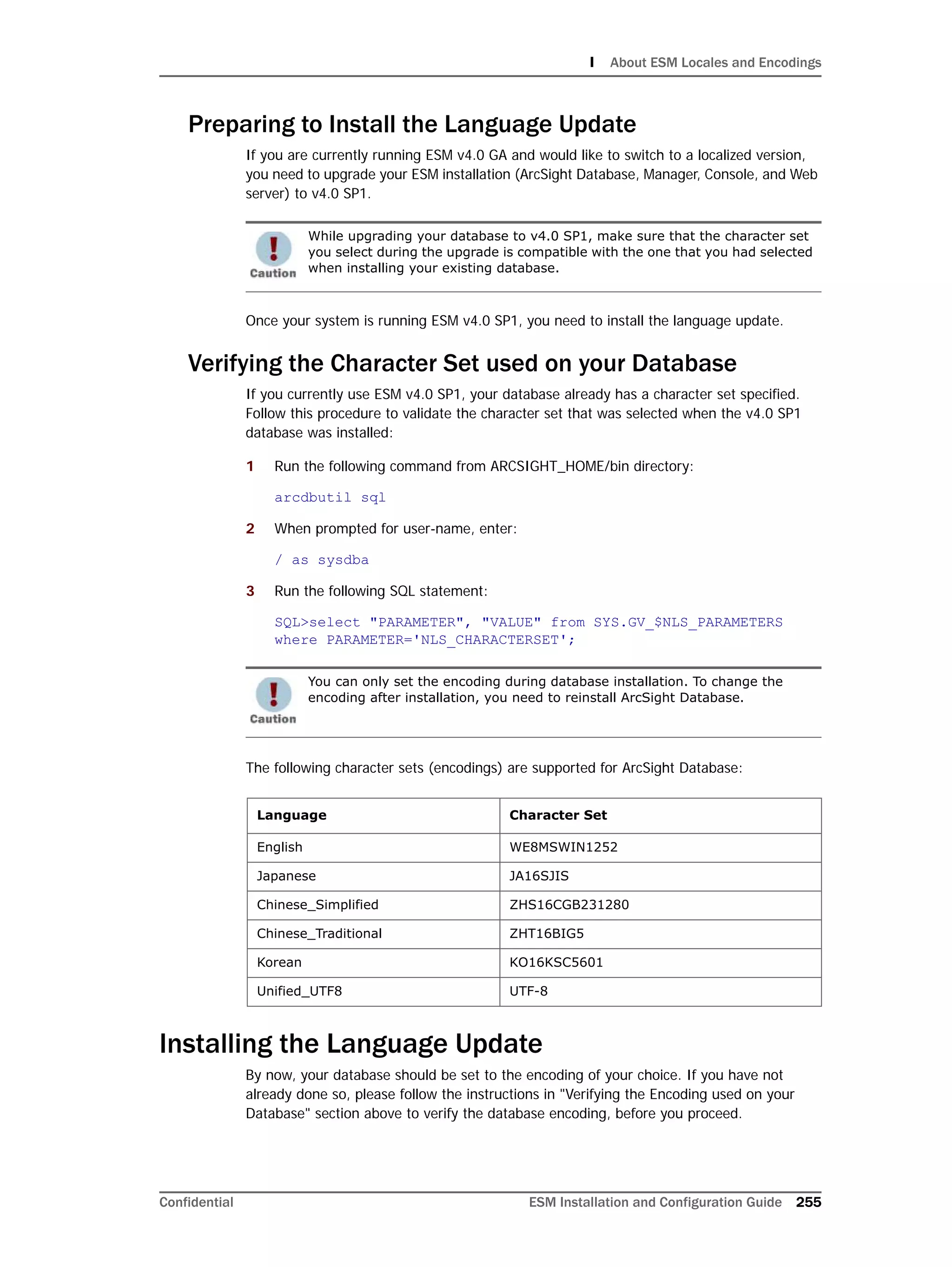
Preparing to Install the Language Update ..................................................................255
Verifying the Character Set used on your Database ....................................................255
Installing the Language Update ......................................................................................255
List of possible values for the agent.parser.locale.name property ........................................256
Index ....................................................................................................................................................261
10 ESM Installation and Configuration Guide Confidential
Confidential ESM Installation and Configuration Guide 11
Chapter 1
Planning and Installation Overview
This chapter provides a conceptual overview of ArcSight ESM, and offers a high-level
description of system components. It helps a network administrator understand planning
and deployment issues.
The following topics are covered in this chapter:
What is ArcSight ESM?
ArcSight ESM is a Security Information Management (SIM) solution that collects and
analyzes security data from heterogeneous devices on your network and provides you a
central, real-time view of the security status of all devices of interest to you.
ArcSight ESM components gather and store events generated by the devices you identify.
These events are filtered and correlated with events from other devices or collection points
to discover risks and assess vulnerabilities.
ArcSight Components
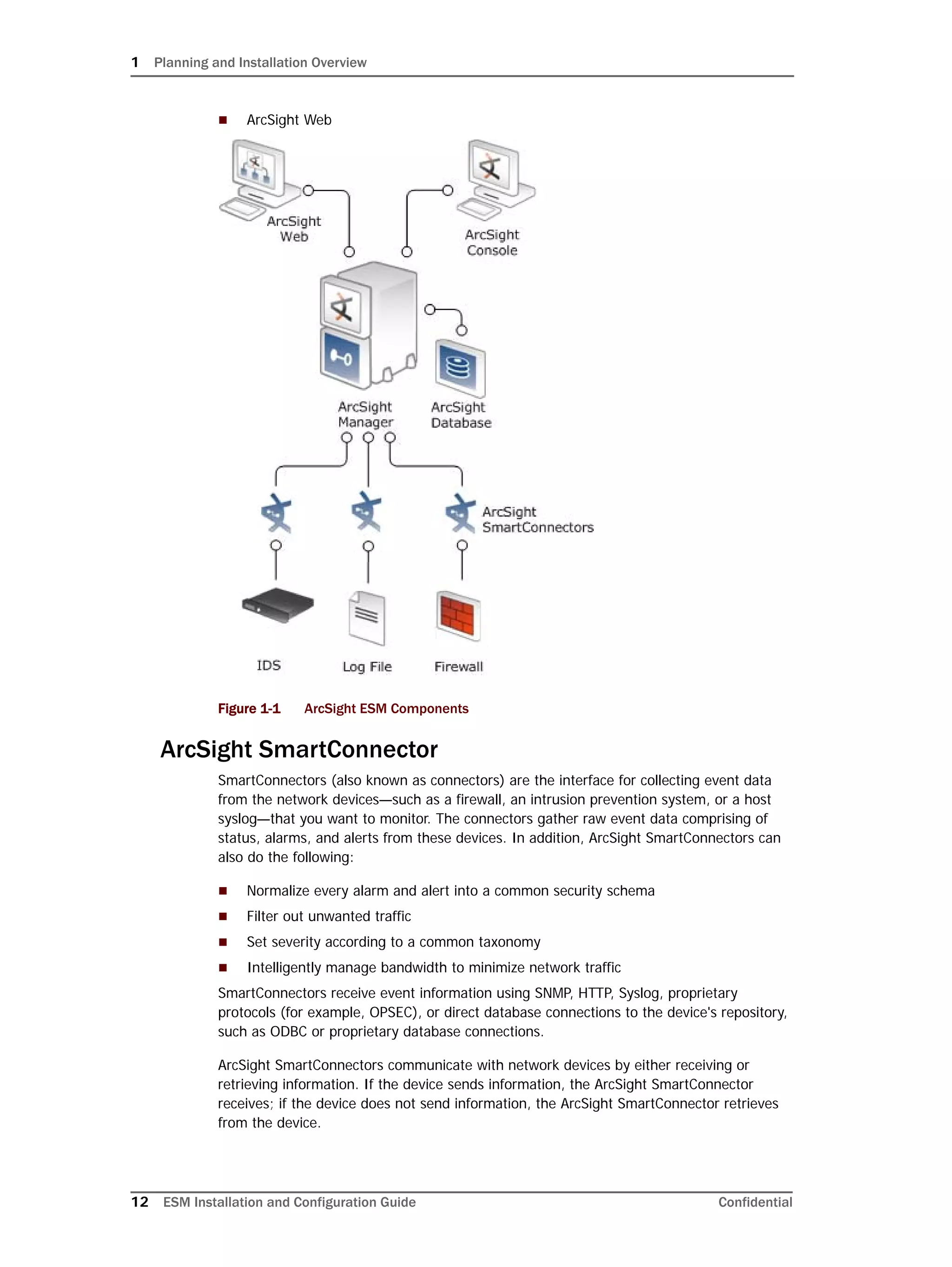
The ArcSight ESM system comprises of the following components, as shown in the
following illustration:
 ArcSight SmartConnector
 ArcSight Manager
 ArcSight Database
 ArcSight Console
“What is ArcSight ESM?” on page 11
“ArcSight Components” on page 11
“Deployment Overview.” on page 16
“ArcSight ESM Communication Overview” on page 16
“Deployment Order” on page 18
“Supported Platforms” on page 18
“Installation Planning” on page 18
“Directory Structure for ArcSight Installation” on page 22
“Securing your ArcSight ESM System” on page 23
“Deployment Scenarios” on page 28
“Where to go From Here” on page 31
1 Planning and Installation Overview
12 ESM Installation and Configuration Guide Confidential
 ArcSight Web
Figure 1-1 ArcSight ESM Components
ArcSight SmartConnector
SmartConnectors (also known as connectors) are the interface for collecting event data
from the network devices—such as a firewall, an intrusion prevention system, or a host
syslog—that you want to monitor. The connectors gather raw event data comprising of
status, alarms, and alerts from these devices. In addition, ArcSight SmartConnectors can
also do the following:
 Normalize every alarm and alert into a common security schema
 Filter out unwanted traffic
 Set severity according to a common taxonomy
 Intelligently manage bandwidth to minimize network traffic
SmartConnectors receive event information using SNMP, HTTP, Syslog, proprietary
protocols (for example, OPSEC), or direct database connections to the device's repository,
such as ODBC or proprietary database connections.
ArcSight SmartConnectors communicate with network devices by either receiving or
retrieving information. If the device sends information, the ArcSight SmartConnector
receives; if the device does not send information, the ArcSight SmartConnector retrieves
from the device.
1 Planning and Installation Overview
Confidential ESM Installation and Configuration Guide 13
ArcSight SmartConnectors are available for over 200 network device types found in a
typical enterprise infrastructure. For a complete list of available SmartConnectors, see the
HP SSO website.
Depending on the network device a SmartConnector is collecting data from, the connectors
can be installed directly on devices (if possible) or separately on connector-dedicated
servers.
ArcSight Manager
ArcSight Manager is at the center of the ArcSight ESM solution. The Manager is a
server-based system that receives event data from SmartConnectors, processes it to assess
and categorize threat levels, and displays information to the ArcSight Console and ArcSight
Web. In addition, the ArcSight Manager can send notifications to the devices (such as
pagers and cell phones) you specify.
For detailed information about how events received by the Manager are processed, see
ESM 101 Concepts for ArcSight ESM.
ArcSight Manager can be installed across a variety of operating systems, such as Windows
and UNIX, and hardware platforms.
ArcSight Database
ArcSight Database is the central repository for all information collected by the ArcSight
Manager. Additionally, the database contains configuration information about the Manager
such as users, groups, permissions, rules, assets, and reports.
The database is based on Oracle and is typically installed on a dedicated system separate
from the system on which ArcSight Manager is installed.
The database can be installed across a variety of operating systems and hardware
platforms. The platform on which the database is installed can be different from the one on
which the ArcSight Manager is running.
ArcSight Console
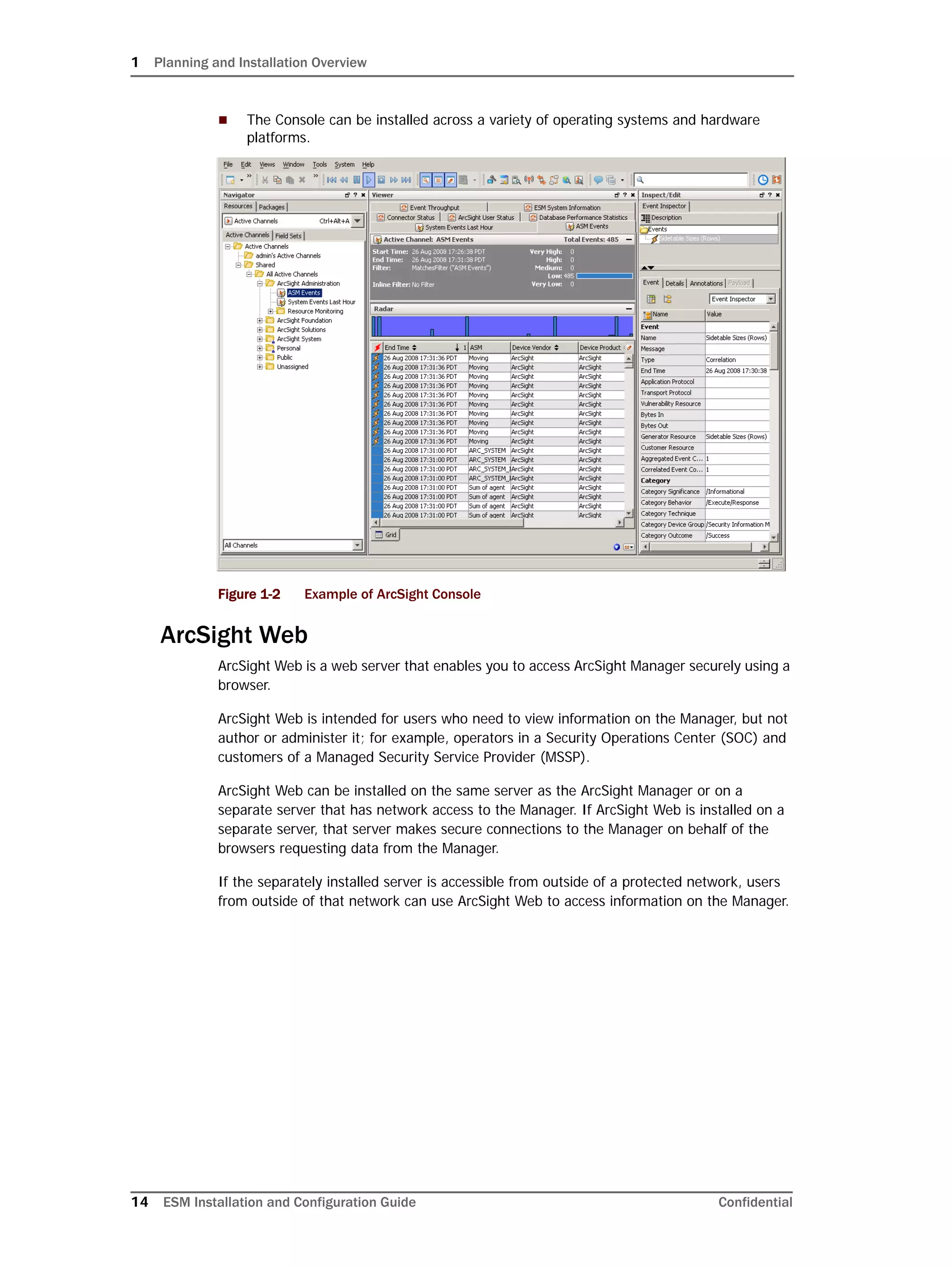
The ArcSight Console is a workstation-based graphical user interface that provides an
intuitive interface to perform essential security management tasks. The following graphic
shows you an example of the ArcSight Console.
Depending on your job function or need, the Console can be used for a variety of tasks
such as:
 Routine monitoring
 Authoring—Setting up filters and creating customized rules, defining notification and
escalation procedures, and generating reports
 Administrative tasks—Setting up users and their permissions
1 Planning and Installation Overview
14 ESM Installation and Configuration Guide Confidential
 The Console can be installed across a variety of operating systems and hardware
platforms.
Figure 1-2 Example of ArcSight Console
ArcSight Web
ArcSight Web is a web server that enables you to access ArcSight Manager securely using a
browser.
ArcSight Web is intended for users who need to view information on the Manager, but not
author or administer it; for example, operators in a Security Operations Center (SOC) and
customers of a Managed Security Service Provider (MSSP).
ArcSight Web can be installed on the same server as the ArcSight Manager or on a
separate server that has network access to the Manager. If ArcSight Web is installed on a
separate server, that server makes secure connections to the Manager on behalf of the
browsers requesting data from the Manager.
If the separately installed server is accessible from outside of a protected network, users
from outside of that network can use ArcSight Web to access information on the Manager.
1 Planning and Installation Overview
Confidential ESM Installation and Configuration Guide 15
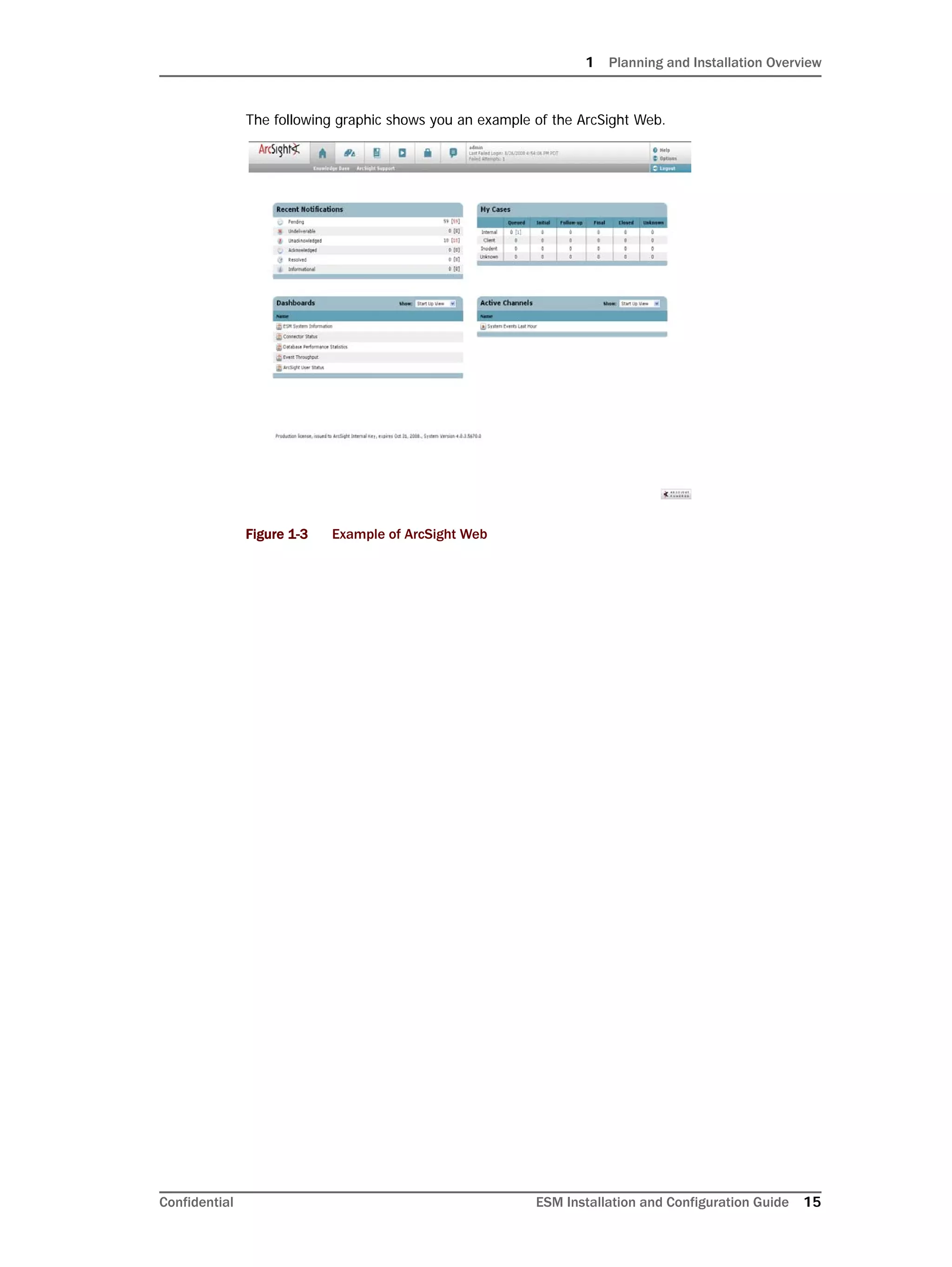
The following graphic shows you an example of the ArcSight Web.
Figure 1-3 Example of ArcSight Web
1 Planning and Installation Overview
16 ESM Installation and Configuration Guide Confidential
Deployment Overview.
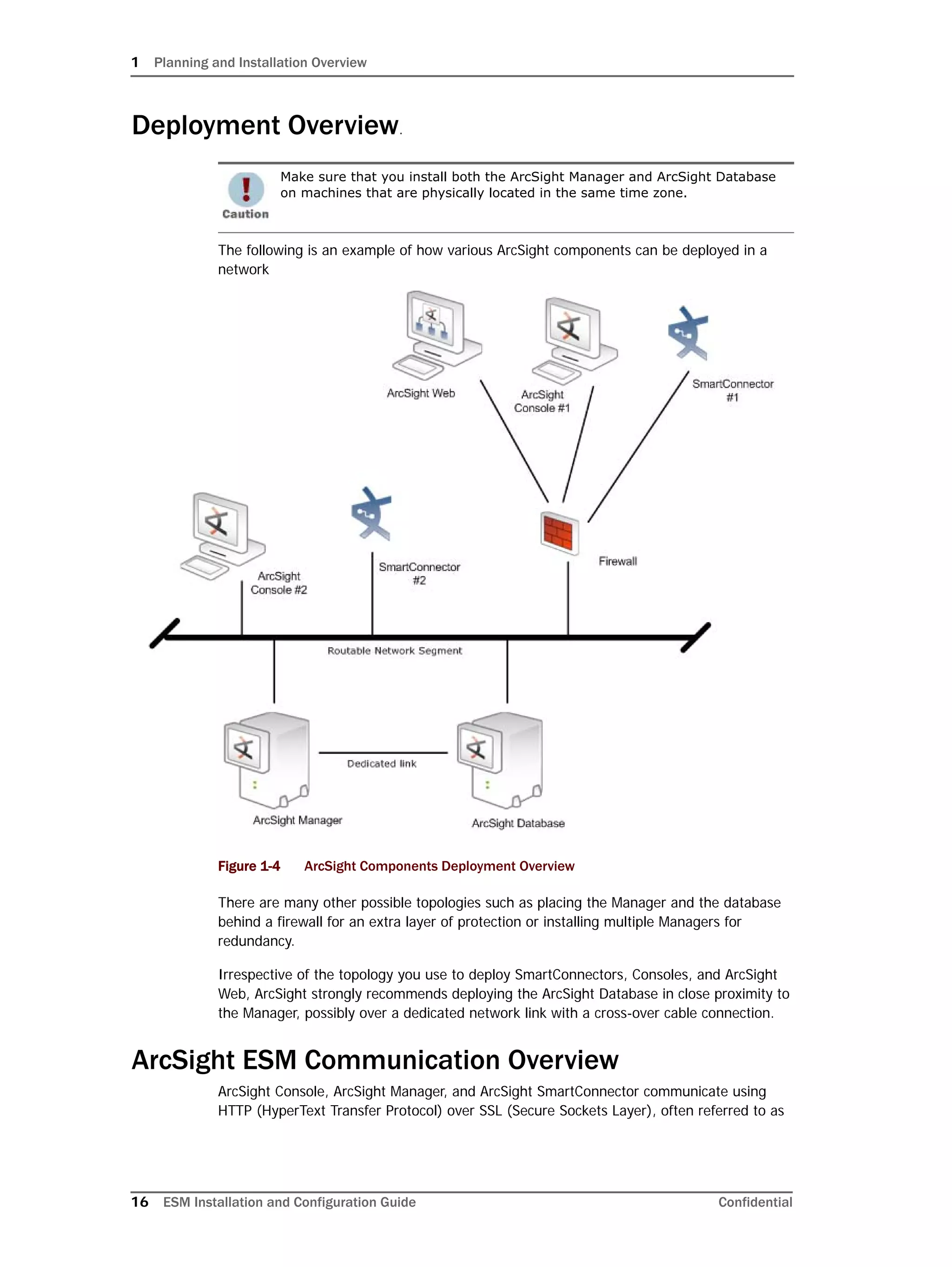
The following is an example of how various ArcSight components can be deployed in a
network
Figure 1-4 ArcSight Components Deployment Overview
There are many other possible topologies such as placing the Manager and the database
behind a firewall for an extra layer of protection or installing multiple Managers for
redundancy.
Irrespective of the topology you use to deploy SmartConnectors, Consoles, and ArcSight
Web, ArcSight strongly recommends deploying the ArcSight Database in close proximity to
the Manager, possibly over a dedicated network link with a cross-over cable connection.
ArcSight ESM Communication Overview
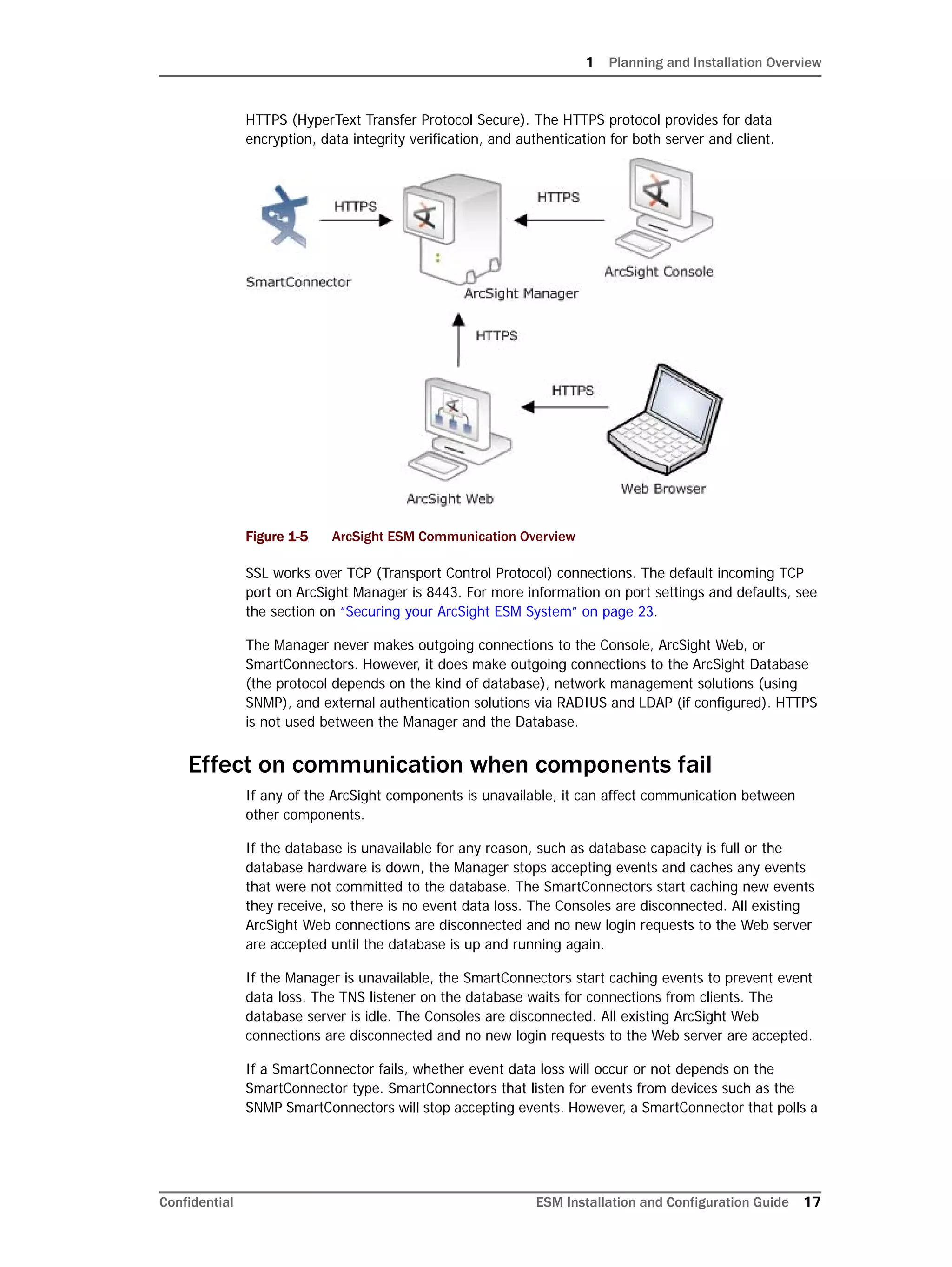
ArcSight Console, ArcSight Manager, and ArcSight SmartConnector communicate using
HTTP (HyperText Transfer Protocol) over SSL (Secure Sockets Layer), often referred to as
Make sure that you install both the ArcSight Manager and ArcSight Database
on machines that are physically located in the same time zone.
1 Planning and Installation Overview
Confidential ESM Installation and Configuration Guide 17
HTTPS (HyperText Transfer Protocol Secure). The HTTPS protocol provides for data
encryption, data integrity verification, and authentication for both server and client.
Figure 1-5 ArcSight ESM Communication Overview
SSL works over TCP (Transport Control Protocol) connections. The default incoming TCP
port on ArcSight Manager is 8443. For more information on port settings and defaults, see
the section on “Securing your ArcSight ESM System” on page 23.
The Manager never makes outgoing connections to the Console, ArcSight Web, or
SmartConnectors. However, it does make outgoing connections to the ArcSight Database
(the protocol depends on the kind of database), network management solutions (using
SNMP), and external authentication solutions via RADIUS and LDAP (if configured). HTTPS
is not used between the Manager and the Database.
Effect on communication when components fail
If any of the ArcSight components is unavailable, it can affect communication between
other components.
If the database is unavailable for any reason, such as database capacity is full or the
database hardware is down, the Manager stops accepting events and caches any events
that were not committed to the database. The SmartConnectors start caching new events
they receive, so there is no event data loss. The Consoles are disconnected. All existing
ArcSight Web connections are disconnected and no new login requests to the Web server
are accepted until the database is up and running again.
If the Manager is unavailable, the SmartConnectors start caching events to prevent event
data loss. The TNS listener on the database waits for connections from clients. The
database server is idle. The Consoles are disconnected. All existing ArcSight Web
connections are disconnected and no new login requests to the Web server are accepted.
If a SmartConnector fails, whether event data loss will occur or not depends on the
SmartConnector type. SmartConnectors that listen for events from devices such as the
SNMP SmartConnectors will stop accepting events. However, a SmartConnector that polls a
1 Planning and Installation Overview
18 ESM Installation and Configuration Guide Confidential
device, such as the NT Collector SmartConnector, may be able to collect events that were
generated while the SmartConnector was down, once the SmartConnector comes back up.
Deployment Order
There are dependencies among the ArcSight components. Therefore, it is important to
install the components in this order:
1 Database (ArcSight Database)
2 Manager
3 SmartConnectors or Consoles or Partition Manager (in any order)
4 Web Server (ArcSight Web)
Supported Platforms
All ArcSight ESM system components are software based. You can deploy these
components on industry standard heterogeneous platforms, such as UNIX, Windows,
Linux, and Macintosh. The components securely communicate with each other over a
TCP/IP network using Secure Socket Layer (SSL).
Although multiple components can be installed on single machine, ArcSight strongly
recommends against it.
Refer to specific component chapters for details regarding the platform requirements for
particular ArcSight components. For supported Web browsers, see the section on
“Installing ArcSight Web” on page 137.
Viewing ArcSight reports and product documentation requires Adobe Reader, version 5.0 or
later. The Acrobat Reader, which includes a stand-alone program as well as a web browser
plug-in, is available at no cost from
http://www.adobe.com/products/acrobat/readermain.htm
Installation Planning
Planning involves sizing and determining installation details for each ArcSight component
based on your business and network needs.
The first step in planning is to inventory your network to determine the number and type of
network devices you want ArcSight to monitor. Typically, device type is directly related to
the number of events it will generate on daily basis. For example, firewalls generate a lot of
events and a server may not. Once you have determined expected event volume on your
network, you can easily size the hardware you will need to collect, process, and store those
events.
Do not deploy the component next in the list until you have ensured that the
previous component is completely deployed and functioning as expected.
Refer to the ArcSight ESM Product Lifecycle document available on the
Protect 724 site website for the most current information on supported
platforms.
1 Planning and Installation Overview
Confidential ESM Installation and Configuration Guide 19
The next step is to ensure that other elements essential to installation have been procured
such as a license, an SSL certificate, and an SMTP server.
The following sections describe these steps on a high level.
Inventory your devices
Inventory your devices and plan the ArcSight SmartConnector that will report on them. The
number of SmartConnectors that you can install on a machine depends on the total
number of events per second (eps) those connectors will collectively process. Typically, a
dual Pentium IV with 2 GB RAM can easily process up to 1500 eps (~130 million events per
day), all connectors combined.
Determine the size and topology of Managers
Determine the number and configuration of ArcSight Managers to which the
SmartConnectors will report. If you will be using more than one Manager, determine the
topology that is most appropriate for your environment. The section at the end of this
chapter lists a few common topologies.
Size your database
Use these factors to size your storage requirements:
 Event Volume
 Retention Policy
Event Volume
A raw event is a single “row” or “message” in a log file, a trap, or database of the reporting
device. SmartConnectors send these events to the Manager, which stores it in the
database. For sizing a database, it is important to know the volume of events that the
database will store.
The average size of the data stored for each event depends on the Turbo mode—Fastest,
Faster, or Fast—specified for each SmartConnector. In the Fastest mode, a small subset of
the event fields from an event is retained. This mode is suited for devices such as firewalls
that have relatively less amount of data in an event. Faster mode retains all event fields,
without adding additional data. This is the default mode and is adequate for most devices.
Fast mode is the most comprehensive turbo mode and includes all event fields available in
an event, plus some additional data. Fast mode should be used with care as it has a
significant impact on performance.
SmartConnectors can filter raw events to reduce event volume. For example, you can set
up your SmartConnector to forward events from a specific network device or specific types
of events such as login failures.
Additionally, SmartConnectors can aggregate events with matching values into a single
aggregated event. For example, a connector is configured to aggregate events with a
specific source and destination address and if the same event occurs within 30 second
intervals. If 10 such events occur, the connector aggregates all those events into one single
ArcSight Professional Services can help create a comprehensive plan for
ArcSight deployment and can assist with installation and configuration as
well. For more information, contact your ArcSight representative.
1 Planning and Installation Overview
20 ESM Installation and Configuration Guide Confidential
event, adds an aggregated event count of 10, and forwards it to the Manager. Thus
aggregation further reduces event volume.
Retention Policy
Retention period defines the amount of time data is retained in the database. There are
three types of retention periods in ArcSight Database:
 Online Uncompressed Partitions (Hot)
 Online Compressed Partitions (Warm)
 Archived Partitions (Cold—on disk archives)
The retention period for online uncompressed partitions specifies the number of days (or
latest partitions) for which data will be kept uncompressed. By default, this retention period
is set to 2 days. For example, if this retention period is set to 2 and today is April 24th, the
data in the partitions created for April 22nd and 23rd will be uncompressed.
The retention period for compressed partitions specifies the number of days (or partitions)
for which data will be compressed but kept online. By default, this retention period is set to
28 days. For example, if this retention period is set to 28 and today is April 24th, the data
in the partitions created for March 25th through April 21st will be compressed but online.
The retention period for archived partitions specifies the number of days (or partitions) for
which data is compressed and archived to a nearline storage device. Any archived partition
older than this period is purged and cannot be reactivated easily. By default, this retention
period is set to 60 days. For example, if this retention period is set to 60 and today is April
24th, the data in partitions created for Jan 24th through March 24th will be compressed
and archived to a specified nearline storage device.
Identify or procure hardware and software
Based on the data you collect in previous steps, choose appropriate hardware and software
platforms based on supported platforms that are listed in the specific component chapters.
Choosing between FIPS Mode or Default Mode
ArcSight ESM supports the Federal Information Processing Standard 140-2(FIPS 140-2).
FIPS 140-2 is a standard published by the National Institute of Standards and Technology
(NIST) and is used to accredit cryptographic modules in software components. The US
Federal government requires that all IT products dealing with Sensitive, but Unclassified
(SBU) information should meet these standards.
Depending on your requirements, you can choose to install the ESM components in either
of these modes:
 Default mode
If both, filtering and aggregation, are configured, event filtering takes place
before aggregation.
Not all ESM versions or ArcSight Express models support the FIPS mode.
1 Planning and Installation Overview
Confidential ESM Installation and Configuration Guide 21
To install ESM in default mode, follow the instructions in the respective chapters for
installing the components.
 FIPS 140-2 mode
To install ESM in FIPS mode, follow the instructions in Appendix F‚ Installing ArcSight
ESM in FIPS Mode‚ on page 177.
 FIPS with Suite B mode
To install ESM in FIPS with Suite B mode, follow the instructions in Appendix G‚
Installing ArcSight ESM in FIPS with Suite B Mode‚ on page 219.
An Overview of Differences Between Default Mode, FIPS Mode,
and FIPS with Suite B Mode
The following table outlines some of the basic differences between the three modes that
ESM supports:
Using PKCS#11
Starting in ESM v4.0 SP2, ArcSight ESM supports the use of a PKCS#11 token such as the
Common Access Card (CAC) to log into the Console or ArcSight Web. PKCS#11 is
Public-Key Cryptography Standard (PKCS), published by RSA Laboratories which describes
it as “a technology-independent programming interface, called Cryptoki, for cryptographic
devices such as smart cards and PCMCIA cards.”
Mode
Use of
SSL/TLS
Default Cipher Suites
Keystore/
Truststore
Default
Mode
SSL or
TLS
• TLS_RSA_WITH_AES_128_CBC_SHA
• SSL_RSA_WITH_3DES_EDE_CBC_SHA
• More...
Keypair and
Certificates
stored in
Keystore and
Truststore in
JKS format
FIPS
140-2
Mode
TLS • TLS_RSA_WITH_AES_128_CBC_SHA
• SSL_RSA_WITH_3DES_EDE_CBC_SHA
Keypair and
Certificates
stored in
NSSDB
FIPS
with
Suite B
Mode
TLS • TLS_ECDHE_ECDSA_WITH_AES_128_CBC_
SHA
Suite B 128 bits security level, providing
protection from classified up to secret
information
• TLS_ECDHE_ECDSA_WITH_AES_256_CBC_
SHA
Suite B 192 bits security level, providing
protection from classified up to top
secret information
Keypair and
Certificates
stored in
NSSDB
PKCS#11 token support may not be available for all ESM versions and ArcSight
Express models.
1 Planning and Installation Overview
22 ESM Installation and Configuration Guide Confidential
You can use the PKCS#11 token to log in regardless of the mode in which ArcSight Console
or ArcSight Web is running - in FIPS 140-2 mode or default mode.
Import Control Issues
If you are a customer in the United States, you can skip reading this section. If you are a
customer outside of the United States, you need to be aware of your country's restrictions
on allowed cryptographic strengths. The embedded JRE in ArcSight components, ship with
the Java Cryptography Extension (JCE) Unlimited Strength Jurisdiction Policy Files and they
are enabled by default. These files are:
 jrelibsecuritylocal_policy.jar
 jrelibsecurityUS_export_policy.jar
This is appropriate for most countries. However, if your government mandates restrictions,
you should backup the above two *.jar files and use the restricted version files instead.
They are available at:
jrelibsecuritylocal_policy.jar.original
jrelibsecurityUS_export_policy.jar.original
You will have to rename *.jar.original to *.jar.
The only impact of using the restricted version files would be that you will not be able to
use ArcSight's keytoolgui to import unrestricted strength key pairs. Also, you will not be
able to save the keystore if you use passwords that are longer than four characters. No
other ESM functionality is impacted.
Directory Structure for ArcSight Installation
ArcSight ESM software components install consistently across UNIX and Windows
platforms. Whether a host is dedicated to the ArcSight Database, Manager, Console or
other component, by default, ArcSight software is installed in a directory tree under a
single root directory on each host. (DBMS and other third-party software is not necessarily
installed under this directory, however.) The path to this root directory is called
<ARCSIGHT_HOME>.
Typical examples of <ARCSIGHT_HOME> include
/home/<userdirectory>/arcsight/manager on a UNIX system, or
C:arcsightManager on a Windows system.
The directory structure below <ARCSIGHT_HOME> is also standardized across components
and platforms. The following table lists a few of the commonly used directories across the
components.
Port Directory
ArcSight ESM Software <ARCSIGHT_HOME>bin
Properties files <ARCSIGHT_HOME>config
Log files <ARCSIGHT_HOME>logs
1 Planning and Installation Overview
Confidential ESM Installation and Configuration Guide 23
Securing your ArcSight ESM System
Follow the information in the following sections to protect your ArcSight component.
Protecting ArcSight Manager
Never run ArcSight Manager as root.
Don't use demo SSL certificates in production. Make sure when switching that you remove
the demo CA from cacerts on all SmartConnectors and Consoles.
Closely control access to files, using the principle of least privilege, which states that a user
should be given only those privileges that the user needs to complete his or her tasks. The
following files are particularly sensitive:
 <ARCSIGHT_HOME>configjettykeystore (to prevent the ArcSight Manager
private key from being stolen)
 <ARCSIGHT_HOME>configjettytruststore (w/ SSL Client authentication
only, to prevent injection of new trusted CAs)
 <ARCSIGHT_HOME>configserver.properties (has keystore and database
passwords)
 <ARCSIGHT_HOME>configjaas.config (w/ RADIUS or SecurID enabled only,
has shared node secret)
 <ARCSIGHT_HOME>configclient.properties (w/ SSL Client authentication
only, has keystore passwords)
 <ARCSIGHT_HOME>reportssree.properties (to protect the report license)
 <ARCSIGHT_HOME>reportsarchive* (to prevent archived reports from being
stolen)
 <ARCSIGHT_HOME>jrelibsecuritycacerts (to prevent injection of new
trusted CAs)
 <ARCSIGHT_HOME>lib* (to prevent injection of malicious code)
 <ARCSIGHT_HOME>rulesclasses* (to prevent code injection)
Use a host-based firewall. On the ArcSight Manager, block everything except for the
following ports. Make sure you restrict the remote IP addresses that may connect to those
that actually need to talk.
By default, the minimum length for passwords is six characters and the
maximum length is 20 characters.
Port Flow Description
22/TCP Inbound SSH log in (Unix only)
53/UDP Inbound/Outbound DNS requests and responses
8443/TCP Inbound SmartConnectors and Consoles
1521/TCP Outbound Oracle
25/TCP Outbound SMTP to mail server
110/TCP Outbound POP3 to mail server, if applicable
1 Planning and Installation Overview
24 ESM Installation and Configuration Guide Confidential
Block all inbound ports on the ArcSight database except the following:
This behavior is observed because Oracle database, running on Windows, redirects
connection requests coming from its clients on port 1521 to different, non-standard ports.
When the client tries to establish a connection on the redirected port, it is blocked by the
firewall. For more information, see the OracleMetaLink bulletin Solving Firewall Problems
on Windows (Doc ID: Note:68652.1) at https://metalink.oracle.com/.
To allow successful connections in such a setup, you need to open all inbound TCP ports
between your Manager and your database IP addresses or use SQL*Net proxy for your
firewall.
As another layer of defense (or if no host-based firewall is available), you can also restrict
which connections are accepted by the ArcSight Manager using the following properties in
the server.properties file:
web.accept.ips=
xmlrpc.accept.ips=
agents.accept.ips=
Each of these properties takes a list of IP addresses or subnet specifications, separated by
commas or spaces. Once specified, only connections originating from those addresses are
accepted. The xmlrpc.accept.ips property restricts access for ArcSight Consoles and
the ArcSight Web server. The agents.accept.ips property restricts access for
SmartConnectors. For registration, the SmartConnectors need to be in
xmlrpc.accept.ips as well, so that they can be registered. The format for specifying
subnets is quite flexible, as shown in the following example:
web.accept.ips=192.168.10.0/24 192.168.30.171
xmlrpc.accept.ips=192.168.10.120 192.168.10.132
143/TCP Outbound IMAP to mail server, if applicable
1645/UDP Inbound/Outbound RADIUS, if applicable
1812/UDP Inbound/Outbound RADIUS, if applicable
389/TCP Outbound LDAP to LDAP server, if applicable
636/TCP Outbound LDAP over SSL to LDAP server, if
applicable
Port Flow Description
22/TCP Inbound SSH log in (Unix only)
53/UDP Inbound/Outbound DNS requests and responses
1521/TCP Inbound Oracle
If your database is set up on Microsoft Windows platform and you have
blocked inbound ports as described above, your connections to the database
might fail.
Port Flow Description
1 Planning and Installation Overview
Confidential ESM Installation and Configuration Guide 25
agents.accept.ips=10.*.*.*,192.168.0.0/255.255.0.0
Protecting ArcSight Database
Secure the link between the ArcSight Manager and Oracle. The options described here
include a private network (preferred) or a tunnel (if performance is less important).
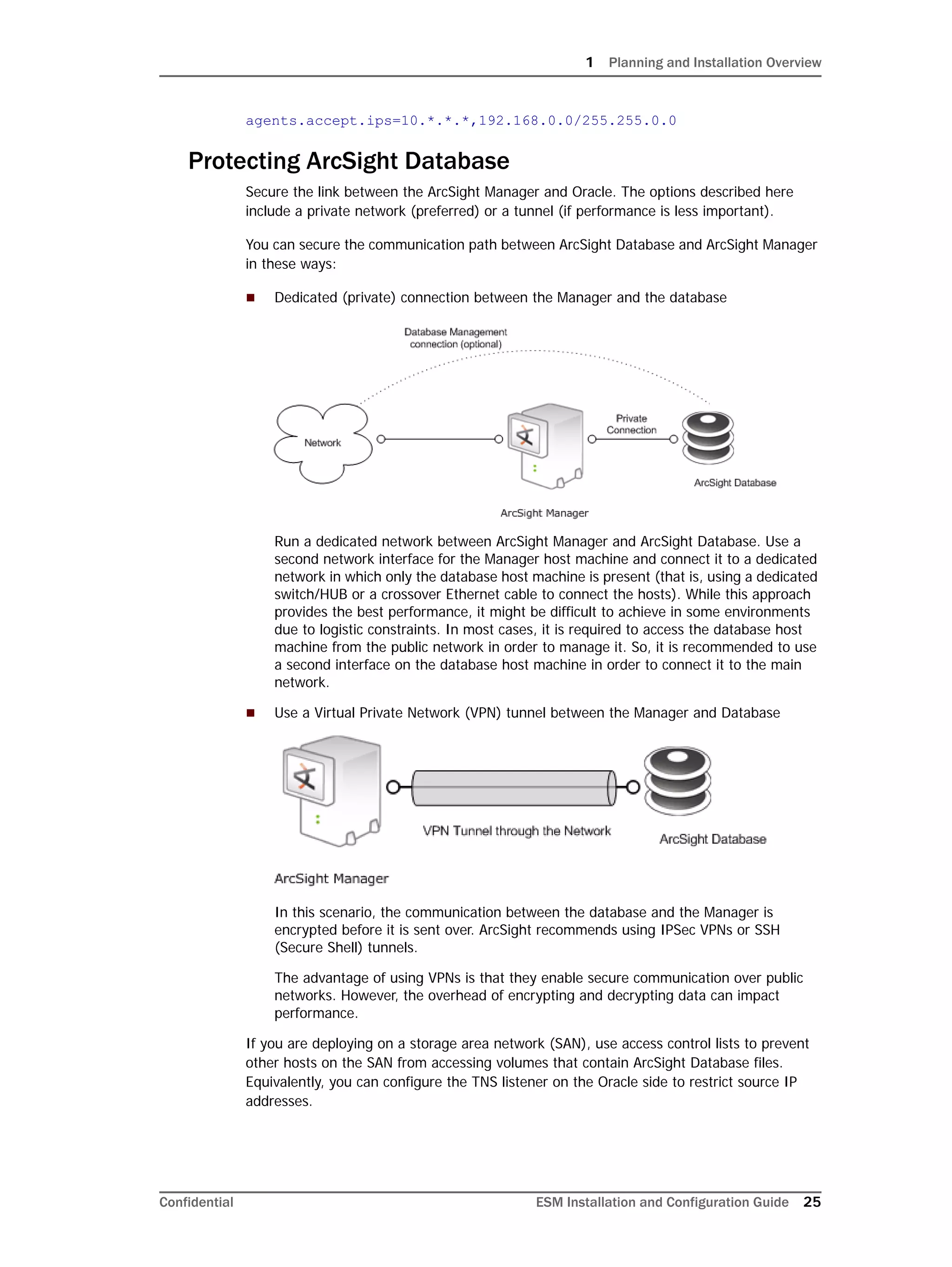
You can secure the communication path between ArcSight Database and ArcSight Manager
in these ways:
 Dedicated (private) connection between the Manager and the database
Run a dedicated network between ArcSight Manager and ArcSight Database. Use a
second network interface for the Manager host machine and connect it to a dedicated
network in which only the database host machine is present (that is, using a dedicated
switch/HUB or a crossover Ethernet cable to connect the hosts). While this approach
provides the best performance, it might be difficult to achieve in some environments
due to logistic constraints. In most cases, it is required to access the database host
machine from the public network in order to manage it. So, it is recommended to use
a second interface on the database host machine in order to connect it to the main
network.
 Use a Virtual Private Network (VPN) tunnel between the Manager and Database
In this scenario, the communication between the database and the Manager is
encrypted before it is sent over. ArcSight recommends using IPSec VPNs or SSH
(Secure Shell) tunnels.
The advantage of using VPNs is that they enable secure communication over public
networks. However, the overhead of encrypting and decrypting data can impact
performance.
If you are deploying on a storage area network (SAN), use access control lists to prevent
other hosts on the SAN from accessing volumes that contain ArcSight Database files.
Equivalently, you can configure the TNS listener on the Oracle side to restrict source IP
addresses.
1 Planning and Installation Overview
26 ESM Installation and Configuration Guide Confidential
ArcSight Built-In Security
ArcSight user accounts have user types that control the functions which users can access in
the ArcSight Manager. The "Normal User" type has the most privileges. Where possible, use
more restrictive types, such as "Manager SmartConnector," "Management Tool," or
"Archive Utility" for non-human user accounts. This is particularly important when user
passwords must be stored in scripts for unattended execution.
Apply the principle of least privilege when creating user accounts in ArcSight and when
granting access to resources or events. Users should not have more privileges than their
tasks require.
Physical Security for the Hardware
In addition to establishing security policies for passwords, keystores, and other software
facilities, it is important to provide physical security for the hardware used by the ArcSight
ESM system. Physical hardware includes computers running ArcSight Console, Manager,
Database, and SmartConnector software, as well as the network which connects them.
Physical access to computers running ArcSight software must be restricted. Windows
computers that run ArcSight software require network domain passwords to authenticate
users, because the operating system may cache passwords used for logging into ArcSight
components.
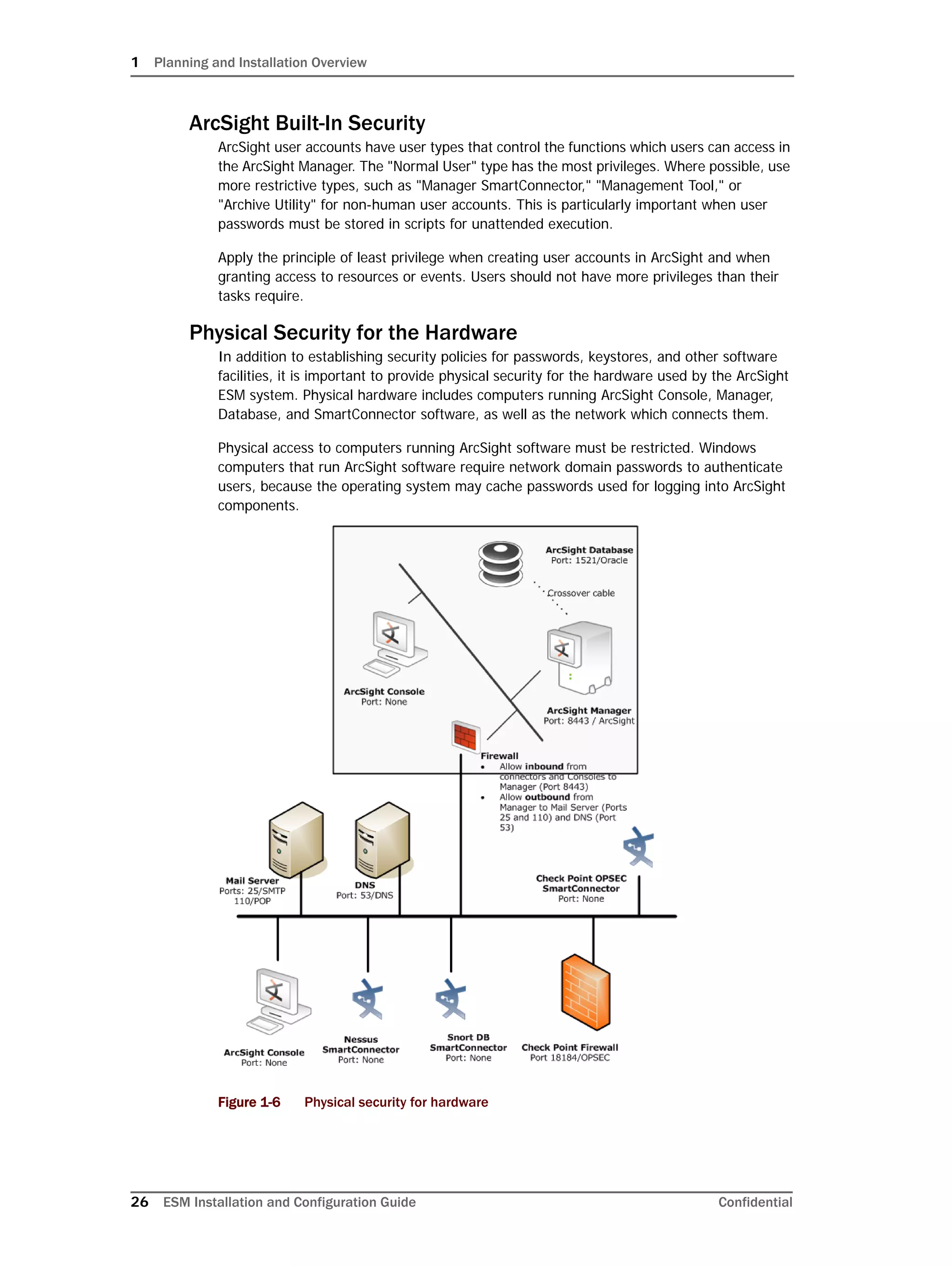
Figure 1-6 Physical security for hardware
1 Planning and Installation Overview
Confidential ESM Installation and Configuration Guide 27
Typical ArcSight deployment, illustrating the technique of deploying ArcSight Manager and
Database behind a firewall. The ports listed in the above graphic are open ports on the
device for server connections.
 Use the locking mechanisms provided by most rackmount cases to prevent
malicious/accidental tampering with the machine.
 Use locks on disk drive enclosures.
 Use redundant power and uninterruptible power supplies (UPS).
 Protect the BIOS (x86 systems only) or firmware (IBM and Sun systems):
 Disable all floppy and CD-ROM drives for booting so that the system can only be
booted from the hard disk.
 Disable COM, parallel, and USB ports so that they can't be used to extract data.
 Disable power management.
Operating System Security
 On Linux, set up a boot loader password to prevent unauthorized people from booting
into single user mode (see the LILO or GRUB documentation for details).
 On Linux, disable reboot by Ctrl-Alt-Del in /etc/inittab. Comment out the line that
refers to “ctrlaltdel.”
 Set up a screen saver that prompts for a password with a moderately short delay (such
as five minutes).
 Disable power management in the OS.
 When installing the OS, select packages individually. Only install what you know will be
needed. You can always install missing packages as you encounter them.
 Run automated update tools to obtain all security fixes. Visit
http://windowsupdate.microsoft.com for Windows systems and run the Microsoft
Security Baseline analyzer to get missing patches. Use up2date on Red Hat Linux (may
require Red Hat Network subscription).
 Uninstall (or at least turn off) all services that you don't need. In particular: finger,
r-services, telnet, ftp, httpd, linuxconf (on Linux), Remote Administration Services and
IIS Services on Windows.
 On Unix machines, disallow remote root logins (for OpenSSH, this can be done using
the PermitRootLogin no directive in /etc/ssh/sshd_config). This will force
remote users to log in as a non-root user and su to root, thus requiring knowledge of
two passwords to gain root access to the system. Restrict access to su, using a “wheel
group” pluggable authentication module (PAM) so that only one non-root user on the
machine can su to root. Make that user different from the arcsight user. That way,
even if the root password is known and an attacker gains access through ArcSight in
some way, they won't be able to log in as root.
 Rename the Administrator/root account to make brute force attacks harder.
General Guidelines and Policies about Security
Educate system users about “social engineering” tricks used to discover user account
information. No employee of ArcSight will ever request a user’s password. When ArcSight
representatives are on site, the administrator of the system will be asked to enter the
password and, if needed, to temporarily change the password for the ArcSight team to
work effectively.
Educate users to use secure means of communication—such as SSL to upload to
software.arcsight.com or PGP for e-mail—when transferring configuration information or
log files to ArcSight.
1 Planning and Installation Overview
28 ESM Installation and Configuration Guide Confidential
Set up a login banner stating the legal policies for use of the system and the consequences
of misuse. (Instructions for creating a login banner vary by platform.) ArcSight Consoles
can also display a custom login banner. Contact the Customer Support using the HP SSO
site for more information.
Choose secure passwords. (No password used in two places, seemingly random character
sequences, eight characters or longer, containing numbers and special (non-letter)
characters). Passwords are used in the following places—if any one is breached, the system
is compromised:
 All database accounts (arcsight, SYS, SYSTEM)
 The arcsight user and root user on the system that runs the Manager
 The oracle user and root user on the system that runs the Database
 All users created in ArcSight
 The SSL keystores
 The boot loader (Linux)
 The BIOS (x86 systems only)
 The RADIUS node secret
 The LDAP password for ArcSight Manager (w/ basic authentication only), where
applicable
 The Active Directory domain user password for ArcSight Manager where applicable
Consider purchasing and using a PKI solution to enable SSL client authentication on
Consoles and SmartConnectors.
Consider purchasing and using a two-factor authentication solution such as RSA SecurID.
Make sure that all the servers with which ArcSight interacts (DNS, Mail, RADIUS, etc.) are
hardened equivalently.
Use a firewall and intrusion detection systems to secure the network that runs the ArcSight
Manager and ArcSight Database.
Deployment Scenarios
You can deploy ArcSight ESM in a number of ways depending on your business needs and
budget. The following are a few recommended scenarios.
You can mix the deployment principles described for one scenario with another. For
example, you can implement a distributed deployment (Scenario 3) in which the
lower-level managers are standalone systems (as described in Scenario 1) but the top-level
manager is implemented in a transparent failover configuration (Scenario 2).
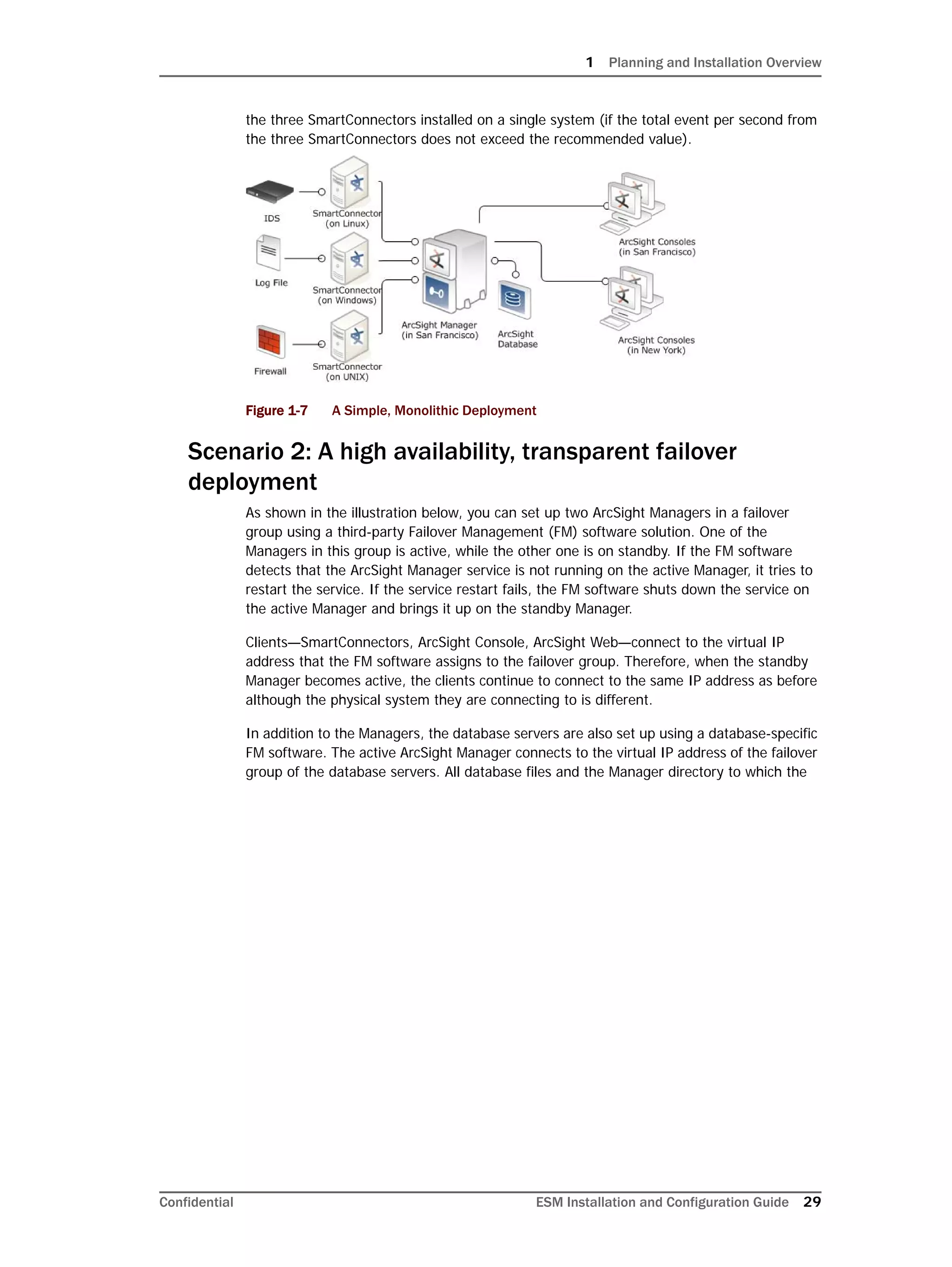
Scenario 1: A simple, monolithic deployment
As shown in the illustration below, in a simple deployment an ArcSight Manager, ArcSight
Database, and SmartConnectors are installed on three distinct systems. In this example,
the three SmartConnectors are installed on distinct systems as well; however, you can have
1 Planning and Installation Overview
Confidential ESM Installation and Configuration Guide 29
the three SmartConnectors installed on a single system (if the total event per second from
the three SmartConnectors does not exceed the recommended value).
Figure 1-7 A Simple, Monolithic Deployment
Scenario 2: A high availability, transparent failover
deployment
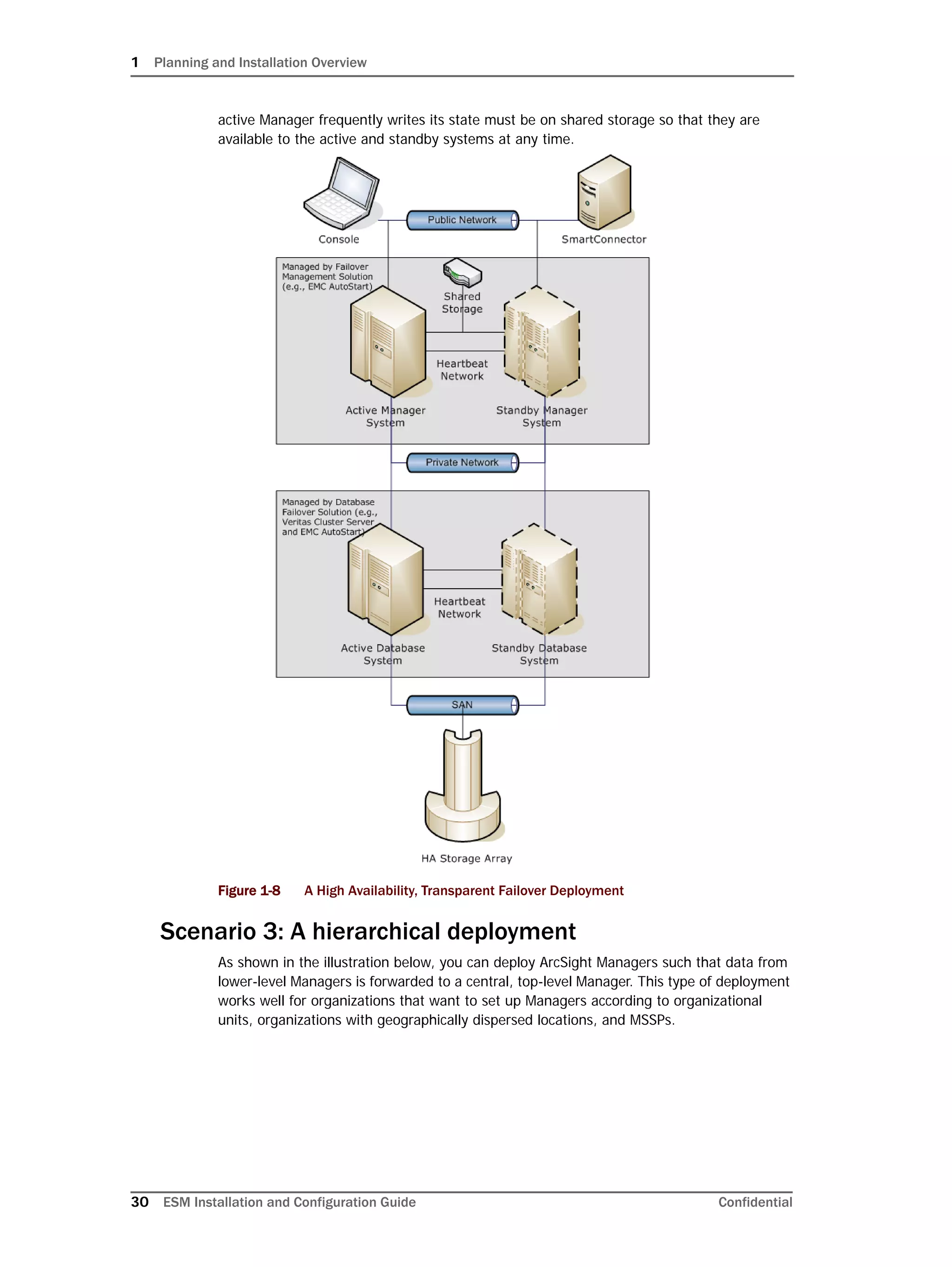
As shown in the illustration below, you can set up two ArcSight Managers in a failover
group using a third-party Failover Management (FM) software solution. One of the
Managers in this group is active, while the other one is on standby. If the FM software
detects that the ArcSight Manager service is not running on the active Manager, it tries to
restart the service. If the service restart fails, the FM software shuts down the service on
the active Manager and brings it up on the standby Manager.
Clients—SmartConnectors, ArcSight Console, ArcSight Web—connect to the virtual IP
address that the FM software assigns to the failover group. Therefore, when the standby
Manager becomes active, the clients continue to connect to the same IP address as before
although the physical system they are connecting to is different.
In addition to the Managers, the database servers are also set up using a database-specific
FM software. The active ArcSight Manager connects to the virtual IP address of the failover
group of the database servers. All database files and the Manager directory to which the
1 Planning and Installation Overview
30 ESM Installation and Configuration Guide Confidential
active Manager frequently writes its state must be on shared storage so that they are
available to the active and standby systems at any time.
Figure 1-8 A High Availability, Transparent Failover Deployment
Scenario 3: A hierarchical deployment
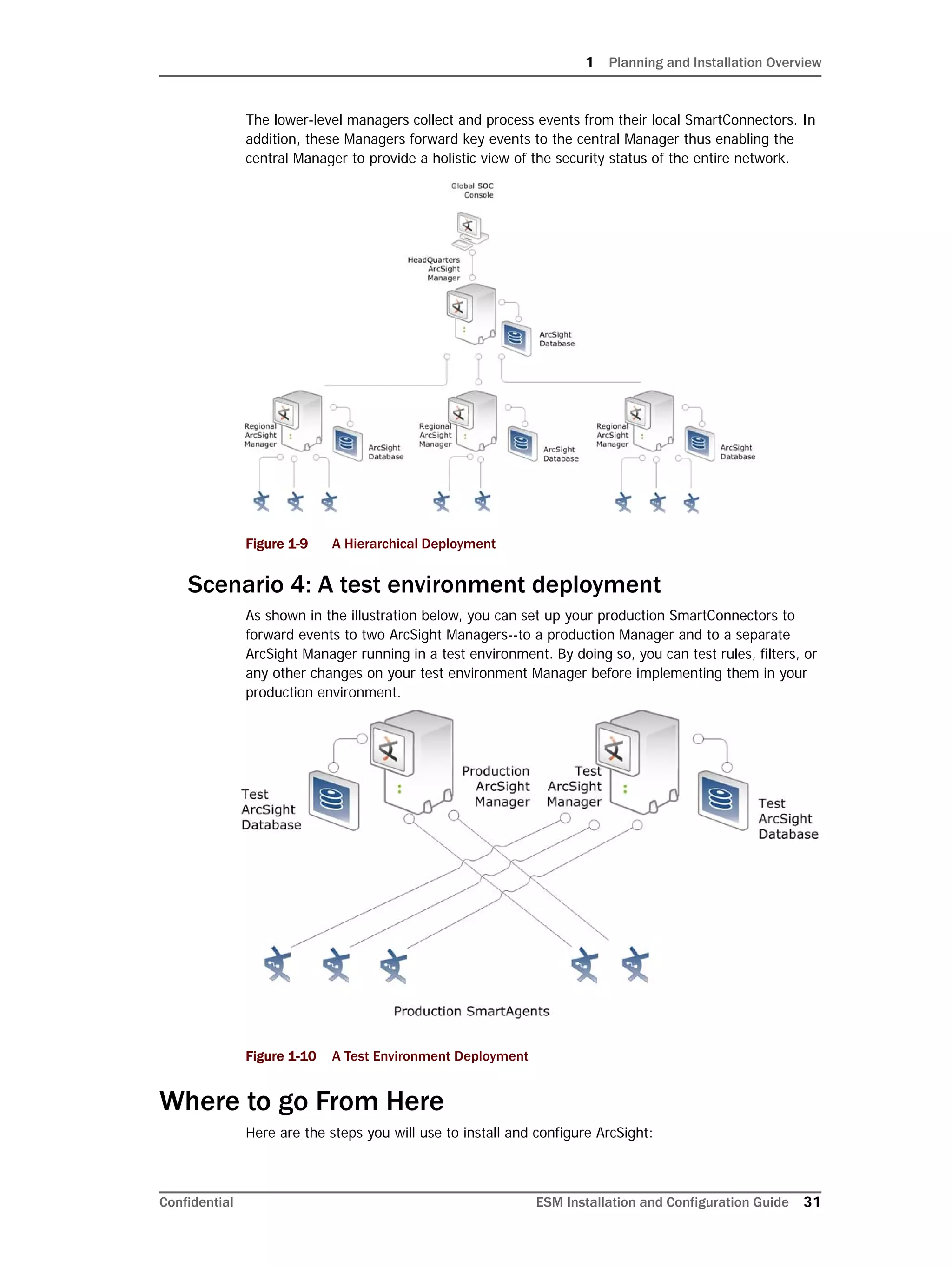
As shown in the illustration below, you can deploy ArcSight Managers such that data from
lower-level Managers is forwarded to a central, top-level Manager. This type of deployment
works well for organizations that want to set up Managers according to organizational
units, organizations with geographically dispersed locations, and MSSPs.
1 Planning and Installation Overview
Confidential ESM Installation and Configuration Guide 31
The lower-level managers collect and process events from their local SmartConnectors. In
addition, these Managers forward key events to the central Manager thus enabling the
central Manager to provide a holistic view of the security status of the entire network.
Figure 1-9 A Hierarchical Deployment
Scenario 4: A test environment deployment
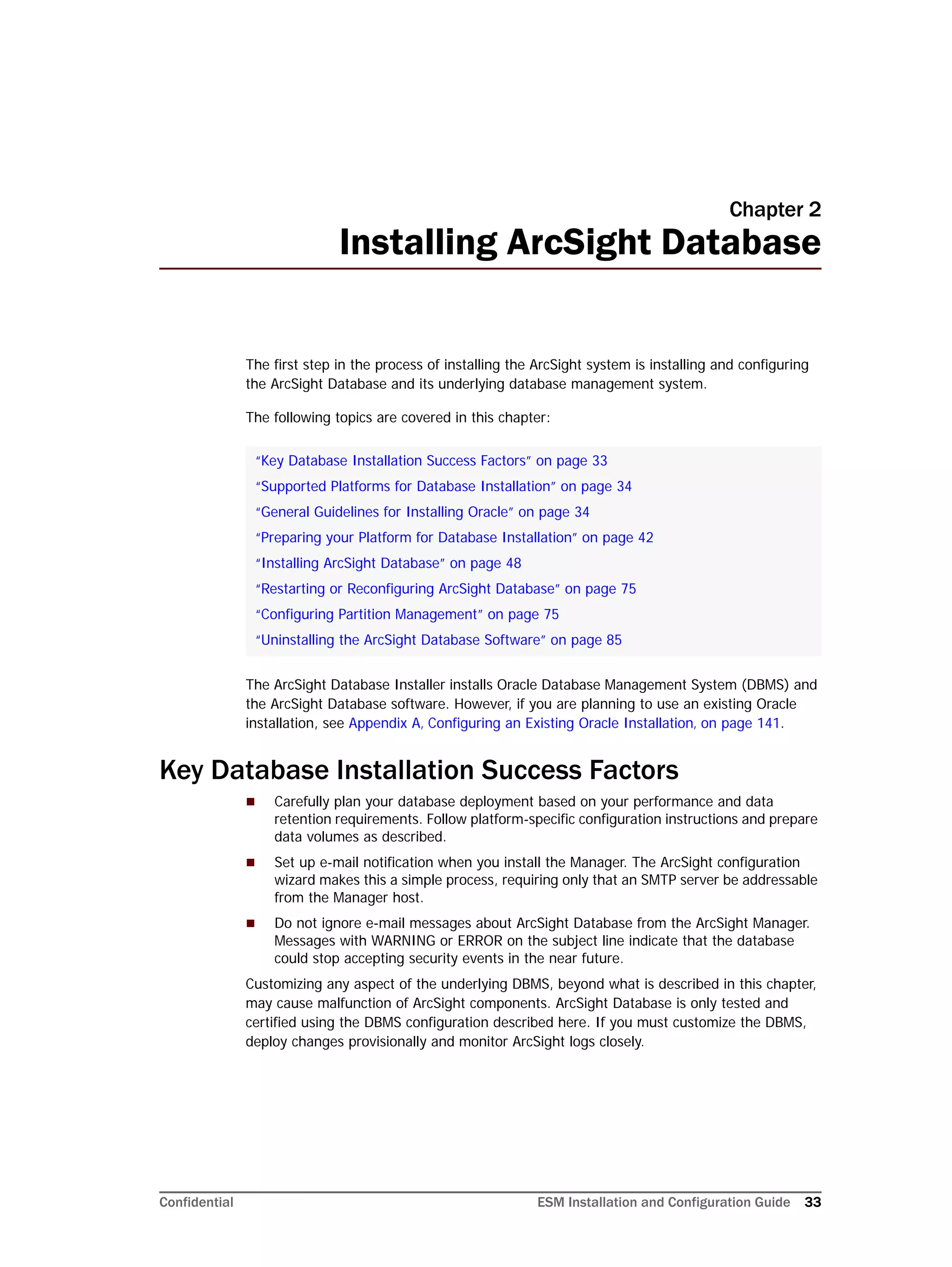
As shown in the illustration below, you can set up your production SmartConnectors to
forward events to two ArcSight Managers--to a production Manager and to a separate
ArcSight Manager running in a test environment. By doing so, you can test rules, filters, or
any other changes on your test environment Manager before implementing them in your
production environment.
Figure 1-10 A Test Environment Deployment
Where to go From Here
Here are the steps you will use to install and configure ArcSight:
1 Planning and Installation Overview
32 ESM Installation and Configuration Guide Confidential
DBMS and ArcSight Database Installation. ArcSight Database installation installs
Oracle DBMS Enterprise Edition with partitioning support. Once the DBMS is installed, you
configure the database and partition policies. You can also use your existing Oracle
installation.
ArcSight Manager Installation. Once the DBMS has been established, you will install
the ArcSight Manager, establish initial users, and configure options such as e-mail
notification.
ArcSight Console Installation. Install and configure the ArcSight Console, then start
ArcSight Manager and run the ArcSight Console to confirm successful installation. The
ArcSight Console also provides more visibility when you install Connectors, which you will
do in the next and final installation step.
ArcSight SmartConnectors Installation. Install SmartConnectors on a preferably
dedicated UNIX or Windows machine.
ArcSight Web Installation. ArcSight Web is a standalone web server that interacts with
the Manager and can operate outside a firewall that protects the Manager. Thus users can
use supported browsers to access information from the Manager. You can install ArcSight
Web on the same host as the ArcSight Manager or on a separate machine that has network
access to the Manager.
Confidential ESM Installation and Configuration Guide 33
Chapter 2
Installing ArcSight Database
The first step in the process of installing the ArcSight system is installing and configuring
the ArcSight Database and its underlying database management system.
The following topics are covered in this chapter:
The ArcSight Database Installer installs Oracle Database Management System (DBMS) and
the ArcSight Database software. However, if you are planning to use an existing Oracle
installation, see Appendix A‚ Configuring an Existing Oracle Installation‚ on page 141.
Key Database Installation Success Factors
 Carefully plan your database deployment based on your performance and data
retention requirements. Follow platform-specific configuration instructions and prepare
data volumes as described.
 Set up e-mail notification when you install the Manager. The ArcSight configuration
wizard makes this a simple process, requiring only that an SMTP server be addressable
from the Manager host.
 Do not ignore e-mail messages about ArcSight Database from the ArcSight Manager.
Messages with WARNING or ERROR on the subject line indicate that the database
could stop accepting security events in the near future.
Customizing any aspect of the underlying DBMS, beyond what is described in this chapter,
may cause malfunction of ArcSight components. ArcSight Database is only tested and
certified using the DBMS configuration described here. If you must customize the DBMS,
deploy changes provisionally and monitor ArcSight logs closely.
“Key Database Installation Success Factors” on page 33
“Supported Platforms for Database Installation” on page 34
“General Guidelines for Installing Oracle” on page 34
“Preparing your Platform for Database Installation” on page 42
“Installing ArcSight Database” on page 48
“Restarting or Reconfiguring ArcSight Database” on page 75
“Configuring Partition Management” on page 75
“Uninstalling the ArcSight Database Software” on page 85
2 Installing ArcSight Database
34 ESM Installation and Configuration Guide Confidential
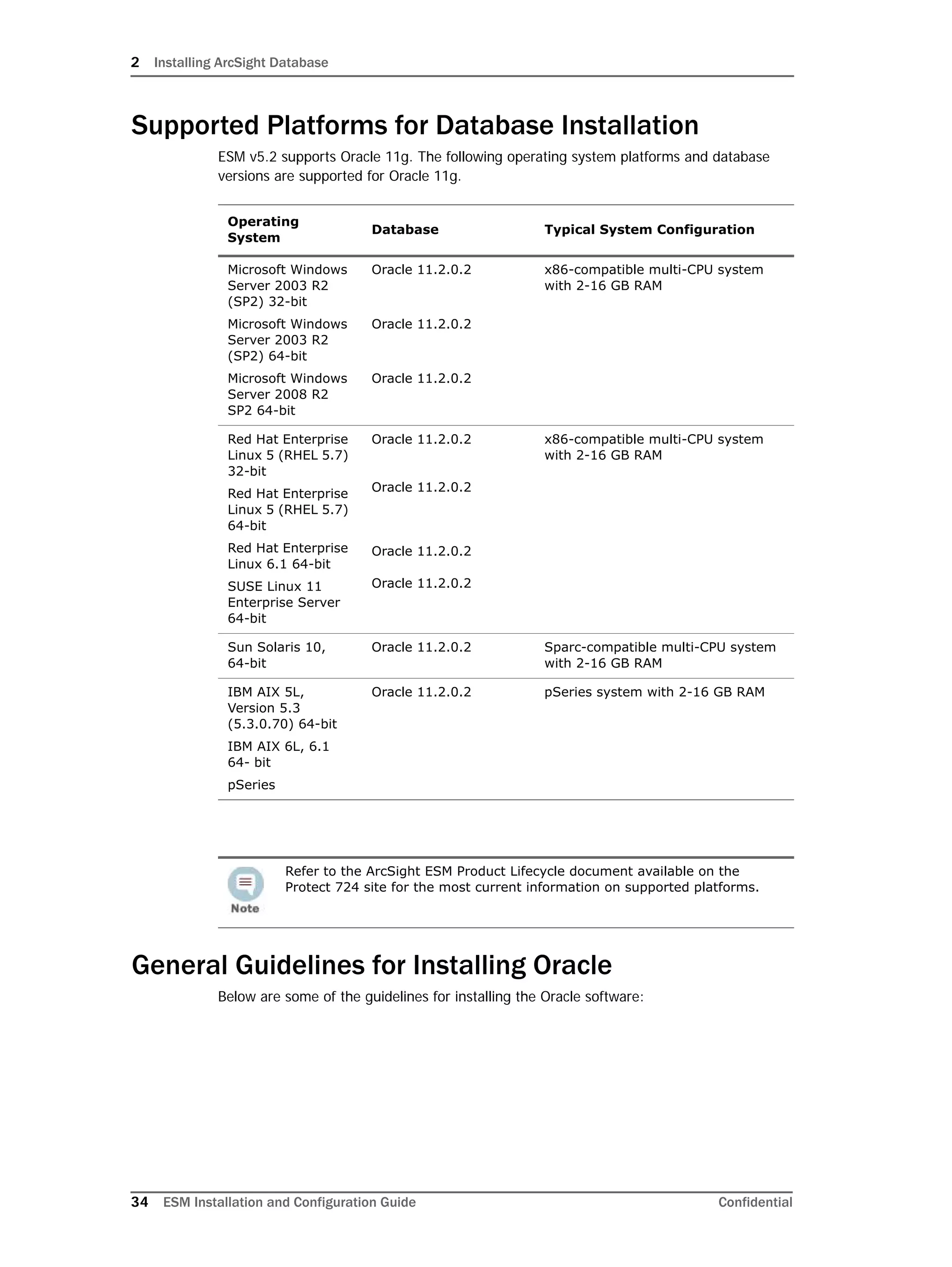
Supported Platforms for Database Installation
ESM v5.2 supports Oracle 11g. The following operating system platforms and database
versions are supported for Oracle 11g.
General Guidelines for Installing Oracle
Below are some of the guidelines for installing the Oracle software:
Operating
System
Database Typical System Configuration
Microsoft Windows
Server 2003 R2
(SP2) 32-bit
Microsoft Windows
Server 2003 R2
(SP2) 64-bit
Microsoft Windows
Server 2008 R2
SP2 64-bit
Oracle 11.2.0.2


Oracle 11.2.0.2


Oracle 11.2.0.2
x86-compatible multi-CPU system
with 2-16 GB RAM
Red Hat Enterprise
Linux 5 (RHEL 5.7)
32-bit
Red Hat Enterprise
Linux 5 (RHEL 5.7)
64-bit
Red Hat Enterprise
Linux 6.1 64-bit
SUSE Linux 11
Enterprise Server
64-bit
Oracle 11.2.0.2


Oracle 11.2.0.2



Oracle 11.2.0.2

Oracle 11.2.0.2
x86-compatible multi-CPU system
with 2-16 GB RAM
Sun Solaris 10, 
64-bit
Oracle 11.2.0.2 Sparc-compatible multi-CPU system
with 2-16 GB RAM
IBM AIX 5L,
Version 5.3
(5.3.0.70) 64-bit
IBM AIX 6L, 6.1
64- bit
pSeries
Oracle 11.2.0.2 pSeries system with 2-16 GB RAM
Refer to the ArcSight ESM Product Lifecycle document available on the
Protect 724 site for the most current information on supported platforms.
2 Installing ArcSight Database
Confidential ESM Installation and Configuration Guide 35
Storage Guidelines
The following table lists typical disk space requirements for installing Oracle 11g:
ArcSight recommends that you use the Stripe and Mirror Everything (SAME) layout for
efficiency and space economy, and define volumes as listed below. SAME simplifies sizing
and management of a volume without impacting performance. In addition, Oracle
recommends using SAME for its databases.
Space type Amount of space required
Temporary Space $TEMP or $TMPDIR (/tmp, by default) on
Unix and %TEMP% on Windows. Must have
at least 65 MB available.
Unix Swap Space (Unix only) Oracle recommends a
minimum of two times physical memory
for swap space. The ArcSight Database
Installer enforces this recommendation if
physical memory is less than 4 GB. On
machines with more than 4 GB, the
installer requires a minimum swap space
equal to physical memory size.
Oracle Installation At least 4 GB in the Oracle installation
directory.
ArcSight Database Software At least 1 GB in the ArcSight Database
installation directory.
Volume Name Contents Typical Size I/O Load
SYSTEM Oracle installation 2 GB Moderate
DATABASE Oracle default
tablespaces and
ArcSight
tablespaces
Hundreds of GB High
REDO Oracle redo log
files
10-20 GB Highest
ARCHIVE Archived Oracle
redo log files and
ArcSight partition
archives (if
Partition Archiver
is enabled)
Up to hundreds of
GB
Low
• Typically, the Oracle software is installed on the same drive where the
system operating system is installed and user home directories reside. It is
not necessary to have a separate volume for Oracle installation.
• You must always create a separate REDO volume to hold redo logs. Do not
use the DATABASE volume for this purpose. Additionally, always place the
active redo logs on a separate volume from the one used for archived redo
logs. ArcSight does not recommend using the same shared volume for redo
logs and archived redo logs as it can impact performance.
2 Installing ArcSight Database
36 ESM Installation and Configuration Guide Confidential
ArcSight recommends RAID level 1+0 and level 0+1, in order of preference, due to its
combination of performance and reliability and does not support RAID 5 for the ArcSight
Database.
Data Redundancy
For seamless operation and uptime in case of disk failure, it is highly recommended for
each of the volumes described above to have data redundancy. For each volume, a choice
needs to be made between the advantages and disadvantages of several levels of
redundancy. The following are commonly used RAID levels:
* The raw to cooked rate in the table above describes how much usable storage is typically
obtained per unit of storage purchased. For example, for a RAID1 (full mirror), two disks
provide usable storage equal to the size of one of the disks, therefore the rate is 2:1.
Of the listed levels, only RAID1, RAID0+1 and RAID1+0 provide data redundancy for
ArcSight. In a RAID0, if one of the disks fails, all data is lost.
RAID Levels
I/O performance involves many factors and many variables. The first decision for each
volume is the RAID level to use. The commonly used levels are RAID0+1 and RAID1+0.
ArcSight strongly recommends RAID1+0 for all volumes. If that is not possible, at least the
volumes that carry high I/O loads must use RAID1+0. At a minimum, the DATABASE and
REDO volumes must use RAID1+0.
Other than RAID levels, most SAN/NAS and other storage products have many parameters
that affect performance. Due to the large variety of products, ArcSight cannot recommend
values for all these parameters. Please consult the storage vendors for recommendations,
based on the above I/O characteristics.
Volume 1: SYSTEM Volume
Oracle installation directory
The SYSTEM volume stores the Oracle installation. The Oracle installation directory
contains Oracle DBMS software. ArcSight recommends that you install Oracle in the default
RAID
Level
Description Disk Failure Behavior
Typical
Raw to
Cooked
Rate*
0 Striping across two or more
disks.
Single disk failure causes
complete data loss.
1:1
1 Mirroring across two disks. Data only lost if both of the
disks fail.
2:1
0+1 Two RAID0 sets are mirrored.
Requires four or more disks
(increments of two disks).
Up to half the disks can fail
until complete data loss
occurs.
2:1
1+0 RAID1 mirrors are striped
together. Requires four or more
disks (increments of two disks).
Up to half the disks can fail
until complete data loss
occurs. Data loss is
mathematically less likely in
this configuration and
recovery behavior is better
than RAID 0+1.
2:1
2 Installing ArcSight Database
Confidential ESM Installation and Configuration Guide 37
location whenever possible: /home/oracle on Unix or Linux, or C:oracle on
Windows.
Before installing Oracle, ensure that the Oracle installation directory has adequate available
space.
On Unix or Linux, Oracle’s Universal Installer, which is invoked in silent mode by ArcSight’s
Database Installer, cannot check available disk space if you use a symbolic link to the
installation directory.
The initial Oracle installation directory size in the previous table includes:
Data redundancy is essential for production setups, as loss of information in the SYSTEM
volume can leave the database in a state that would require time-consuming recovery.
Consequently, a RAID1 (mirroring) configuration is recommended.
ArcSight Database Software
Install the ArcSight Database software in its default location (/usr/local/arcsight/db
on Unix or Linux, or C:arcsightdb on Windows). Before installing a new version,
rename the existing directory by adding the old version number to the directory name.
Volume 2: DATABASE Volume
The DATABASE volume holds these tablespaces:
Oracle’s default tablespaces:
 SYSTEM
 SYSAUX
 UNDOTBS1
 TEMP
ArcSight tablespaces:
 ARC_SYSTEM_DATA
 ARC_SYSTEM_INDEX
 ARC_EVENT_DATA
 ARC_EVENT_INDEX
 ARC_UNDO
 ARC_TEMP
Size For...
2 GB Oracle11g installation files
2 GB ArcSight Database Installer staging space for uncompressed Oracle
installation files. The ArcSight Installer extracts the contents of the
compressed installation files into the stage subdirectory. The
Installer will delete the stage subdirectory when the installation is
complete.
By default, the Oracle default tablespaces are in the Oracle software
installation directory. If the Oracle software installation directory is not
mirrored, you must put them on the DATABASE volume.
2 Installing ArcSight Database
38 ESM Installation and Configuration Guide Confidential
Due to size and I/O load, NAS (Network Attached Storage) or SAN (Storage Area Network)
technology is typically used for the DATABASE volume.
Even though NAS is supported, you have to be aware that the database is very I/O
intensive. So, replacing the dedicated connection with a shared network layer could lead to
performance issues.
SYSTEM
The SYSTEM tablespace holds all tables of the Oracle data dictionary.
SYSAUX
The SYSAUX tablespace is an auxiliary tablespace to SYSTEM. Many database components
use the SYSAUX tablespace as the default location to store data.
UNDOTBS1
This is Oracle’s default UNDO tablespace. An undo tablespace is used to hold the old image
to enable a roll back of a transaction and to provide a consistent image to queries that are
run after a transaction is initiated but before it is committed. This volume has random
read/write I/O.
TEMP
The TEMP tablespace is the default temporary tablespace for the instance and is created
during instance creation. This tablespace is used by Oracle’s administrative accounts—SYS
and SYSTEM. ArcSight schema owner uses another temporary tablespace called
ARC_TEMP, which is created during ArcSight Database initialization.
ARC_SYSTEM_DATA
ARC_SYSTEM_DATA stores ArcSight resources such as system objects. Unless very large
active lists or a large number of assets are used, the space requirements for
ARC_SYSTEM_DATA are rather moderate; typically, a few GB.
I/O usage on ARC_SYSTEM_DATA is rather moderate in comparison with
ARC_EVENT_DATA, since it is mostly human-driven, and ArcSight Manager memory caches
reduce the number of queries substantially.
Very large active lists (specifically partially-cached), session lists, or many actors will
require proportionally more space, and also potentially increased I/O bandwidth.
ARC_SYSTEM_INDEX
ARC_SYSTEM_INDEX holds indexes that enable efficient queries against the data in
ARC_SYSTEM_DATA. The I/O load on this tablespace is moderate. ArcSight Manager
caches data from ARC_SYSTEM_DATA.
Very large active lists (specifically partially-cached), session lists, or many actors could
require more I/O bandwidth as a result of factors like cache hit distributions.
The database instance created by the ArcSight’s embedded Oracle installer
(ArcSight Database installer) has the SYSTEM and SYSAUX tablespaces set to
autoextend. These tablespaces will grow in the initial few days after
installation as the event collection ramps up. They will stabilize subsequently
in terms of size. However, the size of these tablespaces will continue to be a
small fraction of the space used by ARC_EVENT_DATA tablespace. If you
installed Oracle without using ArcSight’s embedded Oracle installer, ensure
that you have turned autoextend on for SYSTEM and SYSAUX tablespaces.
2 Installing ArcSight Database
Confidential ESM Installation and Configuration Guide 39
ARC_EVENT_DATA
The ArcSight event data tablespace (ARC_EVENT_DATA) stores all events that are online
and accessible from the ArcSight Console. Therefore, this tablespace typically has a very
large number of I/O operations, both reads and writes. Writes are caused by inserting new
events, as well as by event annotations caused by users or rules. Even though the majority
of writes are append operations, the majority of I/O operations on this volume use random
access. Write pauses are rare, due to the constant incoming stream of events.
Read operations take place at the same time. These are driven by active channels engaged
in the ArcSight Console and ArcSight Web, and by reports and other components of the
ArcSight Manager that need to read events. Read operations are mostly random,
depending on the various queries. Certain operations, such as running a report, can cause
spikes in read I/O, but active channels typically provide a solid base load, depending on
filter complexities and time ranges.
ARC_EVENT_INDEX
ARC_EVENT_INDEX is the largest tablespace and holds indices that enable very efficient
queries against the data in ARC_EVENT_DATA. Typically, the indices use more disk space
than the actual data.
Again, most I/O load occurs in the ARC_EVENT_INDEX tablespace. Compare this to
ARC_EVENT_DATA, where most write operations are somewhat sequential and read
operations are random. Both write and read operations in ARC_EVENT_INDEX are random.
ARC_UNDO
This tablespace is used instead of Oracle’s default tablespace UNDO. Because there can be
only one active tablespace, once ARC_UNDO is created successfully, the ArcSight Database
Configuration Wizard flags the default UNDO tablespace UNDOTBS1 as inactive. Keep
UNDOTBS1 in the database in case ARC_UNDO gets corrupted.
ARC_TEMP
The ARC_TEMP tablespace stores temporary query results; for example, sorting. This
tablespace is typically moderate in size and I/O load.
Volume 3: REDO Volume
The REDO volume holds Oracle redo logs. These logs are written at a high rate, and
sequentially. They are read during database startup, redo log archiving, and during
recovery, all of which are not relevant during everyday operation.
The ArcSight Database Installer creates three or four redo log groups (each with a single
member). The number of redo log files and their default sizes depend on the template used
to create the ArcSight Database. If you anticipate frequent data updates, increase the size
to 3 GB each or add an additional redo log group.
You must always create a separate REDO volume to hold redo logs. Do not use the
DATABASE volume for this purpose.
Given the small size but high I/O load, either high-performance direct-attached storage or
NAS/SAN technology are typically used for the REDO volume.
Volume 4: ARCHIVE Volume
This volume can be split into two volumes:
 For archived Oracle redo logs
2 Installing ArcSight Database
40 ESM Installation and Configuration Guide Confidential
This volume is required only if Oracle is running in ARCHIVELOG mode, which is
required for hot backup.
 For ArcSight partition archives
This volume is required only if Partition Archiver is enabled.
ArcSight Partition Archives
This volume holds a directory with archived partitions. Archived partitions contain event
data, typically one day's worth per partition. They are compressed using zip, bzip2 or gzip.
When brought back online (through the ArcSight Console), the files are decompressed in
the same directory and made available to Oracle.
Typically, contents are written to the archived partitions directory once a day when the
oldest online partition is archived. When a partition is reactivated, it is decompressed in this
directory and queries against data in this partition are run against the ARCHIVE volume. No
additional data can be inserted into this partition.
Given the large size but typically low I/O rate, inexpensive near-line storage or SATA-based
SAN volumes are often used for the ARCHIVE volume.
Archived Oracle Redo Logs
This volume is required only if automatic redo log archiving is enabled, which ArcSight
recommends for production instances. Installations that perform hot backups (using a tool
such as Oracle’s Recovery Manager, RMAN, or Veritas Net Backup for Oracle) must enable
automatic redo log archiving.
Without archived redo logs, the Oracle database may not be recoverable after a disk crash.
The size of this volume depends on the number of events. If a 2 GB redo log is filled in 30
minutes on average, you will need at least 48 GB of disk space to store one day’s archived
redo logs. How long you need to preserve archived redo logs depends on your backup
schedule.
When automatic redo log archiving is enabled, monitor the disk space usage for the redo
log archive destination and purge old archived redo logs periodically. External tools can be
used to compress the archived redo logs.
If there is no available space on the redo log archive destination, Oracle will hang without
warning. If this happens, make more space available by either adding capacity to the
volume or by deleting old archived redo logs. When space is available, Oracle will resume
(a restart is not required).
Given the large size, SATA-based SAN volumes are often used for the ARCHIVE volume.
However, this volume cannot be slower than the REDO volume. Otherwise, the database
may hang periodically until the redo log archiver has caught up with the redo log writer.
Not all ESM versions or ArcSight Express models support the Partition Archiver.
Although you have the option to archive partitions in an uncompressed form,
ArcSight recommends that you do not use the uncompressed archive type for
archiving partitions.
2 Installing ArcSight Database
Confidential ESM Installation and Configuration Guide 41
Oracle Control Files
By default, Oracle creates the three copies of the Control File in the same location as
Oracle’s default tablespaces under the Oracle software installation directory, namely
$ORACLE_HOME/oradata on Unix and Linux, and %ORACLE_HOME%oradata on
Windows.
It is very important to distribute three copies of the control file to three different volumes,
preferably not in $ORACLE_HOME, and back up the control files whenever the database
structure is changed. Adding a data file, for example, represents a change to the database
structure.
Selecting an ArcSight Database Template
The ArcSight Database Installation Wizard presents a range of pre-defined templates that
initialize ArcSight’s Database. The templates include:
The template you select for the Oracle instance creation will depend on the capacity and
performance requirements of the ArcSight security management system you want to
deploy.
ArcSight Database templates specify:
 Required minimum memory capacity
 Required minimum disk space
 Number of redo logs
 Redo log file size
 Minimum sizes for ArcSight tablespaces
 Required file system types
Other factors, such as other applications to be installed on the database machine, may
affect your template decision. The table below lists the assumptions and configurations for
the database templates provided.
Size Use
Small For pilot installation
Medium Small production environments
Standard Typical production environments
Large Large production environments
Extra Large (X-Large) Very large production environments (See
details below.)
Extra, Extra Large (XX-Large) Very large production environments (See
details below.)
2 Installing ArcSight Database
42 ESM Installation and Configuration Guide Confidential
ArcSight recommends dedicating a machine to the ArcSight Database. The operating
system chosen often suggests a hardware platform. For Intel-based platforms (Windows or
Linux), for example, two or more P4 Xeon processors is a typical configuration.
Minimum Disk Space assumptions:
 Disk space required for Oracle software installation is not included.
 The online retention period is set to the default value of 30 days.
 The online reserve period is set to the default value of 14 days.
 Minimum sizes for ARC_UNDO and ARC_TEMP are set to the recommended values.
For the Large template on 32-bit Windows, add the /3GB option to boot.ini and reboot
Windows before creating the ArcSight instance.
Preparing your Platform for Database Installation
UNIX Platforms
ArcSight Database can be installed on Linux, Solaris, or AIX platforms.
If the ‘oracle’ group and the default Oracle software owner account (that is, ‘oracle’) do not
exist on your database host, the database installer automatically creates them. However, if
you have any restrictions or password policies in place that will prevent the installer from
creating the group or the owner account, you must create them manually before launching
the installer.
Template CPUs Memory Disk
Small
(Quick Demos
only)
1 512 MB 16 GB
Medium
(Tests/Pilots only)
1 1 GB 32 GB
Standard 
(Typical
Production)
2 2 GB 64 GB
Large
(Large Production)
64-bit machines
only
42 4 GB 128 GB
X-Large
(Large data files)
64-bit machines
only
4 8 GB 256 GB
XX-Large
(Large data files)
64-bit machines
only
8 16 GB 256 GB
The figures shown for the templates represent the minimum space required
for the base installation and do not include the space required for event
storage. Calculate your space requirement for event storage based on the
time you have set up for event retention period.
2 Installing ArcSight Database
Confidential ESM Installation and Configuration Guide 43
If the installer creates the owner account automatically, you must set a password for that
account after the installation is complete.
If you created the account manually, you must make sure you set a password for the
account during account creation.
Preparing a Linux System
Perform the following steps to prepare Linux for the installation of ArcSight Database:
1 Make sure that your Linux system meets the requirements listed in “Supported
Platforms for Database Installation” on page 34.
2 Verify that the following required packages (the versions stated below or newer
version of the packages) are installed:
On x86 32-bit Linux:
The following packages (or later versions) must be installed:
On Red Hat Enterprise Linux 5
binutils-2.17.50.0.6
compat-libstdc++-33-3.2.3
compat-libstdc++-33-3.2.3 (32 bit)
elfutils-libelf-0.125
elfutils-libelf-devel-0.125
gcc-4.1.2
gcc-c++-4.1.2
glibc-2.5-24
glibc-2.5-24 (32 bit)
glibc-common-2.5
glibc-devel-2.5
glibc-devel-2.5 (32 bit)
glibc-headers-2.5
ksh-20060214
libaio-0.3.106
libaio-0.3.106 (32 bit)
libaio-devel-0.3.106
libaio-devel-0.3.106 (32 bit)
libgcc-4.1.2
libgcc-4.1.2 (32 bit)
• When installing SUSE Linux, make sure that you do not select SUSE’s in-
built option that prompts you to make SUSE Oracle-ready. If you select this
option, it will create an Oracle user account which conflicts with the Oracle
user account created when installing ArcSight Database. Make sure you
install the required libraries for SUSE Linux that are listed in this section.
• On RHEL v6, in order to be able to run the installers remotely in GUI mode,
the following libraries and their associated dependencies need to be
installed:
- X libraries
- glibc
- libXext
- libXtst
For 64-bit machines, the 32-bit versions of glibc, libXext, and libXtst must
be installed as well.
2 Installing ArcSight Database
44 ESM Installation and Configuration Guide Confidential
libstdc++-4.1.2
libstdc++-4.1.2 (32 bit)
libstdc++-devel 4.1.2
make-3.81
numactl-devel-0.9.8.x86_64
sysstat-7.0.2
UnixODBC-2.2.11 (32 bit) or later
UnixODBC-devel_2.2.11 (64 bit) or later
On x86 64-bit Linux:
The following packages (or later versions) must be installed:
On Red Hat Enterprise Linux 5 and 6
binutils-2.17.50.0.6
compat-libstdc++-33-3.2.3
gcc-4.1.2
glibc-2.5-24
glibc-common-2.5
glibc-devel-2.5
libaio-0.3.106
libaio-devel-0.3.106
libstdc++-4.1.2
libstdc++-devel 4.1.2
make-3.81
sysstat-7.0.2
unixODBC-2.2.11 (32 bit) or later
unixODBC-devel-2.2.11 (64 bit) or later
unixODBC-2.2.11 (64 bit ) or later
unzip.x86_64
On SUSE Linux Enterprise Server 11
make-3.81
binutils-2.19
gcc-4.3
gcc-32bit-4.3
libaio-0.3.104
libaio-devel-0.3.104
glibc-2.9
glibc-devel-2.9
libstdc++33-3.3.3
On 64-bit machines, you will need both the 32-bit and 64-bit versions of
the libraries.
On RHEL 6.1, you will need the following packages in addition to the
ones stated above:
libXau.i686
libxcb.i686
libX11.i686
libXtst.i686
libXi.i686
libXext.i686
2 Installing ArcSight Database
Confidential ESM Installation and Configuration Guide 45
libstdc++43-4.3.3
libstdc++43-devel-4.3.3
sysstat-8.1.5
unixODBC-2.2.12 or later
unixODBC-devel-2.2.12 or later
unixODBC-32bit-2.2.12 (32 bit) or later
unzip.x86_64
3 Remember to run the ArcSight Database Installer as root for the installation to be
successful.
4 Make sure that the ports listed in the “Protecting ArcSight Manager” on page 23 are
open in order to facilitate a smooth communication between the ArcSight Manager and
the database.
5 Run the hostname command and check that it returns the fully-qualified host name in
the form “hostname.domainname.”
If not, do the following:
a Set the host name to a fully-qualified name with the following command:
hostname hostname.domainname
b Edit the file /etc/sysconfig/network to set the host name to the same fully-
qualified name permanently.
6 Check /etc/hosts and make sure the entry for localhost is “127.0.0.1
localhost.localdomain localhost”.
7 Run the ping command to verify the host names for both the Manager machine and
the database machine are resolvable from both sides.
8 Make sure that you have selected at least the "minimal" package group option while
configuring your RHEL 5 32bit system.
9 Make sure that you have selected at least the “default” package group option while
configuring your RHEL 5 64-bit system.
Preparing a Solaris System
Perform the following steps to prepare Solaris for the installation of ArcSight Database:
1 Make sure that your Solaris system meets the requirements listed in “Supported
Platforms for Database Installation” on page 34.
2 Log in as root and run the ulimit -a command to view the currently defined system
limits. Make sure that the limits below are set to the following:
 Set the "cpu time" to "unlimited"
 Set the "file size" to "unlimited"
 Set the "data seg size" to "unlimited" or to at least "1048576"
 Set the "stack size" to at least "32768"
Red Hat Linux has firewall enabled by default, which will cause the
ArcSight setup and configuration programs to fail. Since ArcSight Manager
needs to communicate with the database machine, you must open the
ports listed in the “Protecting ArcSight Manager” on page 23 on the
Manager and database machines before proceeding with the ArcSight
Manager setup.
2 Installing ArcSight Database
46 ESM Installation and Configuration Guide Confidential
 Set the "open files" to at least "4096"
 Set the "virtual memory" to "unlimited" or to at least "4194304"
3 Remember to run the ArcSight Database Installer as root in order for the installation to
be successful.
4 Make sure that you choose the Developer package when installing Solaris so that
Oracle will be able to link its executables during the installation process. Make sure the
command /usr/sbin/prtconf is available and that /usr/sbin is included in
root’s shell environment variable PATH.
5 Verify that the following required packages are installed:
On Solaris 10 64 bit:
SUNWarc
SUNWbtool
SUNWhea
SUNWlibC
SUNWlibm
SUNWlibms
SUNWsprot
SUNWtoo
SUNWi1of
SUNWi1cs (ISO8859-1)
SUNWi15cs (ISO8859-15)
SUNWxwfnt
SUNWcsl
You can run the following Solaris command to check whether these packages are
installed or not:
# pkginfo -i SUNWarc SUNWbtool SUNWhea SUNWlibC SUNWlibm
SUNWlibms SUNWsprot SUNWtoo SUNWi1of SUNWi1cs SUNWi15cs
SUNWxwfnt SUNWcsl
You should also apply the latest Solaris Operating System patches. Check
http://sunsolve.sun.com for Solaris patches.
6 If Perl is not installed, download the binary distribution from
ftp://ftp.sunfreeware.com/pub/freeware/sparc and install it.
7 The installer edits /etc/system to specify kernel parameters for shared memory
segments and semaphores which Oracle uses at startup. Lines that start with “set
shmsys:” or “set semsys:” are deleted and the following lines are added, replacing
SHMMAX with the total memory required by the ArcSight Database Template you
selected, in bytes. (Multiply Megabytes by 1,048,576 to convert them to bytes.)
set shmsys:shminfo_shmmax=SHMMAX
set shmsys:shminfo_shmmin=1
Instead of installing the Developer package, you can install the following
packages in your environment: SUNWlibm, SUNWlibms, SUNWsprot,
SUNWtoo, SUNWi1of, and SUNWXWfnt.
The Oracle patchset installer also requires the SUNWuiu8 Iconv modules for
UTF-8 locale, and the SUNWuiu8x Iconv modules for UTF-8 locale (64-bit).
2 Installing ArcSight Database
Confidential ESM Installation and Configuration Guide 47
set shmsys:shminfo_shmmni=512
set shmsys:shminfo_shmseg=64
set semsys:seminfo_semmns=512
set semsys:seminfo_semmni=512
set semsys:seminfo_semopm=64
set semsys:seminfo_semmsl=1024
set semsys:seminfo_semvmx=32767
The installer will prompt you to reboot for changes to /etc/system to take effect.
Preparing an AIX System
Make sure that the following packages are installed on your system:
On AIX 5L systems:
bos.adt.base
bos.adt.lib
bos.adt.libm
bos.perf.libperfstat
bos.perf.perfstat
bos.perf.proctools
xlC.aix50.rte:8.0.0.7 or later (AIX 5.3)
xlC.rte:8.0.0.7 or later (AIX 5.3)
To determine the distribution and version of AIX installed, enter the following command:
# oslevel -s
If the operating system version is lower than AIX 5.3.0.0 Technology Level 5 SP 6, then
upgrade your operating system to this level. AIX 5L version 5.3 maintenance packages are
available from http://www-912.ibm.com/eserver/support/fixes/.
To determine if the required filesets are installed and committed, enter a command similar
to the following:
# lslpp -l bos.adt.base bos.adt.lib bos.adt.libm bos.perf.perfstat
bos.perf.libperfstat bos.perf.proctools
Preparing a Windows System
Perform the following steps to prepare Windows for the installation of ArcSight Database:
1 Make sure that your Windows system meets the requirements listed in “Supported
Platforms for Database Installation” on page 34.
2 ArcSight requires a clean database machine. If Oracle was previously installed on the
database machine, reinstall the operating system before proceeding further.
3 Remember to run the ArcSight Database Installer as the local ‘Administrator’ user for
the installation to be successful.
2 Installing ArcSight Database
48 ESM Installation and Configuration Guide Confidential
Installing ArcSight Database
The installation process involves these steps:
1 Install the ArcSight Database software.
2 Depending on your current setup, select from one of these actions:
 A brand new install with Oracle 11g
 A new ArcSight Database installation that will use pre-existing Oracle 11g
software
The wizards for each of these actions are described in detail next.
Installing the ArcSight Database Software
Once you have prepared your system as described earlier in this chapter and read the
prerequisites, you are ready to install the ArcSight Database component and, if needed, the
Oracle database software.
Follow these steps to install the ArcSight Database software:
1 Download the ArcSight Database installation file, and if needed, the Oracle 11g
database files appropriate for your platform from https://software.arcsight.com. Copy
all the files (without extracting their contents) to a temporary directory.
Tools that require a remote login to a Manager running in FIPS mode will need
to be run from the Manager’s <ARCSIGHT_HOME> as opposed to the database’s
<ARCSIGHT_HOME>. However, running these tools in a standalone mode by
stopping the Manager and running the tools directly on the database is
supported.
A Windows system was used for the sample screens. If you are installing on a
Unix based system, you will notice a few Unix-specific screens. Path
separators are / for Unix and  for Windows.
ESM v5.2 does not support Oracle 10.2.0.4. If you are using Oracle
10.2.0.4, you must upgrade your Oracle instance to 11g. You can do
so using the ESM v5.0 SP2 ArcSight Database installer.
If the database installation process exits at any step in the following
procedure, you can restart it with this command:
arcsight databasesetup
Make sure that the path containing the installation file does not have any
spaces in any of the folder names.
2 Installing ArcSight Database
Confidential ESM Installation and Configuration Guide 49
The following files are available.
2 Run the appropriate self-extracting ArcSight installation file for your platform.
3 Read the introduction and click Next.
4 In the License Agreement screen, read the agreement text and click I accept the
terms of the License Agreement radio button and click Next. This radio button will
be disabled until you read and scroll to the bottom of the agreement in order to ensure
that you have read the agreement.
Platform Oracle 11g Database Files
64-bit 32-bit
Windows AMD64:
p10098816_112020_MSWIN-
x86-64_1of7.zip
p10098816_112020_MSWIN-
x86-64_2of7.zip
IA32:
p10098816_112020_WINNT_1of
6.zip
p10098816_112020_WINNT_2of
6.zip
Linux AMD64:
p10098816_112020_Linux-x86-
64_1of7.zip
p10098816_112020_Linux-x86-
64_2of7.zip
IA32:
p10098816_112020_LINUX_1of7
.zip
p10098816_112020_LINUX_2of7
.zip
Solaris p10098816_112020_SOLARIS64
_1of7.zip
p10098816_112020_SOLARIS64
_2of7.zip
N/A
AIX p10098816_112020_AIX64-
5L_1of7.zip
p10098816_112020_AIX64-
5L_2of7.zip
N/A
The above file names indicate that there are 7 Oracle binary files available for
each platform, but only 2 filenames are listed in the table against each
platform. This is because ArcSight includes only those Oracle binaries that are
relevant to ArcSight Database.
Platform ArcSight Installation file
Windows ArcSight-5.2.x.nnnn.y-DB-Win.exe
Linux ArcSight-5.2.x.nnnn.y-DB-Linux.bin
Solaris ArcSight-5.2.x.nnnn.y-DB-Solaris.bin
AIX ArcSight-5.2.x.nnnn.y-DB-AIX.bin
A Windows system was used for the sample installation. If you are
installing your database on a Unix based system, you will notice a few
Unix-specific screens.
Screens that summarize your selections or the ones that report progress
on the installation are not shown in this sample installation.
2 Installing ArcSight Database
50 ESM Installation and Configuration Guide Confidential
5 Read the notice and click Next.
6 Choose a directory in which to install ArcSight Database and click Next.
7 Check to make sure that the folder locations in the Pre-installation Summary are
correct and click Install.
You will see a screen in which shows you the progress of the installation. The Oracle
configuration wizard opens after the installation is complete.
8 In the following screen, select from one of the following options.
If you are installing ArcSight Database for the very first time and do not have Oracle
11g pre-installed on your machine, select the Install Oracle 11.2.0.2 database
software option. Go to “Installing Oracle 11g Database Software” on page 51 for
instructions to install Oracle 11g.
If you have a pre-existing Oracle 11.2.0.2 installation on your machine, you will need
to create an Oracle 11g instance, so select the Create and configure ArcSight
11.2.0.2 instance option. Go to “Creating a New Oracle 11g Instance” on page 57
for detailed instructions on creating an Oracle 11g instance.
To use an existing Oracle 11g software installation with an existing Oracle 11g
instance, choose the Initialize ArcSight Tablespaces, Schema and Resources
option. Go to “Initializing ArcSight Tablespaces, Schema, and Resources” on page 63
section for more information on initializing tablespaces, schema, and resources.
If the directory you choose already exists, the installer will clear any
contents that exist in the directory. If you do not want to delete the
existing contents of the directory, you may want to specify a new location
for the current installation.
If you do not have root access to your database machine, you will not be
able to initialize tablespaces, schema, and resources using this interface.
To initialize tablespaces, schema, and resources in that case, run this
command in <ARCSIGHT_HOME>bin:
arcsight databasesetup
2 Installing ArcSight Database
Confidential ESM Installation and Configuration Guide 51
ESM v5.2 does not support Oracle 10g. If you are using Oracle 10g, you must
upgrade your Oracle instance to 11g. You can do so using the ESM v5.0 SP2 ArcSight
Database installer. Follow the instructions in the ESM Upgrade Guide for v5.0 SP2 to
upgrade your Oracle software.
You can ignore the Transfer ArcSight Partition Archiver and Service Settings
option. This option is used to transfer Partition Archiver settings from an existing
installation and is only applicable if you are upgrading ArcSight Database.
Installing Oracle 11g Database Software
1 The following screen prompts you to shut down currently running Oracle instances or
TNS listeners. If this is a fresh installation, skip this step.
To shut down TNS listeners, run this command on the database machine:
% arcdbutil lsnrctl stop
To shut down an Oracle instance, run this command on the database machine:
% arcdbutil sql
Enter user-name: / as sysdba
SQL> shutdown immediate
SQL> exit
Not all ESM versions or ArcSight Express models support the Partition
Archiver.
Make sure you have set the environment variables ORACLE_HOME and
ORACLE_SID to appropriate values before running the commands below.
2 Installing ArcSight Database
52 ESM Installation and Configuration Guide Confidential
2 Enter the location where you copied the Oracle 11g database software files in Step 1
of “Installing the ArcSight Database Software” on page 48 and click Next:
3 Specify a new one or confirm the default Oracle installation directory and click Next:
On Windows:
2 Installing ArcSight Database
Confidential ESM Installation and Configuration Guide 53
On Unix:
4 Make sure that all the locations you specified are correct and click Next.
You will see the following screen when the Oracle installation completes. Click Next to
configure an ArcSight Oracle instance.
5 Click Next in the following screen.
Verify that the Oracle installation directory path and the Oracle home path do
not contain any spaces.
2 Installing ArcSight Database
54 ESM Installation and Configuration Guide Confidential
2 Installing ArcSight Database
Confidential ESM Installation and Configuration Guide 55
Configuring Shared Memory on Solaris
On Solaris, after installing the database, but before you create the instance on a fresh
install, make sure the allocation of shared memory is adequate for the template size you
plan to use. If you create the database instance with inadequate shared memory, it may
fail.
To identify the amount of shared memory on your system, do the following.
1 Enter the following command.
id -p
In the result there will be a value such as projid=3(default). Save the number for
the next step.
2 Enter the following command:
prctl -n project.max-shm-memory -i project <projid>
Where <projid> is the project ID value from the previous command. In the result
look for a line that looks something like this:
privileged 1.89GB - deny
The privileged value represents the current shared memory value. If that is not the
correct value needed for the template you will choose, as per the following table, go to
Step 3.
3 For the instance creation to be successful, increase the shared memory to the value
for the template size. Enter the following command as root user.
projadd -U <user> -K "project.max-shm-memory=(priv,<m>GB,deny)" user.<user>
Where:
- <m> is the number of GB of shared memory
- <user> is the name of the Oracle Solaris user
Configuring Shared Memory on Linux
Before creating the database instance on a Linux fresh install system, make sure you have
enough shared memory on /dev/shm for the template you are planning to choose. This
verification is required because you might not have enough shared memory; and if you
proceed with database instance creation with inadequate shared memory, the Oracle
database memory parameters will not be set correctly.
To identify the available amount of shared memory on your system, check the size of
/dev/shm from the Unix prompt by executing:
df -k
Template
Size
Shared
Memory
Small
Medium
Standard
Large
XLarge
XXLarge
500 MB
1 GB
3 GB
4 GB
7 GB
13 GB
2 Installing ArcSight Database
56 ESM Installation and Configuration Guide Confidential
If shared memory is less than what you need, increase as required for your template
creation using the following recommendations. Then proceed with the instance creation
using the ArcSight Database software component.
The shared memory should be more than the following:
After you complete the instance creation, do the following to verify if the instance was
created with the correct parameters by running this command on the database machine.
To verify parameters for the database instance:
1 At the prompt, enter
arcdbutil sql
2 As user name, enter:
/ as sysdba
3 At the SQL prompt, enter:
show parameter memory_target
The memory_target value should be the same as the required memory specification in
the above table for the chosen template. If it is correct, then you are done.
However, if memory_target is set to zero, then do the following to correct the values.
To verify SGA and PGA size if memory_target is set to zero:
1 Run the following command at the SQL prompt to check your SGA size and increase as
required.
alter system set sga_max_size=<Value_from_list_below>
scope=spfile;
alter system set sga_target=<Value_from_list_below>
scope=spfile;
alter system set pga_aggregate_target=<Value_from_list_below>
scope=spfile;
shutdown immediate
startup
show parameter sga
show parameter pga_aggregate_target
Template Size Required Memory
Shared Memory
Requirements
Small 246M 500M
Medium 740M 1G
Standard 1442M 3G
Large 2986M 4G
XLarge 6096M 7G
XXLarge 12160M 13G
2 Installing ArcSight Database
Confidential ESM Installation and Configuration Guide 57
The values of the SGA and PGA should reflect the following values, depending on the
chosen template.
2 At the prompt, enter exit.
Creating a New Oracle 11g Instance
1 If you are creating a new instance, you will need to enter the following parameters in
the next screen.
ORACLE_SID—System ID (SID) for the ArcSight Database. By default, arcsight. The
global database name and the TNS service name will be set to the value you specify
for this parameter. The Oracle SID cannot exceed 8 characters.
ArcSight Database Template—The template that determines the configuration (for
example, memory allocation) of the ArcSight Database you want to create. By default,
ArcSight_Large.dbt (Standard).
Depending on the platform, you can choose from XX-Large, X-Large, Large, Standard,
Medium, and Small. For more information about ArcSight Database templates, see
“Selecting an ArcSight Database Template” on page 41.
Database Character Set—The language that Oracle should use to operate; for
example, English. By default, the Database Character Set is Unified_UTF8.
Template Size
SGA_max_size/
SGA_target
PGA_aggregate_target
Small 182M 64M
Medium 538M 192M
Standard 1058M 384M
Large 2500M 512M
XLarge 6000M 1024M
XXLarge 11000M 4096M
Setting the Database Block Size: ArcSight embedded Oracle installer will
create the instance with a default block size of 16K. Note that the database
block size is a parameter that can only be configured BEFORE the instance
has been created. If you determine that your Operating System and
hardware would function more optimally with a different block size, you will
have to edit the ArcSight template to change the block size. Before you
choose to create the ArcSight Oracle instance, edit the file in
<ARCSIGHT_HOME>installerOracle11g<platform>dbca
ArcSight_<size>.dbt in a text editor. Search for "db_block_size" and
replace its default value "16384" with, for example, "32768" for a 32K block
size.
2 Installing ArcSight Database
58 ESM Installation and Configuration Guide Confidential
Allowed TNS Clients—A comma-separated list of host names or IP addresses that
are allowed to connect to this database.
2 Enter the following parameters in the next screen. Although default directory locations
are filled for you, ArcSight recommends that you specify directory locations on
separate disks for each of these files to prevent loss from hard disk failures.
Directory for Control File #1, #2, and #3-- The directories where the copies of
Oracle's control files are stored. By default,
<ORACLE_HOME>oradataORACLE_SID.
Data File Directory-- The directory where default data files for Oracle's Data
Dictionary will be stored. You need at least 400 MB available disk space for this
directory. By default, <ORACLE_HOME>oradataORACLE_SID.
The database machine will only accept connection requests from the
specified client list. If the ArcSight Manager is running on another host
(as recommended), you must include both the ‘localhost’ and the
ArcSight Manager host in the list. The installer automatically replaces
'localhost' with the actual IP address of the local host. By default,
localhost.
2 Installing ArcSight Database
Confidential ESM Installation and Configuration Guide 59
Redo Log Directory-- The directory where Oracle's redo logs will be stored. By
default, <ORACLE_HOME>oradataORACLE_SID.
3 Specify the following redo archive options in the next screen:
Auto Archive Redo Log-- Specify whether to enable automatic log archiving. Note
that Redo log archiving requires a large amount of additional disk space and will
impact database performance. Therefore, you should only enable log archiving in
situations where you cannot tolerate any loss of data from disk crashes. By default, no.
Log Archive Destination #1-- The directory to store archived redo log files if you
enabled automatic redo log archiving.
Oracle can store archive redo logs in multiple log archive destinations (directories or
services) simultaneously for redundancy or other purposes. You can add up to 9 more
different log archive destinations later, manually.
The log archive destination cannot be on a raw disk partition.
2 Installing ArcSight Database
60 ESM Installation and Configuration Guide Confidential
4 Enter the following information for the next screen:
Oracle SYS Password—Password for the Oracle superuser, SYS. By default, none.
Oracle SYSTEM Password—Password for the Oracle admin account. By default,
none.
5 Enter the following information for the next screen which collects the passwords for
the system user accounts:
Oracle DBSNMP Password— Password for the Management Agent component of
Oracle Enterprise Manager used to monitor and manage the database.
If you select no as your answer to the question “Install Enterprise
Manager?”, you do not need to enter the Oracle DBSNMP and Oracle
SYSMAN passwords.
2 Installing ArcSight Database
Confidential ESM Installation and Configuration Guide 61
Oracle SYSMAN Password— Password for the default super user account used to
set up and administer Enterprise Manager.
Click Next to continue.
Although you can install the Oracle Enterprise Manager client using
ArcSight’s Oracle 11g Installer, you must acquire licensing and support
from Oracle directly.
2 Installing ArcSight Database
62 ESM Installation and Configuration Guide Confidential
6 Click Next to start initializing ArcSight tablespaces, schema, and resources. Follow the
procedure described in “Initializing ArcSight Tablespaces, Schema, and Resources” on
page 63.
Important AIX Issue
On AIX, run the following commands on the command line. These prevent an issue with
the partition archiver, in which you get the error "Unable to create archive file....." in the
agent.log.
prompt > arcdbutil sql
SQL>conn / as sysdba
SQL>ALTER SYSTEM set filesystemio_options=ASYNCH scope=spfile;
SQL>shutdown immediate;
SQL>startup
SQL> show parameter filesystemio_options
//output should print ASYNCH as the value
SQL>exit
2 Installing ArcSight Database
Confidential ESM Installation and Configuration Guide 63
Avoiding DB Write Performance Issues with Oracle 11g
During fresh installations after creating the DB instance, you may need to modify the
Oracle initialization parameter “log_buffer” in case you encounter problems with
database write performance.
To modify the log_buffer parameter:
1 At the prompt, enter
arcdbutil sql
2 As user name, enter:
/ as sysdba
3 At the SQL prompt, enter:
show parameter log_buffer
The value will be set to a value around 1 MB.
4 Modify the log_buffer value to 14 MB:
alter system set log_buffer=14237696 scope=spfile
5 Shut down the Oracle instance for the changes to take effect. At the prompt, enter:
shutdown immediate
startup
6 To verify that the log buffer was reset correctly enter:
show parameter log_buffer
The system should display 14237696.
7 At the prompt, enter exit.
Initializing ArcSight Tablespaces, Schema, and Resources
1 You must check the status of the TNS listener and Oracle 11g instance to make sure
they are up and running. The following screen prompts you to do so.
To check the TNS listener, run this command on the database machine:
% arcdbutil lsnrctl status
If the TNS listener is not up, run this command to start it:
On Unix
% arcdbutil lsnrctl start
On Windows, you can either start the TNS listener from Windows Services or run the
above command from a DOS prompt.
To check the status of the Oracle instance, run this command on the database
machine:
% arcdbutil sql
Enter user-name: / as sysdba
SQL> select * from dual;
2 Installing ArcSight Database
64 ESM Installation and Configuration Guide Confidential
SQL> exit
To start the Oracle instance, run this command on the database machine:
% arcdbutil sql
Enter user-name: / as sysdba
SQL> startup
SQL> exit
2 Installing ArcSight Database
Confidential ESM Installation and Configuration Guide 65
2 Select the first option, Create/Recreate Tablespaces and Schema, to create table
spaces for your Oracle instance and the ArcSight Schema.
3 Select the first option to provide the host name, port and instance name.
4 Enter the following information in the next screen:
Database Host Name—The IP address of the machine on which you are installing
the database.
Database Port—The TCP port number on which the Oracle listener listens for
connections. By default, 1521.
Database Instance—The Oracle database instance System ID (SID) that you
specified when you created the Oracle instance earlier.
Please keep in mind that Oracle supports only alphanumeric characters for
database user names, and will not accept a dash (-) or underscore (_) in these
names.
2 Installing ArcSight Database
66 ESM Installation and Configuration Guide Confidential
Database Admin User Name—The Oracle super user name. By default, SYS.
Database Admin User Password—The password for the Oracle super user account.
Database OS user name—The Oracle user name you specified when installing the
database. By default, oracle.
5 Enter a Database User Name and User Password and click Next.
6 The next screen prompts you to enter a name for System User.
During the installation process, a set of predefined content called the System Core
content is installed by default. This content provides the foundation building blocks for
the ArcSight ESM system to work.
System Core content is available in the Core group under the ArcSight System sub-tree
of each resource tree. For example, core content for the Filters resource is available in
/All Filters/ArcSight System/Core.
The modification of System Core content can adversely impact the operation of
ArcSight ESM, therefore, it is locked by default. ArcSight strongly recommends against
2 Installing ArcSight Database
Confidential ESM Installation and Configuration Guide 67
unlocking or modifying this content. However, a special user called the system user is
created automatically during the installation. This user can lock and unlock ArcSight
Core Content if there is a need.
The system user is configured as ‘systemuser’ by default. ArcSight recommends that
you change this name to a non-standard name. This name can be changed only once.
For example, once you change the name to ‘coreuser’, you cannot change this name
again.
If you want to change the name of system user, enter a new name in the following
screen and click Next.
7 Enter information for these tablespaces in the next few screens:
 ARC_SYSTEM_DATA
 ARC_SYSTEM_INDEX
 ARC_EVENT_DATA
 ARC_EVENT_INDEX
 ARC_UNDO
 ARC_TEMP
For information about these table spaces, see “Volume 2: DATABASE Volume” on
page 37.
Enter the following information for each tablespace:
Data File Path—The directory where the data files for this tablespace will be created.
The user that runs Oracle (typically, oracle) needs to have write privileges on this
directory.
Data File Size—The size of each individual data file.
Number of Data Files—The number of data files that will be created for the
tablespace.
8 Because the creation of all data files for all tablespaces can be time consuming, the
following screen gives you an option to create the minimum number of files per
tablespace—that is, one file per tablespace—and delay the creation of additional files
until after you have completed the database configuration process. ArcSight
recommends selecting the option to delay the creation of additional files.
2 Installing ArcSight Database
68 ESM Installation and Configuration Guide Confidential
Create all data files immediately—Create all files before proceeding further.
Prompt for creation of additional data files—Delay the creation of additional data
files.
9 In Step 1 on page 57 if you had chosen a database character set that supports more
than one language supported by ESM, you will see the following screen requesting you
to select a language for installing your system resources in:
The choices for language selection in the screen below will vary
depending upon the character set you selected. The choices shown in
the screenshot below appear if you selected UTF8 character set.
2 Installing ArcSight Database
Confidential ESM Installation and Configuration Guide 69
10 Click Next to save the configuration.
You will see a warning message saying that all existing tablespaces and schema
objects will be deleted.
To initialize the database schema, you must specify the parameters in the next few
screens. For more information about these parameters, see “Configuring Partition
Management” on page 75
2 Installing ArcSight Database
70 ESM Installation and Configuration Guide Confidential
11 You will be prompted with the partition retention information. The partitions will be
retained in the database for the number of days that you specify in the ‘Online
Retention Period’ field.
12 In the next screen enter the e-mail notification to be sent in the event that the
Partition Manager encounters a problem.
2 Installing ArcSight Database
Confidential ESM Installation and Configuration Guide 71
13 Enter the number of days that you want to keep the partition in an uncompressed
form.
14 The next screen will prompt you to enter or select the Partition Archiver mode, archive
type, and archive directory.
2 Installing ArcSight Database
72 ESM Installation and Configuration Guide Confidential
15 In the next screen, you will be prompted to schedule the partition management
programs. The Partition Manager runs only once in 24 hours, and you can configure
that time in the following panel.
Click Next.
2 Installing ArcSight Database
Confidential ESM Installation and Configuration Guide 73
Click Next.
You have installed the Oracle 11g database and the ArcSight Database component. Click
Finish in the following screen:
Click Done in the last screen.
16 Make sure to run the following command (while logged in as sysdba) to update the IO
transfer speed in the database. If you do not run this script, Oracle defaults to a very
low IO transfer speed estimate that adversely affects the query execution plan.
% arcdbutil sql
Enter user-name: / as sysdba
2 Installing ArcSight Database
74 ESM Installation and Configuration Guide Confidential
SQL> @$ARCSIGHT_HOMEutilitiesdatabaseoraclecommonsql
GatherSystemStats.sql
17 Starting with 11g, by default, Oracle has set the passwords to expire 180 days after
the account has been created.This causes connectivity issues to the database after the
180 day default period on both new installs as well as on upgraded systems.
If you run into this problem of expired password, then do the following to set the
password to never expire.
a % arcdbutil sql
b Enter user-name: / as sysdba
c SQL> select PROFILE from dba_users where username =
'<arcsight_schema_owner>';
d SQL> alter PROFILE <profile result from step 3> limit
PASSWORD_LIFE_TIME UNLIMITED;
e SQL> exit;
In 11g, by default, Oracle has set the failed login attempts value to 10. If the account
gets locked for exceeding the number of failed login attempts, use the following to
resolve the issue.
a % arcdbutil sql
b Enter user-name: / as sysdba
c SQL> alter user <arcsight_schema_owner> account unlock;
d SQL> exit;
For more information on changing this behavior, refer to the knowledge base article KB
5205, which is available from the ArcSight support portal at
https://support.arcsight.com.
This script should be run every time you make any storage hardware
changes that affects IO transfer speeds.
2 Installing ArcSight Database
Confidential ESM Installation and Configuration Guide 75
Restarting or Reconfiguring ArcSight Database
If you exit the ArcSight Database Configuration Wizard at any step or need to re-initialize
Oracle at a later date, run the following command in <ARCSIGHT_HOME>bin to restart
the configuration process:
arcsight databasesetup
Re-initialization will delete all resource and event data. However, the wizard allows you to
avoid recreating the ArcSight Database user account and tablespaces.
Configuring Partition Management
To improve overall system performance and availability, and to enhance the ease of data
management, the ArcSight Database component utilizes several advanced features
available in underlying DBMS products (such as Oracle), including table and index
partitioning. Table and index partitioning allow large tables and their indexes to be split into
individually managed smaller pieces, while retaining a single application-level view of the
data.
ArcSight offers advanced life-cycle management facilities for security-event data partitions
as an optional feature. This feature fully automates the database partition management
On Linux systems only: Oracle 11g installation on Linux requires that the
SELinux is disabled. So, after installing the database, during subsequent
restarts of your machine, you must run the following commands to disable the
SELinux and ensure that SELinux has been disabled.
To disable SELinux:
1 Run the following from a prompt:
getenforce
You should see "Enforcing" in the output for the command.
2 Run the following command:
setenforce 0
This will disable SELinux on your system.
To ensure that SELinux has been disabled:
3 Run the following again to ensure that SELinux has been disabled:
getenforce
If you see "Permissive" in the output, SELinux has been successfully
disabled.
Here is a sample output when you run the commands above:
[root@Arch-RHEL5 ~]# getenforce
Enforcing
[root@Arch-RHEL5 ~]# setenforce 0
[root@Arch-RHEL5 ~]# getenforce
Permissive
[root@Arch-RHEL5 ~]#
Not all ESM versions or ArcSight Express models support the Partition Archiver.
2 Installing ArcSight Database
76 ESM Installation and Configuration Guide Confidential
process so that partitions containing old event data can be saved in offline archives
automatically, and later be easily brought back online so security analysts can conduct
forensic analyses using historical data from those archived partitions. This feature offers
the ability to dramatically reduce the online storage requirements for the ArcSight
Database.
Overview
The ArcSight Database uses partitioned tables for event data with the event end-time
column as the partitioning key. By default, these tables are logically divided into daily
partitions with midnight (local time) as the partition boundaries.
The following diagram illustrates the overall design for database partition management in
the ArcSight Database when partition archiving is enabled.
As the diagram shows, partition archives are first created on online storage devices that are
accessible to the database server. Depending on the amount of online storage available,
partition archives can remain on the online storage device or be put on removable storage
media such as tapes or DVDs. They can be taken offline anytime because archived
partitions are no longer part of the database. However, before an archived partition can be
reactivated for historical replays, it must be mounted again on a storage device that is
accessible to the database server.
Figure 2-1 ArcSight Database Partition Management (Process View)
2 Installing ArcSight Database
Confidential ESM Installation and Configuration Guide 77
The ArcSight Partition Manager, a component in the ArcSight Manager, together with
Partition Archiver running on the Database server, manages the life-cycle of partitions, from
creation to elimination, as shown in the following state diagram:
Figure 2-2 Partition state diagram
The database initialization process includes various parameters related to partition
management, including the archive period, the retention period, the reserve period, the
invocation mode and scheduled runtime for the Partition Manager and, if archiving is
enabled, the invocation mode of the Partition Archiver.
During the startup process, based on the current partition management configuration in
the database, the ArcSight Manager creates one or more scheduled tasks for the Partition
Manager, the Partition Compressor, the Partition Statistics Updater, and the Partition
Archiver.
If the Partition Manager is set to run in AUTOMATIC mode, at its scheduled runtime, it
performs the appropriate management operations on all active partitions. More specifically,
under normal operational conditions, the Partition Manager will:
 Purge the oldest active partition that moves outside of the current Retention Period if
the Partition Archiving feature is not enabled;
 Repair the newest reserve partition if its creation process was not fully successful;
 Create a new reserve partition by splitting the current Overflow Partition;
Successful partition management is crucial to database health and performance. Therefore,
the Partition Manager should never be disabled for production systems.
Without up-to-date statistics, the query performance of your Oracle database will degrade
dramatically. The Partition Statistics Updater will update the statistics for the Current
Partition at the times you specify, if it is enabled.
If the Partition Compressor is set to run in AUTOMATIC mode, at its scheduled runtime, it
will compress past partitions in the Retention Period that have not been compressed yet
and update their statistics once the compression process is completed successfully.
If Partition Archiver is set to run in AUTOMATIC mode, and Partition Archiver is installed
and configured properly on the same computer as the database server and it will be
running. At its scheduled runtime, Partition Manager will send appropriate archive
During the partition archiving process, the Partition Archiver creates some
temporary objects which are automatically deleted on the completion of the
process. Do not schedule database backups while the partition archiving is in
progress in order to avoid these temporary objects from being persisted in
your database.
2 Installing ArcSight Database
78 ESM Installation and Configuration Guide Confidential
management commands to Partition Archiver. This process is illustrated by the following
diagram:
Figure 2-3 Archive management command traffic.
The archive process can also be initiated interactively using the ArcSight Console, providing
that the Partition Archiving feature is enabled and set up properly and the user has the
appropriate access permissions.
The process of reactivating and deactivating an archived partition is normally initiated
manually from an ArcSight Console.
The process of archiving and reactivating a partition may take anywhere from a few
minutes to several hours, depending on the size of the partition.
Unlike automatic archiving, the process of reactivating and deactivating an archived
partition normally involves some human interaction.
If the archive file for an archived partition is already (or still) available in the archive
directory, a user in the ArcSight user group “Administrators” will be authorized to send the
reactivation command to the Partition Archiver. If the archive file is stored on removable
storage media in an offline location like a tape shelf, the administrative user may have to
send a request to a Data Center operator to mount the tape and copy the archive file to the
archive directory before he or she can actually reactivate the partition.
If you want to keep the archive file in the Archive Directory after the partition is reactivated
successfully, you must set the partition management configuration parameter Archive File
Option to KEEP. With the KEEP option, partitions can be reactivated and deactivated any
number of times, without requiring human interaction such as copying the archive file from
a tape.
Reactivated partitions are deactivated automatically by the Partition Archiver once they
move past the Archive Period. Such a partition will then be purged the next time Partition
2 Installing ArcSight Database
Confidential ESM Installation and Configuration Guide 79
Archiver runs. Normally, once the forensic analysis is completed, an administrative user will
manually deactivate a reactivated partition using the ArcSight Console.
The archive file for an archived partition is named in the form of
"arc_event_PartitionName.FileExtension", where FileExtension can be "zip" for ZIP (the
default archive type), "tar.gz" for GZIP, and "tar.bz2" for BZIP2.
Partition Names are unique date stamps and they are permanent. Never change partition
names.
Do not rename the archive files. Archive files must be available in the directory specified by
the Archive Directory field in the partition resource before the partition can be reactivated.
Partition Configuration Parameters
Certain Partition Management configuration parameters (such as the Archive Directory) are
dynamic. You may change dynamic parameters without restarting the ArcSight Manager,
but changes to static parameters will not become effective until the ArcSight Manager is
restarted. For example, the Manager must be restarted after changing the configuration to
enable or disable Partition Manager, Compressor, Archiver, or Statistics Updater, or to
change their scheduled runtimes, because these parameters are static.
Once a Partition Archiver operation--archive, reactivate, or deactivate--
completes successfully on a resource, the group of that resource is
appropriately changed. For example, when a partition is reactivated, the group
is changed from "Inactive Partition" to "Reactivated Partition."
When you initiate a Partition Archiver operation from the Console, check the
following to ensure that the operation completes successfully:
• Check Partition Archiver logs on the database machine to ensure that the
group change took place.
• Refresh the partition resource in the Console to confirm the new group.
(Right-click the resource and select Refresh from the drop-down menu to
refresh a resource.)
Do not issue a duplicate command on the same partition while the first
operation is still in progress.
Name Type Default Value Valid Value
More
Information
Partition Manager
Runtime
Static 13:00 00:30 - 23:30 • Duration of
task: Very
Short
• Initiated by
Partition
Manager in
ArcSight
Manager
• Typically,
takes a few
seconds to
one minute to
create a new
partition
Retention Period Dynamic 30 (days) >=2 (See Note
1)
2 Installing ArcSight Database
80 ESM Installation and Configuration Guide Confidential
Reserve Period Dynamic 14 (days) >=7
Partition
Compressor
Runtime
Static 23:00 00:30 - 23:30 • Duration of
task: Long
• Initiated by
Partition
Compressor
in ArcSight
Manager
• CPU and I/O
intensive
• Typically,
takes one to
two hours to
complete
(See Note 2)
Compression
Waiting Period
Dynamic 2 (days) >=2
Partition Stats
Updater
Runtimes
Static 01:00, 03:00
06:00, 10:00
15:00, 21:00
A comma-
separated list of
runtimes in the
form
hours:minutes
• Duration of
task:
Increases
with each
subsequent
run
• Initiated by
Partition
Statistics
Updater in
ArcSight
Manager
• CPU intensive
• Typically
takes a few
minutes for
early runs
and up to two
hours for late
runs (See
Note 2)
Partition Stats
Update Sample
Size
Static 1.0 (percent) 0.01 - 5.0 Specifies the size
of the random
sample of the
rows in a
partition
Partition Archiver
Mode
Static DISABLED AUTOMATIC,
DISABLED
Name Type Default Value Valid Value
More
Information
2 Installing ArcSight Database
Confidential ESM Installation and Configuration Guide 81
Partition Archiver
Runtime
Static 19:00 00:30 - 23:30 • Duration of
task: Long
• Executed by
Partition
Archiver on
the database
machine
• I/O intensive
• Typically
takes up to
two hours
(See Note 2)
Archive Period Dynamic 0 (Days) >=0
Archive Type Dynamic ZIP - On
Windows (see
Note 5)
GZIP - on UNIX
and Linux (See
Note 3)
For Windows:
ZIP,
UNCOMPRESSED
For UNIX and
Linux: 
ZIP, GZIP, BZIP2,
UNCOMPRESSED
(See Note 3)
UNCOMPRESSED,
is not
recommended.
Archive Directory Dynamic None An existing
directory to
which the Oracle
software owner
has write
privileges. (See
Note 4)
Archive File
Option
Dynamic KEEP KEEP, DELETE Specifies whether
to keep or delete
the archive file in
the Archive
Directory after
the partition is
reactivated
successfully
Notification Level Dynamic WARNING INFO, WARNING Specifies the
minimum level
for which a
notification is
generated. If
INFO is specified,
a notification is
generated for all
information
messages,
warnings, and
errors. If
WARNING is
specified, a
notification is
generated for all
warnings and
errors.
Name Type Default Value Valid Value
More
Information
2 Installing ArcSight Database
82 ESM Installation and Configuration Guide Confidential
Changing Partition Management Configurations
To change Partition Manager configuration parameters, log in to the database machine as
the Oracle software owner, go to <ARCSIGHT_HOME>bin and run:
arcsight database pc
Setting Up Partition Archiver
After the ArcSight Manager is running, you can optionally configure the Partition Archiver
on the ArcSight Database host.
Notification Email
Address
Dynamic None Any valid e-mail
address, or a
comma
separated list of
e-mail addresses
If the value is set
to default, the
Error Notification
e-mail address
configured for
ArcSight Manager
is used.
Escalation Email
Address
Dynamic None Any valid e-mail
address, or a
comma
separated list of
e-mail addresses
This e-mail
address must be
different from the
one specified for
Notification E-
mail Address
1 If you decrease the retention period, Partition Archiver archives all
partitions that are now outside of the retention period. Because larger
than usual amount of data will be archived at once, ensure that you have
enough free space in the archive directory for it before you decrease the
retention period.
2 Duration depends on partition size, database configuration, and
concurrent workload.
3 On Solaris, you must install the GNU version of tar and make it the default
by either deleting the Solaris version or adding the GNU version of tar
ahead of other versions to the PATH variable.
Solaris version of the tar command has a file size limit of 8 GB which
prevents Partition Archiver from creating a tar file for partitions larger
than 8 GB. Therefore, you must use the GNU version of tar.
The GNU version of tar for Solaris is available at
http://www.sunfreeware.com.
If you do not want to install the GNU version of tar, select ZIP.
On Linux, GNU tar is available by default. Therefore, you do not need to
do anything.
4 The Archive Directory must be created in advance and the Oracle software
owner user must have full access to this directory. Make sure you have
enough space in the file system/volume for this directory. ArcSight
recommends that you create the Archive Directory on a separate file
system/volume.
Name Type Default Value Valid Value
More
Information
2 Installing ArcSight Database
Confidential ESM Installation and Configuration Guide 83
This section instructs you on how to set up the Partition Archiver in default mode. To set up
the Partition Archiver in FIPS mode, see Appendix F‚ Installing ArcSight ESM in FIPS Mode‚
on page 177.
You must be logged in as the Oracle software owner (by default, ‘oracle’ on UNIX and
Administrator on Windows) to configure Partition Archiver. The wizard will configure
Partition Archiver as a standalone application and register it with the ArcSight Manager.
To configure Partition Archiver:
1 From the database <ARCSIGHT_HOME>bin, run the setup program:
arcsight agentsetup -w
2 Select Run Connector in default mode when prompted.
3 Enter the Manager’s Hostname and Port.
4 Enter the name and password for the user that Partition Archiver uses to run.
5 Select whether you want to install Partition Archiver as a service.
ArcSight recommends installing it as a service with the default values if possible. Run
Partition Archiver as the Oracle software owner (Oracle, by default) on UNIX and as a
user (Administrator, by default) on Windows in the local user group ORA_DBA.
To install Partition Archiver as a service on UNIX, run the following command as root:
<ARCSIGHT_HOME>/bin/arcsight agentsvc -i -u OracleSoftwareOwner
where OracleSoftwareOwner is oracle by default.
If need be, you can re-register Partition Archiver using the following command:
<ARCSIGHT_HOME>/bin/arcsight agentsvc -r
Then run the command to install it as a service:
<ARCSIGHT_HOME>/bin/arcsight agentsvc -i -u OracleSoftwareOwner
6 Specify the Oracle software owner (.Administrator, by default) and its password.
Although you can use another user in the local group ORA_DBA, it is not
recommended. Partition Archiver cannot run as the default Local System account.
On Windows, if the service does not start, it may be a privileges issue.
If you configure Partition Archiver as a service and later try to start it as a
process from the command line, you will get an error saying that the Partition
Archiver cannot be started and the partitionarchiver.log file cannot be
accessed. This happens because when the Partition Archiver starts as a
service, the partitionarchiver.log file gets created by the root user. But, when
you start the Partition Archiver as a process, since you logged in as the oracle
user, the partitionarchiver.log file gets created by the oracle user.
To work around this, you should change the partitionarchiver.log file owner
from root to oracle.
To run the arcsight database pa command or the arcsight database
pm command in the remote mode on a Partition Archiver in FIPS mode,
run these commands from the Manager’s <ARCSIGHT_HOME>bin directory
as opposed to the database bin directory.
2 Installing ArcSight Database
84 ESM Installation and Configuration Guide Confidential
1 Go to Control Panel > Administrative Tools > Local Security Policy.
2 In the left pane, click on Security Settings > Local Policies > User Rights
Assignment.
3 On the right pane click on the Log On as a Service policy.
4 Click Add User or Group and grant the right to the user who is to start the service.
5 Run the Partition Archiver setup again.
Starting and Stopping Partition Archiver
To start or stop Partition Archiver as a Windows service, log in as Administrator and use the
Windows services applet to start or stop the service.
To start or stop Partition Archiver as a Unix service, log in as root and run:
/etc/init.d/arc_oraclepartitionarchiver_db {start|stop}
Re-registering Partition Archiver with ArcSight Manager
Partition Archiver communicates with the ArcSight Manager using the same infrastructure
that the SmartConnectors use. However, unlike SmartConnectors, only one instance of
Partition Archiver can be registered with the Manager at any given time. If you try to
register Partition Archiver more than once with the same Manager, it will fail.
If you need to re-register Partition Archiver with a Manager, you must first delete the
instance that is currently registered with it. Then, follow instructions in “Setting Up Partition
Archiver” on page 82.
Deleting the Partition Archiver Service
To delete an existing Partition Archiver service, follow these steps:
1 Log in as the Oracle software owner, oracle on UNIX and Administrator on Windows
(by default).
To run Partition Archiver in standalone mode, log in as the Oracle software
owner and run:
<ARCSIGHT_HOME>/bin/arcsight agents
On a 32-bit Windows 2003 SP2, if you are installing the Partition Archiver for
the first time on this system, you might see this error upon starting the
Partition Archiver service:
Could not start the ArcSight Oracle Partition Archiver Database
service on local computer.
The service did not start due to a logon failure.
To work around this issue:
1 Go to Service control panel.
2 Right-click on the ArcSight Oracle Partition Archiver Database
service.
3 Select the LogOn tab.
4 Make sure that This account radio button is selected.
5 Enter the user name and password and click OK.
2 Installing ArcSight Database
Confidential ESM Installation and Configuration Guide 85
2 Run this command:
<ARCSIGHT_HOME>/bin/arcsight agentsvc –r
If the above command fails, you must manually clean up the existing set up using
these instructions:
a Delete the service configuration file as follows:
user/agent/default/agent.wrapper.conf
b Delete the service, as follows:
On UNIX, log in as root and run these command:
rm /etc/init.d/arc_oraclepartitionarchiver_db
rm /etc/rc?.d/*arc_oraclepartitionarchiver_db*
On Windows, run this command in <ARCSIGHT_HOME>:
binutilwin32 invoker remove arc_oraclepartitionarchiver_db
Reinstalling the Partition Archiver Service
To reinstall the Partition Archiver service, follow these steps:
1 Log in as the Oracle software owner (by default, oracle on UNIX and Administrator on
Windows).
2 Run this command:
UNIX: <ARCSIGHT_HOME>/bin/arcsight agentsvc –i –u oracle
WINDOWS: <ARCSIGHT_HOME>binarcsight agentsvc –i –u
.Administrator –p AdministratorPassword
Changing the Password for Partition Archiver
Partition Archiver logs in to the ArcSight Database with the same user name and password
as the ArcSight Manager uses. If you change the password for the ArcSight Database user,
run the command arcsight database pc to update the password and restart the
Partition Archiver service so that Partition Archiver can continue to log in.
Remember to renew the password for the ArcSight Database user if your company has a
database password renewal policy in place. Otherwise, both the ArcSight Manager and
Partition Archiver will not be able to log in to the database.
Uninstalling the ArcSight Database Software
Stop ArcSight Database before uninstalling it.
Locate the <ARCSIGHT_HOME>UninstallerData folder and double-click:
Uninstall_ArcSight_DB.exe
To uninstall on Unix hosts, open a command window on the
<ARCSIGHT_HOME>/UninstallerData directory and run the command:
./Uninstall_ArcSight_DB
The Uninstall utility removes files and folders that were installed during the database
installation. It does not remove any files or folders created after the installation, such as
2 Installing ArcSight Database
86 ESM Installation and Configuration Guide Confidential
log or configuration files. Additionally, this utility only removes the ArcSight components of
the database and does not uninstall the Oracle database.
The UninstallerData directory contains a file .com.zerog.registry.xml with
Read, Write, and Execute permissions for everyone. On Windows hosts, these
permissions are required for the uninstaller to work. However, on UNIX hosts,
you can change the permissions to Read and Write for everyone (that is,
666).
Confidential ESM Installation and Configuration Guide 87
Chapter 3
Installing ArcSight Manager
This chapter describes the installation and configuration of the ArcSight Manager in default
mode only. To install the Manager in FIPS mode, see Appendix F‚ Installing ArcSight ESM in
FIPS Mode‚ on page 177. To install the Manager in FIPS with Suite B mode, see Appendix F‚
Installing ArcSight ESM in FIPS Mode‚ on page 177. Section “An Overview of Differences
Between Default Mode, FIPS Mode, and FIPS with Suite B Mode” on page 21 lists the basic
differences between the three modes.
The following topics are covered in this chapter:
If you install the Manager in FIPS with Suite B mode, make sure that your
SmartConnectors are also installed in FIPS with Suite B mode.
“ArcSight Manager Supported Platforms” on page 88
“Installing the Manager” on page 89
“Starting and Stopping the Manager” on page 115
“Verifying the Manager Installation” on page 117
“Reconfiguring ArcSight Manager” on page 117
“Uninstalling ArcSight Manager” on page 120
Do not install the ArcSight Manager unless the ArcSight Database is installed
and operating.
After you have already configured the Manager in either the FIPS mode or the
default mode, if you would like to switch the mode, run the Manager setup and
choose the mode. For example, if you have installed your Manager in default
mode, and later decide to switch to FIPS mode, run the Manager’s setup
program and reconfigure your Manager to run in FIPS mode.
Tools that require a remote login to a Manager running in FIPS mode will need
to be run from the Manager’s <ARCSIGHT_HOME> as opposed to the database’s
<ARCSIGHT_HOME>. However, running these tools in a standalone mode by
stopping the Manager and running the tools directly on the database is
supported.
3 Installing ArcSight Manager
88 ESM Installation and Configuration Guide Confidential
ArcSight Manager Supported Platforms
The following operating system platforms are supported. The sections which follow
describe more detailed requirements by platform.
The machine hosting the ArcSight Manager should be similar in capacity to the ArcSight
Database host, because each will process the same volume of events. More CPUs are
desirable for Manager machines, but memory is not as important as it is on Database
• While single-CPU and single-core systems are not supported, the ArcSight
Manager does support multiple-CPU and dual-core systems.
• On both the 32-bit and 64-bit machines a minimum of 4 GB RAM is
required.
• Make sure that you use a 64-bit installer when upgrading the Manager on a
64-bit platform. On a 32-bit platform, use 32-bit installer.
Platform
Supported Operating
System
Typical System Requirements
Linux Red Hat Enterprise
Linux (RHEL) 5.7 32-bit
Red Hat Enterprise
Linux (RHEL) 5.7 64-bit
Red Hat Enterprise
Linux (RHEL) 6.1 64-
bit
SUSE Linux 11
Enterprise Server 64-
bit
x86-compatible multi-CPU system
with 4 GB RAM
Microsoft Windows Microsoft Windows
Server 2003 R2 (SP2)
32-bit
Microsoft Windows
Server 2003 R2 (SP2)
64-bit
Microsoft Windows
Server 2008 SP2 32-bit
Microsoft Windows
Server 2008 SP2 64-bit
Microsoft Windows
Server 2008 R2 64-bit
x86-compatible multi-CPU system
with 4 GB RAM
Solaris Sun Solaris 10 (10/09)
64-bit
Sun Solaris 11 64-bit
Sparc-compatible multi-CPU system
with 4 GB RAM
IBM AIX IBM AIX 5L, Version 5.3
(5.3.0.70) 64-bit
IBM AIX, Version 6.1
64-bit
pSeries system with 4 GB RAM
Refer to the ArcSight ESM Product Lifecycle document available on the
Protect 724 site for the most current information on supported platforms.
3 Installing ArcSight Manager
Confidential ESM Installation and Configuration Guide 89
machines. Disk space for a typical Manager machine might consist of two 72 GB mirrored
drives.
The capability of the Manager host platform will determine the number of concurrent
Console users and their perceived performance during peak event-per-second episodes.
Console performance estimates depend on the number of static viewers compared to more
stressful uses such as ad-hoc query and report generation.
Installing the Manager
ArcSight Manager requires that a ArcSight Database be installed prior to starting the
Manager installation. For optimal performance, ArcSight recommends that you install the
Manager on a different host than the database machine.
To install ArcSight Manager:
1 Extract the installation files from the compressed ArcSight-5.2.x.nnnn.y-
Manager-<platform>.zip file.
On Windows platforms, you can use an application such as Winzip to unzip the files.
On Unix platforms, run the following command to unzip the file:
./unzip<filename>.zip
2 On Unix platforms, give the .bin file the execute permission.
3 Run the self-extracting file that is appropriate for your target platform. On Linux and
Solaris be sure that you are not logged on as root.
On Solaris only:
• Set the swap space on your operating system to equal at least 2 to 3 times
the size of the heap you plan to set on the Manager.
• In some Solaris environments, when upgrading the ESM Manager and also
when installing the solution packages, these actions do not complete. This
could possibly be due to your Solaris system not meeting the minimum
system requirements.
Check “ArcSight Manager Supported Platforms” on page 88 to make sure
that your Solaris system meets the minimum system requirements and
retry.
A Windows system was used for the sample screens. If you are installing on a
Unix based system, you will notice a few Unix-specific screens. Path
separators are / for Unix and  for Windows.
• Installing ArcSight Web also requires you to extract its installation
files from a compressed file. Installation files for ArcSight Web and
ArcSight Manager should be not be present in the same folder. So,
make sure that you do not extract the ArcSight Manager files into
the folder where you plan to extract the ArcSight Web files.
• After unzipping, you will see a .exe file (on Windows) or a .bin file
(on Unix) and a documentation module. When you run the .exe file
or the.bin file, make sure that the documentation module is in the
same directory as the .exe file or the .bin file.
3 Installing ArcSight Manager
90 ESM Installation and Configuration Guide Confidential
Create an ArcSight user to own the installation. Log in as the ArcSight user before running
the Manager Installation Wizard. The Manager installation file for each platform is
described in the following table:
Log in as the ArcSight user and run the installation file to extract and run the ArcSight
Manager Installer. To run the graphical user interface version, X-Windows must be installed
and properly configured.
The ArcSight Manager installation program provides a summary of the ArcSight Manager
installation process and any prerequisite steps you should perform before commencing the
installation. The sequential steps of the process are listed on the left side of the wizard and
will track your progress. You may click Cancel at any time, but the ArcSight Manager will
only be usable if you complete the installation wizard successfully. If you need to return to
a previous step, it is usually possible to click the Previous button to go back and change
your entry.
1 Read the installation process checklist and click Next.
2 Read the introduction and click Next.
3 The “I accept the terms of the License Agreement” radio button will be disabled until
you read and scroll to the bottom of the agreement text. After you have read the
License Agreement click the I accept the terms of the License Agreement radio
button and click Next.
4 Read the notice and click Next.
5 Enter or navigate to the location where you would like to install ArcSight Manager and
click Next.
6 Choose the location where you would like to create a shortcut for the Manager and
click Next.
7 Review the summary in the Pre-Installation screen. If need be, click Previous to make
any changes. When you are ready to proceed, click Install.
The Installing ArcSight Manager screen appears. It allows you to monitor the
installation progress. You may click Cancel to quit and install ArcSight Manager at
another time.
Platform Installation File
Windows ArcSight-5.2.x.nnnn.y-Manager-Win.exe
ArcSight-5.2.x.nnnn.y-Manager-Win64.exe
Linux ArcSight-5.2.x.nnnn.y-Manager-Linux.bin
ArcSight-5.2.x.nnnn.y-Manager-Linux64.bin
Solaris ArcSight-5.2.x.nnnn.y-Manager-Solaris.bin
AIX ArcSight-5.2.x.nnnn.y-Manager-AIX.bin
3 Installing ArcSight Manager
Confidential ESM Installation and Configuration Guide 91
Transferring Configuration from an Existing Installation
After the Manager has been installed, you will see the first configuration screen.
The wizard asks if you would like to upgrade your existing Manager installation. Upgrading
your Manager installation will transfer configuration options from the previous installation
of ArcSight Manager. Since this is a new installation, choose No, do not upgrade. This is
a new manager setup to create a new, clean installation and click Next.
Selecting the Mode in which to Configure ArcSight
Manager
Next, you will see the following screen:
If you are installing in console mode you will have to manually run the setup
program by typing arcsight managersetup in the installed
<ARCSIGHT_HOME>bin directory.
3 Installing ArcSight Manager
92 ESM Installation and Configuration Guide Confidential
To configure Manager in Default mode, select the Run manager in default mode radio
button and click Next.
The default event hashing algorithm is SHA-256, which is a secure hash algorithm, that
uses 32-byte (256 bits) words. It may be used by Federal agencies for applications using
secure hash algorithms.
Configuring the Manager’s Host Name, Port, and Location
The ArcSight Manager Configuration Wizard establishes parameters required for the
Manager to start up on the machine on which it is installed and connect to the ArcSight
Database. During configuration, you install license keys and specify notification and e-mail
options.
After entering the ArcSight Manager host information, click Next.
You can re-configure ArcSight Manager at anytime by opening a command
window on <ARCSIGHT_HOME>bin and typing the command 
arcsight managersetup within a command prompt window or terminal box.
Parameter Description
Manager Host Name Local host name or IP address (or accept
the default). Note that this name is what
all clients (e.g., ArcSight Console) will
need to specify to talk to the ArcSight
Manager. Using a host name instead of an
IP address is recommended for flexibility.
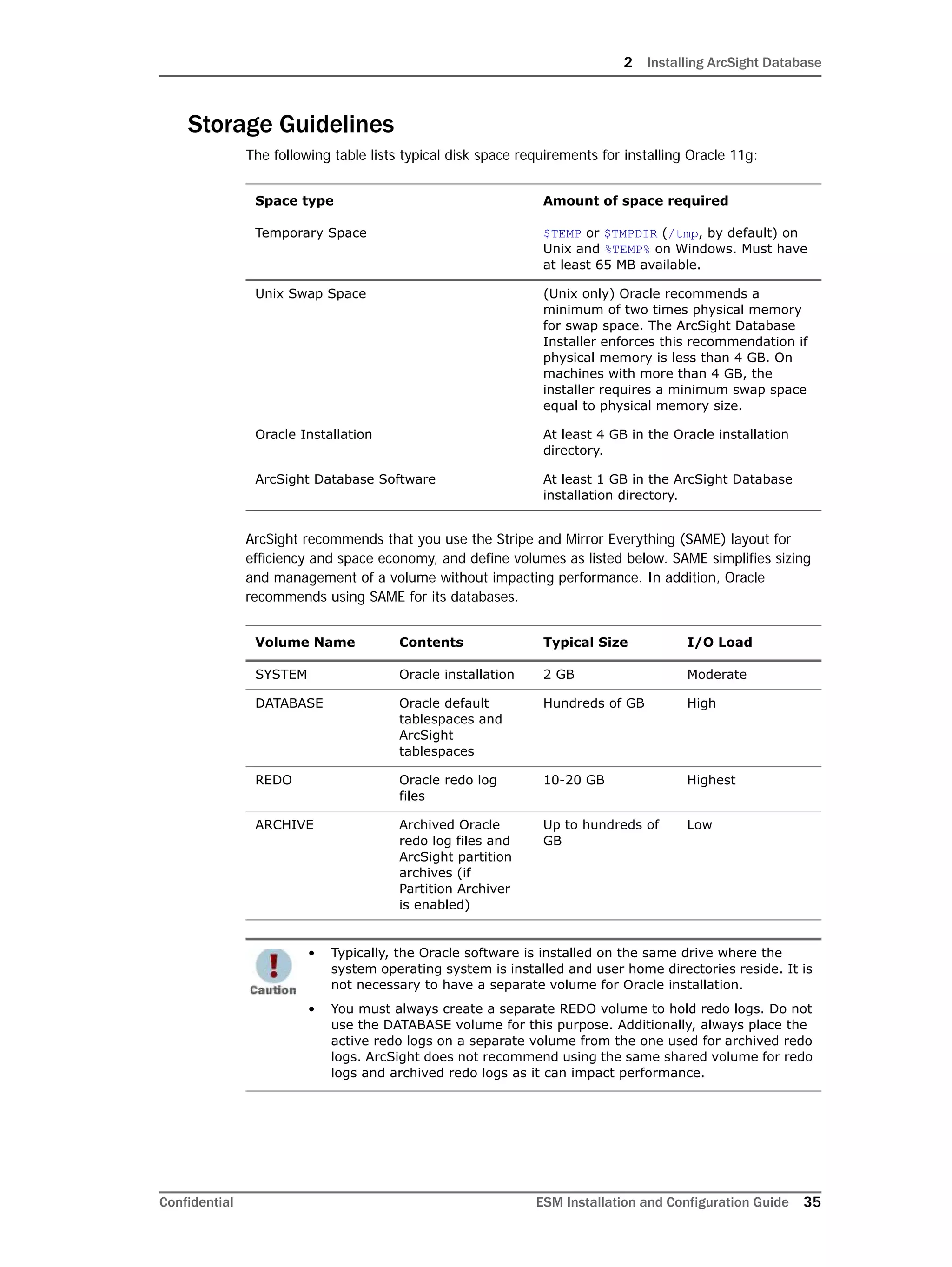
The hostname must match the Common
Name of the Manager certificate.
Manager Port Port number (or accept the default 8443).
Physical Location Text describing the location of the
ArcSight Manager host machine.
3 Installing ArcSight Manager
Confidential ESM Installation and Configuration Guide 93
Enter the full path to the arcsight.lic file. It will be copied to the appropriate folder by
the Configuration Wizard.
Click Next.
Java Heap Memory Size
The ArcSight Manager Configuration Wizard prompts you to specify the memory heap size
the ArcSight Manager will use.
The Java Heap memory size is the amount of memory that ArcSight will allocate for its
heap. (Besides the heap memory, the ArcSight Manager uses some additional system
memory as well.) The recommended size for production deployments is at least 1024 MB.
(Smaller amounts will affect performance.) It is important that the amount of physical
memory available on the system be significantly larger than the amount of heap allocated
for the ArcSight Manager, so that there is additional space available for the operating
On a Windows 32-bit system, the 1536 option is not supported.
3 Installing ArcSight Manager
94 ESM Installation and Configuration Guide Confidential
system and for cache use. For example, systems with 1 GB of physical memory should set
the maximum heap size no larger than 512 MB. If you specify a heap size of 1 GB, the
system should have at least 1.5 GB of physical memory.
Set the memory parameter for the ArcSight Manager host machine from the Java Heap
Memory Size drop-down menu and click Next.
If your machine does not have sufficient memory for the Manager, you will see a message
similar to the following:
SSL Certification Selection
The Manager controls SSL certificate type for communications with the Console, so the
installer prompts you to select the type of SSL certificate that the Manager is to use.
Deciding which SSL certificate to select
ArcSight Manager should be installed with a self-signed or a Certificate Authority (CA)
signed SSL certificate. Both are equally secure, however, CA-signed scale better. See
ArcSight ESM Administrator’s Guide for detailed information about certificates.
If you plan on using a CA-signed SSL certificate but do not have one, you can use the demo
certificate that ArcSight provides to complete the installation. However, ArcSight strongly
recommends that you update it with a signed certificate as soon as possible for the
following reasons:
Supporting 50,000 actors will require an additional 2 GB of Java heap
memory in the Manager. An additional 300 MB is needed for each category
model you construct that uses 50,000 actors. This additional memory will not
be in use all the time, but will be needed for certain operations.
3 Installing ArcSight Manager
Confidential ESM Installation and Configuration Guide 95
 Demo certificate is not secure. Systems running with this certificate can be easily
compromised if attacked.
 When you replace the demo certificate with a signed certificate on the Manager, you
have to update the certificate on all Consoles, SmartConnectors, and ArcSight Web
servers that communicate with this Manager. This process can be time consuming if
you have a large number of SmartConnectors.
For detailed understanding of how SSL is used for communication between ArcSight
components, see ArcSight ESM Administrator’s Guide.
Selecting the SSL certificate
The ArcSight Manager Configuration Wizard prompts you to specify the type of Secured
Sockets Layer protocol (SSL) server certificate to use.
To use a CA-signed certificate, select No key pair. You will see the following warning:
After completing the Configuration Wizard, follow the procedure described in ArcSight ESM
Administrator’s Guide to install the CA-signed certificate.
To use a self-signed certificate, select Self-signed key pair. You will see the following
warning:
Enter the details of the certificate to be issued:
3 Installing ArcSight Manager
96 ESM Installation and Configuration Guide Confidential
Follow the procedure described in ArcSight ESM Administrator’s Guide to create a self-
signed certificate on the Manager.
To use a demo certificate, select Demo key pair. You will see the following warning:
Enter a password for the SSL keystore in the following screen and click Next:
3 Installing ArcSight Manager
Confidential ESM Installation and Configuration Guide 97
After completing the Manager configuration, follow the procedure in ArcSight ESM
Administrator’s Guide to ensure that SmartConnectors, Consoles, and ArcSight Web Servers
are configured appropriately for the type of SSL certificate you chose in this step for the
Manager.
Database Connection
The ArcSight Manager Configuration Wizard prompts you for the Oracle information that
will be used to connect with an ArcSight Database.
The following table describes parameters you need to enter to access the ArcSight
Database:
After specifying the database connection information, click Next
Parameter Description
Oracle Host Name Hostname or IP address where the
database is installed
Oracle Port Database communication port
Oracle SID System identifier for the database
Database User Name Database user name (same as that
specified during ArcSight Database
initialization).
Database Password Database password (same as that
specified during ArcSight Database
initialization).
3 Installing ArcSight Manager
98 ESM Installation and Configuration Guide Confidential
Authentication
The Configuration Wizard prompts you to select the type of authentication to use when
logging into ArcSight Manager or the ArcSight Console.
By default, ArcSight ESM uses its own, built-in authentication, but you can specify third
party, external authentication mechanisms, such as RADIUS Authentication, Microsoft
Active Directory, LDAP, or a custom JAAS plug-in configuration.
How external authentication works
ArcSight Manager uses the external authentication mechanism for authentication only, and
not for authorization or access control. That is, the external authenticator only validates the
information that users enter when they connect to ArcSight Manager by doing these
checks:
 The password entered for a user name is valid.
 If groups are applicable to the mechanism in use, the user name is present in the
groups that are allowed to access ArcSight Manager.
If a user passes these checks, he/she is authenticated.
Once you select an external authentication mechanism, all user accounts, including the
admin account, are authenticated through it.
Guidelines for setting up external authentication
You must follow these guidelines when setting up an external authentication mechanism:
 All users who will be connecting to the Manager must exist on the Manager.
 All user accounts, including admin, must map to accounts on the external
authenticator. If the accounts do not map literally, you must configure internal to
external ID mappings in the Manager.
 Users do not need to be configured in groups on the Manager even if they are
configured in groups on the external authenticator.
 If user groups are configured on the Manager, they do not need to map to the group
structure configured on the external authenticator.
 All information entered to set up an external authentication mechanism is case
insensitive.
 If you need to impose restrictions on the information a user can access, you need to
set up Access Control Lists (ACLs) on the Manager.
You will be prompted to select a method for authenticating users.
• In order to use PKCS#11 authentication, you must select one of the SSL
based authentication methods.
• If you plan to use PKCS #11 token with ArcSight Web, make sure to select
Password Based or SSL Client Based Authentication.
• PKCS#11 authentication is not supported with Radius, LDAP and Active
Directory authentication methods.
See Appendix H‚ Using the PKCS#11 Token‚ on page 235 for details on setting
up ESM to use a PKCS #11 token such as the Common Access Card (CAC).
3 Installing ArcSight Manager
Confidential ESM Installation and Configuration Guide 99
Password Based Authentication
Your authentication will be based upon the User name and Password that you enter when
logging into the Console. If you select this option, you will be prompted to select either the
ESM built-in authentication or an external authentication method.
Built-In Authentication
This is the default authentication that ESM uses when you do not specify a third party
external authentication method.
If you configure the Manager using Password Based and SSL Client Based
Authentication or SSL Client Only Authentication, be aware that ArcSight
Web does not support these modes. So:
• If you plan to use ArcSight Web, you will need to configure your Manager to
use Password Based Authentication or Password Based or SSL
Client Based Authentication as your authentication method.
• If you plan to use PKCS#11 authentication with ArcSight Web, be sure to
select Password Based or SSL Client Based Authentication only.
3 Installing ArcSight Manager
100 ESM Installation and Configuration Guide Confidential
If you selected this option, go to “ArcSight Manager Administrator Account Setup” on
page 107 section.
Setting up RADIUS Authentication
To configure ArcSight Manager for RADIUS Authentication, choose RADIUS
Authentication and click Next. The next panel prompts you for this information.
Parameter Description
Authentication Protocol Which authentication protocol is
configured on your RADIUS server: PAP,
CHAP, MSCHAP, or MSCHAP2.
RADIUS Server Host Host name of the RADIUS server.
To specify multiple RADIUS servers for
failover, enter comma-separated names
of those servers in this field.
For example, server1, server2, server3. If
server1 is unavailable, server2 is
contacted, and if server2 is also
unavailable, server3 is contacted.
RADIUS Server Type Type of RADIUS server:
• RSA Authentication Manager
• Generic RADIUS Server
• Safeword PremierAccess
RADIUS Server Port Specify the port on which the RADIUS
server is running.
RADIUS Shared Secret Specify the RADIUS shared secret string
used to verify the authenticity and
integrity of the messages exchanged
between the Manager and the RADIUS
server.
3 Installing ArcSight Manager
Confidential ESM Installation and Configuration Guide 101
Setting up Active Directory User Authentication
To authenticate users using a Microsoft Active Directory authentication server, choose
Microsoft Active Directory click Next. Communication with the Active Directory server
uses LDAP and optionally SSL.
3 Installing ArcSight Manager
102 ESM Installation and Configuration Guide Confidential
The next panel prompts you for this information.
Parameter Description
Active Directory Server Host name of the Active Directory Server.
Enable SSL Whether the Active Directory Server is
using SSL. The default is True (SSL
enabled on the AD server).
No further SSL configuration is required
for the AD server.
Whether you selected SSL earlier for
communications with the Console is
irrelevant. Certificate type is set on the
AD server side, not the manager.
Active Directory Port Specify the port to use for the Active
Directory Server. If the AD server is using
SSL (Enable SSL=true), use port 636. If
SSL is not enabled on the AD server, use
port 389.
Search Base Search base of the Active Directory
domain; for example, DC=company,
DC=com.
User DN Distinguished Name (DN) of an existing,
valid user with read access to the Active
Directory. For example, CN=John Doe,
CN=Users, DC=company, DC=com.
The CN of the user is the "Full Name," not
the user name.
Note: If your domain name contains a
backslash (), use a double backslash ()
instead.
Password Domain password of the user specified
earlier.
3 Installing ArcSight Manager
Confidential ESM Installation and Configuration Guide 103
Specify any user who exists in AD to test the server connection.
Specify the user name used to log in to the Manager and the External ID name to which it
is mapped on the AD server.
Configuring AD SSL
If you are using SSL between the Manager and your authentication server, you must ensure
that the server’s certificate is trusted in the Manager’s trust store
<ARCSIGHT_HOME>jrelibsecuritycacerts, whether the authentication server
Allowed User Groups Comma-separated list of Active Directory
group names. Make sure that the
commas are not followed by a space, for
example testgroup1,testgroup2. Only
users belonging to the groups listed here
will be allowed to log in.
Parameter Description
3 Installing ArcSight Manager
104 ESM Installation and Configuration Guide Confidential
is using self-signed or CA certificates. For CA certificates, if the Certificate Authority (CA)
that signed your server’s certificate is already listed in cacerts, you do not need to do
anything. Otherwise, obtain a root certificate from the CA and import it in your Manager’s
cacerts using the keytoolgui utility. For more information on importing certificates, see
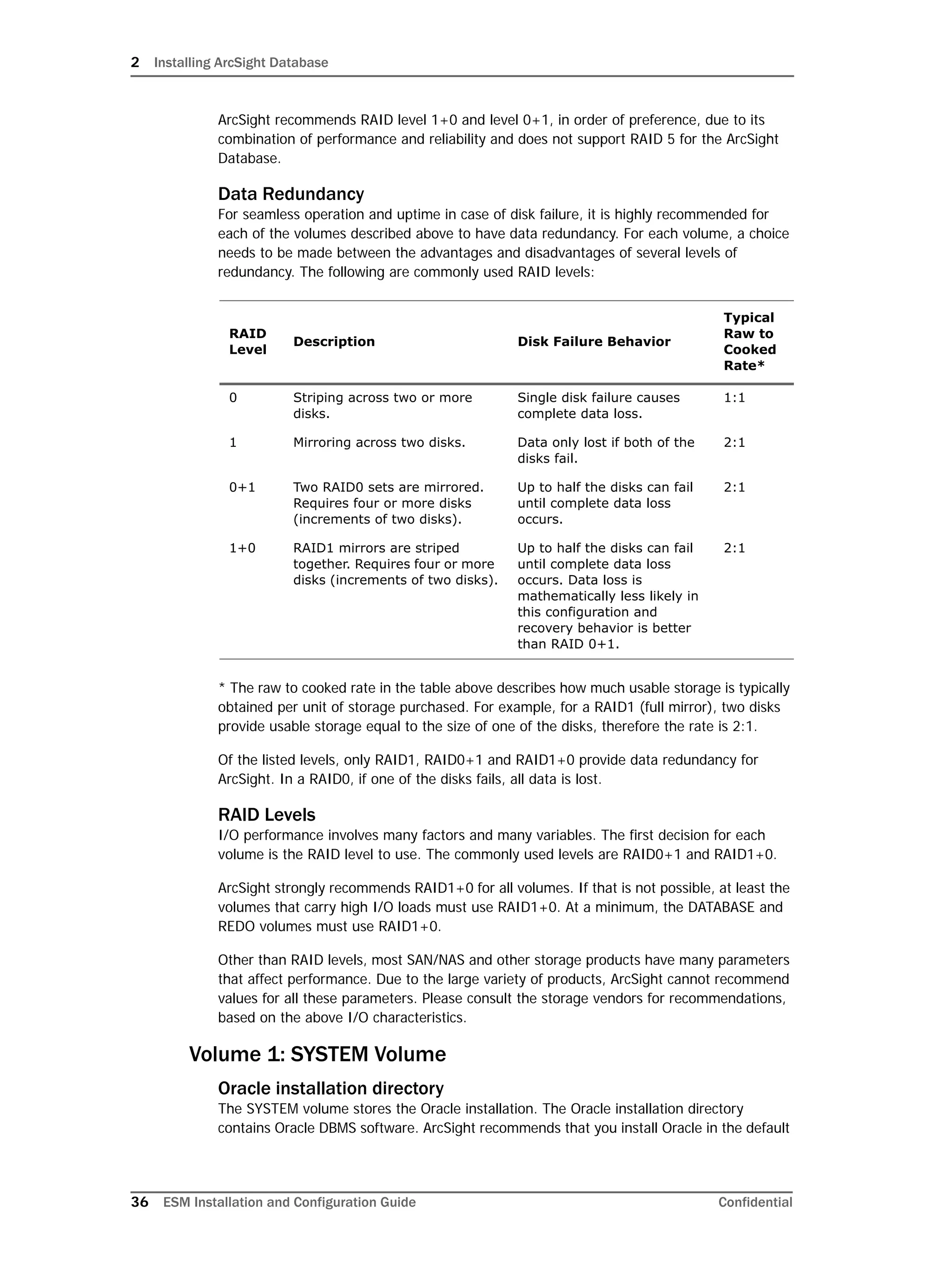
Understanding SSL Authentication in ArcSight ESM Administrator’s Guide.
Setting up LDAP Authentication
The ArcSight Manager binds with an LDAP server using a simple bind. To authenticate
users using an LDAP authentication server, choose Simple LDAP Bind and click Next.
The next panel prompts you for this information.
Parameter Description
LDAP Server Specify the host name of the LDAP Server.
Enable SSL Whether the LDAP Server is using SSL. The default
is True (SSL enabled on the LDAP server).
No further SSL configuration is required for the
LDAP server.
Whether you selected SSL earlier for
communications with the Console is irrelevant.
Certificate type is set on the LDAP server side, not
the manager.
LDAP Port Specify the port to use for the LDAP Server. If the
LDAP server is using SSL (Enable SSL=true), use
port 636. If SSL is not enabled on the LDAP server,
use port 389.
3 Installing ArcSight Manager
Confidential ESM Installation and Configuration Guide 105
Specify any user who exists in LDAP to test the server connection
The panel above requires you to enter a valid Distinguished Name (DN) of a user (and that
user’s password) that exists on the LDAP server; for example, CN=John Doe, OU=
Engineering, O=YourCompany. This information is used to establish a connection to the
LDAP server to test the validity of the information you entered in the previous panel.
Specify the user name used to log in to the Manager and the External ID name to which it
is mapped on the LDAP server.
LDAP groups are not supported. Therefore, you cannot allow or restrict
logging into the Manager based on LDAP groups.
If you configure your Manager to use LDAP authentication, ensure that you
create users on the Manager with their Distinguished Name (DN) information
in the external ID field. For example, CN=John Doe, OU= Engineering,
O=YourCompany.
3 Installing ArcSight Manager
106 ESM Installation and Configuration Guide Confidential
Configuring LDAP SSL
If you are using SSL between the Manager and your authentication server, you must ensure
that the server’s certificate is trusted in the Manager’s trust store
<ARCSIGHT_HOME>jrelibsecuritycacerts, whether the authentication server
is using self-signed or CA certificates. For CA certificates, if the Certificate Authority (CA)
that signed your server’s certificate is already listed in cacerts, you do not need to do
anything. Otherwise, obtain a root certificate from the CA and import it in your Manager’s
cacerts using the keytoolgui utility. For more information on importing certificates, see
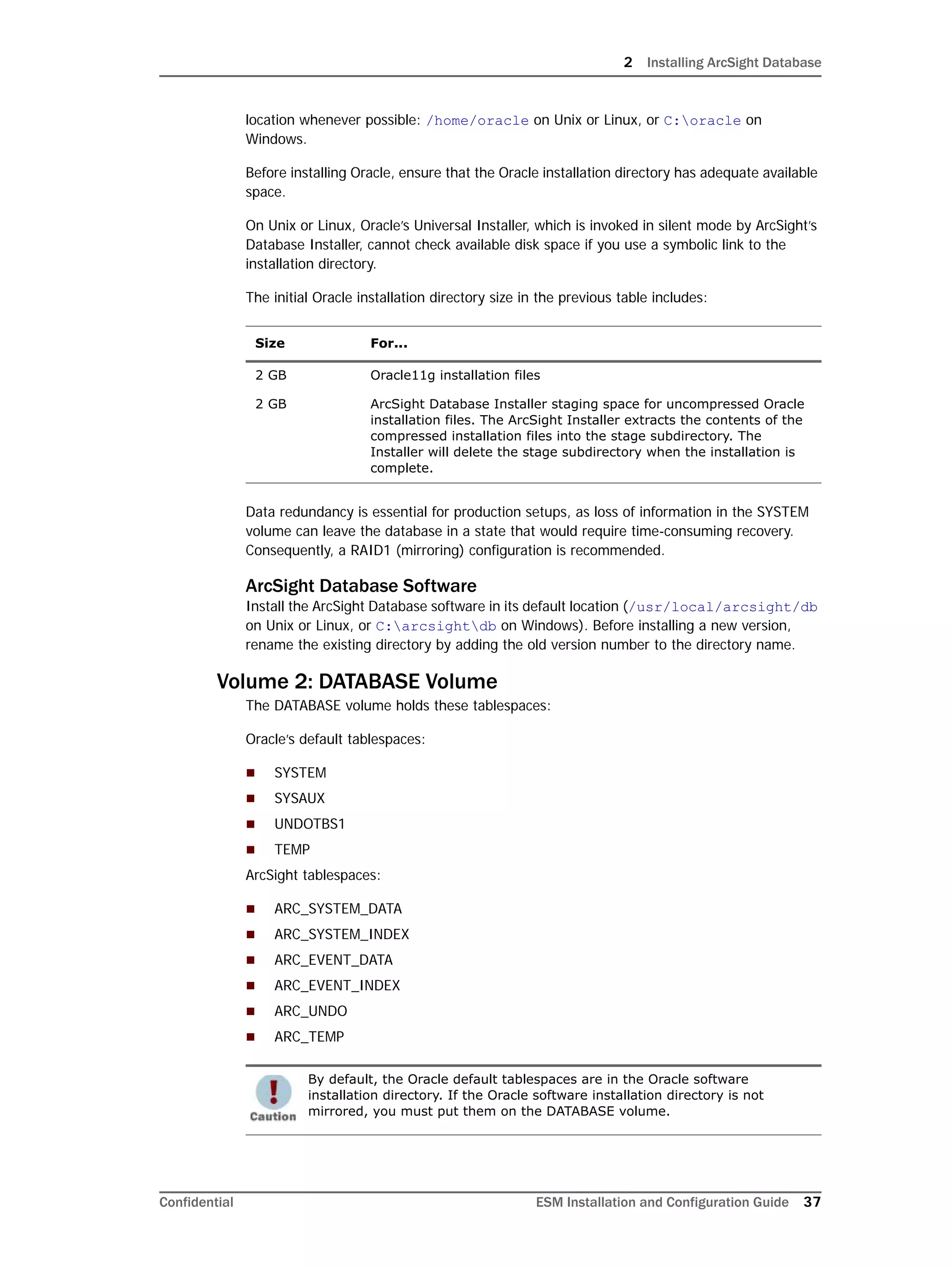
Understanding SSL Authentication in ArcSight ESM Administrator’s Guide.
Using a Custom Authentication Scheme
Choose the Custom JAAS Plug-in Configuration option if you want to use an
authentication scheme that you have built. You must specify the authentication
configuration in a jaas.config file stored in the ArcSight Manager config directory.
Password Based and SSL Client Based Authentication
Your authentication will be based both upon the username and password combination as
well as the authentication of the client certificate by the Manager.
Password Based or SSL Client Based Authentication
You can either use the username/password combination or the authentication of the client
certificate by the Manager (for example PKCS#11 token) to login if you select this option.
Using PKCS#11 provider as your SSL Client Based authentication method
within this option is not currently supported.
3 Installing ArcSight Manager
Confidential ESM Installation and Configuration Guide 107
SSL Client Only Authentication
You will have to manually set up the authentication of the client certificate by the Manager.
See the ArcSight ESM Administrator’s Guide for details on how to do this.
You can either use a PKCS#11 Token or a client keystore to authenticate.
ArcSight Manager Administrator Account Setup
The following table describes parameters required to create the administrator account:
The Administrator user name and password are the user name and password that you will
use when you first log in to the ArcSight Console. Using the Console, you can add
additional administrators by adding users to the Administrator’s group.
When you are finished entering information to create the ArcSight Manager administrator
account, click Next.
Parameter Description
Administrator User Name Administrator’s user name
External ID It refers to either the:
• The CN name used by your PKCS#11
token
• Name in the client based SSL
certificate
• Radius username
• Active Directory Login name
• LDAP Login name
Administrator Password Administrator’s password
Password Confirmation Re-enter the password to confirm
3 Installing ArcSight Manager
108 ESM Installation and Configuration Guide Confidential
Select Packages
ArcSight System Content is now delivered in the form of packages. System content
packages are automatically installed as a part of ArcSight ESM to provide out-of-box
resource suites that you can start using immediately to monitor and protect your network.
By default, the ArcSight Administration package that provides you information about your
ArcSight ESM installation is installed. You can select other packages to install from the list.
For more information about packages, see the ArcSight ESM System Content Guide.
The ArcSight Express content package has been introduced for use with the
ArcSight Express appliance. This content is available within the existing
foundation packages (as shown in the screenshot above) and need not be
installed separately.
3 Installing ArcSight Manager
Confidential ESM Installation and Configuration Guide 109
Mail Server
You will be prompted to select a SMTP server:
If you select External SMTP Server, fallback to internal SMTP server or External
SMTP server, you will be prompted to enter the external server name:
You must set up notification and specify notification recipients in order to
receive system warnings. The importance of this step is sometimes overlooked,
leading to preventable system failures.
ArcSight recommends that you configure the external SMTP server.
3 Installing ArcSight Manager
110 ESM Installation and Configuration Guide Confidential
You will be also be prompted to enter information to configure the Internal SMTP server.
3 Installing ArcSight Manager
Confidential ESM Installation and Configuration Guide 111
The following table describes parameters you can enter to set up mail server notification.
The Outgoing Mail Server must be configured to accept and relay e-mail sent from the
From Address e-mail address.
Parameter Description
SMTP Server The local outgoing Simple Mail Transfer
Protocol (SMTP) server host name that is
used by the ArcSight Manager to send
notification messages
From Address The e-mail address from where
notification messages originate and are
sent, appears in the From field of
notification messages
Error Notification Recipients A comma-delimited list of e-mail
addresses to notify in case of ArcSight
Manager errors that should be directed to
an administrator’s attention.
Incoming e-mail Server The Internet Message Access Protocol
(IMAP) or Post Office Protocol V3 (POP3)
server host name that the ArcSight
Manager will use to receive notification
confirmations
Server Protocol Either the IMAP or POP3 protocol used by
the ArcSight Manager to communicate
with the Incoming Mail Server
User Name The username that the ArcSight Manager
will use to login to the Incoming Mail
Server
Password The password that the ArcSight Manager
will use to login to the Incoming Mail
Server
3 Installing ArcSight Manager
112 ESM Installation and Configuration Guide Confidential
ArcSight Web
If you chose the Enter URL for ArcSight Web to view reports/events option, you will
be required to enter the information for the ArcSight Web server:
If you choose not to enter a URL for the ArcSight Web at this point, you can
do so any time later by issuing the following command from
<ARCSIGHT_HOME>bin directory:
arcsight managersetup
3 Installing ArcSight Manager
Confidential ESM Installation and Configuration Guide 113
Asset Auto Creation
ArcSight Manager can automatically create an asset when it receives an event with a new
sensor or device information. By default, assets are automatically created. If you want to
disable this feature, select Disable Sensor Asset Creation.
Setting up as a Service or Daemon
The Configuration Wizard next offers to set up ArcSight Manager as a service (or daemon).
Each supported platform provides wizard steps that request platform-specific information—
the example shown here illustrates a Windows environment.
Choose whether you want to install the ArcSight Manager as a service, then click Next.
If you choose the option to install ArcSight Manager as a service, the installer prompts you
to specify parameters used to set up the service. If you choose not to install ArcSight
Manager as a service, you can change the startup configuration later. For more
information, see “Running the Manager as a Service” on page 116”.
3 Installing ArcSight Manager
114 ESM Installation and Configuration Guide Confidential
The Configuration Wizard returns a message indicating the ArcSight Manager configuration
is ready to be applied. Click Next.
After ArcSight Manager settings have been applied, click Finish.
After installation is complete, you will get a panel with the message saying that the
Manager has been installed successfully. Click Done.
You can start ArcSight Manager now.
3 Installing ArcSight Manager
Confidential ESM Installation and Configuration Guide 115
Starting and Stopping the Manager
Starting the Manager
To start ArcSight Manager from the command line, if it is not configured to run either as a
daemon or a service:
1 Open a command window or terminal box.
2 Change directories to the ArcSight Manager’s <ARCSIGHT_HOME>bin directory:
3 Type in the following line and press Enter:
arcsight manager
After installing the ArcSight Manager, configure your system’s default file
permissions so that files created by ArcSight (events, log files, and so on) will
be reasonably secure.
On Unix systems, file permissions are typically set by adding the umask
command to your shell profile. A umask setting of 077, for example, would
deny read or write file access to any but the current user. A umask setting of
000 creates an unnecessary security hole.
Additionally, if you installed the Manager on a SuSE Linux 10 system, you can
remove the file called “strings” that you created in the sbin directory.
Chip multi-threading (CMT) machines running Solaris can appear to have
more processors than they do and cause the Manager to miscalculate. CMT
machine Chip multi-threading (CMT) machines running Solaris can appear to
have more processors than they do and cause the Manager to miscalculate.
CMT machines require manual configuration to achieve optimal performances
require manual configuration to achieve optimal performance.
On Sun Niagara (T1000 or T2000) or other CMT machines, edit the
server.properties file to change the queue.start-of-flow.threads
property as follows:
Number of cores
4
6
8
queue.start-of-flow.threads
2
3
4
Note that setting this property will not affect functionality, but could affect
system performance.
3 Installing ArcSight Manager
116 ESM Installation and Configuration Guide Confidential
When the Manager starts up, it will display a stream of messages in the command window
or terminal box to reflect its status. The command window or terminal box will say Ready
when the Manager has started successfully.
If you are starting the Manager as a service you can monitor whether or not it has
successfully loaded by viewing the server.std.log file located in
<ARCSIGHT_HOME>logsdefault. For example, you could use the command:
cd ARCSIGHT_HOME;tail -f logsdefaultserver.std.log
Stopping the Manually Started Manager
To initiate a controlled and graceful shutdown of the ArcSight Manager, open a separate
command prompt window and issue the following command:
arcsight managerstop
Running the Manager as a Service
Use the managersetup wizard to run the Manager as a service. When you have finished
setup, ArcSight Manager can be controlled using /etc/init.d/arcsight_manager
start|stop, following the standard method of starting daemon services in Unix. There is
also a configuration file, /etc/arcsight/arcsight_manager.conf that you may
change to reflect the location of the ArcSight Manager installation directory and other
settings. In addition, the /etc/init.d/arcsight* scripts will be hooked into the Unix
startup procedure, making the ArcSight Manager start and shut down in lock step with the
host OS.
Platform-specific notes:
• On Windows, when you start the Manager as a service, the Manager
status update timeout is smaller than the time the Manager takes to start,
resulting in the service timing out before the Manager is started. To avoid
receiving this error message, you can configure the overall Windows
system's service startup timeout by following the procedure in
http://support.microsoft.com/kb/824344.
• On AIX, when you run commands to start or stop the Manager service,
use /etc/rc.d/init.d/arcsight_manager start or
/etc/rc.d/init.d/arcsight_manager stop. In other Unix platforms,
follow the instructions in this section.
3 Installing ArcSight Manager
Confidential ESM Installation and Configuration Guide 117
Once everything is configured properly, test your configuration setup the next time you
start the ArcSight Manager using /etc/init.d/arcsight_manager start.
Be sure to start ArcSight Manager this way at least once before relying upon it to start
correctly during system boot or startup.
Script output will go to <ARCSIGHT_HOME>/logs/default/server.script.log. The
stdout output of the ArcSight Manager will go to
<ARCSIGHT_HOME>/logs/default/server.std.log. Run tail on these two files to
identify any problems causing failures on startup.
Verifying the Manager Installation
When you start the Manager, the command window shows a running display of Manager
activities. Watch for the word "Ready" when it has fully initialized and is ready to respond
to communications. The ready status is also recorded in the server.std log.
Manager logs are written to <ARCSIGHT_HOME>logsdefault.
Reconfiguring ArcSight Manager
To reconfigure ArcSight Manager settings made during installation, shutdown the Manager
and then run the ArcSight Manager Configuration Wizard by typing the following command
in a terminal box or command prompt window from the Manager’s
<ARCSIGHT_HOME>bin directory:
arcsight managersetup
The managersetup command opens the ArcSight Manager Configuration Wizard.
To change advanced configuration settings (i.e., port numbers, database settings, log
location, and so forth) after the initial installation, make changes to the
<ARCSIGHT_HOME>configserver.properties file. ArcSight’s default settings are
listed in the server.defaults.properties file. You can override these default
settings by adding the applicable lines from server.defaults.properties to the
server.properties file. These files are located in <ARCSIGHT_HOME>config.
Securing the ArcSight Manager Properties File
The ArcSight Manager’s server.properties file contains sensitive information such as
database passwords, keystore passwords, and so forth. Someone accessing the
information in this file can do a number of things including tampering with the database
and acting as a pseudo ArcSight Manager. As a result, the server.properties file must
be protected so that only the user account under which the ArcSight Manager is running is
able to read it. This can be accomplished by issuing a chmod command in Unix and Linux,
for example:
chmod 600 server.properties
Never change the server.defaults.properties file. Instead, override
individual settings by changing the server.properties file. That way, the
original defaults will always be available.
3 Installing ArcSight Manager
118 ESM Installation and Configuration Guide Confidential
This operation is handled during the ArcSight Manager installation. As a result, only the
owner of the file (which must be the user that runs the ArcSight Manager) may read or
write to the file. For all other users, access to the file is denied.
Sending Events as SNMP Traps
ArcSight provides a filter to send a sub-stream of all incoming events (including rule-
generated meta-events) to a specified target using the Simple Network Management
Protocol (SNMP). ArcSight’s correlation capabilities can be used to synthesize network
management events that can then be routed to your enterprise network management
console.
To Configure the SNMP Trap Sender
1 Copy the SNMP template lines from the default properties file at:
<ARCSIGHT_HOME>configserver.default.properties
Uncomment the SNMP lines and save them to your properties file at:
<ARCSIGHT_HOME>configserver.properties
Create the server.properties file if necessary. Always treat
server.default.properties as read-only.
2 Edit the specific parameters for your situation. The major parameters are described
below.
3 Restart the Manager for the new settings to take effect.
A description of specific SNMP configuration parameters follows:
snmp.trapsender.enabled=true
Set this property to true in order to enable the SNMP trap sender.
snmp.trapsender.uri=/All Filters/ArcSight System/SNMP
Forwarding/SNMP Trap Sender
The URI of the zone that is used to decide whether or not an event is forwarded. You can
override the zone specified here by changing the zone in the ArcSight Console. Changes to
the zone will affect the SNMP trap sender immediately. By default, the SNMP Trap Sender
zone logic is: inZone(Correlated Events)—that is, only rule-generated meta-events will be
forwarded.
snmp.destination.host=
snmp.destination.port=
The host name and port number of the SNMP listener must be specified.
snmp.read.community=public
snmp.write.community=public
By default, snmp.mib.version is set to 2.5. If you cannot find certain fields in
the default MIB, change the snmp.mib.version setting to 3.0 in the
server.properties file.
3 Installing ArcSight Manager
Confidential ESM Installation and Configuration Guide 119
The SNMP community strings must match the community of the receiving host. (The read
community is reserved for future use.) The community you must specify will depend on the
deployment environment and on the receiving device. Consult the receiving device’s
documentation to determine the correct community string.
snmp.version=1
The SNMP version. SNMP versions 1, 2, and 3 supported. For SNMP version 1, set the value
for the above property to 0; for SNMP version 2, set the value for the above property to 1;
and for SNMP version 3, set the value to 3.
snmp.fields=
event.eventId,
event.name,
event.deviceEventCategory,
event.type,
event.baseEventCount,
event.categoryTechnique,
event.agentSeverity,
event.transportProtocol,
event.attackerAddress,
event.targetAddress
The snmp.fields property lists the event attributes to be included in the trap. The syntax
follows the ArcSight SmartConnector SDK format. All ArcSight fields can be sent. Note that
the identifiers are case-sensitive, do not contain spaces, and must be capitalized except for
the first character. For example:
The following table illustrates the mapping between ArcSight field types and SNMP field
types:
ArcSight Field SDK/SNMP Trap Sender Identifier
Event Name eventName
Device Severity deviceSeverity
Service Service
ArcSight Field Type SNMP Field Type
STRING OCTET STRING
INTEGER INTEGER32
Address IP ADDRESS
LONG OCTET STRING
BYTE INTEGER
3 Installing ArcSight Manager
120 ESM Installation and Configuration Guide Confidential
Additional data values are accessible by name. For example:
snmp.fields=event.eventName,additionaldata.myvalue
This will send the Event Name field and the value of ‘myvalue’ in the additional data list
part of the SNMP trap. Only the STRING data type is supported for additional data—all
additional data values will be sent as OCTET STRING.
Uninstalling ArcSight Manager
Stop ArcSight Manager before uninstalling it.
To uninstall on Windows, run the Start->All Programs (Programs in the case of
Windows XP)->ArcSight Manager ->Uninstall ArcSight Manager 5.2 program. If a
shortcut to the Manager was not installed on the Start menu, locate the
<ARCSIGHT_HOME>UninstallerData folder and double-click:
Uninstall_ArcSight_Manager.exe
To uninstall on Unix hosts, open a command window on the
<ARCSIGHT_HOME>/UninstallerData directory and run the command:
./Uninstall_ArcSight_Manager
• The UninstallerData directory contains a file .com.zerog.registry.xml
with Read, Write, and Execute permissions for everyone. You can change
the permissions to Read and Write for everyone (that is, 666).
• The Uninstaller does not remove all the files and directories under the
ArcSight Manager home folder. Please delete these folders manually after
the uninstallation is complete.
Confidential ESM Installation and Configuration Guide 121
Chapter 4
Installing ArcSight Console
The ArcSight Console provides a host-based interface (as opposed to the browser-based
interface of ArcSight Web) to ArcSight ESM. This chapter explains how to install and
configure the ArcSight Console in default mode. To install the Console in FIPS mode, see
Appendix F‚ Installing ArcSight ESM in FIPS Mode‚ on page 177. Section “An Overview of
Differences Between Default Mode, FIPS Mode, and FIPS with Suite B Mode” on page 21
lists the basic differences between the three modes.
The following topics are covered in this chapter:
Install and test the ArcSight Database and Manager before installing the ArcSight Console.
The ArcSight Console may be installed on the same host as the Manager, or on a different
machine. Typically, ArcSight Console is deployed on several perimeter machines located
outside the firewall which protects the ArcSight Manager and Database hosts.
Console Supported Platforms
The ArcSight Console is supported on the following operating systems.
“Console Supported Platforms” on page 121
“Using a PKCS#11 Token” on page 122
“Installing the Console” on page 122
“Starting the ArcSight Console” on page 132
“Reconnecting to the ArcSight Manager” on page 134
“Reconfiguring the ArcSight Console” on page 134
“Uninstalling the ArcSight Console” on page 135
Platform
Supported Operating
System
Typical System Requirements
Linux Red Hat Enterprise Linux
(RHEL) 5.7 Desktop 32-
bit
Red Hat Enterprise Linux
(RHEL) 6.1 64-bit
x86-compatible multi-CPU system
with 2-4 GB RAM
4 Installing ArcSight Console
122 ESM Installation and Configuration Guide Confidential
Using a PKCS#11 Token
ArcSight ESM supports the use of a PKCS#11 token, such as the Common Access Card
(CAC), which is used for identity verification and access control. PKCS#11 is a public key
cryptography standard which defines an API to cryptographic tokens.
You can use the PKCS#11 token regardless of the mode that the client is running in - with
clients running in FIPS 140-2 mode or with clients running in the default mode. See
Appendix H‚ Using the PKCS#11 Token‚ on page 235 for details on using a PKCS #11 token
with the Console.
Installing the Console
Solaris Oracle Solaris 10
(10/09) SPARC, 64-bit
Sparc-compatible multi-CPU system
with 2-4 GB RAM
Windows Microsoft Windows
Server 2003 R2 (SP2) 32
-bit
Microsoft Windows
Server 2003 R2 (SP2)
64-bit
Microsoft Windows
Server 2008 SP2 64-bit
Microsoft Windows 7
64-bit
Microsoft Windows 7 SP1
64-bit
Microsoft Windows Vista
SP2 64-bit
Microsoft Windows Vista
SP2 32-bit
Microsoft Windows XP
Professional SP3 32-bit
x86-compatible single or multi-CPU
system with 1-2 GB RAM
Macintosh OS X
10.8 64-bit
Macintosh OS X 10.67
64-bit
Refer to the Product Lifecycle document available on the Protect 724 site for
the most current information on supported platforms.
On Macintosh platforms, please make sure that:
• You are using an intel processor based system
• You have the JRE installed on your system before installing the Console.
Refer to the Release Notes for the version of JRE to install
• If you are installing the Console on a new system for the first time, or if you
have upgraded your system causing the JRE update, your Console
installation might fail. To work around this issue, make sure that you
change the permissions on the cacerts file to give it write permission before
you import it.
Platform
Supported Operating
System
Typical System Requirements
4 Installing ArcSight Console
Confidential ESM Installation and Configuration Guide 123
Make sure that you have the ArcSight Manager installed before installing the ArcSight
Console.
To install ArcSight Console, run the self-extracting archive file that is appropriate for your
target platform. Go to the directory where the ArcSight Console Installer is located.
1 Click Next in the Installation Process Check screen.
2 Read the introductory text in the Introduction panel and click Next.
3 The “I accept the terms of the License Agreement” radio button will be disabled until
you read and scroll to the bottom of the agreement text. After you have read the text
click the “I accept the terms of the License Agreement” radio button and click Next.
4 Read the text in the Special Notice panel and click Next.
5 Navigate to an existing folder where you want to install the Console or accept the
default and click Next. If you specify a folder that does not exist, the folder gets
created for you.
6 Select where you would like to create a shortcut for the Console and click Next.
A Windows system was used for the sample screens. If you are installing on a
Unix based system, you will notice a few Unix-specific screens. Path
separators are / for Unix and  for Windows.
On Macintosh platform, if your JRE gets updated, you will see the following
error when you try to log into the Console:
IOException: Keystore was tampered with or password was
incorrect.
This happens because the Mac OS update changed the password for the
cacerts file in the system's JRE. To work to around this issue, before you start
the Console, change the default password for the cacerts file by setting it to
the following in the client.properties file (create the file if it does not
exist) in the Console’s /current/config folder by adding:
ssl.truststore.password=changeme
Platform Installation File
Linux ArcSight-5.2.x.nnnn.y-Console-Linux.bin
Windows ArcSight-5.2.x.nnnn.y-Console-Win.exe
Solaris ArcSight-5.2.x.nnnn.y-Console-Solaris.bin
Macintosh ArcSight-5.2.x.nnnn.y-Console-MacOSX.bin
On Windows Vista (64-bit): Make sure that you have administrative
privileges to the C:, C:Program Files, and C:Windows directories because
these are protected folders and you will not be able to create files (creating a
folder is allowed, but you need administrative privileges to create a file) under
them without having administrative privileges. When you try to export a
package to one of these protected folders, the Console checks the permissions
for the parent folder, and when it tries to write the file, an exception is thrown
if the parent folder does not have explicit write permission. As a result, the
Console will not be able to export a resource package directly under these
folders.
4 Installing ArcSight Console
124 ESM Installation and Configuration Guide Confidential
7 View the summary in the Pre-Installation Summary screen and click Install if you are
satisfied with the paths listed. If you want to make any changes, use the Previous
button to do so.
You can view the installation progress in the progress bar.
Transferring Configuration from an Existing Installation
After the Console has been installed, the wizard asks if you would like to transfer
configuration options from an existing installation of ArcSight Console. Choose No, I do
not want to transfer the settings to create a new, clean installation and click Next. If
you choose Yes, I want to transfer the settings, the wizard will determine the version
of the previous installation and may offer additional upgrade options.
4 Installing ArcSight Console
Confidential ESM Installation and Configuration Guide 125
Selecting the Mode in which to Configure ArcSight
Console
Next, you will see the following screen:
Select the Run console in default mode radio button and click Next.
Manager Connection
The ArcSight Console configuration wizard prompts you to specify the ArcSight Manager
with which to connect. Enter the host name of the Manager to which the Console will
connect.
The FIPS 140-2 mode is not supported on appliance.
Do not change the Manager’s port number.
4 Installing ArcSight Console
126 ESM Installation and Configuration Guide Confidential
Click Next.
8 Select Use direct connection option and click Next. You can set up a proxy server
and connect to the Manager using that server if you cannot connect to the Manager
directly.
4 Installing ArcSight Console
Confidential ESM Installation and Configuration Guide 127
If you select the Use proxy server option, you will be prompted to enter the proxy server
information.
Enter the Proxy Host name and click Next.
4 Installing ArcSight Console
128 ESM Installation and Configuration Guide Confidential
Authentication
The ArcSight Console configuration wizard prompts you to choose the type of client
authentication you want to use, as shown in the following screen:
If you select Password Based Authentication, you will have to login with a user name
and password.
If you select Password Based and SSL Client Based Authentication, you will be
required to enter both user name/password combination and you will be required to setup
your client certificate manually. Follow the procedure described in ArcSight ESM
Administrator’s Guide to set up the client certificate.
In order to use PKCS#11 authentication, you must select one of the SSL based
authentication methods.
Password Based and SSL Client Based Authentication option currently
supports only client keystore for SSL based authentication. Using PKCS#11
token as your SSL Client Based authentication method within the Password
Based and SSL Client Based Authentication option is not currently
supported.
4 Installing ArcSight Console
Confidential ESM Installation and Configuration Guide 129
If you selected Password Based or SSL Client Based Authentication or SSL Client
Only Authentication, you will be required to select your SSL client based authentication
method.
If you plan to use a PKCS #11 token, you should have the token’s software and hardware
already set up. If you have not set up the token yet, you can select Client Key Store and
continue with the installation. After you have finished installing the Console, you can refer
to Appendix H‚ Using the PKCS#11 Token‚ on page 235 for instructions on how to set up
the token.
If you select Client Key Store, you will see a message reminding you to set up the client
certificate after the installation completes.
After completing the Configuration Wizard, follow the procedure described in ArcSight ESM
Administrator’s Guide to set up the client certificate.
Web Browser
The ArcSight Console configuration wizard prompts you to specify the default web browser
you want to use to display reports, Knowledge Centered Support articles, and other web
page content.
4 Installing ArcSight Console
130 ESM Installation and Configuration Guide Confidential
Specify the location of the executable for the web browser that you want to use to display
the Knowledge Centered Support articles and other web pages launched from the ArcSight
Console. Click Next.
You can choose from these options:
 This is a single system user installation
Select this option when:
 There is only one system account on this machine that one or more Console users
will use to connect to the Console. For example, a system account, admin, is used
by Console users Joe, Jack, Jill, and Jane.
OR
4 Installing ArcSight Console
Confidential ESM Installation and Configuration Guide 131
 All Console users who will use this machine to connect to the Console have their
own user accounts on this machine AND these users have write permission to the
ArcSight Console’s current directory.
Advantage: Logs for all Console users are written to one, central location in ArcSight
Console’s currentlogs directory. The user preferences files (denoted by
username.ast) for all Console users are located centrally in ArcSight Console’s
current.
Disadvantage: You cannot use this option if your security policy does not allow all
Console users to share a single system user account or all users to write to the
ArcSight Console’s current directory.
 Multiple system users will use this installation
Select this option when:
 All Console users who will be using this machine to connect to the Console have
their own user accounts on this machine
AND
 These users do not have write permission to the ArcSight Console’s
currentlogs directory.
By selecting this option, each user’s log and preferences files are written to the user’s
local directory (for example, Document and
Settingsusername.arcsightconsole on Windows) on this machine.
Advantage: You do not have to enable write permission for all Console users to the
Console’s current directory.
Disadvantages: Logs are distributed. Therefore, to view logs for a specific time
period, you will have to access them from the local directory of the user who was
connected at that time.
If you do not enable write permission for all the Console users to the Console’s
current directory, they can only run the following commands (found in the
Console’s binscripts) from the Console command-line interface:
 sendlogs
 console
 exceptions
 portinfo
 websearch
All other commands require write permission to the Console’s current directory.
The location from which the Console accesses user preference files and writes
logs to depends on the option you select above. Therefore, if you switch
between these options after the initial configuration, any customized user
preferences may appear to be lost. For example, your Console is currently
configured with the “This is a single system user installation” option on a
Windows machine. Console user Joe’s customized preferences file is located
in <ARCSIGHT_HOME>Consolecurrent. Now, you run the consolesetup
command and change the setting to Multiple system users will use this
installation. Next time Joe connects to the Console, the Console will access
Joe’s preference file from Document and Settingsjoe.arcsightconsole,
which will contain the default preferences.
4 Installing ArcSight Console
132 ESM Installation and Configuration Guide Confidential
You have completed configuring your ArcSight Console. Click Finish in the following
screen.
Click Done in the next screen.
You have installed the ArcSight Console successfully. Please be sure to install any available
patches for the Console. Refer to the ArcSight ESM Patch Release Notes for instructions on
how to install a patch for the Console.
Starting the ArcSight Console
After installation and setup is complete, you can start ArcSight Console.
To start the ArcSight Console, use the shortcuts installed or open a command window on
the Console’s bin directory and run:
arcsight console
On Mac OS X 10.5 update 8 and later:
The Mac OS update changed the password for the cacerts file in the system's
JRE. Before you start the Console, you need to change the default password
for the cacerts file by setting it to the following in the client.properties
file (create the file if it does not exist) in the Console’s currentconfig
folder by adding:
ssl.truststore.password=changeme
The Manager should be up and running before you start the Console.
4 Installing ArcSight Console
Confidential ESM Installation and Configuration Guide 133
Depending on the client authentication method you selected when installing the Console,
you will see the following buttons on the login screen shown above:
If you selected... You will see the following buttons...
Password Based Authentication Login
Cancel
Password Based and SSL Client Based
Authentication
Login
Cancel
Password Based or SSL Client Based
Authentication
If you selected Client Keystore as your
authentication method, you will see
• Login (username and password)
• SSL Client Login
• Cancel
If you selected PKCS#11 Token, you will see
• PKCS #11 Login
• Login
• Cancel
SSL Client Only Authentication If you selected Client Keystore as your
authentication method, you will see
• Login (username and password)
• Cancel
If you selected PKCS #11 Token, you will see
• PKCS #11 Login (SSL client authentication)
• Cancel
4 Installing ArcSight Console
134 ESM Installation and Configuration Guide Confidential
Logging into the Console
To start the Console, click Login. When you start the Console for the first time, after you
click Login, you will get a dialog asking you whether you want to trust the Manager’s
certificate. The prompt will show details specific to your settings (following is just an
example). Click OK to trust the Manager’s certificate. The certificate will be permanently
stored in the Console’s truststore and you will not see the prompt again the next time you
log in.
Reconnecting to the ArcSight Manager
If the ArcSight Console loses the connection to the ArcSight Manager (for example,
because the Manager was restarted), a dialog box appears in the ArcSight Console stating
that your connection to the ArcSight Manager has been lost. Click Retry to re-establish a
connection to the ArcSight Manager or click Start Over.
Connections to the ArcSight Manager cannot be re-established while the ArcSight Manager
is restarting or if the Manager refuses the connection. In addition, you may see connection
exceptions during the Retry process while the connection is lost or ArcSight Manager is
restarting.
Reconfiguring the ArcSight Console
You can reconfigure ArcSight Console at any time by running the following command within
a command window from the Console’s bin directory:
arcsight consolesetup
and follow the prompts.
4 Installing ArcSight Console
Confidential ESM Installation and Configuration Guide 135
Turn Off Database Recycle Bin
After completing a new installation, you may see an error message in the Console. To work
around it, turn the database recyclebin parameter off. Use the following commands:
prompt > arcdbutil sql
SQL>conn / as sysdba
SQL>ALTER SYSTEM set recyclebin=off scope=spfile;
SQL>shutdown immediate;
SQL>startup
SQL> show parameter recyclebin
SQL>exit
If you do not turn the recyclebin off you will get the following Console message:
The Oracle init parameter 'recyclebin' is on. ArcSight recommends
the parameter 'recyclebin' to be OFF to enable the partition
manager to correctly create reserve partitions.
Uninstalling the ArcSight Console
Before uninstalling the ArcSight Console, exit the current session.
To uninstall on Windows, run the Start->All Programs (Programs in the case of
Windows XP)->ArcSight Console ->Uninstall ArcSight Console 5.2
program. If a shortcut to the Console was not installed on the Start menu, locate the
Console’s UninstallerData folder and run:
Uninstall_ArcSight_Console.exe
To uninstall on Unix hosts, open a command window on the
<ARCSIGHT_HOME>/UninstallerData directory and run the command:
./Uninstall_ArcSight_Console
The UninstallerData directory contains a file .com.zerog.registry.xml with
Read, Write, and Execute permissions for everyone. On Windows hosts, these
permissions are required for the uninstaller to work. However, on UNIX hosts,
you can change the permissions to Read and Write for everyone (that is,
666).
4 Installing ArcSight Console
136 ESM Installation and Configuration Guide Confidential
Confidential ESM Installation and Configuration Guide 137
Chapter 5
Installing ArcSight Web
This chapter describes the installation and configuration of the ArcSight Web in default
mode. To install the Web in FIPS mode, see Appendix F‚ Installing ArcSight ESM in FIPS
Mode‚ on page 177. To install the Web in FIPS with Suite B mode, see Appendix G‚
Installing ArcSight ESM in FIPS with Suite B Mode‚ on page 219. Section “An Overview of
Differences Between Default Mode, FIPS Mode, and FIPS with Suite B Mode” on page 21
lists the basic differences between the three modes.
The following topics are covered in this chapter:
ArcSight Web Supported Platforms
The list of supported platforms for ArcSight Web v5.2 is same as the one for ArcSight
Manager v5.2.
Install ArcSight Web only after you have installed the ArcSight Manager and
have it up and running.
“ArcSight Web Supported Platforms” on page 137
“Using a PKCS#11 Token” on page 138
“Installing ArcSight Web” on page 138
“Starting ArcSight Web Manually” on page 147
“Connecting to ArcSight Web” on page 147
“Styling ArcSight Web” on page 148
“Uninstalling ArcSight Web” on page 148
On 64-bit machines a minimum of 4 GB RAM is required.
Refer to the ArcSight ESM Product Lifecycle document available on the
Protect 724 site for the most current information on supported platforms.
5 Installing ArcSight Web
138 ESM Installation and Configuration Guide Confidential
Web Browsers
ArcSight Web requires a suitable web browser and the Macromedia Flash plug-in, version
8.0 or later. No specific Java version is required for browsers to work with ArcSight Web.
The following table lists supported web browsers:
Using a PKCS#11 Token
Starting in ESM v4.0 SP2, ArcSight ESM supports the use of a PKCS#11 token, such as the
Common Access Card (CAC), which is used for identity verification and access control.
PKCS#11 is a public key cryptography standard which defines an API to cryptographic
tokens.
You can use the PKCS#11 token regardless of the mode that the client is running in - with
clients running in FIPS 140-2 mode or with clients running in the default mode. See
Appendix H‚ Using the PKCS#11 Token‚ on page 235 for details on using a PKCS #11 token
with ArcSight Web.
Installing ArcSight Web
ArcSight Web is a web server that acts as an intermediary between the ArcSight Manager
and user sessions in web browsers such as Internet Explorer. ArcSight Web can operate
outside a firewall that protects the Manager.
To install ArcSight Web,
Platform Supported Browsers
Windows Internet Explorer, Firefox
Linux Firefox
Macintosh OS X Safari, Firefox
Solaris SPARC None
Refer to the ArcSight ESM Product Lifecycle document available on the
Protect 724 site for the most current information on supported browsers.
• PKCS #11 token support may not be available for all ESM versions and
ArcSight Express models.
• For this release, the use of PKCS#11 token is supported on Windows XP
platform only.
A Windows system was used for the sample screens. If you are installing on a
Unix based system, you will notice a few Unix-specific screens. Path
separators are / for Unix and  for Windows.
5 Installing ArcSight Web
Confidential ESM Installation and Configuration Guide 139
1 Extract the installation files from the compressed ArcSight-5.2.x.nnnn.y-Web-
<platform> file.
On Windows platforms, you can use an application such as Winzip to unzip the files.
On Unix platforms, run the following command to unzip the file:
./unzip<filename>.zip
2 On Unix platforms, give the .bin file the execute permission.
3 Run the self-extracting file that is appropriate for your target platform. On Linux and
Solaris be sure that you are not logged on as root.
The following table lists all the installation files:
1 Read the installation process checklist and click Next.
2 Read the introduction and click Next.
3 The “I accept the terms of the License Agreement” radio button will be disabled until
you read and scroll to the bottom of the agreement text. After you have read the
License Agreement click the I accept the terms of the License Agreement radio
button and click Next.
4 Read the notice and click Next.
5 Enter or navigate to the directory where you want to install ArcSight Web.
You can install ArcSight Web on the same host as the ArcSight Manager or on a
separate machine that has network access to the Manager. You may run multiple
instances of ArcSight Web against the same ArcSight Manager, and each instance can
be configured with different styling, if desired.
Click Next.
6 Choose a location where you would like to create a shortcut for ArcSight Web and click
Next.
• Installing ArcSight Manager also requires you to extract its
installation files from a compressed file. Installation files for ArcSight
Web and ArcSight Manager should be not be present in the same
folder. So, make sure that you do not extract the ArcSight Web files
into the folder where you have extracted the ArcSight Manager files.
• After unzipping, you will see a .exe file (on Windows) or a .bin file
(on Unix) and a documentation module. When you run the .exe file
or the.bin file, make sure that the documentation module is in the
same directory as the .exe file or the .bin file.
Platform Installation File
Windows ArcSight-5.2.x.nnnn.y-Web-Win.exe
AIX ArcSight-5.2.x.nnnn.y-Web-AIX.bin
Linux ArcSight-5.2.x.nnnn.y-Web-Linux.bin
Solaris ArcSight-5.2.x.nnnn.y-Web-Solaris.bin
5 Installing ArcSight Web
140 ESM Installation and Configuration Guide Confidential
7 View the summary in the Pre-Installation Summary screen and click Install if you are
satisfied with the paths listed. If you want to make any changes, use the Previous
button to do so.
You can monitor the installation progress in the next screen.
The configuration wizard starts up automatically at the end of the installation.
The wizard prompts you to pick if you would like to transfer configuration options from a
previous installation of ArcSight Web.
Select No, I do not want to transfer the settings and click Next.
Setting up SSL Client Authentication
If you would like to set up SSL client authentication, you will need to replace the cacerts
file in your ArcSight Web’s <ARCSIGHT_HOME>jrelibsecurity with the cacerts
file from your Manager’s <ARCSIGHT_HOME>jrelibsecurity folder before you
configure ArcSight Web. Follow the steps in “Setting up SSL Client Authentication for
ArcSight Web” section in Chapter 4 in the ArcSight ESM Administrator’s Guide.
Selecting the Mode in which to Configure ArcSight Web
You will be prompted to select the mode in which to configure ArcSight Web:
If you are installing in console mode you will have to manually run the setup program by
typing arcsight websetup in the installed <ARCSIGHT_HOME>bin directory.
Keep in mind that once you have made your choice and clicked Next, you can
not revert to this screen.
5 Installing ArcSight Web
Confidential ESM Installation and Configuration Guide 141
Select the Run web in default mode radio button and click Next.
Web server Host Name and Port
Enter the web server’s host name and port. The default is localhost and port 9443. To
avoid restricting the server to local testing only, enter a name for the server, such as the
machine’s host name.
5 Installing ArcSight Web
142 ESM Installation and Configuration Guide Confidential
Java Heap Memory Size
Select the heap memory size and click Next.
Enable Case and Events Exports
If you want to export cases and events, select Enable case and event exports.
Click Next.
5 Installing ArcSight Web
Confidential ESM Installation and Configuration Guide 143
Display Links to Support Web site
Choose whether to display a link to Customer Support on the home page. and click Next.
ArcSight Manager Host Name and Port
Make sure that the Manager is up and running. Then, enter the ArcSight Manager’s host
name, port, admin user and admin password and click Next.
5 Installing ArcSight Web
144 ESM Installation and Configuration Guide Confidential
Trust Manager Certificate
If the Manager uses a self-signed certificate, you will see the following dialog asking you
whether you trust the Manager’s certificate. Check the checkbox and click Next
Select Type of Key Pair
You will be prompted to select the type of key pair you want to use. Make your selection
and click Next:
5 Installing ArcSight Web
Confidential ESM Installation and Configuration Guide 145
If you select No key pair, you will see the following waning:
If you select Self-signed key pair, you will be prompted to enter the details of the SSL
certificate to be issued:
You will also be asked to set up a keystore password.
If you selected the Demo key pair option, you will also see the screen above that prompts
you for a password for the SSL Key store used by ArcSight Web.
5 Installing ArcSight Web
146 ESM Installation and Configuration Guide Confidential
Authentication
Choose the type of client authentication you want to use and click Next.
Setting ArcSight Web as a Service or Daemon
Choose whether ArcSight Web should be installed as service or not and click Next.
You will see the following screen:
Click Next and you will see the following screen:
If you plan to use a PKCS #11 token with ArcSight Web, be sure to select
Password Based or SSL Client Based Authentication and make sure that
your Manager is configured to use this authentication method too.
5 Installing ArcSight Web
Confidential ESM Installation and Configuration Guide 147
Click Finish to save changes.
The next screen gives you the location where ArcSight Web has been installed. Click
Done.
Starting ArcSight Web Manually
To start ArcSight Web manually, go to the Web’s <ARCSIGHT_HOME>bin directory and
execute the command:
arcsight webserver
When you start up, the web will display a stream of messages in the command window or
terminal box to reflect its status. The command window or terminal box will say Ready
when the webserver has started successfully.
Connecting to ArcSight Web
Go to the URL https://<hostname>:9443/arcsight/app in a browser, where hostname is the
name configured in websetup. ArcSight Web presents an interface that is similar to that of
the ArcSight Console, allowing authenticated users to view dashboards, data monitors and
other resources.
5 Installing ArcSight Web
148 ESM Installation and Configuration Guide Confidential
Styling ArcSight Web
To change logo images and colors, create the file configwebstyles.properties by
copying either example.styles.properties or full.styles.properties. Inside
either file you will find information about those properties that can be changed, along with
example values. After making changes to the properties file, restart the web server to see
the effect of those changes.
Branding and style changes are visible to anyone using that instance of ArcSight Web.
Uninstalling ArcSight Web
Stop ArcSight Web server before uninstalling it.
To uninstall on Windows, run the Start->All Programs (Programs in the case of
Windows XP)->ArcSight Web ->Uninstall ArcSight Web 5.2 program. If a shortcut to
the Web was not installed on the Start menu, locate the
<ARCSIGHT_HOME>UninstallerData folder and double-click:
Uninstall_ArcSight_Web.exe
To uninstall on Unix host, open a command window on the
<ARCSIGHT_HOME>/UninstallerData directory and run the command:
./Uninstall_ArcSight_Web
• The UninstallerData directory contains a file .com.zerog.registry.xml
with Read, Write, and Execute permissions for everyone. You can change
the permissions to Read and Write for everyone (that is, 666).
• The Uninstaller does not remove all the files and directories under the
ArcSight Web home folder. Please delete these folders manually after the
uninstallation is complete.
Confidential ESM Installation and Configuration Guide 149
Chapter 6
Installing ArcSight SmartConnectors
The ArcSight system monitors security events throughout the enterprise using a phalanx of
distributed SmartConnectors. This chapter covers the following topics:
After you have installed the ArcSight Manager, you should install ArcSight SmartConnectors
for all of the devices that you want ArcSight to monitor. The term device can refer to a
firewall, or a software component such as an intrusion prevention system or a host syslog.
A device is a source of security events. Some ArcSight SmartConnectors require you to
configure the device before you can receive events.
For more information on how to install a particular ArcSight SmartConnector and configure
the device, refer to the ArcSight SmartConnector User’s Guide for basic SmartConnector
installer instructions and also refer to the vendor-specific ArcSight SmartConnector
Configuration Guide for the device you are using.
Deployment Considerations
This section explains the things you will have to keep in mind before deploying the ArcSight
SmartConnectors.
ArcSight provides dozens of SmartConnectors custom designed to monitor security events
from Intrusion Detection Systems (IDSs), firewalls, network management devices,
operating system security components and other sources of security events.
In addition to vendor-specific SmartConnectors available from ArcSight, the ArcSight
FlexConnector allows you to create SmartConnectors that are tailored to your situation and
specific security event data. FlexConnector types include file reader, regular expression file
reader, time-based database reader, syslog, and Simple Network Management Protocol
(SNMP) readers.
Installing ArcSight SmartConnectors
Before installing SmartConnectors, confirm that the ArcSight Manager and Database
components are up and running. Log in as the ‘arcsight’ user (or an existing user with
sufficient admin privileges). Install ArcSight SmartConnectors using the SmartConnector
“Deployment Considerations” on page 149
“Installing ArcSight SmartConnectors” on page 149
6 Installing ArcSight SmartConnectors
150 ESM Installation and Configuration Guide Confidential
Installation Wizard appropriate for the target platform. In the wizard, you specify the
particular SmartConnector to be installed.
For an overview of the SmartConnector installation and configuration process, see the
SmartConnector User's Guide. For complete installation instructions for a particular
SmartConnector, see the configuration guide for that connector. The product-specific
configuration guide provides specific device configuration information, installation
parameters, and device event mappings to ArcSight ESM fields. For instructions on
installing the SmartConnectors in FIPS mode see Installing FIPS Compliant
SmartConnectors technical note.
When the ESM Manager is installed in FIPS with Suite B compliant mode, the
SmartConnectors must also be installed in FIPS with Suite B compliant mode.
At a minimum, SmartConnectors should be running version 4021 to
communicate with an ESM v5.2 Manager.
Confidential ESM Installation and Configuration Guide 151
Chapter 7
Establishing Initial ArcSight Resources
This chapter describes the initialization of resources in a new ArcSight installation.
Resources include users, rules, assets (the components of your network), and other
installation-specific items. This chapter covers the following topics:
To complete your ArcSight deployment, describe your assets and network characteristics to
customize the installation for your enterprise. The following instructions will explain how to
create and configure:
 Zones, Locations, and Networks
 Assets and Asset Ranges
 Asset Categories
 Customers
For more information about initializing the ArcSight System, refer to ArcSight ESM
Administrator’s Guide.
Defining Zones and Assets
Use the following procedure to document your IP address ranges:
1 Begin by creating Zones. Zones group Connectors logically into functional areas (Sales,
Operations, etc.), geographical regions (Denver, Pittsburgh, etc.), or some other
meaningful organization. Zones can overlap; that is, a SmartConnector can be
assigned to more than one zone. Zones are particularly useful when IP addresses are
reused within a network (for example, with DHCP).
“Defining Zones and Assets” on page 151
“Defining Asset Categories” on page 154
“Creating Customers and Users” on page 155
“Tuning Data Monitors and Rules” on page 155
7 Establishing Initial ArcSight Resources
152 ESM Installation and Configuration Guide Confidential
Login to the ArcSight Console. In the Navigator window, choose Assets from the
menu and click the Zones tab. Right-click in an appropriate group and select New
Zone. Enter a name for the new Zone. Repeat until all Zones have been defined.
2 Create Locations the same way. In the Navigator pane, choose Assets from the menu.
Click the Locations tab. Right-click in an appropriate group and select New
Location.
3 Next, define your Assets. In the Navigator pane, choose Assets from the menu. Click
the Assets tab.
4 For each range of IP addresses to be protected, right-click the appropriate Asset Group
and select New Asset Range.
7 Establishing Initial ArcSight Resources
Confidential ESM Installation and Configuration Guide 153
5 In the Asset Range Editor, enter a Name, Start Address, End Address, Location,
and Zone for the new Asset Range.
6 Click the Categories tab and click the Add button to assign the new Asset Range to
an Asset Category. Select the Asset Categories/Shared/All Asset
Categories/Site Asset Categories/Address Spaces/Protected category and
click OK to dismiss the Asset Categories Selector dialog.
7 Establishing Initial ArcSight Resources
154 ESM Installation and Configuration Guide Confidential
7 Review your Asset Categories using the Categories tab of the Assets pane in the
Navigator panel, as shown below.
8 Update your SmartConnectors to use the Zones you have defined. Examine each
SmartConnector in the Navigator pane and select Configure from the context menu.
On the Networks tab, make sure that the SmartConnector is associated with the
appropriate Network resources.
Defining Asset Categories
Follow the steps below to assign Business Impact Analysis and Criticality Asset Categories
to your Assets and Asset Ranges:
1 Associate your Assets and Asset Ranges with their business function by opening the
Asset or Asset Range in the editor. On the Categories tab, click the Add button and
choose from the Business Impact Analysis categories. One Asset may have several
Business Impacts, such as "Secret" and "Operations."
7 Establishing Initial ArcSight Resources
Confidential ESM Installation and Configuration Guide 155
2 Associate your Assets with the appropriate Criticality categories (Very High, High,
Medium, Low, or Very Low).
Creating Customers and Users
If your ArcSight installation will serve more than one organization, you may want to create
Customers and update specific SmartConnectors to refer to particular Customers.
Customers are typically used by Managed Security Service Providers (MSSPs).
To associate Customers with specific SmartConnectors:
1 Define your Customers. In the Navigator pane.
2 Choose Customers and select New Customer from the context menu.
3 Enter Customer information in the Customer Editor and click OK.
Associate Customers with Connectors. In the Navigator pane, choose Connectors. Right-
click a SmartConnector and select Configure from the context menu. In the
SmartConnector Editor, click the Default tab. Specify a Customer URI in the Network
section of the Content tab.
The URI field value can be a Velocity template (for example, “/All
Customers/$agentAddress”) or a literal string.
Tuning Data Monitors and Rules
Before putting ArcSight into production, review the built-in Data Monitors and Rules. You
may want to disable any Data Monitors or Rules which are not relevant.
To view Data Monitors, choose Dashboards from the Navigator window menu and click
the Data Monitors tab. If you do not need a particular Data Monitor, right-click on it and
select Disable Data Monitor from the context menu.
7 Establishing Initial ArcSight Resources
156 ESM Installation and Configuration Guide Confidential
To view Rules, choose Rules from the Navigator window menu. Right-click a specific Rule
and select Disable Rule from the context menu.
Confidential ESM Installation and Configuration Guide 157
Appendix A
Using UNCOMPRESSED Archive Type
When Partition Archiver is set to Archive Type UNCOMPRESSED, it leaves the files in the
partition uncompressed, thus enabling you to compress, encrypt, and sign files later with
an archiving tool of your choice.
The uncompressed files for a partition are placed in a subdirectory, created automatically
for that partition, in the Archive Directory. The subdirectories are named using the format
arc_event_PartitionName, where PartitionName is of the format yyyymmdd. For
example, for a partition created for April 1, 2006, a subdirectory named
arc_event_20060401 is created in your Archive Directory.
You will find these files in a subdirectory:
 Oracle dump file (arc_event_data_PartitionName.dmp)
 Oracle export log file (arc_event_data_PartitionName.exp.log)
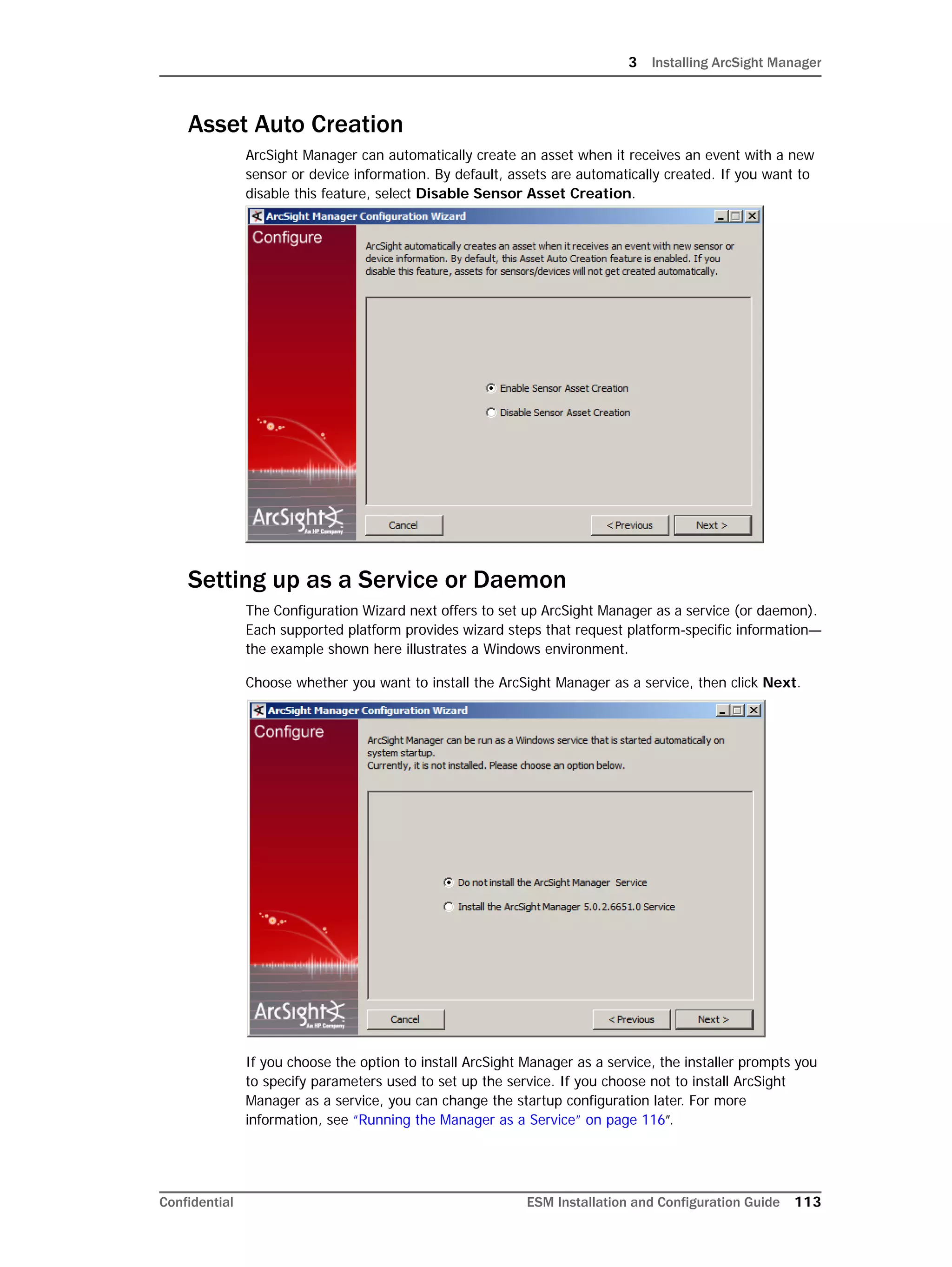
 Oracle data files (arc_event_data_PartitionName_nn.dbf)
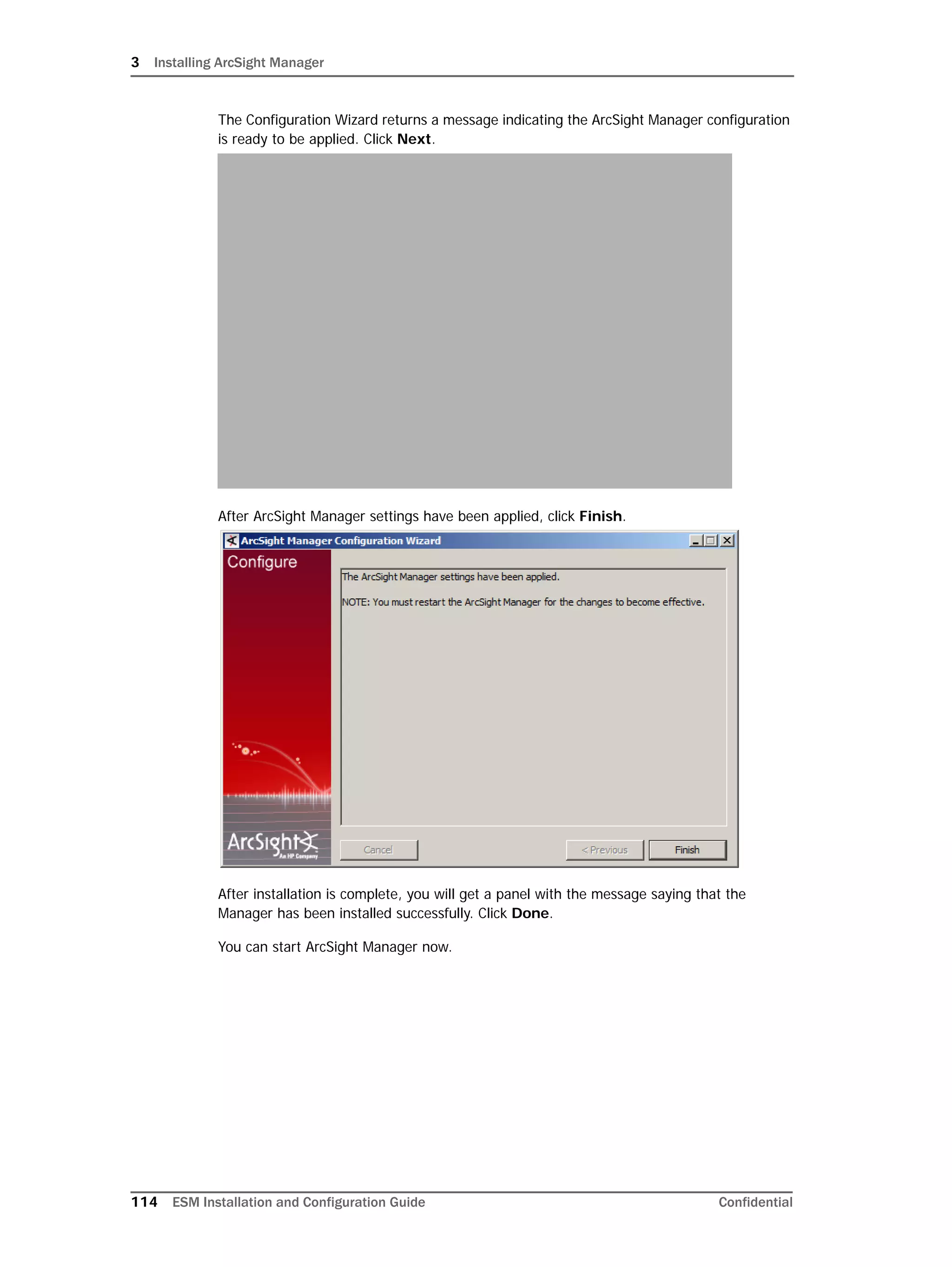
There can be multiple data files if the partition has more than 4 GB of data.
ArcSight recommends that you follow these guidelines when using your own tool for
archiving:
 Name the resulting archive file using the format
arc_event_PartitionName.ArchiveFileExtension
Where PartitionName is of the format yyyymmdd; for example, partition name for a
partition created on April 1, 2006 is 20060401.
ArchiveFileExtension depends on the tool you choose.
 Do not change the file names of any files in the subdirectories created in Archive
Directory.
Archiving Uncompressed Files
To archive uncompressed files belonging to a partition, do the following in your archiving
tool:
If you have opted for the UNCOMPRESSED archive type, you must reactivate
the archived partitions in the same order in which they were created, that is
oldest to the newest. For example, if you created partitions 20060101 thru
20060105 in that order and you want to reactivate partitions 20060101 thru
20060103, you must start by reactivating 20060101 first, then 20060102
and lastly 20060103.
A Using UNCOMPRESSED Archive Type
158 ESM Installation and Configuration Guide Confidential
1 Select the subdirectory that contains the uncompressed files for archiving
2 Set the option that enables the tool to automatically traverse all subfolders (also
known as the recursive option) under the specified subdirectory to look for files to
add; for example, check the Subfolders option in the WinZip wizard.
3 Set the option to save the path info for the archived files; for example, Check the
Save full path info option in the WinZip wizard.
The archive file is placed in the same subdirectory where the uncompressed files are
located.
Examples
Example 1: This example lists the steps taken to archive uncompressed files in the
partition 20060401. The Archive Directory is E:archive.
1 List the data files in the subdirectory for the partition 20060401:
E:archive>dir arc_event_20060401
Directory of E:archivearc_event_20060401
05/09/2006 1,728 arc_event_data_20060401.dmp
05/09/2006 560 arc_event_data_20060401.exp.log
05/09/2006 3,823,657,634 arc_event_data_20060401_01.dbf
05/09/2006 3,657,584,358 arc_event_data_20060401_02.dbf
05/09/2006 3,657,584,287 arc_event_data_20060401_03.dbf
2 Archive the subdirectory for the partition (arc_event_20060401) with the
command-line version of WinZip with AES256 encryption:
E:archive>"C:Program FilesWinZipWZZIP.EXE" -P -s -ycAES256
arc_event_20060401.zip arc_event_20060401
Adding arc_event_20060401arc_event_data_20060401.dmp
Adding arc_event_20060401arc_event_data_20060401.exp.log
Adding arc_event_20060401arc_event_data_20060401_01.dbf
Adding arc_event_20060401arc_event_data_20060401_02.dbf
Adding arc_event_20060401arc_event_data_20060401_03.dbf
creating Zip file arc_event_20060401.zip
3 Generate the SHA1 signature for the archive file arc_event_20060401.zip with
cygwin's sha1sum command:
E:archive>sha1sum arc_event_20060401.zip >
arc_event_20060401.SHA1
Example 2: In this example the partition (20060401) archived in the previous example is
reactivated. The Archive Directory is E:archive.
1 Unzip the archive file arc_event_20060401.zip with WinZip command line version
to restore the files:
A Using UNCOMPRESSED Archive Type
Confidential ESM Installation and Configuration Guide 159
E:archive>"C:Program FilesWinZipWZUNZIP.EXE" -d -s
arc_event_20060401.zip
Zip file: arc_event_20060401.zip
unzipping arc_event_20060401arc_event_data_20060401.dmp
unzipping arc_event_20060401arc_event_data_20060401.exp.log
unzipping arc_event_20060401arc_event_data_20060401_01.dbf
unzipping arc_event_20060401arc_event_data_20060401_02.dbf
unzipping arc_event_20060401arc_event_data_20060401_03.dbf
2 List the contents of the arc_event_20060401 subdirectory to make sure data files
have been extracted:
E:archive>dir arc_event_20060401
Directory of E:archivearc_event_20060401
05/09/2006 1,728 arc_event_data_20060401.dmp
05/09/2006 560 arc_event_data_20060401.exp.log
05/09/2006 3,823,657,634 arc_event_data_20060401_01.dbf
05/09/2006 3,657,584,358 arc_event_data_20060401_02.dbf
05/09/2006 3,657,584,287 arc_event_data_20060401_03.dbf
A Using UNCOMPRESSED Archive Type
160 ESM Installation and Configuration Guide Confidential
Confidential ESM Installation and Configuration Guide 161
Appendix B
Setting up RADIUS User Authentication
This appendix describes how to set up ArcSight Manager to authenticate users using
external authentication servers such as the RSA ACE/Server, for authentication using
SecurID tokens, instead of the built-in ArcSight authentication mechanism that stores
password information in the ArcSight Database. This appendix covers the following topics:
The communication with the RSA ACE/Server works via the RADIUS (Remote
Authentication Dial-In User Service) protocol.
Passcodes
When logging in to the ArcSight Console using a SecurID token, type a valid PASSCODE
into the Password field. The PASSCODE consists of the PIN and the number displayed on
the SecurID token. For example, if the PIN is set to 1234 and the number displayed on the
token is 567890, you would type 1234567890 into the Password field.
Defining Shorter ArcSight Internal Login User Names
Often, external authentication systems have user IDs that consist of multiple components
(such as the MS Windows domain name and the actual user name). For convenience, you
may want to use a shorter name when actually logging in to the ArcSight Console. The
following rules apply:
 Every user known to ArcSight Manager has to have a user ID that is unique within
ArcSight Manager. This ID will hereafter be referred to as the internal user ID.
 Optionally, another user ID can be specified for each user. This external user ID will be
sent to external authentication mechanisms such as the RSA ACE/Server.
 If no external user ID has been provided, the internal user ID will be sent to the
external authentication mechanism.
As an example, in ACE/Server, you may have a user account with the user ID eng-jsmith
for the user John Smith who works in the engineering group. The user wished to log in to
ArcSight Manager using the user ID jsmith. In this case, the external user ID would be set
“Passcodes” on page 161
“Defining Shorter ArcSight Internal Login User Names” on page 161
“Two-Factor Challenge Responses” on page 162
“Steps for Setting Up ACE/Server RADIUS Authentication” on page 163
“Installing the ACE/Server and ACE/Server RADIUS Service” on page 163
“Configuring the ACE/Server to allow RADIUS Requests” on page 163
B Setting up RADIUS User Authentication
162 ESM Installation and Configuration Guide Confidential
to eng-jsmith and the internal user ID (and thus the name of the user in ArcSight Manager)
would be set to jsmith.
Two-Factor Challenge Responses
If you configured ArcSight Manager to use a RADIUS server connected to a Two-Factor
Authentication system such as RSA SecurID for authentication, you will be asked to answer
a so-called challenge while authenticating with ArcSight in some cases. Challenges are
requests for additional user input that the Two-Factor Authentication server will send to
ArcSight during the authentication process.
This challenge mechanism works in the following components of the ArcSight system:
 The ArcSight Console login dialog
 The ArcSight Web login page
 The ArcSight SmartConnector registration wizard
 The ArcSight Manager configuration wizard
Typically, such challenges can include:
 A prompt to enter a new password or PIN code; this request can occur for a number of
reasons, for example:
 The user is logging in for the first time and has not picked a password/PIN yet.
 The password/PIN expired
 The requirements for minimum/maximum length of the password/PIN have
changed
 The authentication system administrator manually initiated a password/PIN
change
 A prompt to wait for the code on the authentication token to change and enter the
pass code; this request mostly occurs after changing the password/PIN. Make sure
that you enter the pass code, not the token code. Typically, the pass code consists of
PIN and token code or of the code that the token displays after entering the PIN
(depending on the type of token used).
 A prompt to wait for the code on the authentication token to change and enter the
next token code. This request can occur when:
 The user has entered a wrong token code for a number of times
 The token code the user entered has been used before
 The user submitted a token code after the token changed
Make sure that the password/PIN matches the requirements for length
and allowed characters as defined in the authentication systems
configuration.
Wait for the token to change and then code displayed. Do not append the
PIN or type the PIN into the token.
B Setting up RADIUS User Authentication
Confidential ESM Installation and Configuration Guide 163
Steps for Setting Up ACE/Server RADIUS
Authentication
The following is the suggested sequence to set up ArcSight Manager for authentication
with ACE/Server.
1 Install the ACE/Server and ACE/Server RADIUS service.
2 Configure the ACE/Server to allow RADIUS Requests.
3 Enable at least one user account to be used with ArcSight Manager in ACE/Server.
4 Configure the ArcSight Manager.
Installing the ACE/Server and ACE/Server RADIUS
Service
Refer to the ACE/Server product documentation for details on this step.
Configuring the ACE/Server to allow RADIUS Requests
Since ArcSight Manager uses RADIUS to authenticate users in ACE/Server, you need to
allow the RADIUS service on the ACE/Server to act as a client to ACE/Server. To do this:
1 Open the ACE/Server Database Administration Console and select the menu item
Agent Host | Add Agent Host. Specify entries for the fields as follows:
Name: The host name of the system that is running the ACE/Server.
Agent Type: Communication Server.
2 Click OK to add the RADIUS service as a client to the ACE/Server.
Next, you need to add the system that is running ArcSight Manager as a client to
ACE/Server.
3 Again, select Agent Host | Add Agent Host from the ACE/Server Database
Administration Console and fill in the following fields:
Name: Specify the host name of the system that is running the ArcSight Manager.
Agent Type: Communication Server.
4 Click Assign/Change Encryption Key.
5 Type in a secret.
Once SecurID authentication is enabled, it is no longer possible to
change a user’s password or PIN from within the ArcSight Console (the
appropriate options are no longer exposed in the user interface).
Instead, you need to go through the ACE/Server Database
Administration Console to change the PIN of a user.
Before setting up ACE/Server to be accessed by ArcSight Manager, make sure
that both the ACE/Server and the ACE/Server RADIUS option are installed and
running.
B Setting up RADIUS User Authentication
164 ESM Installation and Configuration Guide Confidential
This secret will be used to encrypt passwords between ArcSight Manager (acting as
the RADIUS client) and the RADIUS service portion of ACE/Server (acting as the
RADIUS server). You will need to specify it when setting up ArcSight Manager.
6 Click OK to save the settings.
Enabling User Accounts in ACE/Server
User accounts in ACE/Server need to be activated for the ArcSight Manager host in order to
be able to authenticate. To activate a user account:
1 In the ACE/Server Database Administration Console menus, select User | Edit User.
2 Search for the user that you wish to allow access to ArcSight Manager.
3 Click Agent Host Activations.
4 Select the host that runs ArcSight Manager from the "Available Agent Hosts" list on the
left hand side, then click Activate On Agent Hosts.
5 In the dialog, accept the default values by clicking OK. Click Exit to close the "Agent
Host Activations" window and click OK again to close the Edit User dialog.
Configuring ArcSight Manager
To configure ArcSight Manager for authentication with ACE/Server, you need to run the
ArcSight Manager setup tool. This can be done either during the initial installation of
ArcSight Manager or afterwards. Either way, to run the ArcSight Manager setup tool, follow
these steps:
1 Go to the <ARCSIGHT_HOME>/bin directory and issue the following command:
./arcsight managersetup
2 Click through the steps as described in Chapter 3‚ Installing ArcSight Manager‚ on page
87 until you see a prompt for the authentication method to use.
3 Select RADIUS Authentication and click the Next button.
4 Specify entries for following settings:
Authentication Protocol: PAP.
RADIUS Server Host: Specify the host name of the system running ACE/Server. To
specify multiple RADIUS servers, enter a comma-separated list of server names in this
field.
RADIUS Server Port: Specify the port on which the RADIUS server is running.
RADIUS Shared Secret: Specify the shared RADIUS secret.
5 Click Next.
6 On the next panel, you will be asked to provide a user name and password
combination. These credentials will only be used to verify that ArcSight Manager can
connect to the ACE/Server. Make sure that the user account used has been activated
for the ArcSight Manager SmartConnector Host in ACE/Server. For the user name,
The default port for the RADIUS service in SecurID is 1645 and the
shared secret is the secret you configured when setting up the Agent
Host for ArcSight Manager in ACE/Server.
B Setting up RADIUS User Authentication
Confidential ESM Installation and Configuration Guide 165
enter the ACE/Server user name (i.e. the external user ID) and enter the PASSCODE
(based on the PIN and the number on the SecurID token) as the Password.
7 If this is the initial setup, make sure to put the correct external user ID into the field in
the panel that asks you for the credentials of the new administrator user that will be
created.
Migrating from Internal Authentication to ACE/Server
To migrate from internal authentication to ACE/Server authentication, make the changes in
the ArcSight Manager setup tool as described in previous setup steps, then log in to the
ArcSight Console as an administrator user and change the external IDs for all users (if they
differ from internal IDs).
Authentication Troubleshooting
To troubleshoot the communication between ArcSight Manager and ACE/Server and
authentication failures, there are three logs that may provide useful information.
 The log written by the ArcSight Manager setup tool, located in
<ARCSIGHT_HOME>logsdefaultserverwizard.log on the ArcSight
Manager system.
 The log written by ACE/Server, available through the ACE/Server Log Monitor tool.
 The debug output from the ACE/Server RADIUS component. It can be enabled using
the rwconfig tool provided with ACE/Server.
If this test fails, you will not be able to log into ArcSight Manager.
If you are switching from the internal authentication mechanism to
ACE/Server after the initial installation and the external user ID of all
administrator accounts is different from the internal user ID, contact ArcSight
for assistance in setting the external ID for administrator user accounts.
B Setting up RADIUS User Authentication
166 ESM Installation and Configuration Guide Confidential
Confidential ESM Installation and Configuration Guide 167
Appendix C
Integrating with iDefense Database
This section describes how to configure your ArcSight Manager so your ArcSight Consoles
and ArcSight Web can query the iDefense database.
For information about accessing iDefense information from the Console and ArcSight Web,
see each component’s online Help.
Configuring Manager for iDefense
To configure your ArcSight Manager to integrate with the iDefense database, follow these
steps:
1 In <ARCSIGHT_HOME>bin, run this command:
arcsight idefensesetup
2 Enter this information in the wizard that launches:
iDefense Host Name—The machine name of the iDefense system.
iDefense Port Number—The port number on which the Manager should make a
connection to the iDefense system.
iDefense User Name—The user name to use to log in to the iDefense system.
iDefense Password—The password for the user name.
3 Click Next.
C Integrating with iDefense Database
168 ESM Installation and Configuration Guide Confidential
Confidential ESM Installation and Configuration Guide 169
Appendix D
ArcSight Manager Failover
The ArcSight Manager can be set up to work in a high availability (HA) configuration using
a third-party failover management (FM) solution. This appendix describes, in general
terms, how to configure FM solutions for use with ArcSight Manager and covers the
following topics:
For a detailed description of how to configure a particular product, consult the specific
vendor's product documentation.
Architecture
ArcSight Manager can be deployed as depicted in the figure to achieve high availability.
Both the Manager as well as the database can be made highly available. In both cases, it is
advisable to have two mostly identical systems. For the database, it is typically preferable
to use database-specific FM software.
ArcSight Managers don't use write caches--this means that all writes always immediately
go through to the database. They do, however, use read caches. They do not poll the
database for changes of the data as it would be too expensive. For this reason, you must
not connect two ArcSight Manager instances to the same database at the same time.
Otherwise, when one instance updates the database, the objects in the cache of the other
instance would become out of date. The object stored in the second Manager’s cache
would be stale--it would not reflect the most recent update. If then the second Manager
changes the stale object and writes it back to the database, the first instance's changes
would be lost. If configured properly, the FM software ensures that at any given point in
time, there is only a single instance of ArcSight Manager running.
Each of the two systems in a failover group runs an instance of the FM software so that
there is no single point of failure. One of the systems is always active; the other one always
stands by. The ArcSight Manager software is not running on the standby system. If the FM
software detects that the service is no longer running on the active system, it first tries to
“Architecture” on page 169
“Starting Processes” on page 171
“Monitoring Processes” on page 171
“Next Steps” on page 172
Please refer to the Deploying ArcSight ESM for High Availability technical note
available on the Protect 724 site.
D ArcSight Manager Failover
170 ESM Installation and Configuration Guide Confidential
restart it and, if that is not possible, fully shuts it down and brings it up on the standby
system. At that point in time, the systems switch roles. The system that was formerly the
active system becomes the standby system and vice versa.
In order to preserve the state of the rules engine and other state, ArcSight Manager
frequently writes this state out to the <ARCSIGHT_HOME> directory. In a failover setup,
the <ARCSIGHT_HOME> should be shared between both instances so that the standby
Manager can pick it up upon failover.
D ArcSight Manager Failover
Confidential ESM Installation and Configuration Guide 171
Figure D-1 The ArcSight High Availability (HA) hardware architecture.
To make the failover process transparent to clients, the concept of a virtual IP address is
used. (ArcSight SmartConnectors and Consoles are clients of the ArcSight Manager, the
ArcSight Manager is a client of the Database.) A virtual IP address is an IP address that is
assigned to a system by the FM software. It can be migrated between systems as needed.
For example, if the FM software transfers the ArcSight Manager service from one system to
another, it moves ArcSight Manager's virtual IP address along with it. Consoles and
SmartConnectors simply continue to be able communicate with the Manager through the
virtual IP address although it has been moved to another physical system.
In addition to the virtual IP address, each system has at least one other IP address, often
referred to as the management IP address. This IP address is used for administrators to
communicate with a particular system.
Furthermore, all systems in a group that can host a service should be connected through
multiple so-called heartbeat networks. These networks are used by the FM software to
communicate the current status of processes. It is crucial that these networks be
redundant. If the network fails, it results in a condition often called the "split brain
syndrome" - both systems are still up and running, but can no longer communicate. Both
systems assume that the other system went down and, as a result, both systems attempt
to run the service - leading to undesired and unpredictable results. Many FM software
products even provide the ability to set up heartbeat networks using different technologies
such as Ethernet and serial cables to get around systemic failures.
Also, all database files as well as the Manager directory need to reside on either shared or
real-time replicated storage so they are available to both the active and the stand-by
systems at any time. Typically, FM solutions also provide mechanisms to mount and
unmount shared storage as needed.
Starting Processes
FM solutions typically use scripts to start up and shut down software components on
systems. ArcSight provides simple example scripts in the directory,
<ARCSIGHT_HOME>utilitiesfailover.
These scripts simply call the etcinit.darcsight_manager script to start and stop
the manager. If you modify these scripts, be careful to shut down processes in the reverse
of the order in which they were started.
Monitoring Processes
FM solutions also usually monitor processes using scripts. ArcSight Manager ships with a
set of scripts and a small utility that verifies that ArcSight Manager is running and accepting
connections. The example scripts can be found under
<ARCSIGHT_HOME>utilitiesfailover. They call managersetup, the program
which verifies that ArcSight Manager is running and accepting calls. You can also call the
program directly by running runmanagersetup. This program returns exit code 0 if the
Manager is running and reachable, or exit code 1 otherwise.
This program uses system resources such as CPU cycles and memory (it is a
java application) and, if run too often, may negatively influence the overall
system performance. The recommended interval is to run this program once a
minute. This interval can be configured in the FM software.
D ArcSight Manager Failover
172 ESM Installation and Configuration Guide Confidential
Next Steps
After setting up your failover software, test various failure scenarios such as unplugging
network cables, power cables, shutting down systems, and so on. Often, the scripts used
for FM need to be modified to function reliably in all cases.
Confidential ESM Installation and Configuration Guide 173
Appendix E
FIPS Compliant State Auditing
This appendix covers the following topics:
Because ArcSight ESM v4.0.2 supports authentication with both FIPS mode and standard
ESM encryption Consoles and SmartConnectors, two new internal audit events have been
added to ESM that keep track of non-FIPS component authentications:
 Found Non FIPS Connector (deviceEventClassID: authentication:105)
 Found Non FIPS Client (deviceEventClassID: authentication:202)
You can keep track of whether non-FIPs consoles or connectors have authenticated with
your FIPS-enabled Manager using one or more of the following features available through
the ESM Console.
These methods will list only clients that are not FIPS compliant (running in default mode).
If a client is not listed, you can assume that it is FIPS compliant.
 “Compliance State Auditing with Active Channels” on page 173
 “Compliance State Auditing with Dashboards” on page 174
 “Compliance State Auditing with Reports” on page 174
 “Compliance State Auditing with Rules” on page 175
Compliance State Auditing with Active Channels
Live active channels provide a real-time view of the activity happening on your network
currently and in the recent past (such as the last two hours). You can use active channels
to view the FIPS compliance status of the hand-shakes occurring between ArcSight
components by creating a channel from a filter of ArcSight login events.
To create an active channel from the ArcSight Login Events filter:
1 In the Navigator, go to /All Filters/ArcSight Administration/User/.
2 Right click the ArcSight Login Events filter and select Create Channel with Filter.
This channel shows only events from the past 2 hours with the device event category
Authentication.
“Compliance State Auditing with Active Channels” on page 173
“Compliance State Auditing with Dashboards” on page 174
“Compliance State Auditing with Reports” on page 174
“Compliance State Auditing with Rules” on page 175
E FIPS Compliant State Auditing
174 ESM Installation and Configuration Guide Confidential
For details about how to work with active channels and edit active channel filters, see the
online Help topic Viewing and Using Channels.
Compliance State Auditing with Dashboards
Dashboards are a way to see specific views of live events in various graphic forms.
You can build a dashboard made up of data monitors that display non FIPS mode
authentications.
To create a data monitor that shows non-FIPS authentications:
1 In the Filters area, create a filter that captures one or both of the non-FIPS component
events (SmartConnector and Console) described above. You can do this by specifying
Event Name contains FIPS.
2 In the Dashboards section of the Navigator panel, click the Data Monitors tab. Create a
new data monitor in an appropriate Data Monitors group, such as Personal, Public, or
your user group.
3 In the Attributes tab from the Data Monitor Type drop-down menu, select an
appropriate data monitor type for showing non-FIPS authentications, such as Hourly
Counts or Last N Events and click Apply.
4 In the Data Monitor attributes fields, enter appropriate values and click Apply. For
example:
a In the Name field, enter a name for the data monitor, such as Hourly Counts
of Non-FIPS Component Authentications or Last <15> Non-FIPS
Component Authentications, where <15> is a value you set for how many
non-FIPS component authentications you want to see displayed.
b Check the Enable Data Monitor checkbox.
c In the Restrict by Filter field, select the filter you created above in Step 1 on
page 174.
d In the Field Names field (if present), select the following two parameters and
deselect all others:
 Event name
 Device Event Class ID
e Add a description that will help other system users understand the content of the
data monitor
f Add any other data monitor attributes you wish this data monitor to display.
5 In the Dashboards tab, create a new dashboard, name it appropriately, and add your
data monitor to it.
6 Repeat steps 2 through 5 to add more FIPS-related data monitors to your dashboard.
For details about how to build dashboards and data monitors, see the online Help topics
Managing Data Monitors and Managing Dashboards.
Compliance State Auditing with Reports
Reports provide captured views or summaries of event data that can be printed or viewed
in the ESM Console or ArcSight Web viewer in a variety of formats.
E FIPS Compliant State Auditing
Confidential ESM Installation and Configuration Guide 175
To build a report that shows non-FIPS authentication events:
1 In the Reports area of the Navigator panel, click the Queries tab. Create a new query
that defines one or both of the non-FIPS component authentication events defined in
“FIPS Compliant State Auditing” on page 173.
a In the General tab, name the query appropriately, for example, Non-FIPS
Authentications. Add a description, as appropriate, and any other identifying
factors desired.
b In the Fields tab, select the Event Name and the Device Event Class ID
fields.
c In the Conditions tab, add a Matches Filter condition and point to the filter
created in Step 1 on page 174 and click Apply.
2 In the Reports tab, create a new report and add the query you created in Step 1 on
page 175.
As an option, you can add a trend for non-FIPS logins over a period of time, for example,
the past week.
For details about how to use the reporting tools, see the online Help topics Building Queries
and Building Reports.
Compliance State Auditing with Rules
Rules evaluate incoming events for specific conditions and patterns, then trigger an action
in response when a match is found.
You can build rules that, for example, will trigger a notification to alert personnel
responsible for the FIPS compliance state of your organization, or populate an active list
with any non-FIPS compliant activity, which can be investigated and corrected by your
staff.
To build a rule that triggers actions around non-FIPS authentication events:
1 In the Attributes tab, enter an appropriate name for the rule, for example, one that
reflects the conditions it finds and the action(s) it triggers and click Apply.
2 In the Conditions tab, use the Matches Filter condition add a Matches Filter
condition and point to the filter created in Step 1 on page 174 and click Apply.
3 In the Aggregation tab, enter any aggregation parameters relevant to your FIPS
auditing situation and click Apply.
4 In the Actions tab, set the thresholds and action(s) you want the rule to trigger when
the conditions are met.
5 As an option, you can use the Variables tab to set additional flexible parameters for
the rule.
For details about how to write rules and set notifications, see the online Help topic Rule
Authoring.
E FIPS Compliant State Auditing
176 ESM Installation and Configuration Guide Confidential
Confidential ESM Installation and Configuration Guide 177
Appendix F
Installing ArcSight ESM in FIPS Mode
This section covers the following topics:
Starting in ESM v4.0 SP2, ArcSight ESM supports the Federal Information Processing
Standard 140-2(FIPS 140-2). You can choose to install the ESM components in FIPS mode
if you have the requirement to do so.
This section provides you instructions for installing ESM in FIPS mode.
To install ESM in default mode, follow the instructions in the respective chapters for
installing the components.
To install ESM in FIPS with Suite B mode, follow the instructions in Appendix G‚ Installing
ArcSight ESM in FIPS with Suite B Mode‚ on page 219.
“What is FIPS?” on page 178
“Network Security Services Database (NSS DB)” on page 178
“What is PKCS?” on page 179
“NSS Tools Used to Configure Components in FIPS Mode” on page 179
“TLS Configuration in a Nutshell” on page 180
“Using PKCS #11 Token With a FIPS Mode ESM Setup” on page 183
“Installing ArcSight Manager in FIPS mode” on page 183
“Setting up Partition Archiver in FIPS Mode” on page 190
“Installing ArcSight Console in FIPS Mode” on page 192
“Installing ArcSight Web in FIPS Mode” on page 200
“Installing SmartConnectors in FIPS mode” on page 210
“How do I Know Whether My Existing ESM Installation is FIPS Enabled?” on page 210
“Migrating an Existing Default Mode ESM Installation to FIPS Mode” on page 211
Before installing ESM in FIPS mode, keep in mind that pre-v4.0 Loggers will not
be able to communicate with a FIPS-enabled Manager.
F Installing ArcSight ESM in FIPS Mode
178 ESM Installation and Configuration Guide Confidential
Section “An Overview of Differences Between Default Mode, FIPS Mode, and FIPS with
Suite B Mode” on page 21 lists the basic differences between the three modes.
What is FIPS?
FIPS 140-2 is a standard published by the National Institute of Standards and Technology
(NIST) and is used to accredit cryptographic modules in software components. A
cryptographic module is either a piece of hardware or a software or a combination of the
two which is used to implement cryptographic logic. The US Federal government requires
that all IT products dealing with Sensitive, but Unclassified (SBU) information should meet
the FIPS 140-2 standard.
Mozilla’s Network Security Services (NSS) is an example of FIPS certified cryptographic
module. It is the core and only cryptographic module used by ESM in FIPS mode. NSS is an
open source security library and collection of security tools. It is FIPS 140-2 compliant and
validated. The NSS cryptographic module provides a PKCS #11 interface for secure
communication with ESM. You can configure NSS to use either an internal module or the
FIPS module. The FIPS module includes a single built-in certificate database token, the
Network Security Services Database (NSS DB), which handles both cryptographic
operations and the communication with the certificate and key database files.
Network Security Services Database (NSS DB)
A difference between default mode and FIPS mode is that in default mode ArcSight ESM
uses the keystore and truststore to store key pairs and certificates respectively in JKS
format, whereas in FIPS mode both key pairs and certificates are stored in NSS DB. Key
pairs are stored in the .pfx format (in compliance with PKCS #12 standard) in NSS DB. The
NSS DB is located in:
 <ARCSIGHT_HOME>configjettynssdb on the Manager
• Not all ESM versions or ArcSight Express models support the FIPS mode.
Refer to the ESM Product Lifecycle Document available on the Protect 724
site for supported platforms for FIPS mode.
• When the ESM Manager is installed in FIPS mode, the SmartConnectors
must be installed in FIPS mode.
• ArcSight Web that will be connecting to a Manager installed in FIPS mode
must also be installed in FIPS mode.
• Before installing ESM in FIPS mode, keep in mind that pre-v4.0 Loggers
will not be able to communicate with a FIPS-enabled Manager.
Tools that require a remote login to a Manager running in FIPS mode will need
to be run from the Manager’s <ARCSIGHT_HOME> as opposed to the database’s
<ARCSIGHT_HOME>. However, running these tools in a standalone mode by
stopping the Manager and running the tools directly on the database is
supported.
•
In
To be FIPS 140-2 compliant, you need to have all ESM components
configured in the FIPS 140-2 mode. Even though a Manager running in FIPS
mode can accept connections from non-FIPS mode components, if you opt for
such a mixed configuration, you will not be considered FIPS 140-2 compliant.
ArcSight recommends that you run all components in FIPS mode in order to
be fully FIPS 140-2 compliant.
F Installing ArcSight ESM in FIPS Mode
Confidential ESM Installation and Configuration Guide 179
 <ARCSIGHT_HOME>currentconfignssdb.client on the Console
 <ARCSIGHT_HOME>configjettywebnssdb on ArcSight Web
 <ARCSIGHT_HOME>useragentnssdb.client on ArcSight Database
What is PKCS?
Public Key Cryptography Standards (PKCS), published by RSA Laboratories, is a group of
standards used for reliable and secure public key cryptography. Public Key Cryptography is
used to encrypt the data at the sender's end and decrypt it at the receiver's end.
PKCS #11
PKCS #11, one of the PKCS standards, is an API defining a generic interface to
cryptographic tokens, software tokens and hardware tokens such as hardware security
modules and smartcards. A cryptographic token is a security device that is used to
authorize the use of the software or hardware, such as the smartcard or Common Access
Card (CAC). The credentials of the authorized user are stored on the hardware itself or the
software that is authorizing the user. ESM uses the PKCS #11 interface provided by the
NSS cryptographic module to communicate with it (the NSS cryptographic module). The
use of PKCS #11 is an example of client-side authentication.
PKCS #12
PKCS #12, also a PKCS standard, defines a file format, the .pfx file format, which is used to
store private keys and their accompanying public key in a single encrypted file in the NSS
DB. The .pfx files are password protected. Key pairs stored in NSS DB are required to be
stored in this format. When ArcSight Web and Manager are configured to run in FIPS
mode, their key pairs are stored in the .pfx format in their NSS DB. PKCS #12 is applicable
to server-side authentication.
NSS Tools Used to Configure Components in FIPS
Mode
NSS is a cross-platform cryptographic C library and a collection of security tools. ArcSight
ESM comes bundled with the following three basic NSS command line tools:
The default password for the NSS DB on every component is “changeit”
without the quotes. However, ArcSight recommends that you change this
password by following the procedure in section “Changing the Password for
NSS DB” in the ArcSight ESM Administrator’s Guide.
PKCS #11 token support may not be available for all ESM versions or
ArcSight Express models.
F Installing ArcSight ESM in FIPS Mode
180 ESM Installation and Configuration Guide Confidential
 runcertutil - is a certificate and key management tool used to generate key pairs
and import and export certificates.
 runmodutil - is the NSS module configuration tool. It is used to enable or disable the
FIPS module and change Keystore passwords.
 runpk12util - is an import and export tool for PKCS #12 format key pairs (.pfx
files).
For More information on NSS Tools
See “Appendix A, ArcSight Commands” in the ArcSight ESM Administrator’s Guide for
details on the above command line tools. You can also refer to the ‘NSS Security Tools’
page on the Mozilla website for more details on any of the above NSS tools (make sure to
search for them as certutil, modutil, or pk12util).
For help on any command, enter this command from a component’s bin
directory:
arcisight <command_name> -H
TLS Configuration in a Nutshell
TLS configuration involves either server side authentication only or both server side and
client side authentication. Setting up client side authentication is optional. To configure
ESM in FIPS mode, you need to set up TLS configuration on the Manager, Partition Archiver,
Console, and Web.
Since TLS is based on SSL 3.0, we recommend that you have a good understanding of how
SSL works. Please read the section “Understanding SSL Authentication” in the ArcSight ESM
Administrator’s Guide for details on how SSL works.
TLS and SSL require the server to have a public/private key pair and a cryptographic
certificate linking the server's identity to the public key. The certificate should be signed by
an entity that the client trusts. The clients, in turn, should be configured to 'trust' this
entity. If the server and clients are controlled by the same authority then certificates can be
created locally (self-signed certificates). A more secure approach would be to get the
certificate signed by an organization that clients are pre-configured to trust. This involves
dealing with one of the many commercial Certification Authorities (CAs).
You have to perform some manual steps to set up the TLS configuration on ESM. This is
typically done while installing each component. But, you can also set up the TLS
configuration on an existing component.
For detailed instructions on installing a component (fresh installation of the component) in
FIPS mode, refer to these sections:
 “Installing ArcSight Manager in FIPS mode” on page 183
• The runcertutil tool currently has a limitation due to which it cannot
import the certificate when the NSS DB is set to FIPS mode. To work
around this issue, you have to disable FIPS mode in the NSS DB first,
then import the certificate, and lastly re-enable FIPS mode.
• When generating a key pair on the Manager or ArcSight Web, it is
mandatory to use “mykey” (without quotes) as the alias name for the
key pair.
F Installing ArcSight ESM in FIPS Mode
Confidential ESM Installation and Configuration Guide 181
 “Setting up Partition Archiver in FIPS Mode” on page 190
 “Installing ArcSight Console in FIPS Mode” on page 192
 “Installing ArcSight Web in FIPS Mode” on page 200
The section, “Migrating an Existing Default Mode ESM Installation to FIPS Mode” on
page 211, explains how to convert an existing default mode ESM installation into FIPS
mode.
Understanding Server Side Authentication
The first step in an SSL handshake is when the server (Manager) authenticates itself to the
client (Console, Web). This is called server side authentication. To set up TLS configuration
on your Manager for server side authentication, you need:
 A key pair in your Manager’s NSS DB. You can:
 Generate a new key pair
or
 Use an existing key pair.
 The Manager’s certificate which incorporates the public key from the key pair located
in the Manager’s NSS DB. You can use one of the following:
 A new self-signed certificate which you generate in the Manager’s NSS DB and
sign yourself
 A new CA-signed certificate which should be imported into the Manager’s NSS DB
 An existing self-signed or CA-signed certificate which should be imported into the
Manager’s NSS DB
Next, you should export the Manager’s certificate from its NSS DB and lastly import this
certificate into the NSS DB of the clients that will be connecting to this Manager. If the
Manager has a CA-signed certificate, you have to import the CA’s certificate instead of the
Manager’s CA-signed certificate into the client’s NSS DB.
Understanding Client Side Authentication
SSL 3.0 and TLS support client side authentication which you can optionally set up as an
extra measure of security. Client side authentication consists of the client authenticating
itself to the server. In an SSL handshake, client side authentication, if set up, takes place
after the server (Manager) has authenticated itself to the client (Console or Web). At this
point, the server requests the client to authenticate itself.
Setting up client side authentication on ArcSight Web is not supported in ESM. Since
ArcSight Web is a process within ESM, it does not need to authenticate itself to the
Manager.
For the Console to authenticate itself to the Manager, you should have the following in the
Console’s NSS DB:
 A key pair. You can either:
 Generate a new key pair in the Console’s NSS DB
or
 Use an existing key pair which should be imported into the Console’s NSS DB
 The Console’s certificate which incorporates the Console’s public key. You can use one
of the following:
F Installing ArcSight ESM in FIPS Mode
182 ESM Installation and Configuration Guide Confidential
 a new CA-signed certificate which should be imported into the Console’s NSS DB
 an existing certificate which should be imported into the Console’s NSS DB
Next, you have to export the Console’s certificate from its NSS DB and then import it into
the NSS DB of the Manager to which the Console will be connecting.
If you plan to use PKCS #11 token such as the Common Access Card, you will be required
to import the token’s certificate into the Manager’s NSS DB as the token is a client to the
Manager.
For detailed procedures on each of the steps mentioned above, refer to “Setting up Client-
Side Authentication” on page 209 in the ArcSight ESM Administrator’s Guide.
Setting up Authentication on ArcSight Web - A Special
Case
ArcSight Web plays a dual role. On one hand, it acts as a client to the Manager to which it
connects. On the other, it acts as a server to web browsers that connect to it. Therefore,
the Web authenticates the Manager but has to authenticate itself to web browsers.
To authenticate the Manager, it should have either the Manager’s certificate (if the Manager
is using a self-signed certificate) or the certificate of the CA that signed the Manager’s
certificate (if the Manager is using a CA-signed certificate). So, you should import this
certificate into the Web’s NSS DB. At the same time, since the Web acts as a server to the
web browsers that connect to it, you should have a key pair and the certificate containing
the Web’s public key in the Web’s NSS DB. This allows the Web to authenticate iteself to
the web browsers.
In a nutshell, you have to:
 Import the Manager’s certificate (in the case of self-signed certificate on the Manager)
or the certificate of the CA that signed the Manager’s certificate (in the case where
Manager is using a CA-signed certificate) into the Web’s NSS DB.
 Have a key pair in the Web’s NSS DB. You can either:
 Generate a new key pair
or
 Use an existing key pair which should be exported in .pfx format and imported
into the Web’s NSS DB
 Have a Web’s certificate containing its public key in the Web’s NSS DB. You can use
one of the following:
 A new self-signed certificate which you generate in the Web’s NSS DB and sign
yourself
 A new CA-signed certificate which needs to be imported into the Web’s NSS DB
 An existing self-signed or CA-signed certificate which needs to be imported into
the Web’s NSS DB
The web browsers that try to connect to ArcSight Web import the Web’s certificate into
their truststore and use it to trust the webserver.
This chapter instructs you on how to set up server-side authentication on ESM. The
Manager and Web will be set up using self-signed certificate. For information on
setting up client-side authentication or using a CA-signed certificate see the ESM
Administrator’s Guide.
F Installing ArcSight ESM in FIPS Mode
Confidential ESM Installation and Configuration Guide 183
Using PKCS #11 Token With a FIPS Mode ESM Setup
If you plan to use a PKCS #11 Token, such as the ActivClient’s Common Access Card (CAC),
with this ESM setup that you will be installing by following the procedures in the next few
sections, you need to do the steps outlined below in this section.
For details on any of the steps below, see Appendix H‚ Using the PKCS#11 Token‚ on page
235.
1 Install the CAC provider’s software on the machine on which you will be using CAC. For
example, if you plan to use CAC with the Console, then install the CAC provider’s
software on the machine on which you will be installing the Console. The same goes
for ArcSight Web.
2 Export the CAC card’s certificate from the card.
3 Extract the root CA’s certificate from the CAC card’s certificate.
4 Copy the root CA’s certificate on to the machine(s) on which you plan to install the
Console and Web.
Installing ArcSight Database
The steps to install ArcSight Database are the same regardless of the mode in which you
want to install ESM. So, follow the instructions in the chapter, “Installing ArcSight
Database” on page 33 to install the Database.
Installing ArcSight Manager in FIPS mode
ArcSight Manager requires that the ArcSight Database be installed prior to installing the
Manager.
This section instructs you on installing the Manager in FIPS mode only. For steps to install
the Manager in default mode, refer to the chapter, “Installing ArcSight Manager” on
page 87. The Installing ArcSight Manager chapter also lists the supported platforms for
ArcSight Manager and contains information that is common to both FIPS mode and default
mode. You can also refer to the ArcSight ESM Product Lifecycle document available on the
Protect 724 website for supported platforms.
This section walks you through steps to generate and use a self-signed certificate. If using
a CA-signed certificate, see the section, “Using a Certificate Authority (CA) Signed
Certificate” in the ArcSight ESM Administrator’s Guide for details on obtaining and using a
CA-signed certificate.
To install the Manager:
1 Create an ArcSight user to own the installation.
2 Log in as the ArcSight user before running the Manager Installation Wizard.
3 Run the self-extracting archive file that is appropriate for your target platform. See the
Installing ArcSight Manager chapter for information on supported platforms’
installation files.
PKCS #11 token support may not be available for all ESM versions or
ArcSight Express models.
F Installing ArcSight ESM in FIPS Mode
184 ESM Installation and Configuration Guide Confidential
4 Follow the prompts in the wizard screens. Refer to Installing ArcSight Manager chapter
for details on each screen.
5 When you get to the first configuration screen as shown below, leave the wizard
running:
6 Open a shell window.
7 Generate a key pair on the Manager. This key pair is used to generate the self-signed
certificate. The self-signed certifcate automatically gets generated when you generate
the key pair.
The Manager’s key pair and certificate get generated and stored in its nssdb. The
Manager’s public key is embedded in its certificate, thereby linking the Manager’s
identity to its public key.
a Run the following command from the Manager’s <ARCSIGHT_HOME>/bin
directory to generate a key pair. This will automatically generate the Manager’s
certificate.
• If you already have a key pair that you would like to use, you
need not generate a key pair. Instead, you can import your
existing key pair into the Manager’s
<ARCSIGHT_HOME>/config/jetty/nssdb.
This key pair should be exported in .pfx format and then
imported into the Manager’s NSS DB. Refer to the section, “Using
Keytoolgui to Export a Key pair,” in the ArcSight ESM
Administrator’s Guide for details on exporting a key pair.
Refer to the section, “Importing an Existing Key pair into the
Manager’s NSS DB” in the ArcSight ESM Administrator’s Guide for
detailed steps on doing this.
• When you import or generate a key pair into nssdb, if there is a
existing key pair/certificate that has the same Common Name
(CN) as the one you create, the runcertutil utility will use the
alias of the existing key pair for the newly created key pair and
ignore the alias you supplied in the runcertutil command line.
F Installing ArcSight ESM in FIPS Mode
Confidential ESM Installation and Configuration Guide 185
If you want to set the expiry date of the certificate, you have to do so when
generating the key pair. Once you have generated the key pair, you cannot change
the expiry date on the certificate.
./arcsight runcertutil -S -s “CN=<hostname>” -v
<number_of_months_the_certificate_should_be_valid> -n mykey
-k rsa -x -t “C,C,C” -m 1234 -d
<ARCSIGHT_HOME>/config/jetty/nssdb
For example, if your hostname is host.arcsight.com, you would run:
./arcsight runcertutil -S -s “CN=host.arcsight.com” -v 6 -n
mykey -k rsa -x -t “C,C,C” -m 1234 -d
<ARCSIGHT_HOME>/config/jetty/nssdb
When prompted for password, enter “changeit” (without the quotes).
Enter random keyboard strokes when prompted to generate a random seed which
will be used to generate your key
This will generate a key pair and certificate with the alias mykey which is valid for
6 months from the current date and time in the Manager’s nssdb.
• Make sure to use “mykey” (without quotes) as the alias name for
the key pair as shown in the example.
• The -m serial number should be unique within nssdb
• Using -v to set the validity period of your certificate is optional. If
you do not use this option, the certificate will be valid for 3 months
by default. If you choose to use it, see “Setting the Expiration Date
of a Certificate” on page 212 section in the ArcSight ESM
Administrator’s Guide for additional information.
• For the -t option, be sure to use C,C,C protocols only as shown in
the command.
• The hostname is the short name or fully qualified domain name
depending upon how your ESM Manager name was set up when
you installed the Manager.
F Installing ArcSight ESM in FIPS Mode
186 ESM Installation and Configuration Guide Confidential
b To check whether the key pair has been successfully created in the nssdb, run
the following from the Manager’s <ARCSIGHT_HOME>/bin directory:
./arcsight runcertutil -L -d
<ARCSIGHT_HOME>/config/jetty/nssdb
8 Export the Manager’s certificate.
You are required to have this exported certificate handy when installing the clients
(Console and/or Web) that will be connecting to this Manager. You have to import this
certificate into the clients’ NSS DB
(<ARCSIGHT_HOME>/current/config/nssdb.client in case of the Console and
<ARCSIGHT_HOME>/config/jetty/webnssdb in case of ArcSight Web) when installing
them. Importing the Manager’s certificate allows the clients to trust the Manager.
To export the Manager’s certificate, run the following command from the Manager’s
<ARCSIGHT_HOME>/bin directory:
./arcsight runcertutil -L -n <certificate_alias> -r -d
<ARCSIGHT_HOME>/config/jetty/nssdb -o <absolute_path_to
_Manager’s_certificate>
For example, to export the Manager’s certificate as a file named ManagerCert.cer to
C:arcsightManager directory, run:
./arcsight runcertutil -L -n mykey -r -d
<ARCSIGHT_HOME>/config/jetty/nssdb -o
/home/arcsight/arcsight/Manager-6391/ManagerCert.cer
This will export the ManagerCert.cer file, the Manager’s certificate, in
/home/arcsight/arcsight/Manager-6391 directory.
9 (Only if you plan to use CAC with this ESM setup)
The -o specifies the absolute path to the location where you want the
exported Manager’s certificate to be placed. If you do not specify the
absolute path the file will be exported to your <ARCSIGHT_HOME>
directory by default.
F Installing ArcSight ESM in FIPS Mode
Confidential ESM Installation and Configuration Guide 187
If you plan to use CAC with the Console or Web, you need to import the CAC card’s
CA’s root certificate into the Manager’s nssdb. See the sections “Obtain the CAC’s
Issuers’ Root Certificate” on page 238 and “Extract the Root CA Certificate From the
CAC Certificate you Exported” on page 240 for details on how to obtain the CAC card’s
CA’s root certificate.
To import the CAC card’s CA’s root certificate into the Manager:
a Disable FIPS mode in the Manager’s nssdb by running this command from the
Manager’s bin directory:
./arcsigt runmodutil -fips false -dbdir
<ARCSIGHT_HOME>/config/jetty/nssdb
b Import the CAC card signer’s root certificate by running:
./arcsight runcertutil -A -n CACcert -t “CT,C,C” -d
<ARCSIGHT_HOME>/config/jetty/nssdb -i
<absolute_path_to_the_root_certificate>
c Enable FIPS mode in the Manager’s nssdb by running:
For the -t option, be sure to use CT,C,C protocols only and in the
same order that it is shown above.
F Installing ArcSight ESM in FIPS Mode
188 ESM Installation and Configuration Guide Confidential
./arcsigt runmodutil -fips true -dbdir
<ARCSIGHT_HOME>/config/jetty/nssdb
10 Go back to the installation wizard screen and choose No, do not upgrade. This is a
new Manager setup to create a new, clean installation and click Next.
11 Next, you will see the following screen:
Select the Run manager in FIPS 140-2 mode radio button and click Next.
F Installing ArcSight ESM in FIPS Mode
Confidential ESM Installation and Configuration Guide 189
12 The configuration wizard will ask you to confirm that you have set up the NSS DB.
Click Yes since you have already generated a keypair in the Manager’s NSS DB.
13 You will be reminded that once you select the FIPS 140-2 mode, you will not be able to
revert to the default mode. Click Yes.
14 Starting in ESM v5.0, you can opt to install the Manager in FIPS with Suite B mode.
The next screen asks you to select the cipher suite of your choice. Select FIPS 140-2
and click Next.
F Installing ArcSight ESM in FIPS Mode
190 ESM Installation and Configuration Guide Confidential
15 Follow the prompts in the next few screens until you get to the screen that prompts
you to select an authentication setup. Refer to the chapter, “Installing ArcSight
Manager” on page 87 for details on any screen.
If you do not plan to use CAC with this ESM setup, you can select any option in the
screen shown above.
Only if you plan to use CAC with this ESM setup:
 If you plan to use CAC with Console only:
You can set the authentication option on the Manager to Password Based or
SSL Client Based Authentication or SSL Client Only Authentication.
 If you plan to use CAC with Web only or Web and Console:
The authentication option you select on the Manager has to match the
authentication option on the Web.
So, if you plan to use PKCS#11 token with ArcSight Web, keep in mind that
ArcSight Web does not support the SSL Client Only Authentication method.
So, make sure you select Password Based or SSL Client Based
Authentication option.
16 Follow the prompts in the next few wizard screens to complete the Manager
installation. Refer to Installing ArcSight Manager chapter for details on any screen.
17 Start the ArcSight Manager by entering the following from the Manager’s /bin
directory:
./arcsight manager
When the Manager starts up, it will display a stream of messages in the terminal
window to reflect its status.
Setting up Partition Archiver in FIPS Mode
After the ArcSight Manager has been installed and running, you can optionally configure
the Partition Archiver on the ArcSight Database host.
This section outlines the steps for setting up the Partition Archiver in FIPS mode only.
Please be sure to read the chapter, “Installing ArcSight Database” on page 33 for other
F Installing ArcSight ESM in FIPS Mode
Confidential ESM Installation and Configuration Guide 191
information on Partition Archiver that is common to both the FIPS mode and the default
mode.
You must be logged in as the Oracle software owner (by default, ‘oracle’ on UNIX and
Administrator on Windows) to configure Partition Archiver. The wizard will configure
Partition Archiver as a standalone application and register it with the ArcSight Manager.
The Partition Archiver is a client to the Manager, so it must be configured to trust the
Manager that it will be connecting to. To configure Partition Archiver, you have to import
the Manager’s certificate into the ArcSight Database’s nssdb.client. To import the
Manager’s certificate:
1 Make sure you are logged in as the Oracle software owner. The default Oracle software
owner account is ‘oracle’.
2 Open a shell/command prompt window.
3 From the database <ARCSIGHT_HOME>/bin directory, run the following command to
temporarily disable FIPS on the Database’s nssdb.client:
./arcsight runmodutil -fips false -dbdir
<ARCSIGHT_HOME>/user/agent/nssdb.client
Press Enter on your keyboard when you see the Warning message.
4 Execute the following command to import the Manager’s certificate into the Partition
Archiver:
./arcsight runcertutil -A -n <provide_an_alias_for_the_cert> -t
“CT,C,C” -d <ARCSIGHT_HOME>/user/agent/nssdb.client -i
<absolute_path_to_the_manager’s_key>
5 Run the following command to enable FIPS mode:
For the -t option, be sure to use CT,C,C protocols only and in the same
order that it is shown above.
F Installing ArcSight ESM in FIPS Mode
192 ESM Installation and Configuration Guide Confidential
./arcsight runmodutil -fips true -dbdir
<ARCSIGHT_HOME>/user/agent/nssdb.client
Press Enter on your keyboard when you see the Warning message.
6 To check whether the Manager’s certificate has been imported, run the following
command from the Database’s bin directory:
./arcsight runcertutil -L -d
<ARCSIGHT_HOME>/user/agent/nssdb.client
7 From the ArcSight Database’s <ARCSIGHT_HOME>/bin, run the setup program:
./arcsight agentsetup -w
8 Select Run Connector in FIPS 140-2 mode when prompted.
9 Since you have already imported the Manager’s certificate into the database’s
nssdb.client, click OK when asked whether you have configured the NSS DB.
10 Follow the prompts in the next few wizard screens to complete the Partition Archiver
set up. Refer to “Setting Up Partition Archiver” on page 82 for details on any screen.
Installing ArcSight Console in FIPS Mode
Install and test the ArcSight Database and Manager before installing the ArcSight Console.
Typically, ArcSight Console is deployed on several perimeter machines located outside the
firewall which protects the ArcSight Manager and Database hosts.
Refer to the chapter, “Installing ArcSight Console” on page 121 or the ArcSight ESM
Product Lifecycle document available on the Protect 724 website for details on supported
platforms for the Console.
This section tells you how to install the Console in FIPS mode only. For details on installing
the Console in default mode, refer to the chapter, “Installing ArcSight Console” on
If you would like to run the arcsight database pa command or the arc-
sight database pm command in the remote mode on a Partition Archiver
running in FIPS mode, you will have to run these commands from the
Manager’s <ARCSIGHT_HOME>bin directory instead of running it from the
ArcSight Database’s /bin directory.
If you would like to set up client-side authentication on the Console, refer to
the ArcSight ESM Administrator’s Guide for details on how to do so.
F Installing ArcSight ESM in FIPS Mode
Confidential ESM Installation and Configuration Guide 193
page 121. The Installing ArcSight Console also contains information that is common to
both FIPS mode and default mode.
In order for an ArcSight Console to communicate with a FIPS enabled Manager, the
Console must trust the Manager. This trust is established by importing the Manager’s
certificate into the Console’s NSS DB
(<ARCSIGHT_HOMEcurrentconfignssdb.client).
To install the Console in FIPS mode:
1 Run the self-extracting archive file that is appropriate for your target platform.
2 Follow the prompts in the wizard screens. Refer to Installing ArcSight Console chapter
for details on each screen.
3 When you get to the first configuration screen as shown below, leave the wizard
running:
4 Open a shell or command prompt window.
5 Import the Manager’s certificate into the Console’s nssdb.client.
a Set the nssdb.client temporarily to non-FIPS 140-2 mode by running the
following command from the Console’s <ARCSIGHT_HOME>currentbin
directory:
If your Manager is installed on a different machine than the machine on which
you will be installing the Console, make sure to copy the Manager’s certificate
you exported in Step 8 on page 186 to your Console’s machine. You are
required to import this certificate into the Console’s nssdb.client when
installing the Console.
F Installing ArcSight ESM in FIPS Mode
194 ESM Installation and Configuration Guide Confidential
arcsight runmodutil -fips false -dbdir
<ARCSIGHT_HOME>currentconfignssdb.client
b Run the following command to import the Manager’s certificate:
arcsight runcertutil -A -n ManagerCert -t “CT,C,C” -d
<ARCSIGHT_HOME>currentconfignssdb.client -i
<absolute_path_to_ManagerCert.cer>
c Run the following command to set the nssdb.client back to FIPS 140-2 mode:
arcsight runmodutil -fips true -dbdir
<ARCSIGHT_HOME>currentconfignssdb.client
If the machine on which you have installed the Console is different
than the Manager machine, copy the Manager’s certificate you just
exported on the Manager machine to a pre-existing directory on the
Console machine before running the command below.
For the -t option, be sure to use CT,C,C protocols only and in the
same order that it is shown above.
If you do not see any errors, it is an indication that the command
ran successfully. You will not see a message saying so.
F Installing ArcSight ESM in FIPS Mode
Confidential ESM Installation and Configuration Guide 195
Press Enter on your keyboard when you see the Warning message.
To check whether the certificate has been successfully imported, run the following
from the Console’s <ARCSIGHT_HOME>bin directory:
arcsight runcertutil -L -d
<ARCSIGHT_HOME>currentconfignssdb.client
When you import or generate a key pair into NSS DB, if there is a
existing key pair/certificate that has the same CN as the one you
create, the runcertutil utility will use the existing alias for the
newly created key pair and ignore the alias you supplied in the
runcertutil command line.
F Installing ArcSight ESM in FIPS Mode
196 ESM Installation and Configuration Guide Confidential
6 Go back to the wizard and select No, I do not want to transfer the settings in the
following screen and click Next:
7 Next, you will see the following screen:
Select Run console in FIPS mode and click Next.
If you had exited the wizard after step 3, you can restart it by running the
following command from the Console’s bin directory:
arcsight consolesetup
On the Windows XP, SP2 platform, you may see an error asking you to
check the certificates in the NSSDB even though you have followed the
steps to import the Manager’s certificate into the NSSDB successfully. If
you encounter this error:
1 Either delete or rename the C:Windowssystem32nspr4.dll file.
2 Resume your Console installation process by selecting Run console in
FIPS mode and clicking Next.
F Installing ArcSight ESM in FIPS Mode
Confidential ESM Installation and Configuration Guide 197
8 The configuration wizard will remind you to set up the NSS DB. Since you have
imported the Manager’s certificate into the Console’s nssdb.client, click Yes in the next
dialog.
9 You will be reminded that once you select the FIPS 140-2 mode, you will not be able to
revert to the default mode. Click Yes.
10 You will be prompted to select a cipher suite. Select FIPS 140-2 and click Next.
11 Next you will be prompted for the Manager’s hostname and port. The Manager
hostname must be the same (short name or fully qualified domain name) as the
Common Name (CN) you used when you created the Manager key pair.
F Installing ArcSight ESM in FIPS Mode
198 ESM Installation and Configuration Guide Confidential
12 Follow the prompts in the next few wizard screens until you get to the screen where
you have to select the authentication option.
Select the option that you had set on the Manager when installing it.
13 If you plan to use a PKCS #11 token with the Console, select PKCS #11 Token
option in the following screen.
Enter the path or browse to the PKCS #11 library.
By default, the PKCS #11 library is located in the following directory:
On 32-bit Windows: 
C:Program FilesActivIdentityActivClientacpkcs211.dll
On 64-bit Windows:
C:Program Files (x86)ActivIdentityActivClientacpkcs211.dll 
(this is the 32-bit version of the ActivClient library)
F Installing ArcSight ESM in FIPS Mode
Confidential ESM Installation and Configuration Guide 199
If you do not plant to use a PKCS #11 token with the Console, select Client Key
Store, you will see a message reminding you to set up the client certificate after the
installation completes.
After completing the Configuration Wizard, follow the procedure, Setting up Client-Side
Authentication described in Appendix G‚ TLS Configuration to Support FIPS Mode‚ on
page 189 Appendix G, TLS Configuration to Support FIPS Mode in the ArcSight ESM
Administrator’s Guide to set up the client certificate.
14 Follow the prompts in the next few wizard screens to complete the Console
installation. Refer to Installing ArcSight Console chapter for details on any screen.
When you start the Console, you should see a message saying that the Console is being
started in FIPS mode.
Connecting a Default Mode Console to a FIPS Enabled
Manager
If you would like to have a Console installed in the default mode to connect to a Manager
running in the FIPS 140-2 mode, you will be required to:
 add server.fips.enabled=true in your console.properties file located in
the Console’s <ARCSIGHT_HOME>currentconfig directory.
 add -Dhttps.protocols=TLSv1 to the ARCSIGHT_JVM_OPTIONS variable in the
Console’s currentbinscriptsconsole.bat file.
 import the Manager’s certificate into currentjrelibsecuritycacerts on
the Console using the keytoolgui tool. See section, “Using Keytoolgui to Import a
Certificate” in the ArcSight ESM Administrator’s Guide for details on how to do this.
Once you configure your Console running in Default mode to connect to a FIPS
enabled Manager by doing the steps above, you will not be able to connect this
Console to a Manager running in Default mode without reversing the changes
you made to the files.
F Installing ArcSight ESM in FIPS Mode
200 ESM Installation and Configuration Guide Confidential
Connecting a FIPS Enabled Console to Multiple Managers
Running in FIPS 140-2 Mode
In order for the Console to connect to multiple Managers running in FIPS 140-2 mode, you
will need to do the following:
1 For each Manager running in FIPS mode that you want the Console to connect to,
import that Manager’s certificate into the Console’s nssdb.client. Refer to Step
5 on page 193 for details on the procedure to do so.
2 If you are using client keystore based SSL client authentication, you also need to
import the certificates which coincide with the user on that particular Manager into the
Console’s nssdb.client.
Installing ArcSight Web in FIPS Mode
You can install ArcSight Web on the same host as the ArcSight Manager or on a separate
machine that has network access to the Manager. We recommend installing ArcSight Web
on a different machine than the Manager.
If you choose to install the ArcSight Web on the same machine as the Manager, when
generating a key pair on the Web, set the CN for the Web certificate to be the same as the
CN that you used when generating the Manager’s certificate.
Install ArcSight Web only after you have installed the ArcSight Manager and have the
Manager up and running. You may run multiple instances of ArcSight Web against the
same ArcSight Manager, and each instance can be configured with different styling if
desired.
Refer to the ArcSight ESM Product Lifecycle document available on the Protect 724 website
for the most current information on supported platforms and web browsers.
This section instructs you to install the Web in FIPS mode. For details on installing the Web
in default mode, refer to the chapter, “Installing ArcSight Web” on page 137. The Installing
ArcSight Web chapter also contains information that is common to both FIPS mode and
default mode.
This section walks you through steps to generate a self-signed certificate on the Web. If
using a CA-signed certificate, see the section, “Using a Certificate Authority (CA) Signed
Certificate” in the ArcSight ESM Administrator’s Guide for details on obtaining and using a
CA-signed certificate.
The ArcSight Web exposes the Manager’s services to the web browser. So, it acts as a
server to the web browser but to the Manager, it is a client. As a result, the Web setup is a
Make sure that each Manager certificate has a unique Common Name (CN)
so that when it is imported it’s CN does not conflict with the CN of any
existing certificate in the Console’s nssdb.client.
Make sure that you set any browsers that will be used to connect to ArcSight
Web to use the TLS v1 communication protocol. See sections “Configuring
Firefox 3.x to Make it FIPS 140-2 Compliant” on page 208 and “Configuring
Internet Explorer to Make it FIPS 140-2 Compliant” on page 210 for details
on how to do this on Firefox and Internet Explorer respectively.
F Installing ArcSight ESM in FIPS Mode
Confidential ESM Installation and Configuration Guide 201
combination of the Manager setup and the client (Console) setup. In other words, you have
to generate a key pair on ArcSight Web (like you do on the Manager) and also import the
Manager’s certificate into the webnssdb (like you do on the Console).
To install and configure ArcSight Web in FIPS mode:
1 Run the self-extracting archive file that is appropriate for your target platform. See the
Installing ArcSight Web chapter for information on supported platforms’ installation
files.
2 Follow the prompts in the wizard screens. Refer to Installing ArcSight Web chapter for
details on any screen.
3 When you get to the first configuration screen as shown below, leave the wizard
running:
4 Open a shell/command prompt window.
5 Import the Manager’s certificate:
a Run the following command from ArcSight Web’s <ARCSIGHT_HOME>/bin
directory to temporarily disable the FIPS 140-2 mode:
./arcsight runmodutil -fips false -dbdir
<ARCSIGHT_HOME>/config/jetty/webnssdb
Press Enter on your keyboard when you see the Warning message.
F Installing ArcSight ESM in FIPS Mode
202 ESM Installation and Configuration Guide Confidential
b Run the following command to import the Manager’s certificate into ArcSight
Web’s webnssdb:
./arcsight runcertutil -A -n <provide_an_alias_for_the_cert>
-t “CT,C,C” -d <ARCSIGHT_HOME>/config/jetty/webnssdb -i
<absolute_path_to_ManagerCert.cer>
c Skip this step if you will not be using CAC with ArcSight Web and go to step d.
Only if you plan to use CAC with Web:
Import the CAC card’s CA’s root certificate into the Web’s webnssdb:
./arcsight runcertutil -A -n CACcert -t “CT,C,C” -d
<ARCSIGHT_HOME>/config/jetty/webnssdb -i
<absolute_path_to_the_root_certificate>
d Run the following command to re-enable the FIPS 140-2 mode:
./arcsight runmodutil -fips true -dbdir
<ARCSIGHT_HOME>/config/jetty/webnssdb
If the machine on which you have installed the Web is different than
the Manager machine, copy the Manager’s certificate you just
exported on the Manager machine to a pre-existing directory on the
Web machine before running the command below.
For the -t option, be sure to use CT,C,C protocols only and in the same
order that it is shown above.
For the -t option, be sure to use CT,C,C protocols only and in the
same order that it is shown above.
F Installing ArcSight ESM in FIPS Mode
Confidential ESM Installation and Configuration Guide 203
To check whether the certificate has been successfully imported into the webnssdb,
run the following from the Web’s <ARCSIGHT_HOME>/bin directory:
./arcsight runcertutil -L -d
<ARCSIGHT_HOME>/config/jetty/webnssdb
6 Generate a key pair on the Web server with an alias mykey. This will automatically
generate the key pair and the Web’s certificate in the webnssdb:.
a Run the following command from the Web’s <ARCSIGHT_HOME>/bin directory
to generate a key pair. This will automatically generate the Web’s certificate.
When you import or generate a key pair into webnssdb, if there is a
existing key pair/certificate that has the same CN as the one you create,
the runcertutil utility will use the alias of the existing key
pair/certificate for the newly created key pair and ignore the alias you
supplied in the runcertutil command line.
So, if you install ArcSight Web on the same machine as the Manager, the
Manager’s certificate will have the same CN as the key pair you
generated for ArcSight Web. Hence, the runcertutil utility will use the
same alias for both the Manager’s certificate and the Web’s key pair that
you generated.
If you have installed ArcSight Web on the same machine as the Manager,
make sure to set the CN to be the same as the CN that you used when
generating the Manager’s certificate.
• If you already have a key pair that you would like to use, you need
not generate a key pair. Instead, you can import your existing key
pair into the Web’s
<ARCSIGHT_HOME>/config/jetty/webnssdb.
This key pair should be in .pfx format and then imported into the
Web’s NSS DB. Refer to the section, “Using Keytoolgui to Export a
Key pair,” in the ArcSight ESM Administrator’s Guide for details on
exporting a key pair.
Refer to the section, “Importing an Existing Key pair into the NSS
DB” in the ArcSight ESM Administrator’s Guide for detailed steps on
doing this.
• When you import or generate a key pair into webnssdb, if there is a
existing key pair/certificate that has the same Common Name (CN)
as the one you create, the runcertutil utility will use the alias of
the existing key pair for the newly created key pair and ignore the
alias you supplied in the runcertutil command line.
F Installing ArcSight ESM in FIPS Mode
204 ESM Installation and Configuration Guide Confidential
If you want to set the expiry date for the certificate, you have to do so when
generating the key pair. Once you have generated the key pair, you cannot change
the expiry date on the certificate.
./arcsight runcertutil -S -s “CN=<hostname>” -v
<number_of_months_the_certificate_should_be_valid> -n mykey
-k rsa -x -t “C,C,C” -m 9258 -d
<ARCSIGHT_HOME>/config/jetty/webnssdb
For example, if your hostname is myhost.xyz.com, you would run:
arcsight runcertutil -S -s “CN=myhost.xyz.com” -v 6 -n mykey
-k rsa -x -t “C,C,C” -m 1234 -d
<ARCSIGHT_HOME>/config/jetty/webnssdb
This will generate a key pair and certificate with the alias mykey which is valid for
6 months from the current date and time in the Web’s webnssdb
b Enter the password for webnssdb. The default password is ‘changeit’ (without
quotes).
c Enter random keyboard strokes when prompted to generate a random seed which
will be used to generate your key.
• Make sure to use “mykey” (without quotes) as the alias name for
the key pair as shown in the example.
• The -m serial number should be unique within webnssdb. Make
sure that this serial number is different than the serial number
that you had provided for the Manager certificate when generating
it.
• Using -v to set the validity period of your certificate is optional. If
you do not use this option, the certificate will be valid for 3 months
by default. If you choose to use it, see “Setting the Expiration Date
of a Certificate” section in ArcSight ESM Administrator’s Guide for
details.
• For the -t option, be sure to use C,C,C protocols only.
• The hostname is the short name or fully qualified domain name
depending upon how your ArcSight Web hostname was set up
when you installed the ESM Manager.
F Installing ArcSight ESM in FIPS Mode
Confidential ESM Installation and Configuration Guide 205
To check whether the key pair has been successfully created in the webnssdb,
run the following from ArcSight Web’s <ARCSIGHT_HOME>/bin directory:
./arcsight runcertutil -L -d
<ARCSIGHT_HOME>/config/jetty/webnssdb
This command lists everything that is present in webnssdb. make sure that mykey
is listed.
7 Go back to the wizard screen. Select No, I do not want to transfer the settings
and click Next.
If you had exited the wizard after step 3, you can restart it by running
the following command from the Web’s bin directory:
arcsight webserversetup
F Installing ArcSight ESM in FIPS Mode
206 ESM Installation and Configuration Guide Confidential
8 Select Run web in FIPS mode in the following screen and click Next:
9 You will see the following prompt asking you whether you configured your webnssdb.
Since you have already imported the Manager’s certificate into the Web’s webnssdb
and generated a keypair on the Web, click Yes.
10 You will see the following warning:
Click Yes.
F Installing ArcSight ESM in FIPS Mode
Confidential ESM Installation and Configuration Guide 207
11 You will be prompted to select a cipher suite. Select FIPS 140-2 and click Next.
12 Follow the prompts in the next few wizard screens until you get to the screen where
you have to select the authentication option on the Web.
If you do not plan to use CAC with the Web, you can select either of the two options as
long as you had set the same option on the Manager when installing it.
If you plan to use CAC with the Web, make sure to select Password Based or SSL
Client Based Authentication.
13 Follow the prompts in the next few wizard screens to complete the ArcSight Web
installation. Refer to Installing ArcSight Web chapter for details on the screens.
14 Start ArcSight Web by entering the following from ArcSight Web’s /bin directory:
./arcsight webserver
Search for the “Ready” string in the webserver.std.log file to make sure that the
webserver has started.
F Installing ArcSight ESM in FIPS Mode
208 ESM Installation and Configuration Guide Confidential
15 After you have completed installing ArcSight Web in FIPS mode, if you plan to use
either Firefox 3.x or the Internet Explorer browser with ArcSight Web, be sure you set
your browser to use the TLS v1 communication protocol in order to make them FIPS
compliant. Follow the procedures in Configuring Firefox 3.x to Make it FIPS 140-2
Compliant and Configuring Internet Explorer to Make it FIPS 140-2 Compliant.
Configuring Firefox 3.x to Make it FIPS 140-2 Compliant
If you use Firefox v3.x (see section “Web Browsers” on page 138 for the supported
versions of Firefox), you will need to configure it to make it FIPS 140-2 compliant. This
section explains how to configure your Firefox v3.x browser for FIPS 140-2 compliance.
1 In the Firefox 3.x window, select Tools->Options... (or Edit->Preferences in the
case of Firefox on Linux)
2 In the Options window, click the Advanced icon.
3 Click the Encryptions tab to open the page.
4 Uncheck the Use SSL 3.0 check box.
5 Check the Use TLS 1.0 check box.
6 Click the Security Devices button to open the Device Manager dialog where you will
enable FIPS in Firefox’s NSS internal PKCS #11 module.
7 Click Software Security Device and click Change Password button.
8 Enter a new password and re-enter it to confirm it.
9 Select NSS Internal PKCS #11 Module and click Enable FIPS button.
10 Click OK to close the Device Manager window and click OK to close the Preferences
window.
11 You must disable all non-FIPS TLS cipher suites. In the location box of the Firefox
browser, enter about:config and press Enter.
12 In the message that follows, click the I’ll be careful, I promise button.
13 In the Filter textbox, type ssl.
14 Compare the true/false value for each preference listed on the page that follows with
the preference Value in the screenshot below and make sure that the true/false value
match the ones shown in the screenshot below. If any preference value does not
match, double click its value to toggle it.
F Installing ArcSight ESM in FIPS Mode
Confidential ESM Installation and Configuration Guide 209
There is an interoperability issue between Firefox 3.x and Java SSL/TLS server. So, you may
see an error in Firefox saying “Can’t connect securely because the SSL protocol has been
disabled. To resolve this, you will need to disable the TLS Ticket Extension as follows:
1 In the location box of the Firefox browser enter about:config and press Enter.
2 In the message that follows, click the I’ll be careful, I promise button.
3 In the Filter textbox, enter TLS.
4 Change the value of security.enable_tls_session_tickets preference to false by
double-clicking it.
5 Quit the browser and restart it; then connect to the webserver.
F Installing ArcSight ESM in FIPS Mode
210 ESM Installation and Configuration Guide Confidential
Configuring Internet Explorer to Make it FIPS 140-2
Compliant
Since Internet Explorer is tightly integrated with Windows, you will be required to set up
Windows to be FIPS compliant before you configure Internet Explorer itself. To enable FIPS
in Windows:
1 Open Start->Control Panel->Administrative Tools and double click Local
Security Policy.
2 Expand the Local Policies node in the left pane.
3 Click the Security Options node.
4 In the right pane, double-click System Cryptography: Use FIPS compliant
algorithms for encryption, hashing, and signing and click the Enabled radio
button.
5 Click OK.
6 Restart your computer.
7 Open the Internet Explorer browser and go to Tools->Internet Options...
8 Select the Advanced tab to open it.
9 Select TLS 1.0 by checking its checkbox.
10 Click OK.
Installing SmartConnectors in FIPS mode
When the ESM Manager is installed in FIPS compliant mode, the SmartConnectors must
also be installed in FIPS compliant mode.
For information on installing SmartConnectors in FIPS mode see Installing FIPS-Compliant
SmartConnectors. It is used in conjunction with the individual device SmartConnector
configuration guides for your device.
How do I Know Whether My Existing ESM Installation
is FIPS Enabled?
To figure out whether your existing installation has been installed in FIPS mode or default
mode, check the fips.enabled property in the component’s property file located in its
<ARCSIGHT_HOME>currentconfig for Console and <ARCSIGHT_HOME>config
directory for Manager and Web:
 server.properties file in the case of Manager
 console.properties file in the case of Console
 webserver.properties file in the case of ArcSight Web
If FIPS mode is enabled, the property should be set to fips.enabled=true. If the
component is running in default mode the property will be set to fips.enabled=false.
F Installing ArcSight ESM in FIPS Mode
Confidential ESM Installation and Configuration Guide 211
Migrating an Existing Default Mode ESM Installation
to FIPS Mode
To convert an existing default mode ESM installation to FIPS mode, on each component,
you have to migrate the existing certificates and key pairs from the component’s cacerts
and keystore to the component’s NSSDB. The following sub-sections provide you step-by-
step instructions on how to do so for each component.
Manager
To convert an existing Manager from default mode to FIPS mode while logged in as user
‘arcsight’:
1 Stop the Manager if it is running.
2 Export the Manager’s key pair from the Manager’s
<ARCSIGHT_HOME>/config/jetty/keystore. Make sure that you export them
with a .pfx extension:
a Start the keytoolgui by running the following from the Manager’s /bin directory:
./arcsight keytoolgui
b Click File->Open KeyStore and navigate to the Manager’s
<ARCSIGHT_HOME>/config/jetty/keystore.
c Enter a password that you had set for the keystore when prompted. If you did not
set a password for the keystore, the default password is “changeit” (without
quotes).
d Right-click the key pair and select Export.
e Select Private Key and Certificates radio button and click OK.
f Enter the password for the key pair when prompted. The default password is
“changeit” (without quotes).
g Enter a new password for the key pair file that is about to get exported, then re-
enter it to confirm it and click OK.
h Navigate to the location on your machine to where you want to export the key
pair.
i Enter mykey.pfx as the name for the key pair (make sure to use a .pfx
extension) in the Filename textbox and click Export.
j You will see an Export Successful message. Click OK.
3 Export the Manager’s certificate from the Manager’s truststore located in the
Manager’s <ARCSIGHT_HOME>/jre/lib/security/cacerts using the
keytoolgui.
a Start the keytoolgui by running the following from the Manager’s /bin directory if
it is not already running:
./arcsight keytoolgui
Before migrating your default mode ESM to FIPS mode, keep in mind that pre-
v4.0 Loggers will not be able to communicate with a FIPS-enabled Manager.
F Installing ArcSight ESM in FIPS Mode
212 ESM Installation and Configuration Guide Confidential
b Click File->Open KeyStore and navigate to the Manager’s
<ARCSIGHT_HOME>/jre/lib/security/cacerts.
c Enter a password that you had set for the keystore when prompted. If you did not
set a password for the keystore, the default password is “changeit” (without
quotes).
d Right-click the Manager’s certificate and select Export. If the Manager uses a CA-
signed certificate, export the CA’s root certificate instead.
e Click OK in the Export Keystore dialog.
f Navigate to the location on your machine to where you want to export the
certificate.
g Enter a name for the certificate with a .cer extension in the Filename textbox and
click Export.
h You will see an Export Successful message. Click OK.
i Exit the keytoolgui.
4 Set the nssdb temporarily to non-FIPS mode by running this command in a command
prompt window from the Manager’s <ARCSIGHT_HOME>/bin directory. (This is a
precautionary step to ensure that all FIPS-related processes are disabled before
importing certificates into nssdb):
./arcsight runmodutil -fips false -dbdir
<ARCSIGHT_HOME>/config/jetty/nssdb
Press Enter on your keyboard when prompted.
5 Import the Manager’s key pair that you had exported in Step 2 on page 211 into the
Manager’s <ARCSIGHT_HOME>/config/jetty/nssdb. To do so, run the following
command from the Manager’s bin directory:
./arcsight runpk12util -i <absolute_path_to_mykey.pfx> -d
<ARCSIGHT_HOME>/config/jetty/nssdb
Enter the password for the Manager’s nssdb when prompted. The default password is
“changeit” without the quotes.
Enter the password for the .pfx key pair file that you will be importing. This is the
password that you set in substep Step g under Step 2 on page 211.
6 Run the following command from your Manager’s <ARCSIGHT_HOME>/bin directory
to verify that the key pair is imported correctly. Note that the alias of the key pair that
you just imported in the nssdb will be the same as the alias of that key pair in the
.pfx file.
./arcsight runcertutil -L -d <ARCSIGHT_HOME>/config/jetty/nssdb
7 Import the Manager’s certificate that you had exported in Step 3 on page 211 into the
Manager’s <ARCSIGHT_HOME>/config/jetty/nssdb. Run the following
command from the Manager’s <ARCSIGHT_HOME>/bin directory to import the
certificate into the Manager’s nssdb:
F Installing ArcSight ESM in FIPS Mode
Confidential ESM Installation and Configuration Guide 213
./arcsight runcertutil -A -n <provide_an_alias_for_the_cert> -t
“CT,C,C“ -d <ARCSIGHT_HOME>/config/jetty/nssdb -i
<absolute_path_to_manager’s_certificate>
8 Run the following command to re-enable the FIPS 140-2 mode:
./arcsight runmodutil -fips true -dbdir
<ARCSIGHT_HOME>/config/jetty/nssdb
9 Run the Manager setup program from the Manager’s /bin directory:
./arcsight managersetup
10 Select Run Manager in FIPS 140-2 mode.
11 You will receive a reminder asking you to confirm that you have configured the NSS
DB. Click Yes.
12 Follow the prompts in the next few screens until the wizard informs you that you have
successfully configured the Manager. Refer to the chapter, “Installing ArcSight
Manager” on page 87 if you need more information on any wizard screen.
13 If you had upgraded your Manager from v4.0 SP1 or earlier version, you will also be
required to reset all user passwords by running the following command from the
Manager’s /bin directory:
./arcsight batchresetpwd -f <absolute_path_to_password_file>
Console
To convert an existing Console from default mode to FIPS mode, you will be required to
migrate the Manager’s certificates from the Console’s
<ARCSIGHT_HOME>currentjrelibsecuritycacerts into the Console’s
nssdb.client as described in the procedure below:
1 Stop the Console if it is running.
2 Export the existing Manager certificate (or the CA’s root certificate in case the Manager
uses a CA signed certificate) from the Console’s
<ARCSIGHT_HOME>currentjrelibsecuritycacerts to a location of your
choice using the keytoolgui. Refer to the ArcSight ESM Administrator’s Guide for details
on exporting a certificate using keytoolgui.
3 If you have client-side authentication configured, you will be required to export the
Console’s key pair and certificate from the Console’s
<ARCSIGHT_HOMEcurrentconfigkeystore.client> as well using
keytoolgui. Make sure to export the key pair in .pfx format. Refer to the ArcSight ESM
Administrator’s Guide for details on exporting a certificate using keytoolgui.
4 Set the Console’s nssdb.client temporarily to non-FIPS mode by running the
following command from the Console’s <ARCSIGHT_HOME>currentbin directory.
(This is a precautionary step to ensure that all FIPS-related processes are disabled
before importing certificates into nssdb.client):
For the -t option, be sure to use CT,C,C protocols only and in the same
order that it is shown above.
F Installing ArcSight ESM in FIPS Mode
214 ESM Installation and Configuration Guide Confidential
arcsight runmodutil -fips false -dbdir
<ARCSIGHT_HOME>currentconfignssdb.client
5 Run the following command from the Console’s <ARCSIGHT_HOME>currentbin
directory to import the certificate(s) you just exported in the above steps into the
Console’s <ARCSIGHT_HOMEcurrentconfignssdb.client. You have to
import them one at a time. The screenshot below this command shows you how to
import the Manager’s certificate only.
arcsight runcertutil -A -n <provide_an_alias_for_the_cert> -t
“CT,C,C” -d <ARCSIGHT_HOME>currentconfignssdb.client -i
<absolute_path_to_<certificate’s name>.cer>
If you had client-side authentication configured, be sure to import the Console’s
certificate as well from the Console’s cacerts into its nssdb.client.
6 If you did not have client-side authentication configured, skip this step.
If you had client-side authentication configured, you will be required to import the
Console’s key pair into its nssdb.client. Run the following from the Console’s bin
directory:
arcsight runpk12util -i <your_file_name.pfx> -d
<ARCSIGHT_HOME>currentconfignssdb.client
7 Run the following command to re-enable the FIPS 140-2 mode:
For the -t option, be sure to use CT,C,C protocols only and in the same
order that it is shown above.
F Installing ArcSight ESM in FIPS Mode
Confidential ESM Installation and Configuration Guide 215
arcsight runmodutil -fips true -dbdir
<ARCSIGHT_HOME>currentconfignssdb.client
8 Run the Console’s setup program by running the following from the Console’s bin
directory:
arcsight consolesetup
9 Select No, I do not want to transfer the settings.
10 Select Run Console in FIPS 140-2 mode.
11 You will receive a reminder asking you to confirm that you have configured the NSS
DB. Click Yes. You will see another message telling you that you cannot revert to
default mode. Click Yes.
12 Follow the prompts in the next few screens until the wizard informs you that you have
successfully configured the Console. Refer to the chapter, “Installing ArcSight Console”
on page 121 if you need more information on any wizard screen.
When you start the Console, you should see a message telling you that the Console has
started in FIPS mode, as shown in the screenshot below.
ArcSight Web
To convert an existing ArcSight Web running in default mode to run in FIPS mode, you
have to migrate the Web’s key pair, Web’s certificate, and the Manager’s certificate from
the Web’s keystore and truststore into its webnssdb as outlined in the procedure below.
The Web’s certificates and key pairs are stored in the webkeystore while the Manager’s
certificates are stored in the Web’s cacerts.
1 Stop the Web if it is running.
2 Using keytoolgui:
a Export the Web’s key pair from
<ARCSIGHT_HOME>/config/jetty/webkeystore to a location of your
choice. Make sure that you name it mykey.pfx. Refer to the ArcSight ESM
Administrator’s Guide for details on using keytoolgui.
F Installing ArcSight ESM in FIPS Mode
216 ESM Installation and Configuration Guide Confidential
b Export the Manager’s certificate (or the CA’s root certificate in case the Manager
uses a CA signed certificate) from the Web’s
<ARCSIGHT_HOME>/jre/lib/security/cacerts to a location of your
choice, using the keytoolgui.
3 Set the webnssdb temporarily to non-FIPS mode by running this command from the
Web’s <ARCSIGHT_HOME>/bin directory. (This is a precautionary step to ensure that
all FIPS-related processes are disabled before importing certificates into webnssdb):
./arcsight runmodutil -fips false -dbdir
<ARCSIGHT_HOME>/config/jetty/webnssdb
4 Import the Web’s key pair which you exported in Step a into its
<ARCSIGHT_HOME>/config/jetty/webnssdb by running the following command
from its /bin directory:
./arcsight runpk12util -i <absolute_path_to_mykey.pfx> -d
<ARCSIGHT_HOME>configjettywebnssdb
5 Run the following command from your Web’s <ARCSIGHT_HOME>bin directory to
verify that the key pair is imported correctly. Note that the alias of the key pair that
you just imported in the webnssdb will be the same as the alias of that key pair in the
.pfx file.
arcsight runcertutil -L -d
<ARCSIGHT_HOME>/config/jetty/webnssdb
This command lists the contents of the webnssdb. Make sure that mykey is listed in
the output.
6 Import the Manager’s certificate which you exported in Step b into its
<ARCSIGHT_HOME>/config/jetty/webnssdb by running the following command
from its /bin directory:
./arcsight runcertutil -A -n <provide_an_alias_for_the_cert> -t
“CT,C,C” -d <ARCSIGHT_HOME>/config/jetty/webnssdb -i
<absolute_path_to_manager’s_certificate>
7 Run the following command to re-enable the FIPS 140-2 mode:
./arcsight runmodutil -fips true -dbdir
<ARCSIGHT_HOME>/config/jetty/webnssdb
8 Run the Web’s setup program by running the following from the Web’s bin directory:
./arcsight websetup
9 Select No, I do not want to transfer the settings.
10 Select Run web in FIPS 140-2 mode.
11 You will receive a reminder asking you to confirm that you have configured the NSS
DB. Click Yes.
For the -t option, be sure to use CT,C,C protocols only and in the same
order that it is shown above.
F Installing ArcSight ESM in FIPS Mode
Confidential ESM Installation and Configuration Guide 217
12 Follow the prompts in the next few screens until the wizard informs you that you have
successfully configured ArcSight Web. Refer to the chapter, “Installing ArcSight Web”
on page 137 if you need more information on any wizard screen.
Partition Archiver
To convert an existing Partition Archiver running in default mode to run in FIPS mode, you
must import the Manager’s certificate and in case the Manager uses a CA-signed certificate,
the root certificate of the CA into the Partition Archiver’s nssdb.client. To do so:
1 Export the Manager's certificate by running the following command from the
Manager's <ARCSIGHT_HOME>/bin directory:
./arcsight runcertutil -L -n <certificate_alias> -r -d
<ARCSIGHT_HOME>/config/jetty/nssdb -o <absolute_path_to
_Manager's_certificate>
In case, the Manager uses a CA-signed certificate, make sure to export the CA's root
certificate from the Manager.
2 From the database <ARCSIGHT_HOME>/bin directory, run the following command to
temporarily disable FIPS on the Database’s nssdb.client:
./arcsight runmodutil -fips false -dbdir
<ARCSIGHT_HOME>/user/agent/nssdb.client
3 Import Manager's certificate (and the CA's root certificate in case of CA-signed
certificate) into the Database's usr/agent/nssdb.client by running the following
command from the Database's bin directory:
./arcsight runcertutil -A -n <manager_certificate_alias> -t
"CT,C,C" -d <ARCSIGHT_HOME>/usr/agent/nssdb.client -i
<absolute_path_to_the_manager's_certificate>
4 Run the following command to enable FIPS:
./arcsight runmodutil -fips true -dbdir
<ARCSIGHT_HOME>/user/agent/nssdb.client
5 Run this command from the Database's bin directory:
./arcsight agentsetup
and follow the prompts on the screen to set up Partition Archiver in FIPS mode. Be
sure to select the FIPS mode option when prompted for the mode in which to install.
Make sure to set your browser to use TLS. Follow the instructions in
“Configuring Firefox 3.x to Make it FIPS 140-2 Compliant” on page 208 if you
plan to use Firefox. If you plan to use Internet Explorer, follow the instructions
in “Configuring Internet Explorer to Make it FIPS 140-2 Compliant” on
page 210.
F Installing ArcSight ESM in FIPS Mode
218 ESM Installation and Configuration Guide Confidential
Confidential ESM Installation and Configuration Guide 219
Appendix G
Installing ArcSight ESM in
FIPS with Suite B Mode
This section covers the following topics:
This section provides you instructions for installing ESM in FIPS with Suite B mode.
To install ESM in default mode, follow the instructions in the respective chapters for
installing the components.
To install ESM in FIPS mode (without Suite B), follow the instructions in Appendix F‚
Installing ArcSight ESM in FIPS Mode‚ on page 177.
Section “An Overview of Differences Between Default Mode, FIPS Mode, and FIPS with
Suite B Mode” on page 21 lists the basic differences between the three modes.
What is Suite B?
Suite B is a set of cryptographic algorithms put forth by the National Security Agency (NSA)
as part of the national cryptographic technology. While FIPS 140-2 supports sensitive but
“What is Suite B?” on page 219
“Installing ArcSight Manager in FIPS with Suite B Mode” on page 220
“Setting up Partition Archiver in FIPS with Suite B Mode” on page 226
“Installing ArcSight Console in FIPS with Suite B Mode” on page 226
“Installing ArcSight Web in FIPS with Suite B Mode” on page 227
“Installing SmartConnectors in FIPS with Suite B Mode” on page 233
• Not all ESM versions or ArcSight Express models support the FIPS with
Suite B mode. Refer to the ESM Product Lifecycle Document available on
the Protect 724 website for supported platforms for FIPS with Suite B
mode.
• When the ESM Manager is installed in FIPS with Suite B compliant mode,
the SmartConnectors must be installed in FIPS with Suite B compliant
mode.
• ArcSight Web that will be connecting to a Manager installed in FIPS with
Suite B mode must also be installed in FIPS with Suite B mode.
• Before installing ESM in FIPS with Suite B mode, keep in mind that pre-
v4.0 Loggers will not be able to communicate with a FIPS-enabled
Manager.
G Installing ArcSight ESM in FIPS with Suite B Mode
220 ESM Installation and Configuration Guide Confidential
unclassified information, FIPS with Suite B supports both unclassified information and most
classified up to top secret information. In addition to AES, Suite B includes cryptographic
algorithms for hashing, digital signatures, and key exchange.
Suite B support in ESM
When configured to use Suite B mode, ArcSight ESM supports Suite B Transitional profile.
There are 2 level of security defined in Suite B mode:
 •TLS_ECDHE_ECDSA_WITH_AES_128_CBC_SHA
Suite B 128-bit security level, providing protection from classified up to secret
information
 •TLS_ECDHE_ECDSA_WITH_AES_256_CBC_SHA
Suite B 192-bit security level, providing protection from classified up to top secret
information
Installing ArcSight Database
The steps to install ArcSight Database are the same regardless of the mode in which you
want to install ESM. So, follow the instructions in the chapter, “Installing ArcSight
Database” on page 33 to install the Database.
Installing ArcSight Manager in FIPS with Suite B Mode
ArcSight Manager requires that the ArcSight Database be installed prior to installing the
Manager.
This section instructs you on installing the Manager in FIPS with Suite B mode only. The
Installing ArcSight Manager chapter lists the supported platforms for ArcSight Manager and
contains information that is common to FIPS mode, FIPS with Suite B mode, and default
mode. You can also refer to the ArcSight ESM Product Lifecycle document available on the
Protect 724 website for supported platforms.
To install the Manager in FIPS with Suite B mode:
1 Create an ArcSight user to own the installation.
2 Log in as the ArcSight user before running the Manager Installation Wizard.
3 Run the self-extracting archive file that is appropriate for your target platform. See the
Installing ArcSight Manager chapter for information on supported platforms’
installation files.
4 Follow the prompts in the wizard screens. Refer to Installing ArcSight Manager chapter
for details on each screen.
For detailed information on any of the utilities in this chapter, refer to
“Appendix A, ArcSight Commands” in the ArcSight ESM Administrator’s
Guide.
G Installing ArcSight ESM in FIPS with Suite B Mode
Confidential ESM Installation and Configuration Guide 221
5 When you get to the first configuration screen as shown below, leave the wizard
running:
6 Open a shell window.
7 Generate a key pair on the Manager. This key pair is used to generate the self-signed
certificate. The self-signed certifcate automatically gets generated when you generate
the key pair.
The Manager’s key pair and certificate get generated and stored in its nssdb. The
Manager’s public key is embedded in its certificate, thereby linking the Manager’s
identity to its public key.
a Run the following command from the Manager’s <ARCSIGHT_HOME>/bin
directory to generate a key pair. This will automatically generate the Manager’s
certificate.
When you import or generate a key pair into nssdb, if there is a
existing key pair/certificate that has the same Common Name (CN)
as the one you create, the runcertutil utility will use the alias of
the existing key pair for the newly created key pair and ignore the
alias you supplied in the runcertutil command line.
G Installing ArcSight ESM in FIPS with Suite B Mode
222 ESM Installation and Configuration Guide Confidential
If you want to set the expiry date of the certificate, you have to do so when
generating the key pair. Once you have generated the key pair, you cannot change
the expiry date on the certificate.
./arcsight runcertutil -S -s “CN=<hostname>” -v
<number_of_months_the_certificate_should_be_valid> -n mykey
-k ec -q secp521r1 -x -t “C,C,C” -m 1234 -d
<ARCSIGHT_HOME>/config/jetty/nssdb
For example, if your hostname is host.arcsight.com, you would run:
./arcsight runcertutil -S -s “CN=host.arcsight.com” -v 6 -n
mykey -k ec -q secp521r1 -x -t “C,C,C” -m 1234 -d
<ARCSIGHT_HOME>/config/jetty/nssdb
When prompted for password, enter “changeit” (without the quotes).
Enter random keyboard strokes when prompted to generate a random seed which
will be used to generate your key.
This will generate a key pair and certificate with the alias mykey which is valid for
6 months from the current date and time in the Manager’s nssdb.
b To check whether the key pair has been successfully created in the nssdb, run
the following from the Manager’s <ARCSIGHT_HOME>/bin directory:
./arcsight runcertutil -L -d
<ARCSIGHT_HOME>/config/jetty/nssdb
8 Export the Manager’s certificate.
You are required to have this exported certificate handy when installing the clients
(Console and/or Web) that will be connecting to this Manager. You have to import this
certificate into the clients’ NSS DB
(<ARCSIGHT_HOME>/current/config/nssdb.client in case of the Console and
<ARCSIGHT_HOME>/config/jetty/webnssdb in case of ArcSight Web) when installing
them. Importing the Manager’s certificate allows the clients to trust the Manager.
To export the Manager’s certificate, run the following command from the Manager’s
<ARCSIGHT_HOME>/bin directory:
• Make sure to use “mykey” (without quotes) as the alias name for
the key pair as shown in the example.
• The -m serial number should be unique within nssdb
• The hostname is the short name or fully qualified domain name
depending upon how your ESM manager name was set up when
you installed the Manager.
• Using -v to set the validity period of your certificate is optional. If
you do not use this option, the certificate will be valid for 3 months
by default. If you choose to use it, see “Setting the Expiration Date
of a Certificate” on page 212 section in the ArcSight ESM
Administrator’s Guide for details.
• The -q defines the PQG value with which an ECDSA certificate is
generated.
G Installing ArcSight ESM in FIPS with Suite B Mode
Confidential ESM Installation and Configuration Guide 223
./arcsight runcertutil -L -n <certificate_alias> -r -d
<ARCSIGHT_HOME>/config/jetty/nssdb -o <absolute_path_to
_managercertificatename.cert>
For example, to export the certificate as a file named ManagerCert.cer to
C:arcsightManager directory, run:
./arcsight runcertutil -L -n mykey -r -d
<ARCSIGHT_HOME>/config/jetty/nssdb -o
/home/arcsight/arcsight/Manager-6391/ManagerCert.cer
This will generate the ManagerCert.cer file, the Manager’s certificate, in
/home/arcsight/arcsight/Manager-6391 directory.
9 (Only if you plan to use CAC with this ESM setup)
If you plan to use CAC with the Console or Web, you need to import the CAC card’s
CA’s root certificate into the Manager’s nssdb. See the sections “Obtain the CAC’s
Issuers’ Root Certificate” on page 238 and “Extract the Root CA Certificate From the
CAC Certificate you Exported” on page 240 for details on how to obtain the CAC card’s
CA’s root certificate.
To import the CAC card’s CA’s root certificate into the Manager:
a Disable FIPS mode in the Manager’s nssdb by running this command from the
Manager’s /bin directory:
./arcsigt runmodutil -fips false -dbdir
<ARCSIGHT_HOME>/config/jetty/nssdb
b Import the CAC card signer’s root certificate by running:
./arcsight runcertutil -A -n CACcert -t “CT,C,C” -d
<ARCSIGHT_HOME>/config/jetty/nssdb -i
<absolute_path_to_the_root_certificate>
c Enable FIPS mode in the Manager’s nssdb by running:
./arcsigt runmodutil -fips true -dbdir
<ARCSIGHT_HOME>/config/jetty/nssdb
The -o specifies the absolute path to the location where you want the
exported Manager’s certificate to be placed. If you do not specify the
absolute path the file will be exported to your <ARCSIGHT_HOME>
directory by default.
For the -t option, be sure to use CT,C,C protocols only and in the
same order that it is shown above.
G Installing ArcSight ESM in FIPS with Suite B Mode
224 ESM Installation and Configuration Guide Confidential
10 Go back to the installation wizard screen and choose No, do not upgrade. This is a
new Manager setup to create a new, clean installation and click Next.
11 Next, you will see the following screen:
Select the Run manager in FIPS 140-2 mode radio button and click Next.
12 The configuration wizard will ask you to confirm that you have set up the NSS DB.
Since you have generated a keypair in the Manager’s NSS DB, click Yes.
G Installing ArcSight ESM in FIPS with Suite B Mode
Confidential ESM Installation and Configuration Guide 225
13 You will be reminded that once you select the FIPS 140-2 mode, you will not be able to
revert to the default mode. Click Yes.
14 Suite B defines two security levels of 128 and 192 bits. The two security levels are
based on the Advanced Encryption Standard (AES) key size that is used instead of the
overall security provided by Suite B. At the 128-bit security level, the 128 bit AES key
size is used. However, at the 192-bit security level, a 256 bit AES key size is used.
Although, a larger key size would mean more security, it would also mean
computational cost in terms of time and resource (CPU) consumption. In most
scenarios, the 128-bit key size is sufficient.
Select the FIPS with Suite B 128 bits option in the following screen:
15 Follow the prompts in the next few screens until you get to the screen that prompts
you to select an authentication setup.
G Installing ArcSight ESM in FIPS with Suite B Mode
226 ESM Installation and Configuration Guide Confidential
If you do not plan to use CAC with this ESM setup, you can select any option in the
screen shown above.
Only if you plan to use CAC with this ESM setup:
 If you plan to use CAC with Console only (no Web):
You can set the authentication option on the Manager to Password Based or
SSL Client Based Authentication or SSL Client Only Authentication.
 If you plan to use CAC with Web only or Web and Console:
The authentication option you select on the Manager has to match the
authentication option on the Web.
So, if you plan to use PKCS#11 token with ArcSight Web, keep in mind that
ArcSight Web does not support the SSL Client Only Authentication method.
So, make sure you select Password Based or SSL Client Based
Authentication option.
16 Follow the prompts in the next few wizard screens to complete the Manager
installation. Refer to Installing ArcSight Manager chapter for details on any screen.
17 Start the ArcSight Manager by entering the following from the Manager’s /bin
directory:
./arcsight manager
When the Manager starts up, it will display a stream of messages in the terminal
window to reflect its status.
Setting up Partition Archiver in FIPS with 
Suite B Mode
After the ArcSight Manager has been installed and running, you can optionally configure
the Partition Archiver on the ArcSight Database host.
Follow the section “Setting up Partition Archiver in FIPS Mode” on page 190 for installing
the Partition Archiver. The steps to install Partition Archiver in FIPS with Suite B mode are
identical to the steps for installing Partition Archiver in FIPS mode.
Installing ArcSight Console in FIPS with Suite B Mode
Install and test the ArcSight Database and Manager before installing the ArcSight Console.
Typically, ArcSight Console is deployed on several perimeter machines located outside the
firewall which protects the ArcSight Manager and Database hosts.
Follow the section “Installing ArcSight Console in FIPS Mode” on page 192 for installing the
Console. The steps to install the Console in FIPS with Suite B mode are identical to the
steps for installing the Console in FIPS mode.
Make sure to select the Firefox browser when installing ESM in Suite B mode.
Internet Explorer browser is not supported.
G Installing ArcSight ESM in FIPS with Suite B Mode
Confidential ESM Installation and Configuration Guide 227
Installing ArcSight Web in FIPS with Suite B Mode
You can install ArcSight Web on the same host as the ArcSight Manager or on a separate
machine that has network access to the Manager. We recommend installing ArcSight Web
on a different machine than the Manager.
If you choose to install the ArcSight Web on the same machine as the Manager, when
generating a key pair on the Web, set the CN for the Web certificate to be the same as the
CN that you used when generating the Manager’s certificate.
Install ArcSight Web only after you have installed the ArcSight Manager and have the
Manager up and running. You may run multiple instances of ArcSight Web against the
same ArcSight Manager, and each instance can be configured with different styling if
desired.
Refer to the ArcSight ESM Product Lifecycle document available on the Protect 724 website
for the most current information on supported platforms and web browsers.
To install and configure ArcSight Web in FIPS with Suite B mode:
1 Stop ArcSight Web if it is running.
2 Run the self-extracting archive file that is appropriate for your target platform. See the
Installing ArcSight Web chapter for information on supported platforms’ installation
files.
3 Follow the prompts in the wizard screens. Refer to Installing ArcSight Web chapter for
details on any screen.
Browsers that will be used to connect to ArcSight Web should be set to use
the TLS v1 communication protocol. Currently, only Firefox is supported with
Suite B. Follow instructions in the section “Configuring Firefox 3.x to Make it
FIPS 140-2 Compliant” on page 208 for details on configuring Firefox in order
to use it with your Suite B installation.
Refer to the ArcSight ESM Product Lifecycle document available on the
Protect 724 website for supported Firefox versions.
G Installing ArcSight ESM in FIPS with Suite B Mode
228 ESM Installation and Configuration Guide Confidential
4 When you get to the first configuration screen as shown below, leave the wizard
running:
5 Open a shell window.
6 Import the Manager’s certificate:
a Run the following command from ArcSight Web’s <ARCSIGHT_HOME>/bin
directory to temporarily disable the FIPS 140-2 mode:
./arcsight runmodutil -fips false -dbdir
<ARCSIGHT_HOME>/config/jetty/webnssdb
Press Enter on your keyboard when you see the Warning message.
b Run the following command to import the Manager’s certificate into ArcSight
Web’s webnssdb:
./arcsight runcertutil -A -n <provide_an_alias_for_the_cert> 
-t “CT,C,C” -d <ARCSIGHT_HOME>/config/jetty/webnssdb -i
<absolute_path_to_ManagerCert.cer>
c Skip this step if you will not be using CAC with ArcSight Web and go to step d.
Only if you plan to use CAC with Web:
Import the CAC card’s CA’s root certificate into the Web’s webnssdb:
./arcsight runcertutil -A -n CACcert -t “CT,C,C” -d
<ARCSIGHT_HOME>/config/jetty/webnssdb -i
<absolute_path_to_the_root_certificate>
For the -t option, be sure to use CT,C,C protocols only and in the same
order that it is shown above.
For the -t option, be sure to use CT,C,C protocols only and in the
same order that it is shown above.
G Installing ArcSight ESM in FIPS with Suite B Mode
Confidential ESM Installation and Configuration Guide 229
d Run the following command to re-enable the FIPS 140-2 mode:
./arcsight runmodutil -fips true -dbdir
<ARCSIGHT_HOME>/config/jetty/webnssdb
To check whether the certificate has been successfully imported into the webnssdb,
run the following from the Web’s <ARCSIGHT_HOME>/bin directory:
./arcsight runcertutil -L -d
<ARCSIGHT_HOME>/config/jetty/webnssdb
7 Generate a key pair on the Web server with an alias mykey. This will automatically
generate the key pair and the Web’s certificate in the webnssdb:.
a Run the following command from the Web’s <ARCSIGHT_HOME>/bin directory
to generate a key pair. This will automatically generate the Web’s certificate.
When you import or generate a key pair into webnssdb, if there is a
existing key pair/certificate that has the same CN as the one you create,
the runcertutil utility will use the alias of the existing key
pair/certificate for the newly created key pair and ignore the alias you
supplied in the runcertutil command line.
So, if you install ArcSight Web on the same machine as the Manager, the
Manager’s certificate will have the same CN as the key pair you
generated for ArcSight Web. Hence, the runcertutil utility will use the
same alias for both the Manager’s certificate and the Web’s key pair that
you generated.
If you have installed ArcSight Web on the same machine as the Manager,
make sure to set the CN to be the same as the CN that you used when
generating the Manager’s certificate.
• If you already have a key pair that you would like to use, you need
not generate a key pair. Instead, you can import your existing key
pair into the Manager’s
<ARCSIGHT_HOME>/config/jetty/nssdb.
This key pair should be in .pfx format and then imported into the
Web’s NSS DB. Refer to the section, “Using Keytoolgui to Export a
Key pair,” in the ArcSight ESM Administrator’s Guide for details on
exporting a key pair.
Refer to the section, “Importing an Existing Key pair into the NSS
DB” in the ArcSight ESM Administrator’s Guide for detailed steps on
doing this.
G Installing ArcSight ESM in FIPS with Suite B Mode
230 ESM Installation and Configuration Guide Confidential
If you want to set the expiry date for the certificate, you have to do so when
generating the key pair. Once you have generated the key pair, you cannot change
the expiry date on the certificate.
./arcsight runcertutil -S -s “CN=<hostname>” -v
<number_of_months_the_certificate_should_be_valid> -n mykey
-k ec -q secp521r1 -x -t “C,C,C” -m 9258 -d
<ARCSIGHT_HOME>/config/jetty/webnssdb
For example, if your hostname is myhost.arcsight.com, you would run:
./arcsight runcertutil -S -s “CN=myhost.arcsight.com” -v 6 -
n mykey -k ec -q secp521r1 -x -t “C,C,C” -m 1234 -d
<ARCSIGHT_HOME>/config/jetty/webnssdb
b Enter the password for webnssdb. The default password is ‘changeit’ (without
quotes).
c Enter random keyboard strokes when prompted to generate a random seed which
will be used to generate your key.
This will generate a key pair and certificate with the alias mykey which is valid for
6 months from the current date and time in the Web’s webnssdb.
To check whether the key pair has been successfully created in the webnssdb,
run the following from ArcSight Web’s <ARCSIGHT_HOME>/bin directory:
./arcsight runcertutil -L -d
<ARCSIGHT_HOME>/config/jetty/webnssdb
This will list the contents of the webnssdb. Check to make sure that mykey
appears in the list.
8 Go back to the wizard screen. Select No, I do not want to transfer the settings
and click Next.
• Make sure to use “mykey” (without quotes) as the alias name for
the key pair as shown in the example.
• The -m serial number should be unique within webnssdb. Make
sure that this serial number is different than the serial number
that you had provided for the Manager certificate when generating
it.
• Using -v to set the validity period of your certificate is optional. If
you do not use -v to specify a validity period for the certificate, the
certificate will be valid for a period of 3 months by default. If you
choose to use it, see “Setting the Expiration Date of a Certificate”
section in ArcSight ESM Administrator’s Guide for details.
• For the -t option, be sure to use C,C,C protocols only.
• The hostname is the short name or fully qualified domain name
depending upon how your ArcSight Web host name was set up
when you installed the Manager.
G Installing ArcSight ESM in FIPS with Suite B Mode
Confidential ESM Installation and Configuration Guide 231
9 Select Run web in FIPS 140-2 mode in the following screen and click Next:
10 You will see the following prompt asking you whether you configured your webnssdb.
Since you have already imported the Manager’s certificate into the Web’s NSS DB and
also generated the Web’s keypair, click Yes.
11 You will get the following dialog:
Click Yes.
G Installing ArcSight ESM in FIPS with Suite B Mode
232 ESM Installation and Configuration Guide Confidential
12 Next you will be prompted to select a key size.
Select FIPS with Suite B 128 bits.
13 Follow the prompts in the next few wizard screens until you get to the screen where
you have to select the authentication option on the Web.
If you do not plan to use CAC with the Web, you can select either of the two options as
long as you had set the same option on the Manager when installing it.
If you plan to use CAC with the Web, make sure to select Password Based or SSL
Client Based Authentication.
14 Follow the prompts in the next few wizard screens to complete the ArcSight Web
installation. Refer to Installing ArcSight Web chapter for details on the screens.
15 Start ArcSight Web by entering the following from ArcSight Web’s /bin directory:
./arcsight webserver
16 After you have completed installing ArcSight Web in FIPS mode, if you plan to use
either Firefox 3.x or the Internet Explorer browser with ArcSight Web, be sure you set
your browser to use the TLS v1 communication protocol in order to make them FIPS
G Installing ArcSight ESM in FIPS with Suite B Mode
Confidential ESM Installation and Configuration Guide 233
compliant. Follow the procedures in “Configuring Firefox 3.x to Make it FIPS 140-2
Compliant” on page 208 and “Configuring Internet Explorer to Make it FIPS 140-2
Compliant” on page 210.
Installing SmartConnectors in FIPS with Suite B Mode
When the ESM Manager is installed in FIPS with Suite B compliant mode, the
SmartConnectors must also be installed in FIPS with Suite B compliant mode.
See the Installing FIPS-Compliant SmartConnectors guide for information on installing
SmartConnectors in FIPS mode. Additional configuration is required to run the connector in
FIPS with Suite B compliant mode. Follow the instructions in "Enable FIPS Suite B Support"
in the SmartConnector Configuration Guide for your connector, following "SmartConnector
Installation" and preceding "Run the Connector."
G Installing ArcSight ESM in FIPS with Suite B Mode
234 ESM Installation and Configuration Guide Confidential
Confidential ESM Installation and Configuration Guide 235
Appendix H
Using the PKCS#11 Token
This appendix covers the following topics:
ArcSight ESM supports the use of a PKCS#11 token, such as the Common Access Card
(CAC), which is used for identity verification and access control. The PKCS#11 token
authentication works using the SSL client-side authentication.
PKCS#11 authentication is not supported with Radius, LDAP and Active Directory
authentication methods.
What is PKCS?
Public Key Cryptography Standards (PKCS), published by RSA Laboratories, comprises of a
group of standards used for reliable and secure public key cryptography. Public Key
Cryptography works by encrypting the data at the sender's end and decrypting it at the
receiver's end.
PKCS#11
PKCS#11, one of the PKCS standards, is an API defining a generic interface to
cryptographic tokens, software tokens and hardware tokens such as hardware security
modules and smartcards. A cryptographic token is a security device that is used to
authorize the use of the software or hardware, such as the smartcard or Common Access
Card (CAC). The credentials of the authorized user are stored on the hardware itself. ESM
uses the PKCS#11 interface provided by the Network Security Services (NSS) cryptographic
“What is PKCS?” on page 235
“PKCS#11 Token Support in ESM” on page 236
“An Example - Using the ActivClient CAC Card” on page 236
“Using CAC with ArcSight Console” on page 236
“Using CAC with ArcSight Web” on page 245
• You can use the PKCS#11 token regardless of the mode that the Manager
is running in - with Manager running in FIPS 140-2 mode or with Manager
running in the default mode.
• PKCS #11 token support may not be available for all ESM versions and
ArcSight Express models. Refer to the ESM Product Lifecycle Document
available on the Protect 724 website for information on supported
platforms for PKCS #11 Token.
H Using the PKCS#11 Token
236 ESM Installation and Configuration Guide Confidential
module to communicate with it (the NSS cryptographic module). The use of PKCS #11 is
an example of client-side authentication.
PKCS#12
PKCS#12, also a PKCS standard, defines a file format, the .pfx file format, which is used to
store private keys and their accompanying public key in a single encrypted file in the NSS
DB. The .pfx files are password protected. Key pairs stored in NSS DB are required to be
stored in this format. When ArcSight Web and Manager are configured to run in FIPS
mode, their key pairs are stored in the .pfx format in their NSS DB. PKCS #12 is applicable
to server-side authentication.
PKCS#11 Token Support in ESM
ArcSight ESM supports any PKCS#11 Token vendor that supports PKCS#11 2.0 or above.
You have to make sure that:
The vendor’s driver and the PKCS#11 driver DLL are installed on the machine on which you
plan to use the PKCS#11 token.
Before you use the PKCS#11 token, make sure that you have installed the provider
software on the system where you have installed the Console or Web with which you plan
to use the PKCS#11 token. Refer to your PKCS#11 token provider’s documentation on how
to install and configure your cryptographic device.
You can use a PKCS#11 token regardless of the mode in which the client is running - you
can use it with clients running in FIPS 140-2 mode or with clients running in the default
mode. To use a PKCS #11 token with ESM installed in either mode, you have to make sure
that the token’s CA’s root certificate is imported into the Manager’s and Web’s (if you plan
to use CAC with Web) truststore. You also have to map the CAC card’s CN to the External
User ID in the Console.
An Example - Using the ActivClient CAC Card
Even though ESM supports authentication through any PKCS#11 token, in this appendix,
we will discuss in detail how to use the ActivClient’s Common Access Card (CAC) as an
example.
Using CAC with ArcSight Console
To use CAC with the Console:
Install the CAC Provider’s Software
Before you use the Common Access Card (CAC), make sure that you have installed its
software on the system where you have installed the Console with which you plan to use
CAC. Refer to your CAC provider’s documentation on how to install and configure it.
• Make sure you install both the 32-bit version and the 64-bit version of the
ActivClient software if you are installing ActivClient on a 64-bit system.
You can do so by double-clicking on the setup.exe link instead of the
.msi files for the specific platform.
• Install the ActivClient software only. You do not need to install the
ActivIdentity Device Installer software.
H Using the PKCS#11 Token
Confidential ESM Installation and Configuration Guide 237
Map a User’s External ID in the Manager to the CAC’s Subject
CN
You are required to map the Common Name (CN) on the CAC to a User’s External ID on the
Manager. This allows the Manager to know which of its user is being represented by the
identity stored in the CAC card.
1 Obtain the Subject CN from the CAC card.
a Insert the CAC card into the reader if not already inserted.
b Start the ActivClient Software by clicking Start->ActivIdentity->ActivClient-
>User Console.
c Double-click My Certificates in the following screen:
d Double click ID Certificate in the following screen:
• The CAC card contains three types of certificate, Signature, Encryption
and ID certificates. Only ID certificate is supported.
• The external user ID must be identical to the Common Name that appears
in the CAC card’s certificate (include any spaces and periods that appear
in the Common name)
H Using the PKCS#11 Token
238 ESM Installation and Configuration Guide Confidential
e Click on the Advanced tab and copy the contents in the Common name text box.
You will have to copy it by hand on to a sheet of paper. Using the context menu to
copy is not supported.
2 In ArcSight Console, map the User’s External ID to the CAC card CN:
a In the Console, double-click the user whose External ID you want to map to the
CAC card common name. This will open the Inspect/Edit pane for that user.
b Enter the CN you obtained in the previous step into the External User ID field
and click Apply.
Obtain the CAC’s Issuers’ Root Certificate
PKCS#11 Token authentication is based on SSL client-side authentication. In the case of
the Common Access Card, the key pair for the client (the CAC device) is stored within the
card itself. You need to export the CAC’s certificate from its truststore so that you can
extract the root CA and any intermediate certificates from this certificate.
Option 1:
You can obtain the CAC card’s certificate signer’s root CA certificate and any intermediate
signers’ certificates from the PKI administrator.
or
Option 2:
You can export the CAC card’s certificate and any intermediate signers’ certificates from its
keystore and then extract the root CA certificate from this certificate.
The External User ID must be identical to the Common Name that appears in
the CAC card’s certificate (include any spaces and periods that appear in the
Common name.
If your certificate is issued by an intermediate CA, export not only the issuer
(the intermediate root CA) certificate, but also, its top root CA certificate.
H Using the PKCS#11 Token
Confidential ESM Installation and Configuration Guide 239
The steps to extract the CAC card’s certificate from the card are:
1 Insert the CAC card into the reader if not already inserted.
2 Start the ActivClient Software by clicking Start->ActivIdentity->ActivClient-
>User Console.
3 Double click My Certificates in the following screen:
4 Double click ID Certificate in the following screen:
5 Click Export this certificate... in the following screen:
H Using the PKCS#11 Token
240 ESM Installation and Configuration Guide Confidential
6 Enter a name for the certificate in the File name box and navigate to a location on
your machine where you want to export it to and click Save.
7 You will see the following status:
8 Exit the ActivClient window.
Extract the Root CA Certificate From the CAC Certificate you
Exported
This step is required because you are required to import the CAC card certificate signer’s
CA root certificate and any intermediate signers’ certificate(s) into the Manager’s nssdb (in
FIPS mode) or truststore (in default mode) and if planning to use CAC with ArcSight
Web, Web’s webnssdb (in FIPS mode) or truststore (in default mode).
You should extract all intermediate certificates too (if any exist) using the steps provided
below and import them as well into the Manager’s nssdb (in FIPS mode) or truststore
(in default mode) and Web’s webnssdb (in FIPS mode) or truststore (in default mode).
1 Double-click the CAC’s certificate that you exported. The Certificate interface will open.
2 Click the Certification Path tab and select the root certificate as shown in the
example below:
3 Click View Certificate.
H Using the PKCS#11 Token
Confidential ESM Installation and Configuration Guide 241
4 Click the Details tab and click Copy to File...
5 The Certificate Export Wizard will open. Follow the prompts in the wizard screens and
accept all the defaults.
6 Enter a name for the CAC root CA certificate file when prompted and continue with the
wizard by accepting all the defaults. The certificate gets exported to the same location
as the CAC certificate from which you extracted it.
7 Exit the Certificate dialog.
FIPS Mode - Import the CAC Card’s Root CA Certificate into the
ESM Manager’s nssdb
To import the certificate into the Manager’s nssdb:
1 Stop the Manager if it is running.
2 Disable FIPS mode in the Manager’s nssdb by running this command from the
Manager’s bin directory:
arcsight runmodutil -fips false -dbdir
<ARCSIGHT_HOME>configjettynssdb
3 Import the CAC card signer’s CA root certificate by running:
arcsight runcertutil -A -n CACcert -t “CT,C,C” -d
<ARCSIGHT_HOME>configjettynssdb -i
<absolute_path_to_the_root_certificate>
4 Enable FIPS mode in the Manager’s nssdb by running:
arcsight runmodutil -fips true -dbdir
<ARCSIGHT_HOME>configjettynssdb
Default Mode - Import the CAC Card’s Root CA Certificate into
the Manager’s Truststore
You are required to import the CAC card’s root CA certificate into the Manager’s
<ARCSIGHT_HOME>configjettytruststore directory. For details on how to do
For the -t option, be sure to use CT,C,C protocols only and in the same
order that it is shown above.
H Using the PKCS#11 Token
242 ESM Installation and Configuration Guide Confidential
this, see “Using Keytoolgui to Import a Certificate” on page 40 of the ArcSight ESM
Administrator’s Guide.
Select Authentication Option in Manager Setup
Make sure that the authentication on the Manager is set to Password Based or SSL
Client Based Authentication or SSL Client Only Authentication on the Manager.
To set the authentication option on the Manager:
1 Run the Manager’s setup program from the Manager’s bin directory:
arcsight managersetup
2 Select Password Based or SSL Client Based Authentication or SSL Client Only
Authentication in the following screen.
3 Complete the setup by following the prompts in the next few screens.
4 Start the Manager.
If your certificate is issued by an intermediate CA, import not only the issuer
(the intermediate root CA) certificate, but also, its top root CA certificate.
The authentication option you select on the Manager has to match the
authentication option on ArcSight Web.
So, if you plan to use PKCS#11 token with ArcSight Web, keep in mind that
ArcSight Web does not support the SSL Client Only Authentication
method. So, make sure you select Password Based or SSL Client Based
Authentication option.
H Using the PKCS#11 Token
Confidential ESM Installation and Configuration Guide 243
Select Authentication Option in Console Setup
The authentication option on the Console should match the authentication option that you
set on the Manager. Run the Console setup program and either confirm or change the
authentication on the Console to match that of the Manager. To do so:
1 Stop the Console if it is running.
2 Run the Console’s setup program from the Console’s bin directory:
arcsight consolesetup
3 Follow the prompts in the wizard screens by accepting all the defaults until you get to
the screen for the authentication option shown in the next step.
4 Select the authentication that you selected for the Manager in the following screen.
5 Follow the prompts in the next few screens by accepting the defaults.
6 Select PKCS #11 Token option in the following screen.
7 Enter the path or browse to the PKCS #11 library when prompted.
H Using the PKCS#11 Token
244 ESM Installation and Configuration Guide Confidential
By default on 32-bit Windows platforms PKCS#11 dll could be found in
C:WindowsSystem32.
If you are using a vendor other than ActivClient, this should point to the library
location for that installation.
If you are using ActiveClient, by default the PKCS #11 library is located in:
On 32-bit Windows: 
C:Program FilesActivIdentityActivClientacpkcs211.dll
On 64-bit Windows:
C:Program Files (x86)ActivIdentityActivClientacpkcs211.dll 
(this is the 32-bit version of the ActivClient library)
8 Complete the setup program by accepting all the defaults.
Logging in to the Console Using CAC
When you start the Console, you will see the following screen:
You have the option to log in using one of the following methods:
 Username and password combination
 PKCS#11 Login
If you selected the PKCS #11 Login option to log in, you will see the following dialog
requesting you to enter the PIN number of your ActivClient card. Enter the PIN number for
your CAC card in the PIN text box.
H Using the PKCS#11 Token
Confidential ESM Installation and Configuration Guide 245
Using CAC with ArcSight Web
To use CAC with ArcSight Web:
1 Export the CAC’s certificate. You have two options to do this.
Option 1:
You can obtain the CAC card’s certificate signer’s root CA certificate from the PKI
administrator.
or
Option 2:
You can export the CAC card’s certificate from its keystore and then extract the root CA
certificate from this certificate. To do so:
a To export the CAC card’s certificate, follow the instructions in “Obtain the CAC’s
Issuers’ Root Certificate” on page 238 for details. Make sure that this certificate is
available on the system on which you have installed ArcSight Web.
b Extract the CA’s root certificate from the CAC certificate. See “Extract the Root CA
Certificate From the CAC Certificate you Exported” on page 240 for details.
2 Stop ArcSight Web if it is running.
3 Import the CAC Card Signer’s Root CA Certificate into ArcSight Web’s webnssdb (in
case of FIPS mode) or the <ARCSIGHT_HOME>configjettywebtruststore (in case of
default mode).
FIPS Mode:
To import the certificate into the Web’s webnssdb:
a Disable FIPS mode in the Web’s webnssdb by running the following from the
Web’s bin directory:
arcsight runmodutil -fips false -dbdir
<ARCSIGHT_HOME>configjettywebnssdb
b Import the CAC card signer’s root CA certificate by running the following
command:
arcsight runcertutil -A -n CACcert -t “CT,C,C” -d
<ARCSIGHT_HOME>configjettywebnssdb -i
<absolute_path_to_the_root_certificate>
c Enable FIPS mode in the Manager’s nssdb by running:
arcsight runmodutil -fips true -dbdir
<ARCSIGHT_HOME>configjettywebnssdb
Default Mode:
You are required to import the CAC card’s root CA certificate into ArcSight Web’s
<ARCSIGHT_HOME>configjettywebtruststore directory. For details on how to do
For the -t option, be sure to use CT,C,C protocols only and in the same
order that it is shown above.
H Using the PKCS#11 Token
246 ESM Installation and Configuration Guide Confidential
this, see “Using Keytoolgui to Import a Certificate” on page 40 of the ArcSight ESM
Administrator’s Guide.
4 Set the Authentication Option in ArcSight Web
Set ArcSight Web’s authentication to Password Based or SSL Client Based
Authentication. To do so,
a Stop ArcSight Web.
b Run the setup program from ArcSight Web’s bin directory:
arcsight webserversetup
c Select Password Based or SSL Client Based Authentication in the following
screen.
d Complete the setup by following the prompts in the next few screens.
e Start ArcSight Web by entering the following from ArcSight Web’s bin directory:
arcsight webserver
f Make sure to set your browser to use TLS. Follow the instructions in “Configuring
Firefox 3.x to Make it FIPS 140-2 Compliant” on page 208 if you plan to use
Firefox.
If you plan to use Internet Explorer, follow the instructions in “Configuring
Internet Explorer to Make it FIPS 140-2 Compliant” on page 210.
Connecting to ArcSight Web Using CAC
Use a web browser such as Firefox or Internet Explorer to connect to ArcSight Web.
1 Make sure that the CAC card is securely placed in its card reader.
Make sure to disable FIPS in Firefox. Firefox has a built it truststore
and so does the CAC card. If you enable FIPS on Firefox, its own
truststore will conflict with the truststore on the CAC card. This will
result in an error message and you will not be able to connect to
ArcSight Web.
H Using the PKCS#11 Token
Confidential ESM Installation and Configuration Guide 247
2 Go to URL https://<hostname>:9443/.
3 You will be requested to enter your PIN
If using Firefox, you will see an exception. Click 'Add exception', then generate and confirm
the certificate key. You will see the following dialog. Click OK.
H Using the PKCS#11 Token
248 ESM Installation and Configuration Guide Confidential
Confidential ESM Installation and Configuration Guide 249
Appendix I
About ESM Locales and Encodings
This appendix covers the following topics:
ArcSight ESM is translated into various languages, for instance Japanese, traditional
Chinese, simplified Chinese, and Korean. Setting the Locale for any of these languages
ensures that you get the appropriate environment in terms of language settings, number
format, date/time format, timezone settings, and Daylight Saving Time setting for that
country or language. This document describes the updates to be taken into consideration
when configuring ArcSight ESM for a supported language.
Terminology used in this document
Some of the common terms used in this document are described below.
Internationalization
Internationalization is the process of designing an application so that it can be adapted to
various languages and regions without further engineering changes.
Locale
Locale refers to the specific language of the region where you are running ArcSight ESM.
Character Set
A character set is a collection of characters that have been grouped together for a
particular purpose. An example of a character set is the English alphabet.
Code Set
Each character in a character set is assigned a unique value. Collectively, these values are
known as a code set.
“Terminology used in this document” on page 249
“Before you Install a Localized Version of ArcSight ESM” on page 250
“Localization of Date Formats in Tokens and Operations” on page 253
“Key-Value Parsers for Localized Devices” on page 253
“Installing the Language Update” on page 255
“List of possible values for the agent.parser.locale.name property” on page 256
I About ESM Locales and Encodings
250 ESM Installation and Configuration Guide Confidential
Code Point
Each character value within a code set is referred to as a code point.
Encoding
Encoding specifies how each character's code point is stored in memory or disk files.
Unicode
Unicode is a universal character set that assigns a unique code point to characters from all
major languages of the world.
Before you Install a Localized Version of ArcSight ESM
Keep in mind that the ArcSight Manager, Database, and Console should all be configured
with the same locale.
By default, all communication between ArcSight components is done using UTF-8 character
encoding. Even though ArcSight ESM supports only UTF-8 internally, if your Connector
receives events in UTF-16, for example, the events are still stored correctly since these
events get converted to UTF-8 by the Connector before they are passed on to the Manager.
The Manager then passes these events to the database where they are converted to the
language-specific encoding you selected while installing the database before being
persisted.
ArcSight Database
Before you install ArcSight Database, decide on an encoding scheme, such as UTF-8.
On Windows only:
If your Operating System was installed in a particular locale, but you changed
the locale later on your desktop environment to another language, the locale
that was set during the OS installation will take precedence for the applications
that run as a service. For instance, in such a scenario, ArcSight webserver
running as a service will adopt the locale in which the operating system was
installed.
To work around this, edit the service settings for the webserver and change it
to run as the user who changed the locale on the desktop. This will allow you to
view the ArcSight Web application in the locale that was set on your desktop
environment.
To change the settings for a service,
1 Right click the service and select Properties.
2 Click the Logon tab.
3 Select This account and browse to the user account that had changed the
locale and enter that account’s password.
4 Click OK.
You cannot make changes to the encoding after you have installed the
database. Any change will require reinstallation.
I About ESM Locales and Encodings
Confidential ESM Installation and Configuration Guide 251
Selecting an Encoding
You can choose between UTF-8 and pre-defined language-specific encodings during
database installation. The advantage of using UTF-8 is that it supports all major languages
in the world, so no data is lost when it is saved in the database. On the other hand, UTF-8
requires more space to store certain characters than the character's language-specific
encoding. For example, if a certain Japanese character can be stored in two bytes using
JA16SJIS encoding, the same character might take 3 bytes if stored in UTF-8.
Select an encoding in the following database installation screen:
If you anticipate that you will be storing events in multiple languages, choose a character
set (encoding) that is compatible with ALL languages you intend to use. For more than one
non-English language, you should choose UTF-8.
If you select UTF-8, you will be required to select the language in which you want the
standard content to be installed on the database.
I About ESM Locales and Encodings
252 ESM Installation and Configuration Guide Confidential
If you already have the database installed with an encoding other than Unified_UTF8, but
would like to change the encoding to Unified_UTF8, you have to re-install the database and
select Unified_UTF-8 Database Character Set when prompted during the installation.
ArcSight Manager
Install the ArcSight Manager on an Operating System that is of the same language as the
language you selected while installing the database. During startup, ArcSight Manager
automatically detects and uses the locale from the Operating System.
ArcSight Console
Install the ArcSight Console on an Operating System that is of the same language as the
language you selected while installing the database. During startup, ArcSight Console
automatically detects and uses the locale from the Operating System.
ArcSight SmartConnectors
If a device is configured to use a language-specific encoding (not Unicode), the Connector
receiving events from this device should be configured to use the same encoding as the
device.
Setting the Encoding for Selected SmartConnectors
You can set the encoding to a character set corresponding to your Locale for the following
SmartConnectors only:
 SAP Real-Time Security Audit Multi-Folder Connector.
See the SmartConnector for SAP Real-time Security Audit Multi-Folder Configuration
Guide for instructions on how to configure the encoding for this Connector.
 IBM DB2 Audit File Connector.
See the SmartConnector for IBM DB2 Audit File Configuration Guide for instructions on
how to configure the encoding for this Connector.
 Oracle SYSDBA Audit Multi-Folder Connectors
See the SmartConnector for Oracle SYSDBA Audit Multi-Folder Configuration Guide for
instructions on how to configure the encoding for this Connector.
The above SmartConnectors support all character sets supported by Java. For a list of the
character sets supported by Java see
http://java.sun.com/j2se/1.5.0/docs/guide/intl/encoding.doc.html .
Connectors not mentioned above use the default encoding of the Operating System on
which they reside. Each Operating System comes with default encodings for various
languages of the world. So, the encoding used in a Connector is either based on the
character set that you selected when installing the ArcSight Database or the Operating
System you are using.
You need to change the encoding to match the log files' encoding only if the
log files use an encoding other than the default one.
I About ESM Locales and Encodings
Confidential ESM Installation and Configuration Guide 253
Localization of Date Formats in Tokens and
Operations
If your Connector receives logs that contain timestamps in a non-English language or a
date format that is customarily used by a non-English locale (for example, "mai 24, 2006
12:56:07.615" where "mai" is German for May) that your Connector is set to, configure the
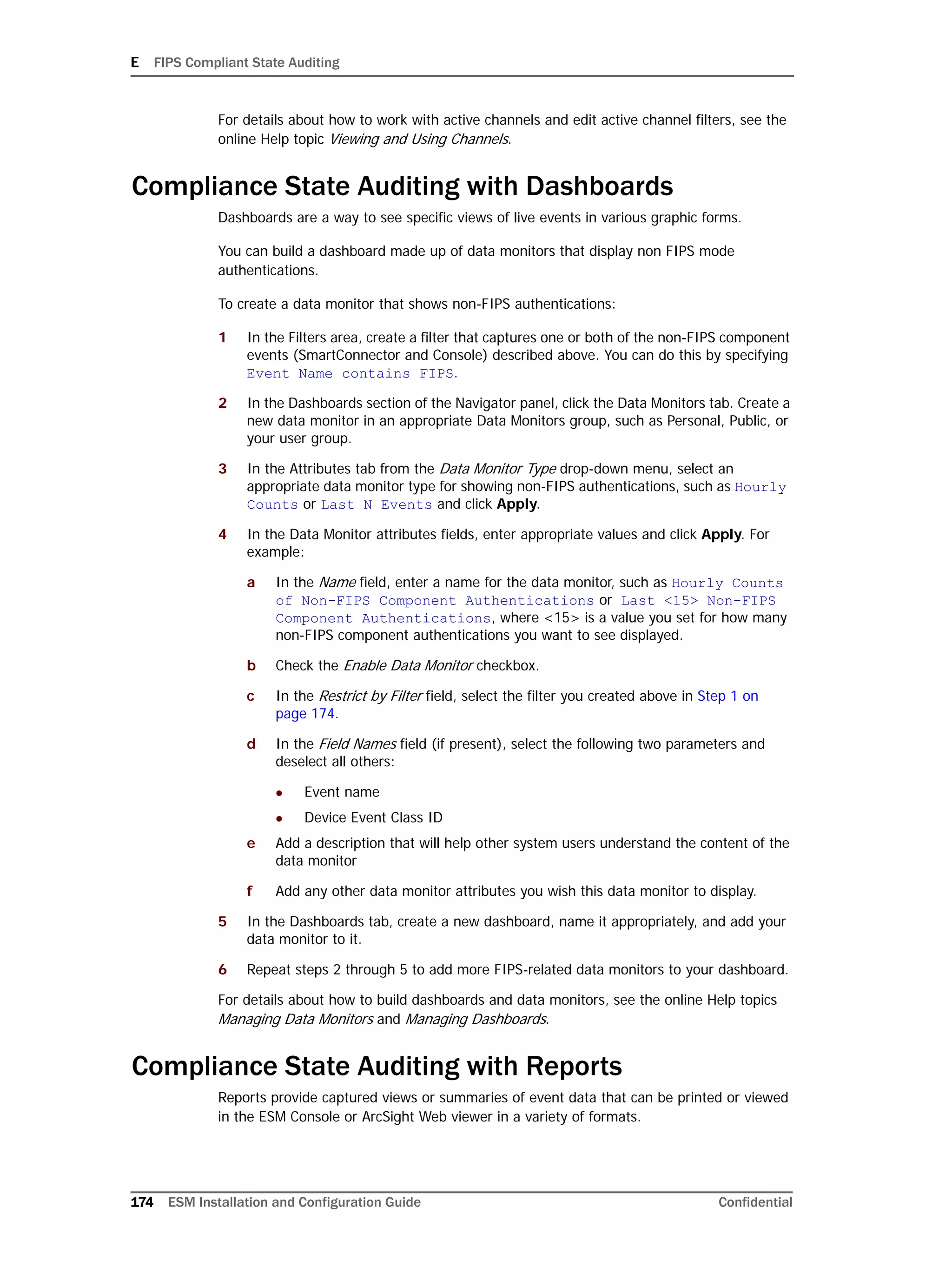
agent.parser.locale.name property in the agent.properties file. This file is
located in ARCSIGHT_HOME/current/user/agent directory.
Set the agent.parser.locale.name property to the value that corresponds to the
Connector's locale. By default, this property is set to en_US. Refer to the table at the end
of this document under section "List of possible values for the agent.parser.locale.name
property" for possible values for this property.
Key-Value Parsers for Localized Devices
Some localized devices not only send localized Values but also localized Keys in event
messages. In such a case, additional processing may be needed to translate the Keys to
English for the event messages to be properly parsed. For example, assume that the
content of a key-value parser is:
event.destinationUserName=User
And the received event message is:
User= ? where is Korean for KIM.
In that case, the parser as it is works fine since double byte is supported already.
If the received event message is:
where is Korean for User.
Then additional mapping is needed to translate ??? to User.
If you encounter a need for a localized device, please call ArcSight Support.
Windows Event Log Connector supports the following locales to parse the non-English
language Keys in the Windows Event Log description:
 ja (Japanese)
 de (German)
 zh_CN (Simplified Chinese)
 zh_TW (Traditional Chinese)
Please call ArcSight support for assistance with other non-supported languages.
Examples
The following examples cover two different scenarios.
I About ESM Locales and Encodings
254 ESM Installation and Configuration Guide Confidential
Scenario 1 - Events received in a single language only
This scenario describes what you need to do when your Connector(s) receive data in a
single language only, for instance Japanese. In ESM, the default encoding for Japanese is
JA16SJIS.
Database
While installing the database, in the ArcSight Oracle Installation Wizard, select one of the
following Database Character Set drop down menu:
 Japanese
 Unified_UTF8
If you select Japanese, the database uses JA16SJIS encoding when saving the data into
the database.
If you select Unified_UTF8, you also need to select Japanese in the ArcSight Database
Schema Initialization screen to ensure that the default system resources get installed in
Japanese.
Keep in mind, some characters might take 3 bytes when stored in UTF-8 but might take
only 2 bytes when stored in JA16SJIS.
ArcSight Manager, Console, and Web
You need to install the ArcSight Manager, Console, and Web on a Japanese Operating
System. On startup, these components automatically pick up and use the locale from the
Operating System.
Scenario 2 - Events received in multiple languages
This scenario is an example of what you need to do when you are dealing with multiple
Connectors that receive data in different languages.
Database
When you install the database, in the ArcSight Oracle Installation Wizard:
1 Select Unified_UTF8 from the Database Character Set dropdown menu. This ensures
that no data is lost in translation when persisted in the database.
2 In the ArcSight Database Schema Initialization screen, select the language in which
you want the standard content resources to be installed.
ArcSight Manager, Console, and Web
When you installed the ArcSight Database you selected a language in which to install the
system resources. You should install the ArcSight Manager, Console, and Web on an
Operating System of that same language. On startup, these components automatically pick
up the locale from the Operating System.
I About ESM Locales and Encodings
Confidential ESM Installation and Configuration Guide 255
Preparing to Install the Language Update
If you are currently running ESM v4.0 GA and would like to switch to a localized version,
you need to upgrade your ESM installation (ArcSight Database, Manager, Console, and Web
server) to v4.0 SP1.
Once your system is running ESM v4.0 SP1, you need to install the language update.
Verifying the Character Set used on your Database
If you currently use ESM v4.0 SP1, your database already has a character set specified.
Follow this procedure to validate the character set that was selected when the v4.0 SP1
database was installed:
1 Run the following command from ARCSIGHT_HOME/bin directory:
arcdbutil sql
2 When prompted for user-name, enter:
/ as sysdba
3 Run the following SQL statement:
SQL>select "PARAMETER", "VALUE" from SYS.GV_$NLS_PARAMETERS
where PARAMETER='NLS_CHARACTERSET';
The following character sets (encodings) are supported for ArcSight Database:
Installing the Language Update
By now, your database should be set to the encoding of your choice. If you have not
already done so, please follow the instructions in "Verifying the Encoding used on your
Database" section above to verify the database encoding, before you proceed.
While upgrading your database to v4.0 SP1, make sure that the character set
you select during the upgrade is compatible with the one that you had selected
when installing your existing database.
You can only set the encoding during database installation. To change the
encoding after installation, you need to reinstall ArcSight Database.
Language Character Set
English WE8MSWIN1252
Japanese JA16SJIS
Chinese_Simplified ZHS16CGB231280
Chinese_Traditional ZHT16BIG5
Korean KO16KSC5601
Unified_UTF8 UTF-8
I About ESM Locales and Encodings
256 ESM Installation and Configuration Guide Confidential
You need to install the language update on ArcSight Manager, Console and Web. Refer to
the Release Notes for the Language Update for installation instructions.
List of possible values for the
agent.parser.locale.name property
The table below lists the possible values for this property.
Values Language Country Variant
ar Arabic
ar_AE Arabic United Arab
Emirates
ar_BH Arabic Bahrain
ar_DZ Arabic Algeria
ar_EG Arabic Egypt
ar_IQ Arabic Iraq
ar_JO Arabic Jordan
ar_KW Arabic Kuwait
ar_LB Arabic Lebanon
ar_LY Arabic Libya
ar_MA Arabic Morocco
ar_OM Arabic Oman
ar_QA Arabic Qatar
ar_SA Arabic Saudi Arabia
ar_SD Arabic Sudan
ar_SY Arabic Syria
ar_TN Arabic Tunisia
ar_YE Arabic Yemen
be Belarusian
be_BY Belarusian Belarus
bg Bulgarian
bg_BG Bulgarian Bulgaria
ca Catalan
ca_ES Catalan Spain
cs Czech
cs_CZ Czech Czech Republic
da Danish
da_DK Danish Denmark
I About ESM Locales and Encodings
Confidential ESM Installation and Configuration Guide 257
de German
de_AT German Austria
de_CH German Switzerland
de_DE German Germany
de_LU German Luxembourg
el Greek
el_GR Greek Greece
en English
en_AU English Australia
en_CA English Canada
en_GB English United Kingdom
en_IE English Ireland
en_IN English India
en_NZ English New Zealand
en_US English United States
en_ZA English South Africa
es Spanish
es_AR Spanish Argentina
es_BO Spanish Bolivia
es_CL Spanish Chile
es_CO Spanish Columbia
es_CR Spanish Costa Rica
es_DO Spanish Dominican
Republic
es_EC Spanish Ecuador
es_ES Spanish Spain
es_GT Spanish Guatemala
es_HN Spanish Honduras
es_MX Spanish Mexico
es_NI Spanish Nicaragua
es_PA Spanish Panama
es_PE Spanish Peru
es_PR Spanish Puerto Rico
es_PY Spanish Paraguay
es_SV Spanish El Salvador
Values Language Country Variant
I About ESM Locales and Encodings
258 ESM Installation and Configuration Guide Confidential
es_UY Spanish Uruguay
es_VE Spanish Venezuela
et Estonian
et_EE Estonian Estonia
fi Finnish
fi_FI Finnish Finland
fr French
fr_BE French Belgium
fr_CA French Canada
fr_CH French Switzerland
fr_FR French France
fr_LU French Luxembourg
hi_IN Hindi India
hr Croatian
hr_HR Croatian Croatia
hu Hungarian
hu_HU Hungarian Hungary
is Icelandic
is_IS Icelandic Iceland
it Italian
it_CH Italian Switzerland
it_IT Italian Italy
iw Hebrew
iw_IL Hebrew Israel
ja Japanese
ja_JP Japanese Japan
ko Korean
ko_KR Korean Korea
lt Lithuanian
lt_LT Lithuanian Lithuania
lv Latvian
lv_LV Latvian Latvia
mk Macedonian
mk_MK Macedonian Macedonia
Values Language Country Variant
I About ESM Locales and Encodings
Confidential ESM Installation and Configuration Guide 259
nl Dutch
nl_BE Dutch Belgium
nl_NL Dutch Netherlands
no Norwegian
no_NO Norwegian Norway
no_NO_NY Norwegian Norway Nynorsk
pl Polish
pl_PL Polish Poland
pt Portuguese
pt_BR Portuguese Brazil
pt_PT Portuguese Portugal
ro Romanian
ro_RO Romanian Romania
ru Russian
ru_RU Russian Russia
sk Slovak
sk_SK Slovak Slovakia
sl Slovanian
sl_SI Slovanian Slovania
sq Albanian
sq_AL Albanian Albania
sv Swedish
sv_SE Swedish Sweden
th Thai
th_TH Thai Thailand
th_TH_TH Thai Thailand TH
tr Turkish
tr_TR Turkish Turkey
uk Ukranian
uk_UA Ukranian Ukraine
vi Vietnamese
vi_VN Vietnamese Vietnam
zh Chinese
zh_CN Chinese China
Values Language Country Variant
I About ESM Locales and Encodings
260 ESM Installation and Configuration Guide Confidential
zh_HK Chinese Hong Kong
zh_TW Chinese Taiwan
Values Language Country Variant
Confidential ESM Installation and Configuration Guide 261
A
ACE/Server
configuring to allow RADIUS requests 163
establishing user accounts 164
installing and installing as service 163
migrating from internal authentication 165
Active Directory
setting up authentication for 101
Administrator account
Manager 107
Administrator user 27, 83, 84, 107
appendix
example of 157, 169, 173, 177, 219, 235, 249
ARCHIVE Volume 39
archiving
uncompressed files 157
Archiving uncompressed files
examples 157
ArcSight
built-in securtiy 26
components 11
Console 13
Database 13
ESM 11
Manager 13
SmartConnector 12
Web 14
ArcSight Console
client authentication 128
connecting to the Manager 125
installing 121, 122
reconfiguring 134
reconnecting to Manager 134
starting 132
uninstalling 135
user logs and preferences 130
web browser configuration 129
ArcSight Database
installation files 49
preparing your platform 42
reconfiguring 75
restarting 75
selecting a template 41
success factors for installation 33
uninstalling 85
ArcSight ESM
overview 11
planning 19
prerequisites 138
what is 11
ArcSight Manager
asset auto creation 113
configuring for RADIUS authentication 164
failover 169
high availability 169
installation files 90
installing 89
Java Heap Memory Size 93
reconfiguring 117
securing properties file 117
select packages 108
setting up Administrator account 107
setting up as service or daemon 113
setting up mail server 109
SSL certification selection 94
starting and stopping 115
supported platforms 88, 137
transferring configuration 91, 124
uninstalling 120
verifying installation 117
ArcSight SmartConnectors 149
deployment considerations 149
installing 149
ArcSight Web 24, 88, 137, 138
connecting 147
installing 138
starting manually 147
styling 148
supported platforms 88, 137
uninstalling 148
asset categories 154
Assets
defining 151
authentication 98
Active Directory 101
external 98
LDAP 104
RADIUS 100
C
client authentication
ArcSight Console 128
configuring
ACE/Server to allow RADIUS requests 163
Manager for iDefense 167
partition 79
partition management 75
SSL 103, 106
web browser in Console 129
connecting
ArcSight Console to Manager 125
to ArcSight Web 147
Index
Index
262 ESM Installation and Configuration Guide Confidential
to database 97
Console 13
installing 122
supported platforms 121
control files
Oracle 41
creating
Customers 155
Users 155
custom authentication scheme 106
Customers
creating 155
D
Data Monitors
tuning 155
database 13
determining the size of 19
event volume 19
parameters 97
ports 24
protecting 25
selecting a template 41
Database connection 97
database installation
supported platforms 34
database upgrade
supported platforms 34
DATABASE Volume 37
defining
Asset Categories 154
Assets 151
Zones 151
deleting
partition archiver service 84
deployment
ESM 18
deployment scenarios
ESM 28
hierarchical deployment 30
high availability 29
simple, monolithic 28
test environment 31
directory structure
ArcSight Installation 22
E
ESM 11
communication overview 16
deployment order 18
deployment overview 16
deployment scenarios 28
securing 23
supported platforms 18
establishing
user accounts in ACE/Server 164
event volume 19
events
as SNMP traps 118
retention policy 20
external authentication
guidelines 98
how it works 98
F
failover
ArcSight Manager 169
Manager architecture for high availability 169
monitoring processes 171
script to start/stop Manager 171
G
guidelines
external authentication 98
security 27
H
hardware
security 26
hierarchical deployment 30
high availability
scenario 29
I
iDefense database
configuring Manager for 167
integrating with 167
initializing
resources 63
schema 63
tablespace 63
Installation
directory structure 22
installing
ACE/Server and ACE/Server as service 163
ArcSight Console 122
ArcSight Database and Oracle 48
ArcSight Database software 48
ArcSight Manager 89
ArcSight SmartConnectors 149
ArcSight Web 138
Oracle 10g 51
installing Oracle
general guidelines 34
integrating
with iDefense database 167
L
LDAP
setting up authetication for 104
M
mail server 109
parameters 111
Manager 13
determining the topology 19
ports 23
protecting 23
migrating
from internal authetication to ACE/Server 165
monitoring processes
in high availability environment 171
Index
Confidential ESM Installation and Configuration Guide 263
O
operating system
security 27
Oracle
control files 41
creating a new 10g instance 57
guidelines for installing 34
storage guidelines 35
Oracle 10g
installing 51
overview
ESM 11
ESM communication 16
ESM deployment 16
P
parameters
database 97
partition
changing configurations 82
configuration parameters 79
partition archiver
changing password 85
registering with Manager 84
setting up 82
starting and stopping 84
partition archiver service
deleting 84
reinstalling 85
partition management
configuring 75
planning
ESM installation 18
preferences
ArcSight Console 130
protecting
ArcSight Database 25
R
RADIUS
setting up authentication for 100
RADIUS authentication
configuring Manager for 164
defining shorter internal login names 161
passcodes 161
setting up 161
setting up ACE/Server 163
two-factor challenge responses 162
reconfiguring
ArcSight Console 134
ArcSight Database 75
reconnecting
Console to Manager 134
recyclebin parameter 135
REDO Volume 39
Resources
establishing 151
initializing 63
restarting
ArcSight Database 75
retention policy 20
Rules
tuning 155
running
Manager as a Windows service 116
S
schema
initializing 63
security 26
guidelines and policies 27
hardware 26
operating system 27
setting
ACE/Server RADIUS authentication 163
RADIUS authentication 161
size
database 19
Java Heap Memory 93
topology of Managers 19
SmartConnectors 12
SNMP field types
mapping to ArcSight field types 119
SNMP traps
configure 118
SSL
configuring 103, 106
SSL certificate
selecting 94
starting
ArcSight Console 132
ArcSight Manager 115
ArcSight Web manually 147
partition archiver 84
stopping
ArcSight Manager 115
manually started Manager 116
partition archiver 84
supported platforms
ArcSight Web 88, 137
Console 121
database installation and upgrade 34
ESM 18
Manager 88, 137
SYSTEM Volume 36
T
tablespace
initializing 63
test environment
example 31
topology
Managers 19
troubleshooting
communication between ACE/Server and Manager
165
tuning
data monitors 155
rules 155
U
UNCOMPRESSED Archive types 157
uncompressed files
archiving 157
examples of archiving 157
Index
264 ESM Installation and Configuration Guide Confidential
uninstalling
ArcSight Console 135
ArcSight Database 85
ArcSight Web 148
upgrading
ArcSight Database and Oracle 48
user logs
ArcSight Console 130
Users
creating 155
using
UNCOMPRESSED Archive types 157
V
volume
ARCHIVE 39
DATABASE 37
REDO 39
SYSTEM 36
W
Web 14
Web browser
configuring in Console 129
Z
Zone
defining 151

Esm install guide_5.2

  • 1.
    ESM Installation and ConfigurationGuide ArcSight™ ESM Version 5.2 January 2012
  • 2.
    ESM Installation andConfiguration Guide ArcSight™ ESM Version 5.2 Copyright © 2012 Hewlett-Packard Development Company, L.P. Confidential computer software. Valid license from HP required for possession, use or copying. Consistent with FAR 12.211 and 12.212, Commercial Computer Software, Computer Software Documentation, and Technical Data for Commercial Items are licensed to the U.S. Government under vendor's standard commercial license. The information contained herein is subject to change without notice. The only warranties for HP products and services are set forth in the express warranty statements accompanying such products and services. Nothing herein should be construed as constituting an additional warranty. HP shall not be liable for technical or editorial errors or omissions contained herein. Follow this link to see a complete statement of copyrights and acknowledgements: http://www.arcsight.com/copyrightnotice The network information used in the examples in this document (including IP addresses and hostnames) is for illustration purposes only. This document is confidential. Revision History Contact Information Date Product Version Description 02/15/2012 ArcSight ESM Version 5.2 Enhancements for the v5.2 release Phone 1-866-535-3285 (North America) +44 (0)870 141 7487 (EMEA) Support Web Site http://support.openview.hp.com Protect 724 Community https://protect724.arcsight.com
  • 3.
    Confidential ESM Installationand Configuration Guide 3 Contents Chapter 1: Planning and Installation Overview ................................................................. 11 What is ArcSight ESM? ................................................................................................... 11 ArcSight Components .................................................................................................... 11 ArcSight SmartConnector ......................................................................................... 12 ArcSight Manager .................................................................................................... 13 ArcSight Database ................................................................................................... 13 ArcSight Console ..................................................................................................... 13 ArcSight Web ......................................................................................................... 14 Deployment Overview. ................................................................................................... 16 ArcSight ESM Communication Overview ........................................................................... 16 Effect on communication when components fail ........................................................... 17 Deployment Order ......................................................................................................... 18 Supported Platforms ...................................................................................................... 18 Installation Planning ...................................................................................................... 18 Inventory your devices ............................................................................................ 19 Determine the size and topology of Managers ............................................................. 19 Size your database .................................................................................................. 19 Event Volume ................................................................................................... 19 Retention Policy ................................................................................................ 20 Identify or procure hardware and software ................................................................. 20 Choosing between FIPS Mode or Default Mode ............................................................ 20 An Overview of Differences Between Default Mode, FIPS Mode, and FIPS with Suite B Mode 21 Using PKCS#11 ...................................................................................................... 21 Import Control Issues .............................................................................................. 22 Directory Structure for ArcSight Installation ...................................................................... 22 Securing your ArcSight ESM System ................................................................................ 23 Protecting ArcSight Manager ..................................................................................... 23 Protecting ArcSight Database .................................................................................... 25 ArcSight Built-In Security ................................................................................... 26 Physical Security for the Hardware ...................................................................... 26 Operating System Security ................................................................................. 27 General Guidelines and Policies about Security ............................................................ 27 Deployment Scenarios ................................................................................................... 28
  • 4.
    4 ESM Installationand Configuration Guide Confidential Scenario 1: A simple, monolithic deployment .............................................................. 28 Scenario 2: A high availability, transparent failover deployment .................................... 29 Scenario 3: A hierarchical deployment ...................................................................... 30 Scenario 4: A test environment deployment .............................................................. 31 Where to go From Here .................................................................................................. 31 Chapter 2: Installing ArcSight Database ........................................................................... 33 Key Database Installation Success Factors ........................................................................ 33 Supported Platforms for Database Installation .................................................................. 34 General Guidelines for Installing Oracle ............................................................................ 34 Storage Guidelines .................................................................................................. 35 Volume 1: SYSTEM Volume ................................................................................ 36 Volume 2: DATABASE Volume ............................................................................ 37 Volume 3: REDO Volume ................................................................................... 39 Volume 4: ARCHIVE Volume ............................................................................... 39 Oracle Control Files ........................................................................................... 41 Selecting an ArcSight Database Template ................................................................... 41 Preparing your Platform for Database Installation .............................................................. 42 UNIX Platforms ....................................................................................................... 42 Preparing a Linux System .................................................................................. 43 Preparing a Solaris System ................................................................................ 45 Preparing an AIX System ......................................................................................... 47 Preparing a Windows System .................................................................................... 47 Installing ArcSight Database .......................................................................................... 48 Installing the ArcSight Database Software .................................................................. 48 Installing Oracle 11g Database Software ................................................................... 51 Configuring Shared Memory on Solaris ....................................................................... 55 Configuring Shared Memory on Linux ......................................................................... 55 Creating a New Oracle 11g Instance .......................................................................... 57 Important AIX Issue ................................................................................................ 62 Avoiding DB Write Performance Issues with Oracle 11g ................................................ 63 Initializing ArcSight Tablespaces, Schema, and Resources ............................................ 63 Restarting or Reconfiguring ArcSight Database .................................................................. 75 Configuring Partition Management ................................................................................... 75 Overview ............................................................................................................... 76 Partition Configuration Parameters ............................................................................ 79 Changing Partition Management Configurations ........................................................... 82 Setting Up Partition Archiver ..................................................................................... 82 Starting and Stopping Partition Archiver ............................................................... 84 Re-registering Partition Archiver with ArcSight Manager ......................................... 84 Deleting the Partition Archiver Service ................................................................. 84 Reinstalling the Partition Archiver Service ............................................................ 85 Changing the Password for Partition Archiver ........................................................ 85
  • 5.
    Confidential ESM Installationand Configuration Guide 5 Uninstalling the ArcSight Database Software ..................................................................... 85 Chapter 3: Installing ArcSight Manager ............................................................................ 87 ArcSight Manager Supported Platforms ............................................................................ 88 Installing the Manager ................................................................................................... 89 Transferring Configuration from an Existing Installation ................................................ 91 Selecting the Mode in which to Configure ArcSight Manager .......................................... 91 Configuring the Manager’s Host Name, Port, and Location ............................................ 92 Java Heap Memory Size ........................................................................................... 93 SSL Certification Selection ........................................................................................ 94 Deciding which SSL certificate to select ................................................................ 94 Selecting the SSL certificate ............................................................................... 95 Database Connection ............................................................................................... 97 Authentication ........................................................................................................ 98 How external authentication works ...................................................................... 98 Guidelines for setting up external authentication ................................................... 98 Password Based Authentication ........................................................................... 99 Password Based and SSL Client Based Authentication ...........................................106 Password Based or SSL Client Based Authentication .............................................106 SSL Client Only Authentication ...........................................................................107 ArcSight Manager Administrator Account Setup ..........................................................107 Select Packages .....................................................................................................108 Mail Server ...........................................................................................................109 ArcSight Web ........................................................................................................112 Asset Auto Creation ................................................................................................113 Setting up as a Service or Daemon ...........................................................................113 Starting and Stopping the Manager .................................................................................115 Starting the Manager ..............................................................................................115 Stopping the Manually Started Manager ..............................................................116 Running the Manager as a Service .....................................................................116 Verifying the Manager Installation ..................................................................................117 Reconfiguring ArcSight Manager .....................................................................................117 Securing the ArcSight Manager Properties File ............................................................117 Sending Events as SNMP Traps ................................................................................118 Uninstalling ArcSight Manager ........................................................................................120 Chapter 4: Installing ArcSight Console ............................................................................ 121 Console Supported Platforms .........................................................................................121 Using a PKCS#11 Token ................................................................................................122 Installing the Console ......................................................................................122 Transferring Configuration from an Existing Installation ...............................................124 Selecting the Mode in which to Configure ArcSight Console ..........................................125 Manager Connection ...............................................................................................125
  • 6.
    6 ESM Installationand Configuration Guide Confidential Authentication .........................................................................................128 Web Browser .........................................................................................................129 Starting the ArcSight Console ........................................................................................132 Logging into the Console .........................................................................................134 Reconnecting to the ArcSight Manager ............................................................................134 Reconfiguring the ArcSight Console ................................................................................134 Turn Off Database Recycle Bin .......................................................................................135 Uninstalling the ArcSight Console ...................................................................................135 Chapter 5: Installing ArcSight Web ................................................................................. 137 ArcSight Web Supported Platforms .................................................................................137 Web Browsers .......................................................................................................138 Using a PKCS#11 Token ................................................................................................138 Installing ArcSight Web .................................................................................................138 Setting up SSL Client Authentication .........................................................................140 Selecting the Mode in which to Configure ArcSight Web ...............................................140 Web server Host Name and Port ..............................................................................141 Java Heap Memory Size ..........................................................................................142 Enable Case and Events Exports ..............................................................................142 Display Links to Support Web site ............................................................................143 ArcSight Manager Host Name and Port ......................................................................143 Trust Manager Certificate ........................................................................................144 Select Type of Key Pair ...........................................................................................144 Authentication .......................................................................................................146 Setting ArcSight Web as a Service or Daemon ...........................................................146 Starting ArcSight Web Manually .....................................................................................147 Connecting to ArcSight Web ..........................................................................................147 Styling ArcSight Web ....................................................................................................148 Uninstalling ArcSight Web .............................................................................................148 Chapter 6: Installing ArcSight SmartConnectors ............................................................. 149 Deployment Considerations ...........................................................................................149 Installing ArcSight SmartConnectors ...............................................................................149 Chapter 7: Establishing Initial ArcSight Resources ......................................................... 151 Defining Zones and Assets ............................................................................................151 Defining Asset Categories ..............................................................................................154 Creating Customers and Users .......................................................................................155 Tuning Data Monitors and Rules .....................................................................................155 Appendix A: Using UNCOMPRESSED Archive Type ........................................................... 157 Archiving Uncompressed Files ........................................................................................157 Examples ..............................................................................................................158
  • 7.
    Confidential ESM Installationand Configuration Guide 7 Appendix B: Setting up RADIUS User Authentication ...................................................... 161 Passcodes ...................................................................................................................161 Defining Shorter ArcSight Internal Login User Names ........................................................161 Two-Factor Challenge Responses ....................................................................................162 Steps for Setting Up ACE/Server RADIUS Authentication ...................................................163 Installing the ACE/Server and ACE/Server RADIUS Service ................................................163 Configuring the ACE/Server to allow RADIUS Requests ......................................................163 Enabling User Accounts in ACE/Server ......................................................................164 Configuring ArcSight Manager ..................................................................................164 Migrating from Internal Authentication to ACE/Server .................................................165 Authentication Troubleshooting ................................................................................165 Appendix C: Integrating with iDefense Database ............................................................ 167 Configuring Manager for iDefense ...................................................................................167 Appendix D: ArcSight Manager Failover .......................................................................... 169 Architecture ................................................................................................................169 Starting Processes ........................................................................................................171 Monitoring Processes ....................................................................................................171 Next Steps ..................................................................................................................172 Appendix E: FIPS Compliant State Auditing .................................................................... 173 Compliance State Auditing with Active Channels ...............................................................173 Compliance State Auditing with Dashboards .....................................................................174 Compliance State Auditing with Reports ..........................................................................174 Compliance State Auditing with Rules .............................................................................175 Appendix F: Installing ArcSight ESM in FIPS Mode ......................................................... 177 What is FIPS? ..............................................................................................................178 Network Security Services Database (NSS DB) .................................................................178 What is PKCS? .............................................................................................................179 PKCS #11 .............................................................................................................179 PKCS #12 .............................................................................................................179 NSS Tools Used to Configure Components in FIPS Mode ....................................................179 For More information on NSS Tools ...........................................................................180 TLS Configuration in a Nutshell ......................................................................................180 Understanding Server Side Authentication .................................................................181 Understanding Client Side Authentication ..................................................................181 Setting up Authentication on ArcSight Web - A Special Case ........................................182 Using PKCS #11 Token With a FIPS Mode ESM Setup ........................................................183 Installing ArcSight Database ..........................................................................................183 Installing ArcSight Manager in FIPS mode ........................................................................183 Setting up Partition Archiver in FIPS Mode .......................................................................190
  • 8.
    8 ESM Installationand Configuration Guide Confidential Installing ArcSight Console in FIPS Mode .........................................................................192 Connecting a Default Mode Console to a FIPS Enabled Manager ....................................199 Connecting a FIPS Enabled Console to Multiple Managers Running in FIPS 140-2 Mode ....200 Installing ArcSight Web in FIPS Mode ..............................................................................200 Configuring Firefox 3.x to Make it FIPS 140-2 Compliant .............................................208 Configuring Internet Explorer to Make it FIPS 140-2 Compliant ....................................210 Installing SmartConnectors in FIPS mode ........................................................................210 How do I Know Whether My Existing ESM Installation is FIPS Enabled? ................................210 Migrating an Existing Default Mode ESM Installation to FIPS Mode ......................................211 Manager ...............................................................................................................211 Console ................................................................................................................213 ArcSight Web ........................................................................................................215 Partition Archiver ...................................................................................................217 Appendix G: Installing ArcSight ESM in  FIPS with Suite B Mode .................................................................................................. 219 What is Suite B? ..........................................................................................................219 Suite B support in ESM ...........................................................................................220 Installing ArcSight Database ..........................................................................................220 Installing ArcSight Manager in FIPS with Suite B Mode ......................................................220 Setting up Partition Archiver in FIPS with  Suite B Mode ...............................................................................................................226 Installing ArcSight Console in FIPS with Suite B Mode .......................................................226 Installing ArcSight Web in FIPS with Suite B Mode ............................................................227 Installing SmartConnectors in FIPS with Suite B Mode .......................................................233 Appendix H: Using the PKCS#11 Token .......................................................................... 235 What is PKCS? .............................................................................................................235 PKCS#11 ..............................................................................................................235 PKCS#12 ..............................................................................................................236 PKCS#11 Token Support in ESM ....................................................................................236 An Example - Using the ActivClient CAC Card ...................................................................236 Using CAC with ArcSight Console .............................................................................236 Install the CAC Provider’s Software ....................................................................236 Map a User’s External ID in the Manager to the CAC’s Subject CN ..........................237 Obtain the CAC’s Issuers’ Root Certificate ...........................................................238 Extract the Root CA Certificate From the CAC Certificate you Exported ....................240 FIPS Mode - Import the CAC Card’s Root CA Certificate into the ESM Manager’s nssdb ... 241 Default Mode - Import the CAC Card’s Root CA Certificate into the Manager’s Truststore 241 Select Authentication Option in Manager Setup ....................................................242 Select Authentication Option in Console Setup .....................................................243 Logging in to the Console Using CAC ..................................................................244 Using CAC with ArcSight Web ..................................................................................245
  • 9.
    Confidential ESM Installationand Configuration Guide 9 Connecting to ArcSight Web Using CAC ...............................................................246 Appendix I: About ESM Locales and Encodings ............................................................... 249 Terminology used in this document .................................................................................249 Internationalization ................................................................................................249 Locale ..................................................................................................................249 Character Set ........................................................................................................249 Code Set ...............................................................................................................249 Code Point ............................................................................................................250 Encoding ...............................................................................................................250 Unicode ................................................................................................................250 Before you Install a Localized Version of ArcSight ESM ......................................................250 ArcSight Database ........................................................................................................250 Selecting an Encoding .............................................................................................251 ArcSight Manager .........................................................................................................252 ArcSight Console ..........................................................................................................252 ArcSight SmartConnectors .............................................................................................252 Setting the Encoding for Selected SmartConnectors ....................................................252 Localization of Date Formats in Tokens and Operations ......................................................253 Key-Value Parsers for Localized Devices ..........................................................................253 Examples ....................................................................................................................253 Scenario 1 - Events received in a single language only ................................................254 Database ........................................................................................................254 ArcSight Manager, Console, and Web .................................................................254 Scenario 2 - Events received in multiple languages .....................................................254 Database ........................................................................................................254 ArcSight Manager, Console, and Web .................................................................254 Preparing to Install the Language Update ..................................................................255 Verifying the Character Set used on your Database ....................................................255 Installing the Language Update ......................................................................................255 List of possible values for the agent.parser.locale.name property ........................................256 Index ....................................................................................................................................................261
  • 10.
    10 ESM Installationand Configuration Guide Confidential
  • 11.
    Confidential ESM Installationand Configuration Guide 11 Chapter 1 Planning and Installation Overview This chapter provides a conceptual overview of ArcSight ESM, and offers a high-level description of system components. It helps a network administrator understand planning and deployment issues. The following topics are covered in this chapter: What is ArcSight ESM? ArcSight ESM is a Security Information Management (SIM) solution that collects and analyzes security data from heterogeneous devices on your network and provides you a central, real-time view of the security status of all devices of interest to you. ArcSight ESM components gather and store events generated by the devices you identify. These events are filtered and correlated with events from other devices or collection points to discover risks and assess vulnerabilities. ArcSight Components The ArcSight ESM system comprises of the following components, as shown in the following illustration:  ArcSight SmartConnector  ArcSight Manager  ArcSight Database  ArcSight Console “What is ArcSight ESM?” on page 11 “ArcSight Components” on page 11 “Deployment Overview.” on page 16 “ArcSight ESM Communication Overview” on page 16 “Deployment Order” on page 18 “Supported Platforms” on page 18 “Installation Planning” on page 18 “Directory Structure for ArcSight Installation” on page 22 “Securing your ArcSight ESM System” on page 23 “Deployment Scenarios” on page 28 “Where to go From Here” on page 31
  • 12.
    1 Planning andInstallation Overview 12 ESM Installation and Configuration Guide Confidential  ArcSight Web Figure 1-1 ArcSight ESM Components ArcSight SmartConnector SmartConnectors (also known as connectors) are the interface for collecting event data from the network devices—such as a firewall, an intrusion prevention system, or a host syslog—that you want to monitor. The connectors gather raw event data comprising of status, alarms, and alerts from these devices. In addition, ArcSight SmartConnectors can also do the following:  Normalize every alarm and alert into a common security schema  Filter out unwanted traffic  Set severity according to a common taxonomy  Intelligently manage bandwidth to minimize network traffic SmartConnectors receive event information using SNMP, HTTP, Syslog, proprietary protocols (for example, OPSEC), or direct database connections to the device's repository, such as ODBC or proprietary database connections. ArcSight SmartConnectors communicate with network devices by either receiving or retrieving information. If the device sends information, the ArcSight SmartConnector receives; if the device does not send information, the ArcSight SmartConnector retrieves from the device.
  • 13.
    1 Planning andInstallation Overview Confidential ESM Installation and Configuration Guide 13 ArcSight SmartConnectors are available for over 200 network device types found in a typical enterprise infrastructure. For a complete list of available SmartConnectors, see the HP SSO website. Depending on the network device a SmartConnector is collecting data from, the connectors can be installed directly on devices (if possible) or separately on connector-dedicated servers. ArcSight Manager ArcSight Manager is at the center of the ArcSight ESM solution. The Manager is a server-based system that receives event data from SmartConnectors, processes it to assess and categorize threat levels, and displays information to the ArcSight Console and ArcSight Web. In addition, the ArcSight Manager can send notifications to the devices (such as pagers and cell phones) you specify. For detailed information about how events received by the Manager are processed, see ESM 101 Concepts for ArcSight ESM. ArcSight Manager can be installed across a variety of operating systems, such as Windows and UNIX, and hardware platforms. ArcSight Database ArcSight Database is the central repository for all information collected by the ArcSight Manager. Additionally, the database contains configuration information about the Manager such as users, groups, permissions, rules, assets, and reports. The database is based on Oracle and is typically installed on a dedicated system separate from the system on which ArcSight Manager is installed. The database can be installed across a variety of operating systems and hardware platforms. The platform on which the database is installed can be different from the one on which the ArcSight Manager is running. ArcSight Console The ArcSight Console is a workstation-based graphical user interface that provides an intuitive interface to perform essential security management tasks. The following graphic shows you an example of the ArcSight Console. Depending on your job function or need, the Console can be used for a variety of tasks such as:  Routine monitoring  Authoring—Setting up filters and creating customized rules, defining notification and escalation procedures, and generating reports  Administrative tasks—Setting up users and their permissions
  • 14.
    1 Planning andInstallation Overview 14 ESM Installation and Configuration Guide Confidential  The Console can be installed across a variety of operating systems and hardware platforms. Figure 1-2 Example of ArcSight Console ArcSight Web ArcSight Web is a web server that enables you to access ArcSight Manager securely using a browser. ArcSight Web is intended for users who need to view information on the Manager, but not author or administer it; for example, operators in a Security Operations Center (SOC) and customers of a Managed Security Service Provider (MSSP). ArcSight Web can be installed on the same server as the ArcSight Manager or on a separate server that has network access to the Manager. If ArcSight Web is installed on a separate server, that server makes secure connections to the Manager on behalf of the browsers requesting data from the Manager. If the separately installed server is accessible from outside of a protected network, users from outside of that network can use ArcSight Web to access information on the Manager.
  • 15.
    1 Planning andInstallation Overview Confidential ESM Installation and Configuration Guide 15 The following graphic shows you an example of the ArcSight Web. Figure 1-3 Example of ArcSight Web
  • 16.
    1 Planning andInstallation Overview 16 ESM Installation and Configuration Guide Confidential Deployment Overview. The following is an example of how various ArcSight components can be deployed in a network Figure 1-4 ArcSight Components Deployment Overview There are many other possible topologies such as placing the Manager and the database behind a firewall for an extra layer of protection or installing multiple Managers for redundancy. Irrespective of the topology you use to deploy SmartConnectors, Consoles, and ArcSight Web, ArcSight strongly recommends deploying the ArcSight Database in close proximity to the Manager, possibly over a dedicated network link with a cross-over cable connection. ArcSight ESM Communication Overview ArcSight Console, ArcSight Manager, and ArcSight SmartConnector communicate using HTTP (HyperText Transfer Protocol) over SSL (Secure Sockets Layer), often referred to as Make sure that you install both the ArcSight Manager and ArcSight Database on machines that are physically located in the same time zone.
  • 17.
    1 Planning andInstallation Overview Confidential ESM Installation and Configuration Guide 17 HTTPS (HyperText Transfer Protocol Secure). The HTTPS protocol provides for data encryption, data integrity verification, and authentication for both server and client. Figure 1-5 ArcSight ESM Communication Overview SSL works over TCP (Transport Control Protocol) connections. The default incoming TCP port on ArcSight Manager is 8443. For more information on port settings and defaults, see the section on “Securing your ArcSight ESM System” on page 23. The Manager never makes outgoing connections to the Console, ArcSight Web, or SmartConnectors. However, it does make outgoing connections to the ArcSight Database (the protocol depends on the kind of database), network management solutions (using SNMP), and external authentication solutions via RADIUS and LDAP (if configured). HTTPS is not used between the Manager and the Database. Effect on communication when components fail If any of the ArcSight components is unavailable, it can affect communication between other components. If the database is unavailable for any reason, such as database capacity is full or the database hardware is down, the Manager stops accepting events and caches any events that were not committed to the database. The SmartConnectors start caching new events they receive, so there is no event data loss. The Consoles are disconnected. All existing ArcSight Web connections are disconnected and no new login requests to the Web server are accepted until the database is up and running again. If the Manager is unavailable, the SmartConnectors start caching events to prevent event data loss. The TNS listener on the database waits for connections from clients. The database server is idle. The Consoles are disconnected. All existing ArcSight Web connections are disconnected and no new login requests to the Web server are accepted. If a SmartConnector fails, whether event data loss will occur or not depends on the SmartConnector type. SmartConnectors that listen for events from devices such as the SNMP SmartConnectors will stop accepting events. However, a SmartConnector that polls a
  • 18.
    1 Planning andInstallation Overview 18 ESM Installation and Configuration Guide Confidential device, such as the NT Collector SmartConnector, may be able to collect events that were generated while the SmartConnector was down, once the SmartConnector comes back up. Deployment Order There are dependencies among the ArcSight components. Therefore, it is important to install the components in this order: 1 Database (ArcSight Database) 2 Manager 3 SmartConnectors or Consoles or Partition Manager (in any order) 4 Web Server (ArcSight Web) Supported Platforms All ArcSight ESM system components are software based. You can deploy these components on industry standard heterogeneous platforms, such as UNIX, Windows, Linux, and Macintosh. The components securely communicate with each other over a TCP/IP network using Secure Socket Layer (SSL). Although multiple components can be installed on single machine, ArcSight strongly recommends against it. Refer to specific component chapters for details regarding the platform requirements for particular ArcSight components. For supported Web browsers, see the section on “Installing ArcSight Web” on page 137. Viewing ArcSight reports and product documentation requires Adobe Reader, version 5.0 or later. The Acrobat Reader, which includes a stand-alone program as well as a web browser plug-in, is available at no cost from http://www.adobe.com/products/acrobat/readermain.htm Installation Planning Planning involves sizing and determining installation details for each ArcSight component based on your business and network needs. The first step in planning is to inventory your network to determine the number and type of network devices you want ArcSight to monitor. Typically, device type is directly related to the number of events it will generate on daily basis. For example, firewalls generate a lot of events and a server may not. Once you have determined expected event volume on your network, you can easily size the hardware you will need to collect, process, and store those events. Do not deploy the component next in the list until you have ensured that the previous component is completely deployed and functioning as expected. Refer to the ArcSight ESM Product Lifecycle document available on the Protect 724 site website for the most current information on supported platforms.
  • 19.
    1 Planning andInstallation Overview Confidential ESM Installation and Configuration Guide 19 The next step is to ensure that other elements essential to installation have been procured such as a license, an SSL certificate, and an SMTP server. The following sections describe these steps on a high level. Inventory your devices Inventory your devices and plan the ArcSight SmartConnector that will report on them. The number of SmartConnectors that you can install on a machine depends on the total number of events per second (eps) those connectors will collectively process. Typically, a dual Pentium IV with 2 GB RAM can easily process up to 1500 eps (~130 million events per day), all connectors combined. Determine the size and topology of Managers Determine the number and configuration of ArcSight Managers to which the SmartConnectors will report. If you will be using more than one Manager, determine the topology that is most appropriate for your environment. The section at the end of this chapter lists a few common topologies. Size your database Use these factors to size your storage requirements:  Event Volume  Retention Policy Event Volume A raw event is a single “row” or “message” in a log file, a trap, or database of the reporting device. SmartConnectors send these events to the Manager, which stores it in the database. For sizing a database, it is important to know the volume of events that the database will store. The average size of the data stored for each event depends on the Turbo mode—Fastest, Faster, or Fast—specified for each SmartConnector. In the Fastest mode, a small subset of the event fields from an event is retained. This mode is suited for devices such as firewalls that have relatively less amount of data in an event. Faster mode retains all event fields, without adding additional data. This is the default mode and is adequate for most devices. Fast mode is the most comprehensive turbo mode and includes all event fields available in an event, plus some additional data. Fast mode should be used with care as it has a significant impact on performance. SmartConnectors can filter raw events to reduce event volume. For example, you can set up your SmartConnector to forward events from a specific network device or specific types of events such as login failures. Additionally, SmartConnectors can aggregate events with matching values into a single aggregated event. For example, a connector is configured to aggregate events with a specific source and destination address and if the same event occurs within 30 second intervals. If 10 such events occur, the connector aggregates all those events into one single ArcSight Professional Services can help create a comprehensive plan for ArcSight deployment and can assist with installation and configuration as well. For more information, contact your ArcSight representative.
  • 20.
    1 Planning andInstallation Overview 20 ESM Installation and Configuration Guide Confidential event, adds an aggregated event count of 10, and forwards it to the Manager. Thus aggregation further reduces event volume. Retention Policy Retention period defines the amount of time data is retained in the database. There are three types of retention periods in ArcSight Database:  Online Uncompressed Partitions (Hot)  Online Compressed Partitions (Warm)  Archived Partitions (Cold—on disk archives) The retention period for online uncompressed partitions specifies the number of days (or latest partitions) for which data will be kept uncompressed. By default, this retention period is set to 2 days. For example, if this retention period is set to 2 and today is April 24th, the data in the partitions created for April 22nd and 23rd will be uncompressed. The retention period for compressed partitions specifies the number of days (or partitions) for which data will be compressed but kept online. By default, this retention period is set to 28 days. For example, if this retention period is set to 28 and today is April 24th, the data in the partitions created for March 25th through April 21st will be compressed but online. The retention period for archived partitions specifies the number of days (or partitions) for which data is compressed and archived to a nearline storage device. Any archived partition older than this period is purged and cannot be reactivated easily. By default, this retention period is set to 60 days. For example, if this retention period is set to 60 and today is April 24th, the data in partitions created for Jan 24th through March 24th will be compressed and archived to a specified nearline storage device. Identify or procure hardware and software Based on the data you collect in previous steps, choose appropriate hardware and software platforms based on supported platforms that are listed in the specific component chapters. Choosing between FIPS Mode or Default Mode ArcSight ESM supports the Federal Information Processing Standard 140-2(FIPS 140-2). FIPS 140-2 is a standard published by the National Institute of Standards and Technology (NIST) and is used to accredit cryptographic modules in software components. The US Federal government requires that all IT products dealing with Sensitive, but Unclassified (SBU) information should meet these standards. Depending on your requirements, you can choose to install the ESM components in either of these modes:  Default mode If both, filtering and aggregation, are configured, event filtering takes place before aggregation. Not all ESM versions or ArcSight Express models support the FIPS mode.
  • 21.
    1 Planning andInstallation Overview Confidential ESM Installation and Configuration Guide 21 To install ESM in default mode, follow the instructions in the respective chapters for installing the components.  FIPS 140-2 mode To install ESM in FIPS mode, follow the instructions in Appendix F‚ Installing ArcSight ESM in FIPS Mode‚ on page 177.  FIPS with Suite B mode To install ESM in FIPS with Suite B mode, follow the instructions in Appendix G‚ Installing ArcSight ESM in FIPS with Suite B Mode‚ on page 219. An Overview of Differences Between Default Mode, FIPS Mode, and FIPS with Suite B Mode The following table outlines some of the basic differences between the three modes that ESM supports: Using PKCS#11 Starting in ESM v4.0 SP2, ArcSight ESM supports the use of a PKCS#11 token such as the Common Access Card (CAC) to log into the Console or ArcSight Web. PKCS#11 is Public-Key Cryptography Standard (PKCS), published by RSA Laboratories which describes it as “a technology-independent programming interface, called Cryptoki, for cryptographic devices such as smart cards and PCMCIA cards.” Mode Use of SSL/TLS Default Cipher Suites Keystore/ Truststore Default Mode SSL or TLS • TLS_RSA_WITH_AES_128_CBC_SHA • SSL_RSA_WITH_3DES_EDE_CBC_SHA • More... Keypair and Certificates stored in Keystore and Truststore in JKS format FIPS 140-2 Mode TLS • TLS_RSA_WITH_AES_128_CBC_SHA • SSL_RSA_WITH_3DES_EDE_CBC_SHA Keypair and Certificates stored in NSSDB FIPS with Suite B Mode TLS • TLS_ECDHE_ECDSA_WITH_AES_128_CBC_ SHA Suite B 128 bits security level, providing protection from classified up to secret information • TLS_ECDHE_ECDSA_WITH_AES_256_CBC_ SHA Suite B 192 bits security level, providing protection from classified up to top secret information Keypair and Certificates stored in NSSDB PKCS#11 token support may not be available for all ESM versions and ArcSight Express models.
  • 22.
    1 Planning andInstallation Overview 22 ESM Installation and Configuration Guide Confidential You can use the PKCS#11 token to log in regardless of the mode in which ArcSight Console or ArcSight Web is running - in FIPS 140-2 mode or default mode. Import Control Issues If you are a customer in the United States, you can skip reading this section. If you are a customer outside of the United States, you need to be aware of your country's restrictions on allowed cryptographic strengths. The embedded JRE in ArcSight components, ship with the Java Cryptography Extension (JCE) Unlimited Strength Jurisdiction Policy Files and they are enabled by default. These files are:  jrelibsecuritylocal_policy.jar  jrelibsecurityUS_export_policy.jar This is appropriate for most countries. However, if your government mandates restrictions, you should backup the above two *.jar files and use the restricted version files instead. They are available at: jrelibsecuritylocal_policy.jar.original jrelibsecurityUS_export_policy.jar.original You will have to rename *.jar.original to *.jar. The only impact of using the restricted version files would be that you will not be able to use ArcSight's keytoolgui to import unrestricted strength key pairs. Also, you will not be able to save the keystore if you use passwords that are longer than four characters. No other ESM functionality is impacted. Directory Structure for ArcSight Installation ArcSight ESM software components install consistently across UNIX and Windows platforms. Whether a host is dedicated to the ArcSight Database, Manager, Console or other component, by default, ArcSight software is installed in a directory tree under a single root directory on each host. (DBMS and other third-party software is not necessarily installed under this directory, however.) The path to this root directory is called <ARCSIGHT_HOME>. Typical examples of <ARCSIGHT_HOME> include /home/<userdirectory>/arcsight/manager on a UNIX system, or C:arcsightManager on a Windows system. The directory structure below <ARCSIGHT_HOME> is also standardized across components and platforms. The following table lists a few of the commonly used directories across the components. Port Directory ArcSight ESM Software <ARCSIGHT_HOME>bin Properties files <ARCSIGHT_HOME>config Log files <ARCSIGHT_HOME>logs
  • 23.
    1 Planning andInstallation Overview Confidential ESM Installation and Configuration Guide 23 Securing your ArcSight ESM System Follow the information in the following sections to protect your ArcSight component. Protecting ArcSight Manager Never run ArcSight Manager as root. Don't use demo SSL certificates in production. Make sure when switching that you remove the demo CA from cacerts on all SmartConnectors and Consoles. Closely control access to files, using the principle of least privilege, which states that a user should be given only those privileges that the user needs to complete his or her tasks. The following files are particularly sensitive:  <ARCSIGHT_HOME>configjettykeystore (to prevent the ArcSight Manager private key from being stolen)  <ARCSIGHT_HOME>configjettytruststore (w/ SSL Client authentication only, to prevent injection of new trusted CAs)  <ARCSIGHT_HOME>configserver.properties (has keystore and database passwords)  <ARCSIGHT_HOME>configjaas.config (w/ RADIUS or SecurID enabled only, has shared node secret)  <ARCSIGHT_HOME>configclient.properties (w/ SSL Client authentication only, has keystore passwords)  <ARCSIGHT_HOME>reportssree.properties (to protect the report license)  <ARCSIGHT_HOME>reportsarchive* (to prevent archived reports from being stolen)  <ARCSIGHT_HOME>jrelibsecuritycacerts (to prevent injection of new trusted CAs)  <ARCSIGHT_HOME>lib* (to prevent injection of malicious code)  <ARCSIGHT_HOME>rulesclasses* (to prevent code injection) Use a host-based firewall. On the ArcSight Manager, block everything except for the following ports. Make sure you restrict the remote IP addresses that may connect to those that actually need to talk. By default, the minimum length for passwords is six characters and the maximum length is 20 characters. Port Flow Description 22/TCP Inbound SSH log in (Unix only) 53/UDP Inbound/Outbound DNS requests and responses 8443/TCP Inbound SmartConnectors and Consoles 1521/TCP Outbound Oracle 25/TCP Outbound SMTP to mail server 110/TCP Outbound POP3 to mail server, if applicable
  • 24.
    1 Planning andInstallation Overview 24 ESM Installation and Configuration Guide Confidential Block all inbound ports on the ArcSight database except the following: This behavior is observed because Oracle database, running on Windows, redirects connection requests coming from its clients on port 1521 to different, non-standard ports. When the client tries to establish a connection on the redirected port, it is blocked by the firewall. For more information, see the OracleMetaLink bulletin Solving Firewall Problems on Windows (Doc ID: Note:68652.1) at https://metalink.oracle.com/. To allow successful connections in such a setup, you need to open all inbound TCP ports between your Manager and your database IP addresses or use SQL*Net proxy for your firewall. As another layer of defense (or if no host-based firewall is available), you can also restrict which connections are accepted by the ArcSight Manager using the following properties in the server.properties file: web.accept.ips= xmlrpc.accept.ips= agents.accept.ips= Each of these properties takes a list of IP addresses or subnet specifications, separated by commas or spaces. Once specified, only connections originating from those addresses are accepted. The xmlrpc.accept.ips property restricts access for ArcSight Consoles and the ArcSight Web server. The agents.accept.ips property restricts access for SmartConnectors. For registration, the SmartConnectors need to be in xmlrpc.accept.ips as well, so that they can be registered. The format for specifying subnets is quite flexible, as shown in the following example: web.accept.ips=192.168.10.0/24 192.168.30.171 xmlrpc.accept.ips=192.168.10.120 192.168.10.132 143/TCP Outbound IMAP to mail server, if applicable 1645/UDP Inbound/Outbound RADIUS, if applicable 1812/UDP Inbound/Outbound RADIUS, if applicable 389/TCP Outbound LDAP to LDAP server, if applicable 636/TCP Outbound LDAP over SSL to LDAP server, if applicable Port Flow Description 22/TCP Inbound SSH log in (Unix only) 53/UDP Inbound/Outbound DNS requests and responses 1521/TCP Inbound Oracle If your database is set up on Microsoft Windows platform and you have blocked inbound ports as described above, your connections to the database might fail. Port Flow Description
  • 25.
    1 Planning andInstallation Overview Confidential ESM Installation and Configuration Guide 25 agents.accept.ips=10.*.*.*,192.168.0.0/255.255.0.0 Protecting ArcSight Database Secure the link between the ArcSight Manager and Oracle. The options described here include a private network (preferred) or a tunnel (if performance is less important). You can secure the communication path between ArcSight Database and ArcSight Manager in these ways:  Dedicated (private) connection between the Manager and the database Run a dedicated network between ArcSight Manager and ArcSight Database. Use a second network interface for the Manager host machine and connect it to a dedicated network in which only the database host machine is present (that is, using a dedicated switch/HUB or a crossover Ethernet cable to connect the hosts). While this approach provides the best performance, it might be difficult to achieve in some environments due to logistic constraints. In most cases, it is required to access the database host machine from the public network in order to manage it. So, it is recommended to use a second interface on the database host machine in order to connect it to the main network.  Use a Virtual Private Network (VPN) tunnel between the Manager and Database In this scenario, the communication between the database and the Manager is encrypted before it is sent over. ArcSight recommends using IPSec VPNs or SSH (Secure Shell) tunnels. The advantage of using VPNs is that they enable secure communication over public networks. However, the overhead of encrypting and decrypting data can impact performance. If you are deploying on a storage area network (SAN), use access control lists to prevent other hosts on the SAN from accessing volumes that contain ArcSight Database files. Equivalently, you can configure the TNS listener on the Oracle side to restrict source IP addresses.
  • 26.
    1 Planning andInstallation Overview 26 ESM Installation and Configuration Guide Confidential ArcSight Built-In Security ArcSight user accounts have user types that control the functions which users can access in the ArcSight Manager. The "Normal User" type has the most privileges. Where possible, use more restrictive types, such as "Manager SmartConnector," "Management Tool," or "Archive Utility" for non-human user accounts. This is particularly important when user passwords must be stored in scripts for unattended execution. Apply the principle of least privilege when creating user accounts in ArcSight and when granting access to resources or events. Users should not have more privileges than their tasks require. Physical Security for the Hardware In addition to establishing security policies for passwords, keystores, and other software facilities, it is important to provide physical security for the hardware used by the ArcSight ESM system. Physical hardware includes computers running ArcSight Console, Manager, Database, and SmartConnector software, as well as the network which connects them. Physical access to computers running ArcSight software must be restricted. Windows computers that run ArcSight software require network domain passwords to authenticate users, because the operating system may cache passwords used for logging into ArcSight components. Figure 1-6 Physical security for hardware
  • 27.
    1 Planning andInstallation Overview Confidential ESM Installation and Configuration Guide 27 Typical ArcSight deployment, illustrating the technique of deploying ArcSight Manager and Database behind a firewall. The ports listed in the above graphic are open ports on the device for server connections.  Use the locking mechanisms provided by most rackmount cases to prevent malicious/accidental tampering with the machine.  Use locks on disk drive enclosures.  Use redundant power and uninterruptible power supplies (UPS).  Protect the BIOS (x86 systems only) or firmware (IBM and Sun systems):  Disable all floppy and CD-ROM drives for booting so that the system can only be booted from the hard disk.  Disable COM, parallel, and USB ports so that they can't be used to extract data.  Disable power management. Operating System Security  On Linux, set up a boot loader password to prevent unauthorized people from booting into single user mode (see the LILO or GRUB documentation for details).  On Linux, disable reboot by Ctrl-Alt-Del in /etc/inittab. Comment out the line that refers to “ctrlaltdel.”  Set up a screen saver that prompts for a password with a moderately short delay (such as five minutes).  Disable power management in the OS.  When installing the OS, select packages individually. Only install what you know will be needed. You can always install missing packages as you encounter them.  Run automated update tools to obtain all security fixes. Visit http://windowsupdate.microsoft.com for Windows systems and run the Microsoft Security Baseline analyzer to get missing patches. Use up2date on Red Hat Linux (may require Red Hat Network subscription).  Uninstall (or at least turn off) all services that you don't need. In particular: finger, r-services, telnet, ftp, httpd, linuxconf (on Linux), Remote Administration Services and IIS Services on Windows.  On Unix machines, disallow remote root logins (for OpenSSH, this can be done using the PermitRootLogin no directive in /etc/ssh/sshd_config). This will force remote users to log in as a non-root user and su to root, thus requiring knowledge of two passwords to gain root access to the system. Restrict access to su, using a “wheel group” pluggable authentication module (PAM) so that only one non-root user on the machine can su to root. Make that user different from the arcsight user. That way, even if the root password is known and an attacker gains access through ArcSight in some way, they won't be able to log in as root.  Rename the Administrator/root account to make brute force attacks harder. General Guidelines and Policies about Security Educate system users about “social engineering” tricks used to discover user account information. No employee of ArcSight will ever request a user’s password. When ArcSight representatives are on site, the administrator of the system will be asked to enter the password and, if needed, to temporarily change the password for the ArcSight team to work effectively. Educate users to use secure means of communication—such as SSL to upload to software.arcsight.com or PGP for e-mail—when transferring configuration information or log files to ArcSight.
  • 28.
    1 Planning andInstallation Overview 28 ESM Installation and Configuration Guide Confidential Set up a login banner stating the legal policies for use of the system and the consequences of misuse. (Instructions for creating a login banner vary by platform.) ArcSight Consoles can also display a custom login banner. Contact the Customer Support using the HP SSO site for more information. Choose secure passwords. (No password used in two places, seemingly random character sequences, eight characters or longer, containing numbers and special (non-letter) characters). Passwords are used in the following places—if any one is breached, the system is compromised:  All database accounts (arcsight, SYS, SYSTEM)  The arcsight user and root user on the system that runs the Manager  The oracle user and root user on the system that runs the Database  All users created in ArcSight  The SSL keystores  The boot loader (Linux)  The BIOS (x86 systems only)  The RADIUS node secret  The LDAP password for ArcSight Manager (w/ basic authentication only), where applicable  The Active Directory domain user password for ArcSight Manager where applicable Consider purchasing and using a PKI solution to enable SSL client authentication on Consoles and SmartConnectors. Consider purchasing and using a two-factor authentication solution such as RSA SecurID. Make sure that all the servers with which ArcSight interacts (DNS, Mail, RADIUS, etc.) are hardened equivalently. Use a firewall and intrusion detection systems to secure the network that runs the ArcSight Manager and ArcSight Database. Deployment Scenarios You can deploy ArcSight ESM in a number of ways depending on your business needs and budget. The following are a few recommended scenarios. You can mix the deployment principles described for one scenario with another. For example, you can implement a distributed deployment (Scenario 3) in which the lower-level managers are standalone systems (as described in Scenario 1) but the top-level manager is implemented in a transparent failover configuration (Scenario 2). Scenario 1: A simple, monolithic deployment As shown in the illustration below, in a simple deployment an ArcSight Manager, ArcSight Database, and SmartConnectors are installed on three distinct systems. In this example, the three SmartConnectors are installed on distinct systems as well; however, you can have
  • 29.
    1 Planning andInstallation Overview Confidential ESM Installation and Configuration Guide 29 the three SmartConnectors installed on a single system (if the total event per second from the three SmartConnectors does not exceed the recommended value). Figure 1-7 A Simple, Monolithic Deployment Scenario 2: A high availability, transparent failover deployment As shown in the illustration below, you can set up two ArcSight Managers in a failover group using a third-party Failover Management (FM) software solution. One of the Managers in this group is active, while the other one is on standby. If the FM software detects that the ArcSight Manager service is not running on the active Manager, it tries to restart the service. If the service restart fails, the FM software shuts down the service on the active Manager and brings it up on the standby Manager. Clients—SmartConnectors, ArcSight Console, ArcSight Web—connect to the virtual IP address that the FM software assigns to the failover group. Therefore, when the standby Manager becomes active, the clients continue to connect to the same IP address as before although the physical system they are connecting to is different. In addition to the Managers, the database servers are also set up using a database-specific FM software. The active ArcSight Manager connects to the virtual IP address of the failover group of the database servers. All database files and the Manager directory to which the
  • 30.
    1 Planning andInstallation Overview 30 ESM Installation and Configuration Guide Confidential active Manager frequently writes its state must be on shared storage so that they are available to the active and standby systems at any time. Figure 1-8 A High Availability, Transparent Failover Deployment Scenario 3: A hierarchical deployment As shown in the illustration below, you can deploy ArcSight Managers such that data from lower-level Managers is forwarded to a central, top-level Manager. This type of deployment works well for organizations that want to set up Managers according to organizational units, organizations with geographically dispersed locations, and MSSPs.
  • 31.
    1 Planning andInstallation Overview Confidential ESM Installation and Configuration Guide 31 The lower-level managers collect and process events from their local SmartConnectors. In addition, these Managers forward key events to the central Manager thus enabling the central Manager to provide a holistic view of the security status of the entire network. Figure 1-9 A Hierarchical Deployment Scenario 4: A test environment deployment As shown in the illustration below, you can set up your production SmartConnectors to forward events to two ArcSight Managers--to a production Manager and to a separate ArcSight Manager running in a test environment. By doing so, you can test rules, filters, or any other changes on your test environment Manager before implementing them in your production environment. Figure 1-10 A Test Environment Deployment Where to go From Here Here are the steps you will use to install and configure ArcSight:
  • 32.
    1 Planning andInstallation Overview 32 ESM Installation and Configuration Guide Confidential DBMS and ArcSight Database Installation. ArcSight Database installation installs Oracle DBMS Enterprise Edition with partitioning support. Once the DBMS is installed, you configure the database and partition policies. You can also use your existing Oracle installation. ArcSight Manager Installation. Once the DBMS has been established, you will install the ArcSight Manager, establish initial users, and configure options such as e-mail notification. ArcSight Console Installation. Install and configure the ArcSight Console, then start ArcSight Manager and run the ArcSight Console to confirm successful installation. The ArcSight Console also provides more visibility when you install Connectors, which you will do in the next and final installation step. ArcSight SmartConnectors Installation. Install SmartConnectors on a preferably dedicated UNIX or Windows machine. ArcSight Web Installation. ArcSight Web is a standalone web server that interacts with the Manager and can operate outside a firewall that protects the Manager. Thus users can use supported browsers to access information from the Manager. You can install ArcSight Web on the same host as the ArcSight Manager or on a separate machine that has network access to the Manager.
  • 33.
    Confidential ESM Installationand Configuration Guide 33 Chapter 2 Installing ArcSight Database The first step in the process of installing the ArcSight system is installing and configuring the ArcSight Database and its underlying database management system. The following topics are covered in this chapter: The ArcSight Database Installer installs Oracle Database Management System (DBMS) and the ArcSight Database software. However, if you are planning to use an existing Oracle installation, see Appendix A‚ Configuring an Existing Oracle Installation‚ on page 141. Key Database Installation Success Factors  Carefully plan your database deployment based on your performance and data retention requirements. Follow platform-specific configuration instructions and prepare data volumes as described.  Set up e-mail notification when you install the Manager. The ArcSight configuration wizard makes this a simple process, requiring only that an SMTP server be addressable from the Manager host.  Do not ignore e-mail messages about ArcSight Database from the ArcSight Manager. Messages with WARNING or ERROR on the subject line indicate that the database could stop accepting security events in the near future. Customizing any aspect of the underlying DBMS, beyond what is described in this chapter, may cause malfunction of ArcSight components. ArcSight Database is only tested and certified using the DBMS configuration described here. If you must customize the DBMS, deploy changes provisionally and monitor ArcSight logs closely. “Key Database Installation Success Factors” on page 33 “Supported Platforms for Database Installation” on page 34 “General Guidelines for Installing Oracle” on page 34 “Preparing your Platform for Database Installation” on page 42 “Installing ArcSight Database” on page 48 “Restarting or Reconfiguring ArcSight Database” on page 75 “Configuring Partition Management” on page 75 “Uninstalling the ArcSight Database Software” on page 85
  • 34.
    2 Installing ArcSightDatabase 34 ESM Installation and Configuration Guide Confidential Supported Platforms for Database Installation ESM v5.2 supports Oracle 11g. The following operating system platforms and database versions are supported for Oracle 11g. General Guidelines for Installing Oracle Below are some of the guidelines for installing the Oracle software: Operating System Database Typical System Configuration Microsoft Windows Server 2003 R2 (SP2) 32-bit Microsoft Windows Server 2003 R2 (SP2) 64-bit Microsoft Windows Server 2008 R2 SP2 64-bit Oracle 11.2.0.2   Oracle 11.2.0.2   Oracle 11.2.0.2 x86-compatible multi-CPU system with 2-16 GB RAM Red Hat Enterprise Linux 5 (RHEL 5.7) 32-bit Red Hat Enterprise Linux 5 (RHEL 5.7) 64-bit Red Hat Enterprise Linux 6.1 64-bit SUSE Linux 11 Enterprise Server 64-bit Oracle 11.2.0.2   Oracle 11.2.0.2    Oracle 11.2.0.2  Oracle 11.2.0.2 x86-compatible multi-CPU system with 2-16 GB RAM Sun Solaris 10,  64-bit Oracle 11.2.0.2 Sparc-compatible multi-CPU system with 2-16 GB RAM IBM AIX 5L, Version 5.3 (5.3.0.70) 64-bit IBM AIX 6L, 6.1 64- bit pSeries Oracle 11.2.0.2 pSeries system with 2-16 GB RAM Refer to the ArcSight ESM Product Lifecycle document available on the Protect 724 site for the most current information on supported platforms.
  • 35.
    2 Installing ArcSightDatabase Confidential ESM Installation and Configuration Guide 35 Storage Guidelines The following table lists typical disk space requirements for installing Oracle 11g: ArcSight recommends that you use the Stripe and Mirror Everything (SAME) layout for efficiency and space economy, and define volumes as listed below. SAME simplifies sizing and management of a volume without impacting performance. In addition, Oracle recommends using SAME for its databases. Space type Amount of space required Temporary Space $TEMP or $TMPDIR (/tmp, by default) on Unix and %TEMP% on Windows. Must have at least 65 MB available. Unix Swap Space (Unix only) Oracle recommends a minimum of two times physical memory for swap space. The ArcSight Database Installer enforces this recommendation if physical memory is less than 4 GB. On machines with more than 4 GB, the installer requires a minimum swap space equal to physical memory size. Oracle Installation At least 4 GB in the Oracle installation directory. ArcSight Database Software At least 1 GB in the ArcSight Database installation directory. Volume Name Contents Typical Size I/O Load SYSTEM Oracle installation 2 GB Moderate DATABASE Oracle default tablespaces and ArcSight tablespaces Hundreds of GB High REDO Oracle redo log files 10-20 GB Highest ARCHIVE Archived Oracle redo log files and ArcSight partition archives (if Partition Archiver is enabled) Up to hundreds of GB Low • Typically, the Oracle software is installed on the same drive where the system operating system is installed and user home directories reside. It is not necessary to have a separate volume for Oracle installation. • You must always create a separate REDO volume to hold redo logs. Do not use the DATABASE volume for this purpose. Additionally, always place the active redo logs on a separate volume from the one used for archived redo logs. ArcSight does not recommend using the same shared volume for redo logs and archived redo logs as it can impact performance.
  • 36.
    2 Installing ArcSightDatabase 36 ESM Installation and Configuration Guide Confidential ArcSight recommends RAID level 1+0 and level 0+1, in order of preference, due to its combination of performance and reliability and does not support RAID 5 for the ArcSight Database. Data Redundancy For seamless operation and uptime in case of disk failure, it is highly recommended for each of the volumes described above to have data redundancy. For each volume, a choice needs to be made between the advantages and disadvantages of several levels of redundancy. The following are commonly used RAID levels: * The raw to cooked rate in the table above describes how much usable storage is typically obtained per unit of storage purchased. For example, for a RAID1 (full mirror), two disks provide usable storage equal to the size of one of the disks, therefore the rate is 2:1. Of the listed levels, only RAID1, RAID0+1 and RAID1+0 provide data redundancy for ArcSight. In a RAID0, if one of the disks fails, all data is lost. RAID Levels I/O performance involves many factors and many variables. The first decision for each volume is the RAID level to use. The commonly used levels are RAID0+1 and RAID1+0. ArcSight strongly recommends RAID1+0 for all volumes. If that is not possible, at least the volumes that carry high I/O loads must use RAID1+0. At a minimum, the DATABASE and REDO volumes must use RAID1+0. Other than RAID levels, most SAN/NAS and other storage products have many parameters that affect performance. Due to the large variety of products, ArcSight cannot recommend values for all these parameters. Please consult the storage vendors for recommendations, based on the above I/O characteristics. Volume 1: SYSTEM Volume Oracle installation directory The SYSTEM volume stores the Oracle installation. The Oracle installation directory contains Oracle DBMS software. ArcSight recommends that you install Oracle in the default RAID Level Description Disk Failure Behavior Typical Raw to Cooked Rate* 0 Striping across two or more disks. Single disk failure causes complete data loss. 1:1 1 Mirroring across two disks. Data only lost if both of the disks fail. 2:1 0+1 Two RAID0 sets are mirrored. Requires four or more disks (increments of two disks). Up to half the disks can fail until complete data loss occurs. 2:1 1+0 RAID1 mirrors are striped together. Requires four or more disks (increments of two disks). Up to half the disks can fail until complete data loss occurs. Data loss is mathematically less likely in this configuration and recovery behavior is better than RAID 0+1. 2:1
  • 37.
    2 Installing ArcSightDatabase Confidential ESM Installation and Configuration Guide 37 location whenever possible: /home/oracle on Unix or Linux, or C:oracle on Windows. Before installing Oracle, ensure that the Oracle installation directory has adequate available space. On Unix or Linux, Oracle’s Universal Installer, which is invoked in silent mode by ArcSight’s Database Installer, cannot check available disk space if you use a symbolic link to the installation directory. The initial Oracle installation directory size in the previous table includes: Data redundancy is essential for production setups, as loss of information in the SYSTEM volume can leave the database in a state that would require time-consuming recovery. Consequently, a RAID1 (mirroring) configuration is recommended. ArcSight Database Software Install the ArcSight Database software in its default location (/usr/local/arcsight/db on Unix or Linux, or C:arcsightdb on Windows). Before installing a new version, rename the existing directory by adding the old version number to the directory name. Volume 2: DATABASE Volume The DATABASE volume holds these tablespaces: Oracle’s default tablespaces:  SYSTEM  SYSAUX  UNDOTBS1  TEMP ArcSight tablespaces:  ARC_SYSTEM_DATA  ARC_SYSTEM_INDEX  ARC_EVENT_DATA  ARC_EVENT_INDEX  ARC_UNDO  ARC_TEMP Size For... 2 GB Oracle11g installation files 2 GB ArcSight Database Installer staging space for uncompressed Oracle installation files. The ArcSight Installer extracts the contents of the compressed installation files into the stage subdirectory. The Installer will delete the stage subdirectory when the installation is complete. By default, the Oracle default tablespaces are in the Oracle software installation directory. If the Oracle software installation directory is not mirrored, you must put them on the DATABASE volume.
  • 38.
    2 Installing ArcSightDatabase 38 ESM Installation and Configuration Guide Confidential Due to size and I/O load, NAS (Network Attached Storage) or SAN (Storage Area Network) technology is typically used for the DATABASE volume. Even though NAS is supported, you have to be aware that the database is very I/O intensive. So, replacing the dedicated connection with a shared network layer could lead to performance issues. SYSTEM The SYSTEM tablespace holds all tables of the Oracle data dictionary. SYSAUX The SYSAUX tablespace is an auxiliary tablespace to SYSTEM. Many database components use the SYSAUX tablespace as the default location to store data. UNDOTBS1 This is Oracle’s default UNDO tablespace. An undo tablespace is used to hold the old image to enable a roll back of a transaction and to provide a consistent image to queries that are run after a transaction is initiated but before it is committed. This volume has random read/write I/O. TEMP The TEMP tablespace is the default temporary tablespace for the instance and is created during instance creation. This tablespace is used by Oracle’s administrative accounts—SYS and SYSTEM. ArcSight schema owner uses another temporary tablespace called ARC_TEMP, which is created during ArcSight Database initialization. ARC_SYSTEM_DATA ARC_SYSTEM_DATA stores ArcSight resources such as system objects. Unless very large active lists or a large number of assets are used, the space requirements for ARC_SYSTEM_DATA are rather moderate; typically, a few GB. I/O usage on ARC_SYSTEM_DATA is rather moderate in comparison with ARC_EVENT_DATA, since it is mostly human-driven, and ArcSight Manager memory caches reduce the number of queries substantially. Very large active lists (specifically partially-cached), session lists, or many actors will require proportionally more space, and also potentially increased I/O bandwidth. ARC_SYSTEM_INDEX ARC_SYSTEM_INDEX holds indexes that enable efficient queries against the data in ARC_SYSTEM_DATA. The I/O load on this tablespace is moderate. ArcSight Manager caches data from ARC_SYSTEM_DATA. Very large active lists (specifically partially-cached), session lists, or many actors could require more I/O bandwidth as a result of factors like cache hit distributions. The database instance created by the ArcSight’s embedded Oracle installer (ArcSight Database installer) has the SYSTEM and SYSAUX tablespaces set to autoextend. These tablespaces will grow in the initial few days after installation as the event collection ramps up. They will stabilize subsequently in terms of size. However, the size of these tablespaces will continue to be a small fraction of the space used by ARC_EVENT_DATA tablespace. If you installed Oracle without using ArcSight’s embedded Oracle installer, ensure that you have turned autoextend on for SYSTEM and SYSAUX tablespaces.
  • 39.
    2 Installing ArcSightDatabase Confidential ESM Installation and Configuration Guide 39 ARC_EVENT_DATA The ArcSight event data tablespace (ARC_EVENT_DATA) stores all events that are online and accessible from the ArcSight Console. Therefore, this tablespace typically has a very large number of I/O operations, both reads and writes. Writes are caused by inserting new events, as well as by event annotations caused by users or rules. Even though the majority of writes are append operations, the majority of I/O operations on this volume use random access. Write pauses are rare, due to the constant incoming stream of events. Read operations take place at the same time. These are driven by active channels engaged in the ArcSight Console and ArcSight Web, and by reports and other components of the ArcSight Manager that need to read events. Read operations are mostly random, depending on the various queries. Certain operations, such as running a report, can cause spikes in read I/O, but active channels typically provide a solid base load, depending on filter complexities and time ranges. ARC_EVENT_INDEX ARC_EVENT_INDEX is the largest tablespace and holds indices that enable very efficient queries against the data in ARC_EVENT_DATA. Typically, the indices use more disk space than the actual data. Again, most I/O load occurs in the ARC_EVENT_INDEX tablespace. Compare this to ARC_EVENT_DATA, where most write operations are somewhat sequential and read operations are random. Both write and read operations in ARC_EVENT_INDEX are random. ARC_UNDO This tablespace is used instead of Oracle’s default tablespace UNDO. Because there can be only one active tablespace, once ARC_UNDO is created successfully, the ArcSight Database Configuration Wizard flags the default UNDO tablespace UNDOTBS1 as inactive. Keep UNDOTBS1 in the database in case ARC_UNDO gets corrupted. ARC_TEMP The ARC_TEMP tablespace stores temporary query results; for example, sorting. This tablespace is typically moderate in size and I/O load. Volume 3: REDO Volume The REDO volume holds Oracle redo logs. These logs are written at a high rate, and sequentially. They are read during database startup, redo log archiving, and during recovery, all of which are not relevant during everyday operation. The ArcSight Database Installer creates three or four redo log groups (each with a single member). The number of redo log files and their default sizes depend on the template used to create the ArcSight Database. If you anticipate frequent data updates, increase the size to 3 GB each or add an additional redo log group. You must always create a separate REDO volume to hold redo logs. Do not use the DATABASE volume for this purpose. Given the small size but high I/O load, either high-performance direct-attached storage or NAS/SAN technology are typically used for the REDO volume. Volume 4: ARCHIVE Volume This volume can be split into two volumes:  For archived Oracle redo logs
  • 40.
    2 Installing ArcSightDatabase 40 ESM Installation and Configuration Guide Confidential This volume is required only if Oracle is running in ARCHIVELOG mode, which is required for hot backup.  For ArcSight partition archives This volume is required only if Partition Archiver is enabled. ArcSight Partition Archives This volume holds a directory with archived partitions. Archived partitions contain event data, typically one day's worth per partition. They are compressed using zip, bzip2 or gzip. When brought back online (through the ArcSight Console), the files are decompressed in the same directory and made available to Oracle. Typically, contents are written to the archived partitions directory once a day when the oldest online partition is archived. When a partition is reactivated, it is decompressed in this directory and queries against data in this partition are run against the ARCHIVE volume. No additional data can be inserted into this partition. Given the large size but typically low I/O rate, inexpensive near-line storage or SATA-based SAN volumes are often used for the ARCHIVE volume. Archived Oracle Redo Logs This volume is required only if automatic redo log archiving is enabled, which ArcSight recommends for production instances. Installations that perform hot backups (using a tool such as Oracle’s Recovery Manager, RMAN, or Veritas Net Backup for Oracle) must enable automatic redo log archiving. Without archived redo logs, the Oracle database may not be recoverable after a disk crash. The size of this volume depends on the number of events. If a 2 GB redo log is filled in 30 minutes on average, you will need at least 48 GB of disk space to store one day’s archived redo logs. How long you need to preserve archived redo logs depends on your backup schedule. When automatic redo log archiving is enabled, monitor the disk space usage for the redo log archive destination and purge old archived redo logs periodically. External tools can be used to compress the archived redo logs. If there is no available space on the redo log archive destination, Oracle will hang without warning. If this happens, make more space available by either adding capacity to the volume or by deleting old archived redo logs. When space is available, Oracle will resume (a restart is not required). Given the large size, SATA-based SAN volumes are often used for the ARCHIVE volume. However, this volume cannot be slower than the REDO volume. Otherwise, the database may hang periodically until the redo log archiver has caught up with the redo log writer. Not all ESM versions or ArcSight Express models support the Partition Archiver. Although you have the option to archive partitions in an uncompressed form, ArcSight recommends that you do not use the uncompressed archive type for archiving partitions.
  • 41.
    2 Installing ArcSightDatabase Confidential ESM Installation and Configuration Guide 41 Oracle Control Files By default, Oracle creates the three copies of the Control File in the same location as Oracle’s default tablespaces under the Oracle software installation directory, namely $ORACLE_HOME/oradata on Unix and Linux, and %ORACLE_HOME%oradata on Windows. It is very important to distribute three copies of the control file to three different volumes, preferably not in $ORACLE_HOME, and back up the control files whenever the database structure is changed. Adding a data file, for example, represents a change to the database structure. Selecting an ArcSight Database Template The ArcSight Database Installation Wizard presents a range of pre-defined templates that initialize ArcSight’s Database. The templates include: The template you select for the Oracle instance creation will depend on the capacity and performance requirements of the ArcSight security management system you want to deploy. ArcSight Database templates specify:  Required minimum memory capacity  Required minimum disk space  Number of redo logs  Redo log file size  Minimum sizes for ArcSight tablespaces  Required file system types Other factors, such as other applications to be installed on the database machine, may affect your template decision. The table below lists the assumptions and configurations for the database templates provided. Size Use Small For pilot installation Medium Small production environments Standard Typical production environments Large Large production environments Extra Large (X-Large) Very large production environments (See details below.) Extra, Extra Large (XX-Large) Very large production environments (See details below.)
  • 42.
    2 Installing ArcSightDatabase 42 ESM Installation and Configuration Guide Confidential ArcSight recommends dedicating a machine to the ArcSight Database. The operating system chosen often suggests a hardware platform. For Intel-based platforms (Windows or Linux), for example, two or more P4 Xeon processors is a typical configuration. Minimum Disk Space assumptions:  Disk space required for Oracle software installation is not included.  The online retention period is set to the default value of 30 days.  The online reserve period is set to the default value of 14 days.  Minimum sizes for ARC_UNDO and ARC_TEMP are set to the recommended values. For the Large template on 32-bit Windows, add the /3GB option to boot.ini and reboot Windows before creating the ArcSight instance. Preparing your Platform for Database Installation UNIX Platforms ArcSight Database can be installed on Linux, Solaris, or AIX platforms. If the ‘oracle’ group and the default Oracle software owner account (that is, ‘oracle’) do not exist on your database host, the database installer automatically creates them. However, if you have any restrictions or password policies in place that will prevent the installer from creating the group or the owner account, you must create them manually before launching the installer. Template CPUs Memory Disk Small (Quick Demos only) 1 512 MB 16 GB Medium (Tests/Pilots only) 1 1 GB 32 GB Standard  (Typical Production) 2 2 GB 64 GB Large (Large Production) 64-bit machines only 42 4 GB 128 GB X-Large (Large data files) 64-bit machines only 4 8 GB 256 GB XX-Large (Large data files) 64-bit machines only 8 16 GB 256 GB The figures shown for the templates represent the minimum space required for the base installation and do not include the space required for event storage. Calculate your space requirement for event storage based on the time you have set up for event retention period.
  • 43.
    2 Installing ArcSightDatabase Confidential ESM Installation and Configuration Guide 43 If the installer creates the owner account automatically, you must set a password for that account after the installation is complete. If you created the account manually, you must make sure you set a password for the account during account creation. Preparing a Linux System Perform the following steps to prepare Linux for the installation of ArcSight Database: 1 Make sure that your Linux system meets the requirements listed in “Supported Platforms for Database Installation” on page 34. 2 Verify that the following required packages (the versions stated below or newer version of the packages) are installed: On x86 32-bit Linux: The following packages (or later versions) must be installed: On Red Hat Enterprise Linux 5 binutils-2.17.50.0.6 compat-libstdc++-33-3.2.3 compat-libstdc++-33-3.2.3 (32 bit) elfutils-libelf-0.125 elfutils-libelf-devel-0.125 gcc-4.1.2 gcc-c++-4.1.2 glibc-2.5-24 glibc-2.5-24 (32 bit) glibc-common-2.5 glibc-devel-2.5 glibc-devel-2.5 (32 bit) glibc-headers-2.5 ksh-20060214 libaio-0.3.106 libaio-0.3.106 (32 bit) libaio-devel-0.3.106 libaio-devel-0.3.106 (32 bit) libgcc-4.1.2 libgcc-4.1.2 (32 bit) • When installing SUSE Linux, make sure that you do not select SUSE’s in- built option that prompts you to make SUSE Oracle-ready. If you select this option, it will create an Oracle user account which conflicts with the Oracle user account created when installing ArcSight Database. Make sure you install the required libraries for SUSE Linux that are listed in this section. • On RHEL v6, in order to be able to run the installers remotely in GUI mode, the following libraries and their associated dependencies need to be installed: - X libraries - glibc - libXext - libXtst For 64-bit machines, the 32-bit versions of glibc, libXext, and libXtst must be installed as well.
  • 44.
    2 Installing ArcSightDatabase 44 ESM Installation and Configuration Guide Confidential libstdc++-4.1.2 libstdc++-4.1.2 (32 bit) libstdc++-devel 4.1.2 make-3.81 numactl-devel-0.9.8.x86_64 sysstat-7.0.2 UnixODBC-2.2.11 (32 bit) or later UnixODBC-devel_2.2.11 (64 bit) or later On x86 64-bit Linux: The following packages (or later versions) must be installed: On Red Hat Enterprise Linux 5 and 6 binutils-2.17.50.0.6 compat-libstdc++-33-3.2.3 gcc-4.1.2 glibc-2.5-24 glibc-common-2.5 glibc-devel-2.5 libaio-0.3.106 libaio-devel-0.3.106 libstdc++-4.1.2 libstdc++-devel 4.1.2 make-3.81 sysstat-7.0.2 unixODBC-2.2.11 (32 bit) or later unixODBC-devel-2.2.11 (64 bit) or later unixODBC-2.2.11 (64 bit ) or later unzip.x86_64 On SUSE Linux Enterprise Server 11 make-3.81 binutils-2.19 gcc-4.3 gcc-32bit-4.3 libaio-0.3.104 libaio-devel-0.3.104 glibc-2.9 glibc-devel-2.9 libstdc++33-3.3.3 On 64-bit machines, you will need both the 32-bit and 64-bit versions of the libraries. On RHEL 6.1, you will need the following packages in addition to the ones stated above: libXau.i686 libxcb.i686 libX11.i686 libXtst.i686 libXi.i686 libXext.i686
  • 45.
    2 Installing ArcSightDatabase Confidential ESM Installation and Configuration Guide 45 libstdc++43-4.3.3 libstdc++43-devel-4.3.3 sysstat-8.1.5 unixODBC-2.2.12 or later unixODBC-devel-2.2.12 or later unixODBC-32bit-2.2.12 (32 bit) or later unzip.x86_64 3 Remember to run the ArcSight Database Installer as root for the installation to be successful. 4 Make sure that the ports listed in the “Protecting ArcSight Manager” on page 23 are open in order to facilitate a smooth communication between the ArcSight Manager and the database. 5 Run the hostname command and check that it returns the fully-qualified host name in the form “hostname.domainname.” If not, do the following: a Set the host name to a fully-qualified name with the following command: hostname hostname.domainname b Edit the file /etc/sysconfig/network to set the host name to the same fully- qualified name permanently. 6 Check /etc/hosts and make sure the entry for localhost is “127.0.0.1 localhost.localdomain localhost”. 7 Run the ping command to verify the host names for both the Manager machine and the database machine are resolvable from both sides. 8 Make sure that you have selected at least the "minimal" package group option while configuring your RHEL 5 32bit system. 9 Make sure that you have selected at least the “default” package group option while configuring your RHEL 5 64-bit system. Preparing a Solaris System Perform the following steps to prepare Solaris for the installation of ArcSight Database: 1 Make sure that your Solaris system meets the requirements listed in “Supported Platforms for Database Installation” on page 34. 2 Log in as root and run the ulimit -a command to view the currently defined system limits. Make sure that the limits below are set to the following:  Set the "cpu time" to "unlimited"  Set the "file size" to "unlimited"  Set the "data seg size" to "unlimited" or to at least "1048576"  Set the "stack size" to at least "32768" Red Hat Linux has firewall enabled by default, which will cause the ArcSight setup and configuration programs to fail. Since ArcSight Manager needs to communicate with the database machine, you must open the ports listed in the “Protecting ArcSight Manager” on page 23 on the Manager and database machines before proceeding with the ArcSight Manager setup.
  • 46.
    2 Installing ArcSightDatabase 46 ESM Installation and Configuration Guide Confidential  Set the "open files" to at least "4096"  Set the "virtual memory" to "unlimited" or to at least "4194304" 3 Remember to run the ArcSight Database Installer as root in order for the installation to be successful. 4 Make sure that you choose the Developer package when installing Solaris so that Oracle will be able to link its executables during the installation process. Make sure the command /usr/sbin/prtconf is available and that /usr/sbin is included in root’s shell environment variable PATH. 5 Verify that the following required packages are installed: On Solaris 10 64 bit: SUNWarc SUNWbtool SUNWhea SUNWlibC SUNWlibm SUNWlibms SUNWsprot SUNWtoo SUNWi1of SUNWi1cs (ISO8859-1) SUNWi15cs (ISO8859-15) SUNWxwfnt SUNWcsl You can run the following Solaris command to check whether these packages are installed or not: # pkginfo -i SUNWarc SUNWbtool SUNWhea SUNWlibC SUNWlibm SUNWlibms SUNWsprot SUNWtoo SUNWi1of SUNWi1cs SUNWi15cs SUNWxwfnt SUNWcsl You should also apply the latest Solaris Operating System patches. Check http://sunsolve.sun.com for Solaris patches. 6 If Perl is not installed, download the binary distribution from ftp://ftp.sunfreeware.com/pub/freeware/sparc and install it. 7 The installer edits /etc/system to specify kernel parameters for shared memory segments and semaphores which Oracle uses at startup. Lines that start with “set shmsys:” or “set semsys:” are deleted and the following lines are added, replacing SHMMAX with the total memory required by the ArcSight Database Template you selected, in bytes. (Multiply Megabytes by 1,048,576 to convert them to bytes.) set shmsys:shminfo_shmmax=SHMMAX set shmsys:shminfo_shmmin=1 Instead of installing the Developer package, you can install the following packages in your environment: SUNWlibm, SUNWlibms, SUNWsprot, SUNWtoo, SUNWi1of, and SUNWXWfnt. The Oracle patchset installer also requires the SUNWuiu8 Iconv modules for UTF-8 locale, and the SUNWuiu8x Iconv modules for UTF-8 locale (64-bit).
  • 47.
    2 Installing ArcSightDatabase Confidential ESM Installation and Configuration Guide 47 set shmsys:shminfo_shmmni=512 set shmsys:shminfo_shmseg=64 set semsys:seminfo_semmns=512 set semsys:seminfo_semmni=512 set semsys:seminfo_semopm=64 set semsys:seminfo_semmsl=1024 set semsys:seminfo_semvmx=32767 The installer will prompt you to reboot for changes to /etc/system to take effect. Preparing an AIX System Make sure that the following packages are installed on your system: On AIX 5L systems: bos.adt.base bos.adt.lib bos.adt.libm bos.perf.libperfstat bos.perf.perfstat bos.perf.proctools xlC.aix50.rte:8.0.0.7 or later (AIX 5.3) xlC.rte:8.0.0.7 or later (AIX 5.3) To determine the distribution and version of AIX installed, enter the following command: # oslevel -s If the operating system version is lower than AIX 5.3.0.0 Technology Level 5 SP 6, then upgrade your operating system to this level. AIX 5L version 5.3 maintenance packages are available from http://www-912.ibm.com/eserver/support/fixes/. To determine if the required filesets are installed and committed, enter a command similar to the following: # lslpp -l bos.adt.base bos.adt.lib bos.adt.libm bos.perf.perfstat bos.perf.libperfstat bos.perf.proctools Preparing a Windows System Perform the following steps to prepare Windows for the installation of ArcSight Database: 1 Make sure that your Windows system meets the requirements listed in “Supported Platforms for Database Installation” on page 34. 2 ArcSight requires a clean database machine. If Oracle was previously installed on the database machine, reinstall the operating system before proceeding further. 3 Remember to run the ArcSight Database Installer as the local ‘Administrator’ user for the installation to be successful.
  • 48.
    2 Installing ArcSightDatabase 48 ESM Installation and Configuration Guide Confidential Installing ArcSight Database The installation process involves these steps: 1 Install the ArcSight Database software. 2 Depending on your current setup, select from one of these actions:  A brand new install with Oracle 11g  A new ArcSight Database installation that will use pre-existing Oracle 11g software The wizards for each of these actions are described in detail next. Installing the ArcSight Database Software Once you have prepared your system as described earlier in this chapter and read the prerequisites, you are ready to install the ArcSight Database component and, if needed, the Oracle database software. Follow these steps to install the ArcSight Database software: 1 Download the ArcSight Database installation file, and if needed, the Oracle 11g database files appropriate for your platform from https://software.arcsight.com. Copy all the files (without extracting their contents) to a temporary directory. Tools that require a remote login to a Manager running in FIPS mode will need to be run from the Manager’s <ARCSIGHT_HOME> as opposed to the database’s <ARCSIGHT_HOME>. However, running these tools in a standalone mode by stopping the Manager and running the tools directly on the database is supported. A Windows system was used for the sample screens. If you are installing on a Unix based system, you will notice a few Unix-specific screens. Path separators are / for Unix and for Windows. ESM v5.2 does not support Oracle 10.2.0.4. If you are using Oracle 10.2.0.4, you must upgrade your Oracle instance to 11g. You can do so using the ESM v5.0 SP2 ArcSight Database installer. If the database installation process exits at any step in the following procedure, you can restart it with this command: arcsight databasesetup Make sure that the path containing the installation file does not have any spaces in any of the folder names.
  • 49.
    2 Installing ArcSightDatabase Confidential ESM Installation and Configuration Guide 49 The following files are available. 2 Run the appropriate self-extracting ArcSight installation file for your platform. 3 Read the introduction and click Next. 4 In the License Agreement screen, read the agreement text and click I accept the terms of the License Agreement radio button and click Next. This radio button will be disabled until you read and scroll to the bottom of the agreement in order to ensure that you have read the agreement. Platform Oracle 11g Database Files 64-bit 32-bit Windows AMD64: p10098816_112020_MSWIN- x86-64_1of7.zip p10098816_112020_MSWIN- x86-64_2of7.zip IA32: p10098816_112020_WINNT_1of 6.zip p10098816_112020_WINNT_2of 6.zip Linux AMD64: p10098816_112020_Linux-x86- 64_1of7.zip p10098816_112020_Linux-x86- 64_2of7.zip IA32: p10098816_112020_LINUX_1of7 .zip p10098816_112020_LINUX_2of7 .zip Solaris p10098816_112020_SOLARIS64 _1of7.zip p10098816_112020_SOLARIS64 _2of7.zip N/A AIX p10098816_112020_AIX64- 5L_1of7.zip p10098816_112020_AIX64- 5L_2of7.zip N/A The above file names indicate that there are 7 Oracle binary files available for each platform, but only 2 filenames are listed in the table against each platform. This is because ArcSight includes only those Oracle binaries that are relevant to ArcSight Database. Platform ArcSight Installation file Windows ArcSight-5.2.x.nnnn.y-DB-Win.exe Linux ArcSight-5.2.x.nnnn.y-DB-Linux.bin Solaris ArcSight-5.2.x.nnnn.y-DB-Solaris.bin AIX ArcSight-5.2.x.nnnn.y-DB-AIX.bin A Windows system was used for the sample installation. If you are installing your database on a Unix based system, you will notice a few Unix-specific screens. Screens that summarize your selections or the ones that report progress on the installation are not shown in this sample installation.
  • 50.
    2 Installing ArcSightDatabase 50 ESM Installation and Configuration Guide Confidential 5 Read the notice and click Next. 6 Choose a directory in which to install ArcSight Database and click Next. 7 Check to make sure that the folder locations in the Pre-installation Summary are correct and click Install. You will see a screen in which shows you the progress of the installation. The Oracle configuration wizard opens after the installation is complete. 8 In the following screen, select from one of the following options. If you are installing ArcSight Database for the very first time and do not have Oracle 11g pre-installed on your machine, select the Install Oracle 11.2.0.2 database software option. Go to “Installing Oracle 11g Database Software” on page 51 for instructions to install Oracle 11g. If you have a pre-existing Oracle 11.2.0.2 installation on your machine, you will need to create an Oracle 11g instance, so select the Create and configure ArcSight 11.2.0.2 instance option. Go to “Creating a New Oracle 11g Instance” on page 57 for detailed instructions on creating an Oracle 11g instance. To use an existing Oracle 11g software installation with an existing Oracle 11g instance, choose the Initialize ArcSight Tablespaces, Schema and Resources option. Go to “Initializing ArcSight Tablespaces, Schema, and Resources” on page 63 section for more information on initializing tablespaces, schema, and resources. If the directory you choose already exists, the installer will clear any contents that exist in the directory. If you do not want to delete the existing contents of the directory, you may want to specify a new location for the current installation. If you do not have root access to your database machine, you will not be able to initialize tablespaces, schema, and resources using this interface. To initialize tablespaces, schema, and resources in that case, run this command in <ARCSIGHT_HOME>bin: arcsight databasesetup
  • 51.
    2 Installing ArcSightDatabase Confidential ESM Installation and Configuration Guide 51 ESM v5.2 does not support Oracle 10g. If you are using Oracle 10g, you must upgrade your Oracle instance to 11g. You can do so using the ESM v5.0 SP2 ArcSight Database installer. Follow the instructions in the ESM Upgrade Guide for v5.0 SP2 to upgrade your Oracle software. You can ignore the Transfer ArcSight Partition Archiver and Service Settings option. This option is used to transfer Partition Archiver settings from an existing installation and is only applicable if you are upgrading ArcSight Database. Installing Oracle 11g Database Software 1 The following screen prompts you to shut down currently running Oracle instances or TNS listeners. If this is a fresh installation, skip this step. To shut down TNS listeners, run this command on the database machine: % arcdbutil lsnrctl stop To shut down an Oracle instance, run this command on the database machine: % arcdbutil sql Enter user-name: / as sysdba SQL> shutdown immediate SQL> exit Not all ESM versions or ArcSight Express models support the Partition Archiver. Make sure you have set the environment variables ORACLE_HOME and ORACLE_SID to appropriate values before running the commands below.
  • 52.
    2 Installing ArcSightDatabase 52 ESM Installation and Configuration Guide Confidential 2 Enter the location where you copied the Oracle 11g database software files in Step 1 of “Installing the ArcSight Database Software” on page 48 and click Next: 3 Specify a new one or confirm the default Oracle installation directory and click Next: On Windows:
  • 53.
    2 Installing ArcSightDatabase Confidential ESM Installation and Configuration Guide 53 On Unix: 4 Make sure that all the locations you specified are correct and click Next. You will see the following screen when the Oracle installation completes. Click Next to configure an ArcSight Oracle instance. 5 Click Next in the following screen. Verify that the Oracle installation directory path and the Oracle home path do not contain any spaces.
  • 54.
    2 Installing ArcSightDatabase 54 ESM Installation and Configuration Guide Confidential
  • 55.
    2 Installing ArcSightDatabase Confidential ESM Installation and Configuration Guide 55 Configuring Shared Memory on Solaris On Solaris, after installing the database, but before you create the instance on a fresh install, make sure the allocation of shared memory is adequate for the template size you plan to use. If you create the database instance with inadequate shared memory, it may fail. To identify the amount of shared memory on your system, do the following. 1 Enter the following command. id -p In the result there will be a value such as projid=3(default). Save the number for the next step. 2 Enter the following command: prctl -n project.max-shm-memory -i project <projid> Where <projid> is the project ID value from the previous command. In the result look for a line that looks something like this: privileged 1.89GB - deny The privileged value represents the current shared memory value. If that is not the correct value needed for the template you will choose, as per the following table, go to Step 3. 3 For the instance creation to be successful, increase the shared memory to the value for the template size. Enter the following command as root user. projadd -U <user> -K "project.max-shm-memory=(priv,<m>GB,deny)" user.<user> Where: - <m> is the number of GB of shared memory - <user> is the name of the Oracle Solaris user Configuring Shared Memory on Linux Before creating the database instance on a Linux fresh install system, make sure you have enough shared memory on /dev/shm for the template you are planning to choose. This verification is required because you might not have enough shared memory; and if you proceed with database instance creation with inadequate shared memory, the Oracle database memory parameters will not be set correctly. To identify the available amount of shared memory on your system, check the size of /dev/shm from the Unix prompt by executing: df -k Template Size Shared Memory Small Medium Standard Large XLarge XXLarge 500 MB 1 GB 3 GB 4 GB 7 GB 13 GB
  • 56.
    2 Installing ArcSightDatabase 56 ESM Installation and Configuration Guide Confidential If shared memory is less than what you need, increase as required for your template creation using the following recommendations. Then proceed with the instance creation using the ArcSight Database software component. The shared memory should be more than the following: After you complete the instance creation, do the following to verify if the instance was created with the correct parameters by running this command on the database machine. To verify parameters for the database instance: 1 At the prompt, enter arcdbutil sql 2 As user name, enter: / as sysdba 3 At the SQL prompt, enter: show parameter memory_target The memory_target value should be the same as the required memory specification in the above table for the chosen template. If it is correct, then you are done. However, if memory_target is set to zero, then do the following to correct the values. To verify SGA and PGA size if memory_target is set to zero: 1 Run the following command at the SQL prompt to check your SGA size and increase as required. alter system set sga_max_size=<Value_from_list_below> scope=spfile; alter system set sga_target=<Value_from_list_below> scope=spfile; alter system set pga_aggregate_target=<Value_from_list_below> scope=spfile; shutdown immediate startup show parameter sga show parameter pga_aggregate_target Template Size Required Memory Shared Memory Requirements Small 246M 500M Medium 740M 1G Standard 1442M 3G Large 2986M 4G XLarge 6096M 7G XXLarge 12160M 13G
  • 57.
    2 Installing ArcSightDatabase Confidential ESM Installation and Configuration Guide 57 The values of the SGA and PGA should reflect the following values, depending on the chosen template. 2 At the prompt, enter exit. Creating a New Oracle 11g Instance 1 If you are creating a new instance, you will need to enter the following parameters in the next screen. ORACLE_SID—System ID (SID) for the ArcSight Database. By default, arcsight. The global database name and the TNS service name will be set to the value you specify for this parameter. The Oracle SID cannot exceed 8 characters. ArcSight Database Template—The template that determines the configuration (for example, memory allocation) of the ArcSight Database you want to create. By default, ArcSight_Large.dbt (Standard). Depending on the platform, you can choose from XX-Large, X-Large, Large, Standard, Medium, and Small. For more information about ArcSight Database templates, see “Selecting an ArcSight Database Template” on page 41. Database Character Set—The language that Oracle should use to operate; for example, English. By default, the Database Character Set is Unified_UTF8. Template Size SGA_max_size/ SGA_target PGA_aggregate_target Small 182M 64M Medium 538M 192M Standard 1058M 384M Large 2500M 512M XLarge 6000M 1024M XXLarge 11000M 4096M Setting the Database Block Size: ArcSight embedded Oracle installer will create the instance with a default block size of 16K. Note that the database block size is a parameter that can only be configured BEFORE the instance has been created. If you determine that your Operating System and hardware would function more optimally with a different block size, you will have to edit the ArcSight template to change the block size. Before you choose to create the ArcSight Oracle instance, edit the file in <ARCSIGHT_HOME>installerOracle11g<platform>dbca ArcSight_<size>.dbt in a text editor. Search for "db_block_size" and replace its default value "16384" with, for example, "32768" for a 32K block size.
  • 58.
    2 Installing ArcSightDatabase 58 ESM Installation and Configuration Guide Confidential Allowed TNS Clients—A comma-separated list of host names or IP addresses that are allowed to connect to this database. 2 Enter the following parameters in the next screen. Although default directory locations are filled for you, ArcSight recommends that you specify directory locations on separate disks for each of these files to prevent loss from hard disk failures. Directory for Control File #1, #2, and #3-- The directories where the copies of Oracle's control files are stored. By default, <ORACLE_HOME>oradataORACLE_SID. Data File Directory-- The directory where default data files for Oracle's Data Dictionary will be stored. You need at least 400 MB available disk space for this directory. By default, <ORACLE_HOME>oradataORACLE_SID. The database machine will only accept connection requests from the specified client list. If the ArcSight Manager is running on another host (as recommended), you must include both the ‘localhost’ and the ArcSight Manager host in the list. The installer automatically replaces 'localhost' with the actual IP address of the local host. By default, localhost.
  • 59.
    2 Installing ArcSightDatabase Confidential ESM Installation and Configuration Guide 59 Redo Log Directory-- The directory where Oracle's redo logs will be stored. By default, <ORACLE_HOME>oradataORACLE_SID. 3 Specify the following redo archive options in the next screen: Auto Archive Redo Log-- Specify whether to enable automatic log archiving. Note that Redo log archiving requires a large amount of additional disk space and will impact database performance. Therefore, you should only enable log archiving in situations where you cannot tolerate any loss of data from disk crashes. By default, no. Log Archive Destination #1-- The directory to store archived redo log files if you enabled automatic redo log archiving. Oracle can store archive redo logs in multiple log archive destinations (directories or services) simultaneously for redundancy or other purposes. You can add up to 9 more different log archive destinations later, manually. The log archive destination cannot be on a raw disk partition.
  • 60.
    2 Installing ArcSightDatabase 60 ESM Installation and Configuration Guide Confidential 4 Enter the following information for the next screen: Oracle SYS Password—Password for the Oracle superuser, SYS. By default, none. Oracle SYSTEM Password—Password for the Oracle admin account. By default, none. 5 Enter the following information for the next screen which collects the passwords for the system user accounts: Oracle DBSNMP Password— Password for the Management Agent component of Oracle Enterprise Manager used to monitor and manage the database. If you select no as your answer to the question “Install Enterprise Manager?”, you do not need to enter the Oracle DBSNMP and Oracle SYSMAN passwords.
  • 61.
    2 Installing ArcSightDatabase Confidential ESM Installation and Configuration Guide 61 Oracle SYSMAN Password— Password for the default super user account used to set up and administer Enterprise Manager. Click Next to continue. Although you can install the Oracle Enterprise Manager client using ArcSight’s Oracle 11g Installer, you must acquire licensing and support from Oracle directly.
  • 62.
    2 Installing ArcSightDatabase 62 ESM Installation and Configuration Guide Confidential 6 Click Next to start initializing ArcSight tablespaces, schema, and resources. Follow the procedure described in “Initializing ArcSight Tablespaces, Schema, and Resources” on page 63. Important AIX Issue On AIX, run the following commands on the command line. These prevent an issue with the partition archiver, in which you get the error "Unable to create archive file....." in the agent.log. prompt > arcdbutil sql SQL>conn / as sysdba SQL>ALTER SYSTEM set filesystemio_options=ASYNCH scope=spfile; SQL>shutdown immediate; SQL>startup SQL> show parameter filesystemio_options //output should print ASYNCH as the value SQL>exit
  • 63.
    2 Installing ArcSightDatabase Confidential ESM Installation and Configuration Guide 63 Avoiding DB Write Performance Issues with Oracle 11g During fresh installations after creating the DB instance, you may need to modify the Oracle initialization parameter “log_buffer” in case you encounter problems with database write performance. To modify the log_buffer parameter: 1 At the prompt, enter arcdbutil sql 2 As user name, enter: / as sysdba 3 At the SQL prompt, enter: show parameter log_buffer The value will be set to a value around 1 MB. 4 Modify the log_buffer value to 14 MB: alter system set log_buffer=14237696 scope=spfile 5 Shut down the Oracle instance for the changes to take effect. At the prompt, enter: shutdown immediate startup 6 To verify that the log buffer was reset correctly enter: show parameter log_buffer The system should display 14237696. 7 At the prompt, enter exit. Initializing ArcSight Tablespaces, Schema, and Resources 1 You must check the status of the TNS listener and Oracle 11g instance to make sure they are up and running. The following screen prompts you to do so. To check the TNS listener, run this command on the database machine: % arcdbutil lsnrctl status If the TNS listener is not up, run this command to start it: On Unix % arcdbutil lsnrctl start On Windows, you can either start the TNS listener from Windows Services or run the above command from a DOS prompt. To check the status of the Oracle instance, run this command on the database machine: % arcdbutil sql Enter user-name: / as sysdba SQL> select * from dual;
  • 64.
    2 Installing ArcSightDatabase 64 ESM Installation and Configuration Guide Confidential SQL> exit To start the Oracle instance, run this command on the database machine: % arcdbutil sql Enter user-name: / as sysdba SQL> startup SQL> exit
  • 65.
    2 Installing ArcSightDatabase Confidential ESM Installation and Configuration Guide 65 2 Select the first option, Create/Recreate Tablespaces and Schema, to create table spaces for your Oracle instance and the ArcSight Schema. 3 Select the first option to provide the host name, port and instance name. 4 Enter the following information in the next screen: Database Host Name—The IP address of the machine on which you are installing the database. Database Port—The TCP port number on which the Oracle listener listens for connections. By default, 1521. Database Instance—The Oracle database instance System ID (SID) that you specified when you created the Oracle instance earlier. Please keep in mind that Oracle supports only alphanumeric characters for database user names, and will not accept a dash (-) or underscore (_) in these names.
  • 66.
    2 Installing ArcSightDatabase 66 ESM Installation and Configuration Guide Confidential Database Admin User Name—The Oracle super user name. By default, SYS. Database Admin User Password—The password for the Oracle super user account. Database OS user name—The Oracle user name you specified when installing the database. By default, oracle. 5 Enter a Database User Name and User Password and click Next. 6 The next screen prompts you to enter a name for System User. During the installation process, a set of predefined content called the System Core content is installed by default. This content provides the foundation building blocks for the ArcSight ESM system to work. System Core content is available in the Core group under the ArcSight System sub-tree of each resource tree. For example, core content for the Filters resource is available in /All Filters/ArcSight System/Core. The modification of System Core content can adversely impact the operation of ArcSight ESM, therefore, it is locked by default. ArcSight strongly recommends against
  • 67.
    2 Installing ArcSightDatabase Confidential ESM Installation and Configuration Guide 67 unlocking or modifying this content. However, a special user called the system user is created automatically during the installation. This user can lock and unlock ArcSight Core Content if there is a need. The system user is configured as ‘systemuser’ by default. ArcSight recommends that you change this name to a non-standard name. This name can be changed only once. For example, once you change the name to ‘coreuser’, you cannot change this name again. If you want to change the name of system user, enter a new name in the following screen and click Next. 7 Enter information for these tablespaces in the next few screens:  ARC_SYSTEM_DATA  ARC_SYSTEM_INDEX  ARC_EVENT_DATA  ARC_EVENT_INDEX  ARC_UNDO  ARC_TEMP For information about these table spaces, see “Volume 2: DATABASE Volume” on page 37. Enter the following information for each tablespace: Data File Path—The directory where the data files for this tablespace will be created. The user that runs Oracle (typically, oracle) needs to have write privileges on this directory. Data File Size—The size of each individual data file. Number of Data Files—The number of data files that will be created for the tablespace. 8 Because the creation of all data files for all tablespaces can be time consuming, the following screen gives you an option to create the minimum number of files per tablespace—that is, one file per tablespace—and delay the creation of additional files until after you have completed the database configuration process. ArcSight recommends selecting the option to delay the creation of additional files.
  • 68.
    2 Installing ArcSightDatabase 68 ESM Installation and Configuration Guide Confidential Create all data files immediately—Create all files before proceeding further. Prompt for creation of additional data files—Delay the creation of additional data files. 9 In Step 1 on page 57 if you had chosen a database character set that supports more than one language supported by ESM, you will see the following screen requesting you to select a language for installing your system resources in: The choices for language selection in the screen below will vary depending upon the character set you selected. The choices shown in the screenshot below appear if you selected UTF8 character set.
  • 69.
    2 Installing ArcSightDatabase Confidential ESM Installation and Configuration Guide 69 10 Click Next to save the configuration. You will see a warning message saying that all existing tablespaces and schema objects will be deleted. To initialize the database schema, you must specify the parameters in the next few screens. For more information about these parameters, see “Configuring Partition Management” on page 75
  • 70.
    2 Installing ArcSightDatabase 70 ESM Installation and Configuration Guide Confidential 11 You will be prompted with the partition retention information. The partitions will be retained in the database for the number of days that you specify in the ‘Online Retention Period’ field. 12 In the next screen enter the e-mail notification to be sent in the event that the Partition Manager encounters a problem.
  • 71.
    2 Installing ArcSightDatabase Confidential ESM Installation and Configuration Guide 71 13 Enter the number of days that you want to keep the partition in an uncompressed form. 14 The next screen will prompt you to enter or select the Partition Archiver mode, archive type, and archive directory.
  • 72.
    2 Installing ArcSightDatabase 72 ESM Installation and Configuration Guide Confidential 15 In the next screen, you will be prompted to schedule the partition management programs. The Partition Manager runs only once in 24 hours, and you can configure that time in the following panel. Click Next.
  • 73.
    2 Installing ArcSightDatabase Confidential ESM Installation and Configuration Guide 73 Click Next. You have installed the Oracle 11g database and the ArcSight Database component. Click Finish in the following screen: Click Done in the last screen. 16 Make sure to run the following command (while logged in as sysdba) to update the IO transfer speed in the database. If you do not run this script, Oracle defaults to a very low IO transfer speed estimate that adversely affects the query execution plan. % arcdbutil sql Enter user-name: / as sysdba
  • 74.
    2 Installing ArcSightDatabase 74 ESM Installation and Configuration Guide Confidential SQL> @$ARCSIGHT_HOMEutilitiesdatabaseoraclecommonsql GatherSystemStats.sql 17 Starting with 11g, by default, Oracle has set the passwords to expire 180 days after the account has been created.This causes connectivity issues to the database after the 180 day default period on both new installs as well as on upgraded systems. If you run into this problem of expired password, then do the following to set the password to never expire. a % arcdbutil sql b Enter user-name: / as sysdba c SQL> select PROFILE from dba_users where username = '<arcsight_schema_owner>'; d SQL> alter PROFILE <profile result from step 3> limit PASSWORD_LIFE_TIME UNLIMITED; e SQL> exit; In 11g, by default, Oracle has set the failed login attempts value to 10. If the account gets locked for exceeding the number of failed login attempts, use the following to resolve the issue. a % arcdbutil sql b Enter user-name: / as sysdba c SQL> alter user <arcsight_schema_owner> account unlock; d SQL> exit; For more information on changing this behavior, refer to the knowledge base article KB 5205, which is available from the ArcSight support portal at https://support.arcsight.com. This script should be run every time you make any storage hardware changes that affects IO transfer speeds.
  • 75.
    2 Installing ArcSightDatabase Confidential ESM Installation and Configuration Guide 75 Restarting or Reconfiguring ArcSight Database If you exit the ArcSight Database Configuration Wizard at any step or need to re-initialize Oracle at a later date, run the following command in <ARCSIGHT_HOME>bin to restart the configuration process: arcsight databasesetup Re-initialization will delete all resource and event data. However, the wizard allows you to avoid recreating the ArcSight Database user account and tablespaces. Configuring Partition Management To improve overall system performance and availability, and to enhance the ease of data management, the ArcSight Database component utilizes several advanced features available in underlying DBMS products (such as Oracle), including table and index partitioning. Table and index partitioning allow large tables and their indexes to be split into individually managed smaller pieces, while retaining a single application-level view of the data. ArcSight offers advanced life-cycle management facilities for security-event data partitions as an optional feature. This feature fully automates the database partition management On Linux systems only: Oracle 11g installation on Linux requires that the SELinux is disabled. So, after installing the database, during subsequent restarts of your machine, you must run the following commands to disable the SELinux and ensure that SELinux has been disabled. To disable SELinux: 1 Run the following from a prompt: getenforce You should see "Enforcing" in the output for the command. 2 Run the following command: setenforce 0 This will disable SELinux on your system. To ensure that SELinux has been disabled: 3 Run the following again to ensure that SELinux has been disabled: getenforce If you see "Permissive" in the output, SELinux has been successfully disabled. Here is a sample output when you run the commands above: [root@Arch-RHEL5 ~]# getenforce Enforcing [root@Arch-RHEL5 ~]# setenforce 0 [root@Arch-RHEL5 ~]# getenforce Permissive [root@Arch-RHEL5 ~]# Not all ESM versions or ArcSight Express models support the Partition Archiver.
  • 76.
    2 Installing ArcSightDatabase 76 ESM Installation and Configuration Guide Confidential process so that partitions containing old event data can be saved in offline archives automatically, and later be easily brought back online so security analysts can conduct forensic analyses using historical data from those archived partitions. This feature offers the ability to dramatically reduce the online storage requirements for the ArcSight Database. Overview The ArcSight Database uses partitioned tables for event data with the event end-time column as the partitioning key. By default, these tables are logically divided into daily partitions with midnight (local time) as the partition boundaries. The following diagram illustrates the overall design for database partition management in the ArcSight Database when partition archiving is enabled. As the diagram shows, partition archives are first created on online storage devices that are accessible to the database server. Depending on the amount of online storage available, partition archives can remain on the online storage device or be put on removable storage media such as tapes or DVDs. They can be taken offline anytime because archived partitions are no longer part of the database. However, before an archived partition can be reactivated for historical replays, it must be mounted again on a storage device that is accessible to the database server. Figure 2-1 ArcSight Database Partition Management (Process View)
  • 77.
    2 Installing ArcSightDatabase Confidential ESM Installation and Configuration Guide 77 The ArcSight Partition Manager, a component in the ArcSight Manager, together with Partition Archiver running on the Database server, manages the life-cycle of partitions, from creation to elimination, as shown in the following state diagram: Figure 2-2 Partition state diagram The database initialization process includes various parameters related to partition management, including the archive period, the retention period, the reserve period, the invocation mode and scheduled runtime for the Partition Manager and, if archiving is enabled, the invocation mode of the Partition Archiver. During the startup process, based on the current partition management configuration in the database, the ArcSight Manager creates one or more scheduled tasks for the Partition Manager, the Partition Compressor, the Partition Statistics Updater, and the Partition Archiver. If the Partition Manager is set to run in AUTOMATIC mode, at its scheduled runtime, it performs the appropriate management operations on all active partitions. More specifically, under normal operational conditions, the Partition Manager will:  Purge the oldest active partition that moves outside of the current Retention Period if the Partition Archiving feature is not enabled;  Repair the newest reserve partition if its creation process was not fully successful;  Create a new reserve partition by splitting the current Overflow Partition; Successful partition management is crucial to database health and performance. Therefore, the Partition Manager should never be disabled for production systems. Without up-to-date statistics, the query performance of your Oracle database will degrade dramatically. The Partition Statistics Updater will update the statistics for the Current Partition at the times you specify, if it is enabled. If the Partition Compressor is set to run in AUTOMATIC mode, at its scheduled runtime, it will compress past partitions in the Retention Period that have not been compressed yet and update their statistics once the compression process is completed successfully. If Partition Archiver is set to run in AUTOMATIC mode, and Partition Archiver is installed and configured properly on the same computer as the database server and it will be running. At its scheduled runtime, Partition Manager will send appropriate archive During the partition archiving process, the Partition Archiver creates some temporary objects which are automatically deleted on the completion of the process. Do not schedule database backups while the partition archiving is in progress in order to avoid these temporary objects from being persisted in your database.
  • 78.
    2 Installing ArcSightDatabase 78 ESM Installation and Configuration Guide Confidential management commands to Partition Archiver. This process is illustrated by the following diagram: Figure 2-3 Archive management command traffic. The archive process can also be initiated interactively using the ArcSight Console, providing that the Partition Archiving feature is enabled and set up properly and the user has the appropriate access permissions. The process of reactivating and deactivating an archived partition is normally initiated manually from an ArcSight Console. The process of archiving and reactivating a partition may take anywhere from a few minutes to several hours, depending on the size of the partition. Unlike automatic archiving, the process of reactivating and deactivating an archived partition normally involves some human interaction. If the archive file for an archived partition is already (or still) available in the archive directory, a user in the ArcSight user group “Administrators” will be authorized to send the reactivation command to the Partition Archiver. If the archive file is stored on removable storage media in an offline location like a tape shelf, the administrative user may have to send a request to a Data Center operator to mount the tape and copy the archive file to the archive directory before he or she can actually reactivate the partition. If you want to keep the archive file in the Archive Directory after the partition is reactivated successfully, you must set the partition management configuration parameter Archive File Option to KEEP. With the KEEP option, partitions can be reactivated and deactivated any number of times, without requiring human interaction such as copying the archive file from a tape. Reactivated partitions are deactivated automatically by the Partition Archiver once they move past the Archive Period. Such a partition will then be purged the next time Partition
  • 79.
    2 Installing ArcSightDatabase Confidential ESM Installation and Configuration Guide 79 Archiver runs. Normally, once the forensic analysis is completed, an administrative user will manually deactivate a reactivated partition using the ArcSight Console. The archive file for an archived partition is named in the form of "arc_event_PartitionName.FileExtension", where FileExtension can be "zip" for ZIP (the default archive type), "tar.gz" for GZIP, and "tar.bz2" for BZIP2. Partition Names are unique date stamps and they are permanent. Never change partition names. Do not rename the archive files. Archive files must be available in the directory specified by the Archive Directory field in the partition resource before the partition can be reactivated. Partition Configuration Parameters Certain Partition Management configuration parameters (such as the Archive Directory) are dynamic. You may change dynamic parameters without restarting the ArcSight Manager, but changes to static parameters will not become effective until the ArcSight Manager is restarted. For example, the Manager must be restarted after changing the configuration to enable or disable Partition Manager, Compressor, Archiver, or Statistics Updater, or to change their scheduled runtimes, because these parameters are static. Once a Partition Archiver operation--archive, reactivate, or deactivate-- completes successfully on a resource, the group of that resource is appropriately changed. For example, when a partition is reactivated, the group is changed from "Inactive Partition" to "Reactivated Partition." When you initiate a Partition Archiver operation from the Console, check the following to ensure that the operation completes successfully: • Check Partition Archiver logs on the database machine to ensure that the group change took place. • Refresh the partition resource in the Console to confirm the new group. (Right-click the resource and select Refresh from the drop-down menu to refresh a resource.) Do not issue a duplicate command on the same partition while the first operation is still in progress. Name Type Default Value Valid Value More Information Partition Manager Runtime Static 13:00 00:30 - 23:30 • Duration of task: Very Short • Initiated by Partition Manager in ArcSight Manager • Typically, takes a few seconds to one minute to create a new partition Retention Period Dynamic 30 (days) >=2 (See Note 1)
  • 80.
    2 Installing ArcSightDatabase 80 ESM Installation and Configuration Guide Confidential Reserve Period Dynamic 14 (days) >=7 Partition Compressor Runtime Static 23:00 00:30 - 23:30 • Duration of task: Long • Initiated by Partition Compressor in ArcSight Manager • CPU and I/O intensive • Typically, takes one to two hours to complete (See Note 2) Compression Waiting Period Dynamic 2 (days) >=2 Partition Stats Updater Runtimes Static 01:00, 03:00 06:00, 10:00 15:00, 21:00 A comma- separated list of runtimes in the form hours:minutes • Duration of task: Increases with each subsequent run • Initiated by Partition Statistics Updater in ArcSight Manager • CPU intensive • Typically takes a few minutes for early runs and up to two hours for late runs (See Note 2) Partition Stats Update Sample Size Static 1.0 (percent) 0.01 - 5.0 Specifies the size of the random sample of the rows in a partition Partition Archiver Mode Static DISABLED AUTOMATIC, DISABLED Name Type Default Value Valid Value More Information
  • 81.
    2 Installing ArcSightDatabase Confidential ESM Installation and Configuration Guide 81 Partition Archiver Runtime Static 19:00 00:30 - 23:30 • Duration of task: Long • Executed by Partition Archiver on the database machine • I/O intensive • Typically takes up to two hours (See Note 2) Archive Period Dynamic 0 (Days) >=0 Archive Type Dynamic ZIP - On Windows (see Note 5) GZIP - on UNIX and Linux (See Note 3) For Windows: ZIP, UNCOMPRESSED For UNIX and Linux:  ZIP, GZIP, BZIP2, UNCOMPRESSED (See Note 3) UNCOMPRESSED, is not recommended. Archive Directory Dynamic None An existing directory to which the Oracle software owner has write privileges. (See Note 4) Archive File Option Dynamic KEEP KEEP, DELETE Specifies whether to keep or delete the archive file in the Archive Directory after the partition is reactivated successfully Notification Level Dynamic WARNING INFO, WARNING Specifies the minimum level for which a notification is generated. If INFO is specified, a notification is generated for all information messages, warnings, and errors. If WARNING is specified, a notification is generated for all warnings and errors. Name Type Default Value Valid Value More Information
  • 82.
    2 Installing ArcSightDatabase 82 ESM Installation and Configuration Guide Confidential Changing Partition Management Configurations To change Partition Manager configuration parameters, log in to the database machine as the Oracle software owner, go to <ARCSIGHT_HOME>bin and run: arcsight database pc Setting Up Partition Archiver After the ArcSight Manager is running, you can optionally configure the Partition Archiver on the ArcSight Database host. Notification Email Address Dynamic None Any valid e-mail address, or a comma separated list of e-mail addresses If the value is set to default, the Error Notification e-mail address configured for ArcSight Manager is used. Escalation Email Address Dynamic None Any valid e-mail address, or a comma separated list of e-mail addresses This e-mail address must be different from the one specified for Notification E- mail Address 1 If you decrease the retention period, Partition Archiver archives all partitions that are now outside of the retention period. Because larger than usual amount of data will be archived at once, ensure that you have enough free space in the archive directory for it before you decrease the retention period. 2 Duration depends on partition size, database configuration, and concurrent workload. 3 On Solaris, you must install the GNU version of tar and make it the default by either deleting the Solaris version or adding the GNU version of tar ahead of other versions to the PATH variable. Solaris version of the tar command has a file size limit of 8 GB which prevents Partition Archiver from creating a tar file for partitions larger than 8 GB. Therefore, you must use the GNU version of tar. The GNU version of tar for Solaris is available at http://www.sunfreeware.com. If you do not want to install the GNU version of tar, select ZIP. On Linux, GNU tar is available by default. Therefore, you do not need to do anything. 4 The Archive Directory must be created in advance and the Oracle software owner user must have full access to this directory. Make sure you have enough space in the file system/volume for this directory. ArcSight recommends that you create the Archive Directory on a separate file system/volume. Name Type Default Value Valid Value More Information
  • 83.
    2 Installing ArcSightDatabase Confidential ESM Installation and Configuration Guide 83 This section instructs you on how to set up the Partition Archiver in default mode. To set up the Partition Archiver in FIPS mode, see Appendix F‚ Installing ArcSight ESM in FIPS Mode‚ on page 177. You must be logged in as the Oracle software owner (by default, ‘oracle’ on UNIX and Administrator on Windows) to configure Partition Archiver. The wizard will configure Partition Archiver as a standalone application and register it with the ArcSight Manager. To configure Partition Archiver: 1 From the database <ARCSIGHT_HOME>bin, run the setup program: arcsight agentsetup -w 2 Select Run Connector in default mode when prompted. 3 Enter the Manager’s Hostname and Port. 4 Enter the name and password for the user that Partition Archiver uses to run. 5 Select whether you want to install Partition Archiver as a service. ArcSight recommends installing it as a service with the default values if possible. Run Partition Archiver as the Oracle software owner (Oracle, by default) on UNIX and as a user (Administrator, by default) on Windows in the local user group ORA_DBA. To install Partition Archiver as a service on UNIX, run the following command as root: <ARCSIGHT_HOME>/bin/arcsight agentsvc -i -u OracleSoftwareOwner where OracleSoftwareOwner is oracle by default. If need be, you can re-register Partition Archiver using the following command: <ARCSIGHT_HOME>/bin/arcsight agentsvc -r Then run the command to install it as a service: <ARCSIGHT_HOME>/bin/arcsight agentsvc -i -u OracleSoftwareOwner 6 Specify the Oracle software owner (.Administrator, by default) and its password. Although you can use another user in the local group ORA_DBA, it is not recommended. Partition Archiver cannot run as the default Local System account. On Windows, if the service does not start, it may be a privileges issue. If you configure Partition Archiver as a service and later try to start it as a process from the command line, you will get an error saying that the Partition Archiver cannot be started and the partitionarchiver.log file cannot be accessed. This happens because when the Partition Archiver starts as a service, the partitionarchiver.log file gets created by the root user. But, when you start the Partition Archiver as a process, since you logged in as the oracle user, the partitionarchiver.log file gets created by the oracle user. To work around this, you should change the partitionarchiver.log file owner from root to oracle. To run the arcsight database pa command or the arcsight database pm command in the remote mode on a Partition Archiver in FIPS mode, run these commands from the Manager’s <ARCSIGHT_HOME>bin directory as opposed to the database bin directory.
  • 84.
    2 Installing ArcSightDatabase 84 ESM Installation and Configuration Guide Confidential 1 Go to Control Panel > Administrative Tools > Local Security Policy. 2 In the left pane, click on Security Settings > Local Policies > User Rights Assignment. 3 On the right pane click on the Log On as a Service policy. 4 Click Add User or Group and grant the right to the user who is to start the service. 5 Run the Partition Archiver setup again. Starting and Stopping Partition Archiver To start or stop Partition Archiver as a Windows service, log in as Administrator and use the Windows services applet to start or stop the service. To start or stop Partition Archiver as a Unix service, log in as root and run: /etc/init.d/arc_oraclepartitionarchiver_db {start|stop} Re-registering Partition Archiver with ArcSight Manager Partition Archiver communicates with the ArcSight Manager using the same infrastructure that the SmartConnectors use. However, unlike SmartConnectors, only one instance of Partition Archiver can be registered with the Manager at any given time. If you try to register Partition Archiver more than once with the same Manager, it will fail. If you need to re-register Partition Archiver with a Manager, you must first delete the instance that is currently registered with it. Then, follow instructions in “Setting Up Partition Archiver” on page 82. Deleting the Partition Archiver Service To delete an existing Partition Archiver service, follow these steps: 1 Log in as the Oracle software owner, oracle on UNIX and Administrator on Windows (by default). To run Partition Archiver in standalone mode, log in as the Oracle software owner and run: <ARCSIGHT_HOME>/bin/arcsight agents On a 32-bit Windows 2003 SP2, if you are installing the Partition Archiver for the first time on this system, you might see this error upon starting the Partition Archiver service: Could not start the ArcSight Oracle Partition Archiver Database service on local computer. The service did not start due to a logon failure. To work around this issue: 1 Go to Service control panel. 2 Right-click on the ArcSight Oracle Partition Archiver Database service. 3 Select the LogOn tab. 4 Make sure that This account radio button is selected. 5 Enter the user name and password and click OK.
  • 85.
    2 Installing ArcSightDatabase Confidential ESM Installation and Configuration Guide 85 2 Run this command: <ARCSIGHT_HOME>/bin/arcsight agentsvc –r If the above command fails, you must manually clean up the existing set up using these instructions: a Delete the service configuration file as follows: user/agent/default/agent.wrapper.conf b Delete the service, as follows: On UNIX, log in as root and run these command: rm /etc/init.d/arc_oraclepartitionarchiver_db rm /etc/rc?.d/*arc_oraclepartitionarchiver_db* On Windows, run this command in <ARCSIGHT_HOME>: binutilwin32 invoker remove arc_oraclepartitionarchiver_db Reinstalling the Partition Archiver Service To reinstall the Partition Archiver service, follow these steps: 1 Log in as the Oracle software owner (by default, oracle on UNIX and Administrator on Windows). 2 Run this command: UNIX: <ARCSIGHT_HOME>/bin/arcsight agentsvc –i –u oracle WINDOWS: <ARCSIGHT_HOME>binarcsight agentsvc –i –u .Administrator –p AdministratorPassword Changing the Password for Partition Archiver Partition Archiver logs in to the ArcSight Database with the same user name and password as the ArcSight Manager uses. If you change the password for the ArcSight Database user, run the command arcsight database pc to update the password and restart the Partition Archiver service so that Partition Archiver can continue to log in. Remember to renew the password for the ArcSight Database user if your company has a database password renewal policy in place. Otherwise, both the ArcSight Manager and Partition Archiver will not be able to log in to the database. Uninstalling the ArcSight Database Software Stop ArcSight Database before uninstalling it. Locate the <ARCSIGHT_HOME>UninstallerData folder and double-click: Uninstall_ArcSight_DB.exe To uninstall on Unix hosts, open a command window on the <ARCSIGHT_HOME>/UninstallerData directory and run the command: ./Uninstall_ArcSight_DB The Uninstall utility removes files and folders that were installed during the database installation. It does not remove any files or folders created after the installation, such as
  • 86.
    2 Installing ArcSightDatabase 86 ESM Installation and Configuration Guide Confidential log or configuration files. Additionally, this utility only removes the ArcSight components of the database and does not uninstall the Oracle database. The UninstallerData directory contains a file .com.zerog.registry.xml with Read, Write, and Execute permissions for everyone. On Windows hosts, these permissions are required for the uninstaller to work. However, on UNIX hosts, you can change the permissions to Read and Write for everyone (that is, 666).
  • 87.
    Confidential ESM Installationand Configuration Guide 87 Chapter 3 Installing ArcSight Manager This chapter describes the installation and configuration of the ArcSight Manager in default mode only. To install the Manager in FIPS mode, see Appendix F‚ Installing ArcSight ESM in FIPS Mode‚ on page 177. To install the Manager in FIPS with Suite B mode, see Appendix F‚ Installing ArcSight ESM in FIPS Mode‚ on page 177. Section “An Overview of Differences Between Default Mode, FIPS Mode, and FIPS with Suite B Mode” on page 21 lists the basic differences between the three modes. The following topics are covered in this chapter: If you install the Manager in FIPS with Suite B mode, make sure that your SmartConnectors are also installed in FIPS with Suite B mode. “ArcSight Manager Supported Platforms” on page 88 “Installing the Manager” on page 89 “Starting and Stopping the Manager” on page 115 “Verifying the Manager Installation” on page 117 “Reconfiguring ArcSight Manager” on page 117 “Uninstalling ArcSight Manager” on page 120 Do not install the ArcSight Manager unless the ArcSight Database is installed and operating. After you have already configured the Manager in either the FIPS mode or the default mode, if you would like to switch the mode, run the Manager setup and choose the mode. For example, if you have installed your Manager in default mode, and later decide to switch to FIPS mode, run the Manager’s setup program and reconfigure your Manager to run in FIPS mode. Tools that require a remote login to a Manager running in FIPS mode will need to be run from the Manager’s <ARCSIGHT_HOME> as opposed to the database’s <ARCSIGHT_HOME>. However, running these tools in a standalone mode by stopping the Manager and running the tools directly on the database is supported.
  • 88.
    3 Installing ArcSightManager 88 ESM Installation and Configuration Guide Confidential ArcSight Manager Supported Platforms The following operating system platforms are supported. The sections which follow describe more detailed requirements by platform. The machine hosting the ArcSight Manager should be similar in capacity to the ArcSight Database host, because each will process the same volume of events. More CPUs are desirable for Manager machines, but memory is not as important as it is on Database • While single-CPU and single-core systems are not supported, the ArcSight Manager does support multiple-CPU and dual-core systems. • On both the 32-bit and 64-bit machines a minimum of 4 GB RAM is required. • Make sure that you use a 64-bit installer when upgrading the Manager on a 64-bit platform. On a 32-bit platform, use 32-bit installer. Platform Supported Operating System Typical System Requirements Linux Red Hat Enterprise Linux (RHEL) 5.7 32-bit Red Hat Enterprise Linux (RHEL) 5.7 64-bit Red Hat Enterprise Linux (RHEL) 6.1 64- bit SUSE Linux 11 Enterprise Server 64- bit x86-compatible multi-CPU system with 4 GB RAM Microsoft Windows Microsoft Windows Server 2003 R2 (SP2) 32-bit Microsoft Windows Server 2003 R2 (SP2) 64-bit Microsoft Windows Server 2008 SP2 32-bit Microsoft Windows Server 2008 SP2 64-bit Microsoft Windows Server 2008 R2 64-bit x86-compatible multi-CPU system with 4 GB RAM Solaris Sun Solaris 10 (10/09) 64-bit Sun Solaris 11 64-bit Sparc-compatible multi-CPU system with 4 GB RAM IBM AIX IBM AIX 5L, Version 5.3 (5.3.0.70) 64-bit IBM AIX, Version 6.1 64-bit pSeries system with 4 GB RAM Refer to the ArcSight ESM Product Lifecycle document available on the Protect 724 site for the most current information on supported platforms.
  • 89.
    3 Installing ArcSightManager Confidential ESM Installation and Configuration Guide 89 machines. Disk space for a typical Manager machine might consist of two 72 GB mirrored drives. The capability of the Manager host platform will determine the number of concurrent Console users and their perceived performance during peak event-per-second episodes. Console performance estimates depend on the number of static viewers compared to more stressful uses such as ad-hoc query and report generation. Installing the Manager ArcSight Manager requires that a ArcSight Database be installed prior to starting the Manager installation. For optimal performance, ArcSight recommends that you install the Manager on a different host than the database machine. To install ArcSight Manager: 1 Extract the installation files from the compressed ArcSight-5.2.x.nnnn.y- Manager-<platform>.zip file. On Windows platforms, you can use an application such as Winzip to unzip the files. On Unix platforms, run the following command to unzip the file: ./unzip<filename>.zip 2 On Unix platforms, give the .bin file the execute permission. 3 Run the self-extracting file that is appropriate for your target platform. On Linux and Solaris be sure that you are not logged on as root. On Solaris only: • Set the swap space on your operating system to equal at least 2 to 3 times the size of the heap you plan to set on the Manager. • In some Solaris environments, when upgrading the ESM Manager and also when installing the solution packages, these actions do not complete. This could possibly be due to your Solaris system not meeting the minimum system requirements. Check “ArcSight Manager Supported Platforms” on page 88 to make sure that your Solaris system meets the minimum system requirements and retry. A Windows system was used for the sample screens. If you are installing on a Unix based system, you will notice a few Unix-specific screens. Path separators are / for Unix and for Windows. • Installing ArcSight Web also requires you to extract its installation files from a compressed file. Installation files for ArcSight Web and ArcSight Manager should be not be present in the same folder. So, make sure that you do not extract the ArcSight Manager files into the folder where you plan to extract the ArcSight Web files. • After unzipping, you will see a .exe file (on Windows) or a .bin file (on Unix) and a documentation module. When you run the .exe file or the.bin file, make sure that the documentation module is in the same directory as the .exe file or the .bin file.
  • 90.
    3 Installing ArcSightManager 90 ESM Installation and Configuration Guide Confidential Create an ArcSight user to own the installation. Log in as the ArcSight user before running the Manager Installation Wizard. The Manager installation file for each platform is described in the following table: Log in as the ArcSight user and run the installation file to extract and run the ArcSight Manager Installer. To run the graphical user interface version, X-Windows must be installed and properly configured. The ArcSight Manager installation program provides a summary of the ArcSight Manager installation process and any prerequisite steps you should perform before commencing the installation. The sequential steps of the process are listed on the left side of the wizard and will track your progress. You may click Cancel at any time, but the ArcSight Manager will only be usable if you complete the installation wizard successfully. If you need to return to a previous step, it is usually possible to click the Previous button to go back and change your entry. 1 Read the installation process checklist and click Next. 2 Read the introduction and click Next. 3 The “I accept the terms of the License Agreement” radio button will be disabled until you read and scroll to the bottom of the agreement text. After you have read the License Agreement click the I accept the terms of the License Agreement radio button and click Next. 4 Read the notice and click Next. 5 Enter or navigate to the location where you would like to install ArcSight Manager and click Next. 6 Choose the location where you would like to create a shortcut for the Manager and click Next. 7 Review the summary in the Pre-Installation screen. If need be, click Previous to make any changes. When you are ready to proceed, click Install. The Installing ArcSight Manager screen appears. It allows you to monitor the installation progress. You may click Cancel to quit and install ArcSight Manager at another time. Platform Installation File Windows ArcSight-5.2.x.nnnn.y-Manager-Win.exe ArcSight-5.2.x.nnnn.y-Manager-Win64.exe Linux ArcSight-5.2.x.nnnn.y-Manager-Linux.bin ArcSight-5.2.x.nnnn.y-Manager-Linux64.bin Solaris ArcSight-5.2.x.nnnn.y-Manager-Solaris.bin AIX ArcSight-5.2.x.nnnn.y-Manager-AIX.bin
  • 91.
    3 Installing ArcSightManager Confidential ESM Installation and Configuration Guide 91 Transferring Configuration from an Existing Installation After the Manager has been installed, you will see the first configuration screen. The wizard asks if you would like to upgrade your existing Manager installation. Upgrading your Manager installation will transfer configuration options from the previous installation of ArcSight Manager. Since this is a new installation, choose No, do not upgrade. This is a new manager setup to create a new, clean installation and click Next. Selecting the Mode in which to Configure ArcSight Manager Next, you will see the following screen: If you are installing in console mode you will have to manually run the setup program by typing arcsight managersetup in the installed <ARCSIGHT_HOME>bin directory.
  • 92.
    3 Installing ArcSightManager 92 ESM Installation and Configuration Guide Confidential To configure Manager in Default mode, select the Run manager in default mode radio button and click Next. The default event hashing algorithm is SHA-256, which is a secure hash algorithm, that uses 32-byte (256 bits) words. It may be used by Federal agencies for applications using secure hash algorithms. Configuring the Manager’s Host Name, Port, and Location The ArcSight Manager Configuration Wizard establishes parameters required for the Manager to start up on the machine on which it is installed and connect to the ArcSight Database. During configuration, you install license keys and specify notification and e-mail options. After entering the ArcSight Manager host information, click Next. You can re-configure ArcSight Manager at anytime by opening a command window on <ARCSIGHT_HOME>bin and typing the command  arcsight managersetup within a command prompt window or terminal box. Parameter Description Manager Host Name Local host name or IP address (or accept the default). Note that this name is what all clients (e.g., ArcSight Console) will need to specify to talk to the ArcSight Manager. Using a host name instead of an IP address is recommended for flexibility. The hostname must match the Common Name of the Manager certificate. Manager Port Port number (or accept the default 8443). Physical Location Text describing the location of the ArcSight Manager host machine.
  • 93.
    3 Installing ArcSightManager Confidential ESM Installation and Configuration Guide 93 Enter the full path to the arcsight.lic file. It will be copied to the appropriate folder by the Configuration Wizard. Click Next. Java Heap Memory Size The ArcSight Manager Configuration Wizard prompts you to specify the memory heap size the ArcSight Manager will use. The Java Heap memory size is the amount of memory that ArcSight will allocate for its heap. (Besides the heap memory, the ArcSight Manager uses some additional system memory as well.) The recommended size for production deployments is at least 1024 MB. (Smaller amounts will affect performance.) It is important that the amount of physical memory available on the system be significantly larger than the amount of heap allocated for the ArcSight Manager, so that there is additional space available for the operating On a Windows 32-bit system, the 1536 option is not supported.
  • 94.
    3 Installing ArcSightManager 94 ESM Installation and Configuration Guide Confidential system and for cache use. For example, systems with 1 GB of physical memory should set the maximum heap size no larger than 512 MB. If you specify a heap size of 1 GB, the system should have at least 1.5 GB of physical memory. Set the memory parameter for the ArcSight Manager host machine from the Java Heap Memory Size drop-down menu and click Next. If your machine does not have sufficient memory for the Manager, you will see a message similar to the following: SSL Certification Selection The Manager controls SSL certificate type for communications with the Console, so the installer prompts you to select the type of SSL certificate that the Manager is to use. Deciding which SSL certificate to select ArcSight Manager should be installed with a self-signed or a Certificate Authority (CA) signed SSL certificate. Both are equally secure, however, CA-signed scale better. See ArcSight ESM Administrator’s Guide for detailed information about certificates. If you plan on using a CA-signed SSL certificate but do not have one, you can use the demo certificate that ArcSight provides to complete the installation. However, ArcSight strongly recommends that you update it with a signed certificate as soon as possible for the following reasons: Supporting 50,000 actors will require an additional 2 GB of Java heap memory in the Manager. An additional 300 MB is needed for each category model you construct that uses 50,000 actors. This additional memory will not be in use all the time, but will be needed for certain operations.
  • 95.
    3 Installing ArcSightManager Confidential ESM Installation and Configuration Guide 95  Demo certificate is not secure. Systems running with this certificate can be easily compromised if attacked.  When you replace the demo certificate with a signed certificate on the Manager, you have to update the certificate on all Consoles, SmartConnectors, and ArcSight Web servers that communicate with this Manager. This process can be time consuming if you have a large number of SmartConnectors. For detailed understanding of how SSL is used for communication between ArcSight components, see ArcSight ESM Administrator’s Guide. Selecting the SSL certificate The ArcSight Manager Configuration Wizard prompts you to specify the type of Secured Sockets Layer protocol (SSL) server certificate to use. To use a CA-signed certificate, select No key pair. You will see the following warning: After completing the Configuration Wizard, follow the procedure described in ArcSight ESM Administrator’s Guide to install the CA-signed certificate. To use a self-signed certificate, select Self-signed key pair. You will see the following warning: Enter the details of the certificate to be issued:
  • 96.
    3 Installing ArcSightManager 96 ESM Installation and Configuration Guide Confidential Follow the procedure described in ArcSight ESM Administrator’s Guide to create a self- signed certificate on the Manager. To use a demo certificate, select Demo key pair. You will see the following warning: Enter a password for the SSL keystore in the following screen and click Next:
  • 97.
    3 Installing ArcSightManager Confidential ESM Installation and Configuration Guide 97 After completing the Manager configuration, follow the procedure in ArcSight ESM Administrator’s Guide to ensure that SmartConnectors, Consoles, and ArcSight Web Servers are configured appropriately for the type of SSL certificate you chose in this step for the Manager. Database Connection The ArcSight Manager Configuration Wizard prompts you for the Oracle information that will be used to connect with an ArcSight Database. The following table describes parameters you need to enter to access the ArcSight Database: After specifying the database connection information, click Next Parameter Description Oracle Host Name Hostname or IP address where the database is installed Oracle Port Database communication port Oracle SID System identifier for the database Database User Name Database user name (same as that specified during ArcSight Database initialization). Database Password Database password (same as that specified during ArcSight Database initialization).
  • 98.
    3 Installing ArcSightManager 98 ESM Installation and Configuration Guide Confidential Authentication The Configuration Wizard prompts you to select the type of authentication to use when logging into ArcSight Manager or the ArcSight Console. By default, ArcSight ESM uses its own, built-in authentication, but you can specify third party, external authentication mechanisms, such as RADIUS Authentication, Microsoft Active Directory, LDAP, or a custom JAAS plug-in configuration. How external authentication works ArcSight Manager uses the external authentication mechanism for authentication only, and not for authorization or access control. That is, the external authenticator only validates the information that users enter when they connect to ArcSight Manager by doing these checks:  The password entered for a user name is valid.  If groups are applicable to the mechanism in use, the user name is present in the groups that are allowed to access ArcSight Manager. If a user passes these checks, he/she is authenticated. Once you select an external authentication mechanism, all user accounts, including the admin account, are authenticated through it. Guidelines for setting up external authentication You must follow these guidelines when setting up an external authentication mechanism:  All users who will be connecting to the Manager must exist on the Manager.  All user accounts, including admin, must map to accounts on the external authenticator. If the accounts do not map literally, you must configure internal to external ID mappings in the Manager.  Users do not need to be configured in groups on the Manager even if they are configured in groups on the external authenticator.  If user groups are configured on the Manager, they do not need to map to the group structure configured on the external authenticator.  All information entered to set up an external authentication mechanism is case insensitive.  If you need to impose restrictions on the information a user can access, you need to set up Access Control Lists (ACLs) on the Manager. You will be prompted to select a method for authenticating users. • In order to use PKCS#11 authentication, you must select one of the SSL based authentication methods. • If you plan to use PKCS #11 token with ArcSight Web, make sure to select Password Based or SSL Client Based Authentication. • PKCS#11 authentication is not supported with Radius, LDAP and Active Directory authentication methods. See Appendix H‚ Using the PKCS#11 Token‚ on page 235 for details on setting up ESM to use a PKCS #11 token such as the Common Access Card (CAC).
  • 99.
    3 Installing ArcSightManager Confidential ESM Installation and Configuration Guide 99 Password Based Authentication Your authentication will be based upon the User name and Password that you enter when logging into the Console. If you select this option, you will be prompted to select either the ESM built-in authentication or an external authentication method. Built-In Authentication This is the default authentication that ESM uses when you do not specify a third party external authentication method. If you configure the Manager using Password Based and SSL Client Based Authentication or SSL Client Only Authentication, be aware that ArcSight Web does not support these modes. So: • If you plan to use ArcSight Web, you will need to configure your Manager to use Password Based Authentication or Password Based or SSL Client Based Authentication as your authentication method. • If you plan to use PKCS#11 authentication with ArcSight Web, be sure to select Password Based or SSL Client Based Authentication only.
  • 100.
    3 Installing ArcSightManager 100 ESM Installation and Configuration Guide Confidential If you selected this option, go to “ArcSight Manager Administrator Account Setup” on page 107 section. Setting up RADIUS Authentication To configure ArcSight Manager for RADIUS Authentication, choose RADIUS Authentication and click Next. The next panel prompts you for this information. Parameter Description Authentication Protocol Which authentication protocol is configured on your RADIUS server: PAP, CHAP, MSCHAP, or MSCHAP2. RADIUS Server Host Host name of the RADIUS server. To specify multiple RADIUS servers for failover, enter comma-separated names of those servers in this field. For example, server1, server2, server3. If server1 is unavailable, server2 is contacted, and if server2 is also unavailable, server3 is contacted. RADIUS Server Type Type of RADIUS server: • RSA Authentication Manager • Generic RADIUS Server • Safeword PremierAccess RADIUS Server Port Specify the port on which the RADIUS server is running. RADIUS Shared Secret Specify the RADIUS shared secret string used to verify the authenticity and integrity of the messages exchanged between the Manager and the RADIUS server.
  • 101.
    3 Installing ArcSightManager Confidential ESM Installation and Configuration Guide 101 Setting up Active Directory User Authentication To authenticate users using a Microsoft Active Directory authentication server, choose Microsoft Active Directory click Next. Communication with the Active Directory server uses LDAP and optionally SSL.
  • 102.
    3 Installing ArcSightManager 102 ESM Installation and Configuration Guide Confidential The next panel prompts you for this information. Parameter Description Active Directory Server Host name of the Active Directory Server. Enable SSL Whether the Active Directory Server is using SSL. The default is True (SSL enabled on the AD server). No further SSL configuration is required for the AD server. Whether you selected SSL earlier for communications with the Console is irrelevant. Certificate type is set on the AD server side, not the manager. Active Directory Port Specify the port to use for the Active Directory Server. If the AD server is using SSL (Enable SSL=true), use port 636. If SSL is not enabled on the AD server, use port 389. Search Base Search base of the Active Directory domain; for example, DC=company, DC=com. User DN Distinguished Name (DN) of an existing, valid user with read access to the Active Directory. For example, CN=John Doe, CN=Users, DC=company, DC=com. The CN of the user is the "Full Name," not the user name. Note: If your domain name contains a backslash (), use a double backslash () instead. Password Domain password of the user specified earlier.
  • 103.
    3 Installing ArcSightManager Confidential ESM Installation and Configuration Guide 103 Specify any user who exists in AD to test the server connection. Specify the user name used to log in to the Manager and the External ID name to which it is mapped on the AD server. Configuring AD SSL If you are using SSL between the Manager and your authentication server, you must ensure that the server’s certificate is trusted in the Manager’s trust store <ARCSIGHT_HOME>jrelibsecuritycacerts, whether the authentication server Allowed User Groups Comma-separated list of Active Directory group names. Make sure that the commas are not followed by a space, for example testgroup1,testgroup2. Only users belonging to the groups listed here will be allowed to log in. Parameter Description
  • 104.
    3 Installing ArcSightManager 104 ESM Installation and Configuration Guide Confidential is using self-signed or CA certificates. For CA certificates, if the Certificate Authority (CA) that signed your server’s certificate is already listed in cacerts, you do not need to do anything. Otherwise, obtain a root certificate from the CA and import it in your Manager’s cacerts using the keytoolgui utility. For more information on importing certificates, see Understanding SSL Authentication in ArcSight ESM Administrator’s Guide. Setting up LDAP Authentication The ArcSight Manager binds with an LDAP server using a simple bind. To authenticate users using an LDAP authentication server, choose Simple LDAP Bind and click Next. The next panel prompts you for this information. Parameter Description LDAP Server Specify the host name of the LDAP Server. Enable SSL Whether the LDAP Server is using SSL. The default is True (SSL enabled on the LDAP server). No further SSL configuration is required for the LDAP server. Whether you selected SSL earlier for communications with the Console is irrelevant. Certificate type is set on the LDAP server side, not the manager. LDAP Port Specify the port to use for the LDAP Server. If the LDAP server is using SSL (Enable SSL=true), use port 636. If SSL is not enabled on the LDAP server, use port 389.
  • 105.
    3 Installing ArcSightManager Confidential ESM Installation and Configuration Guide 105 Specify any user who exists in LDAP to test the server connection The panel above requires you to enter a valid Distinguished Name (DN) of a user (and that user’s password) that exists on the LDAP server; for example, CN=John Doe, OU= Engineering, O=YourCompany. This information is used to establish a connection to the LDAP server to test the validity of the information you entered in the previous panel. Specify the user name used to log in to the Manager and the External ID name to which it is mapped on the LDAP server. LDAP groups are not supported. Therefore, you cannot allow or restrict logging into the Manager based on LDAP groups. If you configure your Manager to use LDAP authentication, ensure that you create users on the Manager with their Distinguished Name (DN) information in the external ID field. For example, CN=John Doe, OU= Engineering, O=YourCompany.
  • 106.
    3 Installing ArcSightManager 106 ESM Installation and Configuration Guide Confidential Configuring LDAP SSL If you are using SSL between the Manager and your authentication server, you must ensure that the server’s certificate is trusted in the Manager’s trust store <ARCSIGHT_HOME>jrelibsecuritycacerts, whether the authentication server is using self-signed or CA certificates. For CA certificates, if the Certificate Authority (CA) that signed your server’s certificate is already listed in cacerts, you do not need to do anything. Otherwise, obtain a root certificate from the CA and import it in your Manager’s cacerts using the keytoolgui utility. For more information on importing certificates, see Understanding SSL Authentication in ArcSight ESM Administrator’s Guide. Using a Custom Authentication Scheme Choose the Custom JAAS Plug-in Configuration option if you want to use an authentication scheme that you have built. You must specify the authentication configuration in a jaas.config file stored in the ArcSight Manager config directory. Password Based and SSL Client Based Authentication Your authentication will be based both upon the username and password combination as well as the authentication of the client certificate by the Manager. Password Based or SSL Client Based Authentication You can either use the username/password combination or the authentication of the client certificate by the Manager (for example PKCS#11 token) to login if you select this option. Using PKCS#11 provider as your SSL Client Based authentication method within this option is not currently supported.
  • 107.
    3 Installing ArcSightManager Confidential ESM Installation and Configuration Guide 107 SSL Client Only Authentication You will have to manually set up the authentication of the client certificate by the Manager. See the ArcSight ESM Administrator’s Guide for details on how to do this. You can either use a PKCS#11 Token or a client keystore to authenticate. ArcSight Manager Administrator Account Setup The following table describes parameters required to create the administrator account: The Administrator user name and password are the user name and password that you will use when you first log in to the ArcSight Console. Using the Console, you can add additional administrators by adding users to the Administrator’s group. When you are finished entering information to create the ArcSight Manager administrator account, click Next. Parameter Description Administrator User Name Administrator’s user name External ID It refers to either the: • The CN name used by your PKCS#11 token • Name in the client based SSL certificate • Radius username • Active Directory Login name • LDAP Login name Administrator Password Administrator’s password Password Confirmation Re-enter the password to confirm
  • 108.
    3 Installing ArcSightManager 108 ESM Installation and Configuration Guide Confidential Select Packages ArcSight System Content is now delivered in the form of packages. System content packages are automatically installed as a part of ArcSight ESM to provide out-of-box resource suites that you can start using immediately to monitor and protect your network. By default, the ArcSight Administration package that provides you information about your ArcSight ESM installation is installed. You can select other packages to install from the list. For more information about packages, see the ArcSight ESM System Content Guide. The ArcSight Express content package has been introduced for use with the ArcSight Express appliance. This content is available within the existing foundation packages (as shown in the screenshot above) and need not be installed separately.
  • 109.
    3 Installing ArcSightManager Confidential ESM Installation and Configuration Guide 109 Mail Server You will be prompted to select a SMTP server: If you select External SMTP Server, fallback to internal SMTP server or External SMTP server, you will be prompted to enter the external server name: You must set up notification and specify notification recipients in order to receive system warnings. The importance of this step is sometimes overlooked, leading to preventable system failures. ArcSight recommends that you configure the external SMTP server.
  • 110.
    3 Installing ArcSightManager 110 ESM Installation and Configuration Guide Confidential You will be also be prompted to enter information to configure the Internal SMTP server.
  • 111.
    3 Installing ArcSightManager Confidential ESM Installation and Configuration Guide 111 The following table describes parameters you can enter to set up mail server notification. The Outgoing Mail Server must be configured to accept and relay e-mail sent from the From Address e-mail address. Parameter Description SMTP Server The local outgoing Simple Mail Transfer Protocol (SMTP) server host name that is used by the ArcSight Manager to send notification messages From Address The e-mail address from where notification messages originate and are sent, appears in the From field of notification messages Error Notification Recipients A comma-delimited list of e-mail addresses to notify in case of ArcSight Manager errors that should be directed to an administrator’s attention. Incoming e-mail Server The Internet Message Access Protocol (IMAP) or Post Office Protocol V3 (POP3) server host name that the ArcSight Manager will use to receive notification confirmations Server Protocol Either the IMAP or POP3 protocol used by the ArcSight Manager to communicate with the Incoming Mail Server User Name The username that the ArcSight Manager will use to login to the Incoming Mail Server Password The password that the ArcSight Manager will use to login to the Incoming Mail Server
  • 112.
    3 Installing ArcSightManager 112 ESM Installation and Configuration Guide Confidential ArcSight Web If you chose the Enter URL for ArcSight Web to view reports/events option, you will be required to enter the information for the ArcSight Web server: If you choose not to enter a URL for the ArcSight Web at this point, you can do so any time later by issuing the following command from <ARCSIGHT_HOME>bin directory: arcsight managersetup
  • 113.
    3 Installing ArcSightManager Confidential ESM Installation and Configuration Guide 113 Asset Auto Creation ArcSight Manager can automatically create an asset when it receives an event with a new sensor or device information. By default, assets are automatically created. If you want to disable this feature, select Disable Sensor Asset Creation. Setting up as a Service or Daemon The Configuration Wizard next offers to set up ArcSight Manager as a service (or daemon). Each supported platform provides wizard steps that request platform-specific information— the example shown here illustrates a Windows environment. Choose whether you want to install the ArcSight Manager as a service, then click Next. If you choose the option to install ArcSight Manager as a service, the installer prompts you to specify parameters used to set up the service. If you choose not to install ArcSight Manager as a service, you can change the startup configuration later. For more information, see “Running the Manager as a Service” on page 116”.
  • 114.
    3 Installing ArcSightManager 114 ESM Installation and Configuration Guide Confidential The Configuration Wizard returns a message indicating the ArcSight Manager configuration is ready to be applied. Click Next. After ArcSight Manager settings have been applied, click Finish. After installation is complete, you will get a panel with the message saying that the Manager has been installed successfully. Click Done. You can start ArcSight Manager now.
  • 115.
    3 Installing ArcSightManager Confidential ESM Installation and Configuration Guide 115 Starting and Stopping the Manager Starting the Manager To start ArcSight Manager from the command line, if it is not configured to run either as a daemon or a service: 1 Open a command window or terminal box. 2 Change directories to the ArcSight Manager’s <ARCSIGHT_HOME>bin directory: 3 Type in the following line and press Enter: arcsight manager After installing the ArcSight Manager, configure your system’s default file permissions so that files created by ArcSight (events, log files, and so on) will be reasonably secure. On Unix systems, file permissions are typically set by adding the umask command to your shell profile. A umask setting of 077, for example, would deny read or write file access to any but the current user. A umask setting of 000 creates an unnecessary security hole. Additionally, if you installed the Manager on a SuSE Linux 10 system, you can remove the file called “strings” that you created in the sbin directory. Chip multi-threading (CMT) machines running Solaris can appear to have more processors than they do and cause the Manager to miscalculate. CMT machine Chip multi-threading (CMT) machines running Solaris can appear to have more processors than they do and cause the Manager to miscalculate. CMT machines require manual configuration to achieve optimal performances require manual configuration to achieve optimal performance. On Sun Niagara (T1000 or T2000) or other CMT machines, edit the server.properties file to change the queue.start-of-flow.threads property as follows: Number of cores 4 6 8 queue.start-of-flow.threads 2 3 4 Note that setting this property will not affect functionality, but could affect system performance.
  • 116.
    3 Installing ArcSightManager 116 ESM Installation and Configuration Guide Confidential When the Manager starts up, it will display a stream of messages in the command window or terminal box to reflect its status. The command window or terminal box will say Ready when the Manager has started successfully. If you are starting the Manager as a service you can monitor whether or not it has successfully loaded by viewing the server.std.log file located in <ARCSIGHT_HOME>logsdefault. For example, you could use the command: cd ARCSIGHT_HOME;tail -f logsdefaultserver.std.log Stopping the Manually Started Manager To initiate a controlled and graceful shutdown of the ArcSight Manager, open a separate command prompt window and issue the following command: arcsight managerstop Running the Manager as a Service Use the managersetup wizard to run the Manager as a service. When you have finished setup, ArcSight Manager can be controlled using /etc/init.d/arcsight_manager start|stop, following the standard method of starting daemon services in Unix. There is also a configuration file, /etc/arcsight/arcsight_manager.conf that you may change to reflect the location of the ArcSight Manager installation directory and other settings. In addition, the /etc/init.d/arcsight* scripts will be hooked into the Unix startup procedure, making the ArcSight Manager start and shut down in lock step with the host OS. Platform-specific notes: • On Windows, when you start the Manager as a service, the Manager status update timeout is smaller than the time the Manager takes to start, resulting in the service timing out before the Manager is started. To avoid receiving this error message, you can configure the overall Windows system's service startup timeout by following the procedure in http://support.microsoft.com/kb/824344. • On AIX, when you run commands to start or stop the Manager service, use /etc/rc.d/init.d/arcsight_manager start or /etc/rc.d/init.d/arcsight_manager stop. In other Unix platforms, follow the instructions in this section.
  • 117.
    3 Installing ArcSightManager Confidential ESM Installation and Configuration Guide 117 Once everything is configured properly, test your configuration setup the next time you start the ArcSight Manager using /etc/init.d/arcsight_manager start. Be sure to start ArcSight Manager this way at least once before relying upon it to start correctly during system boot or startup. Script output will go to <ARCSIGHT_HOME>/logs/default/server.script.log. The stdout output of the ArcSight Manager will go to <ARCSIGHT_HOME>/logs/default/server.std.log. Run tail on these two files to identify any problems causing failures on startup. Verifying the Manager Installation When you start the Manager, the command window shows a running display of Manager activities. Watch for the word "Ready" when it has fully initialized and is ready to respond to communications. The ready status is also recorded in the server.std log. Manager logs are written to <ARCSIGHT_HOME>logsdefault. Reconfiguring ArcSight Manager To reconfigure ArcSight Manager settings made during installation, shutdown the Manager and then run the ArcSight Manager Configuration Wizard by typing the following command in a terminal box or command prompt window from the Manager’s <ARCSIGHT_HOME>bin directory: arcsight managersetup The managersetup command opens the ArcSight Manager Configuration Wizard. To change advanced configuration settings (i.e., port numbers, database settings, log location, and so forth) after the initial installation, make changes to the <ARCSIGHT_HOME>configserver.properties file. ArcSight’s default settings are listed in the server.defaults.properties file. You can override these default settings by adding the applicable lines from server.defaults.properties to the server.properties file. These files are located in <ARCSIGHT_HOME>config. Securing the ArcSight Manager Properties File The ArcSight Manager’s server.properties file contains sensitive information such as database passwords, keystore passwords, and so forth. Someone accessing the information in this file can do a number of things including tampering with the database and acting as a pseudo ArcSight Manager. As a result, the server.properties file must be protected so that only the user account under which the ArcSight Manager is running is able to read it. This can be accomplished by issuing a chmod command in Unix and Linux, for example: chmod 600 server.properties Never change the server.defaults.properties file. Instead, override individual settings by changing the server.properties file. That way, the original defaults will always be available.
  • 118.
    3 Installing ArcSightManager 118 ESM Installation and Configuration Guide Confidential This operation is handled during the ArcSight Manager installation. As a result, only the owner of the file (which must be the user that runs the ArcSight Manager) may read or write to the file. For all other users, access to the file is denied. Sending Events as SNMP Traps ArcSight provides a filter to send a sub-stream of all incoming events (including rule- generated meta-events) to a specified target using the Simple Network Management Protocol (SNMP). ArcSight’s correlation capabilities can be used to synthesize network management events that can then be routed to your enterprise network management console. To Configure the SNMP Trap Sender 1 Copy the SNMP template lines from the default properties file at: <ARCSIGHT_HOME>configserver.default.properties Uncomment the SNMP lines and save them to your properties file at: <ARCSIGHT_HOME>configserver.properties Create the server.properties file if necessary. Always treat server.default.properties as read-only. 2 Edit the specific parameters for your situation. The major parameters are described below. 3 Restart the Manager for the new settings to take effect. A description of specific SNMP configuration parameters follows: snmp.trapsender.enabled=true Set this property to true in order to enable the SNMP trap sender. snmp.trapsender.uri=/All Filters/ArcSight System/SNMP Forwarding/SNMP Trap Sender The URI of the zone that is used to decide whether or not an event is forwarded. You can override the zone specified here by changing the zone in the ArcSight Console. Changes to the zone will affect the SNMP trap sender immediately. By default, the SNMP Trap Sender zone logic is: inZone(Correlated Events)—that is, only rule-generated meta-events will be forwarded. snmp.destination.host= snmp.destination.port= The host name and port number of the SNMP listener must be specified. snmp.read.community=public snmp.write.community=public By default, snmp.mib.version is set to 2.5. If you cannot find certain fields in the default MIB, change the snmp.mib.version setting to 3.0 in the server.properties file.
  • 119.
    3 Installing ArcSightManager Confidential ESM Installation and Configuration Guide 119 The SNMP community strings must match the community of the receiving host. (The read community is reserved for future use.) The community you must specify will depend on the deployment environment and on the receiving device. Consult the receiving device’s documentation to determine the correct community string. snmp.version=1 The SNMP version. SNMP versions 1, 2, and 3 supported. For SNMP version 1, set the value for the above property to 0; for SNMP version 2, set the value for the above property to 1; and for SNMP version 3, set the value to 3. snmp.fields= event.eventId, event.name, event.deviceEventCategory, event.type, event.baseEventCount, event.categoryTechnique, event.agentSeverity, event.transportProtocol, event.attackerAddress, event.targetAddress The snmp.fields property lists the event attributes to be included in the trap. The syntax follows the ArcSight SmartConnector SDK format. All ArcSight fields can be sent. Note that the identifiers are case-sensitive, do not contain spaces, and must be capitalized except for the first character. For example: The following table illustrates the mapping between ArcSight field types and SNMP field types: ArcSight Field SDK/SNMP Trap Sender Identifier Event Name eventName Device Severity deviceSeverity Service Service ArcSight Field Type SNMP Field Type STRING OCTET STRING INTEGER INTEGER32 Address IP ADDRESS LONG OCTET STRING BYTE INTEGER
  • 120.
    3 Installing ArcSightManager 120 ESM Installation and Configuration Guide Confidential Additional data values are accessible by name. For example: snmp.fields=event.eventName,additionaldata.myvalue This will send the Event Name field and the value of ‘myvalue’ in the additional data list part of the SNMP trap. Only the STRING data type is supported for additional data—all additional data values will be sent as OCTET STRING. Uninstalling ArcSight Manager Stop ArcSight Manager before uninstalling it. To uninstall on Windows, run the Start->All Programs (Programs in the case of Windows XP)->ArcSight Manager ->Uninstall ArcSight Manager 5.2 program. If a shortcut to the Manager was not installed on the Start menu, locate the <ARCSIGHT_HOME>UninstallerData folder and double-click: Uninstall_ArcSight_Manager.exe To uninstall on Unix hosts, open a command window on the <ARCSIGHT_HOME>/UninstallerData directory and run the command: ./Uninstall_ArcSight_Manager • The UninstallerData directory contains a file .com.zerog.registry.xml with Read, Write, and Execute permissions for everyone. You can change the permissions to Read and Write for everyone (that is, 666). • The Uninstaller does not remove all the files and directories under the ArcSight Manager home folder. Please delete these folders manually after the uninstallation is complete.
  • 121.
    Confidential ESM Installationand Configuration Guide 121 Chapter 4 Installing ArcSight Console The ArcSight Console provides a host-based interface (as opposed to the browser-based interface of ArcSight Web) to ArcSight ESM. This chapter explains how to install and configure the ArcSight Console in default mode. To install the Console in FIPS mode, see Appendix F‚ Installing ArcSight ESM in FIPS Mode‚ on page 177. Section “An Overview of Differences Between Default Mode, FIPS Mode, and FIPS with Suite B Mode” on page 21 lists the basic differences between the three modes. The following topics are covered in this chapter: Install and test the ArcSight Database and Manager before installing the ArcSight Console. The ArcSight Console may be installed on the same host as the Manager, or on a different machine. Typically, ArcSight Console is deployed on several perimeter machines located outside the firewall which protects the ArcSight Manager and Database hosts. Console Supported Platforms The ArcSight Console is supported on the following operating systems. “Console Supported Platforms” on page 121 “Using a PKCS#11 Token” on page 122 “Installing the Console” on page 122 “Starting the ArcSight Console” on page 132 “Reconnecting to the ArcSight Manager” on page 134 “Reconfiguring the ArcSight Console” on page 134 “Uninstalling the ArcSight Console” on page 135 Platform Supported Operating System Typical System Requirements Linux Red Hat Enterprise Linux (RHEL) 5.7 Desktop 32- bit Red Hat Enterprise Linux (RHEL) 6.1 64-bit x86-compatible multi-CPU system with 2-4 GB RAM
  • 122.
    4 Installing ArcSightConsole 122 ESM Installation and Configuration Guide Confidential Using a PKCS#11 Token ArcSight ESM supports the use of a PKCS#11 token, such as the Common Access Card (CAC), which is used for identity verification and access control. PKCS#11 is a public key cryptography standard which defines an API to cryptographic tokens. You can use the PKCS#11 token regardless of the mode that the client is running in - with clients running in FIPS 140-2 mode or with clients running in the default mode. See Appendix H‚ Using the PKCS#11 Token‚ on page 235 for details on using a PKCS #11 token with the Console. Installing the Console Solaris Oracle Solaris 10 (10/09) SPARC, 64-bit Sparc-compatible multi-CPU system with 2-4 GB RAM Windows Microsoft Windows Server 2003 R2 (SP2) 32 -bit Microsoft Windows Server 2003 R2 (SP2) 64-bit Microsoft Windows Server 2008 SP2 64-bit Microsoft Windows 7 64-bit Microsoft Windows 7 SP1 64-bit Microsoft Windows Vista SP2 64-bit Microsoft Windows Vista SP2 32-bit Microsoft Windows XP Professional SP3 32-bit x86-compatible single or multi-CPU system with 1-2 GB RAM Macintosh OS X 10.8 64-bit Macintosh OS X 10.67 64-bit Refer to the Product Lifecycle document available on the Protect 724 site for the most current information on supported platforms. On Macintosh platforms, please make sure that: • You are using an intel processor based system • You have the JRE installed on your system before installing the Console. Refer to the Release Notes for the version of JRE to install • If you are installing the Console on a new system for the first time, or if you have upgraded your system causing the JRE update, your Console installation might fail. To work around this issue, make sure that you change the permissions on the cacerts file to give it write permission before you import it. Platform Supported Operating System Typical System Requirements
  • 123.
    4 Installing ArcSightConsole Confidential ESM Installation and Configuration Guide 123 Make sure that you have the ArcSight Manager installed before installing the ArcSight Console. To install ArcSight Console, run the self-extracting archive file that is appropriate for your target platform. Go to the directory where the ArcSight Console Installer is located. 1 Click Next in the Installation Process Check screen. 2 Read the introductory text in the Introduction panel and click Next. 3 The “I accept the terms of the License Agreement” radio button will be disabled until you read and scroll to the bottom of the agreement text. After you have read the text click the “I accept the terms of the License Agreement” radio button and click Next. 4 Read the text in the Special Notice panel and click Next. 5 Navigate to an existing folder where you want to install the Console or accept the default and click Next. If you specify a folder that does not exist, the folder gets created for you. 6 Select where you would like to create a shortcut for the Console and click Next. A Windows system was used for the sample screens. If you are installing on a Unix based system, you will notice a few Unix-specific screens. Path separators are / for Unix and for Windows. On Macintosh platform, if your JRE gets updated, you will see the following error when you try to log into the Console: IOException: Keystore was tampered with or password was incorrect. This happens because the Mac OS update changed the password for the cacerts file in the system's JRE. To work to around this issue, before you start the Console, change the default password for the cacerts file by setting it to the following in the client.properties file (create the file if it does not exist) in the Console’s /current/config folder by adding: ssl.truststore.password=changeme Platform Installation File Linux ArcSight-5.2.x.nnnn.y-Console-Linux.bin Windows ArcSight-5.2.x.nnnn.y-Console-Win.exe Solaris ArcSight-5.2.x.nnnn.y-Console-Solaris.bin Macintosh ArcSight-5.2.x.nnnn.y-Console-MacOSX.bin On Windows Vista (64-bit): Make sure that you have administrative privileges to the C:, C:Program Files, and C:Windows directories because these are protected folders and you will not be able to create files (creating a folder is allowed, but you need administrative privileges to create a file) under them without having administrative privileges. When you try to export a package to one of these protected folders, the Console checks the permissions for the parent folder, and when it tries to write the file, an exception is thrown if the parent folder does not have explicit write permission. As a result, the Console will not be able to export a resource package directly under these folders.
  • 124.
    4 Installing ArcSightConsole 124 ESM Installation and Configuration Guide Confidential 7 View the summary in the Pre-Installation Summary screen and click Install if you are satisfied with the paths listed. If you want to make any changes, use the Previous button to do so. You can view the installation progress in the progress bar. Transferring Configuration from an Existing Installation After the Console has been installed, the wizard asks if you would like to transfer configuration options from an existing installation of ArcSight Console. Choose No, I do not want to transfer the settings to create a new, clean installation and click Next. If you choose Yes, I want to transfer the settings, the wizard will determine the version of the previous installation and may offer additional upgrade options.
  • 125.
    4 Installing ArcSightConsole Confidential ESM Installation and Configuration Guide 125 Selecting the Mode in which to Configure ArcSight Console Next, you will see the following screen: Select the Run console in default mode radio button and click Next. Manager Connection The ArcSight Console configuration wizard prompts you to specify the ArcSight Manager with which to connect. Enter the host name of the Manager to which the Console will connect. The FIPS 140-2 mode is not supported on appliance. Do not change the Manager’s port number.
  • 126.
    4 Installing ArcSightConsole 126 ESM Installation and Configuration Guide Confidential Click Next. 8 Select Use direct connection option and click Next. You can set up a proxy server and connect to the Manager using that server if you cannot connect to the Manager directly.
  • 127.
    4 Installing ArcSightConsole Confidential ESM Installation and Configuration Guide 127 If you select the Use proxy server option, you will be prompted to enter the proxy server information. Enter the Proxy Host name and click Next.
  • 128.
    4 Installing ArcSightConsole 128 ESM Installation and Configuration Guide Confidential Authentication The ArcSight Console configuration wizard prompts you to choose the type of client authentication you want to use, as shown in the following screen: If you select Password Based Authentication, you will have to login with a user name and password. If you select Password Based and SSL Client Based Authentication, you will be required to enter both user name/password combination and you will be required to setup your client certificate manually. Follow the procedure described in ArcSight ESM Administrator’s Guide to set up the client certificate. In order to use PKCS#11 authentication, you must select one of the SSL based authentication methods. Password Based and SSL Client Based Authentication option currently supports only client keystore for SSL based authentication. Using PKCS#11 token as your SSL Client Based authentication method within the Password Based and SSL Client Based Authentication option is not currently supported.
  • 129.
    4 Installing ArcSightConsole Confidential ESM Installation and Configuration Guide 129 If you selected Password Based or SSL Client Based Authentication or SSL Client Only Authentication, you will be required to select your SSL client based authentication method. If you plan to use a PKCS #11 token, you should have the token’s software and hardware already set up. If you have not set up the token yet, you can select Client Key Store and continue with the installation. After you have finished installing the Console, you can refer to Appendix H‚ Using the PKCS#11 Token‚ on page 235 for instructions on how to set up the token. If you select Client Key Store, you will see a message reminding you to set up the client certificate after the installation completes. After completing the Configuration Wizard, follow the procedure described in ArcSight ESM Administrator’s Guide to set up the client certificate. Web Browser The ArcSight Console configuration wizard prompts you to specify the default web browser you want to use to display reports, Knowledge Centered Support articles, and other web page content.
  • 130.
    4 Installing ArcSightConsole 130 ESM Installation and Configuration Guide Confidential Specify the location of the executable for the web browser that you want to use to display the Knowledge Centered Support articles and other web pages launched from the ArcSight Console. Click Next. You can choose from these options:  This is a single system user installation Select this option when:  There is only one system account on this machine that one or more Console users will use to connect to the Console. For example, a system account, admin, is used by Console users Joe, Jack, Jill, and Jane. OR
  • 131.
    4 Installing ArcSightConsole Confidential ESM Installation and Configuration Guide 131  All Console users who will use this machine to connect to the Console have their own user accounts on this machine AND these users have write permission to the ArcSight Console’s current directory. Advantage: Logs for all Console users are written to one, central location in ArcSight Console’s currentlogs directory. The user preferences files (denoted by username.ast) for all Console users are located centrally in ArcSight Console’s current. Disadvantage: You cannot use this option if your security policy does not allow all Console users to share a single system user account or all users to write to the ArcSight Console’s current directory.  Multiple system users will use this installation Select this option when:  All Console users who will be using this machine to connect to the Console have their own user accounts on this machine AND  These users do not have write permission to the ArcSight Console’s currentlogs directory. By selecting this option, each user’s log and preferences files are written to the user’s local directory (for example, Document and Settingsusername.arcsightconsole on Windows) on this machine. Advantage: You do not have to enable write permission for all Console users to the Console’s current directory. Disadvantages: Logs are distributed. Therefore, to view logs for a specific time period, you will have to access them from the local directory of the user who was connected at that time. If you do not enable write permission for all the Console users to the Console’s current directory, they can only run the following commands (found in the Console’s binscripts) from the Console command-line interface:  sendlogs  console  exceptions  portinfo  websearch All other commands require write permission to the Console’s current directory. The location from which the Console accesses user preference files and writes logs to depends on the option you select above. Therefore, if you switch between these options after the initial configuration, any customized user preferences may appear to be lost. For example, your Console is currently configured with the “This is a single system user installation” option on a Windows machine. Console user Joe’s customized preferences file is located in <ARCSIGHT_HOME>Consolecurrent. Now, you run the consolesetup command and change the setting to Multiple system users will use this installation. Next time Joe connects to the Console, the Console will access Joe’s preference file from Document and Settingsjoe.arcsightconsole, which will contain the default preferences.
  • 132.
    4 Installing ArcSightConsole 132 ESM Installation and Configuration Guide Confidential You have completed configuring your ArcSight Console. Click Finish in the following screen. Click Done in the next screen. You have installed the ArcSight Console successfully. Please be sure to install any available patches for the Console. Refer to the ArcSight ESM Patch Release Notes for instructions on how to install a patch for the Console. Starting the ArcSight Console After installation and setup is complete, you can start ArcSight Console. To start the ArcSight Console, use the shortcuts installed or open a command window on the Console’s bin directory and run: arcsight console On Mac OS X 10.5 update 8 and later: The Mac OS update changed the password for the cacerts file in the system's JRE. Before you start the Console, you need to change the default password for the cacerts file by setting it to the following in the client.properties file (create the file if it does not exist) in the Console’s currentconfig folder by adding: ssl.truststore.password=changeme The Manager should be up and running before you start the Console.
  • 133.
    4 Installing ArcSightConsole Confidential ESM Installation and Configuration Guide 133 Depending on the client authentication method you selected when installing the Console, you will see the following buttons on the login screen shown above: If you selected... You will see the following buttons... Password Based Authentication Login Cancel Password Based and SSL Client Based Authentication Login Cancel Password Based or SSL Client Based Authentication If you selected Client Keystore as your authentication method, you will see • Login (username and password) • SSL Client Login • Cancel If you selected PKCS#11 Token, you will see • PKCS #11 Login • Login • Cancel SSL Client Only Authentication If you selected Client Keystore as your authentication method, you will see • Login (username and password) • Cancel If you selected PKCS #11 Token, you will see • PKCS #11 Login (SSL client authentication) • Cancel
  • 134.
    4 Installing ArcSightConsole 134 ESM Installation and Configuration Guide Confidential Logging into the Console To start the Console, click Login. When you start the Console for the first time, after you click Login, you will get a dialog asking you whether you want to trust the Manager’s certificate. The prompt will show details specific to your settings (following is just an example). Click OK to trust the Manager’s certificate. The certificate will be permanently stored in the Console’s truststore and you will not see the prompt again the next time you log in. Reconnecting to the ArcSight Manager If the ArcSight Console loses the connection to the ArcSight Manager (for example, because the Manager was restarted), a dialog box appears in the ArcSight Console stating that your connection to the ArcSight Manager has been lost. Click Retry to re-establish a connection to the ArcSight Manager or click Start Over. Connections to the ArcSight Manager cannot be re-established while the ArcSight Manager is restarting or if the Manager refuses the connection. In addition, you may see connection exceptions during the Retry process while the connection is lost or ArcSight Manager is restarting. Reconfiguring the ArcSight Console You can reconfigure ArcSight Console at any time by running the following command within a command window from the Console’s bin directory: arcsight consolesetup and follow the prompts.
  • 135.
    4 Installing ArcSightConsole Confidential ESM Installation and Configuration Guide 135 Turn Off Database Recycle Bin After completing a new installation, you may see an error message in the Console. To work around it, turn the database recyclebin parameter off. Use the following commands: prompt > arcdbutil sql SQL>conn / as sysdba SQL>ALTER SYSTEM set recyclebin=off scope=spfile; SQL>shutdown immediate; SQL>startup SQL> show parameter recyclebin SQL>exit If you do not turn the recyclebin off you will get the following Console message: The Oracle init parameter 'recyclebin' is on. ArcSight recommends the parameter 'recyclebin' to be OFF to enable the partition manager to correctly create reserve partitions. Uninstalling the ArcSight Console Before uninstalling the ArcSight Console, exit the current session. To uninstall on Windows, run the Start->All Programs (Programs in the case of Windows XP)->ArcSight Console ->Uninstall ArcSight Console 5.2 program. If a shortcut to the Console was not installed on the Start menu, locate the Console’s UninstallerData folder and run: Uninstall_ArcSight_Console.exe To uninstall on Unix hosts, open a command window on the <ARCSIGHT_HOME>/UninstallerData directory and run the command: ./Uninstall_ArcSight_Console The UninstallerData directory contains a file .com.zerog.registry.xml with Read, Write, and Execute permissions for everyone. On Windows hosts, these permissions are required for the uninstaller to work. However, on UNIX hosts, you can change the permissions to Read and Write for everyone (that is, 666).
  • 136.
    4 Installing ArcSightConsole 136 ESM Installation and Configuration Guide Confidential
  • 137.
    Confidential ESM Installationand Configuration Guide 137 Chapter 5 Installing ArcSight Web This chapter describes the installation and configuration of the ArcSight Web in default mode. To install the Web in FIPS mode, see Appendix F‚ Installing ArcSight ESM in FIPS Mode‚ on page 177. To install the Web in FIPS with Suite B mode, see Appendix G‚ Installing ArcSight ESM in FIPS with Suite B Mode‚ on page 219. Section “An Overview of Differences Between Default Mode, FIPS Mode, and FIPS with Suite B Mode” on page 21 lists the basic differences between the three modes. The following topics are covered in this chapter: ArcSight Web Supported Platforms The list of supported platforms for ArcSight Web v5.2 is same as the one for ArcSight Manager v5.2. Install ArcSight Web only after you have installed the ArcSight Manager and have it up and running. “ArcSight Web Supported Platforms” on page 137 “Using a PKCS#11 Token” on page 138 “Installing ArcSight Web” on page 138 “Starting ArcSight Web Manually” on page 147 “Connecting to ArcSight Web” on page 147 “Styling ArcSight Web” on page 148 “Uninstalling ArcSight Web” on page 148 On 64-bit machines a minimum of 4 GB RAM is required. Refer to the ArcSight ESM Product Lifecycle document available on the Protect 724 site for the most current information on supported platforms.
  • 138.
    5 Installing ArcSightWeb 138 ESM Installation and Configuration Guide Confidential Web Browsers ArcSight Web requires a suitable web browser and the Macromedia Flash plug-in, version 8.0 or later. No specific Java version is required for browsers to work with ArcSight Web. The following table lists supported web browsers: Using a PKCS#11 Token Starting in ESM v4.0 SP2, ArcSight ESM supports the use of a PKCS#11 token, such as the Common Access Card (CAC), which is used for identity verification and access control. PKCS#11 is a public key cryptography standard which defines an API to cryptographic tokens. You can use the PKCS#11 token regardless of the mode that the client is running in - with clients running in FIPS 140-2 mode or with clients running in the default mode. See Appendix H‚ Using the PKCS#11 Token‚ on page 235 for details on using a PKCS #11 token with ArcSight Web. Installing ArcSight Web ArcSight Web is a web server that acts as an intermediary between the ArcSight Manager and user sessions in web browsers such as Internet Explorer. ArcSight Web can operate outside a firewall that protects the Manager. To install ArcSight Web, Platform Supported Browsers Windows Internet Explorer, Firefox Linux Firefox Macintosh OS X Safari, Firefox Solaris SPARC None Refer to the ArcSight ESM Product Lifecycle document available on the Protect 724 site for the most current information on supported browsers. • PKCS #11 token support may not be available for all ESM versions and ArcSight Express models. • For this release, the use of PKCS#11 token is supported on Windows XP platform only. A Windows system was used for the sample screens. If you are installing on a Unix based system, you will notice a few Unix-specific screens. Path separators are / for Unix and for Windows.
  • 139.
    5 Installing ArcSightWeb Confidential ESM Installation and Configuration Guide 139 1 Extract the installation files from the compressed ArcSight-5.2.x.nnnn.y-Web- <platform> file. On Windows platforms, you can use an application such as Winzip to unzip the files. On Unix platforms, run the following command to unzip the file: ./unzip<filename>.zip 2 On Unix platforms, give the .bin file the execute permission. 3 Run the self-extracting file that is appropriate for your target platform. On Linux and Solaris be sure that you are not logged on as root. The following table lists all the installation files: 1 Read the installation process checklist and click Next. 2 Read the introduction and click Next. 3 The “I accept the terms of the License Agreement” radio button will be disabled until you read and scroll to the bottom of the agreement text. After you have read the License Agreement click the I accept the terms of the License Agreement radio button and click Next. 4 Read the notice and click Next. 5 Enter or navigate to the directory where you want to install ArcSight Web. You can install ArcSight Web on the same host as the ArcSight Manager or on a separate machine that has network access to the Manager. You may run multiple instances of ArcSight Web against the same ArcSight Manager, and each instance can be configured with different styling, if desired. Click Next. 6 Choose a location where you would like to create a shortcut for ArcSight Web and click Next. • Installing ArcSight Manager also requires you to extract its installation files from a compressed file. Installation files for ArcSight Web and ArcSight Manager should be not be present in the same folder. So, make sure that you do not extract the ArcSight Web files into the folder where you have extracted the ArcSight Manager files. • After unzipping, you will see a .exe file (on Windows) or a .bin file (on Unix) and a documentation module. When you run the .exe file or the.bin file, make sure that the documentation module is in the same directory as the .exe file or the .bin file. Platform Installation File Windows ArcSight-5.2.x.nnnn.y-Web-Win.exe AIX ArcSight-5.2.x.nnnn.y-Web-AIX.bin Linux ArcSight-5.2.x.nnnn.y-Web-Linux.bin Solaris ArcSight-5.2.x.nnnn.y-Web-Solaris.bin
  • 140.
    5 Installing ArcSightWeb 140 ESM Installation and Configuration Guide Confidential 7 View the summary in the Pre-Installation Summary screen and click Install if you are satisfied with the paths listed. If you want to make any changes, use the Previous button to do so. You can monitor the installation progress in the next screen. The configuration wizard starts up automatically at the end of the installation. The wizard prompts you to pick if you would like to transfer configuration options from a previous installation of ArcSight Web. Select No, I do not want to transfer the settings and click Next. Setting up SSL Client Authentication If you would like to set up SSL client authentication, you will need to replace the cacerts file in your ArcSight Web’s <ARCSIGHT_HOME>jrelibsecurity with the cacerts file from your Manager’s <ARCSIGHT_HOME>jrelibsecurity folder before you configure ArcSight Web. Follow the steps in “Setting up SSL Client Authentication for ArcSight Web” section in Chapter 4 in the ArcSight ESM Administrator’s Guide. Selecting the Mode in which to Configure ArcSight Web You will be prompted to select the mode in which to configure ArcSight Web: If you are installing in console mode you will have to manually run the setup program by typing arcsight websetup in the installed <ARCSIGHT_HOME>bin directory. Keep in mind that once you have made your choice and clicked Next, you can not revert to this screen.
  • 141.
    5 Installing ArcSightWeb Confidential ESM Installation and Configuration Guide 141 Select the Run web in default mode radio button and click Next. Web server Host Name and Port Enter the web server’s host name and port. The default is localhost and port 9443. To avoid restricting the server to local testing only, enter a name for the server, such as the machine’s host name.
  • 142.
    5 Installing ArcSightWeb 142 ESM Installation and Configuration Guide Confidential Java Heap Memory Size Select the heap memory size and click Next. Enable Case and Events Exports If you want to export cases and events, select Enable case and event exports. Click Next.
  • 143.
    5 Installing ArcSightWeb Confidential ESM Installation and Configuration Guide 143 Display Links to Support Web site Choose whether to display a link to Customer Support on the home page. and click Next. ArcSight Manager Host Name and Port Make sure that the Manager is up and running. Then, enter the ArcSight Manager’s host name, port, admin user and admin password and click Next.
  • 144.
    5 Installing ArcSightWeb 144 ESM Installation and Configuration Guide Confidential Trust Manager Certificate If the Manager uses a self-signed certificate, you will see the following dialog asking you whether you trust the Manager’s certificate. Check the checkbox and click Next Select Type of Key Pair You will be prompted to select the type of key pair you want to use. Make your selection and click Next:
  • 145.
    5 Installing ArcSightWeb Confidential ESM Installation and Configuration Guide 145 If you select No key pair, you will see the following waning: If you select Self-signed key pair, you will be prompted to enter the details of the SSL certificate to be issued: You will also be asked to set up a keystore password. If you selected the Demo key pair option, you will also see the screen above that prompts you for a password for the SSL Key store used by ArcSight Web.
  • 146.
    5 Installing ArcSightWeb 146 ESM Installation and Configuration Guide Confidential Authentication Choose the type of client authentication you want to use and click Next. Setting ArcSight Web as a Service or Daemon Choose whether ArcSight Web should be installed as service or not and click Next. You will see the following screen: Click Next and you will see the following screen: If you plan to use a PKCS #11 token with ArcSight Web, be sure to select Password Based or SSL Client Based Authentication and make sure that your Manager is configured to use this authentication method too.
  • 147.
    5 Installing ArcSightWeb Confidential ESM Installation and Configuration Guide 147 Click Finish to save changes. The next screen gives you the location where ArcSight Web has been installed. Click Done. Starting ArcSight Web Manually To start ArcSight Web manually, go to the Web’s <ARCSIGHT_HOME>bin directory and execute the command: arcsight webserver When you start up, the web will display a stream of messages in the command window or terminal box to reflect its status. The command window or terminal box will say Ready when the webserver has started successfully. Connecting to ArcSight Web Go to the URL https://<hostname>:9443/arcsight/app in a browser, where hostname is the name configured in websetup. ArcSight Web presents an interface that is similar to that of the ArcSight Console, allowing authenticated users to view dashboards, data monitors and other resources.
  • 148.
    5 Installing ArcSightWeb 148 ESM Installation and Configuration Guide Confidential Styling ArcSight Web To change logo images and colors, create the file configwebstyles.properties by copying either example.styles.properties or full.styles.properties. Inside either file you will find information about those properties that can be changed, along with example values. After making changes to the properties file, restart the web server to see the effect of those changes. Branding and style changes are visible to anyone using that instance of ArcSight Web. Uninstalling ArcSight Web Stop ArcSight Web server before uninstalling it. To uninstall on Windows, run the Start->All Programs (Programs in the case of Windows XP)->ArcSight Web ->Uninstall ArcSight Web 5.2 program. If a shortcut to the Web was not installed on the Start menu, locate the <ARCSIGHT_HOME>UninstallerData folder and double-click: Uninstall_ArcSight_Web.exe To uninstall on Unix host, open a command window on the <ARCSIGHT_HOME>/UninstallerData directory and run the command: ./Uninstall_ArcSight_Web • The UninstallerData directory contains a file .com.zerog.registry.xml with Read, Write, and Execute permissions for everyone. You can change the permissions to Read and Write for everyone (that is, 666). • The Uninstaller does not remove all the files and directories under the ArcSight Web home folder. Please delete these folders manually after the uninstallation is complete.
  • 149.
    Confidential ESM Installationand Configuration Guide 149 Chapter 6 Installing ArcSight SmartConnectors The ArcSight system monitors security events throughout the enterprise using a phalanx of distributed SmartConnectors. This chapter covers the following topics: After you have installed the ArcSight Manager, you should install ArcSight SmartConnectors for all of the devices that you want ArcSight to monitor. The term device can refer to a firewall, or a software component such as an intrusion prevention system or a host syslog. A device is a source of security events. Some ArcSight SmartConnectors require you to configure the device before you can receive events. For more information on how to install a particular ArcSight SmartConnector and configure the device, refer to the ArcSight SmartConnector User’s Guide for basic SmartConnector installer instructions and also refer to the vendor-specific ArcSight SmartConnector Configuration Guide for the device you are using. Deployment Considerations This section explains the things you will have to keep in mind before deploying the ArcSight SmartConnectors. ArcSight provides dozens of SmartConnectors custom designed to monitor security events from Intrusion Detection Systems (IDSs), firewalls, network management devices, operating system security components and other sources of security events. In addition to vendor-specific SmartConnectors available from ArcSight, the ArcSight FlexConnector allows you to create SmartConnectors that are tailored to your situation and specific security event data. FlexConnector types include file reader, regular expression file reader, time-based database reader, syslog, and Simple Network Management Protocol (SNMP) readers. Installing ArcSight SmartConnectors Before installing SmartConnectors, confirm that the ArcSight Manager and Database components are up and running. Log in as the ‘arcsight’ user (or an existing user with sufficient admin privileges). Install ArcSight SmartConnectors using the SmartConnector “Deployment Considerations” on page 149 “Installing ArcSight SmartConnectors” on page 149
  • 150.
    6 Installing ArcSightSmartConnectors 150 ESM Installation and Configuration Guide Confidential Installation Wizard appropriate for the target platform. In the wizard, you specify the particular SmartConnector to be installed. For an overview of the SmartConnector installation and configuration process, see the SmartConnector User's Guide. For complete installation instructions for a particular SmartConnector, see the configuration guide for that connector. The product-specific configuration guide provides specific device configuration information, installation parameters, and device event mappings to ArcSight ESM fields. For instructions on installing the SmartConnectors in FIPS mode see Installing FIPS Compliant SmartConnectors technical note. When the ESM Manager is installed in FIPS with Suite B compliant mode, the SmartConnectors must also be installed in FIPS with Suite B compliant mode. At a minimum, SmartConnectors should be running version 4021 to communicate with an ESM v5.2 Manager.
  • 151.
    Confidential ESM Installationand Configuration Guide 151 Chapter 7 Establishing Initial ArcSight Resources This chapter describes the initialization of resources in a new ArcSight installation. Resources include users, rules, assets (the components of your network), and other installation-specific items. This chapter covers the following topics: To complete your ArcSight deployment, describe your assets and network characteristics to customize the installation for your enterprise. The following instructions will explain how to create and configure:  Zones, Locations, and Networks  Assets and Asset Ranges  Asset Categories  Customers For more information about initializing the ArcSight System, refer to ArcSight ESM Administrator’s Guide. Defining Zones and Assets Use the following procedure to document your IP address ranges: 1 Begin by creating Zones. Zones group Connectors logically into functional areas (Sales, Operations, etc.), geographical regions (Denver, Pittsburgh, etc.), or some other meaningful organization. Zones can overlap; that is, a SmartConnector can be assigned to more than one zone. Zones are particularly useful when IP addresses are reused within a network (for example, with DHCP). “Defining Zones and Assets” on page 151 “Defining Asset Categories” on page 154 “Creating Customers and Users” on page 155 “Tuning Data Monitors and Rules” on page 155
  • 152.
    7 Establishing InitialArcSight Resources 152 ESM Installation and Configuration Guide Confidential Login to the ArcSight Console. In the Navigator window, choose Assets from the menu and click the Zones tab. Right-click in an appropriate group and select New Zone. Enter a name for the new Zone. Repeat until all Zones have been defined. 2 Create Locations the same way. In the Navigator pane, choose Assets from the menu. Click the Locations tab. Right-click in an appropriate group and select New Location. 3 Next, define your Assets. In the Navigator pane, choose Assets from the menu. Click the Assets tab. 4 For each range of IP addresses to be protected, right-click the appropriate Asset Group and select New Asset Range.
  • 153.
    7 Establishing InitialArcSight Resources Confidential ESM Installation and Configuration Guide 153 5 In the Asset Range Editor, enter a Name, Start Address, End Address, Location, and Zone for the new Asset Range. 6 Click the Categories tab and click the Add button to assign the new Asset Range to an Asset Category. Select the Asset Categories/Shared/All Asset Categories/Site Asset Categories/Address Spaces/Protected category and click OK to dismiss the Asset Categories Selector dialog.
  • 154.
    7 Establishing InitialArcSight Resources 154 ESM Installation and Configuration Guide Confidential 7 Review your Asset Categories using the Categories tab of the Assets pane in the Navigator panel, as shown below. 8 Update your SmartConnectors to use the Zones you have defined. Examine each SmartConnector in the Navigator pane and select Configure from the context menu. On the Networks tab, make sure that the SmartConnector is associated with the appropriate Network resources. Defining Asset Categories Follow the steps below to assign Business Impact Analysis and Criticality Asset Categories to your Assets and Asset Ranges: 1 Associate your Assets and Asset Ranges with their business function by opening the Asset or Asset Range in the editor. On the Categories tab, click the Add button and choose from the Business Impact Analysis categories. One Asset may have several Business Impacts, such as "Secret" and "Operations."
  • 155.
    7 Establishing InitialArcSight Resources Confidential ESM Installation and Configuration Guide 155 2 Associate your Assets with the appropriate Criticality categories (Very High, High, Medium, Low, or Very Low). Creating Customers and Users If your ArcSight installation will serve more than one organization, you may want to create Customers and update specific SmartConnectors to refer to particular Customers. Customers are typically used by Managed Security Service Providers (MSSPs). To associate Customers with specific SmartConnectors: 1 Define your Customers. In the Navigator pane. 2 Choose Customers and select New Customer from the context menu. 3 Enter Customer information in the Customer Editor and click OK. Associate Customers with Connectors. In the Navigator pane, choose Connectors. Right- click a SmartConnector and select Configure from the context menu. In the SmartConnector Editor, click the Default tab. Specify a Customer URI in the Network section of the Content tab. The URI field value can be a Velocity template (for example, “/All Customers/$agentAddress”) or a literal string. Tuning Data Monitors and Rules Before putting ArcSight into production, review the built-in Data Monitors and Rules. You may want to disable any Data Monitors or Rules which are not relevant. To view Data Monitors, choose Dashboards from the Navigator window menu and click the Data Monitors tab. If you do not need a particular Data Monitor, right-click on it and select Disable Data Monitor from the context menu.
  • 156.
    7 Establishing InitialArcSight Resources 156 ESM Installation and Configuration Guide Confidential To view Rules, choose Rules from the Navigator window menu. Right-click a specific Rule and select Disable Rule from the context menu.
  • 157.
    Confidential ESM Installationand Configuration Guide 157 Appendix A Using UNCOMPRESSED Archive Type When Partition Archiver is set to Archive Type UNCOMPRESSED, it leaves the files in the partition uncompressed, thus enabling you to compress, encrypt, and sign files later with an archiving tool of your choice. The uncompressed files for a partition are placed in a subdirectory, created automatically for that partition, in the Archive Directory. The subdirectories are named using the format arc_event_PartitionName, where PartitionName is of the format yyyymmdd. For example, for a partition created for April 1, 2006, a subdirectory named arc_event_20060401 is created in your Archive Directory. You will find these files in a subdirectory:  Oracle dump file (arc_event_data_PartitionName.dmp)  Oracle export log file (arc_event_data_PartitionName.exp.log)  Oracle data files (arc_event_data_PartitionName_nn.dbf) There can be multiple data files if the partition has more than 4 GB of data. ArcSight recommends that you follow these guidelines when using your own tool for archiving:  Name the resulting archive file using the format arc_event_PartitionName.ArchiveFileExtension Where PartitionName is of the format yyyymmdd; for example, partition name for a partition created on April 1, 2006 is 20060401. ArchiveFileExtension depends on the tool you choose.  Do not change the file names of any files in the subdirectories created in Archive Directory. Archiving Uncompressed Files To archive uncompressed files belonging to a partition, do the following in your archiving tool: If you have opted for the UNCOMPRESSED archive type, you must reactivate the archived partitions in the same order in which they were created, that is oldest to the newest. For example, if you created partitions 20060101 thru 20060105 in that order and you want to reactivate partitions 20060101 thru 20060103, you must start by reactivating 20060101 first, then 20060102 and lastly 20060103.
  • 158.
    A Using UNCOMPRESSEDArchive Type 158 ESM Installation and Configuration Guide Confidential 1 Select the subdirectory that contains the uncompressed files for archiving 2 Set the option that enables the tool to automatically traverse all subfolders (also known as the recursive option) under the specified subdirectory to look for files to add; for example, check the Subfolders option in the WinZip wizard. 3 Set the option to save the path info for the archived files; for example, Check the Save full path info option in the WinZip wizard. The archive file is placed in the same subdirectory where the uncompressed files are located. Examples Example 1: This example lists the steps taken to archive uncompressed files in the partition 20060401. The Archive Directory is E:archive. 1 List the data files in the subdirectory for the partition 20060401: E:archive>dir arc_event_20060401 Directory of E:archivearc_event_20060401 05/09/2006 1,728 arc_event_data_20060401.dmp 05/09/2006 560 arc_event_data_20060401.exp.log 05/09/2006 3,823,657,634 arc_event_data_20060401_01.dbf 05/09/2006 3,657,584,358 arc_event_data_20060401_02.dbf 05/09/2006 3,657,584,287 arc_event_data_20060401_03.dbf 2 Archive the subdirectory for the partition (arc_event_20060401) with the command-line version of WinZip with AES256 encryption: E:archive>"C:Program FilesWinZipWZZIP.EXE" -P -s -ycAES256 arc_event_20060401.zip arc_event_20060401 Adding arc_event_20060401arc_event_data_20060401.dmp Adding arc_event_20060401arc_event_data_20060401.exp.log Adding arc_event_20060401arc_event_data_20060401_01.dbf Adding arc_event_20060401arc_event_data_20060401_02.dbf Adding arc_event_20060401arc_event_data_20060401_03.dbf creating Zip file arc_event_20060401.zip 3 Generate the SHA1 signature for the archive file arc_event_20060401.zip with cygwin's sha1sum command: E:archive>sha1sum arc_event_20060401.zip > arc_event_20060401.SHA1 Example 2: In this example the partition (20060401) archived in the previous example is reactivated. The Archive Directory is E:archive. 1 Unzip the archive file arc_event_20060401.zip with WinZip command line version to restore the files:
  • 159.
    A Using UNCOMPRESSEDArchive Type Confidential ESM Installation and Configuration Guide 159 E:archive>"C:Program FilesWinZipWZUNZIP.EXE" -d -s arc_event_20060401.zip Zip file: arc_event_20060401.zip unzipping arc_event_20060401arc_event_data_20060401.dmp unzipping arc_event_20060401arc_event_data_20060401.exp.log unzipping arc_event_20060401arc_event_data_20060401_01.dbf unzipping arc_event_20060401arc_event_data_20060401_02.dbf unzipping arc_event_20060401arc_event_data_20060401_03.dbf 2 List the contents of the arc_event_20060401 subdirectory to make sure data files have been extracted: E:archive>dir arc_event_20060401 Directory of E:archivearc_event_20060401 05/09/2006 1,728 arc_event_data_20060401.dmp 05/09/2006 560 arc_event_data_20060401.exp.log 05/09/2006 3,823,657,634 arc_event_data_20060401_01.dbf 05/09/2006 3,657,584,358 arc_event_data_20060401_02.dbf 05/09/2006 3,657,584,287 arc_event_data_20060401_03.dbf
  • 160.
    A Using UNCOMPRESSEDArchive Type 160 ESM Installation and Configuration Guide Confidential
  • 161.
    Confidential ESM Installationand Configuration Guide 161 Appendix B Setting up RADIUS User Authentication This appendix describes how to set up ArcSight Manager to authenticate users using external authentication servers such as the RSA ACE/Server, for authentication using SecurID tokens, instead of the built-in ArcSight authentication mechanism that stores password information in the ArcSight Database. This appendix covers the following topics: The communication with the RSA ACE/Server works via the RADIUS (Remote Authentication Dial-In User Service) protocol. Passcodes When logging in to the ArcSight Console using a SecurID token, type a valid PASSCODE into the Password field. The PASSCODE consists of the PIN and the number displayed on the SecurID token. For example, if the PIN is set to 1234 and the number displayed on the token is 567890, you would type 1234567890 into the Password field. Defining Shorter ArcSight Internal Login User Names Often, external authentication systems have user IDs that consist of multiple components (such as the MS Windows domain name and the actual user name). For convenience, you may want to use a shorter name when actually logging in to the ArcSight Console. The following rules apply:  Every user known to ArcSight Manager has to have a user ID that is unique within ArcSight Manager. This ID will hereafter be referred to as the internal user ID.  Optionally, another user ID can be specified for each user. This external user ID will be sent to external authentication mechanisms such as the RSA ACE/Server.  If no external user ID has been provided, the internal user ID will be sent to the external authentication mechanism. As an example, in ACE/Server, you may have a user account with the user ID eng-jsmith for the user John Smith who works in the engineering group. The user wished to log in to ArcSight Manager using the user ID jsmith. In this case, the external user ID would be set “Passcodes” on page 161 “Defining Shorter ArcSight Internal Login User Names” on page 161 “Two-Factor Challenge Responses” on page 162 “Steps for Setting Up ACE/Server RADIUS Authentication” on page 163 “Installing the ACE/Server and ACE/Server RADIUS Service” on page 163 “Configuring the ACE/Server to allow RADIUS Requests” on page 163
  • 162.
    B Setting upRADIUS User Authentication 162 ESM Installation and Configuration Guide Confidential to eng-jsmith and the internal user ID (and thus the name of the user in ArcSight Manager) would be set to jsmith. Two-Factor Challenge Responses If you configured ArcSight Manager to use a RADIUS server connected to a Two-Factor Authentication system such as RSA SecurID for authentication, you will be asked to answer a so-called challenge while authenticating with ArcSight in some cases. Challenges are requests for additional user input that the Two-Factor Authentication server will send to ArcSight during the authentication process. This challenge mechanism works in the following components of the ArcSight system:  The ArcSight Console login dialog  The ArcSight Web login page  The ArcSight SmartConnector registration wizard  The ArcSight Manager configuration wizard Typically, such challenges can include:  A prompt to enter a new password or PIN code; this request can occur for a number of reasons, for example:  The user is logging in for the first time and has not picked a password/PIN yet.  The password/PIN expired  The requirements for minimum/maximum length of the password/PIN have changed  The authentication system administrator manually initiated a password/PIN change  A prompt to wait for the code on the authentication token to change and enter the pass code; this request mostly occurs after changing the password/PIN. Make sure that you enter the pass code, not the token code. Typically, the pass code consists of PIN and token code or of the code that the token displays after entering the PIN (depending on the type of token used).  A prompt to wait for the code on the authentication token to change and enter the next token code. This request can occur when:  The user has entered a wrong token code for a number of times  The token code the user entered has been used before  The user submitted a token code after the token changed Make sure that the password/PIN matches the requirements for length and allowed characters as defined in the authentication systems configuration. Wait for the token to change and then code displayed. Do not append the PIN or type the PIN into the token.
  • 163.
    B Setting upRADIUS User Authentication Confidential ESM Installation and Configuration Guide 163 Steps for Setting Up ACE/Server RADIUS Authentication The following is the suggested sequence to set up ArcSight Manager for authentication with ACE/Server. 1 Install the ACE/Server and ACE/Server RADIUS service. 2 Configure the ACE/Server to allow RADIUS Requests. 3 Enable at least one user account to be used with ArcSight Manager in ACE/Server. 4 Configure the ArcSight Manager. Installing the ACE/Server and ACE/Server RADIUS Service Refer to the ACE/Server product documentation for details on this step. Configuring the ACE/Server to allow RADIUS Requests Since ArcSight Manager uses RADIUS to authenticate users in ACE/Server, you need to allow the RADIUS service on the ACE/Server to act as a client to ACE/Server. To do this: 1 Open the ACE/Server Database Administration Console and select the menu item Agent Host | Add Agent Host. Specify entries for the fields as follows: Name: The host name of the system that is running the ACE/Server. Agent Type: Communication Server. 2 Click OK to add the RADIUS service as a client to the ACE/Server. Next, you need to add the system that is running ArcSight Manager as a client to ACE/Server. 3 Again, select Agent Host | Add Agent Host from the ACE/Server Database Administration Console and fill in the following fields: Name: Specify the host name of the system that is running the ArcSight Manager. Agent Type: Communication Server. 4 Click Assign/Change Encryption Key. 5 Type in a secret. Once SecurID authentication is enabled, it is no longer possible to change a user’s password or PIN from within the ArcSight Console (the appropriate options are no longer exposed in the user interface). Instead, you need to go through the ACE/Server Database Administration Console to change the PIN of a user. Before setting up ACE/Server to be accessed by ArcSight Manager, make sure that both the ACE/Server and the ACE/Server RADIUS option are installed and running.
  • 164.
    B Setting upRADIUS User Authentication 164 ESM Installation and Configuration Guide Confidential This secret will be used to encrypt passwords between ArcSight Manager (acting as the RADIUS client) and the RADIUS service portion of ACE/Server (acting as the RADIUS server). You will need to specify it when setting up ArcSight Manager. 6 Click OK to save the settings. Enabling User Accounts in ACE/Server User accounts in ACE/Server need to be activated for the ArcSight Manager host in order to be able to authenticate. To activate a user account: 1 In the ACE/Server Database Administration Console menus, select User | Edit User. 2 Search for the user that you wish to allow access to ArcSight Manager. 3 Click Agent Host Activations. 4 Select the host that runs ArcSight Manager from the "Available Agent Hosts" list on the left hand side, then click Activate On Agent Hosts. 5 In the dialog, accept the default values by clicking OK. Click Exit to close the "Agent Host Activations" window and click OK again to close the Edit User dialog. Configuring ArcSight Manager To configure ArcSight Manager for authentication with ACE/Server, you need to run the ArcSight Manager setup tool. This can be done either during the initial installation of ArcSight Manager or afterwards. Either way, to run the ArcSight Manager setup tool, follow these steps: 1 Go to the <ARCSIGHT_HOME>/bin directory and issue the following command: ./arcsight managersetup 2 Click through the steps as described in Chapter 3‚ Installing ArcSight Manager‚ on page 87 until you see a prompt for the authentication method to use. 3 Select RADIUS Authentication and click the Next button. 4 Specify entries for following settings: Authentication Protocol: PAP. RADIUS Server Host: Specify the host name of the system running ACE/Server. To specify multiple RADIUS servers, enter a comma-separated list of server names in this field. RADIUS Server Port: Specify the port on which the RADIUS server is running. RADIUS Shared Secret: Specify the shared RADIUS secret. 5 Click Next. 6 On the next panel, you will be asked to provide a user name and password combination. These credentials will only be used to verify that ArcSight Manager can connect to the ACE/Server. Make sure that the user account used has been activated for the ArcSight Manager SmartConnector Host in ACE/Server. For the user name, The default port for the RADIUS service in SecurID is 1645 and the shared secret is the secret you configured when setting up the Agent Host for ArcSight Manager in ACE/Server.
  • 165.
    B Setting upRADIUS User Authentication Confidential ESM Installation and Configuration Guide 165 enter the ACE/Server user name (i.e. the external user ID) and enter the PASSCODE (based on the PIN and the number on the SecurID token) as the Password. 7 If this is the initial setup, make sure to put the correct external user ID into the field in the panel that asks you for the credentials of the new administrator user that will be created. Migrating from Internal Authentication to ACE/Server To migrate from internal authentication to ACE/Server authentication, make the changes in the ArcSight Manager setup tool as described in previous setup steps, then log in to the ArcSight Console as an administrator user and change the external IDs for all users (if they differ from internal IDs). Authentication Troubleshooting To troubleshoot the communication between ArcSight Manager and ACE/Server and authentication failures, there are three logs that may provide useful information.  The log written by the ArcSight Manager setup tool, located in <ARCSIGHT_HOME>logsdefaultserverwizard.log on the ArcSight Manager system.  The log written by ACE/Server, available through the ACE/Server Log Monitor tool.  The debug output from the ACE/Server RADIUS component. It can be enabled using the rwconfig tool provided with ACE/Server. If this test fails, you will not be able to log into ArcSight Manager. If you are switching from the internal authentication mechanism to ACE/Server after the initial installation and the external user ID of all administrator accounts is different from the internal user ID, contact ArcSight for assistance in setting the external ID for administrator user accounts.
  • 166.
    B Setting upRADIUS User Authentication 166 ESM Installation and Configuration Guide Confidential
  • 167.
    Confidential ESM Installationand Configuration Guide 167 Appendix C Integrating with iDefense Database This section describes how to configure your ArcSight Manager so your ArcSight Consoles and ArcSight Web can query the iDefense database. For information about accessing iDefense information from the Console and ArcSight Web, see each component’s online Help. Configuring Manager for iDefense To configure your ArcSight Manager to integrate with the iDefense database, follow these steps: 1 In <ARCSIGHT_HOME>bin, run this command: arcsight idefensesetup 2 Enter this information in the wizard that launches: iDefense Host Name—The machine name of the iDefense system. iDefense Port Number—The port number on which the Manager should make a connection to the iDefense system. iDefense User Name—The user name to use to log in to the iDefense system. iDefense Password—The password for the user name. 3 Click Next.
  • 168.
    C Integrating withiDefense Database 168 ESM Installation and Configuration Guide Confidential
  • 169.
    Confidential ESM Installationand Configuration Guide 169 Appendix D ArcSight Manager Failover The ArcSight Manager can be set up to work in a high availability (HA) configuration using a third-party failover management (FM) solution. This appendix describes, in general terms, how to configure FM solutions for use with ArcSight Manager and covers the following topics: For a detailed description of how to configure a particular product, consult the specific vendor's product documentation. Architecture ArcSight Manager can be deployed as depicted in the figure to achieve high availability. Both the Manager as well as the database can be made highly available. In both cases, it is advisable to have two mostly identical systems. For the database, it is typically preferable to use database-specific FM software. ArcSight Managers don't use write caches--this means that all writes always immediately go through to the database. They do, however, use read caches. They do not poll the database for changes of the data as it would be too expensive. For this reason, you must not connect two ArcSight Manager instances to the same database at the same time. Otherwise, when one instance updates the database, the objects in the cache of the other instance would become out of date. The object stored in the second Manager’s cache would be stale--it would not reflect the most recent update. If then the second Manager changes the stale object and writes it back to the database, the first instance's changes would be lost. If configured properly, the FM software ensures that at any given point in time, there is only a single instance of ArcSight Manager running. Each of the two systems in a failover group runs an instance of the FM software so that there is no single point of failure. One of the systems is always active; the other one always stands by. The ArcSight Manager software is not running on the standby system. If the FM software detects that the service is no longer running on the active system, it first tries to “Architecture” on page 169 “Starting Processes” on page 171 “Monitoring Processes” on page 171 “Next Steps” on page 172 Please refer to the Deploying ArcSight ESM for High Availability technical note available on the Protect 724 site.
  • 170.
    D ArcSight ManagerFailover 170 ESM Installation and Configuration Guide Confidential restart it and, if that is not possible, fully shuts it down and brings it up on the standby system. At that point in time, the systems switch roles. The system that was formerly the active system becomes the standby system and vice versa. In order to preserve the state of the rules engine and other state, ArcSight Manager frequently writes this state out to the <ARCSIGHT_HOME> directory. In a failover setup, the <ARCSIGHT_HOME> should be shared between both instances so that the standby Manager can pick it up upon failover.
  • 171.
    D ArcSight ManagerFailover Confidential ESM Installation and Configuration Guide 171 Figure D-1 The ArcSight High Availability (HA) hardware architecture. To make the failover process transparent to clients, the concept of a virtual IP address is used. (ArcSight SmartConnectors and Consoles are clients of the ArcSight Manager, the ArcSight Manager is a client of the Database.) A virtual IP address is an IP address that is assigned to a system by the FM software. It can be migrated between systems as needed. For example, if the FM software transfers the ArcSight Manager service from one system to another, it moves ArcSight Manager's virtual IP address along with it. Consoles and SmartConnectors simply continue to be able communicate with the Manager through the virtual IP address although it has been moved to another physical system. In addition to the virtual IP address, each system has at least one other IP address, often referred to as the management IP address. This IP address is used for administrators to communicate with a particular system. Furthermore, all systems in a group that can host a service should be connected through multiple so-called heartbeat networks. These networks are used by the FM software to communicate the current status of processes. It is crucial that these networks be redundant. If the network fails, it results in a condition often called the "split brain syndrome" - both systems are still up and running, but can no longer communicate. Both systems assume that the other system went down and, as a result, both systems attempt to run the service - leading to undesired and unpredictable results. Many FM software products even provide the ability to set up heartbeat networks using different technologies such as Ethernet and serial cables to get around systemic failures. Also, all database files as well as the Manager directory need to reside on either shared or real-time replicated storage so they are available to both the active and the stand-by systems at any time. Typically, FM solutions also provide mechanisms to mount and unmount shared storage as needed. Starting Processes FM solutions typically use scripts to start up and shut down software components on systems. ArcSight provides simple example scripts in the directory, <ARCSIGHT_HOME>utilitiesfailover. These scripts simply call the etcinit.darcsight_manager script to start and stop the manager. If you modify these scripts, be careful to shut down processes in the reverse of the order in which they were started. Monitoring Processes FM solutions also usually monitor processes using scripts. ArcSight Manager ships with a set of scripts and a small utility that verifies that ArcSight Manager is running and accepting connections. The example scripts can be found under <ARCSIGHT_HOME>utilitiesfailover. They call managersetup, the program which verifies that ArcSight Manager is running and accepting calls. You can also call the program directly by running runmanagersetup. This program returns exit code 0 if the Manager is running and reachable, or exit code 1 otherwise. This program uses system resources such as CPU cycles and memory (it is a java application) and, if run too often, may negatively influence the overall system performance. The recommended interval is to run this program once a minute. This interval can be configured in the FM software.
  • 172.
    D ArcSight ManagerFailover 172 ESM Installation and Configuration Guide Confidential Next Steps After setting up your failover software, test various failure scenarios such as unplugging network cables, power cables, shutting down systems, and so on. Often, the scripts used for FM need to be modified to function reliably in all cases.
  • 173.
    Confidential ESM Installationand Configuration Guide 173 Appendix E FIPS Compliant State Auditing This appendix covers the following topics: Because ArcSight ESM v4.0.2 supports authentication with both FIPS mode and standard ESM encryption Consoles and SmartConnectors, two new internal audit events have been added to ESM that keep track of non-FIPS component authentications:  Found Non FIPS Connector (deviceEventClassID: authentication:105)  Found Non FIPS Client (deviceEventClassID: authentication:202) You can keep track of whether non-FIPs consoles or connectors have authenticated with your FIPS-enabled Manager using one or more of the following features available through the ESM Console. These methods will list only clients that are not FIPS compliant (running in default mode). If a client is not listed, you can assume that it is FIPS compliant.  “Compliance State Auditing with Active Channels” on page 173  “Compliance State Auditing with Dashboards” on page 174  “Compliance State Auditing with Reports” on page 174  “Compliance State Auditing with Rules” on page 175 Compliance State Auditing with Active Channels Live active channels provide a real-time view of the activity happening on your network currently and in the recent past (such as the last two hours). You can use active channels to view the FIPS compliance status of the hand-shakes occurring between ArcSight components by creating a channel from a filter of ArcSight login events. To create an active channel from the ArcSight Login Events filter: 1 In the Navigator, go to /All Filters/ArcSight Administration/User/. 2 Right click the ArcSight Login Events filter and select Create Channel with Filter. This channel shows only events from the past 2 hours with the device event category Authentication. “Compliance State Auditing with Active Channels” on page 173 “Compliance State Auditing with Dashboards” on page 174 “Compliance State Auditing with Reports” on page 174 “Compliance State Auditing with Rules” on page 175
  • 174.
    E FIPS CompliantState Auditing 174 ESM Installation and Configuration Guide Confidential For details about how to work with active channels and edit active channel filters, see the online Help topic Viewing and Using Channels. Compliance State Auditing with Dashboards Dashboards are a way to see specific views of live events in various graphic forms. You can build a dashboard made up of data monitors that display non FIPS mode authentications. To create a data monitor that shows non-FIPS authentications: 1 In the Filters area, create a filter that captures one or both of the non-FIPS component events (SmartConnector and Console) described above. You can do this by specifying Event Name contains FIPS. 2 In the Dashboards section of the Navigator panel, click the Data Monitors tab. Create a new data monitor in an appropriate Data Monitors group, such as Personal, Public, or your user group. 3 In the Attributes tab from the Data Monitor Type drop-down menu, select an appropriate data monitor type for showing non-FIPS authentications, such as Hourly Counts or Last N Events and click Apply. 4 In the Data Monitor attributes fields, enter appropriate values and click Apply. For example: a In the Name field, enter a name for the data monitor, such as Hourly Counts of Non-FIPS Component Authentications or Last <15> Non-FIPS Component Authentications, where <15> is a value you set for how many non-FIPS component authentications you want to see displayed. b Check the Enable Data Monitor checkbox. c In the Restrict by Filter field, select the filter you created above in Step 1 on page 174. d In the Field Names field (if present), select the following two parameters and deselect all others:  Event name  Device Event Class ID e Add a description that will help other system users understand the content of the data monitor f Add any other data monitor attributes you wish this data monitor to display. 5 In the Dashboards tab, create a new dashboard, name it appropriately, and add your data monitor to it. 6 Repeat steps 2 through 5 to add more FIPS-related data monitors to your dashboard. For details about how to build dashboards and data monitors, see the online Help topics Managing Data Monitors and Managing Dashboards. Compliance State Auditing with Reports Reports provide captured views or summaries of event data that can be printed or viewed in the ESM Console or ArcSight Web viewer in a variety of formats.
  • 175.
    E FIPS CompliantState Auditing Confidential ESM Installation and Configuration Guide 175 To build a report that shows non-FIPS authentication events: 1 In the Reports area of the Navigator panel, click the Queries tab. Create a new query that defines one or both of the non-FIPS component authentication events defined in “FIPS Compliant State Auditing” on page 173. a In the General tab, name the query appropriately, for example, Non-FIPS Authentications. Add a description, as appropriate, and any other identifying factors desired. b In the Fields tab, select the Event Name and the Device Event Class ID fields. c In the Conditions tab, add a Matches Filter condition and point to the filter created in Step 1 on page 174 and click Apply. 2 In the Reports tab, create a new report and add the query you created in Step 1 on page 175. As an option, you can add a trend for non-FIPS logins over a period of time, for example, the past week. For details about how to use the reporting tools, see the online Help topics Building Queries and Building Reports. Compliance State Auditing with Rules Rules evaluate incoming events for specific conditions and patterns, then trigger an action in response when a match is found. You can build rules that, for example, will trigger a notification to alert personnel responsible for the FIPS compliance state of your organization, or populate an active list with any non-FIPS compliant activity, which can be investigated and corrected by your staff. To build a rule that triggers actions around non-FIPS authentication events: 1 In the Attributes tab, enter an appropriate name for the rule, for example, one that reflects the conditions it finds and the action(s) it triggers and click Apply. 2 In the Conditions tab, use the Matches Filter condition add a Matches Filter condition and point to the filter created in Step 1 on page 174 and click Apply. 3 In the Aggregation tab, enter any aggregation parameters relevant to your FIPS auditing situation and click Apply. 4 In the Actions tab, set the thresholds and action(s) you want the rule to trigger when the conditions are met. 5 As an option, you can use the Variables tab to set additional flexible parameters for the rule. For details about how to write rules and set notifications, see the online Help topic Rule Authoring.
  • 176.
    E FIPS CompliantState Auditing 176 ESM Installation and Configuration Guide Confidential
  • 177.
    Confidential ESM Installationand Configuration Guide 177 Appendix F Installing ArcSight ESM in FIPS Mode This section covers the following topics: Starting in ESM v4.0 SP2, ArcSight ESM supports the Federal Information Processing Standard 140-2(FIPS 140-2). You can choose to install the ESM components in FIPS mode if you have the requirement to do so. This section provides you instructions for installing ESM in FIPS mode. To install ESM in default mode, follow the instructions in the respective chapters for installing the components. To install ESM in FIPS with Suite B mode, follow the instructions in Appendix G‚ Installing ArcSight ESM in FIPS with Suite B Mode‚ on page 219. “What is FIPS?” on page 178 “Network Security Services Database (NSS DB)” on page 178 “What is PKCS?” on page 179 “NSS Tools Used to Configure Components in FIPS Mode” on page 179 “TLS Configuration in a Nutshell” on page 180 “Using PKCS #11 Token With a FIPS Mode ESM Setup” on page 183 “Installing ArcSight Manager in FIPS mode” on page 183 “Setting up Partition Archiver in FIPS Mode” on page 190 “Installing ArcSight Console in FIPS Mode” on page 192 “Installing ArcSight Web in FIPS Mode” on page 200 “Installing SmartConnectors in FIPS mode” on page 210 “How do I Know Whether My Existing ESM Installation is FIPS Enabled?” on page 210 “Migrating an Existing Default Mode ESM Installation to FIPS Mode” on page 211 Before installing ESM in FIPS mode, keep in mind that pre-v4.0 Loggers will not be able to communicate with a FIPS-enabled Manager.
  • 178.
    F Installing ArcSightESM in FIPS Mode 178 ESM Installation and Configuration Guide Confidential Section “An Overview of Differences Between Default Mode, FIPS Mode, and FIPS with Suite B Mode” on page 21 lists the basic differences between the three modes. What is FIPS? FIPS 140-2 is a standard published by the National Institute of Standards and Technology (NIST) and is used to accredit cryptographic modules in software components. A cryptographic module is either a piece of hardware or a software or a combination of the two which is used to implement cryptographic logic. The US Federal government requires that all IT products dealing with Sensitive, but Unclassified (SBU) information should meet the FIPS 140-2 standard. Mozilla’s Network Security Services (NSS) is an example of FIPS certified cryptographic module. It is the core and only cryptographic module used by ESM in FIPS mode. NSS is an open source security library and collection of security tools. It is FIPS 140-2 compliant and validated. The NSS cryptographic module provides a PKCS #11 interface for secure communication with ESM. You can configure NSS to use either an internal module or the FIPS module. The FIPS module includes a single built-in certificate database token, the Network Security Services Database (NSS DB), which handles both cryptographic operations and the communication with the certificate and key database files. Network Security Services Database (NSS DB) A difference between default mode and FIPS mode is that in default mode ArcSight ESM uses the keystore and truststore to store key pairs and certificates respectively in JKS format, whereas in FIPS mode both key pairs and certificates are stored in NSS DB. Key pairs are stored in the .pfx format (in compliance with PKCS #12 standard) in NSS DB. The NSS DB is located in:  <ARCSIGHT_HOME>configjettynssdb on the Manager • Not all ESM versions or ArcSight Express models support the FIPS mode. Refer to the ESM Product Lifecycle Document available on the Protect 724 site for supported platforms for FIPS mode. • When the ESM Manager is installed in FIPS mode, the SmartConnectors must be installed in FIPS mode. • ArcSight Web that will be connecting to a Manager installed in FIPS mode must also be installed in FIPS mode. • Before installing ESM in FIPS mode, keep in mind that pre-v4.0 Loggers will not be able to communicate with a FIPS-enabled Manager. Tools that require a remote login to a Manager running in FIPS mode will need to be run from the Manager’s <ARCSIGHT_HOME> as opposed to the database’s <ARCSIGHT_HOME>. However, running these tools in a standalone mode by stopping the Manager and running the tools directly on the database is supported. • In To be FIPS 140-2 compliant, you need to have all ESM components configured in the FIPS 140-2 mode. Even though a Manager running in FIPS mode can accept connections from non-FIPS mode components, if you opt for such a mixed configuration, you will not be considered FIPS 140-2 compliant. ArcSight recommends that you run all components in FIPS mode in order to be fully FIPS 140-2 compliant.
  • 179.
    F Installing ArcSightESM in FIPS Mode Confidential ESM Installation and Configuration Guide 179  <ARCSIGHT_HOME>currentconfignssdb.client on the Console  <ARCSIGHT_HOME>configjettywebnssdb on ArcSight Web  <ARCSIGHT_HOME>useragentnssdb.client on ArcSight Database What is PKCS? Public Key Cryptography Standards (PKCS), published by RSA Laboratories, is a group of standards used for reliable and secure public key cryptography. Public Key Cryptography is used to encrypt the data at the sender's end and decrypt it at the receiver's end. PKCS #11 PKCS #11, one of the PKCS standards, is an API defining a generic interface to cryptographic tokens, software tokens and hardware tokens such as hardware security modules and smartcards. A cryptographic token is a security device that is used to authorize the use of the software or hardware, such as the smartcard or Common Access Card (CAC). The credentials of the authorized user are stored on the hardware itself or the software that is authorizing the user. ESM uses the PKCS #11 interface provided by the NSS cryptographic module to communicate with it (the NSS cryptographic module). The use of PKCS #11 is an example of client-side authentication. PKCS #12 PKCS #12, also a PKCS standard, defines a file format, the .pfx file format, which is used to store private keys and their accompanying public key in a single encrypted file in the NSS DB. The .pfx files are password protected. Key pairs stored in NSS DB are required to be stored in this format. When ArcSight Web and Manager are configured to run in FIPS mode, their key pairs are stored in the .pfx format in their NSS DB. PKCS #12 is applicable to server-side authentication. NSS Tools Used to Configure Components in FIPS Mode NSS is a cross-platform cryptographic C library and a collection of security tools. ArcSight ESM comes bundled with the following three basic NSS command line tools: The default password for the NSS DB on every component is “changeit” without the quotes. However, ArcSight recommends that you change this password by following the procedure in section “Changing the Password for NSS DB” in the ArcSight ESM Administrator’s Guide. PKCS #11 token support may not be available for all ESM versions or ArcSight Express models.
  • 180.
    F Installing ArcSightESM in FIPS Mode 180 ESM Installation and Configuration Guide Confidential  runcertutil - is a certificate and key management tool used to generate key pairs and import and export certificates.  runmodutil - is the NSS module configuration tool. It is used to enable or disable the FIPS module and change Keystore passwords.  runpk12util - is an import and export tool for PKCS #12 format key pairs (.pfx files). For More information on NSS Tools See “Appendix A, ArcSight Commands” in the ArcSight ESM Administrator’s Guide for details on the above command line tools. You can also refer to the ‘NSS Security Tools’ page on the Mozilla website for more details on any of the above NSS tools (make sure to search for them as certutil, modutil, or pk12util). For help on any command, enter this command from a component’s bin directory: arcisight <command_name> -H TLS Configuration in a Nutshell TLS configuration involves either server side authentication only or both server side and client side authentication. Setting up client side authentication is optional. To configure ESM in FIPS mode, you need to set up TLS configuration on the Manager, Partition Archiver, Console, and Web. Since TLS is based on SSL 3.0, we recommend that you have a good understanding of how SSL works. Please read the section “Understanding SSL Authentication” in the ArcSight ESM Administrator’s Guide for details on how SSL works. TLS and SSL require the server to have a public/private key pair and a cryptographic certificate linking the server's identity to the public key. The certificate should be signed by an entity that the client trusts. The clients, in turn, should be configured to 'trust' this entity. If the server and clients are controlled by the same authority then certificates can be created locally (self-signed certificates). A more secure approach would be to get the certificate signed by an organization that clients are pre-configured to trust. This involves dealing with one of the many commercial Certification Authorities (CAs). You have to perform some manual steps to set up the TLS configuration on ESM. This is typically done while installing each component. But, you can also set up the TLS configuration on an existing component. For detailed instructions on installing a component (fresh installation of the component) in FIPS mode, refer to these sections:  “Installing ArcSight Manager in FIPS mode” on page 183 • The runcertutil tool currently has a limitation due to which it cannot import the certificate when the NSS DB is set to FIPS mode. To work around this issue, you have to disable FIPS mode in the NSS DB first, then import the certificate, and lastly re-enable FIPS mode. • When generating a key pair on the Manager or ArcSight Web, it is mandatory to use “mykey” (without quotes) as the alias name for the key pair.
  • 181.
    F Installing ArcSightESM in FIPS Mode Confidential ESM Installation and Configuration Guide 181  “Setting up Partition Archiver in FIPS Mode” on page 190  “Installing ArcSight Console in FIPS Mode” on page 192  “Installing ArcSight Web in FIPS Mode” on page 200 The section, “Migrating an Existing Default Mode ESM Installation to FIPS Mode” on page 211, explains how to convert an existing default mode ESM installation into FIPS mode. Understanding Server Side Authentication The first step in an SSL handshake is when the server (Manager) authenticates itself to the client (Console, Web). This is called server side authentication. To set up TLS configuration on your Manager for server side authentication, you need:  A key pair in your Manager’s NSS DB. You can:  Generate a new key pair or  Use an existing key pair.  The Manager’s certificate which incorporates the public key from the key pair located in the Manager’s NSS DB. You can use one of the following:  A new self-signed certificate which you generate in the Manager’s NSS DB and sign yourself  A new CA-signed certificate which should be imported into the Manager’s NSS DB  An existing self-signed or CA-signed certificate which should be imported into the Manager’s NSS DB Next, you should export the Manager’s certificate from its NSS DB and lastly import this certificate into the NSS DB of the clients that will be connecting to this Manager. If the Manager has a CA-signed certificate, you have to import the CA’s certificate instead of the Manager’s CA-signed certificate into the client’s NSS DB. Understanding Client Side Authentication SSL 3.0 and TLS support client side authentication which you can optionally set up as an extra measure of security. Client side authentication consists of the client authenticating itself to the server. In an SSL handshake, client side authentication, if set up, takes place after the server (Manager) has authenticated itself to the client (Console or Web). At this point, the server requests the client to authenticate itself. Setting up client side authentication on ArcSight Web is not supported in ESM. Since ArcSight Web is a process within ESM, it does not need to authenticate itself to the Manager. For the Console to authenticate itself to the Manager, you should have the following in the Console’s NSS DB:  A key pair. You can either:  Generate a new key pair in the Console’s NSS DB or  Use an existing key pair which should be imported into the Console’s NSS DB  The Console’s certificate which incorporates the Console’s public key. You can use one of the following:
  • 182.
    F Installing ArcSightESM in FIPS Mode 182 ESM Installation and Configuration Guide Confidential  a new CA-signed certificate which should be imported into the Console’s NSS DB  an existing certificate which should be imported into the Console’s NSS DB Next, you have to export the Console’s certificate from its NSS DB and then import it into the NSS DB of the Manager to which the Console will be connecting. If you plan to use PKCS #11 token such as the Common Access Card, you will be required to import the token’s certificate into the Manager’s NSS DB as the token is a client to the Manager. For detailed procedures on each of the steps mentioned above, refer to “Setting up Client- Side Authentication” on page 209 in the ArcSight ESM Administrator’s Guide. Setting up Authentication on ArcSight Web - A Special Case ArcSight Web plays a dual role. On one hand, it acts as a client to the Manager to which it connects. On the other, it acts as a server to web browsers that connect to it. Therefore, the Web authenticates the Manager but has to authenticate itself to web browsers. To authenticate the Manager, it should have either the Manager’s certificate (if the Manager is using a self-signed certificate) or the certificate of the CA that signed the Manager’s certificate (if the Manager is using a CA-signed certificate). So, you should import this certificate into the Web’s NSS DB. At the same time, since the Web acts as a server to the web browsers that connect to it, you should have a key pair and the certificate containing the Web’s public key in the Web’s NSS DB. This allows the Web to authenticate iteself to the web browsers. In a nutshell, you have to:  Import the Manager’s certificate (in the case of self-signed certificate on the Manager) or the certificate of the CA that signed the Manager’s certificate (in the case where Manager is using a CA-signed certificate) into the Web’s NSS DB.  Have a key pair in the Web’s NSS DB. You can either:  Generate a new key pair or  Use an existing key pair which should be exported in .pfx format and imported into the Web’s NSS DB  Have a Web’s certificate containing its public key in the Web’s NSS DB. You can use one of the following:  A new self-signed certificate which you generate in the Web’s NSS DB and sign yourself  A new CA-signed certificate which needs to be imported into the Web’s NSS DB  An existing self-signed or CA-signed certificate which needs to be imported into the Web’s NSS DB The web browsers that try to connect to ArcSight Web import the Web’s certificate into their truststore and use it to trust the webserver. This chapter instructs you on how to set up server-side authentication on ESM. The Manager and Web will be set up using self-signed certificate. For information on setting up client-side authentication or using a CA-signed certificate see the ESM Administrator’s Guide.
  • 183.
    F Installing ArcSightESM in FIPS Mode Confidential ESM Installation and Configuration Guide 183 Using PKCS #11 Token With a FIPS Mode ESM Setup If you plan to use a PKCS #11 Token, such as the ActivClient’s Common Access Card (CAC), with this ESM setup that you will be installing by following the procedures in the next few sections, you need to do the steps outlined below in this section. For details on any of the steps below, see Appendix H‚ Using the PKCS#11 Token‚ on page 235. 1 Install the CAC provider’s software on the machine on which you will be using CAC. For example, if you plan to use CAC with the Console, then install the CAC provider’s software on the machine on which you will be installing the Console. The same goes for ArcSight Web. 2 Export the CAC card’s certificate from the card. 3 Extract the root CA’s certificate from the CAC card’s certificate. 4 Copy the root CA’s certificate on to the machine(s) on which you plan to install the Console and Web. Installing ArcSight Database The steps to install ArcSight Database are the same regardless of the mode in which you want to install ESM. So, follow the instructions in the chapter, “Installing ArcSight Database” on page 33 to install the Database. Installing ArcSight Manager in FIPS mode ArcSight Manager requires that the ArcSight Database be installed prior to installing the Manager. This section instructs you on installing the Manager in FIPS mode only. For steps to install the Manager in default mode, refer to the chapter, “Installing ArcSight Manager” on page 87. The Installing ArcSight Manager chapter also lists the supported platforms for ArcSight Manager and contains information that is common to both FIPS mode and default mode. You can also refer to the ArcSight ESM Product Lifecycle document available on the Protect 724 website for supported platforms. This section walks you through steps to generate and use a self-signed certificate. If using a CA-signed certificate, see the section, “Using a Certificate Authority (CA) Signed Certificate” in the ArcSight ESM Administrator’s Guide for details on obtaining and using a CA-signed certificate. To install the Manager: 1 Create an ArcSight user to own the installation. 2 Log in as the ArcSight user before running the Manager Installation Wizard. 3 Run the self-extracting archive file that is appropriate for your target platform. See the Installing ArcSight Manager chapter for information on supported platforms’ installation files. PKCS #11 token support may not be available for all ESM versions or ArcSight Express models.
  • 184.
    F Installing ArcSightESM in FIPS Mode 184 ESM Installation and Configuration Guide Confidential 4 Follow the prompts in the wizard screens. Refer to Installing ArcSight Manager chapter for details on each screen. 5 When you get to the first configuration screen as shown below, leave the wizard running: 6 Open a shell window. 7 Generate a key pair on the Manager. This key pair is used to generate the self-signed certificate. The self-signed certifcate automatically gets generated when you generate the key pair. The Manager’s key pair and certificate get generated and stored in its nssdb. The Manager’s public key is embedded in its certificate, thereby linking the Manager’s identity to its public key. a Run the following command from the Manager’s <ARCSIGHT_HOME>/bin directory to generate a key pair. This will automatically generate the Manager’s certificate. • If you already have a key pair that you would like to use, you need not generate a key pair. Instead, you can import your existing key pair into the Manager’s <ARCSIGHT_HOME>/config/jetty/nssdb. This key pair should be exported in .pfx format and then imported into the Manager’s NSS DB. Refer to the section, “Using Keytoolgui to Export a Key pair,” in the ArcSight ESM Administrator’s Guide for details on exporting a key pair. Refer to the section, “Importing an Existing Key pair into the Manager’s NSS DB” in the ArcSight ESM Administrator’s Guide for detailed steps on doing this. • When you import or generate a key pair into nssdb, if there is a existing key pair/certificate that has the same Common Name (CN) as the one you create, the runcertutil utility will use the alias of the existing key pair for the newly created key pair and ignore the alias you supplied in the runcertutil command line.
  • 185.
    F Installing ArcSightESM in FIPS Mode Confidential ESM Installation and Configuration Guide 185 If you want to set the expiry date of the certificate, you have to do so when generating the key pair. Once you have generated the key pair, you cannot change the expiry date on the certificate. ./arcsight runcertutil -S -s “CN=<hostname>” -v <number_of_months_the_certificate_should_be_valid> -n mykey -k rsa -x -t “C,C,C” -m 1234 -d <ARCSIGHT_HOME>/config/jetty/nssdb For example, if your hostname is host.arcsight.com, you would run: ./arcsight runcertutil -S -s “CN=host.arcsight.com” -v 6 -n mykey -k rsa -x -t “C,C,C” -m 1234 -d <ARCSIGHT_HOME>/config/jetty/nssdb When prompted for password, enter “changeit” (without the quotes). Enter random keyboard strokes when prompted to generate a random seed which will be used to generate your key This will generate a key pair and certificate with the alias mykey which is valid for 6 months from the current date and time in the Manager’s nssdb. • Make sure to use “mykey” (without quotes) as the alias name for the key pair as shown in the example. • The -m serial number should be unique within nssdb • Using -v to set the validity period of your certificate is optional. If you do not use this option, the certificate will be valid for 3 months by default. If you choose to use it, see “Setting the Expiration Date of a Certificate” on page 212 section in the ArcSight ESM Administrator’s Guide for additional information. • For the -t option, be sure to use C,C,C protocols only as shown in the command. • The hostname is the short name or fully qualified domain name depending upon how your ESM Manager name was set up when you installed the Manager.
  • 186.
    F Installing ArcSightESM in FIPS Mode 186 ESM Installation and Configuration Guide Confidential b To check whether the key pair has been successfully created in the nssdb, run the following from the Manager’s <ARCSIGHT_HOME>/bin directory: ./arcsight runcertutil -L -d <ARCSIGHT_HOME>/config/jetty/nssdb 8 Export the Manager’s certificate. You are required to have this exported certificate handy when installing the clients (Console and/or Web) that will be connecting to this Manager. You have to import this certificate into the clients’ NSS DB (<ARCSIGHT_HOME>/current/config/nssdb.client in case of the Console and <ARCSIGHT_HOME>/config/jetty/webnssdb in case of ArcSight Web) when installing them. Importing the Manager’s certificate allows the clients to trust the Manager. To export the Manager’s certificate, run the following command from the Manager’s <ARCSIGHT_HOME>/bin directory: ./arcsight runcertutil -L -n <certificate_alias> -r -d <ARCSIGHT_HOME>/config/jetty/nssdb -o <absolute_path_to _Manager’s_certificate> For example, to export the Manager’s certificate as a file named ManagerCert.cer to C:arcsightManager directory, run: ./arcsight runcertutil -L -n mykey -r -d <ARCSIGHT_HOME>/config/jetty/nssdb -o /home/arcsight/arcsight/Manager-6391/ManagerCert.cer This will export the ManagerCert.cer file, the Manager’s certificate, in /home/arcsight/arcsight/Manager-6391 directory. 9 (Only if you plan to use CAC with this ESM setup) The -o specifies the absolute path to the location where you want the exported Manager’s certificate to be placed. If you do not specify the absolute path the file will be exported to your <ARCSIGHT_HOME> directory by default.
  • 187.
    F Installing ArcSightESM in FIPS Mode Confidential ESM Installation and Configuration Guide 187 If you plan to use CAC with the Console or Web, you need to import the CAC card’s CA’s root certificate into the Manager’s nssdb. See the sections “Obtain the CAC’s Issuers’ Root Certificate” on page 238 and “Extract the Root CA Certificate From the CAC Certificate you Exported” on page 240 for details on how to obtain the CAC card’s CA’s root certificate. To import the CAC card’s CA’s root certificate into the Manager: a Disable FIPS mode in the Manager’s nssdb by running this command from the Manager’s bin directory: ./arcsigt runmodutil -fips false -dbdir <ARCSIGHT_HOME>/config/jetty/nssdb b Import the CAC card signer’s root certificate by running: ./arcsight runcertutil -A -n CACcert -t “CT,C,C” -d <ARCSIGHT_HOME>/config/jetty/nssdb -i <absolute_path_to_the_root_certificate> c Enable FIPS mode in the Manager’s nssdb by running: For the -t option, be sure to use CT,C,C protocols only and in the same order that it is shown above.
  • 188.
    F Installing ArcSightESM in FIPS Mode 188 ESM Installation and Configuration Guide Confidential ./arcsigt runmodutil -fips true -dbdir <ARCSIGHT_HOME>/config/jetty/nssdb 10 Go back to the installation wizard screen and choose No, do not upgrade. This is a new Manager setup to create a new, clean installation and click Next. 11 Next, you will see the following screen: Select the Run manager in FIPS 140-2 mode radio button and click Next.
  • 189.
    F Installing ArcSightESM in FIPS Mode Confidential ESM Installation and Configuration Guide 189 12 The configuration wizard will ask you to confirm that you have set up the NSS DB. Click Yes since you have already generated a keypair in the Manager’s NSS DB. 13 You will be reminded that once you select the FIPS 140-2 mode, you will not be able to revert to the default mode. Click Yes. 14 Starting in ESM v5.0, you can opt to install the Manager in FIPS with Suite B mode. The next screen asks you to select the cipher suite of your choice. Select FIPS 140-2 and click Next.
  • 190.
    F Installing ArcSightESM in FIPS Mode 190 ESM Installation and Configuration Guide Confidential 15 Follow the prompts in the next few screens until you get to the screen that prompts you to select an authentication setup. Refer to the chapter, “Installing ArcSight Manager” on page 87 for details on any screen. If you do not plan to use CAC with this ESM setup, you can select any option in the screen shown above. Only if you plan to use CAC with this ESM setup:  If you plan to use CAC with Console only: You can set the authentication option on the Manager to Password Based or SSL Client Based Authentication or SSL Client Only Authentication.  If you plan to use CAC with Web only or Web and Console: The authentication option you select on the Manager has to match the authentication option on the Web. So, if you plan to use PKCS#11 token with ArcSight Web, keep in mind that ArcSight Web does not support the SSL Client Only Authentication method. So, make sure you select Password Based or SSL Client Based Authentication option. 16 Follow the prompts in the next few wizard screens to complete the Manager installation. Refer to Installing ArcSight Manager chapter for details on any screen. 17 Start the ArcSight Manager by entering the following from the Manager’s /bin directory: ./arcsight manager When the Manager starts up, it will display a stream of messages in the terminal window to reflect its status. Setting up Partition Archiver in FIPS Mode After the ArcSight Manager has been installed and running, you can optionally configure the Partition Archiver on the ArcSight Database host. This section outlines the steps for setting up the Partition Archiver in FIPS mode only. Please be sure to read the chapter, “Installing ArcSight Database” on page 33 for other
  • 191.
    F Installing ArcSightESM in FIPS Mode Confidential ESM Installation and Configuration Guide 191 information on Partition Archiver that is common to both the FIPS mode and the default mode. You must be logged in as the Oracle software owner (by default, ‘oracle’ on UNIX and Administrator on Windows) to configure Partition Archiver. The wizard will configure Partition Archiver as a standalone application and register it with the ArcSight Manager. The Partition Archiver is a client to the Manager, so it must be configured to trust the Manager that it will be connecting to. To configure Partition Archiver, you have to import the Manager’s certificate into the ArcSight Database’s nssdb.client. To import the Manager’s certificate: 1 Make sure you are logged in as the Oracle software owner. The default Oracle software owner account is ‘oracle’. 2 Open a shell/command prompt window. 3 From the database <ARCSIGHT_HOME>/bin directory, run the following command to temporarily disable FIPS on the Database’s nssdb.client: ./arcsight runmodutil -fips false -dbdir <ARCSIGHT_HOME>/user/agent/nssdb.client Press Enter on your keyboard when you see the Warning message. 4 Execute the following command to import the Manager’s certificate into the Partition Archiver: ./arcsight runcertutil -A -n <provide_an_alias_for_the_cert> -t “CT,C,C” -d <ARCSIGHT_HOME>/user/agent/nssdb.client -i <absolute_path_to_the_manager’s_key> 5 Run the following command to enable FIPS mode: For the -t option, be sure to use CT,C,C protocols only and in the same order that it is shown above.
  • 192.
    F Installing ArcSightESM in FIPS Mode 192 ESM Installation and Configuration Guide Confidential ./arcsight runmodutil -fips true -dbdir <ARCSIGHT_HOME>/user/agent/nssdb.client Press Enter on your keyboard when you see the Warning message. 6 To check whether the Manager’s certificate has been imported, run the following command from the Database’s bin directory: ./arcsight runcertutil -L -d <ARCSIGHT_HOME>/user/agent/nssdb.client 7 From the ArcSight Database’s <ARCSIGHT_HOME>/bin, run the setup program: ./arcsight agentsetup -w 8 Select Run Connector in FIPS 140-2 mode when prompted. 9 Since you have already imported the Manager’s certificate into the database’s nssdb.client, click OK when asked whether you have configured the NSS DB. 10 Follow the prompts in the next few wizard screens to complete the Partition Archiver set up. Refer to “Setting Up Partition Archiver” on page 82 for details on any screen. Installing ArcSight Console in FIPS Mode Install and test the ArcSight Database and Manager before installing the ArcSight Console. Typically, ArcSight Console is deployed on several perimeter machines located outside the firewall which protects the ArcSight Manager and Database hosts. Refer to the chapter, “Installing ArcSight Console” on page 121 or the ArcSight ESM Product Lifecycle document available on the Protect 724 website for details on supported platforms for the Console. This section tells you how to install the Console in FIPS mode only. For details on installing the Console in default mode, refer to the chapter, “Installing ArcSight Console” on If you would like to run the arcsight database pa command or the arc- sight database pm command in the remote mode on a Partition Archiver running in FIPS mode, you will have to run these commands from the Manager’s <ARCSIGHT_HOME>bin directory instead of running it from the ArcSight Database’s /bin directory. If you would like to set up client-side authentication on the Console, refer to the ArcSight ESM Administrator’s Guide for details on how to do so.
  • 193.
    F Installing ArcSightESM in FIPS Mode Confidential ESM Installation and Configuration Guide 193 page 121. The Installing ArcSight Console also contains information that is common to both FIPS mode and default mode. In order for an ArcSight Console to communicate with a FIPS enabled Manager, the Console must trust the Manager. This trust is established by importing the Manager’s certificate into the Console’s NSS DB (<ARCSIGHT_HOMEcurrentconfignssdb.client). To install the Console in FIPS mode: 1 Run the self-extracting archive file that is appropriate for your target platform. 2 Follow the prompts in the wizard screens. Refer to Installing ArcSight Console chapter for details on each screen. 3 When you get to the first configuration screen as shown below, leave the wizard running: 4 Open a shell or command prompt window. 5 Import the Manager’s certificate into the Console’s nssdb.client. a Set the nssdb.client temporarily to non-FIPS 140-2 mode by running the following command from the Console’s <ARCSIGHT_HOME>currentbin directory: If your Manager is installed on a different machine than the machine on which you will be installing the Console, make sure to copy the Manager’s certificate you exported in Step 8 on page 186 to your Console’s machine. You are required to import this certificate into the Console’s nssdb.client when installing the Console.
  • 194.
    F Installing ArcSightESM in FIPS Mode 194 ESM Installation and Configuration Guide Confidential arcsight runmodutil -fips false -dbdir <ARCSIGHT_HOME>currentconfignssdb.client b Run the following command to import the Manager’s certificate: arcsight runcertutil -A -n ManagerCert -t “CT,C,C” -d <ARCSIGHT_HOME>currentconfignssdb.client -i <absolute_path_to_ManagerCert.cer> c Run the following command to set the nssdb.client back to FIPS 140-2 mode: arcsight runmodutil -fips true -dbdir <ARCSIGHT_HOME>currentconfignssdb.client If the machine on which you have installed the Console is different than the Manager machine, copy the Manager’s certificate you just exported on the Manager machine to a pre-existing directory on the Console machine before running the command below. For the -t option, be sure to use CT,C,C protocols only and in the same order that it is shown above. If you do not see any errors, it is an indication that the command ran successfully. You will not see a message saying so.
  • 195.
    F Installing ArcSightESM in FIPS Mode Confidential ESM Installation and Configuration Guide 195 Press Enter on your keyboard when you see the Warning message. To check whether the certificate has been successfully imported, run the following from the Console’s <ARCSIGHT_HOME>bin directory: arcsight runcertutil -L -d <ARCSIGHT_HOME>currentconfignssdb.client When you import or generate a key pair into NSS DB, if there is a existing key pair/certificate that has the same CN as the one you create, the runcertutil utility will use the existing alias for the newly created key pair and ignore the alias you supplied in the runcertutil command line.
  • 196.
    F Installing ArcSightESM in FIPS Mode 196 ESM Installation and Configuration Guide Confidential 6 Go back to the wizard and select No, I do not want to transfer the settings in the following screen and click Next: 7 Next, you will see the following screen: Select Run console in FIPS mode and click Next. If you had exited the wizard after step 3, you can restart it by running the following command from the Console’s bin directory: arcsight consolesetup On the Windows XP, SP2 platform, you may see an error asking you to check the certificates in the NSSDB even though you have followed the steps to import the Manager’s certificate into the NSSDB successfully. If you encounter this error: 1 Either delete or rename the C:Windowssystem32nspr4.dll file. 2 Resume your Console installation process by selecting Run console in FIPS mode and clicking Next.
  • 197.
    F Installing ArcSightESM in FIPS Mode Confidential ESM Installation and Configuration Guide 197 8 The configuration wizard will remind you to set up the NSS DB. Since you have imported the Manager’s certificate into the Console’s nssdb.client, click Yes in the next dialog. 9 You will be reminded that once you select the FIPS 140-2 mode, you will not be able to revert to the default mode. Click Yes. 10 You will be prompted to select a cipher suite. Select FIPS 140-2 and click Next. 11 Next you will be prompted for the Manager’s hostname and port. The Manager hostname must be the same (short name or fully qualified domain name) as the Common Name (CN) you used when you created the Manager key pair.
  • 198.
    F Installing ArcSightESM in FIPS Mode 198 ESM Installation and Configuration Guide Confidential 12 Follow the prompts in the next few wizard screens until you get to the screen where you have to select the authentication option. Select the option that you had set on the Manager when installing it. 13 If you plan to use a PKCS #11 token with the Console, select PKCS #11 Token option in the following screen. Enter the path or browse to the PKCS #11 library. By default, the PKCS #11 library is located in the following directory: On 32-bit Windows:  C:Program FilesActivIdentityActivClientacpkcs211.dll On 64-bit Windows: C:Program Files (x86)ActivIdentityActivClientacpkcs211.dll  (this is the 32-bit version of the ActivClient library)
  • 199.
    F Installing ArcSightESM in FIPS Mode Confidential ESM Installation and Configuration Guide 199 If you do not plant to use a PKCS #11 token with the Console, select Client Key Store, you will see a message reminding you to set up the client certificate after the installation completes. After completing the Configuration Wizard, follow the procedure, Setting up Client-Side Authentication described in Appendix G‚ TLS Configuration to Support FIPS Mode‚ on page 189 Appendix G, TLS Configuration to Support FIPS Mode in the ArcSight ESM Administrator’s Guide to set up the client certificate. 14 Follow the prompts in the next few wizard screens to complete the Console installation. Refer to Installing ArcSight Console chapter for details on any screen. When you start the Console, you should see a message saying that the Console is being started in FIPS mode. Connecting a Default Mode Console to a FIPS Enabled Manager If you would like to have a Console installed in the default mode to connect to a Manager running in the FIPS 140-2 mode, you will be required to:  add server.fips.enabled=true in your console.properties file located in the Console’s <ARCSIGHT_HOME>currentconfig directory.  add -Dhttps.protocols=TLSv1 to the ARCSIGHT_JVM_OPTIONS variable in the Console’s currentbinscriptsconsole.bat file.  import the Manager’s certificate into currentjrelibsecuritycacerts on the Console using the keytoolgui tool. See section, “Using Keytoolgui to Import a Certificate” in the ArcSight ESM Administrator’s Guide for details on how to do this. Once you configure your Console running in Default mode to connect to a FIPS enabled Manager by doing the steps above, you will not be able to connect this Console to a Manager running in Default mode without reversing the changes you made to the files.
  • 200.
    F Installing ArcSightESM in FIPS Mode 200 ESM Installation and Configuration Guide Confidential Connecting a FIPS Enabled Console to Multiple Managers Running in FIPS 140-2 Mode In order for the Console to connect to multiple Managers running in FIPS 140-2 mode, you will need to do the following: 1 For each Manager running in FIPS mode that you want the Console to connect to, import that Manager’s certificate into the Console’s nssdb.client. Refer to Step 5 on page 193 for details on the procedure to do so. 2 If you are using client keystore based SSL client authentication, you also need to import the certificates which coincide with the user on that particular Manager into the Console’s nssdb.client. Installing ArcSight Web in FIPS Mode You can install ArcSight Web on the same host as the ArcSight Manager or on a separate machine that has network access to the Manager. We recommend installing ArcSight Web on a different machine than the Manager. If you choose to install the ArcSight Web on the same machine as the Manager, when generating a key pair on the Web, set the CN for the Web certificate to be the same as the CN that you used when generating the Manager’s certificate. Install ArcSight Web only after you have installed the ArcSight Manager and have the Manager up and running. You may run multiple instances of ArcSight Web against the same ArcSight Manager, and each instance can be configured with different styling if desired. Refer to the ArcSight ESM Product Lifecycle document available on the Protect 724 website for the most current information on supported platforms and web browsers. This section instructs you to install the Web in FIPS mode. For details on installing the Web in default mode, refer to the chapter, “Installing ArcSight Web” on page 137. The Installing ArcSight Web chapter also contains information that is common to both FIPS mode and default mode. This section walks you through steps to generate a self-signed certificate on the Web. If using a CA-signed certificate, see the section, “Using a Certificate Authority (CA) Signed Certificate” in the ArcSight ESM Administrator’s Guide for details on obtaining and using a CA-signed certificate. The ArcSight Web exposes the Manager’s services to the web browser. So, it acts as a server to the web browser but to the Manager, it is a client. As a result, the Web setup is a Make sure that each Manager certificate has a unique Common Name (CN) so that when it is imported it’s CN does not conflict with the CN of any existing certificate in the Console’s nssdb.client. Make sure that you set any browsers that will be used to connect to ArcSight Web to use the TLS v1 communication protocol. See sections “Configuring Firefox 3.x to Make it FIPS 140-2 Compliant” on page 208 and “Configuring Internet Explorer to Make it FIPS 140-2 Compliant” on page 210 for details on how to do this on Firefox and Internet Explorer respectively.
  • 201.
    F Installing ArcSightESM in FIPS Mode Confidential ESM Installation and Configuration Guide 201 combination of the Manager setup and the client (Console) setup. In other words, you have to generate a key pair on ArcSight Web (like you do on the Manager) and also import the Manager’s certificate into the webnssdb (like you do on the Console). To install and configure ArcSight Web in FIPS mode: 1 Run the self-extracting archive file that is appropriate for your target platform. See the Installing ArcSight Web chapter for information on supported platforms’ installation files. 2 Follow the prompts in the wizard screens. Refer to Installing ArcSight Web chapter for details on any screen. 3 When you get to the first configuration screen as shown below, leave the wizard running: 4 Open a shell/command prompt window. 5 Import the Manager’s certificate: a Run the following command from ArcSight Web’s <ARCSIGHT_HOME>/bin directory to temporarily disable the FIPS 140-2 mode: ./arcsight runmodutil -fips false -dbdir <ARCSIGHT_HOME>/config/jetty/webnssdb Press Enter on your keyboard when you see the Warning message.
  • 202.
    F Installing ArcSightESM in FIPS Mode 202 ESM Installation and Configuration Guide Confidential b Run the following command to import the Manager’s certificate into ArcSight Web’s webnssdb: ./arcsight runcertutil -A -n <provide_an_alias_for_the_cert> -t “CT,C,C” -d <ARCSIGHT_HOME>/config/jetty/webnssdb -i <absolute_path_to_ManagerCert.cer> c Skip this step if you will not be using CAC with ArcSight Web and go to step d. Only if you plan to use CAC with Web: Import the CAC card’s CA’s root certificate into the Web’s webnssdb: ./arcsight runcertutil -A -n CACcert -t “CT,C,C” -d <ARCSIGHT_HOME>/config/jetty/webnssdb -i <absolute_path_to_the_root_certificate> d Run the following command to re-enable the FIPS 140-2 mode: ./arcsight runmodutil -fips true -dbdir <ARCSIGHT_HOME>/config/jetty/webnssdb If the machine on which you have installed the Web is different than the Manager machine, copy the Manager’s certificate you just exported on the Manager machine to a pre-existing directory on the Web machine before running the command below. For the -t option, be sure to use CT,C,C protocols only and in the same order that it is shown above. For the -t option, be sure to use CT,C,C protocols only and in the same order that it is shown above.
  • 203.
    F Installing ArcSightESM in FIPS Mode Confidential ESM Installation and Configuration Guide 203 To check whether the certificate has been successfully imported into the webnssdb, run the following from the Web’s <ARCSIGHT_HOME>/bin directory: ./arcsight runcertutil -L -d <ARCSIGHT_HOME>/config/jetty/webnssdb 6 Generate a key pair on the Web server with an alias mykey. This will automatically generate the key pair and the Web’s certificate in the webnssdb:. a Run the following command from the Web’s <ARCSIGHT_HOME>/bin directory to generate a key pair. This will automatically generate the Web’s certificate. When you import or generate a key pair into webnssdb, if there is a existing key pair/certificate that has the same CN as the one you create, the runcertutil utility will use the alias of the existing key pair/certificate for the newly created key pair and ignore the alias you supplied in the runcertutil command line. So, if you install ArcSight Web on the same machine as the Manager, the Manager’s certificate will have the same CN as the key pair you generated for ArcSight Web. Hence, the runcertutil utility will use the same alias for both the Manager’s certificate and the Web’s key pair that you generated. If you have installed ArcSight Web on the same machine as the Manager, make sure to set the CN to be the same as the CN that you used when generating the Manager’s certificate. • If you already have a key pair that you would like to use, you need not generate a key pair. Instead, you can import your existing key pair into the Web’s <ARCSIGHT_HOME>/config/jetty/webnssdb. This key pair should be in .pfx format and then imported into the Web’s NSS DB. Refer to the section, “Using Keytoolgui to Export a Key pair,” in the ArcSight ESM Administrator’s Guide for details on exporting a key pair. Refer to the section, “Importing an Existing Key pair into the NSS DB” in the ArcSight ESM Administrator’s Guide for detailed steps on doing this. • When you import or generate a key pair into webnssdb, if there is a existing key pair/certificate that has the same Common Name (CN) as the one you create, the runcertutil utility will use the alias of the existing key pair for the newly created key pair and ignore the alias you supplied in the runcertutil command line.
  • 204.
    F Installing ArcSightESM in FIPS Mode 204 ESM Installation and Configuration Guide Confidential If you want to set the expiry date for the certificate, you have to do so when generating the key pair. Once you have generated the key pair, you cannot change the expiry date on the certificate. ./arcsight runcertutil -S -s “CN=<hostname>” -v <number_of_months_the_certificate_should_be_valid> -n mykey -k rsa -x -t “C,C,C” -m 9258 -d <ARCSIGHT_HOME>/config/jetty/webnssdb For example, if your hostname is myhost.xyz.com, you would run: arcsight runcertutil -S -s “CN=myhost.xyz.com” -v 6 -n mykey -k rsa -x -t “C,C,C” -m 1234 -d <ARCSIGHT_HOME>/config/jetty/webnssdb This will generate a key pair and certificate with the alias mykey which is valid for 6 months from the current date and time in the Web’s webnssdb b Enter the password for webnssdb. The default password is ‘changeit’ (without quotes). c Enter random keyboard strokes when prompted to generate a random seed which will be used to generate your key. • Make sure to use “mykey” (without quotes) as the alias name for the key pair as shown in the example. • The -m serial number should be unique within webnssdb. Make sure that this serial number is different than the serial number that you had provided for the Manager certificate when generating it. • Using -v to set the validity period of your certificate is optional. If you do not use this option, the certificate will be valid for 3 months by default. If you choose to use it, see “Setting the Expiration Date of a Certificate” section in ArcSight ESM Administrator’s Guide for details. • For the -t option, be sure to use C,C,C protocols only. • The hostname is the short name or fully qualified domain name depending upon how your ArcSight Web hostname was set up when you installed the ESM Manager.
  • 205.
    F Installing ArcSightESM in FIPS Mode Confidential ESM Installation and Configuration Guide 205 To check whether the key pair has been successfully created in the webnssdb, run the following from ArcSight Web’s <ARCSIGHT_HOME>/bin directory: ./arcsight runcertutil -L -d <ARCSIGHT_HOME>/config/jetty/webnssdb This command lists everything that is present in webnssdb. make sure that mykey is listed. 7 Go back to the wizard screen. Select No, I do not want to transfer the settings and click Next. If you had exited the wizard after step 3, you can restart it by running the following command from the Web’s bin directory: arcsight webserversetup
  • 206.
    F Installing ArcSightESM in FIPS Mode 206 ESM Installation and Configuration Guide Confidential 8 Select Run web in FIPS mode in the following screen and click Next: 9 You will see the following prompt asking you whether you configured your webnssdb. Since you have already imported the Manager’s certificate into the Web’s webnssdb and generated a keypair on the Web, click Yes. 10 You will see the following warning: Click Yes.
  • 207.
    F Installing ArcSightESM in FIPS Mode Confidential ESM Installation and Configuration Guide 207 11 You will be prompted to select a cipher suite. Select FIPS 140-2 and click Next. 12 Follow the prompts in the next few wizard screens until you get to the screen where you have to select the authentication option on the Web. If you do not plan to use CAC with the Web, you can select either of the two options as long as you had set the same option on the Manager when installing it. If you plan to use CAC with the Web, make sure to select Password Based or SSL Client Based Authentication. 13 Follow the prompts in the next few wizard screens to complete the ArcSight Web installation. Refer to Installing ArcSight Web chapter for details on the screens. 14 Start ArcSight Web by entering the following from ArcSight Web’s /bin directory: ./arcsight webserver Search for the “Ready” string in the webserver.std.log file to make sure that the webserver has started.
  • 208.
    F Installing ArcSightESM in FIPS Mode 208 ESM Installation and Configuration Guide Confidential 15 After you have completed installing ArcSight Web in FIPS mode, if you plan to use either Firefox 3.x or the Internet Explorer browser with ArcSight Web, be sure you set your browser to use the TLS v1 communication protocol in order to make them FIPS compliant. Follow the procedures in Configuring Firefox 3.x to Make it FIPS 140-2 Compliant and Configuring Internet Explorer to Make it FIPS 140-2 Compliant. Configuring Firefox 3.x to Make it FIPS 140-2 Compliant If you use Firefox v3.x (see section “Web Browsers” on page 138 for the supported versions of Firefox), you will need to configure it to make it FIPS 140-2 compliant. This section explains how to configure your Firefox v3.x browser for FIPS 140-2 compliance. 1 In the Firefox 3.x window, select Tools->Options... (or Edit->Preferences in the case of Firefox on Linux) 2 In the Options window, click the Advanced icon. 3 Click the Encryptions tab to open the page. 4 Uncheck the Use SSL 3.0 check box. 5 Check the Use TLS 1.0 check box. 6 Click the Security Devices button to open the Device Manager dialog where you will enable FIPS in Firefox’s NSS internal PKCS #11 module. 7 Click Software Security Device and click Change Password button. 8 Enter a new password and re-enter it to confirm it. 9 Select NSS Internal PKCS #11 Module and click Enable FIPS button. 10 Click OK to close the Device Manager window and click OK to close the Preferences window. 11 You must disable all non-FIPS TLS cipher suites. In the location box of the Firefox browser, enter about:config and press Enter. 12 In the message that follows, click the I’ll be careful, I promise button. 13 In the Filter textbox, type ssl. 14 Compare the true/false value for each preference listed on the page that follows with the preference Value in the screenshot below and make sure that the true/false value match the ones shown in the screenshot below. If any preference value does not match, double click its value to toggle it.
  • 209.
    F Installing ArcSightESM in FIPS Mode Confidential ESM Installation and Configuration Guide 209 There is an interoperability issue between Firefox 3.x and Java SSL/TLS server. So, you may see an error in Firefox saying “Can’t connect securely because the SSL protocol has been disabled. To resolve this, you will need to disable the TLS Ticket Extension as follows: 1 In the location box of the Firefox browser enter about:config and press Enter. 2 In the message that follows, click the I’ll be careful, I promise button. 3 In the Filter textbox, enter TLS. 4 Change the value of security.enable_tls_session_tickets preference to false by double-clicking it. 5 Quit the browser and restart it; then connect to the webserver.
  • 210.
    F Installing ArcSightESM in FIPS Mode 210 ESM Installation and Configuration Guide Confidential Configuring Internet Explorer to Make it FIPS 140-2 Compliant Since Internet Explorer is tightly integrated with Windows, you will be required to set up Windows to be FIPS compliant before you configure Internet Explorer itself. To enable FIPS in Windows: 1 Open Start->Control Panel->Administrative Tools and double click Local Security Policy. 2 Expand the Local Policies node in the left pane. 3 Click the Security Options node. 4 In the right pane, double-click System Cryptography: Use FIPS compliant algorithms for encryption, hashing, and signing and click the Enabled radio button. 5 Click OK. 6 Restart your computer. 7 Open the Internet Explorer browser and go to Tools->Internet Options... 8 Select the Advanced tab to open it. 9 Select TLS 1.0 by checking its checkbox. 10 Click OK. Installing SmartConnectors in FIPS mode When the ESM Manager is installed in FIPS compliant mode, the SmartConnectors must also be installed in FIPS compliant mode. For information on installing SmartConnectors in FIPS mode see Installing FIPS-Compliant SmartConnectors. It is used in conjunction with the individual device SmartConnector configuration guides for your device. How do I Know Whether My Existing ESM Installation is FIPS Enabled? To figure out whether your existing installation has been installed in FIPS mode or default mode, check the fips.enabled property in the component’s property file located in its <ARCSIGHT_HOME>currentconfig for Console and <ARCSIGHT_HOME>config directory for Manager and Web:  server.properties file in the case of Manager  console.properties file in the case of Console  webserver.properties file in the case of ArcSight Web If FIPS mode is enabled, the property should be set to fips.enabled=true. If the component is running in default mode the property will be set to fips.enabled=false.
  • 211.
    F Installing ArcSightESM in FIPS Mode Confidential ESM Installation and Configuration Guide 211 Migrating an Existing Default Mode ESM Installation to FIPS Mode To convert an existing default mode ESM installation to FIPS mode, on each component, you have to migrate the existing certificates and key pairs from the component’s cacerts and keystore to the component’s NSSDB. The following sub-sections provide you step-by- step instructions on how to do so for each component. Manager To convert an existing Manager from default mode to FIPS mode while logged in as user ‘arcsight’: 1 Stop the Manager if it is running. 2 Export the Manager’s key pair from the Manager’s <ARCSIGHT_HOME>/config/jetty/keystore. Make sure that you export them with a .pfx extension: a Start the keytoolgui by running the following from the Manager’s /bin directory: ./arcsight keytoolgui b Click File->Open KeyStore and navigate to the Manager’s <ARCSIGHT_HOME>/config/jetty/keystore. c Enter a password that you had set for the keystore when prompted. If you did not set a password for the keystore, the default password is “changeit” (without quotes). d Right-click the key pair and select Export. e Select Private Key and Certificates radio button and click OK. f Enter the password for the key pair when prompted. The default password is “changeit” (without quotes). g Enter a new password for the key pair file that is about to get exported, then re- enter it to confirm it and click OK. h Navigate to the location on your machine to where you want to export the key pair. i Enter mykey.pfx as the name for the key pair (make sure to use a .pfx extension) in the Filename textbox and click Export. j You will see an Export Successful message. Click OK. 3 Export the Manager’s certificate from the Manager’s truststore located in the Manager’s <ARCSIGHT_HOME>/jre/lib/security/cacerts using the keytoolgui. a Start the keytoolgui by running the following from the Manager’s /bin directory if it is not already running: ./arcsight keytoolgui Before migrating your default mode ESM to FIPS mode, keep in mind that pre- v4.0 Loggers will not be able to communicate with a FIPS-enabled Manager.
  • 212.
    F Installing ArcSightESM in FIPS Mode 212 ESM Installation and Configuration Guide Confidential b Click File->Open KeyStore and navigate to the Manager’s <ARCSIGHT_HOME>/jre/lib/security/cacerts. c Enter a password that you had set for the keystore when prompted. If you did not set a password for the keystore, the default password is “changeit” (without quotes). d Right-click the Manager’s certificate and select Export. If the Manager uses a CA- signed certificate, export the CA’s root certificate instead. e Click OK in the Export Keystore dialog. f Navigate to the location on your machine to where you want to export the certificate. g Enter a name for the certificate with a .cer extension in the Filename textbox and click Export. h You will see an Export Successful message. Click OK. i Exit the keytoolgui. 4 Set the nssdb temporarily to non-FIPS mode by running this command in a command prompt window from the Manager’s <ARCSIGHT_HOME>/bin directory. (This is a precautionary step to ensure that all FIPS-related processes are disabled before importing certificates into nssdb): ./arcsight runmodutil -fips false -dbdir <ARCSIGHT_HOME>/config/jetty/nssdb Press Enter on your keyboard when prompted. 5 Import the Manager’s key pair that you had exported in Step 2 on page 211 into the Manager’s <ARCSIGHT_HOME>/config/jetty/nssdb. To do so, run the following command from the Manager’s bin directory: ./arcsight runpk12util -i <absolute_path_to_mykey.pfx> -d <ARCSIGHT_HOME>/config/jetty/nssdb Enter the password for the Manager’s nssdb when prompted. The default password is “changeit” without the quotes. Enter the password for the .pfx key pair file that you will be importing. This is the password that you set in substep Step g under Step 2 on page 211. 6 Run the following command from your Manager’s <ARCSIGHT_HOME>/bin directory to verify that the key pair is imported correctly. Note that the alias of the key pair that you just imported in the nssdb will be the same as the alias of that key pair in the .pfx file. ./arcsight runcertutil -L -d <ARCSIGHT_HOME>/config/jetty/nssdb 7 Import the Manager’s certificate that you had exported in Step 3 on page 211 into the Manager’s <ARCSIGHT_HOME>/config/jetty/nssdb. Run the following command from the Manager’s <ARCSIGHT_HOME>/bin directory to import the certificate into the Manager’s nssdb:
  • 213.
    F Installing ArcSightESM in FIPS Mode Confidential ESM Installation and Configuration Guide 213 ./arcsight runcertutil -A -n <provide_an_alias_for_the_cert> -t “CT,C,C“ -d <ARCSIGHT_HOME>/config/jetty/nssdb -i <absolute_path_to_manager’s_certificate> 8 Run the following command to re-enable the FIPS 140-2 mode: ./arcsight runmodutil -fips true -dbdir <ARCSIGHT_HOME>/config/jetty/nssdb 9 Run the Manager setup program from the Manager’s /bin directory: ./arcsight managersetup 10 Select Run Manager in FIPS 140-2 mode. 11 You will receive a reminder asking you to confirm that you have configured the NSS DB. Click Yes. 12 Follow the prompts in the next few screens until the wizard informs you that you have successfully configured the Manager. Refer to the chapter, “Installing ArcSight Manager” on page 87 if you need more information on any wizard screen. 13 If you had upgraded your Manager from v4.0 SP1 or earlier version, you will also be required to reset all user passwords by running the following command from the Manager’s /bin directory: ./arcsight batchresetpwd -f <absolute_path_to_password_file> Console To convert an existing Console from default mode to FIPS mode, you will be required to migrate the Manager’s certificates from the Console’s <ARCSIGHT_HOME>currentjrelibsecuritycacerts into the Console’s nssdb.client as described in the procedure below: 1 Stop the Console if it is running. 2 Export the existing Manager certificate (or the CA’s root certificate in case the Manager uses a CA signed certificate) from the Console’s <ARCSIGHT_HOME>currentjrelibsecuritycacerts to a location of your choice using the keytoolgui. Refer to the ArcSight ESM Administrator’s Guide for details on exporting a certificate using keytoolgui. 3 If you have client-side authentication configured, you will be required to export the Console’s key pair and certificate from the Console’s <ARCSIGHT_HOMEcurrentconfigkeystore.client> as well using keytoolgui. Make sure to export the key pair in .pfx format. Refer to the ArcSight ESM Administrator’s Guide for details on exporting a certificate using keytoolgui. 4 Set the Console’s nssdb.client temporarily to non-FIPS mode by running the following command from the Console’s <ARCSIGHT_HOME>currentbin directory. (This is a precautionary step to ensure that all FIPS-related processes are disabled before importing certificates into nssdb.client): For the -t option, be sure to use CT,C,C protocols only and in the same order that it is shown above.
  • 214.
    F Installing ArcSightESM in FIPS Mode 214 ESM Installation and Configuration Guide Confidential arcsight runmodutil -fips false -dbdir <ARCSIGHT_HOME>currentconfignssdb.client 5 Run the following command from the Console’s <ARCSIGHT_HOME>currentbin directory to import the certificate(s) you just exported in the above steps into the Console’s <ARCSIGHT_HOMEcurrentconfignssdb.client. You have to import them one at a time. The screenshot below this command shows you how to import the Manager’s certificate only. arcsight runcertutil -A -n <provide_an_alias_for_the_cert> -t “CT,C,C” -d <ARCSIGHT_HOME>currentconfignssdb.client -i <absolute_path_to_<certificate’s name>.cer> If you had client-side authentication configured, be sure to import the Console’s certificate as well from the Console’s cacerts into its nssdb.client. 6 If you did not have client-side authentication configured, skip this step. If you had client-side authentication configured, you will be required to import the Console’s key pair into its nssdb.client. Run the following from the Console’s bin directory: arcsight runpk12util -i <your_file_name.pfx> -d <ARCSIGHT_HOME>currentconfignssdb.client 7 Run the following command to re-enable the FIPS 140-2 mode: For the -t option, be sure to use CT,C,C protocols only and in the same order that it is shown above.
  • 215.
    F Installing ArcSightESM in FIPS Mode Confidential ESM Installation and Configuration Guide 215 arcsight runmodutil -fips true -dbdir <ARCSIGHT_HOME>currentconfignssdb.client 8 Run the Console’s setup program by running the following from the Console’s bin directory: arcsight consolesetup 9 Select No, I do not want to transfer the settings. 10 Select Run Console in FIPS 140-2 mode. 11 You will receive a reminder asking you to confirm that you have configured the NSS DB. Click Yes. You will see another message telling you that you cannot revert to default mode. Click Yes. 12 Follow the prompts in the next few screens until the wizard informs you that you have successfully configured the Console. Refer to the chapter, “Installing ArcSight Console” on page 121 if you need more information on any wizard screen. When you start the Console, you should see a message telling you that the Console has started in FIPS mode, as shown in the screenshot below. ArcSight Web To convert an existing ArcSight Web running in default mode to run in FIPS mode, you have to migrate the Web’s key pair, Web’s certificate, and the Manager’s certificate from the Web’s keystore and truststore into its webnssdb as outlined in the procedure below. The Web’s certificates and key pairs are stored in the webkeystore while the Manager’s certificates are stored in the Web’s cacerts. 1 Stop the Web if it is running. 2 Using keytoolgui: a Export the Web’s key pair from <ARCSIGHT_HOME>/config/jetty/webkeystore to a location of your choice. Make sure that you name it mykey.pfx. Refer to the ArcSight ESM Administrator’s Guide for details on using keytoolgui.
  • 216.
    F Installing ArcSightESM in FIPS Mode 216 ESM Installation and Configuration Guide Confidential b Export the Manager’s certificate (or the CA’s root certificate in case the Manager uses a CA signed certificate) from the Web’s <ARCSIGHT_HOME>/jre/lib/security/cacerts to a location of your choice, using the keytoolgui. 3 Set the webnssdb temporarily to non-FIPS mode by running this command from the Web’s <ARCSIGHT_HOME>/bin directory. (This is a precautionary step to ensure that all FIPS-related processes are disabled before importing certificates into webnssdb): ./arcsight runmodutil -fips false -dbdir <ARCSIGHT_HOME>/config/jetty/webnssdb 4 Import the Web’s key pair which you exported in Step a into its <ARCSIGHT_HOME>/config/jetty/webnssdb by running the following command from its /bin directory: ./arcsight runpk12util -i <absolute_path_to_mykey.pfx> -d <ARCSIGHT_HOME>configjettywebnssdb 5 Run the following command from your Web’s <ARCSIGHT_HOME>bin directory to verify that the key pair is imported correctly. Note that the alias of the key pair that you just imported in the webnssdb will be the same as the alias of that key pair in the .pfx file. arcsight runcertutil -L -d <ARCSIGHT_HOME>/config/jetty/webnssdb This command lists the contents of the webnssdb. Make sure that mykey is listed in the output. 6 Import the Manager’s certificate which you exported in Step b into its <ARCSIGHT_HOME>/config/jetty/webnssdb by running the following command from its /bin directory: ./arcsight runcertutil -A -n <provide_an_alias_for_the_cert> -t “CT,C,C” -d <ARCSIGHT_HOME>/config/jetty/webnssdb -i <absolute_path_to_manager’s_certificate> 7 Run the following command to re-enable the FIPS 140-2 mode: ./arcsight runmodutil -fips true -dbdir <ARCSIGHT_HOME>/config/jetty/webnssdb 8 Run the Web’s setup program by running the following from the Web’s bin directory: ./arcsight websetup 9 Select No, I do not want to transfer the settings. 10 Select Run web in FIPS 140-2 mode. 11 You will receive a reminder asking you to confirm that you have configured the NSS DB. Click Yes. For the -t option, be sure to use CT,C,C protocols only and in the same order that it is shown above.
  • 217.
    F Installing ArcSightESM in FIPS Mode Confidential ESM Installation and Configuration Guide 217 12 Follow the prompts in the next few screens until the wizard informs you that you have successfully configured ArcSight Web. Refer to the chapter, “Installing ArcSight Web” on page 137 if you need more information on any wizard screen. Partition Archiver To convert an existing Partition Archiver running in default mode to run in FIPS mode, you must import the Manager’s certificate and in case the Manager uses a CA-signed certificate, the root certificate of the CA into the Partition Archiver’s nssdb.client. To do so: 1 Export the Manager's certificate by running the following command from the Manager's <ARCSIGHT_HOME>/bin directory: ./arcsight runcertutil -L -n <certificate_alias> -r -d <ARCSIGHT_HOME>/config/jetty/nssdb -o <absolute_path_to _Manager's_certificate> In case, the Manager uses a CA-signed certificate, make sure to export the CA's root certificate from the Manager. 2 From the database <ARCSIGHT_HOME>/bin directory, run the following command to temporarily disable FIPS on the Database’s nssdb.client: ./arcsight runmodutil -fips false -dbdir <ARCSIGHT_HOME>/user/agent/nssdb.client 3 Import Manager's certificate (and the CA's root certificate in case of CA-signed certificate) into the Database's usr/agent/nssdb.client by running the following command from the Database's bin directory: ./arcsight runcertutil -A -n <manager_certificate_alias> -t "CT,C,C" -d <ARCSIGHT_HOME>/usr/agent/nssdb.client -i <absolute_path_to_the_manager's_certificate> 4 Run the following command to enable FIPS: ./arcsight runmodutil -fips true -dbdir <ARCSIGHT_HOME>/user/agent/nssdb.client 5 Run this command from the Database's bin directory: ./arcsight agentsetup and follow the prompts on the screen to set up Partition Archiver in FIPS mode. Be sure to select the FIPS mode option when prompted for the mode in which to install. Make sure to set your browser to use TLS. Follow the instructions in “Configuring Firefox 3.x to Make it FIPS 140-2 Compliant” on page 208 if you plan to use Firefox. If you plan to use Internet Explorer, follow the instructions in “Configuring Internet Explorer to Make it FIPS 140-2 Compliant” on page 210.
  • 218.
    F Installing ArcSightESM in FIPS Mode 218 ESM Installation and Configuration Guide Confidential
  • 219.
    Confidential ESM Installationand Configuration Guide 219 Appendix G Installing ArcSight ESM in FIPS with Suite B Mode This section covers the following topics: This section provides you instructions for installing ESM in FIPS with Suite B mode. To install ESM in default mode, follow the instructions in the respective chapters for installing the components. To install ESM in FIPS mode (without Suite B), follow the instructions in Appendix F‚ Installing ArcSight ESM in FIPS Mode‚ on page 177. Section “An Overview of Differences Between Default Mode, FIPS Mode, and FIPS with Suite B Mode” on page 21 lists the basic differences between the three modes. What is Suite B? Suite B is a set of cryptographic algorithms put forth by the National Security Agency (NSA) as part of the national cryptographic technology. While FIPS 140-2 supports sensitive but “What is Suite B?” on page 219 “Installing ArcSight Manager in FIPS with Suite B Mode” on page 220 “Setting up Partition Archiver in FIPS with Suite B Mode” on page 226 “Installing ArcSight Console in FIPS with Suite B Mode” on page 226 “Installing ArcSight Web in FIPS with Suite B Mode” on page 227 “Installing SmartConnectors in FIPS with Suite B Mode” on page 233 • Not all ESM versions or ArcSight Express models support the FIPS with Suite B mode. Refer to the ESM Product Lifecycle Document available on the Protect 724 website for supported platforms for FIPS with Suite B mode. • When the ESM Manager is installed in FIPS with Suite B compliant mode, the SmartConnectors must be installed in FIPS with Suite B compliant mode. • ArcSight Web that will be connecting to a Manager installed in FIPS with Suite B mode must also be installed in FIPS with Suite B mode. • Before installing ESM in FIPS with Suite B mode, keep in mind that pre- v4.0 Loggers will not be able to communicate with a FIPS-enabled Manager.
  • 220.
    G Installing ArcSightESM in FIPS with Suite B Mode 220 ESM Installation and Configuration Guide Confidential unclassified information, FIPS with Suite B supports both unclassified information and most classified up to top secret information. In addition to AES, Suite B includes cryptographic algorithms for hashing, digital signatures, and key exchange. Suite B support in ESM When configured to use Suite B mode, ArcSight ESM supports Suite B Transitional profile. There are 2 level of security defined in Suite B mode:  •TLS_ECDHE_ECDSA_WITH_AES_128_CBC_SHA Suite B 128-bit security level, providing protection from classified up to secret information  •TLS_ECDHE_ECDSA_WITH_AES_256_CBC_SHA Suite B 192-bit security level, providing protection from classified up to top secret information Installing ArcSight Database The steps to install ArcSight Database are the same regardless of the mode in which you want to install ESM. So, follow the instructions in the chapter, “Installing ArcSight Database” on page 33 to install the Database. Installing ArcSight Manager in FIPS with Suite B Mode ArcSight Manager requires that the ArcSight Database be installed prior to installing the Manager. This section instructs you on installing the Manager in FIPS with Suite B mode only. The Installing ArcSight Manager chapter lists the supported platforms for ArcSight Manager and contains information that is common to FIPS mode, FIPS with Suite B mode, and default mode. You can also refer to the ArcSight ESM Product Lifecycle document available on the Protect 724 website for supported platforms. To install the Manager in FIPS with Suite B mode: 1 Create an ArcSight user to own the installation. 2 Log in as the ArcSight user before running the Manager Installation Wizard. 3 Run the self-extracting archive file that is appropriate for your target platform. See the Installing ArcSight Manager chapter for information on supported platforms’ installation files. 4 Follow the prompts in the wizard screens. Refer to Installing ArcSight Manager chapter for details on each screen. For detailed information on any of the utilities in this chapter, refer to “Appendix A, ArcSight Commands” in the ArcSight ESM Administrator’s Guide.
  • 221.
    G Installing ArcSightESM in FIPS with Suite B Mode Confidential ESM Installation and Configuration Guide 221 5 When you get to the first configuration screen as shown below, leave the wizard running: 6 Open a shell window. 7 Generate a key pair on the Manager. This key pair is used to generate the self-signed certificate. The self-signed certifcate automatically gets generated when you generate the key pair. The Manager’s key pair and certificate get generated and stored in its nssdb. The Manager’s public key is embedded in its certificate, thereby linking the Manager’s identity to its public key. a Run the following command from the Manager’s <ARCSIGHT_HOME>/bin directory to generate a key pair. This will automatically generate the Manager’s certificate. When you import or generate a key pair into nssdb, if there is a existing key pair/certificate that has the same Common Name (CN) as the one you create, the runcertutil utility will use the alias of the existing key pair for the newly created key pair and ignore the alias you supplied in the runcertutil command line.
  • 222.
    G Installing ArcSightESM in FIPS with Suite B Mode 222 ESM Installation and Configuration Guide Confidential If you want to set the expiry date of the certificate, you have to do so when generating the key pair. Once you have generated the key pair, you cannot change the expiry date on the certificate. ./arcsight runcertutil -S -s “CN=<hostname>” -v <number_of_months_the_certificate_should_be_valid> -n mykey -k ec -q secp521r1 -x -t “C,C,C” -m 1234 -d <ARCSIGHT_HOME>/config/jetty/nssdb For example, if your hostname is host.arcsight.com, you would run: ./arcsight runcertutil -S -s “CN=host.arcsight.com” -v 6 -n mykey -k ec -q secp521r1 -x -t “C,C,C” -m 1234 -d <ARCSIGHT_HOME>/config/jetty/nssdb When prompted for password, enter “changeit” (without the quotes). Enter random keyboard strokes when prompted to generate a random seed which will be used to generate your key. This will generate a key pair and certificate with the alias mykey which is valid for 6 months from the current date and time in the Manager’s nssdb. b To check whether the key pair has been successfully created in the nssdb, run the following from the Manager’s <ARCSIGHT_HOME>/bin directory: ./arcsight runcertutil -L -d <ARCSIGHT_HOME>/config/jetty/nssdb 8 Export the Manager’s certificate. You are required to have this exported certificate handy when installing the clients (Console and/or Web) that will be connecting to this Manager. You have to import this certificate into the clients’ NSS DB (<ARCSIGHT_HOME>/current/config/nssdb.client in case of the Console and <ARCSIGHT_HOME>/config/jetty/webnssdb in case of ArcSight Web) when installing them. Importing the Manager’s certificate allows the clients to trust the Manager. To export the Manager’s certificate, run the following command from the Manager’s <ARCSIGHT_HOME>/bin directory: • Make sure to use “mykey” (without quotes) as the alias name for the key pair as shown in the example. • The -m serial number should be unique within nssdb • The hostname is the short name or fully qualified domain name depending upon how your ESM manager name was set up when you installed the Manager. • Using -v to set the validity period of your certificate is optional. If you do not use this option, the certificate will be valid for 3 months by default. If you choose to use it, see “Setting the Expiration Date of a Certificate” on page 212 section in the ArcSight ESM Administrator’s Guide for details. • The -q defines the PQG value with which an ECDSA certificate is generated.
  • 223.
    G Installing ArcSightESM in FIPS with Suite B Mode Confidential ESM Installation and Configuration Guide 223 ./arcsight runcertutil -L -n <certificate_alias> -r -d <ARCSIGHT_HOME>/config/jetty/nssdb -o <absolute_path_to _managercertificatename.cert> For example, to export the certificate as a file named ManagerCert.cer to C:arcsightManager directory, run: ./arcsight runcertutil -L -n mykey -r -d <ARCSIGHT_HOME>/config/jetty/nssdb -o /home/arcsight/arcsight/Manager-6391/ManagerCert.cer This will generate the ManagerCert.cer file, the Manager’s certificate, in /home/arcsight/arcsight/Manager-6391 directory. 9 (Only if you plan to use CAC with this ESM setup) If you plan to use CAC with the Console or Web, you need to import the CAC card’s CA’s root certificate into the Manager’s nssdb. See the sections “Obtain the CAC’s Issuers’ Root Certificate” on page 238 and “Extract the Root CA Certificate From the CAC Certificate you Exported” on page 240 for details on how to obtain the CAC card’s CA’s root certificate. To import the CAC card’s CA’s root certificate into the Manager: a Disable FIPS mode in the Manager’s nssdb by running this command from the Manager’s /bin directory: ./arcsigt runmodutil -fips false -dbdir <ARCSIGHT_HOME>/config/jetty/nssdb b Import the CAC card signer’s root certificate by running: ./arcsight runcertutil -A -n CACcert -t “CT,C,C” -d <ARCSIGHT_HOME>/config/jetty/nssdb -i <absolute_path_to_the_root_certificate> c Enable FIPS mode in the Manager’s nssdb by running: ./arcsigt runmodutil -fips true -dbdir <ARCSIGHT_HOME>/config/jetty/nssdb The -o specifies the absolute path to the location where you want the exported Manager’s certificate to be placed. If you do not specify the absolute path the file will be exported to your <ARCSIGHT_HOME> directory by default. For the -t option, be sure to use CT,C,C protocols only and in the same order that it is shown above.
  • 224.
    G Installing ArcSightESM in FIPS with Suite B Mode 224 ESM Installation and Configuration Guide Confidential 10 Go back to the installation wizard screen and choose No, do not upgrade. This is a new Manager setup to create a new, clean installation and click Next. 11 Next, you will see the following screen: Select the Run manager in FIPS 140-2 mode radio button and click Next. 12 The configuration wizard will ask you to confirm that you have set up the NSS DB. Since you have generated a keypair in the Manager’s NSS DB, click Yes.
  • 225.
    G Installing ArcSightESM in FIPS with Suite B Mode Confidential ESM Installation and Configuration Guide 225 13 You will be reminded that once you select the FIPS 140-2 mode, you will not be able to revert to the default mode. Click Yes. 14 Suite B defines two security levels of 128 and 192 bits. The two security levels are based on the Advanced Encryption Standard (AES) key size that is used instead of the overall security provided by Suite B. At the 128-bit security level, the 128 bit AES key size is used. However, at the 192-bit security level, a 256 bit AES key size is used. Although, a larger key size would mean more security, it would also mean computational cost in terms of time and resource (CPU) consumption. In most scenarios, the 128-bit key size is sufficient. Select the FIPS with Suite B 128 bits option in the following screen: 15 Follow the prompts in the next few screens until you get to the screen that prompts you to select an authentication setup.
  • 226.
    G Installing ArcSightESM in FIPS with Suite B Mode 226 ESM Installation and Configuration Guide Confidential If you do not plan to use CAC with this ESM setup, you can select any option in the screen shown above. Only if you plan to use CAC with this ESM setup:  If you plan to use CAC with Console only (no Web): You can set the authentication option on the Manager to Password Based or SSL Client Based Authentication or SSL Client Only Authentication.  If you plan to use CAC with Web only or Web and Console: The authentication option you select on the Manager has to match the authentication option on the Web. So, if you plan to use PKCS#11 token with ArcSight Web, keep in mind that ArcSight Web does not support the SSL Client Only Authentication method. So, make sure you select Password Based or SSL Client Based Authentication option. 16 Follow the prompts in the next few wizard screens to complete the Manager installation. Refer to Installing ArcSight Manager chapter for details on any screen. 17 Start the ArcSight Manager by entering the following from the Manager’s /bin directory: ./arcsight manager When the Manager starts up, it will display a stream of messages in the terminal window to reflect its status. Setting up Partition Archiver in FIPS with  Suite B Mode After the ArcSight Manager has been installed and running, you can optionally configure the Partition Archiver on the ArcSight Database host. Follow the section “Setting up Partition Archiver in FIPS Mode” on page 190 for installing the Partition Archiver. The steps to install Partition Archiver in FIPS with Suite B mode are identical to the steps for installing Partition Archiver in FIPS mode. Installing ArcSight Console in FIPS with Suite B Mode Install and test the ArcSight Database and Manager before installing the ArcSight Console. Typically, ArcSight Console is deployed on several perimeter machines located outside the firewall which protects the ArcSight Manager and Database hosts. Follow the section “Installing ArcSight Console in FIPS Mode” on page 192 for installing the Console. The steps to install the Console in FIPS with Suite B mode are identical to the steps for installing the Console in FIPS mode. Make sure to select the Firefox browser when installing ESM in Suite B mode. Internet Explorer browser is not supported.
  • 227.
    G Installing ArcSightESM in FIPS with Suite B Mode Confidential ESM Installation and Configuration Guide 227 Installing ArcSight Web in FIPS with Suite B Mode You can install ArcSight Web on the same host as the ArcSight Manager or on a separate machine that has network access to the Manager. We recommend installing ArcSight Web on a different machine than the Manager. If you choose to install the ArcSight Web on the same machine as the Manager, when generating a key pair on the Web, set the CN for the Web certificate to be the same as the CN that you used when generating the Manager’s certificate. Install ArcSight Web only after you have installed the ArcSight Manager and have the Manager up and running. You may run multiple instances of ArcSight Web against the same ArcSight Manager, and each instance can be configured with different styling if desired. Refer to the ArcSight ESM Product Lifecycle document available on the Protect 724 website for the most current information on supported platforms and web browsers. To install and configure ArcSight Web in FIPS with Suite B mode: 1 Stop ArcSight Web if it is running. 2 Run the self-extracting archive file that is appropriate for your target platform. See the Installing ArcSight Web chapter for information on supported platforms’ installation files. 3 Follow the prompts in the wizard screens. Refer to Installing ArcSight Web chapter for details on any screen. Browsers that will be used to connect to ArcSight Web should be set to use the TLS v1 communication protocol. Currently, only Firefox is supported with Suite B. Follow instructions in the section “Configuring Firefox 3.x to Make it FIPS 140-2 Compliant” on page 208 for details on configuring Firefox in order to use it with your Suite B installation. Refer to the ArcSight ESM Product Lifecycle document available on the Protect 724 website for supported Firefox versions.
  • 228.
    G Installing ArcSightESM in FIPS with Suite B Mode 228 ESM Installation and Configuration Guide Confidential 4 When you get to the first configuration screen as shown below, leave the wizard running: 5 Open a shell window. 6 Import the Manager’s certificate: a Run the following command from ArcSight Web’s <ARCSIGHT_HOME>/bin directory to temporarily disable the FIPS 140-2 mode: ./arcsight runmodutil -fips false -dbdir <ARCSIGHT_HOME>/config/jetty/webnssdb Press Enter on your keyboard when you see the Warning message. b Run the following command to import the Manager’s certificate into ArcSight Web’s webnssdb: ./arcsight runcertutil -A -n <provide_an_alias_for_the_cert>  -t “CT,C,C” -d <ARCSIGHT_HOME>/config/jetty/webnssdb -i <absolute_path_to_ManagerCert.cer> c Skip this step if you will not be using CAC with ArcSight Web and go to step d. Only if you plan to use CAC with Web: Import the CAC card’s CA’s root certificate into the Web’s webnssdb: ./arcsight runcertutil -A -n CACcert -t “CT,C,C” -d <ARCSIGHT_HOME>/config/jetty/webnssdb -i <absolute_path_to_the_root_certificate> For the -t option, be sure to use CT,C,C protocols only and in the same order that it is shown above. For the -t option, be sure to use CT,C,C protocols only and in the same order that it is shown above.
  • 229.
    G Installing ArcSightESM in FIPS with Suite B Mode Confidential ESM Installation and Configuration Guide 229 d Run the following command to re-enable the FIPS 140-2 mode: ./arcsight runmodutil -fips true -dbdir <ARCSIGHT_HOME>/config/jetty/webnssdb To check whether the certificate has been successfully imported into the webnssdb, run the following from the Web’s <ARCSIGHT_HOME>/bin directory: ./arcsight runcertutil -L -d <ARCSIGHT_HOME>/config/jetty/webnssdb 7 Generate a key pair on the Web server with an alias mykey. This will automatically generate the key pair and the Web’s certificate in the webnssdb:. a Run the following command from the Web’s <ARCSIGHT_HOME>/bin directory to generate a key pair. This will automatically generate the Web’s certificate. When you import or generate a key pair into webnssdb, if there is a existing key pair/certificate that has the same CN as the one you create, the runcertutil utility will use the alias of the existing key pair/certificate for the newly created key pair and ignore the alias you supplied in the runcertutil command line. So, if you install ArcSight Web on the same machine as the Manager, the Manager’s certificate will have the same CN as the key pair you generated for ArcSight Web. Hence, the runcertutil utility will use the same alias for both the Manager’s certificate and the Web’s key pair that you generated. If you have installed ArcSight Web on the same machine as the Manager, make sure to set the CN to be the same as the CN that you used when generating the Manager’s certificate. • If you already have a key pair that you would like to use, you need not generate a key pair. Instead, you can import your existing key pair into the Manager’s <ARCSIGHT_HOME>/config/jetty/nssdb. This key pair should be in .pfx format and then imported into the Web’s NSS DB. Refer to the section, “Using Keytoolgui to Export a Key pair,” in the ArcSight ESM Administrator’s Guide for details on exporting a key pair. Refer to the section, “Importing an Existing Key pair into the NSS DB” in the ArcSight ESM Administrator’s Guide for detailed steps on doing this.
  • 230.
    G Installing ArcSightESM in FIPS with Suite B Mode 230 ESM Installation and Configuration Guide Confidential If you want to set the expiry date for the certificate, you have to do so when generating the key pair. Once you have generated the key pair, you cannot change the expiry date on the certificate. ./arcsight runcertutil -S -s “CN=<hostname>” -v <number_of_months_the_certificate_should_be_valid> -n mykey -k ec -q secp521r1 -x -t “C,C,C” -m 9258 -d <ARCSIGHT_HOME>/config/jetty/webnssdb For example, if your hostname is myhost.arcsight.com, you would run: ./arcsight runcertutil -S -s “CN=myhost.arcsight.com” -v 6 - n mykey -k ec -q secp521r1 -x -t “C,C,C” -m 1234 -d <ARCSIGHT_HOME>/config/jetty/webnssdb b Enter the password for webnssdb. The default password is ‘changeit’ (without quotes). c Enter random keyboard strokes when prompted to generate a random seed which will be used to generate your key. This will generate a key pair and certificate with the alias mykey which is valid for 6 months from the current date and time in the Web’s webnssdb. To check whether the key pair has been successfully created in the webnssdb, run the following from ArcSight Web’s <ARCSIGHT_HOME>/bin directory: ./arcsight runcertutil -L -d <ARCSIGHT_HOME>/config/jetty/webnssdb This will list the contents of the webnssdb. Check to make sure that mykey appears in the list. 8 Go back to the wizard screen. Select No, I do not want to transfer the settings and click Next. • Make sure to use “mykey” (without quotes) as the alias name for the key pair as shown in the example. • The -m serial number should be unique within webnssdb. Make sure that this serial number is different than the serial number that you had provided for the Manager certificate when generating it. • Using -v to set the validity period of your certificate is optional. If you do not use -v to specify a validity period for the certificate, the certificate will be valid for a period of 3 months by default. If you choose to use it, see “Setting the Expiration Date of a Certificate” section in ArcSight ESM Administrator’s Guide for details. • For the -t option, be sure to use C,C,C protocols only. • The hostname is the short name or fully qualified domain name depending upon how your ArcSight Web host name was set up when you installed the Manager.
  • 231.
    G Installing ArcSightESM in FIPS with Suite B Mode Confidential ESM Installation and Configuration Guide 231 9 Select Run web in FIPS 140-2 mode in the following screen and click Next: 10 You will see the following prompt asking you whether you configured your webnssdb. Since you have already imported the Manager’s certificate into the Web’s NSS DB and also generated the Web’s keypair, click Yes. 11 You will get the following dialog: Click Yes.
  • 232.
    G Installing ArcSightESM in FIPS with Suite B Mode 232 ESM Installation and Configuration Guide Confidential 12 Next you will be prompted to select a key size. Select FIPS with Suite B 128 bits. 13 Follow the prompts in the next few wizard screens until you get to the screen where you have to select the authentication option on the Web. If you do not plan to use CAC with the Web, you can select either of the two options as long as you had set the same option on the Manager when installing it. If you plan to use CAC with the Web, make sure to select Password Based or SSL Client Based Authentication. 14 Follow the prompts in the next few wizard screens to complete the ArcSight Web installation. Refer to Installing ArcSight Web chapter for details on the screens. 15 Start ArcSight Web by entering the following from ArcSight Web’s /bin directory: ./arcsight webserver 16 After you have completed installing ArcSight Web in FIPS mode, if you plan to use either Firefox 3.x or the Internet Explorer browser with ArcSight Web, be sure you set your browser to use the TLS v1 communication protocol in order to make them FIPS
  • 233.
    G Installing ArcSightESM in FIPS with Suite B Mode Confidential ESM Installation and Configuration Guide 233 compliant. Follow the procedures in “Configuring Firefox 3.x to Make it FIPS 140-2 Compliant” on page 208 and “Configuring Internet Explorer to Make it FIPS 140-2 Compliant” on page 210. Installing SmartConnectors in FIPS with Suite B Mode When the ESM Manager is installed in FIPS with Suite B compliant mode, the SmartConnectors must also be installed in FIPS with Suite B compliant mode. See the Installing FIPS-Compliant SmartConnectors guide for information on installing SmartConnectors in FIPS mode. Additional configuration is required to run the connector in FIPS with Suite B compliant mode. Follow the instructions in "Enable FIPS Suite B Support" in the SmartConnector Configuration Guide for your connector, following "SmartConnector Installation" and preceding "Run the Connector."
  • 234.
    G Installing ArcSightESM in FIPS with Suite B Mode 234 ESM Installation and Configuration Guide Confidential
  • 235.
    Confidential ESM Installationand Configuration Guide 235 Appendix H Using the PKCS#11 Token This appendix covers the following topics: ArcSight ESM supports the use of a PKCS#11 token, such as the Common Access Card (CAC), which is used for identity verification and access control. The PKCS#11 token authentication works using the SSL client-side authentication. PKCS#11 authentication is not supported with Radius, LDAP and Active Directory authentication methods. What is PKCS? Public Key Cryptography Standards (PKCS), published by RSA Laboratories, comprises of a group of standards used for reliable and secure public key cryptography. Public Key Cryptography works by encrypting the data at the sender's end and decrypting it at the receiver's end. PKCS#11 PKCS#11, one of the PKCS standards, is an API defining a generic interface to cryptographic tokens, software tokens and hardware tokens such as hardware security modules and smartcards. A cryptographic token is a security device that is used to authorize the use of the software or hardware, such as the smartcard or Common Access Card (CAC). The credentials of the authorized user are stored on the hardware itself. ESM uses the PKCS#11 interface provided by the Network Security Services (NSS) cryptographic “What is PKCS?” on page 235 “PKCS#11 Token Support in ESM” on page 236 “An Example - Using the ActivClient CAC Card” on page 236 “Using CAC with ArcSight Console” on page 236 “Using CAC with ArcSight Web” on page 245 • You can use the PKCS#11 token regardless of the mode that the Manager is running in - with Manager running in FIPS 140-2 mode or with Manager running in the default mode. • PKCS #11 token support may not be available for all ESM versions and ArcSight Express models. Refer to the ESM Product Lifecycle Document available on the Protect 724 website for information on supported platforms for PKCS #11 Token.
  • 236.
    H Using thePKCS#11 Token 236 ESM Installation and Configuration Guide Confidential module to communicate with it (the NSS cryptographic module). The use of PKCS #11 is an example of client-side authentication. PKCS#12 PKCS#12, also a PKCS standard, defines a file format, the .pfx file format, which is used to store private keys and their accompanying public key in a single encrypted file in the NSS DB. The .pfx files are password protected. Key pairs stored in NSS DB are required to be stored in this format. When ArcSight Web and Manager are configured to run in FIPS mode, their key pairs are stored in the .pfx format in their NSS DB. PKCS #12 is applicable to server-side authentication. PKCS#11 Token Support in ESM ArcSight ESM supports any PKCS#11 Token vendor that supports PKCS#11 2.0 or above. You have to make sure that: The vendor’s driver and the PKCS#11 driver DLL are installed on the machine on which you plan to use the PKCS#11 token. Before you use the PKCS#11 token, make sure that you have installed the provider software on the system where you have installed the Console or Web with which you plan to use the PKCS#11 token. Refer to your PKCS#11 token provider’s documentation on how to install and configure your cryptographic device. You can use a PKCS#11 token regardless of the mode in which the client is running - you can use it with clients running in FIPS 140-2 mode or with clients running in the default mode. To use a PKCS #11 token with ESM installed in either mode, you have to make sure that the token’s CA’s root certificate is imported into the Manager’s and Web’s (if you plan to use CAC with Web) truststore. You also have to map the CAC card’s CN to the External User ID in the Console. An Example - Using the ActivClient CAC Card Even though ESM supports authentication through any PKCS#11 token, in this appendix, we will discuss in detail how to use the ActivClient’s Common Access Card (CAC) as an example. Using CAC with ArcSight Console To use CAC with the Console: Install the CAC Provider’s Software Before you use the Common Access Card (CAC), make sure that you have installed its software on the system where you have installed the Console with which you plan to use CAC. Refer to your CAC provider’s documentation on how to install and configure it. • Make sure you install both the 32-bit version and the 64-bit version of the ActivClient software if you are installing ActivClient on a 64-bit system. You can do so by double-clicking on the setup.exe link instead of the .msi files for the specific platform. • Install the ActivClient software only. You do not need to install the ActivIdentity Device Installer software.
  • 237.
    H Using thePKCS#11 Token Confidential ESM Installation and Configuration Guide 237 Map a User’s External ID in the Manager to the CAC’s Subject CN You are required to map the Common Name (CN) on the CAC to a User’s External ID on the Manager. This allows the Manager to know which of its user is being represented by the identity stored in the CAC card. 1 Obtain the Subject CN from the CAC card. a Insert the CAC card into the reader if not already inserted. b Start the ActivClient Software by clicking Start->ActivIdentity->ActivClient- >User Console. c Double-click My Certificates in the following screen: d Double click ID Certificate in the following screen: • The CAC card contains three types of certificate, Signature, Encryption and ID certificates. Only ID certificate is supported. • The external user ID must be identical to the Common Name that appears in the CAC card’s certificate (include any spaces and periods that appear in the Common name)
  • 238.
    H Using thePKCS#11 Token 238 ESM Installation and Configuration Guide Confidential e Click on the Advanced tab and copy the contents in the Common name text box. You will have to copy it by hand on to a sheet of paper. Using the context menu to copy is not supported. 2 In ArcSight Console, map the User’s External ID to the CAC card CN: a In the Console, double-click the user whose External ID you want to map to the CAC card common name. This will open the Inspect/Edit pane for that user. b Enter the CN you obtained in the previous step into the External User ID field and click Apply. Obtain the CAC’s Issuers’ Root Certificate PKCS#11 Token authentication is based on SSL client-side authentication. In the case of the Common Access Card, the key pair for the client (the CAC device) is stored within the card itself. You need to export the CAC’s certificate from its truststore so that you can extract the root CA and any intermediate certificates from this certificate. Option 1: You can obtain the CAC card’s certificate signer’s root CA certificate and any intermediate signers’ certificates from the PKI administrator. or Option 2: You can export the CAC card’s certificate and any intermediate signers’ certificates from its keystore and then extract the root CA certificate from this certificate. The External User ID must be identical to the Common Name that appears in the CAC card’s certificate (include any spaces and periods that appear in the Common name. If your certificate is issued by an intermediate CA, export not only the issuer (the intermediate root CA) certificate, but also, its top root CA certificate.
  • 239.
    H Using thePKCS#11 Token Confidential ESM Installation and Configuration Guide 239 The steps to extract the CAC card’s certificate from the card are: 1 Insert the CAC card into the reader if not already inserted. 2 Start the ActivClient Software by clicking Start->ActivIdentity->ActivClient- >User Console. 3 Double click My Certificates in the following screen: 4 Double click ID Certificate in the following screen: 5 Click Export this certificate... in the following screen:
  • 240.
    H Using thePKCS#11 Token 240 ESM Installation and Configuration Guide Confidential 6 Enter a name for the certificate in the File name box and navigate to a location on your machine where you want to export it to and click Save. 7 You will see the following status: 8 Exit the ActivClient window. Extract the Root CA Certificate From the CAC Certificate you Exported This step is required because you are required to import the CAC card certificate signer’s CA root certificate and any intermediate signers’ certificate(s) into the Manager’s nssdb (in FIPS mode) or truststore (in default mode) and if planning to use CAC with ArcSight Web, Web’s webnssdb (in FIPS mode) or truststore (in default mode). You should extract all intermediate certificates too (if any exist) using the steps provided below and import them as well into the Manager’s nssdb (in FIPS mode) or truststore (in default mode) and Web’s webnssdb (in FIPS mode) or truststore (in default mode). 1 Double-click the CAC’s certificate that you exported. The Certificate interface will open. 2 Click the Certification Path tab and select the root certificate as shown in the example below: 3 Click View Certificate.
  • 241.
    H Using thePKCS#11 Token Confidential ESM Installation and Configuration Guide 241 4 Click the Details tab and click Copy to File... 5 The Certificate Export Wizard will open. Follow the prompts in the wizard screens and accept all the defaults. 6 Enter a name for the CAC root CA certificate file when prompted and continue with the wizard by accepting all the defaults. The certificate gets exported to the same location as the CAC certificate from which you extracted it. 7 Exit the Certificate dialog. FIPS Mode - Import the CAC Card’s Root CA Certificate into the ESM Manager’s nssdb To import the certificate into the Manager’s nssdb: 1 Stop the Manager if it is running. 2 Disable FIPS mode in the Manager’s nssdb by running this command from the Manager’s bin directory: arcsight runmodutil -fips false -dbdir <ARCSIGHT_HOME>configjettynssdb 3 Import the CAC card signer’s CA root certificate by running: arcsight runcertutil -A -n CACcert -t “CT,C,C” -d <ARCSIGHT_HOME>configjettynssdb -i <absolute_path_to_the_root_certificate> 4 Enable FIPS mode in the Manager’s nssdb by running: arcsight runmodutil -fips true -dbdir <ARCSIGHT_HOME>configjettynssdb Default Mode - Import the CAC Card’s Root CA Certificate into the Manager’s Truststore You are required to import the CAC card’s root CA certificate into the Manager’s <ARCSIGHT_HOME>configjettytruststore directory. For details on how to do For the -t option, be sure to use CT,C,C protocols only and in the same order that it is shown above.
  • 242.
    H Using thePKCS#11 Token 242 ESM Installation and Configuration Guide Confidential this, see “Using Keytoolgui to Import a Certificate” on page 40 of the ArcSight ESM Administrator’s Guide. Select Authentication Option in Manager Setup Make sure that the authentication on the Manager is set to Password Based or SSL Client Based Authentication or SSL Client Only Authentication on the Manager. To set the authentication option on the Manager: 1 Run the Manager’s setup program from the Manager’s bin directory: arcsight managersetup 2 Select Password Based or SSL Client Based Authentication or SSL Client Only Authentication in the following screen. 3 Complete the setup by following the prompts in the next few screens. 4 Start the Manager. If your certificate is issued by an intermediate CA, import not only the issuer (the intermediate root CA) certificate, but also, its top root CA certificate. The authentication option you select on the Manager has to match the authentication option on ArcSight Web. So, if you plan to use PKCS#11 token with ArcSight Web, keep in mind that ArcSight Web does not support the SSL Client Only Authentication method. So, make sure you select Password Based or SSL Client Based Authentication option.
  • 243.
    H Using thePKCS#11 Token Confidential ESM Installation and Configuration Guide 243 Select Authentication Option in Console Setup The authentication option on the Console should match the authentication option that you set on the Manager. Run the Console setup program and either confirm or change the authentication on the Console to match that of the Manager. To do so: 1 Stop the Console if it is running. 2 Run the Console’s setup program from the Console’s bin directory: arcsight consolesetup 3 Follow the prompts in the wizard screens by accepting all the defaults until you get to the screen for the authentication option shown in the next step. 4 Select the authentication that you selected for the Manager in the following screen. 5 Follow the prompts in the next few screens by accepting the defaults. 6 Select PKCS #11 Token option in the following screen. 7 Enter the path or browse to the PKCS #11 library when prompted.
  • 244.
    H Using thePKCS#11 Token 244 ESM Installation and Configuration Guide Confidential By default on 32-bit Windows platforms PKCS#11 dll could be found in C:WindowsSystem32. If you are using a vendor other than ActivClient, this should point to the library location for that installation. If you are using ActiveClient, by default the PKCS #11 library is located in: On 32-bit Windows:  C:Program FilesActivIdentityActivClientacpkcs211.dll On 64-bit Windows: C:Program Files (x86)ActivIdentityActivClientacpkcs211.dll  (this is the 32-bit version of the ActivClient library) 8 Complete the setup program by accepting all the defaults. Logging in to the Console Using CAC When you start the Console, you will see the following screen: You have the option to log in using one of the following methods:  Username and password combination  PKCS#11 Login If you selected the PKCS #11 Login option to log in, you will see the following dialog requesting you to enter the PIN number of your ActivClient card. Enter the PIN number for your CAC card in the PIN text box.
  • 245.
    H Using thePKCS#11 Token Confidential ESM Installation and Configuration Guide 245 Using CAC with ArcSight Web To use CAC with ArcSight Web: 1 Export the CAC’s certificate. You have two options to do this. Option 1: You can obtain the CAC card’s certificate signer’s root CA certificate from the PKI administrator. or Option 2: You can export the CAC card’s certificate from its keystore and then extract the root CA certificate from this certificate. To do so: a To export the CAC card’s certificate, follow the instructions in “Obtain the CAC’s Issuers’ Root Certificate” on page 238 for details. Make sure that this certificate is available on the system on which you have installed ArcSight Web. b Extract the CA’s root certificate from the CAC certificate. See “Extract the Root CA Certificate From the CAC Certificate you Exported” on page 240 for details. 2 Stop ArcSight Web if it is running. 3 Import the CAC Card Signer’s Root CA Certificate into ArcSight Web’s webnssdb (in case of FIPS mode) or the <ARCSIGHT_HOME>configjettywebtruststore (in case of default mode). FIPS Mode: To import the certificate into the Web’s webnssdb: a Disable FIPS mode in the Web’s webnssdb by running the following from the Web’s bin directory: arcsight runmodutil -fips false -dbdir <ARCSIGHT_HOME>configjettywebnssdb b Import the CAC card signer’s root CA certificate by running the following command: arcsight runcertutil -A -n CACcert -t “CT,C,C” -d <ARCSIGHT_HOME>configjettywebnssdb -i <absolute_path_to_the_root_certificate> c Enable FIPS mode in the Manager’s nssdb by running: arcsight runmodutil -fips true -dbdir <ARCSIGHT_HOME>configjettywebnssdb Default Mode: You are required to import the CAC card’s root CA certificate into ArcSight Web’s <ARCSIGHT_HOME>configjettywebtruststore directory. For details on how to do For the -t option, be sure to use CT,C,C protocols only and in the same order that it is shown above.
  • 246.
    H Using thePKCS#11 Token 246 ESM Installation and Configuration Guide Confidential this, see “Using Keytoolgui to Import a Certificate” on page 40 of the ArcSight ESM Administrator’s Guide. 4 Set the Authentication Option in ArcSight Web Set ArcSight Web’s authentication to Password Based or SSL Client Based Authentication. To do so, a Stop ArcSight Web. b Run the setup program from ArcSight Web’s bin directory: arcsight webserversetup c Select Password Based or SSL Client Based Authentication in the following screen. d Complete the setup by following the prompts in the next few screens. e Start ArcSight Web by entering the following from ArcSight Web’s bin directory: arcsight webserver f Make sure to set your browser to use TLS. Follow the instructions in “Configuring Firefox 3.x to Make it FIPS 140-2 Compliant” on page 208 if you plan to use Firefox. If you plan to use Internet Explorer, follow the instructions in “Configuring Internet Explorer to Make it FIPS 140-2 Compliant” on page 210. Connecting to ArcSight Web Using CAC Use a web browser such as Firefox or Internet Explorer to connect to ArcSight Web. 1 Make sure that the CAC card is securely placed in its card reader. Make sure to disable FIPS in Firefox. Firefox has a built it truststore and so does the CAC card. If you enable FIPS on Firefox, its own truststore will conflict with the truststore on the CAC card. This will result in an error message and you will not be able to connect to ArcSight Web.
  • 247.
    H Using thePKCS#11 Token Confidential ESM Installation and Configuration Guide 247 2 Go to URL https://<hostname>:9443/. 3 You will be requested to enter your PIN If using Firefox, you will see an exception. Click 'Add exception', then generate and confirm the certificate key. You will see the following dialog. Click OK.
  • 248.
    H Using thePKCS#11 Token 248 ESM Installation and Configuration Guide Confidential
  • 249.
    Confidential ESM Installationand Configuration Guide 249 Appendix I About ESM Locales and Encodings This appendix covers the following topics: ArcSight ESM is translated into various languages, for instance Japanese, traditional Chinese, simplified Chinese, and Korean. Setting the Locale for any of these languages ensures that you get the appropriate environment in terms of language settings, number format, date/time format, timezone settings, and Daylight Saving Time setting for that country or language. This document describes the updates to be taken into consideration when configuring ArcSight ESM for a supported language. Terminology used in this document Some of the common terms used in this document are described below. Internationalization Internationalization is the process of designing an application so that it can be adapted to various languages and regions without further engineering changes. Locale Locale refers to the specific language of the region where you are running ArcSight ESM. Character Set A character set is a collection of characters that have been grouped together for a particular purpose. An example of a character set is the English alphabet. Code Set Each character in a character set is assigned a unique value. Collectively, these values are known as a code set. “Terminology used in this document” on page 249 “Before you Install a Localized Version of ArcSight ESM” on page 250 “Localization of Date Formats in Tokens and Operations” on page 253 “Key-Value Parsers for Localized Devices” on page 253 “Installing the Language Update” on page 255 “List of possible values for the agent.parser.locale.name property” on page 256
  • 250.
    I About ESMLocales and Encodings 250 ESM Installation and Configuration Guide Confidential Code Point Each character value within a code set is referred to as a code point. Encoding Encoding specifies how each character's code point is stored in memory or disk files. Unicode Unicode is a universal character set that assigns a unique code point to characters from all major languages of the world. Before you Install a Localized Version of ArcSight ESM Keep in mind that the ArcSight Manager, Database, and Console should all be configured with the same locale. By default, all communication between ArcSight components is done using UTF-8 character encoding. Even though ArcSight ESM supports only UTF-8 internally, if your Connector receives events in UTF-16, for example, the events are still stored correctly since these events get converted to UTF-8 by the Connector before they are passed on to the Manager. The Manager then passes these events to the database where they are converted to the language-specific encoding you selected while installing the database before being persisted. ArcSight Database Before you install ArcSight Database, decide on an encoding scheme, such as UTF-8. On Windows only: If your Operating System was installed in a particular locale, but you changed the locale later on your desktop environment to another language, the locale that was set during the OS installation will take precedence for the applications that run as a service. For instance, in such a scenario, ArcSight webserver running as a service will adopt the locale in which the operating system was installed. To work around this, edit the service settings for the webserver and change it to run as the user who changed the locale on the desktop. This will allow you to view the ArcSight Web application in the locale that was set on your desktop environment. To change the settings for a service, 1 Right click the service and select Properties. 2 Click the Logon tab. 3 Select This account and browse to the user account that had changed the locale and enter that account’s password. 4 Click OK. You cannot make changes to the encoding after you have installed the database. Any change will require reinstallation.
  • 251.
    I About ESMLocales and Encodings Confidential ESM Installation and Configuration Guide 251 Selecting an Encoding You can choose between UTF-8 and pre-defined language-specific encodings during database installation. The advantage of using UTF-8 is that it supports all major languages in the world, so no data is lost when it is saved in the database. On the other hand, UTF-8 requires more space to store certain characters than the character's language-specific encoding. For example, if a certain Japanese character can be stored in two bytes using JA16SJIS encoding, the same character might take 3 bytes if stored in UTF-8. Select an encoding in the following database installation screen: If you anticipate that you will be storing events in multiple languages, choose a character set (encoding) that is compatible with ALL languages you intend to use. For more than one non-English language, you should choose UTF-8. If you select UTF-8, you will be required to select the language in which you want the standard content to be installed on the database.
  • 252.
    I About ESMLocales and Encodings 252 ESM Installation and Configuration Guide Confidential If you already have the database installed with an encoding other than Unified_UTF8, but would like to change the encoding to Unified_UTF8, you have to re-install the database and select Unified_UTF-8 Database Character Set when prompted during the installation. ArcSight Manager Install the ArcSight Manager on an Operating System that is of the same language as the language you selected while installing the database. During startup, ArcSight Manager automatically detects and uses the locale from the Operating System. ArcSight Console Install the ArcSight Console on an Operating System that is of the same language as the language you selected while installing the database. During startup, ArcSight Console automatically detects and uses the locale from the Operating System. ArcSight SmartConnectors If a device is configured to use a language-specific encoding (not Unicode), the Connector receiving events from this device should be configured to use the same encoding as the device. Setting the Encoding for Selected SmartConnectors You can set the encoding to a character set corresponding to your Locale for the following SmartConnectors only:  SAP Real-Time Security Audit Multi-Folder Connector. See the SmartConnector for SAP Real-time Security Audit Multi-Folder Configuration Guide for instructions on how to configure the encoding for this Connector.  IBM DB2 Audit File Connector. See the SmartConnector for IBM DB2 Audit File Configuration Guide for instructions on how to configure the encoding for this Connector.  Oracle SYSDBA Audit Multi-Folder Connectors See the SmartConnector for Oracle SYSDBA Audit Multi-Folder Configuration Guide for instructions on how to configure the encoding for this Connector. The above SmartConnectors support all character sets supported by Java. For a list of the character sets supported by Java see http://java.sun.com/j2se/1.5.0/docs/guide/intl/encoding.doc.html . Connectors not mentioned above use the default encoding of the Operating System on which they reside. Each Operating System comes with default encodings for various languages of the world. So, the encoding used in a Connector is either based on the character set that you selected when installing the ArcSight Database or the Operating System you are using. You need to change the encoding to match the log files' encoding only if the log files use an encoding other than the default one.
  • 253.
    I About ESMLocales and Encodings Confidential ESM Installation and Configuration Guide 253 Localization of Date Formats in Tokens and Operations If your Connector receives logs that contain timestamps in a non-English language or a date format that is customarily used by a non-English locale (for example, "mai 24, 2006 12:56:07.615" where "mai" is German for May) that your Connector is set to, configure the agent.parser.locale.name property in the agent.properties file. This file is located in ARCSIGHT_HOME/current/user/agent directory. Set the agent.parser.locale.name property to the value that corresponds to the Connector's locale. By default, this property is set to en_US. Refer to the table at the end of this document under section "List of possible values for the agent.parser.locale.name property" for possible values for this property. Key-Value Parsers for Localized Devices Some localized devices not only send localized Values but also localized Keys in event messages. In such a case, additional processing may be needed to translate the Keys to English for the event messages to be properly parsed. For example, assume that the content of a key-value parser is: event.destinationUserName=User And the received event message is: User= ? where is Korean for KIM. In that case, the parser as it is works fine since double byte is supported already. If the received event message is: where is Korean for User. Then additional mapping is needed to translate ??? to User. If you encounter a need for a localized device, please call ArcSight Support. Windows Event Log Connector supports the following locales to parse the non-English language Keys in the Windows Event Log description:  ja (Japanese)  de (German)  zh_CN (Simplified Chinese)  zh_TW (Traditional Chinese) Please call ArcSight support for assistance with other non-supported languages. Examples The following examples cover two different scenarios.
  • 254.
    I About ESMLocales and Encodings 254 ESM Installation and Configuration Guide Confidential Scenario 1 - Events received in a single language only This scenario describes what you need to do when your Connector(s) receive data in a single language only, for instance Japanese. In ESM, the default encoding for Japanese is JA16SJIS. Database While installing the database, in the ArcSight Oracle Installation Wizard, select one of the following Database Character Set drop down menu:  Japanese  Unified_UTF8 If you select Japanese, the database uses JA16SJIS encoding when saving the data into the database. If you select Unified_UTF8, you also need to select Japanese in the ArcSight Database Schema Initialization screen to ensure that the default system resources get installed in Japanese. Keep in mind, some characters might take 3 bytes when stored in UTF-8 but might take only 2 bytes when stored in JA16SJIS. ArcSight Manager, Console, and Web You need to install the ArcSight Manager, Console, and Web on a Japanese Operating System. On startup, these components automatically pick up and use the locale from the Operating System. Scenario 2 - Events received in multiple languages This scenario is an example of what you need to do when you are dealing with multiple Connectors that receive data in different languages. Database When you install the database, in the ArcSight Oracle Installation Wizard: 1 Select Unified_UTF8 from the Database Character Set dropdown menu. This ensures that no data is lost in translation when persisted in the database. 2 In the ArcSight Database Schema Initialization screen, select the language in which you want the standard content resources to be installed. ArcSight Manager, Console, and Web When you installed the ArcSight Database you selected a language in which to install the system resources. You should install the ArcSight Manager, Console, and Web on an Operating System of that same language. On startup, these components automatically pick up the locale from the Operating System.
  • 255.
    I About ESMLocales and Encodings Confidential ESM Installation and Configuration Guide 255 Preparing to Install the Language Update If you are currently running ESM v4.0 GA and would like to switch to a localized version, you need to upgrade your ESM installation (ArcSight Database, Manager, Console, and Web server) to v4.0 SP1. Once your system is running ESM v4.0 SP1, you need to install the language update. Verifying the Character Set used on your Database If you currently use ESM v4.0 SP1, your database already has a character set specified. Follow this procedure to validate the character set that was selected when the v4.0 SP1 database was installed: 1 Run the following command from ARCSIGHT_HOME/bin directory: arcdbutil sql 2 When prompted for user-name, enter: / as sysdba 3 Run the following SQL statement: SQL>select "PARAMETER", "VALUE" from SYS.GV_$NLS_PARAMETERS where PARAMETER='NLS_CHARACTERSET'; The following character sets (encodings) are supported for ArcSight Database: Installing the Language Update By now, your database should be set to the encoding of your choice. If you have not already done so, please follow the instructions in "Verifying the Encoding used on your Database" section above to verify the database encoding, before you proceed. While upgrading your database to v4.0 SP1, make sure that the character set you select during the upgrade is compatible with the one that you had selected when installing your existing database. You can only set the encoding during database installation. To change the encoding after installation, you need to reinstall ArcSight Database. Language Character Set English WE8MSWIN1252 Japanese JA16SJIS Chinese_Simplified ZHS16CGB231280 Chinese_Traditional ZHT16BIG5 Korean KO16KSC5601 Unified_UTF8 UTF-8
  • 256.
    I About ESMLocales and Encodings 256 ESM Installation and Configuration Guide Confidential You need to install the language update on ArcSight Manager, Console and Web. Refer to the Release Notes for the Language Update for installation instructions. List of possible values for the agent.parser.locale.name property The table below lists the possible values for this property. Values Language Country Variant ar Arabic ar_AE Arabic United Arab Emirates ar_BH Arabic Bahrain ar_DZ Arabic Algeria ar_EG Arabic Egypt ar_IQ Arabic Iraq ar_JO Arabic Jordan ar_KW Arabic Kuwait ar_LB Arabic Lebanon ar_LY Arabic Libya ar_MA Arabic Morocco ar_OM Arabic Oman ar_QA Arabic Qatar ar_SA Arabic Saudi Arabia ar_SD Arabic Sudan ar_SY Arabic Syria ar_TN Arabic Tunisia ar_YE Arabic Yemen be Belarusian be_BY Belarusian Belarus bg Bulgarian bg_BG Bulgarian Bulgaria ca Catalan ca_ES Catalan Spain cs Czech cs_CZ Czech Czech Republic da Danish da_DK Danish Denmark
  • 257.
    I About ESMLocales and Encodings Confidential ESM Installation and Configuration Guide 257 de German de_AT German Austria de_CH German Switzerland de_DE German Germany de_LU German Luxembourg el Greek el_GR Greek Greece en English en_AU English Australia en_CA English Canada en_GB English United Kingdom en_IE English Ireland en_IN English India en_NZ English New Zealand en_US English United States en_ZA English South Africa es Spanish es_AR Spanish Argentina es_BO Spanish Bolivia es_CL Spanish Chile es_CO Spanish Columbia es_CR Spanish Costa Rica es_DO Spanish Dominican Republic es_EC Spanish Ecuador es_ES Spanish Spain es_GT Spanish Guatemala es_HN Spanish Honduras es_MX Spanish Mexico es_NI Spanish Nicaragua es_PA Spanish Panama es_PE Spanish Peru es_PR Spanish Puerto Rico es_PY Spanish Paraguay es_SV Spanish El Salvador Values Language Country Variant
  • 258.
    I About ESMLocales and Encodings 258 ESM Installation and Configuration Guide Confidential es_UY Spanish Uruguay es_VE Spanish Venezuela et Estonian et_EE Estonian Estonia fi Finnish fi_FI Finnish Finland fr French fr_BE French Belgium fr_CA French Canada fr_CH French Switzerland fr_FR French France fr_LU French Luxembourg hi_IN Hindi India hr Croatian hr_HR Croatian Croatia hu Hungarian hu_HU Hungarian Hungary is Icelandic is_IS Icelandic Iceland it Italian it_CH Italian Switzerland it_IT Italian Italy iw Hebrew iw_IL Hebrew Israel ja Japanese ja_JP Japanese Japan ko Korean ko_KR Korean Korea lt Lithuanian lt_LT Lithuanian Lithuania lv Latvian lv_LV Latvian Latvia mk Macedonian mk_MK Macedonian Macedonia Values Language Country Variant
  • 259.
    I About ESMLocales and Encodings Confidential ESM Installation and Configuration Guide 259 nl Dutch nl_BE Dutch Belgium nl_NL Dutch Netherlands no Norwegian no_NO Norwegian Norway no_NO_NY Norwegian Norway Nynorsk pl Polish pl_PL Polish Poland pt Portuguese pt_BR Portuguese Brazil pt_PT Portuguese Portugal ro Romanian ro_RO Romanian Romania ru Russian ru_RU Russian Russia sk Slovak sk_SK Slovak Slovakia sl Slovanian sl_SI Slovanian Slovania sq Albanian sq_AL Albanian Albania sv Swedish sv_SE Swedish Sweden th Thai th_TH Thai Thailand th_TH_TH Thai Thailand TH tr Turkish tr_TR Turkish Turkey uk Ukranian uk_UA Ukranian Ukraine vi Vietnamese vi_VN Vietnamese Vietnam zh Chinese zh_CN Chinese China Values Language Country Variant
  • 260.
    I About ESMLocales and Encodings 260 ESM Installation and Configuration Guide Confidential zh_HK Chinese Hong Kong zh_TW Chinese Taiwan Values Language Country Variant
  • 261.
    Confidential ESM Installationand Configuration Guide 261 A ACE/Server configuring to allow RADIUS requests 163 establishing user accounts 164 installing and installing as service 163 migrating from internal authentication 165 Active Directory setting up authentication for 101 Administrator account Manager 107 Administrator user 27, 83, 84, 107 appendix example of 157, 169, 173, 177, 219, 235, 249 ARCHIVE Volume 39 archiving uncompressed files 157 Archiving uncompressed files examples 157 ArcSight built-in securtiy 26 components 11 Console 13 Database 13 ESM 11 Manager 13 SmartConnector 12 Web 14 ArcSight Console client authentication 128 connecting to the Manager 125 installing 121, 122 reconfiguring 134 reconnecting to Manager 134 starting 132 uninstalling 135 user logs and preferences 130 web browser configuration 129 ArcSight Database installation files 49 preparing your platform 42 reconfiguring 75 restarting 75 selecting a template 41 success factors for installation 33 uninstalling 85 ArcSight ESM overview 11 planning 19 prerequisites 138 what is 11 ArcSight Manager asset auto creation 113 configuring for RADIUS authentication 164 failover 169 high availability 169 installation files 90 installing 89 Java Heap Memory Size 93 reconfiguring 117 securing properties file 117 select packages 108 setting up Administrator account 107 setting up as service or daemon 113 setting up mail server 109 SSL certification selection 94 starting and stopping 115 supported platforms 88, 137 transferring configuration 91, 124 uninstalling 120 verifying installation 117 ArcSight SmartConnectors 149 deployment considerations 149 installing 149 ArcSight Web 24, 88, 137, 138 connecting 147 installing 138 starting manually 147 styling 148 supported platforms 88, 137 uninstalling 148 asset categories 154 Assets defining 151 authentication 98 Active Directory 101 external 98 LDAP 104 RADIUS 100 C client authentication ArcSight Console 128 configuring ACE/Server to allow RADIUS requests 163 Manager for iDefense 167 partition 79 partition management 75 SSL 103, 106 web browser in Console 129 connecting ArcSight Console to Manager 125 to ArcSight Web 147 Index
  • 262.
    Index 262 ESM Installationand Configuration Guide Confidential to database 97 Console 13 installing 122 supported platforms 121 control files Oracle 41 creating Customers 155 Users 155 custom authentication scheme 106 Customers creating 155 D Data Monitors tuning 155 database 13 determining the size of 19 event volume 19 parameters 97 ports 24 protecting 25 selecting a template 41 Database connection 97 database installation supported platforms 34 database upgrade supported platforms 34 DATABASE Volume 37 defining Asset Categories 154 Assets 151 Zones 151 deleting partition archiver service 84 deployment ESM 18 deployment scenarios ESM 28 hierarchical deployment 30 high availability 29 simple, monolithic 28 test environment 31 directory structure ArcSight Installation 22 E ESM 11 communication overview 16 deployment order 18 deployment overview 16 deployment scenarios 28 securing 23 supported platforms 18 establishing user accounts in ACE/Server 164 event volume 19 events as SNMP traps 118 retention policy 20 external authentication guidelines 98 how it works 98 F failover ArcSight Manager 169 Manager architecture for high availability 169 monitoring processes 171 script to start/stop Manager 171 G guidelines external authentication 98 security 27 H hardware security 26 hierarchical deployment 30 high availability scenario 29 I iDefense database configuring Manager for 167 integrating with 167 initializing resources 63 schema 63 tablespace 63 Installation directory structure 22 installing ACE/Server and ACE/Server as service 163 ArcSight Console 122 ArcSight Database and Oracle 48 ArcSight Database software 48 ArcSight Manager 89 ArcSight SmartConnectors 149 ArcSight Web 138 Oracle 10g 51 installing Oracle general guidelines 34 integrating with iDefense database 167 L LDAP setting up authetication for 104 M mail server 109 parameters 111 Manager 13 determining the topology 19 ports 23 protecting 23 migrating from internal authetication to ACE/Server 165 monitoring processes in high availability environment 171
  • 263.
    Index Confidential ESM Installationand Configuration Guide 263 O operating system security 27 Oracle control files 41 creating a new 10g instance 57 guidelines for installing 34 storage guidelines 35 Oracle 10g installing 51 overview ESM 11 ESM communication 16 ESM deployment 16 P parameters database 97 partition changing configurations 82 configuration parameters 79 partition archiver changing password 85 registering with Manager 84 setting up 82 starting and stopping 84 partition archiver service deleting 84 reinstalling 85 partition management configuring 75 planning ESM installation 18 preferences ArcSight Console 130 protecting ArcSight Database 25 R RADIUS setting up authentication for 100 RADIUS authentication configuring Manager for 164 defining shorter internal login names 161 passcodes 161 setting up 161 setting up ACE/Server 163 two-factor challenge responses 162 reconfiguring ArcSight Console 134 ArcSight Database 75 reconnecting Console to Manager 134 recyclebin parameter 135 REDO Volume 39 Resources establishing 151 initializing 63 restarting ArcSight Database 75 retention policy 20 Rules tuning 155 running Manager as a Windows service 116 S schema initializing 63 security 26 guidelines and policies 27 hardware 26 operating system 27 setting ACE/Server RADIUS authentication 163 RADIUS authentication 161 size database 19 Java Heap Memory 93 topology of Managers 19 SmartConnectors 12 SNMP field types mapping to ArcSight field types 119 SNMP traps configure 118 SSL configuring 103, 106 SSL certificate selecting 94 starting ArcSight Console 132 ArcSight Manager 115 ArcSight Web manually 147 partition archiver 84 stopping ArcSight Manager 115 manually started Manager 116 partition archiver 84 supported platforms ArcSight Web 88, 137 Console 121 database installation and upgrade 34 ESM 18 Manager 88, 137 SYSTEM Volume 36 T tablespace initializing 63 test environment example 31 topology Managers 19 troubleshooting communication between ACE/Server and Manager 165 tuning data monitors 155 rules 155 U UNCOMPRESSED Archive types 157 uncompressed files archiving 157 examples of archiving 157
  • 264.
    Index 264 ESM Installationand Configuration Guide Confidential uninstalling ArcSight Console 135 ArcSight Database 85 ArcSight Web 148 upgrading ArcSight Database and Oracle 48 user logs ArcSight Console 130 Users creating 155 using UNCOMPRESSED Archive types 157 V volume ARCHIVE 39 DATABASE 37 REDO 39 SYSTEM 36 W Web 14 Web browser configuring in Console 129 Z Zone defining 151