Employee Task Tracking
    System (ETS)
Introduction
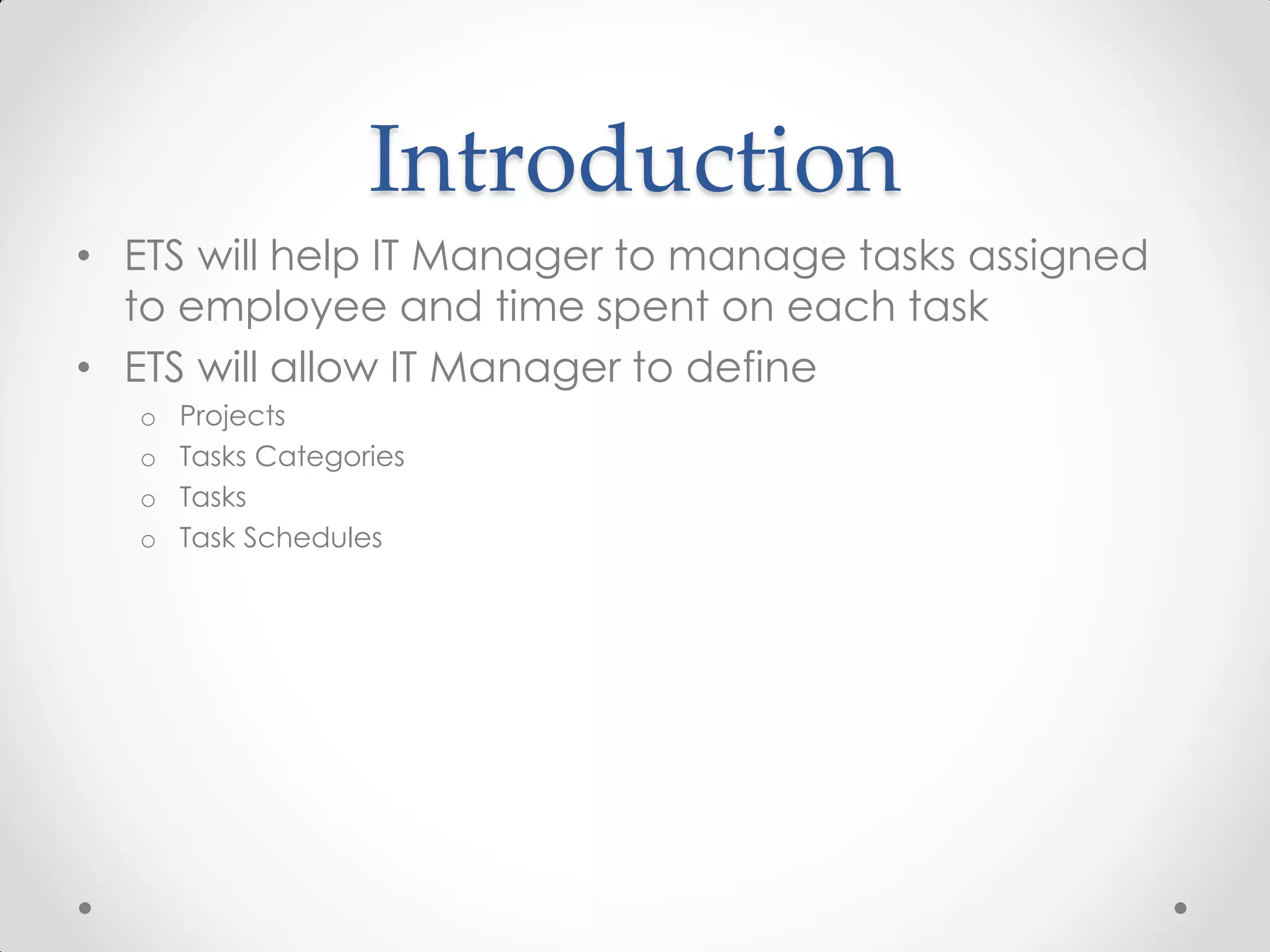
• ETS will help IT Manager to manage tasks assigned
  to employee and time spent on each task
• ETS will allow IT Manager to define
   o   Projects
   o   Tasks Categories
   o   Tasks
   o   Task Schedules
Introduction …
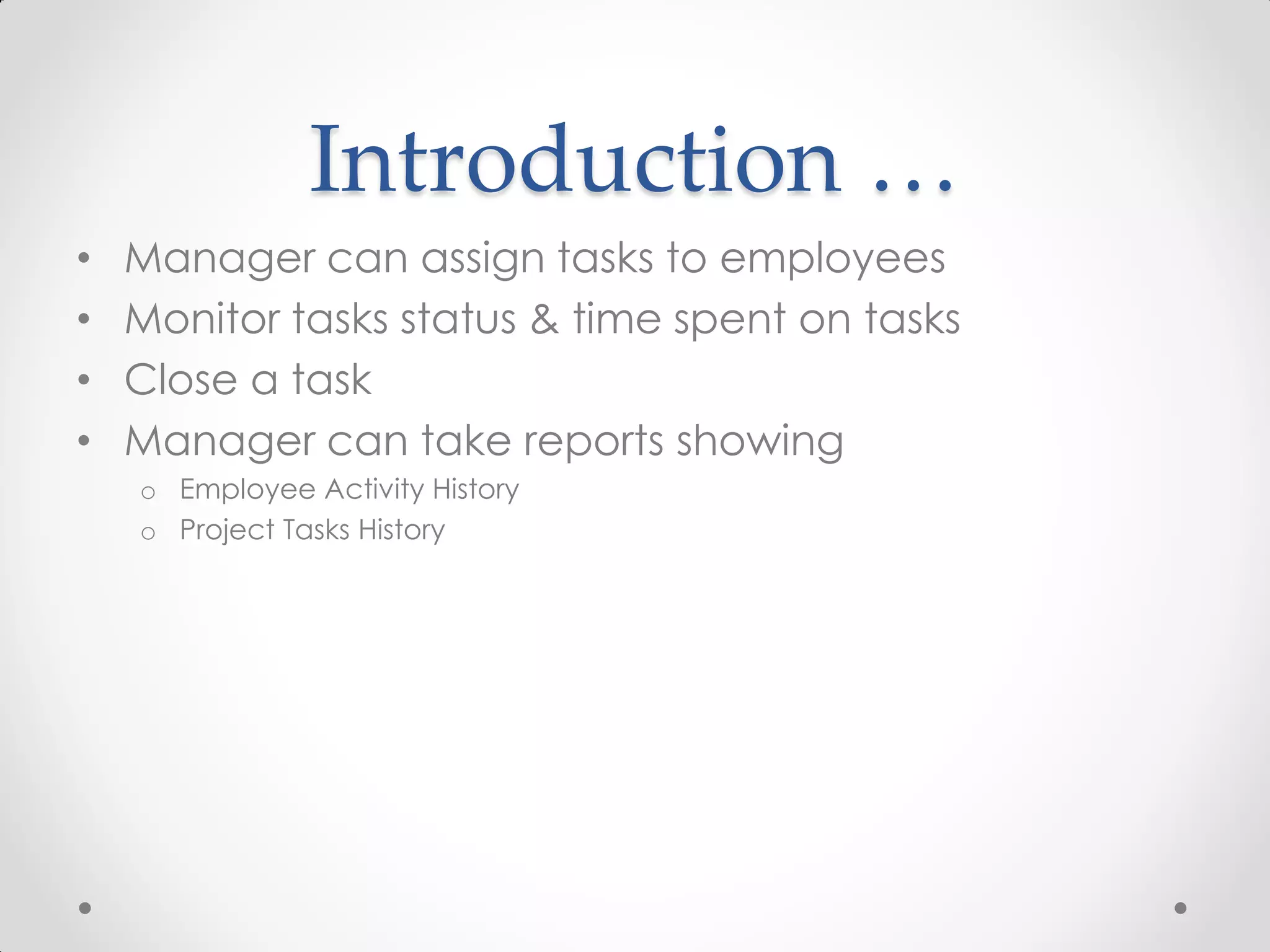
•   Manager can assign tasks to employees
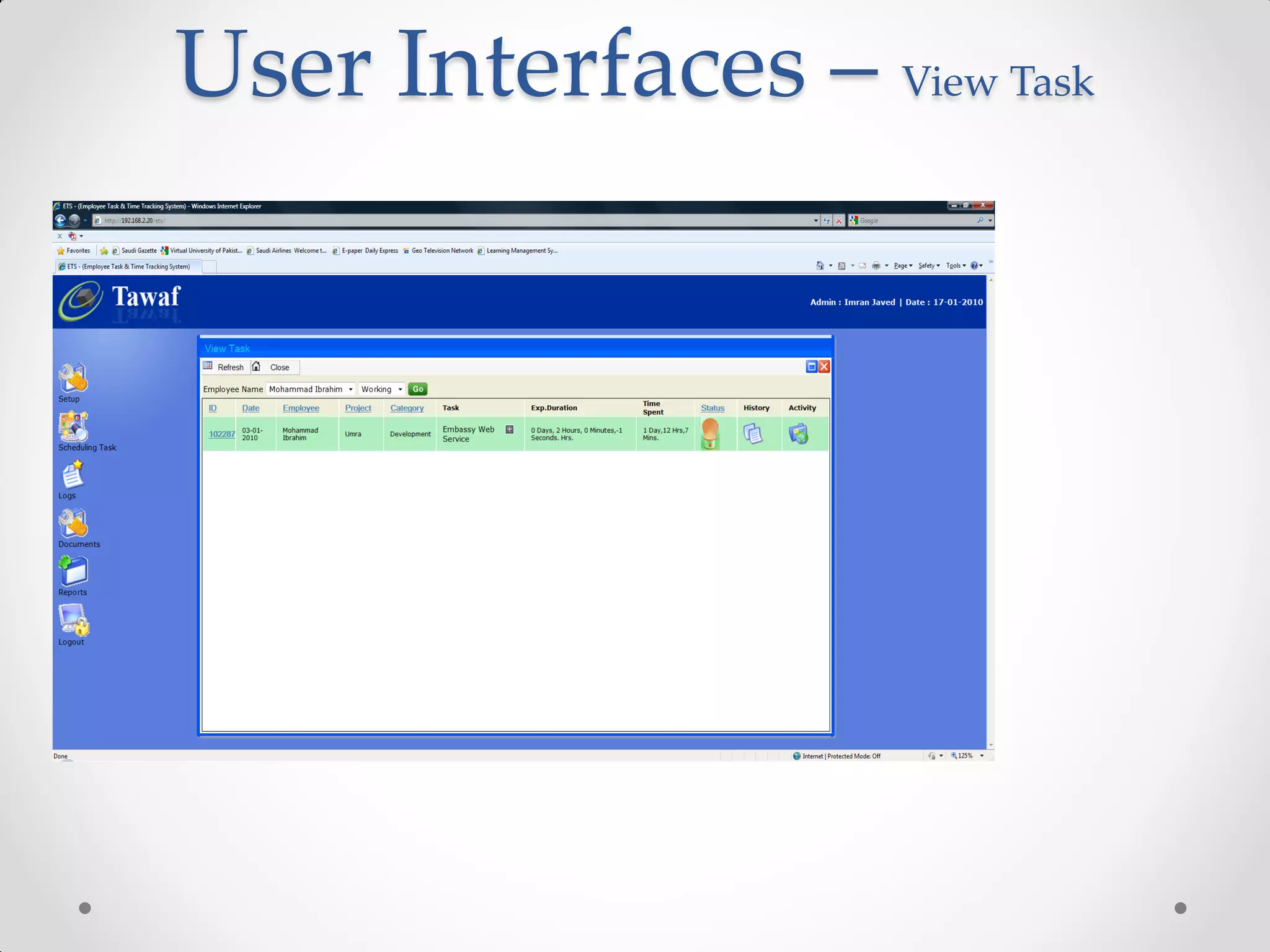
•   Monitor tasks status & time spent on tasks
•   Close a task
•   Manager can take reports showing
    o Employee Activity History
    o Project Tasks History
Actors Catalog
• IT Manager

• IT Employee
Functional Requirements
•   Define Project
•   Define Task Categories
•   Define Tasks and its schedule
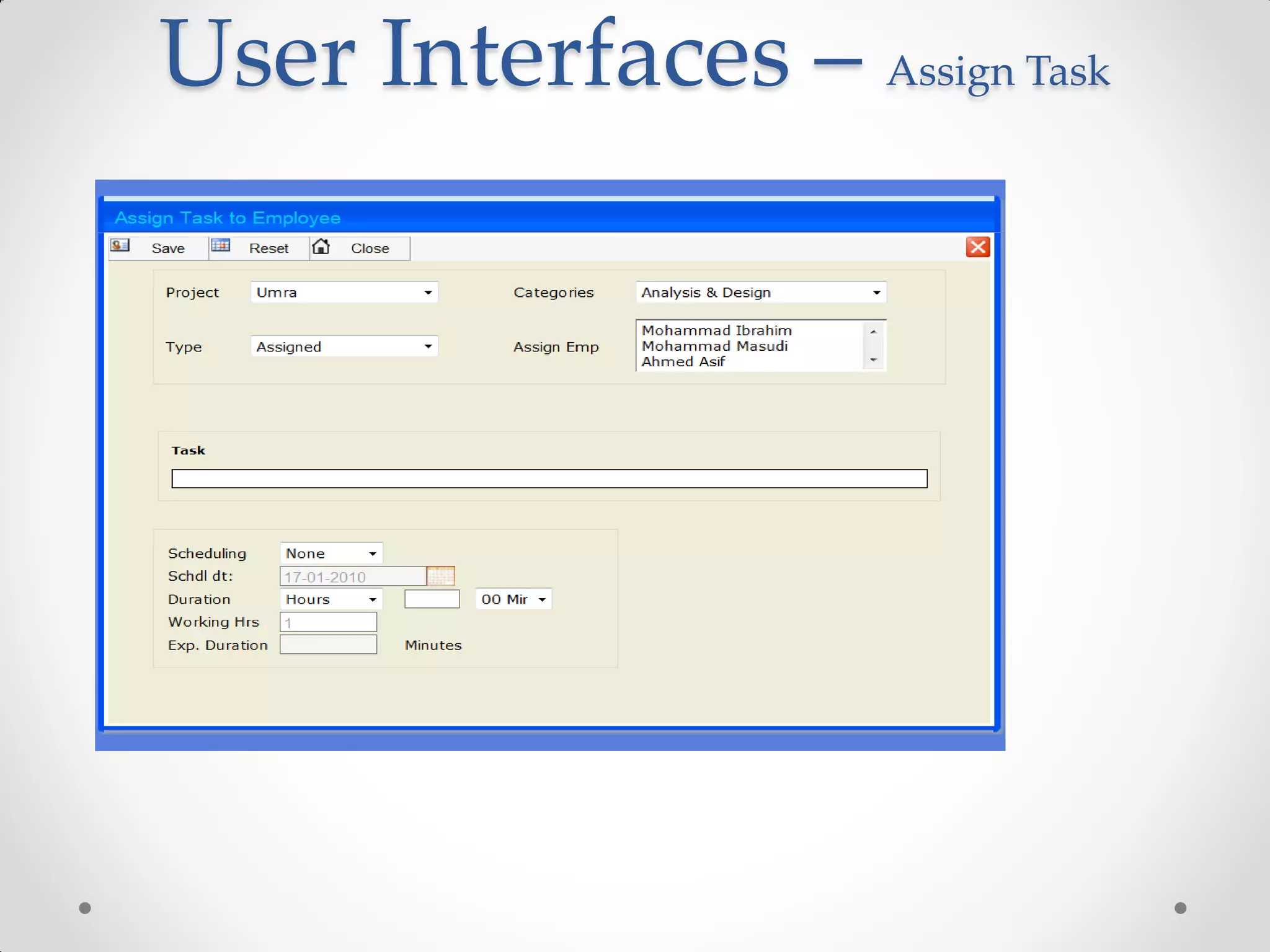
•   Assign Tasks to Employees
•   Record actual time spent on tasks
•   Change Task status
•   Create logins for employee
•   Generate Reports
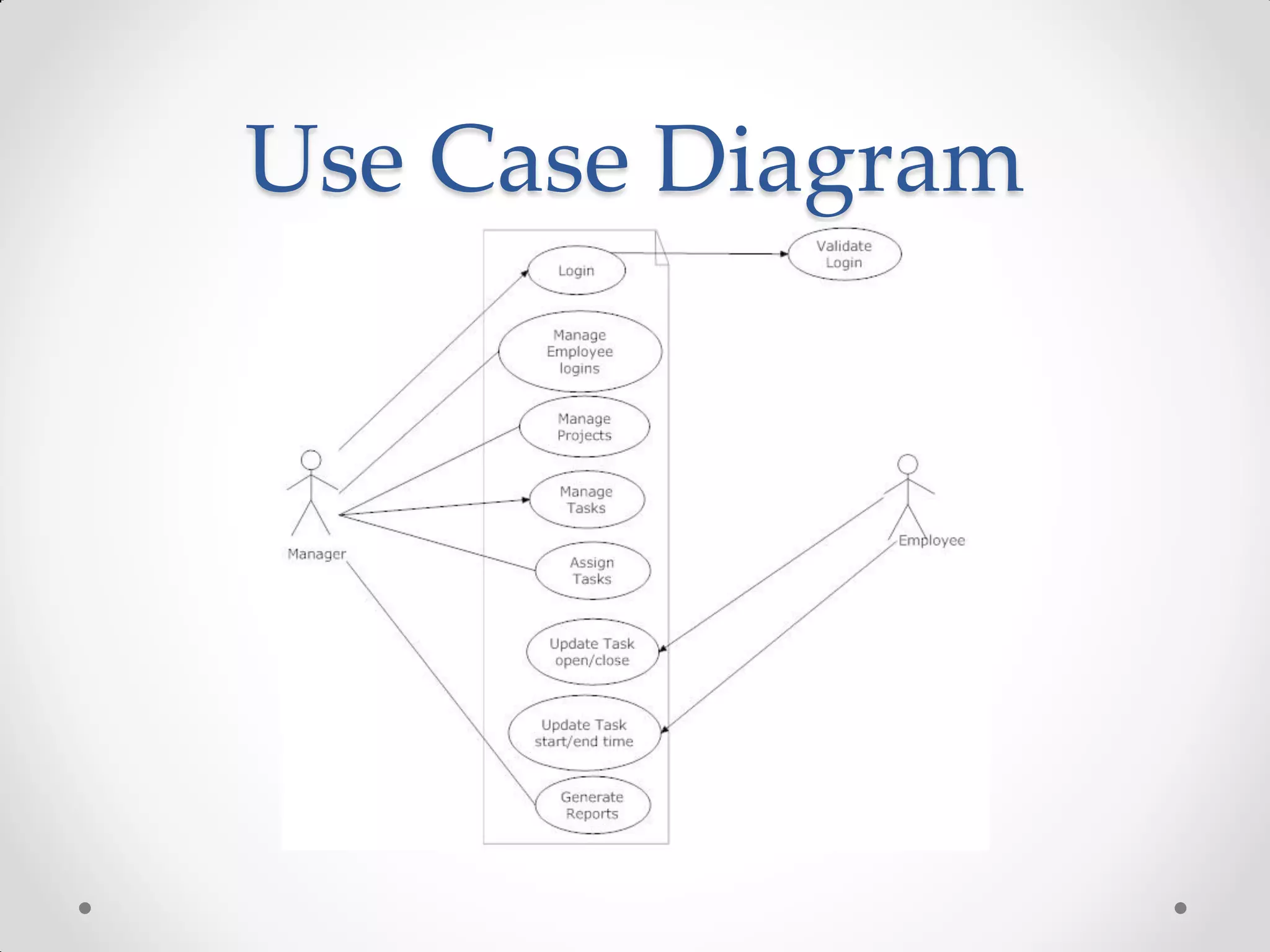
Use Case Diagram
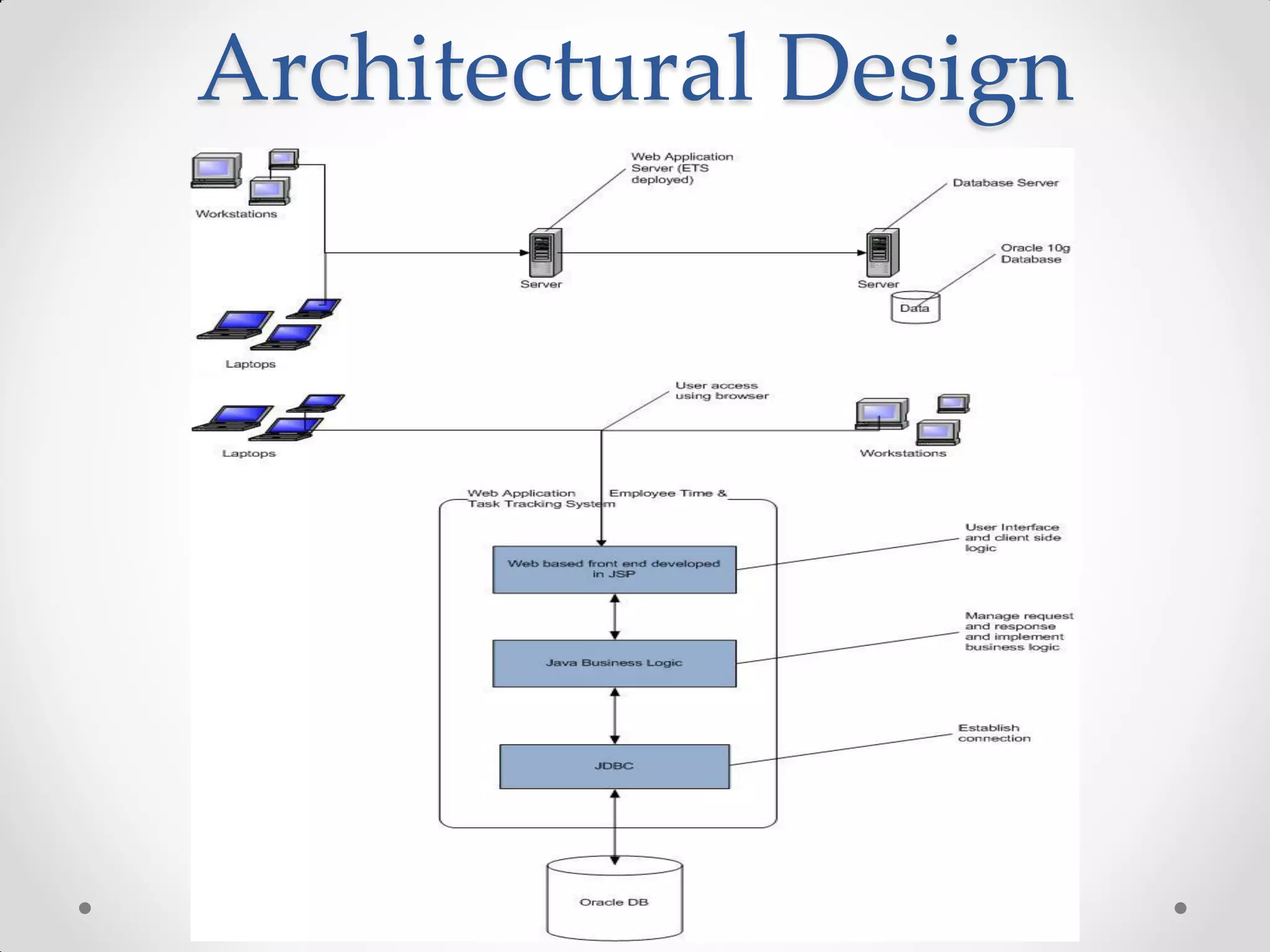
Architectural Design
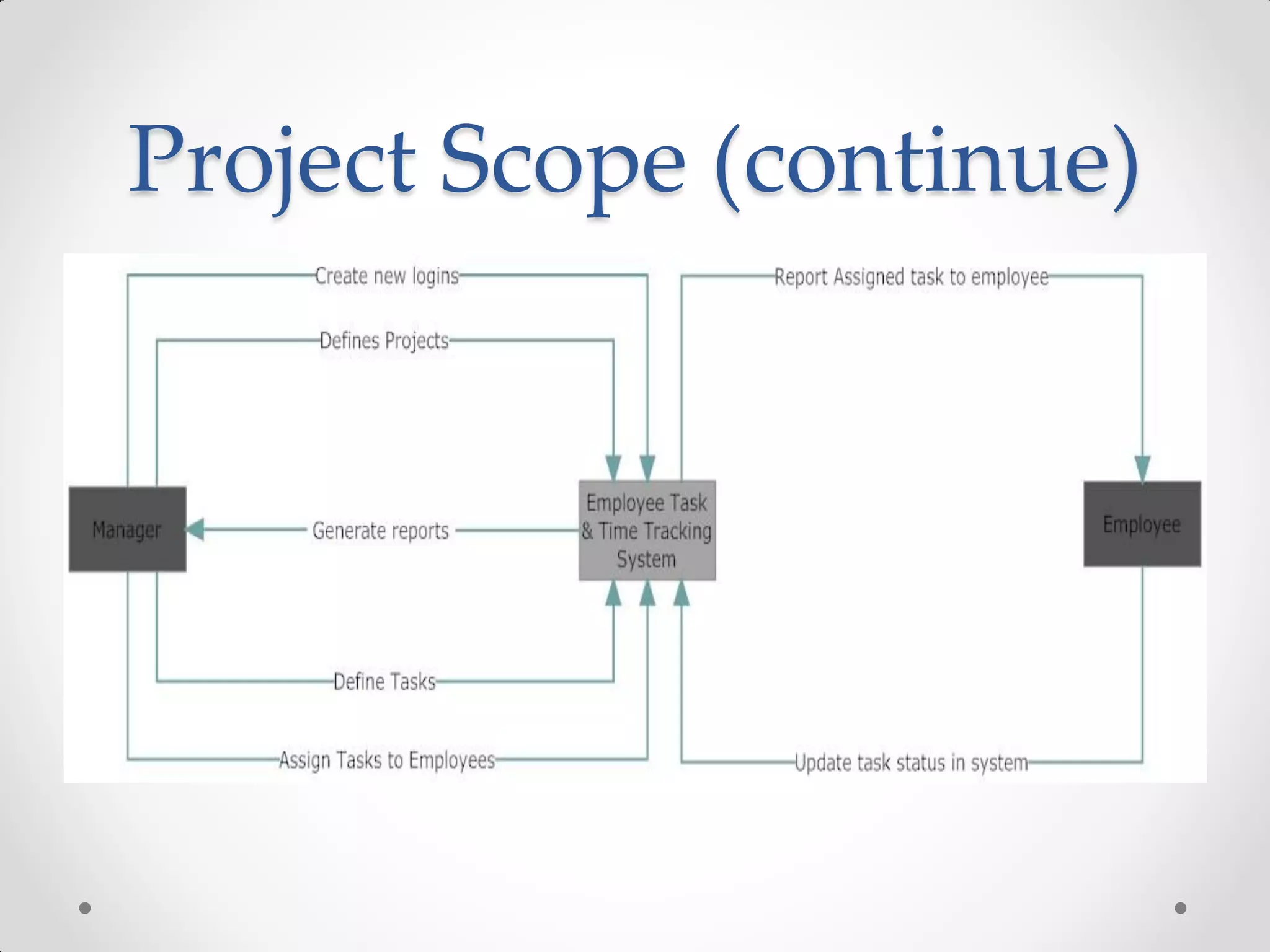
Project Scope
   Software scope covers following functions
   Define Project
   Define Tasks Categories
   Define Tasks
   Define Tasks Schedule
   Assign Tasks to employees
   Record actual time spent on tasks
   Change task status
   Provide report on Employee task history
   Provide project task history report
   Provide Employee efficiency report
   Create logins for new employees
Project Scope (continue)
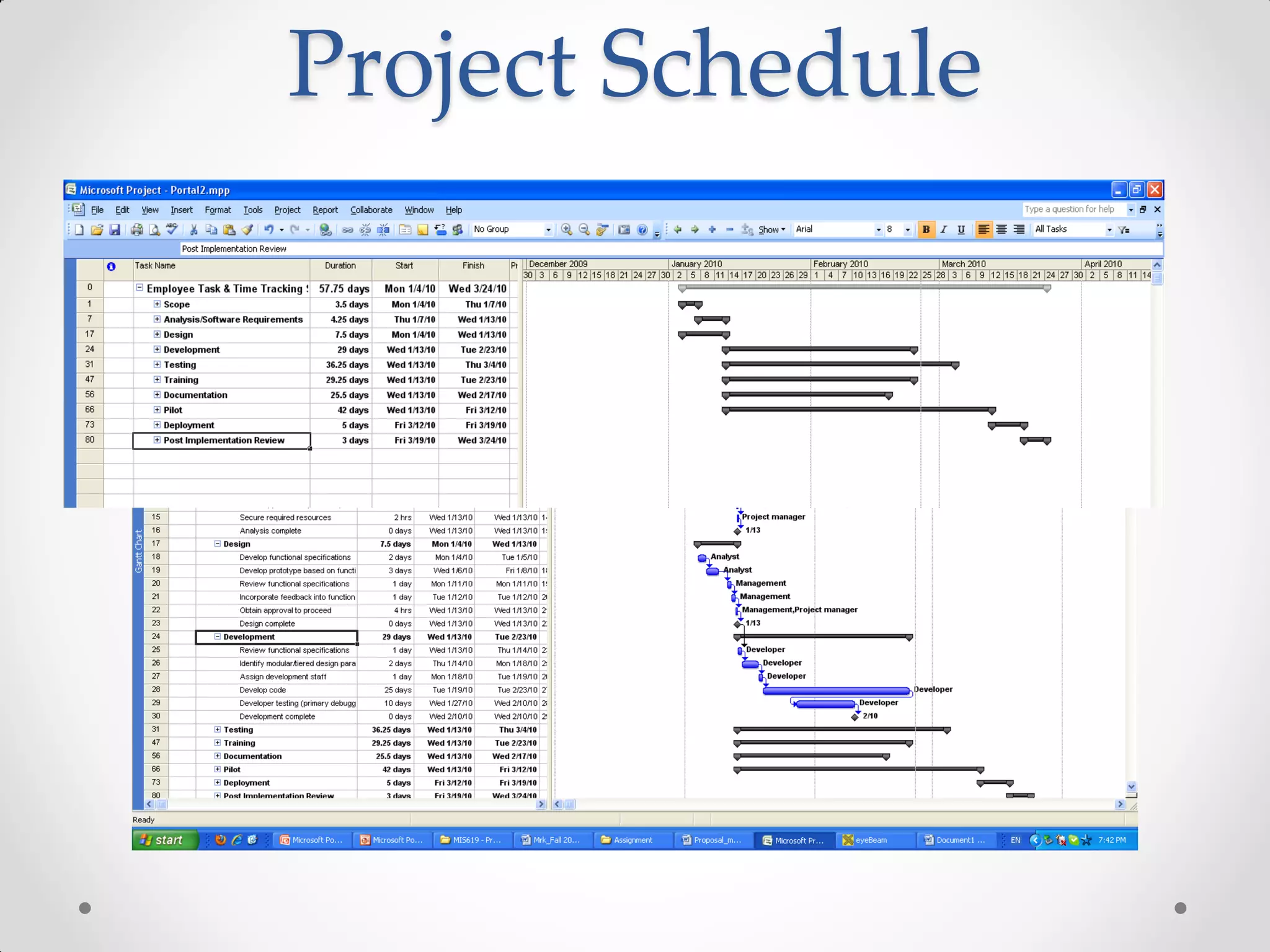
Project Schedule
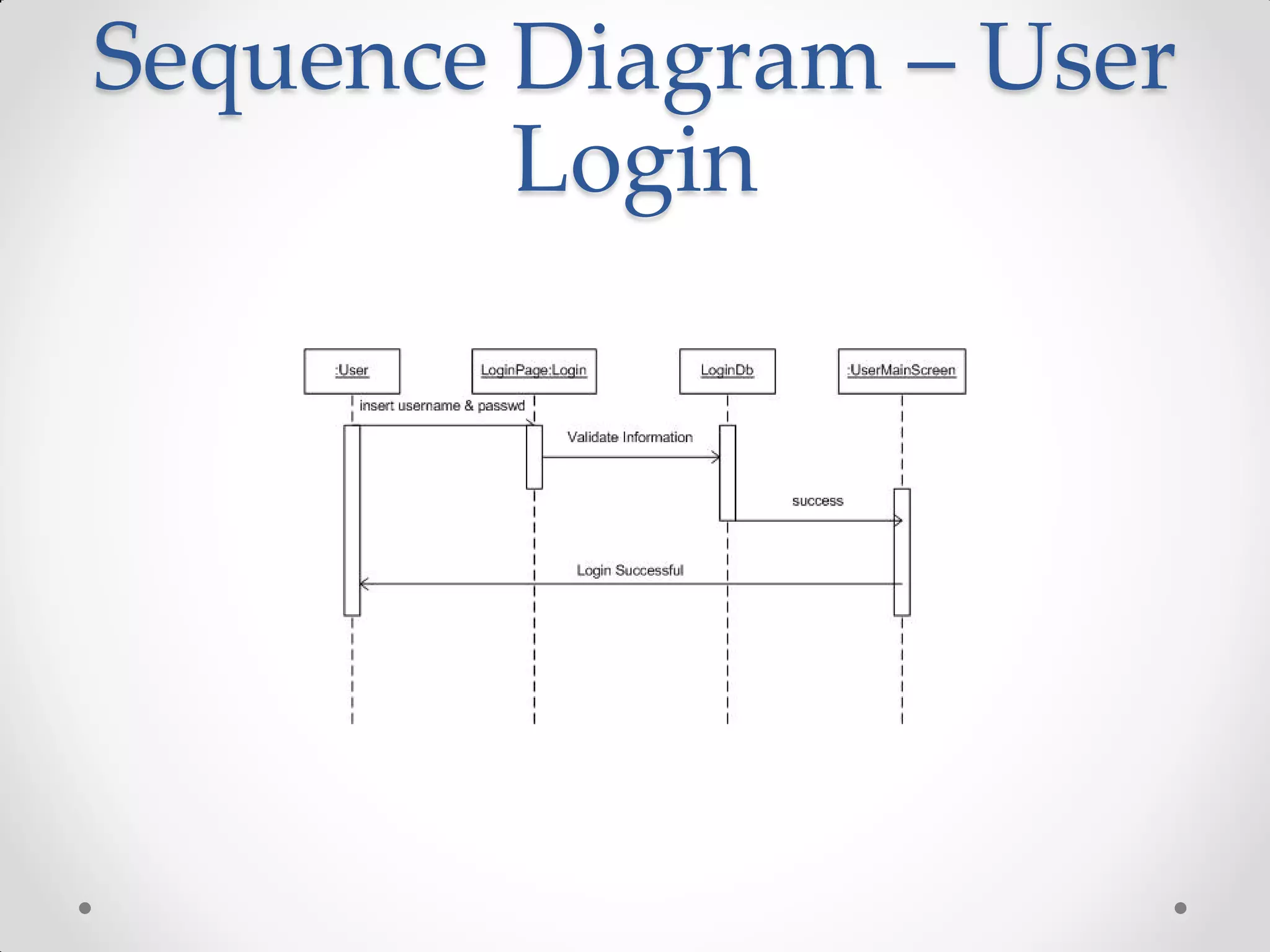
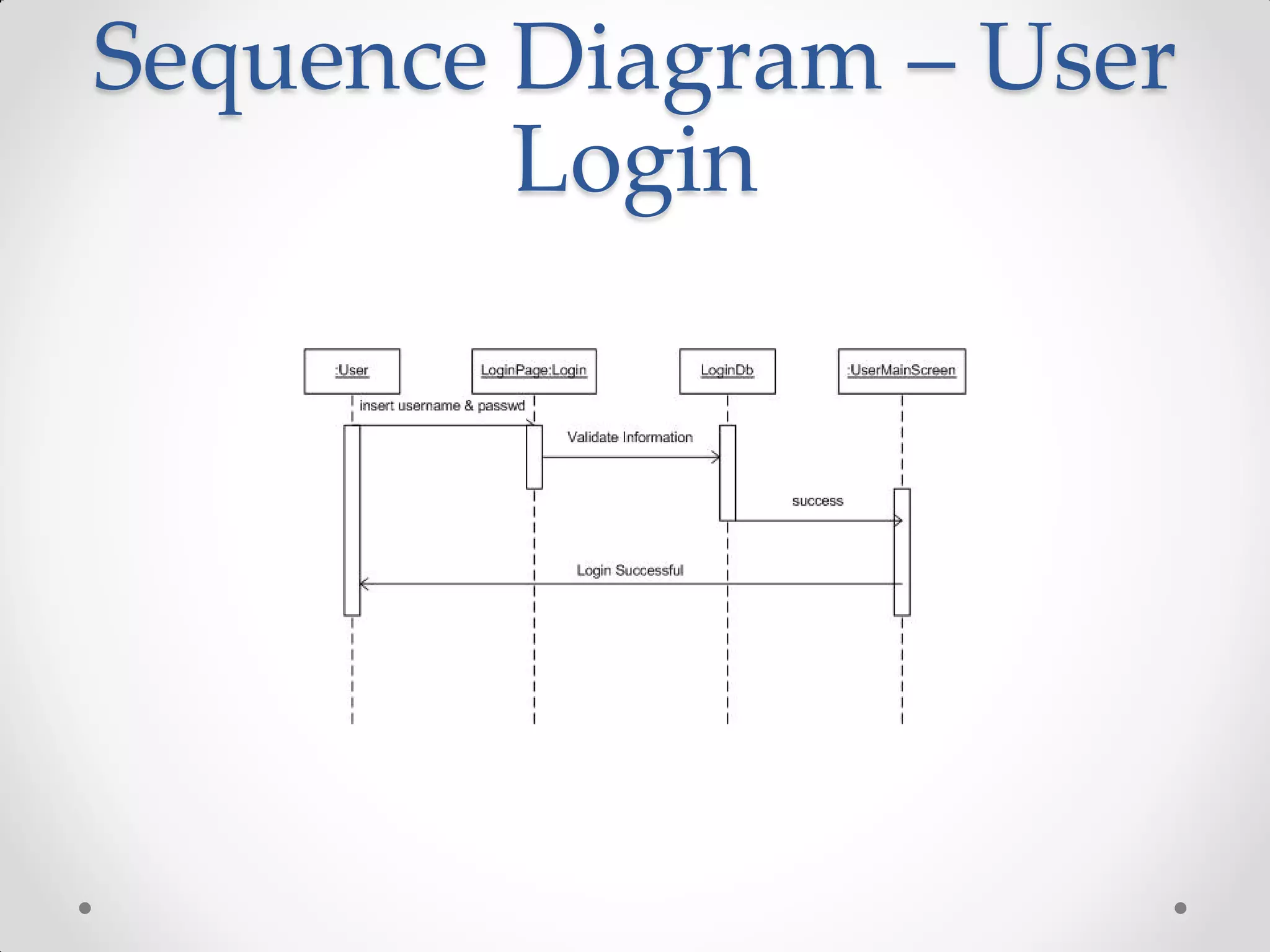
Sequence Diagram – User
         Login
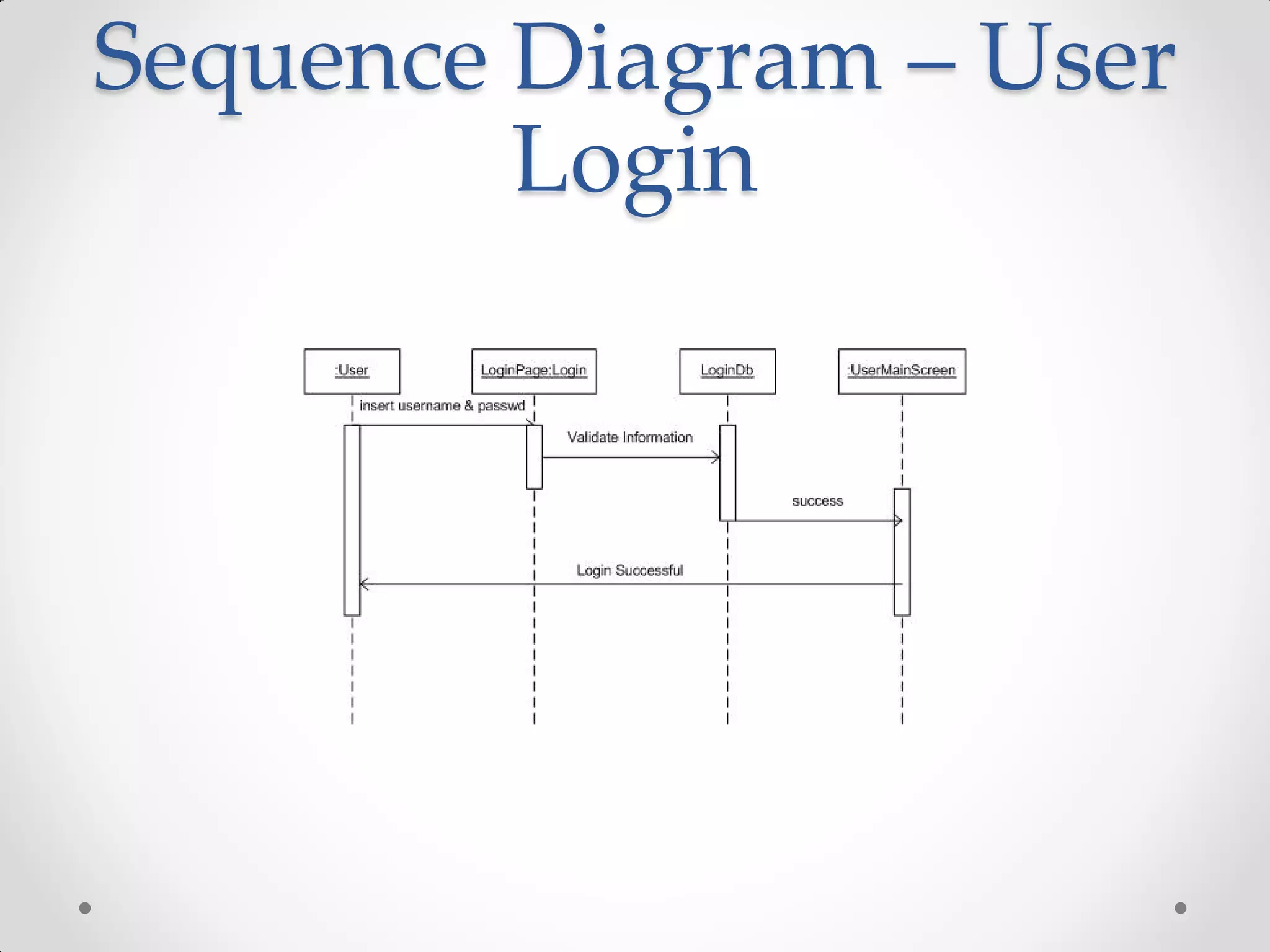
Sequence Diagram – User
         Login
Sequence Diagram – User
         Login
Sequence Diagram – User
         Login
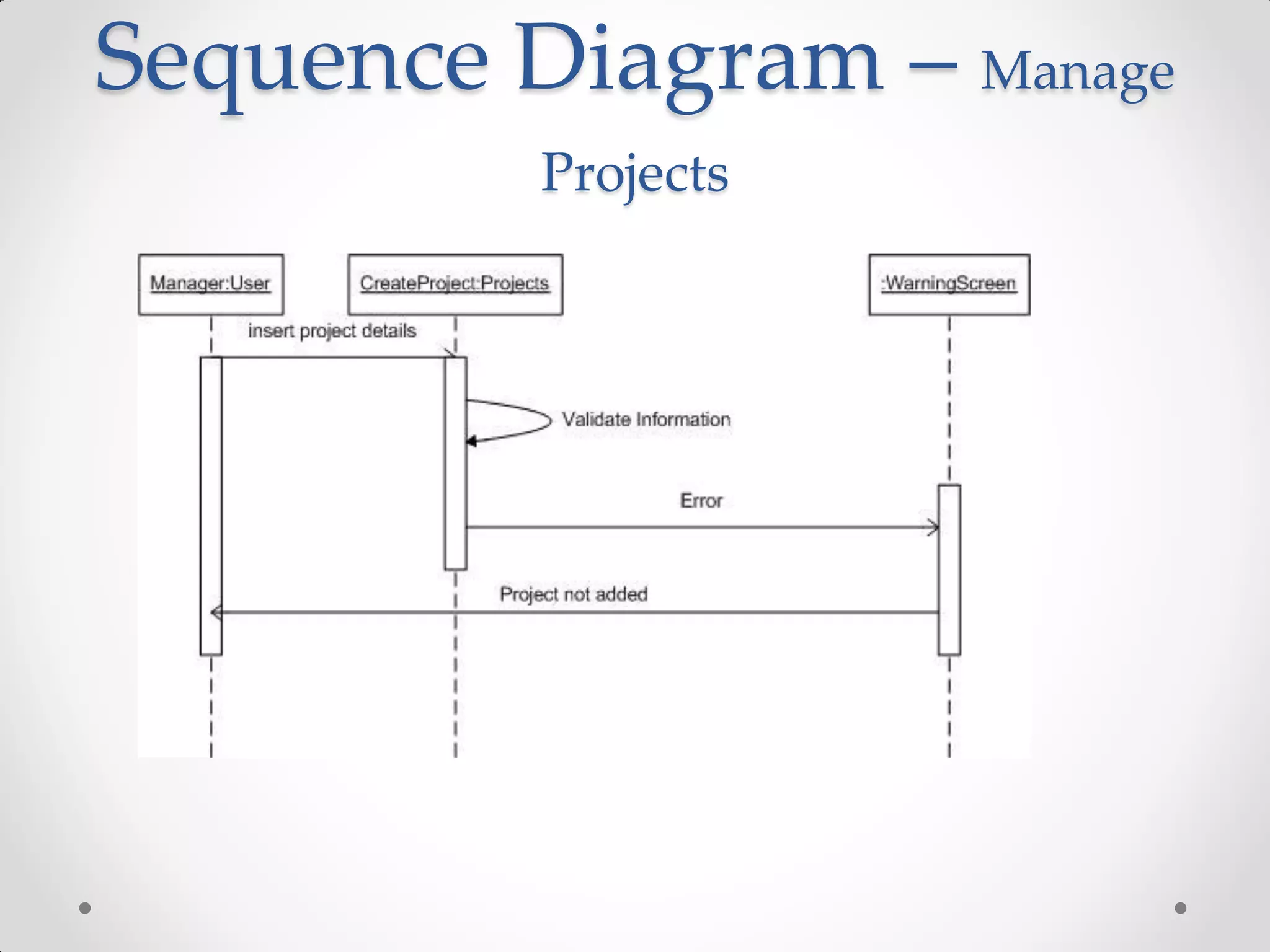
Sequence Diagram – Manage
          Projects
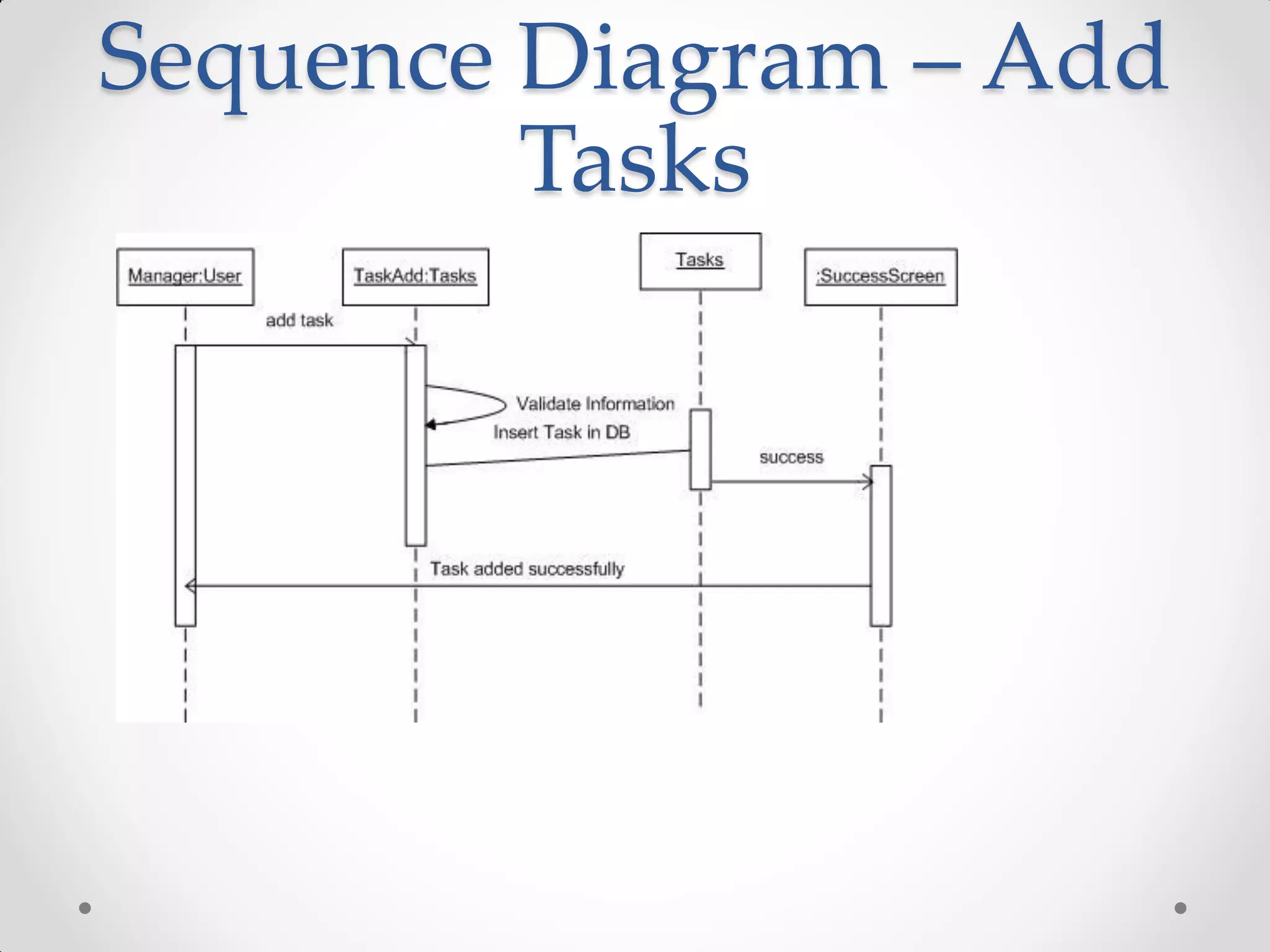
Sequence Diagram – Add
         Tasks
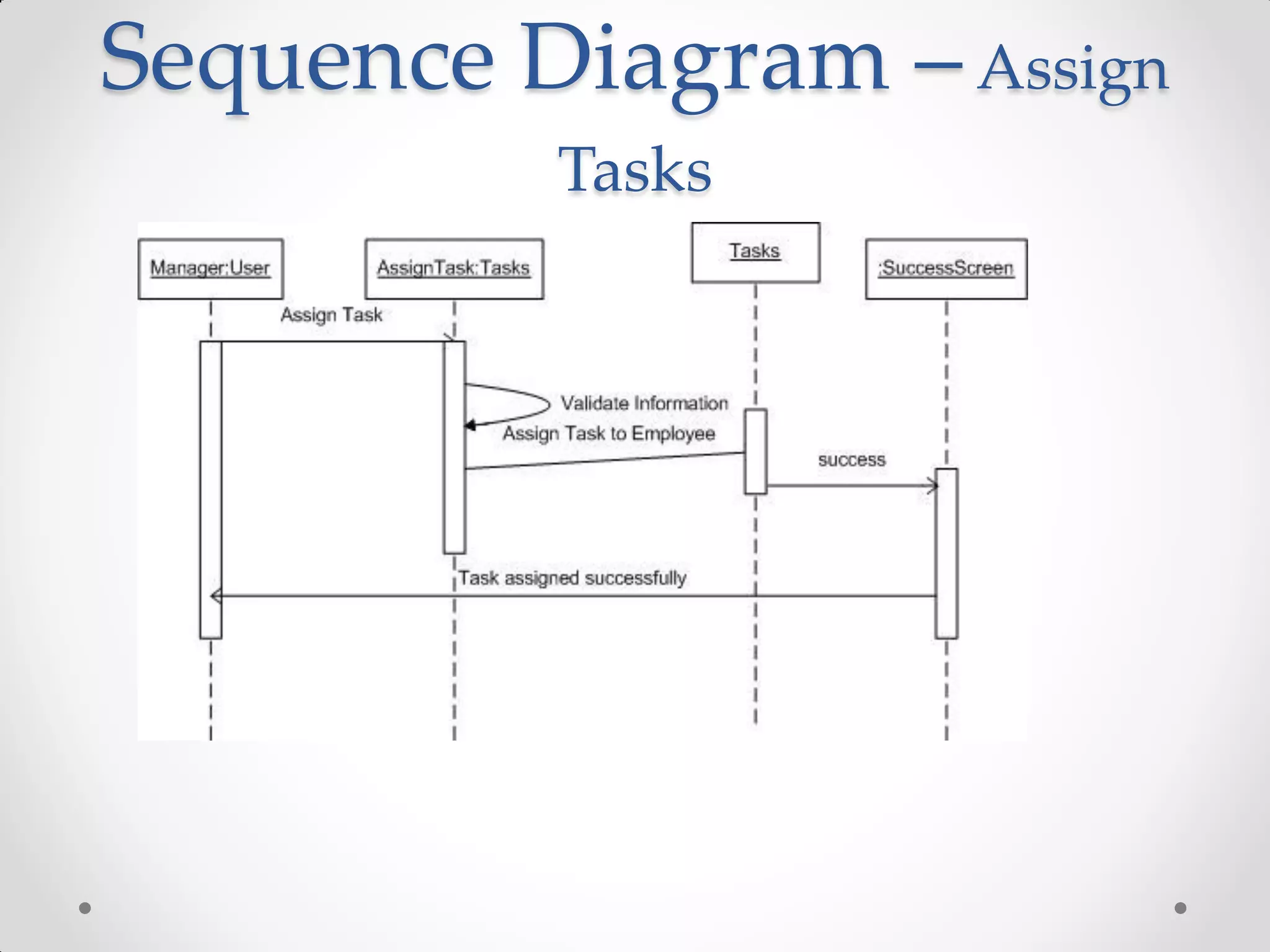
Sequence Diagram – Assign
          Tasks
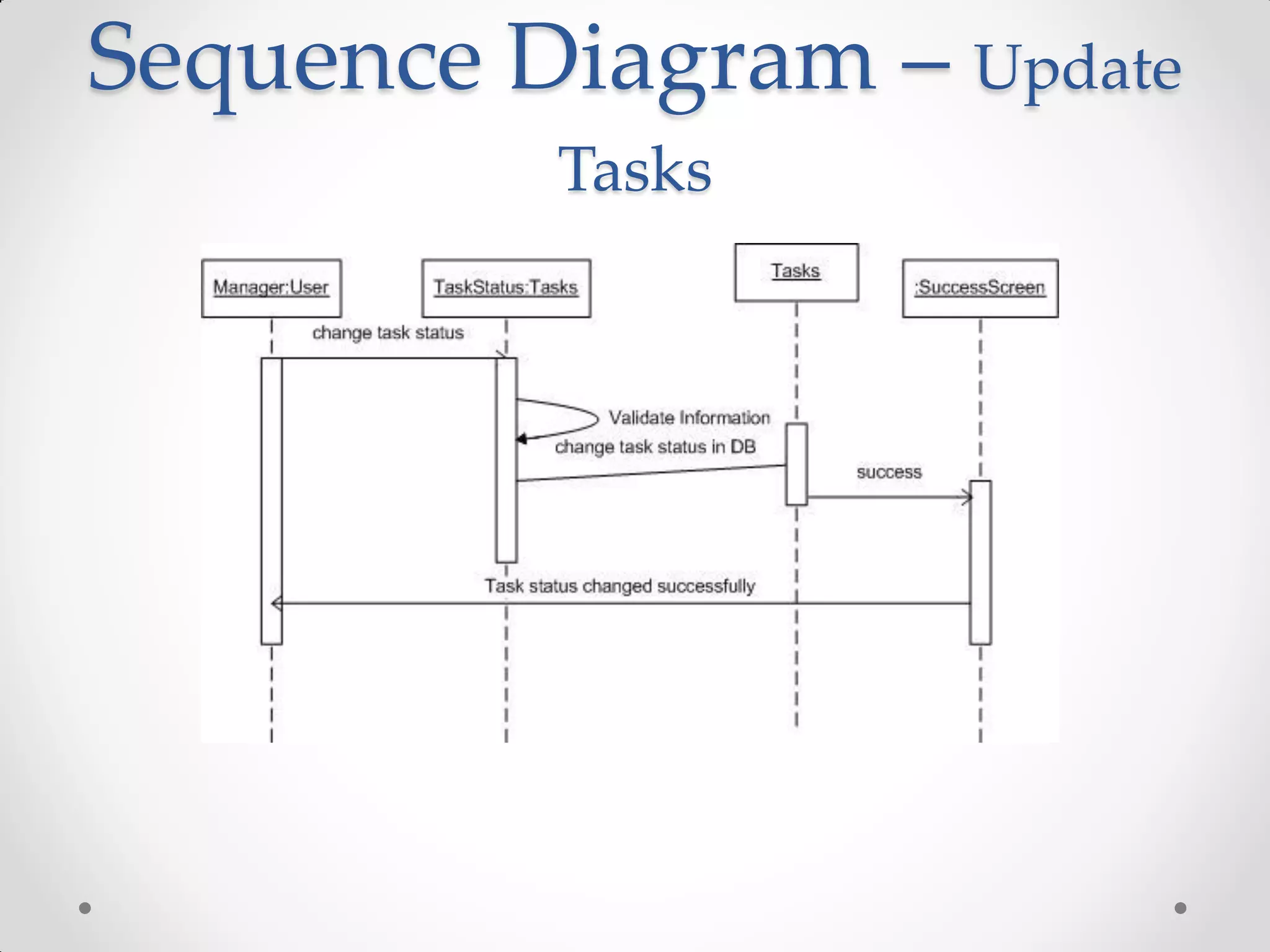
Sequence Diagram – Update
          Tasks
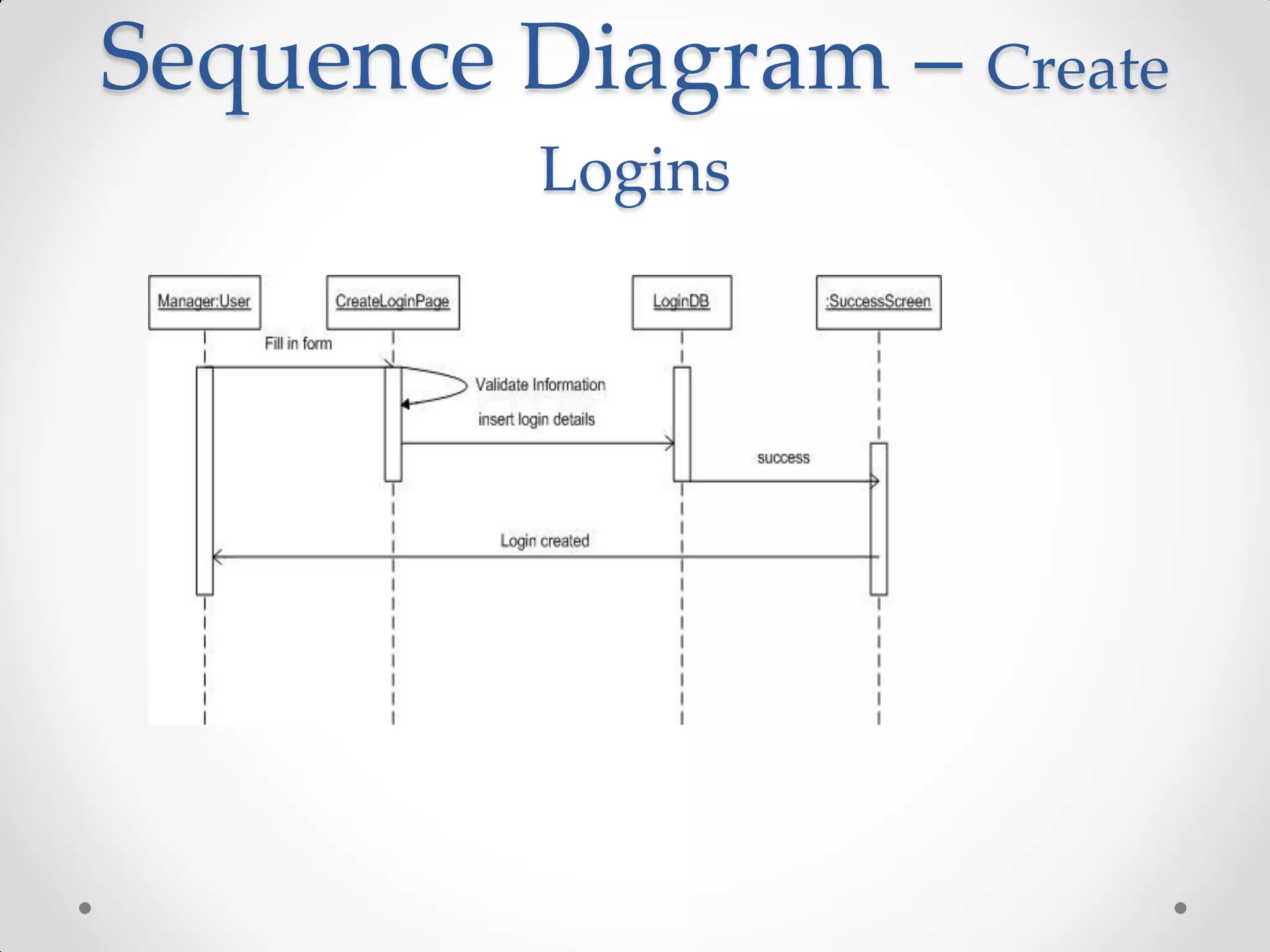
Sequence Diagram – Create
          Logins
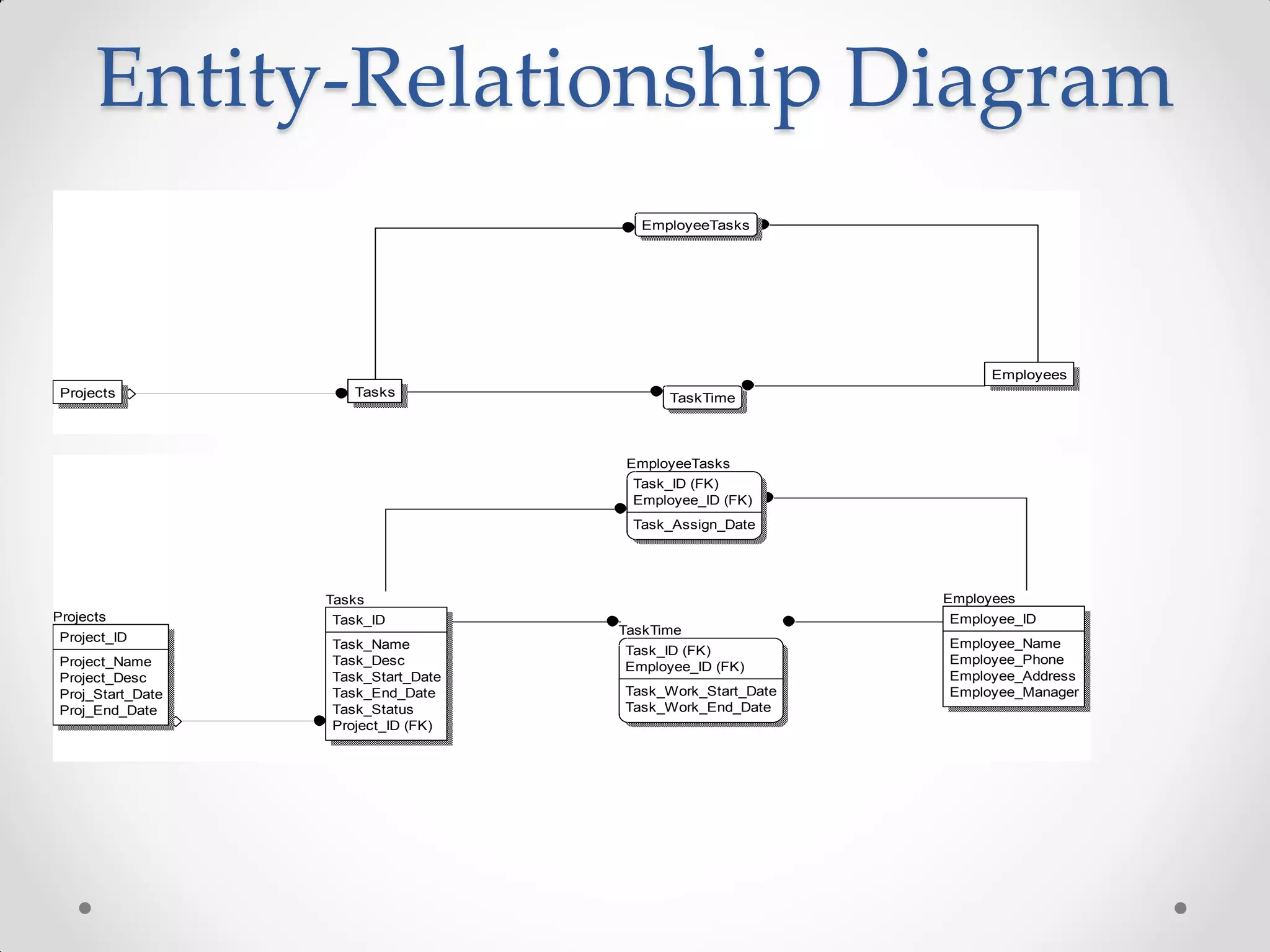
Entity-Relationship Diagram
                                       EmployeeTasks


                                                                  Employees
 Projects             Tasks                TaskTime


                                     EmployeeTasks
                                      Task_ID (FK)
                                      Employee_ID (FK)
                                      Task_Assign_Date


                   Tasks                                    Employees
Projects           Task_ID                                  Employee_ID
                                     TaskTime
 Project_ID                                                 Employee_Name
                   Task_Name         Task_ID (FK)
 Project_Name      Task_Desc                                Employee_Phone
                                     Employee_ID (FK)
 Project_Desc      Task_Start_Date                          Employee_Address
 Proj_Start_Date   Task_End_Date     Task_Work_Start_Date   Employee_Manager
 Proj_End_Date     Task_Status       Task_Work_End_Date
                   Project_ID (FK)
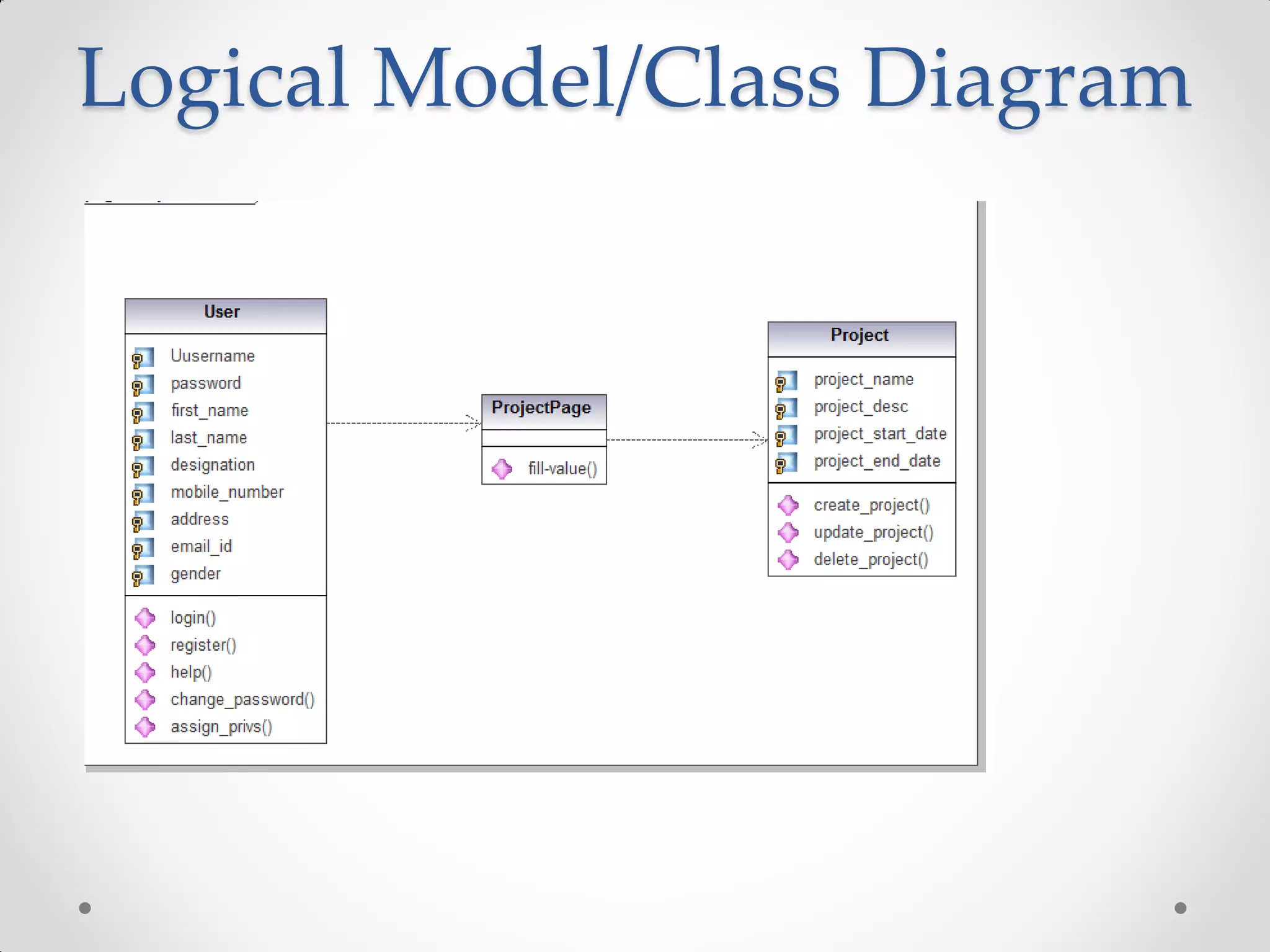
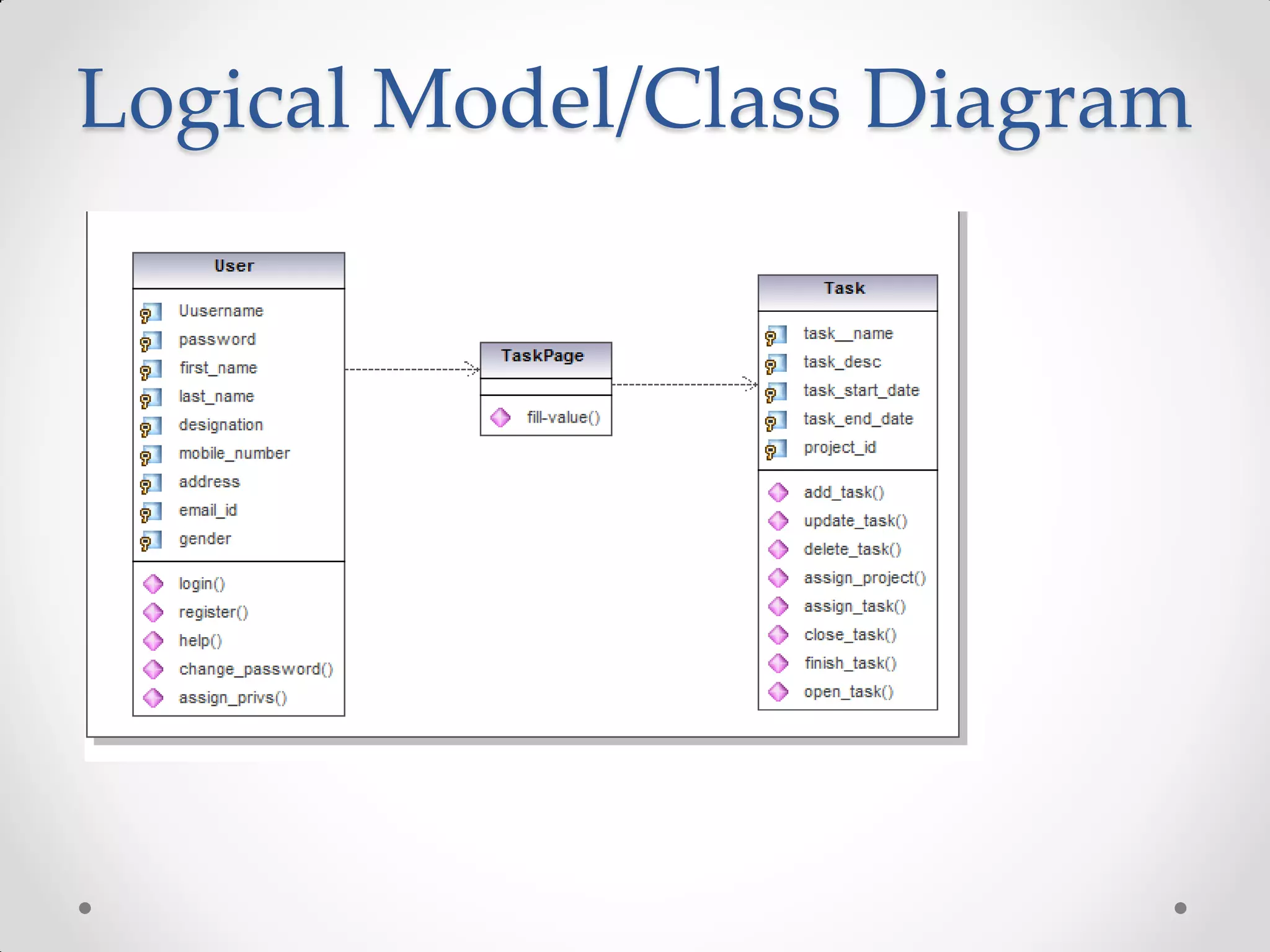
Logical Model/Class Diagram
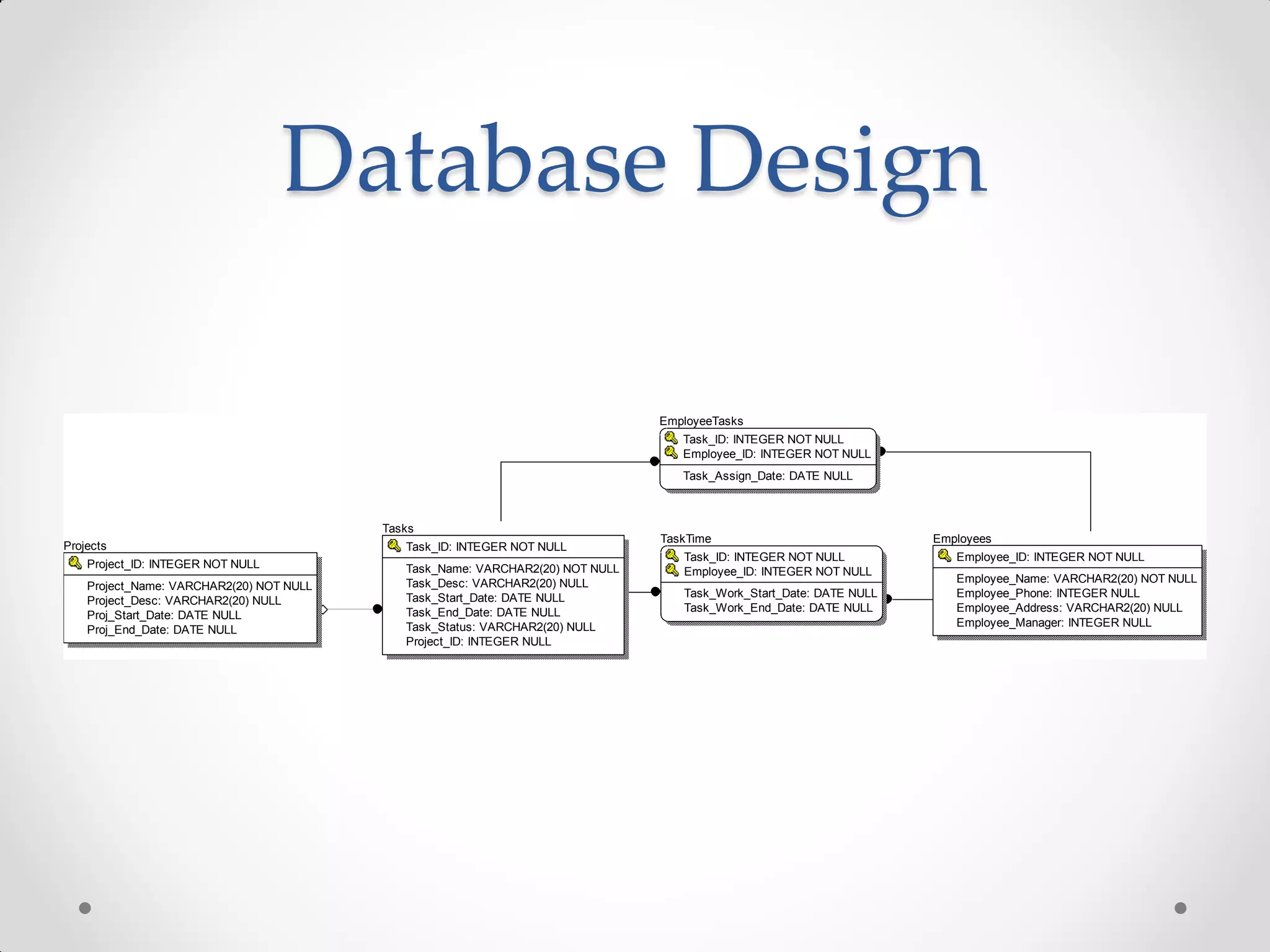
Database Design

                                                                                EmployeeTasks
                                                                                   Task_ID: INTEGER NOT NULL
                                                                                   Employee_ID: INTEGER NOT NULL
                                                                                   Task_Assign_Date: DATE NULL


                                          Tasks
                                                                                TaskTime                             Employees
Projects                                     Task_ID: INTEGER NOT NULL
                                                                                   Task_ID: INTEGER NOT NULL            Employee_ID: INTEGER NOT NULL
    Project_ID: INTEGER NOT NULL             Task_Name: VARCHAR2(20) NOT NULL      Employee_ID: INTEGER NOT NULL
                                             Task_Desc: VARCHAR2(20) NULL                                               Employee_Name: VARCHAR2(20) NOT NULL
    Project_Name: VARCHAR2(20) NOT NULL
                                             Task_Start_Date: DATE NULL            Task_Work_Start_Date: DATE NULL      Employee_Phone: INTEGER NULL
    Project_Desc: VARCHAR2(20) NULL
                                             Task_End_Date: DATE NULL              Task_Work_End_Date: DATE NULL        Employee_Address: VARCHAR2(20) NULL
    Proj_Start_Date: DATE NULL
                                             Task_Status: VARCHAR2(20) NULL                                             Employee_Manager: INTEGER NULL
    Proj_End_Date: DATE NULL
                                             Project_ID: INTEGER NULL
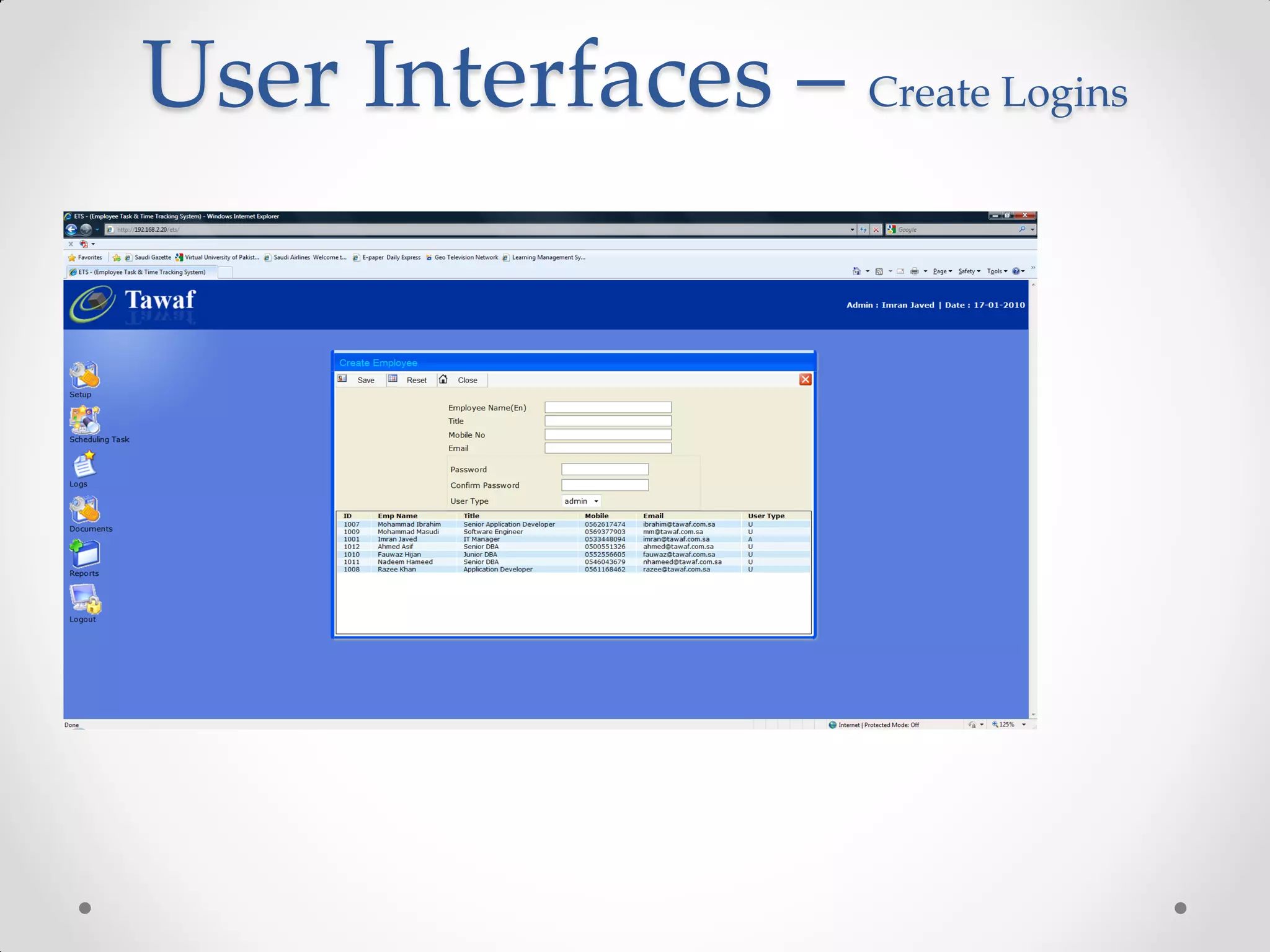
User Interfaces – Create Logins
User Interfaces – Assign Task
User Interfaces – View Task
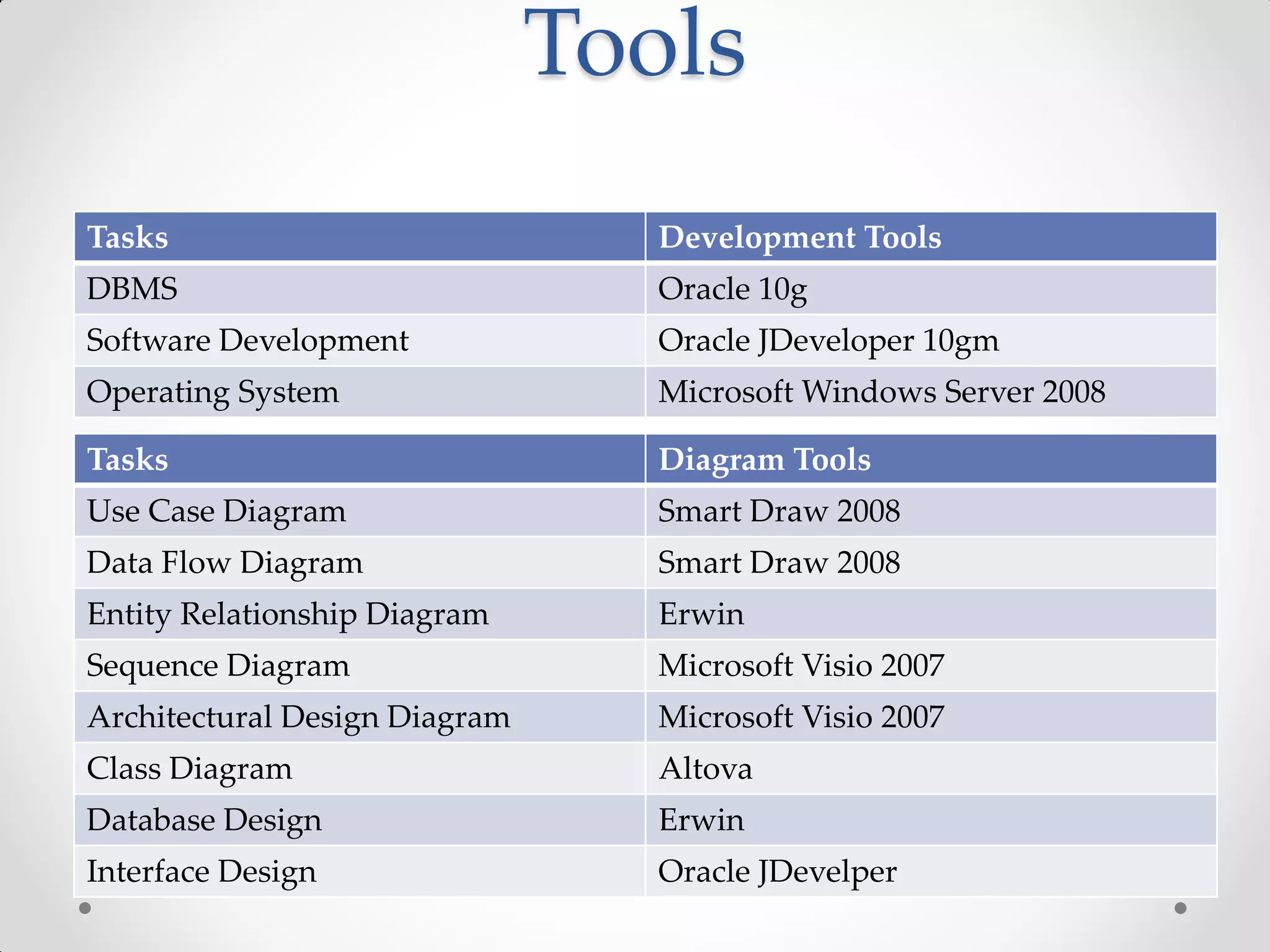
Tools
Tasks                             Development Tools
DBMS                              Oracle 10g
Software Development              Oracle JDeveloper 10gm
Operating System                  Microsoft Windows Server 2008

Tasks                             Diagram Tools
Use Case Diagram                  Smart Draw 2008
Data Flow Diagram                 Smart Draw 2008
Entity Relationship Diagram       Erwin
Sequence Diagram                  Microsoft Visio 2007
Architectural Design Diagram      Microsoft Visio 2007
Class Diagram                     Altova
Database Design                   Erwin
Interface Design                  Oracle JDevelper
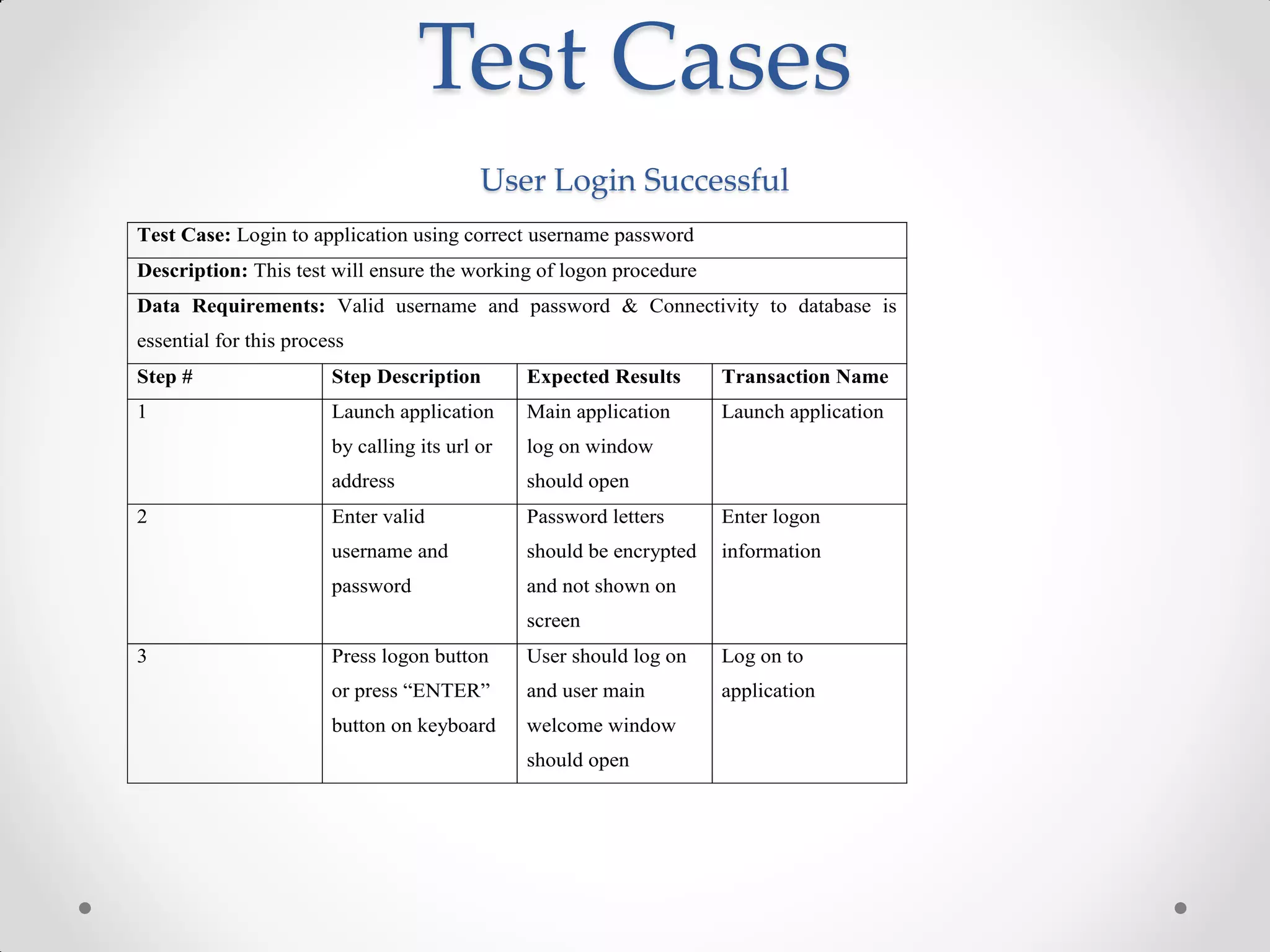
Test Cases
                                           User Login Successful
Test Case: Login to application using correct username password
Description: This test will ensure the working of logon procedure
Data Requirements: Valid username and password & Connectivity to database is
essential for this process
Step #                  Step Description        Expected Results      Transaction Name
1                       Launch application      Main application      Launch application
                        by calling its url or   log on window
                        address                 should open
2                       Enter valid             Password letters      Enter logon
                        username and            should be encrypted   information
                        password                and not shown on
                                                screen
3                       Press logon button      User should log on    Log on to
                        or press “ENTER”        and user main         application
                        button on keyboard      welcome window
                                                should open
Test Cases
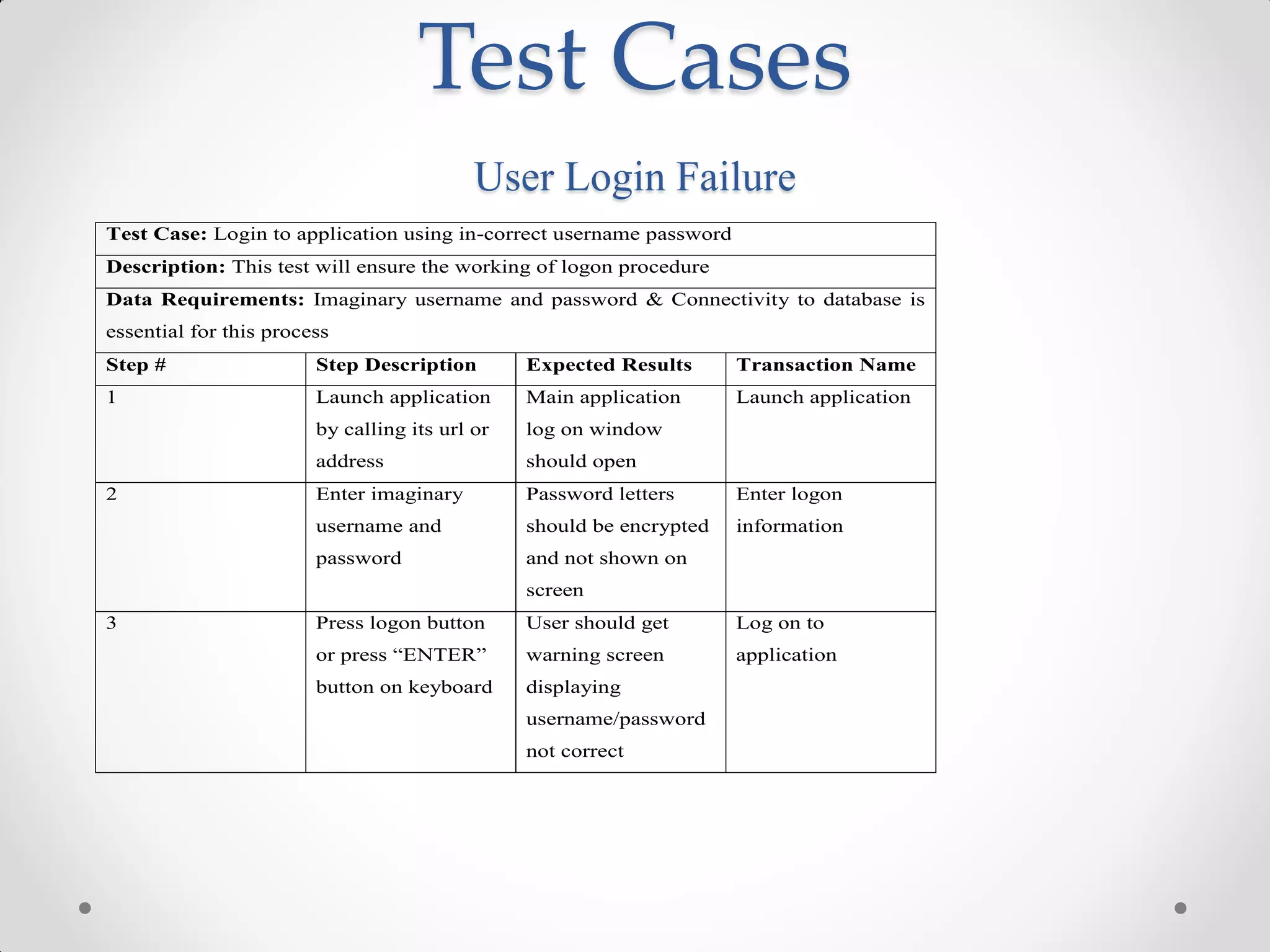
                                           User Login Failure
Test Case: Login to application using in-correct username password
Description: This test will ensure the working of logon procedure
Data Requirements: Imaginary username and password & Connectivity to database is
essential for this process
Step #                  Step Description        Expected Results      Transaction Name
1                       Launch application      Main application      Launch application
                        by calling its url or   log on window
                        address                 should open
2                       Enter imaginary         Password letters      Enter logon
                        username and            should be encrypted   information
                        password                and not shown on
                                                screen
3                       Press logon button      User should get       Log on to
                        or press “ENTER”        warning screen        application
                        button on keyboard      displaying
                                                username/password
                                                not correct
Test Cases
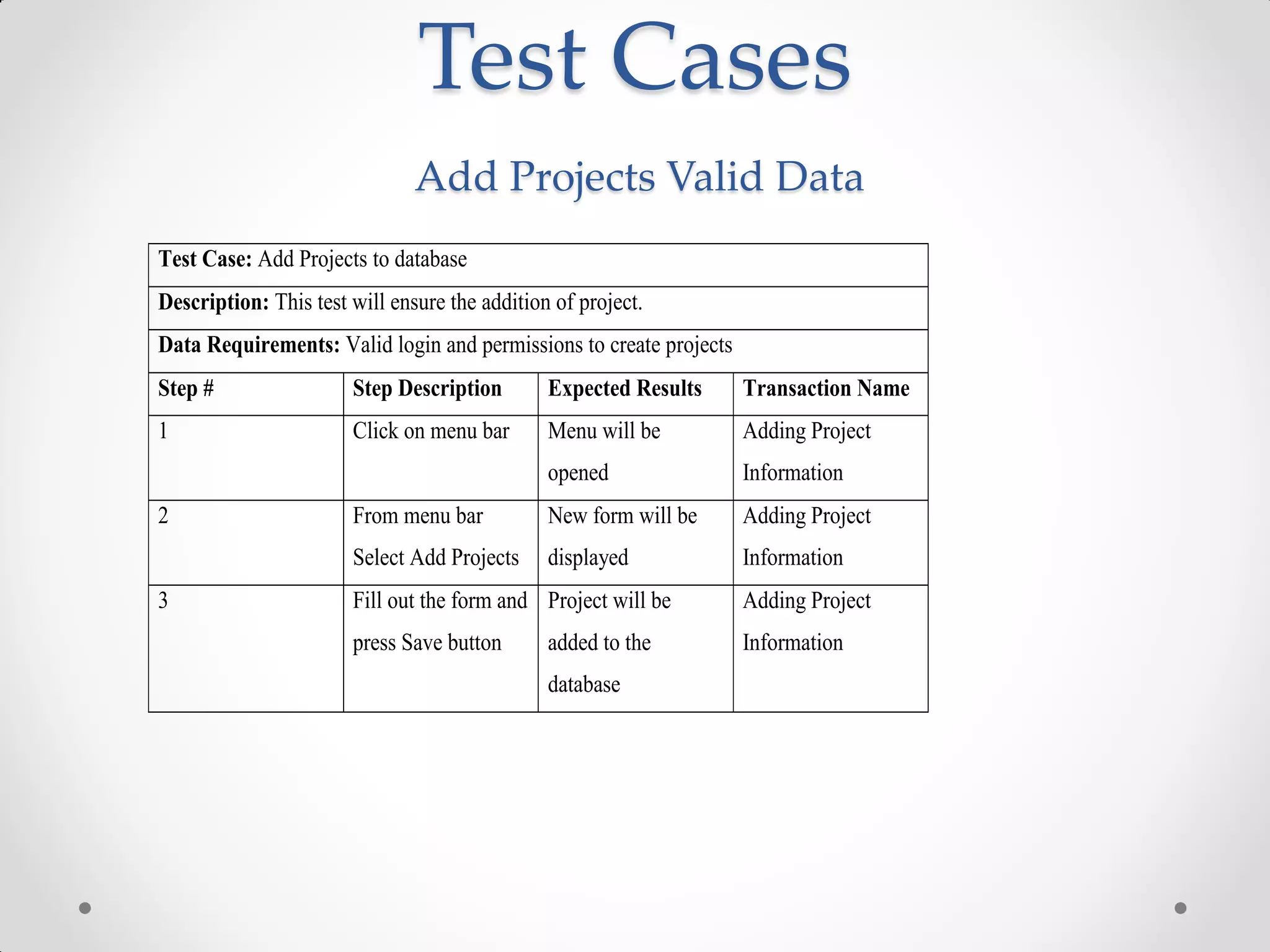
                               Add Projects Valid Data
Test Case: Add Projects to database
Description: This test will ensure the addition of project.
Data Requirements: Valid login and permissions to create projects
Step #                 Step Description        Expected Results     Transaction Name
1                      Click on menu bar       Menu will be         Adding Project
                                               opened               Information
2                      From menu bar           New form will be     Adding Project
                       Select Add Projects     displayed            Information
3                      Fill out the form and Project will be        Adding Project
                       press Save button       added to the         Information
                                               database
Test Cases
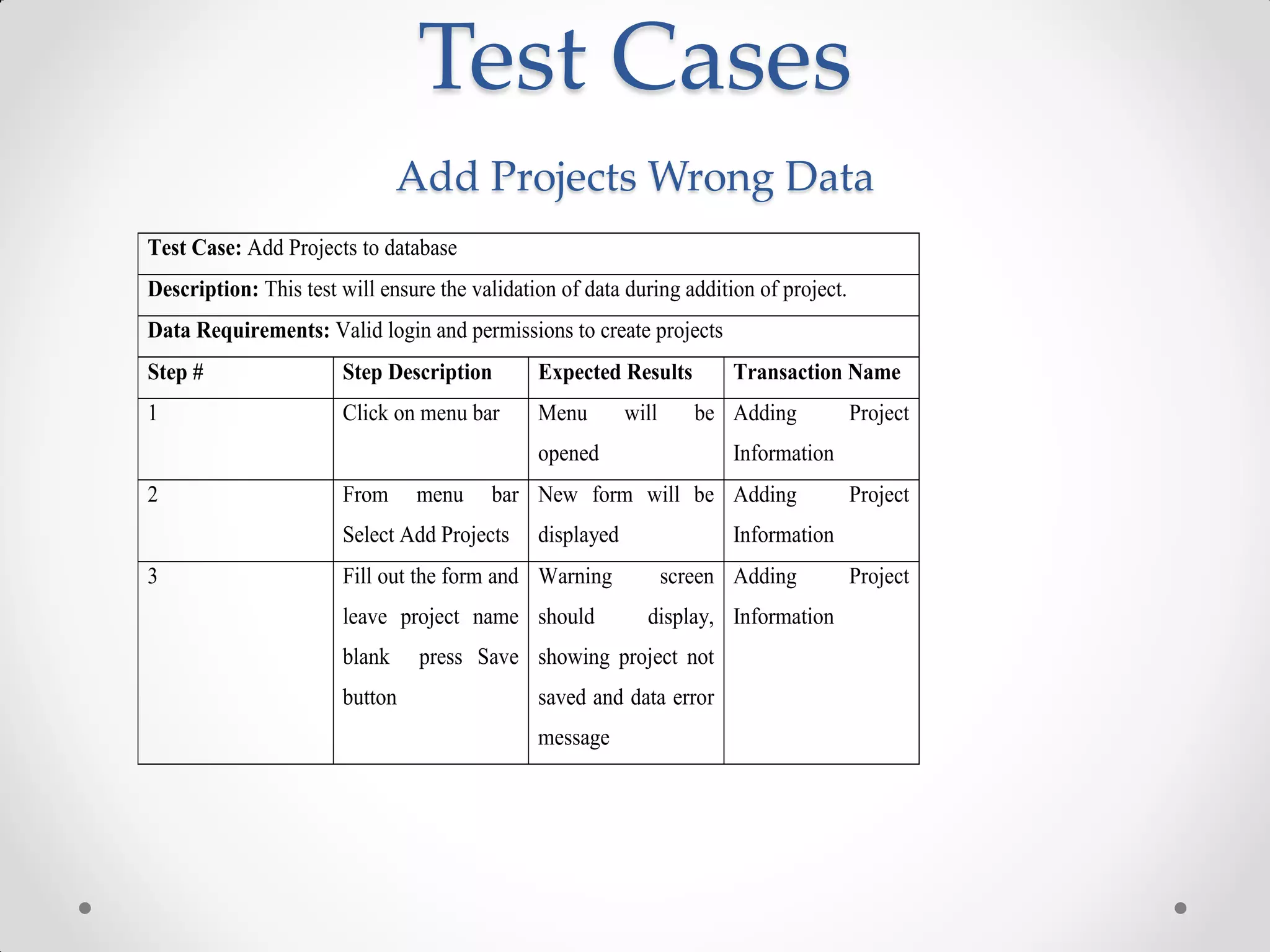
                               Add Projects Wrong Data
Test Case: Add Projects to database
Description: This test will ensure the validation of data during addition of project.
Data Requirements: Valid login and permissions to create projects
Step #                 Step Description        Expected Results         Transaction Name
1                      Click on menu bar       Menu        will      be Adding          Project
                                               opened                   Information
2                      From     menu     bar New form will be Adding                    Project
                       Select Add Projects     displayed                Information
3                      Fill out the form and Warning              screen Adding         Project
                       leave project name should             display, Information
                       blank     press Save showing project not
                       button                  saved and data error
                                               message
Test Cases
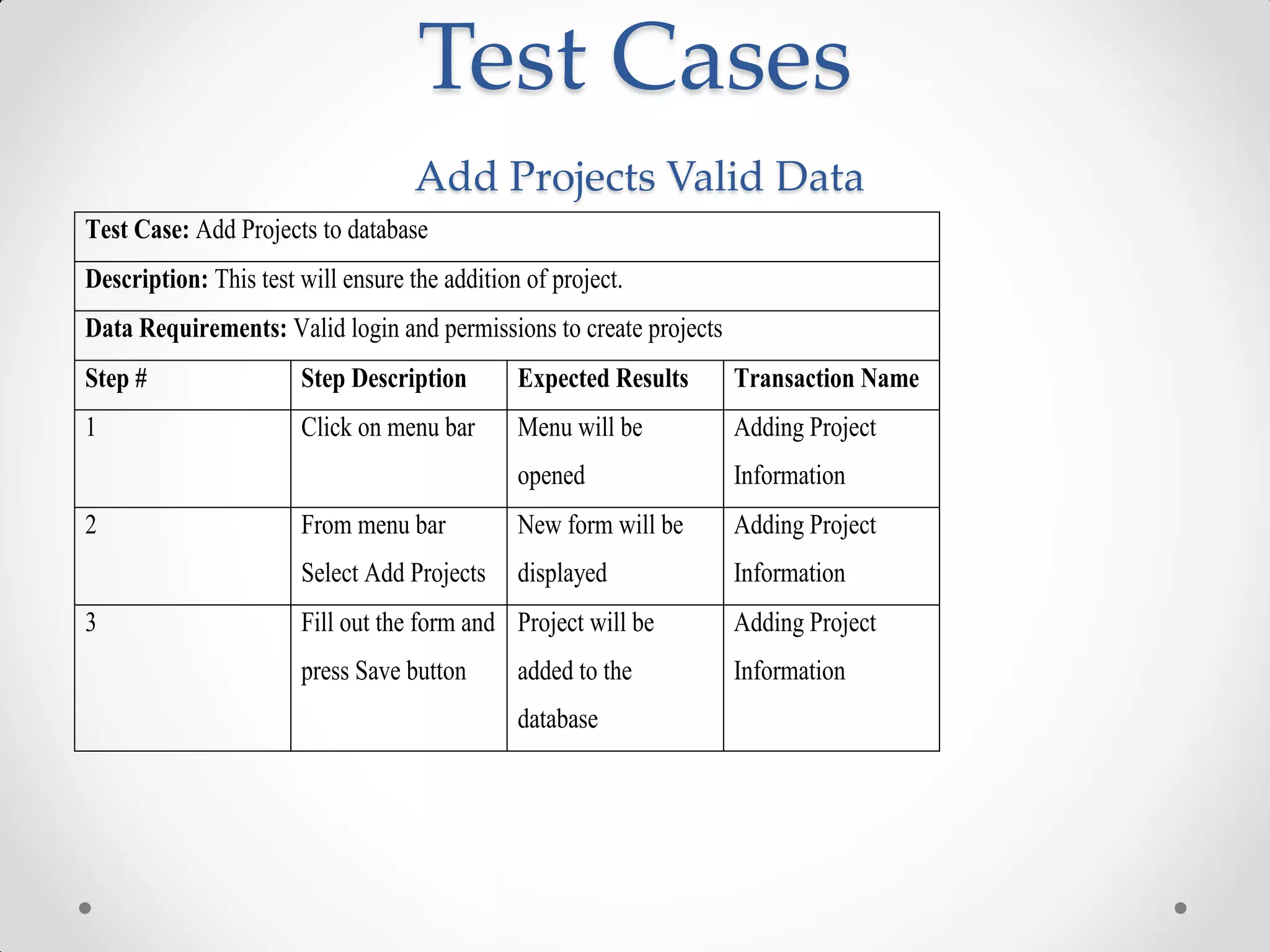
                                    Add Projects Valid Data
Test Case: Add Projects to database
Description: This test will ensure the addition of project.
Data Requirements: Valid login and permissions to create projects
Step #                 Step Description        Expected Results     Transaction Name
1                      Click on menu bar       Menu will be         Adding Project
                                               opened               Information
2                      From menu bar           New form will be     Adding Project
                       Select Add Projects     displayed            Information
3                      Fill out the form and Project will be        Adding Project
                       press Save button       added to the         Information
                                               database
Test Cases
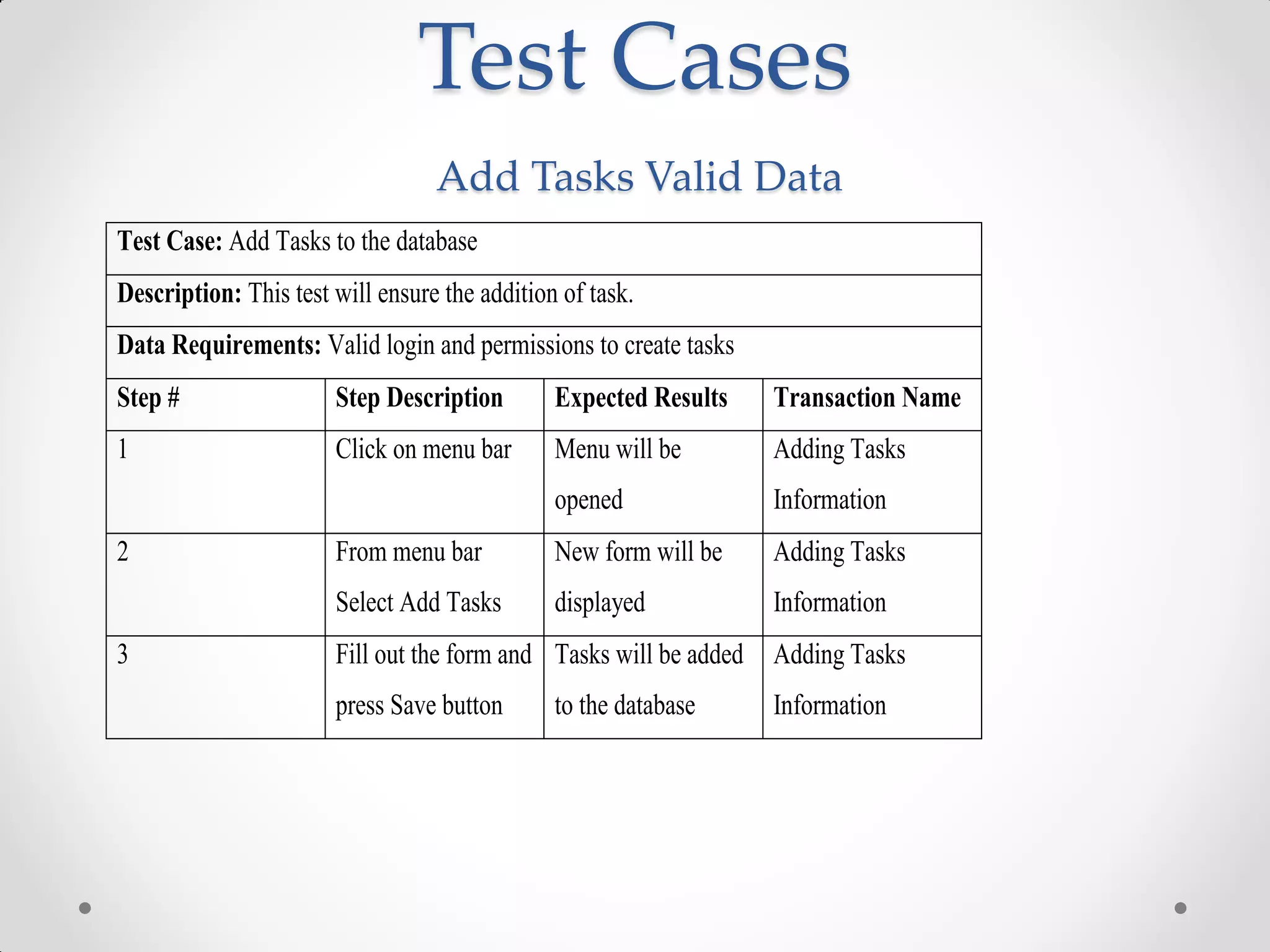
                                  Add Tasks Valid Data
Test Case: Add Tasks to the database
Description: This test will ensure the addition of task.
Data Requirements: Valid login and permissions to create tasks
Step #                 Step Description        Expected Results    Transaction Name
1                      Click on menu bar       Menu will be        Adding Tasks
                                               opened              Information
2                      From menu bar           New form will be    Adding Tasks
                       Select Add Tasks        displayed           Information
3                      Fill out the form and Tasks will be added   Adding Tasks
                       press Save button       to the database     Information
Test Cases
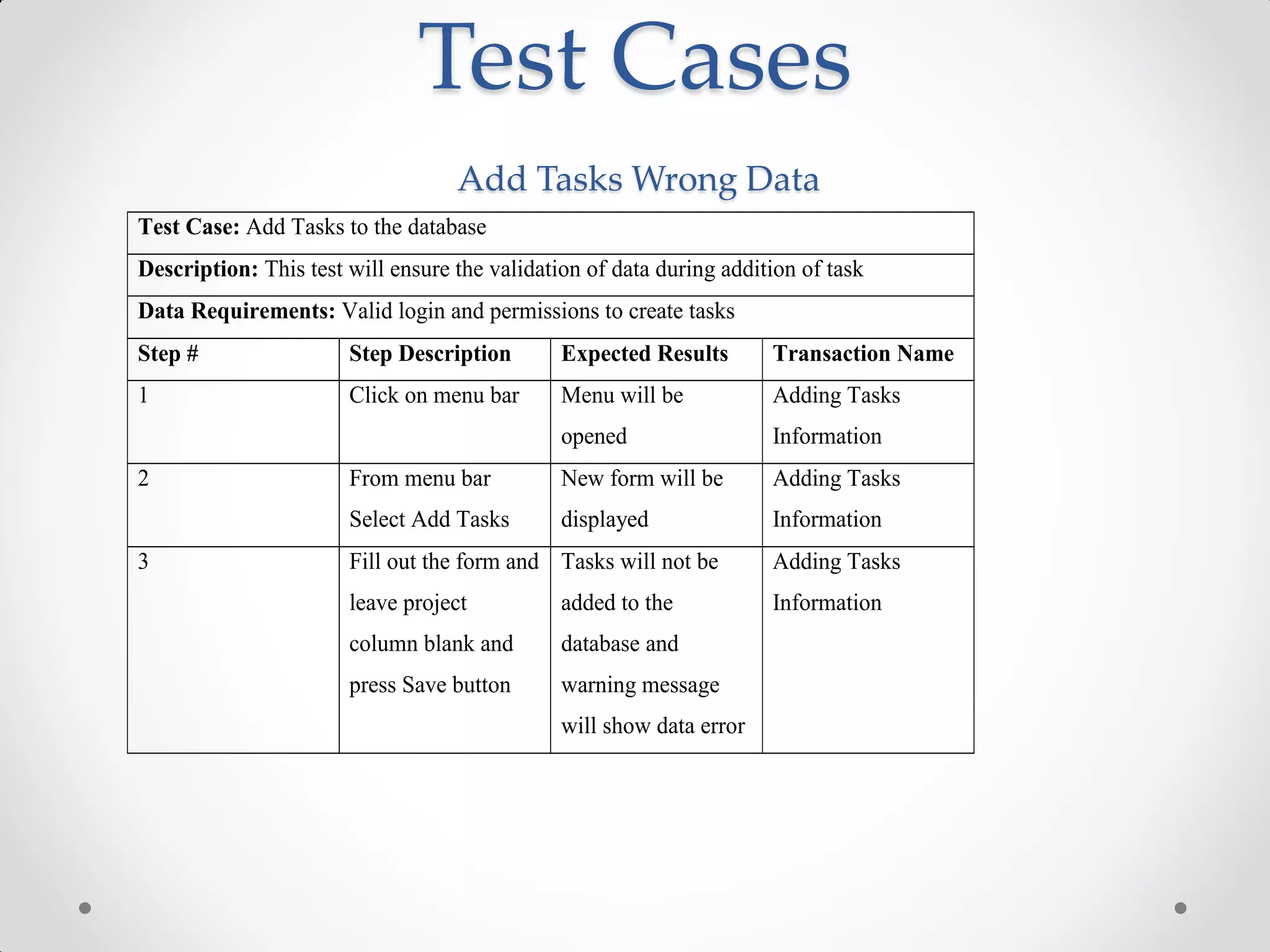
                                   Add Tasks Wrong Data
Test Case: Add Tasks to the database
Description: This test will ensure the validation of data during addition of task
Data Requirements: Valid login and permissions to create tasks
Step #                 Step Description        Expected Results       Transaction Name
1                      Click on menu bar       Menu will be           Adding Tasks
                                               opened                 Information
2                      From menu bar           New form will be       Adding Tasks
                       Select Add Tasks        displayed              Information
3                      Fill out the form and Tasks will not be        Adding Tasks
                       leave project           added to the           Information
                       column blank and        database and
                       press Save button       warning message
                                               will show data error
Test Cases
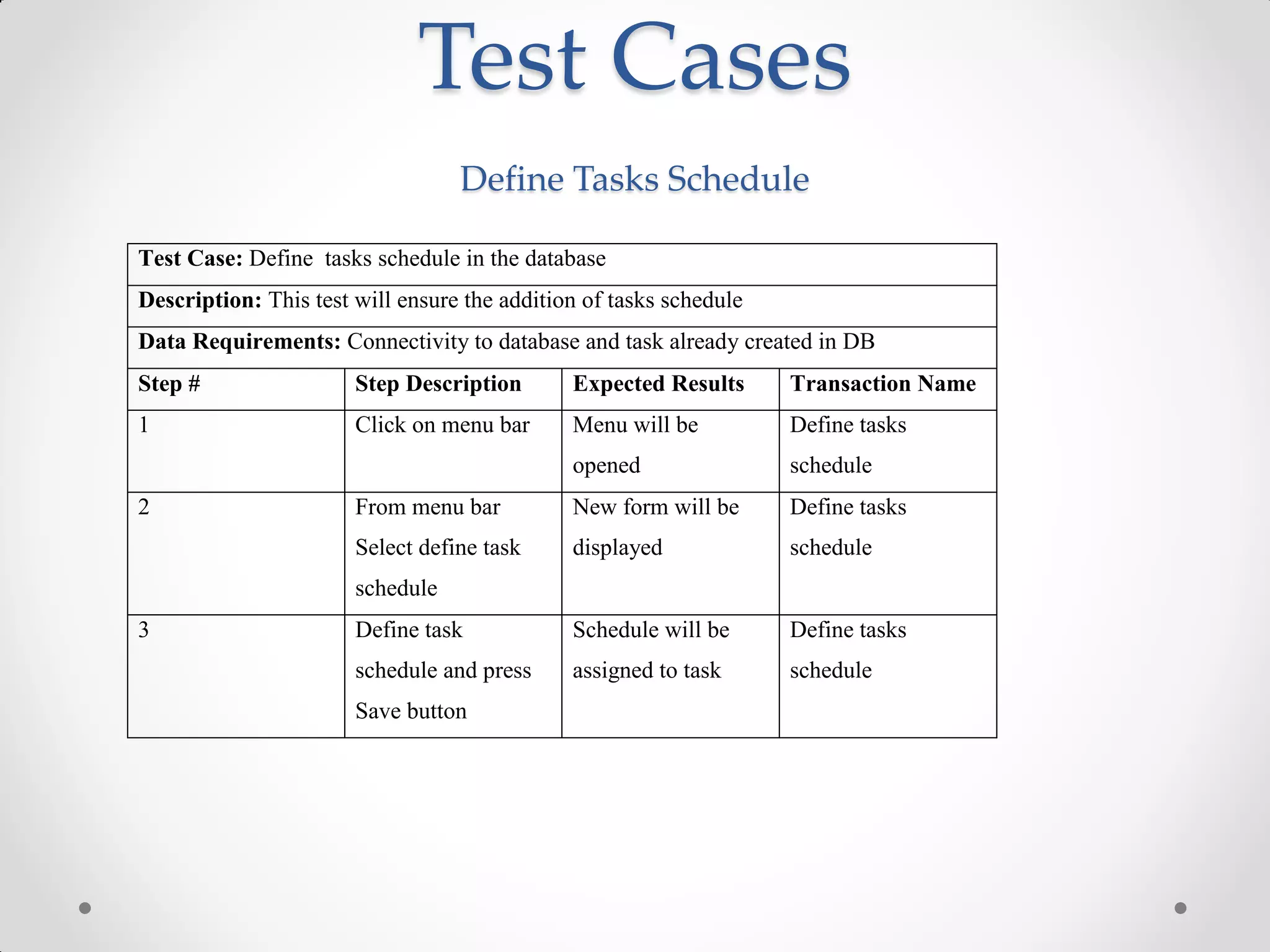
                                  Define Tasks Schedule

Test Case: Define tasks schedule in the database
Description: This test will ensure the addition of tasks schedule
Data Requirements: Connectivity to database and task already created in DB
Step #                 Step Description       Expected Results      Transaction Name
1                      Click on menu bar      Menu will be          Define tasks
                                              opened                schedule
2                      From menu bar          New form will be      Define tasks
                       Select define task     displayed             schedule
                       schedule
3                      Define task            Schedule will be      Define tasks
                       schedule and press     assigned to task      schedule
                       Save button
Test Cases
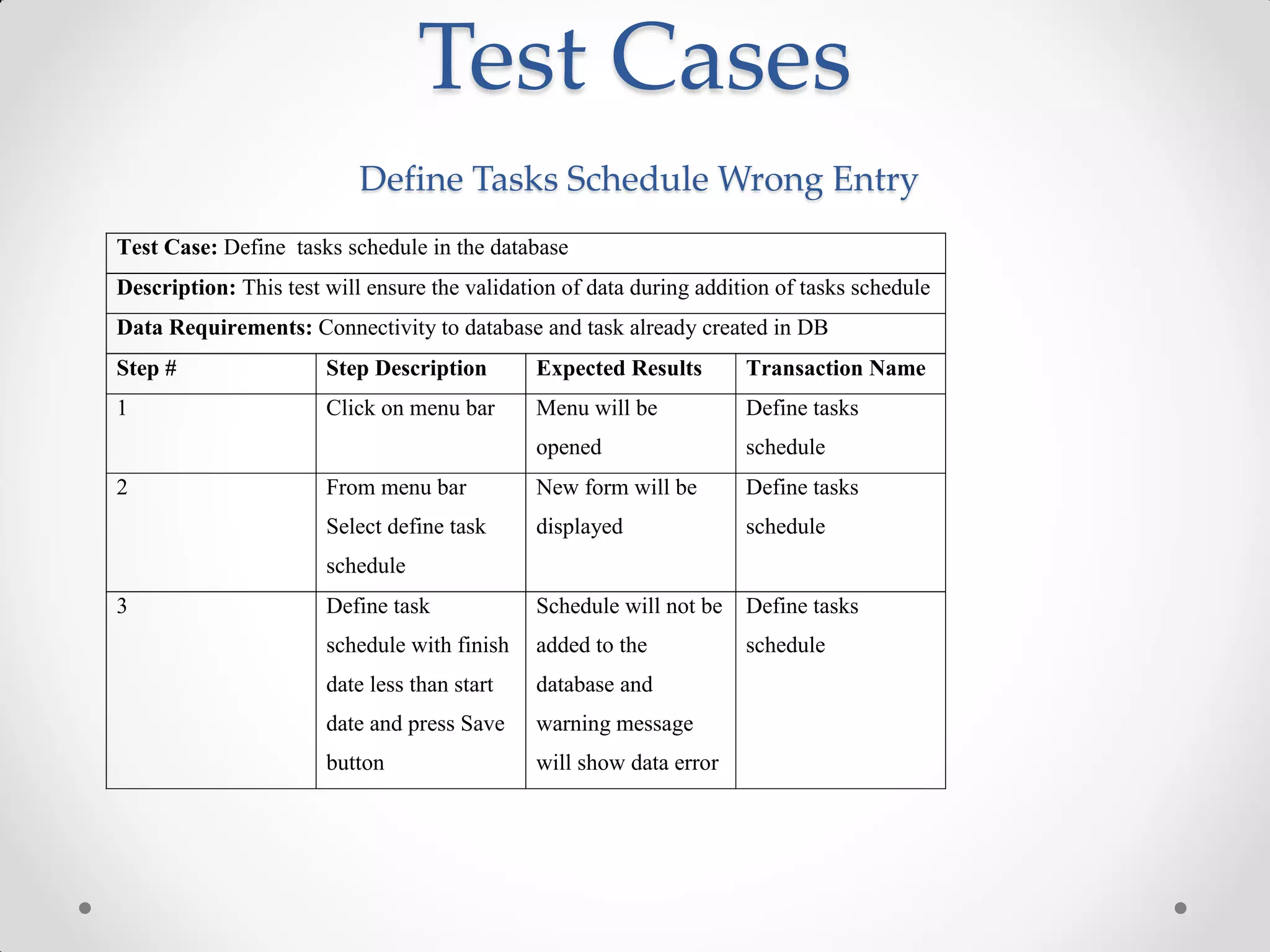
                           Define Tasks Schedule Wrong Entry
Test Case: Define tasks schedule in the database
Description: This test will ensure the validation of data during addition of tasks schedule
Data Requirements: Connectivity to database and task already created in DB
Step #                 Step Description       Expected Results        Transaction Name
1                      Click on menu bar      Menu will be            Define tasks
                                              opened                  schedule
2                      From menu bar          New form will be        Define tasks
                       Select define task     displayed               schedule
                       schedule
3                      Define task            Schedule will not be    Define tasks
                       schedule with finish   added to the            schedule
                       date less than start   database and
                       date and press Save    warning message
                       button                 will show data error
Test Cases
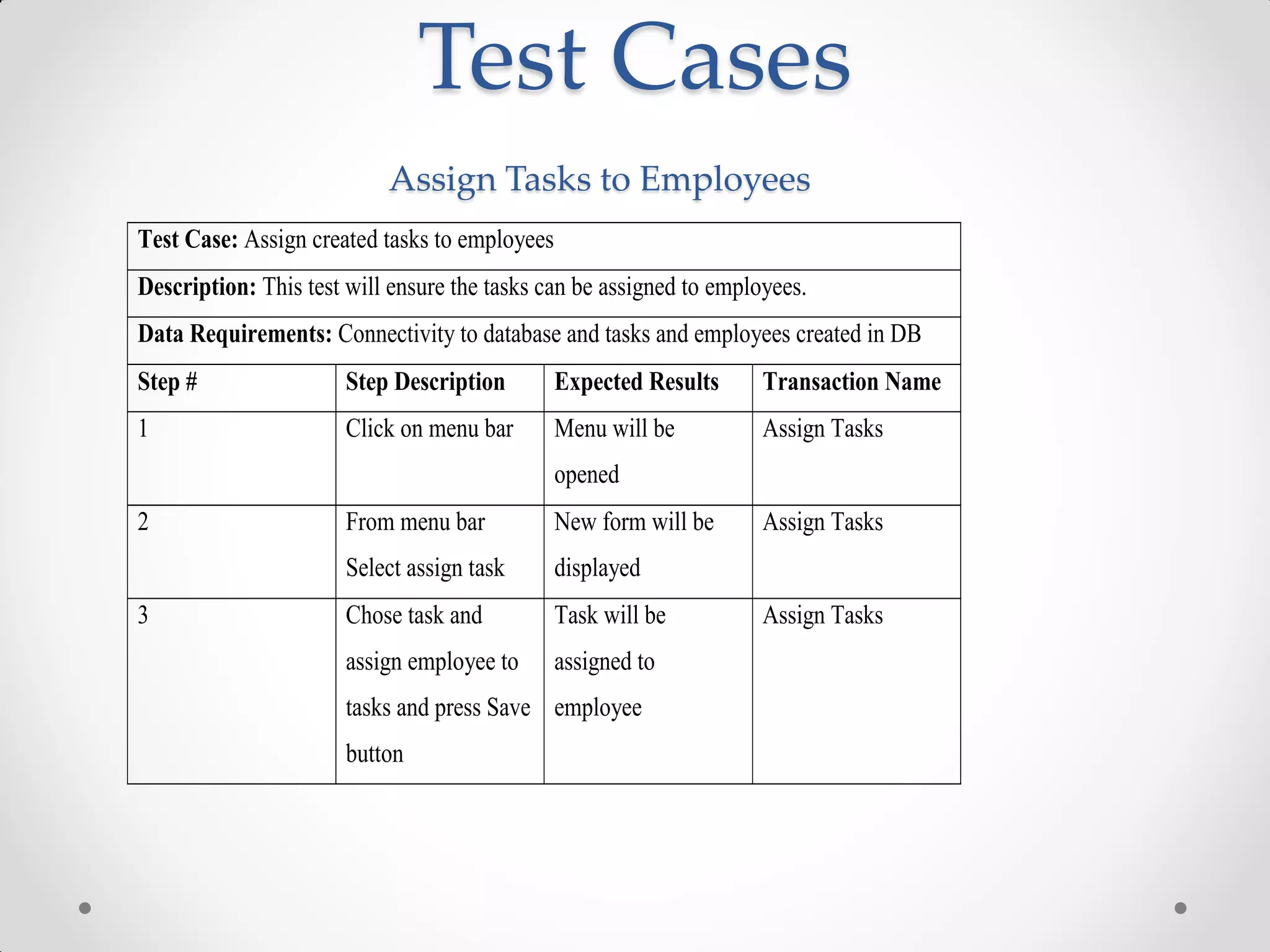
                           Assign Tasks to Employees
Test Case: Assign created tasks to employees
Description: This test will ensure the tasks can be assigned to employees.
Data Requirements: Connectivity to database and tasks and employees created in DB
Step #                 Step Description        Expected Results      Transaction Name
1                      Click on menu bar       Menu will be          Assign Tasks
                                               opened
2                      From menu bar           New form will be      Assign Tasks
                       Select assign task      displayed
3                      Chose task and          Task will be          Assign Tasks
                       assign employee to      assigned to
                       tasks and press Save employee
                       button
Test Cases
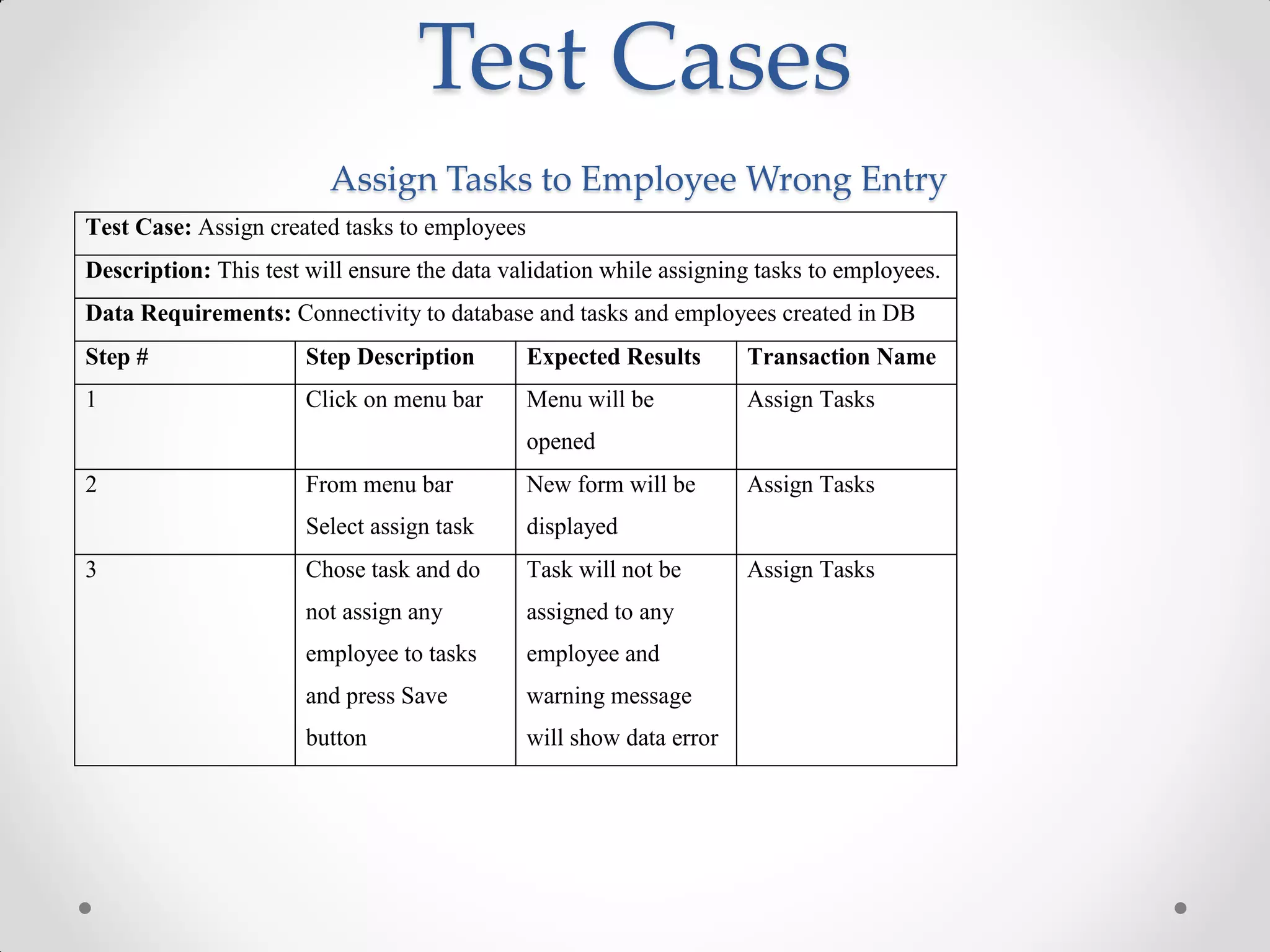
                         Assign Tasks to Employee Wrong Entry
Test Case: Assign created tasks to employees
Description: This test will ensure the data validation while assigning tasks to employees.
Data Requirements: Connectivity to database and tasks and employees created in DB
Step #                 Step Description        Expected Results       Transaction Name
1                      Click on menu bar       Menu will be           Assign Tasks
                                               opened
2                      From menu bar           New form will be       Assign Tasks
                       Select assign task      displayed
3                      Chose task and do       Task will not be       Assign Tasks
                       not assign any          assigned to any
                       employee to tasks       employee and
                       and press Save          warning message
                       button                  will show data error
Test Cases
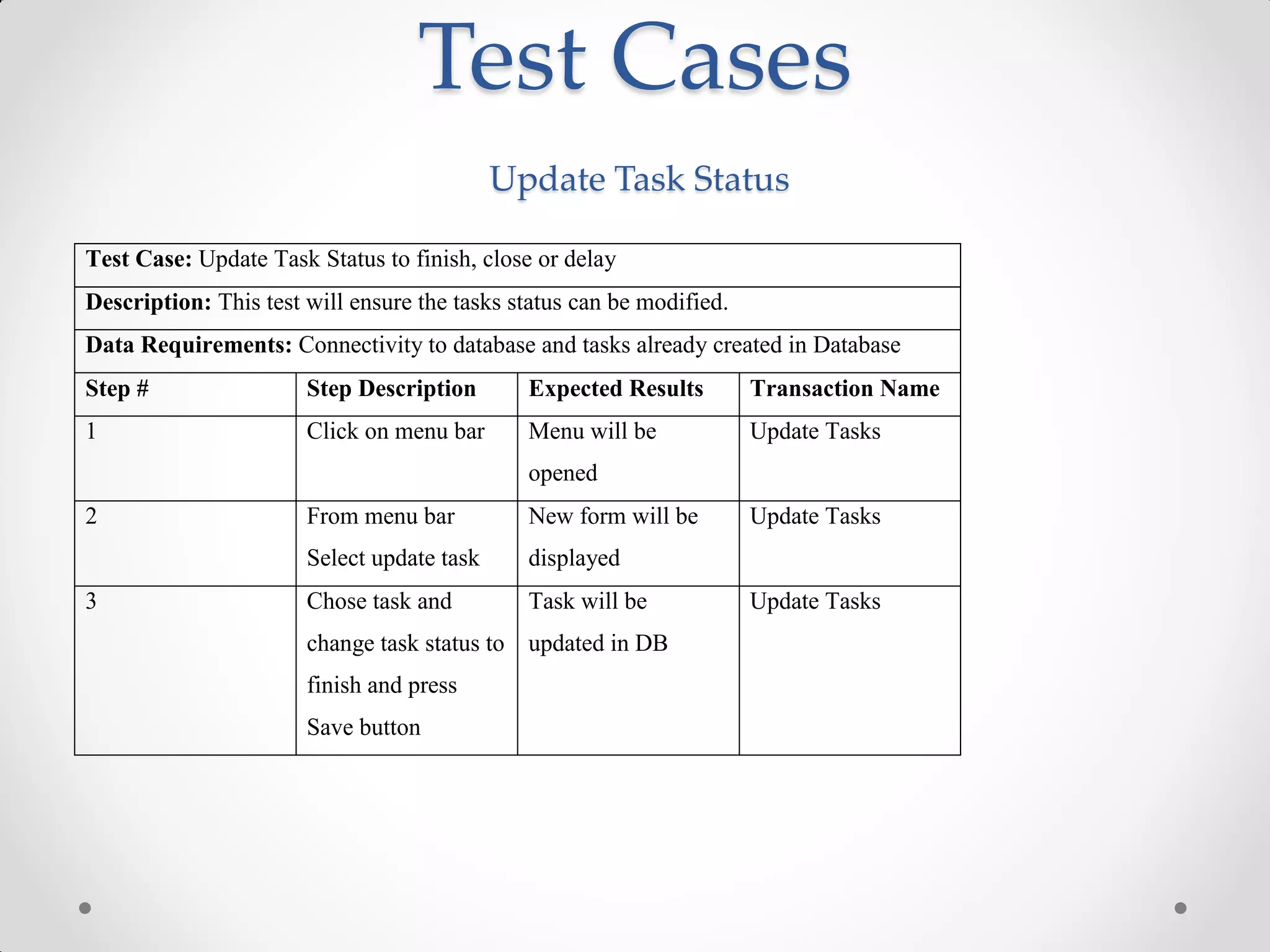
                                            Update Task Status

Test Case: Update Task Status to finish, close or delay
Description: This test will ensure the tasks status can be modified.
Data Requirements: Connectivity to database and tasks already created in Database
Step #                 Step Description       Expected Results         Transaction Name
1                      Click on menu bar      Menu will be             Update Tasks
                                              opened
2                      From menu bar          New form will be         Update Tasks
                       Select update task     displayed
3                      Chose task and         Task will be             Update Tasks
                       change task status to updated in DB
                       finish and press
                       Save button
Test Cases
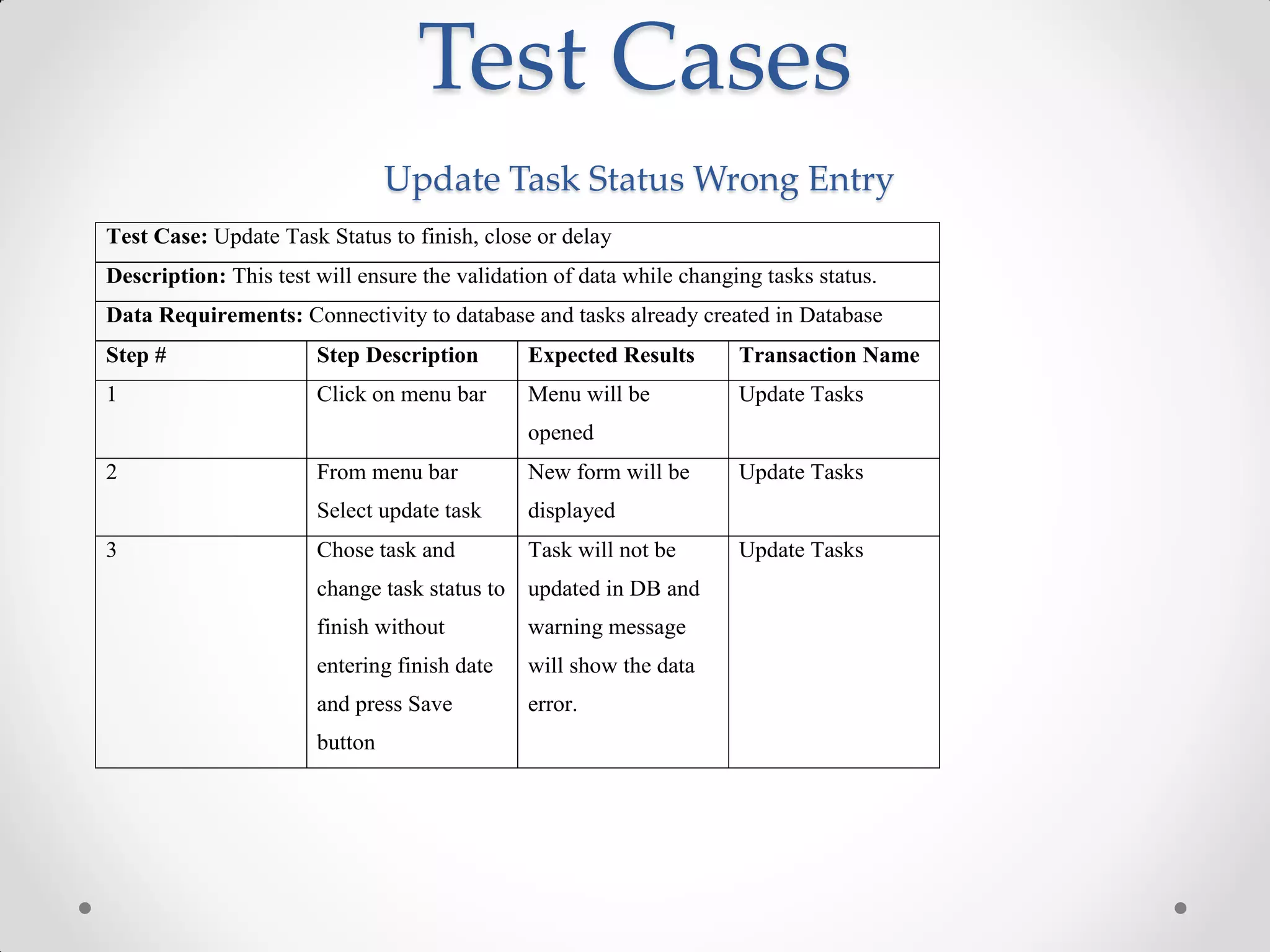
                                Update Task Status Wrong Entry
Test Case: Update Task Status to finish, close or delay
Description: This test will ensure the validation of data while changing tasks status.
Data Requirements: Connectivity to database and tasks already created in Database
Step #                 Step Description        Expected Results       Transaction Name
1                      Click on menu bar       Menu will be           Update Tasks
                                               opened
2                      From menu bar           New form will be       Update Tasks
                       Select update task      displayed
3                      Chose task and          Task will not be       Update Tasks
                       change task status to   updated in DB and
                       finish without          warning message
                       entering finish date    will show the data
                       and press Save          error.
                       button
Questions

Employee Time and Task Tracking System

  • 1.
  • 2.
    Introduction • ETS willhelp IT Manager to manage tasks assigned to employee and time spent on each task • ETS will allow IT Manager to define o Projects o Tasks Categories o Tasks o Task Schedules
  • 3.
    Introduction … • Manager can assign tasks to employees • Monitor tasks status & time spent on tasks • Close a task • Manager can take reports showing o Employee Activity History o Project Tasks History
  • 4.
    Actors Catalog • ITManager • IT Employee
  • 5.
    Functional Requirements • Define Project • Define Task Categories • Define Tasks and its schedule • Assign Tasks to Employees • Record actual time spent on tasks • Change Task status • Create logins for employee • Generate Reports
  • 6.
  • 7.
  • 8.
    Project Scope  Software scope covers following functions  Define Project  Define Tasks Categories  Define Tasks  Define Tasks Schedule  Assign Tasks to employees  Record actual time spent on tasks  Change task status  Provide report on Employee task history  Provide project task history report  Provide Employee efficiency report  Create logins for new employees
  • 9.
  • 10.
  • 11.
  • 12.
  • 13.
  • 14.
  • 15.
    Sequence Diagram –Manage Projects
  • 16.
  • 17.
  • 18.
  • 19.
    Sequence Diagram –Create Logins
  • 20.
    Entity-Relationship Diagram EmployeeTasks Employees Projects Tasks TaskTime EmployeeTasks Task_ID (FK) Employee_ID (FK) Task_Assign_Date Tasks Employees Projects Task_ID Employee_ID TaskTime Project_ID Employee_Name Task_Name Task_ID (FK) Project_Name Task_Desc Employee_Phone Employee_ID (FK) Project_Desc Task_Start_Date Employee_Address Proj_Start_Date Task_End_Date Task_Work_Start_Date Employee_Manager Proj_End_Date Task_Status Task_Work_End_Date Project_ID (FK)
  • 21.
  • 22.
  • 23.
    Database Design EmployeeTasks Task_ID: INTEGER NOT NULL Employee_ID: INTEGER NOT NULL Task_Assign_Date: DATE NULL Tasks TaskTime Employees Projects Task_ID: INTEGER NOT NULL Task_ID: INTEGER NOT NULL Employee_ID: INTEGER NOT NULL Project_ID: INTEGER NOT NULL Task_Name: VARCHAR2(20) NOT NULL Employee_ID: INTEGER NOT NULL Task_Desc: VARCHAR2(20) NULL Employee_Name: VARCHAR2(20) NOT NULL Project_Name: VARCHAR2(20) NOT NULL Task_Start_Date: DATE NULL Task_Work_Start_Date: DATE NULL Employee_Phone: INTEGER NULL Project_Desc: VARCHAR2(20) NULL Task_End_Date: DATE NULL Task_Work_End_Date: DATE NULL Employee_Address: VARCHAR2(20) NULL Proj_Start_Date: DATE NULL Task_Status: VARCHAR2(20) NULL Employee_Manager: INTEGER NULL Proj_End_Date: DATE NULL Project_ID: INTEGER NULL
  • 24.
    User Interfaces –Create Logins
  • 25.
  • 26.
  • 27.
    Tools Tasks Development Tools DBMS Oracle 10g Software Development Oracle JDeveloper 10gm Operating System Microsoft Windows Server 2008 Tasks Diagram Tools Use Case Diagram Smart Draw 2008 Data Flow Diagram Smart Draw 2008 Entity Relationship Diagram Erwin Sequence Diagram Microsoft Visio 2007 Architectural Design Diagram Microsoft Visio 2007 Class Diagram Altova Database Design Erwin Interface Design Oracle JDevelper
  • 28.
    Test Cases User Login Successful Test Case: Login to application using correct username password Description: This test will ensure the working of logon procedure Data Requirements: Valid username and password & Connectivity to database is essential for this process Step # Step Description Expected Results Transaction Name 1 Launch application Main application Launch application by calling its url or log on window address should open 2 Enter valid Password letters Enter logon username and should be encrypted information password and not shown on screen 3 Press logon button User should log on Log on to or press “ENTER” and user main application button on keyboard welcome window should open
  • 29.
    Test Cases User Login Failure Test Case: Login to application using in-correct username password Description: This test will ensure the working of logon procedure Data Requirements: Imaginary username and password & Connectivity to database is essential for this process Step # Step Description Expected Results Transaction Name 1 Launch application Main application Launch application by calling its url or log on window address should open 2 Enter imaginary Password letters Enter logon username and should be encrypted information password and not shown on screen 3 Press logon button User should get Log on to or press “ENTER” warning screen application button on keyboard displaying username/password not correct
  • 30.
    Test Cases Add Projects Valid Data Test Case: Add Projects to database Description: This test will ensure the addition of project. Data Requirements: Valid login and permissions to create projects Step # Step Description Expected Results Transaction Name 1 Click on menu bar Menu will be Adding Project opened Information 2 From menu bar New form will be Adding Project Select Add Projects displayed Information 3 Fill out the form and Project will be Adding Project press Save button added to the Information database
  • 31.
    Test Cases Add Projects Wrong Data Test Case: Add Projects to database Description: This test will ensure the validation of data during addition of project. Data Requirements: Valid login and permissions to create projects Step # Step Description Expected Results Transaction Name 1 Click on menu bar Menu will be Adding Project opened Information 2 From menu bar New form will be Adding Project Select Add Projects displayed Information 3 Fill out the form and Warning screen Adding Project leave project name should display, Information blank press Save showing project not button saved and data error message
  • 32.
    Test Cases Add Projects Valid Data Test Case: Add Projects to database Description: This test will ensure the addition of project. Data Requirements: Valid login and permissions to create projects Step # Step Description Expected Results Transaction Name 1 Click on menu bar Menu will be Adding Project opened Information 2 From menu bar New form will be Adding Project Select Add Projects displayed Information 3 Fill out the form and Project will be Adding Project press Save button added to the Information database
  • 33.
    Test Cases Add Tasks Valid Data Test Case: Add Tasks to the database Description: This test will ensure the addition of task. Data Requirements: Valid login and permissions to create tasks Step # Step Description Expected Results Transaction Name 1 Click on menu bar Menu will be Adding Tasks opened Information 2 From menu bar New form will be Adding Tasks Select Add Tasks displayed Information 3 Fill out the form and Tasks will be added Adding Tasks press Save button to the database Information
  • 34.
    Test Cases Add Tasks Wrong Data Test Case: Add Tasks to the database Description: This test will ensure the validation of data during addition of task Data Requirements: Valid login and permissions to create tasks Step # Step Description Expected Results Transaction Name 1 Click on menu bar Menu will be Adding Tasks opened Information 2 From menu bar New form will be Adding Tasks Select Add Tasks displayed Information 3 Fill out the form and Tasks will not be Adding Tasks leave project added to the Information column blank and database and press Save button warning message will show data error
  • 35.
    Test Cases Define Tasks Schedule Test Case: Define tasks schedule in the database Description: This test will ensure the addition of tasks schedule Data Requirements: Connectivity to database and task already created in DB Step # Step Description Expected Results Transaction Name 1 Click on menu bar Menu will be Define tasks opened schedule 2 From menu bar New form will be Define tasks Select define task displayed schedule schedule 3 Define task Schedule will be Define tasks schedule and press assigned to task schedule Save button
  • 36.
    Test Cases Define Tasks Schedule Wrong Entry Test Case: Define tasks schedule in the database Description: This test will ensure the validation of data during addition of tasks schedule Data Requirements: Connectivity to database and task already created in DB Step # Step Description Expected Results Transaction Name 1 Click on menu bar Menu will be Define tasks opened schedule 2 From menu bar New form will be Define tasks Select define task displayed schedule schedule 3 Define task Schedule will not be Define tasks schedule with finish added to the schedule date less than start database and date and press Save warning message button will show data error
  • 37.
    Test Cases Assign Tasks to Employees Test Case: Assign created tasks to employees Description: This test will ensure the tasks can be assigned to employees. Data Requirements: Connectivity to database and tasks and employees created in DB Step # Step Description Expected Results Transaction Name 1 Click on menu bar Menu will be Assign Tasks opened 2 From menu bar New form will be Assign Tasks Select assign task displayed 3 Chose task and Task will be Assign Tasks assign employee to assigned to tasks and press Save employee button
  • 38.
    Test Cases Assign Tasks to Employee Wrong Entry Test Case: Assign created tasks to employees Description: This test will ensure the data validation while assigning tasks to employees. Data Requirements: Connectivity to database and tasks and employees created in DB Step # Step Description Expected Results Transaction Name 1 Click on menu bar Menu will be Assign Tasks opened 2 From menu bar New form will be Assign Tasks Select assign task displayed 3 Chose task and do Task will not be Assign Tasks not assign any assigned to any employee to tasks employee and and press Save warning message button will show data error
  • 39.
    Test Cases Update Task Status Test Case: Update Task Status to finish, close or delay Description: This test will ensure the tasks status can be modified. Data Requirements: Connectivity to database and tasks already created in Database Step # Step Description Expected Results Transaction Name 1 Click on menu bar Menu will be Update Tasks opened 2 From menu bar New form will be Update Tasks Select update task displayed 3 Chose task and Task will be Update Tasks change task status to updated in DB finish and press Save button
  • 40.
    Test Cases Update Task Status Wrong Entry Test Case: Update Task Status to finish, close or delay Description: This test will ensure the validation of data while changing tasks status. Data Requirements: Connectivity to database and tasks already created in Database Step # Step Description Expected Results Transaction Name 1 Click on menu bar Menu will be Update Tasks opened 2 From menu bar New form will be Update Tasks Select update task displayed 3 Chose task and Task will not be Update Tasks change task status to updated in DB and finish without warning message entering finish date will show the data and press Save error. button
  • 41.