RY
                                        RA
                                     LIB
                                IC
                             UBL
                           YP
               0 1 COUNT
             1 ONROE
        i lTHE M
       a BY
 - mNTED
E SE
   E
 PR
Introductions
•    Austin Stroud
    • Instructional designer at the library, and I also am an adjunct faculty member at
      Ivy Tech where I teach Library Technology, Intro to Micrcomputers (Microsoft
      Office), and a First Year Seminar on how to be successful in college.


•    Your experience:
    • Have you used email before? If so, what websites have you used for email?
    • What do you think of using email to communicate with friends, family, and co-
      workers?
What is E-mail?

E-mail or email (both acceptable) stands for electronic
mail. The difference between e-mail and traditional mail is
that e-mail is much quicker. Once you send an e-mail to
another person, they receive it instantly. This other person
may not check their e-mail instantly, but it is a much more
efficient and quick way to communicate with others than
traditional postal mail.
Source:

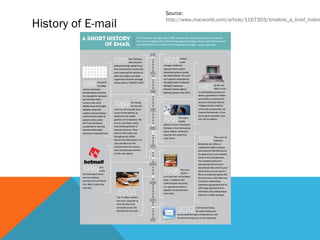
History of E-mail   http://www.macworld.com/article/1167303/timeline_a_brief_histor
Free E-mail Accounts
•   Microsoft Hotmail/Windows Live (one in the same)
    http://www.hotmail.com or http://www.live.com (
    yourname@hotmail.com or yourname@live.com)
•   Yahoo! Mail http://mail.yahoo.com (yourname@yahoo.com)
•   Gmail (Google-owned) http://www.gmail.com (yourname@gmail.com)
•   AOL Mail http://webmail.aol.com (yourname@aol.com)
•   There are many others, too, but these are some of the most common e-
    mail websites people utilize. If you attend college or work, you may also
    have a free e-mail account given to you there to utilize for school or work
    purposes (yourname@indiana.edu or yourname@ivytech.edu for some
    examples).
Choose your Internet Browser
•   Internet Explorer
http://windows.microsoft.com/en-us/internet-explorer/products/ie/home/
•   Mozilla Firefox
http://www.mozilla.org/en-US/firefox/new/
•   Google Chrome
https://www.google.com/intl/en/chrome/browser/
•   Other – (Safari on a Mac, Opera, others?)


Any computer that you use while in the library will have all three of these
   main Internet browsers on it.
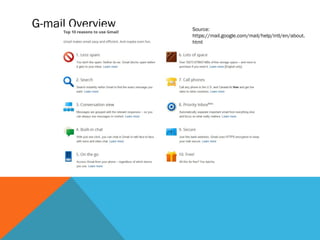
G-mail Overview   Source:
                  https://mail.google.com/mail/help/intl/en/about.
                  html
Getting to G-mail
Getting to G-mail (Continued)
Creating your E-mail Account
Initial Screen After Creating Account
Navigation Rundown
•   Compose
•   Inbox
•   Starred
•   Important
•   Sent Mail
•   Drafts
•   Spam
•   Circles
•   Labels (Personal, Travel, …)
Other E-mail Options
•   On a smart phone:
http://www.google.com/mobile/mail/
•   Outlook (work, home) – Can setup Outlook to work with Gmail:
http://support.google.com/mail/bin/answer.py?hl=en&answer=77689
Contact Information
Austin Stroud
Instructional Designer
astroud@mcpl.info or 812-349-3050 ext. 1666

Email101

  • 1.
    RY RA LIB IC UBL YP 0 1 COUNT 1 ONROE i lTHE M a BY - mNTED E SE E PR
  • 2.
    Introductions • Austin Stroud • Instructional designer at the library, and I also am an adjunct faculty member at Ivy Tech where I teach Library Technology, Intro to Micrcomputers (Microsoft Office), and a First Year Seminar on how to be successful in college. • Your experience: • Have you used email before? If so, what websites have you used for email? • What do you think of using email to communicate with friends, family, and co- workers?
  • 3.
    What is E-mail? E-mailor email (both acceptable) stands for electronic mail. The difference between e-mail and traditional mail is that e-mail is much quicker. Once you send an e-mail to another person, they receive it instantly. This other person may not check their e-mail instantly, but it is a much more efficient and quick way to communicate with others than traditional postal mail.
  • 4.
    Source: History of E-mail http://www.macworld.com/article/1167303/timeline_a_brief_histor
  • 5.
    Free E-mail Accounts • Microsoft Hotmail/Windows Live (one in the same) http://www.hotmail.com or http://www.live.com ( yourname@hotmail.com or yourname@live.com) • Yahoo! Mail http://mail.yahoo.com (yourname@yahoo.com) • Gmail (Google-owned) http://www.gmail.com (yourname@gmail.com) • AOL Mail http://webmail.aol.com (yourname@aol.com) • There are many others, too, but these are some of the most common e- mail websites people utilize. If you attend college or work, you may also have a free e-mail account given to you there to utilize for school or work purposes (yourname@indiana.edu or yourname@ivytech.edu for some examples).
  • 6.
    Choose your InternetBrowser • Internet Explorer http://windows.microsoft.com/en-us/internet-explorer/products/ie/home/ • Mozilla Firefox http://www.mozilla.org/en-US/firefox/new/ • Google Chrome https://www.google.com/intl/en/chrome/browser/ • Other – (Safari on a Mac, Opera, others?) Any computer that you use while in the library will have all three of these main Internet browsers on it.
  • 7.
    G-mail Overview Source: https://mail.google.com/mail/help/intl/en/about. html
  • 8.
  • 9.
    Getting to G-mail(Continued)
  • 10.
  • 11.
    Initial Screen AfterCreating Account
  • 12.
    Navigation Rundown • Compose • Inbox • Starred • Important • Sent Mail • Drafts • Spam • Circles • Labels (Personal, Travel, …)
  • 13.
    Other E-mail Options • On a smart phone: http://www.google.com/mobile/mail/ • Outlook (work, home) – Can setup Outlook to work with Gmail: http://support.google.com/mail/bin/answer.py?hl=en&answer=77689
  • 14.
    Contact Information Austin Stroud InstructionalDesigner astroud@mcpl.info or 812-349-3050 ext. 1666

Editor's Notes

  • #4 Definition of email and what purpose it serves in today’s information age.
  • #5 Quick overview/timeline of the history of e-mail
  • #6 Hotmail, Windows Live, Yahoo!, and other options out there
  • #7 Open up your Internet browser of choice (Internet Explorer, Mozilla Firefox, or Google Chrome). I prefer Google Chrome since it seems to load a little faster, but this is a matter of personal preference. You will find that some websites are not compatible with Google Chrome, so you will have to learn and use Internet Explorer or Mozilla Firefox at times.
  • #8 Overview of the general features that G-mail offers.
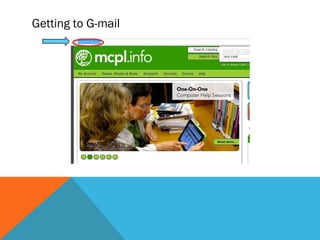
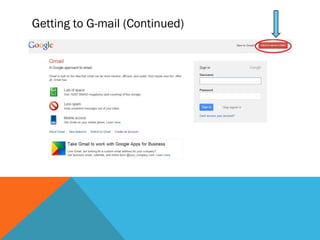
  • #9 Once your Internet browser has loaded (most likely to the Monroe County Public Library home page), you will want to delete the website address in the address bar and replace it with gmail.com. This will take you to the main homepage for gmail.
  • #10 Once your Internet browser has loaded (most likely to the Monroe County Public Library home page), you will want to delete the website address in the address bar and replace it with gmail.com. This will take you to the main homepage for gmail.
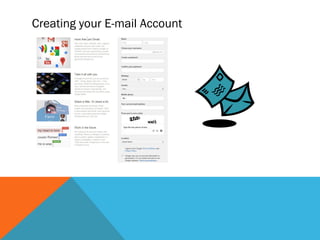
  • #11 Click on “Create an Account.” This is a secure website (as you can see with the https website address), so your personal information given here is safe. Enter your first name and last name, or your preferred name. Choose a username. If you have an uncommon name, there is a chance you could use your name as your e-mail address but more than likely you will need to add a number, middle initial, or similar to find an available e-mail username. In setting your password, use something that is at least 8 characters (letters or numbers I recommend) that you won’t forget but that nobody else will be able to guess. You will now need to enter your birth date. I recommend that you leave your mobile phone number and an alternate e-mail address blank. They are not needed, as long as you are confident that you will not forget your password. If you think you might forget your password, then having that information there could help safeguard you from forgetting this information. You then need to enter the code you see on the screen to prove you are not a robot or someone that is going to spam others (the electronic version of junk mail).
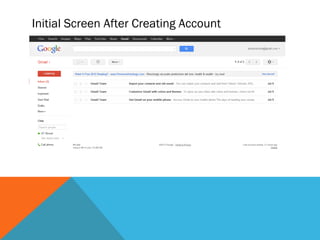
  • #12 Initially, you will have a few emails from the Gmail team welcoming you and giving you some information to get started. Some of these messages may not apply – such as if you don’t have an old email address to import or if you don’t plan to use Gmail on a smart/cell phone.
  • #14 Smart phone, Outlook