{
ELI 091A:
Library Research
Jennifer Rosenstein, First Year Outreach Services
Librarian
Searching the Library
Catalog
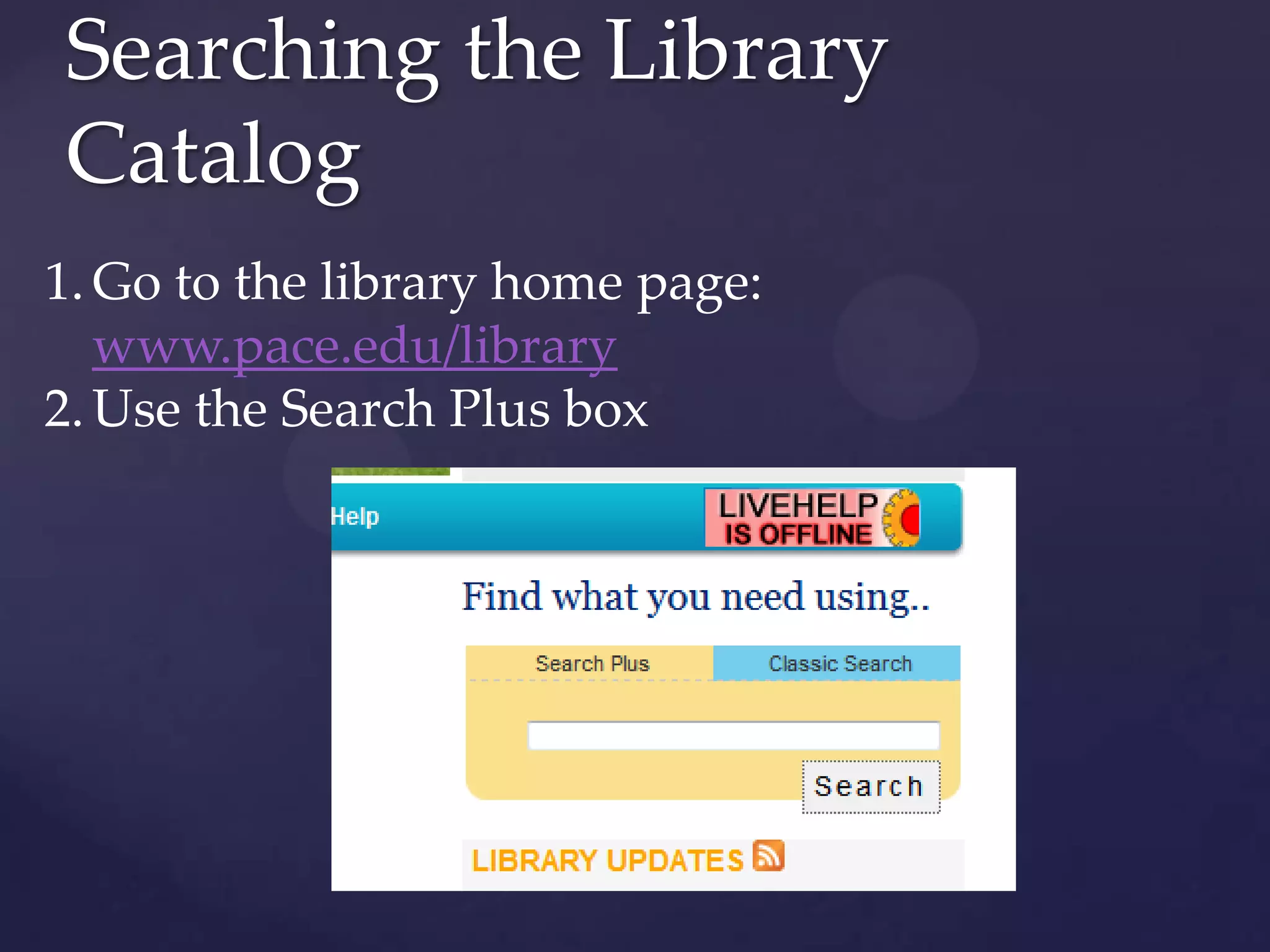
1.Go to the library home page:
www.pace.edu/library
2.Use the Search Plus box
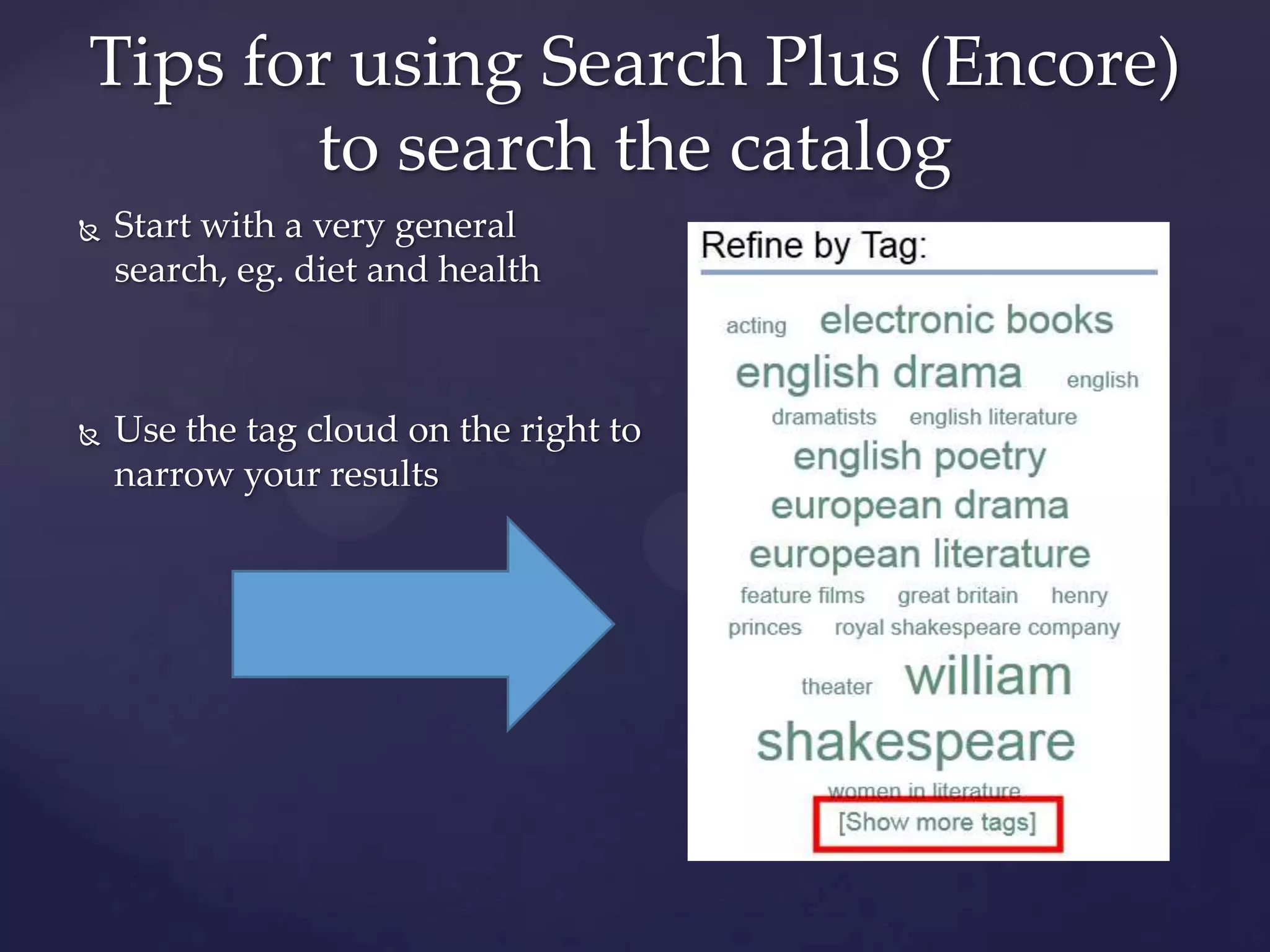
 Start with a very general
search, eg. diet and health
 Use the tag cloud on the right to
narrow your results
Tips for using Search Plus (Encore)
to search the catalog
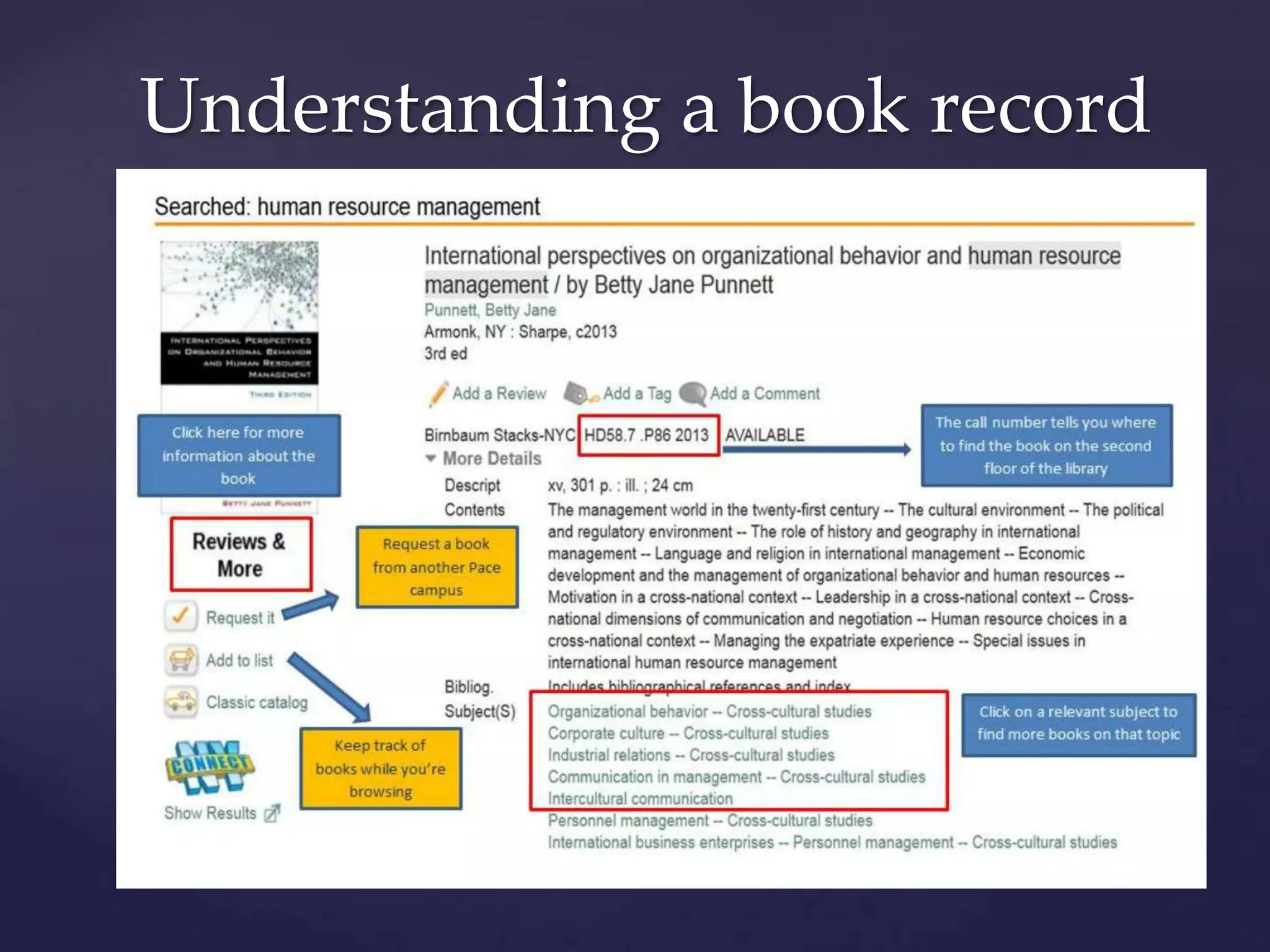
Understanding a book record
Ebooks
Look for [electronic resource] or EBOOK
• Click the link after the gray arrow
to access the book.
• Some ebooks can be downloaded
• See the library ebook guide:
• http://libguides.pace.edu/ebooks
ConnectNY
ConnectNY is a consortium of 18
university libraries in New York
state
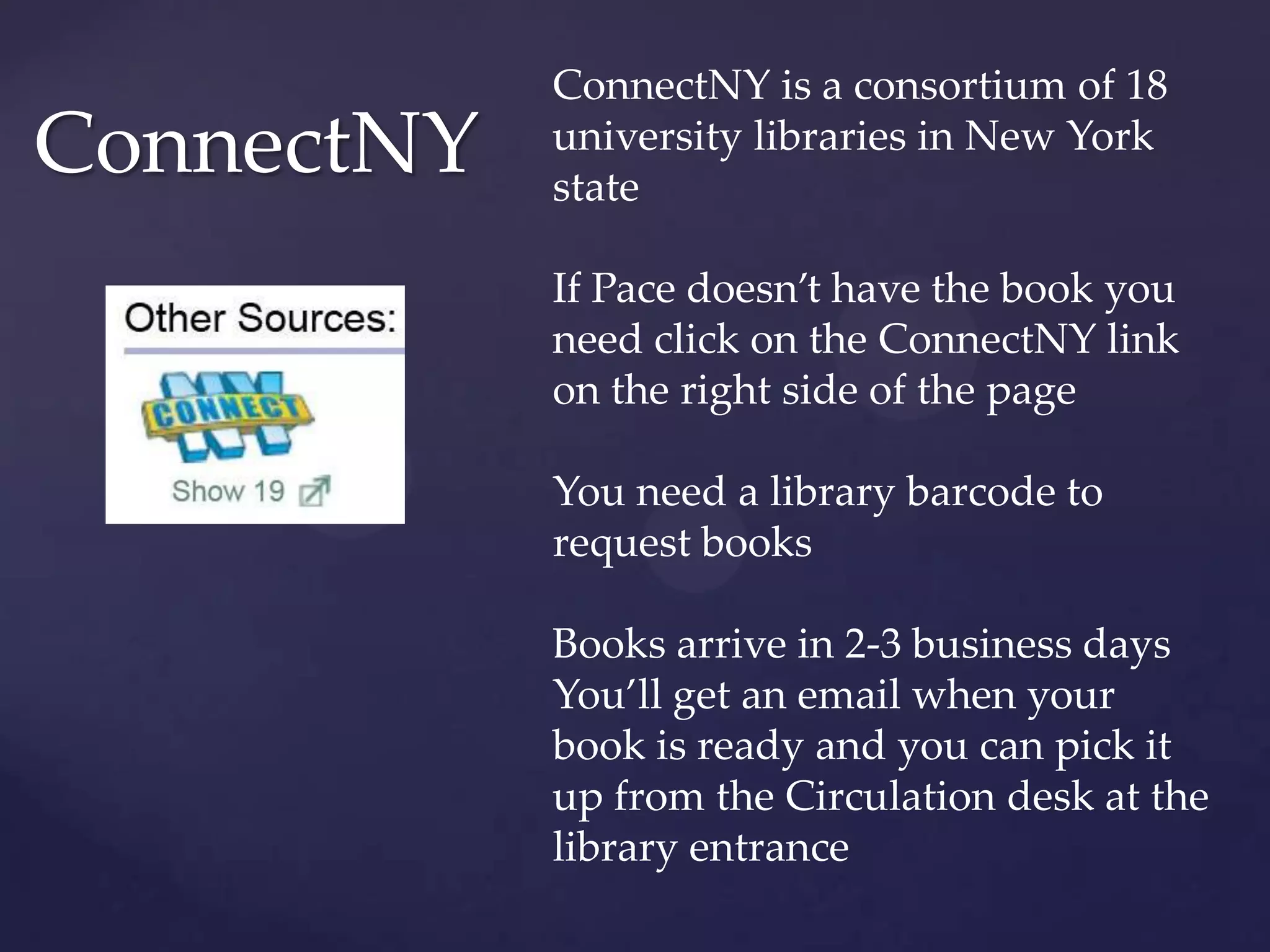
If Pace doesn’t have the book you
need click on the ConnectNY link
on the right side of the page
You need a library barcode to
request books
Books arrive in 2-3 business days
You’ll get an email when your
book is ready and you can pick it
up from the Circulation desk at the
library entrance
Access all databases through the library home page
Click on the Databases: Find an Article link
 Academic Search Premier – can be combined with other databases
using the Choose Databases link
 Jstor (note: Jstor has only scholarly articles and they are all at least 3
years old)
 Opposing Viewpoints: for controversial topics such as gay marriage
and GMOs
 ABI-Inform – good for business topics
 For specific companies or markets:
 Lexis-Nexis
 Business & Company Resource Center
 Passport
Recommended databases
Tips for database
searching
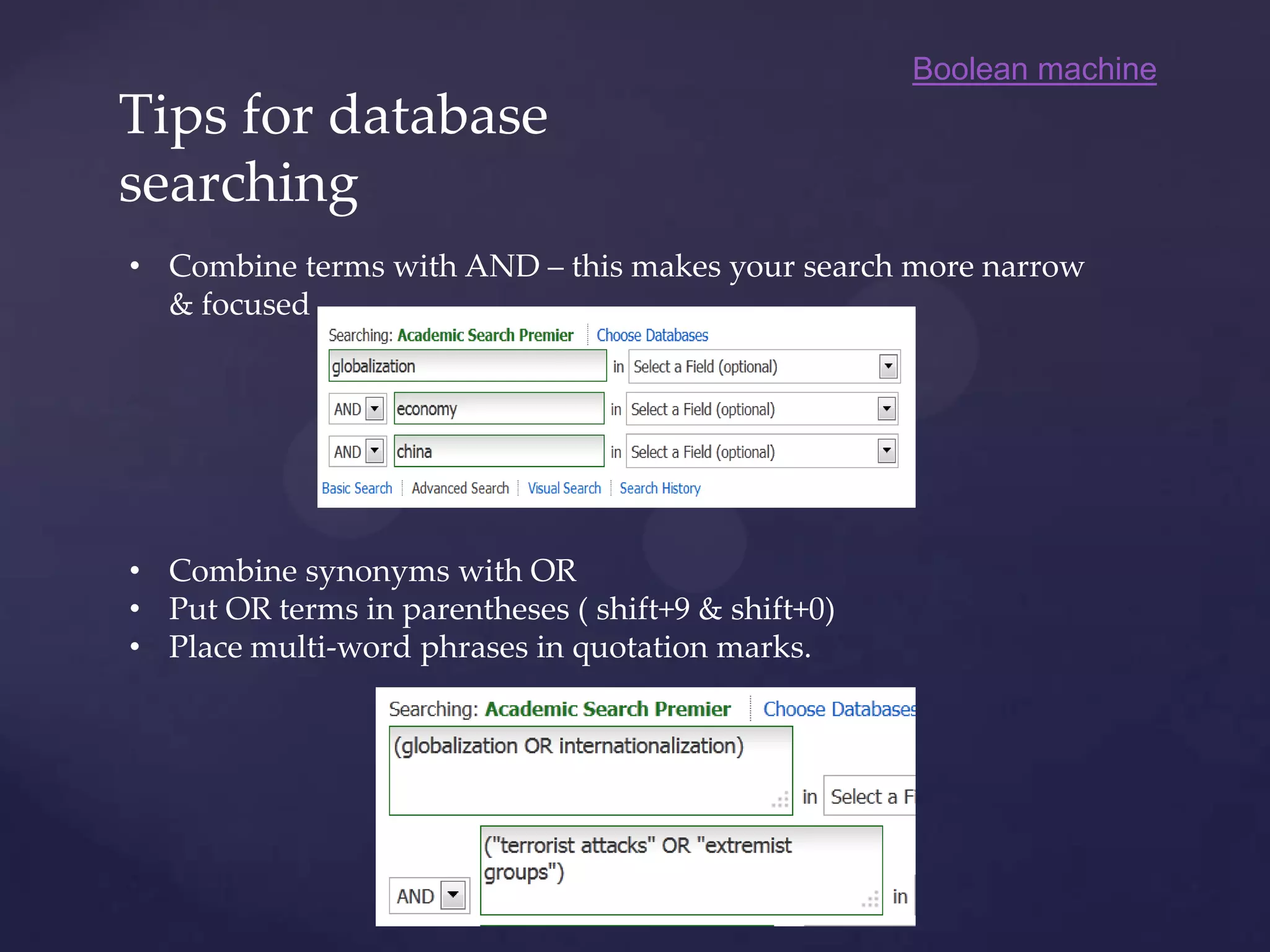
• Combine terms with AND – this makes your search more narrow
& focused
• Combine synonyms with OR
• Put OR terms in parentheses ( shift+9 & shift+0)
• Place multi-word phrases in quotation marks.
Boolean machine
Narrowing your search results
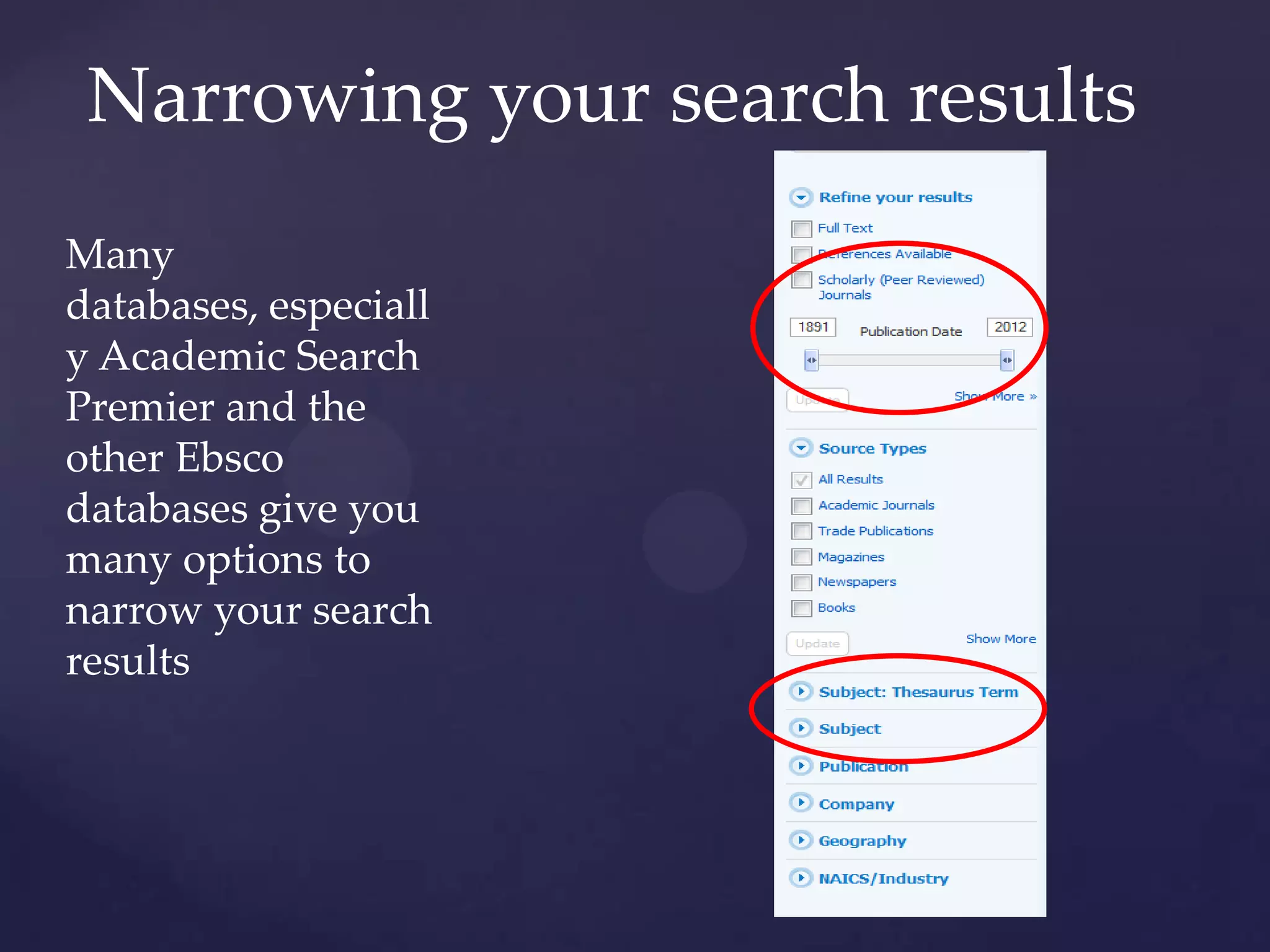
Many
databases, especiall
y Academic Search
Premier and the
other Ebsco
databases give you
many options to
narrow your search
results
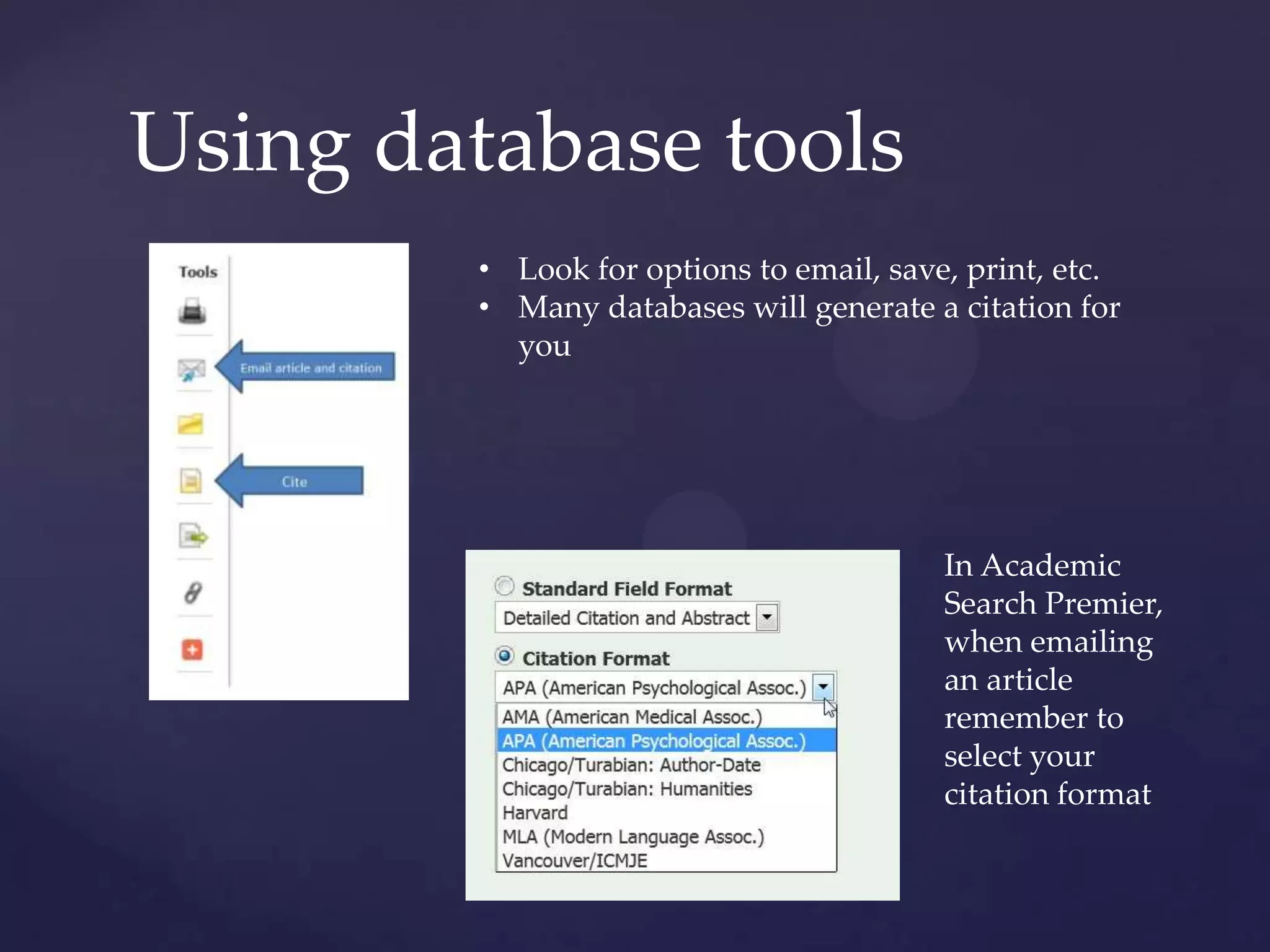
Using database tools
• Look for options to email, save, print, etc.
• Many databases will generate a citation for
you
In Academic
Search Premier,
when emailing
an article
remember to
select your
citation format
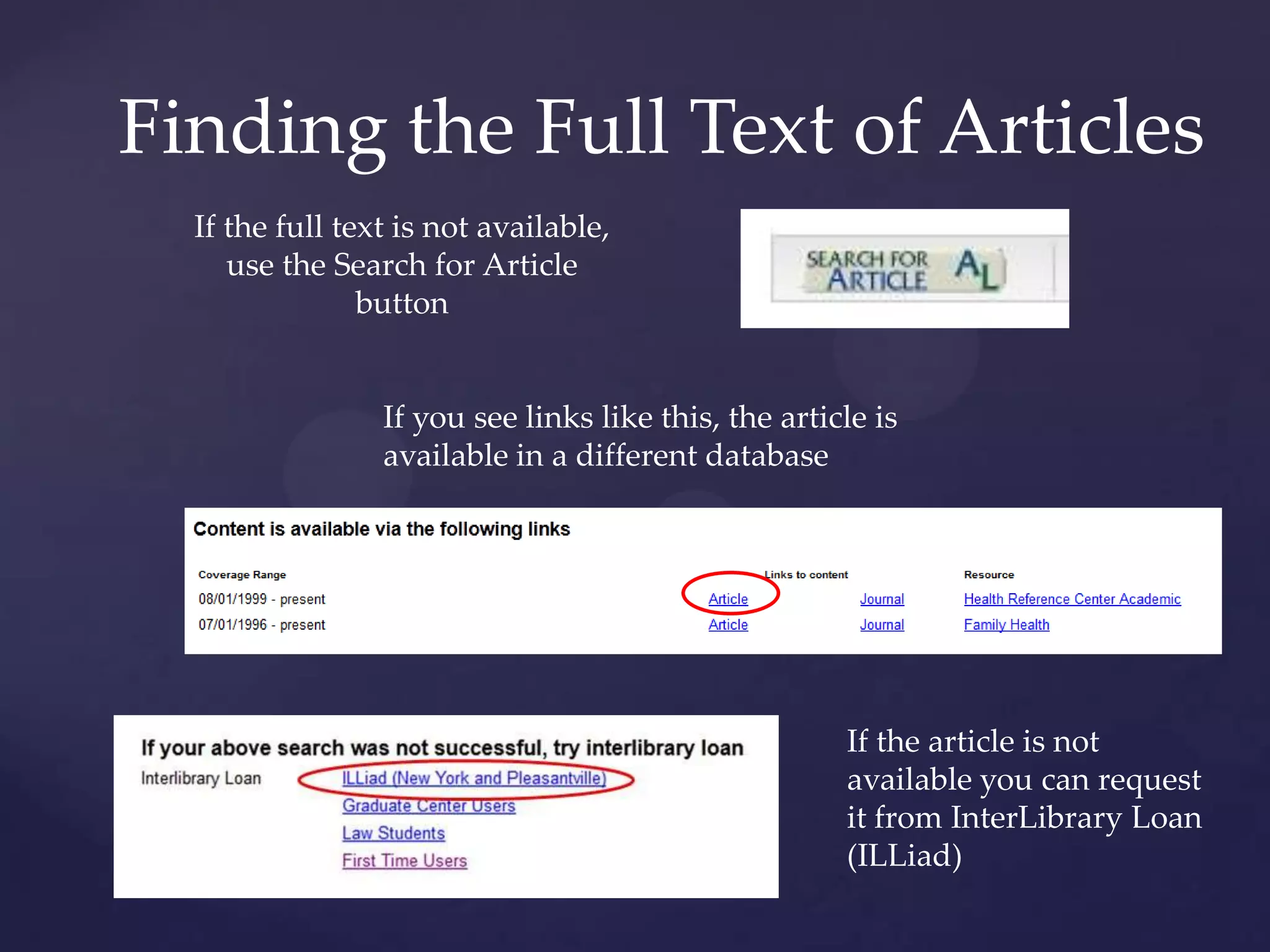
Finding the Full Text of Articles
If the full text is not available,
use the Search for Article
button
If you see links like this, the article is
available in a different database
If the article is not
available you can request
it from InterLibrary Loan
(ILLiad)
Advanced Google searching
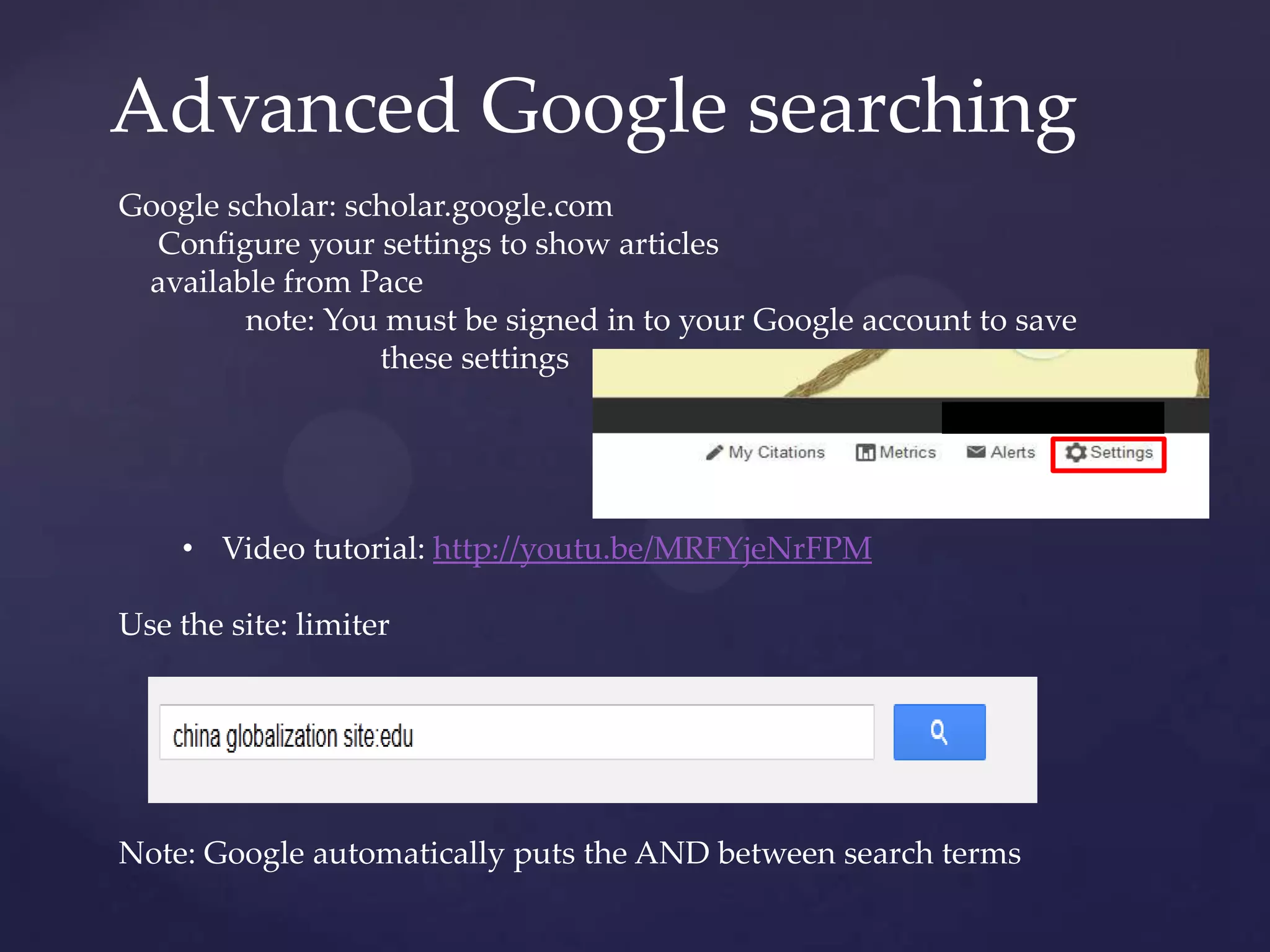
Google scholar: scholar.google.com
Configure your settings to show articles
available from Pace
note: You must be signed in to your Google account to save
these settings
• Video tutorial: http://youtu.be/MRFYjeNrFPM
Use the site: limiter
Note: Google automatically puts the AND between search terms
To get more help:
 E-mail Jennifer! jrosenstein@pace.edu
 The library home page: pace.edu/library
 Use the Ask-a-Librarian link
 Under “Library Services,” use the Video tutorials,
How do I?, and Research Guides links
look at the Research Guides for Business
and Marketing
 Stop by or call the Information desk
 (212) 346-1331

ElI 091Prof. Lee Spring 2014

  • 1.
    { ELI 091A: Library Research JenniferRosenstein, First Year Outreach Services Librarian
  • 2.
    Searching the Library Catalog 1.Goto the library home page: www.pace.edu/library 2.Use the Search Plus box
  • 3.
     Start witha very general search, eg. diet and health  Use the tag cloud on the right to narrow your results Tips for using Search Plus (Encore) to search the catalog
  • 4.
  • 5.
    Ebooks Look for [electronicresource] or EBOOK • Click the link after the gray arrow to access the book. • Some ebooks can be downloaded • See the library ebook guide: • http://libguides.pace.edu/ebooks
  • 6.
    ConnectNY ConnectNY is aconsortium of 18 university libraries in New York state If Pace doesn’t have the book you need click on the ConnectNY link on the right side of the page You need a library barcode to request books Books arrive in 2-3 business days You’ll get an email when your book is ready and you can pick it up from the Circulation desk at the library entrance
  • 7.
    Access all databasesthrough the library home page Click on the Databases: Find an Article link  Academic Search Premier – can be combined with other databases using the Choose Databases link  Jstor (note: Jstor has only scholarly articles and they are all at least 3 years old)  Opposing Viewpoints: for controversial topics such as gay marriage and GMOs  ABI-Inform – good for business topics  For specific companies or markets:  Lexis-Nexis  Business & Company Resource Center  Passport Recommended databases
  • 8.
    Tips for database searching •Combine terms with AND – this makes your search more narrow & focused • Combine synonyms with OR • Put OR terms in parentheses ( shift+9 & shift+0) • Place multi-word phrases in quotation marks. Boolean machine
  • 9.
    Narrowing your searchresults Many databases, especiall y Academic Search Premier and the other Ebsco databases give you many options to narrow your search results
  • 10.
    Using database tools •Look for options to email, save, print, etc. • Many databases will generate a citation for you In Academic Search Premier, when emailing an article remember to select your citation format
  • 11.
    Finding the FullText of Articles If the full text is not available, use the Search for Article button If you see links like this, the article is available in a different database If the article is not available you can request it from InterLibrary Loan (ILLiad)
  • 12.
    Advanced Google searching Googlescholar: scholar.google.com Configure your settings to show articles available from Pace note: You must be signed in to your Google account to save these settings • Video tutorial: http://youtu.be/MRFYjeNrFPM Use the site: limiter Note: Google automatically puts the AND between search terms
  • 13.
    To get morehelp:  E-mail Jennifer! jrosenstein@pace.edu  The library home page: pace.edu/library  Use the Ask-a-Librarian link  Under “Library Services,” use the Video tutorials, How do I?, and Research Guides links look at the Research Guides for Business and Marketing  Stop by or call the Information desk  (212) 346-1331

Editor's Notes

  • #3 Start with online shopping, then use subject heading to search for electronic commerce
  • #4 Use Virginia Woolf as an example