
‫أكاديمية الحكومة اإللكترونية الفلسطينية‬
The Palestinian eGovernment Academy
          www.egovacademy.ps


Security Tutorial
  Session 10
     LAB


             PalGov © 2011                        1
About

This tutorial is part of the PalGov project, funded by the TEMPUS IV program of the
Commission of the European Communities, grant agreement 511159-TEMPUS-1-
2010-1-PS-TEMPUS-JPHES. The project website: www.egovacademy.ps
Project Consortium:

             Birzeit University, Palestine
                                                           University of Trento, Italy
             (Coordinator )


             Palestine Polytechnic University, Palestine   Vrije Universiteit Brussel, Belgium


             Palestine Technical University, Palestine
                                                           Université de Savoie, France

             Ministry of Telecom and IT, Palestine
                                                           University of Namur, Belgium
             Ministry of Interior, Palestine
                                                           TrueTrust, UK
             Ministry of Local Government, Palestine


Coordinator:
Dr. Mustafa Jarrar
Birzeit University, P.O.Box 14- Birzeit, Palestine
Telfax:+972 2 2982935 mjarrar@birzeit.eduPalGov © 2011
                                                                                                 2
© Copyright Notes
Everyone is encouraged to use this material, or part of it, but should properly
cite the project (logo and website), and the author of that part.


No part of this tutorial may be reproduced or modified in any form or by any
means, without prior written permission from the project, who have the full
copyrights on the material.


                   Attribution-NonCommercial-ShareAlike
                                CC-BY-NC-SA

This license lets others remix, tweak, and build upon your work non-
commercially, as long as they credit you and license their new creations
under the identical terms.

                                    PalGov © 2011                                 3
Tutorial 5:
     Information Security
Session 10: WIRELESS LAB

Session 8 Outline:
  •WEP
  •WPA-Personal
  •WPA-Enterprise


                     PalGov © 2011   4
Tutorial 5:
                       Session 10: Wireless

This session will contribute to the following
ILOs:

•   C: Professional and Practical Skills:


                           PalGov © 2011        5
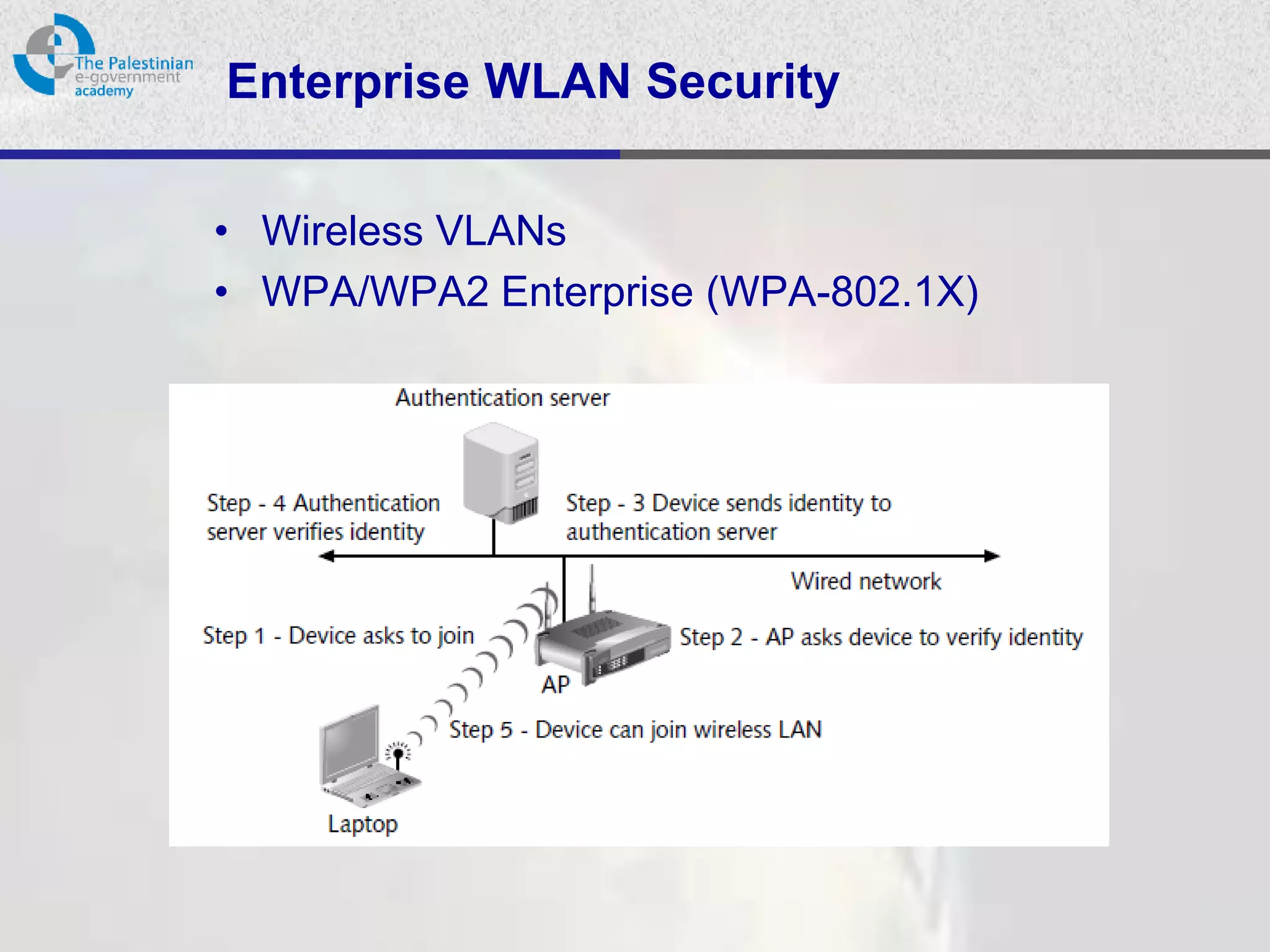
Personal WLAN Security

• MAC Address Filtering
• WEP
• WPA/WPA2 Personal (WPA-PSK)


                    PalGov © 2011   6
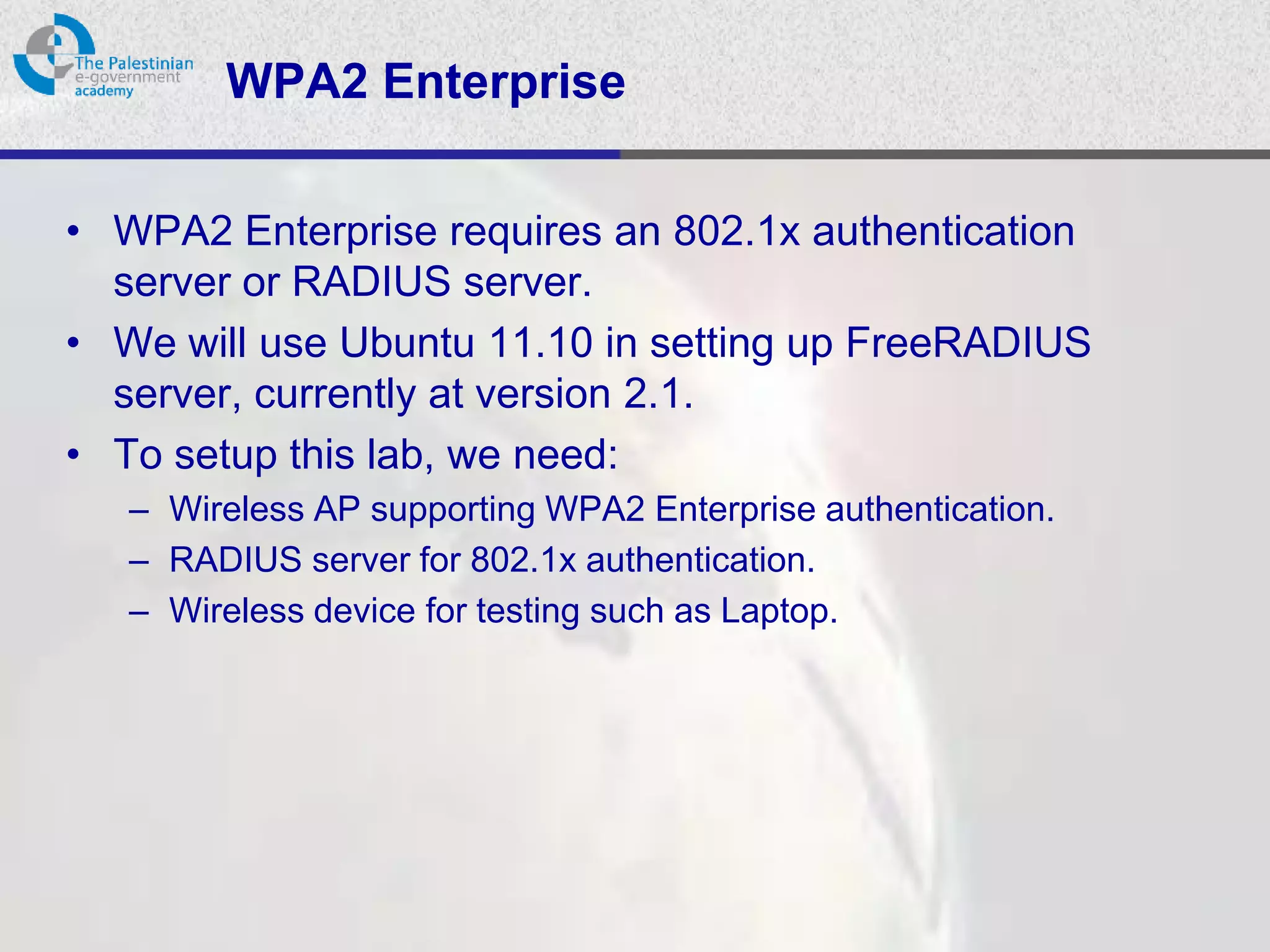
Enterprise WLAN Security

• Wireless VLANs
• WPA/WPA2 Enterprise (WPA-802.1X)
WPA2 Enterprise

• WPA2 Enterprise requires an 802.1x authentication
  server or RADIUS server.
• We will use Ubuntu 11.10 in setting up FreeRADIUS
  server, currently at version 2.1.
• To setup this lab, we need:
   – Wireless AP supporting WPA2 Enterprise authentication.
   – RADIUS server for 802.1x authentication.
   – Wireless device for testing such as Laptop.
Installing FreeRADIUS

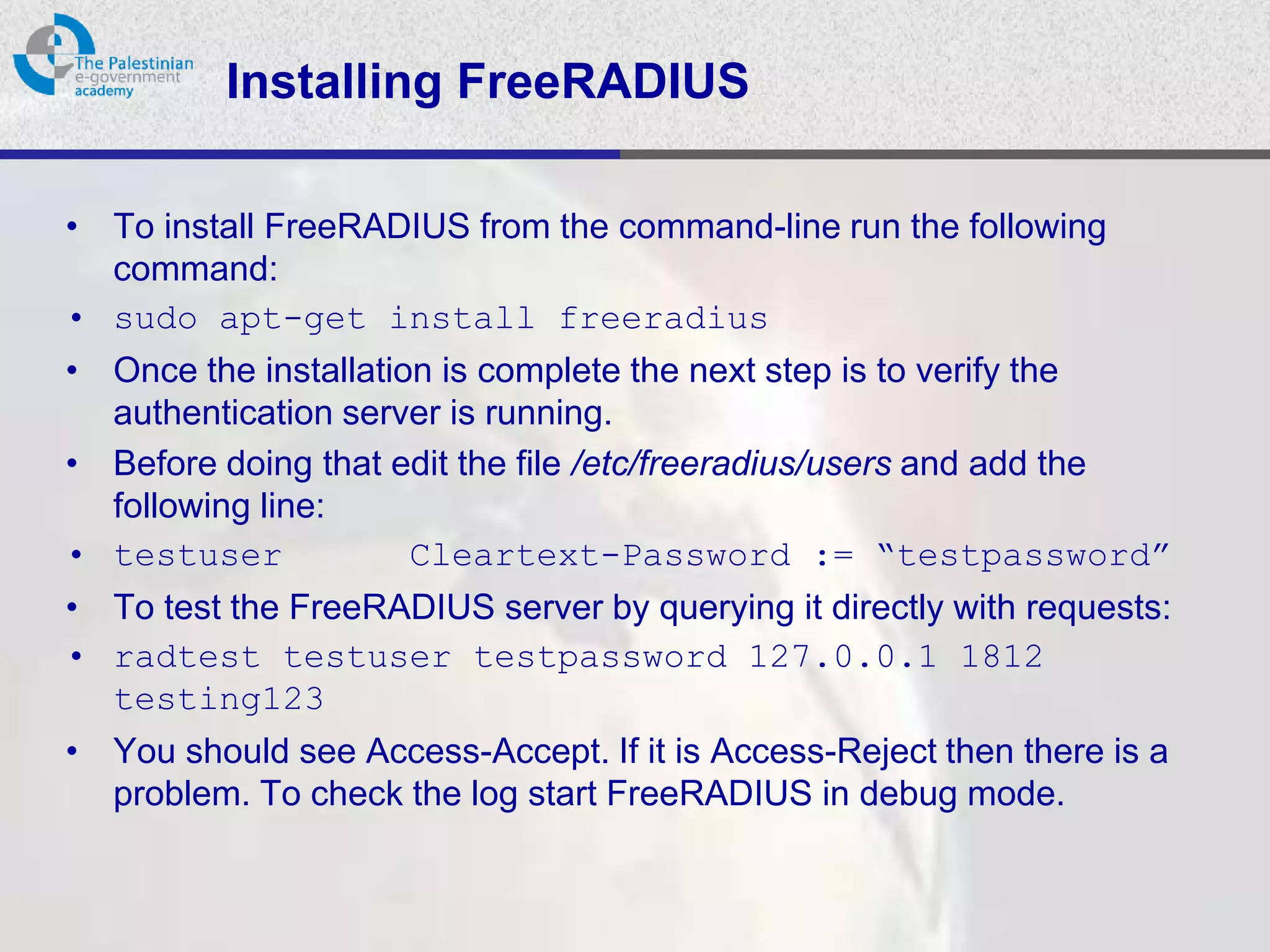
• To install FreeRADIUS from the command-line run the following
  command:
• sudo apt-get install freeradius
• Once the installation is complete the next step is to verify the
  authentication server is running.
• Before doing that edit the file /etc/freeradius/users and add the
  following line:
• testuser            Cleartext-Password := “testpassword”
• To test the FreeRADIUS server by querying it directly with requests:
• radtest testuser testpassword 127.0.0.1 1812
  testing123
• You should see Access-Accept. If it is Access-Reject then there is a
  problem. To check the log start FreeRADIUS in debug mode.
Configuring FreeRADIUS

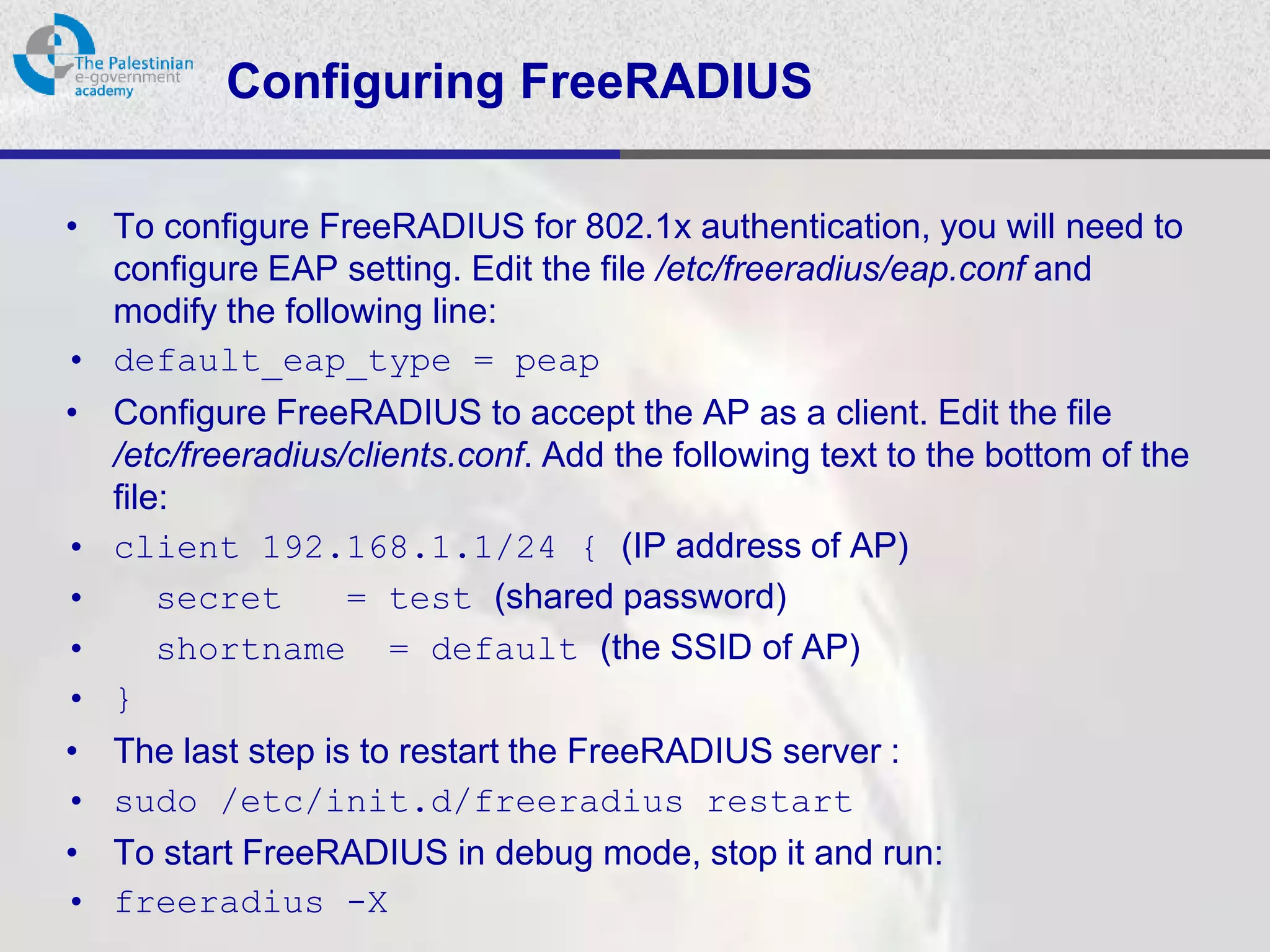
• To configure FreeRADIUS for 802.1x authentication, you will need to
  configure EAP setting. Edit the file /etc/freeradius/eap.conf and
  modify the following line:
• default_eap_type = peap
• Configure FreeRADIUS to accept the AP as a client. Edit the file
  /etc/freeradius/clients.conf. Add the following text to the bottom of the
  file:
• client 192.168.1.1/24 { (IP address of AP)
•     secret      = test (shared password)
•     shortname = default (the SSID of AP)
• }
• The last step is to restart the FreeRADIUS server :
• sudo /etc/init.d/freeradius restart
• To start FreeRADIUS in debug mode, stop it and run:
• freeradius -X
Configuring AP

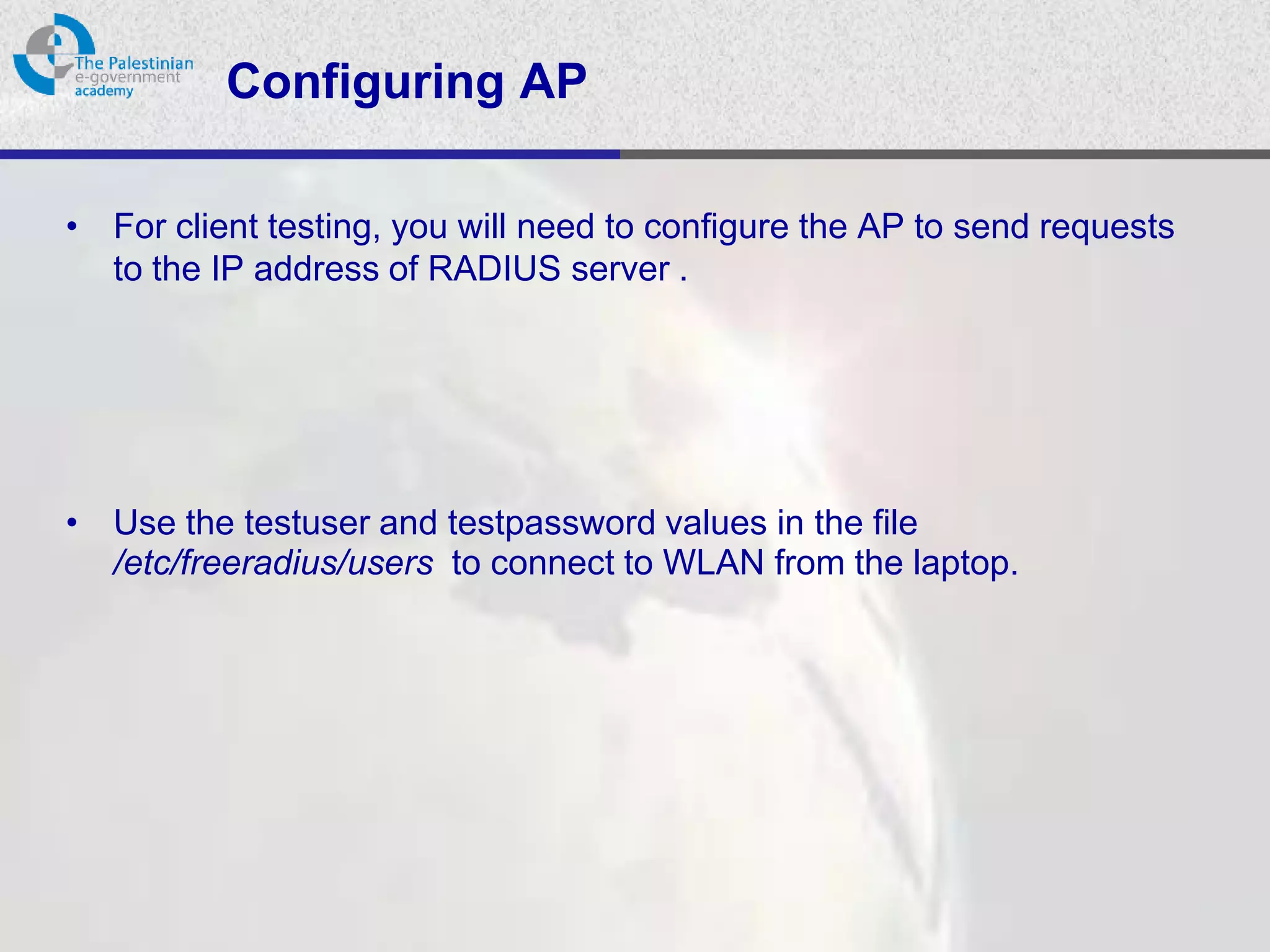
• For client testing, you will need to configure the AP to send requests
  to the IP address of RADIUS server .


• Use the testuser and testpassword values in the file
  /etc/freeradius/users to connect to WLAN from the laptop.
Thanks

         Eng. Ghannam Aljabary


                PalGov © 2011    12

E gov security_tut_session_10_lab

  • 1.
    ‫أكاديمية الحكومة اإللكترونيةالفلسطينية‬ The Palestinian eGovernment Academy www.egovacademy.ps Security Tutorial Session 10 LAB PalGov © 2011 1
  • 2.
    About This tutorial ispart of the PalGov project, funded by the TEMPUS IV program of the Commission of the European Communities, grant agreement 511159-TEMPUS-1- 2010-1-PS-TEMPUS-JPHES. The project website: www.egovacademy.ps Project Consortium: Birzeit University, Palestine University of Trento, Italy (Coordinator ) Palestine Polytechnic University, Palestine Vrije Universiteit Brussel, Belgium Palestine Technical University, Palestine Université de Savoie, France Ministry of Telecom and IT, Palestine University of Namur, Belgium Ministry of Interior, Palestine TrueTrust, UK Ministry of Local Government, Palestine Coordinator: Dr. Mustafa Jarrar Birzeit University, P.O.Box 14- Birzeit, Palestine Telfax:+972 2 2982935 mjarrar@birzeit.eduPalGov © 2011 2
  • 3.
    © Copyright Notes Everyoneis encouraged to use this material, or part of it, but should properly cite the project (logo and website), and the author of that part. No part of this tutorial may be reproduced or modified in any form or by any means, without prior written permission from the project, who have the full copyrights on the material. Attribution-NonCommercial-ShareAlike CC-BY-NC-SA This license lets others remix, tweak, and build upon your work non- commercially, as long as they credit you and license their new creations under the identical terms. PalGov © 2011 3
  • 4.
    Tutorial 5: Information Security Session 10: WIRELESS LAB Session 8 Outline: •WEP •WPA-Personal •WPA-Enterprise PalGov © 2011 4
  • 5.
    Tutorial 5: Session 10: Wireless This session will contribute to the following ILOs: • C: Professional and Practical Skills: PalGov © 2011 5
  • 6.
    Personal WLAN Security •MAC Address Filtering • WEP • WPA/WPA2 Personal (WPA-PSK) PalGov © 2011 6
  • 7.
    Enterprise WLAN Security •Wireless VLANs • WPA/WPA2 Enterprise (WPA-802.1X)
  • 8.
    WPA2 Enterprise • WPA2Enterprise requires an 802.1x authentication server or RADIUS server. • We will use Ubuntu 11.10 in setting up FreeRADIUS server, currently at version 2.1. • To setup this lab, we need: – Wireless AP supporting WPA2 Enterprise authentication. – RADIUS server for 802.1x authentication. – Wireless device for testing such as Laptop.
  • 9.
    Installing FreeRADIUS • Toinstall FreeRADIUS from the command-line run the following command: • sudo apt-get install freeradius • Once the installation is complete the next step is to verify the authentication server is running. • Before doing that edit the file /etc/freeradius/users and add the following line: • testuser Cleartext-Password := “testpassword” • To test the FreeRADIUS server by querying it directly with requests: • radtest testuser testpassword 127.0.0.1 1812 testing123 • You should see Access-Accept. If it is Access-Reject then there is a problem. To check the log start FreeRADIUS in debug mode.
  • 10.
    Configuring FreeRADIUS • Toconfigure FreeRADIUS for 802.1x authentication, you will need to configure EAP setting. Edit the file /etc/freeradius/eap.conf and modify the following line: • default_eap_type = peap • Configure FreeRADIUS to accept the AP as a client. Edit the file /etc/freeradius/clients.conf. Add the following text to the bottom of the file: • client 192.168.1.1/24 { (IP address of AP) • secret = test (shared password) • shortname = default (the SSID of AP) • } • The last step is to restart the FreeRADIUS server : • sudo /etc/init.d/freeradius restart • To start FreeRADIUS in debug mode, stop it and run: • freeradius -X
  • 11.
    Configuring AP • Forclient testing, you will need to configure the AP to send requests to the IP address of RADIUS server . • Use the testuser and testpassword values in the file /etc/freeradius/users to connect to WLAN from the laptop.
  • 12.
    Thanks Eng. Ghannam Aljabary PalGov © 2011 12