Using Open Badges to support
study programmes
and enterprise
Jo Burbidge
Adrian Cowell
Session Outline
• Introduction
• How LeSoCo implemented Open Badges
• Setting up the badges in Moodle
• Notes & links
• Questions
• Get your Badge!
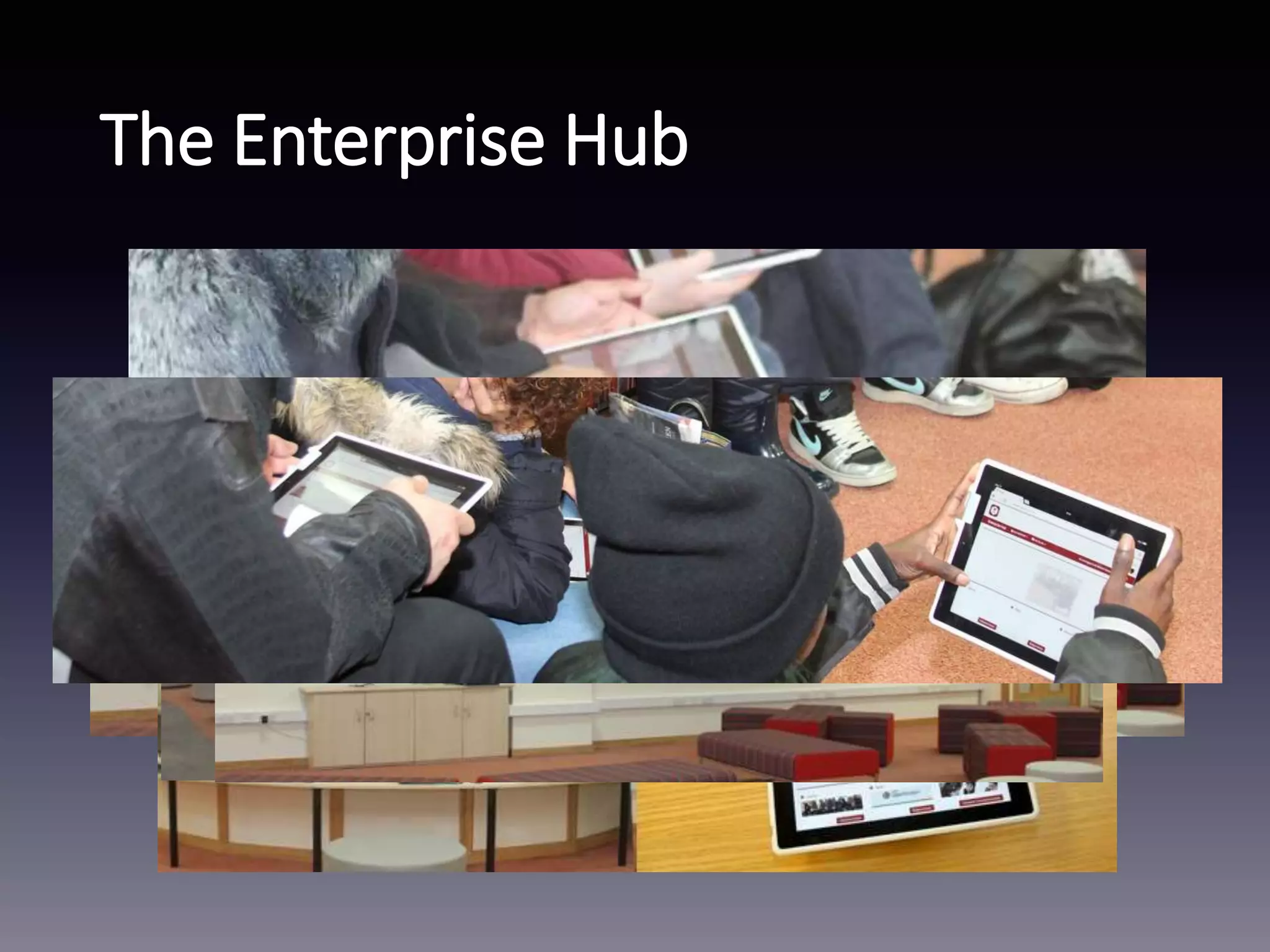
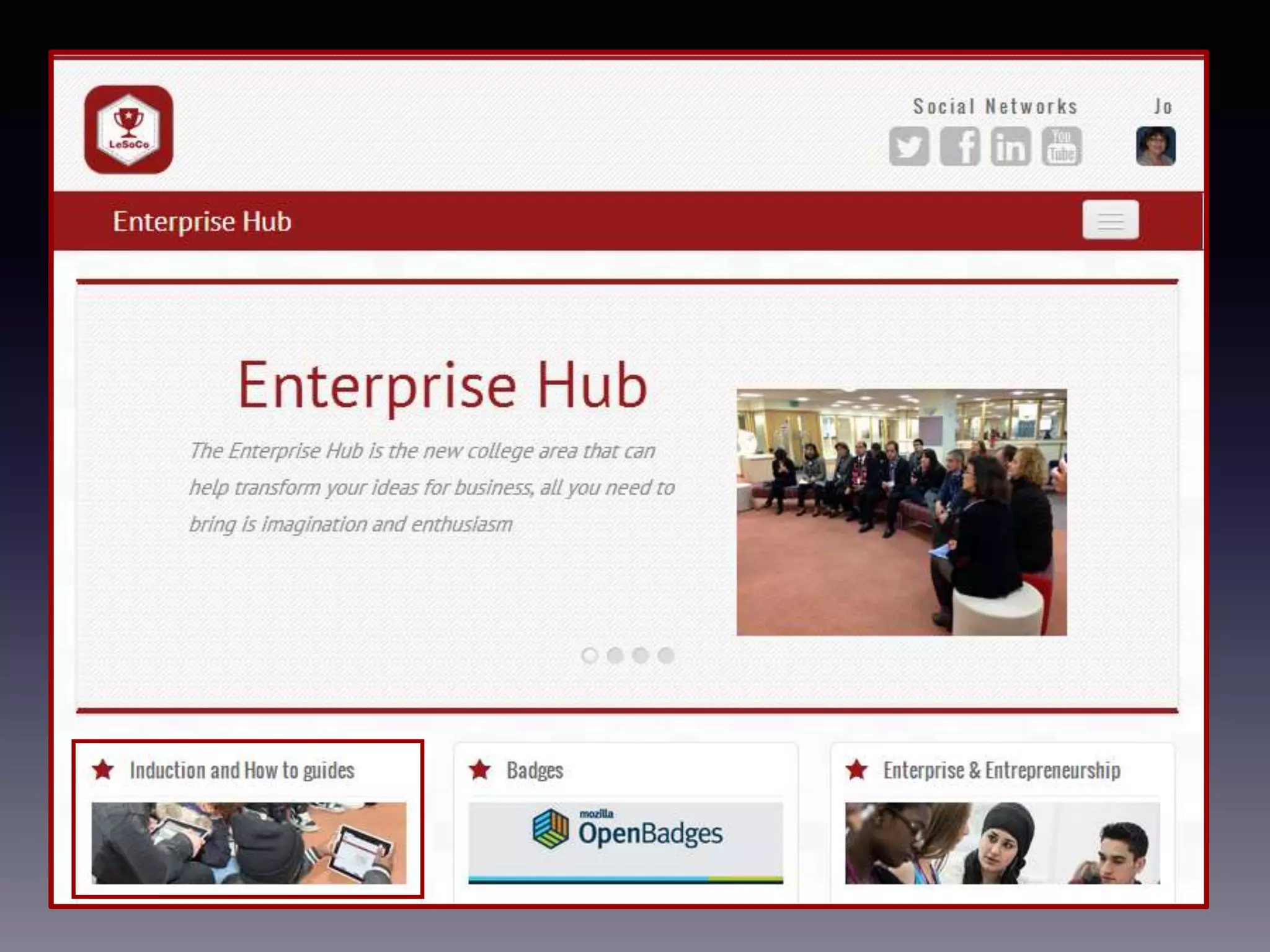
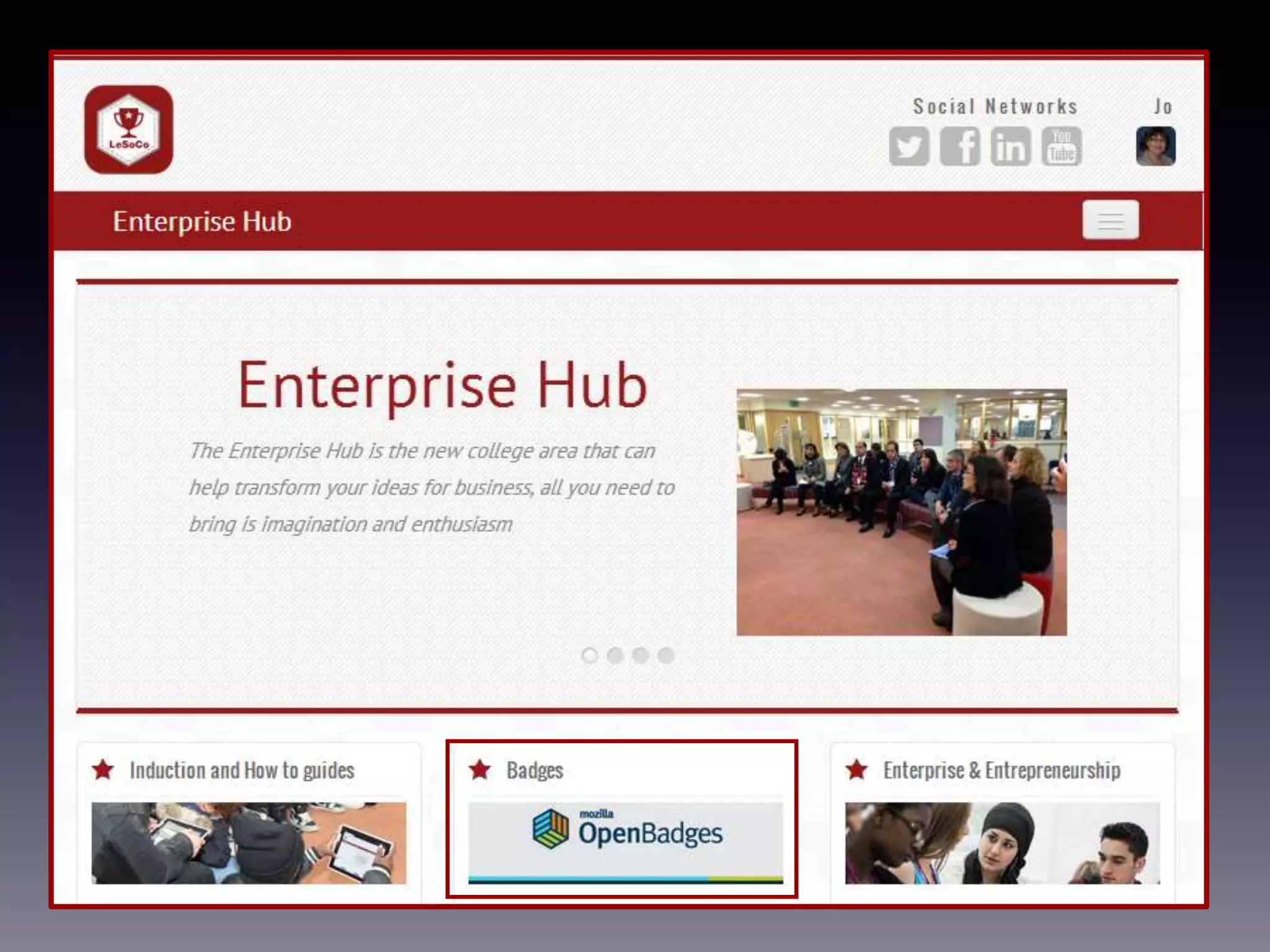
The Enterprise Hub
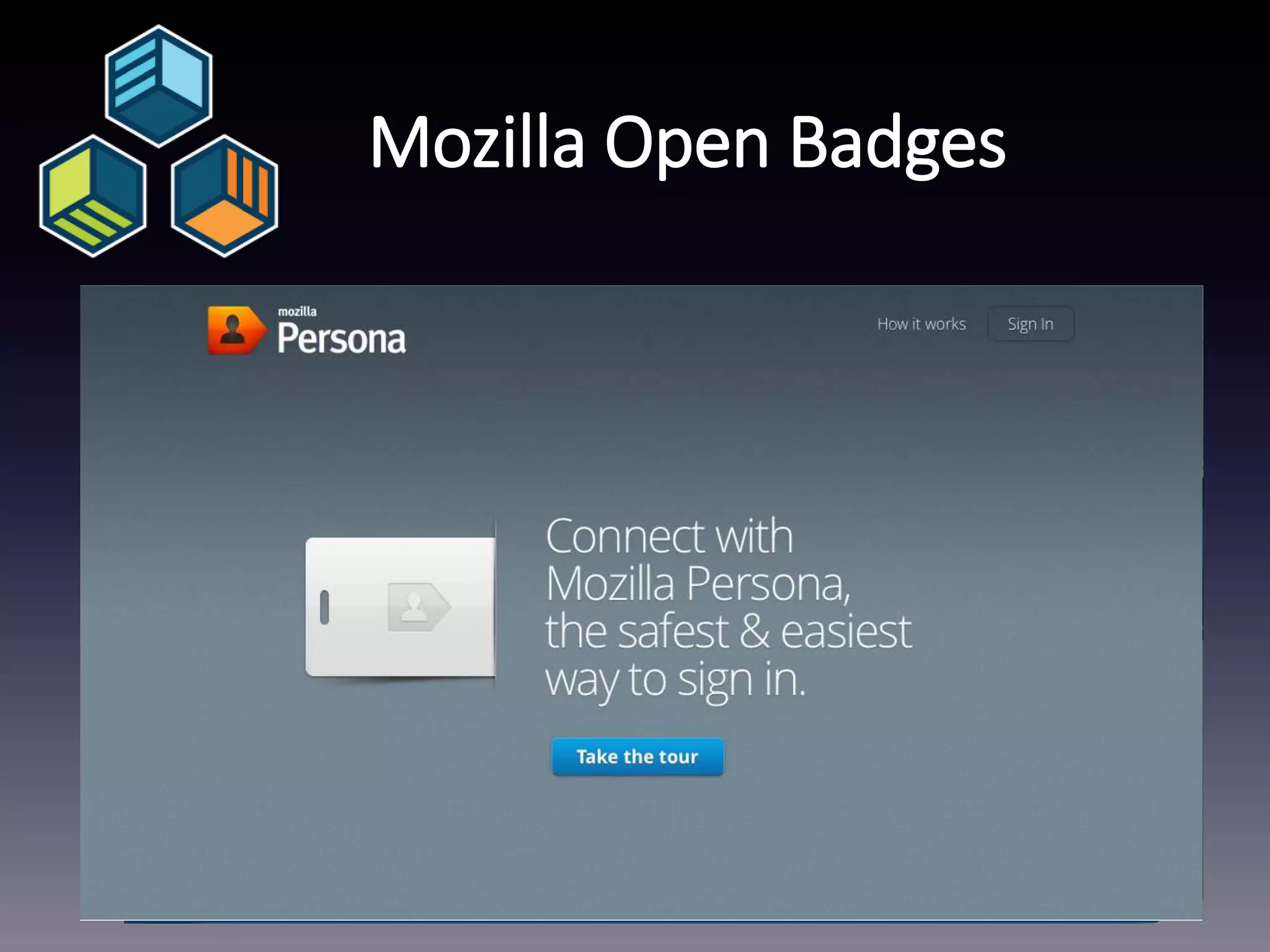
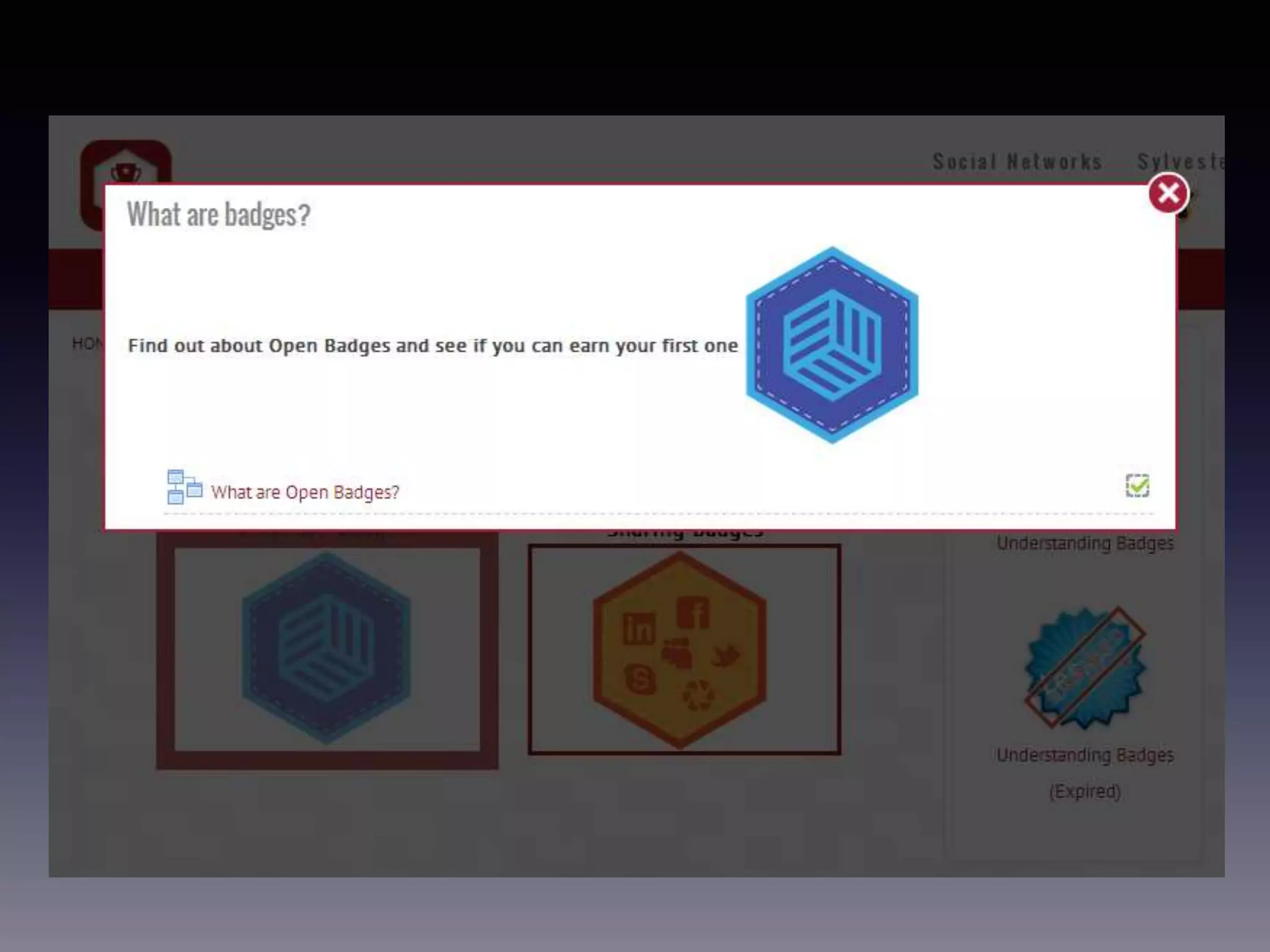
Mozilla Open Badges
• Use Badges to aid recognition of skills not taught in
the curriculum
• Badges takes it’s origins from gamification of
activities
• Badges are flexible and recognise learning outside
the classroom
• Mozilla Backpack + Persona
• Badges are easy for any institution to issue, manage
and display across the web
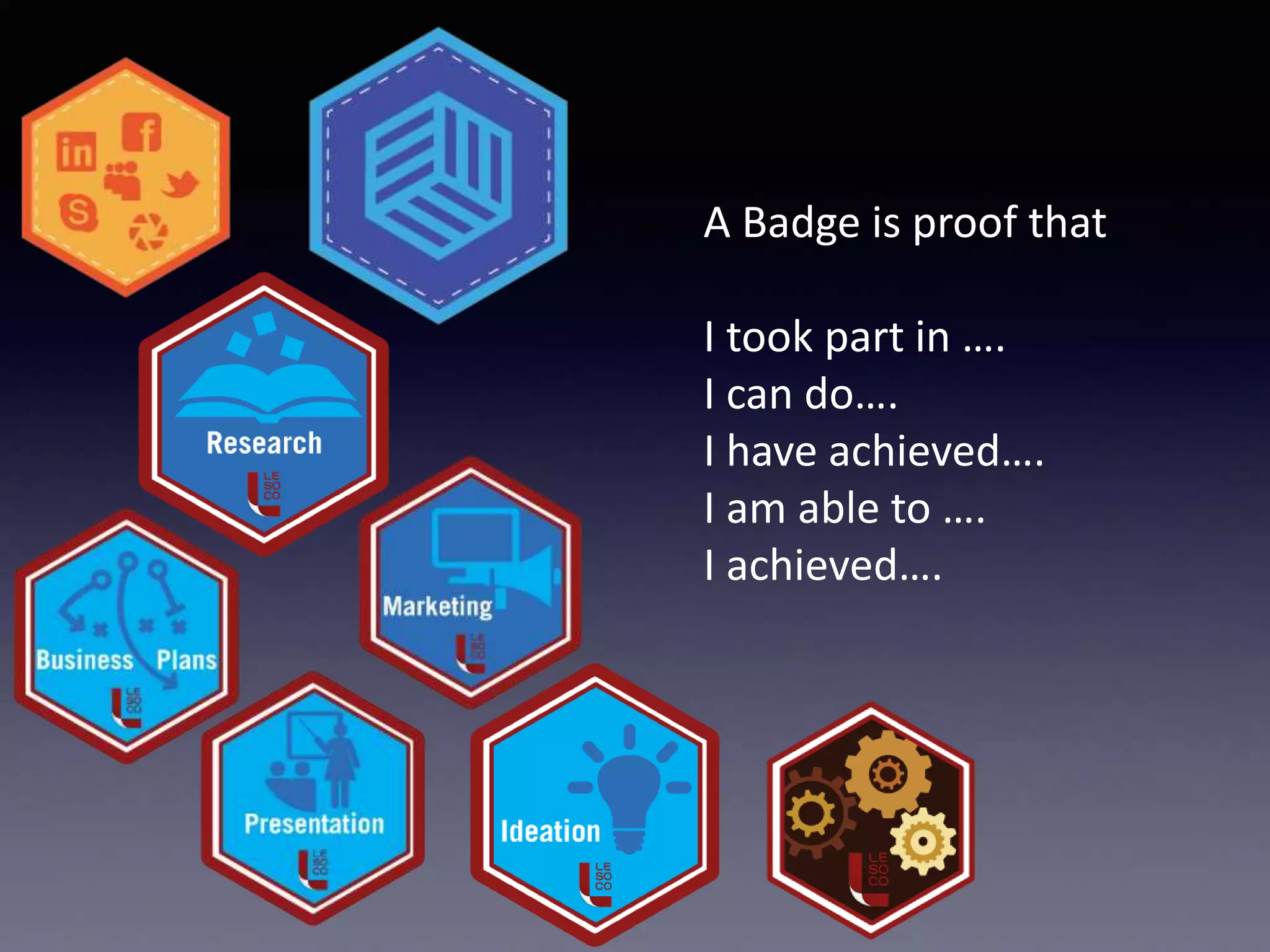
A Badge is proof that
I took part in ….
I can do….
I have achieved….
I am able to ….
I achieved….
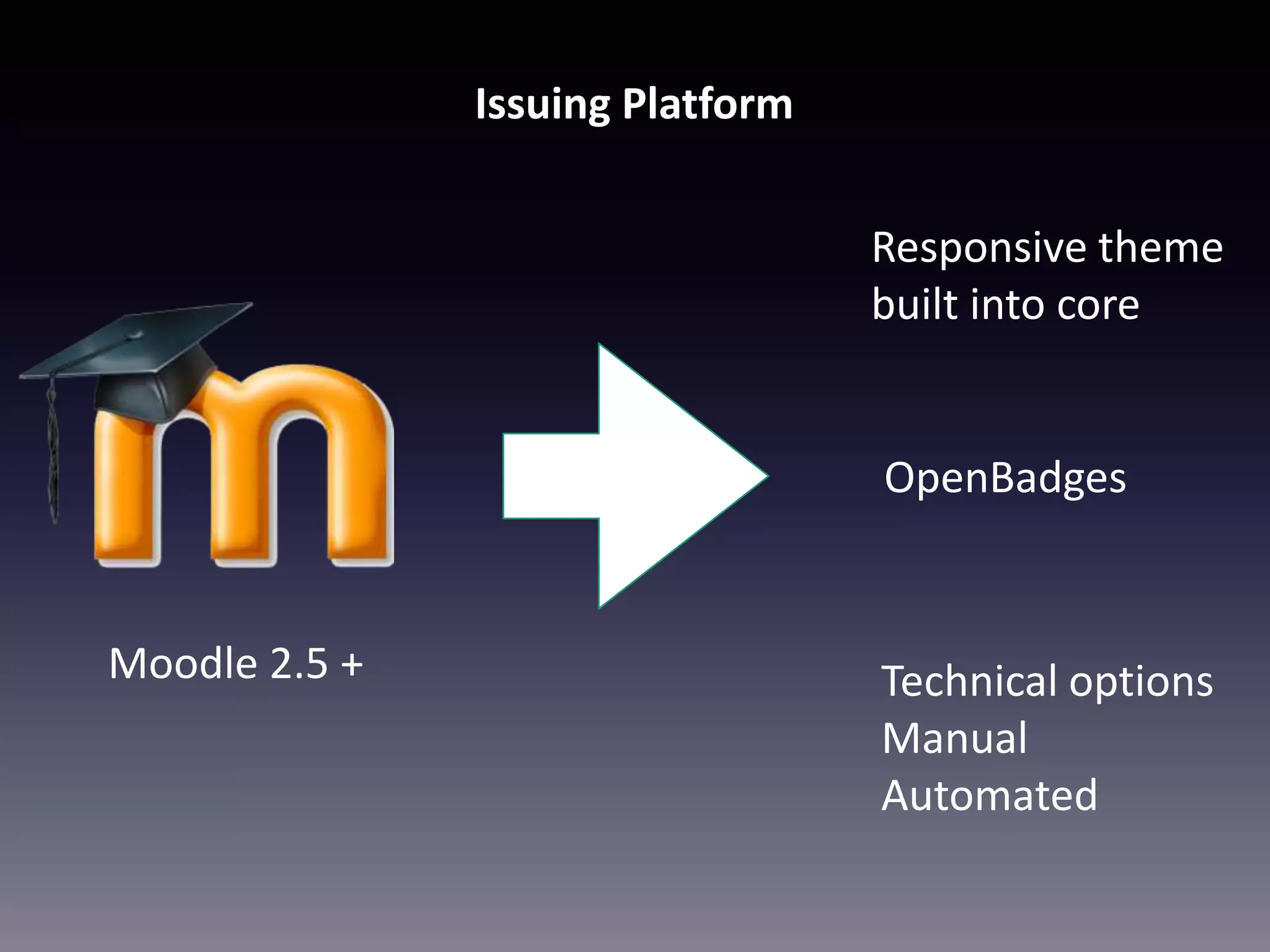
Moodle 2.5 +
Issuing Platform
Responsive theme
built into core
OpenBadges
Technical options
Manual
Automated
badges.lesoco.ac.uk
badges.lesoco.ac.uk
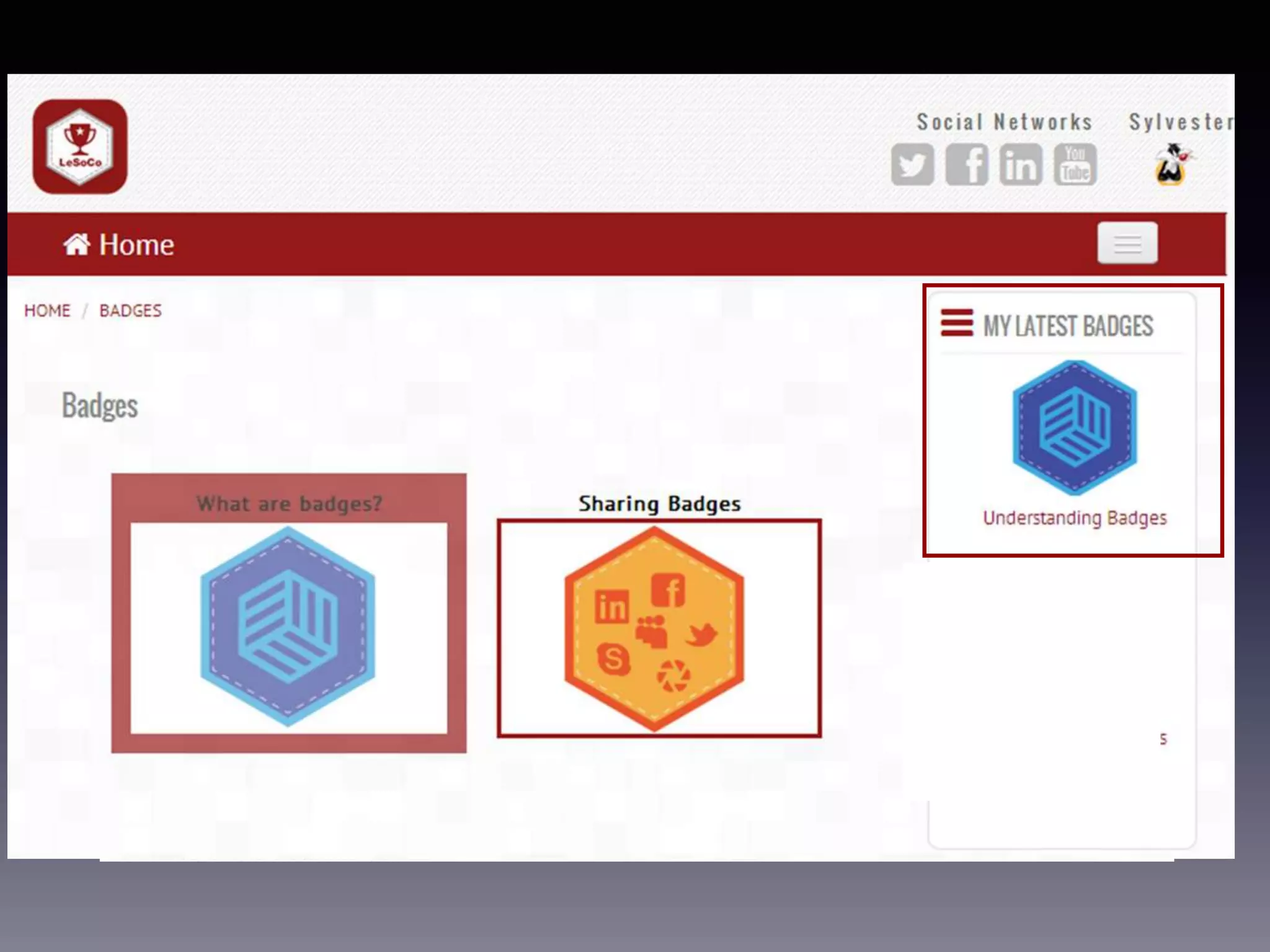
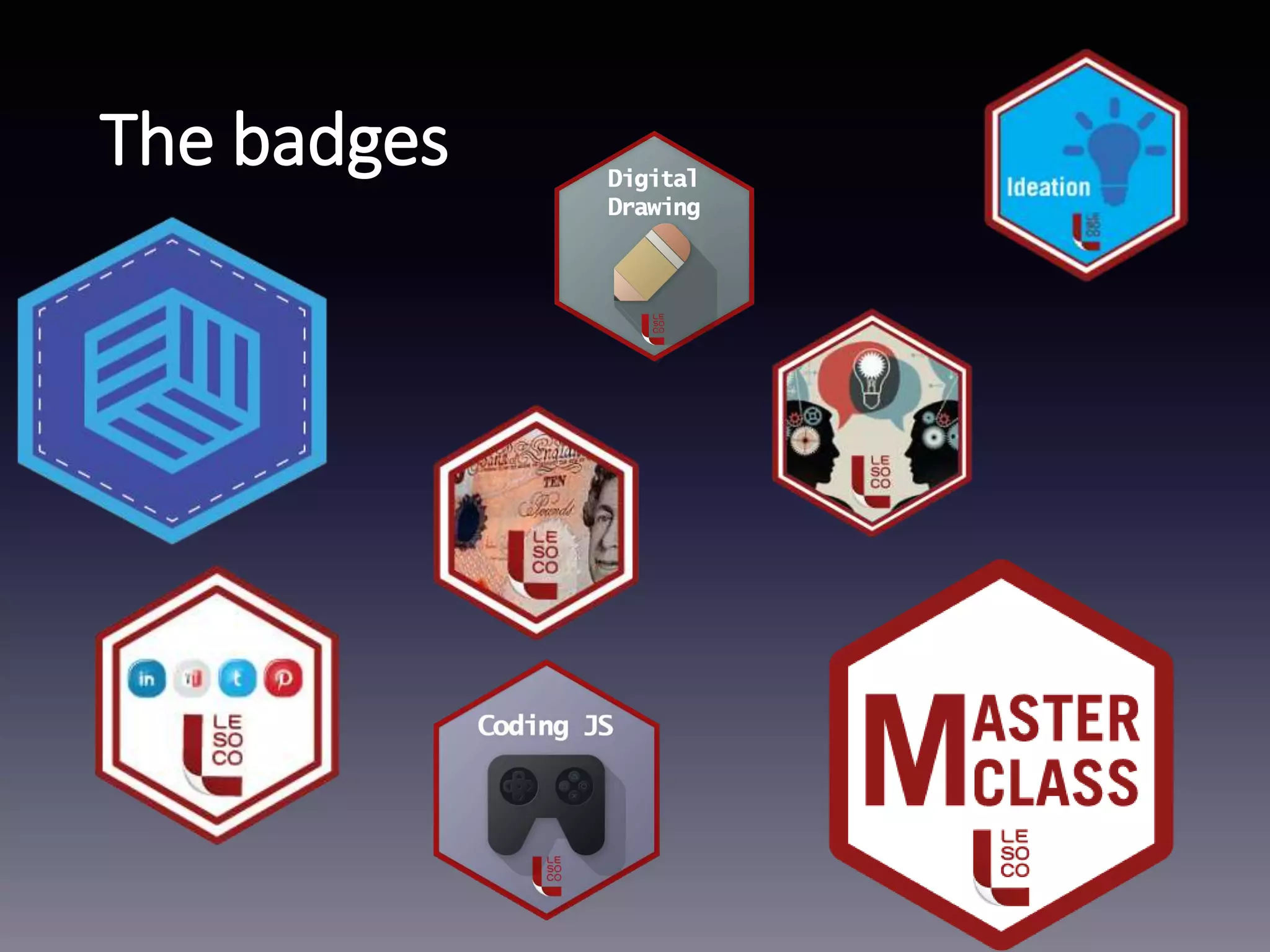
The badges
18
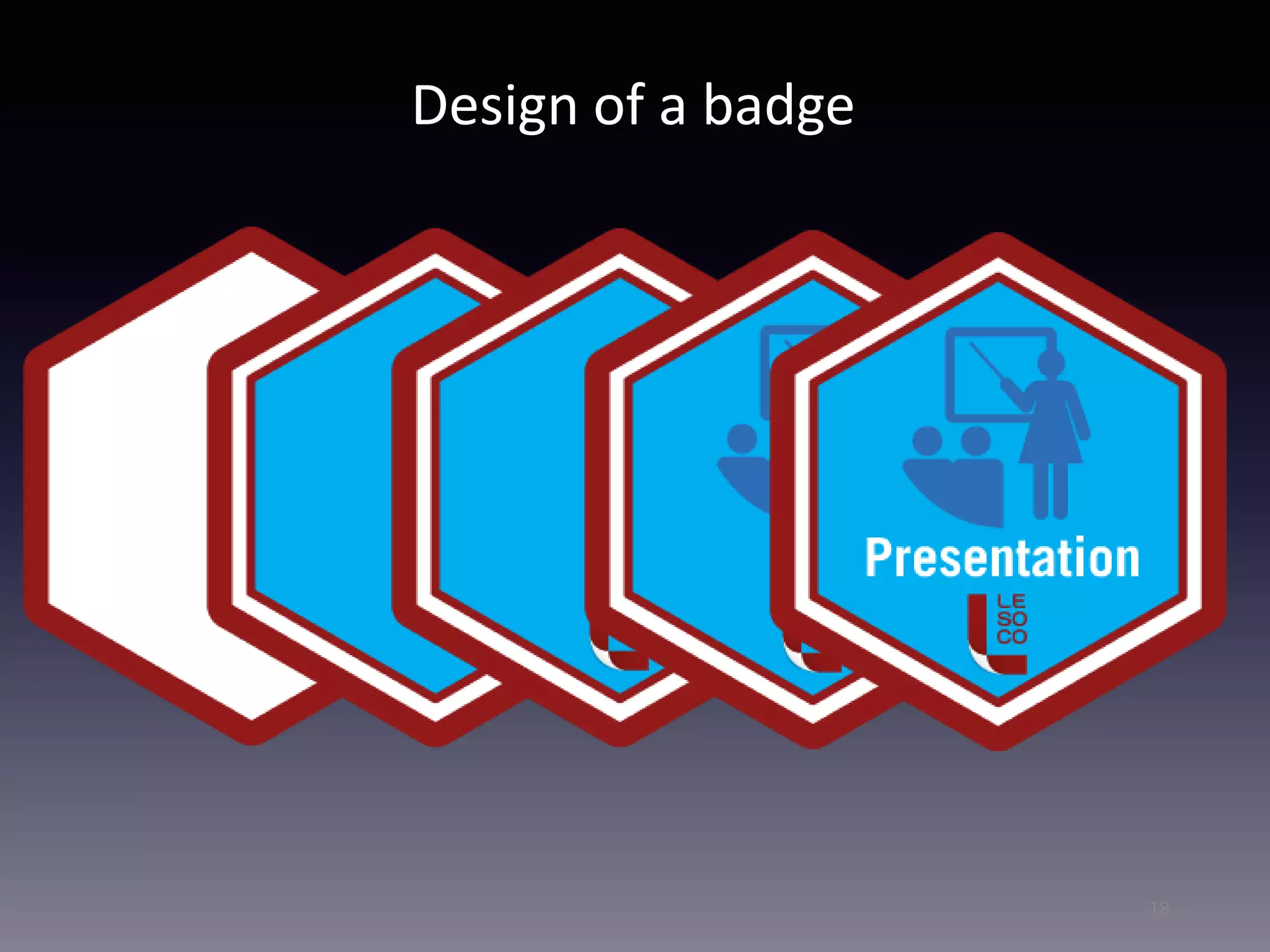
Design of a badge
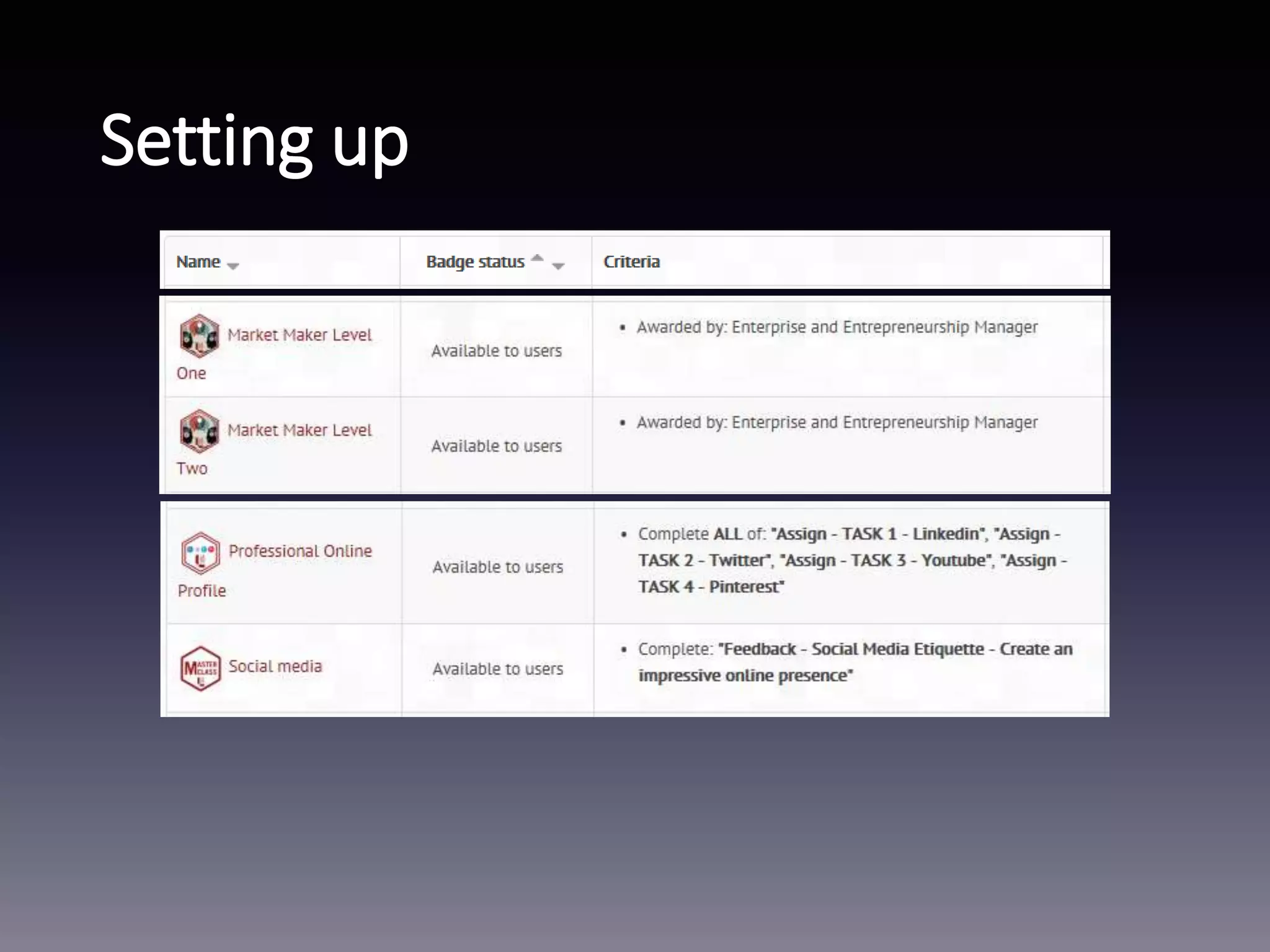
Setting up
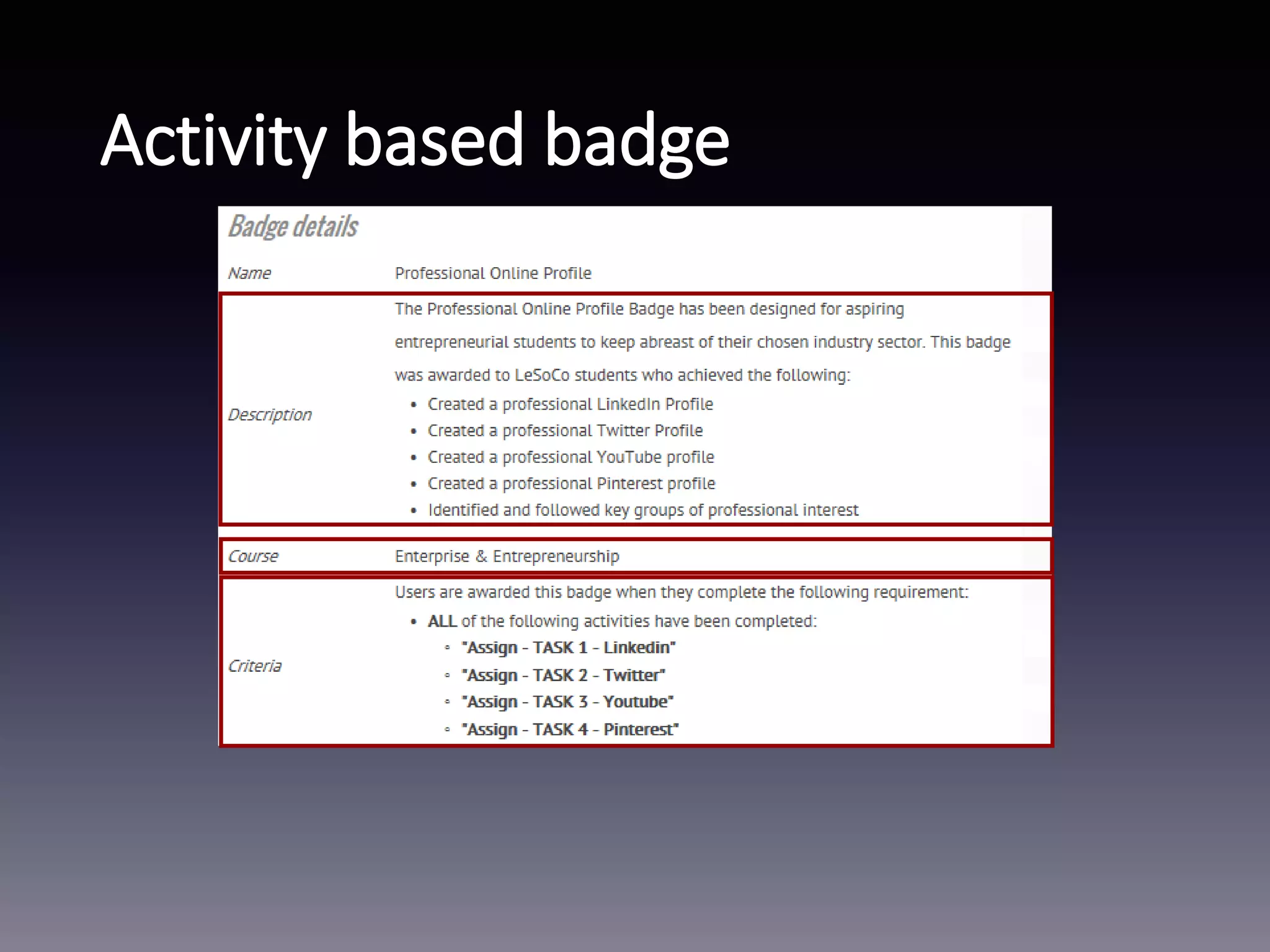
Activity based badge
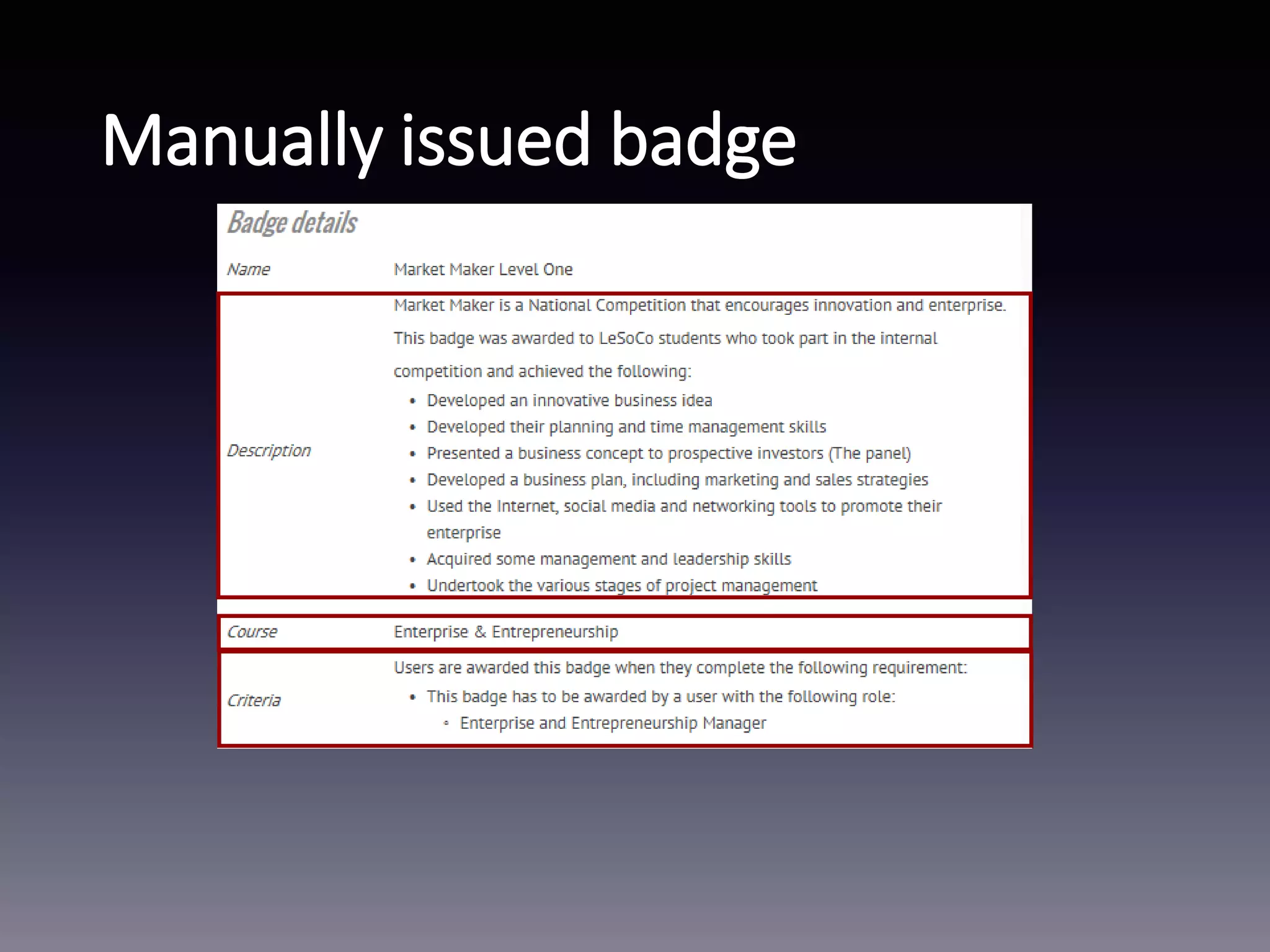
Manually issued badge
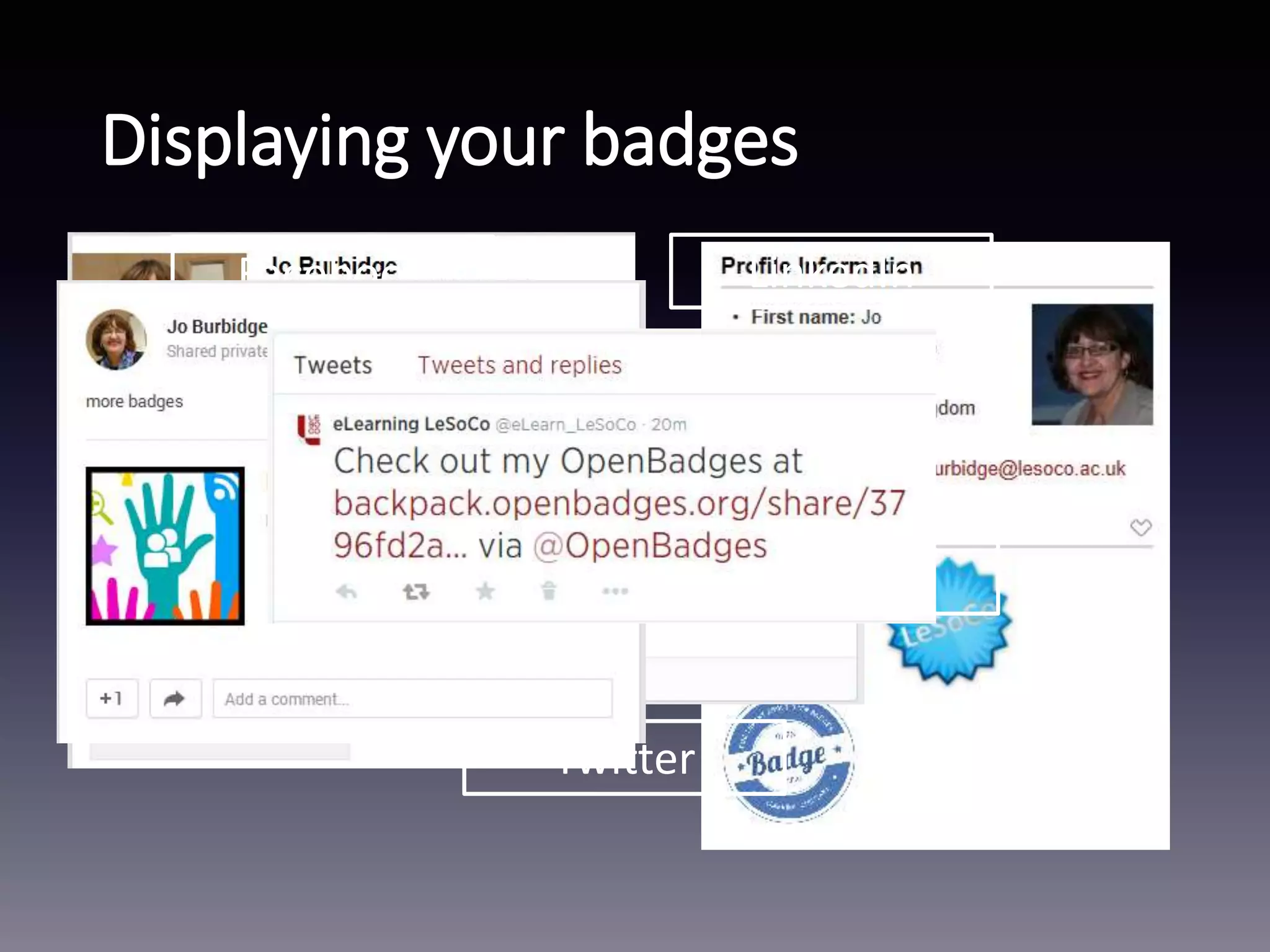
Displaying your badges
LinkedIn
Twitter
Facebook
Mahara Google +
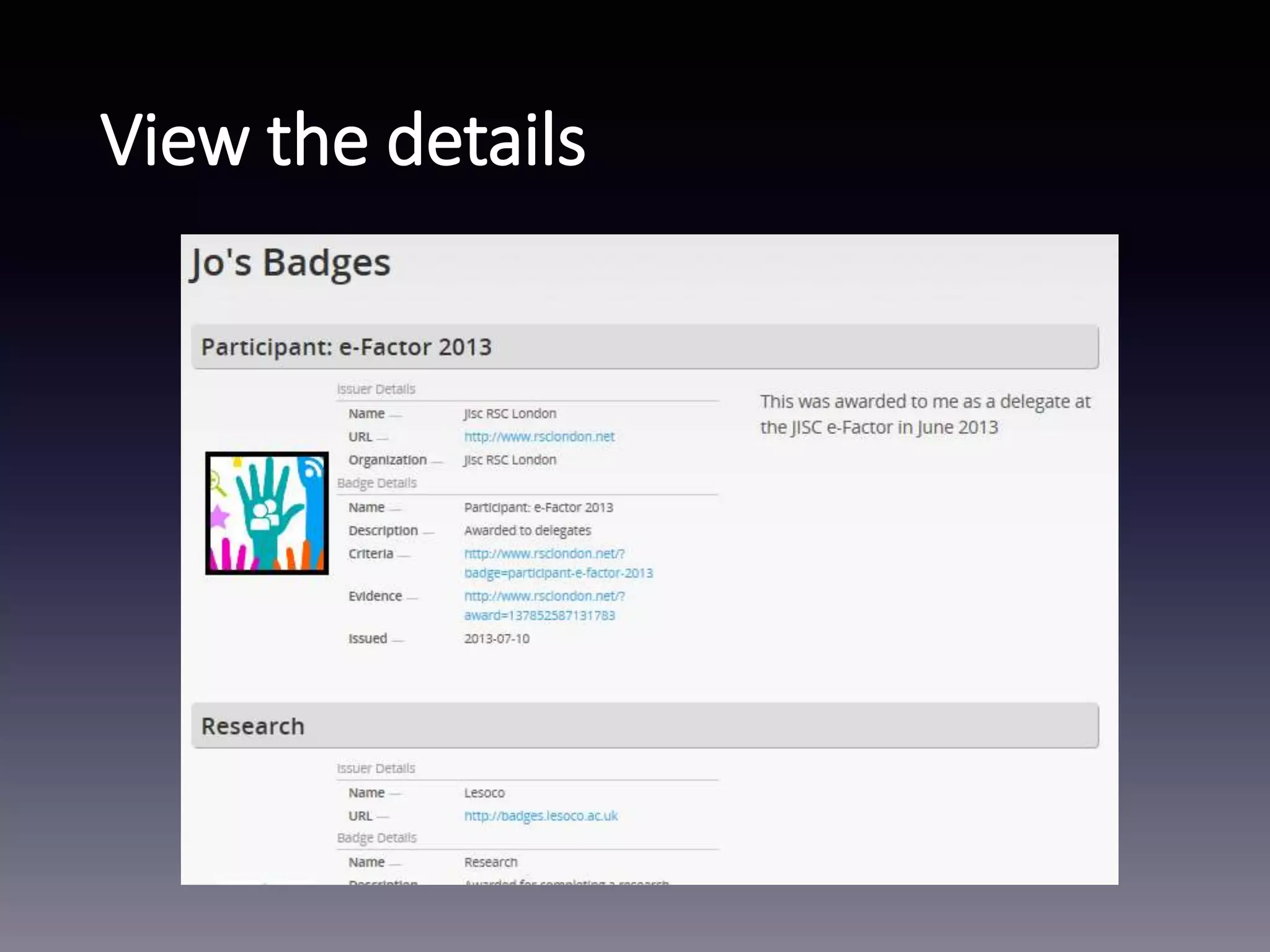
View the details
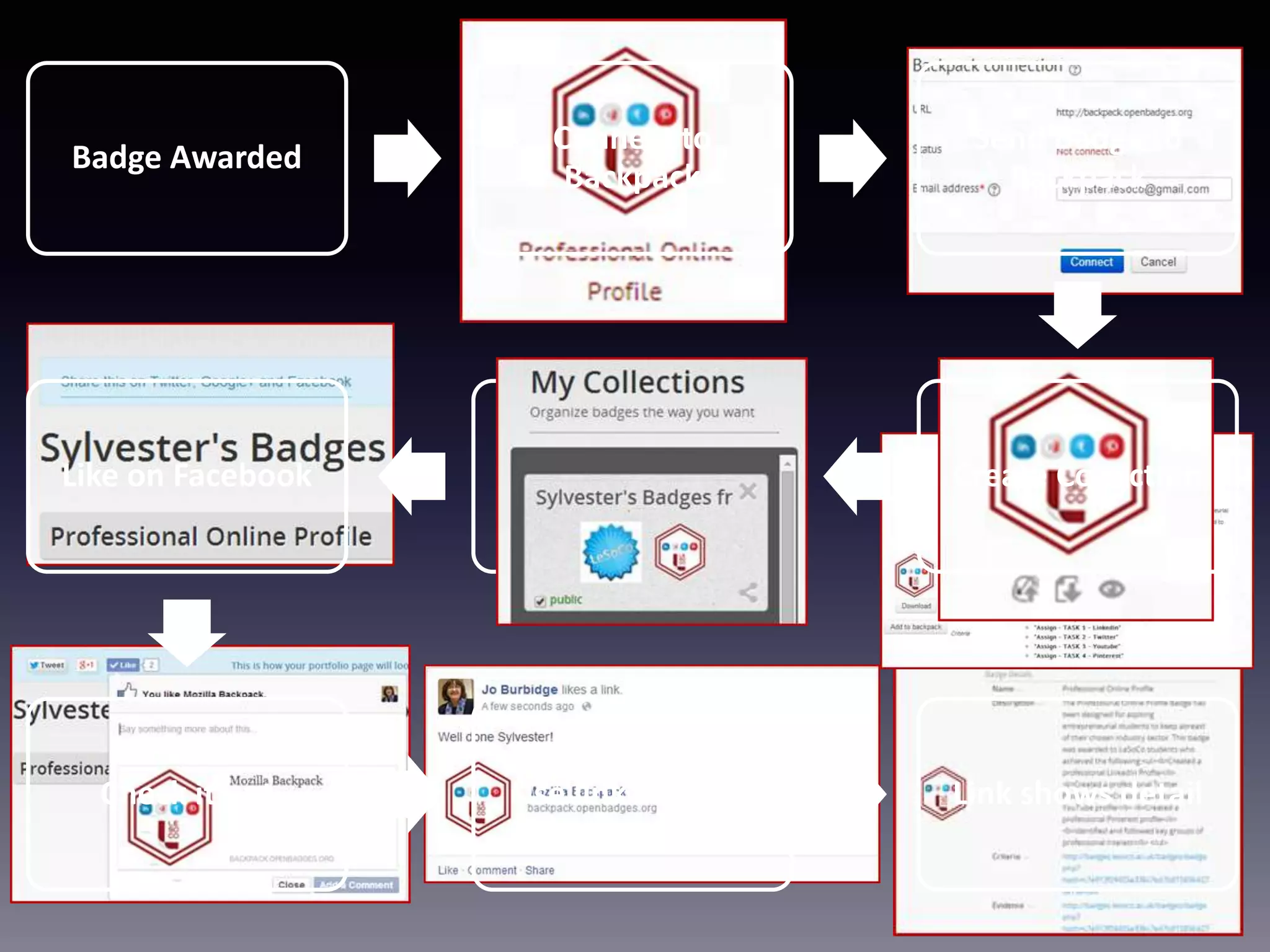
Badge Awarded
Connect to
Backpack
Send Badge to
Backpack
Create CollectionShare CollectionLike on Facebook
Check it out Use link to share Link shows detail
Things to consider….
• Badges can’t be taken away once issued
• Badge size and dimensions
• Criteria v description
• Email for verification
• Take link with you
What next….
• Integrate into main eME site
• Extend to curriculum areas
• Use to acknowledge staff development
List of resources
• Mozilla
• http://backpack.openbadges.org
• https://developer.mozilla.org/en-US/Persona
• http://badgeos.org/
• badge resource
• http://moodlebadges.com/
• Moodle
• http://docs.moodle.org/dev/openbadges
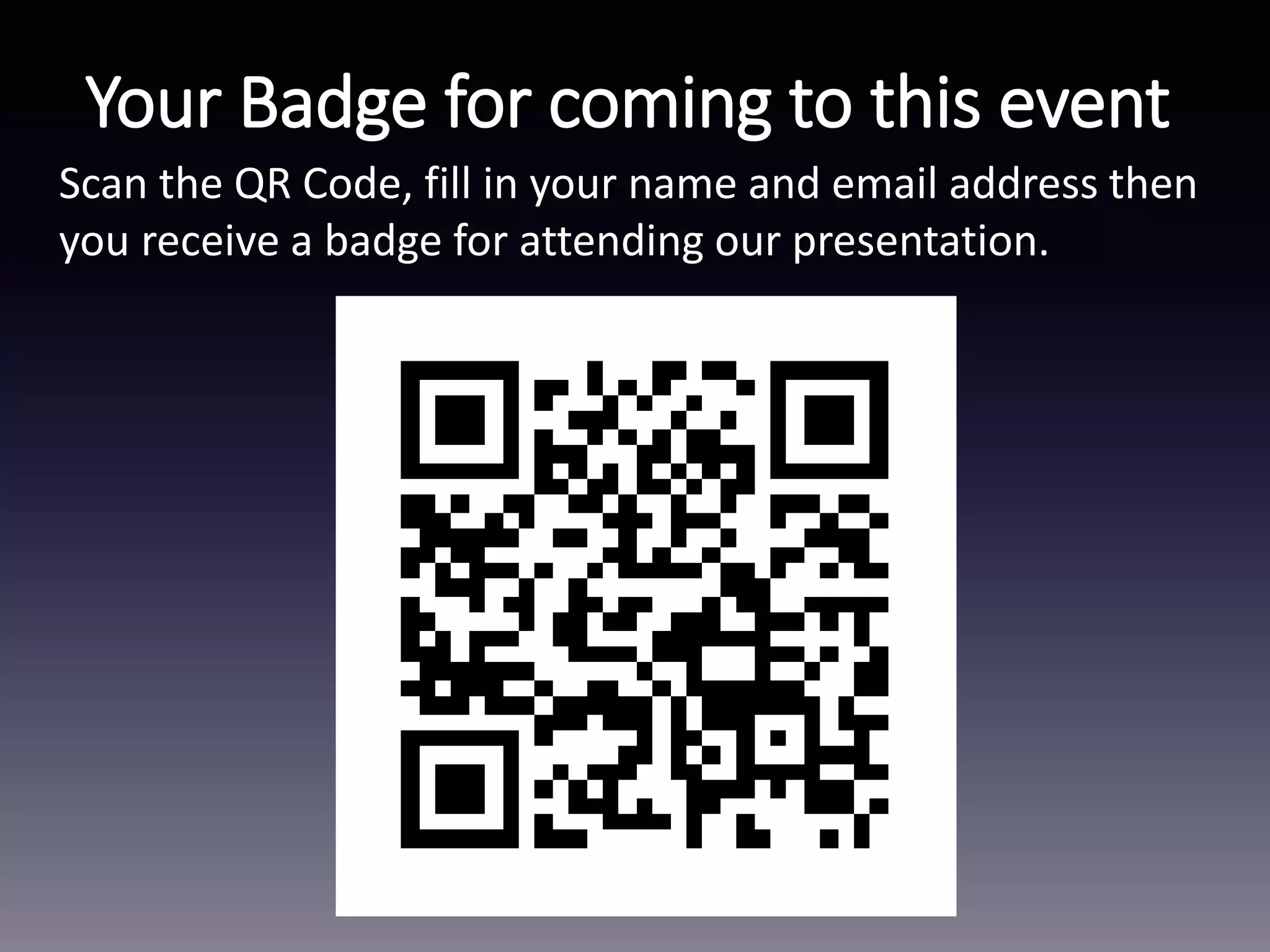
Scan the QR Code, fill in your name and email address then
you receive a badge for attending our presentation.
Your Badge for coming to this event

E factor lesoco

Editor's Notes

  • #5 Mozilla backpack to store badges Persona single sign on with password management
  • #6 ADRIAN
  • #7 ADRIANIntegration, iPads - responsive, mnet enrolments, students enrolled on all 3 courses and put into groups based on study area
  • #8 ADRIAN
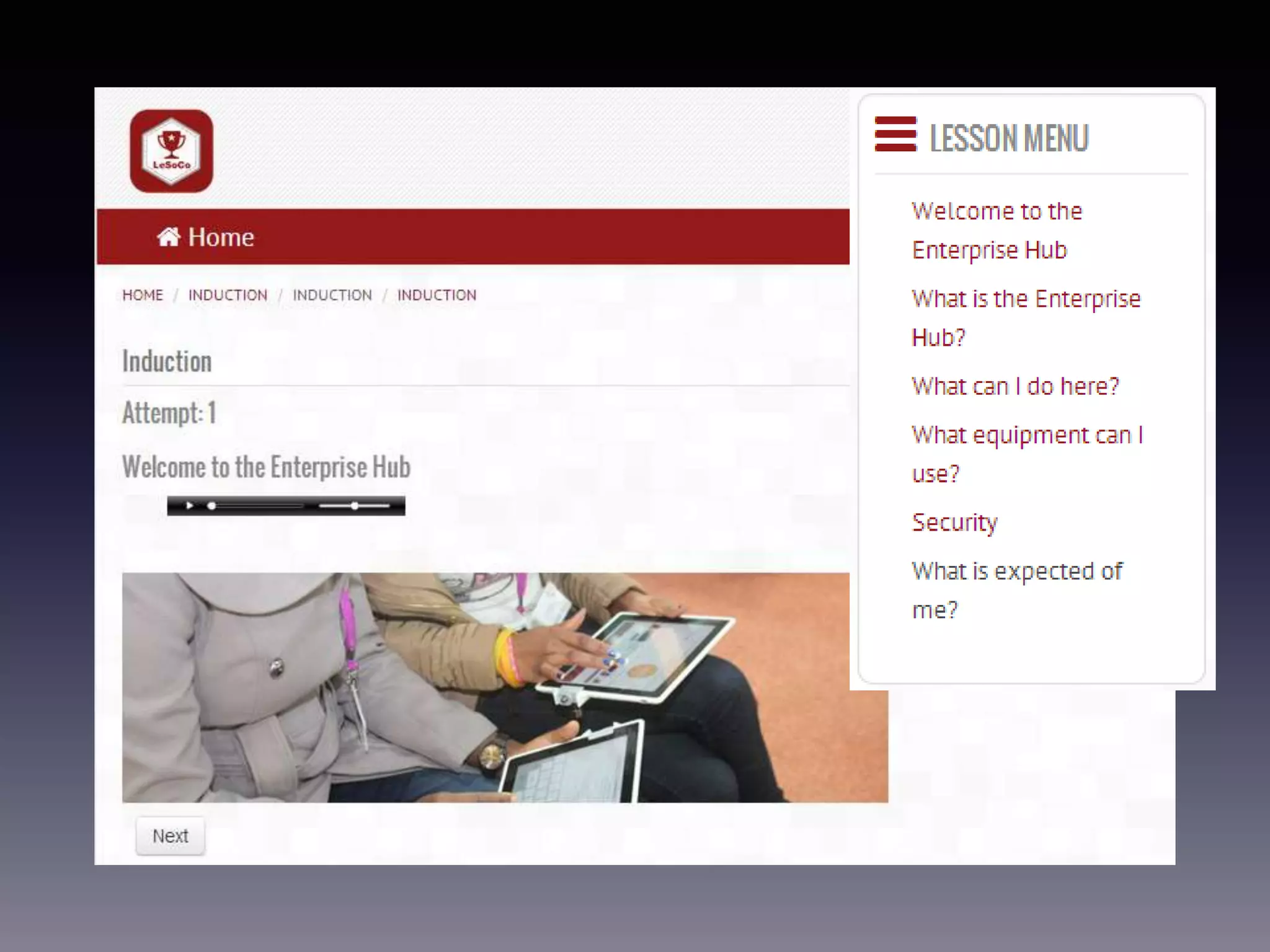
  • #9 JO - induction
  • #10 JO
  • #21 JO – Criteria taken from Activities therefore consider how you name your activities as this will appear on the badge – Unit 1 is not very helpful! Description is opportunity to give proper description of why the badge was awarded - and a little bit of html can be useful here (for the list)
  • #22 JO – again criteria is taken from Moodle and when manually awarded will simply say who it has been awarded by. Again we used the description field to make it clear why the badge was awarded. When you create a badge it asks for a contact email and we have used our standard student data address for this. As it’s so easy for people to create and issue badges we need to provide a way of the badge being validated.
  • #23 JO Once you’ve got your badges you need to share them and this can be through various social media sites and especially an eCV
  • #24 JO
  • #25 JO
  • #28 ADRIAN
  • #29 ADRIAN