Dynamic Function Call
Execution Steps (XSteps)
By,
Ankit Sharma
SAP PP Consultant
businessconsulting007@gmail.com
+91-8888896575 / 8888632763
XStep: Dynamic Function Calls
Use
You can use this function to call certain SAP functions from within the PI sheet
or perform certain calculations and checks in the PI sheet. ABAP function
calls that have been created for the corresponding use are used for the
function call.
Prerequisites
The function module to be called must exist and be active in the Function
Builder (ABAP Development Workbench).
Features
The SAP system contains a number of predefined function modules that you
can use in function calls. You can also create your own function modules.
The function can be executed in the following ways:
 Manually
A button with the description saved appears in the PI sheet. The function
is only executed, once you have triggered it using the pushbutton.
 Event-driven
You can specify an event that triggers the function automatically. The
system automatically executes the function as soon as the event is
triggered.
 Manual and event-driven
You can execute the function manually and parallel to this, the function
can also be automatically triggered using a defined event. To do this you
specify an event.
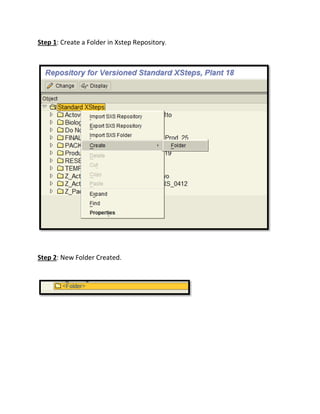
Step 1: Create a Folder in Xstep Repository.
Step 2: New Folder Created.
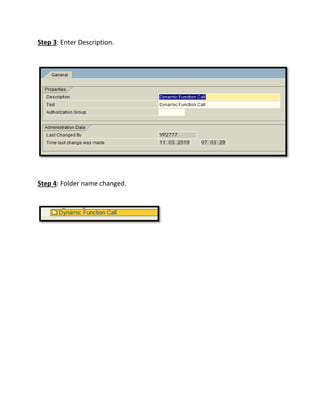
Step 3: Enter Description.
Step 4: Folder name changed.
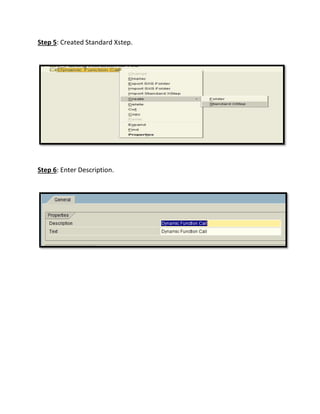
Step 5: Created Standard Xstep.
Step 6: Enter Description.
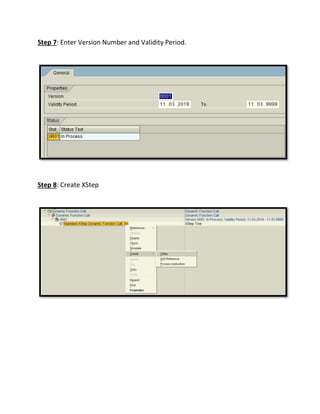
Step 7: Enter Version Number and Validity Period.
Step 8: Create XStep
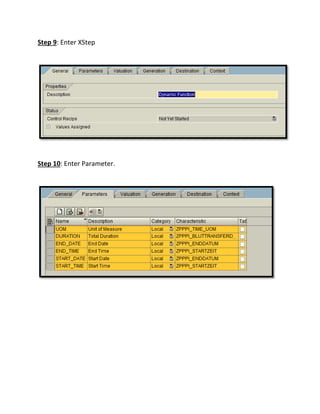
Step 9: Enter XStep
Step 10: Enter Parameter.
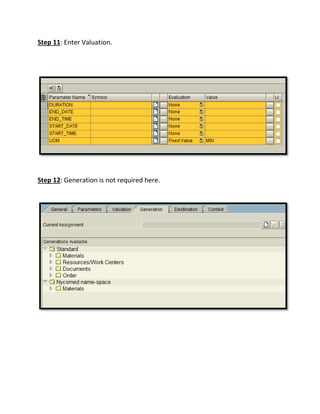
Step 11: Enter Valuation.
Step 12: Generation is not required here.
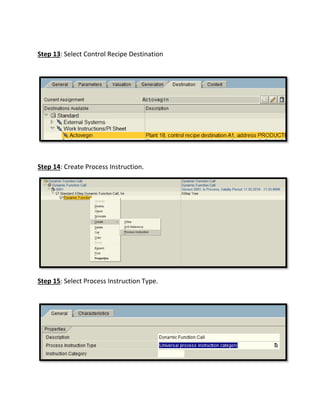
Step 13: Select Control Recipe Destination
Step 14: Create Process Instruction.
Step 15: Select Process Instruction Type.
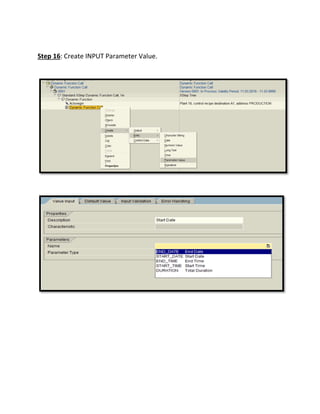
Step 16: Create INPUT Parameter Value.
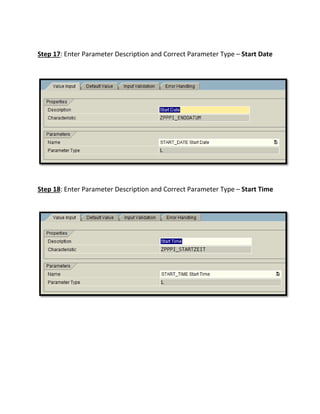
Step 17: Enter Parameter Description and Correct Parameter Type – Start Date
Step 18: Enter Parameter Description and Correct Parameter Type – Start Time
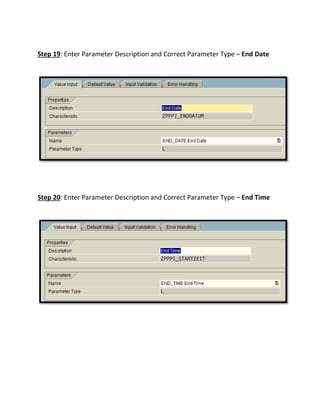
Step 19: Enter Parameter Description and Correct Parameter Type – End Date
Step 20: Enter Parameter Description and Correct Parameter Type – End Time
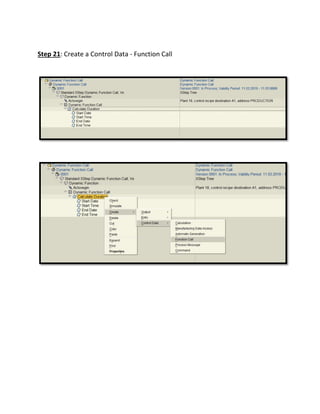
Step 21: Create a Control Data - Function Call
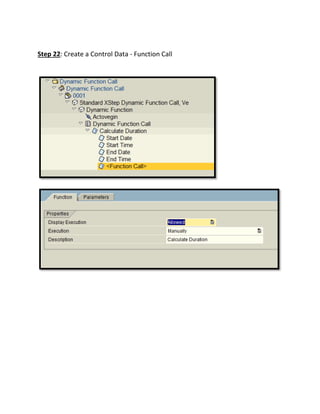
Step 22: Create a Control Data - Function Call
Step 23: Enter Functional Module Name.
COPF_DETERMINE_DURATION: It’s a standard SAP function module. It calculate difference between
two times.
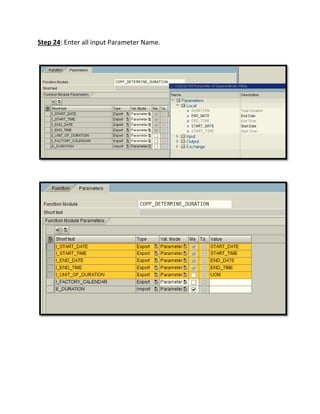
Step 24: Enter all input Parameter Name.
Step 25: An Output Parameter need to be define in order to Show “Result”.
Step 26: Create an Output Parameter.
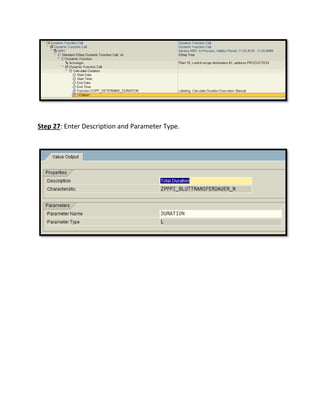
Step 27: Enter Description and Parameter Type.
Step 28: Enter Duration Parameter in Functional Module.
Step 29: Complete Xstep Repository is created.
Step 30: Release the Version.
Step 31: Save Xstep Repository.
Step 32: Simulate XStep Repository to see look and feel of PI sheet.
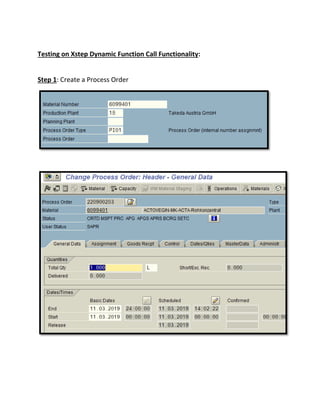
Testing on Xstep Dynamic Function Call Functionality:
Step 1: Create a Process Order
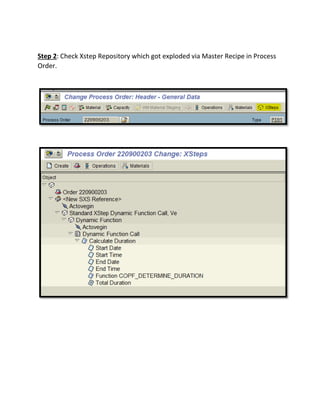
Step 2: Check Xstep Repository which got exploded via Master Recipe in Process
Order.
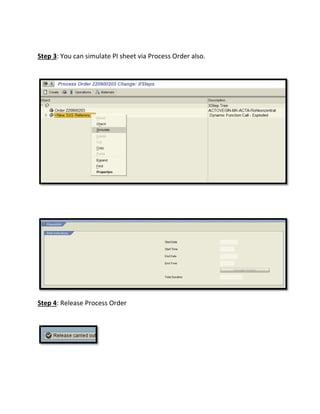
Step 3: You can simulate PI sheet via Process Order also.
Step 4: Release Process Order
Step 5: Generate Control Recipe.
Step 6: Status of Order must be XSez, XSgn and XSpr.
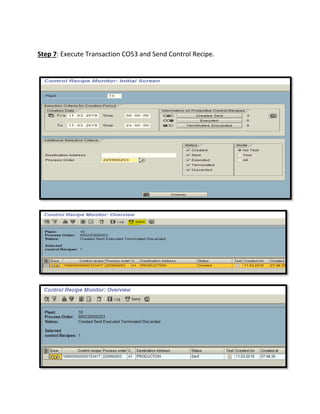
Step 7: Execute Transaction CO53 and Send Control Recipe.
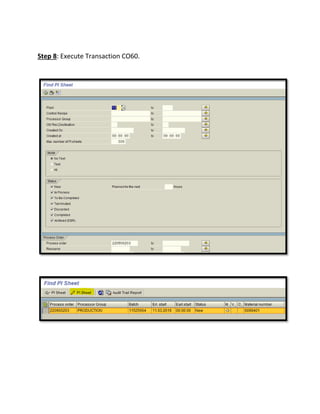
Step 8: Execute Transaction CO60.
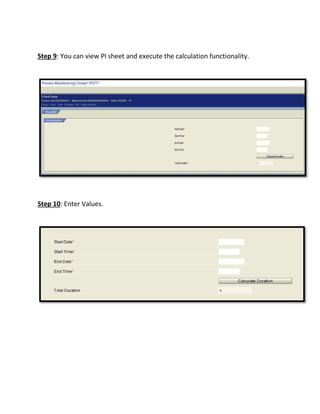
Step 9: You can view PI sheet and execute the calculation functionality.
Step 10: Enter Values.
Step 11: Click on Calculate Duration Button.
Step 12: Total Duration Calculated
10:30 am – 10:00 am = 30 Minutes
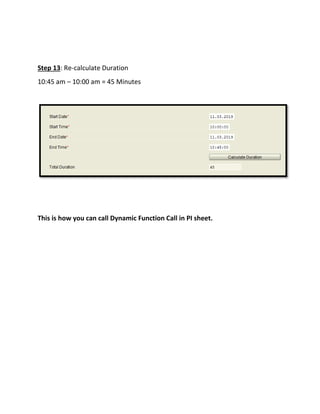
Step 13: Re-calculate Duration
10:45 am – 10:00 am = 45 Minutes
This is how you can call Dynamic Function Call in PI sheet.
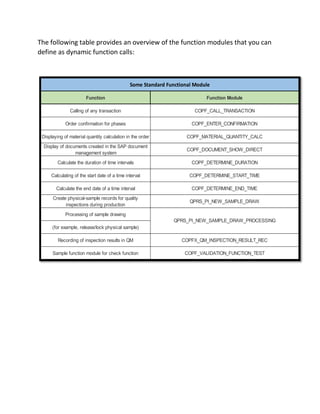
The following table provides an overview of the function modules that you can
define as dynamic function calls:
Function Function Module
Calling of any transaction COPF_CALL_TRANSACTION
Order confirmation for phases COPF_ENTER_CONFIRMATION
Displaying of material quantity calculation in the order COPF_MATERIAL_QUANTITY_CALC
Display of documents created in the SAP document
management system
COPF_DOCUMENT_SHOW_DIRECT
Calculate the duration of time intervals COPF_DETERMINE_DURATION
Calculating of the start date of a time interval COPF_DETERMINE_START_TIME
Calculate the end date of a time interval COPF_DETERMINE_END_TIME
Create physical-sample records for quality
inspections during production
QPRS_PI_NEW_SAMPLE_DRAW
Processing of sample drawing
(for example, release/lock physical sample)
Recording of inspection results in QM COPFX_QM_INSPECTION_RESULT_REC
Sample function module for check function COPF_VALIDATION_FUNCTION_TEST
QPRS_PI_NEW_SAMPLE_DRAW_PROCESSING
Some Standard Functional Module

Dynamic Function Call in PI Sheet (XStep)

  • 1.
    Dynamic Function Call ExecutionSteps (XSteps) By, Ankit Sharma SAP PP Consultant businessconsulting007@gmail.com +91-8888896575 / 8888632763
  • 2.
    XStep: Dynamic FunctionCalls Use You can use this function to call certain SAP functions from within the PI sheet or perform certain calculations and checks in the PI sheet. ABAP function calls that have been created for the corresponding use are used for the function call. Prerequisites The function module to be called must exist and be active in the Function Builder (ABAP Development Workbench). Features The SAP system contains a number of predefined function modules that you can use in function calls. You can also create your own function modules. The function can be executed in the following ways:  Manually A button with the description saved appears in the PI sheet. The function is only executed, once you have triggered it using the pushbutton.  Event-driven You can specify an event that triggers the function automatically. The system automatically executes the function as soon as the event is triggered.  Manual and event-driven You can execute the function manually and parallel to this, the function can also be automatically triggered using a defined event. To do this you specify an event.
  • 3.
    Step 1: Createa Folder in Xstep Repository. Step 2: New Folder Created.
  • 4.
    Step 3: EnterDescription. Step 4: Folder name changed.
  • 5.
    Step 5: CreatedStandard Xstep. Step 6: Enter Description.
  • 6.
    Step 7: EnterVersion Number and Validity Period. Step 8: Create XStep
  • 7.
    Step 9: EnterXStep Step 10: Enter Parameter.
  • 8.
    Step 11: EnterValuation. Step 12: Generation is not required here.
  • 9.
    Step 13: SelectControl Recipe Destination Step 14: Create Process Instruction. Step 15: Select Process Instruction Type.
  • 10.
    Step 16: CreateINPUT Parameter Value.
  • 11.
    Step 17: EnterParameter Description and Correct Parameter Type – Start Date Step 18: Enter Parameter Description and Correct Parameter Type – Start Time
  • 12.
    Step 19: EnterParameter Description and Correct Parameter Type – End Date Step 20: Enter Parameter Description and Correct Parameter Type – End Time
  • 13.
    Step 21: Createa Control Data - Function Call
  • 14.
    Step 22: Createa Control Data - Function Call
  • 15.
    Step 23: EnterFunctional Module Name. COPF_DETERMINE_DURATION: It’s a standard SAP function module. It calculate difference between two times.
  • 16.
    Step 24: Enterall input Parameter Name.
  • 17.
    Step 25: AnOutput Parameter need to be define in order to Show “Result”. Step 26: Create an Output Parameter.
  • 18.
    Step 27: EnterDescription and Parameter Type.
  • 19.
    Step 28: EnterDuration Parameter in Functional Module. Step 29: Complete Xstep Repository is created.
  • 20.
    Step 30: Releasethe Version. Step 31: Save Xstep Repository. Step 32: Simulate XStep Repository to see look and feel of PI sheet.
  • 21.
    Testing on XstepDynamic Function Call Functionality: Step 1: Create a Process Order
  • 22.
    Step 2: CheckXstep Repository which got exploded via Master Recipe in Process Order.
  • 23.
    Step 3: Youcan simulate PI sheet via Process Order also. Step 4: Release Process Order
  • 24.
    Step 5: GenerateControl Recipe. Step 6: Status of Order must be XSez, XSgn and XSpr.
  • 25.
    Step 7: ExecuteTransaction CO53 and Send Control Recipe.
  • 26.
    Step 8: ExecuteTransaction CO60.
  • 27.
    Step 9: Youcan view PI sheet and execute the calculation functionality. Step 10: Enter Values.
  • 28.
    Step 11: Clickon Calculate Duration Button. Step 12: Total Duration Calculated 10:30 am – 10:00 am = 30 Minutes
  • 29.
    Step 13: Re-calculateDuration 10:45 am – 10:00 am = 45 Minutes This is how you can call Dynamic Function Call in PI sheet.
  • 30.
    The following tableprovides an overview of the function modules that you can define as dynamic function calls: Function Function Module Calling of any transaction COPF_CALL_TRANSACTION Order confirmation for phases COPF_ENTER_CONFIRMATION Displaying of material quantity calculation in the order COPF_MATERIAL_QUANTITY_CALC Display of documents created in the SAP document management system COPF_DOCUMENT_SHOW_DIRECT Calculate the duration of time intervals COPF_DETERMINE_DURATION Calculating of the start date of a time interval COPF_DETERMINE_START_TIME Calculate the end date of a time interval COPF_DETERMINE_END_TIME Create physical-sample records for quality inspections during production QPRS_PI_NEW_SAMPLE_DRAW Processing of sample drawing (for example, release/lock physical sample) Recording of inspection results in QM COPFX_QM_INSPECTION_RESULT_REC Sample function module for check function COPF_VALIDATION_FUNCTION_TEST QPRS_PI_NEW_SAMPLE_DRAW_PROCESSING Some Standard Functional Module