1
Session 2
Seminar
Henry Lo
Application Engineer
Rui Jorge
Technical Manager
2
Outline
• High Availability
• User Management
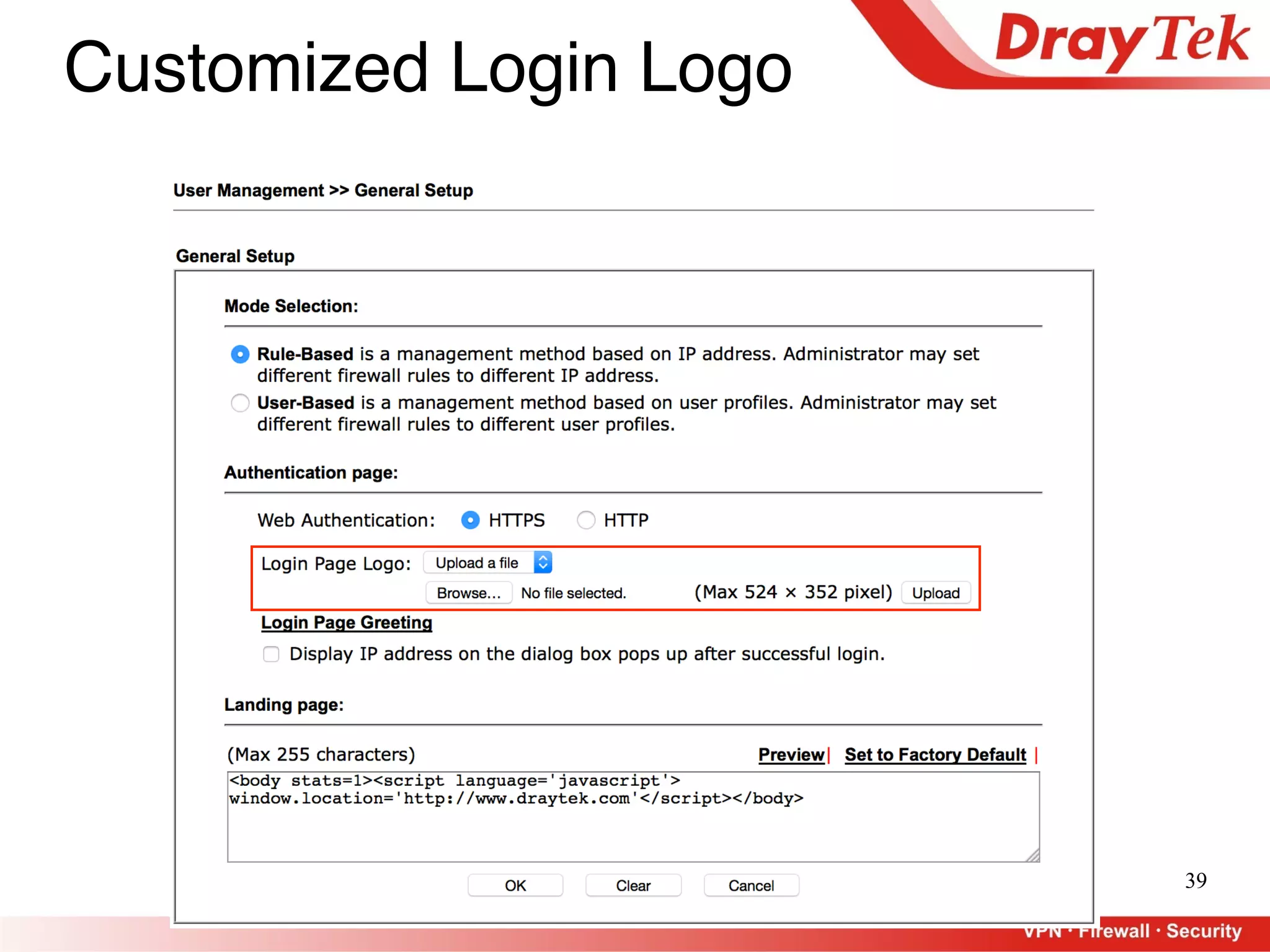
- Customized Login Page Logo
- Create Accounts for Accommodations
• AP Management
- Setup, Configure, and Maintenance
- Management Methods
• WiFi Airtime Fairness
• AP Station Statistics
• Bandwidth Management
3
High Availability
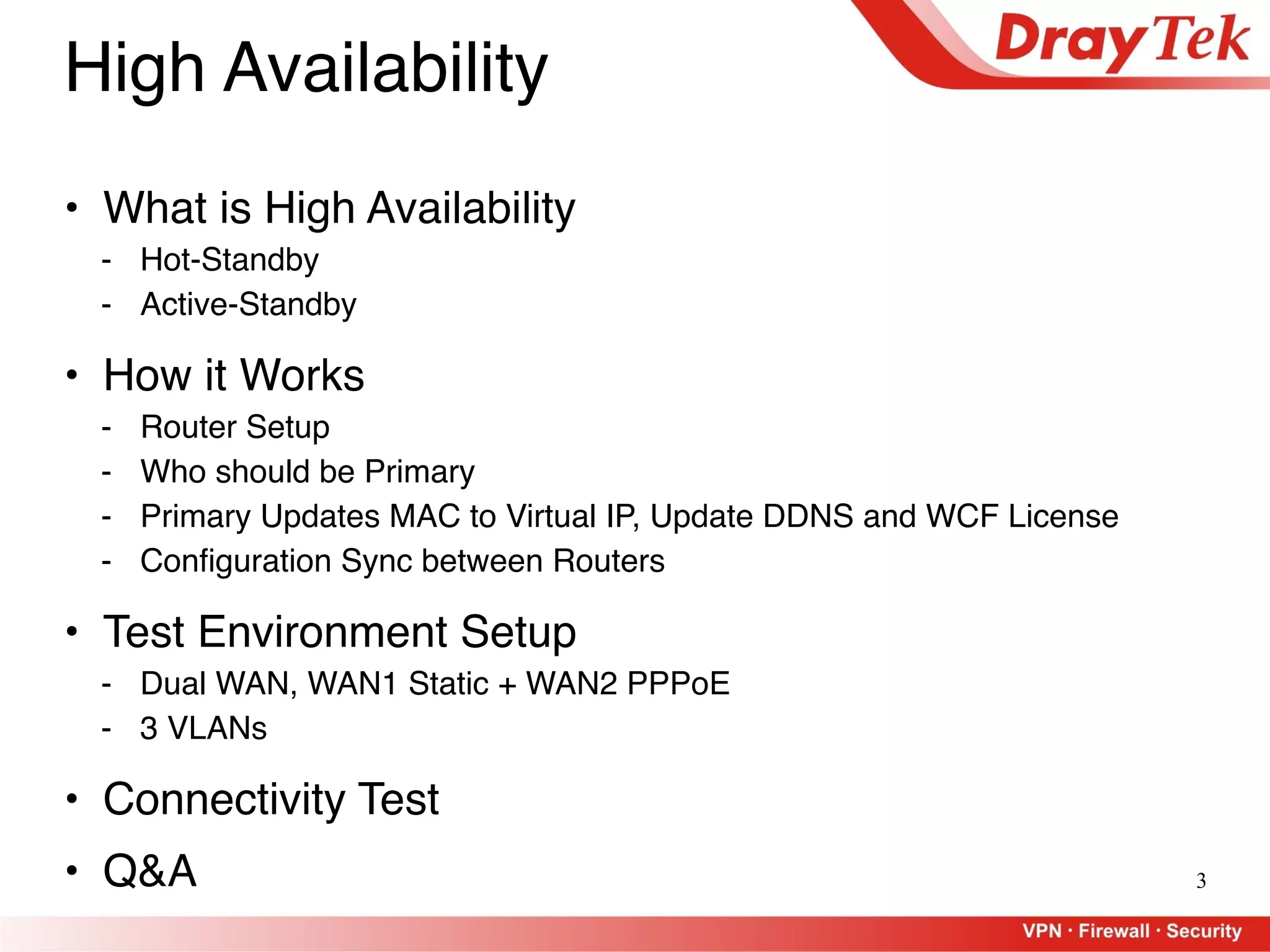
• What is High Availability
- Hot-Standby
- Active-Standby
• How it Works
- Router Setup
- Who should be Primary
- Primary Updates MAC to Virtual IP, Update DDNS and WCF License
- Configuration Sync between Routers
• Test Environment Setup
- Dual WAN, WAN1 Static + WAN2 PPPoE
- 3 VLANs
• Connectivity Test
• Q&A
4
High Availability
• What is High Availability
- Hot-Standby
- Active-Standby
• How it Works
- Router Setup
- Who should be Primary
- Primary Updates MAC to Virtual IP, Update DDNS and WCF License
- Configuration Sync between Routers
• Test Environment Setup
- Dual WAN, WAN1 Static + WAN2 PPPoE
- 3 VLANs
• Connectivity Test
• Q&A
5
• Hardware redundancy feature to achieve high
availability with Vigor2925 Series
• Redundancy Mode:
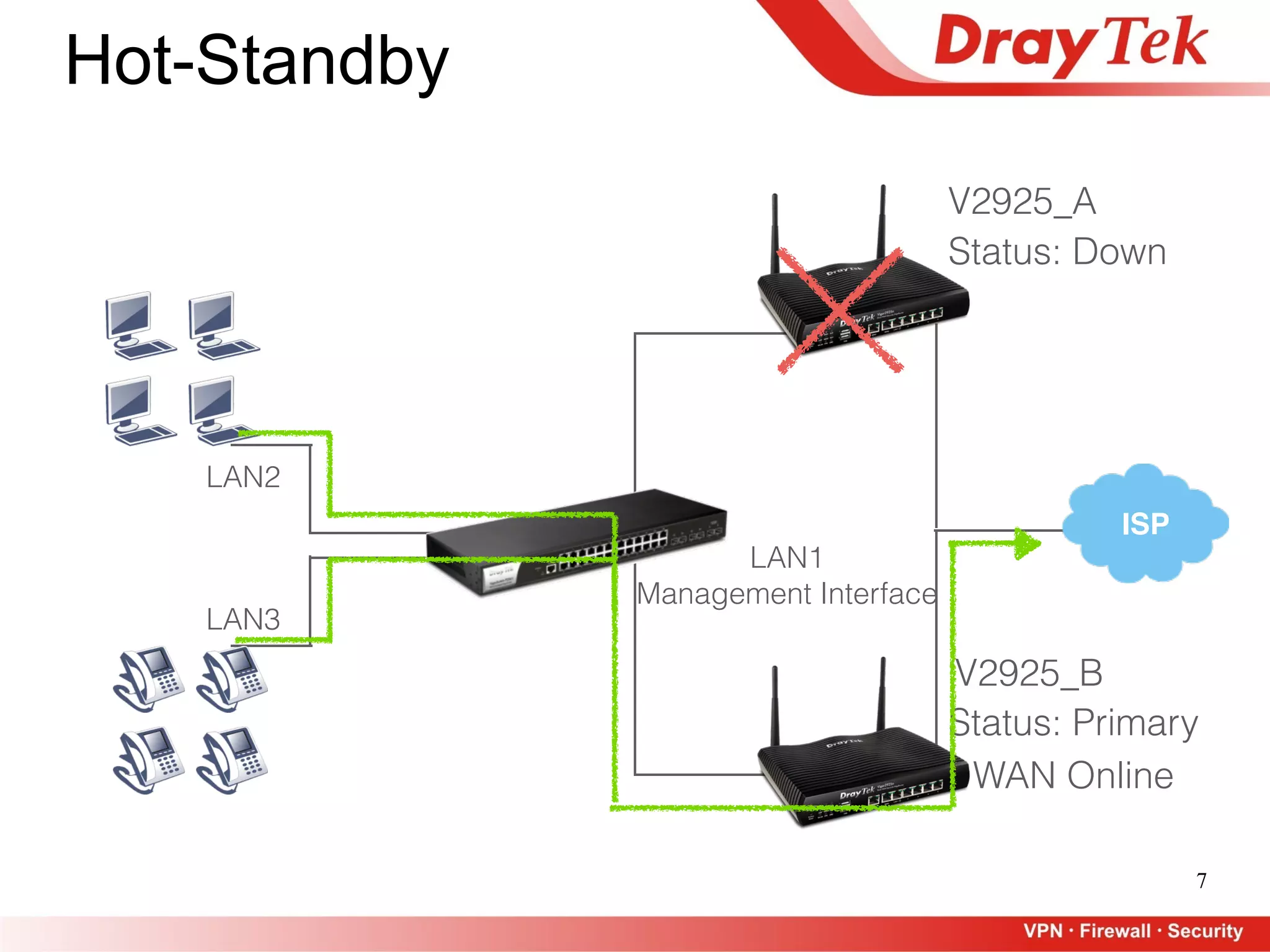
- Hot-Standby, a.k.a Active/Standby
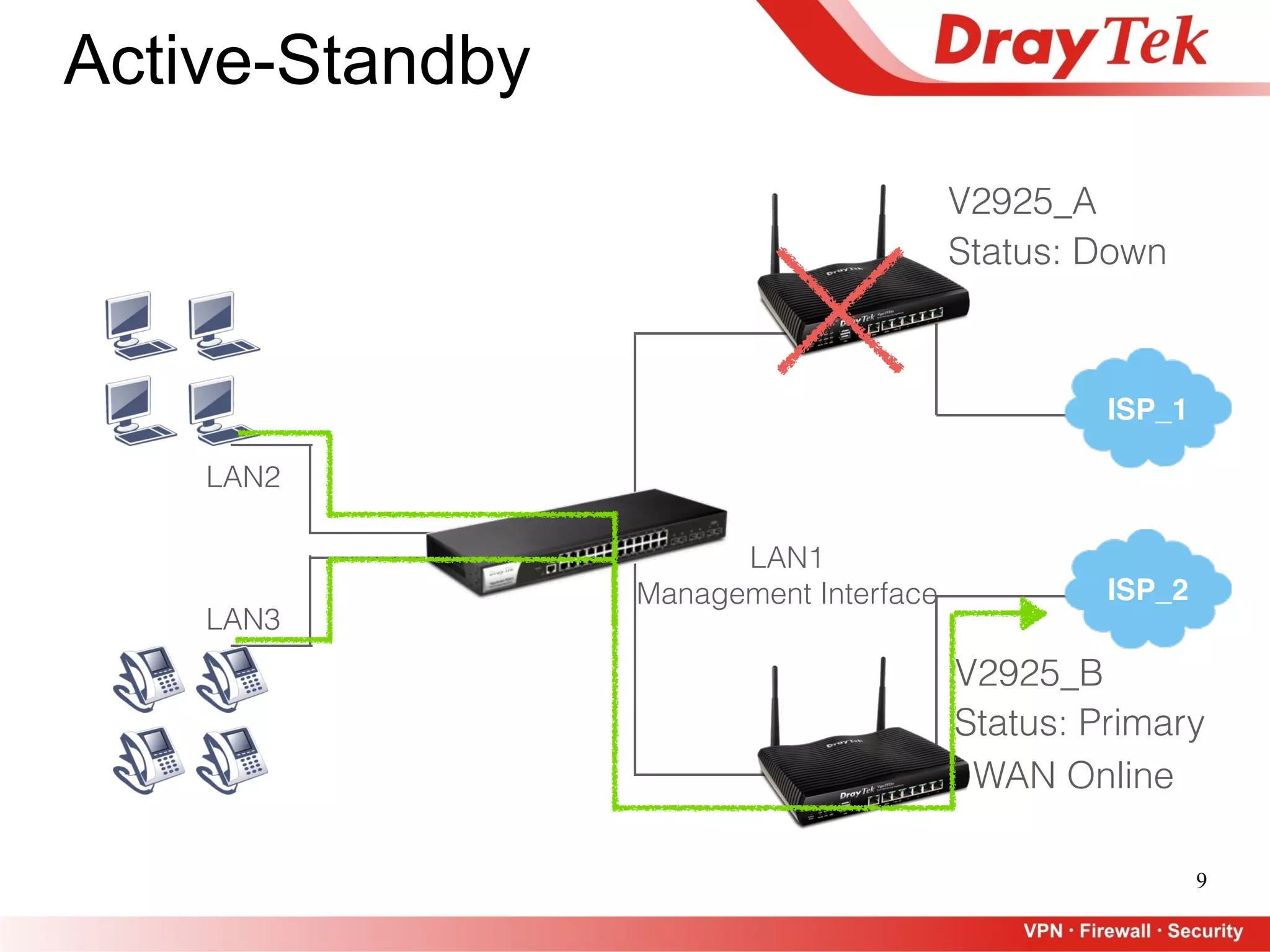
- Active-Standby, a.k.a Active/Active
What is High Availability
6
Hot-Standby
ISP
LAN2
LAN3
Status: Primary
Status: Secondary
V2925_A
V2925_B
WAN Online
WAN Offline
LAN1
Management Interface
7
ISP
LAN2
LAN3
Status: Down
Status: Primary
V2925_A
V2925_B
WAN Online
LAN1
Management Interface
Hot-Standby
8
ISP_2
LAN2
LAN3
Status: Primary
V2925_A
V2925_B
ISP_1
Status: Secondary
WAN Online
WAN Online
NO Load Balance
between 2 Routers
LAN1
Management Interface
Active-Standby
9
ISP_2
LAN2
LAN3
Status: Down
V2925_A
V2925_B
ISP_1
Status: Primary
WAN Online
LAN1
Management Interface
Active-Standby
10
Outline
• What is High Availability
- Hot-Standby
- Active-Standby
• How it Works
- Router Setup
- Who should be Primary
- Primary Updates MAC to Virtual IP, Update DDNS and WCF License
- Configuration Sync between Routers
• Test Environment Setup
- Dual WAN, WAN1 Static + WAN2 PPPoE
- 3 VLANs
• Connectivity Test
• Q&A
: Same WAN line for members, only Primary gets online
: Different WAN line for members, all routers are online
11
Outline
• What is High Availability
- Hot-Standby
- Active-Standby
• How it Works
- Router Setup
- Who should be Primary
- Primary Updates MAC to Virtual IP, Update DDNS and WCF License
- Configuration Sync between Routers
• Test Environment Setup
- Dual WAN, WAN1 Static + WAN2 PPPoE
- 3 VLANs
• Connectivity Test
• Q&A
12
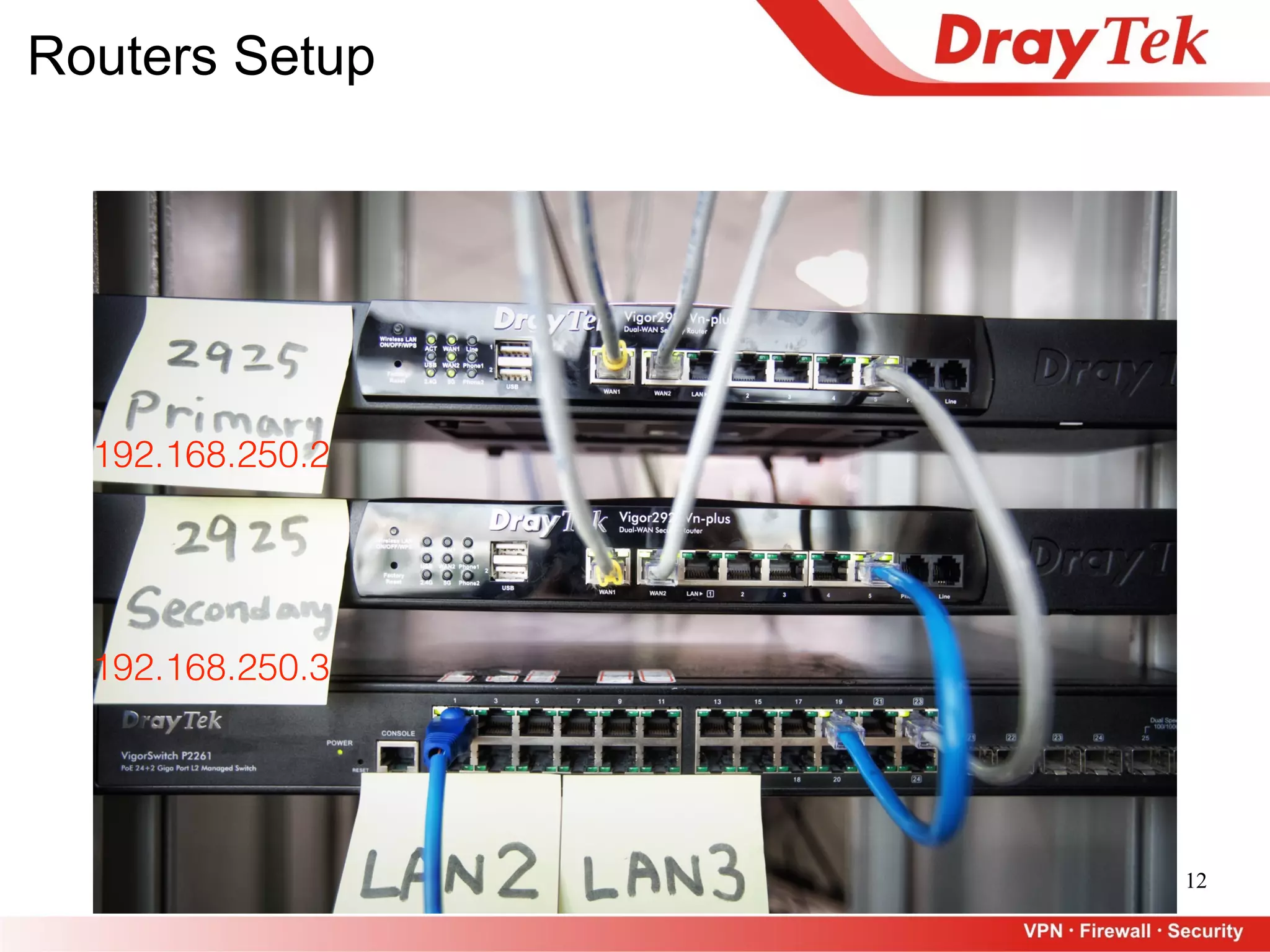
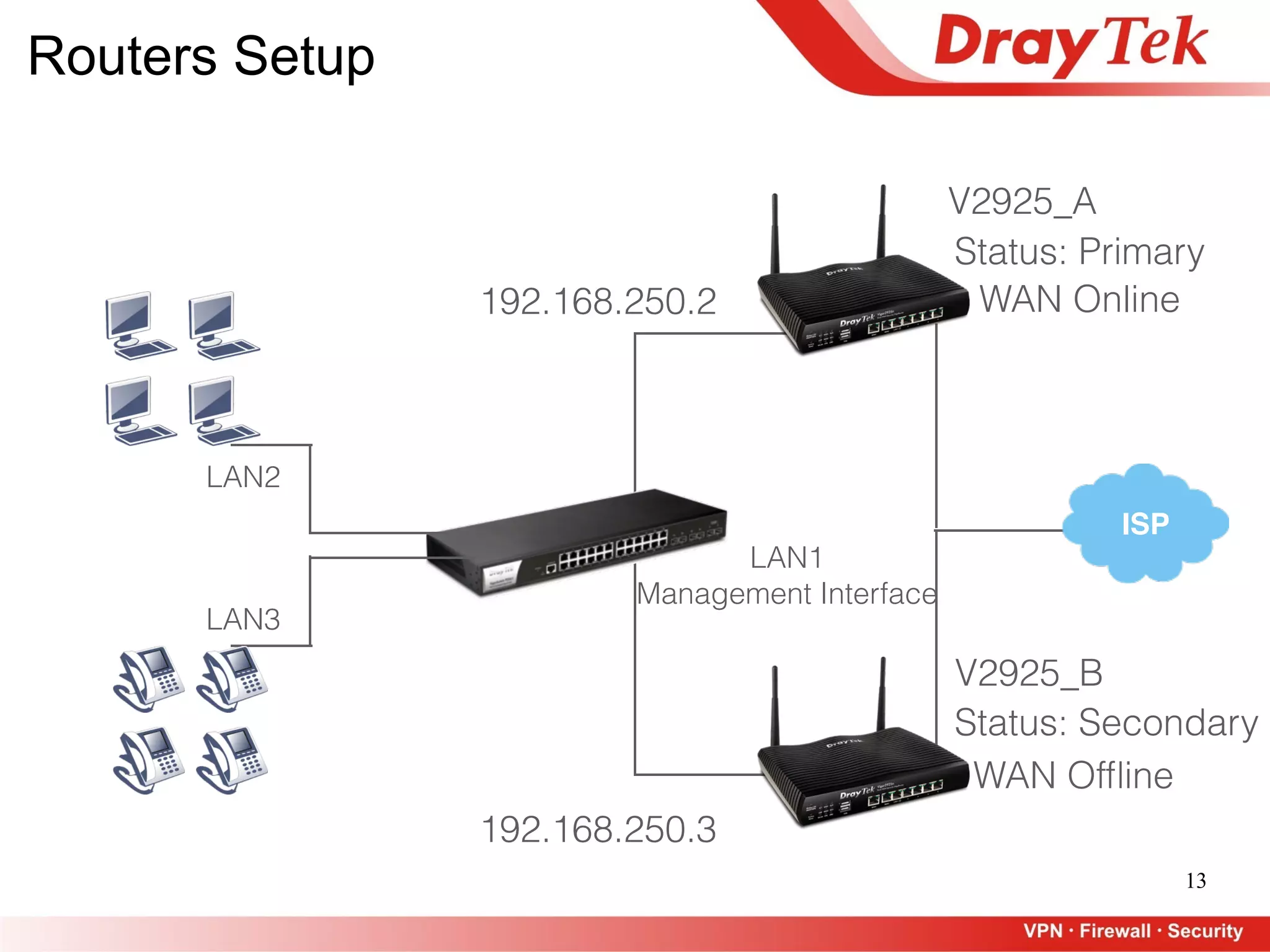
Routers Setup
192.168.250.2
192.168.250.3
13
ISP
LAN2
LAN3
LAN1
Management Interface
Status: Primary
V2925_A
WAN Online
V2925_B
Status: Secondary
WAN Offline
192.168.250.2
192.168.250.3
Routers Setup
14
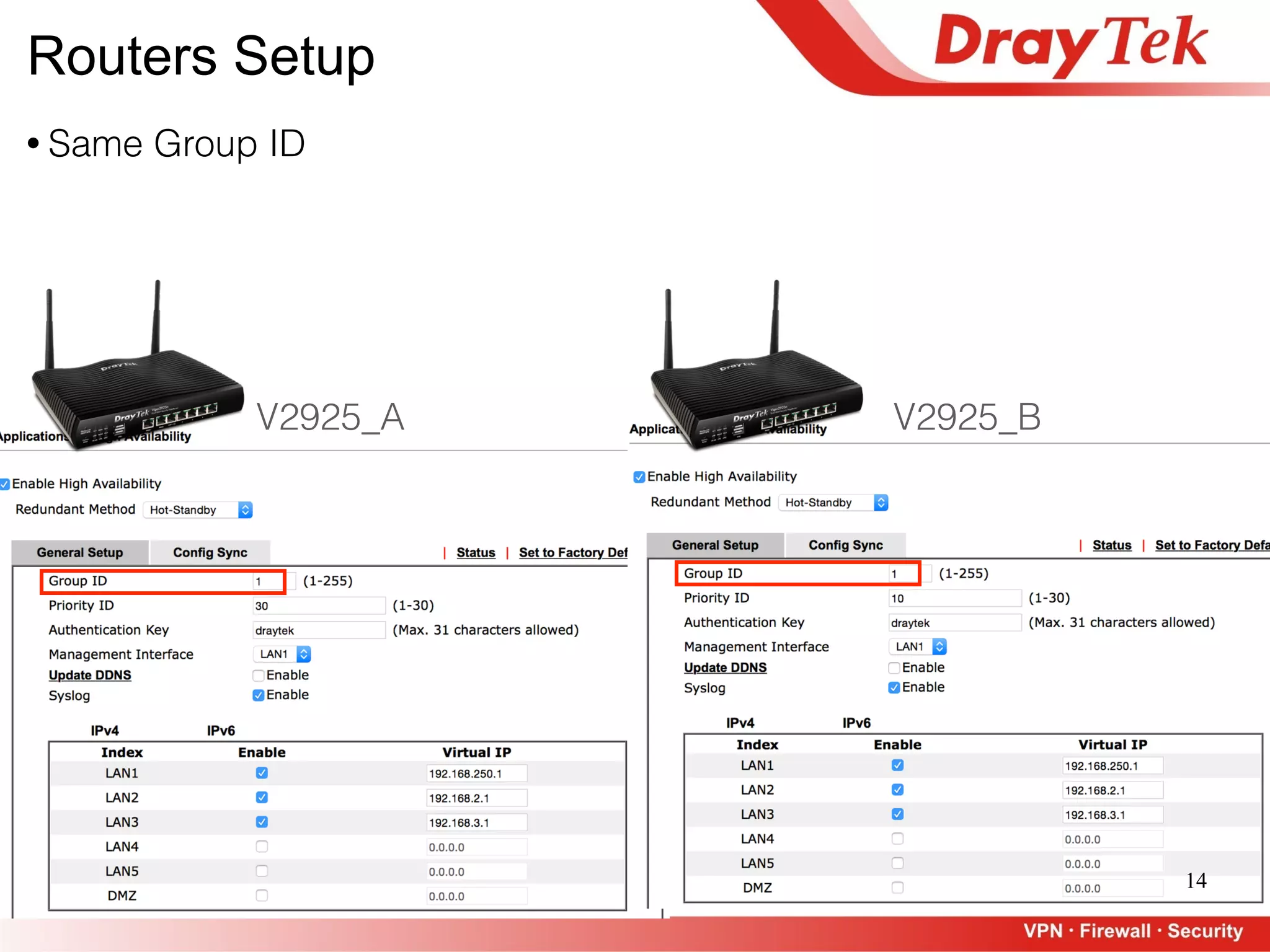
V2925_A V2925_B
• Same Group ID
Routers Setup
15
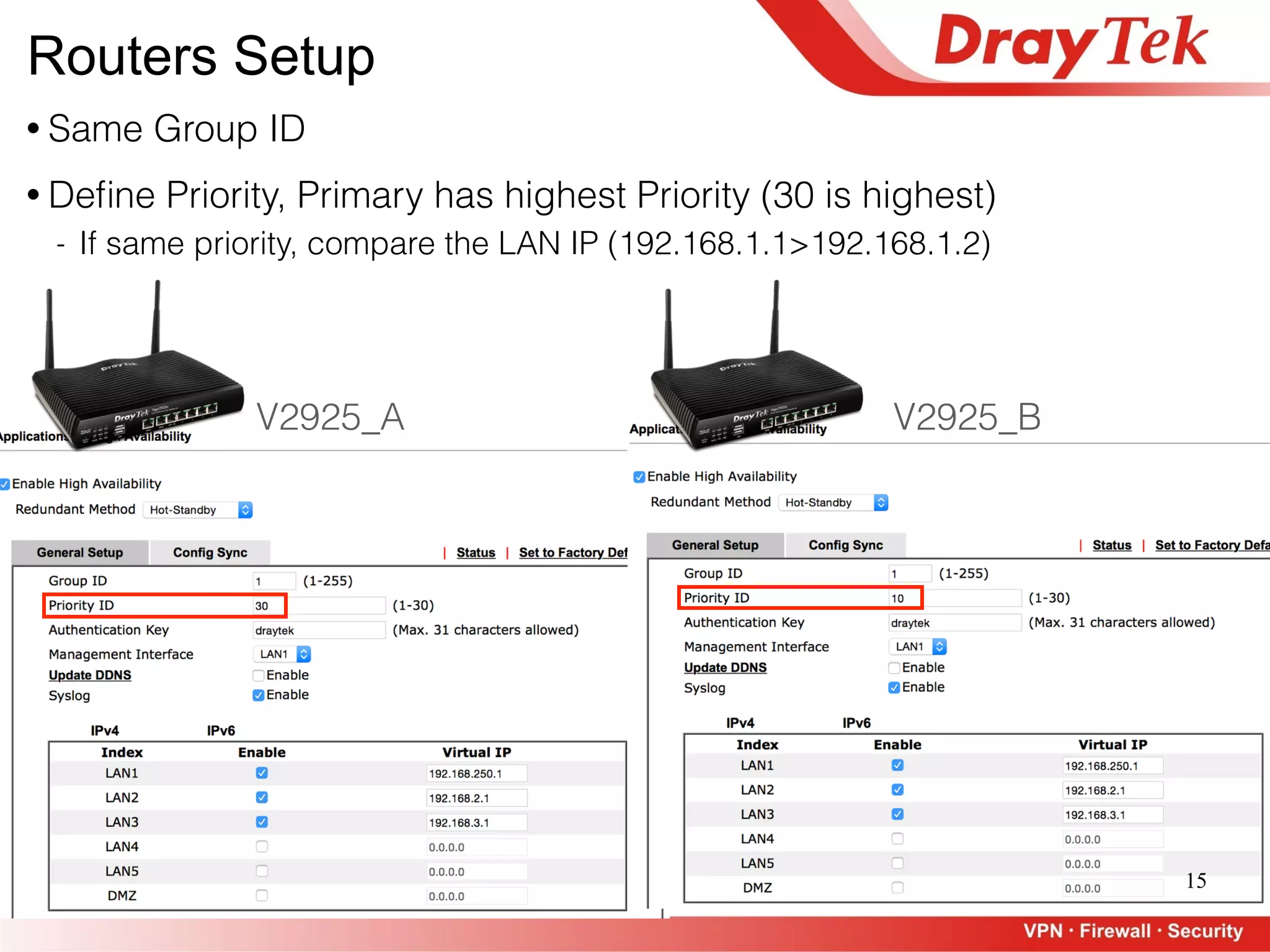
V2925_A V2925_B
• Same Group ID
• Define Priority, Primary has highest Priority (30 is highest)
- If same priority, compare the LAN IP (192.168.1.1>192.168.1.2)
Routers Setup
16
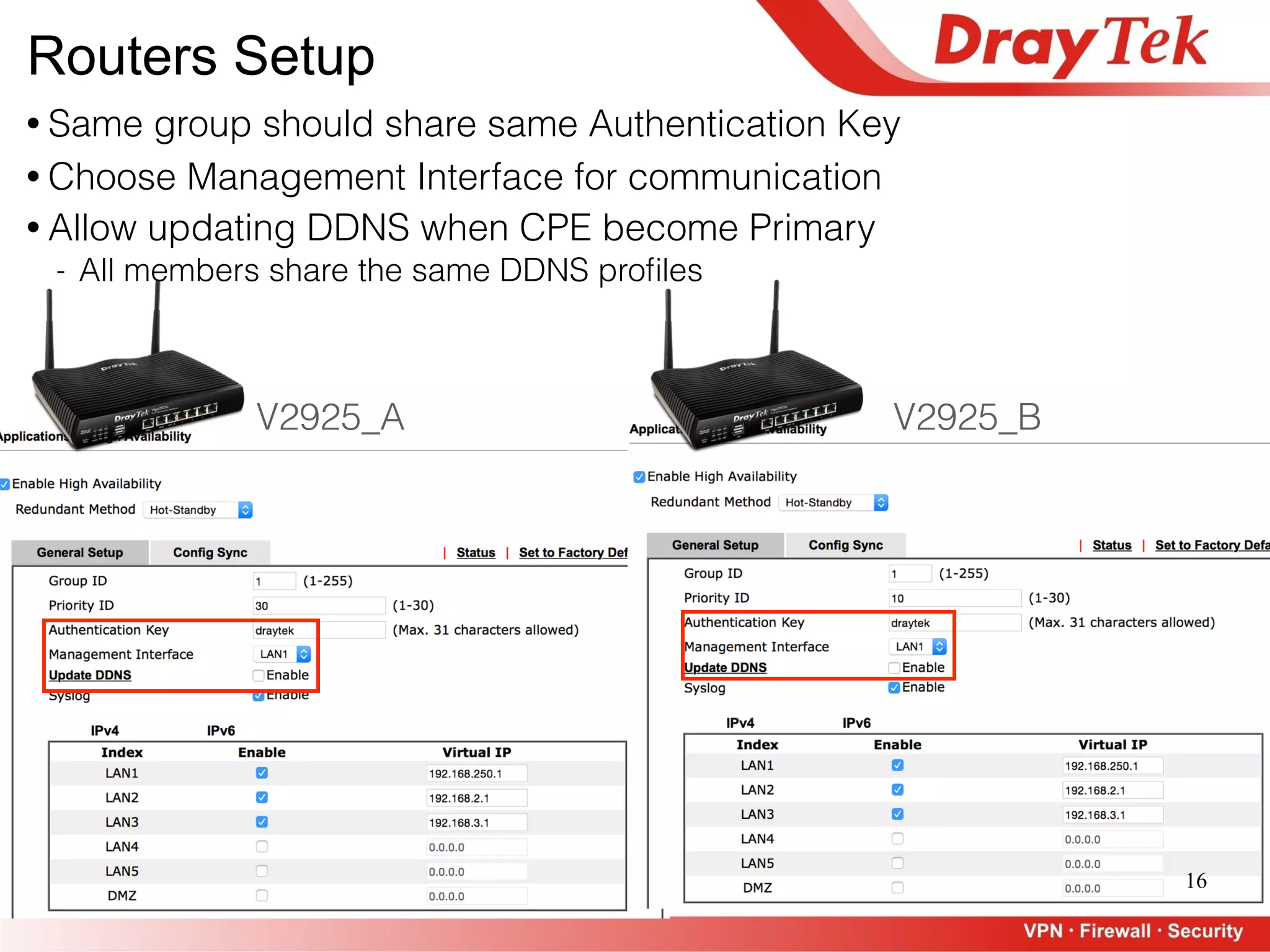
V2925_A V2925_B
• Same group should share same Authentication Key
• Choose Management Interface for communication
• Allow updating DDNS when CPE become Primary
- All members share the same DDNS profiles
Routers Setup
17
V2925_A V2925_B
• Choose LAN subnets for HA
• Define the Virtual IP
- All members should have the same Virtual IP
Routers Setup
18
V2925_A V2925_B
• Use different LAN IP
Routers Setup
19
V2925_B
• Use different LAN IP
• LAN IP will be replaced by HA Virtual IP
- Only see this message when HA is enabled and Virtual IP is set
Routers Setup
V2925_A
20
ISP
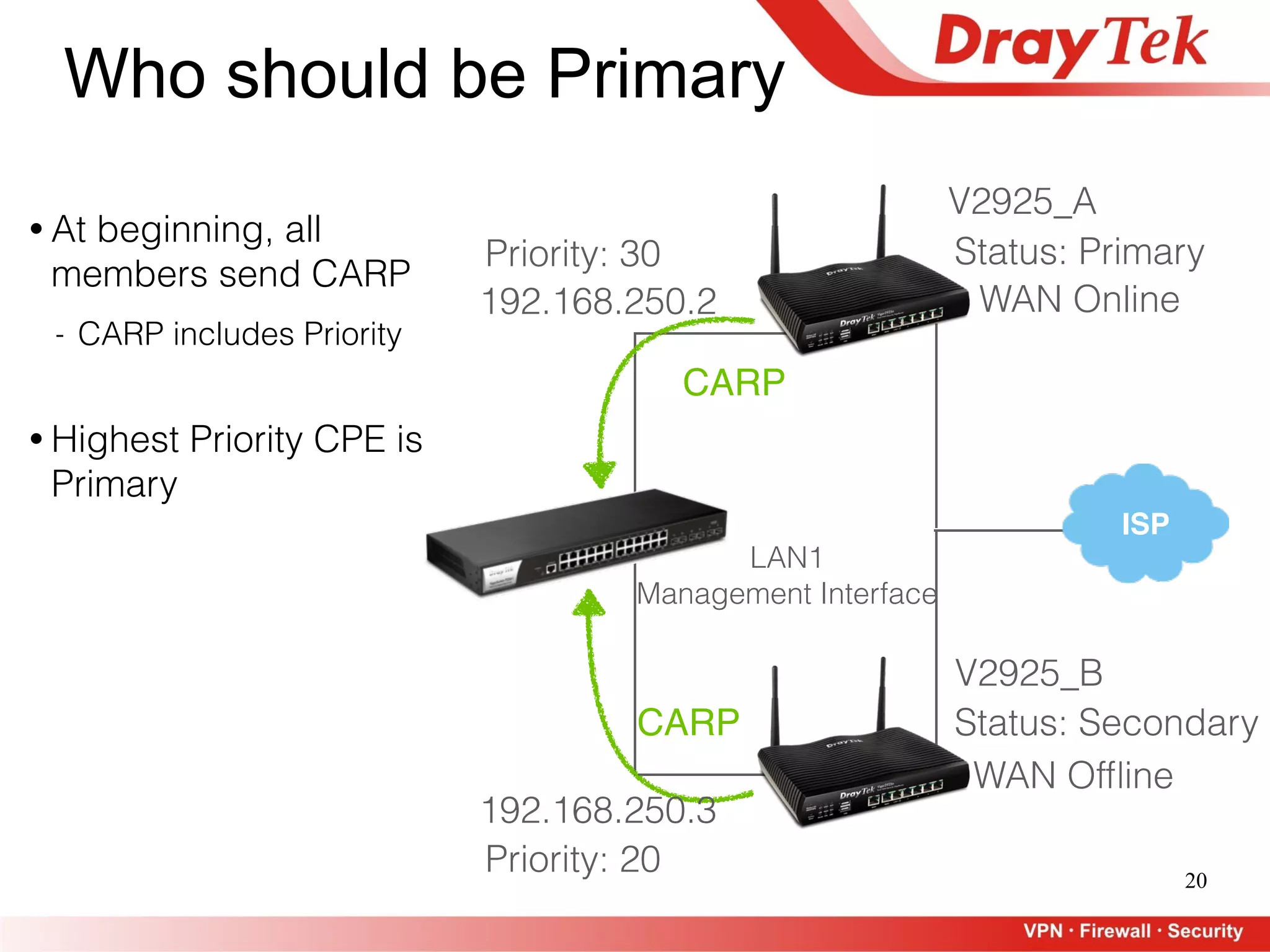
CARP
Who should be Primary
Status: Primary
V2925_A
WAN Online
V2925_B
Status: Secondary
WAN Offline
192.168.250.2
192.168.250.3
Priority: 30
Priority: 20
• Highest Priority CPE is
Primary
CARP
• At beginning, all
members send CARP
- CARP includes Priority
LAN1
Management Interface
21
ISP
CARP
Who should be Primary
Status: Primary
V2925_A
WAN Online
V2925_B
Status: Secondary
WAN Offline
192.168.250.2
192.168.250.3
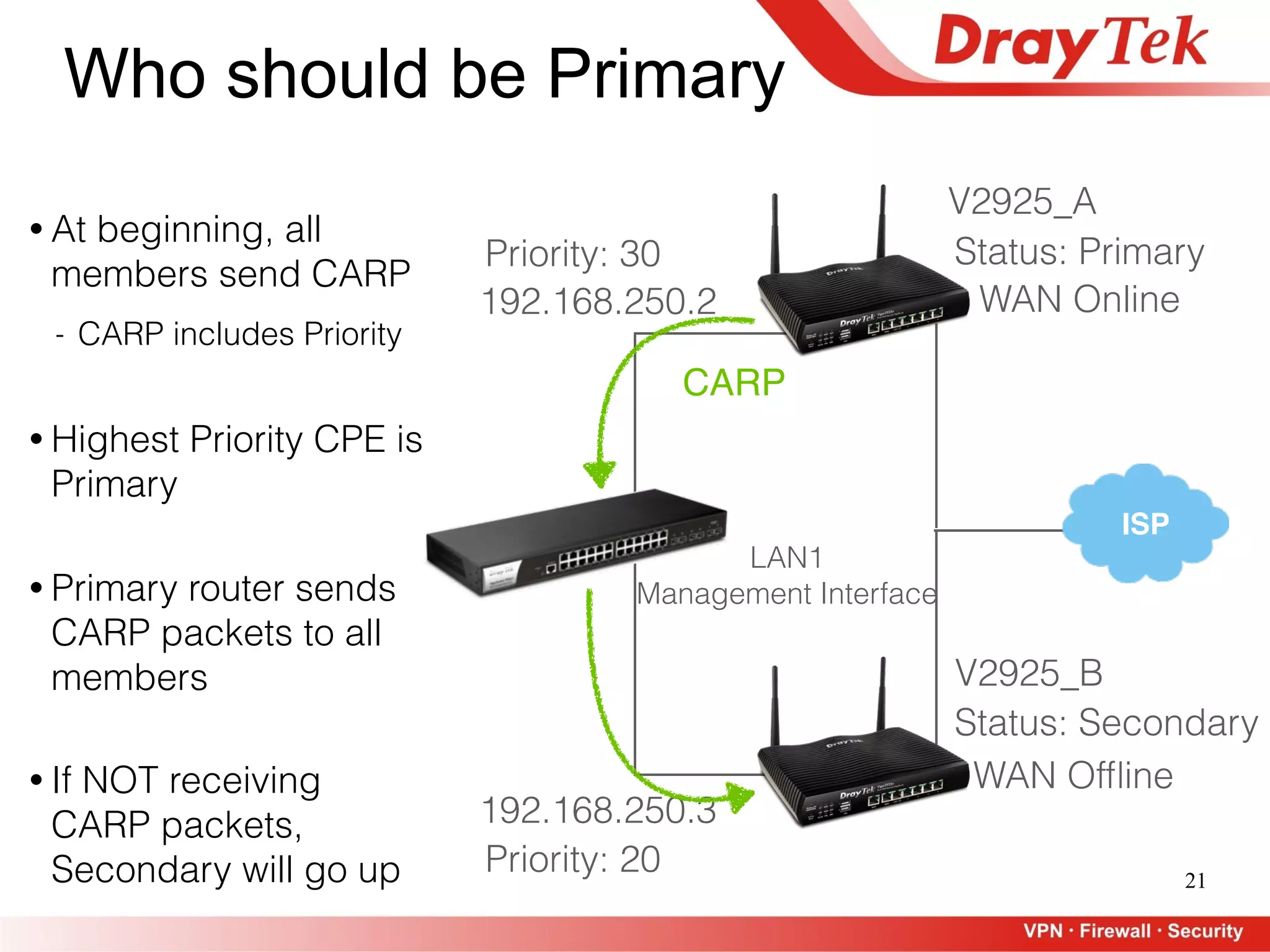
• Primary router sends
CARP packets to all
members
• If NOT receiving
CARP packets,
Secondary will go up
Priority: 30
Priority: 20
• Highest Priority CPE is
Primary
• At beginning, all
members send CARP
- CARP includes Priority
LAN1
Management Interface
22
ISP
LAN2
LAN3
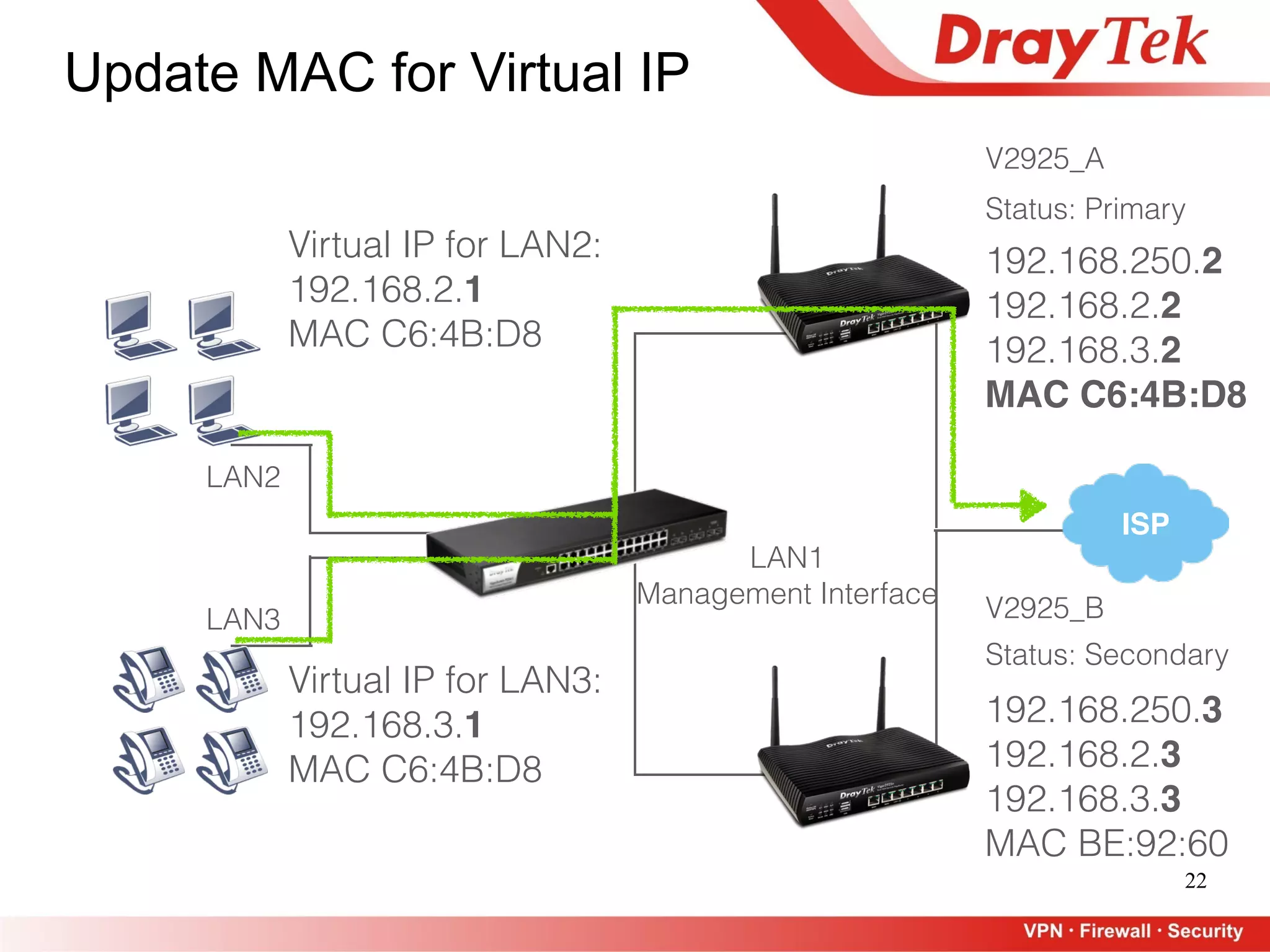
Virtual IP for LAN2:
192.168.2.1
MAC C6:4B:D8
Virtual IP for LAN3:
192.168.3.1
MAC C6:4B:D8
Status: Secondary
V2925_B
192.168.250.3
192.168.2.3
192.168.3.3

MAC BE:92:60
Update MAC for Virtual IP
Status: Primary
V2925_A
192.168.250.2
192.168.2.2
192.168.3.2
MAC C6:4B:D8
LAN1
Management Interface
23
ISP
LAN2
LAN3
Status: Down
Status: Primary
V2925_A
V2925_B
Update MAC for Virtual IP
192.168.250.2
192.168.2.2
192.168.3.2
MAC C6:4B:D8
192.168.250.3
192.168.2.3
192.168.3.3

MAC BE:92:60
Virtual IP for LAN2:
192.168.2.1
MAC C6:4B:D8
Virtual IP for LAN3:
192.168.3.1
MAC C6:4B:D8
MAC BE:92:60
MAC BE:92:60
LAN1
Management Interface
24
V2925_A V2925_B
• Tips: 

Use arp -a to confirm current Primary and other members
DrayTek:~ HATest$ arp -a
? (192.168.250.1) at 0:1d:aa:c6:4b:d8 on en3 ifscope [ethernet]
? (192.168.250.2) at 0:1d:aa:c6:4b:d8 on en3 ifscope [ethernet]
? (192.168.250.3) at 0:1d:aa:be:92:60 on en3 ifscope [ethernet]
? (192.168.250.255) at ff:ff:ff:ff:ff:ff on en3 ifscope [ethernet]
LAN MAC: C6:4B:D8 LAN MAC: BE:92:60
Primary
Update MAC for Virtual IP
25
V2925_A V2925_B
• Tips: 

Use arp -a to confirm current Primary and other members
DrayTek:~ HATest
? (192.168.250.1) at 0:1d:aa:c6:4b:d8 on en3 ifscope [ethernet]
? (192.168.250.2) at 0:1d:aa:c6:4b:d8 on en3 ifscope [ethernet]
? (192.168.250.3) at 0:1d:aa:be:92:60 on en3 ifscope [ethernet]
? (192.168.250.255) at ff:ff:ff:ff:ff:ff on en3 ifscope [ethernet]
LAN MAC: C6:4B:D8 LAN MAC: BE:92:60
Update MAC for Virtual IP
PrimaryDrayTek:~ HATest$ arp -a
? (192.168.250.1) at 0:1d:aa:be:92:60 on en3 ifscope [ethernet]
? (192.168.250.3) at 0:1d:aa:be:92:60 on en3 ifscope [ethernet]
? (192.168.250.255) at ff:ff:ff:ff:ff:ff on en3 ifscope [ethernet]
26
Update DDNS and WCF License
• Update DDNS
27
Update DDNS and WCF License
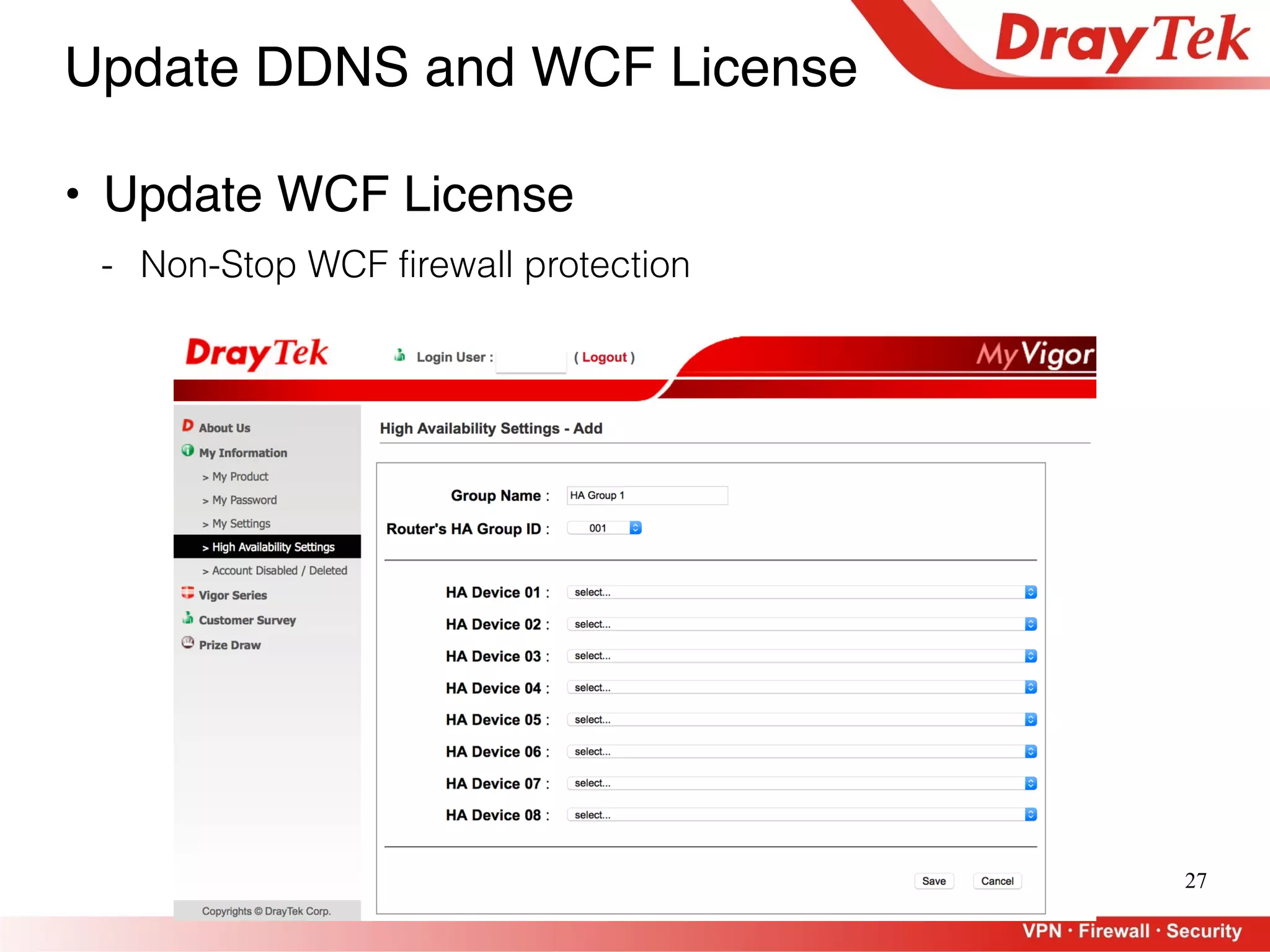
• Update WCF License
- Non-Stop WCF firewall protection
28
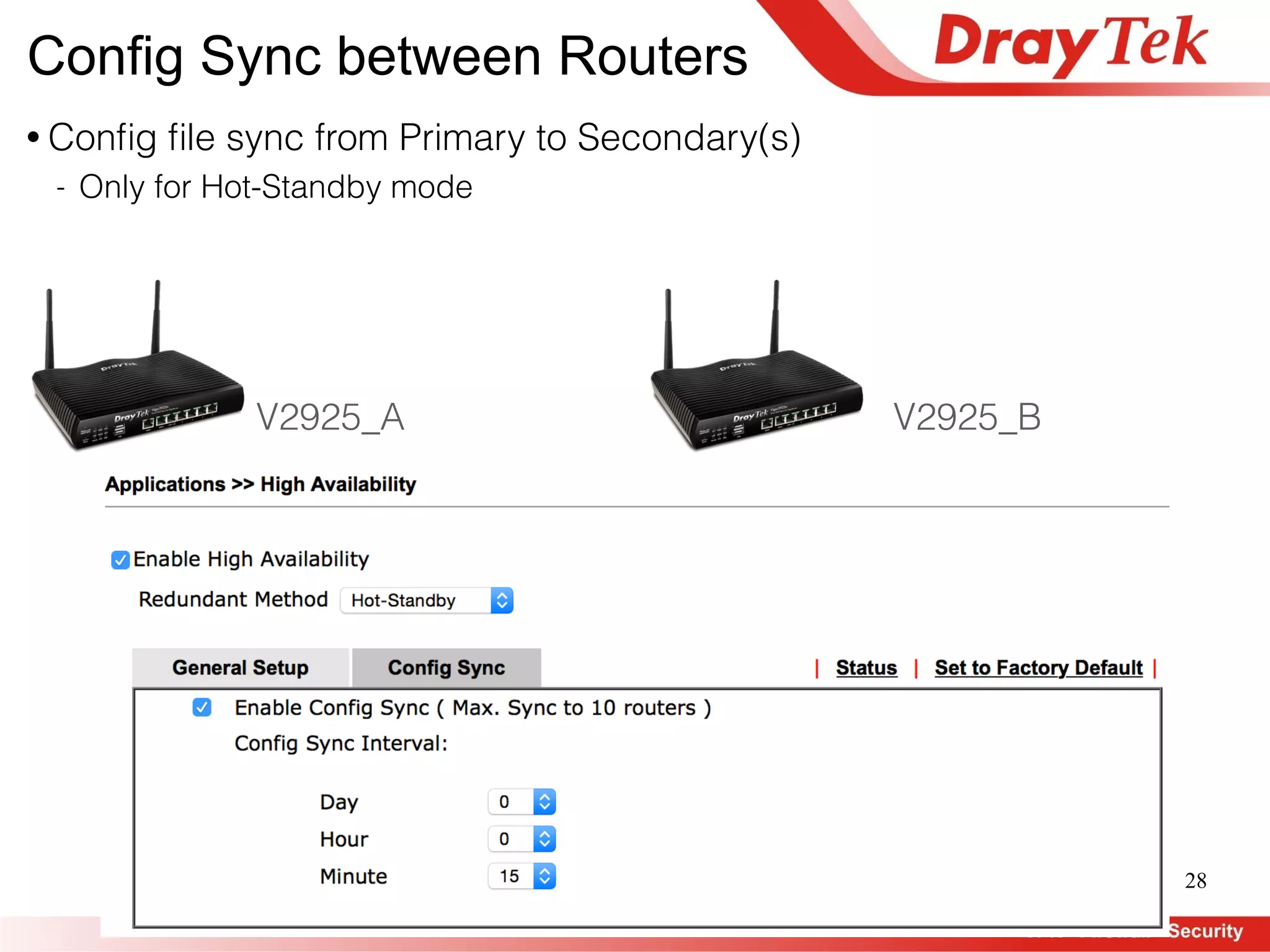
V2925_A V2925_B
• Config file sync from Primary to Secondary(s)
- Only for Hot-Standby mode
Config Sync between Routers
29
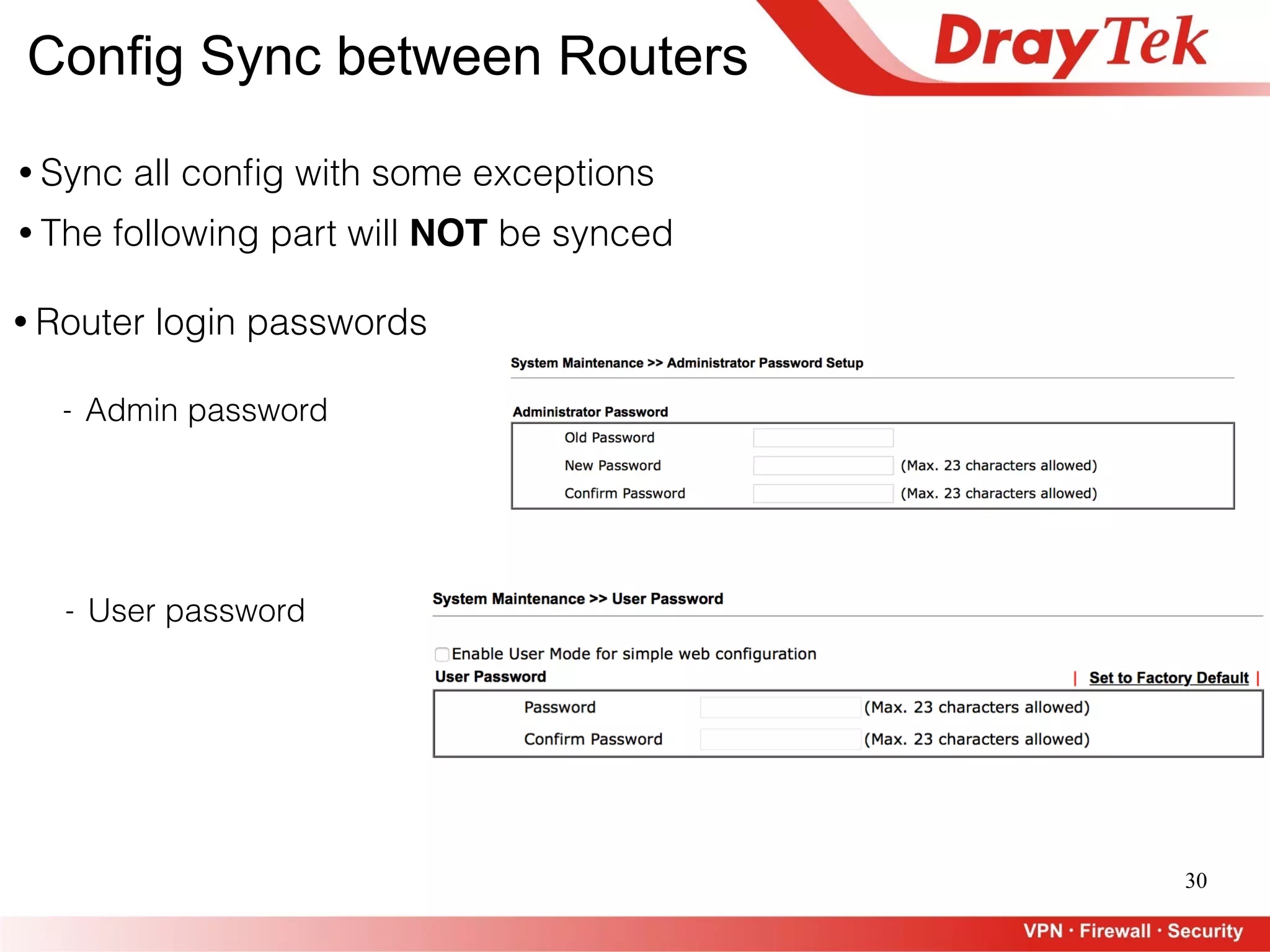
• Sync all config with some exceptions
- LAN IP Address and Subnet Mask
• LAN
- DHCP Gateway IP
• Router Name
Config Sync between Routers
• The following part will NOT be synced
30
Config Sync between Routers
• Sync all config with some exceptions
- Admin password
• Router login passwords
- User password
• The following part will NOT be synced
31
ISP
CARP
Status: Primary
V2925_A
V2925_B
Status: Secondary
• We MUST make sure
other members can
always receive CARP
- Not safe to rely on a
single switch which also
takes care of other LAN
traffics
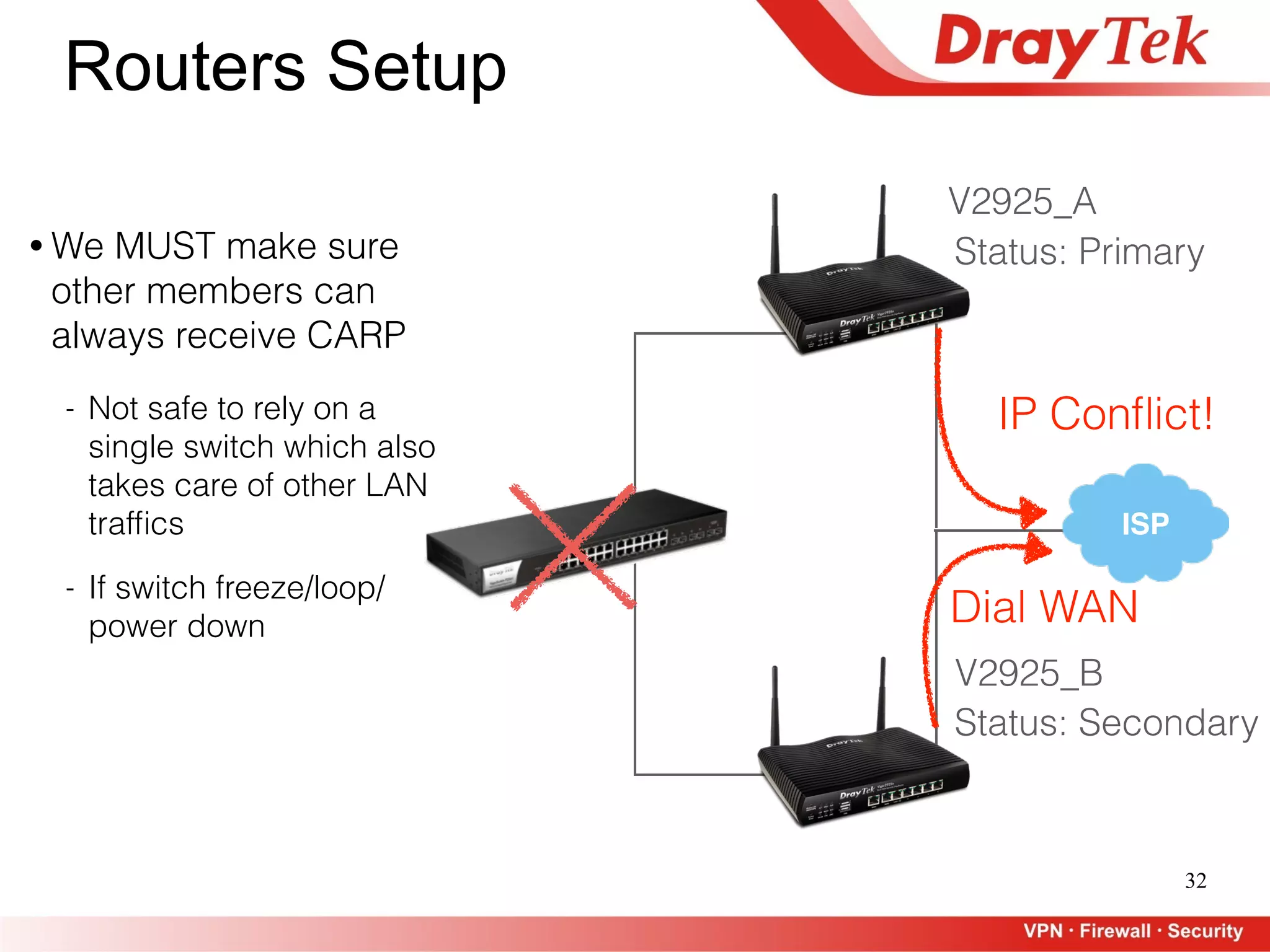
Routers Setup
32
ISP
Status: Primary
V2925_A
V2925_B
Status: Secondary
Routers Setup
Dial WAN
• We MUST make sure
other members can
always receive CARP
- Not safe to rely on a
single switch which also
takes care of other LAN
traffics
IP Conflict!
- If switch freeze/loop/
power down
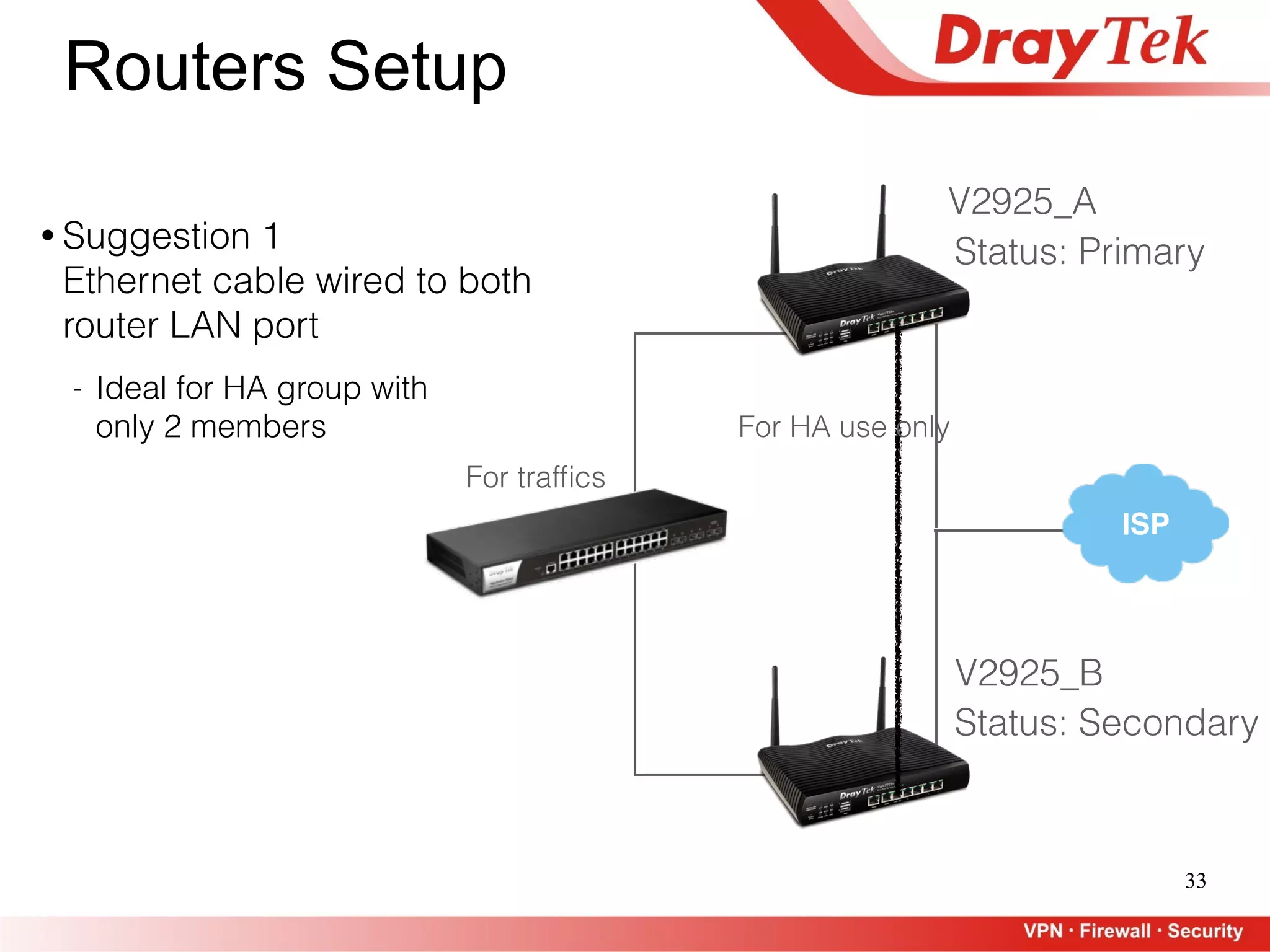
33
ISP
Status: Primary
V2925_A
V2925_B
Status: Secondary
Routers Setup
• Suggestion 1 

Ethernet cable wired to both
router LAN port

- Ideal for HA group with
only 2 members
For traffics
For HA use only
34
ISP
Status: Primary
V2925_A
V2925_B
Status: Secondary
Routers Setup
• Suggestion 1 

Ethernet cable wired to both
router LAN port

- Ideal for HA group with
only 2 members
• Suggestion 2 

Additional switch for HA only
For HA use onlyFor traffics (and HA)
35
ISP
For HA use only
Status: Primary
V2925_A
V2925_B
Status: Secondary
Routers Setup
• Suggestion 1 

Ethernet cable wired to both
router LAN port

- Ideal for HA group with
only 2 members
For traffics (and HA)
- Ideal for HA group with more
than 2 members
V2925_C
Status: Secondary
• Suggestion 2 

Additional switch for HA only
36
Outline
• What is High Availability
- Hot-Standby
- Active-Standby
• How it Works
- Router Setup
- Who should be Primary
- Primary Updates MAC to Virtual IP, Update DDNS and WCF License
- Configuration Sync between Routers
• Test Environment Setup
- Dual WAN, WAN1 Static + WAN2 PPPoE
- 3 VLANs
• Connectivity Test
• Q&A
37
Connectivity Test
• Video on youtube

https://youtu.be/2QkPj16O5ow
• Test Results
- WAN Connectivity recovered in 14 seconds
- VPN Dail-out Connectivity recovered in 16 seconds
- VPN Dail-in Connectivity recovered in 58 seconds
38
Outline
• High Availability
• User Management
- Customized Login Page Logo
- Create Accounts for Accommodations
• AP Management
- Setup, Configure, and Maintenance
- Management Methods
• WiFi Airtime Fairness
• AP Station Statistics
• Bandwidth Management
39
Customized Login Logo
40
Customized Login Logo
41
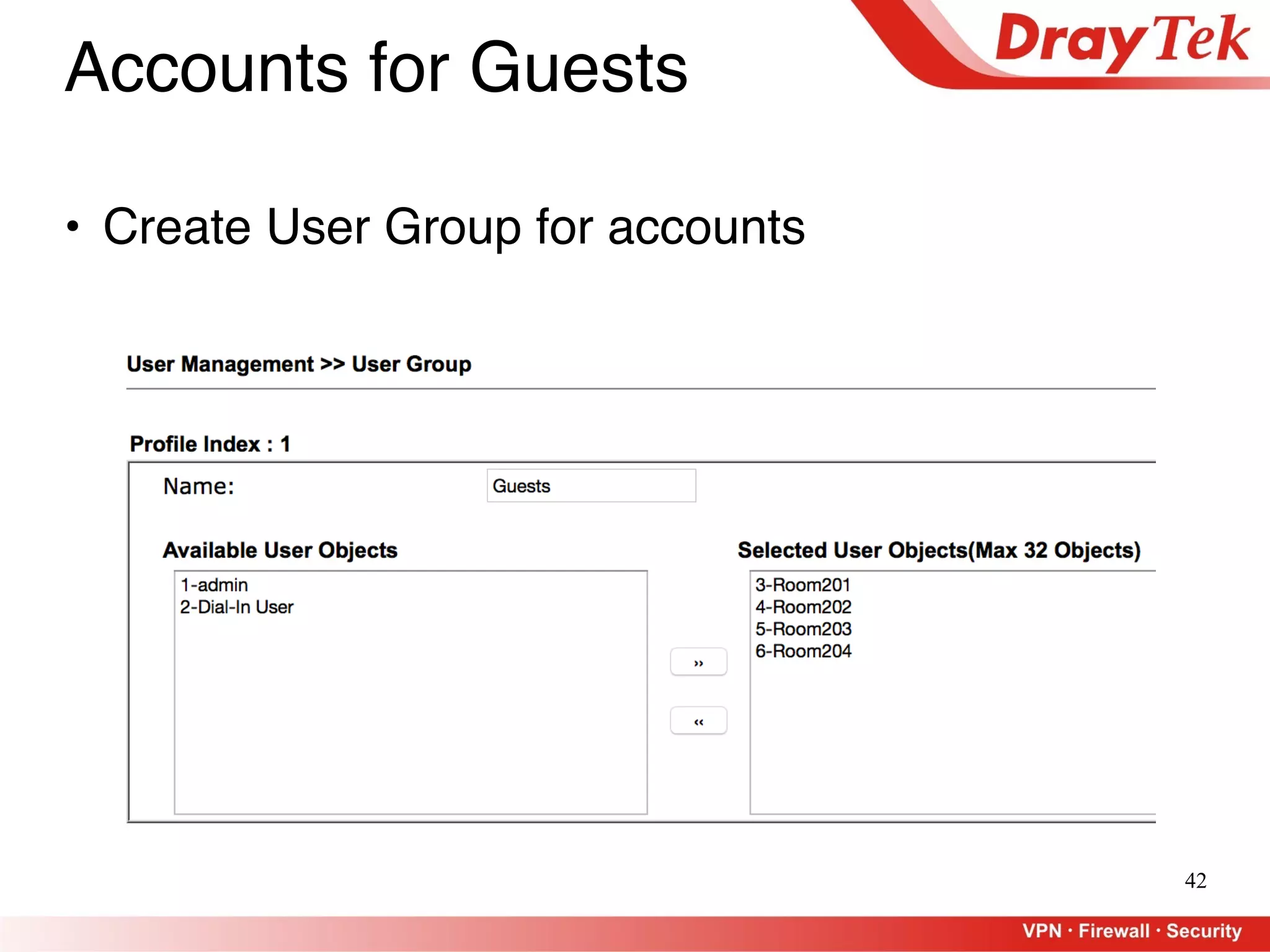
Accounts for Guests
• Create Accounts for Rooms
42
• Create User Group for accounts
Accounts for Guests
43
• Apply to Firewall — Request User Login for Guests
Accounts for Guests
44
Outline
• High Availability
• User Management
- Customized Login Page Logo
- Create Accounts for Accommodations
• AP Management
- Setup, Configure, and Maintenance
- Management Methods
• WiFi Airtime Fairness
• AP Station Statistics
• Bandwidth Management
45
AP Management
• Plug-n-Play Setup
• AP Configuration Provision
• AP Maintenance
• Wireless LAN Management
- Dashboard
- Traffic Graph for each AP
- AP Load Sharing
- AP Roaming
46
Plug-n-Play Setup
PoE on Switch
AP Plug-n-Play
47
• Before connection
• After connection
• Router provides DHCP Address to AP
Plug-n-Play Setup
48
AP Configuration Provision
49
• Apply to Device
AP Configuration Provision
50
AP Maintenance
• Choose an Action
51
AP Traffic Graph
52
AP Dashboard
• Status and
Event Log
for All APs
• Traffics for
Top 5 APs
• Station
Number for
Top 5 APs
53
AP Station Number
54
AP Total Traffics
55
• Define the Overload Indicator
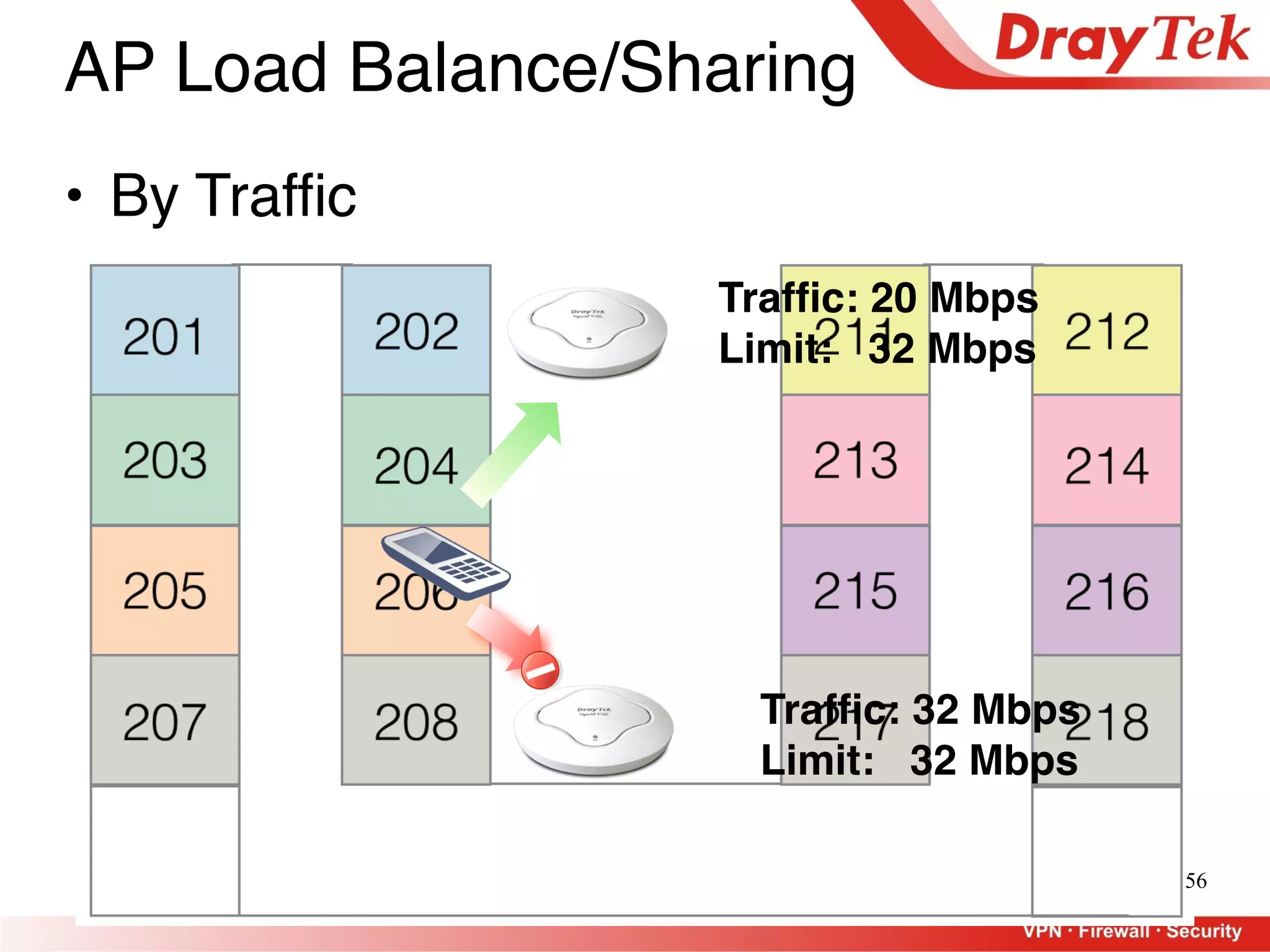
AP Load Balance/Sharing
56
AP Load Balance/Sharing
• By Traffic
Traffic: 32 Mbps
Limit: 32 Mbps
Traffic: 20 Mbps
Limit: 32 Mbps
57
AP Load Balance/Sharing
58
AP Load Balance/Sharing
• Force Overload Disassociation
Traffic: 32 Mbps
Limit: 32 Mbps
Traffic: 20 Mbps
Limit: 32 Mbps
16 Mbps 16 Mbps
10 Mbps
10 Mbps
0 Mbps
Idle
59
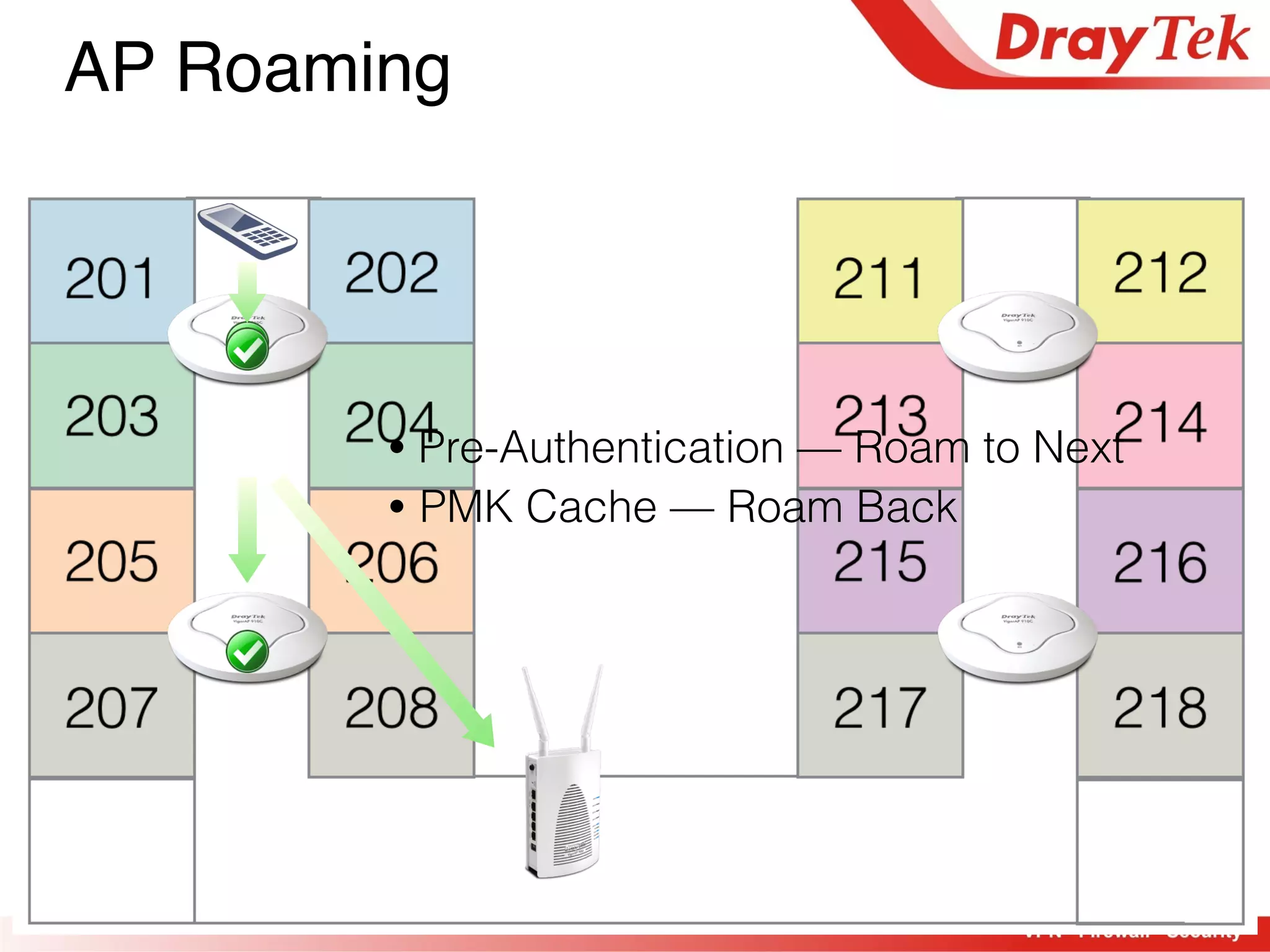
AP Roaming
• Pre-Authentication — Roam to Next
• PMK Cache — Roam Back
60
AP Roaming
61
AP Roaming
62
AP Roaming
63
Outline
• High Availability
• User Management
- Customized Login Page Logo
- Create Accounts for Accommodations
• AP Management
- Setup, Configure, and Maintenance
- Management Methods
• WiFi Airtime Fairness
• AP Station Statistics
• Bandwidth Management
64
• Theory:
- Channel Can be Accessed by Only One Station at a Time (802.11)
- Each Station has Equal Priority to Access the Channel (802.11e)
8 Stations
12.5%
12.5%
12.5%
12.5% 12.5%
12.5%
12.5%
12.5%
20 Stations
Airtime Fairness
65
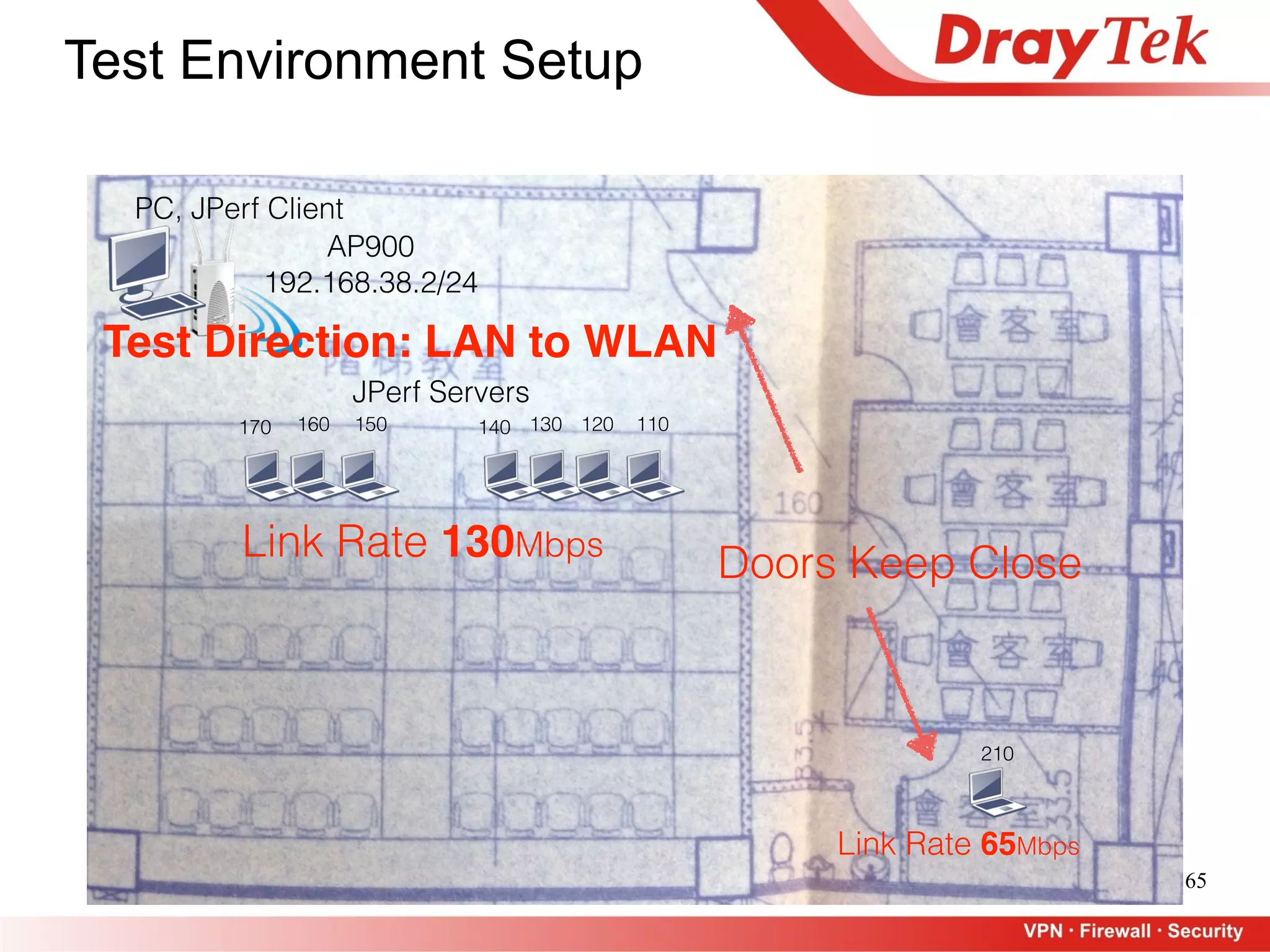
Test Environment Setup
Link Rate 130Mbps
Link Rate 65Mbps
Doors Keep Close
AP900

192.168.38.2/24
110120130140150160170
210
PC, JPerf Client
JPerf Servers
Test Direction: LAN to WLAN
66
Without 

AirTimeFairness
Test 1 Test 2 Test 3 Average
192.168.38.110 1.17 1.78 1.84 1.60
192.168.38.120 7.26 7.18 7.58 7.34
192.168.38.130 8.59 8.25 8.70 8.51
192.168.38.140 4.37 3.46 3.68 3.84
192.168.38.150 7.22 7.06 7.13 7.14
192.168.38.160 6.93 6.81 7.83 7.19
192.168.38.170 1.68 1.57 1.75 1.67
Sub Total 37.22 36.11 38.51 37.28
192.168.38.210 5.49 5.83 5.46 5.59
Total 42.71 41.94 43.97 42.87
Without AirTime Fairness
Link Rate

65 Mbps
Link Rate

130 Mbps
67
Some Stations May Feel the
Without AirTime Fairness
“Stall”
68
Without AirTime Fairness
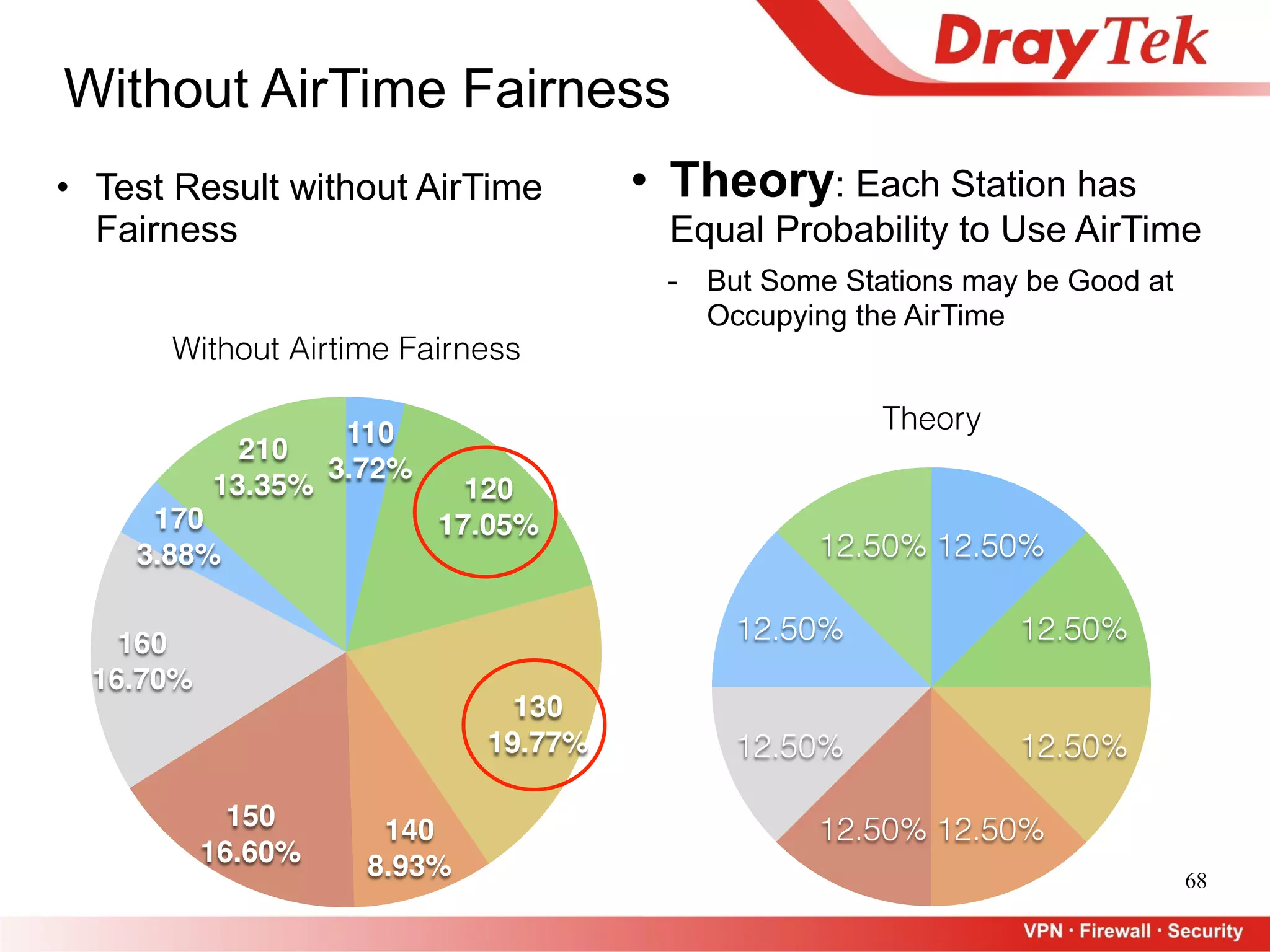
• Theory: Each Station has
Equal Probability to Use AirTime
- But Some Stations may be Good at
Occupying the AirTime
Theory
12.50%
12.50%
12.50%
12.50% 12.50%
12.50%
12.50%
12.50%
• Test Result without AirTime
Fairness
Without Airtime Fairness
210
13.35%
170
3.88%
160
16.70%
150
16.60%
140
8.93%
130
19.77%
120
17.05%
110
3.72%
69
With AirTime Fairness
70
With 

AirTimeFairness
Test 1 Test 2 Test 3 Average
192.168.38.110 4.75 4.70 4.57 4.67
192.168.38.120 5.71 5.59 5.68 5.66
192.168.38.130 9.09 9.21 8.21 8.84
192.168.38.140 5.21 5.14 5.37 5.24
192.168.38.150 8.34 8.53 8.45 8.44
192.168.38.160 9.52 9.23 9.41 9.39
192.168.38.170 3.30 3.29 3.42 3.34
Sub Total 45.92 45.69 45.11 45.57
192.168.38.210 4.64 4.80 4.54 4.66
Total 50.56 50.49 49.65 50.23
With AirTime Fairness
Link Rate

65 Mbps
Link Rate

130 Mbps
71
With AirTime Fairness
“Stall”
• Stations have More Equalized Performance
- Assuming they have the same hardware speed, more equalized
performance can be related to more equalized AirTime
72
With AirTime Fairness
210
9.26%170
6.64%
160
18.65%
150
16.76%
140
10.41%
130
17.76%
120
11.25%
110
9.28%
Without AirTime Fairness
210
13.35%
170
3.88%
160
16.70%
150
16.60%
140
8.93%
130
19.77%
120
17.05%
110
3.72%
Comparison in Between

Individual Ratio
73
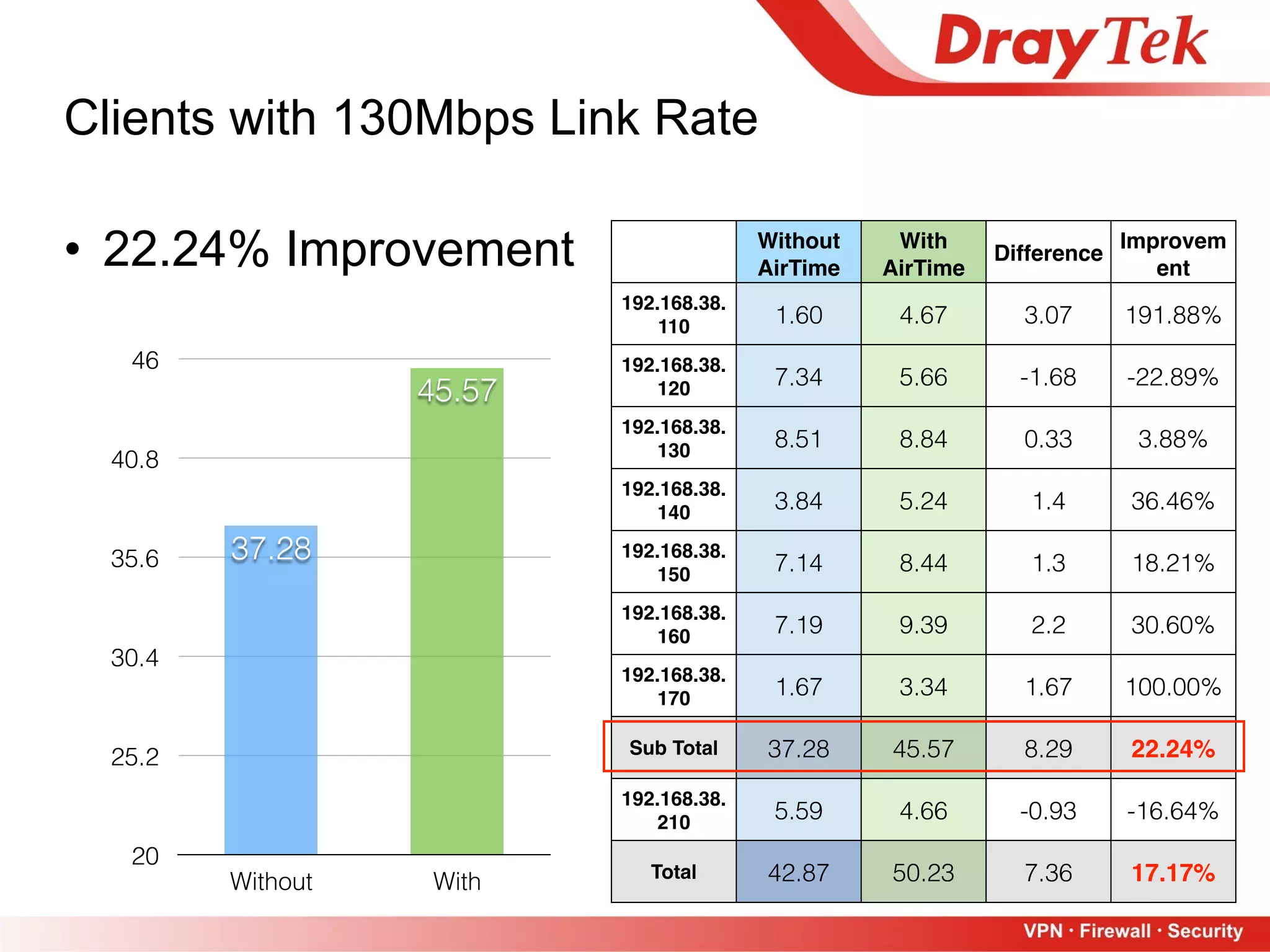
• 22.24% Improvement
Clients with 130Mbps Link Rate
Without

AirTime
Fairness
With

AirTime
Fairness
Difference
Improvem
ent
192.168.38.
110 1.60 4.67 3.07 191.88%
192.168.38.
120 7.34 5.66 -1.68 -22.89%
192.168.38.
130 8.51 8.84 0.33 3.88%
192.168.38.
140 3.84 5.24 1.4 36.46%
192.168.38.
150 7.14 8.44 1.3 18.21%
192.168.38.
160 7.19 9.39 2.2 30.60%
192.168.38.
170 1.67 3.34 1.67 100.00%
Sub Total 37.28 45.57 8.29 22.24%
192.168.38.
210 5.59 4.66 -0.93 -16.64%
Total 42.87 50.23 7.36 17.17%
20
25.2
30.4
35.6
40.8
46
Without With
45.57
37.28
74
• -16.64% Deduction
Client with 65Mbps Link Rate
0
1.4
2.8
4.2
5.6
Without With
4.66
5.59
Without

AirTime
Fairness
With

AirTime
Fairness
Difference
Improvem
ent
192.168.38.
110 1.60 4.67 3.07 191.88%
192.168.38.
120 7.34 5.66 -1.68 -22.89%
192.168.38.
130 8.51 8.84 0.33 3.88%
192.168.38.
140 3.84 5.24 1.4 36.46%
192.168.38.
150 7.14 8.44 1.3 18.21%
192.168.38.
160 7.19 9.39 2.2 30.60%
192.168.38.
170 1.67 3.34 1.67 100.00%
Sub Total 37.28 45.57 8.29 22.24%
192.168.38.
210 5.59 4.66 -0.93 -16.64%
Total 42.87 50.23 7.36 17.17%
75
• 17.17% Improvement
Overall
30
35.5
41
46.5
52
Without With
50.23
42.87
Without

AirTime
Fairness
With

AirTime
Fairness
Difference
Improvem
ent
192.168.38.
110 1.60 4.67 3.07 191.88%
192.168.38.
120 7.34 5.66 -1.68 -22.89%
192.168.38.
130 8.51 8.84 0.33 3.88%
192.168.38.
140 3.84 5.24 1.4 36.46%
192.168.38.
150 7.14 8.44 1.3 18.21%
192.168.38.
160 7.19 9.39 2.2 30.60%
192.168.38.
170 1.67 3.34 1.67 100.00%
Sub Total 37.28 45.57 8.29 22.24%
192.168.38.
210 5.59 4.66 -0.93 -16.64%
Total 42.87 50.23 7.36 17.17%
Summary of AirTime Fairness
76
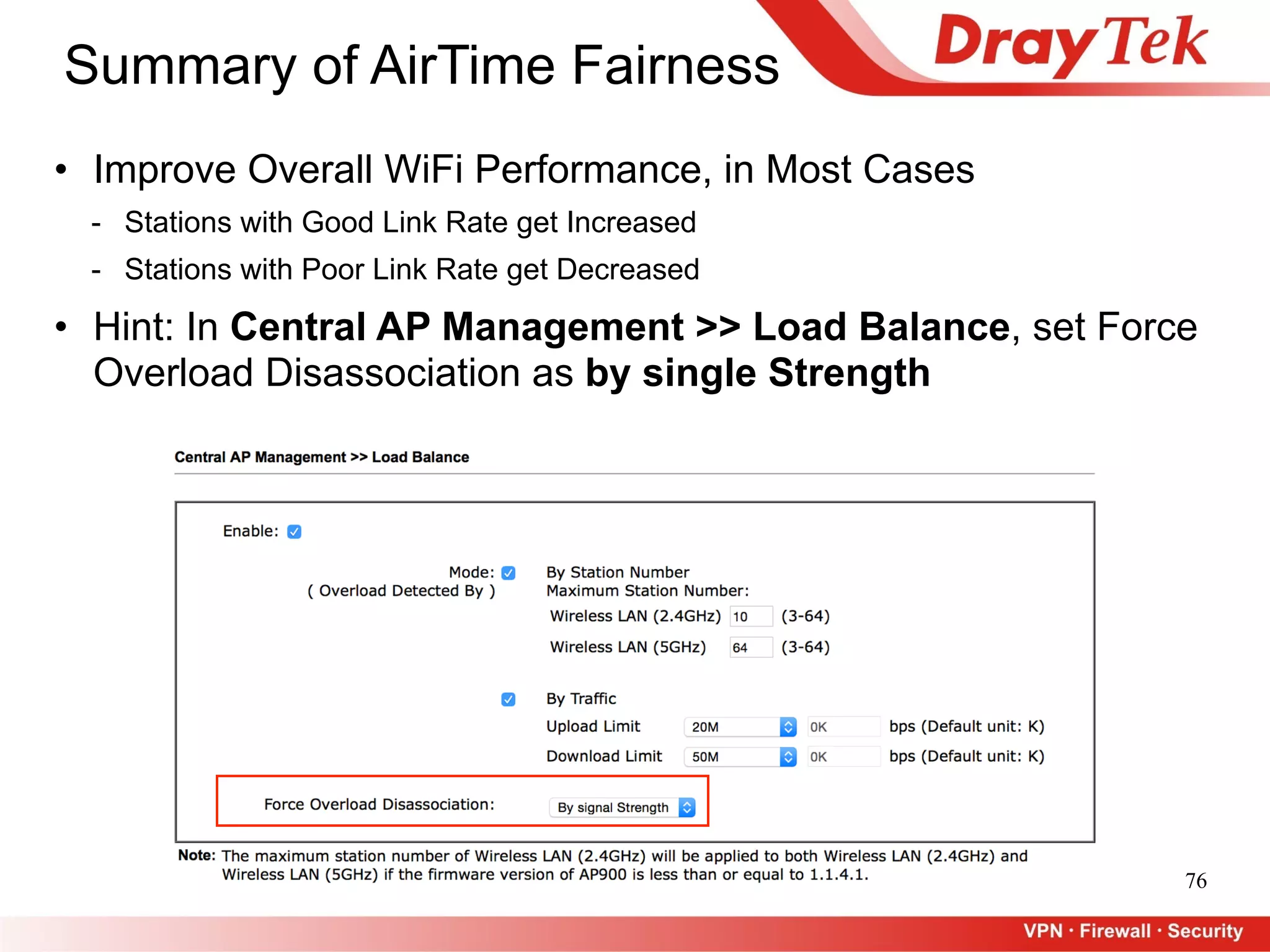
• Improve Overall WiFi Performance, in Most Cases
- Stations with Good Link Rate get Increased
- Stations with Poor Link Rate get Decreased
• Hint: In Central AP Management >> Load Balance, set Force
Overload Disassociation as by single Strength
77
Outline
• High Availability
• User Management
- Customized Login Page Logo
- Create Accounts for Accommodations
• AP Management
- Setup, Configure, and Maintenance
- Management Methods
• WiFi Airtime Fairness
• AP Station Statistics
• Bandwidth Management
78
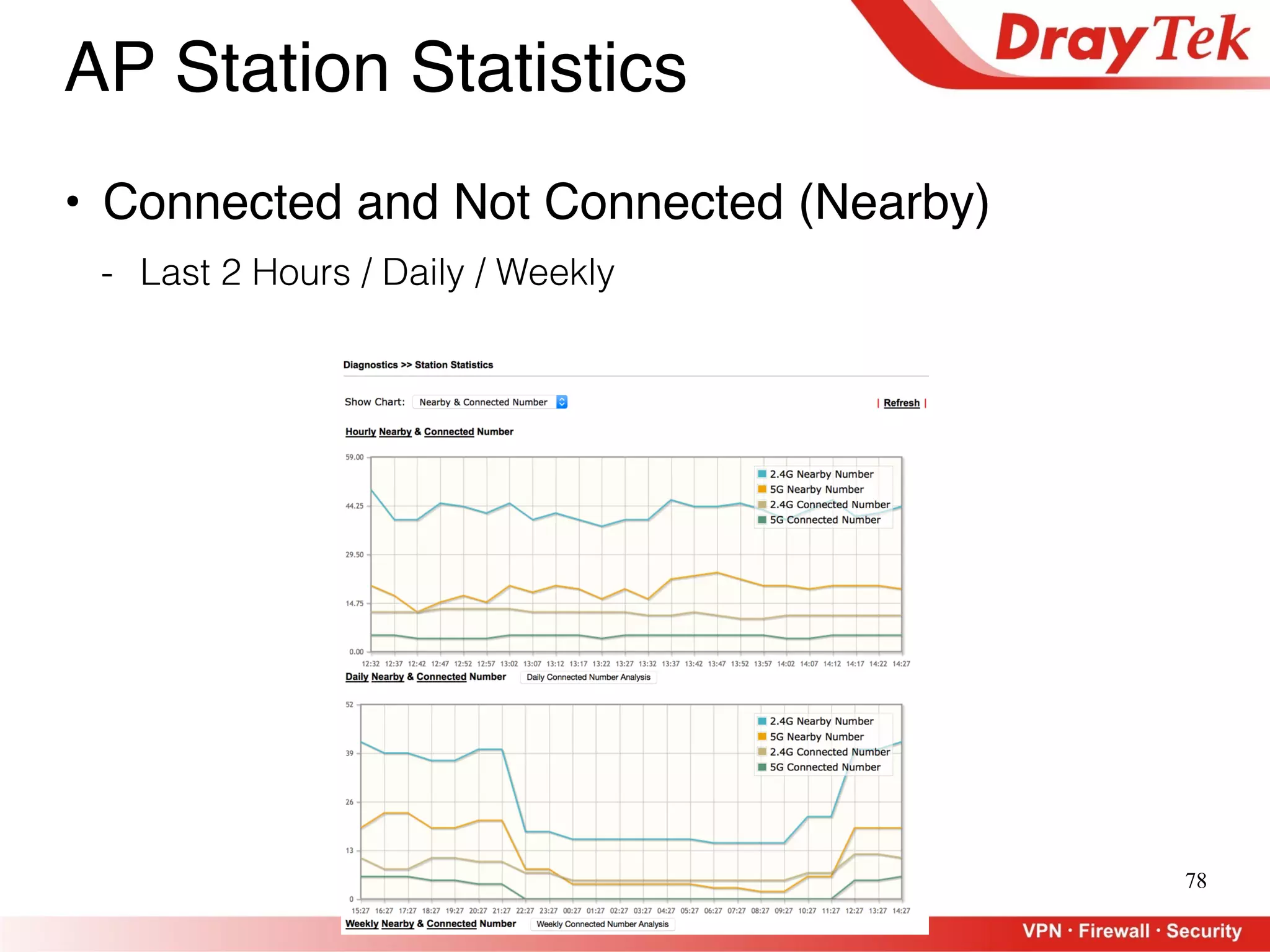
AP Station Statistics
• Connected and Not Connected (Nearby)
- Last 2 Hours / Daily / Weekly
79
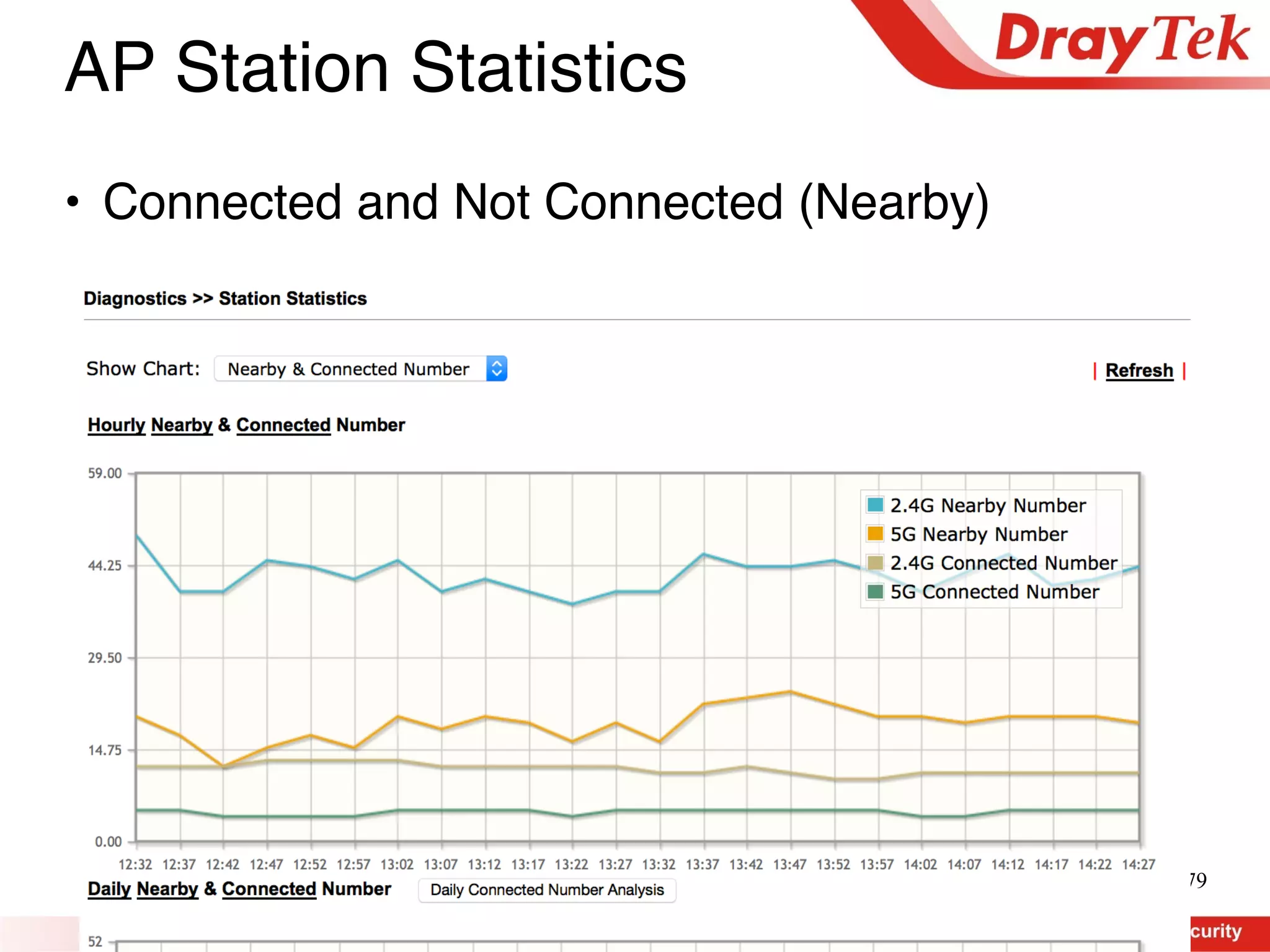
AP Station Statistics
• Connected and Not Connected (Nearby)
80
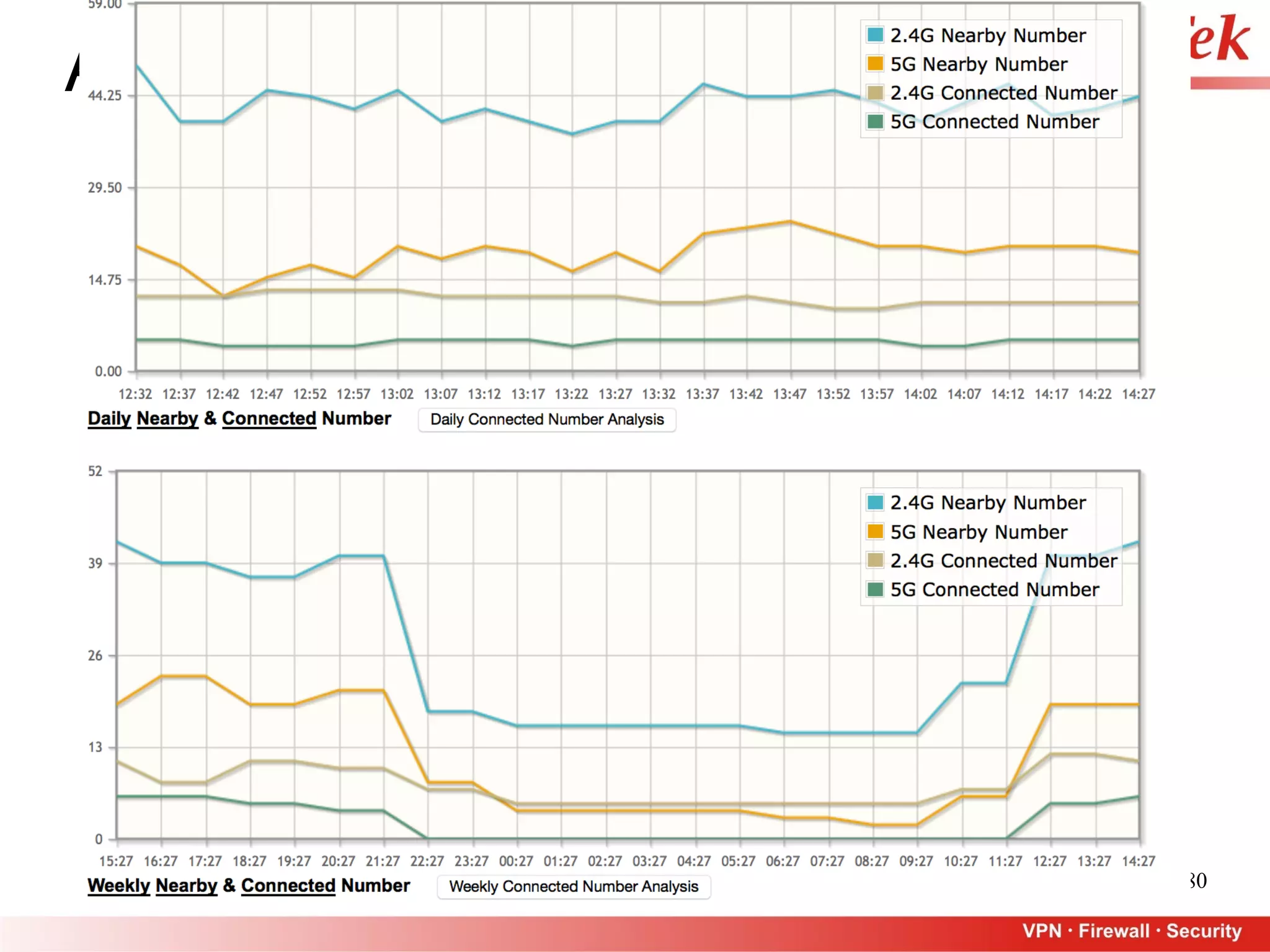
AP Station Statistics
81
AP Station Statistics
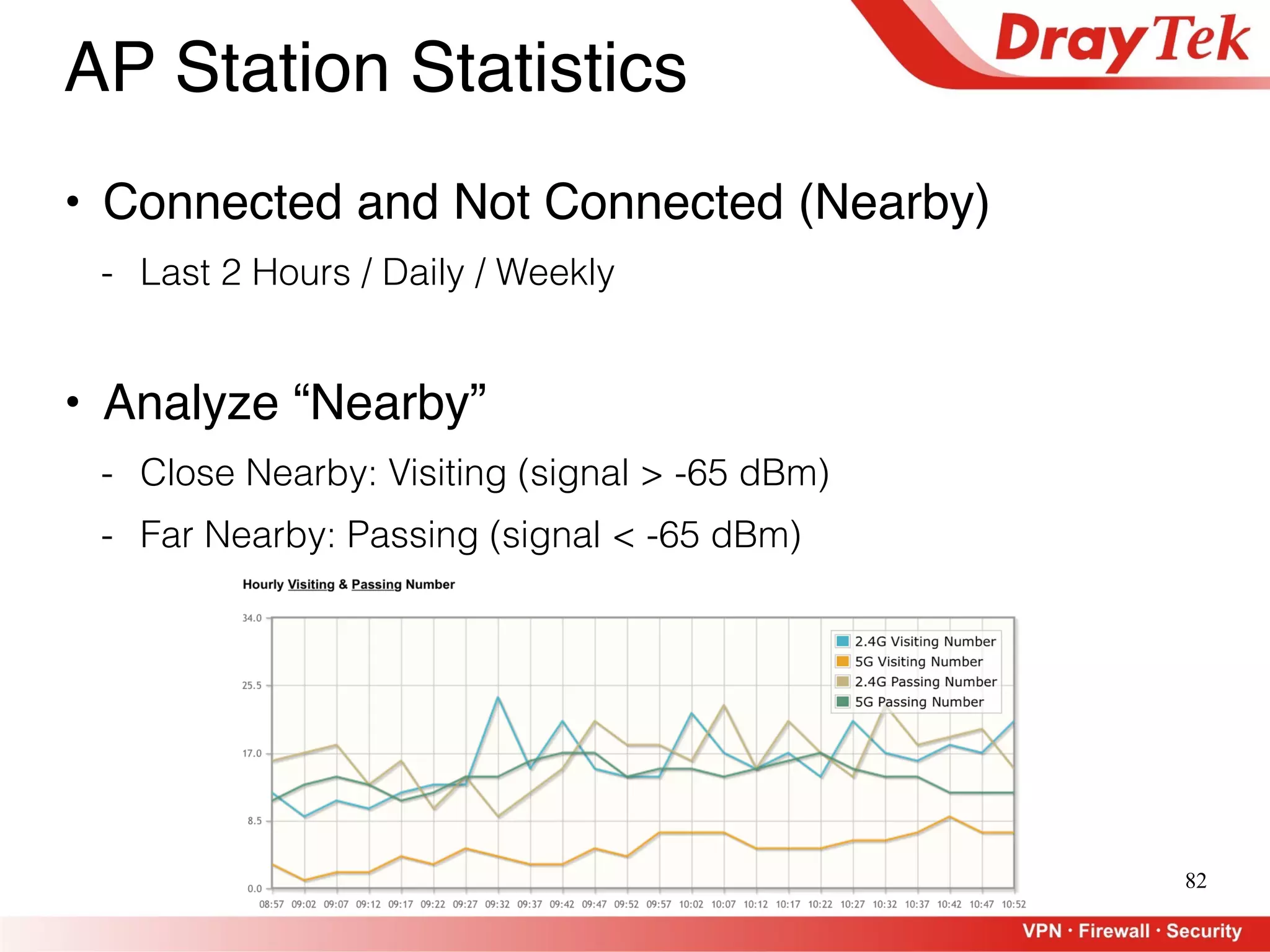
82
AP Station Statistics
• Connected and Not Connected (Nearby)
- Last 2 Hours / Daily / Weekly
• Analyze “Nearby”
- Close Nearby: Visiting (signal > -65 dBm)
- Far Nearby: Passing (signal < -65 dBm)
83
AP Station Statistics
• Connected and Not Connected (Nearby)
- Last 2 Hours / Daily / Weekly• Analyze “Nearby”
- Close Nearby: Visiting (signal > -65 dBm)
- Far Nearby: Passing (signal < -65 dBm)
84
AP Station Statistics
• Connected and Not Connected (Nearby)
- Last 2 Hours / Daily / Weekly• Analyze “Nearby”
- Close Nearby: Visiting (signal > -65 dBm)
- Far Nearby: Passing (signal < -65 dBm)
85
Outline
• High Availability
• User Management
- Customized Login Page Logo
- Create Accounts for Accommodations
• AP Management
- Setup, Configure, and Maintenance
- Management Methods
• WiFi Airtime Fairness
• AP Station Statistics
• Bandwidth Management
86
Bandwidth Management
• Bandwidth Limit
• Session Limit
• QoS
87
Bandwidth Limit
88
• Default – if no specified rule for this IP address
• Auto Adjustment to utilize bandwidth


• Check Data Flow Monitor
Bandwidth Limit
89
Bandwidth Limit
90
• Specified	
  rule	
  for	
  IP	
  address(es)	
  
Bandwidth Limit
91
Bandwidth Limit
92
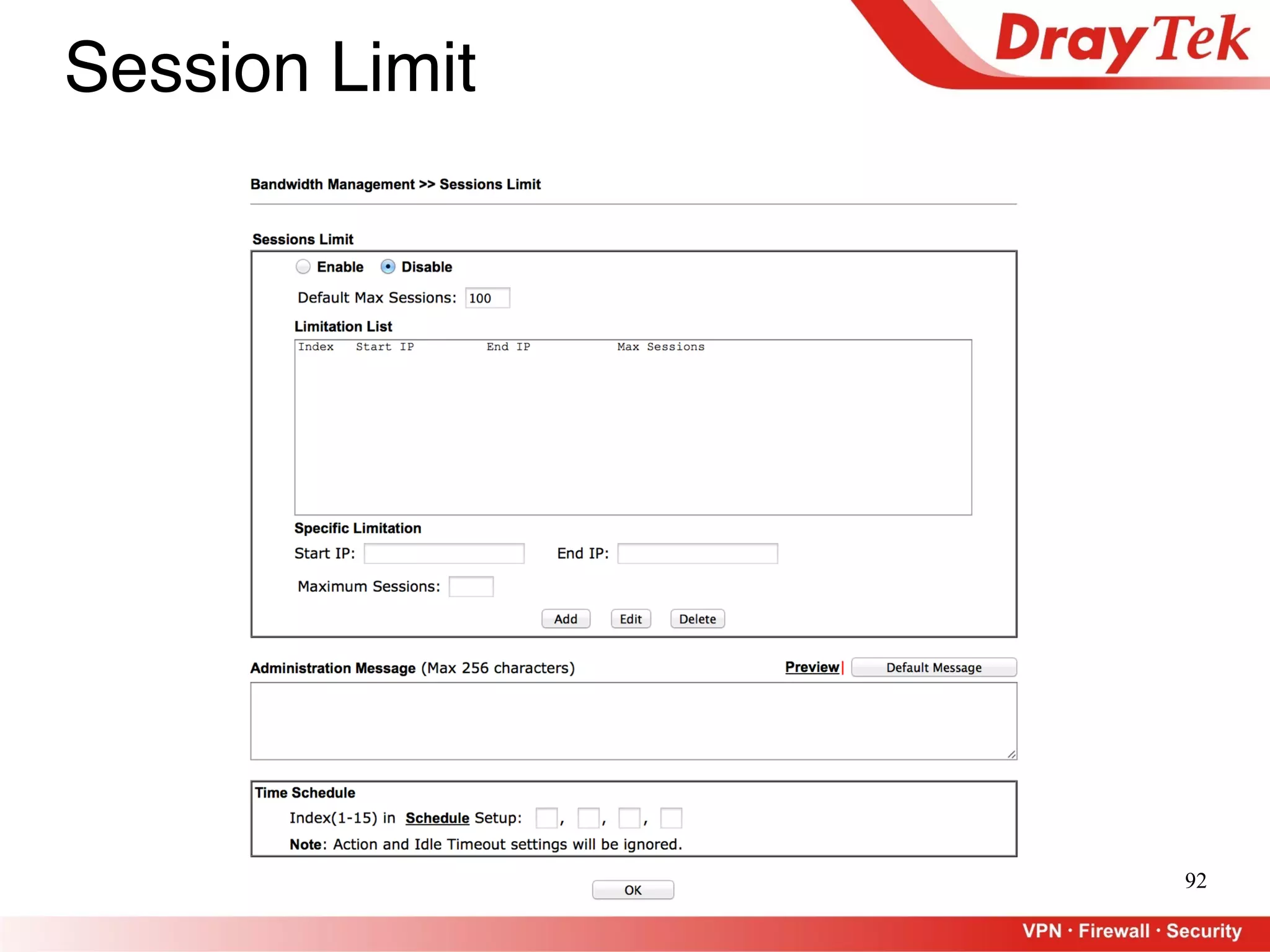
Session Limit
93
QoS
94
QoS
95
• Give Bandwidth Ratio
QoS
96
• Check QoS Status
• Flexible Bandwidth Allocating
- “Others” is eligible to use more bandwidth when possible
QoS
97
Q&A

DrayTek RoadShow 2015 @ Portugal (Setembro) - Sessão 2

  • 1.
    1 Session 2 Seminar Henry Lo ApplicationEngineer Rui Jorge Technical Manager
  • 2.
    2 Outline • High Availability •User Management - Customized Login Page Logo - Create Accounts for Accommodations • AP Management - Setup, Configure, and Maintenance - Management Methods • WiFi Airtime Fairness • AP Station Statistics • Bandwidth Management
  • 3.
    3 High Availability • Whatis High Availability - Hot-Standby - Active-Standby • How it Works - Router Setup - Who should be Primary - Primary Updates MAC to Virtual IP, Update DDNS and WCF License - Configuration Sync between Routers • Test Environment Setup - Dual WAN, WAN1 Static + WAN2 PPPoE - 3 VLANs • Connectivity Test • Q&A
  • 4.
    4 High Availability • Whatis High Availability - Hot-Standby - Active-Standby • How it Works - Router Setup - Who should be Primary - Primary Updates MAC to Virtual IP, Update DDNS and WCF License - Configuration Sync between Routers • Test Environment Setup - Dual WAN, WAN1 Static + WAN2 PPPoE - 3 VLANs • Connectivity Test • Q&A
  • 5.
    5 • Hardware redundancyfeature to achieve high availability with Vigor2925 Series • Redundancy Mode: - Hot-Standby, a.k.a Active/Standby - Active-Standby, a.k.a Active/Active What is High Availability
  • 6.
  • 7.
    7 ISP LAN2 LAN3 Status: Down Status: Primary V2925_A V2925_B WANOnline LAN1 Management Interface Hot-Standby
  • 8.
    8 ISP_2 LAN2 LAN3 Status: Primary V2925_A V2925_B ISP_1 Status: Secondary WANOnline WAN Online NO Load Balance between 2 Routers LAN1 Management Interface Active-Standby
  • 9.
    9 ISP_2 LAN2 LAN3 Status: Down V2925_A V2925_B ISP_1 Status: Primary WANOnline LAN1 Management Interface Active-Standby
  • 10.
    10 Outline • What isHigh Availability - Hot-Standby - Active-Standby • How it Works - Router Setup - Who should be Primary - Primary Updates MAC to Virtual IP, Update DDNS and WCF License - Configuration Sync between Routers • Test Environment Setup - Dual WAN, WAN1 Static + WAN2 PPPoE - 3 VLANs • Connectivity Test • Q&A : Same WAN line for members, only Primary gets online : Different WAN line for members, all routers are online
  • 11.
    11 Outline • What isHigh Availability - Hot-Standby - Active-Standby • How it Works - Router Setup - Who should be Primary - Primary Updates MAC to Virtual IP, Update DDNS and WCF License - Configuration Sync between Routers • Test Environment Setup - Dual WAN, WAN1 Static + WAN2 PPPoE - 3 VLANs • Connectivity Test • Q&A
  • 12.
  • 13.
    13 ISP LAN2 LAN3 LAN1 Management Interface Status: Primary V2925_A WANOnline V2925_B Status: Secondary WAN Offline 192.168.250.2 192.168.250.3 Routers Setup
  • 14.
    14 V2925_A V2925_B • SameGroup ID Routers Setup
  • 15.
    15 V2925_A V2925_B • SameGroup ID • Define Priority, Primary has highest Priority (30 is highest) - If same priority, compare the LAN IP (192.168.1.1>192.168.1.2) Routers Setup
  • 16.
    16 V2925_A V2925_B • Samegroup should share same Authentication Key • Choose Management Interface for communication • Allow updating DDNS when CPE become Primary - All members share the same DDNS profiles Routers Setup
  • 17.
    17 V2925_A V2925_B • ChooseLAN subnets for HA • Define the Virtual IP - All members should have the same Virtual IP Routers Setup
  • 18.
    18 V2925_A V2925_B • Usedifferent LAN IP Routers Setup
  • 19.
    19 V2925_B • Use differentLAN IP • LAN IP will be replaced by HA Virtual IP - Only see this message when HA is enabled and Virtual IP is set Routers Setup V2925_A
  • 20.
    20 ISP CARP Who should bePrimary Status: Primary V2925_A WAN Online V2925_B Status: Secondary WAN Offline 192.168.250.2 192.168.250.3 Priority: 30 Priority: 20 • Highest Priority CPE is Primary CARP • At beginning, all members send CARP - CARP includes Priority LAN1 Management Interface
  • 21.
    21 ISP CARP Who should bePrimary Status: Primary V2925_A WAN Online V2925_B Status: Secondary WAN Offline 192.168.250.2 192.168.250.3 • Primary router sends CARP packets to all members • If NOT receiving CARP packets, Secondary will go up Priority: 30 Priority: 20 • Highest Priority CPE is Primary • At beginning, all members send CARP - CARP includes Priority LAN1 Management Interface
  • 22.
    22 ISP LAN2 LAN3 Virtual IP forLAN2: 192.168.2.1 MAC C6:4B:D8 Virtual IP for LAN3: 192.168.3.1 MAC C6:4B:D8 Status: Secondary V2925_B 192.168.250.3 192.168.2.3 192.168.3.3
 MAC BE:92:60 Update MAC for Virtual IP Status: Primary V2925_A 192.168.250.2 192.168.2.2 192.168.3.2 MAC C6:4B:D8 LAN1 Management Interface
  • 23.
    23 ISP LAN2 LAN3 Status: Down Status: Primary V2925_A V2925_B UpdateMAC for Virtual IP 192.168.250.2 192.168.2.2 192.168.3.2 MAC C6:4B:D8 192.168.250.3 192.168.2.3 192.168.3.3
 MAC BE:92:60 Virtual IP for LAN2: 192.168.2.1 MAC C6:4B:D8 Virtual IP for LAN3: 192.168.3.1 MAC C6:4B:D8 MAC BE:92:60 MAC BE:92:60 LAN1 Management Interface
  • 24.
    24 V2925_A V2925_B • Tips:
 Use arp -a to confirm current Primary and other members DrayTek:~ HATest$ arp -a ? (192.168.250.1) at 0:1d:aa:c6:4b:d8 on en3 ifscope [ethernet] ? (192.168.250.2) at 0:1d:aa:c6:4b:d8 on en3 ifscope [ethernet] ? (192.168.250.3) at 0:1d:aa:be:92:60 on en3 ifscope [ethernet] ? (192.168.250.255) at ff:ff:ff:ff:ff:ff on en3 ifscope [ethernet] LAN MAC: C6:4B:D8 LAN MAC: BE:92:60 Primary Update MAC for Virtual IP
  • 25.
    25 V2925_A V2925_B • Tips:
 Use arp -a to confirm current Primary and other members DrayTek:~ HATest ? (192.168.250.1) at 0:1d:aa:c6:4b:d8 on en3 ifscope [ethernet] ? (192.168.250.2) at 0:1d:aa:c6:4b:d8 on en3 ifscope [ethernet] ? (192.168.250.3) at 0:1d:aa:be:92:60 on en3 ifscope [ethernet] ? (192.168.250.255) at ff:ff:ff:ff:ff:ff on en3 ifscope [ethernet] LAN MAC: C6:4B:D8 LAN MAC: BE:92:60 Update MAC for Virtual IP PrimaryDrayTek:~ HATest$ arp -a ? (192.168.250.1) at 0:1d:aa:be:92:60 on en3 ifscope [ethernet] ? (192.168.250.3) at 0:1d:aa:be:92:60 on en3 ifscope [ethernet] ? (192.168.250.255) at ff:ff:ff:ff:ff:ff on en3 ifscope [ethernet]
  • 26.
    26 Update DDNS andWCF License • Update DDNS
  • 27.
    27 Update DDNS andWCF License • Update WCF License - Non-Stop WCF firewall protection
  • 28.
    28 V2925_A V2925_B • Configfile sync from Primary to Secondary(s) - Only for Hot-Standby mode Config Sync between Routers
  • 29.
    29 • Sync allconfig with some exceptions - LAN IP Address and Subnet Mask • LAN - DHCP Gateway IP • Router Name Config Sync between Routers • The following part will NOT be synced
  • 30.
    30 Config Sync betweenRouters • Sync all config with some exceptions - Admin password • Router login passwords - User password • The following part will NOT be synced
  • 31.
    31 ISP CARP Status: Primary V2925_A V2925_B Status: Secondary •We MUST make sure other members can always receive CARP - Not safe to rely on a single switch which also takes care of other LAN traffics Routers Setup
  • 32.
    32 ISP Status: Primary V2925_A V2925_B Status: Secondary RoutersSetup Dial WAN • We MUST make sure other members can always receive CARP - Not safe to rely on a single switch which also takes care of other LAN traffics IP Conflict! - If switch freeze/loop/ power down
  • 33.
    33 ISP Status: Primary V2925_A V2925_B Status: Secondary RoutersSetup • Suggestion 1 
 Ethernet cable wired to both router LAN port
 - Ideal for HA group with only 2 members For traffics For HA use only
  • 34.
    34 ISP Status: Primary V2925_A V2925_B Status: Secondary RoutersSetup • Suggestion 1 
 Ethernet cable wired to both router LAN port
 - Ideal for HA group with only 2 members • Suggestion 2 
 Additional switch for HA only For HA use onlyFor traffics (and HA)
  • 35.
    35 ISP For HA useonly Status: Primary V2925_A V2925_B Status: Secondary Routers Setup • Suggestion 1 
 Ethernet cable wired to both router LAN port
 - Ideal for HA group with only 2 members For traffics (and HA) - Ideal for HA group with more than 2 members V2925_C Status: Secondary • Suggestion 2 
 Additional switch for HA only
  • 36.
    36 Outline • What isHigh Availability - Hot-Standby - Active-Standby • How it Works - Router Setup - Who should be Primary - Primary Updates MAC to Virtual IP, Update DDNS and WCF License - Configuration Sync between Routers • Test Environment Setup - Dual WAN, WAN1 Static + WAN2 PPPoE - 3 VLANs • Connectivity Test • Q&A
  • 37.
    37 Connectivity Test • Videoon youtube
 https://youtu.be/2QkPj16O5ow • Test Results - WAN Connectivity recovered in 14 seconds - VPN Dail-out Connectivity recovered in 16 seconds - VPN Dail-in Connectivity recovered in 58 seconds
  • 38.
    38 Outline • High Availability •User Management - Customized Login Page Logo - Create Accounts for Accommodations • AP Management - Setup, Configure, and Maintenance - Management Methods • WiFi Airtime Fairness • AP Station Statistics • Bandwidth Management
  • 39.
  • 40.
  • 41.
    41 Accounts for Guests •Create Accounts for Rooms
  • 42.
    42 • Create UserGroup for accounts Accounts for Guests
  • 43.
    43 • Apply toFirewall — Request User Login for Guests Accounts for Guests
  • 44.
    44 Outline • High Availability •User Management - Customized Login Page Logo - Create Accounts for Accommodations • AP Management - Setup, Configure, and Maintenance - Management Methods • WiFi Airtime Fairness • AP Station Statistics • Bandwidth Management
  • 45.
    45 AP Management • Plug-n-PlaySetup • AP Configuration Provision • AP Maintenance • Wireless LAN Management - Dashboard - Traffic Graph for each AP - AP Load Sharing - AP Roaming
  • 46.
    46 Plug-n-Play Setup PoE onSwitch AP Plug-n-Play
  • 47.
    47 • Before connection •After connection • Router provides DHCP Address to AP Plug-n-Play Setup
  • 48.
  • 49.
    49 • Apply toDevice AP Configuration Provision
  • 50.
  • 51.
  • 52.
    52 AP Dashboard • Statusand Event Log for All APs • Traffics for Top 5 APs • Station Number for Top 5 APs
  • 53.
  • 54.
  • 55.
    55 • Define theOverload Indicator AP Load Balance/Sharing
  • 56.
    56 AP Load Balance/Sharing •By Traffic Traffic: 32 Mbps Limit: 32 Mbps Traffic: 20 Mbps Limit: 32 Mbps
  • 57.
  • 58.
    58 AP Load Balance/Sharing •Force Overload Disassociation Traffic: 32 Mbps Limit: 32 Mbps Traffic: 20 Mbps Limit: 32 Mbps 16 Mbps 16 Mbps 10 Mbps 10 Mbps 0 Mbps Idle
  • 59.
    59 AP Roaming • Pre-Authentication— Roam to Next • PMK Cache — Roam Back
  • 60.
  • 61.
  • 62.
  • 63.
    63 Outline • High Availability •User Management - Customized Login Page Logo - Create Accounts for Accommodations • AP Management - Setup, Configure, and Maintenance - Management Methods • WiFi Airtime Fairness • AP Station Statistics • Bandwidth Management
  • 64.
    64 • Theory: - ChannelCan be Accessed by Only One Station at a Time (802.11) - Each Station has Equal Priority to Access the Channel (802.11e) 8 Stations 12.5% 12.5% 12.5% 12.5% 12.5% 12.5% 12.5% 12.5% 20 Stations Airtime Fairness
  • 65.
    65 Test Environment Setup LinkRate 130Mbps Link Rate 65Mbps Doors Keep Close AP900
 192.168.38.2/24 110120130140150160170 210 PC, JPerf Client JPerf Servers Test Direction: LAN to WLAN
  • 66.
    66 Without 
 AirTimeFairness Test 1Test 2 Test 3 Average 192.168.38.110 1.17 1.78 1.84 1.60 192.168.38.120 7.26 7.18 7.58 7.34 192.168.38.130 8.59 8.25 8.70 8.51 192.168.38.140 4.37 3.46 3.68 3.84 192.168.38.150 7.22 7.06 7.13 7.14 192.168.38.160 6.93 6.81 7.83 7.19 192.168.38.170 1.68 1.57 1.75 1.67 Sub Total 37.22 36.11 38.51 37.28 192.168.38.210 5.49 5.83 5.46 5.59 Total 42.71 41.94 43.97 42.87 Without AirTime Fairness Link Rate
 65 Mbps Link Rate
 130 Mbps
  • 67.
    67 Some Stations MayFeel the Without AirTime Fairness “Stall”
  • 68.
    68 Without AirTime Fairness •Theory: Each Station has Equal Probability to Use AirTime - But Some Stations may be Good at Occupying the AirTime Theory 12.50% 12.50% 12.50% 12.50% 12.50% 12.50% 12.50% 12.50% • Test Result without AirTime Fairness Without Airtime Fairness 210 13.35% 170 3.88% 160 16.70% 150 16.60% 140 8.93% 130 19.77% 120 17.05% 110 3.72%
  • 69.
  • 70.
    70 With 
 AirTimeFairness Test 1Test 2 Test 3 Average 192.168.38.110 4.75 4.70 4.57 4.67 192.168.38.120 5.71 5.59 5.68 5.66 192.168.38.130 9.09 9.21 8.21 8.84 192.168.38.140 5.21 5.14 5.37 5.24 192.168.38.150 8.34 8.53 8.45 8.44 192.168.38.160 9.52 9.23 9.41 9.39 192.168.38.170 3.30 3.29 3.42 3.34 Sub Total 45.92 45.69 45.11 45.57 192.168.38.210 4.64 4.80 4.54 4.66 Total 50.56 50.49 49.65 50.23 With AirTime Fairness Link Rate
 65 Mbps Link Rate
 130 Mbps
  • 71.
  • 72.
    • Stations haveMore Equalized Performance - Assuming they have the same hardware speed, more equalized performance can be related to more equalized AirTime 72 With AirTime Fairness 210 9.26%170 6.64% 160 18.65% 150 16.76% 140 10.41% 130 17.76% 120 11.25% 110 9.28% Without AirTime Fairness 210 13.35% 170 3.88% 160 16.70% 150 16.60% 140 8.93% 130 19.77% 120 17.05% 110 3.72% Comparison in Between
 Individual Ratio
  • 73.
    73 • 22.24% Improvement Clientswith 130Mbps Link Rate Without
 AirTime Fairness With
 AirTime Fairness Difference Improvem ent 192.168.38. 110 1.60 4.67 3.07 191.88% 192.168.38. 120 7.34 5.66 -1.68 -22.89% 192.168.38. 130 8.51 8.84 0.33 3.88% 192.168.38. 140 3.84 5.24 1.4 36.46% 192.168.38. 150 7.14 8.44 1.3 18.21% 192.168.38. 160 7.19 9.39 2.2 30.60% 192.168.38. 170 1.67 3.34 1.67 100.00% Sub Total 37.28 45.57 8.29 22.24% 192.168.38. 210 5.59 4.66 -0.93 -16.64% Total 42.87 50.23 7.36 17.17% 20 25.2 30.4 35.6 40.8 46 Without With 45.57 37.28
  • 74.
    74 • -16.64% Deduction Clientwith 65Mbps Link Rate 0 1.4 2.8 4.2 5.6 Without With 4.66 5.59 Without
 AirTime Fairness With
 AirTime Fairness Difference Improvem ent 192.168.38. 110 1.60 4.67 3.07 191.88% 192.168.38. 120 7.34 5.66 -1.68 -22.89% 192.168.38. 130 8.51 8.84 0.33 3.88% 192.168.38. 140 3.84 5.24 1.4 36.46% 192.168.38. 150 7.14 8.44 1.3 18.21% 192.168.38. 160 7.19 9.39 2.2 30.60% 192.168.38. 170 1.67 3.34 1.67 100.00% Sub Total 37.28 45.57 8.29 22.24% 192.168.38. 210 5.59 4.66 -0.93 -16.64% Total 42.87 50.23 7.36 17.17%
  • 75.
    75 • 17.17% Improvement Overall 30 35.5 41 46.5 52 WithoutWith 50.23 42.87 Without
 AirTime Fairness With
 AirTime Fairness Difference Improvem ent 192.168.38. 110 1.60 4.67 3.07 191.88% 192.168.38. 120 7.34 5.66 -1.68 -22.89% 192.168.38. 130 8.51 8.84 0.33 3.88% 192.168.38. 140 3.84 5.24 1.4 36.46% 192.168.38. 150 7.14 8.44 1.3 18.21% 192.168.38. 160 7.19 9.39 2.2 30.60% 192.168.38. 170 1.67 3.34 1.67 100.00% Sub Total 37.28 45.57 8.29 22.24% 192.168.38. 210 5.59 4.66 -0.93 -16.64% Total 42.87 50.23 7.36 17.17%
  • 76.
    Summary of AirTimeFairness 76 • Improve Overall WiFi Performance, in Most Cases - Stations with Good Link Rate get Increased - Stations with Poor Link Rate get Decreased • Hint: In Central AP Management >> Load Balance, set Force Overload Disassociation as by single Strength
  • 77.
    77 Outline • High Availability •User Management - Customized Login Page Logo - Create Accounts for Accommodations • AP Management - Setup, Configure, and Maintenance - Management Methods • WiFi Airtime Fairness • AP Station Statistics • Bandwidth Management
  • 78.
    78 AP Station Statistics •Connected and Not Connected (Nearby) - Last 2 Hours / Daily / Weekly
  • 79.
    79 AP Station Statistics •Connected and Not Connected (Nearby)
  • 80.
  • 81.
  • 82.
    82 AP Station Statistics •Connected and Not Connected (Nearby) - Last 2 Hours / Daily / Weekly • Analyze “Nearby” - Close Nearby: Visiting (signal > -65 dBm) - Far Nearby: Passing (signal < -65 dBm)
  • 83.
    83 AP Station Statistics •Connected and Not Connected (Nearby) - Last 2 Hours / Daily / Weekly• Analyze “Nearby” - Close Nearby: Visiting (signal > -65 dBm) - Far Nearby: Passing (signal < -65 dBm)
  • 84.
    84 AP Station Statistics •Connected and Not Connected (Nearby) - Last 2 Hours / Daily / Weekly• Analyze “Nearby” - Close Nearby: Visiting (signal > -65 dBm) - Far Nearby: Passing (signal < -65 dBm)
  • 85.
    85 Outline • High Availability •User Management - Customized Login Page Logo - Create Accounts for Accommodations • AP Management - Setup, Configure, and Maintenance - Management Methods • WiFi Airtime Fairness • AP Station Statistics • Bandwidth Management
  • 86.
    86 Bandwidth Management • BandwidthLimit • Session Limit • QoS
  • 87.
  • 88.
    88 • Default –if no specified rule for this IP address • Auto Adjustment to utilize bandwidth
 
 • Check Data Flow Monitor Bandwidth Limit
  • 89.
  • 90.
    90 • Specified  rule  for  IP  address(es)   Bandwidth Limit
  • 91.
  • 92.
  • 93.
  • 94.
  • 95.
  • 96.
    96 • Check QoSStatus • Flexible Bandwidth Allocating - “Others” is eligible to use more bandwidth when possible QoS
  • 97.