NativeScript
Web Apps to Mobile Apps Developer
BASKAR RAO DANDLAMUDI
Agenda
• Overview of Native Script
• Why Native Script
• Basic Commands of Native Script CLI
• Native Script App Structure
• Native Script Controls
• Demo using Native Script –Play Ground
• Demo using Visual Studio Code
NativeScript Overview
Overview
• Open Source Framework
• Develop IOS and Android Mobile Apps
• Single Code Base
• Develop cross platform Mobile Apps using Single Code Base
• Choose Any Script Framework
Why NativeScript
• Easy to use Web Developer Skills
• CSS, XML ,JavaScript or HTML, CSS and Angular/TypeScript/ Vue
• Easy to learn
• Use your basic web developer skills
• Interacts with Native Android and IOS API
• NativeScript performs all the heavy lifting in background
• Developer can focus only on app development
Why NativeScript
• Develop using Pre-Defined Templates
• Use pre-defined templates to scaffold app structure
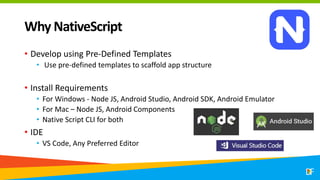
• Install Requirements
• For Windows - Node JS, Android Studio, Android SDK, Android Emulator
• For Mac – Node JS, Android Components
• Native Script CLI for both
• IDE
• VS Code, Any Preferred Editor
Basic Commands
• tns create appname --template template name
• This creates an app based on the provided template name.
• Hello world template is used when no template flag is provided
• tns platform add android
• This creates the android specific platform folder.
• tns platform add ios
• This creates the IOS specific platform folder.
Basic Commands
• tns build android
• This command converts code from app folder to android platform.
• tns build ios
• This command converts code from app folder to ios platform
• tns run android --emulator
• This command builds and runs the app in android emulator
• tns run ios
• This command builds and runs the app in IOS device or emulator
IOS specific commands cannot be executed in Windows OS.
Basic Commands
• tns prepare android
• This command is used to update android platform folder with changes from
app folder.
• tns prepare ios
• This command is used to update IOS platform folder with changes from app
folder
• tns doctor
• This command is used to verify if all required components are setup in
development machine.
IOS specific commands cannot be executed in Windows OS.
App Structure
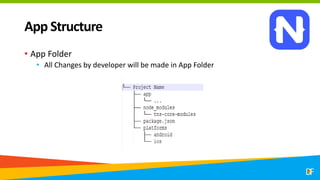
• App Folder
• All Changes by developer will be made in App Folder
App Structure
• Node Modules
• This folder contains application npm module dependencies. The tns-core
modules folder contains Native Script related JavaScript modules which can
be used to develop features in the application like http calls, access files etc.
• Package.Json
• Details of application and the version of native script used and other
npm modules used in the application.
• Platforms
• This folder contains platform-specific code which Native Script needs to
build IOS or Android Apps. This is generated code by Native Script CLI
App Structure
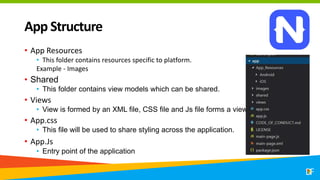
• App Resources
• This folder contains resources specific to platform.
Example - Images
• Shared
• This folder contains view models which can be shared.
• Views
• View is formed by an XML file, CSS file and Js file forms a view.
• App.css
• This file will be used to share styling across the application.
• App.Js
• Entry point of the application
Native Script Controls
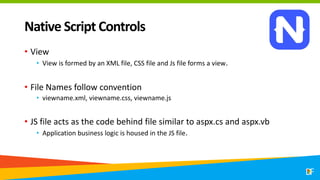
• View
• View is formed by an XML file, CSS file and Js file forms a view.
• File Names follow convention
• viewname.xml, viewname.css, viewname.js
• JS file acts as the code behind file similar to aspx.cs and aspx.vb
• Application business logic is housed in the JS file.
Native Script Controls
• TextField
<TextField id="email" text="{{ email }}" keyboardType="email" autocorrect="false“
autocapitalizationType="none" />
Id – Used to define a unique identifier for the property
Text – Used to define the text which is binded to the TextField. Use of {{ }} binds the
property in viewModel.
keyboardType – This is used to determine the keyboard layout. Email is used for
email fields and Secure is used for password fields.
Native Script Controls
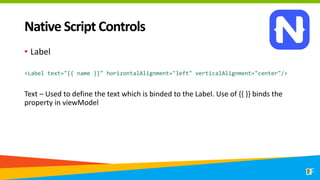
• Label
<Label text="{{ name }}" horizontalAlignment="left" verticalAlignment="center"/>
Text – Used to define the text which is binded to the Label. Use of {{ }} binds the
property in viewModel
Native Script Controls
• Image
<!-- Load image from app/App_Resources/<platform> folders-->
<Image src="res://logo_white_bg" stretch="none" class="img-rounded p-l-15 p-r-15
p-t-15"></Image>
<!-- Load image from app/images folder -->
<Image src="~/images/logo.png" stretch="none" class="img-rounded p-l-15 p-r-15 p-
t-15"></Image>
<!-- Load image from url -->
<Image src="https://docs.nativescript.org/img/NativeScript_logo.png"
stretch="none" class="img-rounded p-l-15 p-r-15 p-t-15"></Image>
<!-- Load image from url -->
<Image [src]="myImageSource" stretch="none" class="img-rounded p-l-15 p-r-15 p-t-
15"></Image>
Native Script Controls
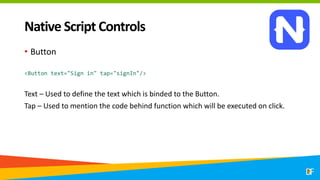
• Button
<Button text="Sign in" tap="signIn"/>
Text – Used to define the text which is binded to the Button.
Tap – Used to mention the code behind function which will be executed on click.
Native Script Controls
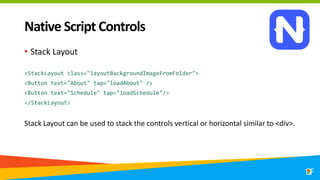
• Stack Layout
<StackLayout class="layoutBackgroundImageFromFolder">
<Button text="About" tap="loadAbout" />
<Button text="Schedule" tap="loadSchedule"/>
</StackLayout>
Stack Layout can be used to stack the controls vertical or horizontal similar to <div>.
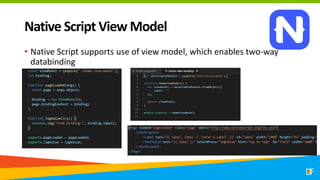
Native Script View Model
• Native Script supports use of view model, which enables two-way
databinding
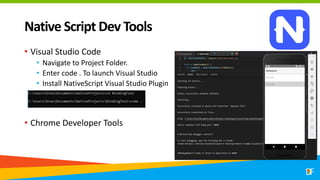
Native Script Dev Tools
• Visual Studio Code
• Navigate to Project Folder.
• Enter code . To launch Visual Studio
• Install NativeScript Visual Studio Plugin
• Chrome Developer Tools
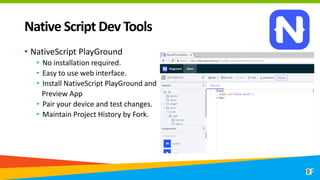
Native Script Dev Tools
• NativeScript PlayGround
• No installation required.
• Easy to use web interface.
• Install NativeScript PlayGround and
Preview App
• Pair your device and test changes.
• Maintain Project History by Fork.
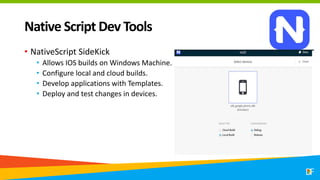
Native Script Dev Tools
• NativeScript SideKick
• Allows IOS builds on Windows Machine.
• Configure local and cloud builds.
• Develop applications with Templates.
• Deploy and test changes in devices.
Demo
• Visual Studio Code and Android Emulator
• Play Ground
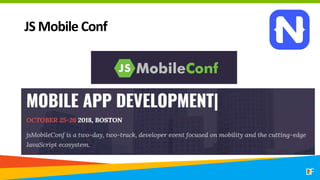
JS Mobile Conf
References
• NativeScript Quick Setup - https://docs.nativescript.org/start/quick-
setup
• NativeScript eBook - https://www.nativescript.org/get-the-
nativescript-book
• NativeScript Groceries PlayGround -
https://play.nativescript.org/?template=groceries-
js&tutorial=groceries-js&autoStart=true
• Native Script Sidekick – Useful for developing IOS apps on Windows
Machine
Thank you!
@baskarmib
https://www.linkedin.com/in/baskarrao-dandlamudi
baskarrao.dandlamudi@outlook.com

Dfc 2018 NativeScript

  • 1.
    NativeScript Web Apps toMobile Apps Developer BASKAR RAO DANDLAMUDI
  • 2.
    Agenda • Overview ofNative Script • Why Native Script • Basic Commands of Native Script CLI • Native Script App Structure • Native Script Controls • Demo using Native Script –Play Ground • Demo using Visual Studio Code
  • 3.
  • 4.
    Overview • Open SourceFramework • Develop IOS and Android Mobile Apps • Single Code Base • Develop cross platform Mobile Apps using Single Code Base • Choose Any Script Framework
  • 5.
    Why NativeScript • Easyto use Web Developer Skills • CSS, XML ,JavaScript or HTML, CSS and Angular/TypeScript/ Vue • Easy to learn • Use your basic web developer skills • Interacts with Native Android and IOS API • NativeScript performs all the heavy lifting in background • Developer can focus only on app development
  • 6.
    Why NativeScript • Developusing Pre-Defined Templates • Use pre-defined templates to scaffold app structure • Install Requirements • For Windows - Node JS, Android Studio, Android SDK, Android Emulator • For Mac – Node JS, Android Components • Native Script CLI for both • IDE • VS Code, Any Preferred Editor
  • 7.
    Basic Commands • tnscreate appname --template template name • This creates an app based on the provided template name. • Hello world template is used when no template flag is provided • tns platform add android • This creates the android specific platform folder. • tns platform add ios • This creates the IOS specific platform folder.
  • 8.
    Basic Commands • tnsbuild android • This command converts code from app folder to android platform. • tns build ios • This command converts code from app folder to ios platform • tns run android --emulator • This command builds and runs the app in android emulator • tns run ios • This command builds and runs the app in IOS device or emulator IOS specific commands cannot be executed in Windows OS.
  • 9.
    Basic Commands • tnsprepare android • This command is used to update android platform folder with changes from app folder. • tns prepare ios • This command is used to update IOS platform folder with changes from app folder • tns doctor • This command is used to verify if all required components are setup in development machine. IOS specific commands cannot be executed in Windows OS.
  • 10.
    App Structure • AppFolder • All Changes by developer will be made in App Folder
  • 11.
    App Structure • NodeModules • This folder contains application npm module dependencies. The tns-core modules folder contains Native Script related JavaScript modules which can be used to develop features in the application like http calls, access files etc. • Package.Json • Details of application and the version of native script used and other npm modules used in the application. • Platforms • This folder contains platform-specific code which Native Script needs to build IOS or Android Apps. This is generated code by Native Script CLI
  • 12.
    App Structure • AppResources • This folder contains resources specific to platform. Example - Images • Shared • This folder contains view models which can be shared. • Views • View is formed by an XML file, CSS file and Js file forms a view. • App.css • This file will be used to share styling across the application. • App.Js • Entry point of the application
  • 13.
    Native Script Controls •View • View is formed by an XML file, CSS file and Js file forms a view. • File Names follow convention • viewname.xml, viewname.css, viewname.js • JS file acts as the code behind file similar to aspx.cs and aspx.vb • Application business logic is housed in the JS file.
  • 14.
  • 15.
    Native Script Controls •TextField <TextField id="email" text="{{ email }}" keyboardType="email" autocorrect="false“ autocapitalizationType="none" /> Id – Used to define a unique identifier for the property Text – Used to define the text which is binded to the TextField. Use of {{ }} binds the property in viewModel. keyboardType – This is used to determine the keyboard layout. Email is used for email fields and Secure is used for password fields.
  • 16.
    Native Script Controls •Label <Label text="{{ name }}" horizontalAlignment="left" verticalAlignment="center"/> Text – Used to define the text which is binded to the Label. Use of {{ }} binds the property in viewModel
  • 17.
    Native Script Controls •Image <!-- Load image from app/App_Resources/<platform> folders--> <Image src="res://logo_white_bg" stretch="none" class="img-rounded p-l-15 p-r-15 p-t-15"></Image> <!-- Load image from app/images folder --> <Image src="~/images/logo.png" stretch="none" class="img-rounded p-l-15 p-r-15 p- t-15"></Image> <!-- Load image from url --> <Image src="https://docs.nativescript.org/img/NativeScript_logo.png" stretch="none" class="img-rounded p-l-15 p-r-15 p-t-15"></Image> <!-- Load image from url --> <Image [src]="myImageSource" stretch="none" class="img-rounded p-l-15 p-r-15 p-t- 15"></Image>
  • 18.
    Native Script Controls •Button <Button text="Sign in" tap="signIn"/> Text – Used to define the text which is binded to the Button. Tap – Used to mention the code behind function which will be executed on click.
  • 19.
    Native Script Controls •Stack Layout <StackLayout class="layoutBackgroundImageFromFolder"> <Button text="About" tap="loadAbout" /> <Button text="Schedule" tap="loadSchedule"/> </StackLayout> Stack Layout can be used to stack the controls vertical or horizontal similar to <div>.
  • 20.
    Native Script ViewModel • Native Script supports use of view model, which enables two-way databinding
  • 21.
    Native Script DevTools • Visual Studio Code • Navigate to Project Folder. • Enter code . To launch Visual Studio • Install NativeScript Visual Studio Plugin • Chrome Developer Tools
  • 22.
    Native Script DevTools • NativeScript PlayGround • No installation required. • Easy to use web interface. • Install NativeScript PlayGround and Preview App • Pair your device and test changes. • Maintain Project History by Fork.
  • 23.
    Native Script DevTools • NativeScript SideKick • Allows IOS builds on Windows Machine. • Configure local and cloud builds. • Develop applications with Templates. • Deploy and test changes in devices.
  • 24.
    Demo • Visual StudioCode and Android Emulator • Play Ground
  • 25.
  • 26.
    References • NativeScript QuickSetup - https://docs.nativescript.org/start/quick- setup • NativeScript eBook - https://www.nativescript.org/get-the- nativescript-book • NativeScript Groceries PlayGround - https://play.nativescript.org/?template=groceries- js&tutorial=groceries-js&autoStart=true • Native Script Sidekick – Useful for developing IOS apps on Windows Machine
  • 27.