DevTools
Package Development
BATCH - D
GROUP - D8
Sagar Deogirkar(10547321)
Ajay (10546004)
INDEX
2
1. Introduction
2. Installing DevTool in R
3. Creating New Package
4. Package Name Checking
5. Adding New Function in Package
6. Package Files
7. Package Description
8. Function Documentation with Roxygen
9. Adding Namespace File
10. Function Import & Export with Roxygen
11. Vignette
12. Package Testing
13. Data Inclusion in Package
INTRODUCTION
3
The aim of Devtools is to make package development easier by providing
R functions that simplify common tasks.
A package is a template or set of conventions that structures your code. In
common words its the collection of several functions which makes our
task easy.
We are going to use roxygen2 for documentation and testthat for testing.
Installation
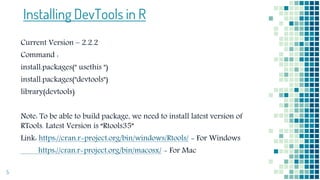
Installing DevTools in R
Current Version – 2.2.2
Command :
install.packages(" usethis ")
install.packages("devtools")
library(devtools)
Note: To be able to build package, we need to install latest version of
RTools. Latest Version is “Rtools35”
Link: https://cran.r-project.org/bin/windows/Rtools/ - For Windows
https://cran.r-project.org/bin/macosx/ - For Mac
5
New Package
Creating New Package in R
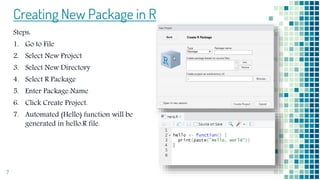
Steps:
1. Go to File
2. Select New Project
3. Select New Directory
4. Select R Package
5. Enter Package Name
6. Click Create Project.
7. Automated (Hello) function will be
generated in hello.R file.
7
Creating New Package in R
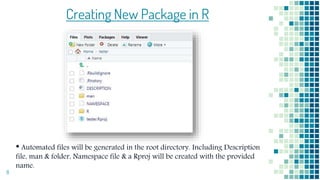
• Automated files will be generated in the root directory. Including Description
file, man & folder, Namespace file & a Rproj will be created with the provided
name.
8
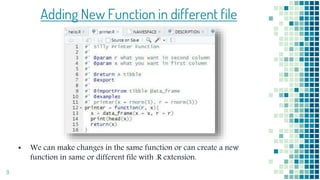
Adding New Function in different file
▪ We can make changes in the same function or can create a new
function in same or different file with .R extension.
9
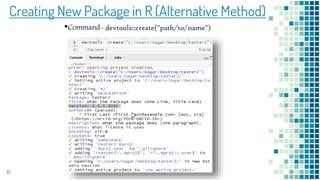
Creating New Package in R (Alternative Method)
10
•Command- devtools::create("path/to/name")
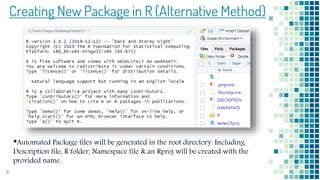
Creating New Package in R (Alternative Method)
•Automated Package files will be generated in the root directory. Including
Description file, R folder, Namespace file & an Rproj will be created with the
provided name.
11
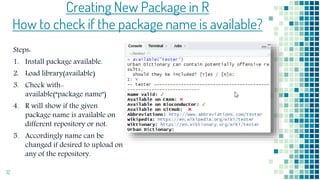
Creating New Package in R
How to check if the package name is available?
Steps:
1. Install package available.
2. Load library(available)
3. Check with-
available(“package name")
4. R will show if the given
package name is available on
different repository or not.
5. Accordingly name can be
changed if desired to upload on
any of the repository.
12
Package Files
14
Package Files
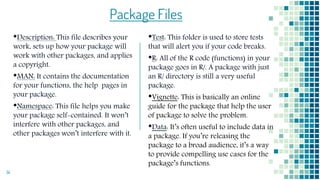
•Description: This file describes your
work, sets up how your package will
work with other packages, and applies
a copyright.
•MAN: It contains the documentation
for your functions, the help pages in
your package.
•Namespace: This file helps you make
your package self-contained. It won’t
interfere with other packages, and
other packages won’t interfere with it.
•Test: This folder is used to store tests
that will alert you if your code breaks.
•R: All of the R code (functions) in your
package goes in R/. A package with just
an R/ directory is still a very useful
package.
•Vignette: This is basically an online
guide for the package that help the user
of package to solve the problem.
•Data: It’s often useful to include data in
a package. If you’re releasing the
package to a broad audience, it’s a way
to provide compelling use cases for the
package’s functions.
Package Description
16
Package Description
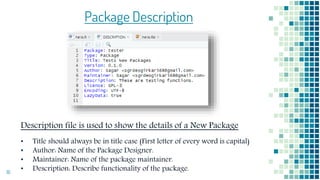
Description file is used to show the details of a New Package
• Title should always be in title case (First letter of every word is capital)
• Author: Name of the Package Designer.
• Maintainer: Name of the package maintainer.
• Description: Describe functionality of the package.
Function
Documentation
Generating Function Documentation
with Roxygen
Function Documentation
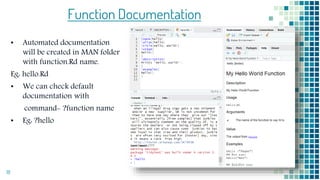
• Automated documentation
will be created in MAN folder
with function.Rd name.
Eg: hello.Rd
• We can check default
documentation with
command- ?function name
• Eg: ?hello
18
19
Generating Function Description with Roxygen
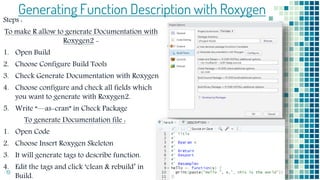
Steps :
To make R allow to generate Documentation with
Roxygen2 -
1. Open Build
2. Choose Configure Build Tools
3. Check Generate Documentation with Roxygen
4. Choose configure and check all fields which
you want to generate with Roxygen2.
5. Write “—as-cran” in Check Package
To generate Documentation file :
1. Open Code
2. Choose Insert Roxygen Skeleton
3. It will generate tags to describe function.
4. Edit the tags and click ‘clean & rebuild’ in
Build.
20
Generating Function Description with Roxygen
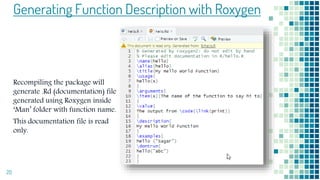
Recompiling the package will
generate .Rd (documentation) file
generated using Roxygen inside
‘Man’ folder with function name.
This documentation file is read
only.
21
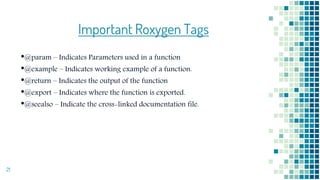
Important Roxygen Tags
•@param – Indicates Parameters used in a function
•@example – Indicates working example of a function.
•@return – Indicates the output of the function
•@export – Indicates where the function is exported.
•@seealso – Indicate the cross-linked documentation file.
Namespace File
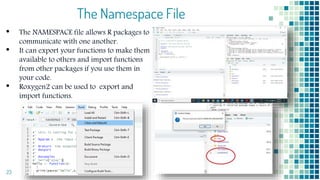
The Namespace File
• The NAMESPACE file allows R packages to
communicate with one another.
• It can export your functions to make them
available to others and import functions
from other packages if you use them in
your code.
• Roxygen2 can be used to export and
import functions.
23
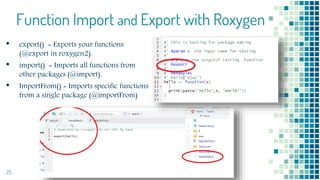
Function Import &
Export with Roxygen
Function Import and Export with Roxygen
• export() = Exports your functions
(@export in roxygen2).
• import() = Imports all functions from
other packages (@import).
• ImportFrom() = Imports specific functions
from a single package (@importFrom)
25
Vignette File
How to create/build a vignette folder
for our package
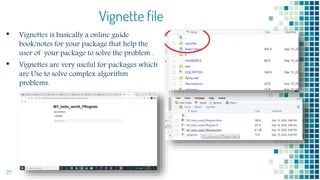
Vignette file
• Vignettes is basically a online guide
book/notes for your package that help the
user of your package to solve the problem .
• Vignettes are very useful for packages which
are Use to solve complex algorithm
problems.
27
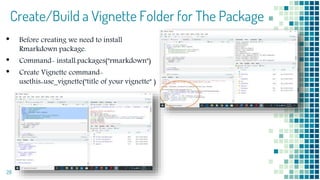
Create/Build a Vignette Folder for The Package
• Before creating we need to install
Rmarkdown package.
• Command- install.packages("rmarkdown")
• Create Vignette command-
usethis::use_vignette("title of your vignette" )
28
Package Testing
Package Testing
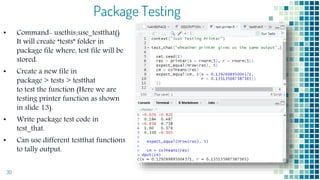
• Command- usethis::use_testthat()
It will create “tests” folder in
package file where, test file will be
stored.
• Create a new file in
package > tests > testthat
to test the function (Here we are
testing printer function as shown
in slide 13).
• Write package test code in
test_that.
• Can use different testthat functions
to tally output.
30
Package Testing
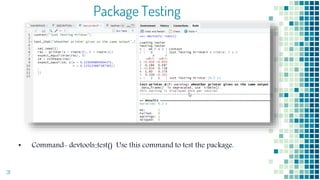
• Command- devtools::test() Use this command to test the package.
31
Data File
Including data in Package
Data Inclusion in Package
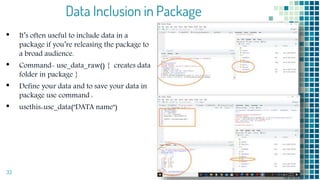
• It’s often useful to include data in a
package if you’re releasing the package to
a broad audience.
• Command- use_data_raw() { creates data
folder in package }
• Define your data and to save your data in
package use command :
• usethis::use_data("DATA name")
33
Thank You!
34

DevTools Package Development

  • 1.
    DevTools Package Development BATCH -D GROUP - D8 Sagar Deogirkar(10547321) Ajay (10546004)
  • 2.
    INDEX 2 1. Introduction 2. InstallingDevTool in R 3. Creating New Package 4. Package Name Checking 5. Adding New Function in Package 6. Package Files 7. Package Description 8. Function Documentation with Roxygen 9. Adding Namespace File 10. Function Import & Export with Roxygen 11. Vignette 12. Package Testing 13. Data Inclusion in Package
  • 3.
    INTRODUCTION 3 The aim ofDevtools is to make package development easier by providing R functions that simplify common tasks. A package is a template or set of conventions that structures your code. In common words its the collection of several functions which makes our task easy. We are going to use roxygen2 for documentation and testthat for testing.
  • 4.
  • 5.
    Installing DevTools inR Current Version – 2.2.2 Command : install.packages(" usethis ") install.packages("devtools") library(devtools) Note: To be able to build package, we need to install latest version of RTools. Latest Version is “Rtools35” Link: https://cran.r-project.org/bin/windows/Rtools/ - For Windows https://cran.r-project.org/bin/macosx/ - For Mac 5
  • 6.
  • 7.
    Creating New Packagein R Steps: 1. Go to File 2. Select New Project 3. Select New Directory 4. Select R Package 5. Enter Package Name 6. Click Create Project. 7. Automated (Hello) function will be generated in hello.R file. 7
  • 8.
    Creating New Packagein R • Automated files will be generated in the root directory. Including Description file, man & folder, Namespace file & a Rproj will be created with the provided name. 8
  • 9.
    Adding New Functionin different file ▪ We can make changes in the same function or can create a new function in same or different file with .R extension. 9
  • 10.
    Creating New Packagein R (Alternative Method) 10 •Command- devtools::create("path/to/name")
  • 11.
    Creating New Packagein R (Alternative Method) •Automated Package files will be generated in the root directory. Including Description file, R folder, Namespace file & an Rproj will be created with the provided name. 11
  • 12.
    Creating New Packagein R How to check if the package name is available? Steps: 1. Install package available. 2. Load library(available) 3. Check with- available(“package name") 4. R will show if the given package name is available on different repository or not. 5. Accordingly name can be changed if desired to upload on any of the repository. 12
  • 13.
  • 14.
    14 Package Files •Description: Thisfile describes your work, sets up how your package will work with other packages, and applies a copyright. •MAN: It contains the documentation for your functions, the help pages in your package. •Namespace: This file helps you make your package self-contained. It won’t interfere with other packages, and other packages won’t interfere with it. •Test: This folder is used to store tests that will alert you if your code breaks. •R: All of the R code (functions) in your package goes in R/. A package with just an R/ directory is still a very useful package. •Vignette: This is basically an online guide for the package that help the user of package to solve the problem. •Data: It’s often useful to include data in a package. If you’re releasing the package to a broad audience, it’s a way to provide compelling use cases for the package’s functions.
  • 15.
  • 16.
    16 Package Description Description fileis used to show the details of a New Package • Title should always be in title case (First letter of every word is capital) • Author: Name of the Package Designer. • Maintainer: Name of the package maintainer. • Description: Describe functionality of the package.
  • 17.
  • 18.
    Function Documentation • Automateddocumentation will be created in MAN folder with function.Rd name. Eg: hello.Rd • We can check default documentation with command- ?function name • Eg: ?hello 18
  • 19.
    19 Generating Function Descriptionwith Roxygen Steps : To make R allow to generate Documentation with Roxygen2 - 1. Open Build 2. Choose Configure Build Tools 3. Check Generate Documentation with Roxygen 4. Choose configure and check all fields which you want to generate with Roxygen2. 5. Write “—as-cran” in Check Package To generate Documentation file : 1. Open Code 2. Choose Insert Roxygen Skeleton 3. It will generate tags to describe function. 4. Edit the tags and click ‘clean & rebuild’ in Build.
  • 20.
    20 Generating Function Descriptionwith Roxygen Recompiling the package will generate .Rd (documentation) file generated using Roxygen inside ‘Man’ folder with function name. This documentation file is read only.
  • 21.
    21 Important Roxygen Tags •@param– Indicates Parameters used in a function •@example – Indicates working example of a function. •@return – Indicates the output of the function •@export – Indicates where the function is exported. •@seealso – Indicate the cross-linked documentation file.
  • 22.
  • 23.
    The Namespace File •The NAMESPACE file allows R packages to communicate with one another. • It can export your functions to make them available to others and import functions from other packages if you use them in your code. • Roxygen2 can be used to export and import functions. 23
  • 24.
  • 25.
    Function Import andExport with Roxygen • export() = Exports your functions (@export in roxygen2). • import() = Imports all functions from other packages (@import). • ImportFrom() = Imports specific functions from a single package (@importFrom) 25
  • 26.
    Vignette File How tocreate/build a vignette folder for our package
  • 27.
    Vignette file • Vignettesis basically a online guide book/notes for your package that help the user of your package to solve the problem . • Vignettes are very useful for packages which are Use to solve complex algorithm problems. 27
  • 28.
    Create/Build a VignetteFolder for The Package • Before creating we need to install Rmarkdown package. • Command- install.packages("rmarkdown") • Create Vignette command- usethis::use_vignette("title of your vignette" ) 28
  • 29.
  • 30.
    Package Testing • Command-usethis::use_testthat() It will create “tests” folder in package file where, test file will be stored. • Create a new file in package > tests > testthat to test the function (Here we are testing printer function as shown in slide 13). • Write package test code in test_that. • Can use different testthat functions to tally output. 30
  • 31.
    Package Testing • Command-devtools::test() Use this command to test the package. 31
  • 32.
  • 33.
    Data Inclusion inPackage • It’s often useful to include data in a package if you’re releasing the package to a broad audience. • Command- use_data_raw() { creates data folder in package } • Define your data and to save your data in package use command : • usethis::use_data("DATA name") 33
  • 34.

Editor's Notes

  • #6 Devtools wont get loaded in R script until “usethis” package is installed in R.
  • #8 Package name should not include symbols. Lower case is preferred. Hello function will appear. All Function files will be automatically created in R Folder.
  • #11 Note: with this method automated function will not be generated.
  • #20 Roxygen helps to make documentation and code (functions) in one place. 1. Checking all the option in configure will generate all files using Roxygen. 2. Writing “—as-cran” in check Package window will able to check package in cran. 3. While choosing “Insert Roxygen Skeleton” make sure the cursor is inside the function. 4. If existing .Rd (in MAN folder) and Namespace files are present then R will show error as ‘the files are already present and can’t be overwritten’ when ‘clean and rebuild’ after entering all documentation details.