OCTOPUS INSTALLATION GUIDE
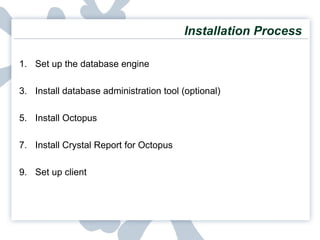
Installation Process Set up the database engine Install database administration tool (optional) Install Octopus Install Crystal Report for Octopus Set up client
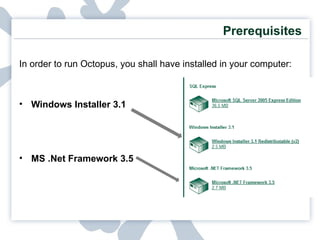
In order to run Octopus, you shall have installed in your computer: Windows Installer 3.1 MS .Net Framework 3.5 Prerequisites
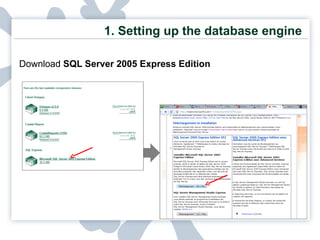
1. Setting up the database engine Download  SQL Server 2005 Express Edition
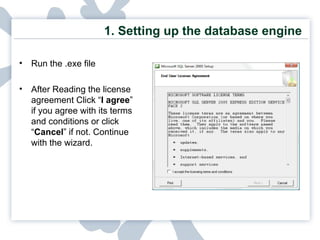
1. Setting up the database engine Run the .exe file After Reading the license agreement Click “ I agree ” if you agree with its terms and conditions or click “ Cancel ” if not. Continue with the wizard.
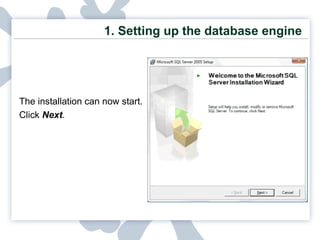
1. Setting up the database engine The installation can now start.  Click  Next .
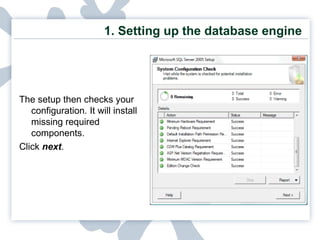
1. Setting up the database engine The setup then checks your configuration. It will install missing required components.  Click  next .
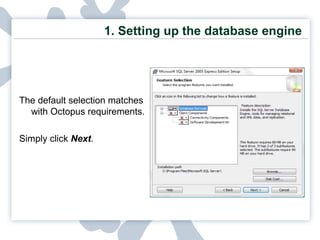
1. Setting up the database engine The default selection matches with Octopus requirements.  Simply click  Next .
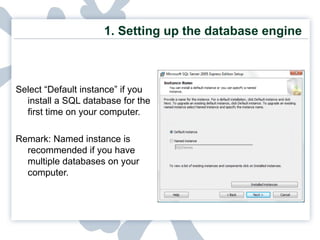
1. Setting up the database engine Select “Default instance” if you install a SQL database for the first time on your computer. Remark: Named instance is recommended if you have multiple databases on your computer.
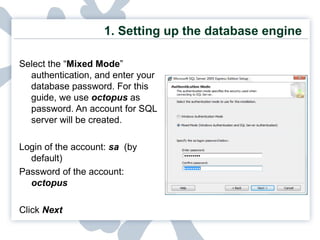
1. Setting up the database engine Select the “ Mixed Mode ” authentication, and enter your database password. For this guide, we use  octopus   as password. An account for SQL server will be created. Login of the account:  sa  (by default) Password of the account:  octopus Click  Next
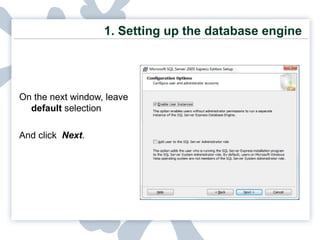
1. Setting up the database engine On the next window, l eave  default  selection  And click  Next .
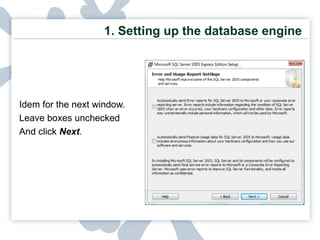
1. Setting up the database engine Idem for the next window.  Leave boxes unchecked  And click  Next .
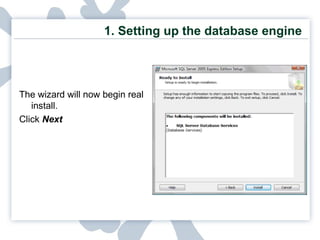
1. Setting up the database engine The wizard will now begin real install.  Click  Next
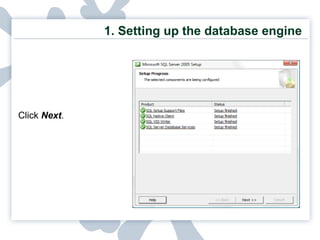
1. Setting up the database engine Click  Next .
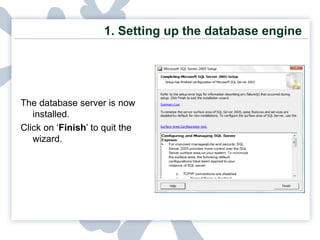
1. Setting up the database engine The database server is now installed.  Click on ‘ Finish ’ to quit the wizard.
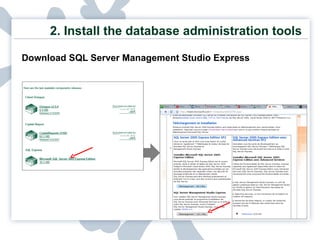
2.  Install the database administration tools Download SQL Server Management Studio Express
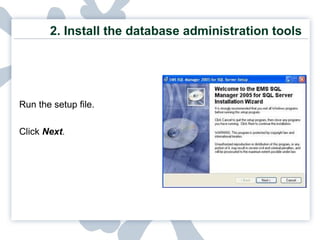
2.  Install the database administration tools Run the setup file.   Click  Next .
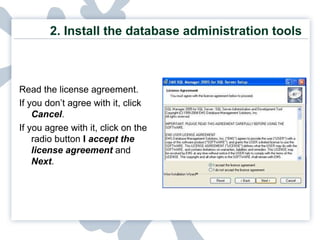
2.  Install the database administration tools Read the license agreement.  If you don’t agree with it, click  Cancel .  If you agree with it, click on the radio button  I  accept the license agreement   and  Next .
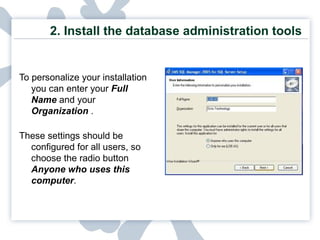
2.  Install the database administration tools   To personalize your installation you can enter your  Full Name  and your  Organization   . These settings should be configured for all users, so choose the radio button  Anyone who uses this computer .
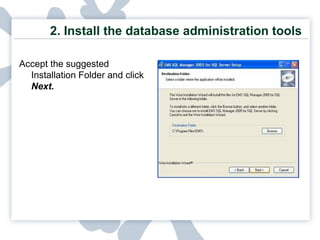
2.  Install the database administration tools Accept the suggested Installation Folder and click   Next.
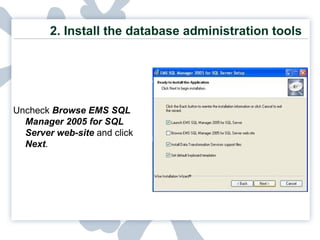
2.  Install the database administration tools Uncheck  Browse EMS SQL Manager 2005 for SQL Server web-site  and click  Next .
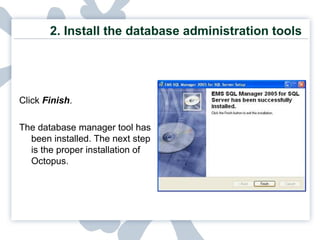
2.  Install the database administration tools Click  Finish . The database manager tool has been installed. The next step is the proper installation of Octopus.
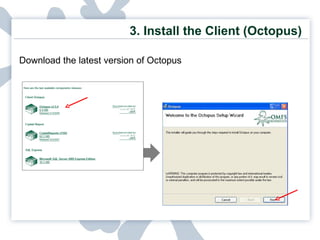
3.  Install the Client (Octopus) Download the latest version of Octopus
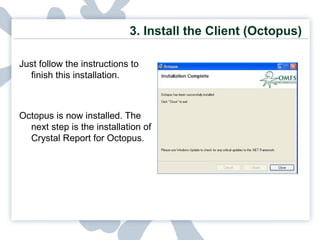
3.  Install the Client (Octopus) Just follow the instructions to finish this installation. Octopus is now installed. The next step is the installation of Crystal Report for Octopus.
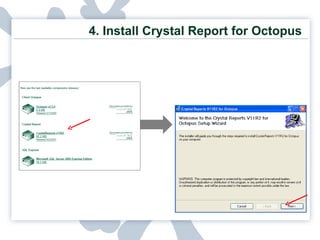
4.  Install Crystal Report for Octopus
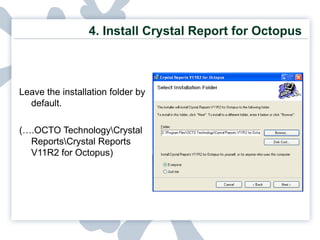
4.  Install Crystal Report for Octopus Leave the installation folder by default. (….OCTO Technology\Crystal Reports\Crystal Reports V11R2 for Octopus)
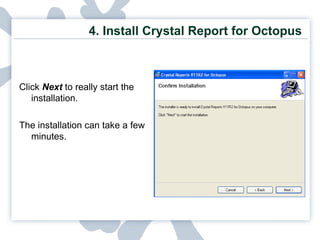
4.  Install Crystal Report for Octopus Click  Next  to really start the installation. The installation can take a few minutes.
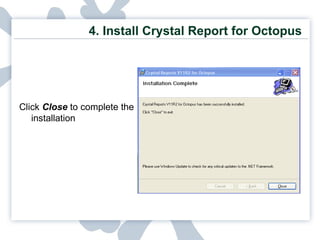
4.  Install Crystal Report for Octopus Click  Close   to complete the installation
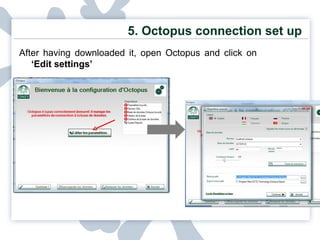
5. Octopus connection set up After having downloaded it, open Octopus and click on  ‘Edit settings’
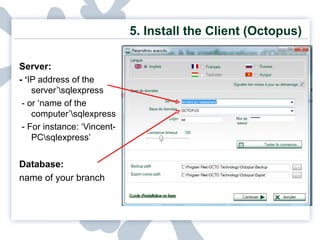
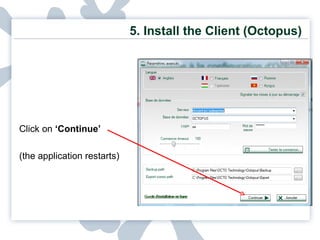
5.  Install the Client (Octopus) Server:  - ‘ IP address of the server’\sqlexpress - or ‘name of the computer’\sqlexpress - For instance: ‘Vincent-PC\sqlexpress’ Database:  name of your branch
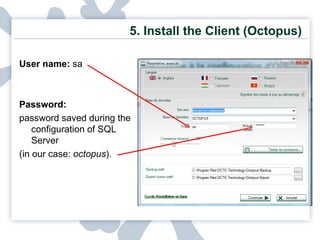
5.  Install the Client (Octopus) User name:  sa Password:   password saved during the configuration of SQL Server (in our case:  octopus ).
5.  Install the Client (Octopus) Click on  ‘Continue’ (the application restarts)
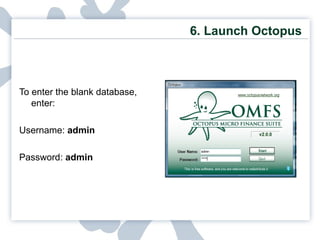
6.  Launch Octopus To enter the blank database, enter: Username:  admin Password:  admin
Any comments?  Contact us at  [email_address]   © Octopus Microfinance 2009

Installation Guide - Octopus

  • 1.
  • 2.
    Installation Process Setup the database engine Install database administration tool (optional) Install Octopus Install Crystal Report for Octopus Set up client
  • 3.
    In order torun Octopus, you shall have installed in your computer: Windows Installer 3.1 MS .Net Framework 3.5 Prerequisites
  • 4.
    1. Setting upthe database engine Download SQL Server 2005 Express Edition
  • 5.
    1. Setting upthe database engine Run the .exe file After Reading the license agreement Click “ I agree ” if you agree with its terms and conditions or click “ Cancel ” if not. Continue with the wizard.
  • 6.
    1. Setting upthe database engine The installation can now start. Click Next .
  • 7.
    1. Setting upthe database engine The setup then checks your configuration. It will install missing required components. Click next .
  • 8.
    1. Setting upthe database engine The default selection matches with Octopus requirements. Simply click Next .
  • 9.
    1. Setting upthe database engine Select “Default instance” if you install a SQL database for the first time on your computer. Remark: Named instance is recommended if you have multiple databases on your computer.
  • 10.
    1. Setting upthe database engine Select the “ Mixed Mode ” authentication, and enter your database password. For this guide, we use octopus as password. An account for SQL server will be created. Login of the account: sa (by default) Password of the account: octopus Click Next
  • 11.
    1. Setting upthe database engine On the next window, l eave default selection And click Next .
  • 12.
    1. Setting upthe database engine Idem for the next window. Leave boxes unchecked And click Next .
  • 13.
    1. Setting upthe database engine The wizard will now begin real install. Click Next
  • 14.
    1. Setting upthe database engine Click Next .
  • 15.
    1. Setting upthe database engine The database server is now installed. Click on ‘ Finish ’ to quit the wizard.
  • 16.
    2. Installthe database administration tools Download SQL Server Management Studio Express
  • 17.
    2. Installthe database administration tools Run the setup file.   Click Next .
  • 18.
    2. Installthe database administration tools Read the license agreement. If you don’t agree with it, click Cancel . If you agree with it, click on the radio button I accept the license agreement and Next .
  • 19.
    2. Installthe database administration tools   To personalize your installation you can enter your Full Name and your Organization . These settings should be configured for all users, so choose the radio button Anyone who uses this computer .
  • 20.
    2. Installthe database administration tools Accept the suggested Installation Folder and click Next.
  • 21.
    2. Installthe database administration tools Uncheck Browse EMS SQL Manager 2005 for SQL Server web-site and click Next .
  • 22.
    2. Installthe database administration tools Click Finish . The database manager tool has been installed. The next step is the proper installation of Octopus.
  • 23.
    3. Installthe Client (Octopus) Download the latest version of Octopus
  • 24.
    3. Installthe Client (Octopus) Just follow the instructions to finish this installation. Octopus is now installed. The next step is the installation of Crystal Report for Octopus.
  • 25.
    4. InstallCrystal Report for Octopus
  • 26.
    4. InstallCrystal Report for Octopus Leave the installation folder by default. (….OCTO Technology\Crystal Reports\Crystal Reports V11R2 for Octopus)
  • 27.
    4. InstallCrystal Report for Octopus Click Next to really start the installation. The installation can take a few minutes.
  • 28.
    4. InstallCrystal Report for Octopus Click Close to complete the installation
  • 29.
    5. Octopus connectionset up After having downloaded it, open Octopus and click on ‘Edit settings’
  • 30.
    5. Installthe Client (Octopus) Server: - ‘ IP address of the server’\sqlexpress - or ‘name of the computer’\sqlexpress - For instance: ‘Vincent-PC\sqlexpress’ Database: name of your branch
  • 31.
    5. Installthe Client (Octopus) User name: sa Password: password saved during the configuration of SQL Server (in our case: octopus ).
  • 32.
    5. Installthe Client (Octopus) Click on ‘Continue’ (the application restarts)
  • 33.
    6. LaunchOctopus To enter the blank database, enter: Username: admin Password: admin
  • 34.
    Any comments? Contact us at [email_address] © Octopus Microfinance 2009