Customizing SAP Delivered BEx -
 Standard Template


Applies to:
SAP BW 3.5 and BI 7.0. For more information, visit the EDW homepage.

Summary
There are various scenarios while using BEx analyzer. Users want to customize the BEx standard template
for various BEx cell types.

Author:     Pankaj Kumar Gupta
Company: HCL AXON
Created on: October 7, 2010

Author Bio
              Pankaj Kumar Gupta works as a BI Technical Specialist with HCL.AXON. His skill set
              includes SAP Business Intelligence and BOBJ.


SAP COMMUNITY NETWORK                SDN - sdn.sap.com | BPX - bpx.sap.com | BOC - boc.sap.com | UAC - uac.sap.com
© 2010 SAP AG                                                                                                    1
Customizing SAP Delivered BEx -Standard Template


Table of Contents
Introduction ......................................................................................................................................................... 3
Business Scenario .............................................................................................................................................. 3
Solution ............................................................................................................................................................... 4
Format menu ...................................................................................................................................................... 4
Change result row header and data values format ............................................................................................ 5
Modify template to work for all queries ............................................................................................................... 7
Related Content ................................................................................................................................................ 10
Disclaimer and Liability Notice .......................................................................................................................... 11


SAP COMMUNITY NETWORK                                       SDN - sdn.sap.com | BPX - bpx.sap.com | BOC - boc.sap.com | UAC - uac.sap.com
© 2010 SAP AG                                                                                                                           2
Customizing SAP Delivered BEx -Standard Template


Introduction
This article discusses how to change the standard BEx template without creating workbook. Generally a
specific workbook is created for reports, but when running any BEx Query using BEx Analyzer, the standard
formatting is displayed for Header, Data and Result rows for below parameters:
       Font
       Color
       Size
       Grid Lines.


Business Scenario
Business is asking to change the color and font scheme for the default BEx Analyzer when a user runs any
BEx Query in the BEx Analyzer.
Below is the screen shot of the data returned.


Note: Open any BEx query in BEx Analyzer, the color and font scheme of the column headers and cell data will be
      displayed as above.


SAP COMMUNITY NETWORK                    SDN - sdn.sap.com | BPX - bpx.sap.com | BOC - boc.sap.com | UAC - uac.sap.com
© 2010 SAP AG                                                                                                        3
Customizing SAP Delivered BEx -Standard Template


Solution
To customize the above template, change the formatting option of the Excel and explore the cell types
provided by SAP. Below are the steps and screen shots defined to achieve the same.

Format menu
To start the customization process
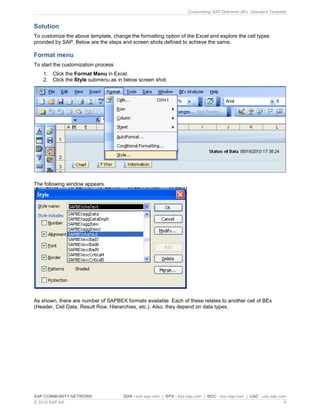
    1. Click the Format Menu in Excel.
    2. Click the Style submenu as in below screen shot.


The following window appears.


As shown, there are number of SAPBEX formats available. Each of these relates to another cell of BEx
(Header, Cell Data, Result Row, Hierarchies, etc.). Also, they depend on data types.


SAP COMMUNITY NETWORK                 SDN - sdn.sap.com | BPX - bpx.sap.com | BOC - boc.sap.com | UAC - uac.sap.com
© 2010 SAP AG                                                                                                     4
Customizing SAP Delivered BEx -Standard Template


Change result row header and data values format
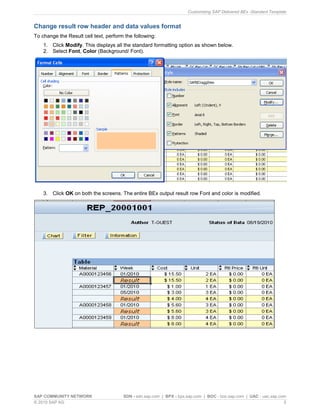
To change the Result cell text, perform the following:
    1. Click Modify. This displays all the standard formatting option as shown below.
    2. Select Font, Color (Background/ Font).


    3. Click OK on both the screens. The entire BEx output result row Font and color is modified.


SAP COMMUNITY NETWORK                  SDN - sdn.sap.com | BPX - bpx.sap.com | BOC - boc.sap.com | UAC - uac.sap.com
© 2010 SAP AG                                                                                                      5
Customizing SAP Delivered BEx -Standard Template


   4. Change the Result Values by repeating steps 1-3.


SAP COMMUNITY NETWORK              SDN - sdn.sap.com | BPX - bpx.sap.com | BOC - boc.sap.com | UAC - uac.sap.com
© 2010 SAP AG                                                                                                  6
Customizing SAP Delivered BEx -Standard Template


Modify template to work for all queries
In this step, the Standard BEx template delivered by SAP is changed to work for all other queries output in
the new Template format.
To modify the template
    1. Create a workbook. Save it as shown.


SAP COMMUNITY NETWORK                  SDN - sdn.sap.com | BPX - bpx.sap.com | BOC - boc.sap.com | UAC - uac.sap.com
© 2010 SAP AG                                                                                                      7
Customizing SAP Delivered BEx -Standard Template


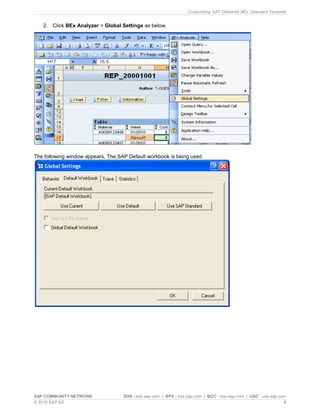
   2. Click BEx Analyzer > Global Settings as below.


The following window appears. The SAP Default workbook is being used.


SAP COMMUNITY NETWORK               SDN - sdn.sap.com | BPX - bpx.sap.com | BOC - boc.sap.com | UAC - uac.sap.com
© 2010 SAP AG                                                                                                   8
Customizing SAP Delivered BEx -Standard Template


   3. Click Use Current. The Current Default Workbook field will update similar to the one shown below.


This makes the current workbook (the changed one) the new BEx Template for the user.
   4. Click the Global Default Workbook checkbox to make this new BEx template available for all users.


SAP COMMUNITY NETWORK               SDN - sdn.sap.com | BPX - bpx.sap.com | BOC - boc.sap.com | UAC - uac.sap.com
© 2010 SAP AG                                                                                                   9
Customizing SAP Delivered BEx -Standard Template


Related Content
For more information, please visit the Defining Sections portion of the SAP NetWeaver library and the
Business Intelligence homepage.


SAP COMMUNITY NETWORK                 SDN - sdn.sap.com | BPX - bpx.sap.com | BOC - boc.sap.com | UAC - uac.sap.com
© 2010 SAP AG                                                                                                     10
Customizing SAP Delivered BEx -Standard Template


Disclaimer and Liability Notice
This document may discuss sample coding or other information that does not include SAP official interfaces and therefore is not
supported by SAP. Changes made based on this information are not supported and can be overwritten during an upgrade.
SAP will not be held liable for any damages caused by using or misusing the information, code or methods suggested in this document,
and anyone using these methods does so at his/her own risk.
SAP offers no guarantees and assumes no responsibility or liability of any type with respect to the content of this technical article or
code sample, including any liability resulting from incompatibility between the content within this document and the materials and
services offered by SAP. You agree that you will not hold, or seek to hold, SAP responsible or liable with respect to the content of this
document.


SAP COMMUNITY NETWORK                            SDN - sdn.sap.com | BPX - bpx.sap.com | BOC - boc.sap.com | UAC - uac.sap.com
© 2010 SAP AG                                                                                                                11

Customizing sap template bex

  • 1.
    Customizing SAP DeliveredBEx - Standard Template Applies to: SAP BW 3.5 and BI 7.0. For more information, visit the EDW homepage. Summary There are various scenarios while using BEx analyzer. Users want to customize the BEx standard template for various BEx cell types. Author: Pankaj Kumar Gupta Company: HCL AXON Created on: October 7, 2010 Author Bio Pankaj Kumar Gupta works as a BI Technical Specialist with HCL.AXON. His skill set includes SAP Business Intelligence and BOBJ. SAP COMMUNITY NETWORK SDN - sdn.sap.com | BPX - bpx.sap.com | BOC - boc.sap.com | UAC - uac.sap.com © 2010 SAP AG 1
  • 2.
    Customizing SAP DeliveredBEx -Standard Template Table of Contents Introduction ......................................................................................................................................................... 3 Business Scenario .............................................................................................................................................. 3 Solution ............................................................................................................................................................... 4 Format menu ...................................................................................................................................................... 4 Change result row header and data values format ............................................................................................ 5 Modify template to work for all queries ............................................................................................................... 7 Related Content ................................................................................................................................................ 10 Disclaimer and Liability Notice .......................................................................................................................... 11 SAP COMMUNITY NETWORK SDN - sdn.sap.com | BPX - bpx.sap.com | BOC - boc.sap.com | UAC - uac.sap.com © 2010 SAP AG 2
  • 3.
    Customizing SAP DeliveredBEx -Standard Template Introduction This article discusses how to change the standard BEx template without creating workbook. Generally a specific workbook is created for reports, but when running any BEx Query using BEx Analyzer, the standard formatting is displayed for Header, Data and Result rows for below parameters:  Font  Color  Size  Grid Lines. Business Scenario Business is asking to change the color and font scheme for the default BEx Analyzer when a user runs any BEx Query in the BEx Analyzer. Below is the screen shot of the data returned. Note: Open any BEx query in BEx Analyzer, the color and font scheme of the column headers and cell data will be displayed as above. SAP COMMUNITY NETWORK SDN - sdn.sap.com | BPX - bpx.sap.com | BOC - boc.sap.com | UAC - uac.sap.com © 2010 SAP AG 3
  • 4.
    Customizing SAP DeliveredBEx -Standard Template Solution To customize the above template, change the formatting option of the Excel and explore the cell types provided by SAP. Below are the steps and screen shots defined to achieve the same. Format menu To start the customization process 1. Click the Format Menu in Excel. 2. Click the Style submenu as in below screen shot. The following window appears. As shown, there are number of SAPBEX formats available. Each of these relates to another cell of BEx (Header, Cell Data, Result Row, Hierarchies, etc.). Also, they depend on data types. SAP COMMUNITY NETWORK SDN - sdn.sap.com | BPX - bpx.sap.com | BOC - boc.sap.com | UAC - uac.sap.com © 2010 SAP AG 4
  • 5.
    Customizing SAP DeliveredBEx -Standard Template Change result row header and data values format To change the Result cell text, perform the following: 1. Click Modify. This displays all the standard formatting option as shown below. 2. Select Font, Color (Background/ Font). 3. Click OK on both the screens. The entire BEx output result row Font and color is modified. SAP COMMUNITY NETWORK SDN - sdn.sap.com | BPX - bpx.sap.com | BOC - boc.sap.com | UAC - uac.sap.com © 2010 SAP AG 5
  • 6.
    Customizing SAP DeliveredBEx -Standard Template 4. Change the Result Values by repeating steps 1-3. SAP COMMUNITY NETWORK SDN - sdn.sap.com | BPX - bpx.sap.com | BOC - boc.sap.com | UAC - uac.sap.com © 2010 SAP AG 6
  • 7.
    Customizing SAP DeliveredBEx -Standard Template Modify template to work for all queries In this step, the Standard BEx template delivered by SAP is changed to work for all other queries output in the new Template format. To modify the template 1. Create a workbook. Save it as shown. SAP COMMUNITY NETWORK SDN - sdn.sap.com | BPX - bpx.sap.com | BOC - boc.sap.com | UAC - uac.sap.com © 2010 SAP AG 7
  • 8.
    Customizing SAP DeliveredBEx -Standard Template 2. Click BEx Analyzer > Global Settings as below. The following window appears. The SAP Default workbook is being used. SAP COMMUNITY NETWORK SDN - sdn.sap.com | BPX - bpx.sap.com | BOC - boc.sap.com | UAC - uac.sap.com © 2010 SAP AG 8
  • 9.
    Customizing SAP DeliveredBEx -Standard Template 3. Click Use Current. The Current Default Workbook field will update similar to the one shown below. This makes the current workbook (the changed one) the new BEx Template for the user. 4. Click the Global Default Workbook checkbox to make this new BEx template available for all users. SAP COMMUNITY NETWORK SDN - sdn.sap.com | BPX - bpx.sap.com | BOC - boc.sap.com | UAC - uac.sap.com © 2010 SAP AG 9
  • 10.
    Customizing SAP DeliveredBEx -Standard Template Related Content For more information, please visit the Defining Sections portion of the SAP NetWeaver library and the Business Intelligence homepage. SAP COMMUNITY NETWORK SDN - sdn.sap.com | BPX - bpx.sap.com | BOC - boc.sap.com | UAC - uac.sap.com © 2010 SAP AG 10
  • 11.
    Customizing SAP DeliveredBEx -Standard Template Disclaimer and Liability Notice This document may discuss sample coding or other information that does not include SAP official interfaces and therefore is not supported by SAP. Changes made based on this information are not supported and can be overwritten during an upgrade. SAP will not be held liable for any damages caused by using or misusing the information, code or methods suggested in this document, and anyone using these methods does so at his/her own risk. SAP offers no guarantees and assumes no responsibility or liability of any type with respect to the content of this technical article or code sample, including any liability resulting from incompatibility between the content within this document and the materials and services offered by SAP. You agree that you will not hold, or seek to hold, SAP responsible or liable with respect to the content of this document. SAP COMMUNITY NETWORK SDN - sdn.sap.com | BPX - bpx.sap.com | BOC - boc.sap.com | UAC - uac.sap.com © 2010 SAP AG 11