Eziama E. Ubachukwu
Computer Hardware & Software
CSC 101 Lecture Notes
Federal University, Ndufu-Alike, Ikwo
Reading texts
 Core reading text
 Behrouze A. Forouzan (2003) Foundations of
Computer Science, Thomson Learning Academic
Resource Centre
 Supplementary reading
 Parsons J.J and Oja D., (2010), New Perspectives
on Computer Concepts 2011: Comprehensive;
Cengage Learning
 Miller, Michael (2007), Absolute Beginner's Guide to
Computer basic; Indiana; Que Publishing
 Mansfield, Richard (2009), Programming: A
Beginners Guide, New York McGraw-Hill Company
 Schildt H. (2007), Java: The Complete Reference.
Seventh Edition. New York: McGraw Hill
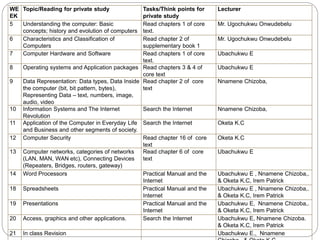
WE
EK
Topic/Reading for private study Tasks/Think points for
private study
Lecturer
5 Understanding the computer: Basic
concepts; history and evolution of computers
Read chapters 1 of core
text.
Mr. Ugochukwu Onwudebelu
6 Characteristics and Classification of
Computers
Read chapter 2 of
supplementary book 1
Mr. Ugochukwu Onwudebelu
7 Computer Hardware and Software Read chapters 1 of core
text.
Ubachukwu E
8 Operating systems and Application packages Read chapters 3 & 4 of
core text
Ubachukwu E
9 Data Representation: Data types, Data Inside
the computer (bit, bit pattern, bytes),
Representing Data – text, numbers, image,
audio, video
Read chapter 2 of core
text
Nnamene Chizoba,
10 Information Systems and The Internet
Revolution
Search the Internet Nnamene Chizoba,
11 Application of the Computer in Everyday Life
and Business and other segments of society.
Search the Internet Oketa K.C
12 Computer Security Read chapter 16 of core
text
Oketa K.C
13 Computer networks, categories of networks
(LAN, MAN, WAN etc), Connecting Devices
(Repeaters, Bridges, routers, gateway)
Read chapter 6 of core
text
Ubachukwu E
14 Word Processors Practical Manual and the
Internet
Ubachukwu E , Nnamene Chizoba,.
& Oketa K.C, Irem Patrick
18 Spreadsheets Practical Manual and the
Internet
Ubachukwu E , Nnamene Chizoba,.
& Oketa K.C, Irem Patrick
19 Presentations Practical Manual and the
Internet
Ubachukwu E, Nnamene Chizoba,.
& Oketa K.C, Irem Patrick
20 Access, graphics and other applications. Search the Internet Ubachukwu E, Nnamene Chizoba.
& Oketa K.C, Irem Patrick
21 In class Revision Ubachukwu E., Nnamene
Introduction
 Computer hardware is the collection of physical
components that constitute a computer
system. They are the physical parts or
components of a computer, such as monitor,
keyboard, etc.
 Computer software, or simply software, on the
other hand, is that part of a computer system that
consists of encoded information or computer
instructions, in contrast to the
physical hardware from which the system is built.
 Both the hardware and the software work
together to make a computer system perform its
activities. They depend on each other.
Computer Hardware
Computer Hardware
 Computer hardware, as already defined, is the
collection of physical components that constitute
a computer system.
 There are hardware that are part of the main
computer. These hardware reside inside the
computer casing (or system unit).
 Other hardware can be attached (connected) to
the system unit through ports. Examples of ports
are USB port, audio port, HDMI port, VGA port,
and serial port.
 These external hardware are called peripherals.
E.g. mouse, keyboard, monitor, scanner, joystick,
speakers, microphones, etc.
Computer Hardware (contd.)
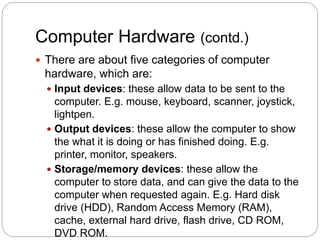
 There are about five categories of computer
hardware, which are:
 Input devices: these allow data to be sent to the
computer. E.g. mouse, keyboard, scanner, joystick,
lightpen.
 Output devices: these allow the computer to show
the what it is doing or has finished doing. E.g.
printer, monitor, speakers.
 Storage/memory devices: these allow the
computer to store data, and can give the data to the
computer when requested again. E.g. Hard disk
drive (HDD), Random Access Memory (RAM),
cache, external hard drive, flash drive, CD ROM,
DVD ROM.
Computer Hardware (contd.)
 Categories (contd.)
 Processing devices: these are the units that
perform computational and control tasks in the
computer. E.g. Central Processing Unit (CPU),
Graphics Processing Unit (GPU), motherboard,
sound card, network card.
 Networking devices: these are hardware that
enable the computer to connect to a network or the
internet. This class of hardware devices are not as
well-defined as the previous four classes, so there
may be some overlap between networking devices
and other kinds of devices. E.g. of networking
devices: modem, wireless adapter, Bluetooth
adapter, router, switch, etc.
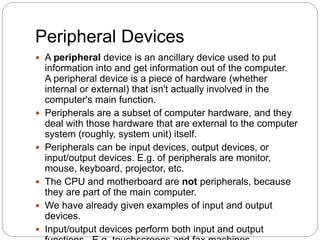
Peripheral Devices
 A peripheral device is an ancillary device used to put
information into and get information out of the computer.
A peripheral device is a piece of hardware (whether
internal or external) that isn't actually involved in the
computer's main function.
 Peripherals are a subset of computer hardware, and they
deal with those hardware that are external to the computer
system (roughly, system unit) itself.
 Peripherals can be input devices, output devices, or
input/output devices. E.g. of peripherals are monitor,
mouse, keyboard, projector, etc.
 The CPU and motherboard are not peripherals, because
they are part of the main computer.
 We have already given examples of input and output
devices.
 Input/output devices perform both input and output
Peripheral Devices: Monitor
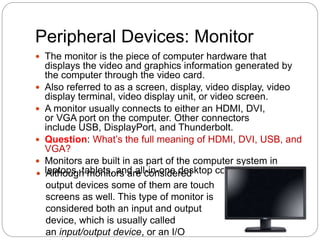
 The monitor is the piece of computer hardware that
displays the video and graphics information generated by
the computer through the video card.
 Also referred to as a screen, display, video display, video
display terminal, video display unit, or video screen.
 A monitor usually connects to either an HDMI, DVI,
or VGA port on the computer. Other connectors
include USB, DisplayPort, and Thunderbolt.
 Question: What’s the full meaning of HDMI, DVI, USB, and
VGA?
 Monitors are built in as part of the computer system in
laptops, tablets, and all-in-one desktop computers.
 Although monitors are considered
output devices some of them are touch
screens as well. This type of monitor is
considered both an input and output
device, which is usually called
an input/output device, or an I/O
Peripheral Devices: Keyboard
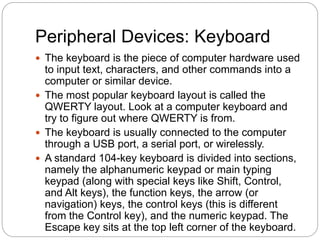
 The keyboard is the piece of computer hardware used
to input text, characters, and other commands into a
computer or similar device.
 The most popular keyboard layout is called the
QWERTY layout. Look at a computer keyboard and
try to figure out where QWERTY is from.
 The keyboard is usually connected to the computer
through a USB port, a serial port, or wirelessly.
 A standard 104-key keyboard is divided into sections,
namely the alphanumeric keypad or main typing
keypad (along with special keys like Shift, Control,
and Alt keys), the function keys, the arrow (or
navigation) keys, the control keys (this is different
from the Control key), and the numeric keypad. The
Escape key sits at the top left corner of the keyboard.
Peripheral Devices: Keyboard
Peripheral Devices: Optical Disc
Drive
 Optical drives retrieve and/or store data on optical
discs like CDs, DVDs, and BDs (Blu-ray discs),
any of which hold much more information than
previously available portable media options like
the floppy disk.
 The back end of the optical drive contains a port
for a cable that connects to the motherboard.
 Popular optical drive formats include CD-ROM,
CD-R, CD-RW, DVD, DVD-RAM, DVD-R,
DVD+R, DVD-RW, DVD+RW, DVD-R DL, DVD+R
DL, BD-R, BD-R DL & TL, BD-RE, BD-RE DL &
TL, and BDXL.
Optical Disc Drive (contd.)
 The "R" in these formats means "recordable" and
the "RW" means "rewritable." For example, DVD-
R discs can be written to just once, after which
the data on them cannot be changed, only read.
DVD-RW is similar but since it's a rewritable
format, you can erase the contents and write new
information to it at a later time, as often as you'd
like.
 Discs that have the "CD" prefix can store around
700 MB of data, while DVDs can keep around 4.7
GB (nearly seven times as much). Blu-ray discs
hold 25 GB per layer, dual layer BD discs can
store 50 GB, and triple and quadruple layers in
the BDXL format can store 100 GB and 128 GB,
respectively.
Optical Disc Drive (contd.)
Other Peripheral Devices
 Mouse
 CPU Fan
 Scanner
 Projector
 Floppy Disk Drive
 Joystick
 Webcam
 Microphone
 Tape Drive
 Zip Drive
 Battery Backup (i.e.
UPS meaning
Uninterruptible Power
Supply Unit)
 Flash Drive
 Printer
 Speakers
 External Hard Drive
 Pen Tablet
Core Devices
 Core devices are required for the computer to
function at all. They are usually found inside the
system unit (casing). Some of these are:
 Motherboard
 Central Processing Unit (CPU)
 Random Access Memory (RAM)
 Power Supply
 Hard Drive (HDD)
 Solid-State Drive (SSD)
 Video Card
 These are not called peripheral devices, because
they are part of the main computer system.
The Motherboard
 The motherboard serves to connect all of the
parts of a computer together.
The CPU, memory, hard drives, optical
drives, video card, sound card and other ports
and expansion cards all connect to the
motherboard directly or via cables.
 The motherboard is the piece of
computer hardware that can be thought of as the
"backbone" of the PC.
 A computer's motherboard is also known as
the mainboard, mobo (abbreviation), MB
(abbreviation), system board, and even logic
board.
The CPU
 The Central Processing Unit (CPU) is the computer
component that's responsible for interpreting and
executing most of the commands from the computer's
other hardware and software.
 All sorts of devices use a CPU, including desktop, laptop,
and tablet computers, smartphones... even your flat screen
television set!
 Intel and AMD are the two most popular CPU
manufacturers for desktops, laptops, and servers,
while Apple, NVIDIA, and Qualcomm are the most popular
smartphone and tablet CPU makers.
 The clock speed of a processor is the number of
instructions it can process in any given second, measured
in Gigahertz (GHz).
 For example, a CPU has a clock speed of 1 Hz if it can
process one piece of instruction every second.
Extrapolating this to a more real-world example: a CPU
that has a clock speed of 3.0 GHz can process 3 billion
instructions each and every second.
The RAM
 Random Access Memory, or RAM, is the
physical hardware inside a computer that temporarily
stores data, serving as the computer's "working"
memory.
 RAM is also known as main memory, internal
memory, primary storage, and primary memory.
 The RAM is volatile memory, meaning that it only
stores information when it has power supply to it,
unlike the hard disk drive (HDD) that stores data even
after power is out.
 For the computer to work with a given program, the
program files have to be transferred from the hard
disk to the RAM.
 When the system boots, it is transferring the operating
system files (stored on the hard disk) to the RAM.
 The speed of the RAM is much higher than that of the
HDD, but RAM is more expensive than the HDD per
The Hard Disk Drive (HDD)
 The hard disk drive is the main, and usually
largest, data storage hardware device in a
computer. Note, however, that we do NOT call the
HDD “main memory”.
 The operating system, software titles, and most
other files are stored in the hard disk drive,
including music and pictures.
 The HDD is called a non-volatile memory. Can
you say why?
 The HDD stores data on a stack of discs that look
like DVD discs. A read/write head is used to write
or read data from the discs.
The Hard Disk Drive (HDD)
Differences between RAM &
HDD
 The HDD is usually much larger than the RAM.
 The RAM is usually much faster than the HDD.
 The RAM is more expensive than the HDD in
terms of the cost of a unit of storage. E.g. an 8
GB RAM costs about $70, giving about $8.75 for
each gigabyte, while a 1TB HDD costs about
$100, giving about $0.1 for each gigabyte of
storage.
 The RAM is volatile, while the HDD is not.
 The RAM is a solid-state memory device,
meaning it has no moving parts. However, the
HDD has moving parts.
 The RAM stores data using capacitance, while
the HDD stores data using magnetism.
Power Supply Unit (PSU)
 The power supply unit is the
piece of hardware that's used to
convert the power provided from
the outlet into usable power for
the many parts inside the
computer case.
 It converts the alternating current
(AC) into a continuous form of
power that the computer
components need in order to run
normally, called direct current
(DC). It also regulates
overheating by controlling
voltage, which may change
automatically or manually
depending on the power supply.
Video Card
 The video card is an expansion card that allows
the computer to send graphical information to a
video display device such as a monitor, TV, or
projector. These cards can are attached to the
motherboard.
 Some other names for a video card
include graphics card, graphics adapter, display
adapter, video adapter, video controller, and add-
in boards (AIBs).
 Many modern computers do not have video
expansion cards but instead have on-board video
– GPUs (Graphic Processing Units) integrated
directly onto the motherboard.
Video Card (contd.)
Computer Software
Computer Software
 As already defined, computer software is that part
of a computer system that consists of encoded
information or computer instructions, in contrast
to the physical hardware from which the system is
built.
 Software are designed by software
programmers (or software developers), and the
science/art of making software is called software
development.
 Programming is an aspect of software
development, and it involves writing instructions
for the computer in a programming language (a
kind of language that the computer “understands”
and can execute).
Computer Software (contd.)
 Examples of programming languages are Java,
C, C++ (pronounced as “C plus plus”), C#
(pronounced as “C sharp”), PHP, Perl, Python,
Ruby, Javascript, Haskell, ML, Visual Basic,
Fortran, Lisp, and Assembly language.
Computer Software Classification
 Computer software can be grouped into a variety
of broad categories. Some of these categories
are as follows:
 Purpose, or domain of use: Here, we are
concerned with the goal of the computer software,
i.e. the kind of task it was designed to perform.
Types under this category are application software,
system software, and malicious software.
 Nature or domain of execution: Here, we are
talking about the kind of “environment” where the
software runs. Types are desktop applications,
server software, embedded software, plugins, and
Javascript.
Computer Software Classification:
Purpose, or domain of use
 Application software: this is software that uses
the computer system to perform special functions
or provide entertainment functions beyond the
basic operation of the computer itself. There are
many different types of application software,
which will be discussed later. Examples are
Microsoft Word used for desktop publishing,
Windows Media Player used for playing media
files (music, video, pictures), Opera mini used for
browsing, etc.
 System software: this is software that directly
operates the computer hardware, providing basic
functionality needed by users and other software,
and to providing a platform for running application
software.
Computer Software Classification:
Purpose, or domain of use (contd.)
 System software (contd.): Types of system software
are:
 Operating system, which is software that
manages computer hardware and software resources
and provides common services for computer programs,
including application software. Supervisory
programs, boot loaders, shells and window systems are
core parts of operating systems.
 Device drivers, which operate or control a particular
type of device (peripheral) that is attached to a
computer. Each device needs at least one
corresponding device driver; because a computer
typically has at minimum at least one input device and at
least one output device, a computer typically needs
more than one device driver.
 Utilities, which are computer programs designed to
assist users in the maintenance and care of their
computers. E.g. antivirus software, file managers, disk
defragmenters, screensavers, disk cleaners, registry
Computer Software Classification:
Purpose, or domain of use (contd.)
 Malicious software or malware: this is software
that is developed to harm and disrupt computers.
As such, malware is undesirable. Malware is
closely associated with computer-related crimes,
though some malicious programs may have been
designed as “practical jokes”. Malware are
classified as viruses, trojan horses, spyware and
worms.
Computer Software Classification:
Nature or domain of execution
 Desktop software: This is software designed to run
on the computer itself, and which performs a group of
coordinated functions, tasks, or activities for the
benefit of the user. They usually can run without
needing the internet, although some of them will
require internet connection. In many cases, they
usually have to be installed on the host computer.
 Desktop software are also under application software.
 On mobile devices, they are usually referred to as
mobile apps.
 Examples are Microsoft Word, Microsoft Excel,
Microsoft PowerPoint, Google Chrome, Mozilla
Firefox, Candy Crush, Facebook Messenger, etc.
Computer Software Classification:
Nature or domain of execution
 Server software: This is software designed to run on
servers. Servers are computers that are designed to
provide services to other computers, which are
interconnected in a client-server architecture. The
connection can be physical (using cables), or over a
network like the internet.
 Servers are usually more powerful than normal
desktop computers, but can look like them.
 Servers are also the software that help to provide
these services to other computers. Examples are
email servers, web servers, print servers and file
servers.
 Examples of server software are:
 Web servers: Apache, Microsoft Internet Information
Services
 Email servers: Microsoft Exchange Server, Postfix
Computer Software Classification:
Nature or domain of execution
(contd.)
 Embedded software: this is software that resides
as firmware within embedded systems.
Embedded systems are devices dedicated to a
single use or a few uses such as electronic
microwave ovens, televisions, car electronic
systems, and electronic watches.
 Firmware is a term that describes something
between software and hardware, and can be a
tight combination of software and hardware.
Computer Software Classification:
Nature or domain of execution
(contd.)
 Plugin: a plug-in (or plugin, add-in, addin, add-
on, addon, or extension) is a software
component that adds a specific feature to an
existing computer program.
 Plugins enable software to be customised.
 Examples are the plug-ins used in web
browsers to add new features such as search-
engines, virus scanners, or the ability to use a
new file type such as a new video format. E.g.
the Adobe Flash Player allows video to be played
on web browsers, and the Java plug-in can
launch a user-activated Java applet on a web
page so that it executes on the Java Virtual
Machine installed on the computer.
Review Questions
Sample Review Questions for
Study
 Why is a RAM necessary in a computer, where
there is already an HDD?
 What are the major operating systems for mobile
devices?
 A human language can be a programming
language: T or F?
 What is the difference between a virus and a
worm?
 Who is a hacker?
 How many instructions per second can a 2.5 GHz
CPU perform?

CSC 101 - Computer Hardware Software.pptx

  • 1.
    Eziama E. Ubachukwu ComputerHardware & Software CSC 101 Lecture Notes Federal University, Ndufu-Alike, Ikwo
  • 2.
    Reading texts  Corereading text  Behrouze A. Forouzan (2003) Foundations of Computer Science, Thomson Learning Academic Resource Centre  Supplementary reading  Parsons J.J and Oja D., (2010), New Perspectives on Computer Concepts 2011: Comprehensive; Cengage Learning  Miller, Michael (2007), Absolute Beginner's Guide to Computer basic; Indiana; Que Publishing  Mansfield, Richard (2009), Programming: A Beginners Guide, New York McGraw-Hill Company  Schildt H. (2007), Java: The Complete Reference. Seventh Edition. New York: McGraw Hill
  • 3.
    WE EK Topic/Reading for privatestudy Tasks/Think points for private study Lecturer 5 Understanding the computer: Basic concepts; history and evolution of computers Read chapters 1 of core text. Mr. Ugochukwu Onwudebelu 6 Characteristics and Classification of Computers Read chapter 2 of supplementary book 1 Mr. Ugochukwu Onwudebelu 7 Computer Hardware and Software Read chapters 1 of core text. Ubachukwu E 8 Operating systems and Application packages Read chapters 3 & 4 of core text Ubachukwu E 9 Data Representation: Data types, Data Inside the computer (bit, bit pattern, bytes), Representing Data – text, numbers, image, audio, video Read chapter 2 of core text Nnamene Chizoba, 10 Information Systems and The Internet Revolution Search the Internet Nnamene Chizoba, 11 Application of the Computer in Everyday Life and Business and other segments of society. Search the Internet Oketa K.C 12 Computer Security Read chapter 16 of core text Oketa K.C 13 Computer networks, categories of networks (LAN, MAN, WAN etc), Connecting Devices (Repeaters, Bridges, routers, gateway) Read chapter 6 of core text Ubachukwu E 14 Word Processors Practical Manual and the Internet Ubachukwu E , Nnamene Chizoba,. & Oketa K.C, Irem Patrick 18 Spreadsheets Practical Manual and the Internet Ubachukwu E , Nnamene Chizoba,. & Oketa K.C, Irem Patrick 19 Presentations Practical Manual and the Internet Ubachukwu E, Nnamene Chizoba,. & Oketa K.C, Irem Patrick 20 Access, graphics and other applications. Search the Internet Ubachukwu E, Nnamene Chizoba. & Oketa K.C, Irem Patrick 21 In class Revision Ubachukwu E., Nnamene
  • 4.
    Introduction  Computer hardwareis the collection of physical components that constitute a computer system. They are the physical parts or components of a computer, such as monitor, keyboard, etc.  Computer software, or simply software, on the other hand, is that part of a computer system that consists of encoded information or computer instructions, in contrast to the physical hardware from which the system is built.  Both the hardware and the software work together to make a computer system perform its activities. They depend on each other.
  • 5.
  • 6.
    Computer Hardware  Computerhardware, as already defined, is the collection of physical components that constitute a computer system.  There are hardware that are part of the main computer. These hardware reside inside the computer casing (or system unit).  Other hardware can be attached (connected) to the system unit through ports. Examples of ports are USB port, audio port, HDMI port, VGA port, and serial port.  These external hardware are called peripherals. E.g. mouse, keyboard, monitor, scanner, joystick, speakers, microphones, etc.
  • 7.
    Computer Hardware (contd.) There are about five categories of computer hardware, which are:  Input devices: these allow data to be sent to the computer. E.g. mouse, keyboard, scanner, joystick, lightpen.  Output devices: these allow the computer to show the what it is doing or has finished doing. E.g. printer, monitor, speakers.  Storage/memory devices: these allow the computer to store data, and can give the data to the computer when requested again. E.g. Hard disk drive (HDD), Random Access Memory (RAM), cache, external hard drive, flash drive, CD ROM, DVD ROM.
  • 8.
    Computer Hardware (contd.) Categories (contd.)  Processing devices: these are the units that perform computational and control tasks in the computer. E.g. Central Processing Unit (CPU), Graphics Processing Unit (GPU), motherboard, sound card, network card.  Networking devices: these are hardware that enable the computer to connect to a network or the internet. This class of hardware devices are not as well-defined as the previous four classes, so there may be some overlap between networking devices and other kinds of devices. E.g. of networking devices: modem, wireless adapter, Bluetooth adapter, router, switch, etc.
  • 9.
    Peripheral Devices  Aperipheral device is an ancillary device used to put information into and get information out of the computer. A peripheral device is a piece of hardware (whether internal or external) that isn't actually involved in the computer's main function.  Peripherals are a subset of computer hardware, and they deal with those hardware that are external to the computer system (roughly, system unit) itself.  Peripherals can be input devices, output devices, or input/output devices. E.g. of peripherals are monitor, mouse, keyboard, projector, etc.  The CPU and motherboard are not peripherals, because they are part of the main computer.  We have already given examples of input and output devices.  Input/output devices perform both input and output
  • 10.
    Peripheral Devices: Monitor The monitor is the piece of computer hardware that displays the video and graphics information generated by the computer through the video card.  Also referred to as a screen, display, video display, video display terminal, video display unit, or video screen.  A monitor usually connects to either an HDMI, DVI, or VGA port on the computer. Other connectors include USB, DisplayPort, and Thunderbolt.  Question: What’s the full meaning of HDMI, DVI, USB, and VGA?  Monitors are built in as part of the computer system in laptops, tablets, and all-in-one desktop computers.  Although monitors are considered output devices some of them are touch screens as well. This type of monitor is considered both an input and output device, which is usually called an input/output device, or an I/O
  • 11.
    Peripheral Devices: Keyboard The keyboard is the piece of computer hardware used to input text, characters, and other commands into a computer or similar device.  The most popular keyboard layout is called the QWERTY layout. Look at a computer keyboard and try to figure out where QWERTY is from.  The keyboard is usually connected to the computer through a USB port, a serial port, or wirelessly.  A standard 104-key keyboard is divided into sections, namely the alphanumeric keypad or main typing keypad (along with special keys like Shift, Control, and Alt keys), the function keys, the arrow (or navigation) keys, the control keys (this is different from the Control key), and the numeric keypad. The Escape key sits at the top left corner of the keyboard.
  • 12.
  • 13.
    Peripheral Devices: OpticalDisc Drive  Optical drives retrieve and/or store data on optical discs like CDs, DVDs, and BDs (Blu-ray discs), any of which hold much more information than previously available portable media options like the floppy disk.  The back end of the optical drive contains a port for a cable that connects to the motherboard.  Popular optical drive formats include CD-ROM, CD-R, CD-RW, DVD, DVD-RAM, DVD-R, DVD+R, DVD-RW, DVD+RW, DVD-R DL, DVD+R DL, BD-R, BD-R DL & TL, BD-RE, BD-RE DL & TL, and BDXL.
  • 14.
    Optical Disc Drive(contd.)  The "R" in these formats means "recordable" and the "RW" means "rewritable." For example, DVD- R discs can be written to just once, after which the data on them cannot be changed, only read. DVD-RW is similar but since it's a rewritable format, you can erase the contents and write new information to it at a later time, as often as you'd like.  Discs that have the "CD" prefix can store around 700 MB of data, while DVDs can keep around 4.7 GB (nearly seven times as much). Blu-ray discs hold 25 GB per layer, dual layer BD discs can store 50 GB, and triple and quadruple layers in the BDXL format can store 100 GB and 128 GB, respectively.
  • 15.
  • 16.
    Other Peripheral Devices Mouse  CPU Fan  Scanner  Projector  Floppy Disk Drive  Joystick  Webcam  Microphone  Tape Drive  Zip Drive  Battery Backup (i.e. UPS meaning Uninterruptible Power Supply Unit)  Flash Drive  Printer  Speakers  External Hard Drive  Pen Tablet
  • 17.
    Core Devices  Coredevices are required for the computer to function at all. They are usually found inside the system unit (casing). Some of these are:  Motherboard  Central Processing Unit (CPU)  Random Access Memory (RAM)  Power Supply  Hard Drive (HDD)  Solid-State Drive (SSD)  Video Card  These are not called peripheral devices, because they are part of the main computer system.
  • 18.
    The Motherboard  Themotherboard serves to connect all of the parts of a computer together. The CPU, memory, hard drives, optical drives, video card, sound card and other ports and expansion cards all connect to the motherboard directly or via cables.  The motherboard is the piece of computer hardware that can be thought of as the "backbone" of the PC.  A computer's motherboard is also known as the mainboard, mobo (abbreviation), MB (abbreviation), system board, and even logic board.
  • 19.
    The CPU  TheCentral Processing Unit (CPU) is the computer component that's responsible for interpreting and executing most of the commands from the computer's other hardware and software.  All sorts of devices use a CPU, including desktop, laptop, and tablet computers, smartphones... even your flat screen television set!  Intel and AMD are the two most popular CPU manufacturers for desktops, laptops, and servers, while Apple, NVIDIA, and Qualcomm are the most popular smartphone and tablet CPU makers.  The clock speed of a processor is the number of instructions it can process in any given second, measured in Gigahertz (GHz).  For example, a CPU has a clock speed of 1 Hz if it can process one piece of instruction every second. Extrapolating this to a more real-world example: a CPU that has a clock speed of 3.0 GHz can process 3 billion instructions each and every second.
  • 20.
    The RAM  RandomAccess Memory, or RAM, is the physical hardware inside a computer that temporarily stores data, serving as the computer's "working" memory.  RAM is also known as main memory, internal memory, primary storage, and primary memory.  The RAM is volatile memory, meaning that it only stores information when it has power supply to it, unlike the hard disk drive (HDD) that stores data even after power is out.  For the computer to work with a given program, the program files have to be transferred from the hard disk to the RAM.  When the system boots, it is transferring the operating system files (stored on the hard disk) to the RAM.  The speed of the RAM is much higher than that of the HDD, but RAM is more expensive than the HDD per
  • 21.
    The Hard DiskDrive (HDD)  The hard disk drive is the main, and usually largest, data storage hardware device in a computer. Note, however, that we do NOT call the HDD “main memory”.  The operating system, software titles, and most other files are stored in the hard disk drive, including music and pictures.  The HDD is called a non-volatile memory. Can you say why?  The HDD stores data on a stack of discs that look like DVD discs. A read/write head is used to write or read data from the discs.
  • 22.
    The Hard DiskDrive (HDD)
  • 23.
    Differences between RAM& HDD  The HDD is usually much larger than the RAM.  The RAM is usually much faster than the HDD.  The RAM is more expensive than the HDD in terms of the cost of a unit of storage. E.g. an 8 GB RAM costs about $70, giving about $8.75 for each gigabyte, while a 1TB HDD costs about $100, giving about $0.1 for each gigabyte of storage.  The RAM is volatile, while the HDD is not.  The RAM is a solid-state memory device, meaning it has no moving parts. However, the HDD has moving parts.  The RAM stores data using capacitance, while the HDD stores data using magnetism.
  • 24.
    Power Supply Unit(PSU)  The power supply unit is the piece of hardware that's used to convert the power provided from the outlet into usable power for the many parts inside the computer case.  It converts the alternating current (AC) into a continuous form of power that the computer components need in order to run normally, called direct current (DC). It also regulates overheating by controlling voltage, which may change automatically or manually depending on the power supply.
  • 25.
    Video Card  Thevideo card is an expansion card that allows the computer to send graphical information to a video display device such as a monitor, TV, or projector. These cards can are attached to the motherboard.  Some other names for a video card include graphics card, graphics adapter, display adapter, video adapter, video controller, and add- in boards (AIBs).  Many modern computers do not have video expansion cards but instead have on-board video – GPUs (Graphic Processing Units) integrated directly onto the motherboard.
  • 26.
  • 27.
  • 28.
    Computer Software  Asalready defined, computer software is that part of a computer system that consists of encoded information or computer instructions, in contrast to the physical hardware from which the system is built.  Software are designed by software programmers (or software developers), and the science/art of making software is called software development.  Programming is an aspect of software development, and it involves writing instructions for the computer in a programming language (a kind of language that the computer “understands” and can execute).
  • 29.
    Computer Software (contd.) Examples of programming languages are Java, C, C++ (pronounced as “C plus plus”), C# (pronounced as “C sharp”), PHP, Perl, Python, Ruby, Javascript, Haskell, ML, Visual Basic, Fortran, Lisp, and Assembly language.
  • 30.
    Computer Software Classification Computer software can be grouped into a variety of broad categories. Some of these categories are as follows:  Purpose, or domain of use: Here, we are concerned with the goal of the computer software, i.e. the kind of task it was designed to perform. Types under this category are application software, system software, and malicious software.  Nature or domain of execution: Here, we are talking about the kind of “environment” where the software runs. Types are desktop applications, server software, embedded software, plugins, and Javascript.
  • 31.
    Computer Software Classification: Purpose,or domain of use  Application software: this is software that uses the computer system to perform special functions or provide entertainment functions beyond the basic operation of the computer itself. There are many different types of application software, which will be discussed later. Examples are Microsoft Word used for desktop publishing, Windows Media Player used for playing media files (music, video, pictures), Opera mini used for browsing, etc.  System software: this is software that directly operates the computer hardware, providing basic functionality needed by users and other software, and to providing a platform for running application software.
  • 32.
    Computer Software Classification: Purpose,or domain of use (contd.)  System software (contd.): Types of system software are:  Operating system, which is software that manages computer hardware and software resources and provides common services for computer programs, including application software. Supervisory programs, boot loaders, shells and window systems are core parts of operating systems.  Device drivers, which operate or control a particular type of device (peripheral) that is attached to a computer. Each device needs at least one corresponding device driver; because a computer typically has at minimum at least one input device and at least one output device, a computer typically needs more than one device driver.  Utilities, which are computer programs designed to assist users in the maintenance and care of their computers. E.g. antivirus software, file managers, disk defragmenters, screensavers, disk cleaners, registry
  • 33.
    Computer Software Classification: Purpose,or domain of use (contd.)  Malicious software or malware: this is software that is developed to harm and disrupt computers. As such, malware is undesirable. Malware is closely associated with computer-related crimes, though some malicious programs may have been designed as “practical jokes”. Malware are classified as viruses, trojan horses, spyware and worms.
  • 34.
    Computer Software Classification: Natureor domain of execution  Desktop software: This is software designed to run on the computer itself, and which performs a group of coordinated functions, tasks, or activities for the benefit of the user. They usually can run without needing the internet, although some of them will require internet connection. In many cases, they usually have to be installed on the host computer.  Desktop software are also under application software.  On mobile devices, they are usually referred to as mobile apps.  Examples are Microsoft Word, Microsoft Excel, Microsoft PowerPoint, Google Chrome, Mozilla Firefox, Candy Crush, Facebook Messenger, etc.
  • 35.
    Computer Software Classification: Natureor domain of execution  Server software: This is software designed to run on servers. Servers are computers that are designed to provide services to other computers, which are interconnected in a client-server architecture. The connection can be physical (using cables), or over a network like the internet.  Servers are usually more powerful than normal desktop computers, but can look like them.  Servers are also the software that help to provide these services to other computers. Examples are email servers, web servers, print servers and file servers.  Examples of server software are:  Web servers: Apache, Microsoft Internet Information Services  Email servers: Microsoft Exchange Server, Postfix
  • 36.
    Computer Software Classification: Natureor domain of execution (contd.)  Embedded software: this is software that resides as firmware within embedded systems. Embedded systems are devices dedicated to a single use or a few uses such as electronic microwave ovens, televisions, car electronic systems, and electronic watches.  Firmware is a term that describes something between software and hardware, and can be a tight combination of software and hardware.
  • 37.
    Computer Software Classification: Natureor domain of execution (contd.)  Plugin: a plug-in (or plugin, add-in, addin, add- on, addon, or extension) is a software component that adds a specific feature to an existing computer program.  Plugins enable software to be customised.  Examples are the plug-ins used in web browsers to add new features such as search- engines, virus scanners, or the ability to use a new file type such as a new video format. E.g. the Adobe Flash Player allows video to be played on web browsers, and the Java plug-in can launch a user-activated Java applet on a web page so that it executes on the Java Virtual Machine installed on the computer.
  • 38.
  • 39.
    Sample Review Questionsfor Study  Why is a RAM necessary in a computer, where there is already an HDD?  What are the major operating systems for mobile devices?  A human language can be a programming language: T or F?  What is the difference between a virus and a worm?  Who is a hacker?  How many instructions per second can a 2.5 GHz CPU perform?