Creating an Effective
PowerPoint
What to do when planning a
presentation
Ms. Slosser
Post Secondary Prep
Your Thoughts
Take a minute and answer the questions
in your journals:
1. What goes through your mind when you
are asked to give a presentation?
2. What are trademarks of good presenters?
3. Of bad presenters?
Different Styles of Presenting
Speech without visual aides
Acting out a situation
Holding up a poster and talking (before
technology allowed for better)
PowerPoints!!!
We will be focusing on how to improve your Presentation Skills while using PowerPoint.
Before…
Have a plan of attack
Organize your information
Know the material2
Where do I begin?
What Not to Do
The slides will show common mistakes
Parrot PowerPoint3
This is when you have too many words
written on each slide, and you stand in
front of your audience reading word-for-
word from the slide.
The audience will see more of your back
then of your presentation.
You cannot make any changes if you are
simply reading word-for-word.
What if someone has a question?
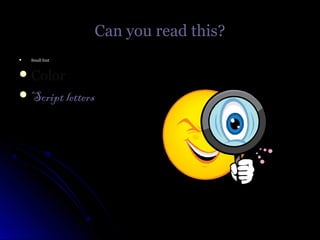
Can you read this?Can you read this?
 Small fontSmall font
 ColorColor
 Script lettersScript letters
Spelling and Grammar3
Evey errer is distrakting
U R a professional, use professional txt.
Punctuation! It matters?
Animation3
Movable type that flies in
Speed that goes with animation
Images that move too much
CohesionCohesion22
o Everything must fit togetherEverything must fit together
o Images,Images, texttext, and background, and background
o Consistency mattersConsistency matters
Visual Aids are Good but…
Must match topic2
Shouldn’t distract2
Be cohesive2
Enhance your presentation
If You Don’t Believe Me
Watch this:
How Not to Use PowerPoint1
What to Do
Know the material3
Concise 5-7 word bullet points3
Make it readable3
Images that relate2
Include title and conclusion
Present to audience
EDIT!3
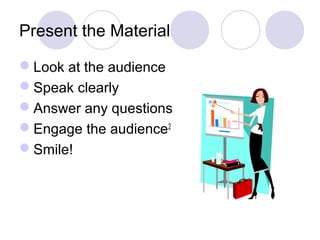
Present the Material
Look at the audience
Speak clearly
Answer any questions
Engage the audience2
Smile!
Things to Remember
Any distraction hurts your presentation
Practice with someone before
Time yourself3
PowerPoint is a visual aide, you’re the
presenter
To Recap
What are some do’s and don'ts of
PowerPoint Presentations?
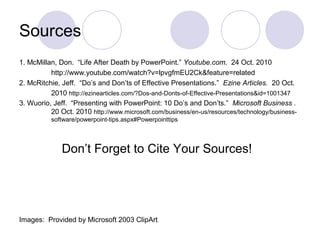
Sources
1. McMillan, Don. “Life After Death by PowerPoint.” Youtube.com. 24 Oct. 2010
http://www.youtube.com/watch?v=lpvgfmEU2Ck&feature=related
2. McRitchie, Jeff. “Do’s and Don’ts of Effective Presentations.” Ezine Articles. 20 Oct.
2010 http://ezinearticles.com/?Dos-and-Donts-of-Effective-Presentations&id=1001347
3. Wuorio, Jeff. “Presenting with PowerPoint: 10 Do’s and Don’ts.” Microsoft Business .
20 Oct. 2010 http://www.microsoft.com/business/en-us/resources/technology/business-
software/powerpoint-tips.aspx#Powerpointtips
Don’t Forget to Cite Your Sources!
Images: Provided by Microsoft 2003 ClipArt.

Creating an effective power point

  • 1.
    Creating an Effective PowerPoint Whatto do when planning a presentation Ms. Slosser Post Secondary Prep
  • 2.
    Your Thoughts Take aminute and answer the questions in your journals: 1. What goes through your mind when you are asked to give a presentation? 2. What are trademarks of good presenters? 3. Of bad presenters?
  • 3.
    Different Styles ofPresenting Speech without visual aides Acting out a situation Holding up a poster and talking (before technology allowed for better) PowerPoints!!! We will be focusing on how to improve your Presentation Skills while using PowerPoint.
  • 4.
    Before… Have a planof attack Organize your information Know the material2 Where do I begin?
  • 5.
    What Not toDo The slides will show common mistakes
  • 6.
    Parrot PowerPoint3 This iswhen you have too many words written on each slide, and you stand in front of your audience reading word-for- word from the slide. The audience will see more of your back then of your presentation. You cannot make any changes if you are simply reading word-for-word. What if someone has a question?
  • 7.
    Can you readthis?Can you read this?  Small fontSmall font  ColorColor  Script lettersScript letters
  • 8.
    Spelling and Grammar3 Eveyerrer is distrakting U R a professional, use professional txt. Punctuation! It matters?
  • 9.
    Animation3 Movable type thatflies in Speed that goes with animation Images that move too much
  • 10.
    CohesionCohesion22 o Everything mustfit togetherEverything must fit together o Images,Images, texttext, and background, and background o Consistency mattersConsistency matters
  • 11.
    Visual Aids areGood but… Must match topic2 Shouldn’t distract2 Be cohesive2 Enhance your presentation
  • 12.
    If You Don’tBelieve Me Watch this: How Not to Use PowerPoint1
  • 13.
    What to Do Knowthe material3 Concise 5-7 word bullet points3 Make it readable3 Images that relate2 Include title and conclusion Present to audience EDIT!3
  • 14.
    Present the Material Lookat the audience Speak clearly Answer any questions Engage the audience2 Smile!
  • 15.
    Things to Remember Anydistraction hurts your presentation Practice with someone before Time yourself3 PowerPoint is a visual aide, you’re the presenter
  • 16.
    To Recap What aresome do’s and don'ts of PowerPoint Presentations?
  • 17.
    Sources 1. McMillan, Don.“Life After Death by PowerPoint.” Youtube.com. 24 Oct. 2010 http://www.youtube.com/watch?v=lpvgfmEU2Ck&feature=related 2. McRitchie, Jeff. “Do’s and Don’ts of Effective Presentations.” Ezine Articles. 20 Oct. 2010 http://ezinearticles.com/?Dos-and-Donts-of-Effective-Presentations&id=1001347 3. Wuorio, Jeff. “Presenting with PowerPoint: 10 Do’s and Don’ts.” Microsoft Business . 20 Oct. 2010 http://www.microsoft.com/business/en-us/resources/technology/business- software/powerpoint-tips.aspx#Powerpointtips Don’t Forget to Cite Your Sources! Images: Provided by Microsoft 2003 ClipArt.