Power Point 101 Getting Started with Power Point
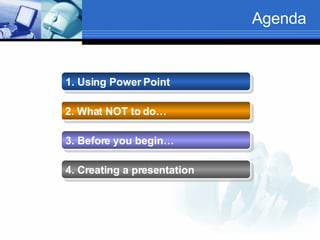
Agenda 1. Using Power Point   2. What NOT to do…   3. Before you begin…   4. Creating a presentation
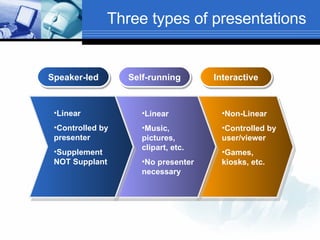
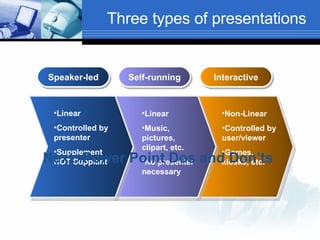
Three types of presentations Speaker-led Self-running Interactive Linear Controlled by presenter Supplement NOT Supplant Linear Music, pictures, clipart, etc. No presenter necessary Non-Linear Controlled by user/viewer Games, kiosks, etc.
Three types of presentations Speaker-led Self-running Interactive Linear Controlled by presenter Supplement NOT Supplant Linear Music, pictures, clipart, etc. No presenter necessary Non-Linear Controlled by user/viewer Games, kiosks, etc. Next: Power Point Dos and Don’ts
DON’T In a recent online survey of 688 people who regularly view PowerPoint presentations 62% said that their top annoyance is when the speaker reads the text on the slide word for word. If you have a lot to say about a particular slide that’s OK but you should NEVER use the slide as a cue card and read everything to the audience. Use the notes page and print out your notes if you need a reminder. Put as little text on the slide as possible and refer to your notes if necessary.
DO Put important points on slide. Use speaker notes. Elaborate on the important points.
DON’T Do not overload your slide with too much text. Generally when slides are filled with a lot of text the audience is too busy reading the words rather than listening to you. Or, if they are listening to you they aren’t reading the words on the slide. Try to limit your words to 6 words per line and no more than 4 or 5 lines on a slide. If you have a lot of info you must include, use more slides.
DO Use bullets Keep text to a minimum
DON’T Don’t use font sizes smaller than 28.
DO Use font sizes larger than 28.
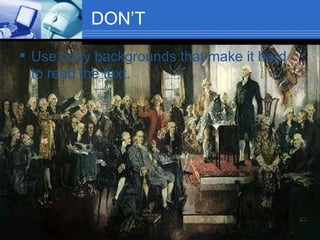
DON’T Use busy backgrounds that make it hard to read the text.
DO Use softer backgrounds
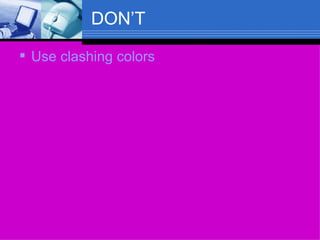
DON’T Use clashing colors
DO Use colors that work well together
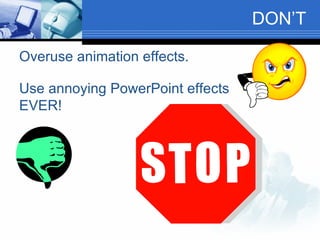
DON’T Overuse animation effects. Use annoying PowerPoint effects EVER!
DO Use animated effects sparingly. Only animate points you wish to emphasize.
DO Keep the flow and format consistent.
DON’T Change the look or flow of the presentation unless there’s a good reason.
DON’T  Use long videos to fill time. Start video automatically.
DO Use short video clips. Use videos to break up a long presentation. Start video “On Click”
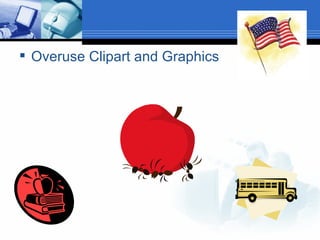
DON’T Overuse Clipart and Graphics
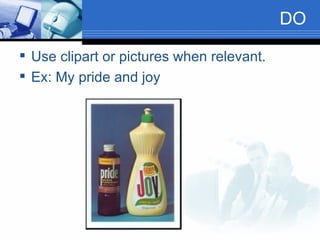
DO Use clipart or pictures when relevant. Ex: My pride and joy
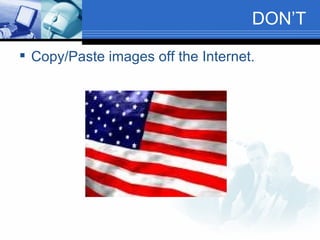
DON’T Copy/Paste images off the Internet.
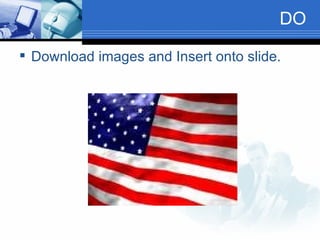
DO Download images and Insert onto slide.
DON’T Set your presentation to Auto Advance the slides
DO Advance slides on Click.
DON’T Abruptly end the presentation.
DO Use an end slide.
Miscellaneous DON’Ts Skip over slides. Use too many figures and charts/graphs. Go in cold. Wing it. Experiment at the last minute.
Miscellaneous DOs Backup your presentation often. Practice the presentation. Practice using the equipment and test. Always have a backup plan. Use Spell Check Save as a Power Point Show. Allow audience to process the slides. Use the B key! Know your material.
Next Before you begin…
Before you begin Storyboard, outline Create filing system PP Presentations folder Separate folder for each presentation Save before you type even one letter Save as you go – OFTEN Collect multimedia Save as… into appropriate folder

Power Point 101

  • 1.
    Power Point 101Getting Started with Power Point
  • 2.
    Agenda 1. UsingPower Point 2. What NOT to do… 3. Before you begin… 4. Creating a presentation
  • 3.
    Three types ofpresentations Speaker-led Self-running Interactive Linear Controlled by presenter Supplement NOT Supplant Linear Music, pictures, clipart, etc. No presenter necessary Non-Linear Controlled by user/viewer Games, kiosks, etc.
  • 4.
    Three types ofpresentations Speaker-led Self-running Interactive Linear Controlled by presenter Supplement NOT Supplant Linear Music, pictures, clipart, etc. No presenter necessary Non-Linear Controlled by user/viewer Games, kiosks, etc. Next: Power Point Dos and Don’ts
  • 5.
    DON’T In arecent online survey of 688 people who regularly view PowerPoint presentations 62% said that their top annoyance is when the speaker reads the text on the slide word for word. If you have a lot to say about a particular slide that’s OK but you should NEVER use the slide as a cue card and read everything to the audience. Use the notes page and print out your notes if you need a reminder. Put as little text on the slide as possible and refer to your notes if necessary.
  • 6.
    DO Put importantpoints on slide. Use speaker notes. Elaborate on the important points.
  • 7.
    DON’T Do notoverload your slide with too much text. Generally when slides are filled with a lot of text the audience is too busy reading the words rather than listening to you. Or, if they are listening to you they aren’t reading the words on the slide. Try to limit your words to 6 words per line and no more than 4 or 5 lines on a slide. If you have a lot of info you must include, use more slides.
  • 8.
    DO Use bulletsKeep text to a minimum
  • 9.
    DON’T Don’t usefont sizes smaller than 28.
  • 10.
    DO Use fontsizes larger than 28.
  • 11.
    DON’T Use busybackgrounds that make it hard to read the text.
  • 12.
    DO Use softerbackgrounds
  • 13.
  • 14.
    DO Use colorsthat work well together
  • 15.
    DON’T Overuse animationeffects. Use annoying PowerPoint effects EVER!
  • 16.
    DO Use animatedeffects sparingly. Only animate points you wish to emphasize.
  • 17.
    DO Keep theflow and format consistent.
  • 18.
    DON’T Change thelook or flow of the presentation unless there’s a good reason.
  • 19.
    DON’T Uselong videos to fill time. Start video automatically.
  • 20.
    DO Use shortvideo clips. Use videos to break up a long presentation. Start video “On Click”
  • 21.
  • 22.
    DO Use clipartor pictures when relevant. Ex: My pride and joy
  • 23.
    DON’T Copy/Paste imagesoff the Internet.
  • 24.
    DO Download imagesand Insert onto slide.
  • 25.
    DON’T Set yourpresentation to Auto Advance the slides
  • 26.
  • 27.
    DON’T Abruptly endthe presentation.
  • 28.
    DO Use anend slide.
  • 29.
    Miscellaneous DON’Ts Skipover slides. Use too many figures and charts/graphs. Go in cold. Wing it. Experiment at the last minute.
  • 30.
    Miscellaneous DOs Backupyour presentation often. Practice the presentation. Practice using the equipment and test. Always have a backup plan. Use Spell Check Save as a Power Point Show. Allow audience to process the slides. Use the B key! Know your material.
  • 31.
  • 32.
    Before you beginStoryboard, outline Create filing system PP Presentations folder Separate folder for each presentation Save before you type even one letter Save as you go – OFTEN Collect multimedia Save as… into appropriate folder