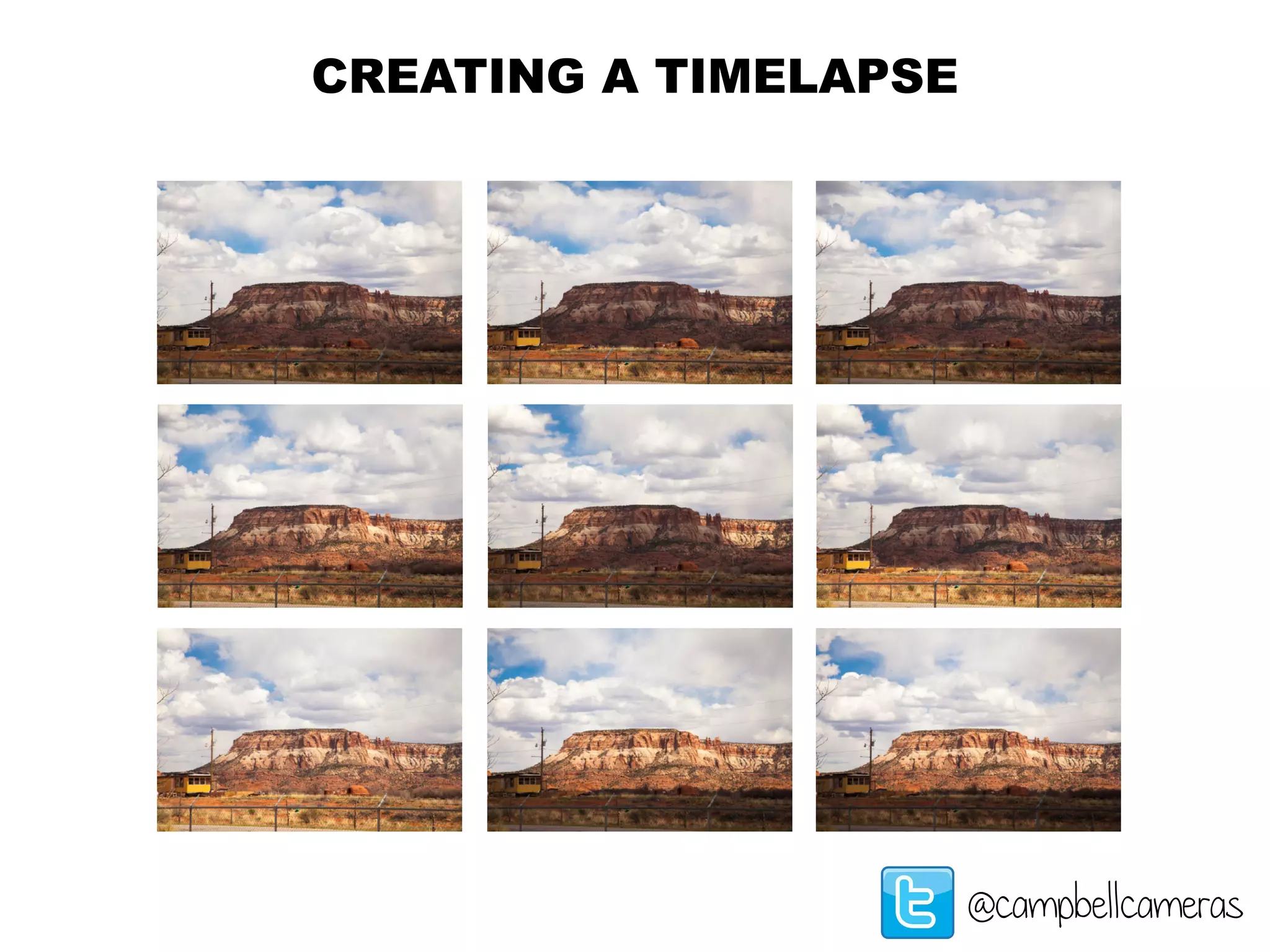
CREATING A TIMELAPSE
@campbellcameras
Choosing Your Subject
@campbellcameras
1
THINK CREATIVELY! Here are some suggestions:
1) Cloud / Sky / Weather / Stars 2) City Scene 3) Reflections
4) Small Animals 5) Snow Melting 6) Clock
photo credit: www.hdwallpaper.me
photo credit: www.richard-seaman.com
photo credit: www.beautiful-lanscape.com
photo credit: www.sodahead.com
photo credit: www.123rf.com
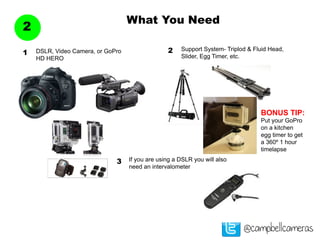
What You Need
2
@campbellcameras
DSLR, Video Camera, or GoPro
HD HERO
1
Support System- Triplod & Fluid Head,
Slider, Egg Timer, etc.
2
BONUS TIP:
Put your GoPro
on a kitchen
egg timer to get
a 360º 1 hour
timelapse
If you are using a DSLR you will also
need an intervalometer
3
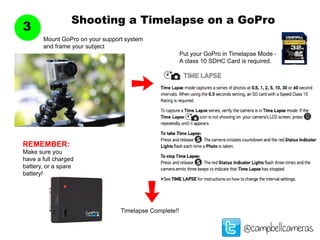
Shooting a Timelapse on a GoPro
3
@campbellcameras
Mount GoPro on your support system
and frame your subject
Put your GoPro in Timelapse Mode -
A class 10 SDHC Card is required.
Timelapse Complete!!
REMEMBER:
Make sure you
have a full charged
battery, or a spare
battery!
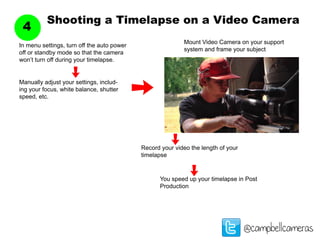
Shooting a Timelapse on a Video Camera
4
@campbellcameras
Mount Video Camera on your support
system and frame your subject
In menu settings, turn off the auto power
off or standby mode so that the camera
won’t turn off during your timelapse.
Manually adjust your settings, includ-
ing your focus, white balance, shutter
speed, etc.
Record your video the length of your
timelapse
You speed up your timelapse in Post
Production
Shooting a Timelapse on a DSLR
5
@campbellcameras
• Shoot in RAW, it allows you more creative control in post
production. Takes up more room on card & computer.
• Always shoot in Manual Mode.
• If unsure, ALWAYS underexpose your image (change in post)
• You can shoot in AV (aperture priority) if you will have a
dramatic change in lighting.
• An intervalometer is a must!!
TIPS:
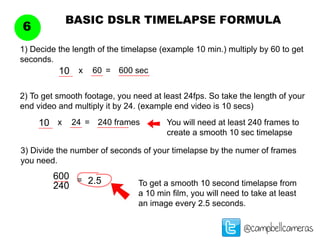
BASIC DSLR TIMELAPSE FORMULA
6
@campbellcameras
1) Decide the length of the timelapse (example 10 min.) multiply by 60 to get
seconds.
10
2) To get smooth footage, you need at least 24fps. So take the length of your
end video and multiply it by 24. (example end video is 10 secs)
You will need at least 240 frames to
create a smooth 10 sec timelapse
3) Divide the number of seconds of your timelapse by the numer of frames
you need.
60x = 600 sec
10 24x = 240 frames
600
240
= 2.5 To get a smooth 10 second timelapse from
a 10 min film, you will need to take at least
an image every 2.5 seconds.
Setting Your Canon intervalometer
7
@campbellcameras
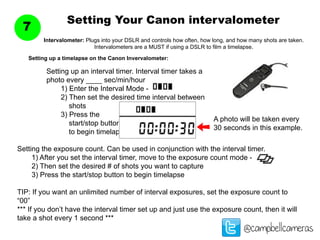
Intervalometer: Plugs into your DSLR and controls how often, how long, and how many shots are taken.
Intervalometers are a MUST if using a DSLR to film a timelapse.
Setting up a timelapse on the Canon Invervalometer:
Setting up an interval timer. Interval timer takes a
photo every ____ sec/min/hour
	 1) Enter the Interval Mode -
	 2) Then set the desired time interval between 	
	 shots
	 3) Press the
	 start/stop button
	 to begin timelapse
A photo will be taken every
30 seconds in this example.
Setting the exposure count. Can be used in conjunction with the interval timer.
	 1) After you set the interval timer, move to the exposure count mode -
	 2) Then set the desired # of shots you want to capture
	 3) Press the start/stop button to begin timelapse
TIP: If you want an unlimited number of interval exposures, set the exposure count to
“00”
*** If you don’t have the interval timer set up and just use the exposure count, then it will
take a shot every 1 second ***
Setting Your Hahnel intervalometer
8
@campbellcameras
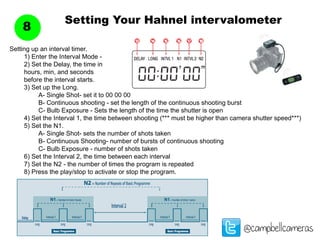
Setting up an interval timer.
	 1) Enter the Interval Mode -
	 2) Set the Delay, the time in
	 hours, min, and seconds
	 before the interval starts.
	 3) Set up the Long.
		 A- Single Shot- set it to 00 00 00
		 B- Continuous shooting - set the length of the continuous shooting burst
		 C- Bulb Exposure - Sets the length of the time the shutter is open
	 4) Set the Interval 1, the time between shooting (*** must be higher than camera shutter speed***)
	 5) Set the N1.
		 A- Single Shot- sets the number of shots taken
		 B- Continuous Shooting- number of bursts of continuous shooting
		 C- Bulb Exposure - number of shots taken
	 6) Set the Interval 2, the time between each interval
	 7) Set the N2 - the number of times the program is repeated
	 8) Press the play/stop to activate or stop the program.
THE END
Got questions or comments? 	 Tweet Us @campbellcameras
Tag us in your wildlife photos on INSTAGRAM
@campbell_cameras or #campbellcameras

Creating a Timelapse

  • 1.
  • 2.
    Choosing Your Subject @campbellcameras 1 THINKCREATIVELY! Here are some suggestions: 1) Cloud / Sky / Weather / Stars 2) City Scene 3) Reflections 4) Small Animals 5) Snow Melting 6) Clock photo credit: www.hdwallpaper.me photo credit: www.richard-seaman.com photo credit: www.beautiful-lanscape.com photo credit: www.sodahead.com photo credit: www.123rf.com
  • 3.
    What You Need 2 @campbellcameras DSLR,Video Camera, or GoPro HD HERO 1 Support System- Triplod & Fluid Head, Slider, Egg Timer, etc. 2 BONUS TIP: Put your GoPro on a kitchen egg timer to get a 360º 1 hour timelapse If you are using a DSLR you will also need an intervalometer 3
  • 4.
    Shooting a Timelapseon a GoPro 3 @campbellcameras Mount GoPro on your support system and frame your subject Put your GoPro in Timelapse Mode - A class 10 SDHC Card is required. Timelapse Complete!! REMEMBER: Make sure you have a full charged battery, or a spare battery!
  • 5.
    Shooting a Timelapseon a Video Camera 4 @campbellcameras Mount Video Camera on your support system and frame your subject In menu settings, turn off the auto power off or standby mode so that the camera won’t turn off during your timelapse. Manually adjust your settings, includ- ing your focus, white balance, shutter speed, etc. Record your video the length of your timelapse You speed up your timelapse in Post Production
  • 6.
    Shooting a Timelapseon a DSLR 5 @campbellcameras • Shoot in RAW, it allows you more creative control in post production. Takes up more room on card & computer. • Always shoot in Manual Mode. • If unsure, ALWAYS underexpose your image (change in post) • You can shoot in AV (aperture priority) if you will have a dramatic change in lighting. • An intervalometer is a must!! TIPS:
  • 7.
    BASIC DSLR TIMELAPSEFORMULA 6 @campbellcameras 1) Decide the length of the timelapse (example 10 min.) multiply by 60 to get seconds. 10 2) To get smooth footage, you need at least 24fps. So take the length of your end video and multiply it by 24. (example end video is 10 secs) You will need at least 240 frames to create a smooth 10 sec timelapse 3) Divide the number of seconds of your timelapse by the numer of frames you need. 60x = 600 sec 10 24x = 240 frames 600 240 = 2.5 To get a smooth 10 second timelapse from a 10 min film, you will need to take at least an image every 2.5 seconds.
  • 8.
    Setting Your Canonintervalometer 7 @campbellcameras Intervalometer: Plugs into your DSLR and controls how often, how long, and how many shots are taken. Intervalometers are a MUST if using a DSLR to film a timelapse. Setting up a timelapse on the Canon Invervalometer: Setting up an interval timer. Interval timer takes a photo every ____ sec/min/hour 1) Enter the Interval Mode - 2) Then set the desired time interval between shots 3) Press the start/stop button to begin timelapse A photo will be taken every 30 seconds in this example. Setting the exposure count. Can be used in conjunction with the interval timer. 1) After you set the interval timer, move to the exposure count mode - 2) Then set the desired # of shots you want to capture 3) Press the start/stop button to begin timelapse TIP: If you want an unlimited number of interval exposures, set the exposure count to “00” *** If you don’t have the interval timer set up and just use the exposure count, then it will take a shot every 1 second ***
  • 9.
    Setting Your Hahnelintervalometer 8 @campbellcameras Setting up an interval timer. 1) Enter the Interval Mode - 2) Set the Delay, the time in hours, min, and seconds before the interval starts. 3) Set up the Long. A- Single Shot- set it to 00 00 00 B- Continuous shooting - set the length of the continuous shooting burst C- Bulb Exposure - Sets the length of the time the shutter is open 4) Set the Interval 1, the time between shooting (*** must be higher than camera shutter speed***) 5) Set the N1. A- Single Shot- sets the number of shots taken B- Continuous Shooting- number of bursts of continuous shooting C- Bulb Exposure - number of shots taken 6) Set the Interval 2, the time between each interval 7) Set the N2 - the number of times the program is repeated 8) Press the play/stop to activate or stop the program.
  • 10.
    THE END Got questionsor comments? Tweet Us @campbellcameras Tag us in your wildlife photos on INSTAGRAM @campbell_cameras or #campbellcameras