Creating a Banner inCreating a Banner in
PowerPointPowerPoint
Instructions
Creating a Banner withCreating a Banner with
PowerPointPowerPoint
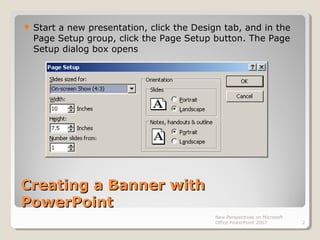
 Start a new presentation, click the Design tab, and in the
Page Setup group, click the Page Setup button. The Page
Setup dialog box opens
New Perspectives on Microsoft
Office PowerPoint 2007 2
Creating a Banner withCreating a Banner with
PowerPointPowerPoint
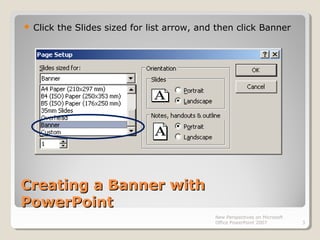
 Click the Slides sized for list arrow, and then click Banner
New Perspectives on Microsoft
Office PowerPoint 2007 3
Creating a Banner withCreating a Banner with
PowerPointPowerPoint
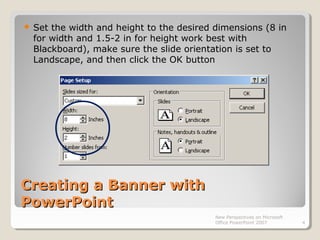
 Set the width and height to the desired dimensions (8 in
for width and 1.5-2 in for height work best with
Blackboard), make sure the slide orientation is set to
Landscape, and then click the OK button
New Perspectives on Microsoft
Office PowerPoint 2007 4
Creating a Banner withCreating a Banner with
PowerPointPowerPoint
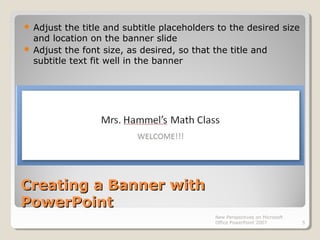
 Adjust the title and subtitle placeholders to the desired size
and location on the banner slide
 Adjust the font size, as desired, so that the title and
subtitle text fit well in the banner
New Perspectives on Microsoft
Office PowerPoint 2007 5
Creating a Banner withCreating a Banner with
PowerPointPowerPoint
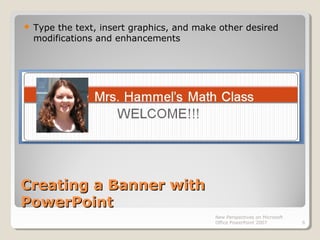
 Type the text, insert graphics, and make other desired
modifications and enhancements
New Perspectives on Microsoft
Office PowerPoint 2007 6
Creating a Banner withCreating a Banner with
PowerPointPowerPoint
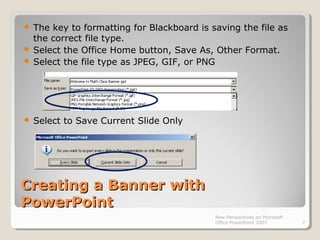
 The key to formatting for Blackboard is saving the file as
the correct file type.
 Select the Office Home button, Save As, Other Format.
 Select the file type as JPEG, GIF, or PNG
 Select to Save Current Slide Only
New Perspectives on Microsoft
Office PowerPoint 2007 7
Creating a Banner withCreating a Banner with
PowerPointPowerPoint
New Perspectives on Microsoft
Office PowerPoint 2007 8
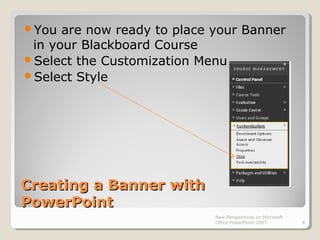
You are now ready to place your Banner
in your Blackboard Course
Select the Customization Menu
Select Style
Creating a Banner withCreating a Banner with
PowerPointPowerPoint
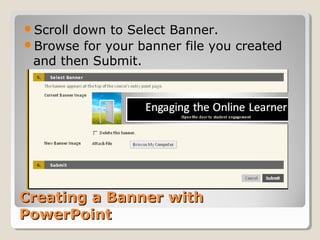
Scroll down to Select Banner.
Browse for your banner file you created
and then Submit.
Great job!Great job!
You have now created a custom and
engaging banner for your students!

Creating a banner in power point 2007

  • 1.
    Creating a BannerinCreating a Banner in PowerPointPowerPoint Instructions
  • 2.
    Creating a BannerwithCreating a Banner with PowerPointPowerPoint  Start a new presentation, click the Design tab, and in the Page Setup group, click the Page Setup button. The Page Setup dialog box opens New Perspectives on Microsoft Office PowerPoint 2007 2
  • 3.
    Creating a BannerwithCreating a Banner with PowerPointPowerPoint  Click the Slides sized for list arrow, and then click Banner New Perspectives on Microsoft Office PowerPoint 2007 3
  • 4.
    Creating a BannerwithCreating a Banner with PowerPointPowerPoint  Set the width and height to the desired dimensions (8 in for width and 1.5-2 in for height work best with Blackboard), make sure the slide orientation is set to Landscape, and then click the OK button New Perspectives on Microsoft Office PowerPoint 2007 4
  • 5.
    Creating a BannerwithCreating a Banner with PowerPointPowerPoint  Adjust the title and subtitle placeholders to the desired size and location on the banner slide  Adjust the font size, as desired, so that the title and subtitle text fit well in the banner New Perspectives on Microsoft Office PowerPoint 2007 5
  • 6.
    Creating a BannerwithCreating a Banner with PowerPointPowerPoint  Type the text, insert graphics, and make other desired modifications and enhancements New Perspectives on Microsoft Office PowerPoint 2007 6
  • 7.
    Creating a BannerwithCreating a Banner with PowerPointPowerPoint  The key to formatting for Blackboard is saving the file as the correct file type.  Select the Office Home button, Save As, Other Format.  Select the file type as JPEG, GIF, or PNG  Select to Save Current Slide Only New Perspectives on Microsoft Office PowerPoint 2007 7
  • 8.
    Creating a BannerwithCreating a Banner with PowerPointPowerPoint New Perspectives on Microsoft Office PowerPoint 2007 8 You are now ready to place your Banner in your Blackboard Course Select the Customization Menu Select Style
  • 9.
    Creating a BannerwithCreating a Banner with PowerPointPowerPoint Scroll down to Select Banner. Browse for your banner file you created and then Submit.
  • 10.
    Great job!Great job! Youhave now created a custom and engaging banner for your students!