Course Reading Lists
Syllabus Building with Library Resources
& Open Educational Resources
Introduction
McCain Library databases and
Open Educational Resources
(OERs) provide a wealth of links to
news articles, eBooks, short
stories, poems, journal articles,
and more to assign and discuss
with students. This presentation
highlights the best tools and tricks
for creating a digital reading list in
Canvas.
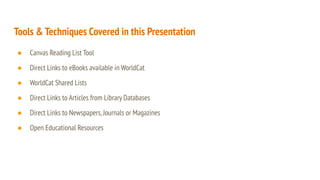
Tools & Techniques Covered in this Presentation
● Canvas Reading List Tool
● Direct Links to eBooks available in WorldCat
● WorldCat Shared Lists
● Direct Links to Articles from Library Databases
● Direct Links to Newspapers,Journals or Magazines
● Open Educational Resources
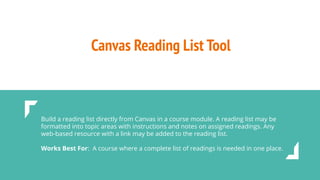
Canvas Reading List Tool
Build a reading list directly from Canvas in a course module. A reading list may be
formatted into topic areas with instructions and notes on assigned readings. Any
web-based resource with a link may be added to the reading list.
Works Best For: A course where a complete list of readings is needed in one place.
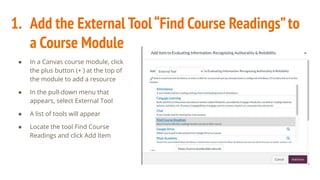
1. Add the External Tool“Find Course Readings”to
a Course Module
● In a Canvas course module, click
the plus button (+ ) at the top of
the module to add a resource
● In the pull-down menu that
appears, select External Tool
● A list of tools will appear
● Locate the tool Find Course
Readings and click Add Item
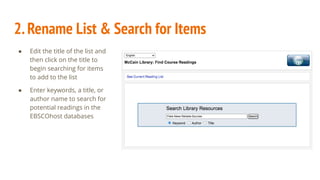
2.Rename List & Search for Items
● Edit the title of the list and
then click on the title to
begin searching for items
to add to the list
● Enter keywords, a title, or
author name to search for
potential readings in the
EBSCOhost databases
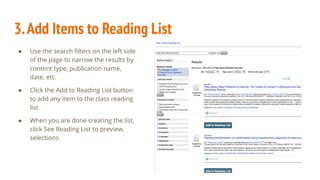
3.Add Items to Reading List
● Use the search filters on the left side
of the page to narrow the results by
content type, publication name,
date, etc.
● Click the Add to Reading List button
to add any item to the class reading
list
● When you are done creating the list,
click See Reading List to preview
selections
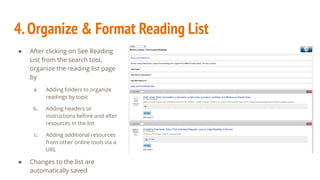
4.Organize & Format Reading List
● After clicking on See Reading
List from the search tool,
organize the reading list page
by
a. Adding folders to organize
readings by topic
b. Adding headers or
instructions before and after
resources in the list
c. Adding additional resources
from other online tools via a
URL
● Changes to the list are
automatically saved
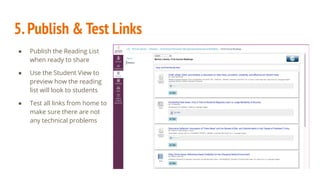
5.Publish & Test Links
● Publish the Reading List
when ready to share
● Use the Student View to
preview how the reading
list will look to students
● Test all links from home to
make sure there are not
any technical problems
Direct Links to eBooks in WorldCat
Provide a link in Canvas to a specific eBook title that will be accessible by all students
in the class. Student will be taken to the WorldCat catalog record where they may
then click on the eBook access option and login with their network ID to access the
work. Note that though many eBooks are accessible by multiple users at a time,
some limit access to one user at a time.
Works Best For: A course where the access to the class readings are provided with
other assignments for the week.
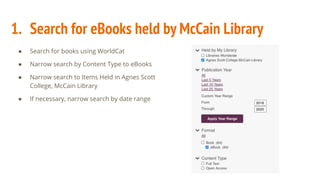
1. Search for eBooks held by McCain Library
● Search for books using WorldCat
● Narrow search by Content Type to eBooks
● Narrow search to Items Held in Agnes Scott
College, McCain Library
● If necessary, narrow search by date range
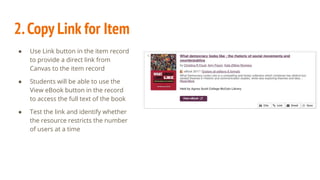
2.Copy Link for Item
● Use Link button in the item record
to provide a direct link from
Canvas to the item record
● Students will be able to use the
View eBook button in the record
to access the full text of the book
● Test the link and identify whether
the resource restricts the number
of users at a time
WorldCat Shared Lists
Create a list of books available through McCain Library. The list lives in your
WorldCat account, but is accessible via a share list link that is able to be placed in
Canvas.
Works Best For: Classes where students are conducting individual research projects
and the professor wants to provide a list of books on topics of interest to the course.
Also good for classes where students may be asked to pick from a list of books and
develop a presentation on the book for the rest of the class.
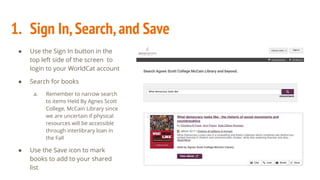
1. Sign In,Search,and Save
● Use the Sign In button in the
top left side of the screen to
login to your WorldCat account
● Search for books
a. Remember to narrow search
to items Held By Agnes Scott
College, McCain Library since
we are uncertain if physical
resources will be accessible
through interlibrary loan in
the Fall
● Use the Save icon to mark
books to add to your shared
list
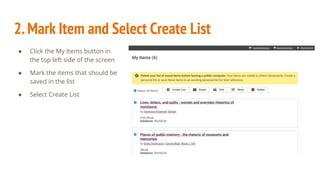
2.Mark Item and Select Create List
● Click the My Items button in
the top left side of the screen
● Mark the items that should be
saved in the list
● Select Create List
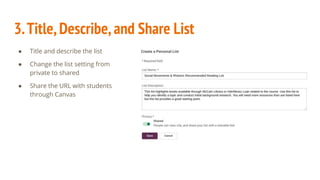
● Title and describe the list
● Change the list setting from
private to shared
● Share the URL with students
through Canvas
3.Title,Describe,and Share List
Direct Links to Articles from Library Databases
Provide a link in Canvas to a specific article, short story, or poem available in a
McCain Library database that will be accessible by all students in the class. Note,
MasterFile and News & Newspapers are great databases for finding articles from
magazines & newspapers.
Works Best For: A course where the access to the class readings are provided with
other assignments for the week.
1. Determine if the item is in an EBSCOHost,
ProQuest,or Gale database
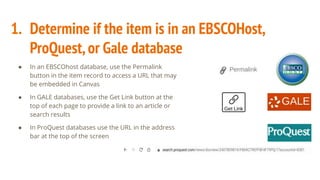
● In an EBSCOhost database, use the Permalink
button in the item record to access a URL that may
be embedded in Canvas
● In GALE databases, use the Get Link button at the
top of each page to provide a link to an article or
search results
● In ProQuest databases use the URL in the address
bar at the top of the screen
2.For all other databases,use the OpenAthens Link
Generator
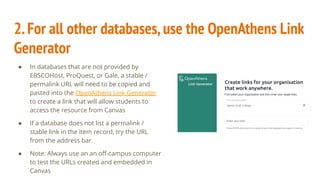
● In databases that are not provided by
EBSCOHost, ProQuest, or Gale, a stable /
permalink URL will need to be copied and
pasted into the OpenAthens Link Generator
to create a link that will allow students to
access the resource from Canvas
● If a database does not list a permalink /
stable link in the item record, try the URL
from the address bar
● Note: Always use an an off-campus computer
to test the URLs created and embedded in
Canvas
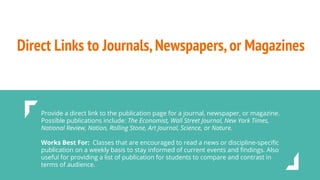
Direct Links to Journals,Newspapers,or Magazines
Provide a direct link to the publication page for a journal, newspaper, or magazine.
Possible publications include: The Economist, Wall Street Journal, New York Times,
National Review, Nation, Rolling Stone, Art Journal, Science, or Nature.
Works Best For: Classes that are encouraged to read a news or discipline-specific
publication on a weekly basis to stay informed of current events and findings. Also
useful for providing a list of publication for students to compare and contrast in
terms of audience.
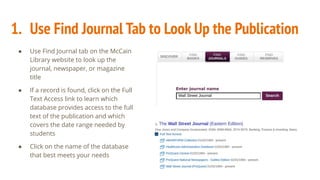
1. Use Find Journal Tab to Look Up the Publication
● Use Find Journal tab on the McCain
Library website to look up the
journal, newspaper, or magazine
title
● If a record is found, click on the Full
Text Access link to learn which
database provides access to the full
text of the publication and which
covers the date range needed by
students
● Click on the name of the database
that best meets your needs
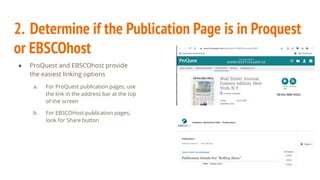
2. Determine if the Publication Page is in Proquest
or EBSCOhost
● ProQuest and EBSCOhost provide
the easiest linking options
a. For ProQuest publication pages, use
the link in the address bar at the top
of the screen
b. For EBSCOHost publication pages,
look for Share button
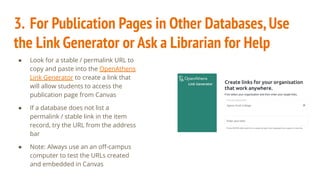
3. For Publication Pages in Other Databases,Use
the Link Generator or Ask a Librarian for Help
● Look for a stable / permalink URL to
copy and paste into the OpenAthens
Link Generator to create a link that
will allow students to access the
publication page from Canvas
● If a database does not list a
permalink / stable link in the item
record, try the URL from the address
bar
● Note: Always use an an off-campus
computer to test the URLs created
and embedded in Canvas
Open Educational Resources
Provide a link in Canvas to low-cost / free textbooks or course materials designed
and used by faculty at other colleges. Open Educational Resources are vetted
through a peer-review process for quality.
Works Best For: Courses that rely on costly introductory textbooks. Utilizing an
online textbook that is affordable to all will help promote continuity and access to
important course concepts whether students attend in-person or online classes.
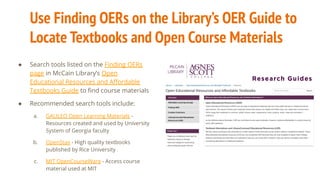
Use Finding OERs on the Library’s OER Guide to
Locate Textbooks and Open Course Materials
● Search tools listed on the Finding OERs
page in McCain Library’s Open
Educational Resources and Affordable
Textbooks Guide to find course materials
● Recommended search tools include:
a. GALILEO Open Learning Materials -
Resources created and used by University
System of Georgia faculty
b. OpenStax - High quality textbooks
published by Rice University
c. MIT OpenCourseWare - Access course
material used at MIT
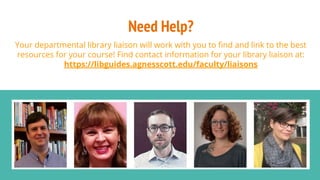
Need Help?
Your departmental library liaison will work with you to find and link to the best
resources for your course! Find contact information for your library liaison at:
https://libguides.agnesscott.edu/faculty/liaisons

Course Reading Lists : Syllabus Building with Library Resources & Open Educational Resources

  • 1.
    Course Reading Lists SyllabusBuilding with Library Resources & Open Educational Resources
  • 2.
    Introduction McCain Library databasesand Open Educational Resources (OERs) provide a wealth of links to news articles, eBooks, short stories, poems, journal articles, and more to assign and discuss with students. This presentation highlights the best tools and tricks for creating a digital reading list in Canvas.
  • 3.
    Tools & TechniquesCovered in this Presentation ● Canvas Reading List Tool ● Direct Links to eBooks available in WorldCat ● WorldCat Shared Lists ● Direct Links to Articles from Library Databases ● Direct Links to Newspapers,Journals or Magazines ● Open Educational Resources
  • 4.
    Canvas Reading ListTool Build a reading list directly from Canvas in a course module. A reading list may be formatted into topic areas with instructions and notes on assigned readings. Any web-based resource with a link may be added to the reading list. Works Best For: A course where a complete list of readings is needed in one place.
  • 5.
    1. Add theExternal Tool“Find Course Readings”to a Course Module ● In a Canvas course module, click the plus button (+ ) at the top of the module to add a resource ● In the pull-down menu that appears, select External Tool ● A list of tools will appear ● Locate the tool Find Course Readings and click Add Item
  • 6.
    2.Rename List &Search for Items ● Edit the title of the list and then click on the title to begin searching for items to add to the list ● Enter keywords, a title, or author name to search for potential readings in the EBSCOhost databases
  • 7.
    3.Add Items toReading List ● Use the search filters on the left side of the page to narrow the results by content type, publication name, date, etc. ● Click the Add to Reading List button to add any item to the class reading list ● When you are done creating the list, click See Reading List to preview selections
  • 8.
    4.Organize & FormatReading List ● After clicking on See Reading List from the search tool, organize the reading list page by a. Adding folders to organize readings by topic b. Adding headers or instructions before and after resources in the list c. Adding additional resources from other online tools via a URL ● Changes to the list are automatically saved
  • 9.
    5.Publish & TestLinks ● Publish the Reading List when ready to share ● Use the Student View to preview how the reading list will look to students ● Test all links from home to make sure there are not any technical problems
  • 10.
    Direct Links toeBooks in WorldCat Provide a link in Canvas to a specific eBook title that will be accessible by all students in the class. Student will be taken to the WorldCat catalog record where they may then click on the eBook access option and login with their network ID to access the work. Note that though many eBooks are accessible by multiple users at a time, some limit access to one user at a time. Works Best For: A course where the access to the class readings are provided with other assignments for the week.
  • 11.
    1. Search foreBooks held by McCain Library ● Search for books using WorldCat ● Narrow search by Content Type to eBooks ● Narrow search to Items Held in Agnes Scott College, McCain Library ● If necessary, narrow search by date range
  • 12.
    2.Copy Link forItem ● Use Link button in the item record to provide a direct link from Canvas to the item record ● Students will be able to use the View eBook button in the record to access the full text of the book ● Test the link and identify whether the resource restricts the number of users at a time
  • 13.
    WorldCat Shared Lists Createa list of books available through McCain Library. The list lives in your WorldCat account, but is accessible via a share list link that is able to be placed in Canvas. Works Best For: Classes where students are conducting individual research projects and the professor wants to provide a list of books on topics of interest to the course. Also good for classes where students may be asked to pick from a list of books and develop a presentation on the book for the rest of the class.
  • 14.
    1. Sign In,Search,andSave ● Use the Sign In button in the top left side of the screen to login to your WorldCat account ● Search for books a. Remember to narrow search to items Held By Agnes Scott College, McCain Library since we are uncertain if physical resources will be accessible through interlibrary loan in the Fall ● Use the Save icon to mark books to add to your shared list
  • 15.
    2.Mark Item andSelect Create List ● Click the My Items button in the top left side of the screen ● Mark the items that should be saved in the list ● Select Create List
  • 16.
    ● Title anddescribe the list ● Change the list setting from private to shared ● Share the URL with students through Canvas 3.Title,Describe,and Share List
  • 17.
    Direct Links toArticles from Library Databases Provide a link in Canvas to a specific article, short story, or poem available in a McCain Library database that will be accessible by all students in the class. Note, MasterFile and News & Newspapers are great databases for finding articles from magazines & newspapers. Works Best For: A course where the access to the class readings are provided with other assignments for the week.
  • 18.
    1. Determine ifthe item is in an EBSCOHost, ProQuest,or Gale database ● In an EBSCOhost database, use the Permalink button in the item record to access a URL that may be embedded in Canvas ● In GALE databases, use the Get Link button at the top of each page to provide a link to an article or search results ● In ProQuest databases use the URL in the address bar at the top of the screen
  • 19.
    2.For all otherdatabases,use the OpenAthens Link Generator ● In databases that are not provided by EBSCOHost, ProQuest, or Gale, a stable / permalink URL will need to be copied and pasted into the OpenAthens Link Generator to create a link that will allow students to access the resource from Canvas ● If a database does not list a permalink / stable link in the item record, try the URL from the address bar ● Note: Always use an an off-campus computer to test the URLs created and embedded in Canvas
  • 20.
    Direct Links toJournals,Newspapers,or Magazines Provide a direct link to the publication page for a journal, newspaper, or magazine. Possible publications include: The Economist, Wall Street Journal, New York Times, National Review, Nation, Rolling Stone, Art Journal, Science, or Nature. Works Best For: Classes that are encouraged to read a news or discipline-specific publication on a weekly basis to stay informed of current events and findings. Also useful for providing a list of publication for students to compare and contrast in terms of audience.
  • 21.
    1. Use FindJournal Tab to Look Up the Publication ● Use Find Journal tab on the McCain Library website to look up the journal, newspaper, or magazine title ● If a record is found, click on the Full Text Access link to learn which database provides access to the full text of the publication and which covers the date range needed by students ● Click on the name of the database that best meets your needs
  • 22.
    2. Determine ifthe Publication Page is in Proquest or EBSCOhost ● ProQuest and EBSCOhost provide the easiest linking options a. For ProQuest publication pages, use the link in the address bar at the top of the screen b. For EBSCOHost publication pages, look for Share button
  • 23.
    3. For PublicationPages in Other Databases,Use the Link Generator or Ask a Librarian for Help ● Look for a stable / permalink URL to copy and paste into the OpenAthens Link Generator to create a link that will allow students to access the publication page from Canvas ● If a database does not list a permalink / stable link in the item record, try the URL from the address bar ● Note: Always use an an off-campus computer to test the URLs created and embedded in Canvas
  • 24.
    Open Educational Resources Providea link in Canvas to low-cost / free textbooks or course materials designed and used by faculty at other colleges. Open Educational Resources are vetted through a peer-review process for quality. Works Best For: Courses that rely on costly introductory textbooks. Utilizing an online textbook that is affordable to all will help promote continuity and access to important course concepts whether students attend in-person or online classes.
  • 25.
    Use Finding OERson the Library’s OER Guide to Locate Textbooks and Open Course Materials ● Search tools listed on the Finding OERs page in McCain Library’s Open Educational Resources and Affordable Textbooks Guide to find course materials ● Recommended search tools include: a. GALILEO Open Learning Materials - Resources created and used by University System of Georgia faculty b. OpenStax - High quality textbooks published by Rice University c. MIT OpenCourseWare - Access course material used at MIT
  • 26.
    Need Help? Your departmentallibrary liaison will work with you to find and link to the best resources for your course! Find contact information for your library liaison at: https://libguides.agnesscott.edu/faculty/liaisons