Docker Compose User Guide
1. Assumption:
a. Developer should have good configuration machine (preferable 16GB Memory)
b. Code Tested on windows (win 10)
c. Docker images download from docker hub
2. Risk
a. Docker image may change over the time so use docker tag carefully
3. Prerequisite:
a. Your machine will need at least 8GB of RAM. 16GB is preferable.
b. Basic Docker knowledge require.
4. Installation & Configure on Local Machine:
a. Install Docker Compose:
i. Linux: Link to install docker compose
https://docs.docker.com/compose/install/#install-compose
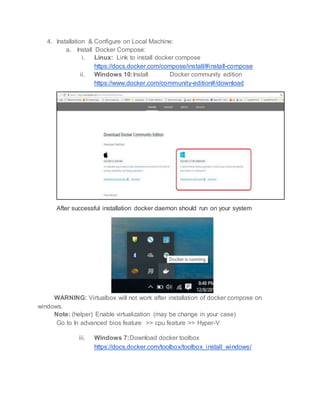
ii. Windows 10:Install Docker community edition
https://www.docker.com/community-edition#/download
After successful installation docker daemon should run on your system
WARNING: Virtualbox will not work after installation of docker compose on
windows.
Note: (helper) Enable virtualization (may be change in your case)
Go to In advanced bios feature >> cpu feature >> Hyper-V
iii. Windows 7:Download docker toolbox
https://docs.docker.com/toolbox/toolbox_install_windows/
b. Configure Memory Settings :
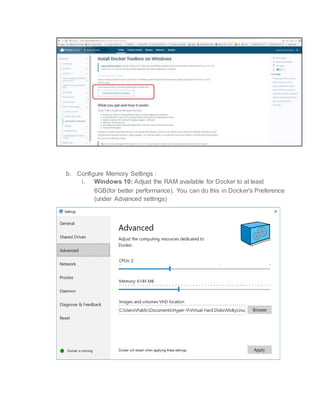
i. Windows 10: Adjust the RAM available for Docker to at least
6GB(for better performance). You can do this in Docker's Preference
(under Advanced settings)
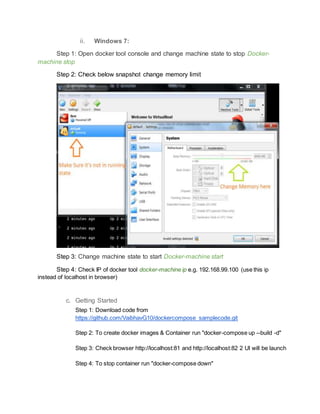
ii. Windows 7:
Step 1: Open docker tool console and change machine state to stop Docker-
machine stop
Step 2: Check below snapshot change memory limit
Step 3: Change machine state to start Docker-machine start
Step 4: Check IP of docker tool docker-machine ip e.g. 192.168.99.100 (use this ip
instead of localhost in browser)
c. Getting Started
Step 1: Download code from
https://github.com/VaibhavG10/dockercompose_samplecode.git
Step 2: To create docker images & Container run "docker-compose up --build -d"
Step 3: Check browser http://localhost:81 and http://localhost:82 2 UI will be launch
Step 4: To stop container run "docker-compose down"
5. Docker Commands:
Some useful commands are given below-
Docker Commands Description
docker run [OPTIONS] IMAGE [COMMAND]
[ARG...]
Command to run a new container (e.g. docker run --
name test -dit debian)
docker login [OPTIONS] [SERVER] Log in to a Docker registry (e.g. docker login -u AWS -
p eyJwYXlsb2FkIjoiLzNhQThIc)
docker logs [OPTIONS] CONTAINER Fetch the logs of a container
docker rm [OPTIONS] CONTAINER
[CONTAINER...]
Remove one or more containers
docker rmi [OPTIONS] IMAGE [IMAGE...] Remove one or more images (e.g. docker rmi test1)
docker rmi $(docker images -q) Remove all of the images (Used in cased you need to
fetch new image from ECR).
docker kill [OPTIONS] CONTAINER
[CONTAINER...]
Kill one or more running containers
docker inspect [OPTIONS] NAME|ID
[NAME|ID...]
Return low-level information on Docker objects (e.g.
docker inspect --format='{{.Config.Image}}'
$INSTANCE_ID)
docker stats [OPTIONS] [CONTAINER...] (e.g. docker stats --all --format "table
{{.ID}}t{{.Name}}t{{.CPUPerc}}t{{.MemUsage}}")
Note: Get complete docker commands list here
6. Docker Compose Commands:
Docker Compose Commands Description
docker-compose up start up the containers in interactive mode (shows
logs). Press CTRL + C to exit
docker-compose up -d start up the containers in non-interactive mode
docker-compose ps show the list of running containers
docker-compose down shut down the containers, and remove the virtual
networks
docker-compose logs shows logs for all of the containers
docker-compose logs ui shows logs for just the ui container. Use different
container names to see other logs
docker-compose logs -f iam shows logs for just the iam container, and follows
the log output (similar to tail -f). Use different
container names to follow other logs
docker-compose pull download the latest versions of the Docker
containers (run docker-compose up -d afterwards
to apply the updates)
docker-compose build rebuild the kong container if you have made
changes to kong/docker-entrypoint.sh (run docker-
compose up -d afterwards to apply the changes)
Note: Get complete Docker compose commands list here
7. FAQ
a. How to check container cpu and memory?
Sol: using stats command
Full Stats: Docker stats
Custom: docker stats --format "table {{.Name}}t{{.CPUPerc}}t{{.MemUsage}}t{{.NetIO}}"
b. How to check logs?
Sol: using docker logs command
Step 1: Run docker ps and copy docker container ID
Step 2: Run docker logs <container ID>
Or
Use docker-compose logs srvname (e.g. docker-compose logs iamsrv)command
c. What is docker-compose.yml file?
Sol: Define the services that make up your app in docker-compose.yml so they can be run
together in an isolated environment.
d. Getting error driver failed programming external connectivityon endpoint
Sol: Restart Docker Compose daemon
e. Getting error failed to build: failed to register layer: symlink
Sol: Restart Docker service if not works than remove all docker containers and docker
images and than restart docker service (service docker stop and service docker start)

Docker Compose user guide

  • 1.
    Docker Compose UserGuide 1. Assumption: a. Developer should have good configuration machine (preferable 16GB Memory) b. Code Tested on windows (win 10) c. Docker images download from docker hub 2. Risk a. Docker image may change over the time so use docker tag carefully 3. Prerequisite: a. Your machine will need at least 8GB of RAM. 16GB is preferable. b. Basic Docker knowledge require.
  • 2.
    4. Installation &Configure on Local Machine: a. Install Docker Compose: i. Linux: Link to install docker compose https://docs.docker.com/compose/install/#install-compose ii. Windows 10:Install Docker community edition https://www.docker.com/community-edition#/download After successful installation docker daemon should run on your system WARNING: Virtualbox will not work after installation of docker compose on windows. Note: (helper) Enable virtualization (may be change in your case) Go to In advanced bios feature >> cpu feature >> Hyper-V iii. Windows 7:Download docker toolbox https://docs.docker.com/toolbox/toolbox_install_windows/
  • 3.
    b. Configure MemorySettings : i. Windows 10: Adjust the RAM available for Docker to at least 6GB(for better performance). You can do this in Docker's Preference (under Advanced settings)
  • 4.
    ii. Windows 7: Step1: Open docker tool console and change machine state to stop Docker- machine stop Step 2: Check below snapshot change memory limit Step 3: Change machine state to start Docker-machine start Step 4: Check IP of docker tool docker-machine ip e.g. 192.168.99.100 (use this ip instead of localhost in browser) c. Getting Started Step 1: Download code from https://github.com/VaibhavG10/dockercompose_samplecode.git Step 2: To create docker images & Container run "docker-compose up --build -d" Step 3: Check browser http://localhost:81 and http://localhost:82 2 UI will be launch Step 4: To stop container run "docker-compose down"
  • 5.
    5. Docker Commands: Someuseful commands are given below- Docker Commands Description docker run [OPTIONS] IMAGE [COMMAND] [ARG...] Command to run a new container (e.g. docker run -- name test -dit debian) docker login [OPTIONS] [SERVER] Log in to a Docker registry (e.g. docker login -u AWS - p eyJwYXlsb2FkIjoiLzNhQThIc) docker logs [OPTIONS] CONTAINER Fetch the logs of a container docker rm [OPTIONS] CONTAINER [CONTAINER...] Remove one or more containers docker rmi [OPTIONS] IMAGE [IMAGE...] Remove one or more images (e.g. docker rmi test1) docker rmi $(docker images -q) Remove all of the images (Used in cased you need to fetch new image from ECR). docker kill [OPTIONS] CONTAINER [CONTAINER...] Kill one or more running containers docker inspect [OPTIONS] NAME|ID [NAME|ID...] Return low-level information on Docker objects (e.g. docker inspect --format='{{.Config.Image}}' $INSTANCE_ID) docker stats [OPTIONS] [CONTAINER...] (e.g. docker stats --all --format "table {{.ID}}t{{.Name}}t{{.CPUPerc}}t{{.MemUsage}}") Note: Get complete docker commands list here 6. Docker Compose Commands: Docker Compose Commands Description docker-compose up start up the containers in interactive mode (shows logs). Press CTRL + C to exit
  • 6.
    docker-compose up -dstart up the containers in non-interactive mode docker-compose ps show the list of running containers docker-compose down shut down the containers, and remove the virtual networks docker-compose logs shows logs for all of the containers docker-compose logs ui shows logs for just the ui container. Use different container names to see other logs docker-compose logs -f iam shows logs for just the iam container, and follows the log output (similar to tail -f). Use different container names to follow other logs docker-compose pull download the latest versions of the Docker containers (run docker-compose up -d afterwards to apply the updates) docker-compose build rebuild the kong container if you have made changes to kong/docker-entrypoint.sh (run docker- compose up -d afterwards to apply the changes) Note: Get complete Docker compose commands list here 7. FAQ a. How to check container cpu and memory? Sol: using stats command Full Stats: Docker stats Custom: docker stats --format "table {{.Name}}t{{.CPUPerc}}t{{.MemUsage}}t{{.NetIO}}" b. How to check logs? Sol: using docker logs command Step 1: Run docker ps and copy docker container ID Step 2: Run docker logs <container ID> Or Use docker-compose logs srvname (e.g. docker-compose logs iamsrv)command c. What is docker-compose.yml file? Sol: Define the services that make up your app in docker-compose.yml so they can be run together in an isolated environment. d. Getting error driver failed programming external connectivityon endpoint Sol: Restart Docker Compose daemon
  • 7.
    e. Getting errorfailed to build: failed to register layer: symlink Sol: Restart Docker service if not works than remove all docker containers and docker images and than restart docker service (service docker stop and service docker start)