Collaborative Communication By Julie Stratton
Essential Question How can collaborative communication be effectively used in my classroom?
Objectives for today (we only have an hour – so much to do) What does collaborative communication look like Identify types of collaboration Develop methods to promote collaboration Evaluate collaborative tools
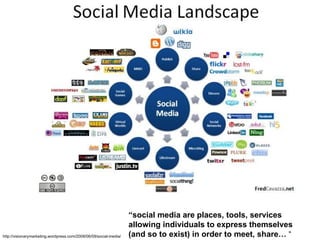
http://visionarymarketing.wordpress.com/2008/06/09/social-media/ “ social media are places, tools, services allowing individuals to express themselves (and so to exist) in order to meet, share…  “
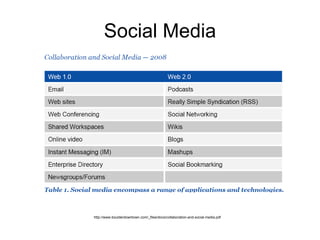
Social Media http://www.boulderdowntown.com/_files/docs/collaboration-and-social-media.pdf
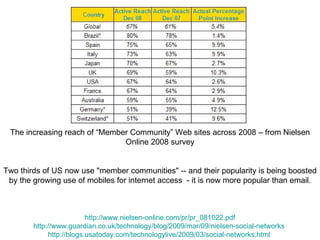
Two thirds of US now use "member communities" -- and their popularity is being boosted by the growing use of mobiles for internet access  - it is now more popular than email. The increasing reach of “Member Community” Web sites across 2008 – from Nielsen Online 2008 survey http://www.nielsen-online.com/pr/pr_081022.pdf http://www.guardian.co.uk/technology/blog/2009/mar/09/nielsen-social-networks   http://blogs.usatoday.com/technologylive/2009/03/social-networks.html
Collaborative Reflection
Blog activity – How do you use collaboration in the classroom? You will be given a piece of paper.  This is your “BLOG”  List a few ways you use collaboration in your classroom. Pass your blog to another person. Once you receive someone else’s blog, use the post-it notes to write a comment about something on the blog. Stick the note to the blog and then pass the blog to another person. You have three minutes to read blogs and make comments.  At the end of the time, find your original blog.
Blogs A twist on an old theme (journals done electronically with the ability to comment on the journal entry) Can be done asynchronously  Accessed from many different technologies Easy to edit and maintain Can be done through online services or “in-house”
Blogs Promotes writing/grammar/reading skills Motivation – many students like the concept – more willing to “blog” then write in a journal Allows learners at different reading levels to access the material at their own speed and to use online resources such as dictionaries Applies UDL principles Offers a way to integrate structure with freeform
Blogs - benefits Spell check and other tools available Many feel more comfortable writing in the “pseudo-anonymous” setting Can help with motivation, network building and community building Harder to “lose” work or forget notebook. http://anne.teachesme.com/2007/01/17/rationale-for-educational-blogging/  - wonderful list
Roadbumps to Watch Many sites are blocked Free sites often are not “free” Must monitor comments and entries just as with face-2-face discussions. Blog services often ask for email to create account The Internet is down Is a blog private?
Blogs - How to get around road bumps Have students “hand write” blog content when internet is down and add later.  Students can exchange the handwritten materials and even comment (aka our lesson)  This is perfect for limited computers – students can complete blogging activity in between working on other activities Create one account and have everyone in class use that account Use Word and a flash drive like a blog – start a file (the blog) and pass the flash drive around. Read student replies from blog and reference in class discussions or other assessment forms to validate student work, integrate student work and to help students remember that answers that are not valid are not accepted Model what a good blog and bad blog is as well as acceptable replies and where replies/comments go into poor criticism (QUILT techniques)
Blogs - How to get around road bumps Look into blog or learning management system software such as – moodle -  those found at the social media classroomwebsite or a “gated blog” Have students examine the privacy issue, also good way to discuss ethics, responsibility, privacy and a person’s image when introducing the blogging activity – remind them this is not a personal blog and should use same procedures as if turning in other school assignments  Check this site for a good guide to bringing blogs to the classroom -  http://www.edutopia.org/digital-discussion-take-your-class-to-internet
Blog Resources http://weblogg-ed.com/  - a wonderful blog with lots of ideas, resources and thoughts to ponder regarding education, blogging and technology http://www.teachersfirst.com/content/blog/blogideas2.cfm  - ideas and how to set up a blog http://supportblogging.com/Links+to+School+Bloggers  – a list of other school blogs – grab some ideas http://my-ecoach.com/online/webresourcelist.php?rlid=4992  – a nice list focused on blogs in the classroom A site designed for teachers  http://www.classblogmeister.com/  and here is a teacher’s blog on how to set up your account     http://coolcatteacher.blogspot.com/2006/02/how-to-set-up-classroom-blog-using.html   http://ezinearticles.com/?Computer-Security-in-the-Classroom---How-to-Lock-Down-Your-Educational-Blog&id=1236658  – advanced security ideas Using wordpress to control the environment -  http://blog.classroomteacher.ca/186/how-to-hide-unmoderated-comments-in-wordpress/#more-186  and  http://blog.classroomteacher.ca/tag/blogging-in-the-classroom/   http://www.ideamarketers.com/?Classroom_Blogs_-_How_to_Protect_Your_Educational_Blog&articleid=472597  – how to protect your classroom blog http://www.teachingtips.com/blog/2008/07/21/50-useful-blogging-tools-for-teachers/  - useful blogging tools http://www.scribd.com/doc/7159368/Setting-Up-a-Classroom-Blog  - a bit old but good ideas for setting up a blog
Collaborative Authoring/Publishing
Wiki Activity - Types of collaboration You will be given notecards with vocabulary words You have five minutes to use the provided resource ( http://www.c4lpt.co.uk/articles/sml3.html ,  http://www.c4lpt.co.uk/articles/socialmedia.html )  to create an overview for each of your words. When you finish writing the overview on your notecard, place it on the Collaboration Wiki Wall (CWW) Everyone receives the SAME GRADE based on ALL of the information on the CWW Read over the other entries and use a highlighter and the post it notes to make suggestions/corrections Find you original cards and update as needed Once final is submitted, copy all words into your personal class wiki notebook
Wikis A collaborative writing/publishing tool A wiki is like a book with multiple pages Anyone with access to the wiki can edit content Uses a mix of word processing tools and web design tools to allow for more ways to access and format content – can create a word document or a web page
Wiki Benefits Collects work in one place – do not have to sift through 30 papers. Wikis can be standardized to help teach structure and organization skills or teachers can allow students to modify Promotes peer review and feedback Can be used to track the draft and revision process in one place. Teachers can comment in the wiki and interact with students
Wiki Benefits Can be accessed from any Internet able computer – no need for flash drives, software compatibility. You can access the wiki and make comments/announcements and add files or other items a project needs Introduces multiple ways to view, format and organize information (UDL) More companies/colleges are using this method for group oriented work Harder to “lose” work or forget notebook.
Wiki Roadbumps to Watch MAKE BACKUPS – deletion happens Check the wiki – the set of writing tools wikis have will vary from wiki to wiki Encourages copy and paste Many sites are blocked Free sites often are not “free” Must monitor comments and work just as with face-2-face discussions/work. Wiki services often ask for email to create account The Internet is down Not a lot of computers in classroom
Wikis - Ways around roadbumps Have students “hand write” wiki content when internet is down (or in a word processor) and add later.  Students can exchange the handwritten materials and even comment (aka our lesson) This is perfect for limited computers – the wiki is only one part of the project and only one computer needed per group or even in general…. Wikis have a history – use it to track activity  Create one account and have everyone in class use that account  you can set up a single wiki and copy and paste multiple times Wikis are like books and can have multiple pages – one page for each group
Wikis – Ways Around Roadbumps Read student replies from wiki and reference in class discussions or other assessment forms to validate student work, integrate student work and to help students remember that answers that are not valid are not accepted Model what a good blog and bad blog is as well as acceptable replies and where replies/comments go into poor criticism (QUILT techniques) Look into wiki or learning management system software such as – moodle or those found at the social media classroom web site
Wikis - Ways around roadbumps You can set how much access a person has to a wiki – make it so pages can be edited but not deleted Always ask for login information to student wikis so you can monitor – if you do edit or change – leave a note – do not just alter work with no trace Use Word and a flash drive like a wiki – start a file (the wiki) and pass the flash drive around.  Not ideal, but, similar concept Have students examine the privacy issue, also good way to discuss ethics, responsibility, privacy and a person’s image when introducing the blogging activity – remind them this is not a personal wiki and should use same procedures as if turning in other school assignments
Wiki Resources http://weblogged.wikispaces.com/Wiki+Links  – a nice list of links and ideas to consider http://commoncraft.com/show  - has a nice video on wikis Teacher tips and ideas for blogs and wikis -  http://my-ecoach.com/online/webresourcelist.php?rlid=4992   http://www.edutopia.org/glorified-whiteboard  - nice overview of wikis and the classroom http://www.visualthesaurus.com/cm/teachersatwork/1371/  - a teacher’s tips and ideas for using a wiki (teaching juniors) http://class-wiki.intodit.com/  - a wiki place with some tips on setting up a wiki http://peo.cambridge.org/index.php?option=com_content&view=article&id=18:wikis-in-the-classroom&catid=3:blog&Itemid=2  –some neat wiki ideas http://blog.pbwiki.com/2008/08/12/new-feature-classroom-accounts-for-students-without-email-addresses/comment-page-1/  - classroom accounts (with no emails) for PBWiki
Collaborative Diagramming/Planning
Brainstorm activity -  how to use collaboration in the classroom  Think about what you have learning in this workshop – write down three things Now think about what you already knew about collaborative communication – write down three things Now, list 5 ways you could use one of the topics discussed during this workshop in your classroom. Be prepared to share
Mind Maps/Concept Maps Brainstorming Organizing information Visual vs text Building levels of participation – can be individual or group Implies not just topic but RELATIONSHIP
Brainstorming Resources http://bubbl.us/   http:// www.edutopia.org/xtimeline -timeline-web-site   http://mywebspiration.com/   (free right now, may change) List of tools -  http://mashable.com/2007/11/03/mindmapping/
Other Social Media Forums -  http://blip.tv/file/1123048  - great introduction to forums and why better than other forms of communication Polleverywhere.com and Twitter.com http://commoncraft.com/show  – a different way to think about social media http://www.readwriteweb.com/archives/the_social_media_classroom_a_new_platform_for_education.php  - the social media classroom with resources and more -  http://blip.tv/file/1186946  is a video intro to this resource http://delicious.com/  - sharing bookmarks and resources http://imbee.com/  - a teacher/parent social network but still needs to be monitored http://www.boulderdowntown.com/_files/docs/collaboration-and-social-media.pdf  - huge document but lots of information regarding social media and industry http://visionarymarketing.wordpress.com/2008/06/09/social-media/  and  http://www.fredcavazza.net/2008/06/09/social-media-landscape/
Other Resources http://www.c4lpt.co.uk/Directory/  - wonderful site and directory!! http://www.internet4classrooms.com/web2.htm  - Internet4classrooms - good site and here is their list and recently updated too http://www.smartteaching.org/blog/2008/08/100-awesome-classroom-videos-to-learn-new-teaching-techniques/   - list of videos made by teachers to teach new technologies http://www.classroom20.com/  - a social network focused on these tools http://www.edutopia.org/tech-integration  - technology integration ideas Cape May County ETTC Treasure Chest of Resources – (going live in April)  www.capemaytech.cnet/ettc/treasurechest/   http://www.go2web20.net/  - large list of tools http://oedb.org/library/beginning-online-learning/e-learning-reloaded:-top-50-web-2.0-tools-for-info-junkies,-researchers-&-students  – a short list but good start
Where to Next Meet With Diane or Julie to plan a follow up lesson development session (I have my schedule – let’s pick a date now) Set up a blog or wiki for a personal reason to begin getting a “feel” for this type of communication Try the steps mentioned in -  http://www.c4lpt.co.uk/articles/socialmedia.html   Explore the workshop resources This PowerPoint and a couple of lesson plans will be emailed to everyone attending the workshop as well as available on the H drive USE IT, DO IT, TRY IT – do not wait  

Collaborative Communication

  • 1.
  • 2.
    Essential Question Howcan collaborative communication be effectively used in my classroom?
  • 3.
    Objectives for today(we only have an hour – so much to do) What does collaborative communication look like Identify types of collaboration Develop methods to promote collaboration Evaluate collaborative tools
  • 4.
    http://visionarymarketing.wordpress.com/2008/06/09/social-media/ “ socialmedia are places, tools, services allowing individuals to express themselves (and so to exist) in order to meet, share… “
  • 5.
  • 6.
    Two thirds ofUS now use "member communities" -- and their popularity is being boosted by the growing use of mobiles for internet access  - it is now more popular than email. The increasing reach of “Member Community” Web sites across 2008 – from Nielsen Online 2008 survey http://www.nielsen-online.com/pr/pr_081022.pdf http://www.guardian.co.uk/technology/blog/2009/mar/09/nielsen-social-networks http://blogs.usatoday.com/technologylive/2009/03/social-networks.html
  • 7.
  • 8.
    Blog activity –How do you use collaboration in the classroom? You will be given a piece of paper. This is your “BLOG” List a few ways you use collaboration in your classroom. Pass your blog to another person. Once you receive someone else’s blog, use the post-it notes to write a comment about something on the blog. Stick the note to the blog and then pass the blog to another person. You have three minutes to read blogs and make comments. At the end of the time, find your original blog.
  • 9.
    Blogs A twiston an old theme (journals done electronically with the ability to comment on the journal entry) Can be done asynchronously Accessed from many different technologies Easy to edit and maintain Can be done through online services or “in-house”
  • 10.
    Blogs Promotes writing/grammar/readingskills Motivation – many students like the concept – more willing to “blog” then write in a journal Allows learners at different reading levels to access the material at their own speed and to use online resources such as dictionaries Applies UDL principles Offers a way to integrate structure with freeform
  • 11.
    Blogs - benefitsSpell check and other tools available Many feel more comfortable writing in the “pseudo-anonymous” setting Can help with motivation, network building and community building Harder to “lose” work or forget notebook. http://anne.teachesme.com/2007/01/17/rationale-for-educational-blogging/ - wonderful list
  • 12.
    Roadbumps to WatchMany sites are blocked Free sites often are not “free” Must monitor comments and entries just as with face-2-face discussions. Blog services often ask for email to create account The Internet is down Is a blog private?
  • 13.
    Blogs - Howto get around road bumps Have students “hand write” blog content when internet is down and add later. Students can exchange the handwritten materials and even comment (aka our lesson) This is perfect for limited computers – students can complete blogging activity in between working on other activities Create one account and have everyone in class use that account Use Word and a flash drive like a blog – start a file (the blog) and pass the flash drive around. Read student replies from blog and reference in class discussions or other assessment forms to validate student work, integrate student work and to help students remember that answers that are not valid are not accepted Model what a good blog and bad blog is as well as acceptable replies and where replies/comments go into poor criticism (QUILT techniques)
  • 14.
    Blogs - Howto get around road bumps Look into blog or learning management system software such as – moodle - those found at the social media classroomwebsite or a “gated blog” Have students examine the privacy issue, also good way to discuss ethics, responsibility, privacy and a person’s image when introducing the blogging activity – remind them this is not a personal blog and should use same procedures as if turning in other school assignments Check this site for a good guide to bringing blogs to the classroom - http://www.edutopia.org/digital-discussion-take-your-class-to-internet
  • 15.
    Blog Resources http://weblogg-ed.com/ - a wonderful blog with lots of ideas, resources and thoughts to ponder regarding education, blogging and technology http://www.teachersfirst.com/content/blog/blogideas2.cfm - ideas and how to set up a blog http://supportblogging.com/Links+to+School+Bloggers – a list of other school blogs – grab some ideas http://my-ecoach.com/online/webresourcelist.php?rlid=4992 – a nice list focused on blogs in the classroom A site designed for teachers http://www.classblogmeister.com/ and here is a teacher’s blog on how to set up your account  http://coolcatteacher.blogspot.com/2006/02/how-to-set-up-classroom-blog-using.html http://ezinearticles.com/?Computer-Security-in-the-Classroom---How-to-Lock-Down-Your-Educational-Blog&id=1236658 – advanced security ideas Using wordpress to control the environment - http://blog.classroomteacher.ca/186/how-to-hide-unmoderated-comments-in-wordpress/#more-186 and http://blog.classroomteacher.ca/tag/blogging-in-the-classroom/ http://www.ideamarketers.com/?Classroom_Blogs_-_How_to_Protect_Your_Educational_Blog&articleid=472597 – how to protect your classroom blog http://www.teachingtips.com/blog/2008/07/21/50-useful-blogging-tools-for-teachers/ - useful blogging tools http://www.scribd.com/doc/7159368/Setting-Up-a-Classroom-Blog - a bit old but good ideas for setting up a blog
  • 16.
  • 17.
    Wiki Activity -Types of collaboration You will be given notecards with vocabulary words You have five minutes to use the provided resource ( http://www.c4lpt.co.uk/articles/sml3.html , http://www.c4lpt.co.uk/articles/socialmedia.html ) to create an overview for each of your words. When you finish writing the overview on your notecard, place it on the Collaboration Wiki Wall (CWW) Everyone receives the SAME GRADE based on ALL of the information on the CWW Read over the other entries and use a highlighter and the post it notes to make suggestions/corrections Find you original cards and update as needed Once final is submitted, copy all words into your personal class wiki notebook
  • 18.
    Wikis A collaborativewriting/publishing tool A wiki is like a book with multiple pages Anyone with access to the wiki can edit content Uses a mix of word processing tools and web design tools to allow for more ways to access and format content – can create a word document or a web page
  • 19.
    Wiki Benefits Collectswork in one place – do not have to sift through 30 papers. Wikis can be standardized to help teach structure and organization skills or teachers can allow students to modify Promotes peer review and feedback Can be used to track the draft and revision process in one place. Teachers can comment in the wiki and interact with students
  • 20.
    Wiki Benefits Canbe accessed from any Internet able computer – no need for flash drives, software compatibility. You can access the wiki and make comments/announcements and add files or other items a project needs Introduces multiple ways to view, format and organize information (UDL) More companies/colleges are using this method for group oriented work Harder to “lose” work or forget notebook.
  • 21.
    Wiki Roadbumps toWatch MAKE BACKUPS – deletion happens Check the wiki – the set of writing tools wikis have will vary from wiki to wiki Encourages copy and paste Many sites are blocked Free sites often are not “free” Must monitor comments and work just as with face-2-face discussions/work. Wiki services often ask for email to create account The Internet is down Not a lot of computers in classroom
  • 22.
    Wikis - Waysaround roadbumps Have students “hand write” wiki content when internet is down (or in a word processor) and add later. Students can exchange the handwritten materials and even comment (aka our lesson) This is perfect for limited computers – the wiki is only one part of the project and only one computer needed per group or even in general…. Wikis have a history – use it to track activity Create one account and have everyone in class use that account you can set up a single wiki and copy and paste multiple times Wikis are like books and can have multiple pages – one page for each group
  • 23.
    Wikis – WaysAround Roadbumps Read student replies from wiki and reference in class discussions or other assessment forms to validate student work, integrate student work and to help students remember that answers that are not valid are not accepted Model what a good blog and bad blog is as well as acceptable replies and where replies/comments go into poor criticism (QUILT techniques) Look into wiki or learning management system software such as – moodle or those found at the social media classroom web site
  • 24.
    Wikis - Waysaround roadbumps You can set how much access a person has to a wiki – make it so pages can be edited but not deleted Always ask for login information to student wikis so you can monitor – if you do edit or change – leave a note – do not just alter work with no trace Use Word and a flash drive like a wiki – start a file (the wiki) and pass the flash drive around. Not ideal, but, similar concept Have students examine the privacy issue, also good way to discuss ethics, responsibility, privacy and a person’s image when introducing the blogging activity – remind them this is not a personal wiki and should use same procedures as if turning in other school assignments
  • 25.
    Wiki Resources http://weblogged.wikispaces.com/Wiki+Links – a nice list of links and ideas to consider http://commoncraft.com/show - has a nice video on wikis Teacher tips and ideas for blogs and wikis - http://my-ecoach.com/online/webresourcelist.php?rlid=4992 http://www.edutopia.org/glorified-whiteboard - nice overview of wikis and the classroom http://www.visualthesaurus.com/cm/teachersatwork/1371/ - a teacher’s tips and ideas for using a wiki (teaching juniors) http://class-wiki.intodit.com/ - a wiki place with some tips on setting up a wiki http://peo.cambridge.org/index.php?option=com_content&view=article&id=18:wikis-in-the-classroom&catid=3:blog&Itemid=2 –some neat wiki ideas http://blog.pbwiki.com/2008/08/12/new-feature-classroom-accounts-for-students-without-email-addresses/comment-page-1/ - classroom accounts (with no emails) for PBWiki
  • 26.
  • 27.
    Brainstorm activity - how to use collaboration in the classroom Think about what you have learning in this workshop – write down three things Now think about what you already knew about collaborative communication – write down three things Now, list 5 ways you could use one of the topics discussed during this workshop in your classroom. Be prepared to share
  • 28.
    Mind Maps/Concept MapsBrainstorming Organizing information Visual vs text Building levels of participation – can be individual or group Implies not just topic but RELATIONSHIP
  • 29.
    Brainstorming Resources http://bubbl.us/ http:// www.edutopia.org/xtimeline -timeline-web-site http://mywebspiration.com/ (free right now, may change) List of tools - http://mashable.com/2007/11/03/mindmapping/
  • 30.
    Other Social MediaForums - http://blip.tv/file/1123048 - great introduction to forums and why better than other forms of communication Polleverywhere.com and Twitter.com http://commoncraft.com/show – a different way to think about social media http://www.readwriteweb.com/archives/the_social_media_classroom_a_new_platform_for_education.php - the social media classroom with resources and more - http://blip.tv/file/1186946 is a video intro to this resource http://delicious.com/ - sharing bookmarks and resources http://imbee.com/ - a teacher/parent social network but still needs to be monitored http://www.boulderdowntown.com/_files/docs/collaboration-and-social-media.pdf - huge document but lots of information regarding social media and industry http://visionarymarketing.wordpress.com/2008/06/09/social-media/ and http://www.fredcavazza.net/2008/06/09/social-media-landscape/
  • 31.
    Other Resources http://www.c4lpt.co.uk/Directory/ - wonderful site and directory!! http://www.internet4classrooms.com/web2.htm - Internet4classrooms - good site and here is their list and recently updated too http://www.smartteaching.org/blog/2008/08/100-awesome-classroom-videos-to-learn-new-teaching-techniques/ - list of videos made by teachers to teach new technologies http://www.classroom20.com/ - a social network focused on these tools http://www.edutopia.org/tech-integration - technology integration ideas Cape May County ETTC Treasure Chest of Resources – (going live in April) www.capemaytech.cnet/ettc/treasurechest/ http://www.go2web20.net/ - large list of tools http://oedb.org/library/beginning-online-learning/e-learning-reloaded:-top-50-web-2.0-tools-for-info-junkies,-researchers-&-students – a short list but good start
  • 32.
    Where to NextMeet With Diane or Julie to plan a follow up lesson development session (I have my schedule – let’s pick a date now) Set up a blog or wiki for a personal reason to begin getting a “feel” for this type of communication Try the steps mentioned in - http://www.c4lpt.co.uk/articles/socialmedia.html Explore the workshop resources This PowerPoint and a couple of lesson plans will be emailed to everyone attending the workshop as well as available on the H drive USE IT, DO IT, TRY IT – do not wait 