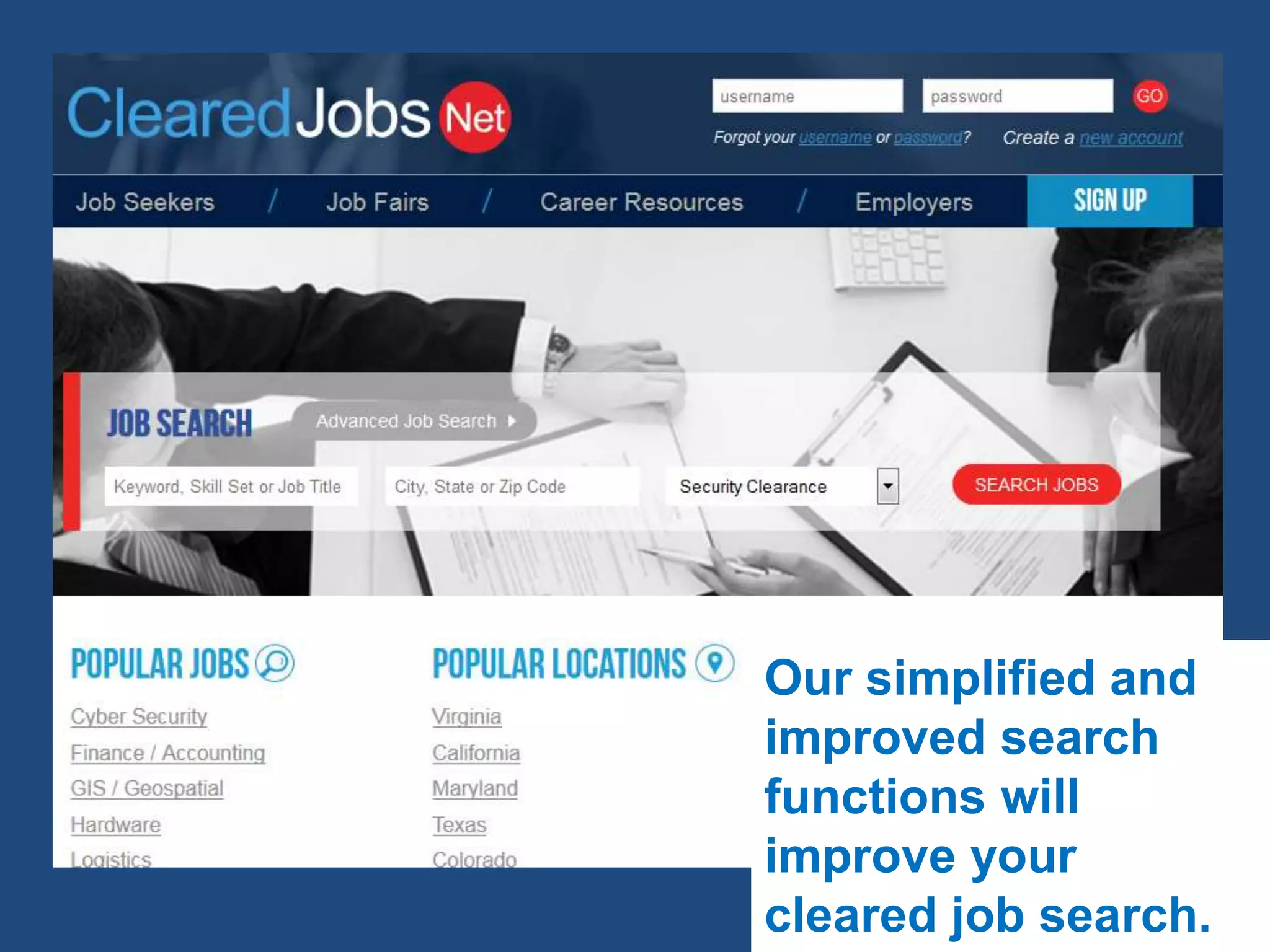
Our simplified and
improved search
functions will
improve your
cleared job search.
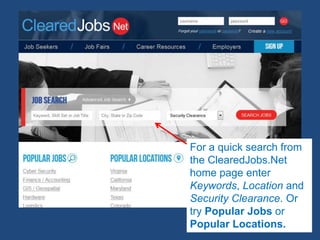
For a quick search from
the ClearedJobs.Net
home page enter
Keywords, Location and
Security Clearance. Or
try Popular Jobs or
Popular Locations.
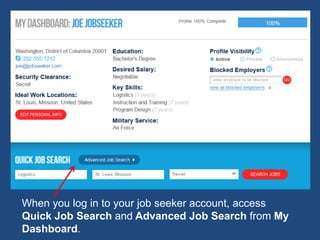
When you log in to your job seeker account, access
Quick Job Search and Advanced Job Search from My
Dashboard.
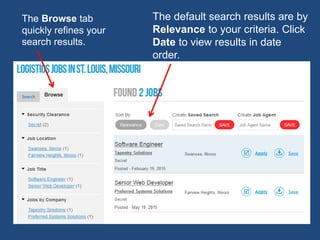
The default search results are by
Relevance to your criteria. Click
Date to view results in date order.
The Browse tab
quickly refines your
search results.
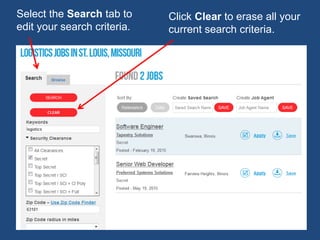
Click Clear to erase all your
current search criteria.
Select the Search tab to
edit your search criteria.
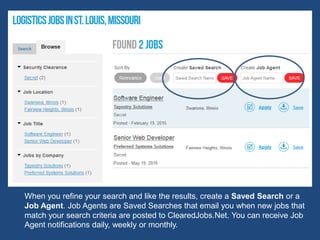
When you refine your search and like the results, create a Saved Search or a
Job Agent. Job Agents are Saved Searches that email you when new jobs that
match your search criteria are posted to ClearedJobs.Net. You can receive Job
Agent notifications daily, weekly or monthly.
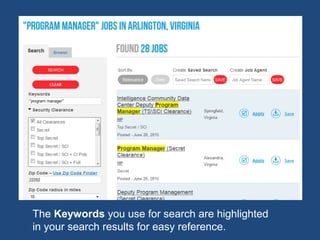
The Keywords you use for search are highlighted
in your search results for easy reference.
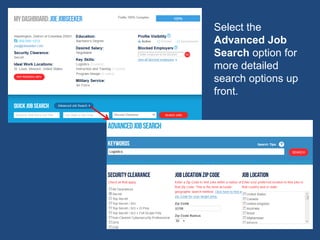
Select the
Advanced Job
Search option for
more detailed
search options up
front.
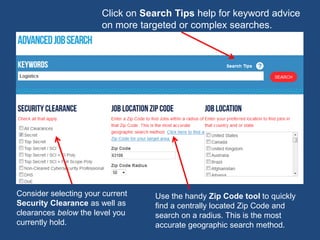
Use the handy Zip Code tool to quickly
find a centrally located Zip Code and
search on a radius. This is the most
accurate geographic search method.
Click on Search Tips help for keyword advice
on more targeted or complex searches.
Consider selecting your current
Security Clearance as well as
clearances below the level you
currently hold.
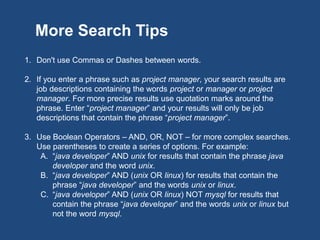
1. Don't use Commas or Dashes between words.
2. If you enter a phrase such as project manager, your search results are
job descriptions containing the words project and manager or the phrase
project manager. For more precise results use quotation marks around
the phrase. Enter “project manager” and your results will only be job
descriptions that contain the phrase “project manager”.
3. Use Boolean Operators – AND, OR, NOT – for more complex searches.
Use parentheses to create a series of options. For example:
A. “java developer” AND unix for results that contain the phrase java
developer and the word unix.
B. “java developer” AND (unix OR linux) for results that contain the
phrase “java developer” and the words unix or linux.
C. “java developer” AND (unix OR linux) NOT mysql for results that
contain the phrase “java developer” and the words unix or linux but
not the word mysql.
More Search Tips
More questions? Please contact our Customer
Service team for assistance:
CustomerService@ClearedJobs.Net

ClearedJobs.Net Job Search

  • 1.
    Our simplified and improvedsearch functions will improve your cleared job search.
  • 2.
    For a quicksearch from the ClearedJobs.Net home page enter Keywords, Location and Security Clearance. Or try Popular Jobs or Popular Locations.
  • 3.
    When you login to your job seeker account, access Quick Job Search and Advanced Job Search from My Dashboard.
  • 4.
    The default searchresults are by Relevance to your criteria. Click Date to view results in date order. The Browse tab quickly refines your search results.
  • 5.
    Click Clear toerase all your current search criteria. Select the Search tab to edit your search criteria.
  • 6.
    When you refineyour search and like the results, create a Saved Search or a Job Agent. Job Agents are Saved Searches that email you when new jobs that match your search criteria are posted to ClearedJobs.Net. You can receive Job Agent notifications daily, weekly or monthly.
  • 7.
    The Keywords youuse for search are highlighted in your search results for easy reference.
  • 8.
    Select the Advanced Job Searchoption for more detailed search options up front.
  • 9.
    Use the handyZip Code tool to quickly find a centrally located Zip Code and search on a radius. This is the most accurate geographic search method. Click on Search Tips help for keyword advice on more targeted or complex searches. Consider selecting your current Security Clearance as well as clearances below the level you currently hold.
  • 10.
    1. Don't useCommas or Dashes between words. 2. If you enter a phrase such as project manager, your search results are job descriptions containing the words project and manager or the phrase project manager. For more precise results use quotation marks around the phrase. Enter “project manager” and your results will only be job descriptions that contain the phrase “project manager”. 3. Use Boolean Operators – AND, OR, NOT – for more complex searches. Use parentheses to create a series of options. For example: A. “java developer” AND unix for results that contain the phrase java developer and the word unix. B. “java developer” AND (unix OR linux) for results that contain the phrase “java developer” and the words unix or linux. C. “java developer” AND (unix OR linux) NOT mysql for results that contain the phrase “java developer” and the words unix or linux but not the word mysql. More Search Tips
  • 11.
    More questions? Pleasecontact our Customer Service team for assistance: CustomerService@ClearedJobs.Net