McGraw-Hill/Irwin Copyright © 2008, The McGraw-Hill Companies, Inc. All rights reserved.
McGraw-Hill/Irwin Copyright © 2008 by The McGraw-Hill Companies, Inc. All rights reserved.
McGraw-Hill/Irwin Copyright © 2008, The McGraw-Hill Companies, Inc. All rights reserved.
Computer Hardware
Chapter
3
3-3
• Understand the history and evolution of
computer hardware
• Identify the major types and uses of
microcomputer, midrange, and mainframe
computer systems
• Outline the major technologies and uses of
computer peripherals for input, output, and
storage
Learning Objectives
3-4
Learning Objectives
• Identify and give examples of the components
and functions of a computer system
• Identify the computer systems and peripherals
you would acquire or recommend for a business
of your choice, and explain the reasons for your
selection.
3-5
Case 1: Mobile and Wireless Technology
• The challenge…
• Provide mobile computing capabilities
• Deliver applications for use on small LED
screens
• Common applications…
• Police work
• Anti-terrorism
• Global employee communication and
collaboration
3-6
Case Study Questions
• What are some of the benefits that organizations
could realize by connecting all of their
employees by mobile devices?
• Are the CIOs in the case saying that ROI is not
important when deploying mobile computing
devices?
• The case suggests that an increasingly popular
mobile device is the Black Berry. What is it
about the BlackBerry that makes it so popular?
3-7
Pre-Computer Calculations
• Counting on fingers and toes
• Stone or bead abacus
• Calculate comes from calculus, the Latin word
for stone
• 1642: first mechanical adding machine
• Invented by Blaise Pascal
• Wheels moved counters
• Modified in 1674 by Von Leibnitz
• Age of industrialization
• Mechanical loomed used punch cards
3-8
Early Computing
• 19th Century
• Charles Babbage proposed the Analytical Engine,
which could calculate, store values in memory,
perform logical comparisons
• Never built because of lack of electronics
• 1880s
• Hollerith’s punched cards used to record census
data using On/Off patterns
• The holes turned sensors On or Off when run
through tabulating machine
• This company became the foundation for IBM
3-9
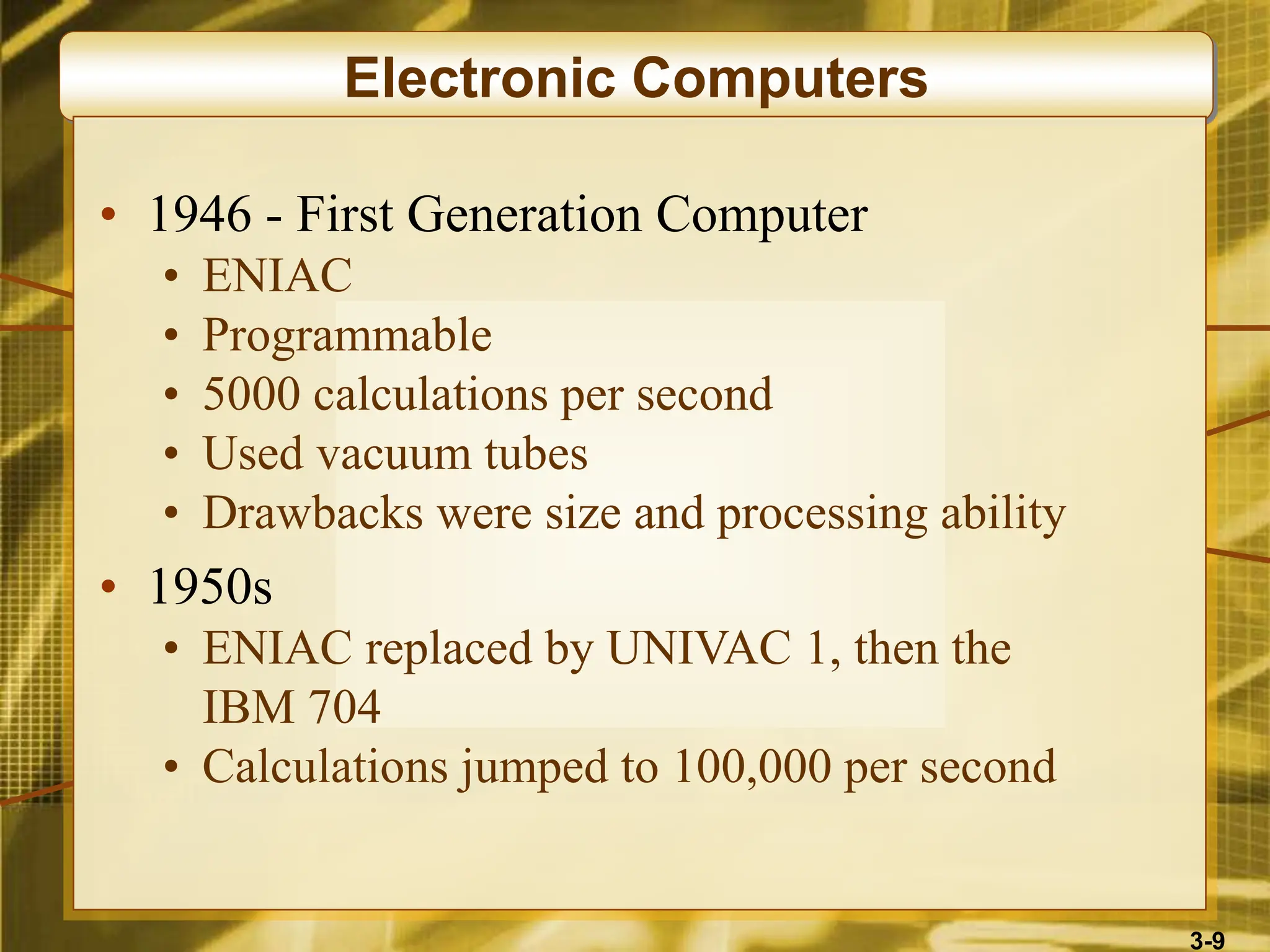
Electronic Computers
• 1946 - First Generation Computer
• ENIAC
• Programmable
• 5000 calculations per second
• Used vacuum tubes
• Drawbacks were size and processing ability
• 1950s
• ENIAC replaced by UNIVAC 1, then the
IBM 704
• Calculations jumped to 100,000 per second
3-10
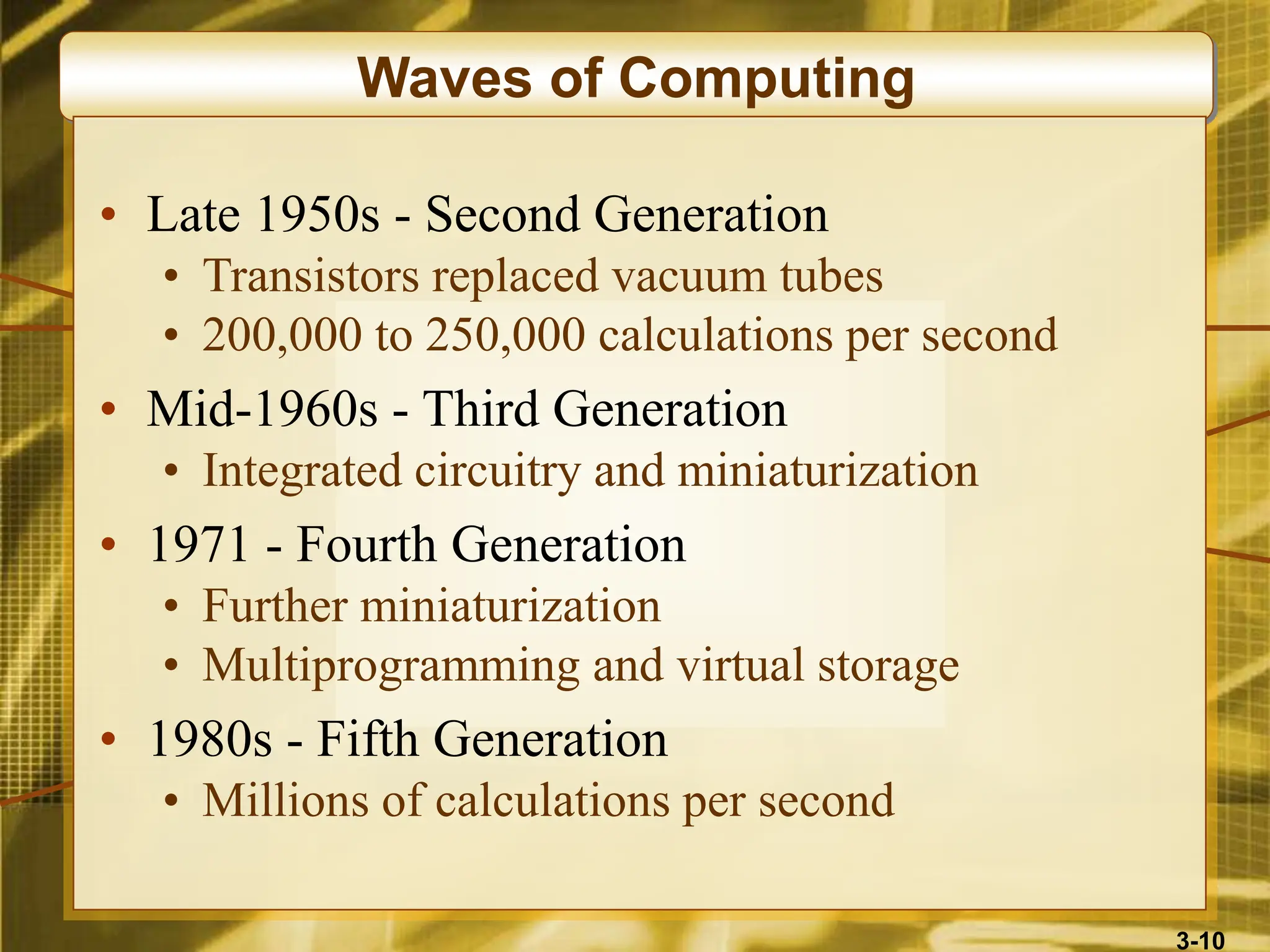
Waves of Computing
• Late 1950s - Second Generation
• Transistors replaced vacuum tubes
• 200,000 to 250,000 calculations per second
• Mid-1960s - Third Generation
• Integrated circuitry and miniaturization
• 1971 - Fourth Generation
• Further miniaturization
• Multiprogramming and virtual storage
• 1980s - Fifth Generation
• Millions of calculations per second
3-11
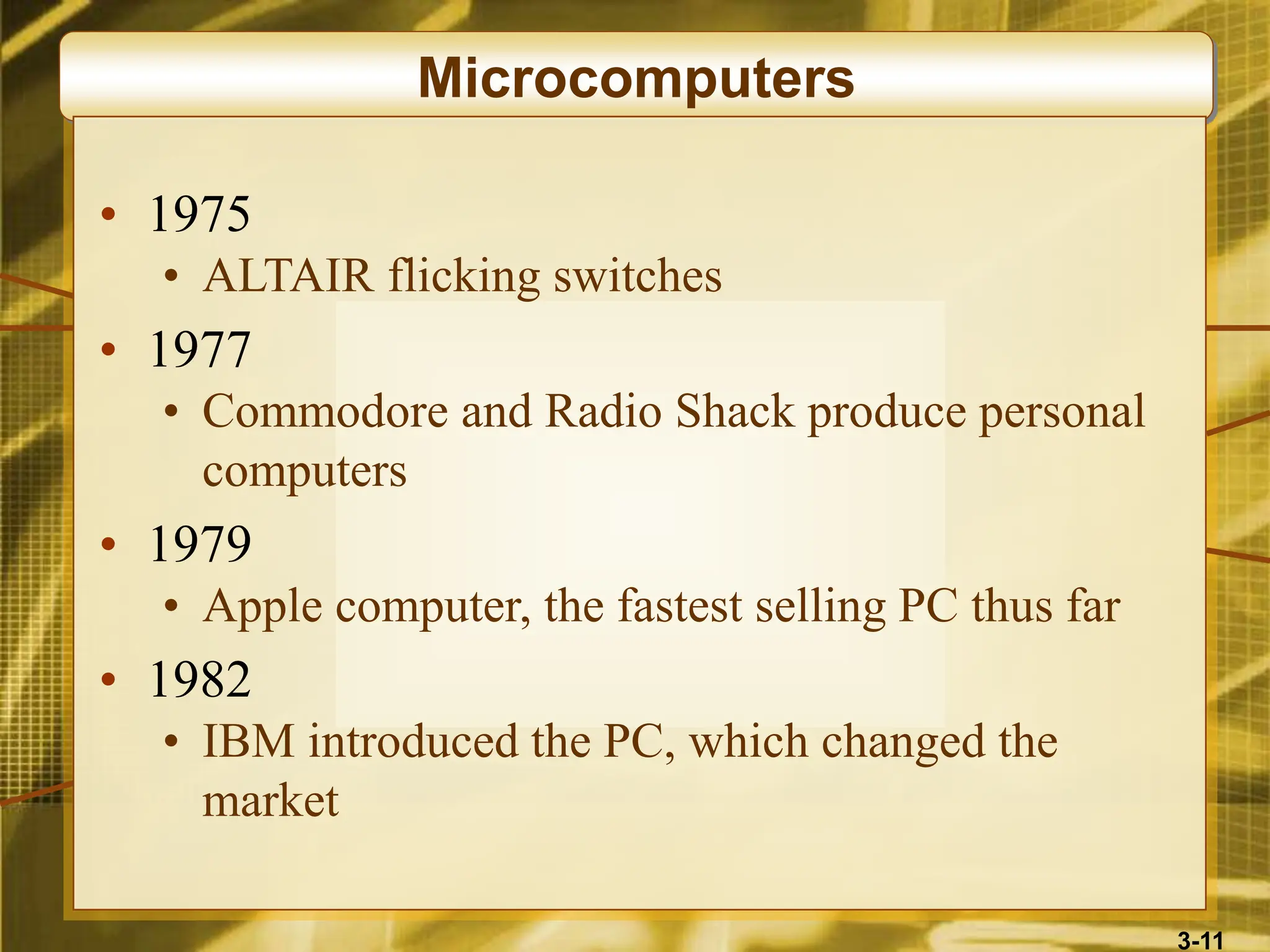
Microcomputers
• 1975
• ALTAIR flicking switches
• 1977
• Commodore and Radio Shack produce personal
computers
• 1979
• Apple computer, the fastest selling PC thus far
• 1982
• IBM introduced the PC, which changed the
market
3-12
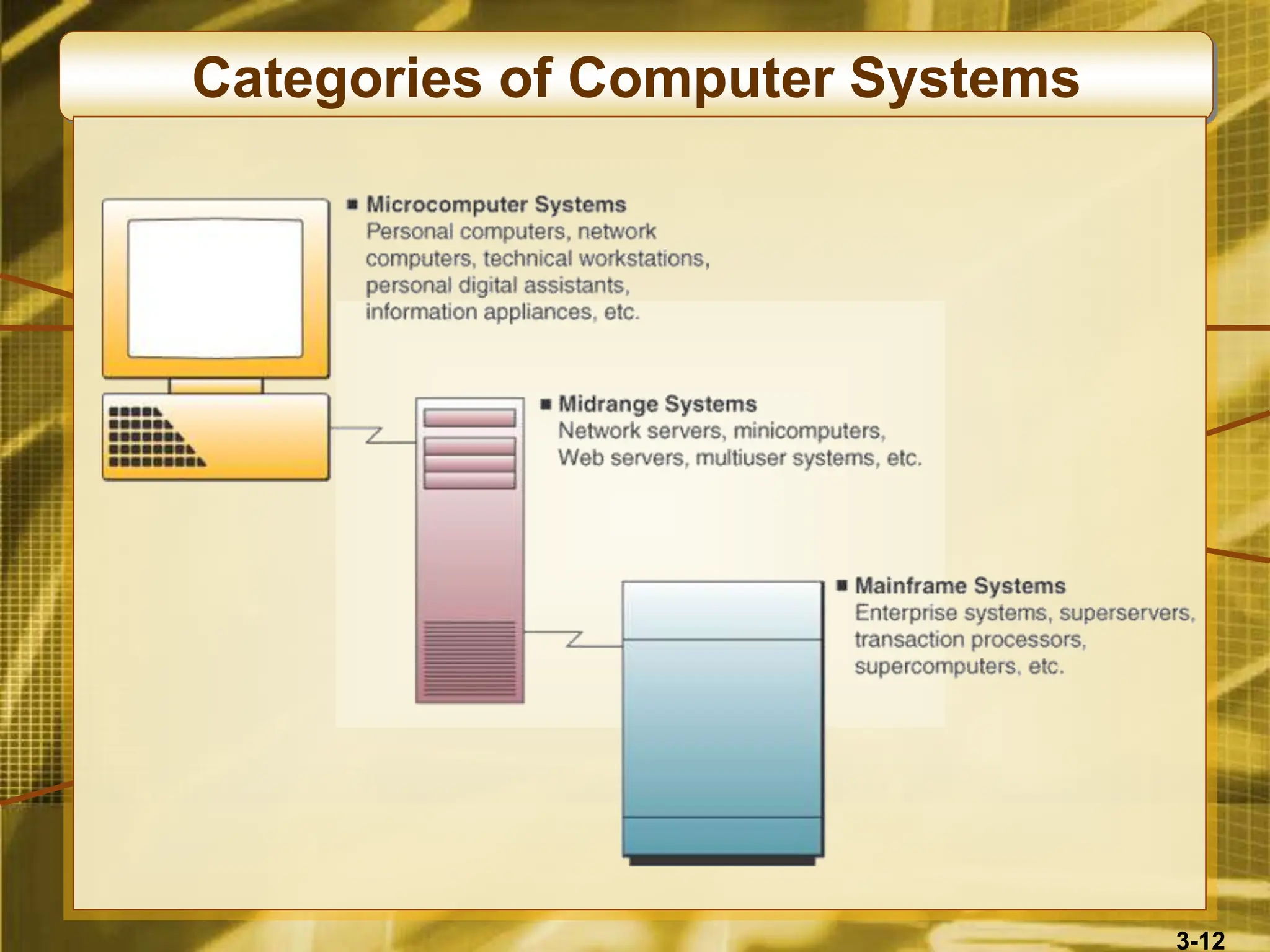
Categories of Computer Systems
3-13
Microcomputer Systems
• Usually called a personal computer or PC
• Computing power now exceeds that of the
mainframes of previous generations
• Relatively inexpensive
• Are the networked professional workstations
used by business processions
• Versions include hand-held, notebook, laptop,
tablet, portable, desktop, and floor-standing
3-14
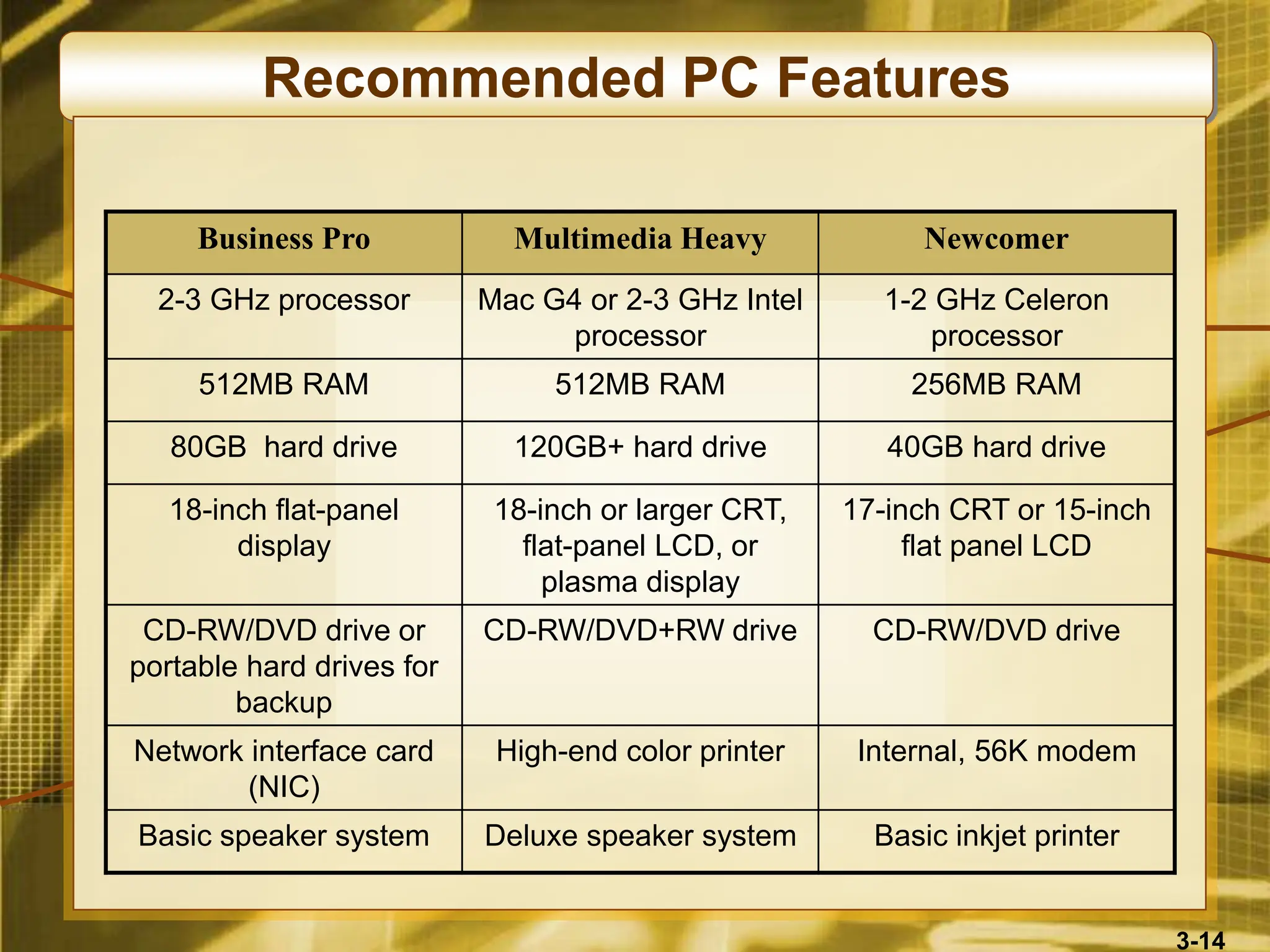
Recommended PC Features
Business Pro Multimedia Heavy Newcomer
2-3 GHz processor Mac G4 or 2-3 GHz Intel
processor
1-2 GHz Celeron
processor
512MB RAM 512MB RAM 256MB RAM
80GB hard drive 120GB+ hard drive 40GB hard drive
18-inch flat-panel
display
18-inch or larger CRT,
flat-panel LCD, or
plasma display
17-inch CRT or 15-inch
flat panel LCD
CD-RW/DVD drive or
portable hard drives for
backup
CD-RW/DVD+RW drive CD-RW/DVD drive
Network interface card
(NIC)
High-end color printer Internal, 56K modem
Basic speaker system Deluxe speaker system Basic inkjet printer
3-15
Microcomputer Uses
• Workstations
• Supports have mathematical computer and
graphics display demands
• CAD, investment and portfolio analysis
• Network Servers
• More powerful than workstations
• Coordinates telecommunications and resource
sharing
• Supports small networks and Internet or intranet
websites
3-16
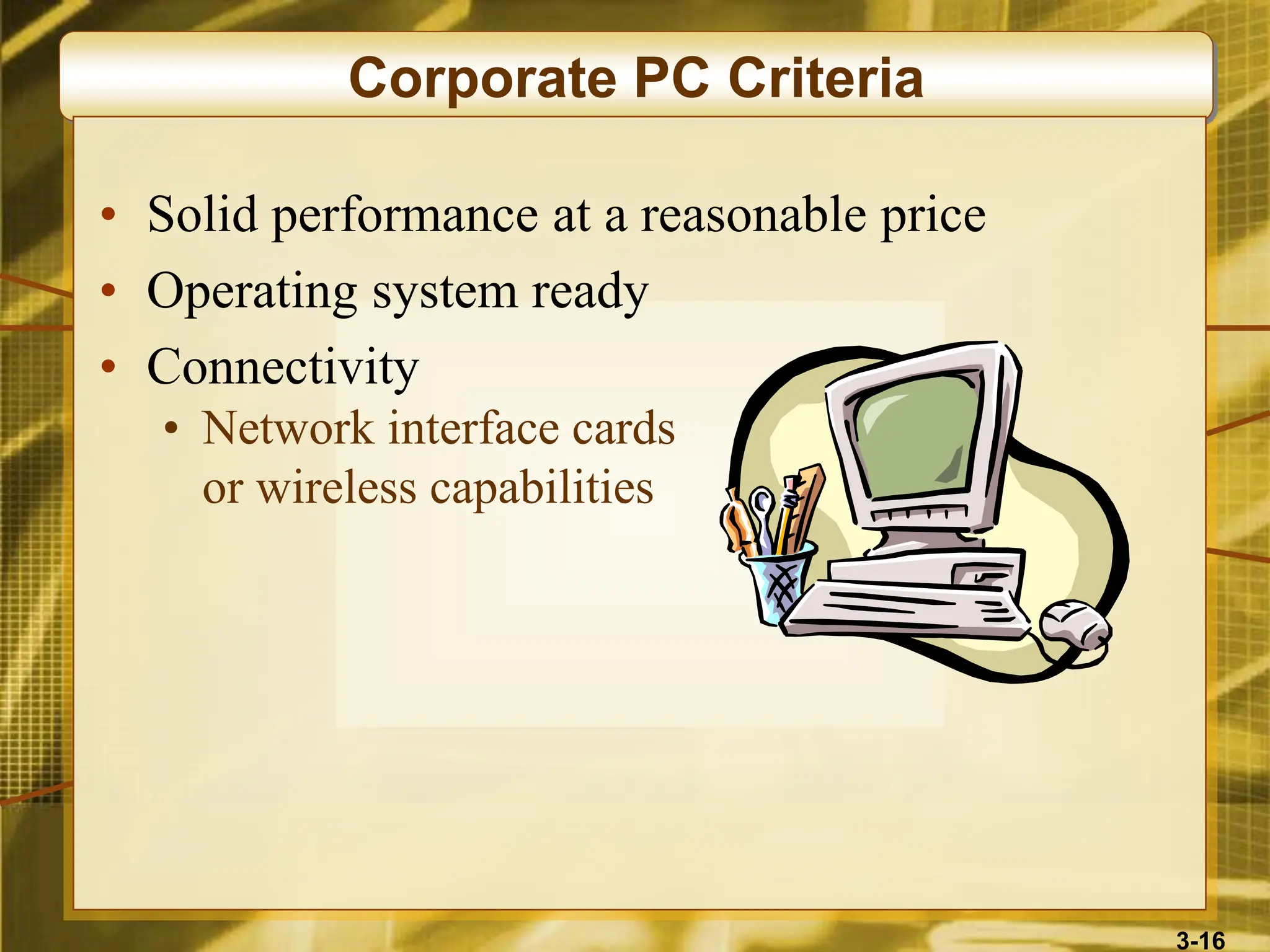
Corporate PC Criteria
• Solid performance at a reasonable price
• Operating system ready
• Connectivity
• Network interface cards
or wireless capabilities
3-17
Information Appliances
• Hand-held microcomputer devices
• Known as personal digital assistants (PDAs)
• Web-enabled PDAs use touch screens,
handwriting recognition, or keypads
• Mobile workers use to access email or the Web,
exchange data with desktop PCs or servers
• Latest entrant is the BlackBerry
• PDAs include
• Video-game consoles
• Cellular and PCS phones
• Telephone-based home email appliances
3-18
Midrange Systems
• High-end network servers that handle large-scale
processing of business applications
• Not as powerful as mainframes
• Less expensive to buy, operate, and maintain
• Often used to manage
• Large Internet websites
• Corporate intranets and extranets
• Integrated, enterprise-wide applications
• Used as front-end servers to assist mainframes
with telecommunications and networks
3-19
Mainframe Computer Systems
• Large, fast, powerful computer systems
• Large primary storage capacity
• High transaction processing
• Handles complex computations
• Widely used as superservers for…
• Large client/server networks
• High-volume Internet websites
• Becoming a popular computing platform for…
• Data mining and warehousing
• Electronic commerce applications
3-20
Supercomputer Systems
• Extremely powerful systems designed for…
• Scientific, engineering, and business applications
• Massive numeric computations
• Markets include…
• Government research agencies
• Large universities
• Major corporations
• Uses parallel processing
• Billions to trillions of operations per second
(gigaflops and teraflops)
• Costs $5 to $50 million
3-21
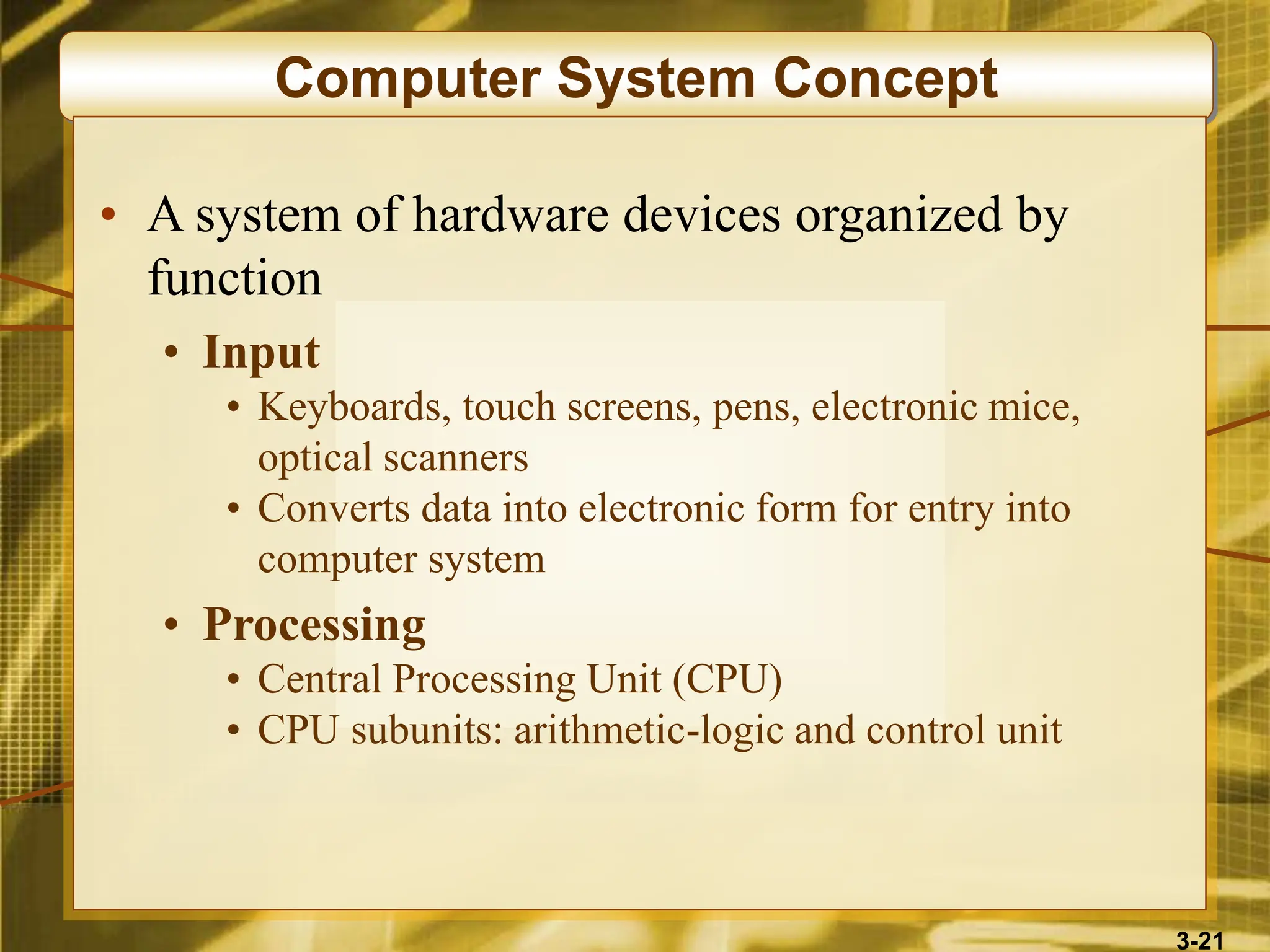
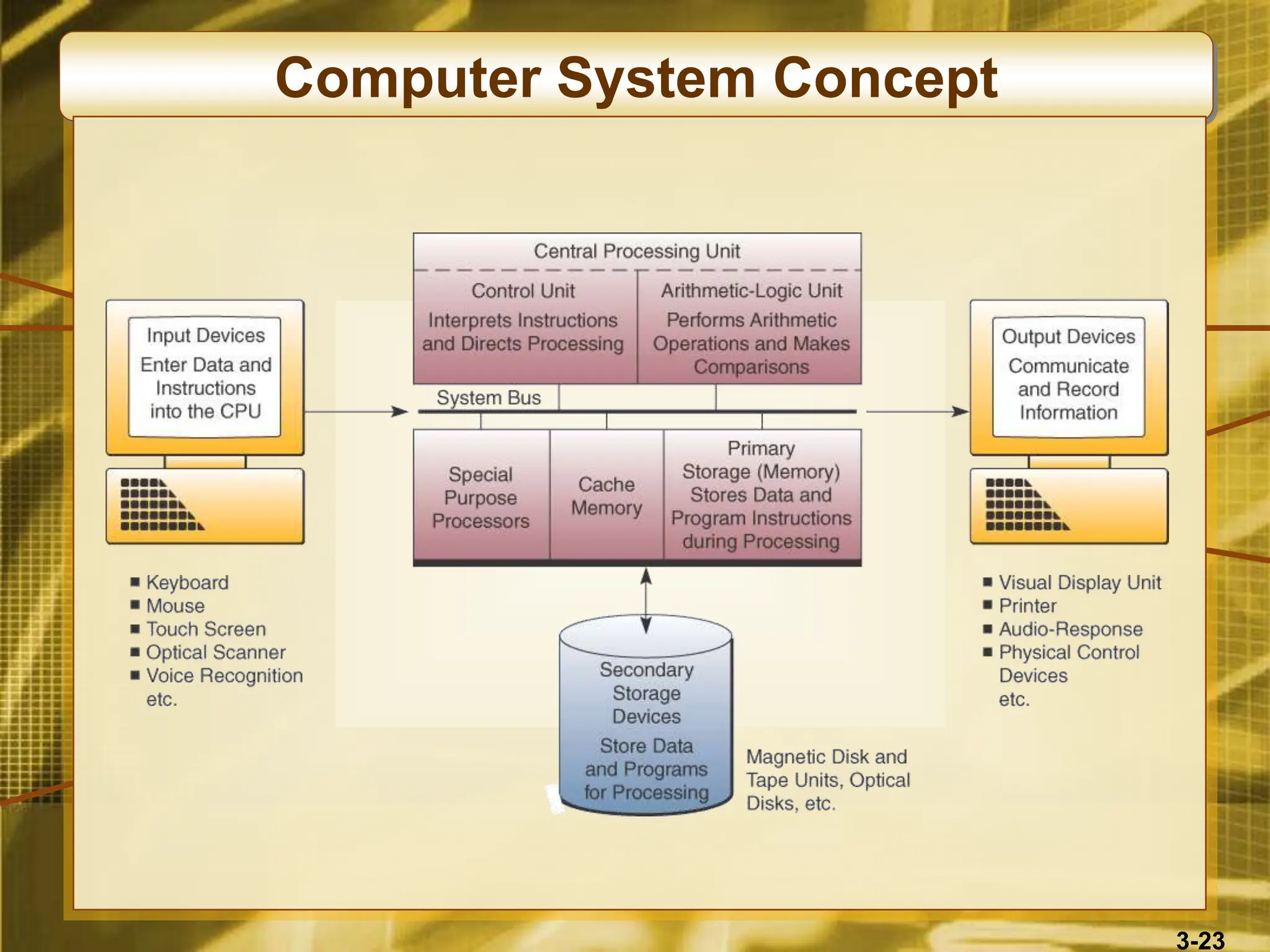
Computer System Concept
• A system of hardware devices organized by
function
• Input
• Keyboards, touch screens, pens, electronic mice,
optical scanners
• Converts data into electronic form for entry into
computer system
• Processing
• Central Processing Unit (CPU)
• CPU subunits: arithmetic-logic and control unit
3-22
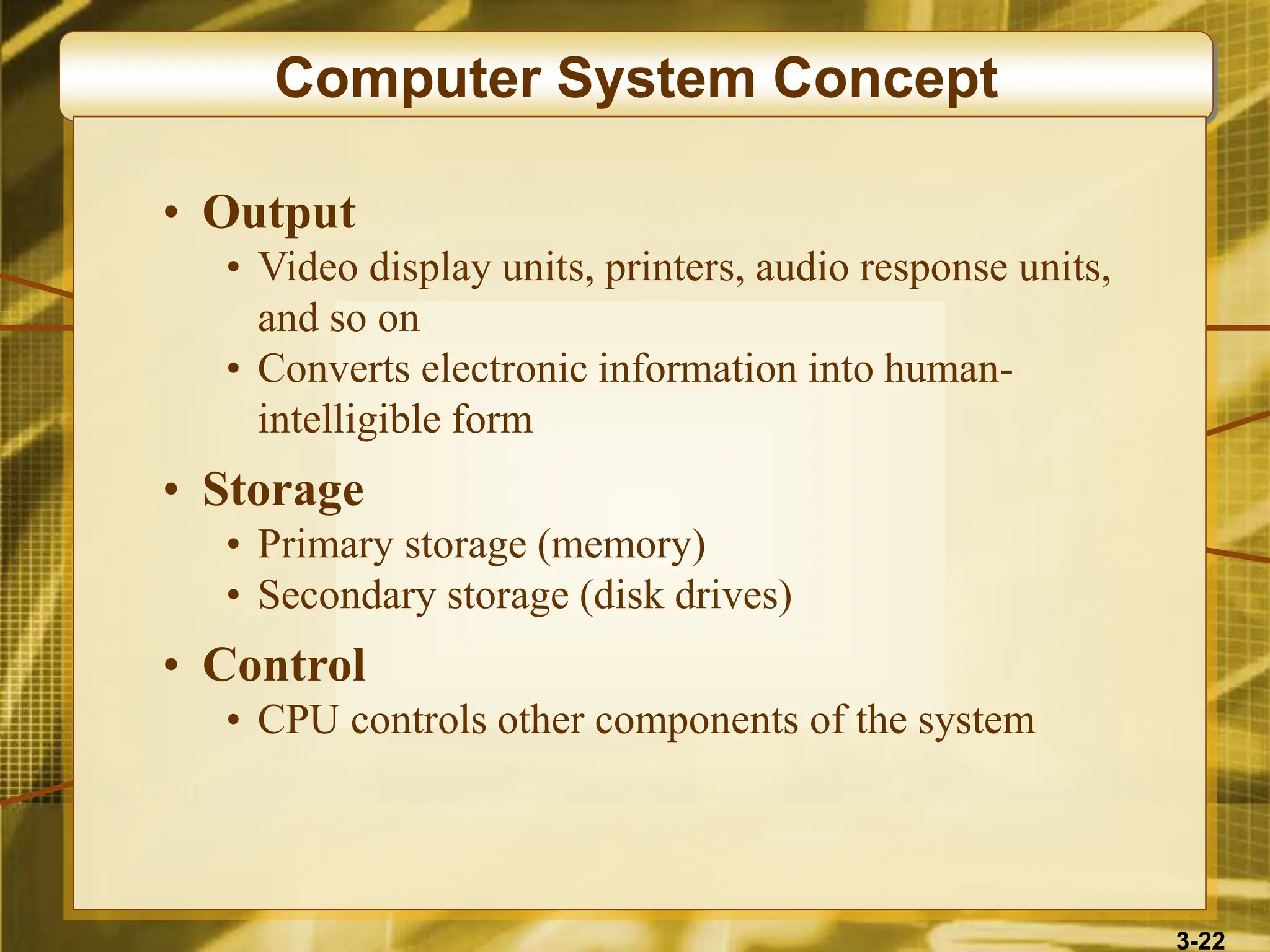
Computer System Concept
• Output
• Video display units, printers, audio response units,
and so on
• Converts electronic information into human-
intelligible form
• Storage
• Primary storage (memory)
• Secondary storage (disk drives)
• Control
• CPU controls other components of the system
3-23
Computer System Concept
3-24
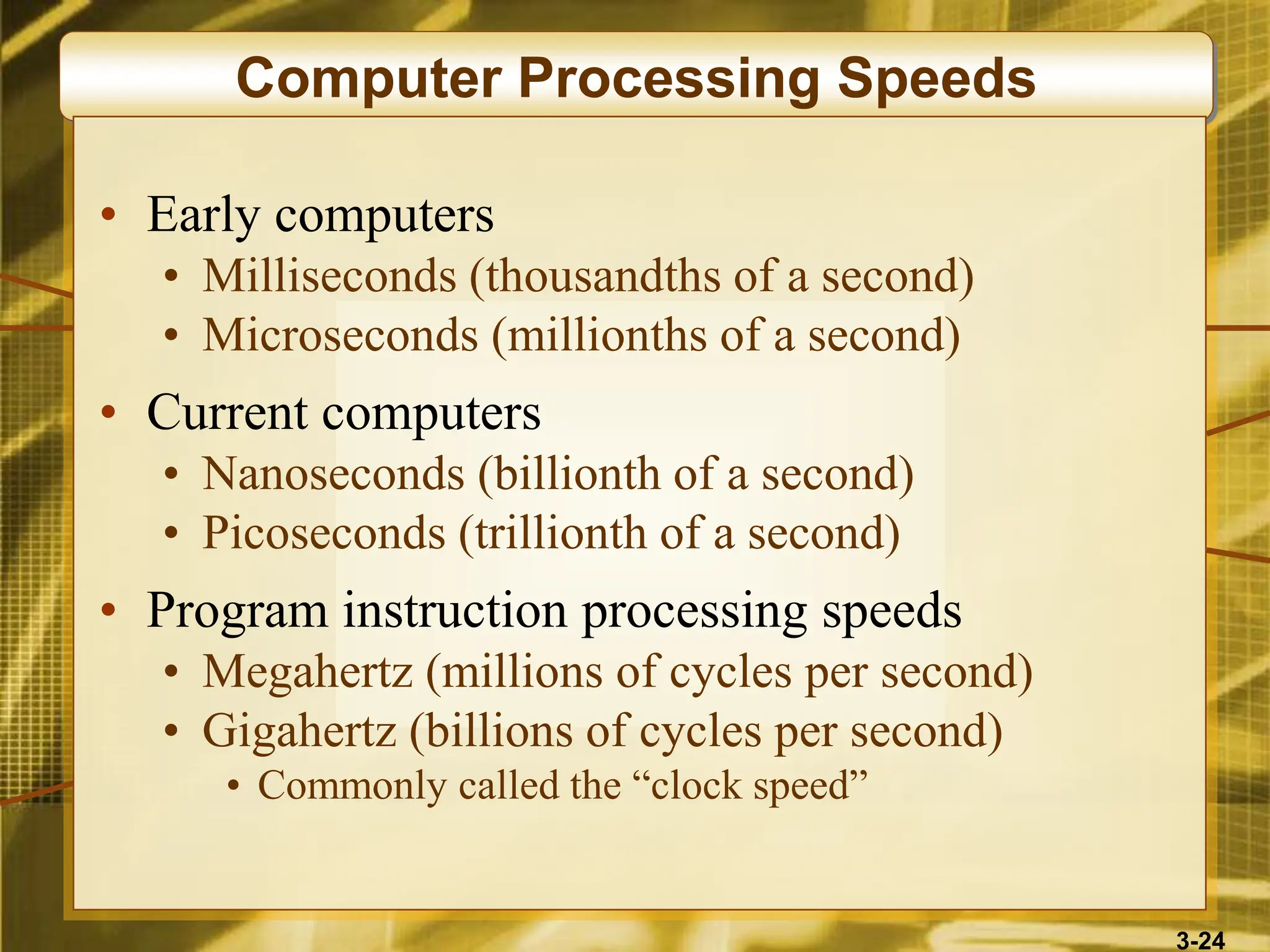
Computer Processing Speeds
• Early computers
• Milliseconds (thousandths of a second)
• Microseconds (millionths of a second)
• Current computers
• Nanoseconds (billionth of a second)
• Picoseconds (trillionth of a second)
• Program instruction processing speeds
• Megahertz (millions of cycles per second)
• Gigahertz (billions of cycles per second)
• Commonly called the “clock speed”
3-25
Computer Processing Speeds
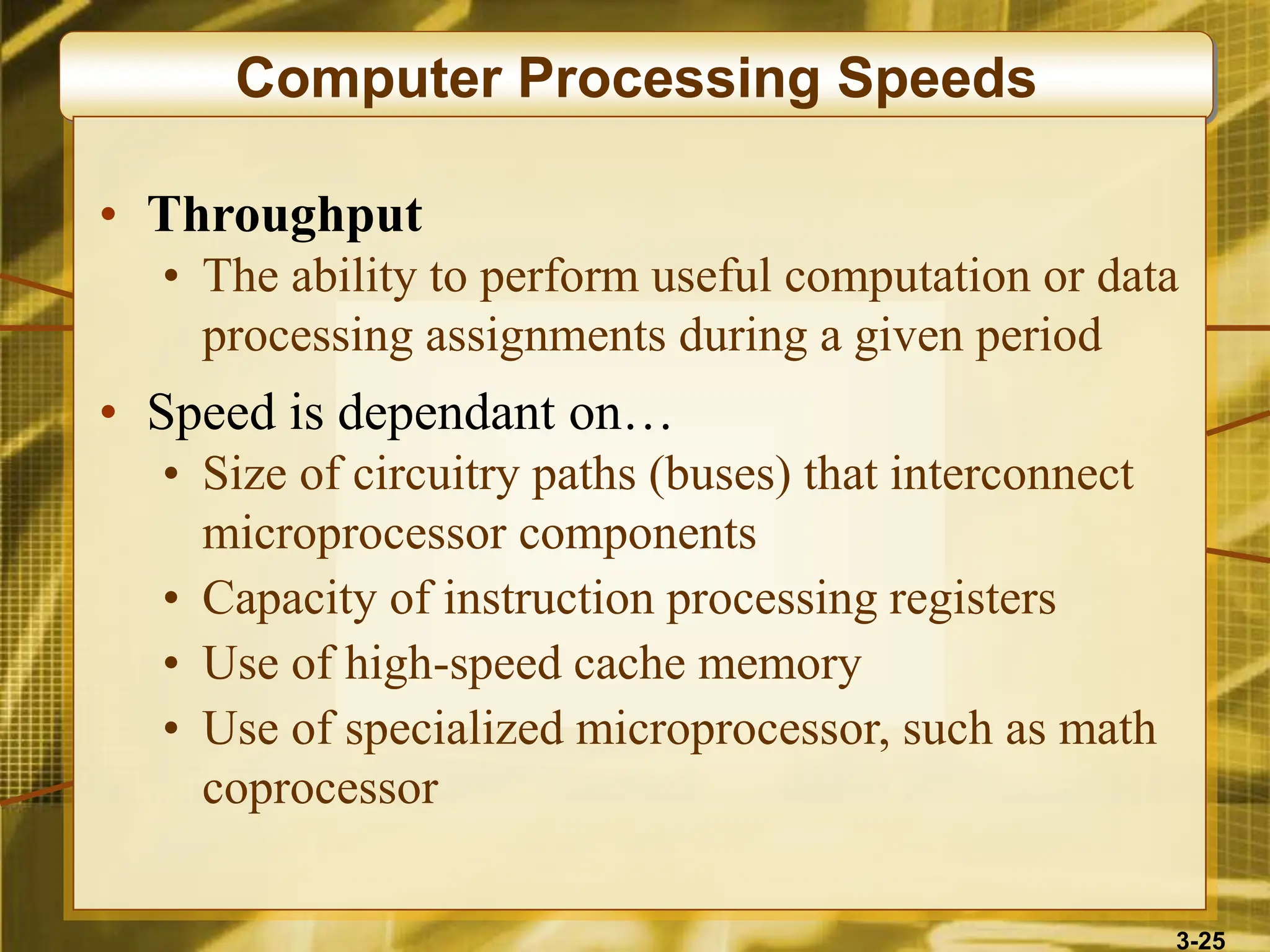
• Throughput
• The ability to perform useful computation or data
processing assignments during a given period
• Speed is dependant on…
• Size of circuitry paths (buses) that interconnect
microprocessor components
• Capacity of instruction processing registers
• Use of high-speed cache memory
• Use of specialized microprocessor, such as math
coprocessor
3-26
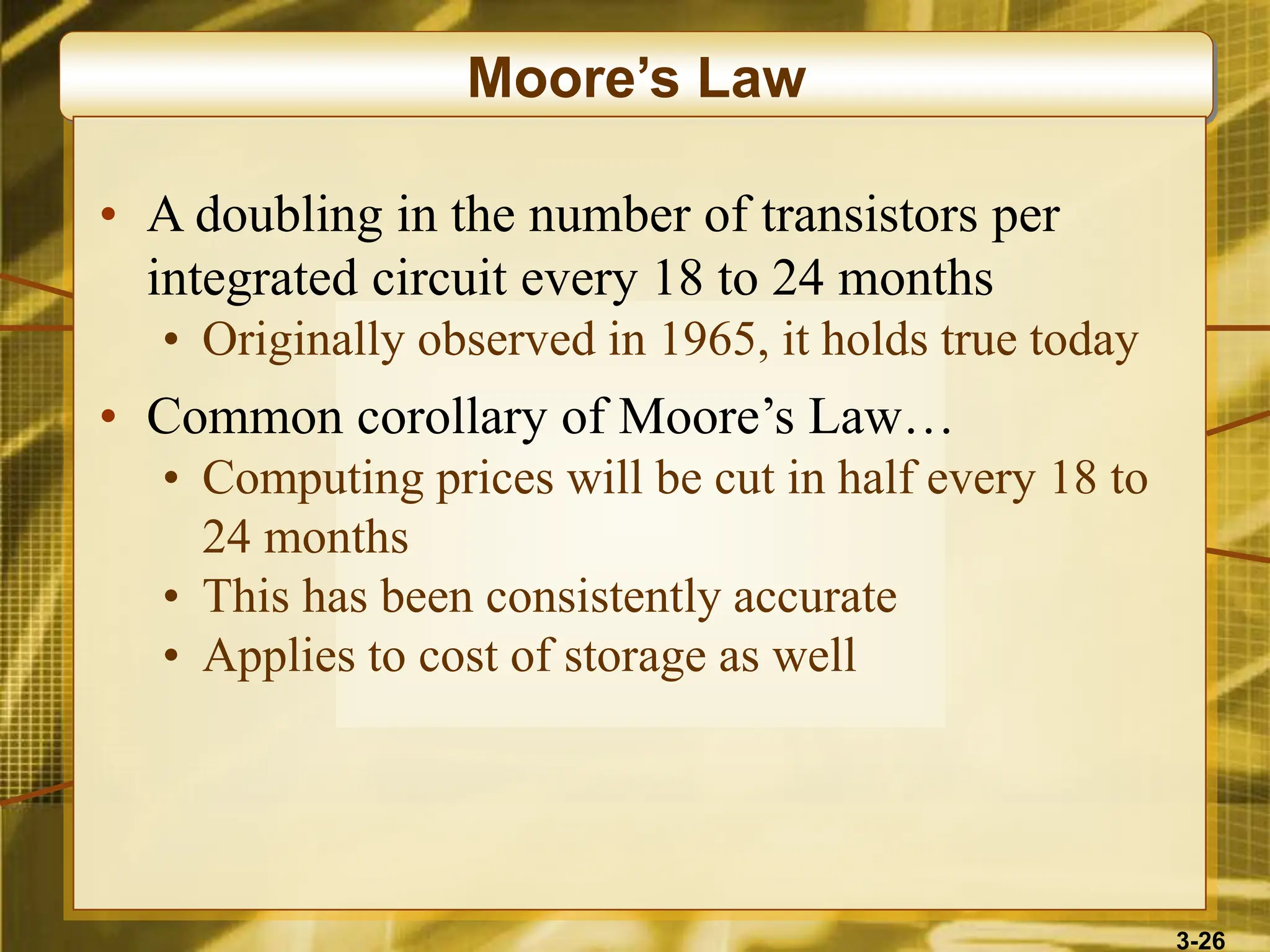
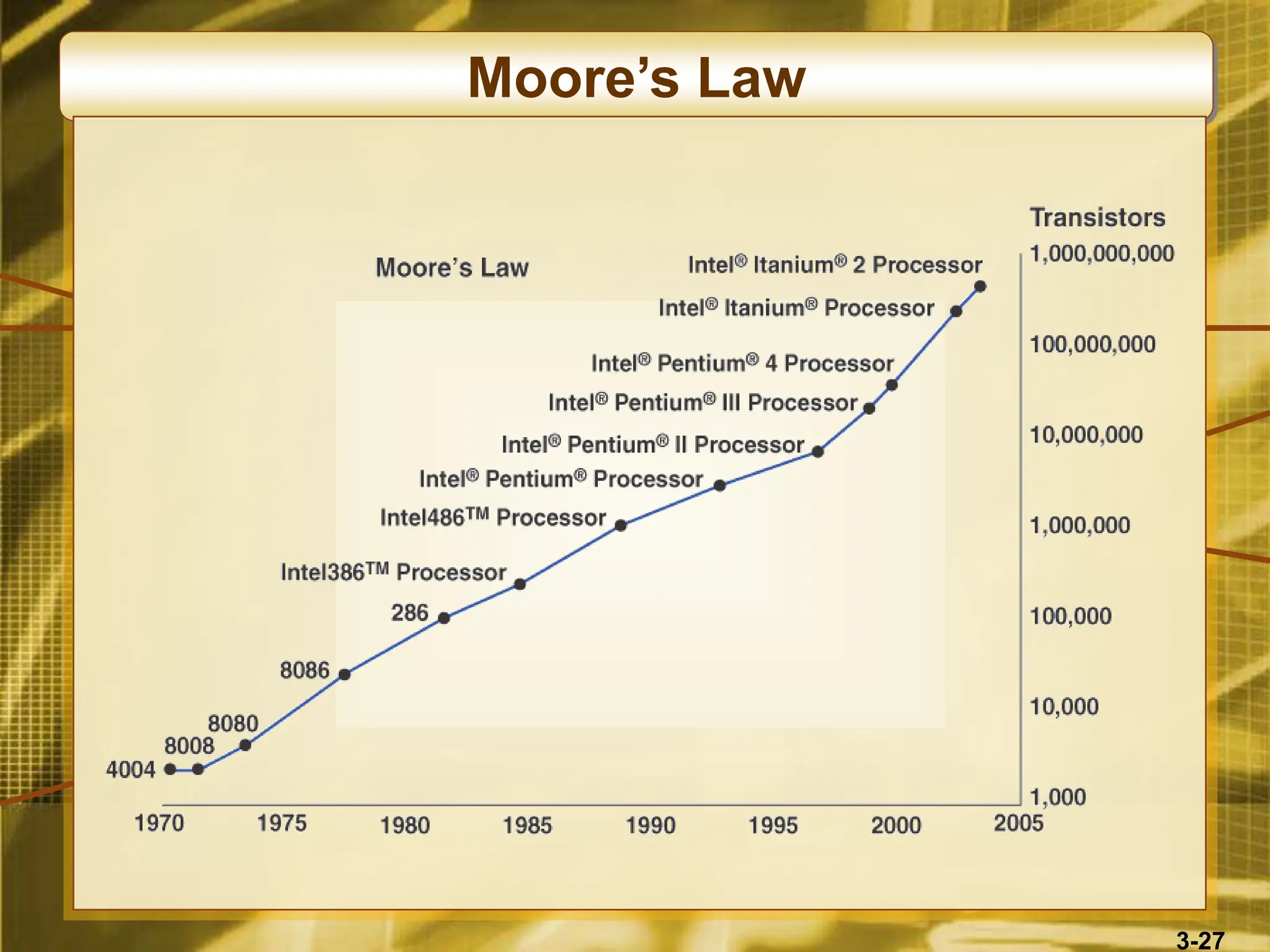
Moore’s Law
• A doubling in the number of transistors per
integrated circuit every 18 to 24 months
• Originally observed in 1965, it holds true today
• Common corollary of Moore’s Law…
• Computing prices will be cut in half every 18 to
24 months
• This has been consistently accurate
• Applies to cost of storage as well
3-27
Moore’s Law
3-28
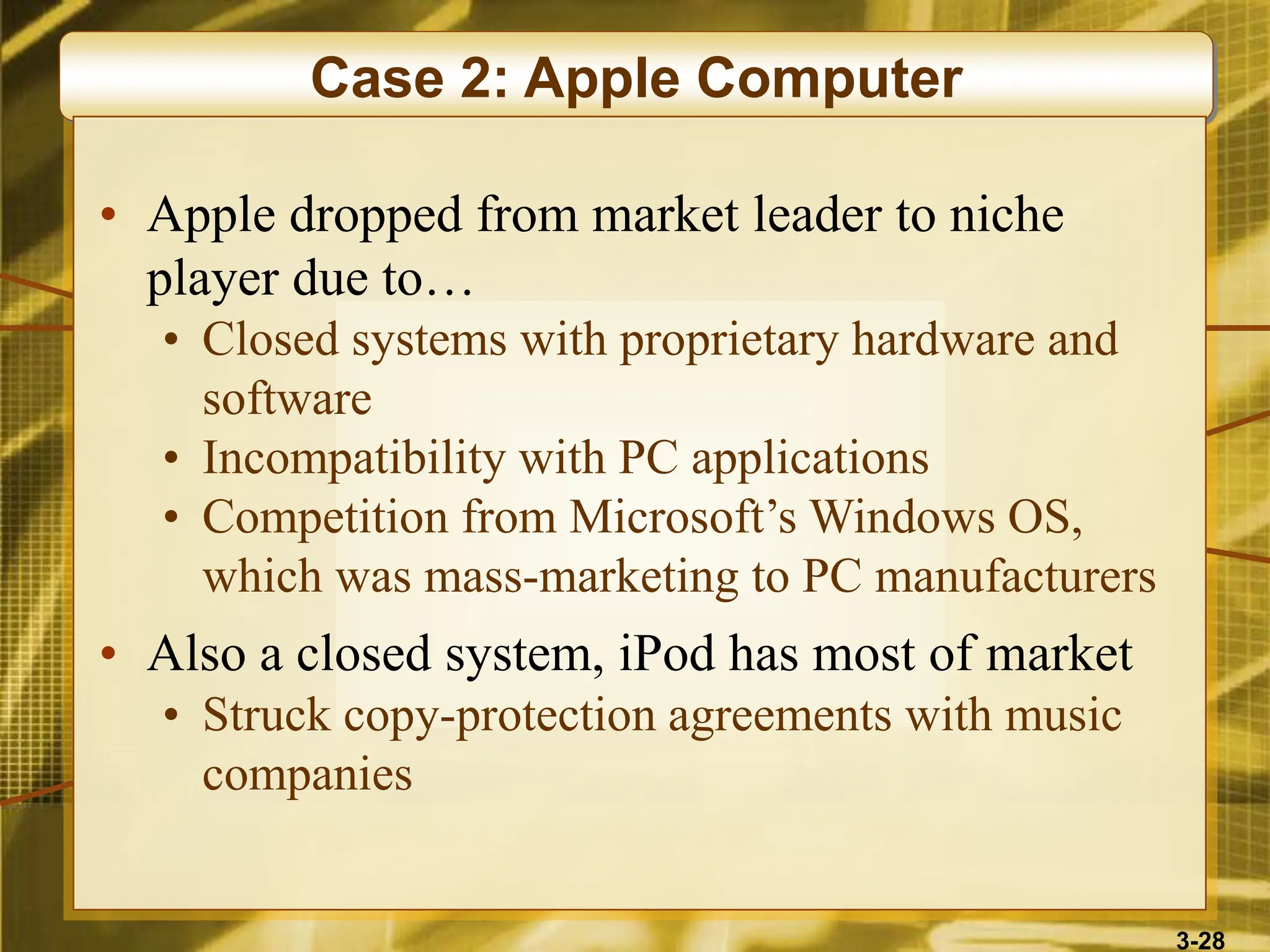
Case 2: Apple Computer
• Apple dropped from market leader to niche
player due to…
• Closed systems with proprietary hardware and
software
• Incompatibility with PC applications
• Competition from Microsoft’s Windows OS,
which was mass-marketing to PC manufacturers
• Also a closed system, iPod has most of market
• Struck copy-protection agreements with music
companies
3-29
Case Study Questions
• Do you agree that Apple will dominate the
digital music market for years to come?
• Can the technology and business strategies Steve
Jobs implemented with the closed system of the
iPod be applied successfully to the iMac and
other Apple closed-system computer products?
• Will the cachet of the iPod and the capabilities of
Boot Camp and the Leopard version of Apple’s
OS X lure more Windows PC users to the Mac
lineup of desktops and portables?
3-30
Peripherals
• Peripheral is a generic name for all input,
output, and secondary storage devices
• Parts of the computer system, but not the CPU
• Are all online devices
• Online devices
• Separate from the CPU, but electronically
connected to and controlled by it
• Offline devices
• Separate from and not under the control of the
CPU
3-31
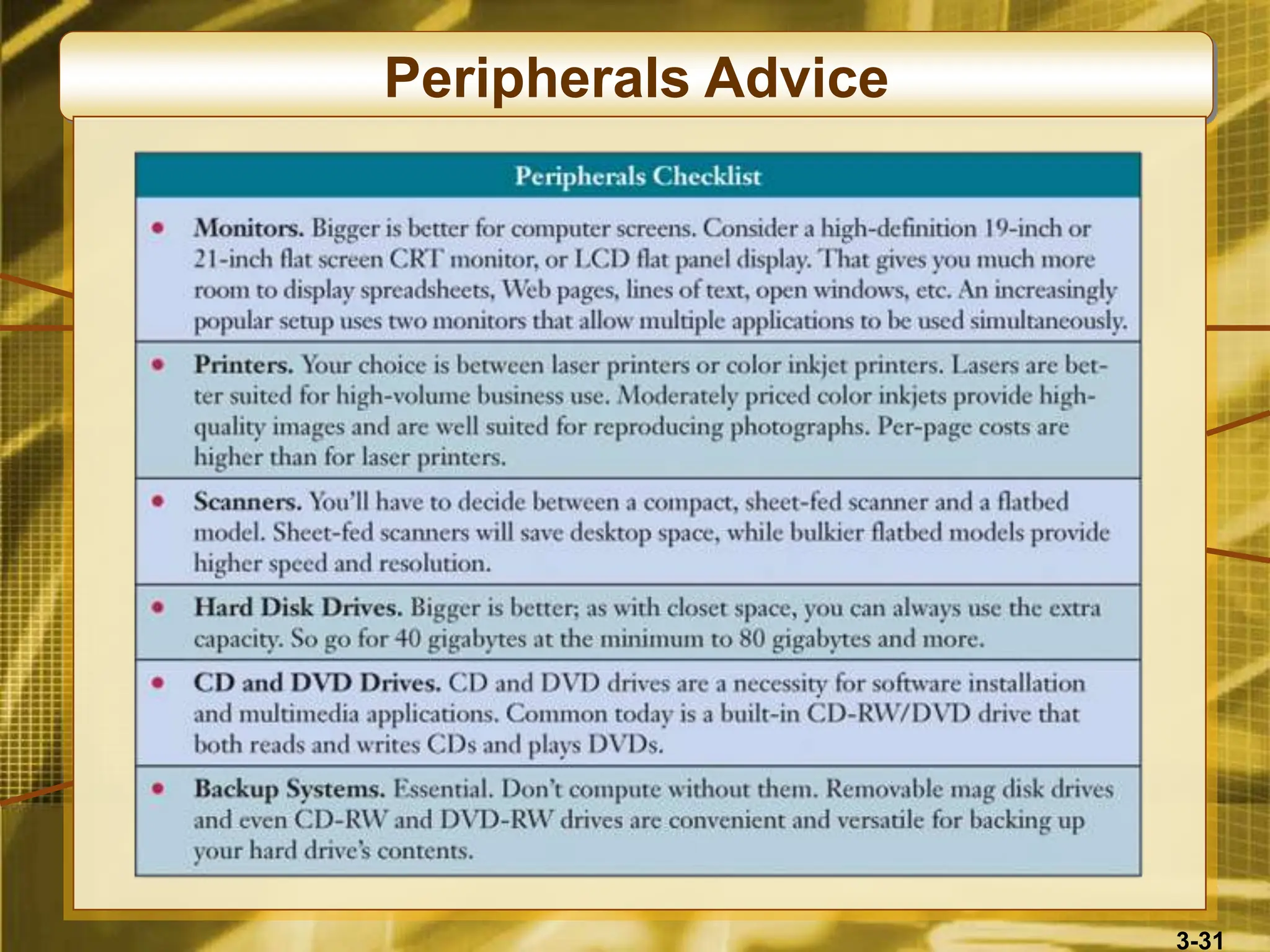
Peripherals Advice
3-32
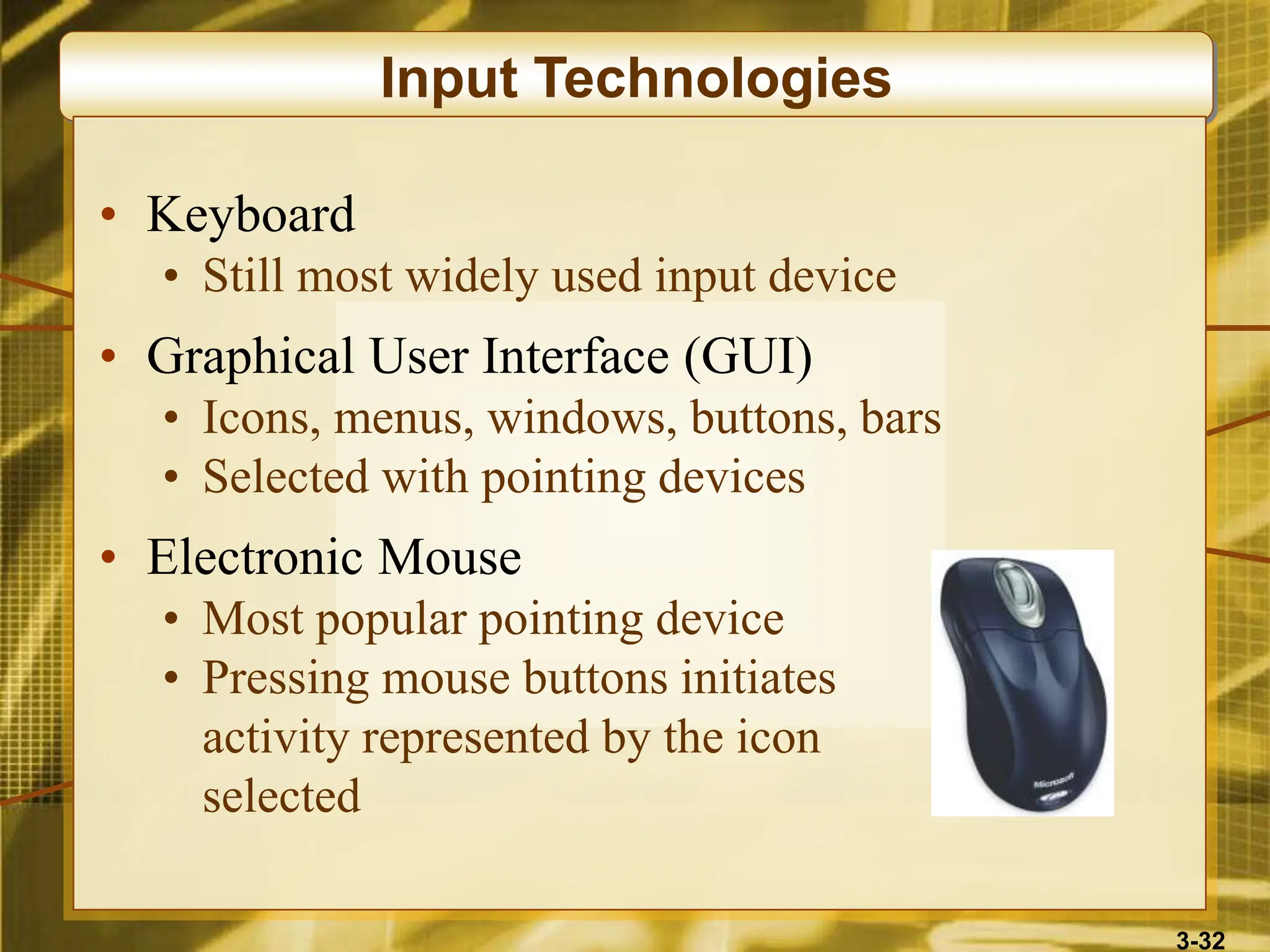
Input Technologies
• Keyboard
• Still most widely used input device
• Graphical User Interface (GUI)
• Icons, menus, windows, buttons, bars
• Selected with pointing devices
• Electronic Mouse
• Most popular pointing device
• Pressing mouse buttons initiates
activity represented by the icon
selected
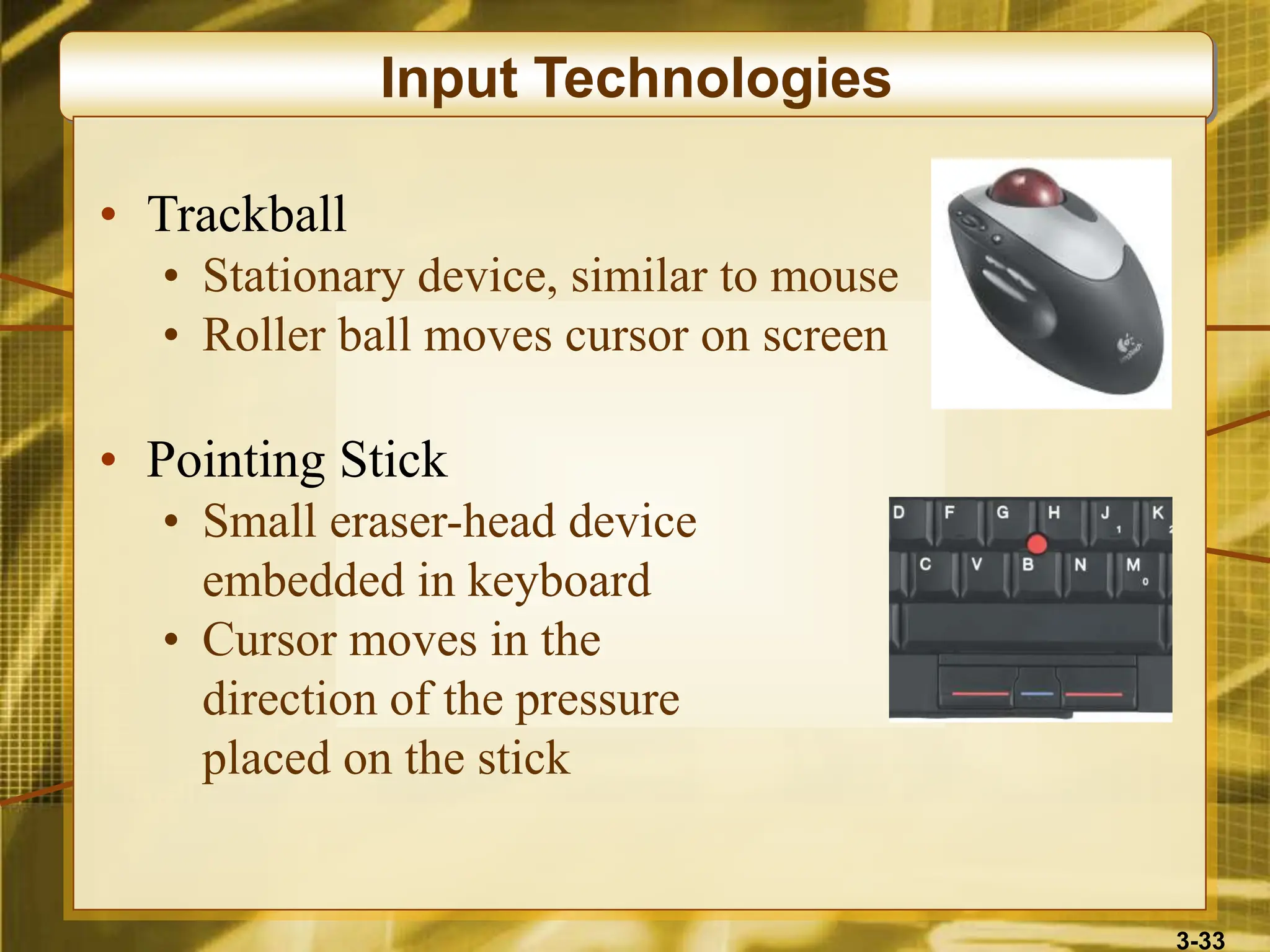
3-33
Input Technologies
• Trackball
• Stationary device, similar to mouse
• Roller ball moves cursor on screen
• Pointing Stick
• Small eraser-head device
embedded in keyboard
• Cursor moves in the
direction of the pressure
placed on the stick
3-34
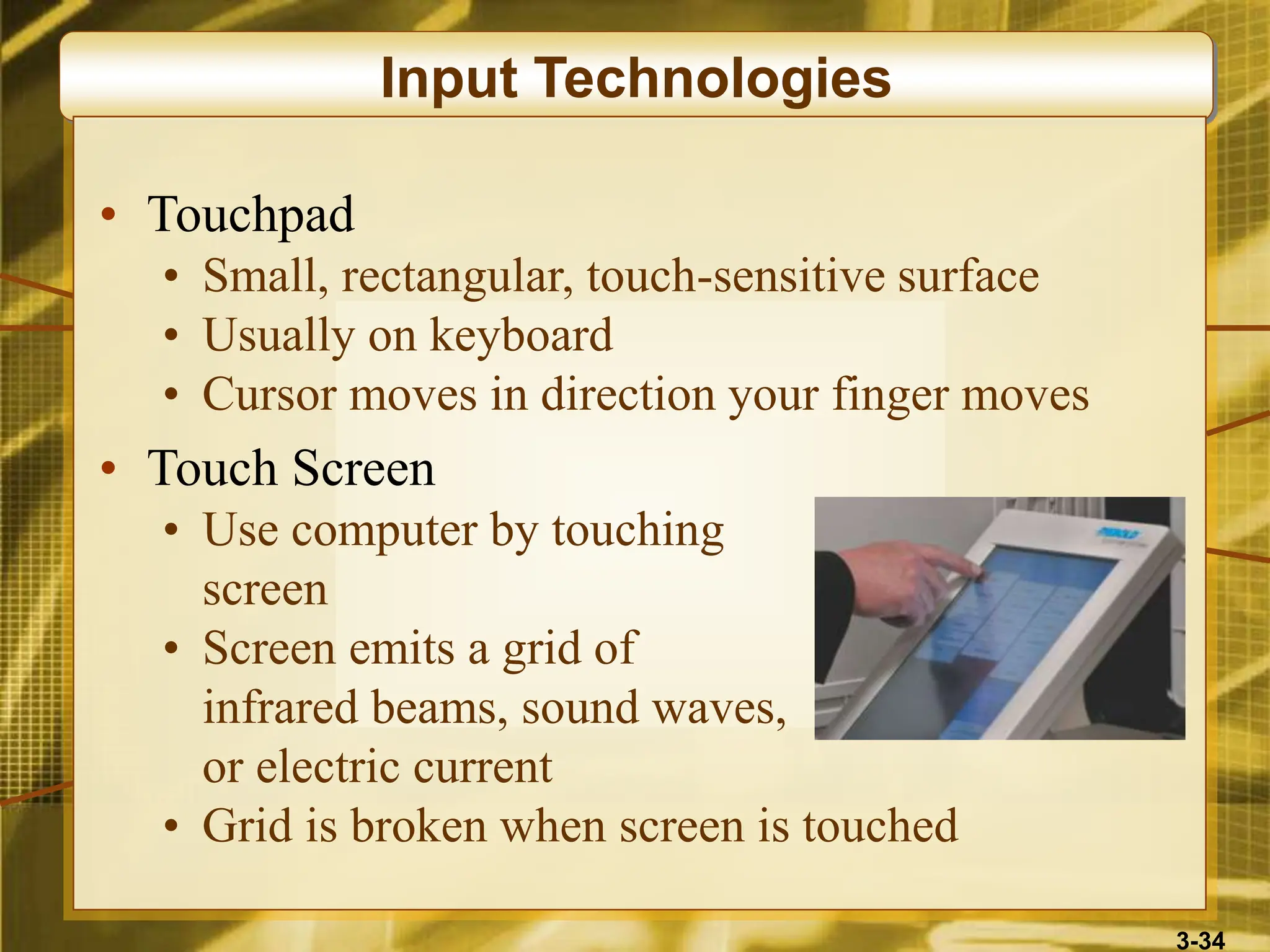
Input Technologies
• Touchpad
• Small, rectangular, touch-sensitive surface
• Usually on keyboard
• Cursor moves in direction your finger moves
• Touch Screen
• Use computer by touching
screen
• Screen emits a grid of
infrared beams, sound waves,
or electric current
• Grid is broken when screen is touched
3-35
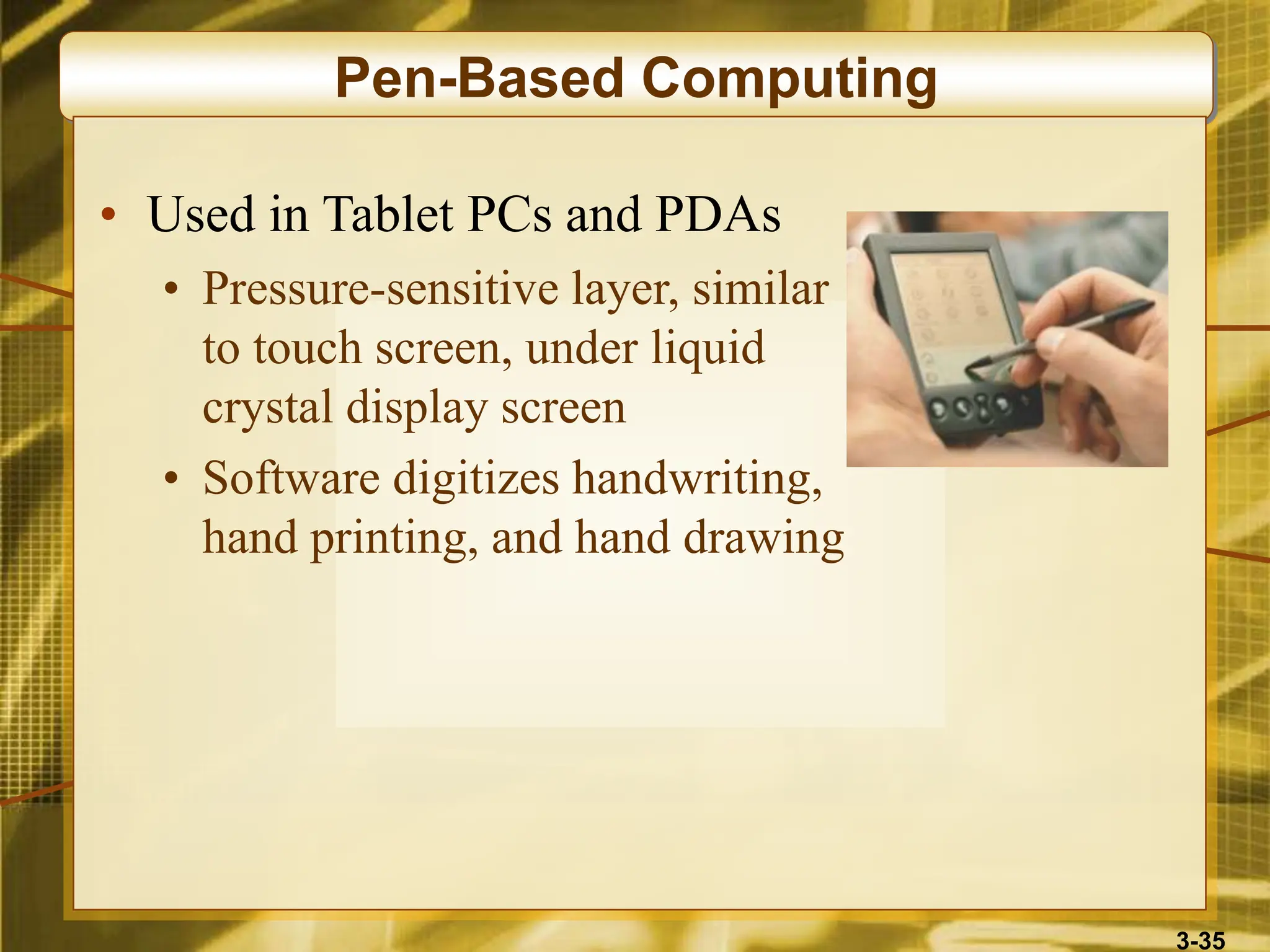
Pen-Based Computing
• Used in Tablet PCs and PDAs
• Pressure-sensitive layer, similar
to touch screen, under liquid
crystal display screen
• Software digitizes handwriting,
hand printing, and hand drawing
3-36
Speech Recognition Systems
• Speech be the future of data entry
• Easiest, most natural means of human
communication
• Recognizing speech patterns
• Discrete required pauses between each word
• Continuous speech recognition software (CSR)
recognized continuous, conversationally paced
speech
3-37
Speech Recognition Software
• Speech recognition systems digitize, analyze,
and classify speech and sound patterns
• Compares to a database of sound patterns in its
vocabulary
• Passes recognized words to the application
software
• Typically requires voice recognition training
• Speaker-independent voice recognition systems
• Allows computer to recognize words from a voice
it has never heard before
• Typically used in voice-messaging computers
3-38
Optical Scanning
• Devices read text or graphics and convert them
into digital input for a computers
• Enables direct entry of data from source
documents
• A document management library system
• Scans documents, then organizes and stores them
for easy reference or retrieval
3-39
Optical Scanning
• Scanners
• Compact desktop models are popular for low
cost and ease of use
• Larger, more expensive flatbed scanners are faster
and provide high-resolution color scanning
• Optical Character Recognition (OCR)
• Software that reads characters and codes
• Used to real merchandise tags, sort mail,
score tests
• Optical scanning wands read bar codes
3-40
Other Input Technologies
• Magnetic Stripe
• Reads the magnetic stripe on credit cards
• Smart Cards
• Microprocessor chip and memory on credit card
• Use more in Europe than in the U.S.
• Digital Cameras
• Allows you to shoot, store, and download photos
or full-motion video with audio into the PC
• Images and audio can then be edited or enhanced
3-41
Other Input Technologies
• Magnetic Ink Character Recognition (MICR)
• Used by banks to magnetically read checks and
deposit slips
• Requires an iron oxide-based ink
• Reader-sorter equipment magnetizes the ink, then
passes it under a reading head to sense the signal
3-42
Output Technologies
• Video Displays
• Cathode-ray tube (CRT)
• Liquid crystal displays (LCDs)
• Active matrix and dual scan
• Plasma displays
• Used in large TVs and flat-panel monitors
• Printed Output
• Inkjet printers spray ink on a page
• Laser printers use an electrostatic process similar
to a photocopying machine
3-43
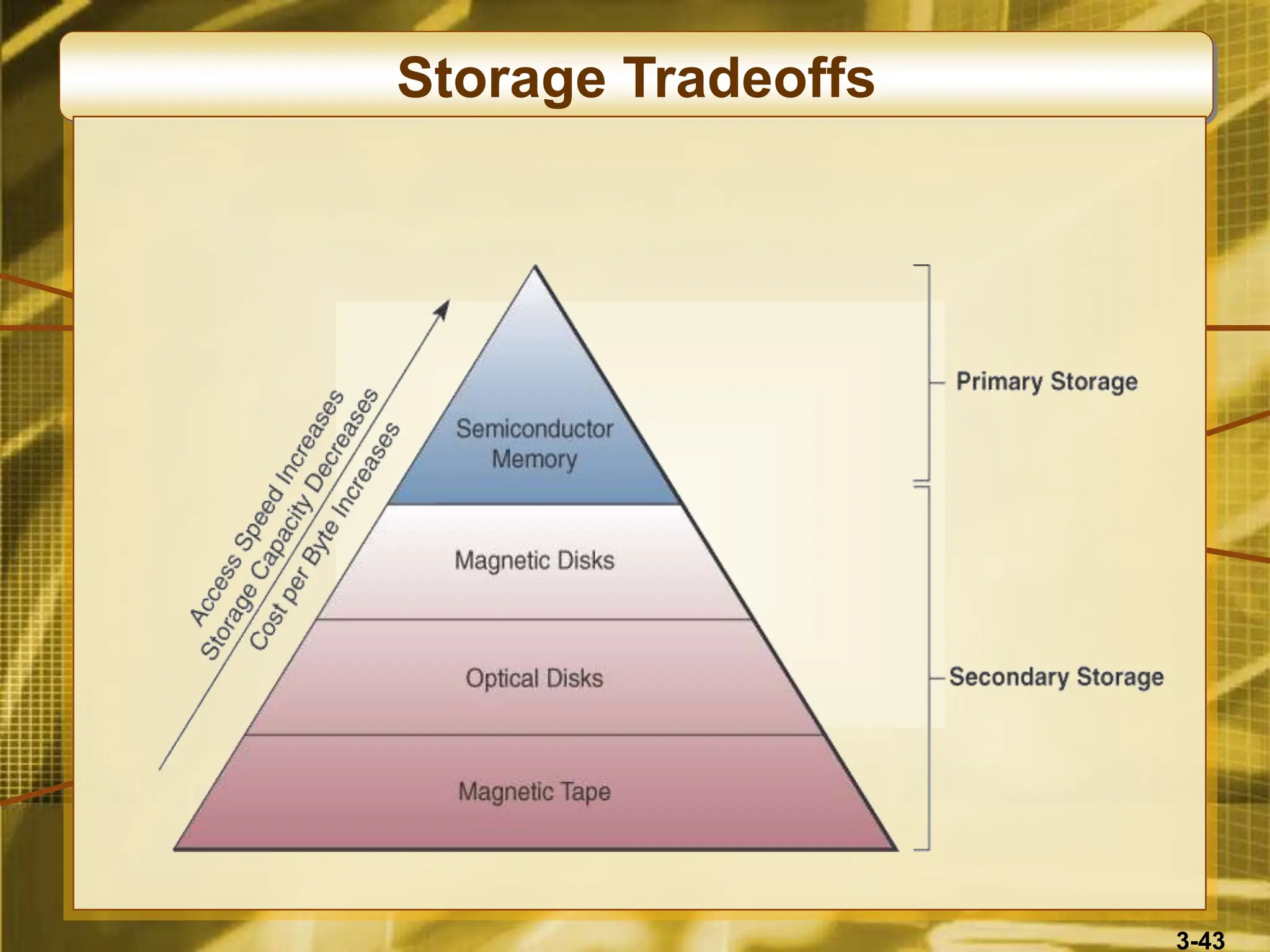
Storage Tradeoffs
3-44
Computer Storage Fundamentals
• Uses a two-state or binary representation of data
• On or Off
• On represents the number 1
• Off represents the number 0
• Data are processed and stored in computer
systems through the presence or absence of
On/Off signals
3-45
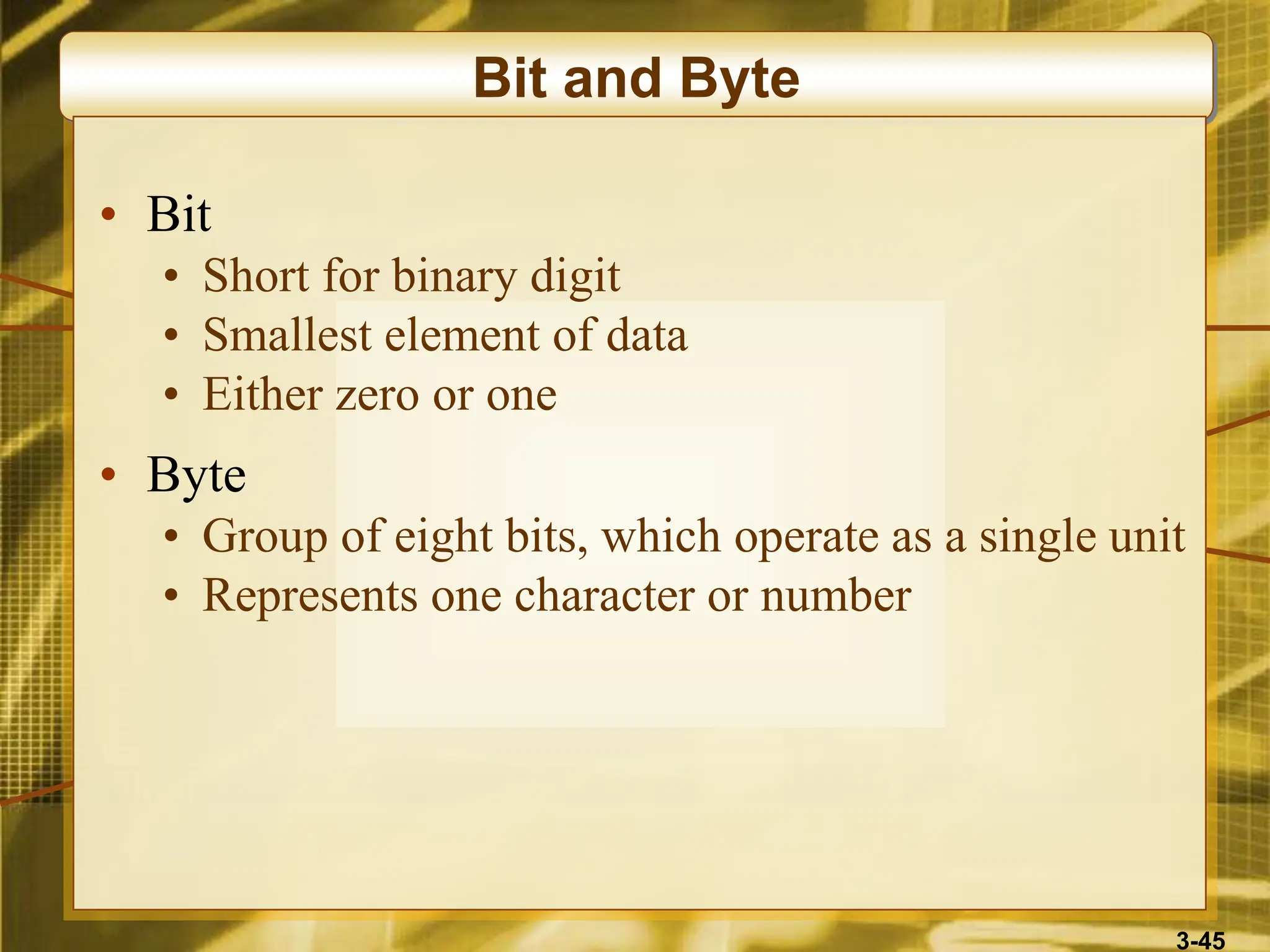
Bit and Byte
• Bit
• Short for binary digit
• Smallest element of data
• Either zero or one
• Byte
• Group of eight bits, which operate as a single unit
• Represents one character or number
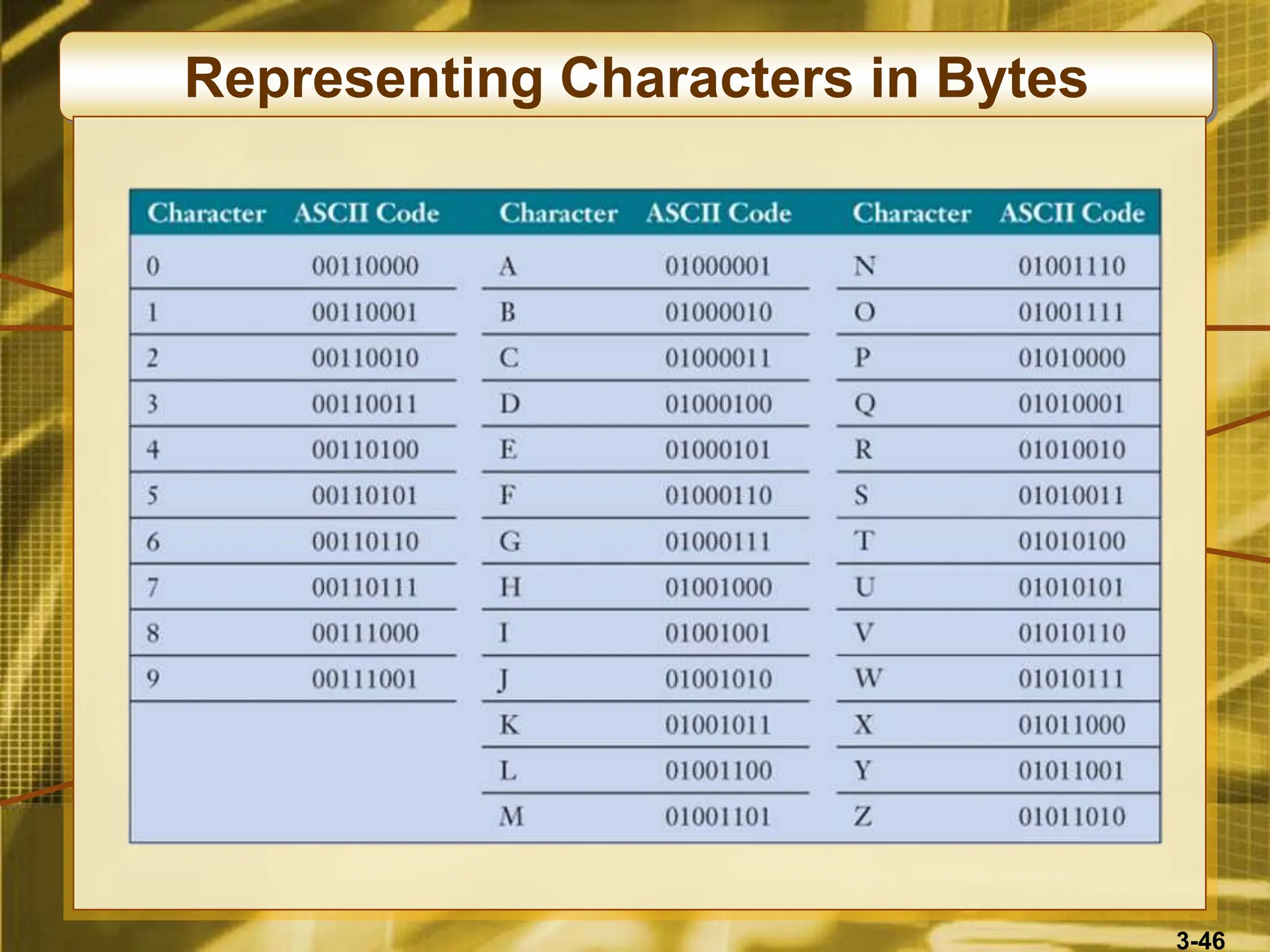
3-46
Representing Characters in Bytes
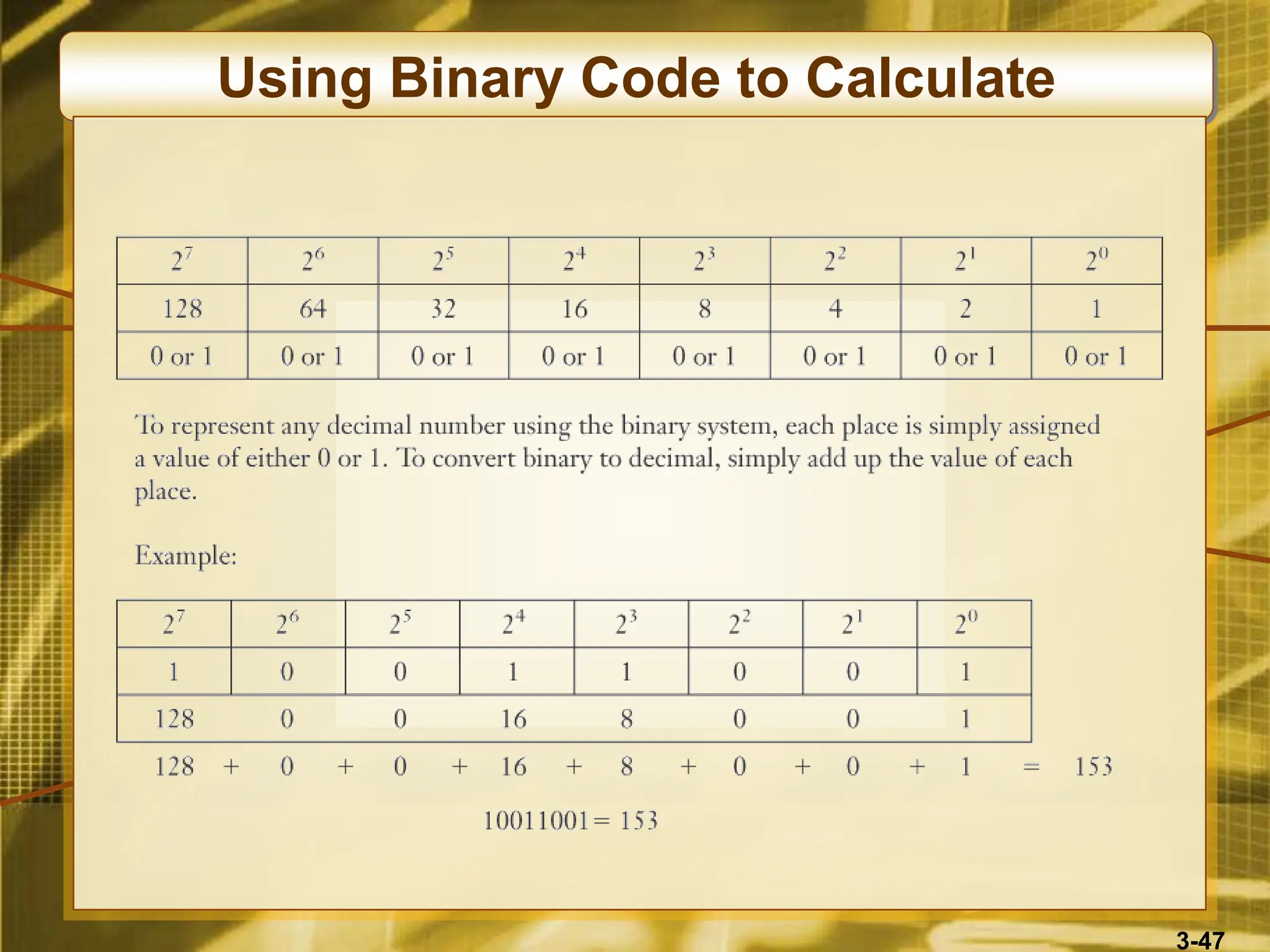
3-47
Using Binary Code to Calculate
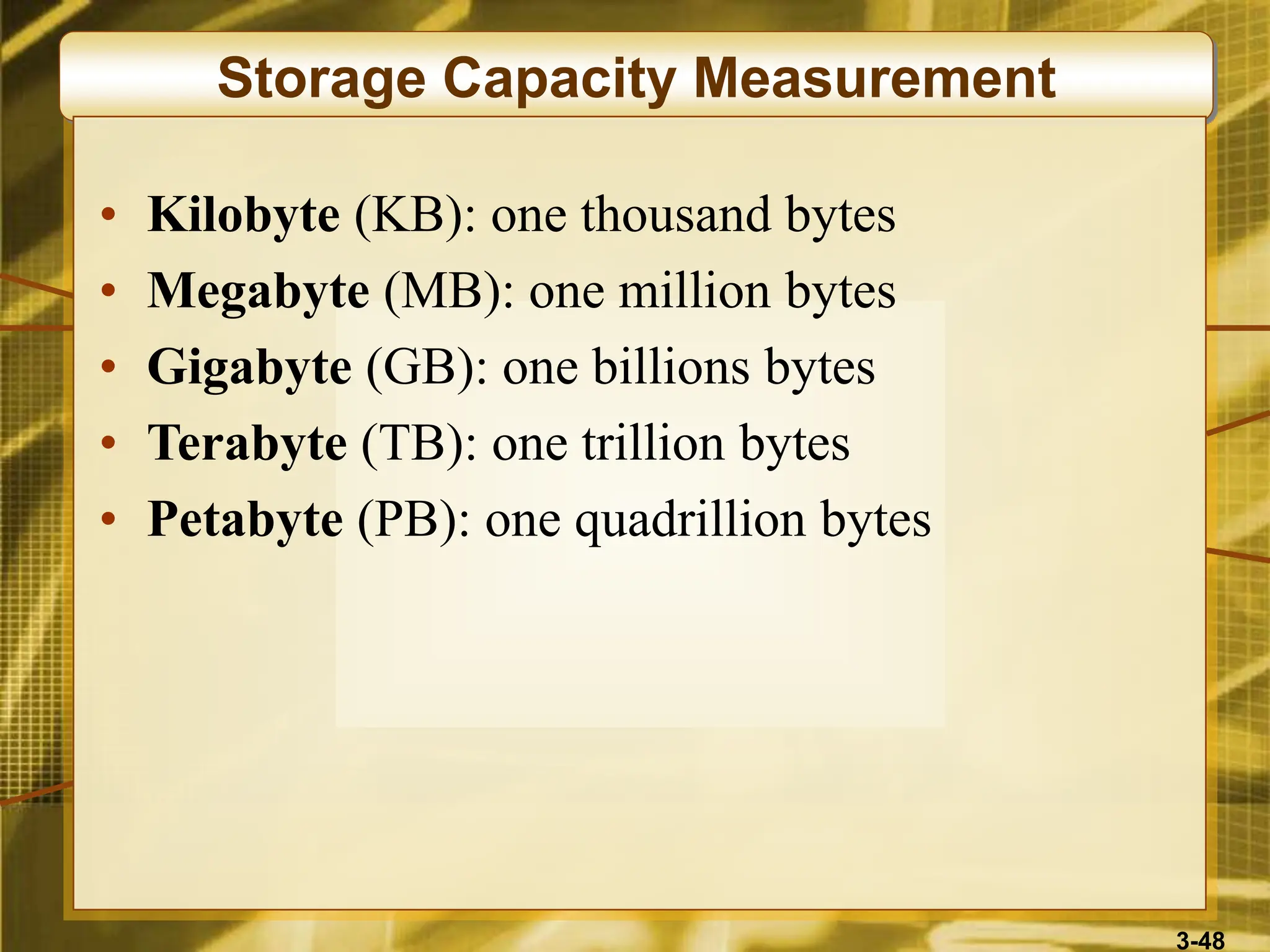
3-48
Storage Capacity Measurement
• Kilobyte (KB): one thousand bytes
• Megabyte (MB): one million bytes
• Gigabyte (GB): one billions bytes
• Terabyte (TB): one trillion bytes
• Petabyte (PB): one quadrillion bytes
3-49
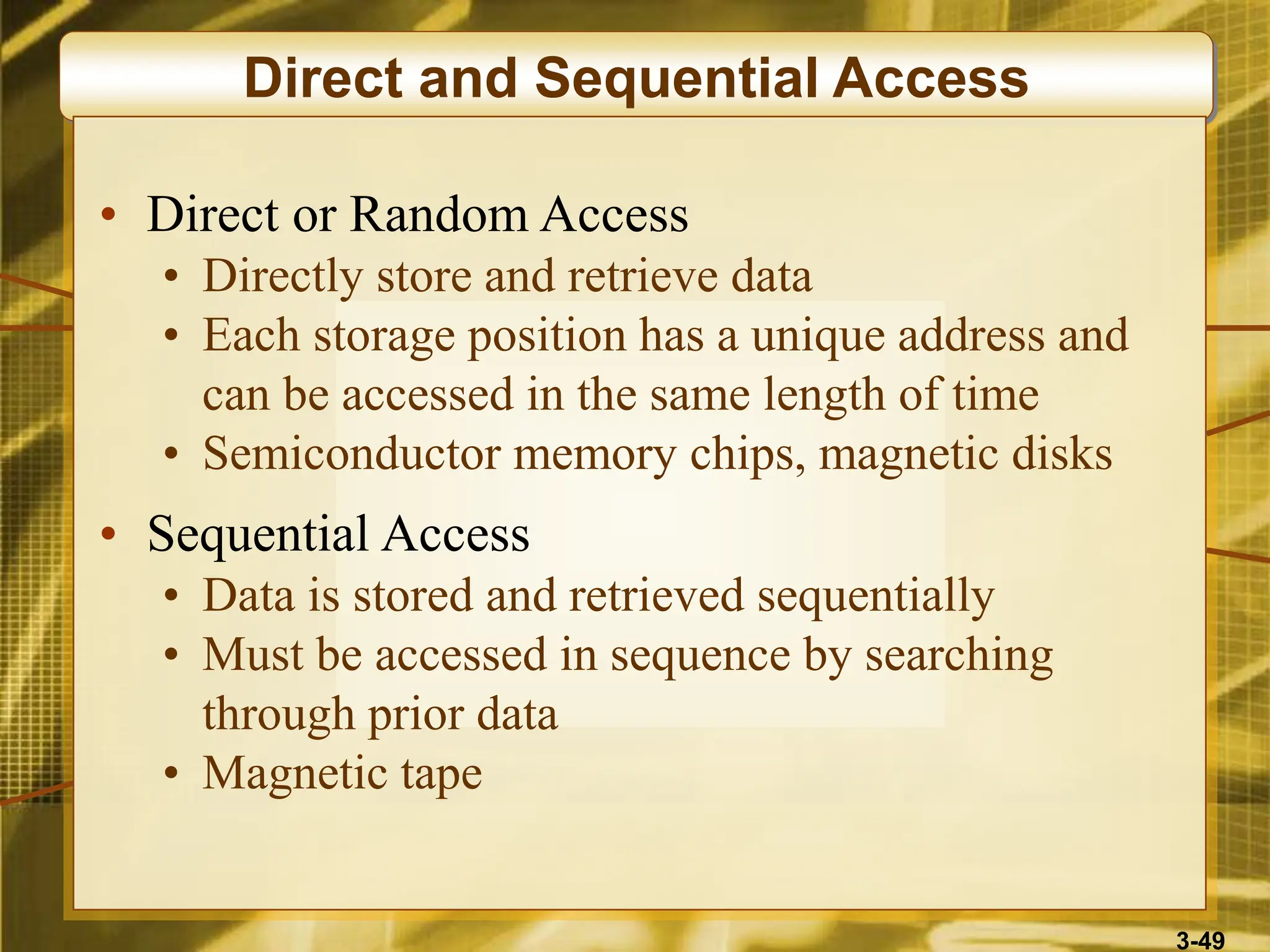
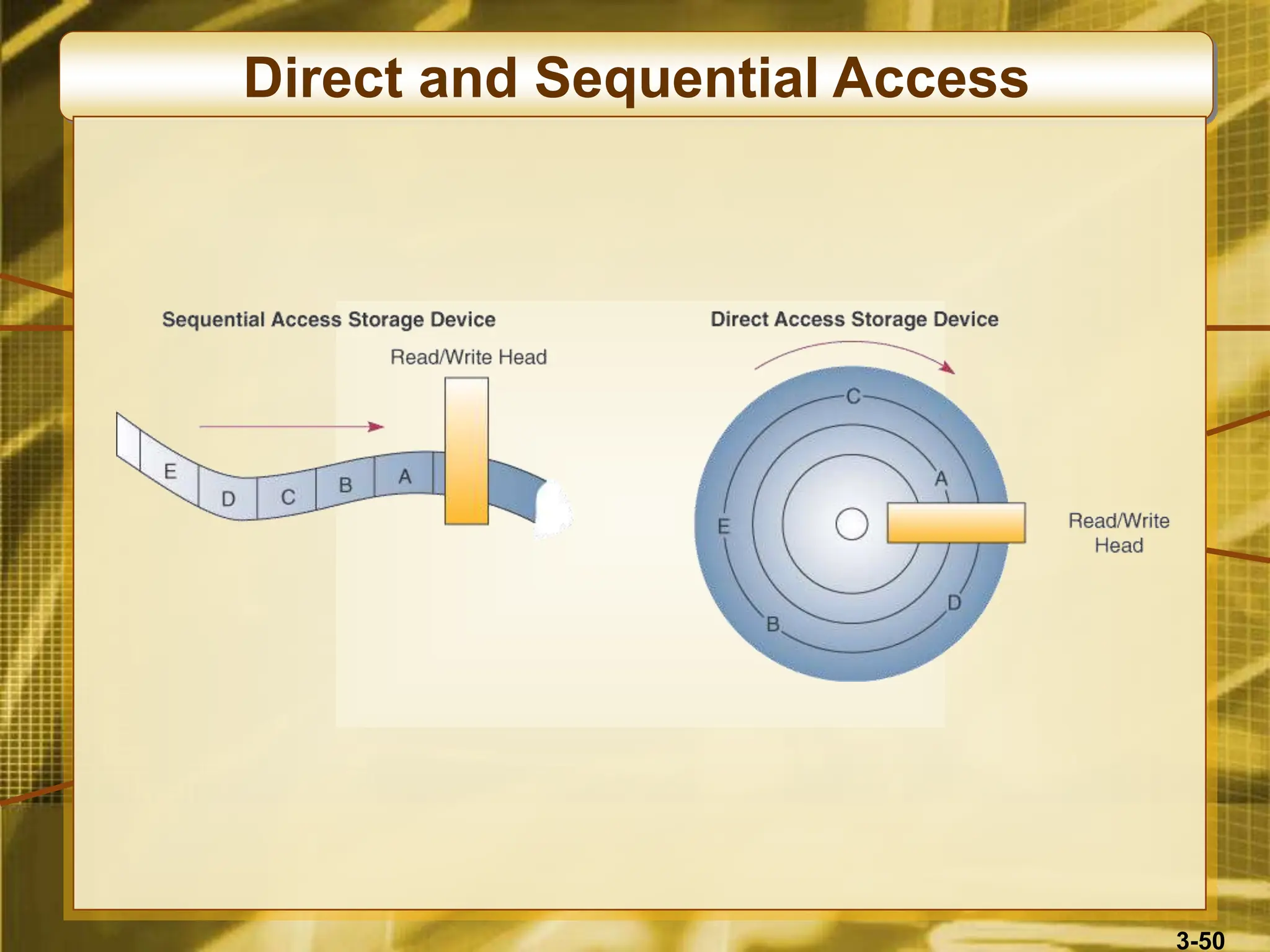
Direct and Sequential Access
• Direct or Random Access
• Directly store and retrieve data
• Each storage position has a unique address and
can be accessed in the same length of time
• Semiconductor memory chips, magnetic disks
• Sequential Access
• Data is stored and retrieved sequentially
• Must be accessed in sequence by searching
through prior data
• Magnetic tape
3-50
Direct and Sequential Access
3-51
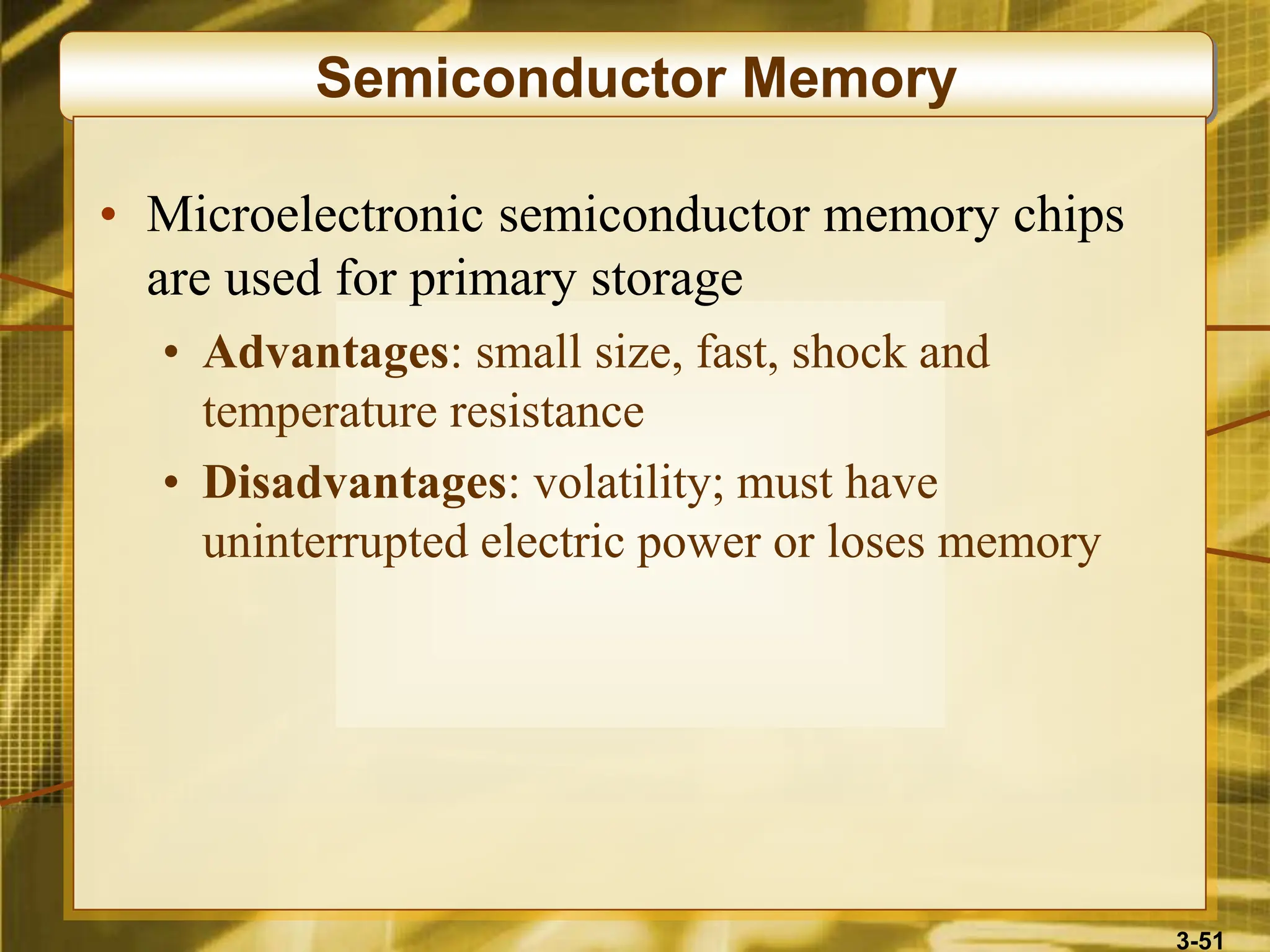
Semiconductor Memory
• Microelectronic semiconductor memory chips
are used for primary storage
• Advantages: small size, fast, shock and
temperature resistance
• Disadvantages: volatility; must have
uninterrupted electric power or loses memory
3-52
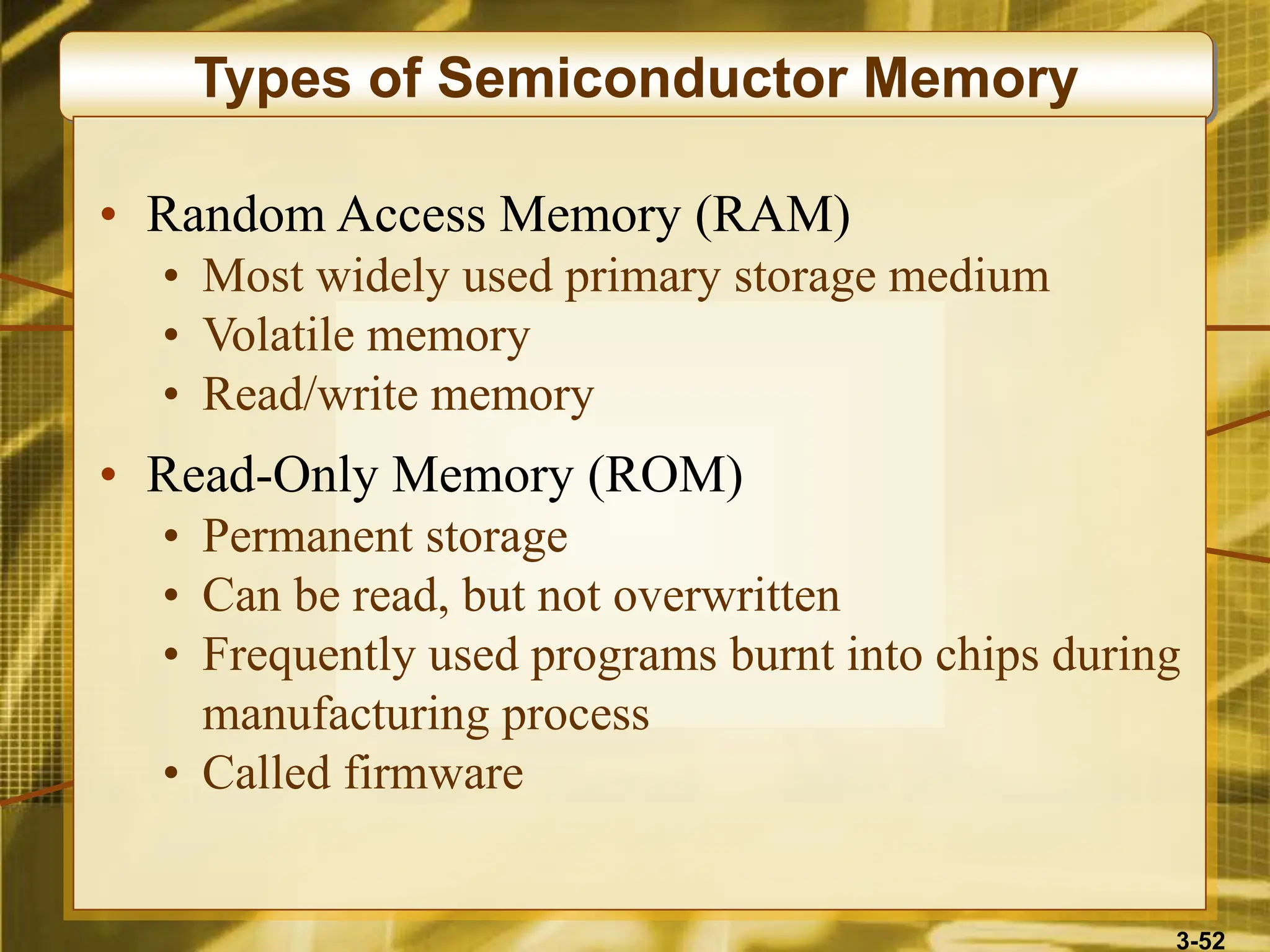
Types of Semiconductor Memory
• Random Access Memory (RAM)
• Most widely used primary storage medium
• Volatile memory
• Read/write memory
• Read-Only Memory (ROM)
• Permanent storage
• Can be read, but not overwritten
• Frequently used programs burnt into chips during
manufacturing process
• Called firmware
3-53
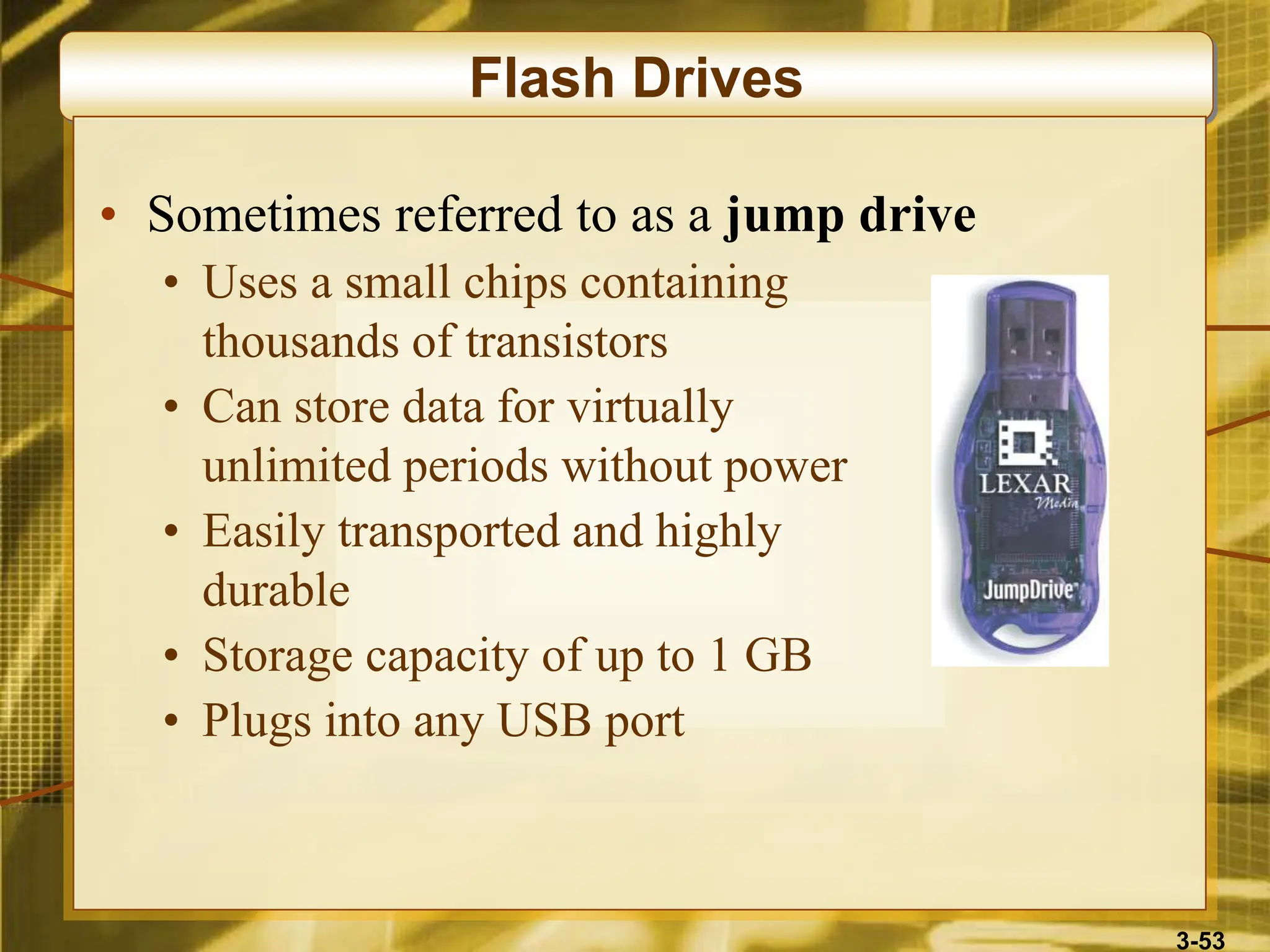
Flash Drives
• Sometimes referred to as a jump drive
• Uses a small chips containing
thousands of transistors
• Can store data for virtually
unlimited periods without power
• Easily transported and highly
durable
• Storage capacity of up to 1 GB
• Plugs into any USB port
3-54
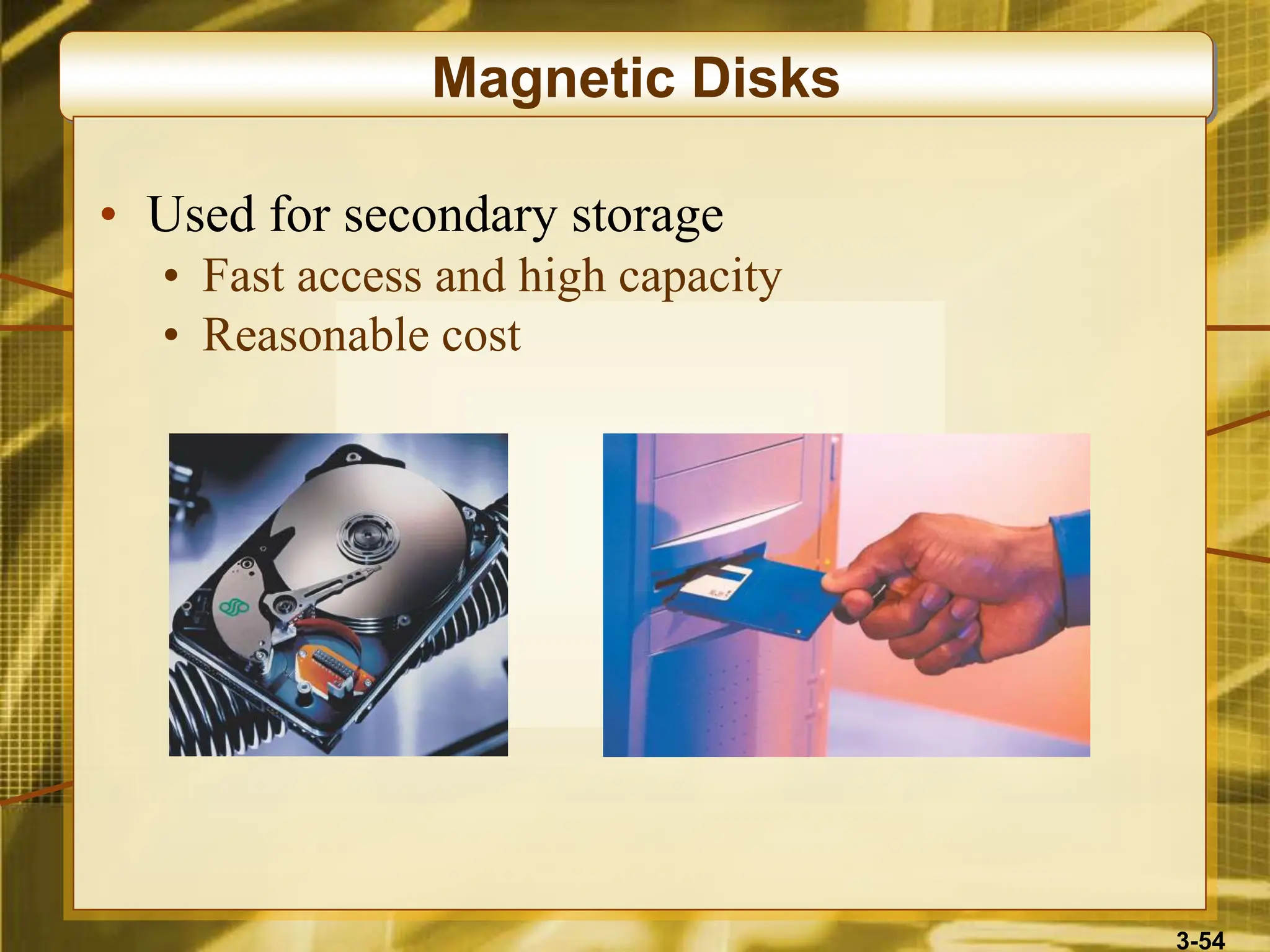
Magnetic Disks
• Used for secondary storage
• Fast access and high capacity
• Reasonable cost
3-55
Types of Magnetic Disks
• Floppy Disks (diskettes)
• Magnetic disk inside a plastic jacket
• Hard Disk Drives (hard drives)
• Magnetic disk, access arms, and read/write heads
in sealed module for stable environment
• Fixed or removable
• Capacity from several hundred MBs to
hundreds of GBs
3-56
RAID Storage
• Redundant Arrays of Independent Disks
• Disk arrays of hard disk drives
• Provides virtually unlimited online storage
• Combines from 6 to more than 100 small hard
disk drives into a single unit
• Data are accessed in parallel over multiple paths
from many disks
• Redundant storage of data on several disks
provides fault-tolerant capacity
• Storage area networks can interconnect many
RAID units
3-57
Magnetic Tape
• Secondary storage
• Tape reels, cassettes, and cartridges
• Used in robotic, automated drive assemblies
• Archival and backup storage
• Lower-cost storage solution
3-58
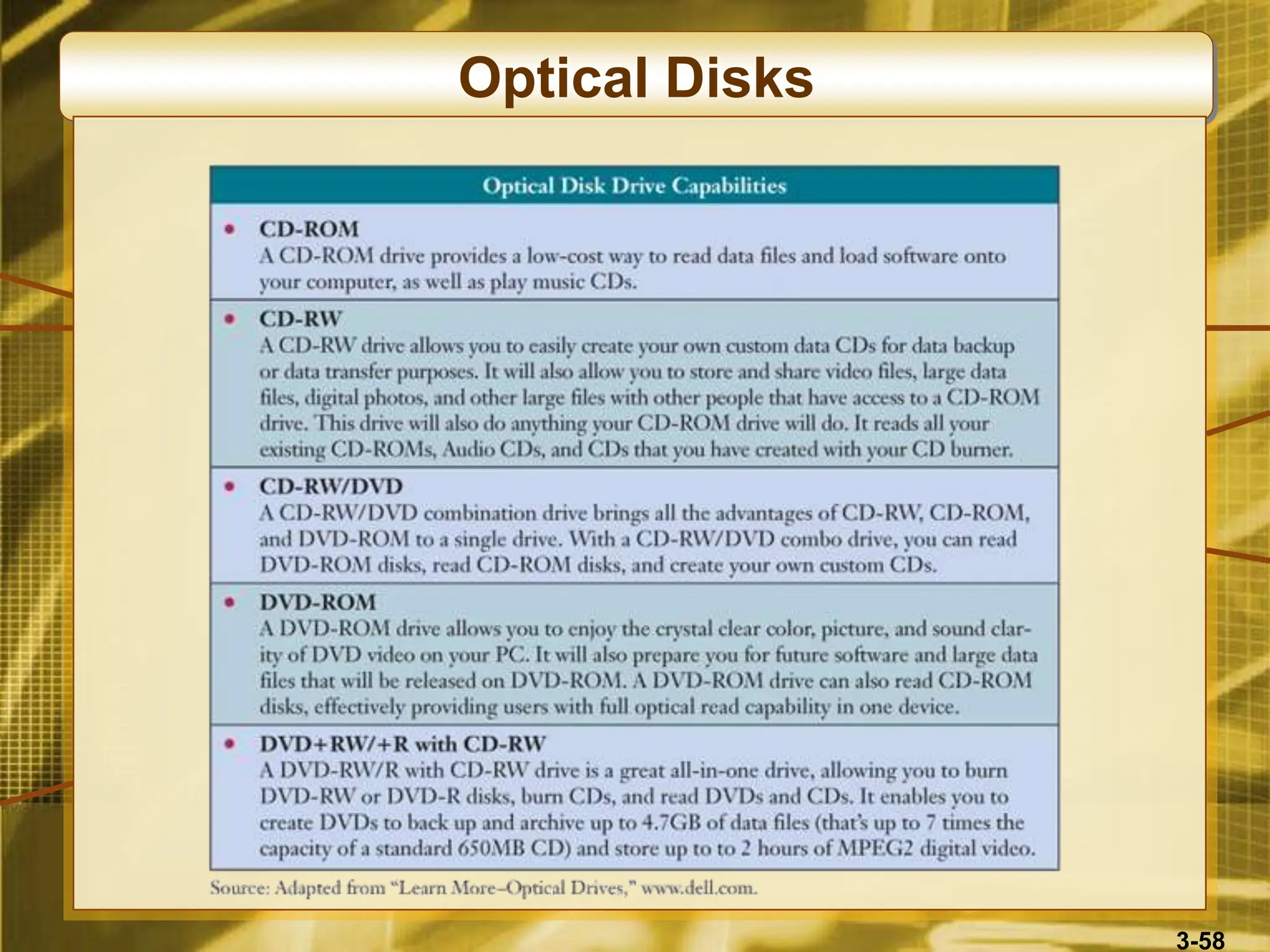
Optical Disks
3-59
Uses of Optical Disks
• Image processing
• Long-term storage of historical image files
• Storage of scanned documents
• Publishing medium
• Allows fast access to reference materials
• Catalogs, directories, and so on
• Interactive multimedia applications
• Video games, educational videos, and so on
3-60
Radio Frequency Identification (RFID)
• One of the newest and fastest growing storage
technologies
• System for tagging and identifying mobile objects
• Used with store merchandise, postal packages,
casino chips, pets
• Special reader allows objects to be tracked as
they move from place to place
• Chips half the size of a grain of sand
• Passive chips derive power from reader signal
• Active chips are self-powered
3-61
RFID Versus Bar Coding
• RFID
• Scans from greater distance
• Can store data
• Allows more information to be tracked
• Privacy concerns
• Invisible nature of the system
• Capacity to transmit fairly sophisticated messages
3-62
Case 3: Self-Service Kiosks
• Self-service kiosks at airports
• More than half of Northwest Airline’s eligible
customers choose self-service check-in
• Kiosks shave 5 to 15 minutes off the time Delta
customers stand in line
• Cost savings are massive
• Vancouver Airport would need 145 additional
check-in counters without the kiosks
3-63
Self-Service Kiosk Technology
• Networked special-purpose microcomputer
terminals
• Video touch screens
• Built-in thermal printers
• Magnetic-stripe card readers
3-64
Case Study Questions
• What computer system technologies and
functions are included in self-service kiosks?
• What other technologies should be provided?
• What is the customer value of self-service kiosks
for airline check-ins?
• What other services should be provided?
• What is the business value of self-service kiosks
in the airline industry?
• Do self-service kiosks give airlines a competitive
advantage?
3-65
Case 4: Advances in Speech Recognition
• Computerized speech has become…
• Smarter
• Easier to use
• More integrated with other applications
• Interactive Voice Response (IVR)
• Early systems were menu-driven
• Advanced are more conversational
• Are now connected to other systems
3-66
Case Study Questions
• What are the business benefits and limitations of
IVR at Verizon and others?
• How could their use of IVR be improved?
• What types of business situations would benefit
most from IVR technology?
• Which would benefit the least?
• Given the advancement in voice recognition
software over the last 20 years, what types of
new applications of IVR do you see in the next
20 years?

chapter no 3 Computer Hardware James Obrien.ppt

  • 1.
    McGraw-Hill/Irwin Copyright ©2008, The McGraw-Hill Companies, Inc. All rights reserved. McGraw-Hill/Irwin Copyright © 2008 by The McGraw-Hill Companies, Inc. All rights reserved.
  • 2.
    McGraw-Hill/Irwin Copyright ©2008, The McGraw-Hill Companies, Inc. All rights reserved. Computer Hardware Chapter 3
  • 3.
    3-3 • Understand thehistory and evolution of computer hardware • Identify the major types and uses of microcomputer, midrange, and mainframe computer systems • Outline the major technologies and uses of computer peripherals for input, output, and storage Learning Objectives
  • 4.
    3-4 Learning Objectives • Identifyand give examples of the components and functions of a computer system • Identify the computer systems and peripherals you would acquire or recommend for a business of your choice, and explain the reasons for your selection.
  • 5.
    3-5 Case 1: Mobileand Wireless Technology • The challenge… • Provide mobile computing capabilities • Deliver applications for use on small LED screens • Common applications… • Police work • Anti-terrorism • Global employee communication and collaboration
  • 6.
    3-6 Case Study Questions •What are some of the benefits that organizations could realize by connecting all of their employees by mobile devices? • Are the CIOs in the case saying that ROI is not important when deploying mobile computing devices? • The case suggests that an increasingly popular mobile device is the Black Berry. What is it about the BlackBerry that makes it so popular?
  • 7.
    3-7 Pre-Computer Calculations • Countingon fingers and toes • Stone or bead abacus • Calculate comes from calculus, the Latin word for stone • 1642: first mechanical adding machine • Invented by Blaise Pascal • Wheels moved counters • Modified in 1674 by Von Leibnitz • Age of industrialization • Mechanical loomed used punch cards
  • 8.
    3-8 Early Computing • 19thCentury • Charles Babbage proposed the Analytical Engine, which could calculate, store values in memory, perform logical comparisons • Never built because of lack of electronics • 1880s • Hollerith’s punched cards used to record census data using On/Off patterns • The holes turned sensors On or Off when run through tabulating machine • This company became the foundation for IBM
  • 9.
    3-9 Electronic Computers • 1946- First Generation Computer • ENIAC • Programmable • 5000 calculations per second • Used vacuum tubes • Drawbacks were size and processing ability • 1950s • ENIAC replaced by UNIVAC 1, then the IBM 704 • Calculations jumped to 100,000 per second
  • 10.
    3-10 Waves of Computing •Late 1950s - Second Generation • Transistors replaced vacuum tubes • 200,000 to 250,000 calculations per second • Mid-1960s - Third Generation • Integrated circuitry and miniaturization • 1971 - Fourth Generation • Further miniaturization • Multiprogramming and virtual storage • 1980s - Fifth Generation • Millions of calculations per second
  • 11.
    3-11 Microcomputers • 1975 • ALTAIRflicking switches • 1977 • Commodore and Radio Shack produce personal computers • 1979 • Apple computer, the fastest selling PC thus far • 1982 • IBM introduced the PC, which changed the market
  • 12.
  • 13.
    3-13 Microcomputer Systems • Usuallycalled a personal computer or PC • Computing power now exceeds that of the mainframes of previous generations • Relatively inexpensive • Are the networked professional workstations used by business processions • Versions include hand-held, notebook, laptop, tablet, portable, desktop, and floor-standing
  • 14.
    3-14 Recommended PC Features BusinessPro Multimedia Heavy Newcomer 2-3 GHz processor Mac G4 or 2-3 GHz Intel processor 1-2 GHz Celeron processor 512MB RAM 512MB RAM 256MB RAM 80GB hard drive 120GB+ hard drive 40GB hard drive 18-inch flat-panel display 18-inch or larger CRT, flat-panel LCD, or plasma display 17-inch CRT or 15-inch flat panel LCD CD-RW/DVD drive or portable hard drives for backup CD-RW/DVD+RW drive CD-RW/DVD drive Network interface card (NIC) High-end color printer Internal, 56K modem Basic speaker system Deluxe speaker system Basic inkjet printer
  • 15.
    3-15 Microcomputer Uses • Workstations •Supports have mathematical computer and graphics display demands • CAD, investment and portfolio analysis • Network Servers • More powerful than workstations • Coordinates telecommunications and resource sharing • Supports small networks and Internet or intranet websites
  • 16.
    3-16 Corporate PC Criteria •Solid performance at a reasonable price • Operating system ready • Connectivity • Network interface cards or wireless capabilities
  • 17.
    3-17 Information Appliances • Hand-heldmicrocomputer devices • Known as personal digital assistants (PDAs) • Web-enabled PDAs use touch screens, handwriting recognition, or keypads • Mobile workers use to access email or the Web, exchange data with desktop PCs or servers • Latest entrant is the BlackBerry • PDAs include • Video-game consoles • Cellular and PCS phones • Telephone-based home email appliances
  • 18.
    3-18 Midrange Systems • High-endnetwork servers that handle large-scale processing of business applications • Not as powerful as mainframes • Less expensive to buy, operate, and maintain • Often used to manage • Large Internet websites • Corporate intranets and extranets • Integrated, enterprise-wide applications • Used as front-end servers to assist mainframes with telecommunications and networks
  • 19.
    3-19 Mainframe Computer Systems •Large, fast, powerful computer systems • Large primary storage capacity • High transaction processing • Handles complex computations • Widely used as superservers for… • Large client/server networks • High-volume Internet websites • Becoming a popular computing platform for… • Data mining and warehousing • Electronic commerce applications
  • 20.
    3-20 Supercomputer Systems • Extremelypowerful systems designed for… • Scientific, engineering, and business applications • Massive numeric computations • Markets include… • Government research agencies • Large universities • Major corporations • Uses parallel processing • Billions to trillions of operations per second (gigaflops and teraflops) • Costs $5 to $50 million
  • 21.
    3-21 Computer System Concept •A system of hardware devices organized by function • Input • Keyboards, touch screens, pens, electronic mice, optical scanners • Converts data into electronic form for entry into computer system • Processing • Central Processing Unit (CPU) • CPU subunits: arithmetic-logic and control unit
  • 22.
    3-22 Computer System Concept •Output • Video display units, printers, audio response units, and so on • Converts electronic information into human- intelligible form • Storage • Primary storage (memory) • Secondary storage (disk drives) • Control • CPU controls other components of the system
  • 23.
  • 24.
    3-24 Computer Processing Speeds •Early computers • Milliseconds (thousandths of a second) • Microseconds (millionths of a second) • Current computers • Nanoseconds (billionth of a second) • Picoseconds (trillionth of a second) • Program instruction processing speeds • Megahertz (millions of cycles per second) • Gigahertz (billions of cycles per second) • Commonly called the “clock speed”
  • 25.
    3-25 Computer Processing Speeds •Throughput • The ability to perform useful computation or data processing assignments during a given period • Speed is dependant on… • Size of circuitry paths (buses) that interconnect microprocessor components • Capacity of instruction processing registers • Use of high-speed cache memory • Use of specialized microprocessor, such as math coprocessor
  • 26.
    3-26 Moore’s Law • Adoubling in the number of transistors per integrated circuit every 18 to 24 months • Originally observed in 1965, it holds true today • Common corollary of Moore’s Law… • Computing prices will be cut in half every 18 to 24 months • This has been consistently accurate • Applies to cost of storage as well
  • 27.
  • 28.
    3-28 Case 2: AppleComputer • Apple dropped from market leader to niche player due to… • Closed systems with proprietary hardware and software • Incompatibility with PC applications • Competition from Microsoft’s Windows OS, which was mass-marketing to PC manufacturers • Also a closed system, iPod has most of market • Struck copy-protection agreements with music companies
  • 29.
    3-29 Case Study Questions •Do you agree that Apple will dominate the digital music market for years to come? • Can the technology and business strategies Steve Jobs implemented with the closed system of the iPod be applied successfully to the iMac and other Apple closed-system computer products? • Will the cachet of the iPod and the capabilities of Boot Camp and the Leopard version of Apple’s OS X lure more Windows PC users to the Mac lineup of desktops and portables?
  • 30.
    3-30 Peripherals • Peripheral isa generic name for all input, output, and secondary storage devices • Parts of the computer system, but not the CPU • Are all online devices • Online devices • Separate from the CPU, but electronically connected to and controlled by it • Offline devices • Separate from and not under the control of the CPU
  • 31.
  • 32.
    3-32 Input Technologies • Keyboard •Still most widely used input device • Graphical User Interface (GUI) • Icons, menus, windows, buttons, bars • Selected with pointing devices • Electronic Mouse • Most popular pointing device • Pressing mouse buttons initiates activity represented by the icon selected
  • 33.
    3-33 Input Technologies • Trackball •Stationary device, similar to mouse • Roller ball moves cursor on screen • Pointing Stick • Small eraser-head device embedded in keyboard • Cursor moves in the direction of the pressure placed on the stick
  • 34.
    3-34 Input Technologies • Touchpad •Small, rectangular, touch-sensitive surface • Usually on keyboard • Cursor moves in direction your finger moves • Touch Screen • Use computer by touching screen • Screen emits a grid of infrared beams, sound waves, or electric current • Grid is broken when screen is touched
  • 35.
    3-35 Pen-Based Computing • Usedin Tablet PCs and PDAs • Pressure-sensitive layer, similar to touch screen, under liquid crystal display screen • Software digitizes handwriting, hand printing, and hand drawing
  • 36.
    3-36 Speech Recognition Systems •Speech be the future of data entry • Easiest, most natural means of human communication • Recognizing speech patterns • Discrete required pauses between each word • Continuous speech recognition software (CSR) recognized continuous, conversationally paced speech
  • 37.
    3-37 Speech Recognition Software •Speech recognition systems digitize, analyze, and classify speech and sound patterns • Compares to a database of sound patterns in its vocabulary • Passes recognized words to the application software • Typically requires voice recognition training • Speaker-independent voice recognition systems • Allows computer to recognize words from a voice it has never heard before • Typically used in voice-messaging computers
  • 38.
    3-38 Optical Scanning • Devicesread text or graphics and convert them into digital input for a computers • Enables direct entry of data from source documents • A document management library system • Scans documents, then organizes and stores them for easy reference or retrieval
  • 39.
    3-39 Optical Scanning • Scanners •Compact desktop models are popular for low cost and ease of use • Larger, more expensive flatbed scanners are faster and provide high-resolution color scanning • Optical Character Recognition (OCR) • Software that reads characters and codes • Used to real merchandise tags, sort mail, score tests • Optical scanning wands read bar codes
  • 40.
    3-40 Other Input Technologies •Magnetic Stripe • Reads the magnetic stripe on credit cards • Smart Cards • Microprocessor chip and memory on credit card • Use more in Europe than in the U.S. • Digital Cameras • Allows you to shoot, store, and download photos or full-motion video with audio into the PC • Images and audio can then be edited or enhanced
  • 41.
    3-41 Other Input Technologies •Magnetic Ink Character Recognition (MICR) • Used by banks to magnetically read checks and deposit slips • Requires an iron oxide-based ink • Reader-sorter equipment magnetizes the ink, then passes it under a reading head to sense the signal
  • 42.
    3-42 Output Technologies • VideoDisplays • Cathode-ray tube (CRT) • Liquid crystal displays (LCDs) • Active matrix and dual scan • Plasma displays • Used in large TVs and flat-panel monitors • Printed Output • Inkjet printers spray ink on a page • Laser printers use an electrostatic process similar to a photocopying machine
  • 43.
  • 44.
    3-44 Computer Storage Fundamentals •Uses a two-state or binary representation of data • On or Off • On represents the number 1 • Off represents the number 0 • Data are processed and stored in computer systems through the presence or absence of On/Off signals
  • 45.
    3-45 Bit and Byte •Bit • Short for binary digit • Smallest element of data • Either zero or one • Byte • Group of eight bits, which operate as a single unit • Represents one character or number
  • 46.
  • 47.
  • 48.
    3-48 Storage Capacity Measurement •Kilobyte (KB): one thousand bytes • Megabyte (MB): one million bytes • Gigabyte (GB): one billions bytes • Terabyte (TB): one trillion bytes • Petabyte (PB): one quadrillion bytes
  • 49.
    3-49 Direct and SequentialAccess • Direct or Random Access • Directly store and retrieve data • Each storage position has a unique address and can be accessed in the same length of time • Semiconductor memory chips, magnetic disks • Sequential Access • Data is stored and retrieved sequentially • Must be accessed in sequence by searching through prior data • Magnetic tape
  • 50.
  • 51.
    3-51 Semiconductor Memory • Microelectronicsemiconductor memory chips are used for primary storage • Advantages: small size, fast, shock and temperature resistance • Disadvantages: volatility; must have uninterrupted electric power or loses memory
  • 52.
    3-52 Types of SemiconductorMemory • Random Access Memory (RAM) • Most widely used primary storage medium • Volatile memory • Read/write memory • Read-Only Memory (ROM) • Permanent storage • Can be read, but not overwritten • Frequently used programs burnt into chips during manufacturing process • Called firmware
  • 53.
    3-53 Flash Drives • Sometimesreferred to as a jump drive • Uses a small chips containing thousands of transistors • Can store data for virtually unlimited periods without power • Easily transported and highly durable • Storage capacity of up to 1 GB • Plugs into any USB port
  • 54.
    3-54 Magnetic Disks • Usedfor secondary storage • Fast access and high capacity • Reasonable cost
  • 55.
    3-55 Types of MagneticDisks • Floppy Disks (diskettes) • Magnetic disk inside a plastic jacket • Hard Disk Drives (hard drives) • Magnetic disk, access arms, and read/write heads in sealed module for stable environment • Fixed or removable • Capacity from several hundred MBs to hundreds of GBs
  • 56.
    3-56 RAID Storage • RedundantArrays of Independent Disks • Disk arrays of hard disk drives • Provides virtually unlimited online storage • Combines from 6 to more than 100 small hard disk drives into a single unit • Data are accessed in parallel over multiple paths from many disks • Redundant storage of data on several disks provides fault-tolerant capacity • Storage area networks can interconnect many RAID units
  • 57.
    3-57 Magnetic Tape • Secondarystorage • Tape reels, cassettes, and cartridges • Used in robotic, automated drive assemblies • Archival and backup storage • Lower-cost storage solution
  • 58.
  • 59.
    3-59 Uses of OpticalDisks • Image processing • Long-term storage of historical image files • Storage of scanned documents • Publishing medium • Allows fast access to reference materials • Catalogs, directories, and so on • Interactive multimedia applications • Video games, educational videos, and so on
  • 60.
    3-60 Radio Frequency Identification(RFID) • One of the newest and fastest growing storage technologies • System for tagging and identifying mobile objects • Used with store merchandise, postal packages, casino chips, pets • Special reader allows objects to be tracked as they move from place to place • Chips half the size of a grain of sand • Passive chips derive power from reader signal • Active chips are self-powered
  • 61.
    3-61 RFID Versus BarCoding • RFID • Scans from greater distance • Can store data • Allows more information to be tracked • Privacy concerns • Invisible nature of the system • Capacity to transmit fairly sophisticated messages
  • 62.
    3-62 Case 3: Self-ServiceKiosks • Self-service kiosks at airports • More than half of Northwest Airline’s eligible customers choose self-service check-in • Kiosks shave 5 to 15 minutes off the time Delta customers stand in line • Cost savings are massive • Vancouver Airport would need 145 additional check-in counters without the kiosks
  • 63.
    3-63 Self-Service Kiosk Technology •Networked special-purpose microcomputer terminals • Video touch screens • Built-in thermal printers • Magnetic-stripe card readers
  • 64.
    3-64 Case Study Questions •What computer system technologies and functions are included in self-service kiosks? • What other technologies should be provided? • What is the customer value of self-service kiosks for airline check-ins? • What other services should be provided? • What is the business value of self-service kiosks in the airline industry? • Do self-service kiosks give airlines a competitive advantage?
  • 65.
    3-65 Case 4: Advancesin Speech Recognition • Computerized speech has become… • Smarter • Easier to use • More integrated with other applications • Interactive Voice Response (IVR) • Early systems were menu-driven • Advanced are more conversational • Are now connected to other systems
  • 66.
    3-66 Case Study Questions •What are the business benefits and limitations of IVR at Verizon and others? • How could their use of IVR be improved? • What types of business situations would benefit most from IVR technology? • Which would benefit the least? • Given the advancement in voice recognition software over the last 20 years, what types of new applications of IVR do you see in the next 20 years?