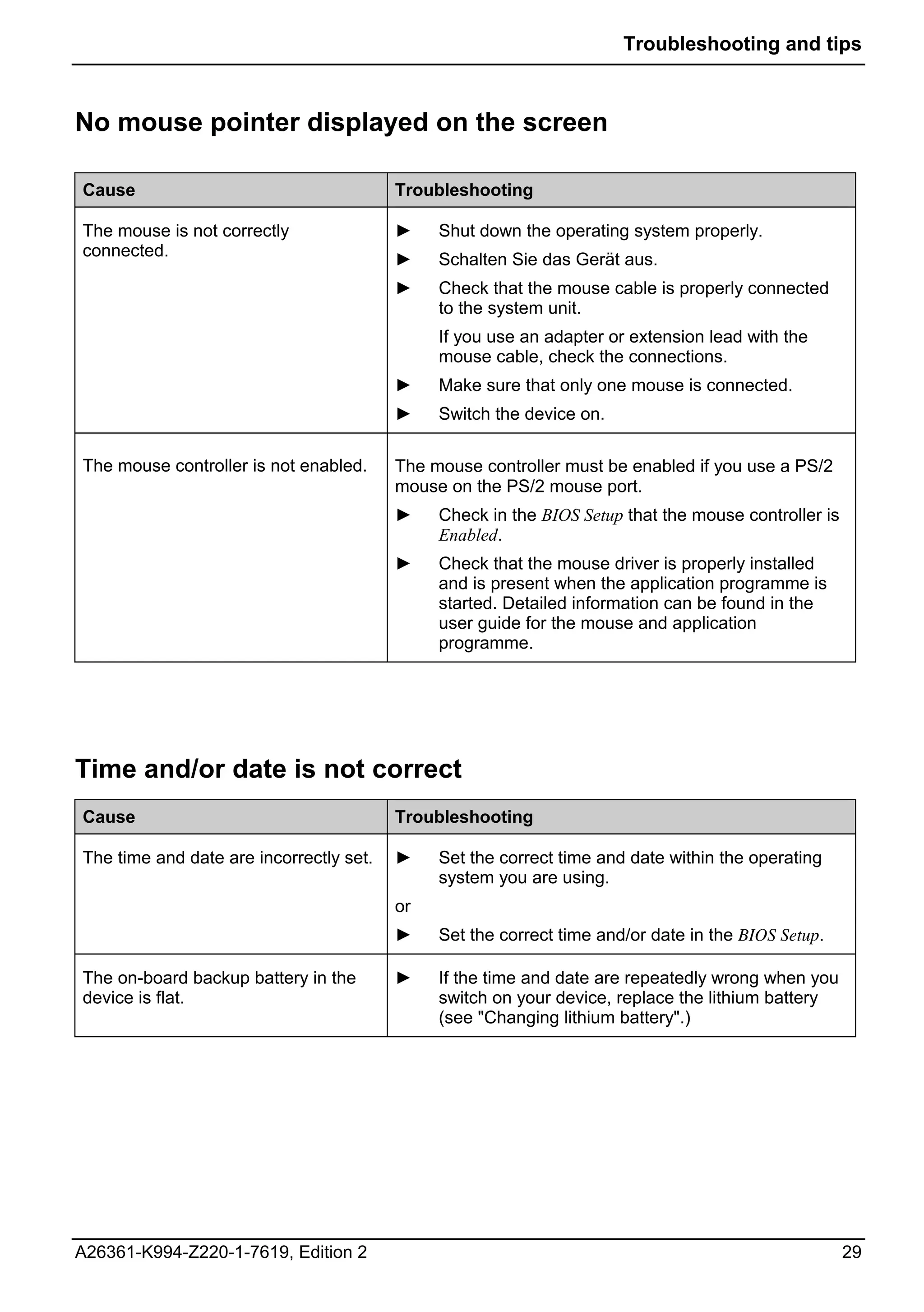
CELSIUS M4xx / R5xx / R6xx
Operating Manual
Are there ...


... any technical problems or other questions you would like to discuss?
Please contact:
●    our Hotline/Help Desk (see the enclosed Help Desk list or go to
     http://ts.fujitsu.com/support/helpdesk.html)
●    Your sales partner
●    Your sales office
Further information can be found in the "Safety" and "Warranty" manuals.
Latest information on our products, tips, updates, etc., can be accessed on the internet at:
http://ts.fujitsu.com
Published by
Fujitsu Technology Solutions GmbH
A26361-K994-Z220-1-7619, Edition 2
2009/08

Produced by
XEROX Global Services
Introduction


                        Important notes


CELSIUS M4xx / R5xx /   Preparing for use

R6xx
                        Operation


                        Troubleshooting
                        and tips

Operating Manual
                        System expansions


                        Technical data


                        Index


Edition: August 2009
CELSIUS is a registered trademark of Fujitsu Technology Solutions GmbH.
Windows XP, Windows Vista, Windows 7 are registered trademarks of the
Microsoft Corporation.
PS/2 is a registered trademark of International Business Machines, Inc.
Pentium is a registered trademark of Intel Corporation, USA.
Kensington Lock and MicroSaver are registered trademarks of ACCO World Corporation.
All other trademarks referenced are trademarks or registered trademarks of their respective
owners, whose protected rights are acknowledged.
Copyright © Fujitsu Technology Solutions 2009
All rights, including rights of translation, reproduction by printing, copying or similar methods,
in part or in whole, are reserved.
Offenders will be liable for damages.
All rights, including rights created by patent grant or registration of a utility model or design,
are reserved.
Delivery subject to availability. We reserve the right to make technical changes.
Contents
Your CELSIUS..................................................................................................................................... 1
Notational conventions ......................................................................................................................... 2
Important notes .................................................................................................................................. 3
Safety notes.......................................................................................................................................... 3
Transporting the device ........................................................................................................................ 3
Cleaning the device .............................................................................................................................. 3
Energy saving, disposal and recycling ................................................................................................. 4
CE mark................................................................................................................................................ 4
FCC Class B Compliance Statement ................................................................................................... 5
Preparing for use................................................................................................................................ 7
Unpacking and checking the delivery ................................................................................................... 7
Steps for initial setup ............................................................................................................................ 7
Setting up the device ............................................................................................................................ 8
Connecting external devices .............................................................................................................. 10
     Ports provided by the device ...................................................................................................... 11
     Connecting the monitor .............................................................................................................. 11
     Connecting the mouse ............................................................................................................... 12
     Connecting the keyboard............................................................................................................ 12
     Connecting external devices to the serial port ........................................................................... 13
     Connecting external devices to the USB ports........................................................................... 13
     Connecting external devices to the FireWire port ...................................................................... 14
     Connecting an external e-SATA device to the e-SATA port....................................................... 14
Connecting the device to the mains voltage....................................................................................... 15
Switching on for the first time: installing the software......................................................................... 15
     Switching on monitor and device................................................................................................ 16
     Installing the software................................................................................................................. 16
Operation........................................................................................................................................... 17
Switching the device on...................................................................................................................... 17
Switching off the device...................................................................................................................... 17
Indicators on the device...................................................................................................................... 18
Keyboard ............................................................................................................................................ 20
     Important keys and key combinations ........................................................................................ 20
Settings in BIOS Setup....................................................................................................................... 22
Property and data protection .............................................................................................................. 22
     Anti-theft protection and lead-sealing......................................................................................... 22
     BIOS setup security functions .................................................................................................... 23
     Access authorisation via SmartCard (optional) .......................................................................... 23
     Access protection with SystemLock (optional) ........................................................................... 23
Troubleshooting and tips................................................................................................................. 25
Help if problems occur........................................................................................................................ 25
Power-on indicator remains unlit after you have switched on your device ......................................... 26
     The device cannot be switched off with the ON/OFF switch ...................................................... 26
     Screen stays blank ..................................................................................................................... 27
     No mouse pointer displayed on the screen ................................................................................ 29
     Time and/or date is not correct................................................................................................... 29
     Error messages on the screen ................................................................................................... 30
Installing new software ....................................................................................................................... 30
Restoring hard disk contents .............................................................................................................. 30
Tips 30


A26361-K994-Z220-1-7619, Edition 1
Contents


System upgrades ..............................................................................................................................31
     Information about boards ............................................................................................................32
     Touchpoints for easier installation and removal of modules and components ...........................32
Opening the casing .............................................................................................................................33
Closing the casing...............................................................................................................................35
Opening the front panel.......................................................................................................................36
Closing the front panel ........................................................................................................................37
Removing the side fan ........................................................................................................................38
Installing the side fan ..........................................................................................................................39
Installing the front fan (CELSIUS M) ...................................................................................................40
Removing the front fan (CELSIUS M) .................................................................................................41
Removing the ventilation duct (CELSIUS M) ......................................................................................42
Removing the rear fan.........................................................................................................................43
Installing the rear fan...........................................................................................................................44
Installing the ventilation duct (CELSIUS M) ........................................................................................45
Removing the cross-piece ..................................................................................................................46
Installing the cross-piece ....................................................................................................................47
Removing the memory fan (CELSIUS R)............................................................................................48
Installing the memory fan (CELSIUS R)..............................................................................................49
Removing the heat sink with fan (CELSIUS R)...................................................................................49
Installing the heat sink with fan (CELSIUS R).....................................................................................51
Removing the heat sink (CELSIUS M)................................................................................................52
Installing the heat sink (CELSIUS M)..................................................................................................53
Installing and removing a board ..........................................................................................................53
     Installing a short board................................................................................................................54
     Removing a short board..............................................................................................................56
     Installing a long board.................................................................................................................58
     Removing a long board...............................................................................................................60
Low-profile boards...............................................................................................................................63
Installing and removing drives ............................................................................................................64
     Wiring diagram for S-ATA drives or SAS drives .........................................................................64
     Removing an accessible 5¼ inch drive.......................................................................................65
     Installing an accessible 5¼ inch drive ........................................................................................67
     Removing an accessible 3½ inch drive.......................................................................................69
     Installing an accessible 3½ inch drive ........................................................................................70
     Installing and removing a hard disk drive....................................................................................71
     Installing a hard disk drive ..........................................................................................................71
     Removing a hard disk drive ........................................................................................................72
Installing and removing a SmartCard reader (optional) ......................................................................73
     Installing a SmartCard reader .....................................................................................................73
     Removing a SmartCard reader ...................................................................................................74
Installing and removing a WLAN module (optional)............................................................................75
     Installing WLAN module..............................................................................................................75
     Removing WLAN module............................................................................................................77
Extensions to the mainboard...............................................................................................................78
     Upgrading main memory (CELSIUS R) ......................................................................................78
     Upgrading main memory (CELSIUS M) ......................................................................................78
     Replacing the processor .............................................................................................................79
     Changing lithium battery .............................................................................................................80
Technical data ...................................................................................................................................81
Index...................................................................................................................................................83


                                                                                                A26361-K994-Z220-1-7619, Edition 2
Your CELSIUS...
... is available with various configuration levels with different hardware and software. You can
incorporate operable drives (for example DVD drive) as well as other boards.
This manual tells you how to put your device into operation and how to operate it in daily use. This
manual applies for all configuration levels. Depending on the configuration level chosen some of the
hardware components described may not be available on your PC. Please observe the notes on your
operating system.
Depending on the configuration selected, the operating system is preinstalled on your hard disk (e.g.
Microsoft Windows Vista).
Your device has a number of security features to ensure that no unauthorised persons can access
your data. The security functions in the BIOS Setup also allow you to protect your data by means of
passwords. In addition, systems with a SmartCard reader offer additional protection.
Under certain operating systems, DeskUpdate allows you to quickly and easily install the latest drivers
and operating system upgrades with just a few mouse clicks. DeskUpdate is contained on the
"Drivers & Utilities" DVD.
Further information on this device is provided:
●       in the poster "Getting Started"
●       in the "Safety" manual
●       in the "Warranty" manual
●       in the operating manual for the monitor
●       in the manual for the mainboard
●       in your operating system documentation
●       in the information files (e.g. *.PDF, *.HTML, *.DOC, *.CHM, *.TXT, *.HLP)

            Some of the manuals listed can be found in electronic form on the DVD "Drivers &
    i       Utilities".
            You can access and view the required information using the Acrobat Reader program,
            which is also on the DVD. If necessary, you can also make a print version of the manual.


A26361-K994-Z220-1-7619, Edition 2                                                                     1
Your CELSIUS...


Notational conventions
The following symbols are used in this manual:

                       indicates information which is important for your health or for preventing
    !                  physical damage.


                       indicates important information which is required to use the system properly.
    i
►                      Texts which follow this symbol describe activities that must be performed in
                       the order shown.

This font              indicates programme names, commands, or menu items.

"Quotation marks"      indicate names of chapters, data carriers, and terms that are being
                       emphasised.


2                                                              A26361-K994-Z220-1-7619, Edition 2
Important notes
In this chapter you will find information regarding safety which it is essential to take note of when
working with your device.


Safety notes
          Pay attention to the information provided in the "Safety" manual and in the following safety
  !       notes.
          During installation and before operating the device, please observe the instructions on
          environmental conditions in the "Technical data" chapter as well as the instructions in the
          "Preparing for use" chapter.
          The ON/OFF switch does not disconnect the device from the mains voltage. To completely
          disconnect the mains voltage, remove the power plug from the power socket.
          The lithium battery on the mainboard should only be replaced in accordance with the
          instructions in the "Extensions to the mainboard" - "Changing lithium battery" chapter.
          Caution, components in the system can get very hot.


Transporting the device
          Transport all parts separately in their original packaging or in a packaging which protects
  !       them from knocks and jolts, to the new site. Do not unpack them until all transportation
          manoeuvres are completed.


Cleaning the device
          Turn off all power and equipment switches and disconnect the power plug from the mains
  !       outlet.
          Do not clean any interior parts yourself, leave this job to a service technician.
          Do not use any cleaning agents that contain abrasives or may corrode plastic.
          Ensure that no liquid enters the system.

Wipe the casing with a dry cloth. If particularly dirty, use a cloth that has been moistened in mild
domestic detergent and then carefully wrung out. Use disinfectant wipes to clean the keyboard and
the mouse.


A26361-K994-Z220-1-7619, Edition 2                                                                      3
Important notes


Energy saving, disposal and recycling
Further information on these topics can be found on the "Drivers & Utilities" DVD.


CE mark
CE mark for devices without radio component
                    The shipped version of this device complies with the requirements of the EC
                    Guidelines 2004/108/EC "Electromagnetic compatibility" and 2006/95/EC "Low
                    voltage directive".


4                                                               A26361-K994-Z220-1-7619, Edition 2
Important notes


FCC Class B Compliance Statement
The following statement applies to the products covered in this manual, unless otherwise specified
herein. The statement for other products will appear in the accompanying documentation.
NOTE:
This equipment has been tested and found to comply with the limits for a "Class B" digital device,
pursuant to Part 15 of the FCC rules and meets all requirements of the Canadian Interference-
Causing Equipment Standard ICES-003 for digital apparatus. These limits are designed to provide
reasonable protection against harmful interference in a residential installation. This equipment
generates, uses and can radiate radio frequency energy and, if not installed and used in strict
accordance with the instructions, may cause harmful interference to radio communications. However,
there is no guarantee that interference will not occur in a particular installation. If this equipment does
cause harmful interference to radio or television reception, which can be determined by turning the
equipment off and on, the user is encouraged to try to correct the interference by one or more of the
following measures:
●    Reorient or relocate the receiving antenna.
●    Increase the separation between equipment and the receiver.
●    Connect the equipment into an outlet on a circuit different from that to which the receiver is
     connected.
●    Consult the dealer or an experienced radio/TV technician for help.
Fujitsu Technology Solutions GmbH is not responsible for any radio or television interference caused
by unauthorized modifications of this equipment or the substitution or attachment of connecting
cables and equipment other than those specified by Fujitsu Technology Solutions GmbH. The
correction of interferences caused by such unauthorized modification, substitution or attachment will
be the responsibility of the user.
The use of shielded I/O cables is required when connecting this equipment to any and all optional
peripheral or host devices. Failure to do so may violate FCC and ICES rules.


A26361-K994-Z220-1-7619, Edition 2                                                                       5
Important notes


6                 A26361-K994-Z220-1-7619, Edition 2
Preparing for use
            Please observe the safety information in the "Important notes" chapter.
    !
Unpacking and checking the delivery
It is recommended not to throw away the original packaging material! It may be required for
reshipment at some later date.
►       Unpack all the individual parts.
►       Check the delivery for damage incurred during transportation.
►       Check whether the delivery agrees with the details in the delivery note.
Should you discover that the delivery does not correspond to the delivery note, notify your local sales
outlet immediately.


Steps for initial setup
Only a few steps are necessary to put your new device into operation for the first time:
●       Select location for device and set up device
●       External devices, connecting
●       Check the voltage at the mains outlet and connect the device to an electrical outlet
●       Switching the device on
You will learn more about the individual steps in the following sections.
External devices
            If you have received other devices in addition to your device (e.g. a printer or a modem),
    i       do not connect these until after the initial installation. The following sections contain a
            description of how to connect these external devices.

Drives and boards
            If you have received drives or boards with your device, please do not install them until
    i       after first-time setup. How to install drives and boards is described in the "System
            upgrades" chapter.


A26361-K994-Z220-1-7619, Edition 2                                                                        7
Preparing for use


Setting up the device
             When installing your device, give consideration to the safety notes in the "Safety" manual.
    !        The device should only be set up in the intended orientation, i.e. in a vertical position.
             We recommend that you place your device on a surface with good anti-slip qualities. In
             view of the multitude of different finishes and varnishes used on furniture, it is possible that
             the feet of the device will mark the surface they stand on.
             Do not expose the device to extreme environmental conditions (see "Technical data").
             Protect the device from dust, humidity, and heat.
             Make sure that the device is adequately ventilated. In order to avoid overheating, do not
             cover the ventilation area of the monitor or the device.
             Depending on the location of your device, bothersome vibrations and noises may occur.
             To prevent this, a distance of at least 10 mm should be maintained from other devices on
             casing sides without ventilation surfaces. In addition, we recommend placing the device on
             support feet, as these buffer vibrations.


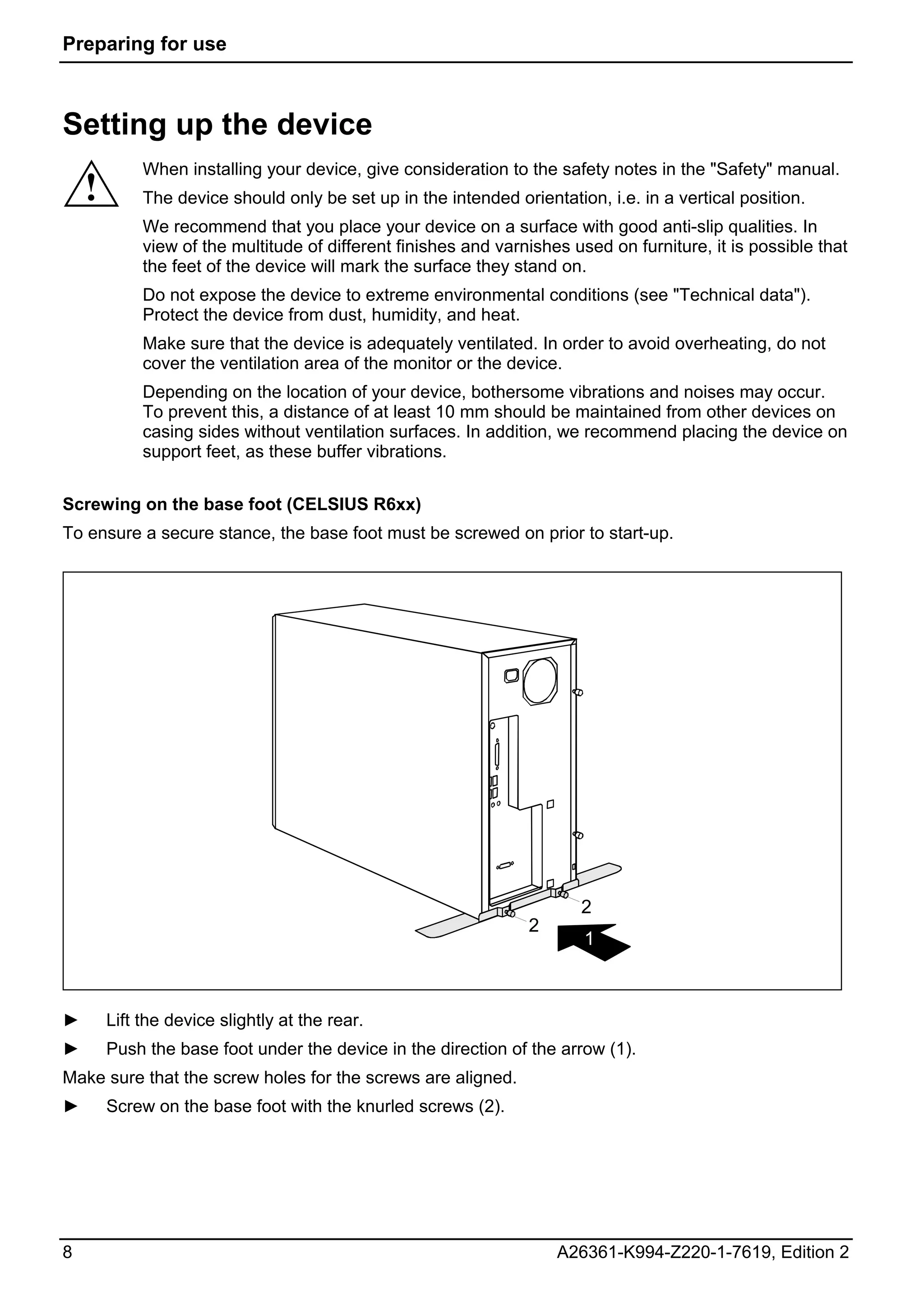
Screwing on the base foot (CELSIUS R6xx)
To ensure a secure stance, the base foot must be screwed on prior to start-up.


                                                                        2
                                                                 2
                                                                         1


►       Lift the device slightly at the rear.
►       Push the base foot under the device in the direction of the arrow (1).
Make sure that the screw holes for the screws are aligned.
►       Screw on the base foot with the knurled screws (2).


8                                                                    A26361-K994-Z220-1-7619, Edition 2
Preparing for use


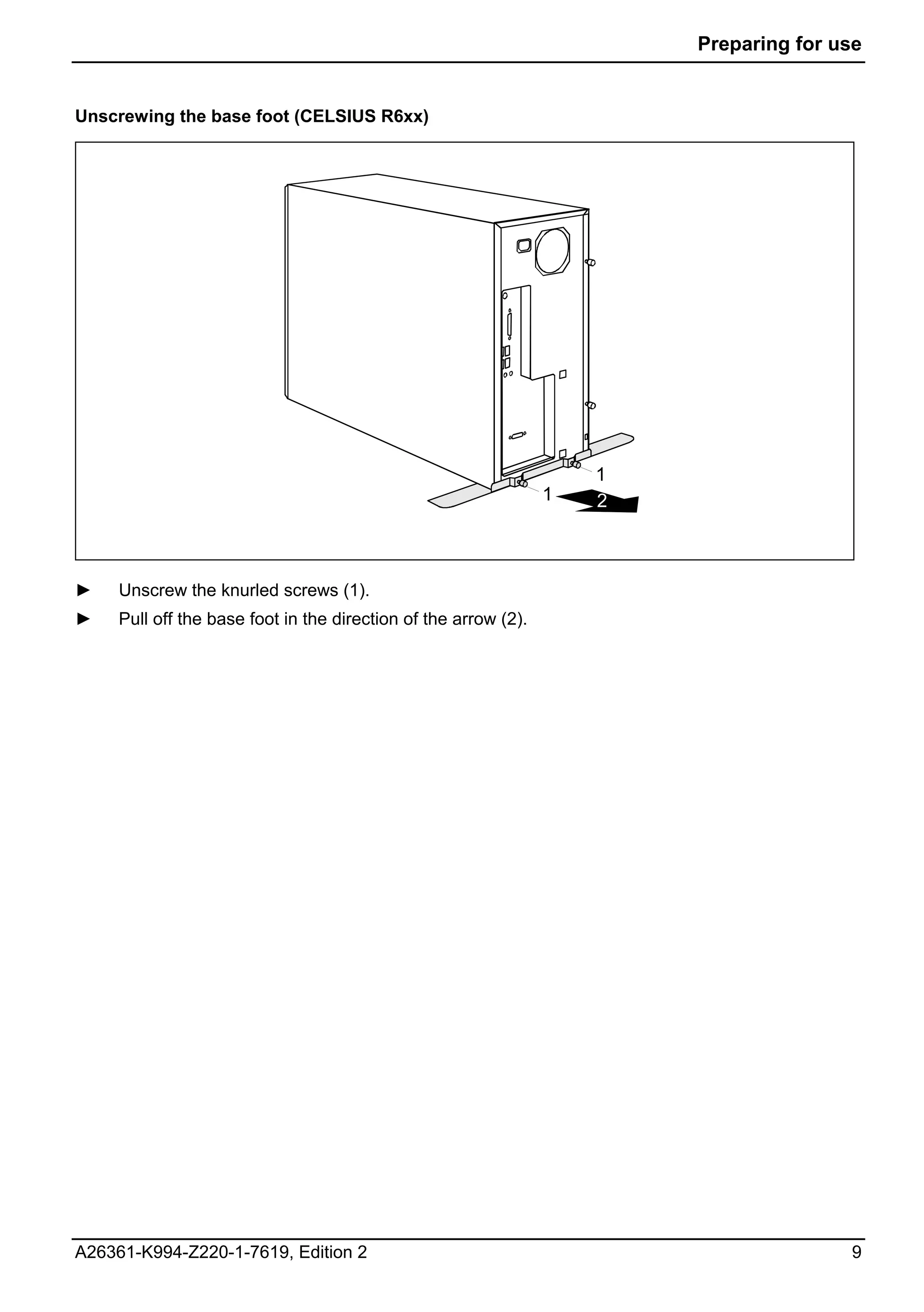
Unscrewing the base foot (CELSIUS R6xx)


                                                                     1
                                                                 1   2


►    Unscrew the knurled screws (1).
►    Pull off the base foot in the direction of the arrow (2).


A26361-K994-Z220-1-7619, Edition 2                                                      9
Preparing for use


Connecting external devices
             Read the documentation on the external device before connecting it.
     !       With the exception of USB devices, always remove all power plugs before connecting
             external devices!
             Do not connect or disconnect cables during a thunderstorm.
             Always take hold of the actual plug. Never unplug a cable by pulling the cable itself.
             Connect and disconnect the cables in the order described below.

Connecting cables
►        Turn off all power and equipment switches.
►        Remove all power plugs from the grounded mains outlets.
►        Plug all cables into the device and peripherals. You must observe the information provided in
         the "Important notes" chapter.
►        Plug all data communication cables into the utility sockets.
►        Plug all power cables into the grounded mains outlets.

Disconnecting cables
►        Turn off all power and equipment switches.
►        Remove all power plugs from the grounded mains outlets.
►        Unplug all data communication cables from the utility sockets.
►        Unplug all cables from the device and peripherals.

             USB devices are hot-pluggable. This means you can connect and disconnect USB cables
     i       while your device is switched on.
             Additional information can be found in the "Connecting external devices to the USB ports"
             section and in the documentation for the USB devices.


10                                                                   A26361-K994-Z220-1-7619, Edition 2
Preparing for use


Ports provided by the device
The connections are located on the front and back of the device. The ports available on your device
depend on the configuration level you have selected. The standard ports are marked with the
symbols shown below (or similar). Detailed information on the location of the connections is provided
in the manual for the mainboard.

            Keyboard port, purple                                  Parallel port/Printer, burgundy


        1                                                     2
            Serial port 1, teal or turquoise                       Serial port 2, teal or turquoise


            Monitor port, blue                                     Microphone jack (mono), pink


            Headphones port, orange or light                       Audio input (Line in), light blue
            green

            Audio output (Line out), light green                   e-SATA port

            USB - Universal Serial Bus, black
                                                       LAN         LAN port


            PS/2 mouse port, green                     1394        FireWire™, grey


            Some of the connected devices require special drivers (see the documentation for the
    i       connected device).


Connecting the monitor
►       Follow the instructions contained in the monitor manual to prepare the monitor for operation
        (e.g. connecting cables).
►       Plug the data cable into the monitor port of the device.
►       Plug the monitor power cable into the grounded mains outlet.


A26361-K994-Z220-1-7619, Edition 2                                                                     11
Preparing for use


Connecting the mouse
Depending on the equipment level selected, your device will be supplied with a PS/2 mouse or a
USB mouse.

Connecting PS/2 mouse
►        Connect the PS/2 mouse to the PS/2 mouse port of the device.

Connecting USB mouse
►        Connect the USB mouse to the USB port of the device.

             If you do not attach a mouse at the PS/2 mouse port, you can disable the mouse controller
     i       in the BIOS Setup in order to free the IRQ12 for a different application.


Connecting the keyboard
Depending on the equipment level selected, your device will be supplied with a standard keyboard or
a USB keyboard.

Connecting standard keyboard
Use the supplied keyboard cable only.
►        Plug the rectangular connector of the keyboard cable into the rectangular socket on the
         underside or on the rear of the keyboard.
►        Plug the round plug of the keyboard cable into the keyboard port on the device.

Connecting USB keyboard
Use the supplied keyboard cable only.
►        Plug the rectangular connector of the keyboard cable into the socket on the underside or on the
         rear of the keyboard.
►        Insert the flat rectangular USB plug of the keyboard cable into a USB port of the device.


12                                                                 A26361-K994-Z220-1-7619, Edition 2
Preparing for use


Connecting external devices to the serial port
External devices (e.g. a printer or modem) can be connected to the serial port.
►       Connect the data cable to the external device.
►       Connect the data cable to the serial port.

Port settings
            You can change the port settings (e.g. address, interrupt) in the BIOS Setup.
    i
Device drivers
            The devices connected to the parallel or serial port require drivers. Your operating system
    i       already includes many drivers. If the required drive is missing, install it. Current drivers are
            usually available on the Internet or will be supplied on a data carrier.


Connecting external devices to the USB ports
You can connect a wide range of external devices to the USB ports (e.g. printer, scanner, modem or
keyboard).

            USB devices are hot-pluggable. This means you can connect and disconnect devices
    i       while your operating system is running.
            Additional information can be found in the documentation for the USB devices.

►       Connect the data cable to the external device.
►       Connect the data cable to a USB port .

Device drivers
            The devices you connect to the USB ports usually require no driver of their own, as the
    i       required software is already included in the operating system. However, if the USB device
            requires its own software, please install it from the data carrier provided with the USB
            device.
            To ensure USB 2.0, only a 3 m long cable may be used from the front USB port to the
            USB peripheral device.


A26361-K994-Z220-1-7619, Edition 2                                                                       13
Preparing for use


Connecting external devices to the FireWire port
External devices such as digital audio/video devices or other high-speed devices can be connected
to the FireWire port. The FireWire port operates at a speed of up to 400 Mbit per second.

             FireWire devices are hot-pluggable. Therefore, the cables of FireWire devices can be
     i       connected and disconnected with the system switched on.
             Additional information is provided in the documentation of the FireWire devices.

►        Connect this data cable of the external devices to the FireWire port of the device.
►        Plug the power cable of the external device into a grounded mains outlet.


Connecting an external e-SATA device to the e-SATA port
You can connect further devices (e.g. an external hard disk) to e-SATA ports.
             The CELSIUS R6xx is equipped as standard with an e-SATA port. On the CELSIUS M4xx
     i       and R5xx, an adapter cable must be used, which is available as an option.
             AHCI mode must be activated in the mainboard BIOS. In the preset factory default state,
             this mode is activated as standard. For additional information on this topic, please refer to
             the mainboard manual.
             e-SATA devices are hot-pluggable. This means that the cables of e-SATA devices can be
             connected and disconnected with the system switched on.
             For further information please refer to the documentation for the e-SATA devices.

►        On the CELSIUS M4xx and R5xx, configure the e-SATA port in the BIOS as described in the
         mainboard manual.
►        Connect the e-SATA device with its associated mains adapter.
►        Plug the power cable of the external device into a grounded mains outlet.
►        Connect the data cable of the external device to the e-SATA port of the device.

             Devices which you connect to an e-SATA port usually require no driver of their own, as the
     i       required software is already included in the operating system. However, if the e-SATA
             device requires its own software, please install it from the data carrier provided with the e-
             SATA device.


14                                                                  A26361-K994-Z220-1-7619, Edition 2
Preparing for use


Connecting the device to the mains voltage
            The device is fitted with a wide voltage range power supply. This means you do not need
    i       to set the nominal voltage manually for these devices. Therefore there is no switch
            available for the voltage setting.


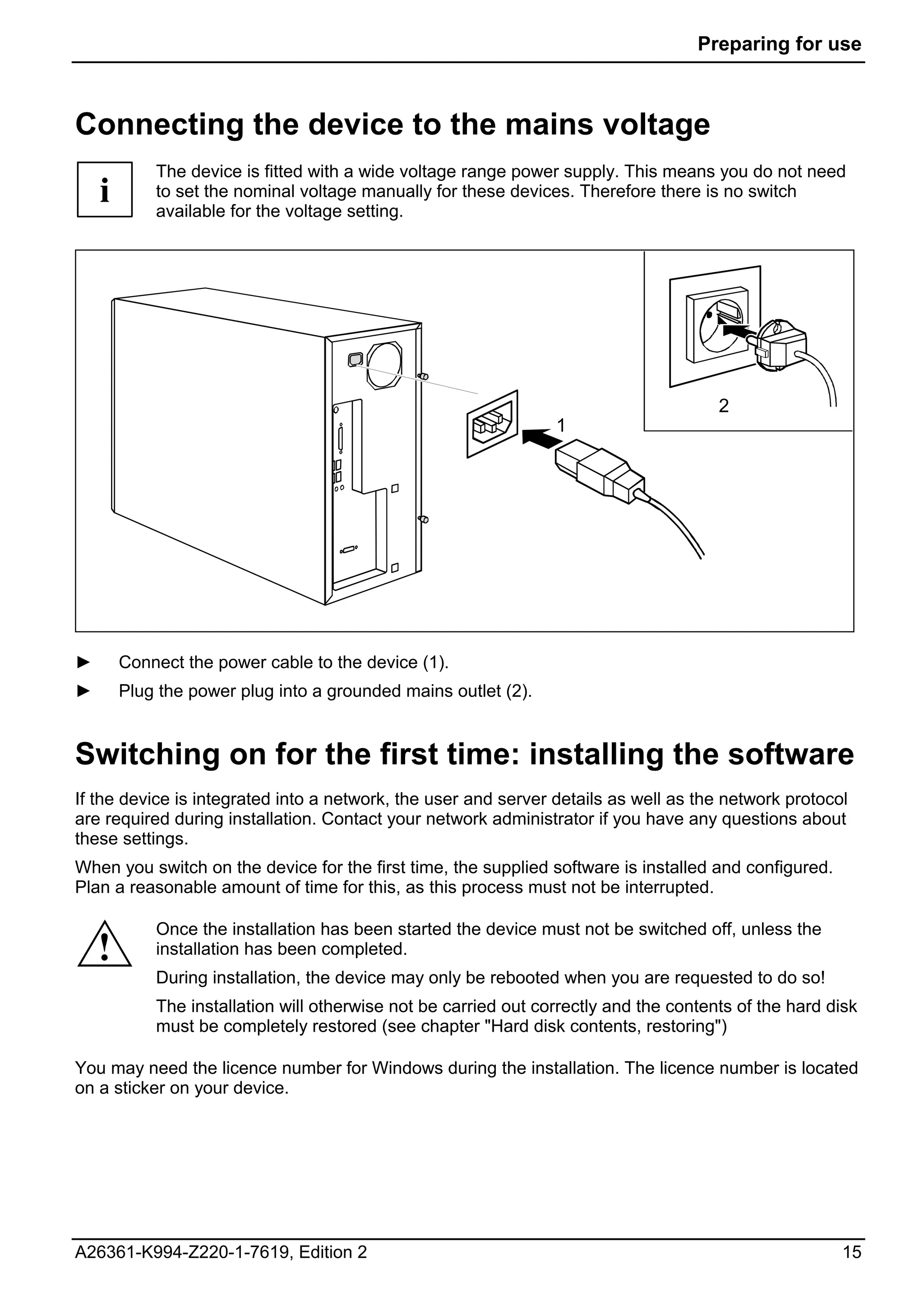
                                                                                       2
                                                                 1


►       Connect the power cable to the device (1).
►       Plug the power plug into a grounded mains outlet (2).


Switching on for the first time: installing the software
If the device is integrated into a network, the user and server details as well as the network protocol
are required during installation. Contact your network administrator if you have any questions about
these settings.
When you switch on the device for the first time, the supplied software is installed and configured.
Plan a reasonable amount of time for this, as this process must not be interrupted.

            Once the installation has been started the device must not be switched off, unless the
    !       installation has been completed.
            During installation, the device may only be rebooted when you are requested to do so!
            The installation will otherwise not be carried out correctly and the contents of the hard disk
            must be completely restored (see chapter "Hard disk contents, restoring")

You may need the licence number for Windows during the installation. The licence number is located
on a sticker on your device.


A26361-K994-Z220-1-7619, Edition 2                                                                     15
Preparing for use


Switching on monitor and device
►        Switch the monitor on (see the operating manual for the monitor).

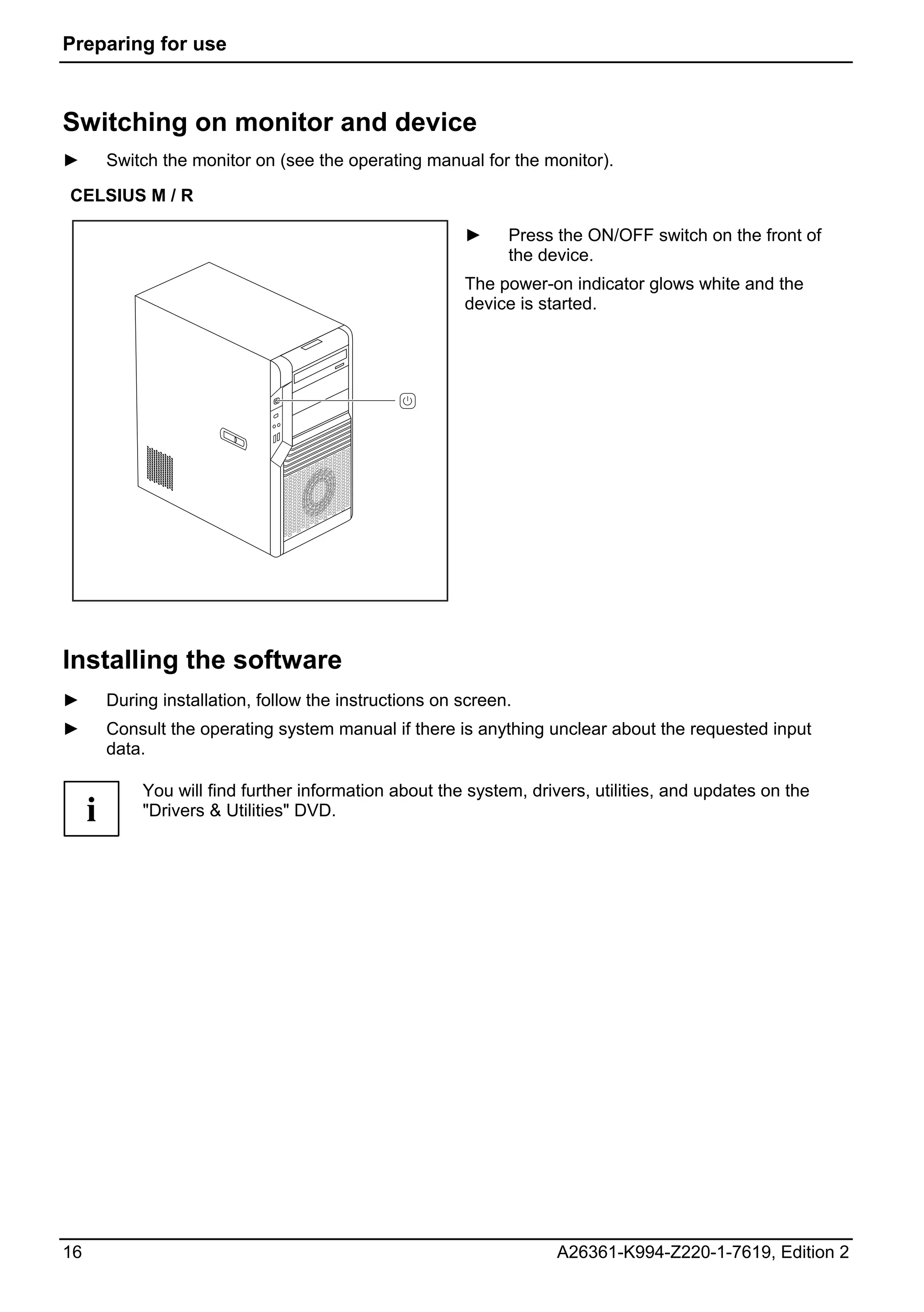
CELSIUS M / R

                                                         ►     Press the ON/OFF switch on the front of
                                                               the device.
                                                         The power-on indicator glows white and the
                                                         device is started.


Installing the software
►        During installation, follow the instructions on screen.
►        Consult the operating system manual if there is anything unclear about the requested input
         data.

             You will find further information about the system, drivers, utilities, and updates on the
     i       "Drivers & Utilities" DVD.


16                                                                   A26361-K994-Z220-1-7619, Edition 2
Operation
Switching the device on
►       If necessary, switch the monitor on (see the operating manual for the monitor).
►       Press the ON/OFF switch on the front of the device.
The power-on indicator glows white and the device is started.


Switching off the device
►       Shut down the operating system properly. In Windows: via the Start menu and the Exit function.
►       If the operating system does not automatically switch the device into an energy-saving mode or
        switch it off, press the ON/OFF switch.
The device then consumes a minimum amount of energy.

            The ON/OFF switch does not disconnect the device from the mains voltage. To completely
    !       disconnect the mains voltage, remove the power plug from the power socket.


►       If necessary, switch the monitor off (see the operating manual for the monitor).


A26361-K994-Z220-1-7619, Edition 2                                                                  17
Operation


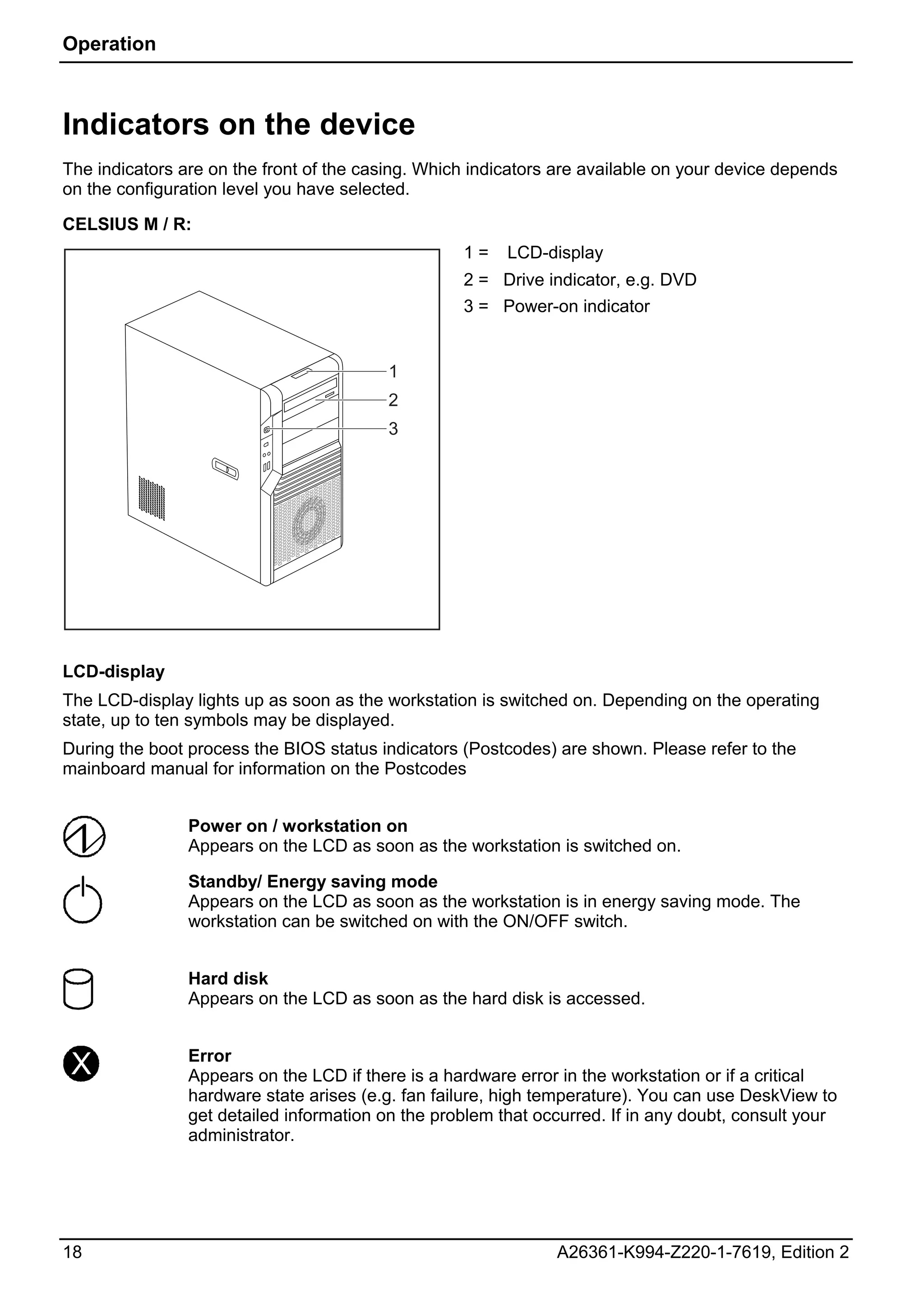
Indicators on the device
The indicators are on the front of the casing. Which indicators are available on your device depends
on the configuration level you have selected.

CELSIUS M / R:
                                                   1=    LCD-display
                                                   2 = Drive indicator, e.g. DVD
                                                   3 = Power-on indicator


                                          1
                                          2
                                          3


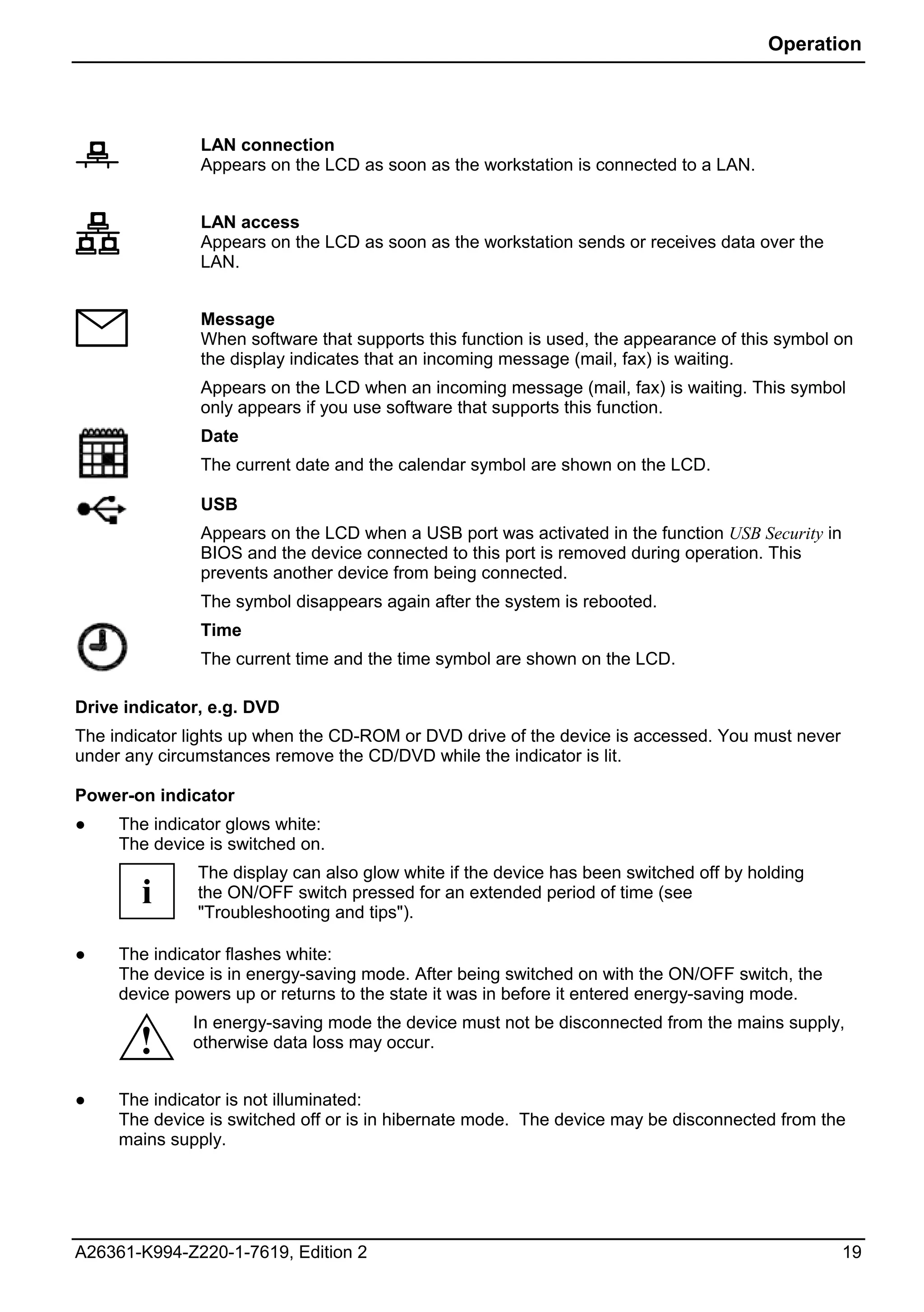
LCD-display
The LCD-display lights up as soon as the workstation is switched on. Depending on the operating
state, up to ten symbols may be displayed.
During the boot process the BIOS status indicators (Postcodes) are shown. Please refer to the
mainboard manual for information on the Postcodes


                Power on / workstation on
                Appears on the LCD as soon as the workstation is switched on.

                Standby/ Energy saving mode
                Appears on the LCD as soon as the workstation is in energy saving mode. The
                workstation can be switched on with the ON/OFF switch.


                Hard disk
                Appears on the LCD as soon as the hard disk is accessed.


 X              Error
                Appears on the LCD if there is a hardware error in the workstation or if a critical
                hardware state arises (e.g. fan failure, high temperature). You can use DeskView to
                get detailed information on the problem that occurred. If in any doubt, consult your
                administrator.


18                                                             A26361-K994-Z220-1-7619, Edition 2
Operation


               LAN connection
               Appears on the LCD as soon as the workstation is connected to a LAN.


               LAN access
               Appears on the LCD as soon as the workstation sends or receives data over the
               LAN.


               Message
               When software that supports this function is used, the appearance of this symbol on
               the display indicates that an incoming message (mail, fax) is waiting.
               Appears on the LCD when an incoming message (mail, fax) is waiting. This symbol
               only appears if you use software that supports this function.
               Date
               The current date and the calendar symbol are shown on the LCD.

               USB
               Appears on the LCD when a USB port was activated in the function USB Security in
               BIOS and the device connected to this port is removed during operation. This
               prevents another device from being connected.
               The symbol disappears again after the system is rebooted.
               Time
               The current time and the time symbol are shown on the LCD.

Drive indicator, e.g. DVD
The indicator lights up when the CD-ROM or DVD drive of the device is accessed. You must never
under any circumstances remove the CD/DVD while the indicator is lit.

Power-on indicator
●    The indicator glows white:
     The device is switched on.
               The display can also glow white if the device has been switched off by holding
        i      the ON/OFF switch pressed for an extended period of time (see
               "Troubleshooting and tips").

●    The indicator flashes white:
     The device is in energy-saving mode. After being switched on with the ON/OFF switch, the
     device powers up or returns to the state it was in before it entered energy-saving mode.
              In energy-saving mode the device must not be disconnected from the mains supply,
       !      otherwise data loss may occur.


●    The indicator is not illuminated:
     The device is switched off or is in hibernate mode. The device may be disconnected from the
     mains supply.


A26361-K994-Z220-1-7619, Edition 2                                                                19
Operation


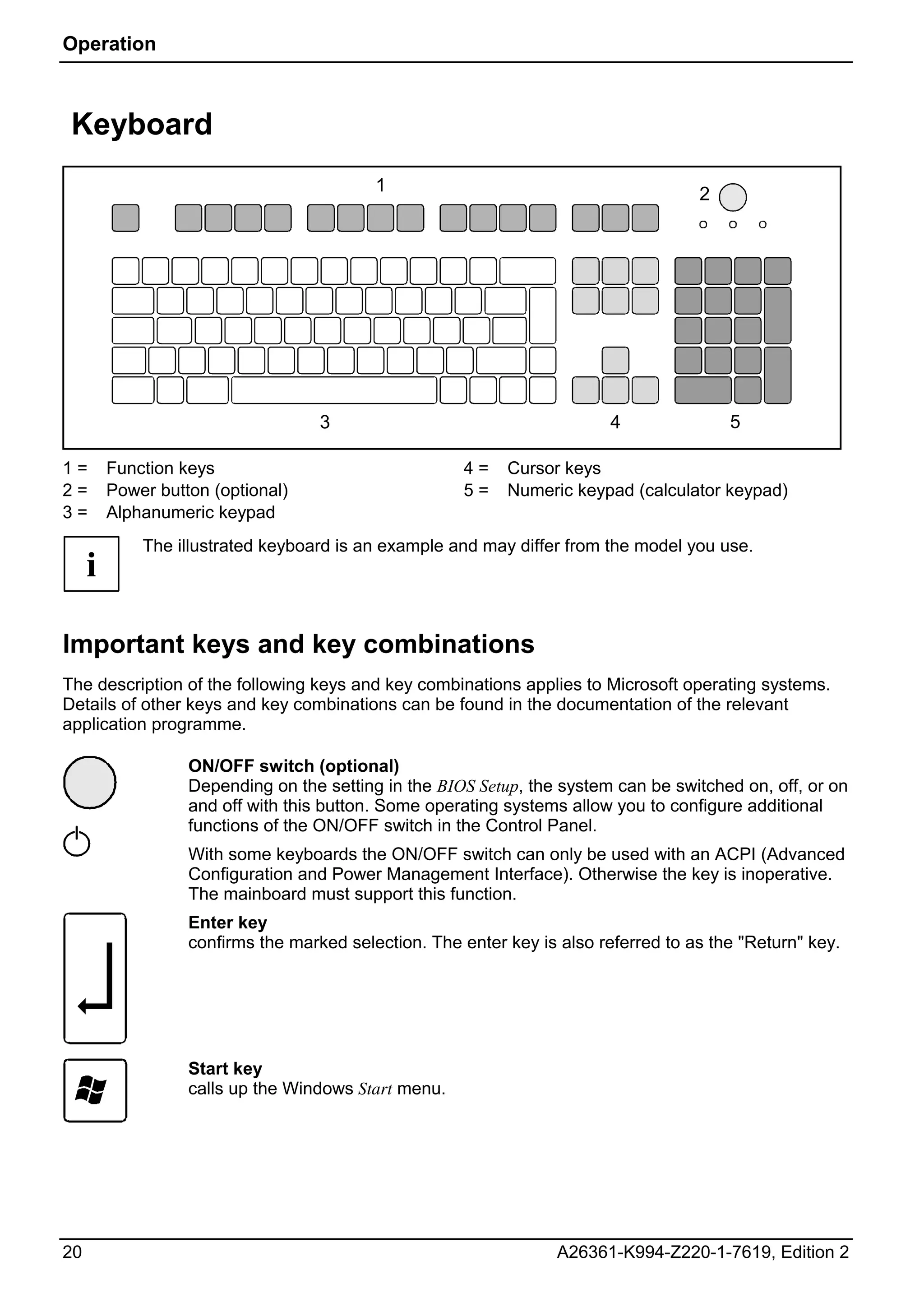
 Keyboard
                                           1                                         2


                                    3                                     4              5

1=       Function keys                                4=    Cursor keys
2=       Power button (optional)                      5=    Numeric keypad (calculator keypad)
3=       Alphanumeric keypad
             The illustrated keyboard is an example and may differ from the model you use.
     i

Important keys and key combinations
The description of the following keys and key combinations applies to Microsoft operating systems.
Details of other keys and key combinations can be found in the documentation of the relevant
application programme.

                   ON/OFF switch (optional)
                   Depending on the setting in the BIOS Setup, the system can be switched on, off, or on
                   and off with this button. Some operating systems allow you to configure additional
                   functions of the ON/OFF switch in the Control Panel.
                   With some keyboards the ON/OFF switch can only be used with an ACPI (Advanced
                   Configuration and Power Management Interface). Otherwise the key is inoperative.
                   The mainboard must support this function.
                   Enter key
                   confirms the marked selection. The enter key is also referred to as the "Return" key.


                   Start key
                   calls up the Windows Start menu.


20                                                                 A26361-K994-Z220-1-7619, Edition 2
Operation


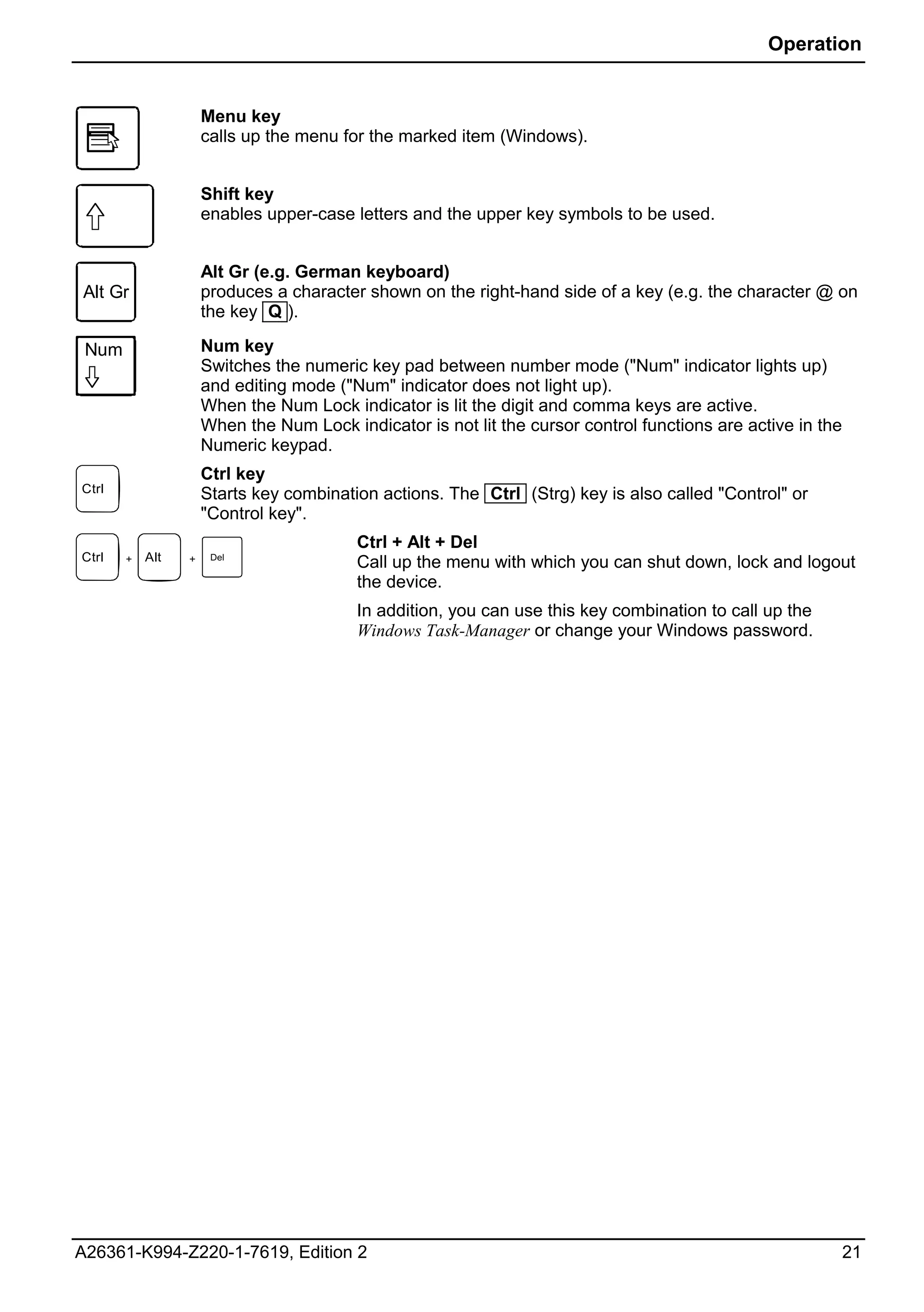
                     Menu key
                     calls up the menu for the marked item (Windows).


                     Shift key
                     enables upper-case letters and the upper key symbols to be used.


                     Alt Gr (e.g. German keyboard)
Alt Gr               produces a character shown on the right-hand side of a key (e.g. the character @ on
                     the key Q ).

 Num                 Num key
                     Switches the numeric key pad between number mode ("Num" indicator lights up)
                     and editing mode ("Num" indicator does not light up).
                     When the Num Lock indicator is lit the digit and comma keys are active.
                     When the Num Lock indicator is not lit the cursor control functions are active in the
                     Numeric keypad.
                     Ctrl key
Ctrl                 Starts key combination actions. The Ctrl (Strg) key is also called "Control" or
                     "Control key".
                                         Ctrl + Alt + Del
Ctrl   +   Alt   +    Del
                                         Call up the menu with which you can shut down, lock and logout
                                         the device.
                                         In addition, you can use this key combination to call up the
                                         Windows Task-Manager or change your Windows password.


A26361-K994-Z220-1-7619, Edition 2                                                                           21
Operation


Settings in BIOS Setup
In BIOS Setup you can set the system functions and the hardware configuration of the device. When
the PC is delivered, the default entries are valid (see "BIOS Setup" manual or manual for the
mainboard). You can customise these settings to your requirements in the BIOS Setup.


Property and data protection
Software functions and mechanical locking offer a broad range of functions for protecting your device
and your personal data from unauthorised access. You can also combine these functions.

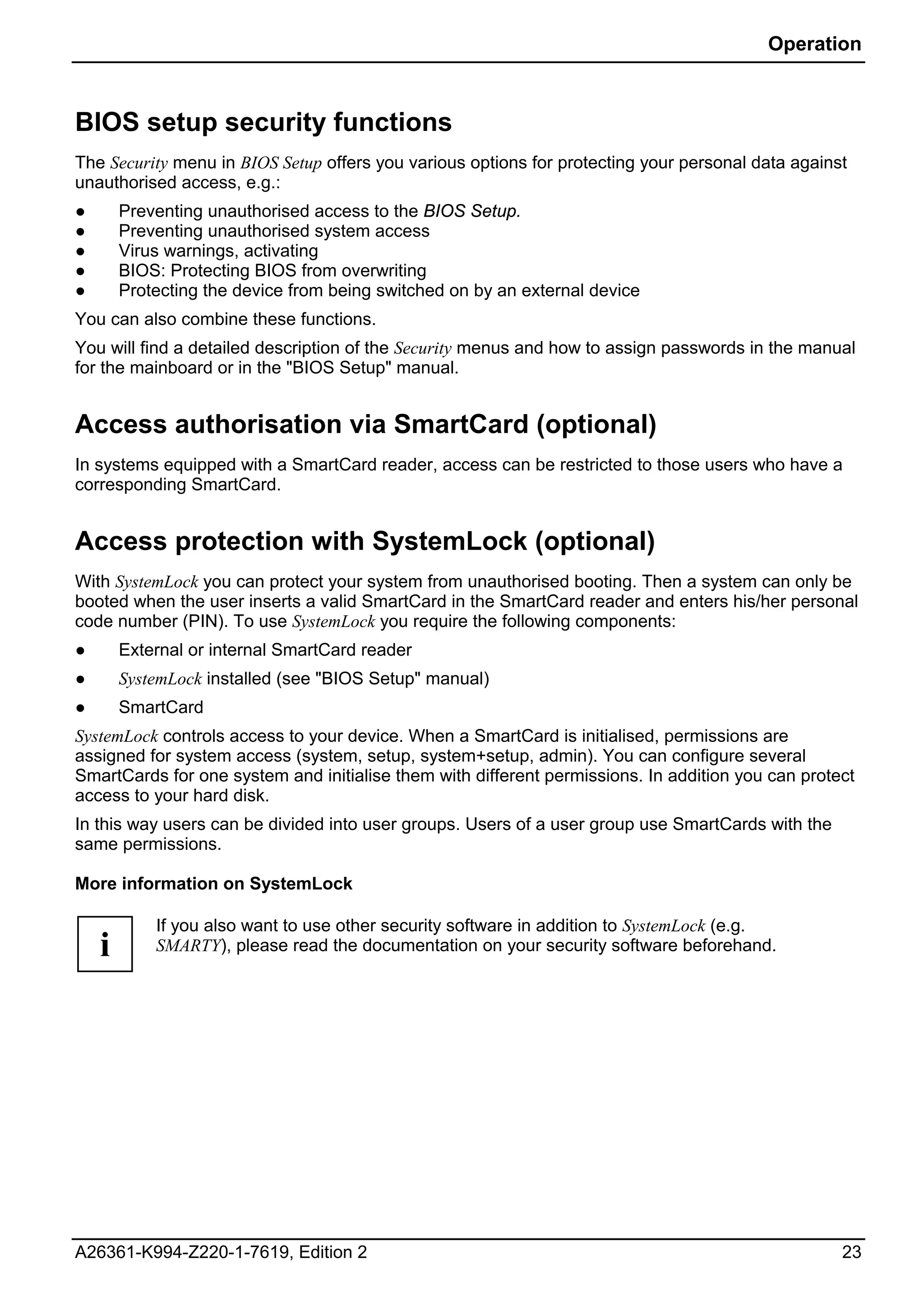
Anti-theft protection and lead-sealing


                                                                                        1

                                                                                        2


1=   Holes for padlock                             2=    Device for "Kensington Lock"

Anti-theft protection
You can protect your device from theft.
●    with the Kensington Lock device (2) and with a Kensington MicroSaver.
     Consult the manual for your Kensington Lock.
●    with the holes (1), a padlock and a chain, which you have connected to a fixed object
     beforehand.

Lead-sealing
To prevent unauthorised persons from opening the casing, the casing can be sealed. To do this,
feed the sealing chain through the holes (1) and seal the chain with the lead seal.


22                                                             A26361-K994-Z220-1-7619, Edition 2
Operation


BIOS setup security functions
The Security menu in BIOS Setup offers you various options for protecting your personal data against
unauthorised access, e.g.:
●       Preventing unauthorised access to the BIOS Setup.
●       Preventing unauthorised system access
●       Virus warnings, activating
●       BIOS: Protecting BIOS from overwriting
●       Protecting the device from being switched on by an external device
You can also combine these functions.
You will find a detailed description of the Security menus and how to assign passwords in the manual
for the mainboard or in the "BIOS Setup" manual.


Access authorisation via SmartCard (optional)
In systems equipped with a SmartCard reader, access can be restricted to those users who have a
corresponding SmartCard.


Access protection with SystemLock (optional)
With SystemLock you can protect your system from unauthorised booting. Then a system can only be
booted when the user inserts a valid SmartCard in the SmartCard reader and enters his/her personal
code number (PIN). To use SystemLock you require the following components:
●       External or internal SmartCard reader
●       SystemLock installed (see "BIOS Setup" manual)
●       SmartCard
SystemLock controls access to your device. When a SmartCard is initialised, permissions are
assigned for system access (system, setup, system+setup, admin). You can configure several
SmartCards for one system and initialise them with different permissions. In addition you can protect
access to your hard disk.
In this way users can be divided into user groups. Users of a user group use SmartCards with the
same permissions.

More information on SystemLock

            If you also want to use other security software in addition to SystemLock (e.g.
    i       SMARTY), please read the documentation on your security software beforehand.


A26361-K994-Z220-1-7619, Edition 2                                                                 23
Operation


SystemLock permissions
You can initialise a SmartCard with one of the following permissions:
System               The system starts following entry of the user PIN. You can change the user PIN.
Setup                You can open and change the BIOS Setup and change the user PIN.
System+Setup         The system starts following entry of the user PIN. You can open and change the
                     BIOS Setup and change the user PIN.
Admin                The system starts following entry of the user PIN. You can change the user PIN
                     an the administrator PIN, unlock locked SmartCards, open and change the
                     BIOS Setup and generate additional SmartCards for this system.
For instructions on how to install and operate SystemLock, and how to initialise SmartCards, see the
"BIOS Setup" manual.

Operating the SmartCard reader
●    Operating the internal SmartCard reader
Depending on the configuration level, the device can be switched on by inserting your SmartCard. If
the SmartCard reader has been released, the SmartCard reader indicator on the front of the device
lights green.
●    Operating the external SmartCard reader
After the device is switched on, you will be prompted to insert your SmartCard.


24                                                              A26361-K994-Z220-1-7619, Edition 2
Troubleshooting and tips
             Refer to the safety notes in the "Safety" manual and in the "Preparing for use" chapter
    !        when connecting or disconnecting cables.


If a fault occurs, try to correct it as described in the following places:
●       in this chapter
●       in the documentation of the connected devices
●       in the help systems of the software used
●       in the documentation of your operating system
If you fail to correct the problem, proceed as follows:
►       Switch the device off.
►       Make a note of the steps and the circumstances that led to the fault.
►       Make a note of any error messages displayed.
►       Note the ID number of your device. The Ident-No. can be found on the type rating plate on the
        back of the casing.
►       Contact your sales outlet or our customer service centre.


Help if problems occur
Should you ever have a problem with your computer that you cannot solve yourself, in many cases
you can solve it quickly using the SystemDiagnostics program pre-installed on your computer.
►       To start the SystemDiagnostics program, click Start - Programs - Fujitsu - SystemDiagnostics.
►       If a problem is detected during the test run, the SystemDiagnostics program outputs a code (e.g.
        DIFS code YXXX123456789123).
►       Take a note of this DIFS code and the ID number of your device. The ID number can be found
        on the type rating plate on the back of the casing.
►       If you still need assistance resolving the problem, contact the relevant Help Desk for your
        country (see the Help Desk List or go to http://ts.fujitsu.com/support). Have the ID/serial No. of
        your system and the DIFS code ready.


A26361-K994-Z220-1-7619, Edition 2                                                                           25
Troubleshooting and tips


Power-on indicator remains unlit after you have
switched on your device
Cause                                 Troubleshooting

The mains voltage supply is faulty.   ►    Check whether the power cable is plugged properly
                                           into the device and a grounded mains outlet.
                                      ►    Switch the device on.

Internal power supply overloaded.     ►    Pull the power plug of the device out of the mains
                                           outlet.
                                      ►    Wait for a moment.
                                      ►    Plug the power plug into a properly grounded mains
                                           outlet again.
                                      ►    Switch the device on.


The device cannot be switched off with the ON/OFF switch
Cause                                 Troubleshooting

The device has not been switched on   ►    Press the ON/OFF switch again.
with the ON/OFF switch.

System crash                          ►    Press the ON/OFF switch for at least 4 seconds,
                                           until the device switches off.
                                      The operating system is not shut-down properly in the
                                      process. Error messages are therefore possible the next
                                      time the system is booted.


26                                                         A26361-K994-Z220-1-7619, Edition 2
Troubleshooting and tips


Screen stays blank

Cause                                Troubleshooting

Monitor is switched off.             ►    Switch your monitor on.

Power saving has been activated      ►    Press any key on the keyboard.
(screen is blank)
                                     or
                                     ►    Deactivate the screen saver. If necessary, enter the
                                          appropriate password.

Brightness control is set to dark    ►    Adjust the brightness control. For detailed
                                          information, please refer to the operating manual
                                          supplied with your monitor.

Power cable not connected            ►    Switch off the monitor and the device.
                                     ►    Check that the monitor power cable is properly
                                          connected to the monitor and to a grounded mains
                                          outlet or to the monitor socket of the device.
                                     ►    Check that the device power cable is properly
                                          plugged into the device and a grounded mains
                                          outlet.
                                     ►    Switch on the monitor and the device.

Monitor cable not connected          ►    Switch off the monitor and the device.
                                     ►    Check that the monitor cable is properly connected
                                          to the device and monitor.
                                     ►    Switch on the monitor and the device.

Wrong monitor has been set under     ►    Restart the device.
Window XP
                                     ►    Press F8 while the system is booting.
                                     Either the Windows Advanced Start Options menu or the
                                     menu for selecting the operating system appears.
                                     ►    If the menu for selecting the operating system
                                          appears, press F8 .
                                     ►    Select Safe Mode or Safe Mode with Network.
                                     ►    Set the correct values for the attached monitor as
                                          described in the operating manual of the monitor by
                                          selecting Start - Settings - Control Panel - Display and
                                          then the Appearance, Themes, Settings tabs.


A26361-K994-Z220-1-7619, Edition 2                                                                   27
Troubleshooting and tips


Cause                                 Troubleshooting

Wrong setting for the monitor under   ►    Restart the device.
Windows Vista
                                      ►    Press F8 while the system is booting.
                                      Either the Windows Advanced Start Options menu or the
                                      menu for selecting the operating system appears.
                                      ►    If the menu for selecting the operating system
                                           appears, press F8 .
                                      ►    Select Safe Mode or Safe Mode with Network .
                                      ►    Set the correct values for the connected monitor, as
                                           described in the operating manual of the monitor, by
                                           selecting Start - (Settings) - Control Panel - Display -
                                           Settings.

Wrong setting for the monitor under   ►    Restart the device.
Windows 7
                                      ►    Press F8 while the system is booting.
                                      Either the Windows Advanced Start Options menu or the
                                      menu for selecting the operating system appears.
                                      ►    If the menu for selecting the operating system
                                           appears, press F8 .
                                      ►    Select Safe Mode or Safe Mode with Network .
                                      ►    Select Start - Control Panel - Appearance and Themes -
                                           Display to set the correct values for the connected
                                           monitor, as explained in the monitor instructions.

The wrong RAM modules have been       ►    See the technical manual for the mainboard for
inserted                                   information on which memory modules can be used.


28                                                           A26361-K994-Z220-1-7619, Edition 2
Troubleshooting and tips


No mouse pointer displayed on the screen

Cause                                    Troubleshooting

The mouse is not correctly               ►    Shut down the operating system properly.
connected.
                                         ►    Schalten Sie das Gerät aus.
                                         ►    Check that the mouse cable is properly connected
                                              to the system unit.
                                              If you use an adapter or extension lead with the
                                              mouse cable, check the connections.
                                         ►    Make sure that only one mouse is connected.
                                         ►    Switch the device on.

The mouse controller is not enabled.     The mouse controller must be enabled if you use a PS/2
                                         mouse on the PS/2 mouse port.
                                         ►    Check in the BIOS Setup that the mouse controller is
                                              Enabled.
                                         ►    Check that the mouse driver is properly installed
                                              and is present when the application programme is
                                              started. Detailed information can be found in the
                                              user guide for the mouse and application
                                              programme.


Time and/or date is not correct
Cause                                    Troubleshooting

The time and date are incorrectly set.   ►    Set the correct time and date within the operating
                                              system you are using.
                                         or
                                         ►    Set the correct time and/or date in the BIOS Setup.

The on-board backup battery in the       ►    If the time and date are repeatedly wrong when you
device is flat.                               switch on your device, replace the lithium battery
                                              (see "Changing lithium battery".)


A26361-K994-Z220-1-7619, Edition 2                                                                   29
Troubleshooting and tips


Error messages on the screen
Error messages and their explanation are contained:
●        in the technical manual for the mainboard
●        in the documentation for the programmes used


Installing new software
When installing programmes or drivers, important files may be overwritten and modified. To be able
to access the original data in the event of any problems following installation, you should backup
your hard disk prior to installation.


Restoring hard disk contents
             The factory default settings are restored using the recovery DVD and the "Drivers &
     i       Utilities" DVD.

On the sleeve of the recovery DVD you will find the instructions for restoring the contents of the hard
disk.


Tips

 Topic                                     Tip

 Out of system resources                   If you have too many applications running at once, you
                                           may experience problems due to a lack of system
                                           resources.
                                           ►     Close unnecessary applications.
                                           Or
                                           ►     Run the applications in a different order.

 Other manuals                             Other manuals are provided as PDF files on the "Drivers
                                           & Utilities" DVD.


30                                                                A26361-K994-Z220-1-7619, Edition 2
System upgrades
          The devices are very similar to each other. Therefore, often only the CELSIUS R is shown
   i      in the following illustrations. In case of differences, this will be pointed out at the
          appropriate point.
          As the device has to be shut down in order to install/deinstall system hardware
          components, it is a good idea to print out the relevant sections of this chapter.
          It may be necessary to update the BIOS when carrying out a system expansion or
          hardware upgrade. Additional information is contained in the "BIOS Setup" manual or
          possibly in the technical manual for the mainboard.
          When installing components that become very hot, make sure that the maximum
          permissible temperature is not exceeded.

          The device must be switched off when installing/removing the system expansions and may
  !       not be in the energy-saving mode.
          Remove the power plug before opening the device.

This chapter describes all the activities required to modify your device hardware (e.g. installing
boards or drives).
Read the supplied documentation before installing new drives and/or boards.
Refer to the technical manual for the mainboard before making any extensions to the mainboard.


A26361-K994-Z220-1-7619, Edition 2                                                                   31
System upgrades


Information about boards
Take care with the locking mechanisms (catches and centring pins) when you are replacing boards
or components on boards.
To prevent damage to the board or the components and conductors on it, please take care when you
insert or remove boards. Make sure expansion boards are inserted straight.
Never use sharp objects (screwdrivers) for leverage.
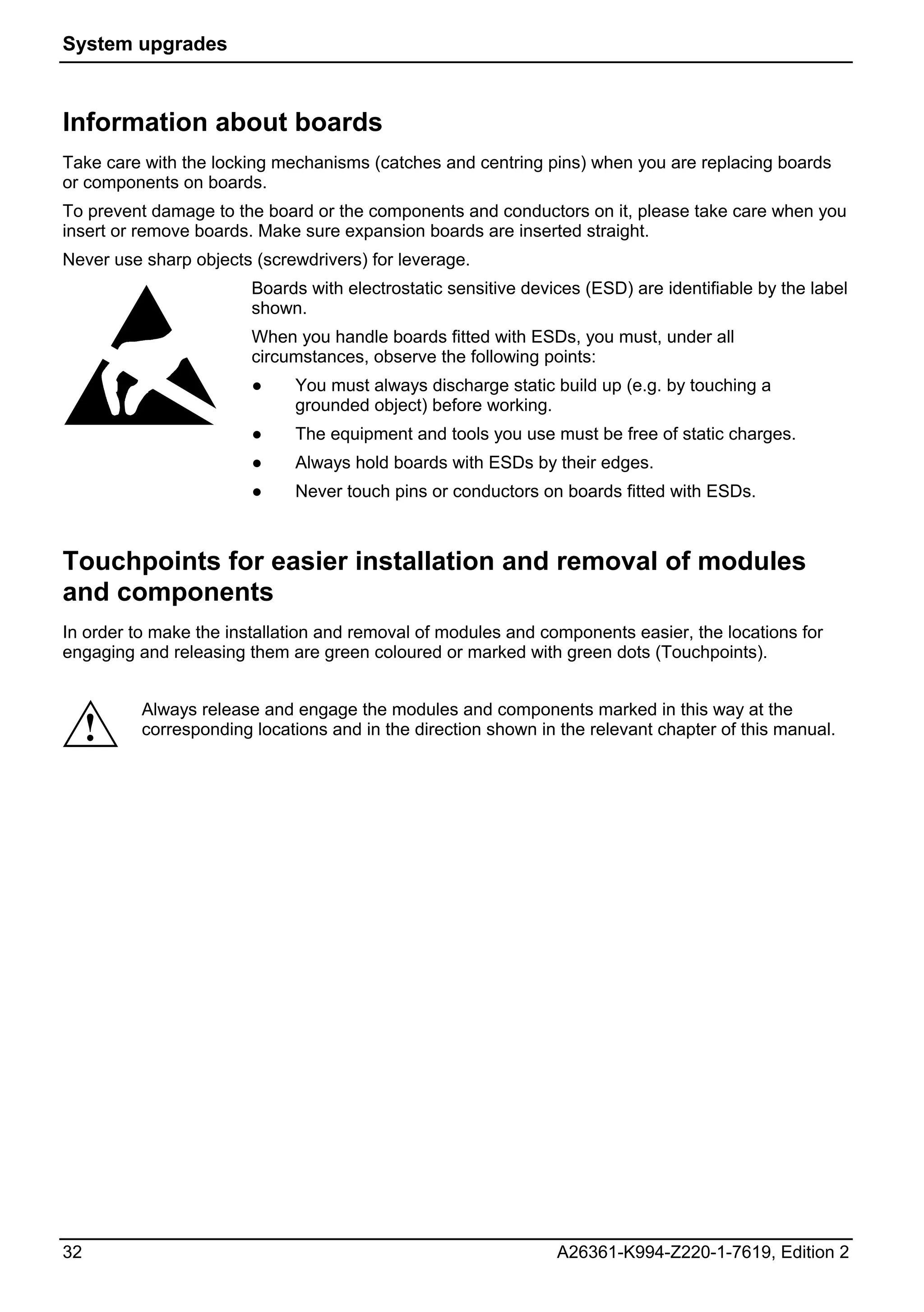
                        Boards with electrostatic sensitive devices (ESD) are identifiable by the label
                        shown.
                        When you handle boards fitted with ESDs, you must, under all
                        circumstances, observe the following points:
                        ●    You must always discharge static build up (e.g. by touching a
                             grounded object) before working.
                        ●    The equipment and tools you use must be free of static charges.
                        ●    Always hold boards with ESDs by their edges.
                        ●    Never touch pins or conductors on boards fitted with ESDs.


Touchpoints for easier installation and removal of modules
and components
In order to make the installation and removal of modules and components easier, the locations for
engaging and releasing them are green coloured or marked with green dots (Touchpoints).


          Always release and engage the modules and components marked in this way at the
     !    corresponding locations and in the direction shown in the relevant chapter of this manual.


32                                                              A26361-K994-Z220-1-7619, Edition 2
System upgrades


Opening the casing
            The following illustrations show the CELSIUS R. The sequence of actions is identical for all
    i       device variants and configuration levels.

►       Switch the device off. The device must not be in energy-saving mode!

            Please observe the safety information in the chapter "Important notes".
    !       Disconnect the power plug from the mains outlet.
            Only re-insert the power plug after you have closed the casing.

►       Remove any connected cables that obstruct you at the unit.
►       Place the device in a convenient working position.


            The location of the screws for the transport lock can vary from the following illustration
    i       depending on the device variant.

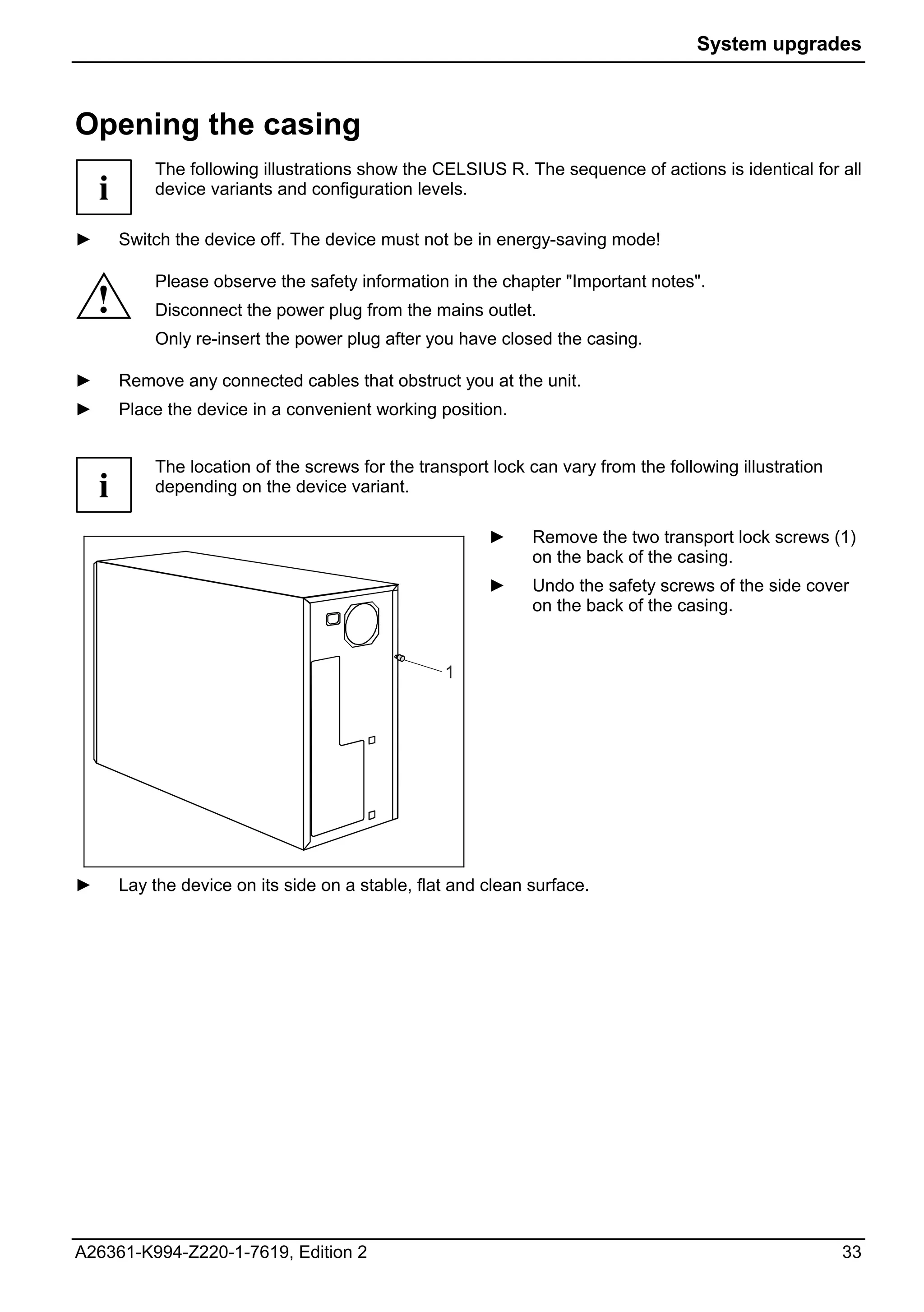
                                                         ►     Remove the two transport lock screws (1)
                                                               on the back of the casing.
                                                         ►     Undo the safety screws of the side cover
                                                               on the back of the casing.


                                                   1


►       Lay the device on its side on a stable, flat and clean surface.


A26361-K994-Z220-1-7619, Edition 2                                                                       33
System upgrades


                                                                 1

                                                                          2
                                         3


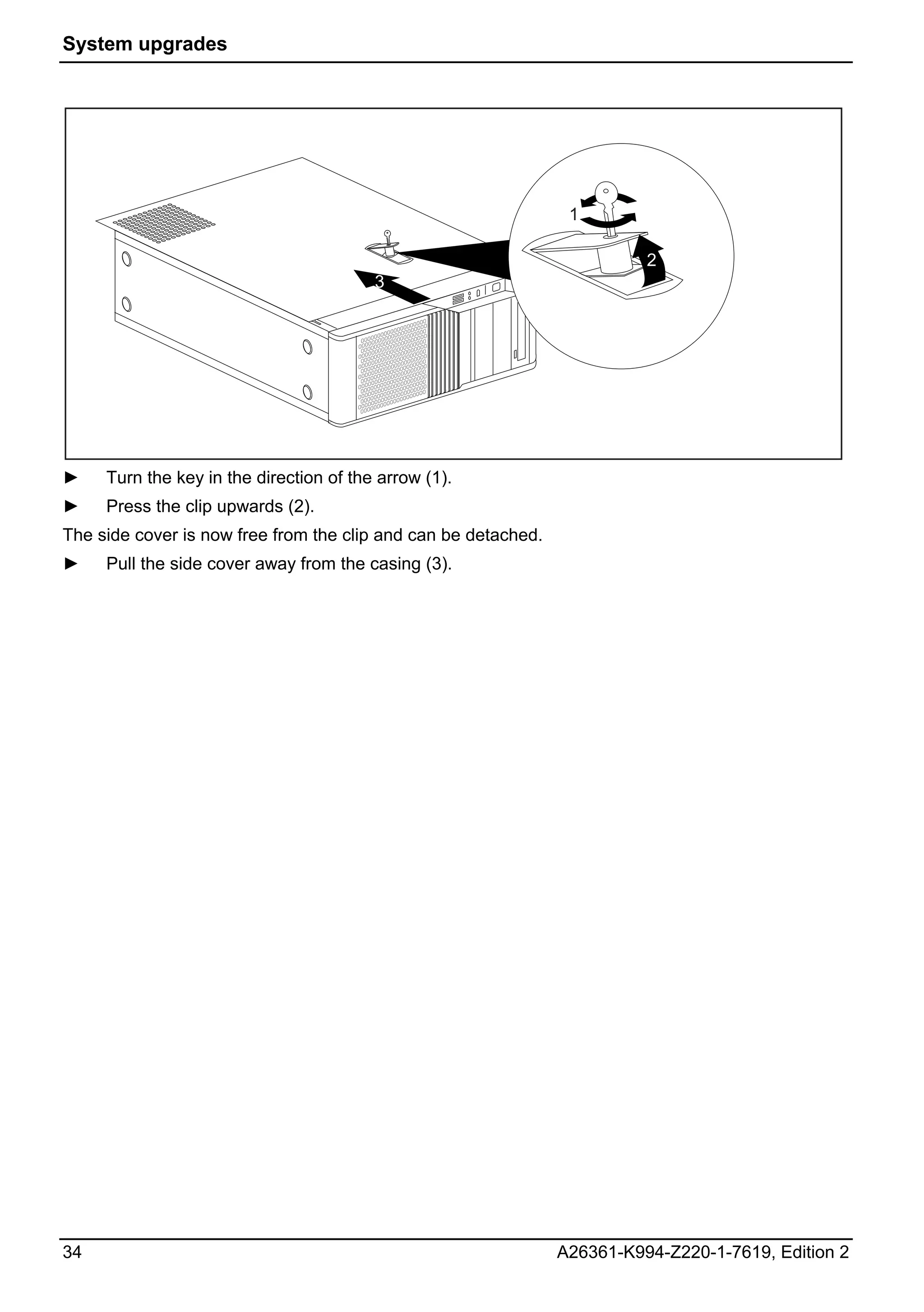
►    Turn the key in the direction of the arrow (1).
►    Press the clip upwards (2).
The side cover is now free from the clip and can be detached.
►    Pull the side cover away from the casing (3).


34                                                              A26361-K994-Z220-1-7619, Edition 2
System upgrades


Closing the casing
             The following illustration show the CELSIUS R. The sequence of actions is identical for all
    i        device variants and configuration levels.

►       Lay the device on its side on a stable, flat and clean surface.
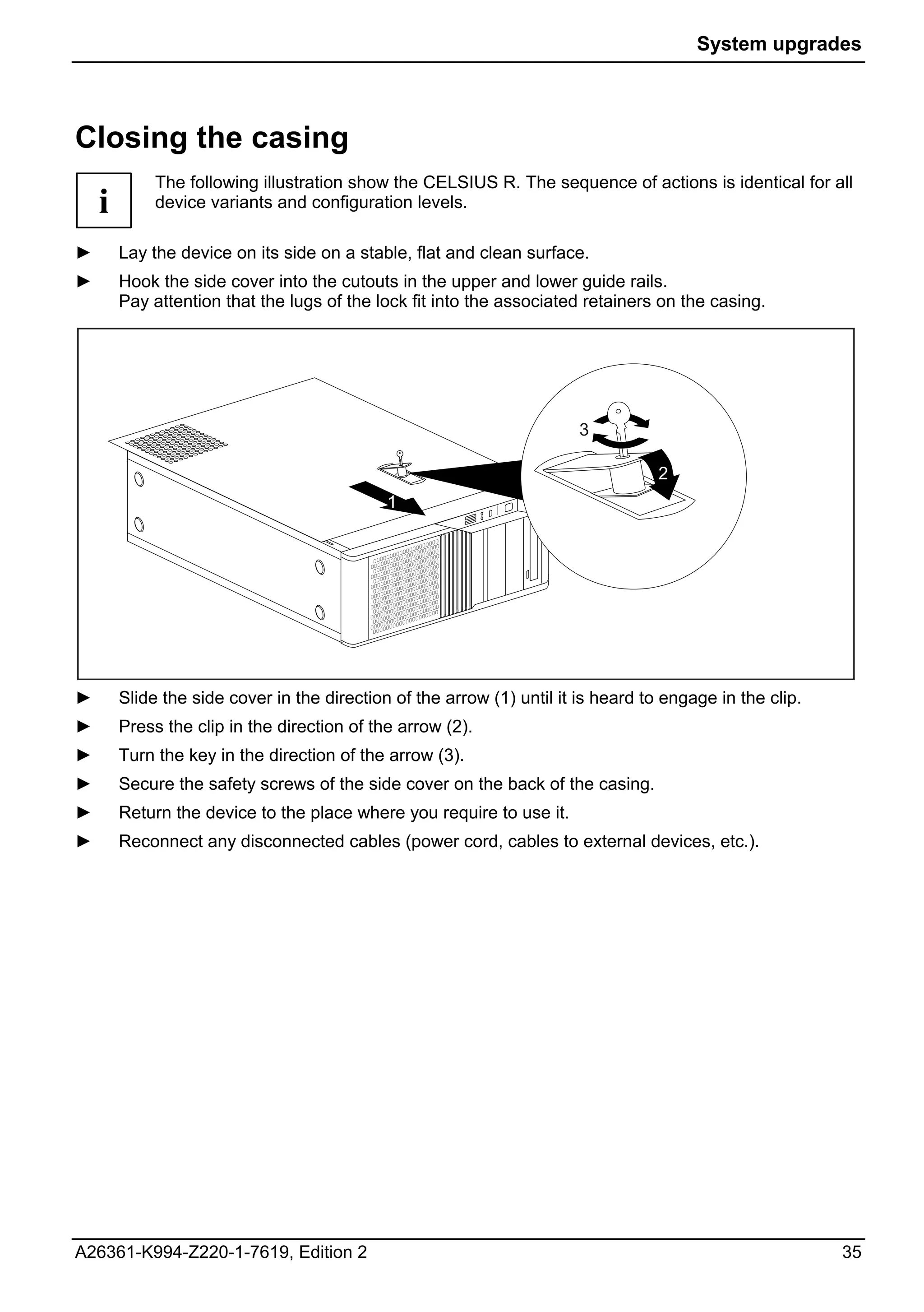
►       Hook the side cover into the cutouts in the upper and lower guide rails.
        Pay attention that the lugs of the lock fit into the associated retainers on the casing.


                                                                        3

                                                                                   2
                                             1


►       Slide the side cover in the direction of the arrow (1) until it is heard to engage in the clip.
►       Press the clip in the direction of the arrow (2).
►       Turn the key in the direction of the arrow (3).
►       Secure the safety screws of the side cover on the back of the casing.
►       Return the device to the place where you require to use it.
►       Reconnect any disconnected cables (power cord, cables to external devices, etc.).


A26361-K994-Z220-1-7619, Edition 2                                                                        35
System upgrades


Opening the front panel
             The following illustrations show the CELSIUS R. The sequence of actions is identical for all
     i       device variants and configuration levels.


►        Open the casing (see “Opening the casing”).


                                                      1


                                                      1


                                                      1
                                                                   2


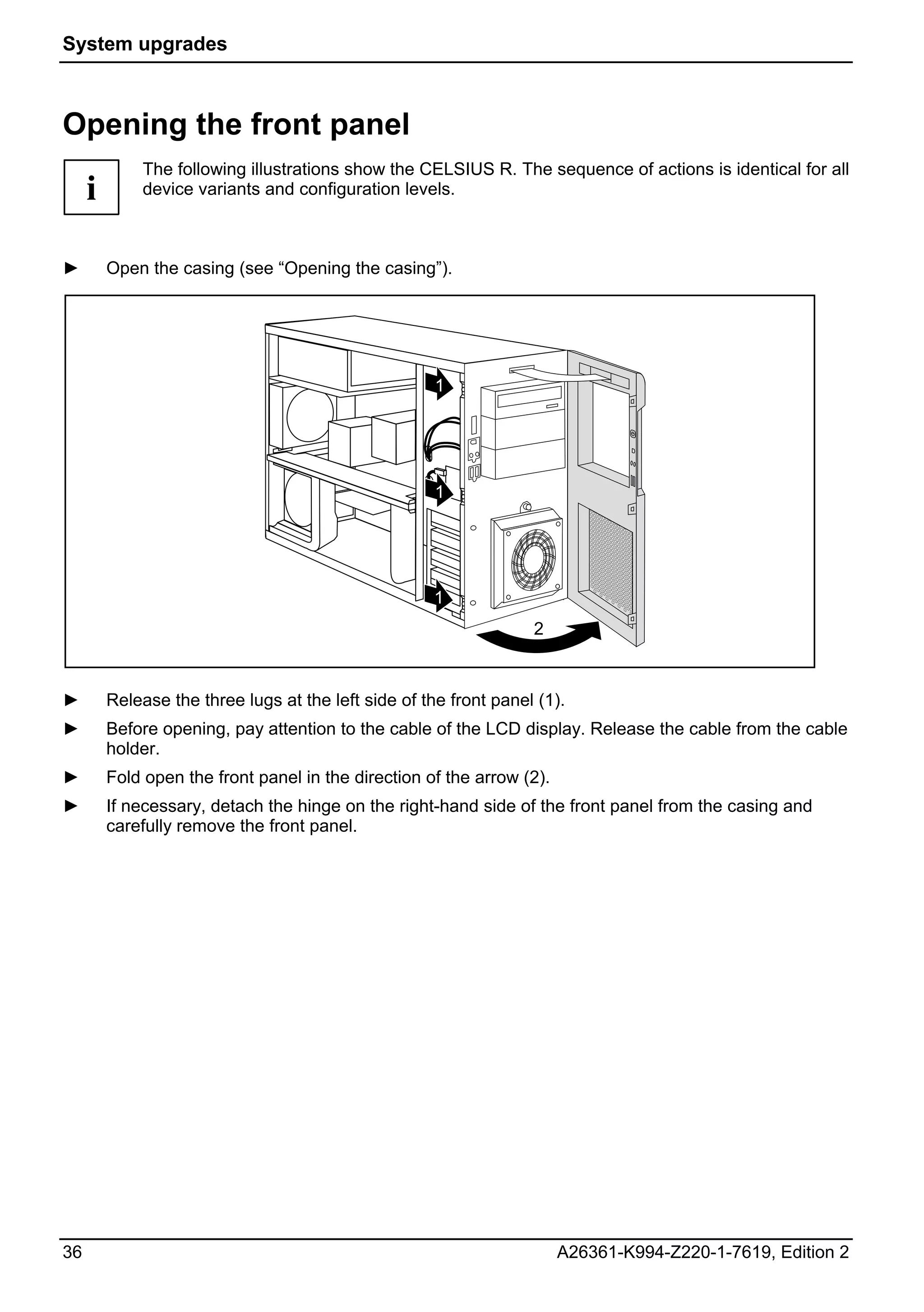
►        Release the three lugs at the left side of the front panel (1).
►        Before opening, pay attention to the cable of the LCD display. Release the cable from the cable
         holder.
►        Fold open the front panel in the direction of the arrow (2).
►        If necessary, detach the hinge on the right-hand side of the front panel from the casing and
         carefully remove the front panel.


36                                                                      A26361-K994-Z220-1-7619, Edition 2
System upgrades


Closing the front panel


                                                    2


                                                    2


                                                    2
                                                             1


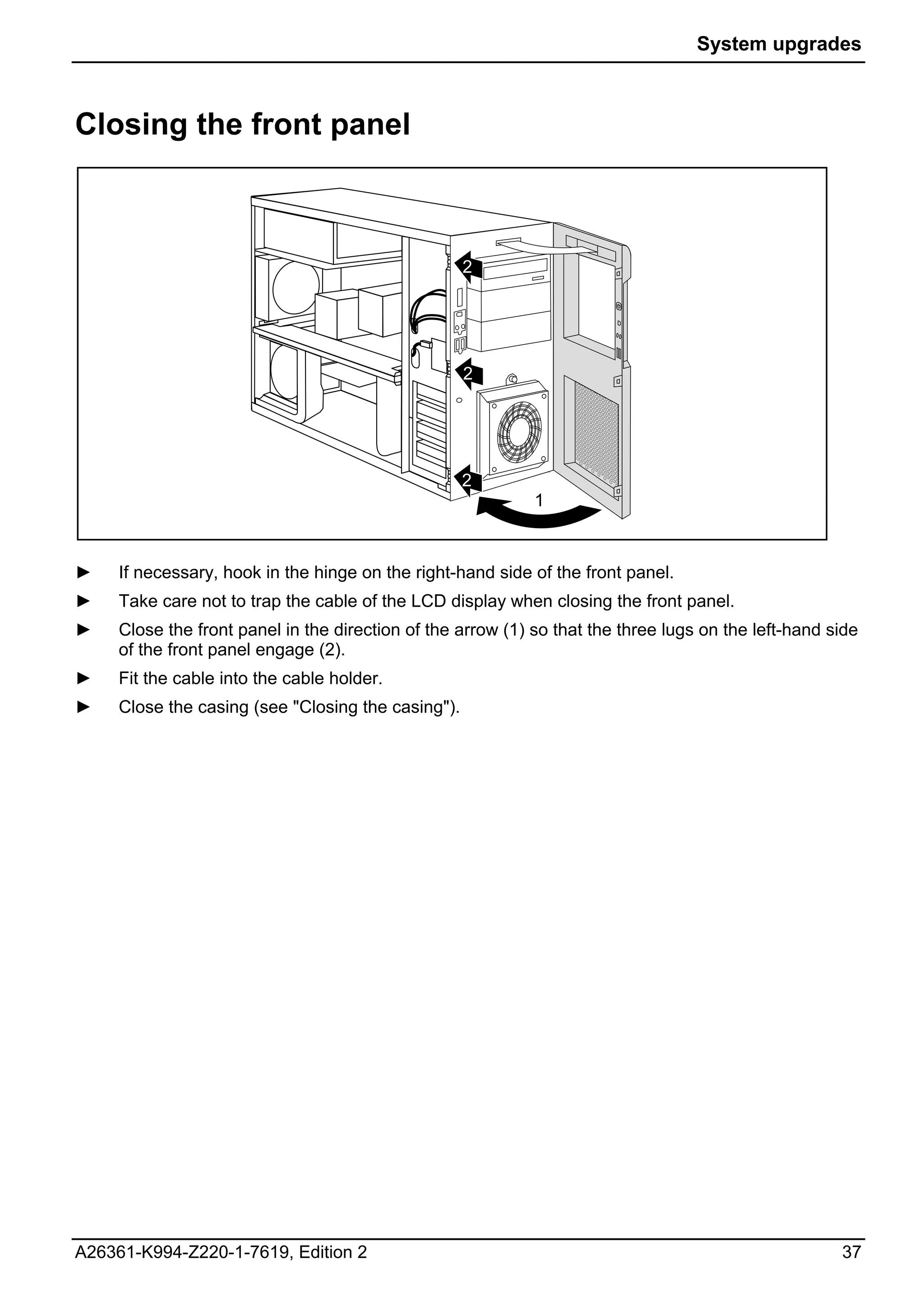
►    If necessary, hook in the hinge on the right-hand side of the front panel.
►    Take care not to trap the cable of the LCD display when closing the front panel.
►    Close the front panel in the direction of the arrow (1) so that the three lugs on the left-hand side
     of the front panel engage (2).
►    Fit the cable into the cable holder.
►    Close the casing (see "Closing the casing").


A26361-K994-Z220-1-7619, Edition 2                                                                    37
System upgrades


Removing the side fan
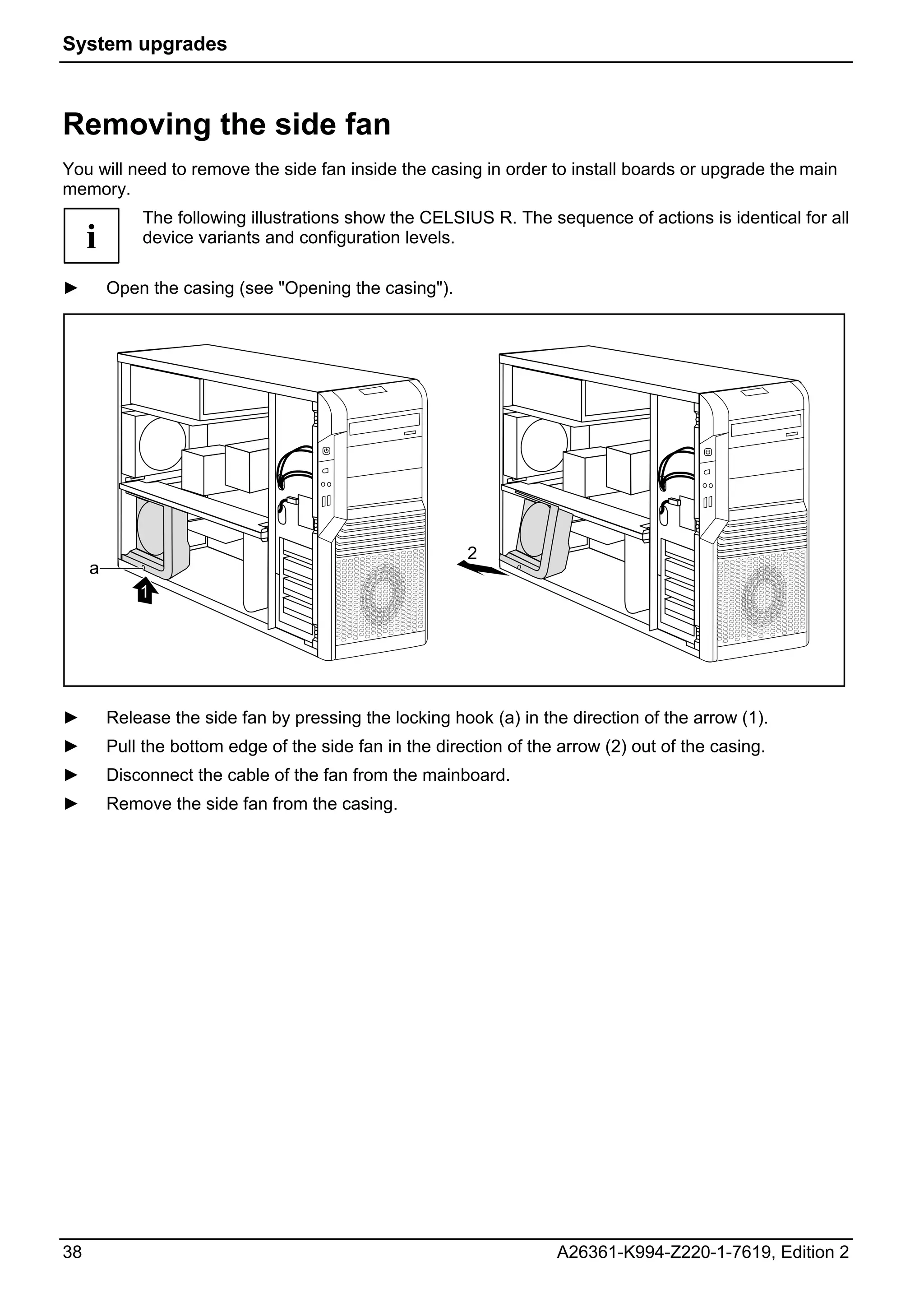
You will need to remove the side fan inside the casing in order to install boards or upgrade the main
memory.
             The following illustrations show the CELSIUS R. The sequence of actions is identical for all
     i       device variants and configuration levels.

►        Open the casing (see "Opening the casing").


                                                         2
     a
             1


►        Release the side fan by pressing the locking hook (a) in the direction of the arrow (1).
►        Pull the bottom edge of the side fan in the direction of the arrow (2) out of the casing.
►        Disconnect the cable of the fan from the mainboard.
►        Remove the side fan from the casing.


38                                                                   A26361-K994-Z220-1-7619, Edition 2
System upgrades


Installing the side fan


                                 1
                           2


                                 a


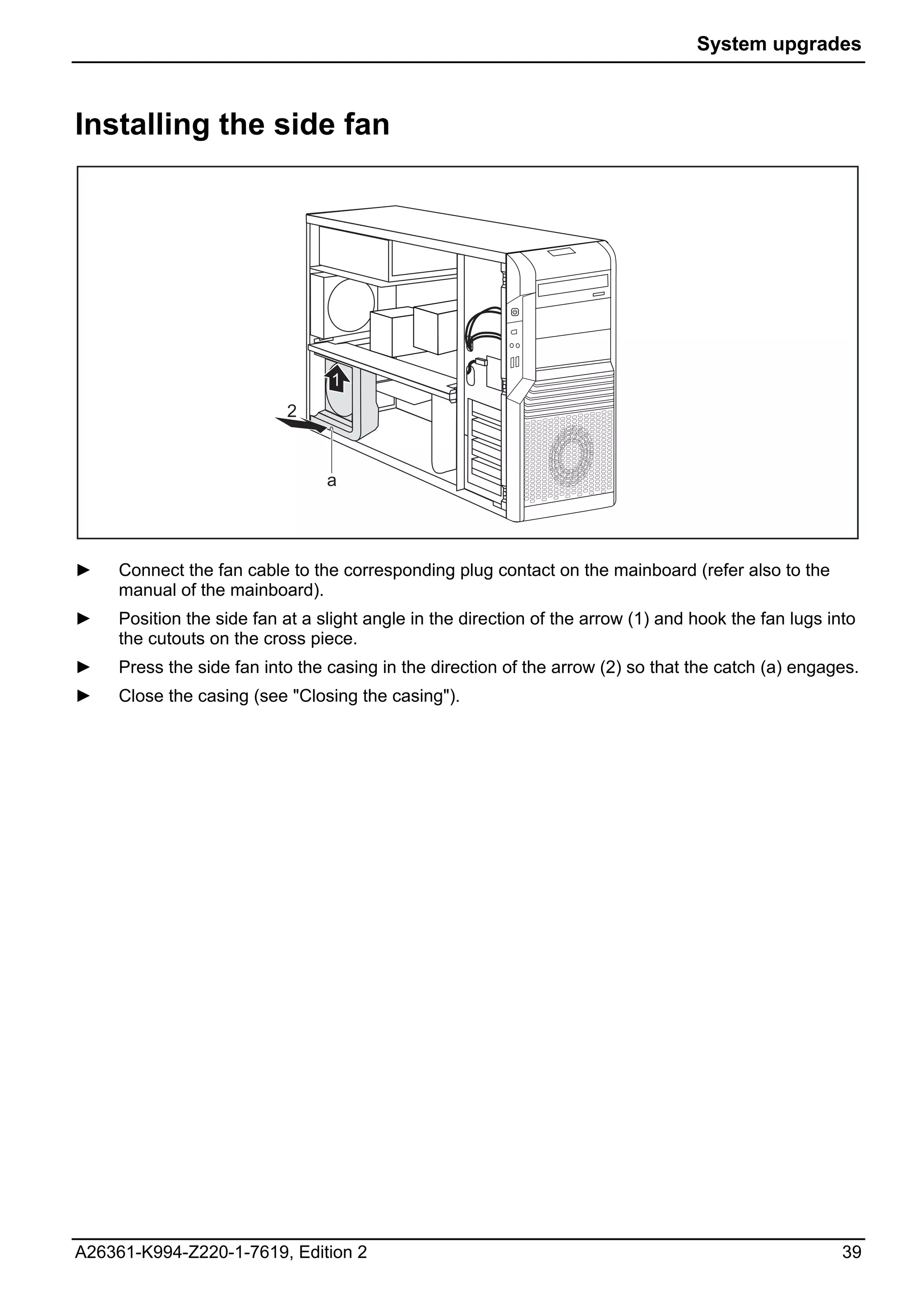
►    Connect the fan cable to the corresponding plug contact on the mainboard (refer also to the
     manual of the mainboard).
►    Position the side fan at a slight angle in the direction of the arrow (1) and hook the fan lugs into
     the cutouts on the cross piece.
►    Press the side fan into the casing in the direction of the arrow (2) so that the catch (a) engages.
►    Close the casing (see "Closing the casing").


A26361-K994-Z220-1-7619, Edition 2                                                                     39
System upgrades


Installing the front fan (CELSIUS M)
You must install a front fan when converting the hard disks to SAS hard disks.

Securing front fan on fan bracket

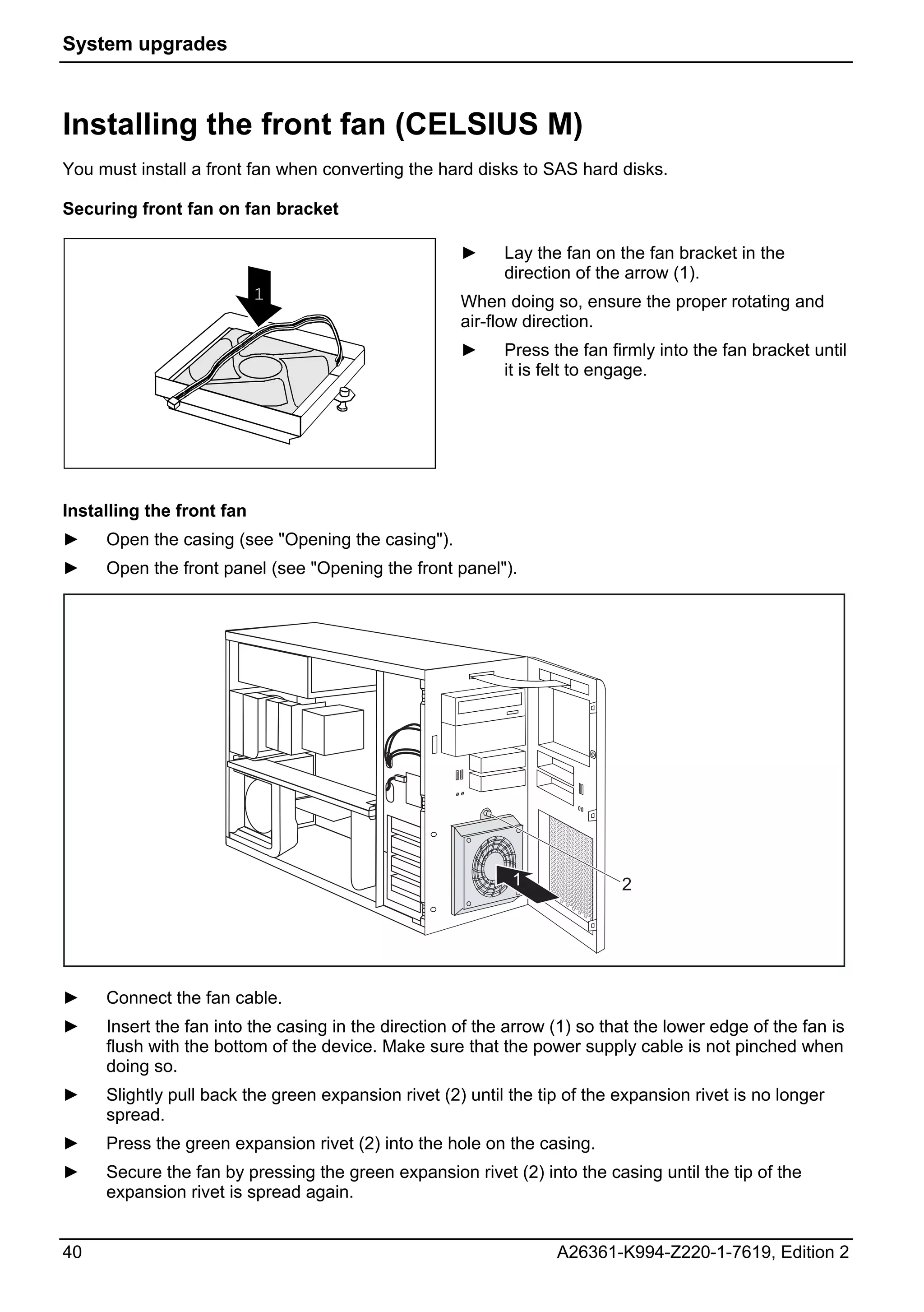
                                                     ►     Lay the fan on the fan bracket in the
                                                           direction of the arrow (1).
                           1                         When doing so, ensure the proper rotating and
                                                     air-flow direction.
                                                     ►     Press the fan firmly into the fan bracket until
                                                           it is felt to engage.


Installing the front fan
►    Open the casing (see "Opening the casing").
►    Open the front panel (see "Opening the front panel").


                                                            1              2


►    Connect the fan cable.
►    Insert the fan into the casing in the direction of the arrow (1) so that the lower edge of the fan is
     flush with the bottom of the device. Make sure that the power supply cable is not pinched when
     doing so.
►    Slightly pull back the green expansion rivet (2) until the tip of the expansion rivet is no longer
     spread.
►    Press the green expansion rivet (2) into the hole on the casing.
►    Secure the fan by pressing the green expansion rivet (2) into the casing until the tip of the
     expansion rivet is spread again.


40                                                                A26361-K994-Z220-1-7619, Edition 2
System upgrades


►    Close the front panel (see "Closing the front panel").
►    Close the casing (see "Closing the casing").


Removing the front fan (CELSIUS M)
►    Open the casing (see "Opening the casing").
►    Open the front panel (see "Opening the front panel").


                                                                  2             1


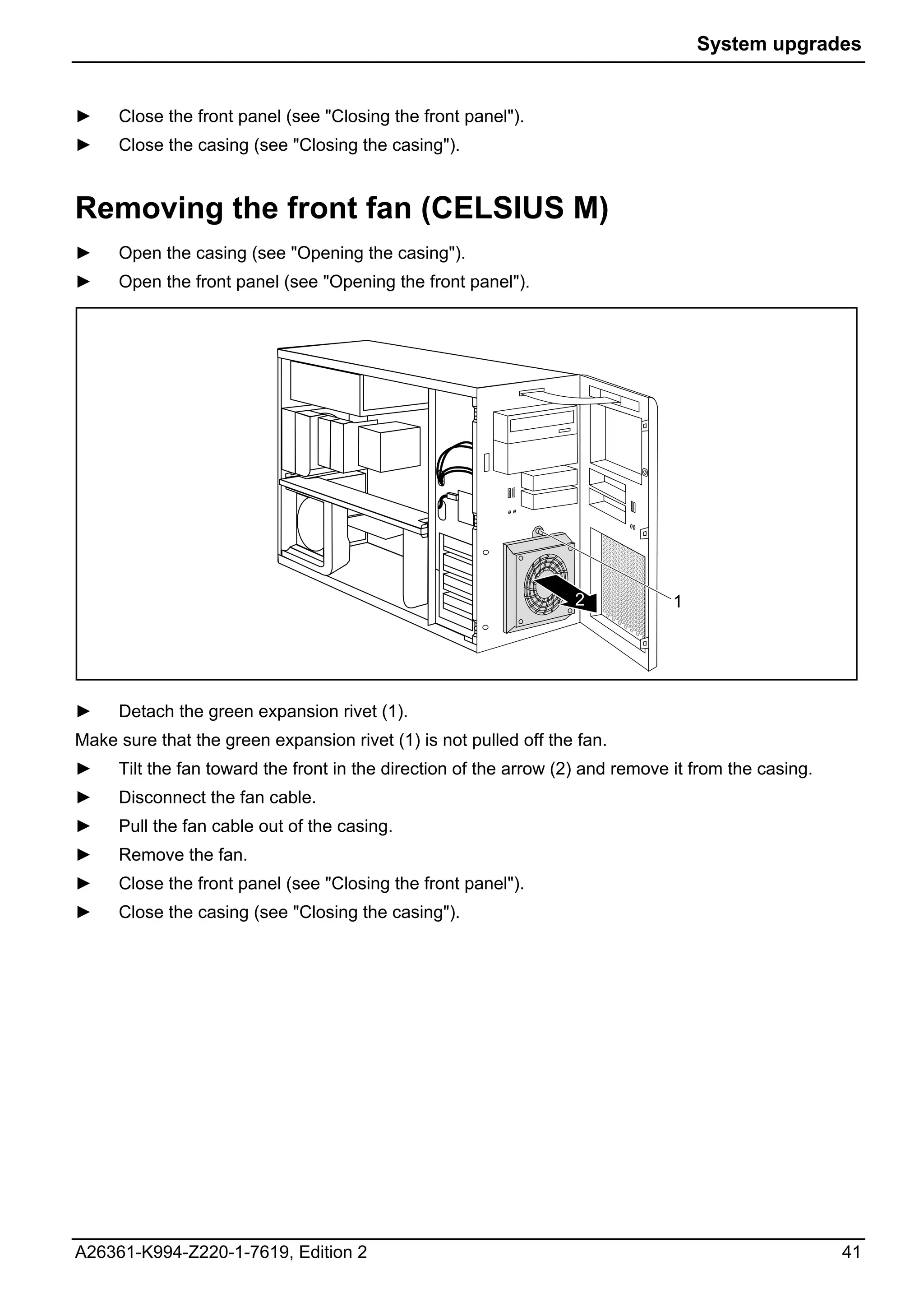
►    Detach the green expansion rivet (1).
Make sure that the green expansion rivet (1) is not pulled off the fan.
►    Tilt the fan toward the front in the direction of the arrow (2) and remove it from the casing.
►    Disconnect the fan cable.
►    Pull the fan cable out of the casing.
►    Remove the fan.
►    Close the front panel (see "Closing the front panel").
►    Close the casing (see "Closing the casing").


A26361-K994-Z220-1-7619, Edition 2                                                                    41
System upgrades


Removing the ventilation duct (CELSIUS M)
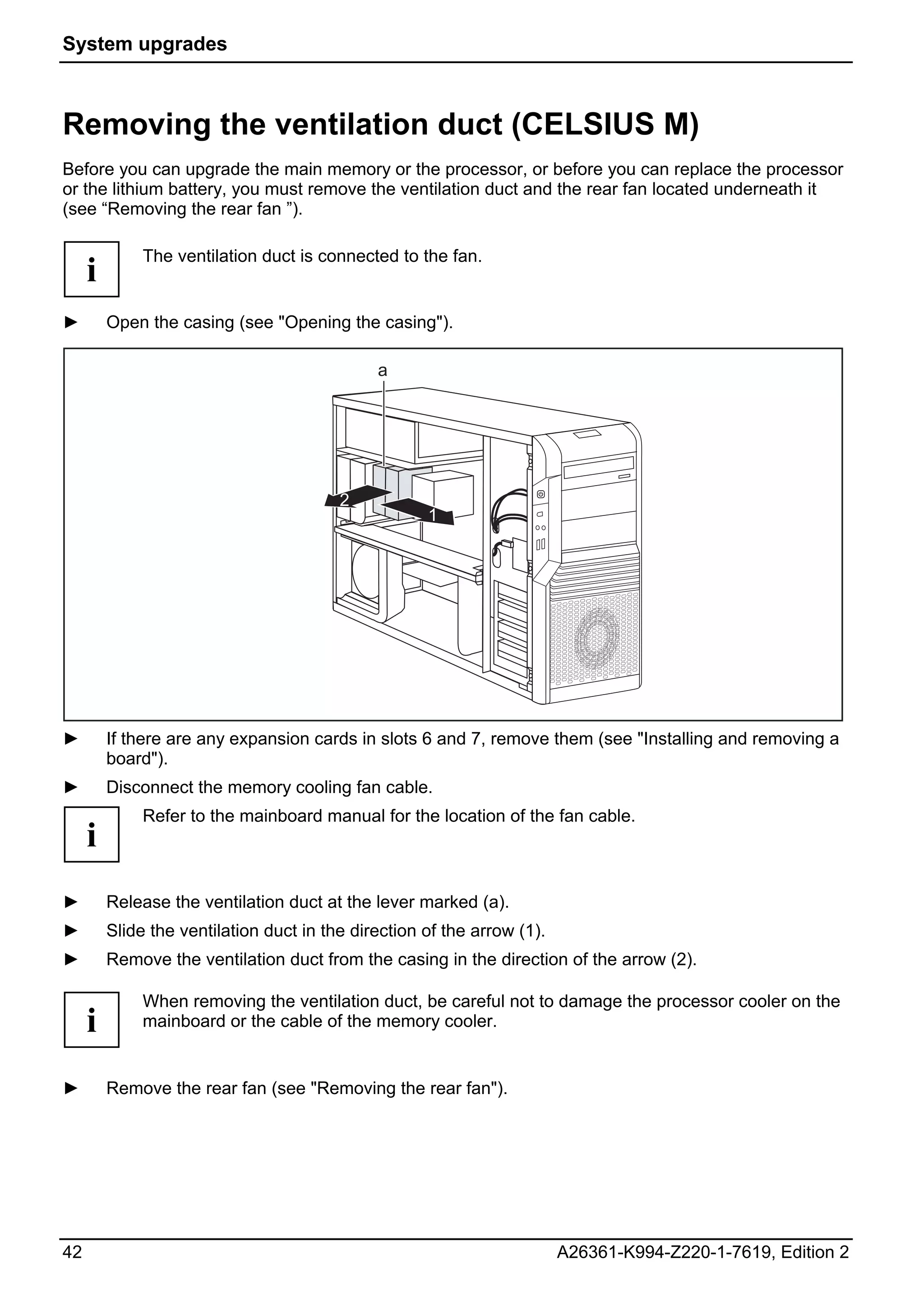
Before you can upgrade the main memory or the processor, or before you can replace the processor
or the lithium battery, you must remove the ventilation duct and the rear fan located underneath it
(see “Removing the rear fan ”).

              The ventilation duct is connected to the fan.
     i
►        Open the casing (see "Opening the casing").

                                              a


                                         2
                                                     1


►        If there are any expansion cards in slots 6 and 7, remove them (see "Installing and removing a
         board").
►        Disconnect the memory cooling fan cable.
              Refer to the mainboard manual for the location of the fan cable.
     i
►        Release the ventilation duct at the lever marked (a).
►        Slide the ventilation duct in the direction of the arrow (1).
►        Remove the ventilation duct from the casing in the direction of the arrow (2).

              When removing the ventilation duct, be careful not to damage the processor cooler on the
     i        mainboard or the cable of the memory cooler.


►        Remove the rear fan (see "Removing the rear fan").


42                                                                       A26361-K994-Z220-1-7619, Edition 2
System upgrades


Removing the rear fan
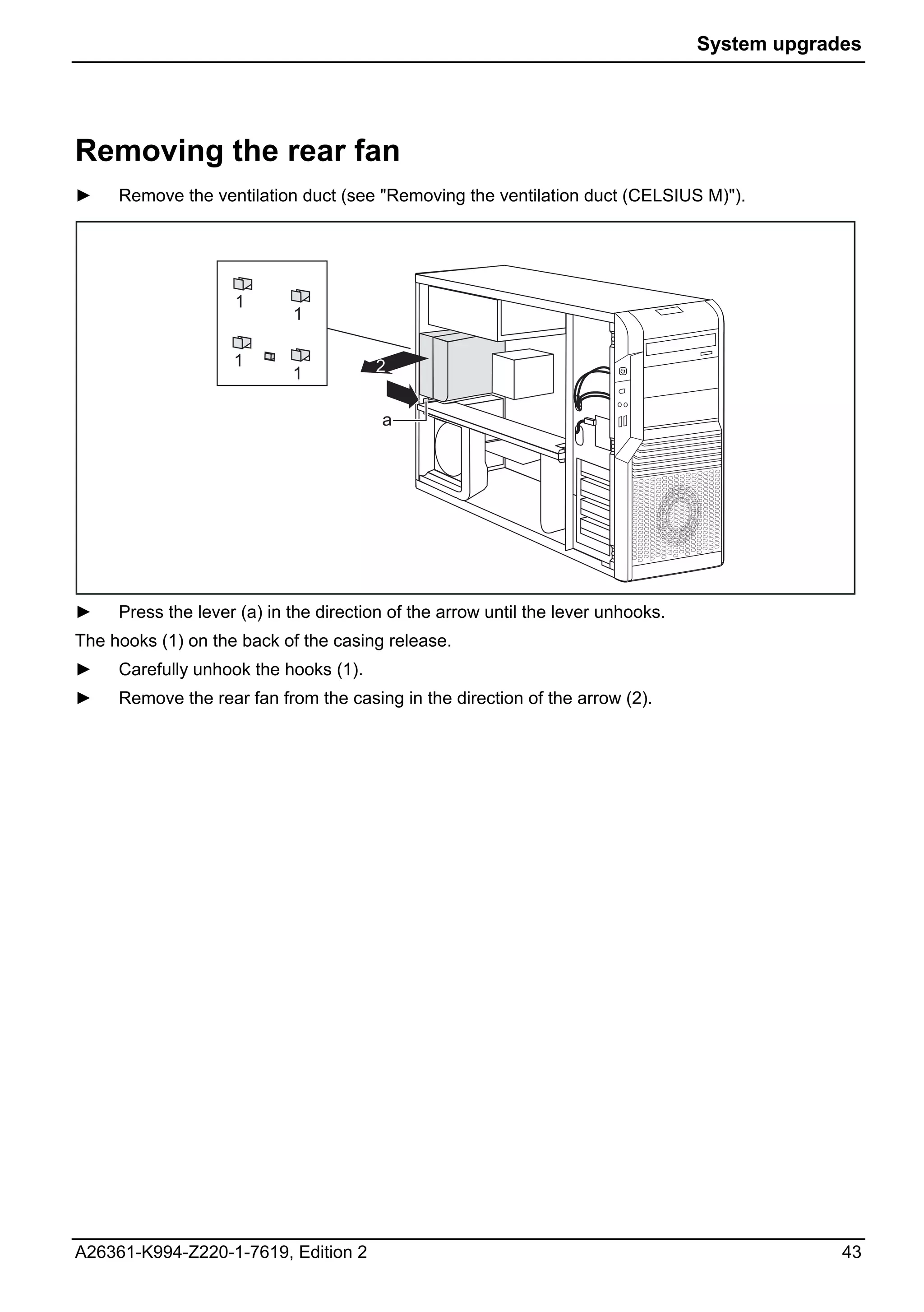
►    Remove the ventilation duct (see "Removing the ventilation duct (CELSIUS M)").


                    1
                            1

                    1                  2
                            1

                                        a


►    Press the lever (a) in the direction of the arrow until the lever unhooks.
The hooks (1) on the back of the casing release.
►    Carefully unhook the hooks (1).
►    Remove the rear fan from the casing in the direction of the arrow (2).


A26361-K994-Z220-1-7619, Edition 2                                                             43
System upgrades


Installing the rear fan
              When routing the fan cable, make sure that it cannot become kinked or trapped.
     i        When inserting the rear fan and the ventilation duct, be careful not to damage the
              processor cooler(s) on the mainboard.


              a
                    2            a
                            2
               a
                   2             a             3
                            2                      1
                        b


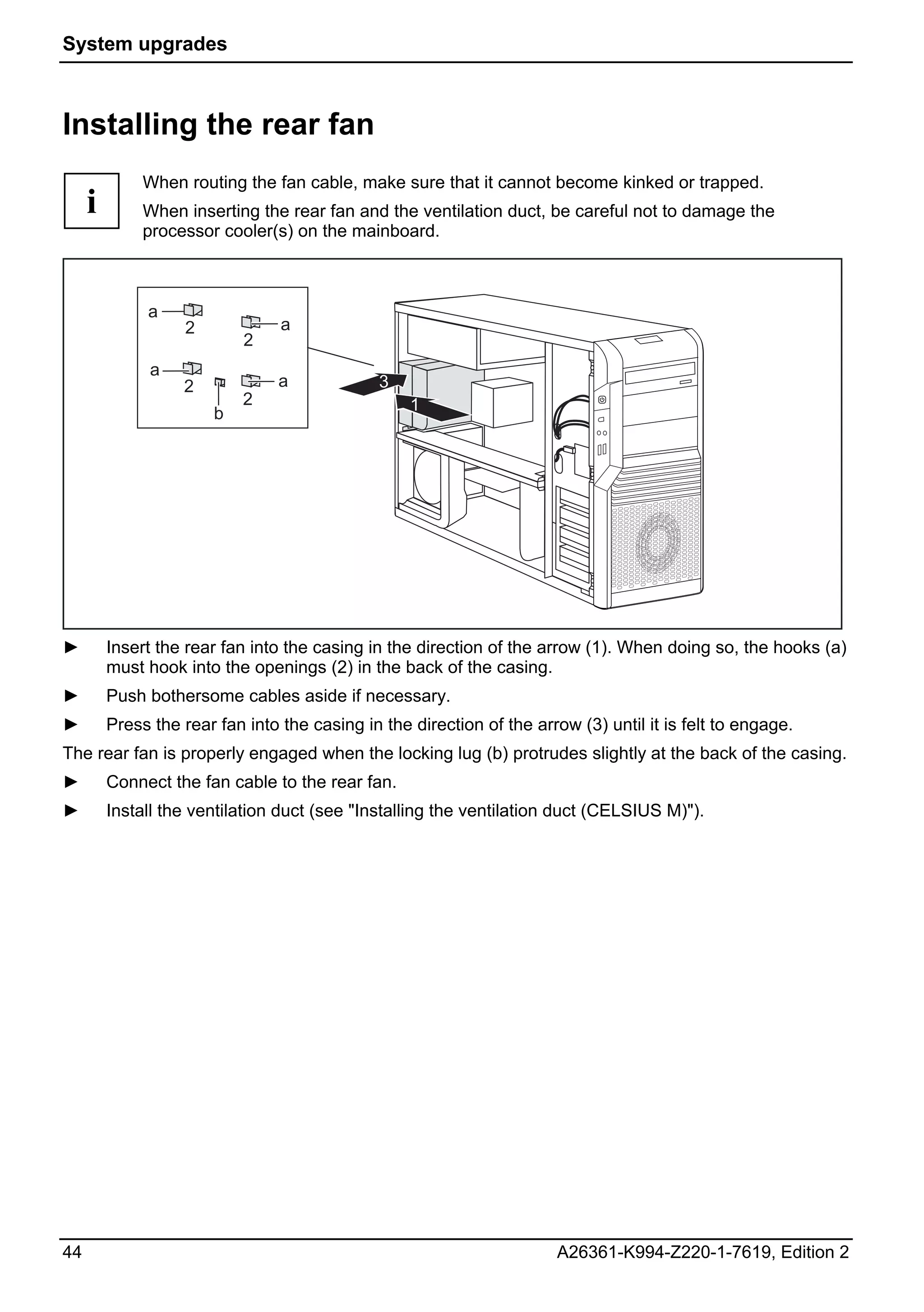
►        Insert the rear fan into the casing in the direction of the arrow (1). When doing so, the hooks (a)
         must hook into the openings (2) in the back of the casing.
►        Push bothersome cables aside if necessary.
►        Press the rear fan into the casing in the direction of the arrow (3) until it is felt to engage.
The rear fan is properly engaged when the locking lug (b) protrudes slightly at the back of the casing.
►        Connect the fan cable to the rear fan.
►        Install the ventilation duct (see "Installing the ventilation duct (CELSIUS M)").


44                                                                      A26361-K994-Z220-1-7619, Edition 2
System upgrades


Installing the ventilation duct (CELSIUS M)
                                          a


                                         1
                                               2


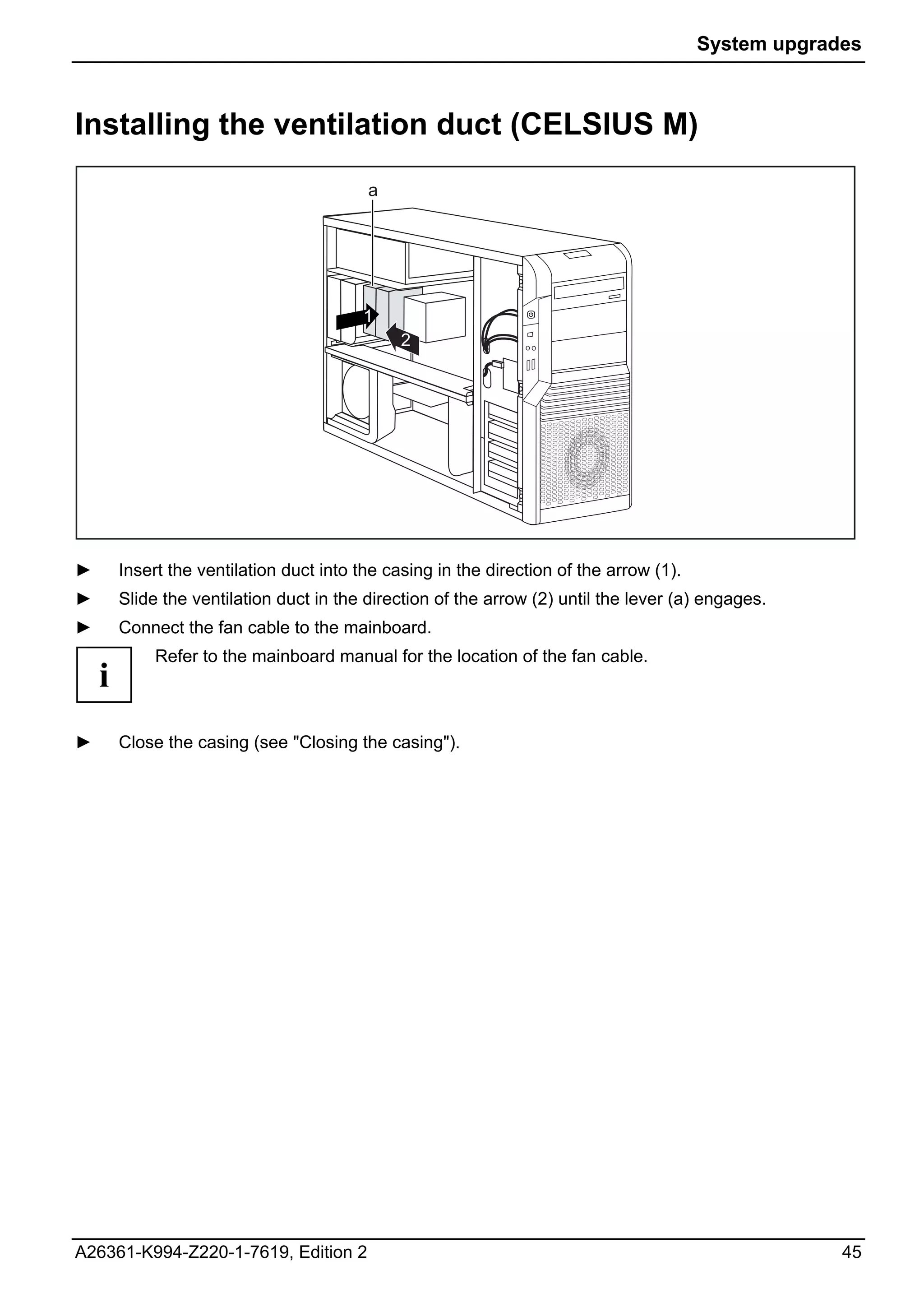
►       Insert the ventilation duct into the casing in the direction of the arrow (1).
►       Slide the ventilation duct in the direction of the arrow (2) until the lever (a) engages.
►       Connect the fan cable to the mainboard.
             Refer to the mainboard manual for the location of the fan cable.
    i
►       Close the casing (see "Closing the casing").


A26361-K994-Z220-1-7619, Edition 2                                                                    45
System upgrades


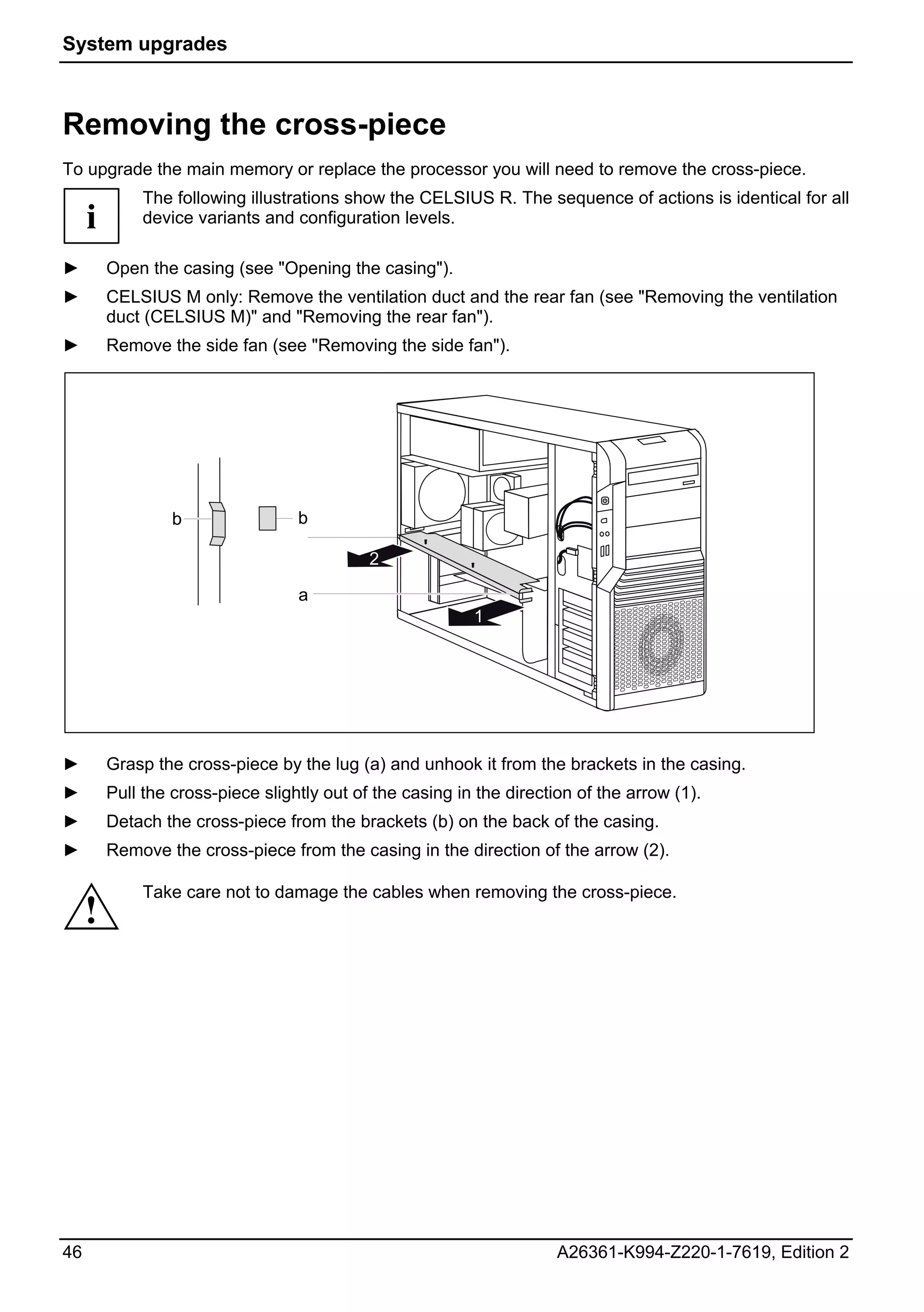
Removing the cross-piece
To upgrade the main memory or replace the processor you will need to remove the cross-piece.
              The following illustrations show the CELSIUS R. The sequence of actions is identical for all
     i        device variants and configuration levels.

►        Open the casing (see "Opening the casing").
►        CELSIUS M only: Remove the ventilation duct and the rear fan (see "Removing the ventilation
         duct (CELSIUS M)" and "Removing the rear fan").
►        Remove the side fan (see "Removing the side fan").


                  b                b

                                             2

                                   a
                                                           1


►        Grasp the cross-piece by the lug (a) and unhook it from the brackets in the casing.
►        Pull the cross-piece slightly out of the casing in the direction of the arrow (1).
►        Detach the cross-piece from the brackets (b) on the back of the casing.
►        Remove the cross-piece from the casing in the direction of the arrow (2).

              Take care not to damage the cables when removing the cross-piece.
     !


46                                                                     A26361-K994-Z220-1-7619, Edition 2
System upgrades


Installing the cross-piece


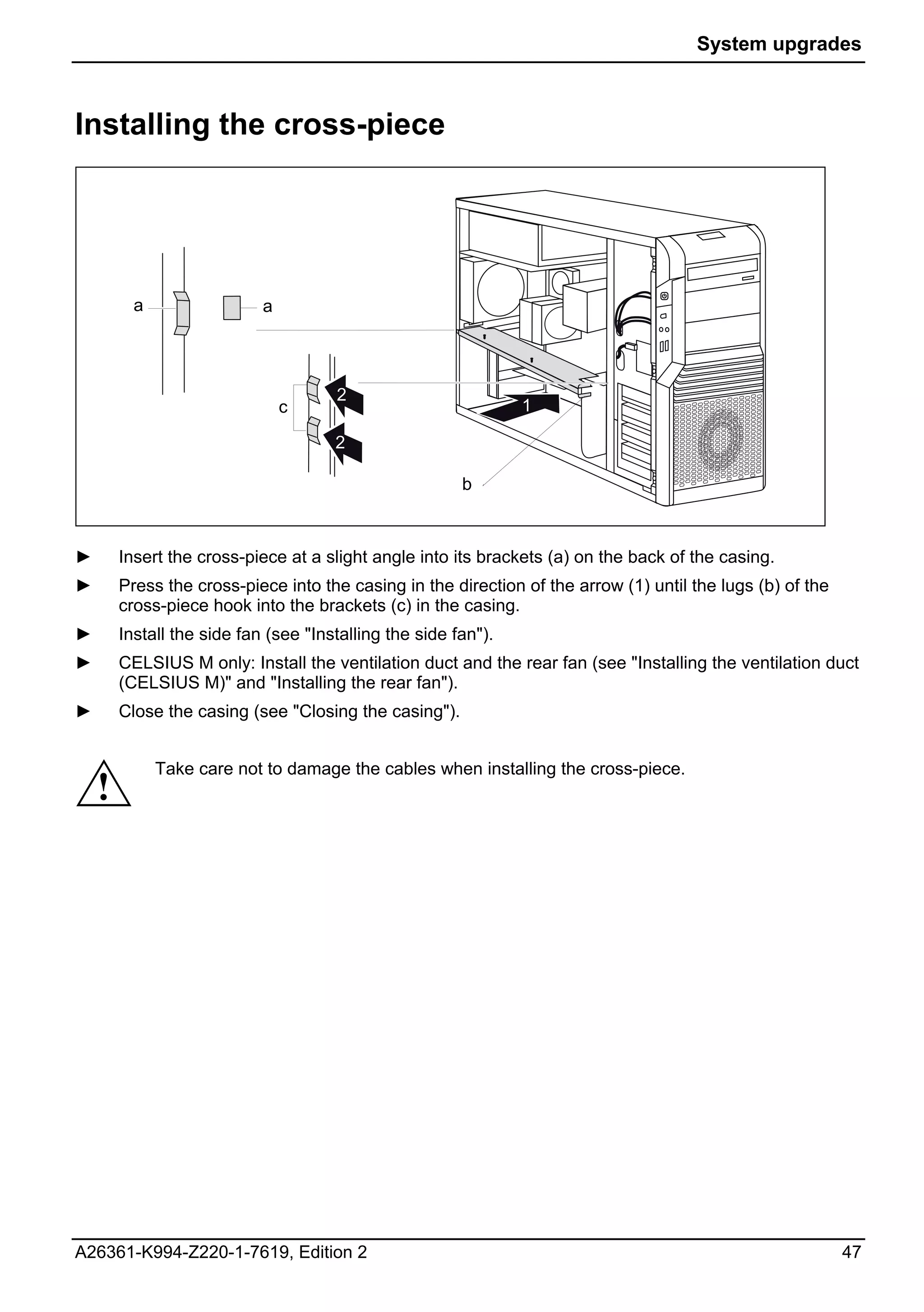
          a                 a


                                      2
                                c                               1

                                      2

                                                        b


►       Insert the cross-piece at a slight angle into its brackets (a) on the back of the casing.
►       Press the cross-piece into the casing in the direction of the arrow (1) until the lugs (b) of the
        cross-piece hook into the brackets (c) in the casing.
►       Install the side fan (see "Installing the side fan").
►       CELSIUS M only: Install the ventilation duct and the rear fan (see "Installing the ventilation duct
        (CELSIUS M)" and "Installing the rear fan").
►       Close the casing (see "Closing the casing").


              Take care not to damage the cables when installing the cross-piece.
    !


A26361-K994-Z220-1-7619, Edition 2                                                                          47
System upgrades


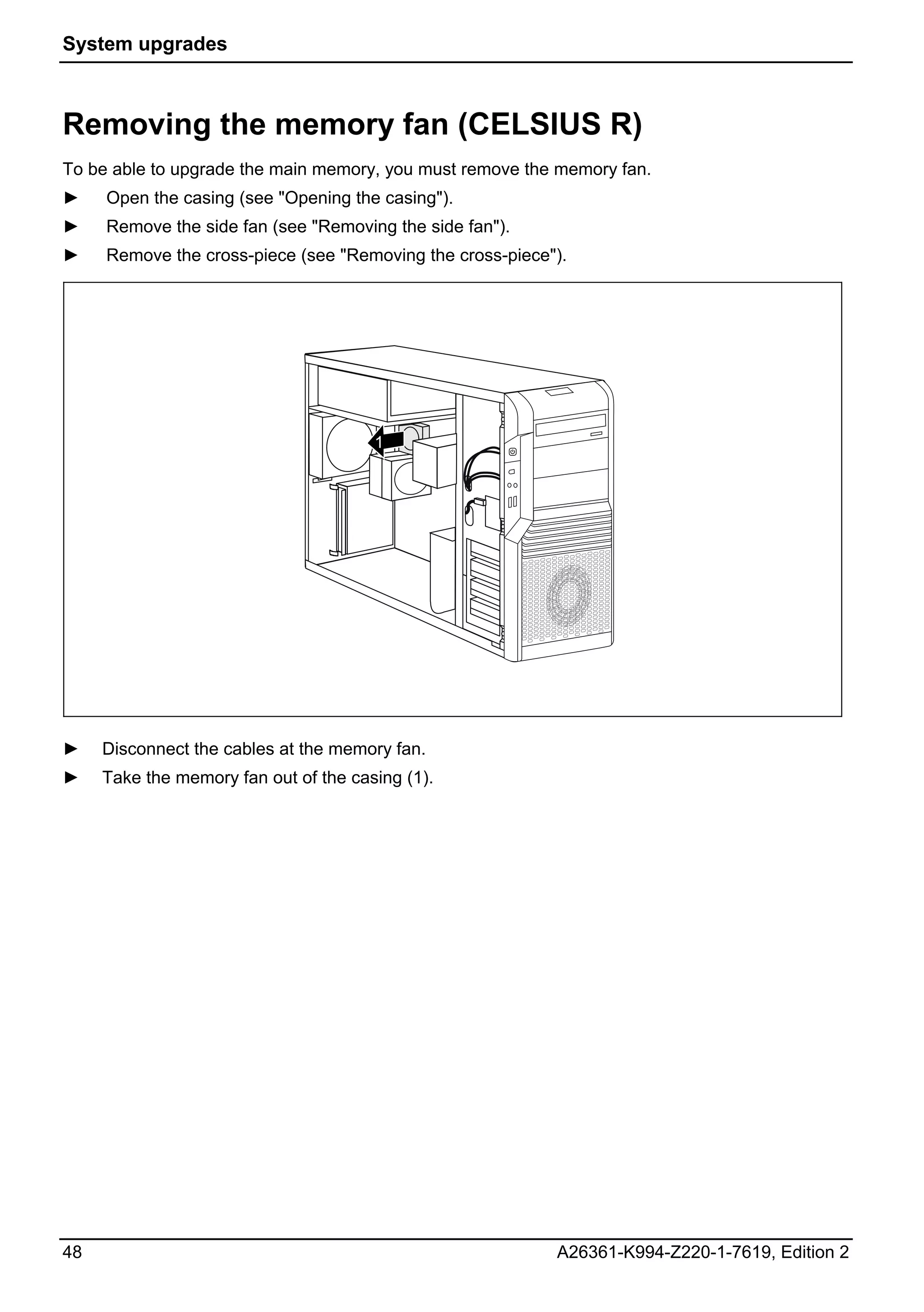
Removing the memory fan (CELSIUS R)
To be able to upgrade the main memory, you must remove the memory fan.
►    Open the casing (see "Opening the casing").
►    Remove the side fan (see "Removing the side fan").
►    Remove the cross-piece (see "Removing the cross-piece").


                                       1


►    Disconnect the cables at the memory fan.
►    Take the memory fan out of the casing (1).


48                                                         A26361-K994-Z220-1-7619, Edition 2
System upgrades


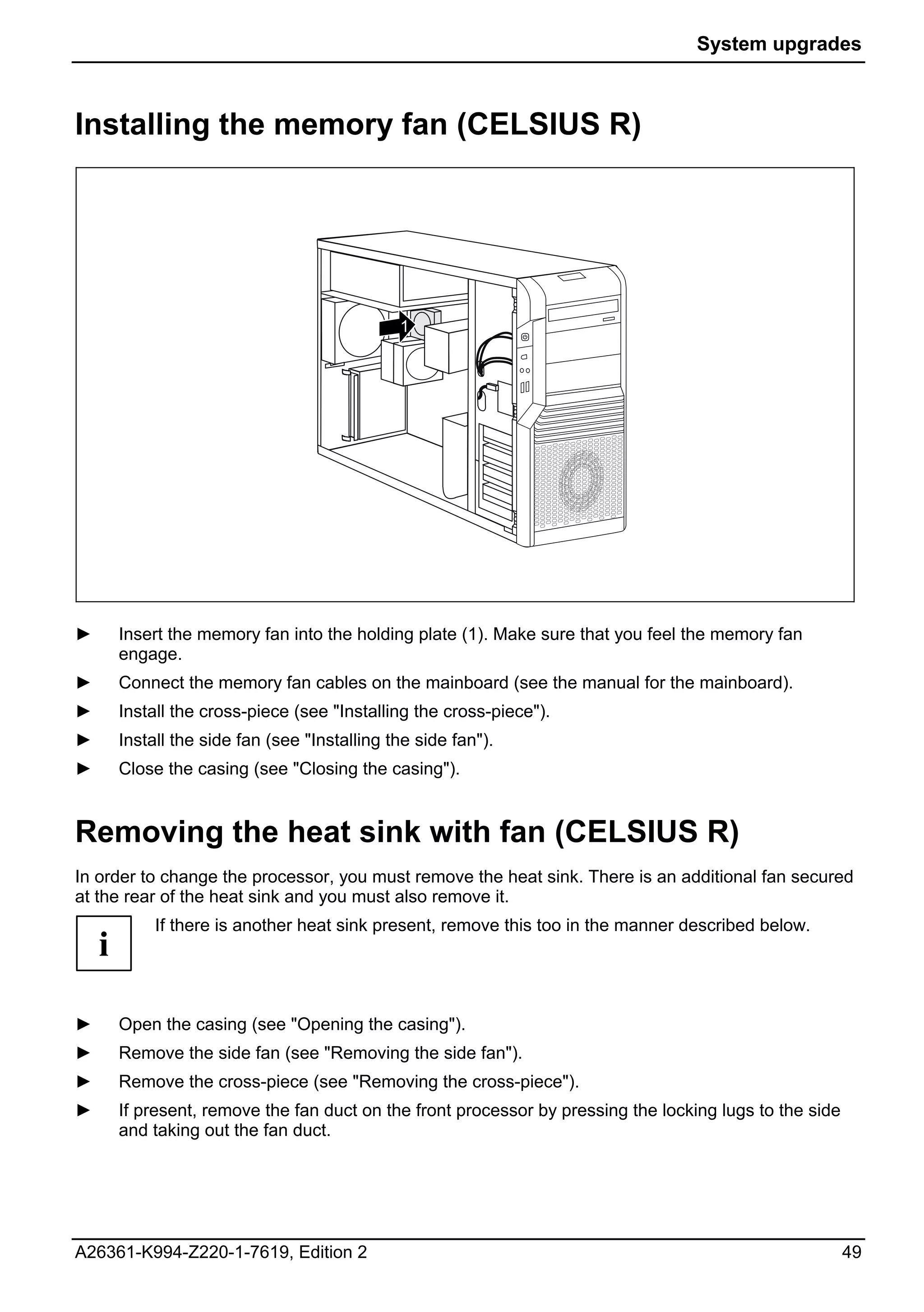
Installing the memory fan (CELSIUS R)


                                               1


►       Insert the memory fan into the holding plate (1). Make sure that you feel the memory fan
        engage.
►       Connect the memory fan cables on the mainboard (see the manual for the mainboard).
►       Install the cross-piece (see "Installing the cross-piece").
►       Install the side fan (see "Installing the side fan").
►       Close the casing (see "Closing the casing").


Removing the heat sink with fan (CELSIUS R)
In order to change the processor, you must remove the heat sink. There is an additional fan secured
at the rear of the heat sink and you must also remove it.
             If there is another heat sink present, remove this too in the manner described below.
    i

►       Open the casing (see "Opening the casing").
►       Remove the side fan (see "Removing the side fan").
►       Remove the cross-piece (see "Removing the cross-piece").
►       If present, remove the fan duct on the front processor by pressing the locking lugs to the side
        and taking out the fan duct.


A26361-K994-Z220-1-7619, Edition 2                                                                        49
System upgrades


                                           1

                        a
                                     2
                        a

                                           1


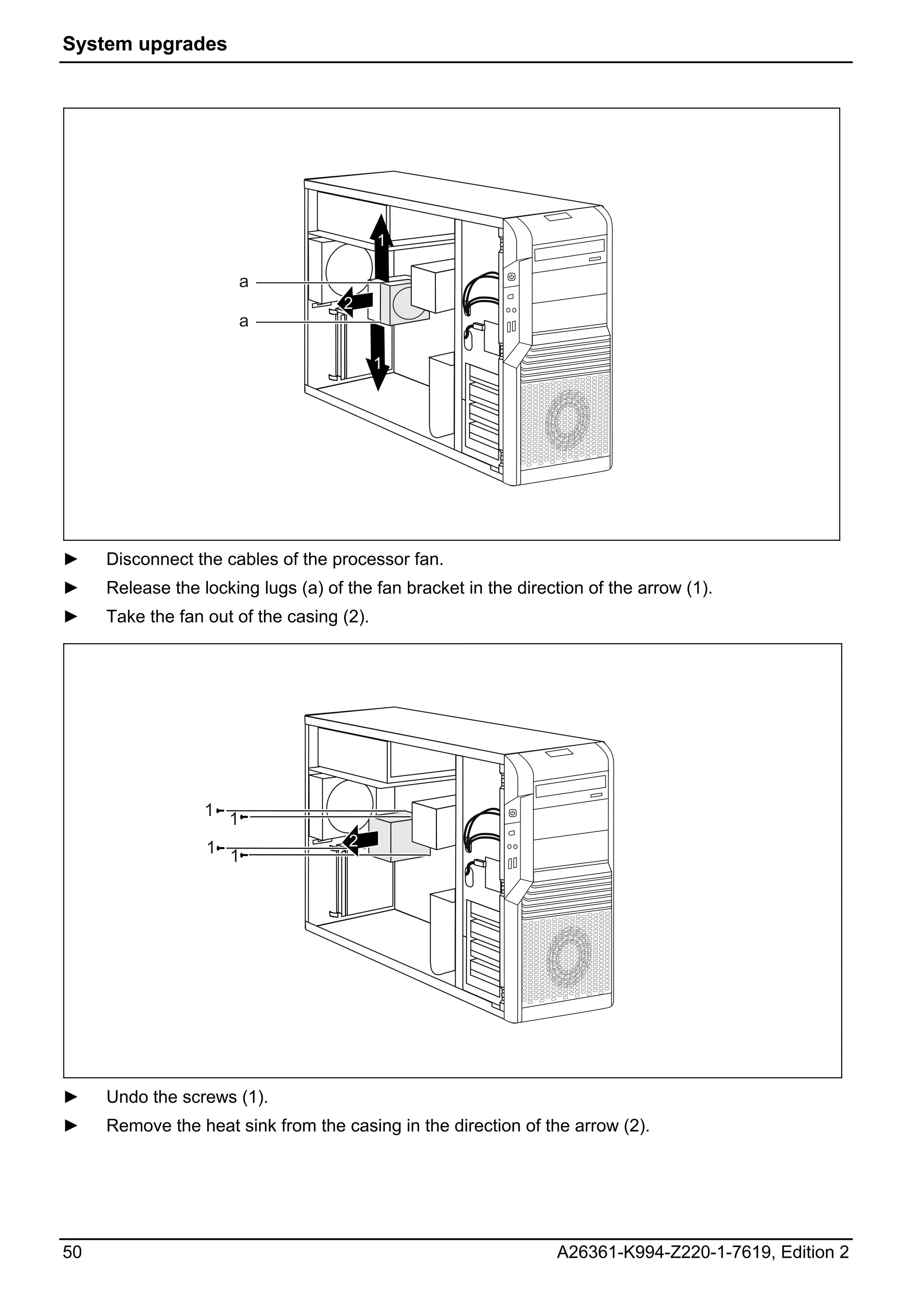
►    Disconnect the cables of the processor fan.
►    Release the locking lugs (a) of the fan bracket in the direction of the arrow (1).
►    Take the fan out of the casing (2).


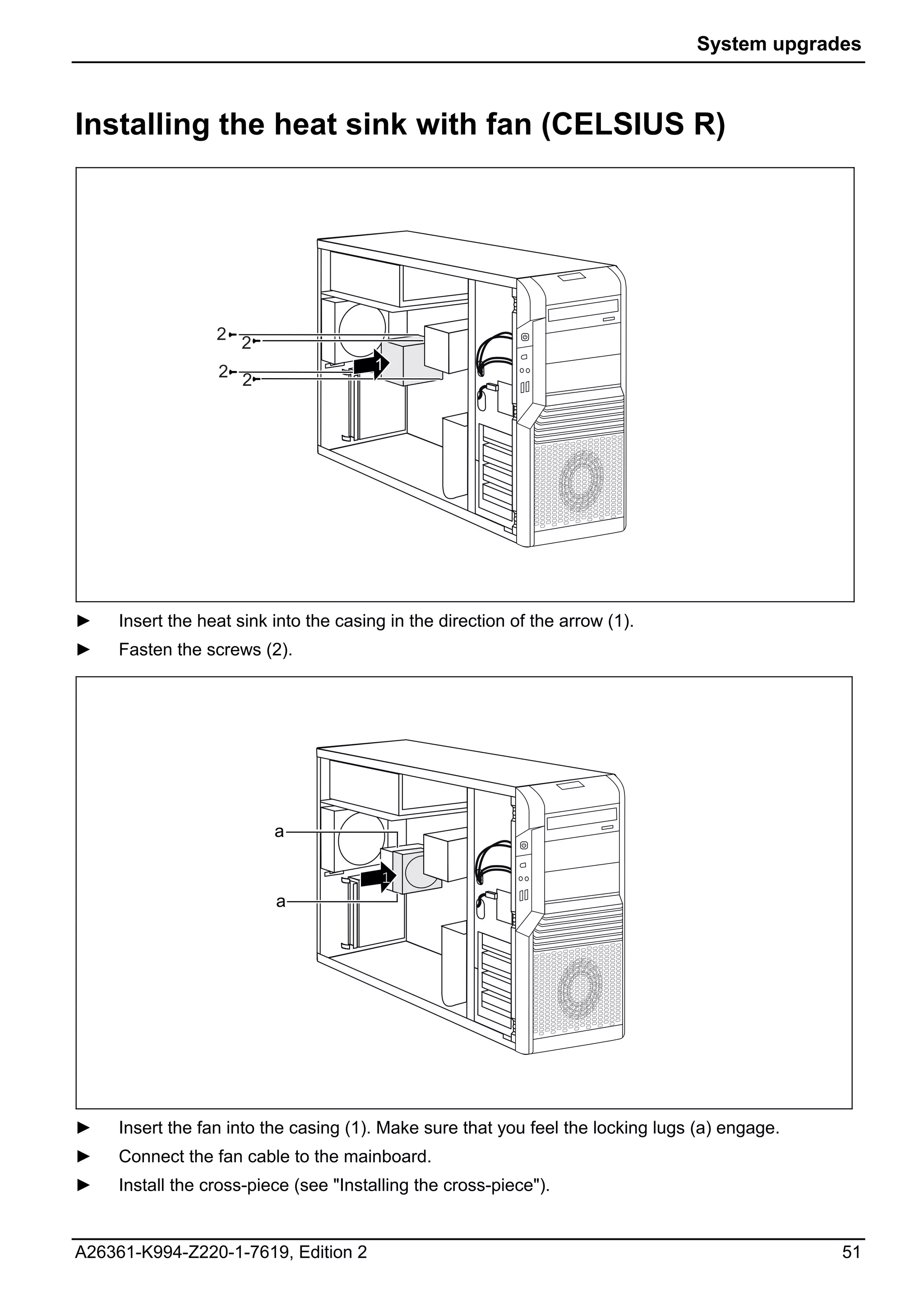
                  1 1

                  1 1                2


►    Undo the screws (1).
►    Remove the heat sink from the casing in the direction of the arrow (2).


50                                                               A26361-K994-Z220-1-7619, Edition 2
System upgrades


Installing the heat sink with fan (CELSIUS R)


                  2 2

                  2 2                   1


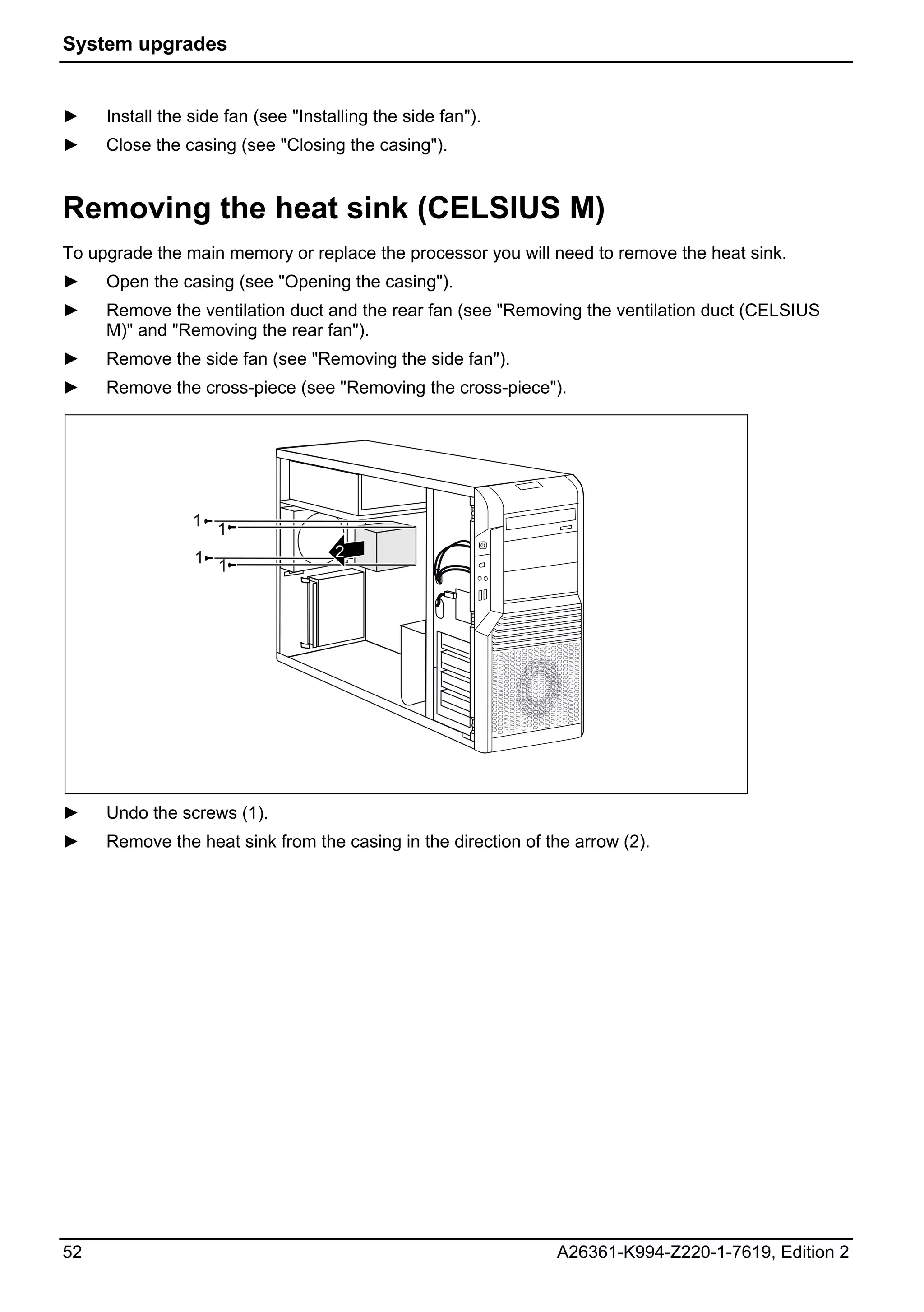
►    Insert the heat sink into the casing in the direction of the arrow (1).
►    Fasten the screws (2).


                          a

                                         1
                          a


►    Insert the fan into the casing (1). Make sure that you feel the locking lugs (a) engage.
►    Connect the fan cable to the mainboard.
►    Install the cross-piece (see "Installing the cross-piece").


A26361-K994-Z220-1-7619, Edition 2                                                              51
System upgrades


►    Install the side fan (see "Installing the side fan").
►    Close the casing (see "Closing the casing").


Removing the heat sink (CELSIUS M)
To upgrade the main memory or replace the processor you will need to remove the heat sink.
►    Open the casing (see "Opening the casing").
►    Remove the ventilation duct and the rear fan (see "Removing the ventilation duct (CELSIUS
     M)" and "Removing the rear fan").
►    Remove the side fan (see "Removing the side fan").
►    Remove the cross-piece (see "Removing the cross-piece").


                 1 1

                 1 1                 2


►    Undo the screws (1).
►    Remove the heat sink from the casing in the direction of the arrow (2).


52                                                             A26361-K994-Z220-1-7619, Edition 2
System upgrades


Installing the heat sink (CELSIUS M)


                    2
                        2
                    2 2                   1


►       Insert the heat sink into the casing in the direction of the arrow (1).
►       Fasten the screws (2).
►       Install the cross-piece (see "Installing the cross-piece").
►       Install the side fan (see "Installing the side fan").
►       Install the ventilation duct and the rear fan (see "Installing the ventilation duct (CELSIUS M)"
        and "Installing the rear fan").
►       Close the casing (see "Closing the casing").


Installing and removing a board
             Please take note of the section "Information about boards".
    !
             The following illustrations show the CELSIUS R. The sequence of actions is identical for all
    i        device variants and configuration levels.

The number, position and arrangement of the board slots on the mainboard can be found in the
manual for the mainboard. Boards may already be installed on shipment.


A26361-K994-Z220-1-7619, Edition 2                                                                         53
System upgrades


Installing a short board
►        Open the casing (see "Opening the casing").
►        Remove the fan (see "Removing the side fan").
►        Remove the cross-piece if it is in the way (see "Removing the cross-piece ”).


               1

              2


              1


                    3


►        Press on the clips (1) in the direction of the arrow and unhook them from the casing rear panel.
►        Fold open the locking rail in the direction of the arrow (2).
►        Remove the slot cover from the slot (3).

              Do not dispose of the slot cover. For cooling, protection against fire and in order to comply
     !        with EMC regulations, you must refit the slot cover if you remove the board.


►        Take the new board out of its packaging.
►        Make the required settings for the board.


54                                                                       A26361-K994-Z220-1-7619, Edition 2
System upgrades


           1


►    Push the board into the slot (1).
►    Press the board into the slot so that it engages.
►    If necessary, connect the cables.


                               a


      2


                           3
      2


►    Press the clips (2) from outside in the cut-outs on the case rear panel until the clips engage.
     When doing so, make sure that you press the rail carrier (a) into the corresponding opening.
►    Fold closed the locking slide (3).
►    If you have removed the cross-piece, install it now (see "Installing the cross-piece").
►    Install the fan (see "Installing the side fan").
►    Close the casing (see "Closing the casing").


A26361-K994-Z220-1-7619, Edition 2                                                                     55
System upgrades


              If you have installed or removed a PCI board, please check the relevant PCI slot settings in
     i        the BIOS Setup. If necessary, change the settings. Further information is provided in the PCI
              board documentation.
              The slots 1, 3, 5 and 7 are suitable for low-profile cards with an adapter. The slots are
              counted from the bottom to the top.


Removing a short board
►        Open the casing (see "Opening the casing").
►        Remove the fan (see "Removing the side fan").
►        Remove the cross-piece if it is in the way (see "Removing the cross-piece ”).
►        Disconnect the cables connected to the board.


               1

              2


              1


                     3


►        Press on the clips (1) in the direction of the arrow and unhook them from the casing rear panel.
►        If the board in question is a graphics card, undo the catch.
►        Fold open the locking rail in the direction of the arrow (2).
►        Pull the board out of the slot (3).
►        Place the board into appropriate packaging.

              For cooling, protection against fire, and in order to comply with EMC (electromagnetic
     !        compatibility) regulations, you must refit the slot cover.


56                                                                       A26361-K994-Z220-1-7619, Edition 2
System upgrades


                  a
                      1


►       Push the slot cover into the slot (1).

             Ensure that the projection (a) on the slot cover engages into the appropriate recess. If it
    !        does not, you will find it difficult to close the locking rail. There is a danger of damage.


                                  b


         2


                              3
         2


►       Press the clips (2) from outside, pressing through the cut-outs on the case rear panel until the
        clips engage. When doing so, make sure that you press the rail carrier (b) into the
        corresponding opening.
►       Fold closed the locking slide (3).
►       If you have removed the cross-piece, install it now (see "Installing the cross-piece").
►       Install the fan (see "Installing the side fan").


A26361-K994-Z220-1-7619, Edition 2                                                                          57
System upgrades


►        Close the casing (see "Closing the casing").

              If you have installed or removed a PCI board, please check the relevant PCI slot settings
     i        in the BIOS Setup. If necessary, change the settings. Further information is provided in the
              PCI board documentation.


Installing a long board
►        Open the casing (see "Opening the casing").
►        Remove the fan (see "Removing the side fan").
►        Remove the cross-piece if it is in the way (see "Removing the cross-piece").


               1

              2


              1


                    3


►        Press on the clips (1) in the direction of the arrow and unhook them from the casing rear panel.
►        Fold open the locking rail in the direction of the arrow (2).
►        Remove the slot cover from the slot (3).

             Do not discard the slot cover. For cooling, protection against fire and in order to comply
     !       with EMC regulations, you must refit the slot cover if you remove the board.


►        Take the new board out of its packaging.
►        Make the required settings for the board.


58                                                                       A26361-K994-Z220-1-7619, Edition 2
System upgrades


                                            a

                                                2
                 1     1

                       2               1


                       1


►    Push the board into the slot (1) and into the board holder (2).
►    Press the board into the slot so that the board is felt to engage and on graphic cards the lever
     (a) on the board closes (2).
►    If necessary, connect the cables to the board.


                                   b


         1


                               2
         1


►    Press the clips (1) from outside in the cut-outs on the case rear panel until the clips engage.
     When doing so, make sure that you press the rail carrier (a) into the corresponding opening.
►    Fold closed the locking slide (2).
►    If you have removed the cross-piece, install it now (see "Installing the cross-piece").
►    Install the fan (see "Installing the side fan").
►    Close the casing (see "Closing the casing").


A26361-K994-Z220-1-7619, Edition 2                                                                     59
System upgrades


Removing a long board
►    Open the casing (see "Opening the casing").
►    Remove the fan (see "Removing the side fan").
►    Remove the cross-piece if it is in the way (see "Removing the cross-piece").
►    Disconnect the cables connected to the board.


                 1

                 2


                1

     2


►    Press on the clips (1) in the direction of the arrow and unhook them from the casing rear panel.
►    Fold open the locking rail in the direction of the arrow (2).


60                                                                   A26361-K994-Z220-1-7619, Edition 2
System upgrades


                                  1
                              2        a


►       At the same time release the board from the board holder (a) by pressing the clip on the board
        holder in the direction of the arrow (1) and pulling the board in the direction of the arrow (2).


                                              b

                                                  1
                   2      1

                         2              2


                          1


►       Release the lever (b) by pulling it in the direction of the arrow (1).
►       Release the board from the board holder by pulling the board in the direction of the arrow (2).
►       Place the board in suitable packaging.

             For cooling, protection against fire, and in order to comply with EMC (electromagnetic
    !        compatibility) regulations, you must refit the slot cover.


A26361-K994-Z220-1-7619, Edition 2                                                                        61
System upgrades


                   a
                       1


►        Push the slot cover into the slot (1).

              Ensure that the projection (a) on the slot cover engages into the appropriate recess. If it
     !        does not, you will find it difficult to close the locking rail. There is a danger that damage
              may be caused.


                                   b


          2


                               3
          2


►        Press the clips (2) from outside in the cut-outs on the case rear panel until the clips engage.
         When doing so, make sure that you press the rail carrier (b) into the corresponding opening.
►        Fold closed the locking slide (3).
►        If you have removed the cross-piece, install it now (see "Installing the cross-piece").
►        Install the fan (see "Installing the side fan").
►        Close the casing (see "Closing the casing").


62                                                                    A26361-K994-Z220-1-7619, Edition 2
System upgrades


Low-profile boards
For units with a particularly low overall height, there are so-called low-profile boards with a slot cover
with a lower overall height to match the low-profile units. To also install these low-profile boards in
normal board slots, you must mount a corresponding slot adapter beforehand
Two-piece board slot covers are fitted to the slots intended for low-profile boards. The two pieces are
connected together with a screw.
            The following illustrations show the CELSIUS R. The sequence of actions is identical for all
    i       device variants and configuration levels.

►       Remove the desired board slot cover and undo the screw.
►       Make the required settings for the board.

            Do not dispose of the slot cover. If you remove the board again, you must reinstall the slot
    !       cover (cooling, fire protection or EMC regulations to be complied with).


Mounting slot adapter
                                                      ►     Fit the slot adapter on the slot cover of the
                                                            low-profile board (1) and screw it on (2).
                  1                                   Now you can install the low-profile board in a
                                                      suitable slot like a normal board (see "Installing a
                                                      short board").


              2


Removing slot adapter
                                                      ►     Unscrew the screw (1) and remove the slot
                                                            adapter (2).
                  2


              1


A26361-K994-Z220-1-7619, Edition 2                                                                      63
System upgrades


Installing and removing drives
The casing can accommodate a total of seven drives:
●    three accessible drives
     (two 5¼ inch drives and one 3½ inch drive)
●    four non-accessible drives
     (3½ inch drives)
"Accessible drives" are for instance DVD drives or multi-card readers into which a data medium can
be inserted from outside. "Non-accessible drives" are for example hard disk drives.

Serial ATA drives and SAS drives
You can install S-ATA drives or SAS drives (Serial Attached SCSI drives) in your device. S-ATA
drives are supported by default (refer also to the manual for the mainboard). Mixed equipment is also
possible. When simultaneously installing S-ATA hard disks and SAS hard disks, you must ensure the
proper assignment of the cables to the corresponding connectors.
The internal wiring of your device is shown in the following wiring diagrams.

Wiring diagram for S-ATA drives or SAS drives


                                                           Blu-Ray / DVD-RW /
                                                           DVD

                                                            DVD-RW / DVD

                                                            DVD-RW / DVD /
                                                                   FD
                                                            USB-Device


                                                                 HD 1

                                                                 HD 2
                                              SATA / SAS
                                                                HD 3

                                                                HD 4


64                                                               A26361-K994-Z220-1-7619, Edition 2
System upgrades


Removing an accessible 5¼ inch drive
            The following illustrations show the CELSIUS R. The sequence of actions is identical for all
    i       device variants and configuration levels.

►       Open the casing (see "Opening the casing").


                                                                               2

 1      1                                                                                       3


►       Pull the data and the power supply connectors from the desired drive.
►       Loosen the screws (1).
►       Slide the drive out of the bay in the direction of the arrow (2) from behind.
The drive now protrudes slightly out of the casing.
►       Slide the drive out of the casing (3).
►       If necessary, make the required settings on the remaining hard disk drives.


A26361-K994-Z220-1-7619, Edition 2                                                                   65
System upgrades


                           2   2                                             1


►        If you are not installing a new drive, slide the empty slide-in insert into the casing until it
         noticeably engages.
►        Secure the empty slide-in module with the screws (2).
►        Close the casing (see "Closing the casing").

              It may be necessary to modify the entry for the remaining drives in the BIOS Setup.
     i


66                                                                      A26361-K994-Z220-1-7619, Edition 2
System upgrades


Installing an accessible 5¼ inch drive
►       Open the casing (see "Opening the casing").


                        1                                               2
                            1


►       If a Weight Saver is present, remove this first: Remove the screws (1) and pull the Weight
        Saver out of the casing (2).

            Do not discard the Weight Saver. For cooling, protection against fire, and in order to
    !       comply with EMC regulations, you must refit the Weight Saver if you remove the drive
            again later.

►       Take the new drive out of its packaging.
►       Make the required settings on the drive.


A26361-K994-Z220-1-7619, Edition 2                                                                   67
System upgrades


                          2   2                                           1


►        Slide the accessible drive into the casing as far as the stop (1).
►        Fasten the drive into place with the screws (2).
►        Plug the data and the power supply connectors into the drive. Make sure the polarity is correct.
►        Close the casing (see "Closing the casing").

              It may be necessary to modify the entry for the drive in the BIOS Setup.
     i


68                                                                   A26361-K994-Z220-1-7619, Edition 2
System upgrades


Removing and installing a 3 ½ inch drive (e.g.
MultiCard reader)
             A carrier is needed to install a 3½ inch drive in a 5 ¼ inch bay. When this carrier is used,
    i        the 3½ inch drive can be installed in the 5¼ inch bay instead of the Weight Saver or a 5¼
             inch drive.


Removing an accessible 3½ inch drive
►       Remove the carrier with the 3½ inch drive in the same way as an accessible 5¼ inch drive (see
        "Installing an accessible 5¼ inch drive"). When you do so, make sure to re-install the Weight
        Saver if you do not install a new drive.


                                                                                   1
                              2


                  1                                                  2


►       Remove the screws (1) on both sides of the carrier.
►       Pull the 3½ inch drive out of the carrier (2).


A26361-K994-Z220-1-7619, Edition 2                                                                     69
System upgrades


Installing an accessible 3½ inch drive
►    Take the new 3½ inch drive out of its packaging.


                                                                                   2


                2


►    Slide the 3½ inch drive into the carrier (1).
►    Secure the 3½ inch drive on both sides of the carrier using the screws (2).
►    Install the carrier with the 3½ inch drive in the same way as an accessible 5¼ inch drive (see
     "Installing an accessible 5¼ inch drive").


70                                                             A26361-K994-Z220-1-7619, Edition 2
System upgrades


Installing and removing a hard disk drive
            The following illustrations show the CELSIUS R. The sequence of actions is identical for all
    i       device variants and configuration levels.


Installing a hard disk drive
►       Open the casing (see "Opening the casing").
►       Take the new hard disk drive out of its packaging.

                                               ►    Secure the EasyChange rails on the side of the
              a                                     hard disk by inserting the pins (a) of the
                                                    EasyChange rail in the corresponding holes (b) of
                                                    the hard disk.


                              b


►       Push the hard disk drive into the casing until the EasyChange rails engage.
►       Connect the data and power supply cables to the hard disk drive or to the hard disk drives.


A26361-K994-Z220-1-7619, Edition 2                                                                    71
System upgrades


Removing a hard disk drive
►        Open the casing (see "Opening the casing").


              1


               2

                                   1


►        Press the EasyChange rails in the direction of the arrows (1).
►        Pull the hard disk drive out of the carrier (2).

                                                            ►   Pull the EasyChange rails off the hard disk
                                                                drive.
                                                            ►   If necessary, make the required settings on
                                                                the remaining hard disk drive.
                                                            ►   Close the casing (see "Closing the casing").


              It may be necessary to modify the entry for the drive in the BIOS Setup.
     i


72                                                                     A26361-K994-Z220-1-7619, Edition 2
System upgrades


Installing and removing a SmartCard reader
(optional)
            You can operate a maximum of 2 internal USB components in your device. An adapter
    i       cable (available as an option) will be needed for the second internal USB component (e.g.
            a WLAN module or a MultiCard reader).
            A carrier is needed to install a SmartCard reader in a 5¼ inch bay. When this carrier is
            used, the SmartCard reader can be installed in the 5¼ inch bay instead of a Weight Saver
            or a 5¼ inch drive.


Installing a SmartCard reader
Screw the SmartCard reader onto the carrier
                                                        ►     Push the SmartCard reader - with the
                                   2                          component side facing downwards - in the
                        2                                     direction of the arrow (1) into the guide of
                                                              the carrier (a).
                                       a                ►    Secure the SmartCard reader with the
                                                             screws (2).
                            a 1


Installing SmartCard reader
►       Open the casing (see "Opening the casing").
►       If there is a Weight Saver in the 5¼ inch bay, remove it as described in the chapter "Installing
        an accessible 5¼ inch drive".


                                                                                     2


                                                                        1
                   2


A26361-K994-Z220-1-7619, Edition 2                                                                      73
System upgrades


►    Side the carrier with SmartCard reader into the module for the SmartCard reader (1).
►    Fasten the carrier with the screws (2) on both sides of the slide-in module.
►    Install the module with the SmartCard reader in the same way as an accessible 5¼ inch drive
     (see "Installing an accessible 5¼ inch drive").


Removing a SmartCard reader
►    Remove the module with the SmartCard reader in the same way as an accessible 5¼ inch
     drive (see "Removing an accessible 5¼ inch drive"). When you do so, make sure to re-install
     the Weight Saver if you do not install a new drive.


                                                                                1


                                  2


              1                                                  2


►    Remove the screws on both sides of the slide-in module (1).
►    Slide the SmartCard reader out of the module (2).


74                                                              A26361-K994-Z220-1-7619, Edition 2
System upgrades


Installing and removing a WLAN module (optional)
            You can install a WLAN module in your device.
    i       The following illustrations show the CELSIUS R. The sequence of actions is identical for
            all device variants and configuration levels.


Installing WLAN module
►       Open the casing (see "Opening the casing").
►       Open the front panel (see "Opening the front panel").

Initial installation of a WLAN module
The slot on the WLAN module inside of the front panel is protected by a metal cover when the device
is shipped.


                                                       ►        Break the pre-stamped metal cover out of
                                                                the WLAN opening using a screwdriver.


A26361-K994-Z220-1-7619, Edition 2                                                                     75
System upgrades


Installing WLAN module


                                                1


                   2   2


►    Slide the WLAN module into the slot on the front of the casing in the direction of the arrow (1).
Make sure that the screw holes for the screws are aligned.
►    Fasten the WLAN module with the screws (2).


                                                    1


►    Thread the USB data cable of the WLAN module through the opening in the direction of the
     arrow (1).
►    Connect the USB data cable of the WLAN module onto the corresponding connector on the
     mainboard (also see the manual for the mainboard).
►    Close the front panel (see "Closing the front panel").
►    Close the casing (see "Closing the casing").


76                                                              A26361-K994-Z220-1-7619, Edition 2
System upgrades


            More detailed information on the use of Wireless LAN can be found in the "Wireless LAN"
    i       manual.
            This manual is provided as PDF file on the "Drivers & Utilities" DVD.


Removing WLAN module
►       Open the casing (see "Opening the casing").
►       Open the front panel (see "Opening the front panel").


                                                  2


                      1   1


►       Loosen the screws (1).
►       Pull the WLAN module out of the bay the direction of the arrow (2).
►       Close the front panel (see "Closing the front panel").
►       Close the casing (see "Closing the casing").


A26361-K994-Z220-1-7619, Edition 2                                                               77
System upgrades


Extensions to the mainboard
Details on how you can upgrade the main memory or the processor of your device are provided in
the manual for the mainboard.


Upgrading main memory (CELSIUS R)
►    Open the casing (see "Opening the casing").
►    If present, remove the side fan and the cross-piece (see "Removing the side fan" and
     "Removing the cross-piece").
►    Remove the memory fan (see "Removing the memory fan (CELSIUS R)").
►    Upgrade the main memory according to the description in the manual for the mainboard.
►    Reinstall the memory fan (see “Installing the memory fan (CELSIUS R)").
►    Install the cross-piece and the side fan (see "Installing the cross-piece" and "Installing the side
     fan").
►    Close the casing (see "Closing the casing").


Upgrading main memory (CELSIUS M)
►    Open the casing (see "Opening the casing").
►    Remove the ventilation duct (see "Removing the ventilation duct (CELSIUS M)").
►    Upgrade the main memory according to the description in the manual for the mainboard.
►    Reinstall the ventilation duct (see "Installing the ventilation duct (CELSIUS M)").
►    Close the casing (see "Closing the casing").


78                                                               A26361-K994-Z220-1-7619, Edition 2
System upgrades


Replacing the processor
►    Open the casing (see "Opening the casing").
►    Remove the ventilation duct (see "Removing the ventilation duct (CELSIUS M)").
►    Remove the side fan (see "Removing the side fan").
►    Remove the cross-piece (see "Removing the cross-piece").
►    CELSIUS M only: Remove the heat sink (see "Removing the heat sink (CELSIUS M)").
►    CELSIUS R only: Remove the heat sink with fan (see "Removing the heat sink with fan
     (CELSIUS R)”).
►    Upgrade the processor according to the description in the manual for the mainboard.
►    CELSIUS R only: Install the heat sink with fan (see "Installing the heat sink with fan (CELSIUS
     R)”).
►    CELSIUS M only: Install the heat sink (see "Installing the heat sink (CELSIUS M)").
►    Install the cross-piece (see "Installing the cross-piece").
►    Install the side fan (see "Installing the side fan").
►    Install the ventilation duct (see "Installing the ventilation duct (CELSIUS M)").
►    Close the casing (see "Closing the casing").


A26361-K994-Z220-1-7619, Edition 2                                                                79
System upgrades


Changing lithium battery
In order to permanently save the system information, a lithium battery is installed to provide the
CMOS-memory with a current. A corresponding error message notifies the user when the charge is
too low or the battery is empty. The lithium battery must then be replaced.
              Incorrect replacement of the lithium battery may lead to a risk of explosion!
     !        The lithium battery may be replaced only with an identical battery or with a type
              recommended by the manufacturer.
              Do not throw lithium batteries into the household waste. They must be disposed of in
              accordance with local regulations concerning special waste.
              Make sure that you observe the correct polarity when replacing the lithium battery. The
              plus pole must be on the top!

The lithium battery holder exists in different designs that function in the same way.


                                                              2                               3


                                2
                                                                                3
                        1


►        Press the catch in the direction of the arrow (1).
The battery jumps out of the holder slightly.
►        Remove the battery (2).
►        Push the new lithium battery of the identical type into the holder and press it downward until it
         engages.


80                                                                   A26361-K994-Z220-1-7619, Edition 2
Technical data


Technical data
Electrical data
Regulations complied with:                     EN 60950
                                               UL 60950
                                               CSA 22.2 No.950
Protection class:                              I
Rated voltage range:                           100 V - 240 V
Rated frequency:                               50 Hz - 60 Hz
Max. rated current (CELSIUS M):                100 V – 127 V : 6 A
                                               200 V – 240 V : 3 A
or:                                            100 V – 127 V : 9 A
                                               200 V – 240 V : 4 A
Max. rated current (CELSIUS R5XX):             100 V – 127 V : 9 A
                                               200 V – 240 V : 4 A
or:                                            100 V – 127 V : 12 A
                                               200 V – 240 V : 6 A
Max. rated current (CELSIUS R6XX):             100 V – 127 V : 12 A
                                               200 V – 240 V : 6 A
Dimensions
Width/Depth/Height (CELSIUS M / R5xx):         215 mm/520 mm/446 mm
Width/Depth/Height (CELSIUS V / R640):         215 mm/620 mm/446 mm
Weight
in basic configuration (CELSIUS M / R5xx):     approx. 24 kg
in basic configuration (CELSIUS V / R640):     approx. 26 kg
Environmental conditions
Environment class (3K2)                        EC 721 part 3-3
Environment class (2K2)                        IEC 721 part 3-2
Temperature
Operating (3K2)                                15°C .... 35°C
Transport (2K2)                                -25°C .... 60°C
Condensation in operating must be avoided.
Clearance required to ensure adequate ventilation:
without air vents                              min. 10 mm
with air vents                                 min. 200 mm


A26361-K994-Z220-1-7619, Edition 2                                                81
Technical data


         The data sheets of these devices contains further technical data. You will find the data
     i   sheets on the internet at http://ts.fujitsu.com/support.


82                                                             A26361-K994-Z220-1-7619, Edition 2
Index
                                     Chain 22
3                                    Closing front panel 37
3 1/2-inch drive 64                  Connecting
3½ inch                                   device 15
     installing 70                        keyboard 12
     removing 69                          mouse 12
                                          PS/2 mouse 12
5                                         standard keyboard 12
5 1/4-inch drive 64                       USB keyboard 12
                                     Connecting FireWire devices 14
A                                    Connecting standard keyboard 12
Access permission, SmartCard 23      Contents of delivery 7
Accessible drive                     Cross-piece 78
      installing 67                  Cross-piece, installing 47
      removing 65                    Crosspiece, removing 46
Alphanumeric keypad 20               Ctrl+Alt+Del 21
Anti-theft protection 22             Cursor keys 20
ATA drive, serial 64
Audio devices, connecting 14         D
Audio input 11                       Data protection 22
Audio output 11                      Date
                                          not correct 29
B                                    Device
Base foot                                 Anti-theft protection 22
     screwing on 8                        cannot boot 26
     unscrewing 9                         checking rated voltage 15
Battery 80                                cleaning 3
BIOS setup                                connecting 15
     settings 22                          Extensions 31
BIOS Setup 22                             indicators 18
     configuration 22                     lead-sealing 22
     security functions 23                opening 33
     system settings 22                   ports 11
Board 32                                  setting up 8
     installing 53, 54                    switching off 17
     removing 53, 56                      switching on 16, 17
Button                                    transporting 3
     ON/OFF switch 20                Device drivers
                                          parallel port 13
                                          serial port 13
C
                                     Devices
Cable
                                          connecting 13
    connecting 10
                                     Disposal 4
    disconnecting 10
                                     Drive 64
Case
                                          accessible 64
    opening 33
                                          installing 67
Casing
                                          non-accessible drive 64
    lead-sealing 22
                                          removing 65
CD-ROM drive
                                     DVD drive
    indicator 19
                                          indicator 19
CD-ROM indicator 19
                                     DVD indicator 19
CE mark 4


A26361-K994-Z220-1-7619, Edition 2                                     83
Index


E                                               Ctrl 21
Electromagnetic compatibility 4                 cursor keys 20
EMC, Electromagnetic compatibility 63           Enter 20
Energy saving 4                                 enter key 20
Ergonomic, video workstation 8                  Num 21
Error                                           Return 20
      date 29                                   Shift 21
      device 26                            Key combination 20, 21
      mouse 29                             Keyboard 20
      screen 27                                 alphanumeric keypad 20
      time 29                                   cursor keys 20
Error message 30                                function keys 20
e-SATA connection 11                            numeric keypad 20
ESD 32                                          port 12
Extensions                                 Keyboard port 11
      Device 31                            Keyboard, connecting 12
      mainboard 78                         Keys 20
External devices                                Ctrl key 21
      connecting 13                             Ctrl+Alt+Del 21
      ports 11                                  Menu key 21
                                                Shift key 21
F                                               Start key 20
FireWire 11
FireWire port 14                           L
Function keys 20                           LAN port 11
                                           LCD 18
H                                          Lead-sealing 22
Hard disk contents, restoring 30           Line in 11
Hard disk drive                            Line out 11
     installing 64, 71                     Lithium battery 78
version A 71                                     replacing 80
     removing 64                           Low voltage directive 4
version A 72                               Low-profile boards 63
     replacing 71                                mounting slot adapter 63
Headphones 11                                    removing slot adapter 63

I                                          M
Important notes 3                          Main memory 78
Indicators                                      upgrade 78
      device 18                            Mainboard, extensions 78
Installation                               Manuals, further 30
      new software 30                      Memory
      software 15, 16                           insufficient 30
      switching on for the first time 15        not enough 30
Installation of components                 Microphone jack 11
      Touchpoint 32                        Monitor
Installing front fan (CELSIUS M) 40             connecting 11
Interfaces 11                                   switching off 17
                                                switching on 16, 17
K                                               transporting 3
Kensington Lock 22                         Monitor port 11
Key                                        Mouse
    Alt Gr 21                                   connecting 12
    Control 21                                  error 29
                                           Mouse Cursor 29


84                                                A26361-K994-Z220-1-7619, Edition 2
Index


Mouse port 11                         Replacing
                                           lithium battery 80
N                                     Retransportation 3
New installation, software 30
Notational conventions 2              S
Note                                  Safety notes 3
     boards 32                        SAS-Drives 64
Notes                                 Screen
     CE mark 4                             no screen display 27
     disposal 4                            stays blank 27
     energy saving 4                  SCSI drive 64
     important 3                      Securing front fan on fan bracket 40
     recycling 4                      Security functions
     safety 3                              BIOS setup 23
Numeric keypad 20                          SmartCard 23
                                           SmartLock 23
O                                     Security measures 22
ON/OFF switch 17, 20                  serial ATA drive 64
Opening front panel 36                Serial Attached SCSI-Drive 64
Operation 17                          Serial port 11, 13
Other manuals 30                           Connecting devices 13
                                           settings 13
P                                     Setup see BIOS Setup
Packing material 7                    Side fan
     unpacking 7                           installation 39
Parallel port 11, 13                       removal 38
     Connecting devices 13            Signs and symbols 2
     settings 13                      SmartCard reader 73
Port                                       installing 73
     e-SATA 11                             installing or removing 73
Power-on indicator 17, 19                  operating 24
     dark 26                               removing 73, 74
     does not glow 19                 Software
     glows white 19                        installation 16
Power-on LED                               installing 15
     fails to light 26                     new installation 30
Preparing for first use, overview 7   Summer time 29
Preparing for use 7                   System expansion 31
     overview 7                       System settings
Printer 11                                 BIOS Setup 22
Processor 78
Processor, replacing 79               T
Property protection 22                Time
PS/2 mouse                                not correct 29
     connecting 12                    Time, daylight savings 29
     port 12                          Tips 25, 30
PS/2 mouse port 11                    Touchpoint 32
                                      Transport 3
R                                     Trouble
Ready-to-operate 17                       device 26
Recycling 4                               mouse 29
Removal of components                     screen 27
    Touchpoint 32                     Troubleshooting 25
Removing front fan (CELSIUS M) 41


A26361-K994-Z220-1-7619, Edition 2                                              85
Index


U                             V
USB                           Ventilation 8
    Universal Serial Bus 11   Video devices, connecting 14
USB devices                   Video workstation 8
    connecting 13
USB port 12                   W
    connecting devices 13     Warm boot 21
    connecting keyboard 12    WLAN module
    connecting mouse 12           installing 75
                                  removing 77
                                  removing and installing 75


86                                   A26361-K994-Z220-1-7619, Edition 2

Celsius M4xx R5xx R6xx, Operating Manual

  • 1.
    CELSIUS M4xx /R5xx / R6xx Operating Manual
  • 2.
    Are there ... ...any technical problems or other questions you would like to discuss? Please contact: ● our Hotline/Help Desk (see the enclosed Help Desk list or go to http://ts.fujitsu.com/support/helpdesk.html) ● Your sales partner ● Your sales office Further information can be found in the "Safety" and "Warranty" manuals. Latest information on our products, tips, updates, etc., can be accessed on the internet at: http://ts.fujitsu.com
  • 4.
    Published by Fujitsu TechnologySolutions GmbH A26361-K994-Z220-1-7619, Edition 2 2009/08 Produced by XEROX Global Services
  • 5.
    Introduction Important notes CELSIUS M4xx / R5xx / Preparing for use R6xx Operation Troubleshooting and tips Operating Manual System expansions Technical data Index Edition: August 2009
  • 6.
    CELSIUS is aregistered trademark of Fujitsu Technology Solutions GmbH. Windows XP, Windows Vista, Windows 7 are registered trademarks of the Microsoft Corporation. PS/2 is a registered trademark of International Business Machines, Inc. Pentium is a registered trademark of Intel Corporation, USA. Kensington Lock and MicroSaver are registered trademarks of ACCO World Corporation. All other trademarks referenced are trademarks or registered trademarks of their respective owners, whose protected rights are acknowledged. Copyright © Fujitsu Technology Solutions 2009 All rights, including rights of translation, reproduction by printing, copying or similar methods, in part or in whole, are reserved. Offenders will be liable for damages. All rights, including rights created by patent grant or registration of a utility model or design, are reserved. Delivery subject to availability. We reserve the right to make technical changes.
  • 7.
    Contents Your CELSIUS..................................................................................................................................... 1 Notationalconventions ......................................................................................................................... 2 Important notes .................................................................................................................................. 3 Safety notes.......................................................................................................................................... 3 Transporting the device ........................................................................................................................ 3 Cleaning the device .............................................................................................................................. 3 Energy saving, disposal and recycling ................................................................................................. 4 CE mark................................................................................................................................................ 4 FCC Class B Compliance Statement ................................................................................................... 5 Preparing for use................................................................................................................................ 7 Unpacking and checking the delivery ................................................................................................... 7 Steps for initial setup ............................................................................................................................ 7 Setting up the device ............................................................................................................................ 8 Connecting external devices .............................................................................................................. 10 Ports provided by the device ...................................................................................................... 11 Connecting the monitor .............................................................................................................. 11 Connecting the mouse ............................................................................................................... 12 Connecting the keyboard............................................................................................................ 12 Connecting external devices to the serial port ........................................................................... 13 Connecting external devices to the USB ports........................................................................... 13 Connecting external devices to the FireWire port ...................................................................... 14 Connecting an external e-SATA device to the e-SATA port....................................................... 14 Connecting the device to the mains voltage....................................................................................... 15 Switching on for the first time: installing the software......................................................................... 15 Switching on monitor and device................................................................................................ 16 Installing the software................................................................................................................. 16 Operation........................................................................................................................................... 17 Switching the device on...................................................................................................................... 17 Switching off the device...................................................................................................................... 17 Indicators on the device...................................................................................................................... 18 Keyboard ............................................................................................................................................ 20 Important keys and key combinations ........................................................................................ 20 Settings in BIOS Setup....................................................................................................................... 22 Property and data protection .............................................................................................................. 22 Anti-theft protection and lead-sealing......................................................................................... 22 BIOS setup security functions .................................................................................................... 23 Access authorisation via SmartCard (optional) .......................................................................... 23 Access protection with SystemLock (optional) ........................................................................... 23 Troubleshooting and tips................................................................................................................. 25 Help if problems occur........................................................................................................................ 25 Power-on indicator remains unlit after you have switched on your device ......................................... 26 The device cannot be switched off with the ON/OFF switch ...................................................... 26 Screen stays blank ..................................................................................................................... 27 No mouse pointer displayed on the screen ................................................................................ 29 Time and/or date is not correct................................................................................................... 29 Error messages on the screen ................................................................................................... 30 Installing new software ....................................................................................................................... 30 Restoring hard disk contents .............................................................................................................. 30 Tips 30 A26361-K994-Z220-1-7619, Edition 1
  • 8.
    Contents System upgrades ..............................................................................................................................31 Information about boards ............................................................................................................32 Touchpoints for easier installation and removal of modules and components ...........................32 Opening the casing .............................................................................................................................33 Closing the casing...............................................................................................................................35 Opening the front panel.......................................................................................................................36 Closing the front panel ........................................................................................................................37 Removing the side fan ........................................................................................................................38 Installing the side fan ..........................................................................................................................39 Installing the front fan (CELSIUS M) ...................................................................................................40 Removing the front fan (CELSIUS M) .................................................................................................41 Removing the ventilation duct (CELSIUS M) ......................................................................................42 Removing the rear fan.........................................................................................................................43 Installing the rear fan...........................................................................................................................44 Installing the ventilation duct (CELSIUS M) ........................................................................................45 Removing the cross-piece ..................................................................................................................46 Installing the cross-piece ....................................................................................................................47 Removing the memory fan (CELSIUS R)............................................................................................48 Installing the memory fan (CELSIUS R)..............................................................................................49 Removing the heat sink with fan (CELSIUS R)...................................................................................49 Installing the heat sink with fan (CELSIUS R).....................................................................................51 Removing the heat sink (CELSIUS M)................................................................................................52 Installing the heat sink (CELSIUS M)..................................................................................................53 Installing and removing a board ..........................................................................................................53 Installing a short board................................................................................................................54 Removing a short board..............................................................................................................56 Installing a long board.................................................................................................................58 Removing a long board...............................................................................................................60 Low-profile boards...............................................................................................................................63 Installing and removing drives ............................................................................................................64 Wiring diagram for S-ATA drives or SAS drives .........................................................................64 Removing an accessible 5¼ inch drive.......................................................................................65 Installing an accessible 5¼ inch drive ........................................................................................67 Removing an accessible 3½ inch drive.......................................................................................69 Installing an accessible 3½ inch drive ........................................................................................70 Installing and removing a hard disk drive....................................................................................71 Installing a hard disk drive ..........................................................................................................71 Removing a hard disk drive ........................................................................................................72 Installing and removing a SmartCard reader (optional) ......................................................................73 Installing a SmartCard reader .....................................................................................................73 Removing a SmartCard reader ...................................................................................................74 Installing and removing a WLAN module (optional)............................................................................75 Installing WLAN module..............................................................................................................75 Removing WLAN module............................................................................................................77 Extensions to the mainboard...............................................................................................................78 Upgrading main memory (CELSIUS R) ......................................................................................78 Upgrading main memory (CELSIUS M) ......................................................................................78 Replacing the processor .............................................................................................................79 Changing lithium battery .............................................................................................................80 Technical data ...................................................................................................................................81 Index...................................................................................................................................................83 A26361-K994-Z220-1-7619, Edition 2
  • 9.
    Your CELSIUS... ... isavailable with various configuration levels with different hardware and software. You can incorporate operable drives (for example DVD drive) as well as other boards. This manual tells you how to put your device into operation and how to operate it in daily use. This manual applies for all configuration levels. Depending on the configuration level chosen some of the hardware components described may not be available on your PC. Please observe the notes on your operating system. Depending on the configuration selected, the operating system is preinstalled on your hard disk (e.g. Microsoft Windows Vista). Your device has a number of security features to ensure that no unauthorised persons can access your data. The security functions in the BIOS Setup also allow you to protect your data by means of passwords. In addition, systems with a SmartCard reader offer additional protection. Under certain operating systems, DeskUpdate allows you to quickly and easily install the latest drivers and operating system upgrades with just a few mouse clicks. DeskUpdate is contained on the "Drivers & Utilities" DVD. Further information on this device is provided: ● in the poster "Getting Started" ● in the "Safety" manual ● in the "Warranty" manual ● in the operating manual for the monitor ● in the manual for the mainboard ● in your operating system documentation ● in the information files (e.g. *.PDF, *.HTML, *.DOC, *.CHM, *.TXT, *.HLP) Some of the manuals listed can be found in electronic form on the DVD "Drivers & i Utilities". You can access and view the required information using the Acrobat Reader program, which is also on the DVD. If necessary, you can also make a print version of the manual. A26361-K994-Z220-1-7619, Edition 2 1
  • 10.
    Your CELSIUS... Notational conventions Thefollowing symbols are used in this manual: indicates information which is important for your health or for preventing ! physical damage. indicates important information which is required to use the system properly. i ► Texts which follow this symbol describe activities that must be performed in the order shown. This font indicates programme names, commands, or menu items. "Quotation marks" indicate names of chapters, data carriers, and terms that are being emphasised. 2 A26361-K994-Z220-1-7619, Edition 2
  • 11.
    Important notes In thischapter you will find information regarding safety which it is essential to take note of when working with your device. Safety notes Pay attention to the information provided in the "Safety" manual and in the following safety ! notes. During installation and before operating the device, please observe the instructions on environmental conditions in the "Technical data" chapter as well as the instructions in the "Preparing for use" chapter. The ON/OFF switch does not disconnect the device from the mains voltage. To completely disconnect the mains voltage, remove the power plug from the power socket. The lithium battery on the mainboard should only be replaced in accordance with the instructions in the "Extensions to the mainboard" - "Changing lithium battery" chapter. Caution, components in the system can get very hot. Transporting the device Transport all parts separately in their original packaging or in a packaging which protects ! them from knocks and jolts, to the new site. Do not unpack them until all transportation manoeuvres are completed. Cleaning the device Turn off all power and equipment switches and disconnect the power plug from the mains ! outlet. Do not clean any interior parts yourself, leave this job to a service technician. Do not use any cleaning agents that contain abrasives or may corrode plastic. Ensure that no liquid enters the system. Wipe the casing with a dry cloth. If particularly dirty, use a cloth that has been moistened in mild domestic detergent and then carefully wrung out. Use disinfectant wipes to clean the keyboard and the mouse. A26361-K994-Z220-1-7619, Edition 2 3
  • 12.
    Important notes Energy saving,disposal and recycling Further information on these topics can be found on the "Drivers & Utilities" DVD. CE mark CE mark for devices without radio component The shipped version of this device complies with the requirements of the EC Guidelines 2004/108/EC "Electromagnetic compatibility" and 2006/95/EC "Low voltage directive". 4 A26361-K994-Z220-1-7619, Edition 2
  • 13.
    Important notes FCC ClassB Compliance Statement The following statement applies to the products covered in this manual, unless otherwise specified herein. The statement for other products will appear in the accompanying documentation. NOTE: This equipment has been tested and found to comply with the limits for a "Class B" digital device, pursuant to Part 15 of the FCC rules and meets all requirements of the Canadian Interference- Causing Equipment Standard ICES-003 for digital apparatus. These limits are designed to provide reasonable protection against harmful interference in a residential installation. This equipment generates, uses and can radiate radio frequency energy and, if not installed and used in strict accordance with the instructions, may cause harmful interference to radio communications. However, there is no guarantee that interference will not occur in a particular installation. If this equipment does cause harmful interference to radio or television reception, which can be determined by turning the equipment off and on, the user is encouraged to try to correct the interference by one or more of the following measures: ● Reorient or relocate the receiving antenna. ● Increase the separation between equipment and the receiver. ● Connect the equipment into an outlet on a circuit different from that to which the receiver is connected. ● Consult the dealer or an experienced radio/TV technician for help. Fujitsu Technology Solutions GmbH is not responsible for any radio or television interference caused by unauthorized modifications of this equipment or the substitution or attachment of connecting cables and equipment other than those specified by Fujitsu Technology Solutions GmbH. The correction of interferences caused by such unauthorized modification, substitution or attachment will be the responsibility of the user. The use of shielded I/O cables is required when connecting this equipment to any and all optional peripheral or host devices. Failure to do so may violate FCC and ICES rules. A26361-K994-Z220-1-7619, Edition 2 5
  • 14.
    Important notes 6 A26361-K994-Z220-1-7619, Edition 2
  • 15.
    Preparing for use Please observe the safety information in the "Important notes" chapter. ! Unpacking and checking the delivery It is recommended not to throw away the original packaging material! It may be required for reshipment at some later date. ► Unpack all the individual parts. ► Check the delivery for damage incurred during transportation. ► Check whether the delivery agrees with the details in the delivery note. Should you discover that the delivery does not correspond to the delivery note, notify your local sales outlet immediately. Steps for initial setup Only a few steps are necessary to put your new device into operation for the first time: ● Select location for device and set up device ● External devices, connecting ● Check the voltage at the mains outlet and connect the device to an electrical outlet ● Switching the device on You will learn more about the individual steps in the following sections. External devices If you have received other devices in addition to your device (e.g. a printer or a modem), i do not connect these until after the initial installation. The following sections contain a description of how to connect these external devices. Drives and boards If you have received drives or boards with your device, please do not install them until i after first-time setup. How to install drives and boards is described in the "System upgrades" chapter. A26361-K994-Z220-1-7619, Edition 2 7
  • 16.
    Preparing for use Settingup the device When installing your device, give consideration to the safety notes in the "Safety" manual. ! The device should only be set up in the intended orientation, i.e. in a vertical position. We recommend that you place your device on a surface with good anti-slip qualities. In view of the multitude of different finishes and varnishes used on furniture, it is possible that the feet of the device will mark the surface they stand on. Do not expose the device to extreme environmental conditions (see "Technical data"). Protect the device from dust, humidity, and heat. Make sure that the device is adequately ventilated. In order to avoid overheating, do not cover the ventilation area of the monitor or the device. Depending on the location of your device, bothersome vibrations and noises may occur. To prevent this, a distance of at least 10 mm should be maintained from other devices on casing sides without ventilation surfaces. In addition, we recommend placing the device on support feet, as these buffer vibrations. Screwing on the base foot (CELSIUS R6xx) To ensure a secure stance, the base foot must be screwed on prior to start-up. 2 2 1 ► Lift the device slightly at the rear. ► Push the base foot under the device in the direction of the arrow (1). Make sure that the screw holes for the screws are aligned. ► Screw on the base foot with the knurled screws (2). 8 A26361-K994-Z220-1-7619, Edition 2
  • 17.
    Preparing for use Unscrewingthe base foot (CELSIUS R6xx) 1 1 2 ► Unscrew the knurled screws (1). ► Pull off the base foot in the direction of the arrow (2). A26361-K994-Z220-1-7619, Edition 2 9
  • 18.
    Preparing for use Connectingexternal devices Read the documentation on the external device before connecting it. ! With the exception of USB devices, always remove all power plugs before connecting external devices! Do not connect or disconnect cables during a thunderstorm. Always take hold of the actual plug. Never unplug a cable by pulling the cable itself. Connect and disconnect the cables in the order described below. Connecting cables ► Turn off all power and equipment switches. ► Remove all power plugs from the grounded mains outlets. ► Plug all cables into the device and peripherals. You must observe the information provided in the "Important notes" chapter. ► Plug all data communication cables into the utility sockets. ► Plug all power cables into the grounded mains outlets. Disconnecting cables ► Turn off all power and equipment switches. ► Remove all power plugs from the grounded mains outlets. ► Unplug all data communication cables from the utility sockets. ► Unplug all cables from the device and peripherals. USB devices are hot-pluggable. This means you can connect and disconnect USB cables i while your device is switched on. Additional information can be found in the "Connecting external devices to the USB ports" section and in the documentation for the USB devices. 10 A26361-K994-Z220-1-7619, Edition 2
  • 19.
    Preparing for use Portsprovided by the device The connections are located on the front and back of the device. The ports available on your device depend on the configuration level you have selected. The standard ports are marked with the symbols shown below (or similar). Detailed information on the location of the connections is provided in the manual for the mainboard. Keyboard port, purple Parallel port/Printer, burgundy 1 2 Serial port 1, teal or turquoise Serial port 2, teal or turquoise Monitor port, blue Microphone jack (mono), pink Headphones port, orange or light Audio input (Line in), light blue green Audio output (Line out), light green e-SATA port USB - Universal Serial Bus, black LAN LAN port PS/2 mouse port, green 1394 FireWire™, grey Some of the connected devices require special drivers (see the documentation for the i connected device). Connecting the monitor ► Follow the instructions contained in the monitor manual to prepare the monitor for operation (e.g. connecting cables). ► Plug the data cable into the monitor port of the device. ► Plug the monitor power cable into the grounded mains outlet. A26361-K994-Z220-1-7619, Edition 2 11
  • 20.
    Preparing for use Connectingthe mouse Depending on the equipment level selected, your device will be supplied with a PS/2 mouse or a USB mouse. Connecting PS/2 mouse ► Connect the PS/2 mouse to the PS/2 mouse port of the device. Connecting USB mouse ► Connect the USB mouse to the USB port of the device. If you do not attach a mouse at the PS/2 mouse port, you can disable the mouse controller i in the BIOS Setup in order to free the IRQ12 for a different application. Connecting the keyboard Depending on the equipment level selected, your device will be supplied with a standard keyboard or a USB keyboard. Connecting standard keyboard Use the supplied keyboard cable only. ► Plug the rectangular connector of the keyboard cable into the rectangular socket on the underside or on the rear of the keyboard. ► Plug the round plug of the keyboard cable into the keyboard port on the device. Connecting USB keyboard Use the supplied keyboard cable only. ► Plug the rectangular connector of the keyboard cable into the socket on the underside or on the rear of the keyboard. ► Insert the flat rectangular USB plug of the keyboard cable into a USB port of the device. 12 A26361-K994-Z220-1-7619, Edition 2
  • 21.
    Preparing for use Connectingexternal devices to the serial port External devices (e.g. a printer or modem) can be connected to the serial port. ► Connect the data cable to the external device. ► Connect the data cable to the serial port. Port settings You can change the port settings (e.g. address, interrupt) in the BIOS Setup. i Device drivers The devices connected to the parallel or serial port require drivers. Your operating system i already includes many drivers. If the required drive is missing, install it. Current drivers are usually available on the Internet or will be supplied on a data carrier. Connecting external devices to the USB ports You can connect a wide range of external devices to the USB ports (e.g. printer, scanner, modem or keyboard). USB devices are hot-pluggable. This means you can connect and disconnect devices i while your operating system is running. Additional information can be found in the documentation for the USB devices. ► Connect the data cable to the external device. ► Connect the data cable to a USB port . Device drivers The devices you connect to the USB ports usually require no driver of their own, as the i required software is already included in the operating system. However, if the USB device requires its own software, please install it from the data carrier provided with the USB device. To ensure USB 2.0, only a 3 m long cable may be used from the front USB port to the USB peripheral device. A26361-K994-Z220-1-7619, Edition 2 13
  • 22.
    Preparing for use Connectingexternal devices to the FireWire port External devices such as digital audio/video devices or other high-speed devices can be connected to the FireWire port. The FireWire port operates at a speed of up to 400 Mbit per second. FireWire devices are hot-pluggable. Therefore, the cables of FireWire devices can be i connected and disconnected with the system switched on. Additional information is provided in the documentation of the FireWire devices. ► Connect this data cable of the external devices to the FireWire port of the device. ► Plug the power cable of the external device into a grounded mains outlet. Connecting an external e-SATA device to the e-SATA port You can connect further devices (e.g. an external hard disk) to e-SATA ports. The CELSIUS R6xx is equipped as standard with an e-SATA port. On the CELSIUS M4xx i and R5xx, an adapter cable must be used, which is available as an option. AHCI mode must be activated in the mainboard BIOS. In the preset factory default state, this mode is activated as standard. For additional information on this topic, please refer to the mainboard manual. e-SATA devices are hot-pluggable. This means that the cables of e-SATA devices can be connected and disconnected with the system switched on. For further information please refer to the documentation for the e-SATA devices. ► On the CELSIUS M4xx and R5xx, configure the e-SATA port in the BIOS as described in the mainboard manual. ► Connect the e-SATA device with its associated mains adapter. ► Plug the power cable of the external device into a grounded mains outlet. ► Connect the data cable of the external device to the e-SATA port of the device. Devices which you connect to an e-SATA port usually require no driver of their own, as the i required software is already included in the operating system. However, if the e-SATA device requires its own software, please install it from the data carrier provided with the e- SATA device. 14 A26361-K994-Z220-1-7619, Edition 2
  • 23.
    Preparing for use Connectingthe device to the mains voltage The device is fitted with a wide voltage range power supply. This means you do not need i to set the nominal voltage manually for these devices. Therefore there is no switch available for the voltage setting. 2 1 ► Connect the power cable to the device (1). ► Plug the power plug into a grounded mains outlet (2). Switching on for the first time: installing the software If the device is integrated into a network, the user and server details as well as the network protocol are required during installation. Contact your network administrator if you have any questions about these settings. When you switch on the device for the first time, the supplied software is installed and configured. Plan a reasonable amount of time for this, as this process must not be interrupted. Once the installation has been started the device must not be switched off, unless the ! installation has been completed. During installation, the device may only be rebooted when you are requested to do so! The installation will otherwise not be carried out correctly and the contents of the hard disk must be completely restored (see chapter "Hard disk contents, restoring") You may need the licence number for Windows during the installation. The licence number is located on a sticker on your device. A26361-K994-Z220-1-7619, Edition 2 15
  • 24.
    Preparing for use Switchingon monitor and device ► Switch the monitor on (see the operating manual for the monitor). CELSIUS M / R ► Press the ON/OFF switch on the front of the device. The power-on indicator glows white and the device is started. Installing the software ► During installation, follow the instructions on screen. ► Consult the operating system manual if there is anything unclear about the requested input data. You will find further information about the system, drivers, utilities, and updates on the i "Drivers & Utilities" DVD. 16 A26361-K994-Z220-1-7619, Edition 2
  • 25.
    Operation Switching the deviceon ► If necessary, switch the monitor on (see the operating manual for the monitor). ► Press the ON/OFF switch on the front of the device. The power-on indicator glows white and the device is started. Switching off the device ► Shut down the operating system properly. In Windows: via the Start menu and the Exit function. ► If the operating system does not automatically switch the device into an energy-saving mode or switch it off, press the ON/OFF switch. The device then consumes a minimum amount of energy. The ON/OFF switch does not disconnect the device from the mains voltage. To completely ! disconnect the mains voltage, remove the power plug from the power socket. ► If necessary, switch the monitor off (see the operating manual for the monitor). A26361-K994-Z220-1-7619, Edition 2 17
  • 26.
    Operation Indicators on thedevice The indicators are on the front of the casing. Which indicators are available on your device depends on the configuration level you have selected. CELSIUS M / R: 1= LCD-display 2 = Drive indicator, e.g. DVD 3 = Power-on indicator 1 2 3 LCD-display The LCD-display lights up as soon as the workstation is switched on. Depending on the operating state, up to ten symbols may be displayed. During the boot process the BIOS status indicators (Postcodes) are shown. Please refer to the mainboard manual for information on the Postcodes Power on / workstation on Appears on the LCD as soon as the workstation is switched on. Standby/ Energy saving mode Appears on the LCD as soon as the workstation is in energy saving mode. The workstation can be switched on with the ON/OFF switch. Hard disk Appears on the LCD as soon as the hard disk is accessed. X Error Appears on the LCD if there is a hardware error in the workstation or if a critical hardware state arises (e.g. fan failure, high temperature). You can use DeskView to get detailed information on the problem that occurred. If in any doubt, consult your administrator. 18 A26361-K994-Z220-1-7619, Edition 2
  • 27.
    Operation LAN connection Appears on the LCD as soon as the workstation is connected to a LAN. LAN access Appears on the LCD as soon as the workstation sends or receives data over the LAN. Message When software that supports this function is used, the appearance of this symbol on the display indicates that an incoming message (mail, fax) is waiting. Appears on the LCD when an incoming message (mail, fax) is waiting. This symbol only appears if you use software that supports this function. Date The current date and the calendar symbol are shown on the LCD. USB Appears on the LCD when a USB port was activated in the function USB Security in BIOS and the device connected to this port is removed during operation. This prevents another device from being connected. The symbol disappears again after the system is rebooted. Time The current time and the time symbol are shown on the LCD. Drive indicator, e.g. DVD The indicator lights up when the CD-ROM or DVD drive of the device is accessed. You must never under any circumstances remove the CD/DVD while the indicator is lit. Power-on indicator ● The indicator glows white: The device is switched on. The display can also glow white if the device has been switched off by holding i the ON/OFF switch pressed for an extended period of time (see "Troubleshooting and tips"). ● The indicator flashes white: The device is in energy-saving mode. After being switched on with the ON/OFF switch, the device powers up or returns to the state it was in before it entered energy-saving mode. In energy-saving mode the device must not be disconnected from the mains supply, ! otherwise data loss may occur. ● The indicator is not illuminated: The device is switched off or is in hibernate mode. The device may be disconnected from the mains supply. A26361-K994-Z220-1-7619, Edition 2 19
  • 28.
    Operation Keyboard 1 2 3 4 5 1= Function keys 4= Cursor keys 2= Power button (optional) 5= Numeric keypad (calculator keypad) 3= Alphanumeric keypad The illustrated keyboard is an example and may differ from the model you use. i Important keys and key combinations The description of the following keys and key combinations applies to Microsoft operating systems. Details of other keys and key combinations can be found in the documentation of the relevant application programme. ON/OFF switch (optional) Depending on the setting in the BIOS Setup, the system can be switched on, off, or on and off with this button. Some operating systems allow you to configure additional functions of the ON/OFF switch in the Control Panel. With some keyboards the ON/OFF switch can only be used with an ACPI (Advanced Configuration and Power Management Interface). Otherwise the key is inoperative. The mainboard must support this function. Enter key confirms the marked selection. The enter key is also referred to as the "Return" key. Start key calls up the Windows Start menu. 20 A26361-K994-Z220-1-7619, Edition 2
  • 29.
    Operation Menu key calls up the menu for the marked item (Windows). Shift key enables upper-case letters and the upper key symbols to be used. Alt Gr (e.g. German keyboard) Alt Gr produces a character shown on the right-hand side of a key (e.g. the character @ on the key Q ). Num Num key Switches the numeric key pad between number mode ("Num" indicator lights up) and editing mode ("Num" indicator does not light up). When the Num Lock indicator is lit the digit and comma keys are active. When the Num Lock indicator is not lit the cursor control functions are active in the Numeric keypad. Ctrl key Ctrl Starts key combination actions. The Ctrl (Strg) key is also called "Control" or "Control key". Ctrl + Alt + Del Ctrl + Alt + Del Call up the menu with which you can shut down, lock and logout the device. In addition, you can use this key combination to call up the Windows Task-Manager or change your Windows password. A26361-K994-Z220-1-7619, Edition 2 21
  • 30.
    Operation Settings in BIOSSetup In BIOS Setup you can set the system functions and the hardware configuration of the device. When the PC is delivered, the default entries are valid (see "BIOS Setup" manual or manual for the mainboard). You can customise these settings to your requirements in the BIOS Setup. Property and data protection Software functions and mechanical locking offer a broad range of functions for protecting your device and your personal data from unauthorised access. You can also combine these functions. Anti-theft protection and lead-sealing 1 2 1= Holes for padlock 2= Device for "Kensington Lock" Anti-theft protection You can protect your device from theft. ● with the Kensington Lock device (2) and with a Kensington MicroSaver. Consult the manual for your Kensington Lock. ● with the holes (1), a padlock and a chain, which you have connected to a fixed object beforehand. Lead-sealing To prevent unauthorised persons from opening the casing, the casing can be sealed. To do this, feed the sealing chain through the holes (1) and seal the chain with the lead seal. 22 A26361-K994-Z220-1-7619, Edition 2
  • 31.
    Operation BIOS setup securityfunctions The Security menu in BIOS Setup offers you various options for protecting your personal data against unauthorised access, e.g.: ● Preventing unauthorised access to the BIOS Setup. ● Preventing unauthorised system access ● Virus warnings, activating ● BIOS: Protecting BIOS from overwriting ● Protecting the device from being switched on by an external device You can also combine these functions. You will find a detailed description of the Security menus and how to assign passwords in the manual for the mainboard or in the "BIOS Setup" manual. Access authorisation via SmartCard (optional) In systems equipped with a SmartCard reader, access can be restricted to those users who have a corresponding SmartCard. Access protection with SystemLock (optional) With SystemLock you can protect your system from unauthorised booting. Then a system can only be booted when the user inserts a valid SmartCard in the SmartCard reader and enters his/her personal code number (PIN). To use SystemLock you require the following components: ● External or internal SmartCard reader ● SystemLock installed (see "BIOS Setup" manual) ● SmartCard SystemLock controls access to your device. When a SmartCard is initialised, permissions are assigned for system access (system, setup, system+setup, admin). You can configure several SmartCards for one system and initialise them with different permissions. In addition you can protect access to your hard disk. In this way users can be divided into user groups. Users of a user group use SmartCards with the same permissions. More information on SystemLock If you also want to use other security software in addition to SystemLock (e.g. i SMARTY), please read the documentation on your security software beforehand. A26361-K994-Z220-1-7619, Edition 2 23
  • 32.
    Operation SystemLock permissions You caninitialise a SmartCard with one of the following permissions: System The system starts following entry of the user PIN. You can change the user PIN. Setup You can open and change the BIOS Setup and change the user PIN. System+Setup The system starts following entry of the user PIN. You can open and change the BIOS Setup and change the user PIN. Admin The system starts following entry of the user PIN. You can change the user PIN an the administrator PIN, unlock locked SmartCards, open and change the BIOS Setup and generate additional SmartCards for this system. For instructions on how to install and operate SystemLock, and how to initialise SmartCards, see the "BIOS Setup" manual. Operating the SmartCard reader ● Operating the internal SmartCard reader Depending on the configuration level, the device can be switched on by inserting your SmartCard. If the SmartCard reader has been released, the SmartCard reader indicator on the front of the device lights green. ● Operating the external SmartCard reader After the device is switched on, you will be prompted to insert your SmartCard. 24 A26361-K994-Z220-1-7619, Edition 2
  • 33.
    Troubleshooting and tips Refer to the safety notes in the "Safety" manual and in the "Preparing for use" chapter ! when connecting or disconnecting cables. If a fault occurs, try to correct it as described in the following places: ● in this chapter ● in the documentation of the connected devices ● in the help systems of the software used ● in the documentation of your operating system If you fail to correct the problem, proceed as follows: ► Switch the device off. ► Make a note of the steps and the circumstances that led to the fault. ► Make a note of any error messages displayed. ► Note the ID number of your device. The Ident-No. can be found on the type rating plate on the back of the casing. ► Contact your sales outlet or our customer service centre. Help if problems occur Should you ever have a problem with your computer that you cannot solve yourself, in many cases you can solve it quickly using the SystemDiagnostics program pre-installed on your computer. ► To start the SystemDiagnostics program, click Start - Programs - Fujitsu - SystemDiagnostics. ► If a problem is detected during the test run, the SystemDiagnostics program outputs a code (e.g. DIFS code YXXX123456789123). ► Take a note of this DIFS code and the ID number of your device. The ID number can be found on the type rating plate on the back of the casing. ► If you still need assistance resolving the problem, contact the relevant Help Desk for your country (see the Help Desk List or go to http://ts.fujitsu.com/support). Have the ID/serial No. of your system and the DIFS code ready. A26361-K994-Z220-1-7619, Edition 2 25
  • 34.
    Troubleshooting and tips Power-onindicator remains unlit after you have switched on your device Cause Troubleshooting The mains voltage supply is faulty. ► Check whether the power cable is plugged properly into the device and a grounded mains outlet. ► Switch the device on. Internal power supply overloaded. ► Pull the power plug of the device out of the mains outlet. ► Wait for a moment. ► Plug the power plug into a properly grounded mains outlet again. ► Switch the device on. The device cannot be switched off with the ON/OFF switch Cause Troubleshooting The device has not been switched on ► Press the ON/OFF switch again. with the ON/OFF switch. System crash ► Press the ON/OFF switch for at least 4 seconds, until the device switches off. The operating system is not shut-down properly in the process. Error messages are therefore possible the next time the system is booted. 26 A26361-K994-Z220-1-7619, Edition 2
  • 35.
    Troubleshooting and tips Screenstays blank Cause Troubleshooting Monitor is switched off. ► Switch your monitor on. Power saving has been activated ► Press any key on the keyboard. (screen is blank) or ► Deactivate the screen saver. If necessary, enter the appropriate password. Brightness control is set to dark ► Adjust the brightness control. For detailed information, please refer to the operating manual supplied with your monitor. Power cable not connected ► Switch off the monitor and the device. ► Check that the monitor power cable is properly connected to the monitor and to a grounded mains outlet or to the monitor socket of the device. ► Check that the device power cable is properly plugged into the device and a grounded mains outlet. ► Switch on the monitor and the device. Monitor cable not connected ► Switch off the monitor and the device. ► Check that the monitor cable is properly connected to the device and monitor. ► Switch on the monitor and the device. Wrong monitor has been set under ► Restart the device. Window XP ► Press F8 while the system is booting. Either the Windows Advanced Start Options menu or the menu for selecting the operating system appears. ► If the menu for selecting the operating system appears, press F8 . ► Select Safe Mode or Safe Mode with Network. ► Set the correct values for the attached monitor as described in the operating manual of the monitor by selecting Start - Settings - Control Panel - Display and then the Appearance, Themes, Settings tabs. A26361-K994-Z220-1-7619, Edition 2 27
  • 36.
    Troubleshooting and tips Cause Troubleshooting Wrong setting for the monitor under ► Restart the device. Windows Vista ► Press F8 while the system is booting. Either the Windows Advanced Start Options menu or the menu for selecting the operating system appears. ► If the menu for selecting the operating system appears, press F8 . ► Select Safe Mode or Safe Mode with Network . ► Set the correct values for the connected monitor, as described in the operating manual of the monitor, by selecting Start - (Settings) - Control Panel - Display - Settings. Wrong setting for the monitor under ► Restart the device. Windows 7 ► Press F8 while the system is booting. Either the Windows Advanced Start Options menu or the menu for selecting the operating system appears. ► If the menu for selecting the operating system appears, press F8 . ► Select Safe Mode or Safe Mode with Network . ► Select Start - Control Panel - Appearance and Themes - Display to set the correct values for the connected monitor, as explained in the monitor instructions. The wrong RAM modules have been ► See the technical manual for the mainboard for inserted information on which memory modules can be used. 28 A26361-K994-Z220-1-7619, Edition 2
  • 37.
    Troubleshooting and tips Nomouse pointer displayed on the screen Cause Troubleshooting The mouse is not correctly ► Shut down the operating system properly. connected. ► Schalten Sie das Gerät aus. ► Check that the mouse cable is properly connected to the system unit. If you use an adapter or extension lead with the mouse cable, check the connections. ► Make sure that only one mouse is connected. ► Switch the device on. The mouse controller is not enabled. The mouse controller must be enabled if you use a PS/2 mouse on the PS/2 mouse port. ► Check in the BIOS Setup that the mouse controller is Enabled. ► Check that the mouse driver is properly installed and is present when the application programme is started. Detailed information can be found in the user guide for the mouse and application programme. Time and/or date is not correct Cause Troubleshooting The time and date are incorrectly set. ► Set the correct time and date within the operating system you are using. or ► Set the correct time and/or date in the BIOS Setup. The on-board backup battery in the ► If the time and date are repeatedly wrong when you device is flat. switch on your device, replace the lithium battery (see "Changing lithium battery".) A26361-K994-Z220-1-7619, Edition 2 29
  • 38.
    Troubleshooting and tips Errormessages on the screen Error messages and their explanation are contained: ● in the technical manual for the mainboard ● in the documentation for the programmes used Installing new software When installing programmes or drivers, important files may be overwritten and modified. To be able to access the original data in the event of any problems following installation, you should backup your hard disk prior to installation. Restoring hard disk contents The factory default settings are restored using the recovery DVD and the "Drivers & i Utilities" DVD. On the sleeve of the recovery DVD you will find the instructions for restoring the contents of the hard disk. Tips Topic Tip Out of system resources If you have too many applications running at once, you may experience problems due to a lack of system resources. ► Close unnecessary applications. Or ► Run the applications in a different order. Other manuals Other manuals are provided as PDF files on the "Drivers & Utilities" DVD. 30 A26361-K994-Z220-1-7619, Edition 2
  • 39.
    System upgrades The devices are very similar to each other. Therefore, often only the CELSIUS R is shown i in the following illustrations. In case of differences, this will be pointed out at the appropriate point. As the device has to be shut down in order to install/deinstall system hardware components, it is a good idea to print out the relevant sections of this chapter. It may be necessary to update the BIOS when carrying out a system expansion or hardware upgrade. Additional information is contained in the "BIOS Setup" manual or possibly in the technical manual for the mainboard. When installing components that become very hot, make sure that the maximum permissible temperature is not exceeded. The device must be switched off when installing/removing the system expansions and may ! not be in the energy-saving mode. Remove the power plug before opening the device. This chapter describes all the activities required to modify your device hardware (e.g. installing boards or drives). Read the supplied documentation before installing new drives and/or boards. Refer to the technical manual for the mainboard before making any extensions to the mainboard. A26361-K994-Z220-1-7619, Edition 2 31
  • 40.
    System upgrades Information aboutboards Take care with the locking mechanisms (catches and centring pins) when you are replacing boards or components on boards. To prevent damage to the board or the components and conductors on it, please take care when you insert or remove boards. Make sure expansion boards are inserted straight. Never use sharp objects (screwdrivers) for leverage. Boards with electrostatic sensitive devices (ESD) are identifiable by the label shown. When you handle boards fitted with ESDs, you must, under all circumstances, observe the following points: ● You must always discharge static build up (e.g. by touching a grounded object) before working. ● The equipment and tools you use must be free of static charges. ● Always hold boards with ESDs by their edges. ● Never touch pins or conductors on boards fitted with ESDs. Touchpoints for easier installation and removal of modules and components In order to make the installation and removal of modules and components easier, the locations for engaging and releasing them are green coloured or marked with green dots (Touchpoints). Always release and engage the modules and components marked in this way at the ! corresponding locations and in the direction shown in the relevant chapter of this manual. 32 A26361-K994-Z220-1-7619, Edition 2
  • 41.
    System upgrades Opening thecasing The following illustrations show the CELSIUS R. The sequence of actions is identical for all i device variants and configuration levels. ► Switch the device off. The device must not be in energy-saving mode! Please observe the safety information in the chapter "Important notes". ! Disconnect the power plug from the mains outlet. Only re-insert the power plug after you have closed the casing. ► Remove any connected cables that obstruct you at the unit. ► Place the device in a convenient working position. The location of the screws for the transport lock can vary from the following illustration i depending on the device variant. ► Remove the two transport lock screws (1) on the back of the casing. ► Undo the safety screws of the side cover on the back of the casing. 1 ► Lay the device on its side on a stable, flat and clean surface. A26361-K994-Z220-1-7619, Edition 2 33
  • 42.
    System upgrades 1 2 3 ► Turn the key in the direction of the arrow (1). ► Press the clip upwards (2). The side cover is now free from the clip and can be detached. ► Pull the side cover away from the casing (3). 34 A26361-K994-Z220-1-7619, Edition 2
  • 43.
    System upgrades Closing thecasing The following illustration show the CELSIUS R. The sequence of actions is identical for all i device variants and configuration levels. ► Lay the device on its side on a stable, flat and clean surface. ► Hook the side cover into the cutouts in the upper and lower guide rails. Pay attention that the lugs of the lock fit into the associated retainers on the casing. 3 2 1 ► Slide the side cover in the direction of the arrow (1) until it is heard to engage in the clip. ► Press the clip in the direction of the arrow (2). ► Turn the key in the direction of the arrow (3). ► Secure the safety screws of the side cover on the back of the casing. ► Return the device to the place where you require to use it. ► Reconnect any disconnected cables (power cord, cables to external devices, etc.). A26361-K994-Z220-1-7619, Edition 2 35
  • 44.
    System upgrades Opening thefront panel The following illustrations show the CELSIUS R. The sequence of actions is identical for all i device variants and configuration levels. ► Open the casing (see “Opening the casing”). 1 1 1 2 ► Release the three lugs at the left side of the front panel (1). ► Before opening, pay attention to the cable of the LCD display. Release the cable from the cable holder. ► Fold open the front panel in the direction of the arrow (2). ► If necessary, detach the hinge on the right-hand side of the front panel from the casing and carefully remove the front panel. 36 A26361-K994-Z220-1-7619, Edition 2
  • 45.
    System upgrades Closing thefront panel 2 2 2 1 ► If necessary, hook in the hinge on the right-hand side of the front panel. ► Take care not to trap the cable of the LCD display when closing the front panel. ► Close the front panel in the direction of the arrow (1) so that the three lugs on the left-hand side of the front panel engage (2). ► Fit the cable into the cable holder. ► Close the casing (see "Closing the casing"). A26361-K994-Z220-1-7619, Edition 2 37
  • 46.
    System upgrades Removing theside fan You will need to remove the side fan inside the casing in order to install boards or upgrade the main memory. The following illustrations show the CELSIUS R. The sequence of actions is identical for all i device variants and configuration levels. ► Open the casing (see "Opening the casing"). 2 a 1 ► Release the side fan by pressing the locking hook (a) in the direction of the arrow (1). ► Pull the bottom edge of the side fan in the direction of the arrow (2) out of the casing. ► Disconnect the cable of the fan from the mainboard. ► Remove the side fan from the casing. 38 A26361-K994-Z220-1-7619, Edition 2
  • 47.
    System upgrades Installing theside fan 1 2 a ► Connect the fan cable to the corresponding plug contact on the mainboard (refer also to the manual of the mainboard). ► Position the side fan at a slight angle in the direction of the arrow (1) and hook the fan lugs into the cutouts on the cross piece. ► Press the side fan into the casing in the direction of the arrow (2) so that the catch (a) engages. ► Close the casing (see "Closing the casing"). A26361-K994-Z220-1-7619, Edition 2 39
  • 48.
    System upgrades Installing thefront fan (CELSIUS M) You must install a front fan when converting the hard disks to SAS hard disks. Securing front fan on fan bracket ► Lay the fan on the fan bracket in the direction of the arrow (1). 1 When doing so, ensure the proper rotating and air-flow direction. ► Press the fan firmly into the fan bracket until it is felt to engage. Installing the front fan ► Open the casing (see "Opening the casing"). ► Open the front panel (see "Opening the front panel"). 1 2 ► Connect the fan cable. ► Insert the fan into the casing in the direction of the arrow (1) so that the lower edge of the fan is flush with the bottom of the device. Make sure that the power supply cable is not pinched when doing so. ► Slightly pull back the green expansion rivet (2) until the tip of the expansion rivet is no longer spread. ► Press the green expansion rivet (2) into the hole on the casing. ► Secure the fan by pressing the green expansion rivet (2) into the casing until the tip of the expansion rivet is spread again. 40 A26361-K994-Z220-1-7619, Edition 2
  • 49.
    System upgrades ► Close the front panel (see "Closing the front panel"). ► Close the casing (see "Closing the casing"). Removing the front fan (CELSIUS M) ► Open the casing (see "Opening the casing"). ► Open the front panel (see "Opening the front panel"). 2 1 ► Detach the green expansion rivet (1). Make sure that the green expansion rivet (1) is not pulled off the fan. ► Tilt the fan toward the front in the direction of the arrow (2) and remove it from the casing. ► Disconnect the fan cable. ► Pull the fan cable out of the casing. ► Remove the fan. ► Close the front panel (see "Closing the front panel"). ► Close the casing (see "Closing the casing"). A26361-K994-Z220-1-7619, Edition 2 41
  • 50.
    System upgrades Removing theventilation duct (CELSIUS M) Before you can upgrade the main memory or the processor, or before you can replace the processor or the lithium battery, you must remove the ventilation duct and the rear fan located underneath it (see “Removing the rear fan ”). The ventilation duct is connected to the fan. i ► Open the casing (see "Opening the casing"). a 2 1 ► If there are any expansion cards in slots 6 and 7, remove them (see "Installing and removing a board"). ► Disconnect the memory cooling fan cable. Refer to the mainboard manual for the location of the fan cable. i ► Release the ventilation duct at the lever marked (a). ► Slide the ventilation duct in the direction of the arrow (1). ► Remove the ventilation duct from the casing in the direction of the arrow (2). When removing the ventilation duct, be careful not to damage the processor cooler on the i mainboard or the cable of the memory cooler. ► Remove the rear fan (see "Removing the rear fan"). 42 A26361-K994-Z220-1-7619, Edition 2
  • 51.
    System upgrades Removing therear fan ► Remove the ventilation duct (see "Removing the ventilation duct (CELSIUS M)"). 1 1 1 2 1 a ► Press the lever (a) in the direction of the arrow until the lever unhooks. The hooks (1) on the back of the casing release. ► Carefully unhook the hooks (1). ► Remove the rear fan from the casing in the direction of the arrow (2). A26361-K994-Z220-1-7619, Edition 2 43
  • 52.
    System upgrades Installing therear fan When routing the fan cable, make sure that it cannot become kinked or trapped. i When inserting the rear fan and the ventilation duct, be careful not to damage the processor cooler(s) on the mainboard. a 2 a 2 a 2 a 3 2 1 b ► Insert the rear fan into the casing in the direction of the arrow (1). When doing so, the hooks (a) must hook into the openings (2) in the back of the casing. ► Push bothersome cables aside if necessary. ► Press the rear fan into the casing in the direction of the arrow (3) until it is felt to engage. The rear fan is properly engaged when the locking lug (b) protrudes slightly at the back of the casing. ► Connect the fan cable to the rear fan. ► Install the ventilation duct (see "Installing the ventilation duct (CELSIUS M)"). 44 A26361-K994-Z220-1-7619, Edition 2
  • 53.
    System upgrades Installing theventilation duct (CELSIUS M) a 1 2 ► Insert the ventilation duct into the casing in the direction of the arrow (1). ► Slide the ventilation duct in the direction of the arrow (2) until the lever (a) engages. ► Connect the fan cable to the mainboard. Refer to the mainboard manual for the location of the fan cable. i ► Close the casing (see "Closing the casing"). A26361-K994-Z220-1-7619, Edition 2 45
  • 54.
    System upgrades Removing thecross-piece To upgrade the main memory or replace the processor you will need to remove the cross-piece. The following illustrations show the CELSIUS R. The sequence of actions is identical for all i device variants and configuration levels. ► Open the casing (see "Opening the casing"). ► CELSIUS M only: Remove the ventilation duct and the rear fan (see "Removing the ventilation duct (CELSIUS M)" and "Removing the rear fan"). ► Remove the side fan (see "Removing the side fan"). b b 2 a 1 ► Grasp the cross-piece by the lug (a) and unhook it from the brackets in the casing. ► Pull the cross-piece slightly out of the casing in the direction of the arrow (1). ► Detach the cross-piece from the brackets (b) on the back of the casing. ► Remove the cross-piece from the casing in the direction of the arrow (2). Take care not to damage the cables when removing the cross-piece. ! 46 A26361-K994-Z220-1-7619, Edition 2
  • 55.
    System upgrades Installing thecross-piece a a 2 c 1 2 b ► Insert the cross-piece at a slight angle into its brackets (a) on the back of the casing. ► Press the cross-piece into the casing in the direction of the arrow (1) until the lugs (b) of the cross-piece hook into the brackets (c) in the casing. ► Install the side fan (see "Installing the side fan"). ► CELSIUS M only: Install the ventilation duct and the rear fan (see "Installing the ventilation duct (CELSIUS M)" and "Installing the rear fan"). ► Close the casing (see "Closing the casing"). Take care not to damage the cables when installing the cross-piece. ! A26361-K994-Z220-1-7619, Edition 2 47
  • 56.
    System upgrades Removing thememory fan (CELSIUS R) To be able to upgrade the main memory, you must remove the memory fan. ► Open the casing (see "Opening the casing"). ► Remove the side fan (see "Removing the side fan"). ► Remove the cross-piece (see "Removing the cross-piece"). 1 ► Disconnect the cables at the memory fan. ► Take the memory fan out of the casing (1). 48 A26361-K994-Z220-1-7619, Edition 2
  • 57.
    System upgrades Installing thememory fan (CELSIUS R) 1 ► Insert the memory fan into the holding plate (1). Make sure that you feel the memory fan engage. ► Connect the memory fan cables on the mainboard (see the manual for the mainboard). ► Install the cross-piece (see "Installing the cross-piece"). ► Install the side fan (see "Installing the side fan"). ► Close the casing (see "Closing the casing"). Removing the heat sink with fan (CELSIUS R) In order to change the processor, you must remove the heat sink. There is an additional fan secured at the rear of the heat sink and you must also remove it. If there is another heat sink present, remove this too in the manner described below. i ► Open the casing (see "Opening the casing"). ► Remove the side fan (see "Removing the side fan"). ► Remove the cross-piece (see "Removing the cross-piece"). ► If present, remove the fan duct on the front processor by pressing the locking lugs to the side and taking out the fan duct. A26361-K994-Z220-1-7619, Edition 2 49
  • 58.
    System upgrades 1 a 2 a 1 ► Disconnect the cables of the processor fan. ► Release the locking lugs (a) of the fan bracket in the direction of the arrow (1). ► Take the fan out of the casing (2). 1 1 1 1 2 ► Undo the screws (1). ► Remove the heat sink from the casing in the direction of the arrow (2). 50 A26361-K994-Z220-1-7619, Edition 2
  • 59.
    System upgrades Installing theheat sink with fan (CELSIUS R) 2 2 2 2 1 ► Insert the heat sink into the casing in the direction of the arrow (1). ► Fasten the screws (2). a 1 a ► Insert the fan into the casing (1). Make sure that you feel the locking lugs (a) engage. ► Connect the fan cable to the mainboard. ► Install the cross-piece (see "Installing the cross-piece"). A26361-K994-Z220-1-7619, Edition 2 51
  • 60.
    System upgrades ► Install the side fan (see "Installing the side fan"). ► Close the casing (see "Closing the casing"). Removing the heat sink (CELSIUS M) To upgrade the main memory or replace the processor you will need to remove the heat sink. ► Open the casing (see "Opening the casing"). ► Remove the ventilation duct and the rear fan (see "Removing the ventilation duct (CELSIUS M)" and "Removing the rear fan"). ► Remove the side fan (see "Removing the side fan"). ► Remove the cross-piece (see "Removing the cross-piece"). 1 1 1 1 2 ► Undo the screws (1). ► Remove the heat sink from the casing in the direction of the arrow (2). 52 A26361-K994-Z220-1-7619, Edition 2
  • 61.
    System upgrades Installing theheat sink (CELSIUS M) 2 2 2 2 1 ► Insert the heat sink into the casing in the direction of the arrow (1). ► Fasten the screws (2). ► Install the cross-piece (see "Installing the cross-piece"). ► Install the side fan (see "Installing the side fan"). ► Install the ventilation duct and the rear fan (see "Installing the ventilation duct (CELSIUS M)" and "Installing the rear fan"). ► Close the casing (see "Closing the casing"). Installing and removing a board Please take note of the section "Information about boards". ! The following illustrations show the CELSIUS R. The sequence of actions is identical for all i device variants and configuration levels. The number, position and arrangement of the board slots on the mainboard can be found in the manual for the mainboard. Boards may already be installed on shipment. A26361-K994-Z220-1-7619, Edition 2 53
  • 62.
    System upgrades Installing ashort board ► Open the casing (see "Opening the casing"). ► Remove the fan (see "Removing the side fan"). ► Remove the cross-piece if it is in the way (see "Removing the cross-piece ”). 1 2 1 3 ► Press on the clips (1) in the direction of the arrow and unhook them from the casing rear panel. ► Fold open the locking rail in the direction of the arrow (2). ► Remove the slot cover from the slot (3). Do not dispose of the slot cover. For cooling, protection against fire and in order to comply ! with EMC regulations, you must refit the slot cover if you remove the board. ► Take the new board out of its packaging. ► Make the required settings for the board. 54 A26361-K994-Z220-1-7619, Edition 2
  • 63.
    System upgrades 1 ► Push the board into the slot (1). ► Press the board into the slot so that it engages. ► If necessary, connect the cables. a 2 3 2 ► Press the clips (2) from outside in the cut-outs on the case rear panel until the clips engage. When doing so, make sure that you press the rail carrier (a) into the corresponding opening. ► Fold closed the locking slide (3). ► If you have removed the cross-piece, install it now (see "Installing the cross-piece"). ► Install the fan (see "Installing the side fan"). ► Close the casing (see "Closing the casing"). A26361-K994-Z220-1-7619, Edition 2 55
  • 64.
    System upgrades If you have installed or removed a PCI board, please check the relevant PCI slot settings in i the BIOS Setup. If necessary, change the settings. Further information is provided in the PCI board documentation. The slots 1, 3, 5 and 7 are suitable for low-profile cards with an adapter. The slots are counted from the bottom to the top. Removing a short board ► Open the casing (see "Opening the casing"). ► Remove the fan (see "Removing the side fan"). ► Remove the cross-piece if it is in the way (see "Removing the cross-piece ”). ► Disconnect the cables connected to the board. 1 2 1 3 ► Press on the clips (1) in the direction of the arrow and unhook them from the casing rear panel. ► If the board in question is a graphics card, undo the catch. ► Fold open the locking rail in the direction of the arrow (2). ► Pull the board out of the slot (3). ► Place the board into appropriate packaging. For cooling, protection against fire, and in order to comply with EMC (electromagnetic ! compatibility) regulations, you must refit the slot cover. 56 A26361-K994-Z220-1-7619, Edition 2
  • 65.
    System upgrades a 1 ► Push the slot cover into the slot (1). Ensure that the projection (a) on the slot cover engages into the appropriate recess. If it ! does not, you will find it difficult to close the locking rail. There is a danger of damage. b 2 3 2 ► Press the clips (2) from outside, pressing through the cut-outs on the case rear panel until the clips engage. When doing so, make sure that you press the rail carrier (b) into the corresponding opening. ► Fold closed the locking slide (3). ► If you have removed the cross-piece, install it now (see "Installing the cross-piece"). ► Install the fan (see "Installing the side fan"). A26361-K994-Z220-1-7619, Edition 2 57
  • 66.
    System upgrades ► Close the casing (see "Closing the casing"). If you have installed or removed a PCI board, please check the relevant PCI slot settings i in the BIOS Setup. If necessary, change the settings. Further information is provided in the PCI board documentation. Installing a long board ► Open the casing (see "Opening the casing"). ► Remove the fan (see "Removing the side fan"). ► Remove the cross-piece if it is in the way (see "Removing the cross-piece"). 1 2 1 3 ► Press on the clips (1) in the direction of the arrow and unhook them from the casing rear panel. ► Fold open the locking rail in the direction of the arrow (2). ► Remove the slot cover from the slot (3). Do not discard the slot cover. For cooling, protection against fire and in order to comply ! with EMC regulations, you must refit the slot cover if you remove the board. ► Take the new board out of its packaging. ► Make the required settings for the board. 58 A26361-K994-Z220-1-7619, Edition 2
  • 67.
    System upgrades a 2 1 1 2 1 1 ► Push the board into the slot (1) and into the board holder (2). ► Press the board into the slot so that the board is felt to engage and on graphic cards the lever (a) on the board closes (2). ► If necessary, connect the cables to the board. b 1 2 1 ► Press the clips (1) from outside in the cut-outs on the case rear panel until the clips engage. When doing so, make sure that you press the rail carrier (a) into the corresponding opening. ► Fold closed the locking slide (2). ► If you have removed the cross-piece, install it now (see "Installing the cross-piece"). ► Install the fan (see "Installing the side fan"). ► Close the casing (see "Closing the casing"). A26361-K994-Z220-1-7619, Edition 2 59
  • 68.
    System upgrades Removing along board ► Open the casing (see "Opening the casing"). ► Remove the fan (see "Removing the side fan"). ► Remove the cross-piece if it is in the way (see "Removing the cross-piece"). ► Disconnect the cables connected to the board. 1 2 1 2 ► Press on the clips (1) in the direction of the arrow and unhook them from the casing rear panel. ► Fold open the locking rail in the direction of the arrow (2). 60 A26361-K994-Z220-1-7619, Edition 2
  • 69.
    System upgrades 1 2 a ► At the same time release the board from the board holder (a) by pressing the clip on the board holder in the direction of the arrow (1) and pulling the board in the direction of the arrow (2). b 1 2 1 2 2 1 ► Release the lever (b) by pulling it in the direction of the arrow (1). ► Release the board from the board holder by pulling the board in the direction of the arrow (2). ► Place the board in suitable packaging. For cooling, protection against fire, and in order to comply with EMC (electromagnetic ! compatibility) regulations, you must refit the slot cover. A26361-K994-Z220-1-7619, Edition 2 61
  • 70.
    System upgrades a 1 ► Push the slot cover into the slot (1). Ensure that the projection (a) on the slot cover engages into the appropriate recess. If it ! does not, you will find it difficult to close the locking rail. There is a danger that damage may be caused. b 2 3 2 ► Press the clips (2) from outside in the cut-outs on the case rear panel until the clips engage. When doing so, make sure that you press the rail carrier (b) into the corresponding opening. ► Fold closed the locking slide (3). ► If you have removed the cross-piece, install it now (see "Installing the cross-piece"). ► Install the fan (see "Installing the side fan"). ► Close the casing (see "Closing the casing"). 62 A26361-K994-Z220-1-7619, Edition 2
  • 71.
    System upgrades Low-profile boards Forunits with a particularly low overall height, there are so-called low-profile boards with a slot cover with a lower overall height to match the low-profile units. To also install these low-profile boards in normal board slots, you must mount a corresponding slot adapter beforehand Two-piece board slot covers are fitted to the slots intended for low-profile boards. The two pieces are connected together with a screw. The following illustrations show the CELSIUS R. The sequence of actions is identical for all i device variants and configuration levels. ► Remove the desired board slot cover and undo the screw. ► Make the required settings for the board. Do not dispose of the slot cover. If you remove the board again, you must reinstall the slot ! cover (cooling, fire protection or EMC regulations to be complied with). Mounting slot adapter ► Fit the slot adapter on the slot cover of the low-profile board (1) and screw it on (2). 1 Now you can install the low-profile board in a suitable slot like a normal board (see "Installing a short board"). 2 Removing slot adapter ► Unscrew the screw (1) and remove the slot adapter (2). 2 1 A26361-K994-Z220-1-7619, Edition 2 63
  • 72.
    System upgrades Installing andremoving drives The casing can accommodate a total of seven drives: ● three accessible drives (two 5¼ inch drives and one 3½ inch drive) ● four non-accessible drives (3½ inch drives) "Accessible drives" are for instance DVD drives or multi-card readers into which a data medium can be inserted from outside. "Non-accessible drives" are for example hard disk drives. Serial ATA drives and SAS drives You can install S-ATA drives or SAS drives (Serial Attached SCSI drives) in your device. S-ATA drives are supported by default (refer also to the manual for the mainboard). Mixed equipment is also possible. When simultaneously installing S-ATA hard disks and SAS hard disks, you must ensure the proper assignment of the cables to the corresponding connectors. The internal wiring of your device is shown in the following wiring diagrams. Wiring diagram for S-ATA drives or SAS drives Blu-Ray / DVD-RW / DVD DVD-RW / DVD DVD-RW / DVD / FD USB-Device HD 1 HD 2 SATA / SAS HD 3 HD 4 64 A26361-K994-Z220-1-7619, Edition 2
  • 73.
    System upgrades Removing anaccessible 5¼ inch drive The following illustrations show the CELSIUS R. The sequence of actions is identical for all i device variants and configuration levels. ► Open the casing (see "Opening the casing"). 2 1 1 3 ► Pull the data and the power supply connectors from the desired drive. ► Loosen the screws (1). ► Slide the drive out of the bay in the direction of the arrow (2) from behind. The drive now protrudes slightly out of the casing. ► Slide the drive out of the casing (3). ► If necessary, make the required settings on the remaining hard disk drives. A26361-K994-Z220-1-7619, Edition 2 65
  • 74.
    System upgrades 2 2 1 ► If you are not installing a new drive, slide the empty slide-in insert into the casing until it noticeably engages. ► Secure the empty slide-in module with the screws (2). ► Close the casing (see "Closing the casing"). It may be necessary to modify the entry for the remaining drives in the BIOS Setup. i 66 A26361-K994-Z220-1-7619, Edition 2
  • 75.
    System upgrades Installing anaccessible 5¼ inch drive ► Open the casing (see "Opening the casing"). 1 2 1 ► If a Weight Saver is present, remove this first: Remove the screws (1) and pull the Weight Saver out of the casing (2). Do not discard the Weight Saver. For cooling, protection against fire, and in order to ! comply with EMC regulations, you must refit the Weight Saver if you remove the drive again later. ► Take the new drive out of its packaging. ► Make the required settings on the drive. A26361-K994-Z220-1-7619, Edition 2 67
  • 76.
    System upgrades 2 2 1 ► Slide the accessible drive into the casing as far as the stop (1). ► Fasten the drive into place with the screws (2). ► Plug the data and the power supply connectors into the drive. Make sure the polarity is correct. ► Close the casing (see "Closing the casing"). It may be necessary to modify the entry for the drive in the BIOS Setup. i 68 A26361-K994-Z220-1-7619, Edition 2
  • 77.
    System upgrades Removing andinstalling a 3 ½ inch drive (e.g. MultiCard reader) A carrier is needed to install a 3½ inch drive in a 5 ¼ inch bay. When this carrier is used, i the 3½ inch drive can be installed in the 5¼ inch bay instead of the Weight Saver or a 5¼ inch drive. Removing an accessible 3½ inch drive ► Remove the carrier with the 3½ inch drive in the same way as an accessible 5¼ inch drive (see "Installing an accessible 5¼ inch drive"). When you do so, make sure to re-install the Weight Saver if you do not install a new drive. 1 2 1 2 ► Remove the screws (1) on both sides of the carrier. ► Pull the 3½ inch drive out of the carrier (2). A26361-K994-Z220-1-7619, Edition 2 69
  • 78.
    System upgrades Installing anaccessible 3½ inch drive ► Take the new 3½ inch drive out of its packaging. 2 2 ► Slide the 3½ inch drive into the carrier (1). ► Secure the 3½ inch drive on both sides of the carrier using the screws (2). ► Install the carrier with the 3½ inch drive in the same way as an accessible 5¼ inch drive (see "Installing an accessible 5¼ inch drive"). 70 A26361-K994-Z220-1-7619, Edition 2
  • 79.
    System upgrades Installing andremoving a hard disk drive The following illustrations show the CELSIUS R. The sequence of actions is identical for all i device variants and configuration levels. Installing a hard disk drive ► Open the casing (see "Opening the casing"). ► Take the new hard disk drive out of its packaging. ► Secure the EasyChange rails on the side of the a hard disk by inserting the pins (a) of the EasyChange rail in the corresponding holes (b) of the hard disk. b ► Push the hard disk drive into the casing until the EasyChange rails engage. ► Connect the data and power supply cables to the hard disk drive or to the hard disk drives. A26361-K994-Z220-1-7619, Edition 2 71
  • 80.
    System upgrades Removing ahard disk drive ► Open the casing (see "Opening the casing"). 1 2 1 ► Press the EasyChange rails in the direction of the arrows (1). ► Pull the hard disk drive out of the carrier (2). ► Pull the EasyChange rails off the hard disk drive. ► If necessary, make the required settings on the remaining hard disk drive. ► Close the casing (see "Closing the casing"). It may be necessary to modify the entry for the drive in the BIOS Setup. i 72 A26361-K994-Z220-1-7619, Edition 2
  • 81.
    System upgrades Installing andremoving a SmartCard reader (optional) You can operate a maximum of 2 internal USB components in your device. An adapter i cable (available as an option) will be needed for the second internal USB component (e.g. a WLAN module or a MultiCard reader). A carrier is needed to install a SmartCard reader in a 5¼ inch bay. When this carrier is used, the SmartCard reader can be installed in the 5¼ inch bay instead of a Weight Saver or a 5¼ inch drive. Installing a SmartCard reader Screw the SmartCard reader onto the carrier ► Push the SmartCard reader - with the 2 component side facing downwards - in the 2 direction of the arrow (1) into the guide of the carrier (a). a ► Secure the SmartCard reader with the screws (2). a 1 Installing SmartCard reader ► Open the casing (see "Opening the casing"). ► If there is a Weight Saver in the 5¼ inch bay, remove it as described in the chapter "Installing an accessible 5¼ inch drive". 2 1 2 A26361-K994-Z220-1-7619, Edition 2 73
  • 82.
    System upgrades ► Side the carrier with SmartCard reader into the module for the SmartCard reader (1). ► Fasten the carrier with the screws (2) on both sides of the slide-in module. ► Install the module with the SmartCard reader in the same way as an accessible 5¼ inch drive (see "Installing an accessible 5¼ inch drive"). Removing a SmartCard reader ► Remove the module with the SmartCard reader in the same way as an accessible 5¼ inch drive (see "Removing an accessible 5¼ inch drive"). When you do so, make sure to re-install the Weight Saver if you do not install a new drive. 1 2 1 2 ► Remove the screws on both sides of the slide-in module (1). ► Slide the SmartCard reader out of the module (2). 74 A26361-K994-Z220-1-7619, Edition 2
  • 83.
    System upgrades Installing andremoving a WLAN module (optional) You can install a WLAN module in your device. i The following illustrations show the CELSIUS R. The sequence of actions is identical for all device variants and configuration levels. Installing WLAN module ► Open the casing (see "Opening the casing"). ► Open the front panel (see "Opening the front panel"). Initial installation of a WLAN module The slot on the WLAN module inside of the front panel is protected by a metal cover when the device is shipped. ► Break the pre-stamped metal cover out of the WLAN opening using a screwdriver. A26361-K994-Z220-1-7619, Edition 2 75
  • 84.
    System upgrades Installing WLANmodule 1 2 2 ► Slide the WLAN module into the slot on the front of the casing in the direction of the arrow (1). Make sure that the screw holes for the screws are aligned. ► Fasten the WLAN module with the screws (2). 1 ► Thread the USB data cable of the WLAN module through the opening in the direction of the arrow (1). ► Connect the USB data cable of the WLAN module onto the corresponding connector on the mainboard (also see the manual for the mainboard). ► Close the front panel (see "Closing the front panel"). ► Close the casing (see "Closing the casing"). 76 A26361-K994-Z220-1-7619, Edition 2
  • 85.
    System upgrades More detailed information on the use of Wireless LAN can be found in the "Wireless LAN" i manual. This manual is provided as PDF file on the "Drivers & Utilities" DVD. Removing WLAN module ► Open the casing (see "Opening the casing"). ► Open the front panel (see "Opening the front panel"). 2 1 1 ► Loosen the screws (1). ► Pull the WLAN module out of the bay the direction of the arrow (2). ► Close the front panel (see "Closing the front panel"). ► Close the casing (see "Closing the casing"). A26361-K994-Z220-1-7619, Edition 2 77
  • 86.
    System upgrades Extensions tothe mainboard Details on how you can upgrade the main memory or the processor of your device are provided in the manual for the mainboard. Upgrading main memory (CELSIUS R) ► Open the casing (see "Opening the casing"). ► If present, remove the side fan and the cross-piece (see "Removing the side fan" and "Removing the cross-piece"). ► Remove the memory fan (see "Removing the memory fan (CELSIUS R)"). ► Upgrade the main memory according to the description in the manual for the mainboard. ► Reinstall the memory fan (see “Installing the memory fan (CELSIUS R)"). ► Install the cross-piece and the side fan (see "Installing the cross-piece" and "Installing the side fan"). ► Close the casing (see "Closing the casing"). Upgrading main memory (CELSIUS M) ► Open the casing (see "Opening the casing"). ► Remove the ventilation duct (see "Removing the ventilation duct (CELSIUS M)"). ► Upgrade the main memory according to the description in the manual for the mainboard. ► Reinstall the ventilation duct (see "Installing the ventilation duct (CELSIUS M)"). ► Close the casing (see "Closing the casing"). 78 A26361-K994-Z220-1-7619, Edition 2
  • 87.
    System upgrades Replacing theprocessor ► Open the casing (see "Opening the casing"). ► Remove the ventilation duct (see "Removing the ventilation duct (CELSIUS M)"). ► Remove the side fan (see "Removing the side fan"). ► Remove the cross-piece (see "Removing the cross-piece"). ► CELSIUS M only: Remove the heat sink (see "Removing the heat sink (CELSIUS M)"). ► CELSIUS R only: Remove the heat sink with fan (see "Removing the heat sink with fan (CELSIUS R)”). ► Upgrade the processor according to the description in the manual for the mainboard. ► CELSIUS R only: Install the heat sink with fan (see "Installing the heat sink with fan (CELSIUS R)”). ► CELSIUS M only: Install the heat sink (see "Installing the heat sink (CELSIUS M)"). ► Install the cross-piece (see "Installing the cross-piece"). ► Install the side fan (see "Installing the side fan"). ► Install the ventilation duct (see "Installing the ventilation duct (CELSIUS M)"). ► Close the casing (see "Closing the casing"). A26361-K994-Z220-1-7619, Edition 2 79
  • 88.
    System upgrades Changing lithiumbattery In order to permanently save the system information, a lithium battery is installed to provide the CMOS-memory with a current. A corresponding error message notifies the user when the charge is too low or the battery is empty. The lithium battery must then be replaced. Incorrect replacement of the lithium battery may lead to a risk of explosion! ! The lithium battery may be replaced only with an identical battery or with a type recommended by the manufacturer. Do not throw lithium batteries into the household waste. They must be disposed of in accordance with local regulations concerning special waste. Make sure that you observe the correct polarity when replacing the lithium battery. The plus pole must be on the top! The lithium battery holder exists in different designs that function in the same way. 2 3 2 3 1 ► Press the catch in the direction of the arrow (1). The battery jumps out of the holder slightly. ► Remove the battery (2). ► Push the new lithium battery of the identical type into the holder and press it downward until it engages. 80 A26361-K994-Z220-1-7619, Edition 2
  • 89.
    Technical data Technical data Electricaldata Regulations complied with: EN 60950 UL 60950 CSA 22.2 No.950 Protection class: I Rated voltage range: 100 V - 240 V Rated frequency: 50 Hz - 60 Hz Max. rated current (CELSIUS M): 100 V – 127 V : 6 A 200 V – 240 V : 3 A or: 100 V – 127 V : 9 A 200 V – 240 V : 4 A Max. rated current (CELSIUS R5XX): 100 V – 127 V : 9 A 200 V – 240 V : 4 A or: 100 V – 127 V : 12 A 200 V – 240 V : 6 A Max. rated current (CELSIUS R6XX): 100 V – 127 V : 12 A 200 V – 240 V : 6 A Dimensions Width/Depth/Height (CELSIUS M / R5xx): 215 mm/520 mm/446 mm Width/Depth/Height (CELSIUS V / R640): 215 mm/620 mm/446 mm Weight in basic configuration (CELSIUS M / R5xx): approx. 24 kg in basic configuration (CELSIUS V / R640): approx. 26 kg Environmental conditions Environment class (3K2) EC 721 part 3-3 Environment class (2K2) IEC 721 part 3-2 Temperature Operating (3K2) 15°C .... 35°C Transport (2K2) -25°C .... 60°C Condensation in operating must be avoided. Clearance required to ensure adequate ventilation: without air vents min. 10 mm with air vents min. 200 mm A26361-K994-Z220-1-7619, Edition 2 81
  • 90.
    Technical data The data sheets of these devices contains further technical data. You will find the data i sheets on the internet at http://ts.fujitsu.com/support. 82 A26361-K994-Z220-1-7619, Edition 2
  • 91.
    Index Chain 22 3 Closing front panel 37 3 1/2-inch drive 64 Connecting 3½ inch device 15 installing 70 keyboard 12 removing 69 mouse 12 PS/2 mouse 12 5 standard keyboard 12 5 1/4-inch drive 64 USB keyboard 12 Connecting FireWire devices 14 A Connecting standard keyboard 12 Access permission, SmartCard 23 Contents of delivery 7 Accessible drive Cross-piece 78 installing 67 Cross-piece, installing 47 removing 65 Crosspiece, removing 46 Alphanumeric keypad 20 Ctrl+Alt+Del 21 Anti-theft protection 22 Cursor keys 20 ATA drive, serial 64 Audio devices, connecting 14 D Audio input 11 Data protection 22 Audio output 11 Date not correct 29 B Device Base foot Anti-theft protection 22 screwing on 8 cannot boot 26 unscrewing 9 checking rated voltage 15 Battery 80 cleaning 3 BIOS setup connecting 15 settings 22 Extensions 31 BIOS Setup 22 indicators 18 configuration 22 lead-sealing 22 security functions 23 opening 33 system settings 22 ports 11 Board 32 setting up 8 installing 53, 54 switching off 17 removing 53, 56 switching on 16, 17 Button transporting 3 ON/OFF switch 20 Device drivers parallel port 13 serial port 13 C Devices Cable connecting 13 connecting 10 Disposal 4 disconnecting 10 Drive 64 Case accessible 64 opening 33 installing 67 Casing non-accessible drive 64 lead-sealing 22 removing 65 CD-ROM drive DVD drive indicator 19 indicator 19 CD-ROM indicator 19 DVD indicator 19 CE mark 4 A26361-K994-Z220-1-7619, Edition 2 83
  • 92.
    Index E Ctrl 21 Electromagnetic compatibility 4 cursor keys 20 EMC, Electromagnetic compatibility 63 Enter 20 Energy saving 4 enter key 20 Ergonomic, video workstation 8 Num 21 Error Return 20 date 29 Shift 21 device 26 Key combination 20, 21 mouse 29 Keyboard 20 screen 27 alphanumeric keypad 20 time 29 cursor keys 20 Error message 30 function keys 20 e-SATA connection 11 numeric keypad 20 ESD 32 port 12 Extensions Keyboard port 11 Device 31 Keyboard, connecting 12 mainboard 78 Keys 20 External devices Ctrl key 21 connecting 13 Ctrl+Alt+Del 21 ports 11 Menu key 21 Shift key 21 F Start key 20 FireWire 11 FireWire port 14 L Function keys 20 LAN port 11 LCD 18 H Lead-sealing 22 Hard disk contents, restoring 30 Line in 11 Hard disk drive Line out 11 installing 64, 71 Lithium battery 78 version A 71 replacing 80 removing 64 Low voltage directive 4 version A 72 Low-profile boards 63 replacing 71 mounting slot adapter 63 Headphones 11 removing slot adapter 63 I M Important notes 3 Main memory 78 Indicators upgrade 78 device 18 Mainboard, extensions 78 Installation Manuals, further 30 new software 30 Memory software 15, 16 insufficient 30 switching on for the first time 15 not enough 30 Installation of components Microphone jack 11 Touchpoint 32 Monitor Installing front fan (CELSIUS M) 40 connecting 11 Interfaces 11 switching off 17 switching on 16, 17 K transporting 3 Kensington Lock 22 Monitor port 11 Key Mouse Alt Gr 21 connecting 12 Control 21 error 29 Mouse Cursor 29 84 A26361-K994-Z220-1-7619, Edition 2
  • 93.
    Index Mouse port 11 Replacing lithium battery 80 N Retransportation 3 New installation, software 30 Notational conventions 2 S Note Safety notes 3 boards 32 SAS-Drives 64 Notes Screen CE mark 4 no screen display 27 disposal 4 stays blank 27 energy saving 4 SCSI drive 64 important 3 Securing front fan on fan bracket 40 recycling 4 Security functions safety 3 BIOS setup 23 Numeric keypad 20 SmartCard 23 SmartLock 23 O Security measures 22 ON/OFF switch 17, 20 serial ATA drive 64 Opening front panel 36 Serial Attached SCSI-Drive 64 Operation 17 Serial port 11, 13 Other manuals 30 Connecting devices 13 settings 13 P Setup see BIOS Setup Packing material 7 Side fan unpacking 7 installation 39 Parallel port 11, 13 removal 38 Connecting devices 13 Signs and symbols 2 settings 13 SmartCard reader 73 Port installing 73 e-SATA 11 installing or removing 73 Power-on indicator 17, 19 operating 24 dark 26 removing 73, 74 does not glow 19 Software glows white 19 installation 16 Power-on LED installing 15 fails to light 26 new installation 30 Preparing for first use, overview 7 Summer time 29 Preparing for use 7 System expansion 31 overview 7 System settings Printer 11 BIOS Setup 22 Processor 78 Processor, replacing 79 T Property protection 22 Time PS/2 mouse not correct 29 connecting 12 Time, daylight savings 29 port 12 Tips 25, 30 PS/2 mouse port 11 Touchpoint 32 Transport 3 R Trouble Ready-to-operate 17 device 26 Recycling 4 mouse 29 Removal of components screen 27 Touchpoint 32 Troubleshooting 25 Removing front fan (CELSIUS M) 41 A26361-K994-Z220-1-7619, Edition 2 85
  • 94.
    Index U V USB Ventilation 8 Universal Serial Bus 11 Video devices, connecting 14 USB devices Video workstation 8 connecting 13 USB port 12 W connecting devices 13 Warm boot 21 connecting keyboard 12 WLAN module connecting mouse 12 installing 75 removing 77 removing and installing 75 86 A26361-K994-Z220-1-7619, Edition 2