






Financial Modelling

HANDBOOK

Calculating

RESERVE ACCOUNT
TARGET BALANCES
using MMULT

financialmodellinghandbook.com
“There occurs the
beautiful feeling that only
humanity together is the
true human being, and
that the individual can be
cheerful and happy only if
he has the courage to feel
himself in the Whole.”

JOHANN WOLFGANG VAN GOETHE
ABOUT THE FINANCIAL
MODELLING HANDBOOK
Financial modelling should be collaborative. Collaboration
reduces error, speeds up development time and lowers
cost. The Financial Modelling Handbook is a collaborative,
crowd-sourced guide to building better financial models
using the FAST Standard.

www.financialmodellinghandbook.com/contribute
Financial Modelling

HANDBOOK

DHRUVA
Dhruva Poonia manages F1F9’s
modelling team. He has been
working with FAST models since
2006 and has a great breadth of
experience of financial modelling
for projects across different
sectors.

financialmodellinghandbook.com
Financial Modelling

HANDBOOK
Calculating

RESERVE ACCOUNT
TARGET BALANCES
using MMULT
Sometimes we need to multiply a vertical range of numbers
by a horizontal range of numbers. This requirement occurs
frequently in project finance in calculating reserve account
balances.
This modelling guide shows you how to use the MMULT
function effectively for this requirement

DOWNLOAD THE EXCEL FILE THAT
ACCOMPANIES THIS MODELLING GUIDE
Financial Modelling

HANDBOOK

REQUIREMENT

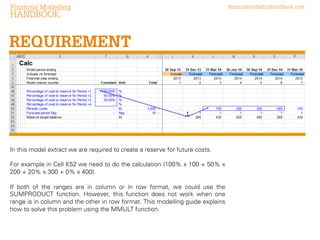
In this model extract we are required to create a reserve for future costs.
For example in Cell K52 we need to do the calculation (100% x 100 + 50% x
200 + 20% x 300 + 0% x 400).
If both of the ranges are in column or in row format, we could use the
SUMPRODUCT function. However, this function does not work when one
range is in column and the other in row format. This modelling guide explains
how to solve this problem using the MMULT function.

financialmodellinghandbook.com
Financial Modelling

financialmodellinghandbook.com

HANDBOOK

GATHER THE DATA

1
2
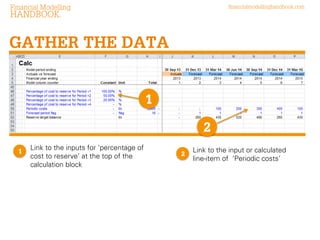
1

Link to the inputs for ‘Percentage of
cost to reserve’ at the top of the
calculation block.

2

Link to the input or calculated lineitem of ‘Periodic costs’.
Financial Modelling

financialmodellinghandbook.com

HANDBOOK

WRITE FORMULA USING MMULT
4

3
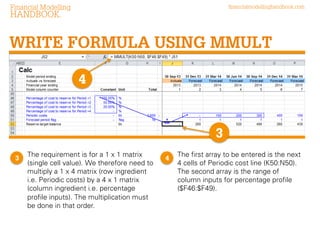
3

The requirement is for a 1 x 1 matrix
(single cell value). We therefore need to
multiply a 1 x 4 matrix (row ingredient is
‘Periodic costs’) by a 4 x 1 matrix
(column ingredient is ‘Percentage profile
inputs’). The multiplication must be done
in that order.

4

The first array to be entered is the next
4 cells of ‘Periodic costs’ line
(K50:N50). The second array is the
range of column inputs for percentage
profile ($F46:$F49).
Financial Modelling

financialmodellinghandbook.com

HANDBOOK

WRITE FORMULA USING MMULT
5

5

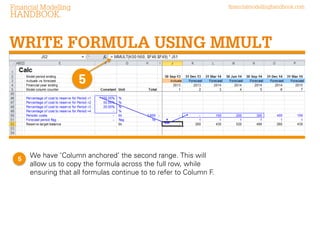
We have column anchored the second range. This will
allow us to copy the formula across the full row, while
ensuring that all formulas continue to to refer to Column F.
Financial Modelling

HANDBOOK

financialmodellinghandbook.com

NOTE #VALUE PROBLEM

6

6

The formula gives us the correct value for the reserve target
balance until we have 4 future periods left in our model. When
we reach the fourth column from the end of our timeline, the
current MMULT function presents a #VALUE! error.
The reason for this is that the formula in cell AA52 (and
onwards), refers to the cells beyond column AD, which are
outside our timeline (and hence hidden here) and these cells
are empty.
Financial Modelling

financialmodellinghandbook.com

HANDBOOK

SOLVE #VALUE PROBLEM
7

7

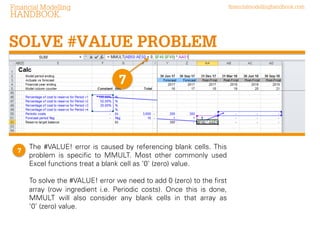
The #VALUE! error is caused by referencing blank cells. This
problem is specific to MMULT. Most other commonly used
Excel functions treat a blank cell as ‘0’ (zero) value.
To solve the #VALUE! error we need to add ‘0’ (zero) to the
first array (row ingredient is ‘Periodic costs’). Once this is
done, MMULT will also consider any blank cells in that array
as ‘0’ (zero) value.
Financial Modelling

HANDBOOK

ALTERNATIVES TO
MMULT
In Excel there are always multiple ways to achieve the
same result. We’ll look now at some of the alternatives to
MMULT.
Financial Modelling

financialmodellinghandbook.com

HANDBOOK

ARITHMETIC CALCULATION
1

1

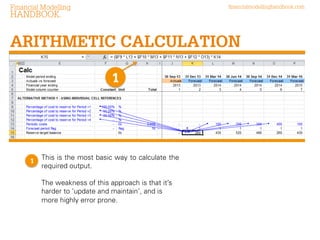
This is the most basic way to calculate the
required output.
The weakness of this approach is that it is
harder to maintain, and is more prone to
errors.
Financial Modelling

financialmodellinghandbook.com

HANDBOOK

SUMPRODUCT WITH TRANSPOSE
1
2

1

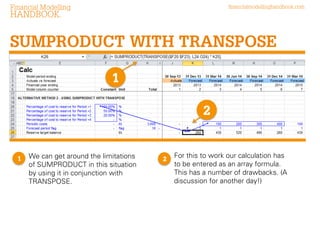
We can get around the limitations of
SUMPRODUCT in this situation by
using it in conjunction with
TRANSPOSE.

2

For this to work our calculation has
to be entered as an array formula.
This has a number of drawbacks
that we will explore another time.
Financial Modelling

financialmodellinghandbook.com

HANDBOOK

SUMPRODUCT ALTERNATIVE
1
2

1

We can use SUMPRODUCT if we
can get the required values in
column format from their current
row format. However, this approach
is not standard and is also harder to
update and maintain.

2

For this to work we need to link the
cells from row 35 in the current
column i.e. the formula in cell K36
is ‘= L35’ and in cell K37 is ‘= M35’
and so on.

Calculating reserve account target balances using MMULT

  • 1.
    Financial Modelling HANDBOOK Calculating RESERVE ACCOUNT TARGETBALANCES using MMULT financialmodellinghandbook.com
  • 2.
    “There occurs the beautifulfeeling that only humanity together is the true human being, and that the individual can be cheerful and happy only if he has the courage to feel himself in the Whole.” JOHANN WOLFGANG VAN GOETHE
  • 3.
    ABOUT THE FINANCIAL MODELLINGHANDBOOK Financial modelling should be collaborative. Collaboration reduces error, speeds up development time and lowers cost. The Financial Modelling Handbook is a collaborative, crowd-sourced guide to building better financial models using the FAST Standard. www.financialmodellinghandbook.com/contribute
  • 4.
    Financial Modelling HANDBOOK DHRUVA Dhruva Pooniamanages F1F9’s modelling team. He has been working with FAST models since 2006 and has a great breadth of experience of financial modelling for projects across different sectors. financialmodellinghandbook.com
  • 5.
    Financial Modelling HANDBOOK Calculating RESERVE ACCOUNT TARGETBALANCES using MMULT Sometimes we need to multiply a vertical range of numbers by a horizontal range of numbers. This requirement occurs frequently in project finance in calculating reserve account balances. This modelling guide shows you how to use the MMULT function effectively for this requirement DOWNLOAD THE EXCEL FILE THAT ACCOMPANIES THIS MODELLING GUIDE
  • 6.
    Financial Modelling HANDBOOK REQUIREMENT In thismodel extract we are required to create a reserve for future costs. For example in Cell K52 we need to do the calculation (100% x 100 + 50% x 200 + 20% x 300 + 0% x 400). If both of the ranges are in column or in row format, we could use the SUMPRODUCT function. However, this function does not work when one range is in column and the other in row format. This modelling guide explains how to solve this problem using the MMULT function. financialmodellinghandbook.com
  • 7.
    Financial Modelling financialmodellinghandbook.com HANDBOOK GATHER THEDATA 1 2 1 Link to the inputs for ‘Percentage of cost to reserve’ at the top of the calculation block. 2 Link to the input or calculated lineitem of ‘Periodic costs’.
  • 8.
    Financial Modelling financialmodellinghandbook.com HANDBOOK WRITE FORMULAUSING MMULT 4 3 3 The requirement is for a 1 x 1 matrix (single cell value). We therefore need to multiply a 1 x 4 matrix (row ingredient is ‘Periodic costs’) by a 4 x 1 matrix (column ingredient is ‘Percentage profile inputs’). The multiplication must be done in that order. 4 The first array to be entered is the next 4 cells of ‘Periodic costs’ line (K50:N50). The second array is the range of column inputs for percentage profile ($F46:$F49).
  • 9.
    Financial Modelling financialmodellinghandbook.com HANDBOOK WRITE FORMULAUSING MMULT 5 5 We have column anchored the second range. This will allow us to copy the formula across the full row, while ensuring that all formulas continue to to refer to Column F.
  • 10.
    Financial Modelling HANDBOOK financialmodellinghandbook.com NOTE #VALUEPROBLEM 6 6 The formula gives us the correct value for the reserve target balance until we have 4 future periods left in our model. When we reach the fourth column from the end of our timeline, the current MMULT function presents a #VALUE! error. The reason for this is that the formula in cell AA52 (and onwards), refers to the cells beyond column AD, which are outside our timeline (and hence hidden here) and these cells are empty.
  • 11.
    Financial Modelling financialmodellinghandbook.com HANDBOOK SOLVE #VALUEPROBLEM 7 7 The #VALUE! error is caused by referencing blank cells. This problem is specific to MMULT. Most other commonly used Excel functions treat a blank cell as ‘0’ (zero) value. To solve the #VALUE! error we need to add ‘0’ (zero) to the first array (row ingredient is ‘Periodic costs’). Once this is done, MMULT will also consider any blank cells in that array as ‘0’ (zero) value.
  • 12.
    Financial Modelling HANDBOOK ALTERNATIVES TO MMULT InExcel there are always multiple ways to achieve the same result. We’ll look now at some of the alternatives to MMULT.
  • 13.
    Financial Modelling financialmodellinghandbook.com HANDBOOK ARITHMETIC CALCULATION 1 1 Thisis the most basic way to calculate the required output. The weakness of this approach is that it is harder to maintain, and is more prone to errors.
  • 14.
    Financial Modelling financialmodellinghandbook.com HANDBOOK SUMPRODUCT WITHTRANSPOSE 1 2 1 We can get around the limitations of SUMPRODUCT in this situation by using it in conjunction with TRANSPOSE. 2 For this to work our calculation has to be entered as an array formula. This has a number of drawbacks that we will explore another time.
  • 15.
    Financial Modelling financialmodellinghandbook.com HANDBOOK SUMPRODUCT ALTERNATIVE 1 2 1 Wecan use SUMPRODUCT if we can get the required values in column format from their current row format. However, this approach is not standard and is also harder to update and maintain. 2 For this to work we need to link the cells from row 35 in the current column i.e. the formula in cell K36 is ‘= L35’ and in cell K37 is ‘= M35’ and so on.