Build Your Own Website with HTML/CSS
August 2017
WIFI: Cartel Guest
http://bit.ly/build-website-phx
1
Welcome to "Build Your Own Website with HTML/CSS". The Wi-Fi network is X and the password is Y The website for this class is Z.
Speaker notes
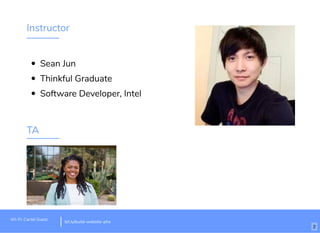
Instructor
Sean Jun
Thinkful Graduate
Software Developer, Intel
TA
Wi-Fi: Cartel Guest
bit.ly/build-website-phx
2
I’m _______. I’m a ___________. Here with me today are my assistants ______________.
Speaker notes
About you
What's your name?
What brought you here today?
What is your programming experience?
Wi-Fi: Cartel Guest
bit.ly/build-website-phx
3
Before we continue, I’d like to get an idea of who’s here today. So if you wouldn’t mind, I’d like to go around the room and have everyone say their
name, what brought you here today, and your programming experience. And it's okay if you have no experience, that’s who we’ve designed this
class for.
Speaker notes
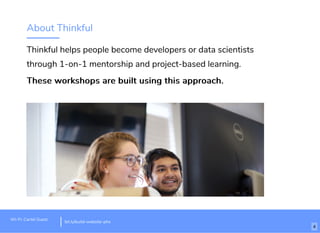
About Thinkful
Thinkful helps people become developers or data scientists
through 1-on-1 mentorship and project-based learning.
These workshops are built using this approach.These workshops are built using this approach.
Wi-Fi: Cartel Guest
bit.ly/build-website-phx
4
Thanks everyone for coming. Just a little bit about Thinkful: thinkful is a bootcamp designed to help people become developers and data scientists
through 1-on-1 mentorship and project based learning. We’ve structured this class around that approach to give you the best beginner coding
experience possible.
Speaker notes
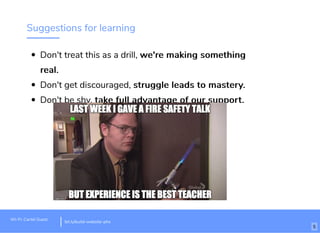
Suggestions for learning
Don't treat this as a drill, we're making somethingwe're making something
real.real.
Don't get discouraged, struggle leads to mastery.struggle leads to mastery.
Don't be shy, take full advantage of our support.take full advantage of our support.
Wi-Fi: Cartel Guest
bit.ly/build-website-phx
5
A couple things before we get started. First, I implore you all to think of what we’re doing tonight as a real world scenario, not just a drill or lesson in a
classroom. The things you learn today are real tools and strategies that developers use everyday to write code. Second, if you’re struggling on a
concept or part of your application, don’t get discouraged. The struggle of learning to work through problems, especially in coding, is what’s going to
make you a better developer. Thirdly, if you feel stuck and you’re not sure what to do next, place ask for help. We’re here to make sure you get the
most support possible to learn as much as you can about the material.
Speaker notes
This is what we're making
View example here
Wi-Fi: Cartel Guest
bit.ly/build-website-phx
6
Here’s a demo of what we’ll be making. The page has a several core sections to it. At the top is the header with your name. Then there are several
sections with information about you and then at the bottom is a footer with links to social media.
Speaker notes
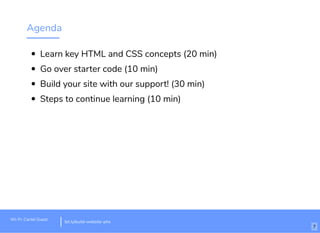
Agenda
Learn key HTML and CSS concepts (20 min)
Go over starter code (10 min)
Build your site with our support! (30 min)
Steps to continue learning (10 min)
Wi-Fi: Cartel Guest
bit.ly/build-website-phx
7
Here’s our agenda for tonight. First, I’ll go over some key concepts that you’ll be using to make you website. Then I’ll go over the starter code to get
you familiar with it. Then for the bulk of the night, you will have the opportunity to code on your own, using myself and the TA’s as needed to assist
with making your website. (assign TA’s a section). Then we’ll go over some next steps for learning.
Speaker notes
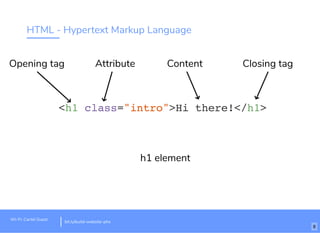
HTML - Hypertext Markup Language
<h1 class="intro">Hi there!</h1>
AttributeOpening tag
h1 element
Closing tag
bit.ly/website-la
Content
Wi-Fi: Cartel Guest
bit.ly/build-website-phx
8
HTML, aka hypertext markup language is used to create the structure of a website. It can create hundreds of sections on a page that all have
different purposes. Each of these sections is called an element. Here is an example of an h1 HTML element denoted by the opening tag. H1 stands
for header one or the largest header. The computer is going to read the name of this opening tag and create an element on the page according to
that name, in this case, an h1 element. Inside of the opening tag, we have some other information here. The first is an attribute called ‘class’. Class
is used to create a label for an element that we can refer back to elsewhere in our code. In this case, we set the class attribute to “intro”. We can use
“intro” to refer to this specific element. Finally, we have to tell the computer where this element should end. To do that, we use a closing tag which
has the name of the element as well as a forward slash.
Speaker notes
HTML
Wi-Fi: Cartel Guest
bit.ly/build-website-phx
9
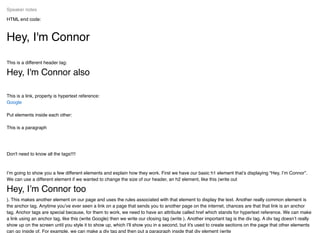
HTML end code:
Hey, I'm Connor
This is a different header tag:
Hey, I'm Connor also
This is a link, property is hypertext reference:
Put elements inside each other:
This is a paragraph
Don't need to know all the tags!!!!
I’m going to show you a few different elements and explain how they work. First we have our basic h1 element that’s displaying “Hey, I’m Connor”.
We can use a different element if we wanted to change the size of our header, an h2 element, like this (write out
Hey, I’m Connor too
). This makes another element on our page and uses the rules associated with that element to display the text. Another really common element is
the anchor tag. Anytime you’ve ever seen a link on a page that sends you to another page on the internet, chances are that that link is an anchor
tag. Anchor tags are special because, for them to work, we need to have an attribute called href which stands for hypertext reference. We can make
a link using an anchor tag, like this (write Google) then we write our closing tag (write ). Another important tag is the div tag. A div tag doesn’t really
show up on the screen until you style it to show up, which I’ll show you in a second, but it's used to create sections on the page that other elements
can go inside of. For example, we can make a div tag and then put a paragraph inside that div element (write
Speaker notes
Google
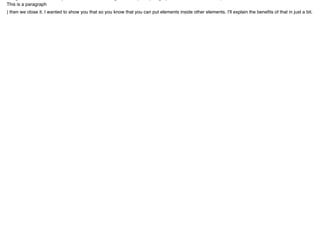
This is a paragraph
) then we close it. I wanted to show you that so you know that you can put elements inside other elements. I’ll explain the benefits of that in just a bit.
CSS - Cascading Style Sheets
h1 {
color: blue;
}
Value
Property
Selector
bit.ly/website-la
Wi-Fi: Cartel Guest
bit.ly/build-website-phx
10
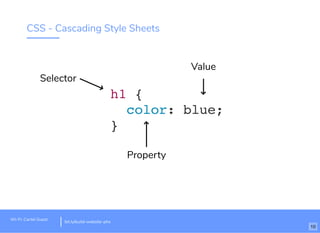
CSS, cascading style sheets, are rulesets that use the class labels and change how the elements look. In order to do that, we have to target the
element we want to change. In this example, we’re targeting h1 elements. Everything inside the curly brackets are the properties that will be
changed. (...)
Speaker notes
CSS selectors, properties, values
Wi-Fi: Cartel Guest
bit.ly/build-website-phx
11
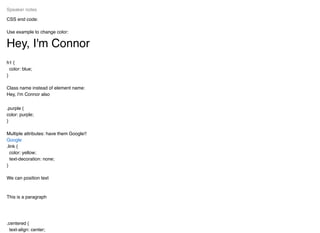
CSS end code:
Use example to change color:
Hey, I'm Connor
h1 {
color: blue;
}
Class name instead of element name:
Hey, I'm Connor also
.purple {
color: purple;
}
Multiple attributes: have them Google!!
.link {
color: yellow;
text-decoration: none;
}
We can position text
This is a paragraph
.centered {
text-align: center;
Speaker notes
Google
}
Going back to our html, I’ll show you a few properties you can manipulate to change what the page looks like. First, we’ll use the code from that
example and say h1 and set the color to blue (write h1 { color: blue; }). Make sure to always end your property value statements with a semi-colon.
Now, if I didn’t want to change all the h1 elements, but only a specific one, I would need to somehow target that specific element by using its class
name. So let’s give this h2 a class of purple (write class=”purple”), then make a rule set in the CSS area for purple (write .purple { color:purple;}).
We’re targeting a class here, not an element, so in CSS we have to put a period before the name of the class to tell the computer we’re talking about
a class. Next, let's change up our link. We already have an attribute for our link, href, but HTML allows us to set as many attributes as we want inside
out opening tag. So lets give our anchor tag a class of link (write class=”link”) and now we can change how the link looks. The default look of a link is
blue with an underline under it. But maybe that’s not really how we want links to look on our site. So let's change the color from blue to yellow. In our
CSS we write out the class name then set the property color to yellow (write .link { color: yellow;}). But, I also don’t really want this underline here. I
want my link to look just like text, but yellow. So how do I remove that underline? Well, lets pretend I completely forgot what that property is to
remove the underline. This is where a developer’s most powerful tool comes in: Google. I’m going to go to google and I’ll look up how to remove an
underline (google how to remove underline css). And I want to put CSS at the end to help google narrow down my searches. Okay, so lets try the
first link. This is w3schools, a fantastic resource for looking up answers about coding. Lets just do a quick find on the page for underline and here we
go. This says I can use the property text-decoration to manipulate my underline and I would just set the value to none. Let's try that. (write text-
decoration: none;) And there we go. Now my links don’t have underlines. Now the next thing I’d like to explain are is the div. Like I said before, the
div acts like a section on the page that separates elements. So first, let's give the div some space on the page so you can see how we can use it to
create sections. I’ll give it a background color (write div {background-color: red;}) and then I can also set values for size of the div. I’m going to set
the height of the div (write height: 100px;). Now we’ve made a section. This is the div element that has the paragraph element inside of it, but we can
still move the paragraph element around inside the div. Let’s give the paragraph a class (write class=”indented”) then use that class to target the
paragraph and make it move to the center of the div. We can do that using a property called text-align (write .indented { text-align:center;}) Now the
paragraph is moved to the center of the div. Any questions.
Margin, border, and padding
Wi-Fi: Cartel Guest
bit.ly/build-website-phx
12
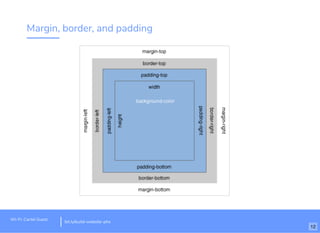
You can think of HTML elements as boxes on the screen. These boxes have a couple different ways of being moved around the screen and sized.
Going from inner-most to outer-most, there’s width and height, padding, the border of the box, and then margin.
Speaker notes
Margin, border, and padding
Wi-Fi: Cartel Guest
bit.ly/build-website-phx
13
Code:
.redbackground {
background-color: red;
height: 300px;
padding: 20px;
border: 10px solid black;
margin: 30px;
}
.centered {
text-align: center;
}
Here, I have a div with a red background and with a paragraph inside of it. I’m going to use those sizing properties to show you how to manipulate
the div around the paragraph. The first is width and height. I can set the height to 300 pixels and the div fills up more on the page (write height:
300px;). “Px” the way of writing pixels in CSS. You could also use percentages if you wanted to. One level up from that is padding. You can set
padding to pixels or percentages as well. I’ll set the padding for this div to 20px (write padding: 20px;). Notice how the paragraph moves away from
the edge of the div its inside. I created padding between the content of the div and the edge of it. Then we have borders. We can use the border
property to change our div’s border. Border takes three values inside it. Its needs the width of the border, the type of border, and the color. Let’s go
ahead and make the border 10 pixels, solid, and black (write border: 10px solid black;). Now our div has a thickened border around it. The last sizing
property is margin. You can think of margin just like the margin on a piece of paper you print out. Generally those have a 1 inch default margin. Lets
add a margin of 30 pixels (write margin: 30px;). Notice how the edge of the div now has space between it and the edge of the webpage.
Speaker notes
Real developers use Google... a lot
Wi-Fi: Cartel Guest
bit.ly/build-website-phx
14
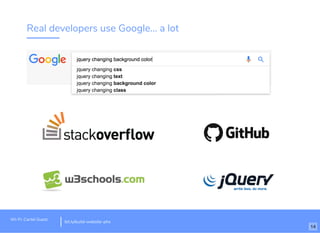
Google is one of your most valuable tools as a developer. Finding the solution to a new problem through research is a very common task of a real
developer. I encourage you to, if you’re unsure of how to solve a problem, to google a question and look for an answer. If you encounter a problem, it
more than likely that another developer has had the same problem and have posted it online.
Speaker notes
Glitch setup & first steps!
http://bit.ly/build-website-starter
Wi-Fi: Cartel Guest
bit.ly/build-website-phx
15
Here is the link to the starter code. Once you open it, you should see something like this. Tonight, we’re using a code emulator called Glitch. It lets us
quickly write code and see it working immediately on another screen. Click the button at the top that says Show Live, this should open another
screen (open the link and click show live). This is the live version of the starter code you’re using. Just like the sample, it has a header with a picture
and the title. Below that are different sections and at the bottom is a footer. Head back to glitch and look at the readme file. Here you’ll find a list of
steps to help guide you to completing your code. The two files you’ll use to write the code are index.html and styles.css. Click on index.html. At the
top is this head element. The information inside this element doesn’t show up on the page. It's used to bring information into the html file that we
may need. For example, here is where we’re importing the css file so our styles will work on our elements. Everything below the head are different
parts of the webpage. Here is the header, the different sections using div tags, and the footer. Click on the styles.css file. Here you’ll see a few rules
that we’ve already written for you. Make sure that anything you write will go below those rules. To get you started, I’m going to walk you through the
first two steps and then you’ll be free to code the rest of the steps. If we go back to the readme, you’ll see the first step is to replace the underline
with your name. If we go to the html file, you can find the header section, the h1 element, and then the underline. Replace the underline with your
name and go back to the working version of the app (write your name instead of the underline). Your name should appear at the top. The second
step is to add another section. We can do this by adding another div tag right above the footer (write
). Inside the div, we can put an h1 (write
Title here
) and a paragraph (write
This is a paragraph
). Go ahead and work on the remaining steps on the readme. The TA’s will be walking around so please don’t hesitate to ask for help!
Speaker notes
Ways to keep learning
More Structure
Less Structure
More SupportLess Support
16
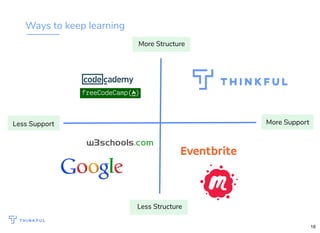
So I just wanted to spend the last few minutes talking about different ways to keep learning.
I know that there are so many different paths, some of which, like Google. we even used today.
Some paths like CodeAcademy are great resources to learn programming fundamentals but often times they lack the support resources to help
students when they run into a problem.
And these two factors of structure and support are the two things that I recommend students look for when looking at different paths to keep learning
- as these two factors are the top two success factors for a successful student.
Speaker notes
325+ mentors325+ mentors with an average of
10 years of experience10 years of experience in the
field
17
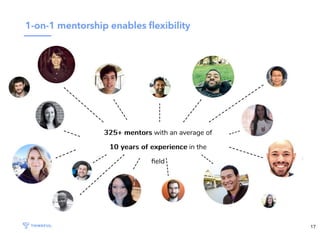
In terms of structure, students should be asking what does the program look like - is it 1:1, 1:15 1:30? and what is the frequency?
From our experience with students, we've learned that the most effective support is 1:1 - this way each student can get their specific questions and
challenges addressed to keep learning and building.
In our program, each student is working 1:1 with a mentor throughout the program and these mentoring sessions can be scheduled around your
schedule, allowing students to have flexibility to learn how to program while maintaining their job
Speaker notes
Support 'round the clock
Your Mentor
Q&A Sessions
Career Coach
In-person Workshops
Slack
Program Manager
YouYou
18
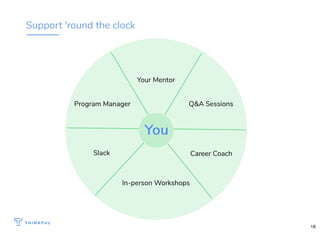
The second thing I tell students to look for is support, both technically and professionally.
On the technical side of things, how often are they able to meet with a professional -
1x/week, 3 x/week 24 /7?
And on the career side of things, are they working with someone to make sure that they are really job ready? Does this career support happen
during the program?
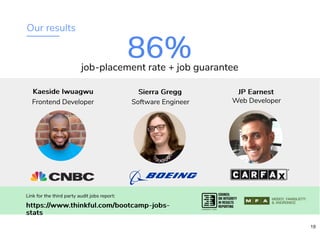
We dont want students to sacrifice flexibility for support and this high level of support is really what drives our high placement rate.
Speaker notes
Our results
86%86%job-placement rate + job guarantee
Kaeside IwuagwuKaeside Iwuagwu
Link for the third party audit jobs report:
https://www.thinkful.com/bootcamp-jobs-https://www.thinkful.com/bootcamp-jobs-
statsstats
Frontend Developer
Sierra GreggSierra Gregg
Software Engineer
JP EarnestJP Earnest
Web Developer
19
Take a tour!
Talk to me (or email shannon@thinkful.com ) if you're interested
Get a tour of the program to see if
project-based, online learning is a
good fit for you.
Discuss the curriculum,
mentorship, and how to create
your own learning schedule.
20

BYOWHC823

  • 1.
    Build Your OwnWebsite with HTML/CSS August 2017 WIFI: Cartel Guest http://bit.ly/build-website-phx 1
  • 2.
    Welcome to "BuildYour Own Website with HTML/CSS". The Wi-Fi network is X and the password is Y The website for this class is Z. Speaker notes
  • 3.
    Instructor Sean Jun Thinkful Graduate SoftwareDeveloper, Intel TA Wi-Fi: Cartel Guest bit.ly/build-website-phx 2
  • 4.
    I’m _______. I’ma ___________. Here with me today are my assistants ______________. Speaker notes
  • 5.
    About you What's yourname? What brought you here today? What is your programming experience? Wi-Fi: Cartel Guest bit.ly/build-website-phx 3
  • 6.
    Before we continue,I’d like to get an idea of who’s here today. So if you wouldn’t mind, I’d like to go around the room and have everyone say their name, what brought you here today, and your programming experience. And it's okay if you have no experience, that’s who we’ve designed this class for. Speaker notes
  • 7.
    About Thinkful Thinkful helpspeople become developers or data scientists through 1-on-1 mentorship and project-based learning. These workshops are built using this approach.These workshops are built using this approach. Wi-Fi: Cartel Guest bit.ly/build-website-phx 4
  • 8.
    Thanks everyone forcoming. Just a little bit about Thinkful: thinkful is a bootcamp designed to help people become developers and data scientists through 1-on-1 mentorship and project based learning. We’ve structured this class around that approach to give you the best beginner coding experience possible. Speaker notes
  • 9.
    Suggestions for learning Don'ttreat this as a drill, we're making somethingwe're making something real.real. Don't get discouraged, struggle leads to mastery.struggle leads to mastery. Don't be shy, take full advantage of our support.take full advantage of our support. Wi-Fi: Cartel Guest bit.ly/build-website-phx 5
  • 10.
    A couple thingsbefore we get started. First, I implore you all to think of what we’re doing tonight as a real world scenario, not just a drill or lesson in a classroom. The things you learn today are real tools and strategies that developers use everyday to write code. Second, if you’re struggling on a concept or part of your application, don’t get discouraged. The struggle of learning to work through problems, especially in coding, is what’s going to make you a better developer. Thirdly, if you feel stuck and you’re not sure what to do next, place ask for help. We’re here to make sure you get the most support possible to learn as much as you can about the material. Speaker notes
  • 11.
    This is whatwe're making View example here Wi-Fi: Cartel Guest bit.ly/build-website-phx 6
  • 12.
    Here’s a demoof what we’ll be making. The page has a several core sections to it. At the top is the header with your name. Then there are several sections with information about you and then at the bottom is a footer with links to social media. Speaker notes
  • 13.
    Agenda Learn key HTMLand CSS concepts (20 min) Go over starter code (10 min) Build your site with our support! (30 min) Steps to continue learning (10 min) Wi-Fi: Cartel Guest bit.ly/build-website-phx 7
  • 14.
    Here’s our agendafor tonight. First, I’ll go over some key concepts that you’ll be using to make you website. Then I’ll go over the starter code to get you familiar with it. Then for the bulk of the night, you will have the opportunity to code on your own, using myself and the TA’s as needed to assist with making your website. (assign TA’s a section). Then we’ll go over some next steps for learning. Speaker notes
  • 15.
    HTML - HypertextMarkup Language <h1 class="intro">Hi there!</h1> AttributeOpening tag h1 element Closing tag bit.ly/website-la Content Wi-Fi: Cartel Guest bit.ly/build-website-phx 8
  • 16.
    HTML, aka hypertextmarkup language is used to create the structure of a website. It can create hundreds of sections on a page that all have different purposes. Each of these sections is called an element. Here is an example of an h1 HTML element denoted by the opening tag. H1 stands for header one or the largest header. The computer is going to read the name of this opening tag and create an element on the page according to that name, in this case, an h1 element. Inside of the opening tag, we have some other information here. The first is an attribute called ‘class’. Class is used to create a label for an element that we can refer back to elsewhere in our code. In this case, we set the class attribute to “intro”. We can use “intro” to refer to this specific element. Finally, we have to tell the computer where this element should end. To do that, we use a closing tag which has the name of the element as well as a forward slash. Speaker notes
  • 17.
  • 18.
    HTML end code: Hey,I'm Connor This is a different header tag: Hey, I'm Connor also This is a link, property is hypertext reference: Put elements inside each other: This is a paragraph Don't need to know all the tags!!!! I’m going to show you a few different elements and explain how they work. First we have our basic h1 element that’s displaying “Hey, I’m Connor”. We can use a different element if we wanted to change the size of our header, an h2 element, like this (write out Hey, I’m Connor too ). This makes another element on our page and uses the rules associated with that element to display the text. Another really common element is the anchor tag. Anytime you’ve ever seen a link on a page that sends you to another page on the internet, chances are that that link is an anchor tag. Anchor tags are special because, for them to work, we need to have an attribute called href which stands for hypertext reference. We can make a link using an anchor tag, like this (write Google) then we write our closing tag (write ). Another important tag is the div tag. A div tag doesn’t really show up on the screen until you style it to show up, which I’ll show you in a second, but it's used to create sections on the page that other elements can go inside of. For example, we can make a div tag and then put a paragraph inside that div element (write Speaker notes Google
  • 19.
    This is aparagraph ) then we close it. I wanted to show you that so you know that you can put elements inside other elements. I’ll explain the benefits of that in just a bit.
  • 20.
    CSS - CascadingStyle Sheets h1 { color: blue; } Value Property Selector bit.ly/website-la Wi-Fi: Cartel Guest bit.ly/build-website-phx 10
  • 21.
    CSS, cascading stylesheets, are rulesets that use the class labels and change how the elements look. In order to do that, we have to target the element we want to change. In this example, we’re targeting h1 elements. Everything inside the curly brackets are the properties that will be changed. (...) Speaker notes
  • 22.
    CSS selectors, properties,values Wi-Fi: Cartel Guest bit.ly/build-website-phx 11
  • 23.
    CSS end code: Useexample to change color: Hey, I'm Connor h1 { color: blue; } Class name instead of element name: Hey, I'm Connor also .purple { color: purple; } Multiple attributes: have them Google!! .link { color: yellow; text-decoration: none; } We can position text This is a paragraph .centered { text-align: center; Speaker notes Google
  • 24.
    } Going back toour html, I’ll show you a few properties you can manipulate to change what the page looks like. First, we’ll use the code from that example and say h1 and set the color to blue (write h1 { color: blue; }). Make sure to always end your property value statements with a semi-colon. Now, if I didn’t want to change all the h1 elements, but only a specific one, I would need to somehow target that specific element by using its class name. So let’s give this h2 a class of purple (write class=”purple”), then make a rule set in the CSS area for purple (write .purple { color:purple;}). We’re targeting a class here, not an element, so in CSS we have to put a period before the name of the class to tell the computer we’re talking about a class. Next, let's change up our link. We already have an attribute for our link, href, but HTML allows us to set as many attributes as we want inside out opening tag. So lets give our anchor tag a class of link (write class=”link”) and now we can change how the link looks. The default look of a link is blue with an underline under it. But maybe that’s not really how we want links to look on our site. So let's change the color from blue to yellow. In our CSS we write out the class name then set the property color to yellow (write .link { color: yellow;}). But, I also don’t really want this underline here. I want my link to look just like text, but yellow. So how do I remove that underline? Well, lets pretend I completely forgot what that property is to remove the underline. This is where a developer’s most powerful tool comes in: Google. I’m going to go to google and I’ll look up how to remove an underline (google how to remove underline css). And I want to put CSS at the end to help google narrow down my searches. Okay, so lets try the first link. This is w3schools, a fantastic resource for looking up answers about coding. Lets just do a quick find on the page for underline and here we go. This says I can use the property text-decoration to manipulate my underline and I would just set the value to none. Let's try that. (write text- decoration: none;) And there we go. Now my links don’t have underlines. Now the next thing I’d like to explain are is the div. Like I said before, the div acts like a section on the page that separates elements. So first, let's give the div some space on the page so you can see how we can use it to create sections. I’ll give it a background color (write div {background-color: red;}) and then I can also set values for size of the div. I’m going to set the height of the div (write height: 100px;). Now we’ve made a section. This is the div element that has the paragraph element inside of it, but we can still move the paragraph element around inside the div. Let’s give the paragraph a class (write class=”indented”) then use that class to target the paragraph and make it move to the center of the div. We can do that using a property called text-align (write .indented { text-align:center;}) Now the paragraph is moved to the center of the div. Any questions.
  • 25.
    Margin, border, andpadding Wi-Fi: Cartel Guest bit.ly/build-website-phx 12
  • 26.
    You can thinkof HTML elements as boxes on the screen. These boxes have a couple different ways of being moved around the screen and sized. Going from inner-most to outer-most, there’s width and height, padding, the border of the box, and then margin. Speaker notes
  • 27.
    Margin, border, andpadding Wi-Fi: Cartel Guest bit.ly/build-website-phx 13
  • 28.
    Code: .redbackground { background-color: red; height:300px; padding: 20px; border: 10px solid black; margin: 30px; } .centered { text-align: center; } Here, I have a div with a red background and with a paragraph inside of it. I’m going to use those sizing properties to show you how to manipulate the div around the paragraph. The first is width and height. I can set the height to 300 pixels and the div fills up more on the page (write height: 300px;). “Px” the way of writing pixels in CSS. You could also use percentages if you wanted to. One level up from that is padding. You can set padding to pixels or percentages as well. I’ll set the padding for this div to 20px (write padding: 20px;). Notice how the paragraph moves away from the edge of the div its inside. I created padding between the content of the div and the edge of it. Then we have borders. We can use the border property to change our div’s border. Border takes three values inside it. Its needs the width of the border, the type of border, and the color. Let’s go ahead and make the border 10 pixels, solid, and black (write border: 10px solid black;). Now our div has a thickened border around it. The last sizing property is margin. You can think of margin just like the margin on a piece of paper you print out. Generally those have a 1 inch default margin. Lets add a margin of 30 pixels (write margin: 30px;). Notice how the edge of the div now has space between it and the edge of the webpage. Speaker notes
  • 29.
    Real developers useGoogle... a lot Wi-Fi: Cartel Guest bit.ly/build-website-phx 14
  • 30.
    Google is oneof your most valuable tools as a developer. Finding the solution to a new problem through research is a very common task of a real developer. I encourage you to, if you’re unsure of how to solve a problem, to google a question and look for an answer. If you encounter a problem, it more than likely that another developer has had the same problem and have posted it online. Speaker notes
  • 31.
    Glitch setup &first steps! http://bit.ly/build-website-starter Wi-Fi: Cartel Guest bit.ly/build-website-phx 15
  • 32.
    Here is thelink to the starter code. Once you open it, you should see something like this. Tonight, we’re using a code emulator called Glitch. It lets us quickly write code and see it working immediately on another screen. Click the button at the top that says Show Live, this should open another screen (open the link and click show live). This is the live version of the starter code you’re using. Just like the sample, it has a header with a picture and the title. Below that are different sections and at the bottom is a footer. Head back to glitch and look at the readme file. Here you’ll find a list of steps to help guide you to completing your code. The two files you’ll use to write the code are index.html and styles.css. Click on index.html. At the top is this head element. The information inside this element doesn’t show up on the page. It's used to bring information into the html file that we may need. For example, here is where we’re importing the css file so our styles will work on our elements. Everything below the head are different parts of the webpage. Here is the header, the different sections using div tags, and the footer. Click on the styles.css file. Here you’ll see a few rules that we’ve already written for you. Make sure that anything you write will go below those rules. To get you started, I’m going to walk you through the first two steps and then you’ll be free to code the rest of the steps. If we go back to the readme, you’ll see the first step is to replace the underline with your name. If we go to the html file, you can find the header section, the h1 element, and then the underline. Replace the underline with your name and go back to the working version of the app (write your name instead of the underline). Your name should appear at the top. The second step is to add another section. We can do this by adding another div tag right above the footer (write ). Inside the div, we can put an h1 (write Title here ) and a paragraph (write This is a paragraph ). Go ahead and work on the remaining steps on the readme. The TA’s will be walking around so please don’t hesitate to ask for help! Speaker notes
  • 33.
    Ways to keeplearning More Structure Less Structure More SupportLess Support 16
  • 34.
    So I justwanted to spend the last few minutes talking about different ways to keep learning. I know that there are so many different paths, some of which, like Google. we even used today. Some paths like CodeAcademy are great resources to learn programming fundamentals but often times they lack the support resources to help students when they run into a problem. And these two factors of structure and support are the two things that I recommend students look for when looking at different paths to keep learning - as these two factors are the top two success factors for a successful student. Speaker notes
  • 35.
    325+ mentors325+ mentorswith an average of 10 years of experience10 years of experience in the field 17
  • 36.
    In terms ofstructure, students should be asking what does the program look like - is it 1:1, 1:15 1:30? and what is the frequency? From our experience with students, we've learned that the most effective support is 1:1 - this way each student can get their specific questions and challenges addressed to keep learning and building. In our program, each student is working 1:1 with a mentor throughout the program and these mentoring sessions can be scheduled around your schedule, allowing students to have flexibility to learn how to program while maintaining their job Speaker notes
  • 37.
    Support 'round theclock Your Mentor Q&A Sessions Career Coach In-person Workshops Slack Program Manager YouYou 18
  • 38.
    The second thingI tell students to look for is support, both technically and professionally. On the technical side of things, how often are they able to meet with a professional - 1x/week, 3 x/week 24 /7? And on the career side of things, are they working with someone to make sure that they are really job ready? Does this career support happen during the program? We dont want students to sacrifice flexibility for support and this high level of support is really what drives our high placement rate. Speaker notes
  • 39.
    Our results 86%86%job-placement rate+ job guarantee Kaeside IwuagwuKaeside Iwuagwu Link for the third party audit jobs report: https://www.thinkful.com/bootcamp-jobs-https://www.thinkful.com/bootcamp-jobs- statsstats Frontend Developer Sierra GreggSierra Gregg Software Engineer JP EarnestJP Earnest Web Developer 19
  • 40.
    Take a tour! Talkto me (or email shannon@thinkful.com ) if you're interested Get a tour of the program to see if project-based, online learning is a good fit for you. Discuss the curriculum, mentorship, and how to create your own learning schedule. 20