Griffith High School
Technology Support Program
                  DER NSW
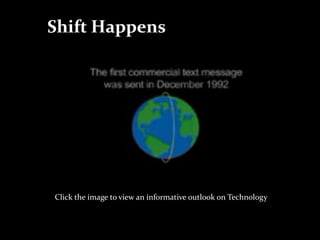
Shift Happens


Click the image to view an informative outlook on Technology
Schedule

    Week 1   Week 2   Week 3

    Week 4   Week 5   Week 6

    Week 7   Week 8   Week 9
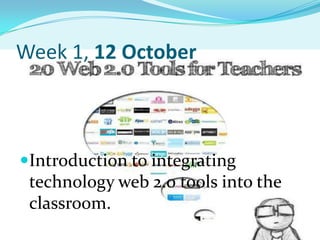
Week 1, 12 October


Introduction to integrating
 technology web 2.0 tools into the
 classroom.
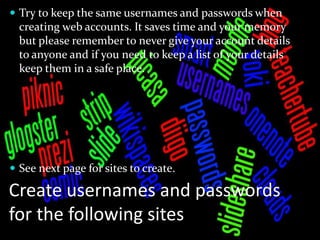
 Try to keep the same usernames and passwords when
  creating web accounts. It saves time and your memory
  but please remember to never give your account details
  to anyone and if you need to keep a list of your details
  keep them in a safe place.


 See next page for sites to create.

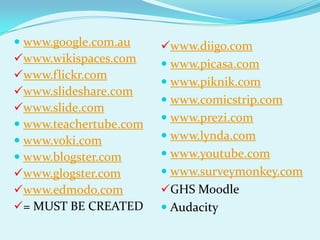
Create usernames and passwords
for the following sites
 www.google.com.au     www.diigo.com
www.wikispaces.com      www.picasa.com
www.flickr.com
                         www.piknik.com
www.slideshare.com
                         www.comicstrip.com
www.slide.com
                         www.prezi.com
 www.teachertube.com
 www.voki.com           www.lynda.com
 www.blogster.com       www.youtube.com
www.glogster.com        www.surveymonkey.com
www.edmodo.com         GHS Moodle
= MUST BE CREATED       Audacity
Week 2, 19 October
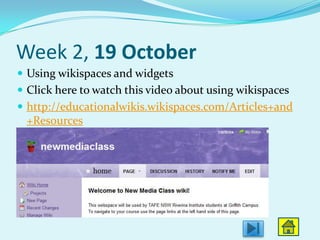
 Using wikispaces and widgets
 Click here to watch this video about using wikispaces
 http://educationalwikis.wikispaces.com/Articles+and
 +Resources
Widgets and Wikispaces
 You would have previously created these accounts.
 Now open your wikispace and create another page.
 In edit mode we will be inserting a widget from
  www.slide.com

 This is the link to my wikispace. I have used this all
  year for all my classes including PLT at GHS and TAFE
  classes
 www.newmediaclass.wikispaces.com
Widgets and Wikispaces cont…


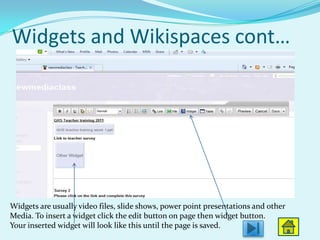
Widgets are usually video files, slide shows, power point presentations and other
Media. To insert a widget click the edit button on page then widget button.
Your inserted widget will look like this until the page is saved.
Week 3, 26 October
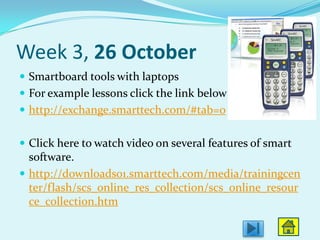
 Smartboard tools with laptops
 For example lessons click the link below
 http://exchange.smarttech.com/#tab=0


 Click here to watch video on several features of smart
  software.
 http://downloads01.smarttech.com/media/trainingcen
  ter/flash/scs_online_res_collection/scs_online_resour
  ce_collection.htm
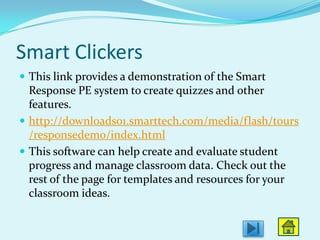
Smart Clickers
 This link provides a demonstration of the Smart
  Response PE system to create quizzes and other
  features.
 http://downloads01.smarttech.com/media/flash/tours
  /responsedemo/index.html
 This software can help create and evaluate student
  progress and manage classroom data. Check out the
  rest of the page for templates and resources for your
  classroom ideas.
Week 4, 2 November
 Microsoft word


Creating
 Table of contents
 Bookmarks
 Bibliography


These tools can be beneficial for middle to senior
classes in all faculties.
Week 5, 9 November
 Create a Glogster account (www.glogster.com.au)

 A glogster account provides a poster-like page that allows
  you to upload links, and other multimedia content. This
  resource is also a also a cool site for students to load their
  portfolios.
 Click this link to view the glog I have started
 http://ghsbreakkietechie.edu.glogster.com/ghsbreakkietec
  hie/
 Also look at other glogsters for more teaching and
  resources ideas.
Week 6, 16 November
 Microsoft OneNote
 You will create a lesson using OneNote and insert
  categories and tabs as well as add in multimedia
  features.

 Watch the tutorial for ideas.
 http://www.lynda.com/OneNote-training-
  tutorials/266-
  0.html?AWKeyWord=office&gclid=CIH69eO926sCFY
  VV4godbHjLNQ
Week 7, 23 November
 Moodle sites are a managed by the department of
  education. At present they are not as attractive or
  interactive as some of the web tools we have explored
  but their content is safely managed
 Create moodle and class content. Embed widgets.
  Manage class content, embed quizzes you have created
  and any other content you wish to include in the
  learner managed system.
 https://lms.det.nsw.edu.au/riverina/griffith-hs/
Week 8, 30 November
 Web 2.0 Ipad Resources for the classroom


 www.diigo.com
 http://appsineducation.blogspot.com/


 These links contain comprehensive lists of ipad
  resources for your specific faculties.
 Add them to your own diigo site
Week 9, 7 December

http://www.edmodo.com/home
 This site provides an electronic based delivery and records
  similar to a wikispace but provide more functionality for
  reporting and step by step delivery.
 Options include:
 Week by week or lesson by lesson views, completion date
  functionality, widget uploads, and student uploads.
Week 10, 14 December


Adobe Captivate (Screen
 capture software and
 simulation creator)

Breakkie with a_techie_program_schedule

  • 1.
    Griffith High School TechnologySupport Program DER NSW
  • 2.
    Shift Happens Click theimage to view an informative outlook on Technology
  • 3.
    Schedule Week 1 Week 2 Week 3 Week 4 Week 5 Week 6 Week 7 Week 8 Week 9
  • 4.
    Week 1, 12October Introduction to integrating technology web 2.0 tools into the classroom.
  • 5.
     Try tokeep the same usernames and passwords when creating web accounts. It saves time and your memory but please remember to never give your account details to anyone and if you need to keep a list of your details keep them in a safe place.  See next page for sites to create. Create usernames and passwords for the following sites
  • 6.
     www.google.com.au www.diigo.com www.wikispaces.com  www.picasa.com www.flickr.com  www.piknik.com www.slideshare.com  www.comicstrip.com www.slide.com  www.prezi.com  www.teachertube.com  www.voki.com  www.lynda.com  www.blogster.com  www.youtube.com www.glogster.com  www.surveymonkey.com www.edmodo.com GHS Moodle = MUST BE CREATED  Audacity
  • 7.
    Week 2, 19October  Using wikispaces and widgets  Click here to watch this video about using wikispaces  http://educationalwikis.wikispaces.com/Articles+and +Resources
  • 8.
    Widgets and Wikispaces You would have previously created these accounts.  Now open your wikispace and create another page.  In edit mode we will be inserting a widget from www.slide.com  This is the link to my wikispace. I have used this all year for all my classes including PLT at GHS and TAFE classes  www.newmediaclass.wikispaces.com
  • 9.
    Widgets and Wikispacescont… Widgets are usually video files, slide shows, power point presentations and other Media. To insert a widget click the edit button on page then widget button. Your inserted widget will look like this until the page is saved.
  • 10.
    Week 3, 26October  Smartboard tools with laptops  For example lessons click the link below  http://exchange.smarttech.com/#tab=0  Click here to watch video on several features of smart software.  http://downloads01.smarttech.com/media/trainingcen ter/flash/scs_online_res_collection/scs_online_resour ce_collection.htm
  • 11.
    Smart Clickers  Thislink provides a demonstration of the Smart Response PE system to create quizzes and other features.  http://downloads01.smarttech.com/media/flash/tours /responsedemo/index.html  This software can help create and evaluate student progress and manage classroom data. Check out the rest of the page for templates and resources for your classroom ideas.
  • 12.
    Week 4, 2November  Microsoft word Creating  Table of contents  Bookmarks  Bibliography These tools can be beneficial for middle to senior classes in all faculties.
  • 13.
    Week 5, 9November  Create a Glogster account (www.glogster.com.au)  A glogster account provides a poster-like page that allows you to upload links, and other multimedia content. This resource is also a also a cool site for students to load their portfolios.  Click this link to view the glog I have started  http://ghsbreakkietechie.edu.glogster.com/ghsbreakkietec hie/  Also look at other glogsters for more teaching and resources ideas.
  • 14.
    Week 6, 16November  Microsoft OneNote  You will create a lesson using OneNote and insert categories and tabs as well as add in multimedia features.  Watch the tutorial for ideas.  http://www.lynda.com/OneNote-training- tutorials/266- 0.html?AWKeyWord=office&gclid=CIH69eO926sCFY VV4godbHjLNQ
  • 15.
    Week 7, 23November  Moodle sites are a managed by the department of education. At present they are not as attractive or interactive as some of the web tools we have explored but their content is safely managed  Create moodle and class content. Embed widgets. Manage class content, embed quizzes you have created and any other content you wish to include in the learner managed system.  https://lms.det.nsw.edu.au/riverina/griffith-hs/
  • 16.
    Week 8, 30November  Web 2.0 Ipad Resources for the classroom  www.diigo.com  http://appsineducation.blogspot.com/  These links contain comprehensive lists of ipad resources for your specific faculties.  Add them to your own diigo site
  • 17.
    Week 9, 7December http://www.edmodo.com/home  This site provides an electronic based delivery and records similar to a wikispace but provide more functionality for reporting and step by step delivery.  Options include:  Week by week or lesson by lesson views, completion date functionality, widget uploads, and student uploads.
  • 18.
    Week 10, 14December Adobe Captivate (Screen capture software and simulation creator)