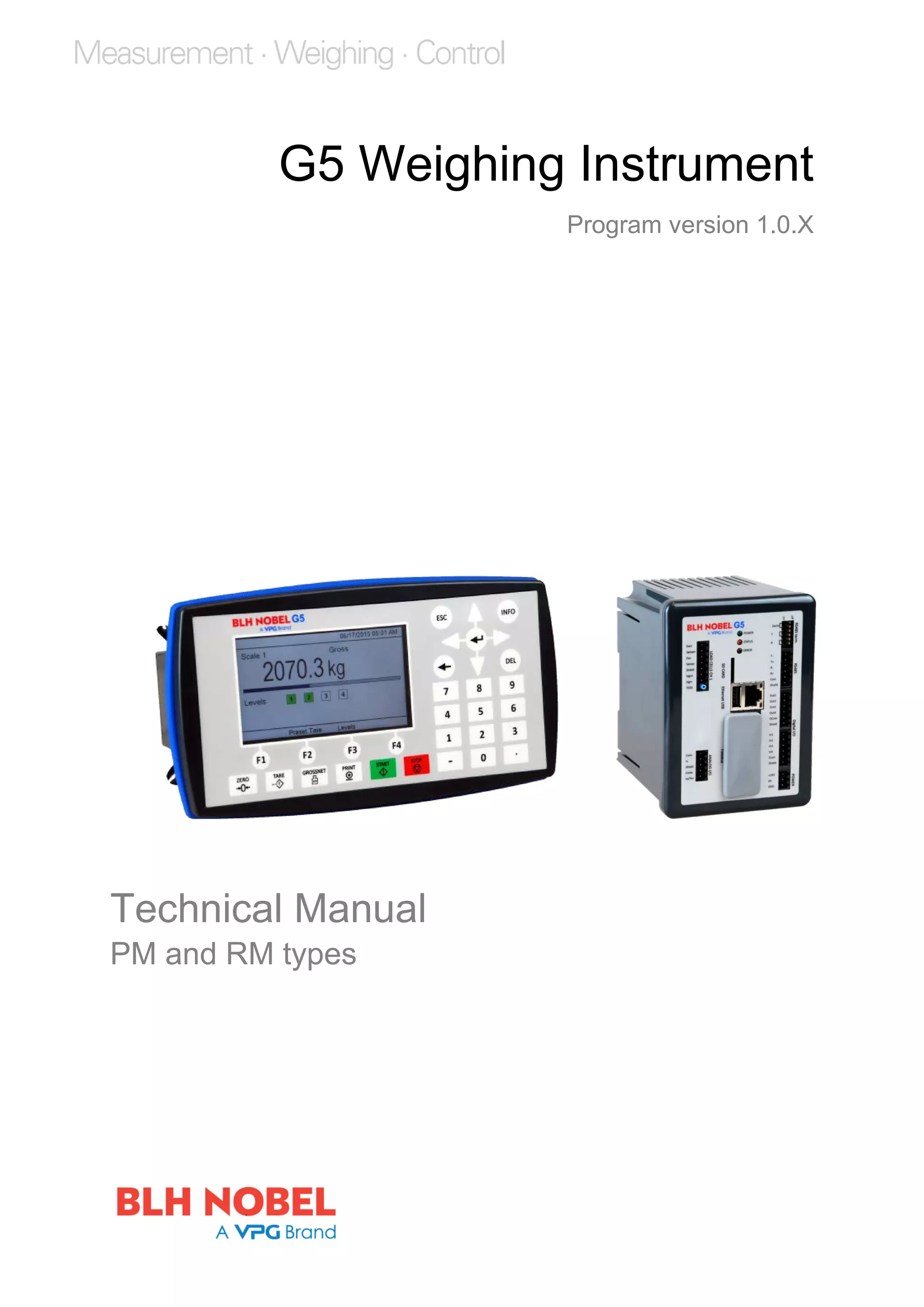
G5 Weighing Instrument
Program version 1.0.X
Technical Manual
PM and RM types
CONTENTS
1. Introduction ......................................1
General................................................... 1
Maintenance........................................... 2
Safety information .................................. 2
Technical data........................................ 3
Ordering information .............................. 6
2. Installation........................................1
Mechanical installation........................... 1
Electrical installation............................... 3
Connection of cable shields ................... 3
Profibus-DP Fieldbus Adaptor................ 8
DeviceNet Fieldbus Adaptor ................ 10
ControlNet Fieldbus Adaptor................ 12
Front panel ........................................... 13
3. Set-up ..............................................1
General................................................... 1
How to connect a PC to the instrument . 2
Menu system.......................................... 2
Menu structure ....................................... 4
Parameters............................................. 6
4. Calibration........................................1
General................................................... 1
Common parameters ............................. 2
Data sheet calibration ............................ 4
Table calibration..................................... 5
Deadweight calibration........................... 5
5. Operation .........................................1
General................................................... 1
Power-up sequence ............................... 1
Status LEDs ........................................... 1
Display at normal operation ................... 2
Security locks ......................................... 3
Taring ..................................................... 4
Gross/Net operation............................... 5
Zero setting ............................................ 5
Zero-tracking/Automatic zero setting ..... 6
Motion..................................................... 6
Weight printing ....................................... 7
Alibi Memory .......................................... 9
Main Menu.............................................. 9
Level supervision ................................. 11
Setpoint function .................................. 12
Digital inputs and outputs..................... 12
Analog output....................................... 12
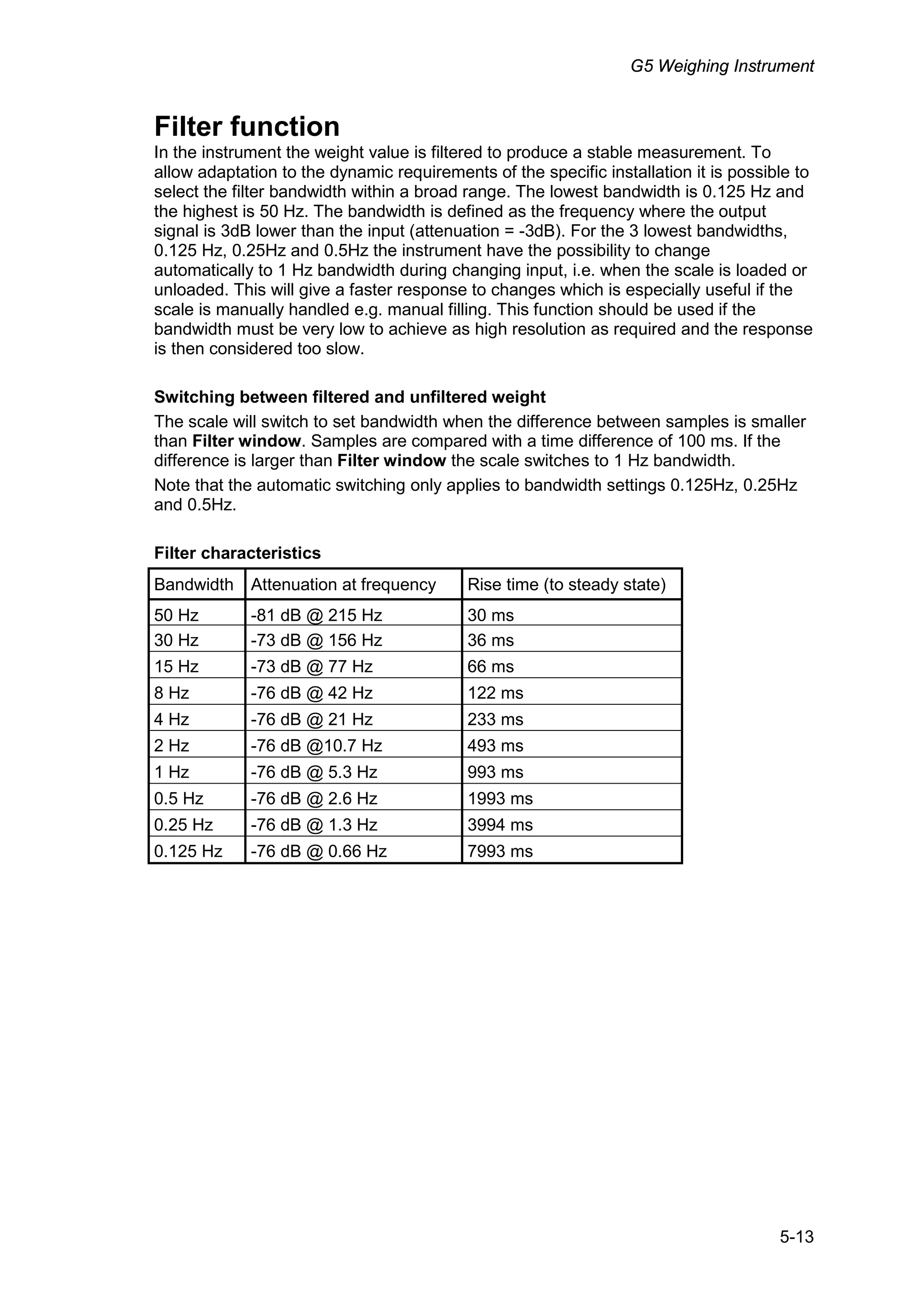
Filter function........................................ 13
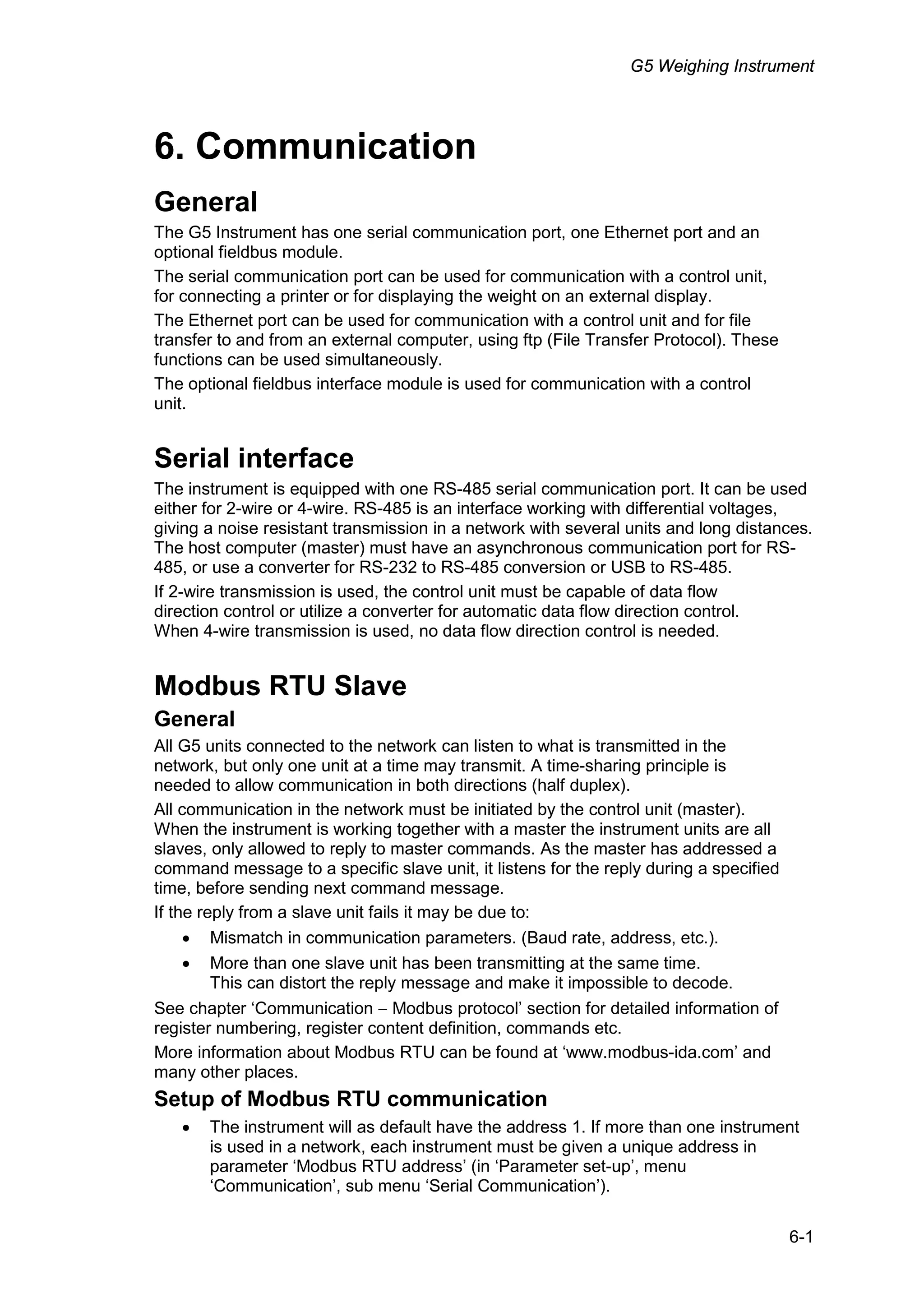
6. Communication ................................1
General .................................................. 1
Serial interface ....................................... 1
Modbus RTU Slave................................ 1
Modbus TCP Slave ................................ 2
Ftp Server .............................................. 3
Modbus protocol..................................... 3
Fieldbus interface................................. 18
Fieldbus Data Definitions ..................... 19
7. Remote Access ................................1
General .................................................. 1
Browser requirements............................ 1
Using the Remote Access...................... 2
Security .................................................. 2
Remote Access Login and Logout......... 3
Remote / Local Access .......................... 5
8. Maintenance.....................................1
General .................................................. 1
File Handling .......................................... 1
Create Backup ....................................... 1
Restore Backup...................................... 1
Set Default ............................................. 1
Instrument Restart.................................. 1
Program upgrade ................................... 2
9. Troubleshooting................................1
General .................................................. 1
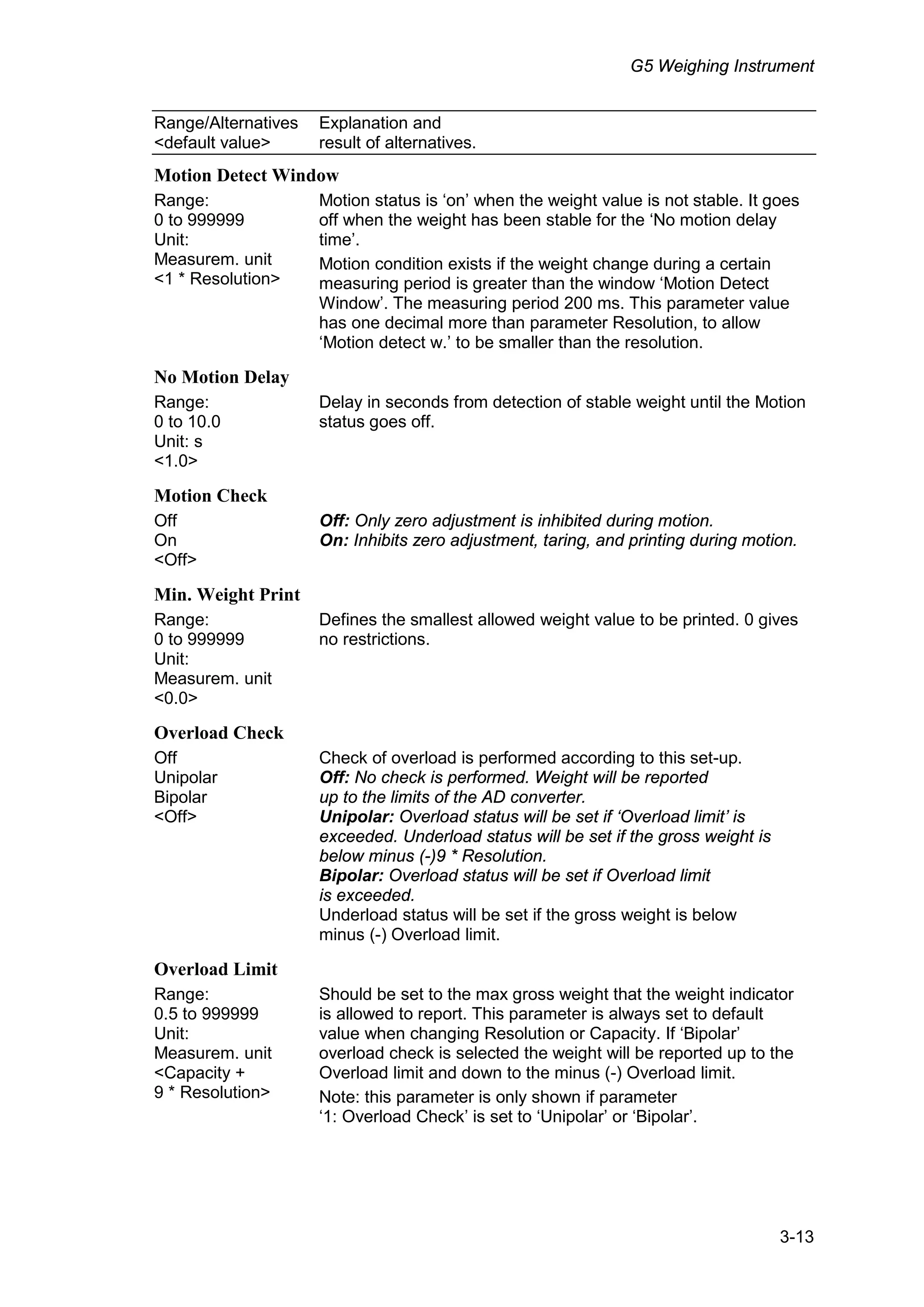
Error codes............................................. 1
Technical Manual
PRECAUTIONS
READ this manual BEFORE operating or servicing this instrument. FOLLOW these
instructions carefully. SAVE this manual for future reference.
INTENDED USE
The G5 Instrument family are measuring and control devices intended for industrial
systems. Its basic function is to convert the signals from transducers to useful
information. Transducer excitation is included as well as parameter controlled signal
processing, indication of output levels, error supervision and operation of optional
external equipment. The instrument supports several types of communication
interfaces.
INSTRUMENT INSULATION AND GROUNDING
The cable connector for mains power supply should include protective grounding for
safety. The cable for 24VDC power supply (screw terminal connector) should include a
ground connected to terminal GND.
The input groups of the instrument are insulated from each other by functional
insulation. The mains connection of AC-powered instruments has reinforced insulation
according to IEC 61010. Terminals intended for connection of cable shields are
connected to the protective ground of the mains or GND terminal of 24VDC input but
must not be considered as protective grounding. Shield connection of load cell input is
not connected to mains protective ground or 24VDC GND terminal.
Change description
Revision 0: First release of this document.
!
WARNING
Only permit qualified personnel to install and service this instrument.
Exercise care when making checks, tests and adjustments that must be
made with power on. Failing to observe these precautions can result in
bodily harm.
DO NOT allow untrained personnel to operate, clean, inspect, maintain,
service, or tamper with this instrument.
G5 Weighing Instrument
1-1
1. Introduction
General
The G5 Instruments are high performance single-channel weight indicators (PM model,
panel mounted) or weight transmitters (RM model, DIN rail mounted) intended for
industrial systems.
The basic function is to convert the signals from strain gauge transducers to useful
weight information. Transducer excitation is included as well as parameter controlled
signal processing, indication of output levels, error supervision and operation of
optional external equipment.
As long as the error supervision detects no error, a signal called ‘In process’ is then
present but if an error is detected, ‘In process’ will be off and a specific error
message will be displayed. ‘In process’ can be set to control any digital output. Note
that there are weighing channel specific and instrument specific error detection.
All functions in the G5 Instrument are controlled by set-up parameters. Setting of
parameter values can be done from the PM front panel. Set-up of a RM model must be
done with a web browser in a PC that is connected to the instrument via Ethernet.
Maintenance functions can be accessed locally (PM) or remotely (PM and RM).
It is possible to load new software into the instrument using a SD-Card.
The instrument has 4 level supervising functions and 4 set-point functions.
Power supply
The G5-PM (panel mount indicator) is available as 24 VDC model or 110/230 VAC
model. The G5-RM (rail mount transmitter) is available as 24 VDC model. All input and
output signals are galvanically isolated from the power supply.
Strain gauge input
Both excitation voltage and the output signal from the transducer are measured at the
transducer to avoid influence from voltage drop in the connection cable. Excitation to the
transducer, from the G5 Instrument is provided over separate wires.
A shielded 6-wire cable must be used to connect a distant transducer to the instrument.
The analog signals from the transducer are converted to digital form and filtered to give
an internal transducer signal with high resolution.
The transducer excitation and signal values are combined to form an internal
transducer signal, representing the load on the transducer. Influenced by calibration
data, this signal is converted to a digital measurement value, the weight value, which
can be presented at the local display window and at external equipment.
Communication
The instrument utilizes the serial interface, Ethernet and a fieldbus interface for
communication with control system or computer. The serial interface consists of a RS-
485/RS-422 connection that can be used with 2- or 4-wire connection.
Weight values, level status, error status etc. can be collected and commands given
through the communication interfaces. G5 Instruments can be controlled from a master
computer or PLC using the serial interface, Ethernet interface, field bus interface or
digital I/O.
Technical Manual
1-2
Modbus RTU protocol is used for the serial interfaces, Modbus TCP and EtherNet/IP
for the Ethernet connection. Optional fieldbus interface for Profibus, DeviceNet or
ControlNet can be used.
The serial port can also be used to connect a printer for printing of weight or for
showing weight on an external display unit.
Maintenance
The G5 instrument needs no maintenance, performed by the end-user. Any service
or repair work must be performed by qualified personnel.
Contact your supplier.
Cleaning
Before cleaning the G5, disconnect the power connection to the instrument. Use a soft
cloth to clean the exterior of the instrument. For cleaning the instrument front panel, a
soft, damp, cloth may be used.
Safety information
Utilization.
The instrument may only be utilized for the measurement and control functions,
described in this Technical Manual. It is especially important to adhere to the load limits
of the input/output connectors. We accept no responsibility for any damage arising from
improper operation.
Any changes to the instrument, which causes any function changes, may only be
carried out by the manufacturer or after discussion with and permission by the
manufacturer.
If G5 is used in a manner not specified, the protection provided may be impaired.
Meaning of symbols used in this manual
Direct current.
Alternating current.
! Caution, risk of danger. Documentation needs to be consulted.
G5 Weighing Instrument
1-3
Technical data
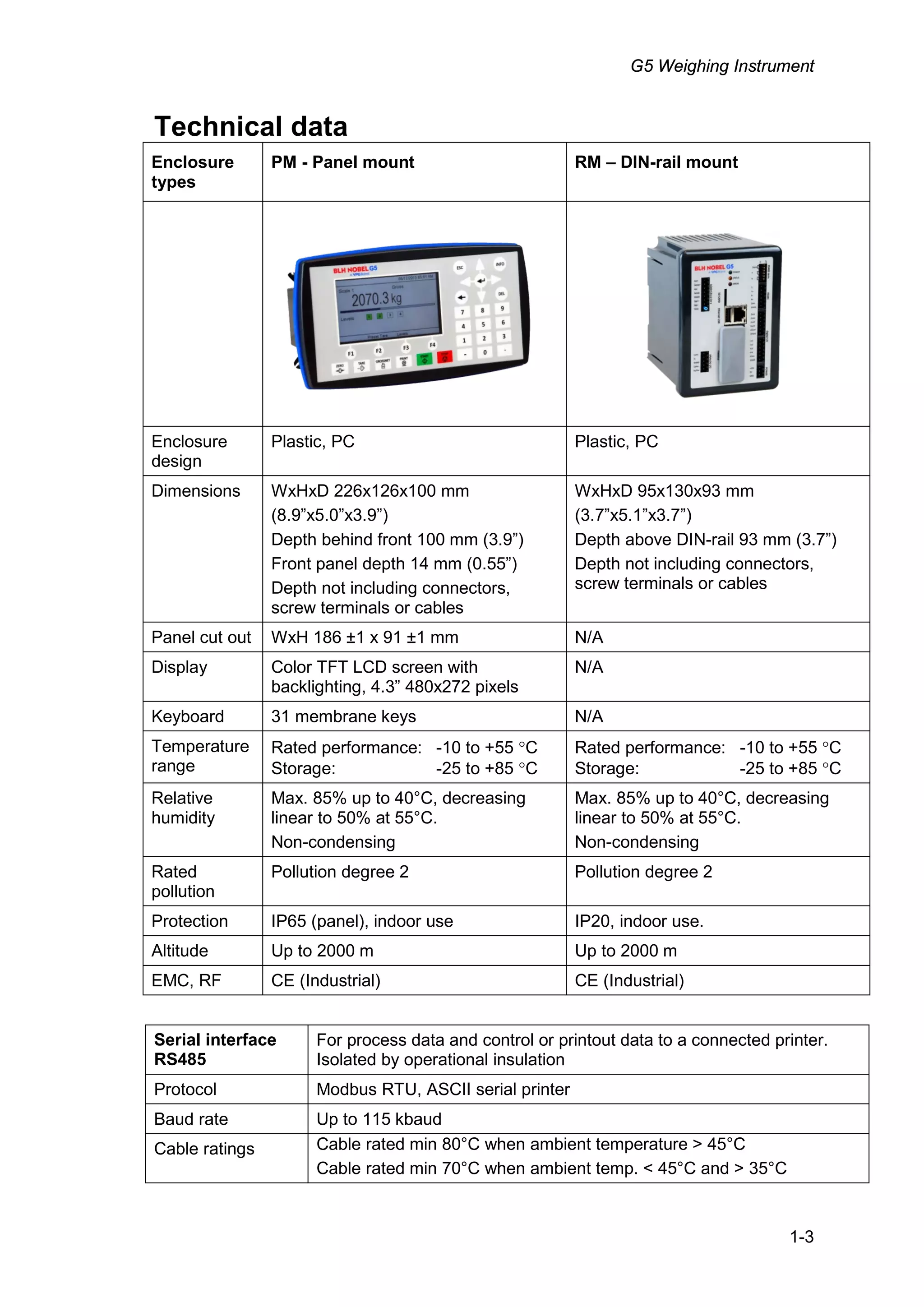
Enclosure
types
PM - Panel mount RM – DIN-rail mount
Enclosure
design
Plastic, PC Plastic, PC
Dimensions WxHxD 226x126x100 mm
(8.9”x5.0”x3.9”)
Depth behind front 100 mm (3.9”)
Front panel depth 14 mm (0.55”)
Depth not including connectors,
screw terminals or cables
WxHxD 95x130x93 mm
(3.7”x5.1”x3.7”)
Depth above DIN-rail 93 mm (3.7”)
Depth not including connectors,
screw terminals or cables
Panel cut out WxH 186 ±1 x 91 ±1 mm N/A
Display Color TFT LCD screen with
backlighting, 4.3” 480x272 pixels
N/A
Keyboard 31 membrane keys N/A
Temperature
range
Rated performance: -10 to +55 °C
Storage: -25 to +85 °C
Rated performance: -10 to +55 °C
Storage: -25 to +85 °C
Relative
humidity
Max. 85% up to 40°C, decreasing
linear to 50% at 55°C.
Non-condensing
Max. 85% up to 40°C, decreasing
linear to 50% at 55°C.
Non-condensing
Rated
pollution
Pollution degree 2 Pollution degree 2
Protection IP65 (panel), indoor use IP20, indoor use.
Altitude Up to 2000 m Up to 2000 m
EMC, RF CE (Industrial) CE (Industrial)
Serial interface
RS485
For process data and control or printout data to a connected printer.
Isolated by operational insulation
Protocol Modbus RTU, ASCII serial printer
Baud rate Up to 115 kbaud
Cable ratings Cable rated min 80°C when ambient temperature > 45°C
Cable rated min 70°C when ambient temp. < 45°C and > 35°C
Technical Manual
1-4
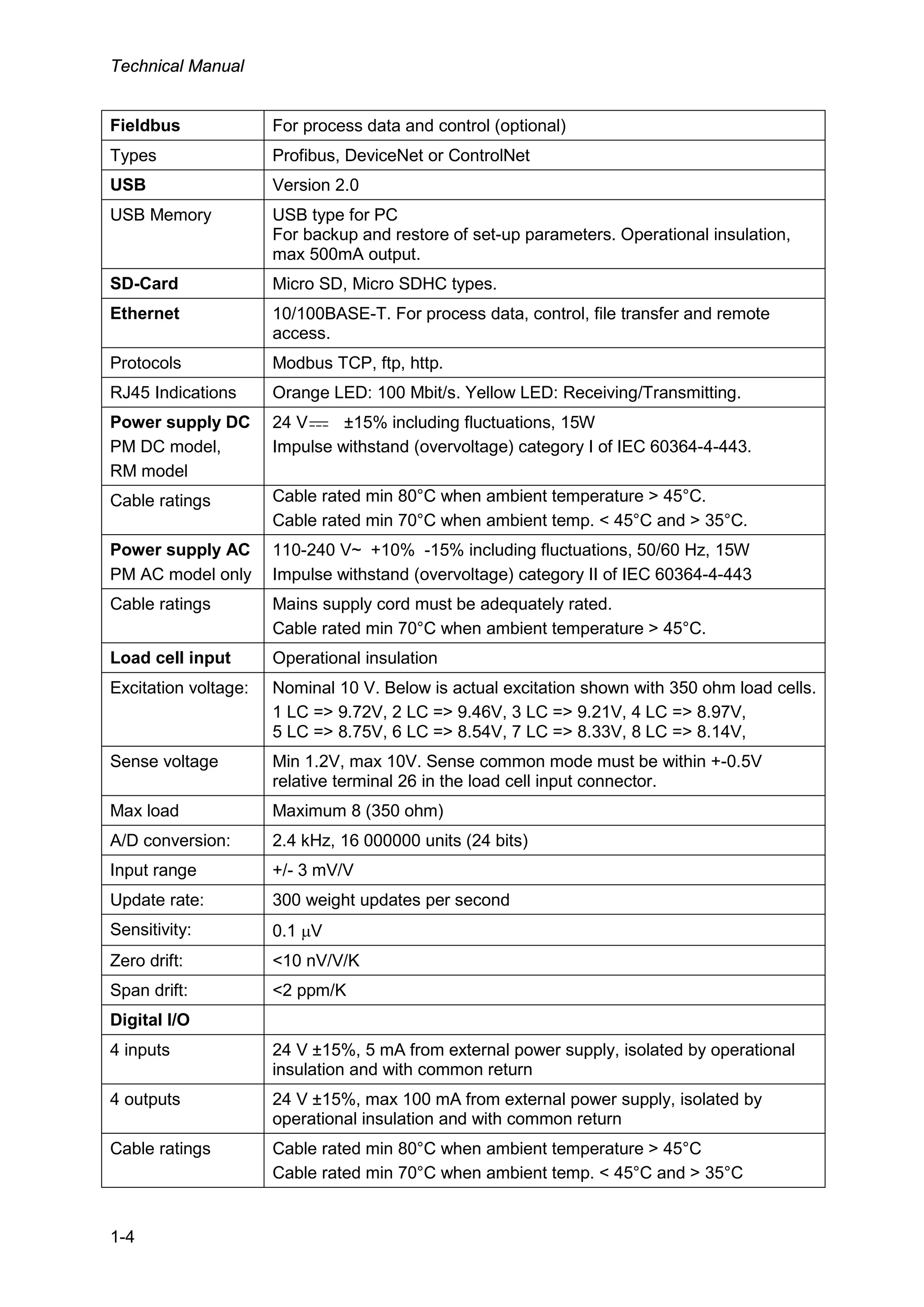
Fieldbus For process data and control (optional)
Types Profibus, DeviceNet or ControlNet
USB Version 2.0
USB Memory USB type for PC
For backup and restore of set-up parameters. Operational insulation,
max 500mA output.
SD-Card Micro SD, Micro SDHC types.
Ethernet 10/100BASE-T. For process data, control, file transfer and remote
access.
Protocols Modbus TCP, ftp, http.
RJ45 Indications Orange LED: 100 Mbit/s. Yellow LED: Receiving/Transmitting.
Power supply DC
PM DC model,
RM model
24 V ±15% including fluctuations, 15W
Impulse withstand (overvoltage) category I of IEC 60364-4-443.
Cable ratings Cable rated min 80°C when ambient temperature > 45°C.
Cable rated min 70°C when ambient temp. < 45°C and > 35°C.
Power supply AC
PM AC model only
110-240 V~ +10% -15% including fluctuations, 50/60 Hz, 15W
Impulse withstand (overvoltage) category II of IEC 60364-4-443
Cable ratings Mains supply cord must be adequately rated.
Cable rated min 70°C when ambient temperature > 45°C.
Load cell input Operational insulation
Excitation voltage: Nominal 10 V. Below is actual excitation shown with 350 ohm load cells.
1 LC => 9.72V, 2 LC => 9.46V, 3 LC => 9.21V, 4 LC => 8.97V,
5 LC => 8.75V, 6 LC => 8.54V, 7 LC => 8.33V, 8 LC => 8.14V,
Sense voltage Min 1.2V, max 10V. Sense common mode must be within +-0.5V
relative terminal 26 in the load cell input connector.
Max load Maximum 8 (350 ohm)
A/D conversion: 2.4 kHz, 16 000000 units (24 bits)
Input range +/- 3 mV/V
Update rate: 300 weight updates per second
Sensitivity: 0.1 µV
Zero drift: <10 nV/V/K
Span drift: <2 ppm/K
Digital I/O
4 inputs 24 V ±15%, 5 mA from external power supply, isolated by operational
insulation and with common return
4 outputs 24 V ±15%, max 100 mA from external power supply, isolated by
operational insulation and with common return
Cable ratings Cable rated min 80°C when ambient temperature > 45°C
Cable rated min 70°C when ambient temp. < 45°C and > 35°C
G5 Weighing Instrument
1-5
Analog output
Resolution 65000 units, 16 bits
Voltage output 0 – 10 V, -10 – 10 V, > 1 kohm load
Current output 4 – 20 mA, 0 – 20 mA, -12 – 20 mA, -20 – 20 mA,
< 500 ohm load. Current source, i.e. no external power supply
needed.
Update rate 300 Hz
Filter Weight filter + extra smoothing filter (on/off via set-up)
Fieldbus ProfibusDP, DeviceNet and ControlNet.
Fieldbus
data
16 bytes from fieldbus to instrument.
80 bytes from instrument to fieldbus.
See chapter ‘Communication’ section ‘Fieldbus communication interface’ for
details on fieldbus data mapping.
Settings All fieldbus settings are done with setup parameters in the instrument. No
settings are done on the module itself.
Mounting The fieldbus adaptor is mounted in the fieldbus slot with LED’s and connector
accessible.
Remove the plastic cover from the fieldbus slot. Insert the adaptor very
carefully and make absolutely sure that the adaptor slides correctly into the
guides in the connector on the PCB. Tighten the two fastening screws at the
adaptor front and check that the two securing hooks locks into the PCB.
Module
type
Profibus-DP DeviceNet ControlNet
Connector Profibus 9-pin, female
D-sub (DB9F)
5 pin male connector. BNC.
Baud rate 9.6 kbps – 12 Mbps or
Auto set by parameter
125, 250, 500 kbps or
Auto set by parameter.
Fixed 5 Mbit/s.
Address 1 – 125,
set by parameter
0 – 63,
set by parameter
1 – 99, set by parameter
Bus
Supply
Voltage
According to DeviceNet
(Node) specification:
nominal 24 VDC,
range 11 – 25 VDC.
Technical Manual
1-6
Ordering information
PM model, single channel weighing, 24VDC supply
Denomination: G5-PM-S-DC-W
P/N: 110767 (ordering number).
PM model, single channel weighing, 110/230VAC supply
Denomination: G5-PM-S-AC-W
P/N: 110768 (ordering number).
RM model, single channel weighing, 24VDC supply
Denomination: G5-RM-S-DC-W
P/N: 110771 (ordering number).
If an (optional) fieldbus module is needed it must be ordered together with the
instrument. Ordering numbers are shown below. If multiple instruments and/or fieldbus
modules are purchased in the same order it must be clearly specified which module
should be mounted in which instrument.
Optional ProfibusDP fieldbus module
P/N: 110559 (ordering number).
Optional DeviceNet fieldbus module
P/N: 110560 (ordering number).
Optional ControlNet fieldbus module
P/N: 110838 (ordering number).
Example showing product information
and installed option(s).
G5 Weighing Instrument
2-1
2. Installation
Mechanical installation
See chapter Introduction – Technical data for references to PM and RM mechanical
measures: outer extents and body extents.
The safety of any system incorporating the equipment is the responsibility of the
integrator of the system.
Allow at least 20 mm free space around the instrument for ventilation.
PM type instrument:
In an enclosed plastic bag there are four M5x30 hexagon socket head screws and four
fastening brackets.
1. Insert the instrument in the panel cutout.
91mm+-1mm
3.58"+-0.04"
186mm +-1mm
7.32" +-0.04"
4x R max 5 mm
4x R max 0.2"
2. Place a bracket in the corner recession of the rear of the instrument and use the
M5 screw to secure it without tightening it.
3. Place the remaining three brackets and secure each with M5 screws. Tighten the
screws until the brackets start to press against the inside of the panel.
4. Make sure the tip of the brackets is resting against the panel on which the
instrument is mounted and not on the instrument plastic front. This might happen if
the cutout is large.
5. Check that the instrument is positioned
so that the blue front sealing is not
visible through the cutout which might
compromise the sealing properties.
6. When the instrument is properly
positioned tighten the screws 2 – 3
turns. Do not overtighten. Note that the
brackets are flexible.
7. Provide support for the cables to avoid
that strain is applied to the connectors.
Mounting bracket on
the panel mount model
Technical Manual
2-2
RM type instrument:
The unit snaps on to a DIN-rail. Place the unit with the front slightly tilted upwards on to
the DIN-rail. Make sure the hooks at the rear of the instrument enclosure are gripping
over the upper edge of the DIN rail. Push the unit down and towards the DIN-rail until it
snaps into locked position. If needed use a screwdriver to help open the latch to make
it snap on.
Use a screwdriver to open the latch if the unit is to be removed from the DIN-rail.
G5 Weighing Instrument
2-3
Electrical installation
The field wiring of the instrument shall be suitable to the environment
(e.g. chemically) in the end-user application.
Mains cables shall be separated and routed away from SELV or
SELV-E field wiring.
Field wiring installation shall comply with any national regulations, hereunder National
Electrical Code (NEC) for US and/or Canadian Electrical Code for Canada.
• A switch or circuit-breaker shall be included in the building installation.
• The switch shall be in close proximity to the equipment and
within easy reach of the operator
• The switch shall be marked as the disconnecting device for the equipment.
• The equipment switch or circuit-breaker employed as disconnecting device shall
comply with relevant requirements of IEC 60947-1 and IEC 60947-3.
The power supply for the instruments can be an external DC source for
G5-PM-S-DC-W and G5-RM-S-DC-W units or external AC mains for G5-PM-S-AC-W
units.
For electrical installation with DC supply, see section DC Supply.
For electrical installation with AC supply unit, see section AC Supply.
The voltage levels on connectors shall not exceed hazardous voltage
levels of 30 Vrms, 42.4 Vpeak or 60 Vdc under normal conditions. In
wet locations these voltage levels shall not exceed 16 Vrms, 22.6
Vpeak or 35 Vdc. This applies to all accessible parts.
Connection of cable shields
Shielded cables should be used to avoid EMI on the measurement signals or from
entering the instrument. Shields should be grounded in one point of the cable. Avoid
grounding via long and thin leads which will impair the shielding ability of the cable. The
preferable point of grounding is when the cable enters the metal cabinet housing the
instrument. There are a few ways of grounding the cable shield:
1. The absolutely best way of grounding the shield is by using EMI cable glands that
will provide a seamless protection against EMI.
2. Connect the shield to a ground strip inside the cabinet close to the entry point.
3. Connect the shield to a ground terminal inside the cabinet. Always keep the shield
all the way to the instrument.
WARNING
Make sure that that the power to the instrument is turned off before
any connections are connected to or disconnected from the
instrument.
Remove connector from instrument when tightening or loosening
screw terminal screws.
!
!
!
Technical Manual
2-4
The following applies to HW version 2 or later. See the System Information menu to
find out the actual HW version of the instrument. The shield of the load cell cable can
also be connected at terminal 26 to achieve best possible noise immunity of the LC
input. Note that terminal 26 is not the grounding point of the load cell cable but it will
extend the shield into the ground plane of the input circuit. Terminal 26 is not
connected to the ground of the instrument.
Communication
External computing devices connected to the communication interfaces of the
instrument have to comply with the standard, UL 60950.
RS422/RS485
The serial communication is made for 2-wire or 4-wire with common 0 V. This is a
SELV/SELV-E circuit.
It can be used for serial communication to computer/PLC (Modbus RTU) or a printer.
Connections are made to terminals 1 – 5. Shielded cable must be used. Shield can be
connected to terminal 6 unless grounded in other point.
The communication lines must be terminated in both ends. Termination switches are
set as shown in the table below:
DIP switch settings
2wire DIP-switches T DIP-switches R DIP-switches
2-wire with termination ON (x2) ON (x2) OFF (x2)
4-wire with termination OFF (x2) ON (x2) ON (x2)
2-wire without termination ON (x2) OFF (x2) OFF (x2)
4-wire without termination OFF (x2) OFF (x2) OFF (x2)
Example of DIP-switch settings.
4-wire with termination
!
1. Tx-
2. Tx+
3. Rx-
4. Rx+
5. Com
6. Shield
1. Tx-
2. Tx+
3. Rx-
4. Rx+
5. Com
6. Shield
RS485, 2-wire RS422, 4-wire
G5 Weighing Instrument
2-5
Field Bus
Slot for optional Fieldbus interface. Profibus DP-V1, DeviceNet and ControlNet are
available. See section Profibus-DP Fieldbus Adaptor or DeviceNet Fieldbus Adaptor or
ControlNet Fieldbus Adaptor later in this chapter for details.
USB
The USB connector is intended for USB memory only. This port has operational
insulation (from HW version 2). It should be considered as a SELV/SELV-E circuit.
USB Hub is not supported.
Ethernet
This is a SELV circuit. Use a category 5 cable to connect to a PC (point to point
connection) or to connect to other equipment through a switch, hub or router. Use an
electrically isolating network device if the instrument is being connected to the public
network.
DC supply
The output of the external DC source must be rated 24 V , ±15%
including fluctuations, min. 15 W. The DC source must provide Double
Insulation between Mains parts and 24 V SELV or SELV-E Circuit, and a
limited-energy circuit (maximum available current of 8 A). For the US
market this energy limit can be achieved with an ANSI/UL248-14 fuse rated 5A. For
other markets an IEC 60127 T type fuse rated 4A may also be used.
24 VDC power is connected to terminals 19, 20 and 21. The G5 instrument should be
powered by 24 V , connected according to the diagram below. To achieve functional
grounding, terminal 21 should be connected to ground.
See Technical data for input voltage ratings.
AC supply
Mains supply cable shall be separated and routed away from SELV or
SELV-E field wiring.
The branch circuit protection in the building installation must be rated
maximum 20 A. To achieve protective grounding, the PE conductor shall
be connected to protective earth.
Power inlet type C-14 according to IEC60939.
Use cable connector type C-13 according to IEC60320.
See Technical data for input voltage ratings.
19. +24 VDC
20. 0V+
-
21. PE
+24 VDC
power supply
!
!
Technical Manual
2-6
Load cell connection
Terminals 22 – 29, transducer connection and cabling should be handled with great
care to achieve good measurement of data. Transducer integrated cables may not be
shortened.
4-wire connection can be used if the transducer integrated cable is long enough to
be connected directly to a transducer input. With a 4-wire connection Sense+ must
be connected to Exc+ and Sense- must be connected to Exc-.
6-wire connection should be used if the integrated cable must be lengthened
or if several transducers should be connected to one transducer input.
The transducer input is insulated by operational insulation and the shield should be
connected to the most convenient ground/earth point. This can be the junction box
when using multiple transducers, at the cable entry to the enclosure where the G5 is
mounted or at the barrier ground when using Ex zener barriers.
Shield can be connected to terminal 26 if the instrument is of HW version 2 or later.
In the junction box SL-4 from BLH Nobel all necessary terminals and
interconnections are provided.
29. TEDS+ (NC)
22. Exc+
23. Sense+
24. Exc-
25. Sense-
26. TEDS- (NC)
27. Sign+
28. Sign-
9+
9-
S+S-
Junction box
Connection of transducer(s)
NOTE! Transducer cables must be routed at least 200 mm away from
230/400 V, 50/60 Hz power cables. By cables with other frequencies or
high power, an even wider distance is preferable.
G5 Weighing Instrument
2-7
Solid state relay outputs
Digital outputs use terminals 7 to 10 with terminal 11 (OCom) as the common
connection. Four digital outputs are provided with contact rating given in Technical
data. External 24 VDC power supply must be used. Note that either the positive or the
negative pole of the voltage source (24 V ) can be connected to OCom (11).
Shielded cable/cables should be used and the shield can be connected to terminal 12 if
it’s not possible to ground it in another point.
7. Out 1
8. Out 2
9. Out 3
10. Out 4
11. OCom+
-
12. Shield
+
-
Alternative
connection
Digital inputs
Digital inputs use terminals 13 to 16 with terminal 17 (ICom) as the common
connection. Four digital inputs are provided, with functions that can be set in the G5
set-up. External 24 VDC power supply must be used. Note that either the positive or
the negative pole of the voltage source (24 V ) can be connected to ICom (17).
Shielded cable/cables should be used and the shield can be connected to terminal 18 if
it’s not possible to ground it in another point.
13. In 1
14. In 2
15. In 3
16. In 4
17. ICom+
-
18. Shield
+
-
Alternative
connection
Analog input and analog output
Terminals 38 (Vi) and 39 (Comi) are used for the +-10V auxiliary analog
input of the instrument. The analog output is connected to terminals 41
(Como and output signal to terminal 42 (Vo1/Io1). The analog output is either
voltage or current loop. Como and Comi are internally connected.
Shielded cable/cables should be used and the shield can be connected to the shield
terminal 40 if it’s not possible to ground it in another point.
38. Comi
39. Vi
40. Shield
41. Como
42. Vo1/Io1
+
-
V/A
Analog input: +-10V
Analog output:
Technical Manual
2-8
Profibus-DP Fieldbus Adaptor
Profibus module front view
(1) Operation mode LED.
(2) Status LED.
(3) Profibus connector.
Operation mode LED
State Indication
Off Not online / No power
Green On-line, data exchange
Flashing Green On-line, clear
Flashing Red (1 flash) Parameterization error
Flashing Red (2 flashes) Profibus configuration error
Status LED
State Indication
Off No power or not initialised
Green Initialised
Flashing Green Initialised, diagnostic event(s) present
Red Exception error
OP ST
PROFIBUS DP-V1
(1) (2)(3)
G5 Weighing Instrument
2-9
Profibus connector (DB9F)
Pin Signal Description
1 - -
2 - -
3 B line Positive RxD/TxD, RS485 level
4 RTS Request to send
5 GND Bus Ground (isolated)
6 + 5V Bus Output +5V termination power (isolated)
7 - -
8 A line Negative RxD/TxD, RS485 level
9 - -
Housing Cable shield Functional ground internally connected to the
module protective ground via cable shield
filters according to the Profibus standard.
For connection of the adaptor to the Profibus master, use a Profibus standard cable
and connector according to the diagram below.
8. A-Line
3. B-Line
Shield
For reliable fieldbus function, line termination must be arranged in both ends of the
transmission line. For a G5 instrument, at the end of the cable, a connector with line
termination should be used. For all other G5 Instruments, connection without line
termination should be used.
For configuration of the adaptor, a GSD file (VISH0F83.GSD) is available and should
be installed in the master.
Select the 8 words output module + 2 x 16 words input modules + one 8 words input
module. This will give 16 bytes of output data and 80 bytes of input data. The PLC set-
up should match this exactly including the order of the input modules.
Technical Manual
2-10
DeviceNet Fieldbus Adaptor
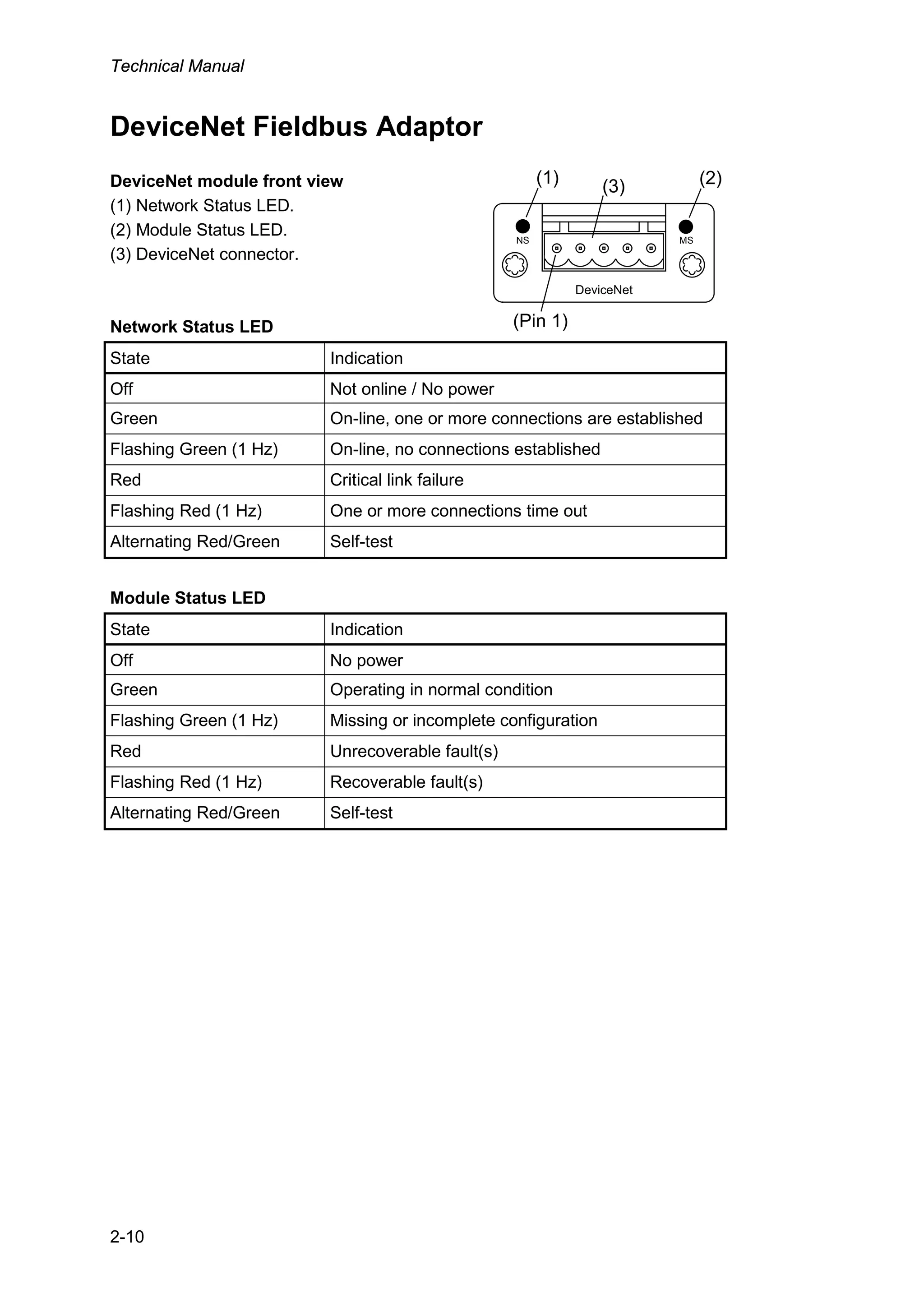
DeviceNet module front view
(1) Network Status LED.
(2) Module Status LED.
(3) DeviceNet connector.
Network Status LED
State Indication
Off Not online / No power
Green On-line, one or more connections are established
Flashing Green (1 Hz) On-line, no connections established
Red Critical link failure
Flashing Red (1 Hz) One or more connections time out
Alternating Red/Green Self-test
Module Status LED
State Indication
Off No power
Green Operating in normal condition
Flashing Green (1 Hz) Missing or incomplete configuration
Red Unrecoverable fault(s)
Flashing Red (1 Hz) Recoverable fault(s)
Alternating Red/Green Self-test
NS MS
DeviceNet
(1) (2)(3)
(Pin 1)
G5 Weighing Instrument
2-11
DeviceNet connector
Pin Signal Description
1 V- Negative bus supply voltage
2 CAN L CAN low bus line
3 Shield Cable shield, functional ground.
4 CAN H CAN high bus line
5 V+ Positive bus supply voltage
For connection of the adaptor to the DeviceNet master, use a standard cable for
DeviceNet or similar shielded cable with twisted pairs and a connector according to the
diagram below. The bus supply voltage shall be 11 – 25 VDC.
2. CAN L
4. CAN H
1. V-
5. V+
3. Shield
For reliable fieldbus function, line termination must be arranged in both ends of the
transmission line. For a G5 Instrument placed at the end of the line, terminate line by
placing a 121-ohm resistor between CAN L (pin 2) and CAN H (pin 4).
For configuration of the adaptor an EDS file is supplied with the instrument that should
be installed in the master. Note that the EDS file is a generic type supplied by the
module manufacturer. The file doesn’t contain any reference to the G5 Instrument or to
BLH Nobel.
Technical Manual
2-12
ControlNet Fieldbus Adaptor
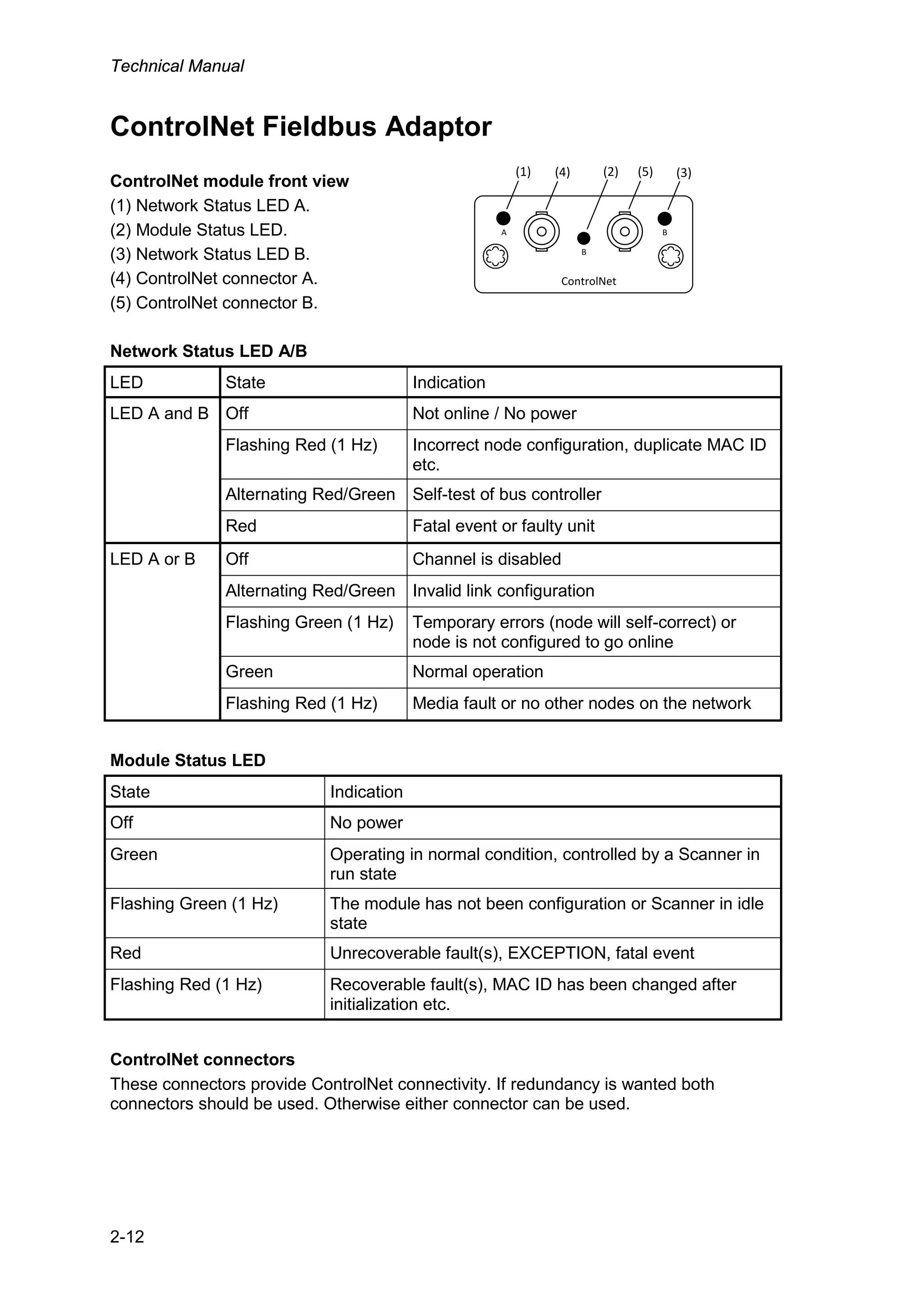
ControlNet module front view
(1) Network Status LED A.
(2) Module Status LED.
(3) Network Status LED B.
(4) ControlNet connector A.
(5) ControlNet connector B.
Network Status LED A/B
LED State Indication
LED A and B Off Not online / No power
Flashing Red (1 Hz) Incorrect node configuration, duplicate MAC ID
etc.
Alternating Red/Green Self-test of bus controller
Red Fatal event or faulty unit
LED A or B Off Channel is disabled
Alternating Red/Green Invalid link configuration
Flashing Green (1 Hz) Temporary errors (node will self-correct) or
node is not configured to go online
Green Normal operation
Flashing Red (1 Hz) Media fault or no other nodes on the network
Module Status LED
State Indication
Off No power
Green Operating in normal condition, controlled by a Scanner in
run state
Flashing Green (1 Hz) The module has not been configuration or Scanner in idle
state
Red Unrecoverable fault(s), EXCEPTION, fatal event
Flashing Red (1 Hz) Recoverable fault(s), MAC ID has been changed after
initialization etc.
ControlNet connectors
These connectors provide ControlNet connectivity. If redundancy is wanted both
connectors should be used. Otherwise either connector can be used.
A B
ControlNet
B
(1) (2) (3)(4) (5)
G5 Weighing Instrument
2-13
Front panel
Display
At normal operation the instrument displays weight value(s) and, in some cases,
the gross weight as a graphic bar. Together with the weight value additional information
such as preset tare, status for the level supervision can also be displayed. This is
configured with parameters.
If an instrument error occurs, the weighing function is stopped and the instrument
switches over to Error mode, indicating a code for the error at the display window.
If there is a scale error this is indicated with error information that replaces the weight
information on the screen. The instrument can also display a Main menu with sub
menus for display of actual data and entry of new data.
Function keys
Just below the display there are four function keys, F1 to F4, and with the actual key
functions indicated at the lower line of the display. When there is a text above a key,
that key has the corresponding function. To select a function, press the membrane
panel button (F1 to F4) below the display.
Symbol keys
At the bottom of the front panel there are four keys, marked with the weighing
symbols for Zero, Tare, Gross/Net, Print plus keys marked Start and Stop. A brief
description of these keys is given in the table below.
Front panel of the G5 instrument with color display, four function keys below the display, six
application specific keys, numerical keypad, joystick keypad (arrow keys), Esc, Backspace,
Delete, Tab and ENTER keys.
In addition there is an Info key that is used to access the instruments menu system.
Technical Manual
2-14
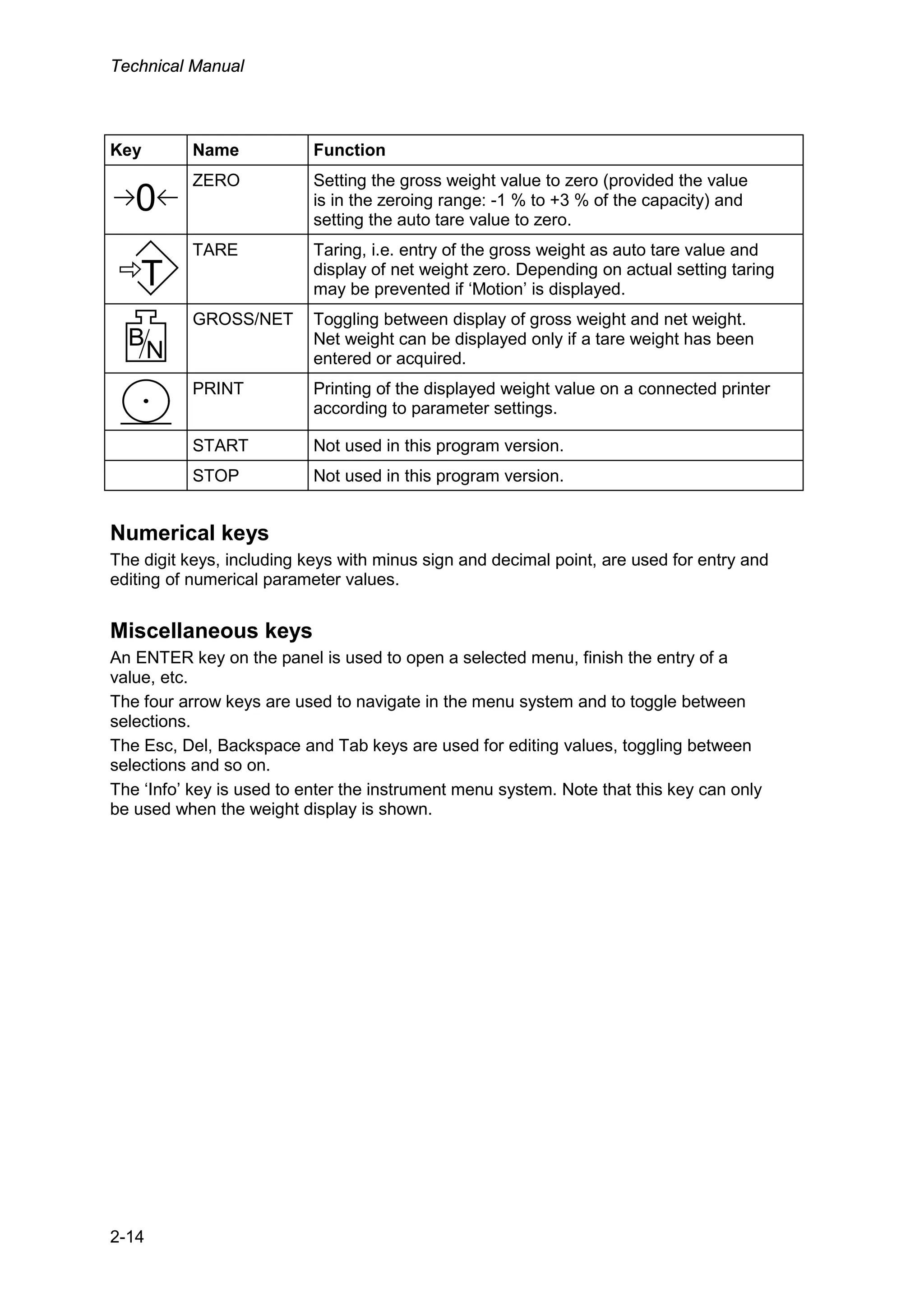
Key Name Function
0
ZERO Setting the gross weight value to zero (provided the value
is in the zeroing range: -1 % to +3 % of the capacity) and
setting the auto tare value to zero.
T
TARE Taring, i.e. entry of the gross weight as auto tare value and
display of net weight zero. Depending on actual setting taring
may be prevented if ‘Motion’ is displayed.
B
N
GROSS/NET Toggling between display of gross weight and net weight.
Net weight can be displayed only if a tare weight has been
entered or acquired.
PRINT Printing of the displayed weight value on a connected printer
according to parameter settings.
START Not used in this program version.
STOP Not used in this program version.
Numerical keys
The digit keys, including keys with minus sign and decimal point, are used for entry and
editing of numerical parameter values.
Miscellaneous keys
An ENTER key on the panel is used to open a selected menu, finish the entry of a
value, etc.
The four arrow keys are used to navigate in the menu system and to toggle between
selections.
The Esc, Del, Backspace and Tab keys are used for editing values, toggling between
selections and so on.
The ‘Info’ key is used to enter the instrument menu system. Note that this key can only
be used when the weight display is shown.
G5 Weighing Instrument
3-1
3. Set-up
General
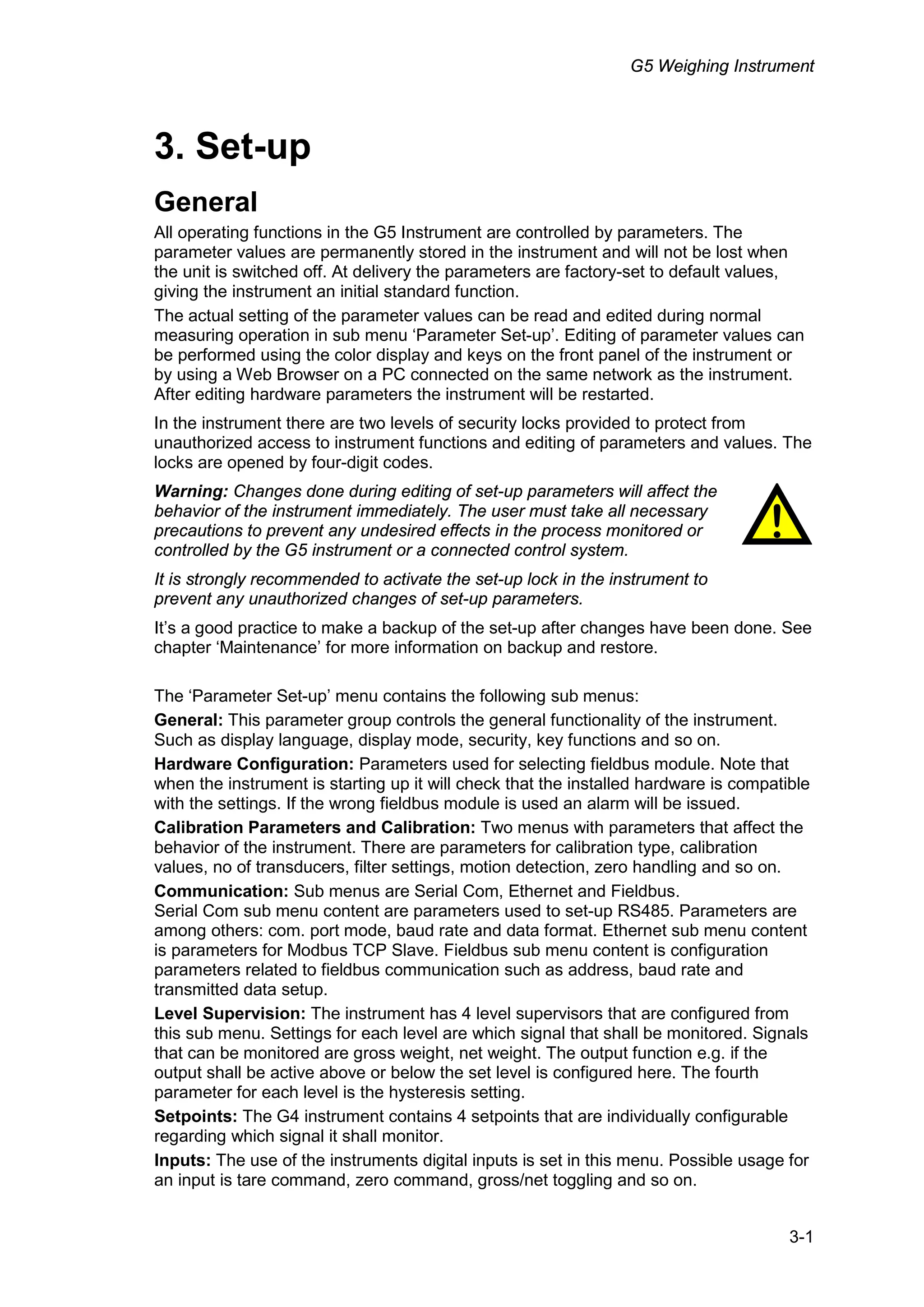
All operating functions in the G5 Instrument are controlled by parameters. The
parameter values are permanently stored in the instrument and will not be lost when
the unit is switched off. At delivery the parameters are factory-set to default values,
giving the instrument an initial standard function.
The actual setting of the parameter values can be read and edited during normal
measuring operation in sub menu ‘Parameter Set-up’. Editing of parameter values can
be performed using the color display and keys on the front panel of the instrument or
by using a Web Browser on a PC connected on the same network as the instrument.
After editing hardware parameters the instrument will be restarted.
In the instrument there are two levels of security locks provided to protect from
unauthorized access to instrument functions and editing of parameters and values. The
locks are opened by four-digit codes.
Warning: Changes done during editing of set-up parameters will affect the
behavior of the instrument immediately. The user must take all necessary
precautions to prevent any undesired effects in the process monitored or
controlled by the G5 instrument or a connected control system.
It is strongly recommended to activate the set-up lock in the instrument to
prevent any unauthorized changes of set-up parameters.
It’s a good practice to make a backup of the set-up after changes have been done. See
chapter ‘Maintenance’ for more information on backup and restore.
The ‘Parameter Set-up’ menu contains the following sub menus:
General: This parameter group controls the general functionality of the instrument.
Such as display language, display mode, security, key functions and so on.
Hardware Configuration: Parameters used for selecting fieldbus module. Note that
when the instrument is starting up it will check that the installed hardware is compatible
with the settings. If the wrong fieldbus module is used an alarm will be issued.
Calibration Parameters and Calibration: Two menus with parameters that affect the
behavior of the instrument. There are parameters for calibration type, calibration
values, no of transducers, filter settings, motion detection, zero handling and so on.
Communication: Sub menus are Serial Com, Ethernet and Fieldbus.
Serial Com sub menu content are parameters used to set-up RS485. Parameters are
among others: com. port mode, baud rate and data format. Ethernet sub menu content
is parameters for Modbus TCP Slave. Fieldbus sub menu content is configuration
parameters related to fieldbus communication such as address, baud rate and
transmitted data setup.
Level Supervision: The instrument has 4 level supervisors that are configured from
this sub menu. Settings for each level are which signal that shall be monitored. Signals
that can be monitored are gross weight, net weight. The output function e.g. if the
output shall be active above or below the set level is configured here. The fourth
parameter for each level is the hysteresis setting.
Setpoints: The G4 instrument contains 4 setpoints that are individually configurable
regarding which signal it shall monitor.
Inputs: The use of the instruments digital inputs is set in this menu. Possible usage for
an input is tare command, zero command, gross/net toggling and so on.
!
Technical Manual
3-2
Outputs: The outputs menu contains the settings controlling the function of each
output. Each output can be assigned an output function: Level output status, setpoint
output status, net mode, good zero, stable weight displayed or In Process status.
Analog Output: This menu controls the behavior of the Analog output. The output
signal source (signal type) can be selected. Also output type and range is settable.
How to connect a PC to the instrument
Both Panel Mount (PM) and DIN rail (RM) models can be accessed from a PC with a
Web Browser. To access the instrument requires both instrument and PC to be
connected to the same network or to have a direct connection using only an Ethernet
cable. If the instrument is connected to a network it should be set-up to fit the network
configuration.
Default network configuration (at delivery) is static ip-address 192.168.99.150 and
Subnet mask 255.255.255.0. This ip address is selected to avoid collision if the
instrument is connected without being configured. Use this default setting or change it
using the method described below to access the instrument to make a final network
configuration. A PM model can be configured directly using the front panel keyboard
and display.
If the PC and the instrument are directly connected the PC should be configured to use
a static ip-address e.g. 192.168.99.10 and subnet mask 255.255.255.0. Start the Web
Browser and enter the instrument ip-address in the address field of the browser.
An instrument can be temporarily forced to a specific ip-address by placing a text file
on a USB memory, inserting it in the USB connector of the instrument and turn on the
power. This is useful if the instrument is connected to a network before it’s configured
or if the actual network settings are unknown (lost). The text file shall be named
“G5_STAT.IP”. The file shall contain the following information where # denotes
comments which can be omitted. Note that this is only an example.
# Settings for temporary use of static IP address
192.168.59.243 # IP address
255.255.255.0 # Subnet mask
192.168.59.1 # Default gateway
When the desired network configuration is done remove the USB memory and power
up the instrument and the new network configuration is in operation. It is possible to
use this way to access the instrument also for other set-up of than just network
configuration.
Menu system
To reach the main menu, press the ‘Info’ button (when the weight display is shown) on
the instrument front panel.
If a Web Browser is used enter the ip address of the instrument and enter the login
name “G5User” together with the pin code (default 1937). The pin code can be
changed in the Network Configuration menu (Server Configuration sub menu).
G5 Weighing Instrument
3-3
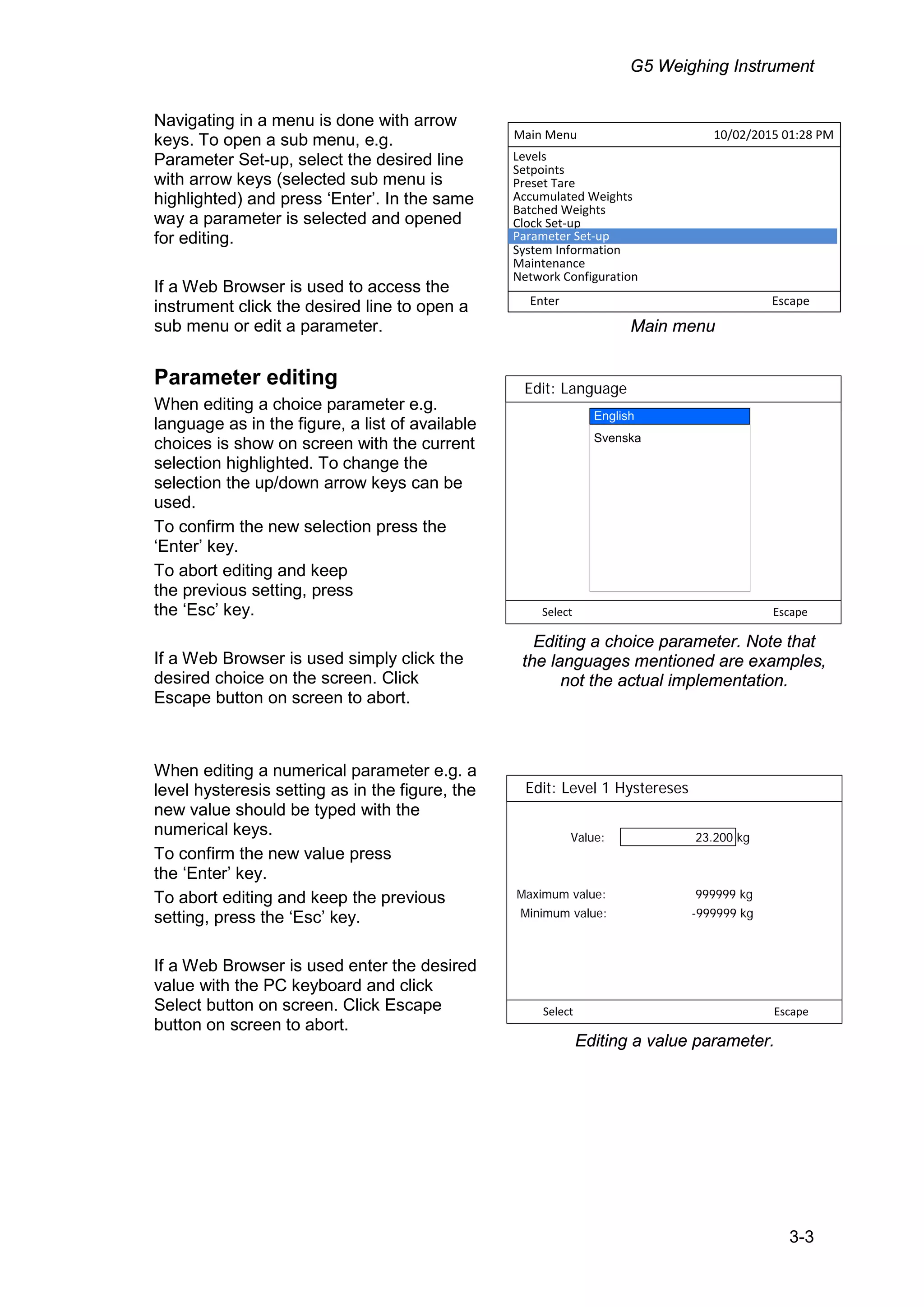
Navigating in a menu is done with arrow
keys. To open a sub menu, e.g.
Parameter Set-up, select the desired line
with arrow keys (selected sub menu is
highlighted) and press ‘Enter’. In the same
way a parameter is selected and opened
for editing.
If a Web Browser is used to access the
instrument click the desired line to open a
sub menu or edit a parameter.
Parameter editing
When editing a choice parameter e.g.
language as in the figure, a list of available
choices is show on screen with the current
selection highlighted. To change the
selection the up/down arrow keys can be
used.
To confirm the new selection press the
‘Enter’ key.
To abort editing and keep
the previous setting, press
the ‘Esc’ key.
If a Web Browser is used simply click the
desired choice on the screen. Click
Escape button on screen to abort.
When editing a numerical parameter e.g. a
level hysteresis setting as in the figure, the
new value should be typed with the
numerical keys.
To confirm the new value press
the ‘Enter’ key.
To abort editing and keep the previous
setting, press the ‘Esc’ key.
If a Web Browser is used enter the desired
value with the PC keyboard and click
Select button on screen. Click Escape
button on screen to abort.
Edit: Level 1 Hystereses
Value: 23.200 kg
Maximum value: 999999 kg
Minimum value: -999999 kg
Select 9scape
Editing a value parameter.
Edit: Language
Svenska
English
Select Escape
Editing a choice parameter. Note that
the languages mentioned are examples,
not the actual implementation.
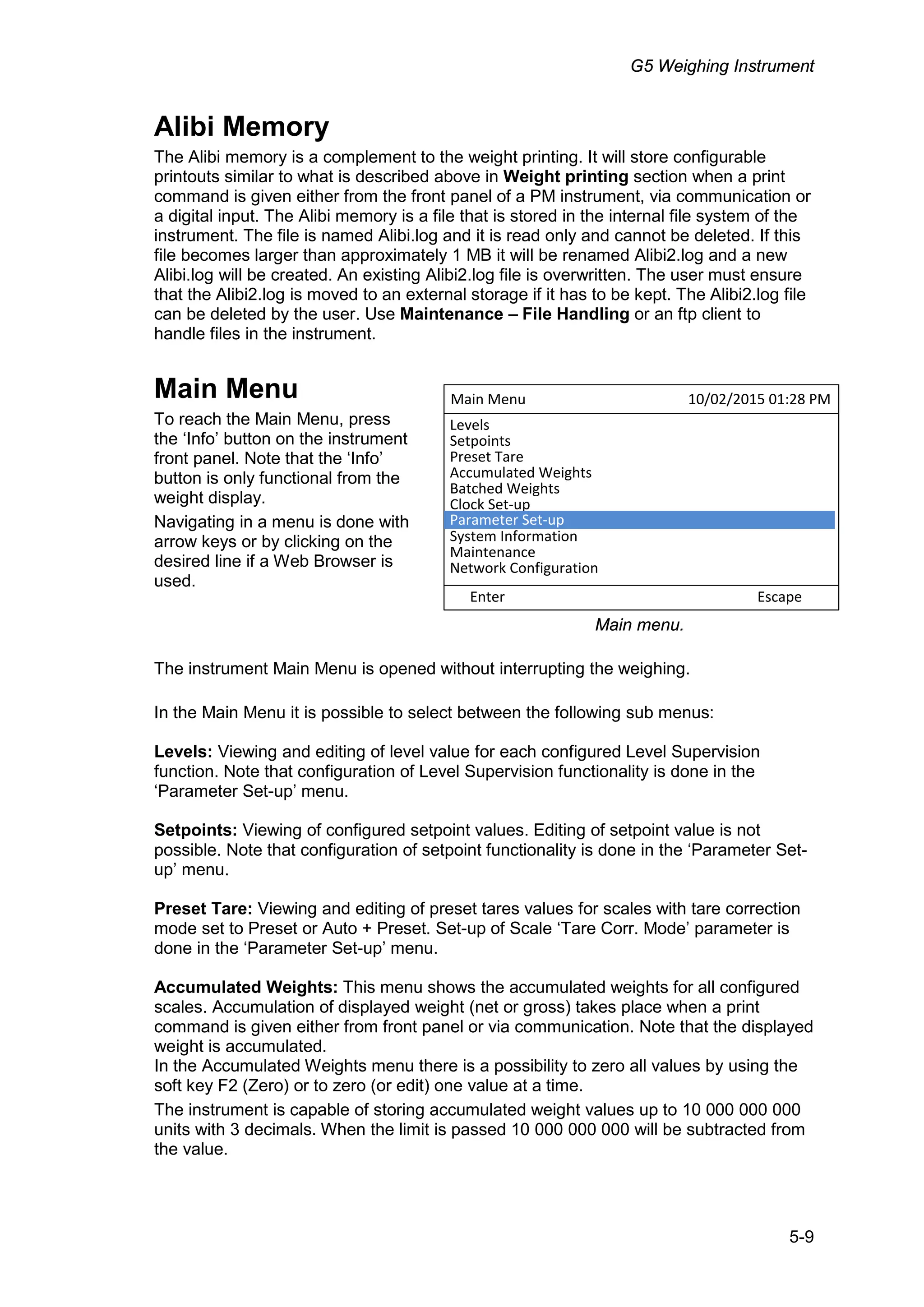
Main Menu 10/02/2015 01:28 PM
Enter Escape
Levels
Setpoints
Preset Tare
Accumulated Weights
Batched Weights
Clock Set-up
System Information
Maintenance
Network Configuration
Parameter Set-up
Main menu
Technical Manual
3-4
Menu structure
(Next page)
Main Menu
*Levels
*Setpoints
*Preset TMre
*AccumulMted Weights
*Clock Set-up
*PMrMmeter Set-up
*System InformMtion
*MMintenMnce
*Network ConfigurMtion
General
Instrument NMme
LMnguMge
StMrt Mode
GisplMy Intensity
Info Line Mode
GMte FormMt
Time FormMt
Gross/Net Key
TMre Key
Print Key
Zero Key
OperMtor Lock
OperMtor Code
Set-up Lock
Set-up Code
WMrm Up Time
AliNi Memory
AliNi Memory FMil Action
AliNi Memory Print Pos 1
AliNi Memory Print Pos 2
AliNi Memory Print Pos 3
AliNi Memory Print Pos 4
AliNi Memory Linefeeds
Iardware /onfig.
FieldNus
/alibration taram
ScMle NMme
MeMsurement Unit
Resolution
CMpMcity
BMndwidth
Filter Window
Motion Getect Wind
No Motion GelMy
Motion Check
Min. Weight Print
OverloMd Check
OverloMd Limit
Zero TrMcking
Zero-TrMck.RMte
TMre Corr.Mode
CommunicMtion Level Supervision
Level 1 Source
Level 1 Output
Level 1 Hystereses
Level 2 Source
Level 2 Output
Level 2 Hystereses
Level 3 Source
Level 3 Output
Level 3 Hystereses
Level 4 Source
Level 4 Output
Level 4 Hystereses
CMliNrMtion Type
Conversion FMctor
NumNer of TrMnsd.
RMted LoMd
RMted Output 1
RMted Output 2
RMted Output 3
RMted Output 4
Set Zero
Zero Offset
GMtMsheetcMliN:
TMNlecMliNrMtion:
CMliNrMtion Type
NumNer of CMl.P
VMlue CMl. P1
VMlue CMl. P2
VMlue CMl. P3
VMlue CMl. P4
VMlue CMl. P5
VMlue CMl. P6
TrMnsd. SignMl P1
TrMnsd. SignMl P2
TrMnsd. SignMl P3
TrMnsd. SignMl P4
TrMnsd. SignMl P5
TrMnsd. SignMl P6
Set Zero
Zero Offset
GeMdw.cMliN:
SeriMl Com.Mode
BMudrMte
GMtM FormMt
Min Reply Time
ModNus RTU Address
FloMting Point FormMt
Print Pos.1
Print Pos.2
Print Pos.3
Print Pos.4
Linefeeds
Ext. GisplMy 1 Type
Ext. GisplMy 1 Mode
Ext. GisplMy 2 Type
Ext. GisplMy 2 Mode
Ext. GisplMy 3 Type
Ext. GisplMy 3 Mode
Ext. GisplMy 4 Type
Ext. GisplMy 4 Mode
*ModNus TCP SlMve
SeriMl Com. Ethernet
Levels
Level vMlues for
configured levels
Setpoints
Setpoint vMlues for
configured setpoints
AccumulatedWeights
AccumulMted
(printed) Weights
for Mll scMles
CMliNrMtion
*SeriMl Com.
*Ethernet
*FieldNus
Address
BMudrMte
GMtM FormMt
FieldNus
ModNus TCP SlMve
FloMting Point FormMt
ModNus TCP SlMve
treset Tare
Preset tMres for
scMles configured
for use of preset
tMre
/lock Set-up
GMte Mnd time
set-up
(Next page)
Menu structure (continued)
G5 Weighing Instrument
3-5
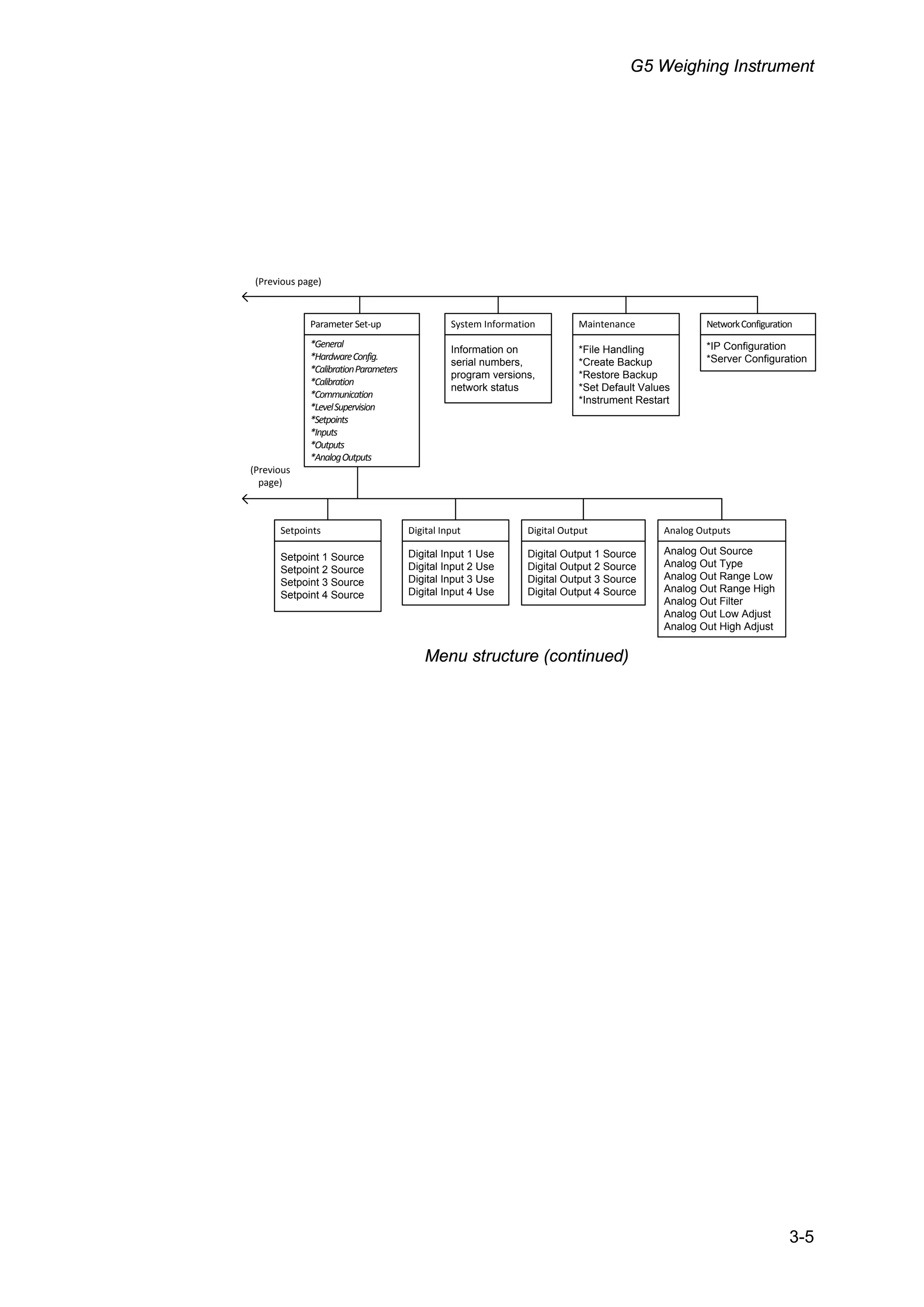
Parameter Set-up
*General
*HardwareConfig.
*CalibrationParameters
*Calibration
*Communication
*LevelSupervision
*Setpoints
*Inputs
*Outputs
*AnalogOutputs
(Previous page)
System Information
HnformaPion on
serial numbers,
program versions,
nePwork sPaPus
aaintenance
*File Handling
*CreaPe Backup
*ResPore Backup
*SeP GefaulP Values
*HnsPrumenP ResParP
betworkConfiguration
*HP ConfiguraPion
*Server ConfiguraPion
Digital Input
GigiPal HnpuP 1 Use
GigiPal HnpuP 2 Use
GigiPal HnpuP 3 Use
GigiPal HnpuP 4 Use
Digital Output
GigiPal OuPpuP 1 Source
GigiPal OuPpuP 2 Source
GigiPal OuPpuP 3 Source
GigiPal OuPpuP 4 Source
Analog Outputs
Analog OuP Source
Analog OuP Type
Analog OuP Range Iow
Analog OuP Range HigO
Analog OuP FilPer
Analog OuP Iow AdjusP
Analog OuP HigO AdjusP
(Previous
page)
Setpoints
SePpoinP 1 Source
SePpoinP 2 Source
SePpoinP 3 Source
SePpoinP 4 Source
Menu structure (continued)
Technical Manual
3-6
Parameters
On the following pages a survey of all parameters is presented. The parameters are
divided in groups following the menu they belong to. For choice parameters the
available choices are given. For numerical parameters, a value range is given.
At the end of the table, the default value is given in < >.
To the right there is a short parameter explanation and, in italic, the results for
the different alternatives.
Range/Alternatives Explanation and
<default value> result of alternatives.
Menu General
Instrument Name
<> A 15-character string that is used at printing in reports and so
on.
Language
English
Svenska
<English>
Defines the language to be used in menus and messages.
Start Mode
Command
Auto
<Auto>
Defines the start mode after power-on or reset.
Command: A ‘start operation’ command from
control computer or panel key is required for start up.
Auto: Automatic start up.
Display Intensity
10 %
20 %
30 %
40 %
50 %
60 %
70 %
80 %
90 %
100 %
<50 %>
Defines intensity of the graphical display backlight.
Info Line Mode
Not in use
Acc. Weight
Preset Tare
< Not In Use >
Defines the mode of the first information line on the 1 scale
screen on the graphical display.
Not in use: Info line 1 is not used.
Acc. Weight: The accumulated weight for the shown scale is
presented on the first info. line.
Preset Tare: The preset tare of the shown scale is presented
on the first info. line.
G5 Weighing Instrument
3-7
Range/Alternatives Explanation and
<default value> result of alternatives.
Date Format
YYYY-MM-DD
YYYY-DD-MM
DD-MM-YYYY
MM/DD/YYYY
<YYYY-MM-DD>
Defines the date format.
YYYY: = year. MM: = month. DD: = day.
Time Format
12 h
24 h
<24h>
Defines the time format.
12 h: 12 hour time format.
24 h: 24 hour time format.
Gross/Net key
Off
On
<On>
Disables/enables front panel key Gross/Net
Off: The Gross/Net key is disabled.
On: The Gross/Net key is enabled
Tare key
Off
On
<On>
Disables/enables front panel key Tare
Off: The Tare key is disabled.
On: The Tare key is enabled.
Print key
Off
On
<On>
Disables/enables front panel key Print
Off: The Print key is disabled.
On: The Print key is enabled.
Zero key
Off
On
<On>
Disables/enables front panel key Zero
Off: The Zero key is disabled.
On: The Zero key is enabled.
Operator Lock
Off
On
<Off>
Off: Operator lock is not activated.
On: Operator lock is activated, preventing unauthorized access
to the instrument.
See chapter ‘Operation – Security locks'.
Operator Code
Range:
1 - 9999
<1937>
Defines the valid code for Operator lock. If ‘Set-up lock’ (see
below) is ‘On’ this code will not give access to ‘Parameter Set-
up’.
Note: this parameter is only shown if ‘Operator Lock’ is set to
‘On’
Set-up Lock
Off
On
<Off>
Off: Set-up lock is not activated.
On: Set-up lock is activated, preventing unauthorized access to
the instrument.
See chapter ‘Operation – Security locks'.
Technical Manual
3-8
Range/Alternatives Explanation and
<default value> result of alternatives.
Set-up Code
Range:
1 - 9999
<1937>
Defines the valid code for Set-up lock. If ‘Operator lock’ (see
above) is ‘On’ this code will still give access to all menus in the
Main menu.
Note: this parameter is only shown if ‘Set-up Lock‘ is set to ‘On’
Warm Up Time
Range:
0 - 200
Unit: min
<0>
Defines the delay time in minutes from power up until the weight
presentation has full accuracy. Indicated in the display with the
text ‘Warming up!’.
Alibi Memory
Off
On
<Off>
On: Enables saving of print results to the Alibi file that is stored
on the internal file system.
Off: Disables saving to the Alibi file.
Alibi Memory Fail Action
Ignore
Warning
Fatal, stop processing
< Fatal, stop processing >
Ignore: Any error in queuing or saving to the Alibi file is
ignored.
Warning: An error queuing or saving to the Alibi memory
will have a warning showed on the display of a PM
instrument.
Fatal, stop processing: An error queuing or saving to
the Alibi memory will cause a fatal error in the instrument.
This mode is used if it’s absolutely necessary to have the
print result stored.
Alibi Memory Print Pos 1
Not in use
Display Weight
Preset Tare
Date/Time
Scale Name
Instrument Name
< Date/Time >
Specifies the information that should be stored in printer position
1 (upper left field). This parameter controls storing in Alibi file.
Not in use: Printer position 1 is left empty. If both
‘Print Position 1’ and ‘Print Position 2’ are set to ‘Not in use’ the
upper line is not stored.
Displayed Weight: The displayed weight is stored including the
text Gross/Net and the unit.
Preset Tare: The value of the preset tare is stored.
Date/Time: The date and time is stored.
Scale Name: The scale name is stored.
Instrument Name: The instrument name is stored.
Note: This parameter is only shown if Alibi Memory is On.
G5 Weighing Instrument
3-9
Range/Alternatives Explanation and
<default value> result of alternatives.
Alibi Memory Print Pos 2
Not in use
Displayed Weight
Preset Tare
Date/Time
Scale Name
Instrument Name
< Scale Name >
Specifies the information that should be stored in printer position
2 (upper right field). This parameter controls storing in Alibi file.
Not in use: Printer position 2 is left empty. If both
‘Print Position 1’ and ‘Print Position 2’ are set to ‘Not in use’ the
upper line is not stored.
Displayed Weight: The displayed weight is stored including the
text Gross/Net and the unit.
Preset Tare: The value of the preset tare is stored.
Date/Time: The date and time is stored.
Scale Name: The scale name is stored.
Instrument Name: The instrument name is stored.
Note: This parameter is only shown if Alibi Memory is On.
Alibi Memory Print Pos 3
Not in use
Displayed Weight
Preset Tare
Date/Time
Scale Name
Instrument Name
< Displayed Weight
>
Specifies the information that should be stored in printer position
3 (lower left field). This parameter controls storing in Alibi file.
Not in use: Printer position 3 is left empty. If both
‘Print Position 3’ and ‘Print Position 4’ are set to ‘Not in use’ the
lower line is not stored.
Display Weighted: The displayed weight is stored including the
text Gross/Net and the unit.
Preset Tare: The value of the preset tare is stored.
Date/Time: The date and time is stored.
Scale Name: The scale name is stored.
Instrument Name: The instrument name is stored.
Note: This parameter is only shown if Alibi Memory is On.
Alibi Memory Print Pos 4
Not in use
Displayed Weight
Preset Tare
Date/Time
Scale Name
Instrument Name
< Not in use >
Specifies the information that should be stored in printer position
4 (lower right field). This parameter controls storing in Alibi file.
Not in use: Printer position 4 is left empty. If both
‘Print Position 3’ and ‘Print Position 4’ are set to ‘Not in use’ the
lower line is not stored.
Display Weight: The displayed weight is stored including the
text Gross/Net and the unit.
Preset Tare: The value of the preset tare is stored.
Date/Time: The date and time is stored.
Scale Name: The scale name is stored.
Instrument Name: The instrument name is stored.
Note: This parameter is only shown if Alibi Memory is On.
Technical Manual
3-10
Range/Alternatives Explanation and
<default value> result of alternatives.
Alibi Memory Linefeeds
0
1
2
3
4
5
6
7
8
9
10
<0>
Specifies the number of linefeeds (empty lines) that should be
stored after each data printout.
Note that if all four print positions above are set to ‘Not in use’ no
data is stored and no linefeeds will be stored.
Note: This parameter is only shown if Alibi Memory is On.
G5 Weighing Instrument
3-11
Range/Alternatives Explanation and
<default value> result of alternatives.
Menu Hardware config.
Fieldbus
Not In Use
Profibus
DeviceNet
ControlNet
<Not In Use>
This parameter defines what type of fieldbus that will be used in
the CPU.
Not In Use: The fieldbus is not used regardless of any installed
module.
Profibus: A ProfibusDP type of fieldbus module is used.
DeviceNet: A DeviceNet type of fieldbus module is used.
ControlNet: A ControlNet module is used.
Menu Calibration Parameters
Scale Name
<> A 15-character string that is used at printing in reports and so
on.
Measurement Unit
NONE
g
kg
t
lb
oz
N
daN
kN
psi
kPa
MPa
bar
lbf
kgf
Nm
N/m
kN/m
PLI
l
mV/V
pls
<kg>
Defines the engineering unit that should be
used for the measured value and for related
set-up parameters.
Technical Manual
3-12
Range/Alternatives Explanation and
<default value> result of alternatives.
Resolution
0.001
0.002
0.005
0.01
0.02
0.05
0.1
0.2
0.5
1
2
5
10
20
50
<0.1>
Defines the decimal point position and resolution format for the
displayed value. All set-up parameters using the measurement
unit will be written with the decimal point position selected in this
menu.
If the last digits of the weight value are not stable, a more coarse
resolution can be selected to get a stable reading.
Capacity
Range:
0.5 to 999999
Unit:
Measurem. unit
<500>
Nominal range of scale.
Capacity / Resolution = Number of divisions.
Bandwidth
0.125 Hz
0.25 Hz
0.50 Hz
1 Hz
2 Hz
4 Hz
8 Hz
15 Hz
30 Hz
50 Hz
<50 Hz>
Defines the low pass bandwidth (-3 dB point) for the scale.
Filter Window
Range:
0 to 999999
Unit:
Measurem. unit
<10 * Resolution>
The instrument produces unfiltered and filtered weight internally.
If the difference between the filtered an unfiltered weight is less
than ‘Filter window’ the filtered weight is used.
This parameter value has one decimal more than parameter
Resolution, to allow ‘Filter window’ to be smaller than the
resolution.
G5 Weighing Instrument
3-13
Range/Alternatives Explanation and
<default value> result of alternatives.
Motion Detect Window
Range:
0 to 999999
Unit:
Measurem. unit
<1 * Resolution>
Motion status is ‘on’ when the weight value is not stable. It goes
off when the weight has been stable for the ‘No motion delay
time’.
Motion condition exists if the weight change during a certain
measuring period is greater than the window ‘Motion Detect
Window’. The measuring period 200 ms. This parameter value
has one decimal more than parameter Resolution, to allow
‘Motion detect w.’ to be smaller than the resolution.
No Motion Delay
Range:
0 to 10.0
Unit: s
<1.0>
Delay in seconds from detection of stable weight until the Motion
status goes off.
Motion Check
Off
On
<Off>
Off: Only zero adjustment is inhibited during motion.
On: Inhibits zero adjustment, taring, and printing during motion.
Min. Weight Print
Range:
0 to 999999
Unit:
Measurem. unit
<0.0>
Defines the smallest allowed weight value to be printed. 0 gives
no restrictions.
Overload Check
Off
Unipolar
Bipolar
<Off>
Check of overload is performed according to this set-up.
Off: No check is performed. Weight will be reported
up to the limits of the AD converter.
Unipolar: Overload status will be set if ‘Overload limit’ is
exceeded. Underload status will be set if the gross weight is
below minus (-)9 * Resolution.
Bipolar: Overload status will be set if Overload limit
is exceeded.
Underload status will be set if the gross weight is below
minus (-) Overload limit.
Overload Limit
Range:
0.5 to 999999
Unit:
Measurem. unit
<Capacity +
9 * Resolution>
Should be set to the max gross weight that the weight indicator
is allowed to report. This parameter is always set to default
value when changing Resolution or Capacity. If ‘Bipolar’
overload check is selected the weight will be reported up to the
Overload limit and down to the minus (-) Overload limit.
Note: this parameter is only shown if parameter
‘1: Overload Check’ is set to ‘Unipolar’ or ‘Bipolar’.
Technical Manual
3-14
Range/Alternatives Explanation and
<default value> result of alternatives.
Zero Tracking
Off
On
On+AutoZero
<Off>
With this parameter automatic zero-tracking can be selected, or
a combination of automatic zero-tracking and automatic zero
setting.
Off: No zero tracking.
On: Zero tracking active.
On+AutoZero: Zero tracking and auto zeroing active.
Zero-Track.Rate
Range:
0 to 1500
Unit: /min
<1>
Maximum weight change speed for zero-tracking to be
performed.
‘Zero-track.rate’ must be less than (30 * Resolution). Unit for the
Zero-track rate is: Measurem. unit/min, expressed as ‘ /min’ to
save space.
Note: this parameter is only shown if parameter
‘1: Zero tracking’ is set to ‘On’ or ‘On+AutoZero’.
Tare Corr.Mode
Auto
Preset
Auto+Preset
<Auto>
The tare value can be calculated in three different ways:
Net weight = Gross weight – Tare value
Auto: Auto tare value is used.
Preset: Tare value is entered through
the serial communication or keypad.
Auto+preset: Tare value is the sum of
the preset tare value and auto tare value.
G5 Weighing Instrument
3-15
Range/Alternatives Explanation and
<default value> result of alternatives.
Menu Calibration
Calibration Type
Data Sheet
Deadweight
Table
<Data Sheet>
Defines the type of calibration to be performed. A new
calibration is initiated as a ‘Calibration type’ is selected.
Data Sheet: Data sheet calibration is easy to use and doesn’t
demand any reference equipment, except data from the
transducer data sheets.
Deadweight: Deadweight calibration is normally the most
accurate calibration type. It requires known weights to at least
2/3 of the wanted measuring range.
Table: Table calibration is used to enter recorded values from a
previous calibration into a replacement instrument.
Data sheet calibration related parameters
Conversion Factor
Range:
0.01 to 100
<9.80665>
Defines the relationship between a measured value expressed
in data sheet unit and expressed in the selected measurement
unit.
Number of Transducers
Range:
1 to 4
<3>
Defines the number of transducers and fixed support points in
the scale installation. All transducers must have equal rated
load. If the total number is over 4: enter 1 here!
Rated Load
Range:
1 to 999999
Unit:
Data sheet unit
<2000.00>
Defines the rated load for one transducer, expressed in the data
sheet unit. The value is specified in the transducer data sheet.
NOTE! If the data sheet value is 5 kN, the parameter should be
set to 5000 (N).
If the total number of transducers and fixed supports is over 4:
multiply that number with the rated load for one transducer and
enter the result here!
Technical Manual
3-16
Range/Alternatives Explanation and
<default value> result of alternatives.
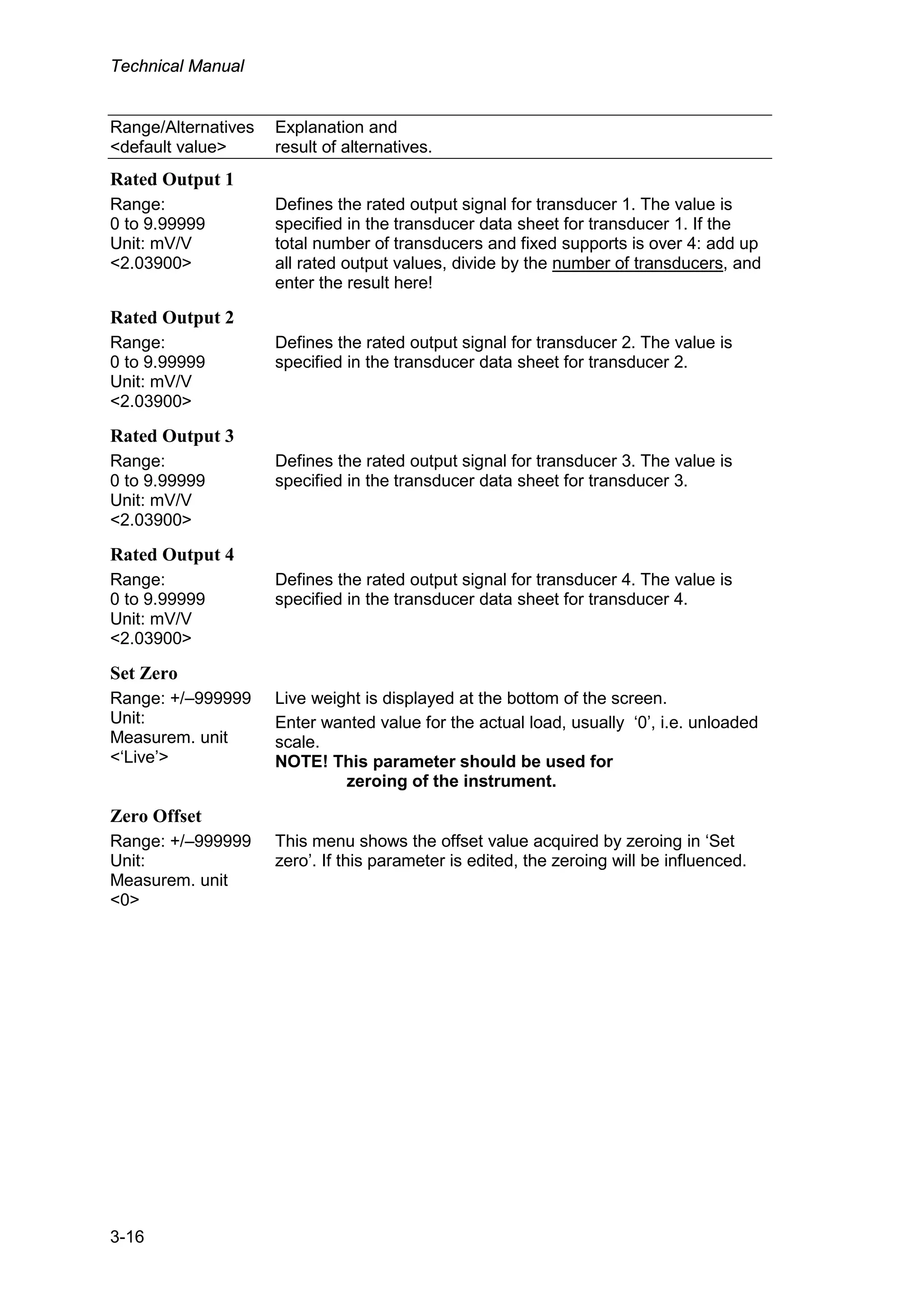
Rated Output 1
Range:
0 to 9.99999
Unit: mV/V
<2.03900>
Defines the rated output signal for transducer 1. The value is
specified in the transducer data sheet for transducer 1. If the
total number of transducers and fixed supports is over 4: add up
all rated output values, divide by the number of transducers, and
enter the result here!
Rated Output 2
Range:
0 to 9.99999
Unit: mV/V
<2.03900>
Defines the rated output signal for transducer 2. The value is
specified in the transducer data sheet for transducer 2.
Rated Output 3
Range:
0 to 9.99999
Unit: mV/V
<2.03900>
Defines the rated output signal for transducer 3. The value is
specified in the transducer data sheet for transducer 3.
Rated Output 4
Range:
0 to 9.99999
Unit: mV/V
<2.03900>
Defines the rated output signal for transducer 4. The value is
specified in the transducer data sheet for transducer 4.
Set Zero
Range: +/–999999
Unit:
Measurem. unit
<‘Live’>
Live weight is displayed at the bottom of the screen.
Enter wanted value for the actual load, usually ‘0’, i.e. unloaded
scale.
NOTE! This parameter should be used for
zeroing of the instrument.
Zero Offset
Range: +/–999999
Unit:
Measurem. unit
<0>
This menu shows the offset value acquired by zeroing in ‘Set
zero’. If this parameter is edited, the zeroing will be influenced.
G5 Weighing Instrument
3-17
Range/Alternatives Explanation and
<default value> result of alternatives.
Deadweight calibration related parameters
Used when the scale is calibrated with weights. The instrument automatically reads the
corresponding transducer signals.
No of Calibration Points
Range:
2 to 6
<2>
Number of calibration points.
Value Cal. P1
Range: +/–999999
Unit:
Measurem. unit
<0>
This parameter defines the load on the scale in the lowest
calibration point, normally 0.
Value Cal. P2
Range: +/–999999
Unit:
Measurem. unit
<500>
This parameter defines the load on the scale in the second
calibration point.
Value Cal. P3
Range: +/–999999
Unit:
Measurem. unit
<0>
This parameter defines the load on the scale in the third
calibration point.
Value Cal. P4
Range: +/–999999
Unit:
Measurem. unit
<0>
This parameter defines the load on the scale in the fourth
calibration point.
Value Cal. P5
Range: +/–999999
Unit:
Measurem. unit
<0>
This parameter defines the load on the scale in the fifth
calibration point.
Value Cal. P6
Range: +/–999999
Unit:
Measurem. unit
<0>
This parameter defines the load on the scale in the sixth
calibration point.
Technical Manual
3-18
Range/Alternatives Explanation and
<default value> result of alternatives.
Transd. Signal P1
Range: +/–9.99999
Unit: mV/V
<0.00000>
In this parameter, the transducer signal in the lowest calibration
point is displayed, but the value cannot be edited.
Transd. Signal P2
Range: +/–9.99999
Unit: mV/V
<1.66631>
In this parameter, the transducer signal in the second calibration
point is displayed, but the value cannot be edited.
Transd. Signal P3
Range: +/–9.99999
Unit: mV/V
<2.03900>
In this parameter, the transducer signal in the third calibration
point is displayed, but the value cannot be edited.
Transd. Signal P4
Range: +/–9.99999
Unit: mV/V
<2.03900>
In this parameter, the transducer signal in the fourth calibration
point is displayed, but the value cannot be edited.
Transd. Signal P5
Range: +/–9.99999
Unit: mV/V
<2.03900>
In this parameter, the transducer signal in the fifth calibration
point is displayed, but the value cannot be edited.
Transd. Signal P6
Range: +/–9.99999
Unit: mV/V
<2.03900>
In this parameter, the transducer signal in the sixth calibration
point is displayed, but the value cannot be edited.
Set Zero
See ‘Set zero‘ in section ‘Data sheet calibration related
parameters’ for explanation of the parameter.
Zero Offset
See ‘Zero offset‘ in section ‘Data sheet calibration related
parameters’ for explanation of the parameter.
G5 Weighing Instrument
3-19
Range/Alternatives Explanation and
<default value> result of alternatives.
Table calibration related parameters
Used when the scale is calibrated with recorded values from a previous calibration,
normally a deadweight calibration.
No of Calibration Points
Range:
2 to 6
<2>
Number of calibration points.
Value Cal. P1
Range: +/–999999
Unit:
Measurem. unit
<0>
In this parameter, enter the recorded value for the load in the
first calibration point.
Value Cal. P2
Range: +/–999999
Unit:
Measurem. unit
<500>
In this parameter, enter the recorded value for the load in the
second calibration point.
Value Cal. P3
Range: +/–999999
Unit:
Measurem. unit
<0>
In this parameter, enter the recorded value for the load in the
third calibration point.
Value Cal. P4
Range: +/–999999
Unit:
Measurem. unit
<0>
In this parameter, enter the recorded value for the load in the
fourth calibration point.
Value Cal. P5
Range: +/–999999
Unit:
Measurem. unit
<0>
In this parameter, enter the recorded value for the load in the
fifth calibration point.
Value Cal. P6
Range: +/–999999
Unit:
Measurem. unit
<0>
In this parameter, enter the recorded value for the load in the
sixth calibration point.
Technical Manual
3-20
Range/Alternatives Explanation and
<default value> result of alternatives.
Transd. Signal P1
Range: +/–9.99999
Unit: mV/V
<0.00000>
In this parameter, enter the recorded value for the transducer
signal in the first calibration point.
Transd. Signal P2
Range: +/–9.99999
Unit: mV/V
<1.66631>
In this parameter, enter the recorded value for the transducer
signal in the second calibration point.
Transd. Signal P3
Range: +/–9.99999
Unit: mV/V
<2.03900>
In this parameter, enter the recorded value for the transducer
signal in the third calibration point.
Transd. Signal P4
Range: +/–9.99999
Unit: mV/V
<2.03900>
In this parameter, enter the recorded value for the transducer
signal in the fourth calibration point.
Transd. Signal P5
Range: +/–9.99999
Unit: mV/V
<2.03900>
In this parameter, enter the recorded value for the transducer
signal in the fifth calibration point.
Transd. Signal P6
Range: +/–9.99999
Unit: mV/V
<2.03900>
In this parameter, enter the recorded value for the transducer
signal in the sixth calibration point.
Set Zero
See ‘Set zero‘ in section ‘Data sheet calibration related
parameters’ for explanation of the parameter.
Zero Offset
See ‘Zero offset ‘ in section ‘Data sheet calibration related
parameters’ for explanation of the parameter.
G5 Weighing Instrument
3-21
Range/Alternatives Explanation and
<default value> result of alternatives.
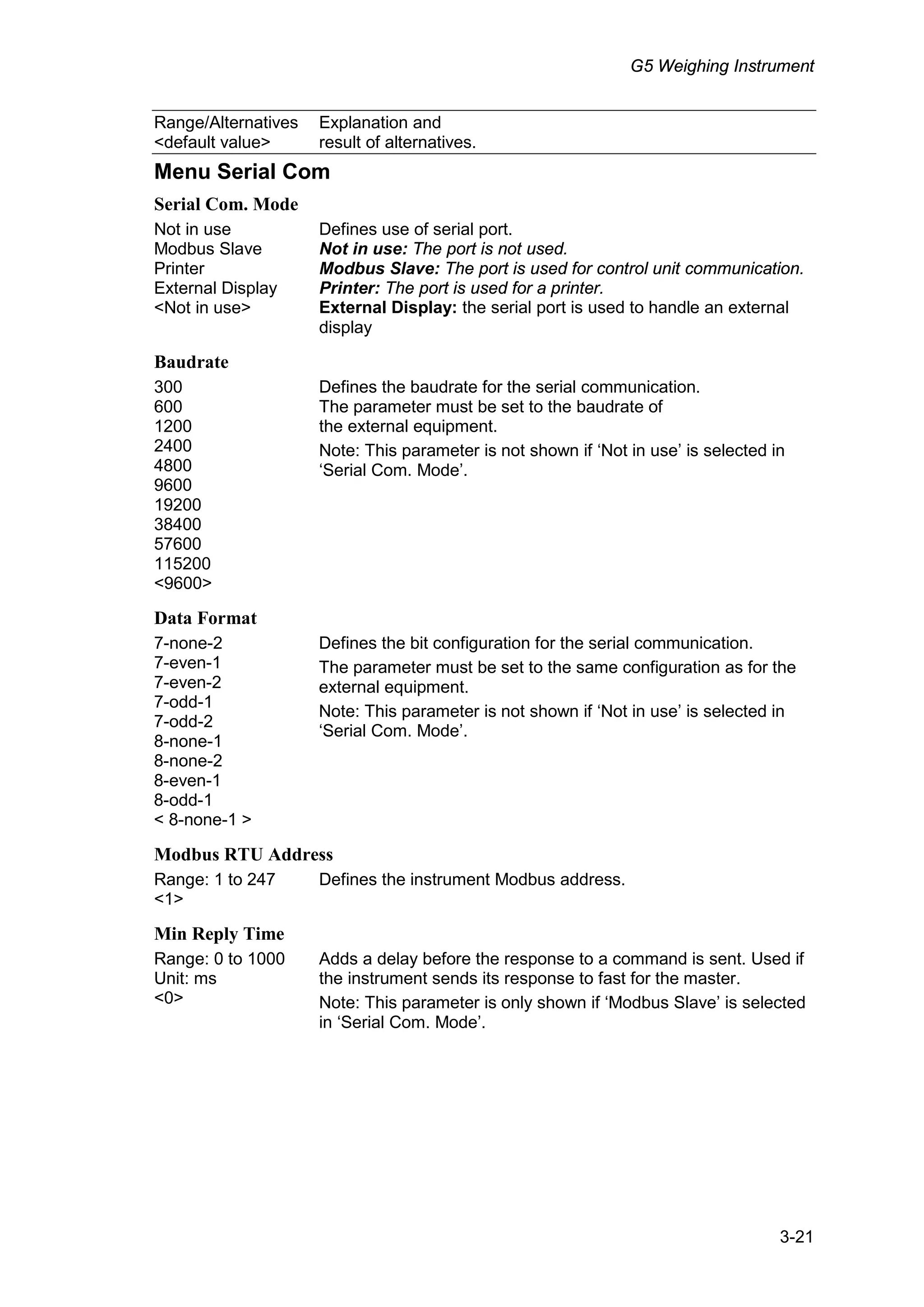
Menu Serial Com
Serial Com. Mode
Not in use
Modbus Slave
Printer
External Display
<Not in use>
Defines use of serial port.
Not in use: The port is not used.
Modbus Slave: The port is used for control unit communication.
Printer: The port is used for a printer.
External Display: the serial port is used to handle an external
display
Baudrate
300
600
1200
2400
4800
9600
19200
38400
57600
115200
<9600>
Defines the baudrate for the serial communication.
The parameter must be set to the baudrate of
the external equipment.
Note: This parameter is not shown if ‘Not in use’ is selected in
‘Serial Com. Mode’.
Data Format
7-none-2
7-even-1
7-even-2
7-odd-1
7-odd-2
8-none-1
8-none-2
8-even-1
8-odd-1
< 8-none-1 >
Defines the bit configuration for the serial communication.
The parameter must be set to the same configuration as for the
external equipment.
Note: This parameter is not shown if ‘Not in use’ is selected in
‘Serial Com. Mode’.
Modbus RTU Address
Range: 1 to 247
<1>
Defines the instrument Modbus address.
Min Reply Time
Range: 0 to 1000
Unit: ms
<0>
Adds a delay before the response to a command is sent. Used if
the instrument sends its response to fast for the master.
Note: This parameter is only shown if ‘Modbus Slave’ is selected
in ‘Serial Com. Mode’.
Technical Manual
3-22
Range/Alternatives Explanation and
<default value> result of alternatives.
Floating Point Format
Modicon Float
Float
< Modicon Float >
Sets how the Modbus slave should handle floating point values.
Modicon Float: Modicon floating point format.
Float: IEEE 32 bit floating point format
See chapter ‘Communication’ for details on floating point values.
Note: This parameter is only shown if ‘Modbus Slave’ is selected
in ‘Serial Com. Mode’.
Print Position 1
Not in use
Display Weight
Preset Tare
Date/Time
Scale Name
Instrument Name
< Display Weight >
Specifies the information that should be printed in printer
position 1 (upper left field). This parameter controls weight
printing but not batching printouts.
Not in use: Printer position 1 is left empty. If both
‘Print Position 1’ and ‘Print Position 2’ are set to ‘Not in use’ the
upper line is not printed.
Display Weight: The displayed weight is printed including the
text Gross/Net and the unit.
Preset Tare: The value of the preset tare is printed.
Date/Time: The date and time is printed.
Scale Name: The scale name is printed.
Instrument Name: The instrument name is printed.
Note: This parameter is only shown if ‘Printer’ is selected in
‘Serial Com. Mode’.
Print Position 2
Not in use
Display Weight
Preset Tare
Date/Time
Scale Name
Instrument Name
< Not in use >
Specifies the information that should be printed in printer
position 2 (upper right field). This parameter controls weight
printing but not batching printouts.
Not in use: Printer position 2 is left empty. If both
‘Print Position 1’ and ‘Print Position 2’ are set to ‘Not in use’ the
upper line is not printed.
Display Weight: The displayed weight is printed including the
text Gross/Net and the unit.
Preset Tare: The value of the preset tare is printed.
Date/Time: The date and time is printed.
Scale Name: The scale name is printed.
Instrument Name: The instrument name is printed.
Note: This parameter is only shown if ‘Printer’ is selected in
‘Serial Com. Mode’.
G5 Weighing Instrument
3-23
Range/Alternatives Explanation and
<default value> result of alternatives.
Print Position 3
Not in use
Display Weight
Preset Tare
Date/Time
Scale Name
Instrument Name
< Not in use >
Specifies the information that should be printed in printer
position 3 (lower left field). This parameter controls weight
printing but not batching printouts.
Not in use: Printer position 3 is left empty. If both
‘Print Position 3’ and ‘Print Position 4’ are set to ‘Not in use’ the
lower line is not printed.
Display Weight: The displayed weight is printed including the
text Gross/Net and the unit.
Preset Tare: The value of the preset tare is printed.
Date/Time: The date and time is printed.
Scale Name: The scale name is printed.
Instrument Name: The instrument name is printed.
Note: This parameter is only shown if ‘Printer’ is selected in
‘Serial Com. Mode’.
Print Position 4
Not in use
Display Weight
Preset Tare
Date/Time
Scale Name
Instrument Name
< Not in use >
Specifies the information that should be printed in printer
position 4 (lower right field). This parameter controls weight
printing but not batching printouts.
Not in use: Printer position 4 is left empty. If both
‘Print Position 3’ and ‘Print Position 4’ are set to ‘Not in use’ the
lower line is not printed.
Display Weight: The displayed weight is printed including the
text Gross/Net and the unit.
Preset Tare: The value of the preset tare is printed.
Date/Time: The date and time is printed.
Scale Name: The scale name is printed.
Instrument Name: The instrument name is printed.
Note: This parameter is only shown if ‘Printer’ is selected in
‘Serial Com. Mode’.
Linefeeds
0
1
2
3
4
5
6
7
8
9
10
<0>
Specifies the number of linefeeds (empty lines) that should be
output after each printout. This parameter controls weight
printing but not batching printouts.
Note that if all four print positions above are set to ‘Not in use’ no
printout and no linefeeds will be printed.
Note: This parameter is only shown if ‘Printer’ is selected in
‘Serial Com. Mode’.
Technical Manual
3-24
Range/Alternatives Explanation and
<default value> result of alternatives.
No of Displays
1
2
3
4
< 1 >
Specifies the no of external displays that are used (connected to
the serial port. Only addressable display types may be used if
more than one is set.
Note: This parameter is only shown if External Display is
selected in Serial Com. Mode.
Ext. Display 1 Type
RD10
LONDON 4
LONDON 5
LONDON 6
LONDON 7
< RD10 >
Specifies which type of external displays that is used as external
display 1.
RD10: Not addressable type. Only one can be used
LONDON 4: 4 digits addressable LONDON type display
LONDON 5: 5 digits addressable LONDON type display
LONDON 6: 6 digits addressable LONDON type display
LONDON 7: 7 digits addressable LONDON type display
Note: This parameter is only shown if External Display is
selected in Serial Com. Mode.
Ext. Display 1 Mode
Net Weight
Gross Weight
Displayed Weight
<Displayed Weight>
Defines what data is shown on external display 1.
Net Weight: The net weight is shown.
Gross Weight: The gross weight is shown.
Display Weight: The gross or net weight is shown.
Note: This parameter is only shown if External Display is
selected in Serial Com. Mode.
Ext. Display 2 Type
For details see Ext. Display 1 Type.
Specifies which type of external displays that is used as external
display 2.
Note: This parameter is only shown if External Display is
selected in Serial Com. Mode and No of Displays is 2 or
larger.
Ext. Display 2 Mode
For details see Ext. Display 1 Mode.
Defines what data is shown on external display 2.
Note: This parameter is only shown if External Display is
selected in Serial Com. Mode and No of Displays is 2 or
larger.
G5 Weighing Instrument
3-25
Range/Alternatives Explanation and
<default value> result of alternatives.
Ext. Display 3 Type
For details see Ext. Display 1 Type.
Specifies which type of external displays that is used as external
display 3.
Note: This parameter is only shown if External Display is
selected in Serial Com. Mode and No of Displays is 3 or 4.
Ext. Display 3 Mode
For details see Ext. Display 1 Mode.
Defines what data is shown on external display 3.
Note: This parameter is only shown if External Display is
selected in Serial Com. Mode and No of Displays is 3 or 4.
Ext. Display 4 Type
For details see Ext. Display 1 Type.
Specifies which type of external displays that is used as external
display 4.
Note: This parameter is only shown if External Display is
selected in Serial Com. Mode and No of Displays is 4.
Ext. Display 4 Mode
For details see Ext. Display 1 Mode.
Defines what data is shown on external display 4.
Note: This parameter is only shown if External Display is
selected in Serial Com. Mode and No of Displays is 4.
Menu ‘Modbus TCP Slave’
Modbus TCP Slave
On
Off
<Off>
Enables/disables the Modbus TCP Slave.
On: Modbus TCP Slave enabled.
Off: Modbus TCP Slave disabled.
Floating Point Format
Modicon
IEEE
< IEEE >
Sets how the Modbus TCP Slave should handle floating point
values.
Modicon: Modicon floating point format.
IEEE: IEEE 32 bit floating point format.
See chapter ‘Communication’ for details on floating point
values.
Note: This parameter is not shown if parameter ‘Modbus TCP
Slave ‘is set to ‘Off’.
Technical Manual
3-26
Range/Alternatives Explanation and
<default value> result of alternatives.
Menu Fieldbus
Note: The Fieldbus menu is not shown if parameter Fieldbus (in Hardware Config
menu) is set to Not In Use. See chapter Communication − Fieldbus interface for
more details on fieldbus configuration and usage.
Profibus, Address
Range 1 - 125
< 126 >
Profibus address setting.
Note: This parameter is only shown if parameter ‘Fieldbus‘ (in
Hardware Config menu) is set to ‘Profibus’.
DeviceNet, Address
Range 0 - 63
< 63 >
DeviceNet address setting
Note: This parameter is only shown if parameter ‘Fieldbus‘ (in
Hardware Config menu) is set to ‘DeviceNet’.
ControlNet, Address
Range 1 - 99
< 99 >
ControlNet address setting
Note: This parameter is only shown if parameter ‘Fieldbus‘ (in
Hardware Config menu) is set to ‘ControlNet’.
DeviceNet, Baudrate
125 kbps
250 kbps
500 kbps
Auto
< Auto >
Sets the baudrate for a DeviceNet type of module. Must be
selected to suite the master.
125 kbps: Fixed baudrate 125 kbits/s.
250 kbps: Fixed baudrate 250 kbits/s.
500 kbps: Fixed baudrate 500 kbits/s.
Auto: Auto setting 125 – 500 kbits/s.
Note: This parameter is only shown if parameter ‘Fieldbus‘ (in
Hardware Config menu) is set to ‘DeviceNet’.
Floating Point Format
Floating Point
Integer
< Floating Point >
Sets how the Modbus TCP Slave should handle floating point
values.
Floating Point: IEEE 32 bit floating point format.
Integer: 32 bit integer format.
Note: This parameter is not shown if parameter ‘Modbus TCP
Slave ‘is set to ‘Off’.
G5 Weighing Instrument
3-27
Range/Alternatives Explanation and
<default value> result of alternatives.
Menus Level Supervision
NOTE: There are 4 levels each with the following four parameters described below.
Level 1 Source ( - Level 4 Source)
Not in use
Net Weight
Gross Weight
Display Weight
Abs.Net Weight
Abs.Gross Weight
Abs.Disp.Weight
< Not in use >
Defines the signal to be supervised by the level.
Not in use: The level is not used, any outputs set to work with
this level will be off.
Net Weight: The level operates on the net weight.
Gross Weight: The level operates on the gross weight
Display Weight: The level operates on displayed weight.
Abs.: Stands for Absolute, the level operates on the absolute
value of net weight, gross weight or displayed weight.
Level 1 Output ( - Level 4 Output)
Active Above
Active Below
< Active Above >
This parameter defines the conditions for control of a possible
used output.
Active Above: The used output is activated as
the supervised signal level is above the set level.
Active Below: The used output is activated as
the supervised signal level is below the set level.
Note: This parameter is only shown if ‘Level 1 Source’ is not set
to ‘Not in use’.
Level 1 Hystereses ( - Level 4 Hystereses)
Range:
+/-999999
Unit:
Measurem. unit
< 0.2 >
Defines the hystereses range for the level.
Positive value gives a hystereses range above the switch level,
negative value gives a range below the switch level.
Note: This parameter is only shown if ‘Level 1 Source’ is not set
to ‘Not in use’.
Menu ‘Setpoints’
NOTE: There are 4 setpoints each with the source parameters described below.
Setpoint 1 Source ( - Setpoint 4 Source)
Not in use
Net Weight
Gross Weight
Display Weight
Abs.Net Weight
Abs.Gross Weight
Abs.Disp.Weight
< Not in use >
Defines the signal to be supervised by the setpoint.
Not in use: The setpoint is not used, any outputs set to work
with this setpoint will be off.
Net Weight: The Setpoint operates on the net weight.
Gross Weight: The Setpoint operates on the gross weight
Display Weight: The Setpoint operates on displayed weight.
Abs.: Stands for Absolute, the Setpoint operates on
the absolute value of net weight, gross weight or displayed
weight
Technical Manual
3-28
Range/Alternatives Explanation and
<default value> result of alternatives.
Menus Digital Inputs
NOTE: There are 4 digital inputs each with the parameter described below.
Digital Input 1 Use (- Input 4 Use)
Not in use
Tare
Gross/Net
Gross
Net
Zero
Weight
Print
< Not in use >
Defines the use of the internal digital inputs in the instrument.
Not in use: The input is not used.
Tare: Input used for taring command.
Gross/Net: Input used for gross/net toggling.
Gross: Input used to switch to gross mode.
Net: Input used to switch to net mode.
Zero: Input used for zero command.
Weight: Input used to switch to weight mode.
Print: Input used for print command.
Menus Digital Outputs
NOTE: There are 4 digital inputs each with the parameter described below.
Output 1 Source (- Output 4 Source)
Not in use
Remote
In Process
Level 1
Level 2
Level 3
Level 4
Setpoint 1
Setpoint 2
Setpoint 3
Setpoint 4
Net Mode
Good Zero
Stable Weight
< Remote >
Defines the use of the internal digital outputs in the instrument.
Not in use: The output is not used.
Remote: The output can be controlled via Modbus
In Process: Active output means active ‘In process’.
Level 1 – Level 4: Output activated by the Level.
Setpoint 1 – Setpoint 4: Output activated by the Setpoint.
Net Mode: Output active in net mode.
Good Zero: Output active by ‘good zero’.
Stable Weight: Output active by stable weight.
G5 Weighing Instrument
3-29
Range/Alternatives Explanation and
<default value> result of alternatives.
Menu Analog Outputs
Analog Out Source
Not in use
Gross Weight
Net Weight
Disp. Weight
Remote
< Remote >
Defines the value to represent on analog output.
Not in use: The analog output is not used.
Gross Weight: The output represents gross weight.
Net Weight: The output represents net weight.
Disp. Weight: The output represents displayed weight
Remote: The analog output value is controlled via Modbus.
Analog Out Type
+/– 20 mA
–12 – 20 mA
0-20 mA
4-20 mA
+/–10 V
0-10 V
<4-20 mA>
Defines the type of signal, used to represent the weight at this
Analog output.
+/–20mA, –12 - 20mA: bipolar current output.
0-20mA, 4-20mA: monopolar current output.
+/–10V: bipolar voltage output.
0-10V: monopolar voltage output.
Note: this parameter is not shown if parameter
Analog Out Source is Not in use.
Note that in most cases some over range is available.
+/-20 mA and -12 – 20 mA ranges are limited
at -22 and +22 mA.
4 -20 mA range is limited at +4 and +22 mA.
0 -20 mA is limited at 0 and +22 mA.
+/-10 V is limited at -11 and +11V.
0–10 V is limited at 0 and +11V.
Analog Out Range Low
Range:
+/–999999
Unit:
Measurem. unit
or flow unit
<0>
Defines the weight that should give the lowest output (0 V / 0 mA
/ 4 mA) at this Analog output.
Note: this parameter is not shown if parameter
Analog Out Source is Not in use or Remote.
Analog Out Range High
Range:
+/–999999
Unit:
Measurem. unit
or flow unit
<500>
Defines the weight that should give the highest output (10 V / 20
mA) at this Analog output.
Note: this parameter is not shown if parameter
Analog Out Source is Not in use or Remote.
Technical Manual
3-30
Range/Alternatives Explanation and
<default value> result of alternatives.
Analog Out filter
On
Off
<Off>
Limits the analog output bandwidth to approximately 0.4 Hz if
On. Analog output is always limited to the bandwidth set for the
scale. This filter can be used in addition to the scale filter when
extra filtration on the analog output is needed.
Note: this parameter is not shown if parameter
Analog Out Source is Not in use.
Analog Out Low Adjust
Range:
+/-2.000
Unit: %
<0.000>
Gives a possibility to adjust the offset of the analog output. This
allows for the reading of an external instrument connected to the
analog output to be fine-tuned. Full adjustment range
corresponds to approximately +/-2% of maximum analog output.
The parameter value will be set to zero each time Analog Out
Type is changed.
Note: this parameter is not shown if parameter
Analog Out Source is Not in use.
Analog Out High Adjust
Range:
+/-2.000
Unit: %
<0.000>
Gives a possibility to adjust the gain of the analog output signal.
This allows for the reading of an external instrument connected
to the analog output to be fine-tuned. Full adjustment range
corresponds to approximately +±/-2% of maximum analog
output.
The parameter value will be set to zero each time
Analog Out Type is changed.
Note: this parameter is not shown if parameter
Analog Out Source is Not in use.
G5 Weighing Instrument
4-1
4. Calibration
General
When measuring with G5 Instrument, the transducer output signal, corresponding
to the transducer load, is converted to a weight value. The conversion is controlled
by several parameters with values defined during calibration of the instrument.
Some calibration types for the instrument can be performed without any transducers
connected.
The G5 Instrument supports three calibration types:
• Data sheet calibration - entry of values from transducer data sheet(s).
• Table calibration - entry of recorded values from a previous calibration.
• Deadweight calibration - storing of measured transducer signals for
known weights.
Calibration can only be performed in menu:
‘Parameter set-up/Calibration.’
A ‘Set-up code’ may be demanded. Note that the weighing result for the
calibrated scale may be temporarily incorrect during calibration.
Calibration starts as one calibration type is selected.
To ensure the best possible weighing results, the mechanical installation must be
carried out with great care. Fixed mechanical connections to the scale should be
avoided, or made as flexible as possible and perpendicular to the measuring direction.
If the scale has several transducers connected in parallel, they must have the same
rated load and impedance. If transducers and fixed supports are combined, the load
must be evenly distributed on all supports.
It is recommended to start with a data sheet calibration, which is easy to perform
and gives a fairly good accuracy so the installation can be tested.
Each transducer from BLH Nobel is delivered
with a detailed data and calibration sheet.
Technical Manual
4-2
If the weight indicator must be replaced, a table calibration of the replacement unit
can be performed, with recorded values from an earlier calibration.
To get the best accuracy, a deadweight calibration with known weights to at least
2/3 of the measuring capacity, should be performed.
All calibration parameters are found in the menus under ‘Calibration Parameters’ and
‘Calibration’. The parameters are described in chapter ‘Set-up’.
Actual gross weight and transducer signal is displayed when in menu ‘‘Calibration
Parameters’ and ‘Calibration’.
Common parameters
For all calibration types, measurement unit and resolution for the weight value, and
the capacity for the scale must be specified. These parameters, among others, are
found in menu ‘Calibration Parameters’, see chapter ‘Set-up’. This section deals only
with the calibration parameters.
Measurement unit
This parameter defines the engineering unit used for the weight value.
The same engineering unit will also be used for example in the parameter values
‘Resolution’, ‘Capacity’, ‘Level’, and ‘Setpoint’.
Resolution
This parameter defines decimal point position and resolution in weight display.
The decimal point position selected here will be used in setting up, in the displayed
weight value and in the weight value sent to a printer or computer.
Resolution is understood to mean the smallest weight change presented.
Capacity
This parameter defines the nominal range of the scale. This is the capacity of the scale
and should be set to the maximum weight with which the scale is to be loaded. Even if
the scale (transducers) have larger capacity, this value should nevertheless be set so
that the weighing vessel does not become over full if the scale is loaded up to this
value. This parameter is used to calculate certain default values in the set-up and in
checking the maximum zero value (with ZERO key and zero-tracking).
G5 Weighing Instrument
4-3
Number of scale divisions
The number of scale divisions (div.) for a scale = ‘Capacity’ / ‘Resolution’. To get
correct and stable weight display, parameter ‘Resolution’ should be set so that the
number of scale divisions with the selected ‘Capacity’ is less than 6 000 (10 000).
The number of scale divisions is also limited by the performance of the transducers
and by how large a portion of the transducer capacity that is actually utilized.
To ensure a stable weight display, the input signal to the instrument should exceed
0.2 µV/ scale division.
Example:
• Three transducers, each of 20 000 N (2 039 kg), are to support a tank which,
without contents, weighs 3 500 kg. The amount of material in the tank varies from
0 – 600 kg.
• Transducer capacity = 6 118 kg
(3 x 20 000 N / 9.80665).
• Transducer sensitivity = 2.039 mV/V.
• Supply voltage to transducers = 9.21 V. (Excitation with 3 x 350 ohm load cells)
• Signal from transducers at full load (6 118 kg) = 18.78 mV
(2.039 mV/V x 9.21 V).
• Signal change in response to an applied load of 600 kg = 1.84 mV
(18.78 mV x 600 / 6 118).
• Set 'Capacity' to 600 kg.
1. Set 'Resolution' to 0.1.
Number of scale divisions = 600 / 0.05 = 12 000
Signal/scale division = 1.84 mV / 12 000 div. = 0.15 µV/div.
2. Set 'Resolution' to 0.2.
Number of scale divisions = 600 / 0.1 = 6 000
Signal/scale division =1.84 mV / 6 000 div. = 0.31 µV/div.
It is best to select Case 2, since both the number of scale divisions and signal/div.
is on the borderline in Case 1. In some special cases the resolution may
obviously be driven higher, but the transducer characteristics must always be
observed.
The filter band width is always of importance to get good weighing results. Lower band
width gives slower response but more stable readings.
Technical Manual
4-4
Data sheet calibration
Data sheet calibration is recommended as first-time calibration for a new installation.
In data sheet calibration, values from the transducer data sheets are entered as
parameter values, the scale need not be loaded and an accuracy of 0.1 % can be
obtained. The accuracy of the G5 Instrument itself is 0.005 % (1-2 years calibration
period). It is essential that no external forces influence the scale installation. If fixed
support points are included in the scale, the load must be evenly distributed on
transducers and fixed supports.
Conversion factor
In transducer data sheets, loads are normally not expressed in the measurement
unit, selected for the scale. This parameter defines a constant by which a weight
value, expressed in the measurement unit, should be multiplied to be expressed
in the data sheet unit.
When using a transducer, calibrated in Newton, in a scale displaying weight values
in kg, the ‘Conv. factor’ shall be the local gravitation constant in m/s2
.
The default value, 9.80665, is an international mean value for the gravitation
constant (world-wide range 9.78 – 9.83).
If the data sheet unit is the same as the measurement unit, the conversion factor
parameter should be set to 1.0000.
Number of transducers
In weighing applications the load on the scale may be supported by several
transducers or fixed supports. This parameter defines the total number of transducers
and fixed supports in the scale, up to maximum 4.
If the scale has more than 4 support points, this parameter should be set to ‘1’
and the parameter value for ‘Rated load’ and ‘Rated output’ must be calculated.
Rated load
Rated load for a transducer is indicated in the data sheet and should be entered as a
parameter value, expressed in the unit of the data sheet.
NOTE! If the data sheet value is 5 kN, this parameter should be set to 5000 (N).
If several transducers are used in a scale, they must all have the same rated load.
If the scale has more than 4 support points, ‘Number of transd’ should be set to ‘1’
and the value of this parameter should be calculated as:
rated load for one transducer, multiplied by the total number of support points.
Rated Output 1 (2, 3, 4)
Rated output is given in the data sheet for every transducer. Parameters will be
available for the number of support points specified in ‘Number of transd’.
For fixed support points the rated output value is 0.00000 (mV/V).
If the scale has more than 4 support points, ‘Number of transd’ should be set to ‘1’
and the parameter value for ‘Rated output 1’ should be calculated as:
the mean value of rated output for all active transducers.
Set zero
Set zero is useful only when the scale installation is finished. By the digit keys this
value can be set to zero, for unloaded scale, or to the weight of the known load, for a
scale that is loaded.
Zero offset
For an installed scale this parameter shows the zero offset after zeroing, a value that
should not be edited.
For a scale that is not installed it is possible to enter the known weight of fixed
equipment on the scale.
G5 Weighing Instrument
4-5
Table calibration
Table calibration can be used to copy recorded values from a previous deadweight
calibration of the weighing equipment into a replacement instrument. This is performed
by entry of recorded weight values and corresponding transducer signal values into the
instrument. Calibration can be performed for up to 6 points.
The accuracy of the copying procedure is 0.005 %.
No of Calibration Points
Only parameters for the selected number of calibration points will be displayed in
the menu. The number of calibration points can be changed during the calibration.
Value Cal. P1, Value Cal. P2 etc.
These parameters are used for entry of recorded weight values, expressed in
the measurement unit, from a previous deadweight calibration.
Transd.Signal P1, Transd.Signal P2 etc.
These parameters are used for entry of recorded transducer signal values for
corresponding calibration points.
Set Zero
Set zero is useful only when the scale installation is finished. By the digit keys this
value can be set to zero, for unloaded scale, or to the weight of the known load, for a
scale that is loaded.
Zero Offset
This parameter is used for entry of the recorded zero offset value from a previous
deadweight calibration.
If a zeroing has been performed with parameter ‘Set zero’ above, the value of
parameter ‘Zero offset’ need not be changed.
Deadweight calibration
This is normally the most accurate calibration type. The transducer signals are
measured and automatically stored when the scale is loaded with known weights.
Calibration can be performed in up to six calibration points, starting with the lowest,
the highest point, or any other order.
Calibration of the lowest point is normally performed with the scale unloaded.
If calibration in two points is used, the second point should be placed as high as
possible. The scale should be loaded with at least 2/3 of the ‘Capacity’.
By calibration in more than two points, the highest calibration point should be placed at,
or higher than, the highest load for which the scale is to be used, and the calibration
points should be evenly distributed in the measuring range.
No of Calibration Points
This parameter defines the number of calibration points. Up to six points can be
selected, and parameters for load value and transducer signal will be displayed only
for the selected number of points.
It is possible to change the number of points during the calibration.
Value Cal. P1,
This parameter defines the load for the lowest calibration point. Normally the scale
should be unloaded and the parameter value set to 0 (zero). This weight value and
the corresponding transducer signal value are automatically stored in the instrument.
Technical Manual
4-6
Value Cal. P2, Value Cal. P3 etc.
The scale should be loaded with known weights. These parameters show the load
according to the previous calibration and the parameter values should be changed to
the value of the known weights. As a parameter value is stored, the instrument will also
store the corresponding transducer signal value for that calibration point.
Transd. Signal P1, Transd. Signal P2 etc.
These parameters contain the automatically stored transducer signal values for
the calibration points. The values cannot be edited.
Set Zero
Set zero is useful only when the scale installation is finished. By the digit keys this
value can be set to zero, for unloaded scale, or to the weight of the known load, for a
scale that is loaded.
Zero Offset
For an installed scale this parameter shows the zero offset after zeroing, a value that
should not be edited.
Calibration indication
When a new deadweight calibration is started dual arrows will be shown at the value of
‘Value Cal. P1’, ‘Value Cal. P2’ etc. This indicates that this value is not entered. The dual
arrows will disappear when the user has entered a value. If the user leaves the calibration
menu, i.e. calibration is interrupted. The remaining arrows will be removed. It will still be
possible to continue the calibration later on but without any calibration indications
(arrows).
Note that as long as there are arrows visible it will not be possible to edit the ‘Set Zero’ or
‘Zero Offset’ parameters. First must the deadweight calibration be finished (no arrows
visible) then should the zero be set.
G5 Weighing Instrument
5-1
5. Operation
General
G5 instrument with strain gauge transducers is designed mainly for weighing and
batching purposes. The measurement values are displayed at the front panel, and can
also be transmitted to a master computer/PLC.
A measurement values can also be presented as an analog output signal.
Some functions in the instrument can be controlled by digital input signals, and digital
outputs from the instrument can be used to indicate actual status of instrument, scale,
levels and so on.
The instrument is powered by 24 VDC or 110/230 VAC.
Power-up sequence
As the G5 instrument is started it enters the Starting up state.
If any error is detected during power-up, the sequence stops and an error code
will be displayed. If the error is not fatal it will be possible to enter the menu system to
correct possible set-up errors.
If the detected error is fatal, it will only be possible to select restart. If the fatal error
persists please contact your supplier.
If no errors are detected, the instrument can enter normal operation (automatic
start-up), displaying actual weight values, possibly together with other instrument
information.
If ‘Manual start-up’ is selected, the instrument enters the ‘Wait for start’ state,
displaying a message ‘Waiting for start command. Press START to continue!’.
When the operator presses the ‘START’ button on the screen, the instrument will
switch over to normal operation unless a warm up time is set and there is still a
remaining warm up time. In this case the ‘Warming up’ message will be
displayed. See below.
If a warm up time has been set the message ‘Warming up.’ will be displayed
together with the remaining time. When the warm up time has expired the
instrument will switch over to normal operation automatically.
Status LEDs
There are three LEDs indicating the status of the instrument.
OFF ON FLASHING
GREEN Power off Power on N/A
YELLOW Normal state, no
scale error
N/A Scale error
RED Normal state, no
instrument error
Fatal instrument error such as
corrupt parameters or HW failure.
Parameter set to a
value not valid.
Technical Manual
5-2
Display at normal operation
On the weight display scale weight information is shown.
Dedicated keys on the front panel are used to zero and tare the scale, to toggle
between gross and net weight display and to print weighing results.
If a name has been entered in parameter ‘Scale Name’ it will be shown in the weight
display screen. In the example screens below the parameter ‘Scale Name’ is set to
“Baking powder”. The display and keyboard only apply to PM models. Remote access
using Web Browser is possible for both PM and RM models.
Weight display screen
Weight screen on a Web Browser
Functions available using soft keys or clicking on the buttons on the Web Browser page
are:
Preset Tare: Showing and setting the (manual) preset tare for the selected scale.
Levels: Setting the level of the level supervisors for the selected scale.
Note that the parameters for the level supervisors, such as source, hysteresis range,
and so on are accessed through the ‘Parameter Set-up’ menu.
If the operator lock is on the user is required to enter the operator lock code before any
changes of ‘P. Tare’ or ‘Levels’ values can be made.
G5 Instrument 10/02/2015 01:28 PM
Preset Tare Levels
Baking powder Gross
100.24 kg
Levels 1 2 3 4
G5 Weighing Instrument
5-3
Security locks
In the G4 instrument two security locks are included to prevent unauthorized access to the
instrument via the panel keys. The locks can be activated by parameters in menu
‘Main menu/Parameter set-up/General’.
The following requires a login password if the corresponding lock is on.
Changing instrument clock: Operator lock.
Changing Preset Tare: Operator lock.
Changing Levels: Operator lock.
Changing Accumulated Weights Operator lock.
Changing set-up parameters: Set-up lock (Operator lock).
Entering/using Backup Menu: Set-up lock (Operator lock).
Entering/using Restore Menu: Set-up lock (Operator lock).
Entering/using Default Menu: Set-up lock (Operator lock).
Entering/using File handling Menu: Set-up lock (Operator lock).
Changing Network Config: Set-up lock (Operator lock).
Entering set-up code gives access also to operator locked functions. If only operator
lock is on, the operator code is required where set-up lock is specified above.
Unlocking of “P.Tare” and “Levels” editing from the main picture, is valid until you return
to the main picture.
Unlocking of any function under the Main Menu is valid until you leave the Main Menu.
There is also a protection from local and remote users both changing parameters. See
chapter ‘Remote Access’ section ‘Remote / Local Access’ for more information.
Codes for the security locks
When a security lock is activated the operator must enter a four digit code to get
access to the protected area. By default the valid code for both locks is ‘1 9 3 7’ ,
but the locks are not activated.
In menu ‘Parameter Set-up’, sub menu ‘General’, parameters are available to activate
the locks and to change the default code to any four-digit code.
The code for the Operator lock can only open the Operator lock.
The code for the Set-up lock will open both Set-up lock and Operator lock.
Technical Manual
5-4
Taring
Taring means storing of a tare value and that the G5 instrument switches over to
display of net weight. Net weight is equal to gross weight minus tare value.
In the instrument two tare values can be stored, Auto tare and Preset tare.
‘Auto’ tare value is the actual gross weight, stored as tare value when the TARE key is
pressed.
‘Preset’ tare is a tare value that can be entered only if the instrument is set to use
Preset tare. The value of Preset tare can be entered in sub menu ‘Preset tare’ under
the instrument Main menu. Preset tare can also be set in sub menu ‘Preset tare’
reached with button F2 / ‘Preset Tare’ directly on the operations menu ‘Preset tare’ can
also be entered from a master unit by communication.
Calibration parameter ’Tare Corr.Mode’ defines the use of ‘Auto’, ‘Preset’, or the sum
‘Auto+Preset’ by taring.
• Auto: Only ‘Auto tare’ is used. ‘Preset tare’ value cannot be entered or edited.
• Preset: Only ‘Preset tare’ is used.
• Auto+Preset: The sum of the ‘Auto tare’ and ‘Preset tare’ values is used.
When the TARE key is pressed, the actual gross weight is stored as
Auto tare value and the instrument will display net weight = ‘– Preset tare’.
With default setting, taring can be performed, even if the weight is not stable. But if
parameter ‘Motion check’ in ‘Parameter Set-up / Calibration Parameters’ for the scale is
set to ‘On’, taring will be allowed only when the weight value is stable.
If Calibration parameter ‘Overload Check’ is set to ‘Unipolar’, taring is not allowed at
negative gross weight.
Taring example:
A combination of Preset tare and Auto tare is useful in weighing operations when
it is inconvenient or impossible to separate a packing and its contents.
• The packing must be weighed to establish a ‘known weight’ for it.
• Go to menu ‘Calibration Parameters’ and set parameter ‘Tare Correction Mode’
to Auto+Preset.
• Go to menu ‘Preset tare’ by pressing F2 / ‘Preset Tare’ button on the screen.
Enter the packing weight as the Preset tare value.
• Press the TARE key when the scale is not loaded, or loaded with permanent
help equipment only. The Preset tare value will be displayed as negative
net weight.
• Put the packing with contents on the scale.
The weight of the contents will be displayed as net weight.
G5 Weighing Instrument
5-5
Gross/Net operation
At normal operation the G5 instrument presents a numerical weight value at the
display, either gross weight or net weight. When net weight is displayed the text
‘Net’ is shown on screen.
Toggling between display of gross weight and net weight can be performed by
pressing the GROSS/NET key. Gross weight is continuously shown in form of a
graphic bar on one and two scale displays. Maximum length of the bar corresponds
to the set Capacity of the scale.
Net weight is the difference between gross weight and a tare value. For calculation
of net weight, the instrument can use either ‘Preset’ tare, ‘Auto’ tare, or the sum of
them. Net weight cannot be displayed if the tare value in use is zero (0).
Zero setting
A basic zero setting of the gross weight is performed as part of the calibration for the
scale. If changes to the weighing equipment are made later a renewed calibration, or at
least the zero setting of a calibration, should be performed.
Minor correction of the zero value may be needed and can rapidly be performed:
When a gross weight close to zero is displayed, pressing the ZERO key
will make the gross weight zero.
Pressing the ZERO key will also set the value of ‘Auto tare’ to zero.
Zero setting with the ZERO key is permitted only if:
• The weight is stable (the text ‘Motion’ not shown), and
• The accumulated zero correction since last calibration is between -1 % and +3 %
of the ‘Capacity’, over and above the zero offset obtained when the instrument
was calibrated last time.
The text ‘Zero’ will be shown on the display when the displayed weight is a ’good zero’,
meaning that the weight deviates from zero with less than one quarter of the set
‘Resolution’.
Zero value
Unloaded transducers.
Actual transducer load.
Tare value: auto,
fixed or auto + fixed
Net weight
Gross weight
Range for zero adjustment
and zero-tracking.
Empty scale - loaded with
permanent equipment only.
Installation setting.
Correlation between gross weight, net weight,
and tare value for a scale.
Technical Manual
5-6
Zero-tracking/Automatic zero setting
In the instrument the functions zero-tracking and automatic zero setting can be
enabled. Zero-tracking gives a continuous zero setting by slow changes in zero
weight. The automatic zero setting performs zeroing of small negative gross weights.
For both functions the following requirements should be met:
• The zero point stays within the permissible range, deviation from calibrated
zero less than -1 % to +3 % of Capacity.
• No setpoint function is activated (armed).
Zero-tracking
Zero-tracking is active when, in addition to the common requirements above,
the following requirements are met:
• Calibration parameter ‘Zero-tracking’ is set to On or On+AutoZero.
• The gross weight is ‘good zero’ (deviation from zero less than one quarter of
Resolution).
• The weight is stable (the text Motion not shown).
• The rate of weight change is lower than the ‘zero-track.rate’, see below.
The set-up parameter ‘Zero-track.rate’ determines the maximum permissible weight
change per minute for the zero-tracking. If parameter ‘Resolution’ is changed, the value
of ‘Zero-track rate’ will change correspondingly.
Automatic zero setting
Automatic zero setting is active when, in addition to the common requirements above,
the following requirements are met:
• Calibration parameter ‘Zero-tracking’ is set to On+AutoZero.
• The gross weight is negative.
• The scale is in gross mode.
• The weight has been stable (the text Motion not shown) for 5 seconds.
Motion
The text ‘Motion’ may be shown to the right in the display. Motion condition exists if the
weight change during a certain measurement period is greater than the window ‘Motion
Detect Window’. The measuring period is 100 ms.
After the weight becomes stable, the text ‘Motion’ will still be shown for a short time,
specified in parameter ‘No-motion delay’, instrument will regard the weight as unstable
until the text ‘Motion’ has disappeared.
When the text ‘Motion’ is shown, the following activities are affected:
• Zero setting cannot be performed.
• Zero-tracking cannot be performed.
• Taring cannot be obtained (applies if ‘Motion check’ is ‘On’).
• Printout of weights is delayed until stable weight is obtained (applies if ‘Motion
check’ is ‘On’).
G5 Weighing Instrument
5-7
Weight printing
General
A printer can be used to print the displayed weight. The printer must be connected to
the G5 Instrument serial communication port and the communication parameters must
be correctly set. For details on printing function and set-up see chapters
‘Communication’ and ‘Set-up’.
Print command
Printing is commanded manually by pushing the print key on the front panel.
Note that pushing the front panel print button will make the displayed value of gross
weight or net weight to be printed.
Print command can be given as a communication print command or by digital input.
The digital input must be configured as a print command input.
Print indication
The print indication text ‘Print’ is
shown where ‘Zero’ or ‘Motion’
indications normally appear.
The print indication will appear
even if no printer is configured
and indicates that the weight is
accumulated.
Print restrictions
The displayed weight value (gross or net weight) in the instrument can be printed out
on a connected printer, but on certain conditions:
• The displayed weight must be higher than the value of 'Min. Weight Print' in sub
menu ‘Calibration Parameter’. No print out will be done if the weight is too low.
• If parameter 'Motion Check' in menu 'Calibration Parameter' is set to 'On', the
displayed value must be stable ('Motion' not shown).
If the weight is not stable ('Motion' shown), printing will be delayed and the text
'Print' will be flashing. When the weight has become stable ('Motion' not shown)
printing will be performed.
•
Weight accumulation
The print button and serial communication printing function is also used to accumulate
the displayed weight. See also the description of accumulated weights below under
Main menu. Accumulation is done even if no printer is set-up or connected.
Character set
The print function is designed to work best with a 40-character printer. Displayed
weight can be printed.
The printing functionality in the G5 Instrument uses the multilingual character set
known as Microsoft OEM code page 437 (US), MS-DOS code page 437, IBM character
set No. 437, etc. Details on this character set can be found e.g. on the Internet.
10/02/2015 01:28 PM
Preset Tare Levels
Baking powder Gross Print
100B24 kg
Levels 1 2 3 4
Print indication
Technical Manual
5-8
Setup of printer
‘Serial Com. Mode’: Set to ‘Printer’ to activate the printing function in the G5
Instrument.
‘Baudrate’: As selected on the printer.
‘Data Format’: As selected on the printer.
‘Print Position 1’: A print out consists of up to 4 fields with configurable
‘Print Position 2’: information. Each field is 20 characters long. The fields can be
‘Print Position 3’: either: ‘Not in use’, ‘Display Weight’, ‘Preset Tare’,
‘Print Position 4’: ‘Date/Time’, ’Scale Name’ or ‘Instrument Name’.
Print Pos. 1 Print Pos. 2
Print Pos. 3 Print Pos. 4
Printer field layout.
If both positions on a row are set to ‘Not in use’ the row is
omitted.
‘Linefeeds’: After each printout of displayed weight the number of linefeeds
defined in this parameter is added.
Print examples
Print Position 1 = Date/Time Print Position 2 = Scale Name
Print Position 3 = Not in use Print Position 4 = Display Weight
Linefeeds = 2
Scale Name = Ice cream
2014-03-12 17:11 Ice cream (Gross weight displayed)
G 037.9 kg
2014-03-12 19:33 Ice cream (Net weight displayed)
N 002.4 kg
G5 Weighing Instrument
5-9
Alibi Memory
The Alibi memory is a complement to the weight printing. It will store configurable
printouts similar to what is described above in Weight printing section when a print
command is given either from the front panel of a PM instrument, via communication or
a digital input. The Alibi memory is a file that is stored in the internal file system of the
instrument. The file is named Alibi.log and it is read only and cannot be deleted. If this
file becomes larger than approximately 1 MB it will be renamed Alibi2.log and a new
Alibi.log will be created. An existing Alibi2.log file is overwritten. The user must ensure
that the Alibi2.log is moved to an external storage if it has to be kept. The Alibi2.log file
can be deleted by the user. Use Maintenance – File Handling or an ftp client to
handle files in the instrument.
Main Menu
To reach the Main Menu, press
the ‘Info’ button on the instrument
front panel. Note that the ‘Info’
button is only functional from the
weight display.
Navigating in a menu is done with
arrow keys or by clicking on the
desired line if a Web Browser is
used.
The instrument Main Menu is opened without interrupting the weighing.
In the Main Menu it is possible to select between the following sub menus:
Levels: Viewing and editing of level value for each configured Level Supervision
function. Note that configuration of Level Supervision functionality is done in the
‘Parameter Set-up’ menu.
Setpoints: Viewing of configured setpoint values. Editing of setpoint value is not
possible. Note that configuration of setpoint functionality is done in the ‘Parameter Set-
up’ menu.
Preset Tare: Viewing and editing of preset tares values for scales with tare correction
mode set to Preset or Auto + Preset. Set-up of Scale ‘Tare Corr. Mode’ parameter is
done in the ‘Parameter Set-up’ menu.
Accumulated Weights: This menu shows the accumulated weights for all configured
scales. Accumulation of displayed weight (net or gross) takes place when a print
command is given either from front panel or via communication. Note that the displayed
weight is accumulated.
In the Accumulated Weights menu there is a possibility to zero all values by using the
soft key F2 (Zero) or to zero (or edit) one value at a time.
The instrument is capable of storing accumulated weight values up to 10 000 000 000
units with 3 decimals. When the limit is passed 10 000 000 000 will be subtracted from
the value.
Main Menu 10/02/2015 01:28 PM
Enter Escape
Levels
Setpoints
Preset Tare
Accumulated Weights
Batched Weights
Clock Set-up
System Information
Maintenance
Network Configuration
Parameter Set-up
Main menu.
Technical Manual
5-10
Clock Set-up: Used to set the instrument clock and date. Time and Date formats are
set-up with parameters trough ‘Parameter set-up’ menu.
Parameter Set-up: Access to the G5 instrument parameter set-up menu system. See
chapter ‘Set-up’ for more details on setup.
System Information: Displaying system information for hardware and software in the
instrument. Program versions, database version, serial numbers and software versions
for all electronic modules can be read here. Info about the Ethernet connection is also
available.
Maintenance: Includes a number of functions for maintenance purposes. The available
functions are Diagnostics, File Handling, Create Backup, Restore Backup, Set Default
Values and Program Upgrade.
See chapter ‘Maintenance’ for a detailed description of the functions.
Network Configuration: The Network Configuration menu consists of the IP
Configuration and the Server Configuration menus. The IP Configuration menu is used
to set, manual/auto IP address assignment, IP address etc. The Server Configuration
menu is used to enable/disable the FTP Server and the WEB Server of the instrument.
In this menu is also the password for the servers set.
Note that Ethernet configuration is not done with set-up parameters and is for that
reason not saved with the instrument back-up function.
To return to the weight display, press the ‘Esc’ key or F4 (Escape) key.
G5 Weighing Instrument
5-11
Level supervision
The G5 instrument contains 4 supervision Levels that can be used to supervise defined
signals in the instrument. The 4 digital outputs can be assigned as outputs for Levels.
For each Level, supervised scale, hysteresis and operation mode for the digital output
is controlled by set-up parameters.
Functions for Level supervision are defined in menu ‘Parameter Set-up’ by parameters
in the sub menus ‘Level Supervision’ and ‘Outputs’. See chapter ‘Set-up’.
‘Level X Source’
Set to ‘Not in use’ will disable level X.
Select ‘Net Weight’ or ‘Gross Weight’ to supervise these weight values, independent of
which weight that is actually displayed.
Select ‘Display Weight’ to supervise either gross weight or net weight, depending on
which weight that is actually displayed.
Select ‘Abs.Net Weight’, ‘Abs.Gross Weight’, ‘Abs.Disp.Weight’ to act on the absolute
value of these signals, i.e. the value independent of polarity.
‘Level X Output’:
Defines how a digital output, if connected to the Level, should operate.
The parameter can be set to make an output active when the signal is above
the Level, or when it is below the Level.
‘Level X Hystereses’:
Defines the width of a hystereses range for the Level. The definition of a negative
hystereses range starts with a minus sign( - ).
Hystereses is an intentional difference between the switch levels for increasing
and decreasing signal level. One switch level is always at the defined Level.
The other switch level is at a higher level by positive hystereses, at a lower level
by negative hystereses. See figure.
Level status
Actual status of the Levels (input signal above or below Level) can be read via
communication and is shown at the display. The level status includes the influence
from hystereses, but it does not show the status of any digital outputs, connected to the
Levels.
Level
Decreasing signal
Negative
hysteresis
Increasing signal
Positive
hysteresis
Decreasing signal
Increasing signal
Positive
hysteresis
Negative
hysteresis
{
{
Below Level Status Above Level Status
Influence on the level supervision from positive hystereses and negative hystereses.
Technical Manual
5-12
Setpoint function
General
The 4 Setpoints can be used for fast, accurate and reliable supervision of weight
values. The Setpoint function is of a one shot type. The function is activated by a
command from the master computer/PLC and deactivated when the weight has
reached the Setpoint value.
The Setpoints can be connected to any digital output in the instrument.
The Setpoints can only be controlled by a master computer/PLC via serial
communication.
NOTE: To ensure good operation during the time when a setpoint is activated,
the zero-tracking function is not working.
Set-up
The set-up of the setpoint function is made with parameter Setpoint X Source. In this
set-up you can select what signal (weight value) the setpoint shall act on. Assignment
of an output to a setpoint is made in set-up menu Outputs.
Operation
The wanted setpoints (weight levels) must be loaded into the corresponding Modbus
registers.
The setpoint(s) are activated by communication. If a setpoint is connected to an output,
then corresponding digital output is activated.
When the selected weight becomes higher than the setpoint the setpoint function is
deactivated and the corresponding Setpoint X cycle done bit is set. A connected
digital output is also deactivated at the same time.
The setpoint function, and possible connected digital outputs, can also be deactivated
by sending command Deactivate setpoint X.
NOTE the Setpoint X cycle done for a setpoint is reset when the setpoint value is
loaded and when the setpoint is activated.
Digital inputs and outputs
The G5 instrument has 4 inputs and 4 outputs. All input and output functions are
controlled by set-up parameters in the instrument. The digital inputs can be used for
remote operation of the instrument. The digital outputs can be used for control of
external equipment and for indication of instrument status.
Analog output
The G5 instrument has a one analog output that will represent a selected signal in the
instrument in form of an analog current or voltage signal. All analog output functions are
defined by parameters in sub menu Analog outputs, see chapter ‘Set-up’.
G5 Weighing Instrument
5-13
Filter function
In the instrument the weight value is filtered to produce a stable measurement. To
allow adaptation to the dynamic requirements of the specific installation it is possible to
select the filter bandwidth within a broad range. The lowest bandwidth is 0.125 Hz and
the highest is 50 Hz. The bandwidth is defined as the frequency where the output
signal is 3dB lower than the input (attenuation = -3dB). For the 3 lowest bandwidths,
0.125 Hz, 0.25Hz and 0.5Hz the instrument have the possibility to change
automatically to 1 Hz bandwidth during changing input, i.e. when the scale is loaded or
unloaded. This will give a faster response to changes which is especially useful if the
scale is manually handled e.g. manual filling. This function should be used if the
bandwidth must be very low to achieve as high resolution as required and the response
is then considered too slow.
Switching between filtered and unfiltered weight
The scale will switch to set bandwidth when the difference between samples is smaller
than Filter window. Samples are compared with a time difference of 100 ms. If the
difference is larger than Filter window the scale switches to 1 Hz bandwidth.
Note that the automatic switching only applies to bandwidth settings 0.125Hz, 0.25Hz
and 0.5Hz.
Filter characteristics
Bandwidth Attenuation at frequency Rise time (to steady state)
50 Hz -81 dB @ 215 Hz 30 ms
30 Hz -73 dB @ 156 Hz 36 ms
15 Hz -73 dB @ 77 Hz 66 ms
8 Hz -76 dB @ 42 Hz 122 ms
4 Hz -76 dB @ 21 Hz 233 ms
2 Hz -76 dB @10.7 Hz 493 ms
1 Hz -76 dB @ 5.3 Hz 993 ms
0.5 Hz -76 dB @ 2.6 Hz 1993 ms
0.25 Hz -76 dB @ 1.3 Hz 3994 ms
0.125 Hz -76 dB @ 0.66 Hz 7993 ms
Technical Manual
5-14
G5 Weighing Instrument
6-1
6. Communication
General
The G5 Instrument has one serial communication port, one Ethernet port and an
optional fieldbus module.
The serial communication port can be used for communication with a control unit,
for connecting a printer or for displaying the weight on an external display.
The Ethernet port can be used for communication with a control unit and for file
transfer to and from an external computer, using ftp (File Transfer Protocol). These
functions can be used simultaneously.
The optional fieldbus interface module is used for communication with a control
unit.
Serial interface
The instrument is equipped with one RS-485 serial communication port. It can be used
either for 2-wire or 4-wire. RS-485 is an interface working with differential voltages,
giving a noise resistant transmission in a network with several units and long distances.
The host computer (master) must have an asynchronous communication port for RS-
485, or use a converter for RS-232 to RS-485 conversion or USB to RS-485.
If 2-wire transmission is used, the control unit must be capable of data flow
direction control or utilize a converter for automatic data flow direction control.
When 4-wire transmission is used, no data flow direction control is needed.
Modbus RTU Slave
General
All G5 units connected to the network can listen to what is transmitted in the
network, but only one unit at a time may transmit. A time-sharing principle is
needed to allow communication in both directions (half duplex).
All communication in the network must be initiated by the control unit (master).
When the instrument is working together with a master the instrument units are all
slaves, only allowed to reply to master commands. As the master has addressed a
command message to a specific slave unit, it listens for the reply during a specified
time, before sending next command message.
If the reply from a slave unit fails it may be due to:
• Mismatch in communication parameters. (Baud rate, address, etc.).
• More than one slave unit has been transmitting at the same time.
This can distort the reply message and make it impossible to decode.
See chapter ‘Communication − Modbus protocol’ section for detailed information of
register numbering, register content definition, commands etc.
More information about Modbus RTU can be found at ‘www.modbus-ida.com’ and
many other places.
Setup of Modbus RTU communication
• The instrument will as default have the address 1. If more than one instrument
is used in a network, each instrument must be given a unique address in
parameter ‘Modbus RTU address’ (in ‘Parameter set-up’, menu
‘Communication’, sub menu ‘Serial Communication’).
Technical Manual
6-2
• Set parameter ‘Serial Com. Mode’ to ‘Modbus RTU Slave’.
• Select correct baud rate and data format in parameter ‘Baudrate’ and ‘Data
Format’.
• Select wanted type of float values in parameter ‘Floating Point Format’.
• When longer response times are needed, set ‘Min. Reply Time’ to a suitable
value.
Modbus TCP Slave
General
The Ethernet communication port can be used to communicate with the instrument
using the Modbus TCP protocol. The instrument is a Modbus TCP slave and will only
respond to incoming messages from a master.
See chapter ‘Communication − Modbus protocol’ section for detailed information of
register numbering, register content definition, commands etc.
More information about Modbus TCP can be found at ‘www.modbus-ida.com’ and
many other places.
Setup of Modbus TCP Slave communication
• Network configuration (IP address, Subnet Mask,….) is done from menu
‘Network Configuration’.
• Enable the Modbus TCP Slave by setting parameter ‘Modbus TCP Slave’ to
‘On’ in menu ‘Parameter Set-up / Communication / Ethernet /
Modbus TCP Slave’.
• Select wanted type of float values in parameter ‘Floating Point Format’ (also in
menu ‘Modbus TCP Slave’).
G5 Weighing Instrument
6-3
Ftp Server
The G5 instrument contains an ftp server that can be used to transfer files between the
instrument and an external computer using an ftp client. To connect to the instrument
the ftp client must login to the instrument with the user ID ‘G5User’ and the password
‘1937’ (default password). Note that the password for the ftp server and the web server
can be set in the menu ‘Server Configuration’. In this menu there are also settings for
turning on or off the ftp server and web server. By default both ftp server and web
server are turned on.
The ftp handling can be automatic, e.g. to collect log files once every 24 hours or
manual.
The ftp client (on an external computer) can access the user area of the instrument
flash file system. The user area consists of (by default) the BACKUP folder. Installed
SD-Card and USB memory can also be accessed with ftp.
Modbus protocol
For communication with a master computer (PLC) the Modbus protocol is used in
the instrument. The Modbus protocol is a standard protocol, used for master/slave
communication in the industry.
Information is transmitted in blocks of data to minimize polling and response time
delays. For example the error register, status register and weight register could be read
with one command to the instrument.
When a command that cannot be performed is sent, the instrument responds with
an exception code. For a better explanation of the error, a special command error
register could be read.
Depending on the type of the communicating equipment (the master), the commands in
the application program (PLC program, or pc program) may be different from type to
type. However, if the master is not a Modicon PLC system, then the Modbus
implementation in the master must have some cross-reference function to transfer the
Modbus register and I/O bit numbering to the masters own register and
I/O bit numbering. All registers and coils described in this manual use the standard
Modbus (Modicon) register and I/O numbering.
See the master's own Modbus driver documentation for how the commands should be
activated in the master's application program.
Most manufacturers of PLC systems and HMI and SCADA software can provide
Modbus drivers. Various Modbus drivers for development of Windows programs are
also available on the market.
More information about Modbus protocol can be found at ‘www.modbus-ida.com’ and
many other places.
Technical Manual
6-4
General registers
The G5 instrument has a number of Modicon 'Holding Registers' (registers 4XXXX ... ).
The Modbus function 03 'Read Holding Registers' should be used to read these
registers and the Modbus function 05 'Preset Single Register' or 16 'Preset Multiple
Registers' should be used to write to the registers.
See section ‘Data representation’ for a description of the different data formats used.
Hint: To find out which of the float formats that should be used, read
the ‘Instrument type’ register (44000), which equals ‘5001’ for the instrument.
Data type:
Integer
Data type: float
(2 reg./value)
Explanation R/W
40001 (1 reg) 44000 Instrument type R
40002 (1 reg) 44002 Program number R
40003 (1 reg) 44004 Program major version R
40004 (1 reg) 44006 Program minor version R
40006 (3 reg) 44010 Serial number R
40009 (1 reg) 44012 Hardware version R
40010 (1 reg) 44014 Hardware type R
40020 (1 reg) 44020 Alibi memory error detected R
40021 (1 reg) 44022 Alibi memory queue error count R
40022 (1 reg) 44024 Alibi memory store error count R
40030 (1 reg) 44030 Command error R
40031 (1 reg) 44032 Instrument state R
40032 (1 reg) 44034 Instrument error R
40033 (1 reg) 44036 Instrument status R
40034 (1 reg) 44038 Scale Error code R
40035 (1 reg) 44040 Scale Status R
40036 (3 reg) 44042 Gross weight R
40039 (3 reg) 44044 Net weight R
40042 (3 reg) 44046 Flow rate (not used in this version) R
40045 (3 reg) 44048 Input signal (mV/V) R
40070 (3 reg) 44070 Analog output value R
40082 (1 reg) 44078 Status of digital inputs R
40083 (1 reg) 44080 Status of digital outputs R
G5 Weighing Instrument
6-5
Data type:
Integer
Data type: float
(2 reg./value)
Explanation R/W
40084 (1 reg) 44082 Level status R
40085 (1 reg) 44084 Setpoint status R
40086 (3 reg) 44086 Analog input value R
42000 (1 reg) 46000 Command register R/W *
42002 (1 reg) 46002 Clock: Year R/W
42003 (1 reg) 46004 Clock: Month R/W
42004 (1 reg) 46006 Clock: Day R/W
42005 (1 reg) 46008 Clock: Hour R/W
42006 (1 reg) 46010 Clock: Minute R/W
42007 (1 reg) 46012 Clock: Second R/W
42010 (3 reg) 46020 Preset tare value R/W
42016 (3 reg) 46024 Level 1 value R/W
42019 (3 reg) 46026 Level 2 value R/W
42022 (3 reg) 46028 Level 3 value R/W
42025 (3 reg) 46030 Level 4 value R/W
42028 (3 reg) 46032 Setpoint 1 value R/W
42031 (3 reg) 46034 Setpoint 2 value R/W
42034 (3 reg) 46036 Setpoint 3 value R/W
42037 (3 reg) 46038 Setpoint 4 value R/W
42040 (3 reg) 46040 Digital outputs remote ctrl R/W
42043 (3 reg) 46042 Analog output remote ctrl R/W
42055 (3 reg) 46050 Accumulated weight, low part R/W
42058 (3 reg) 46052 Accumulated weight, high part R/W
*/ The read value is always ‘zero’.
Important:
‘Net weight’, ‘Gross weight’ and ‘Flow rate’ registers for a scale are only valid when
‘Scale error code’ register equals 0. Therefore it’s recommended to read the
‘Instrument error’ register together with these registers.
Instrument type
This register holds the type of the instrument. For G5 Weighing Instrument this value is
5001.
Technical Manual
6-6
Program number, major version and minor version
These registers hold the program number, major version and minor version for the
program installed in the instrument.
Serial number
This register holds the serial number of the instrument. The value 991000 means
99-1000. First 2 digits is manufacturing year and the last 4 is the serial number.
Together the 6 digits uniquely identify the unit. This can be used by the master to be
sure that an instrument with a specific serial number is used for a special process.
Hardware version
A difference between instruments in HW version means that there is some difference in
the instrument hardware such as the electronics or mechanics. If the differences are
significant it will be outlined in the manual.
Hardware type
Allows a PLC system or similar control system to check which type of instrument it is.
This data is bit oriented and new information may be added in newer models of the
instrument.
Bit 0: 0 if it’s a single load cell input model, 1 if it’s a dual load cell inputs model.
Bit 1: 0 if it’s a transmitter (RM) model, 1 if it’s a panel mount (PM) model.
Bit 2: 0 if it’s a DC power model, 1 if it’s an AC power model.
Alibi memory registers
These 3 registers are used to provide information on the error status of the alibi
memory handling. The alibi memory is a file where information on weight is stored
when the print button is pressed or a print command is given.
Command error
This register holds the error code when a command has been sent to the instrument.
A command that gives a 03 or 07 as exception will have an error code with a better
description of the problem in this register. Normally this register should contain ‘00’
which means no error. Error codes 0 to 255 are valid in this register.
G5 Weighing Instrument
6-7
Instrument state
This register contains the state of the G5 instrument.
Code Description
00 ‘Starting up’ state.
The instrument is starting up after a reset or power on.
01 ‘Wait for start’ state.
The instrument is waiting for a start command to go in process.
02 ‘Warming up state’
The parameter ‘Warm up time’ is set to a value other than zero, and
the instrument is waiting for the warming up time to pass.
03 ‘Normal’ state.
There are no parameter errors in the system.
Note: Weight errors still indicate normal state.
04 ‘Error’ state.
An error has been detected during startup of the instrument.
05 ‘Fatal error’ state.
An error has been detected during startup of the instrument.
It’s not possible to enter any other state from here.
06 ‘Power fail’ state.
A power fail has been detected and the instrument will respond to
communication for a short moment until the power supply reserves are empty
(this is normally just a few ms). Weight values should be regarded as invalid.
Instrument error
This register holds the overall error code for the instrument.
Normally this register should contain ‘00’ which means no error.
Technical Manual
6-8
Instrument status
This register holds the overall status for the instrument
Bits set to 1 in this register have the following meaning:
Bit no Function Comment
0 Remote operation ‘1’ = On ‘0’ = Off
1 Program reset The bit is set each time the program starts, and it
indicates that volatile data is lost.
The bit is reset as Instrument status is read, over serial
communication (Modbus RTU) or over Ethernet (Modbus
TCP), for the first time after reset/power-up. Note that the
reply contains the set bit if it was set.
Reading Instrument Status via Fieldbus interface will not
reset this bit. To reset this bit with fieldbus interface a
specific reset command must be used.
Care must be taken if more than one interface is used to
communicate with the instrument and the Program reset
bit is to be used.
2-15 Not used
Note: If this register (bits) is read as float value,
see description of Data representation.
Scale Error code
This register holds the error code for the scale. Normally this register should contain ‘000’
which means no error. Error codes 000 to 255 are valid in this register.
G5 Weighing Instrument
6-9
Scale Status
Bits set to 1 in this register have the following meaning:
Bit no Function Comment
0 Net weight > INT size The net weight in ‘scaled integer’ format does not
fit in one register.
(See description of data representation.)
1 Gross weight > INT size The gross weight in ‘scaled integer’ format does
not fit in one register.
(See description of data representation.)
2 Flow rate > INT size The flow rate in ‘scaled integer’ format does not fit
in one register.
(See description of data representation.)
3 Good zero (disp. weight)
4 Good zero Gross
5 Good zero Net
6 Net Mode '1' = Net mode ‘0' = Gross mode
7 Motion Unstable weight
8
9
10
11 Flow rate display Flow rate is shown in the display.
12 Net weight > 6 digits The net weight value is out of precision and
should normally not be used.
13 Gross weight > 6 digits The gross weight value is out of precision and
should normally not be used.
14
15
Note: If this register (bits) is read as float value,
see description of Data representation.
Gross weight
This register holds the gross weight. The weight should not be read alone because
the status and error codes are stored in other registers. The weight is only valid when
the register ‘Scale Error code’ equals 00.
Net weight
This register holds the net weight. The weight should not be read alone because the
status and error codes are stored in other registers. The weight is only valid when
the register ‘Scale Error code’ equals 00.
Technical Manual
6-10
Flow rate
No used in the current program version. Always 0.
Input signal (mV/V)
This register holds the current input signal in mV/V. This register could be used for fault
finding in the system.
Analog output value
This register hold the value sent to the analog output. The registers can be used for
fault finding in the system. The value is rounded to 3 decimals.
Status of digital inputs 1 - 4
Bits set to 1 in this register have the following meaning:
Bit no Function
0 Digital input 1 activated.
1 Digital input 2 activated.
2 Digital input 3 activated.
3 Digital input 4 activated.
Note: If this register (bits) is read as float value,
see description of Data representation.
Status of digital outputs 1 - 4
Bits set to 1 in this register have the following meaning:
Bit no Function
0 Digital output 1 activated.
1 Digital output 2 activated.
2 Digital output 3 activated.
3 Digital output 4 activated.
Note: If this register (bits) is read as float value,
see description of Data representation.
G5 Weighing Instrument
6-11
Level status 1-4
Bits set to 1 in this register have the following meaning:
Bit no Function Comment
0 Above level 1 The weight is above Level 1.
1 Above level 2 The weight is above Level 2.
2 Above level 3 The weight is above Level 3.
3 Above level 4 The weight is above Level 4.
Note: If this register (bits) is read as float value,
see description of Data representation.
Setpoint status 1-4
Bits set to 1 in this register have the following meaning:
Bit no Function Comment
0 Setpoint 1 activated See description for setpoint function.
1 Setpoint 1 cycle done See description for setpoint function.
2 Setpoint 2 activated See description for setpoint function.
3 Setpoint 2 cycle done See description for setpoint function.
4 Setpoint 3 activated See description for setpoint function.
5 Setpoint 3 cycle done See description for setpoint function.
6 Setpoint 4 activated See description for setpoint function.
7 Setpoint 4 cycle done See description for setpoint function.
Note: If this register (bits) is read as float value,
see description of Data representation.
Analog input
In this register it is possible to read the voltage on the analog input. The value is given
in V with 3 decimals. The range of the input is about +-11V.
Technical Manual
6-12
Command register
As this register is read, the answer will always contain only zeros.
There are a number of actions that can be activated in the instrument. The value of this
register (when different from zero) will activate one of these actions, as described in
below.
When an action cannot be performed for some reason (wrong state etc.) an exception
is given as reply. When an exception with code 03 is received the command error
register could be read to get a better error explanation.
Cmd Action activated in
instrument
Description
0 No action
1 Start operation When the instrument is in ‘Wait for start state’,
this command can be used to start up the
instrument.
2 Enter Remote operation This command disables the keys on the
instrument. This means that an external
computer is controlling the instrument or the
instrument is controlled using digital inputs.
3 Exit Remote operation This command enables the keys and leaves
the remote operation.
10 Auto tare
11 Set to zero Used to set the gross weight to zero.
12 Select gross mode
13 Select net mode
14 Weight display Show weight on the display.
15 Flow rate display Show flow rate on the display.
16 Print command Initiate a weight printout
100 Activate setpoint 1 See description of setpoint function.
101 Deactivate setpoint 1 See description of setpoint function.
102 Activate setpoint 2 See description of setpoint function.
103 Deactivate setpoint 2 See description of setpoint function.
104 Activate setpoint 3 See description of setpoint function.
105 Deactivate setpoint 3 See description of setpoint function.
106 Activate setpoint 4 See description of setpoint function.
107 Deactivate setpoint 4 See description of setpoint function.
132 Activate setpoint 1-4 See description of setpoint function.
133 Deactivate setpoint 1-4 See description of setpoint function.
G5 Weighing Instrument
6-13
Clock
These registers are used to read the time and date from the instrument.
Scale Preset tare value
This registers is used to read and write a new preset tare.
Level 1 - 4 value
These registers are used to read and write levels that are supervised by the instrument.
Setpoint 1 - 4 value
The registers are used to read and write setpoints. See description of setpoint function.
Accumulated weight registers
Accumulated weights are updated when a print command is issued. The accumulated
values can also be read in the ‘Accumulated Weights’ menu in the ‘Main menu’. In this
menu it is also possible to zero or set the values.
An accumulated weight is represented by two values (HIGH, LOW). To get the
resulting value multiply value HIGH by 10000 and add value LOW. LOW is a value
between ±9999.999 with 3 decimals. HIGH is a value without decimals between
±999999. To zero accumulated weight, send 0 to both HIGH and LOW.
NOTE! Both HIGH and LOW must be written in ONE Modbus message on order to
change the value.
I/O bits (Coils)
The instrument has a number of I/O bits that the master can write to using
Modbus function 05 or 15.
Each of these I/O bits are linked to a command in the instrument, which is described
previously in this manual.
Set the I/O bit with the same number as the command that should be executed.
The action is activated if the master sets the I/O bit to 'ON'.
If the master sets the I/O bit to 'OFF', this is accepted, but no action is activated.
All I/O bits are WRITE ONLY. This means the master cannot read the I/O bits
but only write to them.
Note: If the master tries to write to more than one I/O bit (Modbus function 15)
the instrument will act on the lowest I/O bit number only.
Technical Manual
6-14
Data representation
Data sent to and from the instrument uses 16 bit holding registers (40XXX) and can
use different formats for flexibility.
Integer
Unsigned integer (1 modbus register)
Values stored in one modbus register as an unsigned integer
(16 bit number without decimals).
Scaled integer (2 modbus registers + 1 modbus register = 3 modbus registers)
Values stored in a special 3 register format. The first two registers are used as
a 32 bit long integer value (with sign) and the third register is holding the number of
decimals in the value.
Example: 12345678 (32 bit number) in the two first registers and 3 in the third register
give the value: 12345.678.
Register Hex Decimal Description
1 00BC 188 The 16 most significant bits in the value.
2 614E 24910 The 16 least significant bits in the value.
3 0003 3 The number of decimals.
Calculations in decimal numbers:
First multiply the most significant register with 216
(65536) and add
the least significant register to the value.
188 * 216
+ 24910 = 12345678
Now divide the number to get the right number of decimals. The decimal register was
set to 3 in this example, which gives the value 103
= 1000 to divide with.
12345678 / 1000 = 12345.678
Note: If you want to read weight or flow rate values and your PLC system can’t handle
32 bit values, the second register can be used as a 16 bit register with the number of
decimals that is indicated in the third register. This will limit the value range to -32768
to +32767. Flags in Status register for corresponding scale indicates when the weights
are bigger than a 16 bit integer. These flags must be checked to be sure that the
weight or flow value fits in just one register.
G5 Weighing Instrument
6-15
Float values
The type of float values used in the communication is selected in the set-up for the
different communication interfaces.
Values stored as standard IEEE 32 bit float values. Each value has two registers
assigned to it. To read/write a float value an even number of Modbus registers, starting
at an even address, must be read/written each time. The float values are stored in two
different register orders.
Some devices may transfer the values with the high order bits in the first register and
the low order bits in the second register. Other devices may invert the register order.
Modicon float: For true Modicon PLC’s.
Float: Many third party controllers that support Modicon protocol use the float
format where all bytes are written out in order to one 32 bit register, as
opposed to Modicon float which uses 2 consecutive 16 bit registers.
When float registers representing bits are read, the bits set are returned as a float value.
For example if bit 4 is set the value 16.0 is returned as a float value, and if
both bit 0 and bit 4 are set the value 17.0 is returned as a float value.
To use the value it’s a good choice to convert it to an unsigned integer where
the bits can be compared.
Technical Manual
6-16
Exception responses
When the master sends a query to a slave it expects a normal response
(as described earlier). One of the following three events occurs after a query
from the master.
1. Normal response.
The slave has received the query without communication error and can handle
the query normally. The slave returns a normal response.
2. Communication error.
If the slave does not receive the query due to a communication error, or detects
some communication error (parity error or checksum error), no response is returned.
The master should process a time-out for the query.
3. Command error.
If the slave receives the query without any communication error, but cannot handle
the query, e.g. if the command was not valid, the requested register number not valid
or instrument in a mode where the command was not allowed, then the slave will
return an exception response informing the master of the nature of the error.
The following exception codes are possible.
Code Name Description
01 Illegal function Not a valid function code. Valid function codes are
01, 02, 03, 05, 06, 08, 15, 16.
02 Illegal data address Not a valid data address. See ‘Register description’
for a list of allowed registers.
03 Illegal data value Value in data query field not valid. To get a better
explanation of the error, the ‘command error’ register
could be read.
G5 Weighing Instrument
6-17
Supported Modbus functions
Function Description
01
Read Coil Status
Reads the state of discrete outputs (0X references, coils).
Only implemented because some 'masters' use this function
to initiate communication.
Coil range: 1 – 16 (Max number of points to read: 16).
Response: Zero (OFF) for all requested points.
02
Read Input Status
Reads the state of discrete inputs (1X references).
This function is implemented only because some 'masters' use
this function to initiate communication.
Input range: 1 – 16 (Max number of points to read: 16).
Response: Zero (OFF) for all requested points.
03
Read Holding Reg.
Reads the binary contents of holding registers (4X references).
Max number of registers to read: 125
05
Force Single Coil
Forces a single coil (0X references) to either ON or OFF.
This function is used to activate commands in the instrument.
06
Preset Single Reg.
Presets a value into a single holding register (4X references).
08
Diagnostics
This function can provide a series of different communication tests,
depending on a sub function code. The instrument supports only
sub function code 00, which is a 'loop-back' test. The same data as
received will be sent back to the master.
Max number of data bytes: 64
15
Force Multiple Coils
Forces each coil (0X references) in a sequence of coils to
either ON or OFF. This function is used to activate commands
in the instrument.
Max. number of points: 16 (only the first is used).
16
Preset Multiple reg.
Presets values into a sequence of holding registers (4X references).
Max number of registers to preset: 125
Note: No broadcast messages are allowed.
It is possible to send or fetch any number of registers (max 125) or I/O bits (max. 16).
If the master tries to read more registers than there are available, the instrument will
send dummy values for those registers not available.
Technical Manual
6-18
Fieldbus interface
The optional fieldbus interface is based on a network communication module from
HMS Industrial Networks. Available fieldbuses are Profibus, DeviceNet and ControlNet.
With setup parameters the fieldbus interface is configured for the specific needs of an
installation. It is possible to setup address, baud rate (if applicable to the actual fieldbus
type) and if the weight values shall be in integer or floating point format.
The registers mentioned below are Modbus registers as defined in section
Communication – Modbus Protocol. Each Modbus register is two bytes wide. This
section also describes commands.
See table defining data mapping on the fieldbus. The mapping in the master and the
instrument must always correspond.
Setup of fieldbus communication
• Complete the set-up of fieldbus communication before connecting it to the network
to avoid possible network failure due to mismatch in configuration between network
and instrument.
• Select the fieldbus type used in the ‘Hardware Configuration’ menu.
Note that the instrument will be restarted after changes in the hardware setup.
• Select the appropriate device address for the instrument. Address is setup in menu
‘Communication – Fieldbus’.
Note that the address range is depending on type of fieldbus.
• Select baud rate, if applicable, according to the used baud rate in the network.
Some fieldbuses may support automatic baud rate setting. Use fixed baud rate
setting if there are difficulties to connect to the network or if the network baud rate is
known.
• Check that the configuration of the master is compatible with the actual configuration
of the instrument.
• Connect to the network.
G5 Weighing Instrument
6-19
Fieldbus Data Definitions
Data from the network (Outputs in the master). 16 bytes mapped to the network in the
instrument. Most significant byte is always first in multi byte values.
Byte No of bytes Contents
00 1 Command
01 1 Number of registers to write
02 2 Start address, Read/Write
04 2 Write register 1
06 2 Write register 2
08 2 Write register 3
10 2 Write register 4
12 2 Write register 5
14 2 Write register 6
Byte 0: The command byte is used when setting the read window starting address,
writing data to the instrument and to issue various scale related commands such as
taring, zeroing etc.
Commands:
0 No action
250 (hex FA) Change read window
251 (hex FB) Write data
252 (hex FC) Clear the Program reset bit in the Instrument Status register.
Plus commands according to the manual, chapter ‘Communication – Modbus protocol
– Command register’.
Note that a new command is detected when the content of the command register is
changed. If the same command is used more than once another command e.g. 0 must
be used in between.
The response to a given command is the ‘Command acknowledge’ and the
‘Command error’ bytes that are described below in section ‘Data to the network’.
Byte 1: Used to define the number of registers to write.
Bytes 2 and 3: Define from which register number to read or write.
Bytes 4 to 15: Contains the data when writing to the instrument.
Technical Manual
6-20
Data to the network (Inputs in the master). Most significant byte is always first in multi
byte values. The table below shows the mapping in integer format. The format of the
data in the 12 read registers depend on which registers are read. Totally 80 bytes.
Byte No of
bytes
Contents
00 1 Instrument state
01 1 Instrument error
02 1 Instrument status
03 1 Not used
04 1 Command acknowledge
05 1 Command error
06 2 Start address, Read
08 2 Read register 1
10 2 Read register 2
12 2 Read register 3
14 2 Read register 4
16 2 Read register 5
18 2 Read register 6
20 2 Read register 7
22 2 Read register 8
24 2 Read register 9
26 2 Read register 10
28 2 Read register 11
30 2 Read register 12
32 1 Setpoint status
33 1 Level status
34 1 Digital input status
35 1 Digital output status
36 2 Scale error code
38 2 Scale status
40 4 Gross weight
44 4 Net weight
48 2 No of decimals in integer weight
50 4 Flow rate
54 2 No of decimals in integer flow rate
56 4 Input signal (mV/V), 5 decimals
60 4 Analog output value (V or mA), 3 decimals
63 16 16 bytes reserved for special programs
G5 Weighing Instrument
6-21
Data to the network (Inputs in the master). Most significant byte is always first in multi
byte values. The table below shows the mapping in floating point format. See table
which values that actually are in floating point format. The format of the data in the 12
read registers depend on which registers are read. Totally 80 bytes.
Byte No of
bytes
Contents
00 1 Instrument state
01 1 Instrument error
02 1 Instrument status
03 1 Not used
04 1 Command acknowledge
05 1 Command error
06 2 Start address, Read
08 2 Read register 1
10 2 Read register 2
12 2 Read register 3
14 2 Read register 4
16 2 Read register 5
18 2 Read register 6
20 2 Read register 7
22 2 Read register 8
24 2 Read register 9
26 2 Read register 10
28 2 Read register 11
30 2 Read register 12
32 1 Setpoint status
33 1 Level status
34 1 Digital input status
35 1 Digital output status
36 2 Scale error code
38 2 Scale status
40 4 Gross weight (floating point format)
44 4 Net weight (floating point format)
48 4 Flow rate (floating point format)
52 4 Input signal (mV/V) (floating point format)
56 4 Analog output value (V or mA) (floating point)
60 4 Four bytes with 0 value
63 16 16 bytes reserved for special programs
Technical Manual
6-22
Bytes 0, 1 and 2:
See chapter ‘Communication – Modbus protocol.
Byte 4:
The ‘Command acknowledge’. It will be equal to the command number if
the command was successfully executed. If the command failed byte 4 will have
the value 240 (hex F0).
Byte 5:
This byte will be zero if a command is correctly executed otherwise it hold the
‘Command error’ code. The error code is explained in chapter ‘Troubleshooting – Error
codes’.
Bytes 6 and 7:
These two bytes is the starting address of the reading area following in bytes 8 to 31.
The address defines the address of the first of the 12 consecutive Modbus registers in
the read area. See chapter ‘Communication – Modbus protocol’ for details on Modbus
register address definitions.
Bytes 8 to 31:
These 24 bytes is the area used when the user wants to read any data that is
accessible through Modbus registers. The address (number) of the first register is
defined in bytes 6 and 7 and the instrument will keep the 24 bytes (12 registers)
updated.
Bytes 32 - 64:
See chapter ‘Communication – Modbus protocol for details
Bytes 65 – 79:
16 bytes reserved for use by special program versions.
G5 Weighing Instrument
6-23
Examples
Example 1: Setting ‘Level 1 Value’ to 123.5 (Writing to float value register).
1. Make sure that the previous command was not 251.
Set command byte (00) to 0 if previous command was 251.
2. Set number of registers (2) to write in byte 01.
3. Set start address (46026) in bytes 02 and 03.
See chapter ‘Communication – Modbus protocol – General registers’.
4. Set the following four bytes (04 – 07) to the value to write (123.5).
5. Enter the command (251) in byte 00.
Byte Description Dec Hex
00 Command 251 FB
01 Number of registers to write 2 02
02 – 03 Start address 46026 B3 CA
04 – 07 Value to write in register 1 and 2 123.5 42 F7 00 00
08 – 15 Write registers 3 – 6.  
Example 2: Setting ‘Setpoint 4 value’ to 123.5 (Writing to integer value register).
1. Make sure that the previous command was not 251. Command byte (00) must be
set to 0 if previous command was 251.
2. Set number of registers (3) to write in byte 01.
3. Set start address (42139) in bytes 02 and 03.
See chapter ‘Communication – Modbus protocol – General registers’.
4. Set the following four bytes (04 – 07) to the value to write 123.50,
i.e. 12350 and two decimals.
5. Set bytes 08 and 09 to number of decimals. In this example is 2 decimals used.
6. Enter the command (251) in byte 00.
Byte Description Dec Hex
00 Command 251 FB
01 Number of registers to write 3 03
02 – 03 Start address 42139 A4 9B
04 – 07 Value to write in register 1 and 2 12350 00 00 30 3E
08 – 09 Value to write to register 3 2 00 02
10 – 15 Write registers 4 – 6.  
Technical Manual
6-24
Example 3: Set read window to read from Scale floating point data
(registers 44038 to 44048). Note that the number of registers read is always 12.
1. Make sure that the previous command was not 250.
Set command byte (00) to 0 if previous command was 250.
2. Set start address (44038) in bytes 02 and 03.
See chapter ‘Communication – Modbus protocol – General registers’.
3. Enter the command (250) in byte 00.
Byte Description Dec Hex
00 Command 250 FA
01 Number of registers to write  
02 – 03 Start address 44038 AC 06
04 – 15 Write registers 1 – 6.  
Example 4: Reset the ‘Program reset’ bit in ‘Instrument status’.
1. Make sure that the previous command was not 252.
2. Enter the command (252) in byte 00.
Byte Description Dec Hex
00 Command 252 FC
01 Number of registers to write  
02 – 03 Start address  
04 – 15 Write registers 1 – 6.  
Example 5: Other commands like Taring, Zeroing etc.
See chapter ‘Communication – Modbus protocol – Command register’ for
a list of available commands.
1. Make sure that the previous command was not the desired command.
2. Enter the desired command in byte 00.
Byte Description Dec Hex
00 Command XXX XX
01 Number of registers to write  
02 – 03 Start address  
04 – 15 Write registers 1 – 6.  
Note that a dash in Dec. or Hex columns above indicates that the value is unimportant
and not used for the function described.
G5 Weighing Instrument
7-1
7. Remote Access
General
Using a PC with a Web Browser, like MS Internet Explorer, it is possible to get access
to the instrument set-up and maintenance functions. The PC can be connected to the
same network as the instrument, or directly with an Ethernet cable.
Before connecting any instrument to an existing network it should be configured
according to the network requirements. Note that the ‘Network Configuration’ menu is
only available with the local user interface on the instrument and not via remote
access. The ‘Network Configuration’ menu is found in ‘Main Menu’. Under ‘Network
Configuration’ menu is the ‘Server Config’ menu found where the Web Server can be
enabled (default) or disabled. Also the password can be set here.
The remote access interface of the G5 instrument is intended to facilitate the set-up
and maintenance work with the instrument. During e.g. commissioning it will make it
possible to have the PC close to the equipment when the instrument is placed away
from the equipment. It is possible to access several instruments that are connected to
the same network from one location for set-up, diagnostics etc. It is also possible to
access instruments over Internet for e.g. remote diagnostics provided that the network
allows remote access e.g. using VPN (Virtual Private Network). This requires specific
security measures that are the responsibility of the user/network administrator.
Note that the remote access is not primarily intended as an operator interface. If a
remote operator interface is desired the Modbus TCP (Ethernet), Modbus RTU (serial
com.) and the Fieldbus interfaces are recommended.
Browser requirements
The Remote Access interface has been tested primarily with MS Internet Explorer and
Mozilla Firefox browsers. It will probably work with many other browsers but browsers
tend to behave differently and some functionality may work or look differently in other
browsers. If any problems are encountered please try Internet Explorer.
JavaScript must be enabled for the remote access to work. It is also required that the
browser supports frames.
The web pages are designed to fulfill HTML 4.01 either Transitional or Frameset.
Technical Manual
7-2
Using the Remote Access
To navigate in the menu system a mouse, touch pad, pointing stick etc. must be used.
The keyboard cannot be used for navigation. Hovering with the mouse pointer over a
selection in a menu will highlight the item and clicking will open the next menu level or
allow for a parameter to be edited. The keyboard is only used when entering values like
numbers or texts. The mouse is used to select between parameter choices during set-
up.
When navigating back (up) in the menu system use the ‘Escape’ button on the screen
and not the back button of the browser. This is because browsers commonly caches
pages in the PC. Since the pages from the Instrument are dynamic i.e. have a content
that is depending on the actual settings a cached page cannot be used. The instrument
also keeps track of the currently displayed page (current state) of the menu system and
does not allow for multiple pages being displayed simultaneously on different browsers
or tabs. If there is any problem with a page or a page is suspected to be cached and
not fresh from the instrument just refresh the page by clicking the refresh button or F5.
This will refresh the entire page.
Refresh button, back and forward buttons not used
Security
The internal Web Server and Ftp Server use basic authentication that will keep the
user ID and password hidden from the average computer user. It will however not
provide a secure connection, no encryption etc. It is possible with some simple
equipment and knowledge to find out the user ID and password. It is therefore strongly
suggested that the set-up and operator locks, in the instrument, are used. It is also
recommended to use the login protection on the used PC and also log out while not in
use.
Using the instrument connected to the Internet will require specific security measures
that are the responsibility of the user/network administrator.
G5 Weighing Instrument
7-3
Remote Access Login and Logout
Entering the IP Address of the desired instrument in the address field of the browser
will have the instrument Web Server presenting the login form, see the picture below.
Login form
The user ID is always ‘G5User’ (case sensitive) and the password is by default ‘1937’.
It is possible to change the password in the Main Menu / Network Configuration /
Server Configuration menu. Note that the Ftp Server have its own password (default
is 1937 also for the ftp server).
If the wrong password is entered the Access Denied page will displayed. Usually this
will happen after three failed login attempts or if the Cancel button is clicked. By
clicking the Refresh text or by clicking the refresh button on the browser the login form
will be displayed again. Clicking the Close text will close the browser (not possible on
every browser). See the picture below.
Access denied screen
When the correct login credentials are entered the entry screen will be displayed. This
picture will show the Instrument Name (if set) or possible start up errors (serious and
fatal errors). Any errors shown here must normally be corrected from the instrument
and not through remote access. If the start mode of the instrument is ‘Command’ this
will be shown on the entry screen. Note that the start command must be given from the
Technical Manual
7-4
instrument front panel or by communication, not from the Remote Access. It is possible
to access the menu system even if the instrument is waiting for a manual start
command.
Entry screen
Two buttons are available on the Entry Screen. One is the ‘Menu’ button, which will
give access to the menu system of the instrument. Clicking the ‘Menu’ button is
equivalent to pressing the ‘Info’ button on the instrument front panel. The other button
on the Entry Screen is the ‘Logout’ button. Clicking the ‘Logout’ button will logout the
user and display the picture shown below.
Logged out screen
Clicking the ‘Close the Window’ text will close the browser (if allowed by the browser).
Note that the browser may save the login credentials which then are proposed as
default next time the user tries to login to the same unit.
When a remote access session is finished the user should log out from the entry
screen before closing the browser. Also see ‘Remote / Local Access’ below.
If one user is using the Remote Access when another user tries to login he will be
presented an override picture provided login is accepted. To continue and logout the
current user click the ‘Yes’ text (link). Click the ‘No’ text (link) to avoid overriding the
current user and close the browser.
The overriding user will continue at the same position in the menu system as the old
user was. The override function is intended to give a new user a warning not to
G5 Weighing Instrument
7-5
interfere with another Remote Access user unconscious. Note that if a user has been
idle for 30 min he will be logged out automatically. Next user to log in will continue from
the same position in the menu system.
Override screen
Remote / Local Access
It is possible to access the menu system both locally and remotely simultaneously. It is
however not possible to edit from more than one interface at a time. The first to start
edit any parameter will get exclusive access to parameter editing. This also applies to
e.g. maintenance functions. To release the exclusive access the user must navigate
out of the menu system, i.e. exit the ‘Main Menu’ level.
When a remote access session is finished the user should log out from the entry
screen before closing the browser, unless intending to continue, to avoid holding the
exclusive access rights, which will block a local user from editing parameters or using
some maintenance functions. Note that the blocking also will occur in the opposite
direction.
To resolve such a blocking situation without being able to access the blocking interface
it is possible to restart the instrument using the ‘Instrument Restart’ function that can be
found in the ‘Maintenance’ menu. This function must be used with caution since it will
interrupt all instrument functions while restarting the instrument. Also note that if the
‘Start Mode’ is set to ‘Command’ the instrument will wait at start-up for a start
command from the instrument front panel or via communication.
There are a few differences between local and remote access. From the Remote
Access Interface it is not possible to do Program Upgrade (Maintenance) or Network
Configuration (Main Menu). All other functionality is available.
G5 Weighing Instrument
8-1
8. Maintenance
General
This chapter describes the maintenance functions when handled from the local display.
The Maintenance menu includes a number functions used for diagnostics,
maintenance and program upgrade purposes. The Maintenance menu is found under
the Main menu.
File Handling
File handling is used for copying, moving (renaming) and deleting files.
Files can be copied and moved between folders in the instrument and between a USB
memory and the instrument (both to and from the USB memory). File can be renamed
while coping or moving.
It is possible to delete files stored in the instrument and on a USB memory.
The file handling has access to the ‘user tree’ directory structure in the instrument. The
default folders are ‘InstrBackup’, ‘LogFiles’, ‘Misc’ and ‘Recipes’. The folder
‘InstrBackup’ is used as default when creating or restoring backup and the folder
‘LogFiles’ is used to store various types of log files.
If there are problems with file copy or file move it might be because of insufficient
memory. Try removing unnecessary files in the user tree.
Create Backup
Parameter values are stored in a file that can be used to restore to same or other
instruments of the same type. The user can select to save the back-up file either in the
instrument or on a connected USB memory. The file name can be edited. Note that
additional information, which is saved in the backup file, can be given before the
backup file is created.
Restore Backup
Restoring a previously stored parameter backup to the instrument. Any additional
information in the backup file is displayed before a backup file is restored. Backup files
can be fetched from internal memory or from a USB memory.
Set Default
Restore of the instrument settings to the default values that can be found in the
Technical manual. Note that default values may differs from the setting that where in
the instrument at delivery.
All Zero correction values, Levels, Setpoints, Accumulated weights, Batched weight
etc. will be set to zero when executing a default set-up.
Instrument Restart
With the Instrument Restart function it is possible to force the instrument to make
complete restart (corresponding to a power down – power up cycle). This must be used
with great caution. The user must make sure that no hazardous situation will occur.
Technical Manual
8-2
To use the Instrument Restart function requires either a Set-up Code or an Operator
Code if a lock is activated.
Note that the Instrument Restart function can be used even if a remote user has
exclusive access to parameter editing or maintenance functions. The purpose of this is
to be able to resolve a blocking between local and remote user.
When the user have selected the Instrument Restart function and entered a possible
Code he will be asked: “Restart the Instrument?” If pressing the Yes button a warning
message is displayed. Clicking Yes will make the instrument restart.
After a short time the instrument will be in operation again.
Program upgrade
This section describes how to upgrade the software of the instrument. Software is the
embedded program running on the G5 instrument. Software is sometimes also referred
to as firmware. To verify which software version is installed in the instrument go to
Main Menu – System Information and read the number after the header Software
version. The software version consists of three numbers where the first is the program
number i.e. the type of function the instrument has. A number 1 stands for the standard
weighing functionality software. The second number is the major revision and the third
is the minor revision.
A change in the major revision is means
that there is a difference in functionality of
the instrument that usually will affect the
manual. A change in the minor revision is
means that there is a no difference in
functionality of the instrument, it will not
affect the manual. A bug fix, an update of a
text or similar would give only a minor
revision change. Consult the change
description in this manual to see what
changes is done in the manual or the
software.
When it’s verified that a software upgrade is needed place the G5Upgrd.fwp file on a
micro SD-Card. The file is 1 – 2 Mbyte in size. Size depends on the actual software
version to be installed. It’s recommended that a backup is made before the software is
upgraded.
Turn of the instrument and insert the SD-card. Make sure that the SD-card locks in
position with a klick. It may be necessary to push the SD-card in using the finger nail or
a small tool, preferably in plastic to have the card fully inserted.
Turn on instrument power and wait for the upgrade process to finish. This will take
about 2 minutes. During the upgrade the LEDs will indicate the status and when a
successful upgrade is finished the green LED will be lit. If the upgrade fails the red LED
is lit. If the upgrade fails:
1. Try again by cycling the power.
2. Copy the file to the SD-Card and try upgrading.
3. Try a new SD-Card.
4. Contact your supplier.
After a successful upgrade, check that the correct software version is shown in System
Information. If there are parameter errors correct them one by one or do a default set-
up. Finally set-up the instrument as desired.
System Information 10/02/2015 01:28 PM
Enter Escape
Serial Number:
Hardware Version:
Software Version:
Software Created:
Bootloader Version:
Bootloader Date:
CPU
15-0159
000001
1.0.0
Nov 1 2015 19:16:38
1
Jun 25 2015
System Information Screen
G5 Weighing Instrument
9-1
9. Troubleshooting
General
During installation and maintenance of the G5 Instrument, the sub menus
System Information and Maintenance / Diagnostics can be useful for solving
possible problems related to I/O modules, Ethernet, Serial Communication etc.
The instrument reports detected errors on the display. Error codes can also be read via
communication.
When an error is detected for the scale, all digital outputs are set passive and the
analog output is set to 0 V or 0 mA. The output signal ‘In Process’ is set passive if
an error is detected. The optional fieldbus interface adapters have LED’s for
indication of status.
Error codes
This part provides explanations of the error codes.
Some errors are displayed on the instrument display, containing a description of
the error and the error code.
Reading error codes is done by Modbus and by the optional Fieldbus. Error code
registers are Instrument error, Command error and Scale Error code (see chapter
Communication).
The error codes are divided in four groups, depending on their origin:
• Weight errors occur when transducer signals or weight values go
out of given ranges.
• Start-up errors occur only during start-up.
• General errors usually occur due to faulty entries from the front panel,
alternatively invalid data or not allowed commands from
the control unit.
• Set-up errors can only occur during instrument set-up.
On the following pages a summary of all error codes is given
(note that code 000 always means 'no error').
Note that there are some error codes of internal type not described below. If an error
code is displayed that is not listed below try restarting the instrument and if the error
persists please contact your supplier.
Technical Manual
9-2
Weight errors
The indication is either temporary or stays on until the cause is cured.
Error
code
Explanation
000 No error.
The instrument is in ‘normal state’ and no error is detected.
003 Instrument not in normal state.
Weight is not valid.
004 Overload
Overload means that the weight exceeds the highest allowed limit that is
specified in the set-up parameters Overload check and Overload limit.
005 Over range
Over range means that the input signal from the transducer exceeds
the operating range.
006 Underload
Underload means that the weight is below the lowest allowed limit that is
specified in the set-up parameters Overload check and Overload limit.
007 Under range
Under range means that the input signal from the transducer is below
the operation range.
010 Excitation short-circuit
A short-circuit in the excitation circuit or too many transducers connected. (A fault
in a transducer or inside the instrument is also possible.) Check transducer
connections. See chapter Installation and Technical Data.
011 Sense voltage error
The sense voltage is out of range. Check transducer connections.
See chapter Technical Data.
012 Transducer signal error
The input signal is out of range, for example due to a faulty or missing transducer
connection. (A fault in a transducer or inside the instrument is also possible.)
Check transducer connections. See chapter Technical Data.
014 Invalid input signal
Invalid input signal is reported while the instrument is waiting for sufficient
conversion data to calculate a valid weight value. This indication is reported
during power-up and after changing the filter settings since input value might be
momentarily unreliable.
015 AD Converter error
There is a hardware failure in the ADC circuits. Try restarting instrument or return
the instrument for service.
020,
191
Too many digits
The actual weight value with the configured number of decimals is
exceeding 6 digits.
G5 Weighing Instrument
9-3
Start-up errors
These error codes can only appear during start-up.
Error
code
Explanation
080 Set up version error
The set-up parameters stored do not match the current program Contact
your supplier.
081 Set-up data error
Indicates faulty set-up. Enter set-up mode, perform the necessary editing
and save the new parameter settings or use the Set Default Values
function (Maintenance menu).
082 Production parameter error
One or several production parameter is corrupt. Return the instrument for
service. This is a fatal error.
083 Wrong type of Fieldbus Module
The fieldbus module in the instrument doesn’t correspond to the set-up.
Correct the set-up or change module.
084 No Fieldbus Module
There is no fieldbus module installed in the instrument but the set-up
indicates there should be a fieldbus module.
Correct the set-up or install the desired module.
085 Fieldbus Module Error
There is some kind of error when configuring the fieldbus module.
Check the status LED’s on the module, check that the set-up corresponds
to the network configuration, baud rate, addresses etc.
Technical Manual
9-4
General errors
These errors generally occur due to faulty entries from the front panel, alternatively
invalid data or not allowed commands from the control unit.
Error
code
Explanation
076 Power Fail detected
The instrument have detected that the supply voltage is too low and enters
a power fail state. Weight values etc. are invalid in this state. Power fail
state last a short moment until power is completely lost. If this state
continues more than a moment it might be due to a low input voltage (below
specifications).
100 Instrument in wrong state
The transmitted command is not applicable to the present instrument mode.
101 Too high value!
Value over allowed range. Compare with restrictions for the parameter.
102 Too low value!
Value under allowed range. Compare with restrictions for the parameter.
103 Illegal start address.
Illegal Modbus start address, when writing data to the G5 instrument.
104 Illegal number of registers.
Illegal number of Modbus registers, when writing data to G5 instrument.
105 Faulty value
The value not accepted when entering a parameter from front panel or
illegal data in modbus registers, when writing data to the G5 instrument.
106 Previous command not ready
The previous command is not finished. Wait until pending command is
finished and send the command again. This error code will only be given via
communication.
110 Unstable weight.
Zero setting always requires a stable weight on the scale. If motion check
is set to ON, also taring and printing of weight values require a stable
weight on the scale. Consequently, if you try to transmit a command for
zero setting, taring, or printing of weight value without awaiting a stable
weight you will receive this error code.
111 Taring not allowed (negative gross weight).
Taring is not allowed at negative gross weight if parameter ‘Overload check’
is set to Unipolar.
112 Instrument in net mode.
Zero setting requires that the instrument is in gross mode. However, if you
try to transmit a zero setting command while the scale is in net mode you’ll
receive this error code.
G5 Weighing Instrument
9-5
Error
code
Explanation
113 Outside zero setting limits.
Adjustment of the zero setting during operation is only possible if
the accumulated correction required is within -1% to +3% of
the capacity set-up.
Consequently, if you transmit a zero setting command while the required
adjustment is outside allowed range you will receive this error code.
114 Setpoint(s) not in use.
Activation/Deactivation of setpoint(s) cannot be done, as at least one of
setpoint source is set to ‘not in use’.
115 Weight below min weight for printing
The weight is below the lowest allowed for printing. The low limit is set by
parameter ‘Min. Weight Print’. See chapter Set-up.
116 Net mode not allowed.
Net weight cannot be shown when the tare value equals 0.
117 Flow display not allowed.
Flow rate is not enabled.
118 Zero setting not allowed.
Zero setting is not allowed when the calibration menu is displayed
for the actual scale.
122 Printer buffer overflow.
Communication print command error response. Given when the printer
buffer for a used port is full. The current communication set-up and possibly
the printer cannot handle the amount of print commands that been issued
(during a limited time) over communication, print button and digital inputs
totally.
123 Printing error.
Communication print command error response. There is an undefined
internal error regarding printer handling. Try the command again or restart
the instrument. Contact your supplier if the error persists.
240 Fieldbus command error.
Command error response on fieldbus connection.
Indicates that the command sent to the G5 instrument via the fieldbus
connection could not be executed.
249 Internal Timeout
A timeout occurred when the program tried to access some internal
resources. If this error occurs when a command is sent to the instrument,
try the command again.
Restart the instrument or contact the supplier if the error persists.
Technical Manual
9-6
Set-up errors
These errors occur only during instrument set-up from the front panel.
Certain errors depend on more than one set-up parameter and it is the operator’s
responsibility to locate and correct all faulty set-up parameters.
Error
code
Explanation
151 Weight error
The weight is not valid during calibration. Check the live weight and input
signal at the bottom of the display in calibration menus.
152 Unstable transducer signal used
This is not an error but only a warning. The weight was not stable during
calibration which might reduce the accuracy of the calibration. Wait a little
longer and try again. If the problem persists, check the mechanical and
electrical stability of the installation, check the live weight and input signal at
the bottom of the display in calibration menus.
153 Capacity/Resolution > 6 digits
The Capacity value has more than the permitted 6 digits.
Select a combination of Resolution and Capacity that will result in
max. 6 digits plus decimal point.
155 Illegal calibration direction
All weights with corresponding mV/V values must be increasing for
increasing calibration point number.
156 Calibration not finished (all calibration points not stored)
This warning is given if the user is leaving the calibration menu when a
dead weight calibration is started but not all calibration points are stored.
The user will have the possibility to continue calibration, leave the menu
and discard all calibration changes or leave the calibration menu and keep
the calibration changes done so far. Note that leaving an unfinished
calibration might give a faulty calibration of the scale.
157 The flow rate derivation time is changed by the instrument
This is a warning that the flow rate derivation time has been changed
automatically. It can be changed if Filter bandwidth is changed or if Auto
Derivation Time is On also when changing parameters Flow Rate Unit or
Flow rate resolution.
158 Wrong program option code.
The entered program option code is not valid. Check that the code is
correctly entered, that the code is intended for the used S/N (See menu
System Info) and that the used program version is correct (i.e. a program
that includes the program option desired, see menu System Info).
159 Not allowed to turn the program option Off.
It is not allowed to turn off the program option in the current situation.
160 Not allowed to change set-up parameter
It is not allowed to change this parameter in the current situation. This may
be due to e.g. that calibration is in progress, due to some settings etc.
Check the description of the current parameter.
G5 Weighing Instrument
9-7
Error
code
Explanation
190 Zero track rate too high
The zero-track rate is too high. Select a lower zero track rate.
192 Too high transducer signal in calibration point 2
The mV/V signal in calibration point two is too high (often due to a previous,
strange data sheet calibration).
193 Too high transducer signal in calibration point 2
The mV/V signal in calibration point 2 is too high, due to strange data sheet
calibration. The conversion factor, rated load etc. does not correspond to
each other.
194 Illegal calibration direction
All weights with corresponding mV/V values must be increasing for
increasing calibration point number.
Technical Manual
9-8
Vishay Nobel AB BLH
Box 423, SE-691 27 Karlskoga, Sweden 3 Edgewater Drive, Norwood, MA 02062, USA
Phone +46 586 63000 · Fax +46 586 63099 Phone: 781-298-2200 Fax: 781-762-3988
blhnobel.se@vpgsensors.com blhnobel.usa@vpgsensors.com
www.blhnobel.com www.blhnobel.com
Document no. 35231
Publication no. 601 388 R0
© Vishay Nobel AB, 2015-12-22
Subject to changes without notice.

BLH Nobel G5 Tech Manual

  • 1.
    G5 Weighing Instrument Programversion 1.0.X Technical Manual PM and RM types
  • 3.
    CONTENTS 1. Introduction ......................................1 General...................................................1 Maintenance........................................... 2 Safety information .................................. 2 Technical data........................................ 3 Ordering information .............................. 6 2. Installation........................................1 Mechanical installation........................... 1 Electrical installation............................... 3 Connection of cable shields ................... 3 Profibus-DP Fieldbus Adaptor................ 8 DeviceNet Fieldbus Adaptor ................ 10 ControlNet Fieldbus Adaptor................ 12 Front panel ........................................... 13 3. Set-up ..............................................1 General................................................... 1 How to connect a PC to the instrument . 2 Menu system.......................................... 2 Menu structure ....................................... 4 Parameters............................................. 6 4. Calibration........................................1 General................................................... 1 Common parameters ............................. 2 Data sheet calibration ............................ 4 Table calibration..................................... 5 Deadweight calibration........................... 5 5. Operation .........................................1 General................................................... 1 Power-up sequence ............................... 1 Status LEDs ........................................... 1 Display at normal operation ................... 2 Security locks ......................................... 3 Taring ..................................................... 4 Gross/Net operation............................... 5 Zero setting ............................................ 5 Zero-tracking/Automatic zero setting ..... 6 Motion..................................................... 6 Weight printing ....................................... 7 Alibi Memory .......................................... 9 Main Menu.............................................. 9 Level supervision ................................. 11 Setpoint function .................................. 12 Digital inputs and outputs..................... 12 Analog output....................................... 12 Filter function........................................ 13 6. Communication ................................1 General .................................................. 1 Serial interface ....................................... 1 Modbus RTU Slave................................ 1 Modbus TCP Slave ................................ 2 Ftp Server .............................................. 3 Modbus protocol..................................... 3 Fieldbus interface................................. 18 Fieldbus Data Definitions ..................... 19 7. Remote Access ................................1 General .................................................. 1 Browser requirements............................ 1 Using the Remote Access...................... 2 Security .................................................. 2 Remote Access Login and Logout......... 3 Remote / Local Access .......................... 5 8. Maintenance.....................................1 General .................................................. 1 File Handling .......................................... 1 Create Backup ....................................... 1 Restore Backup...................................... 1 Set Default ............................................. 1 Instrument Restart.................................. 1 Program upgrade ................................... 2 9. Troubleshooting................................1 General .................................................. 1 Error codes............................................. 1
  • 4.
    Technical Manual PRECAUTIONS READ thismanual BEFORE operating or servicing this instrument. FOLLOW these instructions carefully. SAVE this manual for future reference. INTENDED USE The G5 Instrument family are measuring and control devices intended for industrial systems. Its basic function is to convert the signals from transducers to useful information. Transducer excitation is included as well as parameter controlled signal processing, indication of output levels, error supervision and operation of optional external equipment. The instrument supports several types of communication interfaces. INSTRUMENT INSULATION AND GROUNDING The cable connector for mains power supply should include protective grounding for safety. The cable for 24VDC power supply (screw terminal connector) should include a ground connected to terminal GND. The input groups of the instrument are insulated from each other by functional insulation. The mains connection of AC-powered instruments has reinforced insulation according to IEC 61010. Terminals intended for connection of cable shields are connected to the protective ground of the mains or GND terminal of 24VDC input but must not be considered as protective grounding. Shield connection of load cell input is not connected to mains protective ground or 24VDC GND terminal. Change description Revision 0: First release of this document. ! WARNING Only permit qualified personnel to install and service this instrument. Exercise care when making checks, tests and adjustments that must be made with power on. Failing to observe these precautions can result in bodily harm. DO NOT allow untrained personnel to operate, clean, inspect, maintain, service, or tamper with this instrument.
  • 5.
    G5 Weighing Instrument 1-1 1.Introduction General The G5 Instruments are high performance single-channel weight indicators (PM model, panel mounted) or weight transmitters (RM model, DIN rail mounted) intended for industrial systems. The basic function is to convert the signals from strain gauge transducers to useful weight information. Transducer excitation is included as well as parameter controlled signal processing, indication of output levels, error supervision and operation of optional external equipment. As long as the error supervision detects no error, a signal called ‘In process’ is then present but if an error is detected, ‘In process’ will be off and a specific error message will be displayed. ‘In process’ can be set to control any digital output. Note that there are weighing channel specific and instrument specific error detection. All functions in the G5 Instrument are controlled by set-up parameters. Setting of parameter values can be done from the PM front panel. Set-up of a RM model must be done with a web browser in a PC that is connected to the instrument via Ethernet. Maintenance functions can be accessed locally (PM) or remotely (PM and RM). It is possible to load new software into the instrument using a SD-Card. The instrument has 4 level supervising functions and 4 set-point functions. Power supply The G5-PM (panel mount indicator) is available as 24 VDC model or 110/230 VAC model. The G5-RM (rail mount transmitter) is available as 24 VDC model. All input and output signals are galvanically isolated from the power supply. Strain gauge input Both excitation voltage and the output signal from the transducer are measured at the transducer to avoid influence from voltage drop in the connection cable. Excitation to the transducer, from the G5 Instrument is provided over separate wires. A shielded 6-wire cable must be used to connect a distant transducer to the instrument. The analog signals from the transducer are converted to digital form and filtered to give an internal transducer signal with high resolution. The transducer excitation and signal values are combined to form an internal transducer signal, representing the load on the transducer. Influenced by calibration data, this signal is converted to a digital measurement value, the weight value, which can be presented at the local display window and at external equipment. Communication The instrument utilizes the serial interface, Ethernet and a fieldbus interface for communication with control system or computer. The serial interface consists of a RS- 485/RS-422 connection that can be used with 2- or 4-wire connection. Weight values, level status, error status etc. can be collected and commands given through the communication interfaces. G5 Instruments can be controlled from a master computer or PLC using the serial interface, Ethernet interface, field bus interface or digital I/O.
  • 6.
    Technical Manual 1-2 Modbus RTUprotocol is used for the serial interfaces, Modbus TCP and EtherNet/IP for the Ethernet connection. Optional fieldbus interface for Profibus, DeviceNet or ControlNet can be used. The serial port can also be used to connect a printer for printing of weight or for showing weight on an external display unit. Maintenance The G5 instrument needs no maintenance, performed by the end-user. Any service or repair work must be performed by qualified personnel. Contact your supplier. Cleaning Before cleaning the G5, disconnect the power connection to the instrument. Use a soft cloth to clean the exterior of the instrument. For cleaning the instrument front panel, a soft, damp, cloth may be used. Safety information Utilization. The instrument may only be utilized for the measurement and control functions, described in this Technical Manual. It is especially important to adhere to the load limits of the input/output connectors. We accept no responsibility for any damage arising from improper operation. Any changes to the instrument, which causes any function changes, may only be carried out by the manufacturer or after discussion with and permission by the manufacturer. If G5 is used in a manner not specified, the protection provided may be impaired. Meaning of symbols used in this manual Direct current. Alternating current. ! Caution, risk of danger. Documentation needs to be consulted.
  • 7.
    G5 Weighing Instrument 1-3 Technicaldata Enclosure types PM - Panel mount RM – DIN-rail mount Enclosure design Plastic, PC Plastic, PC Dimensions WxHxD 226x126x100 mm (8.9”x5.0”x3.9”) Depth behind front 100 mm (3.9”) Front panel depth 14 mm (0.55”) Depth not including connectors, screw terminals or cables WxHxD 95x130x93 mm (3.7”x5.1”x3.7”) Depth above DIN-rail 93 mm (3.7”) Depth not including connectors, screw terminals or cables Panel cut out WxH 186 ±1 x 91 ±1 mm N/A Display Color TFT LCD screen with backlighting, 4.3” 480x272 pixels N/A Keyboard 31 membrane keys N/A Temperature range Rated performance: -10 to +55 °C Storage: -25 to +85 °C Rated performance: -10 to +55 °C Storage: -25 to +85 °C Relative humidity Max. 85% up to 40°C, decreasing linear to 50% at 55°C. Non-condensing Max. 85% up to 40°C, decreasing linear to 50% at 55°C. Non-condensing Rated pollution Pollution degree 2 Pollution degree 2 Protection IP65 (panel), indoor use IP20, indoor use. Altitude Up to 2000 m Up to 2000 m EMC, RF CE (Industrial) CE (Industrial) Serial interface RS485 For process data and control or printout data to a connected printer. Isolated by operational insulation Protocol Modbus RTU, ASCII serial printer Baud rate Up to 115 kbaud Cable ratings Cable rated min 80°C when ambient temperature > 45°C Cable rated min 70°C when ambient temp. < 45°C and > 35°C
  • 8.
    Technical Manual 1-4 Fieldbus Forprocess data and control (optional) Types Profibus, DeviceNet or ControlNet USB Version 2.0 USB Memory USB type for PC For backup and restore of set-up parameters. Operational insulation, max 500mA output. SD-Card Micro SD, Micro SDHC types. Ethernet 10/100BASE-T. For process data, control, file transfer and remote access. Protocols Modbus TCP, ftp, http. RJ45 Indications Orange LED: 100 Mbit/s. Yellow LED: Receiving/Transmitting. Power supply DC PM DC model, RM model 24 V ±15% including fluctuations, 15W Impulse withstand (overvoltage) category I of IEC 60364-4-443. Cable ratings Cable rated min 80°C when ambient temperature > 45°C. Cable rated min 70°C when ambient temp. < 45°C and > 35°C. Power supply AC PM AC model only 110-240 V~ +10% -15% including fluctuations, 50/60 Hz, 15W Impulse withstand (overvoltage) category II of IEC 60364-4-443 Cable ratings Mains supply cord must be adequately rated. Cable rated min 70°C when ambient temperature > 45°C. Load cell input Operational insulation Excitation voltage: Nominal 10 V. Below is actual excitation shown with 350 ohm load cells. 1 LC => 9.72V, 2 LC => 9.46V, 3 LC => 9.21V, 4 LC => 8.97V, 5 LC => 8.75V, 6 LC => 8.54V, 7 LC => 8.33V, 8 LC => 8.14V, Sense voltage Min 1.2V, max 10V. Sense common mode must be within +-0.5V relative terminal 26 in the load cell input connector. Max load Maximum 8 (350 ohm) A/D conversion: 2.4 kHz, 16 000000 units (24 bits) Input range +/- 3 mV/V Update rate: 300 weight updates per second Sensitivity: 0.1 µV Zero drift: <10 nV/V/K Span drift: <2 ppm/K Digital I/O 4 inputs 24 V ±15%, 5 mA from external power supply, isolated by operational insulation and with common return 4 outputs 24 V ±15%, max 100 mA from external power supply, isolated by operational insulation and with common return Cable ratings Cable rated min 80°C when ambient temperature > 45°C Cable rated min 70°C when ambient temp. < 45°C and > 35°C
  • 9.
    G5 Weighing Instrument 1-5 Analogoutput Resolution 65000 units, 16 bits Voltage output 0 – 10 V, -10 – 10 V, > 1 kohm load Current output 4 – 20 mA, 0 – 20 mA, -12 – 20 mA, -20 – 20 mA, < 500 ohm load. Current source, i.e. no external power supply needed. Update rate 300 Hz Filter Weight filter + extra smoothing filter (on/off via set-up) Fieldbus ProfibusDP, DeviceNet and ControlNet. Fieldbus data 16 bytes from fieldbus to instrument. 80 bytes from instrument to fieldbus. See chapter ‘Communication’ section ‘Fieldbus communication interface’ for details on fieldbus data mapping. Settings All fieldbus settings are done with setup parameters in the instrument. No settings are done on the module itself. Mounting The fieldbus adaptor is mounted in the fieldbus slot with LED’s and connector accessible. Remove the plastic cover from the fieldbus slot. Insert the adaptor very carefully and make absolutely sure that the adaptor slides correctly into the guides in the connector on the PCB. Tighten the two fastening screws at the adaptor front and check that the two securing hooks locks into the PCB. Module type Profibus-DP DeviceNet ControlNet Connector Profibus 9-pin, female D-sub (DB9F) 5 pin male connector. BNC. Baud rate 9.6 kbps – 12 Mbps or Auto set by parameter 125, 250, 500 kbps or Auto set by parameter. Fixed 5 Mbit/s. Address 1 – 125, set by parameter 0 – 63, set by parameter 1 – 99, set by parameter Bus Supply Voltage According to DeviceNet (Node) specification: nominal 24 VDC, range 11 – 25 VDC.
  • 10.
    Technical Manual 1-6 Ordering information PMmodel, single channel weighing, 24VDC supply Denomination: G5-PM-S-DC-W P/N: 110767 (ordering number). PM model, single channel weighing, 110/230VAC supply Denomination: G5-PM-S-AC-W P/N: 110768 (ordering number). RM model, single channel weighing, 24VDC supply Denomination: G5-RM-S-DC-W P/N: 110771 (ordering number). If an (optional) fieldbus module is needed it must be ordered together with the instrument. Ordering numbers are shown below. If multiple instruments and/or fieldbus modules are purchased in the same order it must be clearly specified which module should be mounted in which instrument. Optional ProfibusDP fieldbus module P/N: 110559 (ordering number). Optional DeviceNet fieldbus module P/N: 110560 (ordering number). Optional ControlNet fieldbus module P/N: 110838 (ordering number). Example showing product information and installed option(s).
  • 11.
    G5 Weighing Instrument 2-1 2.Installation Mechanical installation See chapter Introduction – Technical data for references to PM and RM mechanical measures: outer extents and body extents. The safety of any system incorporating the equipment is the responsibility of the integrator of the system. Allow at least 20 mm free space around the instrument for ventilation. PM type instrument: In an enclosed plastic bag there are four M5x30 hexagon socket head screws and four fastening brackets. 1. Insert the instrument in the panel cutout. 91mm+-1mm 3.58"+-0.04" 186mm +-1mm 7.32" +-0.04" 4x R max 5 mm 4x R max 0.2" 2. Place a bracket in the corner recession of the rear of the instrument and use the M5 screw to secure it without tightening it. 3. Place the remaining three brackets and secure each with M5 screws. Tighten the screws until the brackets start to press against the inside of the panel. 4. Make sure the tip of the brackets is resting against the panel on which the instrument is mounted and not on the instrument plastic front. This might happen if the cutout is large. 5. Check that the instrument is positioned so that the blue front sealing is not visible through the cutout which might compromise the sealing properties. 6. When the instrument is properly positioned tighten the screws 2 – 3 turns. Do not overtighten. Note that the brackets are flexible. 7. Provide support for the cables to avoid that strain is applied to the connectors. Mounting bracket on the panel mount model
  • 12.
    Technical Manual 2-2 RM typeinstrument: The unit snaps on to a DIN-rail. Place the unit with the front slightly tilted upwards on to the DIN-rail. Make sure the hooks at the rear of the instrument enclosure are gripping over the upper edge of the DIN rail. Push the unit down and towards the DIN-rail until it snaps into locked position. If needed use a screwdriver to help open the latch to make it snap on. Use a screwdriver to open the latch if the unit is to be removed from the DIN-rail.
  • 13.
    G5 Weighing Instrument 2-3 Electricalinstallation The field wiring of the instrument shall be suitable to the environment (e.g. chemically) in the end-user application. Mains cables shall be separated and routed away from SELV or SELV-E field wiring. Field wiring installation shall comply with any national regulations, hereunder National Electrical Code (NEC) for US and/or Canadian Electrical Code for Canada. • A switch or circuit-breaker shall be included in the building installation. • The switch shall be in close proximity to the equipment and within easy reach of the operator • The switch shall be marked as the disconnecting device for the equipment. • The equipment switch or circuit-breaker employed as disconnecting device shall comply with relevant requirements of IEC 60947-1 and IEC 60947-3. The power supply for the instruments can be an external DC source for G5-PM-S-DC-W and G5-RM-S-DC-W units or external AC mains for G5-PM-S-AC-W units. For electrical installation with DC supply, see section DC Supply. For electrical installation with AC supply unit, see section AC Supply. The voltage levels on connectors shall not exceed hazardous voltage levels of 30 Vrms, 42.4 Vpeak or 60 Vdc under normal conditions. In wet locations these voltage levels shall not exceed 16 Vrms, 22.6 Vpeak or 35 Vdc. This applies to all accessible parts. Connection of cable shields Shielded cables should be used to avoid EMI on the measurement signals or from entering the instrument. Shields should be grounded in one point of the cable. Avoid grounding via long and thin leads which will impair the shielding ability of the cable. The preferable point of grounding is when the cable enters the metal cabinet housing the instrument. There are a few ways of grounding the cable shield: 1. The absolutely best way of grounding the shield is by using EMI cable glands that will provide a seamless protection against EMI. 2. Connect the shield to a ground strip inside the cabinet close to the entry point. 3. Connect the shield to a ground terminal inside the cabinet. Always keep the shield all the way to the instrument. WARNING Make sure that that the power to the instrument is turned off before any connections are connected to or disconnected from the instrument. Remove connector from instrument when tightening or loosening screw terminal screws. ! ! !
  • 14.
    Technical Manual 2-4 The followingapplies to HW version 2 or later. See the System Information menu to find out the actual HW version of the instrument. The shield of the load cell cable can also be connected at terminal 26 to achieve best possible noise immunity of the LC input. Note that terminal 26 is not the grounding point of the load cell cable but it will extend the shield into the ground plane of the input circuit. Terminal 26 is not connected to the ground of the instrument. Communication External computing devices connected to the communication interfaces of the instrument have to comply with the standard, UL 60950. RS422/RS485 The serial communication is made for 2-wire or 4-wire with common 0 V. This is a SELV/SELV-E circuit. It can be used for serial communication to computer/PLC (Modbus RTU) or a printer. Connections are made to terminals 1 – 5. Shielded cable must be used. Shield can be connected to terminal 6 unless grounded in other point. The communication lines must be terminated in both ends. Termination switches are set as shown in the table below: DIP switch settings 2wire DIP-switches T DIP-switches R DIP-switches 2-wire with termination ON (x2) ON (x2) OFF (x2) 4-wire with termination OFF (x2) ON (x2) ON (x2) 2-wire without termination ON (x2) OFF (x2) OFF (x2) 4-wire without termination OFF (x2) OFF (x2) OFF (x2) Example of DIP-switch settings. 4-wire with termination ! 1. Tx- 2. Tx+ 3. Rx- 4. Rx+ 5. Com 6. Shield 1. Tx- 2. Tx+ 3. Rx- 4. Rx+ 5. Com 6. Shield RS485, 2-wire RS422, 4-wire
  • 15.
    G5 Weighing Instrument 2-5 FieldBus Slot for optional Fieldbus interface. Profibus DP-V1, DeviceNet and ControlNet are available. See section Profibus-DP Fieldbus Adaptor or DeviceNet Fieldbus Adaptor or ControlNet Fieldbus Adaptor later in this chapter for details. USB The USB connector is intended for USB memory only. This port has operational insulation (from HW version 2). It should be considered as a SELV/SELV-E circuit. USB Hub is not supported. Ethernet This is a SELV circuit. Use a category 5 cable to connect to a PC (point to point connection) or to connect to other equipment through a switch, hub or router. Use an electrically isolating network device if the instrument is being connected to the public network. DC supply The output of the external DC source must be rated 24 V , ±15% including fluctuations, min. 15 W. The DC source must provide Double Insulation between Mains parts and 24 V SELV or SELV-E Circuit, and a limited-energy circuit (maximum available current of 8 A). For the US market this energy limit can be achieved with an ANSI/UL248-14 fuse rated 5A. For other markets an IEC 60127 T type fuse rated 4A may also be used. 24 VDC power is connected to terminals 19, 20 and 21. The G5 instrument should be powered by 24 V , connected according to the diagram below. To achieve functional grounding, terminal 21 should be connected to ground. See Technical data for input voltage ratings. AC supply Mains supply cable shall be separated and routed away from SELV or SELV-E field wiring. The branch circuit protection in the building installation must be rated maximum 20 A. To achieve protective grounding, the PE conductor shall be connected to protective earth. Power inlet type C-14 according to IEC60939. Use cable connector type C-13 according to IEC60320. See Technical data for input voltage ratings. 19. +24 VDC 20. 0V+ - 21. PE +24 VDC power supply ! !
  • 16.
    Technical Manual 2-6 Load cellconnection Terminals 22 – 29, transducer connection and cabling should be handled with great care to achieve good measurement of data. Transducer integrated cables may not be shortened. 4-wire connection can be used if the transducer integrated cable is long enough to be connected directly to a transducer input. With a 4-wire connection Sense+ must be connected to Exc+ and Sense- must be connected to Exc-. 6-wire connection should be used if the integrated cable must be lengthened or if several transducers should be connected to one transducer input. The transducer input is insulated by operational insulation and the shield should be connected to the most convenient ground/earth point. This can be the junction box when using multiple transducers, at the cable entry to the enclosure where the G5 is mounted or at the barrier ground when using Ex zener barriers. Shield can be connected to terminal 26 if the instrument is of HW version 2 or later. In the junction box SL-4 from BLH Nobel all necessary terminals and interconnections are provided. 29. TEDS+ (NC) 22. Exc+ 23. Sense+ 24. Exc- 25. Sense- 26. TEDS- (NC) 27. Sign+ 28. Sign- 9+ 9- S+S- Junction box Connection of transducer(s) NOTE! Transducer cables must be routed at least 200 mm away from 230/400 V, 50/60 Hz power cables. By cables with other frequencies or high power, an even wider distance is preferable.
  • 17.
    G5 Weighing Instrument 2-7 Solidstate relay outputs Digital outputs use terminals 7 to 10 with terminal 11 (OCom) as the common connection. Four digital outputs are provided with contact rating given in Technical data. External 24 VDC power supply must be used. Note that either the positive or the negative pole of the voltage source (24 V ) can be connected to OCom (11). Shielded cable/cables should be used and the shield can be connected to terminal 12 if it’s not possible to ground it in another point. 7. Out 1 8. Out 2 9. Out 3 10. Out 4 11. OCom+ - 12. Shield + - Alternative connection Digital inputs Digital inputs use terminals 13 to 16 with terminal 17 (ICom) as the common connection. Four digital inputs are provided, with functions that can be set in the G5 set-up. External 24 VDC power supply must be used. Note that either the positive or the negative pole of the voltage source (24 V ) can be connected to ICom (17). Shielded cable/cables should be used and the shield can be connected to terminal 18 if it’s not possible to ground it in another point. 13. In 1 14. In 2 15. In 3 16. In 4 17. ICom+ - 18. Shield + - Alternative connection Analog input and analog output Terminals 38 (Vi) and 39 (Comi) are used for the +-10V auxiliary analog input of the instrument. The analog output is connected to terminals 41 (Como and output signal to terminal 42 (Vo1/Io1). The analog output is either voltage or current loop. Como and Comi are internally connected. Shielded cable/cables should be used and the shield can be connected to the shield terminal 40 if it’s not possible to ground it in another point. 38. Comi 39. Vi 40. Shield 41. Como 42. Vo1/Io1 + - V/A Analog input: +-10V Analog output:
  • 18.
    Technical Manual 2-8 Profibus-DP FieldbusAdaptor Profibus module front view (1) Operation mode LED. (2) Status LED. (3) Profibus connector. Operation mode LED State Indication Off Not online / No power Green On-line, data exchange Flashing Green On-line, clear Flashing Red (1 flash) Parameterization error Flashing Red (2 flashes) Profibus configuration error Status LED State Indication Off No power or not initialised Green Initialised Flashing Green Initialised, diagnostic event(s) present Red Exception error OP ST PROFIBUS DP-V1 (1) (2)(3)
  • 19.
    G5 Weighing Instrument 2-9 Profibusconnector (DB9F) Pin Signal Description 1 - - 2 - - 3 B line Positive RxD/TxD, RS485 level 4 RTS Request to send 5 GND Bus Ground (isolated) 6 + 5V Bus Output +5V termination power (isolated) 7 - - 8 A line Negative RxD/TxD, RS485 level 9 - - Housing Cable shield Functional ground internally connected to the module protective ground via cable shield filters according to the Profibus standard. For connection of the adaptor to the Profibus master, use a Profibus standard cable and connector according to the diagram below. 8. A-Line 3. B-Line Shield For reliable fieldbus function, line termination must be arranged in both ends of the transmission line. For a G5 instrument, at the end of the cable, a connector with line termination should be used. For all other G5 Instruments, connection without line termination should be used. For configuration of the adaptor, a GSD file (VISH0F83.GSD) is available and should be installed in the master. Select the 8 words output module + 2 x 16 words input modules + one 8 words input module. This will give 16 bytes of output data and 80 bytes of input data. The PLC set- up should match this exactly including the order of the input modules.
  • 20.
    Technical Manual 2-10 DeviceNet FieldbusAdaptor DeviceNet module front view (1) Network Status LED. (2) Module Status LED. (3) DeviceNet connector. Network Status LED State Indication Off Not online / No power Green On-line, one or more connections are established Flashing Green (1 Hz) On-line, no connections established Red Critical link failure Flashing Red (1 Hz) One or more connections time out Alternating Red/Green Self-test Module Status LED State Indication Off No power Green Operating in normal condition Flashing Green (1 Hz) Missing or incomplete configuration Red Unrecoverable fault(s) Flashing Red (1 Hz) Recoverable fault(s) Alternating Red/Green Self-test NS MS DeviceNet (1) (2)(3) (Pin 1)
  • 21.
    G5 Weighing Instrument 2-11 DeviceNetconnector Pin Signal Description 1 V- Negative bus supply voltage 2 CAN L CAN low bus line 3 Shield Cable shield, functional ground. 4 CAN H CAN high bus line 5 V+ Positive bus supply voltage For connection of the adaptor to the DeviceNet master, use a standard cable for DeviceNet or similar shielded cable with twisted pairs and a connector according to the diagram below. The bus supply voltage shall be 11 – 25 VDC. 2. CAN L 4. CAN H 1. V- 5. V+ 3. Shield For reliable fieldbus function, line termination must be arranged in both ends of the transmission line. For a G5 Instrument placed at the end of the line, terminate line by placing a 121-ohm resistor between CAN L (pin 2) and CAN H (pin 4). For configuration of the adaptor an EDS file is supplied with the instrument that should be installed in the master. Note that the EDS file is a generic type supplied by the module manufacturer. The file doesn’t contain any reference to the G5 Instrument or to BLH Nobel.
  • 22.
    Technical Manual 2-12 ControlNet FieldbusAdaptor ControlNet module front view (1) Network Status LED A. (2) Module Status LED. (3) Network Status LED B. (4) ControlNet connector A. (5) ControlNet connector B. Network Status LED A/B LED State Indication LED A and B Off Not online / No power Flashing Red (1 Hz) Incorrect node configuration, duplicate MAC ID etc. Alternating Red/Green Self-test of bus controller Red Fatal event or faulty unit LED A or B Off Channel is disabled Alternating Red/Green Invalid link configuration Flashing Green (1 Hz) Temporary errors (node will self-correct) or node is not configured to go online Green Normal operation Flashing Red (1 Hz) Media fault or no other nodes on the network Module Status LED State Indication Off No power Green Operating in normal condition, controlled by a Scanner in run state Flashing Green (1 Hz) The module has not been configuration or Scanner in idle state Red Unrecoverable fault(s), EXCEPTION, fatal event Flashing Red (1 Hz) Recoverable fault(s), MAC ID has been changed after initialization etc. ControlNet connectors These connectors provide ControlNet connectivity. If redundancy is wanted both connectors should be used. Otherwise either connector can be used. A B ControlNet B (1) (2) (3)(4) (5)
  • 23.
    G5 Weighing Instrument 2-13 Frontpanel Display At normal operation the instrument displays weight value(s) and, in some cases, the gross weight as a graphic bar. Together with the weight value additional information such as preset tare, status for the level supervision can also be displayed. This is configured with parameters. If an instrument error occurs, the weighing function is stopped and the instrument switches over to Error mode, indicating a code for the error at the display window. If there is a scale error this is indicated with error information that replaces the weight information on the screen. The instrument can also display a Main menu with sub menus for display of actual data and entry of new data. Function keys Just below the display there are four function keys, F1 to F4, and with the actual key functions indicated at the lower line of the display. When there is a text above a key, that key has the corresponding function. To select a function, press the membrane panel button (F1 to F4) below the display. Symbol keys At the bottom of the front panel there are four keys, marked with the weighing symbols for Zero, Tare, Gross/Net, Print plus keys marked Start and Stop. A brief description of these keys is given in the table below. Front panel of the G5 instrument with color display, four function keys below the display, six application specific keys, numerical keypad, joystick keypad (arrow keys), Esc, Backspace, Delete, Tab and ENTER keys. In addition there is an Info key that is used to access the instruments menu system.
  • 24.
    Technical Manual 2-14 Key NameFunction 0 ZERO Setting the gross weight value to zero (provided the value is in the zeroing range: -1 % to +3 % of the capacity) and setting the auto tare value to zero. T TARE Taring, i.e. entry of the gross weight as auto tare value and display of net weight zero. Depending on actual setting taring may be prevented if ‘Motion’ is displayed. B N GROSS/NET Toggling between display of gross weight and net weight. Net weight can be displayed only if a tare weight has been entered or acquired. PRINT Printing of the displayed weight value on a connected printer according to parameter settings. START Not used in this program version. STOP Not used in this program version. Numerical keys The digit keys, including keys with minus sign and decimal point, are used for entry and editing of numerical parameter values. Miscellaneous keys An ENTER key on the panel is used to open a selected menu, finish the entry of a value, etc. The four arrow keys are used to navigate in the menu system and to toggle between selections. The Esc, Del, Backspace and Tab keys are used for editing values, toggling between selections and so on. The ‘Info’ key is used to enter the instrument menu system. Note that this key can only be used when the weight display is shown.
  • 25.
    G5 Weighing Instrument 3-1 3.Set-up General All operating functions in the G5 Instrument are controlled by parameters. The parameter values are permanently stored in the instrument and will not be lost when the unit is switched off. At delivery the parameters are factory-set to default values, giving the instrument an initial standard function. The actual setting of the parameter values can be read and edited during normal measuring operation in sub menu ‘Parameter Set-up’. Editing of parameter values can be performed using the color display and keys on the front panel of the instrument or by using a Web Browser on a PC connected on the same network as the instrument. After editing hardware parameters the instrument will be restarted. In the instrument there are two levels of security locks provided to protect from unauthorized access to instrument functions and editing of parameters and values. The locks are opened by four-digit codes. Warning: Changes done during editing of set-up parameters will affect the behavior of the instrument immediately. The user must take all necessary precautions to prevent any undesired effects in the process monitored or controlled by the G5 instrument or a connected control system. It is strongly recommended to activate the set-up lock in the instrument to prevent any unauthorized changes of set-up parameters. It’s a good practice to make a backup of the set-up after changes have been done. See chapter ‘Maintenance’ for more information on backup and restore. The ‘Parameter Set-up’ menu contains the following sub menus: General: This parameter group controls the general functionality of the instrument. Such as display language, display mode, security, key functions and so on. Hardware Configuration: Parameters used for selecting fieldbus module. Note that when the instrument is starting up it will check that the installed hardware is compatible with the settings. If the wrong fieldbus module is used an alarm will be issued. Calibration Parameters and Calibration: Two menus with parameters that affect the behavior of the instrument. There are parameters for calibration type, calibration values, no of transducers, filter settings, motion detection, zero handling and so on. Communication: Sub menus are Serial Com, Ethernet and Fieldbus. Serial Com sub menu content are parameters used to set-up RS485. Parameters are among others: com. port mode, baud rate and data format. Ethernet sub menu content is parameters for Modbus TCP Slave. Fieldbus sub menu content is configuration parameters related to fieldbus communication such as address, baud rate and transmitted data setup. Level Supervision: The instrument has 4 level supervisors that are configured from this sub menu. Settings for each level are which signal that shall be monitored. Signals that can be monitored are gross weight, net weight. The output function e.g. if the output shall be active above or below the set level is configured here. The fourth parameter for each level is the hysteresis setting. Setpoints: The G4 instrument contains 4 setpoints that are individually configurable regarding which signal it shall monitor. Inputs: The use of the instruments digital inputs is set in this menu. Possible usage for an input is tare command, zero command, gross/net toggling and so on. !
  • 26.
    Technical Manual 3-2 Outputs: Theoutputs menu contains the settings controlling the function of each output. Each output can be assigned an output function: Level output status, setpoint output status, net mode, good zero, stable weight displayed or In Process status. Analog Output: This menu controls the behavior of the Analog output. The output signal source (signal type) can be selected. Also output type and range is settable. How to connect a PC to the instrument Both Panel Mount (PM) and DIN rail (RM) models can be accessed from a PC with a Web Browser. To access the instrument requires both instrument and PC to be connected to the same network or to have a direct connection using only an Ethernet cable. If the instrument is connected to a network it should be set-up to fit the network configuration. Default network configuration (at delivery) is static ip-address 192.168.99.150 and Subnet mask 255.255.255.0. This ip address is selected to avoid collision if the instrument is connected without being configured. Use this default setting or change it using the method described below to access the instrument to make a final network configuration. A PM model can be configured directly using the front panel keyboard and display. If the PC and the instrument are directly connected the PC should be configured to use a static ip-address e.g. 192.168.99.10 and subnet mask 255.255.255.0. Start the Web Browser and enter the instrument ip-address in the address field of the browser. An instrument can be temporarily forced to a specific ip-address by placing a text file on a USB memory, inserting it in the USB connector of the instrument and turn on the power. This is useful if the instrument is connected to a network before it’s configured or if the actual network settings are unknown (lost). The text file shall be named “G5_STAT.IP”. The file shall contain the following information where # denotes comments which can be omitted. Note that this is only an example. # Settings for temporary use of static IP address 192.168.59.243 # IP address 255.255.255.0 # Subnet mask 192.168.59.1 # Default gateway When the desired network configuration is done remove the USB memory and power up the instrument and the new network configuration is in operation. It is possible to use this way to access the instrument also for other set-up of than just network configuration. Menu system To reach the main menu, press the ‘Info’ button (when the weight display is shown) on the instrument front panel. If a Web Browser is used enter the ip address of the instrument and enter the login name “G5User” together with the pin code (default 1937). The pin code can be changed in the Network Configuration menu (Server Configuration sub menu).
  • 27.
    G5 Weighing Instrument 3-3 Navigatingin a menu is done with arrow keys. To open a sub menu, e.g. Parameter Set-up, select the desired line with arrow keys (selected sub menu is highlighted) and press ‘Enter’. In the same way a parameter is selected and opened for editing. If a Web Browser is used to access the instrument click the desired line to open a sub menu or edit a parameter. Parameter editing When editing a choice parameter e.g. language as in the figure, a list of available choices is show on screen with the current selection highlighted. To change the selection the up/down arrow keys can be used. To confirm the new selection press the ‘Enter’ key. To abort editing and keep the previous setting, press the ‘Esc’ key. If a Web Browser is used simply click the desired choice on the screen. Click Escape button on screen to abort. When editing a numerical parameter e.g. a level hysteresis setting as in the figure, the new value should be typed with the numerical keys. To confirm the new value press the ‘Enter’ key. To abort editing and keep the previous setting, press the ‘Esc’ key. If a Web Browser is used enter the desired value with the PC keyboard and click Select button on screen. Click Escape button on screen to abort. Edit: Level 1 Hystereses Value: 23.200 kg Maximum value: 999999 kg Minimum value: -999999 kg Select 9scape Editing a value parameter. Edit: Language Svenska English Select Escape Editing a choice parameter. Note that the languages mentioned are examples, not the actual implementation. Main Menu 10/02/2015 01:28 PM Enter Escape Levels Setpoints Preset Tare Accumulated Weights Batched Weights Clock Set-up System Information Maintenance Network Configuration Parameter Set-up Main menu
  • 28.
    Technical Manual 3-4 Menu structure (Nextpage) Main Menu *Levels *Setpoints *Preset TMre *AccumulMted Weights *Clock Set-up *PMrMmeter Set-up *System InformMtion *MMintenMnce *Network ConfigurMtion General Instrument NMme LMnguMge StMrt Mode GisplMy Intensity Info Line Mode GMte FormMt Time FormMt Gross/Net Key TMre Key Print Key Zero Key OperMtor Lock OperMtor Code Set-up Lock Set-up Code WMrm Up Time AliNi Memory AliNi Memory FMil Action AliNi Memory Print Pos 1 AliNi Memory Print Pos 2 AliNi Memory Print Pos 3 AliNi Memory Print Pos 4 AliNi Memory Linefeeds Iardware /onfig. FieldNus /alibration taram ScMle NMme MeMsurement Unit Resolution CMpMcity BMndwidth Filter Window Motion Getect Wind No Motion GelMy Motion Check Min. Weight Print OverloMd Check OverloMd Limit Zero TrMcking Zero-TrMck.RMte TMre Corr.Mode CommunicMtion Level Supervision Level 1 Source Level 1 Output Level 1 Hystereses Level 2 Source Level 2 Output Level 2 Hystereses Level 3 Source Level 3 Output Level 3 Hystereses Level 4 Source Level 4 Output Level 4 Hystereses CMliNrMtion Type Conversion FMctor NumNer of TrMnsd. RMted LoMd RMted Output 1 RMted Output 2 RMted Output 3 RMted Output 4 Set Zero Zero Offset GMtMsheetcMliN: TMNlecMliNrMtion: CMliNrMtion Type NumNer of CMl.P VMlue CMl. P1 VMlue CMl. P2 VMlue CMl. P3 VMlue CMl. P4 VMlue CMl. P5 VMlue CMl. P6 TrMnsd. SignMl P1 TrMnsd. SignMl P2 TrMnsd. SignMl P3 TrMnsd. SignMl P4 TrMnsd. SignMl P5 TrMnsd. SignMl P6 Set Zero Zero Offset GeMdw.cMliN: SeriMl Com.Mode BMudrMte GMtM FormMt Min Reply Time ModNus RTU Address FloMting Point FormMt Print Pos.1 Print Pos.2 Print Pos.3 Print Pos.4 Linefeeds Ext. GisplMy 1 Type Ext. GisplMy 1 Mode Ext. GisplMy 2 Type Ext. GisplMy 2 Mode Ext. GisplMy 3 Type Ext. GisplMy 3 Mode Ext. GisplMy 4 Type Ext. GisplMy 4 Mode *ModNus TCP SlMve SeriMl Com. Ethernet Levels Level vMlues for configured levels Setpoints Setpoint vMlues for configured setpoints AccumulatedWeights AccumulMted (printed) Weights for Mll scMles CMliNrMtion *SeriMl Com. *Ethernet *FieldNus Address BMudrMte GMtM FormMt FieldNus ModNus TCP SlMve FloMting Point FormMt ModNus TCP SlMve treset Tare Preset tMres for scMles configured for use of preset tMre /lock Set-up GMte Mnd time set-up (Next page) Menu structure (continued)
  • 29.
    G5 Weighing Instrument 3-5 ParameterSet-up *General *HardwareConfig. *CalibrationParameters *Calibration *Communication *LevelSupervision *Setpoints *Inputs *Outputs *AnalogOutputs (Previous page) System Information HnformaPion on serial numbers, program versions, nePwork sPaPus aaintenance *File Handling *CreaPe Backup *ResPore Backup *SeP GefaulP Values *HnsPrumenP ResParP betworkConfiguration *HP ConfiguraPion *Server ConfiguraPion Digital Input GigiPal HnpuP 1 Use GigiPal HnpuP 2 Use GigiPal HnpuP 3 Use GigiPal HnpuP 4 Use Digital Output GigiPal OuPpuP 1 Source GigiPal OuPpuP 2 Source GigiPal OuPpuP 3 Source GigiPal OuPpuP 4 Source Analog Outputs Analog OuP Source Analog OuP Type Analog OuP Range Iow Analog OuP Range HigO Analog OuP FilPer Analog OuP Iow AdjusP Analog OuP HigO AdjusP (Previous page) Setpoints SePpoinP 1 Source SePpoinP 2 Source SePpoinP 3 Source SePpoinP 4 Source Menu structure (continued)
  • 30.
    Technical Manual 3-6 Parameters On thefollowing pages a survey of all parameters is presented. The parameters are divided in groups following the menu they belong to. For choice parameters the available choices are given. For numerical parameters, a value range is given. At the end of the table, the default value is given in < >. To the right there is a short parameter explanation and, in italic, the results for the different alternatives. Range/Alternatives Explanation and <default value> result of alternatives. Menu General Instrument Name <> A 15-character string that is used at printing in reports and so on. Language English Svenska <English> Defines the language to be used in menus and messages. Start Mode Command Auto <Auto> Defines the start mode after power-on or reset. Command: A ‘start operation’ command from control computer or panel key is required for start up. Auto: Automatic start up. Display Intensity 10 % 20 % 30 % 40 % 50 % 60 % 70 % 80 % 90 % 100 % <50 %> Defines intensity of the graphical display backlight. Info Line Mode Not in use Acc. Weight Preset Tare < Not In Use > Defines the mode of the first information line on the 1 scale screen on the graphical display. Not in use: Info line 1 is not used. Acc. Weight: The accumulated weight for the shown scale is presented on the first info. line. Preset Tare: The preset tare of the shown scale is presented on the first info. line.
  • 31.
    G5 Weighing Instrument 3-7 Range/AlternativesExplanation and <default value> result of alternatives. Date Format YYYY-MM-DD YYYY-DD-MM DD-MM-YYYY MM/DD/YYYY <YYYY-MM-DD> Defines the date format. YYYY: = year. MM: = month. DD: = day. Time Format 12 h 24 h <24h> Defines the time format. 12 h: 12 hour time format. 24 h: 24 hour time format. Gross/Net key Off On <On> Disables/enables front panel key Gross/Net Off: The Gross/Net key is disabled. On: The Gross/Net key is enabled Tare key Off On <On> Disables/enables front panel key Tare Off: The Tare key is disabled. On: The Tare key is enabled. Print key Off On <On> Disables/enables front panel key Print Off: The Print key is disabled. On: The Print key is enabled. Zero key Off On <On> Disables/enables front panel key Zero Off: The Zero key is disabled. On: The Zero key is enabled. Operator Lock Off On <Off> Off: Operator lock is not activated. On: Operator lock is activated, preventing unauthorized access to the instrument. See chapter ‘Operation – Security locks'. Operator Code Range: 1 - 9999 <1937> Defines the valid code for Operator lock. If ‘Set-up lock’ (see below) is ‘On’ this code will not give access to ‘Parameter Set- up’. Note: this parameter is only shown if ‘Operator Lock’ is set to ‘On’ Set-up Lock Off On <Off> Off: Set-up lock is not activated. On: Set-up lock is activated, preventing unauthorized access to the instrument. See chapter ‘Operation – Security locks'.
  • 32.
    Technical Manual 3-8 Range/Alternatives Explanationand <default value> result of alternatives. Set-up Code Range: 1 - 9999 <1937> Defines the valid code for Set-up lock. If ‘Operator lock’ (see above) is ‘On’ this code will still give access to all menus in the Main menu. Note: this parameter is only shown if ‘Set-up Lock‘ is set to ‘On’ Warm Up Time Range: 0 - 200 Unit: min <0> Defines the delay time in minutes from power up until the weight presentation has full accuracy. Indicated in the display with the text ‘Warming up!’. Alibi Memory Off On <Off> On: Enables saving of print results to the Alibi file that is stored on the internal file system. Off: Disables saving to the Alibi file. Alibi Memory Fail Action Ignore Warning Fatal, stop processing < Fatal, stop processing > Ignore: Any error in queuing or saving to the Alibi file is ignored. Warning: An error queuing or saving to the Alibi memory will have a warning showed on the display of a PM instrument. Fatal, stop processing: An error queuing or saving to the Alibi memory will cause a fatal error in the instrument. This mode is used if it’s absolutely necessary to have the print result stored. Alibi Memory Print Pos 1 Not in use Display Weight Preset Tare Date/Time Scale Name Instrument Name < Date/Time > Specifies the information that should be stored in printer position 1 (upper left field). This parameter controls storing in Alibi file. Not in use: Printer position 1 is left empty. If both ‘Print Position 1’ and ‘Print Position 2’ are set to ‘Not in use’ the upper line is not stored. Displayed Weight: The displayed weight is stored including the text Gross/Net and the unit. Preset Tare: The value of the preset tare is stored. Date/Time: The date and time is stored. Scale Name: The scale name is stored. Instrument Name: The instrument name is stored. Note: This parameter is only shown if Alibi Memory is On.
  • 33.
    G5 Weighing Instrument 3-9 Range/AlternativesExplanation and <default value> result of alternatives. Alibi Memory Print Pos 2 Not in use Displayed Weight Preset Tare Date/Time Scale Name Instrument Name < Scale Name > Specifies the information that should be stored in printer position 2 (upper right field). This parameter controls storing in Alibi file. Not in use: Printer position 2 is left empty. If both ‘Print Position 1’ and ‘Print Position 2’ are set to ‘Not in use’ the upper line is not stored. Displayed Weight: The displayed weight is stored including the text Gross/Net and the unit. Preset Tare: The value of the preset tare is stored. Date/Time: The date and time is stored. Scale Name: The scale name is stored. Instrument Name: The instrument name is stored. Note: This parameter is only shown if Alibi Memory is On. Alibi Memory Print Pos 3 Not in use Displayed Weight Preset Tare Date/Time Scale Name Instrument Name < Displayed Weight > Specifies the information that should be stored in printer position 3 (lower left field). This parameter controls storing in Alibi file. Not in use: Printer position 3 is left empty. If both ‘Print Position 3’ and ‘Print Position 4’ are set to ‘Not in use’ the lower line is not stored. Display Weighted: The displayed weight is stored including the text Gross/Net and the unit. Preset Tare: The value of the preset tare is stored. Date/Time: The date and time is stored. Scale Name: The scale name is stored. Instrument Name: The instrument name is stored. Note: This parameter is only shown if Alibi Memory is On. Alibi Memory Print Pos 4 Not in use Displayed Weight Preset Tare Date/Time Scale Name Instrument Name < Not in use > Specifies the information that should be stored in printer position 4 (lower right field). This parameter controls storing in Alibi file. Not in use: Printer position 4 is left empty. If both ‘Print Position 3’ and ‘Print Position 4’ are set to ‘Not in use’ the lower line is not stored. Display Weight: The displayed weight is stored including the text Gross/Net and the unit. Preset Tare: The value of the preset tare is stored. Date/Time: The date and time is stored. Scale Name: The scale name is stored. Instrument Name: The instrument name is stored. Note: This parameter is only shown if Alibi Memory is On.
  • 34.
    Technical Manual 3-10 Range/Alternatives Explanationand <default value> result of alternatives. Alibi Memory Linefeeds 0 1 2 3 4 5 6 7 8 9 10 <0> Specifies the number of linefeeds (empty lines) that should be stored after each data printout. Note that if all four print positions above are set to ‘Not in use’ no data is stored and no linefeeds will be stored. Note: This parameter is only shown if Alibi Memory is On.
  • 35.
    G5 Weighing Instrument 3-11 Range/AlternativesExplanation and <default value> result of alternatives. Menu Hardware config. Fieldbus Not In Use Profibus DeviceNet ControlNet <Not In Use> This parameter defines what type of fieldbus that will be used in the CPU. Not In Use: The fieldbus is not used regardless of any installed module. Profibus: A ProfibusDP type of fieldbus module is used. DeviceNet: A DeviceNet type of fieldbus module is used. ControlNet: A ControlNet module is used. Menu Calibration Parameters Scale Name <> A 15-character string that is used at printing in reports and so on. Measurement Unit NONE g kg t lb oz N daN kN psi kPa MPa bar lbf kgf Nm N/m kN/m PLI l mV/V pls <kg> Defines the engineering unit that should be used for the measured value and for related set-up parameters.
  • 36.
    Technical Manual 3-12 Range/Alternatives Explanationand <default value> result of alternatives. Resolution 0.001 0.002 0.005 0.01 0.02 0.05 0.1 0.2 0.5 1 2 5 10 20 50 <0.1> Defines the decimal point position and resolution format for the displayed value. All set-up parameters using the measurement unit will be written with the decimal point position selected in this menu. If the last digits of the weight value are not stable, a more coarse resolution can be selected to get a stable reading. Capacity Range: 0.5 to 999999 Unit: Measurem. unit <500> Nominal range of scale. Capacity / Resolution = Number of divisions. Bandwidth 0.125 Hz 0.25 Hz 0.50 Hz 1 Hz 2 Hz 4 Hz 8 Hz 15 Hz 30 Hz 50 Hz <50 Hz> Defines the low pass bandwidth (-3 dB point) for the scale. Filter Window Range: 0 to 999999 Unit: Measurem. unit <10 * Resolution> The instrument produces unfiltered and filtered weight internally. If the difference between the filtered an unfiltered weight is less than ‘Filter window’ the filtered weight is used. This parameter value has one decimal more than parameter Resolution, to allow ‘Filter window’ to be smaller than the resolution.
  • 37.
    G5 Weighing Instrument 3-13 Range/AlternativesExplanation and <default value> result of alternatives. Motion Detect Window Range: 0 to 999999 Unit: Measurem. unit <1 * Resolution> Motion status is ‘on’ when the weight value is not stable. It goes off when the weight has been stable for the ‘No motion delay time’. Motion condition exists if the weight change during a certain measuring period is greater than the window ‘Motion Detect Window’. The measuring period 200 ms. This parameter value has one decimal more than parameter Resolution, to allow ‘Motion detect w.’ to be smaller than the resolution. No Motion Delay Range: 0 to 10.0 Unit: s <1.0> Delay in seconds from detection of stable weight until the Motion status goes off. Motion Check Off On <Off> Off: Only zero adjustment is inhibited during motion. On: Inhibits zero adjustment, taring, and printing during motion. Min. Weight Print Range: 0 to 999999 Unit: Measurem. unit <0.0> Defines the smallest allowed weight value to be printed. 0 gives no restrictions. Overload Check Off Unipolar Bipolar <Off> Check of overload is performed according to this set-up. Off: No check is performed. Weight will be reported up to the limits of the AD converter. Unipolar: Overload status will be set if ‘Overload limit’ is exceeded. Underload status will be set if the gross weight is below minus (-)9 * Resolution. Bipolar: Overload status will be set if Overload limit is exceeded. Underload status will be set if the gross weight is below minus (-) Overload limit. Overload Limit Range: 0.5 to 999999 Unit: Measurem. unit <Capacity + 9 * Resolution> Should be set to the max gross weight that the weight indicator is allowed to report. This parameter is always set to default value when changing Resolution or Capacity. If ‘Bipolar’ overload check is selected the weight will be reported up to the Overload limit and down to the minus (-) Overload limit. Note: this parameter is only shown if parameter ‘1: Overload Check’ is set to ‘Unipolar’ or ‘Bipolar’.
  • 38.
    Technical Manual 3-14 Range/Alternatives Explanationand <default value> result of alternatives. Zero Tracking Off On On+AutoZero <Off> With this parameter automatic zero-tracking can be selected, or a combination of automatic zero-tracking and automatic zero setting. Off: No zero tracking. On: Zero tracking active. On+AutoZero: Zero tracking and auto zeroing active. Zero-Track.Rate Range: 0 to 1500 Unit: /min <1> Maximum weight change speed for zero-tracking to be performed. ‘Zero-track.rate’ must be less than (30 * Resolution). Unit for the Zero-track rate is: Measurem. unit/min, expressed as ‘ /min’ to save space. Note: this parameter is only shown if parameter ‘1: Zero tracking’ is set to ‘On’ or ‘On+AutoZero’. Tare Corr.Mode Auto Preset Auto+Preset <Auto> The tare value can be calculated in three different ways: Net weight = Gross weight – Tare value Auto: Auto tare value is used. Preset: Tare value is entered through the serial communication or keypad. Auto+preset: Tare value is the sum of the preset tare value and auto tare value.
  • 39.
    G5 Weighing Instrument 3-15 Range/AlternativesExplanation and <default value> result of alternatives. Menu Calibration Calibration Type Data Sheet Deadweight Table <Data Sheet> Defines the type of calibration to be performed. A new calibration is initiated as a ‘Calibration type’ is selected. Data Sheet: Data sheet calibration is easy to use and doesn’t demand any reference equipment, except data from the transducer data sheets. Deadweight: Deadweight calibration is normally the most accurate calibration type. It requires known weights to at least 2/3 of the wanted measuring range. Table: Table calibration is used to enter recorded values from a previous calibration into a replacement instrument. Data sheet calibration related parameters Conversion Factor Range: 0.01 to 100 <9.80665> Defines the relationship between a measured value expressed in data sheet unit and expressed in the selected measurement unit. Number of Transducers Range: 1 to 4 <3> Defines the number of transducers and fixed support points in the scale installation. All transducers must have equal rated load. If the total number is over 4: enter 1 here! Rated Load Range: 1 to 999999 Unit: Data sheet unit <2000.00> Defines the rated load for one transducer, expressed in the data sheet unit. The value is specified in the transducer data sheet. NOTE! If the data sheet value is 5 kN, the parameter should be set to 5000 (N). If the total number of transducers and fixed supports is over 4: multiply that number with the rated load for one transducer and enter the result here!
  • 40.
    Technical Manual 3-16 Range/Alternatives Explanationand <default value> result of alternatives. Rated Output 1 Range: 0 to 9.99999 Unit: mV/V <2.03900> Defines the rated output signal for transducer 1. The value is specified in the transducer data sheet for transducer 1. If the total number of transducers and fixed supports is over 4: add up all rated output values, divide by the number of transducers, and enter the result here! Rated Output 2 Range: 0 to 9.99999 Unit: mV/V <2.03900> Defines the rated output signal for transducer 2. The value is specified in the transducer data sheet for transducer 2. Rated Output 3 Range: 0 to 9.99999 Unit: mV/V <2.03900> Defines the rated output signal for transducer 3. The value is specified in the transducer data sheet for transducer 3. Rated Output 4 Range: 0 to 9.99999 Unit: mV/V <2.03900> Defines the rated output signal for transducer 4. The value is specified in the transducer data sheet for transducer 4. Set Zero Range: +/–999999 Unit: Measurem. unit <‘Live’> Live weight is displayed at the bottom of the screen. Enter wanted value for the actual load, usually ‘0’, i.e. unloaded scale. NOTE! This parameter should be used for zeroing of the instrument. Zero Offset Range: +/–999999 Unit: Measurem. unit <0> This menu shows the offset value acquired by zeroing in ‘Set zero’. If this parameter is edited, the zeroing will be influenced.
  • 41.
    G5 Weighing Instrument 3-17 Range/AlternativesExplanation and <default value> result of alternatives. Deadweight calibration related parameters Used when the scale is calibrated with weights. The instrument automatically reads the corresponding transducer signals. No of Calibration Points Range: 2 to 6 <2> Number of calibration points. Value Cal. P1 Range: +/–999999 Unit: Measurem. unit <0> This parameter defines the load on the scale in the lowest calibration point, normally 0. Value Cal. P2 Range: +/–999999 Unit: Measurem. unit <500> This parameter defines the load on the scale in the second calibration point. Value Cal. P3 Range: +/–999999 Unit: Measurem. unit <0> This parameter defines the load on the scale in the third calibration point. Value Cal. P4 Range: +/–999999 Unit: Measurem. unit <0> This parameter defines the load on the scale in the fourth calibration point. Value Cal. P5 Range: +/–999999 Unit: Measurem. unit <0> This parameter defines the load on the scale in the fifth calibration point. Value Cal. P6 Range: +/–999999 Unit: Measurem. unit <0> This parameter defines the load on the scale in the sixth calibration point.
  • 42.
    Technical Manual 3-18 Range/Alternatives Explanationand <default value> result of alternatives. Transd. Signal P1 Range: +/–9.99999 Unit: mV/V <0.00000> In this parameter, the transducer signal in the lowest calibration point is displayed, but the value cannot be edited. Transd. Signal P2 Range: +/–9.99999 Unit: mV/V <1.66631> In this parameter, the transducer signal in the second calibration point is displayed, but the value cannot be edited. Transd. Signal P3 Range: +/–9.99999 Unit: mV/V <2.03900> In this parameter, the transducer signal in the third calibration point is displayed, but the value cannot be edited. Transd. Signal P4 Range: +/–9.99999 Unit: mV/V <2.03900> In this parameter, the transducer signal in the fourth calibration point is displayed, but the value cannot be edited. Transd. Signal P5 Range: +/–9.99999 Unit: mV/V <2.03900> In this parameter, the transducer signal in the fifth calibration point is displayed, but the value cannot be edited. Transd. Signal P6 Range: +/–9.99999 Unit: mV/V <2.03900> In this parameter, the transducer signal in the sixth calibration point is displayed, but the value cannot be edited. Set Zero See ‘Set zero‘ in section ‘Data sheet calibration related parameters’ for explanation of the parameter. Zero Offset See ‘Zero offset‘ in section ‘Data sheet calibration related parameters’ for explanation of the parameter.
  • 43.
    G5 Weighing Instrument 3-19 Range/AlternativesExplanation and <default value> result of alternatives. Table calibration related parameters Used when the scale is calibrated with recorded values from a previous calibration, normally a deadweight calibration. No of Calibration Points Range: 2 to 6 <2> Number of calibration points. Value Cal. P1 Range: +/–999999 Unit: Measurem. unit <0> In this parameter, enter the recorded value for the load in the first calibration point. Value Cal. P2 Range: +/–999999 Unit: Measurem. unit <500> In this parameter, enter the recorded value for the load in the second calibration point. Value Cal. P3 Range: +/–999999 Unit: Measurem. unit <0> In this parameter, enter the recorded value for the load in the third calibration point. Value Cal. P4 Range: +/–999999 Unit: Measurem. unit <0> In this parameter, enter the recorded value for the load in the fourth calibration point. Value Cal. P5 Range: +/–999999 Unit: Measurem. unit <0> In this parameter, enter the recorded value for the load in the fifth calibration point. Value Cal. P6 Range: +/–999999 Unit: Measurem. unit <0> In this parameter, enter the recorded value for the load in the sixth calibration point.
  • 44.
    Technical Manual 3-20 Range/Alternatives Explanationand <default value> result of alternatives. Transd. Signal P1 Range: +/–9.99999 Unit: mV/V <0.00000> In this parameter, enter the recorded value for the transducer signal in the first calibration point. Transd. Signal P2 Range: +/–9.99999 Unit: mV/V <1.66631> In this parameter, enter the recorded value for the transducer signal in the second calibration point. Transd. Signal P3 Range: +/–9.99999 Unit: mV/V <2.03900> In this parameter, enter the recorded value for the transducer signal in the third calibration point. Transd. Signal P4 Range: +/–9.99999 Unit: mV/V <2.03900> In this parameter, enter the recorded value for the transducer signal in the fourth calibration point. Transd. Signal P5 Range: +/–9.99999 Unit: mV/V <2.03900> In this parameter, enter the recorded value for the transducer signal in the fifth calibration point. Transd. Signal P6 Range: +/–9.99999 Unit: mV/V <2.03900> In this parameter, enter the recorded value for the transducer signal in the sixth calibration point. Set Zero See ‘Set zero‘ in section ‘Data sheet calibration related parameters’ for explanation of the parameter. Zero Offset See ‘Zero offset ‘ in section ‘Data sheet calibration related parameters’ for explanation of the parameter.
  • 45.
    G5 Weighing Instrument 3-21 Range/AlternativesExplanation and <default value> result of alternatives. Menu Serial Com Serial Com. Mode Not in use Modbus Slave Printer External Display <Not in use> Defines use of serial port. Not in use: The port is not used. Modbus Slave: The port is used for control unit communication. Printer: The port is used for a printer. External Display: the serial port is used to handle an external display Baudrate 300 600 1200 2400 4800 9600 19200 38400 57600 115200 <9600> Defines the baudrate for the serial communication. The parameter must be set to the baudrate of the external equipment. Note: This parameter is not shown if ‘Not in use’ is selected in ‘Serial Com. Mode’. Data Format 7-none-2 7-even-1 7-even-2 7-odd-1 7-odd-2 8-none-1 8-none-2 8-even-1 8-odd-1 < 8-none-1 > Defines the bit configuration for the serial communication. The parameter must be set to the same configuration as for the external equipment. Note: This parameter is not shown if ‘Not in use’ is selected in ‘Serial Com. Mode’. Modbus RTU Address Range: 1 to 247 <1> Defines the instrument Modbus address. Min Reply Time Range: 0 to 1000 Unit: ms <0> Adds a delay before the response to a command is sent. Used if the instrument sends its response to fast for the master. Note: This parameter is only shown if ‘Modbus Slave’ is selected in ‘Serial Com. Mode’.
  • 46.
    Technical Manual 3-22 Range/Alternatives Explanationand <default value> result of alternatives. Floating Point Format Modicon Float Float < Modicon Float > Sets how the Modbus slave should handle floating point values. Modicon Float: Modicon floating point format. Float: IEEE 32 bit floating point format See chapter ‘Communication’ for details on floating point values. Note: This parameter is only shown if ‘Modbus Slave’ is selected in ‘Serial Com. Mode’. Print Position 1 Not in use Display Weight Preset Tare Date/Time Scale Name Instrument Name < Display Weight > Specifies the information that should be printed in printer position 1 (upper left field). This parameter controls weight printing but not batching printouts. Not in use: Printer position 1 is left empty. If both ‘Print Position 1’ and ‘Print Position 2’ are set to ‘Not in use’ the upper line is not printed. Display Weight: The displayed weight is printed including the text Gross/Net and the unit. Preset Tare: The value of the preset tare is printed. Date/Time: The date and time is printed. Scale Name: The scale name is printed. Instrument Name: The instrument name is printed. Note: This parameter is only shown if ‘Printer’ is selected in ‘Serial Com. Mode’. Print Position 2 Not in use Display Weight Preset Tare Date/Time Scale Name Instrument Name < Not in use > Specifies the information that should be printed in printer position 2 (upper right field). This parameter controls weight printing but not batching printouts. Not in use: Printer position 2 is left empty. If both ‘Print Position 1’ and ‘Print Position 2’ are set to ‘Not in use’ the upper line is not printed. Display Weight: The displayed weight is printed including the text Gross/Net and the unit. Preset Tare: The value of the preset tare is printed. Date/Time: The date and time is printed. Scale Name: The scale name is printed. Instrument Name: The instrument name is printed. Note: This parameter is only shown if ‘Printer’ is selected in ‘Serial Com. Mode’.
  • 47.
    G5 Weighing Instrument 3-23 Range/AlternativesExplanation and <default value> result of alternatives. Print Position 3 Not in use Display Weight Preset Tare Date/Time Scale Name Instrument Name < Not in use > Specifies the information that should be printed in printer position 3 (lower left field). This parameter controls weight printing but not batching printouts. Not in use: Printer position 3 is left empty. If both ‘Print Position 3’ and ‘Print Position 4’ are set to ‘Not in use’ the lower line is not printed. Display Weight: The displayed weight is printed including the text Gross/Net and the unit. Preset Tare: The value of the preset tare is printed. Date/Time: The date and time is printed. Scale Name: The scale name is printed. Instrument Name: The instrument name is printed. Note: This parameter is only shown if ‘Printer’ is selected in ‘Serial Com. Mode’. Print Position 4 Not in use Display Weight Preset Tare Date/Time Scale Name Instrument Name < Not in use > Specifies the information that should be printed in printer position 4 (lower right field). This parameter controls weight printing but not batching printouts. Not in use: Printer position 4 is left empty. If both ‘Print Position 3’ and ‘Print Position 4’ are set to ‘Not in use’ the lower line is not printed. Display Weight: The displayed weight is printed including the text Gross/Net and the unit. Preset Tare: The value of the preset tare is printed. Date/Time: The date and time is printed. Scale Name: The scale name is printed. Instrument Name: The instrument name is printed. Note: This parameter is only shown if ‘Printer’ is selected in ‘Serial Com. Mode’. Linefeeds 0 1 2 3 4 5 6 7 8 9 10 <0> Specifies the number of linefeeds (empty lines) that should be output after each printout. This parameter controls weight printing but not batching printouts. Note that if all four print positions above are set to ‘Not in use’ no printout and no linefeeds will be printed. Note: This parameter is only shown if ‘Printer’ is selected in ‘Serial Com. Mode’.
  • 48.
    Technical Manual 3-24 Range/Alternatives Explanationand <default value> result of alternatives. No of Displays 1 2 3 4 < 1 > Specifies the no of external displays that are used (connected to the serial port. Only addressable display types may be used if more than one is set. Note: This parameter is only shown if External Display is selected in Serial Com. Mode. Ext. Display 1 Type RD10 LONDON 4 LONDON 5 LONDON 6 LONDON 7 < RD10 > Specifies which type of external displays that is used as external display 1. RD10: Not addressable type. Only one can be used LONDON 4: 4 digits addressable LONDON type display LONDON 5: 5 digits addressable LONDON type display LONDON 6: 6 digits addressable LONDON type display LONDON 7: 7 digits addressable LONDON type display Note: This parameter is only shown if External Display is selected in Serial Com. Mode. Ext. Display 1 Mode Net Weight Gross Weight Displayed Weight <Displayed Weight> Defines what data is shown on external display 1. Net Weight: The net weight is shown. Gross Weight: The gross weight is shown. Display Weight: The gross or net weight is shown. Note: This parameter is only shown if External Display is selected in Serial Com. Mode. Ext. Display 2 Type For details see Ext. Display 1 Type. Specifies which type of external displays that is used as external display 2. Note: This parameter is only shown if External Display is selected in Serial Com. Mode and No of Displays is 2 or larger. Ext. Display 2 Mode For details see Ext. Display 1 Mode. Defines what data is shown on external display 2. Note: This parameter is only shown if External Display is selected in Serial Com. Mode and No of Displays is 2 or larger.
  • 49.
    G5 Weighing Instrument 3-25 Range/AlternativesExplanation and <default value> result of alternatives. Ext. Display 3 Type For details see Ext. Display 1 Type. Specifies which type of external displays that is used as external display 3. Note: This parameter is only shown if External Display is selected in Serial Com. Mode and No of Displays is 3 or 4. Ext. Display 3 Mode For details see Ext. Display 1 Mode. Defines what data is shown on external display 3. Note: This parameter is only shown if External Display is selected in Serial Com. Mode and No of Displays is 3 or 4. Ext. Display 4 Type For details see Ext. Display 1 Type. Specifies which type of external displays that is used as external display 4. Note: This parameter is only shown if External Display is selected in Serial Com. Mode and No of Displays is 4. Ext. Display 4 Mode For details see Ext. Display 1 Mode. Defines what data is shown on external display 4. Note: This parameter is only shown if External Display is selected in Serial Com. Mode and No of Displays is 4. Menu ‘Modbus TCP Slave’ Modbus TCP Slave On Off <Off> Enables/disables the Modbus TCP Slave. On: Modbus TCP Slave enabled. Off: Modbus TCP Slave disabled. Floating Point Format Modicon IEEE < IEEE > Sets how the Modbus TCP Slave should handle floating point values. Modicon: Modicon floating point format. IEEE: IEEE 32 bit floating point format. See chapter ‘Communication’ for details on floating point values. Note: This parameter is not shown if parameter ‘Modbus TCP Slave ‘is set to ‘Off’.
  • 50.
    Technical Manual 3-26 Range/Alternatives Explanationand <default value> result of alternatives. Menu Fieldbus Note: The Fieldbus menu is not shown if parameter Fieldbus (in Hardware Config menu) is set to Not In Use. See chapter Communication − Fieldbus interface for more details on fieldbus configuration and usage. Profibus, Address Range 1 - 125 < 126 > Profibus address setting. Note: This parameter is only shown if parameter ‘Fieldbus‘ (in Hardware Config menu) is set to ‘Profibus’. DeviceNet, Address Range 0 - 63 < 63 > DeviceNet address setting Note: This parameter is only shown if parameter ‘Fieldbus‘ (in Hardware Config menu) is set to ‘DeviceNet’. ControlNet, Address Range 1 - 99 < 99 > ControlNet address setting Note: This parameter is only shown if parameter ‘Fieldbus‘ (in Hardware Config menu) is set to ‘ControlNet’. DeviceNet, Baudrate 125 kbps 250 kbps 500 kbps Auto < Auto > Sets the baudrate for a DeviceNet type of module. Must be selected to suite the master. 125 kbps: Fixed baudrate 125 kbits/s. 250 kbps: Fixed baudrate 250 kbits/s. 500 kbps: Fixed baudrate 500 kbits/s. Auto: Auto setting 125 – 500 kbits/s. Note: This parameter is only shown if parameter ‘Fieldbus‘ (in Hardware Config menu) is set to ‘DeviceNet’. Floating Point Format Floating Point Integer < Floating Point > Sets how the Modbus TCP Slave should handle floating point values. Floating Point: IEEE 32 bit floating point format. Integer: 32 bit integer format. Note: This parameter is not shown if parameter ‘Modbus TCP Slave ‘is set to ‘Off’.
  • 51.
    G5 Weighing Instrument 3-27 Range/AlternativesExplanation and <default value> result of alternatives. Menus Level Supervision NOTE: There are 4 levels each with the following four parameters described below. Level 1 Source ( - Level 4 Source) Not in use Net Weight Gross Weight Display Weight Abs.Net Weight Abs.Gross Weight Abs.Disp.Weight < Not in use > Defines the signal to be supervised by the level. Not in use: The level is not used, any outputs set to work with this level will be off. Net Weight: The level operates on the net weight. Gross Weight: The level operates on the gross weight Display Weight: The level operates on displayed weight. Abs.: Stands for Absolute, the level operates on the absolute value of net weight, gross weight or displayed weight. Level 1 Output ( - Level 4 Output) Active Above Active Below < Active Above > This parameter defines the conditions for control of a possible used output. Active Above: The used output is activated as the supervised signal level is above the set level. Active Below: The used output is activated as the supervised signal level is below the set level. Note: This parameter is only shown if ‘Level 1 Source’ is not set to ‘Not in use’. Level 1 Hystereses ( - Level 4 Hystereses) Range: +/-999999 Unit: Measurem. unit < 0.2 > Defines the hystereses range for the level. Positive value gives a hystereses range above the switch level, negative value gives a range below the switch level. Note: This parameter is only shown if ‘Level 1 Source’ is not set to ‘Not in use’. Menu ‘Setpoints’ NOTE: There are 4 setpoints each with the source parameters described below. Setpoint 1 Source ( - Setpoint 4 Source) Not in use Net Weight Gross Weight Display Weight Abs.Net Weight Abs.Gross Weight Abs.Disp.Weight < Not in use > Defines the signal to be supervised by the setpoint. Not in use: The setpoint is not used, any outputs set to work with this setpoint will be off. Net Weight: The Setpoint operates on the net weight. Gross Weight: The Setpoint operates on the gross weight Display Weight: The Setpoint operates on displayed weight. Abs.: Stands for Absolute, the Setpoint operates on the absolute value of net weight, gross weight or displayed weight
  • 52.
    Technical Manual 3-28 Range/Alternatives Explanationand <default value> result of alternatives. Menus Digital Inputs NOTE: There are 4 digital inputs each with the parameter described below. Digital Input 1 Use (- Input 4 Use) Not in use Tare Gross/Net Gross Net Zero Weight Print < Not in use > Defines the use of the internal digital inputs in the instrument. Not in use: The input is not used. Tare: Input used for taring command. Gross/Net: Input used for gross/net toggling. Gross: Input used to switch to gross mode. Net: Input used to switch to net mode. Zero: Input used for zero command. Weight: Input used to switch to weight mode. Print: Input used for print command. Menus Digital Outputs NOTE: There are 4 digital inputs each with the parameter described below. Output 1 Source (- Output 4 Source) Not in use Remote In Process Level 1 Level 2 Level 3 Level 4 Setpoint 1 Setpoint 2 Setpoint 3 Setpoint 4 Net Mode Good Zero Stable Weight < Remote > Defines the use of the internal digital outputs in the instrument. Not in use: The output is not used. Remote: The output can be controlled via Modbus In Process: Active output means active ‘In process’. Level 1 – Level 4: Output activated by the Level. Setpoint 1 – Setpoint 4: Output activated by the Setpoint. Net Mode: Output active in net mode. Good Zero: Output active by ‘good zero’. Stable Weight: Output active by stable weight.
  • 53.
    G5 Weighing Instrument 3-29 Range/AlternativesExplanation and <default value> result of alternatives. Menu Analog Outputs Analog Out Source Not in use Gross Weight Net Weight Disp. Weight Remote < Remote > Defines the value to represent on analog output. Not in use: The analog output is not used. Gross Weight: The output represents gross weight. Net Weight: The output represents net weight. Disp. Weight: The output represents displayed weight Remote: The analog output value is controlled via Modbus. Analog Out Type +/– 20 mA –12 – 20 mA 0-20 mA 4-20 mA +/–10 V 0-10 V <4-20 mA> Defines the type of signal, used to represent the weight at this Analog output. +/–20mA, –12 - 20mA: bipolar current output. 0-20mA, 4-20mA: monopolar current output. +/–10V: bipolar voltage output. 0-10V: monopolar voltage output. Note: this parameter is not shown if parameter Analog Out Source is Not in use. Note that in most cases some over range is available. +/-20 mA and -12 – 20 mA ranges are limited at -22 and +22 mA. 4 -20 mA range is limited at +4 and +22 mA. 0 -20 mA is limited at 0 and +22 mA. +/-10 V is limited at -11 and +11V. 0–10 V is limited at 0 and +11V. Analog Out Range Low Range: +/–999999 Unit: Measurem. unit or flow unit <0> Defines the weight that should give the lowest output (0 V / 0 mA / 4 mA) at this Analog output. Note: this parameter is not shown if parameter Analog Out Source is Not in use or Remote. Analog Out Range High Range: +/–999999 Unit: Measurem. unit or flow unit <500> Defines the weight that should give the highest output (10 V / 20 mA) at this Analog output. Note: this parameter is not shown if parameter Analog Out Source is Not in use or Remote.
  • 54.
    Technical Manual 3-30 Range/Alternatives Explanationand <default value> result of alternatives. Analog Out filter On Off <Off> Limits the analog output bandwidth to approximately 0.4 Hz if On. Analog output is always limited to the bandwidth set for the scale. This filter can be used in addition to the scale filter when extra filtration on the analog output is needed. Note: this parameter is not shown if parameter Analog Out Source is Not in use. Analog Out Low Adjust Range: +/-2.000 Unit: % <0.000> Gives a possibility to adjust the offset of the analog output. This allows for the reading of an external instrument connected to the analog output to be fine-tuned. Full adjustment range corresponds to approximately +/-2% of maximum analog output. The parameter value will be set to zero each time Analog Out Type is changed. Note: this parameter is not shown if parameter Analog Out Source is Not in use. Analog Out High Adjust Range: +/-2.000 Unit: % <0.000> Gives a possibility to adjust the gain of the analog output signal. This allows for the reading of an external instrument connected to the analog output to be fine-tuned. Full adjustment range corresponds to approximately +±/-2% of maximum analog output. The parameter value will be set to zero each time Analog Out Type is changed. Note: this parameter is not shown if parameter Analog Out Source is Not in use.
  • 55.
    G5 Weighing Instrument 4-1 4.Calibration General When measuring with G5 Instrument, the transducer output signal, corresponding to the transducer load, is converted to a weight value. The conversion is controlled by several parameters with values defined during calibration of the instrument. Some calibration types for the instrument can be performed without any transducers connected. The G5 Instrument supports three calibration types: • Data sheet calibration - entry of values from transducer data sheet(s). • Table calibration - entry of recorded values from a previous calibration. • Deadweight calibration - storing of measured transducer signals for known weights. Calibration can only be performed in menu: ‘Parameter set-up/Calibration.’ A ‘Set-up code’ may be demanded. Note that the weighing result for the calibrated scale may be temporarily incorrect during calibration. Calibration starts as one calibration type is selected. To ensure the best possible weighing results, the mechanical installation must be carried out with great care. Fixed mechanical connections to the scale should be avoided, or made as flexible as possible and perpendicular to the measuring direction. If the scale has several transducers connected in parallel, they must have the same rated load and impedance. If transducers and fixed supports are combined, the load must be evenly distributed on all supports. It is recommended to start with a data sheet calibration, which is easy to perform and gives a fairly good accuracy so the installation can be tested. Each transducer from BLH Nobel is delivered with a detailed data and calibration sheet.
  • 56.
    Technical Manual 4-2 If theweight indicator must be replaced, a table calibration of the replacement unit can be performed, with recorded values from an earlier calibration. To get the best accuracy, a deadweight calibration with known weights to at least 2/3 of the measuring capacity, should be performed. All calibration parameters are found in the menus under ‘Calibration Parameters’ and ‘Calibration’. The parameters are described in chapter ‘Set-up’. Actual gross weight and transducer signal is displayed when in menu ‘‘Calibration Parameters’ and ‘Calibration’. Common parameters For all calibration types, measurement unit and resolution for the weight value, and the capacity for the scale must be specified. These parameters, among others, are found in menu ‘Calibration Parameters’, see chapter ‘Set-up’. This section deals only with the calibration parameters. Measurement unit This parameter defines the engineering unit used for the weight value. The same engineering unit will also be used for example in the parameter values ‘Resolution’, ‘Capacity’, ‘Level’, and ‘Setpoint’. Resolution This parameter defines decimal point position and resolution in weight display. The decimal point position selected here will be used in setting up, in the displayed weight value and in the weight value sent to a printer or computer. Resolution is understood to mean the smallest weight change presented. Capacity This parameter defines the nominal range of the scale. This is the capacity of the scale and should be set to the maximum weight with which the scale is to be loaded. Even if the scale (transducers) have larger capacity, this value should nevertheless be set so that the weighing vessel does not become over full if the scale is loaded up to this value. This parameter is used to calculate certain default values in the set-up and in checking the maximum zero value (with ZERO key and zero-tracking).
  • 57.
    G5 Weighing Instrument 4-3 Numberof scale divisions The number of scale divisions (div.) for a scale = ‘Capacity’ / ‘Resolution’. To get correct and stable weight display, parameter ‘Resolution’ should be set so that the number of scale divisions with the selected ‘Capacity’ is less than 6 000 (10 000). The number of scale divisions is also limited by the performance of the transducers and by how large a portion of the transducer capacity that is actually utilized. To ensure a stable weight display, the input signal to the instrument should exceed 0.2 µV/ scale division. Example: • Three transducers, each of 20 000 N (2 039 kg), are to support a tank which, without contents, weighs 3 500 kg. The amount of material in the tank varies from 0 – 600 kg. • Transducer capacity = 6 118 kg (3 x 20 000 N / 9.80665). • Transducer sensitivity = 2.039 mV/V. • Supply voltage to transducers = 9.21 V. (Excitation with 3 x 350 ohm load cells) • Signal from transducers at full load (6 118 kg) = 18.78 mV (2.039 mV/V x 9.21 V). • Signal change in response to an applied load of 600 kg = 1.84 mV (18.78 mV x 600 / 6 118). • Set 'Capacity' to 600 kg. 1. Set 'Resolution' to 0.1. Number of scale divisions = 600 / 0.05 = 12 000 Signal/scale division = 1.84 mV / 12 000 div. = 0.15 µV/div. 2. Set 'Resolution' to 0.2. Number of scale divisions = 600 / 0.1 = 6 000 Signal/scale division =1.84 mV / 6 000 div. = 0.31 µV/div. It is best to select Case 2, since both the number of scale divisions and signal/div. is on the borderline in Case 1. In some special cases the resolution may obviously be driven higher, but the transducer characteristics must always be observed. The filter band width is always of importance to get good weighing results. Lower band width gives slower response but more stable readings.
  • 58.
    Technical Manual 4-4 Data sheetcalibration Data sheet calibration is recommended as first-time calibration for a new installation. In data sheet calibration, values from the transducer data sheets are entered as parameter values, the scale need not be loaded and an accuracy of 0.1 % can be obtained. The accuracy of the G5 Instrument itself is 0.005 % (1-2 years calibration period). It is essential that no external forces influence the scale installation. If fixed support points are included in the scale, the load must be evenly distributed on transducers and fixed supports. Conversion factor In transducer data sheets, loads are normally not expressed in the measurement unit, selected for the scale. This parameter defines a constant by which a weight value, expressed in the measurement unit, should be multiplied to be expressed in the data sheet unit. When using a transducer, calibrated in Newton, in a scale displaying weight values in kg, the ‘Conv. factor’ shall be the local gravitation constant in m/s2 . The default value, 9.80665, is an international mean value for the gravitation constant (world-wide range 9.78 – 9.83). If the data sheet unit is the same as the measurement unit, the conversion factor parameter should be set to 1.0000. Number of transducers In weighing applications the load on the scale may be supported by several transducers or fixed supports. This parameter defines the total number of transducers and fixed supports in the scale, up to maximum 4. If the scale has more than 4 support points, this parameter should be set to ‘1’ and the parameter value for ‘Rated load’ and ‘Rated output’ must be calculated. Rated load Rated load for a transducer is indicated in the data sheet and should be entered as a parameter value, expressed in the unit of the data sheet. NOTE! If the data sheet value is 5 kN, this parameter should be set to 5000 (N). If several transducers are used in a scale, they must all have the same rated load. If the scale has more than 4 support points, ‘Number of transd’ should be set to ‘1’ and the value of this parameter should be calculated as: rated load for one transducer, multiplied by the total number of support points. Rated Output 1 (2, 3, 4) Rated output is given in the data sheet for every transducer. Parameters will be available for the number of support points specified in ‘Number of transd’. For fixed support points the rated output value is 0.00000 (mV/V). If the scale has more than 4 support points, ‘Number of transd’ should be set to ‘1’ and the parameter value for ‘Rated output 1’ should be calculated as: the mean value of rated output for all active transducers. Set zero Set zero is useful only when the scale installation is finished. By the digit keys this value can be set to zero, for unloaded scale, or to the weight of the known load, for a scale that is loaded. Zero offset For an installed scale this parameter shows the zero offset after zeroing, a value that should not be edited. For a scale that is not installed it is possible to enter the known weight of fixed equipment on the scale.
  • 59.
    G5 Weighing Instrument 4-5 Tablecalibration Table calibration can be used to copy recorded values from a previous deadweight calibration of the weighing equipment into a replacement instrument. This is performed by entry of recorded weight values and corresponding transducer signal values into the instrument. Calibration can be performed for up to 6 points. The accuracy of the copying procedure is 0.005 %. No of Calibration Points Only parameters for the selected number of calibration points will be displayed in the menu. The number of calibration points can be changed during the calibration. Value Cal. P1, Value Cal. P2 etc. These parameters are used for entry of recorded weight values, expressed in the measurement unit, from a previous deadweight calibration. Transd.Signal P1, Transd.Signal P2 etc. These parameters are used for entry of recorded transducer signal values for corresponding calibration points. Set Zero Set zero is useful only when the scale installation is finished. By the digit keys this value can be set to zero, for unloaded scale, or to the weight of the known load, for a scale that is loaded. Zero Offset This parameter is used for entry of the recorded zero offset value from a previous deadweight calibration. If a zeroing has been performed with parameter ‘Set zero’ above, the value of parameter ‘Zero offset’ need not be changed. Deadweight calibration This is normally the most accurate calibration type. The transducer signals are measured and automatically stored when the scale is loaded with known weights. Calibration can be performed in up to six calibration points, starting with the lowest, the highest point, or any other order. Calibration of the lowest point is normally performed with the scale unloaded. If calibration in two points is used, the second point should be placed as high as possible. The scale should be loaded with at least 2/3 of the ‘Capacity’. By calibration in more than two points, the highest calibration point should be placed at, or higher than, the highest load for which the scale is to be used, and the calibration points should be evenly distributed in the measuring range. No of Calibration Points This parameter defines the number of calibration points. Up to six points can be selected, and parameters for load value and transducer signal will be displayed only for the selected number of points. It is possible to change the number of points during the calibration. Value Cal. P1, This parameter defines the load for the lowest calibration point. Normally the scale should be unloaded and the parameter value set to 0 (zero). This weight value and the corresponding transducer signal value are automatically stored in the instrument.
  • 60.
    Technical Manual 4-6 Value Cal.P2, Value Cal. P3 etc. The scale should be loaded with known weights. These parameters show the load according to the previous calibration and the parameter values should be changed to the value of the known weights. As a parameter value is stored, the instrument will also store the corresponding transducer signal value for that calibration point. Transd. Signal P1, Transd. Signal P2 etc. These parameters contain the automatically stored transducer signal values for the calibration points. The values cannot be edited. Set Zero Set zero is useful only when the scale installation is finished. By the digit keys this value can be set to zero, for unloaded scale, or to the weight of the known load, for a scale that is loaded. Zero Offset For an installed scale this parameter shows the zero offset after zeroing, a value that should not be edited. Calibration indication When a new deadweight calibration is started dual arrows will be shown at the value of ‘Value Cal. P1’, ‘Value Cal. P2’ etc. This indicates that this value is not entered. The dual arrows will disappear when the user has entered a value. If the user leaves the calibration menu, i.e. calibration is interrupted. The remaining arrows will be removed. It will still be possible to continue the calibration later on but without any calibration indications (arrows). Note that as long as there are arrows visible it will not be possible to edit the ‘Set Zero’ or ‘Zero Offset’ parameters. First must the deadweight calibration be finished (no arrows visible) then should the zero be set.
  • 61.
    G5 Weighing Instrument 5-1 5.Operation General G5 instrument with strain gauge transducers is designed mainly for weighing and batching purposes. The measurement values are displayed at the front panel, and can also be transmitted to a master computer/PLC. A measurement values can also be presented as an analog output signal. Some functions in the instrument can be controlled by digital input signals, and digital outputs from the instrument can be used to indicate actual status of instrument, scale, levels and so on. The instrument is powered by 24 VDC or 110/230 VAC. Power-up sequence As the G5 instrument is started it enters the Starting up state. If any error is detected during power-up, the sequence stops and an error code will be displayed. If the error is not fatal it will be possible to enter the menu system to correct possible set-up errors. If the detected error is fatal, it will only be possible to select restart. If the fatal error persists please contact your supplier. If no errors are detected, the instrument can enter normal operation (automatic start-up), displaying actual weight values, possibly together with other instrument information. If ‘Manual start-up’ is selected, the instrument enters the ‘Wait for start’ state, displaying a message ‘Waiting for start command. Press START to continue!’. When the operator presses the ‘START’ button on the screen, the instrument will switch over to normal operation unless a warm up time is set and there is still a remaining warm up time. In this case the ‘Warming up’ message will be displayed. See below. If a warm up time has been set the message ‘Warming up.’ will be displayed together with the remaining time. When the warm up time has expired the instrument will switch over to normal operation automatically. Status LEDs There are three LEDs indicating the status of the instrument. OFF ON FLASHING GREEN Power off Power on N/A YELLOW Normal state, no scale error N/A Scale error RED Normal state, no instrument error Fatal instrument error such as corrupt parameters or HW failure. Parameter set to a value not valid.
  • 62.
    Technical Manual 5-2 Display atnormal operation On the weight display scale weight information is shown. Dedicated keys on the front panel are used to zero and tare the scale, to toggle between gross and net weight display and to print weighing results. If a name has been entered in parameter ‘Scale Name’ it will be shown in the weight display screen. In the example screens below the parameter ‘Scale Name’ is set to “Baking powder”. The display and keyboard only apply to PM models. Remote access using Web Browser is possible for both PM and RM models. Weight display screen Weight screen on a Web Browser Functions available using soft keys or clicking on the buttons on the Web Browser page are: Preset Tare: Showing and setting the (manual) preset tare for the selected scale. Levels: Setting the level of the level supervisors for the selected scale. Note that the parameters for the level supervisors, such as source, hysteresis range, and so on are accessed through the ‘Parameter Set-up’ menu. If the operator lock is on the user is required to enter the operator lock code before any changes of ‘P. Tare’ or ‘Levels’ values can be made. G5 Instrument 10/02/2015 01:28 PM Preset Tare Levels Baking powder Gross 100.24 kg Levels 1 2 3 4
  • 63.
    G5 Weighing Instrument 5-3 Securitylocks In the G4 instrument two security locks are included to prevent unauthorized access to the instrument via the panel keys. The locks can be activated by parameters in menu ‘Main menu/Parameter set-up/General’. The following requires a login password if the corresponding lock is on. Changing instrument clock: Operator lock. Changing Preset Tare: Operator lock. Changing Levels: Operator lock. Changing Accumulated Weights Operator lock. Changing set-up parameters: Set-up lock (Operator lock). Entering/using Backup Menu: Set-up lock (Operator lock). Entering/using Restore Menu: Set-up lock (Operator lock). Entering/using Default Menu: Set-up lock (Operator lock). Entering/using File handling Menu: Set-up lock (Operator lock). Changing Network Config: Set-up lock (Operator lock). Entering set-up code gives access also to operator locked functions. If only operator lock is on, the operator code is required where set-up lock is specified above. Unlocking of “P.Tare” and “Levels” editing from the main picture, is valid until you return to the main picture. Unlocking of any function under the Main Menu is valid until you leave the Main Menu. There is also a protection from local and remote users both changing parameters. See chapter ‘Remote Access’ section ‘Remote / Local Access’ for more information. Codes for the security locks When a security lock is activated the operator must enter a four digit code to get access to the protected area. By default the valid code for both locks is ‘1 9 3 7’ , but the locks are not activated. In menu ‘Parameter Set-up’, sub menu ‘General’, parameters are available to activate the locks and to change the default code to any four-digit code. The code for the Operator lock can only open the Operator lock. The code for the Set-up lock will open both Set-up lock and Operator lock.
  • 64.
    Technical Manual 5-4 Taring Taring meansstoring of a tare value and that the G5 instrument switches over to display of net weight. Net weight is equal to gross weight minus tare value. In the instrument two tare values can be stored, Auto tare and Preset tare. ‘Auto’ tare value is the actual gross weight, stored as tare value when the TARE key is pressed. ‘Preset’ tare is a tare value that can be entered only if the instrument is set to use Preset tare. The value of Preset tare can be entered in sub menu ‘Preset tare’ under the instrument Main menu. Preset tare can also be set in sub menu ‘Preset tare’ reached with button F2 / ‘Preset Tare’ directly on the operations menu ‘Preset tare’ can also be entered from a master unit by communication. Calibration parameter ’Tare Corr.Mode’ defines the use of ‘Auto’, ‘Preset’, or the sum ‘Auto+Preset’ by taring. • Auto: Only ‘Auto tare’ is used. ‘Preset tare’ value cannot be entered or edited. • Preset: Only ‘Preset tare’ is used. • Auto+Preset: The sum of the ‘Auto tare’ and ‘Preset tare’ values is used. When the TARE key is pressed, the actual gross weight is stored as Auto tare value and the instrument will display net weight = ‘– Preset tare’. With default setting, taring can be performed, even if the weight is not stable. But if parameter ‘Motion check’ in ‘Parameter Set-up / Calibration Parameters’ for the scale is set to ‘On’, taring will be allowed only when the weight value is stable. If Calibration parameter ‘Overload Check’ is set to ‘Unipolar’, taring is not allowed at negative gross weight. Taring example: A combination of Preset tare and Auto tare is useful in weighing operations when it is inconvenient or impossible to separate a packing and its contents. • The packing must be weighed to establish a ‘known weight’ for it. • Go to menu ‘Calibration Parameters’ and set parameter ‘Tare Correction Mode’ to Auto+Preset. • Go to menu ‘Preset tare’ by pressing F2 / ‘Preset Tare’ button on the screen. Enter the packing weight as the Preset tare value. • Press the TARE key when the scale is not loaded, or loaded with permanent help equipment only. The Preset tare value will be displayed as negative net weight. • Put the packing with contents on the scale. The weight of the contents will be displayed as net weight.
  • 65.
    G5 Weighing Instrument 5-5 Gross/Netoperation At normal operation the G5 instrument presents a numerical weight value at the display, either gross weight or net weight. When net weight is displayed the text ‘Net’ is shown on screen. Toggling between display of gross weight and net weight can be performed by pressing the GROSS/NET key. Gross weight is continuously shown in form of a graphic bar on one and two scale displays. Maximum length of the bar corresponds to the set Capacity of the scale. Net weight is the difference between gross weight and a tare value. For calculation of net weight, the instrument can use either ‘Preset’ tare, ‘Auto’ tare, or the sum of them. Net weight cannot be displayed if the tare value in use is zero (0). Zero setting A basic zero setting of the gross weight is performed as part of the calibration for the scale. If changes to the weighing equipment are made later a renewed calibration, or at least the zero setting of a calibration, should be performed. Minor correction of the zero value may be needed and can rapidly be performed: When a gross weight close to zero is displayed, pressing the ZERO key will make the gross weight zero. Pressing the ZERO key will also set the value of ‘Auto tare’ to zero. Zero setting with the ZERO key is permitted only if: • The weight is stable (the text ‘Motion’ not shown), and • The accumulated zero correction since last calibration is between -1 % and +3 % of the ‘Capacity’, over and above the zero offset obtained when the instrument was calibrated last time. The text ‘Zero’ will be shown on the display when the displayed weight is a ’good zero’, meaning that the weight deviates from zero with less than one quarter of the set ‘Resolution’. Zero value Unloaded transducers. Actual transducer load. Tare value: auto, fixed or auto + fixed Net weight Gross weight Range for zero adjustment and zero-tracking. Empty scale - loaded with permanent equipment only. Installation setting. Correlation between gross weight, net weight, and tare value for a scale.
  • 66.
    Technical Manual 5-6 Zero-tracking/Automatic zerosetting In the instrument the functions zero-tracking and automatic zero setting can be enabled. Zero-tracking gives a continuous zero setting by slow changes in zero weight. The automatic zero setting performs zeroing of small negative gross weights. For both functions the following requirements should be met: • The zero point stays within the permissible range, deviation from calibrated zero less than -1 % to +3 % of Capacity. • No setpoint function is activated (armed). Zero-tracking Zero-tracking is active when, in addition to the common requirements above, the following requirements are met: • Calibration parameter ‘Zero-tracking’ is set to On or On+AutoZero. • The gross weight is ‘good zero’ (deviation from zero less than one quarter of Resolution). • The weight is stable (the text Motion not shown). • The rate of weight change is lower than the ‘zero-track.rate’, see below. The set-up parameter ‘Zero-track.rate’ determines the maximum permissible weight change per minute for the zero-tracking. If parameter ‘Resolution’ is changed, the value of ‘Zero-track rate’ will change correspondingly. Automatic zero setting Automatic zero setting is active when, in addition to the common requirements above, the following requirements are met: • Calibration parameter ‘Zero-tracking’ is set to On+AutoZero. • The gross weight is negative. • The scale is in gross mode. • The weight has been stable (the text Motion not shown) for 5 seconds. Motion The text ‘Motion’ may be shown to the right in the display. Motion condition exists if the weight change during a certain measurement period is greater than the window ‘Motion Detect Window’. The measuring period is 100 ms. After the weight becomes stable, the text ‘Motion’ will still be shown for a short time, specified in parameter ‘No-motion delay’, instrument will regard the weight as unstable until the text ‘Motion’ has disappeared. When the text ‘Motion’ is shown, the following activities are affected: • Zero setting cannot be performed. • Zero-tracking cannot be performed. • Taring cannot be obtained (applies if ‘Motion check’ is ‘On’). • Printout of weights is delayed until stable weight is obtained (applies if ‘Motion check’ is ‘On’).
  • 67.
    G5 Weighing Instrument 5-7 Weightprinting General A printer can be used to print the displayed weight. The printer must be connected to the G5 Instrument serial communication port and the communication parameters must be correctly set. For details on printing function and set-up see chapters ‘Communication’ and ‘Set-up’. Print command Printing is commanded manually by pushing the print key on the front panel. Note that pushing the front panel print button will make the displayed value of gross weight or net weight to be printed. Print command can be given as a communication print command or by digital input. The digital input must be configured as a print command input. Print indication The print indication text ‘Print’ is shown where ‘Zero’ or ‘Motion’ indications normally appear. The print indication will appear even if no printer is configured and indicates that the weight is accumulated. Print restrictions The displayed weight value (gross or net weight) in the instrument can be printed out on a connected printer, but on certain conditions: • The displayed weight must be higher than the value of 'Min. Weight Print' in sub menu ‘Calibration Parameter’. No print out will be done if the weight is too low. • If parameter 'Motion Check' in menu 'Calibration Parameter' is set to 'On', the displayed value must be stable ('Motion' not shown). If the weight is not stable ('Motion' shown), printing will be delayed and the text 'Print' will be flashing. When the weight has become stable ('Motion' not shown) printing will be performed. • Weight accumulation The print button and serial communication printing function is also used to accumulate the displayed weight. See also the description of accumulated weights below under Main menu. Accumulation is done even if no printer is set-up or connected. Character set The print function is designed to work best with a 40-character printer. Displayed weight can be printed. The printing functionality in the G5 Instrument uses the multilingual character set known as Microsoft OEM code page 437 (US), MS-DOS code page 437, IBM character set No. 437, etc. Details on this character set can be found e.g. on the Internet. 10/02/2015 01:28 PM Preset Tare Levels Baking powder Gross Print 100B24 kg Levels 1 2 3 4 Print indication
  • 68.
    Technical Manual 5-8 Setup ofprinter ‘Serial Com. Mode’: Set to ‘Printer’ to activate the printing function in the G5 Instrument. ‘Baudrate’: As selected on the printer. ‘Data Format’: As selected on the printer. ‘Print Position 1’: A print out consists of up to 4 fields with configurable ‘Print Position 2’: information. Each field is 20 characters long. The fields can be ‘Print Position 3’: either: ‘Not in use’, ‘Display Weight’, ‘Preset Tare’, ‘Print Position 4’: ‘Date/Time’, ’Scale Name’ or ‘Instrument Name’. Print Pos. 1 Print Pos. 2 Print Pos. 3 Print Pos. 4 Printer field layout. If both positions on a row are set to ‘Not in use’ the row is omitted. ‘Linefeeds’: After each printout of displayed weight the number of linefeeds defined in this parameter is added. Print examples Print Position 1 = Date/Time Print Position 2 = Scale Name Print Position 3 = Not in use Print Position 4 = Display Weight Linefeeds = 2 Scale Name = Ice cream 2014-03-12 17:11 Ice cream (Gross weight displayed) G 037.9 kg 2014-03-12 19:33 Ice cream (Net weight displayed) N 002.4 kg
  • 69.
    G5 Weighing Instrument 5-9 AlibiMemory The Alibi memory is a complement to the weight printing. It will store configurable printouts similar to what is described above in Weight printing section when a print command is given either from the front panel of a PM instrument, via communication or a digital input. The Alibi memory is a file that is stored in the internal file system of the instrument. The file is named Alibi.log and it is read only and cannot be deleted. If this file becomes larger than approximately 1 MB it will be renamed Alibi2.log and a new Alibi.log will be created. An existing Alibi2.log file is overwritten. The user must ensure that the Alibi2.log is moved to an external storage if it has to be kept. The Alibi2.log file can be deleted by the user. Use Maintenance – File Handling or an ftp client to handle files in the instrument. Main Menu To reach the Main Menu, press the ‘Info’ button on the instrument front panel. Note that the ‘Info’ button is only functional from the weight display. Navigating in a menu is done with arrow keys or by clicking on the desired line if a Web Browser is used. The instrument Main Menu is opened without interrupting the weighing. In the Main Menu it is possible to select between the following sub menus: Levels: Viewing and editing of level value for each configured Level Supervision function. Note that configuration of Level Supervision functionality is done in the ‘Parameter Set-up’ menu. Setpoints: Viewing of configured setpoint values. Editing of setpoint value is not possible. Note that configuration of setpoint functionality is done in the ‘Parameter Set- up’ menu. Preset Tare: Viewing and editing of preset tares values for scales with tare correction mode set to Preset or Auto + Preset. Set-up of Scale ‘Tare Corr. Mode’ parameter is done in the ‘Parameter Set-up’ menu. Accumulated Weights: This menu shows the accumulated weights for all configured scales. Accumulation of displayed weight (net or gross) takes place when a print command is given either from front panel or via communication. Note that the displayed weight is accumulated. In the Accumulated Weights menu there is a possibility to zero all values by using the soft key F2 (Zero) or to zero (or edit) one value at a time. The instrument is capable of storing accumulated weight values up to 10 000 000 000 units with 3 decimals. When the limit is passed 10 000 000 000 will be subtracted from the value. Main Menu 10/02/2015 01:28 PM Enter Escape Levels Setpoints Preset Tare Accumulated Weights Batched Weights Clock Set-up System Information Maintenance Network Configuration Parameter Set-up Main menu.
  • 70.
    Technical Manual 5-10 Clock Set-up:Used to set the instrument clock and date. Time and Date formats are set-up with parameters trough ‘Parameter set-up’ menu. Parameter Set-up: Access to the G5 instrument parameter set-up menu system. See chapter ‘Set-up’ for more details on setup. System Information: Displaying system information for hardware and software in the instrument. Program versions, database version, serial numbers and software versions for all electronic modules can be read here. Info about the Ethernet connection is also available. Maintenance: Includes a number of functions for maintenance purposes. The available functions are Diagnostics, File Handling, Create Backup, Restore Backup, Set Default Values and Program Upgrade. See chapter ‘Maintenance’ for a detailed description of the functions. Network Configuration: The Network Configuration menu consists of the IP Configuration and the Server Configuration menus. The IP Configuration menu is used to set, manual/auto IP address assignment, IP address etc. The Server Configuration menu is used to enable/disable the FTP Server and the WEB Server of the instrument. In this menu is also the password for the servers set. Note that Ethernet configuration is not done with set-up parameters and is for that reason not saved with the instrument back-up function. To return to the weight display, press the ‘Esc’ key or F4 (Escape) key.
  • 71.
    G5 Weighing Instrument 5-11 Levelsupervision The G5 instrument contains 4 supervision Levels that can be used to supervise defined signals in the instrument. The 4 digital outputs can be assigned as outputs for Levels. For each Level, supervised scale, hysteresis and operation mode for the digital output is controlled by set-up parameters. Functions for Level supervision are defined in menu ‘Parameter Set-up’ by parameters in the sub menus ‘Level Supervision’ and ‘Outputs’. See chapter ‘Set-up’. ‘Level X Source’ Set to ‘Not in use’ will disable level X. Select ‘Net Weight’ or ‘Gross Weight’ to supervise these weight values, independent of which weight that is actually displayed. Select ‘Display Weight’ to supervise either gross weight or net weight, depending on which weight that is actually displayed. Select ‘Abs.Net Weight’, ‘Abs.Gross Weight’, ‘Abs.Disp.Weight’ to act on the absolute value of these signals, i.e. the value independent of polarity. ‘Level X Output’: Defines how a digital output, if connected to the Level, should operate. The parameter can be set to make an output active when the signal is above the Level, or when it is below the Level. ‘Level X Hystereses’: Defines the width of a hystereses range for the Level. The definition of a negative hystereses range starts with a minus sign( - ). Hystereses is an intentional difference between the switch levels for increasing and decreasing signal level. One switch level is always at the defined Level. The other switch level is at a higher level by positive hystereses, at a lower level by negative hystereses. See figure. Level status Actual status of the Levels (input signal above or below Level) can be read via communication and is shown at the display. The level status includes the influence from hystereses, but it does not show the status of any digital outputs, connected to the Levels. Level Decreasing signal Negative hysteresis Increasing signal Positive hysteresis Decreasing signal Increasing signal Positive hysteresis Negative hysteresis { { Below Level Status Above Level Status Influence on the level supervision from positive hystereses and negative hystereses.
  • 72.
    Technical Manual 5-12 Setpoint function General The4 Setpoints can be used for fast, accurate and reliable supervision of weight values. The Setpoint function is of a one shot type. The function is activated by a command from the master computer/PLC and deactivated when the weight has reached the Setpoint value. The Setpoints can be connected to any digital output in the instrument. The Setpoints can only be controlled by a master computer/PLC via serial communication. NOTE: To ensure good operation during the time when a setpoint is activated, the zero-tracking function is not working. Set-up The set-up of the setpoint function is made with parameter Setpoint X Source. In this set-up you can select what signal (weight value) the setpoint shall act on. Assignment of an output to a setpoint is made in set-up menu Outputs. Operation The wanted setpoints (weight levels) must be loaded into the corresponding Modbus registers. The setpoint(s) are activated by communication. If a setpoint is connected to an output, then corresponding digital output is activated. When the selected weight becomes higher than the setpoint the setpoint function is deactivated and the corresponding Setpoint X cycle done bit is set. A connected digital output is also deactivated at the same time. The setpoint function, and possible connected digital outputs, can also be deactivated by sending command Deactivate setpoint X. NOTE the Setpoint X cycle done for a setpoint is reset when the setpoint value is loaded and when the setpoint is activated. Digital inputs and outputs The G5 instrument has 4 inputs and 4 outputs. All input and output functions are controlled by set-up parameters in the instrument. The digital inputs can be used for remote operation of the instrument. The digital outputs can be used for control of external equipment and for indication of instrument status. Analog output The G5 instrument has a one analog output that will represent a selected signal in the instrument in form of an analog current or voltage signal. All analog output functions are defined by parameters in sub menu Analog outputs, see chapter ‘Set-up’.
  • 73.
    G5 Weighing Instrument 5-13 Filterfunction In the instrument the weight value is filtered to produce a stable measurement. To allow adaptation to the dynamic requirements of the specific installation it is possible to select the filter bandwidth within a broad range. The lowest bandwidth is 0.125 Hz and the highest is 50 Hz. The bandwidth is defined as the frequency where the output signal is 3dB lower than the input (attenuation = -3dB). For the 3 lowest bandwidths, 0.125 Hz, 0.25Hz and 0.5Hz the instrument have the possibility to change automatically to 1 Hz bandwidth during changing input, i.e. when the scale is loaded or unloaded. This will give a faster response to changes which is especially useful if the scale is manually handled e.g. manual filling. This function should be used if the bandwidth must be very low to achieve as high resolution as required and the response is then considered too slow. Switching between filtered and unfiltered weight The scale will switch to set bandwidth when the difference between samples is smaller than Filter window. Samples are compared with a time difference of 100 ms. If the difference is larger than Filter window the scale switches to 1 Hz bandwidth. Note that the automatic switching only applies to bandwidth settings 0.125Hz, 0.25Hz and 0.5Hz. Filter characteristics Bandwidth Attenuation at frequency Rise time (to steady state) 50 Hz -81 dB @ 215 Hz 30 ms 30 Hz -73 dB @ 156 Hz 36 ms 15 Hz -73 dB @ 77 Hz 66 ms 8 Hz -76 dB @ 42 Hz 122 ms 4 Hz -76 dB @ 21 Hz 233 ms 2 Hz -76 dB @10.7 Hz 493 ms 1 Hz -76 dB @ 5.3 Hz 993 ms 0.5 Hz -76 dB @ 2.6 Hz 1993 ms 0.25 Hz -76 dB @ 1.3 Hz 3994 ms 0.125 Hz -76 dB @ 0.66 Hz 7993 ms
  • 74.
  • 75.
    G5 Weighing Instrument 6-1 6.Communication General The G5 Instrument has one serial communication port, one Ethernet port and an optional fieldbus module. The serial communication port can be used for communication with a control unit, for connecting a printer or for displaying the weight on an external display. The Ethernet port can be used for communication with a control unit and for file transfer to and from an external computer, using ftp (File Transfer Protocol). These functions can be used simultaneously. The optional fieldbus interface module is used for communication with a control unit. Serial interface The instrument is equipped with one RS-485 serial communication port. It can be used either for 2-wire or 4-wire. RS-485 is an interface working with differential voltages, giving a noise resistant transmission in a network with several units and long distances. The host computer (master) must have an asynchronous communication port for RS- 485, or use a converter for RS-232 to RS-485 conversion or USB to RS-485. If 2-wire transmission is used, the control unit must be capable of data flow direction control or utilize a converter for automatic data flow direction control. When 4-wire transmission is used, no data flow direction control is needed. Modbus RTU Slave General All G5 units connected to the network can listen to what is transmitted in the network, but only one unit at a time may transmit. A time-sharing principle is needed to allow communication in both directions (half duplex). All communication in the network must be initiated by the control unit (master). When the instrument is working together with a master the instrument units are all slaves, only allowed to reply to master commands. As the master has addressed a command message to a specific slave unit, it listens for the reply during a specified time, before sending next command message. If the reply from a slave unit fails it may be due to: • Mismatch in communication parameters. (Baud rate, address, etc.). • More than one slave unit has been transmitting at the same time. This can distort the reply message and make it impossible to decode. See chapter ‘Communication − Modbus protocol’ section for detailed information of register numbering, register content definition, commands etc. More information about Modbus RTU can be found at ‘www.modbus-ida.com’ and many other places. Setup of Modbus RTU communication • The instrument will as default have the address 1. If more than one instrument is used in a network, each instrument must be given a unique address in parameter ‘Modbus RTU address’ (in ‘Parameter set-up’, menu ‘Communication’, sub menu ‘Serial Communication’).
  • 76.
    Technical Manual 6-2 • Setparameter ‘Serial Com. Mode’ to ‘Modbus RTU Slave’. • Select correct baud rate and data format in parameter ‘Baudrate’ and ‘Data Format’. • Select wanted type of float values in parameter ‘Floating Point Format’. • When longer response times are needed, set ‘Min. Reply Time’ to a suitable value. Modbus TCP Slave General The Ethernet communication port can be used to communicate with the instrument using the Modbus TCP protocol. The instrument is a Modbus TCP slave and will only respond to incoming messages from a master. See chapter ‘Communication − Modbus protocol’ section for detailed information of register numbering, register content definition, commands etc. More information about Modbus TCP can be found at ‘www.modbus-ida.com’ and many other places. Setup of Modbus TCP Slave communication • Network configuration (IP address, Subnet Mask,….) is done from menu ‘Network Configuration’. • Enable the Modbus TCP Slave by setting parameter ‘Modbus TCP Slave’ to ‘On’ in menu ‘Parameter Set-up / Communication / Ethernet / Modbus TCP Slave’. • Select wanted type of float values in parameter ‘Floating Point Format’ (also in menu ‘Modbus TCP Slave’).
  • 77.
    G5 Weighing Instrument 6-3 FtpServer The G5 instrument contains an ftp server that can be used to transfer files between the instrument and an external computer using an ftp client. To connect to the instrument the ftp client must login to the instrument with the user ID ‘G5User’ and the password ‘1937’ (default password). Note that the password for the ftp server and the web server can be set in the menu ‘Server Configuration’. In this menu there are also settings for turning on or off the ftp server and web server. By default both ftp server and web server are turned on. The ftp handling can be automatic, e.g. to collect log files once every 24 hours or manual. The ftp client (on an external computer) can access the user area of the instrument flash file system. The user area consists of (by default) the BACKUP folder. Installed SD-Card and USB memory can also be accessed with ftp. Modbus protocol For communication with a master computer (PLC) the Modbus protocol is used in the instrument. The Modbus protocol is a standard protocol, used for master/slave communication in the industry. Information is transmitted in blocks of data to minimize polling and response time delays. For example the error register, status register and weight register could be read with one command to the instrument. When a command that cannot be performed is sent, the instrument responds with an exception code. For a better explanation of the error, a special command error register could be read. Depending on the type of the communicating equipment (the master), the commands in the application program (PLC program, or pc program) may be different from type to type. However, if the master is not a Modicon PLC system, then the Modbus implementation in the master must have some cross-reference function to transfer the Modbus register and I/O bit numbering to the masters own register and I/O bit numbering. All registers and coils described in this manual use the standard Modbus (Modicon) register and I/O numbering. See the master's own Modbus driver documentation for how the commands should be activated in the master's application program. Most manufacturers of PLC systems and HMI and SCADA software can provide Modbus drivers. Various Modbus drivers for development of Windows programs are also available on the market. More information about Modbus protocol can be found at ‘www.modbus-ida.com’ and many other places.
  • 78.
    Technical Manual 6-4 General registers TheG5 instrument has a number of Modicon 'Holding Registers' (registers 4XXXX ... ). The Modbus function 03 'Read Holding Registers' should be used to read these registers and the Modbus function 05 'Preset Single Register' or 16 'Preset Multiple Registers' should be used to write to the registers. See section ‘Data representation’ for a description of the different data formats used. Hint: To find out which of the float formats that should be used, read the ‘Instrument type’ register (44000), which equals ‘5001’ for the instrument. Data type: Integer Data type: float (2 reg./value) Explanation R/W 40001 (1 reg) 44000 Instrument type R 40002 (1 reg) 44002 Program number R 40003 (1 reg) 44004 Program major version R 40004 (1 reg) 44006 Program minor version R 40006 (3 reg) 44010 Serial number R 40009 (1 reg) 44012 Hardware version R 40010 (1 reg) 44014 Hardware type R 40020 (1 reg) 44020 Alibi memory error detected R 40021 (1 reg) 44022 Alibi memory queue error count R 40022 (1 reg) 44024 Alibi memory store error count R 40030 (1 reg) 44030 Command error R 40031 (1 reg) 44032 Instrument state R 40032 (1 reg) 44034 Instrument error R 40033 (1 reg) 44036 Instrument status R 40034 (1 reg) 44038 Scale Error code R 40035 (1 reg) 44040 Scale Status R 40036 (3 reg) 44042 Gross weight R 40039 (3 reg) 44044 Net weight R 40042 (3 reg) 44046 Flow rate (not used in this version) R 40045 (3 reg) 44048 Input signal (mV/V) R 40070 (3 reg) 44070 Analog output value R 40082 (1 reg) 44078 Status of digital inputs R 40083 (1 reg) 44080 Status of digital outputs R
  • 79.
    G5 Weighing Instrument 6-5 Datatype: Integer Data type: float (2 reg./value) Explanation R/W 40084 (1 reg) 44082 Level status R 40085 (1 reg) 44084 Setpoint status R 40086 (3 reg) 44086 Analog input value R 42000 (1 reg) 46000 Command register R/W * 42002 (1 reg) 46002 Clock: Year R/W 42003 (1 reg) 46004 Clock: Month R/W 42004 (1 reg) 46006 Clock: Day R/W 42005 (1 reg) 46008 Clock: Hour R/W 42006 (1 reg) 46010 Clock: Minute R/W 42007 (1 reg) 46012 Clock: Second R/W 42010 (3 reg) 46020 Preset tare value R/W 42016 (3 reg) 46024 Level 1 value R/W 42019 (3 reg) 46026 Level 2 value R/W 42022 (3 reg) 46028 Level 3 value R/W 42025 (3 reg) 46030 Level 4 value R/W 42028 (3 reg) 46032 Setpoint 1 value R/W 42031 (3 reg) 46034 Setpoint 2 value R/W 42034 (3 reg) 46036 Setpoint 3 value R/W 42037 (3 reg) 46038 Setpoint 4 value R/W 42040 (3 reg) 46040 Digital outputs remote ctrl R/W 42043 (3 reg) 46042 Analog output remote ctrl R/W 42055 (3 reg) 46050 Accumulated weight, low part R/W 42058 (3 reg) 46052 Accumulated weight, high part R/W */ The read value is always ‘zero’. Important: ‘Net weight’, ‘Gross weight’ and ‘Flow rate’ registers for a scale are only valid when ‘Scale error code’ register equals 0. Therefore it’s recommended to read the ‘Instrument error’ register together with these registers. Instrument type This register holds the type of the instrument. For G5 Weighing Instrument this value is 5001.
  • 80.
    Technical Manual 6-6 Program number,major version and minor version These registers hold the program number, major version and minor version for the program installed in the instrument. Serial number This register holds the serial number of the instrument. The value 991000 means 99-1000. First 2 digits is manufacturing year and the last 4 is the serial number. Together the 6 digits uniquely identify the unit. This can be used by the master to be sure that an instrument with a specific serial number is used for a special process. Hardware version A difference between instruments in HW version means that there is some difference in the instrument hardware such as the electronics or mechanics. If the differences are significant it will be outlined in the manual. Hardware type Allows a PLC system or similar control system to check which type of instrument it is. This data is bit oriented and new information may be added in newer models of the instrument. Bit 0: 0 if it’s a single load cell input model, 1 if it’s a dual load cell inputs model. Bit 1: 0 if it’s a transmitter (RM) model, 1 if it’s a panel mount (PM) model. Bit 2: 0 if it’s a DC power model, 1 if it’s an AC power model. Alibi memory registers These 3 registers are used to provide information on the error status of the alibi memory handling. The alibi memory is a file where information on weight is stored when the print button is pressed or a print command is given. Command error This register holds the error code when a command has been sent to the instrument. A command that gives a 03 or 07 as exception will have an error code with a better description of the problem in this register. Normally this register should contain ‘00’ which means no error. Error codes 0 to 255 are valid in this register.
  • 81.
    G5 Weighing Instrument 6-7 Instrumentstate This register contains the state of the G5 instrument. Code Description 00 ‘Starting up’ state. The instrument is starting up after a reset or power on. 01 ‘Wait for start’ state. The instrument is waiting for a start command to go in process. 02 ‘Warming up state’ The parameter ‘Warm up time’ is set to a value other than zero, and the instrument is waiting for the warming up time to pass. 03 ‘Normal’ state. There are no parameter errors in the system. Note: Weight errors still indicate normal state. 04 ‘Error’ state. An error has been detected during startup of the instrument. 05 ‘Fatal error’ state. An error has been detected during startup of the instrument. It’s not possible to enter any other state from here. 06 ‘Power fail’ state. A power fail has been detected and the instrument will respond to communication for a short moment until the power supply reserves are empty (this is normally just a few ms). Weight values should be regarded as invalid. Instrument error This register holds the overall error code for the instrument. Normally this register should contain ‘00’ which means no error.
  • 82.
    Technical Manual 6-8 Instrument status Thisregister holds the overall status for the instrument Bits set to 1 in this register have the following meaning: Bit no Function Comment 0 Remote operation ‘1’ = On ‘0’ = Off 1 Program reset The bit is set each time the program starts, and it indicates that volatile data is lost. The bit is reset as Instrument status is read, over serial communication (Modbus RTU) or over Ethernet (Modbus TCP), for the first time after reset/power-up. Note that the reply contains the set bit if it was set. Reading Instrument Status via Fieldbus interface will not reset this bit. To reset this bit with fieldbus interface a specific reset command must be used. Care must be taken if more than one interface is used to communicate with the instrument and the Program reset bit is to be used. 2-15 Not used Note: If this register (bits) is read as float value, see description of Data representation. Scale Error code This register holds the error code for the scale. Normally this register should contain ‘000’ which means no error. Error codes 000 to 255 are valid in this register.
  • 83.
    G5 Weighing Instrument 6-9 ScaleStatus Bits set to 1 in this register have the following meaning: Bit no Function Comment 0 Net weight > INT size The net weight in ‘scaled integer’ format does not fit in one register. (See description of data representation.) 1 Gross weight > INT size The gross weight in ‘scaled integer’ format does not fit in one register. (See description of data representation.) 2 Flow rate > INT size The flow rate in ‘scaled integer’ format does not fit in one register. (See description of data representation.) 3 Good zero (disp. weight) 4 Good zero Gross 5 Good zero Net 6 Net Mode '1' = Net mode ‘0' = Gross mode 7 Motion Unstable weight 8 9 10 11 Flow rate display Flow rate is shown in the display. 12 Net weight > 6 digits The net weight value is out of precision and should normally not be used. 13 Gross weight > 6 digits The gross weight value is out of precision and should normally not be used. 14 15 Note: If this register (bits) is read as float value, see description of Data representation. Gross weight This register holds the gross weight. The weight should not be read alone because the status and error codes are stored in other registers. The weight is only valid when the register ‘Scale Error code’ equals 00. Net weight This register holds the net weight. The weight should not be read alone because the status and error codes are stored in other registers. The weight is only valid when the register ‘Scale Error code’ equals 00.
  • 84.
    Technical Manual 6-10 Flow rate Noused in the current program version. Always 0. Input signal (mV/V) This register holds the current input signal in mV/V. This register could be used for fault finding in the system. Analog output value This register hold the value sent to the analog output. The registers can be used for fault finding in the system. The value is rounded to 3 decimals. Status of digital inputs 1 - 4 Bits set to 1 in this register have the following meaning: Bit no Function 0 Digital input 1 activated. 1 Digital input 2 activated. 2 Digital input 3 activated. 3 Digital input 4 activated. Note: If this register (bits) is read as float value, see description of Data representation. Status of digital outputs 1 - 4 Bits set to 1 in this register have the following meaning: Bit no Function 0 Digital output 1 activated. 1 Digital output 2 activated. 2 Digital output 3 activated. 3 Digital output 4 activated. Note: If this register (bits) is read as float value, see description of Data representation.
  • 85.
    G5 Weighing Instrument 6-11 Levelstatus 1-4 Bits set to 1 in this register have the following meaning: Bit no Function Comment 0 Above level 1 The weight is above Level 1. 1 Above level 2 The weight is above Level 2. 2 Above level 3 The weight is above Level 3. 3 Above level 4 The weight is above Level 4. Note: If this register (bits) is read as float value, see description of Data representation. Setpoint status 1-4 Bits set to 1 in this register have the following meaning: Bit no Function Comment 0 Setpoint 1 activated See description for setpoint function. 1 Setpoint 1 cycle done See description for setpoint function. 2 Setpoint 2 activated See description for setpoint function. 3 Setpoint 2 cycle done See description for setpoint function. 4 Setpoint 3 activated See description for setpoint function. 5 Setpoint 3 cycle done See description for setpoint function. 6 Setpoint 4 activated See description for setpoint function. 7 Setpoint 4 cycle done See description for setpoint function. Note: If this register (bits) is read as float value, see description of Data representation. Analog input In this register it is possible to read the voltage on the analog input. The value is given in V with 3 decimals. The range of the input is about +-11V.
  • 86.
    Technical Manual 6-12 Command register Asthis register is read, the answer will always contain only zeros. There are a number of actions that can be activated in the instrument. The value of this register (when different from zero) will activate one of these actions, as described in below. When an action cannot be performed for some reason (wrong state etc.) an exception is given as reply. When an exception with code 03 is received the command error register could be read to get a better error explanation. Cmd Action activated in instrument Description 0 No action 1 Start operation When the instrument is in ‘Wait for start state’, this command can be used to start up the instrument. 2 Enter Remote operation This command disables the keys on the instrument. This means that an external computer is controlling the instrument or the instrument is controlled using digital inputs. 3 Exit Remote operation This command enables the keys and leaves the remote operation. 10 Auto tare 11 Set to zero Used to set the gross weight to zero. 12 Select gross mode 13 Select net mode 14 Weight display Show weight on the display. 15 Flow rate display Show flow rate on the display. 16 Print command Initiate a weight printout 100 Activate setpoint 1 See description of setpoint function. 101 Deactivate setpoint 1 See description of setpoint function. 102 Activate setpoint 2 See description of setpoint function. 103 Deactivate setpoint 2 See description of setpoint function. 104 Activate setpoint 3 See description of setpoint function. 105 Deactivate setpoint 3 See description of setpoint function. 106 Activate setpoint 4 See description of setpoint function. 107 Deactivate setpoint 4 See description of setpoint function. 132 Activate setpoint 1-4 See description of setpoint function. 133 Deactivate setpoint 1-4 See description of setpoint function.
  • 87.
    G5 Weighing Instrument 6-13 Clock Theseregisters are used to read the time and date from the instrument. Scale Preset tare value This registers is used to read and write a new preset tare. Level 1 - 4 value These registers are used to read and write levels that are supervised by the instrument. Setpoint 1 - 4 value The registers are used to read and write setpoints. See description of setpoint function. Accumulated weight registers Accumulated weights are updated when a print command is issued. The accumulated values can also be read in the ‘Accumulated Weights’ menu in the ‘Main menu’. In this menu it is also possible to zero or set the values. An accumulated weight is represented by two values (HIGH, LOW). To get the resulting value multiply value HIGH by 10000 and add value LOW. LOW is a value between ±9999.999 with 3 decimals. HIGH is a value without decimals between ±999999. To zero accumulated weight, send 0 to both HIGH and LOW. NOTE! Both HIGH and LOW must be written in ONE Modbus message on order to change the value. I/O bits (Coils) The instrument has a number of I/O bits that the master can write to using Modbus function 05 or 15. Each of these I/O bits are linked to a command in the instrument, which is described previously in this manual. Set the I/O bit with the same number as the command that should be executed. The action is activated if the master sets the I/O bit to 'ON'. If the master sets the I/O bit to 'OFF', this is accepted, but no action is activated. All I/O bits are WRITE ONLY. This means the master cannot read the I/O bits but only write to them. Note: If the master tries to write to more than one I/O bit (Modbus function 15) the instrument will act on the lowest I/O bit number only.
  • 88.
    Technical Manual 6-14 Data representation Datasent to and from the instrument uses 16 bit holding registers (40XXX) and can use different formats for flexibility. Integer Unsigned integer (1 modbus register) Values stored in one modbus register as an unsigned integer (16 bit number without decimals). Scaled integer (2 modbus registers + 1 modbus register = 3 modbus registers) Values stored in a special 3 register format. The first two registers are used as a 32 bit long integer value (with sign) and the third register is holding the number of decimals in the value. Example: 12345678 (32 bit number) in the two first registers and 3 in the third register give the value: 12345.678. Register Hex Decimal Description 1 00BC 188 The 16 most significant bits in the value. 2 614E 24910 The 16 least significant bits in the value. 3 0003 3 The number of decimals. Calculations in decimal numbers: First multiply the most significant register with 216 (65536) and add the least significant register to the value. 188 * 216 + 24910 = 12345678 Now divide the number to get the right number of decimals. The decimal register was set to 3 in this example, which gives the value 103 = 1000 to divide with. 12345678 / 1000 = 12345.678 Note: If you want to read weight or flow rate values and your PLC system can’t handle 32 bit values, the second register can be used as a 16 bit register with the number of decimals that is indicated in the third register. This will limit the value range to -32768 to +32767. Flags in Status register for corresponding scale indicates when the weights are bigger than a 16 bit integer. These flags must be checked to be sure that the weight or flow value fits in just one register.
  • 89.
    G5 Weighing Instrument 6-15 Floatvalues The type of float values used in the communication is selected in the set-up for the different communication interfaces. Values stored as standard IEEE 32 bit float values. Each value has two registers assigned to it. To read/write a float value an even number of Modbus registers, starting at an even address, must be read/written each time. The float values are stored in two different register orders. Some devices may transfer the values with the high order bits in the first register and the low order bits in the second register. Other devices may invert the register order. Modicon float: For true Modicon PLC’s. Float: Many third party controllers that support Modicon protocol use the float format where all bytes are written out in order to one 32 bit register, as opposed to Modicon float which uses 2 consecutive 16 bit registers. When float registers representing bits are read, the bits set are returned as a float value. For example if bit 4 is set the value 16.0 is returned as a float value, and if both bit 0 and bit 4 are set the value 17.0 is returned as a float value. To use the value it’s a good choice to convert it to an unsigned integer where the bits can be compared.
  • 90.
    Technical Manual 6-16 Exception responses Whenthe master sends a query to a slave it expects a normal response (as described earlier). One of the following three events occurs after a query from the master. 1. Normal response. The slave has received the query without communication error and can handle the query normally. The slave returns a normal response. 2. Communication error. If the slave does not receive the query due to a communication error, or detects some communication error (parity error or checksum error), no response is returned. The master should process a time-out for the query. 3. Command error. If the slave receives the query without any communication error, but cannot handle the query, e.g. if the command was not valid, the requested register number not valid or instrument in a mode where the command was not allowed, then the slave will return an exception response informing the master of the nature of the error. The following exception codes are possible. Code Name Description 01 Illegal function Not a valid function code. Valid function codes are 01, 02, 03, 05, 06, 08, 15, 16. 02 Illegal data address Not a valid data address. See ‘Register description’ for a list of allowed registers. 03 Illegal data value Value in data query field not valid. To get a better explanation of the error, the ‘command error’ register could be read.
  • 91.
    G5 Weighing Instrument 6-17 SupportedModbus functions Function Description 01 Read Coil Status Reads the state of discrete outputs (0X references, coils). Only implemented because some 'masters' use this function to initiate communication. Coil range: 1 – 16 (Max number of points to read: 16). Response: Zero (OFF) for all requested points. 02 Read Input Status Reads the state of discrete inputs (1X references). This function is implemented only because some 'masters' use this function to initiate communication. Input range: 1 – 16 (Max number of points to read: 16). Response: Zero (OFF) for all requested points. 03 Read Holding Reg. Reads the binary contents of holding registers (4X references). Max number of registers to read: 125 05 Force Single Coil Forces a single coil (0X references) to either ON or OFF. This function is used to activate commands in the instrument. 06 Preset Single Reg. Presets a value into a single holding register (4X references). 08 Diagnostics This function can provide a series of different communication tests, depending on a sub function code. The instrument supports only sub function code 00, which is a 'loop-back' test. The same data as received will be sent back to the master. Max number of data bytes: 64 15 Force Multiple Coils Forces each coil (0X references) in a sequence of coils to either ON or OFF. This function is used to activate commands in the instrument. Max. number of points: 16 (only the first is used). 16 Preset Multiple reg. Presets values into a sequence of holding registers (4X references). Max number of registers to preset: 125 Note: No broadcast messages are allowed. It is possible to send or fetch any number of registers (max 125) or I/O bits (max. 16). If the master tries to read more registers than there are available, the instrument will send dummy values for those registers not available.
  • 92.
    Technical Manual 6-18 Fieldbus interface Theoptional fieldbus interface is based on a network communication module from HMS Industrial Networks. Available fieldbuses are Profibus, DeviceNet and ControlNet. With setup parameters the fieldbus interface is configured for the specific needs of an installation. It is possible to setup address, baud rate (if applicable to the actual fieldbus type) and if the weight values shall be in integer or floating point format. The registers mentioned below are Modbus registers as defined in section Communication – Modbus Protocol. Each Modbus register is two bytes wide. This section also describes commands. See table defining data mapping on the fieldbus. The mapping in the master and the instrument must always correspond. Setup of fieldbus communication • Complete the set-up of fieldbus communication before connecting it to the network to avoid possible network failure due to mismatch in configuration between network and instrument. • Select the fieldbus type used in the ‘Hardware Configuration’ menu. Note that the instrument will be restarted after changes in the hardware setup. • Select the appropriate device address for the instrument. Address is setup in menu ‘Communication – Fieldbus’. Note that the address range is depending on type of fieldbus. • Select baud rate, if applicable, according to the used baud rate in the network. Some fieldbuses may support automatic baud rate setting. Use fixed baud rate setting if there are difficulties to connect to the network or if the network baud rate is known. • Check that the configuration of the master is compatible with the actual configuration of the instrument. • Connect to the network.
  • 93.
    G5 Weighing Instrument 6-19 FieldbusData Definitions Data from the network (Outputs in the master). 16 bytes mapped to the network in the instrument. Most significant byte is always first in multi byte values. Byte No of bytes Contents 00 1 Command 01 1 Number of registers to write 02 2 Start address, Read/Write 04 2 Write register 1 06 2 Write register 2 08 2 Write register 3 10 2 Write register 4 12 2 Write register 5 14 2 Write register 6 Byte 0: The command byte is used when setting the read window starting address, writing data to the instrument and to issue various scale related commands such as taring, zeroing etc. Commands: 0 No action 250 (hex FA) Change read window 251 (hex FB) Write data 252 (hex FC) Clear the Program reset bit in the Instrument Status register. Plus commands according to the manual, chapter ‘Communication – Modbus protocol – Command register’. Note that a new command is detected when the content of the command register is changed. If the same command is used more than once another command e.g. 0 must be used in between. The response to a given command is the ‘Command acknowledge’ and the ‘Command error’ bytes that are described below in section ‘Data to the network’. Byte 1: Used to define the number of registers to write. Bytes 2 and 3: Define from which register number to read or write. Bytes 4 to 15: Contains the data when writing to the instrument.
  • 94.
    Technical Manual 6-20 Data tothe network (Inputs in the master). Most significant byte is always first in multi byte values. The table below shows the mapping in integer format. The format of the data in the 12 read registers depend on which registers are read. Totally 80 bytes. Byte No of bytes Contents 00 1 Instrument state 01 1 Instrument error 02 1 Instrument status 03 1 Not used 04 1 Command acknowledge 05 1 Command error 06 2 Start address, Read 08 2 Read register 1 10 2 Read register 2 12 2 Read register 3 14 2 Read register 4 16 2 Read register 5 18 2 Read register 6 20 2 Read register 7 22 2 Read register 8 24 2 Read register 9 26 2 Read register 10 28 2 Read register 11 30 2 Read register 12 32 1 Setpoint status 33 1 Level status 34 1 Digital input status 35 1 Digital output status 36 2 Scale error code 38 2 Scale status 40 4 Gross weight 44 4 Net weight 48 2 No of decimals in integer weight 50 4 Flow rate 54 2 No of decimals in integer flow rate 56 4 Input signal (mV/V), 5 decimals 60 4 Analog output value (V or mA), 3 decimals 63 16 16 bytes reserved for special programs
  • 95.
    G5 Weighing Instrument 6-21 Datato the network (Inputs in the master). Most significant byte is always first in multi byte values. The table below shows the mapping in floating point format. See table which values that actually are in floating point format. The format of the data in the 12 read registers depend on which registers are read. Totally 80 bytes. Byte No of bytes Contents 00 1 Instrument state 01 1 Instrument error 02 1 Instrument status 03 1 Not used 04 1 Command acknowledge 05 1 Command error 06 2 Start address, Read 08 2 Read register 1 10 2 Read register 2 12 2 Read register 3 14 2 Read register 4 16 2 Read register 5 18 2 Read register 6 20 2 Read register 7 22 2 Read register 8 24 2 Read register 9 26 2 Read register 10 28 2 Read register 11 30 2 Read register 12 32 1 Setpoint status 33 1 Level status 34 1 Digital input status 35 1 Digital output status 36 2 Scale error code 38 2 Scale status 40 4 Gross weight (floating point format) 44 4 Net weight (floating point format) 48 4 Flow rate (floating point format) 52 4 Input signal (mV/V) (floating point format) 56 4 Analog output value (V or mA) (floating point) 60 4 Four bytes with 0 value 63 16 16 bytes reserved for special programs
  • 96.
    Technical Manual 6-22 Bytes 0,1 and 2: See chapter ‘Communication – Modbus protocol. Byte 4: The ‘Command acknowledge’. It will be equal to the command number if the command was successfully executed. If the command failed byte 4 will have the value 240 (hex F0). Byte 5: This byte will be zero if a command is correctly executed otherwise it hold the ‘Command error’ code. The error code is explained in chapter ‘Troubleshooting – Error codes’. Bytes 6 and 7: These two bytes is the starting address of the reading area following in bytes 8 to 31. The address defines the address of the first of the 12 consecutive Modbus registers in the read area. See chapter ‘Communication – Modbus protocol’ for details on Modbus register address definitions. Bytes 8 to 31: These 24 bytes is the area used when the user wants to read any data that is accessible through Modbus registers. The address (number) of the first register is defined in bytes 6 and 7 and the instrument will keep the 24 bytes (12 registers) updated. Bytes 32 - 64: See chapter ‘Communication – Modbus protocol for details Bytes 65 – 79: 16 bytes reserved for use by special program versions.
  • 97.
    G5 Weighing Instrument 6-23 Examples Example1: Setting ‘Level 1 Value’ to 123.5 (Writing to float value register). 1. Make sure that the previous command was not 251. Set command byte (00) to 0 if previous command was 251. 2. Set number of registers (2) to write in byte 01. 3. Set start address (46026) in bytes 02 and 03. See chapter ‘Communication – Modbus protocol – General registers’. 4. Set the following four bytes (04 – 07) to the value to write (123.5). 5. Enter the command (251) in byte 00. Byte Description Dec Hex 00 Command 251 FB 01 Number of registers to write 2 02 02 – 03 Start address 46026 B3 CA 04 – 07 Value to write in register 1 and 2 123.5 42 F7 00 00 08 – 15 Write registers 3 – 6.   Example 2: Setting ‘Setpoint 4 value’ to 123.5 (Writing to integer value register). 1. Make sure that the previous command was not 251. Command byte (00) must be set to 0 if previous command was 251. 2. Set number of registers (3) to write in byte 01. 3. Set start address (42139) in bytes 02 and 03. See chapter ‘Communication – Modbus protocol – General registers’. 4. Set the following four bytes (04 – 07) to the value to write 123.50, i.e. 12350 and two decimals. 5. Set bytes 08 and 09 to number of decimals. In this example is 2 decimals used. 6. Enter the command (251) in byte 00. Byte Description Dec Hex 00 Command 251 FB 01 Number of registers to write 3 03 02 – 03 Start address 42139 A4 9B 04 – 07 Value to write in register 1 and 2 12350 00 00 30 3E 08 – 09 Value to write to register 3 2 00 02 10 – 15 Write registers 4 – 6.  
  • 98.
    Technical Manual 6-24 Example 3:Set read window to read from Scale floating point data (registers 44038 to 44048). Note that the number of registers read is always 12. 1. Make sure that the previous command was not 250. Set command byte (00) to 0 if previous command was 250. 2. Set start address (44038) in bytes 02 and 03. See chapter ‘Communication – Modbus protocol – General registers’. 3. Enter the command (250) in byte 00. Byte Description Dec Hex 00 Command 250 FA 01 Number of registers to write   02 – 03 Start address 44038 AC 06 04 – 15 Write registers 1 – 6.   Example 4: Reset the ‘Program reset’ bit in ‘Instrument status’. 1. Make sure that the previous command was not 252. 2. Enter the command (252) in byte 00. Byte Description Dec Hex 00 Command 252 FC 01 Number of registers to write   02 – 03 Start address   04 – 15 Write registers 1 – 6.   Example 5: Other commands like Taring, Zeroing etc. See chapter ‘Communication – Modbus protocol – Command register’ for a list of available commands. 1. Make sure that the previous command was not the desired command. 2. Enter the desired command in byte 00. Byte Description Dec Hex 00 Command XXX XX 01 Number of registers to write   02 – 03 Start address   04 – 15 Write registers 1 – 6.   Note that a dash in Dec. or Hex columns above indicates that the value is unimportant and not used for the function described.
  • 99.
    G5 Weighing Instrument 7-1 7.Remote Access General Using a PC with a Web Browser, like MS Internet Explorer, it is possible to get access to the instrument set-up and maintenance functions. The PC can be connected to the same network as the instrument, or directly with an Ethernet cable. Before connecting any instrument to an existing network it should be configured according to the network requirements. Note that the ‘Network Configuration’ menu is only available with the local user interface on the instrument and not via remote access. The ‘Network Configuration’ menu is found in ‘Main Menu’. Under ‘Network Configuration’ menu is the ‘Server Config’ menu found where the Web Server can be enabled (default) or disabled. Also the password can be set here. The remote access interface of the G5 instrument is intended to facilitate the set-up and maintenance work with the instrument. During e.g. commissioning it will make it possible to have the PC close to the equipment when the instrument is placed away from the equipment. It is possible to access several instruments that are connected to the same network from one location for set-up, diagnostics etc. It is also possible to access instruments over Internet for e.g. remote diagnostics provided that the network allows remote access e.g. using VPN (Virtual Private Network). This requires specific security measures that are the responsibility of the user/network administrator. Note that the remote access is not primarily intended as an operator interface. If a remote operator interface is desired the Modbus TCP (Ethernet), Modbus RTU (serial com.) and the Fieldbus interfaces are recommended. Browser requirements The Remote Access interface has been tested primarily with MS Internet Explorer and Mozilla Firefox browsers. It will probably work with many other browsers but browsers tend to behave differently and some functionality may work or look differently in other browsers. If any problems are encountered please try Internet Explorer. JavaScript must be enabled for the remote access to work. It is also required that the browser supports frames. The web pages are designed to fulfill HTML 4.01 either Transitional or Frameset.
  • 100.
    Technical Manual 7-2 Using theRemote Access To navigate in the menu system a mouse, touch pad, pointing stick etc. must be used. The keyboard cannot be used for navigation. Hovering with the mouse pointer over a selection in a menu will highlight the item and clicking will open the next menu level or allow for a parameter to be edited. The keyboard is only used when entering values like numbers or texts. The mouse is used to select between parameter choices during set- up. When navigating back (up) in the menu system use the ‘Escape’ button on the screen and not the back button of the browser. This is because browsers commonly caches pages in the PC. Since the pages from the Instrument are dynamic i.e. have a content that is depending on the actual settings a cached page cannot be used. The instrument also keeps track of the currently displayed page (current state) of the menu system and does not allow for multiple pages being displayed simultaneously on different browsers or tabs. If there is any problem with a page or a page is suspected to be cached and not fresh from the instrument just refresh the page by clicking the refresh button or F5. This will refresh the entire page. Refresh button, back and forward buttons not used Security The internal Web Server and Ftp Server use basic authentication that will keep the user ID and password hidden from the average computer user. It will however not provide a secure connection, no encryption etc. It is possible with some simple equipment and knowledge to find out the user ID and password. It is therefore strongly suggested that the set-up and operator locks, in the instrument, are used. It is also recommended to use the login protection on the used PC and also log out while not in use. Using the instrument connected to the Internet will require specific security measures that are the responsibility of the user/network administrator.
  • 101.
    G5 Weighing Instrument 7-3 RemoteAccess Login and Logout Entering the IP Address of the desired instrument in the address field of the browser will have the instrument Web Server presenting the login form, see the picture below. Login form The user ID is always ‘G5User’ (case sensitive) and the password is by default ‘1937’. It is possible to change the password in the Main Menu / Network Configuration / Server Configuration menu. Note that the Ftp Server have its own password (default is 1937 also for the ftp server). If the wrong password is entered the Access Denied page will displayed. Usually this will happen after three failed login attempts or if the Cancel button is clicked. By clicking the Refresh text or by clicking the refresh button on the browser the login form will be displayed again. Clicking the Close text will close the browser (not possible on every browser). See the picture below. Access denied screen When the correct login credentials are entered the entry screen will be displayed. This picture will show the Instrument Name (if set) or possible start up errors (serious and fatal errors). Any errors shown here must normally be corrected from the instrument and not through remote access. If the start mode of the instrument is ‘Command’ this will be shown on the entry screen. Note that the start command must be given from the
  • 102.
    Technical Manual 7-4 instrument frontpanel or by communication, not from the Remote Access. It is possible to access the menu system even if the instrument is waiting for a manual start command. Entry screen Two buttons are available on the Entry Screen. One is the ‘Menu’ button, which will give access to the menu system of the instrument. Clicking the ‘Menu’ button is equivalent to pressing the ‘Info’ button on the instrument front panel. The other button on the Entry Screen is the ‘Logout’ button. Clicking the ‘Logout’ button will logout the user and display the picture shown below. Logged out screen Clicking the ‘Close the Window’ text will close the browser (if allowed by the browser). Note that the browser may save the login credentials which then are proposed as default next time the user tries to login to the same unit. When a remote access session is finished the user should log out from the entry screen before closing the browser. Also see ‘Remote / Local Access’ below. If one user is using the Remote Access when another user tries to login he will be presented an override picture provided login is accepted. To continue and logout the current user click the ‘Yes’ text (link). Click the ‘No’ text (link) to avoid overriding the current user and close the browser. The overriding user will continue at the same position in the menu system as the old user was. The override function is intended to give a new user a warning not to
  • 103.
    G5 Weighing Instrument 7-5 interferewith another Remote Access user unconscious. Note that if a user has been idle for 30 min he will be logged out automatically. Next user to log in will continue from the same position in the menu system. Override screen Remote / Local Access It is possible to access the menu system both locally and remotely simultaneously. It is however not possible to edit from more than one interface at a time. The first to start edit any parameter will get exclusive access to parameter editing. This also applies to e.g. maintenance functions. To release the exclusive access the user must navigate out of the menu system, i.e. exit the ‘Main Menu’ level. When a remote access session is finished the user should log out from the entry screen before closing the browser, unless intending to continue, to avoid holding the exclusive access rights, which will block a local user from editing parameters or using some maintenance functions. Note that the blocking also will occur in the opposite direction. To resolve such a blocking situation without being able to access the blocking interface it is possible to restart the instrument using the ‘Instrument Restart’ function that can be found in the ‘Maintenance’ menu. This function must be used with caution since it will interrupt all instrument functions while restarting the instrument. Also note that if the ‘Start Mode’ is set to ‘Command’ the instrument will wait at start-up for a start command from the instrument front panel or via communication. There are a few differences between local and remote access. From the Remote Access Interface it is not possible to do Program Upgrade (Maintenance) or Network Configuration (Main Menu). All other functionality is available.
  • 105.
    G5 Weighing Instrument 8-1 8.Maintenance General This chapter describes the maintenance functions when handled from the local display. The Maintenance menu includes a number functions used for diagnostics, maintenance and program upgrade purposes. The Maintenance menu is found under the Main menu. File Handling File handling is used for copying, moving (renaming) and deleting files. Files can be copied and moved between folders in the instrument and between a USB memory and the instrument (both to and from the USB memory). File can be renamed while coping or moving. It is possible to delete files stored in the instrument and on a USB memory. The file handling has access to the ‘user tree’ directory structure in the instrument. The default folders are ‘InstrBackup’, ‘LogFiles’, ‘Misc’ and ‘Recipes’. The folder ‘InstrBackup’ is used as default when creating or restoring backup and the folder ‘LogFiles’ is used to store various types of log files. If there are problems with file copy or file move it might be because of insufficient memory. Try removing unnecessary files in the user tree. Create Backup Parameter values are stored in a file that can be used to restore to same or other instruments of the same type. The user can select to save the back-up file either in the instrument or on a connected USB memory. The file name can be edited. Note that additional information, which is saved in the backup file, can be given before the backup file is created. Restore Backup Restoring a previously stored parameter backup to the instrument. Any additional information in the backup file is displayed before a backup file is restored. Backup files can be fetched from internal memory or from a USB memory. Set Default Restore of the instrument settings to the default values that can be found in the Technical manual. Note that default values may differs from the setting that where in the instrument at delivery. All Zero correction values, Levels, Setpoints, Accumulated weights, Batched weight etc. will be set to zero when executing a default set-up. Instrument Restart With the Instrument Restart function it is possible to force the instrument to make complete restart (corresponding to a power down – power up cycle). This must be used with great caution. The user must make sure that no hazardous situation will occur.
  • 106.
    Technical Manual 8-2 To usethe Instrument Restart function requires either a Set-up Code or an Operator Code if a lock is activated. Note that the Instrument Restart function can be used even if a remote user has exclusive access to parameter editing or maintenance functions. The purpose of this is to be able to resolve a blocking between local and remote user. When the user have selected the Instrument Restart function and entered a possible Code he will be asked: “Restart the Instrument?” If pressing the Yes button a warning message is displayed. Clicking Yes will make the instrument restart. After a short time the instrument will be in operation again. Program upgrade This section describes how to upgrade the software of the instrument. Software is the embedded program running on the G5 instrument. Software is sometimes also referred to as firmware. To verify which software version is installed in the instrument go to Main Menu – System Information and read the number after the header Software version. The software version consists of three numbers where the first is the program number i.e. the type of function the instrument has. A number 1 stands for the standard weighing functionality software. The second number is the major revision and the third is the minor revision. A change in the major revision is means that there is a difference in functionality of the instrument that usually will affect the manual. A change in the minor revision is means that there is a no difference in functionality of the instrument, it will not affect the manual. A bug fix, an update of a text or similar would give only a minor revision change. Consult the change description in this manual to see what changes is done in the manual or the software. When it’s verified that a software upgrade is needed place the G5Upgrd.fwp file on a micro SD-Card. The file is 1 – 2 Mbyte in size. Size depends on the actual software version to be installed. It’s recommended that a backup is made before the software is upgraded. Turn of the instrument and insert the SD-card. Make sure that the SD-card locks in position with a klick. It may be necessary to push the SD-card in using the finger nail or a small tool, preferably in plastic to have the card fully inserted. Turn on instrument power and wait for the upgrade process to finish. This will take about 2 minutes. During the upgrade the LEDs will indicate the status and when a successful upgrade is finished the green LED will be lit. If the upgrade fails the red LED is lit. If the upgrade fails: 1. Try again by cycling the power. 2. Copy the file to the SD-Card and try upgrading. 3. Try a new SD-Card. 4. Contact your supplier. After a successful upgrade, check that the correct software version is shown in System Information. If there are parameter errors correct them one by one or do a default set- up. Finally set-up the instrument as desired. System Information 10/02/2015 01:28 PM Enter Escape Serial Number: Hardware Version: Software Version: Software Created: Bootloader Version: Bootloader Date: CPU 15-0159 000001 1.0.0 Nov 1 2015 19:16:38 1 Jun 25 2015 System Information Screen
  • 107.
    G5 Weighing Instrument 9-1 9.Troubleshooting General During installation and maintenance of the G5 Instrument, the sub menus System Information and Maintenance / Diagnostics can be useful for solving possible problems related to I/O modules, Ethernet, Serial Communication etc. The instrument reports detected errors on the display. Error codes can also be read via communication. When an error is detected for the scale, all digital outputs are set passive and the analog output is set to 0 V or 0 mA. The output signal ‘In Process’ is set passive if an error is detected. The optional fieldbus interface adapters have LED’s for indication of status. Error codes This part provides explanations of the error codes. Some errors are displayed on the instrument display, containing a description of the error and the error code. Reading error codes is done by Modbus and by the optional Fieldbus. Error code registers are Instrument error, Command error and Scale Error code (see chapter Communication). The error codes are divided in four groups, depending on their origin: • Weight errors occur when transducer signals or weight values go out of given ranges. • Start-up errors occur only during start-up. • General errors usually occur due to faulty entries from the front panel, alternatively invalid data or not allowed commands from the control unit. • Set-up errors can only occur during instrument set-up. On the following pages a summary of all error codes is given (note that code 000 always means 'no error'). Note that there are some error codes of internal type not described below. If an error code is displayed that is not listed below try restarting the instrument and if the error persists please contact your supplier.
  • 108.
    Technical Manual 9-2 Weight errors Theindication is either temporary or stays on until the cause is cured. Error code Explanation 000 No error. The instrument is in ‘normal state’ and no error is detected. 003 Instrument not in normal state. Weight is not valid. 004 Overload Overload means that the weight exceeds the highest allowed limit that is specified in the set-up parameters Overload check and Overload limit. 005 Over range Over range means that the input signal from the transducer exceeds the operating range. 006 Underload Underload means that the weight is below the lowest allowed limit that is specified in the set-up parameters Overload check and Overload limit. 007 Under range Under range means that the input signal from the transducer is below the operation range. 010 Excitation short-circuit A short-circuit in the excitation circuit or too many transducers connected. (A fault in a transducer or inside the instrument is also possible.) Check transducer connections. See chapter Installation and Technical Data. 011 Sense voltage error The sense voltage is out of range. Check transducer connections. See chapter Technical Data. 012 Transducer signal error The input signal is out of range, for example due to a faulty or missing transducer connection. (A fault in a transducer or inside the instrument is also possible.) Check transducer connections. See chapter Technical Data. 014 Invalid input signal Invalid input signal is reported while the instrument is waiting for sufficient conversion data to calculate a valid weight value. This indication is reported during power-up and after changing the filter settings since input value might be momentarily unreliable. 015 AD Converter error There is a hardware failure in the ADC circuits. Try restarting instrument or return the instrument for service. 020, 191 Too many digits The actual weight value with the configured number of decimals is exceeding 6 digits.
  • 109.
    G5 Weighing Instrument 9-3 Start-uperrors These error codes can only appear during start-up. Error code Explanation 080 Set up version error The set-up parameters stored do not match the current program Contact your supplier. 081 Set-up data error Indicates faulty set-up. Enter set-up mode, perform the necessary editing and save the new parameter settings or use the Set Default Values function (Maintenance menu). 082 Production parameter error One or several production parameter is corrupt. Return the instrument for service. This is a fatal error. 083 Wrong type of Fieldbus Module The fieldbus module in the instrument doesn’t correspond to the set-up. Correct the set-up or change module. 084 No Fieldbus Module There is no fieldbus module installed in the instrument but the set-up indicates there should be a fieldbus module. Correct the set-up or install the desired module. 085 Fieldbus Module Error There is some kind of error when configuring the fieldbus module. Check the status LED’s on the module, check that the set-up corresponds to the network configuration, baud rate, addresses etc.
  • 110.
    Technical Manual 9-4 General errors Theseerrors generally occur due to faulty entries from the front panel, alternatively invalid data or not allowed commands from the control unit. Error code Explanation 076 Power Fail detected The instrument have detected that the supply voltage is too low and enters a power fail state. Weight values etc. are invalid in this state. Power fail state last a short moment until power is completely lost. If this state continues more than a moment it might be due to a low input voltage (below specifications). 100 Instrument in wrong state The transmitted command is not applicable to the present instrument mode. 101 Too high value! Value over allowed range. Compare with restrictions for the parameter. 102 Too low value! Value under allowed range. Compare with restrictions for the parameter. 103 Illegal start address. Illegal Modbus start address, when writing data to the G5 instrument. 104 Illegal number of registers. Illegal number of Modbus registers, when writing data to G5 instrument. 105 Faulty value The value not accepted when entering a parameter from front panel or illegal data in modbus registers, when writing data to the G5 instrument. 106 Previous command not ready The previous command is not finished. Wait until pending command is finished and send the command again. This error code will only be given via communication. 110 Unstable weight. Zero setting always requires a stable weight on the scale. If motion check is set to ON, also taring and printing of weight values require a stable weight on the scale. Consequently, if you try to transmit a command for zero setting, taring, or printing of weight value without awaiting a stable weight you will receive this error code. 111 Taring not allowed (negative gross weight). Taring is not allowed at negative gross weight if parameter ‘Overload check’ is set to Unipolar. 112 Instrument in net mode. Zero setting requires that the instrument is in gross mode. However, if you try to transmit a zero setting command while the scale is in net mode you’ll receive this error code.
  • 111.
    G5 Weighing Instrument 9-5 Error code Explanation 113Outside zero setting limits. Adjustment of the zero setting during operation is only possible if the accumulated correction required is within -1% to +3% of the capacity set-up. Consequently, if you transmit a zero setting command while the required adjustment is outside allowed range you will receive this error code. 114 Setpoint(s) not in use. Activation/Deactivation of setpoint(s) cannot be done, as at least one of setpoint source is set to ‘not in use’. 115 Weight below min weight for printing The weight is below the lowest allowed for printing. The low limit is set by parameter ‘Min. Weight Print’. See chapter Set-up. 116 Net mode not allowed. Net weight cannot be shown when the tare value equals 0. 117 Flow display not allowed. Flow rate is not enabled. 118 Zero setting not allowed. Zero setting is not allowed when the calibration menu is displayed for the actual scale. 122 Printer buffer overflow. Communication print command error response. Given when the printer buffer for a used port is full. The current communication set-up and possibly the printer cannot handle the amount of print commands that been issued (during a limited time) over communication, print button and digital inputs totally. 123 Printing error. Communication print command error response. There is an undefined internal error regarding printer handling. Try the command again or restart the instrument. Contact your supplier if the error persists. 240 Fieldbus command error. Command error response on fieldbus connection. Indicates that the command sent to the G5 instrument via the fieldbus connection could not be executed. 249 Internal Timeout A timeout occurred when the program tried to access some internal resources. If this error occurs when a command is sent to the instrument, try the command again. Restart the instrument or contact the supplier if the error persists.
  • 112.
    Technical Manual 9-6 Set-up errors Theseerrors occur only during instrument set-up from the front panel. Certain errors depend on more than one set-up parameter and it is the operator’s responsibility to locate and correct all faulty set-up parameters. Error code Explanation 151 Weight error The weight is not valid during calibration. Check the live weight and input signal at the bottom of the display in calibration menus. 152 Unstable transducer signal used This is not an error but only a warning. The weight was not stable during calibration which might reduce the accuracy of the calibration. Wait a little longer and try again. If the problem persists, check the mechanical and electrical stability of the installation, check the live weight and input signal at the bottom of the display in calibration menus. 153 Capacity/Resolution > 6 digits The Capacity value has more than the permitted 6 digits. Select a combination of Resolution and Capacity that will result in max. 6 digits plus decimal point. 155 Illegal calibration direction All weights with corresponding mV/V values must be increasing for increasing calibration point number. 156 Calibration not finished (all calibration points not stored) This warning is given if the user is leaving the calibration menu when a dead weight calibration is started but not all calibration points are stored. The user will have the possibility to continue calibration, leave the menu and discard all calibration changes or leave the calibration menu and keep the calibration changes done so far. Note that leaving an unfinished calibration might give a faulty calibration of the scale. 157 The flow rate derivation time is changed by the instrument This is a warning that the flow rate derivation time has been changed automatically. It can be changed if Filter bandwidth is changed or if Auto Derivation Time is On also when changing parameters Flow Rate Unit or Flow rate resolution. 158 Wrong program option code. The entered program option code is not valid. Check that the code is correctly entered, that the code is intended for the used S/N (See menu System Info) and that the used program version is correct (i.e. a program that includes the program option desired, see menu System Info). 159 Not allowed to turn the program option Off. It is not allowed to turn off the program option in the current situation. 160 Not allowed to change set-up parameter It is not allowed to change this parameter in the current situation. This may be due to e.g. that calibration is in progress, due to some settings etc. Check the description of the current parameter.
  • 113.
    G5 Weighing Instrument 9-7 Error code Explanation 190Zero track rate too high The zero-track rate is too high. Select a lower zero track rate. 192 Too high transducer signal in calibration point 2 The mV/V signal in calibration point two is too high (often due to a previous, strange data sheet calibration). 193 Too high transducer signal in calibration point 2 The mV/V signal in calibration point 2 is too high, due to strange data sheet calibration. The conversion factor, rated load etc. does not correspond to each other. 194 Illegal calibration direction All weights with corresponding mV/V values must be increasing for increasing calibration point number.
  • 114.
  • 116.
    Vishay Nobel ABBLH Box 423, SE-691 27 Karlskoga, Sweden 3 Edgewater Drive, Norwood, MA 02062, USA Phone +46 586 63000 · Fax +46 586 63099 Phone: 781-298-2200 Fax: 781-762-3988 blhnobel.se@vpgsensors.com blhnobel.usa@vpgsensors.com www.blhnobel.com www.blhnobel.com Document no. 35231 Publication no. 601 388 R0 © Vishay Nobel AB, 2015-12-22 Subject to changes without notice.