Basic Computer
Fundamentals
MS Office suite
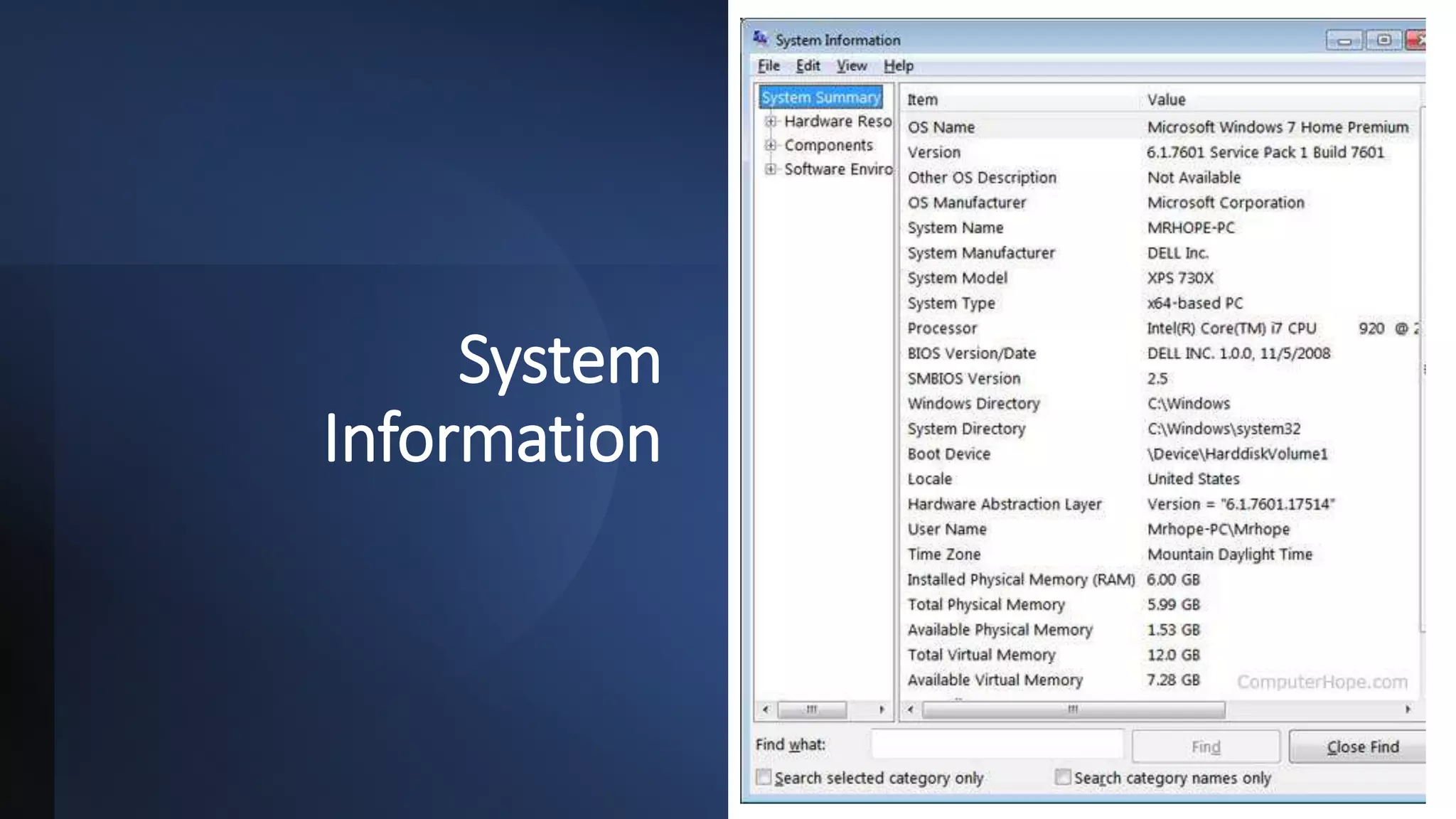
System
Information
STEPS
1. Microsoft Windows 8 and Windows 10 users can open the system information
tool by clicking Start or pressing the Windows key and then typing "msinfo32"
or "system information" and pressing Enter.
2. Microsoft Windows Vista and Windows 7 users can open the system
information tool by clicking Start and searching for "System Information."
3. Microsoft Windows XP users can open the system information tool by
clicking Start, Programs, Accessories, System Tools, and then System
Information.
Changing the username and
password in Windows 10
Change password
1.Press the Windows key, type Sign-
in options, and then press Enter.
2.In the Password section, click
the Change button.
3.Verify your account by entering your
Microsoft PIN.
4.Type in your current password (A),
choose a new password (B), confirm
your new password (C), and click the
Next button (D).
Change username
1.Press the Windows key, type Control Panel, and then press Enter.
2.Select User Accounts.
3.Click User Accounts again.
4.Near the middle of the window, click Manage another account.
5.Select the account whose name you'd like to change.
6.Select Change the account name.
7.Choose a new account name (A) and then click the Change Name
button (B).
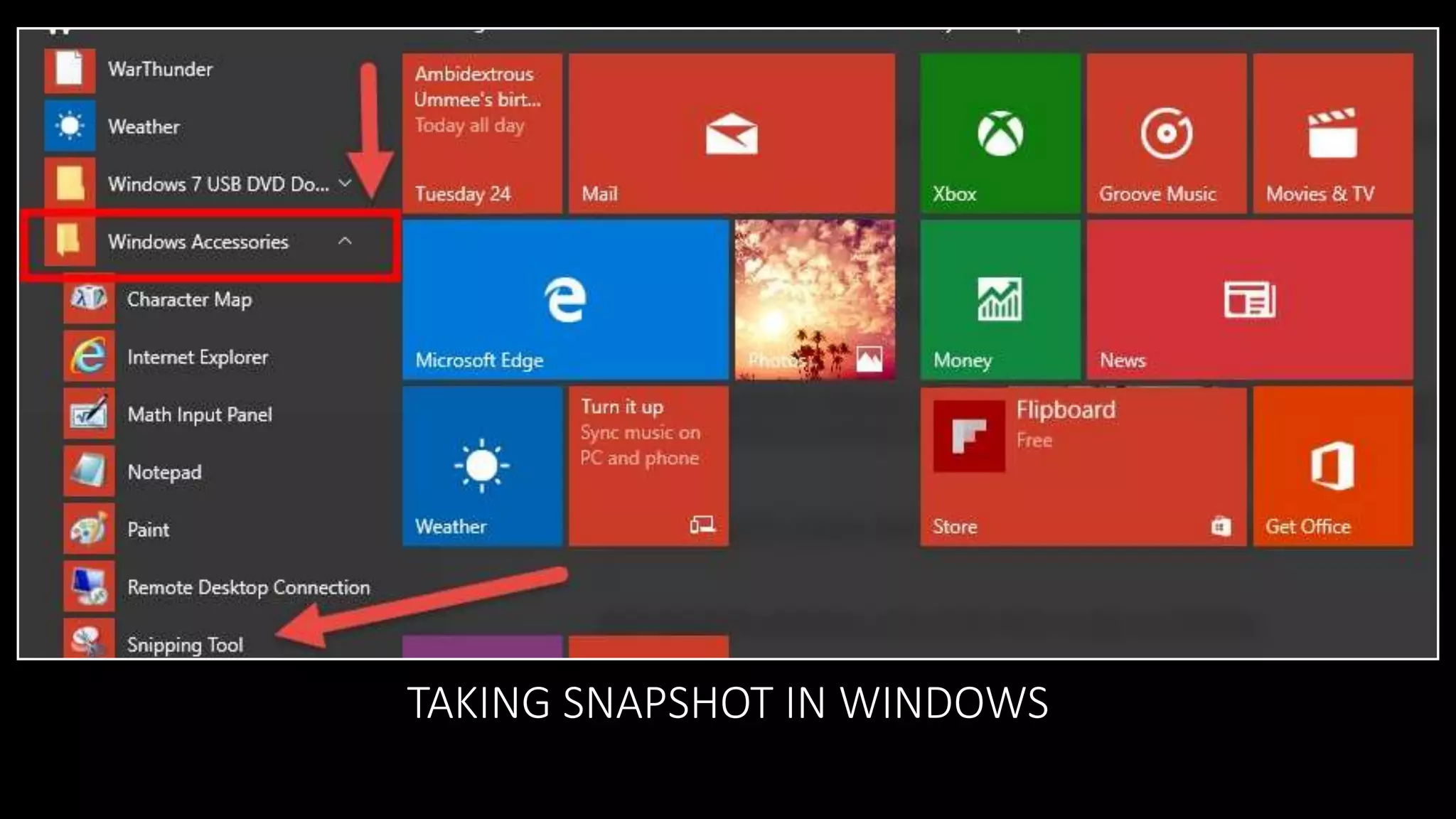
TAKING SNAPSHOT IN WINDOWS
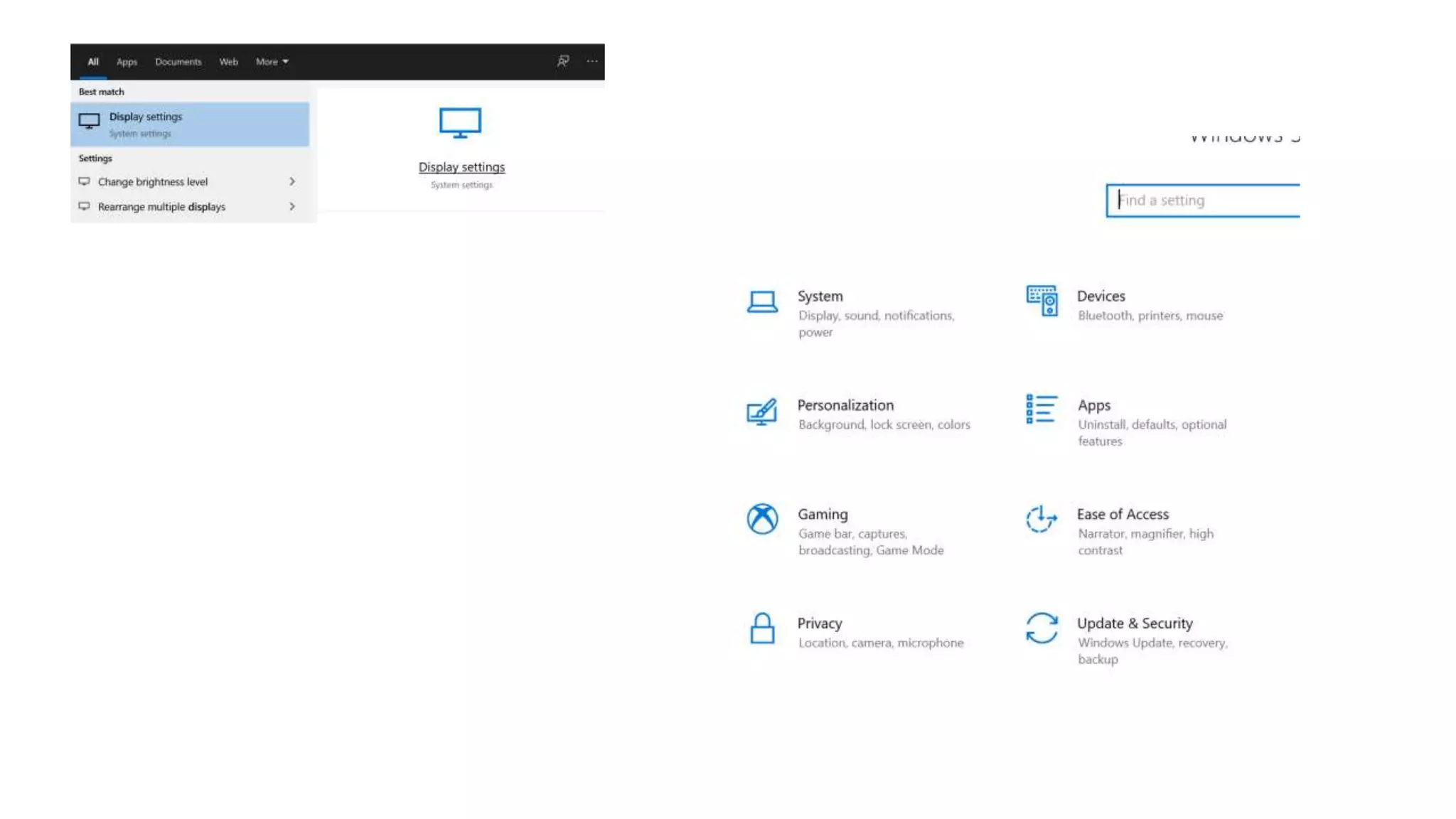
Display Settings
Way 1: Right Click on Desktop – Display settings
Way 2: On Control Panel - Adjust screen resolution
Way 3: Settings - Display
UNINSTALL A PROGRAMME
Uninstall from the Start menu
1. Select Start and look for the app or program in the list shown.
2. Press and hold (or right-click) on the app, then select Uninstall.
Uninstall from the Settings page
1. Select Start , then select Settings > Apps > Apps & features. Or just click the shortcut link at the bottom of this article.
2. Select the app you want to remove, and then select Uninstall.
Uninstall from the Control Panel (for programs)
1. In the search box on the taskbar, type Control Panel and select it from the results.
2. Select Programs > Programs and Features.
3. Press and hold (or right-click) on the program you want to remove and select Uninstall or Uninstall/Change. Then follow
the directions on the screen.
MS OFFICE-MS
WORD
• Create general documents such as letters, memos,
reports, manuals, contracts, and proposals.
• Create documents that contain graphics, such as
newsletters, cards, flyers, invitations, and photo
calendars.
• Create advanced documents, such as mass mailings that
can be printed and mailed or sent by email. Create a book
or report with a table of contents, indexes, and cross
references.
• Create forms that include controls such as check boxes,
drop-down lists, and date pickers, to be filled in by other
users.
• Generate other documents, such as envelopes, labels,
blog posts, and webpages. This Photo by Unknown Author is licensed under CC BY-SA
MS OFFICE-MS
PowerPoint
• Create presentations for a sales pitch,
conference, meeting, class, or demonstration.
• Create photo albums to share with friends and
family or for personal use.
• Add multimedia such as graphics, video, and
audio along with animations.
• Present your presentation to a live audience
or in an online meeting or transform it into a
video.
This Photo by Unknown Author is licensed under CC BY-SA
MS OFFICE-MS
EXCEL
• Calculate and analyze numeric information such as
budgets, income, expenses, loans, and scientific or
statistical data.
• Organize and track information, such as inventory, work
schedules, projects, invoices and address lists.
• Summarize numeric and other data and display results
in charts and PivotTables.
• Create forms that include controls, such as check
boxes, drop-down lists, and option groups, to be filled in
by other users.
This Photo by Unknown Author is licensed under CC BY-SA
MS OFFICE-MS
ONENOTE
• Organize and keep track of your notes and other
information in searchable notebooks.
• Collect information from other Office applications or
Windows Internet Explorer.
• Capture your notes in text, ink, drawings, images,
audio, and video.
• Insert pictures, tables, files, spreadsheets, or
diagrams.
• Collaborate in real time with members of your team.
MS OFFICE-MS
OUTLOOK
• Send, receive, and store email messages and meeting
requests.
• Use a calendar and tasks to keep track of your
schedule and set reminders.
• Store contact information for your business
connections.
• Share your Outlook information, such as your calendar,
inbox, or contacts, with members of your team.
MS OFFICE-MS
ACCESS
• Store, organize, and manage simple data or
complex relational data.
• Make your data available on your company
network or in a web browser by using
• Access Services, a component of SharePoint.
• Create forms for data entry and reports to
present your information.
• Export data to other applications, such as Excel
or Word, as well as other database formats.
This Photo by Unknown Author is licensed under CC BY-SA
MS OFFICE-MS
PUBLISHER
• Create flyers, cards, calendars, brochures, certificates,
catalogs, advertisements, and
• photo albums.
• Include graphics, tables, and other visual elements.
• Use built-in tools to save your publication for commercial
or photo printing.
• Create personalized publications for mass mailings for
print and email distribution.
This Photo by Unknown Author is licensed under CC BY-SA
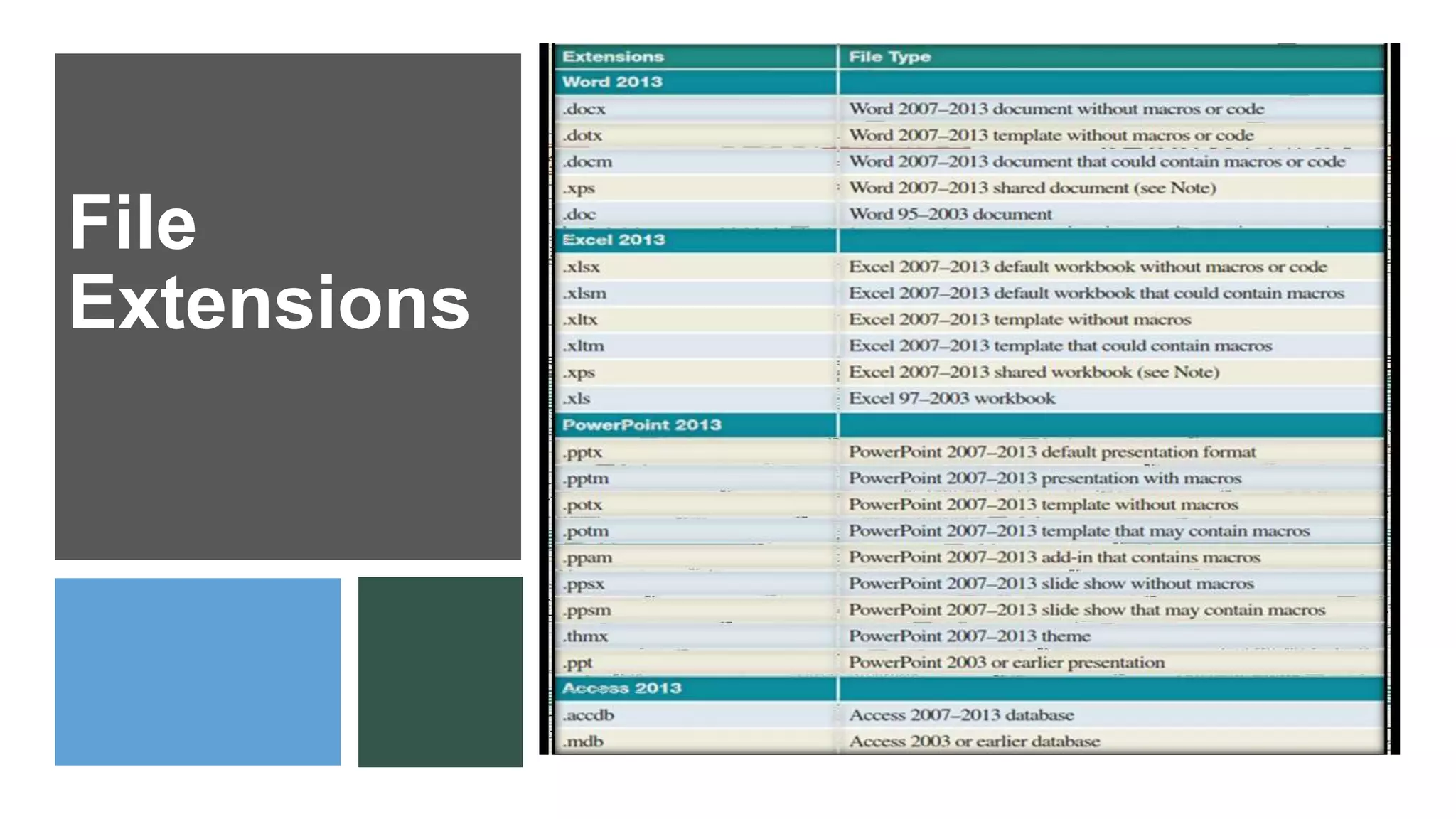
File
Extensions
• Office apps help and training - Office Support (microsoft.com)

Basic computer fundamentals _MS Office

  • 1.
  • 2.
  • 3.
    STEPS 1. Microsoft Windows8 and Windows 10 users can open the system information tool by clicking Start or pressing the Windows key and then typing "msinfo32" or "system information" and pressing Enter. 2. Microsoft Windows Vista and Windows 7 users can open the system information tool by clicking Start and searching for "System Information." 3. Microsoft Windows XP users can open the system information tool by clicking Start, Programs, Accessories, System Tools, and then System Information.
  • 4.
    Changing the usernameand password in Windows 10 Change password 1.Press the Windows key, type Sign- in options, and then press Enter. 2.In the Password section, click the Change button. 3.Verify your account by entering your Microsoft PIN. 4.Type in your current password (A), choose a new password (B), confirm your new password (C), and click the Next button (D).
  • 6.
    Change username 1.Press theWindows key, type Control Panel, and then press Enter. 2.Select User Accounts. 3.Click User Accounts again. 4.Near the middle of the window, click Manage another account. 5.Select the account whose name you'd like to change. 6.Select Change the account name. 7.Choose a new account name (A) and then click the Change Name button (B).
  • 8.
  • 10.
    Display Settings Way 1:Right Click on Desktop – Display settings Way 2: On Control Panel - Adjust screen resolution Way 3: Settings - Display
  • 13.
    UNINSTALL A PROGRAMME Uninstallfrom the Start menu 1. Select Start and look for the app or program in the list shown. 2. Press and hold (or right-click) on the app, then select Uninstall. Uninstall from the Settings page 1. Select Start , then select Settings > Apps > Apps & features. Or just click the shortcut link at the bottom of this article. 2. Select the app you want to remove, and then select Uninstall. Uninstall from the Control Panel (for programs) 1. In the search box on the taskbar, type Control Panel and select it from the results. 2. Select Programs > Programs and Features. 3. Press and hold (or right-click) on the program you want to remove and select Uninstall or Uninstall/Change. Then follow the directions on the screen.
  • 14.
    MS OFFICE-MS WORD • Creategeneral documents such as letters, memos, reports, manuals, contracts, and proposals. • Create documents that contain graphics, such as newsletters, cards, flyers, invitations, and photo calendars. • Create advanced documents, such as mass mailings that can be printed and mailed or sent by email. Create a book or report with a table of contents, indexes, and cross references. • Create forms that include controls such as check boxes, drop-down lists, and date pickers, to be filled in by other users. • Generate other documents, such as envelopes, labels, blog posts, and webpages. This Photo by Unknown Author is licensed under CC BY-SA
  • 15.
    MS OFFICE-MS PowerPoint • Createpresentations for a sales pitch, conference, meeting, class, or demonstration. • Create photo albums to share with friends and family or for personal use. • Add multimedia such as graphics, video, and audio along with animations. • Present your presentation to a live audience or in an online meeting or transform it into a video. This Photo by Unknown Author is licensed under CC BY-SA
  • 16.
    MS OFFICE-MS EXCEL • Calculateand analyze numeric information such as budgets, income, expenses, loans, and scientific or statistical data. • Organize and track information, such as inventory, work schedules, projects, invoices and address lists. • Summarize numeric and other data and display results in charts and PivotTables. • Create forms that include controls, such as check boxes, drop-down lists, and option groups, to be filled in by other users. This Photo by Unknown Author is licensed under CC BY-SA
  • 17.
    MS OFFICE-MS ONENOTE • Organizeand keep track of your notes and other information in searchable notebooks. • Collect information from other Office applications or Windows Internet Explorer. • Capture your notes in text, ink, drawings, images, audio, and video. • Insert pictures, tables, files, spreadsheets, or diagrams. • Collaborate in real time with members of your team.
  • 18.
    MS OFFICE-MS OUTLOOK • Send,receive, and store email messages and meeting requests. • Use a calendar and tasks to keep track of your schedule and set reminders. • Store contact information for your business connections. • Share your Outlook information, such as your calendar, inbox, or contacts, with members of your team.
  • 19.
    MS OFFICE-MS ACCESS • Store,organize, and manage simple data or complex relational data. • Make your data available on your company network or in a web browser by using • Access Services, a component of SharePoint. • Create forms for data entry and reports to present your information. • Export data to other applications, such as Excel or Word, as well as other database formats. This Photo by Unknown Author is licensed under CC BY-SA
  • 20.
    MS OFFICE-MS PUBLISHER • Createflyers, cards, calendars, brochures, certificates, catalogs, advertisements, and • photo albums. • Include graphics, tables, and other visual elements. • Use built-in tools to save your publication for commercial or photo printing. • Create personalized publications for mass mailings for print and email distribution. This Photo by Unknown Author is licensed under CC BY-SA
  • 21.
  • 22.
    • Office appshelp and training - Office Support (microsoft.com)