BASH Scripting and REGEX basics
FredLUG
How to demystify BASH and REGEX
Peter Larsen
Sr. Solutions Architect, Red HatSeptember 27, 2014
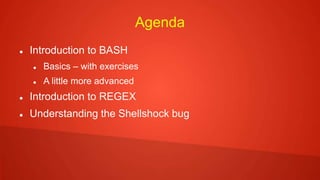
Agenda
 Introduction to BASH
 Basics – with exercises
 A little more advanced
 Introduction to REGEX
 Understanding the Shellshock bug
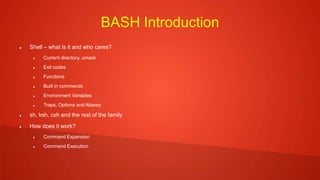
BASH Introduction
 Shell – what is it and who cares?
 Current directory, umask
 Exit codes
 Functions
 Built in commands
 Environment Variables
 Traps, Options and Aliases
 sh, ksh, csh and the rest of the family
 How does it work?
 Command Expansion
 Command Execution
Command Expansion
 Variable assignments and redirections are saved for later
processing
 Words are expanded. In the result, the first word is taken
to be the command and the rest are arguments
 Redirections are executed
 Text after = are expanded/substituded
Command Execution
 If no / in command shell searches for command
 If function, calls function
 If shell built-in, execute
 Search $PATH
 To execute
 Create subshell
 Run command in subshell
 If not found, return exit code 127
BASH - Basics
 Hello World
 Variables
 Passing arguments to a script
 Arrays
 Basic Operations
 Basic String Operations
 Decision Making
 Loops
 Shell Functions
Hello World
 Anything after # is ignored
 Blank lines are ignored
 Start all bash scripts with #!/bin/bash
 To execute a bash script, set execution bit or run:
bash[scriptname]
 Always provide path to script or place it in $HOME/bin
Hello World -Example
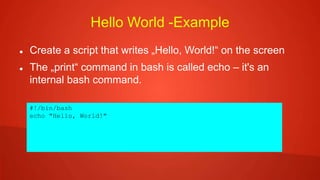
 Create a script that writes „Hello, World!“ on the screen
 The „print“ command in bash is called echo – it's an
internal bash command.
#!/bin/bash
echo "Hello, World!"
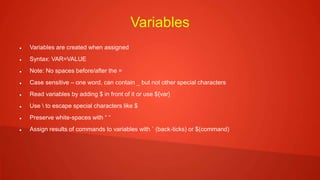
Variables
 Variables are created when assigned
 Syntax: VAR=VALUE
 Note: No spaces before/after the =
 Case sensitive – one word, can contain _ but not other special characters
 Read variables by adding $ in front of it or use ${var}
 Use  to escape special characters like $
 Preserve white-spaces with “ “
 Assign results of commands to variables with ` (back-ticks) or $(command)
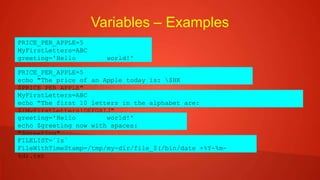
Variables – Examples
PRICE_PER_APPLE=5
MyFirstLetters=ABC
greeting='Hello world!'
PRICE_PER_APPLE=5
echo "The price of an Apple today is: $HK
$PRICE_PER_APPLE"
MyFirstLetters=ABC
echo "The first 10 letters in the alphabet are:
${MyFirstLetters}DEFGHIJ"
greeting='Hello world!'
echo $greeting now with spaces:
"$greeting"
FILELIST=`ls`
FileWithTimeStamp=/tmp/my-dir/file_$(/bin/date +%Y-%m-
%d).txt
Variables - Exercise
 Create 3 variables in the sample code:
 String (BIRTHDATE) – contain the text “Aug 11 1967”
 Integer (PRESENTS) – contain the number 10
 Complex (BIRTHDAY) – contain the weekday of $BIRTHDATE
(Friday)
 Hint: use the 'date' command to get the weekday from a
date
date -d “$date1” +%A
#!/bin/bash
# Change this code
BIRTHDATE=None
Presents=None
BIRTHDAY=None
# Testing code - do not change it
if [ "$BIRTHDATE" == "Aug 11 1967" ] ; then
echo BIRTHDATE is correct, it is $BIRTHDATE
else
echo "BIRTHDATE is incorrect - please retry"
fi
if [ $Presents == 10 ] ; then
echo I have received $Presents presents
else
echo "Presents is incorrect - please retry"
fi
if [ "$BIRTHDAY" == "Friday" ] ; then
echo I was born on a $BIRTHDAY
else
echo "BIRTHDAY is incorrect - please retry"
fi
Variables - Solution
 BIRTHDATE="Sep 27 2014"
 Presents=10
 BIRTHDAY=$(date -d "$BIRTHDATE" +%A)
#!/bin/bash
# Change this code
BIRTHDATE="Aug 11 1967"
Presents=10
BIRTHDAY=$(date -d "$BIRTHDATE" +%A)
# Testing code - do not change it
if [ "$BIRTHDATE" == "Sep 27 2014" ] ; then
echo BIRTHDATE is correct, it is $BIRTHDATE
else
echo "BIRTHDATE is incorrect - please retry"
fi
if [ $Presents == 10 ] ; then
echo I have received $Presents presents
else
echo "Presents is incorrect - please retry"
fi
if [ "$BIRTHDAY" == "Friday" ] ; then
echo I was born on a $BIRTHDAY
else
echo "BIRTHDAY is incorrect - please retry"
[fredlug@fredlug class]$ bash ./var-solution.sh
BIRTHDATE is correct, it is Aug 11 1967
I have received 10 presents
I was born on a Friday
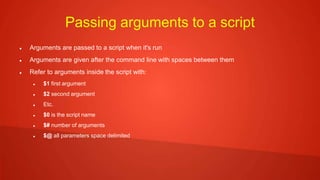
Passing arguments to a script
 Arguments are passed to a script when it's run
 Arguments are given after the command line with spaces between them
 Refer to arguments inside the script with:
 $1 first argument
 $2 second argument
 Etc.
 $0 is the script name
 $# number of arguments
 $@ all parameters space delimited
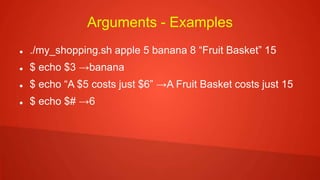
Arguments - Examples
 ./my_shopping.sh apple 5 banana 8 “Fruit Basket” 15
 $ echo $3 →banana
 $ echo “A $5 costs just $6” →A Fruit Basket costs just 15
 $ echo $# →6
Arrays
 Several values in the same variable name
 Created with space separated values in ( )
 Total array values: ${#arrayname[@]}
 Use ${array[index]} to refer to values
 Note index numbers start at 0 (not 1).
Array - Examples
 my_array=( apple banana “Fruit Basket” orange )
 new_array[2]=apricot
 $ echo ${#my_array[@]} →4
 $ echo ${my_array[3]} →orange
 $ my_array[4]=”carrot”
 $ echo ${#my_array[@]} →5
 $ echo ${my_array[${#my_array[@]}-1]} →carrot
Array - Exercise
 Create a bash script
 Define array NAMES with 3 entries: John, Eric and Jessica
 Define array NUMBERS with 3 entries: 1, 2, 3
 Define variable NumberOfNames containing the number of
names in the NAMES array using $# special variable
 Define variable second_name that contains the second name in
the NAMES array
 Print the content of NumberOfNames and second_name
#!/bin/bash
NAMES=( John Eric Jessica )
# write your code here
NUMBERS=(1 2 3)
NumberOfNames=${#NAMES[@]}
second_name=${NAMES[1]}
echo NumberofNames is:
$NumberOfNames
echo second_name is: $second_name
[fredlug@fredlug class]$ bash
./array.sh
NumberofNames is: 3
Basic Operations
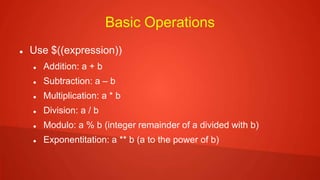
 Use $((expression))
 Addition: a + b
 Subtraction: a – b
 Multiplication: a * b
 Division: a / b
 Modulo: a % b (integer remainder of a divided with b)
 Exponentitation: a ** b (a to the power of b)
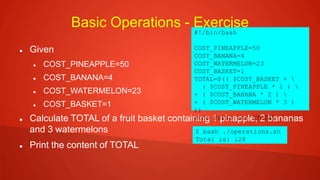
Basic Operations - Exercise
 Given
 COST_PINEAPPLE=50
 COST_BANANA=4
 COST_WATERMELON=23
 COST_BASKET=1
 Calculate TOTAL of a fruit basket containing 1 pinapple, 2 bananas
and 3 watermelons
 Print the content of TOTAL
#!/bin/bash
COST_PINEAPPLE=50
COST_BANANA=4
COST_WATERMELON=23
COST_BASKET=1
TOTAL=$(( $COST_BASKET + 
( $COST_PINEAPPLE * 1 ) 
+ ( $COST_BANANA * 2 ) 
+ ( $COST_WATERMELON * 3 )
))
echo Total is: $TOTAL
$ bash ./operations.sh
Total is: 128
Basic String Operations
 STRING=”this is a string”
 String length: ${#STRING} →16
 Numerical position of character:
expr index $STRING “a” →9
 Substring: ${STRING:$POS:$LEN)
 POS=1, LEN=3 →his
 ${STRING:12} →ring # from pos and to the end of var
 Substring replacement: ${STRING[@]/string/text} →this is a text
 Substring replace ALL: ${STRING[@]//is/xx}→thxx xx a string
 Delete all occurrences: ${STRING[@]// a /}→this is string
 Replace first occurrence: ${STRING[@]/#this/that/}
 Replace last occurrence: ${STRING[@]/%string/text}
Strings - Exercise
 Given BUFFET="Life is like a snowball. The important thing is
finding wet snow and a really long hill."
 Create ISAY variable with the following changes:
 First occurence of 'snow' with 'foot'
 Delete second occurence of snow
 Replace 'finding' with 'getting'
 Delete all characters following 'wet'
 Print ISAY
#!/bin/bash
BUFFET="Life is like a snowball. 
The important thing is finding wet snow and

a really long hill."
ISAY="$BUFFET"
ISAY=${ISAY[@]/snow/foot}
echo First: $ISAY
ISAY=${ISAY[@]/snow/}
echo Second: $ISAY
ISAY=${ISAY[@]/finding/getting}
echo Third: $ISAY
POS=`expr index "$ISAY" "w"`
ISAY=${ISAY:0:POS+3}
$ bash ./string2.sh
First: Life is like a football. The important thing is finding wet snow and a really long hill.
Second: Life is like a football. The important thing is finding wet and a really long hill.
Third: Life is like a football. The important thing is getting wet and a really long hill.
Fourth: Life is like a football. The important thing is getting wet
Decision Making
 If [ expression ]; then
code the true part
else
code the false part
fi
 Else can be replace with elif if followed by another if
 Case $variable in
“condition1”)
command ...
;;
“condition2”)
command ...
;;
esac
mycase=1
case $mycase in
1) echo "You selected bash";;
2) echo "You selected perl";;
3) echo "You selected
python";;
4) echo "You selected c++";;
5) exit
esac
Expressions
 Can be combined with ! (not), && (and) and || (or)
 Conditional expressions should use [[ ]] (double)
 Nummeric Comparisons
 $a -lt $b $a < $b
 $a -gt $b $a > $b
 $a -le $b $a <= $b
 $a -ge $b $a >= $b
 $a -eq $b $a == $b
 $a -ne $b $a != $b
 String Comparisons
 “$a” = “$b” or “$a” == “$b”
 “$a” != “$b”
 -z “$a” a is empty
Decision making - Exercise
 Change variables to make expressions true
#!/bin/bash
# change these variables
NUMBER=10
APPLES=12
KING=GEORGE
# modify above variables
# to make all decisions below TRUE
if [ $NUMBER -gt 15 ] ; then
echo 1
fi
if [ $NUMBER -eq $APPLES ] ; then
echo 2
fi
if [[ ($APPLES -eq 12) || ($KING = "LUIS") ]] ; then
echo 3
fi
if [[ $(($NUMBER + $APPLES)) -le 32 ]] ; then
echo 4
NUMBER=1
6
APPLES=1
6
KING=LUI
S
Loops
 “for” loop
for arg in [list]
do
command(s) ....
done
 “while” loop
while [ condition ]
do
command(s) ...
done
 “until” loop
until [ condition ]
do
command(s) ...
done
 “break” - skip iteration
 “continue” - do next loop
now
Loop Examples
# loop on array member
NAMES=(Joe Jenny Sara Tony)
for N in ${NAMES[@]} ; do
echo My name is $N
done
# loop on command output results
for f in $( ls *.sh /etc/localtime ) ;
do
echo "File is: $f"
done
COUNT=4
while [ $COUNT -gt 0 ]; do
echo Value of count is:
$COUNT
COUNT=$(($COUNT - 1))
done
COUNT=1
until [ $COUNT -gt 5 ]; do
echo Value of count is:
$COUNT
COUNT=$(($COUNT + 1))
done
# Prints out 0,1,2,3,4
COUNT=0
while [ $COUNT -ge 0 ]; do
echo Value of COUNT is: $COUNT
COUNT=$((COUNT+1))
if [ $COUNT -ge 5 ] ; then
break
fi
done
# Prints out only odd numbers - 1,3,5,7,9
COUNT=0
while [ $COUNT -lt 10 ]; do
COUNT=$((COUNT+1))
# Check if COUNT is even
if [ $(($COUNT % 2)) = 0 ] ; then
continue
fi
echo $COUNT
done
Loop Exercise
 NUMBERS=(951 402 984 651 360 69 408 319 601 485
980 507 725 547 544 615 83 165 141 501 263)
 Print all even numbers in order of array
 Do not print anything after 547
#!/bin/bash
NUMBERS=(951 402 984 651 360 69 408 319 601 485

980 507 725 547 544 615 83 165 141 501 263)
for num in ${NUMBERS[@]}
do
if [ $num == 547 ]; then
break
fi
MOD=$(( $num % 2 ))
if [ $MOD == 0 ]; then
echo $num
fi
done
$ bash
./loops.sh
402
984
360
408
980
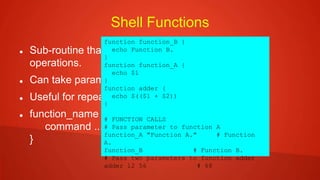
Shell Functions
 Sub-routine that implements set of commands and
operations.
 Can take parameters
 Useful for repeated tasks
 function_name {
command ....
}
function function_B {
echo Function B.
}
function function_A {
echo $1
}
function adder {
echo $(($1 + $2))
}
# FUNCTION CALLS
# Pass parameter to function A
function_A "Function A." # Function
A.
function_B # Function B.
# Pass two parameters to function adder
adder 12 56 # 68
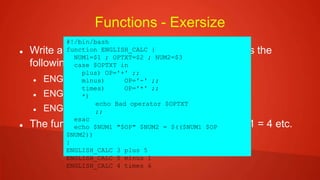
Functions - Exersize
 Write a function ENGLISH_CALC which process the
following:
 ENGLISH_CALC 3 plus 5
 ENGLISH_CALC 5 minus 1
 ENGLISH_CALC 4 times 6
 The function prints the results as 3 + 5 = 8, 5 – 1 = 4 etc.
#!/bin/bash
function ENGLISH_CALC {
NUM1=$1 ; OPTXT=$2 ; NUM2=$3
case $OPTXT in
plus) OP='+' ;;
minus) OP='-' ;;
times) OP='*' ;;
*)
echo Bad operator $OPTXT
;;
esac
echo $NUM1 "$OP" $NUM2 = $(($NUM1 $OP
$NUM2))
}
ENGLISH_CALC 3 plus 5
ENGLISH_CALC 5 minus 1
ENGLISH_CALC 4 times 6
BASH – Advanced
 Special Variables
 Bash trap command
 File testing
 There's a lot more features – this is not comprehensive
 $man bash is your friend
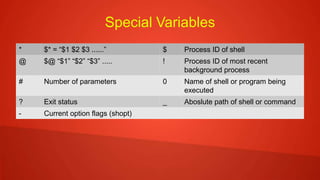
Special Variables
* $* = “$1 $2 $3 ......” $ Process ID of shell
@ $@ “$1” “$2” “$3” ..... ! Process ID of most recent
background process
# Number of parameters 0 Name of shell or program being
executed
? Exit status _ Aboslute path of shell or command
- Current option flags (shopt)
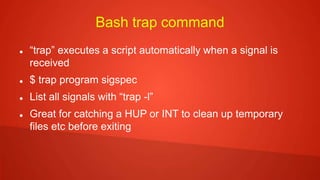
Bash trap command
 “trap” executes a script automatically when a signal is
received
 $ trap program sigspec
 List all signals with “trap -l”
 Great for catching a HUP or INT to clean up temporary
files etc before exiting
File testing
 Used as a condition to set actions based on file attributes
 Exists, readable, writable etc.
 File1 older/newer than File2
 Commonly used in if statements [ ] [[ ]] etc.
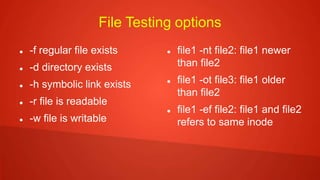
File Testing options
 -f regular file exists
 -d directory exists
 -h symbolic link exists
 -r file is readable
 -w file is writable
 file1 -nt file2: file1 newer
than file2
 file1 -ot file3: file1 older
than file2
 file1 -ef file2: file1 and file2
refers to same inode
Regular Expressions
 Characters/Strings
 Character Classes and Bracket Expressions
 Anchoring
 Backslash and special expressions
 Repetition
 Concatenation, Alternation, Precedence
Demo file
 Create a file resolv.conf with the following contents
 Make sure grep is aliased to:
grep –color=auto

 ; generated by /sbin/dhclient-script ^$[](){}-
?*.+:_
search brq.com mylab.brq.com lab.eng.brq.com world.com
nameserver 12.14.255.7
nameserver 14.14.255.6
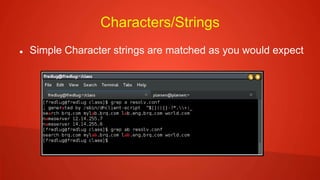
Characters/Strings
 Simple Character strings are matched as you would expect
Character Classes and Bracket Expressions
 [ ] is a set of characters that matches. A string matches if it
matches any of the characters in the set. A ^ inside the [ ]
means do not patch
 Predefined sets like [[:alnum:]] [[:digit:]] exists to make
writing easier
 Decimal point (.) matches any single character
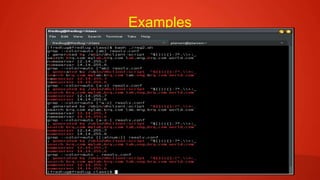
Examples
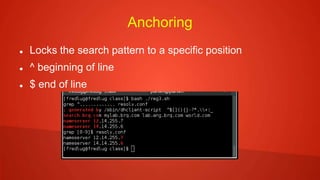
Anchoring
 Locks the search pattern to a specific position
 ^ beginning of line
 $ end of line
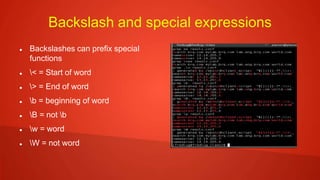
Backslash and special expressions
 Backslashes can prefix special
functions
 < = Start of word
 > = End of word
 b = beginning of word
 B = not b
 w = word
 W = not word
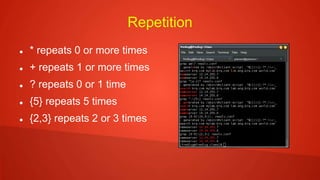
Repetition
 * repeats 0 or more times
 + repeats 1 or more times
 ? repeats 0 or 1 time
 {5} repeats 5 times
 {2,3} repeats 2 or 3 times
Concatenation, Alternation, Precedence
 Concatenation: sequence of characters (literal/special)
 Alternation: Separate different patterns with |
 Precedence: Parentheses, Repetition, Concatenation,
Alternation
 Use ( ) to group things together for later reference
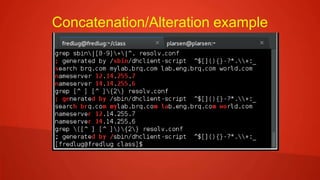
Concatenation/Alteration example
#shellshock – the famous BASH bug
 So what is it? CVE-2014-6271
 Try this at your command prompt:
x='() { :;}; echo vulnerable' bash -c "echo test"
 Does it print vulnerable? If so, you need to update your
BASH right away.
 $ rpm -q bash
Should report version 4.2.45-5.4 – if not “yum update” now.
#shellshock - how
 A little known “hack” allows functions to be treated as
variables
 $ function foo { echo "hi mom"; }
$ export -f foo
$ bash -c 'foo' # Spawn nested shell, call 'foo'
hi mom
 Great Blog:http://lcamtuf.blogspot.com/2014/09/quick-
notes-about-bash-bug-its-impact.html#comment-form
#shellshock – how continued
 $ foo='() { echo "hi mom"; }' bash -c 'foo'
hi mom
 Let's break it down
foo='() { echo “hi mom”;}'
“magic property” () {
is executed before the command is run
execute bash running foo
 Since env variables are used by httpd, dhcpd and other daemons, it potentially
allows them to run code by simply setting a value in a variable.
Thanks for coming
Questions?

Bash and regular expressions

  • 1.
    BASH Scripting andREGEX basics FredLUG How to demystify BASH and REGEX Peter Larsen Sr. Solutions Architect, Red HatSeptember 27, 2014
  • 2.
    Agenda  Introduction toBASH  Basics – with exercises  A little more advanced  Introduction to REGEX  Understanding the Shellshock bug
  • 3.
    BASH Introduction  Shell– what is it and who cares?  Current directory, umask  Exit codes  Functions  Built in commands  Environment Variables  Traps, Options and Aliases  sh, ksh, csh and the rest of the family  How does it work?  Command Expansion  Command Execution
  • 4.
    Command Expansion  Variableassignments and redirections are saved for later processing  Words are expanded. In the result, the first word is taken to be the command and the rest are arguments  Redirections are executed  Text after = are expanded/substituded
  • 5.
    Command Execution  Ifno / in command shell searches for command  If function, calls function  If shell built-in, execute  Search $PATH  To execute  Create subshell  Run command in subshell  If not found, return exit code 127
  • 6.
    BASH - Basics Hello World  Variables  Passing arguments to a script  Arrays  Basic Operations  Basic String Operations  Decision Making  Loops  Shell Functions
  • 7.
    Hello World  Anythingafter # is ignored  Blank lines are ignored  Start all bash scripts with #!/bin/bash  To execute a bash script, set execution bit or run: bash[scriptname]  Always provide path to script or place it in $HOME/bin
  • 8.
    Hello World -Example Create a script that writes „Hello, World!“ on the screen  The „print“ command in bash is called echo – it's an internal bash command. #!/bin/bash echo "Hello, World!"
  • 9.
    Variables  Variables arecreated when assigned  Syntax: VAR=VALUE  Note: No spaces before/after the =  Case sensitive – one word, can contain _ but not other special characters  Read variables by adding $ in front of it or use ${var}  Use to escape special characters like $  Preserve white-spaces with “ “  Assign results of commands to variables with ` (back-ticks) or $(command)
  • 10.
    Variables – Examples PRICE_PER_APPLE=5 MyFirstLetters=ABC greeting='Helloworld!' PRICE_PER_APPLE=5 echo "The price of an Apple today is: $HK $PRICE_PER_APPLE" MyFirstLetters=ABC echo "The first 10 letters in the alphabet are: ${MyFirstLetters}DEFGHIJ" greeting='Hello world!' echo $greeting now with spaces: "$greeting" FILELIST=`ls` FileWithTimeStamp=/tmp/my-dir/file_$(/bin/date +%Y-%m- %d).txt
  • 11.
    Variables - Exercise Create 3 variables in the sample code:  String (BIRTHDATE) – contain the text “Aug 11 1967”  Integer (PRESENTS) – contain the number 10  Complex (BIRTHDAY) – contain the weekday of $BIRTHDATE (Friday)  Hint: use the 'date' command to get the weekday from a date date -d “$date1” +%A #!/bin/bash # Change this code BIRTHDATE=None Presents=None BIRTHDAY=None # Testing code - do not change it if [ "$BIRTHDATE" == "Aug 11 1967" ] ; then echo BIRTHDATE is correct, it is $BIRTHDATE else echo "BIRTHDATE is incorrect - please retry" fi if [ $Presents == 10 ] ; then echo I have received $Presents presents else echo "Presents is incorrect - please retry" fi if [ "$BIRTHDAY" == "Friday" ] ; then echo I was born on a $BIRTHDAY else echo "BIRTHDAY is incorrect - please retry" fi
  • 12.
    Variables - Solution BIRTHDATE="Sep 27 2014"  Presents=10  BIRTHDAY=$(date -d "$BIRTHDATE" +%A) #!/bin/bash # Change this code BIRTHDATE="Aug 11 1967" Presents=10 BIRTHDAY=$(date -d "$BIRTHDATE" +%A) # Testing code - do not change it if [ "$BIRTHDATE" == "Sep 27 2014" ] ; then echo BIRTHDATE is correct, it is $BIRTHDATE else echo "BIRTHDATE is incorrect - please retry" fi if [ $Presents == 10 ] ; then echo I have received $Presents presents else echo "Presents is incorrect - please retry" fi if [ "$BIRTHDAY" == "Friday" ] ; then echo I was born on a $BIRTHDAY else echo "BIRTHDAY is incorrect - please retry" [fredlug@fredlug class]$ bash ./var-solution.sh BIRTHDATE is correct, it is Aug 11 1967 I have received 10 presents I was born on a Friday
  • 13.
    Passing arguments toa script  Arguments are passed to a script when it's run  Arguments are given after the command line with spaces between them  Refer to arguments inside the script with:  $1 first argument  $2 second argument  Etc.  $0 is the script name  $# number of arguments  $@ all parameters space delimited
  • 14.
    Arguments - Examples ./my_shopping.sh apple 5 banana 8 “Fruit Basket” 15  $ echo $3 →banana  $ echo “A $5 costs just $6” →A Fruit Basket costs just 15  $ echo $# →6
  • 15.
    Arrays  Several valuesin the same variable name  Created with space separated values in ( )  Total array values: ${#arrayname[@]}  Use ${array[index]} to refer to values  Note index numbers start at 0 (not 1).
  • 16.
    Array - Examples my_array=( apple banana “Fruit Basket” orange )  new_array[2]=apricot  $ echo ${#my_array[@]} →4  $ echo ${my_array[3]} →orange  $ my_array[4]=”carrot”  $ echo ${#my_array[@]} →5  $ echo ${my_array[${#my_array[@]}-1]} →carrot
  • 17.
    Array - Exercise Create a bash script  Define array NAMES with 3 entries: John, Eric and Jessica  Define array NUMBERS with 3 entries: 1, 2, 3  Define variable NumberOfNames containing the number of names in the NAMES array using $# special variable  Define variable second_name that contains the second name in the NAMES array  Print the content of NumberOfNames and second_name #!/bin/bash NAMES=( John Eric Jessica ) # write your code here NUMBERS=(1 2 3) NumberOfNames=${#NAMES[@]} second_name=${NAMES[1]} echo NumberofNames is: $NumberOfNames echo second_name is: $second_name [fredlug@fredlug class]$ bash ./array.sh NumberofNames is: 3
  • 18.
    Basic Operations  Use$((expression))  Addition: a + b  Subtraction: a – b  Multiplication: a * b  Division: a / b  Modulo: a % b (integer remainder of a divided with b)  Exponentitation: a ** b (a to the power of b)
  • 19.
    Basic Operations -Exercise  Given  COST_PINEAPPLE=50  COST_BANANA=4  COST_WATERMELON=23  COST_BASKET=1  Calculate TOTAL of a fruit basket containing 1 pinapple, 2 bananas and 3 watermelons  Print the content of TOTAL #!/bin/bash COST_PINEAPPLE=50 COST_BANANA=4 COST_WATERMELON=23 COST_BASKET=1 TOTAL=$(( $COST_BASKET + ( $COST_PINEAPPLE * 1 ) + ( $COST_BANANA * 2 ) + ( $COST_WATERMELON * 3 ) )) echo Total is: $TOTAL $ bash ./operations.sh Total is: 128
  • 20.
    Basic String Operations STRING=”this is a string”  String length: ${#STRING} →16  Numerical position of character: expr index $STRING “a” →9  Substring: ${STRING:$POS:$LEN)  POS=1, LEN=3 →his  ${STRING:12} →ring # from pos and to the end of var  Substring replacement: ${STRING[@]/string/text} →this is a text  Substring replace ALL: ${STRING[@]//is/xx}→thxx xx a string  Delete all occurrences: ${STRING[@]// a /}→this is string  Replace first occurrence: ${STRING[@]/#this/that/}  Replace last occurrence: ${STRING[@]/%string/text}
  • 21.
    Strings - Exercise Given BUFFET="Life is like a snowball. The important thing is finding wet snow and a really long hill."  Create ISAY variable with the following changes:  First occurence of 'snow' with 'foot'  Delete second occurence of snow  Replace 'finding' with 'getting'  Delete all characters following 'wet'  Print ISAY #!/bin/bash BUFFET="Life is like a snowball. The important thing is finding wet snow and a really long hill." ISAY="$BUFFET" ISAY=${ISAY[@]/snow/foot} echo First: $ISAY ISAY=${ISAY[@]/snow/} echo Second: $ISAY ISAY=${ISAY[@]/finding/getting} echo Third: $ISAY POS=`expr index "$ISAY" "w"` ISAY=${ISAY:0:POS+3} $ bash ./string2.sh First: Life is like a football. The important thing is finding wet snow and a really long hill. Second: Life is like a football. The important thing is finding wet and a really long hill. Third: Life is like a football. The important thing is getting wet and a really long hill. Fourth: Life is like a football. The important thing is getting wet
  • 22.
    Decision Making  If[ expression ]; then code the true part else code the false part fi  Else can be replace with elif if followed by another if  Case $variable in “condition1”) command ... ;; “condition2”) command ... ;; esac mycase=1 case $mycase in 1) echo "You selected bash";; 2) echo "You selected perl";; 3) echo "You selected python";; 4) echo "You selected c++";; 5) exit esac
  • 23.
    Expressions  Can becombined with ! (not), && (and) and || (or)  Conditional expressions should use [[ ]] (double)  Nummeric Comparisons  $a -lt $b $a < $b  $a -gt $b $a > $b  $a -le $b $a <= $b  $a -ge $b $a >= $b  $a -eq $b $a == $b  $a -ne $b $a != $b  String Comparisons  “$a” = “$b” or “$a” == “$b”  “$a” != “$b”  -z “$a” a is empty
  • 24.
    Decision making -Exercise  Change variables to make expressions true #!/bin/bash # change these variables NUMBER=10 APPLES=12 KING=GEORGE # modify above variables # to make all decisions below TRUE if [ $NUMBER -gt 15 ] ; then echo 1 fi if [ $NUMBER -eq $APPLES ] ; then echo 2 fi if [[ ($APPLES -eq 12) || ($KING = "LUIS") ]] ; then echo 3 fi if [[ $(($NUMBER + $APPLES)) -le 32 ]] ; then echo 4 NUMBER=1 6 APPLES=1 6 KING=LUI S
  • 25.
    Loops  “for” loop forarg in [list] do command(s) .... done  “while” loop while [ condition ] do command(s) ... done  “until” loop until [ condition ] do command(s) ... done  “break” - skip iteration  “continue” - do next loop now
  • 26.
    Loop Examples # loopon array member NAMES=(Joe Jenny Sara Tony) for N in ${NAMES[@]} ; do echo My name is $N done # loop on command output results for f in $( ls *.sh /etc/localtime ) ; do echo "File is: $f" done COUNT=4 while [ $COUNT -gt 0 ]; do echo Value of count is: $COUNT COUNT=$(($COUNT - 1)) done COUNT=1 until [ $COUNT -gt 5 ]; do echo Value of count is: $COUNT COUNT=$(($COUNT + 1)) done # Prints out 0,1,2,3,4 COUNT=0 while [ $COUNT -ge 0 ]; do echo Value of COUNT is: $COUNT COUNT=$((COUNT+1)) if [ $COUNT -ge 5 ] ; then break fi done # Prints out only odd numbers - 1,3,5,7,9 COUNT=0 while [ $COUNT -lt 10 ]; do COUNT=$((COUNT+1)) # Check if COUNT is even if [ $(($COUNT % 2)) = 0 ] ; then continue fi echo $COUNT done
  • 27.
    Loop Exercise  NUMBERS=(951402 984 651 360 69 408 319 601 485 980 507 725 547 544 615 83 165 141 501 263)  Print all even numbers in order of array  Do not print anything after 547 #!/bin/bash NUMBERS=(951 402 984 651 360 69 408 319 601 485 980 507 725 547 544 615 83 165 141 501 263) for num in ${NUMBERS[@]} do if [ $num == 547 ]; then break fi MOD=$(( $num % 2 )) if [ $MOD == 0 ]; then echo $num fi done $ bash ./loops.sh 402 984 360 408 980
  • 28.
    Shell Functions  Sub-routinethat implements set of commands and operations.  Can take parameters  Useful for repeated tasks  function_name { command .... } function function_B { echo Function B. } function function_A { echo $1 } function adder { echo $(($1 + $2)) } # FUNCTION CALLS # Pass parameter to function A function_A "Function A." # Function A. function_B # Function B. # Pass two parameters to function adder adder 12 56 # 68
  • 29.
    Functions - Exersize Write a function ENGLISH_CALC which process the following:  ENGLISH_CALC 3 plus 5  ENGLISH_CALC 5 minus 1  ENGLISH_CALC 4 times 6  The function prints the results as 3 + 5 = 8, 5 – 1 = 4 etc. #!/bin/bash function ENGLISH_CALC { NUM1=$1 ; OPTXT=$2 ; NUM2=$3 case $OPTXT in plus) OP='+' ;; minus) OP='-' ;; times) OP='*' ;; *) echo Bad operator $OPTXT ;; esac echo $NUM1 "$OP" $NUM2 = $(($NUM1 $OP $NUM2)) } ENGLISH_CALC 3 plus 5 ENGLISH_CALC 5 minus 1 ENGLISH_CALC 4 times 6
  • 30.
    BASH – Advanced Special Variables  Bash trap command  File testing  There's a lot more features – this is not comprehensive  $man bash is your friend
  • 31.
    Special Variables * $*= “$1 $2 $3 ......” $ Process ID of shell @ $@ “$1” “$2” “$3” ..... ! Process ID of most recent background process # Number of parameters 0 Name of shell or program being executed ? Exit status _ Aboslute path of shell or command - Current option flags (shopt)
  • 32.
    Bash trap command “trap” executes a script automatically when a signal is received  $ trap program sigspec  List all signals with “trap -l”  Great for catching a HUP or INT to clean up temporary files etc before exiting
  • 33.
    File testing  Usedas a condition to set actions based on file attributes  Exists, readable, writable etc.  File1 older/newer than File2  Commonly used in if statements [ ] [[ ]] etc.
  • 34.
    File Testing options -f regular file exists  -d directory exists  -h symbolic link exists  -r file is readable  -w file is writable  file1 -nt file2: file1 newer than file2  file1 -ot file3: file1 older than file2  file1 -ef file2: file1 and file2 refers to same inode
  • 35.
    Regular Expressions  Characters/Strings Character Classes and Bracket Expressions  Anchoring  Backslash and special expressions  Repetition  Concatenation, Alternation, Precedence
  • 36.
    Demo file  Createa file resolv.conf with the following contents  Make sure grep is aliased to: grep –color=auto   ; generated by /sbin/dhclient-script ^$[](){}- ?*.+:_ search brq.com mylab.brq.com lab.eng.brq.com world.com nameserver 12.14.255.7 nameserver 14.14.255.6
  • 37.
    Characters/Strings  Simple Characterstrings are matched as you would expect
  • 38.
    Character Classes andBracket Expressions  [ ] is a set of characters that matches. A string matches if it matches any of the characters in the set. A ^ inside the [ ] means do not patch  Predefined sets like [[:alnum:]] [[:digit:]] exists to make writing easier  Decimal point (.) matches any single character
  • 39.
  • 40.
    Anchoring  Locks thesearch pattern to a specific position  ^ beginning of line  $ end of line
  • 41.
    Backslash and specialexpressions  Backslashes can prefix special functions  < = Start of word  > = End of word  b = beginning of word  B = not b  w = word  W = not word
  • 42.
    Repetition  * repeats0 or more times  + repeats 1 or more times  ? repeats 0 or 1 time  {5} repeats 5 times  {2,3} repeats 2 or 3 times
  • 43.
    Concatenation, Alternation, Precedence Concatenation: sequence of characters (literal/special)  Alternation: Separate different patterns with |  Precedence: Parentheses, Repetition, Concatenation, Alternation  Use ( ) to group things together for later reference
  • 44.
  • 45.
    #shellshock – thefamous BASH bug  So what is it? CVE-2014-6271  Try this at your command prompt: x='() { :;}; echo vulnerable' bash -c "echo test"  Does it print vulnerable? If so, you need to update your BASH right away.  $ rpm -q bash Should report version 4.2.45-5.4 – if not “yum update” now.
  • 46.
    #shellshock - how A little known “hack” allows functions to be treated as variables  $ function foo { echo "hi mom"; } $ export -f foo $ bash -c 'foo' # Spawn nested shell, call 'foo' hi mom  Great Blog:http://lcamtuf.blogspot.com/2014/09/quick- notes-about-bash-bug-its-impact.html#comment-form
  • 47.
    #shellshock – howcontinued  $ foo='() { echo "hi mom"; }' bash -c 'foo' hi mom  Let's break it down foo='() { echo “hi mom”;}' “magic property” () { is executed before the command is run execute bash running foo  Since env variables are used by httpd, dhcpd and other daemons, it potentially allows them to run code by simply setting a value in a variable.
  • 48.