3
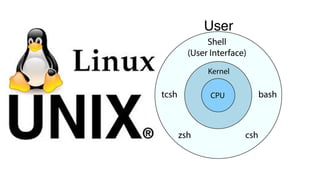
• Linux commandline is provided by a program called the shell.
• Shell scripting is an important part of process automation in Linux.
•
• Scripting helps you write a sequence of commands in a file and then
execute them.
• bash is not only an excellent command line shell, but a scripting
language in itself.
• Shell scripting allows us to use the shell's abilities and to automate a lot
of tasks that would otherwise require a lot of commands.
Programming or Scripting
4.
4
Difference between programmingand scripting languages:
●
● Programming languages are generally a lot more powerful
and a lot faster than scripting languages. Programming
languages generally start from source code and are compiled
into an executable. This executable is not easily ported into
different operating systems.
A scripting language also starts from source code, but is not
compiled into an executable. Rather, an interpreter reads the
instructions in the source file and executes each instruction.
Interpreted programs are generally slower than compiled
programs. The main advantage is that you can easily port the
source file to any operating system. bash is a scripting
language. Other examples of scripting languages are perl,
lisp, and tcl.
Programming or Scripting
(Contd…)
5.
5
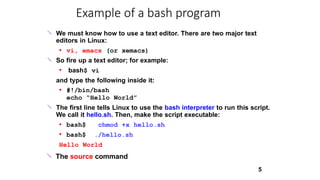
We must knowhow to use a text editor. There are two major text
editors in Linux:
● vi, emacs (or xemacs)
So fire up a text editor; for example:
● bash$ vi
and type the following inside it:
● #!/bin/bash
echo “Hello World”
The first line tells Linux to use the bash interpreter to run this script.
We call it hello.sh. Then, make the script executable:
●
● bash$
bash$
chmod +x hello.sh
./hello.sh
Hello World
The source command
Example of a bash program
6.
6
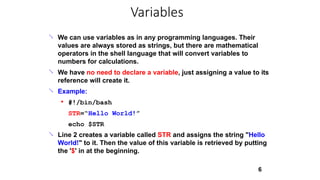
We can usevariables as in any programming languages. Their
values are always stored as strings, but there are mathematical
operators in the shell language that will convert variables to
numbers for calculations.
We have no need to declare a variable, just assigning a value to its
reference will create it.
Example:
● #!/bin/bash
STR=“Hello World!”
echo $STR
Line 2 creates a variable called STR and assigns the string "Hello
World!" to it. Then the value of this variable is retrieved by putting
the '$' in at the beginning.
Variables
7.
Warnings!!!
7
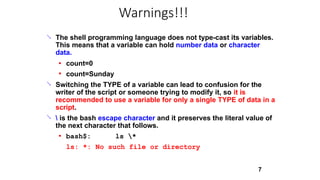
The shellprogramming language does not type-cast its variables.
This means that a variable can hold number data or character
data.
●
● count=0
count=Sunday
Switching the TYPE of a variable can lead to confusion for the
writer of the script or someone trying to modify it, so it is
recommended to use a variable for only a single TYPE of data in a
script.
is the bash escape character and it preserves the literal value of
the next character that follows.
● bash$: ls *
ls: *: No such file or directory
8.
8
•The read commandallows you to prompt for input and store it in a
variable
The read command
9.
Arithmetic Evaluation
9
Thelet statement can be used to do mathematical functions:
let X=10+2*7
echo $X
● bash$:
bash$:
24
bash$:
bash$:
32
let Y=X+2*4
echo $Y
An arithmetic expression can be evaluated by $[expression] or $
((expression))
echo “$((123+20))”
● VALORE=$[123+20]
echo “$[123*$VALORE]”
●
● bash$:
143
bash$:
bash$:
17589
10.
10
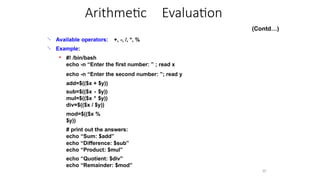
Available operators:
Example:
+, -,/, *, %
● #! /bin/bash
echo -n “Enter the first number: ” ; read x
echo -n “Enter the second number: ”; read y
add=$(($x + $y))
sub=$(($x - $y))
mul=$(($x * $y))
div=$(($x / $y))
mod=$(($x %
$y))
# print out the answers:
echo “Sum: $add”
echo “Difference: $sub”
echo “Product: $mul”
echo “Quotient: $div”
echo “Remainder: $mod”
Arithmetic Evaluation
(Contd…)
11.
Conditional Statements
11
Conditionalslet us decide whether to perform an action or not. This
decision is taken by evaluating an expression. The most basic form
is:
●
● if [expression];
then
statements
elif [expression];
then
statements
else
statements
fi
the elif (else if)
and else
sections are
#Initializing two variables
a=10
b=20
#Checkwhether they are equal
if [ $a == $b ]
then
echo "a is equal to b"
fi
#Check whether they are not equal
if [ $a != $b ]
then
echo "a is not equal to b"
fi
18.
#!/bin/bash
echo -n "Entera number: "
read number
if [ $number -eq 0 ]
then
echo "You entered zero. Zero is an even number."
elif [ $(($number % 2)) -eq 0 ]
then
echo "You entered $number. It is an even number."
else
echo "You entered $number. It is an odd number."
fi
19.
#Initializing two variables
a=20
b=20
if[ $a == $b ]
then
#If they are equal then print this
echo "a is equal to b"
else
#else print this
echo "a is not equal to b"
fi
20.
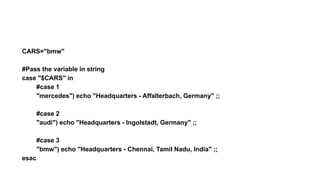
CARS="bmw"
#Pass the variablein string
case "$CARS" in
#case 1
"mercedes") echo "Headquarters - Affalterbach, Germany" ;;
#case 2
"audi") echo "Headquarters - Ingolstadt, Germany" ;;
#case 3
"bmw") echo "Headquarters - Chennai, Tamil Nadu, India" ;;
esac
21.
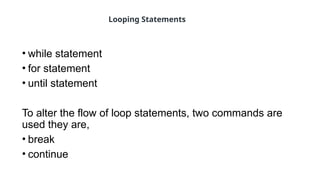
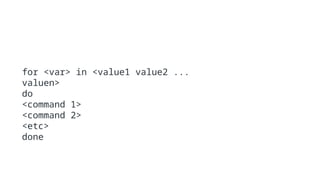
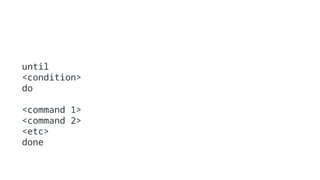
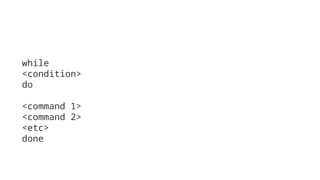
• while statement
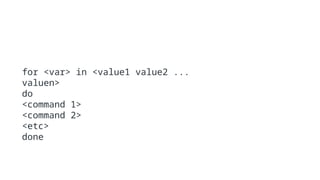
•for statement
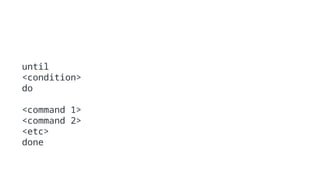
• until statement
To alter the flow of loop statements, two commands are
used they are,
• break
• continue
Looping Statements
a=0
# -lt isless than operator
#Iterate the loop until a less than 10
while [ $a -lt 10 ]
do
# Print the values
echo $a
# increment the value
a=`expr $a + 1`
done
26.
#Start of forloop
for a in 1 2 3 4 5 6 7 8 9 10
do
# if a is equal to 5 break the loop
if [ $a == 5 ]
then
break
fi
# Print the value
echo "Iteration no $a"
done
27.
for a in1 2 3 4 5 6 7 8 9 10
do
# if a = 5 then continue the loop and
# don't move to line 8
if [ $a == 5 ]
then
continue
fi
echo "Iteration no $a"
done
28.
a=0
# -gt isgreater than operator
#Iterate the loop until a is greater than 10
until [ $a -gt 10 ]
do
# Print the values
echo $a
# increment the value
a=`expr $a + 1`
done
29.
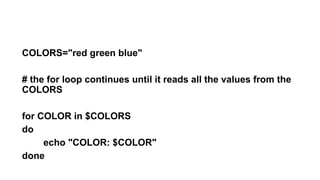
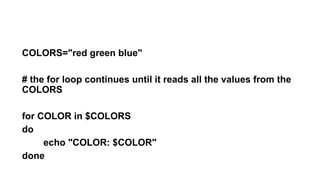
COLORS="red green blue"
#the for loop continues until it reads all the values from the
COLORS
for COLOR in $COLORS
do
echo "COLOR: $COLOR"
done
30.
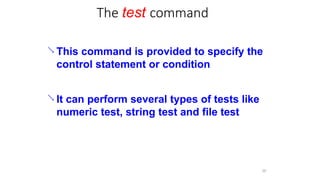
The test command
30
This command is provided to specify the
control statement or condition
It can perform several types of tests like
numeric test, string test and file test
31.
Expressions
31
An expressioncan be: String comparison, Numeric comparison, File
operators and Logical operators
String Comparisons:
● =
!=
-n
-z
compare if two strings are equal
compare if two strings are not equal
evaluate if string length is greater than zero
evaluate if string length is equal to zero
●
●
●
Examples:
● [ s1 = s2 ]
[ s1 != s2 ]
[ s1 ]
[ -n s1 ]
[ -z s2 ]
(true if s1 same as s2, else false)
(true if s1 not same as s2, else false)
(true if s1 is not empty, else false)
(true if s1 has a length greater then 0, else false)
(true if s2 has a length of 0, otherwise false)
●
●
●
●
32.
32
Number Comparisons:
● -eq
-ge
-le
-ne
-gt
-lt
compareif two numbers are equal
compare if one number is greater than or equal to a number
compare if one number is less than or equal to a number
compare if two numbers are not equal
compare if one number is greater than another number
compare if one number is less than another number
●
●
●
●
●
Examples:
● [ n1 -eq n2 ]
[ n1 -ge n2 ]
[ n1 -le n2 ]
[ n1 -ne n2 ]
[ n1 -gt n2 ]
(true if n1 same as n2, else false)
(true if n1greater then or equal to n2, else false)
(true if n1 less then or equal to n2, else false)
(true if n1 is not same as n2, else false)
(true if n1 greater then n2, else false)
●
●
●
●
● [ n1 -lt n2 ] (true if n1 less then n2, else false)
Expressions
(Contd…)
33.
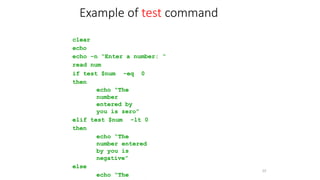
clear
echo
echo –n “Entera number: “
read num
if test $num -eq 0
then
echo “The
number
entered by
you is zero”
elif test $num -lt 0
then
echo “The
number entered
by you is
negative”
else
echo “The
33
Example of test command
34.
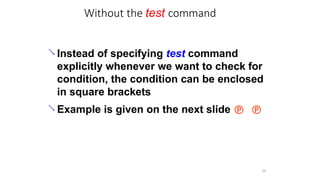
Without the testcommand
34
Instead of specifying test command
explicitly whenever we want to check for
condition, the condition can be enclosed
in square brackets
Example is given on the next slide
35.
clear
echo
echo -n "Entera number: "
read num
if [ num -eq 0 ]
then
35
echo "The number entered
[ num -lt 0 ]
echo "The number
entered echo "The number
entered
by you is zero"
elif
then
by you is negative"
else
by you is positive"
fi
Example (without using test)
36.
#!/bin/bash
clear
echo
echo -n "Entertwo names: "
read name1
read name2
if [ $name1 = $name2 ]
then
echo "The names
entered by you
are the same"
else
echo "The names
are different" 36
Some more examples
37.
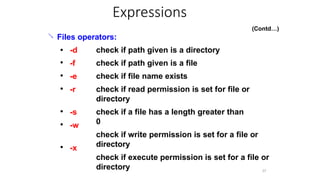
37
Files operators:
●
●
●
● -d
-f
-e
-r
checkif path given is a directory
check if path given is a file
check if file name exists
check if read permission is set for file or
directory
check if a file has a length greater than
0
check if write permission is set for a file or
directory
check if execute permission is set for a file or
directory
● -s
-w
●
● -x
Expressions
(Contd…)
38.
38
Examples:
● [ -dfname ]
[ -f fname ]
[ -e fname ]
[ -s fname ]
(true if fname is a directory, otherwise false)
(true if fname is a file, otherwise false)
(true if fname exists, otherwise false)
(true if fname length is greater then 0, else
false)
(true if fname has the read permission, else
false)
(true if fname has the write permission, else
false)
(true if fname has the execute permission, else
false)
●
●
●
● [ -r fname ]
● [ -w fname ]
● [ -x fname ]
Expressions
(Contd…)
39.
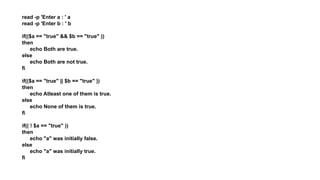
read -p 'Entera : ' a
read -p 'Enter b : ' b
if(($a == "true" && $b == "true" ))
then
echo Both are true.
else
echo Both are not true.
fi
if(($a == "true" || $b == "true" ))
then
echo Atleast one of them is true.
else
echo None of them is true.
fi
if(( ! $a == "true" ))
then
echo "a" was initially false.
else
echo "a" was initially true.
fi
40.
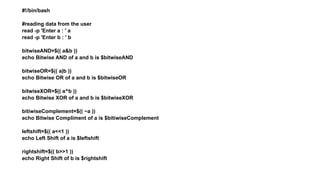
#!/bin/bash
#reading data fromthe user
read -p 'Enter a : ' a
read -p 'Enter b : ' b
bitwiseAND=$(( a&b ))
echo Bitwise AND of a and b is $bitwiseAND
bitwiseOR=$(( a|b ))
echo Bitwise OR of a and b is $bitwiseOR
bitwiseXOR=$(( a^b ))
echo Bitwise XOR of a and b is $bitwiseXOR
bitiwiseComplement=$(( ~a ))
echo Bitwise Compliment of a is $bitiwiseComplement
leftshift=$(( a<<1 ))
echo Left Shift of a is $leftshift
rightshift=$(( b>>1 ))
echo Right Shift of b is $rightshift
41.
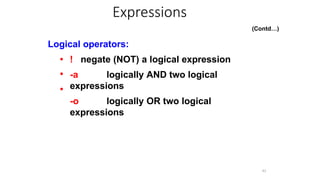
Logical operators:
41
●
●
● !negate (NOT) a logical expression
-a logically AND two logical
expressions
-o logically OR two logical
expressions
Expressions
(Contd…)
42.
#!/bin/bash
echo -n “Entera number 1 < x < 10:”
read num
if [ “$num” -gt 1 –a “$num” -lt 10 ];
then
echo “$num*$num=$(($num*$num))”
else
echo “Wrong insertion !”
fi
42
Example
43.
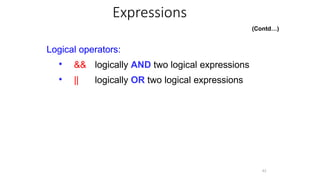
Logical operators:
43
● &&logically AND two logical expressions
|| logically OR two logical expressions
●
Expressions
(Contd…)
44.
(Contd…)
#!/bin/bash
echo -n "Entera number 1 < x < 10: "
read num
if [ “$num” -gt 1 ] && [ “$num” -lt 10 ];
then
echo “$num*$num=$(($num*$num))”
else
echo “Wrong insertion !”
fi
44
Expressions
45.
Iteration Statements
45
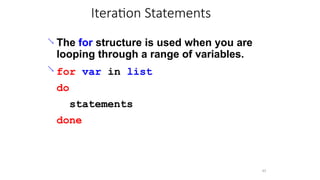
Thefor structure is used when you are
looping through a range of variables.
for var in list
do
statements
done
#Start of forloop
for a in 1 2 3 4 5 6 7 8 9 10
do
# if a is equal to 5 break the loop
if [ $a == 5 ]
then
break
fi
# Print the value
echo "Iteration no $a"
done
50.
for a in1 2 3 4 5 6 7 8 9 10
do
# if a = 5 then continue the loop and
# don't move to line 8
if [ $a == 5 ]
then
continue
fi
echo "Iteration no $a"
done
51.
a=0
# -lt isless than operator
#Iterate the loop until a less than 10
while [ $a -lt 10 ]
do
# Print the values
echo $a
# increment the value
a=`expr $a + 1`
done
52.
a=0
# -gt isgreater than operator
#Iterate the loop until a is greater than 10
until [ $a -gt 10 ]
do
# Print the values
echo $a
# increment the value
a=`expr $a + 1`
done
53.
COLORS="red green blue"
#the for loop continues until it reads all the values from the
COLORS
for COLOR in $COLORS
do
echo "COLOR: $COLOR"
done
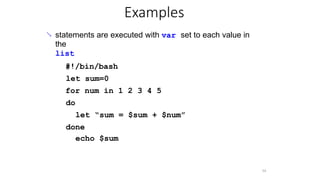
54.
Examples
54
statements areexecuted with var set to each value in
the
list
#!/bin/bash
let sum=0
for num in 1 2 3 4 5
do
let “sum = $sum + $num”
done
echo $sum
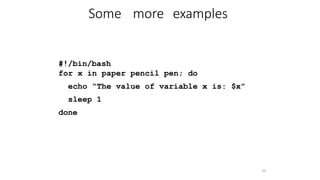
55.
#!/bin/bash
for x inpaper pencil pen; do
echo “The value of variable x is: $x”
sleep 1
done
55
Some more examples
56.
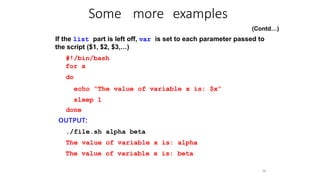
Some more examples
56
(Contd…)
Ifthe list part is left off, var is set to each parameter passed to
the script ($1, $2, $3,…)
#!/bin/bash
for x
do
echo “The value of variable x is: $x”
sleep 1
done
OUTPUT:
./file.sh alpha beta
The value of variable x is: alpha
The value of variable x is: beta
57.
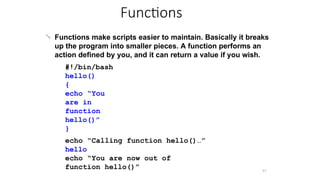
Functions
57
Functions makescripts easier to maintain. Basically it breaks
up the program into smaller pieces. A function performs an
action defined by you, and it can return a value if you wish.
#!/bin/bash
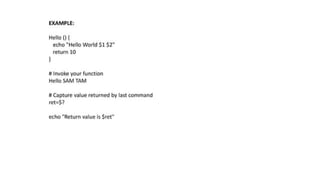
hello()
{
echo “You
are in
function
hello()”
}
echo “Calling function hello()…”
hello
echo “You are now out of
function hello()”
58.
#!/bin/bash
function check()
{ if[ -e “$PWD/$1"
] then
return 0
else
return
1
fi
}
58
echo “Enter the name of the file: ” ; read x
if check $x
then
echo “$x exists!”
else
echo “$x does
not exists!”
fi
What does this script do?
(Contd…)
59.
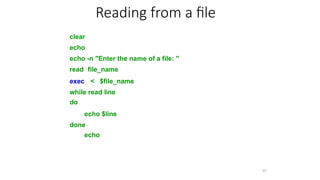
Reading from afile
59
clear
echo
echo -n "Enter the name of a file: "
read file_name
exec < $file_name
while read line
do
echo $line
done
echo
60.
Shell Keywords
60
echo readset unset
readonly shift export if
else fi while do
done for until case
esac break continue exit
return tap wait eval
exec ulimit umask
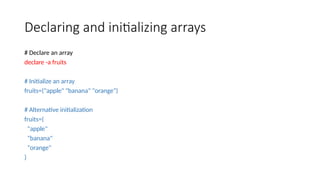
Declaring and initializingarrays
# Declare an array
declare -a fruits
# Initialize an array
fruits=("apple" "banana" "orange")
# Alternative initialization
fruits=(
"apple"
"banana"
"orange"
)
64.
Accessing array elements
echo${fruits[0]} # Output: apple
echo ${fruits[1]} # Output: banana
echo ${fruits[@]} # Output: apple banana orange
echo ${#fruits[@]} # Output: 3 (number of elements)
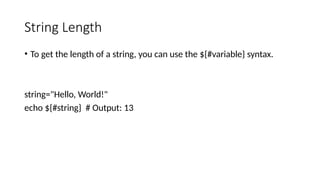
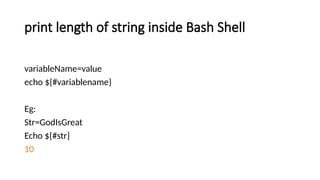
String Length
• Toget the length of a string, you can use the ${#variable} syntax.
string="Hello, World!"
echo ${#string} # Output: 13
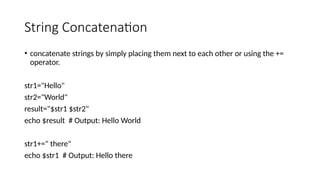
75.
String Concatenation
• concatenatestrings by simply placing them next to each other or using the +=
operator.
str1="Hello"
str2="World"
result="$str1 $str2"
echo $result # Output: Hello World
str1+=" there"
echo $str1 # Output: Hello there
76.
Substring Extraction
• Toextract a portion of a string, use ${string:start_position:length}.
string="Hello, World!"
echo ${string:7:5} # Output: World
echo ${string:7} # Output: World! (omitting length extracts to the
end)
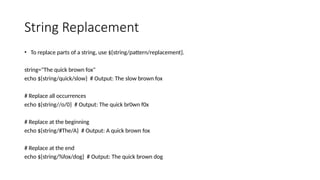
77.
String Replacement
• Toreplace parts of a string, use ${string/pattern/replacement}.
string="The quick brown fox"
echo ${string/quick/slow} # Output: The slow brown fox
# Replace all occurrences
echo ${string//o/0} # Output: The quick br0wn f0x
# Replace at the beginning
echo ${string/#The/A} # Output: A quick brown fox
# Replace at the end
echo ${string/%fox/dog} # Output: The quick brown dog
78.
String Trimming
• Toremove characters from the beginning or end of a string
string=" Hello, World! “
echo "${string##*( )}"
# Output: Hello, World! (left trim)
echo "${string%%*( )}"
# Output: Hello, World! (right trim)
echo "${string##*( )}" | sed 's/[[:space:]]*$//'
# Output: Hello, World! (trim both sides)
79.
Converting Case
• Bashdoesn't have built-in functions for case conversion, but you can use tr:
string="Hello, World!“
echo "$string" | tr '[:lower:]' '[:upper:]'
# Output: HELLO, WORLD!
echo "$string" | tr '[:upper:]' '[:lower:]'
# Output: hello, world!
80.
String Comparison
• Comparestrings using operators like = (equal) and != (not equal) in conditional statements.
str1="hello"
str2="world"
if [ "$str1" = "$str2" ]; then
echo "Strings are equal"
else
echo "Strings are not equal"
fi
# Output: Strings are not equal
81.
String Contains
• Tocheck if a string contains a substring.
string="Hello, World!"
if [[ $string == *"World"* ]]; then
echo "String contains 'World'"
fi
# Output: String contains 'World'
82.
String Splitting
• cansplit a string into an array using IFS (Internal Field Separator):
string="apple,banana,cherry"
IFS=',' read -ra ADDR <<< "$string"
for i in "${ADDR[@]}"; do
echo "$i"
done
# Output:
# apple
# banana
# cherry
83.
Advanced Pattern Matchingand Replacement
#!/bin/bash
# Sample text
text="The quick brown fox jumps over the lazy dog. The FOX is quick!"
# Replace 'quick' with 'slow', case-insensitive, all occurrences
echo "${text//[Qq][Uu][Ii][Cc][Kk]/slow}"
# Replace the first word that starts with 'f' or 'F' and ends with 'x' or 'X'
echo "${text/[fF][a-zA-Z]*[xX]/cat}"
# Remove all words of 3 letters or less
echo "$text" | sed 's/b[a-zA-Z]{1,3}b//g'
# Output:
# The slow brown fox jumps over the lazy dog. The FOX is slow!
# The quick brown cat jumps over the lazy dog. The FOX is quick!
# quick brown jumps over lazy dog. FOX quick!
84.
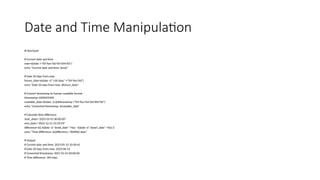
Date and TimeManipulation
#!/bin/bash
# Current date and time
now=$(date +"%Y-%m-%d %H:%M:%S")
echo "Current date and time: $now"
# Date 30 days from now
future_date=$(date -d "+30 days" +"%Y-%m-%d")
echo "Date 30 days from now: $future_date"
# Convert timestamp to human-readable format
timestamp=1609459200
readable_date=$(date -d @$timestamp +"%Y-%m-%d %H:%M:%S")
echo "Converted timestamp: $readable_date"
# Calculate time difference
start_date="2023-01-01 00:00:00"
end_date="2023-12-31 23:59:59"
difference=$(( $(date -d "$end_date" +%s) - $(date -d "$start_date" +%s) ))
echo "Time difference: $((difference / 86400)) days"
# Output:
# Current date and time: 2023-05-15 10:30:45
# Date 30 days from now: 2023-06-14
# Converted timestamp: 2021-01-01 00:00:00
# Time difference: 364 days
85.
Pattern matching inshell programming
• Basic Wildcards
* Matches any sequence of characters (except leading .)
? Matches any single character
[abc] Matches any one character listed in brackets
[!abc] or [^abc] Matches any one character NOT listed in brackets
[a-z] Matches any one character in the given range
86.
Examples
# List all.txt files
ls *.txt
# List files with single character before .txt
ls ?.txt
# List files starting with either a, b, or c
ls [abc]*
# List files NOT starting with vowels
ls [!aeiou]*
# Match files with numbers
ls [0-9]*
87.
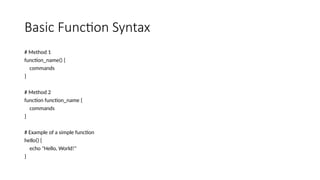
Basic Function Syntax
#Method 1
function_name() {
commands
}
# Method 2
function function_name {
commands
}
# Example of a simple function
hello() {
echo "Hello, World!"
}
88.
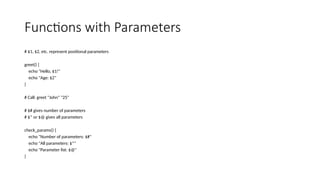
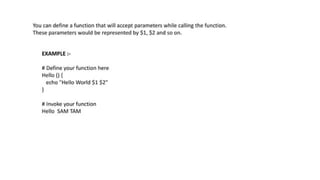
Functions with Parameters
#$1, $2, etc. represent positional parameters
greet() {
echo "Hello, $1!"
echo "Age: $2"
}
# Call: greet "John" "25"
# $# gives number of parameters
# $* or $@ gives all parameters
check_params() {
echo "Number of parameters: $#"
echo "All parameters: $*"
echo "Parameter list: $@"
}
89.
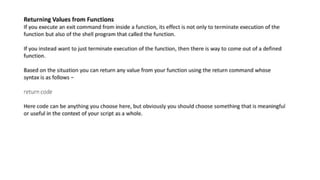
Return Values
# Usingreturn (0-255 only)
is_number() {
if [[ $1 =~ ^[0-9]+$ ]]; then
return 0 # Success
else
return 1 # Failure
fi
}
# Using echo for string return
get_date() {
echo $(date +%Y-%m-%d)
}
# Usage: today=$(get_date)
90.
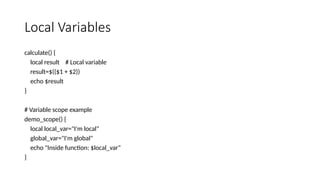
Local Variables
calculate() {
localresult # Local variable
result=$(($1 + $2))
echo $result
}
# Variable scope example
demo_scope() {
local local_var="I'm local"
global_var="I'm global"
echo "Inside function: $local_var"
}
92.
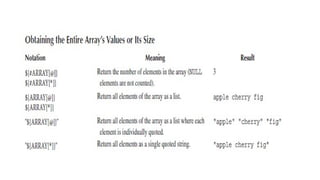
Arrays- Declaration
for itemin ${ARRAY[@]}
do
echo $item
done
for (( i=0; i<${#ARRAY[@]}; i++ ))
do
echo ${ARRAY[i]}
done
Counting the Numberof Elements
myArray=(1 2 3 4 5)
echo ${#myArray[@]}
Output:
5
99.
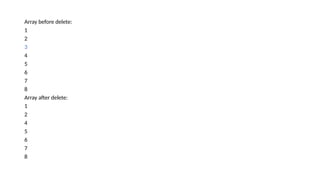
Delete a SingleArray Element
myArray=(1 2 3 4 5 6 7 8)
printf "Array before delete:n"
for i in ${myArray[@]}
do
echo $i
done
unset myArray[2]
printf "Array after delete:n"
for i in ${myArray[@]}
do
echo $i
done
Search and ReplaceArray Element
echo ${arrayName[@]//character/replacement}
myArr=(My fav learning website is Coding Ninjas)
echo ${myArr[@]//fav/favourite} #changing a complete element
echo ${myArr[@]//d/D} #changing a character in an element
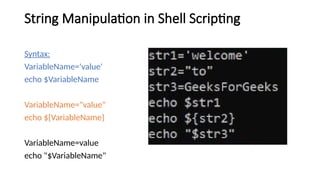
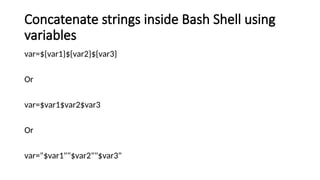
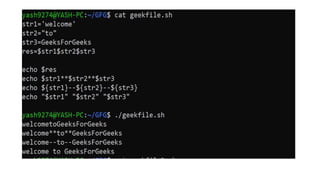
Concatenate strings insideBash Shell using
variables
var=${var1}${var2}${var3}
Or
var=$var1$var2$var3
Or
var="$var1""$var2""$var3"
106.
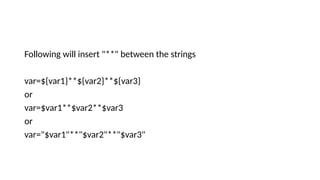
Following will insert"**" between the strings
var=${var1}**${var2}**${var3}
or
var=$var1**$var2**$var3
or
var="$var1"**"$var2"**"$var3"
107.
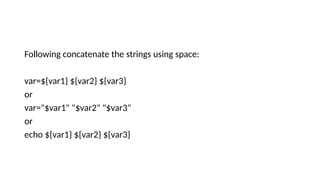
Following concatenate thestrings using space:
var=${var1} ${var2} ${var3}
or
var="$var1" "$var2" "$var3"
or
echo ${var1} ${var2} ${var3}
109.
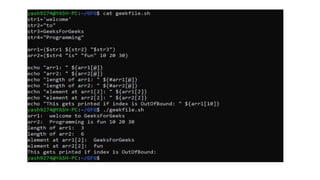
Concatenate strings insideBash Shell using
an array:
To create an array:
arr=("value1" value2 $value3)
To print an array:
echo ${arr[@]}
To print length of an array:
echo ${#arr[@]}
Using indices (index starts from 0):
echo ${arr[index]}
Note: echo ${arr} is the same as echo ${arr[0]}
111.
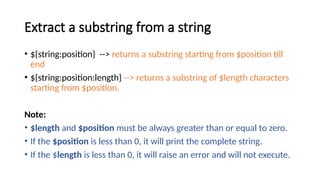
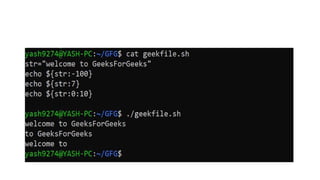
Extract a substringfrom a string
• ${string:position} --> returns a substring starting from $position till
end
• ${string:position:length} --> returns a substring of $length characters
starting from $position.
Note:
• $length and $position must be always greater than or equal to zero.
• If the $position is less than 0, it will print the complete string.
• If the $length is less than 0, it will raise an error and will not execute.
113.
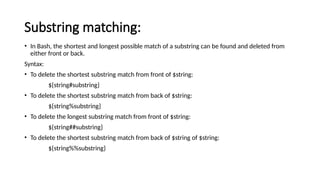
Substring matching:
• InBash, the shortest and longest possible match of a substring can be found and deleted from
either front or back.
Syntax:
• To delete the shortest substring match from front of $string:
${string#substring}
• To delete the shortest substring match from back of $string:
${string%substring}
• To delete the longest substring match from front of $string:
${string##substring}
• To delete the shortest substring match from back of $string of $string:
${string%%substring}
115.
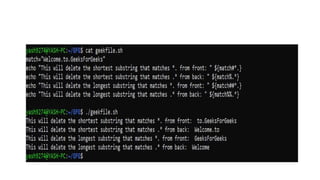
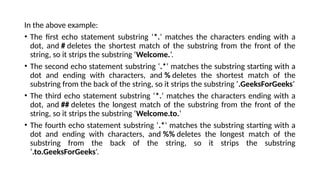
In the aboveexample:
• The first echo statement substring ‘*.‘ matches the characters ending with a
dot, and # deletes the shortest match of the substring from the front of the
string, so it strips the substring ‘Welcome.‘.
• The second echo statement substring ‘.*‘ matches the substring starting with a
dot and ending with characters, and % deletes the shortest match of the
substring from the back of the string, so it strips the substring ‘.GeeksForGeeks‘
• The third echo statement substring ‘*.‘ matches the characters ending with a
dot, and ## deletes the longest match of the substring from the front of the
string, so it strips the substring ‘Welcome.to.‘
• The fourth echo statement substring ‘.*‘ matches the substring starting with a
dot and ending with characters, and %% deletes the longest match of the
substring from the back of the string, so it strips the substring
‘.to.GeeksForGeeks‘.
116.
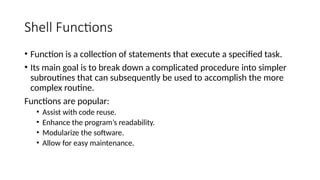
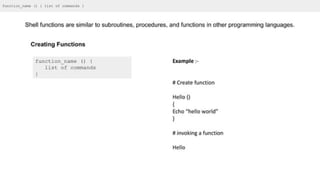
Shell Functions
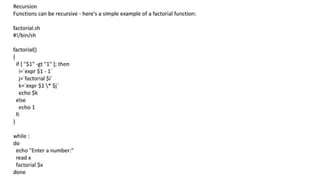
• Functionis a collection of statements that execute a specified task.
• Its main goal is to break down a complicated procedure into simpler
subroutines that can subsequently be used to accomplish the more
complex routine.
Functions are popular:
• Assist with code reuse.
• Enhance the program’s readability.
• Modularize the software.
• Allow for easy maintenance.
117.
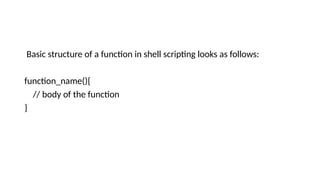
Basic structure ofa function in shell scripting looks as follows:
function_name(){
// body of the function
}
• Computer isused by many people it is usually necessary to
differentiate between the users, for example, so that their private files
can be kept private.
• An account is all the files, resources, and information belonging to
one user.
126.
Types of useraccount
• Root account: This is also called super user and would have complete and
unfettered control of the system. A super user can run any commands without
any restriction. This user should be assumed as a system administrator.
• System accounts: System accounts are those needed for the operation of system
specific components for example mail accounts and the sshd accounts. These
accounts are usually needed for some specific function on your system, and any
modifications to them could adversely affect the system.
• User accounts: User accounts provide interactive access to the system for users
and groups of users. General users are typically assigned to these accounts and
usually have limited access to critical system files and directories.
127.
Managing Users andGroups
• /etc/passwd − Keeps the user account and password information. This
file holds the majority of information about accounts on the
Unix/Linux system.
• /etc/shadow − Holds the encrypted password of the corresponding
account. Not all the systems support this file.
• /etc/group − This file contains the group information for each
account.
• /etc/gshadow − This file contains secure group account information.
128.
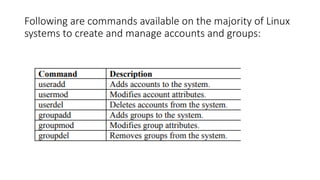
Following are commandsavailable on the majority of Linux
systems to create and manage accounts and groups:
129.
useradd
• useradd [options]username
• sudo useradd johndoe
• sudo useradd -m -d /home/janedoe -s /bin/bash janedoe
Common options:
• -m: Create the user's home directory
• -d: Specify the home directory
• -s: Specify the login shell
• -G: Add the user to additional groups
130.
usermod
• usermod [options]username
• sudo usermod -d /newhome/johndoe johndoe
• sudo usermod -aG sudo,developers janedoe
Common options:
• -d: Change the home directory
• -s: Change the login shell
• -l: Change the username
• -G: Set supplementary groups
• -aG: Add to supplementary groups without removing from existing ones
131.
userdel
• userdel [options]username
• sudo userdel johndoe
• sudo userdel -r janedoe
Common options:
• -r: Remove the user's home directory and mail spool
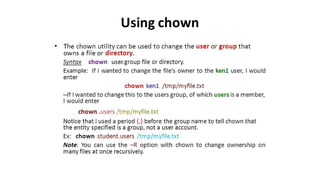
chown
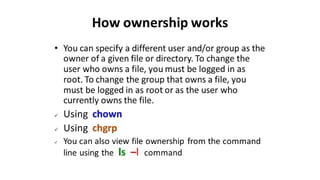
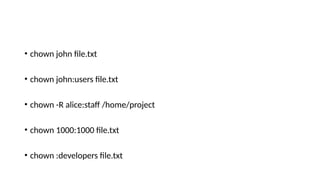
• chown commandin Linux is used to change the ownership of files and
directories.
• chown [OPTIONS] USER[:GROUP] FILE(s)
Where:
• USER is the new owner's username
• GROUP (optional) is the new group
• FILE(s) are the target files or directories
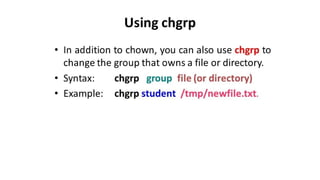
chgrp
• chgrp commandin Linux is used to change the group ownership of
files and directories.
• chgrp [OPTIONS] GROUP FILE(S)
Change the group of a single file:
chgrp developers myfile.txt
Change the group of multiple files:
chgrp staff file1.txt file2.txt file3.txt
140.
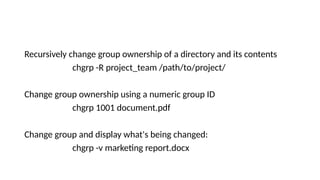
Recursively change groupownership of a directory and its contents
chgrp -R project_team /path/to/project/
Change group ownership using a numeric group ID
chgrp 1001 document.pdf
Change group and display what's being changed:
chgrp -v marketing report.docx
141.
Change group onlyif it matches a specific group:
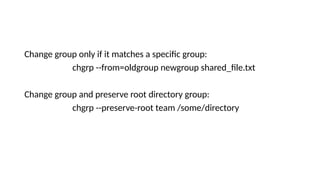
chgrp --from=oldgroup newgroup shared_file.txt
Change group and preserve root directory group:
chgrp --preserve-root team /some/directory
144.
Create a Group
•All the default groups would be system account specific groups and it
is not recommended to use them for ordinary accounts.
Syntax: sudo groupadd [-g gid [-o]] [-r] [-f] groupname
groupadd IMCAGEN
145.
Modify a Group
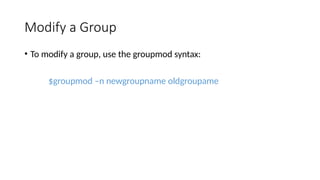
•To modify a group, use the groupmod syntax:
$groupmod –n newgroupname oldgroupame
146.
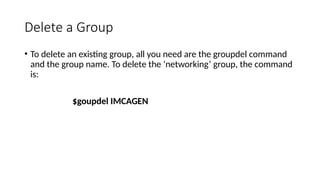
Delete a Group
•To delete an existing group, all you need are the groupdel command
and the group name. To delete the ‘networking’ group, the command
is:
$goupdel IMCAGEN
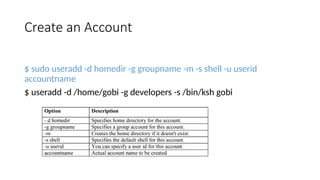
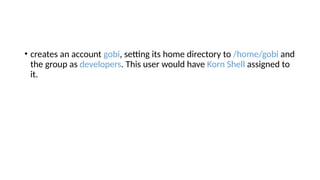
• creates anaccount gobi, setting its home directory to /home/gobi and
the group as developers. This user would have Korn Shell assigned to
it.
149.
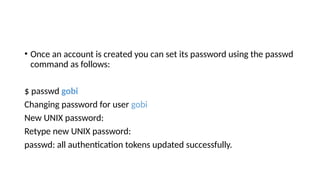
• Once anaccount is created you can set its password using the passwd
command as follows:
$ passwd gobi
Changing password for user gobi
New UNIX password:
Retype new UNIX password:
passwd: all authentication tokens updated successfully.
150.
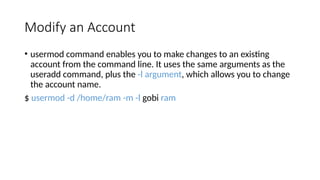
Modify an Account
•usermod command enables you to make changes to an existing
account from the command line. It uses the same arguments as the
useradd command, plus the -l argument, which allows you to change
the account name.
$ usermod -d /home/ram -m -l gobi ram
151.
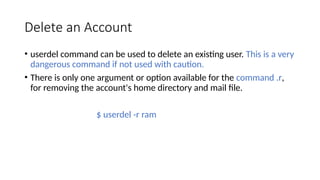
Delete an Account
•userdel command can be used to delete an existing user. This is a very
dangerous command if not used with caution.
• There is only one argument or option available for the command .r,
for removing the account's home directory and mail file.
$ userdel -r ram
152.
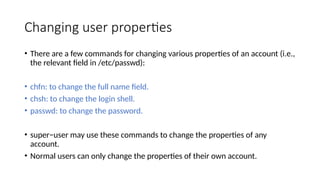
Changing user properties
•There are a few commands for changing various properties of an account (i.e.,
the relevant field in /etc/passwd):
• chfn: to change the full name field.
• chsh: to change the login shell.
• passwd: to change the password.
• super−user may use these commands to change the properties of any
account.
• Normal users can only change the properties of their own account.
153.
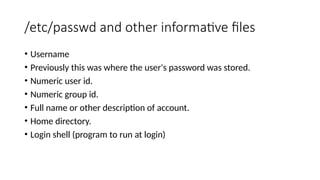
/etc/passwd and otherinformative files
• Username
• Previously this was where the user's password was stored.
• Numeric user id.
• Numeric group id.
• Full name or other description of account.
• Home directory.
• Login shell (program to run at login)
154.
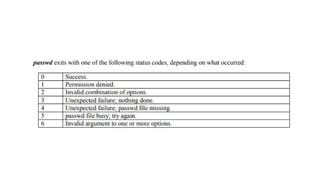
passwd
• Changes auser's password.
passwd [options] [LOGIN]
• passwd command changes passwords for user accounts.
• A normal user may only change the password for his or her own account,
while the superuser may change the password for any account.
• passwd also changes the account or associated password validity period.
155.
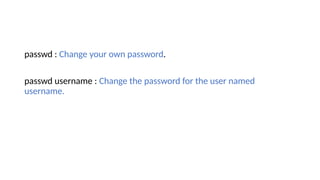
passwd : Changeyour own password.
passwd username : Change the password for the user named
username.
156.
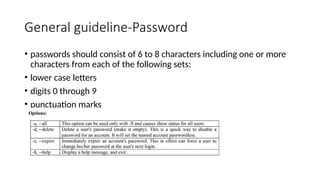
General guideline-Password
• passwordsshould consist of 6 to 8 characters including one or more
characters from each of the following sets:
• lower case letters
• digits 0 through 9
• punctuation marks
158.
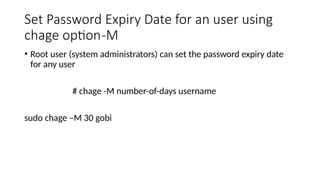
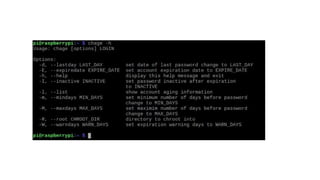
Set Password ExpiryDate for an user using
chage option-M
• Root user (system administrators) can set the password expiry date
for any user
# chage -M number-of-days username
sudo chage –M 30 gobi


![Arithmetic Evaluation
9
The let statement can be used to do mathematical functions:
let X=10+2*7
echo $X
● bash$:
bash$:
24
bash$:
bash$:
32
let Y=X+2*4
echo $Y
An arithmetic expression can be evaluated by $[expression] or $
((expression))
echo “$((123+20))”
● VALORE=$[123+20]
echo “$[123*$VALORE]”
●
● bash$:
143
bash$:
bash$:
17589](https://image.slidesharecdn.com/aosmodule3-250305024400-c3f616de/85/AOS_Module_3ssssssssssssssssssssssssssss-pptx-9-320.jpg)
![Conditional Statements
11
Conditionals let us decide whether to perform an action or not. This
decision is taken by evaluating an expression. The most basic form
is:
●
● if [expression];
then
statements
elif [expression];
then
statements
else
statements
fi
the elif (else if)
and else
sections are](https://image.slidesharecdn.com/aosmodule3-250305024400-c3f616de/85/AOS_Module_3ssssssssssssssssssssssssssss-pptx-11-320.jpg)
![if [ expression ]
then
statement
fi
Simple IF](https://image.slidesharecdn.com/aosmodule3-250305024400-c3f616de/85/AOS_Module_3ssssssssssssssssssssssssssss-pptx-12-320.jpg)
![if [ expression ]
then
statement1
else
statement2
fi
Simple IF-ELSE](https://image.slidesharecdn.com/aosmodule3-250305024400-c3f616de/85/AOS_Module_3ssssssssssssssssssssssssssss-pptx-13-320.jpg)
![if [ expression1 ]
then
statement1
statement2
.
.
elif [ expression2 ]
then
statement3
statement4
.
.
else
statement5
fi
Else If ladder](https://image.slidesharecdn.com/aosmodule3-250305024400-c3f616de/85/AOS_Module_3ssssssssssssssssssssssssssss-pptx-14-320.jpg)
![if [ expression1 ]
then
statement1
statement2
.
else
if [ expression2 ]
then
statement3
.
fi
fi
Nested if](https://image.slidesharecdn.com/aosmodule3-250305024400-c3f616de/85/AOS_Module_3ssssssssssssssssssssssssssss-pptx-15-320.jpg)
![#Initializing two variables
a=10
b=20
#Check whether they are equal
if [ $a == $b ]
then
echo "a is equal to b"
fi
#Check whether they are not equal
if [ $a != $b ]
then
echo "a is not equal to b"
fi](https://image.slidesharecdn.com/aosmodule3-250305024400-c3f616de/85/AOS_Module_3ssssssssssssssssssssssssssss-pptx-17-320.jpg)
![#!/bin/bash
echo -n "Enter a number: "
read number
if [ $number -eq 0 ]
then
echo "You entered zero. Zero is an even number."
elif [ $(($number % 2)) -eq 0 ]
then
echo "You entered $number. It is an even number."
else
echo "You entered $number. It is an odd number."
fi](https://image.slidesharecdn.com/aosmodule3-250305024400-c3f616de/85/AOS_Module_3ssssssssssssssssssssssssssss-pptx-18-320.jpg)
![#Initializing two variables
a=20
b=20
if [ $a == $b ]
then
#If they are equal then print this
echo "a is equal to b"
else
#else print this
echo "a is not equal to b"
fi](https://image.slidesharecdn.com/aosmodule3-250305024400-c3f616de/85/AOS_Module_3ssssssssssssssssssssssssssss-pptx-19-320.jpg)
![a=0
# -lt is less than operator
#Iterate the loop until a less than 10
while [ $a -lt 10 ]
do
# Print the values
echo $a
# increment the value
a=`expr $a + 1`
done](https://image.slidesharecdn.com/aosmodule3-250305024400-c3f616de/85/AOS_Module_3ssssssssssssssssssssssssssss-pptx-25-320.jpg)
![#Start of for loop
for a in 1 2 3 4 5 6 7 8 9 10
do
# if a is equal to 5 break the loop
if [ $a == 5 ]
then
break
fi
# Print the value
echo "Iteration no $a"
done](https://image.slidesharecdn.com/aosmodule3-250305024400-c3f616de/85/AOS_Module_3ssssssssssssssssssssssssssss-pptx-26-320.jpg)
![for a in 1 2 3 4 5 6 7 8 9 10
do
# if a = 5 then continue the loop and
# don't move to line 8
if [ $a == 5 ]
then
continue
fi
echo "Iteration no $a"
done](https://image.slidesharecdn.com/aosmodule3-250305024400-c3f616de/85/AOS_Module_3ssssssssssssssssssssssssssss-pptx-27-320.jpg)
![a=0
# -gt is greater than operator
#Iterate the loop until a is greater than 10
until [ $a -gt 10 ]
do
# Print the values
echo $a
# increment the value
a=`expr $a + 1`
done](https://image.slidesharecdn.com/aosmodule3-250305024400-c3f616de/85/AOS_Module_3ssssssssssssssssssssssssssss-pptx-28-320.jpg)
![Expressions
31
An expression can be: String comparison, Numeric comparison, File
operators and Logical operators
String Comparisons:
● =
!=
-n
-z
compare if two strings are equal
compare if two strings are not equal
evaluate if string length is greater than zero
evaluate if string length is equal to zero
●
●
●
Examples:
● [ s1 = s2 ]
[ s1 != s2 ]
[ s1 ]
[ -n s1 ]
[ -z s2 ]
(true if s1 same as s2, else false)
(true if s1 not same as s2, else false)
(true if s1 is not empty, else false)
(true if s1 has a length greater then 0, else false)
(true if s2 has a length of 0, otherwise false)
●
●
●
●](https://image.slidesharecdn.com/aosmodule3-250305024400-c3f616de/85/AOS_Module_3ssssssssssssssssssssssssssss-pptx-31-320.jpg)
![
32
Number Comparisons:
● -eq
-ge
-le
-ne
-gt
-lt
compare if two numbers are equal
compare if one number is greater than or equal to a number
compare if one number is less than or equal to a number
compare if two numbers are not equal
compare if one number is greater than another number
compare if one number is less than another number
●
●
●
●
●
Examples:
● [ n1 -eq n2 ]
[ n1 -ge n2 ]
[ n1 -le n2 ]
[ n1 -ne n2 ]
[ n1 -gt n2 ]
(true if n1 same as n2, else false)
(true if n1greater then or equal to n2, else false)
(true if n1 less then or equal to n2, else false)
(true if n1 is not same as n2, else false)
(true if n1 greater then n2, else false)
●
●
●
●
● [ n1 -lt n2 ] (true if n1 less then n2, else false)
Expressions
(Contd…)](https://image.slidesharecdn.com/aosmodule3-250305024400-c3f616de/85/AOS_Module_3ssssssssssssssssssssssssssss-pptx-32-320.jpg)
![clear
echo
echo -n "Enter a number: "
read num
if [ num -eq 0 ]
then
35
echo "The number entered
[ num -lt 0 ]
echo "The number
entered echo "The number
entered
by you is zero"
elif
then
by you is negative"
else
by you is positive"
fi
Example (without using test)](https://image.slidesharecdn.com/aosmodule3-250305024400-c3f616de/85/AOS_Module_3ssssssssssssssssssssssssssss-pptx-35-320.jpg)
![#!/bin/bash
clear
echo
echo -n "Enter two names: "
read name1
read name2
if [ $name1 = $name2 ]
then
echo "The names
entered by you
are the same"
else
echo "The names
are different" 36
Some more examples](https://image.slidesharecdn.com/aosmodule3-250305024400-c3f616de/85/AOS_Module_3ssssssssssssssssssssssssssss-pptx-36-320.jpg)
![
38
Examples:
● [ -d fname ]
[ -f fname ]
[ -e fname ]
[ -s fname ]
(true if fname is a directory, otherwise false)
(true if fname is a file, otherwise false)
(true if fname exists, otherwise false)
(true if fname length is greater then 0, else
false)
(true if fname has the read permission, else
false)
(true if fname has the write permission, else
false)
(true if fname has the execute permission, else
false)
●
●
●
● [ -r fname ]
● [ -w fname ]
● [ -x fname ]
Expressions
(Contd…)](https://image.slidesharecdn.com/aosmodule3-250305024400-c3f616de/85/AOS_Module_3ssssssssssssssssssssssssssss-pptx-38-320.jpg)
![#!/bin/bash
echo -n “Enter a number 1 < x < 10:”
read num
if [ “$num” -gt 1 –a “$num” -lt 10 ];
then
echo “$num*$num=$(($num*$num))”
else
echo “Wrong insertion !”
fi
42
Example](https://image.slidesharecdn.com/aosmodule3-250305024400-c3f616de/85/AOS_Module_3ssssssssssssssssssssssssssss-pptx-42-320.jpg)
![(Contd…)
#!/bin/bash
echo -n "Enter a number 1 < x < 10: "
read num
if [ “$num” -gt 1 ] && [ “$num” -lt 10 ];
then
echo “$num*$num=$(($num*$num))”
else
echo “Wrong insertion !”
fi
44
Expressions](https://image.slidesharecdn.com/aosmodule3-250305024400-c3f616de/85/AOS_Module_3ssssssssssssssssssssssssssss-pptx-44-320.jpg)
![#Start of for loop
for a in 1 2 3 4 5 6 7 8 9 10
do
# if a is equal to 5 break the loop
if [ $a == 5 ]
then
break
fi
# Print the value
echo "Iteration no $a"
done](https://image.slidesharecdn.com/aosmodule3-250305024400-c3f616de/85/AOS_Module_3ssssssssssssssssssssssssssss-pptx-49-320.jpg)
![for a in 1 2 3 4 5 6 7 8 9 10
do
# if a = 5 then continue the loop and
# don't move to line 8
if [ $a == 5 ]
then
continue
fi
echo "Iteration no $a"
done](https://image.slidesharecdn.com/aosmodule3-250305024400-c3f616de/85/AOS_Module_3ssssssssssssssssssssssssssss-pptx-50-320.jpg)
![a=0
# -lt is less than operator
#Iterate the loop until a less than 10
while [ $a -lt 10 ]
do
# Print the values
echo $a
# increment the value
a=`expr $a + 1`
done](https://image.slidesharecdn.com/aosmodule3-250305024400-c3f616de/85/AOS_Module_3ssssssssssssssssssssssssssss-pptx-51-320.jpg)
![a=0
# -gt is greater than operator
#Iterate the loop until a is greater than 10
until [ $a -gt 10 ]
do
# Print the values
echo $a
# increment the value
a=`expr $a + 1`
done](https://image.slidesharecdn.com/aosmodule3-250305024400-c3f616de/85/AOS_Module_3ssssssssssssssssssssssssssss-pptx-52-320.jpg)
![#!/bin/bash
function check()
{ if [ -e “$PWD/$1"
] then
return 0
else
return
1
fi
}
58
echo “Enter the name of the file: ” ; read x
if check $x
then
echo “$x exists!”
else
echo “$x does
not exists!”
fi
What does this script do?
(Contd…)](https://image.slidesharecdn.com/aosmodule3-250305024400-c3f616de/85/AOS_Module_3ssssssssssssssssssssssssssss-pptx-58-320.jpg)
![Arrays- Declaration
ARRAY=(apple banana cherry date fig)
------------------------------------------------
ARRAY=()
------------------------------------------------
ARRAY=([0]=apple [2]=cherry [4]=fig)
------------------------------------------------
ARRAY[0]=apple
ARRAY[1]=banana
ARRAY[2]=cherry
ARRAY[3]=date
ARRAY[4]=fig
------------------------------------------------
----------------------------------------------](https://image.slidesharecdn.com/aosmodule3-250305024400-c3f616de/85/AOS_Module_3ssssssssssssssssssssssssssss-pptx-61-320.jpg)
![Accessing array elements
echo ${fruits[0]} # Output: apple
echo ${fruits[1]} # Output: banana
echo ${fruits[@]} # Output: apple banana orange
echo ${#fruits[@]} # Output: 3 (number of elements)](https://image.slidesharecdn.com/aosmodule3-250305024400-c3f616de/85/AOS_Module_3ssssssssssssssssssssssssssss-pptx-64-320.jpg)
![Adding elements to an array
fruits+=("grape")
fruits[4]="mango"](https://image.slidesharecdn.com/aosmodule3-250305024400-c3f616de/85/AOS_Module_3ssssssssssssssssssssssssssss-pptx-65-320.jpg)
![Iterating over array elements
for fruit in "${fruits[@]}"; do
echo "I like $fruit"
done](https://image.slidesharecdn.com/aosmodule3-250305024400-c3f616de/85/AOS_Module_3ssssssssssssssssssssssssssss-pptx-66-320.jpg)
![Slicing arrays
echo ${fruits[@]:1:2} # Output: banana orange](https://image.slidesharecdn.com/aosmodule3-250305024400-c3f616de/85/AOS_Module_3ssssssssssssssssssssssssssss-pptx-67-320.jpg)
![Associative arrays
declare -A capital_cities
capital_cities[France]="Paris"
capital_cities[Germany]="Berlin"
capital_cities[Italy]="Rome"
echo ${capital_cities[France]} # Output: Paris](https://image.slidesharecdn.com/aosmodule3-250305024400-c3f616de/85/AOS_Module_3ssssssssssssssssssssssssssss-pptx-68-320.jpg)
![Array operations
# Copy an array
new_fruits=("${fruits[@]}")
# Remove an element (3rd element)
unset fruits[2]
# Clear the entire array
unset fruits](https://image.slidesharecdn.com/aosmodule3-250305024400-c3f616de/85/AOS_Module_3ssssssssssssssssssssssssssss-pptx-69-320.jpg)
![Using arrays with command substitution
files=($(ls *.txt))
for file in "${files[@]}"; do
echo "Processing $file"
done](https://image.slidesharecdn.com/aosmodule3-250305024400-c3f616de/85/AOS_Module_3ssssssssssssssssssssssssssss-pptx-70-320.jpg)
![Array of numbers and basic arithmetic
numbers=(1 2 3 4 5)
sum=0
for num in "${numbers[@]}"; do
sum=$((sum + num))
done
echo "Sum: $sum" # Output: Sum: 15](https://image.slidesharecdn.com/aosmodule3-250305024400-c3f616de/85/AOS_Module_3ssssssssssssssssssssssssssss-pptx-71-320.jpg)


![String Trimming
• To remove characters from the beginning or end of a string
string=" Hello, World! “
echo "${string##*( )}"
# Output: Hello, World! (left trim)
echo "${string%%*( )}"
# Output: Hello, World! (right trim)
echo "${string##*( )}" | sed 's/[[:space:]]*$//'
# Output: Hello, World! (trim both sides)](https://image.slidesharecdn.com/aosmodule3-250305024400-c3f616de/85/AOS_Module_3ssssssssssssssssssssssssssss-pptx-78-320.jpg)
![Converting Case
• Bash doesn't have built-in functions for case conversion, but you can use tr:
string="Hello, World!“
echo "$string" | tr '[:lower:]' '[:upper:]'
# Output: HELLO, WORLD!
echo "$string" | tr '[:upper:]' '[:lower:]'
# Output: hello, world!](https://image.slidesharecdn.com/aosmodule3-250305024400-c3f616de/85/AOS_Module_3ssssssssssssssssssssssssssss-pptx-79-320.jpg)
![String Comparison
• Compare strings using operators like = (equal) and != (not equal) in conditional statements.
str1="hello"
str2="world"
if [ "$str1" = "$str2" ]; then
echo "Strings are equal"
else
echo "Strings are not equal"
fi
# Output: Strings are not equal](https://image.slidesharecdn.com/aosmodule3-250305024400-c3f616de/85/AOS_Module_3ssssssssssssssssssssssssssss-pptx-80-320.jpg)
![String Contains
• To check if a string contains a substring.
string="Hello, World!"
if [[ $string == *"World"* ]]; then
echo "String contains 'World'"
fi
# Output: String contains 'World'](https://image.slidesharecdn.com/aosmodule3-250305024400-c3f616de/85/AOS_Module_3ssssssssssssssssssssssssssss-pptx-81-320.jpg)
![String Splitting
• can split a string into an array using IFS (Internal Field Separator):
string="apple,banana,cherry"
IFS=',' read -ra ADDR <<< "$string"
for i in "${ADDR[@]}"; do
echo "$i"
done
# Output:
# apple
# banana
# cherry](https://image.slidesharecdn.com/aosmodule3-250305024400-c3f616de/85/AOS_Module_3ssssssssssssssssssssssssssss-pptx-82-320.jpg)
![Advanced Pattern Matching and Replacement
#!/bin/bash
# Sample text
text="The quick brown fox jumps over the lazy dog. The FOX is quick!"
# Replace 'quick' with 'slow', case-insensitive, all occurrences
echo "${text//[Qq][Uu][Ii][Cc][Kk]/slow}"
# Replace the first word that starts with 'f' or 'F' and ends with 'x' or 'X'
echo "${text/[fF][a-zA-Z]*[xX]/cat}"
# Remove all words of 3 letters or less
echo "$text" | sed 's/b[a-zA-Z]{1,3}b//g'
# Output:
# The slow brown fox jumps over the lazy dog. The FOX is slow!
# The quick brown cat jumps over the lazy dog. The FOX is quick!
# quick brown jumps over lazy dog. FOX quick!](https://image.slidesharecdn.com/aosmodule3-250305024400-c3f616de/85/AOS_Module_3ssssssssssssssssssssssssssss-pptx-83-320.jpg)
![Pattern matching in shell programming
• Basic Wildcards
* Matches any sequence of characters (except leading .)
? Matches any single character
[abc] Matches any one character listed in brackets
[!abc] or [^abc] Matches any one character NOT listed in brackets
[a-z] Matches any one character in the given range](https://image.slidesharecdn.com/aosmodule3-250305024400-c3f616de/85/AOS_Module_3ssssssssssssssssssssssssssss-pptx-85-320.jpg)
![Examples
# List all .txt files
ls *.txt
# List files with single character before .txt
ls ?.txt
# List files starting with either a, b, or c
ls [abc]*
# List files NOT starting with vowels
ls [!aeiou]*
# Match files with numbers
ls [0-9]*](https://image.slidesharecdn.com/aosmodule3-250305024400-c3f616de/85/AOS_Module_3ssssssssssssssssssssssssssss-pptx-86-320.jpg)
![Return Values
# Using return (0-255 only)
is_number() {
if [[ $1 =~ ^[0-9]+$ ]]; then
return 0 # Success
else
return 1 # Failure
fi
}
# Using echo for string return
get_date() {
echo $(date +%Y-%m-%d)
}
# Usage: today=$(get_date)](https://image.slidesharecdn.com/aosmodule3-250305024400-c3f616de/85/AOS_Module_3ssssssssssssssssssssssssssss-pptx-89-320.jpg)
![Arrays- Declaration
for item in ${ARRAY[@]}
do
echo $item
done
for (( i=0; i<${#ARRAY[@]}; i++ ))
do
echo ${ARRAY[i]}
done](https://image.slidesharecdn.com/aosmodule3-250305024400-c3f616de/85/AOS_Module_3ssssssssssssssssssssssssssss-pptx-92-320.jpg)
![Accessing Array Elements
myArray[element]="Hey Ninjas"
echo ${myArray[element]}
Hey Ninjas](https://image.slidesharecdn.com/aosmodule3-250305024400-c3f616de/85/AOS_Module_3ssssssssssssssssssssssssssss-pptx-93-320.jpg)
![myArray=(1 2 3 4 5)
echo ${myArray[2]}
3](https://image.slidesharecdn.com/aosmodule3-250305024400-c3f616de/85/AOS_Module_3ssssssssssssssssssssssssssss-pptx-94-320.jpg)
![Reading Array Elements
[@] symbol is used to print all the elements at the same time.
myArray=(1 2 3 4 5 6 7 8)
for i in ${myArray[@]}
do
echo $i
done](https://image.slidesharecdn.com/aosmodule3-250305024400-c3f616de/85/AOS_Module_3ssssssssssssssssssssssssssss-pptx-95-320.jpg)
![echo ${arrrayName[whichElement]:startingIndex}
myArray=(I really love Coding Ninjas)
echo ${myArray[@]:0}
echo ${myArray[@]:1}
echo ${myArray[@]:2}
echo ${myArray[0]:1}](https://image.slidesharecdn.com/aosmodule3-250305024400-c3f616de/85/AOS_Module_3ssssssssssssssssssssssssssss-pptx-96-320.jpg)
![echo ${arrayName[whichElement]:startingIndex:countElement}
myArray=(I really love Coding Ninjas)
echo ${myArray[@]:1:4}
echo ${myArray[@]:2:3}
echo ${myArray[@]:3:4}
echo ${myArray[0]:1:3}](https://image.slidesharecdn.com/aosmodule3-250305024400-c3f616de/85/AOS_Module_3ssssssssssssssssssssssssssss-pptx-97-320.jpg)
![Counting the Number of Elements
myArray=(1 2 3 4 5)
echo ${#myArray[@]}
Output:
5](https://image.slidesharecdn.com/aosmodule3-250305024400-c3f616de/85/AOS_Module_3ssssssssssssssssssssssssssss-pptx-98-320.jpg)
![Delete a Single Array Element
myArray=(1 2 3 4 5 6 7 8)
printf "Array before delete:n"
for i in ${myArray[@]}
do
echo $i
done
unset myArray[2]
printf "Array after delete:n"
for i in ${myArray[@]}
do
echo $i
done](https://image.slidesharecdn.com/aosmodule3-250305024400-c3f616de/85/AOS_Module_3ssssssssssssssssssssssssssss-pptx-99-320.jpg)
![Search and Replace Array Element
echo ${arrayName[@]//character/replacement}
myArr=(My fav learning website is Coding Ninjas)
echo ${myArr[@]//fav/favourite} #changing a complete element
echo ${myArr[@]//d/D} #changing a character in an element](https://image.slidesharecdn.com/aosmodule3-250305024400-c3f616de/85/AOS_Module_3ssssssssssssssssssssssssssss-pptx-101-320.jpg)
![Concatenate strings inside Bash Shell using
an array:
To create an array:
arr=("value1" value2 $value3)
To print an array:
echo ${arr[@]}
To print length of an array:
echo ${#arr[@]}
Using indices (index starts from 0):
echo ${arr[index]}
Note: echo ${arr} is the same as echo ${arr[0]}](https://image.slidesharecdn.com/aosmodule3-250305024400-c3f616de/85/AOS_Module_3ssssssssssssssssssssssssssss-pptx-109-320.jpg)

![useradd
• useradd [options] username
• sudo useradd johndoe
• sudo useradd -m -d /home/janedoe -s /bin/bash janedoe
Common options:
• -m: Create the user's home directory
• -d: Specify the home directory
• -s: Specify the login shell
• -G: Add the user to additional groups](https://image.slidesharecdn.com/aosmodule3-250305024400-c3f616de/85/AOS_Module_3ssssssssssssssssssssssssssss-pptx-129-320.jpg)
![usermod
• usermod [options] username
• sudo usermod -d /newhome/johndoe johndoe
• sudo usermod -aG sudo,developers janedoe
Common options:
• -d: Change the home directory
• -s: Change the login shell
• -l: Change the username
• -G: Set supplementary groups
• -aG: Add to supplementary groups without removing from existing ones](https://image.slidesharecdn.com/aosmodule3-250305024400-c3f616de/85/AOS_Module_3ssssssssssssssssssssssssssss-pptx-130-320.jpg)
![userdel
• userdel [options] username
• sudo userdel johndoe
• sudo userdel -r janedoe
Common options:
• -r: Remove the user's home directory and mail spool](https://image.slidesharecdn.com/aosmodule3-250305024400-c3f616de/85/AOS_Module_3ssssssssssssssssssssssssssss-pptx-131-320.jpg)
![groupadd
• groupadd [options] group_name
• sudo groupadd developers
• sudo groupadd -g 1500 project_team](https://image.slidesharecdn.com/aosmodule3-250305024400-c3f616de/85/AOS_Module_3ssssssssssssssssssssssssssss-pptx-132-320.jpg)
![groupmod
• groupmod [options] group_name
• sudo groupmod -n new_developers developers
• sudo groupmod -g 2000 project_team](https://image.slidesharecdn.com/aosmodule3-250305024400-c3f616de/85/AOS_Module_3ssssssssssssssssssssssssssss-pptx-133-320.jpg)
![chown
• chown command in Linux is used to change the ownership of files and
directories.
• chown [OPTIONS] USER[:GROUP] FILE(s)
Where:
• USER is the new owner's username
• GROUP (optional) is the new group
• FILE(s) are the target files or directories](https://image.slidesharecdn.com/aosmodule3-250305024400-c3f616de/85/AOS_Module_3ssssssssssssssssssssssssssss-pptx-137-320.jpg)
![chgrp
• chgrp command in Linux is used to change the group ownership of
files and directories.
• chgrp [OPTIONS] GROUP FILE(S)
Change the group of a single file:
chgrp developers myfile.txt
Change the group of multiple files:
chgrp staff file1.txt file2.txt file3.txt](https://image.slidesharecdn.com/aosmodule3-250305024400-c3f616de/85/AOS_Module_3ssssssssssssssssssssssssssss-pptx-139-320.jpg)
![Create a Group
• All the default groups would be system account specific groups and it
is not recommended to use them for ordinary accounts.
Syntax: sudo groupadd [-g gid [-o]] [-r] [-f] groupname
groupadd IMCAGEN](https://image.slidesharecdn.com/aosmodule3-250305024400-c3f616de/85/AOS_Module_3ssssssssssssssssssssssssssss-pptx-144-320.jpg)
![passwd
• Changes a user's password.
passwd [options] [LOGIN]
• passwd command changes passwords for user accounts.
• A normal user may only change the password for his or her own account,
while the superuser may change the password for any account.
• passwd also changes the account or associated password validity period.](https://image.slidesharecdn.com/aosmodule3-250305024400-c3f616de/85/AOS_Module_3ssssssssssssssssssssssssssss-pptx-154-320.jpg)


![Hacking-Uncovered-How-People-Get-Hacked-and-How-to-Stay-Safe[1].pptx](https://cdn.slidesharecdn.com/ss_thumbnails/hacking-uncovered-how-people-get-hacked-and-how-to-stay-safe1-260130170011-4883a9c7-thumbnail.jpg?width=640&height=640&fit=bounds)


