BREATHE LONGER LIFE INTO YOUR ENTERPRISE SYSTEMSeric@esapl.net
Enterprise Software Agility (ESA) is an Enterprise Solutions company driven by 40 plus years of experience. With its strong Presence in Europe, Middle East, Asia Pacific and UK the Company is primarily concerned with prolonging the installed life of Enterprise Systems through tuning, reimplemetation and smooth cost effective upgrades. The addition of extended solutions further maintains ROI and continually reduces TCO.http://www.esapl.net*For the purposes of this presentation Please note Baan and ERP are registered trade names of Infor
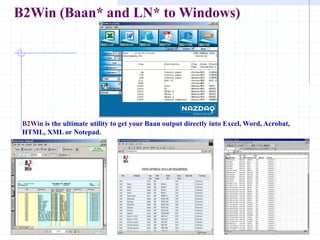
B2Win (Baan* and LN* to Windows)B2Win is the ultimate utility to get your Baan output directly into Excel, Word, Acrobat, HTML, XML or Notepad.
B2Win - CustomersSince June, 2000, B2Win has been installed at hundreds of servers in more than 57 countries. It is used daily by users to automate transfer of Baan and Infor ERP Ln reports into front-office applications.
Installing B2WinIt is easy to deploy B2Win. It is installed on the Baan Server, and there is no need to install it on every single PC in the organization – Yet every user working with Baan can use it.
Using B2WinPrint a report from Baan and Choose device B2Win
Infew moments, the following screen appears:Upon pressing on one of the B2XX icons, the following actions can be performed:Launch: Launches the application with the file in the chosen format
Archive: Archives the file in the chosen format in a pre-defined directory
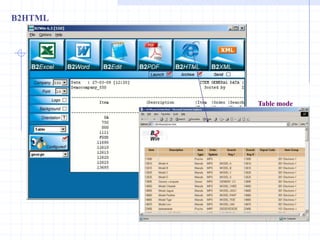
Send: Opens B2Email Plus with the report in the chosen format attached to the e-mail message andready to be sentSix File Formats, four Conversion Modes, Logo, Background, Font and OrientationFor every output format you choose, (Excel, Word, Notepad, PDF, HTML and XML) you have the possibility to receive the result in one of four modes:  Table – B2Win will clean all titles – Automatically or based on the configuration designed earlier for this report, and the result will be in a table format.  As-Is– The report will be taken as-is into the chosen format. No fonts or configuration will be taken into account.
Six File Formats, four Conversion Modes, Logo, Background, Font and Orientation  Graphics – The report will be exported to the chosen format with the fonts defined in Baan.  User-Defined – The report will be exported while a pre-defined macro will run directly after it.In addition to these four modes, the company logo and the report background can be added to the generated document, the report Orientation and fonts can be changed. If you wish to use a logo that belongs to a different company than the current one, changing the company number will allow this.Using the “Save Defaults” Option will save these values for future running of the same report.
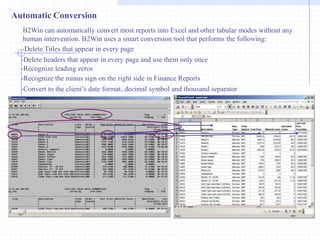
Automatic ConversionB2Win can automatically convert most reports into Excel and other tabular modes without any human intervention. B2Win uses a smart conversion tool that performs the following:Delete Titles that appear in every page
Delete headers that appear in every page and use them only once
Recognize leading zeros
Recognize the minus sign on the right side in Finance Reports
Convert to the client’s date format, decimal symbol and thousand separatorNon-standard ReportsIf you have sub-headers, an irregular header, or a different delimiter than the standard “|” in Baan reports, you need additional formatting in order to allow better report conversion to Excel.The following are examples for non-standard reports:
Configuring your report – An exampleThe following is an example of the extra information needed in order to allow better conversion in the “table mode” (specially into Excel). A missing delimiterFloating headerSub totals can be done by Excel
The Solution – Configure your report with the B2Win wizard:Assign Main HeaderAdd Floating HeaderPress “Next”Add Floating Value
Assign Data TypeRename Column Title
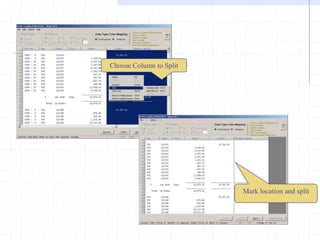
Choose Column to SplitMark location and split
AdditionalReportFormattingConditional Formatting
The result in Excel after converting the report using B2WinReport needs to configured only once. Next time this report is run by any user, same settings will be used for optimal conversion of report to tabular format.The configuration is saved per language.
The following are some examples of B2Win capabilitiesB2Excel
B2WordAs-Is mode + backgroundTable mode
B2PDFAs-Is mode + header and footerGraphics mode + Background
B2HTMLTable mode

Baan tools

  • 1.
    BREATHE LONGER LIFEINTO YOUR ENTERPRISE SYSTEMSeric@esapl.net
  • 2.
    Enterprise Software Agility(ESA) is an Enterprise Solutions company driven by 40 plus years of experience. With its strong Presence in Europe, Middle East, Asia Pacific and UK the Company is primarily concerned with prolonging the installed life of Enterprise Systems through tuning, reimplemetation and smooth cost effective upgrades. The addition of extended solutions further maintains ROI and continually reduces TCO.http://www.esapl.net*For the purposes of this presentation Please note Baan and ERP are registered trade names of Infor
  • 3.
    B2Win (Baan* andLN* to Windows)B2Win is the ultimate utility to get your Baan output directly into Excel, Word, Acrobat, HTML, XML or Notepad.
  • 4.
    B2Win - CustomersSinceJune, 2000, B2Win has been installed at hundreds of servers in more than 57 countries. It is used daily by users to automate transfer of Baan and Infor ERP Ln reports into front-office applications.
  • 5.
    Installing B2WinIt iseasy to deploy B2Win. It is installed on the Baan Server, and there is no need to install it on every single PC in the organization – Yet every user working with Baan can use it.
  • 6.
    Using B2WinPrint areport from Baan and Choose device B2Win
  • 7.
    Infew moments, thefollowing screen appears:Upon pressing on one of the B2XX icons, the following actions can be performed:Launch: Launches the application with the file in the chosen format
  • 8.
    Archive: Archives thefile in the chosen format in a pre-defined directory
  • 9.
    Send: Opens B2EmailPlus with the report in the chosen format attached to the e-mail message andready to be sentSix File Formats, four Conversion Modes, Logo, Background, Font and OrientationFor every output format you choose, (Excel, Word, Notepad, PDF, HTML and XML) you have the possibility to receive the result in one of four modes:  Table – B2Win will clean all titles – Automatically or based on the configuration designed earlier for this report, and the result will be in a table format.  As-Is– The report will be taken as-is into the chosen format. No fonts or configuration will be taken into account.
  • 10.
    Six File Formats,four Conversion Modes, Logo, Background, Font and Orientation  Graphics – The report will be exported to the chosen format with the fonts defined in Baan.  User-Defined – The report will be exported while a pre-defined macro will run directly after it.In addition to these four modes, the company logo and the report background can be added to the generated document, the report Orientation and fonts can be changed. If you wish to use a logo that belongs to a different company than the current one, changing the company number will allow this.Using the “Save Defaults” Option will save these values for future running of the same report.
  • 11.
    Automatic ConversionB2Win canautomatically convert most reports into Excel and other tabular modes without any human intervention. B2Win uses a smart conversion tool that performs the following:Delete Titles that appear in every page
  • 12.
    Delete headers thatappear in every page and use them only once
  • 13.
  • 14.
    Recognize the minussign on the right side in Finance Reports
  • 15.
    Convert to theclient’s date format, decimal symbol and thousand separatorNon-standard ReportsIf you have sub-headers, an irregular header, or a different delimiter than the standard “|” in Baan reports, you need additional formatting in order to allow better report conversion to Excel.The following are examples for non-standard reports:
  • 16.
    Configuring your report– An exampleThe following is an example of the extra information needed in order to allow better conversion in the “table mode” (specially into Excel). A missing delimiterFloating headerSub totals can be done by Excel
  • 17.
    The Solution –Configure your report with the B2Win wizard:Assign Main HeaderAdd Floating HeaderPress “Next”Add Floating Value
  • 18.
  • 19.
    Choose Column toSplitMark location and split
  • 20.
  • 21.
    The result inExcel after converting the report using B2WinReport needs to configured only once. Next time this report is run by any user, same settings will be used for optimal conversion of report to tabular format.The configuration is saved per language.
  • 22.
    The following aresome examples of B2Win capabilitiesB2Excel
  • 23.
    B2WordAs-Is mode +backgroundTable mode
  • 24.
    B2PDFAs-Is mode +header and footerGraphics mode + Background
  • 25.