BEx Query Designer
Unit 2: First Steps in the BEx
Query Designer
7/17/2007
Slide 2
What is Business Explorer (BEx)
Query Designer?
BEx Query Designer is an independent tool for defining queries that
are based on a selection of characteristics and key figures
(InfoObjects) or on reusable InfoProvider structures in SAP Business
Information Warehouse (BW).
In BEx Query Designer, you can parameterize queries by defining
variables for characteristic values, hierarchies, hierarchy nodes, texts
or formulas.
You can specify the selection of InfoObjects more precisely by:
– Restricting characteristics and key figures by characteristic
values, characteristic value intervals, and hierarchy nodes
– Defining calculated and restricted key figures for reuse
– Defining structures for reuse
– Defining exceptions
– Defining conditions
– Defining exception cells
Slide 3
Opening BEx Query Designer
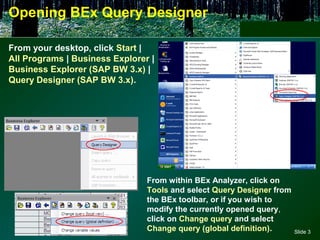
From your desktop, click Start |
All Programs | Business Explorer |
Business Explorer (SAP BW 3.x) |
Query Designer (SAP BW 3.x).
From within BEx Analyzer, click on
Tools and select Query Designer from
the BEx toolbar, or if you wish to
modify the currently opened query,
click on Change query and select
Change query (global definition).
Slide 4
BEx Query Designer Toolbar
Slide 5
Creating a Query
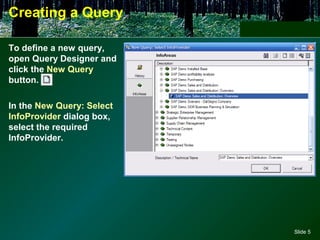
To define a new query,
open Query Designer and
click the New Query
button.
In the New Query: Select
InfoProvider dialog box,
select the required
InfoProvider.
Slide 6
Creating a Query
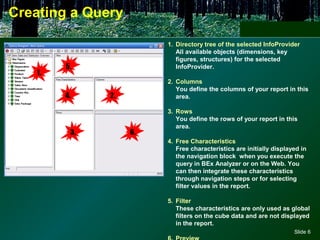
1. Directory tree of the selected InfoProvider
All available objects (dimensions, key
figures, structures) for the selected
InfoProvider.
2. Columns
You define the columns of your report in this
area.
3. Rows
You define the rows of your report in this
area.
4. Free Characteristics
Free characteristics are initially displayed in
the navigation block when you execute the
query in BEx Analyzer or on the Web. You
can then integrate these characteristics
through navigation steps or for selecting
filter values in the report.
5. Filter
These characteristics are only used as global
filters on the cube data and are not displayed
in the report.
Slide 7
Creating a Query
Slide 8
Creating a Query
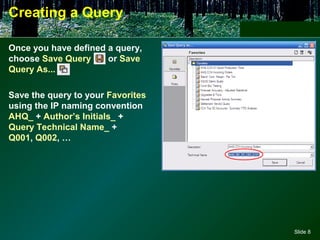
Once you have defined a query,
choose Save Query or Save
Query As...
Save the query to your Favorites
using the IP naming convention
AHQ_ + Author’s Initials_ +
Query Technical Name_ +
Q001, Q002, …
Slide 9
Creating a Query
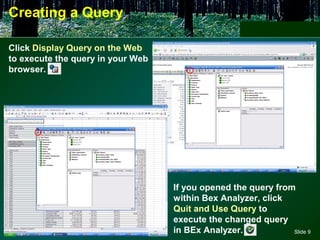
Click Display Query on the Web
to execute the query in your Web
browser.
If you opened the query from
within Bex Analyzer, click
Quit and Use Query to
execute the changed query
in BEx Analyzer.
Slide 10
Finding a Query
From within the Open Query dialog box, click Find.
Search by query
technical name,
description, or both.
Search only for a
specific InfoProvider.
Search by user and/or
created/modified date.
Slide 11
Changing a Query
From within Query Designer, click
Open Query and choose a query to
open.
You will only be able to modify
queries that you created using the
IP naming convention AHQ_ +
Author’s Initials_ +
Query Technical Name_ +
Q001, Q002, …
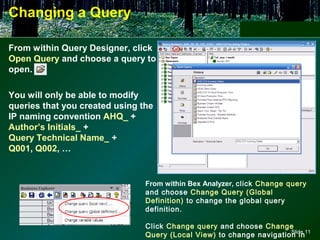
From within Bex Analyzer, click Change query
and choose Change Query (Global
Definition) to change the global query
definition.
Click Change query and choose Change
Query (Local View) to change navigation in
Slide 12
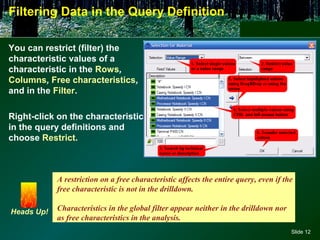
Filtering Data in the Query Definition
You can restrict (filter) the
characteristic values of a
characteristic in the Rows,
Columns, Free characteristics,
and in the Filter.
Right-click on the characteristic
in the query definitions and
choose Restrict.
A restriction on a free characteristic affects the entire query, even if the
free characteristic is not in the drilldown.
Characteristics in the global filter appear neither in the drilldown nor
as free characteristics in the analysis.
Heads Up!
Slide 13
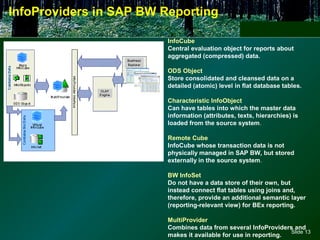
InfoProviders in SAP BW Reporting
InfoCube
Central evaluation object for reports about
aggregated (compressed) data.
ODS Object
Store consolidated and cleansed data on a
detailed (atomic) level in flat database tables.
Characteristic InfoObject
Can have tables into which the master data
information (attributes, texts, hierarchies) is
loaded from the source system.
Remote Cube
InfoCube whose transaction data is not
physically managed in SAP BW, but stored
externally in the source system.
BW InfoSet
Do not have a data store of their own, but
instead connect flat tables using joins and,
therefore, provide an additional semantic layer
(reporting-relevant view) for BEx reporting.
MultiProvider
Combines data from several InfoProviders and
makes it available for use in reporting.
Slide 14
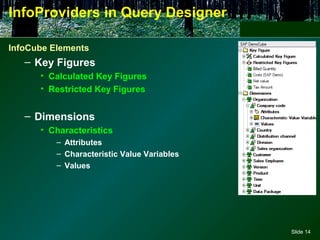
InfoProviders in Query Designer
InfoCube Elements
– Key Figures
• Calculated Key Figures
• Restricted Key Figures
– Dimensions
• Characteristics
– Attributes
– Characteristic Value Variables
– Values
Slide 15
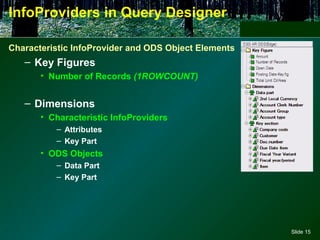
InfoProviders in Query Designer
Characteristic InfoProvider and ODS Object Elements
– Key Figures
• Number of Records (1ROWCOUNT)
– Dimensions
• Characteristic InfoProviders
– Attributes
– Key Part
• ODS Objects
– Data Part
– Key Part
Slide 16
InfoProviders in Query Designer
InfoSet Elements
– Key Figures
• Number of Records (1ROWCOUNT)
– Dimensions
• Attributes
• Key Part
MultiProvider Elements
– Key Figures
• Number of Records (1ROWCOUNT)
(if one of the InfoProviders included already
contains this key figure, for example, in ODS
objects)
– Dimensions
• Data Package
– InfoProvider (0INFOPROV)

Unit 2 b_ex_query_designer

  • 1.
    BEx Query Designer Unit2: First Steps in the BEx Query Designer 7/17/2007
  • 2.
    Slide 2 What isBusiness Explorer (BEx) Query Designer? BEx Query Designer is an independent tool for defining queries that are based on a selection of characteristics and key figures (InfoObjects) or on reusable InfoProvider structures in SAP Business Information Warehouse (BW). In BEx Query Designer, you can parameterize queries by defining variables for characteristic values, hierarchies, hierarchy nodes, texts or formulas. You can specify the selection of InfoObjects more precisely by: – Restricting characteristics and key figures by characteristic values, characteristic value intervals, and hierarchy nodes – Defining calculated and restricted key figures for reuse – Defining structures for reuse – Defining exceptions – Defining conditions – Defining exception cells
  • 3.
    Slide 3 Opening BExQuery Designer From your desktop, click Start | All Programs | Business Explorer | Business Explorer (SAP BW 3.x) | Query Designer (SAP BW 3.x). From within BEx Analyzer, click on Tools and select Query Designer from the BEx toolbar, or if you wish to modify the currently opened query, click on Change query and select Change query (global definition).
  • 4.
    Slide 4 BEx QueryDesigner Toolbar
  • 5.
    Slide 5 Creating aQuery To define a new query, open Query Designer and click the New Query button. In the New Query: Select InfoProvider dialog box, select the required InfoProvider.
  • 6.
    Slide 6 Creating aQuery 1. Directory tree of the selected InfoProvider All available objects (dimensions, key figures, structures) for the selected InfoProvider. 2. Columns You define the columns of your report in this area. 3. Rows You define the rows of your report in this area. 4. Free Characteristics Free characteristics are initially displayed in the navigation block when you execute the query in BEx Analyzer or on the Web. You can then integrate these characteristics through navigation steps or for selecting filter values in the report. 5. Filter These characteristics are only used as global filters on the cube data and are not displayed in the report.
  • 7.
  • 8.
    Slide 8 Creating aQuery Once you have defined a query, choose Save Query or Save Query As... Save the query to your Favorites using the IP naming convention AHQ_ + Author’s Initials_ + Query Technical Name_ + Q001, Q002, …
  • 9.
    Slide 9 Creating aQuery Click Display Query on the Web to execute the query in your Web browser. If you opened the query from within Bex Analyzer, click Quit and Use Query to execute the changed query in BEx Analyzer.
  • 10.
    Slide 10 Finding aQuery From within the Open Query dialog box, click Find. Search by query technical name, description, or both. Search only for a specific InfoProvider. Search by user and/or created/modified date.
  • 11.
    Slide 11 Changing aQuery From within Query Designer, click Open Query and choose a query to open. You will only be able to modify queries that you created using the IP naming convention AHQ_ + Author’s Initials_ + Query Technical Name_ + Q001, Q002, … From within Bex Analyzer, click Change query and choose Change Query (Global Definition) to change the global query definition. Click Change query and choose Change Query (Local View) to change navigation in
  • 12.
    Slide 12 Filtering Datain the Query Definition You can restrict (filter) the characteristic values of a characteristic in the Rows, Columns, Free characteristics, and in the Filter. Right-click on the characteristic in the query definitions and choose Restrict. A restriction on a free characteristic affects the entire query, even if the free characteristic is not in the drilldown. Characteristics in the global filter appear neither in the drilldown nor as free characteristics in the analysis. Heads Up!
  • 13.
    Slide 13 InfoProviders inSAP BW Reporting InfoCube Central evaluation object for reports about aggregated (compressed) data. ODS Object Store consolidated and cleansed data on a detailed (atomic) level in flat database tables. Characteristic InfoObject Can have tables into which the master data information (attributes, texts, hierarchies) is loaded from the source system. Remote Cube InfoCube whose transaction data is not physically managed in SAP BW, but stored externally in the source system. BW InfoSet Do not have a data store of their own, but instead connect flat tables using joins and, therefore, provide an additional semantic layer (reporting-relevant view) for BEx reporting. MultiProvider Combines data from several InfoProviders and makes it available for use in reporting.
  • 14.
    Slide 14 InfoProviders inQuery Designer InfoCube Elements – Key Figures • Calculated Key Figures • Restricted Key Figures – Dimensions • Characteristics – Attributes – Characteristic Value Variables – Values
  • 15.
    Slide 15 InfoProviders inQuery Designer Characteristic InfoProvider and ODS Object Elements – Key Figures • Number of Records (1ROWCOUNT) – Dimensions • Characteristic InfoProviders – Attributes – Key Part • ODS Objects – Data Part – Key Part
  • 16.
    Slide 16 InfoProviders inQuery Designer InfoSet Elements – Key Figures • Number of Records (1ROWCOUNT) – Dimensions • Attributes • Key Part MultiProvider Elements – Key Figures • Number of Records (1ROWCOUNT) (if one of the InfoProviders included already contains this key figure, for example, in ODS objects) – Dimensions • Data Package – InfoProvider (0INFOPROV)