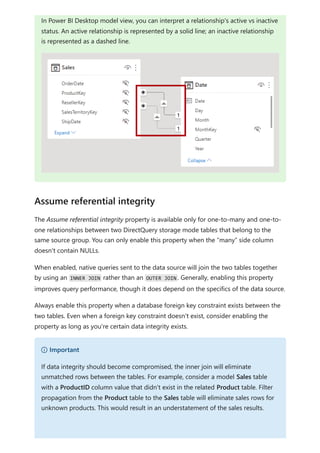
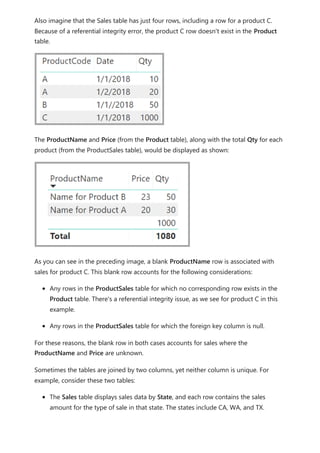
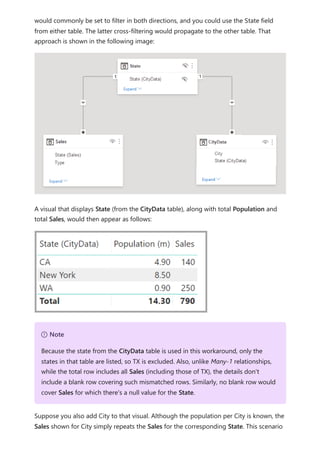
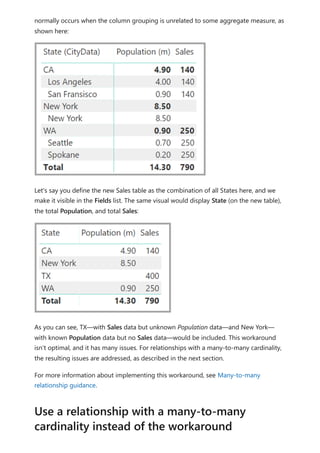
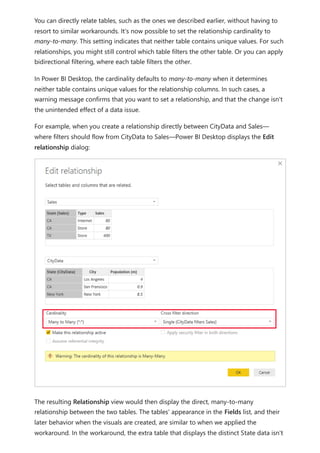
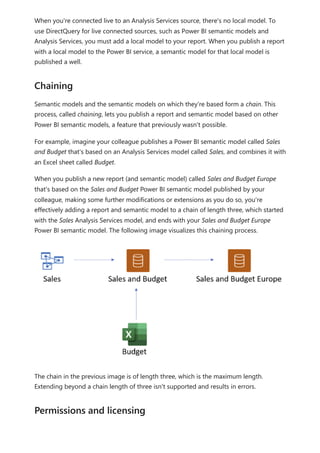
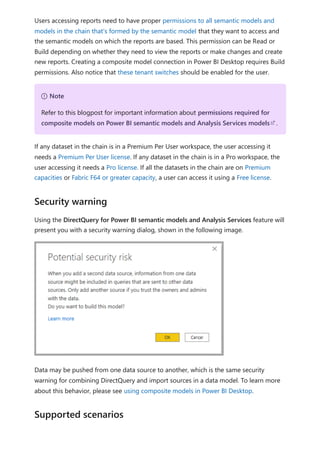
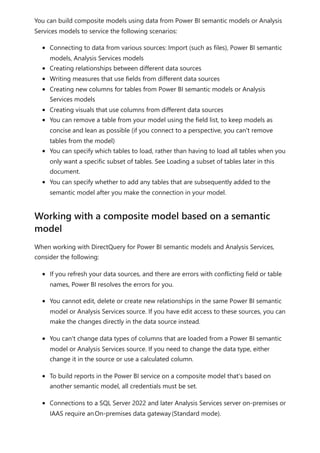
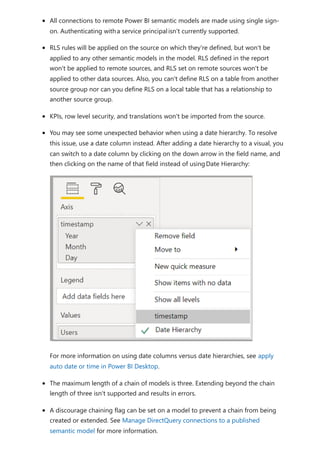
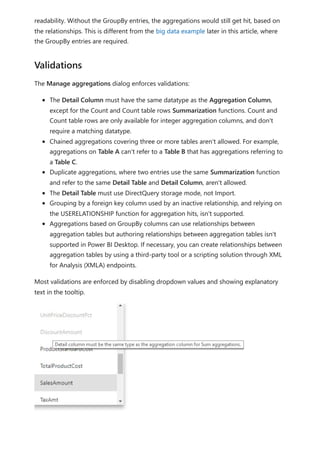
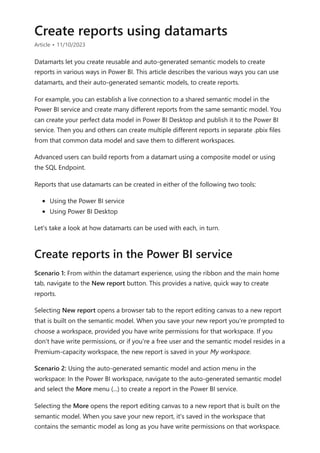
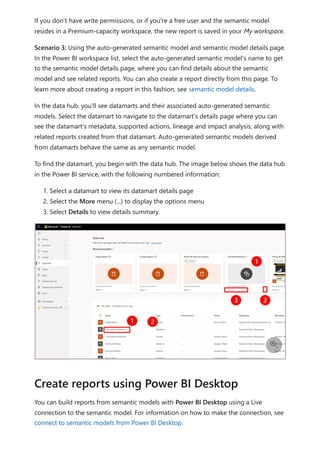
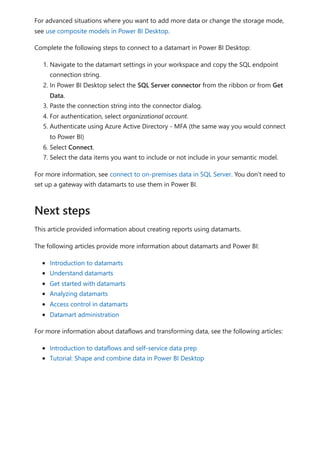
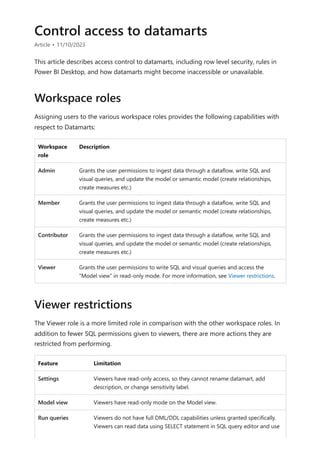
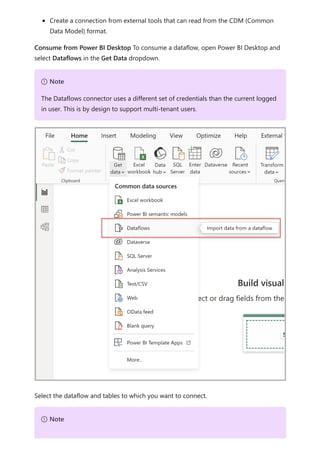
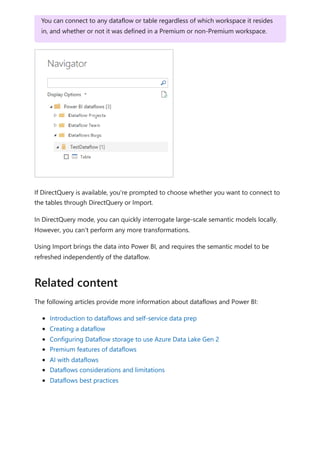
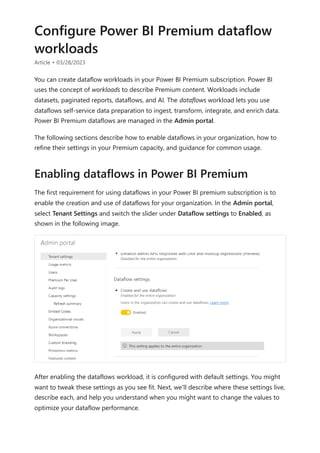
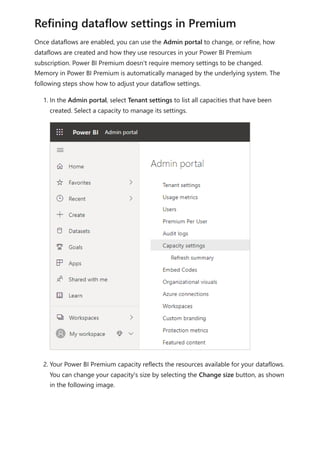
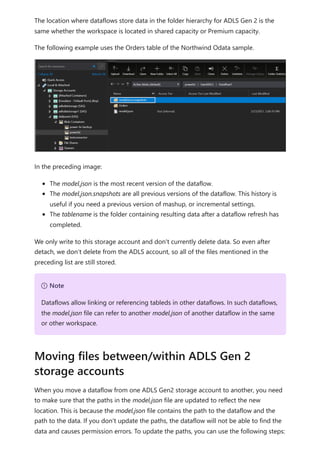
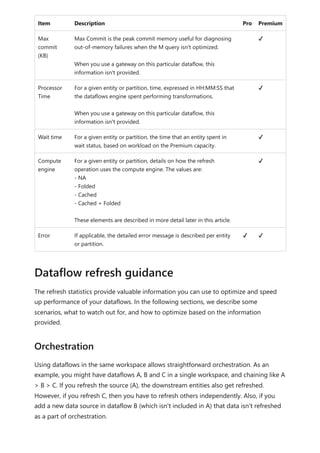
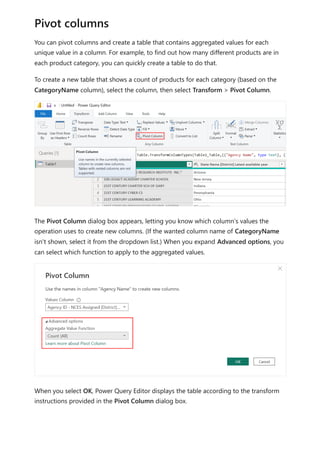
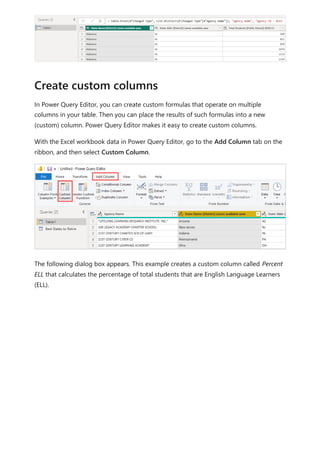
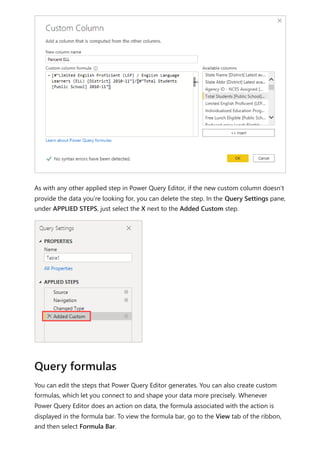
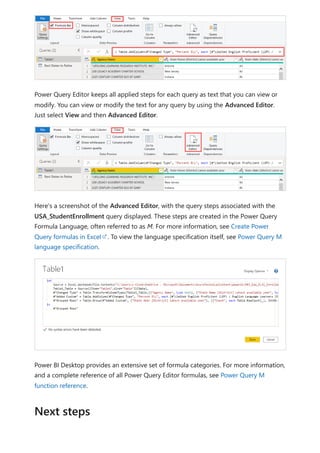
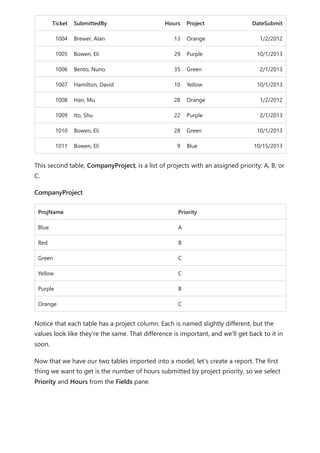
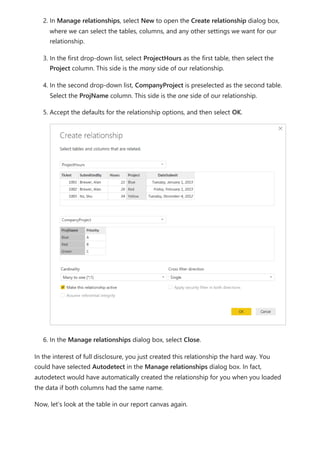
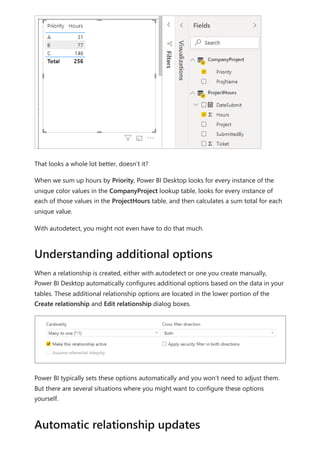
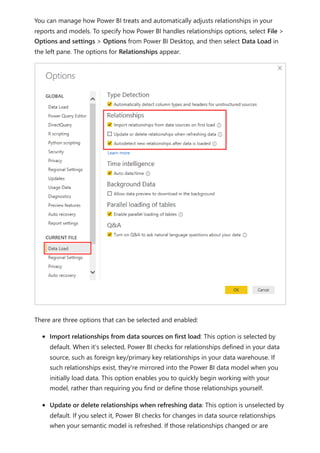
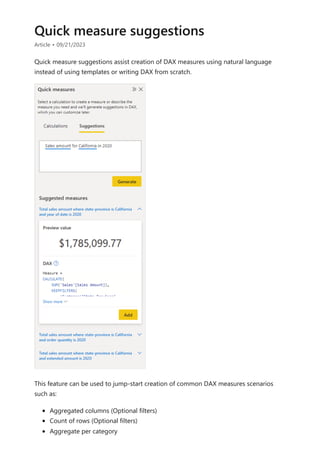
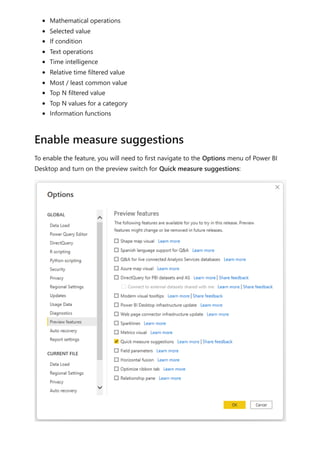
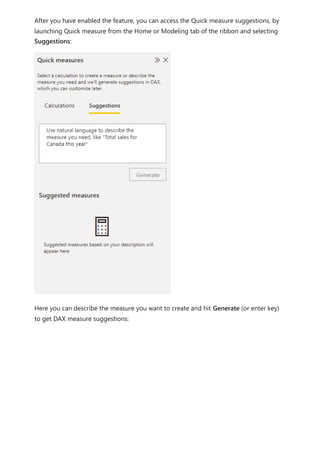
Tell us about your PDF experience.
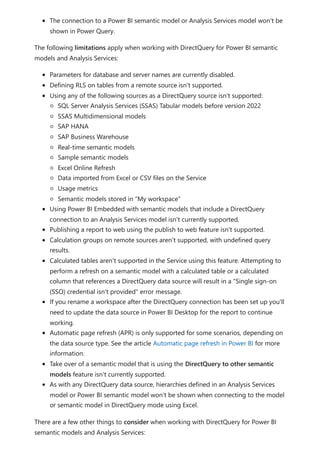
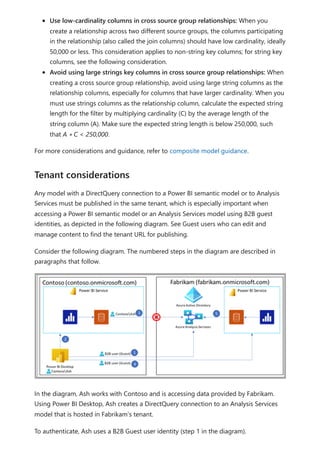
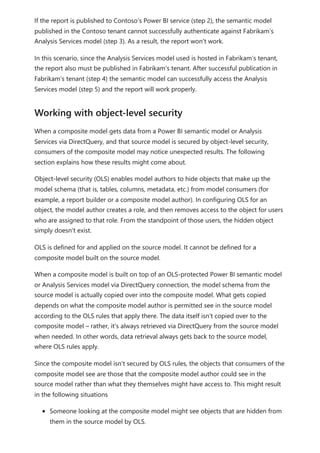
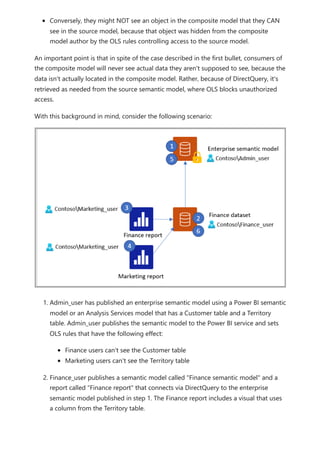
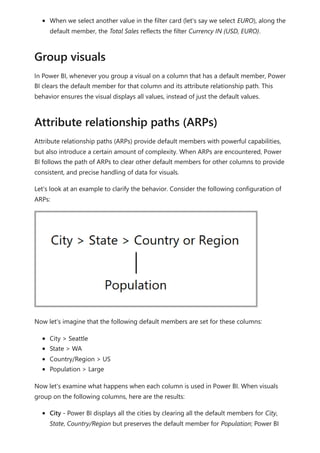
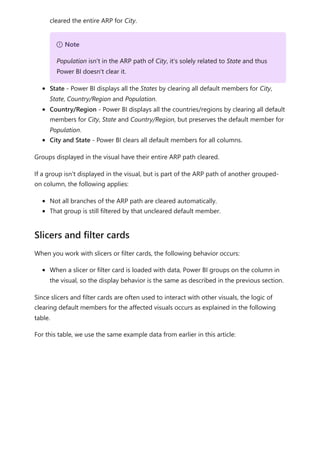
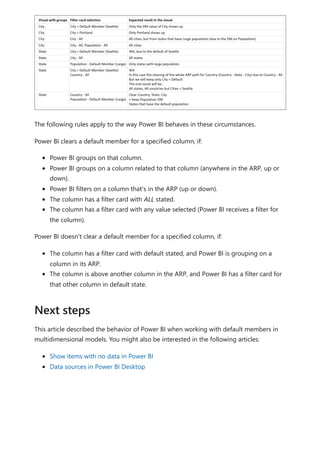
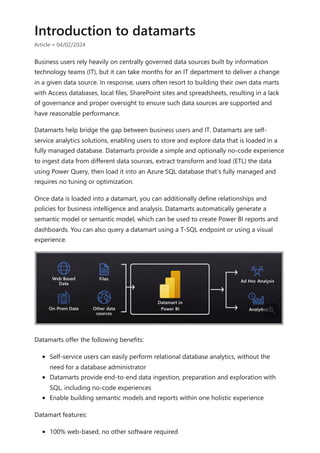
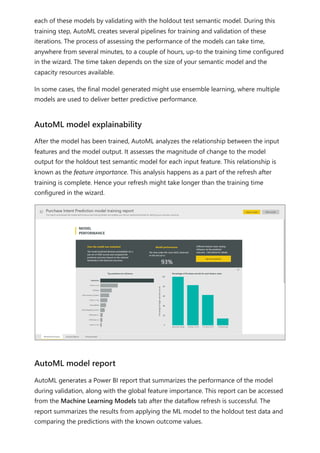
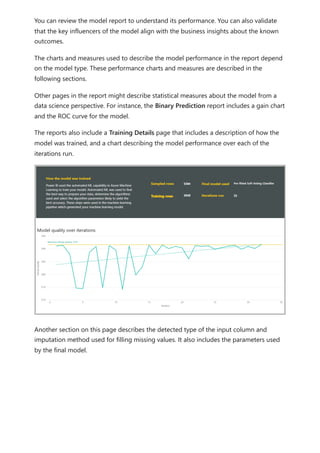
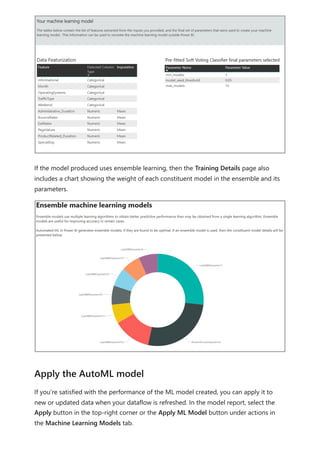
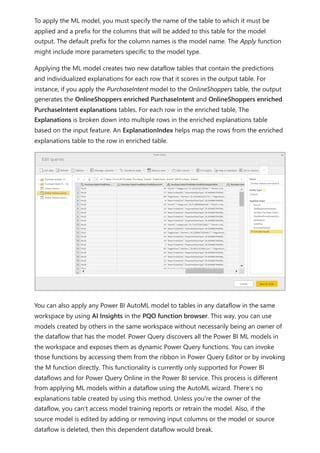
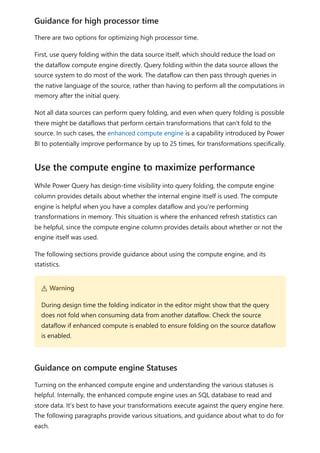
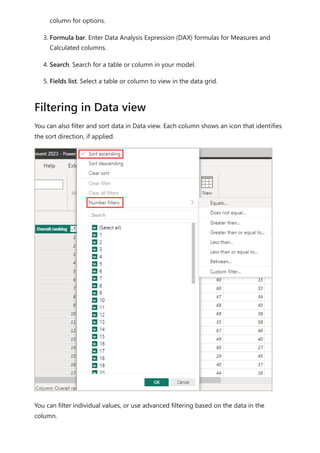
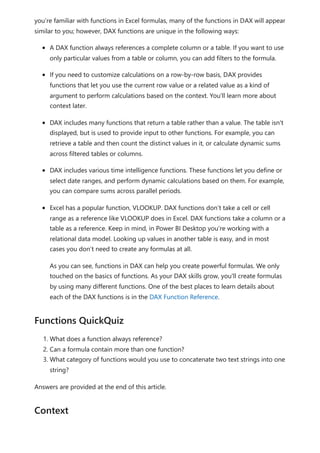
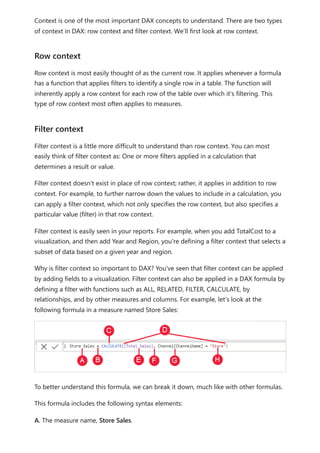
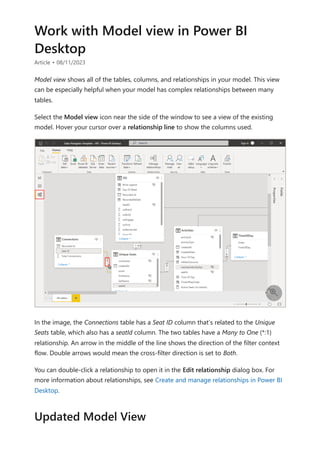
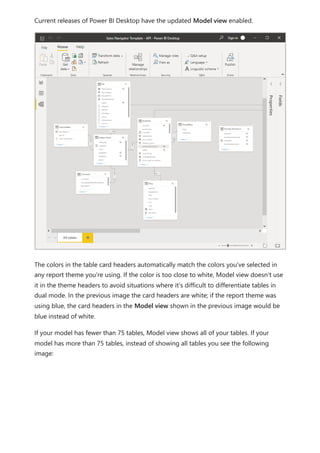
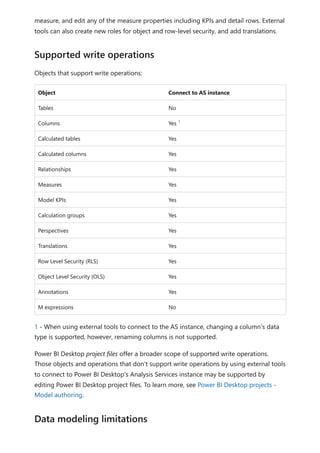
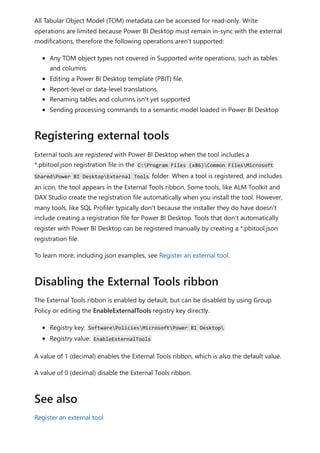
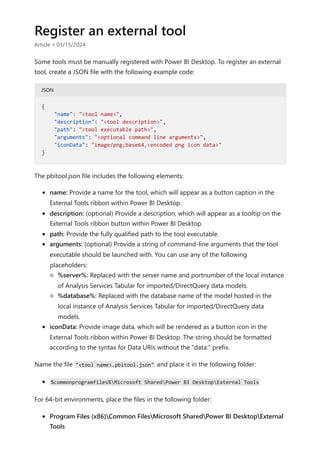
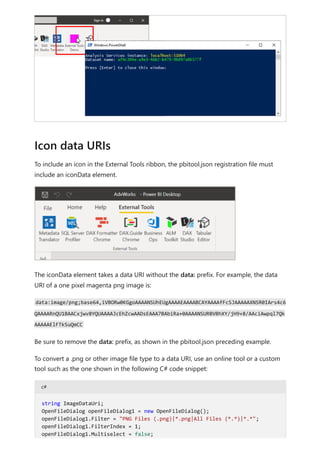
Transform, shape, and model data in
Power BI - documentation
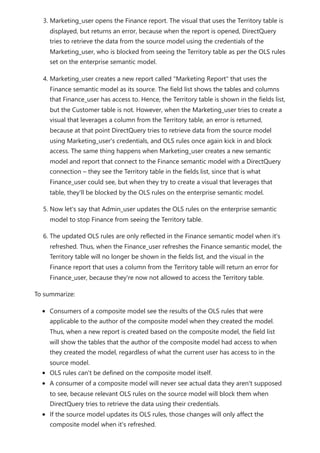
Power BI documentation provides expert information about transforming, shaping, and
modeling data in Power BI.
Transform and shape data
e OVERVIEW
Query editor overview
g TUTORIAL
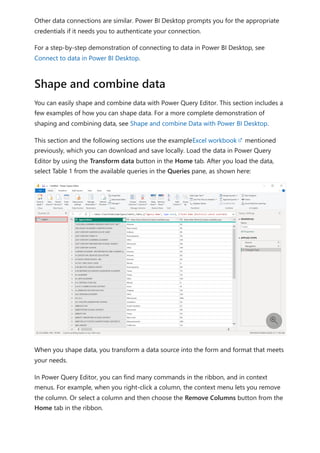
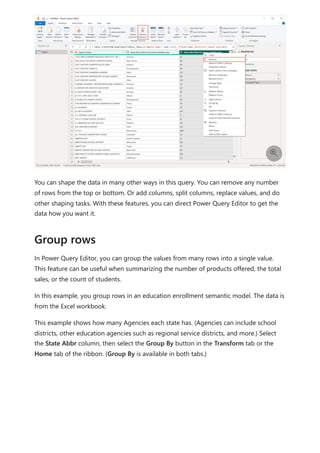
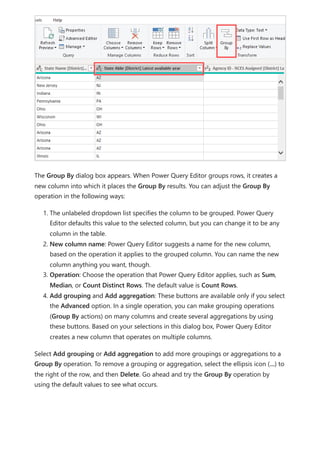
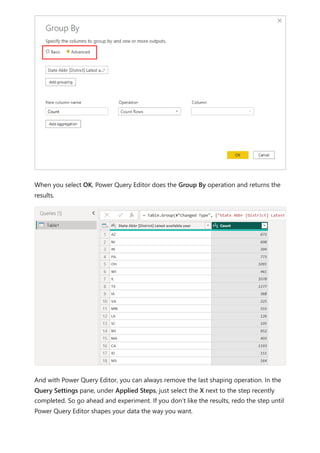
Shape and combine data
p CONCEPT
Common query tasks
c HOW-TO GUIDE
Combine files (binaries)
Model data
p CONCEPT
Modeling view
Many-to-many relationships
c HOW-TO GUIDE
Create and manage relationships
Apply data categorization
Calculations
g TUTORIAL
Learn DAX basics
Create calculated columns
p CONCEPT
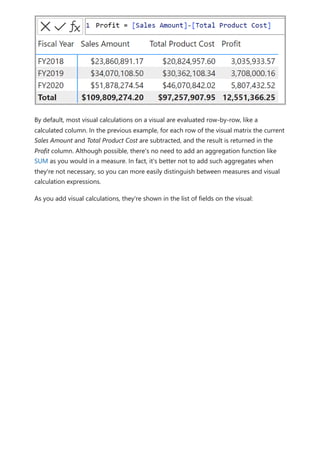
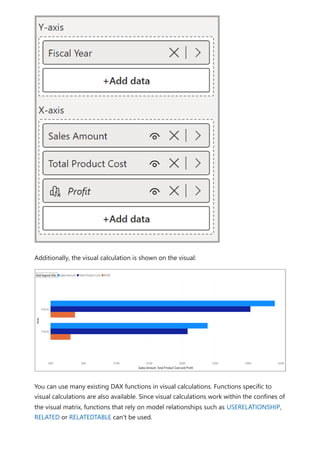
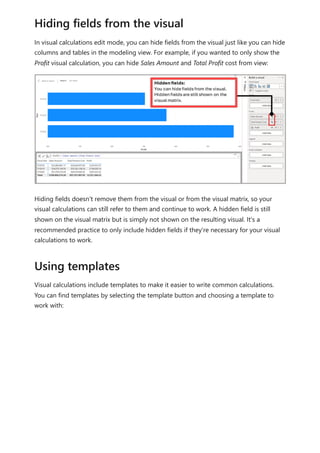
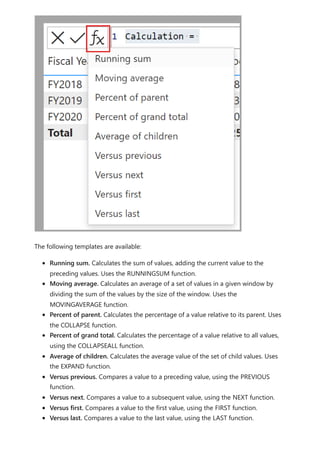
Visual calculations
Calculated tables
c HOW-TO GUIDE
Calculations options
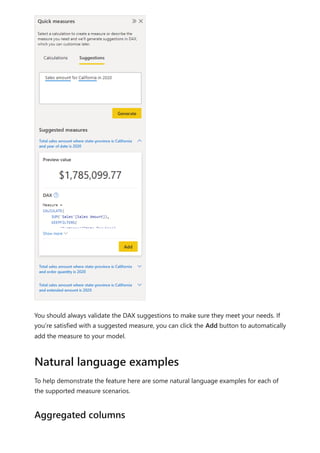
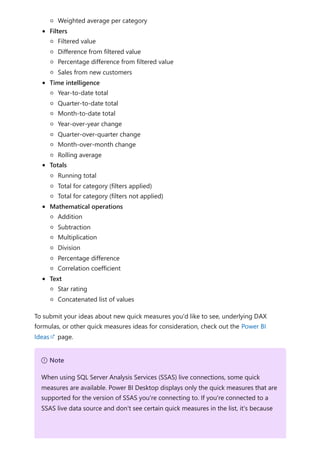
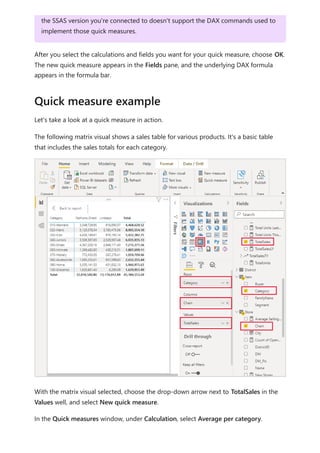
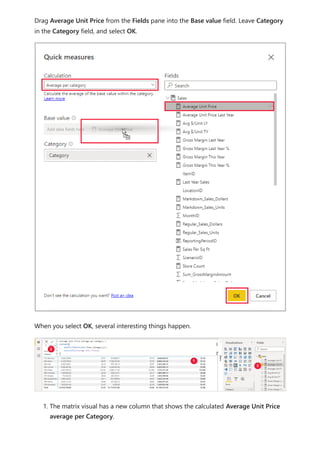
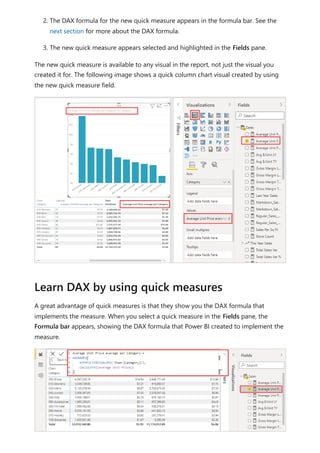
Use quick measures
Self-service data prep
e OVERVIEW
Self-service data prep in Power BI
p CONCEPT
Dataflows: Self-service data prep
Create and use dataflows
Streaming dataflows (preview)
Datamarts (preview)
e OVERVIEW
Introduction to datamarts (preview)
c HOW-TO GUIDE
Get started with datamarts (preview)
p CONCEPT
Understand datamarts (preview)
Create reports with datamarts (preview)
Datamart administration (preview)
Query overview in Power BI Desktop
Article • 10/24/2023
With Power BI Desktop you can connect to the world of data, create compelling and
foundational reports, and share your efforts with others – who can then build on your
work, and expand their business intelligence efforts.
Power BI Desktop has three views:
Report view – You can use queries that you create to build compelling
visualizations, arranged as you want them to appear, and with multiple pages, that
you can share with others.
Data view – See the data in your report in data model format, where you can add
measures, create new columns, and manage relationships.
Model view – Get a graphical representation of the relationships that are
established in your data model, and manage or modify them as needed.
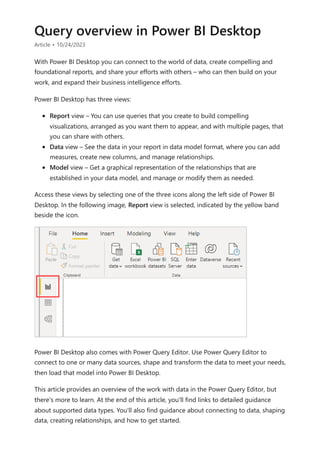
Access these views by selecting one of the three icons along the left side of Power BI
Desktop. In the following image, Report view is selected, indicated by the yellow band
beside the icon.
Power BI Desktop also comes with Power Query Editor. Use Power Query Editor to
connect to one or many data sources, shape and transform the data to meet your needs,
then load that model into Power BI Desktop.
This article provides an overview of the work with data in the Power Query Editor, but
there's more to learn. At the end of this article, you'll find links to detailed guidance
about supported data types. You'll also find guidance about connecting to data, shaping
data, creating relationships, and how to get started.
But first, let's get acquainted with Power Query Editor.
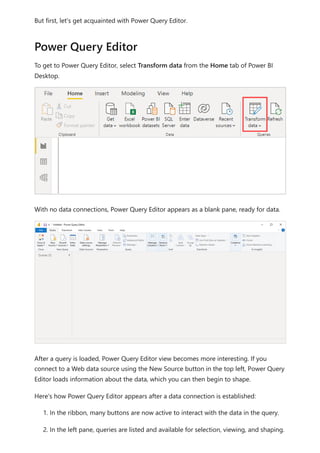
To get to Power Query Editor, select Transform data from the Home tab of Power BI
Desktop.
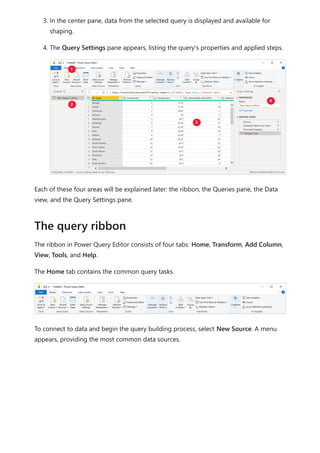
With no data connections, Power Query Editor appears as a blank pane, ready for data.
After a query is loaded, Power Query Editor view becomes more interesting. If you
connect to a Web data source using the New Source button in the top left, Power Query
Editor loads information about the data, which you can then begin to shape.
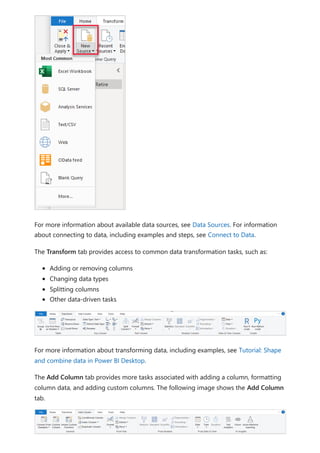
Here's how Power Query Editor appears after a data connection is established:
1. In the ribbon, many buttons are now active to interact with the data in the query.
2. In the left pane, queries are listed and available for selection, viewing, and shaping.
Power Query Editor
3. In the center pane, data from the selected query is displayed and available for
shaping.
4. The Query Settings pane appears, listing the query's properties and applied steps.
Each of these four areas will be explained later: the ribbon, the Queries pane, the Data
view, and the Query Settings pane.
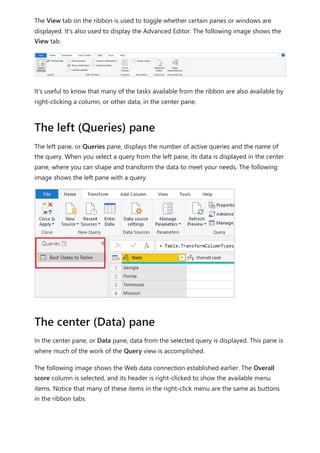
The ribbon in Power Query Editor consists of four tabs: Home, Transform, Add Column,
View, Tools, and Help.
The Home tab contains the common query tasks.
To connect to data and begin the query building process, select New Source. A menu
appears, providing the most common data sources.
The query ribbon
For more information about available data sources, see Data Sources. For information
about connecting to data, including examples and steps, see Connect to Data.
The Transform tab provides access to common data transformation tasks, such as:
Adding or removing columns
Changing data types
Splitting columns
Other data-driven tasks
For more information about transforming data, including examples, see Tutorial: Shape
and combine data in Power BI Desktop.
The Add Column tab provides more tasks associated with adding a column, formatting
column data, and adding custom columns. The following image shows the Add Column
tab.
The View tab on the ribbon is used to toggle whether certain panes or windows are
displayed. It's also used to display the Advanced Editor. The following image shows the
View tab.
It's useful to know that many of the tasks available from the ribbon are also available by
right-clicking a column, or other data, in the center pane.
The left pane, or Queries pane, displays the number of active queries and the name of
the query. When you select a query from the left pane, its data is displayed in the center
pane, where you can shape and transform the data to meet your needs. The following
image shows the left pane with a query.
In the center pane, or Data pane, data from the selected query is displayed. This pane is
where much of the work of the Query view is accomplished.
The following image shows the Web data connection established earlier. The Overall
score column is selected, and its header is right-clicked to show the available menu
items. Notice that many of these items in the right-click menu are the same as buttons
in the ribbon tabs.
The left (Queries) pane
The center (Data) pane
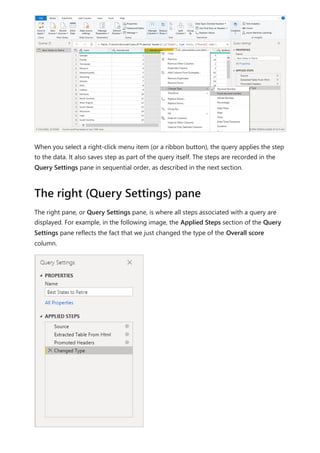
When you select a right-click menu item (or a ribbon button), the query applies the step
to the data. It also saves step as part of the query itself. The steps are recorded in the
Query Settings pane in sequential order, as described in the next section.
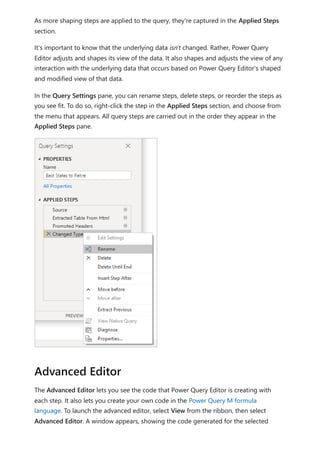
The right pane, or Query Settings pane, is where all steps associated with a query are
displayed. For example, in the following image, the Applied Steps section of the Query
Settings pane reflects the fact that we just changed the type of the Overall score
column.
The right (Query Settings) pane
As more shaping steps are applied to the query, they're captured in the Applied Steps
section.
It's important to know that the underlying data isn't changed. Rather, Power Query
Editor adjusts and shapes its view of the data. It also shapes and adjusts the view of any
interaction with the underlying data that occurs based on Power Query Editor's shaped
and modified view of that data.
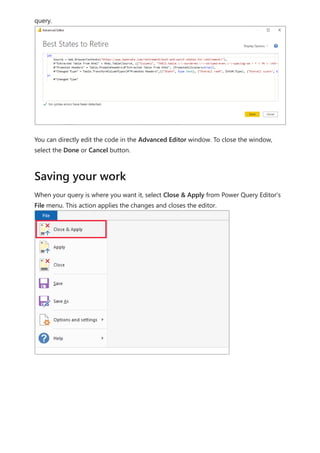
In the Query Settings pane, you can rename steps, delete steps, or reorder the steps as
you see fit. To do so, right-click the step in the Applied Steps section, and choose from
the menu that appears. All query steps are carried out in the order they appear in the
Applied Steps pane.
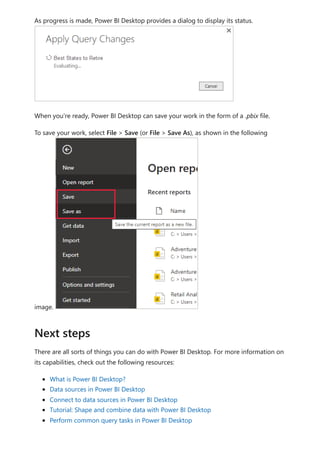
The Advanced Editor lets you see the code that Power Query Editor is creating with
each step. It also lets you create your own code in the Power Query M formula
language. To launch the advanced editor, select View from the ribbon, then select
Advanced Editor. A window appears, showing the code generated for the selected
Advanced Editor
query.
You can directly edit the code in the Advanced Editor window. To close the window,
select the Done or Cancel button.
When your query is where you want it, select Close & Apply from Power Query Editor's
File menu. This action applies the changes and closes the editor.
Saving your work
As progress is made, Power BI Desktop provides a dialog to display its status.
When you're ready, Power BI Desktop can save your work in the form of a .pbix file.
To save your work, select File > Save (or File > Save As), as shown in the following
image.
There are all sorts of things you can do with Power BI Desktop. For more information on
its capabilities, check out the following resources:
What is Power BI Desktop?
Data sources in Power BI Desktop
Connect to data sources in Power BI Desktop
Tutorial: Shape and combine data with Power BI Desktop
Perform common query tasks in Power BI Desktop
Next steps
Tutorial: Create your own measures in
Power BI Desktop
Article • 03/15/2024
By using measures, you can create some of the most powerful data analysis solutions in
Power BI Desktop. Measures help you by performing calculations on your data as you
interact with your reports. This tutorial will guide you through understanding measures
and creating your own basic measures in Power BI Desktop.
This tutorial is intended for Power BI users already familiar with using Power BI
Desktop to create more advanced models. You should already be familiar with
using Get Data and Power Query Editor to import data, work with multiple related
tables, and add fields to the report canvas. If you’re new to Power BI Desktop, be
sure to check out Get Started with Power BI Desktop.
This tutorial uses the Contoso Sales Sample for Power BI Desktop file, which
includes online sales data from the fictitious company, Contoso. Because this data
is imported from a database, you can't connect to the datasource or view it in
Power Query Editor. Download and extract the file on your computer.
When Power BI Desktop creates a measure, it's most often created for you
automatically. To see how Power BI Desktop creates a measure, follow these steps:
1. In Power BI Desktop, select File > Open, browse to the Contoso Sales Sample for
Power BI Desktop.pbix file, and then choose Open.
2. In the Fields pane, expand the Sales table. Then, either select the check box next to
the SalesAmount field or drag SalesAmount onto the report canvas.
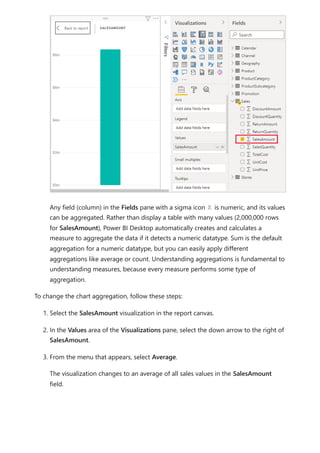
A new column chart visualization appears, showing the sum total of all values in
the SalesAmount column of the Sales table.
Prerequisites
Automatic measures
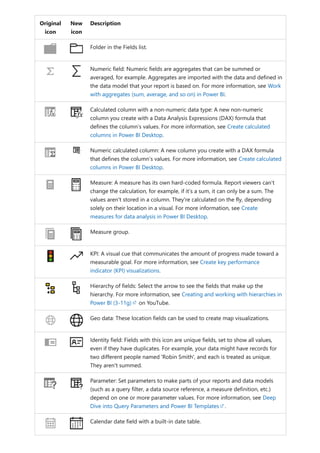
Any field (column) in the Fields pane with a sigma icon is numeric, and its values
can be aggregated. Rather than display a table with many values (2,000,000 rows
for SalesAmount), Power BI Desktop automatically creates and calculates a
measure to aggregate the data if it detects a numeric datatype. Sum is the default
aggregation for a numeric datatype, but you can easily apply different
aggregations like average or count. Understanding aggregations is fundamental to
understanding measures, because every measure performs some type of
aggregation.
To change the chart aggregation, follow these steps:
1. Select the SalesAmount visualization in the report canvas.
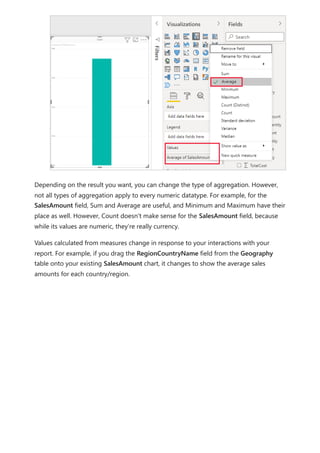
2. In the Values area of the Visualizations pane, select the down arrow to the right of
SalesAmount.
3. From the menu that appears, select Average.
The visualization changes to an average of all sales values in the SalesAmount
field.
Depending on the result you want, you can change the type of aggregation. However,
not all types of aggregation apply to every numeric datatype. For example, for the
SalesAmount field, Sum and Average are useful, and Minimum and Maximum have their
place as well. However, Count doesn't make sense for the SalesAmount field, because
while its values are numeric, they’re really currency.
Values calculated from measures change in response to your interactions with your
report. For example, if you drag the RegionCountryName field from the Geography
table onto your existing SalesAmount chart, it changes to show the average sales
amounts for each country/region.
When the result of a measure changes because of an interaction with your report,
you've affected your measure’s context. Every time you interact with your report
visualizations, you're changing the context in which a measure calculates and displays its
results.
In most cases, Power BI Desktop automatically calculates and returns values according
to the types of fields and aggregations you choose. However, in some cases you might
want to create your own measures to perform more complex, unique calculations. With
Power BI Desktop, you can create your own measures with the Data Analysis Expressions
(DAX) formula language.
DAX formulas use many of the same functions, operators, and syntax as Excel formulas.
However, DAX functions are designed to work with relational data and perform more
dynamic calculations as you interact with your reports. There are over 200 DAX functions
that do everything from simple aggregations like sum and average to more complex
statistical and filtering functions. There are many resources to help you learn more
about DAX. After you've finished this tutorial, see DAX basics in Power BI Desktop.
Create and use your own measures
When you create your own measure, it's called a model measure, and it's added to the
Fields list for the table you select. Some advantages of model measures are that you can
name them whatever you want, making them more identifiable. You can use them as
arguments in other DAX expressions, and you can make them perform complex
calculations quickly.
Many common calculations are available as quick measures, which write the DAX
formulas for you based on your inputs in a window. These quick, powerful calculations
are also great for learning DAX or seeding your own customized measures.
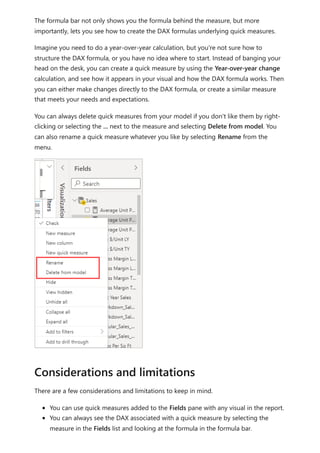
Create a quick measure using one of these methods:
From a table in the Fields pane, right-click or select More options (...), and then
choose New quick measure from the list.
Under Calculations in the Home tab of the Power BI Desktop ribbon, select New
Quick Measure.
For more information about creating and using quick measures, see Use quick
measures.
Suppose you want to analyze your net sales by subtracting discounts and returns from
total sales amounts. For the context that exists in your visualization, you need a measure
that subtracts the sum of DiscountAmount and ReturnAmount from the sum of
SalesAmount. There's no field for Net Sales in the Fields list, but you have the building
blocks to create your own measure to calculate net sales.
To create a measure, follow these steps:
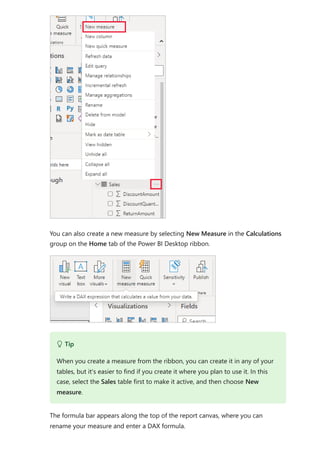
1. In the Fields pane, right-click the Sales table, or hover over the table and select
More options (...).
2. From the menu that appears, choose New measure.
This action saves your new measure in the Sales table, where it's easy to find.
Quick measures
Create a measure
You can also create a new measure by selecting New Measure in the Calculations
group on the Home tab of the Power BI Desktop ribbon.
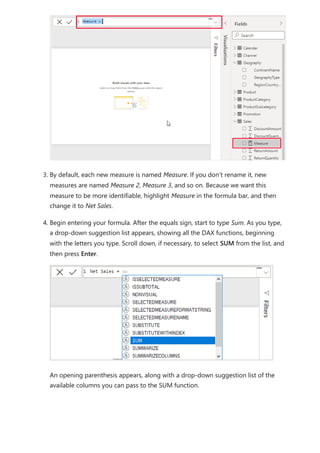
The formula bar appears along the top of the report canvas, where you can
rename your measure and enter a DAX formula.
 Tip
When you create a measure from the ribbon, you can create it in any of your
tables, but it's easier to find if you create it where you plan to use it. In this
case, select the Sales table first to make it active, and then choose New
measure.
3. By default, each new measure is named Measure. If you don’t rename it, new
measures are named Measure 2, Measure 3, and so on. Because we want this
measure to be more identifiable, highlight Measure in the formula bar, and then
change it to Net Sales.
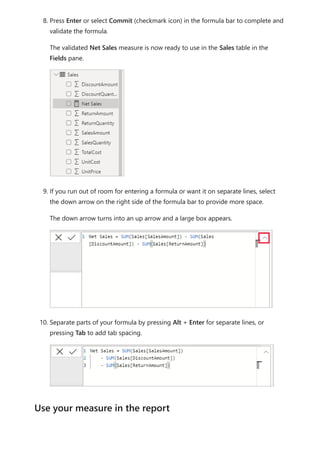
4. Begin entering your formula. After the equals sign, start to type Sum. As you type,
a drop-down suggestion list appears, showing all the DAX functions, beginning
with the letters you type. Scroll down, if necessary, to select SUM from the list, and
then press Enter.
An opening parenthesis appears, along with a drop-down suggestion list of the
available columns you can pass to the SUM function.
5. Expressions always appear between opening and closing parentheses. For this
example, your expression contains a single argument to pass to the SUM function:
the SalesAmount column. Begin typing SalesAmount until Sales(SalesAmount) is
the only value left in the list.
The column name preceded by the table name is called the fully qualified name of
the column. Fully qualified column names make your formulas easier to read.
6. Select Sales[SalesAmount] from the list, and then enter a closing parenthesis.
7. Subtract the other two columns inside the formula:
a. After the closing parenthesis for the first expression, type a space, a minus
operator (-), and then another space.
b. Enter another SUM function, and start typing DiscountAmount until you can
choose the Sales[DiscountAmount] column as the argument. Add a closing
parenthesis.
c. Type a space, a minus operator, a space, another SUM function with
Sales[ReturnAmount] as the argument, and then a closing parenthesis.
 Tip
Syntax errors are most often caused by a missing or misplaced closing
parenthesis.
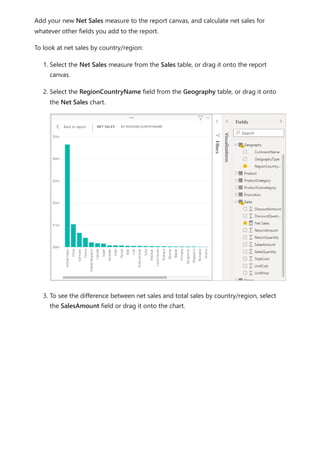
8. Press Enter or select Commit (checkmark icon) in the formula bar to complete and
validate the formula.
The validated Net Sales measure is now ready to use in the Sales table in the
Fields pane.
9. If you run out of room for entering a formula or want it on separate lines, select
the down arrow on the right side of the formula bar to provide more space.
The down arrow turns into an up arrow and a large box appears.
10. Separate parts of your formula by pressing Alt + Enter for separate lines, or
pressing Tab to add tab spacing.
Use your measure in the report
Add your new Net Sales measure to the report canvas, and calculate net sales for
whatever other fields you add to the report.
To look at net sales by country/region:
1. Select the Net Sales measure from the Sales table, or drag it onto the report
canvas.
2. Select the RegionCountryName field from the Geography table, or drag it onto
the Net Sales chart.
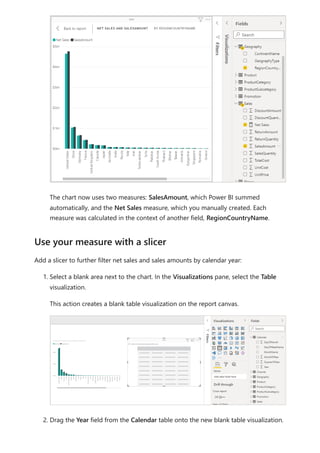
3. To see the difference between net sales and total sales by country/region, select
the SalesAmount field or drag it onto the chart.
The chart now uses two measures: SalesAmount, which Power BI summed
automatically, and the Net Sales measure, which you manually created. Each
measure was calculated in the context of another field, RegionCountryName.
Add a slicer to further filter net sales and sales amounts by calendar year:
1. Select a blank area next to the chart. In the Visualizations pane, select the Table
visualization.
This action creates a blank table visualization on the report canvas.
2. Drag the Year field from the Calendar table onto the new blank table visualization.
Use your measure with a slicer
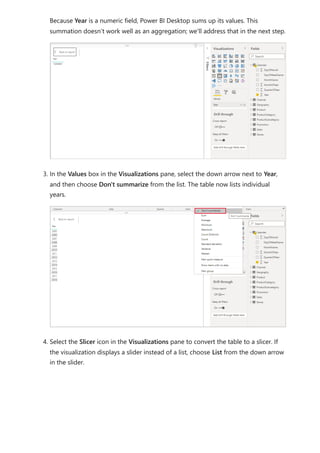
Because Year is a numeric field, Power BI Desktop sums up its values. This
summation doesn’t work well as an aggregation; we'll address that in the next step.
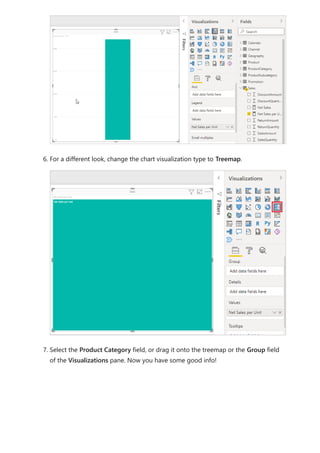
3. In the Values box in the Visualizations pane, select the down arrow next to Year,
and then choose Don't summarize from the list. The table now lists individual
years.
4. Select the Slicer icon in the Visualizations pane to convert the table to a slicer. If
the visualization displays a slider instead of a list, choose List from the down arrow
in the slider.
5. Select any value in the Year slicer to filter the Net Sales and Sales Amount by
RegionCountryName chart accordingly. The Net Sales and SalesAmount
measures recalculate and display results in the context of the selected Year field.
Suppose you want to find out which products have the highest net sales amount per
unit sold. You'll need a measure that divides net sales by the quantity of units sold.
Create a new measure that divides the result of your Net Sales measure by the sum of
Sales[SalesQuantity].
1. In the Fields pane, create a new measure named Net Sales per Unit in the Sales
table.
2. In the formula bar, begin typing Net Sales. The suggestion list shows what you can
add. Select [Net Sales].
Use your measure in another measure
3. You can also reference measures by just typing an opening bracket ([). The
suggestion list shows only measures to add to your formula.
4. Enter a space, a divide operator (/), another space, a SUM function, and then type
Quantity. The suggestion list shows all the columns with Quantity in the name.
Select Sales[SalesQuantity], type the closing parenthesis, and press ENTER or
choose Commit (checkmark icon) to validate your formula.
The resulting formula should appear as:
Net Sales per Unit = [Net Sales] / SUM(Sales[SalesQuantity])
5. Select the Net Sales per Unit measure from the Sales table, or drag it onto a blank
area in the report canvas.
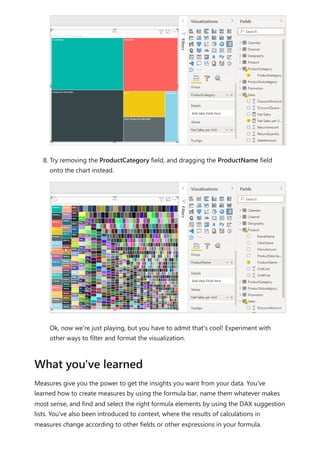
The chart shows the net sales amount per unit over all products sold. This chart
isn't informative; we'll address it in the next step.
6. For a different look, change the chart visualization type to Treemap.
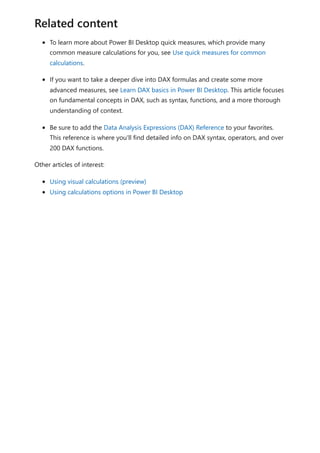
7. Select the Product Category field, or drag it onto the treemap or the Group field
of the Visualizations pane. Now you have some good info!
8. Try removing the ProductCategory field, and dragging the ProductName field
onto the chart instead.
Ok, now we're just playing, but you have to admit that's cool! Experiment with
other ways to filter and format the visualization.
Measures give you the power to get the insights you want from your data. You've
learned how to create measures by using the formula bar, name them whatever makes
most sense, and find and select the right formula elements by using the DAX suggestion
lists. You've also been introduced to context, where the results of calculations in
measures change according to other fields or other expressions in your formula.
What you've learned
To learn more about Power BI Desktop quick measures, which provide many
common measure calculations for you, see Use quick measures for common
calculations.
If you want to take a deeper dive into DAX formulas and create some more
advanced measures, see Learn DAX basics in Power BI Desktop. This article focuses
on fundamental concepts in DAX, such as syntax, functions, and a more thorough
understanding of context.
Be sure to add the Data Analysis Expressions (DAX) Reference to your favorites.
This reference is where you'll find detailed info on DAX syntax, operators, and over
200 DAX functions.
Other articles of interest:
Using visual calculations (preview)
Using calculations options in Power BI Desktop
Related content
Tutorial: Create calculated columns in
Power BI Desktop
Article • 03/15/2024
Sometimes the data you’re analyzing doesn’t contain a particular field that you need to
get your desired results. Calculated columns are useful for this situation. Calculated
columns use Data Analysis Expressions (DAX) formulas to define a column’s values. This
tool is useful for anything from putting together text values from a couple of different
columns to calculating a numeric value from other values. For example, let’s say your
data has City and State fields, but you want a single Location field that has both, like
"Miami, FL".
Calculated columns are similar to measures in that both are based on DAX formulas, but
they differ in how they're used. You often use measures in a visualization's Values area,
to calculate results based on other fields. You use calculated columns as new Fields in
the rows, axes, legends, and group areas of visualizations.
This tutorial will guide you through understanding and creating some calculated
columns and using them in report visualizations in Power BI Desktop.
This tutorial is intended for Power BI users already familiar with using Power BI
Desktop to create more advanced models. You should already know how to use
Get Data and the Power Query Editor to import data, work with multiple related
tables, and add fields to the Report canvas. If you’re new to Power BI Desktop, be
sure to check out Getting Started with Power BI Desktop.
The tutorial uses the Contoso Sales Sample for Power BI Desktop , the same
sample used for the Create your own measures in Power BI Desktop tutorial. This
sales data from the fictitious company Contoso, Inc. was imported from a
database. You won’t be able to connect to the data source or view it in the Power
Query Editor. Download and extract the file on your own computer, and then open
it in Power BI Desktop.
Prerequisites
Create a calculated column with values from
related tables
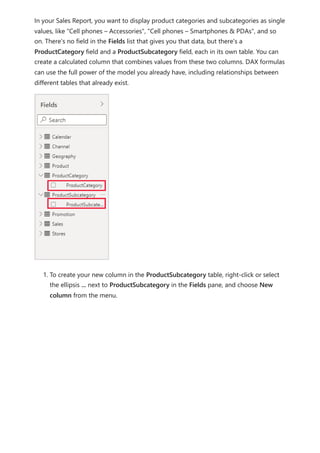
In your Sales Report, you want to display product categories and subcategories as single
values, like "Cell phones – Accessories", "Cell phones – Smartphones & PDAs", and so
on. There's no field in the Fields list that gives you that data, but there's a
ProductCategory field and a ProductSubcategory field, each in its own table. You can
create a calculated column that combines values from these two columns. DAX formulas
can use the full power of the model you already have, including relationships between
different tables that already exist.
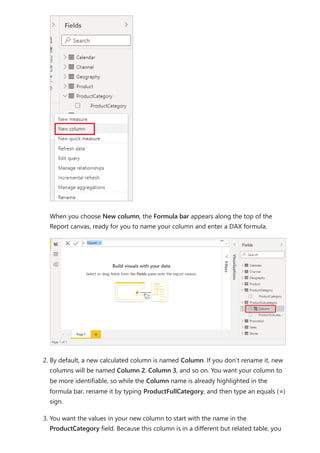
1. To create your new column in the ProductSubcategory table, right-click or select
the ellipsis ... next to ProductSubcategory in the Fields pane, and choose New
column from the menu.
When you choose New column, the Formula bar appears along the top of the
Report canvas, ready for you to name your column and enter a DAX formula.
2. By default, a new calculated column is named Column. If you don’t rename it, new
columns will be named Column 2, Column 3, and so on. You want your column to
be more identifiable, so while the Column name is already highlighted in the
formula bar, rename it by typing ProductFullCategory, and then type an equals (=)
sign.
3. You want the values in your new column to start with the name in the
ProductCategory field. Because this column is in a different but related table, you
can use the RELATED function to help you get it.
After the equals sign, type r. A dropdown suggestion list shows all of the DAX
functions beginning with the letter R. Selecting each function shows a description
of its effect. As you type, the suggestion list scales closer to the function you need.
Select RELATED, and then press Enter.
An opening parenthesis appears, along with another suggestion list of the related
columns you can pass to the RELATED function, with descriptions and details of
expected parameters.
4. You want the ProductCategory column from the ProductCategory table. Select
ProductCategory[ProductCategory], press Enter, and then type a closing
parenthesis.
 Tip
5. You want dashes and spaces to separate the ProductCategories and
ProductSubcategories in the new values, so after the closing parenthesis of the
first expression, type a space, ampersand (&), double-quote ("), space, dash (-),
another space, another double-quote, and another ampersand. Your formula
should now look like this:
ProductFullCategory = RELATED(ProductCategory[ProductCategory]) & " - " &
6. Enter an opening bracket ([), and then select the [ProductSubcategory] column to
finish the formula.
You didn’t need to use another RELATED function to call the ProductSubcategory
table in the second expression, because you're creating the calculated column in
this table. You can enter [ProductSubcategory] with the table name prefix (fully
qualified) or without (non-qualified).
7. Complete the formula by pressing Enter or selecting the checkmark in the formula
bar. The formula validates, and the ProductFullCategory column name appears in
the ProductSubcategory table in the Fields pane.
Syntax errors are most often caused by a missing or misplaced closing
parenthesis, although sometimes Power BI Desktop will add it for you.
 Tip
If you need more room, select the down chevron on the right side of the
formula bar to expand the formula editor. In the editor, press Alt + Enter to
move down a line, and Tab to move things over.
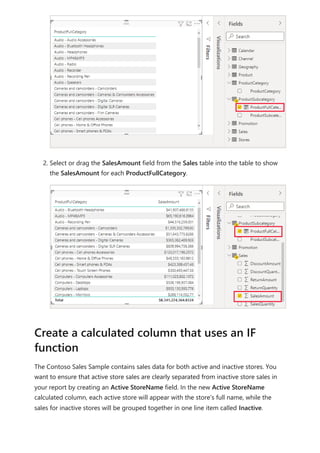
Now you can use your new ProductFullCategory column to look at SalesAmount by
ProductFullCategory.
1. Select or drag the ProductFullCategory column from the ProductSubcategory
table onto the Report canvas to create a table showing all of the
ProductFullCategory names.
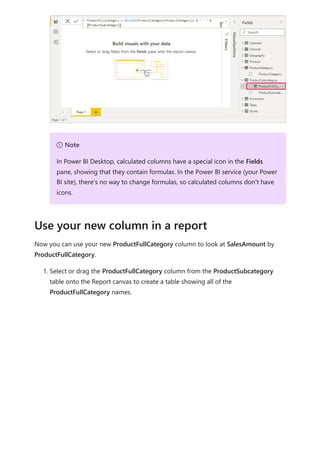
7 Note
In Power BI Desktop, calculated columns have a special icon in the Fields
pane, showing that they contain formulas. In the Power BI service (your Power
BI site), there’s no way to change formulas, so calculated columns don't have
icons.
Use your new column in a report
2. Select or drag the SalesAmount field from the Sales table into the table to show
the SalesAmount for each ProductFullCategory.
The Contoso Sales Sample contains sales data for both active and inactive stores. You
want to ensure that active store sales are clearly separated from inactive store sales in
your report by creating an Active StoreName field. In the new Active StoreName
calculated column, each active store will appear with the store's full name, while the
sales for inactive stores will be grouped together in one line item called Inactive.
Create a calculated column that uses an IF
function
Fortunately, the Stores table has a column named Status, with values of "On" for active
stores and "Off" for inactive stores, which we can use to create values for our new Active
StoreName column. Your DAX formula will use the logical IF function to test each store's
Status and return a particular value depending on the result. If a store's Status is "On",
the formula will return the store's name. If it’s "Off", the formula will assign an Active
StoreName of "Inactive".
1. Create a new calculated column in the Stores table and name it Active StoreName
in the formula bar.
2. After the = sign, begin typing IF. The suggestion list will show what you can add.
Select IF.
3. The first argument for IF is a logical test of whether a store's Status is "On". Type
an opening bracket [, which lists columns from the Stores table, and select [Status].
4. Right after [Status], type ="On", and then type a comma (,) to end the argument.
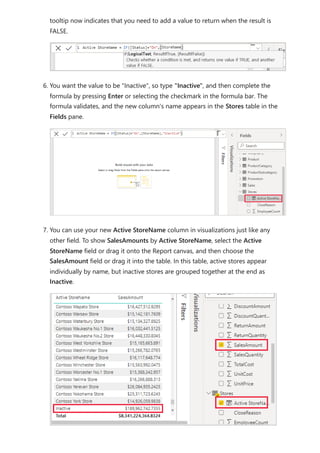
The tooltip suggests that you now need to add a value to return when the result is
TRUE.
5. If the store's status is "On", you want to show the store’s name. Type an opening
bracket ([) and select the [StoreName] column, and then type another comma. The
tooltip now indicates that you need to add a value to return when the result is
FALSE.
6. You want the value to be "Inactive", so type "Inactive", and then complete the
formula by pressing Enter or selecting the checkmark in the formula bar. The
formula validates, and the new column's name appears in the Stores table in the
Fields pane.
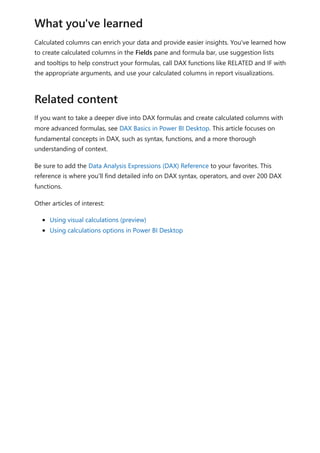
7. You can use your new Active StoreName column in visualizations just like any
other field. To show SalesAmounts by Active StoreName, select the Active
StoreName field or drag it onto the Report canvas, and then choose the
SalesAmount field or drag it into the table. In this table, active stores appear
individually by name, but inactive stores are grouped together at the end as
Inactive.
Calculated columns can enrich your data and provide easier insights. You've learned how
to create calculated columns in the Fields pane and formula bar, use suggestion lists
and tooltips to help construct your formulas, call DAX functions like RELATED and IF with
the appropriate arguments, and use your calculated columns in report visualizations.
If you want to take a deeper dive into DAX formulas and create calculated columns with
more advanced formulas, see DAX Basics in Power BI Desktop. This article focuses on
fundamental concepts in DAX, such as syntax, functions, and a more thorough
understanding of context.
Be sure to add the Data Analysis Expressions (DAX) Reference to your favorites. This
reference is where you'll find detailed info on DAX syntax, operators, and over 200 DAX
functions.
Other articles of interest:
Using visual calculations (preview)
Using calculations options in Power BI Desktop
What you've learned
Related content
Create calculation groups
Article • 10/17/2023
Calculation groups can significantly reduce the number of redundant measures you
have to create, by allowing you define DAX expressions as calculation items that apply
to the existing measures in your model. More information about calculation groups is
available in the Calculation groups article.
In Power BI Desktop when you have a local model open, navigate to Model view and
select the Calculation group button in the ribbon. If you're not already in Model
explorer, the Data pane opens to the Model view.
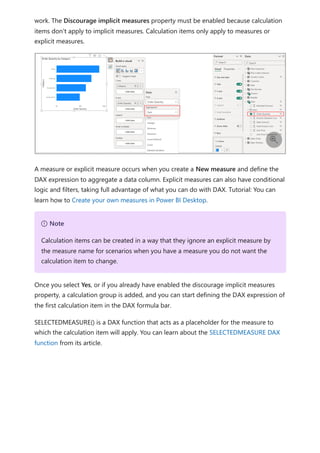
If the discourage implicit measures property is turned off, you're prompted with a
dialog window to turn it on to enabling creation of the calculation group.
An implicit measure occurs when, in the Report view, you use a data column from the
Data pane directly in the visual. The visual allows you to aggregate it as a SUM,
AVERAGE, MIN, MAX, or some other basic aggregation, which becomes an implicit
measure. Creating a calculation group discourages the creation of such implicit
measures by no longer showing the summation symbol next to the data columns in the
Data pane, and blocks adding the data columns to the visuals directly on aggregation
axis or as values. Existing implicit measures already created in visuals will continue to
Add a new calculation group
work. The Discourage implicit measures property must be enabled because calculation
items don't apply to implicit measures. Calculation items only apply to measures or
explicit measures.
A measure or explicit measure occurs when you create a New measure and define the
DAX expression to aggregate a data column. Explicit measures can also have conditional
logic and filters, taking full advantage of what you can do with DAX. Tutorial: You can
learn how to Create your own measures in Power BI Desktop.
Once you select Yes, or if you already have enabled the discourage implicit measures
property, a calculation group is added, and you can start defining the DAX expression of
the first calculation item in the DAX formula bar.
SELECTEDMEASURE() is a DAX function that acts as a placeholder for the measure to
which the calculation item will apply. You can learn about the SELECTEDMEASURE DAX
function from its article.

7 Note
Calculation items can be created in a way that they ignore an explicit measure by
the measure name for scenarios when you have a measure you do not want the
calculation item to change.
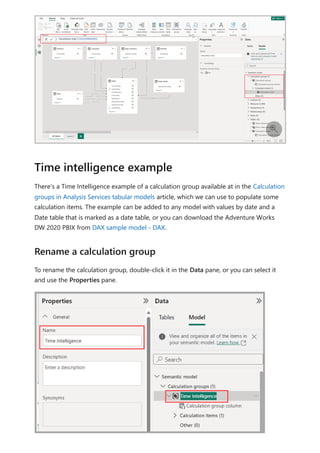
There's a Time Intelligence example of a calculation group available at in the Calculation
groups in Analysis Services tabular models article, which we can use to populate some
calculation items. The example can be added to any model with values by date and a
Date table that is marked as a date table, or you can download the Adventure Works
DW 2020 PBIX from DAX sample model - DAX.
To rename the calculation group, double-click it in the Data pane, or you can select it
and use the Properties pane.

Time intelligence example
Rename a calculation group
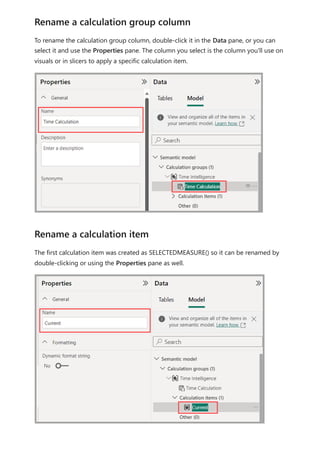
To rename the calculation group column, double-click it in the Data pane, or you can
select it and use the Properties pane. The column you select is the column you'll use on
visuals or in slicers to apply a specific calculation item.
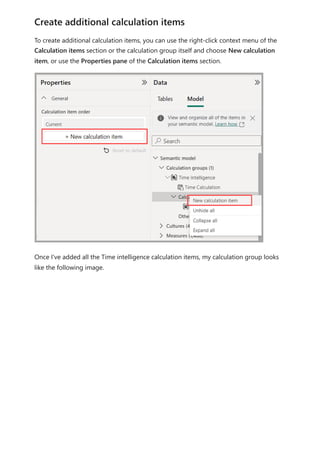
The first calculation item was created as SELECTEDMEASURE() so it can be renamed by
double-clicking or using the Properties pane as well.
Rename a calculation group column
Rename a calculation item
To create additional calculation items, you can use the right-click context menu of the
Calculation items section or the calculation group itself and choose New calculation
item, or use the Properties pane of the Calculation items section.
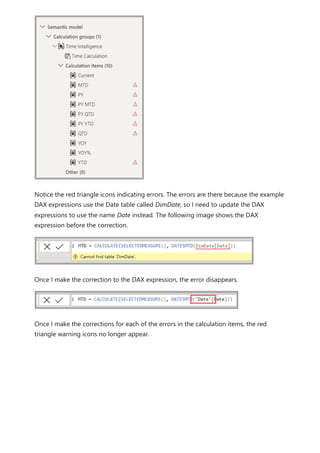
Once I've added all the Time intelligence calculation items, my calculation group looks
like the following image.
Create additional calculation items
Notice the red triangle icons indicating errors. The errors are there because the example
DAX expressions use the Date table called DimDate, so I need to update the DAX
expressions to use the name Date instead. The following image shows the DAX
expression before the correction.
Once I make the correction to the DAX expression, the error disappears.
Once I make the corrections for each of the errors in the calculation items, the red
triangle warning icons no longer appear.
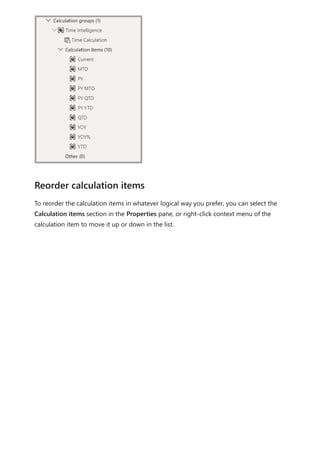
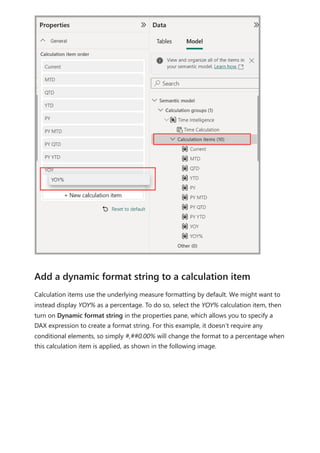
To reorder the calculation items in whatever logical way you prefer, you can select the
Calculation items section in the Properties pane, or right-click context menu of the
calculation item to move it up or down in the list.
Reorder calculation items
Calculation items use the underlying measure formatting by default. We might want to
instead display YOY% as a percentage. To do so, select the YOY% calculation item, then
turn on Dynamic format string in the properties pane, which allows you to specify a
DAX expression to create a format string. For this example, it doesn’t require any
conditional elements, so simply #,##0.00% will change the format to a percentage when
this calculation item is applied, as shown in the following image.
Add a dynamic format string to a calculation item
To use your new calculation group in a Report, go to the Report view, create a Matrix
visual and add the following:
1. Month column from the Date table to the Rows
2. Time Calculation from the Time Intelligence calculation group to the Columns
3. Orders measure to the Values
Orders = DISTINCTCOUNT('Sales Order'[Sales Order])
The following image shows building a visual.

Using the calculation group in reports
7 Note
If the measure Orders is not created in the mode, you can use a different measure
or go to the ribbon and choose New Measure with this DAX expression.
Calculation items on the Columns in the Matrix visual are showing the measure Orders
grouped by each of the calculation items. You can also apply an individual calculation
item to multiple measures by adding the calculation group column to a Slicer visual.
You can create a new measure with a DAX expression that will utilize a calculation item
on a specific measure.
To create an [Orders YOY%] measure you can use the calculation item with CALCULATE.
DAX

Using the calculation item in measures
Finally, if you add additional calculation groups to the model and you want to specify
the order in which they apply to measures, you can adjust the calculation group
precedence in the Calculation groups section properties pane, as shown in the
following image.
You can learn more about calculation groups precedence in the Calculation groups in
Analysis Services tabular models article.
The following articles describe more about data models, and also describe DirectQuery
in detail.
Work with Modeling view in Power BI Desktop
Automatic aggregations
Use composite models in Power BI Desktop
Manage storage mode in Power BI Desktop
Many-to-many relationships in Power BI Desktop
DirectQuery articles:
DirectQuery in Power BI
Orders YOY% =
CALCULATE(
[Orders],
'Time Intelligence'[Time Calculation] = "YOY%"
)
Setting calculation group precedence
Related content
Power BI data sources
Edit data models in the Power BI service
(preview)
Article • 11/28/2023
Power BI allows users to modify existing data models in the Power BI service using
actions such as editing relationships, creating DAX measures and managing RLS. In this
experience, users can work and collaborate simultaneously on the same data model.
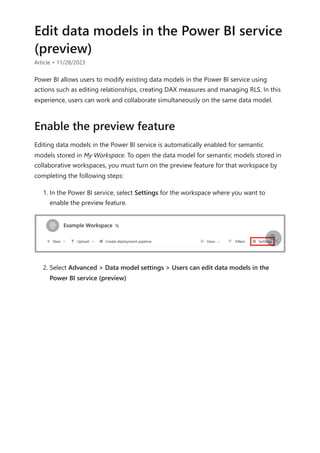
Editing data models in the Power BI service is automatically enabled for semantic
models stored in My Workspace. To open the data model for semantic models stored in
collaborative workspaces, you must turn on the preview feature for that workspace by
completing the following steps:
1. In the Power BI service, select Settings for the workspace where you want to
enable the preview feature.
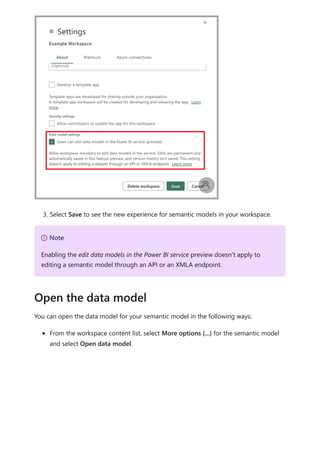
2. Select Advanced > Data model settings > Users can edit data models in the
Power BI service (preview)
Enable the preview feature

3. Select Save to see the new experience for semantic models in your workspace.
You can open the data model for your semantic model in the following ways:
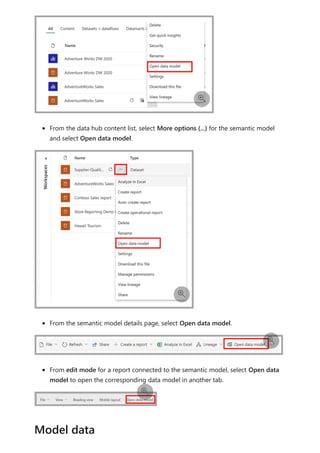
From the workspace content list, select More options (...) for the semantic model
and select Open data model.

7 Note
Enabling the edit data models in the Power BI service preview doesn't apply to
editing a semantic model through an API or an XMLA endpoint.
Open the data model
From the data hub content list, select More options (...) for the semantic model
and select Open data model.
From the semantic model details page, select Open data model.
From edit mode for a report connected to the semantic model, select Open data
model to open the corresponding data model in another tab.




Model data
When you open your data model you can see all the tables, columns, and relationships
in your model. You can now edit your data model, and any changes are automatically
saved.
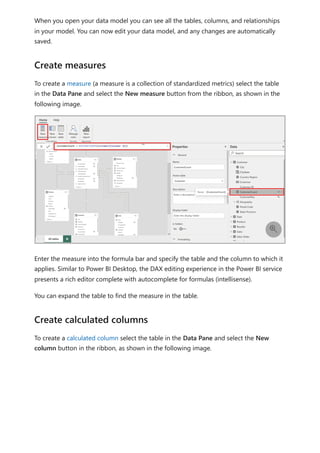
To create a measure (a measure is a collection of standardized metrics) select the table
in the Data Pane and select the New measure button from the ribbon, as shown in the
following image.
Enter the measure into the formula bar and specify the table and the column to which it
applies. Similar to Power BI Desktop, the DAX editing experience in the Power BI service
presents a rich editor complete with autocomplete for formulas (intellisense).
You can expand the table to find the measure in the table.
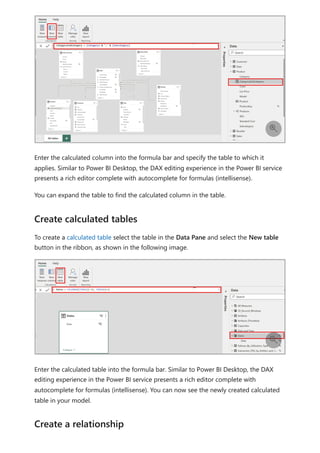
To create a calculated column select the table in the Data Pane and select the New
column button in the ribbon, as shown in the following image.
Create measures

Create calculated columns
Enter the calculated column into the formula bar and specify the table to which it
applies. Similar to Power BI Desktop, the DAX editing experience in the Power BI service
presents a rich editor complete with autocomplete for formulas (intellisense).
You can expand the table to find the calculated column in the table.
To create a calculated table select the table in the Data Pane and select the New table
button in the ribbon, as shown in the following image.
Enter the calculated table into the formula bar. Similar to Power BI Desktop, the DAX
editing experience in the Power BI service presents a rich editor complete with
autocomplete for formulas (intellisense). You can now see the newly created calculated
table in your model.

Create calculated tables

Create a relationship
There are two ways to create a new relationship in the Power BI Service.
The first method is to drag the column from one table in the relationship diagram to the
column of the other table to create the relationship.
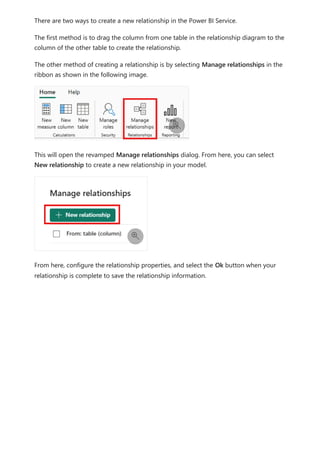
The other method of creating a relationship is by selecting Manage relationships in the
ribbon as shown in the following image.
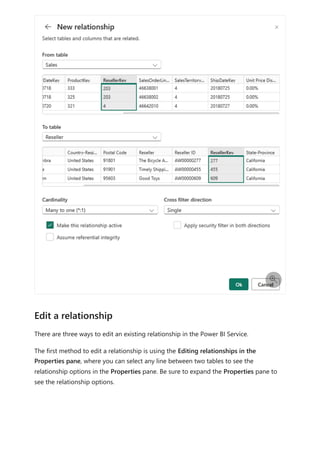
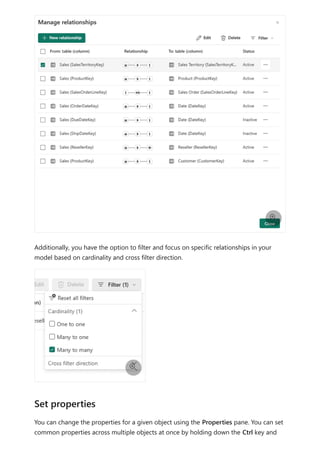
This will open the revamped Manage relationships dialog. From here, you can select
New relationship to create a new relationship in your model.
From here, configure the relationship properties, and select the Ok button when your
relationship is complete to save the relationship information.


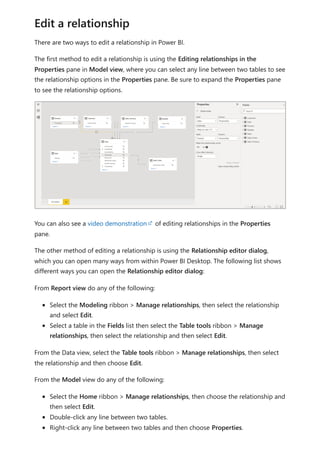
There are three ways to edit an existing relationship in the Power BI Service.
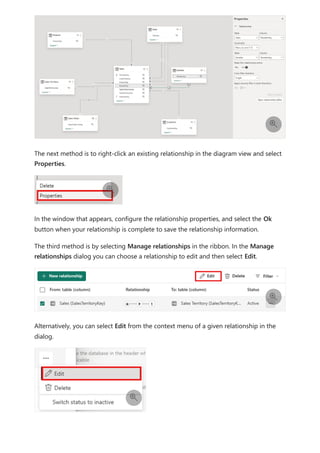
The first method to edit a relationship is using the Editing relationships in the
Properties pane, where you can select any line between two tables to see the
relationship options in the Properties pane. Be sure to expand the Properties pane to
see the relationship options.

Edit a relationship
The next method is to right-click an existing relationship in the diagram view and select
Properties.
In the window that appears, configure the relationship properties, and select the Ok
button when your relationship is complete to save the relationship information.
The third method is by selecting Manage relationships in the ribbon. In the Manage
relationships dialog you can choose a relationship to edit and then select Edit.
Alternatively, you can select Edit from the context menu of a given relationship in the
dialog.




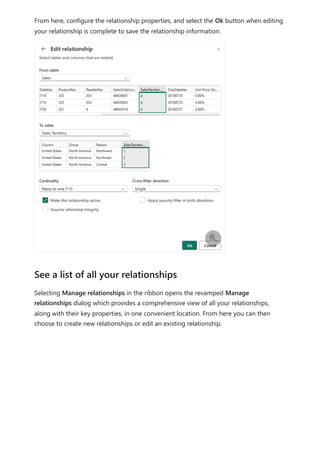
From here, configure the relationship properties, and select the Ok button when editing
your relationship is complete to save the relationship information.
Selecting Manage relationships in the ribbon opens the revamped Manage
relationships dialog which provides a comprehensive view of all your relationships,
along with their key properties, in one convenient location. From here you can then
choose to create new relationships or edit an existing relationship.

See a list of all your relationships
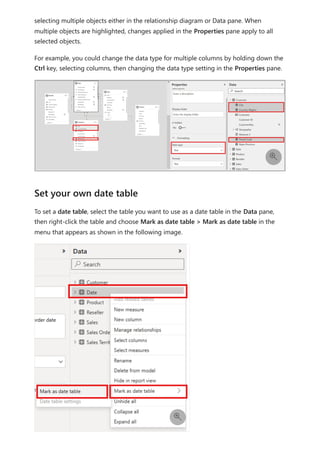
Additionally, you have the option to filter and focus on specific relationships in your
model based on cardinality and cross filter direction.
You can change the properties for a given object using the Properties pane. You can set
common properties across multiple objects at once by holding down the Ctrl key and


Set properties
selecting multiple objects either in the relationship diagram or Data pane. When
multiple objects are highlighted, changes applied in the Properties pane apply to all
selected objects.
For example, you could change the data type for multiple columns by holding down the
Ctrl key, selecting columns, then changing the data type setting in the Properties pane.
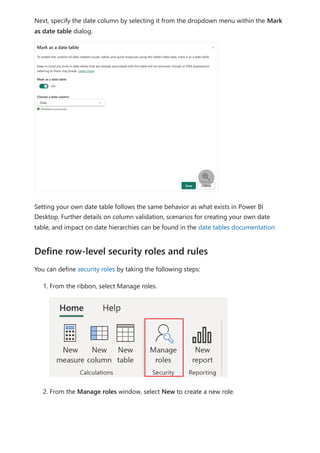
To set a date table, select the table you want to use as a date table in the Data pane,
then right-click the table and choose Mark as date table > Mark as date table in the
menu that appears as shown in the following image.

Set your own date table

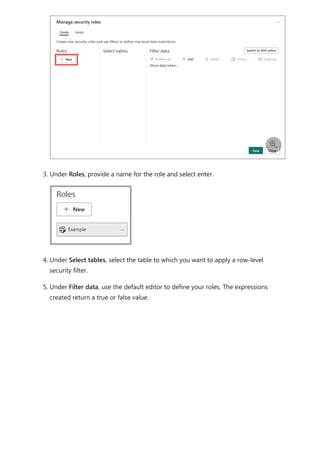
Next, specify the date column by selecting it from the dropdown menu within the Mark
as date table dialog.
Setting your own date table follows the same behavior as what exists in Power BI
Desktop. Further details on column validation, scenarios for creating your own date
table, and impact on date hierarchies can be found in the date tables documentation
You can define security roles by taking the following steps:
1. From the ribbon, select Manage roles.
2. From the Manage roles window, select New to create a new role.

Define row-level security roles and rules
3. Under Roles, provide a name for the role and select enter.
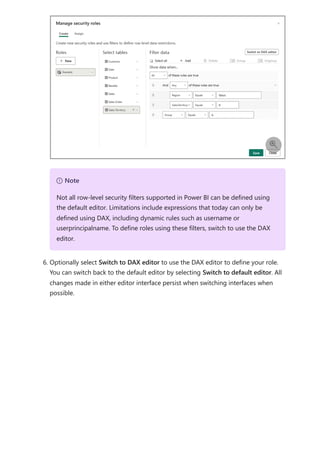
4. Under Select tables, select the table to which you want to apply a row-level
security filter.
5. Under Filter data, use the default editor to define your roles. The expressions
created return a true or false value.

6. Optionally select Switch to DAX editor to use the DAX editor to define your role.
You can switch back to the default editor by selecting Switch to default editor. All
changes made in either editor interface persist when switching interfaces when
possible.

7 Note
Not all row-level security filters supported in Power BI can be defined using
the default editor. Limitations include expressions that today can only be
defined using DAX, including dynamic rules such as username or
userprincipalname. To define roles using these filters, switch to use the DAX
editor.
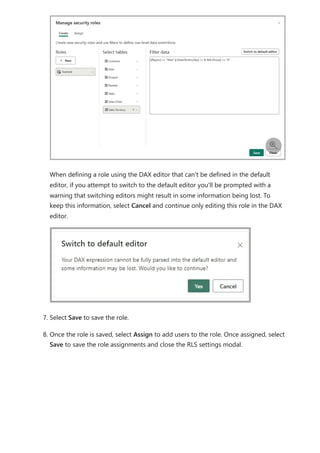
When defining a role using the DAX editor that can't be defined in the default
editor, if you attempt to switch to the default editor you'll be prompted with a
warning that switching editors might result in some information being lost. To
keep this information, select Cancel and continue only editing this role in the DAX
editor.
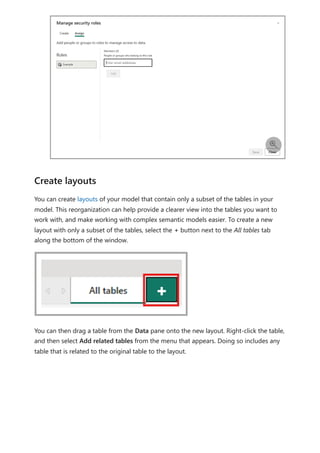
7. Select Save to save the role.
8. Once the role is saved, select Assign to add users to the role. Once assigned, select
Save to save the role assignments and close the RLS settings modal.

You can create layouts of your model that contain only a subset of the tables in your
model. This reorganization can help provide a clearer view into the tables you want to
work with, and make working with complex semantic models easier. To create a new
layout with only a subset of the tables, select the + button next to the All tables tab
along the bottom of the window.
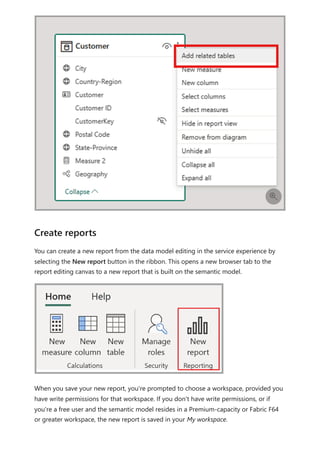
You can then drag a table from the Data pane onto the new layout. Right-click the table,
and then select Add related tables from the menu that appears. Doing so includes any
table that is related to the original table to the layout.

Create layouts
You can create a new report from the data model editing in the service experience by
selecting the New report button in the ribbon. This opens a new browser tab to the
report editing canvas to a new report that is built on the semantic model.
When you save your new report, you're prompted to choose a workspace, provided you
have write permissions for that workspace. If you don't have write permissions, or if
you're a free user and the semantic model resides in a Premium-capacity or Fabric F64
or greater workspace, the new report is saved in your My workspace.

Create reports
As you made changes to your data model, your changes are automatically saved.
Changes are permanent with no option to undo.
A user must have write and build semantic model permissions in order to open and edit
the corresponding data model in the Power BI service.
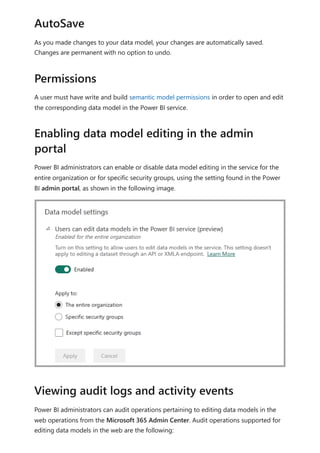
Power BI administrators can enable or disable data model editing in the service for the
entire organization or for specific security groups, using the setting found in the Power
BI admin portal, as shown in the following image.
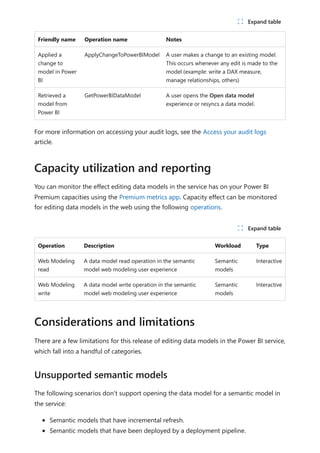
Power BI administrators can audit operations pertaining to editing data models in the
web operations from the Microsoft 365 Admin Center. Audit operations supported for
editing data models in the web are the following:
AutoSave
Permissions
Enabling data model editing in the admin
portal
Viewing audit logs and activity events
Friendly name Operation name Notes
Applied a
change to
model in Power
BI
ApplyChangeToPowerBIModel A user makes a change to an existing model.
This occurs whenever any edit is made to the
model (example: write a DAX measure,
manage relationships, others)
Retrieved a
model from
Power BI
GetPowerBIDataModel A user opens the Open data model
experience or resyncs a data model.
For more information on accessing your audit logs, see the Access your audit logs
article.
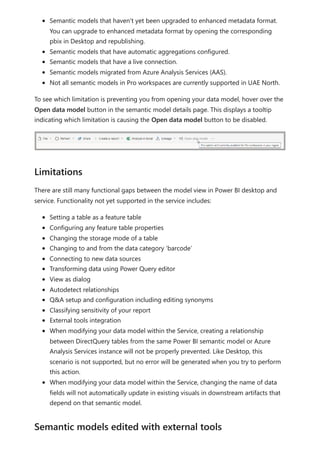
You can monitor the effect editing data models in the service has on your Power BI
Premium capacities using the Premium metrics app. Capacity effect can be monitored
for editing data models in the web using the following operations.
Operation Description Workload Type
Web Modeling
read
A data model read operation in the semantic
model web modeling user experience
Semantic
models
Interactive
Web Modeling
write
A data model write operation in the semantic
model web modeling user experience
Semantic
models
Interactive
There are a few limitations for this release of editing data models in the Power BI service,
which fall into a handful of categories.
The following scenarios don't support opening the data model for a semantic model in
the service:
Semantic models that have incremental refresh.
Semantic models that have been deployed by a deployment pipeline.
ノ Expand table
Capacity utilization and reporting
ノ Expand table
Considerations and limitations
Unsupported semantic models
Semantic models that haven't yet been upgraded to enhanced metadata format.
You can upgrade to enhanced metadata format by opening the corresponding
pbix in Desktop and republishing.
Semantic models that have automatic aggregations configured.
Semantic models that have a live connection.
Semantic models migrated from Azure Analysis Services (AAS).
Not all semantic models in Pro workspaces are currently supported in UAE North.
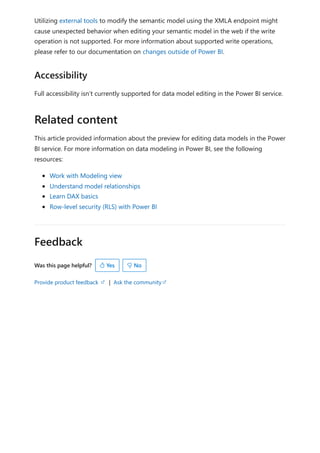
To see which limitation is preventing you from opening your data model, hover over the
Open data model button in the semantic model details page. This displays a tooltip
indicating which limitation is causing the Open data model button to be disabled.
There are still many functional gaps between the model view in Power BI desktop and
service. Functionality not yet supported in the service includes:
Setting a table as a feature table
Configuring any feature table properties
Changing the storage mode of a table
Changing to and from the data category ‘barcode’
Connecting to new data sources
Transforming data using Power Query editor
View as dialog
Autodetect relationships
Q&A setup and configuration including editing synonyms
Classifying sensitivity of your report
External tools integration
When modifying your data model within the Service, creating a relationship
between DirectQuery tables from the same Power BI semantic model or Azure
Analysis Services instance will not be properly prevented. Like Desktop, this
scenario is not supported, but no error will be generated when you try to perform
this action.
When modifying your data model within the Service, changing the name of data
fields will not automatically update in existing visuals in downstream artifacts that
depend on that semantic model.
Limitations
Semantic models edited with external tools
Feedback
Was this page helpful?
Provide product feedback | Ask the community
Utilizing external tools to modify the semantic model using the XMLA endpoint might
cause unexpected behavior when editing your semantic model in the web if the write
operation is not supported. For more information about supported write operations,
please refer to our documentation on changes outside of Power BI.
Full accessibility isn’t currently supported for data model editing in the Power BI service.
This article provided information about the preview for editing data models in the Power
BI service. For more information on data modeling in Power BI, see the following
resources:
Work with Modeling view
Understand model relationships
Learn DAX basics
Row-level security (RLS) with Power BI
Accessibility
Related content
 Yes  No
Using calculations options in Power BI
Desktop
Article • 02/20/2024
Power BI provides five options for adding calculations into your Power BI report. Each of
these options has benefits and limitations. It's important to understand these options
and when to best use them.
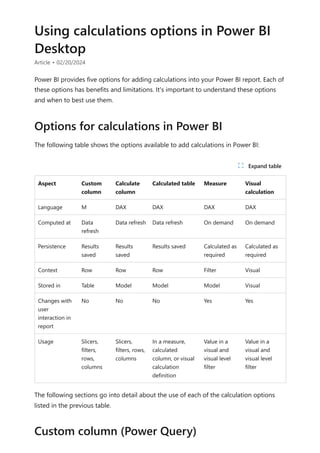
The following table shows the options available to add calculations in Power BI:
Aspect Custom
column
Calculate
column
Calculated table Measure Visual
calculation
Language M DAX DAX DAX DAX
Computed at Data
refresh
Data refresh Data refresh On demand On demand
Persistence Results
saved
Results
saved
Results saved Calculated as
required
Calculated as
required
Context Row Row Row Filter Visual
Stored in Table Model Model Model Visual
Changes with
user
interaction in
report
No No No Yes Yes
Usage Slicers,
filters,
rows,
columns
Slicers,
filters, rows,
columns
In a measure,
calculated
column, or visual
calculation
definition
Value in a
visual and
visual level
filter
Value in a
visual and
visual level
filter
The following sections go into detail about the use of each of the calculation options
listed in the previous table.
Options for calculations in Power BI
ノ Expand table
Custom column (Power Query)
You can create your own custom columns using the Power Query M formula language.
Similar to creating calculated columns in DAX, Power Query M custom columns have the
following features and capabilities:
Extend the table by evaluating an expression on a row-by-row basis
Are static, meaning they don't change with the user interaction on the report
Are computed as part of the data refresh and the results are stored in the model
file, which means they take time to evaluate at data refresh, and increase the size
of the model.
Although custom columns can aggregate rows from other tables, computed columns
may result in better performance, since aggregation is done on the data source.
You can learn more about custom columns.
Calculated columns use DAX to define columns on a table, extending the table by
evaluating an expression on a row-by-row basis. Calculated columns are static, meaning
they don't change with the user interaction on the report. Calculated columns are
calculated as part of the data refresh, and the results are stored in the model file, which
means calculated columns take time to evaluate at data refresh, and increase the size of
the model.
Calculated columns are stored in the model and can, unlike visual calculations and
computed columns in Power Query (which are only processed during refresh), refer to
other tables and relationships in the model.
Calculated columns can be used in slicers, filters, rows, and columns on a visual.
You can learn more about calculated columns.
Measures use DAX to add calculations to your model, are calculated as-needed, and are
responsive to the selections the user makes in the report. The results of measures aren't
precalculated or stored on disk.
Measures can only be used as values in a visual, or in visual level filters.
You can learn more about measures.
Calculated column (DAX)
Measures
Most of the time, you create tables by importing data into your model from an external
data source. Calculated tables let you add new tables based on data you've already
loaded into the model, or let you create new tables using DAX. Calculated tables are
best for intermediate calculations and data you want to store as part of the model,
rather than calculating on the fly or as query results. For example, you might choose to
union or cross join two existing tables.
Just like other tables, calculated tables can have relationships with other tables.
Calculated table columns have data types, formatting, and can belong to a data
category. You can name your columns whatever you want, and you can add them to
report visualizations just like other fields. Calculated tables are recalculated when any of
the tables from which they pull data are refreshed or updated.
You can learn more about calculated tables.
Visual calculations differ from the other calculations options in DAX in that they aren't
stored in the model, and rather are stored on the visual. Visual calculations make it
easier to create calculations that were previously hard to create, leading to simpler DAX,
easier maintenance, and better performance.
Visual calculations can only refer to what's on the visual. Anything that's in the model
needs to be added to the visual before the visual calculation can refer to it, which means
that visual calculations don't have to worry about the complexity of filter context and
the model.
Visual calculations combine the simplicity of context from calculated columns with the
on-demand calculation flexibility from measures. Compared to measures, visual
calculations operate on aggregated data, instead of the detail level, often leading to
performance benefits. Since visual calculations are part of the visual, they can refer to
the visual structure, which leads to more flexibility.
You can learn more about visual calculations.
The following articles may be useful when learning and using visual calculations:
Custom columns in Power Query
Calculated table
Visual calculation
Next steps
Calculated columns (DAX)
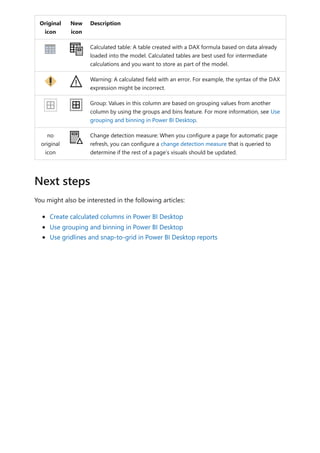
Create measures for data analysis in Power BI Desktop
Using visual calculations (preview)
Work with Modeling view in Power BI
Desktop
Article • 11/10/2023
With Model view in Power BI Desktop, you can view and work with complex semantic
models that contain many tables.
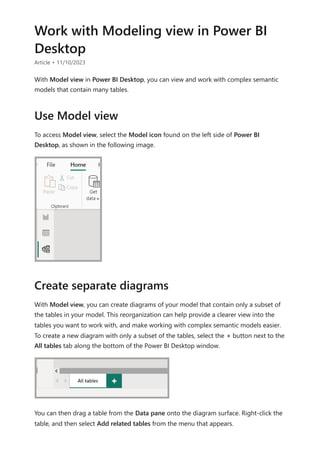
To access Model view, select the Model icon found on the left side of Power BI
Desktop, as shown in the following image.
With Model view, you can create diagrams of your model that contain only a subset of
the tables in your model. This reorganization can help provide a clearer view into the
tables you want to work with, and make working with complex semantic models easier.
To create a new diagram with only a subset of the tables, select the + button next to the
All tables tab along the bottom of the Power BI Desktop window.
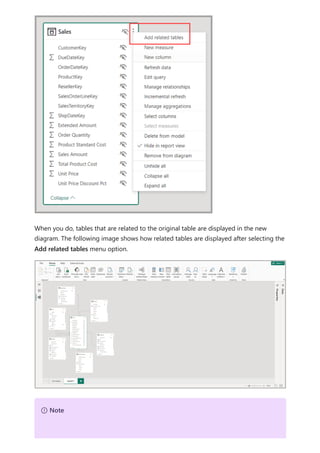
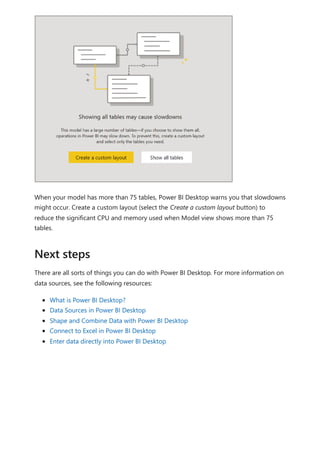
You can then drag a table from the Data pane onto the diagram surface. Right-click the
table, and then select Add related tables from the menu that appears.
Use Model view
Create separate diagrams
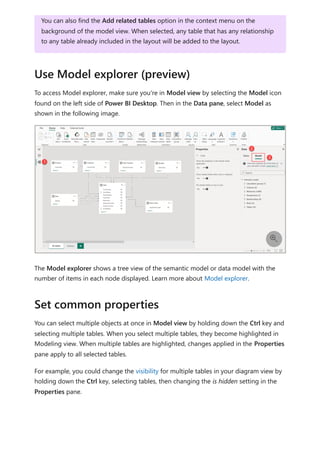
When you do, tables that are related to the original table are displayed in the new
diagram. The following image shows how related tables are displayed after selecting the
Add related tables menu option.
7 Note
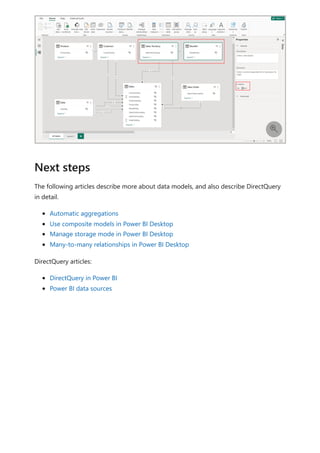
To access Model explorer, make sure you're in Model view by selecting the Model icon
found on the left side of Power BI Desktop. Then in the Data pane, select Model as
shown in the following image.
The Model explorer shows a tree view of the semantic model or data model with the
number of items in each node displayed. Learn more about Model explorer.
You can select multiple objects at once in Model view by holding down the Ctrl key and
selecting multiple tables. When you select multiple tables, they become highlighted in
Modeling view. When multiple tables are highlighted, changes applied in the Properties
pane apply to all selected tables.
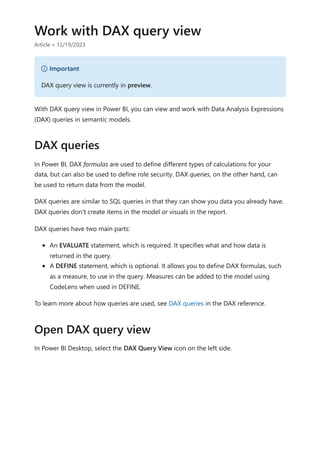
For example, you could change the visibility for multiple tables in your diagram view by
holding down the Ctrl key, selecting tables, then changing the is hidden setting in the
Properties pane.
You can also find the Add related tables option in the context menu on the
background of the model view. When selected, any table that has any relationship
to any table already included in the layout will be added to the layout.
Use Model explorer (preview)

Set common properties
The following articles describe more about data models, and also describe DirectQuery
in detail.
Automatic aggregations
Use composite models in Power BI Desktop
Manage storage mode in Power BI Desktop
Many-to-many relationships in Power BI Desktop
DirectQuery articles:
DirectQuery in Power BI
Power BI data sources

Next steps
Work with DAX query view
Article • 12/19/2023
With DAX query view in Power BI, you can view and work with Data Analysis Expressions
(DAX) queries in semantic models.
In Power BI, DAX formulas are used to define different types of calculations for your
data, but can also be used to define role security. DAX queries, on the other hand, can
be used to return data from the model.
DAX queries are similar to SQL queries in that they can show you data you already have.
DAX queries don't create items in the model or visuals in the report.
DAX queries have two main parts:
An EVALUATE statement, which is required. It specifies what and how data is
returned in the query.
A DEFINE statement, which is optional. It allows you to define DAX formulas, such
as a measure, to use in the query. Measures can be added to the model using
CodeLens when used in DEFINE.
To learn more about how queries are used, see DAX queries in the DAX reference.
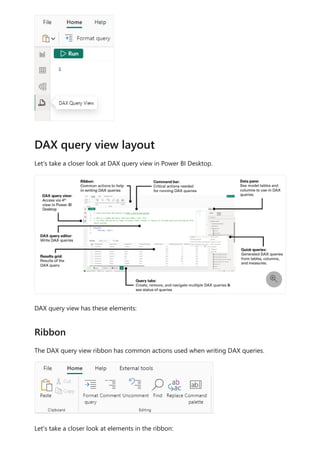
In Power BI Desktop, select the DAX Query View icon on the left side.
) Important
DAX query view is currently in preview.
DAX queries
Open DAX query view
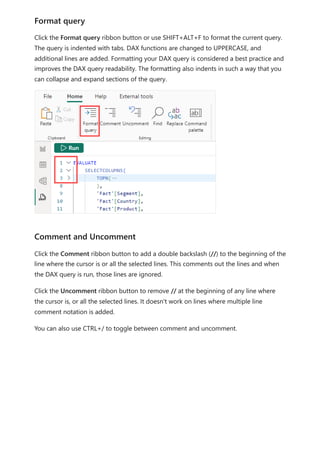
Let's take a closer look at DAX query view in Power BI Desktop.
DAX query view has these elements:
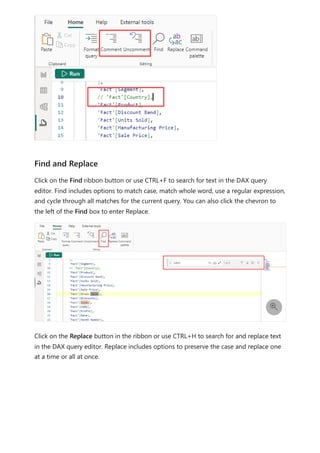
The DAX query view ribbon has common actions used when writing DAX queries.
Let's take a closer look at elements in the ribbon:
DAX query view layout

Ribbon
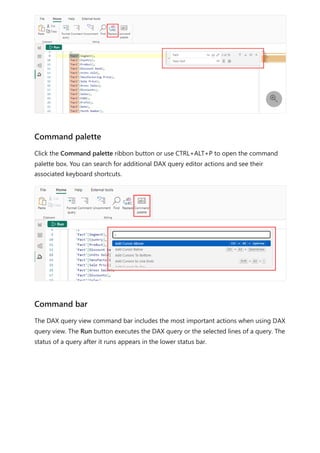
Click the Format query ribbon button or use SHIFT+ALT+F to format the current query.
The query is indented with tabs. DAX functions are changed to UPPERCASE, and
additional lines are added. Formatting your DAX query is considered a best practice and
improves the DAX query readability. The formatting also indents in such a way that you
can collapse and expand sections of the query.
Click the Comment ribbon button to add a double backslash (//) to the beginning of the
line where the cursor is or all the selected lines. This comments out the lines and when
the DAX query is run, those lines are ignored.
Click the Uncomment ribbon button to remove // at the beginning of any line where
the cursor is, or all the selected lines. It doesn't work on lines where multiple line
comment notation is added.
You can also use CTRL+/ to toggle between comment and uncomment.
Format query
Comment and Uncomment
Click on the Find ribbon button or use CTRL+F to search for text in the DAX query
editor. Find includes options to match case, match whole word, use a regular expression,
and cycle through all matches for the current query. You can also click the chevron to
the left of the Find box to enter Replace.
Click on the Replace button in the ribbon or use CTRL+H to search for and replace text
in the DAX query editor. Replace includes options to preserve the case and replace one
at a time or all at once.
Find and Replace

Click the Command palette ribbon button or use CTRL+ALT+P to open the command
palette box. You can search for additional DAX query editor actions and see their
associated keyboard shortcuts.
The DAX query view command bar includes the most important actions when using DAX
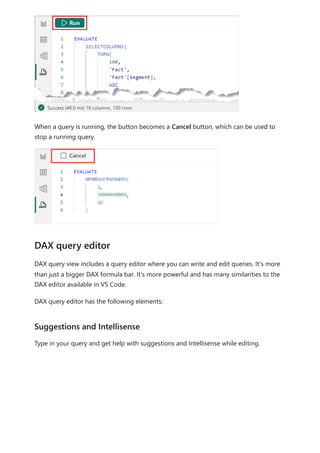
query view. The Run button executes the DAX query or the selected lines of a query. The
status of a query after it runs appears in the lower status bar.

Command palette
Command bar
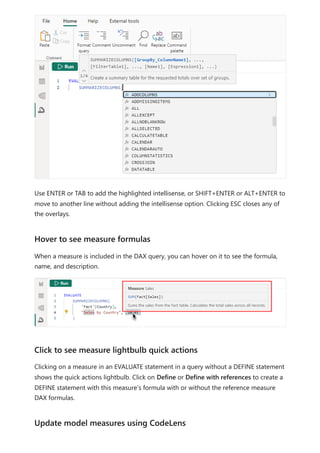
When a query is running, the button becomes a Cancel button, which can be used to
stop a running query.
DAX query view includes a query editor where you can write and edit queries. It's more
than just a bigger DAX formula bar. It's more powerful and has many similarities to the
DAX editor available in VS Code.
DAX query editor has the following elements:
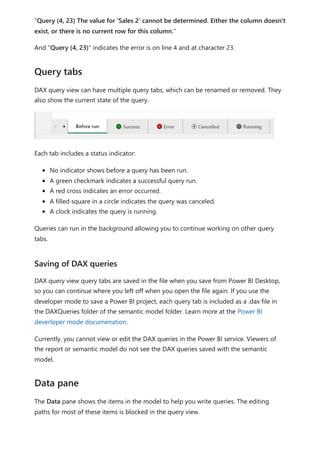
Type in your query and get help with suggestions and Intellisense while editing.
DAX query editor
Suggestions and Intellisense
Use ENTER or TAB to add the highlighted intellisense, or SHIFT+ENTER or ALT+ENTER to
move to another line without adding the intellisense option. Clicking ESC closes any of
the overlays.
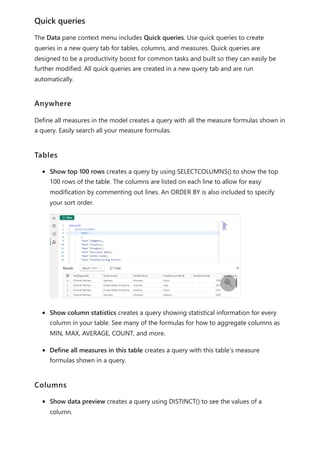
When a measure is included in the DAX query, you can hover on it to see the formula,
name, and description.
Clicking on a measure in an EVALUATE statement in a query without a DEFINE statement
shows the quick actions lightbulb. Click on Define or Define with references to create a
DEFINE statement with this measure’s formula with or without the reference measure
DAX formulas.
Hover to see measure formulas
Click to see measure lightbulb quick actions
Update model measures using CodeLens
Using DEFINE MEASURE is helpful when creating measures. You can edit multiple
measures in one window and then run the query to see the results of all or just some of
them with specific group by columns. You don't need to create a table visual in Report
view and switch back and forth between measure formulas. CodeLens takes this one
step further by providing prompts when the measure already exists in the model, or if it
doesn't, it can add it.
The lightbulb quick actions and CodeLens can be used together in a complete workflow:
1. In the context menu of a measure, choose Quick queries, then Evaluate to have the
query created for you in a new Query tab.
2. Click on the measure in the query to Define or Define with references, adding the
DEFINE statement.
3. Make expression updates to the measure, then run the DAX query to show the
change.
4. When the change appears as expected, then use the CodeLens Update model:
Overwrite measure to save it back to the model.
Here's a more visual way to understand the workflow:
When a query is run, the results are shown in the Results grid.
Measure update workflow

Results grid
If there's more than one EVALUATE statement in the query editor, then multiple results
can be returned. You can use the Result dropdown to switch between them. The Copy
button copies the entire grid as a tab delimited table with headers. The grid can be
resized using the upper right hand corner arrows or manually with the cursor on the
border between the result grid and the query editor.
If the query results in an error, the results grid shows it.
A copy button transfers the error to your clipboard. The beginning of the error indicates
where in the query the error is. In the image above the error is:


"Query (4, 23) The value for 'Sales 2' cannot be determined. Either the column doesn't
exist, or there is no current row for this column."
And "Query (4, 23)" indicates the error is on line 4 and at character 23.
DAX query view can have multiple query tabs, which can be renamed or removed. They
also show the current state of the query.
Each tab includes a status indicator:
No indicator shows before a query has been run.
A green checkmark indicates a successful query run.
A red cross indicates an error occurred.
A filled square in a circle indicates the query was canceled.
A clock indicates the query is running.
Queries can run in the background allowing you to continue working on other query
tabs.
DAX query view query tabs are saved in the file when you save from Power BI Desktop,
so you can continue where you left off when you open the file again. If you use the
developer mode to save a Power BI project, each query tab is included as a .dax file in
the DAXQueries folder of the semantic model folder. Learn more at the Power BI
deverloper mode documenation.
Currently, you cannot view or edit the DAX queries in the Power BI service. Viewers of
the report or semantic model do not see the DAX queries saved with the semantic
model.
The Data pane shows the items in the model to help you write queries. The editing
paths for most of these items is blocked in the query view.
Query tabs
Saving of DAX queries
Data pane
The Data pane context menu includes Quick queries. Use quick queries to create
queries in a new query tab for tables, columns, and measures. Quick queries are
designed to be a productivity boost for common tasks and built so they can easily be
further modified. All quick queries are created in a new query tab and are run
automatically.
Define all measures in the model creates a query with all the measure formulas shown in
a query. Easily search all your measure formulas.
Show top 100 rows creates a query by using SELECTCOLUMNS() to show the top
100 rows of the table. The columns are listed on each line to allow for easy
modification by commenting out lines. An ORDER BY is also included to specify
your sort order.
Show column statistics creates a query showing statistical information for every
column in your table. See many of the formulas for how to aggregate columns as
MIN, MAX, AVERAGE, COUNT, and more.
Define all measures in this table creates a query with this table’s measure
formulas shown in a query.
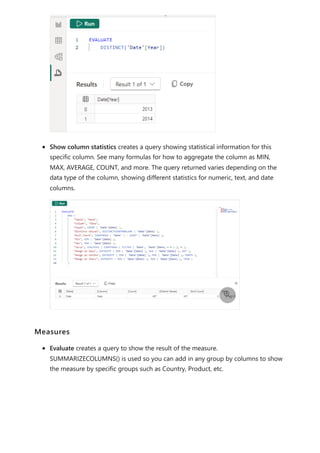
Show data preview creates a query using DISTINCT() to see the values of a
column.
Quick queries
Anywhere
Tables

Columns
Show column statistics creates a query showing statistical information for this
specific column. See many formulas for how to aggregate the column as MIN,
MAX, AVERAGE, COUNT, and more. The query returned varies depending on the
data type of the column, showing different statistics for numeric, text, and date
columns.
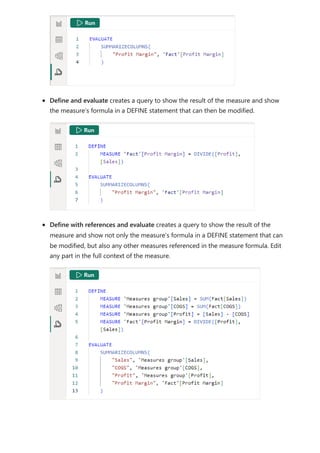
Evaluate creates a query to show the result of the measure.
SUMMARIZECOLUMNS() is used so you can add in any group by columns to show
the measure by specific groups such as Country, Product, etc.

Measures
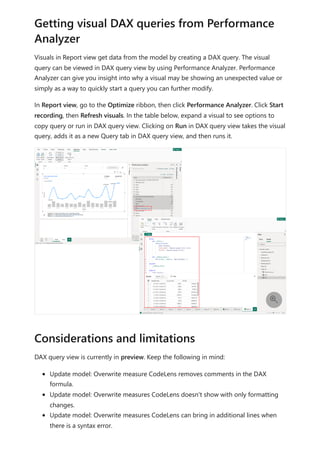
Define and evaluate creates a query to show the result of the measure and show
the measure’s formula in a DEFINE statement that can then be modified.
Define with references and evaluate creates a query to show the result of the
measure and show not only the measure’s formula in a DEFINE statement that can
be modified, but also any other measures referenced in the measure formula. Edit
any part in the full context of the measure.
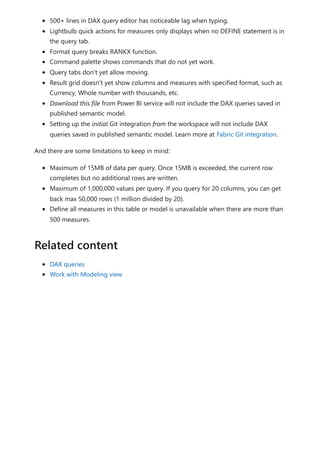
Visuals in Report view get data from the model by creating a DAX query. The visual
query can be viewed in DAX query view by using Performance Analyzer. Performance
Analyzer can give you insight into why a visual may be showing an unexpected value or
simply as a way to quickly start a query you can further modify.
In Report view, go to the Optimize ribbon, then click Performance Analyzer. Click Start
recording, then Refresh visuals. In the table below, expand a visual to see options to
copy query or run in DAX query view. Clicking on Run in DAX query view takes the visual
query, adds it as a new Query tab in DAX query view, and then runs it.
DAX query view is currently in preview. Keep the following in mind:
Update model: Overwrite measure CodeLens removes comments in the DAX
formula.
Update model: Overwrite measures CodeLens doesn't show with only formatting
changes.
Update model: Overwrite measures CodeLens can bring in additional lines when
there is a syntax error.
Getting visual DAX queries from Performance
Analyzer

Considerations and limitations
500+ lines in DAX query editor has noticeable lag when typing.
Lightbulb quick actions for measures only displays when no DEFINE statement is in
the query tab.
Format query breaks RANKX function.
Command palette shows commands that do not yet work.
Query tabs don't yet allow moving.
Result grid doesn't yet show columns and measures with specified format, such as
Currency, Whole number with thousands, etc.
Download this file from Power BI service will not include the DAX queries saved in
published semantic model.
Setting up the initial Git integration from the workspace will not include DAX
queries saved in published semantic model. Learn more at Fabric Git integration.
And there are some limitations to keep in mind:
Maximum of 15MB of data per query. Once 15MB is exceeded, the current row
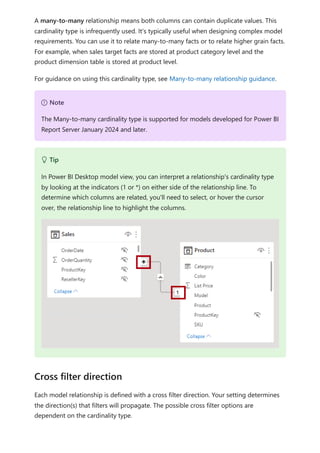
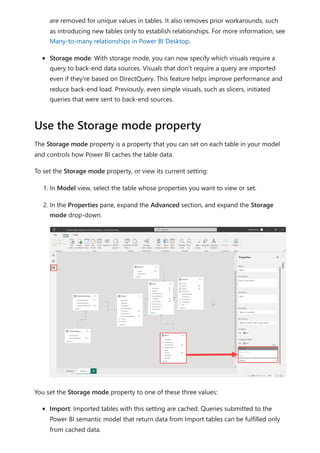
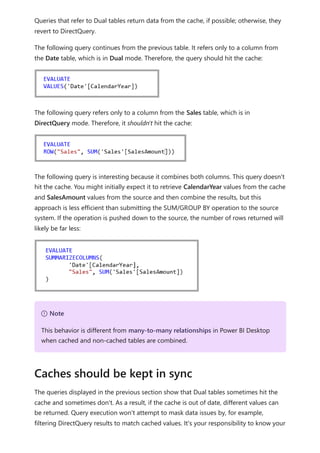
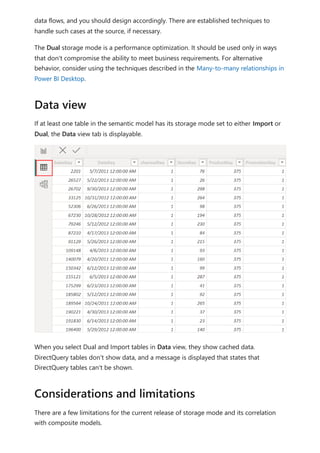
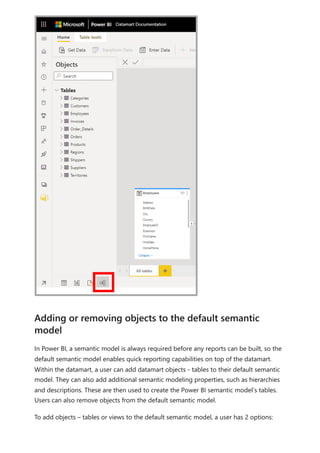
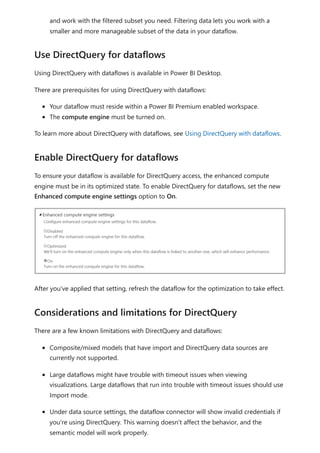
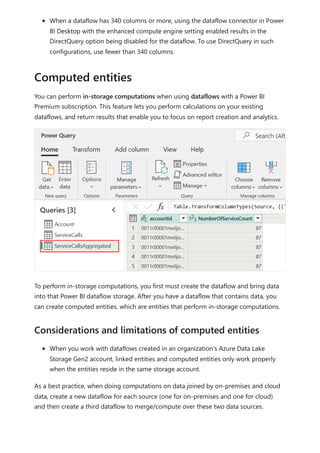
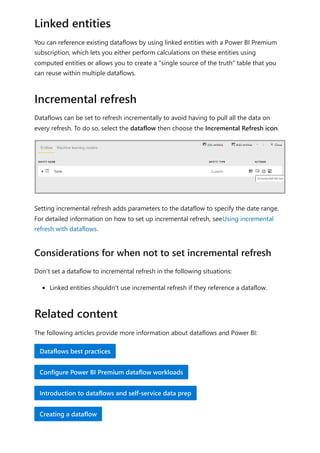
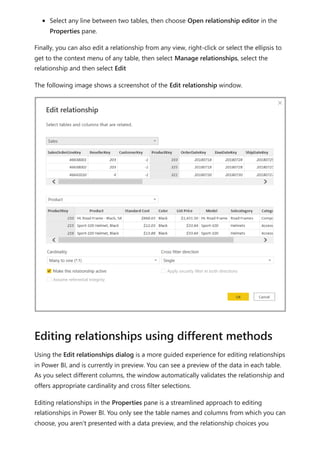
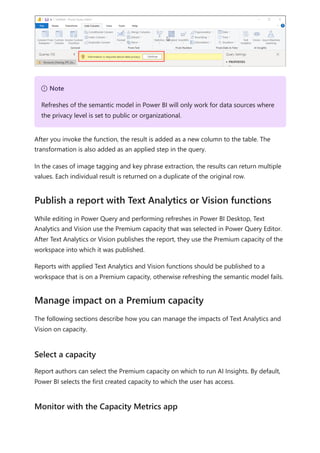
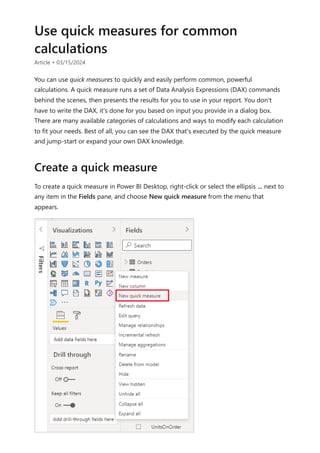
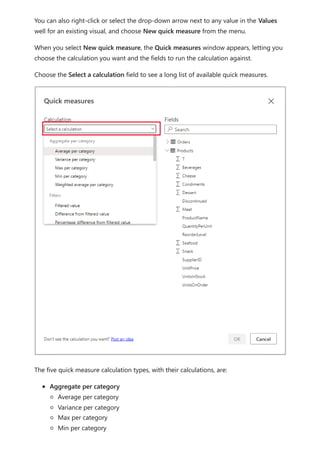
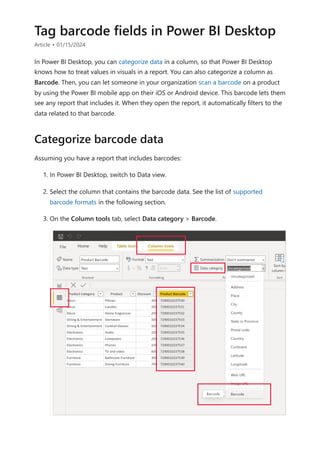
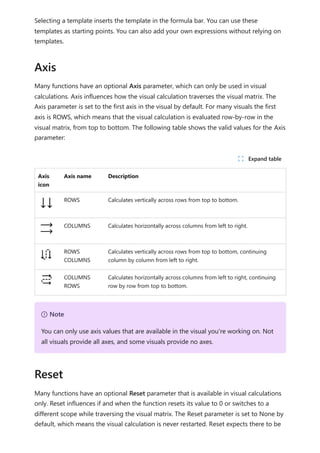
completes but no additional rows are written.
Maximum of 1,000,000 values per query. If you query for 20 columns, you can get
back max 50,000 rows (1 million divided by 20).
Define all measures in this table or model is unavailable when there are more than
500 measures.
DAX queries
Work with Modeling view
Related content
Work with Model explorer
Article • 11/14/2023
With Model explorer in the Model view in Power BI, you can view and work with
complex semantic models with many tables, relationships, measures, roles, calculation
groups, translations, and perspectives.
In Power BI when you have a local model open, navigate to Model view. In the Data
pane of Model view you'll see options to select Tables or Model at the top of the pane,
select Model to see Model explorer.
Model explorer shows all the semantic model items at-a-glance. Find items fast with the
search. Focus on what you want to do by expanding and collapsing different item
sections. Know how many of each item you have with counts on each section. The
following image shows Model explorer.
Find Model explorer

Anatomy of Model explorer
A semantic model can have many different items not shown in the Data pane because
they're not used directly on visuals, but such items impact how the report and model
data behave for report authors and consumers.
The semantic model is all the metadata about your data, and it impacts how your data
shows in reports and DAX queries. A properties pane shows the properties of the
semantic model.
Items shown in Model explorer
Semantic model
An implicit measure occurs when, in the Report view, you use a data column from the
Data pane directly in the visual. The visual allows you to aggregate it as a SUM,
AVERAGE, MIN, MAX, or some other basic aggregation, which becomes an implicit
measure. Enabling the discourage implicit measure property on a semantic model
discourages the creation of such implicit measures by no longer showing the
summation symbol next to the data columns in the Data pane, and blocks adding the
data columns to the visuals directly on aggregation axis or as values, and in visual
conditional formatting. Existing implicit measures already created in visuals will continue
to work.
Discourage implicit measures
Model authors would want to set this property to ensure measures are used when
aggregating data when the measure’s DAX expression contains logic that should always
be applied. Enabling this property can also lead to performance improvement with the
Filter pane by not generating queries to show counts of each value.
A measure or explicit measure occurs when you create a New measure and define the
DAX expression to aggregate a data column. Explicit measures can also have conditional
logic and filters, taking full advantage of what you can do with DAX. Learn more in the
Create your own measures tutorial article.
You can create or edit calculation groups to reduce redundant measures. You can learn
more about calculation groups in the Create calculation groups article.
In the Cultures area of Model explorer, you can view all translated versions of the data
model. Learn more in the Translations in tabular models article.
Calculation groups
Cultures
You can create or edit a measure and view all the measures in your model together,
even when they reside in different tables or folders. Learn more in the Create your own
measures tutorial article.
View perspectives created by hiding tables, columns, or measures. Perspectives are
commonly used in personalized visuals. Learn more about perspectives in the
Perspectives in Analysis Services article.
You can create or edit relationships between tables in Model explorer. Learn more
about table relationships in the Create and manage relationships in Power BI Desktop
article.
Measures
Perspectives
Relationships
Model explorer also introduces creating a relationship in the Properties pane. Right-
click the context menu of the Relationships section and select New relationship to open
a blank relationship properties pane that you can fill out, then select Apply changes
when you're done. Using Model explorer to create relationships avoids the need to run
queries to provide data preview and validation as you select different options.
You can create or edit security roles in Model explorer. Learn more about security roles
in the Row-level security (RLS) with Power BI article.
You can create or edit tables in your model in Model explorer. The approach is similar
to the Tables area in the Data pane, but the information here in Model explorer
includes subsections for each table, organizing your items.
The following articles describe more about data models, and also describe DirectQuery
in detail.
Roles
Tables
Related content
Feedback
Was this page helpful?
Provide product feedback | Ask the community
Work with Modeling view in Power BI Desktop
Automatic aggregations
Use composite models in Power BI Desktop
Manage storage mode in Power BI Desktop
Many-to-many relationships in Power BI Desktop
DirectQuery articles:
DirectQuery in Power BI
Power BI data sources
 Yes  No
Model relationships in Power BI Desktop
Article • 03/07/2024
This article targets import data modelers working with Power BI Desktop. It's an
important model design topic that's essential to delivering intuitive, accurate, and
optimal models.
For a deeper discussion on optimal model design, including table roles and
relationships, see Understand star schema and the importance for Power BI.
A model relationship propagates filters applied on the column of one model table to a
different model table. Filters will propagate so long as there's a relationship path to
follow, which can involve propagation to multiple tables.
Relationship paths are deterministic, meaning that filters are always propagated in the
same way and without random variation. Relationships can, however, be disabled, or
have filter context modified by model calculations that use particular DAX functions. For
more information, see the Relevant DAX functions topic later in this article.
Here's how relationships propagate filters with an animated example.
Relationship purpose
) Important
Model relationships don't enforce data integrity. For more information, see the
Relationship evaluation topic later in this article, which explains how model
relationships behave when there are data integrity issues with your data.
In this example, the model consists of four tables: Category, Product, Year, and Sales.
The Category table relates to the Product table, and the Product table relates to the
Sales table. The Year table also relates to the Sales table. All relationships are one-to-
many (the details of which are described later in this article).
A query, possibly generated by a Power BI card visual, requests the total sales quantity
for sales orders made for a single category, Cat-A, and for a single year, CY2018. It's why
you can see filters applied on the Category and Year tables. The filter on the Category
table propagates to the Product table to isolate two products that are assigned to the
category Cat-A. Then the Product table filters propagate to the Sales table to isolate just
two sales rows for these products. These two sales rows represent the sales of products
assigned to category Cat-A. Their combined quantity is 14 units. At the same time, the
Year table filter propagates to further filter the Sales table, resulting in just the one sales
row that is for products assigned to category Cat-A and that was ordered in year
CY2018. The quantity value returned by the query is 11 units. Note that when multiple
filters are applied to a table (like the Sales table in this example), it's always an AND
operation, requiring that all conditions must be true.
We recommend you apply star schema design principles to produce a model comprising
dimension and fact tables. It's common to set up Power BI to enforce rules that filter
dimension tables, allowing model relationships to efficiently propagate those filters to
fact tables.
The following image is the model diagram of the Adventure Works sales analysis data
model. It shows a star schema design comprising a single fact table named Sales. The
Apply star schema design principles
other four tables are dimension tables that support the analysis of sales measures by
date, state, region, and product. Notice the model relationships connecting all tables.
These relationships propagate filters (directly or indirectly) to the Sales table.
It's unusual that a model table isn't related to another model table. Such a table in a
valid model design is described as a disconnected table. A disconnected table isn't
intended to propagate filters to other model tables. Instead, it accepts "user input"
(perhaps with a slicer visual), allowing model calculations to use the input value in a
meaningful way. For example, consider a disconnected table that's loaded with a range
of currency exchange rate values. As long as a filter is applied to filter by a single rate
value, a measure expression can use that value to convert sales values.
The Power BI Desktop what-if parameter is a feature that creates a disconnected table.
For more information, see Create and use a What if parameter to visualize variables in
Power BI Desktop.
A model relationship relates one column in a table to one column in a different table.
(There's one specialized case where this requirement isn't true, and it applies only to
Disconnected tables
Relationship properties
multi-column relationships in DirectQuery models. For more information, see the
COMBINEVALUES DAX function article.)
The data type for both the "from" and "to' column of the relationship should be the
same. Working with relationships defined on DateTime columns might not behave as
expected. The engine that stores Power BI data, only uses DateTime data types; Date,
Time and Date/Time/Timezone data types are Power BI formatting constructs
implemented on top. Any model-dependent objects will still appear as DateTime in the
engine (such as relationships, groups, and so on). As such, if a user selects Date from the
Modeling tab for such columns, they still don't register as being the same date, because
the time portion of the data is still being considered by the engine. Read more about
how Date/time types are handled. To correct the behavior, the column data types should
be updated in the Power Query Editor to remove the Time portion from the imported
data, so when the engine is handling the data, the values will appear the same.
Each model relationship is defined by a cardinality type. There are four cardinality type
options, representing the data characteristics of the "from" and "to" related columns.
The "one" side means the column contains unique values; the "many" side means the
column can contain duplicate values.
7 Note
It's not possible to relate a column to a different column in the same table. This
concept is sometimes confused with the ability to define a relational database
foreign key constraint that's table self-referencing. You can use this relational
database concept to store parent-child relationships (for example, each employee
record is related to a "reports to" employee). However, you can't use model
relationships to generate a model hierarchy based on this type of relationship. To
create a parent-child hierarchy, see Parent and Child functions.
Data types of columns
Cardinality
7 Note
If a data refresh operation attempts to load duplicate values into a "one" side
column, the entire data refresh will fail.
The four options, together with their shorthand notations, are described in the following
bulleted list:
One-to-many (1:*)
Many-to-one (*:1)
One-to-one (1:1)
Many-to-many (*:*)
When you create a relationship in Power BI Desktop, the designer automatically detects
and sets the cardinality type. Power BI Desktop queries the model to know which
columns contain unique values. For import models, it uses internal storage statistics; for
DirectQuery models it sends profiling queries to the data source. Sometimes, however,
Power BI Desktop can get it wrong. It can get it wrong when tables are yet to be loaded
with data, or because columns that you expect to contain duplicate values currently
contain unique values. In either case, you can update the cardinality type as long as any
"one" side columns contain unique values (or the table is yet to be loaded with rows of
data).
The one-to-many and many-to-one cardinality options are essentially the same, and
they're also the most common cardinality types.
When configuring a one-to-many or many-to-one relationship, you'll choose the one
that matches the order in which you related the columns. Consider how you would
configure the relationship from the Product table to the Sales table by using the
ProductID column found in each table. The cardinality type would be one-to-many, as
the ProductID column in the Product table contains unique values. If you related the
tables in the reverse direction, Sales to Product, then the cardinality would be many-to-
one.
A one-to-one relationship means both columns contain unique values. This cardinality
type isn't common, and it likely represents a suboptimal model design because of the
storage of redundant data.
For more information on using this cardinality type, see One-to-one relationship
guidance.
One-to-many (and many-to-one) cardinality
One-to-one cardinality
Many-to-many cardinality
A many-to-many relationship means both columns can contain duplicate values. This
cardinality type is infrequently used. It's typically useful when designing complex model
requirements. You can use it to relate many-to-many facts or to relate higher grain facts.
For example, when sales target facts are stored at product category level and the
product dimension table is stored at product level.
For guidance on using this cardinality type, see Many-to-many relationship guidance.
Each model relationship is defined with a cross filter direction. Your setting determines
the direction(s) that filters will propagate. The possible cross filter options are
dependent on the cardinality type.
7 Note
The Many-to-many cardinality type is supported for models developed for Power BI
Report Server January 2024 and later.
 Tip
In Power BI Desktop model view, you can interpret a relationship's cardinality type
by looking at the indicators (1 or *) on either side of the relationship line. To
determine which columns are related, you'll need to select, or hover the cursor
over, the relationship line to highlight the columns.
Cross filter direction
Cardinality type Cross filter options
One-to-many (or Many-to-one) Single
Both
One-to-one Both
Many-to-many Single (Table1 to Table2)
Single (Table2 to Table1)
Both
Single cross filter direction means "single direction", and Both means "both directions". A
relationship that filters in both directions is commonly described as bi-directional.
For one-to-many relationships, the cross filter direction is always from the "one" side,
and optionally from the "many" side (bi-directional). For one-to-one relationships, the
cross filter direction is always from both tables. Lastly, for many-to-many relationships,
cross filter direction can be from either one of the tables, or from both tables. Notice
that when the cardinality type includes a "one" side, that filters will always propagate
from that side.
When the cross filter direction is set to Both, another property becomes available. It can
apply bi-directional filtering when Power BI enforces row-level security (RLS) rules. For
more information about RLS, see Row-level security (RLS) with Power BI Desktop.
You can modify the relationship cross filter direction, including the disabling of filter
propagation, by using a model calculation. It's achieved by using the CROSSFILTER DAX
function.
Bear in mind that bi-directional relationships can impact negatively on performance.
Further, attempting to configure a bi-directional relationship could result in ambiguous
filter propagation paths. In this case, Power BI Desktop may fail to commit the
relationship change and will alert you with an error message. Sometimes, however,
Power BI Desktop may allow you to define ambiguous relationship paths between
tables. Resolving relationship path ambiguity is described later in this article.
We recommend using bi-directional filtering only as needed. For more information, see
Bi-directional relationship guidance.
ノ Expand table
 Tip
In Power BI Desktop model view, you can interpret a relationship's cross filter
direction by noticing the arrowhead(s) along the relationship line. A single
There can only be one active filter propagation path between two model tables.
However, it's possible to introduce additional relationship paths, though you must set
these relationships as inactive. Inactive relationships can only be made active during the
evaluation of a model calculation. It's achieved by using the USERELATIONSHIP DAX
function.
Generally, we recommend defining active relationships whenever possible. They widen
the scope and potential of how report authors can use your model. Using only active
relationships means that role-playing dimension tables should be duplicated in your
model.
In specific circumstances, however, you can define one or more inactive relationships for
a role-playing dimension table. You can consider this design when:
There's no requirement for report visuals to simultaneously filter by different roles.
You use the USERELATIONSHIP DAX function to activate a specific relationship for
relevant model calculations.
For more information, see Active vs inactive relationship guidance.
arrowhead represents a single-direction filter in the direction of the arrowhead; a
double arrowhead represents a bi-directional relationship.
Make this relationship active
 Tip
The Assume referential integrity property is available only for one-to-many and one-to-
one relationships between two DirectQuery storage mode tables that belong to the
same source group. You can only enable this property when the “many” side column
doesn't contain NULLs.
When enabled, native queries sent to the data source will join the two tables together
by using an INNER JOIN rather than an OUTER JOIN . Generally, enabling this property
improves query performance, though it does depend on the specifics of the data source.
Always enable this property when a database foreign key constraint exists between the
two tables. Even when a foreign key constraint doesn't exist, consider enabling the
property as long as you're certain data integrity exists.
In Power BI Desktop model view, you can interpret a relationship's active vs inactive
status. An active relationship is represented by a solid line; an inactive relationship
is represented as a dashed line.
Assume referential integrity
) Important
If data integrity should become compromised, the inner join will eliminate
unmatched rows between the tables. For example, consider a model Sales table
with a ProductID column value that didn't exist in the related Product table. Filter
propagation from the Product table to the Sales table will eliminate sales rows for
unknown products. This would result in an understatement of the sales results.
There are several DAX functions that are relevant to model relationships. Each function is
described briefly in the following bulleted list:
RELATED: Retrieves the value from "one" side of a relationship. It's useful when
involving calculations from different tables that are evaluated in row context.
RELATEDTABLE: Retrieve a table of rows from "many" side of a relationship.
USERELATIONSHIP: Allows a calculation to use an inactive relationship. (Technically,
this function modifies the weight of a specific inactive model relationship helping
to influence its use.) It's useful when your model includes a role-playing dimension
table, and you choose to create inactive relationships from this table. You can also
use this function to resolve ambiguity in filter paths.
CROSSFILTER: Modifies the relationship cross filter direction (to one or both), or it
disables filter propagation (none). It's useful when you need to change or ignore
model relationships during the evaluation of a specific calculation.
COMBINEVALUES: Joins two or more text strings into one text string. The purpose
of this function is to support multi-column relationships in DirectQuery models
when tables belong to the same source group.
TREATAS: Applies the result of a table expression as filters to columns from an
unrelated table. It's helpful in advanced scenarios when you want to create a virtual
relationship during the evaluation of a specific calculation.
Parent and Child functions: A family of related functions that you can use to
generate calculated columns to naturalize a parent-child hierarchy. You can then
use these columns to create a fixed-level hierarchy.
Model relationships, from an evaluation perspective, are classified as either regular or
limited. It's not a configurable relationship property. It's in fact inferred from the
cardinality type and the data source of the two related tables. It's important to
understand the evaluation type because there may be performance implications or
consequences should data integrity be compromised. These implications and integrity
consequences are described in this topic.
First, some modeling theory is required to fully understand relationship evaluations.
For more information, see Assume referential integrity settings in Power BI
Desktop.
Relevant DAX functions
Relationship evaluation
An import or DirectQuery model sources all of its data from either the Vertipaq cache or
the source database. In both instances, Power BI is able to determine that a "one" side
of a relationship exists.
A composite model, however, can comprise tables using different storage modes
(import, DirectQuery or dual), or multiple DirectQuery sources. Each source, including
the Vertipaq cache of imported data, is considered to be a source group. Model
relationships can then be classified as intra source group or inter/cross source group. An
intra source group relationship relates two tables within a source group, while a
inter/cross source group relationship relates tables across two source groups. Note that
relationships in import or DirectQuery models are always intra source group.
Here's an example of a composite model.
In this example, the composite model consists of two source groups: a Vertipaq source
group and a DirectQuery source group. The Vertipaq source group contains three tables,
and the DirectQuery source group contains two tables. One cross source group
relationship exists to relate a table in the Vertipaq source group to a table in the
DirectQuery source group.
A model relationship is regular when the query engine can determine the "one" side of
relationship. It has confirmation that the "one" side column contains unique values. All
one-to-many intra source group relationships are regular relationships.
In the following example, there are two regular relationships, both marked as R.
Relationships include the one-to-many relationship contained within the Vertipaq source
Regular relationships
group, and the one-to-many relationship contained within the DirectQuery source.
For import models, where all data is stored in the Vertipaq cache, Power BI creates a
data structure for each regular relationship at data refresh time. The data structures
consist of indexed mappings of all column-to-column values, and their purpose is to
accelerate joining tables at query time.
At query time, regular relationships permit table expansion to happen. Table expansion
results in the creation of a virtual table by including the native columns of the base table
and then expanding into related tables. For import tables, table expansion is done in the
query engine; for DirectQuery tables it's done in the native query that's sent to the
source database (as long as the Assume referential integrity property isn't enabled).
The query engine then acts upon the expanded table, applying filters and grouping by
the values in the expanded table columns.
For one-to-many relationships, table expansion takes place from the "many" to the
"one" sides by using LEFT OUTER JOIN semantics. When a matching value from the
"many" to the "one" side doesn't exist, a blank virtual row is added to the "one" side
table. This behavior applies only to regular relationships, not to limited relationships.
Table expansion also occurs for one-to-one intra source group relationships, but by
using FULL OUTER JOIN semantics. This join type ensures that blank virtual rows are
7 Note
Inactive relationships are expanded also, even when the relationship isn't used by a
calculation. Bi-directional relationships have no impact on table expansion.
added on either side, when necessary.
Blank virtual rows are effectively unknown members. Unknown members represent
referential integrity violations where the "many" side value has no corresponding "one"
side value. Ideally these blanks shouldn't exist. They can be eliminated by cleansing or
repairing the source data.
Here's how table expansion works with an animated example.
In this example, the model consists of three tables: Category, Product, and Sales. The
Category table relates to the Product table with a One-to-many relationship, and the
Product table relates to the Sales table with a One-to-many relationship. The Category
table contains two rows, the Product table contains three rows, and the Sales tables
contains five rows. There are matching values on both sides of all relationships meaning
that there are no referential integrity violations. A query-time expanded table is
revealed. The table consists of the columns from all three tables. It's effectively a
denormalized perspective of the data contained in the three tables. A new row is added
to the Sales table, and it has a production identifier value (9) that has no matching value
in the Product table. It's a referential integrity violation. In the expanded table, the new
row has (Blank) values for the Category and Product table columns.
A model relationship is limited when there's no guaranteed "one" side. A limited
relationship can happen for two reasons:
Limited relationships
The relationship uses a many-to-many cardinality type (even if one or both
columns contain unique values).
The relationship is cross source group (which can only ever be the case for
composite models).
In the following example, there are two limited relationships, both marked as L. The two
relationships include the many-to-many relationship contained within the Vertipaq
source group, and the one-to-many cross source group relationship.
For import models, data structures are never created for limited relationships. In that
case, Power BI resolves table joins at query time.
Table expansion never occurs for limited relationships. Table joins are achieved by using
INNER JOIN semantics, and for this reason, blank virtual rows aren't added to
compensate for referential integrity violations.
There are other restrictions related to limited relationships:
The RELATED DAX function can't be used to retrieve the "one" side column values.
Enforcing RLS has topology restrictions.
 Tip
In Power BI Desktop model view, you can interpret a relationship as being limited. A
limited relationship is represented with parenthesis-like marks ( ) after the
cardinality indicators.
Bi-directional relationships can introduce multiple, and therefore ambiguous, filter
propagation paths between model tables. When evaluating ambiguity, Power BI chooses
the filter propagation path according to its priority and weight.
Priority tiers define a sequence of rules that Power BI uses to resolve relationship path
ambiguity. The first rule match determines the path Power BI will follow. Each rule below
describes how filters flow from a source table to a target table.
1. A path consisting of one-to-many relationships.
2. A path consisting of one-to-many or many-to-many relationships.
3. A path consisting of many-to-one relationships.
4. A path consisting of one-to-many relationships from the source table to an
intermediate table followed by many-to-one relationships from the intermediate
table to the target table.
5. A path consisting of one-to-many or many-to-many relationships from the source
table to an intermediate table followed by many-to-one or many-to-many
relationships from the intermediate table to the target table.
6. Any other path.
When a relationship is included in all available paths, it's removed from consideration
from all paths.
Resolve relationship path ambiguity
Priority
Each relationship in a path has a weight. By default, each relationship weight is equal
unless the USERELATIONSHIP function is used. The path weight is the maximum of all
relationship weights along the path. Power BI uses the path weights to resolve
ambiguity between multiple paths in the same priority tier. It won't choose a path with a
lower priority but it will choose the path with the higher weight. The number of
relationships in the path doesn't affect the weight.
You can influence the weight of a relationship by using the USERELATIONSHIP function.
The weight is determined by the nesting level of the call to this function, where the
innermost call receives the highest weight.
Consider the following example. The Product Sales measure assigns a higher weight to
the relationship between Sales[ProductID] and Product[ProductID], followed by the
relationship between Inventory[ProductID] and Product[ProductID].
DAX
The following list orders filter propagation performance, from fastest to slowest
performance:
1. One-to-many intra source group relationships
2. Many-to-many model relationships achieved with an intermediary table and that
involve at least one bi-directional relationship
Weight
Product Sales =
CALCULATE(
CALCULATE(
SUM(Sales[SalesAmount]),
USERELATIONSHIP(Sales[ProductID], Product[ProductID])
),
USERELATIONSHIP(Inventory[ProductID], Product[ProductID])
)
7 Note
If Power BI detects multiple paths that have the same priority and the same weight,
it will return an ambiguous path error. In this case, you must resolve the ambiguity
by influencing the relationship weights by using the USERELATIONSHIP function,
or by removing or modifying model relationships.
Performance preference
3. Many-to-many cardinality relationships
4. Cross source group relationships
For more information about this article, check out the following resources:
Understand star schema and the importance for Power BI
One-to-one relationship guidance
Many-to-many relationship guidance
Active vs inactive relationship guidance
Bi-directional relationship guidance
Relationship troubleshooting guidance
Video: The Do's and Don'ts of Power BI Relationships
Questions? Try asking the Power BI Community
Suggestions? Contribute ideas to improve Power BI
Related content
Apply many-to-many relationships in
Power BI Desktop
Article • 11/10/2023
With relationships with a many-to-many cardinality in Power BI Desktop, you can join
tables that use a cardinality of many-to-many. You can more easily and intuitively create
data models that contain two or more data sources. Relationships with a many-to-many
cardinality are part of the larger composite models capabilities in Power BI Desktop. For
more information about composite models, see Use composite models in Power BI
Desktop
What a relationship with a many-to-many
cardinality solves
Before relationships with a many-to-many cardinality became available, the relationship
between two tables was defined in Power BI. At least one of the table columns involved
in the relationship had to contain unique values. Often, though, no columns contained
unique values.
For example, two tables might have had a column labeled CountryRegion. The values of
CountryRegion weren't unique in either table, though. To join such tables, you had to
create a workaround. One workaround might be to introduce extra tables with the
needed unique values. With relationships with a many-to-many cardinality, you can join
such tables directly, if you use a relationship with a cardinality of many-to-many.
When you define a relationship between two tables in Power BI, you must define the
cardinality of the relationship. For example, the relationship between ProductSales and
Product—using columns ProductSales[ProductCode] and Product[ProductCode]—would
be defined as Many-1. We define the relationship in this way, because each product has
many sales, and the column in the Product table (ProductCode) is unique. When you
define a relationship cardinality as Many-1, 1-Many, or 1-1, Power BI validates it, so the
cardinality that you select matches the actual data.
For example, take a look at the simple model in this image:
Now, imagine that the Product table displays just two rows, as shown:
Use relationships with a many-to-many
cardinality
Also imagine that the Sales table has just four rows, including a row for a product C.
Because of a referential integrity error, the product C row doesn't exist in the Product
table.
The ProductName and Price (from the Product table), along with the total Qty for each
product (from the ProductSales table), would be displayed as shown:
As you can see in the preceding image, a blank ProductName row is associated with
sales for product C. This blank row accounts for the following considerations:
Any rows in the ProductSales table for which no corresponding row exists in the
Product table. There's a referential integrity issue, as we see for product C in this
example.
Any rows in the ProductSales table for which the foreign key column is null.
For these reasons, the blank row in both cases accounts for sales where the
ProductName and Price are unknown.
Sometimes the tables are joined by two columns, yet neither column is unique. For
example, consider these two tables:
The Sales table displays sales data by State, and each row contains the sales
amount for the type of sale in that state. The states include CA, WA, and TX.
The CityData table displays data on cities, including the population and state (such
as CA, WA, and New York).
A column for State is now in both tables. It's reasonable to want to report on both total
sales by state and total population of each state. However, a problem exists: the State
column isn't unique in either table.
Before the July 2018 release of Power BI Desktop, you couldn't create a direct
relationship between these tables. A common workaround was to:
Create a third table that contains only the unique State IDs. The table could be any
or all of:
A calculated table (defined by using Data Analysis Expressions [DAX]).
A table based on a query that's defined in Power Query Editor, which could
display the unique IDs drawn from one of the tables.
The combined full set.
Then relate the two original tables to that new table by using common Many-1
relationships.
You could leave the workaround table visible. Or you might hide the workaround table,
so it doesn't appear in the Fields list. If you hide the table, the Many-1 relationships
The previous workaround
would commonly be set to filter in both directions, and you could use the State field
from either table. The latter cross-filtering would propagate to the other table. That
approach is shown in the following image:
A visual that displays State (from the CityData table), along with total Population and
total Sales, would then appear as follows:
Suppose you also add City to that visual. Although the population per City is known, the
Sales shown for City simply repeats the Sales for the corresponding State. This scenario
7 Note
Because the state from the CityData table is used in this workaround, only the
states in that table are listed, so TX is excluded. Also, unlike Many-1 relationships,
while the total row includes all Sales (including those of TX), the details don't
include a blank row covering such mismatched rows. Similarly, no blank row would
cover Sales for which there's a null value for the State.
normally occurs when the column grouping is unrelated to some aggregate measure, as
shown here:
Let's say you define the new Sales table as the combination of all States here, and we
make it visible in the Fields list. The same visual would display State (on the new table),
the total Population, and total Sales:
As you can see, TX—with Sales data but unknown Population data—and New York—
with known Population data but no Sales data—would be included. This workaround
isn't optimal, and it has many issues. For relationships with a many-to-many cardinality,
the resulting issues are addressed, as described in the next section.
For more information about implementing this workaround, see Many-to-many
relationship guidance.
Use a relationship with a many-to-many
cardinality instead of the workaround
You can directly relate tables, such as the ones we described earlier, without having to
resort to similar workarounds. It's now possible to set the relationship cardinality to
many-to-many. This setting indicates that neither table contains unique values. For such
relationships, you might still control which table filters the other table. Or you can apply
bidirectional filtering, where each table filters the other.
In Power BI Desktop, the cardinality defaults to many-to-many when it determines
neither table contains unique values for the relationship columns. In such cases, a
warning message confirms that you want to set a relationship, and that the change isn't
the unintended effect of a data issue.
For example, when you create a relationship directly between CityData and Sales—
where filters should flow from CityData to Sales—Power BI Desktop displays the Edit
relationship dialog:
The resulting Relationship view would then display the direct, many-to-many
relationship between the two tables. The tables' appearance in the Fields list, and their
later behavior when the visuals are created, are similar to when we applied the
workaround. In the workaround, the extra table that displays the distinct State data isn't
made visible. As described earlier, a visual that shows State, Population, and Sales data
would be displayed:
The major differences between relationships with a many-to-many cardinality and the
more typical Many-1 relationships are as follows:
The values shown don't include a blank row that accounts for mismatched rows in
the other table. Also, the values don't account for rows where the column used in
the relationship in the other table is null.
You can't use the RELATED() function, because more than one row could be
related.
Using the ALL() function on a table doesn't remove filters that are applied to
other, related tables by a many-to-many relationship. In the preceding example, a
measure that's defined as shown here wouldn't remove filters on columns in the
related CityData table:
A visual showing State, Sales, and Sales total data would result in this graphic:
With the preceding differences in mind, make sure the calculations that use
ALL(<Table>) , such as % of grand total, are returning the intended results.
There are a few limitations for this release of relationships with a many-to-many
cardinality and composite models.
The following Live Connect (multidimensional) sources can't be used with composite
models:
SAP HANA
SAP Business Warehouse
SQL Server Analysis Services
Power BI semantic models
Azure Analysis Services
When you connect to these multidimensional sources by using DirectQuery, you can't
connect to another DirectQuery source or combine it with imported data.
The existing limitations of using DirectQuery still apply when you use relationships with
a many-to-many cardinality. Many limitations are now per table, depending upon the
storage mode of the table. For example, a calculated column on an imported table can
refer to other tables, but a calculated column on a DirectQuery table can still refer only
to columns on the same table. Other limitations apply to the whole model if any tables
within the model are DirectQuery. For example, the QuickInsights and Q&A features are
unavailable on a model if any table within it has a storage mode of DirectQuery.
For more information about composite models and DirectQuery, see the following
articles:
Use composite models in Power BI Desktop
Manage storage mode in Power BI Desktop
DirectQuery in Power BI
Power BI data sources
Considerations and limitations
Next steps
Enable bidirectional cross-filtering for
DirectQuery in Power BI Desktop
Article • 02/09/2023
When filtering tables to create the appropriate view of data, report creators and data
modelers face challenges determining how to apply filters to a report. Previously, the
table's filter context was held on one side of the relationship, but not the other. This
arrangement often required a complex Data Analysis Expressions (DAX) formula to get
the wanted results.
With bidirectional cross-filtering, report creators and data modelers now have more
control over how they can apply filters when working with related tables. Bidirectional
cross-filtering enables them to apply filters on both sides of a table relationship. You can
apply the filters by propagating the filter context to a second related table on the other
side of a table relationship.
You can enable cross-filtering in the Edit relationship dialog box. To enable cross-
filtering for a relationship, you must configure the following options:
Set Cross filter direction to Both.
Select Apply security filter in both directions.
Enable bidirectional cross-filtering for
DirectQuery
For more information and for examples of how bidirectional cross-filtering works, see
the Bidirectional cross-filtering for Power BI Desktop whitepaper .
7 Note
When creating cross filtering DAX formulas in Power BI Desktop, use
UserPrincipalName. This field is often the same as a user's login, for example
joe@contoso.com, instead of UserName. As such, you might need to create a related
table that maps UserName or EmployeeID to UserPrincipalName.
Use composite models in Power BI
Desktop
Article • 01/03/2024
Previously in Power BI Desktop, when you used a DirectQuery in a report, no other data
connections, whether DirectQuery or import, were allowed for that report. With
composite models, that restriction is removed. A report can seamlessly include data
connections from more than one DirectQuery or import data connection, in any
combination you choose.
The composite models capability in Power BI Desktop consists of three related features:
Composite models: Allows a report to have two or more data connections from
different source groups. These source groups can be one or more DirectQuery
connections and an import connection, two or more DirectQuery connections, or
any combination thereof. This article describes composite models in detail.
Many-to-many relationships: With composite models, you can establish many-to-
many relationships between tables. This approach removes requirements for
unique values in tables. It also removes previous workarounds, such as introducing
new tables only to establish relationships. For more information, see Apply many-
many relationships in Power BI Desktop.
Storage mode: You can now specify which visuals query back-end data sources.
This feature helps improve performance and reduce back-end load. Previously,
even simple visuals, such as slicers, initiated queries to back-end sources. For more
information, see Manage storage mode in Power BI Desktop.
With composite models, you can connect to different kinds of data sources when you
use Power BI Desktop or the Power BI service. You can make those data connections in a
couple of ways:
By importing data to Power BI, which is the most common way to get data.
By connecting directly to data in its original source repository by using
DirectQuery. To learn more about DirectQuery, see DirectQuery in Power BI.
When you use DirectQuery, composite models make it possible to create a Power BI
model, such as a single .pbix Power BI Desktop file that does either or both of the
following actions:
Use composite models
Combines data from one or more DirectQuery sources.
Combines data from DirectQuery sources and import data.
For example, by using composite models, you can build a model that combines the
following types of data:
Sales data from an enterprise data warehouse.
Sales-target data from a departmental SQL Server database.
Data that's imported from a spreadsheet.
A model that combines data from more than one DirectQuery source or that combines
DirectQuery with import data is called a composite model.
You can create relationships between tables as you always have, even when those tables
come from different sources. Any relationships that are cross-source are created with a
cardinality of many-to-many, regardless of their actual cardinality. You can change them
to one-to-many, many-to-one, or one-to-one. Whichever cardinality you set, cross-
source relationships have different behavior. You can't use Data Analysis Expressions
(DAX) functions to retrieve values on the one side from the many side. You might also
see a performance impact versus many-to-many relationships within the same source.
For an example of a composite model, consider a report that has connected to a
corporate data warehouse in SQL Server by using DirectQuery. In this instance, the data
warehouse contains Sales by Country, Quarter, and Bike (Product) data, as shown in
the following image:
7 Note
Within the context of composite models, all imported tables are effectively a single
source, regardless of the actual underlying data sources.
Example of a composite model
At this point, you could build simple visuals by using fields from this source. The
following image shows total sales by ProductName, for a selected quarter.
But what if you have data in an Excel spreadsheet about the product manager who's
assigned to each product, along with the marketing priority? If you want to view Sales
Amount by Product Manager, it might not be possible to add this local data to the
corporate data warehouse. Or it might take months at best.
It might be possible to import that sales data from the data warehouse, instead of using
DirectQuery. And the sales data could then be combined with the data that you
imported from the spreadsheet. However, that approach is unreasonable, for the
reasons that led to using DirectQuery in the first place. The reasons could include:
Some combination of the security rules enforced in the underlying source.
The need to be able to view the latest data.
The sheer scale of the data.
Here's where composite models come in. Composite models let you connect to the data
warehouse by using DirectQuery and then use Get data for more sources. In this
example, we first establish the DirectQuery connection to the corporate data warehouse.
We use Get data, choose Excel, and then navigate to the spreadsheet that contains our
local data. Finally, we import the spreadsheet that contains the Product Names, the
assigned Sales Manager, and the Priority.
In the Fields list, you can see two tables: the original Bike table from SQL Server and a
new ProductManagers table. The new table contains the data that's imported from
Excel.
Similarly, in the Relationship view in Power BI Desktop, we now see another table called
ProductManagers.
We now need to relate these tables to the other tables in the model. As always, we
create a relationship between the Bike table from SQL Server and the imported
ProductManagers table. That is, the relationship is between Bike[ProductName] and
ProductManagers[ProductName]. As discussed earlier, all relationships that go across
source default to many-to-many cardinality.
Now that we've established this relationship, it's displayed in the Relationship view in
Power BI Desktop, as we would expect.
We can now create visuals by using any of the fields in the Fields list. This approach
seamlessly blends data from multiple sources. For example, the total SalesAmount for
each Product Manager is displayed in the following image:
The following example displays a common case of a dimension table, such as Product or
Customer, that's extended with some extra data imported from somewhere else. It's also
possible to have tables use DirectQuery to connect to various sources. To continue with
our example, imagine that Sales Targets per Country and Period are stored in a
separate departmental database. As usual, you can use Get data to connect to that data,
as shown in the following image:
As we did earlier, we can create relationships between the new table and other tables in
the model. Then we can create visuals that combine the table data. Let's look again at
the Relationships view, where we've established the new relationships:
The next image is based on the new data and relationships we created. The visual at the
lower left shows total Sales Amount versus Target, and the variance calculation shows
the difference. The Sales Amount and Target data come from two different SQL Server
databases.
Each table in a composite model has a storage mode that indicates whether the table is
based on DirectQuery or import. The storage mode can be viewed and modified in the
Property pane. To display the storage mode, right-click a table in the Fields list, and
then select Properties. The following image shows the storage mode for the
SalesTargets table.
The storage mode can also be viewed on the tooltip for each table.
For any Power BI Desktop file (a .pbix file) that contains some tables from DirectQuery
and some import tables, the status bar displays a storage mode called Mixed. You can
select that term in the status bar and easily switch all tables to import.
Set the storage mode
For more information about storage mode, see Manage storage mode in Power BI
Desktop.
You can add calculated tables to a model in Power BI Desktop that uses DirectQuery.
The Data Analysis Expressions (DAX) that define the calculated table can reference either
imported or DirectQuery tables or a combination of the two.
Calculated tables are always imported, and their data is refreshed when you refresh the
tables. If a calculated table refers to a DirectQuery table, visuals that refer to the
DirectQuery table always show the latest values in the underlying source. Alternatively,
visuals that refer to the calculated table show the values at the time when the calculated
table was last refreshed.
Composite models have some security implications. A query sent to one data source can
include data values that have been retrieved from another source. In the earlier example,
the visual that shows (Sales Amount) by Product Manager sends an SQL query to the
Sales relational database. That SQL query might contain the names of Product Managers
and their associated Products.
7 Note
You can use Mixed storage mode in Power BI Desktop and in the Power BI service.
Calculated tables
) Important
Calculated tables aren't supported in the Power BI service using this feature. See
the Working with a composite model based on a semantic model section in this
article for more information.
Security implications
So, information that's stored in the spreadsheet is now included in a query that's sent to
the relational database. If this information is confidential, you should consider the
security implications. In particular, consider the following points:
Any administrator of the database who can view traces or audit logs could view
this information, even without permissions to the data in its original source. In this
example, the administrator would need permissions to the Excel file.
The encryption settings for each source should be considered. You want to avoid
retrieving information from one source by an encrypted connection and then
inadvertently including it in a query that's sent to another source by an
unencrypted connection.
To allow confirmation that you've considered any security implications, Power BI
Desktop displays a warning message when you create a composite model.
Additionally, if an author adds Table1 from Model A to a Composite Model (let's call it
Model C for reference), then a user viewing a report built on Model C could query any
table in Model A that isn't protected by row-level security RLS.
For similar reasons, be careful when you open a Power BI Desktop file that's sent from
an untrusted source. If the file contains composite models, information that someone
retrieves from one source, by using the credentials of the user who opens the file, would
be sent to another data source as part of the query. The information could be viewed by
the malicious author of the Power BI Desktop file. When you initially open a Power BI
Desktop file that contains multiple sources, Power BI Desktop displays a warning. The
warning is similar to the one that's displayed when you open a file that contains native
SQL queries.
Performance implications
When you use DirectQuery, you should always consider performance, primarily to
ensure that the back-end source has sufficient resources to provide a good experience
for users. A good experience means that the visuals refresh in five seconds or less. For
more performance advice, see DirectQuery in Power BI.
Using composite models adds other performance considerations. A single visual can
result in sending queries to multiple sources, which often pass the results from one
query across to a second source. This situation can result in the following forms of
execution:
A source query that includes a large number of literal values: For example, a
visual that requests total Sales Amount for a set of selected Product Managers
would first need to find which Products were managed by those product
managers. This sequence must happen before the visual sends an SQL query that
includes all of the product IDs in a WHERE clause.
A source query that queries at a lower level of granularity, with the data later
being aggregated locally: As the number of Products that meet the filter criteria
on Product Manager grows large, it can become inefficient or unfeasible to
include all products in a WHERE clause. Instead, you can query the relational source
at the lower level of Products and then aggregate the results locally. If the
cardinality of Products exceeds a limit of 1 million, the query fails.
Multiple source queries, one per group by value: When the aggregation uses
DistinctCount and is grouped by a column from another source, and if the external
source doesn't support efficient passing of many literal values that define the
grouping, it's necessary to send one SQL query per group by value.
A visual that requests a distinct count of CustomerAccountNumber from the SQL
Server table by Product Managers imported from the spreadsheet would need to
pass in the details from the Product Managers table in the query that's sent to
SQL Server. Over other sources, Redshift, for example, this action is unfeasible.
Instead, there would be one SQL query sent per Sales Manager, up to some
practical limit, at which point the query would fail.
Each of these cases has its own implications on performance, and the exact details vary
for each data source. Although the cardinality of the columns used in the relationship
that joins the two sources remains low, a few thousand, performance shouldn't be
affected. As this cardinality grows, you should pay more attention to the impact on the
resulting performance.
Additionally, the use of many-to-many relationships means that separate queries must
be sent to the underlying source for each total or subtotal level, rather than aggregating
the detailed values locally. A simple table visual with totals would send two source
queries, rather than one.
A source group is a collection of items, such as tables and relationships, from a
DirectQuery source or all import sources involved in a data model. A composite model is
made of one or more source groups. Consider the following examples:
A composite model that connects to a Power BI semantic model called Sales and
enriches the semantic model by adding a Sales YTD measure, which isn't available
in the original semantic model. This model consists of one source group.
A composite model that combines data by importing a table from an Excel sheet
called Targets and a CSV file called Regions, and making a DirectQuery connection
to a Power BI semantic model called Sales. In this case, there are two source
groups as shown in the following image:
The first source group contains the tables from the Targets Excel sheet, and the
Regions CSV file.
The second source group contains the items from the Sales Power BI semantic
model.
If you added another DirectQuery connection to another source, such as a DirectQuery
connection to a SQL Server database called Inventory, the items from that source will be
added as another source group:
Source groups
There are two types of relationships in a composite model:
Intra source group relationships. These relationships relate items within a source
group together. These relationships are always regular relationships unless they're
many-to-many, in which case they're limited.
Cross source group relationships. These relationships start in one source group
and end in a different source group. These relationships are always limited
relationships.
Read more about the distinction between regular and limited relationships and their
impact.
For example, in the following image we've added three cross source group relationships,
relating tables across the various source groups together:
7 Note
Importing data from another source will not add another source group, because all
items from all imported sources are in one source group.
Source groups and relationships
Any item that is in a source group that is a DirectQuery source group is considered
remote, unless the item was defined locally as part of an extension or enrichment to the
DirectQuery source and isn't part of the remote source, such as a measure or a
calculated table. A calculated table based on a table from the DirectQuery source group
belongs to the “Import” source group and is considered local. Any item that is in the
“Import” source group is considered local. For example, if you define the following
measure in a composite model that uses a DirectQuery connection to the Inventory
source, the measure is considered local:
DAX
Calculation groups provide a way to reduce the number of redundant measures and
grouping common measure expressions together. Typical use cases are time-
intelligence calculations where you want to be able to switch from actuals to month-to-
date, quarter-to-date or year-to-date calculations. When working with composite
models, it's important to be aware of the interaction between calculation groups and
whether a measure only refers to items from a single remote source group. If a measure
only refers to items from a single remote source group and the remote model defines a
calculation group that impacts the measure, that calculation group will be applied, even
if the measure was defined in the remote model or in the local model. However, if a
measure doesn't refer to items from a single remote source group exclusively but refers
to items from a remote source group on which a remote calculation group is applied,
Local and remote
[Average Inventory Count] = Average(Inventory[Inventory Count])
Calculation groups, query and measure evaluation
the results of the measure might still be impacted by the remote calculation group.
Consider the following example:
Reseller Sales is a measure defined in the remote model.
The remote model contains a calculation group that changes the result of Reseller
Sales
Internet Sales is a measure defined in the local model.
Total Sales is a measure defined in the local model, and has the following
definition:
DAX
In this scenario, the Internet Sales measure isn't impacted by the calculation group
defined in the remote model because they aren't part of the same model. However, the
calculation group can change the result of the Reseller Sales measure, because they are
in the same model. This fact means that the results returned by the Total Sales measure
must be evaluated carefully. Imagine we use the calculation group in the remote model
to return year-to-date results. The result returned by Reseller Sales is now a year-to-
date value, while the result returned by Internet Sales is still an actual. The result of
Total Sales is now likely unexpected, as it adds an actual to a year-to-date result.
Using composite models with Power BI semantic models and Analysis Services, you can
build a composite model using a DirectQuery connection to connect to Power BI
semantic models, Azure Analysis Services (AAS), and SQL Server 2022 Analysis Services.
Using a composite model, you can combine the data in these sources with other
DirectQuery and imported data. Report authors who want to combine the data from
their enterprise semantic model with other data they own, such as an Excel spreadsheet,
or want to personalize or enrich the metadata from their enterprise semantic model, will
find this functionality especially useful.
To enable the creation and consumption of composite models on Power BI semantic
models, your tenant needs to have the following switches enabled:
[Total Sales] = [Internet Sales] + [Reseller Sales]
Composite models on Power BI semantic
models and Analysis Services
Managing composite models on Power BI semantic
models
Allow XMLA Endpoints and Analyze in Excel with on-premises semantic models. If
this switch is disabled a DirectQuery connection to a Power BI semantic model
can't be made.
Users can work with Power BI semantic models in Excel using a live connection. If
this switch is disabled, users can't make live connections to Power BI semantic
models so the Make changes to this model button can't be reached.
Allow DirectQuery connection to Power BI semantic models. See the following
paragraphs for more information on this switch and the effect of disabling it.
Additionally, for Premium capacities and Premium Per User the "XMLA endpoint" setting
should be enabled and set to to either "Read Only" or "Read/Write".
Tenant administrators can enable or disable DirectQuery connections to Power BI
semantic models in the admin portal. While this is enabled by default, disabling it will
effectively stop users from publishing new composite models on Power BI semantic
models to the service.
Existing reports that leverage a composite model on a Power BI semantic model will
continue to work and users can still create the composite model in using Desktop but
won't be able to publish to the service. Instead, when you create a DirectQuery
connection to the Power BI semantic model by selecting Make changes to this model
you'll see the following warning message:
This way you can still explore the semantic model in your local Power BI Desktop
environment and create the composite model. However, you won't be able to publish
the report to the Service. When you publish the report and model you'll see the
following error message and publication will be blocked:
Note that live connections to Power BI semantic models aren't influenced by the switch,
nor are live or DirectQuery connections to Analysis Services. These will continue to work
regardless of if the switch has been turned off. Also, any published reports that leverage
a composite model on a Power BI semantic model will continue to work even if the
switch has been turned off after they were published.
Building a composite model on a semantic model or
model
Building a composite model on a Power BI semantic model or Analysis Services model
requires your report to have a local model. You can start from a live connection and add
or upgrade to a local model, or start with a DirectQuery connection or imported data,
which automatically creates a local model in your report.
To see which connections are being used in your model, check the status bar in the
bottom right corner of Power BI Desktop. If you're only connected to an Analysis
Services source, you see a message like the following image:
If you're connected to a Power BI semantic model, you see a message telling you which
Power BI semantic model you're connected to:
If you want to customize the metadata of fields in your live connected semantic model,
select Make changes to this model in the status bar. Alternatively, you can select the
Make changes to this model button in the ribbon, as shown in the following image. In
Report View the Make changes to this model button in the Modeling tab. In Model
View, the button is in the Home tab.
Selecting the button displays a dialog confirming addition of a local model. Select Add a
local model to enable creating new columns or modifying the metadata, for fields from
Power BI semantic models or Analysis Services. The following image shows the dialog
that's displayed.
When you're connected live to an Analysis Services source, there's no local model. To
use DirectQuery for live connected sources, such as Power BI semantic models and
Analysis Services, you must add a local model to your report. When you publish a report
with a local model to the Power BI service, a semantic model for that local model is
published a well.
Semantic models and the semantic models on which they're based form a chain. This
process, called chaining, lets you publish a report and semantic model based on other
Power BI semantic models, a feature that previously wasn't possible.
For example, imagine your colleague publishes a Power BI semantic model called Sales
and Budget that's based on an Analysis Services model called Sales, and combines it with
an Excel sheet called Budget.
When you publish a new report (and semantic model) called Sales and Budget Europe
that's based on the Sales and Budget Power BI semantic model published by your
colleague, making some further modifications or extensions as you do so, you're
effectively adding a report and semantic model to a chain of length three, which started
with the Sales Analysis Services model, and ends with your Sales and Budget Europe
Power BI semantic model. The following image visualizes this chaining process.
The chain in the previous image is of length three, which is the maximum length.
Extending beyond a chain length of three isn't supported and results in errors.
Chaining
Permissions and licensing
Users accessing reports need to have proper permissions to all semantic models and
models in the chain that's formed by the semantic model that they want to access and
the semantic models on which the reports are based. This permission can be Read or
Build depending on whether they need to view the reports or make changes and create
new reports. Creating a composite model connection in Power BI Desktop requires Build
permissions. Also notice that these tenant switches should be enabled for the user.
If any dataset in the chain is in a Premium Per User workspace, the user accessing it
needs a Premium Per User license. If any dataset in the chain is in a Pro workspace, the
user accessing it needs a Pro license. If all the datasets in the chain are on Premium
capacities or Fabric F64 or greater capacity, a user can access it using a Free license.
Using the DirectQuery for Power BI semantic models and Analysis Services feature will
present you with a security warning dialog, shown in the following image.
Data may be pushed from one data source to another, which is the same security
warning for combining DirectQuery and import sources in a data model. To learn more
about this behavior, please see using composite models in Power BI Desktop.
7 Note
Refer to this blogpost for important information about permissions required for
composite models on Power BI semantic models and Analysis Services models .
Security warning
Supported scenarios
You can build composite models using data from Power BI semantic models or Analysis
Services models to service the following scenarios:
Connecting to data from various sources: Import (such as files), Power BI semantic
models, Analysis Services models
Creating relationships between different data sources
Writing measures that use fields from different data sources
Creating new columns for tables from Power BI semantic models or Analysis
Services models
Creating visuals that use columns from different data sources
You can remove a table from your model using the field list, to keep models as
concise and lean as possible (if you connect to a perspective, you can't remove
tables from the model)
You can specify which tables to load, rather than having to load all tables when you
only want a specific subset of tables. See Loading a subset of tables later in this
document.
You can specify whether to add any tables that are subsequently added to the
semantic model after you make the connection in your model.
When working with DirectQuery for Power BI semantic models and Analysis Services,
consider the following:
If you refresh your data sources, and there are errors with conflicting field or table
names, Power BI resolves the errors for you.
You cannot edit, delete or create new relationships in the same Power BI semantic
model or Analysis Services source. If you have edit access to these sources, you can
make the changes directly in the data source instead.
You can't change data types of columns that are loaded from a Power BI semantic
model or Analysis Services source. If you need to change the data type, either
change it in the source or use a calculated column.
To build reports in the Power BI service on a composite model that's based on
another semantic model, all credentials must be set.
Connections to a SQL Server 2022 and later Analysis Services server on-premises or
IAAS require anOn-premises data gateway(Standard mode).
Working with a composite model based on a semantic
model
All connections to remote Power BI semantic models are made using single sign-
on. Authenticating witha service principalisn't currently supported.
RLS rules will be applied on the source on which they're defined, but won't be
applied to any other semantic models in the model. RLS defined in the report
won't be applied to remote sources, and RLS set on remote sources won't be
applied to other data sources. Also, you can't define RLS on a table from another
source group nor can you define RLS on a local table that has a relationship to
another source group.
KPIs, row level security, and translations won't be imported from the source.
You may see some unexpected behavior when using a date hierarchy. To resolve
this issue, use a date column instead. After adding a date hierarchy to a visual, you
can switch to a date column by clicking on the down arrow in the field name, and
then clicking on the name of that field instead of usingDate Hierarchy:
For more information on using date columns versus date hierarchies, see apply
auto date or time in Power BI Desktop.
The maximum length of a chain of models is three. Extending beyond the chain
length of three isn't supported and results in errors.
A discourage chaining flag can be set on a model to prevent a chain from being
created or extended. See Manage DirectQuery connections to a published
semantic model for more information.
The connection to a Power BI semantic model or Analysis Services model won't be
shown in Power Query.
The following limitations apply when working with DirectQuery for Power BI semantic
models and Analysis Services:
Parameters for database and server names are currently disabled.
Defining RLS on tables from a remote source isn't supported.
Using any of the following sources as a DirectQuery source isn't supported:
SQL Server Analysis Services (SSAS) Tabular models before version 2022
SSAS Multidimensional models
SAP HANA
SAP Business Warehouse
Real-time semantic models
Sample semantic models
Excel Online Refresh
Data imported from Excel or CSV files on the Service
Usage metrics
Semantic models stored in “My workspace”
Using Power BI Embedded with semantic models that include a DirectQuery
connection to an Analysis Services model isn't currently supported.
Publishing a report to web using the publish to web feature isn't supported.
Calculation groups on remote sources aren't supported, with undefined query
results.
Calculated tables aren't supported in the Service using this feature. Attempting to
perform a refresh on a semantic model with a calculated table or a calculated
column that references a DirectQuery data source will result in a "Single sign-on
(SSO) credential isn't provided" error message.
If you rename a workspace after the DirectQuery connection has been set up you'll
need to update the data source in Power BI Desktop for the report to continue
working.
Automatic page refresh (APR) is only supported for some scenarios, depending on
the data source type. See the article Automatic page refresh in Power BI for more
information.
Take over of a semantic model that is using the DirectQuery to other semantic
models feature isn't currently supported.
As with any DirectQuery data source, hierarchies defined in an Analysis Services
model or Power BI semantic model won't be shown when connecting to the model
or semantic model in DirectQuery mode using Excel.
There are a few other things to consider when working with DirectQuery for Power BI
semantic models and Analysis Services:
Use low-cardinality columns in cross source group relationships: When you
create a relationship across two different source groups, the columns participating
in the relationship (also called the join columns) should have low cardinality, ideally
50,000 or less. This consideration applies to non-string key columns; for string key
columns, see the following consideration.
Avoid using large strings key columns in cross source group relationships: When
creating a cross source group relationship, avoid using large string columns as the
relationship columns, especially for columns that have larger cardinality. When you
must use strings columns as the relationship column, calculate the expected string
length for the filter by multiplying cardinality (C) by the average length of the
string column (A). Make sure the expected string length is below 250,000, such
that A ∗ C < 250,000.
For more considerations and guidance, refer to composite model guidance.
Any model with a DirectQuery connection to a Power BI semantic model or to Analysis
Services must be published in the same tenant, which is especially important when
accessing a Power BI semantic model or an Analysis Services model using B2B guest
identities, as depicted in the following diagram. See Guest users who can edit and
manage content to find the tenant URL for publishing.
Consider the following diagram. The numbered steps in the diagram are described in
paragraphs that follow.
In the diagram, Ash works with Contoso and is accessing data provided by Fabrikam.
Using Power BI Desktop, Ash creates a DirectQuery connection to an Analysis Services
model that is hosted in Fabrikam’s tenant.
To authenticate, Ash uses a B2B Guest user identity (step 1 in the diagram).
Tenant considerations
If the report is published to Contoso’s Power BI service (step 2), the semantic model
published in the Contoso tenant cannot successfully authenticate against Fabrikam’s
Analysis Services model (step 3). As a result, the report won't work.
In this scenario, since the Analysis Services model used is hosted in Fabrikam’s tenant,
the report also must be published in Fabrikam's tenant. After successful publication in
Fabrikam’s tenant (step 4) the semantic model can successfully access the Analysis
Services model (step 5) and the report will work properly.
When a composite model gets data from a Power BI semantic model or Analysis
Services via DirectQuery, and that source model is secured by object-level security,
consumers of the composite model may notice unexpected results. The following
section explains how these results might come about.
Object-level security (OLS) enables model authors to hide objects that make up the
model schema (that is, tables, columns, metadata, etc.) from model consumers (for
example, a report builder or a composite model author). In configuring OLS for an
object, the model author creates a role, and then removes access to the object for users
who are assigned to that role. From the standpoint of those users, the hidden object
simply doesn't exist.
OLS is defined for and applied on the source model. It cannot be defined for a
composite model built on the source model.
When a composite model is built on top of an OLS-protected Power BI semantic model
or Analysis Services model via DirectQuery connection, the model schema from the
source model is actually copied over into the composite model. What gets copied
depends on what the composite model author is permitted see in the source model
according to the OLS rules that apply there. The data itself isn't copied over to the
composite model – rather, it's always retrieved via DirectQuery from the source model
when needed. In other words, data retrieval always gets back to the source model,
where OLS rules apply.
Since the composite model isn't secured by OLS rules, the objects that consumers of the
composite model see are those that the composite model author could see in the
source model rather than what they themselves might have access to. This might result
in the following situations
Someone looking at the composite model might see objects that are hidden from
them in the source model by OLS.
Working with object-level security
Conversely, they might NOT see an object in the composite model that they CAN
see in the source model, because that object was hidden from the composite
model author by the OLS rules controlling access to the source model.
An important point is that in spite of the case described in the first bullet, consumers of
the composite model will never see actual data they aren't supposed to see, because the
data isn't actually located in the composite model. Rather, because of DirectQuery, it's
retrieved as needed from the source semantic model, where OLS blocks unauthorized
access.
With this background in mind, consider the following scenario:
1. Admin_user has published an enterprise semantic model using a Power BI semantic
model or an Analysis Services model that has a Customer table and a Territory
table. Admin_user publishes the semantic model to the Power BI service and sets
OLS rules that have the following effect:
Finance users can't see the Customer table
Marketing users can't see the Territory table
2. Finance_user publishes a semantic model called "Finance semantic model" and a
report called "Finance report" that connects via DirectQuery to the enterprise
semantic model published in step 1. The Finance report includes a visual that uses
a column from the Territory table.
3. Marketing_user opens the Finance report. The visual that uses the Territory table is
displayed, but returns an error, because when the report is opened, DirectQuery
tries to retrieve the data from the source model using the credentials of the
Marketing_user, who is blocked from seeing the Territory table as per the OLS rules
set on the enterprise semantic model.
4. Marketing_user creates a new report called "Marketing Report" that uses the
Finance semantic model as its source. The field list shows the tables and columns
that Finance_user has access to. Hence, the Territory table is shown in the fields list,
but the Customer table is not. However, when the Marketing_user tries to create a
visual that leverages a column from the Territory table, an error is returned,
because at that point DirectQuery tries to retrieve data from the source model
using Marketing_user's credentials, and OLS rules once again kick in and block
access. The same thing happens when Marketing_user creates a new semantic
model and report that connect to the Finance semantic model with a DirectQuery
connection – they see the Territory table in the fields list, since that is what
Finance_user could see, but when they try to create a visual that leverages that
table, they'll be blocked by the OLS rules on the enterprise semantic model.
5. Now let's say that Admin_user updates the OLS rules on the enterprise semantic
model to stop Finance from seeing the Territory table.
6. The updated OLS rules are only reflected in the Finance semantic model when it's
refreshed. Thus, when the Finance_user refreshes the Finance semantic model, the
Territory table will no longer be shown in the fields list, and the visual in the
Finance report that uses a column from the Territory table will return an error for
Finance_user, because they're now not allowed to access the Territory table.
To summarize:
Consumers of a composite model see the results of the OLS rules that were
applicable to the author of the composite model when they created the model.
Thus, when a new report is created based on the composite model, the field list
will show the tables that the author of the composite model had access to when
they created the model, regardless of what the current user has access to in the
source model.
OLS rules can't be defined on the composite model itself.
A consumer of a composite model will never see actual data they aren't supposed
to see, because relevant OLS rules on the source model will block them when
DirectQuery tries to retrieve the data using their credentials.
If the source model updates its OLS rules, those changes will only affect the
composite model when it's refreshed.
When connecting to a Power BI semantic model or Analysis Services model using a
DirectQuery connection, you can decide which tables to connect to. You can also choose
to automatically add any table that might get added to the semantic model or model
after you make the connection to your model. When you connect to a perspective your
model will contain all tables in the semantic model and any tables not included in the
perspective will be hidden. Moreover, any table that might get added to the perspective
will be added automatically. In the Settings menu you can decide to automatically
connect to tables that are added to the semantic model after you first set up the
connection.
This dialog won't be shown for live connections.
Loading a subset of tables from a Power BI semantic
model or Analysis Services model
7 Note
This dialog will only show if you add a DirectQuery connection to a Power BI
semantic model or Analysis Services model to an existing model. You can also open
this dialog by changing the DirectQuery connection to the Power BI semantic
model or Analysis Services model in the Data source settings after you created it.
You can specify deduplication rules to keep measure and table names unique in a
composite model by using the Settings option in the dialog shown previously:
Setting up deduplication rules
In the previous example we have decided to add ' (marketing)' as a suffix to any table or
measure name that is in conflict with another source in the composite model. Note that
you can:
enter a text to be added to the name of conflicting tables or measures
specify whether you want the text to be added to the table or measure name as a
prefix or a suffix
apply the deduplication rule to tables, measures or both
Choose to apply the deduplication rule only when a name conflict occurs or apply
it all the time. The default is to apply the rule only when duplication occurs. In our
example, any table or measure from the marketing source that does not have a
duplicate in the sales source will not get a name change.
After you make the connections and set up the deduplication rule, your field list will
show both ‘Customer’ and ‘Customer (marketing)’ according to the deduplication rule
set up in our example:
If you do not specify a deduplication rule or the deduplication rules you specified do not
resolve the name conflict the standard deduplication rules are still applied. The standard
deduplication rules add a number to the name of the conflicting item. In case of a name
conflict on the 'Customer' table one of the 'Customer' tables will be renamed 'Customer
2'.
Composite models present a few considerations and limitations:
Mixed-mode connections - When using a mixed mode connection that contains online
data (such as a Power BI semantic model) and an on-premises semantic model (such as
an Excel workbook), you must have gateway mapping established for visuals to properly
appear.
Currently, incremental refresh is supported for composite models connecting to SQL,
Oracle, and Teradata data sources only.
The following Live Connect tabular sources can't be used with composite models:
SAP HANA
SAP Business Warehouse
SQL Server Analysis Services earlier than version 2022
Usage metrics (My workspace)
Using streaming semantic models in composite models isn't supported.
Considerations and limitations
The existing limitations of DirectQuery still apply when you use composite models.
Many of these limitations are now per table, depending upon the storage mode of the
table. For example, a calculated column on an import table can refer to other tables that
are not in DirectQuery, but a calculated column on a DirectQuery table can still refer
only to columns on the same table. Other limitations apply to the model as a whole, if
any of the tables within the model are DirectQuery. For example, the QuickInsights
feature isn't available on a model if any of the tables within it has a storage mode of
DirectQuery.
For more information about composite models and DirectQuery, see the following
articles:
Apply many-to-many relationships in Power BI Desktop
Manage storage mode in Power BI Desktop
DirectQuery in Power BI
Power BI data sources
Model relationships in Power BI Desktop
Next steps
User-defined aggregations
Article • 04/26/2024
Aggregations in Power BI can improve query performance over large DirectQuery
semantic models. By using aggregations, you cache data at the aggregated level in-
memory. Aggregations in Power BI can be manually configured in the data model, as
described in this article. For Premium subscriptions, automatically by enabling the
Automatic aggregations feature in model Settings.
Depending on the data source type, an aggregations table can be created at the data
source as a table or view, native query. For greatest performance create an aggregations
table as an import table created in Power Query. You then use the Manage aggregations
dialog in Power BI Desktop to define aggregations for aggregation columns with
summarization, detail table, and detail column properties.
Dimensional data sources, like data warehouses and data marts, can use relationship-
based aggregations. Hadoop-based big-data sources often base aggregations on
GroupBy columns. This article describes typical Power BI data modeling differences for
each type of data source.
In the Data pane of any Power BI Desktop view, right-click the aggregations table, and
then select Manage aggregations.
Creating aggregation tables
Manage aggregations
The Manage aggregations dialog shows a row for each column in the table, where you
can specify the aggregation behavior. In the following example, queries to the Sales
detail table are internally redirected to the Sales Agg aggregation table.
In this relationship-based aggregation example, the GroupBy entries are optional.
Except for DISTINCTCOUNT, they don't affect aggregation behavior and are primarily for
readability. Without the GroupBy entries, the aggregations would still get hit, based on
the relationships. This is different from the big data example later in this article, where
the GroupBy entries are required.
The Manage aggregations dialog enforces validations:
The Detail Column must have the same datatype as the Aggregation Column,
except for the Count and Count table rows Summarization functions. Count and
Count table rows are only available for integer aggregation columns, and don't
require a matching datatype.
Chained aggregations covering three or more tables aren't allowed. For example,
aggregations on Table A can't refer to a Table B that has aggregations referring to
a Table C.
Duplicate aggregations, where two entries use the same Summarization function
and refer to the same Detail Table and Detail Column, aren't allowed.
The Detail Table must use DirectQuery storage mode, not Import.
Grouping by a foreign key column used by an inactive relationship, and relying on
the USERELATIONSHIP function for aggregation hits, isn't supported.
Aggregations based on GroupBy columns can use relationships between
aggregation tables but authoring relationships between aggregation tables isn't
supported in Power BI Desktop. If necessary, you can create relationships between
aggregation tables by using a third-party tool or a scripting solution through XML
for Analysis (XMLA) endpoints.
Most validations are enforced by disabling dropdown values and showing explanatory
text in the tooltip.
Validations
Users with read-only access to the model can't query aggregation tables. Read-only
access avoids security concerns when used with row-level security (RLS). Consumers and
queries refer to the detail table, not the aggregation table, and don't need to know
about the aggregation table.
For this reason, aggregation tables are hidden from Report view. If the table isn't
already hidden, the Manage aggregations dialog sets it to hidden when you select
Apply all.
The aggregation feature interacts with table-level storage modes. Power BI tables can
use DirectQuery, Import, or Dual storage modes. DirectQuery queries the backend
directly, while Import caches data in memory and sends queries to the cached data. All
Power BI Import and non-multidimensional DirectQuery data sources can work with
aggregations.
To set the storage mode of an aggregated table to Import to speed up queries, select
the aggregated table in Power BI Desktop Model view. In the Properties pane, expand
Advanced, drop down the selection under Storage mode, and select Import. Changing
Import is irreversible.
Aggregation tables are hidden
Storage modes
To learn more about table storage modes, see Manage storage mode in Power BI
Desktop.
To work correctly for aggregations, RLS expressions should filter the aggregation table
and the detail table.
In the following example, the RLS expression on the Geography table works for
aggregations, because Geography is on the filtering side of relationships to the Sales
table and the Sales Agg table. Queries that hit the aggregation table and queries that
don't have RLS successfully applied.
RLS for aggregations
An RLS expression on the Product table filters only the detail Sales table, not the
aggregated Sales Agg table. Since the aggregation table is another representation of
the data in the detail table, it would be insecure to answer queries from the aggregation
table if the RLS filter can't be applied. Filtering only the detail table isn't recommended,
because user queries from this role don't benefit from aggregation hits.
An RLS expression that filters only the Sales Agg aggregation table and not the Sales
detail table isn't allowed.
For aggregations based on GroupBy columns, an RLS expression applied to the detail
table can be used to filter the aggregation table, because all the GroupBy columns in
the aggregation table are covered by the detail table. On the other hand, an RLS filter
on the aggregation table can't be applied to the detail table, so is disallowed.
Aggregation based on relationships
Dimensional models typically use aggregations based on relationships. Power BI models
from data warehouses and data marts resemble star/snowflake schemas, with
relationships between dimension tables and fact tables.
In the following example, the model gets data from a single data source. Tables are
using DirectQuery storage mode. The Sales fact table contains billions of rows. Setting
the storage mode of Sales to Import for caching would consume considerable memory
and resources overhead.
Instead, create the Sales Agg aggregation table. In the Sales Agg table, the number of
rows equals the sum of SalesAmount grouped by CustomerKey, DateKey, and
ProductSubcategoryKey. The Sales Agg table is at a higher granularity than Sales, so
instead of billions, it might contain millions of rows, which are easier to manage.
If the following dimension tables are used most commonly for the queries with high
business value, they can filter Sales Agg, using one-to-many or many-to-one
relationships.
Geography
Customer
Date
Product Subcategory
Product Category
The following image shows this model.
The following table shows the aggregations for the Sales Agg table.
Changing the storage mode of the aggregated Sales Agg table to Import opens a
dialog box saying that the related dimension tables can be set to storage mode Dual.
7 Note
The Sales Agg table, like any table, has the flexibility of being loaded in a variety of
ways. The aggregation can be performed in the source database using ETL/ELT
processes, or by the M expression for the table. The aggregated table can use
Import storage mode, with or without Incremental refresh for semantic models, or
it can use DirectQuery and be optimized for fast queries using columnstore
indexes. This flexibility enables balanced architectures that can spread query load
to avoid bottlenecks.
Setting the related dimension tables to Dual lets them act as either Import or
DirectQuery, depending on the subquery. In the example:
Queries that aggregate metrics from the Import-mode Sales Agg table, and group
by attribute(s) from the related Dual tables, can be returned from the in-memory
cache.
Queries that aggregate metrics from the DirectQuery Sales table, and group by
attribute(s) from the related Dual tables, can be returned in DirectQuery mode. The
query logic, including the GroupBy operation, is passed down to the source
database.
For more information about Dual storage mode, see Manage storage mode in Power BI
Desktop.
Aggregation hits based on relationships require regular relationships.
Regular relationships include the following storage mode combinations, where both
tables are from a single source:
Regular vs. limited relationships
Table on the many sides Table on the 1 side
Dual Dual
Import Import or Dual
DirectQuery DirectQuery or Dual
The only case where a cross-source relationship is considered regular is if both tables are
set to Import. Many-to-many relationships are always considered limited.
For cross-source aggregation hits that don't depend on relationships, see Aggregations
based on GroupBy columns.
The following query hits the aggregation, because columns in the Date table are at the
granularity that can hit the aggregation. The SalesAmount column uses the Sum
aggregation.
The following query doesn't hit the aggregation. Despite requesting the sum of
SalesAmount, the query is performing a GroupBy operation on a column in the Product
table, which isn't at the granularity that can hit the aggregation. If you observe the
relationships in the model, a product subcategory can have multiple Product rows. The
query wouldn't be able to determine which product to aggregate to. In this case, the
query reverts to DirectQuery and submits a SQL query to the data source.
ノ Expand table
Relationship-based aggregation query examples
Aggregations aren't just for simple calculations that perform a straightforward sum.
Complex calculations can also benefit. Conceptually, a complex calculation is broken
down into subqueries for each SUM, MIN, MAX, and COUNT. Each subquery is evaluated
to determine if it can hit the aggregation. This logic doesn't hold true in all cases due to
query-plan optimization, but in general it should apply. The following example hits the
aggregation:
The COUNTROWS function can benefit from aggregations. The following query hits the
aggregation because there's a Count table rows aggregation defined for the Sales
table.
The AVERAGE function can benefit from aggregations. The following query hits the
aggregation because AVERAGE internally gets folded to a SUM divided by a COUNT.
Since the UnitPrice column has aggregations defined for both SUM and COUNT, the
aggregation is hit.
In some cases, the DISTINCTCOUNT function can benefit from aggregations. The
following query hits the aggregation because there is a GroupBy entry for CustomerKey,
which maintains the distinctness of CustomerKey in the aggregation table. This
technique might still hit the performance threshold where more than two to five million
distinct values can affect query performance. However, it can be useful in scenarios
where there are billions of rows in the detail table, but two to five million distinct values
in the column. In this case, the DISTINCTCOUNT can perform faster than scanning the
table with billions of rows, even if it were cached into memory.
Data Analysis Expressions (DAX) time-intelligence functions are aggregation aware. The
following query hits the aggregation because the DATESYTD function generates a table
of CalendarDay values, and the aggregation table is at a granularity that is covered for
group-by columns in the Date table. This is an example of a table-valued filter to the
CALCULATE function, which can work with aggregations.
Aggregation based on GroupBy columns
Hadoop-based big data models have different characteristics than dimensional models.
To avoid joins between large tables, big data models often don't use relationships, but
denormalize dimension attributes to fact tables. You can unlock such big data models
for interactive analysis by using aggregations based on GroupBy columns.
The following table contains the Movement numeric column to be aggregated. All the
other columns are attributes to group by. The table contains IoT data and a massive
number of rows. The storage mode is DirectQuery. Queries on the data source that
aggregate across the whole model's slow because of the sheer volume.
To enable interactive analysis on this model, you can add an aggregation table that
groups by most of the attributes, but excludes the high-cardinality attributes like
longitude and latitude. This dramatically reduces the number of rows, and is small
enough to comfortably fit into an in-memory cache.
You define the aggregation mappings for the Driver Activity Agg table in the Manage
aggregations dialog.
In aggregations based on GroupBy columns, the GroupBy entries aren't optional.
Without them, the aggregations don't get hit. This is different from using aggregations
based on relationships, where the GroupBy entries are optional.
The following table shows the aggregations for the Driver Activity Agg table.
You can set the storage mode of the aggregated Driver Activity Agg table to Import.
The following query hits the aggregation, because the Activity Date column is covered
by the aggregation table. The COUNTROWS function uses the Counted table rows
aggregation.
Especially for models that contain filter attributes in fact tables, it's a good idea to use
Count table rows aggregations. Power BI can submit queries to the model using
COUNTROWS in cases where it isn't explicitly requested by the user. For example, the
filter dialog shows the count of rows for each value.
GroupBy aggregation query example
Combined aggregation techniques
You can combine the relationships and GroupBy columns techniques for aggregations.
Aggregations based on relationships can require the denormalized dimension tables to
be split into multiple tables. If this is costly or impractical for certain dimension tables,
you can replicate the necessary attributes in the aggregation table for those dimensions,
and use relationships for others.
For example, the following model replicates Month, Quarter, Semester, and Year in the
Sales Agg table. There's no relationship between Sales Agg and the Date table, but
there are relationships to Customer and Product Subcategory. The storage mode of
Sales Agg is Import.
The following table shows the entries set in the Manage aggregations dialog for the
Sales Agg table. The GroupBy entries where Date is the detail table are mandatory, to
hit aggregations for queries that group by the Date attributes. As in the previous
example, the GroupBy entries for CustomerKey and ProductSubcategoryKey don't
affect aggregation hits, except for DISTINCTCOUNT, because of the presence of
relationships.
The following query hits the aggregation, because the aggregation table covers
CalendarMonth, and CategoryName is accessible via one-to-many relationships.
SalesAmount uses the SUM aggregation.
The following query doesn't hit the aggregation, because the aggregation table doesn't
cover CalendarDay.
The following time-intelligence query doesn't hit the aggregation, because the
DATESYTD function generates a table of CalendarDay values, and the aggregation table
doesn't cover CalendarDay.
Combined aggregation query examples
Aggregation precedence allows multiple aggregation tables to be considered by a
single subquery.
The following example is a composite model containing multiple sources:
The Driver Activity DirectQuery table contains over a trillion rows of IoT data
sourced from a big-data system. It serves drillthrough queries to view individual
IoT readings in controlled filter contexts.
The Driver Activity Agg table is an intermediate aggregation table in DirectQuery
mode. It contains over a billion rows in Azure Synapse Analytics (formerly SQL Data
Warehouse) and is optimized at the source using columnstore indexes.
The Driver Activity Agg2 Import table is at a high granularity, because the group-
by attributes are few and low cardinality. The number of rows could be as low as
thousands, so it can easily fit into an in-memory cache. These attributes happen to
be used by a high-profile executive dashboard, so queries referring to them should
be as fast as possible.
The memory footprint of this model is relatively small, but it unlocks a huge model. It
represents a balanced architecture because it spreads the query load across
components of the architecture, utilizing them based on their strengths.
Aggregation precedence
7 Note
DirectQuery aggregation tables that use a different data source from the detail
table are only supported if the aggregation table is from a SQL Server, Azure SQL,
or Azure Synapse Analytics (formerly SQL Data Warehouse) source.
The Managed aggregations dialog for Driver Activity Agg2 sets the Precedence field to
10, which is higher than for Driver Activity Agg. The higher precedence setting means
queries that use aggregations consider Driver Activity Agg2 first. Subqueries that aren't
at the granularity that can be answered by Driver Activity Agg2 can consider Driver
Activity Agg instead. Detail queries that can't be answered by either aggregation table
can direct to Driver Activity.
The table specified in the Detail Table column is Driver Activity, not Driver Activity Agg,
because chained aggregations aren't allowed.
The following table shows the aggregations for the Driver Activity Agg2 table.
SQL Profiler can detect whether queries are returned from the in-memory cache storage
engine, or pushed to the data source by DirectQuery. You can use the same process to
detect whether aggregations are being hit. For more information, see Queries that hit or
miss the cache.
Detect whether queries hit or miss
aggregations
SQL Profiler also provides the Query ProcessingAggregate Table Rewrite Query
extended event.
The following JSON snippet shows an example of the output of the event when an
aggregation is used.
matchingResult shows that the subquery used an aggregation.
dataRequest shows the GroupBy column(s) and aggregated column(s) the
subquery used.
mapping shows the columns in the aggregation table that were mapped to.
Feedback
Was this page helpful?
Provide product feedback | Ask the community
Aggregations that combine DirectQuery, Import, and/or Dual storage modes can return
different data unless the in-memory cache is kept in sync with the source data. For
example, query execution don't attempt to mask data issues by filtering DirectQuery
results to match cached values. There are established techniques to handle such issues
at the source, if necessary. Performance optimizations should be used only in ways that
don't compromise your ability to meet business requirements. It's your responsibility to
know your data flows and design accordingly.
Aggregations don't support Dynamic M Query Parameters.
Beginning August 2022, due to changes in functionality, Power BI ignores import
mode aggregation tables with single sign-on (SSO) enabled data sources because
of potential security risks. To ensure optimal query performance with aggregations,
it’s recommended you disable SSO for these data sources.
Power BI has a vibrant community where MVPs, BI pros, and peers share expertise in
discussion groups, videos, blogs, and more. When learning about aggregations, be sure
to check out these additional resources:
Power BI Community
Search "Power BI aggregations" on Bing
Automatic aggregations
Composite models
Keep caches in sync
Considerations and limitations
Community
Related content
 Yes  No
Manage storage mode in Power BI
Desktop
Article • 01/08/2024
In Microsoft Power BI Desktop, you can specify the storage mode of a table. The storage
mode lets you control whether or not Power BI Desktop caches table data in-memory
for reports. Caching means temporarily storing data in memory.
Setting the storage mode provides many advantages. You can set the storage mode for
each table individually in your model. This action enables a single semantic model,
which provides the following benefits:
Query performance: As users interact with visuals in Power BI reports, Data
Analysis Expressions (DAX) queries are submitted to the semantic model. Caching
data into memory by properly setting the storage mode can boost the query
performance and interactivity of your reports.
Large semantic models: Tables that aren't cached don't consume memory for
caching purposes. You can enable interactive analysis over large semantic models
that are too large or expensive to completely cache into memory. You can choose
which tables are worth caching, and which aren't.
Data refresh optimization: You don't need to refresh tables that aren't cached. You
can reduce refresh times by caching only the data that's necessary to meet your
service level agreements and your business requirements.
Near-real time requirements: Tables with near-real time requirements might
benefit from not being cached, to reduce data latency.
Writeback: Writeback enables business users to explore what-if scenarios by
changing cell values. Custom applications can apply changes to the data source.
Tables that aren't cached can display changes immediately, which allows instant
analysis of the effects.
The storage mode setting in Power BI Desktop is one of three related features:
Composite models: Allows a report to have two or more data connections,
including DirectQuery connections or Import, in any combination. For more
information, see Use composite models in Power BI Desktop.
Many-to-many relationships: With composite models, you can establish many-to-
many relationships between tables. In a many-to-many relationship, requirements
are removed for unique values in tables. It also removes prior workarounds, such
as introducing new tables only to establish relationships. For more information, see
Many-to-many relationships in Power BI Desktop.
Storage mode: With storage mode, you can now specify which visuals require a
query to back-end data sources. Visuals that don't require a query are imported
even if they're based on DirectQuery. This feature helps improve performance and
reduce back-end load. Previously, even simple visuals, such as slicers, initiated
queries that were sent to back-end sources.
The Storage mode property is a property that you can set on each table in your model
and controls how Power BI caches the table data.
To set the Storage mode property, or view its current setting:
1. In Model view, select the table whose properties you want to view or set.
2. In the Properties pane, expand the Advanced section, and expand the Storage
mode drop-down.
You set the Storage mode property to one of these three values:
Import: Imported tables with this setting are cached. Queries submitted to the
Power BI semantic model that return data from Import tables can be fulfilled only
from cached data.
Use the Storage mode property
DirectQuery: Tables with this setting aren't cached. Queries that you submit to the
Power BI semantic model - for example, DAX queries - and that return data from
DirectQuery tables can be fulfilled only by executing on-demand queries to the
data source. Queries that you submit to the data source use the query language
for that data source, for example, SQL.
Dual: Tables with this setting can act as either cached or not cached, depending on
the context of the query that's submitted to the Power BI semantic model. In some
cases, you fulfill queries from cached data. In other cases, you fulfill queries by
executing an on-demand query to the data source.
Changing the Storage mode of a table to Import is an irreversible operation. After this
property is set, it can't later be changed to either DirectQuery or Dual.
Dual tables have the same functional constraints as DirectQuery tables. These
constraints include limited M transformations and restricted DAX functions in calculated
columns. For more information, see DirectQuery limitations.
Consider the following model, where all the tables are from a single source that
supports Import and DirectQuery.
7 Note
You can use Dual storage mode in both Power BI Desktop and the Power BI service.
Constraints on DirectQuery and Dual tables
Propagation of the Dual setting
Let’s say all tables in this model are initially set to DirectQuery. If you then change the
Storage mode of the SurveyResponse table to Import, the following warning window is
displayed:
You can set the dimension tables (Customer, Geography, and Date) to Dual to reduce
the number of limited relationships in the semantic model, and improve performance.
Limited relationships normally involve at least one DirectQuery table where join logic
can't be pushed to the source systems. Because Dual tables can act as either
DirectQuery or Import tables, this situation is avoided.
The propagation logic is designed to help with models that contain many tables.
Suppose you have a model with 50 tables and only certain fact (transactional) tables
need to be cached. The logic in Power BI Desktop calculates the minimum set of
dimension tables that must be set to Dual, so you don’t have to.
The propagation logic traverses only to the one side of one-to-many relationships.
Storage mode usage example
Imagine applying the following storage mode property settings:
Table Storage mode
Sales DirectQuery
SurveyResponse Import
Date Dual
Customer Dual
Geography Dual
Setting these storage mode properties results in the following behaviors, assuming that
the Sales table has significant data volume:
Power BI Desktop caches dimension tables, Date, Customer, and Geography, so
load times of initial reports are fast when they retrieve slicer values to display.
Power BI Desktop doesn't cache the Sales table. Power BI Desktop provides the
following results by not caching this table:
Data-refresh times are improved, and memory consumption is reduced.
Report queries that are based on the Sales table run in DirectQuery mode.
These queries might take longer but are closer to real time, because no caching
latency is introduced.
Report queries that are based on the SurveyResponse table are returned from the
in-memory cache, and are therefore relatively fast.
If you connect SQL Profiler to the diagnostics port for Power BI Desktop, you can see
which queries hit or miss the in-memory cache by performing a trace that's based on
the following events:
Queries EventsQuery Begin
Query ProcessingVertipaq SE Query Begin
Query ProcessingDirectQuery Begin
For each Query Begin event, check other events with the same ActivityID. For example, if
there isn't a DirectQuery Begin event, but there's a Vertipaq SE Query Begin event, the
query is answered from the cache.
ノ Expand table
Queries that hit or miss the cache
Queries that refer to Dual tables return data from the cache, if possible; otherwise, they
revert to DirectQuery.
The following query continues from the previous table. It refers only to a column from
the Date table, which is in Dual mode. Therefore, the query should hit the cache:
The following query refers only to a column from the Sales table, which is in
DirectQuery mode. Therefore, it shouldn't hit the cache:
The following query is interesting because it combines both columns. This query doesn't
hit the cache. You might initially expect it to retrieve CalendarYear values from the cache
and SalesAmount values from the source and then combine the results, but this
approach is less efficient than submitting the SUM/GROUP BY operation to the source
system. If the operation is pushed down to the source, the number of rows returned will
likely be far less:
The queries displayed in the previous section show that Dual tables sometimes hit the
cache and sometimes don't. As a result, if the cache is out of date, different values can
be returned. Query execution won't attempt to mask data issues by, for example,
filtering DirectQuery results to match cached values. It's your responsibility to know your
7 Note
This behavior is different from many-to-many relationships in Power BI Desktop
when cached and non-cached tables are combined.
Caches should be kept in sync
data flows, and you should design accordingly. There are established techniques to
handle such cases at the source, if necessary.
The Dual storage mode is a performance optimization. It should be used only in ways
that don't compromise the ability to meet business requirements. For alternative
behavior, consider using the techniques described in the Many-to-many relationships in
Power BI Desktop.
If at least one table in the semantic model has its storage mode set to either Import or
Dual, the Data view tab is displayable.
When you select Dual and Import tables in Data view, they show cached data.
DirectQuery tables don't show data, and a message is displayed that states that
DirectQuery tables can't be shown.
There are a few limitations for the current release of storage mode and its correlation
with composite models.
Data view
Considerations and limitations
The following live connection (multi-dimensional) sources can't be used with composite
models:
SAP HANA
SAP Business Warehouse
When you connect to those multi-dimensional sources using DirectQuery, you can't
connect to another DirectQuery source or combine it with imported data.
The existing limitations of using DirectQuery still apply when you use composite models.
Many of those limitations are now per table, depending upon the storage mode of the
table. For example, a calculated column on an imported table can refer to other tables,
but a calculated column on a DirectQuery table is still restricted to refer only to columns
on the same table. Other limitations apply to the model as a whole, if any of the tables
within the model are DirectQuery.
For more information about composite models and DirectQuery, see the following
articles:
Use composite models in Power BI Desktop
Apply many-to-many relationships in Power BI Desktop
DirectQuery in Power BI
Power BI data sources
Next steps
Work with multidimensional models in
Power BI
Article • 01/19/2023
You can connect to multidimensional models in Power BI, and create reports that
visualize all sorts of data within the model. With multidimensional models, Power BI
applies rules to how it processes data, based on which column is defined as the default
member.
With multidimensional models, Power BI handles data from the model based on where
the column that contains the Default Member is used. The DefaultMember property
value for an attribute hierarchy is set in CSDL (Conceptual Schema Definition Language)
for a particular column in a multidimensional model. For more information about the
default member, see Attribute properties - Define a default member. When a data
analysis expression (DAX) query is executed, the default member specified in the model
is applied automatically.
This article describes how Power BI behaves under various circumstances when working
with multidimensional models, based on where the default member is found.
When you create a filter card on a field with a default member, the default member field
value is selected automatically in the filter card. The result is that all visuals affected by
the filter card retain their default models in the database. The values in such filter cards
reflect that default member.
If the default member is removed, deselecting the value clears it for all visuals to which
the filter card applies, and the values displayed don't reflect the default member.
For example, imagine we have a Currency column and a default member set to USD:
In this example case, if we have a card that shows Total Sales, the value will have
the default member applied and the sales that correspond to USD.
If we drag Currency to the filter card pane, we see USD as the default value
selected. The value of Total Sales remains the same, since the default member is
applied.
However, if we deselect the USD value from the filter card, the default member for
Currency is cleared, and now Total Sales reflects all currencies.
Work with filter cards
When we select another value in the filter card (let's say we select EURO), along the
default member, the Total Sales reflects the filter Currency IN {USD, EURO}.
In Power BI, whenever you group a visual on a column that has a default member, Power
BI clears the default member for that column and its attribute relationship path. This
behavior ensures the visual displays all values, instead of just the default values.
Attribute relationship paths (ARPs) provide default members with powerful capabilities,
but also introduce a certain amount of complexity. When ARPs are encountered, Power
BI follows the path of ARPs to clear other default members for other columns to provide
consistent, and precise handling of data for visuals.
Let's look at an example to clarify the behavior. Consider the following configuration of
ARPs:
Now let's imagine that the following default members are set for these columns:
City > Seattle
State > WA
Country/Region > US
Population > Large
Now let's examine what happens when each column is used in Power BI. When visuals
group on the following columns, here are the results:
City - Power BI displays all the cities by clearing all the default members for City,
State, Country/Region but preserves the default member for Population; Power BI
Group visuals
Attribute relationship paths (ARPs)
cleared the entire ARP for City.
State - Power BI displays all the States by clearing all default members for City,
State, Country/Region and Population.
Country/Region - Power BI displays all the countries/regions by clearing all default
members for City, State and Country/Region, but preserves the default member for
Population.
City and State - Power BI clears all default members for all columns.
Groups displayed in the visual have their entire ARP path cleared.
If a group isn't displayed in the visual, but is part of the ARP path of another grouped-
on column, the following applies:
Not all branches of the ARP path are cleared automatically.
That group is still filtered by that uncleared default member.
When you work with slicers or filter cards, the following behavior occurs:
When a slicer or filter card is loaded with data, Power BI groups on the column in
the visual, so the display behavior is the same as described in the previous section.
Since slicers and filter cards are often used to interact with other visuals, the logic of
clearing default members for the affected visuals occurs as explained in the following
table.
For this table, we use the same example data from earlier in this article:
7 Note
Population isn't in the ARP path of City, it's solely related to State and thus
Power BI doesn't clear it.
Slicers and filter cards
The following rules apply to the way Power BI behaves in these circumstances.
Power BI clears a default member for a specified column, if:
Power BI groups on that column.
Power BI groups on a column related to that column (anywhere in the ARP, up or
down).
Power BI filters on a column that's in the ARP (up or down).
The column has a filter card with ALL stated.
The column has a filter card with any value selected (Power BI receives a filter for
the column).
Power BI doesn't clear a default member for a specified column, if:
The column has a filter card with default stated, and Power BI is grouping on a
column in its ARP.
The column is above another column in the ARP, and Power BI has a filter card for
that other column in default state.
This article described the behavior of Power BI when working with default members in
multidimensional models. You might also be interested in the following articles:
Show items with no data in Power BI
Data sources in Power BI Desktop
Next steps
Introduction to datamarts
Article • 04/02/2024
Business users rely heavily on centrally governed data sources built by information
technology teams (IT), but it can take months for an IT department to deliver a change
in a given data source. In response, users often resort to building their own data marts
with Access databases, local files, SharePoint sites and spreadsheets, resulting in a lack
of governance and proper oversight to ensure such data sources are supported and
have reasonable performance.
Datamarts help bridge the gap between business users and IT. Datamarts are self-
service analytics solutions, enabling users to store and explore data that is loaded in a
fully managed database. Datamarts provide a simple and optionally no-code experience
to ingest data from different data sources, extract transform and load (ETL) the data
using Power Query, then load it into an Azure SQL database that's fully managed and
requires no tuning or optimization.
Once data is loaded into a datamart, you can additionally define relationships and
policies for business intelligence and analysis. Datamarts automatically generate a
semantic model or semantic model, which can be used to create Power BI reports and
dashboards. You can also query a datamart using a T-SQL endpoint or using a visual
experience.
Datamarts offer the following benefits:
Self-service users can easily perform relational database analytics, without the
need for a database administrator
Datamarts provide end-to-end data ingestion, preparation and exploration with
SQL, including no-code experiences
Enable building semantic models and reports within one holistic experience
Datamart features:
100% web-based, no other software required

A no-code experience resulting in a fully managed datamart
Automated performance tuning
Built-in visual and SQL Query editor for ad-hoc analysis
Support for SQL and other popular client tools
Native integration with Power BI, Microsoft Office and other Microsoft analytics
offerings
Included with Power BI Premium capacities and Premium Per User
Datamarts are targeted toward interactive data workloads for self-service scenarios. For
example, if you're working in accounting or finance, you can build your own data
models and collections, which you can then use to self-serve business questions and
answers through T-SQL and visual query experiences. In addition, you can still use those
data collections for more traditional Power BI reporting experiences. Datamarts are
recommended for customers who need domain oriented, decentralized data ownership
and architecture, such as users who need data as a product or a self-service data
platform.
Datamarts are designed to support the following scenarios:
Departmental self-service data: Centralize small to moderate data volume
(approximately 100 GB) in a self-service fully managed SQL database. Datamarts
enable you to designate a single store for self-service departmental downstream
reporting needs (such as Excel, Power BI reports, others), thereby reducing the
infrastructure in self-service solutions.
Relational database analytics with Power BI: Access a datamart’s data using
external SQL clients. Azure Synapse and other services/tools that use T-SQL can
also use datamarts in Power BI.
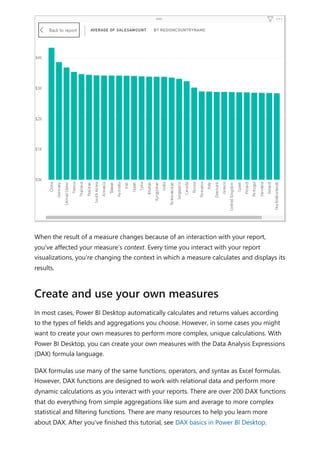
End-to-end semantic models: Enable Power BI creators to build end-to-end
solutions without dependencies on other tooling or IT teams. Datamarts gets rid of
managing orchestration between dataflows and semantic models through auto-
generated semantic models, while providing visual experiences for querying data
and ad-hoc analysis, all backed by Azure SQL DB.
The following table describes these offerings and the best uses for each, including their
role with datamarts.
When to use datamarts
ノ Expand table
Item Recommended Use Case Complementing role with datamarts
Datamarts User-based data
warehousing and SQL access
to your data
Datamarts can be used as sources for other
datamarts or items, using the SQL endpoint:
External sharing
Sharing across departmental or
organizational boundaries with security
enabled
Dataflows Reusable data prep (ETL) for
semantic models or marts
Datamarts use a single, built-in dataflow for ETL.
Dataflows can accentuate this, enabling:
Loading data to datamarts with different
refresh schedules
Separating ETL and data prep steps from
storage, so it can be reused by semantic
models
Semantic
models
Metrics and semantic layer
for BI reporting
Datamarts provide an auto-generated semantic
model for reporting, enabling:
Combining data from multiple sources
Selective sharing of the datamart tables for
fine-grained reporting
Composite models - a semantic model with
data from the datamart and other data
sources outside of the datamart
Proxy models - a semantic model that uses
DirectQuery for the auto-generated model,
using a single source of truth
In some cases it can be useful to incorporate both dataflows and datamarts in the same
solution. The following situations could find incorporating both dataflows and datamarts
advantageous:
For solutions with existing dataflows:
Easily consume the data with datamarts to apply any additional transformations
or enable ad-hoc analysis and querying using SQL queries
Easily integrate a no-code data warehousing solution with no management of
semantic models
For solutions with existing datamarts:
Perform reusable extract, transform and load (ETL) at scale for large data
volumes
Datamarts and dataflows integration
Bring your own data lake and use dataflows as a pipeline for datamarts
This section describes the differences between dataflows and datamarts.
Dataflows provide reusable extract, transform and load (ETL). Tables can't be browsed,
queried, or explored without a semantic model, but can be defined for reuse. The data is
exposed in Power BI or CDM format if you bring your own data lake. Dataflows are used
by Power BI to ingest data into your datamarts. You should use dataflows whenever you
want to reuse your ETL logic.
Use dataflows when you need to:
Build reusable and shareable data prep for items in Power BI.
Datamarts are a fully managed database that enables you to store and explore your
data in a relational and fully managed Azure SQL DB. Datamarts provide SQL support, a
no-code visual query designer, Row Level Security (RLS), and auto-generation of a
semantic model for each datamart. You can perform ad-hoc analysis and create reports,
all on the web.
Use datamarts when you need to:
Sort, filter, do simple aggregation visually or through expressions defined in SQL
For outputs that are results, sets, tables, and filtered tables of data

Comparing dataflows to datamarts
Feedback
Was this page helpful?
Provide product feedback | Ask the community
Provide accessible data through a SQL endpoint
Enable users who don’t have access to Power BI Desktop
This article provided an overview of datamarts and the many ways you can use them.
The following articles provide more information about datamarts and Power BI:
Understand datamarts
Get started with datamarts
Analyzing datamarts
Create reports with datamarts
Access control in datamarts
Datamart administration
Microsoft Fabric decision guide: data warehouse or lakehouse
For more information about dataflows and transforming data, see the following articles:
Introduction to dataflows and self-service data prep
Tutorial: Shape and combine data in Power BI Desktop
Related content
 Yes  No
Understand datamarts
Article • 11/10/2023
This article describes and explains important concepts about datamarts.
Datamarts provide a semantic layer that is automatically generated and synchronized
with the contents of the datamart tables, their structure, and underlying data. This layer
is provided in an automatically generated semantic model. This automatic generation
and synchronization enables you to further describe the domain of data with things like
hierarchies, friendly names and descriptions. You can also set formatting specific to your
locale or business requirements. With datamarts, you can create measures and
standardized metrics for reporting. Power BI (and other client tools) can create visuals
and provide results for such calculations based on the data in context.
The default Power BI semantic model created from a datamart eliminates the need to
connect to a separate semantic model, set up refresh schedules, and manage multiple
data elements. Instead, you can build your business logic in a datamart and its data will
be immediately available in Power BI, enabling the following:
Datamart data access through the Semantic model Hub.
Capability to analyze in Excel.
Capability to quickly create reports in the Power BI service.
No need to refresh, synchronize data or understand connection details.
Build solutions on the web without needing Power BI Desktop.
During preview, default semantic model connectivity is available using DirectQuery only.
The following image shows how datamarts fit into the process continuum starting with
connecting to data, all the way through creating reports.
Understand semantic model (default)
Default semantic models are different from traditional Power BI semantic models in the
following ways:
The XMLA endpoint supports read-only operations and users can't edit the
semantic model directly. With XMLA read-only permission you can query the data
in a query window.
The default semantic models don't have data source settings and users don't need
to enter credentials. Rather, they use automatic single sign-on (SSO) for queries.
For refresh operations, semantic models use the semantic model author
credentials to connect to the managed datamart’s SQL endpoint.
With Power BI Desktop users can build composite models, enabling you to connect to
the datamart’s semantic model and do the following:
Select specific tables to analyze.
Add more data sources.
Finally, if you don't want to use the default semantic model directly, you can connect to
the datamart’s SQL endpoint. For more information, see Create reports using datamarts.
Understand what's in the default semantic model
Currently, tables in the datamart are automatically added to the default semantic model.
Users can also manually select tables or views from the datamart they want included in
the model for more flexibility. Objects that are in the default semantic model will be
created as a layout in the model view.
The background sync that includes objects (tables and views) will wait for the
downstream semantic model to not be in use to update the semantic model, honoring
bounded staleness. Users can always go and manually pick tables they want or not want
in the semantic model.
You can create and modify incremental data refresh, similar to dataflows and semantic
model incremental refresh, using the datamart editor. Incremental refresh extends
scheduled refresh operations by providing automated partition creation and
management for datamart tables that frequently load new and updated data.
For most datamarts, incremental refresh will involve one or more tables that contain
transaction data that changes often and can grow exponentially, such as a fact table in a
relational or star database schema. If you use an incremental refresh policy to partition
the table, and refresh only the most recent import partitions, you can significantly
reduce the amount of data that must be refreshed.
Incremental refresh and real-time data for datamarts offers the following advantages:
Fewer refresh cycles for fast-changing data
Refreshes are faster
Refreshes are more reliable
Resource consumption is reduced
Enables you to create large datamarts
Easy to configure
Proactive caching enables automatic import of the underlying data for the default
semantic model so you don't need to manage or orchestrate the storage mode. Import
mode for the default semantic model provides performance acceleration for the
datamart's semantic model by using the fast Vertipaq engine. When you use proactive
caching, Power BI changes the storage mode of your model to import, which uses the
in-memory engine in Power BI and Analysis Services.
Understand incremental refresh and datamarts
Understand proactive caching
Proactive caching works in the following way: after each refresh, the storage mode for
the default semantic model is changed to DirectQuery. Proactive caching builds a side-
by-side import model asynchronously and is managed by the datamart, and doesn't
affect availability or performance of the datamart. Queries coming in after the default
semantic model is complete will use the import model.
Auto-generation of the import model occurs within approximately 10 minutes after no
changes are detected in the datamart. The import semantic model changes in the
following ways:
Refreshes
New data sources
Schema changes:
New data sources
Updates to data preparation steps in Power Query Online
Any modeling updates, such as:
Measures
Hierarchies
Descriptions
Use Deployment Pipelines for changes to ensure the best performance, and to ensure
users are using the import model. Using Deployment Pipelines is already a best practice
for building datamarts, but doing so ensures you take advantage of the proactive
caching more often.
Power BI currently caps the duration of caching operations to 10 minutes.
Constraints of uniqueness/non-null for particular columns will be enforced in the
Import model and will fail the cache building if the data doesn't conform.
This article provided an overview of important datamart concepts to understand.
The following articles provide more information about datamarts and Power BI:
Introduction to datamarts
Get started with datamarts
Best practices for proactive caching
Considerations and limitations for proactive caching
Next steps
Analyzing datamarts
Create reports using datamarts
Control access to datamarts
Administration of datamarts
For more information about dataflows and transforming data, see the following articles:
Introduction to dataflows and self-service data prep
Tutorial: Shape and combine data in Power BI Desktop
Get started with datamarts
Article • 11/10/2023
This article describes how to get started using datamarts, including various sample data
that can jump-start your experience. You'll learn about sample semantic models you can
use with datamarts, how to create datamarts from scratch, how to rename or delete a
datamart, and other helpful information to get you acquainted and proficient with
datamarts.
You can use the following various types of sample data to explore datamarts. All of the
following resources contain free sample data:
Eight Departmental Samples in Excel workbook format, which are Excel versions of
the Power BI built-in samples containing the semantic models from numerous use
cases:
Customer profitability
IT spend analysis
Human resources
Opportunity analysis
Procurement analysis
Retail analysis
Sales and marketing supplier quality analysis
A financial data sample workbook, which is a simple flat table in an Excel file
available for download. It contains anonymous data with fictitious products
including sales divided by segments and region.
An Excel workbook version of the AdventureWorks dimensional model, in a tutorial
that walks you through creating a Power BI report with the data.
COVID 19 world data is based on data from Johns Hopkins University. Before
publishing this data, we recommend reviewing the disclaimers article.
Northwind Traders OData feed , data from a fictitious organization that manages
orders, products, customers, suppliers, and many other aspects of a small business.
You can also start using datamarts from any dataflow you currently have as well. Starting
from an existing dataflow will copy data into your datamart, at which point you can
apply other transformations or just use it as a data source to explore datamarts.
Sample data
To create a datamart, navigate to your existing Power BI Premium or Premium Per User
(PPU) workspace. Datamarts require a Power BI Premium subscription. In your Premium
workspace, select + New and then select **Datamart (Preview) to create a datamart.
It usually takes approximately 10 seconds to provision a new datamart. Once initialized,
you can load data into your datamart. For more information about getting data into a
datamart, see the get and transform data section in this article.
There are many ways to connect to data and transform it in a datamart. For general
information about data in Power BI, see connect to data in Power BI.
Create a datamart
Get and transform data
To load data into your datamart, open your datamart (or create a new datamart) and
select Get Data.
If you choose to get data from another source, a data source selection window appears
where you can select from a multitude of data sources.
You can also drag and drop files from your computer to load data into your datamart,
such as Excel files. Some data sources may require parameters or connection strings to
properly connect.
Once connected, select the tables you want to load into your datamart. You can apply
transformations to your selected data and load the data into the datamart. Once the
data is loaded, the tables are imported into your datamart. You can monitor the
progress in the status bar.
For each table you select, a corresponding view is created in the datamart that appears
in the Object explorer in Data View.
To model your data, navigate to Model view by selecting on the Model View icon at the
bottom of the window, as shown in the following image.
Model data
In Power BI, a semantic model is always required before any reports can be built, so the
default semantic model enables quick reporting capabilities on top of the datamart.
Within the datamart, a user can add datamart objects - tables to their default semantic
model. They can also add additional semantic modeling properties, such as hierarchies
and descriptions. These are then used to create the Power BI semantic model’s tables.
Users can also remove objects from the default semantic model.
To add objects – tables or views to the default semantic model, a user has 2 options:
Adding or removing objects to the default semantic
model
Automatically add objects to the semantic model, which happens by default with
no user intervention needed
Manually add objects to the semantic model
The auto detect experience determines any tables or views and opportunistically adds
them.
The manually detect option in the ribbon allows fine grained control of which object(s) –
tables and/or views, should be added to the default semantic model:
Select all
Filter for tables or views
Select specific objects
To remove objects, a user can use the manually select button in the ribbon and:
Un-select all
Filter for tables or views
Un-select specific objects
During the session, users may create multiple tabs in the model view to further assist
with database design. Currently the model view layouts are only persisted in session.
Users can use the auto-layout whenever a new tab is created to visually inspect the
database design and understand the modeling.
To create a measure (a measure is a collection of standardized metrics) select the table
in the Table Explorer and select the New Measure button in the ribbon, as shown in the
following image.
Using model view layouts
Create a measure
Enter the measure into the formula bar and specify the table and the column to which it
applies. The formula bar lets you enter your measure. Similar to Power BI Desktop, the
DAX editing experience in datamarts presents a rich editor complete with auto-
complete for formulas (intellisense). The DAX editor enables you to easily develop
measures right in datamart, making it a more effective single source for business logic,
semantics, and business critical calculations.
You can expand the table to find the measure in the table.
To create a relationship in a datamart, select the Model view and select your datamart,
then drag the column from one table to the column on the other table to initiate the
relationship. In the window that appears, configure the relationship properties.
Create a relationship
Select the Confirm button when your relationship is complete to save the relationship
information.
You can hide elements of your datamart from downstream reporting by selecting Data
view and right-clicking on the column or table you want to hide. Then select Hide in
report view from the menu that appears to hide the item from downstream reporting.
Hide elements from downstream reporting
You can also hide the entire table and individual columns by using the Model view
canvas options, as shown in the following image.
To access auto-generated semantic models, go to the Premium workspace and find the
semantic model that matches the name of the datamart.
Access auto-generated semantic models
To load the semantic model, click the name of the semantic model.
You can refresh a datamart in two ways:
1. From the datamart context menu, select Refresh now or select Scheduled refresh.

Manage datamart refresh
2. From the datamart settings page, select Scheduled refresh
To set up incremental refresh for a datamart, select the table for which you want to set
up incremental refresh for in the datamart editor. In the Table tools ribbon, select the
Incremental refresh icon, and a right pane appears enabling you to configure
incremental refresh for the selected table.
Datamarts are supported in deployment pipelines. Using deployment pipelines, you can
deploy updates to your datamart across a designated pipeline. You can also use rules to
connect to relevant data in each stage of the pipeline. To learn how to use deployment
pipelines, see Get started with deployment pipelines.
To access an existing datamart, navigate to your Power BI Premium workspace and find
your datamart from the overall list of data items in your workspace, as shown in the
following image.
Datamarts and deployment pipelines
Access or load an existing datamart
You can also select the Datamarts (Preview) tab in your Premium workspace, and see a
list of available datamarts.
Select the datamart name to load the datamart.
There are two ways to rename a datamart:
First, from within the Datamart editor, select the datamart name from the top of the
editor and edit the datamart name in the window that appears, as shown in the
following image. Select on the ribbon outside of the rename window to save the new
name.
Rename a datamart
Alternatively, you can change the datamart name from the workspace list view. Select
the more menu (...) next to the datamart name in the workspace view.
From the menu that appears, select Rename.
When you rename a datamart, the auto-generated semantic model based on that
datamart is also automatically renamed.
To delete a datamart, navigate to the workspace and find the datamart you want to
delete. Select the more menu (...) and select Delete from the menu that appears.
Delete a datamart
Datamart deletion is not immediate, and requires a few days to complete.
Datamarts offer a familiar experience to create reports and access supported actions
using its context menus.
The following table describes the datamart context menu options:
Menu
Option
Option Description
Analyze in
Excel
Uses the existing Analyze in Excel capability on auto-generated semantic model.
Learn more about Analyze in Excel
Create
report
Build a Power BI report in DirectQuery mode. Learn more about get started
creating in the Power BI service
Delete Delete semantic model from workspace. A confirmation dialog notifies you of the
impact of delete action. If Delete action is confirmed, then the datamart and
Datamart context menus
Menu
Option
Option Description
related downstream items will be deleted
Manage
permissions
Enables users to add other recipients with specified permissions, similar to
allowing the sharing of an underlying semantic model or allowing to build content
with the data associated with the underlying semantic model.
Menu
Option
Option Description
Refresh
history
Provides the history of refresh activity with the duration of activity and status.
Rename Updates the datamart and auto-generated semantic model with the new name.
Settings Learn more about datamart settings
Share Lets users share the datamart to build content based on the underlying auto-
generated semantic model and query the corresponding SQL endpoint. Shares the
datamart access (SQL- read only, and autogenerated semantic model) with other
users in your organization. Users receive an email with links to access the detail
page where they can find the SQL Server URL and can access the auto-generated
Menu
Option
Option Description
semantic model to create reports based on it.
View lineage This shows the end-to-end lineage of datamarts from the data sources to the
datamart, the auto-generated semantic model, and other semantic models (if any)
that were built on top of the datamarts, all the way to deports, dashboards and
apps.
Datamart settings are accessible from the context menu for datamarts. This section
describes and explains the datamart settings options and their description. The
following image shows the datamart settings menu.

Datamart settings
The following is a list of settings available for each datamart.
Setting Detail
Datamart
description
Lets users add metadata details to provide descriptive information about a
datamart.
Server settings The SQL endpoint connection string for a datamart. You can use the
connection string to create a connection to the datamart using various tools,
such as SSMS.
Setting Detail
Data source
credentials
Lets you get data source information and edit credentials.
Schedule
refresh
Data refresh information for the datamart, based on the schedule defined by
the user.
Sensitivity label Sensitivity label applied on datamart, which also gets propagated on the
downstream auto-generated semantic model, reports, and so on.
The sensitivity labels propagation to downstream semantic model, reports
won't happen in the following scenarios:
Sensitivity label downgrade
Setting Detail
Specific items when the sensitivity label was manually set
The following table shows settings for auto-generated semantic models. When these
settings are applied on an auto-generated semantic model, they're also applied to
datamart as well.
Setting Details
Request
access
Q&A
Query
caching
When using datamarts with named connections, the following limitations apply:
You can only create one cloud connection of a particular path and type, for
example, you could only create one SQL plus server/database cloud connection.
You can create multiple gateway connections.
You cannot name or rename cloud data sources; you can name or rename gateway
connections.
This article provided sample data and instructions on how to create and interact with
datamarts.
The following articles provide more information about datamarts and Power BI:
Introduction to datamarts
Understand datamarts
Analyzing datamarts
Create reports with datamarts
Access control in datamarts
Datamarts considerations and limitations
Next steps
Datamart administration
For more information about dataflows and transforming data, see the following articles:
Introduction to dataflows and self-service data prep
Tutorial: Shape and combine data in Power BI Desktop
Analyzing datamarts
Article • 11/10/2023
You can analyze your datamarts with multiple tools, including the Datamart editor and
the SQL Query Editor among others. This article describes how to analyze your
datamarts with those tools, and suggestions on how best to see the information you
need.
The Datamart editor provides an easy visual interface to analyze your datamarts. The
following sections provide guidance on how to use the Datamart editor to gain insights
into your datamarts, and your data.
Once you've loaded data into your datamart, you can use the Datamart editor to create
queries to analyze your data. You can use the Visual Query editor for a no-code
experience to create your queries.
There are two ways to get to the Visual query editor:
In the Data grid view, create a new query using the + New Query button on the ribbon,
as shown in the following image.
Alternatively you can use the Design view icon found along the bottom of the Datamart
editor window, shown in the following image.
To create a query, drag and drop tables from the Object explorer on the left on to the
canvas.
Analyze inside the Datamart editor
Visual query
Once you drag one or more tables onto the canvas, you can use the visual experience to
design your queries. The datamart editor uses the similar Power Query diagram view
experience to enable you to easily query and analyze your data. Learn more about
Power Query diagram view.
As you work on your Visual query, the queries are automatically saved every few
seconds. A “saving indicator” that shows up in your query tab at the bottom indicates
that your query is being saved.
The following image shows a sample query created using the no-code Visual Query
editor to retrieve the Top customers by Orders.
There are a few things to keep in mind about the Visual Query editor:
You can only write DQL (not DDL or DML)
Only a subset of Power Query operations that support Query folding are currently
supported
You can't currently open the visual query in Excel
The SQL Query Editor provides a text editor to write queries using T-SQL. To access the
built-in SQL query editor, select the SQL query editor view icon located at the bottom
of the datamart editor window.
The SQL Query editor provides support for intellisense, code completion, syntax
highlighting, client-side parsing and validation. Once you’ve written the T-SQL query,
select Run to execute the query. As you work on your SQL query, the queries are
automatically saved every few seconds. A “saving indicator” that shows up in your query
tab at the bottom indicates that your query is being saved. The Results preview is
displayed in the Results section. The Download in Excel button opens the
SQL Query Editor
corresponding T-SQL Query to Excel and executes the query, enabling you to view the
results in Excel. The Visualize results allows you to create reports from your query
results within the SQL query editor.
There are a few things to keep in mind about the Visual Query editor:
You can only write DQL (not DDL or DML)
Datamarts provide a SQL DQL (query) experience through your own development
environment – such as SSMS or Azure Data Studio. You must run the latest version of
the tools and authenticate using Azure Active Directory or MFA. The login process is the
same as the sign-in process for Power BI.
Analyze outside the editor
The no-code visual query editor and datamart editor are available within Power BI for
your datamart. The no-code visual query editor enables users who aren't familiar with
the SQL language, while the datamart editor is helpful for quick monitoring of the SQL
DB.
For a querying experience that provides a more comprehensive utility, combining a
broad group of graphical tools with many rich script editors, SQL Server Management
Studio (SSMS) and Azure Data Studio (ADS) are more robust development
environments.
While both analysis experiences offer extensive development environments for SQL
querying, each environment is tailored toward separate use cases.
You can use SSMS for:
Complex administrative or platform configuration
When to Use In-Built Querying vs External SQL Tooling
When to Use SQL Server Management Studio vs Azure
Data Studio
Security management, including user management and configuration of security
features
Live query statistics or client statistics
Use ADS for:
macOS and Linux users
Mostly editing or executing queries
Quick charting and visualizing set results
For developers and analysts with SQL experience, using SQL Server Management Studio
or Azure Data Studio as an extension to Power BI datamarts can provide a more
thorough querying environment.
To connect to a datamart’s SQL endpoint with client tooling, navigate to the semantic
model settings page by selecting the Datamarts (Preview) tab in Power BI. From there,
expand the Server settings section and copy the connection string, as shown in the
following image.
To use SQL Server Management Studio (SSMS), you must be using SSMS Version 18.0 or
above. When you open SQL Server Management Studio, the Connect to Server window
Get the T-SQL connection string
Get started with SSMS
appears. You can open it manually by selecting Object Explorer > Connect > Database
Engine.
Once the Connect to Server window is open, paste the connection string copied from
the previous section of this article into the Server name box. Select Connect and
proceed with the appropriate credentials for authentication. Remember that only Azure
Active Directory - MFA authentication is supported.
When the connection has become established, the object explorer displays the
connected SQL DB from your datamarts and its respective tables and views, all of which
are ready to be queried.
To easily preview the data within a table, right-click on a table and select Select Top
1000 Rows from the context menu that appears. An autogenerated query returns a
collection of results displaying the top 1,000 rows based on the primary key of the table.
The following image shows the results of such a query.
To see the columns within a table, expand the table within Object explorer.
When you connect to datamart using SSMS or other client tools, you can see views
created in Model schema of the datamart. The default schema configuration on a
datamart is set to Model.
A datamart shows two other roles as admin and viewer under security when connected
using SSMS. Users added to a workspace in any of the Admin or Member or Contributor
roles get added to the admin role on the datamart. Users added to the Viewer role in
the workspace get added to viewer role in the datamart.
The extended property isSaaSMetadata added in the datamart lets you know that this
metadata is getting used for SaaS experience. You can query this extended property as
below:
SQL
The clients (such as the SQL connector) could read the relationships by querying the
table-valued function like the following:
SQL
Notice there are relationships and relationshipColumns named views under metadata
schema to maintain relationships in the datamart. The following tables provide a
description of each of them, in turn:
[metadata].[relationships]
Column name Data type Description
RelationshipId Bigint Unique identifier for a relationship
Name Nvarchar(128) Relationship's name
FromSchemaName Nvarchar(128) Schema name of source table "From" which
relationship is defined.
FromObjectName Nvarchar(128) Table/View name "From" which relationship is
defined
ToSchemaName Nvarchar(128) Schema name of sink table "To"which relationship is
defined
ToObjectName Nvarchar(128) Table/View name "To"which relationship is defined
TypeOfRelationship Tinyint Relationship cardinality, the possible values are: 0 –
None 1 – OneToOne 2 – OneToMany 3 –
ManyToOne 4 – ManyToMany
Relationships metadata
SELECT [name], [value]
FROM sys.extended_properties
WHERE [name] = N'isSaaSMetadata'
SELECT *
FROM [metadata].[fn_relationships]();
Column name Data type Description
SecurityFilteringBehavior Tinyint Indicates how relationships influence filtering of
data when evaluating row-level security expressions.
The possible values are 1 – OneDirection 2 –
BothDirections 3 – None
IsActive Bit A boolean value that indicates whether the
relationship is marked as Active or Inactive.
RelyOnReferentialIntegrity Bit A boolean value that indicates whether the
relationship can rely on referential integrity or not.
CrossFilteringBehavior Tinyint Indicates how relationships influence filtering of
data. The possible values are: 1 – OneDirection 2 –
BothDirections 3 – Automatic
CreatedAt Datetime Date the relationship was created.
UpdatedAt datetime Date the relationship was modified.
DatamartObjectId Navrchar(32) Unique identifier for datamart
[metadata].[relationshipColumns]
Column name Data type Description
RelationshipColumnId bigint Unique identifier for a relationship's column.
RelationshipId bigint Foreign key, reference the RelationshipId key in the
Relationships Table.
FromColumnName Navrchar(128) Name of the "From" column
ToColumnName Nvarchar(128) Name of the "To" column
CreatedAt datetime ate the relationship was created.
DatamartObjectId Navrchar(32) Unique identifier for datamart
You can join these two views to get relationships added in the datamart. The following
query will join these views:
SQL
SELECT
R.RelationshipId
,R.[Name]
,R.[FromSchemaName]
Visualize results currently does not support SQL queries with an ORDER BY clause.
This article provided information about analyzing data in datamarts.
The following articles provide more information about datamarts and Power BI:
Introduction to datamarts
Understand datamarts
Get started with datamarts
Create reports with datamarts
Access control in datamarts
Datamart administration
For more information about dataflows and transforming data, see the following articles:
Introduction to dataflows and self-service data prep
Tutorial: Shape and combine data in Power BI Desktop
,R.[FromObjectName]
,C.[FromColumnName]
,R.[ToSchemaName]
,R.[ToObjectName]
,C.[ToColumnName]
FROM [METADATA].[relationships] AS R
JOIN [metadata].[relationshipColumns] AS C
ON R.RelationshipId=C.RelationshipId
Limitations
Next steps
Discovering data using datamarts
(preview)
Article • 11/10/2023
You can discover data through the data hub, and create reusable and autogenerated
semantic models to create reports in various ways in Power BI. This article describes the
various ways you can discover datamarts.
You can see datamarts and their associated autogenerated semantic model in the data
hub, which makes it easy to find, explore, and use the data.
In the data hub, when you select a datamart, you're taken to its information page where
you can see the datamart’s metadata, supported actions, lineage, and impact analysis
along with related reports on that datamart.
The autogenerated semantic model from a datamart behaves the same as other
semantic models in Power BI. For more information, see data discovery using the data
hub
For more information about a datamart, to explore reports, to view lineage, or to create
a new report based on the semantic model, select a datamart from the recommended
datamarts or from datamarts in the data list.
A page displays the information about the datamart, provides a button to create a new
report, share datamart, pull data into Excel or view lineage. Related reports for the
selected datamart are also displayed, if any exist. You can also navigate to the datamart
editor, its settings, or manage permissions.
The page also shows the workspace where the datamart is located, its endorsement
status, its last refresh time, and any sensitivity settings that have been applied. It also
displays the datamart's SQL endpoint connection string and the datamart's description.
The following image shows the datamarts information page.
Discover datamarts in the data hub
Datamart details and related reports
You can view the lineage of the datamart by selecting Lineage > Open lineage from the
ribbon menu. The window that appears displays the end-to-end lineage view describing
the flow of data from the data source to the datamart, the underlying autogenerated
semantic model, and all downstream items such as reports, dashboards, or apps.
The following image shows the lineage of a datamart.
To view any dependent items of the selected datamart, select the Impact analysis menu,
which is displayed along the right side of the screen.


The data hub in Power BI Desktop lets you discover datamarts and semantic models.
Once the datamart filter is selected, the list shows the datamarts to which you have
access.
The following image shows how to select datamarts from the data hub Home ribbon
menu in Power BI Desktop.
The data hub appears in a window within Power BI Desktop, as the following screen
shows.
Data hub in Power BI Desktop
Selecting a datamart from the list enables the Connect button in the window. Selecting
Connect with a datamart selected loads the datamart's underlying and autogenerated
semantic model, from which you can begin to build reports. By selecting Connect to
SQL endpoint, you're making a live connection to datamart’s SQL connection string to
read data and build reports.
This article provided information about creating reports using datamarts.
The following articles provide more information about datamarts and Power BI:
Introduction to datamarts


Related content
Sharing datamarts and managing permissions
Understand datamarts
Get started with datamarts
Analyzing datamarts
Access control in datamarts
Datamart administration
For more information about dataflows and transforming data, see the following articles:
Introduction to dataflows and self-service data prep
Tutorial: Shape and combine data in Power BI Desktop
Sharing datamarts and managing
permissions (preview)
Article • 11/10/2023
This article describes the ways you can share your datamarts and manage its
permissions to provide users with specific access.
Once a datamart has been created, you can share it for downstream consumption by
other users in your organization. Sharing a datamart enables the recipient to access the
datamart in the following ways:
SQL connection string: Connect to the datamart’s underlying SQL connection
string and query the datamart from SQL client tools.
Auto-generated semantic model: Build content based on the datamart’s
underlying semantic model, by providing Build permissions.
There are a few ways to share a datamart, described in the following sections.
While in the workspace, select the Share option from the datamart’s context menu, as
shown in the following image.
Sharing datamarts for consumption
Share from a workspace
To share a datamart from the data hub, select Share from the datamart’s context menu
within the data hub. You can perform this sharing from any of tabs in that window: All,
My data, Trusted in your org or Recommended.
The following image shows selecting the context menu from within the data hub, and
selecting Share.
Share from the data hub
To share a datamart from the information page in the data hub, select the Share button
from the ribbon at the top of the page.
The following image shows the Share button from the ribbon.
You can also select the Share datamart button from the information panel itself, within
the data hub. The following image highlights the Share button on the information panel.
Share from datamart information page
Regardless of which way you choose to share a datamart, the Grant people access
window appears so you can enter the names or email addresses of the people or groups
(distribution groups or security groups) in your organization with whom you want to
grant access to the datamart.
You can choose whether recipients can reshare the datamart with others in the
organization, by selecting the checkbox next to Allow recipients to share this datamart.
There's an option to allow users to create Power BI reports (from scratch, autocreate,
paginated reports) on top of the default semantic model that is connected to the
datamart by selecting the checkbox next to Build reports on the default semantic
model. Both of these options are selected by default.
You can also choose to send recipients a message to provide more context, by typing a
message into the Add a message (optional) field in the Grant people access window.
The following image shows the Grant people access window.

The share datamart process
Once you grant access, recipients receive an email stating they've been granted access
to the datamart. The email includes a button titled Open this datamart that opens the
datamart's information page.
When recipients open the link or otherwise navigate to the shared datamart, its
information page shows the SQL connection string for connecting to the datamart.
Users can use client tools other than Power BI, such as SSMS, to query the datamart
using T-SQL.
The following image highlights the SQL connection string in a datamart information
window.
Users can build reports with the datamart or use Analyze in Excel, and can also connect
to the datamart or underlying semantic model from Power BI Desktop.
The following image highlights the Create a report entry point in a datamart
information window.


7 Note
Sharing a datamart allows the recipient to access the datamart for downstream
consumption and not to collaborate on the datamart creation. To enable other
creators to collaborate on the datamart, you must provide Member, Admin or
Contributor access to the workspace where the datamart is created.
The Manage permissions page shows the list of users who have been given access by
either assigning to Workspace roles or item permissions (as described earlier in this
article).
If you're an Admin or Member, go to your workspace and select More options which
shows the context menu and select Manage permissions.
For users who were provided workspace roles, it shows the corresponding user,
workspace role, and permissions. Admin and Members have Read, Write, and Reshare
access to datamarts in this workspace. Contributors have Read and Write permissions.
Viewers have Read permissions and can query all objects within the datamart. For users
with whom a datamart was shared, item permissions such as Read and Reshare are
provided by default.
Manage permissions


You can choose to add or remove permissions using the Manage permissions
experience. Remove reshare removes the Reshare permissions. Remove access removes
all item permissions and stops sharing the datamart with the specified user.
This article provided information about creating reports using datamarts.
The following articles provide more information about datamarts and Power BI:
Introduction to datamarts
Sharing and discovering data using datamarts
Understand datamarts
Get started with datamarts
Analyzing datamarts
Access control in datamarts
Datamart administration
For more information about dataflows and transforming data, see the following articles:
Introduction to dataflows and self-service data prep
Tutorial: Shape and combine data in Power BI Desktop

Related content
Create reports using datamarts
Article • 11/10/2023
Datamarts let you create reusable and auto-generated semantic models to create
reports in various ways in Power BI. This article describes the various ways you can use
datamarts, and their auto-generated semantic models, to create reports.
For example, you can establish a live connection to a shared semantic model in the
Power BI service and create many different reports from the same semantic model. You
can create your perfect data model in Power BI Desktop and publish it to the Power BI
service. Then you and others can create multiple different reports in separate .pbix files
from that common data model and save them to different workspaces.
Advanced users can build reports from a datamart using a composite model or using
the SQL Endpoint.
Reports that use datamarts can be created in either of the following two tools:
Using the Power BI service
Using Power BI Desktop
Let's take a look at how datamarts can be used with each, in turn.
Scenario 1: From within the datamart experience, using the ribbon and the main home
tab, navigate to the New report button. This provides a native, quick way to create
reports.
Selecting New report opens a browser tab to the report editing canvas to a new report
that is built on the semantic model. When you save your new report you're prompted to
choose a workspace, provided you have write permissions for that workspace. If you
don't have write permissions, or if you're a free user and the semantic model resides in a
Premium-capacity workspace, the new report is saved in your My workspace.
Scenario 2: Using the auto-generated semantic model and action menu in the
workspace: In the Power BI workspace, navigate to the auto-generated semantic model
and select the More menu (...) to create a report in the Power BI service.
Selecting the More opens the report editing canvas to a new report that is built on the
semantic model. When you save your new report, it's saved in the workspace that
contains the semantic model as long as you have write permissions on that workspace.
Create reports in the Power BI service
If you don't have write permissions, or if you're a free user and the semantic model
resides in a Premium-capacity workspace, the new report is saved in your My workspace.
Scenario 3: Using the auto-generated semantic model and semantic model details page.
In the Power BI workspace list, select the auto-generated semantic model's name to get
to the semantic model details page, where you can find details about the semantic
model and see related reports. You can also create a report directly from this page. To
learn more about creating a report in this fashion, see semantic model details.
In the data hub, you'll see datamarts and their associated auto-generated semantic
models. Select the datamart to navigate to the datamart's details page where you can
see the datamart’s metadata, supported actions, lineage and impact analysis, along with
related reports created from that datamart. Auto-generated semantic models derived
from datamarts behave the same as any semantic model.
To find the datamart, you begin with the data hub. The image below shows the data hub
in the Power BI service, with the following numbered information:
1. Select a datamart to view its datamart details page
2. Select the More menu (...) to display the options menu
3. Select Details to view details summary.
You can build reports from semantic models with Power BI Desktop using a Live
connection to the semantic model. For information on how to make the connection, see
connect to semantic models from Power BI Desktop.

Create reports using Power BI Desktop
For advanced situations where you want to add more data or change the storage mode,
see use composite models in Power BI Desktop.
Complete the following steps to connect to a datamart in Power BI Desktop:
1. Navigate to the datamart settings in your workspace and copy the SQL endpoint
connection string.
2. In Power BI Desktop select the SQL Server connector from the ribbon or from Get
Data.
3. Paste the connection string into the connector dialog.
4. For authentication, select organizational account.
5. Authenticate using Azure Active Directory - MFA (the same way you would connect
to Power BI)
6. Select Connect.
7. Select the data items you want to include or not include in your semantic model.
For more information, see connect to on-premises data in SQL Server. You don't need to
set up a gateway with datamarts to use them in Power BI.
This article provided information about creating reports using datamarts.
The following articles provide more information about datamarts and Power BI:
Introduction to datamarts
Understand datamarts
Get started with datamarts
Analyzing datamarts
Access control in datamarts
Datamart administration
For more information about dataflows and transforming data, see the following articles:
Introduction to dataflows and self-service data prep
Tutorial: Shape and combine data in Power BI Desktop
Next steps
Control access to datamarts
Article • 11/10/2023
This article describes access control to datamarts, including row level security, rules in
Power BI Desktop, and how datamarts might become inaccessible or unavailable.
Assigning users to the various workspace roles provides the following capabilities with
respect to Datamarts:
Workspace
role
Description
Admin Grants the user permissions to ingest data through a dataflow, write SQL and
visual queries, and update the model or semantic model (create relationships,
create measures etc.)
Member Grants the user permissions to ingest data through a dataflow, write SQL and
visual queries, and update the model or semantic model (create relationships,
create measures etc.)
Contributor Grants the user permissions to ingest data through a dataflow, write SQL and
visual queries, and update the model or semantic model (create relationships,
create measures etc.)
Viewer Grants the user permissions to write SQL and visual queries and access the
“Model view” in read-only mode. For more information, see Viewer restrictions.
The Viewer role is a more limited role in comparison with the other workspace roles. In
addition to fewer SQL permissions given to viewers, there are more actions they are
restricted from performing.
Feature Limitation
Settings Viewers have read-only access, so they cannot rename datamart, add
description, or change sensitivity label.
Model view Viewers have read-only mode on the Model view.
Run queries Viewers do not have full DML/DDL capabilities unless granted specifically.
Viewers can read data using SELECT statement in SQL query editor and use
Workspace roles
Viewer restrictions
Feature Limitation
all tools in the toolbar in the Visual query editor. Viewers can also read data
from Power BI Desktop and other SQL client tools.
Analyze in Excel Viewers do not have permission to Analyze in Excel.
Manually update
semantic model
Viewers cannot manually update the default semantic model to which the
datamart is connected.
New measure Viewers do not have permission to create measures.
Lineage view Viewers do not have access to reading the lineage view chart.
Share/Manage
permissions
Viewers do not have permission to share datamarts with others.
Create a report Viewers do not have access to create content within the workspace and
hence cannot build reports on top of the datamart.
Row-level security (RLS) can be used to restrict data access for specified users to a
datamart. Filters restrict data access at the row level, and you can define filters within
roles. In the Power BI service, members of a workspace have access to datamarts in the
workspace, and RLS doesn't restrict such data access.
You can configure RLS for datamarts in the Datamart editor. The configured RLS on
datamarts automatically gets applied to downstream items, including the auto-
generated semantic models and reports.
To define RLS roles, take the following steps:
Row level security
7 Note
Datamarts use the enhanced row-level security editor, which means that not all
row-level security filters supported in Power BI can be defined. Limitations include
expressions that today can only be defined using DAX including dynamic rules such
as USERNAME() or USERPRINCIPALNAME(). To define roles using these filters switch
to use the DAX editor.
Define Row Level Security (RLS) roles and rules for
Datamarts
1. Open your datamart and select Manage Roles from the ribbon.
2. Create new RLS roles using the Row security settings window. You can define a
combination of filters on tables and select Save to save the role.
3. Once the role is saved, select Assign to add users to the role. Once assigned, select
Save to save the role assignments and close the RLS settings modal.
To validate the roles created, take the following steps:
1. Select the View as button from the ribbon.
2. Select the role to be validated by selecting the check box for the role, then select
OK.
3. The data view shows the access that the selected role has.
To revert to your access, select the View as button on the ribbon again, and select None.
A datamart can get marked as an unavailable datamart when one of the following
situations occurs.
Situation 1: When a Premium workspace is changed from Premium to non-premium, all
datamarts in that workspace become unavailable. The Datamart editor becomes
unavailable and downstream usage of the datamart and auto-generated semantic
models is blocked. Users or administrators must upgrade the workspace to its original
Premium capacity to restore datamarts.
Situation 2: When dataflow updates a datamart and associated semantic model, but due
to a system lock the datamart or semantic model update is pending, the datamart
becomes unavailable. The Datamart editor isn't accessible when a datamart goes into
unavailable state. The try again action, shown in the following image, enables users to
trigger synchronization between dataflow, datamart and semantic model. It may take a
few minutes to complete the requested action but downstream consumption can be
continued.
Situation 3: When a Premium workspace is migrated to another Premium capacity in a
different region, the datamart will become unavailable with the error: "Unable to open
the datamart because the workspace region has changed. To open the datamart,
reconnect the workspace to the region connected when the datamart was created." This
behavior is by design since the region where the datamarts were created must be the
region where the workspace resides, and migrations are not supported.
This article provided information about controlling access to datamarts.
The following articles provide more information about datamarts and Power BI:
How datamarts become unavailable
Next steps
Introduction to datamarts
Understand datamarts
Get started with datamarts
Analyzing datamarts
Create reports with datamarts
Datamart administration
For more information about dataflows and transforming data, see the following articles:
Introduction to dataflows and self-service data prep
Tutorial: Shape and combine data in Power BI Desktop
Administration of datamarts
Article • 11/10/2023
You can administer the use and settings for datamarts just like you can administer other
aspects of Power BI. This article describes and explains how to administer your
datamarts, and where to find the settings.
Power BI administrators can enable or disable datamart creation for the entire
organization or for specific security groups, using the setting found in the Power BI
admin portal, as shown in the following image.
In the Power BI admin portal, you can review a list of datamarts along with all other
Power BI items in any workspace, as shown in the following image.
Enabling datamarts in the admin portal
Keeping track of datamarts
Existing Power BI admin APIs for getting workspace information work for datamarts as
well, such as GetGroupsAsAdmin and the workspace scanner API. Such APIs enable you,
as the Power BI service administrator, to retrieve datamarts metadata along with other
Power BI item information, so you can monitor workspace usage and generate relevant
reports.
Power BI administrators can audit datamart operations from the Microsoft 365 Admin
Center. Audit operations supported on datamarts are the following:
Create
Rename
Update
Delete
Refresh
View
To get audit logs, complete the following steps:
1. Sign in to the Power BI admin portal as the administrator and navigate to Audit
logs.
Viewing audit logs and activity events
2. In the Audit logs section, select the button to go to Microsoft 365 Admin Center
3. Get audit events by applying search criteria.
4. Export audit logs and apply filter for datamart operations.
Administrators can export activity events on datamarts by using existing supported REST
APIs. The following articles provide information about the APIs:
Admin - Get Activity Events - REST API (Power BI Power BI REST APIs)
Track user activities in Power BI
Datamart CPU usage is free during preview, including datamarts and queries on SQL
endpoints of a datamart. Autogenerated semantic model usage is reported for throttling
and autoscaling. To avoid incurring costs during the preview period, consider using a
Premium Per User (PPU) trial workspace.
Using REST APIs for activity events
Capacity utilization and reporting
The following limitations should be considered when using datamarts:
Datamarts aren't currently supported in the following Power BI SKUs: EM1/EM2
and EM3.
Datamarts aren't available in workspaces that are bound to an Azure Data Lake
Gen2 storage account.
Datamarts aren't available in sovereign or government clouds.
Datamart extract, transform and load (ETL) operations can currently only run for up
to 24 hours
Datamarts currently officially support data volumes of up to 100 GB.
Currently datamarts don’t support the currency data type, and such data types are
converted to float.
Data sources behind a VNET or using private links can't currently be used with
datamarts; to work around this limitation you can use an on-premises data
gateway.
Datamarts use port 1948 for connectivity to the SQL endpoint. Port 1433 needs to
be open for datamarts to work.
Datamarts only support Microsoft Azure Active Directory (Azure AD) and do not
support managed identities or service principals at this time.
Beginning February 2023, datamarts support any SQL client.
Datamarts aren't currently available in the following Azure regions:
West India
UAE Central
Poland
Israel
Italy
Datamarts are supported in all other Azure regions.
Datamart connectors in Premium workspaces
Some connectors aren't supported for datamarts (or dataflows) in Premium workspaces.
When using an unsupported connector, you may receive the following error:
Expression.Error: The import "<"connector name">" matches no exports. Did you miss a
module reference?
The following connectors aren't supported for dataflows and datamarts in Premium
workspaces:
Linkar
Actian
Considerations and limitations
AmazonAthena
AmazonOpenSearchService
BIConnector
DataVirtuality
DenodoForPowerBI
Exasol
Foundry
Indexima
IRIS
JethroODBC
Kyligence
MariaDB
MarkLogicODBC
OpenSearchProject
QubolePresto
SingleStoreODBC
StarburstPresto
TibcoTdv
The use of the previous list of connectors with dataflows or datamarts is only supported
workspaces that aren't Premium.
This article provided information about the administration of datamarts.
The following articles provide more information about datamarts and Power BI:
Introduction to datamarts
Understand datamarts
Get started with datamarts
Analyzing datamarts
Create reports with datamarts
Access control in datamarts
For more information about dataflows and transforming data, see the following articles:
Introduction to dataflows and self-service data prep
Tutorial: Shape and combine data in Power BI Desktop
Next steps
Introduction to dataflows and self-
service data prep
Article • 11/10/2023
As data volume continues to grow, so does the challenge of wrangling that data into
well-formed, actionable information. We want data that’s ready for analytics, to populate
visuals, reports, and dashboards, so we can quickly turn our volumes of data into
actionable insights. With self-service data prep for big data in Power BI, you can go from
data to Power BI insights with just a few actions.
Dataflows are designed to support the following scenarios:
 Tip
You can also try Dataflow Gen2 in Data Factory in Microsoft Fabric, an all-in-one
analytics solution for enterprises. Microsoft Fabric covers everything from data
movement to data science, real-time analytics, business intelligence, and reporting.
Learn how to start a new trial for free.
When to use dataflows
Create reusable transformation logic that can be shared by many semantic models
and reports inside Power BI. Dataflows promote reusability of underlying data
elements, preventing the need to create separate connections with your cloud or
on-premises data sources.
Persist data in your own Azure Data Lake Gen 2 storage, enabling you to expose it
to other Azure services outside Power BI.
Create a single source of truth, curated from raw data using industry standard
definitions, which can work with other services and products in the Power Platform.
Encourage uptake by removing analysts' access to underlying data sources.
Strengthen security around underlying data sources by exposing data to report
creators in dataflows. This approach allows you to limit access to underlying data
sources, reducing the load on source systems, and gives administrators finer
control over data refresh operations.
If you want to work with large data volumes and perform ETL at scale, dataflows
with Power BI Premium scales more efficiently and gives you more flexibility.
Dataflows supports a wide range of cloud and on-premises sources.
You can use Power BI Desktop and the Power BI service with dataflows to create
semantic models, reports, dashboards, and apps that use the Common Data Model.
From these resources, you can gain deep insights into your business activities. Dataflow
refresh scheduling is managed directly from the workspace in which your dataflow was
created, just like your semantic models.
This article provided an overview of self-service data prep for big data in Power BI, and
the many ways you can use it.
The following articles provide more information about dataflows and Power BI:
Creating a dataflow
Configure and consume a dataflow
7 Note
Dataflows may not be available in the Power BI service for all U.S. Government DoD
customers. For more information about which features are available, and which are
not, see Power BI feature availability for U.S. Government customers.
Next steps
Configuring Dataflow storage to use Azure Data Lake Gen 2
Premium features of dataflows
AI with dataflows
Dataflows considerations and limitations
Dataflows best practices
Power BI usage scenarios: Self-service data preparation
For more information about the Common Data Model, you can read its overview article:
Common Data Model - overview
Creating a dataflow
Article • 11/10/2023
A dataflow is a collection of tables that are created and managed in workspaces in the
Power BI service. A table is a set of columns that are used to store data, much like a
table within a database. You can add and edit tables in your dataflow, and manage data
refresh schedules, directly from the workspace in which your dataflow was created.
To create a dataflow, launch the Power BI service in a browser then select a workspace
(dataflows aren't available in my-workspace in the Power BI service) from the nav pane
on the left, as shown in the following screen. You can also create a new workspace in
which to create your new dataflow.
There are multiple ways to create or build on top of a new dataflow:
Create a dataflow by using define new tables
Create a dataflow by using linked tables
Create a dataflow by using a CDM folder
Create a dataflow by using import/export
The following sections explore each of these ways to create a dataflow in detail.
7 Note
Using the Define new tables option lets you define a new table and connect to a new
data source.
When you select a data source, you're prompted to provide the connection settings,
including the account to use when connecting to the data source, as shown in the
following image.
Dataflows can be created by users in a Premium workspace, users with a Pro
license, and users with a Premium Per User (PPU) license.
Create a dataflow by using define new tables

Once connected, you can select which data to use for your table. When you choose data
and a source, Power BI reconnects to the data source. The reconnection keeps the data
in your dataflow refreshed at the frequency that you select later in the setup process.
After you select the data for use in the table, you can use dataflow editor to shape or
transform that data into the format necessary for use in your dataflow.
Creating a dataflow by using linked tables enables you to reference an existing table,
defined in another dataflow, in a read-only fashion. The following list describes some of
the reasons you might choose this approach:
If you want to reuse a table across multiple dataflows, such as a date table or a
static lookup table, you should create a table once and then reference it across the
other dataflows.
If you want to avoid creating multiple refreshes to a data source, it's better to use
linked tables to store the data and act as a cache. Doing so allows every
subsequent consumer to use that table, reducing the load to the underlying data
source.
If you need to perform a merge between two tables.
Creating a dataflow by using a computed table allows you to reference a linked table
and perform operations on top of it in a write-only fashion. The result is a new table,
which is part of the dataflow. There are two ways to convert a linked table into a
computed table. You can create a new query from a merge operation. Or if you want to
edit or transform the table, you can create a reference or duplicate of the table.
After you have a dataflow with a list of tables, you can perform calculations on those
tables. In the dataflow authoring tool in the Power BI service, select Edit tables, then
right-click on the table you want to use as the basis for your computed table and on
which you want to perform calculations. In the context menu, choose Reference. For the
table to be eligible as a computed table, the Enable load selection must be checked, as
shown in the following image. Right-click on the table to display this context menu.
Create a dataflow by using linked tables
7 Note
Linked tables are available only with Power BI Premium.
Create a dataflow by using a computed table
How to create computed tables
By selecting Enable load, you create a new table for which its source is the referenced
table. The icon changes, and shows the computed icon, as shown in the following
image.
Any transformation you perform on this newly created table is run on the data that
already resides in Power BI dataflow storage. That means that the query won't run
against the external data source from which the data was imported, like the data pulled
from the SQL database. Instead the query is performed on the data that resides in the
dataflow storage.
Example use cases
What kind of transformations can be performed with computed tables? Any
transformation that you usually specify by using the transformation user interface in
Power BI, or the M editor, are all supported when performing in-storage computation.
Consider the following example: you have an Account table that contains the raw data
for all the customers from your Dynamics 365 subscription. You also have ServiceCalls
raw data from the Service Center, with data from the support calls that were performed
from the different account in each day of the year.
Imagine you want to enrich the Account table with data from the ServiceCalls. First you
would need to aggregate the data from the ServiceCalls to calculate the number of
support calls that were done for each account in the last year.
Next, you would want to merge the Account table with the ServiceCallsAggregated table
to calculate the enriched Account table.
And then you can see the results, shown as EnrichedAccount in the following image.
And that's it - the transformation is performed on the data in the dataflow that resides
in your Power BI Premium subscription, not on the source data.

7 Note
Computed tables are a premium only feature
Creating a dataflow from a CDM folder allows you to reference a table that has been
written by another application in the Common Data Model (CDM) format. You're
prompted to provide the complete path to the CDM format file stored in ADLS Gen 2.
There are a few requirements for creating dataflows from CDM folders, as the following
list describes:
The ADLS Gen 2 account must have the appropriate permissions set up in order for
PBI to access the file.
The ADLS Gen 2 account must be accessible by the user trying to create the
dataflow.
The URL must be a direct file path to the JSON file and use the ADLS Gen 2
endpoint; blob.core isn't supported.
Create a dataflow by using a CDM folder
Create a dataflow by using import/export
Creating a dataflow by using import/export lets you import a dataflow from a file. This
tool is useful if you want to save a dataflow copy offline, or move a dataflow from one
workspace to another.
To export a dataflow, select the dataflow you created and select the More menu item
(the ellipsis) to expand the options, and then select Export .json. You're prompted to
begin the download of the dataflow represented in CDM format.
To import a dataflow, select the import box and upload the file. Power BI creates the
dataflow for you, and allows you to save the dataflow as is, or to perform other
transformations.
By putting your data into a dataflow you can use Power BI Desktop and the Power BI
service to create semantic models, reports, dashboards, and apps. These new resources
can give you insights into your business activities. The following articles go into more
detail about common usage scenarios for dataflows:
Introduction to dataflows and self-service data prep
Configure and consume a dataflow
Configuring Dataflow storage to use Azure Data Lake Gen 2
Next steps
Premium features of dataflows
AI with dataflows
Dataflows considerations and limitations
Dataflows best practices
Configure and consume a dataflow
Article • 02/02/2024
With dataflows, you can unify data from multiple sources and prepare that unified data
for modeling. Whenever you create a dataflow, you're prompted to refresh the data for
the dataflow. Refreshing a dataflow is required before it can be consumed in a semantic
model in Power BI Desktop, or referenced as a linked or computed table.
To configure the refresh of a dataflow, select More options (the ellipsis) and choose
Settings.
7 Note
Dataflows are not available in the Power BI service for U.S. Government DoD
customers. For more information about which features are available, and which are
not, see Power BI feature availability for U.S. Government customers.
Configure a dataflow
The Settings options provide many options for your dataflow, as the following sections
describe.
Take ownership: If you're not the owner of the dataflow, many of these settings
are disabled. To take ownership of the dataflow, select Take over to take control.
You're prompted to provide credentials to ensure you have the necessary access
level.
Gateway Connection: In this section, you can choose whether the dataflow uses a
gateway, and select which gateway is used. If you have specified the Gateway as
part of editing dataflow, upon taking ownership you may need to update
credentials using the edit dataflow option.
Data source credentials: In this section you choose which credentials are being
used, and can change how you authenticate to the data source.
Sensitivity label: Here you can define the sensitivity of the data in the dataflow. To
learn more about sensitivity labels, see How to apply sensitivity labels in Power BI.
Scheduled refresh: Here you can define the times of day the selected dataflow
refreshes. A dataflow can be refreshed at the same frequency as a semantic model.
Enhanced compute engine settings: Here you can define whether the dataflow is
stored in the compute engine. The compute engine allows subsequent dataflows,
which reference this dataflow, to perform merges and joins and other
transformations faster than you would otherwise. It also allows DirectQuery to be
performed over the dataflow. Selecting On ensures the dataflow is always
supported in DirectQuery mode, and any references benefit from the engine.
Selecting Optimized means the engine is only used if there's a reference to this
dataflow. Selecting Off disables the compute engine and DirectQuery capability for
this dataflow.
Endorsement: You can define whether the dataflow is certified or promoted.
Dataflows act as building blocks on top of one another. Suppose you have a dataflow
called Raw Data and a linked table called Transformed Data, which contains a linked
table to the Raw Data dataflow. When the schedule refresh for the Raw Data dataflow
triggers, it will trigger any dataflow that references it upon completion. This functionality
creates a chain effect of refreshes, allowing you to avoid having to schedule dataflows
manually. There are a few nuances to be aware of when dealing with linked tables
refreshes:
A linked table will be triggered by a refresh only if it exists in the same workspace.
A linked table will be locked for editing if a source table is being refreshed or the
refresh of the source table is being canceled. If any of the dataflows in a reference
chain fail to refresh, all the dataflows will roll back to the old data (dataflow
refreshes are transactional within a workspace).
7 Note
Users with a Pro license or a Premium Per User (PPU) can create a dataflow in a
Premium workspace.
U Caution
If a workspace is deleted that contains dataflows, all dataflows in that workspace
are also deleted. Even if recovery of the workspace is possible, you cannot recover
deleted dataflows, either directly or through support from Microsoft.
Refresh a dataflow
Only referenced tables are refreshed when triggered by a source refresh
completion. To schedule all the tables, you should set a schedule refresh on the
linked table as well. Avoid setting a refresh schedule on linked dataflows to avoid
double refresh.
Cancel Refresh Dataflows support the ability to cancel a refresh, unlike semantic models.
If a refresh is running for a long time, you can select More options (the ellipses next to
the dataflow) and then select Cancel refresh.
Incremental Refresh (Premium only) Dataflows can also be set to refresh incrementally.
To do so, select the dataflow you wish to set up for incremental refresh, and then choose
the Incremental Refresh icon.
Setting incremental refresh adds parameters to the dataflow to specify the date range.
For detailed information on how to set up incremental refresh, see Using incremental
refresh with dataflows.
There are some circumstances under which you shouldn't set incremental refresh:
Linked tables shouldn't use incremental refresh if they reference a dataflow.
Dataflows don't support query folding (even if the table is DirectQuery enabled).
Semantic models referencing dataflows shouldn't use incremental refresh.
Refreshes to dataflows are generally performant, so incremental refreshes
shouldn't be necessary. If refreshes take too long, consider using the compute
engine, or DirectQuery mode.
A dataflow can be consumed in the following three ways:
Create a linked table from the dataflow to allow another dataflow author to use
the data.
Create a semantic model from the dataflow to allow a user to utilize the data to
create reports.
Consume a dataflow
Create a connection from external tools that can read from the CDM (Common
Data Model) format.
Consume from Power BI Desktop To consume a dataflow, open Power BI Desktop and
select Dataflows in the Get Data dropdown.
Select the dataflow and tables to which you want to connect.
7 Note
The Dataflows connector uses a different set of credentials than the current logged
in user. This is by design to support multi-tenant users.
7 Note
If DirectQuery is available, you're prompted to choose whether you want to connect to
the tables through DirectQuery or Import.
In DirectQuery mode, you can quickly interrogate large-scale semantic models locally.
However, you can't perform any more transformations.
Using Import brings the data into Power BI, and requires the semantic model to be
refreshed independently of the dataflow.
The following articles provide more information about dataflows and Power BI:
Introduction to dataflows and self-service data prep
Creating a dataflow
Configuring Dataflow storage to use Azure Data Lake Gen 2
Premium features of dataflows
AI with dataflows
Dataflows considerations and limitations
Dataflows best practices
You can connect to any dataflow or table regardless of which workspace it resides
in, and whether or not it was defined in a Premium or non-Premium workspace.
Related content
Configure Power BI Premium dataflow
workloads
Article • 03/28/2023
You can create dataflow workloads in your Power BI Premium subscription. Power BI
uses the concept of workloads to describe Premium content. Workloads include
datasets, paginated reports, dataflows, and AI. The dataflows workload lets you use
dataflows self-service data preparation to ingest, transform, integrate, and enrich data.
Power BI Premium dataflows are managed in the Admin portal.
The following sections describe how to enable dataflows in your organization, how to
refine their settings in your Premium capacity, and guidance for common usage.
The first requirement for using dataflows in your Power BI premium subscription is to
enable the creation and use of dataflows for your organization. In the Admin portal,
select Tenant Settings and switch the slider under Dataflow settings to Enabled, as
shown in the following image.
After enabling the dataflows workload, it is configured with default settings. You might
want to tweak these settings as you see fit. Next, we'll describe where these settings live,
describe each, and help you understand when you might want to change the values to
optimize your dataflow performance.
Enabling dataflows in Power BI Premium
Once dataflows are enabled, you can use the Admin portal to change, or refine, how
dataflows are created and how they use resources in your Power BI Premium
subscription. Power BI Premium doesn't require memory settings to be changed.
Memory in Power BI Premium is automatically managed by the underlying system. The
following steps show how to adjust your dataflow settings.
1. In the Admin portal, select Tenant settings to list all capacities that have been
created. Select a capacity to manage its settings.
2. Your Power BI Premium capacity reflects the resources available for your dataflows.
You can change your capacity's size by selecting the Change size button, as shown
in the following image.
Refining dataflow settings in Premium
Power BI Premium workloads use v-cores to serve fast queries across the various
workload types. Capacities and SKUs includes a chart that illustrates the current
specifications across each of the available workload offerings. Capacities of A3 and
greater can take advantage of the compute engine, so when you want to use the
enhanced compute engine, start there.
The enhanced compute engine is an engine that can accelerate your queries. Power BI
uses a compute engine to process your queries and refresh operations. The enhanced
compute engine is an improvement over the standard engine, and works by loading
data to a SQL Cache and uses SQL to accelerate table transformation, refresh operations
and enables DirectQuery connectivity. When configured to On or Optimized for
computed entities, if your business logic allows for it, Power BI uses SQL speed up the
performance. Having the engine On also provides for DirectQuery connectivity. Make
sure your dataflow usage is leveraging the enhanced compute engine properly. Users
Premium capacity SKUs - scale up the hardware
Enhanced compute engine - an opportunity to improve
performance
can configure the enhanced compute engine to be on, optimized, or off on a per-
dataflow basis.
This section provides guidance for common scenarios when using dataflow workloads
with Power BI Premium.
Slow refresh times are usually a parallelism issue. You should review the following
options, in order:
1. A key concept for slow refresh times is the nature of your data preparation.
Whenever you can optimize your slow refresh times by taking advantage of your
data source actually doing the preparation and performing upfront query logic,
you should do so. Specifically, when using a relational database such as SQL as
your source, see if the initial query can be run on the source, and use that source
query for your initial extraction dataflow for the data source. If you cannot use a
native query in the source system, perform operations that the dataflows engine
can fold to the data source.
2. Evaluate spreading out refresh times on the same capacity. Refresh operations are
a process that requires significant compute. Using our restaurant analogy,
spreading out refresh times is akin to limiting the number of guests in your
restaurant. Just as restaurants will schedule guests and plan for capacity, you also
want to consider refresh operations during times when usage is not at its full peak.
This can go a long way toward alleviating strain on the capacity.
If the steps in this section don't provide the desired degree of parallelism, consider
upgrading your capacity to a higher SKU. Then follow the previous steps in this
sequence again.
Take the following steps to enable workloads to trigger the compute engine, and always
improve performance:
7 Note
The enhanced compute engine is not yet available in all regions.
Guidance for common scenarios
Slow refresh times
Using the compute engine to improve performance
For computed and linked entities in the same workspace:
1. For ingestion focus on getting the data into the storage as fast as possible, using
filters only if they reduce the overall dataset size. It's best practice to keep your
transformation logic separate from this step, and allow the engine to focus on the
initial gathering of ingredients. Next, separate your transformation and business
logic into a separate dataflow in the same workspace, using linked or computed
entities; doing so allows for the engine to activate and accelerate your
computations. Your logic needs to be prepared separately before it can take
advantage of the compute engine.
2. Ensure you perform the operations that fold, such as merges, joins, conversion,
and others.
3. Building dataflows within published guidelines and limitations.
You can also use DirectQuery.
Take the following steps when investigating scenarios where the Compute engine is on,
but you're seeing slower performance:
1. Limit computed and linked entities that exist across workspace.
2. When you perform your initial refresh with the compute engine turned on, then
data gets written in the lake and in the cache. This double write means these
refreshes will be slower.
3. If you have a dataflow linking to multiple dataflows, make sure you schedule
refreshes of the source dataflows so that they do not all refresh at the same time.
The following articles provide more information about dataflows and Power BI:
Introduction to dataflows and self-service data prep
Creating a dataflow
Configure and consume a dataflow
Configuring Dataflow storage to use Azure Data Lake Gen 2
AI with dataflows
Dataflows considerations and limitations
Compute engine is on but performance is slow
Next steps
Configure dataflow storage to use Azure
Data Lake Gen 2
Article • 06/01/2023
Data used with Power BI is stored in internal storage provided by Power BI by default.
With the integration of dataflows and Azure Data Lake Storage Gen 2 (ADLS Gen2), you
can store your dataflows in your organization's Azure Data Lake Storage Gen2 account.
This feature essentially allows you to "bring your own storage" to Power BI dataflows,
and establish a connection at the tenant or workspace level.
After you attach your dataflow, Power BI configures and saves a reference so that you
can now read and write data to your own ADLS Gen 2. Power BI stores the data in the
common data model (CDM) format, which captures metadata about your data in
addition to the actual data generated by the dataflow itself. This feature unlocks many
powerful capabilities and enables your data and the associated metadata in CDM format
to now serve extensibility, automation, monitoring, and backup scenarios. When you
make this data available and widely accessible in your own environment, it enables you
to democratize the insights and data created within your organization. It also unlocks
the ability for you to create further solutions with a wide range of complexity. Your
solutions can be CDM aware custom applications and solutions in Power Platform,
Azure, and those available through partner and independent software vendor (ISV)
ecosystems. Or you can create an application to read a CSV. Your data engineers, data
scientists, and analysts can now work with, use, and reuse a common set of data that is
curated in ADLS Gen 2.
There are two ways to configure which ADLS Gen 2 store to use: you can use a tenant-
assigned ADLS Gen 2 account, or you can bring your own ADLS Gen 2 store at a
workspace level.
To bring your own ADLS Gen 2 account, you must have Owner permission at the
storage account layer. Permissions at the resource group or subscription level
won't work. If you're an administrator, you still must assign yourself the Owner
Reasons to use the ADLS Gen 2 workspace or
tenant connection
Prerequisites
permission. Currently not supporting ADLS Gen2 Storage Accounts behind a
firewall.
The storage account must be created with the Hierarchical Namespace (HNS)
enabled.
The storage account must be created in the same Azure Active Directory (Azure
AD) tenant as the Power BI tenant.
The user must have Storage Blob Data Owner role, Storage Blob Data Reader role,
and an Owner role at the storage account level (scope should be this resource and
not inherited). Any applied role changes might take a few minutes to sync, and
must sync before the following steps can be completed in the Power BI service.
The Power BI workspace tenant region should be the same as the storage account
region.
TLS (Transport Layer Security) version 1.2 (or higher) is required to secure your
endpoints. Web browsers and other client applications that use TLS versions earlier
than TLS 1.2 won't be able to connect.
Attaching a dataflow with ADLS Gen 2 behind multifactor authentication (MFA)
isn't supported.
Finally, you can connect to any ADLS Gen 2 from the Admin portal, but if you
connect directly to a workspace, you must first ensure there are no dataflows in the
workspace before connecting.
The following table describes the permissions for ADLS and for Power BI required for
ADLS Gen 2 and Power BI:
Action ADLS
permissions
Minimum Power BI
permissions
Connect ADLS Gen 2 to Power BI tenant Owner Power BI administrator
Connect ADLS Gen 2 to Workspace Owner Workspace admin
7 Note
Bring your own storage (Azure Data Lake Gen 2) is not available in the Power BI
service for U.S. Government GCC customers. For more information about which
features are available, and which are not, see Power BI feature availability for U.S.
Government customers.
Action ADLS
permissions
Minimum Power BI
permissions
Create Power BI dataflows writing back to
connected ADLS account
Not
applicable
Workspace contributor
Consume Power BI dataflow Not
applicable
Workspace viewer
Navigate to a workspace that has no dataflows. Select Workspace settings. Choose the
Azure Connections tab and then select the Storage section.
The Use default Azure connection option is visible if admin has already configured a
tenant-assigned ADLS Gen 2 account. You have two options:
Use the tenant configured ADLS Gen 2 account by selecting the box called Use the
default Azure connection, or
Select Connect to Azure to point to a new Azure Storage account.
When you select Connect to Azure, Power BI retrieves a list of Azure subscriptions to
which you have access. Fill in the dropdowns. Then choose a valid Azure subscription,
Connect to an Azure Data Lake Gen 2 at a
workspace level
resource group, and storage account that has the hierarchical namespace option
enabled, which is the ADLS Gen2 flag. The personal account used to connect to Azure is
only used once, to set the initial connection and grant the Power BI service account
rights to read and write data, after which the original user account is no longer needed
to keep the connection active.
After you choose your selected, select Save and you now have successfully connected
the workspace to your own ADLS Gen2 account. Power BI automatically configures the
storage account with the required permissions, and sets up the Power BI filesystem
where the data will be written. At this point, every dataflow’s data inside this workspace
will write directly to this filesystem, which can be used with other Azure services. You
now have a single source for all of your organizational or departmental data.
Configuring Azure connections is an optional setting with more properties that can
optionally be set:
Tenant Level storage, which lets you set a default, and/or
Workspace-level storage, which lets you specify the connection per workspace
You can optionally configure tenant-level storage if you want to use a centralized data
lake only, or want this storage to be the default option. We don’t automatically start by
using the default to allow flexibility in your configuration, so you have flexibility to
configure the workspaces that use this connection as you see fit. If you configure a
tenant-assigned ADLS Gen 2 account, you still have to configure each workspace to use
this default option.
You can optionally, or additionally, configure workspace-level storage permissions as a
separate option, which provides complete flexibility to set a specific ADLS Gen 2 account
on a workspace by workspace basis.
To summarize, if tenant-level storage and workspace-level storage permissions are
allowed, then workspace admins can optionally use the default ADLS connection, or opt
to configure another storage account separate from the default. If tenant storage isn't
set, then workspace admins can optionally configure ADLS accounts on a workspace by
workspace basis. Finally, if tenant-level storage is selected and workspace-level storage
isn't allowed, then workspace admins can optionally configure their dataflows to use this
connection.
In the ADLS Gen 2 storage account, all dataflows are stored in the powerbi container of
the filesystem.
The structure of the powerbi container looks like this: <workspace name>/<dataflow
name>/model.json, <workspace name>/<dataflow name>/model.json.snapshots/<all
snapshots> and <workspace name>/<dataflow name>/<table name>/<tablesnapshots>
Azure connections configuration
Structure and format for ADLS Gen 2
workspace connections
The location where dataflows store data in the folder hierarchy for ADLS Gen 2 is the
same whether the workspace is located in shared capacity or Premium capacity.
The following example uses the Orders table of the Northwind Odata sample.
In the preceding image:
The model.json is the most recent version of the dataflow.
The model.json.snapshots are all previous versions of the dataflow. This history is
useful if you need a previous version of mashup, or incremental settings.
The tablename is the folder containing resulting data after a dataflow refresh has
completed.
We only write to this storage account and don't currently delete data. So even after
detach, we don’t delete from the ADLS account, so all of the files mentioned in the
preceding list are still stored.
When you move a dataflow from one ADLS Gen2 storage account to another, you need
to make sure that the paths in the model.json file are updated to reflect the new
location. This is because the model.json file contains the path to the dataflow and the
path to the data. If you don't update the paths, the dataflow will not be able to find the
data and causes permission errors. To update the paths, you can use the following steps:
7 Note
Dataflows allow linking or referencing tableds in other dataflows. In such dataflows,
the model.json file can refer to another model.json of another dataflow in the same
or other workspace.
Moving files between/within ADLS Gen 2
storage accounts
Open the model.json file in a text editor.
Find the storage account URL and replace it with the new storage account URL.
Save the file.
Overwrite the existing model.json file in the ADLS Gen2 storage account.
If you're connecting ADLS Gen 2 to Power BI, you can do this action at the workspace or
tenant level. Make sure you have the right access level. Learn more in Prerequisites.
The storage structure adheres to the Common Data Model format. Learn more about
the storage structure and CDM by visiting What is the storage structure for analytical
dataflows and Use the Common Data Model to optimize Azure Data Lake Storage Gen2.
After it's properly configured, the data and metadata is in your control. Many
applications are aware of the CDM and the data can be extended by using Azure,
PowerApps, and PowerAutomate. You can also use third-party ecosystems either by
conforming to the format or by reading the raw data.
To remove a connection at a workspace level, you must first ensure all dataflows in the
workspace are deleted. After all the dataflows have been removed, select Disconnect in
the workspace settings. The same applies for a tenant, but you must first ensure all
workspaces have also been disconnected from the tenant storage account before you're
able to disconnect at a tenant level.
In the Admin portal, under dataflows, you can disable access for users to either use this
feature, and can disallow workspace admins to bring their own Azure Storage.
After the dataflow storage has been configured to use Azure Data Lake Gen 2, there's no
way to automatically revert. The process to return to Power BI-managed storage is
manual.
Extensibility for ADLS Gen 2 workspace
connections
Detach Azure Data Lake Gen 2 from a
workspace or tenant
Disable Azure Data Lake Gen 2
Revert from Azure Data Lake Gen 2
To revert the migration that you made to Gen 2, you need to delete your dataflows and
recreate them in the same workspace. Then, because we don’t delete data from ADLS
Gen 2, go to the resource itself and clean up data. This action would involve the
following steps.
1. Export a copy of the dataflow from Power BI. Or, copy the model.json file. The
model.json file is stored in ADLS.
2. Delete the dataflows.
3. Detach ADLS.
4. Recreate the dataflows by using import. Incremental refresh data (if applicable) will
need to be deleted prior to import. This action can be done by deleting the
relevant partitions in the model.json file.
5. Configure refresh/recreate incremental refresh policies.
The scope of this document describes ADLS Gen 2 dataflows connections and not the
Power BI ADLS Gen 2 connector. Working with the ADLS Gen 2 connector is a separate,
possibly additive, scenario. The ADLS connector simply uses ADLS as a datasource. So
using Power Query Online to query against that data doesn’t have to be in CDM format,
it can be whatever data format the customer wants. For more information, see Azure
Data Lake Storage Gen2.
The following articles provide more information about dataflows and Power BI:
Introduction to dataflows and self-service data prep
Creating a dataflow
Configure and consume a dataflow
Premium features of dataflows
AI with dataflows
Dataflows considerations and limitations
Dataflows best practices
Connect to the data by using the ADLS Gen 2
connector
Next steps
Premium features of dataflows
Article • 05/03/2024
Dataflows are supported for Power BI Pro, Premium Per User (PPU), and Power BI
Premium users. Some features are only available with a Power BI Premium subscription
(which is either a Premium capacity or PPU license). This article describes and details the
PPU and Premium-only features and their uses.
The following features are available only with Power BI Premium (PPU or a Premium
capacity subscription):
Enhanced compute engine
DirectQuery
Computed entities
Linked Entities
Incremental refresh
The following sections describe each of these features in detail.
The enhanced compute engine in Power BI enables Power BI Premium subscribers to
use their capacity to optimize the use of dataflows. Using the enhanced compute engine
provides the following advantages:
Drastically reduces the refresh time required for long-running ETL (extract,
transform, load) steps over computed entities, such as performing joins, distinct,
filters, and group by.
Performs DirectQuery queries over entities.
) Important
This article applies to the first generation of dataflows (Gen1), and does not apply
to the second generation (Gen2) of dataflows, which are available in Microsoft
Fabric (preview). For more information, see Getting from dataflows Generation 1 to
dataflows Generation 2.
The enhanced compute engine
7 Note
In Power BI Premium, the enhanced compute engine is individually set for each
dataflow. There are three configurations to choose from:
Disabled
Optimized (default) - The enhanced compute engine is turned off. It's
automatically turned on when a table in the dataflow is referenced by another
table or when the dataflow is connected to another dataflow in the same
workspace.
On
To change the default setting and enable the enhanced compute engine, do the
following steps:
1. In your workspace, next to the dataflow you want to change the settings for, select
More options.
2. From the dataflow's More options menu, select Settings.
The validation and refresh processes inform dataflows of the model schema.
To set the schema of the tables yourself, use the Power Query Editor and set
data types.
This feature is available on all Power BI clusters except WABI-INDIA-CENTRAL-
A-PRIMARY
Enable the enhanced compute engine
) Important
The enhanced compute engine works only for A3 or larger Power BI capacities.
3. Expand the Enhanced compute engine settings.
4. In the Enhanced compute engine settings, select On and then choose Apply.
After the enhanced compute engine is on, return to dataflows and you should see a
performance improvement in any computed table that performs complex operations,
such as joins or group by operations for dataflows created from existing linked entities
on the same capacity.
To make the best use of the compute engine, split the ETL stage into two separate
dataflows, in the following way:
Dataflow 1 - this dataflow should only be ingesting all of the required from a data
source.
Dataflow 2 - perform all ETL operations in this second dataflow, but ensure you're
referencing Dataflow 1, which should be on the same capacity. Also ensure you
perform operations that can fold first: filter, group by, distinct, join). And perform
these operations before any other operation, to ensure the compute engine is
utilized.
Question: I've enabled the enhanced compute engine, but my refreshes are slower.
Why?
Answer: If you enable the enhanced compute engine, there are two possible
explanations that could lead to slower refresh times:
When the enhanced compute engine is enabled, it requires some memory to
function properly. As such, memory available to perform a refresh is reduced and
therefore increases the likelihood of refreshes to be queued. That increase then
reduces the number of dataflows that can refresh concurrently. To address this
problem, when enabling enhanced compute, spread dataflow refreshes over time
and evaluate if your capacity size is adequate, to ensure that there is memory
available for concurrent dataflow refreshes.
Use the enhanced compute engine
Common questions and answers
Another reason you might encounter slower refreshes is that the compute engine
only works on top of existing entities. If your dataflow references a data source
that's not a dataflow, you won't see an improvement. There will be no performance
increase, because in some big data scenarios, the initial read from a data source
would be slower because the data needs to be passed to the enhanced compute
engine.
Question: I can't see the enhanced compute engine toggle. Why?
Answer: The enhanced compute engine is being released in stages to regions around
the world, but isn't yet available in every region.
Question: What are the supported data types for the compute engine?
Answer: The enhanced compute engine and dataflows currently support the following
data types. If your dataflow doesn't use one of the following data types, an error occurs
during refresh:
Date/time
Decimal number
Text
Whole number
Date/time/zone
True/false
Date
Time
You can use DirectQuery to connect directly to dataflows, and thereby connect directly
to your dataflow without having to import its data.
Using DirectQuery with dataflows enables the following enhancements to your Power BI
and dataflows processes:
Avoid separate refresh schedules - DirectQuery connects directly to a dataflow,
removing the need to create an imported semantic model. As such, using
DirectQuery with your dataflows means you no longer need separate refresh
schedules for the dataflow and the semantic model to ensure your data is
synchronized.
Filtering data - DirectQuery is useful for working on a filtered view of data inside a
dataflow. You can use DirectQuery with the compute engine to filter dataflow data
Use DirectQuery with dataflows in Power BI
and work with the filtered subset you need. Filtering data lets you work with a
smaller and more manageable subset of the data in your dataflow.
Using DirectQuery with dataflows is available in Power BI Desktop.
There are prerequisites for using DirectQuery with dataflows:
Your dataflow must reside within a Power BI Premium enabled workspace.
The compute engine must be turned on.
To learn more about DirectQuery with dataflows, see Using DirectQuery with dataflows.
To ensure your dataflow is available for DirectQuery access, the enhanced compute
engine must be in its optimized state. To enable DirectQuery for dataflows, set the new
Enhanced compute engine settings option to On.
After you've applied that setting, refresh the dataflow for the optimization to take effect.
There are a few known limitations with DirectQuery and dataflows:
Composite/mixed models that have import and DirectQuery data sources are
currently not supported.
Large dataflows might have trouble with timeout issues when viewing
visualizations. Large dataflows that run into trouble with timeout issues should use
Import mode.
Under data source settings, the dataflow connector will show invalid credentials if
you're using DirectQuery. This warning doesn't affect the behavior, and the
semantic model will work properly.
Use DirectQuery for dataflows
Enable DirectQuery for dataflows
Considerations and limitations for DirectQuery
When a dataflow has 340 columns or more, using the dataflow connector in Power
BI Desktop with the enhanced compute engine setting enabled results in the
DirectQuery option being disabled for the dataflow. To use DirectQuery in such
configurations, use fewer than 340 columns.
You can perform in-storage computations when using dataflows with a Power BI
Premium subscription. This feature lets you perform calculations on your existing
dataflows, and return results that enable you to focus on report creation and analytics.
To perform in-storage computations, you first must create the dataflow and bring data
into that Power BI dataflow storage. After you have a dataflow that contains data, you
can create computed entities, which are entities that perform in-storage computations.
When you work with dataflows created in an organization's Azure Data Lake
Storage Gen2 account, linked entities and computed entities only work properly
when the entities reside in the same storage account.
As a best practice, when doing computations on data joined by on-premises and cloud
data, create a new dataflow for each source (one for on-premises and one for cloud)
and then create a third dataflow to merge/compute over these two data sources.
Computed entities
Considerations and limitations of computed entities
You can reference existing dataflows by using linked entities with a Power BI Premium
subscription, which lets you either perform calculations on these entities using
computed entities or allows you to create a "single source of the truth" table that you
can reuse within multiple dataflows.
Dataflows can be set to refresh incrementally to avoid having to pull all the data on
every refresh. To do so, select the dataflow then choose the Incremental Refresh icon.
Setting incremental refresh adds parameters to the dataflow to specify the date range.
For detailed information on how to set up incremental refresh, seeUsing incremental
refresh with dataflows.
Don't set a dataflow to incremental refresh in the following situations:
Linked entities shouldn't use incremental refresh if they reference a dataflow.
The following articles provide more information about dataflows and Power BI:
Linked entities
Incremental refresh
Considerations for when not to set incremental refresh
Related content
Dataflows best practices
Configure Power BI Premium dataflow workloads
Introduction to dataflows and self-service data prep
Creating a dataflow
Feedback
Was this page helpful?
Provide product feedback | Ask the community
Configure and consume a dataflow
Configuring Dataflow storage to use Azure Data Lake Gen 2
AI with dataflows
Dataflows considerations and limitations
Power BI usage scenarios: Self-service data preparation
Power BI usage scenarios: Advanced data preparation
 Yes  No
AI with dataflows
Article • 05/03/2024
This article shows how you can use artificial intelligence (AI) with dataflows. This article
describes:
Cognitive Services
Automated machine learning
Azure Machine Learning Integration
With Cognitive Services in Power BI, you can apply different algorithms from Azure
Cognitive Services to enrich your data in the self-service data prep for Dataflows.
The services that are supported today are Sentiment Analysis, Key Phrase Extraction,
Language Detection, and Image Tagging. The transformations are executed on the
Power BI service and don't require an Azure Cognitive Services subscription. This feature
requires Power BI Premium.
Cognitive services are supported for Premium capacity nodes EM2, A2, or P1 and other
nodes with more resources. Cognitive services are also available with a Premium Per
User (PPU) license. A separate AI workload on the capacity is used to run cognitive
services. Before you use cognitive services in Power BI, the AI workload needs to be
enabled in the Capacity settings of the Admin portal. You can turn on the AI workload
in the workloads section.
Cognitive Services in Power BI
Enable AI features
Cognitive Services transforms are part of the Self-Service Data Prep for dataflows . To
enrich your data with Cognitive Services, start by editing a dataflow.
Get started with Cognitive Services in Power BI
Select the AI Insights button in the top ribbon of the Power Query Editor.
In the pop-up window, select the function you want to use and the data you want to
transform. This example scores the sentiment of a column that contains review text.
LanguageISOCode is an optional input to specify the language of the text. This column
expects an ISO code. You can use a column as input for LanguageISOCode, or you can
use a static column. In this example, the language is specified as English (en) for the
whole column. If you leave this column blank, Power BI automatically detects the
language before applying the function. Next, select Invoke.
After you invoke the function, the result is added as a new column to the table. The
transformation is also added as an applied step in the query.
If the function returns multiple output columns, invoking the function adds a new
column with a row of the multiple output columns.
Use the expand option to add one or both values as columns to your data.
This section describes the available functions in Cognitive Services in Power BI.
The language detection function evaluates text input and, for each column, returns the
language name and ISO identifier. This function is useful for data columns that collect
arbitrary text, where language is unknown. The function expects data in text format as
input.
Text Analytics recognizes up to 120 languages. For more information, see What is
language detection in Azure Cognitive Service for Language.
The Key Phrase Extraction function evaluates unstructured text and, for each text
column, returns a list of key phrases. The function requires a text column as input and
accepts an optional input for LanguageISOCode. For more information, see the Get
Started.
Key phrase extraction works best when you give it bigger chunks of text to work on,
opposite from sentiment analysis. Sentiment analysis performs better on smaller blocks
of text. To get the best results from both operations, consider restructuring the inputs
accordingly.
Available functions
Detect Language
Extract Key Phrases
The Score Sentiment function evaluates text input and returns a sentiment score for
each document, ranging from 0 (negative) to 1 (positive). This function is useful for
detecting positive and negative sentiment in social media, customer reviews, and
discussion forums.
Text Analytics uses a machine learning classification algorithm to generate a sentiment
score between 0 and 1. Scores closer to 1 indicate positive sentiment. Scores closer to 0
indicate negative sentiment. The model is pre-trained with an extensive body of text
with sentiment associations. Currently, it's not possible to provide your own training
data. The model uses a combination of techniques during text analysis, including text
processing, part-of-speech analysis, word placement, and word associations. For more
information about the algorithm, see Machine Learning and Text Analytics.
Sentiment analysis is performed on the entire input column, as opposed to extracting
sentiment for a particular table in the text. In practice, there's a tendency for scoring
accuracy to improve when documents contain one or two sentences rather than a large
block of text. During an objectivity assessment phase, the model determines whether an
input column as a whole is objective or contains sentiment. An input column that is
mostly objective doesn't progress to the sentiment detection phrase, resulting in a 0.50
score, with no further processing. For input columns continuing in the pipeline, the next
phase generates a score greater or less than 0.50, depending on the degree of
sentiment detected in the input column.
Currently, Sentiment Analysis supports English, German, Spanish, and French. Other
languages are in preview. For more information, see What is language detection in
Azure Cognitive Service for Language.
The Tag Images function returns tags based on more than 2,000 recognizable objects,
living beings, scenery, and actions. When tags are ambiguous or not common
knowledge, the output provides 'hints' to clarify the meaning of the tag in context of a
known setting. Tags aren't organized as a taxonomy, and no inheritance hierarchies
exist. A collection of content tags forms the foundation for an image 'description'
displayed as human readable language formatted in complete sentences.
After uploading an image or specifying an image URL, Computer Vision algorithms
output tags based on the objects, living beings, and actions identified in the image.
Tagging isn't limited to the main subject, such as a person in the foreground, but also
Score Sentiment
Tag Images
includes the setting (indoor or outdoor), furniture, tools, plants, animals, accessories,
gadgets, and so on.
This function requires an image URL or abase-64 column as input. At this time, image
tagging supports English, Spanish, Japanese, Portuguese, and Simplified Chinese. For
more information, see ComputerVision Interface.
Automated machine learning (AutoML) for dataflows enables business analysts to train,
validate, and invoke machine learning (ML) models directly in Power BI. It includes a
simple experience for creating a new ML model where analysts can use their dataflows
to specify the input data for training the model. The service automatically extracts the
most relevant features, selects an appropriate algorithm, and tunes and validates the ML
model. After a model is trained, Power BI automatically generates a performance report
that includes the results of the validation. The model can then be invoked on any new or
updated data within the dataflow.
Automated machine learning is available for dataflows that are hosted on Power BI
Premium and Embedded capacities only.
Machine learning and AI are seeing an unprecedented rise in popularity from industries
and scientific research fields. Businesses are also looking for ways to integrate these new
technologies into their operations.
Automated machine learning in Power BI
Work with AutoML
Dataflows offer self-serve data prep for big data. AutoML is integrated into dataflows
and enables you to use your data prep effort for building machine learning models,
right within Power BI.
AutoML in Power BI enables data analysts to use dataflows to build machine learning
models with a simplified experience by using just Power BI skills. Power BI automates
most of the data science behind the creation of the ML models. It has guardrails to
ensure that the model produced has good quality and provides visibility into the
process used to create your ML model.
AutoML supports the creation of Binary Prediction, Classification, and Regression
Models for dataflows. These features are types of supervised machine learning
techniques, which means that they learn from the known outcomes of past observations
to predict the outcomes of other observations. The input semantic model for training an
AutoML model is a set of rows that are labeled with the known outcomes.
AutoML in Power BI integrates automated ML from Azure Machine Learning to create
your ML models. However, you don't need an Azure subscription to use AutoML in
Power BI. The Power BI service entirely manages the process of training and hosting the
ML models.
After an ML model is trained, AutoML automatically generates a Power BI report that
explains the likely performance of your ML model. AutoML emphasizes explainability by
highlighting the key influencers among your inputs that influence the predictions
returned by your model. The report also includes key metrics for the model.
Other pages of the generated report show the statistical summary of the model and the
training details. The statistical summary is of interest to users who would like to see the
standard data science measures of model performance. The training details summarize
all the iterations that were run to create your model, with the associated modeling
parameters. It also describes how each input was used to create the ML model.
You can then apply your ML model to your data for scoring. When the dataflow is
refreshed, your data is updated with predictions from your ML model. Power BI also
includes an individualized explanation for each specific prediction that the ML model
produces.
This section describes how to create an AutoML model.
Create a machine learning model
Data prep for creating an ML model
To create a machine learning model in Power BI, you must first create a dataflow for the
data containing the historical outcome information, which is used for training the ML
model. You should also add calculated columns for any business metrics that might be
strong predictors for the outcome you're trying to predict. For details on configuring
your dataflow, see Configure and consume a dataflow.
AutoML has specific data requirements for training a machine learning model. These
requirements are described in the following sections, based on respective model types.
To create an AutoML model, select the ML icon in the Actions column of the dataflow
table, and select Add a machine learning model.
A simplified experience launches, consisting of a wizard that guides you through the
process of creating the ML model. The wizard includes the following simple steps.
1. Select the table with the historical data, and choose the outcome column for which
you want a prediction
The outcome column identifies the label attribute for training the ML model, shown in
the following image.
Configure the ML model inputs
2. Choose a model type
When you specify the outcome column, AutoML analyzes the label data to recommend
the most likely ML model type that can be trained. You can pick a different model type
as shown in the following image by clicking on Choose a model.
7 Note
Some model types might not be supported for the data that you have selected, and
so, it would be disabled. In the previous example, Regression is disabled, because a
text column is selected as outcome column.
3. Select the inputs you want the model to use as predictive signals
AutoML analyzes a sample of the selected table to suggest the inputs that can be used
for training the ML model. Explanations are provided next to columns that aren't
selected. If a particular column has too many distinct values or only one value, or low or
high correlation with the output column, it isn't recommended.
Any inputs that are dependent on the outcome column (or the label column) shouldn't
be used for training the ML model, since they affect its performance. Such columns are
flagged as having “suspiciously high correlation with output column”. Introducing these
columns into the training data causes label leakage, where the model performs well on
the validation or test data but can't match that performance when used in production
for scoring. Label leakage could be a possible concern in AutoML models when training
model performance is too good to be true.
This feature recommendation is based on a sample of a data, so you should review the
inputs used. You can change the selections to include only the columns you want the
model to study. You can also select all the columns by selecting the checkbox next to
the table name.
4. Name your model and save your configuration
In the final step, you can name the model, select Save, and choose which begins training
the ML model. You can choose to reduce the training time to see quick results or
increase the amount of time spent in training to get the best model.
Training of AutoML models is a part of the dataflow refresh. AutoML first prepares your
data for training. AutoML splits the historical data you provide into training and testing
semantic models. The test semantic model is a holdout set that is used for validating the
model performance after training. These sets are realized as Training and Testing tables
in the dataflow. AutoML uses cross-validation for the model validation.
Next, each input column is analyzed and imputation is applied, which replaces any
missing values with substituted values. A couple of different imputation strategies are
used by AutoML. For input attributes treated as numeric features, the mean of the
column values is used for imputation. For input attributes treated as categorical features,
AutoML uses the mode of the column values for imputation. The AutoML framework
calculates the mean and mode of values used for imputation on the subsampled
training semantic model.
Then, sampling and normalization are applied to your data as required. For classification
models, AutoML runs the input data through stratified sampling and balances the
classes to ensure the row counts are equal for all.
AutoML applies several transformations on each selected input column based on its
data type and statistical properties. AutoML uses these transformations to extract
features for use in training your ML model.
The training process for AutoML models consists of up to 50 iterations with different
modeling algorithms and hyperparameter settings to find the model with the best
performance. Training can end early with lesser iterations if AutoML notices that there's
no performance improvement being observed. AutoML assesses the performance of
ML model training
each of these models by validating with the holdout test semantic model. During this
training step, AutoML creates several pipelines for training and validation of these
iterations. The process of assessing the performance of the models can take time,
anywhere from several minutes, to a couple of hours, up-to the training time configured
in the wizard. The time taken depends on the size of your semantic model and the
capacity resources available.
In some cases, the final model generated might use ensemble learning, where multiple
models are used to deliver better predictive performance.
After the model has been trained, AutoML analyzes the relationship between the input
features and the model output. It assesses the magnitude of change to the model
output for the holdout test semantic model for each input feature. This relationship is
known as the feature importance. This analysis happens as a part of the refresh after
training is complete. Hence your refresh might take longer than the training time
configured in the wizard.
AutoML generates a Power BI report that summarizes the performance of the model
during validation, along with the global feature importance. This report can be accessed
from the Machine Learning Models tab after the dataflow refresh is successful. The
report summarizes the results from applying the ML model to the holdout test data and
comparing the predictions with the known outcome values.
AutoML model explainability
AutoML model report
You can review the model report to understand its performance. You can also validate
that the key influencers of the model align with the business insights about the known
outcomes.
The charts and measures used to describe the model performance in the report depend
on the model type. These performance charts and measures are described in the
following sections.
Other pages in the report might describe statistical measures about the model from a
data science perspective. For instance, the Binary Prediction report includes a gain chart
and the ROC curve for the model.
The reports also include a Training Details page that includes a description of how the
model was trained, and a chart describing the model performance over each of the
iterations run.
Another section on this page describes the detected type of the input column and
imputation method used for filling missing values. It also includes the parameters used
by the final model.
If the model produced uses ensemble learning, then the Training Details page also
includes a chart showing the weight of each constituent model in the ensemble and its
parameters.
If you're satisfied with the performance of the ML model created, you can apply it to
new or updated data when your dataflow is refreshed. In the model report, select the
Apply button in the top-right corner or the Apply ML Model button under actions in
the Machine Learning Models tab.
Apply the AutoML model
To apply the ML model, you must specify the name of the table to which it must be
applied and a prefix for the columns that will be added to this table for the model
output. The default prefix for the column names is the model name. The Apply function
might include more parameters specific to the model type.
Applying the ML model creates two new dataflow tables that contain the predictions
and individualized explanations for each row that it scores in the output table. For
instance, if you apply the PurchaseIntent model to the OnlineShoppers table, the output
generates the OnlineShoppers enriched PurchaseIntent and OnlineShoppers enriched
PurchaseIntent explanations tables. For each row in the enriched table, The
Explanations is broken down into multiple rows in the enriched explanations table
based on the input feature. An ExplanationIndex helps map the rows from the enriched
explanations table to the row in enriched table.
You can also apply any Power BI AutoML model to tables in any dataflow in the same
workspace by using AI Insights in the PQO function browser. This way, you can use
models created by others in the same workspace without necessarily being an owner of
the dataflow that has the model. Power Query discovers all the Power BI ML models in
the workspace and exposes them as dynamic Power Query functions. You can invoke
those functions by accessing them from the ribbon in Power Query Editor or by invoking
the M function directly. This functionality is currently only supported for Power BI
dataflows and for Power Query Online in the Power BI service. This process is different
from applying ML models within a dataflow using the AutoML wizard. There's no
explanations table created by using this method. Unless you're the owner of the
dataflow, you can't access model training reports or retrain the model. Also, if the
source model is edited by adding or removing input columns or the model or source
dataflow is deleted, then this dependent dataflow would break.
After you apply the model, AutoML always keeps your predictions up-to-date whenever
the dataflow is refreshed.
To use the insights and predictions from the ML model in a Power BI report, you can
connect to the output table from Power BI Desktop by using the dataflows connector.
Binary Prediction models, more formally known as binary classification models, are used
to classify a semantic model into two groups. They're used to predict events that can
have a binary outcome. For instance, whether a sales opportunity will convert, whether
an account will churn, whether an invoice will be paid on time, whether a transaction is
fraudulent, and so on.
The output of a Binary Prediction model is a probability score, which identifies the
likelihood that the target outcome will be achieved.
Pre-requisites:
A minimum of 20 rows of historical data is required for each class of outcomes
The process of creation for a Binary Prediction model follows the same steps as other
AutoML models, described in the previous section, Configure the ML model inputs. The
only difference is in the Choose a model step where you can select the target outcome
value that you’re most interested in. You can also provide friendly labels for the
Binary Prediction models
Train a Binary Prediction model
outcomes to be used in the automatically generated report that summarizes the results
of the model validation.
The Binary Prediction model produces as an output a probability that a row will achieve
the target outcome. The report includes a slicer for the probability threshold, which
influences how the scores greater and less than the probability threshold are
interpreted.
The report describes the performance of the model in terms of True Positives, False
Positives, True Negatives, and False Negatives. True Positives and True Negatives are
correctly predicted outcomes for the two classes in the outcome data. False Positives are
rows that were predicted to have Target outcome but actually didn't. Conversely, False
Negatives are rows that had target outcomes but were predicted as not them.
Measures, such as Precision and Recall, describe the effect of the probability threshold
on the predicted outcomes. You can use the probability threshold slicer to select a
threshold that achieves a balanced compromise between Precision and Recall.
Binary Prediction model report
The report also includes a Cost-Benefit analysis tool to help identify the subset of the
population that should be targeted to yield the highest profit. Given an estimated unit
cost of targeting and a unit benefit from achieving a target outcome, Cost-Benefit
analysis attempts to maximize profit. You can use this tool to pick your probability
threshold based on the maximum point in the graph to maximize profit. You can also
use the graph to compute the profit or cost for your choice of probability threshold.
The Accuracy Report page of the model report includes the Cumulative Gains chart and
the ROC curve for the model. This data provides statistical measures of the model
performance. The reports include descriptions of the charts shown.
To apply a Binary Prediction model, you must specify the table with the data to which
you want to apply the predictions from the ML model. Other parameters include the
output column name prefix and the probability threshold for classifying the predicted
outcome.
Apply a Binary Prediction model
When a Binary Prediction model is applied, it adds four output columns to the enriched
output table: Outcome, PredictionScore, PredictionExplanation, and ExplanationIndex.
The column names in the table have the prefix specified when the model is applied.
PredictionScore is a percentage probability, which identifies the likelihood that the
target outcome will be achieved.
The Outcome column contains the predicted outcome label. Records with probabilities
exceeding the threshold are predicted as likely to achieve the target outcome and are
labeled as True. Records less than the threshold are predicted as unlikely to achieve the
outcome and are labeled as False.
The PredictionExplanation column contains an explanation with the specific influence
that the input features had on the PredictionScore.
Classification models are used to classify a semantic model into multiple groups or
classes. They're used to predict events that can have one of the multiple possible
Classification models
outcomes. For instance, whether a customer is likely to have a high, medium, or low
Lifetime Value. They can also predict whether the risk of default is high, moderate, low,
and so on.
The output of a Classification model is a probability score, which identifies the likelihood
that a row will achieve the criteria for a given class.
The input table containing your training data for a classification model must have a
string or whole number column as the outcome column, which identifies the past known
outcomes.
Pre-requisites:
A minimum of 20 rows of historical data is required for each class of outcomes
The process of creation for a classification model follows the same steps as other
AutoML models, described in the previous section, Configure the ML model inputs.
Power BI creates the classification model report by applying the ML model to the
holdout test data. Then it compares the predicted class for a row with the actual known
class.
The model report includes a chart that includes the breakdown of the correctly and
incorrectly classified rows for each known class.
Train a Classification model
Classification model report
A further class-specific drill-down action enables an analysis of how the predictions for a
known class are distributed. This analysis shows the other classes in which rows of that
known class are likely to be misclassified.
The model explanation in the report also includes the top predictors for each class.
The classification model report also includes a Training Details page similar to the pages
for other model types, as described earlier, in AutoML model report.
To apply a classification ML model, you must specify the table with the input data and
the output column name prefix.
When a classification model is applied, it adds five output columns to the enriched
output table: ClassificationScore, ClassificationResult, ClassificationExplanation,
ClassProbabilities, and ExplanationIndex. The column names in the table have the
prefix specified when the model is applied.
The ClassProbabilities column contains the list of probability scores for the row for each
possible class.
The ClassificationScore is the percentage probability, which identifies the likelihood that
a row will achieve the criteria for a given class.
The ClassificationResult column contains the most likely predicted class for the row.
The ClassificationExplanation column contains an explanation with the specific
influence that the input features had on the ClassificationScore.
Regression models are used to predict a numeric value and can be used in scenarios like
determining:
The revenue likely to be realized from a sales deal.
The lifetime value of an account.
The amount of a receivable invoice that is likely to be paid
The date on which an invoice might be paid, and so on.
The output of a Regression model is the predicted value.
Apply a classification model
Regression models
Training a Regression model
The input table containing the training data for a Regression model must have a
numeric column as the outcome column, which identifies the known outcome values.
Pre-requisites:
A minimum of 100 rows of historical data is required for a Regression model.
The process of creation for a Regression model follows the same steps as other AutoML
models, described in the previous section, Configure the ML model inputs.
Like the other AutoML model reports, the Regression report is based on the results from
applying the model to the holdout test data.
The model report includes a chart that compares the predicted values to the actual
values. In this chart, the distance from the diagonal indicates the error in the prediction.
The residual error chart shows the distribution of the percentage of average error for
different values in the holdout test semantic model. The horizontal axis represents the
mean of the actual value for the group. The size of the bubble shows the frequency or
count of values in that range. The vertical axis is the average residual error.
The Regression model report also includes a Training Details page like the reports for
other model types, as described in the previous section, AutoML model report.
Regression model report
Apply a regression model
To apply a Regression ML model, you must specify the table with the input data and the
output column name prefix.
When a Regression model is applied, it adds three output columns to the enriched
output table: RegressionResult, RegressionExplanation, and ExplanationIndex. The
column names in the table have the prefix specified when the model is applied.
The RegressionResult column contains the predicted value for the row based on the
input columns. The RegressionExplanation column contains an explanation with the
specific influence that the input features had on the RegressionResult.
Numerous organizations use machine learning models for better insights and
predictions about their business. You can use machine learning with your reports,
dashboards and other analytics to gain these insights. The ability to visualize and invoke
insights from these models can help disseminate these insights to the business users
who need it the most. Power BI now makes it simple to incorporate the insights from
models hosted on Azure Machine Learning, by using straightforward point-and-click
gestures.
To use this capability, a data scientist can grant access to the Azure Machine Learning
model to the BI analyst by using the Azure portal. Then, at the start of each session,
Power Query discovers all the Azure Machine Learning models to which the user has
access and exposes them as dynamic Power Query functions. The user can then invoke
Azure Machine Learning integration in Power
BI
those functions by accessing them from the ribbon in Power Query Editor, or by
invoking the M function directly. Power BI also automatically batches the access
requests when invoking the Azure Machine Learning model for a set of rows to achieve
better performance.
This functionality is currently only supported for Power BI dataflows and for Power
Query online in the Power BI service.
To learn more about dataflows, see Introduction to dataflows and self-service data prep.
To learn more about Azure Machine Learning, see:
Overview: What is Azure Machine Learning?
Quick Starts and Tutorials for Azure Machine Learning: Azure Machine Learning
Documentation
To access an Azure Machine Learning model from Power BI, the user must have Read
access to the Azure subscription and the Machine Learning workspace.
The steps in this article describe how to grant a Power BI user access to a model hosted
on the Azure Machine Learning service to access this model as a Power Query function.
For more information, see Assign Azure roles using the Azure portal.
1. Sign in to the Azure portal .
2. Go to the Subscriptions page. You can find the Subscriptions page through the All
Services list in the nav pane menu of the Azure portal.
Grant access to the Azure Machine Learning model to a
Power BI user

3. Select your subscription.
4. Select Access Control (IAM), and then choose the Add button.
5. Select Reader as the Role. Then choose the Power BI user to whom you wish to
grant access to the Azure Machine Learning model.


6. Select Save.
7. Repeat steps three through six to grant Reader access to the user for the specific
machine learning workspace hosting the model.
Data scientists primarily use Python to develop, and even deploy, their machine learning
models for machine learning. The data scientist must explicitly generate the schema file
by using Python.
This schema file must be included in the deployed web service for machine learning
models. To automatically generate the schema for web service, you must provide a
sample of the input/output in the entry script for the deployed model. For more
information, see Deploy and score a machine learning model by using an online
endpoint. The link includes the example entry script with the statements for the schema
generation.
Specifically, the @input_schema and @output_schema functions in the entry script
reference the input and output sample formats in the input_sample and output_sample
variables. The functions use these samples to generate an OpenAPI (Swagger)
specification for the web service during deployment.
These instructions for schema generation by updating the entry script must also be
applied to models created by using automated machine learning experiments with the
Azure Machine Learning SDK.

Schema discovery for machine learning models
7 Note
You can invoke any Azure Machine Learning model to which you have been granted
access, directly from the Power Query Editor in your dataflow. To access the Azure
Machine Learning models, select the Edit Table button for the table that you want to
enrich with insights from your Azure Machine Learning model, as shown in the following
image.
Selecting the Edit Table button opens the Power Query Editor for the tables in your
dataflow.
Models created by using the Azure Machine Learning visual interface don't
currently support schema generation but will in subsequent releases.
Invoking the Azure Machine Learning model in Power BI


Select the AI Insights button in the ribbon, and then select the Azure Machine Learning
Models folder from the nav pane menu. All the Azure Machine Learning models to which
you have access are listed here as Power Query functions. Also, the input parameters for
the Azure Machine Learning model are automatically mapped as parameters of the
corresponding Power Query function.
To invoke an Azure Machine Learning model, you can specify any of the selected table's
columns as an input from the drop-down. You can also specify a constant value to be
used as an input by toggling the column icon to the left of the input dialog.
Select Invoke to view the preview of the Azure Machine Learning model's output as a
new column in the table. The model invocation shows up as an applied step for the
query.

If the model returns multiple output parameters, they're grouped together as a row in
the output column. You can expand the column to produce individual output
parameters in separate columns.
After you save your dataflow, the model is automatically invoked when the dataflow is
refreshed, for any new or updated rows in the table.
Dataflows Gen2 does not currently integrate with automated machine learning.
AI insights (Cognitive Services and Azure Machine Learning models) aren't
supported on machines with proxy authentication setup.
Azure Machine Learning models aren't supported for Guest users.


Considerations and limitations
Feedback
Was this page helpful?
Provide product feedback | Ask the community
There are some known issues with using Gateway with AutoML and Cognitive
Services. If you need to use a gateway, we recommend creating a dataflow that
imports the necessary data via gateway first. Then create another dataflow that
references the first dataflow to create or apply these models and AI functions.
If your AI work with dataflows fails, you may need to enable Fast Combine when
using AI with dataflows. Once you have imported your table and before you begin
to add AI features, select Options from the Home ribbon, and in the window that
appears select the checkbox beside Allow combining data from multiple sources to
enable the feature, then select OK to save your selection. Then you can add AI
features to your dataflow.
This article provided an overview of Automated Machine Learning for Dataflows in the
Power BI service. The following articles might also be useful.
Tutorial: Build a Machine Learning model in Power BI
Tutorial: Use Cognitive Services in Power BI
The following articles provide more information about dataflows and Power BI:
Introduction to dataflows and self-service data prep
Creating a dataflow
Configure and consume a dataflow
Configure dataflow storage to use Azure Data Lake Gen 2
Premium features of dataflows
Dataflows considerations and limitations
Dataflows best practices
Related content
 Yes  No
Dataflows best practices
Article • 10/28/2023
Power BI dataflows are an enterprise-focused data prep solution, enabling an ecosystem
of data that's ready for consumption, reuse, and integration. This article provides a list of
best practices, with links to articles and other information that will help you understand
and use dataflows to their full potential.
Dataflows can be used across various Power Platform technologies, such as Power
Query, Microsoft Dynamics 365, and other Microsoft offerings. For more information
about how dataflows can work across the Power Platform, see What are dataflows.
Deleted dataflows can't be recovered, but you can back them up with various methods
described in this section.
If you enable the Azure storage connection on your Power BI workspace, a copy of your
dataflow definition and snapshots are automatically stored in a data lake. You can then
recover a deleted or modified dataflow by downloading its model.json file from the data
lake, then importing it back to Power BI.
You can use Power Automate or Azure Logic Apps to export your dataflow definition to
a JSON file, then store it in SharePoint or Azure Data Lake Gen2. Using either of these
methods enables you to back up your dataflow using alternative file storage options
and automate the process.
You can also manually export your dataflow to a JSON file and import it to another
workspace or location. Manually exporting your dataflow is simple and quick, but is a
manual process that must be done each time you want to back up your dataflow.
The following table provides a collection of links to articles that describe best practices
when creating or working with dataflows. The links include information about
developing business logic, developing complex dataflows, reuse of dataflows, and how
to achieve enterprise-scale with your dataflows.
Dataflows across the Power Platform
Deleted dataflows can't be recovered
Dataflows best practices table and links
Topic Guidance area Link to article or content
Power Query Tips and tricks to get the most of your
data wrangling experience
Best practices when working
with Power Query
Using computed
tables
Performance benefits for using computed
tables in a dataflow
Computed tables scenarios
Developing complex
dataflows
Patterns for developing large-scale,
performant dataflows
Best practices for designing
and developing complex
dataflows
Reusing dataflows Patterns, guidance, and use cases Best practices for reusing
dataflows across
environments and
workspaces
Large-scale
implementations
Large-scale use and guidance to
complement enterprise architecture
Best practices for creating a
dimensional model using
dataflows
Using enhanced
compute
Potentially improve dataflow performance
up to 25x
Using the compute engine to
improve performance
Optimizing your
workload settings
Get the most out of your dataflows
infrastructure by understanding the levers
you can pull to maximize performance
Configure Power BI Premium
dataflow workloads
Joining and
expanding tables
Creating performant joins Optimize Power Query when
expanding table columns
Query folding
guidance
Speeding up transformations using the
source system
Power Query query folding
Using data profiling Understand column quality, distribution,
and profile
Using the data profiling tools
Implementing error
handling
Developing robust dataflows resilient to
refresh errors, with suggestions
Dealing with errors in Power
Query
Error handling
Use Schema view Improve the authoring experience when
working with a wide table and performing
schema level operations
Schema view
Linked tables Reusing and referencing transformations Create a dataflow by using
linked tables
Incremental refresh Load the latest or changed data versus a
full reload
Using incremental refresh
with dataflows
The following articles provide more information about dataflows and Power BI:
Introduction to dataflows and self-service data prep
Creating a dataflow
Configure and consume a dataflow
Premium features of dataflows
Configuring Dataflow storage to use Azure Data Lake Gen 2
AI with dataflows
Dataflows considerations and limitations
Next steps
Understand and optimize dataflows
refresh
Article • 11/10/2023
Power BI dataflows enable you to connect to, transform, combine, and distribute data
for downstream analytics. A key element in dataflows is the refresh process, which
applies the transformation steps you authored in the dataflows and updates the data in
the items themselves.
To understand run times, performance, and whether you're getting the most out of your
dataflow, you can download the refresh history after you refresh a dataflow.
There are two types of refreshes applicable to dataflows:
Full, which performs a complete flush and reload of your data.
Incremental (Premium only), which processes a subset of your data based on
time-based rules, expressed as a filter, that you configure. The filter on the date
column dynamically partitions the data into ranges in the Power BI service. After
you configure the incremental refresh, the dataflow automatically alters your query
to include filtering by date. You can edit the automatically generated query by
using the Advanced Editor in Power Query to fine-tune or customize your refresh.
If you bring your own Azure Data Lake Storage, you can see time slices of your
data based on the refresh policy you've set.
Incremental refresh enables large dataflows in Power BI with the following benefits:
Refreshes are faster after the first refresh, due to the following facts:
Power BI refreshes the last N partitions specified by the user (where partition is
day/week/month, and so on), or
Power BI refreshes only data that needs to be refreshed. For example, refreshing
only the last five days of a 10-year semantic model.
Understand refreshes
7 Note
To learn more about incremental refresh and how it works, see Using
incremental refresh with dataflows.
Power BI only refreshes data that has changed, as long as you specify the
column you want to check for changes.
Refreshes are more reliable - it's no longer necessary to maintain long-running
connections to volatile source systems.
Resource consumption is reduced - less data to refresh reduces overall
consumption of memory and other resources.
Wherever possible, Power BI employs parallel processing on partitions, which can
lead to faster refreshes.
In any of these refresh scenarios, if a refresh fails, the data doesn't update. Your data
might be stale until the latest refresh completes, or you can refresh it manually and it
can then complete without error. Refresh occurs at a partition or entity, so if an
incremental refresh fails, or an entity has an error, then the entire refresh transaction
doesn't occur. Said another way, if a partition (incremental refresh policy) or entity fails
for a dataflow, the entire refresh operation fails, and no data gets updated.
To better understand how a dataflow refresh operation performs, review the Refresh
History for the dataflow by navigating to one of your dataflows. Select More options
(...) for the dataflow. Then choose Settings > Refresh history. You can also select the
dataflow in the Workspace. Then choose More options (…) > Refresh History.
The Refresh History provides an overview of refreshes, including the type – on demand
or scheduled, the duration, and the run status. To see details in the form of a CSV file,
Understand and optimize refreshes
select the download icon on the far right of the refresh description's row. The
downloaded CSV includes the attributes described in the following table. Premium
refreshes provide more information based on the extra compute and dataflows
capabilities, versus Pro based dataflows that reside on shared capacity. As such, some of
the following metrics are available only in Premium.
Item Description Pro Premium
Requested
on
Time refresh was scheduled or refresh now was clicked, in local
time.
✔ ✔
Dataflow
name
Name of your Dataflow. ✔ ✔
Dataflow
refresh
status
Completed, Failed, or Skipped (for an entity) are possible
statuses. Use cases like Linked Entities are reasons why one
might see skipped.
✔ ✔
Entity name Table name. ✔ ✔
Partition
name
This item is dependent on if the dataflow is premium or not, and
if Pro shows as NA because it doesn't support incremental
refreshes. Premium shows either FullRefreshPolicyPartition or
IncrementalRefreshPolicyPartition-[DateRange].
✔
Refresh
status
Refresh status of the individual entity or partition, which provides
status for that time slice of data being refreshed.
✔ ✔
Start time In Premium, this item is the time the dataflow was queued up for
processing for the entity or partition. This time can differ if
dataflows have dependencies and need to wait for the result set
of an upstream dataflow to begin processing.
✔ ✔
End time End time is the time the dataflow entity or partition completed, if
applicable.
✔ ✔
Duration Total elapsed time for the dataflow to refresh expressed in
HH:MM:SS.
✔ ✔
Rows
processed
For a given entity or partition, the number of rows scanned or
written by the dataflows engine. This item might not always
contain data based on the operation you performed. Data might
be omitted when the compute engine isn't used, or when you
use a gateway as the data is processed there.
✔
Bytes
processed
For a given entity or partition, Data written by the dataflows
engine, expressed in bytes.
When using a gateway on this particular dataflow, this
information isn't provided.
✔
Item Description Pro Premium
Max
commit
(KB)
Max Commit is the peak commit memory useful for diagnosing
out-of-memory failures when the M query isn't optimized.
When you use a gateway on this particular dataflow, this
information isn't provided.
✔
Processor
Time
For a given entity or partition, time, expressed in HH:MM:SS that
the dataflows engine spent performing transformations.
When you use a gateway on this particular dataflow, this
information isn't provided.
✔
Wait time For a given entity or partition, the time that an entity spent in
wait status, based on workload on the Premium capacity.
✔
Compute
engine
For a given entity or partition, details on how the refresh
operation uses the compute engine. The values are:
- NA
- Folded
- Cached
- Cached + Folded
These elements are described in more detail later in this article.
✔
Error If applicable, the detailed error message is described per entity
or partition.
✔ ✔
The refresh statistics provide valuable information you can use to optimize and speed
up performance of your dataflows. In the following sections, we describe some
scenarios, what to watch out for, and how to optimize based on the information
provided.
Using dataflows in the same workspace allows straightforward orchestration. As an
example, you might have dataflows A, B and C in a single workspace, and chaining like A
> B > C. If you refresh the source (A), the downstream entities also get refreshed.
However, if you refresh C, then you have to refresh others independently. Also, if you
add a new data source in dataflow B (which isn't included in A) that data isn't refreshed
as a part of orchestration.
Dataflow refresh guidance
Orchestration
You might want to chain items together that don't fit the managed orchestration Power
BI performs. In these scenarios, you can use the APIs and/or use Power Automate. You
can refer to the API documentation and the PowerShell script for programmatic
refresh. There's a Power Automate connector that enables doing this procedure without
writing any code. You can see detailed samples, with specific walk-throughs for
sequential refreshes.
Using the enhanced refresh statistics described earlier in this article, you can get
detailed per-dataflow refresh information. But if you would like to see dataflows with
tenant-wide or workspace-wide overview of refreshes, perhaps to build a monitoring
dashboard, you can use the APIs or PowerAutomate templates. Similarly, for use cases
such as sending simple or complex notifications, you can use the PowerAutomate
connector or build your own custom application by using the APIs.
Optimizing the time it takes to perform extract, transform, and load (ETL) scenarios is
ideal. In Power BI, the following cases apply:
Some connectors have explicit timeout settings you can configure. For more
information, see Connectors in Power Query.
Power BI dataflows, using Power BI Pro, can also experience timeouts for long
running queries within an entity or dataflows themselves. That limitation doesn't
exist in Power BI Premium workspaces.
Timeout thresholds for Power BI Pro dataflows are:
Two hours at the individual entity level.
Three hours at the entire dataflow level.
For example, if you have a dataflow with three tables, no individual table can take more
than two hours and the entire dataflow times out if the duration exceeds three hours.
If you're experiencing timeouts, consider optimizing your dataflow queries, and consider
using query folding on your source systems.
Separately, consider upgrading to Premium Per User, which isn't subject to these time-
outs and offers increased performance due to many Power BI Premium Per User
Monitoring
Timeout errors
Timeout guidance
features.
Complex or large dataflows can take more time to refresh, as can poorly optimized
dataflows. The following sections provide guidance on how to mitigate long refresh
durations.
The first step to improve long refresh durations for dataflows is to build dataflows
according to the best practices. Notable patterns include:
Use linked entities for data that can be used later in other transformations.
Use computed entities to cache data, reducing data loading and data ingestion
burden on source systems.
Split data into staging dataflows and transformation dataflows, separating the ETL
into different dataflows.
Optimize expanding table operations.
Follow guidance for complex dataflows.
Next, it can help to evaluate whether you can use incremental refresh.
Using incremental refresh can improve performance. It's important that the partition
filters are pushed to the source system when queries are submitted for refresh
operations. To push filtering down means the data source should support query folding,
or you can express business logic through a function or other means that can help
Power Query eliminate and filter files or folders. Most data sources that support SQL
queries support query folding, and some OData feeds can also support filtering.
However, data sources like flat files, blobs, and APIs typically don't support filtering. In
cases where the data source back-end doesn't support the filter, it can't be pushed
down. In such cases, the mash-up engine compensates and applies the filter locally,
which might require retrieving the full semantic model from the data source. This
operation can cause incremental refresh to be slow, and the process can run out of
resources either in the Power BI service or in the on-premises data gateway, if used.
Given the various levels of query folding support for each data source, you should
perform verification to ensure the filter logic is included in the source queries. To make
this easier, Power BI attempts to perform this verification for you, with step folding
indicators for Power Query Online . Many of these optimizations are design-time
Long durations
Guidance for long refresh durations
experiences, but after a refresh occurs, you have an opportunity to analyze and optimize
your refresh performance.
Finally, consider optimizing your environment. You can optimize the Power BI
environment by scaling up your capacity, right-sizing data gateways, and reducing
network latency with the following optimizations:
When using capacities available with Power BI Premium or Premium Per User, you
can increase performance by increasing your Premium instance, or assigning the
content to a different capacity.
A gateway is required whenever Power BI needs to access data that isn't available
directly over the Internet. You can install the on-premises data gateway on an on-
premises server, or on a virtual machine.
To understand gateway workloads and sizing recommendations, see On-
premises data gateway sizing.
Also evaluate bringing the data first into a staging dataflow, and referencing it
downstream by using linked and computed entities.
Network latency can affect refresh performance by increasing the time required for
requests to reach the Power BI service, and for responses to be delivered. Tenants
in Power BI are assigned to a specific region. To determine where your tenant is
located, see Find the default region for your organization. When users from a
tenant access the Power BI service, their requests always route to that region. As
requests reach the Power BI service, the service might then send extra requests, for
example, to the underlying data source, or a data gateway—which are also subject
to network latency.
Tools such as Azure Speed Test provide an indication of network latency
between the client and the Azure region. In general, to minimize the impact of
network latency, strive to keep data sources, gateways, and your Power BI
cluster as close as possible. Residing in the same region is preferable. If network
latency is an issue, try locating gateways and data sources closer to your Power
BI cluster by placing them inside cloud-hosted virtual machines.
If you see high processor time, you likely have expensive transformations that aren't
being folded. The high processor time is either because of the number of applied steps
you have, or the type of transformations you're making. Each of these possibilities can
result in higher refresh times.
High processor time
There are two options for optimizing high processor time.
First, use query folding within the data source itself, which should reduce the load on
the dataflow compute engine directly. Query folding within the data source allows the
source system to do most of the work. The dataflow can then pass through queries in
the native language of the source, rather than having to perform all the computations in
memory after the initial query.
Not all data sources can perform query folding, and even when query folding is possible
there might be dataflows that perform certain transformations that can't fold to the
source. In such cases, the enhanced compute engine is a capability introduced by Power
BI to potentially improve performance by up to 25 times, for transformations specifically.
While Power Query has design-time visibility into query folding, the compute engine
column provides details about whether the internal engine itself is used. The compute
engine is helpful when you have a complex dataflow and you're performing
transformations in memory. This situation is where the enhanced refresh statistics can
be helpful, since the compute engine column provides details about whether or not the
engine itself was used.
The following sections provide guidance about using the compute engine, and its
statistics.
Turning on the enhanced compute engine and understanding the various statuses is
helpful. Internally, the enhanced compute engine uses an SQL database to read and
store data. It's best to have your transformations execute against the query engine here.
The following paragraphs provide various situations, and guidance about what to do for
each.
Guidance for high processor time
Use the compute engine to maximize performance
2 Warning
During design time the folding indicator in the editor might show that the query
does not fold when consuming data from another dataflow. Check the source
dataflow if enhanced compute is enabled to ensure folding on the source dataflow
is enabled.
Guidance on compute engine Statuses
NA - This status means that the compute engine wasn't used, either because:
You're using Power BI Pro dataflows.
You explicitly turned off the compute engine.
You're using query folding on the data source.
You're performing complex transformations that can't make use of the SQL engine
used to speed up queries.
If you're experiencing long durations and still get a status of NA, make sure that it's
turned on and not accidentally turned off. One recommended pattern is to use staging
dataflows to initially get your data into the Power BI service, then build dataflows on top
of this data, after it is in a staging dataflow. That pattern can reduce load on source
systems and, together with the compute engine, provide a speed boost for
transformations and improve performance.
Cached - If you see the cached status, the dataflow data was stored in the compute
engine and available to be referenced as part of another query. This situation is ideal if
you're using it as a linked entity, because the compute engine caches that data for use
downstream. The cached data doesn't need to be refreshed multiple times in the same
dataflow. This situation is also potentially ideal if you want to use it for DirectQuery.
When cached, the performance impact on initial ingestion pays off later, in the same
dataflow or in a different dataflow in the same workspace.
If you have a large duration for the entity, consider turning off the compute engine. To
cache the entity, Power BI writes it to storage and to SQL. If it's a single-use entity, the
performance benefit for users might not be worth the penalty of the double-ingestion.
Folded - Folded means that the dataflow was able to use SQL compute to read data.
The calculated entity used the table from SQL to read data, and the SQL used is related
to the constructs of their query.
Folded status appears if, when you're using on-premises or cloud data sources, you first
loaded data into a staging dataflow and referenced that in this dataflow. This status
applies only to entities that reference another entity. It means your queries were run on
top of the SQL engine, and they have the potential to be improved with SQL compute.
To ensure the SQL engine processes your transformations, use transformations that
support SQL folding, such as merge (join), group by (aggregation), and append (union)
actions in the Query Editor.
Cached + Folded - When you see cached + folded, it's likely that the data refresh is
optimized, as you have an entity that both references another entity and is referred to
by another entity upstream. This operation also runs on top of the SQL and, as such,
also has the potential for improvement with SQL compute. To be sure you're getting the
best performance possible, use transformations that support SQL folding, like merge
(join), group by (aggregation), and append (union) actions in the Query Editor.
The following steps enable workloads to trigger the compute engine, and thereby,
always improve performance.
Computed and linked entities in the same workspace:
For ingestion, focus on getting the data into the storage as fast as possible, use filters
only if they reduce the overall semantic model size. Keep your transformation logic
separate from this step. Next, separate your transformation and business logic into a
separate dataflow in the same workspace. Use linked or computed entities. Doing so
allows for the engine to activate and accelerate your computations. For a simple
analogy, it's like food preparation in a kitchen: food preparation is typically a separate
and distinct step from gathering your raw ingredients, and a pre-requisite for putting
the food in the oven. Similarly, you need to prepare your logic separately before it can
take advantage of the compute engine.
Ensure you perform the operations that fold, such as merges, joins, conversion, and
others.
Also, build dataflows within published guidelines and limitations.
When the compute engine is on, but performance is slow:
Take the following steps when investigating scenarios where the compute engine is on,
but you're seeing poor performance:
Limit computed and linked entities that exist across the workspace.
If your initial refresh is with the compute engine turned on, data gets written in the
lake and in the cache. This double-write results in refreshes being slower.
If you have a dataflow linking to multiple dataflows, make sure you schedule
refreshes of the source dataflows so that they don't all refresh at the same time.
A Power BI Pro license has a dataflows refresh limit of 8 refreshes per day.
Guidance for compute engine performance optimization
Considerations and limitations
Next steps
Using incremental refresh with dataflows
Incremental refresh and real-time data for semantic models
Dataflows best practices
Premium features of dataflows
Dataflows considerations and limitations
Troubleshoot refresh scenarios
Use DirectQuery with dataflows
Article • 11/10/2023
Using DirectQuery with Power BI dataflows lets you connect directly to a dataflow
without the need to import the data into a semantic model. There are many reasons why
using DirectQuery with dataflows, rather than importing data, is useful and helpful. The
following are a few examples:
Working with large dataflows
Decreasing orchestration needs for dataflows
Serving data to customers in a managed and performance-minded way
Preventing the need to duplicate data in a dataflow and an imported semantic
model
To use DirectQuery with dataflows, you must explicitly toggle the enhanced compute
engine to On in dataflow settings. You must then refresh the dataflow before it can be
consumed in DirectQuery mode.
1. Navigate to the Premium dataflow, and set enhanced compute engine to On.
2. Refresh the dataflow.
After you complete the steps, the dataflow is accessible in Power BI Desktop with
DirectQuery mode.
When DirectQuery is available for a dataflow, connecting to a dataflow by using the
Dataflows connector prompts you to choose whether to connect to tables through
DirectQuery or Import.
Dataflow entities that support DirectQuery display the View icon in Power BI Desktop,
rather than the Table icon. The View icon appears as two boxes overlaid on each other,
the Table icon is a single table with a grid.
The following image shows the View icon, indicating that the Orders table supports
DirectQuery:
Configurations
Consumption
This image shows the Table icon, indicating that the Query table only supports import:
In DirectQuery mode, you can quickly interrogate large-scale semantic models locally.
However, you can't currently perform any other transformations.
This article provided an overview of using DirectQuery with dataflows. The following
articles might also be useful:
DirectQuery in Power BI
DirectQuery model guidance in Power BI Desktop
The following articles provide more information about dataflows and Power BI:
Introduction to dataflows and self-service data prep
Creating a dataflow
Configure and consume a dataflow
Configuring Dataflow storage to use Azure Data Lake Gen 2
Premium features of dataflows
Dataflows considerations and limitations
Dataflows best practices
Next steps
Dataflows considerations and
limitations
Article • 05/03/2024
There are a few dataflow limitations across authoring, refreshes, and capacity
management that users should keep in mind, as described in the following sections.
Dataflows might not be available for all U.S. Government DoD customers. Feature
parity across government environments can be found in the Power BI feature
availability for government article.
Deleted datasources aren't removed from the dataflow datasource page, which is a
benign behavior and doesn't affect the refresh or editing of dataflows. In Lineage
View, deleted data sources appear as lineage for a dataflow.
Deleted datasources still appear in the Setting page in the gateway drop-down.
Depth equates to dataflows linked to other dataflows. The current maximum depth
is 32.
Breadth equates to entities within a dataflow.
There's no guidance or limits for the optimal number of entities is in a dataflow,
however, shared dataflows have a refresh limit of two hours per entity, and
three per dataflow. So if you have two entities, and each takes two hours, you
shouldn't put them in the same dataflow.
For Power BI Premium, guidance and limits are based on individual use cases
rather than specific requirements. The only limit for Power BI Premium is a 24-
hour refresh per dataflow.
A Power BI Premium subscription is required in order to refresh more than 10
dataflows cross workspace.
PowerQuery limitations are found in the Power Query Online Limits article.
Power BI dataflows don't support use of global variables in a URL argument.
Multi-Geo is currently not supported unless configuring storage to use your own
Azure Data Lake Gen2 storage account.
Vnet support is achieved by using a gateway.
When you use Computed entities with gateway data sources, the data ingestion
should be performed in different data sources than the computations. The
computed entities should build upon entities that are only used for ingestion, and
not ingest data within their own mash-up steps.
General limitations
In Power BI dataflows, you can use parameters but you can't edit them unless you
edit the entire dataflow. In this regard, parameters in dataflows behave similar to
declared constants.
Some connectors found in Troubleshoot refresh scenarios are not supported for
dataflows and datamarts in Premium workspaces.
When using DirectQuery with a dataflow, searches using the slicer visual is case-
sensitive.
When you author dataflows, be mindful of the following considerations:
Authoring in dataflows is done in the Power Query Online (PQO) environment; see
the limitations described in Power Query limits. Because dataflows authoring is
done in the Power Query Online (PQO) environment, updates performed on the
dataflows workload configurations only affects refreshes, and don't have an effect
on the authoring experience.
Dataflows can only be modified by their owners.
Dataflows aren't available in My Workspace.
Dataflows using gateway data sources don't support multiple credentials for the
same data source.
Using the Web.Page connector requires a gateway.
More about supported dataflows REST APIs can be found in the REST API reference.
Here are some considerations to keep in mind:
Exporting and Importing a dataflow gives that dataflow a new ID.
Importing dataflows that contain linked tables doesn't update the existing
references within the dataflow (these queries should be updated manually before
importing the dataflow).
When you deploy a dataflow, you can use the conflict handlers
GenerateUniqueName and Abort parameters to either abort the operation when it
already exists or instruct the API to automatically create a unique name instead.
Dataflow authoring
API considerations
Dataflows can be overwritten with the CreateOrOverwrite parameter, if they have
initially been created using the import API.
There are limitations for dataflows in shared capacities (non-Premium capacities):
When a dataflow is refreshed, timeouts in a shared capacity are 2 hours per table,
and 3 hours per dataflow.
Linked tables can't be created in shared dataflows, although they can exist within
the dataflow as long as the Load Enabled property on the query is disabled.
Computed tables can't be created in shared dataflows.
AutoML and Cognitive services aren't available in shared dataflows.
Incremental refresh doesn't work in shared dataflows.
Dataflows that exist in Premium have the following considerations and limitations.
Refreshes and data considerations:
When refreshing dataflows, timeouts are 24 hours (no distinction for tables and/or
dataflows).
Changing a dataflow from an incremental refresh policy to a normal refresh, or vice
versa, drops all data.
Modifying a dataflow's schema drops all data.
When using a Premium Per User (PPU) license with dataflows, data is cleared when
moving data out of a PPU environment.
When a dataflow is refreshed in a Premium Per User (PPU) context, the data isn't
visible to non-PPU users.
Incremental refresh works with dataflows only when the enhanced compute engine
is enabled.
Linked and Computed tables:
Linked tables can go down to a depth of 32 references.
Cyclic dependencies of linked tables aren't allowed.
Dataflows in shared capacities
Dataflows in Premium
A linked table can't be joined with a regular table that gets its data from an on-
premises data source.
When a query (query A, for example) is used in the calculation of another query
(query B) in dataflows, query B becomes a calculated table. Calculated tables can't
refer to on-premises sources.
Compute Engine:
While using the Compute engine, there's an approximate 10% to 20% initial
increase in time for data ingestion.
This only applied to the first dataflow that is on the compute engine, and reads
data from the data source.
Subsequent dataflows that use the source dataflow doesn't incur the same
penalty.
Only certain operations make use of the compute engine, and only when used
through a linked table or as a computed table. A full list of operations is available
in this blog post .
Capacity Management:
By design, the Premium Power BI Capacities have an internal Resource Manager
which throttles the workloads in different ways when the capacity is running on
low memory.
1. For dataflows, this throttling pressure reduces the number of available M
Containers.
2. The memory for dataflows can be set to 100%, with an appropriately sized
container for your data sizes, and the workload will manage the number of
containers appropriately.
The approximate number of containers can be found out by dividing the total
memory allocated to the workload by the amount of memory allocated to a
container.
When creating a semantic model in Power BI Desktop, and then publishing it to
the Power BI service, ensure the credentials used in Power BI Desktop for the
dataflows data source are the same credentials used when the semantic model is
published to the service.
Dataflow usage in semantic models
1. Failing to ensure those credentials are the same results in a Key not found
error upon semantic model refresh
When using dataflows with named connections, the following limitations apply:
You can only create one cloud connection of a particular path and type, for
example, you could only create one SQL plus server/database cloud connection.
You can create multiple gateway connections.
You can't name or rename cloud data sources; you can name or rename gateway
connections.
ADLS isn't available in GCC, GCC High, or DOD environments. For more
information, see Power BI for US government customers.
You must be assigned as an owner of the resource, due to changes in the ADLS
Gen 2 APIs.
Azure subscription migration isn't supported, but there are two alternatives to do
so:
First approach: after migration, the user can detach workspaces and reattach
them. If using the tenant level account, you must detach all workspaces then
detach at the tenant level, and reattach. This can be undesirable for customers
who don't want to delete all of their dataflows, or have many workspaces.
Second approach: if the previous approach isn't feasible, submit a support
request to change the subscription ID in the database.
ADLS doesn't support most elements in the list in the Directories and file names
section of the article for workspace naming and dataflow naming, due to the
following limitations:
Power BI either returns an unhelpful error, or allows the process to happen but
the refresh will fail.
7 Note
If the dataflow structure is changed, such as a new or renamed column, the
semantic model will not show the change, and the change may also cause a data
refresh to fail in the Power BI service for the semantic model, until refreshed in
Power BI Desktop and re-published.
Dataflows and named connections
ADLS limitations
Cross tenant ADLS subscriptions aren't supported. The ADLS attached to Power BI
must be part of the same Azure tenant that Power BI uses for Microsoft Entra ID.
The data types supported in dataflows are the following:
Mashup data type Dataflow data type
Time Time
Date Date
DateTime DateTime
DateTimeZone DateTimeOffset
Logical Boolean
Text String
Any String
Currency Decimal
Int8 Int64
Int16 Int64
Int32 Int64
Int64 Int64
Double Double
Percentage Double
Single Double
Decimal Double
Number Double
Duration Not Supported
Binary Not Supported
Function Not Supported
Dataflow data types
ノ Expand table
Feedback
Was this page helpful?
Provide product feedback | Ask the community
Mashup data type Dataflow data type
Table Not Supported
List Not Supported
Record Not Supported
Type Not Supported
Action Not Supported
None Not Supported
Null Not Supported
The following articles provide more information about dataflows and Power BI:
Introduction to dataflows and self-service data prep
Creating a dataflow
Configure and consume a dataflow
Configuring Dataflow storage to use Azure Data Lake Gen 2
Premium features of dataflows
AI with dataflows
Dataflows best practices
Related content
 Yes  No
Streaming dataflows (preview)
Article • 11/10/2023
Organizations want to work with data as it comes in, not days or weeks later. The vision
of Power BI is simple: the distinctions between batch, real-time, and streaming should
disappear. Users should be able to work with all data as soon as it's available.
Analysts usually need technical help to deal with streaming data sources, data
preparation, complex time-based operations, and real-time data visualization. IT
departments often rely on custom-built systems, and a combination of technologies
from various vendors, to perform timely analyses on the data. Without this complexity,
they can't provide decision makers with information in near real time.
Streaming dataflows allow authors to connect to, ingest, mash up, model, and build
reports based on streaming in near real-time data directly in the Power BI service. The
service enables drag-and-drop, no-code experiences.
You can mix and match streaming data with batch data if you need to through a user
interface (UI) that includes a diagram view for easy data mashup. The final item
produced is a dataflow, which can be consumed in real time to create highly interactive,
near real-time reporting. All of the data visualization capabilities in Power BI work with
streaming data, just as they do with batch data.
) Important
Streaming dataflows has been retired, and is no longer available. Azure Stream
Analytics has merged the functionality of streaming dataflows. For more
information about the retirement of streaming dataflows, see the retirement
announcement .
Users can perform data preparation operations like joins and filters. They can also
perform time-window aggregations (such as tumbling, hopping, and session windows)
for group-by operations.
Streaming dataflows in Power BI empower organizations to:
Make confident decisions in near real time. Organizations can be more agile and
take meaningful actions based on the most up-to-date insights.
Democratize streaming data. Organizations can make data more accessible and
easier to interpret with a no-code solution, and this accessibility reduces IT
resources.
Accelerate time to insight by using an end-to-end streaming analytics solution
with integrated data storage and business intelligence.
Streaming dataflows support DirectQuery and automatic page refresh/change detection.
This support allows users to build reports that update in near real time, up to every
second, by using any visual available in Power BI.
Before you create your first streaming dataflow, make sure that you meet all the
following requirements:
To create and run a streaming dataflow, you need a workspace that's part of a
Premium capacity or Premium Per User (PPU) license.
Requirements
) Important
If you're using a PPU license and you want other users to consume reports
created with streaming dataflows that are updated in real time, they'll also
Enable dataflows for your tenant. For more information, see Enabling dataflows in
Power BI Premium.
To make sure streaming dataflows work in your Premium capacity, the enhanced
compute engine needs to be turned on. The engine is turned on by default, but
Power BI capacity admins can turn it off. If so, contact your admin to turn it on.
The enhanced compute engine is available only in Premium P or Embedded A3
and larger capacities. To use streaming dataflows, you need either PPU, a Premium
P capacity of any size, or an Embedded A3 or larger capacity. For more information
about Premium SKUs and their specifications, see Capacity and SKUs in Power BI
embedded analytics.
To create reports that are updated in real time, make sure that your admin
(capacity or Power BI for PPU) has enabled automatic page refresh. Also make sure
that the admin has allowed a minimum refresh interval that matches your needs.
For more information, see Automatic page refresh in Power BI.
A streaming dataflow, like its dataflow relative, is a collection of entities (tables) created
and managed in workspaces in the Power BI service. A table is a set of fields that are
used to store data, much like a table within a database.
You can add and edit tables in your streaming dataflow directly from the workspace in
which your dataflow was created. The main difference with regular dataflows is that you
don't need to worry about refreshes or frequency. Because of the nature of streaming
data, there's a continuous stream coming in. The refresh is constant or infinite unless
you stop it.
To create a streaming dataflow:
need a PPU license. They can then consume the reports with the same refresh
frequency that you set up, if that refresh is faster than every 30 minutes.
Create a streaming dataflow
7 Note
You can have only one type of dataflow per workspace. If you already have a
regular dataflow in your Premium workspace, you won't be able to create a
streaming dataflow (and vice versa).
1. Open the Power BI service in a browser, and then select a Premium-enabled
workspace. (Streaming dataflows, like regular dataflows, aren't available in My
Workspace.)
2. Select the New dropdown menu, and then choose Streaming dataflow.
3. On the side pane that opens, you must name your streaming dataflow. Enter a
name in the Name box (1), and then select Create (2).
The empty diagram view for streaming dataflows appears.
The following screenshot shows a finished dataflow. It highlights all the sections
available to you for authoring in the streaming dataflow UI.
1. Ribbon: On the ribbon, sections follow the order of a "classic" analytics process:
inputs (also known as data sources), transformations (streaming ETL operations),
outputs, and a button to save your progress.

2. Diagram view: This view is a graphical representation of your dataflow, from inputs
to operations to outputs.
3. Side pane: Depending on which component you select in the diagram view, you
have settings to modify each input, transformation, or output.
4. Tabs for data preview, authoring errors, and runtime errors: For each card shown,
the data preview shows you results for that step (live for inputs and on-demand for
transformations and outputs).
This section also summarizes any authoring errors or warnings that you might have
in your dataflows. Selecting each error or warning selects that transform. In
addition, you have access to runtime errors after the dataflow is running, such as
dropped messages.
You can always minimize this section of streaming dataflows by selecting the arrow
in the upper-right corner.
A streaming dataflow is built on three main components: streaming inputs,
transformations, and outputs. You can have as many components as you want, including
multiple inputs, parallel branches with multiple transformations, and multiple outputs.
To add a streaming input, select the icon on the ribbon and provide the information
needed on the side pane to set it up. As of July 2021, the preview of streaming
dataflows supports Azure Event Hubs and Azure IoT Hub as inputs.
The Azure Event Hubs and Azure IoT Hub services are built on a common architecture to
facilitate the fast and scalable ingestion and consumption of events. IoT Hub in
particular is tailored as a central message hub for communications in both directions
between an IoT application and its attached devices.
Azure Event Hubs is a big data streaming platform and event ingestion service. It can
receive and process millions of events per second. Data sent to an event hub can be
transformed and stored by using any real-time analytics provider, or you can use
batching or storage adapters.
To configure an event hub as an input for streaming dataflows, select the Event Hub
icon. A card appears in the diagram view, including a side pane for its configuration.
Add a streaming input
Azure Event Hubs
You have the option of pasting the Event Hubs connection string. Streaming dataflows
fill out all the necessary information, including the optional consumer group (which by
default is $Default). If you want to enter all fields manually, you can turn on the manual-
entry toggle to show them. To learn more, see Get an Event Hubs connection string.
After you set up your Event Hubs credentials and select Connect, you can add fields
manually by using + Add field if you know the field names. Alternatively, you can detect
fields and data types automatically based on a sample of the incoming messages, select
Autodetect fields. Selecting the gear icon allows you to edit the credentials if needed.
When streaming dataflows detect the fields, you can see them in the list. There's also a
live preview of the incoming messages in the Data Preview table under the diagram
view.
You can always edit the field names, or remove or change the data type, by selecting
more options (...) next to each field. You can also expand, select, and edit any nested
fields from the incoming messages, as shown in the following image.
IoT Hub is a managed service hosted in the cloud. It acts as a central message hub for
communications in both directions between an IoT application and its attached devices.
You can connect millions of devices and their back-end solutions reliably and securely.
Almost any device can be connected to an IoT hub.
IoT Hub configuration is similar to Event Hubs configuration because of their common
architecture. But there are some differences, including where to find the Event Hubs-
compatible connection string for the built-in endpoint. To learn more, see Read device-
to-cloud messages from the built-in endpoint.
After you paste the connection string for the built-in endpoint, all functionality for
selecting, adding, autodetecting, and editing fields coming in from IoT Hub is the same
as in Event Hubs. You can also edit the credentials by selecting the gear icon.
Azure IoT Hub
 Tip
If you have access to Event Hubs or IoT Hub in your organization's Azure portal,
and you want to use it as an input for your streaming dataflow, you can find the
connection strings in the following locations:
For Event Hubs:
1. In the Analytics section, select All Services > Event Hubs.
When you use stream data from Event Hubs or IoT Hub, you have access to the
following metadata time fields in your streaming dataflow:
EventProcessedUtcTime: The date and time that the event was processed.
EventEnqueuedUtcTime: The date and time that the event was received.
Neither of these fields appear in the input preview. You need to add them manually.
Azure Blob storage is Microsoft's object storage solution for the cloud. Blob storage is
optimized for storing massive amounts of unstructured data. Unstructured data is data
that doesn't adhere to a particular data model or definition, such as text or binary data.
You can use Azure Blobs as a streaming or reference input. Streaming blobs are checked
every second for updates. Unlike a streaming blob, a reference blob is only loaded at
the beginning of the refresh. It's static data that isn’t expected to change, and the
recommended limit for static data is 50 MB or less.
Power BI expects reference blobs to be used alongside streaming sources, for example,
through a JOIN. Hence, a streaming dataflow with a reference blob must also have a
streaming source.
The configuration for Azure Blobs is slightly different to that of an Azure Event Hubs
node. To find your Azure Blob connection string, see View account access keys.
2. Select Event Hubs Namespace > Entities/Event Hubs, and then select the
event hub name.
3. In the Shared Access Policies list, select a policy.
4. Select Copy to clipboard next to the Connection string-primary key field.
For IoT Hub:
1. In the Internet of Things section, select All Services > IoT Hubs.
2. Select the IoT hub that you want to connect to, and then select Built-in
endpoints.
3. Select Copy to clipboard next to the Event Hubs-compatible endpoint.
Blob storage
After you enter the Blob connection string, you need to provide the name of your
container. You also need to enter the path pattern within your directory to access the
files you want to set as the source for your dataflow.
For streaming blobs, the directory path pattern is expected to be a dynamic value. The
date is required to be a part of the filepath for the blob – referenced as {date}.
Furthermore, an asterisk (*) in the path pattern, like {date}/{time}/*.json, isn't be
supported.
For example, if you have a blob called ExampleContainer that you're storing nested .json
files inside, where the first level is the date of creation and the second level is the hour
of creation (yyyy-mm-dd/hh), then your Container input would be “ExampleContainer”.
The Directory path pattern would be “{date}/{time}” where you could modify the date
and time pattern.
After your blob is connected to the endpoint, all functionality for selecting, adding,
autodetecting, and editing fields coming in from Azure Blob is the same as in Event
Hubs. You can also edit the credentials by selecting the gear icon.
Often, when working with real time data, data is condensed, and Identifiers are used to
represent the object. A possible use case for blobs could also be as reference data for
your streaming sources. Reference data allows you to join static data to streaming data
to enrich your streams for analysis. A quick example of when this feature would be
helpful would be if you were installing sensors at different department stores to
measure how many people are entering the store at a given time. Usually, the sensor ID
needs to be joined onto a static table to indicate which department store and which
location the sensor is located at. Now with reference data, it's possible to join this data
during the ingestion phase to make it easy to see which store has the highest output of
users.
7 Note
A Streaming Dataflows job pulls data from Azure Blob storage or ADLS Gen2 input
every second if the blob file is available. If the blob file is unavailable, there is an
The available data types for streaming dataflows fields include:
DateTime: Date and time field in ISO format
Float: Decimal number
Int: Integer number
Record: Nested object with multiple records
String: Text
Streaming data transformations are inherently different from batch data
transformations. Almost all streaming data has a time component which affects any data
preparation tasks involved.
To add a streaming data transformation to your dataflow, select the transformation icon
on the ribbon for that transformation. The respective card appears in the diagram view.
After you select it, you'll see the side pane for that transformation to configure it.
As of July 2021, streaming dataflows support the following streaming transformations.
Use the Filter transformation to filter events based on the value of a field in the input.
Depending on the data type (number or text), the transformation keeps the values that
match the selected condition.
exponential backoff with a maximum time delay of 90 seconds.
Data types
) Important
The data types selected for a streaming input have important implications
downstream for your streaming dataflow. Select the data type as early as you can in
your dataflow to avoid having to stop it later for edits.
Add a streaming data transformation
Filter
The Manage fields transformation allows you to add, remove, or rename fields coming
in from an input or another transformation. The settings on the side pane give you the
option of adding a new one by selecting Add field or adding all fields at once.
7 Note
Inside every card, you'll see information about what else is needed for the
transformation to be ready. For example, when you're adding a new card, you'll see
a "Set-up required" message. If you're missing a node connector, you'll see either
an "Error" or a "Warning" message.
Manage fields
You can use the Aggregate transformation to calculate an aggregation (Sum, Minimum,
Maximum, or Average) every time a new event occurs over a period of time. This
operation also allows you to filter or slice the aggregation based on other dimensions in
your data. You can have one or more aggregations in the same transformation.
To add an aggregation, select the transformation icon. Then connect an input, select the
aggregation, add any filter or slice dimensions, and choose the period of time when you
want to calculate the aggregation. This example calculates the sum of the toll value by
the state where the vehicle is from over the last 10 seconds.
 Tip
After you configure a card, the diagram view gives you a glimpse of the settings
within the card itself. For example, in the Manage fields area of the preceding
image, you can see the first three fields being managed and the new names
assigned to them. Each card has information relevant to it.
Aggregate
To add another aggregation to the same transformation, select Add aggregate function.
Keep in mind that the filter or slice applies to all aggregations in the transformation.
Use the Join transformation to combine events from two inputs based on the field pairs
that you select. If you don't select a field pair, the join is based on time by default. The
default is what makes this transformation different from a batch one.
As with regular joins, you have different options for your join logic:
Inner join: Include only records from both tables where the pair matches. In this
example, that's where the license plate matches both inputs.
Left outer join: Include all records from the left (first) table and only the records
from the second one that match the pair of fields. If there's no match, the fields
from the second input are set blank.
To select the type of join, select the icon for the preferred type on the side pane.
Finally, select over what period of time you want the join to be calculated. In this
example, the join looks at the last 10 seconds. Keep in mind that the longer the period
is, the less frequent the output is—and the more processing resources you use for the
transformation.
Join
By default, all fields from both tables are included. Prefixes left (first node) and right
(second node) in the output help you differentiate the source.
Use the Group by transformation to calculate aggregations across all events within a
certain time window. You can group by the values in one or more fields. It's similar to
the Aggregate transformation but provides more options for aggregations. It also
includes more complex time-window options. Also similar to Aggregate, you can add
more than one aggregation per transformation.
The aggregations available in this transformation are: Average, Count, Maximum,
Minimum, Percentile (continuous and discrete), Standard Deviation, Sum, and Variance.
To configure this transformation:
1. Select your preferred aggregation.
2. Choose the field that you want to aggregate on.
3. Select an optional group-by field if you want to get the aggregate calculation over
another dimension or category (for example, State).
4. Choose your function for time windows.
To add another aggregation to the same transformation, select Add aggregate function.
Keep in mind that the Group by field and the windowing function applies to all
aggregations in the transformation.
Group by
A time stamp for the end of the time window is provided as part of the transformation
output for reference.
A section later in this article explains each type of time window available for this
transformation.
Use the Union transformation to connect two or more inputs to add events with shared
fields (with the same name and data type) into one table. Fields that don't match are
dropped and not included in the output.
Union
Time windows are one of the most complex concepts in streaming data. This concept
sits at the core of streaming analytics.
With streaming dataflows, you can set up time windows when you're aggregating data
as an option for the Group by transformation.
There are five kinds of time windows to choose from: tumbling, hopping, sliding,
session, and snapshot.
Tumbling is the most common type of time window. The key characteristics of tumbling
windows are that they repeat, have the same time length, and don't overlap. An event
can't belong to more than one tumbling window.
Set up time-window functions
7 Note
Keep in mind that all the output results for windowing operations are calculated at
the end of the time window. The output of the window will be a single event that's
based on the aggregate function. This event will have the time stamp of the end of
the window, and all window functions are defined with a fixed length.
Tumbling window
When you're setting up a tumbling window in streaming dataflows, you need to provide
the duration of the window (same for all windows in this case). You also can provide an
optional offset. By default, tumbling windows include the end of the window and
exclude the beginning. You can use this parameter to change this behavior and include
the events in the beginning of the window and exclude the ones in the end.
Hopping windows "hop" forward in time by a fixed period. You can think of them as
tumbling windows that can overlap and be emitted more often than the window size.
Events can belong to more than one result set for a hopping window. To make a
hopping window the same as a tumbling window, you can specify the hop size to be the
same as the window size.
Hopping window
When you're setting up a hopping window in streaming dataflows, you need to provide
the duration of the window (same as with tumbling windows). You also need to provide
the hop size, which tells streaming dataflows how often you want the aggregation to be
calculated for the defined duration.
The offset parameter is also available in hopping windows for the same reason as in
tumbling windows. It defines the logic for including and excluding events for the
beginning and end of the hopping window.
Sliding windows, unlike tumbling or hopping windows, calculate the aggregation only
for points in time when the content of the window actually changes. When an event
Sliding window
enters or exits the window, the aggregation is calculated. So, every window has at least
one event. Similar to hopping windows, events can belong to more than one sliding
window.
The only parameter that you need for a sliding window is the duration, because events
themselves define when the window starts. No offset logic is necessary.
Session windows are the most complex type. They group events that arrive at similar
times, filtering out periods of time where there's no data. For this window, it's necessary
to provide:
A timeout: how long to wait if there's no new data.
A maximum duration: the longest time that the aggregation calculates if data
keeps coming.
You can also define a partition, if you want.
Session window
You set up a session window directly on the side pane for the transformation. If you
provide a partition, the aggregation will only group events together for the same key.
Snapshot windows group events that have the same time stamp. Unlike other windows,
a snapshot doesn't require any parameters because it uses the time from the system.
Snapshot window
Define outputs
After setting up inputs and transformations, it's time to define one or more outputs. As
of July of 2021, streaming dataflows support Power BI tables as the only type of output.
This output is a dataflow table (that is, an entity) that you can use to create reports in
Power BI Desktop. You need to join the nodes of the previous step with the output that
you're creating to make it work. After that, name the table.
After you connect to your dataflow, this table will be available for you to create visuals
that are updated in real time for your reports.
Streaming dataflows provide tools to help you author, troubleshoot, and evaluate the
performance of your analytics pipeline for streaming data.
When you're connecting to an event hub or IoT hub and selecting its card in the
diagram view (the Data Preview tab), you get a live preview of data coming in if all the
following are true:
Data is being pushed.
The input is configured correctly.
Fields have been added.
As shown in the following screenshot, if you want to see or drill down into something
specific, you can pause the preview (1). Or you can start it again if you're done.
You can also see the details of a specific record (a "cell" in the table) by selecting it and
then selecting Show details or Hide details (2). The screenshot shows the detailed view
of a nested object in a record.
Data preview and errors
Live data preview for inputs
After you add and set up any steps in the diagram view, you can test their behavior by
selecting the static data button.
After you do, streaming dataflows evaluate all transformation and outputs that are
configured correctly. Streaming dataflows then display the results in the static data
preview, as shown in the following image.
You can refresh the preview by selecting Refresh static preview (1). When you do this,
streaming dataflows take new data from the input and evaluate all transformations and
outputs again with any updates that you might have performed. The Show or Hide
details option is also available (2).
If you have any authoring errors or warnings, the Authoring errors tab (1) lists them, as
shown in the following screenshot. The list includes details of the error or warning, the
type of card (input, transformation, or output), the error level, and a description of the
Static preview for transformations and outputs
Authoring errors
error or warning (2). When you select any of the errors or warnings, the respective card
is selected and the configuration side pane opens for you to make the needed changes.
The last available tab in the preview is Runtime errors (1), as shown in the following
screenshot. This tab lists any errors in the process of ingesting and analyzing the
streaming dataflow after you start it. For example, you might get a runtime error if a
message came in corrupted, and the dataflow couldn't ingest it and perform the defined
transformations.
Because dataflows might run for a long period of time, this tab offers the option to filter
by time span and to download the list of errors and refresh it if needed (2).
As with regular dataflows, settings for streaming dataflows can be modified depending
on the needs of owners and authors. The following settings are unique to streaming
dataflows. For the rest of the settings, because of the shared infrastructure between the
two types of dataflows, you can assume that the use is the same.

Runtime errors
Modify settings for streaming dataflows
Refresh history: Because streaming dataflows run continuously, the refresh history
shows only information about when the dataflow starts, when it's canceled, or
when it fails (with details and error codes when applicable). This information is
similar to what appears for regular dataflows. You can use this information to
troubleshoot issues or to provide Power BI support with requested details.
Data source credentials: This setting shows the inputs that have been configured
for the specific streaming dataflow.
Enhanced compute engine settings: Streaming dataflows need the enhanced
compute engine to provide real-time visuals, so this setting is turned on by default
and can't be changed.
Retention duration: This setting is specific to streaming dataflows. Here you can
define how long you want to keep real-time data to visualize in reports. Historical
data is saved by default in Azure Blob Storage. This setting is specific to the real-
time side of your data (hot storage). The minimum value is 1 day or 24 hours.
) Important
The amount of hot data stored by this retention duration directly influences
the performance of your real-time visuals when you're creating reports on top
of this data. The more retention you have here, the more your real-time
After you save and configure your streaming dataflow, everything is ready for you to run
it. You can then start ingesting data into Power BI with the streaming analytics logic that
you've defined.
To start your streaming dataflow, first save your dataflow and go to the workspace
where you created it. Hover over the streaming dataflow and select the play button that
appears. A pop-up message tells you that the streaming dataflow is being started.
While a streaming dataflow is running, it can't be edited. But you can go into a streaming
dataflow that's in a running state and see the analytics logic that the dataflow is built on.
When you go into a running streaming dataflow, all edit options are disabled and a
message is displayed: "The dataflow can't be edited while it's running. Stop the dataflow
if you wish to continue." The data preview is disabled too.
visuals in reports can be affected by low performance. If you need to perform
historical analysis, you should use the cold storage provided for streaming
dataflows.
Run and edit a streaming dataflow
Run your streaming dataflow
7 Note
It might take up to five minutes for data to start being ingested and for you to see
data coming in to create reports and dashboards in Power BI Desktop.
Edit your streaming dataflow
To edit your streaming dataflow, you have to stop it. A stopped dataflow results in
missing data.
The only experience available while a streaming dataflow runs is the Runtime errors tab,
where you can monitor the behavior of your dataflow for any dropped messages and
similar situations.
When you're editing a dataflow, you need to account for other considerations. Similar to
any changes in a schema for regular dataflows, if you make changes to an output table,
you lose data that has already been pushed and saved to Power BI. The interface
provides clear information about the consequences of any of these changes in your
streaming dataflow, along with choices for changes that you make before saving.
This experience is better shown with an example. The following screenshot shows the
message you get when you add a column to one table, change the name for a second
table, and leave a third table the same as it was before.
Consider data storage when editing your dataflow
In this example, the data already saved in both tables that had schema and name
changes is deleted if you save the changes. For the table that stayed the same, you get
the option to delete any old data and start from scratch, or save it for later analysis
together with new data that comes in.
Keep these nuances in mind when editing your streaming dataflow, especially if you
need historical data available later for further analysis.
After your streaming dataflow is running, you're ready to start creating content on top
of your streaming data. There are no structural changes compared to what you have to
do to create reports that are updated in real time. There are some nuances and updates
to consider so that you can take advantage of this new type of data preparation for
streaming data.
As we mentioned before, streaming dataflows save data in the following two locations.
The use of these sources depends on what type of analysis you're trying to do.
Hot storage (real-time analysis): As data comes into Power BI from streaming
dataflows, data is stored in a hot location for you to access with real-time visuals.
How much data is saved in this storage depends on the value that you defined for
Retention duration in the streaming dataflow settings. The default (and minimum)
is 24 hours.

Consume a streaming dataflow
Set up data storage
Cold storage (historical analysis): Any time period that doesn't fall in the period
that you defined for Retention duration is saved in cold storage (blobs) in Power
BI for you to consume if needed.
Power BI Desktop offers a connector called Dataflows for you to use. As part of this
connector for streaming dataflows, you’ll see two tables that match the data storage
previously described.
To connect to your data for streaming dataflows:
1. Go to Get Data, select Power Platform, and then choose the Dataflows connector.
7 Note
There is overlap between these two data storage locations. If you need to use both
locations in conjunction (for example, day-over-day percentage change), you might
have to deduplicate your records. It depends on the time intelligence calculations
that you're making and the retention policy.
Connect to streaming dataflows from Power BI Desktop
2. Sign in with your Power BI credentials.
3. Select workspaces. Look for the one that contains your streaming dataflow and
select that dataflow. (In this example, the streaming dataflow is called Toll.)
4. Notice that all your output tables appear twice: one for streaming data (hot) and
one for archived data (cold). You can differentiate them by the labels added after
the table names and by the icons.
5. Connect to the streaming data. The archived data case is the same, only available
in import mode. Select the tables that include the labels Streaming and Hot, and
then select Load.
6. When you're asked to choose a storage mode, select DirectQuery if your goal is to
create real-time visuals.
Now you can create visuals, measures, and more, by using the features available in
Power BI Desktop.
After your report is ready and you've added all the content that you want to share, the
only step left is to make sure your visuals are updated in real time. You can use a feature
called automatic page refresh. This feature allows you to refresh visuals from a
DirectQuery source as often as one second.
For more information about the feature, see Automatic page refresh in Power BI. That
article includes information about how to use it, how to set it up, and how to contact
your admin if you're having trouble. The following are the basics on how to set it up:
7 Note
The regular Power BI dataflow connector is still available and will work with
streaming dataflows with two caveats:
It only allows you to connect to hot storage.
The data preview in the connector doesn’t work with streaming dataflows.
Turn on automatic page refresh for real-time visuals
1. Go to the report page where you want the visuals to be updated in real time.
2. Clear any visual on the page. If possible, select the background of the page.
3. Go to the format pane (1) and turn on Page refresh (2).
4. Set up your desired frequency (up to every second if your admin has allowed it).
5. To share a real-time report, first publish back to the Power BI service. Then you can
set up your dataflow credentials for the semantic model and share.
 Tip
A Power BI Premium subscription (capacity or PPU) is required for creating and
running streaming dataflows.
Only one type of dataflow is allowed per workspace.
Linking regular and streaming dataflows isn't possible.
Capacities smaller than A3 don't allow the use of streaming dataflows.
If dataflows or the enhanced calculation engine isn't enabled in a tenant, you can't
create or run streaming dataflows.
Workspaces connected to a storage account aren't supported.
Each streaming dataflow can provide up to 1 MB per second of throughput.
The preview of streaming dataflows isn't available in the following regions:
Central India
Germany North
Norway East
Norway West
UAE Central
South Africa North
South Africa West
Switzerland North
Switzerland West
Brazil Southeast
The number of streaming dataflows allowed per tenant depends on the license being
used:
For regular capacities, use the following formula to calculate the maximum number
of streaming dataflows allowed in a capacity:
If your report isn't updated as fast as you need it to be or in real time, check the
documentation for automatic page refresh. Follow the FAQs and troubleshooting
instructions to figure out why this problem might be happening.
Considerations and limitations
General limitations
Availability
Licensing
Maximum number of streaming dataflows per capacity = vCores in the capacity x 5
For example, P1 has 8 vCores: 8 * 5 = 40 streaming dataflows.
For Premium Per User, one streaming dataflow is allowed per user. If another user
wants to consume a streaming dataflow in a PPU workspace, they need a PPU
license too.
When you're authoring streaming dataflows, be mindful of the following considerations:
The owner of a streaming dataflows can only make modifications, and they can
only make modifications if the dataflow isn't running.
Streaming dataflows aren't available in My Workspace.
You can access cold storage only by using the Dataflows connector available starting in
the July 2021 Power BI Desktop update. The previous Power BI dataflow connector
allows only connections to streaming data (hot) storage. The connector's data preview
doesn't work.
This article provided an overview of self-service streaming data preparation by using
streaming dataflows. The following articles provide information about how to test this
capability and how to use other streaming data features in Power BI:
Build an IoT solution by using Stream Analytics
Connect Raspberry Pi online simulator to Azure IoT Hub (Node.js)
Real-time streaming in Power BI
Automatic page refresh in Power BI
Dataflow authoring
Connect from Power BI Desktop
Next steps
Develop solutions with dataflows
Article • 11/10/2023
Power BI dataflows are an enterprise-focused data prep solution that enables an
ecosystem of data that's ready for consumption, reuse, and integration. This article
presents some common scenarios, links to articles, and other information to help you
understand and use dataflows to their full potential.
Power BI dataflows in Premium capacities provide many key features that help achieve
greater scale and performance for your dataflows, such as:
Advanced compute, which accelerates ETL performance and provides DirectQuery
capabilities.
Incremental refresh, which lets you load data that's changed from a source.
Linked entities, which you can use to reference other dataflows.
Computed entities, which you can use to build composable building blocks of
dataflows that contain more business logic.
For these reasons, we recommend that you use dataflows in a Premium capacity
whenever possible. Dataflows used in a Power BI Pro license can be used for simple,
small-scale use cases.
Getting access to these Premium features of dataflows is possible in two ways:
Designate a Premium capacity to a given workspace and bring your own Pro
license to author dataflows here.
Bring your own Premium per user (PPU) license, which requires other members of
the workspace to also possess a PPU license.
You can't consume PPU dataflows (or any other content) outside the PPU environment
(such as in Premium or other SKUs or licenses).
For Premium capacities, your consumers of dataflows in Power BI Desktop don't need
explicit licenses to consume and publish to Power BI. But to publish to a workspace or
share a resulting semantic model, you'll need at least a Pro license.
Get access to Premium features of dataflows
Solution
For PPU, everyone who creates or consumes PPU content must have a PPU license. This
requirement varies from the rest of Power BI in that you need to explicitly license
everyone with PPU. You can't mix Free, Pro, or even Premium capacities with PPU
content unless you migrate the workspace to a Premium capacity.
Choosing a model typically depends on your organization's size and goals, but the
following guidelines apply.
Team type Premium per capacity Premium per user
>5,000 users ✔
<5,000 users ✔
For small teams, PPU can bridge the gap between Free, Pro, and Premium per capacity.
If you have larger needs, using a Premium capacity with users who have Pro licenses is
the best approach.
Imagine that you need to create dataflows for consumption but have security
requirements:
In this scenario, you likely have two types of workspaces:
Back-end workspaces where you develop dataflows and build out the business
logic.
User workspaces where you want to expose some dataflows or tables to a
particular group of users for consumption:
Create user dataflows with security applied
The user workspace contains linked tables that point to the dataflows in the
back-end workspace.
Users have viewer access to the consumer workspace and no access to the
back-end workspace.
When a user uses Power BI Desktop to access a dataflow in the user workspace,
they can see the dataflow. But because the dataflow appears empty in the
Navigator, the linked tables don't show.
Linked tables are simply a pointer to the original dataflow tables, and they inherit the
permission of the source. If Power BI allowed the linked table to use the destination
permission, any user might circumvent the source permission by creating a linked table
in the destination that points to the source.
If you have access to Power BI Premium, you can create a computed table in the
destination that refers to the linked table, which has a copy of the data from the linked
table. You can remove columns through projections and remove rows through filters.
The user with permission on the destination workspace can access data through this
table.
Lineage for privileged individuals also shows the referenced workspace and allows users
to link back to fully understand the parent dataflow. For those users who aren't
privileged, privacy is still respected. Only the name of the workspace is shown.
The following diagram illustrates this setup. On the left is the architectural pattern. On
the right is an example that shows sales data split and secured by region.
Understand linked tables
Solution: Use computed tables
Imagine you have a large dataflow, but you want to build semantic models off of that
dataflow and decrease the time required to refresh it. Typically, refreshes take a long
time to complete from the data source to dataflows to the semantic model. Lengthy
refreshes are difficult to manage or maintain.
Power BI supports simple orchestration for dataflows, as defined in understanding and
optimizing dataflows refresh. Taking advantage of orchestration requires explicitly
having any downstream dataflows configured to Enable Load.
Disabling load typically is appropriate only when the overhead of loading more queries
cancels the benefit of the entity with which you're developing.
While disabling load means Power BI doesn't evaluate that given query, when used as
ingredients, that is, referenced in other dataflows, it also means that Power BI doesn't
treat it as an existing table where we can provide a pointer to and perform folding and
query optimizations. In this sense, performing transformations such as a join or merge is
merely a join or merge of two data source queries. Such operations can have a negative
effect on performance, because Power BI must fully reload already computed logic again
and then apply any more logic.
To simplify the query processing of your dataflow and ensure any engine optimizations
are taking place, enable load and ensure that the compute engine in Power BI Premium
Reduce refresh times for dataflows
Solution: Use tables with Enable Load explicitly
configured for referenced tables and don't disable load
dataflows is set at the default setting, which is Optimized.
Enabling load also enables you to keep the complete view of lineage, because Power BI
considers a non-enabled load dataflow as a new item. If lineage is important to you,
don't disable load for entities or dataflows connected to other dataflows.
Imagine you have a dataflow that's large, but you want to build semantic models off of
it and decrease the orchestration. Refreshes take a long time to complete from the data
source to dataflows to semantic models, which adds increased latency.
DirectQuery can be used whenever a workspace's enhanced compute engine (ECE)
setting is configured explicitly to On. This setting is helpful when you have data that
doesn't need to be loaded directly into a Power BI model. If you're configuring the ECE
to be On for the first time, the changes that allow DirectQuery will occur during the next
refresh. You'll need to refresh it when you enable it to have changes take place
immediately. Refreshes on the initial dataflow load can be slower because Power BI
writes data to both storage and a managed SQL engine.
To summarize, by using DirectQuery with dataflows enables the following enhancements
to your Power BI and dataflows processes:
Avoid separate refresh schedules: DirectQuery connects directly to a dataflow,
which removes the need to create an imported semantic model. As such, by using
DirectQuery with your dataflows means you no longer need separate refresh
schedules for the dataflow and the semantic model to ensure your data is
synchronized.
Filtering data: DirectQuery is useful for working on a filtered view of data inside a
dataflow. If you want to filter data, and in this way work with a smaller subset of
the data in your dataflow, you can use DirectQuery (and the ECE) to filter dataflow
data and work with the filtered subset you need.
Generally, by using DirectQuery trades up-to-date data in your semantic model with
slower report performance compared to import mode. Consider this approach only
when:
Your use case requires low latency data coming from your dataflow.
The dataflow data is large.
An import would be too time consuming.
Reduce refresh times for semantic models
Solution: Use DirectQuery dataflows
You're willing to trade cached performance for up-to-date data.
The unified Dataflows connector can significantly reduce evaluation time for steps
performed over computed entities, such as performing joins, distinct, filters, and group
by operations. There are two specific benefits:
Downstream users connecting to the Dataflows connector in Power BI Desktop can
take advantage of better performance in authoring scenarios because the new
connector supports query folding.
Semantic model refresh operations can also fold to the enhanced compute engine,
which means even incremental refresh from a semantic model can fold to a
dataflow. This capability improves refresh performance and potentially decreases
latency between refresh cycles.
To enable this feature for any Premium dataflow, make sure the compute engine is
explicitly set to On. Then use the Dataflows connector in Power BI Desktop. You must
use the August 2021 version of Power BI Desktop or later to take advantage of this
feature.
To use this feature for existing solutions, you must be on a Premium or Premium Per
User subscription. You might also need to make some changes to your dataflow as
described in Using the enhanced compute engine. You must update any existing Power
Query queries to use the new connector by replacing PowerBI.Dataflows in the Source
section with PowerPlatform.Dataflows .
Imagine you have a dataflow that's millions of rows of data, but you want to build
complex business logic and transformations with it. You want to follow best practices for
working with large dataflows. You also need the dataflow previews to perform quickly.
But, you have dozens of columns and millions of rows of data.
You can use Schema view, which is designed to optimize your flow when you work on
schema-level operations by putting your query's column information front and center.
Schema view provides contextual interactions to shape your data structure. Schema view
Solution: Use the dataflows connector to enable query
folding and incremental refresh for import
Complex dataflow authoring in Power Query
Solution: Use Schema view
also provides lower latency operations because it only requires the column metadata to
be computed and not the complete data results.
Imagine you run a query on the source system, but you don't want to provide direct
access to the system or democratize access. You plan to put it in a dataflow.
By using an optimized data source and query is your best option. Often, the data source
operates best with queries intended for it. Power Query has advanced query-folding
capabilities to delegate these workloads. Power BI also provides step-folding indicators
in Power Query Online. Read more about types of indicators in the step-folding
indicators documentation.
You can also use the Value.NativeQuery() M function. You set EnableFolding=true in the
third parameter. Native Query is documented on this website for the Postgres
connector. It also works for the SQL Server connector.
By breaking a dataflow into separate ingestion and consumption dataflows, you can
take advantage of the ECE and Linked Entities. You can learn more about this pattern
and others in the best practices documentation.
Imagine you have many dataflows that serve common purposes, such as conformed
dimensions like customers, data tables, products, and geographies. Dataflows are
already available in the ribbon for Power BI. Ideally, you want customers to primarily use
the dataflows you've created.
Work with bigger data sources
Solution 1: Use a view for the query or optimize the query
Solution 2: Use Native Query
Solution 3: Break the dataflow into ingestion and
consumption dataflows to take advantage of the ECE and
Linked Entities
Ensure customers use dataflows whenever
possible
To learn more about how endorsement works, see Endorsement: Promoting and
certifying Power BI content.
Imagine you have business requirements to automate imports, exports, or refreshes, and
more orchestration and actions outside of Power BI. You have a few options to enable
doing so, as described in the following table.
Type Mechanism
Use the PowerAutomate templates. No-code
Use automation scripts in PowerShell . Automation scripts
Build your own business logic by using the APIs. Rest API
For more information about refresh, see Understanding and optimizing dataflows
refresh.
You can use sensitivity labels to apply a data classification and any rules you configured
on downstream items that connect to your dataflows. To learn more about sensitivity
labels, see sensitivity labels in Power BI. To review inheritance, see Sensitivity label
downstream inheritance in Power BI.
Many customers today have a need to meet data sovereignty and residency
requirements. You can complete a manual configuration to your dataflows workspace to
be multi-geo.
Dataflows support multi-geo when they use the bring-your-own-storage-account
feature. This feature is described in Configuring dataflow storage to use Azure Data Lake
Gen 2. The workspace must be empty prior to attach for this capability. With this specific
configuration, you can store dataflow data in specific geo regions of your choice.
Solution: Use endorsement to certify and promote
dataflows
Programmability and automation in Power BI
dataflows
Ensure you protect data assets downstream
Multi-geo support
Many customers today have a need to secure your data assets behind a private
endpoint. To do so, use virtual networks and a gateway to stay compliant. The following
table describes the current virtual network support and explains how to use dataflows to
stay compliant and protect your data assets.
Scenario Status
Read virtual network data sources through an on-premises
gateway.
Supported through an on-
premises gateway
Write data to a sensitivity label account behind a virtual network
by using an on-premises gateway.
Not yet supported
The following articles provide more information about dataflows and Power BI:
Introduction to dataflows and self-service data prep
Create a dataflow
Configure and consume a dataflow
Premium features of dataflows
AI with dataflows
Dataflows considerations and limitations
Dataflows best practices
Ensure you protect data assets behind a virtual
network
Next steps
Using Azure Log Analytics in Power BI
Article • 11/10/2023
Power BI is integrating with Azure Log Analytics (LA) to enable administrators and
Premium workspace owners to configure a Log Analytics connection to their Power BI
subscription. This article describes how the integration between Log Analytics and
Power BI works, and provides examples of how you can use Azure Log Analytics in your
Power BI Premium subscription.
Azure Log Analytics (LA) is a service within Azure Monitor which Power BI uses to save
activity logs. The Azure Monitor suite lets you collect, analyze, and act on telemetry data
from your Azure and on-premises environments. It offers long-term storage, an ad-hoc
query interface and API access to allow data export and integration with other systems.
The Power BI integration with Log Analytics exposes events from the Analysis Services
engine. The events are derived from existing diagnostic logs available for Azure Analysis
Services.
Once connected to Power BI, data is sent continuously and is available in Log Analytics
in approximately 5 minutes. The following diagram shows how Azure Monitor operates,
with the path taken by Power BI highlighted.
The following sections describe the integration of Azure Log Analytics with Power BI, the
requirements necessary to connect Azure Log Analytics to Power BI, and considerations
to keep in mind.
Available scopes for logging
An Azure Log Analytics connection is currently supported for Premium workspaces in
Power BI. The following table provides more information about the Workspace-level Log
Analytics configuration.
Configuration
level
Role / permission Destination Table in Log
Analytics
Details
Workspace Power BI workspace
owner, or Log Analytics
workspace owner
PowerBIDatasetsWorkspace - Must be allowed by
the tenant
administrator
- Logs activity from
the workspace only
- Premium
workspaces only
- Workspace v2 only
The following section provides examples of how you might put logging to use in Power
BI.
This section provides some examples of how you might configure Log Analytics for
Power BI, and how selections you make will impact what is logged, and how the
information is provided.
Example 1: Workspace logs for one workspace only
In this example, only workspace logs from Workspace A are sent to a dedicated Log
Analytics workspace:
Example 2: Workspace logs sent to dedicated Log Analytics workspaces
In this example, workspace logs from two differentPower BI workspaces are each sent to
separate, dedicated Log Analytics workspaces:
Examples of logging scenarios
These examples highlight the various ways you can use Azure Log Analytics with Power
BI, and get the log information you need.
In another article, you can see how to configure Azure Log Analytics to work with Power
BI, with specific steps and requirements to get your logging working properly.
Example 3: Workspace logs sent to dedicated Log Analytics workspace
In this example, workspace logs from multiple Power BI workspaces are each sent to a
dedicated Log Analytics workspace:
These examples highlight the various ways you can use Azure Log Analytics with Power
BI, and get the log information you need.
In another article, you can see how to configure Azure Log Analytics to work with Power
BI, with specific steps and requirements to get your logging working properly.
Keep the following considerations and limitations in mind when working with Azure Log
Analytics and Power BI:
Considerations and limitations
Sovereign cloud support is currently limited to US Department of Defense and
US Government Community Cloud High.
Only Premium workspaces are supported.
Only Workspace v2 support Log Analytics connections.
Azure Log Analytics doesn't support tenant migration.
Activities are only captured for semantic models physically hosted within the
Premium workspace where you configure logging. For example, if you configure
logging for Premium workspace A, you won't see logs for any reports within that
use semantic models hosted in Azure Analysis Services . You also won't see any
logs for shared semantic models that aren't in Premium workspace A. To capture
activities for shared semantic models, configure logging on the workspace that
contains the shared semantic model, not the workspace that contains the report.
Semantic models created on the web by uploading a CSV file don't generate logs.
If you have Multi-Factor Auth (MFA) in place for Azure but not Power BI, the
configuration screens will give general Azure errors. A workaround is to first sign in
to the Azure portal , complete the MFA challenge and then log into Power BI in
the same browser session.
If you're using private links/VNets to isolate your Log Analytics workspaces, data
ingestion into Log Analytics is unaffected. However, the [Log Analytics Template
app(https://appsource.microsoft.com/product/power-
bi/pbi_pcmm.powerbiloganalyticsforasengine?tab=Overview)] won't work because
it relies on a public endpoint that is no longer accessible by the Power Service as a
private link. A workaround is to use the [.pbit report
template(https://github.com/microsoft/PowerBI-LogAnalytics-Template-Reports)]
and refresh the data from inside the private VNet. You must set up a custom DNS
mapping to ensure the public endpoint uses a private internal IP.
For the Log Analytics feature, Power BI only sends data to the
PowerBIDatasetsWorkspace table and doesn't send data to the to
PowerBIDatasetsTenant table. This avoids storing duplicate data about log analytics
in both locations.
The following articles provide more information about Power BI and its many features:
Configuring Azure Log Analytics for Power BI
Azure Log Analytics in Power BI FAQ
What is Power BI Premium?
Organize work in workspaces in Power BI
Creating a dataflow
Dataflows best practices
Next steps
Configure Azure Log Analytics for Power
BI
Article • 12/07/2023
Power BI is integrating with Azure Log Analytics to enable administrators and Premium
workspace owners to configure a Log Analytics connection to their Power BI
subscription. This article describes how the integration between Log Analytics and
Power BI works and how to configure it for your environment.
There are two elements to getting Azure Log Analytics working for Power BI:
Configure your Azure subscription in the Azure portal.
Enable Log analytics for Power BI in the Power BI Admin portal.
The following sections take you through the steps in to do both.
Before you can configure Log Analytics integration from Power BI, you need to create a
Log Analytics Workspace in the Azure portal. You must also give permission in Azure for
the Power BI service to write logs. The exact requirements are:
Contributor access to Azure subscription.
Register the 'microsoft.insights' resource provider in the Azure subscription where
you'll collect Power BI log data.
The user who sets up Log Analytics integration in Power BI must be in the Log
Analytics Contributor role for the Log Analytics Workspace. See FAQ for
workarounds if the Owner role can't be given.
Prerequisites
Log Analytics requires the 'microsoft.insights' resource provider enabled at the Azure
subscription level. The following steps take you through the process.
1. Sign in to the Azure portal, select the subscription you want to use with Log
Analytics and that contains your Log Analytics workspaces. In the Settings section,
select Resource providers as shown in the following image.
2. Search for microsoft.insights under Resource providers. Then select Register.
1. Make sure the user configuring Log Analytics integration has Log Analytics
Contributor role of the Log Analytics workspace. When you select Access control
(IAM) for the subscription in the Azure portal, and then select Role assignments
from the top selections in the panel, the current user must see one entry: Log
Analytics Contributor for the user who configures Log Analytics:
Enable the 'microsoft.insights' resource provider
Set permissions
After you complete those steps, the Azure Log Analytics configuration portion is
complete. The next section shows you how to continue and complete the configuration
in the Power BI Admin portal.
A Power BI administrator must complete the following step to enable Azure Log
Analytics for Power BI Premium workspaces. This setting allows Power BI Premium
workspace administrators to send their workspace logs to Azure Log Analytics when the
prerequisites have been met.
1. In the Power BI Admin portal, go to Tenant Settings > Audit and usage settings,
and expand Azure Log Analytics connections for workspace administrators. To
allow workspace admins to enable Log Analytics, set the slider to Enabled and
specify the needed security groups under Apply to, as shown in the following
image.
Allow Workspace-level logging from the Admin
Portal
1. In the Premium workspace, workspace admins can enable Log Analytics. To do so,
go to Settings as shown in the following image.
2. In the Settings pane, select Azure connections, then expand Log Analytics as
shown in the following image.
Configure logging in a Premium Workspace
3. Select the Azure subscription, Resource group, and then the Log Analytics
workspace configured in the previous section. Then choose Save. When
successfully completed, the expanded Tenant-level Log Analytics section should
look similar to the following image.
You can disconnect from Azure Log Analytics to stop sending logs to Azure. To
disconnect, in the Power BI Workspace Settings, go to the Log Analytics settings. Select
Disconnect from Azure. Then choose Save to disconnect.
Disconnect Azure Log Analytics
There are many ways that Azure Log Analytics and Power BI can help solve real-world
challenges for your organization. Consider the following:
7 Note
When you disconnect a Power BI workspace from Azure Log Analytics, logs are not
deleted. Your data remains and follows the storage and retention policies you set
there.
Usage scenarios
Identify periods of high or unusual Analysis Services engine activity by capacity,
workspace, report, or user.
Analyze query performance and trends, including external DirectQuery operations.
Analyze semantic model refresh duration, overlaps, and processing steps.
Analyze custom operations sent using the Premium XMLA endpoint.
Send us feedback in the Power BI Community for how you're using logging and how it
has helped your organization.
The following table provides a collection of common errors, the events or configurations
that triggered them, and suggested resolutions.
Trigger Condition Type Message
You don't have permission
to write to the Log Analytics
Workspace
Error - cannot
proceed
You need write permissions on this Log Analytics
workspace to connect it to Power BI. Contact the
person in your organization who manages Azure
subscriptions to fix this problem.
You don't have permission
to write to the Log Analytics
workspace account
Error - cannot
proceed
You need write permissions on this Log Analytics
workspace to connect it to Power BI.
You don't have access to
any Azure subscriptions
Error - cannot
proceed
You don't have access to any Azure subscriptions.
Ask the person who manages Azure subscriptions
in your organization to grant you contributor
access or higher.
You don't have access to
any Azure Log Analytics
workspaces within that
subscription
Error - cannot
proceed
You don't have access to an Azure Log Analytics
workspace. Ask the person who manages Azure
subscriptions in your organization to add you to
the Log Analytics owner or contributor role.
Workspace-level Log
Analytics disabled when
trying to connect
Information Ask your tenant admin to grant workspace admins
permission to connect Log Analytics workspaces.
Workspace-level Log
Analytics disabled when
trying to disconnect
Information Your tenant admin revoked permission for
workspace admins to connect their own Azure Log
Analytics workspaces. If you disconnect, you can't
connect to another one.
Error conditions and resolutions
ノ Expand table
After you enable Azure Log Analytics, it starts to log the following event categories. For
more information on these events, see Analysis Services Trace Events.
AggregateTableRewriteQuery
Command
Deadlock
DirectQuery
Discover
Error
ProgressReport
Query
Session Initialize
VertiPaqSEQuery
Notification
The following table describes the schema.
Property Existing Azure
Analysis Services
property
Description
TimeGenerated The timestamp (UTC) of when the log was
generated.
OperationName EventClass_s The operation associated with the log
record.
CorrelationId The ID for correlated events. Can be used to
identify correlated events between multiple
tables.
PowerBIWorkspaceId Unique identifier of the workspace
containing the artifact being operated on.
PremiumCapacityId Unique identifier of the Premium capacity
hosting the artifact being operated on.
ApplicationContext ApplicationContext_s Property bag of unique identifiers providing
details about the application executing the
request. for example, report ID.
ApplicationName ApplicationName_s Contains the name of the client application
that created the connection to the server.
Events and schema
ノ Expand table
Property Existing Azure
Analysis Services
property
Description
This column is populated with the values
passed by the application rather than the
displayed name of the program.
ArtifactId Unique identifier of the resource logging
the data.
ArtifactKind Type of artifact logging the operation, for
example, semantic model.
CpuTimeMs CPUTime_s Amount of CPU time (in milliseconds) used
by the event.
ArtifactName DatabaseName_s The name of the Power BI artifact logging
this operation.
LogAnalyticsCategory Unique Category of the events, like
Audit/Security/Request.
DatasetMode The mode of the semantic model. Import,
DirectQuery, or Composite.
DurationMs Duration_s Amount of time (in milliseconds) taken by
the operation.
User User_s The user associated with the running
operation. Used when an end-user identity
must be impersonated on the server.
ExecutingUser EffectiveUsername_s The user running the operation.
OperationDetailName EventSubclass_s More details about the operation.
XmlaObjectPath ObjectPath_s Object path. A comma-separated list of
parents, starting with the object's parent.
PowerBIWorkspaceName Name of the Power BI workspace containing
the artifact.
StatusCode Error_s Status code of the operation. It covers
success and failure.
ProgressCounter ProgressTotal_s Progress counter.
XmlaProperties RequestProperties_s Properties of the XMLA request.
XmlaSessionId SPID_s Analysis Services session identifier.
Property Existing Azure
Analysis Services
property
Description
Level Severity_s Contains the severity level of the operation
being logged. Success, Informational,
Warning, or Error.
Identity Information about user and claims.
Status Status of the operation.
EventText TextData_s Contains verbose information associated
with the operation, for example, DAX Query.
CustomerTenantId Customer's Power BI tenant identifier.
XmlaRequestId RootActivityId_g Unique Identifier of request.
ReplicaId Replica identifier that will let you identify
the replica when Query Scale Out (QSO) is
enabled. Read-write replica always has
ReplicaId='AAA' and read-only replicas have
ReplicaId starting 'AAB' onwards. For non-
QSO enabled semantic models the
ReplicaId is always 'AAA'
The following collection of sample queries might be helpful when you use Azure Log
Analytics with Power BI. They can be run directly in the Azure portal or through APIs to
query the latest data, typically about 5-10 minutes old.
SQL
Sample Log Analytics KQL queries
// log count per day for last 30d
PowerBIDatasetsWorkspace
| where TimeGenerated > ago(30d)
| summarize count() by format_datetime(TimeGenerated, 'yyyy-MM-dd')
// average query duration by day for last 30d
PowerBIDatasetsWorkspace
| where TimeGenerated > ago(30d)
| where OperationName == 'QueryEnd'
| summarize avg(DurationMs) by format_datetime(TimeGenerated, 'yyyy-MM-dd')
//query duration percentiles for a single day in 1 hour bins
PowerBIDatasetsWorkspace
Explore and get insights of Azure Log Analytics Power BI data using an open-source
Power BI Report Template on GitHub.
The following articles can help you learn more about Power BI and about its integration
with Azure Log Analytics.
Using Azure Log Analytics in Power BI
Azure Log Analytics in Power BI - FAQ
What is Power BI Premium?
Workspaces in Power BI
| where TimeGenerated >= todatetime('2021-04-28') and TimeGenerated <=
todatetime('2021-04-29')
| where OperationName == 'QueryEnd'
| summarize percentiles(DurationMs, 0.5, 0.9) by bin(TimeGenerated, 1h)
// refresh durations by workspace and semantic model for last 30d
PowerBIDatasetsWorkspace
| where TimeGenerated > ago(30d)
| where OperationName == 'CommandEnd'
| where ExecutingUser contains 'Power BI Service'
| where EventText contains 'refresh'
| project PowerBIWorkspaceName, DatasetName = ArtifactName, DurationMs
// query count, distinctUsers, avgCPU, avgDuration by workspace for last 30d
PowerBIDatasetsWorkspace
| where TimeGenerated > ago(30d)
| where OperationName == "QueryEnd"
| summarize QueryCount=count()
, Users = dcount(ExecutingUser)
, AvgCPU = avg(CpuTimeMs)
, AvgDuration = avg(DurationMs)
by PowerBIWorkspaceId
Sample Power BI Report Template
Next steps
Azure Log Analytics in Power BI - FAQ
Article • 11/10/2023
Power BI is integrating with Azure Log Analytics (LA) to enable administrators and
Premium workspace owners to configure a Log Analytics connection to their Power BI
subscription.
Question: What areas of Power BI are available for Log Analytics integration?
Answer: Semantic model activity logs (such as Analysis Services engine traces) are
currently available.
Question: When should I use Log Analytics for the Analysis Services engine?
Answer: Engine logs are detailed and can be high volume and large, averaging 3-4 KB
each for complex semantic models. Therefore we recommend carefully considering
when to use logging for the Analysis Service engine. Typical use cases for logging are
performance investigations, scale/load testing or pre-release validation.
Question: Which Analysis Services events are supported? What will the logs look like?
Answer: For information on events and logs see events and schema.
Question: I can't get Owner permissions for Azure Log Analytics in my organization, is
there a workaround?
Answer: Yes, you'll need some help from administrators:
OPTION 1:
An Azure admin can grant you Owner rights in Log Analytics only to perform the initial
configuration in Power BI. After you complete the initial configuration, they can reduce
your access to Contributor or lower as required.
OPTION 2:
For workspace level configuration, you can add an Azure admin as a Power BI workspace
admin and ask them to configure logging for your workspace. After logging is
configured, you can remove their access to your workspace.
Question: I can't get workspace Admin permissions for Power BI in my organization, is
there a workaround?
Answer: Yes. Refer to option 2 in the previous question.
Frequently asked questions
Question: What happens if I send logs from many Power BI workspaces to the same Log
Analytics workspace? How do I differentiate?
Answer: Each log entry is marked with the correspondent Power BI Workspace Id.
Question: Can we configure Log Analytics for non-Premium workspaces?
Answer: No, currently only Premium workspaces are supported.
Question: How long does it take for logs to appear in Log Analytics?
Answer: Typically within 5 minutes of the activity being generated in Power BI. The logs
are sent continuously.
Question: What happens when I disconnect Log Analytics? Will I lose my data?
Answer: Disconnecting is a non-destructive operation. Logs stop flowing to Log
Analytics, but everything else remains unchanged. Power BI won't alter permissions or
delete data.
Question: How much data is retained in Log Analytics?
Answer: The default retention period is 31 days. You can adjust data retention period
within the Azure portal, which currently can be increased to 730 days (two years).
Question: What if the tenant administrator disables workspace-level logging?
Answer: No new Log Analytics configurations can be made at the workspace-level if that
occurs. Any existing workspaces that have Log Analytics already configured will continue
to send logs.
Question: Do you support Blob Store and Event Hubs destinations in Log Analytics?
Answer: Blob Store and Event Hubs destinations aren't currently supported, but your
feedback is welcomed on how useful you would find those destinations.
Question: What happens if I move my workspace out of a Premium capacity?
Answer: Currently the Log Analytics configuration won't be deleted, but logs will stop
flowing when the semantic model isn't in a Premium capacity. If you move it back to
Premium capacity, logs will begin to flow again.
Question: Do you support workspace v1 for Log Analytics?
Answer: There's no ability to configure Log Analytics for individual v1 workspaces.
Question: There are numerous events logged from the Analysis Services engine. Can I
choose which ones I want?
Answer: Currently you can't choose which events to log.
Question: How much will Log Analytics cost?
Answer: Azure Log Analytics bills storage, ingestion, and analytical queries
independently. Cost also depends on the geographic region. It will vary depending on
how much activity is generated, how long you choose to store the data, and how often
you query it. An average Premium capacity generates about 35 GB of logs monthly, but
the storage size of logs can be higher for heavily utilized capacities. For for information,
see the pricing calculator .
The following articles can help you learn more about Power BI, and about its integration
with Azure Log Analytics.
Using Azure Log Analytics in Power BI
Configuring Azure Log Analytics for Power BI
Next steps
Perform common query tasks in Power
BI Desktop
Article • 11/10/2023
In the Power Query Editor window of Power BI Desktop, there are a handful of
commonly used tasks. This article demonstrates those common tasks and provides links
for additional information.
The common query tasks demonstrated here are:
Connect to data
Shape and combine data
Group rows
Pivot columns
Create custom columns
Query formulas
You can use multiple data connections to complete these tasks. The data from the
sample Excel workbook is available for you to download or connect to, in case you want
to step through these tasks yourself.
The first data connection is an Excel workbook , which you can download and save
locally.
You can also find a web data source on your own, if you'd like to follow along with your
own data.
To connect to data in Power BI Desktop, select Home and then choose Get data. Power
BI Desktop presents a menu with the most common data sources. For a complete list of
data sources to which Power BI Desktop can connect, select More at the end of the
menu. For more information, see Data sources in Power BI Desktop.
Connect to data
To start, select Excel Workbook, specify the Excel workbook mentioned earlier, and then
choose Open. Power Query Editor inspects the workbook, then presents the data it
found in the Navigator dialog box after you select a table.
Select Transform Data to edit, adjust, or shape, the data before you load it into Power BI
Desktop. Editing is especially useful when you work with large semantic models that you
want to pare down before loading.
Connecting to different types of data is a similar process. To connect to a Web data
source, select Get data > More, and then choose Other > Web > Connect.
The From Web dialog box appears, where you can type in the URL of the webpage.
Select OK. Like before, Power BI Desktop inspects the webpage data and shows preview
options in the Navigator dialog box. When you select a table, it displays a preview of
the data.
Other data connections are similar. Power BI Desktop prompts you for the appropriate
credentials if it needs you to authenticate your connection.
For a step-by-step demonstration of connecting to data in Power BI Desktop, see
Connect to data in Power BI Desktop.
You can easily shape and combine data with Power Query Editor. This section includes a
few examples of how you can shape data. For a more complete demonstration of
shaping and combining data, see Shape and combine Data with Power BI Desktop.
This section and the following sections use the exampleExcel workbook mentioned
previously, which you can download and save locally. Load the data in Power Query
Editor by using the Transform data button in the Home tab. After you load the data,
select Table 1 from the available queries in the Queries pane, as shown here:
When you shape data, you transform a data source into the form and format that meets
your needs.
In Power Query Editor, you can find many commands in the ribbon, and in context
menus. For example, when you right-click a column, the context menu lets you remove
the column. Or select a column and then choose the Remove Columns button from the
Home tab in the ribbon.
Shape and combine data

You can shape the data in many other ways in this query. You can remove any number
of rows from the top or bottom. Or add columns, split columns, replace values, and do
other shaping tasks. With these features, you can direct Power Query Editor to get the
data how you want it.
In Power Query Editor, you can group the values from many rows into a single value.
This feature can be useful when summarizing the number of products offered, the total
sales, or the count of students.
In this example, you group rows in an education enrollment semantic model. The data is
from the Excel workbook.
This example shows how many Agencies each state has. (Agencies can include school
districts, other education agencies such as regional service districts, and more.) Select
the State Abbr column, then select the Group By button in the Transform tab or the
Home tab of the ribbon. (Group By is available in both tabs.)

Group rows
The Group By dialog box appears. When Power Query Editor groups rows, it creates a
new column into which it places the Group By results. You can adjust the Group By
operation in the following ways:
1. The unlabeled dropdown list specifies the column to be grouped. Power Query
Editor defaults this value to the selected column, but you can change it to be any
column in the table.
2. New column name: Power Query Editor suggests a name for the new column,
based on the operation it applies to the grouped column. You can name the new
column anything you want, though.
3. Operation: Choose the operation that Power Query Editor applies, such as Sum,
Median, or Count Distinct Rows. The default value is Count Rows.
4. Add grouping and Add aggregation: These buttons are available only if you select
the Advanced option. In a single operation, you can make grouping operations
(Group By actions) on many columns and create several aggregations by using
these buttons. Based on your selections in this dialog box, Power Query Editor
creates a new column that operates on multiple columns.
Select Add grouping or Add aggregation to add more groupings or aggregations to a
Group By operation. To remove a grouping or aggregation, select the ellipsis icon (...) to
the right of the row, and then Delete. Go ahead and try the Group By operation by
using the default values to see what occurs.
When you select OK, Power Query Editor does the Group By operation and returns the
results.
And with Power Query Editor, you can always remove the last shaping operation. In the
Query Settings pane, under Applied Steps, just select the X next to the step recently
completed. So go ahead and experiment. If you don’t like the results, redo the step until
Power Query Editor shapes your data the way you want.
You can pivot columns and create a table that contains aggregated values for each
unique value in a column. For example, to find out how many different products are in
each product category, you can quickly create a table to do that.
To create a new table that shows a count of products for each category (based on the
CategoryName column), select the column, then select Transform > Pivot Column.
The Pivot Column dialog box appears, letting you know which column’s values the
operation uses to create new columns. (If the wanted column name of CategoryName
isn't shown, select it from the dropdown list.) When you expand Advanced options, you
can select which function to apply to the aggregated values.
When you select OK, Power Query Editor displays the table according to the transform
instructions provided in the Pivot Column dialog box.
Pivot columns
In Power Query Editor, you can create custom formulas that operate on multiple
columns in your table. Then you can place the results of such formulas into a new
(custom) column. Power Query Editor makes it easy to create custom columns.
With the Excel workbook data in Power Query Editor, go to the Add Column tab on the
ribbon, and then select Custom Column.
The following dialog box appears. This example creates a custom column called Percent
ELL that calculates the percentage of total students that are English Language Learners
(ELL).
Create custom columns
As with any other applied step in Power Query Editor, if the new custom column doesn’t
provide the data you’re looking for, you can delete the step. In the Query Settings pane,
under APPLIED STEPS, just select the X next to the Added Custom step.
You can edit the steps that Power Query Editor generates. You can also create custom
formulas, which let you connect to and shape your data more precisely. Whenever
Power Query Editor does an action on data, the formula associated with the action is
displayed in the formula bar. To view the formula bar, go to the View tab of the ribbon,
and then select Formula Bar.
Query formulas
Power Query Editor keeps all applied steps for each query as text that you can view or
modify. You can view or modify the text for any query by using the Advanced Editor.
Just select View and then Advanced Editor.
Here's a screenshot of the Advanced Editor, with the query steps associated with the
USA_StudentEnrollment query displayed. These steps are created in the Power Query
Formula Language, often referred to as M. For more information, see Create Power
Query formulas in Excel . To view the language specification itself, see Power Query M
language specification.
Power BI Desktop provides an extensive set of formula categories. For more information,
and a complete reference of all Power Query Editor formulas, see Power Query M
function reference.
Next steps
You can do all sorts of things with Power BI Desktop. For more information on its
capabilities, see the following resources:
What is Power BI Desktop?
Query overview in Power BI Desktop
Data sources in Power BI Desktop
Connect to data sources in Power BI Desktop
Shape and combine data with Power BI Desktop
Create and manage relationships in
Power BI Desktop
Article • 11/10/2023
When you have multiple tables, chances are you'll do some analysis using data from all
those tables. Relationships between those tables are necessary to accurately calculate
results and display the correct information in your reports. In most cases you won’t have
to do anything. The autodetect feature does it for you. However, sometimes you might
have to create relationships yourself, or need to make changes to a relationship. Either
way, it’s important to understand relationships in Power BI Desktop and how to create
and edit them.
If you query two or more tables at the same time, when the data is loaded, Power BI
Desktop attempts to find and create relationships for you. The relationship options
Cardinality, Cross filter direction, and Make this relationship active are automatically
set. Power BI Desktop looks at column names in the tables you're querying to determine
if there are any potential relationships. If there are, those relationships are created
automatically. If Power BI Desktop can't determine with a high level of confidence
there's a match, it doesn't create the relationship. However, you can still use the
Manage relationships dialog box to manually create or edit relationships.
On the Modeling tab, select Manage relationships > Autodetect.
Autodetect during load
Create a relationship with autodetect
1. On the Modeling tab, select Manage relationships > New.
2. In the Create relationship dialog box, in the first table drop-down list, select a
table. Select the column you want to use in the relationship.
3. In the second table drop-down list, select the other table you want in the
relationship. Select the other column you want to use, and then select OK.
Create a relationship manually
By default, Power BI Desktop automatically configures the options Cardinality
(direction), Cross filter direction, and Make this relationship active for your new
relationship. However, you can change these settings if necessary. For more information,
see Understanding additional options.
If none of the tables selected for the relationship has unique values, you'll see the
following error: One of the columns must have unique values. At least one table in a
relationship must have a distinct, unique list of key values, which is a common
requirement for all relational database technologies.
If you encounter that error, there are a couple ways to fix the issue:
Use Remove Duplicates to create a column with unique values. The drawback to
this approach is that you might lose information when duplicate rows are removed.
Often a key (row) is duplicated for good reason.
Add an intermediary table made of the list of distinct key values to the model,
which will then be linked to both original columns in the relationship.
For more information, see this blog post.
Alternatively, in the Model view diagram layouts, you can drag and drop a column from
one table to a column in another table to create a relationship.
There are two ways to edit a relationship in Power BI.
The first method to edit a relationship is using the Editing relationships in the
Properties pane in Model view, where you can select any line between two tables to see
the relationship options in the Properties pane. Be sure to expand the Properties pane
to see the relationship options.
You can also see a video demonstration of editing relationships in the Properties
pane.
The other method of editing a relationship is using the Relationship editor dialog,
which you can open many ways from within Power BI Desktop. The following list shows
different ways you can open the Relationship editor dialog:
From Report view do any of the following:
Select the Modeling ribbon > Manage relationships, then select the relationship
and select Edit.
Select a table in the Fields list then select the Table tools ribbon > Manage
relationships, then select the relationship and then select Edit.
From the Data view, select the Table tools ribbon > Manage relationships, then select
the relationship and then choose Edit.
From the Model view do any of the following:
Select the Home ribbon > Manage relationships, then choose the relationship and
then select Edit.
Double-click any line between two tables.
Right-click any line between two tables and then choose Properties.
Edit a relationship
Select any line between two tables, then choose Open relationship editor in the
Properties pane.
Finally, you can also edit a relationship from any view, right-click or select the ellipsis to
get to the context menu of any table, then select Manage relationships, select the
relationship and then select Edit
The following image shows a screenshot of the Edit relationship window.
Using the Edit relationships dialog is a more guided experience for editing relationships
in Power BI, and is currently in preview. You can see a preview of the data in each table.
As you select different columns, the window automatically validates the relationship and
offers appropriate cardinality and cross filter selections.
Editing relationships in the Properties pane is a streamlined approach to editing
relationships in Power BI. You only see the table names and columns from which you can
choose, you aren't presented with a data preview, and the relationship choices you
Editing relationships using different methods
make are only validated when you select Apply changes. Using the Properties pane and
its streamlined approach reduces the number of queries generated when editing a
relationship, which might be important for big data scenarios, especially when using
DirectQuery connections. Relationships created using the Properties pane can also be
more advanced than the relationships allowed to be created in the Edit relationships
dialog.
You can also multi-select relationships in the Model view diagram layouts by pressing
the Ctrl key and selecting more than one line to choose multiple relationships. Common
properties can be edited in the Properties pane and Apply changes will process the
changes in one transaction.
Single or multi-selected relationships can also be deleted by pressing Delete on your
keyboard. You can't undo the delete action, so a dialog prompts you to confirm deleting
the relationships.
When you create or edit a relationship, you can configure more options. By default,
Power BI Desktop automatically configures more options based on its best guess, which
can be different for each relationship based on the data in the columns.
The Cardinality option can have one of the following settings:
Many to one (*:1): A many-to-one relationship is the most common, default type of
relationship. It means the column in a given table can have more than one instance of a
value, and the other related table, often know as the lookup table, has only one instance
of a value.
One to one (1:1): In a one-to-one relationship, the column in one table has only one
instance of a particular value, and the other related table has only one instance of a
) Important
Editing relationships in the properties pane feature is currently in preview. While in
preview, functionality and documentation are likely to change. You must enable this
feature in Power BI Desktop by going to File > Options and settings > Options >
Preview features and then in the GLOBAL section, select the checkbox next to
Relationship pane.
Configure more options
Cardinality
particular value.
One to many (1:*): In a one-to-many relationship, the column in one table has only one
instance of a particular value, and the other related table can have more than one
instance of a value.
Many to many (*:*): With composite models, you can establish a many-to-many
relationship between tables, which removes requirements for unique values in tables. It
also removes previous workarounds, such as introducing new tables only to establish
relationships. For more information, see Relationships with a many-many cardinality.
For more information about when to change cardinality, see Understanding additional
options.
The Cross filter direction option can have one the following settings:
Both: For filtering purposes, both tables are treated as if they're a single table. The Both
setting works well with a single table that has many lookup tables that surround it. An
example is a sales actuals table with a lookup table for its department. This
configuration is often called a star schema configuration (a central table with several
lookup tables). However, if you have two or more tables that also have lookup tables
(with some in common) then you wouldn't want to use the Both setting. To continue the
previous example, in this case, you also have a budget sales table that records target
budget for each department. And, the department table is connected to both the sales
and the budget table. Avoid the Both setting for this kind of configuration.
Single: The most common, default direction, which means filtering choices in connected
tables work on the table where values are being aggregated. If you import a Power Pivot
in Excel 2013 or earlier data model, all relationships will have a single direction.
For more information about when to change cross filter direction, see Understanding
additional options.
When checked, the relationship serves as the active, default relationship. In cases where
there's more than one relationship between two tables, the active relationship provides
a way for Power BI Desktop to automatically create visualizations that include both
tables.
Cross filter direction
Make this relationship active
For more information about when to make a particular relationship active, see
Understanding additional options.
Once you've connected two tables together with a relationship, you can work with the
data in both tables as if they were a single table. You're then free from having to worry
about relationship details or flattening those tables into a single table before importing
them. In many situations, Power BI Desktop can automatically create relationships for
you. However, if Power BI Desktop can’t determine with a high-degree of certainty that a
relationship between two tables should exist, it doesn't automatically create the
relationship. In that case, you must do so.
Let’s go through a quick tutorial, to better show you how relationships work in Power BI
Desktop.
The first table, ProjectHours, is a record of work tickets that record the number of hours
a person has worked on a particular project.
ProjectHours
Ticket SubmittedBy Hours Project DateSubmit
1001 Brewer, Alan 22 Blue 1/1/2013
1002 Brewer, Alan 26 Red 2/1/2013
1003 Ito, Shu 34 Yellow 12/4/2012
Understanding relationships
 Tip
You can complete this lesson yourself:
1. Copy the following ProjectHours table into an Excel worksheet (excluding the
title), select all of the cells, and then select Insert > Table.
2. In the Create Table dialog box, select OK.
3. Select any table cell, select Table Design > Table Name, and then enter
ProjectHours.
4. Do the same for the CompanyProject table.
5. Import the data by using Get Data in Power BI Desktop. Select the two tables
as a data source, and then select Load.
Ticket SubmittedBy Hours Project DateSubmit
1004 Brewer, Alan 13 Orange 1/2/2012
1005 Bowen, Eli 29 Purple 10/1/2013
1006 Bento, Nuno 35 Green 2/1/2013
1007 Hamilton, David 10 Yellow 10/1/2013
1008 Han, Mu 28 Orange 1/2/2012
1009 Ito, Shu 22 Purple 2/1/2013
1010 Bowen, Eli 28 Green 10/1/2013
1011 Bowen, Eli 9 Blue 10/15/2013
This second table, CompanyProject, is a list of projects with an assigned priority: A, B, or
C.
CompanyProject
ProjName Priority
Blue A
Red B
Green C
Yellow C
Purple B
Orange C
Notice that each table has a project column. Each is named slightly different, but the
values look like they’re the same. That difference is important, and we’ll get back to it in
soon.
Now that we have our two tables imported into a model, let’s create a report. The first
thing we want to get is the number of hours submitted by project priority, so we select
Priority and Hours from the Fields pane.
If we look at our table in the report canvas, you’ll see the number of hours is 256 for
each project, which is also the total. Clearly this number isn’t correct. Why? It’s because
we can’t calculate a sum total of values from one table (Hours in the Project table),
sliced by values in another table (Priority in the CompanyProject table) without a
relationship between these two tables.
So, let’s create a relationship between these two tables.
Remember those columns we saw in both tables with a project name, but with values
that look alike? We'll use these two columns to create a relationship between our tables.
Why these columns? Well, if we look at the Project column in the ProjectHours table, we
see values like Blue, Red, Yellow, Orange, and so on. In fact, we see several rows that
have the same value. In effect, we have many color values for Project.
If we look at the ProjName column in the CompanyProject table, we see there’s only
one of each of the color values for the project name. Each color value in this table is
unique, and that’s important, because we can create a relationship between these two
tables. In this case, a many-to-one relationship. In a many-to-one relationship, at least
one column in one of the tables must contain unique values. There are some more
options for some relationships, which we'll look at later. For now, let’s create a
relationship between the project columns in each of our two tables.
1. Select Manage relationships from the Modeling tab.
To create the new relationship
2. In Manage relationships, select New to open the Create relationship dialog box,
where we can select the tables, columns, and any other settings we want for our
relationship.
3. In the first drop-down list, select ProjectHours as the first table, then select the
Project column. This side is the many side of our relationship.
4. In the second drop-down list, CompanyProject is preselected as the second table.
Select the ProjName column. This side is the one side of our relationship.
5. Accept the defaults for the relationship options, and then select OK.
6. In the Manage relationships dialog box, select Close.
In the interest of full disclosure, you just created this relationship the hard way. You
could have selected Autodetect in the Manage relationships dialog box. In fact,
autodetect would have automatically created the relationship for you when you loaded
the data if both columns had the same name.
Now, let’s look at the table in our report canvas again.
That looks a whole lot better, doesn’t it?
When we sum up hours by Priority, Power BI Desktop looks for every instance of the
unique color values in the CompanyProject lookup table, looks for every instance of
each of those values in the ProjectHours table, and then calculates a sum total for each
unique value.
With autodetect, you might not even have to do that much.
When a relationship is created, either with autodetect or one you create manually,
Power BI Desktop automatically configures additional options based on the data in your
tables. These additional relationship options are located in the lower portion of the
Create relationship and Edit relationship dialog boxes.
Power BI typically sets these options automatically and you won’t need to adjust them.
But there are several situations where you might want to configure these options
yourself.
Understanding additional options
Automatic relationship updates
You can manage how Power BI treats and automatically adjusts relationships in your
reports and models. To specify how Power BI handles relationships options, select File >
Options and settings > Options from Power BI Desktop, and then select Data Load in
the left pane. The options for Relationships appear.
There are three options that can be selected and enabled:
Import relationships from data sources on first load: This option is selected by
default. When it's selected, Power BI checks for relationships defined in your data
source, such as foreign key/primary key relationships in your data warehouse. If
such relationships exist, they're mirrored into the Power BI data model when you
initially load data. This option enables you to quickly begin working with your
model, rather than requiring you find or define those relationships yourself.
Update or delete relationships when refreshing data: This option is unselected by
default. If you select it, Power BI checks for changes in data source relationships
when your semantic model is refreshed. If those relationships changed or are
removed, Power BI mirrors those changes in its own data model, updating or
deleting them to match.
Autodetect new relationships after data is loaded: This option is described in
Autodetect during load.
Normally, Power BI Desktop can automatically determine the best cardinality for the
relationship. If you do need to override the automatic setting, because you know the
data will change in the future, you can change it with the Cardinality control. Let’s look
at an example where we need to select a different cardinality.
The CompanyProjectPriority table is a list of all company projects and their priority. The
ProjectBudget table is the set of projects for which a budget has been approved.
CompanyProjectPriority
ProjName Priority
Blue A
Red B
Green C
Yellow C
Purple B
Orange C
ProjectBudget
Approved Projects BudgetAllocation AllocationDate
Blue 40,000 12/1/2012
2 Warning
If you're using row-level security that relies on the defined relationships, we
don't recommend selecting this option. If you remove a relationship that your
RLS settings rely on, your model might become less secure.
Future updates to the data require a different
cardinality
Approved Projects BudgetAllocation AllocationDate
Red 100,000 12/1/2012
Green 50,000 12/1/2012
If we create a relationship between the Approved Projects column in the ProjectBudget
table and the ProjectName column in the CompanyProjectPriority table, Power BI
automatically sets Cardinality to One to one (1:1) and Cross filter direction to Both.
The reason Power BI makes these settings is because, to Power BI Desktop, the best
combination of the two tables is as follows:
ProjName Priority BudgetAllocation AllocationDate
Blue A 40,000 12/1/2012
Red B 100,000 12/1/2012
Green C 50,000 12/1/2012
Yellow C
ProjName Priority BudgetAllocation AllocationDate
Purple B
Orange C
There's a one-to-one relationship between our two tables because there are no
repeating values in the combined table’s ProjName column. The ProjName column is
unique, because each value occurs only once; therefore, the rows from the two tables
can be combined directly without any duplication.
But, let’s say you know the data will change the next time you refresh it. A refreshed
version of the ProjectBudget table now has additional rows for the Blue and Red
projects:
ProjectBudget
Approved Projects BudgetAllocation AllocationDate
Blue 40,000 12/1/2012
Red 100,000 12/1/2012
Green 50,000 12/1/2012
Blue 80,000 6/1/2013
Red 90,000 6/1/2013
These additional rows mean the best combination of the two tables now looks like this:
ProjName Priority BudgetAllocation AllocationDate
Blue A 40,000 12/1/2012
Red B 100,000 12/1/2012
Green C 50,000 12/1/2012
Yellow C
Purple B
Orange C
Blue A 80000 6/1/2013
Red B 90000 6/1/2013
In this new combined table, the ProjName column has repeating values. The two
original tables won’t have a one-to-one relationship once the table is refreshed. In this
case, because we know those future updates will cause the ProjName column to have
duplicates, we want to set the Cardinality to be Many to one (*:1), with the many side
on ProjectBudget and the one side on CompanyProjectPriority.
For most relationships, the cross filter direction is set to Both. There are, however, some
more uncommon circumstances where you might need to set this option differently
from the default. One example is if you’re importing a model from an older version of
Power Pivot, where every relationship is set to a single direction.
The Both setting enables Power BI Desktop to treat all aspects of connected tables as if
they're a single table. There are some situations, however, where Power BI Desktop can't
set a relationship’s cross filter direction to Both and also keep an unambiguous set of
defaults available for reporting purposes. If a relationship cross filter direction isn't set to
Both, then it’s usually because it would create ambiguity. If the default cross filter
setting isn’t working for you, try setting it to a particular table or to Both.
Single direction cross filtering works for many situations. In fact, if you’ve imported a
model from Power Pivot in Excel 2013 or earlier, all of the relationships will be set to
single direction. Single direction means that filtering choices in connected tables work
on the table where aggregation work is happening. Sometimes, understanding cross
filtering can be a little difficult, so let’s look at an example.
With single direction cross filtering, if you create a report that summarizes the project
hours, you can then choose to summarize (or filter) by the CompanyProject table and its
Priority column or the CompanyEmployee table and its City column. If however, you
want to count the number of employees per projects (a less common question), it won’t
work. You’ll get a column of values that are all the same. In the following example, both
relationship's cross filtering direction is set to a single direction: towards the
ProjectHours table. In the Values well, the Project field is set to Count:
Adjusting Cross filter direction for a complex
set of tables and relationships
Filter specification will flow from CompanyProject to ProjectHours (as shown in the
following image), but it won’t flow up to CompanyEmployee.
However, if you set the cross filtering direction to Both, it will work. The Both setting
allows the filter specification to flow up to CompanyEmployee.
With the cross filtering direction set to Both, our report now appears correct:
Cross filtering both directions works well for a pattern of table relationships such as the
pattern shown previously. This schema is most commonly called a star schema, like this:
Cross filtering direction doesn't work well with a more general pattern often found in
databases, like in this diagram:
If you have a table pattern like this, with loops, then cross filtering can create an
ambiguous set of relationships. For instance, if you sum up a field from TableX and then
choose to filter by a field on TableY, then it’s not clear how the filter should travel,
through the top table or the bottom table. A common example of this kind of pattern is
with TableX as a sales table with actuals data and for TableY to be budget data. Then, the
tables in the middle are lookup tables that both tables use, such as division or region.
As with active/inactive relationships, Power BI Desktop won’t allow a relationship to be
set to Both if it will create ambiguity in reports. There are several different ways you can
handle this situation. Here are the two most common:
Delete or mark relationships as inactive to reduce ambiguity. Then, you might be
able to set a relationship cross filtering as Both.
Bring in a table twice (with a different name the second time) to eliminate loops.
Doing so makes the pattern of relationships like a star schema. With a star schema,
all of the relationships can be set to Both.
When Power BI Desktop automatically creates relationships, it sometimes encounters
more than one relationship between two tables. When this situation happens, only one
of the relationships is set to be active. The active relationship serves as the default
relationship, so that when you choose fields from two different tables, Power BI Desktop
can automatically create a visualization for you. However, in some cases the
Wrong active relationship
automatically selected relationship can be wrong. Use the Manage relationships dialog
box to set a relationship as active or inactive, or set the active relationship in the Edit
relationship dialog box.
To ensure there’s a default relationship, Power BI Desktop allows only a single active
relationship between two tables at a given time. Therefore, you must first set the current
relationship as inactive and then set the relationship you want to be active.
Let’s look at an example. The first table is ProjectTickets, and the second table is
EmployeeRole.
ProjectTickets
Ticket OpenedBy SubmittedBy Hours Project DateSubmit
1001 Perham, Tom Brewer, Alan 22 Blue 1/1/2013
1002 Roman, Daniel Brewer, Alan 26 Red 2/1/2013
1003 Roth, Daniel Ito, Shu 34 Yellow 12/4/2012
1004 Perham, Tom Brewer, Alan 13 Orange 1/2/2012
1005 Roman, Daniel Bowen, Eli 29 Purple 10/1/2013
1006 Roth, Daniel Bento, Nuno 35 Green 2/1/2013
1007 Roth, Daniel Hamilton, David 10 Yellow 10/1/2013
1008 Perham, Tom Han, Mu 28 Orange 1/2/2012
1009 Roman, Daniel Ito, Shu 22 Purple 2/1/2013
1010 Roth, Daniel Bowen, Eli 28 Green 10/1/2013
1011 Perham, Tom Bowen, Eli 9 Blue 10/15/2013
EmployeeRole
Employee Role
Bento, Nuno Project Manager
Bowen, Eli Project Lead
Brewer, Alan Project Manager
Hamilton, David Project Lead
Han, Mu Project Lead
Employee Role
Ito, Shu Project Lead
Perham, Tom Project Sponsor
Roman, Daniel Project Sponsor
Roth, Daniel Project Sponsor
There are actually two relationships here:
Between Employee in the EmployeeRole table and SubmittedBy in the
ProjectTickets table.
Between OpenedBy in the ProjectTickets table and Employee in the
EmployeeRole table.
If we add both relationships to the model (OpenedBy first), then the Manage
relationships dialog box shows that OpenedBy is active:
Now, if we create a report that uses Role and Employee fields from EmployeeRole, and
the Hours field from ProjectTickets in a table visualization in the report canvas, we see
only project sponsors because they’re the only ones that opened a project ticket.
We can change the active relationship and get SubmittedBy instead of OpenedBy. In
Manage relationships, uncheck the ProjectTickets(OpenedBy) to
EmployeeRole(Employee) relationship, and then check the EmployeeRole(Employee) to
Project Tickets(SubmittedBy) relationship.
Sometimes your model has multiple tables and complex relationships between them.
Relationship view in Power BI Desktop shows all of the relationships in your model, their
direction, and cardinality in an easy to understand and customizable diagram.
To learn more, see Work with Relationship view in Power BI Desktop.
This section provides guidance and troubleshooting information when working with
relationships in Power BI.
Power BI attempts to show relevant data in visuals by inferring the relationships from
the model being used. Sometimes such inferences aren't obvious, and you might be
surprised to see an error in your visual, indicating there's no relationship between
certain columns.
See all of your relationships in Relationship
view
Troubleshooting
Relationships between fields can't be determined
To explain how Power BI determines whether fields are related, let's use an example
model to illustrate a few scenarios in the following sections. The following image shows
the sample model we'll use in the example scenarios.
Scenario 1: Traditional star schema and no measure constraint provided. Referring to
the sample model in the previous image, let's look first at the right half of the images
with the Vendor - Purchases - Product tables. This example is a traditional star schema
with the Fact table (Purchases) and two Dimension tables (Product and Vendor). The
relationship between the dimension tables and the fact table is 1 to Many (one product
corresponds to many purchases, one vendor corresponds to many purchases). In this
type of schema, we can answer questions like What sales do we have for product X? and
What sales do we have for Vendor Y? and What products does Vendor Y sell?
If we want to correlate Products and Vendors, we can do so by looking at the Purchases
table to see if there's an entry with the same product and vendor. A sample query might
look like the following example:
Correlate Product[Color] with Vendor[Name] where CountRows(Purchases)>0
The where CountRows(Purchases)>0 is an implicit constraint that Power BI would add to
ensure relevant data is returned. By doing this correlation through the Purchases table,
we can return pairings of Product-Vendor that have at least one entry in a fact table,
pairings that make sense from the data perspective. You can expect any nonsensical
combinations of Product-Vendor for which there has never been a sale (which would be
useless for analysis) won't be displayed.
Scenario 2: Traditional star schema and measure constraint provided. In the previous
example in Scenario 1, if the user provides a constraint in the form of summarized
column (Sum/Average/Count of Purchase Qty, for example) or a model measure
(Distinct Count of VendID), Power BI can generate a query in the form of the following
example:
Correlate Product[Color] with Vendor[Name] where MeasureConstraint is not blank
In such a case, Power BI attempts to return combinations that have meaningful values
for the constraint provided by the user (non-blank). Power BI doesn't need to also add
its own implicit constraint of CountRows(Purchases)>0, such as what was done like in the
previous Scenario 1, because the constraint provided by the user is sufficient.
Scenario 3: Non-star schema and no measure constraint provided. In this scenario, we
focus our attention to the center of the model, where we have the Sales - Product -
Purchases tables, where we have one dimension table (Product) and two Fact Tables
(Sales, Purchases). Since this example isn't a star schema, we can't answer the same kind
of questions as we had in Scenario 1. Let's say we try to correlate Purchases and Sales,
since Purchases has a Many to 1 relationship with Product, and Product has a 1 to Many
relationship with Sales. Sales and Purchases are indirectly Many to Many. We can link one
Product to many Purchases and one Product to many sales, but we can't link one Sale to
many Purchases or vice versa. We can only link many Purchases to many Sales.
In this situation, if we try to combine Purchase[VenID] and Sales[CustID] in a visual,
Power BI doesn't have a concrete constraint it can apply, due to the Many to Many
relationship between those tables. Though there might be custom constraints (not
necessarily stemming from the relationships established in the model) that can be
applied for various scenarios, Power BI can't infer a default constraint solely based on
the relationships. If Power BI attempted to return all combinations of the two tables, it
would create a large cross join and return non-relevant data. Instead of this, Power BI
raises an error in the visual, such as the following.
Scenario 4: Non-star schema and measure constraint provided. If we take the example
from Scenario 3, and add a user provided constraint in the form of a summarized
column (Count of Product[ProdID] for example) or a model measure (Sales[Total Qty]),
Power BI can generate a query in the form of Correlate Purchase[VenID] and
Sales[CustID] where MeasureConstraint isn't blank.
In this case, Power BI respects the user's constraint as being the sole constraint Power BI
needs to apply, and return the combinations that produce non-blank values for it. The
user has guided Power BI to the scenario it wants, and Power BI applies the guidance.
Scenario 5: When a measure constraint is provided but it is partially related to the
columns. There are cases where the measure constraint provided by the user isn't
entirely related to all the columns in the visual. A model measure always relates
everything. Power BI treats this scenario as a black box when attempting to find
relationships between columns in the visual, and it assumes the user knows what they're
doing by using it. However, summarized columns in the form of Sum, Average, and
similar summaries chosen from the user interface can be related to only a subset of the
columns/tables used in the visual based on the relationships of the table to which that
column belongs. As such, the constraint applies to some pairings of columns, but not to
all. In that case Power BI attempts to find default constraints it can apply for the columns
that aren't related by the user provided constraint (such as in Scenario 1). If Power BI
can't find any, the following error is returned.
When you see the Can't determine relationships between the fields error, you can take
the following steps to attempt to resolve the error:
1. Check your model. Is it set up appropriately for the types of questions you want
answered from your analysis? Can you change some of the relationships between
tables? Can you avoid creating an indirect Many to Many?
Consider converting your reversed V shape schema to two tables, and use a direct
Many to Many relationship between them as described in apply many-many
relationships in Power BI Desktop.
Resolving relationship errors
2. Add a constraint to the visual in the form of a summarized column or a model
measure.
3. If a summarized column is added and there still is an error, consider using a model
measure.
For more information about models and relationships, see the following articles:
Use composite models in Power BI Desktop
Storage mode in Power BI Desktop
Use DirectQuery in Power BI
Power BI data sources
Next steps
Use the Analytics pane in Power BI
Desktop
Article • 11/10/2023
With the Analytics pane in Power BI Desktop, you can add dynamic reference lines to
visuals, and provide focus for important trends or insights. The Analytics icon and pane
is found in the Visualizations area of Power BI Desktop.
You can search within the Analytics pane, which is a subsection of the Visualizations
pane. The search box appears when you select the Analytics icon.
7 Note
The Analytics pane only appears when you select a visual on the Power BI Desktop
canvas.
Search within the Analytics pane
With the Analytics pane, you can create the following types of dynamic reference lines:
X-Axis constant line
Y-Axis constant line
Min line
Max line
Average line
Median line
Percentile line
Symmetry shading
The following sections show how you can use the Analytics pane and dynamic reference
lines in your visualizations.
Use the Analytics pane
7 Note
Not all lines are available for all visual types.
To view the available dynamic reference lines for a visual, follow these steps:
1. Select or create a visual, then select the Analytics icon from the Visualizations
section.
2. Select the type of line you want to create to expand its options. This example
shows Average line selected.
3. To create a new line, select + Add. Then you can name the line. Double-click the
text box and enter your name.
Now you have all sorts of options for your line. You can specify its Color,
Transparency percentage, Line style, and Position (compared to the visual's data
elements). You might also choose whether to include the Data label. To specify the
visual measure to base your line upon, select the Measure dropdown list, which is
automatically populated with data elements from the visual. This example selects
Culture as the measure, and labels it Average of Culture. You'll see how to
customize a few of the other options in the later steps.
4. If you want to have a data label appear, change Data label from Off to On. When
you do so, you get many more options for your data label.
5. Notice the number that appears next to the Average line item in the Analytics
pane. That tells you how many dynamic lines you currently have on your visual,
and of which type. If we add a Max line for Affordability, the Analytics pane shows
that we now also have a Max line dynamic reference line applied to this visual.
If the visual you've selected can't have dynamic reference lines applied to it (in this case,
a Map visual), you'll see the following message when you select the Analytics pane.
You can highlight many interesting insights by creating dynamic reference lines with the
Analytics pane.
More features and capabilities are being planned, including expanding which visuals can
have dynamic reference lines applied to them. Check back often to see what's new.
If you have time data in your data source, you can use the forecasting feature. Select a
visual, then expand the Forecast section of the Analytics pane. You might specify many
inputs to modify the forecast, such as the Forecast length or the Confidence interval.
The following image shows a basic line visual with forecasting applied. Use your
Apply forecasting
imagination (and play around with forecasting) to see how it might apply to your
models.
For an example of how forecasting can be applied, see the (dated, but still relevant)
article about forecasting capabilities .
The ability to use dynamic reference lines is based on the type of visual being used. The
following lists describe these limitations more specifically.
You might use x-axis constant line, y-axis constant line, and symmetry shading on the
following visual:
Scatter chart
7 Note
The forecasting feature is only available for line chart visuals.
Considerations and limitations
Use of constant line, min line, max line, average line, median line, and percentile line is
available on these visuals:
Area chart
Clustered bar chart
Clustered column chart
Line chart
Scatter chart
The following visuals can use only a constant line from the Analytics pane:
Stacked area chart
Stacked bar chart
Stacked column chart
Waterfall chart
100% Stacked bar chart
100% Stacked column chart
The following visuals can use a trend line if there's time data:
Area chart
Clustered column chart
Line chart
Line and clustered column chart
Scatter chart
You can't apply any dynamic lines to these visuals:
Funnel
Line and clustered column chart
Line and stacked column chart
Ribbon chart
Non-Cartesian visuals, such as Donut chart, Gauge, Matrix, Pie chart, and Table
The percentile line is only available when using imported data in Power BI Desktop or
when connected live to a model on a server that's running Analysis Service 2016 or later,
Azure Analysis Services, or a semantic model on the Power BI service.
You can do all sorts of things with Power BI Desktop. For more information on its
capabilities, see the following resources:
What's new in Power BI?
Next steps
Get Power BI Desktop
What is Power BI Desktop?
Query overview with Power BI Desktop
Data types in Power BI Desktop
Shape and combine data in Power BI Desktop
Perform common query tasks in Power BI Desktop
Work with Data view in Power BI
Desktop
Article • 01/12/2023
Data view helps you inspect, explore, and understand data in your Power BI Desktop
model. It's different from how you view tables, columns, and data in the Power Query
Editor. With Data view, you're looking at your data after it has been loaded into the
model.
When you're modeling your data, sometimes you want to see what's actually in a table
or column without creating a visual on the report canvas. You might want to see right
down to the row level. This ability is especially useful when you're creating measures
and calculated columns, or you need to identify a data type or data category.
Let's take a closer look at some of the elements found in Data view.
1. Data view icon. Select this icon to enter Data view.
2. Data Grid. This area shows the selected table and all columns and rows in it.
Columns hidden from the Report view are greyed out. You can right-click on a
7 Note
Since Data view shows data after it's loaded into the model, the Data view icon isn't
visible if all data sources are based on DirectQuery.

column for options.
3. Formula bar. Enter Data Analysis Expression (DAX) formulas for Measures and
Calculated columns.
4. Search. Search for a table or column in your model.
5. Fields list. Select a table or column to view in the data grid.
You can also filter and sort data in Data view. Each column shows an icon that identifies
the sort direction, if applied.
You can filter individual values, or use advanced filtering based on the data in the
column.
Filtering in Data view
You can do all sorts of things with Power BI Desktop. For more information on its
capabilities, check out the following resources:
What is Power BI Desktop?
Query overview with Power BI Desktop
Data types in Power BI Desktop
Shape and combine data with Power BI Desktop
Common query tasks in Power BI Desktop
7 Note
When a Power BI model is created in a different culture than your current user
interface, the search box doesn't appear in the Data view user interface for anything
other than text fields. For example, this behavior would apply for a model created
in US English that you view in Spanish.
Next steps
Learn DAX basics in Power BI Desktop
Article • 03/15/2024
Users who are new to Power BI Desktop can use this article as a quick and easy
introduction on how you can use Data Analysis Expressions (DAX) to solve many basic
calculations and data analysis problems. We’ll go over some conceptual information, a
series of tasks you can complete, and a knowledge check to test what you’ve learned.
After completing this article, you should have a good understanding of the most
important fundamental concepts in DAX.
DAX is a collection of functions, operators, and constants that can be used in a formula,
or expression, to calculate and return one or more values. DAX helps you create new
information from data already in your model.
It’s easy to create a new Power BI Desktop file and import some data into it. You can
even create reports that show valuable insights without using any DAX formulas at all.
But, what if you need to analyze growth percentage across product categories and for
different date ranges? Or, you need to calculate year-over-year growth compared to
market trends? DAX formulas provide this capability and many other important
capabilities as well. Learning how to create effective DAX formulas will help you get the
most out of your data. When you get the information you need, you can begin to solve
real business problems that affect your bottom line.
You might already be familiar with creating formulas in Microsoft Excel, and that
knowledge will be helpful in understanding DAX. But even if you have no experience
with Excel formulas, the concepts described here will help you get started creating DAX
formulas and solving real-world BI problems right away.
We’ll focus on understanding DAX formulas used in calculations, more specifically, in
measures and calculated columns. You should already be familiar with using Power BI
Desktop to import data and add fields to a report, and you should also be familiar with
fundamental concepts of Measures and Calculated columns.
What is DAX?
Why is DAX so important?
Prerequisites
The best way to learn DAX is to create some basic formulas, use them with actual data,
and see the results for yourself. The examples and tasks here use the Contoso Sales
Sample for Power BI Desktop file . This sample file is the same one used in the Tutorial:
Create your own measures in Power BI Desktop article.
We'll frame our understanding of DAX around three fundamental concepts: Syntax,
Functions, and Context. There are other important concepts in DAX, but understanding
these three concepts will provide the best foundation on which to build your DAX skills.
Before you create your own formulas, let’s take a look at DAX formula syntax. Syntax
includes the various elements that make up a formula, or more simply, how the formula
is written. For example, here's a simple DAX formula for a measure:
This formula includes the following syntax elements:
A. The measure name, Total Sales.
B. The equals sign operator (=), which indicates the beginning of the formula. When
calculated, it will return a result.
C. The DAX function SUM, which adds up all of the numbers in the Sales[SalesAmount]
column. You’ll learn more about functions later.
D. Parenthesis (), which surround an expression that contains one or more arguments.
Most functions require at least one argument. An argument passes a value to a function.
E. The referenced table, Sales.
F. The referenced column, [SalesAmount], in the Sales table. With this argument, the
SUM function knows on which column to aggregate a SUM.
Example workbook
Let's begin
Syntax
When trying to understand a DAX formula, it's often helpful to break down each of the
elements into a language you think and speak every day. For example, you can read this
formula as:
For the measure named Total Sales, calculate (=) the SUM of values in the
[SalesAmount ] column in the Sales table.
When added to a report, this measure calculates and returns values by summing up
sales amounts for each of the other fields we include, for example, Cell Phones in the
USA.
You might be thinking, "Isn’t this measure doing the same thing as if I were to just add
the SalesAmount field to my report?" Well, yes. But, there’s a good reason to create our
own measure that sums up values from the SalesAmount field: We can use it as an
argument in other formulas. This solution might seem a little confusing now, but as your
DAX formula skills grow, knowing this measure will make your formulas and your model
more efficient. In fact, you’ll see the Total Sales measure showing up as an argument in
other formulas later on.
Let’s go over a few more things about this formula. In particular, we introduced a
function, SUM. Functions are pre-written formulas that make it easier to do complex
calculations and manipulations with numbers, dates, time, text, and more. You'll learn
more about functions later.
You also see that the column name [SalesAmount] was preceded by the Sales table in
which the column belongs. This name is known as a fully qualified column name in that
it includes the column name preceded by the table name. Columns referenced in the
same table don't require the table name be included in the formula, which can make
long formulas that reference many columns shorter and easier to read. However, it's a
good practice to include the table name in your measure formulas, even when in the
same table.
7 Note
If a table name contains spaces, reserved keywords, or disallowed characters, you
must enclose the table name in single quotation marks. You’ll also need to enclose
table names in quotation marks if the name contains any characters outside the
ANSI alphanumeric character range, regardless of whether your locale supports the
character set or not.
It’s important your formulas have the correct syntax. In most cases, if the syntax isn't
correct, a syntax error is returned. In other cases, the syntax might be correct, but the
values returned might not be what you're expecting. The DAX editor in Power BI
Desktop includes a suggestions feature, used to create syntactically correct formulas by
helping you select the correct elements.
Let’s create an example formula. This task will help you further understand formula
syntax and how the suggestions feature in the formula bar can help you.
1. Download and open the Contoso Sales Sample Power BI Desktop file.
2. In Report view, in the field list, right-click the Sales table, and then select New
Measure.
3. In the formula bar, replace Measure by entering a new measure name, Previous
Quarter Sales.
4. After the equals sign, type the first few letters CAL, and then double-click the
function you want to use. In this formula, you want to use the CALCULATE
function.
You’ll use the CALCULATE function to filter the amounts we want to sum by an
argument we pass to the CALCULATE function. This type of function is referred to
as nesting functions. The CALCULATE function has at least two arguments. The first
is the expression to be evaluated, and the second is a filter.
5. After the opening parenthesis ( for the CALCULATE function, type SUM followed by
another opening parenthesis (.
Next, we'll pass an argument to the SUM function.
6. Begin typing Sal, and then select Sales[SalesAmount], followed by a closing
parenthesis ).
This step creates the first expression argument for our CALCULATE function.
7. Type a comma (,) followed by a space to specify the first filter, and then type
PREVIOUSQUARTER.
You’ll use the PREVIOUSQUARTER time intelligence function to filter SUM results
by the previous quarter.
Task: Create a measure formula
8. After the opening parenthesis ( for the PREVIOUSQUARTER function, type
Calendar[DateKey].
The PREVIOUSQUARTER function has one argument, a column containing a
contiguous range of dates. In our case, that's the DateKey column in the Calendar
table.
9. Close both the arguments being passed to the PREVIOUSQUARTER function and
the CALCULATE function by typing two closing parenthesis )).
Your formula should now look like this:
Previous Quarter Sales = CALCULATE(SUM(Sales[SalesAmount]),
PREVIOUSQUARTER(Calendar[DateKey]))
10. Select the checkmark in the formula bar or press Enter to validate the formula
and add it to the Sales table.
You did it! You just created a complex measure by using DAX. What this formula will do
is calculate the total sales for the previous quarter, depending on the filters applied in a
report. For example, we can put SalesAmount and our new Previous Quarter Sales
measure from the Sales table into a Clustered column chart. Then from the Calendar
table add Year as a slicer and select 2011. Then after, add QuarterOfYear as another
Slicer and select 4, and we get a chart like this:
Keep in mind, the sample model contains only a small amount of sales data from
1/1/2011 to 1/19/2013. If you select a year or quarter where SalesAmount can't be
summed, or your new measure can't calculate sales data for the current or previous
quarter, no data for that period is shown. For example, if you select 2011 for Year and 1
for QuarterOfYear, no data is shown for Previous Quarter Sales because there's no data
for the fourth quarter of 2010.
You were introduced to several important aspects of DAX formulas:
This formula included two functions. PREVIOUSQUARTER, a time intelligence
function, is nested as an argument passed to CALCULATE, a filter function.
DAX formulas can contain up to 64 nested functions. It’s unlikely a formula would
ever contain so many nested functions. In fact, such a formula would be difficult to
create and debug, and it probably wouldn’t be fast either.
In this formula, you also used filters. Filters narrow down what will be calculated. In
this case, you selected one filter as an argument, which is actually the result of
another function. You'll learn more about filters later.
You used the CALCULATE function. This function is one of the most powerful
functions in DAX. As you author models and create more complex formulas, you'll
likely use this function many times. Although further discussion about the
CALCULATE function is outside the scope of this article, as your knowledge of DAX
grows, pay special attention to it.
1. What does this button on the formula bar do?
2. What always surrounds a column name in a DAX formula?
Answers are provided at the end of this article.
Functions are predefined formulas that perform calculations by using specific values,
called arguments, in a particular order or structure. Arguments can be other functions,
another formula, expression, column references, numbers, text, logical values such as
TRUE or FALSE, or constants.
DAX includes the following categories of functions: Date and Time, Time Intelligence,
Information, Logical, Mathematical, Statistical, Text, Parent/Child, and Other functions. If
Syntax QuickQuiz
Functions
you’re familiar with functions in Excel formulas, many of the functions in DAX will appear
similar to you; however, DAX functions are unique in the following ways:
A DAX function always references a complete column or a table. If you want to use
only particular values from a table or column, you can add filters to the formula.
If you need to customize calculations on a row-by-row basis, DAX provides
functions that let you use the current row value or a related value as a kind of
argument to perform calculations based on the context. You'll learn more about
context later.
DAX includes many functions that return a table rather than a value. The table isn't
displayed, but is used to provide input to other functions. For example, you can
retrieve a table and then count the distinct values in it, or calculate dynamic sums
across filtered tables or columns.
DAX includes various time intelligence functions. These functions let you define or
select date ranges, and perform dynamic calculations based on them. For example,
you can compare sums across parallel periods.
Excel has a popular function, VLOOKUP. DAX functions don’t take a cell or cell
range as a reference like VLOOKUP does in Excel. DAX functions take a column or a
table as a reference. Keep in mind, in Power BI Desktop you’re working with a
relational data model. Looking up values in another table is easy, and in most
cases you don’t need to create any formulas at all.
As you can see, functions in DAX can help you create powerful formulas. We only
touched on the basics of functions. As your DAX skills grow, you'll create formulas
by using many different functions. One of the best places to learn details about
each of the DAX functions is in the DAX Function Reference.
1. What does a function always reference?
2. Can a formula contain more than one function?
3. What category of functions would you use to concatenate two text strings into one
string?
Answers are provided at the end of this article.
Functions QuickQuiz
Context
Context is one of the most important DAX concepts to understand. There are two types
of context in DAX: row context and filter context. We’ll first look at row context.
Row context is most easily thought of as the current row. It applies whenever a formula
has a function that applies filters to identify a single row in a table. The function will
inherently apply a row context for each row of the table over which it's filtering. This
type of row context most often applies to measures.
Filter context is a little more difficult to understand than row context. You can most
easily think of filter context as: One or more filters applied in a calculation that
determines a result or value.
Filter context doesn’t exist in place of row context; rather, it applies in addition to row
context. For example, to further narrow down the values to include in a calculation, you
can apply a filter context, which not only specifies the row context, but also specifies a
particular value (filter) in that row context.
Filter context is easily seen in your reports. For example, when you add TotalCost to a
visualization, and then add Year and Region, you're defining a filter context that selects a
subset of data based on a given year and region.
Why is filter context so important to DAX? You've seen that filter context can be applied
by adding fields to a visualization. Filter context can also be applied in a DAX formula by
defining a filter with functions such as ALL, RELATED, FILTER, CALCULATE, by
relationships, and by other measures and columns. For example, let’s look at the
following formula in a measure named Store Sales:
To better understand this formula, we can break it down, much like with other formulas.
This formula includes the following syntax elements:
A. The measure name, Store Sales.
Row context
Filter context
B. The equals sign operator (=), which indicates the beginning of the formula.
C. The CALCULATE function, which evaluates an expression, as an argument, in a context
that is modified by the specified filters.
D. Parenthesis (), which surround an expression containing one or more arguments.
E. A measure [Total Sales] in the same table as an expression. The Total Sales measure
has the formula: =SUM(Sales[SalesAmount]).
F. A comma (,), which separates the first expression argument from the filter argument.
G. The fully qualified referenced column, Channel[ChannelName]. This is our row
context. Each row in this column specifies a channel, such as Store or Online.
H. The particular value, Store, as a filter. This is our filter context.
This formula ensures only sales values defined by the Total Sales measure are calculated
only for rows in the Channel[ChannelName] column, with the value Store used as a filter.
As you can imagine, being able to define filter context within a formula has immense
and powerful capabilities. The ability to reference only a particular value in a related
table is just one such example. Don’t worry if you don't completely understand context
right away. As you create your own formulas, you'll better understand context and why
it’s so important in DAX.
1. What are the two types of context?
2. What is filter context?
3. What is row context?
Answers are provided at the end of this article.
Now that you have a basic understanding of the most important concepts in DAX, you
can begin creating DAX formulas for measures on your own. DAX can indeed be a little
tricky to learn, but there are many resources available to you. After reading through this
article and experimenting with a few of your own formulas, you can learn more about
other DAX concepts and formulas that can help you solve your own business problems.
There are many DAX resources available to you; most important is the Data Analysis
Expressions (DAX) Reference.
Context QuickQuiz
Summary
Because DAX has been around for several years in other Microsoft BI tools such as
Power Pivot and Analysis Services Tabular models, there are many great sources
information out there. You can find more information in books, whitepapers, and blogs
from both Microsoft and leading BI professionals. The DAX Resource Center is also a
great place to start.
Syntax:
1. Validates and enters the measure into the model.
2. Brackets [].
Functions:
1. A table and a column.
2. Yes. A formula can contain up to 64 nested functions.
3. Text functions.
Context:
1. Row context and filter context.
2. One or more filters in a calculation that determines a single value.
3. The current row.
QuickQuiz answers
Work with Model view in Power BI
Desktop
Article • 08/11/2023
Model view shows all of the tables, columns, and relationships in your model. This view
can be especially helpful when your model has complex relationships between many
tables.
Select the Model view icon near the side of the window to see a view of the existing
model. Hover your cursor over a relationship line to show the columns used.
In the image, the Connections table has a Seat ID column that’s related to the Unique
Seats table, which also has a seatId column. The two tables have a Many to One (*:1)
relationship. An arrow in the middle of the line shows the direction of the filter context
flow. Double arrows would mean the cross-filter direction is set to Both.
You can double-click a relationship to open it in the Edit relationship dialog box. For
more information about relationships, see Create and manage relationships in Power BI
Desktop.

Updated Model View
Current releases of Power BI Desktop have the updated Model view enabled.
The colors in the table card headers automatically match the colors you've selected in
any report theme you're using. If the color is too close to white, Model view doesn't use
it in the theme headers to avoid situations where it's difficult to differentiate tables in
dual mode. In the previous image the card headers are white; if the report theme was
using blue, the card headers in the Model view shown in the previous image would be
blue instead of white.
If your model has fewer than 75 tables, Model view shows all of your tables. If your
model has more than 75 tables, instead of showing all tables you see the following
image:
When your model has more than 75 tables, Power BI Desktop warns you that slowdowns
might occur. Create a custom layout (select the Create a custom layout button) to
reduce the significant CPU and memory used when Model view shows more than 75
tables.
There are all sorts of things you can do with Power BI Desktop. For more information on
data sources, see the following resources:
What is Power BI Desktop?
Data Sources in Power BI Desktop
Shape and Combine Data with Power BI Desktop
Connect to Excel in Power BI Desktop
Enter data directly into Power BI Desktop
Next steps
Quick measure suggestions
Article • 09/21/2023
Quick measure suggestions assist creation of DAX measures using natural language
instead of using templates or writing DAX from scratch.
This feature can be used to jump-start creation of common DAX measures scenarios
such as:
Aggregated columns (Optional filters)
Count of rows (Optional filters)
Aggregate per category
Mathematical operations
Selected value
If condition
Text operations
Time intelligence
Relative time filtered value
Most / least common value
Top N filtered value
Top N values for a category
Information functions
To enable the feature, you will need to first navigate to the Options menu of Power BI
Desktop and turn on the preview switch for Quick measure suggestions:
Enable measure suggestions
After you have enabled the feature, you can access the Quick measure suggestions, by
launching Quick measure from the Home or Modeling tab of the ribbon and selecting
Suggestions:
Here you can describe the measure you want to create and hit Generate (or enter key)
to get DAX measure suggestions:
You should always validate the DAX suggestions to make sure they meet your needs. If
you’re satisfied with a suggested measure, you can click the Add button to automatically
add the measure to your model.
To help demonstrate the feature here are some natural language examples for each of
the supported measure scenarios.
Natural language examples
Aggregated columns
Apply aggregations to a column to return a single value. Our supported aggregations
include sum, count, distinct count, distinct count no blanks, average, min, max, median,
variance, and standard deviation.
Examples:
Show me sum of sales
Get total sales
Count products
How many products are there
Unique users
Distinct count of users no blanks
Get the number of unique users and exclude blanks
What is the max price
Median age
For aggregated columns, you can also specify one or more filter conditions. If there are
multiple filter conditions, you can specify if you want an intersection (&&/AND) or union
(||/OR) of the filters.
Examples:
How many customers in London
Total sold units in 2022
Calculate sales where Product is Word and Region is North
Sales where Product is Word or Region is North
Sales filtered to Product is Word && Region is North
Sales for Product is Word || Region is North
Count the number of records in the specified table. You don’t need to specify the table if
there is only one table.
Examples:
Count records of sales table
Count sales table
Sales table row count
Count rows of sales table
Optional filters
Count of rows
For row counts, you can also specify one or more filter conditions. If there are multiple
filter conditions, you can specify if you want an intersection (&&/AND) or union (||/OR)
of the filters.
Examples:
Count rows of sales table where Product is Word and Region is North
Count of sales table where Product is Word or Region is North
Count record of sales table filtered to Product is Word && Region is North
Get the row count of sales table for Product is Word || Region is North
Compute a measure for each distinct value in a category and then aggregate the results
to return a single value. Our supported aggregates include average, weighted average,
min, max, variance.
Examples:
Average sales per store
Average score per category weighted by priority
Min score per product
Max units per store
Perform mathematical operations with numeric columns, measures, or aggregated
columns. For scenarios across columns within a table, you can either average
(AVERAGEX) or sum up (SUMX) the result in order to return a single value.
Examples:
Sales - Cogs
Sales minus Cogs
Sales divided by target revenue times 100
Sales / target revenue * 100
EU Sales + JP Sales + NA Sales
For each row in Sales table calculate Price * Units and sum up the result
For each row in Sales table sum up Price * Units
For each row in Sales table calculate Price * Discount and then get the average
For the Sales table get the average of Price * Discount
Optional filters
Aggregate per category
Mathematical operations
Get the selected value of a column. This is typically used when paired with a single-
select slicer or filter so that the measure will return a non-blank value.
Examples:
What is the selected product
Which product is selected
Selected value for product
Return values based on conditions. If you are returning string values, you will need to
use double quotes. Conditions can use the following comparison operators: =, ==, <>,
<, >, <=, >=
Examples:
If sales > 10,000 return "high sales" else "low sales"
If sales are greater than 10,000 display "high sales" otherwise display "low sales"
If selected value for product is blank, display "no product selected" else show
selected product
If selected product = Power BI, show "PBI" else "other"
Perform text operations with columns, measures, or aggregated columns. For scenarios
across columns within a table, we’ll merge (CONCATENATEX) the result in order to return
a single value.
Examples:
"The selected product is " & selected product
Display "The selected product is " concatenated with the selected product
Header_measure & " - " & Subheader_measure
For each row in Geography Dim table concatenate State & ", " & City and combine
the result
For each row in Geography Dim table get State & ", " & City and merge
Selected value
If condition
Text operations
Time intelligence
These time intelligence scenarios require using a properly marked date table or auto
date/time hierarchy. For YTD scenarios you can specify "fiscal" or "fiscal calendar" to
base the calculation on the fiscal calendar (ends on June 30th).
Examples:
YTD sales
Sales fiscal YTD
Get the sales year to date
Sales MTD
Quarter to date sales
YTD sales for US and Canada
Change of sales from the previous year
Sales YoY change
Month over month change for sales
Sales QoQ Percent change
Sales for the same period last year
Sales for the same period last month
28 day rolling average sales
28 – day rolling avg sales
Apply a relative time filter that filters your measure or aggregated column to the last N
hours / days / months / years.
Examples:
Unique users in the last 4 hours
Unique users in the last 5 days
Total sales for the last 6 months
Total sales for the last 2 years
Return the value with the most or least number of occurrences in a specified column.
Examples:
Most common value in Product
Which value in Product is most common
What is the most common value in Product
Which value in Product is least common
Relative time filtered value
Most / least common value
What is the least common value in Product
Compute a measure or aggregated column that is filtered to the top N categorical
values based on that same measure or aggregated column.
Examples:
Total sales for the top 3 products
Sum of sales filtered to the top 3 products
Average score for the top 5 students
Avg score filtered to the top 5 students
Get a concatenated list of the top N values within a column based on a measure or
aggregated column.
Examples:
Top 3 products with the most total sales
Top 3 products by sales
What are the top 3 products in sales
Return system or user information such as the current date/time or the current user's
email, domain, or username.
Examples:
Today's date
Now
Return the current user email
Return the current domain name and username
Return the current user’s domain login
Quick measure suggestions are NOT a replacement for learning DAX. The
suggestions provided by the feature are meant to help fast track measure creation;
Top N filtered value
Top N values for a category
Information functions
Limitations and considerations
however, you will still need to validate the DAX suggestions because they can be
wrong or not match your intent.
The feature isn't supported for LiveConnect data models.
The feature is powered by a machine learning model that is currently only
deployed to US datacenters (East US and West US). If your data is outside the US,
the feature will be disabled by default unless your tenant admin enables Allow
user data to leave their geography tenant setting:
Combine files (binaries) in Power BI
Desktop
Article • 03/20/2023
Here's a powerful approach to importing data into Power BI Desktop: If you have
multiple files that have the same schema, combine them into a single logical table. This
popular technique has been made more convenient and more expansive.
To start the process of combining files from the same folder, select Get data, choose File
> Folder, and then select Connect.
Enter the folder path, select OK, and then choose Transform data to see the folder's files
in Power Query Editor.
To combine binary files in Power Query Editor, select Content (the first column label)
and choose Home > Combine Files. Or you can just select the Combine Files icon next
to Content.
Combine files behavior
The combine files transform behaves as follows:
The combine files transform analyzes each input file to determine the correct file
format to use, such as text, Excel workbook, or JSON file.
The transform allows you to select a specific object from the first file, such as an
Excel workbook, to extract.
The combine files transform then automatically takes these actions:
Creates an example query that performs all the required extraction steps in a
single file.
Creates a function query that parameterizes the file/binary input to the exemplar
query. The exemplar query and the function query are linked, so that changes to
the exemplar query are reflected in the function query.
Applies the function query to the original query with input binaries, such as the
Folder query. It applies the function query for binary inputs on each row, then
expands the resulting data extraction as top-level columns.
With the behavior of combine files, you can easily combine all files within a given folder
if they have the same file type and structure (such as the same columns).
Also you can easily apply more transformation or extraction steps by modifying the
automatically created exemplar query, without having to worry about modifying or
creating other function query steps. Any changes to the exemplar query are
automatically generated in the linked function query.
You can connect to all sorts of data by using Power BI Desktop. For more information on
data sources, see the following resources:
What is Power BI Desktop?
Data sources in Power BI Desktop
Shape and combine data with Power BI Desktop
Connect to CSV files in Power BI Desktop
Enter data directly into Power BI Desktop
7 Note
The scope of your selection in an Excel workbook will affect the behavior of
combine binaries. For example, you can select a specific worksheet to combine that
worksheet, or choose the root to combine the full file. Selecting a folder combines
the files found in that folder.
Next steps
Use AI Insights in Power BI Desktop
Article • 11/10/2023
In Power BI, you can use AI Insights to gain access to a collection of pre-trained machine
learning models that enhance your data preparation efforts. You can access AI Insights
in the Power Query Editor. You can find its associated features and functions through
the Home and Add Column tabs in Power Query Editor.
This article describes the functions for Text Analytics and Vision functions, both from
Azure Cognitive Services. Also in this article is a section that describes the custom
functions available in Power BI from Azure Machine Learning.
With Text Analytics and Vision in Power BI, you can apply different algorithms from
Azure Cognitive Services to enrich your data in Power Query.
The following services are currently supported:
Sentiment Analysis
Key Phrase Extraction
Language Detection
Image Tagging.
The transformations are executed on the Power BI service and don't require an Azure
Cognitive Services subscription.
Use Text Analytics and Vision
) Important
Using the Text Analytics or Vision features requires Power BI Premium.
Enable Text Analytics and Vision on Premium capacities
Cognitive Services are supported for Premium capacity nodes EM2, A2, or P1 and other
nodes with more resources. A separate AI workload on the capacity is used to run
Cognitive Services. Before you use Cognitive Services in Power BI, you must enable the
AI workload in the capacity settings of the admin portal. You can turn on the AI
workload in the workloads section and define the maximum amount of memory you
would like this workload to consume. The recommended memory limit is 20%.
Exceeding this limit causes the query to slow down.
This section describes the available functions in Cognitive Services in Power BI.
The Detect language function evaluates text input, and for each field, returns the
language name and ISO identifier. This function is useful for data columns that collect
arbitrary text, where language is unknown. The function expects data in text format as
input.
Text Analytics recognizes up to 120 languages. For more information, see supported
languages.
The Key phrase extraction function evaluates unstructured text, and for each text field,
returns a list of key phrases. The function requires a text field as input and accepts an
optional input for a Language ISO code.
Key phrase extraction works best when you give it bigger chunks of text to work on,
opposite from sentiment analysis. Sentiment analysis performs better on smaller blocks
of text. To get the best results from both operations, consider restructuring the inputs
accordingly.
The Score sentiment function evaluates text input and returns a sentiment score for
each document, ranging from 0 (negative) to 1 (positive). Score sentiment also accepts
an optional input for a Language ISO code. This function is useful for detecting positive
and negative sentiment in social media, customer reviews, and discussion forums.
Available functions
Detect language
Extract key phrases
Score sentiment
Text Analytics uses a machine learning classification algorithm to generate a sentiment
score between 0 and 1. Scores closer to 1 indicate positive sentiment. Scores closer to 0
indicate negative sentiment. The model is pre-trained with an extensive body of text
with sentiment associations. Currently, it's not possible to provide your own training
data. The model uses a combination of techniques during text analysis, including text
processing, part-of-speech analysis, word placement, and word associations. For more
information about the algorithm, see Introducing Text Analytics.
Sentiment analysis is performed on the entire input field, as opposed to extracting
sentiment for a particular entity in the text. In practice, there's a tendency for scoring
accuracy to improve when documents contain one or two sentences rather than a large
block of text. During an objectivity assessment phase, the model determines whether an
input field as a whole is objective or contains sentiment. An input field that is mostly
objective doesn't progress to the sentiment detection phrase, resulting in a 0.50 score,
with no further processing. For input fields continuing in the pipeline, the next phase
generates a score greater or less than 0.50, depending on the degree of sentiment
detected in the input field.
Currently, Sentiment Analysis supports English, German, Spanish, and French. Other
languages are in preview. For more information, see supported languages.
The Tag Images function returns tags based on more than 2,000 recognizable objects,
living beings, scenery, and actions. When tags are ambiguous or not common
knowledge, the output provides hints to clarify the meaning of the tag in context of a
known setting. Tags aren't organized as a taxonomy, and no inheritance hierarchies
exist. A collection of content tags forms the foundation for an image description
displayed as human readable language formatted in complete sentences.
After uploading an image or specifying an image URL, Computer Vision algorithms
output tags based on the objects, living beings, and actions identified in the image.
Tagging isn't limited to the main subject, such as a person in the foreground, but also
includes the setting (indoor or outdoor), furniture, tools, plants, animals, accessories,
gadgets, and so on.
This function requires an image URL or a base-64 field as input. At this time, image
tagging supports English, Spanish, Japanese, Portuguese, and Simplified Chinese. For
more information, see supported languages.
Tag images
Invoke Text Analytics or Vision functions in Power Query
To enrich your data with Text Analytics or Vision functions, open Power Query Editor.
This example walks through scoring the sentiment of a text. You can use the same steps
to extract key phrases, detect language, and tag images.
Select the Text analytics button in the Home or Add Column ribbon. Then sign in when
you see the prompt.
After signing in, select the function you want to use and the data column you want to
transform in the pop-up window.
Power BI selects a Premium capacity to run the function on and send the results back to
Power BI Desktop. The selected capacity is only used for Text Analytics and Vision
function during application and refreshes in Power BI Desktop. Once Power BI publishes
the report, refreshes run on the Premium capacity of the workspace the report is
published to. You can change the capacity used for all Cognitive Services in the
dropdown in the lower left corner of the popup window.
Language ISO code is an optional input to specify the language of the text. You can use
a column as input, or a static field. In this example, the language is specified as English
(en) for the whole column. If you leave this field blank, Power BI automatically detects
the language before applying the function. Next, select Apply.
The first time you use AI Insights on a new data source, Power BI Desktop prompts you
to set the privacy level of your data.
After you invoke the function, the result is added as a new column to the table. The
transformation is also added as an applied step in the query.
In the cases of image tagging and key phrase extraction, the results can return multiple
values. Each individual result is returned on a duplicate of the original row.
While editing in Power Query and performing refreshes in Power BI Desktop, Text
Analytics and Vision use the Premium capacity that was selected in Power Query Editor.
After Text Analytics or Vision publishes the report, they use the Premium capacity of the
workspace into which it was published.
Reports with applied Text Analytics and Vision functions should be published to a
workspace that is on a Premium capacity, otherwise refreshing the semantic model fails.
The following sections describe how you can manage the impacts of Text Analytics and
Vision on capacity.
Report authors can select the Premium capacity on which to run AI Insights. By default,
Power BI selects the first created capacity to which the user has access.
7 Note
Refreshes of the semantic model in Power BI will only work for data sources where
the privacy level is set to public or organizational.
Publish a report with Text Analytics or Vision functions
Manage impact on a Premium capacity
Select a capacity
Monitor with the Capacity Metrics app
Premium capacity owners can monitor the impact of Text Analytics and Vision functions
on a capacity with the Microsoft Fabric Capacity Metrics app. The app provides detailed
metrics on the health of the AI workloads within your capacity. The top chart shows the
memory consumption by AI workloads. Premium capacity admins can set the memory
limit for the AI workload per capacity. When memory usage reaches the memory limit,
you can consider increasing the memory limit or moving some workspaces to a different
capacity.
The Text Analytics and Vision functions used in Power Query and Power Query Online
are the same. There are only a couple differences between the experiences:
Power Query has separate buttons for Text Analytics, Vision, and Azure Machine
Learning. In Power Query Online, these features are combined in one menu.
In Power Query, the report author can select the Premium capacity that's used to
run the functions. This choice isn't required in Power Query Online, since a
dataflow is already on a specific capacity.
There are a few considerations and limitations to keep in mind when using Text
Analytics.
Incremental refresh is supported but can cause performance issues when used on
queries with AI insights.
Direct Query isn't supported.
Numerous organizations use Machine Learning models for better insights and
predictions about their business. The ability to visualize and invoke insights from these
models can help disseminate these insights to the business users who need it the most.
Power BI makes it simple to incorporate the insights from models hosted on Azure
Machine Learning, using straightforward point-and-click gestures.
To use this capability, a data scientist can grant access to the Azure Machine Learning
model to the BI analyst using the Azure portal. Then, at the start of each session, Power
Query discovers all the Azure Machine Learning models to which the user has access
and exposes them as dynamic Power Query functions. The user can then invoke those
functions by accessing them from the ribbon in Power Query Editor, or by invoking the
Compare Power Query and Power Query Online
Considerations and limitations of Text Analytics
Use Azure Machine Learning
M function directly. Power BI also automatically batches the access requests when
invoking the Azure Machine Learning model for a set of rows to achieve better
performance.
This functionality is supported in Power BI Desktop, Power BI dataflows, and for Power
Query Online in the Power BI service.
To learn more about dataflows, see Self-service data prep in Power BI.
To learn more about Azure Machine Learning, see the following articles:
Overview: What is Azure Machine Learning?
Quick Starts and Tutorials for Azure Machine Learning: Azure Machine Learning
Documentation
To access an Azure Machine Learning model from Power BI, the user must have Read
access to the Azure subscription. In addition, they must also have Read access to the
Machine Learning workspace.
The steps in this section describe how to grant a Power BI user access to a model hosted
on the Azure Machine Learning service. With this access, they can use this model as a
Power Query function. For more information, see Manage access using RBAC and the
Azure portal.
1. Sign in to the Azure portal .
2. Go to the Subscriptions page. You can find the Subscriptions page through the All
Services list in the left navigation menu of the Azure portal.
3. Select your subscription.
4. Select Access control (IAM), and then select the Add button.
5. Select Reader as the Role. Select the Power BI user to whom you wish to grant
access to the Azure Machine Learning model.
6. Select Save.
7. Repeat steps three through six to grant Reader access to the user for the specific
Machine Learning workspace hosting the model.
Data scientists primarily use Python to develop, and even deploy, their machine learning
models for Machine Learning. The data scientist must explicitly generate the schema file
using Python.
Grant access to an Azure Machine Learning model
Schema discovery for Machine Learning models
This schema file must be included in the deployed web service for Machine Learning
models. To automatically generate the schema for web service, you must provide a
sample of the input/output in the entry script for the deployed model. For more
information, see the subsection on (Optional) Automatic Swagger schema generation in
the Deploy models with the Azure Machine Learning service documentation. The link
includes the example entry script with the statements for the schema generation.
Specifically, the @input_schema and @output_schema functions in the entry script
reference the input and output sample formats in the input_sample and output_sample
variables. The functions use these samples to generate an OpenAPI (Swagger)
specification for the web service during deployment.
These instructions for schema generation, by updating the entry script, must also be
applied to models created using automated machine learning experiments with the
Azure Machine Learning SDK.
You can invoke any Azure Machine Learning model to which you have been granted
access, directly from the Power Query Editor. To access the Azure Machine Learning
models, select Azure Machine Learning button in the Home or Add Column ribbon in
the Power Query Editor.
All Azure Machine Learning models to which you have access are listed here as Power
Query functions. Also, the input parameters for the Azure Machine Learning model are
automatically mapped as parameters of the corresponding Power Query function.
To invoke an Azure Machine Learning model, you can specify any of the selected entity's
columns as an input from the drop-down. You can also specify a constant value to be
used as an input by toggling the column icon to the left of the input dialog.
7 Note
Models created by using the Azure Machine Learning visual interface don't
currently support schema generation, but they will in subsequent releases.
Invoke an Azure Machine Learning model in Power Query
Select OK to view the preview of the Azure Machine Learning model's output as a new
column in the entity table. The model invocation appears as an applied step for the
query.
If the model returns multiple output parameters, they're grouped together as a record in
the output column. You can expand the column to produce individual output
parameters in separate columns.
The following considerations and limitations apply to Azure Machine Learning in Power
BI Desktop.
Models created by using the Azure Machine Learning visual interface don't
currently support schema generation. Support is anticipated in subsequent
releases.
Incremental refresh is supported but can cause performance issues when used on
queries with AI insights.
Direct Query isn't supported.
Users with a Premium Per User (PPU) only license cannot use AI Insights from
Power BI Desktop; you must use a non-PPU Premium license with its
Considerations and limitations of Azure Machine Learning
corresponding Premium capacity. You can still use AI Insights with a PPU license
the Power BI service.
This article provided an overview of integrating Machine Learning into Power BI
Desktop. The following articles might also be interesting and useful.
Tutorial: Consume Azure Machine Learning models in Power BI
Tutorial: Using Cognitive Services in Power BI
Cognitive Services in Power BI
Azure Machine Learning integration in Power BI
AI metrics in the Premium capacity metrics app
Next steps
Use quick measures for common
calculations
Article • 03/15/2024
You can use quick measures to quickly and easily perform common, powerful
calculations. A quick measure runs a set of Data Analysis Expressions (DAX) commands
behind the scenes, then presents the results for you to use in your report. You don't
have to write the DAX, it's done for you based on input you provide in a dialog box.
There are many available categories of calculations and ways to modify each calculation
to fit your needs. Best of all, you can see the DAX that's executed by the quick measure
and jump-start or expand your own DAX knowledge.
To create a quick measure in Power BI Desktop, right-click or select the ellipsis ... next to
any item in the Fields pane, and choose New quick measure from the menu that
appears.
Create a quick measure
You can also right-click or select the drop-down arrow next to any value in the Values
well for an existing visual, and choose New quick measure from the menu.
When you select New quick measure, the Quick measures window appears, letting you
choose the calculation you want and the fields to run the calculation against.
Choose the Select a calculation field to see a long list of available quick measures.
The five quick measure calculation types, with their calculations, are:
Aggregate per category
Average per category
Variance per category
Max per category
Min per category
Weighted average per category
Filters
Filtered value
Difference from filtered value
Percentage difference from filtered value
Sales from new customers
Time intelligence
Year-to-date total
Quarter-to-date total
Month-to-date total
Year-over-year change
Quarter-over-quarter change
Month-over-month change
Rolling average
Totals
Running total
Total for category (filters applied)
Total for category (filters not applied)
Mathematical operations
Addition
Subtraction
Multiplication
Division
Percentage difference
Correlation coefficient
Text
Star rating
Concatenated list of values
To submit your ideas about new quick measures you'd like to see, underlying DAX
formulas, or other quick measures ideas for consideration, check out the Power BI
Ideas page.
7 Note
When using SQL Server Analysis Services (SSAS) live connections, some quick
measures are available. Power BI Desktop displays only the quick measures that are
supported for the version of SSAS you're connecting to. If you're connected to a
SSAS live data source and don't see certain quick measures in the list, it's because
After you select the calculations and fields you want for your quick measure, choose OK.
The new quick measure appears in the Fields pane, and the underlying DAX formula
appears in the formula bar.
Let's take a look at a quick measure in action.
The following matrix visual shows a sales table for various products. It's a basic table
that includes the sales totals for each category.
With the matrix visual selected, choose the drop-down arrow next to TotalSales in the
Values well, and select New quick measure.
In the Quick measures window, under Calculation, select Average per category.
the SSAS version you're connected to doesn't support the DAX commands used to
implement those quick measures.
Quick measure example
Drag Average Unit Price from the Fields pane into the Base value field. Leave Category
in the Category field, and select OK.
When you select OK, several interesting things happen.
1. The matrix visual has a new column that shows the calculated Average Unit Price
average per Category.
2. The DAX formula for the new quick measure appears in the formula bar. See the
next section for more about the DAX formula.
3. The new quick measure appears selected and highlighted in the Fields pane.
The new quick measure is available to any visual in the report, not just the visual you
created it for. The following image shows a quick column chart visual created by using
the new quick measure field.
A great advantage of quick measures is that they show you the DAX formula that
implements the measure. When you select a quick measure in the Fields pane, the
Formula bar appears, showing the DAX formula that Power BI created to implement the
measure.
Learn DAX by using quick measures
The formula bar not only shows you the formula behind the measure, but more
importantly, lets you see how to create the DAX formulas underlying quick measures.
Imagine you need to do a year-over-year calculation, but you're not sure how to
structure the DAX formula, or you have no idea where to start. Instead of banging your
head on the desk, you can create a quick measure by using the Year-over-year change
calculation, and see how it appears in your visual and how the DAX formula works. Then
you can either make changes directly to the DAX formula, or create a similar measure
that meets your needs and expectations.
You can always delete quick measures from your model if you don't like them by right-
clicking or selecting the ... next to the measure and selecting Delete from model. You
can also rename a quick measure whatever you like by selecting Rename from the
menu.
There are a few considerations and limitations to keep in mind.
You can use quick measures added to the Fields pane with any visual in the report.
You can always see the DAX associated with a quick measure by selecting the
measure in the Fields list and looking at the formula in the formula bar.
Considerations and limitations
Quick measures are only available if you can modify the model. One exception is
the case when you're working with some Live connections. SSAS tabular live
connections are supported, as previously described.
You can't create time intelligence quick measures when working in DirectQuery
mode. The DAX functions used in these quick measures have performance
implications when translated into the T-SQL statements that are sent to your data
source.
You can use your own custom date tables with time intelligence quick measures. If
you're using an external tabular model, make sure that when the model was built, the
primary date column in the table was marked as a date table. For more information, see
Specify Mark as Date Table for use with time-intelligence. If you're importing your own
date table, make sure to mark it as a date table, as described in Set and use date tables
in Power BI Desktop.
Have an idea for a quick measure that isn't already provided? Great! Go to the Power BI
Ideas page, and submit your ideas and DAX formulas for quick measures you'd like to
see in Power BI Desktop. We'll consider adding them to the quick measures list in a
future release.
Other articles of interest:
Using visual calculations (preview)
Using calculations options in Power BI Desktop
) Important
DAX statements for quick measures use only commas for argument separators. If
your version of Power BI Desktop is in a language that uses commas as decimal
separators, quick measures will not work properly.
Time intelligence and quick measures
Additional information and examples
Related content
Use Copilot to create measure
descriptions (preview)
Article • 04/10/2024
Add descriptions to your semantic model measures with Fabric Copilot for Power BI.
People building reports from your semantic model can see the name and description of
your measures, making the description property essential documentation. Fabric Copilot
can streamline your semantic model documentation by creating measure descriptions
for you.
To try this preview feature, you need to turn it on.
In Options > Preview features, select Measure descriptions with Copilot.
Learn more about how to access to Fabric Copilot for Power BI on your tenant in the
Copilot requirements section of the Copilot introduction article.
1. Select an existing model measure in the Data pane of Model view to see the
measure properties.
2. Select the Create with Copilot (preview) button under the Description textbox.
3. Review the measure description from Copilot, then select Keep it.
4. Now the measure description is in the Description box. You can edit the
description, if you need to.
If you update the measure later, just select the button again so Copilot can update the
description.
Overview of Copilot for Power BI (preview)
Tutorial: Create your own measures in Power BI Desktop. Download a sample file
and get step-by-step lessons on how to create more measures.
Learn DAX basics in Power BI Desktop.
Turn on the preview feature
Create a description with Copilot
Related content
Feedback
Was this page helpful?
Provide product feedback | Ask the community
Data Analysis Expressions Reference
 Yes  No
Create and use parameters to visualize
variables in Power BI Desktop
Article • 04/10/2023
You can create variables for your reports, interact with the variable as a slicer, and
visualize and quantify different key values in your reports.
Create a parameter on the Modeling tab in Power BI Desktop. When you select it, a
dialog box appears where you can configure the parameter.
To create a parameter, select New parameter from the Modeling tab in Power BI
Desktop, and choose either Fields or Numeric range. The following examples use
Numeric range, similar procedures apply to using Fields. Name the example Discount
Percentage and set its Data type to Decimal number. The Minimum value is zero. The
Maximum is 0.50 (50 percent). Also set the Increment to 0.05, or five percent. The
increment determines how much the parameter will adjust when interacted with in a
report.
Create a parameter
For your convenience, the Add slicer to this page checkbox automatically puts a slicer
with your parameter onto the current report page.
7 Note
For decimal numbers, make sure you precede the value with a zero, as in 0.50
versus just .50. Otherwise, the number won't validate and the OK button won't be
selectable.
In addition to creating the parameter, you also create a measure automatically in this
process, which you can use to visualize the current value of the parameter.
It's important and useful to note that after you create a parameter, both the parameter
and the measure become part of your model. So, they're available throughout the
report and can be used on other report pages. And, since they're part of the model, you
can delete the slicer from the report page. If you want it back, choose the parameter
from the Fields list and drag it onto the canvas, then change the visual to a slicer.
This next example shows you how to use a parameter with data. You created the
parameter in the previous section. Now you'll put it to use by creating a new measure
whose value adjusts with the slider.
The new measure is going to be the total sales amount, with the discount rate applied.
You can create complex and interesting measures that let the consumers of your reports
Use a numeric range parameter
visualize the variable of your parameter. For example, you could create a report that lets
sales people see their compensation if they meet certain sales goals or percentages, or
see the effect of increased sales to deeper discounts.
Enter the measure formula into the formula bar, and name the formula Sales after
Discount.
DAX
Then, create a column visual with OrderDate on the axis, and both SalesAmount and
the just-created measure, Sales after Discount as the values.
Then, as you move the slider, you'll see that the Sales after Discount column reflects the
discounted sales amount.
Sales after Discount = SUM(Sales[SalesAmount]) - (SUM(Sales[SalesAmount]) *
'Discount percentage' [Discount percentage Value])
This process is how you create parameters for any data you might want to work with.
You can use parameters in all sorts of situations. These parameters enable the
consumers of reports to interact with different scenarios that you create in your reports.
There are a couple considerations and limitations for parameters to keep in mind:
Parameters can only have 1,000 unique values. For parameters with more than
1,000 unique values, the parameter values will be evenly sampled.
Parameters are designed for measures within visuals, and might not calculate
properly when used in a dimension calculation.
You might also be interested in the following articles:
Use quick measures for common calculations
Create calculated columns in Power BI Desktop
Create calculated tables in Power BI Desktop
Considerations and limitations
Next steps
Specify data categories in Power BI
Desktop
Article • 01/06/2023
In Power BI Desktop, you can specify the data category for a column so Power BI
Desktop knows how it should treat its values when in a visualization.
When Power BI Desktop imports data, it gets other information than the data itself, like
the table and column names, and whether the data is a primary key. With that
information, Power BI Desktop makes some assumptions about how to give you a good
default experience when creating a visualization. For example, when a column has
numeric values, you'll probably want to aggregate it in some way, so Power BI Desktop
places it in the Values area of the Visualizations pane. Or, for a column with date-time
values on a line chart, Power BI Desktop assumes you'll probably use it as a time
hierarchy axis.
But, there are some cases that are a bit more challenging, like geography. Consider the
following table from an Excel worksheet:
Should Power BI Desktop treat the codes in the GeoCode column as an abbreviation for
a Country/Region or a US State? The answer to that question isn't clear, because a code
like this can mean either one. For instance, AL can mean Alabama or Albania. AR can
mean Arkansas or Argentina. Or CA can mean California or Canada. It makes a
difference when we go to chart our GeoCode field on a map.
Should Power BI Desktop show a picture of the world with countries/regions
highlighted? Or should it show a picture of the United States with states highlighted?
You can specify a data category for data just like this. Data categorization further refines
the information Power BI Desktop can use to provide the best visualizations.
Use the following steps to specify a data category:
Specifying a data category
1. In Report View or Data View, in the Fields list, select the field you want to be
sorted by a different categorization.
2. On the ribbon, in the Properties area of the Column tools tab, select the drop-
down arrow next to Data Category. This list shows the data categories you can
choose for your column. Some selections might be disabled if they won't work with
the current data type of your column. For example, if a column is a date or time
data type, Power BI Desktop won't let you choose geographic data categories.
3. Select the category you want.
You might also be interested in learning about geographic filtering for Power BI mobile
apps.
Tag barcode fields in Power BI Desktop
Article • 01/15/2024
In Power BI Desktop, you can categorize data in a column, so that Power BI Desktop
knows how to treat values in visuals in a report. You can also categorize a column as
Barcode. Then, you can let someone in your organization scan a barcode on a product
by using the Power BI mobile app on their iOS or Android device. This barcode lets them
see any report that includes it. When they open the report, it automatically filters to the
data related to that barcode.
Assuming you have a report that includes barcodes:
1. In Power BI Desktop, switch to Data view.
2. Select the column that contains the barcode data. See the list of supported
barcode formats in the following section.
3. On the Column tools tab, select Data category > Barcode.
Categorize barcode data
4. In Report view, add the barcode field to the visuals you want filtered by the
barcode.
5. Save the report, and publish it to the Power BI service.
Now when you open the scanner on the Power BI apps for iOS and Android devices, you
can scan a barcode. Then you can see this report in the list of reports that have
barcodes. When you open the report, it filters the visuals by the product barcode you
scanned.
Power BI recognizes these barcode formats if you can tag them in a Power BI report:
UPCECode
Code39Code
A39Mod43Code
EAN13Code
EAN8Code
93Code
128Code
PDF417Code
Interleaved2of5Code
ITF14Code
Scan barcodes from the mobile app to get filtered data
Issues with scanning a barcode
Specify data categories in Power BI Desktop
Questions? Ask the Power BI Community
2 Warning
Do not categorize more than one column across all data tables in a report as
Barcode. The mobile apps support barcode filtering only for reports that have
only one barcode column across all report data tables. If a report has more
than one barcode column, no filtering takes place.
Supported barcode formats
Related content
Set geographic filters in Power BI
Desktop for use in the mobile app
Article • 03/13/2023
In Power BI Desktop, you can categorize geographical data for a column, so Power BI
Desktop knows how to treat values in visuals in a report. As an added benefit, when you
or your colleagues view that report in the Power BI mobile apps, Power BI automatically
provides geographical filters that match where you are.
For example, say you're a sales manager that travels to meet customers, and you want
to quickly filter the total sales and revenue for the specific customer you're planning to
visit. You want to break out the data for your current location, whether by state, city, or
an actual address. Later, if you have time left, you'd like to visit other customers located
nearby. You can filter the report by your location to find those customers.
1. In Power BI Desktop, switch to the Data view .
2. Select a column with geographic data, for example, a City column.
3. On the Column tools tab, select Data category, then the correct category, in this
example, City.
7 Note
You can only filter by location in the mobile app if the geographic names in the
report are in English; for example, "New York City" or "Germany".
Identify geographic data in your report
4. Continue setting geographic data categories for any other fields in the model.
1. Switch to the Report view, and create visuals that use the geographic fields
in your data.
7 Note
You can set multiple columns for each data category in a model, but if you do,
the model can't filter for geography in the Power BI mobile app. To use
geographic filtering in the mobile apps, set only one column for each data
category. For example, set only one City column, one State or Province
column, and one Country or Region column.
Create visuals with your geographic data
In this example, the model also contains a calculated column that brings city and
state together into one column. To learn more, see creating calculated columns in
Power BI Desktop.
2. Publish the report to the Power BI service.
1. Open the report in any of the Power BI mobile apps.
2. If you're in a geographic location with data in the report, you can filter it
automatically to your location.
View the report in Power BI mobile app
To learn more, see filtering a report by location in the Power BI mobile apps.
Specify data categories in Power BI Desktop
Questions? Try asking the Power BI Community
Next steps
Create calculated columns in Power BI
Desktop
Article • 01/27/2023
With calculated columns, you can add new data to a table already in your model. But
instead of querying and loading values into your new column from a data source, you
create a Data Analysis Expressions (DAX) formula that defines the column's values. In
Power BI Desktop, calculated columns are created by using the new column feature in
Report view, Data view, or Model view.
Unlike custom columns that are created as part of a query by using Add Custom
Column in Power Query Editor, calculated columns that are created in Report view, Data
view, or Model view are based on data you've already loaded into the model. For
example, you might choose to concatenate values from two different columns in two
different but related tables, do addition, or extract substrings.
Calculated columns you create appear in the Fields list just like any other field, but
they'll have a special icon showing its values are the result of a formula. You can name
your columns whatever you want, and add them to a report visualization just like other
fields.
Calculated columns calculate results by using DAX, a formula language meant to work
with relational data like in Power BI Desktop. DAX includes a library of over 200
functions, operators, and constructs. It provides immense flexibility in creating formulas
to calculate results for just about any data analysis need. To learn more about DAX, see
Learn DAX basics in Power BI Desktop.
DAX formulas are similar to Excel formulas. In fact, DAX has many of the same functions
as Excel. DAX functions, however, are meant to work over data interactively sliced or
filtered in a report, like in Power BI Desktop. In Excel, you can have a different formula
for each row in a table. In Power BI, when you create a DAX formula for a new column, it
will calculate a result for every row in the table. Column values are recalculated as
necessary, like when the underlying data is refreshed and values have changed.
Jeff is a shipping manager at Contoso, and wants to create a report showing the number
of shipments to different cities. Jeff has a Geography table with separate fields for city
and state. But, Jeff wants their reports to show the city and state values as a single value
on the same row. Right now, Jeff's Geography table doesn't have the wanted field.
But with a calculated column, Jeff can put together the cities from the City column with
the states from the State column.
Jeff right-clicks on the Geography table and then selects New Column. Jeff then enters
the following DAX formula into the formula bar:
DAX
This formula creates a new column named CityState. For each row in the Geography
table, it takes values from the City column, adds a comma and a space, and then
concatenates values from the State column.
Now Jeff has the wanted field.
Let's look at an example
CityState = [City] & "," & [State]
Jeff can now add it to the report canvas along with the number of shipments. With
minimal effort, Jeff now has a CityState field that can be added to just about any type of
visualization. When Jeff creates a new map, Power BI Desktop already knows how to
read the city and state values in the new column.
This article provides a quick introduction to calculated columns here. For more
information, see the following resources:
To download a sample file and get step-by-step lessons on how to create more
columns, see Tutorial: Create calculated columns in Power BI Desktop.
To learn more about DAX, see Learn DAX basics in Power BI Desktop.
To learn more about columns you create as part of a query, see Create custom
columns.
Next steps
Create calculated tables in Power BI
Desktop
Article • 11/10/2023
Most of the time, you create tables by importing data into your model from an external
data source. But calculated tables let you add new tables based on data you've already
loaded into the model. Instead of querying and loading values into your new table's
columns from a data source, you create a Data Analysis Expressions (DAX) formula to
define the table's values.
DAX is a formula language for working with relational data, like in Power BI Desktop.
DAX includes a library of over 200 functions, operators, and constructs, providing
immense flexibility in creating formulas to calculate results for just about any data
analysis need. Calculated tables are best for intermediate calculations and data you want
to store as part of the model, rather than calculating on the fly or as query results. For
example, you might choose to union or cross join two existing tables.
Just like other Power BI Desktop tables, calculated tables can have relationships with
other tables. Calculated table columns have data types, formatting, and can belong to a
data category. You can name your columns whatever you want, and add them to report
visualizations just like other fields. Calculated tables are recalculated if any of the tables
they pull data from are refreshed or updated. If the table uses data from DirectQuery,
calculated tables aren't refreshed. In the case with DirectQuery, the table will only reflect
the changes after the semantic model has been refreshed. If a table needs to use
DirectQuery, it's best to have the calculated table in DirectQuery as well.
You create calculated tables by using the New table feature in Report View, Data View,
or Model View of Power BI Desktop.
For example, imagine you're a personnel manager who has a table of Northwest
Employees and another table of Southwest Employees. You want to combine the two
tables into a single table called Western Region Employees.
Northwest Employees
Create a calculated table
Southwest Employees
In Report View, Data View, or Model View of Power BI Desktop, in the Calculations
group select New table. It's a bit easier to do in Table tools in the Data View, because
then you can immediately see your new calculated table.
Enter the following formula in the formula bar:
DAX
A new table named Western Region Employees is created, and appears just like any
other table in the Fields pane. You can create relationships to other tables, add
measures and calculated columns, and add the fields to reports just like with any other
table.
Western Region Employees = UNION('Northwest Employees', 'Southwest
Employees')
You can define a calculated table by any DAX expression that returns a table, including a
simple reference to another table. For example:
DAX
This article provides only a quick introduction to calculated tables. You can use
calculated tables with DAX to solve many analytical problems. Here are some of the
more common DAX table functions you might use:
DISTINCT
VALUES
CROSSJOIN
UNION
NATURALINNERJOIN
Functions for calculated tables
New Western Region Employees = 'Western Region Employees'
NATURALLEFTOUTERJOIN
INTERSECT
CALENDAR
CALENDARAUTO
See the DAX Function Reference for these and other DAX functions that return tables.
Using visual calculations (preview)
Article • 02/20/2024
A visual calculation is a DAX calculation that's defined and executed directly on a visual.
Visual calculations make it easier to create calculations that were previously hard to
create, leading to simpler DAX, easier maintenance, and better performance.
Here's an example visual calculation that defines a running sum for Sales Amount.
Notice that the DAX required is straightforward:
Running sum = RUNNINGSUM([Sales Amount])
A calculation can refer to any data in the visual including columns, measures, or other
visual calculations, which removes the complexity of the semantic model and simplifies
the process of writing DAX. You can use visual calculations to complete common
business calculations such as running sums or moving averages.
Visual calculations differ from the other calculations options in DAX:
Visual calculations aren't stored in the model, and instead are stored on the visual,
which means visual calculations can only refer to what's on the visual. Anything in
the model must be added to the visual before the visual calculation can refer to it,
freeing visual calculations from being concerned with the complexity of filter
context and the model.
7 Note
Visual calculations are currently in preview.
Visual calculations combine the simplicity of context from calculated columns with
the on-demand calculation flexibility from measures.
Compared to measures, visual calculations operate on aggregated data instead of
the detail level, often leading to performance benefits. When a calculation can be
achieved either by a new measure or a visual calculation, the latter often leads to
better performance.
Since visual calculations are part of the visual, they can refer to the visual structure
which leads to more flexibility.
For a more in-depth comparison of ways of adding calculations in Power BI, see Using
calculations options in Power BI Desktop.
Once you enable visual calculations, you can:
Add visual calculations to your reports
Hide certain fields
Create visual calculations quickly using templates
Make flexible visual calculations by referring to the visual's axes
The following sections provide details about how each of the elements, described in the
previous bullets, work with visual calculations.
To use visual calculations, you must enable it in Options and Settings > Options >
Preview features. Select Visual calculations and select OK. Visual calculations are
enabled after Power BI Desktop is restarted.
To add a visual calculation, select a visual and then select the New calculation button in
the ribbon:
Enable visual calculations
Adding a visual calculation
The visual calculations window opens in Edit mode. The Edit mode screen consists of
three major sections, as shown from top to bottom in the following image:
The visual preview which shows the visual you're working with
A formula bar where you can add visual calculations
The visual matrix which shows the data in the visual, and displays the results of
visual calculations as you add them
To add a visual calculation, type the expression in the formula bar. For example, in a
visual that contains Sales Amount and Total Product Cost by Fiscal Year, you can add a
visual calculation that calculates the profit for each year by simply typing: Profit = [Sales
Amount] – [Total Product Cost].
By default, most visual calculations on a visual are evaluated row-by-row, like a
calculated column. In the previous example, for each row of the visual matrix the current
Sales Amount and Total Product Cost are subtracted, and the result is returned in the
Profit column. Although possible, there's no need to add an aggregation function like
SUM as you would in a measure. In fact, it's better not to add such aggregates when
they're not necessary, so you can more easily distinguish between measures and visual
calculation expressions.
As you add visual calculations, they're shown in the list of fields on the visual:
Additionally, the visual calculation is shown on the visual:
You can use many existing DAX functions in visual calculations. Functions specific to
visual calculations are also available. Since visual calculations work within the confines of
the visual matrix, functions that rely on model relationships such as USERELATIONSHIP,
RELATED or RELATEDTABLE can't be used.
In visual calculations edit mode, you can hide fields from the visual just like you can hide
columns and tables in the modeling view. For example, if you wanted to only show the
Profit visual calculation, you can hide Sales Amount and Total Profit cost from view:
Hiding fields doesn't remove them from the visual or from the visual matrix, so your
visual calculations can still refer to them and continue to work. A hidden field is still
shown on the visual matrix but is simply not shown on the resulting visual. It's a
recommended practice to only include hidden fields if they're necessary for your visual
calculations to work.
Visual calculations include templates to make it easier to write common calculations.
You can find templates by selecting the template button and choosing a template to
work with:
Hiding fields from the visual
Using templates
The following templates are available:
Running sum. Calculates the sum of values, adding the current value to the
preceding values. Uses the RUNNINGSUM function.
Moving average. Calculates an average of a set of values in a given window by
dividing the sum of the values by the size of the window. Uses the
MOVINGAVERAGE function.
Percent of parent. Calculates the percentage of a value relative to its parent. Uses
the COLLAPSE function.
Percent of grand total. Calculates the percentage of a value relative to all values,
using the COLLAPSEALL function.
Average of children. Calculates the average value of the set of child values. Uses
the EXPAND function.
Versus previous. Compares a value to a preceding value, using the PREVIOUS
function.
Versus next. Compares a value to a subsequent value, using the NEXT function.
Versus first. Compares a value to the first value, using the FIRST function.
Versus last. Compares a value to the last value, using the LAST function.
Selecting a template inserts the template in the formula bar. You can use these
templates as starting points. You can also add your own expressions without relying on
templates.
Many functions have an optional Axis parameter, which can only be used in visual
calculations. Axis influences how the visual calculation traverses the visual matrix. The
Axis parameter is set to the first axis in the visual by default. For many visuals the first
axis is ROWS, which means that the visual calculation is evaluated row-by-row in the
visual matrix, from top to bottom. The following table shows the valid values for the Axis
parameter:
Axis
icon
Axis name Description
ROWS Calculates vertically across rows from top to bottom.
COLUMNS Calculates horizontally across columns from left to right.
ROWS
COLUMNS
Calculates vertically across rows from top to bottom, continuing
column by column from left to right.
COLUMNS
ROWS
Calculates horizontally across columns from left to right, continuing
row by row from top to bottom.
Many functions have an optional Reset parameter that is available in visual calculations
only. Reset influences if and when the function resets its value to 0 or switches to a
different scope while traversing the visual matrix. The Reset parameter is set to None by
default, which means the visual calculation is never restarted. Reset expects there to be
Axis
ノ Expand table
7 Note
You can only use axis values that are available in the visual you're working on. Not
all visuals provide all axes, and some visuals provide no axes.
Reset
multiple levels on the axis. If there's only one level on the axis, you can use
PARTITIONBY. The following list describes the only valid values for the Reset parameter:
NONE is the default value and doesn't reset the calculation.
HIGHESTPARENT resets the calculation when the value of the highest parent on
the axis changes.
LOWESTPARENT resets the calculations when the value of the lowest parent on the
axis changes.
A numerical value, referring to the fields on the axis, with the highest field being
one.
To understand HIGHESTPARENT and LOWESTPARENT, consider an axis that has three
fields on multiple levels: Year, Quarter, and Month. The HIGHESTPARENT is Year, while
the lowest parent is Quarter. For example, a visual calculation that is defined as
RUNNINGSUM([Sales Amount], HIGHESTPARENT) or RUNNINGSUM([Sales Amount], 1)
returns a running sum of Sales Amount that starts from 0 for every year. A visual
calculation defined as RUNNINGSUM([Sales Amount], LOWESTPARENT) or
RUNNINGSUM([Sales Amount], 2) returns a running sum of Sales Amount that starts
from 0 for every Quarter. Lastly, a visual calculation that is defined as
RUNNINGSUM([Sales Amount]) does not reset, and will continue adding the Sales
Amount value for each month to the previous values, without restarting.
Axis, Reset, ORDERBY, and PARTITIONBY are four functions that can be used in pairs or
together to influence how a calculation is evaluated. They form two pairs that are often
used together:
Axis and Reset
ORDERBY and PARTITIONBY
Axis and Reset are only available for functions that can be used in visual calculations and
can only be used in a visual calculation, as they reference the visual structure. ORDERBY
and PARTITIONBY are functions that can be used in calculated columns, measures, and
visual calculations and refer to fields. While they perform the same function, they're
different in the level of abstraction provided; referring to the visual structure is more
flexible than the explicit referencing to fields using ORDERBY or PARTITIONBY.
Reset expects there to be multiple levels on the axis. In case you don't have multiple
levels on the axis, either because there's only one field or multiple fields in one single
level on the axis, you can use PARTITIONBY.
Axis and Reset vs ORDERBY and PARTITIONBY
Specifying either pair works well, but you can also specify Axis, ORDERBY and/or
PARTITIONBY together, in which case the values specified for ORDERBY and
PARTITIONBY override the values dictated by Axis. Reset can't be combined with
ORDERBY and PARTITIONBY.
You can think of the ORDERBY and PARTITIONBY pair as pinning field references down
by explicitly specifying fields, where Axis and Reset are field agnostic – they refer to the
structure and whatever field happens to be on the structure that is getting used.
You can use many of the existing DAX functions in visual calculations. Since visual
calculations work within the confines of the visual matrix, functions that rely on model
relationships such as USERELATIONSHIP, RELATED or RELATEDTABLE aren't available.
Visual calculations also introduce a set of functions specific to visual calculations. Many
of these functions are easier to use shortcuts to DAX window functions.
Function Description Example Shortcut
to
COLLAPSE Calculation is
evaluated at a higher
level of the axis.
Percent of parent = DIVIDE([Sales
Amount], COLLAPSE([Sales Amount],
ROWS))
N/A
COLLAPSEALL Calculation is
evaluated at the total
level of the axis.
Percent of grand total = DIVIDE([Sales
Amount], COLLAPSEALL([Sales
Amount], ROWS))
N/A
EXPAND Calculation is
evaluated at a lower
level of the axis.
Average of children =
EXPAND(AVERAGE([Sales Amount]),
ROWS)
N/A
EXPANDALL Calculation is
evaluated at the leaf
Average of leaf level =
EXPANDALL(AVERAGE([Sales Amount]),
N/A
Available functions
7 Note
Only use the visual calculations specific functions mentioned in the table below.
Other visual calculations specific functions are for internal use only at this time and
should not be used. Refer to the table below for any updates of the functions
available for use as this preview progresses.
ノ Expand table
Function Description Example Shortcut
to
level of the axis. ROWS)
FIRST Refers to the first row
of an axis.
ProfitVSFirst = [Profit] – FIRST([Profit]) INDEX(1)
ISATLEVEL Reports whether a
specified column is
present at the current
level.
IsFiscalYearAtLevel = ISATLEVEL([Fiscal
Year])
N/A
LAST Refers to the last row
of an axis.
ProfitVSLast = [Profit] – LAST([Profit]) INDEX(-1)
MOVINGAVERAGE Adds a moving
average on an axis.
MovingAverageSales =
MOVINGAVERAGE([Sales Amount], 2)
WINDOW
NEXT Refers to a next row
of an axis.
ProfitVSNext = [Profit] – NEXT([Profit]) OFFSET(1)
PREVIOUS Refers to a previous
row of an axis.
ProfitVSPrevious = [Profit] –
PREVIOUS([Profit])
OFFSET(-1)
RANGE Refers to a slice of
rows of an axis.
AverageSales = AVERAGEX(RANGE(1),
[Sales Amount])
WINDOW
RUNNINGSUM Adds a running sum
on an axis.
RunningSumSales =
RUNNINGSUM([Sales Amount])
WINDOW
Visual calculations are currently in preview, and during preview, you should be aware of
the following considerations and limitations:
Not all visual types are supported. Use the visual calculations edit mode to change
visual type. Also, custom visuals haven't been tested with visual calculations or
hidden fields.
The following visual types and visual properties have been tested and found not to
work with visual calculations or hidden fields:
Line and stacked column chart
Treemap
Map
Shape Map
Azure Map
Slicer
Considerations and limitations
R visual
Python visual
Key Influencers
Decomposition Tree
Q&A
Smart Narrative
Metrics
Paginated Report
ArcGIS Maps
Power Apps
Power Automate
Small multiples
Performance of this feature isn't representative of the end product.
Reuse of visual calculations using copy/paste or other mechanisms isn't available.
You can't filter on visual calculations.
A visual calculation can't refer to itself on the same or different detail level.
Personalization of visual calculations or hidden fields isn't available.
You can't use the Publish to web functionality with reports that use visual
calculations or hidden fields.
You can't export underlying data from visuals that use visual calculations or hidden
fields.
You can't use the see records drill-through functionality with visuals that use visual
calculations or hidden fields.
You can't set built-in or custom format strings on visual calculations.
You can't apply conditional formatting on visual calculations.
You can't set data categories on visual calculations.
You can't change aggregations on visual calculations.
You can't change the sort order for visual calculations.
Power BI Embedded isn't supported for reports that use visual calculations or
hidden fields.
Live connections to SQL Server Analysis Services aren't supported.
You can't use field parameters with visual calculations.
Show items with no data is not available with visual calculations.
The following articles may be useful when learning and using visual calculations:
Using calculations options in Power BI Desktop
Create measures for data analysis in Power BI Desktop
WINDOW DAX function
Next steps
OFFSET DAX function
INDEX DAX function
ORDERBY DAX function
Create measures for data analysis in
Power BI Desktop
Article • 11/17/2023
Power BI Desktop helps you create insights into your data with just a few actions. But
sometimes that data just doesn’t include everything you need to answer some of your
most important questions. Measures can help you get there.
Measures are used in some of the most common data analyses. Simple summarizations
such as sums, averages, minimum, maximum and counts can be set through the Fields
well. The calculated results of measures are always changing in response to your
interaction with your reports, allowing for fast and dynamic ad-hoc data exploration.
Let’s take a closer look. For more information, see Create measures.
In Power BI Desktop, measures are created and displayed in Report View, Data View, or
Model View. Measures you create yourself appear in the Fields list with a calculator icon.
You can name measures whatever you want, and add them to a new or existing
visualization just like any other field.
Understanding measures
Measures calculate a result from an expression formula. When you create your own
measures, you’ll use the Data Analysis Expressions (DAX) formula language. DAX
includes a library of over 200 functions, operators, and constructs. Its library provides
immense flexibility in creating measures to calculate results for just about any data
analysis need.
7 Note
You might also be interested in quick measures, which are ready-made measures
you can select from dialog boxes. They're a good way to quickly create measures,
and also a good way to learn Data Analysis Expressions (DAX) syntax, since their
automatically created DAX formulas are available to review. For more information,
see quick measures.
Data Analysis Expressions
DAX formulas are a lot like Excel formulas. DAX even has many of the same functions as
Excel, such like DATE , SUM , and LEFT . But the DAX functions are meant to work with
relational data like we have in Power BI Desktop.
Janice is a sales manager at Contoso. Janice has been asked to provide reseller sales
projections over the next fiscal year. Janice decides to base the estimates on last year's
sales amounts, with a six percent annual increase resulting from various promotions that
are scheduled over the next six months.
To report the estimates, Janice imports last year's sales data into Power BI Desktop.
Janice finds the SalesAmount field in the Reseller Sales table. Because the imported
data only contains sales amounts for last year, Janice renames the SalesAmount field to
Last Years Sales. Janice then drags Last Years Sales onto the report canvas. It appears in
a chart visualization as a single value that is the sum of all reseller sales from last year.
Janice notices that even without specifying a calculation, one has been provided
automatically. Power BI Desktop created its own measure by summing up all of the
values in Last Years Sales.
But Janice needs a measure to calculate sales projections for the coming year, which will
be based on last year's sales multiplied by 1.06 to account for the expected 6 percent
increase in business. For this calculation, Janice will create a measure. Janice creates a
new measure by using the New Measure feature, then enters the following DAX formula:
DAX
Janice then drags the new Projected Sales measure into the chart.
Let’s look at an example
Projected Sales = SUM('Reseller Sales'[Last Years Sales])*1.06
Quickly and with minimal effort, Janice now has a measure to calculate projected sales.
Janice can further analyze the projections by filtering on specific resellers or by adding
other fields to the report.
You can also pick data categories for measures.
Among other things, data categories allow you to use measures to dynamically create
URLs, and mark the data category as a Web URL.
You could create tables that display the measures as Web URLs, and be able to select on
the URL that's created based on your selection. This approach is especially useful when
you want to link to other Power BI reports with URL filter parameters.
Measures have a Home table that defines where they're found in the field list. You can
change their location by choosing a location from the tables in your model.
Data categories for measures
Organizing your measures
You can also organize fields in a table into Display Folders. Select Model from the left
edge of the Power BI Desktop. In the Properties pane, select the field you want to move
from the list of available fields. Enter a name for a new folder in Display folder to create
a folder. Creating a folder moves the selected field into that folder.
You can create subfolders by using a backslash character. For example,
FinanceCurrencies creates a Finance folder and within it, a Currencies folder.
You can make a field appear in multiple folders by using a semicolon to separate the
folder names. For example, ProductsNames;Departments results in the field appearing
in a Departments folder and a Names folder inside a Products folder.
You can create a special table that contains only measures. That table always appears at
the top of the Fields. To do so, create a table with just one column. You can use Enter
data to create that table. Then move your measures to that table. Finally, hide the
column, but not the table, that you created. Select the arrow at the top of Fields to close
and reopen the fields list to see your changes.
With dynamic format strings, you can customize how measures appear in visuals by
conditionally applying a format string with a separate DAX expression. To learn more,
see Dynamic format strings.
We’ve only provided you with a quick introduction to measures here. There’s a lot more
to help you learn how to create your own. For more information, see Tutorial: Create
your own measures in Power BI Desktop. You can download a sample file and get step-
by-step lessons on how to create more measures.
To dive a little deeper into DAX, see Learn DAX basics in Power BI Desktop. The Data
Analysis Expressions Reference provides detailed articles on each of the functions,
syntax, operators, and naming conventions. DAX has been around for several years in
Power Pivot in Excel and SQL Server Analysis Services. There are many other great
resources available, too. Be sure to check out the DAX Resource Center Wiki , where
influential members of the BI community share their knowledge of DAX.
 Tip
Hidden measures are displayed and accessible in Power BI Desktop, however, you
won't see hidden measures in Excel or the Power BI services, since Excel and the
Power BI service are considered client tools.
Dynamic format strings
Learn more
Import and display KPIs in Power BI
Article • 01/12/2023
With Power BI Desktop, you can import and display KPIs in tables, matrices, and cards.
To import and display KPIs:
1. Start with an Excel workbook that has a Power Pivot model and KPIs.
2. Import the Excel workbook into Power BI, by using File -> Import -> Power Query,
Power Pivot, Power View. You can also learn how to import workbooks.
3. After import into Power BI, your KPI will appear in the Fields pane, marked with the
icon. To use a KPI in your report, be sure to expand its contents, exposing the
Value, Goal, and Status fields.
4. Imported KPIs are best used in standard visualization types, such as the Table type.
Power BI also includes the KPI visualization type, which should only be used to
create new KPIs.
You can use KPIs to highlight trends, progress, or other important indicators.
Apply auto date/time in Power BI
Desktop
Article • 10/27/2023
This article targets data modelers developing Import or Composite models in Power BI
Desktop. It introduces and describes the Auto date/time option.
The auto date/time is a data load option in Power BI Desktop. The purpose of this
option is to support convenient time intelligence reporting based on date columns
loaded into a model. Specifically, it allows report authors using your data model to filter,
group, and drill down by using calendar time periods (years, quarters, months, and
days). What's important is that you don't need to explicitly develop these time
intelligence capabilities.
When the option is enabled, Power BI Desktop creates a hidden auto date/time table for
each date column, providing all of the following conditions are true:
The table storage mode is Import
The column data type is date or date/time
The column isn't the "many" side of a model relationship
Each auto date/time table is in fact a calculated table that generates rows of data by
using the DAX CALENDAR function. Each table also includes six calculated columns: Day,
MonthNo, Month, QuarterNo, Quarter, and Year.
Power BI Desktop also creates a relationship between the auto date/time table's Date
column and the model date column.
The auto date/time table contains full calendar years encompassing all date values
stored in the model date column. For example, if the earliest value in a date column is
March 20, 2016 and the latest value is October 23, 2019, the table will contain 1,461
rows. It represents one row for each date in the four calendar years 2016 to 2019. When
How it works
7 Note
Power BI translates and formats column names and values according to the model
language. For example, if the model was created by using English, it will still show
month names, and so on, in English, even if viewed with a Korean client.
Power BI refreshes the model, each auto date/time table is also refreshed. This way, the
model always contains dates that encompass the date column values.
If it were possible to see the rows of an auto date/time table, they would look similar to
the following example. The example shows seven columns with 10 rows of data from
January 1, 2019 to January 10, 2019.
The table also defines a hierarchy, providing visuals with a drill-down path through year,
quarter, month, and day levels.
If it were possible to see an auto date/time table in the Model view diagram, it would
look like the following tables with related columns highlighted:
7 Note
Auto date/time tables are permanently hidden, even from modelers. They don’t
appear in the Fields pane or the Model view diagram, and its rows don’t appear in
Data view. Also, the table and its column can’t be directly referenced by DAX
expressions.
Further, it's not possible to work with them when using Analyze in Excel, or
connecting to the model by using non-Power BI report designers.
When an auto date/time table exists for a date column (and that column is visible),
report authors won't find that column as a field in the Fields pane. Instead, they find an
expandable object that has the name of the date column. You can easily identify it
because it's adorned with a calendar icon. When report authors expand the calendar
object, they find a hierarchy named Date Hierarchy. After they expand the hierarchy,
they find four levels: Year, Quarter, Month, and Day.
Work with auto date/time
The auto date/time generated hierarchy can be used to configure a visual in exactly the
same way that regular hierarchies can be used. Visuals can be configured by using the
entire Date Hierarchy hierarchy, or specific levels of the hierarchy.
There is, however, one added capability not supported by regular hierarchies. When the
auto date/time hierarchy—or a level from the hierarchy—is added to a visual well, report
authors can toggle between using the hierarchy or the date column. This approach
makes sense for some visuals, when all they require is the date column, not the
hierarchy and its levels. They start by configuring the visual field (right-click the visual
field, or select the down-arrow), and then by using the context menu to switch between
the date column or the date hierarchy.
Lastly, model calculations, written in DAX, can reference a date column directly, or the
hidden auto date/time table columns indirectly.
Formulas written in Power BI Desktop can reference a date column in the usual way. The
auto date/time table columns, however, must be referenced by using a special extended
syntax. You start by first referencing the date column, and then following it by a period
(.). The formula bar auto complete will then allow you to select a column from the auto
date/time table.
In Power BI Desktop, a valid measure expression could read:
DAX
Auto date/time can be configured globally or for the current file. The global option
applies to new Power BI Desktop files, and it can be turned on or off at any time. For a
new installation of Power BI Desktop, both options default to on.
The current file option, too, can also be turned on or off at any time. When turned on,
auto date/time tables are created. When turned off, any auto date/time tables are
removed from the model.
In Power BI Desktop, you select File > Options and settings > Options, and then select
either the Global or Current File page. On either page, the option exists in the Time
intelligence section.
Date Count = COUNT(Sales[OrderDate].[Date])
7 Note
While this measure expression is valid in Power BI Desktop, it's not correct DAX
syntax. Internally, Power BI Desktop transposes your expression to reference the
true (hidden) auto date/time table column.
Configure auto date/time option
U Caution
Take care when you turn the current file option off, because this will remove the
auto date/time tables. Be sure to fix any broken report filters or visuals that had
been configured to use them.
For more information related to this article, check out the following resources:
Auto date/time guidance in Power BI Desktop
Create date tables in Power BI Desktop
Set and use date tables in Power BI Desktop
Questions? Ask the Power BI Community
Suggestions? Contribute ideas to improve Power BI
Next steps
External tools in Power BI Desktop
Article • 11/10/2023
Power BI has a vibrant community of business intelligence professionals and developers.
Community contributors create free tools that use Power BI and Analysis Services APIs
to extend and integrate with Power BI Desktop's data modeling and reporting features.
The External Tools ribbon provides easy access to external tools that are installed locally
and registered with Power BI Desktop. When launched from the External Tools ribbon,
Power BI Desktop passes the name and port number of its internal data model engine
instance and the current model name to the tool. The tool then automatically connects,
providing a seamless connection experience.
External tools generally fall into one of the following categories:
Semantic modeling - Open-source tools such as DAX Studio, ALM Toolkit, Tabular
Editor, and Metadata Translator extend Power BI Desktop functionality for specific data
modeling scenarios such as Data Analysis Expressions (DAX) query and expression
optimization, application lifecycle management (ALM), and metadata translation.
Data analysis - Tools for connecting to a model in read-only to query data and perform
other analysis tasks. For example, a tool might launch Python, Excel, and Power BI
Report Builder. The tool connects the client application to the model in Power BI
Desktop for testing and analysis without having to first publish the Power BI Desktop
(pbix) file to the Power BI service. Tools to document a Power BI semantic model also fall
into this category.
Miscellaneous - Some external tools don’t connect to a model at all, but instead extend
Power BI Desktop to make helpful tips and make helpful content more readily
accessible. For example, PBI.tips tutorials, DAX Guide from sqlbi.com, and the
PowerBI.tips Product Business Ops community tool, make installation of a large selection
of external tools easier. These tools also assist registration with Power BI Desktop,
including DAX Studio, ALM Toolkit, Tabular Editor, and many others easy.
Custom - Integrate your own scripts and tools by adding a *.pbitool.json document to
the Power BI DesktopExternal Tools folder.
Before installing external tools, keep the following notes in mind:
External tools aren't supported in Power BI Desktop for Power BI Report Server.
External tools are provided by external, third-party contributors. Microsoft doesn't
provide support or documentation for external tools.
There are many external tools out there. Here are some of the most popular and belong
in every Power BI Desktop data modelers toolbox:
Tool Description
PowerBI.tips -
Business Ops
An easy to use deployment tool for adding external tools extensions to Power BI
Desktop. The Business Ops goal is to provide a one stop shop for installing all the
latest versions of external tools. To learn more, go to PowerBI.tips - Business
Ops .
Tabular Editor Model creators can easily build, maintain, and manage tabular models by using
an intuitive and lightweight editor. A hierarchical view shows all objects in your
tabular model organized by display folders, with support for multi-select
property editing and DAX syntax highlighting. To learn more, go to
tabulareditor.com .
DAX Studio A feature-rich tool for DAX authoring, diagnosis, performance tuning, and
analysis. Features include object browsing, integrated tracing, query execution
breakdowns with detailed statistics, DAX syntax highlighting and formatting. To
get the latest, go to DAX Studio on GitHub.
ALM Toolkit A schema compare tool for Power BI models and semantic models, used for
application lifecycle management (ALM) scenarios. You can perform
straightforward deployment across environments and retain incremental refresh
historical data. You can diff and merge metadata files, branches, and repos. You
can also reuse common definitions between semantic models. To get the latest,
go to alm-toolkit.com .
Metadata
Translator
Streamlines localization of Power BI models and semantic models. The tool can
automatically translate captions, descriptions, and display folder names of tables,
columns, measures, and hierarchies. The tool translates by using the machine
translation technology of Azure Cognitive Services. You can also export and
import translations via Comma Separated Values (.csv) files for convenient bulk
editing in Excel or a localization tool. To get the latest, go to Metadata
Translator on GitHub.
Featured open-source tools
External tools integration architecture
Power BI Desktop (pbix) files consist of multiple components including the report
canvas, visuals, model metadata, and any data that was loaded from data sources. When
Power BI Desktop opens a pbix file, it launches an Analysis Services process in the
background to load the model so that the data modeling features and report visuals can
access model metadata and query model data.
When Power BI Desktop launches Analysis Services as its analytical data engine, it
dynamically assigns a random port number. It also loads the model with a randomly
generated name in the form of a globally unique identifier (GUID). Because these
connection parameters change with every Power BI Desktop session, it's difficult for
external tools to discover on their own the correct Analysis Services instance and model
to connect to. External tools integration solves this problem by allowing Power BI
Desktop to send the Analysis Services server name, port number, and model name to
the tool as command-line parameters when starting the external tool from the External
Tools ribbon, as shown in the following diagram.
With the Analysis Services Server name, port number, and model name, the tool uses
Analysis Services client libraries to establish a connection to the model, retrieve
metadata, and execute DAX or MDX queries. Whenever an external data modeling tool
updates the metadata, Power BI Desktop synchronizes the changes so that the Power BI
Desktop user interface reflects the current state of the model accurately. Keep in mind
there are some limitations to the synchronization capabilities as described later.
External tools, which connect to Power BI Desktop's Analysis Services instance, can make
changes (write operations) to the data model. Power BI Desktop then synchronizes
those changes with the report canvas so they're shown in report visuals. For example,
external data modeling tools can override the original format string expression of a
Data modeling operations
measure, and edit any of the measure properties including KPIs and detail rows. External
tools can also create new roles for object and row-level security, and add translations.
Objects that support write operations:
Object Connect to AS instance
Tables No
Columns Yes
Calculated tables Yes
Calculated columns Yes
Relationships Yes
Measures Yes
Model KPIs Yes
Calculation groups Yes
Perspectives Yes
Translations Yes
Row Level Security (RLS) Yes
Object Level Security (OLS) Yes
Annotations Yes
M expressions No
1 - When using external tools to connect to the AS instance, changing a column's data
type is supported, however, renaming columns is not supported.
Power BI Desktop project files offer a broader scope of supported write operations.
Those objects and operations that don't support write operations by using external tools
to connect to Power BI Desktop's Analysis Services instance may be supported by
editing Power BI Desktop project files. To learn more, see Power BI Desktop projects -
Model authoring.
Supported write operations
1
Data modeling limitations
All Tabular Object Model (TOM) metadata can be accessed for read-only. Write
operations are limited because Power BI Desktop must remain in-sync with the external
modifications, therefore the following operations aren't supported:
Any TOM object types not covered in Supported write operations, such as tables
and columns.
Editing a Power BI Desktop template (PBIT) file.
Report-level or data-level translations.
Renaming tables and columns isn't yet supported
Sending processing commands to a semantic model loaded in Power BI Desktop
External tools are registered with Power BI Desktop when the tool includes a
*.pbitool.json registration file in the C:Program Files (x86)Common FilesMicrosoft
SharedPower BI DesktopExternal Tools folder. When a tool is registered, and includes
an icon, the tool appears in the External Tools ribbon. Some tools, like ALM Toolkit and
DAX Studio create the registration file automatically when you install the tool. However,
many tools, like SQL Profiler typically don't because the installer they do have doesn't
include creating a registration file for Power BI Desktop. Tools that don't automatically
register with Power BI Desktop can be registered manually by creating a *.pbitool.json
registration file.
To learn more, including json examples, see Register an external tool.
The External Tools ribbon is enabled by default, but can be disabled by using Group
Policy or editing the EnableExternalTools registry key directly.
Registry key: SoftwarePoliciesMicrosoftPower BI Desktop
Registry value: EnableExternalTools
A value of 1 (decimal) enables the External Tools ribbon, which is also the default value.
A value of 0 (decimal) disable the External Tools ribbon.
Register an external tool
Registering external tools
Disabling the External Tools ribbon
See also
Register an external tool
Article • 01/15/2024
Some tools must be manually registered with Power BI Desktop. To register an external
tool, create a JSON file with the following example code:
JSON
The pbitool.json file includes the following elements:
name: Provide a name for the tool, which will appear as a button caption in the
External Tools ribbon within Power BI Desktop.
description: (optional) Provide a description, which will appear as a tooltip on the
External Tools ribbon button within Power BI Desktop.
path: Provide the fully qualified path to the tool executable.
arguments: (optional) Provide a string of command-line arguments that the tool
executable should be launched with. You can use any of the following
placeholders:
%server%: Replaced with the server name and portnumber of the local instance
of Analysis Services Tabular for imported/DirectQuery data models.
%database%: Replaced with the database name of the model hosted in the
local instance of Analysis Services Tabular for imported/DirectQuery data
models.
iconData: Provide image data, which will be rendered as a button icon in the
External Tools ribbon within Power BI Desktop. The string should be formatted
according to the syntax for Data URIs without the "data:" prefix.
Name the file "<tool name>.pbitool.json" and place it in the following folder:
%commonprogramfiles%Microsoft SharedPower BI DesktopExternal Tools
For 64-bit environments, place the files in the following folder:
Program Files (x86)Common FilesMicrosoft SharedPower BI DesktopExternal
Tools
{
"name": "<tool name>",
"description": "<tool description>",
"path": "<tool executable path>",
"arguments": "<optional command line arguments>",
"iconData": "image/png;base64,<encoded png icon data>"
}
Files in that specified location with the .pbitool.json extension are loaded by Power BI
Desktop upon startup.
The following *.pbitool.json file launches powershell.exe from the External Tools ribbon
and runs a script called pbiToolsDemo.ps1. The script passes the server name and port
number in the -Server parameter and the semantic model name in the -Database
parameter.
JSON
The corresponding pbiToolsDemo.ps1 script outputs the Server and Database
parameters to the console.
PowerShell
Example
{
"version": "1.0.0",
"name": "External Tools Demo",
"description": "Launches PowerShell and runs a script that outputs
server and database parameters. (Requires elevated PowerShell
permissions.)",
"path":
"C:WindowsSystem32WindowsPowerShellv1.0powershell.exe",
"arguments": "C:pbiToolsDemo.ps1 -Server "%server%" -Database
"%database%"",
"iconData":
"image/png;base64,iVBORw0KGgoAAAANSUhEUgAAAAEAAAABCAYAAAAfFcSJAAAAAXNSR0IArs
4c6QAAAARnQU1BAACxjwv8YQUAAAAJcEhZcwAADsEAAA7BAbiRa+0AAAANSURBVBhXY/jH9+8/AA
ciAwpql7QkAAAAAElFTkSuQmCC"
}
[CmdletBinding()]
param
(
[Parameter(Mandatory = $true)]
[string] $Server,
[Parameter(Mandatory = $true)]
[string] $Database
)
Write-Host ""
Write-Host "Analysis Services instance: " -NoNewline
Write-Host "$Server" -ForegroundColor Yellow
Write-Host "Dataset name: " -NoNewline
Write-Host "$Database" -ForegroundColor Green
Write-Host ""
Read-Host -Prompt 'Press [Enter] to close this window'
To include an icon in the External Tools ribbon, the pbitool.json registration file must
include an iconData element.
The iconData element takes a data URI without the data: prefix. For example, the data
URI of a one pixel magenta png image is:
data:image/png;base64,iVBORw0KGgoAAAANSUhEUgAAAAEAAAABCAYAAAAfFcSJAAAAAXNSR0IArs4c6
QAAAARnQU1BAACxjwv8YQUAAAAJcEhZcwAADsEAAA7BAbiRa+0AAAANSURBVBhXY/jH9+8/AAciAwpql7Qk
AAAAAElFTkSuQmCC
Be sure to remove the data: prefix, as shown in the pbitool.json preceding example.
To convert a .png or other image file type to a data URI, use an online tool or a custom
tool such as the one shown in the following C# code snippet:
c#
Icon data URIs
string ImageDataUri;
OpenFileDialog openFileDialog1 = new OpenFileDialog();
openFileDialog1.Filter = "PNG Files (.png)|*.png|All Files (*.*)|*.*";
openFileDialog1.FilterIndex = 1;
openFileDialog1.Multiselect = false;
External tools in Power BI Desktop
Analysis Services client libraries
Tabular Object Model (TOM)
openFileDialog1.CheckFileExists = true;
bool? userClickedOK = openFileDialog1.ShowDialog();
if (userClickedOK == true)
{
var fileName = openFileDialog1.FileName;
var sb = new StringBuilder();
sb.Append("image/")
.Append((System.IO.Path.GetExtension(fileName) ??
"png").Replace(".", ""))
.Append(";base64,")
.Append(Convert.ToBase64String(File.ReadAllBytes(fileName)));
ImageDataUri = sb.ToString();
}
Related content
Use the Field list in Power BI Desktop
Article • 08/11/2023
The lists in the Field pane, called the Data pane in current releases of Power BI Desktop,
are being unified across Model view, Data view and Report view in Power BI Desktop.
Unifying these views creates consistency for functionality and the user interface (UI)
across views, and addresses customer feedback.
The following changes across the views are:
Iconography
Search functionality
Context menu items
Similar drag-drop behavior
Tooltips
Accessibility improvements
The intent is to improve Power BI Desktop usability. The changes should be minimal on
your typical data workflow. To view the Fields pane (or the Data pane in current releases
of Power BI Desktop), add data to your model and select the pane from the area to the
right of the canvas.
The following tables show the Field list updates.
Original Field list (Model view) New Field list (Model view)
Original New
Icons and UI
Field list changes
Original Field list (Model view) New Field list (Model view)
Context menu - Field
Context menu - Table
Original Field list (Model view) New Field list (Model view)
Tooltips
There are new Field list icons as well. The following table shows the original icons and
their new equivalent, and provides a brief description of each.
Field list icons
Original
icon
New
icon
Description
Folder in the Fields list.
Numeric field: Numeric fields are aggregates that can be summed or
averaged, for example. Aggregates are imported with the data and defined in
the data model that your report is based on. For more information, see Work
with aggregates (sum, average, and so on) in Power BI.
Calculated column with a non-numeric data type: A new non-numeric
column you create with a Data Analysis Expressions (DAX) formula that
defines the column’s values. For more information, see Create calculated
columns in Power BI Desktop.
Numeric calculated column: A new column you create with a DAX formula
that defines the column’s values. For more information, see Create calculated
columns in Power BI Desktop.
Measure: A measure has its own hard-coded formula. Report viewers can’t
change the calculation, for example, if it’s a sum, it can only be a sum. The
values aren't stored in a column. They're calculated on the fly, depending
solely on their location in a visual. For more information, see Create
measures for data analysis in Power BI Desktop.
Measure group.
KPI: A visual cue that communicates the amount of progress made toward a
measurable goal. For more information, see Create key performance
indicator (KPI) visualizations.
Hierarchy of fields: Select the arrow to see the fields that make up the
hierarchy. For more information, see Creating and working with hierarchies in
Power BI (3-11g) on YouTube.
Geo data: These location fields can be used to create map visualizations.
Identity field: Fields with this icon are unique fields, set to show all values,
even if they have duplicates. For example, your data might have records for
two different people named 'Robin Smith', and each is treated as unique.
They aren't summed.
Parameter: Set parameters to make parts of your reports and data models
(such as a query filter, a data source reference, a measure definition, etc.)
depend on one or more parameter values. For more information, see Deep
Dive into Query Parameters and Power BI Templates .
Calendar date field with a built-in date table.
Original
icon
New
icon
Description
Calculated table: A table created with a DAX formula based on data already
loaded into the model. Calculated tables are best used for intermediate
calculations and you want to store as part of the model.
Warning: A calculated field with an error. For example, the syntax of the DAX
expression might be incorrect.
Group: Values in this column are based on grouping values from another
column by using the groups and bins feature. For more information, see Use
grouping and binning in Power BI Desktop.
no
original
icon
Change detection measure: When you configure a page for automatic page
refresh, you can configure a change detection measure that is queried to
determine if the rest of a page’s visuals should be updated.
You might also be interested in the following articles:
Create calculated columns in Power BI Desktop
Use grouping and binning in Power BI Desktop
Use gridlines and snap-to-grid in Power BI Desktop reports
Next steps
Formula editor in Power BI Desktop
Article • 02/10/2023
The formula editor (often referred to as the DAX editor) includes robust editing and
shortcut enhancements to make authoring and editing formulas easy and intuitive.
You can use the following keyboard shortcuts to increase your productivity and
streamline creating formulas in the formula editor.
Keyboard Command Result
Ctrl+C Copy line (empty selection)
Ctrl+G Go to line…
Ctrl+L Select current line
Ctrl+M Toggle Tab moves focus
Ctrl+U Undo last cursor operation
Ctrl+X Cut line (empty selection)
Shift+Enter Insert line below
Ctrl+Shift+Enter Insert line above
Ctrl+Shift+ Jump to matching bracket
Ctrl+Shift+K Delete line
Ctrl+] / [ Indent/outdent line
Ctrl+Home Go to beginning of file
Ctrl+End Go to end of file
Ctrl+↑ / ↓ Scroll line up/down
Ctrl+Shift+Alt + (arrow key) Column (box) selection
Ctrl+Shift+Alt +PgUp/PgDn Column (box) selection page up/down
Ctrl+Shift+L Select all occurrences of current selection
Ctrl+Alt+ ↑ / ↓ Insert cursor above / below
Use the formula editor
Keyboard Command Result
Ctrl+F2 Select all occurrences of current word
Shift+Alt + (drag mouse) Column (box) selection
Shift+Alt + ↓ / ↑ Copy line up/down
Shift+Alt+→ Expand selection
Shift+Alt+← Shrink selection
Shift+Alt+I Insert cursor at end of each line selected
Alt+ ↑ / ↓ Move line up/down
Alt+PgUp / PgDn Scroll page up/down
Alt+Click Insert cursor
Home / End Go to beginning/end of line
The following articles provide more information about formulas and DAX in Power BI
Desktop.
Learn DAX basics in Power BI Desktop
Use DAX in Power BI Desktop learning path
Data Analysis Expressions (DAX) Reference
Next steps

Pwer BI DAX and Model Transformation.pdf

  • 1.
    Tell us aboutyour PDF experience. Transform, shape, and model data in Power BI - documentation Power BI documentation provides expert information about transforming, shaping, and modeling data in Power BI. Transform and shape data e OVERVIEW Query editor overview g TUTORIAL Shape and combine data p CONCEPT Common query tasks c HOW-TO GUIDE Combine files (binaries) Model data p CONCEPT Modeling view Many-to-many relationships c HOW-TO GUIDE Create and manage relationships Apply data categorization Calculations
  • 2.
    g TUTORIAL Learn DAXbasics Create calculated columns p CONCEPT Visual calculations Calculated tables c HOW-TO GUIDE Calculations options Use quick measures Self-service data prep e OVERVIEW Self-service data prep in Power BI p CONCEPT Dataflows: Self-service data prep Create and use dataflows Streaming dataflows (preview) Datamarts (preview) e OVERVIEW Introduction to datamarts (preview) c HOW-TO GUIDE Get started with datamarts (preview)
  • 3.
    p CONCEPT Understand datamarts(preview) Create reports with datamarts (preview) Datamart administration (preview)
  • 4.
    Query overview inPower BI Desktop Article • 10/24/2023 With Power BI Desktop you can connect to the world of data, create compelling and foundational reports, and share your efforts with others – who can then build on your work, and expand their business intelligence efforts. Power BI Desktop has three views: Report view – You can use queries that you create to build compelling visualizations, arranged as you want them to appear, and with multiple pages, that you can share with others. Data view – See the data in your report in data model format, where you can add measures, create new columns, and manage relationships. Model view – Get a graphical representation of the relationships that are established in your data model, and manage or modify them as needed. Access these views by selecting one of the three icons along the left side of Power BI Desktop. In the following image, Report view is selected, indicated by the yellow band beside the icon. Power BI Desktop also comes with Power Query Editor. Use Power Query Editor to connect to one or many data sources, shape and transform the data to meet your needs, then load that model into Power BI Desktop. This article provides an overview of the work with data in the Power Query Editor, but there's more to learn. At the end of this article, you'll find links to detailed guidance about supported data types. You'll also find guidance about connecting to data, shaping data, creating relationships, and how to get started.
  • 5.
    But first, let'sget acquainted with Power Query Editor. To get to Power Query Editor, select Transform data from the Home tab of Power BI Desktop. With no data connections, Power Query Editor appears as a blank pane, ready for data. After a query is loaded, Power Query Editor view becomes more interesting. If you connect to a Web data source using the New Source button in the top left, Power Query Editor loads information about the data, which you can then begin to shape. Here's how Power Query Editor appears after a data connection is established: 1. In the ribbon, many buttons are now active to interact with the data in the query. 2. In the left pane, queries are listed and available for selection, viewing, and shaping. Power Query Editor
  • 6.
    3. In thecenter pane, data from the selected query is displayed and available for shaping. 4. The Query Settings pane appears, listing the query's properties and applied steps. Each of these four areas will be explained later: the ribbon, the Queries pane, the Data view, and the Query Settings pane. The ribbon in Power Query Editor consists of four tabs: Home, Transform, Add Column, View, Tools, and Help. The Home tab contains the common query tasks. To connect to data and begin the query building process, select New Source. A menu appears, providing the most common data sources. The query ribbon
  • 7.
    For more informationabout available data sources, see Data Sources. For information about connecting to data, including examples and steps, see Connect to Data. The Transform tab provides access to common data transformation tasks, such as: Adding or removing columns Changing data types Splitting columns Other data-driven tasks For more information about transforming data, including examples, see Tutorial: Shape and combine data in Power BI Desktop. The Add Column tab provides more tasks associated with adding a column, formatting column data, and adding custom columns. The following image shows the Add Column tab.
  • 8.
    The View tabon the ribbon is used to toggle whether certain panes or windows are displayed. It's also used to display the Advanced Editor. The following image shows the View tab. It's useful to know that many of the tasks available from the ribbon are also available by right-clicking a column, or other data, in the center pane. The left pane, or Queries pane, displays the number of active queries and the name of the query. When you select a query from the left pane, its data is displayed in the center pane, where you can shape and transform the data to meet your needs. The following image shows the left pane with a query. In the center pane, or Data pane, data from the selected query is displayed. This pane is where much of the work of the Query view is accomplished. The following image shows the Web data connection established earlier. The Overall score column is selected, and its header is right-clicked to show the available menu items. Notice that many of these items in the right-click menu are the same as buttons in the ribbon tabs. The left (Queries) pane The center (Data) pane
  • 9.
    When you selecta right-click menu item (or a ribbon button), the query applies the step to the data. It also saves step as part of the query itself. The steps are recorded in the Query Settings pane in sequential order, as described in the next section. The right pane, or Query Settings pane, is where all steps associated with a query are displayed. For example, in the following image, the Applied Steps section of the Query Settings pane reflects the fact that we just changed the type of the Overall score column. The right (Query Settings) pane
  • 10.
    As more shapingsteps are applied to the query, they're captured in the Applied Steps section. It's important to know that the underlying data isn't changed. Rather, Power Query Editor adjusts and shapes its view of the data. It also shapes and adjusts the view of any interaction with the underlying data that occurs based on Power Query Editor's shaped and modified view of that data. In the Query Settings pane, you can rename steps, delete steps, or reorder the steps as you see fit. To do so, right-click the step in the Applied Steps section, and choose from the menu that appears. All query steps are carried out in the order they appear in the Applied Steps pane. The Advanced Editor lets you see the code that Power Query Editor is creating with each step. It also lets you create your own code in the Power Query M formula language. To launch the advanced editor, select View from the ribbon, then select Advanced Editor. A window appears, showing the code generated for the selected Advanced Editor
  • 11.
    query. You can directlyedit the code in the Advanced Editor window. To close the window, select the Done or Cancel button. When your query is where you want it, select Close & Apply from Power Query Editor's File menu. This action applies the changes and closes the editor. Saving your work
  • 12.
    As progress ismade, Power BI Desktop provides a dialog to display its status. When you're ready, Power BI Desktop can save your work in the form of a .pbix file. To save your work, select File > Save (or File > Save As), as shown in the following image. There are all sorts of things you can do with Power BI Desktop. For more information on its capabilities, check out the following resources: What is Power BI Desktop? Data sources in Power BI Desktop Connect to data sources in Power BI Desktop Tutorial: Shape and combine data with Power BI Desktop Perform common query tasks in Power BI Desktop Next steps
  • 13.
    Tutorial: Create yourown measures in Power BI Desktop Article • 03/15/2024 By using measures, you can create some of the most powerful data analysis solutions in Power BI Desktop. Measures help you by performing calculations on your data as you interact with your reports. This tutorial will guide you through understanding measures and creating your own basic measures in Power BI Desktop. This tutorial is intended for Power BI users already familiar with using Power BI Desktop to create more advanced models. You should already be familiar with using Get Data and Power Query Editor to import data, work with multiple related tables, and add fields to the report canvas. If you’re new to Power BI Desktop, be sure to check out Get Started with Power BI Desktop. This tutorial uses the Contoso Sales Sample for Power BI Desktop file, which includes online sales data from the fictitious company, Contoso. Because this data is imported from a database, you can't connect to the datasource or view it in Power Query Editor. Download and extract the file on your computer. When Power BI Desktop creates a measure, it's most often created for you automatically. To see how Power BI Desktop creates a measure, follow these steps: 1. In Power BI Desktop, select File > Open, browse to the Contoso Sales Sample for Power BI Desktop.pbix file, and then choose Open. 2. In the Fields pane, expand the Sales table. Then, either select the check box next to the SalesAmount field or drag SalesAmount onto the report canvas. A new column chart visualization appears, showing the sum total of all values in the SalesAmount column of the Sales table. Prerequisites Automatic measures
  • 14.
    Any field (column)in the Fields pane with a sigma icon is numeric, and its values can be aggregated. Rather than display a table with many values (2,000,000 rows for SalesAmount), Power BI Desktop automatically creates and calculates a measure to aggregate the data if it detects a numeric datatype. Sum is the default aggregation for a numeric datatype, but you can easily apply different aggregations like average or count. Understanding aggregations is fundamental to understanding measures, because every measure performs some type of aggregation. To change the chart aggregation, follow these steps: 1. Select the SalesAmount visualization in the report canvas. 2. In the Values area of the Visualizations pane, select the down arrow to the right of SalesAmount. 3. From the menu that appears, select Average. The visualization changes to an average of all sales values in the SalesAmount field.
  • 15.
    Depending on theresult you want, you can change the type of aggregation. However, not all types of aggregation apply to every numeric datatype. For example, for the SalesAmount field, Sum and Average are useful, and Minimum and Maximum have their place as well. However, Count doesn't make sense for the SalesAmount field, because while its values are numeric, they’re really currency. Values calculated from measures change in response to your interactions with your report. For example, if you drag the RegionCountryName field from the Geography table onto your existing SalesAmount chart, it changes to show the average sales amounts for each country/region.
  • 16.
    When the resultof a measure changes because of an interaction with your report, you've affected your measure’s context. Every time you interact with your report visualizations, you're changing the context in which a measure calculates and displays its results. In most cases, Power BI Desktop automatically calculates and returns values according to the types of fields and aggregations you choose. However, in some cases you might want to create your own measures to perform more complex, unique calculations. With Power BI Desktop, you can create your own measures with the Data Analysis Expressions (DAX) formula language. DAX formulas use many of the same functions, operators, and syntax as Excel formulas. However, DAX functions are designed to work with relational data and perform more dynamic calculations as you interact with your reports. There are over 200 DAX functions that do everything from simple aggregations like sum and average to more complex statistical and filtering functions. There are many resources to help you learn more about DAX. After you've finished this tutorial, see DAX basics in Power BI Desktop. Create and use your own measures
  • 17.
    When you createyour own measure, it's called a model measure, and it's added to the Fields list for the table you select. Some advantages of model measures are that you can name them whatever you want, making them more identifiable. You can use them as arguments in other DAX expressions, and you can make them perform complex calculations quickly. Many common calculations are available as quick measures, which write the DAX formulas for you based on your inputs in a window. These quick, powerful calculations are also great for learning DAX or seeding your own customized measures. Create a quick measure using one of these methods: From a table in the Fields pane, right-click or select More options (...), and then choose New quick measure from the list. Under Calculations in the Home tab of the Power BI Desktop ribbon, select New Quick Measure. For more information about creating and using quick measures, see Use quick measures. Suppose you want to analyze your net sales by subtracting discounts and returns from total sales amounts. For the context that exists in your visualization, you need a measure that subtracts the sum of DiscountAmount and ReturnAmount from the sum of SalesAmount. There's no field for Net Sales in the Fields list, but you have the building blocks to create your own measure to calculate net sales. To create a measure, follow these steps: 1. In the Fields pane, right-click the Sales table, or hover over the table and select More options (...). 2. From the menu that appears, choose New measure. This action saves your new measure in the Sales table, where it's easy to find. Quick measures Create a measure
  • 18.
    You can alsocreate a new measure by selecting New Measure in the Calculations group on the Home tab of the Power BI Desktop ribbon. The formula bar appears along the top of the report canvas, where you can rename your measure and enter a DAX formula.  Tip When you create a measure from the ribbon, you can create it in any of your tables, but it's easier to find if you create it where you plan to use it. In this case, select the Sales table first to make it active, and then choose New measure.
  • 19.
    3. By default,each new measure is named Measure. If you don’t rename it, new measures are named Measure 2, Measure 3, and so on. Because we want this measure to be more identifiable, highlight Measure in the formula bar, and then change it to Net Sales. 4. Begin entering your formula. After the equals sign, start to type Sum. As you type, a drop-down suggestion list appears, showing all the DAX functions, beginning with the letters you type. Scroll down, if necessary, to select SUM from the list, and then press Enter. An opening parenthesis appears, along with a drop-down suggestion list of the available columns you can pass to the SUM function.
  • 20.
    5. Expressions alwaysappear between opening and closing parentheses. For this example, your expression contains a single argument to pass to the SUM function: the SalesAmount column. Begin typing SalesAmount until Sales(SalesAmount) is the only value left in the list. The column name preceded by the table name is called the fully qualified name of the column. Fully qualified column names make your formulas easier to read. 6. Select Sales[SalesAmount] from the list, and then enter a closing parenthesis. 7. Subtract the other two columns inside the formula: a. After the closing parenthesis for the first expression, type a space, a minus operator (-), and then another space. b. Enter another SUM function, and start typing DiscountAmount until you can choose the Sales[DiscountAmount] column as the argument. Add a closing parenthesis. c. Type a space, a minus operator, a space, another SUM function with Sales[ReturnAmount] as the argument, and then a closing parenthesis.  Tip Syntax errors are most often caused by a missing or misplaced closing parenthesis.
  • 21.
    8. Press Enteror select Commit (checkmark icon) in the formula bar to complete and validate the formula. The validated Net Sales measure is now ready to use in the Sales table in the Fields pane. 9. If you run out of room for entering a formula or want it on separate lines, select the down arrow on the right side of the formula bar to provide more space. The down arrow turns into an up arrow and a large box appears. 10. Separate parts of your formula by pressing Alt + Enter for separate lines, or pressing Tab to add tab spacing. Use your measure in the report
  • 22.
    Add your newNet Sales measure to the report canvas, and calculate net sales for whatever other fields you add to the report. To look at net sales by country/region: 1. Select the Net Sales measure from the Sales table, or drag it onto the report canvas. 2. Select the RegionCountryName field from the Geography table, or drag it onto the Net Sales chart. 3. To see the difference between net sales and total sales by country/region, select the SalesAmount field or drag it onto the chart.
  • 23.
    The chart nowuses two measures: SalesAmount, which Power BI summed automatically, and the Net Sales measure, which you manually created. Each measure was calculated in the context of another field, RegionCountryName. Add a slicer to further filter net sales and sales amounts by calendar year: 1. Select a blank area next to the chart. In the Visualizations pane, select the Table visualization. This action creates a blank table visualization on the report canvas. 2. Drag the Year field from the Calendar table onto the new blank table visualization. Use your measure with a slicer
  • 24.
    Because Year isa numeric field, Power BI Desktop sums up its values. This summation doesn’t work well as an aggregation; we'll address that in the next step. 3. In the Values box in the Visualizations pane, select the down arrow next to Year, and then choose Don't summarize from the list. The table now lists individual years. 4. Select the Slicer icon in the Visualizations pane to convert the table to a slicer. If the visualization displays a slider instead of a list, choose List from the down arrow in the slider.
  • 25.
    5. Select anyvalue in the Year slicer to filter the Net Sales and Sales Amount by RegionCountryName chart accordingly. The Net Sales and SalesAmount measures recalculate and display results in the context of the selected Year field. Suppose you want to find out which products have the highest net sales amount per unit sold. You'll need a measure that divides net sales by the quantity of units sold. Create a new measure that divides the result of your Net Sales measure by the sum of Sales[SalesQuantity]. 1. In the Fields pane, create a new measure named Net Sales per Unit in the Sales table. 2. In the formula bar, begin typing Net Sales. The suggestion list shows what you can add. Select [Net Sales]. Use your measure in another measure
  • 26.
    3. You canalso reference measures by just typing an opening bracket ([). The suggestion list shows only measures to add to your formula. 4. Enter a space, a divide operator (/), another space, a SUM function, and then type Quantity. The suggestion list shows all the columns with Quantity in the name. Select Sales[SalesQuantity], type the closing parenthesis, and press ENTER or choose Commit (checkmark icon) to validate your formula. The resulting formula should appear as: Net Sales per Unit = [Net Sales] / SUM(Sales[SalesQuantity]) 5. Select the Net Sales per Unit measure from the Sales table, or drag it onto a blank area in the report canvas. The chart shows the net sales amount per unit over all products sold. This chart isn't informative; we'll address it in the next step.
  • 27.
    6. For adifferent look, change the chart visualization type to Treemap. 7. Select the Product Category field, or drag it onto the treemap or the Group field of the Visualizations pane. Now you have some good info!
  • 28.
    8. Try removingthe ProductCategory field, and dragging the ProductName field onto the chart instead. Ok, now we're just playing, but you have to admit that's cool! Experiment with other ways to filter and format the visualization. Measures give you the power to get the insights you want from your data. You've learned how to create measures by using the formula bar, name them whatever makes most sense, and find and select the right formula elements by using the DAX suggestion lists. You've also been introduced to context, where the results of calculations in measures change according to other fields or other expressions in your formula. What you've learned
  • 29.
    To learn moreabout Power BI Desktop quick measures, which provide many common measure calculations for you, see Use quick measures for common calculations. If you want to take a deeper dive into DAX formulas and create some more advanced measures, see Learn DAX basics in Power BI Desktop. This article focuses on fundamental concepts in DAX, such as syntax, functions, and a more thorough understanding of context. Be sure to add the Data Analysis Expressions (DAX) Reference to your favorites. This reference is where you'll find detailed info on DAX syntax, operators, and over 200 DAX functions. Other articles of interest: Using visual calculations (preview) Using calculations options in Power BI Desktop Related content
  • 30.
    Tutorial: Create calculatedcolumns in Power BI Desktop Article • 03/15/2024 Sometimes the data you’re analyzing doesn’t contain a particular field that you need to get your desired results. Calculated columns are useful for this situation. Calculated columns use Data Analysis Expressions (DAX) formulas to define a column’s values. This tool is useful for anything from putting together text values from a couple of different columns to calculating a numeric value from other values. For example, let’s say your data has City and State fields, but you want a single Location field that has both, like "Miami, FL". Calculated columns are similar to measures in that both are based on DAX formulas, but they differ in how they're used. You often use measures in a visualization's Values area, to calculate results based on other fields. You use calculated columns as new Fields in the rows, axes, legends, and group areas of visualizations. This tutorial will guide you through understanding and creating some calculated columns and using them in report visualizations in Power BI Desktop. This tutorial is intended for Power BI users already familiar with using Power BI Desktop to create more advanced models. You should already know how to use Get Data and the Power Query Editor to import data, work with multiple related tables, and add fields to the Report canvas. If you’re new to Power BI Desktop, be sure to check out Getting Started with Power BI Desktop. The tutorial uses the Contoso Sales Sample for Power BI Desktop , the same sample used for the Create your own measures in Power BI Desktop tutorial. This sales data from the fictitious company Contoso, Inc. was imported from a database. You won’t be able to connect to the data source or view it in the Power Query Editor. Download and extract the file on your own computer, and then open it in Power BI Desktop. Prerequisites Create a calculated column with values from related tables
  • 31.
    In your SalesReport, you want to display product categories and subcategories as single values, like "Cell phones – Accessories", "Cell phones – Smartphones & PDAs", and so on. There's no field in the Fields list that gives you that data, but there's a ProductCategory field and a ProductSubcategory field, each in its own table. You can create a calculated column that combines values from these two columns. DAX formulas can use the full power of the model you already have, including relationships between different tables that already exist. 1. To create your new column in the ProductSubcategory table, right-click or select the ellipsis ... next to ProductSubcategory in the Fields pane, and choose New column from the menu.
  • 32.
    When you chooseNew column, the Formula bar appears along the top of the Report canvas, ready for you to name your column and enter a DAX formula. 2. By default, a new calculated column is named Column. If you don’t rename it, new columns will be named Column 2, Column 3, and so on. You want your column to be more identifiable, so while the Column name is already highlighted in the formula bar, rename it by typing ProductFullCategory, and then type an equals (=) sign. 3. You want the values in your new column to start with the name in the ProductCategory field. Because this column is in a different but related table, you
  • 33.
    can use theRELATED function to help you get it. After the equals sign, type r. A dropdown suggestion list shows all of the DAX functions beginning with the letter R. Selecting each function shows a description of its effect. As you type, the suggestion list scales closer to the function you need. Select RELATED, and then press Enter. An opening parenthesis appears, along with another suggestion list of the related columns you can pass to the RELATED function, with descriptions and details of expected parameters. 4. You want the ProductCategory column from the ProductCategory table. Select ProductCategory[ProductCategory], press Enter, and then type a closing parenthesis.  Tip
  • 34.
    5. You wantdashes and spaces to separate the ProductCategories and ProductSubcategories in the new values, so after the closing parenthesis of the first expression, type a space, ampersand (&), double-quote ("), space, dash (-), another space, another double-quote, and another ampersand. Your formula should now look like this: ProductFullCategory = RELATED(ProductCategory[ProductCategory]) & " - " & 6. Enter an opening bracket ([), and then select the [ProductSubcategory] column to finish the formula. You didn’t need to use another RELATED function to call the ProductSubcategory table in the second expression, because you're creating the calculated column in this table. You can enter [ProductSubcategory] with the table name prefix (fully qualified) or without (non-qualified). 7. Complete the formula by pressing Enter or selecting the checkmark in the formula bar. The formula validates, and the ProductFullCategory column name appears in the ProductSubcategory table in the Fields pane. Syntax errors are most often caused by a missing or misplaced closing parenthesis, although sometimes Power BI Desktop will add it for you.  Tip If you need more room, select the down chevron on the right side of the formula bar to expand the formula editor. In the editor, press Alt + Enter to move down a line, and Tab to move things over.
  • 35.
    Now you canuse your new ProductFullCategory column to look at SalesAmount by ProductFullCategory. 1. Select or drag the ProductFullCategory column from the ProductSubcategory table onto the Report canvas to create a table showing all of the ProductFullCategory names. 7 Note In Power BI Desktop, calculated columns have a special icon in the Fields pane, showing that they contain formulas. In the Power BI service (your Power BI site), there’s no way to change formulas, so calculated columns don't have icons. Use your new column in a report
  • 36.
    2. Select ordrag the SalesAmount field from the Sales table into the table to show the SalesAmount for each ProductFullCategory. The Contoso Sales Sample contains sales data for both active and inactive stores. You want to ensure that active store sales are clearly separated from inactive store sales in your report by creating an Active StoreName field. In the new Active StoreName calculated column, each active store will appear with the store's full name, while the sales for inactive stores will be grouped together in one line item called Inactive. Create a calculated column that uses an IF function
  • 37.
    Fortunately, the Storestable has a column named Status, with values of "On" for active stores and "Off" for inactive stores, which we can use to create values for our new Active StoreName column. Your DAX formula will use the logical IF function to test each store's Status and return a particular value depending on the result. If a store's Status is "On", the formula will return the store's name. If it’s "Off", the formula will assign an Active StoreName of "Inactive". 1. Create a new calculated column in the Stores table and name it Active StoreName in the formula bar. 2. After the = sign, begin typing IF. The suggestion list will show what you can add. Select IF. 3. The first argument for IF is a logical test of whether a store's Status is "On". Type an opening bracket [, which lists columns from the Stores table, and select [Status]. 4. Right after [Status], type ="On", and then type a comma (,) to end the argument. The tooltip suggests that you now need to add a value to return when the result is TRUE. 5. If the store's status is "On", you want to show the store’s name. Type an opening bracket ([) and select the [StoreName] column, and then type another comma. The
  • 38.
    tooltip now indicatesthat you need to add a value to return when the result is FALSE. 6. You want the value to be "Inactive", so type "Inactive", and then complete the formula by pressing Enter or selecting the checkmark in the formula bar. The formula validates, and the new column's name appears in the Stores table in the Fields pane. 7. You can use your new Active StoreName column in visualizations just like any other field. To show SalesAmounts by Active StoreName, select the Active StoreName field or drag it onto the Report canvas, and then choose the SalesAmount field or drag it into the table. In this table, active stores appear individually by name, but inactive stores are grouped together at the end as Inactive.
  • 39.
    Calculated columns canenrich your data and provide easier insights. You've learned how to create calculated columns in the Fields pane and formula bar, use suggestion lists and tooltips to help construct your formulas, call DAX functions like RELATED and IF with the appropriate arguments, and use your calculated columns in report visualizations. If you want to take a deeper dive into DAX formulas and create calculated columns with more advanced formulas, see DAX Basics in Power BI Desktop. This article focuses on fundamental concepts in DAX, such as syntax, functions, and a more thorough understanding of context. Be sure to add the Data Analysis Expressions (DAX) Reference to your favorites. This reference is where you'll find detailed info on DAX syntax, operators, and over 200 DAX functions. Other articles of interest: Using visual calculations (preview) Using calculations options in Power BI Desktop What you've learned Related content
  • 40.
    Create calculation groups Article• 10/17/2023 Calculation groups can significantly reduce the number of redundant measures you have to create, by allowing you define DAX expressions as calculation items that apply to the existing measures in your model. More information about calculation groups is available in the Calculation groups article. In Power BI Desktop when you have a local model open, navigate to Model view and select the Calculation group button in the ribbon. If you're not already in Model explorer, the Data pane opens to the Model view. If the discourage implicit measures property is turned off, you're prompted with a dialog window to turn it on to enabling creation of the calculation group. An implicit measure occurs when, in the Report view, you use a data column from the Data pane directly in the visual. The visual allows you to aggregate it as a SUM, AVERAGE, MIN, MAX, or some other basic aggregation, which becomes an implicit measure. Creating a calculation group discourages the creation of such implicit measures by no longer showing the summation symbol next to the data columns in the Data pane, and blocks adding the data columns to the visuals directly on aggregation axis or as values. Existing implicit measures already created in visuals will continue to Add a new calculation group
  • 41.
    work. The Discourageimplicit measures property must be enabled because calculation items don't apply to implicit measures. Calculation items only apply to measures or explicit measures. A measure or explicit measure occurs when you create a New measure and define the DAX expression to aggregate a data column. Explicit measures can also have conditional logic and filters, taking full advantage of what you can do with DAX. Tutorial: You can learn how to Create your own measures in Power BI Desktop. Once you select Yes, or if you already have enabled the discourage implicit measures property, a calculation group is added, and you can start defining the DAX expression of the first calculation item in the DAX formula bar. SELECTEDMEASURE() is a DAX function that acts as a placeholder for the measure to which the calculation item will apply. You can learn about the SELECTEDMEASURE DAX function from its article.  7 Note Calculation items can be created in a way that they ignore an explicit measure by the measure name for scenarios when you have a measure you do not want the calculation item to change.
  • 42.
    There's a TimeIntelligence example of a calculation group available at in the Calculation groups in Analysis Services tabular models article, which we can use to populate some calculation items. The example can be added to any model with values by date and a Date table that is marked as a date table, or you can download the Adventure Works DW 2020 PBIX from DAX sample model - DAX. To rename the calculation group, double-click it in the Data pane, or you can select it and use the Properties pane.  Time intelligence example Rename a calculation group
  • 43.
    To rename thecalculation group column, double-click it in the Data pane, or you can select it and use the Properties pane. The column you select is the column you'll use on visuals or in slicers to apply a specific calculation item. The first calculation item was created as SELECTEDMEASURE() so it can be renamed by double-clicking or using the Properties pane as well. Rename a calculation group column Rename a calculation item
  • 44.
    To create additionalcalculation items, you can use the right-click context menu of the Calculation items section or the calculation group itself and choose New calculation item, or use the Properties pane of the Calculation items section. Once I've added all the Time intelligence calculation items, my calculation group looks like the following image. Create additional calculation items
  • 45.
    Notice the redtriangle icons indicating errors. The errors are there because the example DAX expressions use the Date table called DimDate, so I need to update the DAX expressions to use the name Date instead. The following image shows the DAX expression before the correction. Once I make the correction to the DAX expression, the error disappears. Once I make the corrections for each of the errors in the calculation items, the red triangle warning icons no longer appear.
  • 46.
    To reorder thecalculation items in whatever logical way you prefer, you can select the Calculation items section in the Properties pane, or right-click context menu of the calculation item to move it up or down in the list. Reorder calculation items
  • 47.
    Calculation items usethe underlying measure formatting by default. We might want to instead display YOY% as a percentage. To do so, select the YOY% calculation item, then turn on Dynamic format string in the properties pane, which allows you to specify a DAX expression to create a format string. For this example, it doesn’t require any conditional elements, so simply #,##0.00% will change the format to a percentage when this calculation item is applied, as shown in the following image. Add a dynamic format string to a calculation item
  • 48.
    To use yournew calculation group in a Report, go to the Report view, create a Matrix visual and add the following: 1. Month column from the Date table to the Rows 2. Time Calculation from the Time Intelligence calculation group to the Columns 3. Orders measure to the Values Orders = DISTINCTCOUNT('Sales Order'[Sales Order]) The following image shows building a visual.  Using the calculation group in reports 7 Note If the measure Orders is not created in the mode, you can use a different measure or go to the ribbon and choose New Measure with this DAX expression.
  • 49.
    Calculation items onthe Columns in the Matrix visual are showing the measure Orders grouped by each of the calculation items. You can also apply an individual calculation item to multiple measures by adding the calculation group column to a Slicer visual. You can create a new measure with a DAX expression that will utilize a calculation item on a specific measure. To create an [Orders YOY%] measure you can use the calculation item with CALCULATE. DAX  Using the calculation item in measures
  • 50.
    Finally, if youadd additional calculation groups to the model and you want to specify the order in which they apply to measures, you can adjust the calculation group precedence in the Calculation groups section properties pane, as shown in the following image. You can learn more about calculation groups precedence in the Calculation groups in Analysis Services tabular models article. The following articles describe more about data models, and also describe DirectQuery in detail. Work with Modeling view in Power BI Desktop Automatic aggregations Use composite models in Power BI Desktop Manage storage mode in Power BI Desktop Many-to-many relationships in Power BI Desktop DirectQuery articles: DirectQuery in Power BI Orders YOY% = CALCULATE( [Orders], 'Time Intelligence'[Time Calculation] = "YOY%" ) Setting calculation group precedence Related content
  • 51.
  • 52.
    Edit data modelsin the Power BI service (preview) Article • 11/28/2023 Power BI allows users to modify existing data models in the Power BI service using actions such as editing relationships, creating DAX measures and managing RLS. In this experience, users can work and collaborate simultaneously on the same data model. Editing data models in the Power BI service is automatically enabled for semantic models stored in My Workspace. To open the data model for semantic models stored in collaborative workspaces, you must turn on the preview feature for that workspace by completing the following steps: 1. In the Power BI service, select Settings for the workspace where you want to enable the preview feature. 2. Select Advanced > Data model settings > Users can edit data models in the Power BI service (preview) Enable the preview feature 
  • 53.
    3. Select Saveto see the new experience for semantic models in your workspace. You can open the data model for your semantic model in the following ways: From the workspace content list, select More options (...) for the semantic model and select Open data model.  7 Note Enabling the edit data models in the Power BI service preview doesn't apply to editing a semantic model through an API or an XMLA endpoint. Open the data model
  • 54.
    From the datahub content list, select More options (...) for the semantic model and select Open data model. From the semantic model details page, select Open data model. From edit mode for a report connected to the semantic model, select Open data model to open the corresponding data model in another tab.     Model data
  • 55.
    When you openyour data model you can see all the tables, columns, and relationships in your model. You can now edit your data model, and any changes are automatically saved. To create a measure (a measure is a collection of standardized metrics) select the table in the Data Pane and select the New measure button from the ribbon, as shown in the following image. Enter the measure into the formula bar and specify the table and the column to which it applies. Similar to Power BI Desktop, the DAX editing experience in the Power BI service presents a rich editor complete with autocomplete for formulas (intellisense). You can expand the table to find the measure in the table. To create a calculated column select the table in the Data Pane and select the New column button in the ribbon, as shown in the following image. Create measures  Create calculated columns
  • 56.
    Enter the calculatedcolumn into the formula bar and specify the table to which it applies. Similar to Power BI Desktop, the DAX editing experience in the Power BI service presents a rich editor complete with autocomplete for formulas (intellisense). You can expand the table to find the calculated column in the table. To create a calculated table select the table in the Data Pane and select the New table button in the ribbon, as shown in the following image. Enter the calculated table into the formula bar. Similar to Power BI Desktop, the DAX editing experience in the Power BI service presents a rich editor complete with autocomplete for formulas (intellisense). You can now see the newly created calculated table in your model.  Create calculated tables  Create a relationship
  • 57.
    There are twoways to create a new relationship in the Power BI Service. The first method is to drag the column from one table in the relationship diagram to the column of the other table to create the relationship. The other method of creating a relationship is by selecting Manage relationships in the ribbon as shown in the following image. This will open the revamped Manage relationships dialog. From here, you can select New relationship to create a new relationship in your model. From here, configure the relationship properties, and select the Ok button when your relationship is complete to save the relationship information.  
  • 58.
    There are threeways to edit an existing relationship in the Power BI Service. The first method to edit a relationship is using the Editing relationships in the Properties pane, where you can select any line between two tables to see the relationship options in the Properties pane. Be sure to expand the Properties pane to see the relationship options.  Edit a relationship
  • 59.
    The next methodis to right-click an existing relationship in the diagram view and select Properties. In the window that appears, configure the relationship properties, and select the Ok button when your relationship is complete to save the relationship information. The third method is by selecting Manage relationships in the ribbon. In the Manage relationships dialog you can choose a relationship to edit and then select Edit. Alternatively, you can select Edit from the context menu of a given relationship in the dialog.    
  • 60.
    From here, configurethe relationship properties, and select the Ok button when editing your relationship is complete to save the relationship information. Selecting Manage relationships in the ribbon opens the revamped Manage relationships dialog which provides a comprehensive view of all your relationships, along with their key properties, in one convenient location. From here you can then choose to create new relationships or edit an existing relationship.  See a list of all your relationships
  • 61.
    Additionally, you havethe option to filter and focus on specific relationships in your model based on cardinality and cross filter direction. You can change the properties for a given object using the Properties pane. You can set common properties across multiple objects at once by holding down the Ctrl key and   Set properties
  • 62.
    selecting multiple objectseither in the relationship diagram or Data pane. When multiple objects are highlighted, changes applied in the Properties pane apply to all selected objects. For example, you could change the data type for multiple columns by holding down the Ctrl key, selecting columns, then changing the data type setting in the Properties pane. To set a date table, select the table you want to use as a date table in the Data pane, then right-click the table and choose Mark as date table > Mark as date table in the menu that appears as shown in the following image.  Set your own date table 
  • 63.
    Next, specify thedate column by selecting it from the dropdown menu within the Mark as date table dialog. Setting your own date table follows the same behavior as what exists in Power BI Desktop. Further details on column validation, scenarios for creating your own date table, and impact on date hierarchies can be found in the date tables documentation You can define security roles by taking the following steps: 1. From the ribbon, select Manage roles. 2. From the Manage roles window, select New to create a new role.  Define row-level security roles and rules
  • 64.
    3. Under Roles,provide a name for the role and select enter. 4. Under Select tables, select the table to which you want to apply a row-level security filter. 5. Under Filter data, use the default editor to define your roles. The expressions created return a true or false value. 
  • 65.
    6. Optionally selectSwitch to DAX editor to use the DAX editor to define your role. You can switch back to the default editor by selecting Switch to default editor. All changes made in either editor interface persist when switching interfaces when possible.  7 Note Not all row-level security filters supported in Power BI can be defined using the default editor. Limitations include expressions that today can only be defined using DAX, including dynamic rules such as username or userprincipalname. To define roles using these filters, switch to use the DAX editor.
  • 66.
    When defining arole using the DAX editor that can't be defined in the default editor, if you attempt to switch to the default editor you'll be prompted with a warning that switching editors might result in some information being lost. To keep this information, select Cancel and continue only editing this role in the DAX editor. 7. Select Save to save the role. 8. Once the role is saved, select Assign to add users to the role. Once assigned, select Save to save the role assignments and close the RLS settings modal. 
  • 67.
    You can createlayouts of your model that contain only a subset of the tables in your model. This reorganization can help provide a clearer view into the tables you want to work with, and make working with complex semantic models easier. To create a new layout with only a subset of the tables, select the + button next to the All tables tab along the bottom of the window. You can then drag a table from the Data pane onto the new layout. Right-click the table, and then select Add related tables from the menu that appears. Doing so includes any table that is related to the original table to the layout.  Create layouts
  • 68.
    You can createa new report from the data model editing in the service experience by selecting the New report button in the ribbon. This opens a new browser tab to the report editing canvas to a new report that is built on the semantic model. When you save your new report, you're prompted to choose a workspace, provided you have write permissions for that workspace. If you don't have write permissions, or if you're a free user and the semantic model resides in a Premium-capacity or Fabric F64 or greater workspace, the new report is saved in your My workspace.  Create reports
  • 69.
    As you madechanges to your data model, your changes are automatically saved. Changes are permanent with no option to undo. A user must have write and build semantic model permissions in order to open and edit the corresponding data model in the Power BI service. Power BI administrators can enable or disable data model editing in the service for the entire organization or for specific security groups, using the setting found in the Power BI admin portal, as shown in the following image. Power BI administrators can audit operations pertaining to editing data models in the web operations from the Microsoft 365 Admin Center. Audit operations supported for editing data models in the web are the following: AutoSave Permissions Enabling data model editing in the admin portal Viewing audit logs and activity events
  • 70.
    Friendly name Operationname Notes Applied a change to model in Power BI ApplyChangeToPowerBIModel A user makes a change to an existing model. This occurs whenever any edit is made to the model (example: write a DAX measure, manage relationships, others) Retrieved a model from Power BI GetPowerBIDataModel A user opens the Open data model experience or resyncs a data model. For more information on accessing your audit logs, see the Access your audit logs article. You can monitor the effect editing data models in the service has on your Power BI Premium capacities using the Premium metrics app. Capacity effect can be monitored for editing data models in the web using the following operations. Operation Description Workload Type Web Modeling read A data model read operation in the semantic model web modeling user experience Semantic models Interactive Web Modeling write A data model write operation in the semantic model web modeling user experience Semantic models Interactive There are a few limitations for this release of editing data models in the Power BI service, which fall into a handful of categories. The following scenarios don't support opening the data model for a semantic model in the service: Semantic models that have incremental refresh. Semantic models that have been deployed by a deployment pipeline. ノ Expand table Capacity utilization and reporting ノ Expand table Considerations and limitations Unsupported semantic models
  • 71.
    Semantic models thathaven't yet been upgraded to enhanced metadata format. You can upgrade to enhanced metadata format by opening the corresponding pbix in Desktop and republishing. Semantic models that have automatic aggregations configured. Semantic models that have a live connection. Semantic models migrated from Azure Analysis Services (AAS). Not all semantic models in Pro workspaces are currently supported in UAE North. To see which limitation is preventing you from opening your data model, hover over the Open data model button in the semantic model details page. This displays a tooltip indicating which limitation is causing the Open data model button to be disabled. There are still many functional gaps between the model view in Power BI desktop and service. Functionality not yet supported in the service includes: Setting a table as a feature table Configuring any feature table properties Changing the storage mode of a table Changing to and from the data category ‘barcode’ Connecting to new data sources Transforming data using Power Query editor View as dialog Autodetect relationships Q&A setup and configuration including editing synonyms Classifying sensitivity of your report External tools integration When modifying your data model within the Service, creating a relationship between DirectQuery tables from the same Power BI semantic model or Azure Analysis Services instance will not be properly prevented. Like Desktop, this scenario is not supported, but no error will be generated when you try to perform this action. When modifying your data model within the Service, changing the name of data fields will not automatically update in existing visuals in downstream artifacts that depend on that semantic model. Limitations Semantic models edited with external tools
  • 72.
    Feedback Was this pagehelpful? Provide product feedback | Ask the community Utilizing external tools to modify the semantic model using the XMLA endpoint might cause unexpected behavior when editing your semantic model in the web if the write operation is not supported. For more information about supported write operations, please refer to our documentation on changes outside of Power BI. Full accessibility isn’t currently supported for data model editing in the Power BI service. This article provided information about the preview for editing data models in the Power BI service. For more information on data modeling in Power BI, see the following resources: Work with Modeling view Understand model relationships Learn DAX basics Row-level security (RLS) with Power BI Accessibility Related content  Yes  No
  • 73.
    Using calculations optionsin Power BI Desktop Article • 02/20/2024 Power BI provides five options for adding calculations into your Power BI report. Each of these options has benefits and limitations. It's important to understand these options and when to best use them. The following table shows the options available to add calculations in Power BI: Aspect Custom column Calculate column Calculated table Measure Visual calculation Language M DAX DAX DAX DAX Computed at Data refresh Data refresh Data refresh On demand On demand Persistence Results saved Results saved Results saved Calculated as required Calculated as required Context Row Row Row Filter Visual Stored in Table Model Model Model Visual Changes with user interaction in report No No No Yes Yes Usage Slicers, filters, rows, columns Slicers, filters, rows, columns In a measure, calculated column, or visual calculation definition Value in a visual and visual level filter Value in a visual and visual level filter The following sections go into detail about the use of each of the calculation options listed in the previous table. Options for calculations in Power BI ノ Expand table Custom column (Power Query)
  • 74.
    You can createyour own custom columns using the Power Query M formula language. Similar to creating calculated columns in DAX, Power Query M custom columns have the following features and capabilities: Extend the table by evaluating an expression on a row-by-row basis Are static, meaning they don't change with the user interaction on the report Are computed as part of the data refresh and the results are stored in the model file, which means they take time to evaluate at data refresh, and increase the size of the model. Although custom columns can aggregate rows from other tables, computed columns may result in better performance, since aggregation is done on the data source. You can learn more about custom columns. Calculated columns use DAX to define columns on a table, extending the table by evaluating an expression on a row-by-row basis. Calculated columns are static, meaning they don't change with the user interaction on the report. Calculated columns are calculated as part of the data refresh, and the results are stored in the model file, which means calculated columns take time to evaluate at data refresh, and increase the size of the model. Calculated columns are stored in the model and can, unlike visual calculations and computed columns in Power Query (which are only processed during refresh), refer to other tables and relationships in the model. Calculated columns can be used in slicers, filters, rows, and columns on a visual. You can learn more about calculated columns. Measures use DAX to add calculations to your model, are calculated as-needed, and are responsive to the selections the user makes in the report. The results of measures aren't precalculated or stored on disk. Measures can only be used as values in a visual, or in visual level filters. You can learn more about measures. Calculated column (DAX) Measures
  • 75.
    Most of thetime, you create tables by importing data into your model from an external data source. Calculated tables let you add new tables based on data you've already loaded into the model, or let you create new tables using DAX. Calculated tables are best for intermediate calculations and data you want to store as part of the model, rather than calculating on the fly or as query results. For example, you might choose to union or cross join two existing tables. Just like other tables, calculated tables can have relationships with other tables. Calculated table columns have data types, formatting, and can belong to a data category. You can name your columns whatever you want, and you can add them to report visualizations just like other fields. Calculated tables are recalculated when any of the tables from which they pull data are refreshed or updated. You can learn more about calculated tables. Visual calculations differ from the other calculations options in DAX in that they aren't stored in the model, and rather are stored on the visual. Visual calculations make it easier to create calculations that were previously hard to create, leading to simpler DAX, easier maintenance, and better performance. Visual calculations can only refer to what's on the visual. Anything that's in the model needs to be added to the visual before the visual calculation can refer to it, which means that visual calculations don't have to worry about the complexity of filter context and the model. Visual calculations combine the simplicity of context from calculated columns with the on-demand calculation flexibility from measures. Compared to measures, visual calculations operate on aggregated data, instead of the detail level, often leading to performance benefits. Since visual calculations are part of the visual, they can refer to the visual structure, which leads to more flexibility. You can learn more about visual calculations. The following articles may be useful when learning and using visual calculations: Custom columns in Power Query Calculated table Visual calculation Next steps
  • 76.
    Calculated columns (DAX) Createmeasures for data analysis in Power BI Desktop Using visual calculations (preview)
  • 77.
    Work with Modelingview in Power BI Desktop Article • 11/10/2023 With Model view in Power BI Desktop, you can view and work with complex semantic models that contain many tables. To access Model view, select the Model icon found on the left side of Power BI Desktop, as shown in the following image. With Model view, you can create diagrams of your model that contain only a subset of the tables in your model. This reorganization can help provide a clearer view into the tables you want to work with, and make working with complex semantic models easier. To create a new diagram with only a subset of the tables, select the + button next to the All tables tab along the bottom of the Power BI Desktop window. You can then drag a table from the Data pane onto the diagram surface. Right-click the table, and then select Add related tables from the menu that appears. Use Model view Create separate diagrams
  • 78.
    When you do,tables that are related to the original table are displayed in the new diagram. The following image shows how related tables are displayed after selecting the Add related tables menu option. 7 Note
  • 79.
    To access Modelexplorer, make sure you're in Model view by selecting the Model icon found on the left side of Power BI Desktop. Then in the Data pane, select Model as shown in the following image. The Model explorer shows a tree view of the semantic model or data model with the number of items in each node displayed. Learn more about Model explorer. You can select multiple objects at once in Model view by holding down the Ctrl key and selecting multiple tables. When you select multiple tables, they become highlighted in Modeling view. When multiple tables are highlighted, changes applied in the Properties pane apply to all selected tables. For example, you could change the visibility for multiple tables in your diagram view by holding down the Ctrl key, selecting tables, then changing the is hidden setting in the Properties pane. You can also find the Add related tables option in the context menu on the background of the model view. When selected, any table that has any relationship to any table already included in the layout will be added to the layout. Use Model explorer (preview)  Set common properties
  • 80.
    The following articlesdescribe more about data models, and also describe DirectQuery in detail. Automatic aggregations Use composite models in Power BI Desktop Manage storage mode in Power BI Desktop Many-to-many relationships in Power BI Desktop DirectQuery articles: DirectQuery in Power BI Power BI data sources  Next steps
  • 81.
    Work with DAXquery view Article • 12/19/2023 With DAX query view in Power BI, you can view and work with Data Analysis Expressions (DAX) queries in semantic models. In Power BI, DAX formulas are used to define different types of calculations for your data, but can also be used to define role security. DAX queries, on the other hand, can be used to return data from the model. DAX queries are similar to SQL queries in that they can show you data you already have. DAX queries don't create items in the model or visuals in the report. DAX queries have two main parts: An EVALUATE statement, which is required. It specifies what and how data is returned in the query. A DEFINE statement, which is optional. It allows you to define DAX formulas, such as a measure, to use in the query. Measures can be added to the model using CodeLens when used in DEFINE. To learn more about how queries are used, see DAX queries in the DAX reference. In Power BI Desktop, select the DAX Query View icon on the left side. ) Important DAX query view is currently in preview. DAX queries Open DAX query view
  • 82.
    Let's take acloser look at DAX query view in Power BI Desktop. DAX query view has these elements: The DAX query view ribbon has common actions used when writing DAX queries. Let's take a closer look at elements in the ribbon: DAX query view layout  Ribbon
  • 83.
    Click the Formatquery ribbon button or use SHIFT+ALT+F to format the current query. The query is indented with tabs. DAX functions are changed to UPPERCASE, and additional lines are added. Formatting your DAX query is considered a best practice and improves the DAX query readability. The formatting also indents in such a way that you can collapse and expand sections of the query. Click the Comment ribbon button to add a double backslash (//) to the beginning of the line where the cursor is or all the selected lines. This comments out the lines and when the DAX query is run, those lines are ignored. Click the Uncomment ribbon button to remove // at the beginning of any line where the cursor is, or all the selected lines. It doesn't work on lines where multiple line comment notation is added. You can also use CTRL+/ to toggle between comment and uncomment. Format query Comment and Uncomment
  • 84.
    Click on theFind ribbon button or use CTRL+F to search for text in the DAX query editor. Find includes options to match case, match whole word, use a regular expression, and cycle through all matches for the current query. You can also click the chevron to the left of the Find box to enter Replace. Click on the Replace button in the ribbon or use CTRL+H to search for and replace text in the DAX query editor. Replace includes options to preserve the case and replace one at a time or all at once. Find and Replace 
  • 85.
    Click the Commandpalette ribbon button or use CTRL+ALT+P to open the command palette box. You can search for additional DAX query editor actions and see their associated keyboard shortcuts. The DAX query view command bar includes the most important actions when using DAX query view. The Run button executes the DAX query or the selected lines of a query. The status of a query after it runs appears in the lower status bar.  Command palette Command bar
  • 86.
    When a queryis running, the button becomes a Cancel button, which can be used to stop a running query. DAX query view includes a query editor where you can write and edit queries. It's more than just a bigger DAX formula bar. It's more powerful and has many similarities to the DAX editor available in VS Code. DAX query editor has the following elements: Type in your query and get help with suggestions and Intellisense while editing. DAX query editor Suggestions and Intellisense
  • 87.
    Use ENTER orTAB to add the highlighted intellisense, or SHIFT+ENTER or ALT+ENTER to move to another line without adding the intellisense option. Clicking ESC closes any of the overlays. When a measure is included in the DAX query, you can hover on it to see the formula, name, and description. Clicking on a measure in an EVALUATE statement in a query without a DEFINE statement shows the quick actions lightbulb. Click on Define or Define with references to create a DEFINE statement with this measure’s formula with or without the reference measure DAX formulas. Hover to see measure formulas Click to see measure lightbulb quick actions Update model measures using CodeLens
  • 88.
    Using DEFINE MEASUREis helpful when creating measures. You can edit multiple measures in one window and then run the query to see the results of all or just some of them with specific group by columns. You don't need to create a table visual in Report view and switch back and forth between measure formulas. CodeLens takes this one step further by providing prompts when the measure already exists in the model, or if it doesn't, it can add it. The lightbulb quick actions and CodeLens can be used together in a complete workflow: 1. In the context menu of a measure, choose Quick queries, then Evaluate to have the query created for you in a new Query tab. 2. Click on the measure in the query to Define or Define with references, adding the DEFINE statement. 3. Make expression updates to the measure, then run the DAX query to show the change. 4. When the change appears as expected, then use the CodeLens Update model: Overwrite measure to save it back to the model. Here's a more visual way to understand the workflow: When a query is run, the results are shown in the Results grid. Measure update workflow  Results grid
  • 89.
    If there's morethan one EVALUATE statement in the query editor, then multiple results can be returned. You can use the Result dropdown to switch between them. The Copy button copies the entire grid as a tab delimited table with headers. The grid can be resized using the upper right hand corner arrows or manually with the cursor on the border between the result grid and the query editor. If the query results in an error, the results grid shows it. A copy button transfers the error to your clipboard. The beginning of the error indicates where in the query the error is. In the image above the error is:  
  • 90.
    "Query (4, 23)The value for 'Sales 2' cannot be determined. Either the column doesn't exist, or there is no current row for this column." And "Query (4, 23)" indicates the error is on line 4 and at character 23. DAX query view can have multiple query tabs, which can be renamed or removed. They also show the current state of the query. Each tab includes a status indicator: No indicator shows before a query has been run. A green checkmark indicates a successful query run. A red cross indicates an error occurred. A filled square in a circle indicates the query was canceled. A clock indicates the query is running. Queries can run in the background allowing you to continue working on other query tabs. DAX query view query tabs are saved in the file when you save from Power BI Desktop, so you can continue where you left off when you open the file again. If you use the developer mode to save a Power BI project, each query tab is included as a .dax file in the DAXQueries folder of the semantic model folder. Learn more at the Power BI deverloper mode documenation. Currently, you cannot view or edit the DAX queries in the Power BI service. Viewers of the report or semantic model do not see the DAX queries saved with the semantic model. The Data pane shows the items in the model to help you write queries. The editing paths for most of these items is blocked in the query view. Query tabs Saving of DAX queries Data pane
  • 91.
    The Data panecontext menu includes Quick queries. Use quick queries to create queries in a new query tab for tables, columns, and measures. Quick queries are designed to be a productivity boost for common tasks and built so they can easily be further modified. All quick queries are created in a new query tab and are run automatically. Define all measures in the model creates a query with all the measure formulas shown in a query. Easily search all your measure formulas. Show top 100 rows creates a query by using SELECTCOLUMNS() to show the top 100 rows of the table. The columns are listed on each line to allow for easy modification by commenting out lines. An ORDER BY is also included to specify your sort order. Show column statistics creates a query showing statistical information for every column in your table. See many of the formulas for how to aggregate columns as MIN, MAX, AVERAGE, COUNT, and more. Define all measures in this table creates a query with this table’s measure formulas shown in a query. Show data preview creates a query using DISTINCT() to see the values of a column. Quick queries Anywhere Tables  Columns
  • 92.
    Show column statisticscreates a query showing statistical information for this specific column. See many formulas for how to aggregate the column as MIN, MAX, AVERAGE, COUNT, and more. The query returned varies depending on the data type of the column, showing different statistics for numeric, text, and date columns. Evaluate creates a query to show the result of the measure. SUMMARIZECOLUMNS() is used so you can add in any group by columns to show the measure by specific groups such as Country, Product, etc.  Measures
  • 93.
    Define and evaluatecreates a query to show the result of the measure and show the measure’s formula in a DEFINE statement that can then be modified. Define with references and evaluate creates a query to show the result of the measure and show not only the measure’s formula in a DEFINE statement that can be modified, but also any other measures referenced in the measure formula. Edit any part in the full context of the measure.
  • 94.
    Visuals in Reportview get data from the model by creating a DAX query. The visual query can be viewed in DAX query view by using Performance Analyzer. Performance Analyzer can give you insight into why a visual may be showing an unexpected value or simply as a way to quickly start a query you can further modify. In Report view, go to the Optimize ribbon, then click Performance Analyzer. Click Start recording, then Refresh visuals. In the table below, expand a visual to see options to copy query or run in DAX query view. Clicking on Run in DAX query view takes the visual query, adds it as a new Query tab in DAX query view, and then runs it. DAX query view is currently in preview. Keep the following in mind: Update model: Overwrite measure CodeLens removes comments in the DAX formula. Update model: Overwrite measures CodeLens doesn't show with only formatting changes. Update model: Overwrite measures CodeLens can bring in additional lines when there is a syntax error. Getting visual DAX queries from Performance Analyzer  Considerations and limitations
  • 95.
    500+ lines inDAX query editor has noticeable lag when typing. Lightbulb quick actions for measures only displays when no DEFINE statement is in the query tab. Format query breaks RANKX function. Command palette shows commands that do not yet work. Query tabs don't yet allow moving. Result grid doesn't yet show columns and measures with specified format, such as Currency, Whole number with thousands, etc. Download this file from Power BI service will not include the DAX queries saved in published semantic model. Setting up the initial Git integration from the workspace will not include DAX queries saved in published semantic model. Learn more at Fabric Git integration. And there are some limitations to keep in mind: Maximum of 15MB of data per query. Once 15MB is exceeded, the current row completes but no additional rows are written. Maximum of 1,000,000 values per query. If you query for 20 columns, you can get back max 50,000 rows (1 million divided by 20). Define all measures in this table or model is unavailable when there are more than 500 measures. DAX queries Work with Modeling view Related content
  • 96.
    Work with Modelexplorer Article • 11/14/2023 With Model explorer in the Model view in Power BI, you can view and work with complex semantic models with many tables, relationships, measures, roles, calculation groups, translations, and perspectives. In Power BI when you have a local model open, navigate to Model view. In the Data pane of Model view you'll see options to select Tables or Model at the top of the pane, select Model to see Model explorer. Model explorer shows all the semantic model items at-a-glance. Find items fast with the search. Focus on what you want to do by expanding and collapsing different item sections. Know how many of each item you have with counts on each section. The following image shows Model explorer. Find Model explorer  Anatomy of Model explorer
  • 97.
    A semantic modelcan have many different items not shown in the Data pane because they're not used directly on visuals, but such items impact how the report and model data behave for report authors and consumers. The semantic model is all the metadata about your data, and it impacts how your data shows in reports and DAX queries. A properties pane shows the properties of the semantic model. Items shown in Model explorer Semantic model
  • 98.
    An implicit measureoccurs when, in the Report view, you use a data column from the Data pane directly in the visual. The visual allows you to aggregate it as a SUM, AVERAGE, MIN, MAX, or some other basic aggregation, which becomes an implicit measure. Enabling the discourage implicit measure property on a semantic model discourages the creation of such implicit measures by no longer showing the summation symbol next to the data columns in the Data pane, and blocks adding the data columns to the visuals directly on aggregation axis or as values, and in visual conditional formatting. Existing implicit measures already created in visuals will continue to work. Discourage implicit measures
  • 99.
    Model authors wouldwant to set this property to ensure measures are used when aggregating data when the measure’s DAX expression contains logic that should always be applied. Enabling this property can also lead to performance improvement with the Filter pane by not generating queries to show counts of each value. A measure or explicit measure occurs when you create a New measure and define the DAX expression to aggregate a data column. Explicit measures can also have conditional logic and filters, taking full advantage of what you can do with DAX. Learn more in the Create your own measures tutorial article. You can create or edit calculation groups to reduce redundant measures. You can learn more about calculation groups in the Create calculation groups article. In the Cultures area of Model explorer, you can view all translated versions of the data model. Learn more in the Translations in tabular models article. Calculation groups Cultures
  • 100.
    You can createor edit a measure and view all the measures in your model together, even when they reside in different tables or folders. Learn more in the Create your own measures tutorial article. View perspectives created by hiding tables, columns, or measures. Perspectives are commonly used in personalized visuals. Learn more about perspectives in the Perspectives in Analysis Services article. You can create or edit relationships between tables in Model explorer. Learn more about table relationships in the Create and manage relationships in Power BI Desktop article. Measures Perspectives Relationships
  • 101.
    Model explorer alsointroduces creating a relationship in the Properties pane. Right- click the context menu of the Relationships section and select New relationship to open a blank relationship properties pane that you can fill out, then select Apply changes when you're done. Using Model explorer to create relationships avoids the need to run queries to provide data preview and validation as you select different options.
  • 102.
    You can createor edit security roles in Model explorer. Learn more about security roles in the Row-level security (RLS) with Power BI article. You can create or edit tables in your model in Model explorer. The approach is similar to the Tables area in the Data pane, but the information here in Model explorer includes subsections for each table, organizing your items. The following articles describe more about data models, and also describe DirectQuery in detail. Roles Tables Related content
  • 103.
    Feedback Was this pagehelpful? Provide product feedback | Ask the community Work with Modeling view in Power BI Desktop Automatic aggregations Use composite models in Power BI Desktop Manage storage mode in Power BI Desktop Many-to-many relationships in Power BI Desktop DirectQuery articles: DirectQuery in Power BI Power BI data sources  Yes  No
  • 104.
    Model relationships inPower BI Desktop Article • 03/07/2024 This article targets import data modelers working with Power BI Desktop. It's an important model design topic that's essential to delivering intuitive, accurate, and optimal models. For a deeper discussion on optimal model design, including table roles and relationships, see Understand star schema and the importance for Power BI. A model relationship propagates filters applied on the column of one model table to a different model table. Filters will propagate so long as there's a relationship path to follow, which can involve propagation to multiple tables. Relationship paths are deterministic, meaning that filters are always propagated in the same way and without random variation. Relationships can, however, be disabled, or have filter context modified by model calculations that use particular DAX functions. For more information, see the Relevant DAX functions topic later in this article. Here's how relationships propagate filters with an animated example. Relationship purpose ) Important Model relationships don't enforce data integrity. For more information, see the Relationship evaluation topic later in this article, which explains how model relationships behave when there are data integrity issues with your data.
  • 105.
    In this example,the model consists of four tables: Category, Product, Year, and Sales. The Category table relates to the Product table, and the Product table relates to the Sales table. The Year table also relates to the Sales table. All relationships are one-to- many (the details of which are described later in this article). A query, possibly generated by a Power BI card visual, requests the total sales quantity for sales orders made for a single category, Cat-A, and for a single year, CY2018. It's why you can see filters applied on the Category and Year tables. The filter on the Category table propagates to the Product table to isolate two products that are assigned to the category Cat-A. Then the Product table filters propagate to the Sales table to isolate just two sales rows for these products. These two sales rows represent the sales of products assigned to category Cat-A. Their combined quantity is 14 units. At the same time, the Year table filter propagates to further filter the Sales table, resulting in just the one sales row that is for products assigned to category Cat-A and that was ordered in year CY2018. The quantity value returned by the query is 11 units. Note that when multiple filters are applied to a table (like the Sales table in this example), it's always an AND operation, requiring that all conditions must be true. We recommend you apply star schema design principles to produce a model comprising dimension and fact tables. It's common to set up Power BI to enforce rules that filter dimension tables, allowing model relationships to efficiently propagate those filters to fact tables. The following image is the model diagram of the Adventure Works sales analysis data model. It shows a star schema design comprising a single fact table named Sales. The Apply star schema design principles
  • 106.
    other four tablesare dimension tables that support the analysis of sales measures by date, state, region, and product. Notice the model relationships connecting all tables. These relationships propagate filters (directly or indirectly) to the Sales table. It's unusual that a model table isn't related to another model table. Such a table in a valid model design is described as a disconnected table. A disconnected table isn't intended to propagate filters to other model tables. Instead, it accepts "user input" (perhaps with a slicer visual), allowing model calculations to use the input value in a meaningful way. For example, consider a disconnected table that's loaded with a range of currency exchange rate values. As long as a filter is applied to filter by a single rate value, a measure expression can use that value to convert sales values. The Power BI Desktop what-if parameter is a feature that creates a disconnected table. For more information, see Create and use a What if parameter to visualize variables in Power BI Desktop. A model relationship relates one column in a table to one column in a different table. (There's one specialized case where this requirement isn't true, and it applies only to Disconnected tables Relationship properties
  • 107.
    multi-column relationships inDirectQuery models. For more information, see the COMBINEVALUES DAX function article.) The data type for both the "from" and "to' column of the relationship should be the same. Working with relationships defined on DateTime columns might not behave as expected. The engine that stores Power BI data, only uses DateTime data types; Date, Time and Date/Time/Timezone data types are Power BI formatting constructs implemented on top. Any model-dependent objects will still appear as DateTime in the engine (such as relationships, groups, and so on). As such, if a user selects Date from the Modeling tab for such columns, they still don't register as being the same date, because the time portion of the data is still being considered by the engine. Read more about how Date/time types are handled. To correct the behavior, the column data types should be updated in the Power Query Editor to remove the Time portion from the imported data, so when the engine is handling the data, the values will appear the same. Each model relationship is defined by a cardinality type. There are four cardinality type options, representing the data characteristics of the "from" and "to" related columns. The "one" side means the column contains unique values; the "many" side means the column can contain duplicate values. 7 Note It's not possible to relate a column to a different column in the same table. This concept is sometimes confused with the ability to define a relational database foreign key constraint that's table self-referencing. You can use this relational database concept to store parent-child relationships (for example, each employee record is related to a "reports to" employee). However, you can't use model relationships to generate a model hierarchy based on this type of relationship. To create a parent-child hierarchy, see Parent and Child functions. Data types of columns Cardinality 7 Note If a data refresh operation attempts to load duplicate values into a "one" side column, the entire data refresh will fail.
  • 108.
    The four options,together with their shorthand notations, are described in the following bulleted list: One-to-many (1:*) Many-to-one (*:1) One-to-one (1:1) Many-to-many (*:*) When you create a relationship in Power BI Desktop, the designer automatically detects and sets the cardinality type. Power BI Desktop queries the model to know which columns contain unique values. For import models, it uses internal storage statistics; for DirectQuery models it sends profiling queries to the data source. Sometimes, however, Power BI Desktop can get it wrong. It can get it wrong when tables are yet to be loaded with data, or because columns that you expect to contain duplicate values currently contain unique values. In either case, you can update the cardinality type as long as any "one" side columns contain unique values (or the table is yet to be loaded with rows of data). The one-to-many and many-to-one cardinality options are essentially the same, and they're also the most common cardinality types. When configuring a one-to-many or many-to-one relationship, you'll choose the one that matches the order in which you related the columns. Consider how you would configure the relationship from the Product table to the Sales table by using the ProductID column found in each table. The cardinality type would be one-to-many, as the ProductID column in the Product table contains unique values. If you related the tables in the reverse direction, Sales to Product, then the cardinality would be many-to- one. A one-to-one relationship means both columns contain unique values. This cardinality type isn't common, and it likely represents a suboptimal model design because of the storage of redundant data. For more information on using this cardinality type, see One-to-one relationship guidance. One-to-many (and many-to-one) cardinality One-to-one cardinality Many-to-many cardinality
  • 109.
    A many-to-many relationshipmeans both columns can contain duplicate values. This cardinality type is infrequently used. It's typically useful when designing complex model requirements. You can use it to relate many-to-many facts or to relate higher grain facts. For example, when sales target facts are stored at product category level and the product dimension table is stored at product level. For guidance on using this cardinality type, see Many-to-many relationship guidance. Each model relationship is defined with a cross filter direction. Your setting determines the direction(s) that filters will propagate. The possible cross filter options are dependent on the cardinality type. 7 Note The Many-to-many cardinality type is supported for models developed for Power BI Report Server January 2024 and later.  Tip In Power BI Desktop model view, you can interpret a relationship's cardinality type by looking at the indicators (1 or *) on either side of the relationship line. To determine which columns are related, you'll need to select, or hover the cursor over, the relationship line to highlight the columns. Cross filter direction
  • 110.
    Cardinality type Crossfilter options One-to-many (or Many-to-one) Single Both One-to-one Both Many-to-many Single (Table1 to Table2) Single (Table2 to Table1) Both Single cross filter direction means "single direction", and Both means "both directions". A relationship that filters in both directions is commonly described as bi-directional. For one-to-many relationships, the cross filter direction is always from the "one" side, and optionally from the "many" side (bi-directional). For one-to-one relationships, the cross filter direction is always from both tables. Lastly, for many-to-many relationships, cross filter direction can be from either one of the tables, or from both tables. Notice that when the cardinality type includes a "one" side, that filters will always propagate from that side. When the cross filter direction is set to Both, another property becomes available. It can apply bi-directional filtering when Power BI enforces row-level security (RLS) rules. For more information about RLS, see Row-level security (RLS) with Power BI Desktop. You can modify the relationship cross filter direction, including the disabling of filter propagation, by using a model calculation. It's achieved by using the CROSSFILTER DAX function. Bear in mind that bi-directional relationships can impact negatively on performance. Further, attempting to configure a bi-directional relationship could result in ambiguous filter propagation paths. In this case, Power BI Desktop may fail to commit the relationship change and will alert you with an error message. Sometimes, however, Power BI Desktop may allow you to define ambiguous relationship paths between tables. Resolving relationship path ambiguity is described later in this article. We recommend using bi-directional filtering only as needed. For more information, see Bi-directional relationship guidance. ノ Expand table  Tip In Power BI Desktop model view, you can interpret a relationship's cross filter direction by noticing the arrowhead(s) along the relationship line. A single
  • 111.
    There can onlybe one active filter propagation path between two model tables. However, it's possible to introduce additional relationship paths, though you must set these relationships as inactive. Inactive relationships can only be made active during the evaluation of a model calculation. It's achieved by using the USERELATIONSHIP DAX function. Generally, we recommend defining active relationships whenever possible. They widen the scope and potential of how report authors can use your model. Using only active relationships means that role-playing dimension tables should be duplicated in your model. In specific circumstances, however, you can define one or more inactive relationships for a role-playing dimension table. You can consider this design when: There's no requirement for report visuals to simultaneously filter by different roles. You use the USERELATIONSHIP DAX function to activate a specific relationship for relevant model calculations. For more information, see Active vs inactive relationship guidance. arrowhead represents a single-direction filter in the direction of the arrowhead; a double arrowhead represents a bi-directional relationship. Make this relationship active  Tip
  • 112.
    The Assume referentialintegrity property is available only for one-to-many and one-to- one relationships between two DirectQuery storage mode tables that belong to the same source group. You can only enable this property when the “many” side column doesn't contain NULLs. When enabled, native queries sent to the data source will join the two tables together by using an INNER JOIN rather than an OUTER JOIN . Generally, enabling this property improves query performance, though it does depend on the specifics of the data source. Always enable this property when a database foreign key constraint exists between the two tables. Even when a foreign key constraint doesn't exist, consider enabling the property as long as you're certain data integrity exists. In Power BI Desktop model view, you can interpret a relationship's active vs inactive status. An active relationship is represented by a solid line; an inactive relationship is represented as a dashed line. Assume referential integrity ) Important If data integrity should become compromised, the inner join will eliminate unmatched rows between the tables. For example, consider a model Sales table with a ProductID column value that didn't exist in the related Product table. Filter propagation from the Product table to the Sales table will eliminate sales rows for unknown products. This would result in an understatement of the sales results.
  • 113.
    There are severalDAX functions that are relevant to model relationships. Each function is described briefly in the following bulleted list: RELATED: Retrieves the value from "one" side of a relationship. It's useful when involving calculations from different tables that are evaluated in row context. RELATEDTABLE: Retrieve a table of rows from "many" side of a relationship. USERELATIONSHIP: Allows a calculation to use an inactive relationship. (Technically, this function modifies the weight of a specific inactive model relationship helping to influence its use.) It's useful when your model includes a role-playing dimension table, and you choose to create inactive relationships from this table. You can also use this function to resolve ambiguity in filter paths. CROSSFILTER: Modifies the relationship cross filter direction (to one or both), or it disables filter propagation (none). It's useful when you need to change or ignore model relationships during the evaluation of a specific calculation. COMBINEVALUES: Joins two or more text strings into one text string. The purpose of this function is to support multi-column relationships in DirectQuery models when tables belong to the same source group. TREATAS: Applies the result of a table expression as filters to columns from an unrelated table. It's helpful in advanced scenarios when you want to create a virtual relationship during the evaluation of a specific calculation. Parent and Child functions: A family of related functions that you can use to generate calculated columns to naturalize a parent-child hierarchy. You can then use these columns to create a fixed-level hierarchy. Model relationships, from an evaluation perspective, are classified as either regular or limited. It's not a configurable relationship property. It's in fact inferred from the cardinality type and the data source of the two related tables. It's important to understand the evaluation type because there may be performance implications or consequences should data integrity be compromised. These implications and integrity consequences are described in this topic. First, some modeling theory is required to fully understand relationship evaluations. For more information, see Assume referential integrity settings in Power BI Desktop. Relevant DAX functions Relationship evaluation
  • 114.
    An import orDirectQuery model sources all of its data from either the Vertipaq cache or the source database. In both instances, Power BI is able to determine that a "one" side of a relationship exists. A composite model, however, can comprise tables using different storage modes (import, DirectQuery or dual), or multiple DirectQuery sources. Each source, including the Vertipaq cache of imported data, is considered to be a source group. Model relationships can then be classified as intra source group or inter/cross source group. An intra source group relationship relates two tables within a source group, while a inter/cross source group relationship relates tables across two source groups. Note that relationships in import or DirectQuery models are always intra source group. Here's an example of a composite model. In this example, the composite model consists of two source groups: a Vertipaq source group and a DirectQuery source group. The Vertipaq source group contains three tables, and the DirectQuery source group contains two tables. One cross source group relationship exists to relate a table in the Vertipaq source group to a table in the DirectQuery source group. A model relationship is regular when the query engine can determine the "one" side of relationship. It has confirmation that the "one" side column contains unique values. All one-to-many intra source group relationships are regular relationships. In the following example, there are two regular relationships, both marked as R. Relationships include the one-to-many relationship contained within the Vertipaq source Regular relationships
  • 115.
    group, and theone-to-many relationship contained within the DirectQuery source. For import models, where all data is stored in the Vertipaq cache, Power BI creates a data structure for each regular relationship at data refresh time. The data structures consist of indexed mappings of all column-to-column values, and their purpose is to accelerate joining tables at query time. At query time, regular relationships permit table expansion to happen. Table expansion results in the creation of a virtual table by including the native columns of the base table and then expanding into related tables. For import tables, table expansion is done in the query engine; for DirectQuery tables it's done in the native query that's sent to the source database (as long as the Assume referential integrity property isn't enabled). The query engine then acts upon the expanded table, applying filters and grouping by the values in the expanded table columns. For one-to-many relationships, table expansion takes place from the "many" to the "one" sides by using LEFT OUTER JOIN semantics. When a matching value from the "many" to the "one" side doesn't exist, a blank virtual row is added to the "one" side table. This behavior applies only to regular relationships, not to limited relationships. Table expansion also occurs for one-to-one intra source group relationships, but by using FULL OUTER JOIN semantics. This join type ensures that blank virtual rows are 7 Note Inactive relationships are expanded also, even when the relationship isn't used by a calculation. Bi-directional relationships have no impact on table expansion.
  • 116.
    added on eitherside, when necessary. Blank virtual rows are effectively unknown members. Unknown members represent referential integrity violations where the "many" side value has no corresponding "one" side value. Ideally these blanks shouldn't exist. They can be eliminated by cleansing or repairing the source data. Here's how table expansion works with an animated example. In this example, the model consists of three tables: Category, Product, and Sales. The Category table relates to the Product table with a One-to-many relationship, and the Product table relates to the Sales table with a One-to-many relationship. The Category table contains two rows, the Product table contains three rows, and the Sales tables contains five rows. There are matching values on both sides of all relationships meaning that there are no referential integrity violations. A query-time expanded table is revealed. The table consists of the columns from all three tables. It's effectively a denormalized perspective of the data contained in the three tables. A new row is added to the Sales table, and it has a production identifier value (9) that has no matching value in the Product table. It's a referential integrity violation. In the expanded table, the new row has (Blank) values for the Category and Product table columns. A model relationship is limited when there's no guaranteed "one" side. A limited relationship can happen for two reasons: Limited relationships
  • 117.
    The relationship usesa many-to-many cardinality type (even if one or both columns contain unique values). The relationship is cross source group (which can only ever be the case for composite models). In the following example, there are two limited relationships, both marked as L. The two relationships include the many-to-many relationship contained within the Vertipaq source group, and the one-to-many cross source group relationship. For import models, data structures are never created for limited relationships. In that case, Power BI resolves table joins at query time. Table expansion never occurs for limited relationships. Table joins are achieved by using INNER JOIN semantics, and for this reason, blank virtual rows aren't added to compensate for referential integrity violations. There are other restrictions related to limited relationships: The RELATED DAX function can't be used to retrieve the "one" side column values. Enforcing RLS has topology restrictions.  Tip In Power BI Desktop model view, you can interpret a relationship as being limited. A limited relationship is represented with parenthesis-like marks ( ) after the cardinality indicators.
  • 118.
    Bi-directional relationships canintroduce multiple, and therefore ambiguous, filter propagation paths between model tables. When evaluating ambiguity, Power BI chooses the filter propagation path according to its priority and weight. Priority tiers define a sequence of rules that Power BI uses to resolve relationship path ambiguity. The first rule match determines the path Power BI will follow. Each rule below describes how filters flow from a source table to a target table. 1. A path consisting of one-to-many relationships. 2. A path consisting of one-to-many or many-to-many relationships. 3. A path consisting of many-to-one relationships. 4. A path consisting of one-to-many relationships from the source table to an intermediate table followed by many-to-one relationships from the intermediate table to the target table. 5. A path consisting of one-to-many or many-to-many relationships from the source table to an intermediate table followed by many-to-one or many-to-many relationships from the intermediate table to the target table. 6. Any other path. When a relationship is included in all available paths, it's removed from consideration from all paths. Resolve relationship path ambiguity Priority
  • 119.
    Each relationship ina path has a weight. By default, each relationship weight is equal unless the USERELATIONSHIP function is used. The path weight is the maximum of all relationship weights along the path. Power BI uses the path weights to resolve ambiguity between multiple paths in the same priority tier. It won't choose a path with a lower priority but it will choose the path with the higher weight. The number of relationships in the path doesn't affect the weight. You can influence the weight of a relationship by using the USERELATIONSHIP function. The weight is determined by the nesting level of the call to this function, where the innermost call receives the highest weight. Consider the following example. The Product Sales measure assigns a higher weight to the relationship between Sales[ProductID] and Product[ProductID], followed by the relationship between Inventory[ProductID] and Product[ProductID]. DAX The following list orders filter propagation performance, from fastest to slowest performance: 1. One-to-many intra source group relationships 2. Many-to-many model relationships achieved with an intermediary table and that involve at least one bi-directional relationship Weight Product Sales = CALCULATE( CALCULATE( SUM(Sales[SalesAmount]), USERELATIONSHIP(Sales[ProductID], Product[ProductID]) ), USERELATIONSHIP(Inventory[ProductID], Product[ProductID]) ) 7 Note If Power BI detects multiple paths that have the same priority and the same weight, it will return an ambiguous path error. In this case, you must resolve the ambiguity by influencing the relationship weights by using the USERELATIONSHIP function, or by removing or modifying model relationships. Performance preference
  • 120.
    3. Many-to-many cardinalityrelationships 4. Cross source group relationships For more information about this article, check out the following resources: Understand star schema and the importance for Power BI One-to-one relationship guidance Many-to-many relationship guidance Active vs inactive relationship guidance Bi-directional relationship guidance Relationship troubleshooting guidance Video: The Do's and Don'ts of Power BI Relationships Questions? Try asking the Power BI Community Suggestions? Contribute ideas to improve Power BI Related content
  • 121.
    Apply many-to-many relationshipsin Power BI Desktop Article • 11/10/2023 With relationships with a many-to-many cardinality in Power BI Desktop, you can join tables that use a cardinality of many-to-many. You can more easily and intuitively create data models that contain two or more data sources. Relationships with a many-to-many cardinality are part of the larger composite models capabilities in Power BI Desktop. For more information about composite models, see Use composite models in Power BI Desktop What a relationship with a many-to-many cardinality solves
  • 122.
    Before relationships witha many-to-many cardinality became available, the relationship between two tables was defined in Power BI. At least one of the table columns involved in the relationship had to contain unique values. Often, though, no columns contained unique values. For example, two tables might have had a column labeled CountryRegion. The values of CountryRegion weren't unique in either table, though. To join such tables, you had to create a workaround. One workaround might be to introduce extra tables with the needed unique values. With relationships with a many-to-many cardinality, you can join such tables directly, if you use a relationship with a cardinality of many-to-many. When you define a relationship between two tables in Power BI, you must define the cardinality of the relationship. For example, the relationship between ProductSales and Product—using columns ProductSales[ProductCode] and Product[ProductCode]—would be defined as Many-1. We define the relationship in this way, because each product has many sales, and the column in the Product table (ProductCode) is unique. When you define a relationship cardinality as Many-1, 1-Many, or 1-1, Power BI validates it, so the cardinality that you select matches the actual data. For example, take a look at the simple model in this image: Now, imagine that the Product table displays just two rows, as shown: Use relationships with a many-to-many cardinality
  • 123.
    Also imagine thatthe Sales table has just four rows, including a row for a product C. Because of a referential integrity error, the product C row doesn't exist in the Product table. The ProductName and Price (from the Product table), along with the total Qty for each product (from the ProductSales table), would be displayed as shown: As you can see in the preceding image, a blank ProductName row is associated with sales for product C. This blank row accounts for the following considerations: Any rows in the ProductSales table for which no corresponding row exists in the Product table. There's a referential integrity issue, as we see for product C in this example. Any rows in the ProductSales table for which the foreign key column is null. For these reasons, the blank row in both cases accounts for sales where the ProductName and Price are unknown. Sometimes the tables are joined by two columns, yet neither column is unique. For example, consider these two tables: The Sales table displays sales data by State, and each row contains the sales amount for the type of sale in that state. The states include CA, WA, and TX.
  • 124.
    The CityData tabledisplays data on cities, including the population and state (such as CA, WA, and New York). A column for State is now in both tables. It's reasonable to want to report on both total sales by state and total population of each state. However, a problem exists: the State column isn't unique in either table. Before the July 2018 release of Power BI Desktop, you couldn't create a direct relationship between these tables. A common workaround was to: Create a third table that contains only the unique State IDs. The table could be any or all of: A calculated table (defined by using Data Analysis Expressions [DAX]). A table based on a query that's defined in Power Query Editor, which could display the unique IDs drawn from one of the tables. The combined full set. Then relate the two original tables to that new table by using common Many-1 relationships. You could leave the workaround table visible. Or you might hide the workaround table, so it doesn't appear in the Fields list. If you hide the table, the Many-1 relationships The previous workaround
  • 125.
    would commonly beset to filter in both directions, and you could use the State field from either table. The latter cross-filtering would propagate to the other table. That approach is shown in the following image: A visual that displays State (from the CityData table), along with total Population and total Sales, would then appear as follows: Suppose you also add City to that visual. Although the population per City is known, the Sales shown for City simply repeats the Sales for the corresponding State. This scenario 7 Note Because the state from the CityData table is used in this workaround, only the states in that table are listed, so TX is excluded. Also, unlike Many-1 relationships, while the total row includes all Sales (including those of TX), the details don't include a blank row covering such mismatched rows. Similarly, no blank row would cover Sales for which there's a null value for the State.
  • 126.
    normally occurs whenthe column grouping is unrelated to some aggregate measure, as shown here: Let's say you define the new Sales table as the combination of all States here, and we make it visible in the Fields list. The same visual would display State (on the new table), the total Population, and total Sales: As you can see, TX—with Sales data but unknown Population data—and New York— with known Population data but no Sales data—would be included. This workaround isn't optimal, and it has many issues. For relationships with a many-to-many cardinality, the resulting issues are addressed, as described in the next section. For more information about implementing this workaround, see Many-to-many relationship guidance. Use a relationship with a many-to-many cardinality instead of the workaround
  • 127.
    You can directlyrelate tables, such as the ones we described earlier, without having to resort to similar workarounds. It's now possible to set the relationship cardinality to many-to-many. This setting indicates that neither table contains unique values. For such relationships, you might still control which table filters the other table. Or you can apply bidirectional filtering, where each table filters the other. In Power BI Desktop, the cardinality defaults to many-to-many when it determines neither table contains unique values for the relationship columns. In such cases, a warning message confirms that you want to set a relationship, and that the change isn't the unintended effect of a data issue. For example, when you create a relationship directly between CityData and Sales— where filters should flow from CityData to Sales—Power BI Desktop displays the Edit relationship dialog: The resulting Relationship view would then display the direct, many-to-many relationship between the two tables. The tables' appearance in the Fields list, and their later behavior when the visuals are created, are similar to when we applied the workaround. In the workaround, the extra table that displays the distinct State data isn't
  • 128.
    made visible. Asdescribed earlier, a visual that shows State, Population, and Sales data would be displayed: The major differences between relationships with a many-to-many cardinality and the more typical Many-1 relationships are as follows: The values shown don't include a blank row that accounts for mismatched rows in the other table. Also, the values don't account for rows where the column used in the relationship in the other table is null. You can't use the RELATED() function, because more than one row could be related. Using the ALL() function on a table doesn't remove filters that are applied to other, related tables by a many-to-many relationship. In the preceding example, a measure that's defined as shown here wouldn't remove filters on columns in the related CityData table: A visual showing State, Sales, and Sales total data would result in this graphic: With the preceding differences in mind, make sure the calculations that use ALL(<Table>) , such as % of grand total, are returning the intended results.
  • 129.
    There are afew limitations for this release of relationships with a many-to-many cardinality and composite models. The following Live Connect (multidimensional) sources can't be used with composite models: SAP HANA SAP Business Warehouse SQL Server Analysis Services Power BI semantic models Azure Analysis Services When you connect to these multidimensional sources by using DirectQuery, you can't connect to another DirectQuery source or combine it with imported data. The existing limitations of using DirectQuery still apply when you use relationships with a many-to-many cardinality. Many limitations are now per table, depending upon the storage mode of the table. For example, a calculated column on an imported table can refer to other tables, but a calculated column on a DirectQuery table can still refer only to columns on the same table. Other limitations apply to the whole model if any tables within the model are DirectQuery. For example, the QuickInsights and Q&A features are unavailable on a model if any table within it has a storage mode of DirectQuery. For more information about composite models and DirectQuery, see the following articles: Use composite models in Power BI Desktop Manage storage mode in Power BI Desktop DirectQuery in Power BI Power BI data sources Considerations and limitations Next steps
  • 130.
    Enable bidirectional cross-filteringfor DirectQuery in Power BI Desktop Article • 02/09/2023 When filtering tables to create the appropriate view of data, report creators and data modelers face challenges determining how to apply filters to a report. Previously, the table's filter context was held on one side of the relationship, but not the other. This arrangement often required a complex Data Analysis Expressions (DAX) formula to get the wanted results. With bidirectional cross-filtering, report creators and data modelers now have more control over how they can apply filters when working with related tables. Bidirectional cross-filtering enables them to apply filters on both sides of a table relationship. You can apply the filters by propagating the filter context to a second related table on the other side of a table relationship. You can enable cross-filtering in the Edit relationship dialog box. To enable cross- filtering for a relationship, you must configure the following options: Set Cross filter direction to Both. Select Apply security filter in both directions. Enable bidirectional cross-filtering for DirectQuery
  • 131.
    For more informationand for examples of how bidirectional cross-filtering works, see the Bidirectional cross-filtering for Power BI Desktop whitepaper . 7 Note When creating cross filtering DAX formulas in Power BI Desktop, use UserPrincipalName. This field is often the same as a user's login, for example joe@contoso.com, instead of UserName. As such, you might need to create a related table that maps UserName or EmployeeID to UserPrincipalName.
  • 132.
    Use composite modelsin Power BI Desktop Article • 01/03/2024 Previously in Power BI Desktop, when you used a DirectQuery in a report, no other data connections, whether DirectQuery or import, were allowed for that report. With composite models, that restriction is removed. A report can seamlessly include data connections from more than one DirectQuery or import data connection, in any combination you choose. The composite models capability in Power BI Desktop consists of three related features: Composite models: Allows a report to have two or more data connections from different source groups. These source groups can be one or more DirectQuery connections and an import connection, two or more DirectQuery connections, or any combination thereof. This article describes composite models in detail. Many-to-many relationships: With composite models, you can establish many-to- many relationships between tables. This approach removes requirements for unique values in tables. It also removes previous workarounds, such as introducing new tables only to establish relationships. For more information, see Apply many- many relationships in Power BI Desktop. Storage mode: You can now specify which visuals query back-end data sources. This feature helps improve performance and reduce back-end load. Previously, even simple visuals, such as slicers, initiated queries to back-end sources. For more information, see Manage storage mode in Power BI Desktop. With composite models, you can connect to different kinds of data sources when you use Power BI Desktop or the Power BI service. You can make those data connections in a couple of ways: By importing data to Power BI, which is the most common way to get data. By connecting directly to data in its original source repository by using DirectQuery. To learn more about DirectQuery, see DirectQuery in Power BI. When you use DirectQuery, composite models make it possible to create a Power BI model, such as a single .pbix Power BI Desktop file that does either or both of the following actions: Use composite models
  • 133.
    Combines data fromone or more DirectQuery sources. Combines data from DirectQuery sources and import data. For example, by using composite models, you can build a model that combines the following types of data: Sales data from an enterprise data warehouse. Sales-target data from a departmental SQL Server database. Data that's imported from a spreadsheet. A model that combines data from more than one DirectQuery source or that combines DirectQuery with import data is called a composite model. You can create relationships between tables as you always have, even when those tables come from different sources. Any relationships that are cross-source are created with a cardinality of many-to-many, regardless of their actual cardinality. You can change them to one-to-many, many-to-one, or one-to-one. Whichever cardinality you set, cross- source relationships have different behavior. You can't use Data Analysis Expressions (DAX) functions to retrieve values on the one side from the many side. You might also see a performance impact versus many-to-many relationships within the same source. For an example of a composite model, consider a report that has connected to a corporate data warehouse in SQL Server by using DirectQuery. In this instance, the data warehouse contains Sales by Country, Quarter, and Bike (Product) data, as shown in the following image: 7 Note Within the context of composite models, all imported tables are effectively a single source, regardless of the actual underlying data sources. Example of a composite model
  • 134.
    At this point,you could build simple visuals by using fields from this source. The following image shows total sales by ProductName, for a selected quarter. But what if you have data in an Excel spreadsheet about the product manager who's assigned to each product, along with the marketing priority? If you want to view Sales Amount by Product Manager, it might not be possible to add this local data to the corporate data warehouse. Or it might take months at best. It might be possible to import that sales data from the data warehouse, instead of using DirectQuery. And the sales data could then be combined with the data that you imported from the spreadsheet. However, that approach is unreasonable, for the reasons that led to using DirectQuery in the first place. The reasons could include: Some combination of the security rules enforced in the underlying source. The need to be able to view the latest data. The sheer scale of the data. Here's where composite models come in. Composite models let you connect to the data warehouse by using DirectQuery and then use Get data for more sources. In this
  • 135.
    example, we firstestablish the DirectQuery connection to the corporate data warehouse. We use Get data, choose Excel, and then navigate to the spreadsheet that contains our local data. Finally, we import the spreadsheet that contains the Product Names, the assigned Sales Manager, and the Priority. In the Fields list, you can see two tables: the original Bike table from SQL Server and a new ProductManagers table. The new table contains the data that's imported from Excel.
  • 136.
    Similarly, in theRelationship view in Power BI Desktop, we now see another table called ProductManagers. We now need to relate these tables to the other tables in the model. As always, we create a relationship between the Bike table from SQL Server and the imported ProductManagers table. That is, the relationship is between Bike[ProductName] and ProductManagers[ProductName]. As discussed earlier, all relationships that go across source default to many-to-many cardinality.
  • 137.
    Now that we'veestablished this relationship, it's displayed in the Relationship view in Power BI Desktop, as we would expect. We can now create visuals by using any of the fields in the Fields list. This approach seamlessly blends data from multiple sources. For example, the total SalesAmount for each Product Manager is displayed in the following image:
  • 138.
    The following exampledisplays a common case of a dimension table, such as Product or Customer, that's extended with some extra data imported from somewhere else. It's also possible to have tables use DirectQuery to connect to various sources. To continue with our example, imagine that Sales Targets per Country and Period are stored in a separate departmental database. As usual, you can use Get data to connect to that data, as shown in the following image:
  • 139.
    As we didearlier, we can create relationships between the new table and other tables in the model. Then we can create visuals that combine the table data. Let's look again at the Relationships view, where we've established the new relationships: The next image is based on the new data and relationships we created. The visual at the lower left shows total Sales Amount versus Target, and the variance calculation shows the difference. The Sales Amount and Target data come from two different SQL Server databases.
  • 140.
    Each table ina composite model has a storage mode that indicates whether the table is based on DirectQuery or import. The storage mode can be viewed and modified in the Property pane. To display the storage mode, right-click a table in the Fields list, and then select Properties. The following image shows the storage mode for the SalesTargets table. The storage mode can also be viewed on the tooltip for each table. For any Power BI Desktop file (a .pbix file) that contains some tables from DirectQuery and some import tables, the status bar displays a storage mode called Mixed. You can select that term in the status bar and easily switch all tables to import. Set the storage mode
  • 141.
    For more informationabout storage mode, see Manage storage mode in Power BI Desktop. You can add calculated tables to a model in Power BI Desktop that uses DirectQuery. The Data Analysis Expressions (DAX) that define the calculated table can reference either imported or DirectQuery tables or a combination of the two. Calculated tables are always imported, and their data is refreshed when you refresh the tables. If a calculated table refers to a DirectQuery table, visuals that refer to the DirectQuery table always show the latest values in the underlying source. Alternatively, visuals that refer to the calculated table show the values at the time when the calculated table was last refreshed. Composite models have some security implications. A query sent to one data source can include data values that have been retrieved from another source. In the earlier example, the visual that shows (Sales Amount) by Product Manager sends an SQL query to the Sales relational database. That SQL query might contain the names of Product Managers and their associated Products. 7 Note You can use Mixed storage mode in Power BI Desktop and in the Power BI service. Calculated tables ) Important Calculated tables aren't supported in the Power BI service using this feature. See the Working with a composite model based on a semantic model section in this article for more information. Security implications
  • 142.
    So, information that'sstored in the spreadsheet is now included in a query that's sent to the relational database. If this information is confidential, you should consider the security implications. In particular, consider the following points: Any administrator of the database who can view traces or audit logs could view this information, even without permissions to the data in its original source. In this example, the administrator would need permissions to the Excel file. The encryption settings for each source should be considered. You want to avoid retrieving information from one source by an encrypted connection and then inadvertently including it in a query that's sent to another source by an unencrypted connection. To allow confirmation that you've considered any security implications, Power BI Desktop displays a warning message when you create a composite model. Additionally, if an author adds Table1 from Model A to a Composite Model (let's call it Model C for reference), then a user viewing a report built on Model C could query any table in Model A that isn't protected by row-level security RLS. For similar reasons, be careful when you open a Power BI Desktop file that's sent from an untrusted source. If the file contains composite models, information that someone retrieves from one source, by using the credentials of the user who opens the file, would be sent to another data source as part of the query. The information could be viewed by the malicious author of the Power BI Desktop file. When you initially open a Power BI Desktop file that contains multiple sources, Power BI Desktop displays a warning. The warning is similar to the one that's displayed when you open a file that contains native SQL queries. Performance implications
  • 143.
    When you useDirectQuery, you should always consider performance, primarily to ensure that the back-end source has sufficient resources to provide a good experience for users. A good experience means that the visuals refresh in five seconds or less. For more performance advice, see DirectQuery in Power BI. Using composite models adds other performance considerations. A single visual can result in sending queries to multiple sources, which often pass the results from one query across to a second source. This situation can result in the following forms of execution: A source query that includes a large number of literal values: For example, a visual that requests total Sales Amount for a set of selected Product Managers would first need to find which Products were managed by those product managers. This sequence must happen before the visual sends an SQL query that includes all of the product IDs in a WHERE clause. A source query that queries at a lower level of granularity, with the data later being aggregated locally: As the number of Products that meet the filter criteria on Product Manager grows large, it can become inefficient or unfeasible to include all products in a WHERE clause. Instead, you can query the relational source at the lower level of Products and then aggregate the results locally. If the cardinality of Products exceeds a limit of 1 million, the query fails. Multiple source queries, one per group by value: When the aggregation uses DistinctCount and is grouped by a column from another source, and if the external source doesn't support efficient passing of many literal values that define the grouping, it's necessary to send one SQL query per group by value. A visual that requests a distinct count of CustomerAccountNumber from the SQL Server table by Product Managers imported from the spreadsheet would need to pass in the details from the Product Managers table in the query that's sent to SQL Server. Over other sources, Redshift, for example, this action is unfeasible. Instead, there would be one SQL query sent per Sales Manager, up to some practical limit, at which point the query would fail. Each of these cases has its own implications on performance, and the exact details vary for each data source. Although the cardinality of the columns used in the relationship that joins the two sources remains low, a few thousand, performance shouldn't be affected. As this cardinality grows, you should pay more attention to the impact on the resulting performance. Additionally, the use of many-to-many relationships means that separate queries must be sent to the underlying source for each total or subtotal level, rather than aggregating
  • 144.
    the detailed valueslocally. A simple table visual with totals would send two source queries, rather than one. A source group is a collection of items, such as tables and relationships, from a DirectQuery source or all import sources involved in a data model. A composite model is made of one or more source groups. Consider the following examples: A composite model that connects to a Power BI semantic model called Sales and enriches the semantic model by adding a Sales YTD measure, which isn't available in the original semantic model. This model consists of one source group. A composite model that combines data by importing a table from an Excel sheet called Targets and a CSV file called Regions, and making a DirectQuery connection to a Power BI semantic model called Sales. In this case, there are two source groups as shown in the following image: The first source group contains the tables from the Targets Excel sheet, and the Regions CSV file. The second source group contains the items from the Sales Power BI semantic model. If you added another DirectQuery connection to another source, such as a DirectQuery connection to a SQL Server database called Inventory, the items from that source will be added as another source group: Source groups
  • 145.
    There are twotypes of relationships in a composite model: Intra source group relationships. These relationships relate items within a source group together. These relationships are always regular relationships unless they're many-to-many, in which case they're limited. Cross source group relationships. These relationships start in one source group and end in a different source group. These relationships are always limited relationships. Read more about the distinction between regular and limited relationships and their impact. For example, in the following image we've added three cross source group relationships, relating tables across the various source groups together: 7 Note Importing data from another source will not add another source group, because all items from all imported sources are in one source group. Source groups and relationships
  • 146.
    Any item thatis in a source group that is a DirectQuery source group is considered remote, unless the item was defined locally as part of an extension or enrichment to the DirectQuery source and isn't part of the remote source, such as a measure or a calculated table. A calculated table based on a table from the DirectQuery source group belongs to the “Import” source group and is considered local. Any item that is in the “Import” source group is considered local. For example, if you define the following measure in a composite model that uses a DirectQuery connection to the Inventory source, the measure is considered local: DAX Calculation groups provide a way to reduce the number of redundant measures and grouping common measure expressions together. Typical use cases are time- intelligence calculations where you want to be able to switch from actuals to month-to- date, quarter-to-date or year-to-date calculations. When working with composite models, it's important to be aware of the interaction between calculation groups and whether a measure only refers to items from a single remote source group. If a measure only refers to items from a single remote source group and the remote model defines a calculation group that impacts the measure, that calculation group will be applied, even if the measure was defined in the remote model or in the local model. However, if a measure doesn't refer to items from a single remote source group exclusively but refers to items from a remote source group on which a remote calculation group is applied, Local and remote [Average Inventory Count] = Average(Inventory[Inventory Count]) Calculation groups, query and measure evaluation
  • 147.
    the results ofthe measure might still be impacted by the remote calculation group. Consider the following example: Reseller Sales is a measure defined in the remote model. The remote model contains a calculation group that changes the result of Reseller Sales Internet Sales is a measure defined in the local model. Total Sales is a measure defined in the local model, and has the following definition: DAX In this scenario, the Internet Sales measure isn't impacted by the calculation group defined in the remote model because they aren't part of the same model. However, the calculation group can change the result of the Reseller Sales measure, because they are in the same model. This fact means that the results returned by the Total Sales measure must be evaluated carefully. Imagine we use the calculation group in the remote model to return year-to-date results. The result returned by Reseller Sales is now a year-to- date value, while the result returned by Internet Sales is still an actual. The result of Total Sales is now likely unexpected, as it adds an actual to a year-to-date result. Using composite models with Power BI semantic models and Analysis Services, you can build a composite model using a DirectQuery connection to connect to Power BI semantic models, Azure Analysis Services (AAS), and SQL Server 2022 Analysis Services. Using a composite model, you can combine the data in these sources with other DirectQuery and imported data. Report authors who want to combine the data from their enterprise semantic model with other data they own, such as an Excel spreadsheet, or want to personalize or enrich the metadata from their enterprise semantic model, will find this functionality especially useful. To enable the creation and consumption of composite models on Power BI semantic models, your tenant needs to have the following switches enabled: [Total Sales] = [Internet Sales] + [Reseller Sales] Composite models on Power BI semantic models and Analysis Services Managing composite models on Power BI semantic models
  • 148.
    Allow XMLA Endpointsand Analyze in Excel with on-premises semantic models. If this switch is disabled a DirectQuery connection to a Power BI semantic model can't be made. Users can work with Power BI semantic models in Excel using a live connection. If this switch is disabled, users can't make live connections to Power BI semantic models so the Make changes to this model button can't be reached. Allow DirectQuery connection to Power BI semantic models. See the following paragraphs for more information on this switch and the effect of disabling it. Additionally, for Premium capacities and Premium Per User the "XMLA endpoint" setting should be enabled and set to to either "Read Only" or "Read/Write". Tenant administrators can enable or disable DirectQuery connections to Power BI semantic models in the admin portal. While this is enabled by default, disabling it will effectively stop users from publishing new composite models on Power BI semantic models to the service. Existing reports that leverage a composite model on a Power BI semantic model will continue to work and users can still create the composite model in using Desktop but won't be able to publish to the service. Instead, when you create a DirectQuery connection to the Power BI semantic model by selecting Make changes to this model you'll see the following warning message:
  • 149.
    This way youcan still explore the semantic model in your local Power BI Desktop environment and create the composite model. However, you won't be able to publish the report to the Service. When you publish the report and model you'll see the following error message and publication will be blocked: Note that live connections to Power BI semantic models aren't influenced by the switch, nor are live or DirectQuery connections to Analysis Services. These will continue to work regardless of if the switch has been turned off. Also, any published reports that leverage a composite model on a Power BI semantic model will continue to work even if the switch has been turned off after they were published. Building a composite model on a semantic model or model
  • 150.
    Building a compositemodel on a Power BI semantic model or Analysis Services model requires your report to have a local model. You can start from a live connection and add or upgrade to a local model, or start with a DirectQuery connection or imported data, which automatically creates a local model in your report. To see which connections are being used in your model, check the status bar in the bottom right corner of Power BI Desktop. If you're only connected to an Analysis Services source, you see a message like the following image: If you're connected to a Power BI semantic model, you see a message telling you which Power BI semantic model you're connected to: If you want to customize the metadata of fields in your live connected semantic model, select Make changes to this model in the status bar. Alternatively, you can select the Make changes to this model button in the ribbon, as shown in the following image. In Report View the Make changes to this model button in the Modeling tab. In Model View, the button is in the Home tab. Selecting the button displays a dialog confirming addition of a local model. Select Add a local model to enable creating new columns or modifying the metadata, for fields from Power BI semantic models or Analysis Services. The following image shows the dialog that's displayed.
  • 151.
    When you're connectedlive to an Analysis Services source, there's no local model. To use DirectQuery for live connected sources, such as Power BI semantic models and Analysis Services, you must add a local model to your report. When you publish a report with a local model to the Power BI service, a semantic model for that local model is published a well. Semantic models and the semantic models on which they're based form a chain. This process, called chaining, lets you publish a report and semantic model based on other Power BI semantic models, a feature that previously wasn't possible. For example, imagine your colleague publishes a Power BI semantic model called Sales and Budget that's based on an Analysis Services model called Sales, and combines it with an Excel sheet called Budget. When you publish a new report (and semantic model) called Sales and Budget Europe that's based on the Sales and Budget Power BI semantic model published by your colleague, making some further modifications or extensions as you do so, you're effectively adding a report and semantic model to a chain of length three, which started with the Sales Analysis Services model, and ends with your Sales and Budget Europe Power BI semantic model. The following image visualizes this chaining process. The chain in the previous image is of length three, which is the maximum length. Extending beyond a chain length of three isn't supported and results in errors. Chaining Permissions and licensing
  • 152.
    Users accessing reportsneed to have proper permissions to all semantic models and models in the chain that's formed by the semantic model that they want to access and the semantic models on which the reports are based. This permission can be Read or Build depending on whether they need to view the reports or make changes and create new reports. Creating a composite model connection in Power BI Desktop requires Build permissions. Also notice that these tenant switches should be enabled for the user. If any dataset in the chain is in a Premium Per User workspace, the user accessing it needs a Premium Per User license. If any dataset in the chain is in a Pro workspace, the user accessing it needs a Pro license. If all the datasets in the chain are on Premium capacities or Fabric F64 or greater capacity, a user can access it using a Free license. Using the DirectQuery for Power BI semantic models and Analysis Services feature will present you with a security warning dialog, shown in the following image. Data may be pushed from one data source to another, which is the same security warning for combining DirectQuery and import sources in a data model. To learn more about this behavior, please see using composite models in Power BI Desktop. 7 Note Refer to this blogpost for important information about permissions required for composite models on Power BI semantic models and Analysis Services models . Security warning Supported scenarios
  • 153.
    You can buildcomposite models using data from Power BI semantic models or Analysis Services models to service the following scenarios: Connecting to data from various sources: Import (such as files), Power BI semantic models, Analysis Services models Creating relationships between different data sources Writing measures that use fields from different data sources Creating new columns for tables from Power BI semantic models or Analysis Services models Creating visuals that use columns from different data sources You can remove a table from your model using the field list, to keep models as concise and lean as possible (if you connect to a perspective, you can't remove tables from the model) You can specify which tables to load, rather than having to load all tables when you only want a specific subset of tables. See Loading a subset of tables later in this document. You can specify whether to add any tables that are subsequently added to the semantic model after you make the connection in your model. When working with DirectQuery for Power BI semantic models and Analysis Services, consider the following: If you refresh your data sources, and there are errors with conflicting field or table names, Power BI resolves the errors for you. You cannot edit, delete or create new relationships in the same Power BI semantic model or Analysis Services source. If you have edit access to these sources, you can make the changes directly in the data source instead. You can't change data types of columns that are loaded from a Power BI semantic model or Analysis Services source. If you need to change the data type, either change it in the source or use a calculated column. To build reports in the Power BI service on a composite model that's based on another semantic model, all credentials must be set. Connections to a SQL Server 2022 and later Analysis Services server on-premises or IAAS require anOn-premises data gateway(Standard mode). Working with a composite model based on a semantic model
  • 154.
    All connections toremote Power BI semantic models are made using single sign- on. Authenticating witha service principalisn't currently supported. RLS rules will be applied on the source on which they're defined, but won't be applied to any other semantic models in the model. RLS defined in the report won't be applied to remote sources, and RLS set on remote sources won't be applied to other data sources. Also, you can't define RLS on a table from another source group nor can you define RLS on a local table that has a relationship to another source group. KPIs, row level security, and translations won't be imported from the source. You may see some unexpected behavior when using a date hierarchy. To resolve this issue, use a date column instead. After adding a date hierarchy to a visual, you can switch to a date column by clicking on the down arrow in the field name, and then clicking on the name of that field instead of usingDate Hierarchy: For more information on using date columns versus date hierarchies, see apply auto date or time in Power BI Desktop. The maximum length of a chain of models is three. Extending beyond the chain length of three isn't supported and results in errors. A discourage chaining flag can be set on a model to prevent a chain from being created or extended. See Manage DirectQuery connections to a published semantic model for more information.
  • 155.
    The connection toa Power BI semantic model or Analysis Services model won't be shown in Power Query. The following limitations apply when working with DirectQuery for Power BI semantic models and Analysis Services: Parameters for database and server names are currently disabled. Defining RLS on tables from a remote source isn't supported. Using any of the following sources as a DirectQuery source isn't supported: SQL Server Analysis Services (SSAS) Tabular models before version 2022 SSAS Multidimensional models SAP HANA SAP Business Warehouse Real-time semantic models Sample semantic models Excel Online Refresh Data imported from Excel or CSV files on the Service Usage metrics Semantic models stored in “My workspace” Using Power BI Embedded with semantic models that include a DirectQuery connection to an Analysis Services model isn't currently supported. Publishing a report to web using the publish to web feature isn't supported. Calculation groups on remote sources aren't supported, with undefined query results. Calculated tables aren't supported in the Service using this feature. Attempting to perform a refresh on a semantic model with a calculated table or a calculated column that references a DirectQuery data source will result in a "Single sign-on (SSO) credential isn't provided" error message. If you rename a workspace after the DirectQuery connection has been set up you'll need to update the data source in Power BI Desktop for the report to continue working. Automatic page refresh (APR) is only supported for some scenarios, depending on the data source type. See the article Automatic page refresh in Power BI for more information. Take over of a semantic model that is using the DirectQuery to other semantic models feature isn't currently supported. As with any DirectQuery data source, hierarchies defined in an Analysis Services model or Power BI semantic model won't be shown when connecting to the model or semantic model in DirectQuery mode using Excel. There are a few other things to consider when working with DirectQuery for Power BI semantic models and Analysis Services:
  • 156.
    Use low-cardinality columnsin cross source group relationships: When you create a relationship across two different source groups, the columns participating in the relationship (also called the join columns) should have low cardinality, ideally 50,000 or less. This consideration applies to non-string key columns; for string key columns, see the following consideration. Avoid using large strings key columns in cross source group relationships: When creating a cross source group relationship, avoid using large string columns as the relationship columns, especially for columns that have larger cardinality. When you must use strings columns as the relationship column, calculate the expected string length for the filter by multiplying cardinality (C) by the average length of the string column (A). Make sure the expected string length is below 250,000, such that A ∗ C < 250,000. For more considerations and guidance, refer to composite model guidance. Any model with a DirectQuery connection to a Power BI semantic model or to Analysis Services must be published in the same tenant, which is especially important when accessing a Power BI semantic model or an Analysis Services model using B2B guest identities, as depicted in the following diagram. See Guest users who can edit and manage content to find the tenant URL for publishing. Consider the following diagram. The numbered steps in the diagram are described in paragraphs that follow. In the diagram, Ash works with Contoso and is accessing data provided by Fabrikam. Using Power BI Desktop, Ash creates a DirectQuery connection to an Analysis Services model that is hosted in Fabrikam’s tenant. To authenticate, Ash uses a B2B Guest user identity (step 1 in the diagram). Tenant considerations
  • 157.
    If the reportis published to Contoso’s Power BI service (step 2), the semantic model published in the Contoso tenant cannot successfully authenticate against Fabrikam’s Analysis Services model (step 3). As a result, the report won't work. In this scenario, since the Analysis Services model used is hosted in Fabrikam’s tenant, the report also must be published in Fabrikam's tenant. After successful publication in Fabrikam’s tenant (step 4) the semantic model can successfully access the Analysis Services model (step 5) and the report will work properly. When a composite model gets data from a Power BI semantic model or Analysis Services via DirectQuery, and that source model is secured by object-level security, consumers of the composite model may notice unexpected results. The following section explains how these results might come about. Object-level security (OLS) enables model authors to hide objects that make up the model schema (that is, tables, columns, metadata, etc.) from model consumers (for example, a report builder or a composite model author). In configuring OLS for an object, the model author creates a role, and then removes access to the object for users who are assigned to that role. From the standpoint of those users, the hidden object simply doesn't exist. OLS is defined for and applied on the source model. It cannot be defined for a composite model built on the source model. When a composite model is built on top of an OLS-protected Power BI semantic model or Analysis Services model via DirectQuery connection, the model schema from the source model is actually copied over into the composite model. What gets copied depends on what the composite model author is permitted see in the source model according to the OLS rules that apply there. The data itself isn't copied over to the composite model – rather, it's always retrieved via DirectQuery from the source model when needed. In other words, data retrieval always gets back to the source model, where OLS rules apply. Since the composite model isn't secured by OLS rules, the objects that consumers of the composite model see are those that the composite model author could see in the source model rather than what they themselves might have access to. This might result in the following situations Someone looking at the composite model might see objects that are hidden from them in the source model by OLS. Working with object-level security
  • 158.
    Conversely, they mightNOT see an object in the composite model that they CAN see in the source model, because that object was hidden from the composite model author by the OLS rules controlling access to the source model. An important point is that in spite of the case described in the first bullet, consumers of the composite model will never see actual data they aren't supposed to see, because the data isn't actually located in the composite model. Rather, because of DirectQuery, it's retrieved as needed from the source semantic model, where OLS blocks unauthorized access. With this background in mind, consider the following scenario: 1. Admin_user has published an enterprise semantic model using a Power BI semantic model or an Analysis Services model that has a Customer table and a Territory table. Admin_user publishes the semantic model to the Power BI service and sets OLS rules that have the following effect: Finance users can't see the Customer table Marketing users can't see the Territory table 2. Finance_user publishes a semantic model called "Finance semantic model" and a report called "Finance report" that connects via DirectQuery to the enterprise semantic model published in step 1. The Finance report includes a visual that uses a column from the Territory table.
  • 159.
    3. Marketing_user opensthe Finance report. The visual that uses the Territory table is displayed, but returns an error, because when the report is opened, DirectQuery tries to retrieve the data from the source model using the credentials of the Marketing_user, who is blocked from seeing the Territory table as per the OLS rules set on the enterprise semantic model. 4. Marketing_user creates a new report called "Marketing Report" that uses the Finance semantic model as its source. The field list shows the tables and columns that Finance_user has access to. Hence, the Territory table is shown in the fields list, but the Customer table is not. However, when the Marketing_user tries to create a visual that leverages a column from the Territory table, an error is returned, because at that point DirectQuery tries to retrieve data from the source model using Marketing_user's credentials, and OLS rules once again kick in and block access. The same thing happens when Marketing_user creates a new semantic model and report that connect to the Finance semantic model with a DirectQuery connection – they see the Territory table in the fields list, since that is what Finance_user could see, but when they try to create a visual that leverages that table, they'll be blocked by the OLS rules on the enterprise semantic model. 5. Now let's say that Admin_user updates the OLS rules on the enterprise semantic model to stop Finance from seeing the Territory table. 6. The updated OLS rules are only reflected in the Finance semantic model when it's refreshed. Thus, when the Finance_user refreshes the Finance semantic model, the Territory table will no longer be shown in the fields list, and the visual in the Finance report that uses a column from the Territory table will return an error for Finance_user, because they're now not allowed to access the Territory table. To summarize: Consumers of a composite model see the results of the OLS rules that were applicable to the author of the composite model when they created the model. Thus, when a new report is created based on the composite model, the field list will show the tables that the author of the composite model had access to when they created the model, regardless of what the current user has access to in the source model. OLS rules can't be defined on the composite model itself. A consumer of a composite model will never see actual data they aren't supposed to see, because relevant OLS rules on the source model will block them when DirectQuery tries to retrieve the data using their credentials. If the source model updates its OLS rules, those changes will only affect the composite model when it's refreshed.
  • 160.
    When connecting toa Power BI semantic model or Analysis Services model using a DirectQuery connection, you can decide which tables to connect to. You can also choose to automatically add any table that might get added to the semantic model or model after you make the connection to your model. When you connect to a perspective your model will contain all tables in the semantic model and any tables not included in the perspective will be hidden. Moreover, any table that might get added to the perspective will be added automatically. In the Settings menu you can decide to automatically connect to tables that are added to the semantic model after you first set up the connection. This dialog won't be shown for live connections. Loading a subset of tables from a Power BI semantic model or Analysis Services model 7 Note This dialog will only show if you add a DirectQuery connection to a Power BI semantic model or Analysis Services model to an existing model. You can also open this dialog by changing the DirectQuery connection to the Power BI semantic model or Analysis Services model in the Data source settings after you created it.
  • 161.
    You can specifydeduplication rules to keep measure and table names unique in a composite model by using the Settings option in the dialog shown previously: Setting up deduplication rules
  • 162.
    In the previousexample we have decided to add ' (marketing)' as a suffix to any table or measure name that is in conflict with another source in the composite model. Note that you can: enter a text to be added to the name of conflicting tables or measures specify whether you want the text to be added to the table or measure name as a prefix or a suffix apply the deduplication rule to tables, measures or both Choose to apply the deduplication rule only when a name conflict occurs or apply it all the time. The default is to apply the rule only when duplication occurs. In our example, any table or measure from the marketing source that does not have a duplicate in the sales source will not get a name change.
  • 163.
    After you makethe connections and set up the deduplication rule, your field list will show both ‘Customer’ and ‘Customer (marketing)’ according to the deduplication rule set up in our example: If you do not specify a deduplication rule or the deduplication rules you specified do not resolve the name conflict the standard deduplication rules are still applied. The standard deduplication rules add a number to the name of the conflicting item. In case of a name conflict on the 'Customer' table one of the 'Customer' tables will be renamed 'Customer 2'. Composite models present a few considerations and limitations: Mixed-mode connections - When using a mixed mode connection that contains online data (such as a Power BI semantic model) and an on-premises semantic model (such as an Excel workbook), you must have gateway mapping established for visuals to properly appear. Currently, incremental refresh is supported for composite models connecting to SQL, Oracle, and Teradata data sources only. The following Live Connect tabular sources can't be used with composite models: SAP HANA SAP Business Warehouse SQL Server Analysis Services earlier than version 2022 Usage metrics (My workspace) Using streaming semantic models in composite models isn't supported. Considerations and limitations
  • 164.
    The existing limitationsof DirectQuery still apply when you use composite models. Many of these limitations are now per table, depending upon the storage mode of the table. For example, a calculated column on an import table can refer to other tables that are not in DirectQuery, but a calculated column on a DirectQuery table can still refer only to columns on the same table. Other limitations apply to the model as a whole, if any of the tables within the model are DirectQuery. For example, the QuickInsights feature isn't available on a model if any of the tables within it has a storage mode of DirectQuery. For more information about composite models and DirectQuery, see the following articles: Apply many-to-many relationships in Power BI Desktop Manage storage mode in Power BI Desktop DirectQuery in Power BI Power BI data sources Model relationships in Power BI Desktop Next steps
  • 165.
    User-defined aggregations Article •04/26/2024 Aggregations in Power BI can improve query performance over large DirectQuery semantic models. By using aggregations, you cache data at the aggregated level in- memory. Aggregations in Power BI can be manually configured in the data model, as described in this article. For Premium subscriptions, automatically by enabling the Automatic aggregations feature in model Settings. Depending on the data source type, an aggregations table can be created at the data source as a table or view, native query. For greatest performance create an aggregations table as an import table created in Power Query. You then use the Manage aggregations dialog in Power BI Desktop to define aggregations for aggregation columns with summarization, detail table, and detail column properties. Dimensional data sources, like data warehouses and data marts, can use relationship- based aggregations. Hadoop-based big-data sources often base aggregations on GroupBy columns. This article describes typical Power BI data modeling differences for each type of data source. In the Data pane of any Power BI Desktop view, right-click the aggregations table, and then select Manage aggregations. Creating aggregation tables Manage aggregations
  • 166.
    The Manage aggregationsdialog shows a row for each column in the table, where you can specify the aggregation behavior. In the following example, queries to the Sales detail table are internally redirected to the Sales Agg aggregation table. In this relationship-based aggregation example, the GroupBy entries are optional. Except for DISTINCTCOUNT, they don't affect aggregation behavior and are primarily for
  • 167.
    readability. Without theGroupBy entries, the aggregations would still get hit, based on the relationships. This is different from the big data example later in this article, where the GroupBy entries are required. The Manage aggregations dialog enforces validations: The Detail Column must have the same datatype as the Aggregation Column, except for the Count and Count table rows Summarization functions. Count and Count table rows are only available for integer aggregation columns, and don't require a matching datatype. Chained aggregations covering three or more tables aren't allowed. For example, aggregations on Table A can't refer to a Table B that has aggregations referring to a Table C. Duplicate aggregations, where two entries use the same Summarization function and refer to the same Detail Table and Detail Column, aren't allowed. The Detail Table must use DirectQuery storage mode, not Import. Grouping by a foreign key column used by an inactive relationship, and relying on the USERELATIONSHIP function for aggregation hits, isn't supported. Aggregations based on GroupBy columns can use relationships between aggregation tables but authoring relationships between aggregation tables isn't supported in Power BI Desktop. If necessary, you can create relationships between aggregation tables by using a third-party tool or a scripting solution through XML for Analysis (XMLA) endpoints. Most validations are enforced by disabling dropdown values and showing explanatory text in the tooltip. Validations
  • 168.
    Users with read-onlyaccess to the model can't query aggregation tables. Read-only access avoids security concerns when used with row-level security (RLS). Consumers and queries refer to the detail table, not the aggregation table, and don't need to know about the aggregation table. For this reason, aggregation tables are hidden from Report view. If the table isn't already hidden, the Manage aggregations dialog sets it to hidden when you select Apply all. The aggregation feature interacts with table-level storage modes. Power BI tables can use DirectQuery, Import, or Dual storage modes. DirectQuery queries the backend directly, while Import caches data in memory and sends queries to the cached data. All Power BI Import and non-multidimensional DirectQuery data sources can work with aggregations. To set the storage mode of an aggregated table to Import to speed up queries, select the aggregated table in Power BI Desktop Model view. In the Properties pane, expand Advanced, drop down the selection under Storage mode, and select Import. Changing Import is irreversible. Aggregation tables are hidden Storage modes
  • 169.
    To learn moreabout table storage modes, see Manage storage mode in Power BI Desktop. To work correctly for aggregations, RLS expressions should filter the aggregation table and the detail table. In the following example, the RLS expression on the Geography table works for aggregations, because Geography is on the filtering side of relationships to the Sales table and the Sales Agg table. Queries that hit the aggregation table and queries that don't have RLS successfully applied. RLS for aggregations
  • 170.
    An RLS expressionon the Product table filters only the detail Sales table, not the aggregated Sales Agg table. Since the aggregation table is another representation of the data in the detail table, it would be insecure to answer queries from the aggregation table if the RLS filter can't be applied. Filtering only the detail table isn't recommended, because user queries from this role don't benefit from aggregation hits. An RLS expression that filters only the Sales Agg aggregation table and not the Sales detail table isn't allowed. For aggregations based on GroupBy columns, an RLS expression applied to the detail table can be used to filter the aggregation table, because all the GroupBy columns in the aggregation table are covered by the detail table. On the other hand, an RLS filter on the aggregation table can't be applied to the detail table, so is disallowed. Aggregation based on relationships
  • 171.
    Dimensional models typicallyuse aggregations based on relationships. Power BI models from data warehouses and data marts resemble star/snowflake schemas, with relationships between dimension tables and fact tables. In the following example, the model gets data from a single data source. Tables are using DirectQuery storage mode. The Sales fact table contains billions of rows. Setting the storage mode of Sales to Import for caching would consume considerable memory and resources overhead. Instead, create the Sales Agg aggregation table. In the Sales Agg table, the number of rows equals the sum of SalesAmount grouped by CustomerKey, DateKey, and ProductSubcategoryKey. The Sales Agg table is at a higher granularity than Sales, so instead of billions, it might contain millions of rows, which are easier to manage. If the following dimension tables are used most commonly for the queries with high business value, they can filter Sales Agg, using one-to-many or many-to-one relationships. Geography Customer Date Product Subcategory Product Category The following image shows this model.
  • 172.
    The following tableshows the aggregations for the Sales Agg table. Changing the storage mode of the aggregated Sales Agg table to Import opens a dialog box saying that the related dimension tables can be set to storage mode Dual. 7 Note The Sales Agg table, like any table, has the flexibility of being loaded in a variety of ways. The aggregation can be performed in the source database using ETL/ELT processes, or by the M expression for the table. The aggregated table can use Import storage mode, with or without Incremental refresh for semantic models, or it can use DirectQuery and be optimized for fast queries using columnstore indexes. This flexibility enables balanced architectures that can spread query load to avoid bottlenecks.
  • 173.
    Setting the relateddimension tables to Dual lets them act as either Import or DirectQuery, depending on the subquery. In the example: Queries that aggregate metrics from the Import-mode Sales Agg table, and group by attribute(s) from the related Dual tables, can be returned from the in-memory cache. Queries that aggregate metrics from the DirectQuery Sales table, and group by attribute(s) from the related Dual tables, can be returned in DirectQuery mode. The query logic, including the GroupBy operation, is passed down to the source database. For more information about Dual storage mode, see Manage storage mode in Power BI Desktop. Aggregation hits based on relationships require regular relationships. Regular relationships include the following storage mode combinations, where both tables are from a single source: Regular vs. limited relationships
  • 174.
    Table on themany sides Table on the 1 side Dual Dual Import Import or Dual DirectQuery DirectQuery or Dual The only case where a cross-source relationship is considered regular is if both tables are set to Import. Many-to-many relationships are always considered limited. For cross-source aggregation hits that don't depend on relationships, see Aggregations based on GroupBy columns. The following query hits the aggregation, because columns in the Date table are at the granularity that can hit the aggregation. The SalesAmount column uses the Sum aggregation. The following query doesn't hit the aggregation. Despite requesting the sum of SalesAmount, the query is performing a GroupBy operation on a column in the Product table, which isn't at the granularity that can hit the aggregation. If you observe the relationships in the model, a product subcategory can have multiple Product rows. The query wouldn't be able to determine which product to aggregate to. In this case, the query reverts to DirectQuery and submits a SQL query to the data source. ノ Expand table Relationship-based aggregation query examples
  • 175.
    Aggregations aren't justfor simple calculations that perform a straightforward sum. Complex calculations can also benefit. Conceptually, a complex calculation is broken down into subqueries for each SUM, MIN, MAX, and COUNT. Each subquery is evaluated to determine if it can hit the aggregation. This logic doesn't hold true in all cases due to query-plan optimization, but in general it should apply. The following example hits the aggregation: The COUNTROWS function can benefit from aggregations. The following query hits the aggregation because there's a Count table rows aggregation defined for the Sales table. The AVERAGE function can benefit from aggregations. The following query hits the aggregation because AVERAGE internally gets folded to a SUM divided by a COUNT. Since the UnitPrice column has aggregations defined for both SUM and COUNT, the aggregation is hit.
  • 176.
    In some cases,the DISTINCTCOUNT function can benefit from aggregations. The following query hits the aggregation because there is a GroupBy entry for CustomerKey, which maintains the distinctness of CustomerKey in the aggregation table. This technique might still hit the performance threshold where more than two to five million distinct values can affect query performance. However, it can be useful in scenarios where there are billions of rows in the detail table, but two to five million distinct values in the column. In this case, the DISTINCTCOUNT can perform faster than scanning the table with billions of rows, even if it were cached into memory. Data Analysis Expressions (DAX) time-intelligence functions are aggregation aware. The following query hits the aggregation because the DATESYTD function generates a table of CalendarDay values, and the aggregation table is at a granularity that is covered for group-by columns in the Date table. This is an example of a table-valued filter to the CALCULATE function, which can work with aggregations. Aggregation based on GroupBy columns
  • 177.
    Hadoop-based big datamodels have different characteristics than dimensional models. To avoid joins between large tables, big data models often don't use relationships, but denormalize dimension attributes to fact tables. You can unlock such big data models for interactive analysis by using aggregations based on GroupBy columns. The following table contains the Movement numeric column to be aggregated. All the other columns are attributes to group by. The table contains IoT data and a massive number of rows. The storage mode is DirectQuery. Queries on the data source that aggregate across the whole model's slow because of the sheer volume. To enable interactive analysis on this model, you can add an aggregation table that groups by most of the attributes, but excludes the high-cardinality attributes like longitude and latitude. This dramatically reduces the number of rows, and is small enough to comfortably fit into an in-memory cache.
  • 178.
    You define theaggregation mappings for the Driver Activity Agg table in the Manage aggregations dialog.
  • 179.
    In aggregations basedon GroupBy columns, the GroupBy entries aren't optional. Without them, the aggregations don't get hit. This is different from using aggregations based on relationships, where the GroupBy entries are optional. The following table shows the aggregations for the Driver Activity Agg table.
  • 180.
    You can setthe storage mode of the aggregated Driver Activity Agg table to Import. The following query hits the aggregation, because the Activity Date column is covered by the aggregation table. The COUNTROWS function uses the Counted table rows aggregation. Especially for models that contain filter attributes in fact tables, it's a good idea to use Count table rows aggregations. Power BI can submit queries to the model using COUNTROWS in cases where it isn't explicitly requested by the user. For example, the filter dialog shows the count of rows for each value. GroupBy aggregation query example Combined aggregation techniques
  • 181.
    You can combinethe relationships and GroupBy columns techniques for aggregations. Aggregations based on relationships can require the denormalized dimension tables to be split into multiple tables. If this is costly or impractical for certain dimension tables, you can replicate the necessary attributes in the aggregation table for those dimensions, and use relationships for others. For example, the following model replicates Month, Quarter, Semester, and Year in the Sales Agg table. There's no relationship between Sales Agg and the Date table, but there are relationships to Customer and Product Subcategory. The storage mode of Sales Agg is Import. The following table shows the entries set in the Manage aggregations dialog for the Sales Agg table. The GroupBy entries where Date is the detail table are mandatory, to hit aggregations for queries that group by the Date attributes. As in the previous example, the GroupBy entries for CustomerKey and ProductSubcategoryKey don't affect aggregation hits, except for DISTINCTCOUNT, because of the presence of relationships.
  • 182.
    The following queryhits the aggregation, because the aggregation table covers CalendarMonth, and CategoryName is accessible via one-to-many relationships. SalesAmount uses the SUM aggregation. The following query doesn't hit the aggregation, because the aggregation table doesn't cover CalendarDay. The following time-intelligence query doesn't hit the aggregation, because the DATESYTD function generates a table of CalendarDay values, and the aggregation table doesn't cover CalendarDay. Combined aggregation query examples
  • 183.
    Aggregation precedence allowsmultiple aggregation tables to be considered by a single subquery. The following example is a composite model containing multiple sources: The Driver Activity DirectQuery table contains over a trillion rows of IoT data sourced from a big-data system. It serves drillthrough queries to view individual IoT readings in controlled filter contexts. The Driver Activity Agg table is an intermediate aggregation table in DirectQuery mode. It contains over a billion rows in Azure Synapse Analytics (formerly SQL Data Warehouse) and is optimized at the source using columnstore indexes. The Driver Activity Agg2 Import table is at a high granularity, because the group- by attributes are few and low cardinality. The number of rows could be as low as thousands, so it can easily fit into an in-memory cache. These attributes happen to be used by a high-profile executive dashboard, so queries referring to them should be as fast as possible. The memory footprint of this model is relatively small, but it unlocks a huge model. It represents a balanced architecture because it spreads the query load across components of the architecture, utilizing them based on their strengths. Aggregation precedence 7 Note DirectQuery aggregation tables that use a different data source from the detail table are only supported if the aggregation table is from a SQL Server, Azure SQL, or Azure Synapse Analytics (formerly SQL Data Warehouse) source.
  • 184.
    The Managed aggregationsdialog for Driver Activity Agg2 sets the Precedence field to 10, which is higher than for Driver Activity Agg. The higher precedence setting means queries that use aggregations consider Driver Activity Agg2 first. Subqueries that aren't at the granularity that can be answered by Driver Activity Agg2 can consider Driver Activity Agg instead. Detail queries that can't be answered by either aggregation table can direct to Driver Activity. The table specified in the Detail Table column is Driver Activity, not Driver Activity Agg, because chained aggregations aren't allowed.
  • 185.
    The following tableshows the aggregations for the Driver Activity Agg2 table. SQL Profiler can detect whether queries are returned from the in-memory cache storage engine, or pushed to the data source by DirectQuery. You can use the same process to detect whether aggregations are being hit. For more information, see Queries that hit or miss the cache. Detect whether queries hit or miss aggregations
  • 186.
    SQL Profiler alsoprovides the Query ProcessingAggregate Table Rewrite Query extended event. The following JSON snippet shows an example of the output of the event when an aggregation is used. matchingResult shows that the subquery used an aggregation. dataRequest shows the GroupBy column(s) and aggregated column(s) the subquery used. mapping shows the columns in the aggregation table that were mapped to.
  • 187.
    Feedback Was this pagehelpful? Provide product feedback | Ask the community Aggregations that combine DirectQuery, Import, and/or Dual storage modes can return different data unless the in-memory cache is kept in sync with the source data. For example, query execution don't attempt to mask data issues by filtering DirectQuery results to match cached values. There are established techniques to handle such issues at the source, if necessary. Performance optimizations should be used only in ways that don't compromise your ability to meet business requirements. It's your responsibility to know your data flows and design accordingly. Aggregations don't support Dynamic M Query Parameters. Beginning August 2022, due to changes in functionality, Power BI ignores import mode aggregation tables with single sign-on (SSO) enabled data sources because of potential security risks. To ensure optimal query performance with aggregations, it’s recommended you disable SSO for these data sources. Power BI has a vibrant community where MVPs, BI pros, and peers share expertise in discussion groups, videos, blogs, and more. When learning about aggregations, be sure to check out these additional resources: Power BI Community Search "Power BI aggregations" on Bing Automatic aggregations Composite models Keep caches in sync Considerations and limitations Community Related content  Yes  No
  • 188.
    Manage storage modein Power BI Desktop Article • 01/08/2024 In Microsoft Power BI Desktop, you can specify the storage mode of a table. The storage mode lets you control whether or not Power BI Desktop caches table data in-memory for reports. Caching means temporarily storing data in memory. Setting the storage mode provides many advantages. You can set the storage mode for each table individually in your model. This action enables a single semantic model, which provides the following benefits: Query performance: As users interact with visuals in Power BI reports, Data Analysis Expressions (DAX) queries are submitted to the semantic model. Caching data into memory by properly setting the storage mode can boost the query performance and interactivity of your reports. Large semantic models: Tables that aren't cached don't consume memory for caching purposes. You can enable interactive analysis over large semantic models that are too large or expensive to completely cache into memory. You can choose which tables are worth caching, and which aren't. Data refresh optimization: You don't need to refresh tables that aren't cached. You can reduce refresh times by caching only the data that's necessary to meet your service level agreements and your business requirements. Near-real time requirements: Tables with near-real time requirements might benefit from not being cached, to reduce data latency. Writeback: Writeback enables business users to explore what-if scenarios by changing cell values. Custom applications can apply changes to the data source. Tables that aren't cached can display changes immediately, which allows instant analysis of the effects. The storage mode setting in Power BI Desktop is one of three related features: Composite models: Allows a report to have two or more data connections, including DirectQuery connections or Import, in any combination. For more information, see Use composite models in Power BI Desktop. Many-to-many relationships: With composite models, you can establish many-to- many relationships between tables. In a many-to-many relationship, requirements
  • 189.
    are removed forunique values in tables. It also removes prior workarounds, such as introducing new tables only to establish relationships. For more information, see Many-to-many relationships in Power BI Desktop. Storage mode: With storage mode, you can now specify which visuals require a query to back-end data sources. Visuals that don't require a query are imported even if they're based on DirectQuery. This feature helps improve performance and reduce back-end load. Previously, even simple visuals, such as slicers, initiated queries that were sent to back-end sources. The Storage mode property is a property that you can set on each table in your model and controls how Power BI caches the table data. To set the Storage mode property, or view its current setting: 1. In Model view, select the table whose properties you want to view or set. 2. In the Properties pane, expand the Advanced section, and expand the Storage mode drop-down. You set the Storage mode property to one of these three values: Import: Imported tables with this setting are cached. Queries submitted to the Power BI semantic model that return data from Import tables can be fulfilled only from cached data. Use the Storage mode property
  • 190.
    DirectQuery: Tables withthis setting aren't cached. Queries that you submit to the Power BI semantic model - for example, DAX queries - and that return data from DirectQuery tables can be fulfilled only by executing on-demand queries to the data source. Queries that you submit to the data source use the query language for that data source, for example, SQL. Dual: Tables with this setting can act as either cached or not cached, depending on the context of the query that's submitted to the Power BI semantic model. In some cases, you fulfill queries from cached data. In other cases, you fulfill queries by executing an on-demand query to the data source. Changing the Storage mode of a table to Import is an irreversible operation. After this property is set, it can't later be changed to either DirectQuery or Dual. Dual tables have the same functional constraints as DirectQuery tables. These constraints include limited M transformations and restricted DAX functions in calculated columns. For more information, see DirectQuery limitations. Consider the following model, where all the tables are from a single source that supports Import and DirectQuery. 7 Note You can use Dual storage mode in both Power BI Desktop and the Power BI service. Constraints on DirectQuery and Dual tables Propagation of the Dual setting
  • 191.
    Let’s say alltables in this model are initially set to DirectQuery. If you then change the Storage mode of the SurveyResponse table to Import, the following warning window is displayed: You can set the dimension tables (Customer, Geography, and Date) to Dual to reduce the number of limited relationships in the semantic model, and improve performance. Limited relationships normally involve at least one DirectQuery table where join logic can't be pushed to the source systems. Because Dual tables can act as either DirectQuery or Import tables, this situation is avoided. The propagation logic is designed to help with models that contain many tables. Suppose you have a model with 50 tables and only certain fact (transactional) tables need to be cached. The logic in Power BI Desktop calculates the minimum set of dimension tables that must be set to Dual, so you don’t have to. The propagation logic traverses only to the one side of one-to-many relationships. Storage mode usage example
  • 192.
    Imagine applying thefollowing storage mode property settings: Table Storage mode Sales DirectQuery SurveyResponse Import Date Dual Customer Dual Geography Dual Setting these storage mode properties results in the following behaviors, assuming that the Sales table has significant data volume: Power BI Desktop caches dimension tables, Date, Customer, and Geography, so load times of initial reports are fast when they retrieve slicer values to display. Power BI Desktop doesn't cache the Sales table. Power BI Desktop provides the following results by not caching this table: Data-refresh times are improved, and memory consumption is reduced. Report queries that are based on the Sales table run in DirectQuery mode. These queries might take longer but are closer to real time, because no caching latency is introduced. Report queries that are based on the SurveyResponse table are returned from the in-memory cache, and are therefore relatively fast. If you connect SQL Profiler to the diagnostics port for Power BI Desktop, you can see which queries hit or miss the in-memory cache by performing a trace that's based on the following events: Queries EventsQuery Begin Query ProcessingVertipaq SE Query Begin Query ProcessingDirectQuery Begin For each Query Begin event, check other events with the same ActivityID. For example, if there isn't a DirectQuery Begin event, but there's a Vertipaq SE Query Begin event, the query is answered from the cache. ノ Expand table Queries that hit or miss the cache
  • 193.
    Queries that referto Dual tables return data from the cache, if possible; otherwise, they revert to DirectQuery. The following query continues from the previous table. It refers only to a column from the Date table, which is in Dual mode. Therefore, the query should hit the cache: The following query refers only to a column from the Sales table, which is in DirectQuery mode. Therefore, it shouldn't hit the cache: The following query is interesting because it combines both columns. This query doesn't hit the cache. You might initially expect it to retrieve CalendarYear values from the cache and SalesAmount values from the source and then combine the results, but this approach is less efficient than submitting the SUM/GROUP BY operation to the source system. If the operation is pushed down to the source, the number of rows returned will likely be far less: The queries displayed in the previous section show that Dual tables sometimes hit the cache and sometimes don't. As a result, if the cache is out of date, different values can be returned. Query execution won't attempt to mask data issues by, for example, filtering DirectQuery results to match cached values. It's your responsibility to know your 7 Note This behavior is different from many-to-many relationships in Power BI Desktop when cached and non-cached tables are combined. Caches should be kept in sync
  • 194.
    data flows, andyou should design accordingly. There are established techniques to handle such cases at the source, if necessary. The Dual storage mode is a performance optimization. It should be used only in ways that don't compromise the ability to meet business requirements. For alternative behavior, consider using the techniques described in the Many-to-many relationships in Power BI Desktop. If at least one table in the semantic model has its storage mode set to either Import or Dual, the Data view tab is displayable. When you select Dual and Import tables in Data view, they show cached data. DirectQuery tables don't show data, and a message is displayed that states that DirectQuery tables can't be shown. There are a few limitations for the current release of storage mode and its correlation with composite models. Data view Considerations and limitations
  • 195.
    The following liveconnection (multi-dimensional) sources can't be used with composite models: SAP HANA SAP Business Warehouse When you connect to those multi-dimensional sources using DirectQuery, you can't connect to another DirectQuery source or combine it with imported data. The existing limitations of using DirectQuery still apply when you use composite models. Many of those limitations are now per table, depending upon the storage mode of the table. For example, a calculated column on an imported table can refer to other tables, but a calculated column on a DirectQuery table is still restricted to refer only to columns on the same table. Other limitations apply to the model as a whole, if any of the tables within the model are DirectQuery. For more information about composite models and DirectQuery, see the following articles: Use composite models in Power BI Desktop Apply many-to-many relationships in Power BI Desktop DirectQuery in Power BI Power BI data sources Next steps
  • 196.
    Work with multidimensionalmodels in Power BI Article • 01/19/2023 You can connect to multidimensional models in Power BI, and create reports that visualize all sorts of data within the model. With multidimensional models, Power BI applies rules to how it processes data, based on which column is defined as the default member. With multidimensional models, Power BI handles data from the model based on where the column that contains the Default Member is used. The DefaultMember property value for an attribute hierarchy is set in CSDL (Conceptual Schema Definition Language) for a particular column in a multidimensional model. For more information about the default member, see Attribute properties - Define a default member. When a data analysis expression (DAX) query is executed, the default member specified in the model is applied automatically. This article describes how Power BI behaves under various circumstances when working with multidimensional models, based on where the default member is found. When you create a filter card on a field with a default member, the default member field value is selected automatically in the filter card. The result is that all visuals affected by the filter card retain their default models in the database. The values in such filter cards reflect that default member. If the default member is removed, deselecting the value clears it for all visuals to which the filter card applies, and the values displayed don't reflect the default member. For example, imagine we have a Currency column and a default member set to USD: In this example case, if we have a card that shows Total Sales, the value will have the default member applied and the sales that correspond to USD. If we drag Currency to the filter card pane, we see USD as the default value selected. The value of Total Sales remains the same, since the default member is applied. However, if we deselect the USD value from the filter card, the default member for Currency is cleared, and now Total Sales reflects all currencies. Work with filter cards
  • 197.
    When we selectanother value in the filter card (let's say we select EURO), along the default member, the Total Sales reflects the filter Currency IN {USD, EURO}. In Power BI, whenever you group a visual on a column that has a default member, Power BI clears the default member for that column and its attribute relationship path. This behavior ensures the visual displays all values, instead of just the default values. Attribute relationship paths (ARPs) provide default members with powerful capabilities, but also introduce a certain amount of complexity. When ARPs are encountered, Power BI follows the path of ARPs to clear other default members for other columns to provide consistent, and precise handling of data for visuals. Let's look at an example to clarify the behavior. Consider the following configuration of ARPs: Now let's imagine that the following default members are set for these columns: City > Seattle State > WA Country/Region > US Population > Large Now let's examine what happens when each column is used in Power BI. When visuals group on the following columns, here are the results: City - Power BI displays all the cities by clearing all the default members for City, State, Country/Region but preserves the default member for Population; Power BI Group visuals Attribute relationship paths (ARPs)
  • 198.
    cleared the entireARP for City. State - Power BI displays all the States by clearing all default members for City, State, Country/Region and Population. Country/Region - Power BI displays all the countries/regions by clearing all default members for City, State and Country/Region, but preserves the default member for Population. City and State - Power BI clears all default members for all columns. Groups displayed in the visual have their entire ARP path cleared. If a group isn't displayed in the visual, but is part of the ARP path of another grouped- on column, the following applies: Not all branches of the ARP path are cleared automatically. That group is still filtered by that uncleared default member. When you work with slicers or filter cards, the following behavior occurs: When a slicer or filter card is loaded with data, Power BI groups on the column in the visual, so the display behavior is the same as described in the previous section. Since slicers and filter cards are often used to interact with other visuals, the logic of clearing default members for the affected visuals occurs as explained in the following table. For this table, we use the same example data from earlier in this article: 7 Note Population isn't in the ARP path of City, it's solely related to State and thus Power BI doesn't clear it. Slicers and filter cards
  • 199.
    The following rulesapply to the way Power BI behaves in these circumstances. Power BI clears a default member for a specified column, if: Power BI groups on that column. Power BI groups on a column related to that column (anywhere in the ARP, up or down). Power BI filters on a column that's in the ARP (up or down). The column has a filter card with ALL stated. The column has a filter card with any value selected (Power BI receives a filter for the column). Power BI doesn't clear a default member for a specified column, if: The column has a filter card with default stated, and Power BI is grouping on a column in its ARP. The column is above another column in the ARP, and Power BI has a filter card for that other column in default state. This article described the behavior of Power BI when working with default members in multidimensional models. You might also be interested in the following articles: Show items with no data in Power BI Data sources in Power BI Desktop Next steps
  • 200.
    Introduction to datamarts Article• 04/02/2024 Business users rely heavily on centrally governed data sources built by information technology teams (IT), but it can take months for an IT department to deliver a change in a given data source. In response, users often resort to building their own data marts with Access databases, local files, SharePoint sites and spreadsheets, resulting in a lack of governance and proper oversight to ensure such data sources are supported and have reasonable performance. Datamarts help bridge the gap between business users and IT. Datamarts are self- service analytics solutions, enabling users to store and explore data that is loaded in a fully managed database. Datamarts provide a simple and optionally no-code experience to ingest data from different data sources, extract transform and load (ETL) the data using Power Query, then load it into an Azure SQL database that's fully managed and requires no tuning or optimization. Once data is loaded into a datamart, you can additionally define relationships and policies for business intelligence and analysis. Datamarts automatically generate a semantic model or semantic model, which can be used to create Power BI reports and dashboards. You can also query a datamart using a T-SQL endpoint or using a visual experience. Datamarts offer the following benefits: Self-service users can easily perform relational database analytics, without the need for a database administrator Datamarts provide end-to-end data ingestion, preparation and exploration with SQL, including no-code experiences Enable building semantic models and reports within one holistic experience Datamart features: 100% web-based, no other software required 
  • 201.
    A no-code experienceresulting in a fully managed datamart Automated performance tuning Built-in visual and SQL Query editor for ad-hoc analysis Support for SQL and other popular client tools Native integration with Power BI, Microsoft Office and other Microsoft analytics offerings Included with Power BI Premium capacities and Premium Per User Datamarts are targeted toward interactive data workloads for self-service scenarios. For example, if you're working in accounting or finance, you can build your own data models and collections, which you can then use to self-serve business questions and answers through T-SQL and visual query experiences. In addition, you can still use those data collections for more traditional Power BI reporting experiences. Datamarts are recommended for customers who need domain oriented, decentralized data ownership and architecture, such as users who need data as a product or a self-service data platform. Datamarts are designed to support the following scenarios: Departmental self-service data: Centralize small to moderate data volume (approximately 100 GB) in a self-service fully managed SQL database. Datamarts enable you to designate a single store for self-service departmental downstream reporting needs (such as Excel, Power BI reports, others), thereby reducing the infrastructure in self-service solutions. Relational database analytics with Power BI: Access a datamart’s data using external SQL clients. Azure Synapse and other services/tools that use T-SQL can also use datamarts in Power BI. End-to-end semantic models: Enable Power BI creators to build end-to-end solutions without dependencies on other tooling or IT teams. Datamarts gets rid of managing orchestration between dataflows and semantic models through auto- generated semantic models, while providing visual experiences for querying data and ad-hoc analysis, all backed by Azure SQL DB. The following table describes these offerings and the best uses for each, including their role with datamarts. When to use datamarts ノ Expand table
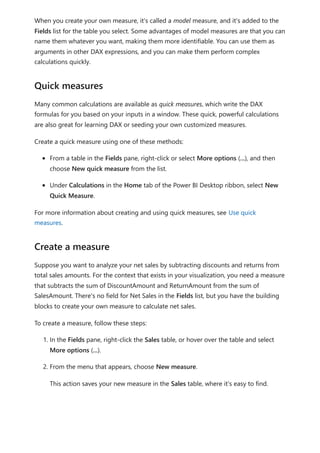
  • 202.
    Item Recommended UseCase Complementing role with datamarts Datamarts User-based data warehousing and SQL access to your data Datamarts can be used as sources for other datamarts or items, using the SQL endpoint: External sharing Sharing across departmental or organizational boundaries with security enabled Dataflows Reusable data prep (ETL) for semantic models or marts Datamarts use a single, built-in dataflow for ETL. Dataflows can accentuate this, enabling: Loading data to datamarts with different refresh schedules Separating ETL and data prep steps from storage, so it can be reused by semantic models Semantic models Metrics and semantic layer for BI reporting Datamarts provide an auto-generated semantic model for reporting, enabling: Combining data from multiple sources Selective sharing of the datamart tables for fine-grained reporting Composite models - a semantic model with data from the datamart and other data sources outside of the datamart Proxy models - a semantic model that uses DirectQuery for the auto-generated model, using a single source of truth In some cases it can be useful to incorporate both dataflows and datamarts in the same solution. The following situations could find incorporating both dataflows and datamarts advantageous: For solutions with existing dataflows: Easily consume the data with datamarts to apply any additional transformations or enable ad-hoc analysis and querying using SQL queries Easily integrate a no-code data warehousing solution with no management of semantic models For solutions with existing datamarts: Perform reusable extract, transform and load (ETL) at scale for large data volumes Datamarts and dataflows integration
  • 203.
    Bring your owndata lake and use dataflows as a pipeline for datamarts This section describes the differences between dataflows and datamarts. Dataflows provide reusable extract, transform and load (ETL). Tables can't be browsed, queried, or explored without a semantic model, but can be defined for reuse. The data is exposed in Power BI or CDM format if you bring your own data lake. Dataflows are used by Power BI to ingest data into your datamarts. You should use dataflows whenever you want to reuse your ETL logic. Use dataflows when you need to: Build reusable and shareable data prep for items in Power BI. Datamarts are a fully managed database that enables you to store and explore your data in a relational and fully managed Azure SQL DB. Datamarts provide SQL support, a no-code visual query designer, Row Level Security (RLS), and auto-generation of a semantic model for each datamart. You can perform ad-hoc analysis and create reports, all on the web. Use datamarts when you need to: Sort, filter, do simple aggregation visually or through expressions defined in SQL For outputs that are results, sets, tables, and filtered tables of data  Comparing dataflows to datamarts
  • 204.
    Feedback Was this pagehelpful? Provide product feedback | Ask the community Provide accessible data through a SQL endpoint Enable users who don’t have access to Power BI Desktop This article provided an overview of datamarts and the many ways you can use them. The following articles provide more information about datamarts and Power BI: Understand datamarts Get started with datamarts Analyzing datamarts Create reports with datamarts Access control in datamarts Datamart administration Microsoft Fabric decision guide: data warehouse or lakehouse For more information about dataflows and transforming data, see the following articles: Introduction to dataflows and self-service data prep Tutorial: Shape and combine data in Power BI Desktop Related content  Yes  No
  • 205.
    Understand datamarts Article •11/10/2023 This article describes and explains important concepts about datamarts. Datamarts provide a semantic layer that is automatically generated and synchronized with the contents of the datamart tables, their structure, and underlying data. This layer is provided in an automatically generated semantic model. This automatic generation and synchronization enables you to further describe the domain of data with things like hierarchies, friendly names and descriptions. You can also set formatting specific to your locale or business requirements. With datamarts, you can create measures and standardized metrics for reporting. Power BI (and other client tools) can create visuals and provide results for such calculations based on the data in context. The default Power BI semantic model created from a datamart eliminates the need to connect to a separate semantic model, set up refresh schedules, and manage multiple data elements. Instead, you can build your business logic in a datamart and its data will be immediately available in Power BI, enabling the following: Datamart data access through the Semantic model Hub. Capability to analyze in Excel. Capability to quickly create reports in the Power BI service. No need to refresh, synchronize data or understand connection details. Build solutions on the web without needing Power BI Desktop. During preview, default semantic model connectivity is available using DirectQuery only. The following image shows how datamarts fit into the process continuum starting with connecting to data, all the way through creating reports. Understand semantic model (default)
  • 206.
    Default semantic modelsare different from traditional Power BI semantic models in the following ways: The XMLA endpoint supports read-only operations and users can't edit the semantic model directly. With XMLA read-only permission you can query the data in a query window. The default semantic models don't have data source settings and users don't need to enter credentials. Rather, they use automatic single sign-on (SSO) for queries. For refresh operations, semantic models use the semantic model author credentials to connect to the managed datamart’s SQL endpoint. With Power BI Desktop users can build composite models, enabling you to connect to the datamart’s semantic model and do the following: Select specific tables to analyze. Add more data sources. Finally, if you don't want to use the default semantic model directly, you can connect to the datamart’s SQL endpoint. For more information, see Create reports using datamarts. Understand what's in the default semantic model
  • 207.
    Currently, tables inthe datamart are automatically added to the default semantic model. Users can also manually select tables or views from the datamart they want included in the model for more flexibility. Objects that are in the default semantic model will be created as a layout in the model view. The background sync that includes objects (tables and views) will wait for the downstream semantic model to not be in use to update the semantic model, honoring bounded staleness. Users can always go and manually pick tables they want or not want in the semantic model. You can create and modify incremental data refresh, similar to dataflows and semantic model incremental refresh, using the datamart editor. Incremental refresh extends scheduled refresh operations by providing automated partition creation and management for datamart tables that frequently load new and updated data. For most datamarts, incremental refresh will involve one or more tables that contain transaction data that changes often and can grow exponentially, such as a fact table in a relational or star database schema. If you use an incremental refresh policy to partition the table, and refresh only the most recent import partitions, you can significantly reduce the amount of data that must be refreshed. Incremental refresh and real-time data for datamarts offers the following advantages: Fewer refresh cycles for fast-changing data Refreshes are faster Refreshes are more reliable Resource consumption is reduced Enables you to create large datamarts Easy to configure Proactive caching enables automatic import of the underlying data for the default semantic model so you don't need to manage or orchestrate the storage mode. Import mode for the default semantic model provides performance acceleration for the datamart's semantic model by using the fast Vertipaq engine. When you use proactive caching, Power BI changes the storage mode of your model to import, which uses the in-memory engine in Power BI and Analysis Services. Understand incremental refresh and datamarts Understand proactive caching
  • 208.
    Proactive caching worksin the following way: after each refresh, the storage mode for the default semantic model is changed to DirectQuery. Proactive caching builds a side- by-side import model asynchronously and is managed by the datamart, and doesn't affect availability or performance of the datamart. Queries coming in after the default semantic model is complete will use the import model. Auto-generation of the import model occurs within approximately 10 minutes after no changes are detected in the datamart. The import semantic model changes in the following ways: Refreshes New data sources Schema changes: New data sources Updates to data preparation steps in Power Query Online Any modeling updates, such as: Measures Hierarchies Descriptions Use Deployment Pipelines for changes to ensure the best performance, and to ensure users are using the import model. Using Deployment Pipelines is already a best practice for building datamarts, but doing so ensures you take advantage of the proactive caching more often. Power BI currently caps the duration of caching operations to 10 minutes. Constraints of uniqueness/non-null for particular columns will be enforced in the Import model and will fail the cache building if the data doesn't conform. This article provided an overview of important datamart concepts to understand. The following articles provide more information about datamarts and Power BI: Introduction to datamarts Get started with datamarts Best practices for proactive caching Considerations and limitations for proactive caching Next steps
  • 209.
    Analyzing datamarts Create reportsusing datamarts Control access to datamarts Administration of datamarts For more information about dataflows and transforming data, see the following articles: Introduction to dataflows and self-service data prep Tutorial: Shape and combine data in Power BI Desktop
  • 210.
    Get started withdatamarts Article • 11/10/2023 This article describes how to get started using datamarts, including various sample data that can jump-start your experience. You'll learn about sample semantic models you can use with datamarts, how to create datamarts from scratch, how to rename or delete a datamart, and other helpful information to get you acquainted and proficient with datamarts. You can use the following various types of sample data to explore datamarts. All of the following resources contain free sample data: Eight Departmental Samples in Excel workbook format, which are Excel versions of the Power BI built-in samples containing the semantic models from numerous use cases: Customer profitability IT spend analysis Human resources Opportunity analysis Procurement analysis Retail analysis Sales and marketing supplier quality analysis A financial data sample workbook, which is a simple flat table in an Excel file available for download. It contains anonymous data with fictitious products including sales divided by segments and region. An Excel workbook version of the AdventureWorks dimensional model, in a tutorial that walks you through creating a Power BI report with the data. COVID 19 world data is based on data from Johns Hopkins University. Before publishing this data, we recommend reviewing the disclaimers article. Northwind Traders OData feed , data from a fictitious organization that manages orders, products, customers, suppliers, and many other aspects of a small business. You can also start using datamarts from any dataflow you currently have as well. Starting from an existing dataflow will copy data into your datamart, at which point you can apply other transformations or just use it as a data source to explore datamarts. Sample data
  • 211.
    To create adatamart, navigate to your existing Power BI Premium or Premium Per User (PPU) workspace. Datamarts require a Power BI Premium subscription. In your Premium workspace, select + New and then select **Datamart (Preview) to create a datamart. It usually takes approximately 10 seconds to provision a new datamart. Once initialized, you can load data into your datamart. For more information about getting data into a datamart, see the get and transform data section in this article. There are many ways to connect to data and transform it in a datamart. For general information about data in Power BI, see connect to data in Power BI. Create a datamart Get and transform data
  • 212.
    To load datainto your datamart, open your datamart (or create a new datamart) and select Get Data. If you choose to get data from another source, a data source selection window appears where you can select from a multitude of data sources. You can also drag and drop files from your computer to load data into your datamart, such as Excel files. Some data sources may require parameters or connection strings to properly connect. Once connected, select the tables you want to load into your datamart. You can apply transformations to your selected data and load the data into the datamart. Once the
  • 213.
    data is loaded,the tables are imported into your datamart. You can monitor the progress in the status bar. For each table you select, a corresponding view is created in the datamart that appears in the Object explorer in Data View. To model your data, navigate to Model view by selecting on the Model View icon at the bottom of the window, as shown in the following image. Model data
  • 214.
    In Power BI,a semantic model is always required before any reports can be built, so the default semantic model enables quick reporting capabilities on top of the datamart. Within the datamart, a user can add datamart objects - tables to their default semantic model. They can also add additional semantic modeling properties, such as hierarchies and descriptions. These are then used to create the Power BI semantic model’s tables. Users can also remove objects from the default semantic model. To add objects – tables or views to the default semantic model, a user has 2 options: Adding or removing objects to the default semantic model
  • 215.
    Automatically add objectsto the semantic model, which happens by default with no user intervention needed Manually add objects to the semantic model The auto detect experience determines any tables or views and opportunistically adds them. The manually detect option in the ribbon allows fine grained control of which object(s) – tables and/or views, should be added to the default semantic model: Select all Filter for tables or views Select specific objects To remove objects, a user can use the manually select button in the ribbon and: Un-select all Filter for tables or views Un-select specific objects During the session, users may create multiple tabs in the model view to further assist with database design. Currently the model view layouts are only persisted in session. Users can use the auto-layout whenever a new tab is created to visually inspect the database design and understand the modeling. To create a measure (a measure is a collection of standardized metrics) select the table in the Table Explorer and select the New Measure button in the ribbon, as shown in the following image. Using model view layouts Create a measure
  • 216.
    Enter the measureinto the formula bar and specify the table and the column to which it applies. The formula bar lets you enter your measure. Similar to Power BI Desktop, the DAX editing experience in datamarts presents a rich editor complete with auto- complete for formulas (intellisense). The DAX editor enables you to easily develop measures right in datamart, making it a more effective single source for business logic, semantics, and business critical calculations. You can expand the table to find the measure in the table. To create a relationship in a datamart, select the Model view and select your datamart, then drag the column from one table to the column on the other table to initiate the relationship. In the window that appears, configure the relationship properties. Create a relationship
  • 217.
    Select the Confirmbutton when your relationship is complete to save the relationship information. You can hide elements of your datamart from downstream reporting by selecting Data view and right-clicking on the column or table you want to hide. Then select Hide in report view from the menu that appears to hide the item from downstream reporting. Hide elements from downstream reporting
  • 218.
    You can alsohide the entire table and individual columns by using the Model view canvas options, as shown in the following image. To access auto-generated semantic models, go to the Premium workspace and find the semantic model that matches the name of the datamart. Access auto-generated semantic models
  • 219.
    To load thesemantic model, click the name of the semantic model. You can refresh a datamart in two ways: 1. From the datamart context menu, select Refresh now or select Scheduled refresh.  Manage datamart refresh
  • 220.
    2. From thedatamart settings page, select Scheduled refresh To set up incremental refresh for a datamart, select the table for which you want to set up incremental refresh for in the datamart editor. In the Table tools ribbon, select the Incremental refresh icon, and a right pane appears enabling you to configure incremental refresh for the selected table.
  • 221.
    Datamarts are supportedin deployment pipelines. Using deployment pipelines, you can deploy updates to your datamart across a designated pipeline. You can also use rules to connect to relevant data in each stage of the pipeline. To learn how to use deployment pipelines, see Get started with deployment pipelines. To access an existing datamart, navigate to your Power BI Premium workspace and find your datamart from the overall list of data items in your workspace, as shown in the following image. Datamarts and deployment pipelines Access or load an existing datamart
  • 222.
    You can alsoselect the Datamarts (Preview) tab in your Premium workspace, and see a list of available datamarts. Select the datamart name to load the datamart. There are two ways to rename a datamart: First, from within the Datamart editor, select the datamart name from the top of the editor and edit the datamart name in the window that appears, as shown in the following image. Select on the ribbon outside of the rename window to save the new name. Rename a datamart
  • 223.
    Alternatively, you canchange the datamart name from the workspace list view. Select the more menu (...) next to the datamart name in the workspace view. From the menu that appears, select Rename.
  • 224.
    When you renamea datamart, the auto-generated semantic model based on that datamart is also automatically renamed. To delete a datamart, navigate to the workspace and find the datamart you want to delete. Select the more menu (...) and select Delete from the menu that appears. Delete a datamart
  • 225.
    Datamart deletion isnot immediate, and requires a few days to complete. Datamarts offer a familiar experience to create reports and access supported actions using its context menus. The following table describes the datamart context menu options: Menu Option Option Description Analyze in Excel Uses the existing Analyze in Excel capability on auto-generated semantic model. Learn more about Analyze in Excel Create report Build a Power BI report in DirectQuery mode. Learn more about get started creating in the Power BI service Delete Delete semantic model from workspace. A confirmation dialog notifies you of the impact of delete action. If Delete action is confirmed, then the datamart and Datamart context menus
  • 226.
    Menu Option Option Description related downstreamitems will be deleted Manage permissions Enables users to add other recipients with specified permissions, similar to allowing the sharing of an underlying semantic model or allowing to build content with the data associated with the underlying semantic model.
  • 227.
    Menu Option Option Description Refresh history Provides thehistory of refresh activity with the duration of activity and status. Rename Updates the datamart and auto-generated semantic model with the new name. Settings Learn more about datamart settings Share Lets users share the datamart to build content based on the underlying auto- generated semantic model and query the corresponding SQL endpoint. Shares the datamart access (SQL- read only, and autogenerated semantic model) with other users in your organization. Users receive an email with links to access the detail page where they can find the SQL Server URL and can access the auto-generated
  • 228.
    Menu Option Option Description semantic modelto create reports based on it. View lineage This shows the end-to-end lineage of datamarts from the data sources to the datamart, the auto-generated semantic model, and other semantic models (if any) that were built on top of the datamarts, all the way to deports, dashboards and apps. Datamart settings are accessible from the context menu for datamarts. This section describes and explains the datamart settings options and their description. The following image shows the datamart settings menu.  Datamart settings
  • 229.
    The following isa list of settings available for each datamart. Setting Detail Datamart description Lets users add metadata details to provide descriptive information about a datamart. Server settings The SQL endpoint connection string for a datamart. You can use the connection string to create a connection to the datamart using various tools, such as SSMS.
  • 230.
    Setting Detail Data source credentials Letsyou get data source information and edit credentials. Schedule refresh Data refresh information for the datamart, based on the schedule defined by the user. Sensitivity label Sensitivity label applied on datamart, which also gets propagated on the downstream auto-generated semantic model, reports, and so on. The sensitivity labels propagation to downstream semantic model, reports won't happen in the following scenarios: Sensitivity label downgrade
  • 231.
    Setting Detail Specific itemswhen the sensitivity label was manually set The following table shows settings for auto-generated semantic models. When these settings are applied on an auto-generated semantic model, they're also applied to datamart as well. Setting Details Request access Q&A Query caching When using datamarts with named connections, the following limitations apply: You can only create one cloud connection of a particular path and type, for example, you could only create one SQL plus server/database cloud connection. You can create multiple gateway connections. You cannot name or rename cloud data sources; you can name or rename gateway connections. This article provided sample data and instructions on how to create and interact with datamarts. The following articles provide more information about datamarts and Power BI: Introduction to datamarts Understand datamarts Analyzing datamarts Create reports with datamarts Access control in datamarts Datamarts considerations and limitations Next steps
  • 232.
    Datamart administration For moreinformation about dataflows and transforming data, see the following articles: Introduction to dataflows and self-service data prep Tutorial: Shape and combine data in Power BI Desktop
  • 233.
    Analyzing datamarts Article •11/10/2023 You can analyze your datamarts with multiple tools, including the Datamart editor and the SQL Query Editor among others. This article describes how to analyze your datamarts with those tools, and suggestions on how best to see the information you need. The Datamart editor provides an easy visual interface to analyze your datamarts. The following sections provide guidance on how to use the Datamart editor to gain insights into your datamarts, and your data. Once you've loaded data into your datamart, you can use the Datamart editor to create queries to analyze your data. You can use the Visual Query editor for a no-code experience to create your queries. There are two ways to get to the Visual query editor: In the Data grid view, create a new query using the + New Query button on the ribbon, as shown in the following image. Alternatively you can use the Design view icon found along the bottom of the Datamart editor window, shown in the following image. To create a query, drag and drop tables from the Object explorer on the left on to the canvas. Analyze inside the Datamart editor Visual query
  • 234.
    Once you dragone or more tables onto the canvas, you can use the visual experience to design your queries. The datamart editor uses the similar Power Query diagram view experience to enable you to easily query and analyze your data. Learn more about Power Query diagram view. As you work on your Visual query, the queries are automatically saved every few seconds. A “saving indicator” that shows up in your query tab at the bottom indicates that your query is being saved. The following image shows a sample query created using the no-code Visual Query editor to retrieve the Top customers by Orders.
  • 235.
    There are afew things to keep in mind about the Visual Query editor: You can only write DQL (not DDL or DML) Only a subset of Power Query operations that support Query folding are currently supported You can't currently open the visual query in Excel The SQL Query Editor provides a text editor to write queries using T-SQL. To access the built-in SQL query editor, select the SQL query editor view icon located at the bottom of the datamart editor window. The SQL Query editor provides support for intellisense, code completion, syntax highlighting, client-side parsing and validation. Once you’ve written the T-SQL query, select Run to execute the query. As you work on your SQL query, the queries are automatically saved every few seconds. A “saving indicator” that shows up in your query tab at the bottom indicates that your query is being saved. The Results preview is displayed in the Results section. The Download in Excel button opens the SQL Query Editor
  • 236.
    corresponding T-SQL Queryto Excel and executes the query, enabling you to view the results in Excel. The Visualize results allows you to create reports from your query results within the SQL query editor. There are a few things to keep in mind about the Visual Query editor: You can only write DQL (not DDL or DML) Datamarts provide a SQL DQL (query) experience through your own development environment – such as SSMS or Azure Data Studio. You must run the latest version of the tools and authenticate using Azure Active Directory or MFA. The login process is the same as the sign-in process for Power BI. Analyze outside the editor
  • 237.
    The no-code visualquery editor and datamart editor are available within Power BI for your datamart. The no-code visual query editor enables users who aren't familiar with the SQL language, while the datamart editor is helpful for quick monitoring of the SQL DB. For a querying experience that provides a more comprehensive utility, combining a broad group of graphical tools with many rich script editors, SQL Server Management Studio (SSMS) and Azure Data Studio (ADS) are more robust development environments. While both analysis experiences offer extensive development environments for SQL querying, each environment is tailored toward separate use cases. You can use SSMS for: Complex administrative or platform configuration When to Use In-Built Querying vs External SQL Tooling When to Use SQL Server Management Studio vs Azure Data Studio
  • 238.
    Security management, includinguser management and configuration of security features Live query statistics or client statistics Use ADS for: macOS and Linux users Mostly editing or executing queries Quick charting and visualizing set results For developers and analysts with SQL experience, using SQL Server Management Studio or Azure Data Studio as an extension to Power BI datamarts can provide a more thorough querying environment. To connect to a datamart’s SQL endpoint with client tooling, navigate to the semantic model settings page by selecting the Datamarts (Preview) tab in Power BI. From there, expand the Server settings section and copy the connection string, as shown in the following image. To use SQL Server Management Studio (SSMS), you must be using SSMS Version 18.0 or above. When you open SQL Server Management Studio, the Connect to Server window Get the T-SQL connection string Get started with SSMS
  • 239.
    appears. You canopen it manually by selecting Object Explorer > Connect > Database Engine. Once the Connect to Server window is open, paste the connection string copied from the previous section of this article into the Server name box. Select Connect and proceed with the appropriate credentials for authentication. Remember that only Azure Active Directory - MFA authentication is supported.
  • 240.
    When the connectionhas become established, the object explorer displays the connected SQL DB from your datamarts and its respective tables and views, all of which are ready to be queried. To easily preview the data within a table, right-click on a table and select Select Top 1000 Rows from the context menu that appears. An autogenerated query returns a collection of results displaying the top 1,000 rows based on the primary key of the table.
  • 241.
    The following imageshows the results of such a query.
  • 242.
    To see thecolumns within a table, expand the table within Object explorer. When you connect to datamart using SSMS or other client tools, you can see views created in Model schema of the datamart. The default schema configuration on a datamart is set to Model. A datamart shows two other roles as admin and viewer under security when connected using SSMS. Users added to a workspace in any of the Admin or Member or Contributor roles get added to the admin role on the datamart. Users added to the Viewer role in the workspace get added to viewer role in the datamart.
  • 243.
    The extended propertyisSaaSMetadata added in the datamart lets you know that this metadata is getting used for SaaS experience. You can query this extended property as below: SQL The clients (such as the SQL connector) could read the relationships by querying the table-valued function like the following: SQL Notice there are relationships and relationshipColumns named views under metadata schema to maintain relationships in the datamart. The following tables provide a description of each of them, in turn: [metadata].[relationships] Column name Data type Description RelationshipId Bigint Unique identifier for a relationship Name Nvarchar(128) Relationship's name FromSchemaName Nvarchar(128) Schema name of source table "From" which relationship is defined. FromObjectName Nvarchar(128) Table/View name "From" which relationship is defined ToSchemaName Nvarchar(128) Schema name of sink table "To"which relationship is defined ToObjectName Nvarchar(128) Table/View name "To"which relationship is defined TypeOfRelationship Tinyint Relationship cardinality, the possible values are: 0 – None 1 – OneToOne 2 – OneToMany 3 – ManyToOne 4 – ManyToMany Relationships metadata SELECT [name], [value] FROM sys.extended_properties WHERE [name] = N'isSaaSMetadata' SELECT * FROM [metadata].[fn_relationships]();
  • 244.
    Column name Datatype Description SecurityFilteringBehavior Tinyint Indicates how relationships influence filtering of data when evaluating row-level security expressions. The possible values are 1 – OneDirection 2 – BothDirections 3 – None IsActive Bit A boolean value that indicates whether the relationship is marked as Active or Inactive. RelyOnReferentialIntegrity Bit A boolean value that indicates whether the relationship can rely on referential integrity or not. CrossFilteringBehavior Tinyint Indicates how relationships influence filtering of data. The possible values are: 1 – OneDirection 2 – BothDirections 3 – Automatic CreatedAt Datetime Date the relationship was created. UpdatedAt datetime Date the relationship was modified. DatamartObjectId Navrchar(32) Unique identifier for datamart [metadata].[relationshipColumns] Column name Data type Description RelationshipColumnId bigint Unique identifier for a relationship's column. RelationshipId bigint Foreign key, reference the RelationshipId key in the Relationships Table. FromColumnName Navrchar(128) Name of the "From" column ToColumnName Nvarchar(128) Name of the "To" column CreatedAt datetime ate the relationship was created. DatamartObjectId Navrchar(32) Unique identifier for datamart You can join these two views to get relationships added in the datamart. The following query will join these views: SQL SELECT R.RelationshipId ,R.[Name] ,R.[FromSchemaName]
  • 245.
    Visualize results currentlydoes not support SQL queries with an ORDER BY clause. This article provided information about analyzing data in datamarts. The following articles provide more information about datamarts and Power BI: Introduction to datamarts Understand datamarts Get started with datamarts Create reports with datamarts Access control in datamarts Datamart administration For more information about dataflows and transforming data, see the following articles: Introduction to dataflows and self-service data prep Tutorial: Shape and combine data in Power BI Desktop ,R.[FromObjectName] ,C.[FromColumnName] ,R.[ToSchemaName] ,R.[ToObjectName] ,C.[ToColumnName] FROM [METADATA].[relationships] AS R JOIN [metadata].[relationshipColumns] AS C ON R.RelationshipId=C.RelationshipId Limitations Next steps
  • 246.
    Discovering data usingdatamarts (preview) Article • 11/10/2023 You can discover data through the data hub, and create reusable and autogenerated semantic models to create reports in various ways in Power BI. This article describes the various ways you can discover datamarts. You can see datamarts and their associated autogenerated semantic model in the data hub, which makes it easy to find, explore, and use the data. In the data hub, when you select a datamart, you're taken to its information page where you can see the datamart’s metadata, supported actions, lineage, and impact analysis along with related reports on that datamart. The autogenerated semantic model from a datamart behaves the same as other semantic models in Power BI. For more information, see data discovery using the data hub For more information about a datamart, to explore reports, to view lineage, or to create a new report based on the semantic model, select a datamart from the recommended datamarts or from datamarts in the data list. A page displays the information about the datamart, provides a button to create a new report, share datamart, pull data into Excel or view lineage. Related reports for the selected datamart are also displayed, if any exist. You can also navigate to the datamart editor, its settings, or manage permissions. The page also shows the workspace where the datamart is located, its endorsement status, its last refresh time, and any sensitivity settings that have been applied. It also displays the datamart's SQL endpoint connection string and the datamart's description. The following image shows the datamarts information page. Discover datamarts in the data hub Datamart details and related reports
  • 247.
    You can viewthe lineage of the datamart by selecting Lineage > Open lineage from the ribbon menu. The window that appears displays the end-to-end lineage view describing the flow of data from the data source to the datamart, the underlying autogenerated semantic model, and all downstream items such as reports, dashboards, or apps. The following image shows the lineage of a datamart. To view any dependent items of the selected datamart, select the Impact analysis menu, which is displayed along the right side of the screen.  
  • 248.
    The data hubin Power BI Desktop lets you discover datamarts and semantic models. Once the datamart filter is selected, the list shows the datamarts to which you have access. The following image shows how to select datamarts from the data hub Home ribbon menu in Power BI Desktop. The data hub appears in a window within Power BI Desktop, as the following screen shows. Data hub in Power BI Desktop
  • 249.
    Selecting a datamartfrom the list enables the Connect button in the window. Selecting Connect with a datamart selected loads the datamart's underlying and autogenerated semantic model, from which you can begin to build reports. By selecting Connect to SQL endpoint, you're making a live connection to datamart’s SQL connection string to read data and build reports. This article provided information about creating reports using datamarts. The following articles provide more information about datamarts and Power BI: Introduction to datamarts   Related content
  • 250.
    Sharing datamarts andmanaging permissions Understand datamarts Get started with datamarts Analyzing datamarts Access control in datamarts Datamart administration For more information about dataflows and transforming data, see the following articles: Introduction to dataflows and self-service data prep Tutorial: Shape and combine data in Power BI Desktop
  • 251.
    Sharing datamarts andmanaging permissions (preview) Article • 11/10/2023 This article describes the ways you can share your datamarts and manage its permissions to provide users with specific access. Once a datamart has been created, you can share it for downstream consumption by other users in your organization. Sharing a datamart enables the recipient to access the datamart in the following ways: SQL connection string: Connect to the datamart’s underlying SQL connection string and query the datamart from SQL client tools. Auto-generated semantic model: Build content based on the datamart’s underlying semantic model, by providing Build permissions. There are a few ways to share a datamart, described in the following sections. While in the workspace, select the Share option from the datamart’s context menu, as shown in the following image. Sharing datamarts for consumption Share from a workspace
  • 252.
    To share adatamart from the data hub, select Share from the datamart’s context menu within the data hub. You can perform this sharing from any of tabs in that window: All, My data, Trusted in your org or Recommended. The following image shows selecting the context menu from within the data hub, and selecting Share. Share from the data hub
  • 253.
    To share adatamart from the information page in the data hub, select the Share button from the ribbon at the top of the page. The following image shows the Share button from the ribbon. You can also select the Share datamart button from the information panel itself, within the data hub. The following image highlights the Share button on the information panel. Share from datamart information page
  • 254.
    Regardless of whichway you choose to share a datamart, the Grant people access window appears so you can enter the names or email addresses of the people or groups (distribution groups or security groups) in your organization with whom you want to grant access to the datamart. You can choose whether recipients can reshare the datamart with others in the organization, by selecting the checkbox next to Allow recipients to share this datamart. There's an option to allow users to create Power BI reports (from scratch, autocreate, paginated reports) on top of the default semantic model that is connected to the datamart by selecting the checkbox next to Build reports on the default semantic model. Both of these options are selected by default. You can also choose to send recipients a message to provide more context, by typing a message into the Add a message (optional) field in the Grant people access window. The following image shows the Grant people access window.  The share datamart process
  • 255.
    Once you grantaccess, recipients receive an email stating they've been granted access to the datamart. The email includes a button titled Open this datamart that opens the datamart's information page. When recipients open the link or otherwise navigate to the shared datamart, its information page shows the SQL connection string for connecting to the datamart.
  • 256.
    Users can useclient tools other than Power BI, such as SSMS, to query the datamart using T-SQL. The following image highlights the SQL connection string in a datamart information window. Users can build reports with the datamart or use Analyze in Excel, and can also connect to the datamart or underlying semantic model from Power BI Desktop. The following image highlights the Create a report entry point in a datamart information window.   7 Note Sharing a datamart allows the recipient to access the datamart for downstream consumption and not to collaborate on the datamart creation. To enable other creators to collaborate on the datamart, you must provide Member, Admin or Contributor access to the workspace where the datamart is created.
  • 257.
    The Manage permissionspage shows the list of users who have been given access by either assigning to Workspace roles or item permissions (as described earlier in this article). If you're an Admin or Member, go to your workspace and select More options which shows the context menu and select Manage permissions. For users who were provided workspace roles, it shows the corresponding user, workspace role, and permissions. Admin and Members have Read, Write, and Reshare access to datamarts in this workspace. Contributors have Read and Write permissions. Viewers have Read permissions and can query all objects within the datamart. For users with whom a datamart was shared, item permissions such as Read and Reshare are provided by default. Manage permissions  
  • 258.
    You can chooseto add or remove permissions using the Manage permissions experience. Remove reshare removes the Reshare permissions. Remove access removes all item permissions and stops sharing the datamart with the specified user. This article provided information about creating reports using datamarts. The following articles provide more information about datamarts and Power BI: Introduction to datamarts Sharing and discovering data using datamarts Understand datamarts Get started with datamarts Analyzing datamarts Access control in datamarts Datamart administration For more information about dataflows and transforming data, see the following articles: Introduction to dataflows and self-service data prep Tutorial: Shape and combine data in Power BI Desktop  Related content
  • 259.
    Create reports usingdatamarts Article • 11/10/2023 Datamarts let you create reusable and auto-generated semantic models to create reports in various ways in Power BI. This article describes the various ways you can use datamarts, and their auto-generated semantic models, to create reports. For example, you can establish a live connection to a shared semantic model in the Power BI service and create many different reports from the same semantic model. You can create your perfect data model in Power BI Desktop and publish it to the Power BI service. Then you and others can create multiple different reports in separate .pbix files from that common data model and save them to different workspaces. Advanced users can build reports from a datamart using a composite model or using the SQL Endpoint. Reports that use datamarts can be created in either of the following two tools: Using the Power BI service Using Power BI Desktop Let's take a look at how datamarts can be used with each, in turn. Scenario 1: From within the datamart experience, using the ribbon and the main home tab, navigate to the New report button. This provides a native, quick way to create reports. Selecting New report opens a browser tab to the report editing canvas to a new report that is built on the semantic model. When you save your new report you're prompted to choose a workspace, provided you have write permissions for that workspace. If you don't have write permissions, or if you're a free user and the semantic model resides in a Premium-capacity workspace, the new report is saved in your My workspace. Scenario 2: Using the auto-generated semantic model and action menu in the workspace: In the Power BI workspace, navigate to the auto-generated semantic model and select the More menu (...) to create a report in the Power BI service. Selecting the More opens the report editing canvas to a new report that is built on the semantic model. When you save your new report, it's saved in the workspace that contains the semantic model as long as you have write permissions on that workspace. Create reports in the Power BI service
  • 260.
    If you don'thave write permissions, or if you're a free user and the semantic model resides in a Premium-capacity workspace, the new report is saved in your My workspace. Scenario 3: Using the auto-generated semantic model and semantic model details page. In the Power BI workspace list, select the auto-generated semantic model's name to get to the semantic model details page, where you can find details about the semantic model and see related reports. You can also create a report directly from this page. To learn more about creating a report in this fashion, see semantic model details. In the data hub, you'll see datamarts and their associated auto-generated semantic models. Select the datamart to navigate to the datamart's details page where you can see the datamart’s metadata, supported actions, lineage and impact analysis, along with related reports created from that datamart. Auto-generated semantic models derived from datamarts behave the same as any semantic model. To find the datamart, you begin with the data hub. The image below shows the data hub in the Power BI service, with the following numbered information: 1. Select a datamart to view its datamart details page 2. Select the More menu (...) to display the options menu 3. Select Details to view details summary. You can build reports from semantic models with Power BI Desktop using a Live connection to the semantic model. For information on how to make the connection, see connect to semantic models from Power BI Desktop.  Create reports using Power BI Desktop
  • 261.
    For advanced situationswhere you want to add more data or change the storage mode, see use composite models in Power BI Desktop. Complete the following steps to connect to a datamart in Power BI Desktop: 1. Navigate to the datamart settings in your workspace and copy the SQL endpoint connection string. 2. In Power BI Desktop select the SQL Server connector from the ribbon or from Get Data. 3. Paste the connection string into the connector dialog. 4. For authentication, select organizational account. 5. Authenticate using Azure Active Directory - MFA (the same way you would connect to Power BI) 6. Select Connect. 7. Select the data items you want to include or not include in your semantic model. For more information, see connect to on-premises data in SQL Server. You don't need to set up a gateway with datamarts to use them in Power BI. This article provided information about creating reports using datamarts. The following articles provide more information about datamarts and Power BI: Introduction to datamarts Understand datamarts Get started with datamarts Analyzing datamarts Access control in datamarts Datamart administration For more information about dataflows and transforming data, see the following articles: Introduction to dataflows and self-service data prep Tutorial: Shape and combine data in Power BI Desktop Next steps
  • 262.
    Control access todatamarts Article • 11/10/2023 This article describes access control to datamarts, including row level security, rules in Power BI Desktop, and how datamarts might become inaccessible or unavailable. Assigning users to the various workspace roles provides the following capabilities with respect to Datamarts: Workspace role Description Admin Grants the user permissions to ingest data through a dataflow, write SQL and visual queries, and update the model or semantic model (create relationships, create measures etc.) Member Grants the user permissions to ingest data through a dataflow, write SQL and visual queries, and update the model or semantic model (create relationships, create measures etc.) Contributor Grants the user permissions to ingest data through a dataflow, write SQL and visual queries, and update the model or semantic model (create relationships, create measures etc.) Viewer Grants the user permissions to write SQL and visual queries and access the “Model view” in read-only mode. For more information, see Viewer restrictions. The Viewer role is a more limited role in comparison with the other workspace roles. In addition to fewer SQL permissions given to viewers, there are more actions they are restricted from performing. Feature Limitation Settings Viewers have read-only access, so they cannot rename datamart, add description, or change sensitivity label. Model view Viewers have read-only mode on the Model view. Run queries Viewers do not have full DML/DDL capabilities unless granted specifically. Viewers can read data using SELECT statement in SQL query editor and use Workspace roles Viewer restrictions
  • 263.
    Feature Limitation all toolsin the toolbar in the Visual query editor. Viewers can also read data from Power BI Desktop and other SQL client tools. Analyze in Excel Viewers do not have permission to Analyze in Excel. Manually update semantic model Viewers cannot manually update the default semantic model to which the datamart is connected. New measure Viewers do not have permission to create measures. Lineage view Viewers do not have access to reading the lineage view chart. Share/Manage permissions Viewers do not have permission to share datamarts with others. Create a report Viewers do not have access to create content within the workspace and hence cannot build reports on top of the datamart. Row-level security (RLS) can be used to restrict data access for specified users to a datamart. Filters restrict data access at the row level, and you can define filters within roles. In the Power BI service, members of a workspace have access to datamarts in the workspace, and RLS doesn't restrict such data access. You can configure RLS for datamarts in the Datamart editor. The configured RLS on datamarts automatically gets applied to downstream items, including the auto- generated semantic models and reports. To define RLS roles, take the following steps: Row level security 7 Note Datamarts use the enhanced row-level security editor, which means that not all row-level security filters supported in Power BI can be defined. Limitations include expressions that today can only be defined using DAX including dynamic rules such as USERNAME() or USERPRINCIPALNAME(). To define roles using these filters switch to use the DAX editor. Define Row Level Security (RLS) roles and rules for Datamarts
  • 264.
    1. Open yourdatamart and select Manage Roles from the ribbon. 2. Create new RLS roles using the Row security settings window. You can define a combination of filters on tables and select Save to save the role. 3. Once the role is saved, select Assign to add users to the role. Once assigned, select Save to save the role assignments and close the RLS settings modal. To validate the roles created, take the following steps:
  • 265.
    1. Select theView as button from the ribbon. 2. Select the role to be validated by selecting the check box for the role, then select OK. 3. The data view shows the access that the selected role has. To revert to your access, select the View as button on the ribbon again, and select None.
  • 266.
    A datamart canget marked as an unavailable datamart when one of the following situations occurs. Situation 1: When a Premium workspace is changed from Premium to non-premium, all datamarts in that workspace become unavailable. The Datamart editor becomes unavailable and downstream usage of the datamart and auto-generated semantic models is blocked. Users or administrators must upgrade the workspace to its original Premium capacity to restore datamarts. Situation 2: When dataflow updates a datamart and associated semantic model, but due to a system lock the datamart or semantic model update is pending, the datamart becomes unavailable. The Datamart editor isn't accessible when a datamart goes into unavailable state. The try again action, shown in the following image, enables users to trigger synchronization between dataflow, datamart and semantic model. It may take a few minutes to complete the requested action but downstream consumption can be continued. Situation 3: When a Premium workspace is migrated to another Premium capacity in a different region, the datamart will become unavailable with the error: "Unable to open the datamart because the workspace region has changed. To open the datamart, reconnect the workspace to the region connected when the datamart was created." This behavior is by design since the region where the datamarts were created must be the region where the workspace resides, and migrations are not supported. This article provided information about controlling access to datamarts. The following articles provide more information about datamarts and Power BI: How datamarts become unavailable Next steps
  • 267.
    Introduction to datamarts Understanddatamarts Get started with datamarts Analyzing datamarts Create reports with datamarts Datamart administration For more information about dataflows and transforming data, see the following articles: Introduction to dataflows and self-service data prep Tutorial: Shape and combine data in Power BI Desktop
  • 268.
    Administration of datamarts Article• 11/10/2023 You can administer the use and settings for datamarts just like you can administer other aspects of Power BI. This article describes and explains how to administer your datamarts, and where to find the settings. Power BI administrators can enable or disable datamart creation for the entire organization or for specific security groups, using the setting found in the Power BI admin portal, as shown in the following image. In the Power BI admin portal, you can review a list of datamarts along with all other Power BI items in any workspace, as shown in the following image. Enabling datamarts in the admin portal Keeping track of datamarts
  • 269.
    Existing Power BIadmin APIs for getting workspace information work for datamarts as well, such as GetGroupsAsAdmin and the workspace scanner API. Such APIs enable you, as the Power BI service administrator, to retrieve datamarts metadata along with other Power BI item information, so you can monitor workspace usage and generate relevant reports. Power BI administrators can audit datamart operations from the Microsoft 365 Admin Center. Audit operations supported on datamarts are the following: Create Rename Update Delete Refresh View To get audit logs, complete the following steps: 1. Sign in to the Power BI admin portal as the administrator and navigate to Audit logs. Viewing audit logs and activity events
  • 270.
    2. In theAudit logs section, select the button to go to Microsoft 365 Admin Center 3. Get audit events by applying search criteria. 4. Export audit logs and apply filter for datamart operations. Administrators can export activity events on datamarts by using existing supported REST APIs. The following articles provide information about the APIs: Admin - Get Activity Events - REST API (Power BI Power BI REST APIs) Track user activities in Power BI Datamart CPU usage is free during preview, including datamarts and queries on SQL endpoints of a datamart. Autogenerated semantic model usage is reported for throttling and autoscaling. To avoid incurring costs during the preview period, consider using a Premium Per User (PPU) trial workspace. Using REST APIs for activity events Capacity utilization and reporting
  • 271.
    The following limitationsshould be considered when using datamarts: Datamarts aren't currently supported in the following Power BI SKUs: EM1/EM2 and EM3. Datamarts aren't available in workspaces that are bound to an Azure Data Lake Gen2 storage account. Datamarts aren't available in sovereign or government clouds. Datamart extract, transform and load (ETL) operations can currently only run for up to 24 hours Datamarts currently officially support data volumes of up to 100 GB. Currently datamarts don’t support the currency data type, and such data types are converted to float. Data sources behind a VNET or using private links can't currently be used with datamarts; to work around this limitation you can use an on-premises data gateway. Datamarts use port 1948 for connectivity to the SQL endpoint. Port 1433 needs to be open for datamarts to work. Datamarts only support Microsoft Azure Active Directory (Azure AD) and do not support managed identities or service principals at this time. Beginning February 2023, datamarts support any SQL client. Datamarts aren't currently available in the following Azure regions: West India UAE Central Poland Israel Italy Datamarts are supported in all other Azure regions. Datamart connectors in Premium workspaces Some connectors aren't supported for datamarts (or dataflows) in Premium workspaces. When using an unsupported connector, you may receive the following error: Expression.Error: The import "<"connector name">" matches no exports. Did you miss a module reference? The following connectors aren't supported for dataflows and datamarts in Premium workspaces: Linkar Actian Considerations and limitations
  • 272.
    AmazonAthena AmazonOpenSearchService BIConnector DataVirtuality DenodoForPowerBI Exasol Foundry Indexima IRIS JethroODBC Kyligence MariaDB MarkLogicODBC OpenSearchProject QubolePresto SingleStoreODBC StarburstPresto TibcoTdv The use ofthe previous list of connectors with dataflows or datamarts is only supported workspaces that aren't Premium. This article provided information about the administration of datamarts. The following articles provide more information about datamarts and Power BI: Introduction to datamarts Understand datamarts Get started with datamarts Analyzing datamarts Create reports with datamarts Access control in datamarts For more information about dataflows and transforming data, see the following articles: Introduction to dataflows and self-service data prep Tutorial: Shape and combine data in Power BI Desktop Next steps
  • 273.
    Introduction to dataflowsand self- service data prep Article • 11/10/2023 As data volume continues to grow, so does the challenge of wrangling that data into well-formed, actionable information. We want data that’s ready for analytics, to populate visuals, reports, and dashboards, so we can quickly turn our volumes of data into actionable insights. With self-service data prep for big data in Power BI, you can go from data to Power BI insights with just a few actions. Dataflows are designed to support the following scenarios:  Tip You can also try Dataflow Gen2 in Data Factory in Microsoft Fabric, an all-in-one analytics solution for enterprises. Microsoft Fabric covers everything from data movement to data science, real-time analytics, business intelligence, and reporting. Learn how to start a new trial for free. When to use dataflows
  • 274.
    Create reusable transformationlogic that can be shared by many semantic models and reports inside Power BI. Dataflows promote reusability of underlying data elements, preventing the need to create separate connections with your cloud or on-premises data sources. Persist data in your own Azure Data Lake Gen 2 storage, enabling you to expose it to other Azure services outside Power BI. Create a single source of truth, curated from raw data using industry standard definitions, which can work with other services and products in the Power Platform. Encourage uptake by removing analysts' access to underlying data sources. Strengthen security around underlying data sources by exposing data to report creators in dataflows. This approach allows you to limit access to underlying data sources, reducing the load on source systems, and gives administrators finer control over data refresh operations. If you want to work with large data volumes and perform ETL at scale, dataflows with Power BI Premium scales more efficiently and gives you more flexibility. Dataflows supports a wide range of cloud and on-premises sources. You can use Power BI Desktop and the Power BI service with dataflows to create semantic models, reports, dashboards, and apps that use the Common Data Model. From these resources, you can gain deep insights into your business activities. Dataflow refresh scheduling is managed directly from the workspace in which your dataflow was created, just like your semantic models. This article provided an overview of self-service data prep for big data in Power BI, and the many ways you can use it. The following articles provide more information about dataflows and Power BI: Creating a dataflow Configure and consume a dataflow 7 Note Dataflows may not be available in the Power BI service for all U.S. Government DoD customers. For more information about which features are available, and which are not, see Power BI feature availability for U.S. Government customers. Next steps
  • 275.
    Configuring Dataflow storageto use Azure Data Lake Gen 2 Premium features of dataflows AI with dataflows Dataflows considerations and limitations Dataflows best practices Power BI usage scenarios: Self-service data preparation For more information about the Common Data Model, you can read its overview article: Common Data Model - overview
  • 276.
    Creating a dataflow Article• 11/10/2023 A dataflow is a collection of tables that are created and managed in workspaces in the Power BI service. A table is a set of columns that are used to store data, much like a table within a database. You can add and edit tables in your dataflow, and manage data refresh schedules, directly from the workspace in which your dataflow was created. To create a dataflow, launch the Power BI service in a browser then select a workspace (dataflows aren't available in my-workspace in the Power BI service) from the nav pane on the left, as shown in the following screen. You can also create a new workspace in which to create your new dataflow. There are multiple ways to create or build on top of a new dataflow: Create a dataflow by using define new tables Create a dataflow by using linked tables Create a dataflow by using a CDM folder Create a dataflow by using import/export The following sections explore each of these ways to create a dataflow in detail. 7 Note
  • 277.
    Using the Definenew tables option lets you define a new table and connect to a new data source. When you select a data source, you're prompted to provide the connection settings, including the account to use when connecting to the data source, as shown in the following image. Dataflows can be created by users in a Premium workspace, users with a Pro license, and users with a Premium Per User (PPU) license. Create a dataflow by using define new tables 
  • 278.
    Once connected, youcan select which data to use for your table. When you choose data and a source, Power BI reconnects to the data source. The reconnection keeps the data in your dataflow refreshed at the frequency that you select later in the setup process. After you select the data for use in the table, you can use dataflow editor to shape or transform that data into the format necessary for use in your dataflow.
  • 279.
    Creating a dataflowby using linked tables enables you to reference an existing table, defined in another dataflow, in a read-only fashion. The following list describes some of the reasons you might choose this approach: If you want to reuse a table across multiple dataflows, such as a date table or a static lookup table, you should create a table once and then reference it across the other dataflows. If you want to avoid creating multiple refreshes to a data source, it's better to use linked tables to store the data and act as a cache. Doing so allows every subsequent consumer to use that table, reducing the load to the underlying data source. If you need to perform a merge between two tables. Creating a dataflow by using a computed table allows you to reference a linked table and perform operations on top of it in a write-only fashion. The result is a new table, which is part of the dataflow. There are two ways to convert a linked table into a computed table. You can create a new query from a merge operation. Or if you want to edit or transform the table, you can create a reference or duplicate of the table. After you have a dataflow with a list of tables, you can perform calculations on those tables. In the dataflow authoring tool in the Power BI service, select Edit tables, then right-click on the table you want to use as the basis for your computed table and on which you want to perform calculations. In the context menu, choose Reference. For the table to be eligible as a computed table, the Enable load selection must be checked, as shown in the following image. Right-click on the table to display this context menu. Create a dataflow by using linked tables 7 Note Linked tables are available only with Power BI Premium. Create a dataflow by using a computed table How to create computed tables
  • 280.
    By selecting Enableload, you create a new table for which its source is the referenced table. The icon changes, and shows the computed icon, as shown in the following image. Any transformation you perform on this newly created table is run on the data that already resides in Power BI dataflow storage. That means that the query won't run against the external data source from which the data was imported, like the data pulled from the SQL database. Instead the query is performed on the data that resides in the dataflow storage. Example use cases What kind of transformations can be performed with computed tables? Any transformation that you usually specify by using the transformation user interface in Power BI, or the M editor, are all supported when performing in-storage computation.
  • 281.
    Consider the followingexample: you have an Account table that contains the raw data for all the customers from your Dynamics 365 subscription. You also have ServiceCalls raw data from the Service Center, with data from the support calls that were performed from the different account in each day of the year. Imagine you want to enrich the Account table with data from the ServiceCalls. First you would need to aggregate the data from the ServiceCalls to calculate the number of support calls that were done for each account in the last year. Next, you would want to merge the Account table with the ServiceCallsAggregated table to calculate the enriched Account table.
  • 282.
    And then youcan see the results, shown as EnrichedAccount in the following image. And that's it - the transformation is performed on the data in the dataflow that resides in your Power BI Premium subscription, not on the source data.  7 Note Computed tables are a premium only feature
  • 283.
    Creating a dataflowfrom a CDM folder allows you to reference a table that has been written by another application in the Common Data Model (CDM) format. You're prompted to provide the complete path to the CDM format file stored in ADLS Gen 2. There are a few requirements for creating dataflows from CDM folders, as the following list describes: The ADLS Gen 2 account must have the appropriate permissions set up in order for PBI to access the file. The ADLS Gen 2 account must be accessible by the user trying to create the dataflow. The URL must be a direct file path to the JSON file and use the ADLS Gen 2 endpoint; blob.core isn't supported. Create a dataflow by using a CDM folder Create a dataflow by using import/export
  • 284.
    Creating a dataflowby using import/export lets you import a dataflow from a file. This tool is useful if you want to save a dataflow copy offline, or move a dataflow from one workspace to another. To export a dataflow, select the dataflow you created and select the More menu item (the ellipsis) to expand the options, and then select Export .json. You're prompted to begin the download of the dataflow represented in CDM format. To import a dataflow, select the import box and upload the file. Power BI creates the dataflow for you, and allows you to save the dataflow as is, or to perform other transformations. By putting your data into a dataflow you can use Power BI Desktop and the Power BI service to create semantic models, reports, dashboards, and apps. These new resources can give you insights into your business activities. The following articles go into more detail about common usage scenarios for dataflows: Introduction to dataflows and self-service data prep Configure and consume a dataflow Configuring Dataflow storage to use Azure Data Lake Gen 2 Next steps
  • 285.
    Premium features ofdataflows AI with dataflows Dataflows considerations and limitations Dataflows best practices
  • 286.
    Configure and consumea dataflow Article • 02/02/2024 With dataflows, you can unify data from multiple sources and prepare that unified data for modeling. Whenever you create a dataflow, you're prompted to refresh the data for the dataflow. Refreshing a dataflow is required before it can be consumed in a semantic model in Power BI Desktop, or referenced as a linked or computed table. To configure the refresh of a dataflow, select More options (the ellipsis) and choose Settings. 7 Note Dataflows are not available in the Power BI service for U.S. Government DoD customers. For more information about which features are available, and which are not, see Power BI feature availability for U.S. Government customers. Configure a dataflow
  • 287.
    The Settings optionsprovide many options for your dataflow, as the following sections describe. Take ownership: If you're not the owner of the dataflow, many of these settings are disabled. To take ownership of the dataflow, select Take over to take control. You're prompted to provide credentials to ensure you have the necessary access level. Gateway Connection: In this section, you can choose whether the dataflow uses a gateway, and select which gateway is used. If you have specified the Gateway as part of editing dataflow, upon taking ownership you may need to update credentials using the edit dataflow option. Data source credentials: In this section you choose which credentials are being used, and can change how you authenticate to the data source. Sensitivity label: Here you can define the sensitivity of the data in the dataflow. To learn more about sensitivity labels, see How to apply sensitivity labels in Power BI. Scheduled refresh: Here you can define the times of day the selected dataflow refreshes. A dataflow can be refreshed at the same frequency as a semantic model.
  • 288.
    Enhanced compute enginesettings: Here you can define whether the dataflow is stored in the compute engine. The compute engine allows subsequent dataflows, which reference this dataflow, to perform merges and joins and other transformations faster than you would otherwise. It also allows DirectQuery to be performed over the dataflow. Selecting On ensures the dataflow is always supported in DirectQuery mode, and any references benefit from the engine. Selecting Optimized means the engine is only used if there's a reference to this dataflow. Selecting Off disables the compute engine and DirectQuery capability for this dataflow. Endorsement: You can define whether the dataflow is certified or promoted. Dataflows act as building blocks on top of one another. Suppose you have a dataflow called Raw Data and a linked table called Transformed Data, which contains a linked table to the Raw Data dataflow. When the schedule refresh for the Raw Data dataflow triggers, it will trigger any dataflow that references it upon completion. This functionality creates a chain effect of refreshes, allowing you to avoid having to schedule dataflows manually. There are a few nuances to be aware of when dealing with linked tables refreshes: A linked table will be triggered by a refresh only if it exists in the same workspace. A linked table will be locked for editing if a source table is being refreshed or the refresh of the source table is being canceled. If any of the dataflows in a reference chain fail to refresh, all the dataflows will roll back to the old data (dataflow refreshes are transactional within a workspace). 7 Note Users with a Pro license or a Premium Per User (PPU) can create a dataflow in a Premium workspace. U Caution If a workspace is deleted that contains dataflows, all dataflows in that workspace are also deleted. Even if recovery of the workspace is possible, you cannot recover deleted dataflows, either directly or through support from Microsoft. Refresh a dataflow
  • 289.
    Only referenced tablesare refreshed when triggered by a source refresh completion. To schedule all the tables, you should set a schedule refresh on the linked table as well. Avoid setting a refresh schedule on linked dataflows to avoid double refresh. Cancel Refresh Dataflows support the ability to cancel a refresh, unlike semantic models. If a refresh is running for a long time, you can select More options (the ellipses next to the dataflow) and then select Cancel refresh. Incremental Refresh (Premium only) Dataflows can also be set to refresh incrementally. To do so, select the dataflow you wish to set up for incremental refresh, and then choose the Incremental Refresh icon. Setting incremental refresh adds parameters to the dataflow to specify the date range. For detailed information on how to set up incremental refresh, see Using incremental refresh with dataflows. There are some circumstances under which you shouldn't set incremental refresh: Linked tables shouldn't use incremental refresh if they reference a dataflow. Dataflows don't support query folding (even if the table is DirectQuery enabled). Semantic models referencing dataflows shouldn't use incremental refresh. Refreshes to dataflows are generally performant, so incremental refreshes shouldn't be necessary. If refreshes take too long, consider using the compute engine, or DirectQuery mode. A dataflow can be consumed in the following three ways: Create a linked table from the dataflow to allow another dataflow author to use the data. Create a semantic model from the dataflow to allow a user to utilize the data to create reports. Consume a dataflow
  • 290.
    Create a connectionfrom external tools that can read from the CDM (Common Data Model) format. Consume from Power BI Desktop To consume a dataflow, open Power BI Desktop and select Dataflows in the Get Data dropdown. Select the dataflow and tables to which you want to connect. 7 Note The Dataflows connector uses a different set of credentials than the current logged in user. This is by design to support multi-tenant users. 7 Note
  • 291.
    If DirectQuery isavailable, you're prompted to choose whether you want to connect to the tables through DirectQuery or Import. In DirectQuery mode, you can quickly interrogate large-scale semantic models locally. However, you can't perform any more transformations. Using Import brings the data into Power BI, and requires the semantic model to be refreshed independently of the dataflow. The following articles provide more information about dataflows and Power BI: Introduction to dataflows and self-service data prep Creating a dataflow Configuring Dataflow storage to use Azure Data Lake Gen 2 Premium features of dataflows AI with dataflows Dataflows considerations and limitations Dataflows best practices You can connect to any dataflow or table regardless of which workspace it resides in, and whether or not it was defined in a Premium or non-Premium workspace. Related content
  • 292.
    Configure Power BIPremium dataflow workloads Article • 03/28/2023 You can create dataflow workloads in your Power BI Premium subscription. Power BI uses the concept of workloads to describe Premium content. Workloads include datasets, paginated reports, dataflows, and AI. The dataflows workload lets you use dataflows self-service data preparation to ingest, transform, integrate, and enrich data. Power BI Premium dataflows are managed in the Admin portal. The following sections describe how to enable dataflows in your organization, how to refine their settings in your Premium capacity, and guidance for common usage. The first requirement for using dataflows in your Power BI premium subscription is to enable the creation and use of dataflows for your organization. In the Admin portal, select Tenant Settings and switch the slider under Dataflow settings to Enabled, as shown in the following image. After enabling the dataflows workload, it is configured with default settings. You might want to tweak these settings as you see fit. Next, we'll describe where these settings live, describe each, and help you understand when you might want to change the values to optimize your dataflow performance. Enabling dataflows in Power BI Premium
  • 293.
    Once dataflows areenabled, you can use the Admin portal to change, or refine, how dataflows are created and how they use resources in your Power BI Premium subscription. Power BI Premium doesn't require memory settings to be changed. Memory in Power BI Premium is automatically managed by the underlying system. The following steps show how to adjust your dataflow settings. 1. In the Admin portal, select Tenant settings to list all capacities that have been created. Select a capacity to manage its settings. 2. Your Power BI Premium capacity reflects the resources available for your dataflows. You can change your capacity's size by selecting the Change size button, as shown in the following image. Refining dataflow settings in Premium
  • 294.
    Power BI Premiumworkloads use v-cores to serve fast queries across the various workload types. Capacities and SKUs includes a chart that illustrates the current specifications across each of the available workload offerings. Capacities of A3 and greater can take advantage of the compute engine, so when you want to use the enhanced compute engine, start there. The enhanced compute engine is an engine that can accelerate your queries. Power BI uses a compute engine to process your queries and refresh operations. The enhanced compute engine is an improvement over the standard engine, and works by loading data to a SQL Cache and uses SQL to accelerate table transformation, refresh operations and enables DirectQuery connectivity. When configured to On or Optimized for computed entities, if your business logic allows for it, Power BI uses SQL speed up the performance. Having the engine On also provides for DirectQuery connectivity. Make sure your dataflow usage is leveraging the enhanced compute engine properly. Users Premium capacity SKUs - scale up the hardware Enhanced compute engine - an opportunity to improve performance
  • 295.
    can configure theenhanced compute engine to be on, optimized, or off on a per- dataflow basis. This section provides guidance for common scenarios when using dataflow workloads with Power BI Premium. Slow refresh times are usually a parallelism issue. You should review the following options, in order: 1. A key concept for slow refresh times is the nature of your data preparation. Whenever you can optimize your slow refresh times by taking advantage of your data source actually doing the preparation and performing upfront query logic, you should do so. Specifically, when using a relational database such as SQL as your source, see if the initial query can be run on the source, and use that source query for your initial extraction dataflow for the data source. If you cannot use a native query in the source system, perform operations that the dataflows engine can fold to the data source. 2. Evaluate spreading out refresh times on the same capacity. Refresh operations are a process that requires significant compute. Using our restaurant analogy, spreading out refresh times is akin to limiting the number of guests in your restaurant. Just as restaurants will schedule guests and plan for capacity, you also want to consider refresh operations during times when usage is not at its full peak. This can go a long way toward alleviating strain on the capacity. If the steps in this section don't provide the desired degree of parallelism, consider upgrading your capacity to a higher SKU. Then follow the previous steps in this sequence again. Take the following steps to enable workloads to trigger the compute engine, and always improve performance: 7 Note The enhanced compute engine is not yet available in all regions. Guidance for common scenarios Slow refresh times Using the compute engine to improve performance
  • 296.
    For computed andlinked entities in the same workspace: 1. For ingestion focus on getting the data into the storage as fast as possible, using filters only if they reduce the overall dataset size. It's best practice to keep your transformation logic separate from this step, and allow the engine to focus on the initial gathering of ingredients. Next, separate your transformation and business logic into a separate dataflow in the same workspace, using linked or computed entities; doing so allows for the engine to activate and accelerate your computations. Your logic needs to be prepared separately before it can take advantage of the compute engine. 2. Ensure you perform the operations that fold, such as merges, joins, conversion, and others. 3. Building dataflows within published guidelines and limitations. You can also use DirectQuery. Take the following steps when investigating scenarios where the Compute engine is on, but you're seeing slower performance: 1. Limit computed and linked entities that exist across workspace. 2. When you perform your initial refresh with the compute engine turned on, then data gets written in the lake and in the cache. This double write means these refreshes will be slower. 3. If you have a dataflow linking to multiple dataflows, make sure you schedule refreshes of the source dataflows so that they do not all refresh at the same time. The following articles provide more information about dataflows and Power BI: Introduction to dataflows and self-service data prep Creating a dataflow Configure and consume a dataflow Configuring Dataflow storage to use Azure Data Lake Gen 2 AI with dataflows Dataflows considerations and limitations Compute engine is on but performance is slow Next steps
  • 297.
    Configure dataflow storageto use Azure Data Lake Gen 2 Article • 06/01/2023 Data used with Power BI is stored in internal storage provided by Power BI by default. With the integration of dataflows and Azure Data Lake Storage Gen 2 (ADLS Gen2), you can store your dataflows in your organization's Azure Data Lake Storage Gen2 account. This feature essentially allows you to "bring your own storage" to Power BI dataflows, and establish a connection at the tenant or workspace level. After you attach your dataflow, Power BI configures and saves a reference so that you can now read and write data to your own ADLS Gen 2. Power BI stores the data in the common data model (CDM) format, which captures metadata about your data in addition to the actual data generated by the dataflow itself. This feature unlocks many powerful capabilities and enables your data and the associated metadata in CDM format to now serve extensibility, automation, monitoring, and backup scenarios. When you make this data available and widely accessible in your own environment, it enables you to democratize the insights and data created within your organization. It also unlocks the ability for you to create further solutions with a wide range of complexity. Your solutions can be CDM aware custom applications and solutions in Power Platform, Azure, and those available through partner and independent software vendor (ISV) ecosystems. Or you can create an application to read a CSV. Your data engineers, data scientists, and analysts can now work with, use, and reuse a common set of data that is curated in ADLS Gen 2. There are two ways to configure which ADLS Gen 2 store to use: you can use a tenant- assigned ADLS Gen 2 account, or you can bring your own ADLS Gen 2 store at a workspace level. To bring your own ADLS Gen 2 account, you must have Owner permission at the storage account layer. Permissions at the resource group or subscription level won't work. If you're an administrator, you still must assign yourself the Owner Reasons to use the ADLS Gen 2 workspace or tenant connection Prerequisites
  • 298.
    permission. Currently notsupporting ADLS Gen2 Storage Accounts behind a firewall. The storage account must be created with the Hierarchical Namespace (HNS) enabled. The storage account must be created in the same Azure Active Directory (Azure AD) tenant as the Power BI tenant. The user must have Storage Blob Data Owner role, Storage Blob Data Reader role, and an Owner role at the storage account level (scope should be this resource and not inherited). Any applied role changes might take a few minutes to sync, and must sync before the following steps can be completed in the Power BI service. The Power BI workspace tenant region should be the same as the storage account region. TLS (Transport Layer Security) version 1.2 (or higher) is required to secure your endpoints. Web browsers and other client applications that use TLS versions earlier than TLS 1.2 won't be able to connect. Attaching a dataflow with ADLS Gen 2 behind multifactor authentication (MFA) isn't supported. Finally, you can connect to any ADLS Gen 2 from the Admin portal, but if you connect directly to a workspace, you must first ensure there are no dataflows in the workspace before connecting. The following table describes the permissions for ADLS and for Power BI required for ADLS Gen 2 and Power BI: Action ADLS permissions Minimum Power BI permissions Connect ADLS Gen 2 to Power BI tenant Owner Power BI administrator Connect ADLS Gen 2 to Workspace Owner Workspace admin 7 Note Bring your own storage (Azure Data Lake Gen 2) is not available in the Power BI service for U.S. Government GCC customers. For more information about which features are available, and which are not, see Power BI feature availability for U.S. Government customers.
  • 299.
    Action ADLS permissions Minimum PowerBI permissions Create Power BI dataflows writing back to connected ADLS account Not applicable Workspace contributor Consume Power BI dataflow Not applicable Workspace viewer Navigate to a workspace that has no dataflows. Select Workspace settings. Choose the Azure Connections tab and then select the Storage section. The Use default Azure connection option is visible if admin has already configured a tenant-assigned ADLS Gen 2 account. You have two options: Use the tenant configured ADLS Gen 2 account by selecting the box called Use the default Azure connection, or Select Connect to Azure to point to a new Azure Storage account. When you select Connect to Azure, Power BI retrieves a list of Azure subscriptions to which you have access. Fill in the dropdowns. Then choose a valid Azure subscription, Connect to an Azure Data Lake Gen 2 at a workspace level
  • 300.
    resource group, andstorage account that has the hierarchical namespace option enabled, which is the ADLS Gen2 flag. The personal account used to connect to Azure is only used once, to set the initial connection and grant the Power BI service account rights to read and write data, after which the original user account is no longer needed to keep the connection active. After you choose your selected, select Save and you now have successfully connected the workspace to your own ADLS Gen2 account. Power BI automatically configures the storage account with the required permissions, and sets up the Power BI filesystem where the data will be written. At this point, every dataflow’s data inside this workspace
  • 301.
    will write directlyto this filesystem, which can be used with other Azure services. You now have a single source for all of your organizational or departmental data. Configuring Azure connections is an optional setting with more properties that can optionally be set: Tenant Level storage, which lets you set a default, and/or Workspace-level storage, which lets you specify the connection per workspace You can optionally configure tenant-level storage if you want to use a centralized data lake only, or want this storage to be the default option. We don’t automatically start by using the default to allow flexibility in your configuration, so you have flexibility to configure the workspaces that use this connection as you see fit. If you configure a tenant-assigned ADLS Gen 2 account, you still have to configure each workspace to use this default option. You can optionally, or additionally, configure workspace-level storage permissions as a separate option, which provides complete flexibility to set a specific ADLS Gen 2 account on a workspace by workspace basis. To summarize, if tenant-level storage and workspace-level storage permissions are allowed, then workspace admins can optionally use the default ADLS connection, or opt to configure another storage account separate from the default. If tenant storage isn't set, then workspace admins can optionally configure ADLS accounts on a workspace by workspace basis. Finally, if tenant-level storage is selected and workspace-level storage isn't allowed, then workspace admins can optionally configure their dataflows to use this connection. In the ADLS Gen 2 storage account, all dataflows are stored in the powerbi container of the filesystem. The structure of the powerbi container looks like this: <workspace name>/<dataflow name>/model.json, <workspace name>/<dataflow name>/model.json.snapshots/<all snapshots> and <workspace name>/<dataflow name>/<table name>/<tablesnapshots> Azure connections configuration Structure and format for ADLS Gen 2 workspace connections
  • 302.
    The location wheredataflows store data in the folder hierarchy for ADLS Gen 2 is the same whether the workspace is located in shared capacity or Premium capacity. The following example uses the Orders table of the Northwind Odata sample. In the preceding image: The model.json is the most recent version of the dataflow. The model.json.snapshots are all previous versions of the dataflow. This history is useful if you need a previous version of mashup, or incremental settings. The tablename is the folder containing resulting data after a dataflow refresh has completed. We only write to this storage account and don't currently delete data. So even after detach, we don’t delete from the ADLS account, so all of the files mentioned in the preceding list are still stored. When you move a dataflow from one ADLS Gen2 storage account to another, you need to make sure that the paths in the model.json file are updated to reflect the new location. This is because the model.json file contains the path to the dataflow and the path to the data. If you don't update the paths, the dataflow will not be able to find the data and causes permission errors. To update the paths, you can use the following steps: 7 Note Dataflows allow linking or referencing tableds in other dataflows. In such dataflows, the model.json file can refer to another model.json of another dataflow in the same or other workspace. Moving files between/within ADLS Gen 2 storage accounts
  • 303.
    Open the model.jsonfile in a text editor. Find the storage account URL and replace it with the new storage account URL. Save the file. Overwrite the existing model.json file in the ADLS Gen2 storage account. If you're connecting ADLS Gen 2 to Power BI, you can do this action at the workspace or tenant level. Make sure you have the right access level. Learn more in Prerequisites. The storage structure adheres to the Common Data Model format. Learn more about the storage structure and CDM by visiting What is the storage structure for analytical dataflows and Use the Common Data Model to optimize Azure Data Lake Storage Gen2. After it's properly configured, the data and metadata is in your control. Many applications are aware of the CDM and the data can be extended by using Azure, PowerApps, and PowerAutomate. You can also use third-party ecosystems either by conforming to the format or by reading the raw data. To remove a connection at a workspace level, you must first ensure all dataflows in the workspace are deleted. After all the dataflows have been removed, select Disconnect in the workspace settings. The same applies for a tenant, but you must first ensure all workspaces have also been disconnected from the tenant storage account before you're able to disconnect at a tenant level. In the Admin portal, under dataflows, you can disable access for users to either use this feature, and can disallow workspace admins to bring their own Azure Storage. After the dataflow storage has been configured to use Azure Data Lake Gen 2, there's no way to automatically revert. The process to return to Power BI-managed storage is manual. Extensibility for ADLS Gen 2 workspace connections Detach Azure Data Lake Gen 2 from a workspace or tenant Disable Azure Data Lake Gen 2 Revert from Azure Data Lake Gen 2
  • 304.
    To revert themigration that you made to Gen 2, you need to delete your dataflows and recreate them in the same workspace. Then, because we don’t delete data from ADLS Gen 2, go to the resource itself and clean up data. This action would involve the following steps. 1. Export a copy of the dataflow from Power BI. Or, copy the model.json file. The model.json file is stored in ADLS. 2. Delete the dataflows. 3. Detach ADLS. 4. Recreate the dataflows by using import. Incremental refresh data (if applicable) will need to be deleted prior to import. This action can be done by deleting the relevant partitions in the model.json file. 5. Configure refresh/recreate incremental refresh policies. The scope of this document describes ADLS Gen 2 dataflows connections and not the Power BI ADLS Gen 2 connector. Working with the ADLS Gen 2 connector is a separate, possibly additive, scenario. The ADLS connector simply uses ADLS as a datasource. So using Power Query Online to query against that data doesn’t have to be in CDM format, it can be whatever data format the customer wants. For more information, see Azure Data Lake Storage Gen2. The following articles provide more information about dataflows and Power BI: Introduction to dataflows and self-service data prep Creating a dataflow Configure and consume a dataflow Premium features of dataflows AI with dataflows Dataflows considerations and limitations Dataflows best practices Connect to the data by using the ADLS Gen 2 connector Next steps
  • 305.
    Premium features ofdataflows Article • 05/03/2024 Dataflows are supported for Power BI Pro, Premium Per User (PPU), and Power BI Premium users. Some features are only available with a Power BI Premium subscription (which is either a Premium capacity or PPU license). This article describes and details the PPU and Premium-only features and their uses. The following features are available only with Power BI Premium (PPU or a Premium capacity subscription): Enhanced compute engine DirectQuery Computed entities Linked Entities Incremental refresh The following sections describe each of these features in detail. The enhanced compute engine in Power BI enables Power BI Premium subscribers to use their capacity to optimize the use of dataflows. Using the enhanced compute engine provides the following advantages: Drastically reduces the refresh time required for long-running ETL (extract, transform, load) steps over computed entities, such as performing joins, distinct, filters, and group by. Performs DirectQuery queries over entities. ) Important This article applies to the first generation of dataflows (Gen1), and does not apply to the second generation (Gen2) of dataflows, which are available in Microsoft Fabric (preview). For more information, see Getting from dataflows Generation 1 to dataflows Generation 2. The enhanced compute engine 7 Note
  • 306.
    In Power BIPremium, the enhanced compute engine is individually set for each dataflow. There are three configurations to choose from: Disabled Optimized (default) - The enhanced compute engine is turned off. It's automatically turned on when a table in the dataflow is referenced by another table or when the dataflow is connected to another dataflow in the same workspace. On To change the default setting and enable the enhanced compute engine, do the following steps: 1. In your workspace, next to the dataflow you want to change the settings for, select More options. 2. From the dataflow's More options menu, select Settings. The validation and refresh processes inform dataflows of the model schema. To set the schema of the tables yourself, use the Power Query Editor and set data types. This feature is available on all Power BI clusters except WABI-INDIA-CENTRAL- A-PRIMARY Enable the enhanced compute engine ) Important The enhanced compute engine works only for A3 or larger Power BI capacities.
  • 307.
    3. Expand theEnhanced compute engine settings. 4. In the Enhanced compute engine settings, select On and then choose Apply.
  • 308.
    After the enhancedcompute engine is on, return to dataflows and you should see a performance improvement in any computed table that performs complex operations, such as joins or group by operations for dataflows created from existing linked entities on the same capacity. To make the best use of the compute engine, split the ETL stage into two separate dataflows, in the following way: Dataflow 1 - this dataflow should only be ingesting all of the required from a data source. Dataflow 2 - perform all ETL operations in this second dataflow, but ensure you're referencing Dataflow 1, which should be on the same capacity. Also ensure you perform operations that can fold first: filter, group by, distinct, join). And perform these operations before any other operation, to ensure the compute engine is utilized. Question: I've enabled the enhanced compute engine, but my refreshes are slower. Why? Answer: If you enable the enhanced compute engine, there are two possible explanations that could lead to slower refresh times: When the enhanced compute engine is enabled, it requires some memory to function properly. As such, memory available to perform a refresh is reduced and therefore increases the likelihood of refreshes to be queued. That increase then reduces the number of dataflows that can refresh concurrently. To address this problem, when enabling enhanced compute, spread dataflow refreshes over time and evaluate if your capacity size is adequate, to ensure that there is memory available for concurrent dataflow refreshes. Use the enhanced compute engine Common questions and answers
  • 309.
    Another reason youmight encounter slower refreshes is that the compute engine only works on top of existing entities. If your dataflow references a data source that's not a dataflow, you won't see an improvement. There will be no performance increase, because in some big data scenarios, the initial read from a data source would be slower because the data needs to be passed to the enhanced compute engine. Question: I can't see the enhanced compute engine toggle. Why? Answer: The enhanced compute engine is being released in stages to regions around the world, but isn't yet available in every region. Question: What are the supported data types for the compute engine? Answer: The enhanced compute engine and dataflows currently support the following data types. If your dataflow doesn't use one of the following data types, an error occurs during refresh: Date/time Decimal number Text Whole number Date/time/zone True/false Date Time You can use DirectQuery to connect directly to dataflows, and thereby connect directly to your dataflow without having to import its data. Using DirectQuery with dataflows enables the following enhancements to your Power BI and dataflows processes: Avoid separate refresh schedules - DirectQuery connects directly to a dataflow, removing the need to create an imported semantic model. As such, using DirectQuery with your dataflows means you no longer need separate refresh schedules for the dataflow and the semantic model to ensure your data is synchronized. Filtering data - DirectQuery is useful for working on a filtered view of data inside a dataflow. You can use DirectQuery with the compute engine to filter dataflow data Use DirectQuery with dataflows in Power BI
  • 310.
    and work withthe filtered subset you need. Filtering data lets you work with a smaller and more manageable subset of the data in your dataflow. Using DirectQuery with dataflows is available in Power BI Desktop. There are prerequisites for using DirectQuery with dataflows: Your dataflow must reside within a Power BI Premium enabled workspace. The compute engine must be turned on. To learn more about DirectQuery with dataflows, see Using DirectQuery with dataflows. To ensure your dataflow is available for DirectQuery access, the enhanced compute engine must be in its optimized state. To enable DirectQuery for dataflows, set the new Enhanced compute engine settings option to On. After you've applied that setting, refresh the dataflow for the optimization to take effect. There are a few known limitations with DirectQuery and dataflows: Composite/mixed models that have import and DirectQuery data sources are currently not supported. Large dataflows might have trouble with timeout issues when viewing visualizations. Large dataflows that run into trouble with timeout issues should use Import mode. Under data source settings, the dataflow connector will show invalid credentials if you're using DirectQuery. This warning doesn't affect the behavior, and the semantic model will work properly. Use DirectQuery for dataflows Enable DirectQuery for dataflows Considerations and limitations for DirectQuery
  • 311.
    When a dataflowhas 340 columns or more, using the dataflow connector in Power BI Desktop with the enhanced compute engine setting enabled results in the DirectQuery option being disabled for the dataflow. To use DirectQuery in such configurations, use fewer than 340 columns. You can perform in-storage computations when using dataflows with a Power BI Premium subscription. This feature lets you perform calculations on your existing dataflows, and return results that enable you to focus on report creation and analytics. To perform in-storage computations, you first must create the dataflow and bring data into that Power BI dataflow storage. After you have a dataflow that contains data, you can create computed entities, which are entities that perform in-storage computations. When you work with dataflows created in an organization's Azure Data Lake Storage Gen2 account, linked entities and computed entities only work properly when the entities reside in the same storage account. As a best practice, when doing computations on data joined by on-premises and cloud data, create a new dataflow for each source (one for on-premises and one for cloud) and then create a third dataflow to merge/compute over these two data sources. Computed entities Considerations and limitations of computed entities
  • 312.
    You can referenceexisting dataflows by using linked entities with a Power BI Premium subscription, which lets you either perform calculations on these entities using computed entities or allows you to create a "single source of the truth" table that you can reuse within multiple dataflows. Dataflows can be set to refresh incrementally to avoid having to pull all the data on every refresh. To do so, select the dataflow then choose the Incremental Refresh icon. Setting incremental refresh adds parameters to the dataflow to specify the date range. For detailed information on how to set up incremental refresh, seeUsing incremental refresh with dataflows. Don't set a dataflow to incremental refresh in the following situations: Linked entities shouldn't use incremental refresh if they reference a dataflow. The following articles provide more information about dataflows and Power BI: Linked entities Incremental refresh Considerations for when not to set incremental refresh Related content Dataflows best practices Configure Power BI Premium dataflow workloads Introduction to dataflows and self-service data prep Creating a dataflow
  • 313.
    Feedback Was this pagehelpful? Provide product feedback | Ask the community Configure and consume a dataflow Configuring Dataflow storage to use Azure Data Lake Gen 2 AI with dataflows Dataflows considerations and limitations Power BI usage scenarios: Self-service data preparation Power BI usage scenarios: Advanced data preparation  Yes  No
  • 314.
    AI with dataflows Article• 05/03/2024 This article shows how you can use artificial intelligence (AI) with dataflows. This article describes: Cognitive Services Automated machine learning Azure Machine Learning Integration With Cognitive Services in Power BI, you can apply different algorithms from Azure Cognitive Services to enrich your data in the self-service data prep for Dataflows. The services that are supported today are Sentiment Analysis, Key Phrase Extraction, Language Detection, and Image Tagging. The transformations are executed on the Power BI service and don't require an Azure Cognitive Services subscription. This feature requires Power BI Premium. Cognitive services are supported for Premium capacity nodes EM2, A2, or P1 and other nodes with more resources. Cognitive services are also available with a Premium Per User (PPU) license. A separate AI workload on the capacity is used to run cognitive services. Before you use cognitive services in Power BI, the AI workload needs to be enabled in the Capacity settings of the Admin portal. You can turn on the AI workload in the workloads section. Cognitive Services in Power BI Enable AI features
  • 315.
    Cognitive Services transformsare part of the Self-Service Data Prep for dataflows . To enrich your data with Cognitive Services, start by editing a dataflow. Get started with Cognitive Services in Power BI
  • 316.
    Select the AIInsights button in the top ribbon of the Power Query Editor. In the pop-up window, select the function you want to use and the data you want to transform. This example scores the sentiment of a column that contains review text. LanguageISOCode is an optional input to specify the language of the text. This column expects an ISO code. You can use a column as input for LanguageISOCode, or you can use a static column. In this example, the language is specified as English (en) for the whole column. If you leave this column blank, Power BI automatically detects the language before applying the function. Next, select Invoke.
  • 317.
    After you invokethe function, the result is added as a new column to the table. The transformation is also added as an applied step in the query. If the function returns multiple output columns, invoking the function adds a new column with a row of the multiple output columns. Use the expand option to add one or both values as columns to your data.
  • 318.
    This section describesthe available functions in Cognitive Services in Power BI. The language detection function evaluates text input and, for each column, returns the language name and ISO identifier. This function is useful for data columns that collect arbitrary text, where language is unknown. The function expects data in text format as input. Text Analytics recognizes up to 120 languages. For more information, see What is language detection in Azure Cognitive Service for Language. The Key Phrase Extraction function evaluates unstructured text and, for each text column, returns a list of key phrases. The function requires a text column as input and accepts an optional input for LanguageISOCode. For more information, see the Get Started. Key phrase extraction works best when you give it bigger chunks of text to work on, opposite from sentiment analysis. Sentiment analysis performs better on smaller blocks of text. To get the best results from both operations, consider restructuring the inputs accordingly. Available functions Detect Language Extract Key Phrases
  • 319.
    The Score Sentimentfunction evaluates text input and returns a sentiment score for each document, ranging from 0 (negative) to 1 (positive). This function is useful for detecting positive and negative sentiment in social media, customer reviews, and discussion forums. Text Analytics uses a machine learning classification algorithm to generate a sentiment score between 0 and 1. Scores closer to 1 indicate positive sentiment. Scores closer to 0 indicate negative sentiment. The model is pre-trained with an extensive body of text with sentiment associations. Currently, it's not possible to provide your own training data. The model uses a combination of techniques during text analysis, including text processing, part-of-speech analysis, word placement, and word associations. For more information about the algorithm, see Machine Learning and Text Analytics. Sentiment analysis is performed on the entire input column, as opposed to extracting sentiment for a particular table in the text. In practice, there's a tendency for scoring accuracy to improve when documents contain one or two sentences rather than a large block of text. During an objectivity assessment phase, the model determines whether an input column as a whole is objective or contains sentiment. An input column that is mostly objective doesn't progress to the sentiment detection phrase, resulting in a 0.50 score, with no further processing. For input columns continuing in the pipeline, the next phase generates a score greater or less than 0.50, depending on the degree of sentiment detected in the input column. Currently, Sentiment Analysis supports English, German, Spanish, and French. Other languages are in preview. For more information, see What is language detection in Azure Cognitive Service for Language. The Tag Images function returns tags based on more than 2,000 recognizable objects, living beings, scenery, and actions. When tags are ambiguous or not common knowledge, the output provides 'hints' to clarify the meaning of the tag in context of a known setting. Tags aren't organized as a taxonomy, and no inheritance hierarchies exist. A collection of content tags forms the foundation for an image 'description' displayed as human readable language formatted in complete sentences. After uploading an image or specifying an image URL, Computer Vision algorithms output tags based on the objects, living beings, and actions identified in the image. Tagging isn't limited to the main subject, such as a person in the foreground, but also Score Sentiment Tag Images
  • 320.
    includes the setting(indoor or outdoor), furniture, tools, plants, animals, accessories, gadgets, and so on. This function requires an image URL or abase-64 column as input. At this time, image tagging supports English, Spanish, Japanese, Portuguese, and Simplified Chinese. For more information, see ComputerVision Interface. Automated machine learning (AutoML) for dataflows enables business analysts to train, validate, and invoke machine learning (ML) models directly in Power BI. It includes a simple experience for creating a new ML model where analysts can use their dataflows to specify the input data for training the model. The service automatically extracts the most relevant features, selects an appropriate algorithm, and tunes and validates the ML model. After a model is trained, Power BI automatically generates a performance report that includes the results of the validation. The model can then be invoked on any new or updated data within the dataflow. Automated machine learning is available for dataflows that are hosted on Power BI Premium and Embedded capacities only. Machine learning and AI are seeing an unprecedented rise in popularity from industries and scientific research fields. Businesses are also looking for ways to integrate these new technologies into their operations. Automated machine learning in Power BI Work with AutoML
  • 321.
    Dataflows offer self-servedata prep for big data. AutoML is integrated into dataflows and enables you to use your data prep effort for building machine learning models, right within Power BI. AutoML in Power BI enables data analysts to use dataflows to build machine learning models with a simplified experience by using just Power BI skills. Power BI automates most of the data science behind the creation of the ML models. It has guardrails to ensure that the model produced has good quality and provides visibility into the process used to create your ML model. AutoML supports the creation of Binary Prediction, Classification, and Regression Models for dataflows. These features are types of supervised machine learning techniques, which means that they learn from the known outcomes of past observations to predict the outcomes of other observations. The input semantic model for training an AutoML model is a set of rows that are labeled with the known outcomes. AutoML in Power BI integrates automated ML from Azure Machine Learning to create your ML models. However, you don't need an Azure subscription to use AutoML in Power BI. The Power BI service entirely manages the process of training and hosting the ML models. After an ML model is trained, AutoML automatically generates a Power BI report that explains the likely performance of your ML model. AutoML emphasizes explainability by highlighting the key influencers among your inputs that influence the predictions returned by your model. The report also includes key metrics for the model. Other pages of the generated report show the statistical summary of the model and the training details. The statistical summary is of interest to users who would like to see the standard data science measures of model performance. The training details summarize all the iterations that were run to create your model, with the associated modeling parameters. It also describes how each input was used to create the ML model. You can then apply your ML model to your data for scoring. When the dataflow is refreshed, your data is updated with predictions from your ML model. Power BI also includes an individualized explanation for each specific prediction that the ML model produces. This section describes how to create an AutoML model. Create a machine learning model Data prep for creating an ML model
  • 322.
    To create amachine learning model in Power BI, you must first create a dataflow for the data containing the historical outcome information, which is used for training the ML model. You should also add calculated columns for any business metrics that might be strong predictors for the outcome you're trying to predict. For details on configuring your dataflow, see Configure and consume a dataflow. AutoML has specific data requirements for training a machine learning model. These requirements are described in the following sections, based on respective model types. To create an AutoML model, select the ML icon in the Actions column of the dataflow table, and select Add a machine learning model. A simplified experience launches, consisting of a wizard that guides you through the process of creating the ML model. The wizard includes the following simple steps. 1. Select the table with the historical data, and choose the outcome column for which you want a prediction The outcome column identifies the label attribute for training the ML model, shown in the following image. Configure the ML model inputs
  • 323.
    2. Choose amodel type When you specify the outcome column, AutoML analyzes the label data to recommend the most likely ML model type that can be trained. You can pick a different model type as shown in the following image by clicking on Choose a model. 7 Note Some model types might not be supported for the data that you have selected, and so, it would be disabled. In the previous example, Regression is disabled, because a text column is selected as outcome column.
  • 324.
    3. Select theinputs you want the model to use as predictive signals AutoML analyzes a sample of the selected table to suggest the inputs that can be used for training the ML model. Explanations are provided next to columns that aren't selected. If a particular column has too many distinct values or only one value, or low or high correlation with the output column, it isn't recommended. Any inputs that are dependent on the outcome column (or the label column) shouldn't be used for training the ML model, since they affect its performance. Such columns are flagged as having “suspiciously high correlation with output column”. Introducing these columns into the training data causes label leakage, where the model performs well on the validation or test data but can't match that performance when used in production for scoring. Label leakage could be a possible concern in AutoML models when training model performance is too good to be true. This feature recommendation is based on a sample of a data, so you should review the inputs used. You can change the selections to include only the columns you want the model to study. You can also select all the columns by selecting the checkbox next to the table name. 4. Name your model and save your configuration In the final step, you can name the model, select Save, and choose which begins training the ML model. You can choose to reduce the training time to see quick results or increase the amount of time spent in training to get the best model.
  • 325.
    Training of AutoMLmodels is a part of the dataflow refresh. AutoML first prepares your data for training. AutoML splits the historical data you provide into training and testing semantic models. The test semantic model is a holdout set that is used for validating the model performance after training. These sets are realized as Training and Testing tables in the dataflow. AutoML uses cross-validation for the model validation. Next, each input column is analyzed and imputation is applied, which replaces any missing values with substituted values. A couple of different imputation strategies are used by AutoML. For input attributes treated as numeric features, the mean of the column values is used for imputation. For input attributes treated as categorical features, AutoML uses the mode of the column values for imputation. The AutoML framework calculates the mean and mode of values used for imputation on the subsampled training semantic model. Then, sampling and normalization are applied to your data as required. For classification models, AutoML runs the input data through stratified sampling and balances the classes to ensure the row counts are equal for all. AutoML applies several transformations on each selected input column based on its data type and statistical properties. AutoML uses these transformations to extract features for use in training your ML model. The training process for AutoML models consists of up to 50 iterations with different modeling algorithms and hyperparameter settings to find the model with the best performance. Training can end early with lesser iterations if AutoML notices that there's no performance improvement being observed. AutoML assesses the performance of ML model training
  • 326.
    each of thesemodels by validating with the holdout test semantic model. During this training step, AutoML creates several pipelines for training and validation of these iterations. The process of assessing the performance of the models can take time, anywhere from several minutes, to a couple of hours, up-to the training time configured in the wizard. The time taken depends on the size of your semantic model and the capacity resources available. In some cases, the final model generated might use ensemble learning, where multiple models are used to deliver better predictive performance. After the model has been trained, AutoML analyzes the relationship between the input features and the model output. It assesses the magnitude of change to the model output for the holdout test semantic model for each input feature. This relationship is known as the feature importance. This analysis happens as a part of the refresh after training is complete. Hence your refresh might take longer than the training time configured in the wizard. AutoML generates a Power BI report that summarizes the performance of the model during validation, along with the global feature importance. This report can be accessed from the Machine Learning Models tab after the dataflow refresh is successful. The report summarizes the results from applying the ML model to the holdout test data and comparing the predictions with the known outcome values. AutoML model explainability AutoML model report
  • 327.
    You can reviewthe model report to understand its performance. You can also validate that the key influencers of the model align with the business insights about the known outcomes. The charts and measures used to describe the model performance in the report depend on the model type. These performance charts and measures are described in the following sections. Other pages in the report might describe statistical measures about the model from a data science perspective. For instance, the Binary Prediction report includes a gain chart and the ROC curve for the model. The reports also include a Training Details page that includes a description of how the model was trained, and a chart describing the model performance over each of the iterations run. Another section on this page describes the detected type of the input column and imputation method used for filling missing values. It also includes the parameters used by the final model.
  • 328.
    If the modelproduced uses ensemble learning, then the Training Details page also includes a chart showing the weight of each constituent model in the ensemble and its parameters. If you're satisfied with the performance of the ML model created, you can apply it to new or updated data when your dataflow is refreshed. In the model report, select the Apply button in the top-right corner or the Apply ML Model button under actions in the Machine Learning Models tab. Apply the AutoML model
  • 329.
    To apply theML model, you must specify the name of the table to which it must be applied and a prefix for the columns that will be added to this table for the model output. The default prefix for the column names is the model name. The Apply function might include more parameters specific to the model type. Applying the ML model creates two new dataflow tables that contain the predictions and individualized explanations for each row that it scores in the output table. For instance, if you apply the PurchaseIntent model to the OnlineShoppers table, the output generates the OnlineShoppers enriched PurchaseIntent and OnlineShoppers enriched PurchaseIntent explanations tables. For each row in the enriched table, The Explanations is broken down into multiple rows in the enriched explanations table based on the input feature. An ExplanationIndex helps map the rows from the enriched explanations table to the row in enriched table. You can also apply any Power BI AutoML model to tables in any dataflow in the same workspace by using AI Insights in the PQO function browser. This way, you can use models created by others in the same workspace without necessarily being an owner of the dataflow that has the model. Power Query discovers all the Power BI ML models in the workspace and exposes them as dynamic Power Query functions. You can invoke those functions by accessing them from the ribbon in Power Query Editor or by invoking the M function directly. This functionality is currently only supported for Power BI dataflows and for Power Query Online in the Power BI service. This process is different from applying ML models within a dataflow using the AutoML wizard. There's no explanations table created by using this method. Unless you're the owner of the dataflow, you can't access model training reports or retrain the model. Also, if the source model is edited by adding or removing input columns or the model or source dataflow is deleted, then this dependent dataflow would break.
  • 330.
    After you applythe model, AutoML always keeps your predictions up-to-date whenever the dataflow is refreshed. To use the insights and predictions from the ML model in a Power BI report, you can connect to the output table from Power BI Desktop by using the dataflows connector. Binary Prediction models, more formally known as binary classification models, are used to classify a semantic model into two groups. They're used to predict events that can have a binary outcome. For instance, whether a sales opportunity will convert, whether an account will churn, whether an invoice will be paid on time, whether a transaction is fraudulent, and so on. The output of a Binary Prediction model is a probability score, which identifies the likelihood that the target outcome will be achieved. Pre-requisites: A minimum of 20 rows of historical data is required for each class of outcomes The process of creation for a Binary Prediction model follows the same steps as other AutoML models, described in the previous section, Configure the ML model inputs. The only difference is in the Choose a model step where you can select the target outcome value that you’re most interested in. You can also provide friendly labels for the Binary Prediction models Train a Binary Prediction model
  • 331.
    outcomes to beused in the automatically generated report that summarizes the results of the model validation. The Binary Prediction model produces as an output a probability that a row will achieve the target outcome. The report includes a slicer for the probability threshold, which influences how the scores greater and less than the probability threshold are interpreted. The report describes the performance of the model in terms of True Positives, False Positives, True Negatives, and False Negatives. True Positives and True Negatives are correctly predicted outcomes for the two classes in the outcome data. False Positives are rows that were predicted to have Target outcome but actually didn't. Conversely, False Negatives are rows that had target outcomes but were predicted as not them. Measures, such as Precision and Recall, describe the effect of the probability threshold on the predicted outcomes. You can use the probability threshold slicer to select a threshold that achieves a balanced compromise between Precision and Recall. Binary Prediction model report
  • 332.
    The report alsoincludes a Cost-Benefit analysis tool to help identify the subset of the population that should be targeted to yield the highest profit. Given an estimated unit cost of targeting and a unit benefit from achieving a target outcome, Cost-Benefit analysis attempts to maximize profit. You can use this tool to pick your probability threshold based on the maximum point in the graph to maximize profit. You can also use the graph to compute the profit or cost for your choice of probability threshold. The Accuracy Report page of the model report includes the Cumulative Gains chart and the ROC curve for the model. This data provides statistical measures of the model performance. The reports include descriptions of the charts shown.
  • 333.
    To apply aBinary Prediction model, you must specify the table with the data to which you want to apply the predictions from the ML model. Other parameters include the output column name prefix and the probability threshold for classifying the predicted outcome. Apply a Binary Prediction model
  • 334.
    When a BinaryPrediction model is applied, it adds four output columns to the enriched output table: Outcome, PredictionScore, PredictionExplanation, and ExplanationIndex. The column names in the table have the prefix specified when the model is applied. PredictionScore is a percentage probability, which identifies the likelihood that the target outcome will be achieved. The Outcome column contains the predicted outcome label. Records with probabilities exceeding the threshold are predicted as likely to achieve the target outcome and are labeled as True. Records less than the threshold are predicted as unlikely to achieve the outcome and are labeled as False. The PredictionExplanation column contains an explanation with the specific influence that the input features had on the PredictionScore. Classification models are used to classify a semantic model into multiple groups or classes. They're used to predict events that can have one of the multiple possible Classification models
  • 335.
    outcomes. For instance,whether a customer is likely to have a high, medium, or low Lifetime Value. They can also predict whether the risk of default is high, moderate, low, and so on. The output of a Classification model is a probability score, which identifies the likelihood that a row will achieve the criteria for a given class. The input table containing your training data for a classification model must have a string or whole number column as the outcome column, which identifies the past known outcomes. Pre-requisites: A minimum of 20 rows of historical data is required for each class of outcomes The process of creation for a classification model follows the same steps as other AutoML models, described in the previous section, Configure the ML model inputs. Power BI creates the classification model report by applying the ML model to the holdout test data. Then it compares the predicted class for a row with the actual known class. The model report includes a chart that includes the breakdown of the correctly and incorrectly classified rows for each known class. Train a Classification model Classification model report
  • 336.
    A further class-specificdrill-down action enables an analysis of how the predictions for a known class are distributed. This analysis shows the other classes in which rows of that known class are likely to be misclassified. The model explanation in the report also includes the top predictors for each class. The classification model report also includes a Training Details page similar to the pages for other model types, as described earlier, in AutoML model report. To apply a classification ML model, you must specify the table with the input data and the output column name prefix. When a classification model is applied, it adds five output columns to the enriched output table: ClassificationScore, ClassificationResult, ClassificationExplanation, ClassProbabilities, and ExplanationIndex. The column names in the table have the prefix specified when the model is applied. The ClassProbabilities column contains the list of probability scores for the row for each possible class. The ClassificationScore is the percentage probability, which identifies the likelihood that a row will achieve the criteria for a given class. The ClassificationResult column contains the most likely predicted class for the row. The ClassificationExplanation column contains an explanation with the specific influence that the input features had on the ClassificationScore. Regression models are used to predict a numeric value and can be used in scenarios like determining: The revenue likely to be realized from a sales deal. The lifetime value of an account. The amount of a receivable invoice that is likely to be paid The date on which an invoice might be paid, and so on. The output of a Regression model is the predicted value. Apply a classification model Regression models Training a Regression model
  • 337.
    The input tablecontaining the training data for a Regression model must have a numeric column as the outcome column, which identifies the known outcome values. Pre-requisites: A minimum of 100 rows of historical data is required for a Regression model. The process of creation for a Regression model follows the same steps as other AutoML models, described in the previous section, Configure the ML model inputs. Like the other AutoML model reports, the Regression report is based on the results from applying the model to the holdout test data. The model report includes a chart that compares the predicted values to the actual values. In this chart, the distance from the diagonal indicates the error in the prediction. The residual error chart shows the distribution of the percentage of average error for different values in the holdout test semantic model. The horizontal axis represents the mean of the actual value for the group. The size of the bubble shows the frequency or count of values in that range. The vertical axis is the average residual error. The Regression model report also includes a Training Details page like the reports for other model types, as described in the previous section, AutoML model report. Regression model report Apply a regression model
  • 338.
    To apply aRegression ML model, you must specify the table with the input data and the output column name prefix. When a Regression model is applied, it adds three output columns to the enriched output table: RegressionResult, RegressionExplanation, and ExplanationIndex. The column names in the table have the prefix specified when the model is applied. The RegressionResult column contains the predicted value for the row based on the input columns. The RegressionExplanation column contains an explanation with the specific influence that the input features had on the RegressionResult. Numerous organizations use machine learning models for better insights and predictions about their business. You can use machine learning with your reports, dashboards and other analytics to gain these insights. The ability to visualize and invoke insights from these models can help disseminate these insights to the business users who need it the most. Power BI now makes it simple to incorporate the insights from models hosted on Azure Machine Learning, by using straightforward point-and-click gestures. To use this capability, a data scientist can grant access to the Azure Machine Learning model to the BI analyst by using the Azure portal. Then, at the start of each session, Power Query discovers all the Azure Machine Learning models to which the user has access and exposes them as dynamic Power Query functions. The user can then invoke Azure Machine Learning integration in Power BI
  • 339.
    those functions byaccessing them from the ribbon in Power Query Editor, or by invoking the M function directly. Power BI also automatically batches the access requests when invoking the Azure Machine Learning model for a set of rows to achieve better performance. This functionality is currently only supported for Power BI dataflows and for Power Query online in the Power BI service. To learn more about dataflows, see Introduction to dataflows and self-service data prep. To learn more about Azure Machine Learning, see: Overview: What is Azure Machine Learning? Quick Starts and Tutorials for Azure Machine Learning: Azure Machine Learning Documentation To access an Azure Machine Learning model from Power BI, the user must have Read access to the Azure subscription and the Machine Learning workspace. The steps in this article describe how to grant a Power BI user access to a model hosted on the Azure Machine Learning service to access this model as a Power Query function. For more information, see Assign Azure roles using the Azure portal. 1. Sign in to the Azure portal . 2. Go to the Subscriptions page. You can find the Subscriptions page through the All Services list in the nav pane menu of the Azure portal. Grant access to the Azure Machine Learning model to a Power BI user 
  • 340.
    3. Select yoursubscription. 4. Select Access Control (IAM), and then choose the Add button. 5. Select Reader as the Role. Then choose the Power BI user to whom you wish to grant access to the Azure Machine Learning model.  
  • 341.
    6. Select Save. 7.Repeat steps three through six to grant Reader access to the user for the specific machine learning workspace hosting the model. Data scientists primarily use Python to develop, and even deploy, their machine learning models for machine learning. The data scientist must explicitly generate the schema file by using Python. This schema file must be included in the deployed web service for machine learning models. To automatically generate the schema for web service, you must provide a sample of the input/output in the entry script for the deployed model. For more information, see Deploy and score a machine learning model by using an online endpoint. The link includes the example entry script with the statements for the schema generation. Specifically, the @input_schema and @output_schema functions in the entry script reference the input and output sample formats in the input_sample and output_sample variables. The functions use these samples to generate an OpenAPI (Swagger) specification for the web service during deployment. These instructions for schema generation by updating the entry script must also be applied to models created by using automated machine learning experiments with the Azure Machine Learning SDK.  Schema discovery for machine learning models 7 Note
  • 342.
    You can invokeany Azure Machine Learning model to which you have been granted access, directly from the Power Query Editor in your dataflow. To access the Azure Machine Learning models, select the Edit Table button for the table that you want to enrich with insights from your Azure Machine Learning model, as shown in the following image. Selecting the Edit Table button opens the Power Query Editor for the tables in your dataflow. Models created by using the Azure Machine Learning visual interface don't currently support schema generation but will in subsequent releases. Invoking the Azure Machine Learning model in Power BI  
  • 343.
    Select the AIInsights button in the ribbon, and then select the Azure Machine Learning Models folder from the nav pane menu. All the Azure Machine Learning models to which you have access are listed here as Power Query functions. Also, the input parameters for the Azure Machine Learning model are automatically mapped as parameters of the corresponding Power Query function. To invoke an Azure Machine Learning model, you can specify any of the selected table's columns as an input from the drop-down. You can also specify a constant value to be used as an input by toggling the column icon to the left of the input dialog. Select Invoke to view the preview of the Azure Machine Learning model's output as a new column in the table. The model invocation shows up as an applied step for the query. 
  • 344.
    If the modelreturns multiple output parameters, they're grouped together as a row in the output column. You can expand the column to produce individual output parameters in separate columns. After you save your dataflow, the model is automatically invoked when the dataflow is refreshed, for any new or updated rows in the table. Dataflows Gen2 does not currently integrate with automated machine learning. AI insights (Cognitive Services and Azure Machine Learning models) aren't supported on machines with proxy authentication setup. Azure Machine Learning models aren't supported for Guest users.   Considerations and limitations
  • 345.
    Feedback Was this pagehelpful? Provide product feedback | Ask the community There are some known issues with using Gateway with AutoML and Cognitive Services. If you need to use a gateway, we recommend creating a dataflow that imports the necessary data via gateway first. Then create another dataflow that references the first dataflow to create or apply these models and AI functions. If your AI work with dataflows fails, you may need to enable Fast Combine when using AI with dataflows. Once you have imported your table and before you begin to add AI features, select Options from the Home ribbon, and in the window that appears select the checkbox beside Allow combining data from multiple sources to enable the feature, then select OK to save your selection. Then you can add AI features to your dataflow. This article provided an overview of Automated Machine Learning for Dataflows in the Power BI service. The following articles might also be useful. Tutorial: Build a Machine Learning model in Power BI Tutorial: Use Cognitive Services in Power BI The following articles provide more information about dataflows and Power BI: Introduction to dataflows and self-service data prep Creating a dataflow Configure and consume a dataflow Configure dataflow storage to use Azure Data Lake Gen 2 Premium features of dataflows Dataflows considerations and limitations Dataflows best practices Related content  Yes  No
  • 346.
    Dataflows best practices Article• 10/28/2023 Power BI dataflows are an enterprise-focused data prep solution, enabling an ecosystem of data that's ready for consumption, reuse, and integration. This article provides a list of best practices, with links to articles and other information that will help you understand and use dataflows to their full potential. Dataflows can be used across various Power Platform technologies, such as Power Query, Microsoft Dynamics 365, and other Microsoft offerings. For more information about how dataflows can work across the Power Platform, see What are dataflows. Deleted dataflows can't be recovered, but you can back them up with various methods described in this section. If you enable the Azure storage connection on your Power BI workspace, a copy of your dataflow definition and snapshots are automatically stored in a data lake. You can then recover a deleted or modified dataflow by downloading its model.json file from the data lake, then importing it back to Power BI. You can use Power Automate or Azure Logic Apps to export your dataflow definition to a JSON file, then store it in SharePoint or Azure Data Lake Gen2. Using either of these methods enables you to back up your dataflow using alternative file storage options and automate the process. You can also manually export your dataflow to a JSON file and import it to another workspace or location. Manually exporting your dataflow is simple and quick, but is a manual process that must be done each time you want to back up your dataflow. The following table provides a collection of links to articles that describe best practices when creating or working with dataflows. The links include information about developing business logic, developing complex dataflows, reuse of dataflows, and how to achieve enterprise-scale with your dataflows. Dataflows across the Power Platform Deleted dataflows can't be recovered Dataflows best practices table and links
  • 347.
    Topic Guidance areaLink to article or content Power Query Tips and tricks to get the most of your data wrangling experience Best practices when working with Power Query Using computed tables Performance benefits for using computed tables in a dataflow Computed tables scenarios Developing complex dataflows Patterns for developing large-scale, performant dataflows Best practices for designing and developing complex dataflows Reusing dataflows Patterns, guidance, and use cases Best practices for reusing dataflows across environments and workspaces Large-scale implementations Large-scale use and guidance to complement enterprise architecture Best practices for creating a dimensional model using dataflows Using enhanced compute Potentially improve dataflow performance up to 25x Using the compute engine to improve performance Optimizing your workload settings Get the most out of your dataflows infrastructure by understanding the levers you can pull to maximize performance Configure Power BI Premium dataflow workloads Joining and expanding tables Creating performant joins Optimize Power Query when expanding table columns Query folding guidance Speeding up transformations using the source system Power Query query folding Using data profiling Understand column quality, distribution, and profile Using the data profiling tools Implementing error handling Developing robust dataflows resilient to refresh errors, with suggestions Dealing with errors in Power Query Error handling Use Schema view Improve the authoring experience when working with a wide table and performing schema level operations Schema view Linked tables Reusing and referencing transformations Create a dataflow by using linked tables Incremental refresh Load the latest or changed data versus a full reload Using incremental refresh with dataflows
  • 348.
    The following articlesprovide more information about dataflows and Power BI: Introduction to dataflows and self-service data prep Creating a dataflow Configure and consume a dataflow Premium features of dataflows Configuring Dataflow storage to use Azure Data Lake Gen 2 AI with dataflows Dataflows considerations and limitations Next steps
  • 349.
    Understand and optimizedataflows refresh Article • 11/10/2023 Power BI dataflows enable you to connect to, transform, combine, and distribute data for downstream analytics. A key element in dataflows is the refresh process, which applies the transformation steps you authored in the dataflows and updates the data in the items themselves. To understand run times, performance, and whether you're getting the most out of your dataflow, you can download the refresh history after you refresh a dataflow. There are two types of refreshes applicable to dataflows: Full, which performs a complete flush and reload of your data. Incremental (Premium only), which processes a subset of your data based on time-based rules, expressed as a filter, that you configure. The filter on the date column dynamically partitions the data into ranges in the Power BI service. After you configure the incremental refresh, the dataflow automatically alters your query to include filtering by date. You can edit the automatically generated query by using the Advanced Editor in Power Query to fine-tune or customize your refresh. If you bring your own Azure Data Lake Storage, you can see time slices of your data based on the refresh policy you've set. Incremental refresh enables large dataflows in Power BI with the following benefits: Refreshes are faster after the first refresh, due to the following facts: Power BI refreshes the last N partitions specified by the user (where partition is day/week/month, and so on), or Power BI refreshes only data that needs to be refreshed. For example, refreshing only the last five days of a 10-year semantic model. Understand refreshes 7 Note To learn more about incremental refresh and how it works, see Using incremental refresh with dataflows.
  • 350.
    Power BI onlyrefreshes data that has changed, as long as you specify the column you want to check for changes. Refreshes are more reliable - it's no longer necessary to maintain long-running connections to volatile source systems. Resource consumption is reduced - less data to refresh reduces overall consumption of memory and other resources. Wherever possible, Power BI employs parallel processing on partitions, which can lead to faster refreshes. In any of these refresh scenarios, if a refresh fails, the data doesn't update. Your data might be stale until the latest refresh completes, or you can refresh it manually and it can then complete without error. Refresh occurs at a partition or entity, so if an incremental refresh fails, or an entity has an error, then the entire refresh transaction doesn't occur. Said another way, if a partition (incremental refresh policy) or entity fails for a dataflow, the entire refresh operation fails, and no data gets updated. To better understand how a dataflow refresh operation performs, review the Refresh History for the dataflow by navigating to one of your dataflows. Select More options (...) for the dataflow. Then choose Settings > Refresh history. You can also select the dataflow in the Workspace. Then choose More options (…) > Refresh History. The Refresh History provides an overview of refreshes, including the type – on demand or scheduled, the duration, and the run status. To see details in the form of a CSV file, Understand and optimize refreshes
  • 351.
    select the downloadicon on the far right of the refresh description's row. The downloaded CSV includes the attributes described in the following table. Premium refreshes provide more information based on the extra compute and dataflows capabilities, versus Pro based dataflows that reside on shared capacity. As such, some of the following metrics are available only in Premium. Item Description Pro Premium Requested on Time refresh was scheduled or refresh now was clicked, in local time. ✔ ✔ Dataflow name Name of your Dataflow. ✔ ✔ Dataflow refresh status Completed, Failed, or Skipped (for an entity) are possible statuses. Use cases like Linked Entities are reasons why one might see skipped. ✔ ✔ Entity name Table name. ✔ ✔ Partition name This item is dependent on if the dataflow is premium or not, and if Pro shows as NA because it doesn't support incremental refreshes. Premium shows either FullRefreshPolicyPartition or IncrementalRefreshPolicyPartition-[DateRange]. ✔ Refresh status Refresh status of the individual entity or partition, which provides status for that time slice of data being refreshed. ✔ ✔ Start time In Premium, this item is the time the dataflow was queued up for processing for the entity or partition. This time can differ if dataflows have dependencies and need to wait for the result set of an upstream dataflow to begin processing. ✔ ✔ End time End time is the time the dataflow entity or partition completed, if applicable. ✔ ✔ Duration Total elapsed time for the dataflow to refresh expressed in HH:MM:SS. ✔ ✔ Rows processed For a given entity or partition, the number of rows scanned or written by the dataflows engine. This item might not always contain data based on the operation you performed. Data might be omitted when the compute engine isn't used, or when you use a gateway as the data is processed there. ✔ Bytes processed For a given entity or partition, Data written by the dataflows engine, expressed in bytes. When using a gateway on this particular dataflow, this information isn't provided. ✔
  • 352.
    Item Description ProPremium Max commit (KB) Max Commit is the peak commit memory useful for diagnosing out-of-memory failures when the M query isn't optimized. When you use a gateway on this particular dataflow, this information isn't provided. ✔ Processor Time For a given entity or partition, time, expressed in HH:MM:SS that the dataflows engine spent performing transformations. When you use a gateway on this particular dataflow, this information isn't provided. ✔ Wait time For a given entity or partition, the time that an entity spent in wait status, based on workload on the Premium capacity. ✔ Compute engine For a given entity or partition, details on how the refresh operation uses the compute engine. The values are: - NA - Folded - Cached - Cached + Folded These elements are described in more detail later in this article. ✔ Error If applicable, the detailed error message is described per entity or partition. ✔ ✔ The refresh statistics provide valuable information you can use to optimize and speed up performance of your dataflows. In the following sections, we describe some scenarios, what to watch out for, and how to optimize based on the information provided. Using dataflows in the same workspace allows straightforward orchestration. As an example, you might have dataflows A, B and C in a single workspace, and chaining like A > B > C. If you refresh the source (A), the downstream entities also get refreshed. However, if you refresh C, then you have to refresh others independently. Also, if you add a new data source in dataflow B (which isn't included in A) that data isn't refreshed as a part of orchestration. Dataflow refresh guidance Orchestration
  • 353.
    You might wantto chain items together that don't fit the managed orchestration Power BI performs. In these scenarios, you can use the APIs and/or use Power Automate. You can refer to the API documentation and the PowerShell script for programmatic refresh. There's a Power Automate connector that enables doing this procedure without writing any code. You can see detailed samples, with specific walk-throughs for sequential refreshes. Using the enhanced refresh statistics described earlier in this article, you can get detailed per-dataflow refresh information. But if you would like to see dataflows with tenant-wide or workspace-wide overview of refreshes, perhaps to build a monitoring dashboard, you can use the APIs or PowerAutomate templates. Similarly, for use cases such as sending simple or complex notifications, you can use the PowerAutomate connector or build your own custom application by using the APIs. Optimizing the time it takes to perform extract, transform, and load (ETL) scenarios is ideal. In Power BI, the following cases apply: Some connectors have explicit timeout settings you can configure. For more information, see Connectors in Power Query. Power BI dataflows, using Power BI Pro, can also experience timeouts for long running queries within an entity or dataflows themselves. That limitation doesn't exist in Power BI Premium workspaces. Timeout thresholds for Power BI Pro dataflows are: Two hours at the individual entity level. Three hours at the entire dataflow level. For example, if you have a dataflow with three tables, no individual table can take more than two hours and the entire dataflow times out if the duration exceeds three hours. If you're experiencing timeouts, consider optimizing your dataflow queries, and consider using query folding on your source systems. Separately, consider upgrading to Premium Per User, which isn't subject to these time- outs and offers increased performance due to many Power BI Premium Per User Monitoring Timeout errors Timeout guidance
  • 354.
    features. Complex or largedataflows can take more time to refresh, as can poorly optimized dataflows. The following sections provide guidance on how to mitigate long refresh durations. The first step to improve long refresh durations for dataflows is to build dataflows according to the best practices. Notable patterns include: Use linked entities for data that can be used later in other transformations. Use computed entities to cache data, reducing data loading and data ingestion burden on source systems. Split data into staging dataflows and transformation dataflows, separating the ETL into different dataflows. Optimize expanding table operations. Follow guidance for complex dataflows. Next, it can help to evaluate whether you can use incremental refresh. Using incremental refresh can improve performance. It's important that the partition filters are pushed to the source system when queries are submitted for refresh operations. To push filtering down means the data source should support query folding, or you can express business logic through a function or other means that can help Power Query eliminate and filter files or folders. Most data sources that support SQL queries support query folding, and some OData feeds can also support filtering. However, data sources like flat files, blobs, and APIs typically don't support filtering. In cases where the data source back-end doesn't support the filter, it can't be pushed down. In such cases, the mash-up engine compensates and applies the filter locally, which might require retrieving the full semantic model from the data source. This operation can cause incremental refresh to be slow, and the process can run out of resources either in the Power BI service or in the on-premises data gateway, if used. Given the various levels of query folding support for each data source, you should perform verification to ensure the filter logic is included in the source queries. To make this easier, Power BI attempts to perform this verification for you, with step folding indicators for Power Query Online . Many of these optimizations are design-time Long durations Guidance for long refresh durations
  • 355.
    experiences, but aftera refresh occurs, you have an opportunity to analyze and optimize your refresh performance. Finally, consider optimizing your environment. You can optimize the Power BI environment by scaling up your capacity, right-sizing data gateways, and reducing network latency with the following optimizations: When using capacities available with Power BI Premium or Premium Per User, you can increase performance by increasing your Premium instance, or assigning the content to a different capacity. A gateway is required whenever Power BI needs to access data that isn't available directly over the Internet. You can install the on-premises data gateway on an on- premises server, or on a virtual machine. To understand gateway workloads and sizing recommendations, see On- premises data gateway sizing. Also evaluate bringing the data first into a staging dataflow, and referencing it downstream by using linked and computed entities. Network latency can affect refresh performance by increasing the time required for requests to reach the Power BI service, and for responses to be delivered. Tenants in Power BI are assigned to a specific region. To determine where your tenant is located, see Find the default region for your organization. When users from a tenant access the Power BI service, their requests always route to that region. As requests reach the Power BI service, the service might then send extra requests, for example, to the underlying data source, or a data gateway—which are also subject to network latency. Tools such as Azure Speed Test provide an indication of network latency between the client and the Azure region. In general, to minimize the impact of network latency, strive to keep data sources, gateways, and your Power BI cluster as close as possible. Residing in the same region is preferable. If network latency is an issue, try locating gateways and data sources closer to your Power BI cluster by placing them inside cloud-hosted virtual machines. If you see high processor time, you likely have expensive transformations that aren't being folded. The high processor time is either because of the number of applied steps you have, or the type of transformations you're making. Each of these possibilities can result in higher refresh times. High processor time
  • 356.
    There are twooptions for optimizing high processor time. First, use query folding within the data source itself, which should reduce the load on the dataflow compute engine directly. Query folding within the data source allows the source system to do most of the work. The dataflow can then pass through queries in the native language of the source, rather than having to perform all the computations in memory after the initial query. Not all data sources can perform query folding, and even when query folding is possible there might be dataflows that perform certain transformations that can't fold to the source. In such cases, the enhanced compute engine is a capability introduced by Power BI to potentially improve performance by up to 25 times, for transformations specifically. While Power Query has design-time visibility into query folding, the compute engine column provides details about whether the internal engine itself is used. The compute engine is helpful when you have a complex dataflow and you're performing transformations in memory. This situation is where the enhanced refresh statistics can be helpful, since the compute engine column provides details about whether or not the engine itself was used. The following sections provide guidance about using the compute engine, and its statistics. Turning on the enhanced compute engine and understanding the various statuses is helpful. Internally, the enhanced compute engine uses an SQL database to read and store data. It's best to have your transformations execute against the query engine here. The following paragraphs provide various situations, and guidance about what to do for each. Guidance for high processor time Use the compute engine to maximize performance 2 Warning During design time the folding indicator in the editor might show that the query does not fold when consuming data from another dataflow. Check the source dataflow if enhanced compute is enabled to ensure folding on the source dataflow is enabled. Guidance on compute engine Statuses
  • 357.
    NA - Thisstatus means that the compute engine wasn't used, either because: You're using Power BI Pro dataflows. You explicitly turned off the compute engine. You're using query folding on the data source. You're performing complex transformations that can't make use of the SQL engine used to speed up queries. If you're experiencing long durations and still get a status of NA, make sure that it's turned on and not accidentally turned off. One recommended pattern is to use staging dataflows to initially get your data into the Power BI service, then build dataflows on top of this data, after it is in a staging dataflow. That pattern can reduce load on source systems and, together with the compute engine, provide a speed boost for transformations and improve performance. Cached - If you see the cached status, the dataflow data was stored in the compute engine and available to be referenced as part of another query. This situation is ideal if you're using it as a linked entity, because the compute engine caches that data for use downstream. The cached data doesn't need to be refreshed multiple times in the same dataflow. This situation is also potentially ideal if you want to use it for DirectQuery. When cached, the performance impact on initial ingestion pays off later, in the same dataflow or in a different dataflow in the same workspace. If you have a large duration for the entity, consider turning off the compute engine. To cache the entity, Power BI writes it to storage and to SQL. If it's a single-use entity, the performance benefit for users might not be worth the penalty of the double-ingestion. Folded - Folded means that the dataflow was able to use SQL compute to read data. The calculated entity used the table from SQL to read data, and the SQL used is related to the constructs of their query. Folded status appears if, when you're using on-premises or cloud data sources, you first loaded data into a staging dataflow and referenced that in this dataflow. This status applies only to entities that reference another entity. It means your queries were run on top of the SQL engine, and they have the potential to be improved with SQL compute. To ensure the SQL engine processes your transformations, use transformations that support SQL folding, such as merge (join), group by (aggregation), and append (union) actions in the Query Editor. Cached + Folded - When you see cached + folded, it's likely that the data refresh is optimized, as you have an entity that both references another entity and is referred to by another entity upstream. This operation also runs on top of the SQL and, as such,
  • 358.
    also has thepotential for improvement with SQL compute. To be sure you're getting the best performance possible, use transformations that support SQL folding, like merge (join), group by (aggregation), and append (union) actions in the Query Editor. The following steps enable workloads to trigger the compute engine, and thereby, always improve performance. Computed and linked entities in the same workspace: For ingestion, focus on getting the data into the storage as fast as possible, use filters only if they reduce the overall semantic model size. Keep your transformation logic separate from this step. Next, separate your transformation and business logic into a separate dataflow in the same workspace. Use linked or computed entities. Doing so allows for the engine to activate and accelerate your computations. For a simple analogy, it's like food preparation in a kitchen: food preparation is typically a separate and distinct step from gathering your raw ingredients, and a pre-requisite for putting the food in the oven. Similarly, you need to prepare your logic separately before it can take advantage of the compute engine. Ensure you perform the operations that fold, such as merges, joins, conversion, and others. Also, build dataflows within published guidelines and limitations. When the compute engine is on, but performance is slow: Take the following steps when investigating scenarios where the compute engine is on, but you're seeing poor performance: Limit computed and linked entities that exist across the workspace. If your initial refresh is with the compute engine turned on, data gets written in the lake and in the cache. This double-write results in refreshes being slower. If you have a dataflow linking to multiple dataflows, make sure you schedule refreshes of the source dataflows so that they don't all refresh at the same time. A Power BI Pro license has a dataflows refresh limit of 8 refreshes per day. Guidance for compute engine performance optimization Considerations and limitations Next steps
  • 359.
    Using incremental refreshwith dataflows Incremental refresh and real-time data for semantic models Dataflows best practices Premium features of dataflows Dataflows considerations and limitations Troubleshoot refresh scenarios
  • 360.
    Use DirectQuery withdataflows Article • 11/10/2023 Using DirectQuery with Power BI dataflows lets you connect directly to a dataflow without the need to import the data into a semantic model. There are many reasons why using DirectQuery with dataflows, rather than importing data, is useful and helpful. The following are a few examples: Working with large dataflows Decreasing orchestration needs for dataflows Serving data to customers in a managed and performance-minded way Preventing the need to duplicate data in a dataflow and an imported semantic model To use DirectQuery with dataflows, you must explicitly toggle the enhanced compute engine to On in dataflow settings. You must then refresh the dataflow before it can be consumed in DirectQuery mode. 1. Navigate to the Premium dataflow, and set enhanced compute engine to On. 2. Refresh the dataflow. After you complete the steps, the dataflow is accessible in Power BI Desktop with DirectQuery mode. When DirectQuery is available for a dataflow, connecting to a dataflow by using the Dataflows connector prompts you to choose whether to connect to tables through DirectQuery or Import. Dataflow entities that support DirectQuery display the View icon in Power BI Desktop, rather than the Table icon. The View icon appears as two boxes overlaid on each other, the Table icon is a single table with a grid. The following image shows the View icon, indicating that the Orders table supports DirectQuery: Configurations Consumption
  • 361.
    This image showsthe Table icon, indicating that the Query table only supports import: In DirectQuery mode, you can quickly interrogate large-scale semantic models locally. However, you can't currently perform any other transformations. This article provided an overview of using DirectQuery with dataflows. The following articles might also be useful: DirectQuery in Power BI DirectQuery model guidance in Power BI Desktop The following articles provide more information about dataflows and Power BI: Introduction to dataflows and self-service data prep Creating a dataflow Configure and consume a dataflow Configuring Dataflow storage to use Azure Data Lake Gen 2 Premium features of dataflows Dataflows considerations and limitations Dataflows best practices Next steps
  • 362.
    Dataflows considerations and limitations Article• 05/03/2024 There are a few dataflow limitations across authoring, refreshes, and capacity management that users should keep in mind, as described in the following sections. Dataflows might not be available for all U.S. Government DoD customers. Feature parity across government environments can be found in the Power BI feature availability for government article. Deleted datasources aren't removed from the dataflow datasource page, which is a benign behavior and doesn't affect the refresh or editing of dataflows. In Lineage View, deleted data sources appear as lineage for a dataflow. Deleted datasources still appear in the Setting page in the gateway drop-down. Depth equates to dataflows linked to other dataflows. The current maximum depth is 32. Breadth equates to entities within a dataflow. There's no guidance or limits for the optimal number of entities is in a dataflow, however, shared dataflows have a refresh limit of two hours per entity, and three per dataflow. So if you have two entities, and each takes two hours, you shouldn't put them in the same dataflow. For Power BI Premium, guidance and limits are based on individual use cases rather than specific requirements. The only limit for Power BI Premium is a 24- hour refresh per dataflow. A Power BI Premium subscription is required in order to refresh more than 10 dataflows cross workspace. PowerQuery limitations are found in the Power Query Online Limits article. Power BI dataflows don't support use of global variables in a URL argument. Multi-Geo is currently not supported unless configuring storage to use your own Azure Data Lake Gen2 storage account. Vnet support is achieved by using a gateway. When you use Computed entities with gateway data sources, the data ingestion should be performed in different data sources than the computations. The computed entities should build upon entities that are only used for ingestion, and not ingest data within their own mash-up steps. General limitations
  • 363.
    In Power BIdataflows, you can use parameters but you can't edit them unless you edit the entire dataflow. In this regard, parameters in dataflows behave similar to declared constants. Some connectors found in Troubleshoot refresh scenarios are not supported for dataflows and datamarts in Premium workspaces. When using DirectQuery with a dataflow, searches using the slicer visual is case- sensitive. When you author dataflows, be mindful of the following considerations: Authoring in dataflows is done in the Power Query Online (PQO) environment; see the limitations described in Power Query limits. Because dataflows authoring is done in the Power Query Online (PQO) environment, updates performed on the dataflows workload configurations only affects refreshes, and don't have an effect on the authoring experience. Dataflows can only be modified by their owners. Dataflows aren't available in My Workspace. Dataflows using gateway data sources don't support multiple credentials for the same data source. Using the Web.Page connector requires a gateway. More about supported dataflows REST APIs can be found in the REST API reference. Here are some considerations to keep in mind: Exporting and Importing a dataflow gives that dataflow a new ID. Importing dataflows that contain linked tables doesn't update the existing references within the dataflow (these queries should be updated manually before importing the dataflow). When you deploy a dataflow, you can use the conflict handlers GenerateUniqueName and Abort parameters to either abort the operation when it already exists or instruct the API to automatically create a unique name instead. Dataflow authoring API considerations
  • 364.
    Dataflows can beoverwritten with the CreateOrOverwrite parameter, if they have initially been created using the import API. There are limitations for dataflows in shared capacities (non-Premium capacities): When a dataflow is refreshed, timeouts in a shared capacity are 2 hours per table, and 3 hours per dataflow. Linked tables can't be created in shared dataflows, although they can exist within the dataflow as long as the Load Enabled property on the query is disabled. Computed tables can't be created in shared dataflows. AutoML and Cognitive services aren't available in shared dataflows. Incremental refresh doesn't work in shared dataflows. Dataflows that exist in Premium have the following considerations and limitations. Refreshes and data considerations: When refreshing dataflows, timeouts are 24 hours (no distinction for tables and/or dataflows). Changing a dataflow from an incremental refresh policy to a normal refresh, or vice versa, drops all data. Modifying a dataflow's schema drops all data. When using a Premium Per User (PPU) license with dataflows, data is cleared when moving data out of a PPU environment. When a dataflow is refreshed in a Premium Per User (PPU) context, the data isn't visible to non-PPU users. Incremental refresh works with dataflows only when the enhanced compute engine is enabled. Linked and Computed tables: Linked tables can go down to a depth of 32 references. Cyclic dependencies of linked tables aren't allowed. Dataflows in shared capacities Dataflows in Premium
  • 365.
    A linked tablecan't be joined with a regular table that gets its data from an on- premises data source. When a query (query A, for example) is used in the calculation of another query (query B) in dataflows, query B becomes a calculated table. Calculated tables can't refer to on-premises sources. Compute Engine: While using the Compute engine, there's an approximate 10% to 20% initial increase in time for data ingestion. This only applied to the first dataflow that is on the compute engine, and reads data from the data source. Subsequent dataflows that use the source dataflow doesn't incur the same penalty. Only certain operations make use of the compute engine, and only when used through a linked table or as a computed table. A full list of operations is available in this blog post . Capacity Management: By design, the Premium Power BI Capacities have an internal Resource Manager which throttles the workloads in different ways when the capacity is running on low memory. 1. For dataflows, this throttling pressure reduces the number of available M Containers. 2. The memory for dataflows can be set to 100%, with an appropriately sized container for your data sizes, and the workload will manage the number of containers appropriately. The approximate number of containers can be found out by dividing the total memory allocated to the workload by the amount of memory allocated to a container. When creating a semantic model in Power BI Desktop, and then publishing it to the Power BI service, ensure the credentials used in Power BI Desktop for the dataflows data source are the same credentials used when the semantic model is published to the service. Dataflow usage in semantic models
  • 366.
    1. Failing toensure those credentials are the same results in a Key not found error upon semantic model refresh When using dataflows with named connections, the following limitations apply: You can only create one cloud connection of a particular path and type, for example, you could only create one SQL plus server/database cloud connection. You can create multiple gateway connections. You can't name or rename cloud data sources; you can name or rename gateway connections. ADLS isn't available in GCC, GCC High, or DOD environments. For more information, see Power BI for US government customers. You must be assigned as an owner of the resource, due to changes in the ADLS Gen 2 APIs. Azure subscription migration isn't supported, but there are two alternatives to do so: First approach: after migration, the user can detach workspaces and reattach them. If using the tenant level account, you must detach all workspaces then detach at the tenant level, and reattach. This can be undesirable for customers who don't want to delete all of their dataflows, or have many workspaces. Second approach: if the previous approach isn't feasible, submit a support request to change the subscription ID in the database. ADLS doesn't support most elements in the list in the Directories and file names section of the article for workspace naming and dataflow naming, due to the following limitations: Power BI either returns an unhelpful error, or allows the process to happen but the refresh will fail. 7 Note If the dataflow structure is changed, such as a new or renamed column, the semantic model will not show the change, and the change may also cause a data refresh to fail in the Power BI service for the semantic model, until refreshed in Power BI Desktop and re-published. Dataflows and named connections ADLS limitations
  • 367.
    Cross tenant ADLSsubscriptions aren't supported. The ADLS attached to Power BI must be part of the same Azure tenant that Power BI uses for Microsoft Entra ID. The data types supported in dataflows are the following: Mashup data type Dataflow data type Time Time Date Date DateTime DateTime DateTimeZone DateTimeOffset Logical Boolean Text String Any String Currency Decimal Int8 Int64 Int16 Int64 Int32 Int64 Int64 Int64 Double Double Percentage Double Single Double Decimal Double Number Double Duration Not Supported Binary Not Supported Function Not Supported Dataflow data types ノ Expand table
  • 368.
    Feedback Was this pagehelpful? Provide product feedback | Ask the community Mashup data type Dataflow data type Table Not Supported List Not Supported Record Not Supported Type Not Supported Action Not Supported None Not Supported Null Not Supported The following articles provide more information about dataflows and Power BI: Introduction to dataflows and self-service data prep Creating a dataflow Configure and consume a dataflow Configuring Dataflow storage to use Azure Data Lake Gen 2 Premium features of dataflows AI with dataflows Dataflows best practices Related content  Yes  No
  • 369.
    Streaming dataflows (preview) Article• 11/10/2023 Organizations want to work with data as it comes in, not days or weeks later. The vision of Power BI is simple: the distinctions between batch, real-time, and streaming should disappear. Users should be able to work with all data as soon as it's available. Analysts usually need technical help to deal with streaming data sources, data preparation, complex time-based operations, and real-time data visualization. IT departments often rely on custom-built systems, and a combination of technologies from various vendors, to perform timely analyses on the data. Without this complexity, they can't provide decision makers with information in near real time. Streaming dataflows allow authors to connect to, ingest, mash up, model, and build reports based on streaming in near real-time data directly in the Power BI service. The service enables drag-and-drop, no-code experiences. You can mix and match streaming data with batch data if you need to through a user interface (UI) that includes a diagram view for easy data mashup. The final item produced is a dataflow, which can be consumed in real time to create highly interactive, near real-time reporting. All of the data visualization capabilities in Power BI work with streaming data, just as they do with batch data. ) Important Streaming dataflows has been retired, and is no longer available. Azure Stream Analytics has merged the functionality of streaming dataflows. For more information about the retirement of streaming dataflows, see the retirement announcement .
  • 370.
    Users can performdata preparation operations like joins and filters. They can also perform time-window aggregations (such as tumbling, hopping, and session windows) for group-by operations. Streaming dataflows in Power BI empower organizations to: Make confident decisions in near real time. Organizations can be more agile and take meaningful actions based on the most up-to-date insights. Democratize streaming data. Organizations can make data more accessible and easier to interpret with a no-code solution, and this accessibility reduces IT resources. Accelerate time to insight by using an end-to-end streaming analytics solution with integrated data storage and business intelligence. Streaming dataflows support DirectQuery and automatic page refresh/change detection. This support allows users to build reports that update in near real time, up to every second, by using any visual available in Power BI. Before you create your first streaming dataflow, make sure that you meet all the following requirements: To create and run a streaming dataflow, you need a workspace that's part of a Premium capacity or Premium Per User (PPU) license. Requirements ) Important If you're using a PPU license and you want other users to consume reports created with streaming dataflows that are updated in real time, they'll also
  • 371.
    Enable dataflows foryour tenant. For more information, see Enabling dataflows in Power BI Premium. To make sure streaming dataflows work in your Premium capacity, the enhanced compute engine needs to be turned on. The engine is turned on by default, but Power BI capacity admins can turn it off. If so, contact your admin to turn it on. The enhanced compute engine is available only in Premium P or Embedded A3 and larger capacities. To use streaming dataflows, you need either PPU, a Premium P capacity of any size, or an Embedded A3 or larger capacity. For more information about Premium SKUs and their specifications, see Capacity and SKUs in Power BI embedded analytics. To create reports that are updated in real time, make sure that your admin (capacity or Power BI for PPU) has enabled automatic page refresh. Also make sure that the admin has allowed a minimum refresh interval that matches your needs. For more information, see Automatic page refresh in Power BI. A streaming dataflow, like its dataflow relative, is a collection of entities (tables) created and managed in workspaces in the Power BI service. A table is a set of fields that are used to store data, much like a table within a database. You can add and edit tables in your streaming dataflow directly from the workspace in which your dataflow was created. The main difference with regular dataflows is that you don't need to worry about refreshes or frequency. Because of the nature of streaming data, there's a continuous stream coming in. The refresh is constant or infinite unless you stop it. To create a streaming dataflow: need a PPU license. They can then consume the reports with the same refresh frequency that you set up, if that refresh is faster than every 30 minutes. Create a streaming dataflow 7 Note You can have only one type of dataflow per workspace. If you already have a regular dataflow in your Premium workspace, you won't be able to create a streaming dataflow (and vice versa).
  • 372.
    1. Open thePower BI service in a browser, and then select a Premium-enabled workspace. (Streaming dataflows, like regular dataflows, aren't available in My Workspace.) 2. Select the New dropdown menu, and then choose Streaming dataflow. 3. On the side pane that opens, you must name your streaming dataflow. Enter a name in the Name box (1), and then select Create (2).
  • 373.
    The empty diagramview for streaming dataflows appears. The following screenshot shows a finished dataflow. It highlights all the sections available to you for authoring in the streaming dataflow UI. 1. Ribbon: On the ribbon, sections follow the order of a "classic" analytics process: inputs (also known as data sources), transformations (streaming ETL operations), outputs, and a button to save your progress. 
  • 374.
    2. Diagram view:This view is a graphical representation of your dataflow, from inputs to operations to outputs. 3. Side pane: Depending on which component you select in the diagram view, you have settings to modify each input, transformation, or output. 4. Tabs for data preview, authoring errors, and runtime errors: For each card shown, the data preview shows you results for that step (live for inputs and on-demand for transformations and outputs). This section also summarizes any authoring errors or warnings that you might have in your dataflows. Selecting each error or warning selects that transform. In addition, you have access to runtime errors after the dataflow is running, such as dropped messages. You can always minimize this section of streaming dataflows by selecting the arrow in the upper-right corner. A streaming dataflow is built on three main components: streaming inputs, transformations, and outputs. You can have as many components as you want, including multiple inputs, parallel branches with multiple transformations, and multiple outputs. To add a streaming input, select the icon on the ribbon and provide the information needed on the side pane to set it up. As of July 2021, the preview of streaming dataflows supports Azure Event Hubs and Azure IoT Hub as inputs. The Azure Event Hubs and Azure IoT Hub services are built on a common architecture to facilitate the fast and scalable ingestion and consumption of events. IoT Hub in particular is tailored as a central message hub for communications in both directions between an IoT application and its attached devices. Azure Event Hubs is a big data streaming platform and event ingestion service. It can receive and process millions of events per second. Data sent to an event hub can be transformed and stored by using any real-time analytics provider, or you can use batching or storage adapters. To configure an event hub as an input for streaming dataflows, select the Event Hub icon. A card appears in the diagram view, including a side pane for its configuration. Add a streaming input Azure Event Hubs
  • 375.
    You have theoption of pasting the Event Hubs connection string. Streaming dataflows fill out all the necessary information, including the optional consumer group (which by default is $Default). If you want to enter all fields manually, you can turn on the manual- entry toggle to show them. To learn more, see Get an Event Hubs connection string. After you set up your Event Hubs credentials and select Connect, you can add fields manually by using + Add field if you know the field names. Alternatively, you can detect fields and data types automatically based on a sample of the incoming messages, select Autodetect fields. Selecting the gear icon allows you to edit the credentials if needed.
  • 376.
    When streaming dataflowsdetect the fields, you can see them in the list. There's also a live preview of the incoming messages in the Data Preview table under the diagram view. You can always edit the field names, or remove or change the data type, by selecting more options (...) next to each field. You can also expand, select, and edit any nested fields from the incoming messages, as shown in the following image.
  • 377.
    IoT Hub isa managed service hosted in the cloud. It acts as a central message hub for communications in both directions between an IoT application and its attached devices. You can connect millions of devices and their back-end solutions reliably and securely. Almost any device can be connected to an IoT hub. IoT Hub configuration is similar to Event Hubs configuration because of their common architecture. But there are some differences, including where to find the Event Hubs- compatible connection string for the built-in endpoint. To learn more, see Read device- to-cloud messages from the built-in endpoint. After you paste the connection string for the built-in endpoint, all functionality for selecting, adding, autodetecting, and editing fields coming in from IoT Hub is the same as in Event Hubs. You can also edit the credentials by selecting the gear icon. Azure IoT Hub  Tip If you have access to Event Hubs or IoT Hub in your organization's Azure portal, and you want to use it as an input for your streaming dataflow, you can find the connection strings in the following locations: For Event Hubs: 1. In the Analytics section, select All Services > Event Hubs.
  • 378.
    When you usestream data from Event Hubs or IoT Hub, you have access to the following metadata time fields in your streaming dataflow: EventProcessedUtcTime: The date and time that the event was processed. EventEnqueuedUtcTime: The date and time that the event was received. Neither of these fields appear in the input preview. You need to add them manually. Azure Blob storage is Microsoft's object storage solution for the cloud. Blob storage is optimized for storing massive amounts of unstructured data. Unstructured data is data that doesn't adhere to a particular data model or definition, such as text or binary data. You can use Azure Blobs as a streaming or reference input. Streaming blobs are checked every second for updates. Unlike a streaming blob, a reference blob is only loaded at the beginning of the refresh. It's static data that isn’t expected to change, and the recommended limit for static data is 50 MB or less. Power BI expects reference blobs to be used alongside streaming sources, for example, through a JOIN. Hence, a streaming dataflow with a reference blob must also have a streaming source. The configuration for Azure Blobs is slightly different to that of an Azure Event Hubs node. To find your Azure Blob connection string, see View account access keys. 2. Select Event Hubs Namespace > Entities/Event Hubs, and then select the event hub name. 3. In the Shared Access Policies list, select a policy. 4. Select Copy to clipboard next to the Connection string-primary key field. For IoT Hub: 1. In the Internet of Things section, select All Services > IoT Hubs. 2. Select the IoT hub that you want to connect to, and then select Built-in endpoints. 3. Select Copy to clipboard next to the Event Hubs-compatible endpoint. Blob storage
  • 379.
    After you enterthe Blob connection string, you need to provide the name of your container. You also need to enter the path pattern within your directory to access the files you want to set as the source for your dataflow. For streaming blobs, the directory path pattern is expected to be a dynamic value. The date is required to be a part of the filepath for the blob – referenced as {date}. Furthermore, an asterisk (*) in the path pattern, like {date}/{time}/*.json, isn't be supported. For example, if you have a blob called ExampleContainer that you're storing nested .json files inside, where the first level is the date of creation and the second level is the hour of creation (yyyy-mm-dd/hh), then your Container input would be “ExampleContainer”. The Directory path pattern would be “{date}/{time}” where you could modify the date and time pattern.
  • 380.
    After your blobis connected to the endpoint, all functionality for selecting, adding, autodetecting, and editing fields coming in from Azure Blob is the same as in Event Hubs. You can also edit the credentials by selecting the gear icon. Often, when working with real time data, data is condensed, and Identifiers are used to represent the object. A possible use case for blobs could also be as reference data for your streaming sources. Reference data allows you to join static data to streaming data to enrich your streams for analysis. A quick example of when this feature would be helpful would be if you were installing sensors at different department stores to measure how many people are entering the store at a given time. Usually, the sensor ID needs to be joined onto a static table to indicate which department store and which location the sensor is located at. Now with reference data, it's possible to join this data during the ingestion phase to make it easy to see which store has the highest output of users. 7 Note A Streaming Dataflows job pulls data from Azure Blob storage or ADLS Gen2 input every second if the blob file is available. If the blob file is unavailable, there is an
  • 381.
    The available datatypes for streaming dataflows fields include: DateTime: Date and time field in ISO format Float: Decimal number Int: Integer number Record: Nested object with multiple records String: Text Streaming data transformations are inherently different from batch data transformations. Almost all streaming data has a time component which affects any data preparation tasks involved. To add a streaming data transformation to your dataflow, select the transformation icon on the ribbon for that transformation. The respective card appears in the diagram view. After you select it, you'll see the side pane for that transformation to configure it. As of July 2021, streaming dataflows support the following streaming transformations. Use the Filter transformation to filter events based on the value of a field in the input. Depending on the data type (number or text), the transformation keeps the values that match the selected condition. exponential backoff with a maximum time delay of 90 seconds. Data types ) Important The data types selected for a streaming input have important implications downstream for your streaming dataflow. Select the data type as early as you can in your dataflow to avoid having to stop it later for edits. Add a streaming data transformation Filter
  • 382.
    The Manage fieldstransformation allows you to add, remove, or rename fields coming in from an input or another transformation. The settings on the side pane give you the option of adding a new one by selecting Add field or adding all fields at once. 7 Note Inside every card, you'll see information about what else is needed for the transformation to be ready. For example, when you're adding a new card, you'll see a "Set-up required" message. If you're missing a node connector, you'll see either an "Error" or a "Warning" message. Manage fields
  • 383.
    You can usethe Aggregate transformation to calculate an aggregation (Sum, Minimum, Maximum, or Average) every time a new event occurs over a period of time. This operation also allows you to filter or slice the aggregation based on other dimensions in your data. You can have one or more aggregations in the same transformation. To add an aggregation, select the transformation icon. Then connect an input, select the aggregation, add any filter or slice dimensions, and choose the period of time when you want to calculate the aggregation. This example calculates the sum of the toll value by the state where the vehicle is from over the last 10 seconds.  Tip After you configure a card, the diagram view gives you a glimpse of the settings within the card itself. For example, in the Manage fields area of the preceding image, you can see the first three fields being managed and the new names assigned to them. Each card has information relevant to it. Aggregate
  • 384.
    To add anotheraggregation to the same transformation, select Add aggregate function. Keep in mind that the filter or slice applies to all aggregations in the transformation. Use the Join transformation to combine events from two inputs based on the field pairs that you select. If you don't select a field pair, the join is based on time by default. The default is what makes this transformation different from a batch one. As with regular joins, you have different options for your join logic: Inner join: Include only records from both tables where the pair matches. In this example, that's where the license plate matches both inputs. Left outer join: Include all records from the left (first) table and only the records from the second one that match the pair of fields. If there's no match, the fields from the second input are set blank. To select the type of join, select the icon for the preferred type on the side pane. Finally, select over what period of time you want the join to be calculated. In this example, the join looks at the last 10 seconds. Keep in mind that the longer the period is, the less frequent the output is—and the more processing resources you use for the transformation. Join
  • 385.
    By default, allfields from both tables are included. Prefixes left (first node) and right (second node) in the output help you differentiate the source. Use the Group by transformation to calculate aggregations across all events within a certain time window. You can group by the values in one or more fields. It's similar to the Aggregate transformation but provides more options for aggregations. It also includes more complex time-window options. Also similar to Aggregate, you can add more than one aggregation per transformation. The aggregations available in this transformation are: Average, Count, Maximum, Minimum, Percentile (continuous and discrete), Standard Deviation, Sum, and Variance. To configure this transformation: 1. Select your preferred aggregation. 2. Choose the field that you want to aggregate on. 3. Select an optional group-by field if you want to get the aggregate calculation over another dimension or category (for example, State). 4. Choose your function for time windows. To add another aggregation to the same transformation, select Add aggregate function. Keep in mind that the Group by field and the windowing function applies to all aggregations in the transformation. Group by
  • 386.
    A time stampfor the end of the time window is provided as part of the transformation output for reference. A section later in this article explains each type of time window available for this transformation. Use the Union transformation to connect two or more inputs to add events with shared fields (with the same name and data type) into one table. Fields that don't match are dropped and not included in the output. Union
  • 387.
    Time windows areone of the most complex concepts in streaming data. This concept sits at the core of streaming analytics. With streaming dataflows, you can set up time windows when you're aggregating data as an option for the Group by transformation. There are five kinds of time windows to choose from: tumbling, hopping, sliding, session, and snapshot. Tumbling is the most common type of time window. The key characteristics of tumbling windows are that they repeat, have the same time length, and don't overlap. An event can't belong to more than one tumbling window. Set up time-window functions 7 Note Keep in mind that all the output results for windowing operations are calculated at the end of the time window. The output of the window will be a single event that's based on the aggregate function. This event will have the time stamp of the end of the window, and all window functions are defined with a fixed length. Tumbling window
  • 388.
    When you're settingup a tumbling window in streaming dataflows, you need to provide the duration of the window (same for all windows in this case). You also can provide an optional offset. By default, tumbling windows include the end of the window and exclude the beginning. You can use this parameter to change this behavior and include the events in the beginning of the window and exclude the ones in the end. Hopping windows "hop" forward in time by a fixed period. You can think of them as tumbling windows that can overlap and be emitted more often than the window size. Events can belong to more than one result set for a hopping window. To make a hopping window the same as a tumbling window, you can specify the hop size to be the same as the window size. Hopping window
  • 389.
    When you're settingup a hopping window in streaming dataflows, you need to provide the duration of the window (same as with tumbling windows). You also need to provide the hop size, which tells streaming dataflows how often you want the aggregation to be calculated for the defined duration. The offset parameter is also available in hopping windows for the same reason as in tumbling windows. It defines the logic for including and excluding events for the beginning and end of the hopping window. Sliding windows, unlike tumbling or hopping windows, calculate the aggregation only for points in time when the content of the window actually changes. When an event Sliding window
  • 390.
    enters or exitsthe window, the aggregation is calculated. So, every window has at least one event. Similar to hopping windows, events can belong to more than one sliding window. The only parameter that you need for a sliding window is the duration, because events themselves define when the window starts. No offset logic is necessary. Session windows are the most complex type. They group events that arrive at similar times, filtering out periods of time where there's no data. For this window, it's necessary to provide: A timeout: how long to wait if there's no new data. A maximum duration: the longest time that the aggregation calculates if data keeps coming. You can also define a partition, if you want. Session window
  • 391.
    You set upa session window directly on the side pane for the transformation. If you provide a partition, the aggregation will only group events together for the same key. Snapshot windows group events that have the same time stamp. Unlike other windows, a snapshot doesn't require any parameters because it uses the time from the system. Snapshot window Define outputs
  • 392.
    After setting upinputs and transformations, it's time to define one or more outputs. As of July of 2021, streaming dataflows support Power BI tables as the only type of output. This output is a dataflow table (that is, an entity) that you can use to create reports in Power BI Desktop. You need to join the nodes of the previous step with the output that you're creating to make it work. After that, name the table. After you connect to your dataflow, this table will be available for you to create visuals that are updated in real time for your reports. Streaming dataflows provide tools to help you author, troubleshoot, and evaluate the performance of your analytics pipeline for streaming data. When you're connecting to an event hub or IoT hub and selecting its card in the diagram view (the Data Preview tab), you get a live preview of data coming in if all the following are true: Data is being pushed. The input is configured correctly. Fields have been added. As shown in the following screenshot, if you want to see or drill down into something specific, you can pause the preview (1). Or you can start it again if you're done. You can also see the details of a specific record (a "cell" in the table) by selecting it and then selecting Show details or Hide details (2). The screenshot shows the detailed view of a nested object in a record. Data preview and errors Live data preview for inputs
  • 393.
    After you addand set up any steps in the diagram view, you can test their behavior by selecting the static data button. After you do, streaming dataflows evaluate all transformation and outputs that are configured correctly. Streaming dataflows then display the results in the static data preview, as shown in the following image. You can refresh the preview by selecting Refresh static preview (1). When you do this, streaming dataflows take new data from the input and evaluate all transformations and outputs again with any updates that you might have performed. The Show or Hide details option is also available (2). If you have any authoring errors or warnings, the Authoring errors tab (1) lists them, as shown in the following screenshot. The list includes details of the error or warning, the type of card (input, transformation, or output), the error level, and a description of the Static preview for transformations and outputs Authoring errors
  • 394.
    error or warning(2). When you select any of the errors or warnings, the respective card is selected and the configuration side pane opens for you to make the needed changes. The last available tab in the preview is Runtime errors (1), as shown in the following screenshot. This tab lists any errors in the process of ingesting and analyzing the streaming dataflow after you start it. For example, you might get a runtime error if a message came in corrupted, and the dataflow couldn't ingest it and perform the defined transformations. Because dataflows might run for a long period of time, this tab offers the option to filter by time span and to download the list of errors and refresh it if needed (2). As with regular dataflows, settings for streaming dataflows can be modified depending on the needs of owners and authors. The following settings are unique to streaming dataflows. For the rest of the settings, because of the shared infrastructure between the two types of dataflows, you can assume that the use is the same.  Runtime errors Modify settings for streaming dataflows
  • 395.
    Refresh history: Becausestreaming dataflows run continuously, the refresh history shows only information about when the dataflow starts, when it's canceled, or when it fails (with details and error codes when applicable). This information is similar to what appears for regular dataflows. You can use this information to troubleshoot issues or to provide Power BI support with requested details. Data source credentials: This setting shows the inputs that have been configured for the specific streaming dataflow. Enhanced compute engine settings: Streaming dataflows need the enhanced compute engine to provide real-time visuals, so this setting is turned on by default and can't be changed. Retention duration: This setting is specific to streaming dataflows. Here you can define how long you want to keep real-time data to visualize in reports. Historical data is saved by default in Azure Blob Storage. This setting is specific to the real- time side of your data (hot storage). The minimum value is 1 day or 24 hours. ) Important The amount of hot data stored by this retention duration directly influences the performance of your real-time visuals when you're creating reports on top of this data. The more retention you have here, the more your real-time
  • 396.
    After you saveand configure your streaming dataflow, everything is ready for you to run it. You can then start ingesting data into Power BI with the streaming analytics logic that you've defined. To start your streaming dataflow, first save your dataflow and go to the workspace where you created it. Hover over the streaming dataflow and select the play button that appears. A pop-up message tells you that the streaming dataflow is being started. While a streaming dataflow is running, it can't be edited. But you can go into a streaming dataflow that's in a running state and see the analytics logic that the dataflow is built on. When you go into a running streaming dataflow, all edit options are disabled and a message is displayed: "The dataflow can't be edited while it's running. Stop the dataflow if you wish to continue." The data preview is disabled too. visuals in reports can be affected by low performance. If you need to perform historical analysis, you should use the cold storage provided for streaming dataflows. Run and edit a streaming dataflow Run your streaming dataflow 7 Note It might take up to five minutes for data to start being ingested and for you to see data coming in to create reports and dashboards in Power BI Desktop. Edit your streaming dataflow
  • 397.
    To edit yourstreaming dataflow, you have to stop it. A stopped dataflow results in missing data. The only experience available while a streaming dataflow runs is the Runtime errors tab, where you can monitor the behavior of your dataflow for any dropped messages and similar situations. When you're editing a dataflow, you need to account for other considerations. Similar to any changes in a schema for regular dataflows, if you make changes to an output table, you lose data that has already been pushed and saved to Power BI. The interface provides clear information about the consequences of any of these changes in your streaming dataflow, along with choices for changes that you make before saving. This experience is better shown with an example. The following screenshot shows the message you get when you add a column to one table, change the name for a second table, and leave a third table the same as it was before. Consider data storage when editing your dataflow
  • 398.
    In this example,the data already saved in both tables that had schema and name changes is deleted if you save the changes. For the table that stayed the same, you get the option to delete any old data and start from scratch, or save it for later analysis together with new data that comes in. Keep these nuances in mind when editing your streaming dataflow, especially if you need historical data available later for further analysis. After your streaming dataflow is running, you're ready to start creating content on top of your streaming data. There are no structural changes compared to what you have to do to create reports that are updated in real time. There are some nuances and updates to consider so that you can take advantage of this new type of data preparation for streaming data. As we mentioned before, streaming dataflows save data in the following two locations. The use of these sources depends on what type of analysis you're trying to do. Hot storage (real-time analysis): As data comes into Power BI from streaming dataflows, data is stored in a hot location for you to access with real-time visuals. How much data is saved in this storage depends on the value that you defined for Retention duration in the streaming dataflow settings. The default (and minimum) is 24 hours.  Consume a streaming dataflow Set up data storage
  • 399.
    Cold storage (historicalanalysis): Any time period that doesn't fall in the period that you defined for Retention duration is saved in cold storage (blobs) in Power BI for you to consume if needed. Power BI Desktop offers a connector called Dataflows for you to use. As part of this connector for streaming dataflows, you’ll see two tables that match the data storage previously described. To connect to your data for streaming dataflows: 1. Go to Get Data, select Power Platform, and then choose the Dataflows connector. 7 Note There is overlap between these two data storage locations. If you need to use both locations in conjunction (for example, day-over-day percentage change), you might have to deduplicate your records. It depends on the time intelligence calculations that you're making and the retention policy. Connect to streaming dataflows from Power BI Desktop
  • 400.
    2. Sign inwith your Power BI credentials. 3. Select workspaces. Look for the one that contains your streaming dataflow and select that dataflow. (In this example, the streaming dataflow is called Toll.) 4. Notice that all your output tables appear twice: one for streaming data (hot) and one for archived data (cold). You can differentiate them by the labels added after the table names and by the icons.
  • 401.
    5. Connect tothe streaming data. The archived data case is the same, only available in import mode. Select the tables that include the labels Streaming and Hot, and then select Load. 6. When you're asked to choose a storage mode, select DirectQuery if your goal is to create real-time visuals.
  • 402.
    Now you cancreate visuals, measures, and more, by using the features available in Power BI Desktop. After your report is ready and you've added all the content that you want to share, the only step left is to make sure your visuals are updated in real time. You can use a feature called automatic page refresh. This feature allows you to refresh visuals from a DirectQuery source as often as one second. For more information about the feature, see Automatic page refresh in Power BI. That article includes information about how to use it, how to set it up, and how to contact your admin if you're having trouble. The following are the basics on how to set it up: 7 Note The regular Power BI dataflow connector is still available and will work with streaming dataflows with two caveats: It only allows you to connect to hot storage. The data preview in the connector doesn’t work with streaming dataflows. Turn on automatic page refresh for real-time visuals
  • 403.
    1. Go tothe report page where you want the visuals to be updated in real time. 2. Clear any visual on the page. If possible, select the background of the page. 3. Go to the format pane (1) and turn on Page refresh (2). 4. Set up your desired frequency (up to every second if your admin has allowed it). 5. To share a real-time report, first publish back to the Power BI service. Then you can set up your dataflow credentials for the semantic model and share.  Tip
  • 404.
    A Power BIPremium subscription (capacity or PPU) is required for creating and running streaming dataflows. Only one type of dataflow is allowed per workspace. Linking regular and streaming dataflows isn't possible. Capacities smaller than A3 don't allow the use of streaming dataflows. If dataflows or the enhanced calculation engine isn't enabled in a tenant, you can't create or run streaming dataflows. Workspaces connected to a storage account aren't supported. Each streaming dataflow can provide up to 1 MB per second of throughput. The preview of streaming dataflows isn't available in the following regions: Central India Germany North Norway East Norway West UAE Central South Africa North South Africa West Switzerland North Switzerland West Brazil Southeast The number of streaming dataflows allowed per tenant depends on the license being used: For regular capacities, use the following formula to calculate the maximum number of streaming dataflows allowed in a capacity: If your report isn't updated as fast as you need it to be or in real time, check the documentation for automatic page refresh. Follow the FAQs and troubleshooting instructions to figure out why this problem might be happening. Considerations and limitations General limitations Availability Licensing
  • 405.
    Maximum number ofstreaming dataflows per capacity = vCores in the capacity x 5 For example, P1 has 8 vCores: 8 * 5 = 40 streaming dataflows. For Premium Per User, one streaming dataflow is allowed per user. If another user wants to consume a streaming dataflow in a PPU workspace, they need a PPU license too. When you're authoring streaming dataflows, be mindful of the following considerations: The owner of a streaming dataflows can only make modifications, and they can only make modifications if the dataflow isn't running. Streaming dataflows aren't available in My Workspace. You can access cold storage only by using the Dataflows connector available starting in the July 2021 Power BI Desktop update. The previous Power BI dataflow connector allows only connections to streaming data (hot) storage. The connector's data preview doesn't work. This article provided an overview of self-service streaming data preparation by using streaming dataflows. The following articles provide information about how to test this capability and how to use other streaming data features in Power BI: Build an IoT solution by using Stream Analytics Connect Raspberry Pi online simulator to Azure IoT Hub (Node.js) Real-time streaming in Power BI Automatic page refresh in Power BI Dataflow authoring Connect from Power BI Desktop Next steps
  • 406.
    Develop solutions withdataflows Article • 11/10/2023 Power BI dataflows are an enterprise-focused data prep solution that enables an ecosystem of data that's ready for consumption, reuse, and integration. This article presents some common scenarios, links to articles, and other information to help you understand and use dataflows to their full potential. Power BI dataflows in Premium capacities provide many key features that help achieve greater scale and performance for your dataflows, such as: Advanced compute, which accelerates ETL performance and provides DirectQuery capabilities. Incremental refresh, which lets you load data that's changed from a source. Linked entities, which you can use to reference other dataflows. Computed entities, which you can use to build composable building blocks of dataflows that contain more business logic. For these reasons, we recommend that you use dataflows in a Premium capacity whenever possible. Dataflows used in a Power BI Pro license can be used for simple, small-scale use cases. Getting access to these Premium features of dataflows is possible in two ways: Designate a Premium capacity to a given workspace and bring your own Pro license to author dataflows here. Bring your own Premium per user (PPU) license, which requires other members of the workspace to also possess a PPU license. You can't consume PPU dataflows (or any other content) outside the PPU environment (such as in Premium or other SKUs or licenses). For Premium capacities, your consumers of dataflows in Power BI Desktop don't need explicit licenses to consume and publish to Power BI. But to publish to a workspace or share a resulting semantic model, you'll need at least a Pro license. Get access to Premium features of dataflows Solution
  • 407.
    For PPU, everyonewho creates or consumes PPU content must have a PPU license. This requirement varies from the rest of Power BI in that you need to explicitly license everyone with PPU. You can't mix Free, Pro, or even Premium capacities with PPU content unless you migrate the workspace to a Premium capacity. Choosing a model typically depends on your organization's size and goals, but the following guidelines apply. Team type Premium per capacity Premium per user >5,000 users ✔ <5,000 users ✔ For small teams, PPU can bridge the gap between Free, Pro, and Premium per capacity. If you have larger needs, using a Premium capacity with users who have Pro licenses is the best approach. Imagine that you need to create dataflows for consumption but have security requirements: In this scenario, you likely have two types of workspaces: Back-end workspaces where you develop dataflows and build out the business logic. User workspaces where you want to expose some dataflows or tables to a particular group of users for consumption: Create user dataflows with security applied
  • 408.
    The user workspacecontains linked tables that point to the dataflows in the back-end workspace. Users have viewer access to the consumer workspace and no access to the back-end workspace. When a user uses Power BI Desktop to access a dataflow in the user workspace, they can see the dataflow. But because the dataflow appears empty in the Navigator, the linked tables don't show. Linked tables are simply a pointer to the original dataflow tables, and they inherit the permission of the source. If Power BI allowed the linked table to use the destination permission, any user might circumvent the source permission by creating a linked table in the destination that points to the source. If you have access to Power BI Premium, you can create a computed table in the destination that refers to the linked table, which has a copy of the data from the linked table. You can remove columns through projections and remove rows through filters. The user with permission on the destination workspace can access data through this table. Lineage for privileged individuals also shows the referenced workspace and allows users to link back to fully understand the parent dataflow. For those users who aren't privileged, privacy is still respected. Only the name of the workspace is shown. The following diagram illustrates this setup. On the left is the architectural pattern. On the right is an example that shows sales data split and secured by region. Understand linked tables Solution: Use computed tables
  • 409.
    Imagine you havea large dataflow, but you want to build semantic models off of that dataflow and decrease the time required to refresh it. Typically, refreshes take a long time to complete from the data source to dataflows to the semantic model. Lengthy refreshes are difficult to manage or maintain. Power BI supports simple orchestration for dataflows, as defined in understanding and optimizing dataflows refresh. Taking advantage of orchestration requires explicitly having any downstream dataflows configured to Enable Load. Disabling load typically is appropriate only when the overhead of loading more queries cancels the benefit of the entity with which you're developing. While disabling load means Power BI doesn't evaluate that given query, when used as ingredients, that is, referenced in other dataflows, it also means that Power BI doesn't treat it as an existing table where we can provide a pointer to and perform folding and query optimizations. In this sense, performing transformations such as a join or merge is merely a join or merge of two data source queries. Such operations can have a negative effect on performance, because Power BI must fully reload already computed logic again and then apply any more logic. To simplify the query processing of your dataflow and ensure any engine optimizations are taking place, enable load and ensure that the compute engine in Power BI Premium Reduce refresh times for dataflows Solution: Use tables with Enable Load explicitly configured for referenced tables and don't disable load
  • 410.
    dataflows is setat the default setting, which is Optimized. Enabling load also enables you to keep the complete view of lineage, because Power BI considers a non-enabled load dataflow as a new item. If lineage is important to you, don't disable load for entities or dataflows connected to other dataflows. Imagine you have a dataflow that's large, but you want to build semantic models off of it and decrease the orchestration. Refreshes take a long time to complete from the data source to dataflows to semantic models, which adds increased latency. DirectQuery can be used whenever a workspace's enhanced compute engine (ECE) setting is configured explicitly to On. This setting is helpful when you have data that doesn't need to be loaded directly into a Power BI model. If you're configuring the ECE to be On for the first time, the changes that allow DirectQuery will occur during the next refresh. You'll need to refresh it when you enable it to have changes take place immediately. Refreshes on the initial dataflow load can be slower because Power BI writes data to both storage and a managed SQL engine. To summarize, by using DirectQuery with dataflows enables the following enhancements to your Power BI and dataflows processes: Avoid separate refresh schedules: DirectQuery connects directly to a dataflow, which removes the need to create an imported semantic model. As such, by using DirectQuery with your dataflows means you no longer need separate refresh schedules for the dataflow and the semantic model to ensure your data is synchronized. Filtering data: DirectQuery is useful for working on a filtered view of data inside a dataflow. If you want to filter data, and in this way work with a smaller subset of the data in your dataflow, you can use DirectQuery (and the ECE) to filter dataflow data and work with the filtered subset you need. Generally, by using DirectQuery trades up-to-date data in your semantic model with slower report performance compared to import mode. Consider this approach only when: Your use case requires low latency data coming from your dataflow. The dataflow data is large. An import would be too time consuming. Reduce refresh times for semantic models Solution: Use DirectQuery dataflows
  • 411.
    You're willing totrade cached performance for up-to-date data. The unified Dataflows connector can significantly reduce evaluation time for steps performed over computed entities, such as performing joins, distinct, filters, and group by operations. There are two specific benefits: Downstream users connecting to the Dataflows connector in Power BI Desktop can take advantage of better performance in authoring scenarios because the new connector supports query folding. Semantic model refresh operations can also fold to the enhanced compute engine, which means even incremental refresh from a semantic model can fold to a dataflow. This capability improves refresh performance and potentially decreases latency between refresh cycles. To enable this feature for any Premium dataflow, make sure the compute engine is explicitly set to On. Then use the Dataflows connector in Power BI Desktop. You must use the August 2021 version of Power BI Desktop or later to take advantage of this feature. To use this feature for existing solutions, you must be on a Premium or Premium Per User subscription. You might also need to make some changes to your dataflow as described in Using the enhanced compute engine. You must update any existing Power Query queries to use the new connector by replacing PowerBI.Dataflows in the Source section with PowerPlatform.Dataflows . Imagine you have a dataflow that's millions of rows of data, but you want to build complex business logic and transformations with it. You want to follow best practices for working with large dataflows. You also need the dataflow previews to perform quickly. But, you have dozens of columns and millions of rows of data. You can use Schema view, which is designed to optimize your flow when you work on schema-level operations by putting your query's column information front and center. Schema view provides contextual interactions to shape your data structure. Schema view Solution: Use the dataflows connector to enable query folding and incremental refresh for import Complex dataflow authoring in Power Query Solution: Use Schema view
  • 412.
    also provides lowerlatency operations because it only requires the column metadata to be computed and not the complete data results. Imagine you run a query on the source system, but you don't want to provide direct access to the system or democratize access. You plan to put it in a dataflow. By using an optimized data source and query is your best option. Often, the data source operates best with queries intended for it. Power Query has advanced query-folding capabilities to delegate these workloads. Power BI also provides step-folding indicators in Power Query Online. Read more about types of indicators in the step-folding indicators documentation. You can also use the Value.NativeQuery() M function. You set EnableFolding=true in the third parameter. Native Query is documented on this website for the Postgres connector. It also works for the SQL Server connector. By breaking a dataflow into separate ingestion and consumption dataflows, you can take advantage of the ECE and Linked Entities. You can learn more about this pattern and others in the best practices documentation. Imagine you have many dataflows that serve common purposes, such as conformed dimensions like customers, data tables, products, and geographies. Dataflows are already available in the ribbon for Power BI. Ideally, you want customers to primarily use the dataflows you've created. Work with bigger data sources Solution 1: Use a view for the query or optimize the query Solution 2: Use Native Query Solution 3: Break the dataflow into ingestion and consumption dataflows to take advantage of the ECE and Linked Entities Ensure customers use dataflows whenever possible
  • 413.
    To learn moreabout how endorsement works, see Endorsement: Promoting and certifying Power BI content. Imagine you have business requirements to automate imports, exports, or refreshes, and more orchestration and actions outside of Power BI. You have a few options to enable doing so, as described in the following table. Type Mechanism Use the PowerAutomate templates. No-code Use automation scripts in PowerShell . Automation scripts Build your own business logic by using the APIs. Rest API For more information about refresh, see Understanding and optimizing dataflows refresh. You can use sensitivity labels to apply a data classification and any rules you configured on downstream items that connect to your dataflows. To learn more about sensitivity labels, see sensitivity labels in Power BI. To review inheritance, see Sensitivity label downstream inheritance in Power BI. Many customers today have a need to meet data sovereignty and residency requirements. You can complete a manual configuration to your dataflows workspace to be multi-geo. Dataflows support multi-geo when they use the bring-your-own-storage-account feature. This feature is described in Configuring dataflow storage to use Azure Data Lake Gen 2. The workspace must be empty prior to attach for this capability. With this specific configuration, you can store dataflow data in specific geo regions of your choice. Solution: Use endorsement to certify and promote dataflows Programmability and automation in Power BI dataflows Ensure you protect data assets downstream Multi-geo support
  • 414.
    Many customers todayhave a need to secure your data assets behind a private endpoint. To do so, use virtual networks and a gateway to stay compliant. The following table describes the current virtual network support and explains how to use dataflows to stay compliant and protect your data assets. Scenario Status Read virtual network data sources through an on-premises gateway. Supported through an on- premises gateway Write data to a sensitivity label account behind a virtual network by using an on-premises gateway. Not yet supported The following articles provide more information about dataflows and Power BI: Introduction to dataflows and self-service data prep Create a dataflow Configure and consume a dataflow Premium features of dataflows AI with dataflows Dataflows considerations and limitations Dataflows best practices Ensure you protect data assets behind a virtual network Next steps
  • 415.
    Using Azure LogAnalytics in Power BI Article • 11/10/2023 Power BI is integrating with Azure Log Analytics (LA) to enable administrators and Premium workspace owners to configure a Log Analytics connection to their Power BI subscription. This article describes how the integration between Log Analytics and Power BI works, and provides examples of how you can use Azure Log Analytics in your Power BI Premium subscription. Azure Log Analytics (LA) is a service within Azure Monitor which Power BI uses to save activity logs. The Azure Monitor suite lets you collect, analyze, and act on telemetry data from your Azure and on-premises environments. It offers long-term storage, an ad-hoc query interface and API access to allow data export and integration with other systems. The Power BI integration with Log Analytics exposes events from the Analysis Services engine. The events are derived from existing diagnostic logs available for Azure Analysis Services. Once connected to Power BI, data is sent continuously and is available in Log Analytics in approximately 5 minutes. The following diagram shows how Azure Monitor operates, with the path taken by Power BI highlighted. The following sections describe the integration of Azure Log Analytics with Power BI, the requirements necessary to connect Azure Log Analytics to Power BI, and considerations to keep in mind. Available scopes for logging
  • 416.
    An Azure LogAnalytics connection is currently supported for Premium workspaces in Power BI. The following table provides more information about the Workspace-level Log Analytics configuration. Configuration level Role / permission Destination Table in Log Analytics Details Workspace Power BI workspace owner, or Log Analytics workspace owner PowerBIDatasetsWorkspace - Must be allowed by the tenant administrator - Logs activity from the workspace only - Premium workspaces only - Workspace v2 only The following section provides examples of how you might put logging to use in Power BI. This section provides some examples of how you might configure Log Analytics for Power BI, and how selections you make will impact what is logged, and how the information is provided. Example 1: Workspace logs for one workspace only In this example, only workspace logs from Workspace A are sent to a dedicated Log Analytics workspace: Example 2: Workspace logs sent to dedicated Log Analytics workspaces In this example, workspace logs from two differentPower BI workspaces are each sent to separate, dedicated Log Analytics workspaces: Examples of logging scenarios
  • 417.
    These examples highlightthe various ways you can use Azure Log Analytics with Power BI, and get the log information you need. In another article, you can see how to configure Azure Log Analytics to work with Power BI, with specific steps and requirements to get your logging working properly. Example 3: Workspace logs sent to dedicated Log Analytics workspace In this example, workspace logs from multiple Power BI workspaces are each sent to a dedicated Log Analytics workspace: These examples highlight the various ways you can use Azure Log Analytics with Power BI, and get the log information you need. In another article, you can see how to configure Azure Log Analytics to work with Power BI, with specific steps and requirements to get your logging working properly. Keep the following considerations and limitations in mind when working with Azure Log Analytics and Power BI: Considerations and limitations
  • 418.
    Sovereign cloud supportis currently limited to US Department of Defense and US Government Community Cloud High. Only Premium workspaces are supported. Only Workspace v2 support Log Analytics connections. Azure Log Analytics doesn't support tenant migration. Activities are only captured for semantic models physically hosted within the Premium workspace where you configure logging. For example, if you configure logging for Premium workspace A, you won't see logs for any reports within that use semantic models hosted in Azure Analysis Services . You also won't see any logs for shared semantic models that aren't in Premium workspace A. To capture activities for shared semantic models, configure logging on the workspace that contains the shared semantic model, not the workspace that contains the report. Semantic models created on the web by uploading a CSV file don't generate logs. If you have Multi-Factor Auth (MFA) in place for Azure but not Power BI, the configuration screens will give general Azure errors. A workaround is to first sign in to the Azure portal , complete the MFA challenge and then log into Power BI in the same browser session. If you're using private links/VNets to isolate your Log Analytics workspaces, data ingestion into Log Analytics is unaffected. However, the [Log Analytics Template app(https://appsource.microsoft.com/product/power- bi/pbi_pcmm.powerbiloganalyticsforasengine?tab=Overview)] won't work because it relies on a public endpoint that is no longer accessible by the Power Service as a private link. A workaround is to use the [.pbit report template(https://github.com/microsoft/PowerBI-LogAnalytics-Template-Reports)] and refresh the data from inside the private VNet. You must set up a custom DNS mapping to ensure the public endpoint uses a private internal IP. For the Log Analytics feature, Power BI only sends data to the PowerBIDatasetsWorkspace table and doesn't send data to the to PowerBIDatasetsTenant table. This avoids storing duplicate data about log analytics in both locations. The following articles provide more information about Power BI and its many features: Configuring Azure Log Analytics for Power BI Azure Log Analytics in Power BI FAQ What is Power BI Premium? Organize work in workspaces in Power BI Creating a dataflow Dataflows best practices Next steps
  • 419.
    Configure Azure LogAnalytics for Power BI Article • 12/07/2023 Power BI is integrating with Azure Log Analytics to enable administrators and Premium workspace owners to configure a Log Analytics connection to their Power BI subscription. This article describes how the integration between Log Analytics and Power BI works and how to configure it for your environment. There are two elements to getting Azure Log Analytics working for Power BI: Configure your Azure subscription in the Azure portal. Enable Log analytics for Power BI in the Power BI Admin portal. The following sections take you through the steps in to do both.
  • 420.
    Before you canconfigure Log Analytics integration from Power BI, you need to create a Log Analytics Workspace in the Azure portal. You must also give permission in Azure for the Power BI service to write logs. The exact requirements are: Contributor access to Azure subscription. Register the 'microsoft.insights' resource provider in the Azure subscription where you'll collect Power BI log data. The user who sets up Log Analytics integration in Power BI must be in the Log Analytics Contributor role for the Log Analytics Workspace. See FAQ for workarounds if the Owner role can't be given. Prerequisites
  • 421.
    Log Analytics requiresthe 'microsoft.insights' resource provider enabled at the Azure subscription level. The following steps take you through the process. 1. Sign in to the Azure portal, select the subscription you want to use with Log Analytics and that contains your Log Analytics workspaces. In the Settings section, select Resource providers as shown in the following image. 2. Search for microsoft.insights under Resource providers. Then select Register. 1. Make sure the user configuring Log Analytics integration has Log Analytics Contributor role of the Log Analytics workspace. When you select Access control (IAM) for the subscription in the Azure portal, and then select Role assignments from the top selections in the panel, the current user must see one entry: Log Analytics Contributor for the user who configures Log Analytics: Enable the 'microsoft.insights' resource provider Set permissions
  • 422.
    After you completethose steps, the Azure Log Analytics configuration portion is complete. The next section shows you how to continue and complete the configuration in the Power BI Admin portal. A Power BI administrator must complete the following step to enable Azure Log Analytics for Power BI Premium workspaces. This setting allows Power BI Premium workspace administrators to send their workspace logs to Azure Log Analytics when the prerequisites have been met. 1. In the Power BI Admin portal, go to Tenant Settings > Audit and usage settings, and expand Azure Log Analytics connections for workspace administrators. To allow workspace admins to enable Log Analytics, set the slider to Enabled and specify the needed security groups under Apply to, as shown in the following image. Allow Workspace-level logging from the Admin Portal
  • 423.
    1. In thePremium workspace, workspace admins can enable Log Analytics. To do so, go to Settings as shown in the following image. 2. In the Settings pane, select Azure connections, then expand Log Analytics as shown in the following image. Configure logging in a Premium Workspace
  • 424.
    3. Select theAzure subscription, Resource group, and then the Log Analytics workspace configured in the previous section. Then choose Save. When successfully completed, the expanded Tenant-level Log Analytics section should look similar to the following image.
  • 425.
    You can disconnectfrom Azure Log Analytics to stop sending logs to Azure. To disconnect, in the Power BI Workspace Settings, go to the Log Analytics settings. Select Disconnect from Azure. Then choose Save to disconnect. Disconnect Azure Log Analytics
  • 426.
    There are manyways that Azure Log Analytics and Power BI can help solve real-world challenges for your organization. Consider the following: 7 Note When you disconnect a Power BI workspace from Azure Log Analytics, logs are not deleted. Your data remains and follows the storage and retention policies you set there. Usage scenarios
  • 427.
    Identify periods ofhigh or unusual Analysis Services engine activity by capacity, workspace, report, or user. Analyze query performance and trends, including external DirectQuery operations. Analyze semantic model refresh duration, overlaps, and processing steps. Analyze custom operations sent using the Premium XMLA endpoint. Send us feedback in the Power BI Community for how you're using logging and how it has helped your organization. The following table provides a collection of common errors, the events or configurations that triggered them, and suggested resolutions. Trigger Condition Type Message You don't have permission to write to the Log Analytics Workspace Error - cannot proceed You need write permissions on this Log Analytics workspace to connect it to Power BI. Contact the person in your organization who manages Azure subscriptions to fix this problem. You don't have permission to write to the Log Analytics workspace account Error - cannot proceed You need write permissions on this Log Analytics workspace to connect it to Power BI. You don't have access to any Azure subscriptions Error - cannot proceed You don't have access to any Azure subscriptions. Ask the person who manages Azure subscriptions in your organization to grant you contributor access or higher. You don't have access to any Azure Log Analytics workspaces within that subscription Error - cannot proceed You don't have access to an Azure Log Analytics workspace. Ask the person who manages Azure subscriptions in your organization to add you to the Log Analytics owner or contributor role. Workspace-level Log Analytics disabled when trying to connect Information Ask your tenant admin to grant workspace admins permission to connect Log Analytics workspaces. Workspace-level Log Analytics disabled when trying to disconnect Information Your tenant admin revoked permission for workspace admins to connect their own Azure Log Analytics workspaces. If you disconnect, you can't connect to another one. Error conditions and resolutions ノ Expand table
  • 428.
    After you enableAzure Log Analytics, it starts to log the following event categories. For more information on these events, see Analysis Services Trace Events. AggregateTableRewriteQuery Command Deadlock DirectQuery Discover Error ProgressReport Query Session Initialize VertiPaqSEQuery Notification The following table describes the schema. Property Existing Azure Analysis Services property Description TimeGenerated The timestamp (UTC) of when the log was generated. OperationName EventClass_s The operation associated with the log record. CorrelationId The ID for correlated events. Can be used to identify correlated events between multiple tables. PowerBIWorkspaceId Unique identifier of the workspace containing the artifact being operated on. PremiumCapacityId Unique identifier of the Premium capacity hosting the artifact being operated on. ApplicationContext ApplicationContext_s Property bag of unique identifiers providing details about the application executing the request. for example, report ID. ApplicationName ApplicationName_s Contains the name of the client application that created the connection to the server. Events and schema ノ Expand table
  • 429.
    Property Existing Azure AnalysisServices property Description This column is populated with the values passed by the application rather than the displayed name of the program. ArtifactId Unique identifier of the resource logging the data. ArtifactKind Type of artifact logging the operation, for example, semantic model. CpuTimeMs CPUTime_s Amount of CPU time (in milliseconds) used by the event. ArtifactName DatabaseName_s The name of the Power BI artifact logging this operation. LogAnalyticsCategory Unique Category of the events, like Audit/Security/Request. DatasetMode The mode of the semantic model. Import, DirectQuery, or Composite. DurationMs Duration_s Amount of time (in milliseconds) taken by the operation. User User_s The user associated with the running operation. Used when an end-user identity must be impersonated on the server. ExecutingUser EffectiveUsername_s The user running the operation. OperationDetailName EventSubclass_s More details about the operation. XmlaObjectPath ObjectPath_s Object path. A comma-separated list of parents, starting with the object's parent. PowerBIWorkspaceName Name of the Power BI workspace containing the artifact. StatusCode Error_s Status code of the operation. It covers success and failure. ProgressCounter ProgressTotal_s Progress counter. XmlaProperties RequestProperties_s Properties of the XMLA request. XmlaSessionId SPID_s Analysis Services session identifier.
  • 430.
    Property Existing Azure AnalysisServices property Description Level Severity_s Contains the severity level of the operation being logged. Success, Informational, Warning, or Error. Identity Information about user and claims. Status Status of the operation. EventText TextData_s Contains verbose information associated with the operation, for example, DAX Query. CustomerTenantId Customer's Power BI tenant identifier. XmlaRequestId RootActivityId_g Unique Identifier of request. ReplicaId Replica identifier that will let you identify the replica when Query Scale Out (QSO) is enabled. Read-write replica always has ReplicaId='AAA' and read-only replicas have ReplicaId starting 'AAB' onwards. For non- QSO enabled semantic models the ReplicaId is always 'AAA' The following collection of sample queries might be helpful when you use Azure Log Analytics with Power BI. They can be run directly in the Azure portal or through APIs to query the latest data, typically about 5-10 minutes old. SQL Sample Log Analytics KQL queries // log count per day for last 30d PowerBIDatasetsWorkspace | where TimeGenerated > ago(30d) | summarize count() by format_datetime(TimeGenerated, 'yyyy-MM-dd') // average query duration by day for last 30d PowerBIDatasetsWorkspace | where TimeGenerated > ago(30d) | where OperationName == 'QueryEnd' | summarize avg(DurationMs) by format_datetime(TimeGenerated, 'yyyy-MM-dd') //query duration percentiles for a single day in 1 hour bins PowerBIDatasetsWorkspace
  • 431.
    Explore and getinsights of Azure Log Analytics Power BI data using an open-source Power BI Report Template on GitHub. The following articles can help you learn more about Power BI and about its integration with Azure Log Analytics. Using Azure Log Analytics in Power BI Azure Log Analytics in Power BI - FAQ What is Power BI Premium? Workspaces in Power BI | where TimeGenerated >= todatetime('2021-04-28') and TimeGenerated <= todatetime('2021-04-29') | where OperationName == 'QueryEnd' | summarize percentiles(DurationMs, 0.5, 0.9) by bin(TimeGenerated, 1h) // refresh durations by workspace and semantic model for last 30d PowerBIDatasetsWorkspace | where TimeGenerated > ago(30d) | where OperationName == 'CommandEnd' | where ExecutingUser contains 'Power BI Service' | where EventText contains 'refresh' | project PowerBIWorkspaceName, DatasetName = ArtifactName, DurationMs // query count, distinctUsers, avgCPU, avgDuration by workspace for last 30d PowerBIDatasetsWorkspace | where TimeGenerated > ago(30d) | where OperationName == "QueryEnd" | summarize QueryCount=count() , Users = dcount(ExecutingUser) , AvgCPU = avg(CpuTimeMs) , AvgDuration = avg(DurationMs) by PowerBIWorkspaceId Sample Power BI Report Template Next steps
  • 432.
    Azure Log Analyticsin Power BI - FAQ Article • 11/10/2023 Power BI is integrating with Azure Log Analytics (LA) to enable administrators and Premium workspace owners to configure a Log Analytics connection to their Power BI subscription. Question: What areas of Power BI are available for Log Analytics integration? Answer: Semantic model activity logs (such as Analysis Services engine traces) are currently available. Question: When should I use Log Analytics for the Analysis Services engine? Answer: Engine logs are detailed and can be high volume and large, averaging 3-4 KB each for complex semantic models. Therefore we recommend carefully considering when to use logging for the Analysis Service engine. Typical use cases for logging are performance investigations, scale/load testing or pre-release validation. Question: Which Analysis Services events are supported? What will the logs look like? Answer: For information on events and logs see events and schema. Question: I can't get Owner permissions for Azure Log Analytics in my organization, is there a workaround? Answer: Yes, you'll need some help from administrators: OPTION 1: An Azure admin can grant you Owner rights in Log Analytics only to perform the initial configuration in Power BI. After you complete the initial configuration, they can reduce your access to Contributor or lower as required. OPTION 2: For workspace level configuration, you can add an Azure admin as a Power BI workspace admin and ask them to configure logging for your workspace. After logging is configured, you can remove their access to your workspace. Question: I can't get workspace Admin permissions for Power BI in my organization, is there a workaround? Answer: Yes. Refer to option 2 in the previous question. Frequently asked questions
  • 433.
    Question: What happensif I send logs from many Power BI workspaces to the same Log Analytics workspace? How do I differentiate? Answer: Each log entry is marked with the correspondent Power BI Workspace Id. Question: Can we configure Log Analytics for non-Premium workspaces? Answer: No, currently only Premium workspaces are supported. Question: How long does it take for logs to appear in Log Analytics? Answer: Typically within 5 minutes of the activity being generated in Power BI. The logs are sent continuously. Question: What happens when I disconnect Log Analytics? Will I lose my data? Answer: Disconnecting is a non-destructive operation. Logs stop flowing to Log Analytics, but everything else remains unchanged. Power BI won't alter permissions or delete data. Question: How much data is retained in Log Analytics? Answer: The default retention period is 31 days. You can adjust data retention period within the Azure portal, which currently can be increased to 730 days (two years). Question: What if the tenant administrator disables workspace-level logging? Answer: No new Log Analytics configurations can be made at the workspace-level if that occurs. Any existing workspaces that have Log Analytics already configured will continue to send logs. Question: Do you support Blob Store and Event Hubs destinations in Log Analytics? Answer: Blob Store and Event Hubs destinations aren't currently supported, but your feedback is welcomed on how useful you would find those destinations. Question: What happens if I move my workspace out of a Premium capacity? Answer: Currently the Log Analytics configuration won't be deleted, but logs will stop flowing when the semantic model isn't in a Premium capacity. If you move it back to Premium capacity, logs will begin to flow again. Question: Do you support workspace v1 for Log Analytics? Answer: There's no ability to configure Log Analytics for individual v1 workspaces.
  • 434.
    Question: There arenumerous events logged from the Analysis Services engine. Can I choose which ones I want? Answer: Currently you can't choose which events to log. Question: How much will Log Analytics cost? Answer: Azure Log Analytics bills storage, ingestion, and analytical queries independently. Cost also depends on the geographic region. It will vary depending on how much activity is generated, how long you choose to store the data, and how often you query it. An average Premium capacity generates about 35 GB of logs monthly, but the storage size of logs can be higher for heavily utilized capacities. For for information, see the pricing calculator . The following articles can help you learn more about Power BI, and about its integration with Azure Log Analytics. Using Azure Log Analytics in Power BI Configuring Azure Log Analytics for Power BI Next steps
  • 435.
    Perform common querytasks in Power BI Desktop Article • 11/10/2023 In the Power Query Editor window of Power BI Desktop, there are a handful of commonly used tasks. This article demonstrates those common tasks and provides links for additional information. The common query tasks demonstrated here are: Connect to data Shape and combine data Group rows Pivot columns Create custom columns Query formulas You can use multiple data connections to complete these tasks. The data from the sample Excel workbook is available for you to download or connect to, in case you want to step through these tasks yourself. The first data connection is an Excel workbook , which you can download and save locally. You can also find a web data source on your own, if you'd like to follow along with your own data. To connect to data in Power BI Desktop, select Home and then choose Get data. Power BI Desktop presents a menu with the most common data sources. For a complete list of data sources to which Power BI Desktop can connect, select More at the end of the menu. For more information, see Data sources in Power BI Desktop. Connect to data
  • 436.
    To start, selectExcel Workbook, specify the Excel workbook mentioned earlier, and then choose Open. Power Query Editor inspects the workbook, then presents the data it found in the Navigator dialog box after you select a table.
  • 437.
    Select Transform Datato edit, adjust, or shape, the data before you load it into Power BI Desktop. Editing is especially useful when you work with large semantic models that you want to pare down before loading. Connecting to different types of data is a similar process. To connect to a Web data source, select Get data > More, and then choose Other > Web > Connect.
  • 438.
    The From Webdialog box appears, where you can type in the URL of the webpage. Select OK. Like before, Power BI Desktop inspects the webpage data and shows preview options in the Navigator dialog box. When you select a table, it displays a preview of the data.
  • 439.
    Other data connectionsare similar. Power BI Desktop prompts you for the appropriate credentials if it needs you to authenticate your connection. For a step-by-step demonstration of connecting to data in Power BI Desktop, see Connect to data in Power BI Desktop. You can easily shape and combine data with Power Query Editor. This section includes a few examples of how you can shape data. For a more complete demonstration of shaping and combining data, see Shape and combine Data with Power BI Desktop. This section and the following sections use the exampleExcel workbook mentioned previously, which you can download and save locally. Load the data in Power Query Editor by using the Transform data button in the Home tab. After you load the data, select Table 1 from the available queries in the Queries pane, as shown here: When you shape data, you transform a data source into the form and format that meets your needs. In Power Query Editor, you can find many commands in the ribbon, and in context menus. For example, when you right-click a column, the context menu lets you remove the column. Or select a column and then choose the Remove Columns button from the Home tab in the ribbon. Shape and combine data 
  • 440.
    You can shapethe data in many other ways in this query. You can remove any number of rows from the top or bottom. Or add columns, split columns, replace values, and do other shaping tasks. With these features, you can direct Power Query Editor to get the data how you want it. In Power Query Editor, you can group the values from many rows into a single value. This feature can be useful when summarizing the number of products offered, the total sales, or the count of students. In this example, you group rows in an education enrollment semantic model. The data is from the Excel workbook. This example shows how many Agencies each state has. (Agencies can include school districts, other education agencies such as regional service districts, and more.) Select the State Abbr column, then select the Group By button in the Transform tab or the Home tab of the ribbon. (Group By is available in both tabs.)  Group rows
  • 441.
    The Group Bydialog box appears. When Power Query Editor groups rows, it creates a new column into which it places the Group By results. You can adjust the Group By operation in the following ways: 1. The unlabeled dropdown list specifies the column to be grouped. Power Query Editor defaults this value to the selected column, but you can change it to be any column in the table. 2. New column name: Power Query Editor suggests a name for the new column, based on the operation it applies to the grouped column. You can name the new column anything you want, though. 3. Operation: Choose the operation that Power Query Editor applies, such as Sum, Median, or Count Distinct Rows. The default value is Count Rows. 4. Add grouping and Add aggregation: These buttons are available only if you select the Advanced option. In a single operation, you can make grouping operations (Group By actions) on many columns and create several aggregations by using these buttons. Based on your selections in this dialog box, Power Query Editor creates a new column that operates on multiple columns. Select Add grouping or Add aggregation to add more groupings or aggregations to a Group By operation. To remove a grouping or aggregation, select the ellipsis icon (...) to the right of the row, and then Delete. Go ahead and try the Group By operation by using the default values to see what occurs.
  • 442.
    When you selectOK, Power Query Editor does the Group By operation and returns the results. And with Power Query Editor, you can always remove the last shaping operation. In the Query Settings pane, under Applied Steps, just select the X next to the step recently completed. So go ahead and experiment. If you don’t like the results, redo the step until Power Query Editor shapes your data the way you want.
  • 443.
    You can pivotcolumns and create a table that contains aggregated values for each unique value in a column. For example, to find out how many different products are in each product category, you can quickly create a table to do that. To create a new table that shows a count of products for each category (based on the CategoryName column), select the column, then select Transform > Pivot Column. The Pivot Column dialog box appears, letting you know which column’s values the operation uses to create new columns. (If the wanted column name of CategoryName isn't shown, select it from the dropdown list.) When you expand Advanced options, you can select which function to apply to the aggregated values. When you select OK, Power Query Editor displays the table according to the transform instructions provided in the Pivot Column dialog box. Pivot columns
  • 444.
    In Power QueryEditor, you can create custom formulas that operate on multiple columns in your table. Then you can place the results of such formulas into a new (custom) column. Power Query Editor makes it easy to create custom columns. With the Excel workbook data in Power Query Editor, go to the Add Column tab on the ribbon, and then select Custom Column. The following dialog box appears. This example creates a custom column called Percent ELL that calculates the percentage of total students that are English Language Learners (ELL). Create custom columns
  • 445.
    As with anyother applied step in Power Query Editor, if the new custom column doesn’t provide the data you’re looking for, you can delete the step. In the Query Settings pane, under APPLIED STEPS, just select the X next to the Added Custom step. You can edit the steps that Power Query Editor generates. You can also create custom formulas, which let you connect to and shape your data more precisely. Whenever Power Query Editor does an action on data, the formula associated with the action is displayed in the formula bar. To view the formula bar, go to the View tab of the ribbon, and then select Formula Bar. Query formulas
  • 446.
    Power Query Editorkeeps all applied steps for each query as text that you can view or modify. You can view or modify the text for any query by using the Advanced Editor. Just select View and then Advanced Editor. Here's a screenshot of the Advanced Editor, with the query steps associated with the USA_StudentEnrollment query displayed. These steps are created in the Power Query Formula Language, often referred to as M. For more information, see Create Power Query formulas in Excel . To view the language specification itself, see Power Query M language specification. Power BI Desktop provides an extensive set of formula categories. For more information, and a complete reference of all Power Query Editor formulas, see Power Query M function reference. Next steps
  • 447.
    You can doall sorts of things with Power BI Desktop. For more information on its capabilities, see the following resources: What is Power BI Desktop? Query overview in Power BI Desktop Data sources in Power BI Desktop Connect to data sources in Power BI Desktop Shape and combine data with Power BI Desktop
  • 448.
    Create and managerelationships in Power BI Desktop Article • 11/10/2023 When you have multiple tables, chances are you'll do some analysis using data from all those tables. Relationships between those tables are necessary to accurately calculate results and display the correct information in your reports. In most cases you won’t have to do anything. The autodetect feature does it for you. However, sometimes you might have to create relationships yourself, or need to make changes to a relationship. Either way, it’s important to understand relationships in Power BI Desktop and how to create and edit them. If you query two or more tables at the same time, when the data is loaded, Power BI Desktop attempts to find and create relationships for you. The relationship options Cardinality, Cross filter direction, and Make this relationship active are automatically set. Power BI Desktop looks at column names in the tables you're querying to determine if there are any potential relationships. If there are, those relationships are created automatically. If Power BI Desktop can't determine with a high level of confidence there's a match, it doesn't create the relationship. However, you can still use the Manage relationships dialog box to manually create or edit relationships. On the Modeling tab, select Manage relationships > Autodetect. Autodetect during load Create a relationship with autodetect
  • 449.
    1. On theModeling tab, select Manage relationships > New. 2. In the Create relationship dialog box, in the first table drop-down list, select a table. Select the column you want to use in the relationship. 3. In the second table drop-down list, select the other table you want in the relationship. Select the other column you want to use, and then select OK. Create a relationship manually
  • 450.
    By default, PowerBI Desktop automatically configures the options Cardinality (direction), Cross filter direction, and Make this relationship active for your new relationship. However, you can change these settings if necessary. For more information, see Understanding additional options. If none of the tables selected for the relationship has unique values, you'll see the following error: One of the columns must have unique values. At least one table in a relationship must have a distinct, unique list of key values, which is a common requirement for all relational database technologies. If you encounter that error, there are a couple ways to fix the issue: Use Remove Duplicates to create a column with unique values. The drawback to this approach is that you might lose information when duplicate rows are removed. Often a key (row) is duplicated for good reason. Add an intermediary table made of the list of distinct key values to the model, which will then be linked to both original columns in the relationship. For more information, see this blog post. Alternatively, in the Model view diagram layouts, you can drag and drop a column from one table to a column in another table to create a relationship.
  • 451.
    There are twoways to edit a relationship in Power BI. The first method to edit a relationship is using the Editing relationships in the Properties pane in Model view, where you can select any line between two tables to see the relationship options in the Properties pane. Be sure to expand the Properties pane to see the relationship options. You can also see a video demonstration of editing relationships in the Properties pane. The other method of editing a relationship is using the Relationship editor dialog, which you can open many ways from within Power BI Desktop. The following list shows different ways you can open the Relationship editor dialog: From Report view do any of the following: Select the Modeling ribbon > Manage relationships, then select the relationship and select Edit. Select a table in the Fields list then select the Table tools ribbon > Manage relationships, then select the relationship and then select Edit. From the Data view, select the Table tools ribbon > Manage relationships, then select the relationship and then choose Edit. From the Model view do any of the following: Select the Home ribbon > Manage relationships, then choose the relationship and then select Edit. Double-click any line between two tables. Right-click any line between two tables and then choose Properties. Edit a relationship
  • 452.
    Select any linebetween two tables, then choose Open relationship editor in the Properties pane. Finally, you can also edit a relationship from any view, right-click or select the ellipsis to get to the context menu of any table, then select Manage relationships, select the relationship and then select Edit The following image shows a screenshot of the Edit relationship window. Using the Edit relationships dialog is a more guided experience for editing relationships in Power BI, and is currently in preview. You can see a preview of the data in each table. As you select different columns, the window automatically validates the relationship and offers appropriate cardinality and cross filter selections. Editing relationships in the Properties pane is a streamlined approach to editing relationships in Power BI. You only see the table names and columns from which you can choose, you aren't presented with a data preview, and the relationship choices you Editing relationships using different methods
  • 453.
    make are onlyvalidated when you select Apply changes. Using the Properties pane and its streamlined approach reduces the number of queries generated when editing a relationship, which might be important for big data scenarios, especially when using DirectQuery connections. Relationships created using the Properties pane can also be more advanced than the relationships allowed to be created in the Edit relationships dialog. You can also multi-select relationships in the Model view diagram layouts by pressing the Ctrl key and selecting more than one line to choose multiple relationships. Common properties can be edited in the Properties pane and Apply changes will process the changes in one transaction. Single or multi-selected relationships can also be deleted by pressing Delete on your keyboard. You can't undo the delete action, so a dialog prompts you to confirm deleting the relationships. When you create or edit a relationship, you can configure more options. By default, Power BI Desktop automatically configures more options based on its best guess, which can be different for each relationship based on the data in the columns. The Cardinality option can have one of the following settings: Many to one (*:1): A many-to-one relationship is the most common, default type of relationship. It means the column in a given table can have more than one instance of a value, and the other related table, often know as the lookup table, has only one instance of a value. One to one (1:1): In a one-to-one relationship, the column in one table has only one instance of a particular value, and the other related table has only one instance of a ) Important Editing relationships in the properties pane feature is currently in preview. While in preview, functionality and documentation are likely to change. You must enable this feature in Power BI Desktop by going to File > Options and settings > Options > Preview features and then in the GLOBAL section, select the checkbox next to Relationship pane. Configure more options Cardinality
  • 454.
    particular value. One tomany (1:*): In a one-to-many relationship, the column in one table has only one instance of a particular value, and the other related table can have more than one instance of a value. Many to many (*:*): With composite models, you can establish a many-to-many relationship between tables, which removes requirements for unique values in tables. It also removes previous workarounds, such as introducing new tables only to establish relationships. For more information, see Relationships with a many-many cardinality. For more information about when to change cardinality, see Understanding additional options. The Cross filter direction option can have one the following settings: Both: For filtering purposes, both tables are treated as if they're a single table. The Both setting works well with a single table that has many lookup tables that surround it. An example is a sales actuals table with a lookup table for its department. This configuration is often called a star schema configuration (a central table with several lookup tables). However, if you have two or more tables that also have lookup tables (with some in common) then you wouldn't want to use the Both setting. To continue the previous example, in this case, you also have a budget sales table that records target budget for each department. And, the department table is connected to both the sales and the budget table. Avoid the Both setting for this kind of configuration. Single: The most common, default direction, which means filtering choices in connected tables work on the table where values are being aggregated. If you import a Power Pivot in Excel 2013 or earlier data model, all relationships will have a single direction. For more information about when to change cross filter direction, see Understanding additional options. When checked, the relationship serves as the active, default relationship. In cases where there's more than one relationship between two tables, the active relationship provides a way for Power BI Desktop to automatically create visualizations that include both tables. Cross filter direction Make this relationship active
  • 455.
    For more informationabout when to make a particular relationship active, see Understanding additional options. Once you've connected two tables together with a relationship, you can work with the data in both tables as if they were a single table. You're then free from having to worry about relationship details or flattening those tables into a single table before importing them. In many situations, Power BI Desktop can automatically create relationships for you. However, if Power BI Desktop can’t determine with a high-degree of certainty that a relationship between two tables should exist, it doesn't automatically create the relationship. In that case, you must do so. Let’s go through a quick tutorial, to better show you how relationships work in Power BI Desktop. The first table, ProjectHours, is a record of work tickets that record the number of hours a person has worked on a particular project. ProjectHours Ticket SubmittedBy Hours Project DateSubmit 1001 Brewer, Alan 22 Blue 1/1/2013 1002 Brewer, Alan 26 Red 2/1/2013 1003 Ito, Shu 34 Yellow 12/4/2012 Understanding relationships  Tip You can complete this lesson yourself: 1. Copy the following ProjectHours table into an Excel worksheet (excluding the title), select all of the cells, and then select Insert > Table. 2. In the Create Table dialog box, select OK. 3. Select any table cell, select Table Design > Table Name, and then enter ProjectHours. 4. Do the same for the CompanyProject table. 5. Import the data by using Get Data in Power BI Desktop. Select the two tables as a data source, and then select Load.
  • 456.
    Ticket SubmittedBy HoursProject DateSubmit 1004 Brewer, Alan 13 Orange 1/2/2012 1005 Bowen, Eli 29 Purple 10/1/2013 1006 Bento, Nuno 35 Green 2/1/2013 1007 Hamilton, David 10 Yellow 10/1/2013 1008 Han, Mu 28 Orange 1/2/2012 1009 Ito, Shu 22 Purple 2/1/2013 1010 Bowen, Eli 28 Green 10/1/2013 1011 Bowen, Eli 9 Blue 10/15/2013 This second table, CompanyProject, is a list of projects with an assigned priority: A, B, or C. CompanyProject ProjName Priority Blue A Red B Green C Yellow C Purple B Orange C Notice that each table has a project column. Each is named slightly different, but the values look like they’re the same. That difference is important, and we’ll get back to it in soon. Now that we have our two tables imported into a model, let’s create a report. The first thing we want to get is the number of hours submitted by project priority, so we select Priority and Hours from the Fields pane.
  • 457.
    If we lookat our table in the report canvas, you’ll see the number of hours is 256 for each project, which is also the total. Clearly this number isn’t correct. Why? It’s because we can’t calculate a sum total of values from one table (Hours in the Project table), sliced by values in another table (Priority in the CompanyProject table) without a relationship between these two tables. So, let’s create a relationship between these two tables. Remember those columns we saw in both tables with a project name, but with values that look alike? We'll use these two columns to create a relationship between our tables. Why these columns? Well, if we look at the Project column in the ProjectHours table, we see values like Blue, Red, Yellow, Orange, and so on. In fact, we see several rows that have the same value. In effect, we have many color values for Project. If we look at the ProjName column in the CompanyProject table, we see there’s only one of each of the color values for the project name. Each color value in this table is unique, and that’s important, because we can create a relationship between these two tables. In this case, a many-to-one relationship. In a many-to-one relationship, at least one column in one of the tables must contain unique values. There are some more options for some relationships, which we'll look at later. For now, let’s create a relationship between the project columns in each of our two tables. 1. Select Manage relationships from the Modeling tab. To create the new relationship
  • 458.
    2. In Managerelationships, select New to open the Create relationship dialog box, where we can select the tables, columns, and any other settings we want for our relationship. 3. In the first drop-down list, select ProjectHours as the first table, then select the Project column. This side is the many side of our relationship. 4. In the second drop-down list, CompanyProject is preselected as the second table. Select the ProjName column. This side is the one side of our relationship. 5. Accept the defaults for the relationship options, and then select OK. 6. In the Manage relationships dialog box, select Close. In the interest of full disclosure, you just created this relationship the hard way. You could have selected Autodetect in the Manage relationships dialog box. In fact, autodetect would have automatically created the relationship for you when you loaded the data if both columns had the same name. Now, let’s look at the table in our report canvas again.
  • 459.
    That looks awhole lot better, doesn’t it? When we sum up hours by Priority, Power BI Desktop looks for every instance of the unique color values in the CompanyProject lookup table, looks for every instance of each of those values in the ProjectHours table, and then calculates a sum total for each unique value. With autodetect, you might not even have to do that much. When a relationship is created, either with autodetect or one you create manually, Power BI Desktop automatically configures additional options based on the data in your tables. These additional relationship options are located in the lower portion of the Create relationship and Edit relationship dialog boxes. Power BI typically sets these options automatically and you won’t need to adjust them. But there are several situations where you might want to configure these options yourself. Understanding additional options Automatic relationship updates
  • 460.
    You can managehow Power BI treats and automatically adjusts relationships in your reports and models. To specify how Power BI handles relationships options, select File > Options and settings > Options from Power BI Desktop, and then select Data Load in the left pane. The options for Relationships appear. There are three options that can be selected and enabled: Import relationships from data sources on first load: This option is selected by default. When it's selected, Power BI checks for relationships defined in your data source, such as foreign key/primary key relationships in your data warehouse. If such relationships exist, they're mirrored into the Power BI data model when you initially load data. This option enables you to quickly begin working with your model, rather than requiring you find or define those relationships yourself. Update or delete relationships when refreshing data: This option is unselected by default. If you select it, Power BI checks for changes in data source relationships when your semantic model is refreshed. If those relationships changed or are
  • 461.
    removed, Power BImirrors those changes in its own data model, updating or deleting them to match. Autodetect new relationships after data is loaded: This option is described in Autodetect during load. Normally, Power BI Desktop can automatically determine the best cardinality for the relationship. If you do need to override the automatic setting, because you know the data will change in the future, you can change it with the Cardinality control. Let’s look at an example where we need to select a different cardinality. The CompanyProjectPriority table is a list of all company projects and their priority. The ProjectBudget table is the set of projects for which a budget has been approved. CompanyProjectPriority ProjName Priority Blue A Red B Green C Yellow C Purple B Orange C ProjectBudget Approved Projects BudgetAllocation AllocationDate Blue 40,000 12/1/2012 2 Warning If you're using row-level security that relies on the defined relationships, we don't recommend selecting this option. If you remove a relationship that your RLS settings rely on, your model might become less secure. Future updates to the data require a different cardinality
  • 462.
    Approved Projects BudgetAllocationAllocationDate Red 100,000 12/1/2012 Green 50,000 12/1/2012 If we create a relationship between the Approved Projects column in the ProjectBudget table and the ProjectName column in the CompanyProjectPriority table, Power BI automatically sets Cardinality to One to one (1:1) and Cross filter direction to Both. The reason Power BI makes these settings is because, to Power BI Desktop, the best combination of the two tables is as follows: ProjName Priority BudgetAllocation AllocationDate Blue A 40,000 12/1/2012 Red B 100,000 12/1/2012 Green C 50,000 12/1/2012 Yellow C
  • 463.
    ProjName Priority BudgetAllocationAllocationDate Purple B Orange C There's a one-to-one relationship between our two tables because there are no repeating values in the combined table’s ProjName column. The ProjName column is unique, because each value occurs only once; therefore, the rows from the two tables can be combined directly without any duplication. But, let’s say you know the data will change the next time you refresh it. A refreshed version of the ProjectBudget table now has additional rows for the Blue and Red projects: ProjectBudget Approved Projects BudgetAllocation AllocationDate Blue 40,000 12/1/2012 Red 100,000 12/1/2012 Green 50,000 12/1/2012 Blue 80,000 6/1/2013 Red 90,000 6/1/2013 These additional rows mean the best combination of the two tables now looks like this: ProjName Priority BudgetAllocation AllocationDate Blue A 40,000 12/1/2012 Red B 100,000 12/1/2012 Green C 50,000 12/1/2012 Yellow C Purple B Orange C Blue A 80000 6/1/2013 Red B 90000 6/1/2013
  • 464.
    In this newcombined table, the ProjName column has repeating values. The two original tables won’t have a one-to-one relationship once the table is refreshed. In this case, because we know those future updates will cause the ProjName column to have duplicates, we want to set the Cardinality to be Many to one (*:1), with the many side on ProjectBudget and the one side on CompanyProjectPriority. For most relationships, the cross filter direction is set to Both. There are, however, some more uncommon circumstances where you might need to set this option differently from the default. One example is if you’re importing a model from an older version of Power Pivot, where every relationship is set to a single direction. The Both setting enables Power BI Desktop to treat all aspects of connected tables as if they're a single table. There are some situations, however, where Power BI Desktop can't set a relationship’s cross filter direction to Both and also keep an unambiguous set of defaults available for reporting purposes. If a relationship cross filter direction isn't set to Both, then it’s usually because it would create ambiguity. If the default cross filter setting isn’t working for you, try setting it to a particular table or to Both. Single direction cross filtering works for many situations. In fact, if you’ve imported a model from Power Pivot in Excel 2013 or earlier, all of the relationships will be set to single direction. Single direction means that filtering choices in connected tables work on the table where aggregation work is happening. Sometimes, understanding cross filtering can be a little difficult, so let’s look at an example. With single direction cross filtering, if you create a report that summarizes the project hours, you can then choose to summarize (or filter) by the CompanyProject table and its Priority column or the CompanyEmployee table and its City column. If however, you want to count the number of employees per projects (a less common question), it won’t work. You’ll get a column of values that are all the same. In the following example, both relationship's cross filtering direction is set to a single direction: towards the ProjectHours table. In the Values well, the Project field is set to Count: Adjusting Cross filter direction for a complex set of tables and relationships
  • 465.
    Filter specification willflow from CompanyProject to ProjectHours (as shown in the following image), but it won’t flow up to CompanyEmployee. However, if you set the cross filtering direction to Both, it will work. The Both setting allows the filter specification to flow up to CompanyEmployee.
  • 466.
    With the crossfiltering direction set to Both, our report now appears correct: Cross filtering both directions works well for a pattern of table relationships such as the pattern shown previously. This schema is most commonly called a star schema, like this:
  • 467.
    Cross filtering directiondoesn't work well with a more general pattern often found in databases, like in this diagram: If you have a table pattern like this, with loops, then cross filtering can create an ambiguous set of relationships. For instance, if you sum up a field from TableX and then choose to filter by a field on TableY, then it’s not clear how the filter should travel, through the top table or the bottom table. A common example of this kind of pattern is with TableX as a sales table with actuals data and for TableY to be budget data. Then, the tables in the middle are lookup tables that both tables use, such as division or region. As with active/inactive relationships, Power BI Desktop won’t allow a relationship to be set to Both if it will create ambiguity in reports. There are several different ways you can handle this situation. Here are the two most common: Delete or mark relationships as inactive to reduce ambiguity. Then, you might be able to set a relationship cross filtering as Both. Bring in a table twice (with a different name the second time) to eliminate loops. Doing so makes the pattern of relationships like a star schema. With a star schema, all of the relationships can be set to Both. When Power BI Desktop automatically creates relationships, it sometimes encounters more than one relationship between two tables. When this situation happens, only one of the relationships is set to be active. The active relationship serves as the default relationship, so that when you choose fields from two different tables, Power BI Desktop can automatically create a visualization for you. However, in some cases the Wrong active relationship
  • 468.
    automatically selected relationshipcan be wrong. Use the Manage relationships dialog box to set a relationship as active or inactive, or set the active relationship in the Edit relationship dialog box. To ensure there’s a default relationship, Power BI Desktop allows only a single active relationship between two tables at a given time. Therefore, you must first set the current relationship as inactive and then set the relationship you want to be active. Let’s look at an example. The first table is ProjectTickets, and the second table is EmployeeRole. ProjectTickets Ticket OpenedBy SubmittedBy Hours Project DateSubmit 1001 Perham, Tom Brewer, Alan 22 Blue 1/1/2013 1002 Roman, Daniel Brewer, Alan 26 Red 2/1/2013 1003 Roth, Daniel Ito, Shu 34 Yellow 12/4/2012 1004 Perham, Tom Brewer, Alan 13 Orange 1/2/2012 1005 Roman, Daniel Bowen, Eli 29 Purple 10/1/2013 1006 Roth, Daniel Bento, Nuno 35 Green 2/1/2013 1007 Roth, Daniel Hamilton, David 10 Yellow 10/1/2013 1008 Perham, Tom Han, Mu 28 Orange 1/2/2012 1009 Roman, Daniel Ito, Shu 22 Purple 2/1/2013 1010 Roth, Daniel Bowen, Eli 28 Green 10/1/2013 1011 Perham, Tom Bowen, Eli 9 Blue 10/15/2013 EmployeeRole Employee Role Bento, Nuno Project Manager Bowen, Eli Project Lead Brewer, Alan Project Manager Hamilton, David Project Lead Han, Mu Project Lead
  • 469.
    Employee Role Ito, ShuProject Lead Perham, Tom Project Sponsor Roman, Daniel Project Sponsor Roth, Daniel Project Sponsor There are actually two relationships here: Between Employee in the EmployeeRole table and SubmittedBy in the ProjectTickets table. Between OpenedBy in the ProjectTickets table and Employee in the EmployeeRole table. If we add both relationships to the model (OpenedBy first), then the Manage relationships dialog box shows that OpenedBy is active:
  • 470.
    Now, if wecreate a report that uses Role and Employee fields from EmployeeRole, and the Hours field from ProjectTickets in a table visualization in the report canvas, we see only project sponsors because they’re the only ones that opened a project ticket. We can change the active relationship and get SubmittedBy instead of OpenedBy. In Manage relationships, uncheck the ProjectTickets(OpenedBy) to EmployeeRole(Employee) relationship, and then check the EmployeeRole(Employee) to Project Tickets(SubmittedBy) relationship.
  • 471.
    Sometimes your modelhas multiple tables and complex relationships between them. Relationship view in Power BI Desktop shows all of the relationships in your model, their direction, and cardinality in an easy to understand and customizable diagram. To learn more, see Work with Relationship view in Power BI Desktop. This section provides guidance and troubleshooting information when working with relationships in Power BI. Power BI attempts to show relevant data in visuals by inferring the relationships from the model being used. Sometimes such inferences aren't obvious, and you might be surprised to see an error in your visual, indicating there's no relationship between certain columns. See all of your relationships in Relationship view Troubleshooting Relationships between fields can't be determined
  • 472.
    To explain howPower BI determines whether fields are related, let's use an example model to illustrate a few scenarios in the following sections. The following image shows the sample model we'll use in the example scenarios. Scenario 1: Traditional star schema and no measure constraint provided. Referring to the sample model in the previous image, let's look first at the right half of the images with the Vendor - Purchases - Product tables. This example is a traditional star schema with the Fact table (Purchases) and two Dimension tables (Product and Vendor). The relationship between the dimension tables and the fact table is 1 to Many (one product corresponds to many purchases, one vendor corresponds to many purchases). In this type of schema, we can answer questions like What sales do we have for product X? and What sales do we have for Vendor Y? and What products does Vendor Y sell? If we want to correlate Products and Vendors, we can do so by looking at the Purchases table to see if there's an entry with the same product and vendor. A sample query might look like the following example: Correlate Product[Color] with Vendor[Name] where CountRows(Purchases)>0 The where CountRows(Purchases)>0 is an implicit constraint that Power BI would add to ensure relevant data is returned. By doing this correlation through the Purchases table, we can return pairings of Product-Vendor that have at least one entry in a fact table, pairings that make sense from the data perspective. You can expect any nonsensical combinations of Product-Vendor for which there has never been a sale (which would be useless for analysis) won't be displayed. Scenario 2: Traditional star schema and measure constraint provided. In the previous example in Scenario 1, if the user provides a constraint in the form of summarized
  • 473.
    column (Sum/Average/Count ofPurchase Qty, for example) or a model measure (Distinct Count of VendID), Power BI can generate a query in the form of the following example: Correlate Product[Color] with Vendor[Name] where MeasureConstraint is not blank In such a case, Power BI attempts to return combinations that have meaningful values for the constraint provided by the user (non-blank). Power BI doesn't need to also add its own implicit constraint of CountRows(Purchases)>0, such as what was done like in the previous Scenario 1, because the constraint provided by the user is sufficient. Scenario 3: Non-star schema and no measure constraint provided. In this scenario, we focus our attention to the center of the model, where we have the Sales - Product - Purchases tables, where we have one dimension table (Product) and two Fact Tables (Sales, Purchases). Since this example isn't a star schema, we can't answer the same kind of questions as we had in Scenario 1. Let's say we try to correlate Purchases and Sales, since Purchases has a Many to 1 relationship with Product, and Product has a 1 to Many relationship with Sales. Sales and Purchases are indirectly Many to Many. We can link one Product to many Purchases and one Product to many sales, but we can't link one Sale to many Purchases or vice versa. We can only link many Purchases to many Sales. In this situation, if we try to combine Purchase[VenID] and Sales[CustID] in a visual, Power BI doesn't have a concrete constraint it can apply, due to the Many to Many relationship between those tables. Though there might be custom constraints (not necessarily stemming from the relationships established in the model) that can be applied for various scenarios, Power BI can't infer a default constraint solely based on the relationships. If Power BI attempted to return all combinations of the two tables, it would create a large cross join and return non-relevant data. Instead of this, Power BI raises an error in the visual, such as the following. Scenario 4: Non-star schema and measure constraint provided. If we take the example from Scenario 3, and add a user provided constraint in the form of a summarized column (Count of Product[ProdID] for example) or a model measure (Sales[Total Qty]),
  • 474.
    Power BI cangenerate a query in the form of Correlate Purchase[VenID] and Sales[CustID] where MeasureConstraint isn't blank. In this case, Power BI respects the user's constraint as being the sole constraint Power BI needs to apply, and return the combinations that produce non-blank values for it. The user has guided Power BI to the scenario it wants, and Power BI applies the guidance. Scenario 5: When a measure constraint is provided but it is partially related to the columns. There are cases where the measure constraint provided by the user isn't entirely related to all the columns in the visual. A model measure always relates everything. Power BI treats this scenario as a black box when attempting to find relationships between columns in the visual, and it assumes the user knows what they're doing by using it. However, summarized columns in the form of Sum, Average, and similar summaries chosen from the user interface can be related to only a subset of the columns/tables used in the visual based on the relationships of the table to which that column belongs. As such, the constraint applies to some pairings of columns, but not to all. In that case Power BI attempts to find default constraints it can apply for the columns that aren't related by the user provided constraint (such as in Scenario 1). If Power BI can't find any, the following error is returned. When you see the Can't determine relationships between the fields error, you can take the following steps to attempt to resolve the error: 1. Check your model. Is it set up appropriately for the types of questions you want answered from your analysis? Can you change some of the relationships between tables? Can you avoid creating an indirect Many to Many? Consider converting your reversed V shape schema to two tables, and use a direct Many to Many relationship between them as described in apply many-many relationships in Power BI Desktop. Resolving relationship errors
  • 475.
    2. Add aconstraint to the visual in the form of a summarized column or a model measure. 3. If a summarized column is added and there still is an error, consider using a model measure. For more information about models and relationships, see the following articles: Use composite models in Power BI Desktop Storage mode in Power BI Desktop Use DirectQuery in Power BI Power BI data sources Next steps
  • 476.
    Use the Analyticspane in Power BI Desktop Article • 11/10/2023 With the Analytics pane in Power BI Desktop, you can add dynamic reference lines to visuals, and provide focus for important trends or insights. The Analytics icon and pane is found in the Visualizations area of Power BI Desktop. You can search within the Analytics pane, which is a subsection of the Visualizations pane. The search box appears when you select the Analytics icon. 7 Note The Analytics pane only appears when you select a visual on the Power BI Desktop canvas. Search within the Analytics pane
  • 477.
    With the Analyticspane, you can create the following types of dynamic reference lines: X-Axis constant line Y-Axis constant line Min line Max line Average line Median line Percentile line Symmetry shading The following sections show how you can use the Analytics pane and dynamic reference lines in your visualizations. Use the Analytics pane 7 Note Not all lines are available for all visual types.
  • 478.
    To view theavailable dynamic reference lines for a visual, follow these steps: 1. Select or create a visual, then select the Analytics icon from the Visualizations section. 2. Select the type of line you want to create to expand its options. This example shows Average line selected.
  • 479.
    3. To createa new line, select + Add. Then you can name the line. Double-click the text box and enter your name. Now you have all sorts of options for your line. You can specify its Color, Transparency percentage, Line style, and Position (compared to the visual's data elements). You might also choose whether to include the Data label. To specify the visual measure to base your line upon, select the Measure dropdown list, which is automatically populated with data elements from the visual. This example selects Culture as the measure, and labels it Average of Culture. You'll see how to customize a few of the other options in the later steps.
  • 480.
    4. If youwant to have a data label appear, change Data label from Off to On. When you do so, you get many more options for your data label. 5. Notice the number that appears next to the Average line item in the Analytics pane. That tells you how many dynamic lines you currently have on your visual, and of which type. If we add a Max line for Affordability, the Analytics pane shows that we now also have a Max line dynamic reference line applied to this visual.
  • 481.
    If the visualyou've selected can't have dynamic reference lines applied to it (in this case, a Map visual), you'll see the following message when you select the Analytics pane. You can highlight many interesting insights by creating dynamic reference lines with the Analytics pane. More features and capabilities are being planned, including expanding which visuals can have dynamic reference lines applied to them. Check back often to see what's new. If you have time data in your data source, you can use the forecasting feature. Select a visual, then expand the Forecast section of the Analytics pane. You might specify many inputs to modify the forecast, such as the Forecast length or the Confidence interval. The following image shows a basic line visual with forecasting applied. Use your Apply forecasting
  • 482.
    imagination (and playaround with forecasting) to see how it might apply to your models. For an example of how forecasting can be applied, see the (dated, but still relevant) article about forecasting capabilities . The ability to use dynamic reference lines is based on the type of visual being used. The following lists describe these limitations more specifically. You might use x-axis constant line, y-axis constant line, and symmetry shading on the following visual: Scatter chart 7 Note The forecasting feature is only available for line chart visuals. Considerations and limitations
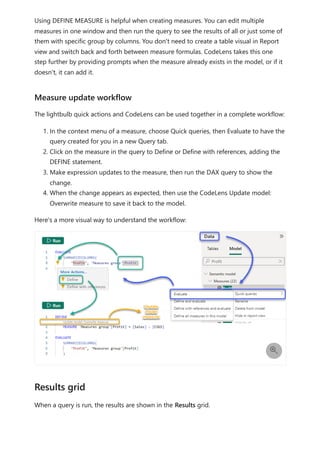
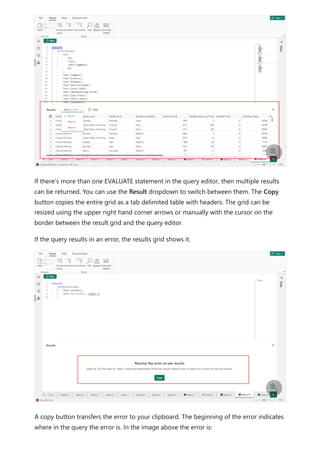
  • 483.
    Use of constantline, min line, max line, average line, median line, and percentile line is available on these visuals: Area chart Clustered bar chart Clustered column chart Line chart Scatter chart The following visuals can use only a constant line from the Analytics pane: Stacked area chart Stacked bar chart Stacked column chart Waterfall chart 100% Stacked bar chart 100% Stacked column chart The following visuals can use a trend line if there's time data: Area chart Clustered column chart Line chart Line and clustered column chart Scatter chart You can't apply any dynamic lines to these visuals: Funnel Line and clustered column chart Line and stacked column chart Ribbon chart Non-Cartesian visuals, such as Donut chart, Gauge, Matrix, Pie chart, and Table The percentile line is only available when using imported data in Power BI Desktop or when connected live to a model on a server that's running Analysis Service 2016 or later, Azure Analysis Services, or a semantic model on the Power BI service. You can do all sorts of things with Power BI Desktop. For more information on its capabilities, see the following resources: What's new in Power BI? Next steps
  • 484.
    Get Power BIDesktop What is Power BI Desktop? Query overview with Power BI Desktop Data types in Power BI Desktop Shape and combine data in Power BI Desktop Perform common query tasks in Power BI Desktop
  • 485.
    Work with Dataview in Power BI Desktop Article • 01/12/2023 Data view helps you inspect, explore, and understand data in your Power BI Desktop model. It's different from how you view tables, columns, and data in the Power Query Editor. With Data view, you're looking at your data after it has been loaded into the model. When you're modeling your data, sometimes you want to see what's actually in a table or column without creating a visual on the report canvas. You might want to see right down to the row level. This ability is especially useful when you're creating measures and calculated columns, or you need to identify a data type or data category. Let's take a closer look at some of the elements found in Data view. 1. Data view icon. Select this icon to enter Data view. 2. Data Grid. This area shows the selected table and all columns and rows in it. Columns hidden from the Report view are greyed out. You can right-click on a 7 Note Since Data view shows data after it's loaded into the model, the Data view icon isn't visible if all data sources are based on DirectQuery. 
  • 486.
    column for options. 3.Formula bar. Enter Data Analysis Expression (DAX) formulas for Measures and Calculated columns. 4. Search. Search for a table or column in your model. 5. Fields list. Select a table or column to view in the data grid. You can also filter and sort data in Data view. Each column shows an icon that identifies the sort direction, if applied. You can filter individual values, or use advanced filtering based on the data in the column. Filtering in Data view
  • 487.
    You can doall sorts of things with Power BI Desktop. For more information on its capabilities, check out the following resources: What is Power BI Desktop? Query overview with Power BI Desktop Data types in Power BI Desktop Shape and combine data with Power BI Desktop Common query tasks in Power BI Desktop 7 Note When a Power BI model is created in a different culture than your current user interface, the search box doesn't appear in the Data view user interface for anything other than text fields. For example, this behavior would apply for a model created in US English that you view in Spanish. Next steps
  • 488.
    Learn DAX basicsin Power BI Desktop Article • 03/15/2024 Users who are new to Power BI Desktop can use this article as a quick and easy introduction on how you can use Data Analysis Expressions (DAX) to solve many basic calculations and data analysis problems. We’ll go over some conceptual information, a series of tasks you can complete, and a knowledge check to test what you’ve learned. After completing this article, you should have a good understanding of the most important fundamental concepts in DAX. DAX is a collection of functions, operators, and constants that can be used in a formula, or expression, to calculate and return one or more values. DAX helps you create new information from data already in your model. It’s easy to create a new Power BI Desktop file and import some data into it. You can even create reports that show valuable insights without using any DAX formulas at all. But, what if you need to analyze growth percentage across product categories and for different date ranges? Or, you need to calculate year-over-year growth compared to market trends? DAX formulas provide this capability and many other important capabilities as well. Learning how to create effective DAX formulas will help you get the most out of your data. When you get the information you need, you can begin to solve real business problems that affect your bottom line. You might already be familiar with creating formulas in Microsoft Excel, and that knowledge will be helpful in understanding DAX. But even if you have no experience with Excel formulas, the concepts described here will help you get started creating DAX formulas and solving real-world BI problems right away. We’ll focus on understanding DAX formulas used in calculations, more specifically, in measures and calculated columns. You should already be familiar with using Power BI Desktop to import data and add fields to a report, and you should also be familiar with fundamental concepts of Measures and Calculated columns. What is DAX? Why is DAX so important? Prerequisites
  • 489.
    The best wayto learn DAX is to create some basic formulas, use them with actual data, and see the results for yourself. The examples and tasks here use the Contoso Sales Sample for Power BI Desktop file . This sample file is the same one used in the Tutorial: Create your own measures in Power BI Desktop article. We'll frame our understanding of DAX around three fundamental concepts: Syntax, Functions, and Context. There are other important concepts in DAX, but understanding these three concepts will provide the best foundation on which to build your DAX skills. Before you create your own formulas, let’s take a look at DAX formula syntax. Syntax includes the various elements that make up a formula, or more simply, how the formula is written. For example, here's a simple DAX formula for a measure: This formula includes the following syntax elements: A. The measure name, Total Sales. B. The equals sign operator (=), which indicates the beginning of the formula. When calculated, it will return a result. C. The DAX function SUM, which adds up all of the numbers in the Sales[SalesAmount] column. You’ll learn more about functions later. D. Parenthesis (), which surround an expression that contains one or more arguments. Most functions require at least one argument. An argument passes a value to a function. E. The referenced table, Sales. F. The referenced column, [SalesAmount], in the Sales table. With this argument, the SUM function knows on which column to aggregate a SUM. Example workbook Let's begin Syntax
  • 490.
    When trying tounderstand a DAX formula, it's often helpful to break down each of the elements into a language you think and speak every day. For example, you can read this formula as: For the measure named Total Sales, calculate (=) the SUM of values in the [SalesAmount ] column in the Sales table. When added to a report, this measure calculates and returns values by summing up sales amounts for each of the other fields we include, for example, Cell Phones in the USA. You might be thinking, "Isn’t this measure doing the same thing as if I were to just add the SalesAmount field to my report?" Well, yes. But, there’s a good reason to create our own measure that sums up values from the SalesAmount field: We can use it as an argument in other formulas. This solution might seem a little confusing now, but as your DAX formula skills grow, knowing this measure will make your formulas and your model more efficient. In fact, you’ll see the Total Sales measure showing up as an argument in other formulas later on. Let’s go over a few more things about this formula. In particular, we introduced a function, SUM. Functions are pre-written formulas that make it easier to do complex calculations and manipulations with numbers, dates, time, text, and more. You'll learn more about functions later. You also see that the column name [SalesAmount] was preceded by the Sales table in which the column belongs. This name is known as a fully qualified column name in that it includes the column name preceded by the table name. Columns referenced in the same table don't require the table name be included in the formula, which can make long formulas that reference many columns shorter and easier to read. However, it's a good practice to include the table name in your measure formulas, even when in the same table. 7 Note If a table name contains spaces, reserved keywords, or disallowed characters, you must enclose the table name in single quotation marks. You’ll also need to enclose table names in quotation marks if the name contains any characters outside the ANSI alphanumeric character range, regardless of whether your locale supports the character set or not.
  • 491.
    It’s important yourformulas have the correct syntax. In most cases, if the syntax isn't correct, a syntax error is returned. In other cases, the syntax might be correct, but the values returned might not be what you're expecting. The DAX editor in Power BI Desktop includes a suggestions feature, used to create syntactically correct formulas by helping you select the correct elements. Let’s create an example formula. This task will help you further understand formula syntax and how the suggestions feature in the formula bar can help you. 1. Download and open the Contoso Sales Sample Power BI Desktop file. 2. In Report view, in the field list, right-click the Sales table, and then select New Measure. 3. In the formula bar, replace Measure by entering a new measure name, Previous Quarter Sales. 4. After the equals sign, type the first few letters CAL, and then double-click the function you want to use. In this formula, you want to use the CALCULATE function. You’ll use the CALCULATE function to filter the amounts we want to sum by an argument we pass to the CALCULATE function. This type of function is referred to as nesting functions. The CALCULATE function has at least two arguments. The first is the expression to be evaluated, and the second is a filter. 5. After the opening parenthesis ( for the CALCULATE function, type SUM followed by another opening parenthesis (. Next, we'll pass an argument to the SUM function. 6. Begin typing Sal, and then select Sales[SalesAmount], followed by a closing parenthesis ). This step creates the first expression argument for our CALCULATE function. 7. Type a comma (,) followed by a space to specify the first filter, and then type PREVIOUSQUARTER. You’ll use the PREVIOUSQUARTER time intelligence function to filter SUM results by the previous quarter. Task: Create a measure formula
  • 492.
    8. After theopening parenthesis ( for the PREVIOUSQUARTER function, type Calendar[DateKey]. The PREVIOUSQUARTER function has one argument, a column containing a contiguous range of dates. In our case, that's the DateKey column in the Calendar table. 9. Close both the arguments being passed to the PREVIOUSQUARTER function and the CALCULATE function by typing two closing parenthesis )). Your formula should now look like this: Previous Quarter Sales = CALCULATE(SUM(Sales[SalesAmount]), PREVIOUSQUARTER(Calendar[DateKey])) 10. Select the checkmark in the formula bar or press Enter to validate the formula and add it to the Sales table. You did it! You just created a complex measure by using DAX. What this formula will do is calculate the total sales for the previous quarter, depending on the filters applied in a report. For example, we can put SalesAmount and our new Previous Quarter Sales measure from the Sales table into a Clustered column chart. Then from the Calendar table add Year as a slicer and select 2011. Then after, add QuarterOfYear as another Slicer and select 4, and we get a chart like this: Keep in mind, the sample model contains only a small amount of sales data from 1/1/2011 to 1/19/2013. If you select a year or quarter where SalesAmount can't be summed, or your new measure can't calculate sales data for the current or previous quarter, no data for that period is shown. For example, if you select 2011 for Year and 1
  • 493.
    for QuarterOfYear, nodata is shown for Previous Quarter Sales because there's no data for the fourth quarter of 2010. You were introduced to several important aspects of DAX formulas: This formula included two functions. PREVIOUSQUARTER, a time intelligence function, is nested as an argument passed to CALCULATE, a filter function. DAX formulas can contain up to 64 nested functions. It’s unlikely a formula would ever contain so many nested functions. In fact, such a formula would be difficult to create and debug, and it probably wouldn’t be fast either. In this formula, you also used filters. Filters narrow down what will be calculated. In this case, you selected one filter as an argument, which is actually the result of another function. You'll learn more about filters later. You used the CALCULATE function. This function is one of the most powerful functions in DAX. As you author models and create more complex formulas, you'll likely use this function many times. Although further discussion about the CALCULATE function is outside the scope of this article, as your knowledge of DAX grows, pay special attention to it. 1. What does this button on the formula bar do? 2. What always surrounds a column name in a DAX formula? Answers are provided at the end of this article. Functions are predefined formulas that perform calculations by using specific values, called arguments, in a particular order or structure. Arguments can be other functions, another formula, expression, column references, numbers, text, logical values such as TRUE or FALSE, or constants. DAX includes the following categories of functions: Date and Time, Time Intelligence, Information, Logical, Mathematical, Statistical, Text, Parent/Child, and Other functions. If Syntax QuickQuiz Functions
  • 494.
    you’re familiar withfunctions in Excel formulas, many of the functions in DAX will appear similar to you; however, DAX functions are unique in the following ways: A DAX function always references a complete column or a table. If you want to use only particular values from a table or column, you can add filters to the formula. If you need to customize calculations on a row-by-row basis, DAX provides functions that let you use the current row value or a related value as a kind of argument to perform calculations based on the context. You'll learn more about context later. DAX includes many functions that return a table rather than a value. The table isn't displayed, but is used to provide input to other functions. For example, you can retrieve a table and then count the distinct values in it, or calculate dynamic sums across filtered tables or columns. DAX includes various time intelligence functions. These functions let you define or select date ranges, and perform dynamic calculations based on them. For example, you can compare sums across parallel periods. Excel has a popular function, VLOOKUP. DAX functions don’t take a cell or cell range as a reference like VLOOKUP does in Excel. DAX functions take a column or a table as a reference. Keep in mind, in Power BI Desktop you’re working with a relational data model. Looking up values in another table is easy, and in most cases you don’t need to create any formulas at all. As you can see, functions in DAX can help you create powerful formulas. We only touched on the basics of functions. As your DAX skills grow, you'll create formulas by using many different functions. One of the best places to learn details about each of the DAX functions is in the DAX Function Reference. 1. What does a function always reference? 2. Can a formula contain more than one function? 3. What category of functions would you use to concatenate two text strings into one string? Answers are provided at the end of this article. Functions QuickQuiz Context
  • 495.
    Context is oneof the most important DAX concepts to understand. There are two types of context in DAX: row context and filter context. We’ll first look at row context. Row context is most easily thought of as the current row. It applies whenever a formula has a function that applies filters to identify a single row in a table. The function will inherently apply a row context for each row of the table over which it's filtering. This type of row context most often applies to measures. Filter context is a little more difficult to understand than row context. You can most easily think of filter context as: One or more filters applied in a calculation that determines a result or value. Filter context doesn’t exist in place of row context; rather, it applies in addition to row context. For example, to further narrow down the values to include in a calculation, you can apply a filter context, which not only specifies the row context, but also specifies a particular value (filter) in that row context. Filter context is easily seen in your reports. For example, when you add TotalCost to a visualization, and then add Year and Region, you're defining a filter context that selects a subset of data based on a given year and region. Why is filter context so important to DAX? You've seen that filter context can be applied by adding fields to a visualization. Filter context can also be applied in a DAX formula by defining a filter with functions such as ALL, RELATED, FILTER, CALCULATE, by relationships, and by other measures and columns. For example, let’s look at the following formula in a measure named Store Sales: To better understand this formula, we can break it down, much like with other formulas. This formula includes the following syntax elements: A. The measure name, Store Sales. Row context Filter context
  • 496.
    B. The equalssign operator (=), which indicates the beginning of the formula. C. The CALCULATE function, which evaluates an expression, as an argument, in a context that is modified by the specified filters. D. Parenthesis (), which surround an expression containing one or more arguments. E. A measure [Total Sales] in the same table as an expression. The Total Sales measure has the formula: =SUM(Sales[SalesAmount]). F. A comma (,), which separates the first expression argument from the filter argument. G. The fully qualified referenced column, Channel[ChannelName]. This is our row context. Each row in this column specifies a channel, such as Store or Online. H. The particular value, Store, as a filter. This is our filter context. This formula ensures only sales values defined by the Total Sales measure are calculated only for rows in the Channel[ChannelName] column, with the value Store used as a filter. As you can imagine, being able to define filter context within a formula has immense and powerful capabilities. The ability to reference only a particular value in a related table is just one such example. Don’t worry if you don't completely understand context right away. As you create your own formulas, you'll better understand context and why it’s so important in DAX. 1. What are the two types of context? 2. What is filter context? 3. What is row context? Answers are provided at the end of this article. Now that you have a basic understanding of the most important concepts in DAX, you can begin creating DAX formulas for measures on your own. DAX can indeed be a little tricky to learn, but there are many resources available to you. After reading through this article and experimenting with a few of your own formulas, you can learn more about other DAX concepts and formulas that can help you solve your own business problems. There are many DAX resources available to you; most important is the Data Analysis Expressions (DAX) Reference. Context QuickQuiz Summary
  • 497.
    Because DAX hasbeen around for several years in other Microsoft BI tools such as Power Pivot and Analysis Services Tabular models, there are many great sources information out there. You can find more information in books, whitepapers, and blogs from both Microsoft and leading BI professionals. The DAX Resource Center is also a great place to start. Syntax: 1. Validates and enters the measure into the model. 2. Brackets []. Functions: 1. A table and a column. 2. Yes. A formula can contain up to 64 nested functions. 3. Text functions. Context: 1. Row context and filter context. 2. One or more filters in a calculation that determines a single value. 3. The current row. QuickQuiz answers
  • 498.
    Work with Modelview in Power BI Desktop Article • 08/11/2023 Model view shows all of the tables, columns, and relationships in your model. This view can be especially helpful when your model has complex relationships between many tables. Select the Model view icon near the side of the window to see a view of the existing model. Hover your cursor over a relationship line to show the columns used. In the image, the Connections table has a Seat ID column that’s related to the Unique Seats table, which also has a seatId column. The two tables have a Many to One (*:1) relationship. An arrow in the middle of the line shows the direction of the filter context flow. Double arrows would mean the cross-filter direction is set to Both. You can double-click a relationship to open it in the Edit relationship dialog box. For more information about relationships, see Create and manage relationships in Power BI Desktop.  Updated Model View
  • 499.
    Current releases ofPower BI Desktop have the updated Model view enabled. The colors in the table card headers automatically match the colors you've selected in any report theme you're using. If the color is too close to white, Model view doesn't use it in the theme headers to avoid situations where it's difficult to differentiate tables in dual mode. In the previous image the card headers are white; if the report theme was using blue, the card headers in the Model view shown in the previous image would be blue instead of white. If your model has fewer than 75 tables, Model view shows all of your tables. If your model has more than 75 tables, instead of showing all tables you see the following image:
  • 500.
    When your modelhas more than 75 tables, Power BI Desktop warns you that slowdowns might occur. Create a custom layout (select the Create a custom layout button) to reduce the significant CPU and memory used when Model view shows more than 75 tables. There are all sorts of things you can do with Power BI Desktop. For more information on data sources, see the following resources: What is Power BI Desktop? Data Sources in Power BI Desktop Shape and Combine Data with Power BI Desktop Connect to Excel in Power BI Desktop Enter data directly into Power BI Desktop Next steps
  • 501.
    Quick measure suggestions Article• 09/21/2023 Quick measure suggestions assist creation of DAX measures using natural language instead of using templates or writing DAX from scratch. This feature can be used to jump-start creation of common DAX measures scenarios such as: Aggregated columns (Optional filters) Count of rows (Optional filters) Aggregate per category
  • 502.
    Mathematical operations Selected value Ifcondition Text operations Time intelligence Relative time filtered value Most / least common value Top N filtered value Top N values for a category Information functions To enable the feature, you will need to first navigate to the Options menu of Power BI Desktop and turn on the preview switch for Quick measure suggestions: Enable measure suggestions
  • 503.
    After you haveenabled the feature, you can access the Quick measure suggestions, by launching Quick measure from the Home or Modeling tab of the ribbon and selecting Suggestions: Here you can describe the measure you want to create and hit Generate (or enter key) to get DAX measure suggestions:
  • 504.
    You should alwaysvalidate the DAX suggestions to make sure they meet your needs. If you’re satisfied with a suggested measure, you can click the Add button to automatically add the measure to your model. To help demonstrate the feature here are some natural language examples for each of the supported measure scenarios. Natural language examples Aggregated columns
  • 505.
    Apply aggregations toa column to return a single value. Our supported aggregations include sum, count, distinct count, distinct count no blanks, average, min, max, median, variance, and standard deviation. Examples: Show me sum of sales Get total sales Count products How many products are there Unique users Distinct count of users no blanks Get the number of unique users and exclude blanks What is the max price Median age For aggregated columns, you can also specify one or more filter conditions. If there are multiple filter conditions, you can specify if you want an intersection (&&/AND) or union (||/OR) of the filters. Examples: How many customers in London Total sold units in 2022 Calculate sales where Product is Word and Region is North Sales where Product is Word or Region is North Sales filtered to Product is Word && Region is North Sales for Product is Word || Region is North Count the number of records in the specified table. You don’t need to specify the table if there is only one table. Examples: Count records of sales table Count sales table Sales table row count Count rows of sales table Optional filters Count of rows
  • 506.
    For row counts,you can also specify one or more filter conditions. If there are multiple filter conditions, you can specify if you want an intersection (&&/AND) or union (||/OR) of the filters. Examples: Count rows of sales table where Product is Word and Region is North Count of sales table where Product is Word or Region is North Count record of sales table filtered to Product is Word && Region is North Get the row count of sales table for Product is Word || Region is North Compute a measure for each distinct value in a category and then aggregate the results to return a single value. Our supported aggregates include average, weighted average, min, max, variance. Examples: Average sales per store Average score per category weighted by priority Min score per product Max units per store Perform mathematical operations with numeric columns, measures, or aggregated columns. For scenarios across columns within a table, you can either average (AVERAGEX) or sum up (SUMX) the result in order to return a single value. Examples: Sales - Cogs Sales minus Cogs Sales divided by target revenue times 100 Sales / target revenue * 100 EU Sales + JP Sales + NA Sales For each row in Sales table calculate Price * Units and sum up the result For each row in Sales table sum up Price * Units For each row in Sales table calculate Price * Discount and then get the average For the Sales table get the average of Price * Discount Optional filters Aggregate per category Mathematical operations
  • 507.
    Get the selectedvalue of a column. This is typically used when paired with a single- select slicer or filter so that the measure will return a non-blank value. Examples: What is the selected product Which product is selected Selected value for product Return values based on conditions. If you are returning string values, you will need to use double quotes. Conditions can use the following comparison operators: =, ==, <>, <, >, <=, >= Examples: If sales > 10,000 return "high sales" else "low sales" If sales are greater than 10,000 display "high sales" otherwise display "low sales" If selected value for product is blank, display "no product selected" else show selected product If selected product = Power BI, show "PBI" else "other" Perform text operations with columns, measures, or aggregated columns. For scenarios across columns within a table, we’ll merge (CONCATENATEX) the result in order to return a single value. Examples: "The selected product is " & selected product Display "The selected product is " concatenated with the selected product Header_measure & " - " & Subheader_measure For each row in Geography Dim table concatenate State & ", " & City and combine the result For each row in Geography Dim table get State & ", " & City and merge Selected value If condition Text operations Time intelligence
  • 508.
    These time intelligencescenarios require using a properly marked date table or auto date/time hierarchy. For YTD scenarios you can specify "fiscal" or "fiscal calendar" to base the calculation on the fiscal calendar (ends on June 30th). Examples: YTD sales Sales fiscal YTD Get the sales year to date Sales MTD Quarter to date sales YTD sales for US and Canada Change of sales from the previous year Sales YoY change Month over month change for sales Sales QoQ Percent change Sales for the same period last year Sales for the same period last month 28 day rolling average sales 28 – day rolling avg sales Apply a relative time filter that filters your measure or aggregated column to the last N hours / days / months / years. Examples: Unique users in the last 4 hours Unique users in the last 5 days Total sales for the last 6 months Total sales for the last 2 years Return the value with the most or least number of occurrences in a specified column. Examples: Most common value in Product Which value in Product is most common What is the most common value in Product Which value in Product is least common Relative time filtered value Most / least common value
  • 509.
    What is theleast common value in Product Compute a measure or aggregated column that is filtered to the top N categorical values based on that same measure or aggregated column. Examples: Total sales for the top 3 products Sum of sales filtered to the top 3 products Average score for the top 5 students Avg score filtered to the top 5 students Get a concatenated list of the top N values within a column based on a measure or aggregated column. Examples: Top 3 products with the most total sales Top 3 products by sales What are the top 3 products in sales Return system or user information such as the current date/time or the current user's email, domain, or username. Examples: Today's date Now Return the current user email Return the current domain name and username Return the current user’s domain login Quick measure suggestions are NOT a replacement for learning DAX. The suggestions provided by the feature are meant to help fast track measure creation; Top N filtered value Top N values for a category Information functions Limitations and considerations
  • 510.
    however, you willstill need to validate the DAX suggestions because they can be wrong or not match your intent. The feature isn't supported for LiveConnect data models. The feature is powered by a machine learning model that is currently only deployed to US datacenters (East US and West US). If your data is outside the US, the feature will be disabled by default unless your tenant admin enables Allow user data to leave their geography tenant setting:
  • 511.
    Combine files (binaries)in Power BI Desktop Article • 03/20/2023 Here's a powerful approach to importing data into Power BI Desktop: If you have multiple files that have the same schema, combine them into a single logical table. This popular technique has been made more convenient and more expansive. To start the process of combining files from the same folder, select Get data, choose File > Folder, and then select Connect. Enter the folder path, select OK, and then choose Transform data to see the folder's files in Power Query Editor. To combine binary files in Power Query Editor, select Content (the first column label) and choose Home > Combine Files. Or you can just select the Combine Files icon next to Content. Combine files behavior
  • 512.
    The combine filestransform behaves as follows: The combine files transform analyzes each input file to determine the correct file format to use, such as text, Excel workbook, or JSON file. The transform allows you to select a specific object from the first file, such as an Excel workbook, to extract.
  • 513.
    The combine filestransform then automatically takes these actions: Creates an example query that performs all the required extraction steps in a single file. Creates a function query that parameterizes the file/binary input to the exemplar query. The exemplar query and the function query are linked, so that changes to the exemplar query are reflected in the function query. Applies the function query to the original query with input binaries, such as the Folder query. It applies the function query for binary inputs on each row, then expands the resulting data extraction as top-level columns.
  • 514.
    With the behaviorof combine files, you can easily combine all files within a given folder if they have the same file type and structure (such as the same columns). Also you can easily apply more transformation or extraction steps by modifying the automatically created exemplar query, without having to worry about modifying or creating other function query steps. Any changes to the exemplar query are automatically generated in the linked function query. You can connect to all sorts of data by using Power BI Desktop. For more information on data sources, see the following resources: What is Power BI Desktop? Data sources in Power BI Desktop Shape and combine data with Power BI Desktop Connect to CSV files in Power BI Desktop Enter data directly into Power BI Desktop 7 Note The scope of your selection in an Excel workbook will affect the behavior of combine binaries. For example, you can select a specific worksheet to combine that worksheet, or choose the root to combine the full file. Selecting a folder combines the files found in that folder. Next steps
  • 515.
    Use AI Insightsin Power BI Desktop Article • 11/10/2023 In Power BI, you can use AI Insights to gain access to a collection of pre-trained machine learning models that enhance your data preparation efforts. You can access AI Insights in the Power Query Editor. You can find its associated features and functions through the Home and Add Column tabs in Power Query Editor. This article describes the functions for Text Analytics and Vision functions, both from Azure Cognitive Services. Also in this article is a section that describes the custom functions available in Power BI from Azure Machine Learning. With Text Analytics and Vision in Power BI, you can apply different algorithms from Azure Cognitive Services to enrich your data in Power Query. The following services are currently supported: Sentiment Analysis Key Phrase Extraction Language Detection Image Tagging. The transformations are executed on the Power BI service and don't require an Azure Cognitive Services subscription. Use Text Analytics and Vision ) Important Using the Text Analytics or Vision features requires Power BI Premium. Enable Text Analytics and Vision on Premium capacities
  • 516.
    Cognitive Services aresupported for Premium capacity nodes EM2, A2, or P1 and other nodes with more resources. A separate AI workload on the capacity is used to run Cognitive Services. Before you use Cognitive Services in Power BI, you must enable the AI workload in the capacity settings of the admin portal. You can turn on the AI workload in the workloads section and define the maximum amount of memory you would like this workload to consume. The recommended memory limit is 20%. Exceeding this limit causes the query to slow down. This section describes the available functions in Cognitive Services in Power BI. The Detect language function evaluates text input, and for each field, returns the language name and ISO identifier. This function is useful for data columns that collect arbitrary text, where language is unknown. The function expects data in text format as input. Text Analytics recognizes up to 120 languages. For more information, see supported languages. The Key phrase extraction function evaluates unstructured text, and for each text field, returns a list of key phrases. The function requires a text field as input and accepts an optional input for a Language ISO code. Key phrase extraction works best when you give it bigger chunks of text to work on, opposite from sentiment analysis. Sentiment analysis performs better on smaller blocks of text. To get the best results from both operations, consider restructuring the inputs accordingly. The Score sentiment function evaluates text input and returns a sentiment score for each document, ranging from 0 (negative) to 1 (positive). Score sentiment also accepts an optional input for a Language ISO code. This function is useful for detecting positive and negative sentiment in social media, customer reviews, and discussion forums. Available functions Detect language Extract key phrases Score sentiment
  • 517.
    Text Analytics usesa machine learning classification algorithm to generate a sentiment score between 0 and 1. Scores closer to 1 indicate positive sentiment. Scores closer to 0 indicate negative sentiment. The model is pre-trained with an extensive body of text with sentiment associations. Currently, it's not possible to provide your own training data. The model uses a combination of techniques during text analysis, including text processing, part-of-speech analysis, word placement, and word associations. For more information about the algorithm, see Introducing Text Analytics. Sentiment analysis is performed on the entire input field, as opposed to extracting sentiment for a particular entity in the text. In practice, there's a tendency for scoring accuracy to improve when documents contain one or two sentences rather than a large block of text. During an objectivity assessment phase, the model determines whether an input field as a whole is objective or contains sentiment. An input field that is mostly objective doesn't progress to the sentiment detection phrase, resulting in a 0.50 score, with no further processing. For input fields continuing in the pipeline, the next phase generates a score greater or less than 0.50, depending on the degree of sentiment detected in the input field. Currently, Sentiment Analysis supports English, German, Spanish, and French. Other languages are in preview. For more information, see supported languages. The Tag Images function returns tags based on more than 2,000 recognizable objects, living beings, scenery, and actions. When tags are ambiguous or not common knowledge, the output provides hints to clarify the meaning of the tag in context of a known setting. Tags aren't organized as a taxonomy, and no inheritance hierarchies exist. A collection of content tags forms the foundation for an image description displayed as human readable language formatted in complete sentences. After uploading an image or specifying an image URL, Computer Vision algorithms output tags based on the objects, living beings, and actions identified in the image. Tagging isn't limited to the main subject, such as a person in the foreground, but also includes the setting (indoor or outdoor), furniture, tools, plants, animals, accessories, gadgets, and so on. This function requires an image URL or a base-64 field as input. At this time, image tagging supports English, Spanish, Japanese, Portuguese, and Simplified Chinese. For more information, see supported languages. Tag images Invoke Text Analytics or Vision functions in Power Query
  • 518.
    To enrich yourdata with Text Analytics or Vision functions, open Power Query Editor. This example walks through scoring the sentiment of a text. You can use the same steps to extract key phrases, detect language, and tag images. Select the Text analytics button in the Home or Add Column ribbon. Then sign in when you see the prompt. After signing in, select the function you want to use and the data column you want to transform in the pop-up window.
  • 519.
    Power BI selectsa Premium capacity to run the function on and send the results back to Power BI Desktop. The selected capacity is only used for Text Analytics and Vision function during application and refreshes in Power BI Desktop. Once Power BI publishes the report, refreshes run on the Premium capacity of the workspace the report is published to. You can change the capacity used for all Cognitive Services in the dropdown in the lower left corner of the popup window. Language ISO code is an optional input to specify the language of the text. You can use a column as input, or a static field. In this example, the language is specified as English (en) for the whole column. If you leave this field blank, Power BI automatically detects the language before applying the function. Next, select Apply. The first time you use AI Insights on a new data source, Power BI Desktop prompts you to set the privacy level of your data.
  • 520.
    After you invokethe function, the result is added as a new column to the table. The transformation is also added as an applied step in the query. In the cases of image tagging and key phrase extraction, the results can return multiple values. Each individual result is returned on a duplicate of the original row. While editing in Power Query and performing refreshes in Power BI Desktop, Text Analytics and Vision use the Premium capacity that was selected in Power Query Editor. After Text Analytics or Vision publishes the report, they use the Premium capacity of the workspace into which it was published. Reports with applied Text Analytics and Vision functions should be published to a workspace that is on a Premium capacity, otherwise refreshing the semantic model fails. The following sections describe how you can manage the impacts of Text Analytics and Vision on capacity. Report authors can select the Premium capacity on which to run AI Insights. By default, Power BI selects the first created capacity to which the user has access. 7 Note Refreshes of the semantic model in Power BI will only work for data sources where the privacy level is set to public or organizational. Publish a report with Text Analytics or Vision functions Manage impact on a Premium capacity Select a capacity Monitor with the Capacity Metrics app
  • 521.
    Premium capacity ownerscan monitor the impact of Text Analytics and Vision functions on a capacity with the Microsoft Fabric Capacity Metrics app. The app provides detailed metrics on the health of the AI workloads within your capacity. The top chart shows the memory consumption by AI workloads. Premium capacity admins can set the memory limit for the AI workload per capacity. When memory usage reaches the memory limit, you can consider increasing the memory limit or moving some workspaces to a different capacity. The Text Analytics and Vision functions used in Power Query and Power Query Online are the same. There are only a couple differences between the experiences: Power Query has separate buttons for Text Analytics, Vision, and Azure Machine Learning. In Power Query Online, these features are combined in one menu. In Power Query, the report author can select the Premium capacity that's used to run the functions. This choice isn't required in Power Query Online, since a dataflow is already on a specific capacity. There are a few considerations and limitations to keep in mind when using Text Analytics. Incremental refresh is supported but can cause performance issues when used on queries with AI insights. Direct Query isn't supported. Numerous organizations use Machine Learning models for better insights and predictions about their business. The ability to visualize and invoke insights from these models can help disseminate these insights to the business users who need it the most. Power BI makes it simple to incorporate the insights from models hosted on Azure Machine Learning, using straightforward point-and-click gestures. To use this capability, a data scientist can grant access to the Azure Machine Learning model to the BI analyst using the Azure portal. Then, at the start of each session, Power Query discovers all the Azure Machine Learning models to which the user has access and exposes them as dynamic Power Query functions. The user can then invoke those functions by accessing them from the ribbon in Power Query Editor, or by invoking the Compare Power Query and Power Query Online Considerations and limitations of Text Analytics Use Azure Machine Learning
  • 522.
    M function directly.Power BI also automatically batches the access requests when invoking the Azure Machine Learning model for a set of rows to achieve better performance. This functionality is supported in Power BI Desktop, Power BI dataflows, and for Power Query Online in the Power BI service. To learn more about dataflows, see Self-service data prep in Power BI. To learn more about Azure Machine Learning, see the following articles: Overview: What is Azure Machine Learning? Quick Starts and Tutorials for Azure Machine Learning: Azure Machine Learning Documentation To access an Azure Machine Learning model from Power BI, the user must have Read access to the Azure subscription. In addition, they must also have Read access to the Machine Learning workspace. The steps in this section describe how to grant a Power BI user access to a model hosted on the Azure Machine Learning service. With this access, they can use this model as a Power Query function. For more information, see Manage access using RBAC and the Azure portal. 1. Sign in to the Azure portal . 2. Go to the Subscriptions page. You can find the Subscriptions page through the All Services list in the left navigation menu of the Azure portal. 3. Select your subscription. 4. Select Access control (IAM), and then select the Add button. 5. Select Reader as the Role. Select the Power BI user to whom you wish to grant access to the Azure Machine Learning model. 6. Select Save. 7. Repeat steps three through six to grant Reader access to the user for the specific Machine Learning workspace hosting the model. Data scientists primarily use Python to develop, and even deploy, their machine learning models for Machine Learning. The data scientist must explicitly generate the schema file using Python. Grant access to an Azure Machine Learning model Schema discovery for Machine Learning models
  • 523.
    This schema filemust be included in the deployed web service for Machine Learning models. To automatically generate the schema for web service, you must provide a sample of the input/output in the entry script for the deployed model. For more information, see the subsection on (Optional) Automatic Swagger schema generation in the Deploy models with the Azure Machine Learning service documentation. The link includes the example entry script with the statements for the schema generation. Specifically, the @input_schema and @output_schema functions in the entry script reference the input and output sample formats in the input_sample and output_sample variables. The functions use these samples to generate an OpenAPI (Swagger) specification for the web service during deployment. These instructions for schema generation, by updating the entry script, must also be applied to models created using automated machine learning experiments with the Azure Machine Learning SDK. You can invoke any Azure Machine Learning model to which you have been granted access, directly from the Power Query Editor. To access the Azure Machine Learning models, select Azure Machine Learning button in the Home or Add Column ribbon in the Power Query Editor. All Azure Machine Learning models to which you have access are listed here as Power Query functions. Also, the input parameters for the Azure Machine Learning model are automatically mapped as parameters of the corresponding Power Query function. To invoke an Azure Machine Learning model, you can specify any of the selected entity's columns as an input from the drop-down. You can also specify a constant value to be used as an input by toggling the column icon to the left of the input dialog. 7 Note Models created by using the Azure Machine Learning visual interface don't currently support schema generation, but they will in subsequent releases. Invoke an Azure Machine Learning model in Power Query
  • 524.
    Select OK toview the preview of the Azure Machine Learning model's output as a new column in the entity table. The model invocation appears as an applied step for the query. If the model returns multiple output parameters, they're grouped together as a record in the output column. You can expand the column to produce individual output parameters in separate columns. The following considerations and limitations apply to Azure Machine Learning in Power BI Desktop. Models created by using the Azure Machine Learning visual interface don't currently support schema generation. Support is anticipated in subsequent releases. Incremental refresh is supported but can cause performance issues when used on queries with AI insights. Direct Query isn't supported. Users with a Premium Per User (PPU) only license cannot use AI Insights from Power BI Desktop; you must use a non-PPU Premium license with its Considerations and limitations of Azure Machine Learning
  • 525.
    corresponding Premium capacity.You can still use AI Insights with a PPU license the Power BI service. This article provided an overview of integrating Machine Learning into Power BI Desktop. The following articles might also be interesting and useful. Tutorial: Consume Azure Machine Learning models in Power BI Tutorial: Using Cognitive Services in Power BI Cognitive Services in Power BI Azure Machine Learning integration in Power BI AI metrics in the Premium capacity metrics app Next steps
  • 526.
    Use quick measuresfor common calculations Article • 03/15/2024 You can use quick measures to quickly and easily perform common, powerful calculations. A quick measure runs a set of Data Analysis Expressions (DAX) commands behind the scenes, then presents the results for you to use in your report. You don't have to write the DAX, it's done for you based on input you provide in a dialog box. There are many available categories of calculations and ways to modify each calculation to fit your needs. Best of all, you can see the DAX that's executed by the quick measure and jump-start or expand your own DAX knowledge. To create a quick measure in Power BI Desktop, right-click or select the ellipsis ... next to any item in the Fields pane, and choose New quick measure from the menu that appears. Create a quick measure
  • 527.
    You can alsoright-click or select the drop-down arrow next to any value in the Values well for an existing visual, and choose New quick measure from the menu. When you select New quick measure, the Quick measures window appears, letting you choose the calculation you want and the fields to run the calculation against. Choose the Select a calculation field to see a long list of available quick measures. The five quick measure calculation types, with their calculations, are: Aggregate per category Average per category Variance per category Max per category Min per category
  • 528.
    Weighted average percategory Filters Filtered value Difference from filtered value Percentage difference from filtered value Sales from new customers Time intelligence Year-to-date total Quarter-to-date total Month-to-date total Year-over-year change Quarter-over-quarter change Month-over-month change Rolling average Totals Running total Total for category (filters applied) Total for category (filters not applied) Mathematical operations Addition Subtraction Multiplication Division Percentage difference Correlation coefficient Text Star rating Concatenated list of values To submit your ideas about new quick measures you'd like to see, underlying DAX formulas, or other quick measures ideas for consideration, check out the Power BI Ideas page. 7 Note When using SQL Server Analysis Services (SSAS) live connections, some quick measures are available. Power BI Desktop displays only the quick measures that are supported for the version of SSAS you're connecting to. If you're connected to a SSAS live data source and don't see certain quick measures in the list, it's because
  • 529.
    After you selectthe calculations and fields you want for your quick measure, choose OK. The new quick measure appears in the Fields pane, and the underlying DAX formula appears in the formula bar. Let's take a look at a quick measure in action. The following matrix visual shows a sales table for various products. It's a basic table that includes the sales totals for each category. With the matrix visual selected, choose the drop-down arrow next to TotalSales in the Values well, and select New quick measure. In the Quick measures window, under Calculation, select Average per category. the SSAS version you're connected to doesn't support the DAX commands used to implement those quick measures. Quick measure example
  • 530.
    Drag Average UnitPrice from the Fields pane into the Base value field. Leave Category in the Category field, and select OK. When you select OK, several interesting things happen. 1. The matrix visual has a new column that shows the calculated Average Unit Price average per Category.
  • 531.
    2. The DAXformula for the new quick measure appears in the formula bar. See the next section for more about the DAX formula. 3. The new quick measure appears selected and highlighted in the Fields pane. The new quick measure is available to any visual in the report, not just the visual you created it for. The following image shows a quick column chart visual created by using the new quick measure field. A great advantage of quick measures is that they show you the DAX formula that implements the measure. When you select a quick measure in the Fields pane, the Formula bar appears, showing the DAX formula that Power BI created to implement the measure. Learn DAX by using quick measures
  • 532.
    The formula barnot only shows you the formula behind the measure, but more importantly, lets you see how to create the DAX formulas underlying quick measures. Imagine you need to do a year-over-year calculation, but you're not sure how to structure the DAX formula, or you have no idea where to start. Instead of banging your head on the desk, you can create a quick measure by using the Year-over-year change calculation, and see how it appears in your visual and how the DAX formula works. Then you can either make changes directly to the DAX formula, or create a similar measure that meets your needs and expectations. You can always delete quick measures from your model if you don't like them by right- clicking or selecting the ... next to the measure and selecting Delete from model. You can also rename a quick measure whatever you like by selecting Rename from the menu. There are a few considerations and limitations to keep in mind. You can use quick measures added to the Fields pane with any visual in the report. You can always see the DAX associated with a quick measure by selecting the measure in the Fields list and looking at the formula in the formula bar. Considerations and limitations
  • 533.
    Quick measures areonly available if you can modify the model. One exception is the case when you're working with some Live connections. SSAS tabular live connections are supported, as previously described. You can't create time intelligence quick measures when working in DirectQuery mode. The DAX functions used in these quick measures have performance implications when translated into the T-SQL statements that are sent to your data source. You can use your own custom date tables with time intelligence quick measures. If you're using an external tabular model, make sure that when the model was built, the primary date column in the table was marked as a date table. For more information, see Specify Mark as Date Table for use with time-intelligence. If you're importing your own date table, make sure to mark it as a date table, as described in Set and use date tables in Power BI Desktop. Have an idea for a quick measure that isn't already provided? Great! Go to the Power BI Ideas page, and submit your ideas and DAX formulas for quick measures you'd like to see in Power BI Desktop. We'll consider adding them to the quick measures list in a future release. Other articles of interest: Using visual calculations (preview) Using calculations options in Power BI Desktop ) Important DAX statements for quick measures use only commas for argument separators. If your version of Power BI Desktop is in a language that uses commas as decimal separators, quick measures will not work properly. Time intelligence and quick measures Additional information and examples Related content
  • 534.
    Use Copilot tocreate measure descriptions (preview) Article • 04/10/2024 Add descriptions to your semantic model measures with Fabric Copilot for Power BI. People building reports from your semantic model can see the name and description of your measures, making the description property essential documentation. Fabric Copilot can streamline your semantic model documentation by creating measure descriptions for you. To try this preview feature, you need to turn it on. In Options > Preview features, select Measure descriptions with Copilot. Learn more about how to access to Fabric Copilot for Power BI on your tenant in the Copilot requirements section of the Copilot introduction article. 1. Select an existing model measure in the Data pane of Model view to see the measure properties. 2. Select the Create with Copilot (preview) button under the Description textbox. 3. Review the measure description from Copilot, then select Keep it. 4. Now the measure description is in the Description box. You can edit the description, if you need to. If you update the measure later, just select the button again so Copilot can update the description. Overview of Copilot for Power BI (preview) Tutorial: Create your own measures in Power BI Desktop. Download a sample file and get step-by-step lessons on how to create more measures. Learn DAX basics in Power BI Desktop. Turn on the preview feature Create a description with Copilot Related content
  • 535.
    Feedback Was this pagehelpful? Provide product feedback | Ask the community Data Analysis Expressions Reference  Yes  No
  • 536.
    Create and useparameters to visualize variables in Power BI Desktop Article • 04/10/2023 You can create variables for your reports, interact with the variable as a slicer, and visualize and quantify different key values in your reports. Create a parameter on the Modeling tab in Power BI Desktop. When you select it, a dialog box appears where you can configure the parameter. To create a parameter, select New parameter from the Modeling tab in Power BI Desktop, and choose either Fields or Numeric range. The following examples use Numeric range, similar procedures apply to using Fields. Name the example Discount Percentage and set its Data type to Decimal number. The Minimum value is zero. The Maximum is 0.50 (50 percent). Also set the Increment to 0.05, or five percent. The increment determines how much the parameter will adjust when interacted with in a report. Create a parameter
  • 537.
    For your convenience,the Add slicer to this page checkbox automatically puts a slicer with your parameter onto the current report page. 7 Note For decimal numbers, make sure you precede the value with a zero, as in 0.50 versus just .50. Otherwise, the number won't validate and the OK button won't be selectable.
  • 538.
    In addition tocreating the parameter, you also create a measure automatically in this process, which you can use to visualize the current value of the parameter. It's important and useful to note that after you create a parameter, both the parameter and the measure become part of your model. So, they're available throughout the report and can be used on other report pages. And, since they're part of the model, you can delete the slicer from the report page. If you want it back, choose the parameter from the Fields list and drag it onto the canvas, then change the visual to a slicer. This next example shows you how to use a parameter with data. You created the parameter in the previous section. Now you'll put it to use by creating a new measure whose value adjusts with the slider. The new measure is going to be the total sales amount, with the discount rate applied. You can create complex and interesting measures that let the consumers of your reports Use a numeric range parameter
  • 539.
    visualize the variableof your parameter. For example, you could create a report that lets sales people see their compensation if they meet certain sales goals or percentages, or see the effect of increased sales to deeper discounts. Enter the measure formula into the formula bar, and name the formula Sales after Discount. DAX Then, create a column visual with OrderDate on the axis, and both SalesAmount and the just-created measure, Sales after Discount as the values. Then, as you move the slider, you'll see that the Sales after Discount column reflects the discounted sales amount. Sales after Discount = SUM(Sales[SalesAmount]) - (SUM(Sales[SalesAmount]) * 'Discount percentage' [Discount percentage Value])
  • 540.
    This process ishow you create parameters for any data you might want to work with. You can use parameters in all sorts of situations. These parameters enable the consumers of reports to interact with different scenarios that you create in your reports. There are a couple considerations and limitations for parameters to keep in mind: Parameters can only have 1,000 unique values. For parameters with more than 1,000 unique values, the parameter values will be evenly sampled. Parameters are designed for measures within visuals, and might not calculate properly when used in a dimension calculation. You might also be interested in the following articles: Use quick measures for common calculations Create calculated columns in Power BI Desktop Create calculated tables in Power BI Desktop Considerations and limitations Next steps
  • 541.
    Specify data categoriesin Power BI Desktop Article • 01/06/2023 In Power BI Desktop, you can specify the data category for a column so Power BI Desktop knows how it should treat its values when in a visualization. When Power BI Desktop imports data, it gets other information than the data itself, like the table and column names, and whether the data is a primary key. With that information, Power BI Desktop makes some assumptions about how to give you a good default experience when creating a visualization. For example, when a column has numeric values, you'll probably want to aggregate it in some way, so Power BI Desktop places it in the Values area of the Visualizations pane. Or, for a column with date-time values on a line chart, Power BI Desktop assumes you'll probably use it as a time hierarchy axis. But, there are some cases that are a bit more challenging, like geography. Consider the following table from an Excel worksheet: Should Power BI Desktop treat the codes in the GeoCode column as an abbreviation for a Country/Region or a US State? The answer to that question isn't clear, because a code like this can mean either one. For instance, AL can mean Alabama or Albania. AR can mean Arkansas or Argentina. Or CA can mean California or Canada. It makes a difference when we go to chart our GeoCode field on a map. Should Power BI Desktop show a picture of the world with countries/regions highlighted? Or should it show a picture of the United States with states highlighted? You can specify a data category for data just like this. Data categorization further refines the information Power BI Desktop can use to provide the best visualizations. Use the following steps to specify a data category: Specifying a data category
  • 542.
    1. In ReportView or Data View, in the Fields list, select the field you want to be sorted by a different categorization. 2. On the ribbon, in the Properties area of the Column tools tab, select the drop- down arrow next to Data Category. This list shows the data categories you can choose for your column. Some selections might be disabled if they won't work with the current data type of your column. For example, if a column is a date or time data type, Power BI Desktop won't let you choose geographic data categories. 3. Select the category you want. You might also be interested in learning about geographic filtering for Power BI mobile apps.
  • 543.
    Tag barcode fieldsin Power BI Desktop Article • 01/15/2024 In Power BI Desktop, you can categorize data in a column, so that Power BI Desktop knows how to treat values in visuals in a report. You can also categorize a column as Barcode. Then, you can let someone in your organization scan a barcode on a product by using the Power BI mobile app on their iOS or Android device. This barcode lets them see any report that includes it. When they open the report, it automatically filters to the data related to that barcode. Assuming you have a report that includes barcodes: 1. In Power BI Desktop, switch to Data view. 2. Select the column that contains the barcode data. See the list of supported barcode formats in the following section. 3. On the Column tools tab, select Data category > Barcode. Categorize barcode data
  • 544.
    4. In Reportview, add the barcode field to the visuals you want filtered by the barcode. 5. Save the report, and publish it to the Power BI service. Now when you open the scanner on the Power BI apps for iOS and Android devices, you can scan a barcode. Then you can see this report in the list of reports that have barcodes. When you open the report, it filters the visuals by the product barcode you scanned. Power BI recognizes these barcode formats if you can tag them in a Power BI report: UPCECode Code39Code A39Mod43Code EAN13Code EAN8Code 93Code 128Code PDF417Code Interleaved2of5Code ITF14Code Scan barcodes from the mobile app to get filtered data Issues with scanning a barcode Specify data categories in Power BI Desktop Questions? Ask the Power BI Community 2 Warning Do not categorize more than one column across all data tables in a report as Barcode. The mobile apps support barcode filtering only for reports that have only one barcode column across all report data tables. If a report has more than one barcode column, no filtering takes place. Supported barcode formats Related content
  • 545.
    Set geographic filtersin Power BI Desktop for use in the mobile app Article • 03/13/2023 In Power BI Desktop, you can categorize geographical data for a column, so Power BI Desktop knows how to treat values in visuals in a report. As an added benefit, when you or your colleagues view that report in the Power BI mobile apps, Power BI automatically provides geographical filters that match where you are. For example, say you're a sales manager that travels to meet customers, and you want to quickly filter the total sales and revenue for the specific customer you're planning to visit. You want to break out the data for your current location, whether by state, city, or an actual address. Later, if you have time left, you'd like to visit other customers located nearby. You can filter the report by your location to find those customers. 1. In Power BI Desktop, switch to the Data view . 2. Select a column with geographic data, for example, a City column. 3. On the Column tools tab, select Data category, then the correct category, in this example, City. 7 Note You can only filter by location in the mobile app if the geographic names in the report are in English; for example, "New York City" or "Germany". Identify geographic data in your report
  • 546.
    4. Continue settinggeographic data categories for any other fields in the model. 1. Switch to the Report view, and create visuals that use the geographic fields in your data. 7 Note You can set multiple columns for each data category in a model, but if you do, the model can't filter for geography in the Power BI mobile app. To use geographic filtering in the mobile apps, set only one column for each data category. For example, set only one City column, one State or Province column, and one Country or Region column. Create visuals with your geographic data
  • 547.
    In this example,the model also contains a calculated column that brings city and state together into one column. To learn more, see creating calculated columns in Power BI Desktop. 2. Publish the report to the Power BI service. 1. Open the report in any of the Power BI mobile apps. 2. If you're in a geographic location with data in the report, you can filter it automatically to your location. View the report in Power BI mobile app
  • 548.
    To learn more,see filtering a report by location in the Power BI mobile apps. Specify data categories in Power BI Desktop Questions? Try asking the Power BI Community Next steps
  • 549.
    Create calculated columnsin Power BI Desktop Article • 01/27/2023 With calculated columns, you can add new data to a table already in your model. But instead of querying and loading values into your new column from a data source, you create a Data Analysis Expressions (DAX) formula that defines the column's values. In Power BI Desktop, calculated columns are created by using the new column feature in Report view, Data view, or Model view. Unlike custom columns that are created as part of a query by using Add Custom Column in Power Query Editor, calculated columns that are created in Report view, Data view, or Model view are based on data you've already loaded into the model. For example, you might choose to concatenate values from two different columns in two different but related tables, do addition, or extract substrings. Calculated columns you create appear in the Fields list just like any other field, but they'll have a special icon showing its values are the result of a formula. You can name your columns whatever you want, and add them to a report visualization just like other fields. Calculated columns calculate results by using DAX, a formula language meant to work with relational data like in Power BI Desktop. DAX includes a library of over 200 functions, operators, and constructs. It provides immense flexibility in creating formulas to calculate results for just about any data analysis need. To learn more about DAX, see Learn DAX basics in Power BI Desktop.
  • 550.
    DAX formulas aresimilar to Excel formulas. In fact, DAX has many of the same functions as Excel. DAX functions, however, are meant to work over data interactively sliced or filtered in a report, like in Power BI Desktop. In Excel, you can have a different formula for each row in a table. In Power BI, when you create a DAX formula for a new column, it will calculate a result for every row in the table. Column values are recalculated as necessary, like when the underlying data is refreshed and values have changed. Jeff is a shipping manager at Contoso, and wants to create a report showing the number of shipments to different cities. Jeff has a Geography table with separate fields for city and state. But, Jeff wants their reports to show the city and state values as a single value on the same row. Right now, Jeff's Geography table doesn't have the wanted field. But with a calculated column, Jeff can put together the cities from the City column with the states from the State column. Jeff right-clicks on the Geography table and then selects New Column. Jeff then enters the following DAX formula into the formula bar: DAX This formula creates a new column named CityState. For each row in the Geography table, it takes values from the City column, adds a comma and a space, and then concatenates values from the State column. Now Jeff has the wanted field. Let's look at an example CityState = [City] & "," & [State]
  • 551.
    Jeff can nowadd it to the report canvas along with the number of shipments. With minimal effort, Jeff now has a CityState field that can be added to just about any type of visualization. When Jeff creates a new map, Power BI Desktop already knows how to read the city and state values in the new column. This article provides a quick introduction to calculated columns here. For more information, see the following resources: To download a sample file and get step-by-step lessons on how to create more columns, see Tutorial: Create calculated columns in Power BI Desktop. To learn more about DAX, see Learn DAX basics in Power BI Desktop. To learn more about columns you create as part of a query, see Create custom columns. Next steps
  • 552.
    Create calculated tablesin Power BI Desktop Article • 11/10/2023 Most of the time, you create tables by importing data into your model from an external data source. But calculated tables let you add new tables based on data you've already loaded into the model. Instead of querying and loading values into your new table's columns from a data source, you create a Data Analysis Expressions (DAX) formula to define the table's values. DAX is a formula language for working with relational data, like in Power BI Desktop. DAX includes a library of over 200 functions, operators, and constructs, providing immense flexibility in creating formulas to calculate results for just about any data analysis need. Calculated tables are best for intermediate calculations and data you want to store as part of the model, rather than calculating on the fly or as query results. For example, you might choose to union or cross join two existing tables. Just like other Power BI Desktop tables, calculated tables can have relationships with other tables. Calculated table columns have data types, formatting, and can belong to a data category. You can name your columns whatever you want, and add them to report visualizations just like other fields. Calculated tables are recalculated if any of the tables they pull data from are refreshed or updated. If the table uses data from DirectQuery, calculated tables aren't refreshed. In the case with DirectQuery, the table will only reflect the changes after the semantic model has been refreshed. If a table needs to use DirectQuery, it's best to have the calculated table in DirectQuery as well. You create calculated tables by using the New table feature in Report View, Data View, or Model View of Power BI Desktop. For example, imagine you're a personnel manager who has a table of Northwest Employees and another table of Southwest Employees. You want to combine the two tables into a single table called Western Region Employees. Northwest Employees Create a calculated table
  • 553.
    Southwest Employees In ReportView, Data View, or Model View of Power BI Desktop, in the Calculations group select New table. It's a bit easier to do in Table tools in the Data View, because then you can immediately see your new calculated table. Enter the following formula in the formula bar: DAX A new table named Western Region Employees is created, and appears just like any other table in the Fields pane. You can create relationships to other tables, add measures and calculated columns, and add the fields to reports just like with any other table. Western Region Employees = UNION('Northwest Employees', 'Southwest Employees')
  • 554.
    You can definea calculated table by any DAX expression that returns a table, including a simple reference to another table. For example: DAX This article provides only a quick introduction to calculated tables. You can use calculated tables with DAX to solve many analytical problems. Here are some of the more common DAX table functions you might use: DISTINCT VALUES CROSSJOIN UNION NATURALINNERJOIN Functions for calculated tables New Western Region Employees = 'Western Region Employees'
  • 555.
    NATURALLEFTOUTERJOIN INTERSECT CALENDAR CALENDARAUTO See the DAXFunction Reference for these and other DAX functions that return tables.
  • 556.
    Using visual calculations(preview) Article • 02/20/2024 A visual calculation is a DAX calculation that's defined and executed directly on a visual. Visual calculations make it easier to create calculations that were previously hard to create, leading to simpler DAX, easier maintenance, and better performance. Here's an example visual calculation that defines a running sum for Sales Amount. Notice that the DAX required is straightforward: Running sum = RUNNINGSUM([Sales Amount]) A calculation can refer to any data in the visual including columns, measures, or other visual calculations, which removes the complexity of the semantic model and simplifies the process of writing DAX. You can use visual calculations to complete common business calculations such as running sums or moving averages. Visual calculations differ from the other calculations options in DAX: Visual calculations aren't stored in the model, and instead are stored on the visual, which means visual calculations can only refer to what's on the visual. Anything in the model must be added to the visual before the visual calculation can refer to it, freeing visual calculations from being concerned with the complexity of filter context and the model. 7 Note Visual calculations are currently in preview.
  • 557.
    Visual calculations combinethe simplicity of context from calculated columns with the on-demand calculation flexibility from measures. Compared to measures, visual calculations operate on aggregated data instead of the detail level, often leading to performance benefits. When a calculation can be achieved either by a new measure or a visual calculation, the latter often leads to better performance. Since visual calculations are part of the visual, they can refer to the visual structure which leads to more flexibility. For a more in-depth comparison of ways of adding calculations in Power BI, see Using calculations options in Power BI Desktop. Once you enable visual calculations, you can: Add visual calculations to your reports Hide certain fields Create visual calculations quickly using templates Make flexible visual calculations by referring to the visual's axes The following sections provide details about how each of the elements, described in the previous bullets, work with visual calculations. To use visual calculations, you must enable it in Options and Settings > Options > Preview features. Select Visual calculations and select OK. Visual calculations are enabled after Power BI Desktop is restarted. To add a visual calculation, select a visual and then select the New calculation button in the ribbon: Enable visual calculations Adding a visual calculation
  • 558.
    The visual calculationswindow opens in Edit mode. The Edit mode screen consists of three major sections, as shown from top to bottom in the following image: The visual preview which shows the visual you're working with A formula bar where you can add visual calculations The visual matrix which shows the data in the visual, and displays the results of visual calculations as you add them To add a visual calculation, type the expression in the formula bar. For example, in a visual that contains Sales Amount and Total Product Cost by Fiscal Year, you can add a visual calculation that calculates the profit for each year by simply typing: Profit = [Sales Amount] – [Total Product Cost].
  • 559.
    By default, mostvisual calculations on a visual are evaluated row-by-row, like a calculated column. In the previous example, for each row of the visual matrix the current Sales Amount and Total Product Cost are subtracted, and the result is returned in the Profit column. Although possible, there's no need to add an aggregation function like SUM as you would in a measure. In fact, it's better not to add such aggregates when they're not necessary, so you can more easily distinguish between measures and visual calculation expressions. As you add visual calculations, they're shown in the list of fields on the visual:
  • 560.
    Additionally, the visualcalculation is shown on the visual: You can use many existing DAX functions in visual calculations. Functions specific to visual calculations are also available. Since visual calculations work within the confines of the visual matrix, functions that rely on model relationships such as USERELATIONSHIP, RELATED or RELATEDTABLE can't be used.
  • 561.
    In visual calculationsedit mode, you can hide fields from the visual just like you can hide columns and tables in the modeling view. For example, if you wanted to only show the Profit visual calculation, you can hide Sales Amount and Total Profit cost from view: Hiding fields doesn't remove them from the visual or from the visual matrix, so your visual calculations can still refer to them and continue to work. A hidden field is still shown on the visual matrix but is simply not shown on the resulting visual. It's a recommended practice to only include hidden fields if they're necessary for your visual calculations to work. Visual calculations include templates to make it easier to write common calculations. You can find templates by selecting the template button and choosing a template to work with: Hiding fields from the visual Using templates
  • 562.
    The following templatesare available: Running sum. Calculates the sum of values, adding the current value to the preceding values. Uses the RUNNINGSUM function. Moving average. Calculates an average of a set of values in a given window by dividing the sum of the values by the size of the window. Uses the MOVINGAVERAGE function. Percent of parent. Calculates the percentage of a value relative to its parent. Uses the COLLAPSE function. Percent of grand total. Calculates the percentage of a value relative to all values, using the COLLAPSEALL function. Average of children. Calculates the average value of the set of child values. Uses the EXPAND function. Versus previous. Compares a value to a preceding value, using the PREVIOUS function. Versus next. Compares a value to a subsequent value, using the NEXT function. Versus first. Compares a value to the first value, using the FIRST function. Versus last. Compares a value to the last value, using the LAST function.
  • 563.
    Selecting a templateinserts the template in the formula bar. You can use these templates as starting points. You can also add your own expressions without relying on templates. Many functions have an optional Axis parameter, which can only be used in visual calculations. Axis influences how the visual calculation traverses the visual matrix. The Axis parameter is set to the first axis in the visual by default. For many visuals the first axis is ROWS, which means that the visual calculation is evaluated row-by-row in the visual matrix, from top to bottom. The following table shows the valid values for the Axis parameter: Axis icon Axis name Description ROWS Calculates vertically across rows from top to bottom. COLUMNS Calculates horizontally across columns from left to right. ROWS COLUMNS Calculates vertically across rows from top to bottom, continuing column by column from left to right. COLUMNS ROWS Calculates horizontally across columns from left to right, continuing row by row from top to bottom. Many functions have an optional Reset parameter that is available in visual calculations only. Reset influences if and when the function resets its value to 0 or switches to a different scope while traversing the visual matrix. The Reset parameter is set to None by default, which means the visual calculation is never restarted. Reset expects there to be Axis ノ Expand table 7 Note You can only use axis values that are available in the visual you're working on. Not all visuals provide all axes, and some visuals provide no axes. Reset
  • 564.
    multiple levels onthe axis. If there's only one level on the axis, you can use PARTITIONBY. The following list describes the only valid values for the Reset parameter: NONE is the default value and doesn't reset the calculation. HIGHESTPARENT resets the calculation when the value of the highest parent on the axis changes. LOWESTPARENT resets the calculations when the value of the lowest parent on the axis changes. A numerical value, referring to the fields on the axis, with the highest field being one. To understand HIGHESTPARENT and LOWESTPARENT, consider an axis that has three fields on multiple levels: Year, Quarter, and Month. The HIGHESTPARENT is Year, while the lowest parent is Quarter. For example, a visual calculation that is defined as RUNNINGSUM([Sales Amount], HIGHESTPARENT) or RUNNINGSUM([Sales Amount], 1) returns a running sum of Sales Amount that starts from 0 for every year. A visual calculation defined as RUNNINGSUM([Sales Amount], LOWESTPARENT) or RUNNINGSUM([Sales Amount], 2) returns a running sum of Sales Amount that starts from 0 for every Quarter. Lastly, a visual calculation that is defined as RUNNINGSUM([Sales Amount]) does not reset, and will continue adding the Sales Amount value for each month to the previous values, without restarting. Axis, Reset, ORDERBY, and PARTITIONBY are four functions that can be used in pairs or together to influence how a calculation is evaluated. They form two pairs that are often used together: Axis and Reset ORDERBY and PARTITIONBY Axis and Reset are only available for functions that can be used in visual calculations and can only be used in a visual calculation, as they reference the visual structure. ORDERBY and PARTITIONBY are functions that can be used in calculated columns, measures, and visual calculations and refer to fields. While they perform the same function, they're different in the level of abstraction provided; referring to the visual structure is more flexible than the explicit referencing to fields using ORDERBY or PARTITIONBY. Reset expects there to be multiple levels on the axis. In case you don't have multiple levels on the axis, either because there's only one field or multiple fields in one single level on the axis, you can use PARTITIONBY. Axis and Reset vs ORDERBY and PARTITIONBY
  • 565.
    Specifying either pairworks well, but you can also specify Axis, ORDERBY and/or PARTITIONBY together, in which case the values specified for ORDERBY and PARTITIONBY override the values dictated by Axis. Reset can't be combined with ORDERBY and PARTITIONBY. You can think of the ORDERBY and PARTITIONBY pair as pinning field references down by explicitly specifying fields, where Axis and Reset are field agnostic – they refer to the structure and whatever field happens to be on the structure that is getting used. You can use many of the existing DAX functions in visual calculations. Since visual calculations work within the confines of the visual matrix, functions that rely on model relationships such as USERELATIONSHIP, RELATED or RELATEDTABLE aren't available. Visual calculations also introduce a set of functions specific to visual calculations. Many of these functions are easier to use shortcuts to DAX window functions. Function Description Example Shortcut to COLLAPSE Calculation is evaluated at a higher level of the axis. Percent of parent = DIVIDE([Sales Amount], COLLAPSE([Sales Amount], ROWS)) N/A COLLAPSEALL Calculation is evaluated at the total level of the axis. Percent of grand total = DIVIDE([Sales Amount], COLLAPSEALL([Sales Amount], ROWS)) N/A EXPAND Calculation is evaluated at a lower level of the axis. Average of children = EXPAND(AVERAGE([Sales Amount]), ROWS) N/A EXPANDALL Calculation is evaluated at the leaf Average of leaf level = EXPANDALL(AVERAGE([Sales Amount]), N/A Available functions 7 Note Only use the visual calculations specific functions mentioned in the table below. Other visual calculations specific functions are for internal use only at this time and should not be used. Refer to the table below for any updates of the functions available for use as this preview progresses. ノ Expand table
  • 566.
    Function Description ExampleShortcut to level of the axis. ROWS) FIRST Refers to the first row of an axis. ProfitVSFirst = [Profit] – FIRST([Profit]) INDEX(1) ISATLEVEL Reports whether a specified column is present at the current level. IsFiscalYearAtLevel = ISATLEVEL([Fiscal Year]) N/A LAST Refers to the last row of an axis. ProfitVSLast = [Profit] – LAST([Profit]) INDEX(-1) MOVINGAVERAGE Adds a moving average on an axis. MovingAverageSales = MOVINGAVERAGE([Sales Amount], 2) WINDOW NEXT Refers to a next row of an axis. ProfitVSNext = [Profit] – NEXT([Profit]) OFFSET(1) PREVIOUS Refers to a previous row of an axis. ProfitVSPrevious = [Profit] – PREVIOUS([Profit]) OFFSET(-1) RANGE Refers to a slice of rows of an axis. AverageSales = AVERAGEX(RANGE(1), [Sales Amount]) WINDOW RUNNINGSUM Adds a running sum on an axis. RunningSumSales = RUNNINGSUM([Sales Amount]) WINDOW Visual calculations are currently in preview, and during preview, you should be aware of the following considerations and limitations: Not all visual types are supported. Use the visual calculations edit mode to change visual type. Also, custom visuals haven't been tested with visual calculations or hidden fields. The following visual types and visual properties have been tested and found not to work with visual calculations or hidden fields: Line and stacked column chart Treemap Map Shape Map Azure Map Slicer Considerations and limitations
  • 567.
    R visual Python visual KeyInfluencers Decomposition Tree Q&A Smart Narrative Metrics Paginated Report ArcGIS Maps Power Apps Power Automate Small multiples Performance of this feature isn't representative of the end product. Reuse of visual calculations using copy/paste or other mechanisms isn't available. You can't filter on visual calculations. A visual calculation can't refer to itself on the same or different detail level. Personalization of visual calculations or hidden fields isn't available. You can't use the Publish to web functionality with reports that use visual calculations or hidden fields. You can't export underlying data from visuals that use visual calculations or hidden fields. You can't use the see records drill-through functionality with visuals that use visual calculations or hidden fields. You can't set built-in or custom format strings on visual calculations. You can't apply conditional formatting on visual calculations. You can't set data categories on visual calculations. You can't change aggregations on visual calculations. You can't change the sort order for visual calculations. Power BI Embedded isn't supported for reports that use visual calculations or hidden fields. Live connections to SQL Server Analysis Services aren't supported. You can't use field parameters with visual calculations. Show items with no data is not available with visual calculations. The following articles may be useful when learning and using visual calculations: Using calculations options in Power BI Desktop Create measures for data analysis in Power BI Desktop WINDOW DAX function Next steps
  • 568.
    OFFSET DAX function INDEXDAX function ORDERBY DAX function
  • 569.
    Create measures fordata analysis in Power BI Desktop Article • 11/17/2023 Power BI Desktop helps you create insights into your data with just a few actions. But sometimes that data just doesn’t include everything you need to answer some of your most important questions. Measures can help you get there. Measures are used in some of the most common data analyses. Simple summarizations such as sums, averages, minimum, maximum and counts can be set through the Fields well. The calculated results of measures are always changing in response to your interaction with your reports, allowing for fast and dynamic ad-hoc data exploration. Let’s take a closer look. For more information, see Create measures. In Power BI Desktop, measures are created and displayed in Report View, Data View, or Model View. Measures you create yourself appear in the Fields list with a calculator icon. You can name measures whatever you want, and add them to a new or existing visualization just like any other field. Understanding measures
  • 570.
    Measures calculate aresult from an expression formula. When you create your own measures, you’ll use the Data Analysis Expressions (DAX) formula language. DAX includes a library of over 200 functions, operators, and constructs. Its library provides immense flexibility in creating measures to calculate results for just about any data analysis need. 7 Note You might also be interested in quick measures, which are ready-made measures you can select from dialog boxes. They're a good way to quickly create measures, and also a good way to learn Data Analysis Expressions (DAX) syntax, since their automatically created DAX formulas are available to review. For more information, see quick measures. Data Analysis Expressions
  • 571.
    DAX formulas area lot like Excel formulas. DAX even has many of the same functions as Excel, such like DATE , SUM , and LEFT . But the DAX functions are meant to work with relational data like we have in Power BI Desktop. Janice is a sales manager at Contoso. Janice has been asked to provide reseller sales projections over the next fiscal year. Janice decides to base the estimates on last year's sales amounts, with a six percent annual increase resulting from various promotions that are scheduled over the next six months. To report the estimates, Janice imports last year's sales data into Power BI Desktop. Janice finds the SalesAmount field in the Reseller Sales table. Because the imported data only contains sales amounts for last year, Janice renames the SalesAmount field to Last Years Sales. Janice then drags Last Years Sales onto the report canvas. It appears in a chart visualization as a single value that is the sum of all reseller sales from last year. Janice notices that even without specifying a calculation, one has been provided automatically. Power BI Desktop created its own measure by summing up all of the values in Last Years Sales. But Janice needs a measure to calculate sales projections for the coming year, which will be based on last year's sales multiplied by 1.06 to account for the expected 6 percent increase in business. For this calculation, Janice will create a measure. Janice creates a new measure by using the New Measure feature, then enters the following DAX formula: DAX Janice then drags the new Projected Sales measure into the chart. Let’s look at an example Projected Sales = SUM('Reseller Sales'[Last Years Sales])*1.06
  • 572.
    Quickly and withminimal effort, Janice now has a measure to calculate projected sales. Janice can further analyze the projections by filtering on specific resellers or by adding other fields to the report. You can also pick data categories for measures. Among other things, data categories allow you to use measures to dynamically create URLs, and mark the data category as a Web URL. You could create tables that display the measures as Web URLs, and be able to select on the URL that's created based on your selection. This approach is especially useful when you want to link to other Power BI reports with URL filter parameters. Measures have a Home table that defines where they're found in the field list. You can change their location by choosing a location from the tables in your model. Data categories for measures Organizing your measures
  • 573.
    You can alsoorganize fields in a table into Display Folders. Select Model from the left edge of the Power BI Desktop. In the Properties pane, select the field you want to move from the list of available fields. Enter a name for a new folder in Display folder to create a folder. Creating a folder moves the selected field into that folder. You can create subfolders by using a backslash character. For example, FinanceCurrencies creates a Finance folder and within it, a Currencies folder. You can make a field appear in multiple folders by using a semicolon to separate the folder names. For example, ProductsNames;Departments results in the field appearing in a Departments folder and a Names folder inside a Products folder. You can create a special table that contains only measures. That table always appears at the top of the Fields. To do so, create a table with just one column. You can use Enter data to create that table. Then move your measures to that table. Finally, hide the column, but not the table, that you created. Select the arrow at the top of Fields to close and reopen the fields list to see your changes.
  • 574.
    With dynamic formatstrings, you can customize how measures appear in visuals by conditionally applying a format string with a separate DAX expression. To learn more, see Dynamic format strings. We’ve only provided you with a quick introduction to measures here. There’s a lot more to help you learn how to create your own. For more information, see Tutorial: Create your own measures in Power BI Desktop. You can download a sample file and get step- by-step lessons on how to create more measures. To dive a little deeper into DAX, see Learn DAX basics in Power BI Desktop. The Data Analysis Expressions Reference provides detailed articles on each of the functions, syntax, operators, and naming conventions. DAX has been around for several years in Power Pivot in Excel and SQL Server Analysis Services. There are many other great resources available, too. Be sure to check out the DAX Resource Center Wiki , where influential members of the BI community share their knowledge of DAX.  Tip Hidden measures are displayed and accessible in Power BI Desktop, however, you won't see hidden measures in Excel or the Power BI services, since Excel and the Power BI service are considered client tools. Dynamic format strings Learn more
  • 575.
    Import and displayKPIs in Power BI Article • 01/12/2023 With Power BI Desktop, you can import and display KPIs in tables, matrices, and cards. To import and display KPIs: 1. Start with an Excel workbook that has a Power Pivot model and KPIs. 2. Import the Excel workbook into Power BI, by using File -> Import -> Power Query, Power Pivot, Power View. You can also learn how to import workbooks. 3. After import into Power BI, your KPI will appear in the Fields pane, marked with the icon. To use a KPI in your report, be sure to expand its contents, exposing the Value, Goal, and Status fields. 4. Imported KPIs are best used in standard visualization types, such as the Table type. Power BI also includes the KPI visualization type, which should only be used to create new KPIs. You can use KPIs to highlight trends, progress, or other important indicators.
  • 576.
    Apply auto date/timein Power BI Desktop Article • 10/27/2023 This article targets data modelers developing Import or Composite models in Power BI Desktop. It introduces and describes the Auto date/time option. The auto date/time is a data load option in Power BI Desktop. The purpose of this option is to support convenient time intelligence reporting based on date columns loaded into a model. Specifically, it allows report authors using your data model to filter, group, and drill down by using calendar time periods (years, quarters, months, and days). What's important is that you don't need to explicitly develop these time intelligence capabilities. When the option is enabled, Power BI Desktop creates a hidden auto date/time table for each date column, providing all of the following conditions are true: The table storage mode is Import The column data type is date or date/time The column isn't the "many" side of a model relationship Each auto date/time table is in fact a calculated table that generates rows of data by using the DAX CALENDAR function. Each table also includes six calculated columns: Day, MonthNo, Month, QuarterNo, Quarter, and Year. Power BI Desktop also creates a relationship between the auto date/time table's Date column and the model date column. The auto date/time table contains full calendar years encompassing all date values stored in the model date column. For example, if the earliest value in a date column is March 20, 2016 and the latest value is October 23, 2019, the table will contain 1,461 rows. It represents one row for each date in the four calendar years 2016 to 2019. When How it works 7 Note Power BI translates and formats column names and values according to the model language. For example, if the model was created by using English, it will still show month names, and so on, in English, even if viewed with a Korean client.
  • 577.
    Power BI refreshesthe model, each auto date/time table is also refreshed. This way, the model always contains dates that encompass the date column values. If it were possible to see the rows of an auto date/time table, they would look similar to the following example. The example shows seven columns with 10 rows of data from January 1, 2019 to January 10, 2019. The table also defines a hierarchy, providing visuals with a drill-down path through year, quarter, month, and day levels. If it were possible to see an auto date/time table in the Model view diagram, it would look like the following tables with related columns highlighted: 7 Note Auto date/time tables are permanently hidden, even from modelers. They don’t appear in the Fields pane or the Model view diagram, and its rows don’t appear in Data view. Also, the table and its column can’t be directly referenced by DAX expressions. Further, it's not possible to work with them when using Analyze in Excel, or connecting to the model by using non-Power BI report designers.
  • 578.
    When an autodate/time table exists for a date column (and that column is visible), report authors won't find that column as a field in the Fields pane. Instead, they find an expandable object that has the name of the date column. You can easily identify it because it's adorned with a calendar icon. When report authors expand the calendar object, they find a hierarchy named Date Hierarchy. After they expand the hierarchy, they find four levels: Year, Quarter, Month, and Day. Work with auto date/time
  • 579.
    The auto date/timegenerated hierarchy can be used to configure a visual in exactly the same way that regular hierarchies can be used. Visuals can be configured by using the entire Date Hierarchy hierarchy, or specific levels of the hierarchy. There is, however, one added capability not supported by regular hierarchies. When the auto date/time hierarchy—or a level from the hierarchy—is added to a visual well, report authors can toggle between using the hierarchy or the date column. This approach makes sense for some visuals, when all they require is the date column, not the hierarchy and its levels. They start by configuring the visual field (right-click the visual field, or select the down-arrow), and then by using the context menu to switch between the date column or the date hierarchy. Lastly, model calculations, written in DAX, can reference a date column directly, or the hidden auto date/time table columns indirectly. Formulas written in Power BI Desktop can reference a date column in the usual way. The auto date/time table columns, however, must be referenced by using a special extended syntax. You start by first referencing the date column, and then following it by a period (.). The formula bar auto complete will then allow you to select a column from the auto date/time table.
  • 580.
    In Power BIDesktop, a valid measure expression could read: DAX Auto date/time can be configured globally or for the current file. The global option applies to new Power BI Desktop files, and it can be turned on or off at any time. For a new installation of Power BI Desktop, both options default to on. The current file option, too, can also be turned on or off at any time. When turned on, auto date/time tables are created. When turned off, any auto date/time tables are removed from the model. In Power BI Desktop, you select File > Options and settings > Options, and then select either the Global or Current File page. On either page, the option exists in the Time intelligence section. Date Count = COUNT(Sales[OrderDate].[Date]) 7 Note While this measure expression is valid in Power BI Desktop, it's not correct DAX syntax. Internally, Power BI Desktop transposes your expression to reference the true (hidden) auto date/time table column. Configure auto date/time option U Caution Take care when you turn the current file option off, because this will remove the auto date/time tables. Be sure to fix any broken report filters or visuals that had been configured to use them.
  • 581.
    For more informationrelated to this article, check out the following resources: Auto date/time guidance in Power BI Desktop Create date tables in Power BI Desktop Set and use date tables in Power BI Desktop Questions? Ask the Power BI Community Suggestions? Contribute ideas to improve Power BI Next steps
  • 582.
    External tools inPower BI Desktop Article • 11/10/2023 Power BI has a vibrant community of business intelligence professionals and developers. Community contributors create free tools that use Power BI and Analysis Services APIs to extend and integrate with Power BI Desktop's data modeling and reporting features. The External Tools ribbon provides easy access to external tools that are installed locally and registered with Power BI Desktop. When launched from the External Tools ribbon, Power BI Desktop passes the name and port number of its internal data model engine instance and the current model name to the tool. The tool then automatically connects, providing a seamless connection experience. External tools generally fall into one of the following categories: Semantic modeling - Open-source tools such as DAX Studio, ALM Toolkit, Tabular Editor, and Metadata Translator extend Power BI Desktop functionality for specific data modeling scenarios such as Data Analysis Expressions (DAX) query and expression optimization, application lifecycle management (ALM), and metadata translation. Data analysis - Tools for connecting to a model in read-only to query data and perform other analysis tasks. For example, a tool might launch Python, Excel, and Power BI Report Builder. The tool connects the client application to the model in Power BI Desktop for testing and analysis without having to first publish the Power BI Desktop (pbix) file to the Power BI service. Tools to document a Power BI semantic model also fall into this category. Miscellaneous - Some external tools don’t connect to a model at all, but instead extend Power BI Desktop to make helpful tips and make helpful content more readily accessible. For example, PBI.tips tutorials, DAX Guide from sqlbi.com, and the PowerBI.tips Product Business Ops community tool, make installation of a large selection of external tools easier. These tools also assist registration with Power BI Desktop, including DAX Studio, ALM Toolkit, Tabular Editor, and many others easy. Custom - Integrate your own scripts and tools by adding a *.pbitool.json document to the Power BI DesktopExternal Tools folder.
  • 583.
    Before installing externaltools, keep the following notes in mind: External tools aren't supported in Power BI Desktop for Power BI Report Server. External tools are provided by external, third-party contributors. Microsoft doesn't provide support or documentation for external tools. There are many external tools out there. Here are some of the most popular and belong in every Power BI Desktop data modelers toolbox: Tool Description PowerBI.tips - Business Ops An easy to use deployment tool for adding external tools extensions to Power BI Desktop. The Business Ops goal is to provide a one stop shop for installing all the latest versions of external tools. To learn more, go to PowerBI.tips - Business Ops . Tabular Editor Model creators can easily build, maintain, and manage tabular models by using an intuitive and lightweight editor. A hierarchical view shows all objects in your tabular model organized by display folders, with support for multi-select property editing and DAX syntax highlighting. To learn more, go to tabulareditor.com . DAX Studio A feature-rich tool for DAX authoring, diagnosis, performance tuning, and analysis. Features include object browsing, integrated tracing, query execution breakdowns with detailed statistics, DAX syntax highlighting and formatting. To get the latest, go to DAX Studio on GitHub. ALM Toolkit A schema compare tool for Power BI models and semantic models, used for application lifecycle management (ALM) scenarios. You can perform straightforward deployment across environments and retain incremental refresh historical data. You can diff and merge metadata files, branches, and repos. You can also reuse common definitions between semantic models. To get the latest, go to alm-toolkit.com . Metadata Translator Streamlines localization of Power BI models and semantic models. The tool can automatically translate captions, descriptions, and display folder names of tables, columns, measures, and hierarchies. The tool translates by using the machine translation technology of Azure Cognitive Services. You can also export and import translations via Comma Separated Values (.csv) files for convenient bulk editing in Excel or a localization tool. To get the latest, go to Metadata Translator on GitHub. Featured open-source tools External tools integration architecture
  • 584.
    Power BI Desktop(pbix) files consist of multiple components including the report canvas, visuals, model metadata, and any data that was loaded from data sources. When Power BI Desktop opens a pbix file, it launches an Analysis Services process in the background to load the model so that the data modeling features and report visuals can access model metadata and query model data. When Power BI Desktop launches Analysis Services as its analytical data engine, it dynamically assigns a random port number. It also loads the model with a randomly generated name in the form of a globally unique identifier (GUID). Because these connection parameters change with every Power BI Desktop session, it's difficult for external tools to discover on their own the correct Analysis Services instance and model to connect to. External tools integration solves this problem by allowing Power BI Desktop to send the Analysis Services server name, port number, and model name to the tool as command-line parameters when starting the external tool from the External Tools ribbon, as shown in the following diagram. With the Analysis Services Server name, port number, and model name, the tool uses Analysis Services client libraries to establish a connection to the model, retrieve metadata, and execute DAX or MDX queries. Whenever an external data modeling tool updates the metadata, Power BI Desktop synchronizes the changes so that the Power BI Desktop user interface reflects the current state of the model accurately. Keep in mind there are some limitations to the synchronization capabilities as described later. External tools, which connect to Power BI Desktop's Analysis Services instance, can make changes (write operations) to the data model. Power BI Desktop then synchronizes those changes with the report canvas so they're shown in report visuals. For example, external data modeling tools can override the original format string expression of a Data modeling operations
  • 585.
    measure, and editany of the measure properties including KPIs and detail rows. External tools can also create new roles for object and row-level security, and add translations. Objects that support write operations: Object Connect to AS instance Tables No Columns Yes Calculated tables Yes Calculated columns Yes Relationships Yes Measures Yes Model KPIs Yes Calculation groups Yes Perspectives Yes Translations Yes Row Level Security (RLS) Yes Object Level Security (OLS) Yes Annotations Yes M expressions No 1 - When using external tools to connect to the AS instance, changing a column's data type is supported, however, renaming columns is not supported. Power BI Desktop project files offer a broader scope of supported write operations. Those objects and operations that don't support write operations by using external tools to connect to Power BI Desktop's Analysis Services instance may be supported by editing Power BI Desktop project files. To learn more, see Power BI Desktop projects - Model authoring. Supported write operations 1 Data modeling limitations
  • 586.
    All Tabular ObjectModel (TOM) metadata can be accessed for read-only. Write operations are limited because Power BI Desktop must remain in-sync with the external modifications, therefore the following operations aren't supported: Any TOM object types not covered in Supported write operations, such as tables and columns. Editing a Power BI Desktop template (PBIT) file. Report-level or data-level translations. Renaming tables and columns isn't yet supported Sending processing commands to a semantic model loaded in Power BI Desktop External tools are registered with Power BI Desktop when the tool includes a *.pbitool.json registration file in the C:Program Files (x86)Common FilesMicrosoft SharedPower BI DesktopExternal Tools folder. When a tool is registered, and includes an icon, the tool appears in the External Tools ribbon. Some tools, like ALM Toolkit and DAX Studio create the registration file automatically when you install the tool. However, many tools, like SQL Profiler typically don't because the installer they do have doesn't include creating a registration file for Power BI Desktop. Tools that don't automatically register with Power BI Desktop can be registered manually by creating a *.pbitool.json registration file. To learn more, including json examples, see Register an external tool. The External Tools ribbon is enabled by default, but can be disabled by using Group Policy or editing the EnableExternalTools registry key directly. Registry key: SoftwarePoliciesMicrosoftPower BI Desktop Registry value: EnableExternalTools A value of 1 (decimal) enables the External Tools ribbon, which is also the default value. A value of 0 (decimal) disable the External Tools ribbon. Register an external tool Registering external tools Disabling the External Tools ribbon See also
  • 587.
    Register an externaltool Article • 01/15/2024 Some tools must be manually registered with Power BI Desktop. To register an external tool, create a JSON file with the following example code: JSON The pbitool.json file includes the following elements: name: Provide a name for the tool, which will appear as a button caption in the External Tools ribbon within Power BI Desktop. description: (optional) Provide a description, which will appear as a tooltip on the External Tools ribbon button within Power BI Desktop. path: Provide the fully qualified path to the tool executable. arguments: (optional) Provide a string of command-line arguments that the tool executable should be launched with. You can use any of the following placeholders: %server%: Replaced with the server name and portnumber of the local instance of Analysis Services Tabular for imported/DirectQuery data models. %database%: Replaced with the database name of the model hosted in the local instance of Analysis Services Tabular for imported/DirectQuery data models. iconData: Provide image data, which will be rendered as a button icon in the External Tools ribbon within Power BI Desktop. The string should be formatted according to the syntax for Data URIs without the "data:" prefix. Name the file "<tool name>.pbitool.json" and place it in the following folder: %commonprogramfiles%Microsoft SharedPower BI DesktopExternal Tools For 64-bit environments, place the files in the following folder: Program Files (x86)Common FilesMicrosoft SharedPower BI DesktopExternal Tools { "name": "<tool name>", "description": "<tool description>", "path": "<tool executable path>", "arguments": "<optional command line arguments>", "iconData": "image/png;base64,<encoded png icon data>" }
  • 588.
    Files in thatspecified location with the .pbitool.json extension are loaded by Power BI Desktop upon startup. The following *.pbitool.json file launches powershell.exe from the External Tools ribbon and runs a script called pbiToolsDemo.ps1. The script passes the server name and port number in the -Server parameter and the semantic model name in the -Database parameter. JSON The corresponding pbiToolsDemo.ps1 script outputs the Server and Database parameters to the console. PowerShell Example { "version": "1.0.0", "name": "External Tools Demo", "description": "Launches PowerShell and runs a script that outputs server and database parameters. (Requires elevated PowerShell permissions.)", "path": "C:WindowsSystem32WindowsPowerShellv1.0powershell.exe", "arguments": "C:pbiToolsDemo.ps1 -Server "%server%" -Database "%database%"", "iconData": "image/png;base64,iVBORw0KGgoAAAANSUhEUgAAAAEAAAABCAYAAAAfFcSJAAAAAXNSR0IArs 4c6QAAAARnQU1BAACxjwv8YQUAAAAJcEhZcwAADsEAAA7BAbiRa+0AAAANSURBVBhXY/jH9+8/AA ciAwpql7QkAAAAAElFTkSuQmCC" } [CmdletBinding()] param ( [Parameter(Mandatory = $true)] [string] $Server, [Parameter(Mandatory = $true)] [string] $Database ) Write-Host "" Write-Host "Analysis Services instance: " -NoNewline Write-Host "$Server" -ForegroundColor Yellow Write-Host "Dataset name: " -NoNewline Write-Host "$Database" -ForegroundColor Green Write-Host "" Read-Host -Prompt 'Press [Enter] to close this window'
  • 589.
    To include anicon in the External Tools ribbon, the pbitool.json registration file must include an iconData element. The iconData element takes a data URI without the data: prefix. For example, the data URI of a one pixel magenta png image is: data:image/png;base64,iVBORw0KGgoAAAANSUhEUgAAAAEAAAABCAYAAAAfFcSJAAAAAXNSR0IArs4c6 QAAAARnQU1BAACxjwv8YQUAAAAJcEhZcwAADsEAAA7BAbiRa+0AAAANSURBVBhXY/jH9+8/AAciAwpql7Qk AAAAAElFTkSuQmCC Be sure to remove the data: prefix, as shown in the pbitool.json preceding example. To convert a .png or other image file type to a data URI, use an online tool or a custom tool such as the one shown in the following C# code snippet: c# Icon data URIs string ImageDataUri; OpenFileDialog openFileDialog1 = new OpenFileDialog(); openFileDialog1.Filter = "PNG Files (.png)|*.png|All Files (*.*)|*.*"; openFileDialog1.FilterIndex = 1; openFileDialog1.Multiselect = false;
  • 590.
    External tools inPower BI Desktop Analysis Services client libraries Tabular Object Model (TOM) openFileDialog1.CheckFileExists = true; bool? userClickedOK = openFileDialog1.ShowDialog(); if (userClickedOK == true) { var fileName = openFileDialog1.FileName; var sb = new StringBuilder(); sb.Append("image/") .Append((System.IO.Path.GetExtension(fileName) ?? "png").Replace(".", "")) .Append(";base64,") .Append(Convert.ToBase64String(File.ReadAllBytes(fileName))); ImageDataUri = sb.ToString(); } Related content
  • 591.
    Use the Fieldlist in Power BI Desktop Article • 08/11/2023 The lists in the Field pane, called the Data pane in current releases of Power BI Desktop, are being unified across Model view, Data view and Report view in Power BI Desktop. Unifying these views creates consistency for functionality and the user interface (UI) across views, and addresses customer feedback. The following changes across the views are: Iconography Search functionality Context menu items Similar drag-drop behavior Tooltips Accessibility improvements The intent is to improve Power BI Desktop usability. The changes should be minimal on your typical data workflow. To view the Fields pane (or the Data pane in current releases of Power BI Desktop), add data to your model and select the pane from the area to the right of the canvas. The following tables show the Field list updates. Original Field list (Model view) New Field list (Model view) Original New Icons and UI Field list changes
  • 592.
    Original Field list(Model view) New Field list (Model view) Context menu - Field Context menu - Table
  • 593.
    Original Field list(Model view) New Field list (Model view) Tooltips There are new Field list icons as well. The following table shows the original icons and their new equivalent, and provides a brief description of each. Field list icons
  • 594.
    Original icon New icon Description Folder in theFields list. Numeric field: Numeric fields are aggregates that can be summed or averaged, for example. Aggregates are imported with the data and defined in the data model that your report is based on. For more information, see Work with aggregates (sum, average, and so on) in Power BI. Calculated column with a non-numeric data type: A new non-numeric column you create with a Data Analysis Expressions (DAX) formula that defines the column’s values. For more information, see Create calculated columns in Power BI Desktop. Numeric calculated column: A new column you create with a DAX formula that defines the column’s values. For more information, see Create calculated columns in Power BI Desktop. Measure: A measure has its own hard-coded formula. Report viewers can’t change the calculation, for example, if it’s a sum, it can only be a sum. The values aren't stored in a column. They're calculated on the fly, depending solely on their location in a visual. For more information, see Create measures for data analysis in Power BI Desktop. Measure group. KPI: A visual cue that communicates the amount of progress made toward a measurable goal. For more information, see Create key performance indicator (KPI) visualizations. Hierarchy of fields: Select the arrow to see the fields that make up the hierarchy. For more information, see Creating and working with hierarchies in Power BI (3-11g) on YouTube. Geo data: These location fields can be used to create map visualizations. Identity field: Fields with this icon are unique fields, set to show all values, even if they have duplicates. For example, your data might have records for two different people named 'Robin Smith', and each is treated as unique. They aren't summed. Parameter: Set parameters to make parts of your reports and data models (such as a query filter, a data source reference, a measure definition, etc.) depend on one or more parameter values. For more information, see Deep Dive into Query Parameters and Power BI Templates . Calendar date field with a built-in date table.
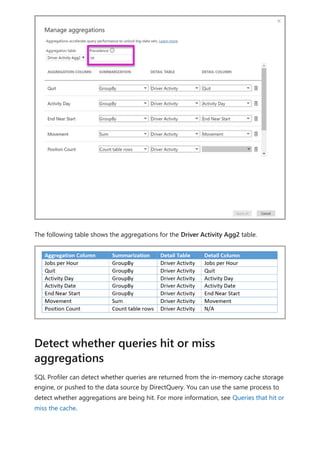
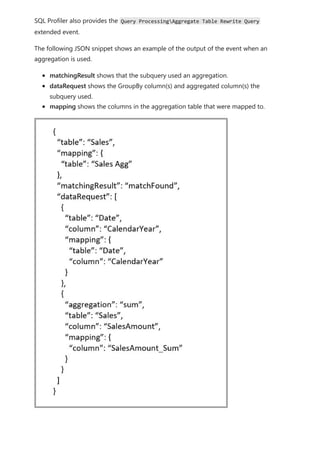
  • 595.
    Original icon New icon Description Calculated table: Atable created with a DAX formula based on data already loaded into the model. Calculated tables are best used for intermediate calculations and you want to store as part of the model. Warning: A calculated field with an error. For example, the syntax of the DAX expression might be incorrect. Group: Values in this column are based on grouping values from another column by using the groups and bins feature. For more information, see Use grouping and binning in Power BI Desktop. no original icon Change detection measure: When you configure a page for automatic page refresh, you can configure a change detection measure that is queried to determine if the rest of a page’s visuals should be updated. You might also be interested in the following articles: Create calculated columns in Power BI Desktop Use grouping and binning in Power BI Desktop Use gridlines and snap-to-grid in Power BI Desktop reports Next steps
  • 596.
    Formula editor inPower BI Desktop Article • 02/10/2023 The formula editor (often referred to as the DAX editor) includes robust editing and shortcut enhancements to make authoring and editing formulas easy and intuitive. You can use the following keyboard shortcuts to increase your productivity and streamline creating formulas in the formula editor. Keyboard Command Result Ctrl+C Copy line (empty selection) Ctrl+G Go to line… Ctrl+L Select current line Ctrl+M Toggle Tab moves focus Ctrl+U Undo last cursor operation Ctrl+X Cut line (empty selection) Shift+Enter Insert line below Ctrl+Shift+Enter Insert line above Ctrl+Shift+ Jump to matching bracket Ctrl+Shift+K Delete line Ctrl+] / [ Indent/outdent line Ctrl+Home Go to beginning of file Ctrl+End Go to end of file Ctrl+↑ / ↓ Scroll line up/down Ctrl+Shift+Alt + (arrow key) Column (box) selection Ctrl+Shift+Alt +PgUp/PgDn Column (box) selection page up/down Ctrl+Shift+L Select all occurrences of current selection Ctrl+Alt+ ↑ / ↓ Insert cursor above / below Use the formula editor
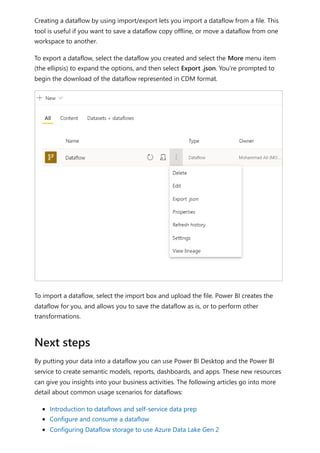
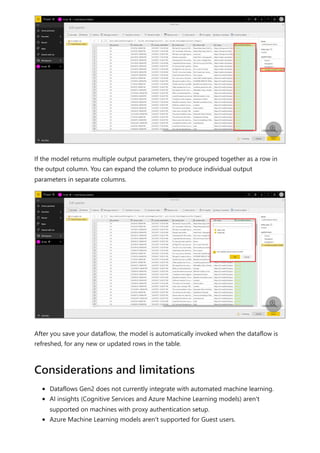
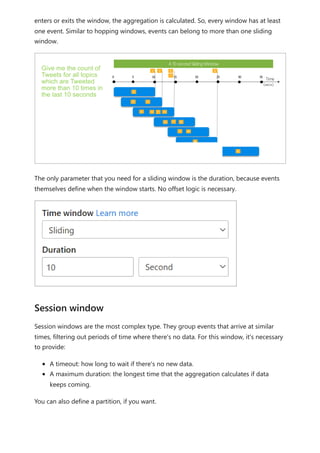
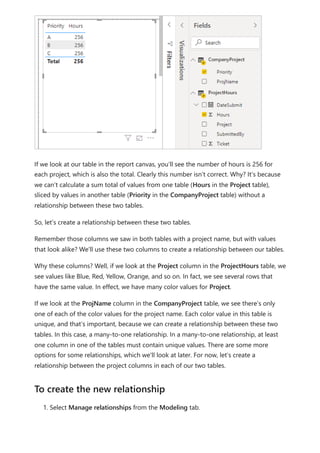
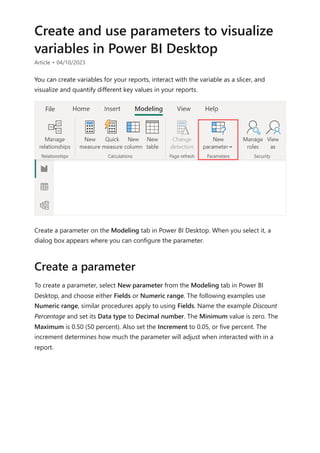
  • 597.
    Keyboard Command Result Ctrl+F2Select all occurrences of current word Shift+Alt + (drag mouse) Column (box) selection Shift+Alt + ↓ / ↑ Copy line up/down Shift+Alt+→ Expand selection Shift+Alt+← Shrink selection Shift+Alt+I Insert cursor at end of each line selected Alt+ ↑ / ↓ Move line up/down Alt+PgUp / PgDn Scroll page up/down Alt+Click Insert cursor Home / End Go to beginning/end of line The following articles provide more information about formulas and DAX in Power BI Desktop. Learn DAX basics in Power BI Desktop Use DAX in Power BI Desktop learning path Data Analysis Expressions (DAX) Reference Next steps