0
Windows Azure Service
Bus Performance Guide
Need to check matrix
Bhonhariya, Salim M(Windows Azure Cloud Architect)
1/29/2015
Al rightsreserved
1
Contents
Service Bus protocols and connection behavior....................................................................................2
Select Binary Protocol.........................................................................................................................2
Sync vs.Async vs Batch using BinaryProtocol (SBMP default protocol for Service Bus) ...........................3
Create multiple TCP Connections.........................................................................................................5
Service Bus Messaging Factory ........................................................................................................6
What is a connection link?...............................................................................................................8
Service Bus Entity Quotas....................................................................................................................8
How to observe huge number of devices?.................................................................................10
How about Windows RT wind Windows Phone? .......................................................................11
MessagingFactory Class ....................................................................................................................11
Increase throughput of Service Bus....................................................................................................13
Azure Service Bus Quota Limitation and TCP Connections...................................................................14
2
Service Bus protocols andconnectionbehavior
In the era of devices and service Windows Azure Service Bus will play definitely a more
important role. However the huge number of devices which can connect to the bus in a practical
and hypothetical scenario might be an issue. Observing the huge number of connections is not
an easy task and it can bring any technology to the limit.
Windows Azure Service Bus is designed to observe a huge number of connections. We know
Service Bus provides the solution but in a typical scenario you cannot just simply connect
millions of devices to it and expect that it just works. Fortunately for some specific scenarios
there are solutions which just work out of the box. The good exampleis Service Bus Notification
Hubs.
Unfortunately in majority of scenarios, you have to design the system to be able to observer
huge number of connections. In this context we usually talk simply about devices, because they
will represent the majority of connections in the near future. But, keep in mind, connection can
be caused by any kind of computer, application or similar.
This note should give you an overview about many documented and undocumented details
related Service Bus entities and big/huge number of connections (connected devices).
Select Binary Protocol
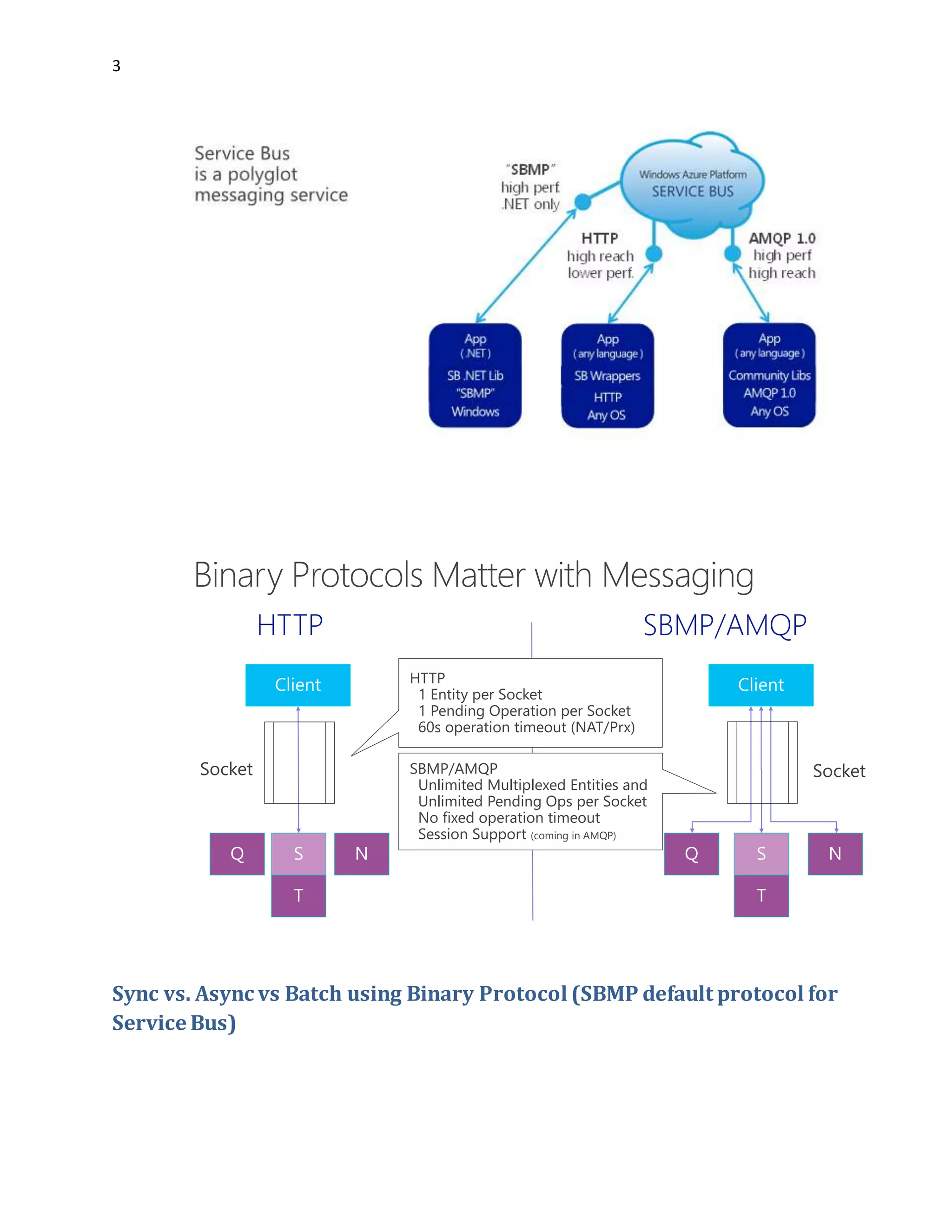
When talking to Service Bus, clients have independent on technology since SB v2 three ways
(transports/protocols) to connect:
1. Service Bus Messaging Protocol
2. AMQP(Advanced Message Queuing Protocol)
3. HTTP/REST
3
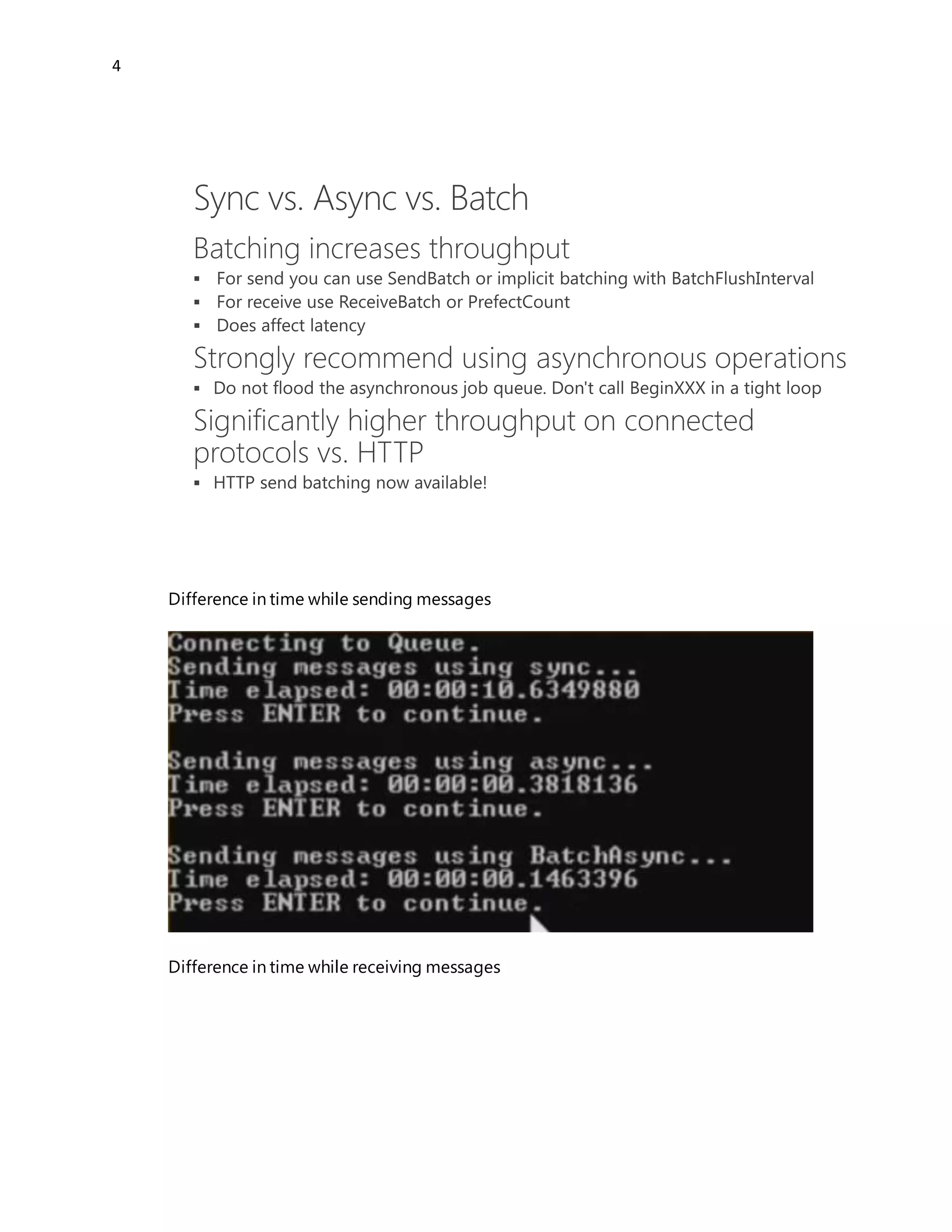
Sync vs. Async vs Batch using Binary Protocol (SBMP default protocol for
Service Bus)
HTTP
1 Entity per Socket
1 Pending Operation per Socket
60s operation timeout (NAT/Prx)
SBMP/AMQP
Unlimited Multiplexed Entities and
Unlimited Pending Ops per Socket
No fixed operation timeout
Session Support (coming in AMQP)
4
Difference in time while sending messages
Difference in time while receiving messages





5
Create multiple TCP Connections
The SBMP is the TCP based protocol which is used inside of .NET client library. This protocol is
by default enabled when you use Service Bus .NET SDK. The code-snipped below shows how to
create the queue client from connection string and then it sends 10 messages to the queue.
Finally the code below will start receiving of messages by using message pump. For more
information about message pump and other V2 features, take a look on this article. (Note: This
sample requires SB 2.0).
stringconnStr =
"Endpoint=sb://….servicebus.windows.net/;SharedSecretIssuer=…;SharedSecretValue=..=";
var client= QueueClient.CreateFromConnectionString(connStr,qName,
ReceiveMode.PeekLock);
for (inti = 0; i < 10; i++)
{
client.Send(newBrokeredMessage("i =" + i.ToString() +", payload= " +
newRandom().Next().ToString()));
}
client.OnMessage((msg) =>
{
. . .
});
If you want to change the underlying protocol to AMQP, all you have to do is to slightly change
connection string as shown in the following example:
6
string connStr =
"Endpoint=sb://….servicebus.windows.net/;SharedSecretIssuer=…;SharedSecretValue=..=;Transp
ortType=Amqp";
var client = QueueClient.CreateFromConnectionString(connStr, qName, ReceiveMode.PeekLock);
AMQP is a standardized and highly performing protocol supported by many platforms like
JAVA. That means by using of SB Client and AMQP you could communicate with other Service
Bus systems like IBM MQ. Right now since SB v2 SBMP is highly optimizedand seem to be in
this context near to AMQP. Bu both of them behaves similarly. They both establish the
permanent TCP connection to Service Bus.
In contrast to SBMP and AMQP, HTTP/REST protocol does not establish the permanent
connection to Service Bus. HTTP/REST is obviously request/response based and this is a none
permanent (decoupled) connection.
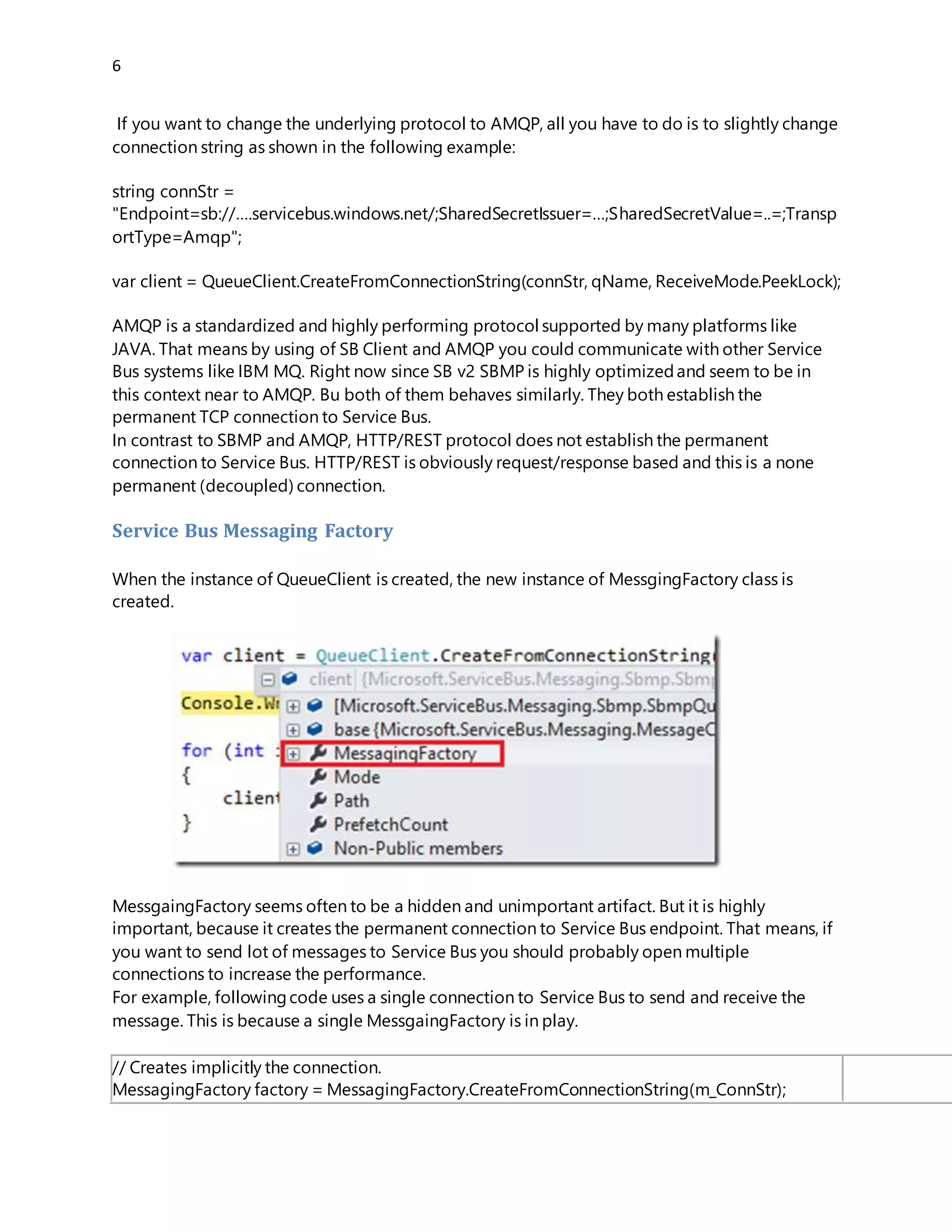
Service Bus Messaging Factory
When the instance of QueueClient is created, the new instance of MessgingFactory class is
created.
MessgaingFactory seems often to be a hidden and unimportant artifact. But it is highly
important, because it creates the permanent connection to Service Bus endpoint. That means, if
you want to send lot of messages to Service Bus you should probably open multiple
connections to increase the performance.
For example, followingcode uses a single connection to Service Bus to send and receive the
message. This is because a single MessgaingFactory is in play.
// Createsimplicitlythe connection.
MessagingFactoryfactory= MessagingFactory.CreateFromConnectionString(m_ConnStr);
var sender= factory.CreateMessageSender("hello/q2");
// Showshowto create the message.
BrokeredMessage msg=newBrokeredMessage("hello");
msg.MessageId=Guid.NewGuid().ToString();
7
// Sendsthe message.
sender.Send(msg);
// Showshowto receive the message.
var receiver=factory.CreateMessageReceiver("hello/q2");
You can create as many clients and threads as you want from one MessagingFactory, but all of
them will use the same connection to Service Bus. That means if you write an application with
many client-instances (QueueClient, TopicClient etc.) which are running on one underlying TCP
connection (created from same MessagingFactory), your throughput will be limited by this
connection. If you want to increase throughput, you should create multiple Message Factories
and then create clients based on multiple factories.
Following example will open two TCP connections to SB.
// Firstconnection.
MessagingFactoryfactory1= MessagingFactory.CreateFromConnectionString(m_ConnStr);
var sender1= factory1.CreateMessageSender("hello/q2");
BrokeredMessage msg=newBrokeredMessage("hello");
msg.MessageId=Guid.NewGuid().ToString();
// Sendsthe message viafirstconnection.
sender1.Send(msg);
// Secondconnection.
MessagingFactoryfactory2= MessagingFactory.CreateFromConnectionString(m_ConnStr);
var sender2= factory2.CreateMessageSender("hello/q2");
BrokeredMessage msg=newBrokeredMessage("hello");
msg.MessageId=Guid.NewGuid().ToString();
// Sendsthe message viasecondconnection.
sender2.Send(msg);
Sometimes, you will even not deal directly with MessagingFactory. For example, you can create
client instance from connection string. No you might ask yourself how many connections
(factories) will open following peace code.
var client1= QueueClient.CreateFromConnectionString(m_ConnStr,qName,ReceiveMode.PeekLock);
var client2= QueueClient.CreateFromConnectionString(m_ConnStr,qName,ReceiveMode.PeekLock);
This is an undocumented detail. Right now (SB-V2) it will open a single MessagingFactory which
will be shared by two clients. However this is undocumented and it might change in the future. If
8
you explicitly need control of MessagingFactory, then create it explicitly as shown in examples
above.
What is a connection link?
In this context there is also one important and undocumented artifact, which was never officially
introduced, because you will never deal with it directly. I call it “connection link”. Here is a
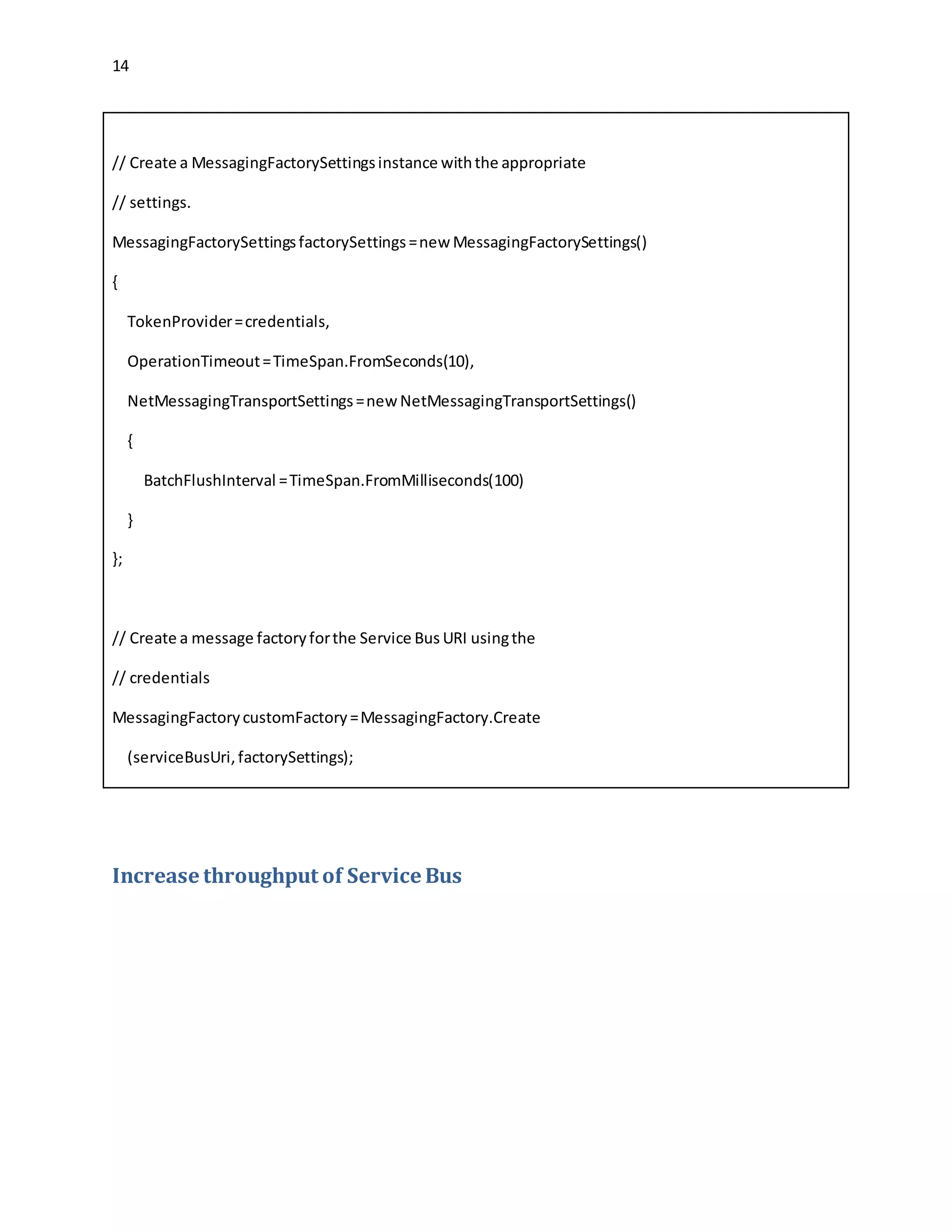
definition. One TCP connection can host multiple “connection links”. Each time you create a
client like message sender, receiver or queue/topic/subscription client, one “connection link” is
created, but this will use one physical connection described above.
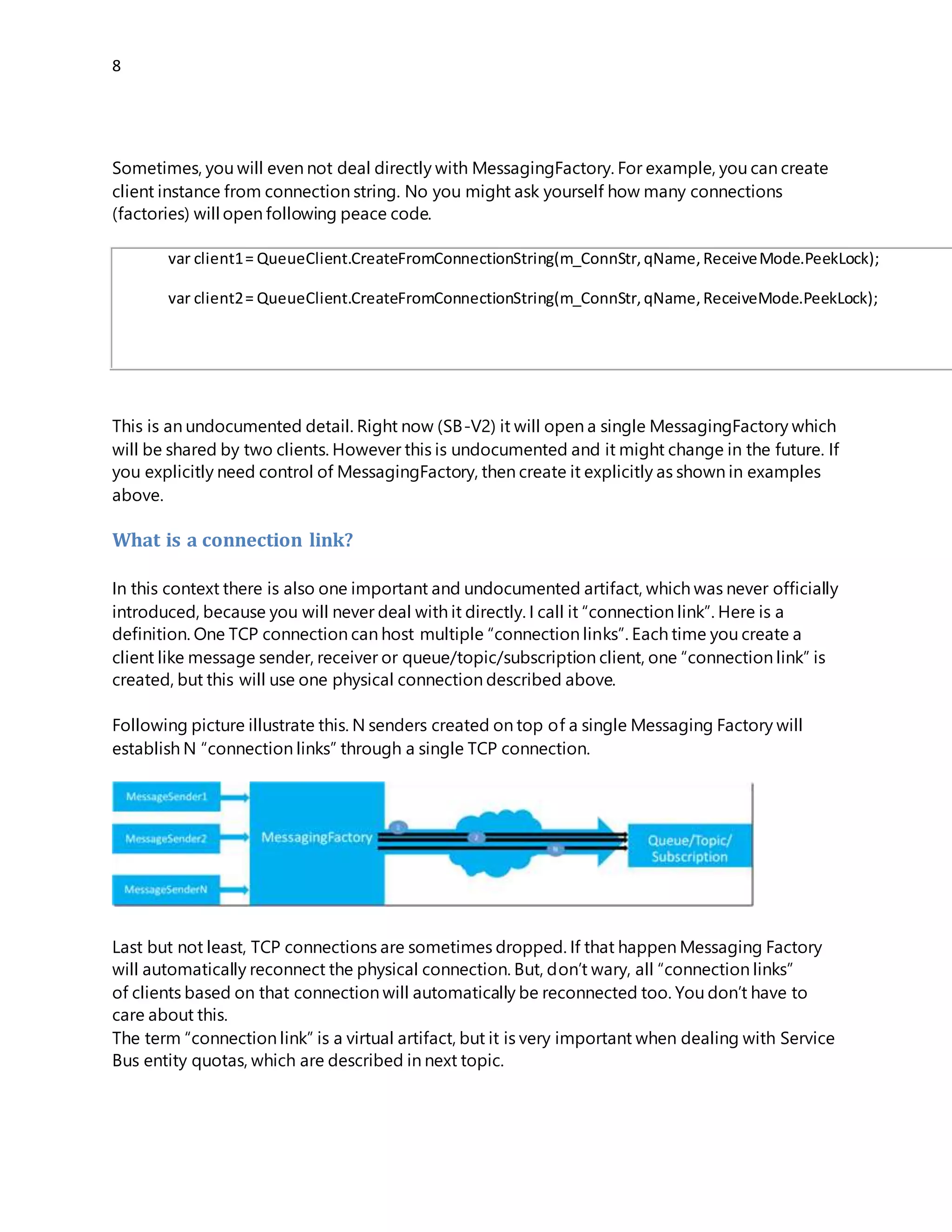
Following picture illustrate this. N senders created on top of a single Messaging Factory will
establish N “connection links” through a single TCP connection.
Last but not least, TCP connections are sometimes dropped. If that happen Messaging Factory
will automatically reconnect the physical connection. But, don’t wary, all “connection links”
of clients based on that connection will automatically be reconnected too. You don’t have to
care about this.
The term “connection link” is a virtual artifact, but it is very important when dealing with Service
Bus entity quotas, which are described in next topic.
Service Bus Entity Quotas
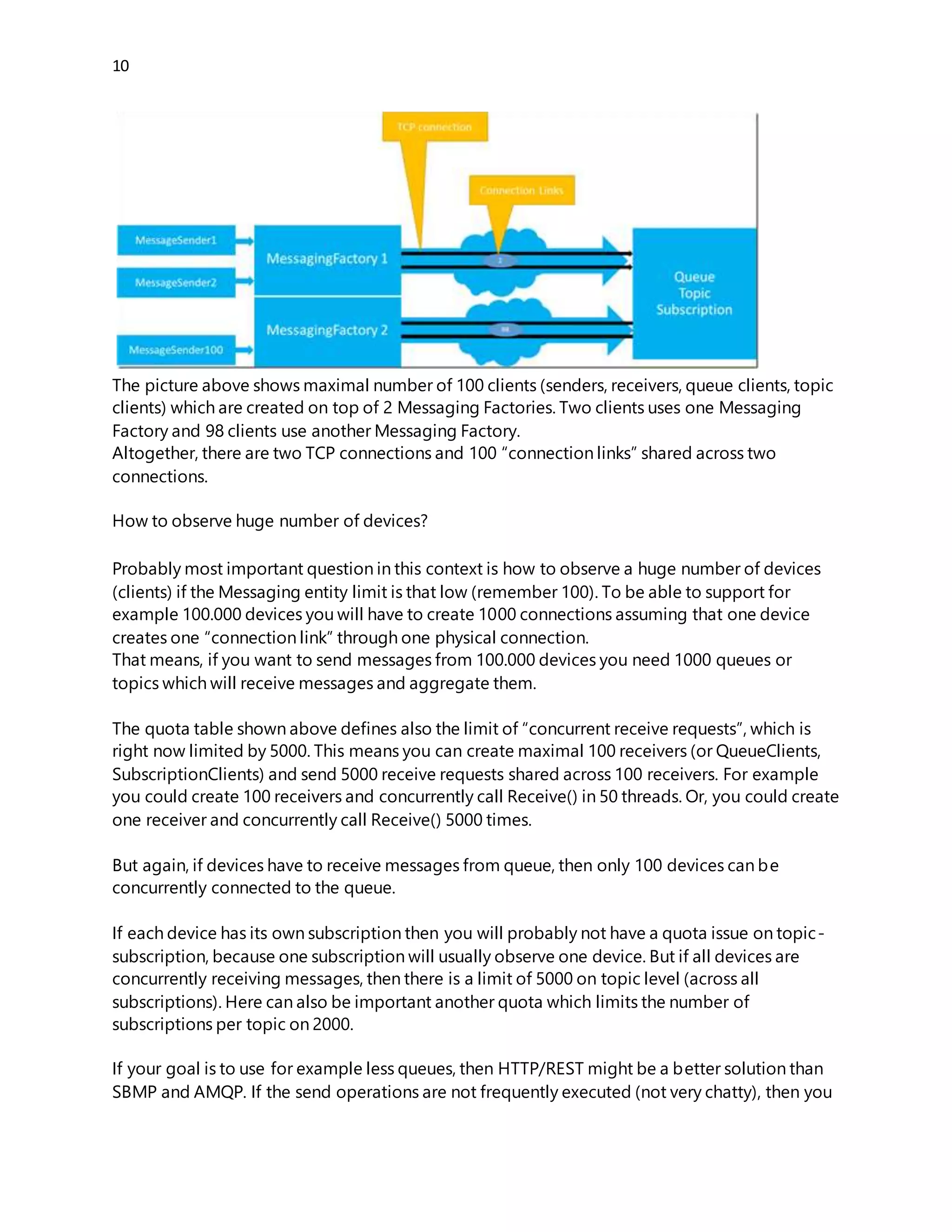
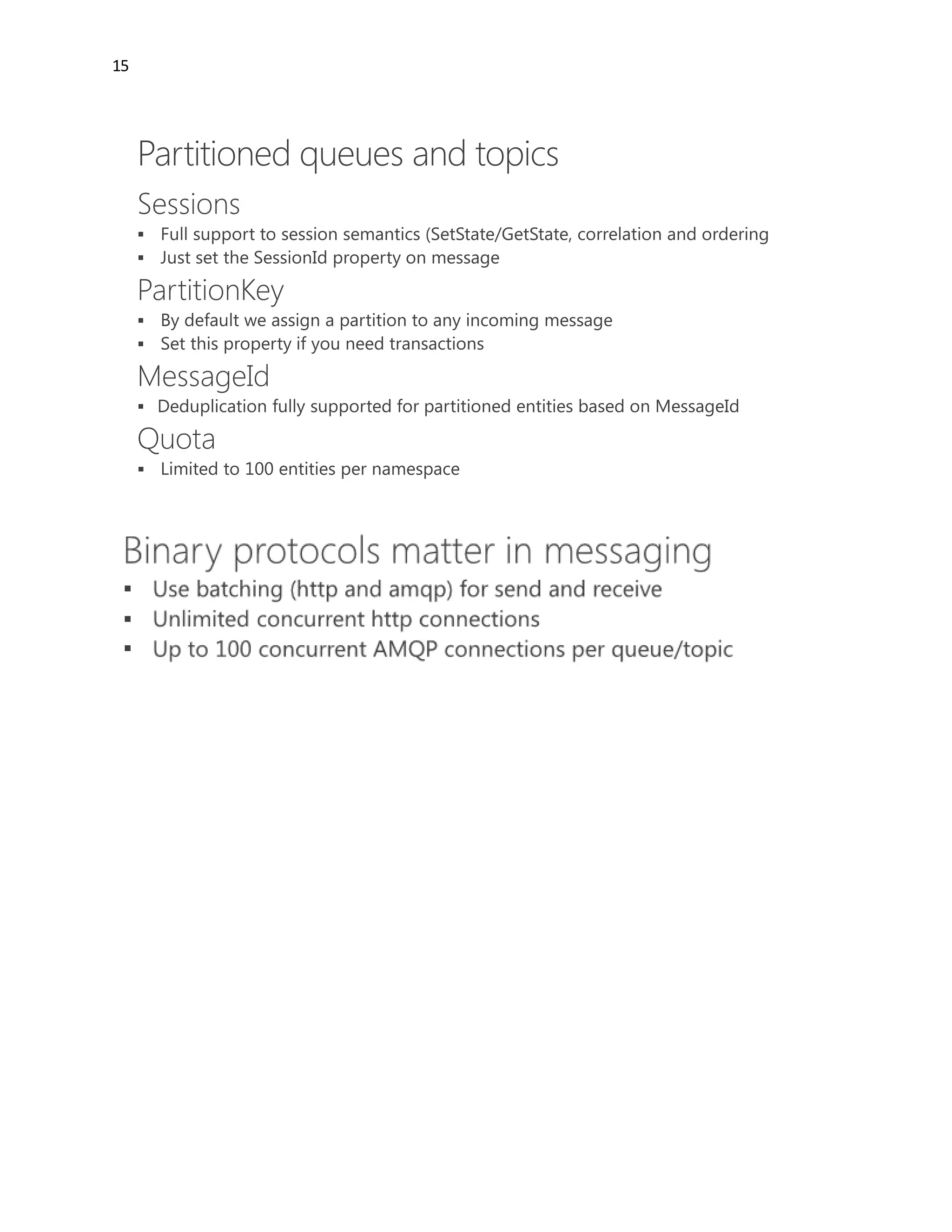
If you want to learn more about Service Bus limits (quotas), then take a look on this official
MSDN article. Following picture is taken from this article. It is in this context an important part.
9
This table contains in fact all you want to know about quotas. But if you don’t know how to deal
with TCP connection to Service Bus and if you don’t know the meaning of “connection link”, this
table will not help much.
The number of “subsequent request for additional connections” is in fact the number of
“connection links” which can be established to a single Messaging Entity (Queues and Topics).
In other words, if you have one Queue/Topic then you can create maximal 100
MessageSender-s/QueueClients/TopicClients which will send messages. This is the Service Bus
quota independent on number of Messaging Factories used behind clients. If you are asking
yourself now, why is the Messaging Factory important at all, if the quota is limited by number of
“connection links” (clients). You are right. There is no correlation between Messaging Factory
and quota of 100 connections.
Remember, quota is limited by number of “connection links”. Messaging Factory helps you to
increase throughput, but not the number of concurrent connections.
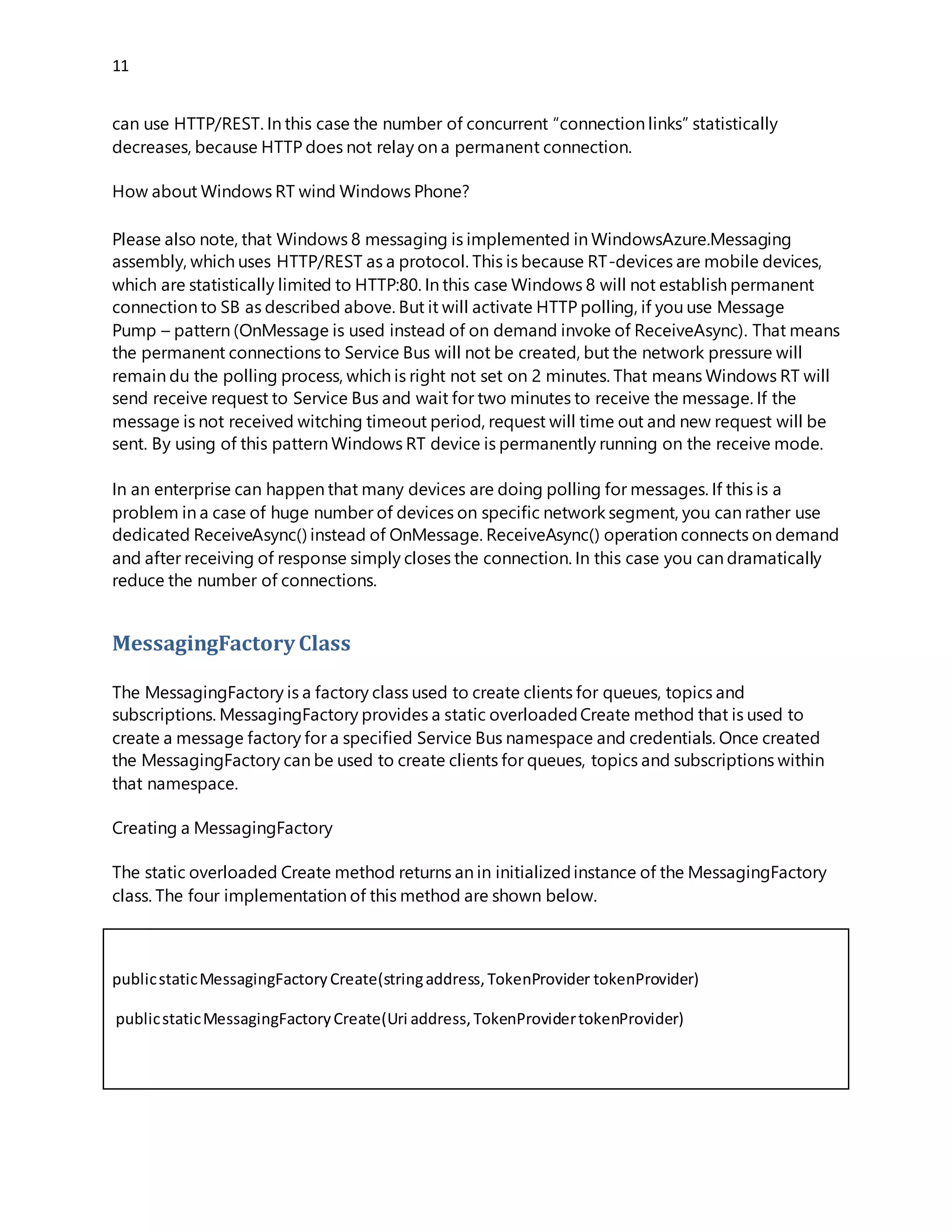
Following picture illustrates this:
10
The picture above shows maximal number of 100 clients (senders, receivers, queue clients, topic
clients) which are created on top of 2 Messaging Factories. Two clients uses one Messaging
Factory and 98 clients use another Messaging Factory.
Altogether, there are two TCP connections and 100 “connection links” shared across two
connections.
How to observe huge number of devices?
Probably most important question in this context is how to observe a huge number of devices
(clients) if the Messaging entity limit is that low (remember 100). To be able to support for
example 100.000 devices you will have to create 1000 connections assuming that one device
creates one “connection link” through one physical connection.
That means, if you want to send messages from 100.000 devices you need 1000 queues or
topics which will receive messages and aggregate them.
The quota table shown above defines also the limit of “concurrent receive requests”, which is
right now limited by 5000. This means you can create maximal 100 receivers (or QueueClients,
SubscriptionClients) and send 5000 receive requests shared across 100 receivers. For example
you could create 100 receivers and concurrently call Receive() in 50 threads. Or, you could create
one receiver and concurrently call Receive() 5000 times.
But again, if devices have to receive messages from queue, then only 100 devices can be
concurrently connected to the queue.
If each device has its own subscription then you will probably not have a quota issue on topic-
subscription, because one subscription will usually observe one device. But if all devices are
concurrently receiving messages, then there is a limit of 5000 on topic level (across all
subscriptions). Here can also be important another quota which limits the number of
subscriptions per topic on 2000.
If your goal is to use for example less queues, then HTTP/REST might be a better solution than
SBMP and AMQP. If the send operations are not frequently executed (not very chatty), then you
11
can use HTTP/REST. In this case the number of concurrent “connection links” statistically
decreases, because HTTP does not relay on a permanent connection.
How about Windows RT wind Windows Phone?
Please also note, that Windows 8 messaging is implemented in WindowsAzure.Messaging
assembly, which uses HTTP/REST as a protocol. This is because RT-devices are mobile devices,
which are statistically limited to HTTP:80. In this case Windows 8 will not establish permanent
connection to SB as described above. But it will activate HTTP polling, if you use Message
Pump – pattern (OnMessage is used instead of on demand invoke of ReceiveAsync). That means
the permanent connections to Service Bus will not be created, but the network pressure will
remain du the polling process, which is right not set on 2 minutes. That means Windows RT will
send receive request to Service Bus and wait for two minutes to receive the message. If the
message is not received witching timeout period, request will time out and new request will be
sent. By using of this pattern Windows RT device is permanently running on the receive mode.
In an enterprise can happen that many devices are doing polling for messages. If this is a
problem in a case of huge number of devices on specific network segment, you can rather use
dedicated ReceiveAsync() instead of OnMessage. ReceiveAsync() operation connects on demand
and after receiving of response simply closes the connection. In this case you can dramatically
reduce the number of connections.
MessagingFactory Class
The MessagingFactory is a factory class used to create clients for queues, topics and
subscriptions. MessagingFactory provides a static overloadedCreate method that is used to
create a message factory for a specified Service Bus namespace and credentials. Once created
the MessagingFactory can be used to create clients for queues, topics and subscriptions within
that namespace.
Creating a MessagingFactory
The static overloaded Create method returns an in initializedinstance of the MessagingFactory
class. The four implementation of this method are shown below.
publicstaticMessagingFactoryCreate(stringaddress,TokenProvidertokenProvider)
publicstaticMessagingFactoryCreate(Uri address,TokenProvidertokenProvider)
publicstaticMessagingFactoryCreate(stringaddress,MessagingFactorySettings
factorySettings)
publicstaticMessagingFactoryCreate(Uri address,MessagingFactorySettings
factorySettings)
12
Details of the Service Bus namespace and credentials are required for this operation and can be
passed in a number of ways. The MessagingFactorySettings can also be used to override the
default operational timeout of 60 seconds.
The simplest way to create a MessagingFactory instance is to create a TokenProvider with the
appropriate credentials and a Uri with the appropriate namespace, then call the static Create
method. The following codewill createan instance of the messaging factory with the default
settings using a namespace and credential stored in a class named AccountDetails.
// Create a tokenproviderwiththe relevantcredentials.
TokenProvidercredentials=
TokenProvider.CreateSharedSecretTokenProvider
(AccountDetails.Name,AccountDetails.Key);
// Create a URI for the serivce bus.
Uri serviceBusUri =ServiceBusEnvironment.CreateServiceUri
("sb",AccountDetails.Namespace,string.Empty);
// Create a message factoryforthe Service Bus URI usingthe
// credentials
MessagingFactoryfactory= MessagingFactory.Create
(serviceBusUri,credentials);
There are two settings that can be specified when creating a MessagingFactory that will affect its
runtime behavior. The MessagingFactorySettings class exposes these settings as properties and
can be specified as a parameter when creating an instance of MessagingFactory. Once a
MessagingFactory instance has been created it is not possible to alter, or even view, these
settings.
OperationTimeout
This is a TimeSpan property with a default value of 60 seconds. The OperationTimeout that is
specified when the MessagingFactory is created will be used as the operation timeout for all
communication objects that are created with the factory methods.
NetMessagingTransportSettings.BatchFlushInterval
This is a TimeSpan property with a default value of 20ms. According to the documentation this
property “Gets or sets the batch flush interval”.
13
The following codewill createa MessagingFactory instance with a reduced OperationTimeout
and increased BatchFlushInterval.
// Create a tokenproviderwiththe relevantcredentials.
TokenProvidercredentials=
TokenProvider.CreateSharedSecretTokenProvider
(AccountDetails.Name,AccountDetails.Key);
// Create a URI for the serivce bus.
Uri serviceBusUri =ServiceBusEnvironment.CreateServiceUri
("sb", AccountDetails.Namespace,string.Empty);
// Create a MessagingFactorySettingsinstance withthe appropriate
// settings.
MessagingFactorySettingsfactorySettings=new MessagingFactorySettings()
{
TokenProvider=credentials,
OperationTimeout=TimeSpan.FromSeconds(10),
NetMessagingTransportSettings=newNetMessagingTransportSettings()
{
BatchFlushInterval =TimeSpan.FromMilliseconds(100)
}
};
// Create a message factoryforthe Service Bus URI usingthe
// credentials
MessagingFactorycustomFactory=MessagingFactory.Create
(serviceBusUri,factorySettings);
Increase throughput of Service Bus
14
Azure Service Bus Quota Limitationand TCP Connections






15
16

Azure Service Bus Performance Checklist

  • 1.
    0 Windows Azure Service BusPerformance Guide Need to check matrix Bhonhariya, Salim M(Windows Azure Cloud Architect) 1/29/2015 Al rightsreserved
  • 2.
    1 Contents Service Bus protocolsand connection behavior....................................................................................2 Select Binary Protocol.........................................................................................................................2 Sync vs.Async vs Batch using BinaryProtocol (SBMP default protocol for Service Bus) ...........................3 Create multiple TCP Connections.........................................................................................................5 Service Bus Messaging Factory ........................................................................................................6 What is a connection link?...............................................................................................................8 Service Bus Entity Quotas....................................................................................................................8 How to observe huge number of devices?.................................................................................10 How about Windows RT wind Windows Phone? .......................................................................11 MessagingFactory Class ....................................................................................................................11 Increase throughput of Service Bus....................................................................................................13 Azure Service Bus Quota Limitation and TCP Connections...................................................................14
  • 3.
    2 Service Bus protocolsandconnectionbehavior In the era of devices and service Windows Azure Service Bus will play definitely a more important role. However the huge number of devices which can connect to the bus in a practical and hypothetical scenario might be an issue. Observing the huge number of connections is not an easy task and it can bring any technology to the limit. Windows Azure Service Bus is designed to observe a huge number of connections. We know Service Bus provides the solution but in a typical scenario you cannot just simply connect millions of devices to it and expect that it just works. Fortunately for some specific scenarios there are solutions which just work out of the box. The good exampleis Service Bus Notification Hubs. Unfortunately in majority of scenarios, you have to design the system to be able to observer huge number of connections. In this context we usually talk simply about devices, because they will represent the majority of connections in the near future. But, keep in mind, connection can be caused by any kind of computer, application or similar. This note should give you an overview about many documented and undocumented details related Service Bus entities and big/huge number of connections (connected devices). Select Binary Protocol When talking to Service Bus, clients have independent on technology since SB v2 three ways (transports/protocols) to connect: 1. Service Bus Messaging Protocol 2. AMQP(Advanced Message Queuing Protocol) 3. HTTP/REST
  • 4.
    3 Sync vs. Asyncvs Batch using Binary Protocol (SBMP default protocol for Service Bus) HTTP 1 Entity per Socket 1 Pending Operation per Socket 60s operation timeout (NAT/Prx) SBMP/AMQP Unlimited Multiplexed Entities and Unlimited Pending Ops per Socket No fixed operation timeout Session Support (coming in AMQP)
  • 5.
    4 Difference in timewhile sending messages Difference in time while receiving messages     
  • 6.
    5 Create multiple TCPConnections The SBMP is the TCP based protocol which is used inside of .NET client library. This protocol is by default enabled when you use Service Bus .NET SDK. The code-snipped below shows how to create the queue client from connection string and then it sends 10 messages to the queue. Finally the code below will start receiving of messages by using message pump. For more information about message pump and other V2 features, take a look on this article. (Note: This sample requires SB 2.0). stringconnStr = "Endpoint=sb://….servicebus.windows.net/;SharedSecretIssuer=…;SharedSecretValue=..="; var client= QueueClient.CreateFromConnectionString(connStr,qName, ReceiveMode.PeekLock); for (inti = 0; i < 10; i++) { client.Send(newBrokeredMessage("i =" + i.ToString() +", payload= " + newRandom().Next().ToString())); } client.OnMessage((msg) => { . . . }); If you want to change the underlying protocol to AMQP, all you have to do is to slightly change connection string as shown in the following example:
  • 7.
    6 string connStr = "Endpoint=sb://….servicebus.windows.net/;SharedSecretIssuer=…;SharedSecretValue=..=;Transp ortType=Amqp"; varclient = QueueClient.CreateFromConnectionString(connStr, qName, ReceiveMode.PeekLock); AMQP is a standardized and highly performing protocol supported by many platforms like JAVA. That means by using of SB Client and AMQP you could communicate with other Service Bus systems like IBM MQ. Right now since SB v2 SBMP is highly optimizedand seem to be in this context near to AMQP. Bu both of them behaves similarly. They both establish the permanent TCP connection to Service Bus. In contrast to SBMP and AMQP, HTTP/REST protocol does not establish the permanent connection to Service Bus. HTTP/REST is obviously request/response based and this is a none permanent (decoupled) connection. Service Bus Messaging Factory When the instance of QueueClient is created, the new instance of MessgingFactory class is created. MessgaingFactory seems often to be a hidden and unimportant artifact. But it is highly important, because it creates the permanent connection to Service Bus endpoint. That means, if you want to send lot of messages to Service Bus you should probably open multiple connections to increase the performance. For example, followingcode uses a single connection to Service Bus to send and receive the message. This is because a single MessgaingFactory is in play. // Createsimplicitlythe connection. MessagingFactoryfactory= MessagingFactory.CreateFromConnectionString(m_ConnStr); var sender= factory.CreateMessageSender("hello/q2"); // Showshowto create the message. BrokeredMessage msg=newBrokeredMessage("hello"); msg.MessageId=Guid.NewGuid().ToString();
  • 8.
    7 // Sendsthe message. sender.Send(msg); //Showshowto receive the message. var receiver=factory.CreateMessageReceiver("hello/q2"); You can create as many clients and threads as you want from one MessagingFactory, but all of them will use the same connection to Service Bus. That means if you write an application with many client-instances (QueueClient, TopicClient etc.) which are running on one underlying TCP connection (created from same MessagingFactory), your throughput will be limited by this connection. If you want to increase throughput, you should create multiple Message Factories and then create clients based on multiple factories. Following example will open two TCP connections to SB. // Firstconnection. MessagingFactoryfactory1= MessagingFactory.CreateFromConnectionString(m_ConnStr); var sender1= factory1.CreateMessageSender("hello/q2"); BrokeredMessage msg=newBrokeredMessage("hello"); msg.MessageId=Guid.NewGuid().ToString(); // Sendsthe message viafirstconnection. sender1.Send(msg); // Secondconnection. MessagingFactoryfactory2= MessagingFactory.CreateFromConnectionString(m_ConnStr); var sender2= factory2.CreateMessageSender("hello/q2"); BrokeredMessage msg=newBrokeredMessage("hello"); msg.MessageId=Guid.NewGuid().ToString(); // Sendsthe message viasecondconnection. sender2.Send(msg); Sometimes, you will even not deal directly with MessagingFactory. For example, you can create client instance from connection string. No you might ask yourself how many connections (factories) will open following peace code. var client1= QueueClient.CreateFromConnectionString(m_ConnStr,qName,ReceiveMode.PeekLock); var client2= QueueClient.CreateFromConnectionString(m_ConnStr,qName,ReceiveMode.PeekLock); This is an undocumented detail. Right now (SB-V2) it will open a single MessagingFactory which will be shared by two clients. However this is undocumented and it might change in the future. If
  • 9.
    8 you explicitly needcontrol of MessagingFactory, then create it explicitly as shown in examples above. What is a connection link? In this context there is also one important and undocumented artifact, which was never officially introduced, because you will never deal with it directly. I call it “connection link”. Here is a definition. One TCP connection can host multiple “connection links”. Each time you create a client like message sender, receiver or queue/topic/subscription client, one “connection link” is created, but this will use one physical connection described above. Following picture illustrate this. N senders created on top of a single Messaging Factory will establish N “connection links” through a single TCP connection. Last but not least, TCP connections are sometimes dropped. If that happen Messaging Factory will automatically reconnect the physical connection. But, don’t wary, all “connection links” of clients based on that connection will automatically be reconnected too. You don’t have to care about this. The term “connection link” is a virtual artifact, but it is very important when dealing with Service Bus entity quotas, which are described in next topic. Service Bus Entity Quotas If you want to learn more about Service Bus limits (quotas), then take a look on this official MSDN article. Following picture is taken from this article. It is in this context an important part.
  • 10.
    9 This table containsin fact all you want to know about quotas. But if you don’t know how to deal with TCP connection to Service Bus and if you don’t know the meaning of “connection link”, this table will not help much. The number of “subsequent request for additional connections” is in fact the number of “connection links” which can be established to a single Messaging Entity (Queues and Topics). In other words, if you have one Queue/Topic then you can create maximal 100 MessageSender-s/QueueClients/TopicClients which will send messages. This is the Service Bus quota independent on number of Messaging Factories used behind clients. If you are asking yourself now, why is the Messaging Factory important at all, if the quota is limited by number of “connection links” (clients). You are right. There is no correlation between Messaging Factory and quota of 100 connections. Remember, quota is limited by number of “connection links”. Messaging Factory helps you to increase throughput, but not the number of concurrent connections. Following picture illustrates this:
  • 11.
    10 The picture aboveshows maximal number of 100 clients (senders, receivers, queue clients, topic clients) which are created on top of 2 Messaging Factories. Two clients uses one Messaging Factory and 98 clients use another Messaging Factory. Altogether, there are two TCP connections and 100 “connection links” shared across two connections. How to observe huge number of devices? Probably most important question in this context is how to observe a huge number of devices (clients) if the Messaging entity limit is that low (remember 100). To be able to support for example 100.000 devices you will have to create 1000 connections assuming that one device creates one “connection link” through one physical connection. That means, if you want to send messages from 100.000 devices you need 1000 queues or topics which will receive messages and aggregate them. The quota table shown above defines also the limit of “concurrent receive requests”, which is right now limited by 5000. This means you can create maximal 100 receivers (or QueueClients, SubscriptionClients) and send 5000 receive requests shared across 100 receivers. For example you could create 100 receivers and concurrently call Receive() in 50 threads. Or, you could create one receiver and concurrently call Receive() 5000 times. But again, if devices have to receive messages from queue, then only 100 devices can be concurrently connected to the queue. If each device has its own subscription then you will probably not have a quota issue on topic- subscription, because one subscription will usually observe one device. But if all devices are concurrently receiving messages, then there is a limit of 5000 on topic level (across all subscriptions). Here can also be important another quota which limits the number of subscriptions per topic on 2000. If your goal is to use for example less queues, then HTTP/REST might be a better solution than SBMP and AMQP. If the send operations are not frequently executed (not very chatty), then you
  • 12.
    11 can use HTTP/REST.In this case the number of concurrent “connection links” statistically decreases, because HTTP does not relay on a permanent connection. How about Windows RT wind Windows Phone? Please also note, that Windows 8 messaging is implemented in WindowsAzure.Messaging assembly, which uses HTTP/REST as a protocol. This is because RT-devices are mobile devices, which are statistically limited to HTTP:80. In this case Windows 8 will not establish permanent connection to SB as described above. But it will activate HTTP polling, if you use Message Pump – pattern (OnMessage is used instead of on demand invoke of ReceiveAsync). That means the permanent connections to Service Bus will not be created, but the network pressure will remain du the polling process, which is right not set on 2 minutes. That means Windows RT will send receive request to Service Bus and wait for two minutes to receive the message. If the message is not received witching timeout period, request will time out and new request will be sent. By using of this pattern Windows RT device is permanently running on the receive mode. In an enterprise can happen that many devices are doing polling for messages. If this is a problem in a case of huge number of devices on specific network segment, you can rather use dedicated ReceiveAsync() instead of OnMessage. ReceiveAsync() operation connects on demand and after receiving of response simply closes the connection. In this case you can dramatically reduce the number of connections. MessagingFactory Class The MessagingFactory is a factory class used to create clients for queues, topics and subscriptions. MessagingFactory provides a static overloadedCreate method that is used to create a message factory for a specified Service Bus namespace and credentials. Once created the MessagingFactory can be used to create clients for queues, topics and subscriptions within that namespace. Creating a MessagingFactory The static overloaded Create method returns an in initializedinstance of the MessagingFactory class. The four implementation of this method are shown below. publicstaticMessagingFactoryCreate(stringaddress,TokenProvidertokenProvider) publicstaticMessagingFactoryCreate(Uri address,TokenProvidertokenProvider) publicstaticMessagingFactoryCreate(stringaddress,MessagingFactorySettings factorySettings) publicstaticMessagingFactoryCreate(Uri address,MessagingFactorySettings factorySettings)
  • 13.
    12 Details of theService Bus namespace and credentials are required for this operation and can be passed in a number of ways. The MessagingFactorySettings can also be used to override the default operational timeout of 60 seconds. The simplest way to create a MessagingFactory instance is to create a TokenProvider with the appropriate credentials and a Uri with the appropriate namespace, then call the static Create method. The following codewill createan instance of the messaging factory with the default settings using a namespace and credential stored in a class named AccountDetails. // Create a tokenproviderwiththe relevantcredentials. TokenProvidercredentials= TokenProvider.CreateSharedSecretTokenProvider (AccountDetails.Name,AccountDetails.Key); // Create a URI for the serivce bus. Uri serviceBusUri =ServiceBusEnvironment.CreateServiceUri ("sb",AccountDetails.Namespace,string.Empty); // Create a message factoryforthe Service Bus URI usingthe // credentials MessagingFactoryfactory= MessagingFactory.Create (serviceBusUri,credentials); There are two settings that can be specified when creating a MessagingFactory that will affect its runtime behavior. The MessagingFactorySettings class exposes these settings as properties and can be specified as a parameter when creating an instance of MessagingFactory. Once a MessagingFactory instance has been created it is not possible to alter, or even view, these settings. OperationTimeout This is a TimeSpan property with a default value of 60 seconds. The OperationTimeout that is specified when the MessagingFactory is created will be used as the operation timeout for all communication objects that are created with the factory methods. NetMessagingTransportSettings.BatchFlushInterval This is a TimeSpan property with a default value of 20ms. According to the documentation this property “Gets or sets the batch flush interval”.
  • 14.
    13 The following codewillcreatea MessagingFactory instance with a reduced OperationTimeout and increased BatchFlushInterval. // Create a tokenproviderwiththe relevantcredentials. TokenProvidercredentials= TokenProvider.CreateSharedSecretTokenProvider (AccountDetails.Name,AccountDetails.Key); // Create a URI for the serivce bus. Uri serviceBusUri =ServiceBusEnvironment.CreateServiceUri ("sb", AccountDetails.Namespace,string.Empty); // Create a MessagingFactorySettingsinstance withthe appropriate // settings. MessagingFactorySettingsfactorySettings=new MessagingFactorySettings() { TokenProvider=credentials, OperationTimeout=TimeSpan.FromSeconds(10), NetMessagingTransportSettings=newNetMessagingTransportSettings() { BatchFlushInterval =TimeSpan.FromMilliseconds(100) } }; // Create a message factoryforthe Service Bus URI usingthe // credentials MessagingFactorycustomFactory=MessagingFactory.Create (serviceBusUri,factorySettings); Increase throughput of Service Bus
  • 15.
    14 Azure Service BusQuota Limitationand TCP Connections      
  • 16.
  • 17.