瀬尾ソフト 瀬尾佳隆
Microsoft MVP for AI
勝手に勉強会
2020年4月19日
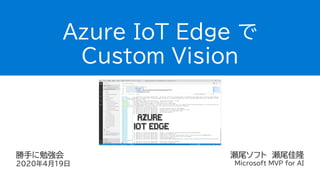
Azure IoT Edge で
Custom Vision
自己紹介
瀬尾 佳隆 (せお よしたか)
• MVP for AI (Jul 2018 – Jun 2020) / MVP (Jan 2009 – Jun 2018)
• https://github.com/seosoft
• https://yseosoft.wordpress.com/
• https://twitter.com/seosoft
• https://www.facebook.com/seosoft
• Humans of IT Community Event Leader / Speaker
• Ignite The Tour Tokyo
• BRK30055 「開発者のための機械学習 : Azure Machine Learning サービスで構造化データから予
測分析」
• THR10003 「Humans of IT Empower Breakfast – 人に寄り添うアクセシビリティ技術の現在と未
来」
• Tech Summit 2018 – DA09 「ユーザーインターフェースとしてのチャットボット
開発手法と
Microsoft Bot Framework v4」
2
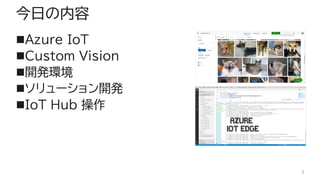
今日の内容
◼Azure IoT
◼Custom Vision
◼開発環境
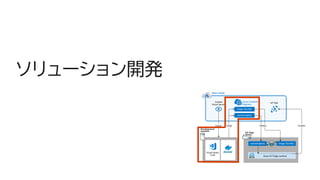
◼ソリューション開発
◼IoT Hub 操作
3
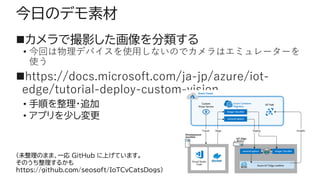
今日のデモ素材
◼カメラで撮影した画像を分類する
• 今回は物理デバイスを使用しないのでカメラはエミュレーターを
使う
◼https://docs.microsoft.com/ja-jp/azure/iot-
edge/tutorial-deploy-custom-vision
• 手順を整理・追加
• アプリを少し変更
4
(未整理のまま、一応 GitHub に上げています。
そのうち整理するかも
https://github.com/seosoft/IoTCvCatsDogs)
Azure IoT
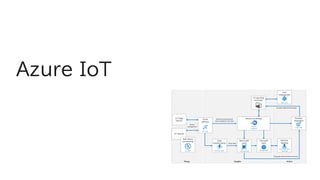
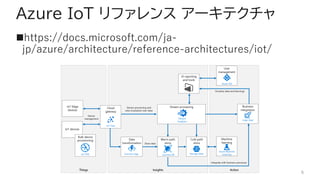
Azure IoT リファレンス アーキテクチャ
◼https://docs.microsoft.com/ja-
jp/azure/architecture/reference-architectures/iot/
6
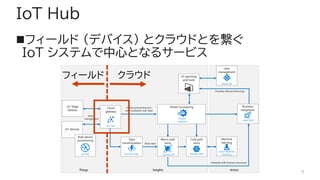
IoT Hub
◼フィールド (デバイス) とクラウドとを繋ぐ
IoT システムで中心となるサービス
7
フィールド クラウド
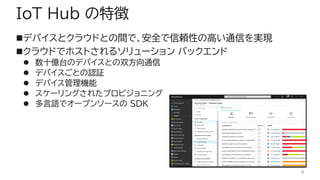
IoT Hub の特徴
◼デバイスとクラウドとの間で、安全で信頼性の高い通信を実現
◼クラウドでホストされるソリューション バックエンド
⚫ 数十億台のデバイスとの双方向通信
⚫ デバイスごとの認証
⚫ デバイス管理機能
⚫ スケーリングされたプロビジョニング
⚫ 多言語でオープンソースの SDK
8
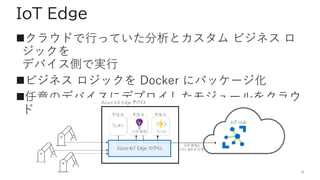
IoT Edge
◼クラウドで行っていた分析とカスタム ビジネス ロ
ジックを
デバイス側で実行
◼ビジネス ロジックを Docker にパッケージ化
◼任意のデバイスにデプロイしたモジュールをクラウ
ドから監視
9
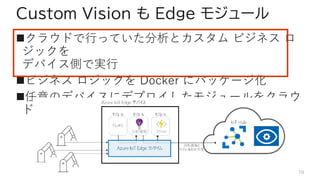
Custom Vision も Edge モジュール
◼クラウドで行っていた分析とカスタム ビジネス ロ
ジックを
デバイス側で実行
◼ビジネス ロジックを Docker にパッケージ化
◼任意のデバイスにデプロイしたモジュールをクラウ
ドから監視
10
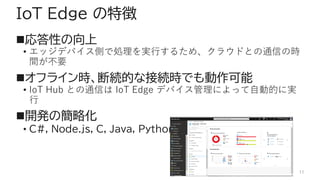
IoT Edge の特徴
◼応答性の向上
• エッジデバイス側で処理を実行するため、クラウドとの通信の時
間が不要
◼オフライン時、断続的な接続時でも動作可能
• IoT Hub との通信は IoT Edge デバイス管理によって自動的に実
行
◼開発の簡略化
• C#, Node.js, C, Java, Python などの言語で開発可能
11
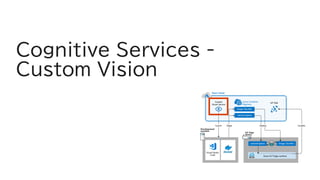
Cognitive Services -
Custom Vision
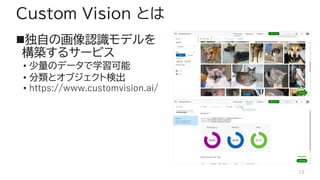
Custom Vision とは
◼独自の画像認識モデルを
構築するサービス
• 少量のデータで学習可能
• 分類とオブジェクト検出
• https://www.customvision.ai/
13
Custom Vision 操作 (1/6)
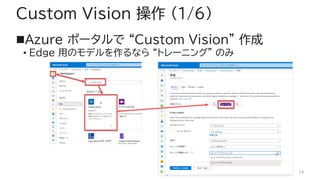
◼Azure ポータルで “Custom Vision” 作成
• Edge 用のモデルを作るなら “トレーニング” のみ
14
Custom Vision 操作 (2/6)
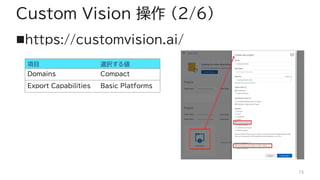
◼https://customvision.ai/
15
項目 選択する値
Domains Compact
Export Capabilities Basic Platforms
Custom Vision 操作 (3/6)
◼ラベル付きで画像アップロード
◼[Train] で学習
16
今回は “Kaggle” の “Dogs & Cats Image” を使用
(犬・猫の画像をそれぞれ 30枚)
https://www.kaggle.com/chetankv/dogs-cats-images
Custom Vision 操作 (4/6)
◼[Train] ボタンで学習
◼スコアを確認
• “Compact” モデルは
少し品質が低くなる
17今回は “衝撃に結末” が・・・ (あとのお楽しみ)
Custom Vision 操作 (5/6)
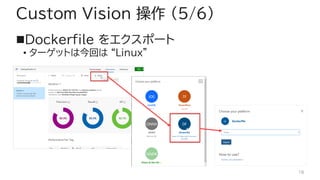
◼Dockerfile をエクスポート
• ターゲットは今回は “Linux”
18
Custom Vision 操作 (6/6)
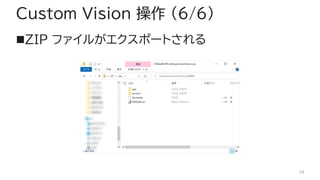
◼ZIP ファイルがエクスポートされる
19
ソリューション開発
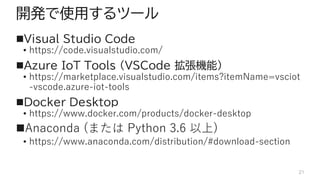
開発で使用するツール
◼Visual Studio Code
• https://code.visualstudio.com/
◼Azure IoT Tools (VSCode 拡張機能)
• https://marketplace.visualstudio.com/items?itemName=vsciot
-vscode.azure-iot-tools
◼Docker Desktop
• https://www.docker.com/products/docker-desktop
◼Anaconda (または Python 3.6 以上)
• https://www.anaconda.com/distribution/#download-section
21
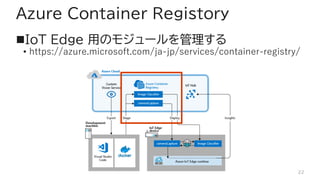
Azure Container Registory
◼IoT Edge 用のモジュールを管理する
• https://azure.microsoft.com/ja-jp/services/container-registry/
22
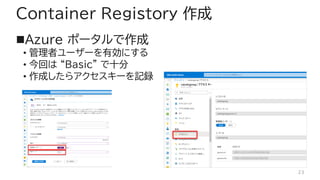
Container Registory 作成
◼Azure ポータルで作成
• 管理者ユーザーを有効にする
• 今回は “Basic” で十分
• 作成したらアクセスキーを記録
23
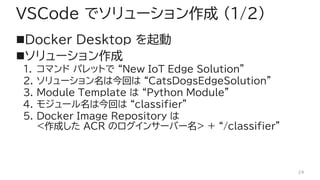
VSCode でソリューション作成 (1/2)
◼Docker Desktop を起動
◼ソリューション作成
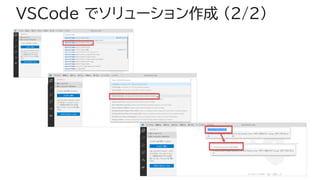
1. コマンド パレットで “New IoT Edge Solution”
2. ソリューション名は今回は “CatsDogsEdgeSolution”
3. Module Template は “Python Module”
4. モジュール名は今回は “classifier”
5. Docker Image Repository は
<作成した ACR のログインサーバー名> + “/classifier”
24
VSCode でソリューション作成 (2/2)
25
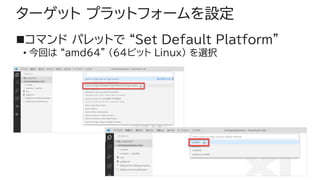
ターゲット プラットフォームを設定
◼コマンド パレットで “Set Default Platform”
• 今回は “amd64” (64ビット Linux) を選択
26
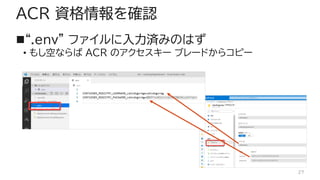
ACR 資格情報を確認
◼“.env” ファイルに入力済みのはず
• もし空ならば ACR のアクセスキー ブレードからコピー
27
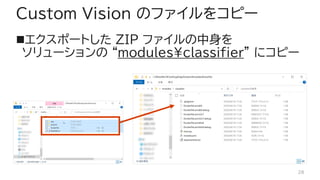
Custom Vision のファイルをコピー
◼エクスポートした ZIP ファイルの中身を
ソリューションの “modules¥classifier” にコピー
28
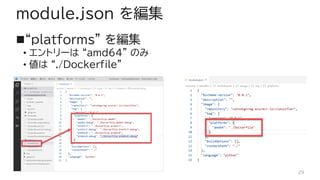
module.json を編集
◼“platforms” を編集
• エントリーは “amd64” のみ
• 値は “./Dockerfile”
29
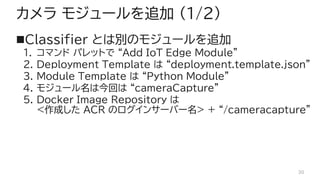
カメラ モジュールを追加 (1/2)
◼Classifier とは別のモジュールを追加
1. コマンド パレットで “Add IoT Edge Module”
2. Deployment Template は “deployment.template.json”
3. Module Template は “Python Module”
4. モジュール名は今回は “cameraCapture”
5. Docker Image Repository は
<作成した ACR のログインサーバー名> + “/cameracapture”
30
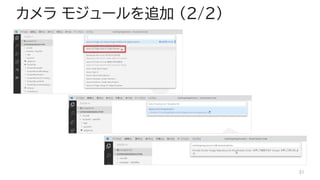
カメラ モジュールを追加 (2/2)
31
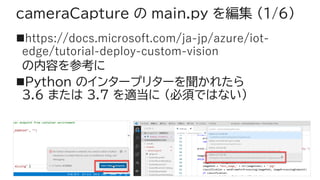
cameraCapture の main.py を編集 (1/6)
◼https://docs.microsoft.com/ja-jp/azure/iot-
edge/tutorial-deploy-custom-vision
の内容を参考に
◼Python のインタープリターを聞かれたら
3.6 または 3.7 を適当に (必須ではない)
32
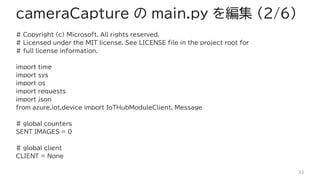
cameraCapture の main.py を編集 (2/6)
# Copyright (c) Microsoft. All rights reserved.
# Licensed under the MIT license. See LICENSE file in the project root for
# full license information.
import time
import sys
import os
import requests
import json
from azure.iot.device import IoTHubModuleClient, Message
# global counters
SENT_IMAGES = 0
# global client
CLIENT = None
33
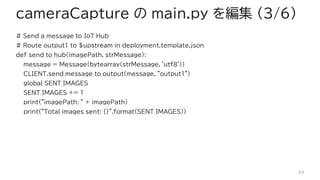
cameraCapture の main.py を編集 (3/6)
# Send a message to IoT Hub
# Route output1 to $upstream in deployment.template.json
def send_to_hub(imagePath, strMessage):
message = Message(bytearray(strMessage, 'utf8'))
CLIENT.send_message_to_output(message, "output1")
global SENT_IMAGES
SENT_IMAGES += 1
print("imagePath: " + imagePath)
print("Total images sent: {}".format(SENT_IMAGES))
34
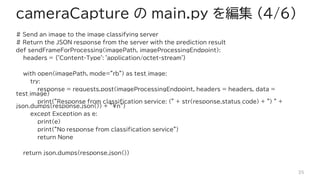
cameraCapture の main.py を編集 (4/6)
# Send an image to the image classifying server
# Return the JSON response from the server with the prediction result
def sendFrameForProcessing(imagePath, imageProcessingEndpoint):
headers = {'Content-Type': 'application/octet-stream'}
with open(imagePath, mode="rb") as test_image:
try:
response = requests.post(imageProcessingEndpoint, headers = headers, data =
test_image)
print("Response from classification service: (" + str(response.status_code) + ") " +
json.dumps(response.json()) + "¥n")
except Exception as e:
print(e)
print("No response from classification service")
return None
return json.dumps(response.json())
35
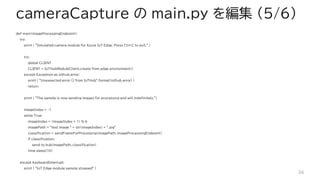
cameraCapture の main.py を編集 (5/6)
def main(imageProcessingEndpoint):
try:
print ( "Simulated camera module for Azure IoT Edge. Press Ctrl-C to exit." )
try:
global CLIENT
CLIENT = IoTHubModuleClient.create_from_edge_environment()
except Exception as iothub_error:
print ( "Unexpected error {} from IoTHub".format(iothub_error) )
return
print ( "The sample is now sending images for processing and will indefinitely.")
imageIndex = -1
while True:
imageIndex = (imageIndex + 1) % 6
imagePath = "test_image_" + str(imageIndex) + ".jpg"
classification = sendFrameForProcessing(imagePath, imageProcessingEndpoint)
if classification:
send_to_hub(imagePath, classification)
time.sleep(10)
except KeyboardInterrupt:
print ( "IoT Edge module sample stopped" )
36
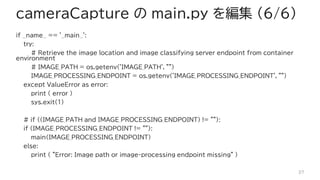
cameraCapture の main.py を編集 (6/6)
if __name__ == '__main__':
try:
# Retrieve the image location and image classifying server endpoint from container
environment
# IMAGE_PATH = os.getenv('IMAGE_PATH', "")
IMAGE_PROCESSING_ENDPOINT = os.getenv('IMAGE_PROCESSING_ENDPOINT', "")
except ValueError as error:
print ( error )
sys.exit(1)
# if ((IMAGE_PATH and IMAGE_PROCESSING_ENDPOINT) != ""):
if (IMAGE_PROCESSING_ENDPOINT != ""):
main(IMAGE_PROCESSING_ENDPOINT)
else:
print ( "Error: Image path or image-processing endpoint missing" )
37
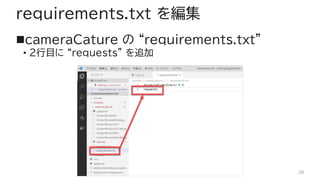
requirements.txt を編集
◼cameraCature の “requirements.txt”
• 2行目に “requests” を追加
38
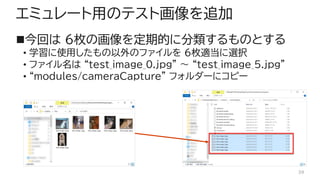
エミュレート用のテスト画像を追加
◼今回は 6枚の画像を定期的に分類するものとする
• 学習に使用したもの以外のファイルを 6枚適当に選択
• ファイル名は “test_image_0.jpg” ~ “test_image_5.jpg”
• “modules/cameraCapture” フォルダーにコピー
39
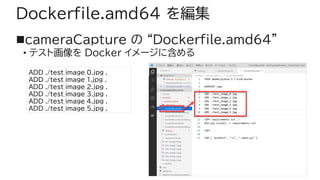
Dockerfile.amd64 を編集
◼cameraCapture の “Dockerfile.amd64”
• テスト画像を Docker イメージに含める
40
ADD ./test_image_0.jpg .
ADD ./test_image_1.jpg .
ADD ./test_image_2.jpg .
ADD ./test_image_3.jpg .
ADD ./test_image_4.jpg .
ADD ./test_image_5.jpg .
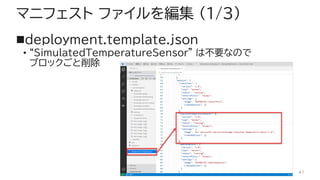
マニフェスト ファイルを編集 (1/3)
◼deployment.template.json
• “SimulatedTemperatureSensor” は不要なので
ブロックごと削除
41
マニフェスト ファイルを編集 (2/3)
◼cameraCapture/settings/createOptions を
編集
42
"createOptions":
"{¥"Env¥":[¥"IMAGE_PROCESSING_ENDPOINT=http://classifier/image¥"]}"
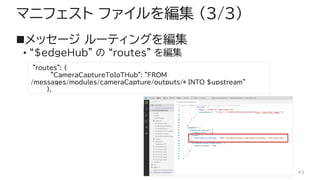
マニフェスト ファイルを編集 (3/3)
◼メッセージ ルーティングを編集
• “$edgeHub” の “routes” を編集
43
"routes": {
"CameraCaptureToIoTHub": "FROM
/messages/modules/cameraCapture/outputs/* INTO $upstream"
},
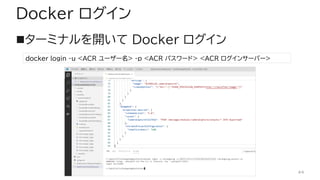
Docker ログイン
◼ターミナルを開いて Docker ログイン
44
docker login -u <ACR ユーザー名> -p <ACR パスワード> <ACR ログインサーバー>
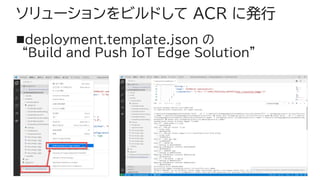
ソリューションをビルドして ACR に発行
◼deployment.template.json の
“Build and Push IoT Edge Solution”
45
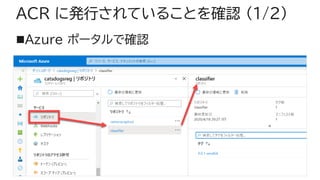
ACR に発行されていることを確認 (1/2)
◼Azure ポータルで確認
46
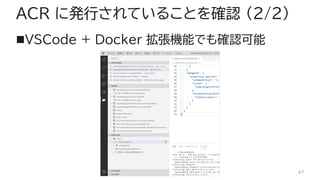
ACR に発行されていることを確認 (2/2)
◼VSCode + Docker 拡張機能でも確認可能
47
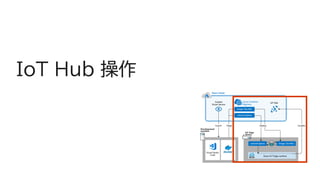
IoT Hub 操作
IoT Hub 作成
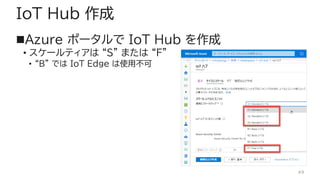
◼Azure ポータルで IoT Hub を作成
• スケールティアは “S” または “F”
• “B” では IoT Edge は使用不可
49
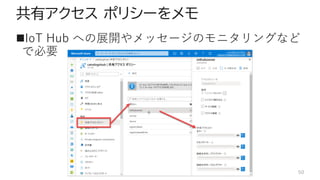
共有アクセス ポリシーをメモ
◼IoT Hub への展開やメッセージのモニタリングなど
で必要
50
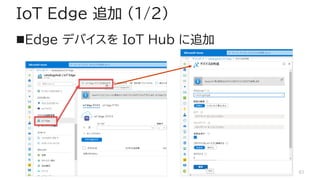
IoT Edge 追加 (1/2)
◼Edge デバイスを IoT Hub に追加
51
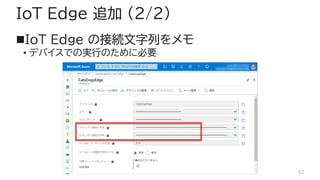
IoT Edge 追加 (2/2)
◼IoT Edge の接続文字列をメモ
• デバイスでの実行のために必要
52
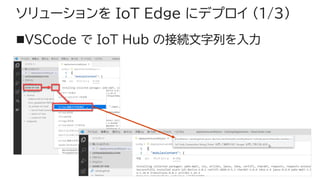
ソリューションを IoT Edge にデプロイ (1/3)
◼VSCode で IoT Hub の接続文字列を入力
53
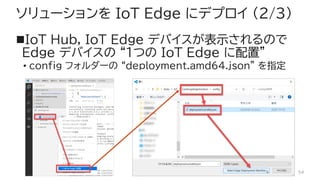
ソリューションを IoT Edge にデプロイ (2/3)
◼IoT Hub, IoT Edge デバイスが表示されるので
Edge デバイスの “1つの IoT Edge に配置”
• config フォルダーの “deployment.amd64.json” を指定
54
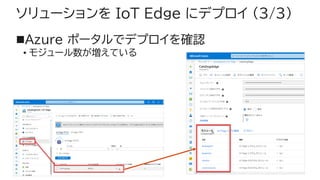
ソリューションを IoT Edge にデプロイ (3/3)
◼Azure ポータルでデプロイを確認
• モジュール数が増えている
55
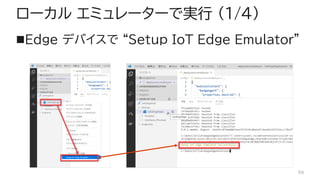
ローカル エミュレーターで実行 (1/4)
◼Edge デバイスで “Setup IoT Edge Emulator”
56
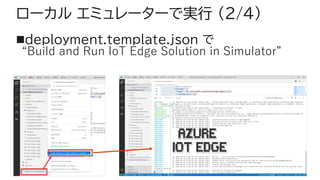
ローカル エミュレーターで実行 (2/4)
◼deployment.template.json で
“Build and Run IoT Edge Solution in Simulator”
57
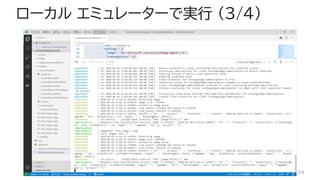
ローカル エミュレーターで実行 (3/4)
58
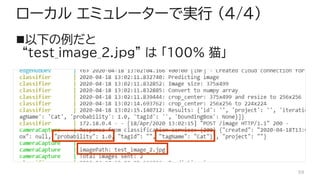
ローカル エミュレーターで実行 (4/4)
◼以下の例だと
“test_image_2.jpg” は 「100% 猫」
59
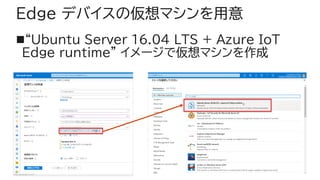
Edge デバイスの仮想マシンを用意
◼“Ubuntu Server 16.04 LTS + Azure IoT
Edge runtime” イメージで仮想マシンを作成
60
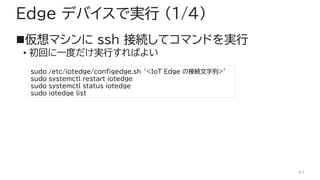
Edge デバイスで実行 (1/4)
◼仮想マシンに ssh 接続してコマンドを実行
• 初回に一度だけ実行すればよい
61
sudo /etc/iotedge/configedge.sh ‘<IoT Edge の接続文字列>'
sudo systemctl restart iotedge
sudo systemctl status iotedge
sudo iotedge list
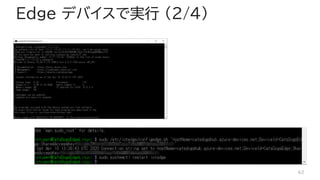
Edge デバイスで実行 (2/4)
62
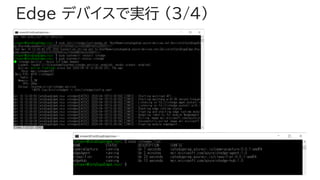
Edge デバイスで実行 (3/4)
63
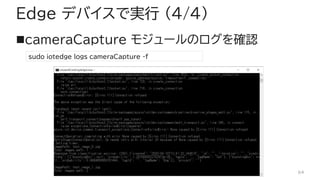
Edge デバイスで実行 (4/4)
◼cameraCapture モジュールのログを確認
64
sudo iotedge logs cameraCapture -f
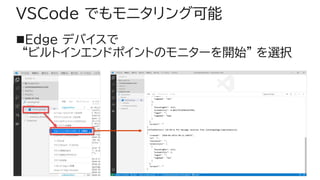
VSCode でもモニタリング可能
◼Edge デバイスで
“ビルトインエンドポイントのモニターを開始” を選択
65
その他の参考情報
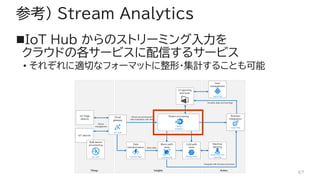
参考) Stream Analytics
◼IoT Hub からのストリーミング入力を
クラウドの各サービスに配信するサービス
• それぞれに適切なフォーマットに整形・集計することも可能
67
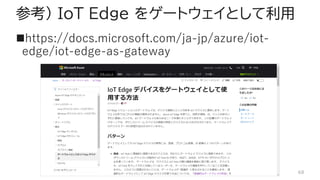
参考) IoT Edge をゲートウェイとして利用
◼https://docs.microsoft.com/ja-jp/azure/iot-
edge/iot-edge-as-gateway
68
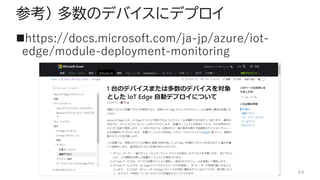
参考) 多数のデバイスにデプロイ
◼https://docs.microsoft.com/ja-jp/azure/iot-
edge/module-deployment-monitoring
69
最後まで聞いてくれてありがとう
◼https://github.com/seosoft
◼https://yseosoft.wordpress.com/
◼https://twitter.com/seosoft
◼https://www.facebook.com/seosoft
70

Azure IoT Edge で Custom Vision