AWS Toolkit for Visual Studio
User Guide
Version v1.30
AWS Toolkit for Visual Studio: User Guide
Copyright © 2014 Amazon Web Services, Inc. and/or its affiliates. All rights reserved.
The following are trademarks of Amazon Web Services, Inc.: Amazon, Amazon Web Services Design, AWS, Amazon CloudFront,
Cloudfront, CloudTrail, Amazon DevPay, DynamoDB, ElastiCache, Amazon EC2, Amazon Elastic Compute Cloud, Amazon Glacier,
Kinesis, Kindle, Kindle Fire, AWS Marketplace Design, Mechanical Turk, Amazon Redshift, Amazon Route 53, Amazon S3, Amazon
VPC. In addition, Amazon.com graphics, logos, page headers, button icons, scripts, and service names are trademarks, or trade dress
of Amazon in the U.S. and/or other countries. Amazon's trademarks and trade dress may not be used in connection with any product
or service that is not Amazon's, in any manner that is likely to cause confusion among customers, or in any manner that disparages
or discredits Amazon.
All other trademarks not owned by Amazon are the property of their respective owners, who may or may not be affiliated with, connected
to, or sponsored by Amazon.
AWS Toolkit for Visual Studio User Guide
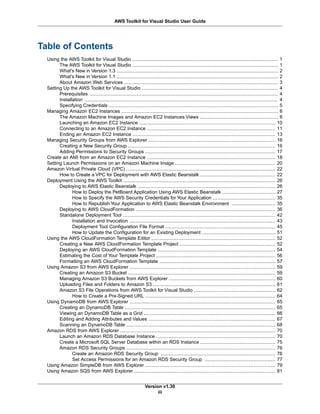
Table of Contents
Using the AWS Toolkit for Visual Studio ............................................................................................. 1
The AWS Toolkit for Visual Studio ............................................................................................. 1
What's New in Version 1.3 ....................................................................................................... 2
What's New in Version 1.1 ....................................................................................................... 2
About Amazon Web Services .................................................................................................. 3
Setting Up the AWS Toolkit for Visual Studio ....................................................................................... 4
Prerequisites ........................................................................................................................ 4
Installation ........................................................................................................................... 4
Specifying Credentials ............................................................................................................ 5
Managing Amazon EC2 Instances .................................................................................................... 8
The Amazon Machine Images and Amazon EC2 Instances Views .................................................. 8
Launching an Amazon EC2 Instance ....................................................................................... 10
Connecting to an Amazon EC2 Instance .................................................................................. 11
Ending an Amazon EC2 Instance ........................................................................................... 13
Managing Security Groups from AWS Explorer ................................................................................. 16
Creating a New Security Group .............................................................................................. 16
Adding Permissions to Security Groups ................................................................................... 17
Create an AMI from an Amazon EC2 Instance .................................................................................. 18
Setting Launch Permissions on an Amazon Machine Image ................................................................ 20
Amazon Virtual Private Cloud (VPC) ............................................................................................... 22
How to Create a VPC for Deployment with AWS Elastic Beanstalk ................................................ 22
Deployment Using the AWS Toolkit ................................................................................................. 26
Deploying to AWS Elastic Beanstalk ........................................................................................ 26
How to Deploy the PetBoard Application Using AWS Elastic Beanstalk .................................. 27
How to Specify the AWS Security Credentials for Your Application ........................................ 35
How to Republish Your Application to AWS Elastic Beanstalk Environment ............................ 35
Deploying to AWS CloudFormation ......................................................................................... 36
Standalone Deployment Tool ................................................................................................. 42
Installation and Invocation ............................................................................................. 43
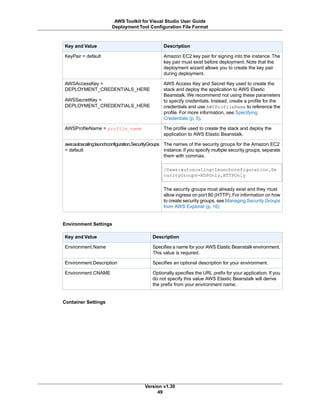
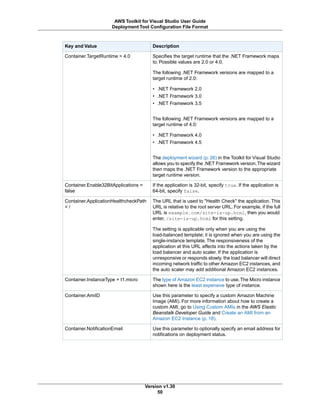
Deployment Tool Configuration File Format ...................................................................... 45
How to Update the Configuration for an Existing Deployment ............................................... 51
Using the AWS CloudFormation Template Editor ............................................................................... 52
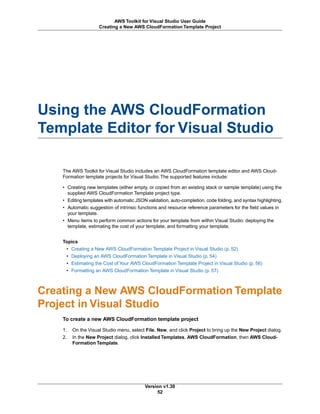
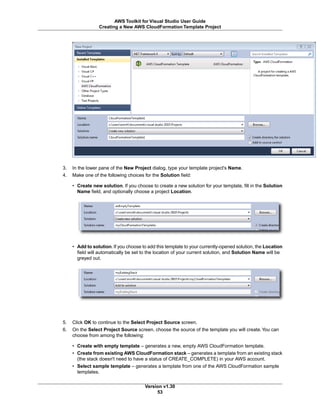
Creating a New AWS CloudFormation Template Project ............................................................. 52
Deploying an AWS CloudFormation Template ........................................................................... 54
Estimating the Cost of Your Template Project ............................................................................ 56
Formatting an AWS CloudFormation Template .......................................................................... 57
Using Amazon S3 from AWS Explorer ............................................................................................. 59
Creating an Amazon S3 Bucket .............................................................................................. 59
Managing Amazon S3 Buckets from AWS Explorer .................................................................... 60
Uploading Files and Folders to Amazon S3 .............................................................................. 61
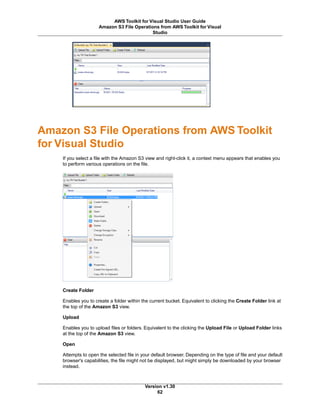
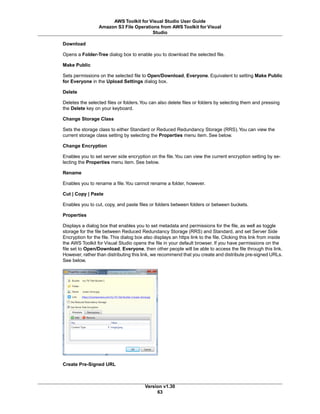
Amazon S3 File Operations from AWS Toolkit for Visual Studio .................................................... 62
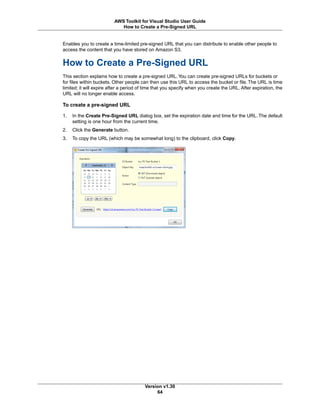
How to Create a Pre-Signed URL ................................................................................... 64
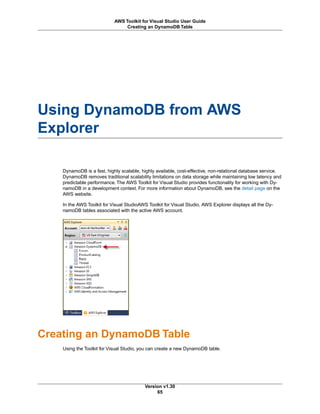
Using DynamoDB from AWS Explorer ............................................................................................. 65
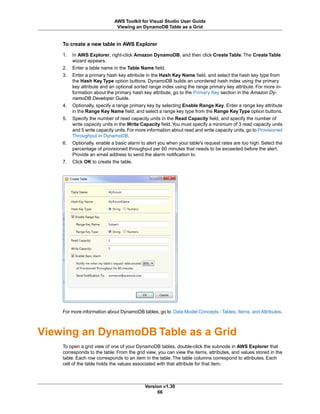
Creating an DynamoDB Table ................................................................................................ 65
Viewing an DynamoDB Table as a Grid .................................................................................... 66
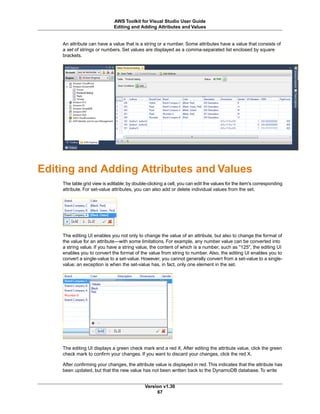
Editing and Adding Attributes and Values ................................................................................. 67
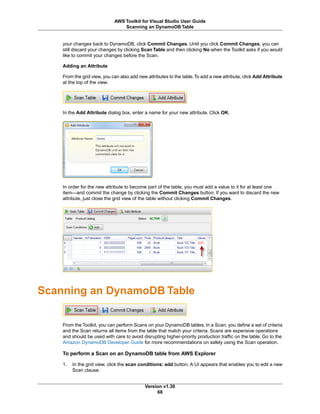
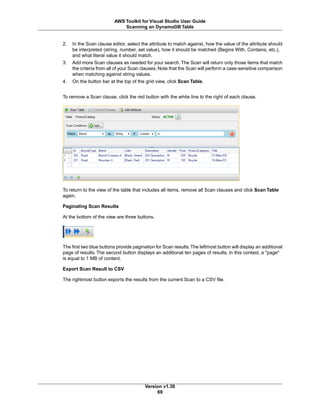
Scanning an DynamoDB Table ............................................................................................... 68
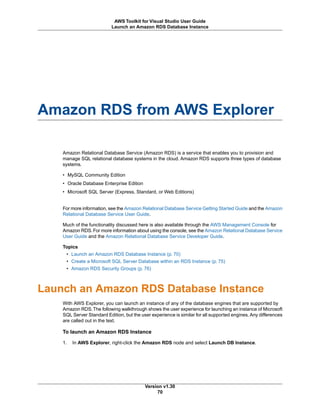
Amazon RDS from AWS Explorer ................................................................................................... 70
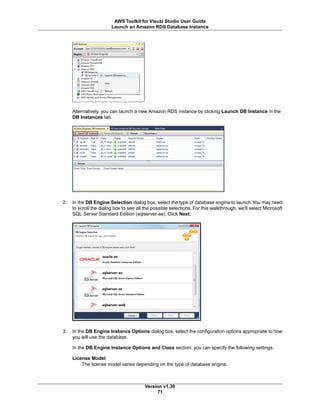
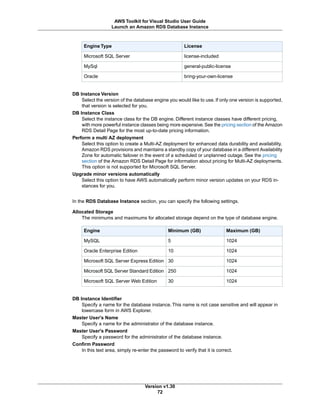
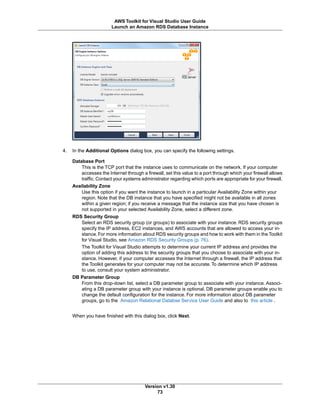
Launch an Amazon RDS Database Instance ............................................................................ 70
Create a Microsoft SQL Server Database within an RDS Instance ................................................ 75
Amazon RDS Security Groups ............................................................................................... 76
Create an Amazon RDS Security Group ......................................................................... 76
Set Access Permissions for an Amazon RDS Security Group ............................................. 77
Using Amazon SimpleDB from AWS Explorer ................................................................................... 79
Using Amazon SQS from AWS Explorer .......................................................................................... 81
Version v1.30
iii
AWS Toolkit for Visual Studio User Guide
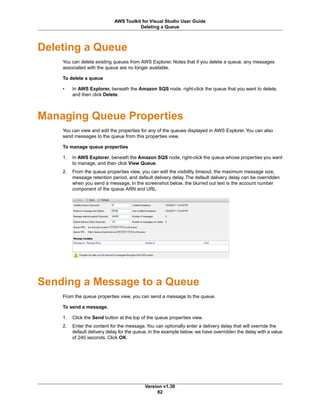
Creating a Queue ................................................................................................................ 81
Deleting a Queue ................................................................................................................. 82
Managing Queue Properties .................................................................................................. 82
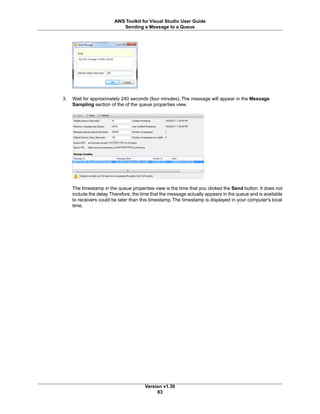
Sending a Message to a Queue ............................................................................................. 82
Identity and Access Management ................................................................................................... 84
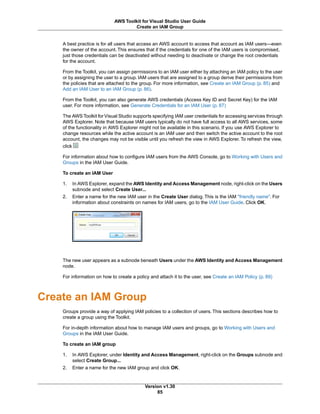
Create and Configure an IAM User ......................................................................................... 84
Create an IAM Group ........................................................................................................... 85
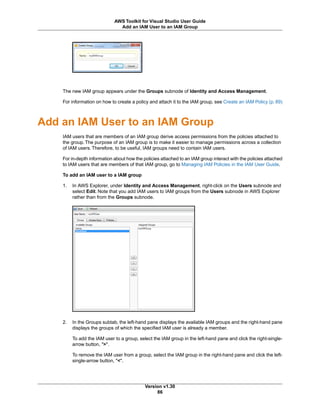
Add an IAM User to an IAM Group .......................................................................................... 86
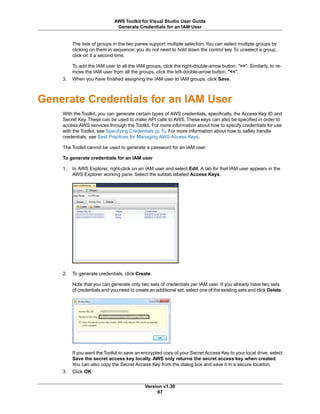
Generate Credentials for an IAM User ..................................................................................... 87
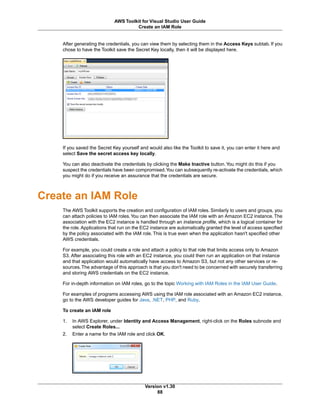
Create an IAM Role ............................................................................................................. 88
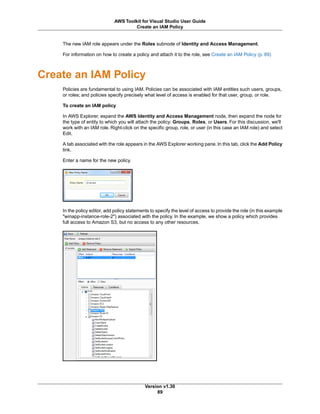
Create an IAM Policy ............................................................................................................ 89
Document History ........................................................................................................................ 91
Version v1.30
iv
AWS Toolkit for Visual Studio User Guide
Using the AWS Toolkit for Visual
Studio
The AWS Toolkit for Visual Studio
The AWS Toolkit for Visual Studio is a plug-in for the Visual Studio 2010, 2012, and 2103 IDE that makes
it easier for developers to develop, debug, and deploy .NET applications that use Amazon Web Services.
Some of the features of the AWS Toolkit that enhance the development experience are:
AWS Explorer
AWS Explorer enables you to interact with many of the AWS services from inside the Visual Studio
IDE. Supported data services include Amazon Simple Storage Service (Amazon S3), Amazon Sim-
pleDB, Amazon Simple Notification Service (Amazon SNS), Amazon Simple Queue Service (Amazon
SQS), and Amazon CloudFront. AWS Explorer also provides access to Amazon Elastic Compute
Cloud (Amazon EC2) management, AWS Identity and Access Management (IAM) user and policy
management, and deployment to AWS CloudFormation.
AWS Explorer supports multiple AWS accounts, including IAM user accounts, and enables you to
easily change the displayed view from one account to another.
Amazon EC2
From AWS Explorer, you can view available Amazon Machine Images (AMIs), create Amazon EC2
instances from those AMIs, and then connect to those instances using Windows Remote Desktop.
AWS Explorer also enables supporting functionality such as the capability to create and manage key
pairs and security groups.
Amazon DynamoDB
Amazon DynamoDB is a fast, highly scalable, highly available, cost-effective, nonrelational database
service.The AWS Toolkit for Visual Studio provides functionality for working with Amazon DynamoDB
in a development context. With the Toolkit, you can create and edit attributes in Amazon DynamoDB
tables and run Scan operations on tables.
AWS CloudFormation
AWS CloudFormation makes it easy for you to deploy your .NET Framework application to AWS.
AWS CloudFormation provisions the AWS resources needed by your application, which frees you
to focus on developing the application's functionality. The AWS Toolkit for Visual Studio includes two
ready-to-use AWS CloudFormation templates.
AWS Identity and Access Management (IAM)
From AWS Explorer, you can create new IAM users and policies, and attach policies to users.
Version v1.30
1
AWS Toolkit for Visual Studio User Guide
The AWS Toolkit for Visual Studio
AWS SDK for .NET
The AWS Toolkit for Visual Studio installs the latest version of the AWS SDK for .NET. From Visual
Studio, you can easily modify, build, and run any of the samples included in the SDK.
Note
Toolkit for Visual Studio for Visual Studio 2008 is still available, but not supported. For more in-
formation, see Installation (p. 4).
What's New in Version 1.3
Added support for deployment to AWS Elastic Beanstalk
The Toolkit for Visual Studio now supports deployment of web applications and web sites to AWS
Elastic Beanstalk in addition to the existing deployment support for AWS CloudFormation.To deploy
to either service, right-click your project in Solution Explorer and select 'Publish to AWS'; you can
then select the required service in the deployment wizard. If you have Amazon RDS instances, the
deployment wizard for AWS Elastic Beanstalk can also be used to allow connectivity between your
deployed application and selected Amazon RDS instances.
Fast Redeployment
For projects that have been deployed previously, a new 'Republish to...' command is available in the
context menu for a project in Solution Explorer. The command name changes to show where the
project was last deployed (AWS Elastic Beanstalk environment or AWS CloudFormation stack) to-
gether with the environment or stack name. Selecting the command displays a dialog that summarizes
the deployment options that were last used. Clicking the Deploy button then starts project redeploy-
ment, without needing to use the full deployment wizard.
Support for Amazon RDS and Microsoft SQL Server
Amazon RDS support has been added to the AWS Explorer allowing you to manage Amazon RDS
assets from within Visual Studio. Amazon RDS instances that use Microsoft SQL Server can also
be added to Visual Studio's Server Explorer.
AWS Standalone Deployment Tool Additions
The standalone AWS deployment tool has been updated to support deployments to AWS Elastic
Beanstalk and AWS CloudFormation. For AWS CloudFormation stacks, the tool now also supports
'update stack' functionality.
What's New in Version 1.1
The AWS Toolkit for Visual Studio adds the following new features.
AWS Standalone Deployment Tool
The AWS Toolkit for Visual Studio includes the AWS Standalone Deployment Tool. The deployment
tool is a command line tool that enables you to deploy your application to AWS CloudFormation from
outside of the Microsoft Visual Studio development environment. With the deployment tool, you can
make deployment an automatic part of your build process or include deployment in other scripting
scenarios.
Redeployment to CloudFormation
Both the deployment wizard and the deployment tool can redeploy a new instance of your application
over an already-running instance.
AWS GovCloud Support
You can designate AWS accounts as AWS GovCloud users. These users are then able to use the
AWS GovCloud region.
Version v1.30
2
AWS Toolkit for Visual Studio User Guide
What's New in Version 1.3
Server-Side Encryption
You can specify whether an Amazon S3 object should use server-side encryption.You can specify
this feature at the time that you upload the object or afterwards in the object's properties dialog box.
Customize Columns in AMI, Instance, and Volume Views
In AWS Explorer, you can customize which columns are displayed when you are viewing Amazon
Machine Images (AMIs), Amazon EC2 instances, and EBS volumes.
Tagging of AMIs, Instances, and Volumes
From AWS Explorer, you can add tags and tag values to AMIs, Amazon EC2 instances, and EBS
volumes.Tags that you add are automatically added as columns in AWS Explorer views, and as with
other columns, you can hide these columns if you choose.
Pagination of result set returned by Amazon SimpleDB.
When you execute a query in Amazon SimpleDB, the Toolkit for Visual Studio displays only a single
"page" of results—either the first 100 results or the number of results specified by the LIMIT parameter,
if it is included in the query.The Toolkit for Visual Studio now enables you to fetch either an additional
page of results or an additional ten pages of results.
Time Delayed Message Delivery in Amazon SQS
When you send an Amazon SQS message from the Toolkit for Visual Studio, you can now specify
a time delay before the message appears in the Amazon SQS queue.
Export Amazon SimpleDB Results to CSV
You can export the results of your Amazon SimpleDB queries to a CSV file.
About Amazon Web Services
Amazon Web Services (AWS) is a collection of digital infrastructure services that developers can leverage
when developing their applications. The services include computing, storage, database, and application
synchronization (messaging and queuing). AWS uses a pay-as-you-go service model.You are charged
only for the services that you—or your applications—use. Also, to make AWS more approachable as a
platform for prototyping and experimentation, AWS offers a free usage tier. On this tier, services are free
below a certain level of usage. For more information about AWS costs and the Free Tier, go to AWS Free
Usage Tiers. To obtain an AWS account, go to the AWS home page and click the Sign Up Now button.
Version v1.30
3
AWS Toolkit for Visual Studio User Guide
About Amazon Web Services
Setting Up the AWS Toolkit for
Visual Studio
This section steps you through how to install and configure the Toolkit for Visual Studio.
Prerequisites
The Toolkit for Visual Studio has the following prerequisites.
• An AWS account. To obtain an AWS account, go to the AWS home page and click Sign Up Now. This
sign-up will enable you to use all the services offered by AWS.
• Supported operating systems: Microsoft Windows 8, Windows 7, and Windows Vista.
We recommend that you install the latest service packs and updates for the version of Windows that
you are using.
• Visual Studio 2010 or later.
We recommend that you install the latest service packs and updates.
Note
We recommend that you install Toolkit for Visual Studio on Visual Studio Professional, which
supports all of the toolkit's features.You can install on Toolkit for Visual Studio Visual Studio
Express, but the installation includes only the AWS project templates and the Standalone De-
ployment Tool (p. 42). In particular, Visual Studio Express does not support AWS Explorer.
Installation
If you have Visual Studio 2010 or later, install the Toolkit for Visual Studio as follows:
To install the Toolkit for Visual Studio
1. Go to AWS Toolkit for Visual Studio and click AWS Toolkit for Visual Studio.
2. Run the installation wizard, which is packaged as an MSI.
Version v1.30
4
AWS Toolkit for Visual Studio User Guide
Prerequisites
• If your browser asks whether to save or run the MSI, select Run.
• If your browser automatically saves the MSI file to your system, navigate to the download directory
and use Windows Explorer to launch the MSI.
The MSI file name depends on the version, but it will look something like AWSToolsAndSDKFor-
Net_sdk-2.0.13.2-ps-2.0.13.2-tk-1.6.5.4.msi.
3. Follow the installation wizard's instructions to install the toolkit.
Tip
By default, the installation wizard installs the Toolkit for Visual Studio files, including a set
of samples, under the Program Files directory, which is a protected part of the file system.
If you install the toolkit that directory, you must run Visual Studio with administrator privileges
to load the samples. To load the samples without administrator privileges, you can specify
an installation location that is not in a protected part of the file system.
Note
You can install the Toolkit for Visual Studio for Visual Studio 2008 from http://sdk-for-
net.amazonwebservices.com/latest/AWSToolkitForVisualStudio2008.msi. However, this version
of the toolkit is no longer supported.
Specifying Credentials
Before you can use the Toolkit for Visual Studio, you must provide one or more sets of valid AWS creden-
tials. These credentials allow you to access your AWS resources through the Toolkit for Visual Studio.
They are also used to sign programmatic web services requests, which enables AWS to verify that the
request comes from an authorized source.
Important
AWS credentials consist of an access key and a secret key. We recommend that you do not use
your account's root credentials.Instead, create one or more IAM users, and use those credentials.
For more information, see Using IAM Users and Best Practices for Managing AWS Access Keys.
The Toolkit for Visual Studio supports multiple sets of credentials from any number of accounts. Each
set is referred to as a profile.When you add a profile to Toolkit for Visual Studio, it encrypts the credentials
and stores them in the SDK Store, which is also used by the AWS SDK for .NET and AWS Tools for
Windows PowerShell. The SDK Store is separate from your project directories, so that it cannot be unin-
tentionally committed to a public repository. To use the Toolkit for Visual Studio, you must add at least
one profile to the SDK Store.
To add a profile to the SDK Store
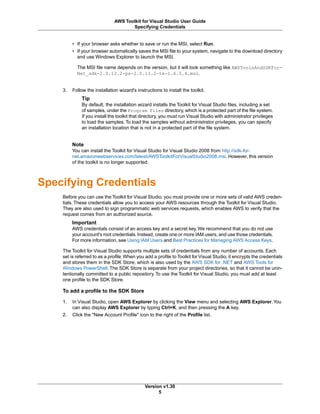
1. In Visual Studio, open AWS Explorer by clicking the View menu and selecting AWS Explorer.You
can also display AWS Explorer by typing Ctrl+K, and then pressing the A key.
2. Click the "New Account Profile" icon to the right of the Profile list.
Version v1.30
5
AWS Toolkit for Visual Studio User Guide
Specifying Credentials
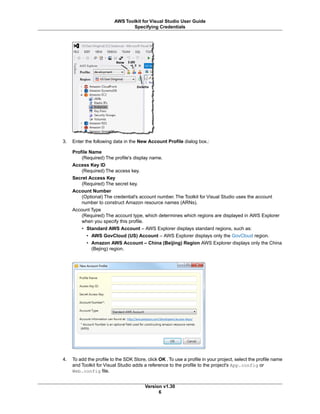
3. Enter the following data in the New Account Profile dialog box.:
Profile Name
(Required) The profile's display name.
Access Key ID
(Required) The access key.
Secret Access Key
(Required) The secret key.
Account Number
(Optional) The credential's account number. The Toolkit for Visual Studio uses the account
number to construct Amazon resource names (ARNs).
Account Type
(Required) The account type, which determines which regions are displayed in AWS Explorer
when you specify this profile.
• Standard AWS Account – AWS Explorer displays standard regions, such as:
• AWS GovCloud (US) Account – AWS Explorer displays only the GovCloud region.
• Amazon AWS Account – China (Beijing) Region AWS Explorer displays only the China
(Bejing) region.
4. To add the profile to the SDK Store, click OK .To use a profile in your project, select the profile name
and Toolkit for Visual Studio adds a reference to the profile to the project's App.config or
Web.config file.
Version v1.30
6
AWS Toolkit for Visual Studio User Guide
Specifying Credentials
After you have added the first profile:
• To add another profile, repeat the procedure.
• To delete a profile, select it and click the Delete Profile icon.
• To edit a profile, click the Edit Profile icon to display the Edit Profile dialog box.
For example, if you have rotated an IAM user's credentials—a recommended practice—you can edit
the profile to update the user's credentials in the SDK Store. For more information, see IAM Credential
Rotation.
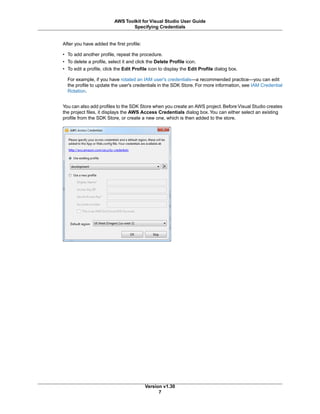
You can also add profiles to the SDK Store when you create an AWS project. Before Visual Studio creates
the project files, it displays the AWS Access Credentials dialog box.You can either select an existing
profile from the SDK Store, or create a new one, which is then added to the store.
Version v1.30
7
AWS Toolkit for Visual Studio User Guide
Specifying Credentials
Managing Amazon EC2 Instances
Topics
• The Amazon Machine Images and Amazon EC2 Instances Views (p. 8)
• Launching an Amazon EC2 Instance (p. 10)
• Connecting to an Amazon EC2 Instance (p. 11)
• Ending an Amazon EC2 Instance (p. 13)
AWS Explorer provides detailed views of Amazon Machine Images (AMI) and Amazon Elastic Compute
Cloud (Amazon EC2) instances. From these views, you can launch an Amazon EC2 instance from an
AMI, connect to that instance, and finally either stop or terminate the instance, all from inside the Visual
Studio development environment.The instances view also enables you to create AMIs from your instances;
for more information, see Create an AMI from an Amazon EC2 Instance (p. 18).
The Amazon Machine Images and Amazon EC2
Instances Views
From AWS Explorer, you can display views of Amazon Machine Images (AMIs) and Amazon EC2 In-
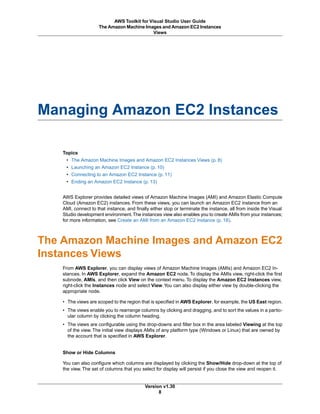
stances. In AWS Explorer, expand the Amazon EC2 node. To display the AMIs view, right-click the first
subnode, AMIs, and then click View on the context menu. To display the Amazon EC2 Instances view,
right-click the Instances node and select View.You can also display either view by double-clicking the
appropriate node.
• The views are scoped to the region that is specified in AWS Explorer, for example, the US East region.
• The views enable you to rearrange columns by clicking and dragging, and to sort the values in a partic-
ular column by clicking the column heading.
• The views are configurable using the drop-downs and filter box in the area labeled Viewing at the top
of the view. The initial view displays AMIs of any platform type (Windows or Linux) that are owned by
the account that is specified in AWS Explorer.
Show or Hide Columns
You can also configure which columns are displayed by clicking the Show/Hide drop-down at the top of
the view. The set of columns that you select for display will persist if you close the view and reopen it.
Version v1.30
8
AWS Toolkit for Visual Studio User Guide
The Amazon Machine Images and Amazon EC2 Instances
Views
Tagging AMIs, Instances, and Volumes
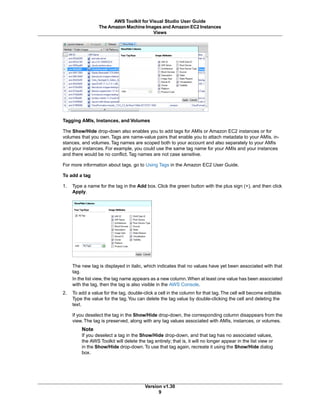
The Show/Hide drop-down also enables you to add tags for AMIs or Amazon EC2 instances or for
volumes that you own. Tags are name-value pairs that enable you to attach metadata to your AMIs, in-
stances, and volumes. Tag names are scoped both to your account and also separately to your AMIs
and your instances. For example, you could use the same tag name for your AMIs and your instances
and there would be no conflict. Tag names are not case sensitive.
For more information about tags, go to Using Tags in the Amazon EC2 User Guide.
To add a tag
1. Type a name for the tag in the Add box. Click the green button with the plus sign (+), and then click
Apply.
The new tag is displayed in italic, which indicates that no values have yet been associated with that
tag.
In the list view, the tag name appears as a new column.When at least one value has been associated
with the tag, then the tag is also visible in the AWS Console.
2. To add a value for the tag, double-click a cell in the column for that tag.The cell will become editable.
Type the value for the tag.You can delete the tag value by double-clicking the cell and deleting the
text.
If you deselect the tag in the Show/Hide drop-down, the corresponding column disappears from the
view. The tag is preserved, along with any tag values associated with AMIs, instances, or volumes.
Note
If you deselect a tag in the Show/Hide drop-down, and that tag has no associated values,
the AWS Toolkit will delete the tag entirely; that is, it will no longer appear in the list view or
in the Show/Hide drop-down.To use that tag again, recreate it using the Show/Hide dialog
box.
Version v1.30
9
AWS Toolkit for Visual Studio User Guide
The Amazon Machine Images and Amazon EC2 Instances
Views
Launching an Amazon EC2 Instance
AWS Explorer provides all the functionality that you need to launch an Amazon EC2 instance. In this
section, we'll select an Amazon Machine Image (AMI), configure it, and then start it as an Amazon EC2
instance.
To launch a Windows Server Amazon EC2 instance
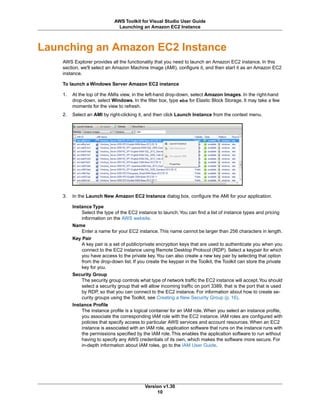
1. At the top of the AMIs view, in the left-hand drop-down, select Amazon Images. In the right-hand
drop-down, select Windows. In the filter box, type ebs for Elastic Block Storage. It may take a few
moments for the view to refresh.
2. Select an AMI by right-clicking it, and then click Launch Instance from the context menu.
3. In the Launch New Amazon EC2 Instance dialog box, configure the AMI for your application.
Instance Type
Select the type of the EC2 instance to launch.You can find a list of instance types and pricing
information on the AWS website.
Name
Enter a name for your EC2 instance. This name cannot be larger than 256 characters in length.
Key Pair
A key pair is a set of public/private encryption keys that are used to authenticate you when you
connect to the EC2 instance using Remote Desktop Protocol (RDP). Select a keypair for which
you have access to the private key.You can also create a new key pair by selecting that option
from the drop-down list. If you create the keypair in the Toolkit, the Toolkit can store the private
key for you.
Security Group
The security group controls what type of network traffic the EC2 instance will accept.You should
select a security group that will allow incoming traffic on port 3389, that is the port that is used
by RDP, so that you can connect to the EC2 instance. For information about how to create se-
curity groups using the Toolkit, see Creating a New Security Group (p. 16).
Instance Profile
The instance profile is a logical container for an IAM role. When you select an instance profile,
you associate the corresponding IAM role with the EC2 instance. IAM roles are configured with
policies that specify access to particular AWS services and account resources. When an EC2
instance is associated with an IAM role, application software that runs on the instance runs with
the permissions specified by the IAM role. This enables the application software to run without
having to specify any AWS credentials of its own, which makes the software more secure. For
in-depth information about IAM roles, go to the IAM User Guide.
Version v1.30
10
AWS Toolkit for Visual Studio User Guide
Launching an Amazon EC2 Instance
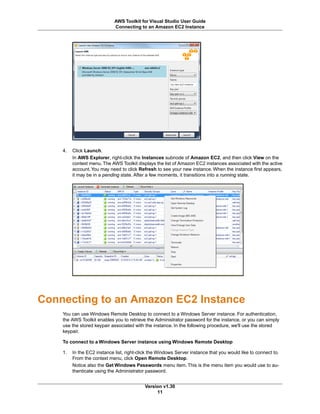
4. Click Launch.
In AWS Explorer, right-click the Instances subnode of Amazon EC2, and then click View on the
context menu.The AWS Toolkit displays the list of Amazon EC2 instances associated with the active
account.You may need to click Refresh to see your new instance. When the instance first appears,
it may be in a pending state. After a few moments, it transitions into a running state.
Connecting to an Amazon EC2 Instance
You can use Windows Remote Desktop to connect to a Windows Server instance. For authentication,
the AWS Toolkit enables you to retrieve the Administrator password for the instance, or you can simply
use the stored keypair associated with the instance. In the following procedure, we'll use the stored
keypair.
To connect to a Windows Server instance using Windows Remote Desktop
1. In the EC2 instance list, right-click the Windows Server instance that you would like to connect to.
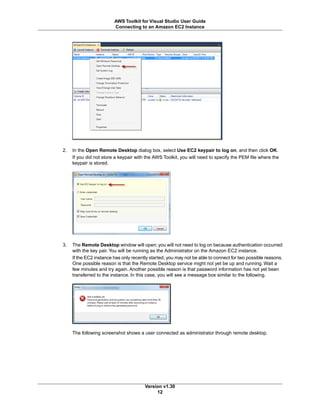
From the context menu, click Open Remote Desktop.
Notice also the Get Windows Passwords menu item. This is the menu item you would use to au-
thenticate using the Administrator password.
Version v1.30
11
AWS Toolkit for Visual Studio User Guide
Connecting to an Amazon EC2 Instance
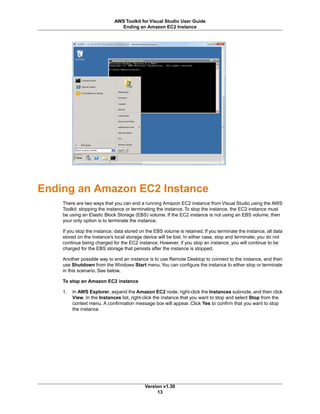
2. In the Open Remote Desktop dialog box, select Use EC2 keypair to log on, and then click OK.
If you did not store a keypair with the AWS Toolkit, you will need to specify the PEM file where the
keypair is stored.
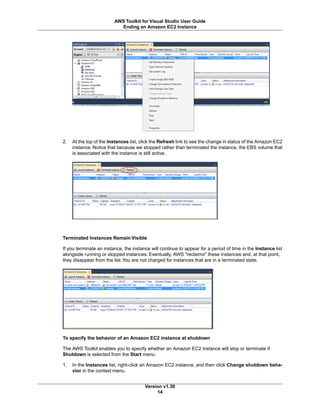
3. The Remote Desktop window will open; you will not need to log on because authentication occurred
with the key pair.You will be running as the Administrator on the Amazon EC2 instance.
If the EC2 instance has only recently started, you may not be able to connect for two possible reasons.
One possible reason is that the Remote Desktop service might not yet be up and running. Wait a
few minutes and try again. Another possible reason is that password information has not yet been
transferred to the instance. In this case, you will see a message box similar to the following.
The following screenshot shows a user connected as administrator through remote desktop.
Version v1.30
12
AWS Toolkit for Visual Studio User Guide
Connecting to an Amazon EC2 Instance
Ending an Amazon EC2 Instance
There are two ways that you can end a running Amazon EC2 instance from Visual Studio using the AWS
Toolkit: stopping the instance or terminating the instance. To stop the instance, the EC2 instance must
be using an Elastic Block Storage (EBS) volume. If the EC2 instance is not using an EBS volume, then
your only option is to terminate the instance.
If you stop the instance, data stored on the EBS volume is retained. If you terminate the instance, all data
stored on the instance's local storage device will be lost. In either case, stop and terminate; you do not
continue being charged for the EC2 instance. However, if you stop an instance, you will continue to be
charged for the EBS storage that persists after the instance is stopped.
Another possible way to end an instance is to use Remote Desktop to connect to the instance, and then
use Shutdown from the Windows Start menu.You can configure the instance to either stop or terminate
in this scenario. See below.
To stop an Amazon EC2 instance
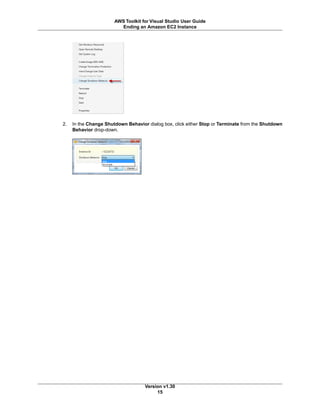
1. In AWS Explorer, expand the Amazon EC2 node, right-click the Instances subnode, and then click
View. In the Instances list, right-click the instance that you want to stop and select Stop from the
context menu. A confirmation message box will appear. Click Yes to confirm that you want to stop
the instance.
Version v1.30
13
AWS Toolkit for Visual Studio User Guide
Ending an Amazon EC2 Instance
2. At the top of the Instances list, click the Refresh link to see the change in status of the Amazon EC2
instance. Notice that because we stopped rather than terminated the instance, the EBS volume that
is associated with the instance is still active.
Terminated Instances Remain Visible
If you terminate an instance, the instance will continue to appear for a period of time in the Instance list
alongside running or stopped instances. Eventually, AWS "reclaims" these instances and, at that point,
they disappear from the list.You are not charged for instances that are in a terminated state.
To specify the behavior of an Amazon EC2 instance at shutdown
The AWS Toolkit enables you to specify whether an Amazon EC2 instance will stop or terminate if
Shutdown is selected from the Start menu.
1. In the Instances list, right-click an Amazon EC2 instance, and then click Change shutdown beha-
vior in the context menu.
Version v1.30
14
AWS Toolkit for Visual Studio User Guide
Ending an Amazon EC2 Instance
2. In the Change Shutdown Behavior dialog box, click either Stop or Terminate from the Shutdown
Behavior drop-down.
Version v1.30
15
AWS Toolkit for Visual Studio User Guide
Ending an Amazon EC2 Instance
Managing Security Groups from
AWS Explorer
The AWS Toolkit for Visual Studio enables you to create and configure security groups to use with Amazon
Elastic Compute Cloud (Amazon EC2) instances and AWS CloudFormation. When you launch Amazon
EC2 instances or deploy an application to AWS CloudFormation, you specify a security group to associate
with the Amazon EC2 instances. (Deployment to AWS CloudFormation creates Amazon EC2 instances.)
A security group acts like a firewall on incoming network traffic. The security group specifies what types
of network traffic an Amazon EC2 instance will allow to be received. It can also specify that incoming
traffic will be accepted only from certain IP addresses or only from specified users or other security groups.
Creating a New Security Group
In this section, we'll create a new security group. Note that initially after creation, the security group will
not have any permissions configured. Configuring permissions is handled through an additional operation.
To create a new security group
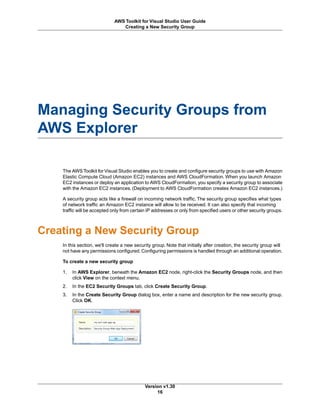
1. In AWS Explorer, beneath the Amazon EC2 node, right-click the Security Groups node, and then
click View on the context menu.
2. In the EC2 Security Groups tab, click Create Security Group.
3. In the Create Security Group dialog box, enter a name and description for the new security group.
Click OK.
Version v1.30
16
AWS Toolkit for Visual Studio User Guide
Creating a New Security Group
Adding Permissions to Security Groups
In this section, we'll add permissions to the new security group to allow web traffic via the HTTP and
HTTPS protocols.We'll also add a permission to allow other computers to connect using Windows Remote
Desktop Protocol (RDP).
To add permissions to a security group
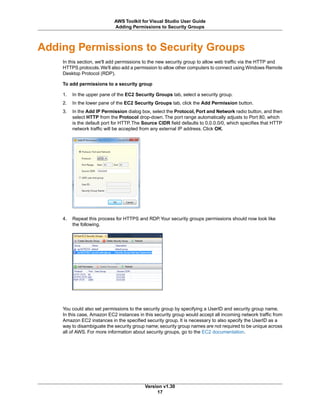
1. In the upper pane of the EC2 Security Groups tab, select a security group.
2. In the lower pane of the EC2 Security Groups tab, click the Add Permission button.
3. In the Add IP Permission dialog box, select the Protocol, Port and Network radio button, and then
select HTTP from the Protocol drop-down. The port range automatically adjusts to Port 80, which
is the default port for HTTP. The Source CIDR field defaults to 0.0.0.0/0, which specifies that HTTP
network traffic will be accepted from any external IP address. Click OK.
4. Repeat this process for HTTPS and RDP.Your security groups permissions should now look like
the following.
You could also set permissions to the security group by specifying a UserID and security group name.
In this case, Amazon EC2 instances in this security group would accept all incoming network traffic from
Amazon EC2 instances in the specified security group. It is necessary to also specify the UserID as a
way to disambiguate the security group name; security group names are not required to be unique across
all of AWS. For more information about security groups, go to the EC2 documentation.
Version v1.30
17
AWS Toolkit for Visual Studio User Guide
Adding Permissions to Security Groups
Create an AMI from an Amazon EC2
Instance
From the Amazon EC2 Instances view, you can create Amazon Machine Images (AMI) from either
running or stopped instances.
To create an AMI from an instance
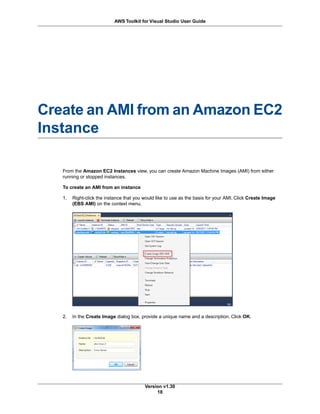
1. Right-click the instance that you would like to use as the basis for your AMI. Click Create Image
(EBS AMI) on the context menu.
2. In the Create Image dialog box, provide a unique name and a description. Click OK.
Version v1.30
18
AWS Toolkit for Visual Studio User Guide
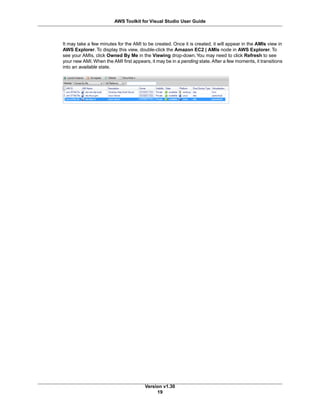
It may take a few minutes for the AMI to be created. Once it is created, it will appear in the AMIs view in
AWS Explorer. To display this view, double-click the Amazon EC2 | AMIs node in AWS Explorer. To
see your AMIs, click Owned By Me in the Viewing drop-down.You may need to click Refresh to see
your new AMI.When the AMI first appears, it may be in a pending state. After a few moments, it transitions
into an available state.
Version v1.30
19
AWS Toolkit for Visual Studio User Guide
Setting Launch Permissions on an
Amazon Machine Image
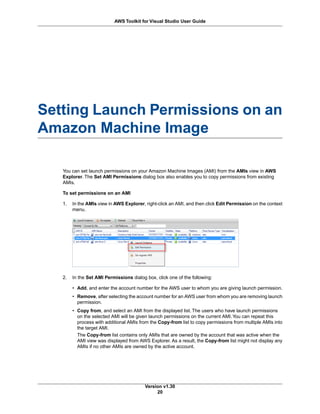
You can set launch permissions on your Amazon Machine Images (AMI) from the AMIs view in AWS
Explorer. The Set AMI Permissions dialog box also enables you to copy permissions from existing
AMIs.
To set permissions on an AMI
1. In the AMIs view in AWS Explorer, right-click an AMI, and then click Edit Permission on the context
menu.
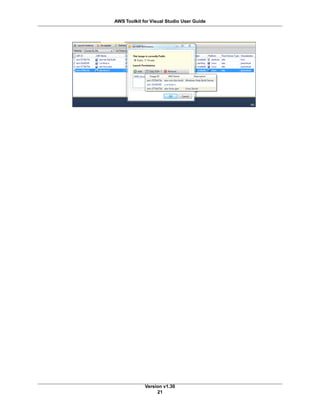
2. In the Set AMI Permissions dialog box, click one of the following:
• Add, and enter the account number for the AWS user to whom you are giving launch permission.
• Remove, after selecting the account number for an AWS user from whom you are removing launch
permission.
• Copy from, and select an AMI from the displayed list. The users who have launch permissions
on the selected AMI will be given launch permissions on the current AMI.You can repeat this
process with additional AMIs from the Copy-from list to copy permissions from multiple AMIs into
the target AMI.
The Copy-from list contains only AMIs that are owned by the account that was active when the
AMI view was displayed from AWS Explorer. As a result, the Copy-from list might not display any
AMIs if no other AMIs are owned by the active account.
Version v1.30
20
AWS Toolkit for Visual Studio User Guide
Version v1.30
21
AWS Toolkit for Visual Studio User Guide
AmazonVirtual Private Cloud (VPC)
Amazon Virtual Private Cloud (Amazon VPC) enables you to launch Amazon Web Services (AWS) re-
sources into a virtual network that you've defined. This virtual network resembles a traditional network
that you'd operate in your own data center, with the benefits of using the scalable infrastructure of AWS.
For complete information on Amazon VPC, go to the Amazon VPC User Guide.
The AWS Toolkit for Visual Studio enables a developer to access VPC functionality similar to that exposed
by the AWS Management Console but from within the Visual Studio development environment. The
Amazon VPC node of AWS Explorer includes subnodes for the following areas. The items below link to
the relevant documentation in the Amazon VPC User's Guide.
• VPCs
• Subnets
• Elastic IPs
• Internet Gateways
• Network ACLs
• Route Tables
• Security Groups
Walkthrough: How to Create a Public-Private
VPC for Deployment with AWS Elastic Beanstalk
This section describes how to create an Amazon VPC that contains a public subnet and a private subnet.
The public subnet contains an Amazon EC2 instance that performs network address translation (NAT)
to enable instances in the private subnet to communicate with the public internet. The two subnets must
reside in the same availability zone (AZ).
This is the minimal VPC configuration required to deploy an AWS Elastic Beanstalk environment within
a VPC. In this scenario, the Amazon EC2 instances that host your application reside in the private subnet,
and the Elastic Load Balancer that routes incoming traffic to your application resides in the public subnet.
For more information about Network Address Translation (NAT), go to NAT Instances in the Amazon
Virtual Private Cloud User Guide.
For an example of how to configure your deployment to use a VPC, see Deploying to AWS Elastic
Beanstalk (p. 26)
Version v1.30
22
AWS Toolkit for Visual Studio User Guide
How to Create a VPC for Deployment with AWS Elastic
Beanstalk
To create a public-private subnet VPC
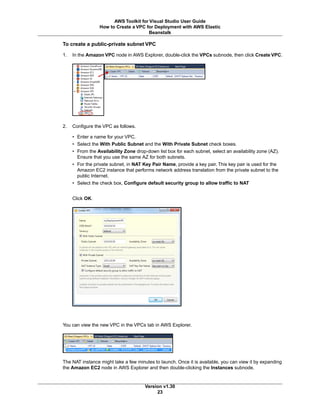
1. In the Amazon VPC node in AWS Explorer, double-click the VPCs subnode, then click Create VPC.
2. Configure the VPC as follows.
• Enter a name for your VPC.
• Select the With Public Subnet and the With Private Subnet check boxes.
• From the Availability Zone drop-down list box for each subnet, select an availability zone (AZ).
Ensure that you use the same AZ for both subnets.
• For the private subnet, in NAT Key Pair Name, provide a key pair. This key pair is used for the
Amazon EC2 instance that performs network address translation from the private subnet to the
public Internet.
• Select the check box, Configure default security group to allow traffic to NAT
Click OK.
You can view the new VPC in the VPCs tab in AWS Explorer.
The NAT instance might take a few minutes to launch. Once it is available, you can view it by expanding
the Amazon EC2 node in AWS Explorer and then double-clicking the Instances subnode.
Version v1.30
23
AWS Toolkit for Visual Studio User Guide
How to Create a VPC for Deployment with AWS Elastic
Beanstalk
An Amazon Elastic Block Store volume is automatically created for the NAT instance. For more information
about Elastic Block Store, go to Amazon Elastic Block Store (EBS) in the Amazon EC2 User Guide for
Linux Instances.
If you deploy an application to an AWS Elastic Beanstalk environment (p. 26), and choose to launch the
environment in a VPC, the Toolkit will prepopulate the Publish to AWS dialog with the configuration in-
formation for your VPC.
The Toolkit only prepopulates the dialog with information from VPCs that were created in the Toolkit. If
the VPC, was created using the AWS Management Console, the Toolkit will not use it to prepopulate the
dialog. The reason is that, when the Toolkit creates a VPC, it tags the components of the VPC so that it
can access their information.
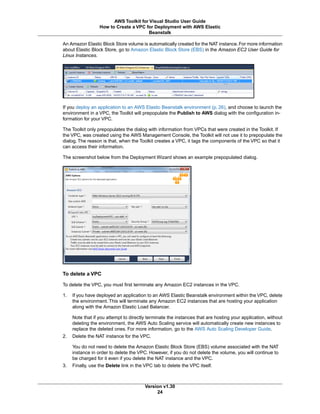
The screenshot below from the Deployment Wizard shows an example prepopulated dialog.
To delete a VPC
To delete the VPC, you must first terminate any Amazon EC2 instances in the VPC.
1. If you have deployed an application to an AWS Elastic Beanstalk environment within the VPC, delete
the environment. This will terminate any Amazon EC2 instances that are hosting your application
along with the Amazon Elastic Load Balancer.
Note that if you attempt to directly terminate the instances that are hosting your application, without
deleting the environment, the AWS Auto Scaling service will automatically create new instances to
replace the deleted ones. For more information, go to the AWS Auto Scaling Developer Guide.
2. Delete the NAT instance for the VPC.
You do not need to delete the Amazon Elastic Block Store (EBS) volume associated with the NAT
instance in order to delete the VPC. However, if you do not delete the volume, you will continue to
be charged for it even if you delete the NAT instance and the VPC.
3. Finally, use the Delete link in the VPC tab to delete the VPC itself.
Version v1.30
24
AWS Toolkit for Visual Studio User Guide
How to Create a VPC for Deployment with AWS Elastic
Beanstalk
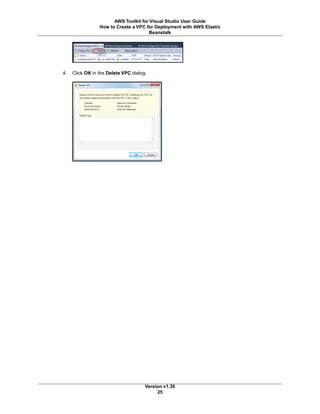
4. Click OK in the Delete VPC dialog.
Version v1.30
25
AWS Toolkit for Visual Studio User Guide
How to Create a VPC for Deployment with AWS Elastic
Beanstalk
Deployment Using the AWSToolkit
The AWS Toolkit for Visual Studio supports application deployment to AWS Elastic Beanstalk containers
or AWS CloudFormation stacks.
• Deploying to AWS Elastic Beanstalk (p. 26) and Deploying to AWS CloudFormation (p. 36) describe
how to use the Visual Studio IDE to deploy applications to the AWS Elastic Beanstalk and AWS
CloudFormation stacks.
• Standalone Deployment Tool (p. 42) describes how to use the standalone deployment tool to deploy
to either AWS Elastic Beanstalk containers or AWS CloudFormation stacks from a command window.
Note
If you are using Visual Studio Express Edition:
• You can use the Standalone Deployment Tool (p. 42) to deploy applications to AWS Elastic
Beanstalk containers or AWS CloudFormation stacks.
• You can use the AWS Management Console to deploy applications to AWS Elastic Beanstalk
containers.
For either approach, you must first create a web deployment package. For more information
see: How to: Create a Web Deployment Package in Visual Studio.
Deploying to AWS Elastic Beanstalk
AWS Elastic Beanstalk is a service that simplifies the process of provisioning AWS resources for your
application. AWS Elastic Beanstalk provides all of the AWS infrastructure required to deploy your applic-
ation. This infrastructure includes:
• Amazon EC2 instances that host the executables and content for your application.
• An Auto Scaling group to maintain the appropriate number of Amazon EC2 instances to support your
application.
• An Elastic Load Balancer that routes incoming traffic to the Amazon EC2 instance with the most
bandwidth.
For more information about AWS Elastic Beanstalk, go to the AWS Elastic Beanstalk documentation.
Version v1.30
26
AWS Toolkit for Visual Studio User Guide
Deploying to AWS Elastic Beanstalk
Topics
• How to Deploy the PetBoard Application Using AWS Elastic Beanstalk (p. 27)
• How to Specify the AWS Security Credentials for Your Application (p. 35)
• How to Republish Your Application to AWS Elastic Beanstalk Environment (p. 35)
How to Deploy the PetBoard Application Using
AWS Elastic Beanstalk
This section describes how to deploy an application to AWS, using AWS Elastic Beanstalk to provision
the resources for the application. The application we'll use is the PetBoard sample that is included with
the AWS SDK for .NET. The SDK is installed automatically when you install the Toolkit for Visual Studio.
PetBoard is also available as a separate download from the AWS website.
You can find the PetBoard application in the Samples directory beneath the SDK install directory. The
SDK is usually installed in the Program Files directory or Program Files (x86) on Windows 64-
bit.
Note
If PetBoard is installed under Program Files, you will need to run Visual Studio with administrator
privileges in order to open the sample. If you are not running with administrator privileges,
Visual Studio will ask you if you want to restart the Visual Studio application with administrator
privileges enabled.
The requirement for administrator privileges is not because of PetBoard itself, but because, in
this case, PetBoard is installed beneath Program Files.
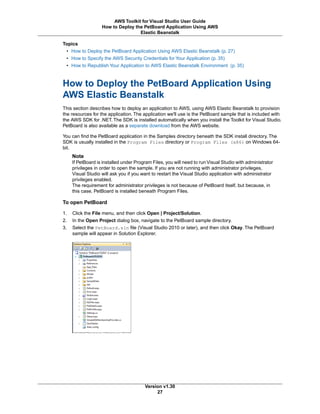
To open PetBoard
1. Click the File menu, and then click Open | Project/Solution.
2. In the Open Project dialog box, navigate to the PetBoard sample directory.
3. Select the PetBoard.sln file (Visual Studio 2010 or later), and then click Okay. The PetBoard
sample will appear in Solution Explorer.
Version v1.30
27
AWS Toolkit for Visual Studio User Guide
How to Deploy the PetBoard Application Using AWS
Elastic Beanstalk
To deploy the PetBoard application using AWS Elastic Beanstalk
1. Specify the AWS security credentials for the PetBoard application.You should specify these in the
PetBoard Web.config file. See How to Specify the AWS Security Credentials for Your Applica-
tion (p. 35) for instructions on how to specify credentials in the Web.config file.
These credentials could be different from the credentials that you use to do the deployment. The
credentials for the deployment are specified in the deployment wizard described below.
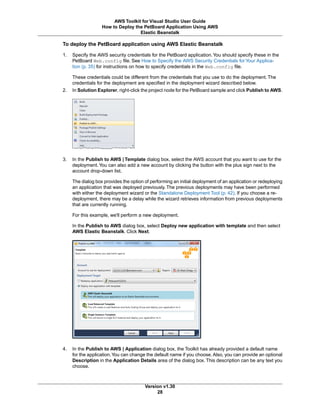
2. In Solution Explorer, right-click the project node for the PetBoard sample and click Publish to AWS.
3. In the Publish to AWS | Template dialog box, select the AWS account that you want to use for the
deployment.You can also add a new account by clicking the button with the plus sign next to the
account drop-down list.
The dialog box provides the option of performing an initial deployment of an application or redeploying
an application that was deployed previously. The previous deployments may have been performed
with either the deployment wizard or the Standalone Deployment Tool (p. 42). If you choose a re-
deployment, there may be a delay while the wizard retrieves information from previous deployments
that are currently running.
For this example, we'll perform a new deployment.
In the Publish to AWS dialog box, select Deploy new application with template and then select
AWS Elastic Beanstalk. Click Next.
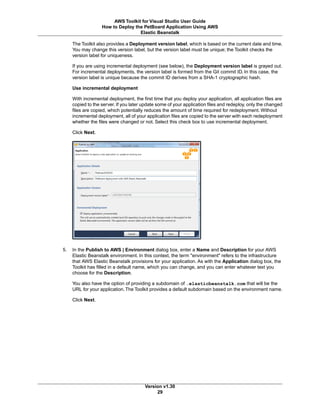
4. In the Publish to AWS | Application dialog box, the Toolkit has already provided a default name
for the application.You can change the default name if you choose. Also, you can provide an optional
Description in the Application Details area of the dialog box. This description can be any text you
choose.
Version v1.30
28
AWS Toolkit for Visual Studio User Guide
How to Deploy the PetBoard Application Using AWS
Elastic Beanstalk
The Toolkit also provides a Deployment version label, which is based on the current date and time.
You may change this version label, but the version label must be unique; the Toolkit checks the
version label for uniqueness.
If you are using incremental deployment (see below), the Deployment version label is grayed out.
For incremental deployments, the version label is formed from the Git commit ID. In this case, the
version label is unique because the commit ID derives from a SHA-1 cryptographic hash.
Use incremental deployment
With incremental deployment, the first time that you deploy your application, all application files are
copied to the server. If you later update some of your application files and redeploy, only the changed
files are copied, which potentially reduces the amount of time required for redeployment. Without
incremental deployment, all of your application files are copied to the server with each redeployment
whether the files were changed or not. Select this check box to use incremental deployment.
Click Next.
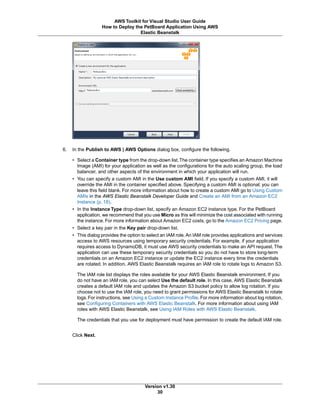
5. In the Publish to AWS | Environment dialog box, enter a Name and Description for your AWS
Elastic Beanstalk environment. In this context, the term "environment" refers to the infrastructure
that AWS Elastic Beanstalk provisions for your application. As with the Application dialog box, the
Toolkit has filled in a default name, which you can change, and you can enter whatever text you
choose for the Description.
You also have the option of providing a subdomain of .elasticbeanstalk.com that will be the
URL for your application.The Toolkit provides a default subdomain based on the environment name.
Click Next.
Version v1.30
29
AWS Toolkit for Visual Studio User Guide
How to Deploy the PetBoard Application Using AWS
Elastic Beanstalk
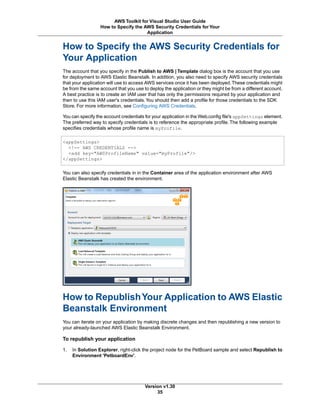
6. In the Publish to AWS | AWS Options dialog box, configure the following.
• Select a Container type from the drop-down list.The container type specifies an Amazon Machine
Image (AMI) for your application as well as the configurations for the auto scaling group, the load
balancer, and other aspects of the environment in which your application will run.
• You can specify a custom AMI in the Use custom AMI field. If you specify a custom AMI, it will
override the AMI in the container specified above. Specifying a custom AMI is optional; you can
leave this field blank. For more information about how to create a custom AMI go to Using Custom
AMIs in the AWS Elastic Beanstalk Developer Guide and Create an AMI from an Amazon EC2
Instance (p. 18).
• In the Instance Type drop-down list, specify an Amazon EC2 instance type. For the PetBoard
application, we recommend that you use Micro as this will minimize the cost associated with running
the instance. For more information about Amazon EC2 costs, go to the Amazon EC2 Pricing page.
• Select a key pair in the Key pair drop-down list.
• This dialog provides the option to select an IAM role. An IAM role provides applications and services
access to AWS resources using temporary security credentials. For example, if your application
requires access to DynamoDB, it must use AWS security credentials to make an API request.The
application can use these temporary security credentials so you do not have to store long-term
credentials on an Amazon EC2 instance or update the EC2 instance every time the credentials
are rotated. In addition, AWS Elastic Beanstalk requires an IAM role to rotate logs to Amazon S3.
The IAM role list displays the roles available for your AWS Elastic Beanstalk environment. If you
do not have an IAM role, you can select Use the default role. In this case, AWS Elastic Beanstalk
creates a default IAM role and updates the Amazon S3 bucket policy to allow log rotation. If you
choose not to use the IAM role, you need to grant permissions for AWS Elastic Beanstalk to rotate
logs. For instructions, see Using a Custom Instance Profile. For more information about log rotation,
see Configuring Containers with AWS Elastic Beanstalk. For more information about using IAM
roles with AWS Elastic Beanstalk, see Using IAM Roles with AWS Elastic Beanstalk.
The credentials that you use for deployment must have permission to create the default IAM role.
Click Next.
Version v1.30
30
AWS Toolkit for Visual Studio User Guide
How to Deploy the PetBoard Application Using AWS
Elastic Beanstalk
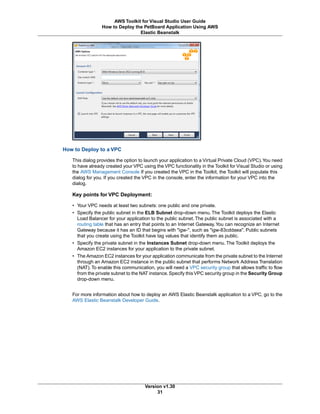
How to Deploy to a VPC
This dialog provides the option to launch your application to a Virtual Private Cloud (VPC).You need
to have already created your VPC using the VPC functionality in the Toolkit for Visual Studio or using
the AWS Management Console If you created the VPC in the Toolkit, the Toolkit will populate this
dialog for you. If you created the VPC in the console, enter the information for your VPC into the
dialog.
Key points for VPC Deployment:
• Your VPC needs at least two subnets: one public and one private.
• Specify the public subnet in the ELB Subnet drop-down menu. The Toolkit deploys the Elastic
Load Balancer for your application to the public subnet. The public subnet is associated with a
routing table that has an entry that points to an Internet Gateway.You can recognize an Internet
Gateway because it has an ID that begins with "igw-", such as "igw-83cddaea". Public subnets
that you create using the Toolkit have tag values that identify them as public.
• Specify the private subnet in the Instances Subnet drop-down menu. The Toolkit deploys the
Amazon EC2 instances for your application to the private subnet.
• The Amazon EC2 instances for your application communicate from the private subnet to the Internet
through an Amazon EC2 instance in the public subnet that performs Network Address Translation
(NAT).To enable this communication, you will need a VPC security group that allows traffic to flow
from the private subnet to the NAT instance.Specify this VPC security group in the Security Group
drop-down menu.
For more information about how to deploy an AWS Elastic Beanstalk application to a VPC, go to the
AWS Elastic Beanstalk Developer Guide.
Version v1.30
31
AWS Toolkit for Visual Studio User Guide
How to Deploy the PetBoard Application Using AWS
Elastic Beanstalk
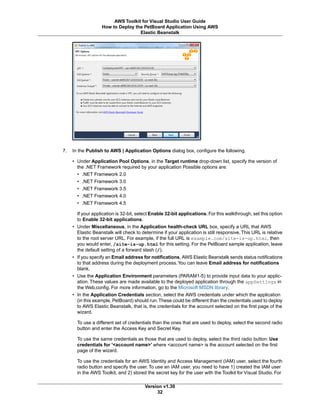
7. In the Publish to AWS | Application Options dialog box, configure the following.
• Under Application Pool Options, in the Target runtime drop-down list, specify the version of
the .NET Framework required by your application Possible options are:
• .NET Framework 2.0
• .NET Framework 3.0
• .NET Framework 3.5
• .NET Framework 4.0
• .NET Framework 4.5
If your application is 32-bit, select Enable 32-bit applications. For this walkthrough, set this option
to Enable 32-bit applications.
• Under Miscellaneous, in the Application health-check URL box, specify a URL that AWS
Elastic Beanstalk will check to determine if your application is still responsive.This URL is relative
to the root server URL. For example, if the full URL is example.com/site-is-up.html, then
you would enter, /site-is-up.html for this setting. For the PetBoard sample application, leave
the default setting of a forward slash (/).
• If you specify an Email address for notifications, AWS Elastic Beanstalk sends status notifications
to that address during the deployment process.You can leave Email address for notifications
blank.
• Use the Application Environment parameters (PARAM1-5) to provide input data to your applic-
ation. These values are made available to the deployed application through the appSettings in
the Web.config. For more information, go to the Microsoft MSDN library.
• In the Application Credentials section, select the AWS credentials under which the application
(in this example, PetBoard) should run.These could be different than the credentials used to deploy
to AWS Elastic Beanstalk, that is, the credentials for the account selected on the first page of the
wizard.
To use a different set of credentials than the ones that are used to deploy, select the second radio
button and enter the Access Key and Secret Key.
To use the same credentials as those that are used to deploy, select the third radio button: Use
credentials for '<account name>' where <account name> is the account selected on the first
page of the wizard.
To use the credentials for an AWS Identity and Access Management (IAM) user, select the fourth
radio button and specify the user. To use an IAM user, you need to have 1) created the IAM user
in the AWS Toolkit, and 2) stored the secret key for the user with the Toolkit for Visual Studio. For
Version v1.30
32
AWS Toolkit for Visual Studio User Guide
How to Deploy the PetBoard Application Using AWS
Elastic Beanstalk
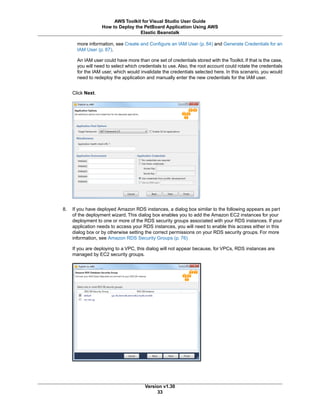
more information, see Create and Configure an IAM User (p. 84) and Generate Credentials for an
IAM User (p. 87).
An IAM user could have more than one set of credentials stored with the Toolkit. If that is the case,
you will need to select which credentials to use. Also, the root account could rotate the credentials
for the IAM user, which would invalidate the credentials selected here. In this scenario, you would
need to redeploy the application and manually enter the new credentials for the IAM user.
Click Next.
8. If you have deployed Amazon RDS instances, a dialog box similar to the following appears as part
of the deployment wizard. This dialog box enables you to add the Amazon EC2 instances for your
deployment to one or more of the RDS security groups associated with your RDS instances. If your
application needs to access your RDS instances, you will need to enable this access either in this
dialog box or by otherwise setting the correct permissions on your RDS security groups. For more
information, see Amazon RDS Security Groups (p. 76)
If you are deploying to a VPC, this dialog will not appear because, for VPCs, RDS instances are
managed by EC2 security groups.
Version v1.30
33
AWS Toolkit for Visual Studio User Guide
How to Deploy the PetBoard Application Using AWS
Elastic Beanstalk
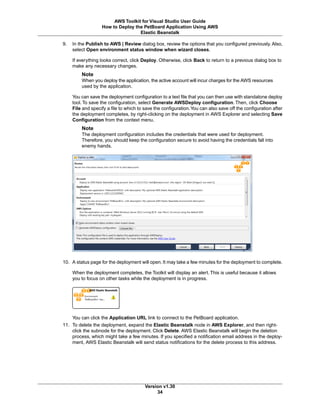
9. In the Publish to AWS | Review dialog box, review the options that you configured previously. Also,
select Open environment status window when wizard closes.
If everything looks correct, click Deploy. Otherwise, click Back to return to a previous dialog box to
make any necessary changes.
Note
When you deploy the application, the active account will incur charges for the AWS resources
used by the application.
You can save the deployment configuration to a text file that you can then use with standalone deploy
tool. To save the configuration, select Generate AWSDeploy configuration. Then, click Choose
File and specify a file to which to save the configuration.You can also save off the configuration after
the deployment completes, by right-clicking on the deployment in AWS Explorer and selecting Save
Configuration from the context menu.
Note
The deployment configuration includes the credentials that were used for deployment.
Therefore, you should keep the configuration secure to avoid having the credentials fall into
enemy hands.
10. A status page for the deployment will open. It may take a few minutes for the deployment to complete.
When the deployment completes, the Toolkit will display an alert. This is useful because it allows
you to focus on other tasks while the deployment is in progress.
You can click the Application URL link to connect to the PetBoard application.
11. To delete the deployment, expand the Elastic Beanstalk node in AWS Explorer, and then right-
click the subnode for the deployment. Click Delete. AWS Elastic Beanstalk will begin the deletion
process, which might take a few minutes. If you specified a notification email address in the deploy-
ment, AWS Elastic Beanstalk will send status notifications for the delete process to this address.
Version v1.30
34
AWS Toolkit for Visual Studio User Guide
How to Deploy the PetBoard Application Using AWS
Elastic Beanstalk
How to Specify the AWS Security Credentials for
Your Application
The account that you specify in the Publish to AWS | Template dialog box is the account that you use
for deployment to AWS Elastic Beanstalk. In addition, you also need to specify AWS security credentials
that your application will use to access AWS services once it has been deployed.These credentials might
be from the same account that you use to deploy the application or they might be from a different account.
A best practice is to create an IAM user that has only the permissions required by your application and
then to use this IAM user's credentials.You should then add a profile for those credentials to the SDK
Store. For more information, see Configuring AWS Credentials.
You can specify the account credentials for your application in the Web.config file's appSettings element.
The preferred way to specify credentials is to reference the appropriate profile. The following example
specifies credentials whose profile name is myProfile.
<appSettings>
<!-- AWS CREDENTIALS -->
<add key="AWSProfileName" value="myProfile"/>
</appSettings>
You can also specify credentials in in the Container area of the application environment after AWS
Elastic Beanstalk has created the environment.
How to RepublishYour Application to AWS Elastic
Beanstalk Environment
You can iterate on your application by making discrete changes and then republishing a new version to
your already-launched AWS Elastic Beanstalk Environment.
To republish your application
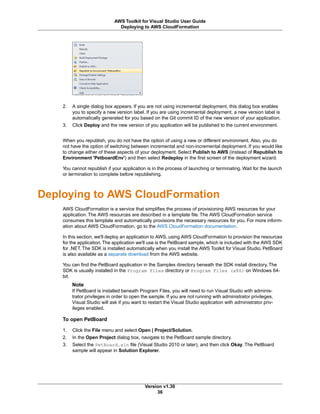
1. In Solution Explorer, right-click the project node for the PetBoard sample and select Republish to
Environment 'PetboardEnv'.
Version v1.30
35
AWS Toolkit for Visual Studio User Guide
How to Specify the AWS Security Credentials for Your
Application
2. A single dialog box appears. If you are not using incremental deployment, this dialog box enables
you to specify a new version label. If you are using incremental deployment, a new version label is
automatically generated for you based on the Git commit ID of the new version of your application.
3. Click Deploy and the new version of you application will be published to the current environment.
When you republish, you do not have the option of using a new or different environment. Also, you do
not have the option of switching between incremental and non-incremental deployment. If you would like
to change either of these aspects of your deployment. Select Publish to AWS (instead of Republish to
Environment 'PetboardEnv') and then select Redeploy in the first screen of the deployment wizard.
You cannot republish if your application is in the process of launching or terminating. Wait for the launch
or termination to complete before republishing.
Deploying to AWS CloudFormation
AWS CloudFormation is a service that simplifies the process of provisioning AWS resources for your
application. The AWS resources are described in a template file. The AWS CloudFormation service
consumes this template and automatically provisions the necessary resources for you. For more inform-
ation about AWS CloudFormation, go to the AWS CloudFormation documentation.
In this section, we'll deploy an application to AWS, using AWS CloudFormation to provision the resources
for the application.The application we'll use is the PetBoard sample, which is included with the AWS SDK
for .NET. The SDK is installed automatically when you install the AWS Toolkit for Visual Studio. PetBoard
is also available as a separate download from the AWS website.
You can find the PetBoard application in the Samples directory beneath the SDK install directory. The
SDK is usually installed in the Program Files directory or Program Files (x86) on Windows 64-
bit.
Note
If PetBoard is installed beneath Program Files, you will need to run Visual Studio with adminis-
trator privileges in order to open the sample. If you are not running with administrator privileges,
Visual Studio will ask if you want to restart the Visual Studio application with administrator priv-
ileges enabled.
To open PetBoard
1. Click the File menu and select Open | Project/Solution.
2. In the Open Project dialog box, navigate to the PetBoard sample directory.
3. Select the PetBoard.sln file (Visual Studio 2010 or later), and then click Okay. The PetBoard
sample will appear in Solution Explorer.
Version v1.30
36
AWS Toolkit for Visual Studio User Guide
Deploying to AWS CloudFormation
To deploy the PetBoard application using AWS CloudFormation
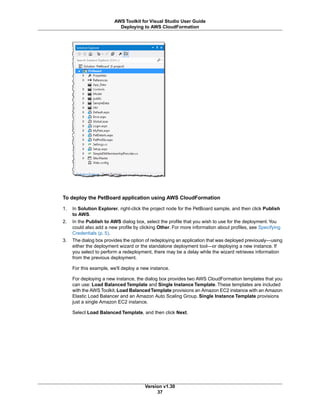
1. In Solution Explorer, right-click the project node for the PetBoard sample, and then click Publish
to AWS.
2. In the Publish to AWS dialog box, select the profile that you wish to use for the deployment.You
could also add a new profile by clicking Other. For more information about profiles, see Specifying
Credentials (p. 5).
3. The dialog box provides the option of redeploying an application that was deployed previously—using
either the deployment wizard or the standalone deployment tool—or deploying a new instance. If
you select to perform a redeployment, there may be a delay while the wizard retrieves information
from the previous deployment.
For this example, we'll deploy a new instance.
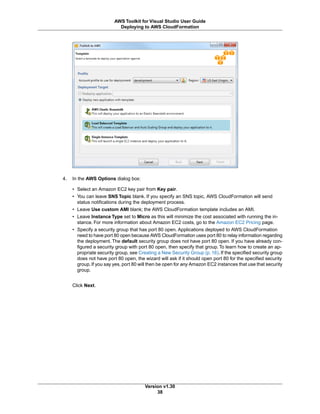
For deploying a new instance, the dialog box provides two AWS CloudFormation templates that you
can use: Load Balanced Template and Single Instance Template. These templates are included
with the AWS Toolkit. Load BalancedTemplate provisions an Amazon EC2 instance with an Amazon
Elastic Load Balancer and an Amazon Auto Scaling Group. Single Instance Template provisions
just a single Amazon EC2 instance.
Select Load Balanced Template, and then click Next.
Version v1.30
37
AWS Toolkit for Visual Studio User Guide
Deploying to AWS CloudFormation
4. In the AWS Options dialog box:
• Select an Amazon EC2 key pair from Key pair.
• You can leave SNS Topic blank. If you specify an SNS topic, AWS CloudFormation will send
status notifications during the deployment process.
• Leave Use custom AMI blank; the AWS CloudFormation template includes an AMI.
• Leave Instance Type set to Micro as this will minimize the cost associated with running the in-
stance. For more information about Amazon EC2 costs, go to the Amazon EC2 Pricing page.
• Specify a security group that has port 80 open. Applications deployed to AWS CloudFormation
need to have port 80 open because AWS CloudFormation uses port 80 to relay information regarding
the deployment. The default security group does not have port 80 open. If you have already con-
figured a security group with port 80 open, then specify that group. To learn how to create an ap-
propriate security group, see Creating a New Security Group (p. 16). If the specified security group
does not have port 80 open, the wizard will ask if it should open port 80 for the specified security
group.If you say yes, port 80 will then be open for any Amazon EC2 instances that use that security
group.
Click Next.
Version v1.30
38
AWS Toolkit for Visual Studio User Guide
Deploying to AWS CloudFormation
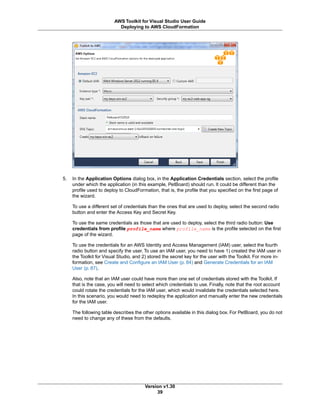
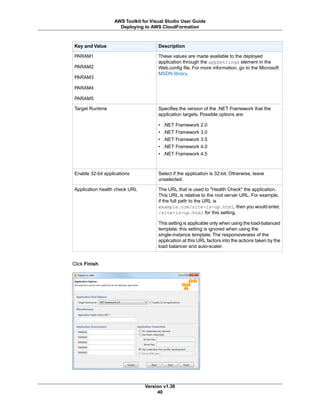
5. In the Application Options dialog box, in the Application Credentials section, select the profile
under which the application (in this example, PetBoard) should run. It could be different than the
profile used to deploy to CloudFormation, that is, the profile that you specified on the first page of
the wizard.
To use a different set of credentials than the ones that are used to deploy, select the second radio
button and enter the Access Key and Secret Key.
To use the same credentials as those that are used to deploy, select the third radio button: Use
credentials from profile profile_name where profile_name is the profile selected on the first
page of the wizard.
To use the credentials for an AWS Identity and Access Management (IAM) user, select the fourth
radio button and specify the user. To use an IAM user, you need to have 1) created the IAM user in
the Toolkit for Visual Studio, and 2) stored the secret key for the user with the Toolkit. For more in-
formation, see Create and Configure an IAM User (p. 84) and Generate Credentials for an IAM
User (p. 87).
Also, note that an IAM user could have more than one set of credentials stored with the Toolkit. If
that is the case, you will need to select which credentials to use. Finally, note that the root account
could rotate the credentials for the IAM user, which would invalidate the credentials selected here.
In this scenario, you would need to redeploy the application and manually enter the new credentials
for the IAM user.
The following table describes the other options available in this dialog box. For PetBoard, you do not
need to change any of these from the defaults.
Version v1.30
39
AWS Toolkit for Visual Studio User Guide
Deploying to AWS CloudFormation
DescriptionKey and Value
These values are made available to the deployed
application through the appSettings element in the
Web.config file. For more information, go to the Microsoft
MSDN library.
PARAM1
PARAM2
PARAM3
PARAM4
PARAM5
Specifies the version of the .NET Framework that the
application targets. Possible options are:
• .NET Framework 2.0
• .NET Framework 3.0
• .NET Framework 3.5
• .NET Framework 4.0
• .NET Framework 4.5
Target Runtime
Select if the application is 32-bit. Otherwise, leave
unselected.
Enable 32-bit applications
The URL that is used to "Health Check" the application.
This URL is relative to the root server URL. For example,
if the full path to the URL is
example.com/site-is-up.html, then you would enter,
/site-is-up.html for this setting.
This setting is applicable only when using the load-balanced
template; this setting is ignored when using the
single-instance template. The responsiveness of the
application at this URL factors into the actions taken by the
load balancer and auto-scaler.
Application health check URL
Click Finish.
Version v1.30
40
AWS Toolkit for Visual Studio User Guide
Deploying to AWS CloudFormation
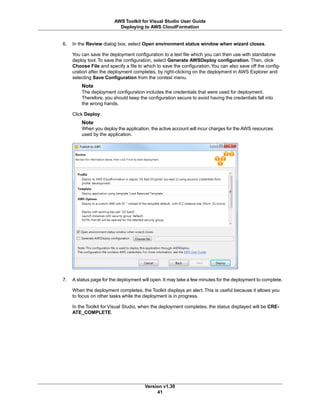
6. In the Review dialog box, select Open environment status window when wizard closes.
You can save the deployment configuration to a text file which you can then use with standalone
deploy tool. To save the configuration, select Generate AWSDeploy configuration. Then, click
Choose File and specify a file to which to save the configuration.You can also save off the config-
uration after the deployment completes, by right-clicking on the deployment in AWS Explorer and
selecting Save Configuration from the context menu.
Note
The deployment configuration includes the credentials that were used for deployment.
Therefore, you should keep the configuration secure to avoid having the credentials fall into
the wrong hands.
Click Deploy.
Note
When you deploy the application, the active account will incur charges for the AWS resources
used by the application.
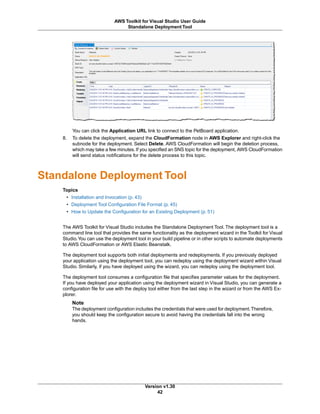
7. A status page for the deployment will open. It may take a few minutes for the deployment to complete.
When the deployment completes, the Toolkit displays an alert. This is useful because it allows you
to focus on other tasks while the deployment is in progress.
In the Toolkit for Visual Studio, when the deployment completes, the status displayed will be CRE-
ATE_COMPLETE.
Version v1.30
41
AWS Toolkit for Visual Studio User Guide
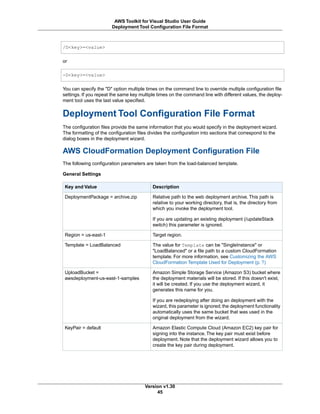
Deploying to AWS CloudFormation
You can click the Application URL link to connect to the PetBoard application.
8. To delete the deployment, expand the CloudFormation node in AWS Explorer and right-click the
subnode for the deployment. Select Delete. AWS CloudFormation will begin the deletion process,
which may take a few minutes.If you specified an SNS topic for the deployment, AWS CloudFormation
will send status notifications for the delete process to this topic.
Standalone Deployment Tool
Topics
• Installation and Invocation (p. 43)
• Deployment Tool Configuration File Format (p. 45)
• How to Update the Configuration for an Existing Deployment (p. 51)
The AWS Toolkit for Visual Studio includes the Standalone Deployment Tool. The deployment tool is a
command line tool that provides the same functionality as the deployment wizard in the Toolkit for Visual
Studio.You can use the deployment tool in your build pipeline or in other scripts to automate deployments
to AWS CloudFormation or AWS Elastic Beanstalk.
The deployment tool supports both initial deployments and redeployments. If you previously deployed
your application using the deployment tool, you can redeploy using the deployment wizard within Visual
Studio. Similarly, if you have deployed using the wizard, you can redeploy using the deployment tool.
The deployment tool consumes a configuration file that specifies parameter values for the deployment.
If you have deployed your application using the deployment wizard in Visual Studio, you can generate a
configuration file for use with the deploy tool either from the last step in the wizard or from the AWS Ex-
plorer.
Note
The deployment configuration includes the credentials that were used for deployment.Therefore,
you should keep the configuration secure to avoid having the credentials fall into the wrong
hands.
Version v1.30
42
AWS Toolkit for Visual Studio User Guide
Standalone Deployment Tool
In order to deploy your web application using the deployment tool, you will need to package it as a .zip
file. For more information about how to package your application for deployment, go to the following topic
at MSDN: How to: Create a Web Deployment Package in Visual Studio.
Installation and Invocation
The deployment tool is typically installed in the following directory:
C:Program FilesAWS ToolsDeployment Toolawsdeploy.exe
Or in the following directory on Microsoft Windows 64-bit:
C:Program Files (x86)AWS ToolsDeployment Toolawsdeploy.exe
Invocation Syntax
awsdeploy [options] configFile
The configuration file must be the last item specified on the command line.
Command line options can be specified using a forward slash ("/") or a hyphen ("-").
Except for the "D" option, each command line option has a long form as well as a single letter abbreviation.
For example, you can specify silent mode in any of the following ways.
/s
-s
/silent
-silent
Other command line options follow a similar form. The following table shows the available command line
options.
Version v1.30
43
AWS Toolkit for Visual Studio User Guide
Installation and Invocation
DescriptionOption
Do not output messages to the console./s, /silent, -s, -silent
Send more detailed information about the deployment to the
console.
/v, /verbose, -v, -verbose
Do not create stack.Deploy to existing stack.Does not change
the AWS CloudFormation configuration.
/r, /redeploy, -r, -redeploy
Update the AWS CloudFormation configuration for an existing
deployment. Do not redeploy the application.
/u, /updateStack, -u, -updateStack
Block until deployment is complete. This is useful for scripts
that need to take some action after the deployment is
complete.
/w, /wait, -w, -wait
Log debugging information to the specified logfile./l <logfile>, /log <logfile>, -l <logfile>, -log
<logfile>
Override a configuration setting from the command line. See
the section of the configuration file for more information.
/D<key>=<value>, -D<key>=<value>
Output and Exit Codes
Warnings and errors are output to the console. Additional logging output is sent to the logfile if the log
option is specified.
The deployment tool uses the following exit codes.
DescriptionKey and Value
Success0
Invalid argument1
Failed deployment3
If the deployment is successful, the deployment tool will output the URL for the deployed application.
Configuration File
The action of the deployment tool is specified using a configuration file. The Toolkit for Visual Studio in-
cludes three sample configuration files.
• AWS CloudFormation single instance deployment
• AWS CloudFormation load-balanced deployment
• AWS Elastic Beanstalk deployment
Sample Web App
Also included is a sample web app (in a .zip file archive) that you can deploy using the deployment tool.
You can find these files in the Samples subdirectory of the directory where the deployment tool is installed.
You can override settings in the configuration file by using the "D" command line option. The syntax is:
Version v1.30
44
AWS Toolkit for Visual Studio User Guide
Installation and Invocation
/D<key>=<value>
or
-D<key>=<value>
You can specify the "D" option multiple times on the command line to override multiple configuration file
settings. If you repeat the same key multiple times on the command line with different values, the deploy-
ment tool uses the last value specified.
Deployment Tool Configuration File Format
The configuration files provide the same information that you would specify in the deployment wizard.
The formatting of the configuration files divides the configuration into sections that correspond to the
dialog boxes in the deployment wizard.
AWS CloudFormation Deployment Configuration File
The following configuration parameters are taken from the load-balanced template.
General Settings
DescriptionKey and Value
Relative path to the web deployment archive. This path is
relative to your working directory, that is, the directory from
which you invoke the deployment tool.
If you are updating an existing deployment (/updateStack
switch) this parameter is ignored.
DeploymentPackage = archive.zip
Target region.Region = us-east-1
The value for Template can be "SingleInstance" or
"LoadBalanced" or a file path to a custom CloudFormation
template. For more information, see Customizing the AWS
CloudFormation Template Used for Deployment (p. ?)
Template = LoadBalanced
Amazon Simple Storage Service (Amazon S3) bucket where
the deployment materials will be stored. If this doesn't exist,
it will be created. If you use the deployment wizard, it
generates this name for you.
If you are redeploying after doing an deployment with the
wizard, this parameter is ignored; the deployment functionality
automatically uses the same bucket that was used in the
original deployment from the wizard.
UploadBucket =
awsdeployment-us-east-1-samples
Amazon Elastic Compute Cloud (Amazon EC2) key pair for
signing into the instance. The key pair must exist before
deployment. Note that the deployment wizard allows you to
create the key pair during deployment.
KeyPair = default
Version v1.30
45
AWS Toolkit for Visual Studio User Guide
Deployment Tool Configuration File Format
DescriptionKey and Value
The AWS Access Key and Secret Key used to create the
stack and deploy the application to AWS CloudFormation.
We recommend not using these parameters to specify
credentials. Instead, create a profile for the credentials and
use AWSProfileName to reference the profile. For more
information, see Specifying Credentials (p. 5).
AWSAccessKey =
DEPLOYMENT_CREDENTIALS_HERE
AWSSecretKey =
DEPLOYMENT_CREDENTIALS_HERE
The profile used to create the stack and deploy the application
to AWS CloudFormation.
AWSProfileName = profile_name
Template Parameters
In addition to the following parameters, the load-balanced template supports numerous other parameters
to customize load-balancing and auto-scaling behavior.
DescriptionKey and Value
The type of Amazon EC2 instance to use.The Micro instance
shown here is the least expensive type of instance.
Template.InstanceType = t1.micro
The security group for the Amazon EC2 instance.This security
group must exist already and allow ingress on port 80 (HTTP).
For information on how to create a security groups, see
Managing Security Groups from AWS Explorer (p. 16).
Template.SecurityGroup = default
These values are made available to the deployed application
through the appSettings in the Web.config file. For more
information, go to the Microsoft MSDN library.
Environment.PARAM1 =
Environment.PARAM2 =
Environment.PARAM3 =
Environment.PARAM4 =
Environment.PARAM5 =
The Access Key and Secret Key that the deployed application
uses to access AWS services. We recommend not using
these parameters to specify credentials. Instead, create a
profile for the credentials and use AWSProfileName to
reference the profile. For more information, see Specifying
Credentials (p. 5).
Environment.AWSAccessKey =
APP_CREDENTIALS_HERE
Environment.AWSSecretKey =
APP_CREDENTIALS_HERE
The profile that the deployed application uses to access AWS
services. .
AWSProfileName = profile_name
Container Settings
Version v1.30
46
AWS Toolkit for Visual Studio User Guide
Deployment Tool Configuration File Format
DescriptionKey and Value
SolutionStack specifies the version of Windows Server and
Internet Information Server (IIS) to deploy to. Valid values
are:
SolutionStack="64bit Windows Server 2008 R2
running IIS 7.5"
or
SolutionStack="64bit Windows Server 2012 run
ning IIS 8"
If not otherwise specified the default is 64bit Windows Server
2012 running IIS 8.You can use Container.Type as an alias
for SolutionStack.
SolutionStack="64bit Windows Server
2012 running IIS 8"
Specifies the target runtime that the .NET Framework maps
to. Possible values are 2.0 or 4.0.
The following .NET Framework versions are mapped to a
target runtime of 2.0:
• .NET Framework 2.0
• .NET Framework 3.0
• .NET Framework 3.5
The following .NET Framework versions are mapped to a
target runtime of 4.0:
• .NET Framework 4.0
• .NET Framework 4.5
The deployment wizard (p. 36) in the Toolkit for Visual Studio
allows you to specify the .NET Framework version.The wizard
then maps the .NET Framework version to the appropriate
target runtime version.
Container.TargetRuntime = 4.0
If the application is 32-bit, specify true. If the application is
64-bit, specify false.
Container.Enable32BitApplications =
false
The URL that is used to "Health Check" the application. This
URL is relative to the root server URL. For example, if the full
URL is example.com/site-is-up.html, then you would
enter, /site-is-up.html for this setting.
The setting is applicable only when you are using the
load-balanced template; it is ignored when you are using the
single-instance template. The responsiveness of the
application at this URL affects the actions taken by the load
balancer and auto scaler. If the application is unresponsive
or responds slowly, the load balancer will direct incoming
network traffic to other Amazon EC2 instances, and the auto
scaler may add additional EC2 instances.
Container.ApplicationHealthcheckPath
= /
Version v1.30
47
AWS Toolkit for Visual Studio User Guide
Deployment Tool Configuration File Format
Stack Creation settings
DescriptionKey and Value
SNS topic to use for deployment messages.Settings.SNSTopic
The amount of time to allow for the creation of the stack. A
value of zero means there is no time limit.
Settings.CreationTimeout = 0
If this value is true, the deployment tool tears down the stack
if the deployment fails.
Settings.RollbackOnFailure = false
AWS Elastic Beanstalk Deployment Configuration File
The following configuration parameters are for deployment using AWS Elastic Beanstalk.
For a walkthrough of using the Standalone Deployment Tool to deploy to AWS Elastic Beanstalk, go to
the AWS Elastic Beanstalk Developer Guide.
General Settings
DescriptionKey and Value
Relative path to the web deployment archive. This path
is relative to your working directory—that is, the directory
from which you invoke the deployment tool.
If you are using incremental deployment (see below),
this value specifies the root folder for the extracted web
deployment archive.
DeploymentPackage = archive.zip
If this value is specified, incremental deployment is
enabled. The value itself specifies a location, such as
C:TempVS2008App1, where a Git repository will be
created to store the versioned contents of the
deployment package.
IncrementalPushLocation
Can be "AWS Elastic Beanstalk", "Elastic Beanstalk",
or just "ElasticBeanstalk", as shown here.
Template = ElasticBeanstalk
Specifies a name for the application. This value is
required.
Application.Name
Specifies an optional description for the application.Application.Description
Specifies a version string for the application. If you are
using incremental deployment, this value is ignored;
AWS Elastic Beanstalk uses the Git commit ID for the
version string.
Application.Version
Target regionRegion = us-east-1
Amazon S3 bucket where the deployment materials will
be stored. If this doesn't exist, it will be created. If you
use the deployment wizard, it generates this name for
you.
UploadBucket =
awsdeployment-us-east-1-samples
Version v1.30
48
AWS Toolkit for Visual Studio User Guide
Deployment Tool Configuration File Format
DescriptionKey and Value
Amazon EC2 key pair for signing into the instance. The
key pair must exist before deployment. Note that the
deployment wizard allows you to create the key pair
during deployment.
KeyPair = default
AWS Access Key and Secret Key used to create the
stack and deploy the application to AWS Elastic
Beanstalk. We recommend not using these parameters
to specify credentials. Instead, create a profile for the
credentials and use AWSProfileName to reference the
profile. For more information, see Specifying
Credentials (p. 5).
AWSAccessKey =
DEPLOYMENT_CREDENTIALS_HERE
AWSSecretKey =
DEPLOYMENT_CREDENTIALS_HERE
The profile used to create the stack and deploy the
application to AWS Elastic Beanstalk.
AWSProfileName = profile_name
The names of the security groups for the Amazon EC2
instance.If you specify multiple security groups, separate
them with commas.
/Daws:autoscaling:launchconfiguration.Se
curityGroups=RDPOnly,HTTPOnly
The security groups must already exist and they must
allow ingress on port 80 (HTTP). For information on how
to create security groups, see Managing Security Groups
from AWS Explorer (p. 16)
aws:autoscaling:launchconfiguration.SecurityGroups
= default
Environment Settings
DescriptionKey and Value
Specifies a name for your AWS Elastic Beanstalk environment.
This value is required.
Environment.Name
Specifies an optional description for your environment.Environment.Description
Optionally specifies the URL prefix for your application. If you
do not specify this value AWS Elastic Beanstalk will derive
the prefix from your environment name.
Environment.CNAME
Container Settings
Version v1.30
49
AWS Toolkit for Visual Studio User Guide
Deployment Tool Configuration File Format
DescriptionKey and Value
Specifies the target runtime that the .NET Framework maps
to. Possible values are 2.0 or 4.0.
The following .NET Framework versions are mapped to a
target runtime of 2.0:
• .NET Framework 2.0
• .NET Framework 3.0
• .NET Framework 3.5
The following .NET Framework versions are mapped to a
target runtime of 4.0:
• .NET Framework 4.0
• .NET Framework 4.5
The deployment wizard (p. 26) in the Toolkit for Visual Studio
allows you to specify the .NET Framework version.The wizard
then maps the .NET Framework version to the appropriate
target runtime version.
Container.TargetRuntime = 4.0
If the application is 32-bit, specify true. If the application is
64-bit, specify false.
Container.Enable32BitApplications =
false
The URL that is used to "Health Check" the application. This
URL is relative to the root server URL. For example, if the full
URL is example.com/site-is-up.html, then you would
enter, /site-is-up.html for this setting.
The setting is applicable only when you are using the
load-balanced template; it is ignored when you are using the
single-instance template. The responsiveness of the
application at this URL affects into the actions taken by the
load balancer and auto scaler. If the application is
unresponsive or responds slowly, the load balancer will direct
incoming network traffic to other Amazon EC2 instances, and
the auto scaler may add additional Amazon EC2 instances.
Container.ApplicationHealthcheckPath
= /
The type of Amazon EC2 instance to use.The Micro instance
shown here is the least expensive type of instance.
Container.InstanceType = t1.micro
Use this parameter to specify a custom Amazon Machine
Image (AMI). For more information about how to create a
custom AMI, go to Using Custom AMIs in the AWS Elastic
Beanstalk Developer Guide and Create an AMI from an
Amazon EC2 Instance (p. 18).
Container.AmiID
Use this parameter to optionally specify an email address for
notifications on deployment status.
Container.NotificationEmail
Version v1.30
50
AWS Toolkit for Visual Studio User Guide
Deployment Tool Configuration File Format
How to Update the Configuration for an Existing
Deployment
The updateStack feature of the deployment tool enables you to modify the AWS CloudFormation con-
figuration of an existing deployment. This configuration—the application's environment—comprises the
cloud resources that your application runs on and has access to. The updateStack feature does this
without changing the application itself. In other words, updateStack does not redeploy the application,
it only updates the application's environment. In this way, the updateStack feature complements the
redeployment feature; redeployment provides a way to update your application without changing the en-
vironment.
There are various scenarios in which you might use updateStack. For example, you might develop your
application using the single-instance template. Then, as the application nears production readiness, you
could update its configuration to use a load-balanced template, either for public beta testing or live release
deployment. A related scenario would be a deployment that is using a load-balanced configuration, but
which could be optimized by modifying some of the configuration parameters—for example, by increasing
the maximum number of supporting EC2 instances or changing the size of the instances, say from micro
to large.You could implement either of these scenarios—as well as others—using the updateStack
feature of the deployment tool.
There are scenarios in which you might use both the /updateStack option and the /redeploy option, effect-
ively modifying both the application itself and the environment in which the application is running. In some
cases, this approach is more efficient than just performing a regular deployment. For example, you might
change your environment to add an Amazon S3 bucket and also update your application to use that
bucket. With a combination of /updateStack and /redeploy, you could implement both changes, but leave
any already provisioned Amazon EC2 instances up and running. A regular deployment would result in
all of the environment being taken down and rebuilt.
The updateStack feature is available only through the deployment tool. It is not available through the
deployment wizard in Visual Studio.You could use updateStack to update a deployment that was de-
ployed initially using the deployment wizard, but not vice versa.
The invocation syntax for updating an existing deployment is similar to the syntax for a new deployment.
awsdeploy /updateStack [other options] updatedConfigFile
Keep the following in mind when attempting to update a deployment.
• You cannot update a deployment that is in the process of being created or being taken down.
• The specified config file must use the same value for the StackName parameter as the original deploy-
ment.
• You cannot change the region for your deployment using updateStack. However, you can change
the Availability Zones for your deployment.
• If you use updateStack to transition your deployment from SingleInstance to LoadBalanced, the en-
dpoint for your deployment will necessarily change. In the SingleInstance case, the endpoint refers to
an Amazon EC2 instance. However, in the LoadBalanced template, the endpoint refers to the Elastic
Load Balancer (ELB), a computer that distributes computing load across all the EC2 instances.
Therefore, if you are using a CNAME record to associate a domain name with your deployment, you
should update the CNAME record so that it points to the ELB of the load-balanced template.
The Deploy tool implements the updateStack feature by calling the AWS CloudFormation UpdateStack
API. For more information about AWS CloudFormation, go to the AWS CloudFormation User Guide.
Version v1.30
51
AWS Toolkit for Visual Studio User Guide
How to Update the Configuration for an Existing Deploy-
ment
Using the AWS CloudFormation
Template Editor for Visual Studio
The AWS Toolkit for Visual Studio includes an AWS CloudFormation template editor and AWS Cloud-
Formation template projects for Visual Studio. The supported features include:
• Creating new templates (either empty, or copied from an existing stack or sample template) using the
supplied AWS CloudFormation Template project type.
• Editing templates with automatic JSON validation, auto-completion, code folding, and syntax highlighting.
• Automatic suggestion of intrinsic functions and resource reference parameters for the field values in
your template.
• Menu items to perform common actions for your template from within Visual Studio: deploying the
template, estimating the cost of your template, and formatting your template.
Topics
• Creating a New AWS CloudFormation Template Project in Visual Studio (p. 52)
• Deploying an AWS CloudFormation Template in Visual Studio (p. 54)
• Estimating the Cost of Your AWS CloudFormation Template Project in Visual Studio (p. 56)
• Formatting an AWS CloudFormation Template in Visual Studio (p. 57)
Creating a New AWS CloudFormation Template
Project in Visual Studio
To create a new AWS CloudFormation template project
1. On the Visual Studio menu, select File, New, and click Project to bring up the New Project dialog.
2. In the New Project dialog, click Installed Templates, AWS CloudFormation, then AWS Cloud-
Formation Template.
Version v1.30
52
AWS Toolkit for Visual Studio User Guide
Creating a New AWS CloudFormation Template Project
3. In the lower pane of the New Project dialog, type your template project's Name.
4. Make one of the following choices for the Solution field:
• Create new solution. If you choose to create a new solution for your template, fill in the Solution
Name field, and optionally choose a project Location.
• Add to solution. If you choose to add this template to your currently-opened solution, the Location
field will automatically be set to the location of your current solution, and Solution Name will be
greyed out.
5. Click OK to continue to the Select Project Source screen.
6. On the Select Project Source screen, choose the source of the template you will create.You can
choose from among the following:
• Create with empty template – generates a new, empty AWS CloudFormation template.
• Create from existing AWS CloudFormation stack – generates a template from an existing stack
(the stack doesn't need to have a status of CREATE_COMPLETE) in your AWS account.
• Select sample template – generates a template from one of the AWS CloudFormation sample
templates.
Version v1.30
53
AWS Toolkit for Visual Studio User Guide
Creating a New AWS CloudFormation Template Project
7. Click Finish to complete creating your AWS CloudFormation template project.
Deploying an AWS CloudFormationTemplate in
Visual Studio
To deploy an AWS CloudFormation template
1. Right-click the template you want to deploy in Solution Explorer, and click Deploy to AWS
CloudFormation to show the Deploy Template dialog.
Version v1.30
54
AWS Toolkit for Visual Studio User Guide
Deploying an AWS CloudFormation Template
Alternatively, you can click Deploy to AWS CloudFormation in the Template menu to deploy the
template that you're currently editing.
2. In the Deploy Template dialog, select the AWS account to use to launch the stack and the region
that you want to launch it in.
3. Select Create New Stack if it is not already selected, and enter a name for your stack.
4. Choose any (or none) of the following options:
• SNS Topic – choose an existing SNS topic from the list to receive notifications about the stack's
progress, or create a new one by typing an email address in the box and clicking Create New
Topic.
• CreationTimeout – choose how long AWS CloudFormation should allow for the stack to be created
before it is declared failed (and rolled back, unless the Rollback on failure option is unchecked.
• Rollback on failure – if you want the stack to rollback (delete itself) on failure, check this option.
Leave it unchecked if you would like the stack to remain active, for debugging purposes, even if
it has failed to complete launching.
5. Click Finish to begin launching the stack with the name and options you selected.
Version v1.30
55
AWS Toolkit for Visual Studio User Guide
Deploying an AWS CloudFormation Template
Estimating the Cost of Your AWS CloudForma-
tion Template Project in Visual Studio
Estimating the cost of your AWS CloudFormation stack provides you with an idea of how much the re-
sources you include in your template will cost to operate per month. With the AWS Toolkit for Visual
Studio, you can easily estimate the cost of the stack you are working on before deploying it.
To estimate the cost of your AWS CloudFormation stack
1. Right-click the template you want to estimate the cost of in Solution Explorer and click Estimate
Cost to show the Estimate Cost for Template dialog.
Alternatively, you can click Estimate Cost in the Template menu to estimate the cost of the template
that you're currently editing.
2. Fill in the values of any parameters you have defined for your stack, and click Finish to estimate the
cost of your stack.
3. A new screen will appear, displaying the AWS Simple Monthly Calculator. The values for the form
data will be filled in with information pulled from the template that you're editing. If you need to adjust
any of the values, you can do so here.
Click the Estimate of Your Monthly Bill tab to display an itemized view of the estimated monthly
cost of running your stack.
Version v1.30
56
AWS Toolkit for Visual Studio User Guide
Estimating the Cost of Your Template Project
Note
Cost estimates are calculated using the values that you enter and the current rates of AWS
services, which can vary over time. For more information about AWS pricing and estimating
costs, see the whitepaper How AWS Pricing Works.
Formatting an AWS CloudFormation Template
in Visual Studio
To format your AWS CloudFormation template in Visual Studio
1. Right-click the template you want to format in Solution Explorer and click Format Template to
format your stack.
Alternatively, you can click Format Template in the Template menu to format the template that
you're currently editing.
2. Your JSON code will be formatted so that its structure is clearly presented.
Version v1.30
57
AWS Toolkit for Visual Studio User Guide
Formatting an AWS CloudFormation Template
Version v1.30
58
AWS Toolkit for Visual Studio User Guide
Formatting an AWS CloudFormation Template
Using Amazon S3 from AWS
Explorer
Amazon Simple Storage Service (Amazon S3) enables you to store and retrieve data from any connection
to the Internet. All data stored by you on Amazon S3 is associated with your account and is, by default,
accessible only by you. The AWS Toolkit for Visual Studio enables you to store data on Amazon S3 and
to view, manage, retrieve, and distribute that data.
Amazon S3 uses the concept of buckets, which you can think of as being similar to file systems or logical
drives. Buckets can contain folders—which are similar to directories—and objects, which are similar to
files.In this section, we'll be using these concepts as we walk through the Amazon S3 functionality exposed
by the Toolkit for Visual Studio.
Note
To use this tool, your IAM policy must grant permissions for the s3:GetBucketAcl action in
addition to actions such as s3:GetBucket and s3:ListBucket. For more information, see
Overview of AWS IAM Policies.
Creating an Amazon S3 Bucket
The most fundamental unit of storage on Amazon S3 is the bucket.
To create a new Amazon S3 bucket
1. In AWS Explorer, right-click the Amazon S3 node, and then click Create Bucket from the context
menu.
2. In the Create Bucket dialog box, enter a name for the bucket. Bucket names must be unique across
the entire AWS system. For additional constraints on Amazon S3 buckets, go to the Amazon S3
documentation.
Version v1.30
59
AWS Toolkit for Visual Studio User Guide
Creating an Amazon S3 Bucket
3. Click OK.
Managing Amazon S3 Buckets from AWS Ex-
plorer
In AWS Explorer, you can right-click an Amazon S3 bucket to view supported operations.
Browse
Displays a view of the objects that the bucket contains. From here, you can create folders, or upload files
or entire directories/folders from your local computer. The lower pane displays status messages about
the upload process.You can clear these messages by clicking the icon labeled Clear.You can also access
this view of the bucket by double-clicking the bucket name in AWS Explorer.
Properties
Displays a dialog box where you can do the following:
• Set Amazon S3 permissions that scope to 1) you as the bucket owner, or 2) all users who have authen-
ticated on AWS, or 3) everyone with Internet access.
• Turn on logging for the bucket.
• Set up a notification using the Amazon Simple Notification Service (SNS) so that if you are using Reduced
Redundancy Storage (RRS), you are notified if data loss occurs. RRS is an Amazon S3 storage option
that provides less durability than standard storage, but at reduced cost. For more information, see the
S3 FAQ.
• Create a static website using the data in the bucket.
Policy
Enables you to set up AWS Identity and Access Management (IAM) policies for your bucket. Go to the
IAM documentation for more information and to see the use cases for IAM and S3.
Create Pre-Signed URL
Enables you to generate a time-limited URL that you can then distribute to provide access to the contents
of the bucket. For more information, see How to Create a Pre-Signed URL (p. 64) below.
Version v1.30
60
AWS Toolkit for Visual Studio User Guide
Managing Amazon S3 Buckets from AWS Explorer
View Multi-Part Uploads
Enables you to view multipart uploads. Amazon S3 supports breaking large object uploads into parts to
make the upload process more efficient. For more information, go to the discussion of multipart uploads
in the Amazon S3 documentation.
Delete
Enables you to delete the bucket. Note that you can delete only buckets that are empty.
Uploading Files and Folders to Amazon S3
AWS Explorer enables you to easily transfer files or entire folders from your local computer to any of your
buckets.
Note
If you upload files or folders that have the same name as files or folders that already exist in the
current Amazon S3 bucket, your uploaded files will overwrite the existing files without warning.
To upload a file or files to Amazon S3
1. In AWS Explorer, expand the Amazon S3 node, and double-click a bucket, or right-click the bucket
and select Browse.
2. In the Browse view of your bucket, select Upload File or Upload Folder. A File-Open dialog box
appears.
3. In the File-Open dialog box, navigate to the files to upload, select them (you can select multiple
files), and click Open. If you are uploading a folder, navigate to that folder, select it, and click Open.
The Upload Settings dialog box appears.
The Upload Settings dialog enables you to set metadata and permissions on the files or folder that
you are uploading. If you select the Make everything public check box, it is equivalent to setting
Open/Download permissions for Everyone.You can also choose to use Reduced Redundancy
Storage for the uploaded files.
Version v1.30
61
AWS Toolkit for Visual Studio User Guide
Uploading Files and Folders to Amazon S3
Amazon S3 File Operations from AWS Toolkit
for Visual Studio
If you select a file with the Amazon S3 view and right-click it, a context menu appears that enables you
to perform various operations on the file.
Create Folder
Enables you to create a folder within the current bucket. Equivalent to clicking the Create Folder link at
the top of the Amazon S3 view.
Upload
Enables you to upload files or folders. Equivalent to the clicking the Upload File or Upload Folder links
at the top of the Amazon S3 view.
Open
Attempts to open the selected file in your default browser. Depending on the type of file and your default
browser's capabilities, the file might not be displayed, but might simply be downloaded by your browser
instead.
Version v1.30
62
AWS Toolkit for Visual Studio User Guide
Amazon S3 File Operations from AWS Toolkit for Visual
Studio
Download
Opens a Folder-Tree dialog box to enable you to download the selected file.
Make Public
Sets permissions on the selected file to Open/Download, Everyone. Equivalent to setting Make Public
for Everyone in the Upload Settings dialog box.
Delete
Deletes the selected files or folders.You can also delete files or folders by selecting them and pressing
the Delete key on your keyboard.
Change Storage Class
Sets the storage class to either Standard or Reduced Redundancy Storage (RRS).You can view the
current storage class setting by selecting the Properties menu item. See below.
Change Encryption
Enables you to set server side encryption on the file.You can view the current encryption setting by se-
lecting the Properties menu item. See below.
Rename
Enables you to rename a file.You cannot rename a folder, however.
Cut | Copy | Paste
Enables you to cut, copy, and paste files or folders between folders or between buckets.
Properties
Displays a dialog box that enables you to set metadata and permissions for the file, as well as toggle
storage for the file between Reduced Redundancy Storage (RRS) and Standard, and set Server Side
Encryption for the file. This dialog box also displays an https link to the file. Clicking this link from inside
the AWS Toolkit for Visual Studio opens the file in your default browser. If you have permissions on the
file set to Open/Download, Everyone, then other people will be able to access the file through this link.
However, rather than distributing this link, we recommend that you create and distribute pre-signed URLs.
See below.
Create Pre-Signed URL
Version v1.30
63
AWS Toolkit for Visual Studio User Guide
Amazon S3 File Operations from AWS Toolkit for Visual
Studio
Enables you to create a time-limited pre-signed URL that you can distribute to enable other people to
access the content that you have stored on Amazon S3.
How to Create a Pre-Signed URL
This section explains how to create a pre-signed URL.You can create pre-signed URLs for buckets or
for files within buckets. Other people can then use this URL to access the bucket or file. The URL is time
limited; it will expire after a period of time that you specify when you create the URL. After expiration, the
URL will no longer enable access.
To create a pre-signed URL
1. In the Create Pre-Signed URL dialog box, set the expiration date and time for the URL. The default
setting is one hour from the current time.
2. Click the Generate button.
3. To copy the URL (which may be somewhat long) to the clipboard, click Copy.
Version v1.30
64
AWS Toolkit for Visual Studio User Guide
How to Create a Pre-Signed URL
Using DynamoDB from AWS
Explorer
DynamoDB is a fast, highly scalable, highly available, cost-effective, non-relational database service.
DynamoDB removes traditional scalability limitations on data storage while maintaining low latency and
predictable performance. The AWS Toolkit for Visual Studio provides functionality for working with Dy-
namoDB in a development context. For more information about DynamoDB, see the detail page on the
AWS website.
In the AWS Toolkit for Visual StudioAWS Toolkit for Visual Studio, AWS Explorer displays all the Dy-
namoDB tables associated with the active AWS account.
Creating an DynamoDB Table
Using the Toolkit for Visual Studio, you can create a new DynamoDB table.
Version v1.30
65
AWS Toolkit for Visual Studio User Guide
Creating an DynamoDB Table
To create a new table in AWS Explorer
1. In AWS Explorer, right-click Amazon DynamoDB, and then click Create Table. The Create Table
wizard appears.
2. Enter a table name in the Table Name field.
3. Enter a primary hash key attribute in the Hash Key Name field, and select the hash key type from
the Hash Key Type option buttons. DynamoDB builds an unordered hash index using the primary
key attribute and an optional sorted range index using the range primary key attribute. For more in-
formation about the primary hash key attribute, go to the Primary Key section in the Amazon Dy-
namoDB Developer Guide.
4. Optionally, specify a range primary key by selecting Enable Range Key. Enter a range key attribute
in the Range Key Name field, and select a range key type from the Range KeyType option buttons.
5. Specify the number of read capacity units in the Read Capacity field, and specify the number of
write capacity units in the Write Capacity field.You must specify a minimum of 3 read capacity units
and 5 write capacity units. For more information about read and write capacity units, go to Provisioned
Throughput in DynamoDB.
6. Optionally, enable a basic alarm to alert you when your table's request rates are too high. Select the
percentage of provisioned throughput per 60 minutes that needs to be exceeded before the alert.
Provide an email address to send the alarm notification to.
7. Click OK to create the table.
For more information about DynamoDB tables, go to Data Model Concepts - Tables, Items, and Attributes.
Viewing an DynamoDB Table as a Grid
To open a grid view of one of your DynamoDB tables, double-click the subnode in AWS Explorer that
corresponds to the table. From the grid view, you can view the items, attributes, and values stored in the
table. Each row corresponds to an item in the table. The table columns correspond to attributes. Each
cell of the table holds the values associated with that attribute for that item.
Version v1.30
66
AWS Toolkit for Visual Studio User Guide
Viewing an DynamoDB Table as a Grid
An attribute can have a value that is a string or a number. Some attributes have a value that consists of
a set of strings or numbers. Set values are displayed as a comma-separated list enclosed by square
brackets.
Editing and Adding Attributes and Values
The table grid view is editable; by double-clicking a cell, you can edit the values for the item's corresponding
attribute. For set-value attributes, you can also add or delete individual values from the set.
The editing UI enables you not only to change the value of an attribute, but also to change the format of
the value for an attribute—with some limitations. For example, any number value can be converted into
a string value. If you have a string value, the content of which is a number, such as "125", the editing UI
enables you to convert the format of the value from string to number. Also, the editing UI enables you to
convert a single-value to a set-value. However, you cannot generally convert from a set-value to a single-
value; an exception is when the set-value has, in fact, only one element in the set.
The editing UI displays a green check mark and a red X. After editing the attribute value, click the green
check mark to confirm your changes. If you want to discard your changes, click the red X.
After confirming your changes, the attribute value is displayed in red. This indicates that the attribute has
been updated, but that the new value has not been written back to the DynamoDB database. To write
Version v1.30
67
AWS Toolkit for Visual Studio User Guide
Editing and Adding Attributes and Values
your changes back to DynamoDB, click Commit Changes. Until you click Commit Changes, you can
still discard your changes by clicking Scan Table and then clicking No when the Toolkit asks if you would
like to commit your changes before the Scan.
Adding an Attribute
From the grid view, you can also add new attributes to the table.To add a new attribute, click Add Attribute
at the top of the view.
In the Add Attribute dialog box, enter a name for your new attribute. Click OK.
In order for the new attribute to become part of the table, you must add a value to it for at least one
item—and commit the change by clicking the Commit Changes button. If you want to discard the new
attribute, just close the grid view of the table without clicking Commit Changes.
Scanning an DynamoDB Table
From the Toolkit, you can perform Scans on your DynamoDB tables. In a Scan, you define a set of criteria
and the Scan returns all items from the table that match your criteria. Scans are expensive operations
and should be used with care to avoid disrupting higher-priority production traffic on the table. Go to the
Amazon DynamoDB Developer Guide for more recommendations on safely using the Scan operation.
To perform a Scan on an DynamoDB table from AWS Explorer
1. In the grid view, click the scan conditions: add button. A UI appears that enables you to edit a new
Scan clause.
Version v1.30
68
AWS Toolkit for Visual Studio User Guide
Scanning an DynamoDB Table
2. In the Scan clause editor, select the attribute to match against, how the value of the attribute should
be interpreted (string, number, set value), how it should be matched (Begins With, Contains, etc.),
and what literal value it should match.
3. Add more Scan clauses as needed for your search.The Scan will return only those items that match
the criteria from all of your Scan clauses. Note that the Scan will perform a case-sensitive comparison
when matching against string values.
4. On the button bar at the top of the grid view, click Scan Table.
To remove a Scan clause, click the red button with the white line to the right of each clause.
To return to the view of the table that includes all items, remove all Scan clauses and click Scan Table
again.
Paginating Scan Results
At the bottom of the view are three buttons.
The first two blue buttons provide pagination for Scan results.The leftmost button will display an additional
page of results. The second button displays an additional ten pages of results. In this context, a "page"
is equal to 1 MB of content.
Export Scan Result to CSV
The rightmost button exports the results from the current Scan to a CSV file.
Version v1.30
69
AWS Toolkit for Visual Studio User Guide
Scanning an DynamoDB Table
Amazon RDS from AWS Explorer
Amazon Relational Database Service (Amazon RDS) is a service that enables you to provision and
manage SQL relational database systems in the cloud. Amazon RDS supports three types of database
systems.
• MySQL Community Edition
• Oracle Database Enterprise Edition
• Microsoft SQL Server (Express, Standard, or Web Editions)
For more information, see the Amazon Relational Database Service Getting Started Guide and the Amazon
Relational Database Service User Guide.
Much of the functionality discussed here is also available through the AWS Management Console for
Amazon RDS.For more information about using the console, see the Amazon Relational Database Service
User Guide and the Amazon Relational Database Service Developer Guide.
Topics
• Launch an Amazon RDS Database Instance (p. 70)
• Create a Microsoft SQL Server Database within an RDS Instance (p. 75)
• Amazon RDS Security Groups (p. 76)
Launch an Amazon RDS Database Instance
With AWS Explorer, you can launch an instance of any of the database engines that are supported by
Amazon RDS.The following walkthrough shows the user experience for launching an instance of Microsoft
SQL Server Standard Edition, but the user experience is similar for all supported engines. Any differences
are called out in the text.
To launch an Amazon RDS Instance
1. In AWS Explorer, right-click the Amazon RDS node and select Launch DB Instance.
Version v1.30
70
AWS Toolkit for Visual Studio User Guide
Launch an Amazon RDS Database Instance
Alternatively, you can launch a new Amazon RDS instance by clicking Launch DB Instance in the
DB Instances tab.
2. In the DB Engine Selection dialog box, select the type of database engine to launch.You may need
to scroll the dialog box to see all the possible selections. For this walkthrough, we'll select Microsoft
SQL Server Standard Edition (sqlserver-se). Click Next.
3. In the DB Engine Instance Options dialog box, select the configuration options appropriate to how
you will use the database.
In the DB Engine Instance Options and Class section, you can specify the following settings.
License Model
The license model varies depending on the type of database engine.
Version v1.30
71
AWS Toolkit for Visual Studio User Guide
Launch an Amazon RDS Database Instance
LicenseEngine Type
license-includedMicrosoft SQL Server
general-public-licenseMySql
bring-your-own-licenseOracle
DB Instance Version
Select the version of the database engine you would like to use. If only one version is supported,
that version is selected for you.
DB Instance Class
Select the instance class for the DB engine. Different instance classes have different pricing,
with more powerful instance classes being more expensive.See the pricing section of the Amazon
RDS Detail Page for the most up-to-date pricing information.
Perform a multi AZ deployment
Select this option to create a Multi-AZ deployment for enhanced data durability and availability.
Amazon RDS provisions and maintains a standby copy of your database in a different Availability
Zone for automatic failover in the event of a scheduled or unplanned outage. See the pricing
section of the Amazon RDS Detail Page for information about pricing for Multi-AZ deployments.
This option is not supported for Microsoft SQL Server.
Upgrade minor versions automatically
Select this option to have AWS automatically perform minor version updates on your RDS in-
stances for you.
In the RDS Database Instance section, you can specify the following settings.
Allocated Storage
The minimums and maximums for allocated storage depend on the type of database engine.
Maximum (GB)Minimum (GB)Engine
10245MySQL
102410Oracle Enterprise Edition
102430Microsoft SQL Server Express Edition
1024250Microsoft SQL Server Standard Edition
102430Microsoft SQL Server Web Edition
DB Instance Identifier
Specify a name for the database instance. This name is not case sensitive and will appear in
lowercase form in AWS Explorer.
Master User's Name
Specify a name for the administrator of the database instance.
Master User's Password
Specify a password for the administrator of the database instance.
Confirm Password
In this text area, simply re-enter the password to verify that it is correct.
Version v1.30
72
AWS Toolkit for Visual Studio User Guide
Launch an Amazon RDS Database Instance
4. In the Additional Options dialog box, you can specify the following settings.
Database Port
This is the TCP port that the instance uses to communicate on the network. If your computer
accesses the Internet through a firewall, set this value to a port through which your firewall allows
traffic. Contact your systems administrator regarding which ports are appropriate for your firewall.
Availability Zone
Use this option if you want the instance to launch in a particular Availability Zone within your
region. Note that the DB instance that you have specified might not be available in all zones
within a given region; if you receive a message that the instance size that you have chosen is
not supported in your selected Availability Zone, select a different zone.
RDS Security Group
Select an RDS security group (or groups) to associate with your instance. RDS security groups
specify the IP address, EC2 instances, and AWS accounts that are allowed to access your in-
stance.For more information about RDS security groups and how to work with them in the Toolkit
for Visual Studio, see Amazon RDS Security Groups (p. 76).
The Toolkit for Visual Studio attempts to determine your current IP address and provides the
option of adding this address to the security groups that you choose to associate with your in-
stance. However, if your computer accesses the Internet through a firewall, the IP address that
the Toolkit generates for your computer may not be accurate. To determine which IP address
to use, consult your system administrator.
DB Parameter Group
From this drop-down list, select a DB parameter group to associate with your instance. Associ-
ating a DB parameter group with your instance is optional. DB parameter groups enable you to
change the default configuration for the instance. For more information about DB parameter
groups, go to the Amazon Relational Databse Service User Guide and also to this article .
When you have finished with this dialog box, click Next.
Version v1.30
73
AWS Toolkit for Visual Studio User Guide
Launch an Amazon RDS Database Instance
5. This dialog box enables you to specify whether Amazon RDS should back up your instance and if
so, for how long the backup should be retained.You can also specify a window of time in which the
backups should occur.
This dialog box also enables you to specify if you would like Amazon RDS to perform system main-
tenance on your instance. Maintenance includes routine patches and minor version upgrades.
Note that the window of time that you specify for system maintenance cannot overlap with the window
specified for backups.
When you have finished with this dialog box, click Next.
6. The final dialog box in the wizard allows you to review the settings that you have selected for your
instance. If you need to modify any of the settings, use the Back button to move to the appropriate
dialog box. If all the settings are correct, click Launch to launch your instance.
Version v1.30
74
AWS Toolkit for Visual Studio User Guide
Launch an Amazon RDS Database Instance
Create a Microsoft SQL Server Database within
an RDS Instance
Microsoft SQL Server is designed in such a way that, after launching an Amazon RDS instance, you need
to create an SQL Server database within the RDS instance.
For information about how to create an Amazon RDS instance, see Launch an Amazon RDS Database
Instance (p. 70)
To create a Microsoft SQL Server database
1. In AWS Explorer, right-click the node that corresponds to your RDS instance for Microsoft SQL
Server. From the context menu, select Create SQL Server Database.
2. In the Create SQL Server Database dialog box, enter the password that you specified when you
created the RDS instance.Then enter a name for the Microsoft SQL Server database to create. Click
OK.
3. The AWS Toolkit creates the Microsoft SQL Server database and adds it to the Visual Studio Server
Explorer.
Version v1.30
75
AWS Toolkit for Visual Studio User Guide
Create a Microsoft SQL Server Database within an RDS
Instance
Amazon RDS Security Groups
Amazon RDS Security Groups enable you to manage network access to your Amazon RDS instances.
With security groups, you specify sets of IP addresses using CIDR notation, and only network traffic ori-
ginating from these addresses is recognized by your Amazon RDS instance.
Amazon RDS Security Groups are not the same as Amazon EC2 security groups although they function
similarly. Also, it is possible to add an EC2 security group to your RDS security group. This has the effect
that any EC2 instances that are members of the EC2 security group are then able to access the RDS
instances that are members of the RDS security group.
For more information about Amazon RDS security groups, go to the Amazon Relational Database Service
User Guide.
For more information about Amazon EC2 security groups, go to the Amazon EC2 User Guide for Linux
Instances
Create an Amazon RDS Security Group
You can create an RDS security group from the AWS Toolkit. If you use the AWS Toolkit to launch an
RDS instance, the wizard will allow you to specify an RDS security group to use with your instance.You
can create that security group before starting the wizard using the following procedure.
To create an Amazon RDS Security Group
1. In AWS Explorer, expand the Amazon RDS node, then right-click the DB Security Groups subnode
and select Create.
Alternatively, you could select Create Security Group from the Security Groups tab. If this tab isn't
visible, right-click the DB Security Groups subnode and select View.
Version v1.30
76
AWS Toolkit for Visual Studio User Guide
Amazon RDS Security Groups
2. In the Create Security Group dialog box, enter a name and description for the security group. Click
OK.
Set Access Permissions for an Amazon RDS Se-
curity Group
By default, a new Amazon RDS Security Group provides no network access.To enable access to Amazon
RDS instances that use the security group, set its access permissions using the following procedure.
To set access for an Amazon RDS Security Group
1. In the Security Groups tab, select the security group to permit from the list view. If you do not see
your security group listed, click Refresh. If you still do not see your security group, verify that your
Security Groups tab that you are viewing is for the correct AWS region; Security Group tabs in
the AWS Toolkit are region specific.
If no Security Group tabs are visible, right-click the DB Security Groups subnode in AWS Explorer
and select View.
2. Click the Add Permission button.
3. In the Add Permission dialog box, you can specify your what IP addresses can access your RDS
instance using CIDR notation, or you can specify which EC2 security groups can access your RDS
instance. When specifying access by EC2 security group, you can specify that all EC2 instances
associated with a particular AWS account have access, or you can select a particular EC2 security
group from the drop-down list.
Version v1.30
77
AWS Toolkit for Visual Studio User Guide
Set Access Permissions for an Amazon RDS Security
Group
The AWS Toolkit attempts to determine your IP address and auto-populate the dialog box with the
appropriate CIDR specification. However, if your computer accesses the Internet through a firewall,
you should consult your systems administrator for the correct CIDR because, in this case, the Toolkit's
CIDR determined by the toolkit may be inaccurate.
Version v1.30
78
AWS Toolkit for Visual Studio User Guide
Set Access Permissions for an Amazon RDS Security
Group
Using Amazon SimpleDB from
AWS Explorer
AWS Explorer displays all the Amazon SimpleDB domains associated with the active AWS account. From
AWS Explorer, you can create new Amazon SimpleDB domains or delete existing ones.
Executing Queries and Editing the Results
AWS Explorer can also display a grid view of a SimpleDB domain. From this view, you can view the items,
attributes, and values in that domain.You can execute queries so that only a subset of the domain's items
is displayed.This domain view is editable. By double-clicking a cell, you can edit the values for that item's
corresponding attribute.You can also add new attributes to the domain.
The domain displayed below is from the Amazon SimpleDB sample that ships with the AWS SDK for
.NET.
To execute a query, edit the query in the text box at the top of the grid view, and then click Execute. The
view is filtered to show only the items that match the query.
Version v1.30
79
AWS Toolkit for Visual Studio User Guide
To edit the values associated with an attribute, double-click the corresponding cell and the contents will
become editable. After editing the values, click Commit Changes at the top of the view.
Adding an Attribute
To add a new attribute, click Add Attribute at the top of the view.
In order for the new attribute to become part of the domain, you must add a value for it to at least one
item—and commit the change by clicking Commit Changes.
Paginating Query Results
At the bottom of the view are three buttons.
The first two, blue, buttons provide pagination for query results. Clicking the leftmost button displays an
additional page of results. Clicking the second button displays an additional ten pages of results. In this
context, a "page" is equal to 100 rows or the number of results specified by the LIMIT value if that is in-
cluded in the query.
Export to CSV
Clicking the rightmost button exports the current results to a CSV file.
Version v1.30
80
AWS Toolkit for Visual Studio User Guide
Using Amazon SQS from AWS
Explorer
Amazon Simple Queue Service (SQS) is a flexible queue service that enables message passing between
different processes of execution in a software application. Amazon SQS queues are located in the AWS
infrastructure, but the processes that are passing messages could be located locally, or on Amazon EC2
instances, or on some combination of these. Amazon SQS is ideal for coordinating the distribution of
work across multiple computers.
The AWS Toolkit for Visual Studio enables you to view Amazon SQS queues associated with the active
account, create and delete queues, and send messages via queues. By active account, we mean the
account that is selected in AWS Explorer.
For more information about Amazon SQS, go to Introduction to Amazon SQS in the AWS documentation.
Creating a Queue
You can create a new Amazon SQS queue from AWS Explorer. The ARN and URL for the queue will be
based on the account number for the active account and the queue name that you specify at creation.
To create a queue
1. In AWS Explorer, right-click the Amazon SQS node, and then click Create Queue.
2. In the Create Queue dialog box, specify the queue name, the default visibility timeout, and the default
delivery delay. The default visibility timeout and the default delivery delay are specified in seconds.
The default visibility timeout is the amount of time that a message will be invisible to potential receiving
processes after a given process has acquired the message.The default delivery delay is the amount
of time from the moment the message is sent to the moment it first becomes visible to potential re-
ceiving processes.
3. Click OK. The new queue appears as a subnode beneath the Amazon SQS node.
Version v1.30
81
AWS Toolkit for Visual Studio User Guide
Creating a Queue
Deleting a Queue
You can delete existing queues from AWS Explorer. Notes that if you delete a queue, any messages
associated with the queue are no longer available.
To delete a queue
• In AWS Explorer, beneath the Amazon SQS node, right-click the queue that you want to delete,
and then click Delete.
Managing Queue Properties
You can view and edit the properties for any of the queues displayed in AWS Explorer.You can also
send messages to the queue from this properties view.
To manage queue properties
1. In AWS Explorer, beneath the Amazon SQS node, right-click the queue whose properties you want
to manage, and then click View Queue.
2. From the queue properties view, you can edit the visibility timeout, the maximum message size,
message retention period, and default delivery delay. The default delivery delay can be overridden
when you send a message. In the screenshot below, the blurred out text is the account number
component of the queue ARN and URL.
Sending a Message to a Queue
From the queue properties view, you can send a message to the queue.
To send a message.
1. Click the Send button at the top of the queue properties view.
2. Enter the content for the message.You can optionally enter a delivery delay that will override the
default delivery delay for the queue. In the example below, we have overridden the delay with a value
of 240 seconds. Click OK.
Version v1.30
82
AWS Toolkit for Visual Studio User Guide
Deleting a Queue
3. Wait for approximately 240 seconds (four minutes). The message will appear in the Message
Sampling section of the of the queue properties view.
The timestamp in the queue properties view is the time that you clicked the Send button. It does not
include the delay.Therefore, the time that the message actually appears in the queue and is available
to receivers could be later than this timestamp. The timestamp is displayed in your computer's local
time.
Version v1.30
83
AWS Toolkit for Visual Studio User Guide
Sending a Message to a Queue
Identity and Access Management
Topics
• Create and Configure an IAM User (p. 84)
• Create an IAM Group (p. 85)
• Add an IAM User to an IAM Group (p. 86)
• Generate Credentials for an IAM User (p. 87)
• Create an IAM Role (p. 88)
• Create an IAM Policy (p. 89)
[For in-depth information of AWS Identity and Access Management (IAM), go to the IAM User Guide.]
AWS Identity and Access Management (IAM) enables you to more securely manage access to your AWS
accounts and resources. With IAM, you can create multiple users within your primary AWS account--
known as your root account. Each of these users can have their own credentials: password, Access Key
ID, and Secret Key. Note, however, that all IAM users share a single account number.
You can manage the level of resource access that each IAM user has by attaching IAM policies to the
user. For example, you could attach a policy to an IAM user that gives them access to the Amazon S3
service and related resources within your account, but which doesn't provide access to any other services
or resources.
For more efficient access management, your can create IAM groups which are collections of users.You
can then attach a policy to the group and it will affect all users that are members of that group.
In addition to managing permissions at the user and group level, IAM also supports the concept of IAM
roles. Similarly to users and groups, you can attach policies to IAM roles.You can then associate the
IAM role with an Amazon EC2 instance. Applications that run on the EC2 instance are able to access
AWS using the permissions provided by the IAM role. For more information about using IAM roles with
the Toolkit, see Create an IAM Role (p. 88).
Create and Configure an IAM User
IAM users enable you to grant others access to your AWS account. Because you are able to attach
policies to IAM users, you can precisely limit what resources an IAM user can access and what operations
they can perform on those resources.
Version v1.30
84
AWS Toolkit for Visual Studio User Guide
Create and Configure an IAM User
A best practice is for all users that access an AWS account to access that account as IAM users—even
the owner of the account. This ensures that if the credentials for one of the IAM users is compromised,
just those credentials can be deactivated without needing to deactivate or change the root credentials
for the account.
From the Toolkit, you can assign permissions to an IAM user either by attaching an IAM policy to the user
or by assigning the user to a group. IAM users that are assigned to a group derive their permissions from
the policies that are attached to the group. For more information, see Create an IAM Group (p. 85) and
Add an IAM User to an IAM Group (p. 86).
From the Toolkit, you can also generate AWS credentials (Access Key ID and Secret Key) for the IAM
user. For more information, see Generate Credentials for an IAM User (p. 87)
The AWS Toolkit for Visual Studio supports specifying IAM user credentials for accessing services through
AWS Explorer. Note that because IAM users typically do not have full access to all AWS services, some
of the functionality in AWS Explorer might not be available in this scenario. If you use AWS Explorer to
change resources while the active account is an IAM user and then switch the active account to the root
account, the changes may not be visible until you refresh the view in AWS Explorer. To refresh the view,
click
For information about how to configure IAM users from the AWS Console, go to Working with Users and
Groups in the IAM User Guide.
To create an IAM User
1. In AWS Explorer, expand the AWS Identity and Access Management node, right-click on the Users
subnode and select Create User...
2. Enter a name for the new IAM user in the Create User dialog. This is the IAM "friendly name". For
information about constraints on names for IAM users, go to the IAM User Guide. Click OK.
The new user appears as a subnode beneath Users under the AWS Identity and Access Management
node.
For information on how to create a policy and attach it to the user, see Create an IAM Policy (p. 89)
Create an IAM Group
Groups provide a way of applying IAM policies to a collection of users. This sections describes how to
create a group using the Toolkit.
For in-depth information about how to manage IAM users and groups, go to Working with Users and
Groups in the IAM User Guide.
To create an IAM group
1. In AWS Explorer, under Identity and Access Management, right-click on the Groups subnode and
select Create Group...
2. Enter a name for the new IAM group and click OK.
Version v1.30
85
AWS Toolkit for Visual Studio User Guide
Create an IAM Group
The new IAM group appears under the Groups subnode of Identity and Access Management.
For information on how to create a policy and attach it to the IAM group, see Create an IAM Policy (p. 89)
Add an IAM User to an IAM Group
IAM users that are members of an IAM group derive access permissions from the policies attached to
the group. The purpose of an IAM group is to make it easier to manage permissions across a collection
of IAM users. Therefore, to be useful, IAM groups need to contain IAM users.
For in-depth information about how the policies attached to an IAM group interact with the policies attached
to IAM users that are members of that IAM group, go to Managing IAM Policies in the IAM User Guide.
To add an IAM user to a IAM group
1. In AWS Explorer, under Identity and Access Management, right-click on the Users subnode and
select Edit. Note that you add IAM users to IAM groups from the Users subnode in AWS Explorer
rather than from the Groups subnode.
2. In the Groups subtab, the left-hand pane displays the available IAM groups and the right-hand pane
displays the groups of which the specified IAM user is already a member.
To add the IAM user to a group, select the IAM group in the left-hand pane and click the right-single-
arrow button, ">".
To remove the IAM user from a group, select the IAM group in the right-hand pane and click the left-
single-arrow button, "<".
Version v1.30
86
AWS Toolkit for Visual Studio User Guide
Add an IAM User to an IAM Group
The lists of groups in the two panes support multiple selection.You can select multiple groups by
clicking on them in sequence; you do not need to hold down the control key. To unselect a group,
click on it a second time.
To add the IAM user to all the IAM groups, click the right-double-arrow button, ">>". Similarly, to re-
move the IAM user from all the groups, click the left-double-arrow button, "<<".
3. When you have finished assigning the IAM user to IAM groups, click Save.
Generate Credentials for an IAM User
With the Toolkit, you can generate certain types of AWS credentials, specifically, the Access Key ID and
Secret Key. These can be used to make API calls to AWS. These keys can also be specified in order to
access AWS services through the Toolkit. For more information about how to specify credentials for use
with the Toolkit, see Specifying Credentials (p. 5). For more information about how to safely handle
credentials, see Best Practices for Managing AWS Access Keys.
The Toolkit cannot be used to generate a password for an IAM user.
To generate credentials for an IAM user
1. In AWS Explorer, right-click on an IAM user and select Edit. A tab for that IAM user appears in the
AWS Explorer working pane. Select the subtab labeled Access Keys.
2. To generate credentials, click Create.
Note that you can generate only two sets of credentials per IAM user. If you already have two sets
of credentials and you need to create an additional set, select one of the existing sets and click Delete.
If you want the Toolkit to save an encrypted copy of your Secret Access Key to your local drive, select
Save the secret access key locally. AWS only returns the secret access key when created.
You can also copy the Secret Access Key from the dialog box and save it in a secure location.
3. Click OK
Version v1.30
87
AWS Toolkit for Visual Studio User Guide
Generate Credentials for an IAM User
After generating the credentials, you can view them by selecting them in the Access Keys subtab. If you
chose to have the Toolkit save the Secret Key locally, then it will be displayed here.
If you saved the Secret Key yourself and would also like the Toolkit to save it, you can enter it here and
select Save the secret access key locally.
You can also deactivate the credentials by clicking the Make Inactive button.You might do this if you
suspect the credentials have been compromised.You can subsequently re-activate the credentials, which
you might do if you receive an assurance that the credentials are secure.
Create an IAM Role
The AWS Toolkit supports the creation and configuration of IAM roles. Similarly to users and groups, you
can attach policies to IAM roles.You can then associate the IAM role with an Amazon EC2 instance. The
association with the EC2 instance is handled through an instance profile, which is a logical container for
the role. Applications that run on the EC2 instance are automatically granted the level of access specified
by the policy associated with the IAM role. This is true even when the application hasn't specified other
AWS credentials.
For example, you could create a role and attach a policy to that role that limits access only to Amazon
S3. After associating this role with an EC2 instance, you could then run an application on that instance
and that application would automatically have access to Amazon S3, but not any other services or re-
sources.The advantage of this approach is that you don't need to be concerned with securely transferring
and storing AWS credentials on the EC2 instance.
For in-depth information on IAM roles, go to the topic Working with IAM Roles in the IAM User Guide.
For examples of programs accessing AWS using the IAM role associated with an Amazon EC2 instance,
go to the AWS developer guides for Java, .NET, PHP, and Ruby.
To create an IAM role
1. In AWS Explorer, under Identity and Access Management, right-click on the Roles subnode and
select Create Roles...
2. Enter a name for the IAM role and click OK.
Version v1.30
88
AWS Toolkit for Visual Studio User Guide
Create an IAM Role
The new IAM role appears under the Roles subnode of Identity and Access Management.
For information on how to create a policy and attach it to the role, see Create an IAM Policy (p. 89)
Create an IAM Policy
Policies are fundamental to using IAM. Policies can be associated with IAM entities such users, groups,
or roles; and policies specify precisely what level of access is enabled for that user, group, or role.
To create an IAM policy
In AWS Explorer, expand the AWS Identity and Access Management node, then expand the node for
the type of entity to which you will attach the policy: Groups, Roles, or Users. For this discussion, we'll
work with an IAM role. Right-click on the specific group, role, or user (in this case an IAM role) and select
Edit.
A tab associated with the role appears in the AWS Explorer working pane. In this tab, click the Add Policy
link.
Enter a name for the new policy.
In the policy editor, add policy statements to specify the level of access to provide the role (in this example
"winapp-instance-role-2") associated with the policy. In the example, we show a policy which provides
full access to Amazon S3, but no access to any other resources.
Version v1.30
89
AWS Toolkit for Visual Studio User Guide
Create an IAM Policy
For greater precision, you can expand the subnodes associated with services in the policy editor to allow
or disallow particular actions associated with that service.
When you are finished editing the policy, click the Save link.
Version v1.30
90
AWS Toolkit for Visual Studio User Guide
Create an IAM Policy
Document History
The following table describes the important changes since the last release of the AWS Toolkit for Visual
Studio User Guide.
Last documentation update: April 4, 2013
Release DateDescriptionChange
April 4, 2013This release adds support for Amazon Virtual Private
Cloud.
Support for Amazon
VPC
June 8, 2012This is version 3.0 of the AWS Toolkit for Visual Studio
User Guide.
New release
Version v1.30
91
AWS Toolkit for Visual Studio User Guide

Aws tkv-ug

  • 1.
    AWS Toolkit forVisual Studio User Guide Version v1.30
  • 2.
    AWS Toolkit forVisual Studio: User Guide Copyright © 2014 Amazon Web Services, Inc. and/or its affiliates. All rights reserved. The following are trademarks of Amazon Web Services, Inc.: Amazon, Amazon Web Services Design, AWS, Amazon CloudFront, Cloudfront, CloudTrail, Amazon DevPay, DynamoDB, ElastiCache, Amazon EC2, Amazon Elastic Compute Cloud, Amazon Glacier, Kinesis, Kindle, Kindle Fire, AWS Marketplace Design, Mechanical Turk, Amazon Redshift, Amazon Route 53, Amazon S3, Amazon VPC. In addition, Amazon.com graphics, logos, page headers, button icons, scripts, and service names are trademarks, or trade dress of Amazon in the U.S. and/or other countries. Amazon's trademarks and trade dress may not be used in connection with any product or service that is not Amazon's, in any manner that is likely to cause confusion among customers, or in any manner that disparages or discredits Amazon. All other trademarks not owned by Amazon are the property of their respective owners, who may or may not be affiliated with, connected to, or sponsored by Amazon. AWS Toolkit for Visual Studio User Guide
  • 3.
    Table of Contents Usingthe AWS Toolkit for Visual Studio ............................................................................................. 1 The AWS Toolkit for Visual Studio ............................................................................................. 1 What's New in Version 1.3 ....................................................................................................... 2 What's New in Version 1.1 ....................................................................................................... 2 About Amazon Web Services .................................................................................................. 3 Setting Up the AWS Toolkit for Visual Studio ....................................................................................... 4 Prerequisites ........................................................................................................................ 4 Installation ........................................................................................................................... 4 Specifying Credentials ............................................................................................................ 5 Managing Amazon EC2 Instances .................................................................................................... 8 The Amazon Machine Images and Amazon EC2 Instances Views .................................................. 8 Launching an Amazon EC2 Instance ....................................................................................... 10 Connecting to an Amazon EC2 Instance .................................................................................. 11 Ending an Amazon EC2 Instance ........................................................................................... 13 Managing Security Groups from AWS Explorer ................................................................................. 16 Creating a New Security Group .............................................................................................. 16 Adding Permissions to Security Groups ................................................................................... 17 Create an AMI from an Amazon EC2 Instance .................................................................................. 18 Setting Launch Permissions on an Amazon Machine Image ................................................................ 20 Amazon Virtual Private Cloud (VPC) ............................................................................................... 22 How to Create a VPC for Deployment with AWS Elastic Beanstalk ................................................ 22 Deployment Using the AWS Toolkit ................................................................................................. 26 Deploying to AWS Elastic Beanstalk ........................................................................................ 26 How to Deploy the PetBoard Application Using AWS Elastic Beanstalk .................................. 27 How to Specify the AWS Security Credentials for Your Application ........................................ 35 How to Republish Your Application to AWS Elastic Beanstalk Environment ............................ 35 Deploying to AWS CloudFormation ......................................................................................... 36 Standalone Deployment Tool ................................................................................................. 42 Installation and Invocation ............................................................................................. 43 Deployment Tool Configuration File Format ...................................................................... 45 How to Update the Configuration for an Existing Deployment ............................................... 51 Using the AWS CloudFormation Template Editor ............................................................................... 52 Creating a New AWS CloudFormation Template Project ............................................................. 52 Deploying an AWS CloudFormation Template ........................................................................... 54 Estimating the Cost of Your Template Project ............................................................................ 56 Formatting an AWS CloudFormation Template .......................................................................... 57 Using Amazon S3 from AWS Explorer ............................................................................................. 59 Creating an Amazon S3 Bucket .............................................................................................. 59 Managing Amazon S3 Buckets from AWS Explorer .................................................................... 60 Uploading Files and Folders to Amazon S3 .............................................................................. 61 Amazon S3 File Operations from AWS Toolkit for Visual Studio .................................................... 62 How to Create a Pre-Signed URL ................................................................................... 64 Using DynamoDB from AWS Explorer ............................................................................................. 65 Creating an DynamoDB Table ................................................................................................ 65 Viewing an DynamoDB Table as a Grid .................................................................................... 66 Editing and Adding Attributes and Values ................................................................................. 67 Scanning an DynamoDB Table ............................................................................................... 68 Amazon RDS from AWS Explorer ................................................................................................... 70 Launch an Amazon RDS Database Instance ............................................................................ 70 Create a Microsoft SQL Server Database within an RDS Instance ................................................ 75 Amazon RDS Security Groups ............................................................................................... 76 Create an Amazon RDS Security Group ......................................................................... 76 Set Access Permissions for an Amazon RDS Security Group ............................................. 77 Using Amazon SimpleDB from AWS Explorer ................................................................................... 79 Using Amazon SQS from AWS Explorer .......................................................................................... 81 Version v1.30 iii AWS Toolkit for Visual Studio User Guide
  • 4.
    Creating a Queue................................................................................................................ 81 Deleting a Queue ................................................................................................................. 82 Managing Queue Properties .................................................................................................. 82 Sending a Message to a Queue ............................................................................................. 82 Identity and Access Management ................................................................................................... 84 Create and Configure an IAM User ......................................................................................... 84 Create an IAM Group ........................................................................................................... 85 Add an IAM User to an IAM Group .......................................................................................... 86 Generate Credentials for an IAM User ..................................................................................... 87 Create an IAM Role ............................................................................................................. 88 Create an IAM Policy ............................................................................................................ 89 Document History ........................................................................................................................ 91 Version v1.30 iv AWS Toolkit for Visual Studio User Guide
  • 5.
    Using the AWSToolkit for Visual Studio The AWS Toolkit for Visual Studio The AWS Toolkit for Visual Studio is a plug-in for the Visual Studio 2010, 2012, and 2103 IDE that makes it easier for developers to develop, debug, and deploy .NET applications that use Amazon Web Services. Some of the features of the AWS Toolkit that enhance the development experience are: AWS Explorer AWS Explorer enables you to interact with many of the AWS services from inside the Visual Studio IDE. Supported data services include Amazon Simple Storage Service (Amazon S3), Amazon Sim- pleDB, Amazon Simple Notification Service (Amazon SNS), Amazon Simple Queue Service (Amazon SQS), and Amazon CloudFront. AWS Explorer also provides access to Amazon Elastic Compute Cloud (Amazon EC2) management, AWS Identity and Access Management (IAM) user and policy management, and deployment to AWS CloudFormation. AWS Explorer supports multiple AWS accounts, including IAM user accounts, and enables you to easily change the displayed view from one account to another. Amazon EC2 From AWS Explorer, you can view available Amazon Machine Images (AMIs), create Amazon EC2 instances from those AMIs, and then connect to those instances using Windows Remote Desktop. AWS Explorer also enables supporting functionality such as the capability to create and manage key pairs and security groups. Amazon DynamoDB Amazon DynamoDB is a fast, highly scalable, highly available, cost-effective, nonrelational database service.The AWS Toolkit for Visual Studio provides functionality for working with Amazon DynamoDB in a development context. With the Toolkit, you can create and edit attributes in Amazon DynamoDB tables and run Scan operations on tables. AWS CloudFormation AWS CloudFormation makes it easy for you to deploy your .NET Framework application to AWS. AWS CloudFormation provisions the AWS resources needed by your application, which frees you to focus on developing the application's functionality. The AWS Toolkit for Visual Studio includes two ready-to-use AWS CloudFormation templates. AWS Identity and Access Management (IAM) From AWS Explorer, you can create new IAM users and policies, and attach policies to users. Version v1.30 1 AWS Toolkit for Visual Studio User Guide The AWS Toolkit for Visual Studio
  • 6.
    AWS SDK for.NET The AWS Toolkit for Visual Studio installs the latest version of the AWS SDK for .NET. From Visual Studio, you can easily modify, build, and run any of the samples included in the SDK. Note Toolkit for Visual Studio for Visual Studio 2008 is still available, but not supported. For more in- formation, see Installation (p. 4). What's New in Version 1.3 Added support for deployment to AWS Elastic Beanstalk The Toolkit for Visual Studio now supports deployment of web applications and web sites to AWS Elastic Beanstalk in addition to the existing deployment support for AWS CloudFormation.To deploy to either service, right-click your project in Solution Explorer and select 'Publish to AWS'; you can then select the required service in the deployment wizard. If you have Amazon RDS instances, the deployment wizard for AWS Elastic Beanstalk can also be used to allow connectivity between your deployed application and selected Amazon RDS instances. Fast Redeployment For projects that have been deployed previously, a new 'Republish to...' command is available in the context menu for a project in Solution Explorer. The command name changes to show where the project was last deployed (AWS Elastic Beanstalk environment or AWS CloudFormation stack) to- gether with the environment or stack name. Selecting the command displays a dialog that summarizes the deployment options that were last used. Clicking the Deploy button then starts project redeploy- ment, without needing to use the full deployment wizard. Support for Amazon RDS and Microsoft SQL Server Amazon RDS support has been added to the AWS Explorer allowing you to manage Amazon RDS assets from within Visual Studio. Amazon RDS instances that use Microsoft SQL Server can also be added to Visual Studio's Server Explorer. AWS Standalone Deployment Tool Additions The standalone AWS deployment tool has been updated to support deployments to AWS Elastic Beanstalk and AWS CloudFormation. For AWS CloudFormation stacks, the tool now also supports 'update stack' functionality. What's New in Version 1.1 The AWS Toolkit for Visual Studio adds the following new features. AWS Standalone Deployment Tool The AWS Toolkit for Visual Studio includes the AWS Standalone Deployment Tool. The deployment tool is a command line tool that enables you to deploy your application to AWS CloudFormation from outside of the Microsoft Visual Studio development environment. With the deployment tool, you can make deployment an automatic part of your build process or include deployment in other scripting scenarios. Redeployment to CloudFormation Both the deployment wizard and the deployment tool can redeploy a new instance of your application over an already-running instance. AWS GovCloud Support You can designate AWS accounts as AWS GovCloud users. These users are then able to use the AWS GovCloud region. Version v1.30 2 AWS Toolkit for Visual Studio User Guide What's New in Version 1.3
  • 7.
    Server-Side Encryption You canspecify whether an Amazon S3 object should use server-side encryption.You can specify this feature at the time that you upload the object or afterwards in the object's properties dialog box. Customize Columns in AMI, Instance, and Volume Views In AWS Explorer, you can customize which columns are displayed when you are viewing Amazon Machine Images (AMIs), Amazon EC2 instances, and EBS volumes. Tagging of AMIs, Instances, and Volumes From AWS Explorer, you can add tags and tag values to AMIs, Amazon EC2 instances, and EBS volumes.Tags that you add are automatically added as columns in AWS Explorer views, and as with other columns, you can hide these columns if you choose. Pagination of result set returned by Amazon SimpleDB. When you execute a query in Amazon SimpleDB, the Toolkit for Visual Studio displays only a single "page" of results—either the first 100 results or the number of results specified by the LIMIT parameter, if it is included in the query.The Toolkit for Visual Studio now enables you to fetch either an additional page of results or an additional ten pages of results. Time Delayed Message Delivery in Amazon SQS When you send an Amazon SQS message from the Toolkit for Visual Studio, you can now specify a time delay before the message appears in the Amazon SQS queue. Export Amazon SimpleDB Results to CSV You can export the results of your Amazon SimpleDB queries to a CSV file. About Amazon Web Services Amazon Web Services (AWS) is a collection of digital infrastructure services that developers can leverage when developing their applications. The services include computing, storage, database, and application synchronization (messaging and queuing). AWS uses a pay-as-you-go service model.You are charged only for the services that you—or your applications—use. Also, to make AWS more approachable as a platform for prototyping and experimentation, AWS offers a free usage tier. On this tier, services are free below a certain level of usage. For more information about AWS costs and the Free Tier, go to AWS Free Usage Tiers. To obtain an AWS account, go to the AWS home page and click the Sign Up Now button. Version v1.30 3 AWS Toolkit for Visual Studio User Guide About Amazon Web Services
  • 8.
    Setting Up theAWS Toolkit for Visual Studio This section steps you through how to install and configure the Toolkit for Visual Studio. Prerequisites The Toolkit for Visual Studio has the following prerequisites. • An AWS account. To obtain an AWS account, go to the AWS home page and click Sign Up Now. This sign-up will enable you to use all the services offered by AWS. • Supported operating systems: Microsoft Windows 8, Windows 7, and Windows Vista. We recommend that you install the latest service packs and updates for the version of Windows that you are using. • Visual Studio 2010 or later. We recommend that you install the latest service packs and updates. Note We recommend that you install Toolkit for Visual Studio on Visual Studio Professional, which supports all of the toolkit's features.You can install on Toolkit for Visual Studio Visual Studio Express, but the installation includes only the AWS project templates and the Standalone De- ployment Tool (p. 42). In particular, Visual Studio Express does not support AWS Explorer. Installation If you have Visual Studio 2010 or later, install the Toolkit for Visual Studio as follows: To install the Toolkit for Visual Studio 1. Go to AWS Toolkit for Visual Studio and click AWS Toolkit for Visual Studio. 2. Run the installation wizard, which is packaged as an MSI. Version v1.30 4 AWS Toolkit for Visual Studio User Guide Prerequisites
  • 9.
    • If yourbrowser asks whether to save or run the MSI, select Run. • If your browser automatically saves the MSI file to your system, navigate to the download directory and use Windows Explorer to launch the MSI. The MSI file name depends on the version, but it will look something like AWSToolsAndSDKFor- Net_sdk-2.0.13.2-ps-2.0.13.2-tk-1.6.5.4.msi. 3. Follow the installation wizard's instructions to install the toolkit. Tip By default, the installation wizard installs the Toolkit for Visual Studio files, including a set of samples, under the Program Files directory, which is a protected part of the file system. If you install the toolkit that directory, you must run Visual Studio with administrator privileges to load the samples. To load the samples without administrator privileges, you can specify an installation location that is not in a protected part of the file system. Note You can install the Toolkit for Visual Studio for Visual Studio 2008 from http://sdk-for- net.amazonwebservices.com/latest/AWSToolkitForVisualStudio2008.msi. However, this version of the toolkit is no longer supported. Specifying Credentials Before you can use the Toolkit for Visual Studio, you must provide one or more sets of valid AWS creden- tials. These credentials allow you to access your AWS resources through the Toolkit for Visual Studio. They are also used to sign programmatic web services requests, which enables AWS to verify that the request comes from an authorized source. Important AWS credentials consist of an access key and a secret key. We recommend that you do not use your account's root credentials.Instead, create one or more IAM users, and use those credentials. For more information, see Using IAM Users and Best Practices for Managing AWS Access Keys. The Toolkit for Visual Studio supports multiple sets of credentials from any number of accounts. Each set is referred to as a profile.When you add a profile to Toolkit for Visual Studio, it encrypts the credentials and stores them in the SDK Store, which is also used by the AWS SDK for .NET and AWS Tools for Windows PowerShell. The SDK Store is separate from your project directories, so that it cannot be unin- tentionally committed to a public repository. To use the Toolkit for Visual Studio, you must add at least one profile to the SDK Store. To add a profile to the SDK Store 1. In Visual Studio, open AWS Explorer by clicking the View menu and selecting AWS Explorer.You can also display AWS Explorer by typing Ctrl+K, and then pressing the A key. 2. Click the "New Account Profile" icon to the right of the Profile list. Version v1.30 5 AWS Toolkit for Visual Studio User Guide Specifying Credentials
  • 10.
    3. Enter thefollowing data in the New Account Profile dialog box.: Profile Name (Required) The profile's display name. Access Key ID (Required) The access key. Secret Access Key (Required) The secret key. Account Number (Optional) The credential's account number. The Toolkit for Visual Studio uses the account number to construct Amazon resource names (ARNs). Account Type (Required) The account type, which determines which regions are displayed in AWS Explorer when you specify this profile. • Standard AWS Account – AWS Explorer displays standard regions, such as: • AWS GovCloud (US) Account – AWS Explorer displays only the GovCloud region. • Amazon AWS Account – China (Beijing) Region AWS Explorer displays only the China (Bejing) region. 4. To add the profile to the SDK Store, click OK .To use a profile in your project, select the profile name and Toolkit for Visual Studio adds a reference to the profile to the project's App.config or Web.config file. Version v1.30 6 AWS Toolkit for Visual Studio User Guide Specifying Credentials
  • 11.
    After you haveadded the first profile: • To add another profile, repeat the procedure. • To delete a profile, select it and click the Delete Profile icon. • To edit a profile, click the Edit Profile icon to display the Edit Profile dialog box. For example, if you have rotated an IAM user's credentials—a recommended practice—you can edit the profile to update the user's credentials in the SDK Store. For more information, see IAM Credential Rotation. You can also add profiles to the SDK Store when you create an AWS project. Before Visual Studio creates the project files, it displays the AWS Access Credentials dialog box.You can either select an existing profile from the SDK Store, or create a new one, which is then added to the store. Version v1.30 7 AWS Toolkit for Visual Studio User Guide Specifying Credentials
  • 12.
    Managing Amazon EC2Instances Topics • The Amazon Machine Images and Amazon EC2 Instances Views (p. 8) • Launching an Amazon EC2 Instance (p. 10) • Connecting to an Amazon EC2 Instance (p. 11) • Ending an Amazon EC2 Instance (p. 13) AWS Explorer provides detailed views of Amazon Machine Images (AMI) and Amazon Elastic Compute Cloud (Amazon EC2) instances. From these views, you can launch an Amazon EC2 instance from an AMI, connect to that instance, and finally either stop or terminate the instance, all from inside the Visual Studio development environment.The instances view also enables you to create AMIs from your instances; for more information, see Create an AMI from an Amazon EC2 Instance (p. 18). The Amazon Machine Images and Amazon EC2 Instances Views From AWS Explorer, you can display views of Amazon Machine Images (AMIs) and Amazon EC2 In- stances. In AWS Explorer, expand the Amazon EC2 node. To display the AMIs view, right-click the first subnode, AMIs, and then click View on the context menu. To display the Amazon EC2 Instances view, right-click the Instances node and select View.You can also display either view by double-clicking the appropriate node. • The views are scoped to the region that is specified in AWS Explorer, for example, the US East region. • The views enable you to rearrange columns by clicking and dragging, and to sort the values in a partic- ular column by clicking the column heading. • The views are configurable using the drop-downs and filter box in the area labeled Viewing at the top of the view. The initial view displays AMIs of any platform type (Windows or Linux) that are owned by the account that is specified in AWS Explorer. Show or Hide Columns You can also configure which columns are displayed by clicking the Show/Hide drop-down at the top of the view. The set of columns that you select for display will persist if you close the view and reopen it. Version v1.30 8 AWS Toolkit for Visual Studio User Guide The Amazon Machine Images and Amazon EC2 Instances Views
  • 13.
    Tagging AMIs, Instances,and Volumes The Show/Hide drop-down also enables you to add tags for AMIs or Amazon EC2 instances or for volumes that you own. Tags are name-value pairs that enable you to attach metadata to your AMIs, in- stances, and volumes. Tag names are scoped both to your account and also separately to your AMIs and your instances. For example, you could use the same tag name for your AMIs and your instances and there would be no conflict. Tag names are not case sensitive. For more information about tags, go to Using Tags in the Amazon EC2 User Guide. To add a tag 1. Type a name for the tag in the Add box. Click the green button with the plus sign (+), and then click Apply. The new tag is displayed in italic, which indicates that no values have yet been associated with that tag. In the list view, the tag name appears as a new column.When at least one value has been associated with the tag, then the tag is also visible in the AWS Console. 2. To add a value for the tag, double-click a cell in the column for that tag.The cell will become editable. Type the value for the tag.You can delete the tag value by double-clicking the cell and deleting the text. If you deselect the tag in the Show/Hide drop-down, the corresponding column disappears from the view. The tag is preserved, along with any tag values associated with AMIs, instances, or volumes. Note If you deselect a tag in the Show/Hide drop-down, and that tag has no associated values, the AWS Toolkit will delete the tag entirely; that is, it will no longer appear in the list view or in the Show/Hide drop-down.To use that tag again, recreate it using the Show/Hide dialog box. Version v1.30 9 AWS Toolkit for Visual Studio User Guide The Amazon Machine Images and Amazon EC2 Instances Views
  • 14.
    Launching an AmazonEC2 Instance AWS Explorer provides all the functionality that you need to launch an Amazon EC2 instance. In this section, we'll select an Amazon Machine Image (AMI), configure it, and then start it as an Amazon EC2 instance. To launch a Windows Server Amazon EC2 instance 1. At the top of the AMIs view, in the left-hand drop-down, select Amazon Images. In the right-hand drop-down, select Windows. In the filter box, type ebs for Elastic Block Storage. It may take a few moments for the view to refresh. 2. Select an AMI by right-clicking it, and then click Launch Instance from the context menu. 3. In the Launch New Amazon EC2 Instance dialog box, configure the AMI for your application. Instance Type Select the type of the EC2 instance to launch.You can find a list of instance types and pricing information on the AWS website. Name Enter a name for your EC2 instance. This name cannot be larger than 256 characters in length. Key Pair A key pair is a set of public/private encryption keys that are used to authenticate you when you connect to the EC2 instance using Remote Desktop Protocol (RDP). Select a keypair for which you have access to the private key.You can also create a new key pair by selecting that option from the drop-down list. If you create the keypair in the Toolkit, the Toolkit can store the private key for you. Security Group The security group controls what type of network traffic the EC2 instance will accept.You should select a security group that will allow incoming traffic on port 3389, that is the port that is used by RDP, so that you can connect to the EC2 instance. For information about how to create se- curity groups using the Toolkit, see Creating a New Security Group (p. 16). Instance Profile The instance profile is a logical container for an IAM role. When you select an instance profile, you associate the corresponding IAM role with the EC2 instance. IAM roles are configured with policies that specify access to particular AWS services and account resources. When an EC2 instance is associated with an IAM role, application software that runs on the instance runs with the permissions specified by the IAM role. This enables the application software to run without having to specify any AWS credentials of its own, which makes the software more secure. For in-depth information about IAM roles, go to the IAM User Guide. Version v1.30 10 AWS Toolkit for Visual Studio User Guide Launching an Amazon EC2 Instance
  • 15.
    4. Click Launch. InAWS Explorer, right-click the Instances subnode of Amazon EC2, and then click View on the context menu.The AWS Toolkit displays the list of Amazon EC2 instances associated with the active account.You may need to click Refresh to see your new instance. When the instance first appears, it may be in a pending state. After a few moments, it transitions into a running state. Connecting to an Amazon EC2 Instance You can use Windows Remote Desktop to connect to a Windows Server instance. For authentication, the AWS Toolkit enables you to retrieve the Administrator password for the instance, or you can simply use the stored keypair associated with the instance. In the following procedure, we'll use the stored keypair. To connect to a Windows Server instance using Windows Remote Desktop 1. In the EC2 instance list, right-click the Windows Server instance that you would like to connect to. From the context menu, click Open Remote Desktop. Notice also the Get Windows Passwords menu item. This is the menu item you would use to au- thenticate using the Administrator password. Version v1.30 11 AWS Toolkit for Visual Studio User Guide Connecting to an Amazon EC2 Instance
  • 16.
    2. In theOpen Remote Desktop dialog box, select Use EC2 keypair to log on, and then click OK. If you did not store a keypair with the AWS Toolkit, you will need to specify the PEM file where the keypair is stored. 3. The Remote Desktop window will open; you will not need to log on because authentication occurred with the key pair.You will be running as the Administrator on the Amazon EC2 instance. If the EC2 instance has only recently started, you may not be able to connect for two possible reasons. One possible reason is that the Remote Desktop service might not yet be up and running. Wait a few minutes and try again. Another possible reason is that password information has not yet been transferred to the instance. In this case, you will see a message box similar to the following. The following screenshot shows a user connected as administrator through remote desktop. Version v1.30 12 AWS Toolkit for Visual Studio User Guide Connecting to an Amazon EC2 Instance
  • 17.
    Ending an AmazonEC2 Instance There are two ways that you can end a running Amazon EC2 instance from Visual Studio using the AWS Toolkit: stopping the instance or terminating the instance. To stop the instance, the EC2 instance must be using an Elastic Block Storage (EBS) volume. If the EC2 instance is not using an EBS volume, then your only option is to terminate the instance. If you stop the instance, data stored on the EBS volume is retained. If you terminate the instance, all data stored on the instance's local storage device will be lost. In either case, stop and terminate; you do not continue being charged for the EC2 instance. However, if you stop an instance, you will continue to be charged for the EBS storage that persists after the instance is stopped. Another possible way to end an instance is to use Remote Desktop to connect to the instance, and then use Shutdown from the Windows Start menu.You can configure the instance to either stop or terminate in this scenario. See below. To stop an Amazon EC2 instance 1. In AWS Explorer, expand the Amazon EC2 node, right-click the Instances subnode, and then click View. In the Instances list, right-click the instance that you want to stop and select Stop from the context menu. A confirmation message box will appear. Click Yes to confirm that you want to stop the instance. Version v1.30 13 AWS Toolkit for Visual Studio User Guide Ending an Amazon EC2 Instance
  • 18.
    2. At thetop of the Instances list, click the Refresh link to see the change in status of the Amazon EC2 instance. Notice that because we stopped rather than terminated the instance, the EBS volume that is associated with the instance is still active. Terminated Instances Remain Visible If you terminate an instance, the instance will continue to appear for a period of time in the Instance list alongside running or stopped instances. Eventually, AWS "reclaims" these instances and, at that point, they disappear from the list.You are not charged for instances that are in a terminated state. To specify the behavior of an Amazon EC2 instance at shutdown The AWS Toolkit enables you to specify whether an Amazon EC2 instance will stop or terminate if Shutdown is selected from the Start menu. 1. In the Instances list, right-click an Amazon EC2 instance, and then click Change shutdown beha- vior in the context menu. Version v1.30 14 AWS Toolkit for Visual Studio User Guide Ending an Amazon EC2 Instance
  • 19.
    2. In theChange Shutdown Behavior dialog box, click either Stop or Terminate from the Shutdown Behavior drop-down. Version v1.30 15 AWS Toolkit for Visual Studio User Guide Ending an Amazon EC2 Instance
  • 20.
    Managing Security Groupsfrom AWS Explorer The AWS Toolkit for Visual Studio enables you to create and configure security groups to use with Amazon Elastic Compute Cloud (Amazon EC2) instances and AWS CloudFormation. When you launch Amazon EC2 instances or deploy an application to AWS CloudFormation, you specify a security group to associate with the Amazon EC2 instances. (Deployment to AWS CloudFormation creates Amazon EC2 instances.) A security group acts like a firewall on incoming network traffic. The security group specifies what types of network traffic an Amazon EC2 instance will allow to be received. It can also specify that incoming traffic will be accepted only from certain IP addresses or only from specified users or other security groups. Creating a New Security Group In this section, we'll create a new security group. Note that initially after creation, the security group will not have any permissions configured. Configuring permissions is handled through an additional operation. To create a new security group 1. In AWS Explorer, beneath the Amazon EC2 node, right-click the Security Groups node, and then click View on the context menu. 2. In the EC2 Security Groups tab, click Create Security Group. 3. In the Create Security Group dialog box, enter a name and description for the new security group. Click OK. Version v1.30 16 AWS Toolkit for Visual Studio User Guide Creating a New Security Group
  • 21.
    Adding Permissions toSecurity Groups In this section, we'll add permissions to the new security group to allow web traffic via the HTTP and HTTPS protocols.We'll also add a permission to allow other computers to connect using Windows Remote Desktop Protocol (RDP). To add permissions to a security group 1. In the upper pane of the EC2 Security Groups tab, select a security group. 2. In the lower pane of the EC2 Security Groups tab, click the Add Permission button. 3. In the Add IP Permission dialog box, select the Protocol, Port and Network radio button, and then select HTTP from the Protocol drop-down. The port range automatically adjusts to Port 80, which is the default port for HTTP. The Source CIDR field defaults to 0.0.0.0/0, which specifies that HTTP network traffic will be accepted from any external IP address. Click OK. 4. Repeat this process for HTTPS and RDP.Your security groups permissions should now look like the following. You could also set permissions to the security group by specifying a UserID and security group name. In this case, Amazon EC2 instances in this security group would accept all incoming network traffic from Amazon EC2 instances in the specified security group. It is necessary to also specify the UserID as a way to disambiguate the security group name; security group names are not required to be unique across all of AWS. For more information about security groups, go to the EC2 documentation. Version v1.30 17 AWS Toolkit for Visual Studio User Guide Adding Permissions to Security Groups
  • 22.
    Create an AMIfrom an Amazon EC2 Instance From the Amazon EC2 Instances view, you can create Amazon Machine Images (AMI) from either running or stopped instances. To create an AMI from an instance 1. Right-click the instance that you would like to use as the basis for your AMI. Click Create Image (EBS AMI) on the context menu. 2. In the Create Image dialog box, provide a unique name and a description. Click OK. Version v1.30 18 AWS Toolkit for Visual Studio User Guide
  • 23.
    It may takea few minutes for the AMI to be created. Once it is created, it will appear in the AMIs view in AWS Explorer. To display this view, double-click the Amazon EC2 | AMIs node in AWS Explorer. To see your AMIs, click Owned By Me in the Viewing drop-down.You may need to click Refresh to see your new AMI.When the AMI first appears, it may be in a pending state. After a few moments, it transitions into an available state. Version v1.30 19 AWS Toolkit for Visual Studio User Guide
  • 24.
    Setting Launch Permissionson an Amazon Machine Image You can set launch permissions on your Amazon Machine Images (AMI) from the AMIs view in AWS Explorer. The Set AMI Permissions dialog box also enables you to copy permissions from existing AMIs. To set permissions on an AMI 1. In the AMIs view in AWS Explorer, right-click an AMI, and then click Edit Permission on the context menu. 2. In the Set AMI Permissions dialog box, click one of the following: • Add, and enter the account number for the AWS user to whom you are giving launch permission. • Remove, after selecting the account number for an AWS user from whom you are removing launch permission. • Copy from, and select an AMI from the displayed list. The users who have launch permissions on the selected AMI will be given launch permissions on the current AMI.You can repeat this process with additional AMIs from the Copy-from list to copy permissions from multiple AMIs into the target AMI. The Copy-from list contains only AMIs that are owned by the account that was active when the AMI view was displayed from AWS Explorer. As a result, the Copy-from list might not display any AMIs if no other AMIs are owned by the active account. Version v1.30 20 AWS Toolkit for Visual Studio User Guide
  • 25.
    Version v1.30 21 AWS Toolkitfor Visual Studio User Guide
  • 26.
    AmazonVirtual Private Cloud(VPC) Amazon Virtual Private Cloud (Amazon VPC) enables you to launch Amazon Web Services (AWS) re- sources into a virtual network that you've defined. This virtual network resembles a traditional network that you'd operate in your own data center, with the benefits of using the scalable infrastructure of AWS. For complete information on Amazon VPC, go to the Amazon VPC User Guide. The AWS Toolkit for Visual Studio enables a developer to access VPC functionality similar to that exposed by the AWS Management Console but from within the Visual Studio development environment. The Amazon VPC node of AWS Explorer includes subnodes for the following areas. The items below link to the relevant documentation in the Amazon VPC User's Guide. • VPCs • Subnets • Elastic IPs • Internet Gateways • Network ACLs • Route Tables • Security Groups Walkthrough: How to Create a Public-Private VPC for Deployment with AWS Elastic Beanstalk This section describes how to create an Amazon VPC that contains a public subnet and a private subnet. The public subnet contains an Amazon EC2 instance that performs network address translation (NAT) to enable instances in the private subnet to communicate with the public internet. The two subnets must reside in the same availability zone (AZ). This is the minimal VPC configuration required to deploy an AWS Elastic Beanstalk environment within a VPC. In this scenario, the Amazon EC2 instances that host your application reside in the private subnet, and the Elastic Load Balancer that routes incoming traffic to your application resides in the public subnet. For more information about Network Address Translation (NAT), go to NAT Instances in the Amazon Virtual Private Cloud User Guide. For an example of how to configure your deployment to use a VPC, see Deploying to AWS Elastic Beanstalk (p. 26) Version v1.30 22 AWS Toolkit for Visual Studio User Guide How to Create a VPC for Deployment with AWS Elastic Beanstalk
  • 27.
    To create apublic-private subnet VPC 1. In the Amazon VPC node in AWS Explorer, double-click the VPCs subnode, then click Create VPC. 2. Configure the VPC as follows. • Enter a name for your VPC. • Select the With Public Subnet and the With Private Subnet check boxes. • From the Availability Zone drop-down list box for each subnet, select an availability zone (AZ). Ensure that you use the same AZ for both subnets. • For the private subnet, in NAT Key Pair Name, provide a key pair. This key pair is used for the Amazon EC2 instance that performs network address translation from the private subnet to the public Internet. • Select the check box, Configure default security group to allow traffic to NAT Click OK. You can view the new VPC in the VPCs tab in AWS Explorer. The NAT instance might take a few minutes to launch. Once it is available, you can view it by expanding the Amazon EC2 node in AWS Explorer and then double-clicking the Instances subnode. Version v1.30 23 AWS Toolkit for Visual Studio User Guide How to Create a VPC for Deployment with AWS Elastic Beanstalk
  • 28.
    An Amazon ElasticBlock Store volume is automatically created for the NAT instance. For more information about Elastic Block Store, go to Amazon Elastic Block Store (EBS) in the Amazon EC2 User Guide for Linux Instances. If you deploy an application to an AWS Elastic Beanstalk environment (p. 26), and choose to launch the environment in a VPC, the Toolkit will prepopulate the Publish to AWS dialog with the configuration in- formation for your VPC. The Toolkit only prepopulates the dialog with information from VPCs that were created in the Toolkit. If the VPC, was created using the AWS Management Console, the Toolkit will not use it to prepopulate the dialog. The reason is that, when the Toolkit creates a VPC, it tags the components of the VPC so that it can access their information. The screenshot below from the Deployment Wizard shows an example prepopulated dialog. To delete a VPC To delete the VPC, you must first terminate any Amazon EC2 instances in the VPC. 1. If you have deployed an application to an AWS Elastic Beanstalk environment within the VPC, delete the environment. This will terminate any Amazon EC2 instances that are hosting your application along with the Amazon Elastic Load Balancer. Note that if you attempt to directly terminate the instances that are hosting your application, without deleting the environment, the AWS Auto Scaling service will automatically create new instances to replace the deleted ones. For more information, go to the AWS Auto Scaling Developer Guide. 2. Delete the NAT instance for the VPC. You do not need to delete the Amazon Elastic Block Store (EBS) volume associated with the NAT instance in order to delete the VPC. However, if you do not delete the volume, you will continue to be charged for it even if you delete the NAT instance and the VPC. 3. Finally, use the Delete link in the VPC tab to delete the VPC itself. Version v1.30 24 AWS Toolkit for Visual Studio User Guide How to Create a VPC for Deployment with AWS Elastic Beanstalk
  • 29.
    4. Click OKin the Delete VPC dialog. Version v1.30 25 AWS Toolkit for Visual Studio User Guide How to Create a VPC for Deployment with AWS Elastic Beanstalk
  • 30.
    Deployment Using theAWSToolkit The AWS Toolkit for Visual Studio supports application deployment to AWS Elastic Beanstalk containers or AWS CloudFormation stacks. • Deploying to AWS Elastic Beanstalk (p. 26) and Deploying to AWS CloudFormation (p. 36) describe how to use the Visual Studio IDE to deploy applications to the AWS Elastic Beanstalk and AWS CloudFormation stacks. • Standalone Deployment Tool (p. 42) describes how to use the standalone deployment tool to deploy to either AWS Elastic Beanstalk containers or AWS CloudFormation stacks from a command window. Note If you are using Visual Studio Express Edition: • You can use the Standalone Deployment Tool (p. 42) to deploy applications to AWS Elastic Beanstalk containers or AWS CloudFormation stacks. • You can use the AWS Management Console to deploy applications to AWS Elastic Beanstalk containers. For either approach, you must first create a web deployment package. For more information see: How to: Create a Web Deployment Package in Visual Studio. Deploying to AWS Elastic Beanstalk AWS Elastic Beanstalk is a service that simplifies the process of provisioning AWS resources for your application. AWS Elastic Beanstalk provides all of the AWS infrastructure required to deploy your applic- ation. This infrastructure includes: • Amazon EC2 instances that host the executables and content for your application. • An Auto Scaling group to maintain the appropriate number of Amazon EC2 instances to support your application. • An Elastic Load Balancer that routes incoming traffic to the Amazon EC2 instance with the most bandwidth. For more information about AWS Elastic Beanstalk, go to the AWS Elastic Beanstalk documentation. Version v1.30 26 AWS Toolkit for Visual Studio User Guide Deploying to AWS Elastic Beanstalk
  • 31.
    Topics • How toDeploy the PetBoard Application Using AWS Elastic Beanstalk (p. 27) • How to Specify the AWS Security Credentials for Your Application (p. 35) • How to Republish Your Application to AWS Elastic Beanstalk Environment (p. 35) How to Deploy the PetBoard Application Using AWS Elastic Beanstalk This section describes how to deploy an application to AWS, using AWS Elastic Beanstalk to provision the resources for the application. The application we'll use is the PetBoard sample that is included with the AWS SDK for .NET. The SDK is installed automatically when you install the Toolkit for Visual Studio. PetBoard is also available as a separate download from the AWS website. You can find the PetBoard application in the Samples directory beneath the SDK install directory. The SDK is usually installed in the Program Files directory or Program Files (x86) on Windows 64- bit. Note If PetBoard is installed under Program Files, you will need to run Visual Studio with administrator privileges in order to open the sample. If you are not running with administrator privileges, Visual Studio will ask you if you want to restart the Visual Studio application with administrator privileges enabled. The requirement for administrator privileges is not because of PetBoard itself, but because, in this case, PetBoard is installed beneath Program Files. To open PetBoard 1. Click the File menu, and then click Open | Project/Solution. 2. In the Open Project dialog box, navigate to the PetBoard sample directory. 3. Select the PetBoard.sln file (Visual Studio 2010 or later), and then click Okay. The PetBoard sample will appear in Solution Explorer. Version v1.30 27 AWS Toolkit for Visual Studio User Guide How to Deploy the PetBoard Application Using AWS Elastic Beanstalk
  • 32.
    To deploy thePetBoard application using AWS Elastic Beanstalk 1. Specify the AWS security credentials for the PetBoard application.You should specify these in the PetBoard Web.config file. See How to Specify the AWS Security Credentials for Your Applica- tion (p. 35) for instructions on how to specify credentials in the Web.config file. These credentials could be different from the credentials that you use to do the deployment. The credentials for the deployment are specified in the deployment wizard described below. 2. In Solution Explorer, right-click the project node for the PetBoard sample and click Publish to AWS. 3. In the Publish to AWS | Template dialog box, select the AWS account that you want to use for the deployment.You can also add a new account by clicking the button with the plus sign next to the account drop-down list. The dialog box provides the option of performing an initial deployment of an application or redeploying an application that was deployed previously. The previous deployments may have been performed with either the deployment wizard or the Standalone Deployment Tool (p. 42). If you choose a re- deployment, there may be a delay while the wizard retrieves information from previous deployments that are currently running. For this example, we'll perform a new deployment. In the Publish to AWS dialog box, select Deploy new application with template and then select AWS Elastic Beanstalk. Click Next. 4. In the Publish to AWS | Application dialog box, the Toolkit has already provided a default name for the application.You can change the default name if you choose. Also, you can provide an optional Description in the Application Details area of the dialog box. This description can be any text you choose. Version v1.30 28 AWS Toolkit for Visual Studio User Guide How to Deploy the PetBoard Application Using AWS Elastic Beanstalk
  • 33.
    The Toolkit alsoprovides a Deployment version label, which is based on the current date and time. You may change this version label, but the version label must be unique; the Toolkit checks the version label for uniqueness. If you are using incremental deployment (see below), the Deployment version label is grayed out. For incremental deployments, the version label is formed from the Git commit ID. In this case, the version label is unique because the commit ID derives from a SHA-1 cryptographic hash. Use incremental deployment With incremental deployment, the first time that you deploy your application, all application files are copied to the server. If you later update some of your application files and redeploy, only the changed files are copied, which potentially reduces the amount of time required for redeployment. Without incremental deployment, all of your application files are copied to the server with each redeployment whether the files were changed or not. Select this check box to use incremental deployment. Click Next. 5. In the Publish to AWS | Environment dialog box, enter a Name and Description for your AWS Elastic Beanstalk environment. In this context, the term "environment" refers to the infrastructure that AWS Elastic Beanstalk provisions for your application. As with the Application dialog box, the Toolkit has filled in a default name, which you can change, and you can enter whatever text you choose for the Description. You also have the option of providing a subdomain of .elasticbeanstalk.com that will be the URL for your application.The Toolkit provides a default subdomain based on the environment name. Click Next. Version v1.30 29 AWS Toolkit for Visual Studio User Guide How to Deploy the PetBoard Application Using AWS Elastic Beanstalk
  • 34.
    6. In thePublish to AWS | AWS Options dialog box, configure the following. • Select a Container type from the drop-down list.The container type specifies an Amazon Machine Image (AMI) for your application as well as the configurations for the auto scaling group, the load balancer, and other aspects of the environment in which your application will run. • You can specify a custom AMI in the Use custom AMI field. If you specify a custom AMI, it will override the AMI in the container specified above. Specifying a custom AMI is optional; you can leave this field blank. For more information about how to create a custom AMI go to Using Custom AMIs in the AWS Elastic Beanstalk Developer Guide and Create an AMI from an Amazon EC2 Instance (p. 18). • In the Instance Type drop-down list, specify an Amazon EC2 instance type. For the PetBoard application, we recommend that you use Micro as this will minimize the cost associated with running the instance. For more information about Amazon EC2 costs, go to the Amazon EC2 Pricing page. • Select a key pair in the Key pair drop-down list. • This dialog provides the option to select an IAM role. An IAM role provides applications and services access to AWS resources using temporary security credentials. For example, if your application requires access to DynamoDB, it must use AWS security credentials to make an API request.The application can use these temporary security credentials so you do not have to store long-term credentials on an Amazon EC2 instance or update the EC2 instance every time the credentials are rotated. In addition, AWS Elastic Beanstalk requires an IAM role to rotate logs to Amazon S3. The IAM role list displays the roles available for your AWS Elastic Beanstalk environment. If you do not have an IAM role, you can select Use the default role. In this case, AWS Elastic Beanstalk creates a default IAM role and updates the Amazon S3 bucket policy to allow log rotation. If you choose not to use the IAM role, you need to grant permissions for AWS Elastic Beanstalk to rotate logs. For instructions, see Using a Custom Instance Profile. For more information about log rotation, see Configuring Containers with AWS Elastic Beanstalk. For more information about using IAM roles with AWS Elastic Beanstalk, see Using IAM Roles with AWS Elastic Beanstalk. The credentials that you use for deployment must have permission to create the default IAM role. Click Next. Version v1.30 30 AWS Toolkit for Visual Studio User Guide How to Deploy the PetBoard Application Using AWS Elastic Beanstalk
  • 35.
    How to Deployto a VPC This dialog provides the option to launch your application to a Virtual Private Cloud (VPC).You need to have already created your VPC using the VPC functionality in the Toolkit for Visual Studio or using the AWS Management Console If you created the VPC in the Toolkit, the Toolkit will populate this dialog for you. If you created the VPC in the console, enter the information for your VPC into the dialog. Key points for VPC Deployment: • Your VPC needs at least two subnets: one public and one private. • Specify the public subnet in the ELB Subnet drop-down menu. The Toolkit deploys the Elastic Load Balancer for your application to the public subnet. The public subnet is associated with a routing table that has an entry that points to an Internet Gateway.You can recognize an Internet Gateway because it has an ID that begins with "igw-", such as "igw-83cddaea". Public subnets that you create using the Toolkit have tag values that identify them as public. • Specify the private subnet in the Instances Subnet drop-down menu. The Toolkit deploys the Amazon EC2 instances for your application to the private subnet. • The Amazon EC2 instances for your application communicate from the private subnet to the Internet through an Amazon EC2 instance in the public subnet that performs Network Address Translation (NAT).To enable this communication, you will need a VPC security group that allows traffic to flow from the private subnet to the NAT instance.Specify this VPC security group in the Security Group drop-down menu. For more information about how to deploy an AWS Elastic Beanstalk application to a VPC, go to the AWS Elastic Beanstalk Developer Guide. Version v1.30 31 AWS Toolkit for Visual Studio User Guide How to Deploy the PetBoard Application Using AWS Elastic Beanstalk
  • 36.
    7. In thePublish to AWS | Application Options dialog box, configure the following. • Under Application Pool Options, in the Target runtime drop-down list, specify the version of the .NET Framework required by your application Possible options are: • .NET Framework 2.0 • .NET Framework 3.0 • .NET Framework 3.5 • .NET Framework 4.0 • .NET Framework 4.5 If your application is 32-bit, select Enable 32-bit applications. For this walkthrough, set this option to Enable 32-bit applications. • Under Miscellaneous, in the Application health-check URL box, specify a URL that AWS Elastic Beanstalk will check to determine if your application is still responsive.This URL is relative to the root server URL. For example, if the full URL is example.com/site-is-up.html, then you would enter, /site-is-up.html for this setting. For the PetBoard sample application, leave the default setting of a forward slash (/). • If you specify an Email address for notifications, AWS Elastic Beanstalk sends status notifications to that address during the deployment process.You can leave Email address for notifications blank. • Use the Application Environment parameters (PARAM1-5) to provide input data to your applic- ation. These values are made available to the deployed application through the appSettings in the Web.config. For more information, go to the Microsoft MSDN library. • In the Application Credentials section, select the AWS credentials under which the application (in this example, PetBoard) should run.These could be different than the credentials used to deploy to AWS Elastic Beanstalk, that is, the credentials for the account selected on the first page of the wizard. To use a different set of credentials than the ones that are used to deploy, select the second radio button and enter the Access Key and Secret Key. To use the same credentials as those that are used to deploy, select the third radio button: Use credentials for '<account name>' where <account name> is the account selected on the first page of the wizard. To use the credentials for an AWS Identity and Access Management (IAM) user, select the fourth radio button and specify the user. To use an IAM user, you need to have 1) created the IAM user in the AWS Toolkit, and 2) stored the secret key for the user with the Toolkit for Visual Studio. For Version v1.30 32 AWS Toolkit for Visual Studio User Guide How to Deploy the PetBoard Application Using AWS Elastic Beanstalk
  • 37.
    more information, seeCreate and Configure an IAM User (p. 84) and Generate Credentials for an IAM User (p. 87). An IAM user could have more than one set of credentials stored with the Toolkit. If that is the case, you will need to select which credentials to use. Also, the root account could rotate the credentials for the IAM user, which would invalidate the credentials selected here. In this scenario, you would need to redeploy the application and manually enter the new credentials for the IAM user. Click Next. 8. If you have deployed Amazon RDS instances, a dialog box similar to the following appears as part of the deployment wizard. This dialog box enables you to add the Amazon EC2 instances for your deployment to one or more of the RDS security groups associated with your RDS instances. If your application needs to access your RDS instances, you will need to enable this access either in this dialog box or by otherwise setting the correct permissions on your RDS security groups. For more information, see Amazon RDS Security Groups (p. 76) If you are deploying to a VPC, this dialog will not appear because, for VPCs, RDS instances are managed by EC2 security groups. Version v1.30 33 AWS Toolkit for Visual Studio User Guide How to Deploy the PetBoard Application Using AWS Elastic Beanstalk
  • 38.
    9. In thePublish to AWS | Review dialog box, review the options that you configured previously. Also, select Open environment status window when wizard closes. If everything looks correct, click Deploy. Otherwise, click Back to return to a previous dialog box to make any necessary changes. Note When you deploy the application, the active account will incur charges for the AWS resources used by the application. You can save the deployment configuration to a text file that you can then use with standalone deploy tool. To save the configuration, select Generate AWSDeploy configuration. Then, click Choose File and specify a file to which to save the configuration.You can also save off the configuration after the deployment completes, by right-clicking on the deployment in AWS Explorer and selecting Save Configuration from the context menu. Note The deployment configuration includes the credentials that were used for deployment. Therefore, you should keep the configuration secure to avoid having the credentials fall into enemy hands. 10. A status page for the deployment will open. It may take a few minutes for the deployment to complete. When the deployment completes, the Toolkit will display an alert. This is useful because it allows you to focus on other tasks while the deployment is in progress. You can click the Application URL link to connect to the PetBoard application. 11. To delete the deployment, expand the Elastic Beanstalk node in AWS Explorer, and then right- click the subnode for the deployment. Click Delete. AWS Elastic Beanstalk will begin the deletion process, which might take a few minutes. If you specified a notification email address in the deploy- ment, AWS Elastic Beanstalk will send status notifications for the delete process to this address. Version v1.30 34 AWS Toolkit for Visual Studio User Guide How to Deploy the PetBoard Application Using AWS Elastic Beanstalk
  • 39.
    How to Specifythe AWS Security Credentials for Your Application The account that you specify in the Publish to AWS | Template dialog box is the account that you use for deployment to AWS Elastic Beanstalk. In addition, you also need to specify AWS security credentials that your application will use to access AWS services once it has been deployed.These credentials might be from the same account that you use to deploy the application or they might be from a different account. A best practice is to create an IAM user that has only the permissions required by your application and then to use this IAM user's credentials.You should then add a profile for those credentials to the SDK Store. For more information, see Configuring AWS Credentials. You can specify the account credentials for your application in the Web.config file's appSettings element. The preferred way to specify credentials is to reference the appropriate profile. The following example specifies credentials whose profile name is myProfile. <appSettings> <!-- AWS CREDENTIALS --> <add key="AWSProfileName" value="myProfile"/> </appSettings> You can also specify credentials in in the Container area of the application environment after AWS Elastic Beanstalk has created the environment. How to RepublishYour Application to AWS Elastic Beanstalk Environment You can iterate on your application by making discrete changes and then republishing a new version to your already-launched AWS Elastic Beanstalk Environment. To republish your application 1. In Solution Explorer, right-click the project node for the PetBoard sample and select Republish to Environment 'PetboardEnv'. Version v1.30 35 AWS Toolkit for Visual Studio User Guide How to Specify the AWS Security Credentials for Your Application
  • 40.
    2. A singledialog box appears. If you are not using incremental deployment, this dialog box enables you to specify a new version label. If you are using incremental deployment, a new version label is automatically generated for you based on the Git commit ID of the new version of your application. 3. Click Deploy and the new version of you application will be published to the current environment. When you republish, you do not have the option of using a new or different environment. Also, you do not have the option of switching between incremental and non-incremental deployment. If you would like to change either of these aspects of your deployment. Select Publish to AWS (instead of Republish to Environment 'PetboardEnv') and then select Redeploy in the first screen of the deployment wizard. You cannot republish if your application is in the process of launching or terminating. Wait for the launch or termination to complete before republishing. Deploying to AWS CloudFormation AWS CloudFormation is a service that simplifies the process of provisioning AWS resources for your application. The AWS resources are described in a template file. The AWS CloudFormation service consumes this template and automatically provisions the necessary resources for you. For more inform- ation about AWS CloudFormation, go to the AWS CloudFormation documentation. In this section, we'll deploy an application to AWS, using AWS CloudFormation to provision the resources for the application.The application we'll use is the PetBoard sample, which is included with the AWS SDK for .NET. The SDK is installed automatically when you install the AWS Toolkit for Visual Studio. PetBoard is also available as a separate download from the AWS website. You can find the PetBoard application in the Samples directory beneath the SDK install directory. The SDK is usually installed in the Program Files directory or Program Files (x86) on Windows 64- bit. Note If PetBoard is installed beneath Program Files, you will need to run Visual Studio with adminis- trator privileges in order to open the sample. If you are not running with administrator privileges, Visual Studio will ask if you want to restart the Visual Studio application with administrator priv- ileges enabled. To open PetBoard 1. Click the File menu and select Open | Project/Solution. 2. In the Open Project dialog box, navigate to the PetBoard sample directory. 3. Select the PetBoard.sln file (Visual Studio 2010 or later), and then click Okay. The PetBoard sample will appear in Solution Explorer. Version v1.30 36 AWS Toolkit for Visual Studio User Guide Deploying to AWS CloudFormation
  • 41.
    To deploy thePetBoard application using AWS CloudFormation 1. In Solution Explorer, right-click the project node for the PetBoard sample, and then click Publish to AWS. 2. In the Publish to AWS dialog box, select the profile that you wish to use for the deployment.You could also add a new profile by clicking Other. For more information about profiles, see Specifying Credentials (p. 5). 3. The dialog box provides the option of redeploying an application that was deployed previously—using either the deployment wizard or the standalone deployment tool—or deploying a new instance. If you select to perform a redeployment, there may be a delay while the wizard retrieves information from the previous deployment. For this example, we'll deploy a new instance. For deploying a new instance, the dialog box provides two AWS CloudFormation templates that you can use: Load Balanced Template and Single Instance Template. These templates are included with the AWS Toolkit. Load BalancedTemplate provisions an Amazon EC2 instance with an Amazon Elastic Load Balancer and an Amazon Auto Scaling Group. Single Instance Template provisions just a single Amazon EC2 instance. Select Load Balanced Template, and then click Next. Version v1.30 37 AWS Toolkit for Visual Studio User Guide Deploying to AWS CloudFormation
  • 42.
    4. In theAWS Options dialog box: • Select an Amazon EC2 key pair from Key pair. • You can leave SNS Topic blank. If you specify an SNS topic, AWS CloudFormation will send status notifications during the deployment process. • Leave Use custom AMI blank; the AWS CloudFormation template includes an AMI. • Leave Instance Type set to Micro as this will minimize the cost associated with running the in- stance. For more information about Amazon EC2 costs, go to the Amazon EC2 Pricing page. • Specify a security group that has port 80 open. Applications deployed to AWS CloudFormation need to have port 80 open because AWS CloudFormation uses port 80 to relay information regarding the deployment. The default security group does not have port 80 open. If you have already con- figured a security group with port 80 open, then specify that group. To learn how to create an ap- propriate security group, see Creating a New Security Group (p. 16). If the specified security group does not have port 80 open, the wizard will ask if it should open port 80 for the specified security group.If you say yes, port 80 will then be open for any Amazon EC2 instances that use that security group. Click Next. Version v1.30 38 AWS Toolkit for Visual Studio User Guide Deploying to AWS CloudFormation
  • 43.
    5. In theApplication Options dialog box, in the Application Credentials section, select the profile under which the application (in this example, PetBoard) should run. It could be different than the profile used to deploy to CloudFormation, that is, the profile that you specified on the first page of the wizard. To use a different set of credentials than the ones that are used to deploy, select the second radio button and enter the Access Key and Secret Key. To use the same credentials as those that are used to deploy, select the third radio button: Use credentials from profile profile_name where profile_name is the profile selected on the first page of the wizard. To use the credentials for an AWS Identity and Access Management (IAM) user, select the fourth radio button and specify the user. To use an IAM user, you need to have 1) created the IAM user in the Toolkit for Visual Studio, and 2) stored the secret key for the user with the Toolkit. For more in- formation, see Create and Configure an IAM User (p. 84) and Generate Credentials for an IAM User (p. 87). Also, note that an IAM user could have more than one set of credentials stored with the Toolkit. If that is the case, you will need to select which credentials to use. Finally, note that the root account could rotate the credentials for the IAM user, which would invalidate the credentials selected here. In this scenario, you would need to redeploy the application and manually enter the new credentials for the IAM user. The following table describes the other options available in this dialog box. For PetBoard, you do not need to change any of these from the defaults. Version v1.30 39 AWS Toolkit for Visual Studio User Guide Deploying to AWS CloudFormation
  • 44.
    DescriptionKey and Value Thesevalues are made available to the deployed application through the appSettings element in the Web.config file. For more information, go to the Microsoft MSDN library. PARAM1 PARAM2 PARAM3 PARAM4 PARAM5 Specifies the version of the .NET Framework that the application targets. Possible options are: • .NET Framework 2.0 • .NET Framework 3.0 • .NET Framework 3.5 • .NET Framework 4.0 • .NET Framework 4.5 Target Runtime Select if the application is 32-bit. Otherwise, leave unselected. Enable 32-bit applications The URL that is used to "Health Check" the application. This URL is relative to the root server URL. For example, if the full path to the URL is example.com/site-is-up.html, then you would enter, /site-is-up.html for this setting. This setting is applicable only when using the load-balanced template; this setting is ignored when using the single-instance template. The responsiveness of the application at this URL factors into the actions taken by the load balancer and auto-scaler. Application health check URL Click Finish. Version v1.30 40 AWS Toolkit for Visual Studio User Guide Deploying to AWS CloudFormation
  • 45.
    6. In theReview dialog box, select Open environment status window when wizard closes. You can save the deployment configuration to a text file which you can then use with standalone deploy tool. To save the configuration, select Generate AWSDeploy configuration. Then, click Choose File and specify a file to which to save the configuration.You can also save off the config- uration after the deployment completes, by right-clicking on the deployment in AWS Explorer and selecting Save Configuration from the context menu. Note The deployment configuration includes the credentials that were used for deployment. Therefore, you should keep the configuration secure to avoid having the credentials fall into the wrong hands. Click Deploy. Note When you deploy the application, the active account will incur charges for the AWS resources used by the application. 7. A status page for the deployment will open. It may take a few minutes for the deployment to complete. When the deployment completes, the Toolkit displays an alert. This is useful because it allows you to focus on other tasks while the deployment is in progress. In the Toolkit for Visual Studio, when the deployment completes, the status displayed will be CRE- ATE_COMPLETE. Version v1.30 41 AWS Toolkit for Visual Studio User Guide Deploying to AWS CloudFormation
  • 46.
    You can clickthe Application URL link to connect to the PetBoard application. 8. To delete the deployment, expand the CloudFormation node in AWS Explorer and right-click the subnode for the deployment. Select Delete. AWS CloudFormation will begin the deletion process, which may take a few minutes.If you specified an SNS topic for the deployment, AWS CloudFormation will send status notifications for the delete process to this topic. Standalone Deployment Tool Topics • Installation and Invocation (p. 43) • Deployment Tool Configuration File Format (p. 45) • How to Update the Configuration for an Existing Deployment (p. 51) The AWS Toolkit for Visual Studio includes the Standalone Deployment Tool. The deployment tool is a command line tool that provides the same functionality as the deployment wizard in the Toolkit for Visual Studio.You can use the deployment tool in your build pipeline or in other scripts to automate deployments to AWS CloudFormation or AWS Elastic Beanstalk. The deployment tool supports both initial deployments and redeployments. If you previously deployed your application using the deployment tool, you can redeploy using the deployment wizard within Visual Studio. Similarly, if you have deployed using the wizard, you can redeploy using the deployment tool. The deployment tool consumes a configuration file that specifies parameter values for the deployment. If you have deployed your application using the deployment wizard in Visual Studio, you can generate a configuration file for use with the deploy tool either from the last step in the wizard or from the AWS Ex- plorer. Note The deployment configuration includes the credentials that were used for deployment.Therefore, you should keep the configuration secure to avoid having the credentials fall into the wrong hands. Version v1.30 42 AWS Toolkit for Visual Studio User Guide Standalone Deployment Tool
  • 47.
    In order todeploy your web application using the deployment tool, you will need to package it as a .zip file. For more information about how to package your application for deployment, go to the following topic at MSDN: How to: Create a Web Deployment Package in Visual Studio. Installation and Invocation The deployment tool is typically installed in the following directory: C:Program FilesAWS ToolsDeployment Toolawsdeploy.exe Or in the following directory on Microsoft Windows 64-bit: C:Program Files (x86)AWS ToolsDeployment Toolawsdeploy.exe Invocation Syntax awsdeploy [options] configFile The configuration file must be the last item specified on the command line. Command line options can be specified using a forward slash ("/") or a hyphen ("-"). Except for the "D" option, each command line option has a long form as well as a single letter abbreviation. For example, you can specify silent mode in any of the following ways. /s -s /silent -silent Other command line options follow a similar form. The following table shows the available command line options. Version v1.30 43 AWS Toolkit for Visual Studio User Guide Installation and Invocation
  • 48.
    DescriptionOption Do not outputmessages to the console./s, /silent, -s, -silent Send more detailed information about the deployment to the console. /v, /verbose, -v, -verbose Do not create stack.Deploy to existing stack.Does not change the AWS CloudFormation configuration. /r, /redeploy, -r, -redeploy Update the AWS CloudFormation configuration for an existing deployment. Do not redeploy the application. /u, /updateStack, -u, -updateStack Block until deployment is complete. This is useful for scripts that need to take some action after the deployment is complete. /w, /wait, -w, -wait Log debugging information to the specified logfile./l <logfile>, /log <logfile>, -l <logfile>, -log <logfile> Override a configuration setting from the command line. See the section of the configuration file for more information. /D<key>=<value>, -D<key>=<value> Output and Exit Codes Warnings and errors are output to the console. Additional logging output is sent to the logfile if the log option is specified. The deployment tool uses the following exit codes. DescriptionKey and Value Success0 Invalid argument1 Failed deployment3 If the deployment is successful, the deployment tool will output the URL for the deployed application. Configuration File The action of the deployment tool is specified using a configuration file. The Toolkit for Visual Studio in- cludes three sample configuration files. • AWS CloudFormation single instance deployment • AWS CloudFormation load-balanced deployment • AWS Elastic Beanstalk deployment Sample Web App Also included is a sample web app (in a .zip file archive) that you can deploy using the deployment tool. You can find these files in the Samples subdirectory of the directory where the deployment tool is installed. You can override settings in the configuration file by using the "D" command line option. The syntax is: Version v1.30 44 AWS Toolkit for Visual Studio User Guide Installation and Invocation
  • 49.
    /D<key>=<value> or -D<key>=<value> You can specifythe "D" option multiple times on the command line to override multiple configuration file settings. If you repeat the same key multiple times on the command line with different values, the deploy- ment tool uses the last value specified. Deployment Tool Configuration File Format The configuration files provide the same information that you would specify in the deployment wizard. The formatting of the configuration files divides the configuration into sections that correspond to the dialog boxes in the deployment wizard. AWS CloudFormation Deployment Configuration File The following configuration parameters are taken from the load-balanced template. General Settings DescriptionKey and Value Relative path to the web deployment archive. This path is relative to your working directory, that is, the directory from which you invoke the deployment tool. If you are updating an existing deployment (/updateStack switch) this parameter is ignored. DeploymentPackage = archive.zip Target region.Region = us-east-1 The value for Template can be "SingleInstance" or "LoadBalanced" or a file path to a custom CloudFormation template. For more information, see Customizing the AWS CloudFormation Template Used for Deployment (p. ?) Template = LoadBalanced Amazon Simple Storage Service (Amazon S3) bucket where the deployment materials will be stored. If this doesn't exist, it will be created. If you use the deployment wizard, it generates this name for you. If you are redeploying after doing an deployment with the wizard, this parameter is ignored; the deployment functionality automatically uses the same bucket that was used in the original deployment from the wizard. UploadBucket = awsdeployment-us-east-1-samples Amazon Elastic Compute Cloud (Amazon EC2) key pair for signing into the instance. The key pair must exist before deployment. Note that the deployment wizard allows you to create the key pair during deployment. KeyPair = default Version v1.30 45 AWS Toolkit for Visual Studio User Guide Deployment Tool Configuration File Format
  • 50.
    DescriptionKey and Value TheAWS Access Key and Secret Key used to create the stack and deploy the application to AWS CloudFormation. We recommend not using these parameters to specify credentials. Instead, create a profile for the credentials and use AWSProfileName to reference the profile. For more information, see Specifying Credentials (p. 5). AWSAccessKey = DEPLOYMENT_CREDENTIALS_HERE AWSSecretKey = DEPLOYMENT_CREDENTIALS_HERE The profile used to create the stack and deploy the application to AWS CloudFormation. AWSProfileName = profile_name Template Parameters In addition to the following parameters, the load-balanced template supports numerous other parameters to customize load-balancing and auto-scaling behavior. DescriptionKey and Value The type of Amazon EC2 instance to use.The Micro instance shown here is the least expensive type of instance. Template.InstanceType = t1.micro The security group for the Amazon EC2 instance.This security group must exist already and allow ingress on port 80 (HTTP). For information on how to create a security groups, see Managing Security Groups from AWS Explorer (p. 16). Template.SecurityGroup = default These values are made available to the deployed application through the appSettings in the Web.config file. For more information, go to the Microsoft MSDN library. Environment.PARAM1 = Environment.PARAM2 = Environment.PARAM3 = Environment.PARAM4 = Environment.PARAM5 = The Access Key and Secret Key that the deployed application uses to access AWS services. We recommend not using these parameters to specify credentials. Instead, create a profile for the credentials and use AWSProfileName to reference the profile. For more information, see Specifying Credentials (p. 5). Environment.AWSAccessKey = APP_CREDENTIALS_HERE Environment.AWSSecretKey = APP_CREDENTIALS_HERE The profile that the deployed application uses to access AWS services. . AWSProfileName = profile_name Container Settings Version v1.30 46 AWS Toolkit for Visual Studio User Guide Deployment Tool Configuration File Format
  • 51.
    DescriptionKey and Value SolutionStackspecifies the version of Windows Server and Internet Information Server (IIS) to deploy to. Valid values are: SolutionStack="64bit Windows Server 2008 R2 running IIS 7.5" or SolutionStack="64bit Windows Server 2012 run ning IIS 8" If not otherwise specified the default is 64bit Windows Server 2012 running IIS 8.You can use Container.Type as an alias for SolutionStack. SolutionStack="64bit Windows Server 2012 running IIS 8" Specifies the target runtime that the .NET Framework maps to. Possible values are 2.0 or 4.0. The following .NET Framework versions are mapped to a target runtime of 2.0: • .NET Framework 2.0 • .NET Framework 3.0 • .NET Framework 3.5 The following .NET Framework versions are mapped to a target runtime of 4.0: • .NET Framework 4.0 • .NET Framework 4.5 The deployment wizard (p. 36) in the Toolkit for Visual Studio allows you to specify the .NET Framework version.The wizard then maps the .NET Framework version to the appropriate target runtime version. Container.TargetRuntime = 4.0 If the application is 32-bit, specify true. If the application is 64-bit, specify false. Container.Enable32BitApplications = false The URL that is used to "Health Check" the application. This URL is relative to the root server URL. For example, if the full URL is example.com/site-is-up.html, then you would enter, /site-is-up.html for this setting. The setting is applicable only when you are using the load-balanced template; it is ignored when you are using the single-instance template. The responsiveness of the application at this URL affects the actions taken by the load balancer and auto scaler. If the application is unresponsive or responds slowly, the load balancer will direct incoming network traffic to other Amazon EC2 instances, and the auto scaler may add additional EC2 instances. Container.ApplicationHealthcheckPath = / Version v1.30 47 AWS Toolkit for Visual Studio User Guide Deployment Tool Configuration File Format
  • 52.
    Stack Creation settings DescriptionKeyand Value SNS topic to use for deployment messages.Settings.SNSTopic The amount of time to allow for the creation of the stack. A value of zero means there is no time limit. Settings.CreationTimeout = 0 If this value is true, the deployment tool tears down the stack if the deployment fails. Settings.RollbackOnFailure = false AWS Elastic Beanstalk Deployment Configuration File The following configuration parameters are for deployment using AWS Elastic Beanstalk. For a walkthrough of using the Standalone Deployment Tool to deploy to AWS Elastic Beanstalk, go to the AWS Elastic Beanstalk Developer Guide. General Settings DescriptionKey and Value Relative path to the web deployment archive. This path is relative to your working directory—that is, the directory from which you invoke the deployment tool. If you are using incremental deployment (see below), this value specifies the root folder for the extracted web deployment archive. DeploymentPackage = archive.zip If this value is specified, incremental deployment is enabled. The value itself specifies a location, such as C:TempVS2008App1, where a Git repository will be created to store the versioned contents of the deployment package. IncrementalPushLocation Can be "AWS Elastic Beanstalk", "Elastic Beanstalk", or just "ElasticBeanstalk", as shown here. Template = ElasticBeanstalk Specifies a name for the application. This value is required. Application.Name Specifies an optional description for the application.Application.Description Specifies a version string for the application. If you are using incremental deployment, this value is ignored; AWS Elastic Beanstalk uses the Git commit ID for the version string. Application.Version Target regionRegion = us-east-1 Amazon S3 bucket where the deployment materials will be stored. If this doesn't exist, it will be created. If you use the deployment wizard, it generates this name for you. UploadBucket = awsdeployment-us-east-1-samples Version v1.30 48 AWS Toolkit for Visual Studio User Guide Deployment Tool Configuration File Format
  • 53.
    DescriptionKey and Value AmazonEC2 key pair for signing into the instance. The key pair must exist before deployment. Note that the deployment wizard allows you to create the key pair during deployment. KeyPair = default AWS Access Key and Secret Key used to create the stack and deploy the application to AWS Elastic Beanstalk. We recommend not using these parameters to specify credentials. Instead, create a profile for the credentials and use AWSProfileName to reference the profile. For more information, see Specifying Credentials (p. 5). AWSAccessKey = DEPLOYMENT_CREDENTIALS_HERE AWSSecretKey = DEPLOYMENT_CREDENTIALS_HERE The profile used to create the stack and deploy the application to AWS Elastic Beanstalk. AWSProfileName = profile_name The names of the security groups for the Amazon EC2 instance.If you specify multiple security groups, separate them with commas. /Daws:autoscaling:launchconfiguration.Se curityGroups=RDPOnly,HTTPOnly The security groups must already exist and they must allow ingress on port 80 (HTTP). For information on how to create security groups, see Managing Security Groups from AWS Explorer (p. 16) aws:autoscaling:launchconfiguration.SecurityGroups = default Environment Settings DescriptionKey and Value Specifies a name for your AWS Elastic Beanstalk environment. This value is required. Environment.Name Specifies an optional description for your environment.Environment.Description Optionally specifies the URL prefix for your application. If you do not specify this value AWS Elastic Beanstalk will derive the prefix from your environment name. Environment.CNAME Container Settings Version v1.30 49 AWS Toolkit for Visual Studio User Guide Deployment Tool Configuration File Format
  • 54.
    DescriptionKey and Value Specifiesthe target runtime that the .NET Framework maps to. Possible values are 2.0 or 4.0. The following .NET Framework versions are mapped to a target runtime of 2.0: • .NET Framework 2.0 • .NET Framework 3.0 • .NET Framework 3.5 The following .NET Framework versions are mapped to a target runtime of 4.0: • .NET Framework 4.0 • .NET Framework 4.5 The deployment wizard (p. 26) in the Toolkit for Visual Studio allows you to specify the .NET Framework version.The wizard then maps the .NET Framework version to the appropriate target runtime version. Container.TargetRuntime = 4.0 If the application is 32-bit, specify true. If the application is 64-bit, specify false. Container.Enable32BitApplications = false The URL that is used to "Health Check" the application. This URL is relative to the root server URL. For example, if the full URL is example.com/site-is-up.html, then you would enter, /site-is-up.html for this setting. The setting is applicable only when you are using the load-balanced template; it is ignored when you are using the single-instance template. The responsiveness of the application at this URL affects into the actions taken by the load balancer and auto scaler. If the application is unresponsive or responds slowly, the load balancer will direct incoming network traffic to other Amazon EC2 instances, and the auto scaler may add additional Amazon EC2 instances. Container.ApplicationHealthcheckPath = / The type of Amazon EC2 instance to use.The Micro instance shown here is the least expensive type of instance. Container.InstanceType = t1.micro Use this parameter to specify a custom Amazon Machine Image (AMI). For more information about how to create a custom AMI, go to Using Custom AMIs in the AWS Elastic Beanstalk Developer Guide and Create an AMI from an Amazon EC2 Instance (p. 18). Container.AmiID Use this parameter to optionally specify an email address for notifications on deployment status. Container.NotificationEmail Version v1.30 50 AWS Toolkit for Visual Studio User Guide Deployment Tool Configuration File Format
  • 55.
    How to Updatethe Configuration for an Existing Deployment The updateStack feature of the deployment tool enables you to modify the AWS CloudFormation con- figuration of an existing deployment. This configuration—the application's environment—comprises the cloud resources that your application runs on and has access to. The updateStack feature does this without changing the application itself. In other words, updateStack does not redeploy the application, it only updates the application's environment. In this way, the updateStack feature complements the redeployment feature; redeployment provides a way to update your application without changing the en- vironment. There are various scenarios in which you might use updateStack. For example, you might develop your application using the single-instance template. Then, as the application nears production readiness, you could update its configuration to use a load-balanced template, either for public beta testing or live release deployment. A related scenario would be a deployment that is using a load-balanced configuration, but which could be optimized by modifying some of the configuration parameters—for example, by increasing the maximum number of supporting EC2 instances or changing the size of the instances, say from micro to large.You could implement either of these scenarios—as well as others—using the updateStack feature of the deployment tool. There are scenarios in which you might use both the /updateStack option and the /redeploy option, effect- ively modifying both the application itself and the environment in which the application is running. In some cases, this approach is more efficient than just performing a regular deployment. For example, you might change your environment to add an Amazon S3 bucket and also update your application to use that bucket. With a combination of /updateStack and /redeploy, you could implement both changes, but leave any already provisioned Amazon EC2 instances up and running. A regular deployment would result in all of the environment being taken down and rebuilt. The updateStack feature is available only through the deployment tool. It is not available through the deployment wizard in Visual Studio.You could use updateStack to update a deployment that was de- ployed initially using the deployment wizard, but not vice versa. The invocation syntax for updating an existing deployment is similar to the syntax for a new deployment. awsdeploy /updateStack [other options] updatedConfigFile Keep the following in mind when attempting to update a deployment. • You cannot update a deployment that is in the process of being created or being taken down. • The specified config file must use the same value for the StackName parameter as the original deploy- ment. • You cannot change the region for your deployment using updateStack. However, you can change the Availability Zones for your deployment. • If you use updateStack to transition your deployment from SingleInstance to LoadBalanced, the en- dpoint for your deployment will necessarily change. In the SingleInstance case, the endpoint refers to an Amazon EC2 instance. However, in the LoadBalanced template, the endpoint refers to the Elastic Load Balancer (ELB), a computer that distributes computing load across all the EC2 instances. Therefore, if you are using a CNAME record to associate a domain name with your deployment, you should update the CNAME record so that it points to the ELB of the load-balanced template. The Deploy tool implements the updateStack feature by calling the AWS CloudFormation UpdateStack API. For more information about AWS CloudFormation, go to the AWS CloudFormation User Guide. Version v1.30 51 AWS Toolkit for Visual Studio User Guide How to Update the Configuration for an Existing Deploy- ment
  • 56.
    Using the AWSCloudFormation Template Editor for Visual Studio The AWS Toolkit for Visual Studio includes an AWS CloudFormation template editor and AWS Cloud- Formation template projects for Visual Studio. The supported features include: • Creating new templates (either empty, or copied from an existing stack or sample template) using the supplied AWS CloudFormation Template project type. • Editing templates with automatic JSON validation, auto-completion, code folding, and syntax highlighting. • Automatic suggestion of intrinsic functions and resource reference parameters for the field values in your template. • Menu items to perform common actions for your template from within Visual Studio: deploying the template, estimating the cost of your template, and formatting your template. Topics • Creating a New AWS CloudFormation Template Project in Visual Studio (p. 52) • Deploying an AWS CloudFormation Template in Visual Studio (p. 54) • Estimating the Cost of Your AWS CloudFormation Template Project in Visual Studio (p. 56) • Formatting an AWS CloudFormation Template in Visual Studio (p. 57) Creating a New AWS CloudFormation Template Project in Visual Studio To create a new AWS CloudFormation template project 1. On the Visual Studio menu, select File, New, and click Project to bring up the New Project dialog. 2. In the New Project dialog, click Installed Templates, AWS CloudFormation, then AWS Cloud- Formation Template. Version v1.30 52 AWS Toolkit for Visual Studio User Guide Creating a New AWS CloudFormation Template Project
  • 57.
    3. In thelower pane of the New Project dialog, type your template project's Name. 4. Make one of the following choices for the Solution field: • Create new solution. If you choose to create a new solution for your template, fill in the Solution Name field, and optionally choose a project Location. • Add to solution. If you choose to add this template to your currently-opened solution, the Location field will automatically be set to the location of your current solution, and Solution Name will be greyed out. 5. Click OK to continue to the Select Project Source screen. 6. On the Select Project Source screen, choose the source of the template you will create.You can choose from among the following: • Create with empty template – generates a new, empty AWS CloudFormation template. • Create from existing AWS CloudFormation stack – generates a template from an existing stack (the stack doesn't need to have a status of CREATE_COMPLETE) in your AWS account. • Select sample template – generates a template from one of the AWS CloudFormation sample templates. Version v1.30 53 AWS Toolkit for Visual Studio User Guide Creating a New AWS CloudFormation Template Project
  • 58.
    7. Click Finishto complete creating your AWS CloudFormation template project. Deploying an AWS CloudFormationTemplate in Visual Studio To deploy an AWS CloudFormation template 1. Right-click the template you want to deploy in Solution Explorer, and click Deploy to AWS CloudFormation to show the Deploy Template dialog. Version v1.30 54 AWS Toolkit for Visual Studio User Guide Deploying an AWS CloudFormation Template
  • 59.
    Alternatively, you canclick Deploy to AWS CloudFormation in the Template menu to deploy the template that you're currently editing. 2. In the Deploy Template dialog, select the AWS account to use to launch the stack and the region that you want to launch it in. 3. Select Create New Stack if it is not already selected, and enter a name for your stack. 4. Choose any (or none) of the following options: • SNS Topic – choose an existing SNS topic from the list to receive notifications about the stack's progress, or create a new one by typing an email address in the box and clicking Create New Topic. • CreationTimeout – choose how long AWS CloudFormation should allow for the stack to be created before it is declared failed (and rolled back, unless the Rollback on failure option is unchecked. • Rollback on failure – if you want the stack to rollback (delete itself) on failure, check this option. Leave it unchecked if you would like the stack to remain active, for debugging purposes, even if it has failed to complete launching. 5. Click Finish to begin launching the stack with the name and options you selected. Version v1.30 55 AWS Toolkit for Visual Studio User Guide Deploying an AWS CloudFormation Template
  • 60.
    Estimating the Costof Your AWS CloudForma- tion Template Project in Visual Studio Estimating the cost of your AWS CloudFormation stack provides you with an idea of how much the re- sources you include in your template will cost to operate per month. With the AWS Toolkit for Visual Studio, you can easily estimate the cost of the stack you are working on before deploying it. To estimate the cost of your AWS CloudFormation stack 1. Right-click the template you want to estimate the cost of in Solution Explorer and click Estimate Cost to show the Estimate Cost for Template dialog. Alternatively, you can click Estimate Cost in the Template menu to estimate the cost of the template that you're currently editing. 2. Fill in the values of any parameters you have defined for your stack, and click Finish to estimate the cost of your stack. 3. A new screen will appear, displaying the AWS Simple Monthly Calculator. The values for the form data will be filled in with information pulled from the template that you're editing. If you need to adjust any of the values, you can do so here. Click the Estimate of Your Monthly Bill tab to display an itemized view of the estimated monthly cost of running your stack. Version v1.30 56 AWS Toolkit for Visual Studio User Guide Estimating the Cost of Your Template Project
  • 61.
    Note Cost estimates arecalculated using the values that you enter and the current rates of AWS services, which can vary over time. For more information about AWS pricing and estimating costs, see the whitepaper How AWS Pricing Works. Formatting an AWS CloudFormation Template in Visual Studio To format your AWS CloudFormation template in Visual Studio 1. Right-click the template you want to format in Solution Explorer and click Format Template to format your stack. Alternatively, you can click Format Template in the Template menu to format the template that you're currently editing. 2. Your JSON code will be formatted so that its structure is clearly presented. Version v1.30 57 AWS Toolkit for Visual Studio User Guide Formatting an AWS CloudFormation Template
  • 62.
    Version v1.30 58 AWS Toolkitfor Visual Studio User Guide Formatting an AWS CloudFormation Template
  • 63.
    Using Amazon S3from AWS Explorer Amazon Simple Storage Service (Amazon S3) enables you to store and retrieve data from any connection to the Internet. All data stored by you on Amazon S3 is associated with your account and is, by default, accessible only by you. The AWS Toolkit for Visual Studio enables you to store data on Amazon S3 and to view, manage, retrieve, and distribute that data. Amazon S3 uses the concept of buckets, which you can think of as being similar to file systems or logical drives. Buckets can contain folders—which are similar to directories—and objects, which are similar to files.In this section, we'll be using these concepts as we walk through the Amazon S3 functionality exposed by the Toolkit for Visual Studio. Note To use this tool, your IAM policy must grant permissions for the s3:GetBucketAcl action in addition to actions such as s3:GetBucket and s3:ListBucket. For more information, see Overview of AWS IAM Policies. Creating an Amazon S3 Bucket The most fundamental unit of storage on Amazon S3 is the bucket. To create a new Amazon S3 bucket 1. In AWS Explorer, right-click the Amazon S3 node, and then click Create Bucket from the context menu. 2. In the Create Bucket dialog box, enter a name for the bucket. Bucket names must be unique across the entire AWS system. For additional constraints on Amazon S3 buckets, go to the Amazon S3 documentation. Version v1.30 59 AWS Toolkit for Visual Studio User Guide Creating an Amazon S3 Bucket
  • 64.
    3. Click OK. ManagingAmazon S3 Buckets from AWS Ex- plorer In AWS Explorer, you can right-click an Amazon S3 bucket to view supported operations. Browse Displays a view of the objects that the bucket contains. From here, you can create folders, or upload files or entire directories/folders from your local computer. The lower pane displays status messages about the upload process.You can clear these messages by clicking the icon labeled Clear.You can also access this view of the bucket by double-clicking the bucket name in AWS Explorer. Properties Displays a dialog box where you can do the following: • Set Amazon S3 permissions that scope to 1) you as the bucket owner, or 2) all users who have authen- ticated on AWS, or 3) everyone with Internet access. • Turn on logging for the bucket. • Set up a notification using the Amazon Simple Notification Service (SNS) so that if you are using Reduced Redundancy Storage (RRS), you are notified if data loss occurs. RRS is an Amazon S3 storage option that provides less durability than standard storage, but at reduced cost. For more information, see the S3 FAQ. • Create a static website using the data in the bucket. Policy Enables you to set up AWS Identity and Access Management (IAM) policies for your bucket. Go to the IAM documentation for more information and to see the use cases for IAM and S3. Create Pre-Signed URL Enables you to generate a time-limited URL that you can then distribute to provide access to the contents of the bucket. For more information, see How to Create a Pre-Signed URL (p. 64) below. Version v1.30 60 AWS Toolkit for Visual Studio User Guide Managing Amazon S3 Buckets from AWS Explorer
  • 65.
    View Multi-Part Uploads Enablesyou to view multipart uploads. Amazon S3 supports breaking large object uploads into parts to make the upload process more efficient. For more information, go to the discussion of multipart uploads in the Amazon S3 documentation. Delete Enables you to delete the bucket. Note that you can delete only buckets that are empty. Uploading Files and Folders to Amazon S3 AWS Explorer enables you to easily transfer files or entire folders from your local computer to any of your buckets. Note If you upload files or folders that have the same name as files or folders that already exist in the current Amazon S3 bucket, your uploaded files will overwrite the existing files without warning. To upload a file or files to Amazon S3 1. In AWS Explorer, expand the Amazon S3 node, and double-click a bucket, or right-click the bucket and select Browse. 2. In the Browse view of your bucket, select Upload File or Upload Folder. A File-Open dialog box appears. 3. In the File-Open dialog box, navigate to the files to upload, select them (you can select multiple files), and click Open. If you are uploading a folder, navigate to that folder, select it, and click Open. The Upload Settings dialog box appears. The Upload Settings dialog enables you to set metadata and permissions on the files or folder that you are uploading. If you select the Make everything public check box, it is equivalent to setting Open/Download permissions for Everyone.You can also choose to use Reduced Redundancy Storage for the uploaded files. Version v1.30 61 AWS Toolkit for Visual Studio User Guide Uploading Files and Folders to Amazon S3
  • 66.
    Amazon S3 FileOperations from AWS Toolkit for Visual Studio If you select a file with the Amazon S3 view and right-click it, a context menu appears that enables you to perform various operations on the file. Create Folder Enables you to create a folder within the current bucket. Equivalent to clicking the Create Folder link at the top of the Amazon S3 view. Upload Enables you to upload files or folders. Equivalent to the clicking the Upload File or Upload Folder links at the top of the Amazon S3 view. Open Attempts to open the selected file in your default browser. Depending on the type of file and your default browser's capabilities, the file might not be displayed, but might simply be downloaded by your browser instead. Version v1.30 62 AWS Toolkit for Visual Studio User Guide Amazon S3 File Operations from AWS Toolkit for Visual Studio
  • 67.
    Download Opens a Folder-Treedialog box to enable you to download the selected file. Make Public Sets permissions on the selected file to Open/Download, Everyone. Equivalent to setting Make Public for Everyone in the Upload Settings dialog box. Delete Deletes the selected files or folders.You can also delete files or folders by selecting them and pressing the Delete key on your keyboard. Change Storage Class Sets the storage class to either Standard or Reduced Redundancy Storage (RRS).You can view the current storage class setting by selecting the Properties menu item. See below. Change Encryption Enables you to set server side encryption on the file.You can view the current encryption setting by se- lecting the Properties menu item. See below. Rename Enables you to rename a file.You cannot rename a folder, however. Cut | Copy | Paste Enables you to cut, copy, and paste files or folders between folders or between buckets. Properties Displays a dialog box that enables you to set metadata and permissions for the file, as well as toggle storage for the file between Reduced Redundancy Storage (RRS) and Standard, and set Server Side Encryption for the file. This dialog box also displays an https link to the file. Clicking this link from inside the AWS Toolkit for Visual Studio opens the file in your default browser. If you have permissions on the file set to Open/Download, Everyone, then other people will be able to access the file through this link. However, rather than distributing this link, we recommend that you create and distribute pre-signed URLs. See below. Create Pre-Signed URL Version v1.30 63 AWS Toolkit for Visual Studio User Guide Amazon S3 File Operations from AWS Toolkit for Visual Studio
  • 68.
    Enables you tocreate a time-limited pre-signed URL that you can distribute to enable other people to access the content that you have stored on Amazon S3. How to Create a Pre-Signed URL This section explains how to create a pre-signed URL.You can create pre-signed URLs for buckets or for files within buckets. Other people can then use this URL to access the bucket or file. The URL is time limited; it will expire after a period of time that you specify when you create the URL. After expiration, the URL will no longer enable access. To create a pre-signed URL 1. In the Create Pre-Signed URL dialog box, set the expiration date and time for the URL. The default setting is one hour from the current time. 2. Click the Generate button. 3. To copy the URL (which may be somewhat long) to the clipboard, click Copy. Version v1.30 64 AWS Toolkit for Visual Studio User Guide How to Create a Pre-Signed URL
  • 69.
    Using DynamoDB fromAWS Explorer DynamoDB is a fast, highly scalable, highly available, cost-effective, non-relational database service. DynamoDB removes traditional scalability limitations on data storage while maintaining low latency and predictable performance. The AWS Toolkit for Visual Studio provides functionality for working with Dy- namoDB in a development context. For more information about DynamoDB, see the detail page on the AWS website. In the AWS Toolkit for Visual StudioAWS Toolkit for Visual Studio, AWS Explorer displays all the Dy- namoDB tables associated with the active AWS account. Creating an DynamoDB Table Using the Toolkit for Visual Studio, you can create a new DynamoDB table. Version v1.30 65 AWS Toolkit for Visual Studio User Guide Creating an DynamoDB Table
  • 70.
    To create anew table in AWS Explorer 1. In AWS Explorer, right-click Amazon DynamoDB, and then click Create Table. The Create Table wizard appears. 2. Enter a table name in the Table Name field. 3. Enter a primary hash key attribute in the Hash Key Name field, and select the hash key type from the Hash Key Type option buttons. DynamoDB builds an unordered hash index using the primary key attribute and an optional sorted range index using the range primary key attribute. For more in- formation about the primary hash key attribute, go to the Primary Key section in the Amazon Dy- namoDB Developer Guide. 4. Optionally, specify a range primary key by selecting Enable Range Key. Enter a range key attribute in the Range Key Name field, and select a range key type from the Range KeyType option buttons. 5. Specify the number of read capacity units in the Read Capacity field, and specify the number of write capacity units in the Write Capacity field.You must specify a minimum of 3 read capacity units and 5 write capacity units. For more information about read and write capacity units, go to Provisioned Throughput in DynamoDB. 6. Optionally, enable a basic alarm to alert you when your table's request rates are too high. Select the percentage of provisioned throughput per 60 minutes that needs to be exceeded before the alert. Provide an email address to send the alarm notification to. 7. Click OK to create the table. For more information about DynamoDB tables, go to Data Model Concepts - Tables, Items, and Attributes. Viewing an DynamoDB Table as a Grid To open a grid view of one of your DynamoDB tables, double-click the subnode in AWS Explorer that corresponds to the table. From the grid view, you can view the items, attributes, and values stored in the table. Each row corresponds to an item in the table. The table columns correspond to attributes. Each cell of the table holds the values associated with that attribute for that item. Version v1.30 66 AWS Toolkit for Visual Studio User Guide Viewing an DynamoDB Table as a Grid
  • 71.
    An attribute canhave a value that is a string or a number. Some attributes have a value that consists of a set of strings or numbers. Set values are displayed as a comma-separated list enclosed by square brackets. Editing and Adding Attributes and Values The table grid view is editable; by double-clicking a cell, you can edit the values for the item's corresponding attribute. For set-value attributes, you can also add or delete individual values from the set. The editing UI enables you not only to change the value of an attribute, but also to change the format of the value for an attribute—with some limitations. For example, any number value can be converted into a string value. If you have a string value, the content of which is a number, such as "125", the editing UI enables you to convert the format of the value from string to number. Also, the editing UI enables you to convert a single-value to a set-value. However, you cannot generally convert from a set-value to a single- value; an exception is when the set-value has, in fact, only one element in the set. The editing UI displays a green check mark and a red X. After editing the attribute value, click the green check mark to confirm your changes. If you want to discard your changes, click the red X. After confirming your changes, the attribute value is displayed in red. This indicates that the attribute has been updated, but that the new value has not been written back to the DynamoDB database. To write Version v1.30 67 AWS Toolkit for Visual Studio User Guide Editing and Adding Attributes and Values
  • 72.
    your changes backto DynamoDB, click Commit Changes. Until you click Commit Changes, you can still discard your changes by clicking Scan Table and then clicking No when the Toolkit asks if you would like to commit your changes before the Scan. Adding an Attribute From the grid view, you can also add new attributes to the table.To add a new attribute, click Add Attribute at the top of the view. In the Add Attribute dialog box, enter a name for your new attribute. Click OK. In order for the new attribute to become part of the table, you must add a value to it for at least one item—and commit the change by clicking the Commit Changes button. If you want to discard the new attribute, just close the grid view of the table without clicking Commit Changes. Scanning an DynamoDB Table From the Toolkit, you can perform Scans on your DynamoDB tables. In a Scan, you define a set of criteria and the Scan returns all items from the table that match your criteria. Scans are expensive operations and should be used with care to avoid disrupting higher-priority production traffic on the table. Go to the Amazon DynamoDB Developer Guide for more recommendations on safely using the Scan operation. To perform a Scan on an DynamoDB table from AWS Explorer 1. In the grid view, click the scan conditions: add button. A UI appears that enables you to edit a new Scan clause. Version v1.30 68 AWS Toolkit for Visual Studio User Guide Scanning an DynamoDB Table
  • 73.
    2. In theScan clause editor, select the attribute to match against, how the value of the attribute should be interpreted (string, number, set value), how it should be matched (Begins With, Contains, etc.), and what literal value it should match. 3. Add more Scan clauses as needed for your search.The Scan will return only those items that match the criteria from all of your Scan clauses. Note that the Scan will perform a case-sensitive comparison when matching against string values. 4. On the button bar at the top of the grid view, click Scan Table. To remove a Scan clause, click the red button with the white line to the right of each clause. To return to the view of the table that includes all items, remove all Scan clauses and click Scan Table again. Paginating Scan Results At the bottom of the view are three buttons. The first two blue buttons provide pagination for Scan results.The leftmost button will display an additional page of results. The second button displays an additional ten pages of results. In this context, a "page" is equal to 1 MB of content. Export Scan Result to CSV The rightmost button exports the results from the current Scan to a CSV file. Version v1.30 69 AWS Toolkit for Visual Studio User Guide Scanning an DynamoDB Table
  • 74.
    Amazon RDS fromAWS Explorer Amazon Relational Database Service (Amazon RDS) is a service that enables you to provision and manage SQL relational database systems in the cloud. Amazon RDS supports three types of database systems. • MySQL Community Edition • Oracle Database Enterprise Edition • Microsoft SQL Server (Express, Standard, or Web Editions) For more information, see the Amazon Relational Database Service Getting Started Guide and the Amazon Relational Database Service User Guide. Much of the functionality discussed here is also available through the AWS Management Console for Amazon RDS.For more information about using the console, see the Amazon Relational Database Service User Guide and the Amazon Relational Database Service Developer Guide. Topics • Launch an Amazon RDS Database Instance (p. 70) • Create a Microsoft SQL Server Database within an RDS Instance (p. 75) • Amazon RDS Security Groups (p. 76) Launch an Amazon RDS Database Instance With AWS Explorer, you can launch an instance of any of the database engines that are supported by Amazon RDS.The following walkthrough shows the user experience for launching an instance of Microsoft SQL Server Standard Edition, but the user experience is similar for all supported engines. Any differences are called out in the text. To launch an Amazon RDS Instance 1. In AWS Explorer, right-click the Amazon RDS node and select Launch DB Instance. Version v1.30 70 AWS Toolkit for Visual Studio User Guide Launch an Amazon RDS Database Instance
  • 75.
    Alternatively, you canlaunch a new Amazon RDS instance by clicking Launch DB Instance in the DB Instances tab. 2. In the DB Engine Selection dialog box, select the type of database engine to launch.You may need to scroll the dialog box to see all the possible selections. For this walkthrough, we'll select Microsoft SQL Server Standard Edition (sqlserver-se). Click Next. 3. In the DB Engine Instance Options dialog box, select the configuration options appropriate to how you will use the database. In the DB Engine Instance Options and Class section, you can specify the following settings. License Model The license model varies depending on the type of database engine. Version v1.30 71 AWS Toolkit for Visual Studio User Guide Launch an Amazon RDS Database Instance
  • 76.
    LicenseEngine Type license-includedMicrosoft SQLServer general-public-licenseMySql bring-your-own-licenseOracle DB Instance Version Select the version of the database engine you would like to use. If only one version is supported, that version is selected for you. DB Instance Class Select the instance class for the DB engine. Different instance classes have different pricing, with more powerful instance classes being more expensive.See the pricing section of the Amazon RDS Detail Page for the most up-to-date pricing information. Perform a multi AZ deployment Select this option to create a Multi-AZ deployment for enhanced data durability and availability. Amazon RDS provisions and maintains a standby copy of your database in a different Availability Zone for automatic failover in the event of a scheduled or unplanned outage. See the pricing section of the Amazon RDS Detail Page for information about pricing for Multi-AZ deployments. This option is not supported for Microsoft SQL Server. Upgrade minor versions automatically Select this option to have AWS automatically perform minor version updates on your RDS in- stances for you. In the RDS Database Instance section, you can specify the following settings. Allocated Storage The minimums and maximums for allocated storage depend on the type of database engine. Maximum (GB)Minimum (GB)Engine 10245MySQL 102410Oracle Enterprise Edition 102430Microsoft SQL Server Express Edition 1024250Microsoft SQL Server Standard Edition 102430Microsoft SQL Server Web Edition DB Instance Identifier Specify a name for the database instance. This name is not case sensitive and will appear in lowercase form in AWS Explorer. Master User's Name Specify a name for the administrator of the database instance. Master User's Password Specify a password for the administrator of the database instance. Confirm Password In this text area, simply re-enter the password to verify that it is correct. Version v1.30 72 AWS Toolkit for Visual Studio User Guide Launch an Amazon RDS Database Instance
  • 77.
    4. In theAdditional Options dialog box, you can specify the following settings. Database Port This is the TCP port that the instance uses to communicate on the network. If your computer accesses the Internet through a firewall, set this value to a port through which your firewall allows traffic. Contact your systems administrator regarding which ports are appropriate for your firewall. Availability Zone Use this option if you want the instance to launch in a particular Availability Zone within your region. Note that the DB instance that you have specified might not be available in all zones within a given region; if you receive a message that the instance size that you have chosen is not supported in your selected Availability Zone, select a different zone. RDS Security Group Select an RDS security group (or groups) to associate with your instance. RDS security groups specify the IP address, EC2 instances, and AWS accounts that are allowed to access your in- stance.For more information about RDS security groups and how to work with them in the Toolkit for Visual Studio, see Amazon RDS Security Groups (p. 76). The Toolkit for Visual Studio attempts to determine your current IP address and provides the option of adding this address to the security groups that you choose to associate with your in- stance. However, if your computer accesses the Internet through a firewall, the IP address that the Toolkit generates for your computer may not be accurate. To determine which IP address to use, consult your system administrator. DB Parameter Group From this drop-down list, select a DB parameter group to associate with your instance. Associ- ating a DB parameter group with your instance is optional. DB parameter groups enable you to change the default configuration for the instance. For more information about DB parameter groups, go to the Amazon Relational Databse Service User Guide and also to this article . When you have finished with this dialog box, click Next. Version v1.30 73 AWS Toolkit for Visual Studio User Guide Launch an Amazon RDS Database Instance
  • 78.
    5. This dialogbox enables you to specify whether Amazon RDS should back up your instance and if so, for how long the backup should be retained.You can also specify a window of time in which the backups should occur. This dialog box also enables you to specify if you would like Amazon RDS to perform system main- tenance on your instance. Maintenance includes routine patches and minor version upgrades. Note that the window of time that you specify for system maintenance cannot overlap with the window specified for backups. When you have finished with this dialog box, click Next. 6. The final dialog box in the wizard allows you to review the settings that you have selected for your instance. If you need to modify any of the settings, use the Back button to move to the appropriate dialog box. If all the settings are correct, click Launch to launch your instance. Version v1.30 74 AWS Toolkit for Visual Studio User Guide Launch an Amazon RDS Database Instance
  • 79.
    Create a MicrosoftSQL Server Database within an RDS Instance Microsoft SQL Server is designed in such a way that, after launching an Amazon RDS instance, you need to create an SQL Server database within the RDS instance. For information about how to create an Amazon RDS instance, see Launch an Amazon RDS Database Instance (p. 70) To create a Microsoft SQL Server database 1. In AWS Explorer, right-click the node that corresponds to your RDS instance for Microsoft SQL Server. From the context menu, select Create SQL Server Database. 2. In the Create SQL Server Database dialog box, enter the password that you specified when you created the RDS instance.Then enter a name for the Microsoft SQL Server database to create. Click OK. 3. The AWS Toolkit creates the Microsoft SQL Server database and adds it to the Visual Studio Server Explorer. Version v1.30 75 AWS Toolkit for Visual Studio User Guide Create a Microsoft SQL Server Database within an RDS Instance
  • 80.
    Amazon RDS SecurityGroups Amazon RDS Security Groups enable you to manage network access to your Amazon RDS instances. With security groups, you specify sets of IP addresses using CIDR notation, and only network traffic ori- ginating from these addresses is recognized by your Amazon RDS instance. Amazon RDS Security Groups are not the same as Amazon EC2 security groups although they function similarly. Also, it is possible to add an EC2 security group to your RDS security group. This has the effect that any EC2 instances that are members of the EC2 security group are then able to access the RDS instances that are members of the RDS security group. For more information about Amazon RDS security groups, go to the Amazon Relational Database Service User Guide. For more information about Amazon EC2 security groups, go to the Amazon EC2 User Guide for Linux Instances Create an Amazon RDS Security Group You can create an RDS security group from the AWS Toolkit. If you use the AWS Toolkit to launch an RDS instance, the wizard will allow you to specify an RDS security group to use with your instance.You can create that security group before starting the wizard using the following procedure. To create an Amazon RDS Security Group 1. In AWS Explorer, expand the Amazon RDS node, then right-click the DB Security Groups subnode and select Create. Alternatively, you could select Create Security Group from the Security Groups tab. If this tab isn't visible, right-click the DB Security Groups subnode and select View. Version v1.30 76 AWS Toolkit for Visual Studio User Guide Amazon RDS Security Groups
  • 81.
    2. In theCreate Security Group dialog box, enter a name and description for the security group. Click OK. Set Access Permissions for an Amazon RDS Se- curity Group By default, a new Amazon RDS Security Group provides no network access.To enable access to Amazon RDS instances that use the security group, set its access permissions using the following procedure. To set access for an Amazon RDS Security Group 1. In the Security Groups tab, select the security group to permit from the list view. If you do not see your security group listed, click Refresh. If you still do not see your security group, verify that your Security Groups tab that you are viewing is for the correct AWS region; Security Group tabs in the AWS Toolkit are region specific. If no Security Group tabs are visible, right-click the DB Security Groups subnode in AWS Explorer and select View. 2. Click the Add Permission button. 3. In the Add Permission dialog box, you can specify your what IP addresses can access your RDS instance using CIDR notation, or you can specify which EC2 security groups can access your RDS instance. When specifying access by EC2 security group, you can specify that all EC2 instances associated with a particular AWS account have access, or you can select a particular EC2 security group from the drop-down list. Version v1.30 77 AWS Toolkit for Visual Studio User Guide Set Access Permissions for an Amazon RDS Security Group
  • 82.
    The AWS Toolkitattempts to determine your IP address and auto-populate the dialog box with the appropriate CIDR specification. However, if your computer accesses the Internet through a firewall, you should consult your systems administrator for the correct CIDR because, in this case, the Toolkit's CIDR determined by the toolkit may be inaccurate. Version v1.30 78 AWS Toolkit for Visual Studio User Guide Set Access Permissions for an Amazon RDS Security Group
  • 83.
    Using Amazon SimpleDBfrom AWS Explorer AWS Explorer displays all the Amazon SimpleDB domains associated with the active AWS account. From AWS Explorer, you can create new Amazon SimpleDB domains or delete existing ones. Executing Queries and Editing the Results AWS Explorer can also display a grid view of a SimpleDB domain. From this view, you can view the items, attributes, and values in that domain.You can execute queries so that only a subset of the domain's items is displayed.This domain view is editable. By double-clicking a cell, you can edit the values for that item's corresponding attribute.You can also add new attributes to the domain. The domain displayed below is from the Amazon SimpleDB sample that ships with the AWS SDK for .NET. To execute a query, edit the query in the text box at the top of the grid view, and then click Execute. The view is filtered to show only the items that match the query. Version v1.30 79 AWS Toolkit for Visual Studio User Guide
  • 84.
    To edit thevalues associated with an attribute, double-click the corresponding cell and the contents will become editable. After editing the values, click Commit Changes at the top of the view. Adding an Attribute To add a new attribute, click Add Attribute at the top of the view. In order for the new attribute to become part of the domain, you must add a value for it to at least one item—and commit the change by clicking Commit Changes. Paginating Query Results At the bottom of the view are three buttons. The first two, blue, buttons provide pagination for query results. Clicking the leftmost button displays an additional page of results. Clicking the second button displays an additional ten pages of results. In this context, a "page" is equal to 100 rows or the number of results specified by the LIMIT value if that is in- cluded in the query. Export to CSV Clicking the rightmost button exports the current results to a CSV file. Version v1.30 80 AWS Toolkit for Visual Studio User Guide
  • 85.
    Using Amazon SQSfrom AWS Explorer Amazon Simple Queue Service (SQS) is a flexible queue service that enables message passing between different processes of execution in a software application. Amazon SQS queues are located in the AWS infrastructure, but the processes that are passing messages could be located locally, or on Amazon EC2 instances, or on some combination of these. Amazon SQS is ideal for coordinating the distribution of work across multiple computers. The AWS Toolkit for Visual Studio enables you to view Amazon SQS queues associated with the active account, create and delete queues, and send messages via queues. By active account, we mean the account that is selected in AWS Explorer. For more information about Amazon SQS, go to Introduction to Amazon SQS in the AWS documentation. Creating a Queue You can create a new Amazon SQS queue from AWS Explorer. The ARN and URL for the queue will be based on the account number for the active account and the queue name that you specify at creation. To create a queue 1. In AWS Explorer, right-click the Amazon SQS node, and then click Create Queue. 2. In the Create Queue dialog box, specify the queue name, the default visibility timeout, and the default delivery delay. The default visibility timeout and the default delivery delay are specified in seconds. The default visibility timeout is the amount of time that a message will be invisible to potential receiving processes after a given process has acquired the message.The default delivery delay is the amount of time from the moment the message is sent to the moment it first becomes visible to potential re- ceiving processes. 3. Click OK. The new queue appears as a subnode beneath the Amazon SQS node. Version v1.30 81 AWS Toolkit for Visual Studio User Guide Creating a Queue
  • 86.
    Deleting a Queue Youcan delete existing queues from AWS Explorer. Notes that if you delete a queue, any messages associated with the queue are no longer available. To delete a queue • In AWS Explorer, beneath the Amazon SQS node, right-click the queue that you want to delete, and then click Delete. Managing Queue Properties You can view and edit the properties for any of the queues displayed in AWS Explorer.You can also send messages to the queue from this properties view. To manage queue properties 1. In AWS Explorer, beneath the Amazon SQS node, right-click the queue whose properties you want to manage, and then click View Queue. 2. From the queue properties view, you can edit the visibility timeout, the maximum message size, message retention period, and default delivery delay. The default delivery delay can be overridden when you send a message. In the screenshot below, the blurred out text is the account number component of the queue ARN and URL. Sending a Message to a Queue From the queue properties view, you can send a message to the queue. To send a message. 1. Click the Send button at the top of the queue properties view. 2. Enter the content for the message.You can optionally enter a delivery delay that will override the default delivery delay for the queue. In the example below, we have overridden the delay with a value of 240 seconds. Click OK. Version v1.30 82 AWS Toolkit for Visual Studio User Guide Deleting a Queue
  • 87.
    3. Wait forapproximately 240 seconds (four minutes). The message will appear in the Message Sampling section of the of the queue properties view. The timestamp in the queue properties view is the time that you clicked the Send button. It does not include the delay.Therefore, the time that the message actually appears in the queue and is available to receivers could be later than this timestamp. The timestamp is displayed in your computer's local time. Version v1.30 83 AWS Toolkit for Visual Studio User Guide Sending a Message to a Queue
  • 88.
    Identity and AccessManagement Topics • Create and Configure an IAM User (p. 84) • Create an IAM Group (p. 85) • Add an IAM User to an IAM Group (p. 86) • Generate Credentials for an IAM User (p. 87) • Create an IAM Role (p. 88) • Create an IAM Policy (p. 89) [For in-depth information of AWS Identity and Access Management (IAM), go to the IAM User Guide.] AWS Identity and Access Management (IAM) enables you to more securely manage access to your AWS accounts and resources. With IAM, you can create multiple users within your primary AWS account-- known as your root account. Each of these users can have their own credentials: password, Access Key ID, and Secret Key. Note, however, that all IAM users share a single account number. You can manage the level of resource access that each IAM user has by attaching IAM policies to the user. For example, you could attach a policy to an IAM user that gives them access to the Amazon S3 service and related resources within your account, but which doesn't provide access to any other services or resources. For more efficient access management, your can create IAM groups which are collections of users.You can then attach a policy to the group and it will affect all users that are members of that group. In addition to managing permissions at the user and group level, IAM also supports the concept of IAM roles. Similarly to users and groups, you can attach policies to IAM roles.You can then associate the IAM role with an Amazon EC2 instance. Applications that run on the EC2 instance are able to access AWS using the permissions provided by the IAM role. For more information about using IAM roles with the Toolkit, see Create an IAM Role (p. 88). Create and Configure an IAM User IAM users enable you to grant others access to your AWS account. Because you are able to attach policies to IAM users, you can precisely limit what resources an IAM user can access and what operations they can perform on those resources. Version v1.30 84 AWS Toolkit for Visual Studio User Guide Create and Configure an IAM User
  • 89.
    A best practiceis for all users that access an AWS account to access that account as IAM users—even the owner of the account. This ensures that if the credentials for one of the IAM users is compromised, just those credentials can be deactivated without needing to deactivate or change the root credentials for the account. From the Toolkit, you can assign permissions to an IAM user either by attaching an IAM policy to the user or by assigning the user to a group. IAM users that are assigned to a group derive their permissions from the policies that are attached to the group. For more information, see Create an IAM Group (p. 85) and Add an IAM User to an IAM Group (p. 86). From the Toolkit, you can also generate AWS credentials (Access Key ID and Secret Key) for the IAM user. For more information, see Generate Credentials for an IAM User (p. 87) The AWS Toolkit for Visual Studio supports specifying IAM user credentials for accessing services through AWS Explorer. Note that because IAM users typically do not have full access to all AWS services, some of the functionality in AWS Explorer might not be available in this scenario. If you use AWS Explorer to change resources while the active account is an IAM user and then switch the active account to the root account, the changes may not be visible until you refresh the view in AWS Explorer. To refresh the view, click For information about how to configure IAM users from the AWS Console, go to Working with Users and Groups in the IAM User Guide. To create an IAM User 1. In AWS Explorer, expand the AWS Identity and Access Management node, right-click on the Users subnode and select Create User... 2. Enter a name for the new IAM user in the Create User dialog. This is the IAM "friendly name". For information about constraints on names for IAM users, go to the IAM User Guide. Click OK. The new user appears as a subnode beneath Users under the AWS Identity and Access Management node. For information on how to create a policy and attach it to the user, see Create an IAM Policy (p. 89) Create an IAM Group Groups provide a way of applying IAM policies to a collection of users. This sections describes how to create a group using the Toolkit. For in-depth information about how to manage IAM users and groups, go to Working with Users and Groups in the IAM User Guide. To create an IAM group 1. In AWS Explorer, under Identity and Access Management, right-click on the Groups subnode and select Create Group... 2. Enter a name for the new IAM group and click OK. Version v1.30 85 AWS Toolkit for Visual Studio User Guide Create an IAM Group
  • 90.
    The new IAMgroup appears under the Groups subnode of Identity and Access Management. For information on how to create a policy and attach it to the IAM group, see Create an IAM Policy (p. 89) Add an IAM User to an IAM Group IAM users that are members of an IAM group derive access permissions from the policies attached to the group. The purpose of an IAM group is to make it easier to manage permissions across a collection of IAM users. Therefore, to be useful, IAM groups need to contain IAM users. For in-depth information about how the policies attached to an IAM group interact with the policies attached to IAM users that are members of that IAM group, go to Managing IAM Policies in the IAM User Guide. To add an IAM user to a IAM group 1. In AWS Explorer, under Identity and Access Management, right-click on the Users subnode and select Edit. Note that you add IAM users to IAM groups from the Users subnode in AWS Explorer rather than from the Groups subnode. 2. In the Groups subtab, the left-hand pane displays the available IAM groups and the right-hand pane displays the groups of which the specified IAM user is already a member. To add the IAM user to a group, select the IAM group in the left-hand pane and click the right-single- arrow button, ">". To remove the IAM user from a group, select the IAM group in the right-hand pane and click the left- single-arrow button, "<". Version v1.30 86 AWS Toolkit for Visual Studio User Guide Add an IAM User to an IAM Group
  • 91.
    The lists ofgroups in the two panes support multiple selection.You can select multiple groups by clicking on them in sequence; you do not need to hold down the control key. To unselect a group, click on it a second time. To add the IAM user to all the IAM groups, click the right-double-arrow button, ">>". Similarly, to re- move the IAM user from all the groups, click the left-double-arrow button, "<<". 3. When you have finished assigning the IAM user to IAM groups, click Save. Generate Credentials for an IAM User With the Toolkit, you can generate certain types of AWS credentials, specifically, the Access Key ID and Secret Key. These can be used to make API calls to AWS. These keys can also be specified in order to access AWS services through the Toolkit. For more information about how to specify credentials for use with the Toolkit, see Specifying Credentials (p. 5). For more information about how to safely handle credentials, see Best Practices for Managing AWS Access Keys. The Toolkit cannot be used to generate a password for an IAM user. To generate credentials for an IAM user 1. In AWS Explorer, right-click on an IAM user and select Edit. A tab for that IAM user appears in the AWS Explorer working pane. Select the subtab labeled Access Keys. 2. To generate credentials, click Create. Note that you can generate only two sets of credentials per IAM user. If you already have two sets of credentials and you need to create an additional set, select one of the existing sets and click Delete. If you want the Toolkit to save an encrypted copy of your Secret Access Key to your local drive, select Save the secret access key locally. AWS only returns the secret access key when created. You can also copy the Secret Access Key from the dialog box and save it in a secure location. 3. Click OK Version v1.30 87 AWS Toolkit for Visual Studio User Guide Generate Credentials for an IAM User
  • 92.
    After generating thecredentials, you can view them by selecting them in the Access Keys subtab. If you chose to have the Toolkit save the Secret Key locally, then it will be displayed here. If you saved the Secret Key yourself and would also like the Toolkit to save it, you can enter it here and select Save the secret access key locally. You can also deactivate the credentials by clicking the Make Inactive button.You might do this if you suspect the credentials have been compromised.You can subsequently re-activate the credentials, which you might do if you receive an assurance that the credentials are secure. Create an IAM Role The AWS Toolkit supports the creation and configuration of IAM roles. Similarly to users and groups, you can attach policies to IAM roles.You can then associate the IAM role with an Amazon EC2 instance. The association with the EC2 instance is handled through an instance profile, which is a logical container for the role. Applications that run on the EC2 instance are automatically granted the level of access specified by the policy associated with the IAM role. This is true even when the application hasn't specified other AWS credentials. For example, you could create a role and attach a policy to that role that limits access only to Amazon S3. After associating this role with an EC2 instance, you could then run an application on that instance and that application would automatically have access to Amazon S3, but not any other services or re- sources.The advantage of this approach is that you don't need to be concerned with securely transferring and storing AWS credentials on the EC2 instance. For in-depth information on IAM roles, go to the topic Working with IAM Roles in the IAM User Guide. For examples of programs accessing AWS using the IAM role associated with an Amazon EC2 instance, go to the AWS developer guides for Java, .NET, PHP, and Ruby. To create an IAM role 1. In AWS Explorer, under Identity and Access Management, right-click on the Roles subnode and select Create Roles... 2. Enter a name for the IAM role and click OK. Version v1.30 88 AWS Toolkit for Visual Studio User Guide Create an IAM Role
  • 93.
    The new IAMrole appears under the Roles subnode of Identity and Access Management. For information on how to create a policy and attach it to the role, see Create an IAM Policy (p. 89) Create an IAM Policy Policies are fundamental to using IAM. Policies can be associated with IAM entities such users, groups, or roles; and policies specify precisely what level of access is enabled for that user, group, or role. To create an IAM policy In AWS Explorer, expand the AWS Identity and Access Management node, then expand the node for the type of entity to which you will attach the policy: Groups, Roles, or Users. For this discussion, we'll work with an IAM role. Right-click on the specific group, role, or user (in this case an IAM role) and select Edit. A tab associated with the role appears in the AWS Explorer working pane. In this tab, click the Add Policy link. Enter a name for the new policy. In the policy editor, add policy statements to specify the level of access to provide the role (in this example "winapp-instance-role-2") associated with the policy. In the example, we show a policy which provides full access to Amazon S3, but no access to any other resources. Version v1.30 89 AWS Toolkit for Visual Studio User Guide Create an IAM Policy
  • 94.
    For greater precision,you can expand the subnodes associated with services in the policy editor to allow or disallow particular actions associated with that service. When you are finished editing the policy, click the Save link. Version v1.30 90 AWS Toolkit for Visual Studio User Guide Create an IAM Policy
  • 95.
    Document History The followingtable describes the important changes since the last release of the AWS Toolkit for Visual Studio User Guide. Last documentation update: April 4, 2013 Release DateDescriptionChange April 4, 2013This release adds support for Amazon Virtual Private Cloud. Support for Amazon VPC June 8, 2012This is version 3.0 of the AWS Toolkit for Visual Studio User Guide. New release Version v1.30 91 AWS Toolkit for Visual Studio User Guide