Administrator’s Guide
HP ArcSight Management Center 2.0
June 10, 2015
Copyright © 2015 Hewlett-Packard Development Company, L.P.
Confidential computer software. Valid license from HP required for possession, use or copying. Consistent
with FAR 12.211 and 12.212, Commercial Computer Software, Computer Software Documentation, and
Technical Data for Commercial Items are licensed to the U.S. Government under vendor's standard
commercial license.
The information contained herein is subject to change without notice. The only warranties for HP products
and services are set forth in the express warranty statements accompanying such products and services.
Nothing herein should be construed as constituting an additional warranty. HP shall not be liable for
technical or editorial errors or omissions contained herein.
Follow this link to see a complete statement of copyrights and acknowledgements:
http://www.hpenterprisesecurity.com/copyright
Contact Info
Revision History
Phone A list of phone numbers is available on the HP ArcSight Technical
Support page: http://www8.hp.com/us/en/software-
solutions/software.html?compURI=1345981#.URitMaVwpWI
Support Web Site http://support.openview.hp.com
Protect 724 Community https://protect724.hp.com
Date Revision
6/10/2015 Added section on remote connector management
1/21/2015 Added information about header line for host CSV import file.
7/22/2014 Revised document.
5/2/2014 2.0 GA release.
8/9/2013 1.0 GA release
Confidential HP ArcSight Management Center Administrator’s Guide 3
Contents
Chapter 1: HP ArcSight Management Center Overview ..................................................... 13
New Features and Enhancements .............................................................................. 13
Chapter 2: Software Installation ....................................................................................... 15
Overview ..................................................................................................................... 15
Installing ArcSight Management Center ............................................................................ 16
Prerequisites for Installation ..................................................................................... 16
Installation Steps .................................................................................................... 16
GUI Mode Installation ........................................................................................ 16
Console Mode Installation .................................................................................. 19
Silent Mode Installation ..................................................................................... 21
Enabling/Disabling ArcSight Management Center as a System Service ............................ 23
ArcSight Management Center Operations .......................................................................... 24
Connecting to the ArcSight Management Center User Interface ..................................... 24
ArcSight Management Center Processes ..................................................................... 24
The ArcSight Management Center Daemon (arcmcd) .................................................... 24
Uninstalling Software ArcSight Management Center ..................................................... 25
Uninstalling in GUI Mode .................................................................................... 25
Uninstalling in Console Mode .............................................................................. 26
Uninstalling in Silent Mode ................................................................................. 26
Upgrading to Software ArcMC 2.0 .................................................................................... 26
Migrating from Connector Appliance ................................................................................. 26
Installing the ArcSight Management Center Agent ............................................................. 27
Manual Installation Procedure ................................................................................... 27
ArcSight Management Center Agent Operations ................................................................. 28
Uninstalling the ArcSight Management Center Agent .................................................... 28
Chapter 3: The User Interface ........................................................................................... 31
Overview ..................................................................................................................... 31
The Menu Bar ............................................................................................................... 31
Home .................................................................................................................... 32
Node Management .................................................................................................. 32
Configuration Management ....................................................................................... 33
Administration ........................................................................................................ 33
4 HP ArcSight Management Center Administrator’s Guide Confidential
Help ...................................................................................................................... 33
About .................................................................................................................... 33
Logout ................................................................................................................... 34
Chapter 4: Managing Nodes .............................................................................................. 35
Overview ..................................................................................................................... 35
Node Management ........................................................................................................ 36
The Navigation Tree ...................................................................................................... 36
The Management Panel .................................................................................................. 37
Management Tabs ................................................................................................... 37
Tab Controls .................................................................................................... 38
The Locations Tab ............................................................................................. 38
The Hosts Tab .................................................................................................. 39
The Containers Tab ........................................................................................... 41
The Connectors Tab .......................................................................................... 42
The Connector Summary Tab ............................................................................. 43
The Connector Appliances Tab ............................................................................ 45
The Loggers Tab ............................................................................................... 46
The ArcMCs Tab ................................................................................................ 46
Locations ..................................................................................................................... 47
Adding a Location ................................................................................................... 47
Editing a Location ................................................................................................... 48
Viewing All Locations ............................................................................................... 48
Deleting a Location ................................................................................................. 48
Hosts .......................................................................................................................... 49
About Adding a Host ................................................................................................ 49
Prerequisites for Adding a Host ........................................................................... 49
Node Authentication Credentials ......................................................................... 51
Adding a Host ......................................................................................................... 52
Importing Hosts ...................................................................................................... 53
Prerequisites for Importing Hosts ........................................................................ 53
CSV File Format ................................................................................................ 53
Import Hosts Procedure ..................................................................................... 55
Exporting Hosts ...................................................................................................... 56
Viewing All Hosts .................................................................................................... 57
Viewing Managed Nodes on a Host ............................................................................ 57
Deleting a Host ....................................................................................................... 57
Moving a Host to a Different Location ........................................................................ 57
Upgrading or Installing the ArcMC Agent on an Appliance Host ...................................... 58
Scanning a Host ...................................................................................................... 58
The Scan Process .............................................................................................. 59
Downloading and Importing Host Certificates .............................................................. 59
Confidential HP ArcSight Management Center Administrator’s Guide 5
Chapter 5: Managing HP ArcSight Products ....................................................................... 61
Overview ..................................................................................................................... 61
Managing Connector Appliances ...................................................................................... 61
Rebooting .............................................................................................................. 62
Shutting Down ........................................................................................................ 62
Editing or Removing a Configuration .......................................................................... 62
Setting a Configuration on Connector Appliances ......................................................... 63
Managing Other ArcSight Management Centers ................................................................. 63
Rebooting .............................................................................................................. 64
Shutting Down ........................................................................................................ 64
Editing or Removing a Configuration .......................................................................... 64
Setting a Configuration on Managed ArcSight Management Centers ............................... 65
Managing Loggers ......................................................................................................... 66
Rebooting .............................................................................................................. 66
Shutting Down ........................................................................................................ 66
Editing or Removing a Configuration .......................................................................... 67
Upgrading a Logger Appliance ................................................................................... 67
Setting a Configuration on Loggers ............................................................................ 68
Managing Containers ..................................................................................................... 68
Viewing All Containers ............................................................................................. 69
Viewing Connectors in a Container ............................................................................ 69
Editing a Container .................................................................................................. 70
Deleting a Container ................................................................................................ 70
Updating Container Properties .................................................................................. 70
Changing Container Credentials ................................................................................ 71
Sending a Command to a Container ........................................................................... 71
Upgrading a Container to a Specific Connector Version ................................................. 71
Viewing Container Logs ............................................................................................ 72
Deleting a Container Log .......................................................................................... 72
Adding a Connector to a Container ............................................................................ 73
Running Logfu on a Container ................................................................................... 73
Managing Certificates on a Container ......................................................................... 73
Adding CA Certificates to a Container .................................................................. 74
Removing CA Certificates from a Container ........................................................... 74
Adding a CA Certs File to a Container .................................................................. 75
Enabling or Disabling a Demo Certificate on a Container ......................................... 76
Adding Multiple Destination Certificates to a Container ........................................... 76
Viewing Certificates on a Container ..................................................................... 77
Resolving Invalid Certificate Errors ...................................................................... 77
Running Diagnostics on a Container ........................................................................... 77
Managing Connectors ..................................................................................................... 78
Viewing All Connectors ............................................................................................. 78
Adding a Connector ................................................................................................. 79
6 HP ArcSight Management Center Administrator’s Guide Confidential
Prerequisites .................................................................................................... 79
Editing Connector Parameters ................................................................................... 81
Updating Simple Parameters for a Connector ........................................................ 81
Updating Table Parameters for a Connector .......................................................... 81
Updating Simple and Table Parameters for Multiple Connectors ............................... 82
Managing Destinations ............................................................................................. 83
Adding a Primary Destination to a Connector ........................................................ 83
Adding a Failover Destination to a Connector ........................................................ 84
Adding a Primary or Failover Destination to Multiple Connectors .............................. 85
Removing Destinations ...................................................................................... 85
Re-Registering Destinations ............................................................................... 86
Editing Destination Parameters ........................................................................... 86
Editing Destination Runtime Parameters .............................................................. 87
Managing Alternate Configurations ...................................................................... 88
Sending a Command to a Destination .................................................................. 89
Deleting a Connector ............................................................................................... 89
Sending a Command to a Connector .......................................................................... 90
Running Logfu on a Connector .................................................................................. 90
Changing the Network Interface Address for Events ..................................................... 91
Developing FlexConnectors ....................................................................................... 91
Editing FlexConnectors ............................................................................................ 93
Sharing Connectors in ArcExchange ........................................................................... 93
Packaging and Uploading Connectors ................................................................... 94
Downloading Connectors .................................................................................... 96
Configuration Suggestions for Connector Types ........................................................... 97
Included FlexConnectors .......................................................................................... 98
Configuring the Check Point OPSEC NG Connector ....................................................... 98
Adding the MS SQL Server JDBC Driver .....................................................................100
Adding the MySQL JDBC Driver ................................................................................101
Chapter 6: Managing Configurations ............................................................................... 103
Overview ....................................................................................................................103
Configuration Types ...............................................................................................104
Configuration Management ............................................................................................105
The Configurations Table .........................................................................................105
The Details Tab ...............................................................................................106
The Subscribers Tab .........................................................................................108
Creating a Configuration .........................................................................................109
Editing a Configuration ...........................................................................................110
Deleting a Configuration .........................................................................................110
Importing a Configuration .......................................................................................110
Managing Subscribers ...................................................................................................112
Adding a Subscriber ...............................................................................................112
Confidential HP ArcSight Management Center Administrator’s Guide 7
Unsubscribing a Subscriber .....................................................................................112
Pushing a Configuration ................................................................................................113
Push Validation ......................................................................................................113
Common Causes for Push Failure .............................................................................113
Push Remediation ..................................................................................................114
Pushing a Configuration to a Product Managed By Another ArcMC .................................114
Checking Compliance ....................................................................................................114
Configuration Management Best Practices ........................................................................115
Configuration Types ......................................................................................................116
Connector Configuration Types ................................................................................117
BlueCoat Connector Configuration ......................................................................117
FIPS Configuration ...........................................................................................118
Map File Configuration ......................................................................................118
Parser Override Configuration ............................................................................118
Syslog Connector Configuration .........................................................................119
Windows Unified Connector (WUC) External Parameters Configuration ....................119
Limitations to WUC External Parameters Configurations ........................................119
Windows Unified Connector (WUC) Internal Parameters Configuration .....................121
Limitations to WUC Internal Parameters Configurations .........................................121
Connector Appliance/ArcMC Configuration Types ........................................................122
Connector Appliance/ArcMC Configuration Backup Configuration .............................122
Logger Configuration Types .....................................................................................124
Logger Configuration Backup Configuration .........................................................124
Logger Filter Configuration ................................................................................125
Logger SmartMessage Receiver Configuration ......................................................125
Logger Storage Group Configuration ...................................................................125
Logger Transport Receiver Configuration .............................................................126
System Admin Configuration Types ..........................................................................128
Authentication External .....................................................................................128
Authentication Local Password ...........................................................................129
Authentication Session .....................................................................................130
DNS Configuration ...........................................................................................130
Network Configuration ......................................................................................130
NTP Configuration ............................................................................................131
SMTP Configuration ..........................................................................................131
SNMP Configuration .........................................................................................131
Users Configuration ..........................................................................................131
Chapter 7: Monitoring ..................................................................................................... 133
Overview ....................................................................................................................133
ArcSight Management Center Monitoring .........................................................................133
The Monitoring Summary ........................................................................................133
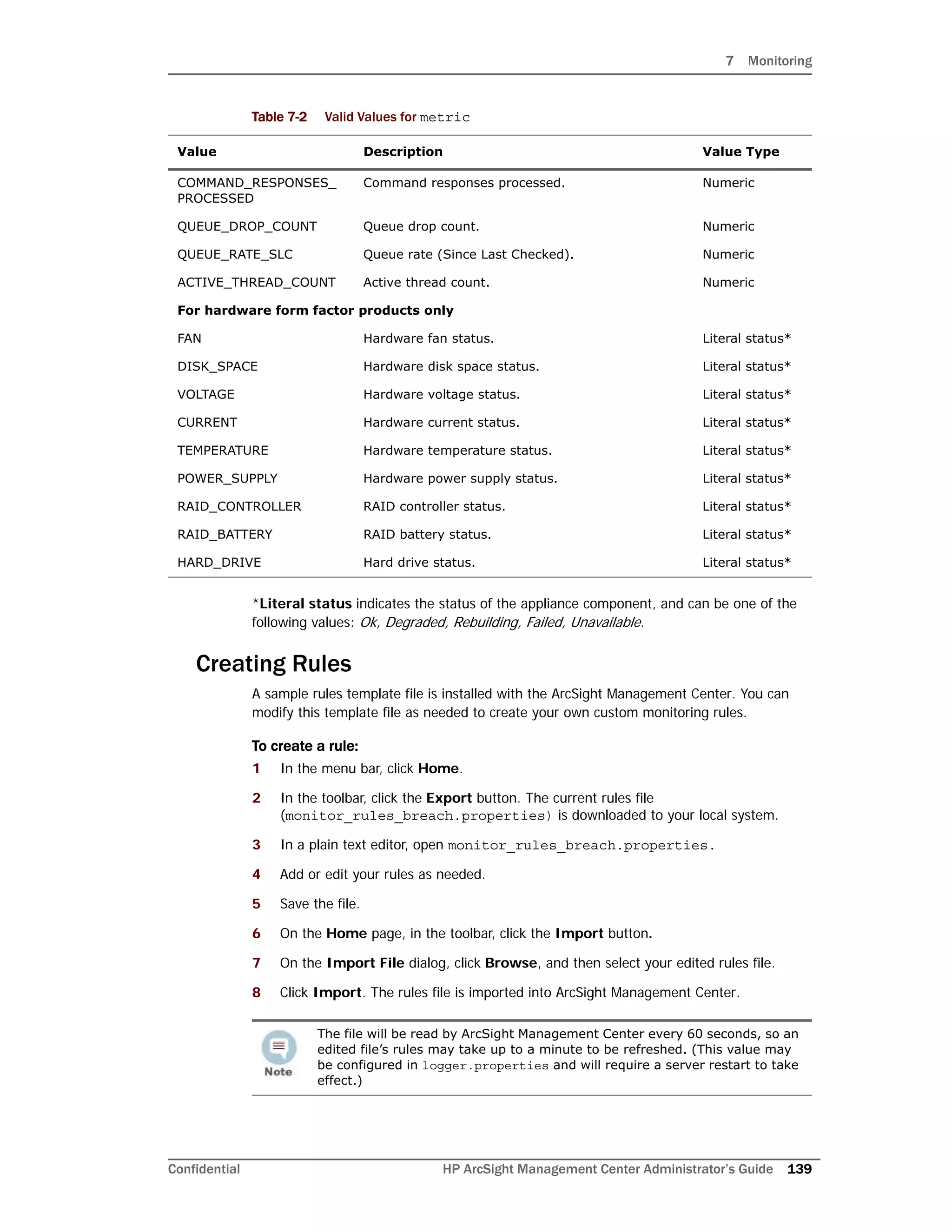
Performance Summary .....................................................................................134
8 HP ArcSight Management Center Administrator’s Guide Confidential
Pie Graphs ......................................................................................................134
Drilling Down ........................................................................................................135
Configuring Breach Rules ..............................................................................................137
Creating Rules .......................................................................................................139
Rule Verification ..............................................................................................140
Rules Examples .....................................................................................................140
Configuring Email Notifications .......................................................................................141
Example Email Notification ................................................................................141
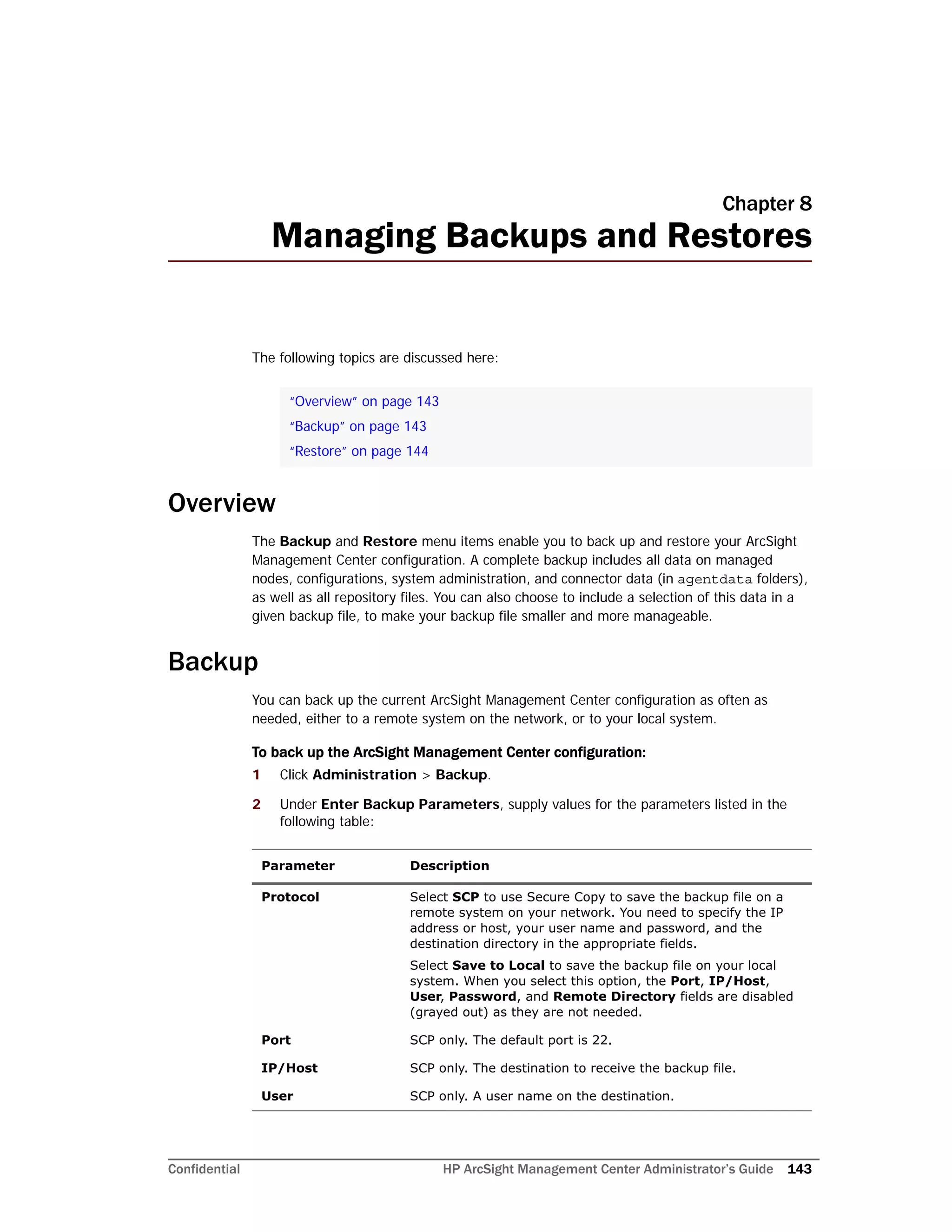
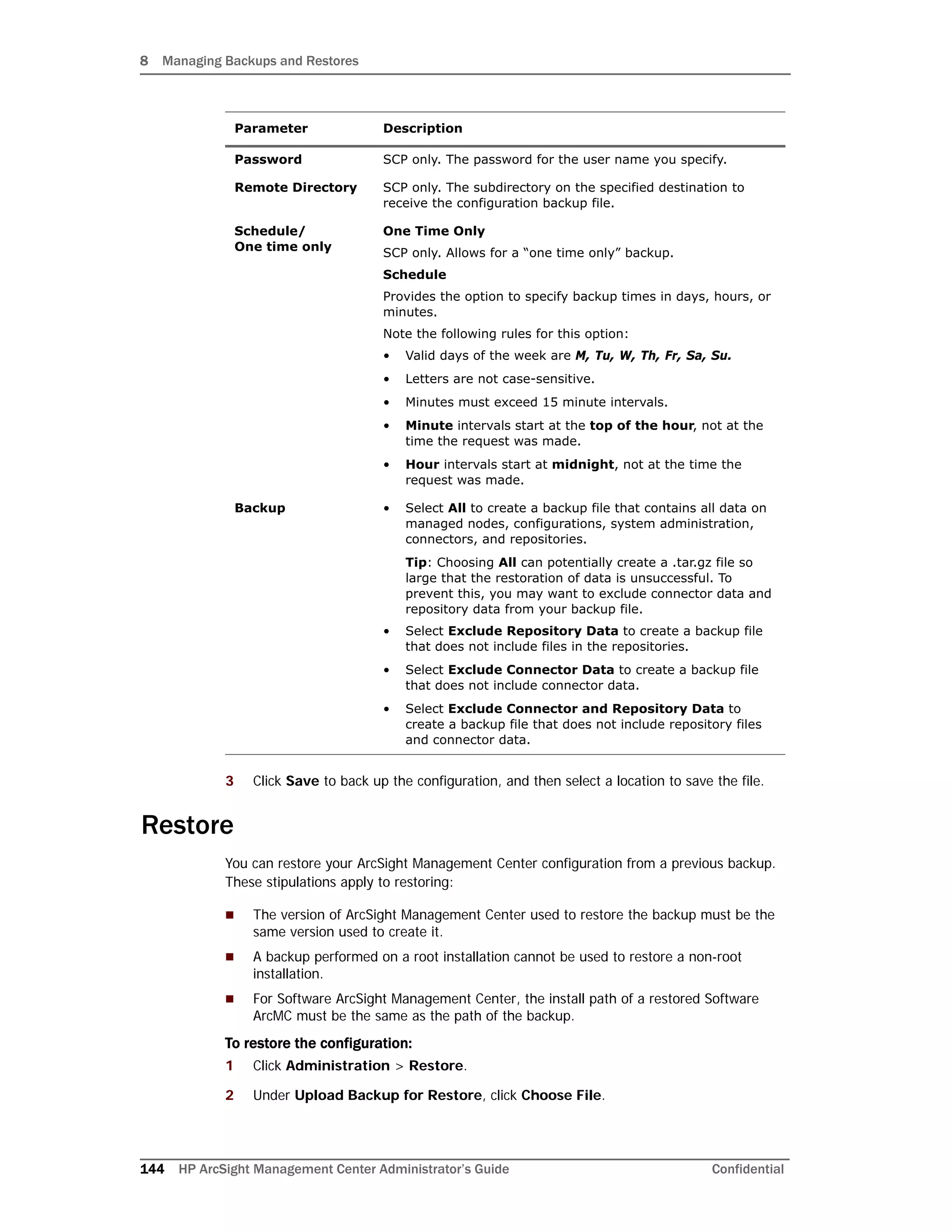
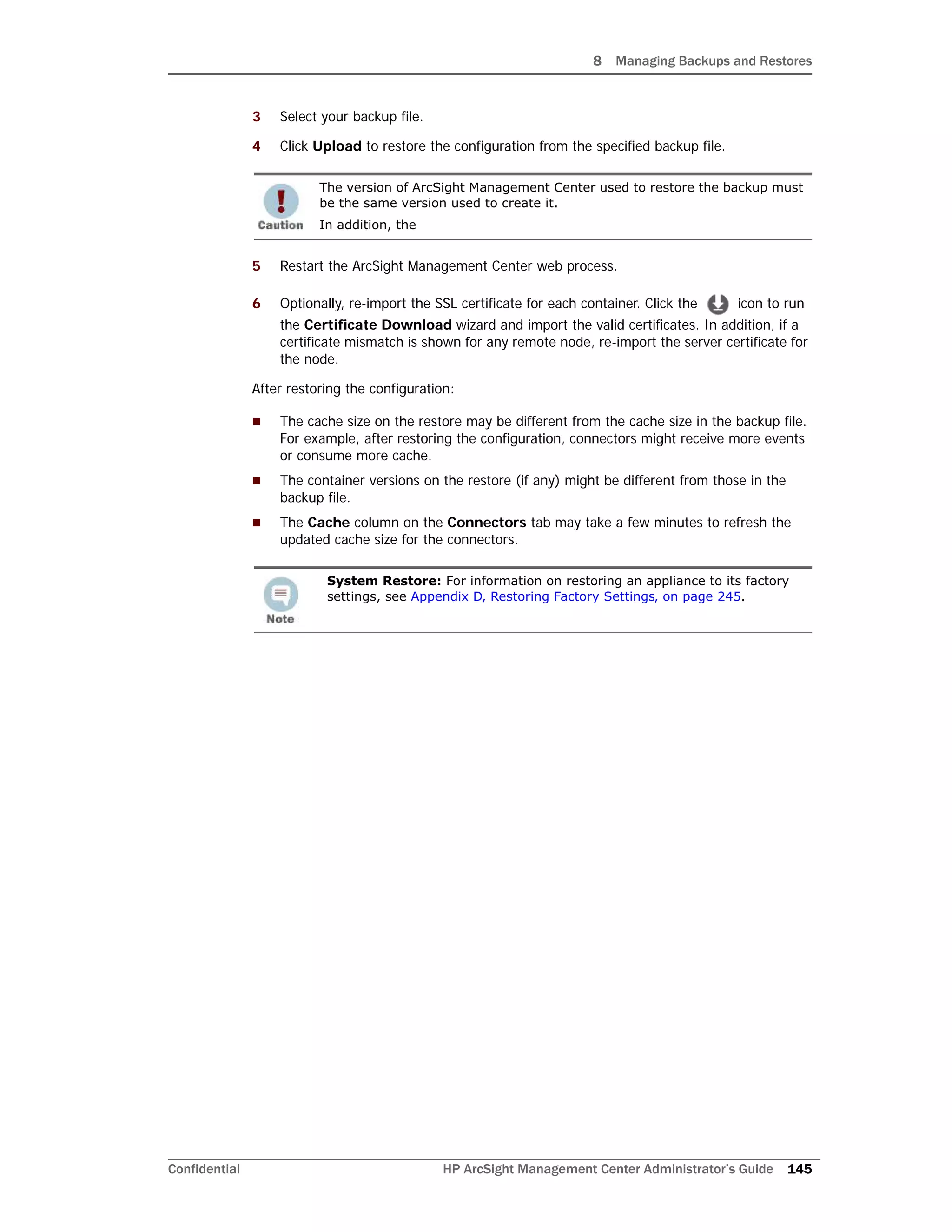
Chapter 8: Managing Backups and Restores .................................................................... 143
Overview ....................................................................................................................143
Backup .......................................................................................................................143
Restore .......................................................................................................................144
Chapter 9: Creating Snapshots ........................................................................................ 147
Overview ....................................................................................................................147
Creating a Snapshot .....................................................................................................147
Chapter 10: Managing Repositories ................................................................................ 149
Overview ....................................................................................................................149
Logs Repository ...........................................................................................................150
Uploading a File to the Logs Repository .....................................................................150
CA Certs Repository ......................................................................................................150
Uploading CA Certificates to the Repository ...............................................................150
Removing CA Certificates from the Repository ............................................................151
Upgrade AUP/ENC Repository .......................................................................................151
About the AUP Upgrade Process ...............................................................................151
Uploading an AUP Upgrade File to the Repository .......................................................152
Removing a Connector Upgrade from the Repository ...................................................152
Content AUP Repository ................................................................................................152
Applying a New Content AUP ...................................................................................153
Applying an Older Content AUP ................................................................................153
User-Defined Repositories .............................................................................................154
Creating a User-Defined Repository ..........................................................................154
Retrieving Container Files ........................................................................................155
Uploading Files to a Repository ................................................................................156
Deleting a Repository .............................................................................................156
Updating Repository Settings ...................................................................................157
Managing Files in a Repository .................................................................................157
Retrieving a File from the Repository ..................................................................157
Uploading a File from the Repository ..................................................................157
Pre-Defined Repositories ...............................................................................................158
Settings for Backup Files .........................................................................................158
Confidential HP ArcSight Management Center Administrator’s Guide 9
Settings for Map Files .............................................................................................159
Settings for Parser Overrides ...................................................................................160
Settings for FlexConnector Files ...............................................................................160
Settings for Connector Properties .............................................................................161
Settings for JDBC Drivers ........................................................................................162
Cloning Container Configuration ...............................................................................162
Adding Parser Overrides ..........................................................................................163
Chapter 11: System Admin -
ArcSight Management Center .......................................................................................... 165
System .......................................................................................................................165
System Reboot ......................................................................................................166
Network ................................................................................................................166
System DNS ....................................................................................................166
Hosts .............................................................................................................166
NICs ..............................................................................................................167
Static Routes ...................................................................................................168
Time/NTP .......................................................................................................169
SMTP ....................................................................................................................170
License & Update ...................................................................................................171
Updating the Appliance .....................................................................................171
Updating the License File ..................................................................................171
Process Status .......................................................................................................172
System Settings ....................................................................................................172
SNMP ...................................................................................................................172
Receiving System Health and Audit Events as SNMP Traps .....................................172
Polling System Health Information Using SNMP ....................................................173
Viewing Polled Information ................................................................................174
SNMP V3 ........................................................................................................177
SSH Access to the Appliance ....................................................................................178
Enabling or Disabling SSH Access .......................................................................178
Connecting to Your Appliance Using SSH .............................................................178
Diagnostic Tools .....................................................................................................179
Logs ...........................................................................................................................186
Audit Logs .............................................................................................................186
Configuring Audit Forwarding ...................................................................................187
For Software ArcSight Management Center ..........................................................187
For ArcSight Management Center Appliance .........................................................187
Configuring Audit Forwarding to a Specific Destination ................................................187
Storage ......................................................................................................................188
Remote File Systems ..............................................................................................188
Managing a Remote File System ........................................................................188
RAID Controller/Hard Disk SMART Data .....................................................................191
FTP ......................................................................................................................192
10 HP ArcSight Management Center Administrator’s Guide Confidential
Models Supporting FTP .....................................................................................192
Enabling FTP .........................................................................................................192
Adding a Subdirectory ......................................................................................193
Processing Log Data Received via FTP .......................................................................194
Using FTPS (FTP over SSL) ......................................................................................194
Using FTPS with Blue Coat ProxySG ....................................................................194
Security ......................................................................................................................195
SSL Server Certificate .............................................................................................195
Generating a Self-Signed Certificate ...................................................................196
Generating a Certificate Signing Request (CSR) ...................................................197
Importing a Certificate .....................................................................................199
SSL Client Authentication ........................................................................................199
Uploading Trusted Certificates ...........................................................................200
Uploading a Certificate Revocation List ................................................................200
Enabling Client Certificate Authentication ............................................................200
FIPS 140-2 ............................................................................................................200
Users/Groups ..............................................................................................................201
Authentication .......................................................................................................201
Sessions .........................................................................................................201
Local Password ................................................................................................202
Users Exempted From Password Expiration .........................................................204
Forgot Password ..............................................................................................204
External Authentication ....................................................................................205
Login Banner .........................................................................................................210
User Management ..................................................................................................211
Users .............................................................................................................211
Groups ...........................................................................................................213
Change Password ...................................................................................................215
Appendix A: Audit Logs ................................................................................................... 217
Audit Event Types ........................................................................................................217
Audit Event Information ................................................................................................217
Application Events ........................................................................................................218
Platform Events ...........................................................................................................224
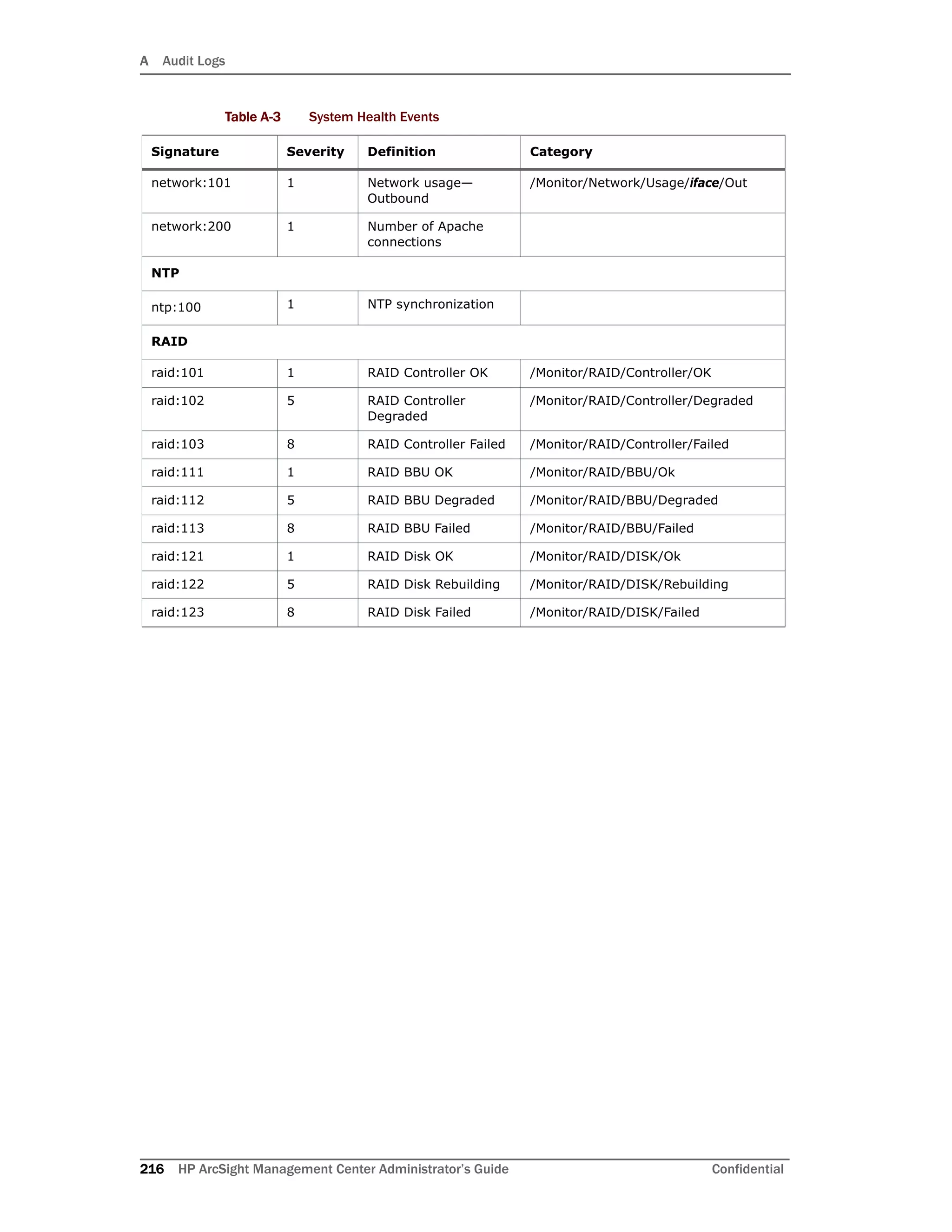
System Health Events ...................................................................................................227
SNMP Related Properties ...................................................................................228
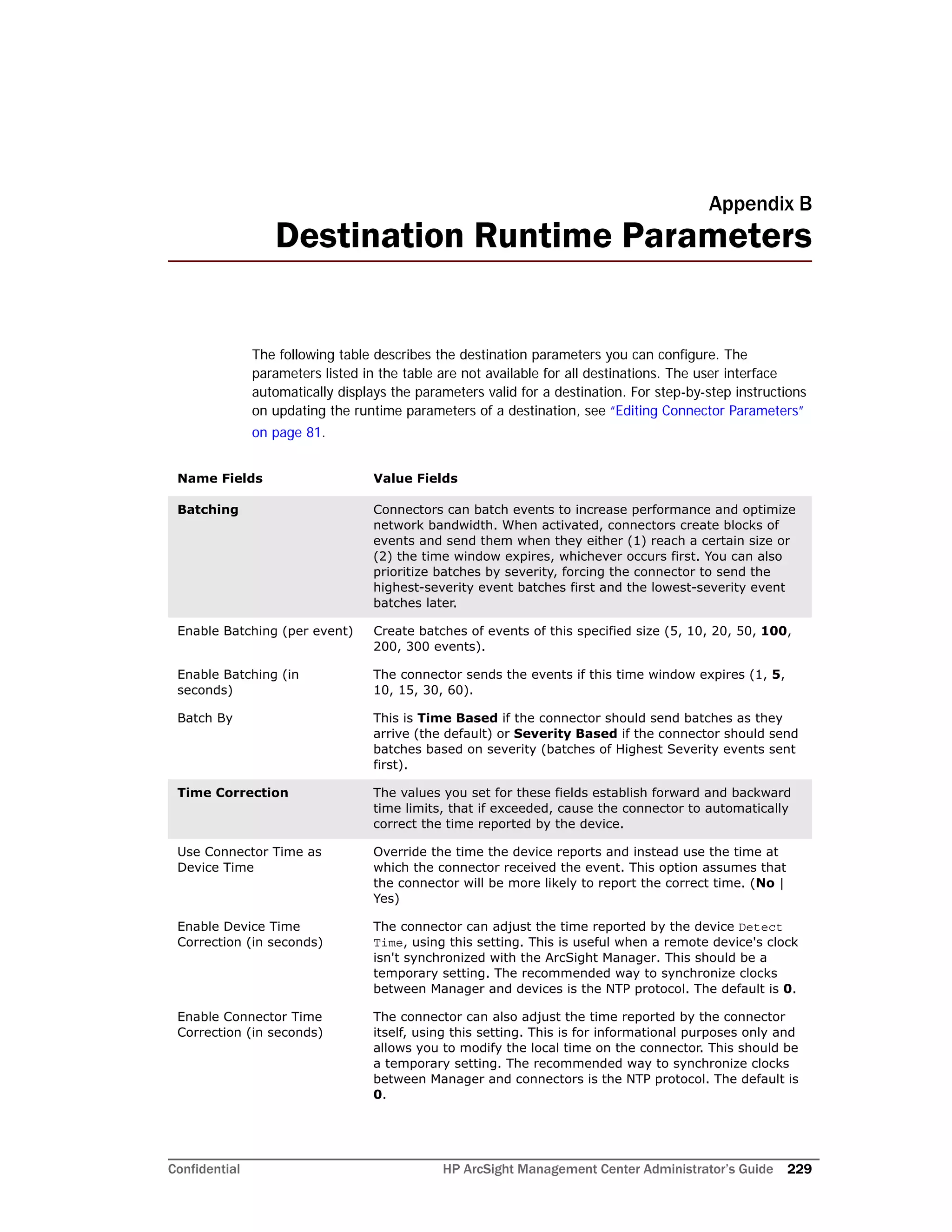
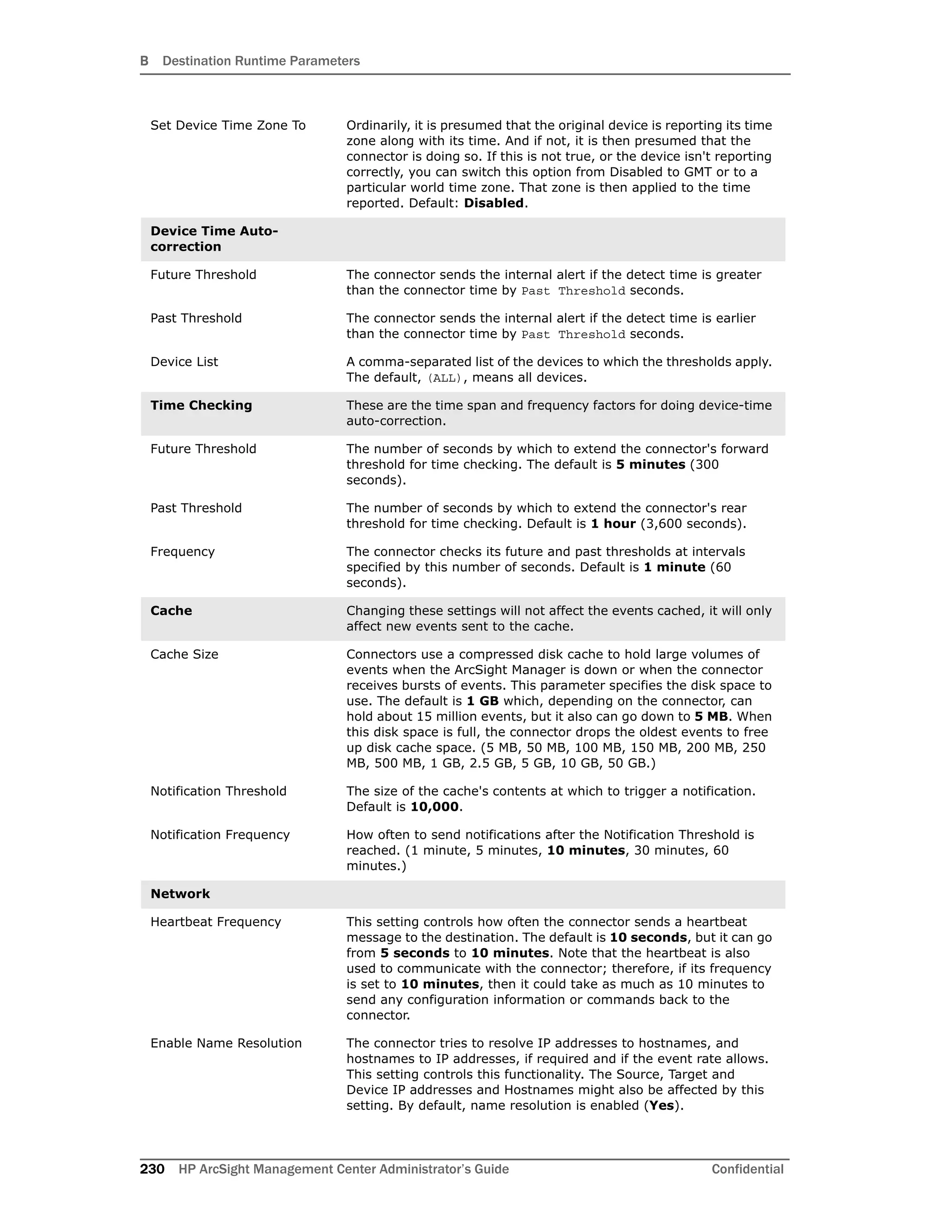
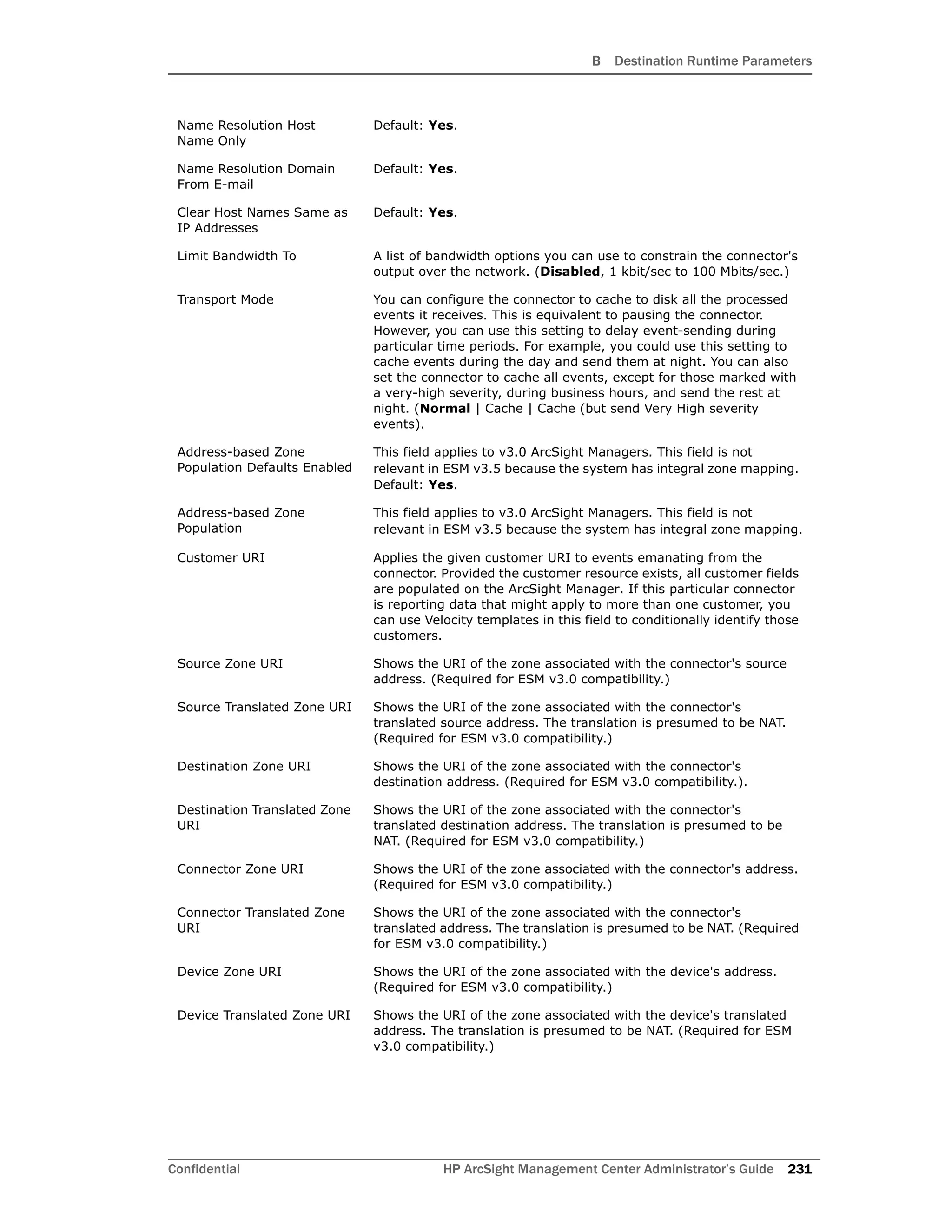
Appendix B: Destination Runtime Parameters ................................................................. 231
Appendix C: Special Connector Configurations ................................................................ 239
Microsoft Windows Event Log - Unified Connectors ............................................................239
Change Parser Version by Updating Container Properties .............................................240
SSL Authentication .................................................................................................241
Database Connectors ....................................................................................................241
Confidential HP ArcSight Management Center Administrator’s Guide 11
Add a JDBC Driver ........................................................................................................242
API Connectors ............................................................................................................243
File Connectors ............................................................................................................244
Syslog Connectors ........................................................................................................244
Appendix D: Restoring Factory Settings .......................................................................... 245
Overview ....................................................................................................................245
Factory Restore Using HP System Restore .......................................................................245
Factory Restore Using Acronis True Image .......................................................................247
Index ............................................................................................................................... 251
12 HP ArcSight Management Center Administrator’s Guide Confidential
Confidential HP ArcSight Management Center Administrator’s Guide 13
Chapter 1
HP ArcSight Management Center
Overview
The following topic is discussed here.
HP ArcSight Management Center (ArcMC) provides centralized management for Connector
Appliances, Loggers, software connectors, and other ArcSight Management Centers, with a
single panel view of all managed ArcSight products.
New Features and Enhancements
HP ArcSight Management Center 2.0 includes these new features and enhancements:
 ArcSight Management Center Appliance: ArcSight Management Center is now
available in a hardware form factor (ArcMC Appliance).
 Management of Other ArcSight Management Centers: ArcSight Management
Center can now manage other instances of ArcSight Management Center, enabling
you to deploy and manage your ArcSight Management Centers hierarchically.
 Configuration support for BlueCoat and WUC Connectors and Logger 5.5:
Support has been added for configuration management of BlueCoat and WUC
connectors as well as for Logger 5.5.
“New Features and Enhancements” on page 13
1 HP ArcSight Management Center Overview
14 HP ArcSight Management Center Administrator’s Guide Confidential
 Importing/Exporting Hosts: Add multiple hosts quickly and easily by importing
them from a CSV file, and export hosts to a CSV file as well.
 Enhanced Monitoring: Health monitoring of managed ArcSight products can be
configured using a variety of criteria. You can create customized alerts for managed
nodes.
 Upgrade to ArcSight Management Center 2.0: Support is provided for upgrades
from ArcSight Management Center 1.0 to ArcSight Management Center 2.0. The
upgrade process is detailed in the ArcSight Management Center Release Notes.
 Migration of Connector Appliance: Current installations of Connector Appliance
can be migrated to ArcSight Management Center 2.0. For more information on
supported versions of Connector Appliance, and for migration procedures, see the
ArcSight Management Center 2.0 Migration Guide.
 SNMP V3 and FIPS Support: Support has been added for SNMP version 3 as well as
FIPS.
 Simplified SSH Access: By default, you are not prompted for a challenge/response
when remotely logging in to an ArcSight Management Center 2.0 appliance using SSH.
(This represents a change from the configuration of Connector Appliance.)
 As a result, it is imperative that you change the default password for the “root”
account on an ArcSight Management Center appliance to a new, strong password.
 For added security, it is strongly recommended that you enable SSH access only
when necessary, such as for troubleshooting purposes.
Confidential HP ArcSight Management Center Administrator’s Guide 15
Chapter 2
Software Installation
This chapter describes how to install Software ArcSight Management Center and the
ArcSight Management Center Agent.
The following topics are discussed here.
Overview
The complete process of installing Software ArcSight Management Center includes these
steps:
 Select installation mode: Select a mode in which to install Software ArcSight
Management Center on your selected machine. You can install Software ArcSight
Management Center in these modes:
 GUI: In GUI mode, a wizard steps you through the installation and configuration
process. For detailed information, see “GUI Mode Installation” on page 17.
 Console: In Console mode, a command-line process steps you through the
installation and configuration process. See “Console Mode Installation” on
page 20 for detailed instructions.
 Silent: In Silent mode, the installation process is scripted. There is no need to
interact with the installer, as you provide the installation and configuration input
through a file. See “Silent Mode Installation” on page 21 for detailed instructions.
 Install License: A valid license is required for Software ArcSight Management Center.
A license file is uniquely generated for each download; therefore, you cannot use the
same license file to install multiple instances of the product.
To obtain the license, follow the instructions in the Electronic Delivery Receipt email
received from HP after placing your order.
“Overview” on page 15
“Installing ArcSight Management Center” on page 16
“ArcSight Management Center Operations” on page 24
“Installing the ArcSight Management Center Agent” on page 28
“ArcSight Management Center Agent Operations” on page 29
If you are using a Windows system to connect to the machine where
Software ArcSight Management Center is to be installed, and prefer to
install in GUI mode, you must connect using an X Window client, such as
Xming for Windows.
2 Software Installation
16 HP ArcSight Management Center Administrator’s Guide Confidential
 Start as a Service? If installation was performed as a root user, Software ArcSight
Management Center can be configured to start as a system service. For more
information, see “Enabling/Disabling ArcSight Management Center as a System
Service” on page 24
 Make Host Resolvable: For the Apache web process to start, the Software ArcSight
Management Center hostname must be resolvable. Add the hostname to either
/etc/hosts or DNS.
 Secure Credentials: After initial setup is complete, connect to the application and
change the default password to a secure password. To change the default password,
follow the instructions in Chapter 11‚ Change Password‚ on page 214.
Optionally, for additional security, rename the default admin username to a secure
name. To change a username, follow the instructions in Chapter 11‚ User Management‚
on page 210.
Additionally, if you plan to manage one or more Software ArcMCs, Software Connector
Appliances or Software Loggers, you will need to install the ArcSight Management Center
Agent on each. For more information on manual ArcSight Management Center Agent
installation, see “Installing the ArcSight Management Center Agent” on page 28
Installing ArcSight Management Center
The following section provides instructions to install Software ArcSight Management
Center.
Prerequisites for Installation
Please note the following prerequisites before beginning the installation process.
 File Descriptors 10240 or More: The host must support at least 10240 file
descriptors. Perform ulimit -n on the host to determine the current level. If it does
not equal at least 10240, open limits.conf and set these two parameters:
* hard nolimit 10240
* soft nolimit 10240
Save the file and restart your session.
 Unzip Package: An RPM capable of unzipping files needs to be installed on the
CentOS or RedHat Linux system, and the unzip command path need to be set before
installing Software ArcSight Management Center.
 Non-Root Account: You can install ArcSight Management Center as a root or non-
root user. However, when installing as a root user, a non-root user account is required
in order to run some required processes.
 When installing ArcSight Management Center as a root user, you can select the
port on which it listens for secure web connections (HTTPS). When installing as a
non-root user, the port must be configured to 9000. This value cannot be changed
and must be externally accessible.
 Technical Requirements: Refer to the ArcSight Management Center Release Notes,
available from the HP ArcSight community, Protect724, for current information on
supported platforms, supported browsers, and other technical requirements.
Installation Steps
This section describes Software ArcSight Management Center steps for each mode.
2 Software Installation
Confidential HP ArcSight Management Center Administrator’s Guide 17
GUI Mode Installation
In GUI Mode installation, you use the installer wizard to install the application.
To install Software ArcSight Management Center using the GUI mode:
1 Run these 2 commands from the directory where you copied the Software ArcSight
Management Center installer:
 chmod +x ArcSight-ArcMC-2.0.0.<installer_build_number>.0.bin
 ./ArcSight-ArcMC-2.0.0.<installer_build_number>.0.bin
where <installer_build_number>is the build number of the latest installer.
The installation wizard starts. Review the dialog box, and then click Next.
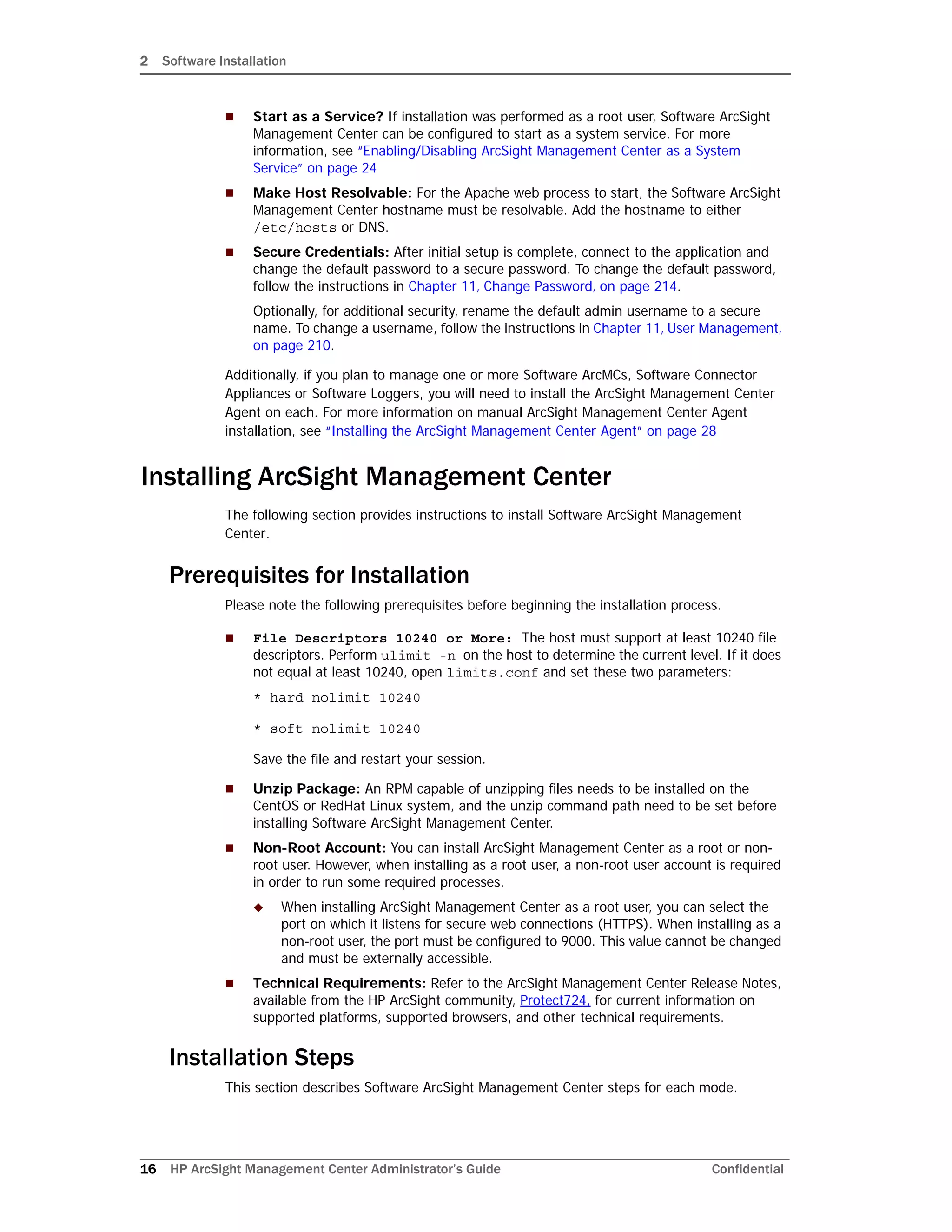
2 Review the License Agreement details, and then scroll down to the end of the License
Agreement details. Select I accept the terms of the License Agreement. Then,
click Next
[
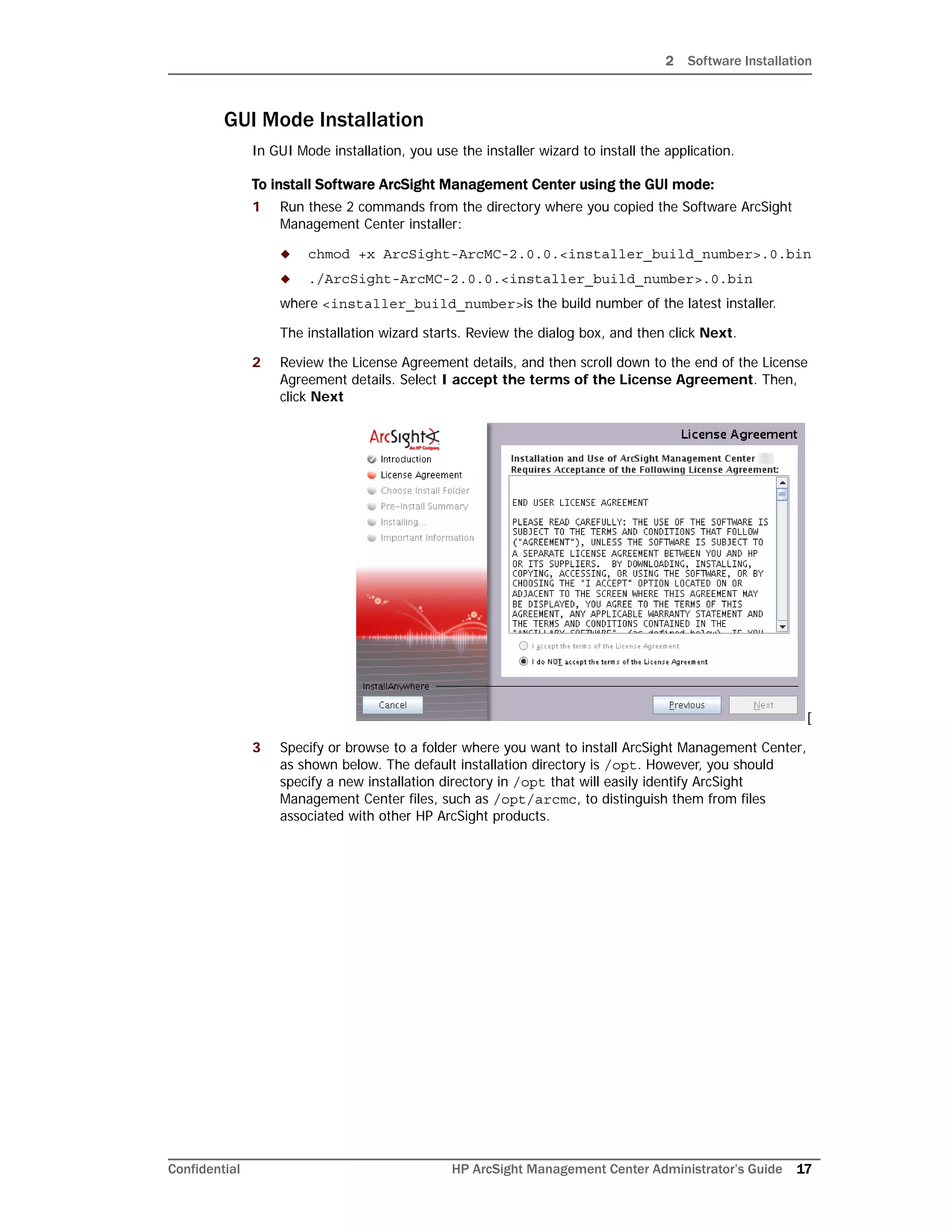
3 Specify or browse to a folder where you want to install ArcSight Management Center,
as shown below. The default installation directory is /opt. However, you should
specify a new installation directory in /opt that will easily identify ArcSight
Management Center files, such as /opt/arcmc, to distinguish them from files
associated with other HP ArcSight products.
2 Software Installation
18 HP ArcSight Management Center Administrator’s Guide Confidential
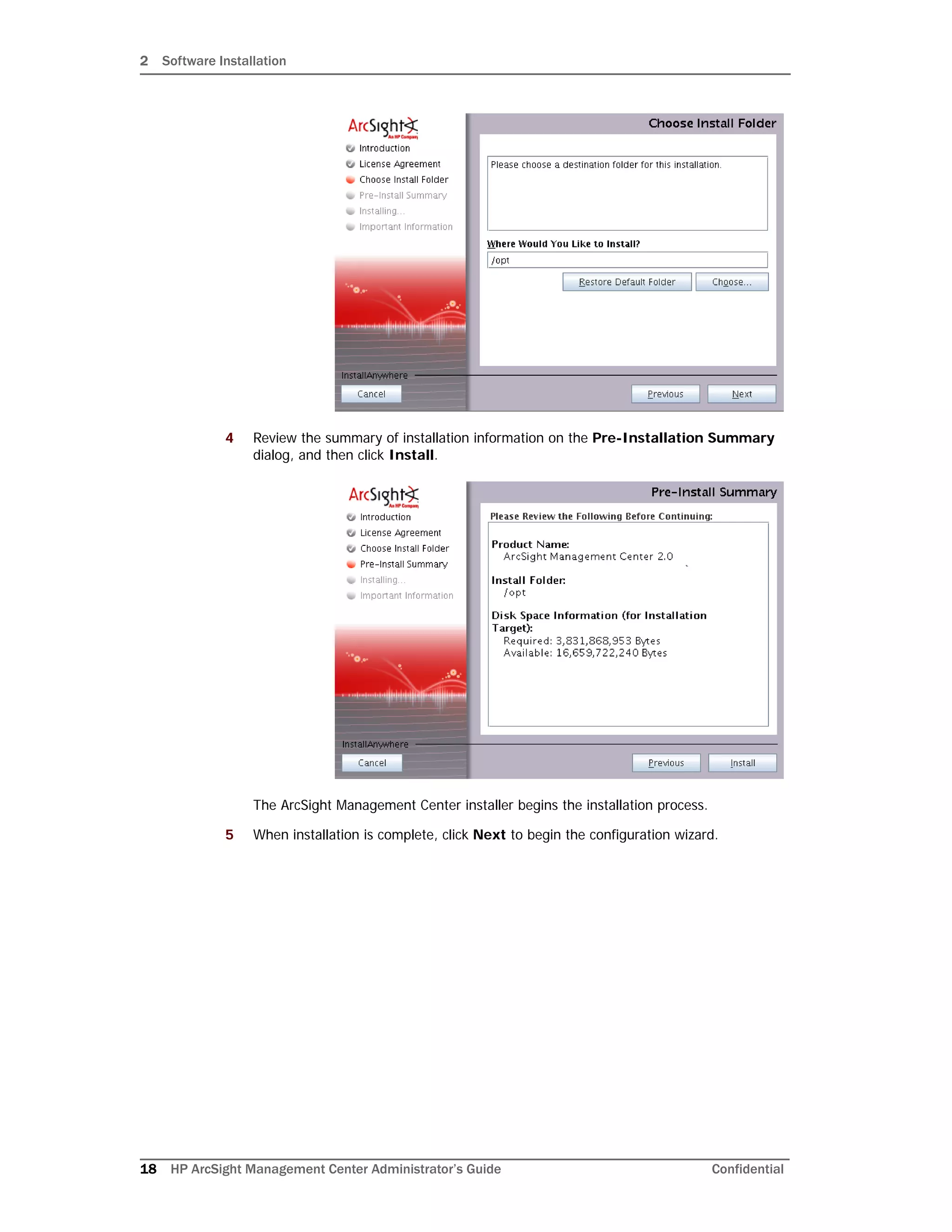
4 Review the summary of installation information on the Pre-Installation Summary
dialog, and then click Install.
The ArcSight Management Center installer begins the installation process.
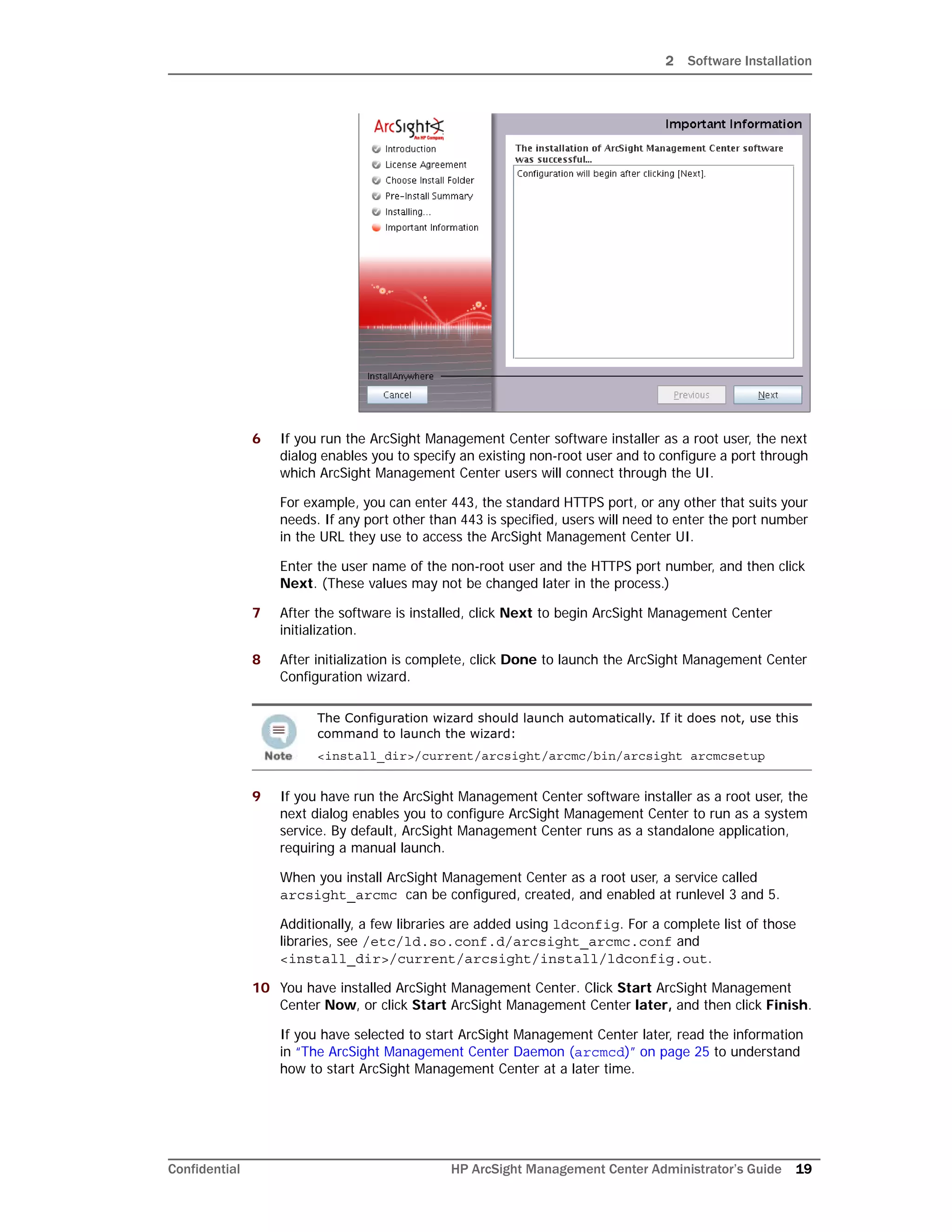
5 When installation is complete, click Next to begin the configuration wizard.
2 Software Installation
Confidential HP ArcSight Management Center Administrator’s Guide 19
6 If you run the ArcSight Management Center software installer as a root user, the next
dialog enables you to specify an existing non-root user and to configure a port through
which ArcSight Management Center users will connect through the UI.
For example, you can enter 443, the standard HTTPS port, or any other that suits your
needs. If any port other than 443 is specified, users will need to enter the port number
in the URL they use to access the ArcSight Management Center UI.
Enter the user name of the non-root user and the HTTPS port number, and then click
Next. (These values may not be changed later in the process.)
7 After the software is installed, click Next to begin ArcSight Management Center
initialization.
8 After initialization is complete, click Done to launch the ArcSight Management Center
Configuration wizard.
9 If you have run the ArcSight Management Center software installer as a root user, the
next dialog enables you to configure ArcSight Management Center to run as a system
service. By default, ArcSight Management Center runs as a standalone application,
requiring a manual launch.
When you install ArcSight Management Center as a root user, a service called
arcsight_arcmc can be configured, created, and enabled at runlevel 3 and 5.
Additionally, a few libraries are added using ldconfig. For a complete list of those
libraries, see /etc/ld.so.conf.d/arcsight_arcmc.conf and
<install_dir>/current/arcsight/install/ldconfig.out.
10 You have installed ArcSight Management Center. Click Start ArcSight Management
Center Now, or click Start ArcSight Management Center later, and then click Finish.
If you have selected to start ArcSight Management Center later, read the information
in “The ArcSight Management Center Daemon (arcmcd)” on page 25 to understand
how to start ArcSight Management Center at a later time.
The Configuration wizard should launch automatically. If it does not, use this
command to launch the wizard:
<install_dir>/current/arcsight/arcmc/bin/arcsight arcmcsetup
2 Software Installation
20 HP ArcSight Management Center Administrator’s Guide Confidential
11 If you selected Start ArcSight Management Center Now, click Finish to exit the
wizard. Alternatively, wait for the next dialog which provides the URL to access the
ArcSight Management Center interface.
ArcSight Management Center continues to start services and processes in the
background. If you have selected to continue within the wizard, follow the instructions
on the dialog or use the instructions in “Connecting to the ArcSight Management
Center User Interface” on page 24 to connect to the ArcSight Management Center.
Console Mode Installation
In Console Mode installation, you use a command-line interface to install the application.
To install Software ArcSight Management Center using the Console mode:
1 Run these commands from the directory where you copied the ArcSight Management
Center software:
chmod +x ArcSight-ArcMC-2.0.0.<installer_build_number>.0.bin
./ArcSight-ArcMC-2.0.0.<installer_build_number>.0.bin -i
console
where <installer_build_number>is the build number of the latest installer.
The installation wizard starts in command-line mode, as shown below. Press Enter to
continue.
Introduction
------------
InstallAnywhere will guide you through the installation of
ArcSight Management Center.
It is strongly recommended that you quit all programs before
continuing with this installation.
Respond to each prompt to proceed to the next step in the
installation. If you want to change something on a previous
step, type 'back'.
You may cancel this installation at any time by typing 'quit'.
PRESS <ENTER> TO CONTINUE:
2 After the license information displays, press Enter until you see the following
information:
Select "I accept the terms of the License Agreement" below if
you recognize that you have read the terms of this Agreement and
attachments and agree to be bound by each of these terms.
DO YOU ACCEPT THE TERMS OF THIS LICENSE AGREEMENT? (Y/N):Y
3 Go through the following prompts, from Choose Install Folder to
Intervention Required, pressing Enter to continue through until the following
confirmation appears:
===============================================================
================
Important Information
2 Software Installation
Confidential HP ArcSight Management Center Administrator’s Guide 21
---------------------
The installation of ArcSight Management Center software was
successful.
Configuration will begin after pressing [Enter].
PRESS <ENTER> TO CONTINUE:
===============================================================
================
Intervention Required
---------------------
Values entered below may not be changed later in the process.
Enter a non-root user account (DEFAULT: ): <non-root user>
Enter an HTTPS port (default is 443) (DEFAULT: 443):
===============================================================
================
Important Information
---------------------
The configuration of ArcSight Management Center software was
successful.
Initialization will begin after pressing [Enter]. This may take
several
minutes.
PRESS <ENTER> TO CONTINUE:
===============================================================
================
Important Information
---------------------
The initialization of ArcSight Management Center software was
successful.
The prompts that follow are the same as the ones described for the GUI mode install in
“GUI Mode Installation” on page 17. Follow the instructions provided for the GUI mode
install to complete the installation.
Silent Mode Installation
Silent mode enables scripting of the installation process. Before you install ArcSight
Management Center in silent mode, create two properties files required for the silent mode
installation:
If ArcSight Management Center is installed in Console mode, it will be
uninstalled in Console mode as well. See “Uninstalling in Console Mode” on
page 26 for more information.
2 Software Installation
22 HP ArcSight Management Center Administrator’s Guide Confidential
 A file to capture the installation properties
 A file to capture the configuration properties
After you have generated the two files, you need to merge them into one file and use the
resulting file for silent mode installations.
About Licenses for Silent Mode Installations
As for any Software ArcSight Management Center installation, each silent mode installation
requires a unique license file. Obtain licenses from HP Customer Support and install them
on the machines on which you will be installing in silent mode, or ensure that the location
where the license is placed is accessible from those machines.
Generating the Silent Install Properties File
This procedure generates the two properties files and then instructs you to combine them
into one file. The resulting file is used for future silent installations.
1 Log in to the machine on which you wish to generate the installation properties file.
If you want the silent mode installations to be done as root user, log in as root in this
step. Otherwise, log in as a non-root user.
2 Run this command:
./ArcSight-ArcMC-2.0.0.<installer_build_number>.0.bin -r
<directory_location>
where <installer_build_number> is the build number of the installer file, and
<directory_location> is the location of the directory where the generated
properties file will be placed. This cannot be the same location where ArcSight
Management Center is being installed.
The properties file must be called installer.properties.
3 Install ArcSight Management Center in GUI mode, as described in “GUI Mode
Installation” on page 17 until you arrive at step 10.
At Step 10 of the installation procedure, do the following:
a Click Previous instead of clicking Done to proceed further.
b Then, click Cancel to stop the installation.
4 When the confirmation message appears, click Cancel. Click Quit to clear this
message.
5 Navigate to the directory location you specified for the installer.properties file
earlier.
The following is an example of the generated installer.properties file.
# Replay feature output
# ---------------------
# This file was built by the Replay feature of InstallAnywhere.
# It contains variables that were set by Panels, Consoles or
Custom Code.
#Choose Install Folder
2 Software Installation
Confidential HP ArcSight Management Center Administrator’s Guide 23
#---------------------
USER_INSTALL_DIR=/opt/<arcmc_installation_folder>/<build
number>/installdir
#Install
#-------
-fileOverwrite_/opt/<arcmc_installation_folder>/<build
number>/installdir/UninstallerData/Uninstall_ArcSight_Managemen
t_Center_2.0.lax=Yes
#Intervention Required
#---------------------
USER_AND_PORT_1=username
USER_AND_PORT_2=443
6 Start the configuration wizard with the option to record configuration properties:
<install_dir>/current/arcsight/arcmc/bin/arcsight arcmcsetup -i
recorderui
When prompted to enter a file name to capture the configuration properties, enter a
meaningful name; for example, config.properties, and then browse to choose
the same directory as the installer.properties file.
7 Step through the configuration wizard, as described starting at Step 10 of “GUI Mode
Installation” on page 17.
8 After the configuration properties file is generated, append the contents of this file to
the installer.properties file generated in the previous procedure, Generating
the Silent Install Properties File, to create a combined file.
For example, you can use the cat command to concatenate both files:
cat installer.properties config.properties >
<combinedproperties.properties>
9 Include the following property in the combined file:
ARCSIGHT_CONAPP_SETUP_PROPERTIES=<directory_location>/
<combined_properties_file>
where <directory_location> is the path of the directory where the combined file
is located, and <combined_properties_file> is the file name of the combined
file you created earlier.
Use the combined file for future ArcSight Management Center silent mode
installations, as described in Installing Using the Generated Properties File below.
Installing Using the Generated Properties File
To install ArcSight Management Center using Silent mode, do the following.
1 Uninstall the previously installed version of ArcSight Management Center, as explained
in “Uninstalling Software ArcSight Management Center” on page 26
2 Software Installation
24 HP ArcSight Management Center Administrator’s Guide Confidential
2 Make sure the machine on which you install ArcSight Management Center complies
with the requirements listed in the HP ArcSight Management Center Release Notes,
and the prerequisites listed in “Prerequisites for Installation” on page 16.
3 Copy the combined properties file you generated previously to the location where you
have copied the ArcSight Management Center software.
4 Do one of the following:
 Edit the licensePanel.path property in the silent mode properties file to
include the location of the license file for this instance of the installation. (A
unique license file is required for each instance of installation.), OR
 Set the licensePanel.path property to point to a file, such as
arcmc_license.zip. Then, for each instance of the silent mode installation,
copy the relevant license file to the location and rename it to
arcmc_license.zip. Doing so will avoid the need to update the combined
properties file for each installation.
5 Run these 2 commands from the directory where you copied the ArcSight
Management Center software:
 chmod +x ArcSight-ArcMC-2.0.0.<installer_build_number>.0.bin
 ./ArcSight-ArcMC-2.0.0.<installer_build_number>.0.bin -i
silent -f <combined_properties_file>
where <installer_build_number> is the build number of the installer file.
The rest of the installation and configuration proceeds silently without requiring
further input.
Enabling/Disabling ArcSight Management Center as a
System Service
To enable or disable ArcSight Management Center as a system service:
1 On the menu bar, click Adminstration > System Admin.
2 In the navigation bar, click System Settings.
3 In the management panel, select Start as a Service to enable starting as a system
service, or select Do not start as a service to disable.
4 Click Save.
ArcSight Management Center Operations
This section details the operation of ArcSight Management Center: how to connect, which
processes run while ArcSight Management Center is active, and commands for using the
ArcSight Management Center command-line utility (arcmcd).
Connecting to the ArcSight Management Center User
Interface
Use this URL to connect to ArcSight Management Center:
https://<hostname or IP address>:<configured_port>
2 Software Installation
Confidential HP ArcSight Management Center Administrator’s Guide 25
where hostname or IP address is the system on which you installed ArcSight
Management Center. If ArcSight Management Center was installed as root and the default
port was used, then <configured_port> is optional.
To login for the first time, use the following default credentials:
Username: admin
Password: password
For security, change the default credentials immediately after first logging in. For more
information on changing credentials, see Chapter 11‚ Change Password‚ on page 214.
ArcSight Management Center Processes
After installation, the following processes run as part of ArcSight Management Center:
 apache
 aps
 postgresql
 web
The ArcSight Management Center Daemon (arcmcd)
The arcmcd utility enables a number of management and control tasks for the ArcSight
Management Center software process, including starting, stopping and restarting. The
syntax to run arcmcd is as follows:
<install_dir>/current/arcsight/arcmc/bin/arcmcd <command>
Where <install_dir> is the installation directory of ArcSight Management Center, and
<command> is a command listed in Table 2-1.
If ArcSight Management Center is installed to run as a system service, you can use arcmcd
to manage a specific process. Process-specific commands are marked with an asterisk(*).
Table 2-1 arcmcd Commands
Command Description
start Starts aps, apache, postgresql, and
web processes.
stop Stops aps, apache, postgresql, and
web processes.
restart Restarts aps, apache, postgresql,
and web processes.
status Displays the current status of all
processes.
quit Stops aps, apache, postgresql, and
web processes, as well as the ArcSight
Management Center application.
start <process_name>* Starts the named process. For example,
start apache.
2 Software Installation
26 HP ArcSight Management Center Administrator’s Guide Confidential
Uninstalling Software ArcSight Management Center
Uninstall ArcSight Management Center in the same user mode in which the installation was
performed. For example, if you performed the installation as root, then you must perform
the uninstallation as root
Uninstalling in GUI Mode
To uninstall Software ArcSight Management Center in GUI mode:
1 In the directory where you installed ArcSight Management Center, enter:
<install_dir>/UninstallerData/Uninstall_ArcSight_Management_Center
_2.0
2 The uninstall wizard starts. Click Uninstall to start uninstalling ArcSight Management
Center and follow the prompts in the wizard.
3 After uninstalling, manually delete the /userdata directory.
Uninstalling in Console Mode
If you installed ArcSight Management Center in Console mode, then, by default,
uninstallation occurs in Console mode.
To uninstall in Console mode:
1 At the command line, enter:
<install_dir>/UninstallerData/Uninstall_ArcSight_Management_Cen
ter_2.0
2 After uninstalling, manually delete the /userdata directory.
At the prompt, press Enter again to confirm uninstallation. The application will be
uninstalled.
Uninstalling in Silent Mode
If you installed ArcSight Management Center in Silent mode, then, by default,
uninstallation occurs in Silent mode.
stop <process_name>* Stops the named process. For example,
stop apache.
restart <process_name>* Restarts the named process. For
example, restart apache.
If using GUI mode and uninstalling ArcSight Management Center software
over an SSH connection, make sure that you have enabled X window
forwarding using the -X option, so that you can view the screens of the
uninstall wizard.
If using PuTTY, you also need an X11 client on the machine from which you
are connecting to the Linux machine.
Table 2-1 arcmcd Commands
Command Description
2 Software Installation
Confidential HP ArcSight Management Center Administrator’s Guide 27
To uninstall in Silent mode:
1 At the command line, enter:
<install_dir>/UninstallerData/Uninstall_ArcSight_Management_Cen
ter_2.0.
The application will be uninstalled without further interaction.
2 After uninstalling, manually delete the /userdata directory.
Upgrading to Software ArcMC 2.0
For instructions on upgrading ArcSight Management Center 1.0 to ArcSight Management
Center 2.0, see the ArcSight Management Center 2.0 Release Notes.
Migrating from Connector Appliance
You can migrate the following to ArcSight Management Center 2.0:
 Software Connector Appliance 6.4 Patch 3/6.4 Patch 3 Hotfix
 Connector Appliance (hardware) 6.4 Patch 3
For instructions and details, see the ArcSight Management Center Migration Guide.
2 Software Installation
28 HP ArcSight Management Center Administrator’s Guide Confidential
Installing the ArcSight Management Center Agent
The ArcSight Management Center Agent runs on managed hosts and enables their
management by ArcSight Management Center. Whether you need to install the ArcSight
Management Center on a managed host depends on the host’s form factor.
For Software Form Factors
Before adding a managed software form factor (Software ArcSight Management Center,
Software Connector Appliance, or Software Logger) as a host, you must first manually
transfer the ArcSight Management Center Agent installer to the application host, and then
run the installer. Completion of the installation will automatically start the Agent. You can
then add the host to ArcSight Management Center. For more information, see “Manual
Installation Procedure” on page 28.
If a software ArcMC will be
For Hardware Appliances
When adding a hardware appliance (ArcSight Management Center Appliance, Connector
Appliance or Logger Appliance) as a host, ArcSight Management Center automatically
pushes the ArcSight Management Center Agent installer to the appliance, installs it, and
then starts the service.The appliance is then ready to manage in ArcSight Management
Center. You will not need to take any manual installation steps..
For Software Connectors
Software connectors do not require the installation of the ArcSight Management Center
Agent.
Manual Installation Procedure
You need to transfer, copy, or download the ArcSight Management Center Agent installer
file to any Software ArcMC, Software Logger, or Software Connector Appliance you intend
to add for management. (You can use any file transfer utility, such as FTP.) You must then
manually run the Agent installer on the host and complete the installation.
The ArcSight Management Center Agent and the managed application must both be
installed using the same user mode. For example, if the Software Logger to be managed is
installed as a root user, then the ArcSight Management Center Agent must also be installed
as a root user.
To manually install the ArcSight Management Center Agent:
1 In the directory to where you transferred the installer, run these 2 commands:
An ArcMC used to manage products must have an Agent installed with the
same version number as the ArcMC.
For example, if your ArcMC 2.1 will be used to manage products, then the
ArcMC Agent running on that ArcMC must also be version 2.1.
An ArcMC used to manage products must have an Agent installed with the
same version number as the ArcMC.
For example, if your ArcMC 2.1 will be used to manage products, then the
ArcMC Agent running on that ArcMC must also be version 2.1.
2 Software Installation
Confidential HP ArcSight Management Center Administrator’s Guide 29
 chmod +x ArcSight-ArcMCAgent-
2.0.0.<agent_installer_build_number>.0.bin
 ./ArcSight-ArcMCAgent-
2.0.0.<agent_installer_build_number>.0.bin LAX_VM
<install_dir>/current/local/jre/bin/java
where <agent_installer_build_number>is the build number of the latest
installer and <install_dir> is the installation directory of the software product.
The installation wizard starts. Review the dialog box, and then click Next.The required
installation path is the install directory (that is, the same directory where Software
Connector Appliance or Software Logger is installed).
2 Follow the prompts to complete the installation. The Agent is automatically started
upon completion of the installation process.
ArcSight Management Center Agent Operations
After installation, the arcmcagent process runs on the managed host. This process
automatically starts after either automatic or manual installation. However, if the Agent
stops for any reason, it can be manually started.
To manually start, stop, or restart the Agent:
1 On the managed host’s GUI, click Setup > System Admin > Process status.
2 Select arcmcagent from the list of processes.
3 Click Start|Stop|Restart, as necessary.
On Software ArcMC, Software Connector Appliance, or
Software Logger
To manually start or stop the Agent on Software ArcMC, Software Connector
Appliance, or Software Logger:
1 Run <install_dir>/current/arcsight/<conapp|logger|
arcmc>/bin/<conappd|loggerd|arcmcd> <start|stop> arcmcagent
Agent Verification
To verify that the Agent is running on a host, use one of the following procedures:
 In the managed host’s GUI, click Setup > System Admin > Process Status. The
ArcSight Management Center Agent (arcmcagent) will be shown as a process in the
running state.
 (For Software ArcMC, Software Connector Appliance, or Software Logger Only) After
you install the Agent, run this command at the command line:
<install_dir>/current/arcsight/<conapp|logger>/bin/<conappd|log
gerd> status
The Agent is shown as a service in the running state.
Uninstalling the ArcSight Management Center Agent
To uninstall the ArcSight Management Center Agent, run the following command:
2 Software Installation
30 HP ArcSight Management Center Administrator’s Guide Confidential
<install_dir>/arcmcagent/UninstallerData/Uninstall_ArcSight_Manage
ment_Center_Agent_2.0
The Uninstall Wizard will launch. Click Uninstall to begin the wizard. When the
uninstallation completes, click Done.
• Always stop and then uninstall any previous version of the ArcSight
Management Center Agent before installing a new version.
• If uninstalling either Software ArcMC, Software Logger or Software
Connector Appliance, make sure that the ArcSight Management Center
Agent is uninstalled from the node before beginning the uninstall of the
managed product.
Confidential HP ArcSight Management Center Administrator’s Guide 31
Chapter 3
The User Interface
The following topics are discussed here.
Overview
This chapter provides a general overview of the ArcSight Management Center interface.
ArcSight Management Center uses a browser-based user interface. Refer to the ArcSight
Management Center Release Notes for the latest information on supported browsers.
The Menu Bar
The menu bar provides access to the main functional components of ArcSight Management
Center. The menu bar includes the Home, Node Management, Configuration
Management and Administration menus.
“Overview” on page 31
“The Menu Bar” on page 31
“Logout” on page 34
3 The User Interface
32 HP ArcSight Management Center Administrator’s Guide Confidential
Home
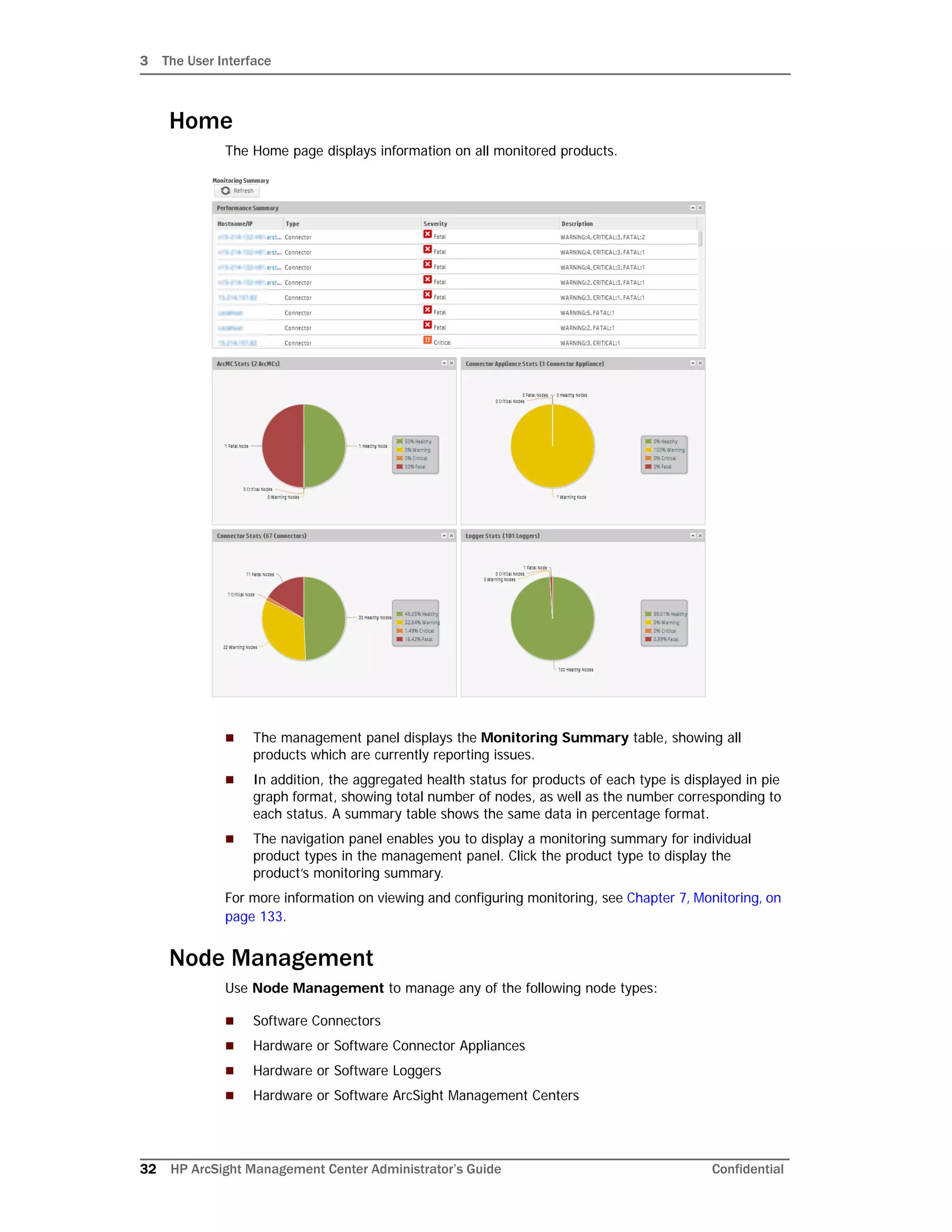
The Home page displays information on all monitored products.
 The management panel displays the Monitoring Summary table, showing all
products which are currently reporting issues.
 In addition, the aggregated health status for products of each type is displayed in pie
graph format, showing total number of nodes, as well as the number corresponding to
each status. A summary table shows the same data in percentage format.
 The navigation panel enables you to display a monitoring summary for individual
product types in the management panel. Click the product type to display the
product’s monitoring summary.
For more information on viewing and configuring monitoring, see Chapter 7‚ Monitoring‚ on
page 133.
Node Management
Use Node Management to manage any of the following node types:
 Software Connectors
 Hardware or Software Connector Appliances
 Hardware or Software Loggers
 Hardware or Software ArcSight Management Centers
3 The User Interface
Confidential HP ArcSight Management Center Administrator’s Guide 33
For more information on adding and managing nodes, see Chapter 4‚ Managing Nodes‚ on
page 35. From the same menu, you can also perform selected management tasks on
managed ArcSight products. See Chapter 5‚ Managing HP ArcSight Products‚ on page 61.
Configuration Management
Use Configuration Management to create and manage node configurations, and
synchronization (pushing) of configurations across multiple nodes. You can manage any of
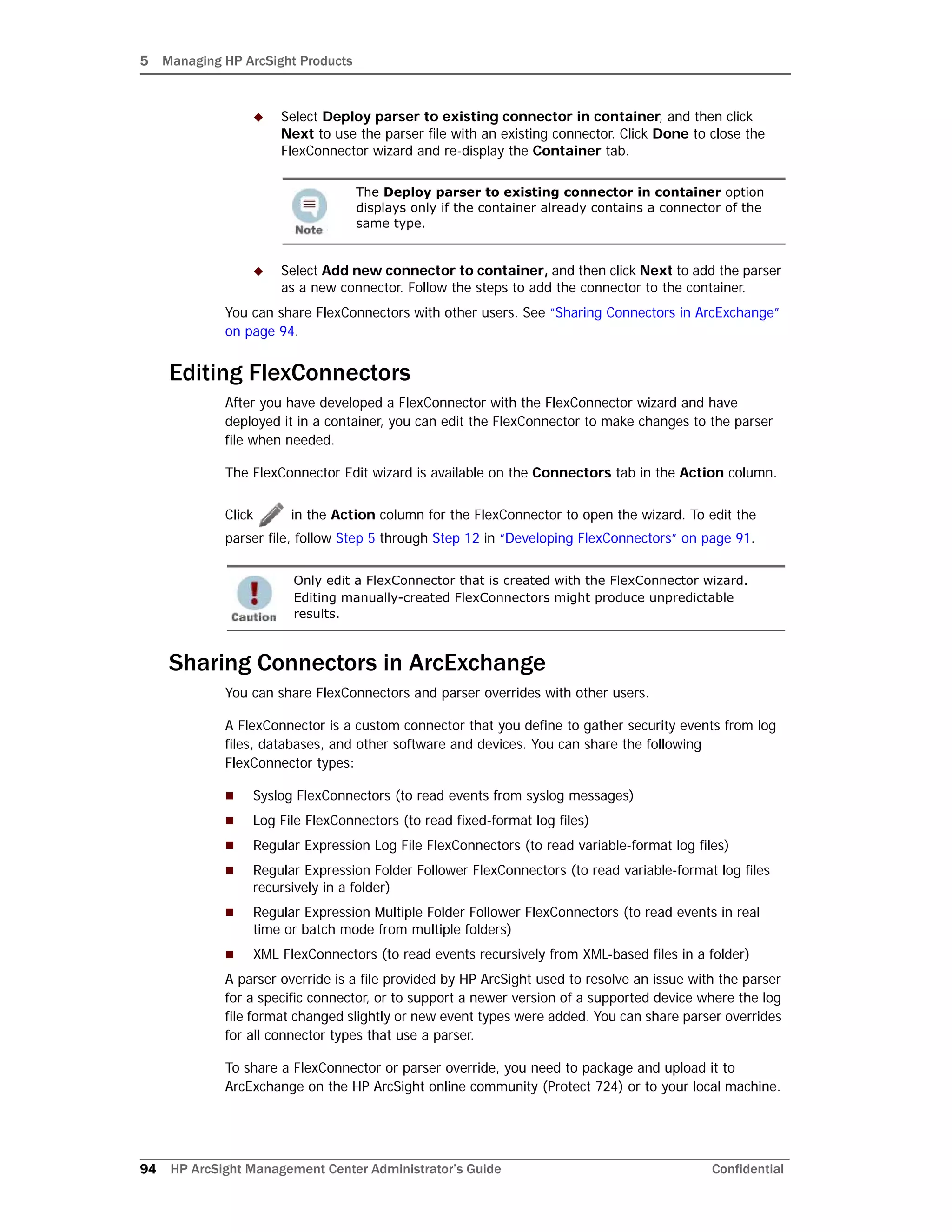
these configuration types:
 Logger configurations
 System Admin configurations
 Connector configurations
 Connector Appliance
 ArcSight Management Center configurations
For more information on configuration management, see Chapter 6‚ Managing
Configurations‚ on page 103.
Administration
The Administration menu contains these items:
 Backup enables you to back up your current ArcSight Management Center
configuration. Restore enables you to restore your configuration from a saved
backup. For more information, see Chapter 8‚ Managing Backups and Restores‚ on
page 143.
 Snapshot enables you to take a snapshot image of HP ArcSight Management Center,
to produce logs that are useful in troubleshooting. For more information, see Chapter
9‚ Creating Snapshots‚ on page 147.
 Repositories enables you to manage repositories that store files, such as logs,
certificates, and drivers. For more information, see Chapter 10‚ Managing Repositories‚
on page 149.
 System Admin describes the system administration tools that enable you to create
and manage users and user groups, and to configure security settings for your system.
For more information, see Chapter 11‚ System Admin - ArcSight Management Center‚
on page 163.
Help
Click the Help link to display the online help, which explains the functionality and features
of ArcSight Management Center. From the help landing page, you can navigate to or
search for specific topics.
About
The Help > About screen displays the currently running version number of ArcSight
Management Center. When done viewing, click OK.
3 The User Interface
34 HP ArcSight Management Center Administrator’s Guide Confidential
Logout
Click Logout to end your ArcSight Management Center session.
By default, ArcSight Management Center automatically ends your session after
15 minutes of inactivity.
Confidential HP ArcSight Management Center Administrator’s Guide 35
Chapter 4
Managing Nodes
The following topics are discussed here.
Overview
A node is a networked HP ArcSight product that can be centrally managed using ArcSight
Management Center. Each node is associated with a single networked host which has been
assigned either a hostname, an IP address, or both.
Node types can include any of the following HP ArcSight products:
 Connector Appliances or Software Connector Appliances
 Logger Appliances or Software Loggers
 Containers or software connectors
 Other ArcSight Management Centers
A single host can include multiple nodes. For example, a single Connector Appliance (with a
single IP address or hostname) could have multiple containers, each of which could be a
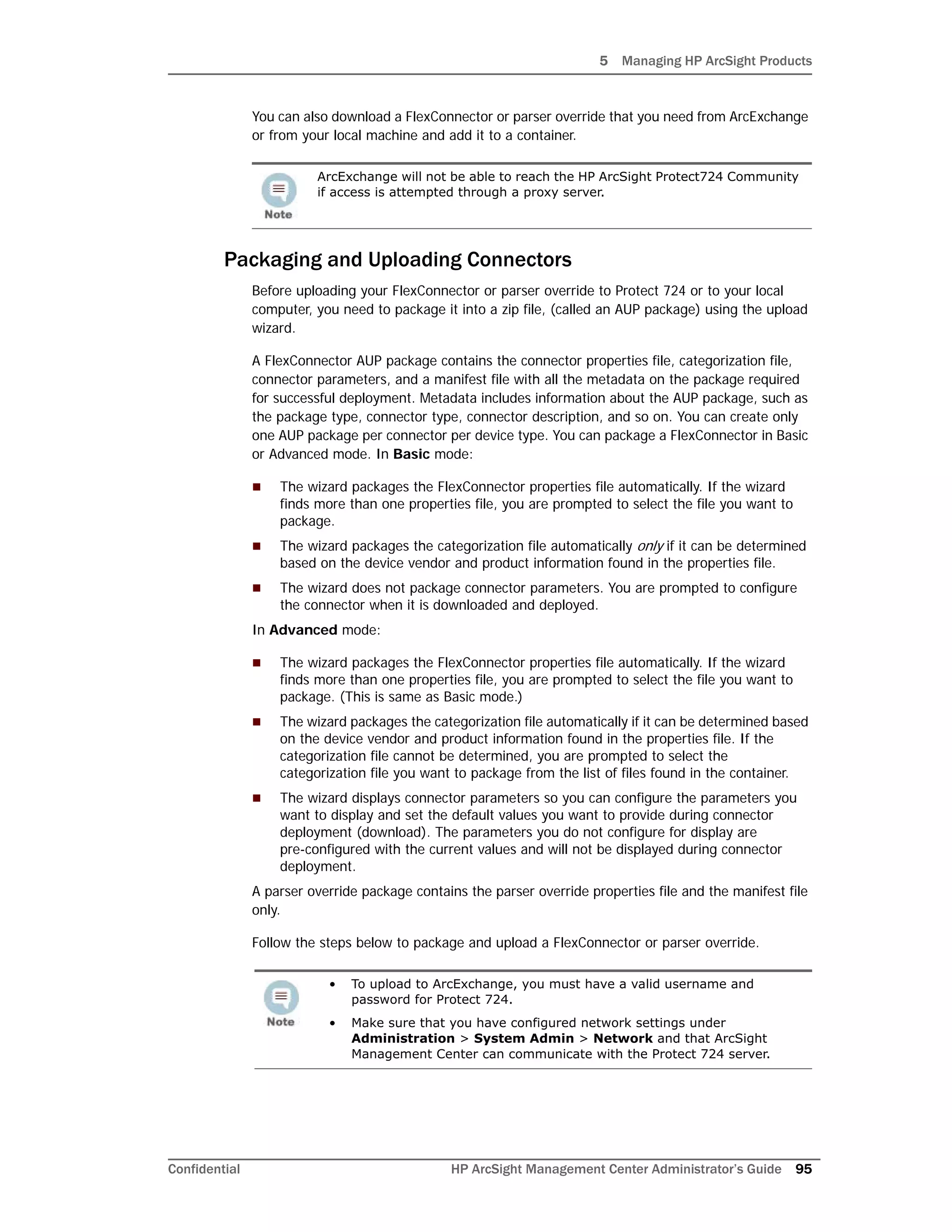
separate node. In addition, a node can be in a parent or child relationship with other
nodes.
You can perform any of the following node management tasks:
 View managed nodes by location, by host, or by node type.
 Add, view, edit, and delete locations for hosts.
 Add nodes from a host, import hosts from a CSV file, view and delete hosts, view all
hosts in a location, move hosts to different locations, and scan hosts for new
connectors or containers.
“Overview” on page 35
“Node Management” on page 36
“The Navigation Tree” on page 36
“The Management Panel” on page 37
“Locations” on page 47
“Hosts” on page 49
4 Managing Nodes
36 HP ArcSight Management Center Administrator’s Guide Confidential
Node Management
To manage nodes, on the menu bar, click Node Management. The Node Management UI
displays.
The Node Management UI comprises two panels:
 The left side displays the navigation tree.
 The right side displays the management panel, enabling you to perform management
operations on items selected in the navigation tree.
The Navigation Tree
The navigation tree organizes managed nodes into a hierarchy, and comprises the
following:
System: System displays the entire set of nodes managed by ArcSight
Management Center.
Location: Individual locations are displayed under System, listed in the order in
which they were added. Locations are logical groupings you can use to organize a list
of hosts. For more information, see “Locations” on page 47.
Host: Each location branch shows all hosts assigned to that location, listed by
hostname, in the order in which they were added. For more information, see “Hosts”
on page 49.
4 Managing Nodes
Confidential HP ArcSight Management Center Administrator’s Guide 37
Nodes: Each host branch shows all managed nodes associated with that host. A node
can be any of the following types:
Connector Appliance or Software Connector Appliance: Each
Connector Appliance or Software Connector Appliance is shown as a separate
node.
Logger Appliance or Software Logger: Each Logger Appliance or
Software Logger is shown as a separate node.
ArcSight Management Center: Each Software ArcSight Management
Center or ArcSight Management Center Appliance is shown as a separate node.
Container: If the host includes any containers, each is shown as a node.
Connector: If a container node contains a connector, the connector is
shown under the container node in which it is contained.
Since items in the tree are organized hierarchically, each item in the tree includes all
branches displayed below it. For example, a Location branch includes all hosts assigned to
that location. Click + to expand any branch and view any items included in the branch.
The Management Panel
Select an item in the navigation tree to display its details on one of the tabs in the
management panel. For example, to display the details of a host shown in the navigation
tree, select the host in the tree. The management panel will display details and controls
pertaining to that host.
Management Tabs
The tabs displayed in the management panel depend on the type of item selected in the
navigation tree. The management tabs displayed will show detailed information associated
with the selected item.
To view the number of nodes associated with a host, hover over the host
entry in the tree. The count shown includes the host itself.
Selected Item Type Management Tabs Shown
System Locations, Hosts, Containers, Connectors, Connector
Appliances, Loggers, ArcMCs
Location Hosts, Containers, Connectors, Connector Appliances,
Loggers, ArcMCs
Host Containers, Connectors, Connector Appliances,
Loggers, ArcMCs
4 Managing Nodes
38 HP ArcSight Management Center Administrator’s Guide Confidential
For example, if you selected a location item from the navigation tree, the Hosts,
Containers, Connectors, Connector Appliances, Loggers and ArcMCs tabs would be
shown. Each tab would display the items of the named type associated with the selected
location, including details on those items. For example, the Hosts tab would show any
hosts in the location, while the Connector Appliances tab would show any Connector
Appliances in the same location.
Tab Controls
These controls are commonly displayed on all tabs in the management panel:
 Toolbar Buttons: Toolbar buttons enable operations related to the items on the tab.
 Items Table: Items corresponding to the tab header are displayed in a table. For
example, locations are listed in tabular format on the Locations tab.
 Table Header Check Box: Click the check box in the table header to toggle selection
of all check boxes in a single column.
 Bulk Operations Buttons: On most tabs, buttons beneath the items list enable you
to perform operations on one or more items. Choose one or multiple items in the list
by selecting the checkbox next to each, and then click the button to perform the
indicated operation. For example, to delete multiple items such as hosts, select one or
more hosts on the Hosts tab, and then click Delete. The selected hosts would be
deleted.
In addition, each tab may have controls individual to that item type. For example, the
Connectors tab includes controls related to the management of connectors (see Chapter
5‚ Managing Connectors‚ on page 78).
The Locations Tab
The Locations tab displays all locations defined in ArcSight Management Center. The
Locations tab includes these buttons:
Node Connectors, Connector Appliances, Loggers, ArcMCs
Add Location Adds a new location.
Import
Imports host information from a CSV file.
For more information, see “Importing
Hosts” on page 53
Export
Exports host information to a CSV file.
For more information, see “Exporting
Hosts” on page 56
Selected Item Type Management Tabs Shown
4 Managing Nodes
Confidential HP ArcSight Management Center Administrator’s Guide 39
The Locations tab includes the following columns:
 Name: Location name.
 Number of Hosts: Number of hosts assigned to the location.
 Action: Shows a control for editing a location. For more information on editing a
location, see “Editing a Location” on page 48.
This button enables operations on one or more selected locations:
 Delete: Deletes the selected locations from ArcSight Management Center.
For more information on managing locations, see “Locations” on page 47.
The Hosts Tab
The Hosts tab displays all hosts associated with the location selected in the navigation
tree. The Hosts tab includes these buttons:
The Hosts tab includes the following columns:
Refresh Refreshes tab data.
Filter
Displays drop-down lists of values on
which to filter each table column.
Add Host Adds a host.
Edit Edits a host.
Refresh Refreshes tab data.
Filter
Displays drop-down lists of values on
which to filter each table column.
4 Managing Nodes
40 HP ArcSight Management Center Administrator’s Guide Confidential
 Hostname: Fully qualified domain name (FQDN) of the host. The hostname must
match the hostname in the host’s SSL certificate.
 Issues: Status of certificate or Arc MC Agent associated with the host. Possible
indicators include:
 None: No issues are associated with the host.
 Host Certificate Mismatch: The hostname does not match the hostname in the
SSL certificate. For instructions on downloading and importing certificates for the
host, see “Downloading and Importing Host Certificates” on page 59.
 Agent Out of Date: Indicates either that the host’s Agent version is not the
same as the ArcSight Management Center, or that ArcSight Management Center
2.0 cannot communicate with ArcSight Management Center Agent 1.0. For
instructions on remotly upgrading the Agent version on an appliance host, see
“Upgrading or Installing the ArcMC Agent on an Appliance Host” on page 58.
 Agent Stopped: The Agent process on the host has been stopped.
 Agent Uninstalled: The Agent on the host has been uninstalled.
 Path: Path to the host.
 Type: Type of host. (On an ArcMC Appliance, the localhost is shown as Software.)
 Model: If an appliance, shows the HP ArcSight model number of the appliance. If the
host is not an appliance, the label Software is shown.
 Version: Version number of the software on the host.
 Agent Version: Version number of the ArcSight Management Center Agent running
on the host.
 Comment: Any comments on the host.
 Action: Shows a control for scanning a host for new connectors. For more information
on scanning a host, see Chapter 5‚ Managing Connectors‚ on page 78.
These buttons enable operations on one or more selected hosts:
 Delete: Deletes the selected hosts from ArcSight Management Center.
 Move: Moves the selected hosts to a new location.
 Update Agent: Updates the ArcSight Management Center Agent on an appliance
host to the latest version. (If the Agent is not currently installed, this button will install
the Agent.)
For more information on managing hosts, see “Hosts” on page 49.
4 Managing Nodes
Confidential HP ArcSight Management Center Administrator’s Guide 41
The Containers Tab
The Containers tab displays all containers associated with the item selected in the
navigation tree. For example, if you selected a location in the tree, since locations include
hosts, the Containers tab would display all containers associated with all hosts in the
selected location. The Containers tab includes these buttons:
The Containers tab includes the following columns:
 Name: Name of the container.
 Path: Path to the container.
 Port: Port number through which the container is communicating.
 Version: Software version of the container.
 Status: Status of the container. Possible values for container status are:
 Improper configuration: Initial default state.
 Initializing connection: The connector has a resolvable URL, but ArcSight
Management Center has not logged in to the connector yet.
 Down: There was an exception trying execute the login command.
 Unauthorized: The login command was executed, but login has failed.
 Connecting: The login is in progress.
 Connected: The login was successful.
 Empty: Login successful, but the container doesn't have connectors.
 Initialized: Login successful and the container has connectors.
 Last Check: Date and time of last status check.
 Action: Shows controls for executing container management tasks. These enable
editing of containers, sending commands to containers, adding a new connector to a
Scan Host
Scans a host. (Shown when a host is
selected in the navigation tree.)
Refresh Refreshes tab data.
Filter
Displays drop-down lists of values on
which to filter each table column.
4 Managing Nodes
42 HP ArcSight Management Center Administrator’s Guide Confidential
container, running Logfu diagnostics, displaying a list of container certificates,
deploying a container, starting the FlexConnector wizard, and starting the Diagnostics
wizard. These controls are explained in detail in Chapter 5‚ Managing Containers‚ on
page 68.
These buttons enable operations on one or more selected containers:
 Delete: Deletes the selected containers from ArcSight Management Center.
 Properties: Set properties on selected containers.
 Certificates: Manage certificates on selected containers.
 FIPS: Enable or disable FIPS on selected containers.
 Upgrade: Upgrades selected containers.
 Credentials: Manage credentials on selected containers.
 Logs: Manage logs on selected containers.
For more information on managing containers, see Chapter 5‚ Managing Connectors‚ on
page 78.
The Connectors Tab
The Connectors tab displays all software connectors associated with the item selected in
the navigation tree. For example, if you selected a container in the navigation tree, the
Connectors tab would show all connectors in the selected container.
If the selected item in the navigation tree is a container, a toolbar enables connector and
container management tasks, including adding a new connector, editing the container,
sending container commands, running Logfu diagnostics, refreshing the list of connectors,
displaying a list of container certificates, deploying a container, starting the FlexConnector
wizard, and starting the Diagnostics wizard. For details of each of these tasks, see Chapter
5‚ Managing Connectors‚ on page 78.
The Connectors tab includes these buttons:
The Connectors tab includes the following columns:
 Name: Name of the connector.
Refresh Refreshes tab data.
Filter
Displays drop-down lists of values on
which to filter each table column.
4 Managing Nodes
Confidential HP ArcSight Management Center Administrator’s Guide 43
 Path: Path to the connector.
 Type: Type of connector.
 EPS In: Events per second received by the connector.
 EPS Out: Events per second sent by the connector to its destination.
 Cache: Connector cache size.
 Last Check: Date and time of the last status check.
 Action: Shows a variety of controls for executing software connector management
tasks. These enable sending a connector command, sharing a connector, and starting
the FlexConnector edit wizard.
These buttons enable operations on one or more selected connectors.
 Delete: Deletes connectors from ArcSight Management Center.
 Runtime Parameters: Change the runtime parameters on selected connectors.
 Destinations: Sets the destinations of selected connectors.
 Parameters: Sets the parameters of selected connectors.
For more information on managing connectors, see Chapter 5‚ Managing Connectors‚ on
page 78.
The Connector Summary Tab
To view a single connector in detail, click the connector in the navigation tree.
The toolbar on the summary tab includes the following buttons:
Tables below the toolbar show connector specifics, including basic connector data,
parameters, and connector destinations. These tables include the following columns:
Send Command Sends a command to the connector.
Remove Connector Removes the connector.
Logfu Run Logfu diagnostics on the connector.
Share
Shares the connector through
ArcExchange.
4 Managing Nodes
44 HP ArcSight Management Center Administrator’s Guide Confidential
Connector Data
 Type: Type of connector.
 Status: Connector status.
 Input Events (SLC): Total number of events received by the connector since it was
last checked (generally once per minute).
 Input EPS (SLC): Events per second received by the connector since it was last
checked (generally once per minute).
Connector Parameters
Click Connector Parameters to toggle display of this table. Connector Parameters
includes:
 Click to edit parameters.
 Parameters: Parameters can include connector network port, IP address, and
protocol, and other information.
 Value: Parameter value.
Table Parameters (WUC Connectors Only)
 Domain Name: Connector domain name.
 Host Name: Connector host name.
 User Name: Connector user name.
 Security Logs: Indicates whether security events are collected.
 System Logs: Indicates whether system events are collected.
 Application: Indicates whether application events are collected from the Common
Application Event Log.
 Custom Log Names: List of custom application log names, if any.
 Microsoft OS Version: Microsoft operating system for the connector.
 Locale: Connector locale.
Destinations
Click Destinations to toggle display of this table. The Destinations table includes:
 Click to add additional destinations.
 Name: Destination name.
 Output Events (SLC): Total number of events output by the connector to the
destination since it was last checked (generally once per minute).
 Output EPS (SLC): Events per second output by the connector to the destination
since it was last checked (generally once per minute).
 Cached: Total number of events cached to be transmitted to the destination.
 Type: Destination type.
 Location: Location of the destination.
 Device Location: Location of the device on which the destination is located.
 Comment: Comments on the destination.
 Parameters: Destination-specific parameters, such as IP address, port, and protocol.
4 Managing Nodes
Confidential HP ArcSight Management Center Administrator’s Guide 45
 Action Buttons: Action buttons enable destination management tasks, such as
editing the destination, removing the destination, editing the runtime parameters,
adding a new failover destination, and sending destination commands.
For more information on managing connectors, see Chapter 5‚ Managing Connectors‚ on
page 78.
The Connector Appliances Tab
The Connector Appliances tab displays all hardware and Software Connector Appliances
associated with the item selected in the navigation tree. For example, if you selected
System in the navigation tree, the Connector Appliances tab would display all
Connector Appliances in ArcSight Management Center; if you selected a Location, the tab
would display all Connector Appliances in the selected location.
The Connector Appliances tab includes the following buttons:
The Connector Appliances tab includes the following columns:
 Name: Name of the Connector Appliance.
 Path: Path to the Connector Appliance.
 Port: Port number through which the Connector Appliance is communicating.
 Version: Software version of the Connector Appliance.
 Status: Status of the Connector Appliance.
 Last Check: Date and time of last status check.
 Action: Shows a variety of controls for executing Connector Appliance management
tasks, including rebooting, shutting down, and editing a configuration.
This button enable operations on one or more selected Connector Appliances.
 Set Configuration: Set the configuration of selected Connector Appliances.
For more information on managing Connector Appliances in ArcSight Management Center,
see Chapter 5‚ Managing Connector Appliances‚ on page 61.
Refresh Refreshes tab data.
Filter
Displays drop-down lists of values on
which to filter each table column.
4 Managing Nodes
46 HP ArcSight Management Center Administrator’s Guide Confidential
The Loggers Tab
The Loggers tab displays all hardware and Software Loggers associated with the item
selected in the navigation tree. For example, if you selected System in the navigation tree,
the Loggers tab would display all Loggers in ArcSight Management Center; while if you
selected a Location, you would see all Loggers in that location.
The Loggers tab includes the following buttons:
The Loggers tab includes the following columns:
 Name: Name of the Logger.
 Path: Path to the Logger.
 Port: Port number through which the Logger is communicating.
 Version: Software version of the Logger.
 Status: Status of the Logger.
 Last Check: Date and time of last status check.
 Action: Shows controls for executing Logger management tasks, including rebooting,
shutting down, editing a configuration, and upgrading.
This button enable operations on one or more selected Loggers.
 Set Configuration: Set the configuration of selected Loggers.
For more information on managing Logger Appliances in ArcSight Management Center, see
Chapter 5‚ Managing Loggers‚ on page 64.
The ArcMCs Tab
The ArcMCs tab displays all Software ArcSight Management Centers and ArcSight
Management Center Appliances associated with the item selected in the navigation tree.
For example, if you selected System in the navigation tree, the ArcMCs tab would display
Refresh Refreshes tab data.
Filter
Displays drop-down lists of values on
which to filter each table column.
4 Managing Nodes
Confidential HP ArcSight Management Center Administrator’s Guide 47
all managed ArcSight Management Centers; while if you selected a Location, you would see
all Loggers in that location.
The ArcMCs tab includes the following buttons:
The ArcMCs tab includes the following columns:
 Name: Name of the ArcSight Management Center.
 Path: Path to the ArcSight Management Center.
 Port: Port number through which the ArcSight Management Center is communicating.
 Version: Software version of the ArcSight Management Center.
 Status: Status of the ArcSight Management Center.
 Last Check: Date and time of last status check.
 Action: Shows controls for executing ArcMC management tasks, including rebooting,
shutting down, and editing a configuration.
This button enable operations on one or more selected ArcMCs.
 Set Configuration: Set the configuration of the selected ArcMC.
For more information on managing other ArcSight Management Centers in ArcSight
Management Center, see Chapter 5‚ Managing Other ArcSight Management Centers‚ on
page 63.
Locations
A location is a logical grouping of hosts. The grouping can be based on any criteria you
choose, such as geographical placement or organizational ownership. Locations are a
useful way to organize a set of hosts.
For example, you could group all hosts in New York separately from hosts in San Francisco
and assign them to locations named “New York” and “San Francisco”. Similarly, you could
group hosts in a location named “Sales” and others in the location “Marketing”.
A location can contain any number of hosts. For information on adding hosts to locations,
see “About Adding a Host” on page 49.
Adding a Location
You can add any number of locations.
To add a location:
1 Click Node Management.
Refresh Refreshes tab data.
Filter
Displays drop-down lists of values on
which to filter each table column.
ArcSight Management Center includes one location by default (called Default)
but you may add any number of others. The name of the Default location
may be edited, if desired.
4 Managing Nodes
48 HP ArcSight Management Center Administrator’s Guide Confidential
2 In the navigation tree, click System.
3 In the management panel, click .
4 Enter the name of the new location, and then click Next.
5 Click Done. The new location is shown in the System tree.
Editing a Location
You can edit the name of a location.
To edit a location:
1 Click Node Management.
2 In the navigation tree, click System, and then click the Locations tab.
3 On the Locations tab, choose one or more locations to rename by selecting the
checkbox next to each.
4 Under Action, click .
5 Enter the new name of each location, and then click Next.
6 Click Done. The location is renamed.
Viewing All Locations
You can see all the locations that exist in ArcSight Management Center.
To view all locations:
1 Click Node Management.
2 In the navigation tree, click System, and then click the Locations tab to view all
locations.
Deleting a Location
When you delete a location from ArcSight Management Center, any hosts in the location
(and their associated nodes) are also deleted.
To delete a location:
1 Click Node Management.
2 In the navigation tree, click System, and then click the Locations tab.
3 On the Locations tab, choose one or more locations to delete by selecting the
checkbox next to each.
4 Click Delete.
5 Click OK to confirm deletion. The selected locations are deleted.
If you want to delete a location but still want to keep its hosts in ArcSight
Management Center, relocate the hosts before deleting the location. See
“Moving a Host to a Different Location” on page 57.
4 Managing Nodes
Confidential HP ArcSight Management Center Administrator’s Guide 49
Hosts
A host is a networked system associated with a unique IP address or hostname. A host can
be an ArcSight appliance, or a system running an ArcSight software product, such as
Software Logger.
About Adding a Host
After a host is added to ArcSight Management Center, ArcSight products on the host
becomes nodes, and can be managed. For example, adding a host running Connector
Appliance with 4 containers would add 5 nodes to ArcSight Management Center: the
Connector Appliance itself, and each container.
Prerequisites for Adding a Host
Ensure that these prerequisites are met before adding a host to ArcSight Management
Center.
 Connection Information: The following table summarizes the information required
for ArcSight Management Center to connect to each host type:
Table 4-1 Connection Information for Adding a Host
Host Type Required Information
Appliance with Local Connectors
(includes ArcSight Management
Center Appliance, Connector
Appliance, or Logger Appliance
(L3XXX))
• Hostname (FQDN) or IP address. Hostname or IP must
be resolvable by ArcSight Management Center: either
through DNS for a hostname, or directly for an IP
address. If hostname is used, the hostname entered
must match the hostname from the host’s SSL
certificate. (If the FQDN fails to resolve, restart the web
service.)
• Authentication credentials (username and password)
for logging into the host. If the host is configured for
external authentication, such as LDAP or RADIUS, use
the external authentication credentials.
Note: See “Node Authentication Credentials” on
page 51 for more information about authentication
credentials.
• Authentication credentials (username and password)
for any local containers. If the appliance includes
multiple containers, then the credentials for each
container must be identical. For example, if the
username and password for one container managed by
a Connector Appliance is myusername and
mypassword, then myusername and mypassword must
be the credentials for all local containers managed by
the same Connector Appliance.
4 Managing Nodes
50 HP ArcSight Management Center Administrator’s Guide Confidential
 An SSL Certificate: An SSL certificate must be generated for any of the following
host types to be managed:
Appliance without Local
Connectors (includes Logger
Appliance (non-L3XXX))
• Hostname (FQDN) or IP address. Hostname or IP must
be resolvable by ArcSight Management Center: either
through DNS for a hostname, or directly for an IP
address. If hostname is used, the hostname entered
must match the hostname from the host’s SSL
certificate. (If the FQDN fails to resolve, restart the web
service.)
• Authentication credentials (username and password)
for logging into the host. If the host is configured for
external authentication, such as LDAP or RADIUS, use
the external authentication credentials.
Note: See “Node Authentication Credentials” on
page 51 for more information about authentication
credentials.
Software Form Factor
(includes Software ArcSight
Management Center, Software
Connector Appliance, or Software
Logger)
• Hostname (FQDN) or IP address. Hostname or IP must
be resolvable by ArcSight Management Center: either
through DNS for a hostname, or directly for an IP
address. If hostname is used, the hostname entered
must match the hostname from the host’s SSL
certificate. (If the FQDN fails to resolve, restart the web
service.)
• Authentication credentials (username and password)
for logging into the host. If the host is configured for
external authentication, such as LDAP or RADIUS, use
the external authentication credentials.
Note: See “Node Authentication Credentials” on
page 51 for more information about authentication
credentials.
• Port number assigned to the product.
Software Connector
(includes SmartConnectors of all
types)
• Hostname (FQDN) or IP address. Hostname or IP must
be resolvable by ArcSight Management Center: either
through DNS for a hostname, or directly for an IP
address. (If the FQDN fails to resolve, restart the web
service.)
• Authentication credentials (username and password)
for the connector.
Note: See “Node Authentication Credentials” on
page 51 for more information about authentication
credentials.
• Port number assigned to the product.
• Alternatively, specify an inclusive port range separated
by a hyphen (such as 9004-9008) to scan a port range
for all software connectors.
Note: If the port range includes multiple connectors,
then the credentials for each connector in the range
must be identical. For example, if the username and
password for one connector in the range was
myusername and mypassword, then myusername and
mypassword must be the credentials for every
connector in the port range.
Table 4-1 Connection Information for Adding a Host
Host Type Required Information
4 Managing Nodes
Confidential HP ArcSight Management Center Administrator’s Guide 51
 Connector Appliance or Software Connector Appliance
 Logger Appliance or Software Logger
 ArcSight Management Center Appliance or Software ArcSight Management Center
The hostname in the certificate must match the hostname you will add to ArcSight
Management Center. For more information on generating certificates for these host
types, consult the HP ArcSight Administrator’s Guide for each product. (If a host to be
added already has a certificate installed, you can use the existing certificate, as long as
the hostname on the certificate matches the hostname of the host you will be adding.)
 ArcSight Management Center 2.0 Agent Installed and Running (Software
Form Factors Only): Prior to adding a Software ArcSight Management Center,
Software Connector Appliance, or Software Logger host to ArcSight Management
Center, confirm that the ArcSight Management Center 2.0 Agent has been installed
and is running on the host to be added. For more information on installing the ArcSight
Management Center Agent, see “Installing the ArcSight Management Center Agent” on
page 28.
 ArcSight Management Center 2.0 Agent Running (Appliances with Local
Connectors Only): On appliances with local connectors, the ArcSight Management
Center Agent will be installed and started automatically. The Agent must be running in
order for the host to be added to ArcSight Management Center.
Node Authentication Credentials
ArcSight Management Center authenticates to each managed node each time it
communicates with the node, using the authentication credentials—that is, username and
password—you supply when first adding the host. (If the host includes connectors or
containers, then authentication credentials must also be supplied for these as well.) As a
result, valid credentials for each node are required when adding a host.
 Determining a Node’s Credentials: Consult the system administrator for each
managed product to determine its current login credentials. Each ArcSight product
ships with a default set of credentials. However, for optimal security, it is expected that
the default credentials are changed as soon as possible, so default credentials may no
longer be valid.
If the hostname does not match the hostname in the SSL certificate, you can
regenerate a matching certificate as follows:
1 In System Admin > Network, click the NICS tab. Under Host
Settings, note the entry in the Hostname field. (This is the value you
should use to add the host to ArcSight Management Center.)
2 In System Admin > SSL Server Certificate, under Enter Certificate
Settings, verify that the hostname from the NICS tab noted previously is
entered in the Hostname field.
3 Click Generate Certificate. A new certificate will be generated that
matches the hostname from the NICS tab.
Running more than one HP ArcSight software application on the same
physical host (for example, both Software Logger and Software Connector
Appliance) is not recommended. If a physical host is running more than one
HP ArcSight software application, only one of these applications may be
added as a node to ArcSight Management Center. This restriction does not
apply to software connectors.
4 Managing Nodes
52 HP ArcSight Management Center Administrator’s Guide Confidential
 For default credentials for ArcSight products, consult the relevant product
administrator’s guide. (For SmartConnector default credentials, consult the
SmartConnector User's Guide.)
 Some products can be configured by administrators to use external
authentication, in which case the external authentication credentials should be
provided when adding the host to ArcSight Management Center.
(SmartConnectors may not be configured for external authentication.)
 Changed or Expired Credentials: If the username or password on a node is
changed any time after the node is added to ArcSight Management Center, then the
node will no longer be managed; however, it will still appear in the list of managed
nodes. For example, on some hosts, passwords are set to expire automatically after
some time period, which would prevent successful authentication by ArcSight
Management Center using the node’s initial credentials. To continue management of
such a node, delete it from ArcSight Management Center, and then re-add it as a new
node with the new credentials.
 Dynamic Credentials: If authentication credentials are configured to change
dynamically (such as with RADIUS one-time passwords), then instead of providing
external authentication credentials, you can instead provide the credentials of a local
user on the managed node who is permitted to use fallback authentication. ArcSight
Management Center will then try to authenticate to the managed node using the
external authentication method first, and if this fails, it will try to authenticate to the
managed node using the local user credentials.
Adding a Host
You can add a variety of ArcSight products as a host.
To add a host:
1 Click Node Management.
2 In the navigation tree, select a location to which you plan to add the host.
3 On the Hosts tab, click Add Host.
4 On the Add a new Host dialog, in Hostname/IP, enter either the hostname or IP
address of the host.
5 In Type, select the type of node from the drop-down list.
6 Enter values for the required settings. (Required information will depend on the node
type, as shown in Table 4-1 on page 49.)
 In Host Credentials or Connector Credentials, enter the username and
password required for authentication.
4 Managing Nodes
Confidential HP ArcSight Management Center Administrator’s Guide 53
 In Port, if required, enter the value of the port on which ArcSight Management
Center will connect to the host.
7 Click Add. The host is added to ArcSight Management Center.
Adding a Host with Containers
When you add a host that includes containers (such as Connector Appliance), ArcSight
Management Center also attempts to retrieve the SSL certificates from any containers that
reside on the host, and add each container as a separate node. Containers on the remote
host can be managed only if ArcSight Management Center can authenticate using the
certificates and supplied credentials. When the certificates are retrieved, you are prompted
to import them into ArcSight Management Center.
Importing Hosts
To quickly and easily add multiple hosts in bulk, you can import a comma-separated values
(CSV) file that lists the names and required attributes of the hosts to be added.
Prerequisites for Importing Hosts
The following prerequisites apply to importing hosts.
 Add Host Prerequisites: Any prerequisites for the Add Host process also apply to
importing multiple hosts by a CSV file. See “Prerequisites for Adding a Host” on
page 49.
 Valid CSV File: Ensure the values in your CSV file are correct. An import hosts job will
fail immediately upon receiving an invalid or incorrect value.
 Stop the Agent 1.0 Process: In addition, if any of the hosts to be imported are
running the ArcSight Management Center 1.0 Agent, stop the Agent process on each
such host before the import. (This is not needed for later versions of the Agent.)
CSV File Format
The host CSV import file must have the following format.
1 The first (header) line of the file must be the following literal text:
location,hostname,type,host username,host password,connector
username,connector password,port/port range
2 Each succeeding line of the CSV file represents one host to be imported, with values
for the each of the comma-separated descriptor fields:
<Location>, <Hostname>,<Host Type>,<Host Username>,<Host
Password>, <Connector Username>,<Connector Password>,<Port/Port
Range>
where the value in brackets <> represents a valid value from Host Descriptor Fields,
below.
On ArcSight Management Center Appliance, all local containers are added
automatically as hosts of type Software Connector.
ArcSight Management Center 1.0 used a slightly different file format for
importing connector hosts. That file format is not supported by ArcSight
Management Center 2.0. Use the file format described here instead.
4 Managing Nodes
54 HP ArcSight Management Center Administrator’s Guide Confidential
 Some values are required, and some are optional. An optional field with no
value specified must still include a comma to represent the empty field.
 No spaces can precede or follow any comma.
3 End the CSV file with a single, new blank line (hard carriage return).
Host Descriptor Fields
Valid values for host descriptor fields are detailed in the following table. A red asterisk (*)
indicates a required field for all hosts.
Field Description
Location* Location to which the host will be assigned.
Hostname* Hostname (FQDN) or IP address of the host.
• FQDN or IP must be resolvable by ArcSight Management Center: either
through DNS for a hostname, or directly for an IP address.
• If hostname is used, the hostname entered must match the hostname
from the host’s SSL certificate.
• For a hardware appliance, DNS must be configured on the appliance
(System Admin > DNS).
Host Type* Host type. Valid (case-insensitive) values are:
• appliance_with_local_connectors: includes ArcSight Management Center
Appliance, Connector Appliance and Logger Appliance (L3XXX)
• appliance_without_local_connectors: includes Logger Appliance
(non-L3XXX).
• software_form_factor: includes Software ArcSight Management Center,
Software Connector Appliance or Software Logger.
• software_connector: includes all SmartConnectors.
Host Username*/
Host Password*
Username and password used to authenticate to the host.
Note: See “Node Authentication Credentials” on page 51 for more
information about authentication credentials.
Connector
Username/
Connector
Password
Username and password used to authenticate to the software connector.
Required for hosts of type Appliance with Local Connector and Software
Connector; otherwise optional.
Note: See “Node Authentication Credentials” on page 51 for more
information about authentication credentials.
Port/Port Range Starting port or port range for connector scan.
• Port is required for a hosts of type Software Form Factor.
• A host of type Software Connector requires either a port or port range.
For port range, specify an inclusive port range, using a hyphen between
starting and ending port. For example, a specified port range of
9001-9003 would scan ports 9001, 9002, and 9003.
Note: If the port range includes multiple connectors, then the credentials
for each connector in the range must be identical. For example, if the
username and password for one connector in the range was myusername
and mypassword, then myusername and mypassword must be the
credentials for every connector in the port range.
• This field is optional otherwise.
4 Managing Nodes
Confidential HP ArcSight Management Center Administrator’s Guide 55
Example CSV File
An example of a valid CSV host import file is shown here.
location,hostname,type,host username,host password,connector
username,connector password,port/port range
CorpHQ,hostname.example.com,software_connector,host_user,
change_me,connector_user,change_me,9001-9010
EMEA,hostname2.example.com,appliance_without_local_connectors,
logger_user,logger_pword,,,
In this example, the first line is the required header line, the second line would represent a
Software Connector, and third line would represent a Logger Appliance.
Import Hosts Procedure
Only a single Import Hosts job may be executed at one time.
To import hosts from a CSV file:
1 Create and save your CSV file in a text editor.
2 Log into ArcSight Management Center.
3 On the menu bar, click Node Management.
4 In the navigation tree, click System.
5 In the management panel, click the Locations tab.
6 On the Locations tab, click Import. The Import Hosts wizard starts.
7 Click Browse, and browse to the location of your hosts CSV file.
8 Click Import. The hosts are imported as a background job.
If the CSV file is valid, connector certificates are retrieved automatically so that
ArcSight Management Center can communicate with each connector in a container.
The Upload CSV wizard lists the certificates. (To see certificate details, hover over the
certificate.).
In addition, the ArcMC Agent is installed on any appliance hosts, if not already present.
(This will increase the time required for the Import Hosts job.)
 Select Import the certificates..., and then click Next to import the certificates
and continue.
Before beginning the import, if any of the hosts to be imported are running
the ArcSight Management Center 1.0 Agent, stop the Agent on each host.
4 Managing Nodes
56 HP ArcSight Management Center Administrator’s Guide Confidential
 Select Do not import the certificates..., and then click Next if you do not want
to import the certificates. The Upload CSV wizard does not complete the upload
CSV process.
9 The Import Hosts job executes.
Import Hosts Job Logs
ArcSight Management Center logs the results of all Import Hosts jobs. Each job produces a
new log, named import_hosts_<date>_<time>.txt, where <date> and <time> are
the date and time of the import hosts job.
 For Software ArcSight Management Center, logs are located in the directory
<install_dir>/userdata/logs/arcmc/importhosts.
 For ArcSight Management Center Appliance, logs are located in the directory
opt/arcsight/userdata/logs/arcmc/importhosts.
Log Format
Each entry in the log will show the success or failure of each host import attempt, in the
format:
<User initiating job>, <CSV filename>, <Time of import host job
start>,<Hostname>,<Success/failure result>
For example:
admin, my_csv_file.csv, Tue Apr 08 14:16:58 PDT 2014,
host.example.com, Host added successfully
If the import hosts job has failed due to one or more invlaid entries in the CSV file, the
result file will show the parsing error details with the line number and error.
For example:
Line [1] has [connector password] field empty. [connector password]
field is required for this host type.
Exporting Hosts
Exporting hosts from an ArcSight Management Center will create a CSV list of hosts
managed by that ArcSight Management Center. (Password information is not included in
this file.)
After adding passwords for each host to the file, you can then import this list of hosts into
another ArcSight Management Center, using the Import Hosts feature described under
“Importing Hosts” on page 53
Exporting hosts is most useful when you are reassigning management of hosts from one
ArcMC to another.
For example, consider two ArcSight Management Centers, called ArcMC East and ArcMC
West. ArcMC East currently manages 50 hosts. However, you are consolidating
management of all hosts to the new ArcMC West. To do this quickly and easily, you would
export the hosts from ArcMC East into a CSV file. Then, after adding in password data for
The Import Hosts wizard does not complete the upload if certificate upload
failed for any of the connectors in a container, or if any of the certificates
failed to import into the trust store.
4 Managing Nodes
Confidential HP ArcSight Management Center Administrator’s Guide 57
each host, you would import the resulting CSV file into ArcMC West. At the end of the
process, all of ArcMC East’s hosts, and ArcMC East itself, would be managed by ArcMC
West.
To export hosts in ArcSight Management Center:
1 Click Node Management.
2 In the navigation tree, click System.
3 In the management panel, click the Locations tab.
4 On the Locations tab, click Export. All hosts managed by the ArcSight
Management Center are exported to the local CSV file (exporthosts.csv).
5 Optionally, open the file in a CSV editor. Add the password information for each host to
the CSV file, and then save the file.
Viewing All Hosts
You can see all the hosts managed by ArcSight Management Center, or view hosts by
location.
To view all hosts:
1 Click Node Management.
2 In the navigation tree, click System. (To view by location, click the location you wish
to view.)
3 Click the Hosts tab. All managed hosts are displayed.
Viewing Managed Nodes on a Host
You can view all the managed nodes on a host, by host type.
To view managed nodes on a host:
1 Click Node Management.
2 In the navigation tree, click the location to which the host is assigned. Then, click the
host.
3 Click the appropriate tab to view the node types for the managed host: Containers,
Connectors, Connector Appliances, Loggers, or ArcMCs.
Deleting a Host
When you delete a host, any nodes associated with the host are also deleted. Deleting a
host removes its entry from ArcSight Management Center, but otherwise leaves the host
machine unaffected.
To delete one or more hosts:
1 Click Node Management.
2 In the navigation tree, click System, and then click the Hosts tab.
3 Choose one or more hosts to delete by selecting the checkbox next to each.
4 Click Delete.
5 Click Yes to confirm deletion. The host (and any associated nodes) are deleted.
4 Managing Nodes
58 HP ArcSight Management Center Administrator’s Guide Confidential
Moving a Host to a Different Location
You can assign one or more hosts to a new location. When you move a host, any nodes
associated with it are also moved. For example, if you moved a Connector Appliance to a
new location, all of its containers and managed connectors would also be moved to the
new location.
To move one or more hosts:
1 Click Node Management.
2 In the navigation tree, click System, and then click the Hosts tab.
3 Choose one or more hosts to move by selecting the checkbox next to each.
4 Click Move.
5 Follow the prompts in the Host Move wizard.The selected hosts are reassigned to
their new locations.
Upgrading or Installing the ArcMC Agent on an Appliance
Host
If an appliance (hardware) host is running an outdated version of the ArcSight
Management Center Agent, you can quickly upgrade the Agent to the latest version.
Alternatively, if the Agent is not installed at all on the host, you can quickly install it.
To upgrade or install the Agent on one or more hardware hosts:
1 Click Node Management.
2 In the navigation tree, click System, and then click the Hosts tab.
3 Choose one or more hosts to update by selecting the checkbox next to each.
4 Click Update Agent. The Update Agent wizard launches. Follow the prompts to
complete the wizard.
Scanning a Host
Scanning a host will inventory all currently running containers on the host and the
connectors associated with them.
To ensure accuracy and currency of container inventory, you will need to manually scan for
new containers in any of the following circumstances:
Check the version of the Agent on each host by clicking the Hosts tab and
reviewing the Agent Version column.
To upgrade or install the Agent running on a Software ArcMC, Software
Connector Appliance, or Software Logger, access the host directly and
manually install the latest Agent.
Any host that includes containers is scanned automatically when first added
to ArcSight Management Center.
4 Managing Nodes
Confidential HP ArcSight Management Center Administrator’s Guide 59
 Additional containers are added to a remote host after it has been added to ArcSight
Management Center.
 Containers are removed from a remote host managed in ArcSight Management Center.
 Any containers which were down when the initial, automatic scan was performed have
since come back up.
 The license for a managed ArcSight Management Center (managed by another
ArcSight Management Center) is upgraded to increase the number of licensed
containers.
You can manually scan any host types that can run containers. These types include:
 Connector Appliances
 Loggers (L3XXX models only)
 ArcSight Management Center Appliances
The Scan Process
A host scan retrieves information on all CA certificates from any running containers on the
host. The containers on the remote host can be managed only if ArcSight Management
Center can authenticate using the certificates and the credentials. You are prompted to
import any retrieved certificates into the ArcSight Management Center trust store.
A manual scan will be discontinued if any of the following are true:
 Any containers on a scanned Connector Appliance host are down.
 If you choose not to import any certificates that are retrieved.
 Authentication fails on any of the containers.
To manually scan a host:
1 Click Node Management.
2 In the navigation tree, select the location to which the host has been assigned.
3 Click the Hosts tab.
4 In the Action column for the host to be scanned, click . The Host Scan wizard
starts.
5 Click Next in the Host Scan wizard.
6 Enter values for the parameters in the following table, and then click Next.
7 Connector certificates are retrieved automatically so that the ArcSight Management
Center can communicate with each connector in a container. The Host Scan wizard
lists the certificates. (To see certificate details, hover over the certificate.)
Parameter Description
Starting Port The port number on the host on which ArcSight Management
Center starts scanning for containers.
Ending Port The port number on the host on which ArcSight Management
Center ends scanning for containers.
User The user name to authenticate with the host.
Password The password for the user name you provide.
4 Managing Nodes
60 HP ArcSight Management Center Administrator’s Guide Confidential
 To continue the scan, select Import the certificates, and then click Next to
import the certificates and continue.
 Otherwise, select Do not import the certificates, and then click Next. The
Host Scan wizard discontinues the scan.
Downloading and Importing Host Certificates
In case of a mismatch between the hostname and the hostname in the SSL certificate, you
can download and import the host’s current certificates.
To download and import host certificates:
1 Click Node Management.
2 In the navigation tree, select the location to which the host has been assigned.
3 Click the Hosts tab.
4 In the Action column for the desired host, click
5 Click Next in the Download wizard.
6 Follow the prompts in the wizard to complete the process.
Confidential HP ArcSight Management Center Administrator’s Guide 61
Chapter 5
Managing HP ArcSight Products
The following topics are discussed here.
Overview
ArcSight Management Center enables management tasks on a variety of HP ArcSight
products, including the following:
 Hardware and Software Connector Appliances
 Hardware and Software ArcSight Management Centers
 Hardware and Software Loggers
 Containers
 Software connectors
This chapter discusses the remote management of these products.
Managing Connector Appliances
You can perform any of the following management tasks on managed Connector
Appliances or Software Connector Appliances using ArcSight Management Center:
“Overview” on page 61
“Managing Connector Appliances” on page 61
“Managing Other ArcSight Management Centers” on page 63
“Managing Loggers” on page 66
“Managing Containers” on page 68
“Managing Connectors” on page 78
5 Managing HP ArcSight Products
62 HP ArcSight Management Center Administrator’s Guide Confidential
 Reboot or shut down
 Edit or remove a configuration
 Set a configuration on one or multiple Connector Appliances.
Rebooting
You can reboot a managed Connector Appliance.
To reboot a Connector Appliance:
1 Click Node Management.
2 In the navigation tree, click System.
3 In the management panel, click Connector Appliances.
4 In the list of Connector Appliances, locate the Connector Appliance to be rebooted. In
the Action column, click .
5 Click Next to confirm reboot.
6 The Connector Appliance is rebooted. Click Done.
Shutting Down
You can shut down a managed Connector Appliance.
To reboot a Connector Appliance:
1 Click Node Management.
2 In the navigation tree, click System.
3 In the management panel, click Connector Appliances.
4 In the list of Connector Appliances, locate the Connector Appliance to be shut down.
In the Action column, click .
5 Click Next to confirm shut down.
6 The Connector Appliance is shut down. Click Done.
Editing or Removing a Configuration
You can edit a configuration on, or remove property values of a list configuration from, a
managed Connector Appliance.
Editing or removing a configuration will overwrite the node’s current configuration. This
may make the node non-compliant with its current subscriptions.
To edit or remove a configuration on Connector Appliance:
1 Click Node Management.
2 In the navigation tree, click System.
Not all Connector Appliance functionality is manageable through ArcSight
Management Center. For a complete discussion of Connector Appliance
features, see the Connector Appliance Administrator’s Guide.
5 Managing HP ArcSight Products
Confidential HP ArcSight Management Center Administrator’s Guide 63
3 In the management panel, click Connector Appliances.
4 In the list of Connector Appliances, locate the desired Connector Appliance. In the
Action column, click . The Update Configurations wizard is launched.
5 Review the dialog box, and then click Next.
6 Follow the prompts to complete the wizard.
7 When the wizard is complete, click Done.
Setting a Configuration on Connector Appliances
You can set a configuration on one or multiple Connector Appliances using the Set
Configuration wizard.
 For list configurations, use the Set Configuration wizard to append property values to
an existing configuration on multiple Connector Appliances. Only new values will be
appended. For example, if you had a set of users on three Connector Appliances, you
could use Set Configuration to add the same new user to all of them. For more
information on list configurations, see page 108.
 For non-list configurations, use the Set Configuration wizard to overwrite the
configuration on multiple Connector Appliances.
To set a configuration on one or more Connector Appliances:
1 Click Node Management.
2 In the navigation tree, click System.
3 In the management panel, click Connector Appliances.
4 In the list of Connector Appliances, choose one or more Connector Appliances for
which to set a configuration by selecting the checkbox next to each.
5 Click Set Configuration. The Set Configuration wizard is launched.
6 Review the dialog box, and then click Next.
7 Follow the prompts to complete the wizard.
 Click Add Row to add a new Property to a list configuration, and then enter
values as needed.
8 The configuration is set on the selected Connector Appliances. Click Done.
Managing Other ArcSight Management Centers
You can perform any of the following management tasks on managed Software ArcSight
Management Centers or ArcSight Management Center Appliances:
In order to edit a backup configuration on a Connector Appliance node, the
node must have a scheduled backup to begin with.
Setting a configuration on one or multiple Connector Appliances may make
each Connector Appliance node non-compliant with its current subscriptions.
5 Managing HP ArcSight Products
64 HP ArcSight Management Center Administrator’s Guide Confidential
 Reboot or shut down
 Edit or remove a configuration
 Set a configuration on one or multiple ArcSight Management Centers
Rebooting
You can reboot a managed ArcSight Management Center.
To reboot an ArcSight Management Center:
1 Click Node Management.
2 In the navigation tree, click System.
3 In the management panel, click ArcMCs.
4 In the list of ArcSight Management Centers, locate the ArcSight Management Center to
be rebooted. In the Action column, click .
5 Click Next to confirm reboot.
6 The ArcSight Management Centers is rebooted. Click Done.
Shutting Down
You can shut down a managed ArcSight Management Center.
To shut down an ArcSight Management Center:
1 Click Node Management.
2 In the navigation tree, click System.
3 In the management panel, click ArcMCs.
4 In the list of ArcSight Management Centers, locate the ArcSight Management Center to
be shut down. In the Action column, click .
5 Click Next to confirm shut down.
6 The ArcSight Management Center is shut down. Click Done.
Editing or Removing a Configuration
You can edit a configuration on, or remove property values of a list configuration from, a
managed ArcSight Management Center.
Editing or removing a configuration will overwrite the node’s current configuration. This
may make the node non-compliant with its current subscriptions.
5 Managing HP ArcSight Products
Confidential HP ArcSight Management Center Administrator’s Guide 65
To edit or remove a configuration on ArcSight Management Center:
1 Click Node Management.
2 In the navigation tree, click System.
3 In the management panel, click ArcMCs.
4 In the list of ArcSight Management Centers, locate the desired ArcSight Management
Center. In the Action column, click . The Update Configurations wizard is
launched.
5 Review the dialog box, and then click Next.
6 Follow the prompts to complete the wizard.
7 When the wizard is complete, click Done..
Setting a Configuration on Managed ArcSight
Management Centers
You can set a configuration on one or multiple ArcSight Management Centers using the Set
Configuration wizard.
 For list configurations, use the Set Configuration wizard to append property values to
an existing configuration on multiple ArcSight Management Centers. Only new values
will be appended. For example, if you had a set of users on three ArcSight
Management Centers, you could use Set Configuration to add the same new user to all
of them. For more information on list configurations, see page 108.
 For non-list configurations, use the Set Configuration wizard to overwrite the
configuration on multiple ArcSight Management Centers.
To set a configuration on one or more ArcSight Management Centers:
1 Click Node Management.
2 In the navigation tree, click System.
3 In the management panel, click ArcMCs.
4 In the list of ArcSight Management Centers, choose one or more ArcSight
Management Centers for which to set a configuration by selecting the checkbox next
to each.
5 Click Set Configuration. The Set Configuration wizard is launched.
6 Review the dialog box, and then click Next.
7 Follow the prompts to complete the wizard.
In order to edit a backup configuration on an ArcMC node, the node must
have a scheduled backup to begin with.
Setting a configuration on one or multiple ArcSight Management Centers may
make each ArcSight Management Center node non-compliant with its current
subscriptions.
5 Managing HP ArcSight Products
66 HP ArcSight Management Center Administrator’s Guide Confidential
 Click Add Row to add a new Property to a list configuration, and then enter
values as needed.
8 The configuration is set on the selected ArcSight Management Centers. Click Done.
Managing Loggers
You can perform any of the following management tasks on managed Logger Appliances or
Software Loggers using ArcSight Management Center.
 Reboot or shut down
 Edit or remove a configuration
 Set a configuration on one or multiple Loggers
 Remotely upgrade a Logger Appliance
Rebooting
You can reboot a managed Logger.
To reboot a Logger:
1 Click Node Management.
2 In the navigation tree, click System.
3 In the management panel, click Loggers.
4 In the list of Loggers, locate the Logger to be rebooted. In the Action column, click
.
5 Click Next to confirm reboot.
6 The Logger is rebooted. Click Done.
Shutting Down
You can shut down a managed Logger.
To reboot a Logger:
1 Click Node Management.
2 In the navigation tree, click System.
Not all Logger functionality is manageable through ArcSight Management
Center. For a complete discussion of Logger features, see the Logger
Administrator’s Guide.
5 Managing HP ArcSight Products
Confidential HP ArcSight Management Center Administrator’s Guide 67
3 In the management panel, click Loggers.
4 In the list of Loggers, locate the Logger to be shut down. In the Action column, click
.
5 Click Next to confirm shut down.
6 The Logger is shut down. Click Done.
Editing or Removing a Configuration
You can edit a configuration on, or remove property values of a list configuration from, a
managed Logger.
Editing or removing a configuration will overwrite the node’s current configuration. This
may make the node non-compliant with its current subscriptions.
To edit or remove a configuration on a Logger:
1 Click Node Management.
2 In the navigation tree, click System.
3 In the management panel, click Loggers.
4 In the list of Loggers, locate the desired Logger. In the Action column, click . The
Update Configurations wizard is launched.
5 Review the dialog box, and then click Next.
6 Follow the prompts to complete the wizard.
7 When the wizard is complete, click Done..
Upgrading a Logger Appliance
You can remotely upgrade a managed Logger Appliance running Logger 5.3 SP1 to Logger
5.5 or Logger 5.5 Patch 1. You will need a Logger 5.5 ENC file to perform the upgrade.
To remotely upgrade a managed Logger:
1 Click Administration > Repositories.
2 In the navigation tree, pick Upgrade AUP/ENC.
3 In the management panel, click Upload.
4 Click Choose File and browse to your Logger 5.5 ENC file, then click Submit. The
ENC file is uploaded.
5 Click Node Management.
6 In the navigation tree, click System.
7 In the management panel, click Loggers.
In order to edit a backup configuration on a Logger node, the node must have
a scheduled backup to begin with.
5 Managing HP ArcSight Products
68 HP ArcSight Management Center Administrator’s Guide Confidential
8 In the list of Loggers, locate the desired Logger. In the Action column, click . The
Upgrade wizard is launched.
9 Review the dialog box, and then click Next.
10 Follow the prompts to complete the wizard.
11 When the wizard is complete, click Done.
Setting a Configuration on Loggers
You can set a configuration on one or multiple Loggers using the Set Configuration wizard.
 For list configurations, use the Set Configuration wizard to append property values to
an existing configuration on multiple Loggers. Only new values will be appended. For
example, if you had a common group of users on three Loggers, you could use the Set
Configuration wizard to add the same new user to all three Loggers with a single
action. (For more information on list configurations, see page 108.)
 For non-list configurations, use the Set Configuration wizard to overwrite the
configuration on multiple Loggers.
To set a configuration for one or more Loggers:
1 Click Node Management.
2 In the navigation tree, click System.
3 In the management panel, click Loggers.
4 In the list of Loggers, choose one or more Loggers for which to set a configuration by
selecting the checkbox next to each.
5 Click Set Configuration. The Set Configuration wizard is launched.
6 Review the dialog box, and then click Next.
7 Follow the prompts to complete the wizard.
 Click Add Row to add a new Property to a list configuration, and then enter
values as needed.
8 The configuration is set on the selected Loggers. Click Done.
Managing Containers
A container is a single Java Virtual Machine (JVM) that can run up to four connectors. The
exact number of connectors depends on your current service agreement and the type of
connector.
Containers may run on Connector Appliances, both hardware and software, and on Logger
(L3XXX models only). The number of containers that can be run at one time is determined
by the product license. (Check under System Admin > License & Update for this
information.)
Setting a configuration on one or multiple Loggers may make each Logger
node non-compliant with its current subscriptions.
5 Managing HP ArcSight Products
Confidential HP ArcSight Management Center Administrator’s Guide 69
Scanning a managed host will ensure all currently running containers on the host (and the
connectors associated with them) are accurately inventoried. For more information, see
“Scanning a Host” on page 58.
A question mark (?) next to a container in the navigation tree indicates the connectors in
the container cannot be authenticated. The CA certificates for the connectors might be no
longer valid. Refer to “Resolving Invalid Certificate Errors” on page 77.
Viewing All Containers
You can view all containers managed in ArcSight Management Center.
To view all containers:
1 Click Node Management.
2 In the navigation tree, click System. (Alternatively, to view containers on a specific
host, select the host from the navigation tree.)
3 Click the Containers tab to display the containers.
Viewing Connectors in a Container
You can see all the connectors in a container.
To view connectors in a container:
1 Click Node Management.
2 In the navigation tree, navigate to the container whose connectors you wish to view.
3 Click the tree branch corresponding to the container.
4 Click the Connectors tab. The connectors in the container are displayed.
A connector of any of the following types must be the single connector
running in its container:
• Trend Micro Control Manager (TMCM)
• Syslog
• Windows Unified Connector (WUC)
5 Managing HP ArcSight Products
70 HP ArcSight Management Center Administrator’s Guide Confidential
Editing a Container
The default name for a container is Container N, where N is a sequential number that
indicates the order that the container was added. However, you can edit a container’s
default name.
To edit a container:
1 Click Node Management.
2 In the navigation tree, navigate to the container you wish to rename.
3 On the Connectors tab, click .
4 In Name, enter the new container name, field and then click Next.
5 Click Done. The container is renamed.
Deleting a Container
You can only delete containers from hosts that do not have a fixed number of containers,
such as Software Logger or Software Connector Appliance. When you delete a container,
the connectors that it contains are also deleted.
To delete a container:
1 Click Node Management.
2 In the navigation tree, navigate to the host on which the container resides.
3 Click the Containers tab.
4 On the Containers tab, select one or more containers to delete.
5 Click Delete.
6 Click OK to confirm deletion. The selected containers are deleted.
Updating Container Properties
You can update existing container properties, delete them, or add new ones.
To update container properties:
1 Click Node Management.
2 In the navigation tree, navigate to the host on which the container resides.
3 Click the Containers tab.
4 On the Containers tab, select one or more containers to update.
5 Click Properties.
6 Follow the instructions in the wizard to update the container properties.
When a property is removed, it is still visible until the container is
restarted.
5 Managing HP ArcSight Products
Confidential HP ArcSight Management Center Administrator’s Guide 71
Changing Container Credentials
Each container has a user name and password associated with it. (The default user name is
connector_user and the default password is change_me.)
To update container properties:
1 Click Node Management.
2 In the navigation tree, navigate to the host on which the container resides.
3 Click the Containers tab.
4 On the Containers tab, select one or more containers for which to change the
credentials.
5 Click Credentials.
6 Follow the instructions in the wizard to update connector credentials.
Sending a Command to a Container
You can run commands on a container to configure memory settings, pull an OPSEC
certificate, generate a key, or restart the container.
To run a command on a container:
1 Click Node Management.
2 In the navigation tree, navigate to the host on which the container resides.
3 Click the Containers tab.
4 In the Action column of the container, click . The Send Command wizard starts.
5 From the drop-down list, select the command you want to send, and then click Next.
6 Enter appropriate values for the parameters and then click Done.
Upgrading a Container to a Specific Connector Version
You can upgrade all connectors in a container to a specific version. Empty containers may
be upgraded from versions 5.1.2 or later. You will need a connector ENC file of the new
version to perform the upgrade.
To upgrade a container to a specific connector version:
1 Click Administration > Repositories.
2 In the navigation tree, pick Upgrade AUP/ENC.
3 In the management panel, click Upload.
Change each container’s credentials to a non-default value before deploying it
to production.
After you upgrade a container, wait at least 15 minutes before upgrading it
again.
5 Managing HP ArcSight Products
72 HP ArcSight Management Center Administrator’s Guide Confidential
4 Click Choose File and browse to your connector ENC file, then click Submit. The ENC
file is uploaded.
5 Click Node Management.
6 In the navigation tree, navigate to the host on which the container resides.
7 Click the Containers tab.
8 On the Containers tab, select one or more containers to upgrade.
9 Click Upgrade.
10 Select the version to which you want to upgrade the selected containers, and then
click Next.
Viewing Container Logs
You can retrieve and view the log files for one or more containers. The log files are in .zip
format.
Container logs must be uploaded to the Logs repository before they can be viewed. For
instructions on how to upload logs, see Chapter 10‚ Uploading a File to the Logs Repository‚
on page 150.
To retrieve and view container logs:
1 Click Node Management.
2 In the navigation tree, navigate to the host on which the container resides.
3 Click the Containers tab.
4 On the Containers tab, select one or more containers for which to view logs.
5 Click Logs.
6 Click Next to begin the Retrieve Container Logs process. When complete, click
Done.
7 Click Administration > Repositories.
8 In the left panel, click Logs.
9 In the management panel, click to retrieve the log files (in .zip format) you
want to view.
Deleting a Container Log
You can delete unneeded container logs as necessary.
To delete a container log file:
1 Click Administration > Repositories.
2 In the left panel, click Logs.
3 In the management panel, on the list of logs, click next to the log file you want to
delete.
4 Click OK to confirm deletion.
5 Managing HP ArcSight Products
Confidential HP ArcSight Management Center Administrator’s Guide 73
Adding a Connector to a Container
Each container may hold up to 4 connectors.
To add a connector to a container:
1 Click Node Management.
2 In the navigation tree, navigate to the container to which you wish to add a connector.
3 On the Connectors tab, click . The Connector Setup wizard starts.
4 Click Next, and then follow the prompts to set up the new connector.
Running Logfu on a Container
The Logfu utility is a diagnostic tool that parses ArcSight logs to generate an interactive
visual representation of the information contained within the logs. When event flow
problems occur, it can be useful to have a visual representation of what happened over
time.
To run Logfu on a container:
1 Click Node Management.
2 In the navigation tree, navigate to the host on which the container resides.
3 Click the Containers tab.
4 On the Containers tab, select a container to run Logfu.
5 In the Action column, click .
6 The Logfu progress window is displayed as system data logs are retrieved and
analyzed. Data is then displayed by Group, Field, and Chart.
 In the Group box, choose which type of data you would like to view. The Group
box lists all connectors within the chosen container, plus many other types of data
such as memory usage and transport rates.
 Then, choose one of the Group box data points. Depending on which data point
you chose, a list of fields appears in the Field box below.
 Choose a field to view. A graphic chart appears in the Chart box, providing rate
and time information. The key at the bottom of the Chart box defines the data
points mapped in the chart.
 To choose a different data point for analysis, click Reset Data.
7 When complete, close the display window.
Managing Certificates on a Container
Connectors require a Certificate Authority (CA) issued or self-signed SSL certificate to
communicate securely with a destination. The Certificate Management wizard, available
from the Containers tab, helps you add and remove certificates on a container. Using the
wizard, you can:
Always change the default credentials of any new connector to non-default
values. For more information, see “Changing Container Credentials” on
page 71.
5 Managing HP ArcSight Products
74 HP ArcSight Management Center Administrator’s Guide Confidential
 Add a certificate to a container.
 Add certificates in bulk, enabling multiple containers at once.
 Enable or disable a demo certificate on a container that is in non-FIPS mode only.
 Add a CA Certs file on a container that is in non-FIPS mode only.
 Remove a certificate from a container.
From the Containers tab and the Connectors tab, you can view details about the
certificates applied to a container. See “Viewing Certificates on a Container” on page 77.
For information about resolving invalid certificates, see “Resolving Invalid Certificate Errors”
on page 77.
Adding CA Certificates to a Container
You can add a single CA certificate to a container that is in FIPS mode or non-FIPS mode.
Before you perform the following procedure, make sure the certificate you want to add is
loaded in the CA Certs repository.
To add a single CA certificate to a container:
1 Click Node Management.
2 In the navigation tree, click System.
3 Click the Containers tab.
4 On the Containers tab, select one or more containers to which you wish to add
certificates.
5 Click Certificates. The Certificate Management wizard starts.
6 Review the dialog box, and then click Next.
7 Under Choose an Action, select Add Certificate, and then click Next.
8 Follow the instructions in the wizard to add the certificate.
If a container is down or a connector is running an older build, the wizard reports
errors in the progress bar and on the Summary page.
Removing CA Certificates from a Container
You can remove CA certificates from a container when they are no longer needed. When
you remove a CA certificate, the certificate is removed from the container’s trust store; but
it is not deleted from the repository.
Whenever you enable or disable FIPS mode on a container, check that the
required certificates are present in the trust store and add them if
necessary.
Hover over a container name to see the type of certificate applied to it. Click
the icon to display a list of the certificates available on the container.
Use caution when deleting certificates. When you delete a certificate on a
container but the connector destination is still using that certificate, the
connector can no longer communicate with the destination.
5 Managing HP ArcSight Products
Confidential HP ArcSight Management Center Administrator’s Guide 75
To remove CA certificates from a container:
1 Click Node Management.
2 In the navigation tree, click System.
3 Click the Containers tab.
4 On the Containers tab, select one or more containers to which you wish to remove
certificates.
5 Click Certificates. The Certificate Management wizard starts.
6 Review the dialog box, and then click Next.
7 Under Choose an Action, select Remove certificate, and then click Next.
8 Select one or more certificates from the certificate list, and then click Next. The
certificates are removed from the list of certificates and no longer used. When you
remove a certificate from a container in FIPS mode, the container restarts
automatically.
9 The Certificate Management wizard displays the certificates that are removed
successfully in a comma-separated list. Certificates that cannot be removed are shown
in a comma-separated list together with a reason why the certificate removal failed.
Adding a CA Certs File to a Container
You can add a CA Certs file to any container that is in non-FIPS mode.
Before you follow the procedure below, make sure that the CA Certs file you want to add is
loaded in the CA Certs repository.
To add a CA Certs file to a non-FIPS mode container:
1 Click Node Management.
2 In the navigation tree, click System.
3 Click the Containers tab.
4 On the Containers tab, Select one or more non-FIPS mode containers to which you
wish to add a CA Certs file.
5 Click Certificates. The Certificate Management wizard starts.
6 Review the dialog box, and then click Next.
7 Under Choose an Action, select CA Cert (Legacy).
8 Follow the instructions in the wizard.
After the CA Certs file has been added to a container, the container restarts
automatically.
When you apply a CA Certs file, the entire trust store on the container is
overwritten. All previously-added certificates are overwritten.
5 Managing HP ArcSight Products
76 HP ArcSight Management Center Administrator’s Guide Confidential
Enabling or Disabling a Demo Certificate on a Container
You can use the demo certificate on a container for testing purposes. By default, the demo
certificate on a container is disabled. You can enable the demo certificate temporarily for
testing purposes on a container that is non-FIPS mode.
To enable or disable a demo certificate on a non-FIPS mode container:
1 Click Node Management.
2 In the navigation tree, click System.
3 Click the Containers tab.
4 On the Containers tab, Select one or more non-FIPS mode containers for which you
wish to enable or disable a CA Certs file.
5 Click Certificates. The Certificate Management wizard starts.
6 Review the dialog box, and then click Next.
7 Under Choose an Action, select Demo CA (Legacy), and then click Next.
8 Follow the instructions in the Certificate Management wizard.
After you add the demo certificate on a container, the container restarts automatically.
Adding Multiple Destination Certificates to a Container
You can add multiple destination certificates to a container that is in FIPS mode or
non-FIPS mode.
To apply multiple destination certificates to a container:
1 Click Node Management.
2 In the navigation tree, click System.
3 Click the Containers tab.
4 On the Containers tab, containers for which you wish to add multiple destination
certificates.
5 Click Certificates. The Certificate Management wizard starts.
6 Review the dialog box, and then click Next.
7 Under Choose an Action, select Import destination certificates to add a
certificate.
8 Follow the instructions in the wizard.
Enable a demo certificate on a container in non-FIPS mode for testing
purposes only. Using a demo certificate in a production environment is a
serious security issue because the demo certificate is not unique.
Whenever you enable or disable FIPS mode on a container, check that the
required certificates are present in the trust store and add them if
necessary.
Click the icon to display a list of the certificates available on the
container.
5 Managing HP ArcSight Products
Confidential HP ArcSight Management Center Administrator’s Guide 77
Viewing Certificates on a Container
From the Containers tab or the Connectors tab, you can display a list of the CA certificates
applied to a container and view the details for a particular certificate in the list.
 On the Containers tab, click the icon in the Action column for the container
whose certificates you want to view.
 On the Connectors tab, select the icon at the top of the page.
The Certificate List wizard displays the certificates applied to a container. To see details
about a certificate, select the certificate, and then click Next at the bottom of the page.
Resolving Invalid Certificate Errors
If no valid CA certificates exist for the connectors in the container, a question mark (?) is
shown for the container. You can resolve this invalid certificate error as follows:
To resolve the invalid certificate error:
1 Select the container in the navigation tree.
2 Click the Connectors tab. The error message is displayed.
3 Click to run the Certificate Download wizard.
4 Follow the instructions in the wizard to download and import the valid certificates.
Running Diagnostics on a Container
You can run diagnostics on a container.
To run diagnostics on a container:
1 Click Node Management.
2 In the navigation tree, navigate to the host on which the container resides.
3 Click the Containers tab.
4 On the Containers tab, select one or more containers for which to run diagnostics.
5 In the Action column, click . The Diagnostics wizard starts.
6 Select the action you want to take on the selected container:
 Select Edit a configuration file to edit a file in the user/agent folder on the
container with the extension .properties, .csv, or .conf.
 Select Edit a user file to edit any file (except binary files, such as .zip, .jar, or
.exe) in the user/agent folder on the container.
Diagnostic tools are also provided under Administration > System Admin.
For more information, see “Diagnostic Tools” on page 63.
5 Managing HP ArcSight Products
78 HP ArcSight Management Center Administrator’s Guide Confidential
7 From the list of available files, select the file you want to edit. The file displays in the
Edit File panel. Make your edits, and then click Next to save your edits and restart the
container.
8 Click Done to close the Diagnostics wizard.
Managing Connectors
A connector (also known as a SmartConnector) is an HP ArcSight software component that
collects events and logs from various sources on your network. A connector can be
configured on ArcSight Management Center, on a Logger platform with an integrated
Connector Appliance, or installed on a computer on your network, managed remotely. For a
complete list of supported connectors, go to the HP ArcSight Customer Support site.
You can perform many operations on connectors. You can view all the connectors you are
managing and add, remove, and edit a connector. You can update connector and table
parameters, add and remove connector destinations, and edit destination parameters and
runtime parameters. You can send a command to a connector or a destination. All these
procedures are described below.
Viewing All Connectors
You can see all currently managed connectors.
To view all connectors:
1 Click Node Management.
2 Click System in the navigation tree.
3 In the management panel, click the Connectors tab. All connectors display on the
Connectors tab in the management panel.
When you click Next, ArcSight Management Center saves the
updated file in the user/agent folder on the container. The original
file is overwritten.
5 Managing HP ArcSight Products
Confidential HP ArcSight Management Center Administrator’s Guide 79
Adding a Connector
Prerequisites
Before you add a connector, review the following important information.
 Make sure that the container, host, and location to which you want to add the
connector exist in ArcSight Management Center. If any of these elements do not exist,
create them.
 Follow the configuration best practices described in “Configuration Suggestions for
Connector Types” on page 98.
If you are configuring the Check Point OPSEC NG Connector, see “Configuring the
Check Point OPSEC NG Connector” on page 99 and refer to the SmartConnector
Configuration Guide for Check Point OPSEC NG.
If you are configuring a database connector that requires the MS SQL Server Driver for
JDBC, follow instructions in “Adding the MS SQL Server JDBC Driver” on page 101.
 If you are adding a software-based connector, make sure that the username and
password for the connector match the username and password for the container to
which you are adding the connector. Refer to “Changing Container Credentials” on
page 71.
 File-based connectors use the Network File System (NFS) or the Common Internet File
System (CIFS).
For the file-based connectors on a Windows system, a CIFS share needs to be
configured before you add those connectors. For information on creating a CIFS
Mount, see “Remote File Systems” on page 73.
For all other connectors, an NFS Mount needs to be established before the connector
can be added. For information on creating an NFS Mount, see “Remote File Systems”
on page 73.
 For file-based FlexConnectors, make sure that an NFS Mount is established and a
repository is created before you add the connector. In addition, when entering the
connector parameters, type the configuration file name without an extension in the
Configuration File field. The extension .sdkrfilereader.properties is appended
automatically.
 For detailed information about individual connector parameters, refer to the specific
HP ArcSight SmartConnector Configuration Guide for the type of connector chosen.
The configuration guide also describes how to set up the source device for use with
the connector
To add a connector:
1 Click Node Management.
2 In the navigation tree, browse to the host on which the connector will reside.
This connector type has special requirements concerning JDBC and
authentication setup. Refer to the SmartConnector Configuration Guide
for Microsoft SQL Server Multiple Instance Audit DB for this important
information before installing the connector.
If you are adding a connector for the Check Point FW-1/VPN-1 system, see a
more detailed procedure in “Configuring the Check Point OPSEC NG
Connector” on page 99.
5 Managing HP ArcSight Products
80 HP ArcSight Management Center Administrator’s Guide Confidential
3 In the management panel, click the Containers tab.
4 On the Containers tab, locate the container where you will assign the connector.
5 In the Action column of the container, click . The Connector Setup wizard starts.
6 Review the dialog box, and then click Next.
7 Select a connector type from the pull-down list of available types, and then click Next.
8 Enter basic parameters for the connector. Parameters vary based on the connector
type. (Hover over a field for more information on a field.) When all fields have been
entered, click Next.
For file-based connectors on Windows systems, specify the name of the CIFS mount
point you created for the connector. (You need to specify
/opt/mnt/CIFS_share_name.)
Some connectors include table parameters. For example, the Microsoft Windows Event
Log includes parameters for each host in the domain and one or more log types
(security, application, system, directory service, DNS, file replication, and so on). You
can import table parameters from a CSV file. You can import a CSV file that was
exported from another connector as long as you export and import the CSV file from
the same container. If the CSV file was exported from a different container, you need
to change the secret parameters, such as the password, which appear in obfuscated
format in the CSV file to plain text before you import the CSV file.
9 Choose a primary destination for the connector and enter destination-specific
parameters on the following page(s), and then click Next. Destinations can be:
 ArcSight Logger SmartMessage (encrypted)
 ArcSight Manager (encrypted)
 CEF Syslog (plaintext, that is, unencrypted)
When entering parameters that include a file path, enter the path in
POSIX format (for example, /folder/filename).
For connectors that query Microsoft Active Directory to detect devices
(for example, Microsoft Windows Event Log - Unified), if the “Network
Security: LDAP Server Signing Requirements” policy is set to “Signing
Required” on the Domain Controller, ArcSight Management Center will be
unable to connect to the Active Directory or browse for devices. You see
an error when selecting Windows Host Browser as the connector
device browser type.
FIPS Suite B certificates are not retrieved automatically and must be
uploaded manually.
To see certificate details, hover over the certificate.
• Select Import the certificate to the connector from the
destination, and then click Next to import the certificate and
continue.
• Select Do not import the certificate to the connector from the
destination, and then click Next if you do not want to import the
certificate. The destination will not be added.
5 Managing HP ArcSight Products
Confidential HP ArcSight Management Center Administrator’s Guide 81
10 Enter connector details:
11 When complete, click Done.
Editing Connector Parameters
HP ArcSight supports a large number of connector types to gather security events from a
variety of sources, including syslog, log files, relational databases, and proprietary devices.
Accordingly, configuration parameters vary widely depending on the type of connector
being configured.
You can edit parameters (simple and table) for a specific connector, or for multiple
connectors of the same type at the same time.
Updating Simple Parameters for a Connector
The following procedure describes how to update simple parameters for a specific
connector.
To update parameters for a specific connector:
1 Click Node Management.
2 In the navigation tree, browse to the connector you wish to update.
3 In the management panel, the Connector summary tab displays.
4 On the Connector tab, next to Connector Parameters, click .
5 Modify parameters as necessary, and then click Next.
6 When complete, click Done. The updated parameters display in the Connector
Parameters table of the Connector summary tab.
Updating Table Parameters for a Connector
Certain connectors, such as the Microsoft Windows Event connector, have table
parameters. You can update the table parameters for a specific connector when necessary.
To update table parameters for a specific connector:
1 Click Node Management.
2 In the navigation tree, browse to the connector you wish to update. In the
management panel, the Connector summary tab displays.
Parameter Description
Name A descriptive name for this connector.
Location The location of the connector (such as the hostname).
Device Location The location of the device that sends events to the connector.
Comment Additional comments.
When editing parameters that include a file path, enter the path in POSIX
format (for example, /folder/filename).
5 Managing HP ArcSight Products
82 HP ArcSight Management Center Administrator’s Guide Confidential
3 On the Connector summary tab, next to Table Parameters, click .
4 Modify parameters as necessary and then click Next.
 To add more rows of parameter information, click the Add Row link.
 You can use an Excel-compatible program to prepare a comma-separated values
text file with the information and click the Import File button to load the entire
table at once. The file needs to be in the same format as the rows shown on the
Update Table Parameters page and needs to include a header row with parameter
labels in the order shown on that page. For fields that require checkbox values,
enter True or False as the value. An example is shown below
.
5 When complete, click Done. The updated table parameters display in the Table
Parameters section of the Connector page.
Updating Simple and Table Parameters for Multiple Connectors
If you have multiple connectors of the same type, you can change the simple and table
parameters for all the connectors at the same time.
To edit parameters for multiple connectors of the same type:
1 Click Node Management.
2 In the navigation tree, select the host where the connectors reside.:
3 In the management panel, select the connectors whose parameters you want to
update.
4 Click Parameters. The Update Connect Parameters wizard starts.
5 Review the dialog box, and then click Next.
6 Follow the instructions in the wizard.
 You can choose to modify the simple parameters for all the selected connectors at
once or modify the simple parameters per connector.
 If the connectors have table parameters, the table parameters are displayed so
that you can modify them. If you have many table parameters to modify for
multiple connectors, you can import the parameters from a CSV file (for
information about adding rows and CSV file format, see Step 4 on page 82). You
You can import a CSV file that was exported from another
connector as long as you export and import the CSV file from the
same container. If the CSV file was exported from a different
container, you need to change the secret parameters, such as the
password, which appear in obfuscated format in the CSV file to
plain text before you import the CSV file.
5 Managing HP ArcSight Products
Confidential HP ArcSight Management Center Administrator’s Guide 83
can also export the table parameters to a CSV file for use as a backup or to import
on another Connector Appliance.
7 Click Done when complete.
Managing Destinations
Connectors can forward events to more than one destination, such as ArcSight Manager
and ArcSight Logger. You can assign one or more destinations per connector. You can
assign multiple destinations to a connector and specify a failover (alternate) destination in
the event that the primary destination fails.
The following procedures describe how to perform these actions on a specific connector or
for multiple connectors at the same time:
 Add a primary or failover destination
 Edit destination parameters and destination runtime parameters
 Remove destinations
 Re-register destinations
 Manage alternate configurations for a destination
 Send a command to a destination
Adding a Primary Destination to a Connector
When you add a primary destination to a connector, you need to enter details for the
destination, such as the destination hostname and port used.
To add a primary destination to a connector:
1 Click Node Management.
2 In the navigation tree, browse to connector to which you wish to add a destination.In
the management panel, the Connector summary tab displays.
3 On the Connector summary tab, next to Destinations, click . The Add
Destination wizard starts.
When you update parameters for connectors of different versions, the
newer connectors might have additional parameters. In this case, only
those parameters shared by all connectors are displayed for updating.
5 Managing HP ArcSight Products
84 HP ArcSight Management Center Administrator’s Guide Confidential
4 Follow the steps in the wizard. You can either select an existing destination or add a
new destination. If you are adding a new destination, select the destination type and
enter parameters for the destination.
5 Click Done when complete.
Adding a Failover Destination to a Connector
Each destination can have a failover destination that is used if the connection with the
primary destination fails.
To add a failover destination to a connector:
1 Click Node Management.
2 In the navigation tree, browse to connector to which you wish to add a destination. In
the management panel, the Connector summary tab displays.
3 On the Connector summary tab, in the Destinations table, click . The Add
Destination wizard starts.
4 Follow the steps in the wizard to select from available destinations and enter the
destination details.
5 Click Done when complete.
For containers running 5.1.2.5823 and later, ArcSight Management
Center retrieves the certificate for the ArcSight Manager destination
automatically and displays the certificate summary.
For containers running 5.1.2 and earlier, upload the certificate on the
container and then add the destination.
FIPS Suite B certificates are not retrieved automatically and must be
uploaded manually.
To see certificate details, hover over the certificate.
• Select Import the certificate to the connector from the
destination, and then click Next to import the certificate and
continue.
• Select Do not import the certificate to the connector from the
destination and click Next if you do not want to import the
certificate. The destination will not be added.
UDP connections cannot detect transmission failure; use Raw TCP for CEF
Syslog destinations.
FIPS Suite B certificates are not retrieved automatically and must be
uploaded manually.
To see certificate details, hover over the certificate.
• Select Import the certificate to the connector from the
destination, and then click Next to import the certificate and
continue.
• Select Do not import the certificate to the connector from the
destination and click Next if you do not want to import the
certificate. The destination will not be added.
5 Managing HP ArcSight Products
Confidential HP ArcSight Management Center Administrator’s Guide 85
Adding a Primary or Failover Destination to Multiple Connectors
You can add a primary or failover destination to several connectors at the same time.
To add a primary or failover destination to multiple connectors:
1 Click Node Management.
2 In the navigation tree, browse to the container where the connectors reside.
3 In the management panel, click the Connectors tab.
4 From the list of connectors, select all connectors to which you wish to assign a
destination.
5 Click Destinations. The Manage Destinations wizard launches.
6 Review the dialog, and then click Next.
7 Under Choose an Option, select Add a destination, and then click Next.
8 Choose between a creating a new destination or selecting an existing destination, and
then click Next.
 If you choose to create a new destination, select the destination type and then
provide the destination parameters.
 If you choose to select an existing destination, select a destination from the
list.
9 Define the destination function by choosing between a primary or failover destination.
 If you choose Primary destination, click Next to update the configuration.
 If you choose Failover destination:
i Select the primary destination that applies to your failover.
ii Check the box in the table header to modify all of the displayed connectors.
iii Click Next to update the configuration.
10 Click Done when complete.
Removing Destinations
You can remove a destination from a connector at any time. Each connector must have at
least one destination; as a result, you may not remove all destinations from a connector.
ArcSight Management Center retrieves the ArcSight Manager certificate
for the destination automatically and displays the certificate summary.
FIPS Suite B certificates are not retrieved automatically and must be
uploaded manually.
To see certificate details, hover over the certificate.
• Select Import the certificate to the connector from
destination, and then click Next to import the certificate and
continue.
• Select Do not import the certificate to the connector from the
destination and click Next if you do not want to import the
certificate. The destination will not be added.
5 Managing HP ArcSight Products
86 HP ArcSight Management Center Administrator’s Guide Confidential
To remove a single destination from a connector:
1 Click Node Management.
2 In the navigation tree, browse to the connector from which you wish to remove a
destination. In the management panel, the Connector summary tab displays.
3 On the Connector summary tab, in the Destinations table, click for the
destination you want to remove.
4 Click OK to confirm removal.
To remove multiple destinations from one or more connectors:
1 Click Node Management.
2 In the navigation tree, browse to the container where the connectors reside.
3 In the management panel, click the Connectors tab.
4 From the list of connectors, select all connectors to which you wish to assign a
destination.
5 Click Destinations. The Manage Destinations wizard launches.
6 Review the dialog, and then click Next.
7 Under Choose an Option, select Remove a destination, and then click Next.
8 Follow the instructions in the wizard, and click Done when complete.
Re-Registering Destinations
At certain times, you might need to re-register the destinations for one or more
connectors; for example, after you upgrade ESM, or if a Logger appliance or ESM appliance
becomes unresponsive.
To re-register destinations for one or more connectors:
1 Click Node Management.
2 In the navigation tree, browse to the container where the connectors reside.
3 In the management panel, click the Connectors tab.
4 From the list of connectors, select all connectors to which you wish to assign a
destination.
5 Click Destinations. The Manage Destinations wizard launches.
6 Review the dialog, and then click Next.
7 Under Choose an Option, select Re-register destinations, and then click Next.
8 Follow the instructions in the wizard and click Done when complete.
Editing Destination Parameters
The following procedures describe how to edit destination parameters for a specific
connector and how to edit destination parameters for multiple connectors.
To edit destination parameters for a connector:
1 Click Node Management.
5 Managing HP ArcSight Products
Confidential HP ArcSight Management Center Administrator’s Guide 87
2 In the navigation tree, browse to the connector to which you wish to edit destination
parameters. In the management panel, the Connector summary tab displays.
3 In the Destinations table, click next to the destination you want to edit to
display the Edit Destination Parameters page.
4 Make your changes, and then click Next.
5 Click Done when complete.
To edit destination parameters for multiple connectors:
1 Click Node Management.
2 In the navigation tree, browse to the container where the connectors reside.
3 In the management panel, click the Connectors tab.
4 From the list of connectors, select all connectors for which you wish to edit destination
parameters.
5 Click Destinations. The Manage Destinations wizard opens.
6 Review the dialog, and then click Next.
7 Under Choose an Option, select Edit a destination, and then click Next.
8 Follow the instructions in the wizard and click Done when complete.
Editing Destination Runtime Parameters
The runtime parameters for a destination enable you to specify advanced processing
options such as batching, time correction, and bandwidth control. The parameters you can
configure are listed in Appendix C‚ Destination Runtime Parameters‚ on page 235. The user
interface automatically displays the parameters valid for a destination.
The following procedures describe how to edit the runtime parameters for a specific
connector and how to edit the runtime parameters for multiple connectors at the same
time.
To edit destination runtime parameters for a connector:
1 Click Node Management.
2 In the navigation tree, browse to the connector for which you wish to edit destination
runtime parameters. In the management panel, the Connector summary tab
displays.
3 On the Connector summary tab, in the Destinations table, click next to the
destination whose runtime parameters you want to edit.
4 Under Add Alternate Configurations, click next to the alternate configuration
that you want to edit.
If you have not set up alternate configurations, click next to the Default. For
more information about alternate configurations, see “Managing Alternate
Configurations” on page 88.
5 Specify or update values for the listed parameters, and then click Save.
To edit destination runtime parameters for multiple connectors at the same time:
1 Click Node Management.
5 Managing HP ArcSight Products
88 HP ArcSight Management Center Administrator’s Guide Confidential
2 In the navigation tree, browse to the container where the connectors reside.
3 In the management panel, click the Connectors tab.
4 From the list of connectors, select all connectors for which you wish to edit destination
runtime parameters.
5 Click Runtime Parameters to open the wizard.
6 Follow these steps in the wizard to edit the runtime parameters:
a Select the destinations whose runtime parameters you want to modify.
b Select the configurations to be affected (default or alternate configurations).
c Select the group of parameters you want to modify (for example, batching, cache,
network, processing).
d Modify the parameters.
Managing Alternate Configurations
An alternate configuration is a set of runtime parameters that is used instead of the default
configuration during a specified portion of every day. For example, you might want to
specify different batching schemes (by severity or size) for different times of a day. You can
define more than one alternate configuration per destination, and apply them to the
destination for different time ranges during the day. For example, you can define a
configuration for 8 a.m. to 5 p.m. time range and another configuration for the 5 p.m. to 8
a.m. time range.
By default, a configuration labeled Default is applied to a destination. Any subsequent
configurations you define are labeled Alternate#1, Alternate#2, and so on. The default
configuration is used if the time ranges specified for other alternate configurations do not
span 24 hours. For example, if you specify an alternate configuration, Alternate#1 that is
effective from 7 a.m. to 8 p.m., the Default configuration is used from 8 p.m. to 7 a.m.
If you need to apply the same alternate configuration for multiple destinations, you need to
define an alternate configuration (with the same settings) for each of those destinations.
Defining a New Alternate Configuration
The process of defining a new alternate configuration includes first defining the
configuration, and then editing it to specify the time range for which that configuration is
effective.
To define an alternate configuration:
1 Click Node Management.
2 In the navigation tree, browse to the connector for which you wish to edit destination
runtime parameters. In the management panel, the Connector summary tab
displays.
3 On the Connector summary tab, in the Destinations table, click .
4 Under Add Alternate Configurations, click Add.
5 Specify or update values for the listed parameters.
6 Click Save. If this is the first alternate configuration you defined, it is saved as
Alternate#1. Subsequent configurations are saved as Alternate#2, Alternate#3, and
so on.
5 Managing HP ArcSight Products
Confidential HP ArcSight Management Center Administrator’s Guide 89
To specify the effective time range for which the configuration you just defined, edit
the configuration you just defined using the following procedure, Editing an Alternate
Configuration.
Editing an Alternate Configuration
In addition to editing an alternate configuration to change parameter values, you can edit it
to specify the time range for which it is effective.
To edit an alternate configuration:
1 Click Node Management.
2 In the navigation tree, browse to the connector for which you wish to edit destination
runtime parameters. In the management panel, the Connector summary tab
displays.
3 On the Connector summary tab, in the Destinations table, click .
4 From the list of alternate configurations, select the alternate configuration that you
want to edit, and then click .
5 Specify or update values for the listed parameters, including the time range in the
From Hour/To Hour.
6 Scroll down to the end of the page and click Save.
Editing Alternate Configurations in Bulk
If you need to update the same parameters in multiple alternate configurations, follow the
procedure described in “Editing Destination Runtime Parameters” on page 87.
Sending a Command to a Destination
You can send a command to a connector destination.
To send a command to a destination on a connector:
1 Click Node Management.
2 In the navigation tree, browse to the connector for which you wish to send a
command. In the management panel, the Connector summary tab displays.
3 On the Connector summary tab, in the Destinations table, click .
4 Select the command you want to run, and then click Next.
5 Enter values for the parameters that the user interface displays, and then click Finish.
Deleting a Connector
To delete one or more connectors:
1 Click Node Management.
2 In the navigation tree, browse to the container where the connectors reside.
3 In the management panel, click the Connectors tab.
4 From the list of connectors, select all connectors the connectors you want to delete.
5 Click Delete.
5 Managing HP ArcSight Products
90 HP ArcSight Management Center Administrator’s Guide Confidential
6 Click OK to confirm deletion.
7 Reboot the Connector Appliance or Logger system that each connector was associated
with.
Sending a Command to a Connector
You can send a command to a connector.
To send a command to a connector:
1 Click Node Management.
2 In the navigation tree, browse to the connector to which you wish to send a
command. In the management panel, the Connector summary tab displays.
3 On the Connector summary tab, click .
4 From the Command Type drop-down list, select the command you want to send to
the connector, and then click Next.
Running Logfu on a Connector
Run Logfu on a connector to parse ArcSight logs and generate an interactive visual
representation of the information contained within the logs.
To send a command to a connector:
1 Click Node Management.
2 In the navigation tree, browse to the connector to which you wish to run Logfu. In the
management panel, the Connector summary tab displays.
3 On the Connector summary tab, click .
4 The Logfu progress window is displayed as system data logs are retrieved and
analyzed. Data is then displayed by Group, Field, and Chart.
 In the Group box, choose a data type to view. The Group box lists all connectors
within the chosen container, plus many other data types, such as memory usage
and transport rates.
 Next, choose one of the Group box data points. Depending on which data point
you chose, a list of fields appears in the Field box below.
 Choose a field to view. A graphic chart appears in the Chart box, providing rate
and time information. The key at the bottom of the Chart box defines the data
points mapped in the chart.
 To choose a different data point for analysis, click Reset Data.
5 When complete, close the Logfu display window.
You can also delete a specific connector from its Connector summary tab.
Click at the top of the tab to delete the connector.
5 Managing HP ArcSight Products
Confidential HP ArcSight Management Center Administrator’s Guide 91
Managing Remote Connectors
In addition to the connectors installed on the local appliance, ArcSight Management Center
can manage connectors that are installed on a different computer on your network (remote
software connectors).
To manage a remote connector:
1 Install the connector on the remote host as a service. Follow the instructions in the
Configuration Guide for the connector.
2 In a text editor, open the file
/opt/arcsight/connector_x/current/user/agent/agent.properties on
the remote host , and add these two properties:
remote.management.enabled=true
remote.management.listener.port=9001
The property remote.management.enabled configures the connector to be managed
remotely. The property remote.management.listener.port specifies the port on
which the connector receives commands from ArcSight Management Center.
3 Restart the connector service.
Changing the Network Interface Address for Events
ArcSight Management Center has multiple network interfaces. By default, the connector
determines which network interface address is used for events displayed in the ArcSight
Console or Logger, but typically uses eth0.
To use a specific network interface address for events, add the parameter
connector.network.interface.name to the Connector’s agent.properties file.
For example, to use the IP address for eth1, specify the following parameter:
connector.network.interface.name=eth1
Developing FlexConnectors
FlexConnectors are custom, user-designed SmartConnectors that can read and parse
information from third-party devices and map that information to ArcSight’s event schema.
ArcSight Management Center provides a FlexConnector Development wizard that enables
you to quickly and easily develop a FlexConnector by creating a parser file, and enables
you to test and package your new FlexConnector before deploying it. The wizard generates
regular expressions and provides event field mapping suggestions automatically so you do
not need to be an expert in regular expression authoring, parser syntax, or ArcSight event
schema.
Use the FlexConnector Development wizard to develop FlexConnectors for simple log files.
For complex log files, use the FlexConnector SDK (available from the HP ArcSight Customer
Support site)
• f port 9001 is already in use on the same host by another remotely
managed connector or by any other application, change this value to any
available port. HP ArcSight recommends a port in the range 9001 - 9020.
• • To manage more than one software connector, then specify sequential
ports; for example, 9002, 9003, 9004.
5 Managing HP ArcSight Products
92 HP ArcSight Management Center Administrator’s Guide Confidential
The FlexConnector Development wizard supports Regex Files, Folder Follower, and Syslog
(Daemon, File, Pipe) FlexConnectors only.
The FlexConnector Development wizard does not support the extra processors property or
multiple sub-messages. If you need these features, use the FlexConnector SDK to create
your FlexConnector.
To develop a FlexConnector:
1 Click Node Management.
2 In the navigation tree, browse to the container where you wish to develop the
connector.
3 In the management panel, click the Connectors tab.
4 On the Connectors tab, click . The FlexConnector Development wizard is
launched.
5 Provide the vendor and product name of the device for which you are creating a
FlexConnector, and then click Next.
6 Select the data source type, and then click Next:
 Select Syslog to create a Syslog FlexConnector to read events from Syslog
messages.
 Select File to create a FlexConnector to parse variable-format log files using
regular expressions (ArcSight FlexConnector Regex File) or to parse
variable-format log files in batch mode (ArcSight FlexConnector Folder Follower).
7 Upload a sample log file for the data source type you selected in the previous step,
and then click Next.
8 The wizard finds the first unparsed line in the log file, generates a regular expression
to match and extract tokens from that line, and displays the suggested field mappings
for each extracted token in the Mappings table.
A FlexConnector that you develop with the FlexConnector Development
wizard might perform more slowly than an HP ArcSight SmartConnector.
5 Managing HP ArcSight Products
Confidential HP ArcSight Management Center Administrator’s Guide 93
 To change the regular expression in the Regex box and recalculate the
mappings, edit the expression and then click the Recalculate button.You can set
the regular expression back to the suggested value by clicking the Reset button.
 Field mappings that do not correspond directly to the extracted tokens in the
unparsed line of the log file are displayed in the Extra Mappings table. You can
change the Event Field and provide a token operation. To add a new Event Field,
click Add Row.
You can use extra mappings to:
 Remap an extracted token to a different Event Field in addition to the existing
mapping. For example, you can add an Event Field with the value $3 where
$3 is the third token in the list of suggested mappings.
 Map a modified token or combination of tokens to an Event Field. For
example, you can add an Event Field with the value __operation($1,$3).
 Map an Event Field to a constant string or integer. For example, you can add
an Event Field with the value __stringConstant(constant).
For a list of the token operations used when tokens are mapped to ArcSight event
fields, refer to the FlexConnector Developer’s Guide (available from the ArcSight
Customer Support site).
9 Click Next to save the mapping to the parser file and display the next unparsed line in
the log file.
After all unparsed lines in the log file have corresponding regular expressions and
mappings, the wizard displays the parser file for review.
10 Review the parser file and make changes, if necessary, directly in the Review Parser
File panel.
11 Click Next to save and package the parser file.
12 Choose how you want to deploy the FlexConnector:
The mappings are displayed in descending order of probability (based
on HP ArcSight training data). You can change the mappings by
selecting from the list.
The percentage of parsed lines in the file is shown in the top right of
the panel. You can use this percentage to estimate where you are in
the log file. The percentage of unparsed lines skipped in the file is
also shown in the top right of the panel.
5 Managing HP ArcSight Products
94 HP ArcSight Management Center Administrator’s Guide Confidential
 Select Deploy parser to existing connector in container, and then click
Next to use the parser file with an existing connector. Click Done to close the
FlexConnector wizard and re-display the Container tab.
 Select Add new connector to container, and then click Next to add the parser
as a new connector. Follow the steps to add the connector to the container.
You can share FlexConnectors with other users. See “Sharing Connectors in ArcExchange”
on page 94.
Editing FlexConnectors
After you have developed a FlexConnector with the FlexConnector wizard and have
deployed it in a container, you can edit the FlexConnector to make changes to the parser
file when needed.
The FlexConnector Edit wizard is available on the Connectors tab in the Action column.
Click in the Action column for the FlexConnector to open the wizard. To edit the
parser file, follow Step 5 through Step 12 in “Developing FlexConnectors” on page 91.
Sharing Connectors in ArcExchange
You can share FlexConnectors and parser overrides with other users.
A FlexConnector is a custom connector that you define to gather security events from log
files, databases, and other software and devices. You can share the following
FlexConnector types:
 Syslog FlexConnectors (to read events from syslog messages)
 Log File FlexConnectors (to read fixed-format log files)
 Regular Expression Log File FlexConnectors (to read variable-format log files)
 Regular Expression Folder Follower FlexConnectors (to read variable-format log files
recursively in a folder)
 Regular Expression Multiple Folder Follower FlexConnectors (to read events in real
time or batch mode from multiple folders)
 XML FlexConnectors (to read events recursively from XML-based files in a folder)
A parser override is a file provided by HP ArcSight used to resolve an issue with the parser
for a specific connector, or to support a newer version of a supported device where the log
file format changed slightly or new event types were added. You can share parser overrides
for all connector types that use a parser.
To share a FlexConnector or parser override, you need to package and upload it to
ArcExchange on the HP ArcSight online community (Protect 724) or to your local machine.
The Deploy parser to existing connector in container option
displays only if the container already contains a connector of the
same type.
Only edit a FlexConnector that is created with the FlexConnector wizard.
Editing manually-created FlexConnectors might produce unpredictable
results.
5 Managing HP ArcSight Products
Confidential HP ArcSight Management Center Administrator’s Guide 95
You can also download a FlexConnector or parser override that you need from ArcExchange
or from your local machine and add it to a container.
Packaging and Uploading Connectors
Before uploading your FlexConnector or parser override to Protect 724 or to your local
computer, you need to package it into a zip file, (called an AUP package) using the upload
wizard.
A FlexConnector AUP package contains the connector properties file, categorization file,
connector parameters, and a manifest file with all the metadata on the package required
for successful deployment. Metadata includes information about the AUP package, such as
the package type, connector type, connector description, and so on. You can create only
one AUP package per connector per device type. You can package a FlexConnector in Basic
or Advanced mode. In Basic mode:
 The wizard packages the FlexConnector properties file automatically. If the wizard
finds more than one properties file, you are prompted to select the file you want to
package.
 The wizard packages the categorization file automatically only if it can be determined
based on the device vendor and product information found in the properties file.
 The wizard does not package connector parameters. You are prompted to configure
the connector when it is downloaded and deployed.
In Advanced mode:
 The wizard packages the FlexConnector properties file automatically. If the wizard
finds more than one properties file, you are prompted to select the file you want to
package. (This is same as Basic mode.)
 The wizard packages the categorization file automatically if it can be determined based
on the device vendor and product information found in the properties file. If the
categorization file cannot be determined, you are prompted to select the
categorization file you want to package from the list of files found in the container.
 The wizard displays connector parameters so you can configure the parameters you
want to display and set the default values you want to provide during connector
deployment (download). The parameters you do not configure for display are
pre-configured with the current values and will not be displayed during connector
deployment.
A parser override package contains the parser override properties file and the manifest file
only.
Follow the steps below to package and upload a FlexConnector or parser override.
ArcExchange will not be able to reach the HP ArcSight Protect724 Community
if access is attempted through a proxy server.
• To upload to ArcExchange, you must have a valid username and
password for Protect 724.
• Make sure that you have configured network settings under
Administration > System Admin > Network and that ArcSight
Management Center can communicate with the Protect 724 server.
5 Managing HP ArcSight Products
96 HP ArcSight Management Center Administrator’s Guide Confidential
To package and upload a FlexConnector or parser override:
1 Click Node Management.
2 In the navigation tree, browse to the connector for which you wish to upload a
package. In the management panel, the Connector summary tab is displayed.
3 On the Connector details page, click .The upload wizard is launched.
4 Click Next and follow the steps in the wizard to:
a Select the type of AUP package you want to create for the selected connector.
ArcSight Management Center scans the container and displays the relevant files
that can be packaged.
b For a FlexConnector, select Basic to create a default package or select
Advanced to customize the package to meet your needs.
c If the connector contains several properties files, you are prompted to select the
properties file you want to package. Certain connectors, for example, syslog
connectors, can have more than one parser override folder, in this case, you are
prompted to select the folder you want to package.
d If you selected Advanced mode for a FlexConnector previously, and the
categorization file cannot be determined, you are prompted to select the
categorization file you want to package from a list of files found in the container.
e If you selected Advanced mode for a FlexConnector previously, select the
configuration parameters you want to display when the connector is deployed and
then provide default values for these parameters. Parameters you do not select
are pre-configured with the current values.
If any advanced connector parameters were previously modified from their
defaults, the wizard displays these parameters so that you can select which ones
you want to be configured automatically during deployment.
f Provide a description of the AUP package and instructions on how configure the
device used by the connector.
g Provide the vendor, product, and version of the device used by the connector.
If the wizard can determine the vendor, product, and version of the device, the
information is displayed in the fields provided. You can change the information to
meet your needs.
h Upload the created AUP package to ArcExchange or to your local machine. You
will require a username and password for Protect 724.
Categorization files are not packaged for parser overrides.
Configuration parameters are not displayed for parser overrides.
If the connector has table parameters, they are not displayed
during packaging. However, when the connector is downloaded to a
container, you are prompted to provide values for all the table
parameters.
5 Managing HP ArcSight Products
Confidential HP ArcSight Management Center Administrator’s Guide 97
Downloading Connectors
You can download a FlexConnector or parser override that is available from ArcExchange
on Protect 724 or from your local computer. You download a FlexConnector or parser
override directly to a container.
You can download only one FlexConnector per container using the download wizard.
However, there is no limit to the number of parser overrides you can download to a
container.
Follow the steps below to download a FlexConnector or parser override to a container.
To download to ArcExchange, you must have a valid username and password for Protect
724. Also, make sure that you have configured network settings under Administration >
System Admin > Network and that the appliance can communicate with the Protect 724
server.
To download a FlexConnector or parser override:
1 Click Node Management.
2 In the navigation tree, browse to the host on which the container resides.
3 In the management panel, click the Containers tab.
4 From the list of containers, select the container into which you want to download the
connector, and then click in the Action column to open the download wizard.
5 Click Next and follow the steps in the wizard to:
a Select whether you want to download the connector from ArcExchange on Protect
724 or from your local computer.
b Select the AUP package you want to download.
On Protect 724, you can search for a parser override or FlexConnector AUP
package using a keyword or a combination of keywords.
c For a FlexConnector, provide connector configuration parameters, if needed.
• When downloading a parser override to a container, the download
wizard overwrites any existing parser override with the same name in
the container without prompting for confirmation. To avoid overwriting
an existing parser override, send a Get Status command to the
existing parser override to check the parser information before you
download a new parser override. For information on sending a Get
Status command, refer to “Sending a Command to a Connector” on
page 90.
• Always back up the container to the Backup Files repository before
downloading a connector or parser override so you can revert to the
previous configuration if the download produces unexpected results.
You can only download a parser override package to a container
that has a connector of the same type as the package.
You can download only one FlexConnector per container using the
download wizard. If the container already contains a FlexConnector
of the same type as the one you want to download, you can replace
the existing FlexConnector with the one you are downloading, but
you cannot create a new one.
5 Managing HP ArcSight Products
98 HP ArcSight Management Center Administrator’s Guide Confidential
Pre-configured and advanced parameters are deployed automatically with the
values that were packaged; you are not prompted to configure these parameters.
The configurable parameters are displayed with suggested defaults, which you
can modify if necessary. The table parameters are displayed with no configured
values, you have to provide the values manually, as needed.
d Add or select a destination for the connector.
If you are downloading the connector to a container that has an existing
connector of the same type, you are not prompted for a destination.
The wizard copies the properties and categorization files to the appropriate locations and
also installs the zip file for the AUP package in the user/agent/deployedaups folder on
ArcSight Management Center to keep track of the deployment history.
After a successful download, the container is restarted automatically.
Configuration Suggestions for Connector Types
The following table provides configuration suggestions for different types of connectors.
Connector Type Effects of Limited Usage
Syslog connectors Due to the nature of UDP (the transport protocol typically used
by Syslog), these connectors can potentially lose events if the
configurable event rate is exceeded. This is because the
connector delays processing to match the event rate configured,
and while in this state, the UDP cache might fill and the
operating system drop UDP messages.
Note: Do not use the Limit CPU Usage option with these
connectors because of the possibility of event loss.
SNMP connectors Similar to Syslog connectors, when the event rate is limited on
SNMP connectors, they can potentially lose events. SNMP is also
typically UDP-based and has the same issues as Syslog.
Database
connectors
Because connectors follow the database tables, limiting the
event rate for database connectors can slow the operation of
other connectors. The result can be an event backlog sufficient
to delay the reporting of alerts by as much as minutes or hours.
However, no events will be lost, unless the database tables are
truncated. After the event burst is over, the connector might
eventually catch up with the database if the event rate does not
exceed the configured limit.
File connectors Similar to database connectors, file-based connectors follow
files and limiting their event rates causes an event backlog. This
can eventually force the connector to fall behind by as much as
minutes or hours, depending on the actual event rate. The
connectors might catch up if the event rate does not exceed the
configured rate.
Asset Scanner
connectors
All connectors on ArcSight Management Center run as a service
(not as an application). Therefore, asset scanner connectors
running onConnector Appliance are not supported in Interactive
mode.
To run the asset scanner connector in Interactive mode, install
the connector on a standalone system and manage it as a
software-based connector.
5 Managing HP ArcSight Products
Confidential HP ArcSight Management Center Administrator’s Guide 99
Included FlexConnectors
HP ArcSight Management Center Connector Applianceincludes these prototype
FlexConnectors:
 ArcSight FlexConnector File
 ArcSight FlexConnector ID-based Database
 ArcSight FlexConnector Multiple Database
 ArcSight FlexConnector Regular Expression File
 ArcSight FlexConnector Regular Expression Folder File
 ArcSight FlexConnector Simple Network Management Protocol (SNMP)
 ArcSight FlexConnector Time-based Database
 ArcSight FlexConnector XML File
You can use these prototypes to develop your own FlexConnectors, and these can be
shared with other users. Refer to “Sharing Connectors in ArcExchange” on page 94.
For more information, consult the FlexConnector Developer’s Guide, available from HP
ArcSight Customer Support.
Configuring the Check Point OPSEC NG Connector
The Check Point FW-1/VPN-1 OPSEC NG connector can operate in clear channel or sslca
mode.
To configure a connector to operate in sslca mode
On the Check Point SmartDashboard:
1 Create an OPSEC Application Object using the Check Point SmartDashboard. You need
to provide these parameters when creating the application object.
Proprietary API
connectors
The behavior of these connectors depends on the particular API,
(for example, OPSEC behaves differently than PostOffice and
RDEP). But in most cases, there will be no event loss unless the
internal buffers and queues of the API implementation fill up.
These connectors work much like database or file connectors.
• This procedure is supported only for HP ArcSight connector release
4.6.2 or later.
• A hostname is called an Application Object Name on Check Point. A
password is a Communication Activation Key on Check Point.
Parameter Description
Name A meaningful name for the application object you
are creating; for example, ArcSightLea-1.
This name is used to pull the OPSEC certificate.
Host The hostname of the HP ArcSight Management
Center system managing the connector.
Client Entities Select LEA.
Connector Type Effects of Limited Usage
5 Managing HP ArcSight Products
100 HP ArcSight Management Center Administrator’s Guide Confidential
After the object is created, note down the following information, which you will need
to provide when continuing configuration.
 SIC Name: DN string that you obtain after initializing communication as described
below.
 SIC Entity Name: Double-click the Check Point Gateway name in the
SmartDashboard to view its general properties. The SIC Entity Name is the SIC
string configured in the general properties window.
 Check Point IP address or hostname.
2 Pull the Check Point certificate.
To do so, run the Pull OPSEC Certificate command on the container to which
you will be adding the connector. For detailed information about running a command
on a container, see “Sending a Command to a Container” on page 71. You need to
provide this information when running the command:
If the certificate is pulled successfully, a message similar to this is displayed:
OPSEC SIC name (CN=ArcSightLea-1,0=cpfw1.5ad8cn) was retrieved
and stored in /opt/arcsight/connectors/<container
name>/current/user/agent/checkpoint/<name>. Certificate was
created successfully and written to
"/opt/arcsight/connectors/<container
name>/current/user/agent/checkpoint/ArcSightLea-1.opsec.p12".
Note down the OPSEC SIC Name (CN=ArcSightLea-1,0=cpfw1.5ad8cn in the
above example) and the file name (ArcSightLea-1.opsec.p12 in the above
example).
3 Install Policy on the LEA client for the Check Point Gateway using the SmartDashboard.
Secure Internal
Communication
If a DN string is not present, initialize the
communication by providing an activation key. The
activation key is used when the certificate is
pulled. This is the SIC Name.
Click Communication > Initialize.
Parameter Description
Server
hostname or
IP address
The name or IP address of the Check Point server.
Application
object name
The OPSEC Application object name you specified in the
previous step. This parameter is case sensitive.
Password The activation key you entered when creating the OPSEC
application object in the previous step.
If the certificate is not pulled successfully, check to ensure that the
Application object name you specified is correct (including the case) and
the container on which you are running the command is up and
running.
Parameter Description
5 Managing HP ArcSight Products
Confidential HP ArcSight Management Center Administrator’s Guide 101
On Connector Appliance
4 Add a Check Point connector by following instructions described in “Adding a
Connector” on page 79. You need to provide the following information.
5 An error similar to the following is displayed.
-1:[X] Unable to connect to the Lea Server[10.0.101.185] -1:1
connection test failed!
Select the Ignore warnings check box, and then click Next.
6 Continue to configure the rest of the connector. Go to Step 9 in “Adding a Connector”
on page 79.
Adding the MS SQL Server JDBC Driver
When you install and configure database connectors that use Microsoft SQL Server as the
database, a JDBC driver is required. This driver does not ship pre-installed; you need to
install it before configuring database connectors on the appliance.
To install a JDBC Driver:
1 From the Microsoft web site, download the MS SQL Server JDBC Driver to a computer
that can access ArcSight Management Center.
2 Run the setup program to install the driver.
3 Follow the instructions in “Uploading Files to a Repository” on page 91 to add the
sqljdbc.jar file.
The new driver file is added to the repository, as shown in the following example.
After you have installed the JDBC driver, you need to upload the driver file to the
containers that will contain the SQL Server database Connectors. Follow the
instructions in “Uploading a File from the Repository” on page 93.
After the driver file has been uploaded to a container, follow the instructions in “Adding
a Connector” on page 79 to add a connector that requires a JDBC driver.
Parameters Values to input
Type Check Point FW-1/VPN-1 OPSEC NG
Connection
Type
SSLCA
Connector
Table
Parameters
Server IP: The IP address of the Check Point server.
Server Port: The port on the server that listens for SSLCA
connections. Use the default value 18184.
OPSEC SIC Name: The name you noted in Step 1.
OPSEC SSLCA File: The name you noted after pulling the
certificate in Step 2.
OPSEC Entity SIC Name: The name you noted in Step 1.
The name of the jar file may be different from that of some JDBC driver
versions. Different versions of the JDBC driver are required for different SQL
Server database versions; be sure to use the correct driver for your
database.
5 Managing HP ArcSight Products
102 HP ArcSight Management Center Administrator’s Guide Confidential
Adding the MySQL JDBC Driver
When you install and configure database connectors that use MySQL as the database, a
JDBC driver is required. This driver does not ship pre-installed. Install it before configuring
database connectors on the appliance.
To install a JDBC Driver:
1 From the Microsoft web site, download the MySQL JDBC Driver to a computer that can
access ArcSight Management Center.
http://dev.mysql.com/downloads/connector/j/5.0.html
2 Extract the driver.
3 Follow the instructions in “Uploading Files to a Repository” on page 91 to add the
mysql-connector-java-x.x.x-bin.jar file. The new driver file is added to the
repository.
After you have installed the JDBC driver, you need to upload the driver file to the
containers that will contain the MySQL database Connectors. Follow the instructions in
“Uploading a File from the Repository” on page 93.
After the driver file has been uploaded to a container, follow the instructions in “Adding
a Connector” on page 79 to add a connector that requires a JDBC driver.
Confidential HP ArcSight Management Center Administrator’s Guide 103
Chapter 6
Managing Configurations
The following topics are discussed here.
Overview
A configuration is a group of appliance or software settings and their associated values. A
configuration created for a node can be pushed to nodes of the same type managed by
ArcSight Management Center.
Using configurations speeds and eases the management of multiple managed ArcSight
products. You can easily assign values to, propagate, and maintain the same settings
across multiple nodes of the same type.
 Configuration Creation: A configuration for a node type can be created in ArcSight
Management Center.
 Configuration Import: A configuration can also be created directly on a managed node,
exported, and then imported into ArcSight Management Center for sharing with nodes
of the same type.
 Subscriptions: Managed nodes can be subscribed to a particular configuration, so they
can receive a new or updated configuration from ArcSight Management Center.
 Compliance Checks: You can check whether the settings and their values on a
managed node match the ones for a configuration type specified in ArcSight
Management Center. If so, the node is said to be in compliance with the configuration.
This illustration shows the general configuration management workflow, although not all
steps need to be taken for a given configuration.
“Overview” on page 103
“Configuration Management” on page 105
“Managing Subscribers” on page 112
“Pushing a Configuration” on page 113
“Checking Compliance” on page 114
“Configuration Types” on page 116
6 Managing Configurations
104 HP ArcSight Management Center Administrator’s Guide Confidential
.
For example, you can create a suitable DNS configuration for an appliance, specifying
primary DNS server, secondary DNS server, and search domains for the appliance. (See
Table 6-17 on page 130.) You can then push the DNS configuration to subscribing
appliances, and so ensure that the DNS settings for all subscribers are configured
identically with a single action.
If you later updated the configuration to use a new primary DNS server, you could push the
new configuration to all subscribers, and all of them would be updated for the new DNS
server with one action.
You could, at any time, verify each node’s compliance with the configuration to determine if
its settings were assigned the desired values.
Each configuration is defined by a set of parameters specific to the type of node to which it
applies. These parameters are listed under “Configuration Types” on page 116.
You can perform the following configuration management tasks:
 Create, edit, and delete a configuration
 Import a configuration from a node to ArcSight Management Center, for use on other
nodes
 Add subscribers to, or remove subscribers from, a configuration
 Push a configuration from ArcSight Management Center to subscriber nodes
 Check the compliance of subscriber nodes with a selected configuration
Configuration Types
A configuration is assigned a type. A configuration may only be pushed to a node that is
appropriate for its type, and a node may only be subscribed to a configuration that is
appropriate for its type.
You can create any number of configurations of the same type. For example, you could
specify several different SMTP configurations, specifying different mail servers in each one.
However, each node may only subscribe to a single configuration of each type.
Configuration types include the following:
 Connector Configurations
 BlueCoat
 FIPS
6 Managing Configurations
Confidential HP ArcSight Management Center Administrator’s Guide 105
 Map File
 Parser Override
 Syslog Connectors
 Windows Unified Connector External Parameters
 Windows Unified Connector Internal Parameters
 Connector Appliance/ArcMC Configuration
 Connector Appliance/ArcMC Configuration Backup
 Logger Configurations
 Logger Configuration Backup
 Logger Filter
 Logger SmartMessage Receiver
 Logger Storage Group
 Logger Transport Receiver
 System Admin Configurations
 Authentication External
 Authentication Local Password
 Authentication Session
 DNS
 FIPS
 Network
 NTP
 SMTP
 SNMP
 Users
For details on the settings associated with each configuration type, see “Configuration
Types” on page 116.
Configuration Management
To create or manage configurations, on the menu bar, click Configuration Management.
The Configurations Table
The Configurations table lists all currently available configurations in ArcSight
Management Center. Each listed configuration, whether it was created in ArcSight
Management Center or imported from an existing node, is considered the definitive (or
“golden”) copy of that configuration, for pushing to managed nodes. The table includes the
following columns.
To access a specific configuration type, select the configuration type from the
sub-menu. For example, to access all configurations for Loggers, click
Configuration Management > Logger Configurations.
6 Managing Configurations
106 HP ArcSight Management Center Administrator’s Guide Confidential
:
 Name: The name of the configuration.
 Type: The type of configuration.
 Last Edited By: The most recent user to edit the configuration.
 Compliant: An aggregation of the status of the individual subscribers to that
configuration.
 Yes indicates that all subscribers are in compliance.
 No indicates that at least one subscriber is out of compliance.
 Unknown indicates that the compliance status for one or more subscribers cannot
be determined (for example, because connectivity to one or more subscriber is
not available).
Click any column header to sort the Configurations table by that column.
To view the details of any configuration, select it in the list. The Details and Subscribers
tabs at the bottom of the page will display additional information.
The Details Tab
The Details tab shows the specifics of the configuration, including any configured
attributes and their values.
You can check the individual compliance of each subscriber on the
Subscribers tab.
To select multiple items from any list, Shift+Click or Ctrl+Click while
selecting.
6 Managing Configurations
Confidential HP ArcSight Management Center Administrator’s Guide 107
General
General details describe the basics of the configuration, as follows:
 Configuration Name: The name of the configuration. A configuration name must be
unique, and may be up to 255 characters in length.
 Configuration Type: The type of the configuration. Types of configuration include
Logger, System Admin, Software Connector, and Connector Appliance. For details of
configuration types, see “Configuration Types” on page 116.
 Last Edited By: The most recent user to edit the configuration.
Properties
A property is a group of one or more settings for the configuration. For example, for the
NTP Server configuration, the property includes two settings: Enable as NTP Server (a
Boolean value indicating whether to enable the product as an NTP server), and NTP
Servers (a list of NTP servers).
The specific parameters included in each property are pre-defined for each configuration
type. ArcSight Management Center prompts for values of each setting when the property is
selected. Each parameter must be assigned a valid value corresponding to its data type.
For instance, if the data type is integer, you must specify an integer value. A red asterisk
(*) indicates a required parameter.
As an example, to create a SNMP configuration, described in Table 6-21 on page 131, you
would need to supply values for Enable SNMP Polling (a Boolean value), Community String
(a string value), and Port Number (an integer).
6 Managing Configurations
108 HP ArcSight Management Center Administrator’s Guide Confidential
List Configurations
A configuration type that can include more than one property is known as a list
configuration. A list configuration represents a configuration with multiple data values of
the same kind. For example, the Users Configuration could include information on multiple
users; each Property would represent a different user (with different first and last names,
contact details, and other personal data).
For a description of supported configuration types, the parameters associated with each
type, and their data types, see “Configuration Types” on page 116.
The Subscribers Tab
The Subscribers tab lists all managed nodes currently eligible to receive the
configuration. (The list is empty if no hosts have been added yet.) The list includes the
following columns:
 Path: The path of the subscribing node, consisting of location/hostname/node type.
 Type: The type of subscribing node.
 Last Pushed At: The time and date of the most recent push to the subscriber.
 Last Push Status: The status of the most recent push to the subscriber.
 Succeeded: the configuration push was successful.
 Failed: hover over the link to determine the reason for the push failure. An error
message is displayed to help in remediation of the issue. For more information,
see “Push Remediation” on page 114.
 Unknown: Initial status before the subscriber has received any pushes.
 Last Compliance Check: The date and time of the most recent compliance check.
 Compliant: indicates whether the node is in compliance with the configuration.
 Yes indicates the node is in compliance. The values for all settings associated with
the configuration type match the values from the configuration.
 No indicates the node is out of compliance. One or more values for the settings
associated with the configuration type do not match the values from the
configuration. Hover over No to show the cause of the node’s non-compliance.
 Unknown indicates either that the node’s compliance could not be determined at
the time of the most recent compliance check, or that the node has not yet
undergone a compliance check.
Non-Compliance Reports
For a compliance status of No or Unknown, hover over the field to display a tooltip showing
a report on the node’s non-compliance. The tooltip is in the following format:
A pushed list configuration will override any existing configuration of the
same type on the managed node. To append data to an existing
configuration, for example, to add new users to an existing Users
configuration, use the bulk management tools (Set Configuration)
6 Managing Configurations
Confidential HP ArcSight Management Center Administrator’s Guide 109
setting_name1:<configuration value>:<node
value>|setting_name2:<configuration value>:<node value>|...
where setting_nameN is each differing setting in the configuration, <configuration
value> is the setting’s value in the configuration in ArcSight Management Center, and
<node value> is the setting’s value on the non-compliant node. Each problematic setting
and its values are separated by a pipe character (|).
If the property type is a list, then the list value will be enclosed in a pair of square brackets;
for example, [item1, item2].
Creating a Configuration
You can create a configuration for pushing to any subscribed nodes.
To create a configuration:
1 Click Configuration Management.
2 Under Configurations, click New.
3 On the Details tab, select a configuration type from the Configuration Type
drop-down list. (Only the configuration types appropriate for the node type are shown
in the drop-down list.)
4 In Configuration Name, enter a name for the configuration. (Configuration names
must be unique and may be up to 255 characters in length.)
5 Enter values for any required parameters, which are indicated with a red asterisk (*).
6 Optionally, add values for any optional parameters.
Although an ArcSight Management Center can manage other ArcSight
Management Centers, each can have its own, independent set of
configurations.
The following configuration types can only be imported from managed nodes,
but cannot be created in ArcSight Management Center:
• Logger Storage Group
• Logger Filter
• Authentication External
• Users
For more information on importing a configuration from a managed node, see
“Importing a Configuration” on page 110.
To select a specific configuration type, select the desired configuration type
from the Configuration Management menu: Logger Configurations,
System Admin Configurations, Connector Configurations, Connector
Appliance Configurations, or ArcMC Configurations.
For a description of valid parameters for each configuration type, and the
data type associated with each, see “Configuration Types” on page 116.
6 Managing Configurations
110 HP ArcSight Management Center Administrator’s Guide Confidential
7 Optionally, to add an additional property for a list configuration: click Add Property,
and then enter values for the prompted parameters. Repeat adding properties as
needed to completely define the configuration.
8 Click Save.
Editing a Configuration
You can adjust or delete values for a configuration. You may not edit a configuration
currently being pushed.
To edit a configuration:
1 Click Configuration Management.
2 From the Configurations table, select the configuration to be edited.
3 On the Details tab, click Edit.
 Edit the general settings as needed.
 Optionally, to add an additional property for a list property: click Add Property,
and then enter values for the prompted parameters. Repeat adding properties as
needed to completely define the configuration.
 Optionally, to delete a property from the configuration, click Delete Property.
4 When complete, click Save. After saving, if the configuration has any subscribers, you
are prompted to push the updated configuration to the subscribers.
Deleting a Configuration
A deleted configuration is no longer available for pushes to subscribers. You may not delete
a configuration currently being pushed.
To delete a configuration:
1 Click Configuration Management.
2 From the Configurations table, select one or more configurations to be deleted.
3 Click Delete.
4 Click OK to confirm deletion.
Importing a Configuration
A configuration created on a managed node may be imported into ArcSight Management
Center, for editing and pushing to other nodes of the same type.
To select a specific configuration type, select the desired configuration type
from the Configuration Management menu: Logger Configurations,
System Admin Configurations, Connector Configurations, Connector
Appliance Configurations, or ArcMC Configurations.
To select a specific configuration type, select the desired configuration type
from the Configuration Management menu: Logger Configurations,
System Admin Configurations, Connector Configurations, Connector
Appliance Configurations, or ArcMC Configurations.
6 Managing Configurations
Confidential HP ArcSight Management Center Administrator’s Guide 111
For example, you can define a configuration on a managed Connector Appliance, and then
import the configuration into ArcSight Management Center. The imported configuration
may then be edited and pushed to other managed Connector Appliances, just the same as
you would with a configuration you originally created in ArcSight Management Center.
To import a configuration:
1 Click Configuration Management.
2 Under Configurations, click Import.
3 On the Choose a Node dialog, select the node from which you wish to import the
configuration.
4 Click Continue.
5 On the Import Configuration dialog:
a Select a configuration type for the imported configuration from the Type
drop-down list. (The entries in the list depend on the configuration types which
apply to the node chosen in Step 3.)
a In Name, enter a name for the imported configuration.
6 Click Import. The configuration is imported into ArcSight Management Center and is
shown in the Configurations table.
To select a specific configuration type, select the desired configuration type
from the Configuration Management menu: Logger Configurations,
System Admin Configurations, Connector Configurations, Connector
Appliance Configurations, or ArcMC Configurations.
In order to import a backup configuration from a Connector Appliance,
Logger, or ArcMC node, the node must have a scheduled backup to begin
with.
6 Managing Configurations
112 HP ArcSight Management Center Administrator’s Guide Confidential
Managing Subscribers
A subscriber is a managed node to which a configuration may be pushed. Each node can
subscribe to only one configuration of each configuration type.
For example, a Logger appliance could subscribe to one Logger Storage Group
configuration, but the same appliance could also subscribe to a Logger Filter configuration
as well as a Logger Transport Receiver configuration.
Adding a Subscriber
A subscribed node can receive a pushed configuration.
To subscribe a node to a configuration:
1 Click Configuration Management.
2 From the Configurations table, select a configuration.
3 Click the Subscribers tab.
4 Click Add Subscribers.
5 On the Add Subscribers dialog, select a node to add as a subscriber. The list of
potential subscribers is determined by the selected configuration type. To select
multiple nodes for subscription, Ctrl+Click each node.
6 Click Add Subscribers.
7 Click OK to confirm completion. The subscriber is added to the configuration.
Unsubscribing a Subscriber
After being unsubscribed, a node can no longer receive a pushed configuration.
To remove a subscriber from a configuration:
1 Click Configuration Management.
2 From the Configurations table, select a configuration.
To select a specific configuration type, select the desired configuration type
from the Configuration Management menu: Logger Configurations,
System Admin Configurations, Connector Configurations, Connector
Appliance Configurations, or ArcMC Configurations.
A node may only subscribe to one configuration of each type; for example,
one DNS configuration.
If you attempt to add a subscriber which is already subscribed to a
configuration of the same type, the following message is displayed: No
available subscribers have been found for the selected configuration.
To select a specific configuration type, select the desired configuration type
from the Configuration Management menu: Logger Configurations,
System Admin Configurations, Connector Configurations, Connector
Appliance Configurations, or ArcMC Configurations.
6 Managing Configurations
Confidential HP ArcSight Management Center Administrator’s Guide 113
3 Click the Subscribers tab.
4 Select one or more subscriber from the list of subscribers.
5 Click Unsubscribe.
6 Click OK to confirm. The selected subscribers are removed from the list.
Pushing a Configuration
The push process synchronizes a configuration from ArcSight Management Center to all of
the configuration’s subscribers. Pushing must be performed manually.
To push a configuration to all subscribers:
1 Click Configuration Management.
2 From the Configurations table, select a configuration to be pushed.
3 Click Push.
4 Click OK to confirm the push. The configuration is pushed to all subscribers of the
selected configuration.
Push Validation
During a push to subscribers, the configuration is automatically validated by ArcSight
Management Center. Validation ensures that a pushed configuration contains appropriate,
meaningful values for all settings. If any configuration values are found to be invalid, the
push will fail, and an error message will be returned. Hover over the subscriber’s entry on
the Subscribers tab, in the Push Status column, to show the cause of the failed push.
Common Causes for Push Failure
A push to a subscriber may fail for any number of reasons. These may include:
 Validation Failure: A push with invalid content will fail. Verify that your configuration
includes valid setting values for the configuration type.
 Lack of Connectivity: Network or system issues can cause disrupt connectivity to a
subscriber. Verify connectivity with the subscriber.
 Agent Not Running on Connector Appliance or Logger: In order to receive a
push on Connector Appliance or Logger (both hardware and software form factors),
ArcSight Management Center Agent 2.0 must be running on the subscriber. Verify that
the Agent process is active on the subscribing node.
 Privileges on Subscribing Host: In order to push a subscription, the ArcSight
Management Center user (specified by the user credentials) must have privileges to
view, edit, or delete configuration settings on the subscriber nodes.
 Licensing: An expired host license will cause a push to the host to fail.
To select a specific configuration type, select the desired configuration type
from the Configuration Management menu: Logger Configurations,
System Admin Configurations, Connector Configurations, Connector
Appliance Configurations, or ArcMC Configurations.
6 Managing Configurations
114 HP ArcSight Management Center Administrator’s Guide Confidential
Push Remediation
If a push to a subscriber fails, select the configuration from the Configurations table.
Then click the Subscribers tab and choose the subscriber. The Last Push Status will
show Failed. Hover over this link to view the error message associated with the push
failure.
After viewing the error message, you can take the appropriate steps on the managed node
to address the issue. Resolution may require direct or remote access to the node outside of
ArcSight Management Center. After the issue is resolved, you can retry the failed
configuration push.
Pushing a Configuration to a Product Managed By Another
ArcMC
An ArcSight Management Center can only push a configuration to products that it manages
directly, not to products managed by another ArcSight Management Center. In order to
push a configuration from ArcMC to a product managed by another ArcMC, do the
following:
1 On each ArcArcSight Management Center, add the other ArcSight Management Center
as a managed host.
2 On the ArcMC that manages the product, import the configuration from the ArcMC that
contains it.
3 Push the configuration from the managing ArcMC to the managed product.
Checking Compliance
A node is in compliance with a configuration if the configuration listed in the
Configurations table is installed on the node, and its values match those assigned to the
configuration in ArcSight Management Center. A configuration listed in ArcSight
Management Center is considered the definitive (or “golden”) copy of the configuration.
For example, you create an SMTP configuration in ArcSight Management Center named
Sample SMTP Configuration, with these values assigned:
 Primary SMTP Server: Mailserver1
 Secondary SMTP Server: Mailserver2
 Outgoing Email Address: admin@example.com
A node would be in compliance with this configuration if the values for its primary and
secondary SMTP servers, and outgoing email address, matched the values in Sample SMTP
Configuration.
If any one of these values were different (for example, if a node had a primary SMTP
Server of CorporateMail1) the node would be out of compliance.
You can manually check the compliance of all subscribers to a configuration.
6 Managing Configurations
Confidential HP ArcSight Management Center Administrator’s Guide 115
To check subscriber compliance for a configuration:
1 Click Configuration Management.
2 In the Configurations table, select the configuration to be checked for compliance.
3 Click Check Compliance. All subscribers to the selected configuration are checked
for compliance.
 On the Configurations table, the Compliant column shows the aggregated
compliance of all subscribers.
 On the Subscribers tab for the configuration:
 The Last Compliance Check column is updated to show the most recent
check.
 The Compliant column indicates the individual compliance of each node.
Configuration Management Best Practices
Configuration management is a powerful tool for managing HP ArcSight products in bulk.
You can easily implement configurations across multiple appliances with just a few actions.
 Node management versus Configuration Management: Use ArcSight
Management Center’s node management tools for the administration of individual
nodes and their day-to-day operations. However, for consistent and wide-ranging
changes to the data or settings of managed nodes, use configuration management if
the appropriate configuration exists. For example, to change DNS settings across
multiple managed nodes, it would be faster and easier to create the configuration in
ArcMC and push it out to managed nodes, than to individually change the settings
across multiple devices.
 Implementing data settings across multiple appliances or products in bulk:
Use the Bulk Management (Set Configuration) tools to implement data settings
across multiple appliances or products. For example, you can quickly configure all of
your appliances to use the same hardware settings (such as SMTP server) with a
single platform (in this case, SMTP) configuration applied to managed nodes. Or you
can set a Users configuration to quickly append single or multiple users to a large
number of appliances at once. (Pushing will overwrite any existing data.)
To select a specific configuration type, select the desired configuration type
from the Configuration Management menu: Logger Configurations,
System Admin Configurations, Connector Configurations, Connector
Appliance Configurations, or ArcMC Configurations.
6 Managing Configurations
116 HP ArcSight Management Center Administrator’s Guide Confidential
Configuration Types
The following section lists the available configuration types, the parameters associated with
each, their data types, and a brief description of what the parameter represents. When
assigning values to parameters:
 Each parameter’s value must be of the data type indicated (for example, the String
data type indicates that you must enter a string for the value).
 Required parameters, marked with a red asterisk (*), must be assigned a value. A
configuration missing any required parameter cannot be saved or pushed.
 Read-only parameters cannot be edited in ArcSight Management Center.
 For security reasons, all password parameters are displayed with obfuscation.
For details of each entry field in the UI, in edit mode, hover over the field
label to view its descriptive tooltip.
6 Managing Configurations
Confidential HP ArcSight Management Center Administrator’s Guide 117
Connector Configuration Types
Connector configurations set values for settings on containers or software connectors. The
available connector configuration types are listed here.
BlueCoat Connector Configuration
A BlueCoat Connector configuration defines settings for one or more BlueCoat connectors.
The configuration is only pushed to a target if a BlueCoat connector exists.
Table 6-1 BlueCoat Connector Configuration Parameters
Parameter Data Type Description
Row Number* Integer Row number of the table
parameter to which the
configuration is pushed.
Log File Wildcard* String Log file wildcard.
Log File Type* String Log file type. Valid values are:
• main
• im
• ssl
• streaming
Processing Mode String Processing mode. Valid values
are Batch and Real time.
Post-Processing Mode String Post-processing mode. Valid
values are:
• RenameFileInTheSame
Directory
• PersistFile
• DeleteFile
Mode Options String Mode options. Required if
Post-Processing Mode is
chosen as
RenameFileInTheSame
Directory
Processing Threshold Integer Interval, in hours, after which
the log file will be marked as
processed.
Processing Limit Integer Number of files that can be
read in the directory at the
same time.
6 Managing Configurations
118 HP ArcSight Management Center Administrator’s Guide Confidential
FIPS Configuration
A FIPS configuration enables or disables FIPS mode on a container.
Map File Configuration
A map file configuration defines the path and content of one or more container map files.
Each Path/Content pair represents a single map file. To include multiple files, add multiple
Properties to the configuration.
 When pushed, the configuration deletes all *.properties files in the map directory
on the target, then adds the list of map files to the target, replacing any existing map
files.
 If the configuration contains an empty list, all *.properties files are deleted.
Parser Override Configuration
A parser override configuration defines the path and content of one or more container
parser override files.
Each Path/Content pair represents a single parser override file. To include multiple files,
add multiple Properties to the configuration.
 When pushed, the configuration deletes all *.properties files in the fcp
directory on the target, then adds the list of parser override files to the target,
replacing any existing parser override files.
 If the configuration contains an empty list, all *.properties files are deleted.
Table 6-2 FIPS Configuration Parameters
Parameter Data Type Description
Enabled* Boolean If Yes, FIPS is enabled on the
container.
Table 6-3 Map File Configuration Parameters
Parameter Data Type Description
Path* String Path to the map file.
Content* String Content of the map file.
Table 6-4 Parser Override Configuration Parameters
Parameter Data Type Description
Path* String Path to the parser override file.
Content* String Content of the parser file.
6 Managing Configurations
Confidential HP ArcSight Management Center Administrator’s Guide 119
Syslog Connector Configuration
A Syslog connector configuration defines values for one or more Syslog connectors. The
configuration is only pushed to the target node if a Syslog connector exists.
Windows Unified Connector (WUC) External Parameters
Configuration
A WUC External Parameters connector configuration defines the external parameters for
one or more WUC connectors. The configuration is only pushed to the target node if a WUC
connector exists.
Limitations to WUC External Parameters Configurations
A WUC external parameters configuration has the following limitations:
 Domain user password is not supported as a WUC configuration parameter. Instead,
domain user password must be managed individually for each WUC host.
 WUC connectors are not FIPS-compliant.
 If you wish to push a WUC configuration from ArcMC to a managed node that already
has values defined for all fields listed here, then you must specify values for all fields in
the pushed configuration. Default values may be used if necessary.
Table 6-5 Syslog Connector Configuration Parameters
Parameter Data Type Description
Port* Integer Syslog connector port.
Protocol* Enum Protocol of the syslog
connector (either UDP or Raw
TCP).
Table 6-6 WUC Exterrnal Parameters Configuration Parameters
Parameter Data Type Description
Domain Name* String Windows domain name.
Domain User* String Windows domain user name.
Active Directory Host String Hostname for the Active
Directory server, if one is used.
• If specified, values for User,
User Password, Base DN,
Protocol, and Port must be
specified in subsequent
entries.
Active Directory Use String Username for the AD server.
• Required if a value is
provided for Active
Directory Host.
Active Directory User Password String Password for AD server.
• Required if a value is
provided for Active
Directory Host.
6 Managing Configurations
120 HP ArcSight Management Center Administrator’s Guide Confidential
Active Directory Base DN String Base DN of the Active
Directory.
• Required if a value is
provided for Active
Directory Host.
Active Directory Protocol String Protocol for Active Directory.
• Required if a value is
provided for Active
Directory Host.
Active Directory Port String Port for Active Directory.
• Required if a value is
provided for Active
Directory Host.
Global Catalog Server String Hostname for the Global
Catalog server, if one is used.
• If specified, values for User
Name, User Password, and
Base DN must be specified
in subsequent entries.
Global Catalog User Name String Username for the GC server.
• Required if a value is
provided for Global Catalog
server.
Global Catalog User Password String Password for the GC server.
• Required if a value is
provided for Global Catalog
server.
Global Catalog Base DN String Base DN of the GC server.
• Required if a value is
provided for Global Catalog
server.
WEF Collection* String Indicates if Windows Event
Format collection is enabled.
Valid values are:
• Disabled
• Enabled (use Active
Directory for sources)
• Enabled (do not use Active
Directory for sources)
Note: WEF collection is only
supported for Connector
versions 6.0.6 or later.
Otherwise, compliance checks
for checks for WUC External
Parameters configurations will
always fail.
Table 6-6 WUC Exterrnal Parameters Configuration Parameters
Parameter Data Type Description
6 Managing Configurations
Confidential HP ArcSight Management Center Administrator’s Guide 121
Windows Unified Connector (WUC) Internal Parameters
Configuration
A WUC Internal Parameters connector configuration defines the internal parameters for
one or more WUC connectors. The configuration is only pushed to the target if a WUC
connector exists.
Limitations to WUC Internal Parameters Configurations
A WUC internal parameters configuration has the following limitations:
 Domain user password is not supported as a WUC configuration parameter. Instead,
domain user password must be managed individually for each WUC host.
 WUC connectors are not FIPS-compliant.
 If you wish to push a WUC configuration from ArcMC to a managed node that already
has values defined for all fields listed here, then you must specify values for all fields in
the pushed configuration. Default values may be used if necessary
Table 6-7 WUC Internal Parameters Configuration Parameters
Parameter Data Type Description
Enable GUID Translation* Boolean If true, Globally Unique
Identifier translation is
enabled.
Enable SID Translation* Boolean If true, Security Identifier
translation is enabled.
Enable SID Translation Always* Boolean If true, SID translation is used
even for events Windows does
not translate.
FCP Version Integer File Control Protocol version
number.
Global Catalog Port Integer Port used by Global Catalog
server.
Global Catalog Security
Protocol
Enum Security protocol used by
Global Catalog server.
Host Browsing Threads Sleep
Time
Integer Time in milliseconds between
host browsing queries.
Inactivity Sleep Time Integer Time in milliseconds to sleep if
no events are retrieved from
the configured hosts
Log Rotation Check Interval Integer Time in milliseconds to wait
before checking for log
rotation.
Reconnect Interval Integer Time in milliseconds after
which the connection to a
previously down host is to be
retried.
Rotation Retry Count Integer Number of times to check that
log has been rotated.
Rotation Retry Interval Integer Interval in milliseconds for
rotation retry.
6 Managing Configurations
122 HP ArcSight Management Center Administrator’s Guide Confidential
Connector Appliance/ArcMC Configuration Types
Connector Appliance/ArcMC configurations set values for settings on hardware or software
Connector Appliances, Software ArcSight Management Centers, and ArcSight Management
Center Appliances. The currently available Connector Appliance /ArcMC configuration type
is listed here.
Connector Appliance/ArcMC Configuration Backup
Configuration
A Connector Appliance/ArcMC configuration backup configuration sets values for scheduled
configuration backups of Connector Appliance or ArcSight Management Center. Backup
content includes all backup data.
After a push, the web process is automatically restarted on the subscriber.
Sleep Time Integer Time, in milliseconds, to sleep
before collecting more events
from hosts (-1 means disable
sleep time).
Thread Count Integer Number of threads to use for
the connector.
You can neither create nor import settings related to a one-time configuration
backup.
Table 6-8 Connector Appliance/ArcMC Configuration Backup Parameters
Parameters Data Type Description
IP/Host* String IP address or hostname of the
remote system where the
backup will be saved.
Port* Integer Port of the remote system.
Default value is 22.
Base Remote Directory* String Destination directory on the
remote system. Must be
manually created on remote
system prior to push. After a
push, the destination host
name is appended to this, to
give it a unique value across all
nodes.
User* String User name on destination.
Password* String Password on the destination.
(Obfuscated.)
Table 6-7 WUC Internal Parameters Configuration Parameters
Parameter Data Type Description
6 Managing Configurations
Confidential HP ArcSight Management Center Administrator’s Guide 123
Days of the Week* List of comma-separated
strings
Comma-delimited list of days
of the week on which the
backup will be performed. Valid
values are Su, M, T, W, Th, F,
Sa.
Hours of Day* List of comma-separated
integers
Comma-delimited list of hours
of the day at which the backup
will be performed. Valid values
are integers from 0 to 23,
where 0 is 12:00 midnight. For
example, a value of 14 would
correspond to 2 PM.
Table 6-8 Connector Appliance/ArcMC Configuration Backup Parameters
Parameters Data Type Description
6 Managing Configurations
124 HP ArcSight Management Center Administrator’s Guide Confidential
Logger Configuration Types
Logger configurations set values for settings on hardware and software Loggers. The
available Logger configuration types are listed here.
Logger Configuration Backup Configuration
A Logger configuration backup configuration sets values for scheduled configuration
backups of hardware and software Logger to a remote system.
ArcSight Management Center 2.0 supports Logger 5.5 configurations.
You can neither create nor import settings related to a one-time configuration
backup.
Table 6-9 Logger Configuration Backup Configuration Parameters
Parameter Data Type Description
SCP Port* String Port of the remote system.
Default value is 22.
IP Address/Hostname* String IP or hostname of the remote
system where the backup will
be saved.
Username* String User name on destination.
Password* String Password on destination.
(Obfuscated.)
Base Remote Directory* String Destination directory on the
remote system. After a push,
the destination host name is
appended to this, to give it a
unique value across all nodes.
Days of the Week* List of comma-separated
strings
Comma-delimited list of days
of the week on which the
backup will be performed. Valid
values are Su, M, T, W, Th, F,
Sa.
Hours of Day* List of comma-separated
integers
Comma-delimited list of hours
of the day at which the backup
will be performed. Valid values
are integers from 0 to 23,
where 0 is 12:00. For example,
a value of 14 would correspond
to 2 PM.
Backup Content* String Type of content to be included
in the backup. Valid values are:
• All: includes all backup
data.
• Report_Content_Only:
includes only report data.
6 Managing Configurations
Confidential HP ArcSight Management Center Administrator’s Guide 125
Logger Filter Configuration
A Logger Filter configuration sets values for one or more saved searches on a Logger.
Each filter in the configuration is represented by a different Property.
Logger SmartMessage Receiver Configuration
A Logger SmartMessage Receiver sets values for one or more for SmartMessage Receivers.
A SmartMessage Receiver configuration pushed to a target overwrites any existing
SmartMessage receivers on the target; other types of receivers such as UDP and TCP are
not affected.
Logger Storage Group Configuration
A Logger Storage Group configuration sets values for one or more Logger storage groups.
Logger Filter configurations can only be imported from managed Loggers, not
created in ArcSight Management Center. See “Importing a Configuration” on
page 110 for more information.
Table 6-10 Logger Filter Configuration Parameters
Parameter Data Type Description
Filter Name* String (Read-only) Name of the filter.
Filter Type* String Valid values are Regex or
Unified.
Query* String Query string.
Table 6-11 Logger SmartMessage Receiver Configuration Parameters
Parameter Data Type Description
Receiver Name* String Name of the receiver.
Enabled* Boolean If Yes, SmartMessage
reception is enabled.
Encoding* String Encoding type. Valid values
are:
• UTF-8
• US-ASCII
Logger Storage Group configurations can only be imported from managed
Loggers, not created in ArcSight Management Center. See “Importing a
Configuration” on page 110 for more information.
6 Managing Configurations
126 HP ArcSight Management Center Administrator’s Guide Confidential
Logger Transport Receiver Configuration
A Logger Transport Receiver configuration sets values for one or more UDP, TCP, CEF UDP,
or CEF TCP receivers.
A pushed Transport Receiver type configuration will overwrite any existing UDP, TCP, CEF
UDP, or CEF TCP receiver. Any other type of receivers, such as SmartMessage receivers, are
not affected.
Table 6-12 Logger Storage Group Configuration Parameters
Parameter Data Type Description
Storage Group Name* String (Read-only) Name of the storage group.
• The pushed configuration
must contain the same
number of storage groups
as configured on the
Logger.
• The names of the storage
groups in the pushed
configuration must match
the names of storage
groups on the Logger.
Maximum Age (Days)* Integer Maximum age of events in
storage, in days.
Maximum Size (GB)* Integer Maximum size of the storage
group, in gigabytes.
• The cumulative size of all
storage groups must not be
greater than the storage
volume size on the Logger.
In Logger documentation, a Transport Receiver is referred to as simply a
Receiver.
Table 6-13 Logger Transport Receiver Configuration Parameters
Parameter Data Type Description
Receiver Name* String Name of the receiver.
Receiver Type* String Receiver type. Valid values
are:
• UDP
• TCP
• CEF UDP
• CEF TCP
Receiver Name* String Name of the receiver.
Port* Integer Port number. Must be a
non-zero positive number.
6 Managing Configurations
Confidential HP ArcSight Management Center Administrator’s Guide 127
Enabled* Boolean If Yes, transport reception is
enabled.
Encoding* String Encoding type. Valid values
are:
• UTF-8
• Shift_JIS
• EUC-JP
• EUC-KR
• US-ASCII
• GB2312
• UTF-16BE
• Big5
• GB18030
• ISO-8859-1
• Windows-1252
For CEF UDP and CEF TCP
receivers, only UTF-8 and
US-ASCII apply.
Caution: Selection of the
wrong encoding for a CEF
receiver will cause a push
failure.
Table 6-13 Logger Transport Receiver Configuration Parameters
Parameter Data Type Description
6 Managing Configurations
128 HP ArcSight Management Center Administrator’s Guide Confidential
System Admin Configuration Types
System Admin configurations set values for system administrative settings. The available
System Admin configuration types are listed here.
Authentication External
An Authentication External configuration defines values and behavior for a hardware or
software system requiring authentication to an external server, such as LDAP or RADIUS.
After changing the Authentication Method on a host, you must delete the host from
ArcSight Management Center, and then re-add it using Node Management.
Authentication External configurations can only be imported from managed
Loggers, not created in ArcSight Management Center. See “Importing a
Configuration” on page 110 for more information.
Table 6-14 Authentication External Configuration Parameters
Parameter Data Type Description
Authentication Method* String System authentication method.
Allow Local Password Fallback
for Default Admin Only*
Boolean If Yes, the authentication
server will fall back to local
passwords for authentication
for administrators.
Allow Local Password Fallback
for All Users*
Boolean If Yes, the authentication
server will fall back to local
passwords for authentication
for all users.
LDAP Server Hostname[port]* String LDAP server hostname and
port.
LDAP Backup Server Hostname
[port]
String LDAP backup server hostname
and port.
LDAP Server Request Timeout
(seconds)
Integer LDAP server request timeout,
in seconds.
RADIUS Server
Hostname[port]
String RADIUS server hostname and
port.
RADIUS Backup Server
Hostname[port]
String RADIUS backup server
hostname and port
RADIUS Shared Authentication
Secret
String RADIUS authentication shared
secret.
RADIUS Server NAS IP Address String RADIUS server Network Access
Server IP address.
RADIUS Request Timeout
(seconds)
Integer RADIUS server request
timeout, in seconds.
RADIUS Retry Request Integer Number of times to retry
RADIUS server requests.
RADIUS Protocol String Type of RADIUS protocol.
6 Managing Configurations
Confidential HP ArcSight Management Center Administrator’s Guide 129
Authentication Local Password
An Authentication Local Password configuration defines a hardware or software system’s
local password options and behavior.
Table 6-15 Authentication Local Password Configuration Parameters
Parameter Data Type Description
Enable Account Lockout* Boolean If Yes, account lockouts are
enabled after an incorrect
password entry.
Lock Out Account after N Failed
Attempts*
Integer Number of failed attempts
before lockout.
Remember Failed Attempts For
(seconds)*
Integer Time, in seconds, between
failed attempts that will trigger
a lockout.
Lockout Account for
(minutes)*
Integer Time, in minutes, that the
account will be locked out.
Enable Password Expiration* Boolean If Yes, password expiration is
enabled
Password Expires in (days)* Integer Interval, in days, after which a
password expires.
Notify User (Days Before
Expiration)*
Integer Days before password
expiration that the user is
notified.
Users Exempted from
Password Expiration Policy
List of comma-separated
strings
Comma-separated list of users
whose passwords will never
expire.
Enforce Password Strength* Boolean If Yes, password strength is
enforced.
Minimum Length (characters)* Integer Minimum number of password
characters.
Maximum Length (characters)* Integer Maximum number of password
characters.
Numeric [0-9]* Integer Minimum number of numeric
password characters.
Upper Case [A-Z]* Integer Minimum number of uppercase
password characters.
Lower Case [a-z]* Integer Minimum number of lowercase
password characters
Special [1$^*...]* Integer Minimum number of special
password characters.
Password Must Be At Least* Integer Minimum number of characters
a new password must differ
from the user’s previous
password.
Include “Forgot Password” link
on Login Screen*
Boolean If Yes, a link is provided where
the user can recover a
password.
6 Managing Configurations
130 HP ArcSight Management Center Administrator’s Guide Confidential
Authentication Session
An Authentication Session configuration defines values for a hardware or software system’s
authentication sessions.
DNS Configuration
A DNS Configuration defines values for a hardware appliance’s Domain Name Service.
Network Configuration
A Network Configuration defines values for a hardware appliance’s default gateway setting.
Table 6-16 Authentication Session Configuration Parameters
Parameter Data Type Description
Max Simultaneous Logins Per
User*
Integer Maximum number of
simultaneous logins per user.
Logout Inactive Session After
(seconds)*
Integer Inactivity session timeout, in
seconds.
Disable Inactive Account After
(days)*
Integer Number of days of inactivity
after which an account will be
disabled.
Table 6-17 DNS Configuration Parameters
Parameter Data Type Description
Configuration Type: DNS
Defines values for the system’s Domain Name Service. Applies to hardware form factor only.
Primary DNS* String Primary DNS server.
Secondary DNS String Secondary DNS server.
DNS Search Domains List of comma-separated
strings
Comma-separated list of DNS
search domains.
Values for these network settings cannot be changed through ArcSight
Management Center: hostname, IP addresses for the network interfaces,
static routes, /etc/hosts file, and time settings.
Table 6-18 Network Configuration Parameters
Parameter Data Type Description
Default Gateway* String Default network gateway.
6 Managing Configurations
Confidential HP ArcSight Management Center Administrator’s Guide 131
NTP Configuration
An NTP Configuration defines values for a hardware appliance’s Network Time Protocol.
SMTP Configuration
An SMTP Configuration defines values for a hardware or software system’s Simple Mail
Transfer Protocol.
SNMP Configuration
An SNMP Configuration defines values for a hardware appliance’s Simple Network
Management Protocol.
Users Configuration
A Users Configuration defines values for one or more hardware or software system users.
Table 6-19 NTP Configuration Parameters
Parameter Data Type Description
Enable as NTP Server* Boolean If Yes, the system is enabled
as an NTP server.
NTP Servers* List of comma-separated
strings
Comma-separated list of NTP
servers. Required even if
Enable as NTP Server is
false.
Table 6-20 SMTP Configuration Parameters
Parameter Data Type Description
Configuration Type: SMTP
Defines values for the system’s Simple Mail Transfer Protocol. Applies to hardware and software
form factors.
Primary SMTP Server* String Primary SMTP server.
Secondary SMTP Server String Secondary SMTP server.
Outgoing Email Address* String Outgoing email address.
Table 6-21 SNMP Configuration Parameters
Parameter Data Type Description
Enable SNMP Polling* Boolean If Yes, SNMP polling is
enabled.
Community String* String SNMP community string.
Port* Integer SNMP port.
6 Managing Configurations
132 HP ArcSight Management Center Administrator’s Guide Confidential
Pushing a Users Configuration to a node will replace all existing users on the node with the
users in the pushed configuration. A Users configuration must include values for the default
administrative user, which must be part of the default administrative group.
Users configurations can only be imported from managed Loggers, not
created in ArcSight Management Center. See “Importing a Configuration” on
page 110 for more information.
Table 6-22 Users Configuration Parameters
Parameter Data Type Description
Login* String User’s login.
Password* String User’s password. (Obfuscated.)
Each user will be prompted to
change password upon first
logging in to the node.
Active Boolean (Read-only) If Yes, user is active.
First Name* String User’s first name.
Last Name* String User’s last name.
Distinguished Name (DN) String If the system uses external
authentication, such as LDAP,
the user’s Distinguished Name
in the authentication context.
Email* String User’s email address.
Phone String User’s phone number.
Title String User’s title.
Department String User’s department.
Fax String User’s fax number.
Alternate Number String User’s alternate contact
number.
Notes String Comments on the user’s
account.
Groups* List of comma-separated
strings
User’s group memberships.
Case-sensitive; needs to match
group information defined on
the subscribing node (such as
on Connector Appliance).
Confidential HP ArcSight Management Center Administrator’s Guide 133
Chapter 7
Monitoring
The following topics are discussed here.
Overview
Using ArcSight Management Center, you can monitor the health status of all managed
nodes. You can also configure warnings and alerts for issues of importance to you.
Monitoring is displayed on the Home page. ArcSight Management Center automatically
monitors all managed nodes.
You can also configure email notifications about the status of managed nodes.
ArcSight Management Center Monitoring
ArcSight Management Center monitoring displays the current health status of all managed
nodes.
 Monitored metrics for software nodes (such as Software Connector Appliance) include
such software parameters as CPU usage, event flow, and disk usage statistics.
 Monitored metrics for hardware appliances (such as Logger Appliance) include both
software and hardware-related attributes, such as remaining disk space and hardware
status.
The Monitoring Summary
The Monitoring Summary includes two sections: a Performance Summary listing all
managed nodes, and a set of pie graphs showing performance statistics for each node
type.
“Overview” on page 133
“ArcSight Management Center Monitoring” on page 133
“Configuring Breach Rules” on page 137
“Configuring Email Notifications” on page 141
In order for products to be monitored, they must be added as nodes to
ArcSight Management Center. For more information on managing nodes, see
Chapter 4‚ Managing Nodes‚ on page 35.
7 Monitoring
134 HP ArcSight Management Center Administrator’s Guide Confidential
Performance Summary
The Performance Summary table shows all managed nodes, and includes the following
columns:
 Hostname/IP: Hostname or IP address of the managed node.
 Type: Type of host.
 Severity: The most severe issue reporting on the node. Each managed node is
assigned one of the following status types, in order of severity:
 Healthy: The node reports no warnings.
 Warning: The node reports one or more warning breaches, as defined in your
breach rules.
 Critical: The node reports one or more error breaches, as defined in your
breach rules.
 Fatal: The node reports one or more fatal breaches, as defined in your breach
rules.
 Description: A summary of all issues reported on the node, by severity.
Pie Graphs
The aggregated status for nodes of each type is displayed in pie graph format (displaying
Connector Stats, Connector Appliance Stats, Logger Stats, and ArcMC Stats).
The total number of nodes for each type is shown in the graph title bar. Callouts indicate
the number of nodes with each severity type. A summary table shows the same data by
percentage.
To view the monitoring summary:
1 On the menu bar, click Home.
7 Monitoring
Confidential HP ArcSight Management Center Administrator’s Guide 135
2 In the navigation tree, select Summary. Alternatively, select a particular product type,
such as Connector Appliance.
3 The management panel on the right displays the Performance Summary and pie
graphs.
Drilling Down
You can view the details of problematic nodes, and then take action to rectify any issues.
To view a node in detail:
1 On the menu bar, click Home.
The Logger Stats display represents only managed Loggers running Logger
version 5.5 or later.
7 Monitoring
136 HP ArcSight Management Center Administrator’s Guide Confidential
2 In the management panel, in the Monitoring Summary, click hostname/IP of the
node you wish to view in detail. The Summary view of the node is displayed.
Parameters shown depend on the node type selected.
To view details of nodes by severity:
1 On the menu bar, click Home.
2 In the management panel, in the Performance Summary, click the pie graph
corresponding to any of the monitored product types, in the severity you wish to view.
(For example, to view all nodes currently experiencing Fatal breaches, click the Fatal
part of the pie graph.) The corresponding Severity Issue Summary is displayed.
3 On the Severity Issue Summary page:
The upper table shows a list of all problematic nodes, with the following identifiers:
 Location: Location of the problematic node.
 Host: Hostname of the problematic node.
 Container: Container on the hostname reporting the issue.
 Connector: Connector on the host reporting the issue.
7 Monitoring
Confidential HP ArcSight Management Center Administrator’s Guide 137
 Lead Breach: Short summary of the most severe issue reported by the node.
The node may be experiencing less severe issues as well.
To view all details of a problematic node, select it in the upper table. The lower table
shows all issues associated with the selected node. Each issue is shown with these
identifiers:
 Severity: Breach severity.
 Metric Type: Metric assigned to the issue.
 Time of Occurrence: Local time of the issue’s occurrence, with respect to the
monitoring ArcSight Management Center.
 Description: A brief description of the issue.
Configuring Breach Rules
For monitoring purposes, breach rules are defined to generate warnings for each managed
product type. These rules are specified in the file:
<install_dir>/userdata/arcmc/monitor_breach_rules.properties
A rule comprises a set of logical criteria, grouped by a rule identifier. All criteria in the rule
are evaluated together to determine the rule’s total effect.
For example, Rule N checks for the number of input events per second (criterion #1) that
reach a certain type of device (criterion #2). Should this number exceed (criterion #3) a
specified level (criterion #4), then a warning (criterion #5) should be returned.
Each criterion for the breach rule is specified in the format:
breach.rule[<rule identifier>].<parameter>=<value>
where <rule identifier> is the common integer that groups all criteria that apply the
rule.
The following table describes breach rules parameters and their valid values.
Table 7-1 Breach Rules Parameters
Parameter Description
product Managed product type. Valid values:
• ARCMC: ArcSight Management Center
• CONAPP: Connector Appliance
• CONNECTOR: SmartConnector
• LOGGER: Logger (versions 5.5 or later only).
uri Applies the rule to only the node specified at the URI (found under node
Path). Use a node’s URI to create a rule that will apply to a single node.
severity Breach severity. Valid values: WARNING, CRITICAL or FATAL.
metric Criterion being measured. For valid values of metric, see Table 7-2.
7 Monitoring
138 HP ArcSight Management Center Administrator’s Guide Confidential
aggregation Aggregation function applied to metric data points. Valid values:
• ANY: any value
• AVG: average value (numeric values only)
• MIN: minimum value (numeric values only)
• MAX: maximum value (numeric values only)
measurement A comparison between two criteria. Valid values:
• GREATER: One field is greater than the other
• LESS: One field is less than the other
• EQUAL: One field is equal to the other
• NOT_EQUAL: Two fields are unequal
value Threshold value for comparison.
timespan Evaluated interval of the last N minutes. For example, a value of 30 would
indicate to evaluate a timespan of the last 30 minutes.
Compound rules (AND/OR) are not supported.
Table 7-2 Valid Values for metric
Value Description Value Type
For product value of CONAPP or LOGGER
CPU CPU Usage. Percentage
JVM_MEM Memory of Java Virtual Machine. Numeric
DISK_READ Disk reads. Numeric
DISK_WRITE Disk writes. Numeric
NETWORK_RECEIVED Network received. Numeric
NETWORK_SENT Network sent. Numeric
ALL_EPS_IN Total Events Per Second in. Numeric
ALL_EPS_OUT Total Events Per Second out. Numeric
For product value of CONNECTOR
EPS_IN Events Per Second (EPS) in. Numeric
EPS_OUT Events Per Second (EPS) out. Numeric
EVENTS_PROCESSED Events processed. Numeric
EVENTS_PROCESSED_SLC Events Processed (Since Last Checked). Numeric
EVENTS_PER_SEC Events Per Second. Numeric
FIPS_ENABLED FIPS enabled. 0=Disabled, 1=Enabled. Boolean
Table 7-1 Breach Rules Parameters
Parameter Description
7 Monitoring
Confidential HP ArcSight Management Center Administrator’s Guide 139
*Literal status indicates the status of the appliance component, and can be one of the
following values: Ok, Degraded, Rebuilding, Failed, Unavailable.
Creating Rules
A sample rules template file is installed with the ArcSight Management Center. You can
modify this template file as needed to create your own custom monitoring rules.
To create a rule:
1 In the menu bar, click Home.
2 In the toolbar, click the Export button. The current rules file
(monitor_rules_breach.properties) is downloaded to your local system.
3 In a plain text editor, open monitor_rules_breach.properties.
4 Add or edit your rules as needed.
5 Save the file.
6 On the Home page, in the toolbar, click the Import button.
7 On the Import File dialog, click Browse, and then select your edited rules file.
8 Click Import. The rules file is imported into ArcSight Management Center.
COMMAND_RESPONSES_
PROCESSED
Command responses processed. Numeric
QUEUE_DROP_COUNT Queue drop count. Numeric
QUEUE_RATE_SLC Queue rate (Since Last Checked). Numeric
ACTIVE_THREAD_COUNT Active thread count. Numeric
For hardware form factor products only
FAN Hardware fan status. Literal status*
DISK_SPACE Hardware disk space status. Literal status*
VOLTAGE Hardware voltage status. Literal status*
CURRENT Hardware current status. Literal status*
TEMPERATURE Hardware temperature status. Literal status*
POWER_SUPPLY Hardware power supply status. Literal status*
RAID_CONTROLLER RAID controller status. Literal status*
RAID_BATTERY RAID battery status. Literal status*
HARD_DRIVE Hard drive status. Literal status*
The file will be read by ArcSight Management Center every 60 seconds, so an
edited file’s rules may take up to a minute to be refreshed. (This value may
be configured in logger.properties and will require a server restart to take
effect.)
Table 7-2 Valid Values for metric
Value Description Value Type
7 Monitoring
140 HP ArcSight Management Center Administrator’s Guide Confidential
Rule Verification
Note that it is possible to create syntactically valid rules that return confusing or
meaningless alerts. For example, you could create a syntactically valid rule to trigger an
alert if CPU usage goes above 100%, but this usage level does not correspond to any
real-world value and would not return meaningful alerts.
Always verify your rules to ensure that they return meaningful values, to help you best
detect problems and issues.
Rules Examples
Shown here are examples of two custom breach rules.
Rule 1: Warning Breach
Rule 1 specifies the following Warning condition:
“Generate a Warning breach if the average CPU usage of any Connector Appliance in the
past 30 minutes is greater than 70%.”
breach.rule[1].product = CONAPP
breach.rule[1].severity = WARNING
breach.rule[1].metric = CPU
breach.rule[1].aggregation = AVG
breach.rule[1].measurement = GREATER
breach.rule[1].value = 70
breach.rule[1].timespan = 30
Custom Polling Intervals: ArcSight Management Center 2.0 uses three
polling intervals (4 hours, 1 day, and 1 week) associated with metric-data
archive types across ArcSight products. These intervals can be adjusted for
proper usage, if required.
It is strongly recommended that you adjust these intervals only if you fully
understand the impact of the changes.
These intervals can be specified in the file logger.properties using a text
editor.
• 4-hour data: monitoring.data.poll.4hour.cron=10 0/3 * * * ?
This property indicates a poll every 3 minutes, with a minimum allowed
interval of 1 minute.
• 1-day data: monitoring.data.poll.1day.cron=15 0/10 * * * ?
This property indicates a poll every 10 minutes, with a minimum allowed
interval of 5 minutes.
• 1-week data: monitoring.data.poll.1week.cron=20 2 * * * ?
This property indicates a poll every 1 hour, with a minimum allowed
interval of 1 hour.
After making the changes and saving the edited file, a server restart is
required for the changes to take effect.
7 Monitoring
Confidential HP ArcSight Management Center Administrator’s Guide 141
Rule 2: Critical Breach
Rule 2 specifies the following Critical condition:
“Generate a Critical breach if the average CPU usage of any Logger Appliance in the past 5
minutes is greater than 90%.”
breach.rule[2].product = LOGGER
breach.rule[2].severity = CRITICAL
breach.rule[2].metric = CPU
breach.rule[2].aggregation = AVG
breach.rule[2].measurement = GREATER
breach.rule[2].value = 90
breach.rule[2].timespan = 5
Configuring Email Notifications
Email notifications will apprise recipients about monitored nodes being down or out of
communications.
Before configuring email notifications, ensure that values are specified for your SMTP
settings under System Admin > System > SMTP. For more information on SMTP
settings, see “SMTP” on page 168.
To configure email notifications:
1 In a text editor, open the file .../userdata/arcmc/logger.properties.
2 Add a new line with the new property named monitoring.notification.emails
and a value equal to a comma-separated list of email addresses of all administrators
you intend to receive notifications. For example, this value would send email alerts to
address1@example.com and address2@example.com:
monitoring.notification.emails=address1@example.com,
address2@example.com
3 Save the modified logger.properties file.
4 Restart the ArcMC web process.
Example Email Notification
An example of the email sent to recipients is shown here, where <URI> refers to the URI of
the problematic node (found on the Hosts tab in ArcSight Management Center).
Subject: <Email title>
The following nodes are either down or not reachable from ArcSight
Management Center:
Email alerts do not include issues with software connectors. However,
containers may be the subject of email alerts.
7 Monitoring
142 HP ArcSight Management Center Administrator’s Guide Confidential
//Default/<URI>/Software ArcMC
//Default/<URI>/Software Logger
Confidential HP ArcSight Management Center Administrator’s Guide 143
Chapter 8
Managing Backups and Restores
The following topics are discussed here:
Overview
The Backup and Restore menu items enable you to back up and restore your ArcSight
Management Center configuration. A complete backup includes all data on managed
nodes, configurations, system administration, and connector data (in agentdata folders),
as well as all repository files. You can also choose to include a selection of this data in a
given backup file, to make your backup file smaller and more manageable.
Backup
You can back up the current ArcSight Management Center configuration as often as
needed, either to a remote system on the network, or to your local system.
To back up the ArcSight Management Center configuration:
1 Click Administration > Backup.
2 Under Enter Backup Parameters, supply values for the parameters listed in the
following table:
“Overview” on page 143
“Backup” on page 143
“Restore” on page 144
Parameter Description
Protocol Select SCP to use Secure Copy to save the backup file on a
remote system on your network. You need to specify the IP
address or host, your user name and password, and the
destination directory in the appropriate fields.
Select Save to Local to save the backup file on your local
system. When you select this option, the Port, IP/Host,
User, Password, and Remote Directory fields are disabled
(grayed out) as they are not needed.
Port SCP only. The default port is 22.
IP/Host SCP only. The destination to receive the backup file.
User SCP only. A user name on the destination.
8 Managing Backups and Restores
144 HP ArcSight Management Center Administrator’s Guide Confidential
3 Click Save to back up the configuration, and then select a location to save the file.
Restore
You can restore your ArcSight Management Center configuration from a previous backup.
These stipulations apply to restoring:
 The version of ArcSight Management Center used to restore the backup must be the
same version used to create it.
 A backup performed on a root installation cannot be used to restore a non-root
installation.
 For Software ArcSight Management Center, the install path of a restored Software
ArcMC must be the same as the path of the backup.
To restore the configuration:
1 Click Administration > Restore.
2 Under Upload Backup for Restore, click Choose File.
Password SCP only. The password for the user name you specify.
Remote Directory SCP only. The subdirectory on the specified destination to
receive the configuration backup file.
Schedule/
One time only
One Time Only
SCP only. Allows for a “one time only” backup.
Schedule
Provides the option to specify backup times in days, hours, or
minutes.
Note the following rules for this option:
• Valid days of the week are M, Tu, W, Th, Fr, Sa, Su.
• Letters are not case-sensitive.
• Minutes must exceed 15 minute intervals.
• Minute intervals start at the top of the hour, not at the
time the request was made.
• Hour intervals start at midnight, not at the time the
request was made.
Backup • Select All to create a backup file that contains all data on
managed nodes, configurations, system administration,
connectors, and repositories.
Tip: Choosing All can potentially create a .tar.gz file so
large that the restoration of data is unsuccessful. To
prevent this, you may want to exclude connector data and
repository data from your backup file.
• Select Exclude Repository Data to create a backup file
that does not include files in the repositories.
• Select Exclude Connector Data to create a backup file
that does not include connector data.
• Select Exclude Connector and Repository Data to
create a backup file that does not include repository files
and connector data.
Parameter Description
8 Managing Backups and Restores
Confidential HP ArcSight Management Center Administrator’s Guide 145
3 Select your backup file.
4 Click Upload to restore the configuration from the specified backup file.
5 Restart the ArcSight Management Center web process.
6 Optionally, re-import the SSL certificate for each container. Click the icon to run
the Certificate Download wizard and import the valid certificates. In addition, if a
certificate mismatch is shown for any remote node, re-import the server certificate for
the node.
After restoring the configuration:
 The cache size on the restore may be different from the cache size in the backup file.
For example, after restoring the configuration, connectors might receive more events
or consume more cache.
 The container versions on the restore (if any) might be different from those in the
backup file.
 The Cache column on the Connectors tab may take a few minutes to refresh the
updated cache size for the connectors.
The version of ArcSight Management Center used to restore the backup must
be the same version used to create it.
In addition, the
System Restore: For information on restoring an appliance to its factory
settings, see Appendix D‚ Restoring Factory Settings‚ on page 245.
8 Managing Backups and Restores
146 HP ArcSight Management Center Administrator’s Guide Confidential
Confidential HP ArcSight Management Center Administrator’s Guide 147
Chapter 9
Creating Snapshots
The following topics are discussed here.
Overview
ArcSight Management Center records audit and debug information, including details of any
issues that can occur during normal operations. These system logs form a snapshot of your
ArcSight Management Center activity. System logs are helpful in troubleshooting issues.
HP ArcSight Customer Support may ask you to retrieve and submit system logs as part of
an incident investigation.
Creating a Snapshot
Creating a snapshot of ArcSight Management Center creates a set of zipped log files, which
you can download locally.
To create a snapshot:
1 Click Administration > Snapshot.
2 The Retrieve Snapshot Status page displays. Depending on the size of the log files,
the snapshot may take a few moments to generate.
3 When ready, click Download to download the ZIP file locally.
“Overview” on page 147
“Creating a Snapshot” on page 147
9 Creating Snapshots
148 HP ArcSight Management Center Administrator’s Guide Confidential
Submit the snapshot file as instructed by HP ArcSight Customer Support.
Arc
An ArcSight Management Center snapshot does not include information on
the activity of the ArcSight Management Center Agent on remotely-managed
hosts.
To obtain logs for ArcSight Management Center Agent activity on a managed
host, access the remote host. Under Setup > Appliance Snapshot, click the
Download button.
Confidential HP ArcSight Management Center Administrator’s Guide 149
Chapter 10
Managing Repositories
The following topics are discussed here.
Overview
Certain management operations require a specific upgrade or content update (.enc) file,
or a certificate. Other operations, such as viewing logs, require you to load the logs to a
Log repository. ArcSight Management Center can also maintain centralized repositories for
files needed for host configuration and management.
By default, a number of pre-defined repositories are provided. However, you can create
more repositories to suit your needs. Any repositories you create are referred to as
user-defined repositories.
The following controls are used for repository functions:
 Retrieve Container Files copies a file from one or more managed hosts to the
repository.
 Upload to Repository sends a file from your local computer (the computer running
the browser) or a network host accessible from your local computer to the repository.
 Retrieve downloads a file from the repository.
 Upload copies a file from the repository to one or more managed nodes.
You can perform these operations using repositories:
 Manage logs in the Logs repository
 Manage CA certificates in the CA Certs repository
 Upgrade a connector using an upgrade file available in the Upgrade repository
 Apply a Content ArcSight Update Pack (AUP) on one or more connector
 Maintain centralized repositories of files for connector configuration and management
“Overview” on page 149
“Logs Repository” on page 150
“CA Certs Repository” on page 150
“Upgrade AUP/ENC Repository” on page 151
“Content AUP Repository” on page 152
“User-Defined Repositories” on page 154
“Pre-Defined Repositories” on page 158
10 Managing Repositories
150 HP ArcSight Management Center Administrator’s Guide Confidential
Logs Repository
When you want to view logs, you need to first Load the logs of the container that contains
the connector to the Logs repository, and then Retrieve the logs to view them.
For information on loading, retrieving, and deleting the logs, see “Viewing Container Logs”
on page 72.
Uploading a File to the Logs Repository
Uploading a file into the Log repository is useful for sharing annotated log or other files
with other users. An uploaded file needs to be in .zip format.
To upload a ZIP file:
1 Click Administration > Repositories.
2 Click Logs from the left panel.
3 Click Upload from the management panel.
4 Enter the local file path or click Browse to select the ZIP file.
5 Click Submit to add the specified file to the repository or Cancel to quit.
CA Certs Repository
Connectors require a Certificate Authority (CA) issued or self-signed SSL certificate to
communicate securely with a destination. The CA Certs repository (shown below) enables
you to store CA Certs files (that contain one or multiple certificates) and single CA
certificates. When certificates are stored in the CA Certs repository, you can add the
certificates to a container so that the connectors in the container can validate their
configured destinations.
You can add a single certificate to a container that is in FIPS or non-FIPS mode. You can
only add a CA Certs file to a container that is in non-FIPS mode.
To associate a CA certificate to a connector, you need to:
 Upload the CA certificate or CA Certs file to the CA Certs repository, as described
below.
 Add a CA certificate from the CA Certs repository to the container that contains the
connector, as described in “Managing Certificates on a Container” on page 73.
Uploading CA Certificates to the Repository
You can upload a CA Certs file or a single certificate to the CA Certs repository.
If a container contains more than one connector, logs for all connectors are
retrieved.
Before you upload a single CA certificate, change the name of the certificate
on the local computer to a name that you can recognize easily. This helps
you distinguish the certificate when it is displayed in the Certificate
Management wizard.
10 Managing Repositories
Confidential HP ArcSight Management Center Administrator’s Guide 151
To upload certificates to the repository:
1 Click Administration > Repositories.
2 Click CA Certs in the left panel.
3 Click Upload in the management panel.
4 Enter the local path for the CA Certs file or the certificate, or click Browse to select it.
5 Click Submit to add the specified CA Certs file or the certificate to the repository, or
Cancel to quit.
The CA Certs Repositories tab shows all the CA Certs files and single certificates that have
been uploaded. The Type column shows CERTIFICATE for a single certificate and CACERT
for a CA Certs file.
Removing CA Certificates from the Repository
When you delete a CA Certs file or a single certificate from the repository, it is deleted from
ArcSight Management Center.
To remove a certificate from the repository:
1 Click Administration > Repositories.
2 Click CA Certs in the left panel.
3 Identify the certificate or the CA Certs file you want to remove and click its associated
Remove button ( ).
Upgrade AUP/ENC Repository
The Upgrade AUP/ENC repository enables you to maintain a number of connector AUP
(upgrade) files. You can apply any of these AUP upgrade files to containers when you need
to upgrade to a specific version. As a result, all connectors in a container are upgraded to
the version you apply to the container.
About the AUP Upgrade Process
To upgrade a connector or to upgrade a remotely-managed Connector Appliance, you need
to do the following:
When you delete a CA Certs file or a single certificate from the CA Certs
repository, containers are not affected; the connectors continue to use the
certificates, which are located in a trust store after being added to a
container. For information about adding a CA certificate to a container, see
“Managing Certificates on a Container” on page 73.
Logger ENC files are required for the remote upgrade of a Logger Appliance.
For more information, see “Upgrading a Logger Appliance” on page 67.
Use the AUP file for upgrading connectors or upgrading a remotely-managed
Connector Appliance. If you are upgrading the local ArcSight Management
Center (localhost), use an ENC file instead.
10 Managing Repositories
152 HP ArcSight Management Center Administrator’s Guide Confidential
 Upload the appropriate .aup upgrade file to the Upgrade AUP/ENC repository, as
described below.
 Apply the .aup upgrade file from the Upgrade AUP/ENC repository to the container
(see “Upgrading a Container to a Specific Connector Version” on page 40) or to a
remote host (see “Upgrading a Host Remotely” on page 23).
Uploading an AUP or ENC Upgrade File to the Repository
To upload AUP upgrade files to the repository:
1 Download the upgrade AUP/ENC from the ArcSight Customer Support site at
http://softwaresupport.hp.com/ to the computer that you use to connect to ArcMC.
2 From the computer to which you downloaded the upgrade file, log in to ArcMC.
3 Click Administration > Repositories.
4 Click Upgrade AUP from the left panel.
5 Click Upload from the management panel.
6 Click Browse and select the file you downloaded earlier.
7 Click Submit to add the specified file to the repository.
You can now use the AUP upgrade file to upgrade a container to a specific version. For
instructions, see “Upgrading a Container to a Specific Connector Version” on page 71.
Removing a Connector Upgrade from the Repository
You can remove a connector upgrade file from the repository when you no longer need it.
When you remove a connector upgrade file from the repository, it is deleted from ArcSight
Management Center.
To remove a Connector upgrade from the repository:
1 Click Administration > Repositories.
2 Click Upgrade AUP from the left panel.
3 Locate the upgrade file that you want to delete and click the associated icon.
Content AUP Repository
ArcSight continuously develops new connector event categorization mappings, often called
content. This content is packaged in ArcSight Update Packs (AUP) files. All existing content
is included with major product releases, but it is possible to stay completely current by
receiving up-to-date, regular content updates through ArcSight announcements and the
Customer Support site. The AUP files are located under Content Subscription Downloads.
The ArcSight Content AUP feature enables you to apply an AUP file to applicable connector
destinations that you are managing. Only the event categorization information can be
applied to the connectors using this feature.
You can maintain a number of Content AUP files in the Content AUP repository. When an
AUP file with a version number higher than the ones already in the repository is loaded, it
is automatically pushed out to the connector destinations being managed. However, these
connectors or connector destinations are skipped:
10 Managing Repositories
Confidential HP ArcSight Management Center Administrator’s Guide 153
 Connectors that are unavailable at the time of the AUP file push
 Connectors whose current version does not fall in the range of versions that the
Content AUP supports
 The ESM destination on a connector
 All destinations of a connector that have an ESM destination with the AUP Master flag
set to Yes
Also, when a new connector is added, the highest number Content AUP is pushed
automatically to its destinations.
Applying a New Content AUP
You can add a new content AUP file to the repository and push it automatically to all
applicable managed nodes.
To apply a new Content AUP:
1 Download the new Content AUP version from the support site at
http://softwaresupport.hp.com/ to the computer that you use to connect to ArcMC.
2 From the computer to which you downloaded the AUP file, log in to ArcMC.
3 Click Administration > Repositories.
4 Click Content AUP from the left panel.
5 Click Upload from the management panel.
6 Click Browse and select the file you downloaded earlier.
7 Click Submit to add the specified file to the repository and push it automatically to all
applicable connectors, or Cancel to quit.
You can verify the current Content AUP version on a connector by performing either of
these steps:
 Run the GetStatus command on the node destination and check that the value for
aup[acp].version is the same as the AUP version you applied. For information
about running a command on a connector destination, see “Sending a Command to a
Connector” on page 90.
 hover over a host name to see the AUP version applied to all destinations of that
connector.
Applying an Older Content AUP
If you need to apply an older Content AUP from the Content AUP repository, delete all
versions newer than the one you want to apply in the repository. The latest version (of the
remaining AUP files) is pushed automatically to all applicable connectors.
To delete a Content AUP from the Content AUP repository:
1 Click Administration > Repositories.
2 Click Content AUP from the left panel.
3 Locate the AUP file that you want to delete and click the associated icon. Repeat
for multiple files.
10 Managing Repositories
154 HP ArcSight Management Center Administrator’s Guide Confidential
User-Defined Repositories
A user-defined repository is a user-named collection of settings that control upload and
download of particular files from connectors to the repository. Each repository uses a
specified path, relative to $ARCSIGHT_HOME/user/agent, for files to be uploaded or
downloaded. ArcSight connectors use a standard directory structure, so map files, for
example, are always found in $ARCSIGHT_HOME/user/agent, (that is, the root
directory, $ARCSIGHT_HOME, of the installation path) in a folder called map/.
After they are created, user-defined repositories are listed on the left-side menu, under the
New Repository heading, and appear with the user-specified display name.
User-defined repositories are expected to be grouped by file type and purpose, such as log
files, certificate files, or map files. Each user-defined repository has a name, a display
name, and an item display name, which are described under the repository Settings tab.
Files viewed in a user-defined repository can be bulk processed with specified hosts and
can be exchanged with the user’s browser host.
User-defined repositories should not duplicate the name or purpose of an existing
repository. For example, use the pre-defined CA Certs repository to store CA certificates.
There is no need to create a user-defined repository for this purpose.
Creating a User-Defined Repository
You can create a new repository at any time.
The repository requires correct directory paths. Your file will be applied to the wrong
directory if the entered path contains errors, such as extra spaces or incorrect spellings.
You can verify your directory paths by accessing the Directory.txt file, which lists the
directory structure for every entered path. View the Directory.txt file by accessing your
container logs and finding the Directory.txt file.
To create a new user-defined repository:
1 Click Administration > Repositories.
2 Click New Repository under the Repositories section in the left panel.
3 For the new repository, enter the parameters listed in the following table.
Parameter Description
Name A unique name for the repository, typically based on the
type of files it contains.
Display Name The name that will be displayed on the left-side menu and
for tabs: Process names, View names, Settings for names.
Typically plural.
Item Display Name The name used to describe a single item.
Recursive Check to include sub-folders.
Sort Priority -1 by default
Restart Connector
Process
Check to restart the connector process after file operations.
10 Managing Repositories
Confidential HP ArcSight Management Center Administrator’s Guide 155
4 Click Save at the bottom of the page.
The new repository displays under the New Repository heading in the left-side
window panel.
Retrieving Container Files
The Retrieve Container Files button copies a file from one or more containers to a
repository. The specific files that are retrieved depend on the settings of the repository.
To retrieve a container file:
1 Click Administration > Repositories.
2 In the left panel, under Repositories, click the name of the repository to which you
want to copy connector files.
Filename Prefix An identifying word that is included in the names of
retrieved files. For example, map files are identified by Map
in the file name:
localhost_Container_-1.Map-2009-04-06_12-22-25-607
.zip
Relative path
(Download)
The path for download, relative to $ARCSIGHT_HOME, for
example, user/agent/map or user/agent/flexagent.
Leave this field blank to specify files in $ARCSIGHT_HOME.
Note: The relative path is used for download only.
Include Regular
Expression
A description of filenames to include. Use .* to specify all
files. The following example selects properties files that
consist of map. followed by one or more digits, followed by
.properties:
map.[0-9]+.properties$
Exclude Regular
Expression
A description of filenames to exclude. The following
example excludes all files with a certain prefix or in the
agentdata folder.
(agentdata/|cwsapi_fileset_).*$
Delete Before Upload Check to delete earlier copies before upload.
CAUTION: If you check Delete Before Upload and do not
specify a Relative path (Upload), all files and folders in
current/user/agent will be deleted.
Delete Groups Whether to delete folders recursively in
$ARCSIGHT_HOME/user/agent/map directory.
Relative path (Upload) The path for upload, relative to
$ARCSIGHT_HOME/current/user/agent/flexagent/
<connectorname>
Delete Relative Path Whether the directory specified in Relative Path (Upload)
and its contents should be removed when a file is uploaded
from the repository.
Delete Include Regular
Expression
Typically the same as the Include Regular Expression.
Delete Exclude Regular
Expression
Typically the same as the Exclude Regular Expression.
Parameter Description
10 Managing Repositories
156 HP ArcSight Management Center Administrator’s Guide Confidential
3 Click Retrieve Container Files in the management panel.
4 Follow the instructions in the Retrieve Container Files wizard.
Uploading Files to a Repository
The upload process copies files from your local computer to a repository.
To upload files to a repository:
1 Click Administration > Repositories.
2 In the lower left panel (under Repositories), click the name of the repository to
which you want to upload files.
3 Click Upload To Repository from the management panel.
4 Follow the instructions in the Repository File Creation wizard. Select Individual files
to create a ZIP file with appropriate path information.
Deleting a Repository
You can delete user-defined repositories only.
To delete a repository:
1 Click Administration > Repositories.
2 From the left panel, click the name of the repository you want to delete.
3 Click Remove Repository from the management panel.
Be sure not to change the default sub-folder name lib in the Enter the sub
folder where the files will be uploaded page of the Repository File Creation
wizard.
10 Managing Repositories
Confidential HP ArcSight Management Center Administrator’s Guide 157
Updating Repository Settings
The Settings tab displays the settings associated with the current repository. An example
is shown below. Most settings for pre-defined repositories are read-only; however, you can
update settings for user-defined repositories.
To update settings of a repository:
1 Click Administration > Repositories.
2 In the left panel, click the name of the repository whose settings you want to update.
3 Click the Settings for Repository_Name tab from the management panel.
4 Update the settings.
5 Click Save at the bottom of the page.
Managing Files in a Repository
You can retrieve files in a repository (download files to your local computer), upload files to
a repository, or remove files from a repository.
Retrieving a File from the Repository
To retrieve a file from the repository:
1 Click Administration > Repositories.
2 From the left panel, click the name of the repository in which the file exists.
3 Click from the management panel for the file that you want to retrieve.
4 Follow the file download instructions to copy the file to your local computer.
Uploading a File from the Repository
To upload a file from the repository:
1 Click Administration > Repositories.
10 Managing Repositories
158 HP ArcSight Management Center Administrator’s Guide Confidential
2 In the left panel, click the name of the repository in which the file exists.
3 In the management panel, click Upload to Repository for the file that you want to
upload.
4 Follow the Upload Container Files wizard instructions to upload the file to the
containers of your choice.
5 Verify that the file was uploaded correctly:
 If you have SSH access to the connectors, connect to them and check the file
structure.
 Obtain the connector logs and check the contents of the Directory.txt file for
each connector.
Removing a File from the Repository
To remove a file from the repository:
1 Click Administration > Repositories.
2 In the left panel, click the name of the repository in which the file exists.
3 In the management panel, click for the file that you want to delete.
Pre-Defined Repositories
You can define repositories for any connector-related files. The following repositories are
pre-defined:
 Backup Files: connector cloning (see “Cloning Container Configuration” on
page 162).
 Map Files: enrich event data
 Parser Overrides: customize the parser (see “Adding Parser Overrides” on page 163)
 FlexConnector Files: user-designed connector deployment
 Connector Properties: agent.properties; subset of cloning
 JDBC Drivers: database connectors
To view the settings for a pre-defined repository, click the name of the repository and then
click the Settings tab in the management panel. Settings for a pre-defined repository are
read-only.
The following tables lists the settings for each pre-defined repository.
Settings for Backup Files
This table lists the default settings for backup files.
Table 10-1 Backup File Settings
Name Default Setting
Name backup
Display Name Backup Files
Item Display Name Backup File
10 Managing Repositories
Confidential HP ArcSight Management Center Administrator’s Guide 159
Settings for Map Files
This table lists the default settings for map files.
Recursive Selected (Yes)
Sort Priority 0
Restart Connector Process Selected (Yes)
Filename Prefix ConnectorBackup
Download Relative Path
Download Include regular expression
Download Exclude regular expression (agentdata/|cwsapi_fileset_).*$
Delete before upload Selected (Yes)
Delete groups Selected (Yes)
Upload Relative Path
Delete Relative Path
Delete Include regular expression
Delete Exclude regular expression (agentdata/|cwsapi_fileset_).*$
Table 10-2 Map File Settings
Name Default Setting
Name map
Display Name Map Files
Item Display Name Map File
Recursive Deselected (No)
Sort Priority 5
Restart Connector Process Deselected (No)
Filename Prefix Map
Download Relative Path map
Download Include regular expression map.[0-9]+.properties$
Download Exclude regular expression
Delete before upload Selected (Yes)
Delete groups Deselected (No)
Upload Relative Path
Delete Relative Path map
Delete Include regular expression map.[0-9]+.properties$
Table 10-1 Backup File Settings
Name Default Setting
10 Managing Repositories
160 HP ArcSight Management Center Administrator’s Guide Confidential
Settings for Parser Overrides
This table lists the default settings for parser overrides.
Settings for FlexConnector Files
This table lists the default settings for FlexConnector files.
Delete Exclude regular expression
Table 10-3 Parser Override Settings
Name Default Setting
Name parseroverrides
Display Name Parser Overrides
Item Display Name Parser Override
Recursive Selected (Yes)
Sort Priority 10
Restart Connector Process Selected (Yes)
Filename Prefix Parsers
Download Relative Path fcp
Download Include regular expression .*
Download Exclude regular expression
Delete before upload Selected (Yes)
Delete groups Selected (Yes)
Upload Relative Path
Delete Relative Path fcp
Delete Include regular expression .*
Delete Exclude regular expression
Table 10-4 FlexConnector Settings
Name Default Setting
Name flexconnectors
Display Name FlexConnector Files
Item Display Name FlexConnector File
Recursive Selected (Yes)
Sort Priority 15
Restart Connector Process Selected (Yes)
Table 10-2 Map File Settings
Name Default Setting
10 Managing Repositories
Confidential HP ArcSight Management Center Administrator’s Guide 161
Settings for Connector Properties
This table lists the default settings for Connector Properties.
Filename Prefix FlexConnector
Download Relative Path flexagent
Download Include regular expression .*
Download Exclude regular expression
Delete before upload Selected (Yes)
Delete groups Selected (Yes)
Upload Relative Path
Delete Relative Path flexagent
Delete Include regular expression .*
Delete Exclude regular expression
Table 10-5 Connector Property Settings
Name Default Setting
Name connectorproperties
Display Name Connector Properties
Item Display Name Connector Property File
Recursive Deselected (No)
Sort Priority 20
Restart Connector Process Selected (Yes)
Filename Prefix ConnectorProperties
Download Relative Path
Download Include regular expression agent.*
Download Exclude regular expression
Delete before upload Deselected (No)
Delete groups Deselected (No)
Upload Relative Path
Delete Relative Path
Delete Include regular expression agent.*
Delete Exclude regular expression
Table 10-4 FlexConnector Settings
Name Default Setting
10 Managing Repositories
162 HP ArcSight Management Center Administrator’s Guide Confidential
Settings for JDBC Drivers
This table lists the default settings for JDBC Drivers.
Cloning Container Configuration
Using the Backup Files repository, you can quickly copy a container to other containers.
As a result, all connectors in the source container are copied to the destination container.
This process is called cloning a container configuration. You can clone a container to
several containers at once. The contents of the source container replace the existing
contents of the destination container.
To clone a container:
1 Click Node Management, and then click System in the left panel.
2 Click the Containers tab to list the containers and determine the source and
destination for cloning.
3 Click Administration > Repositories.
Table 10-6 JDBC Driver Settings
Name Default Setting
Name jdbcdrivers
Display Name JDBC Drivers
Item Display Name Connector JDBC Driver File
Recursive Deselected (No)
Sort Priority 25
Restart Connector Process Selected (Yes)
Filename Prefix
Download Relative Path lib
Download Include regular expression
Download Exclude regular expression
Delete before upload Deselected (No)
Delete groups Deselected (No)
Upload Relative Path
Delete Relative Path lib
Delete Include regular expression
Delete Exclude regular expression
Containers on ArcSight Management Center are pre-installed with the latest
connector release. Do not clone older, software-based connectors (such as
build 4.0.8.4964) to containers with newer connector builds (such as
4.0.8.4976 or later).
Cloning a connector using the Backup repository only works if the connector
version numbers are the same.
10 Managing Repositories
Confidential HP ArcSight Management Center Administrator’s Guide 163
4 Click Backup Files under the Repositories section in the management panel.
5 If the backup file that you need to use for cloning exists in the repository, go to the
next step. Otherwise, follow the instructions in “Retrieving a File from the Repository”
on page 157 to retrieve the container’s backup file to the Backup repository.
The retrieved file is named in <connector name> ConnectorBackup <date> format.
6 Follow the instructions in “Uploading a File from the Repository” on page 157 to
upload the backup file to one or more containers.
The destination containers are unavailable while the backup file is applied and the
connectors are restarted.
Adding Parser Overrides
A parser override is a file provided by ArcSight used to resolve an issue with the parser for
a specific connector, or to support a newer version of a supported device where the log file
format changed slightly or new event types were added.
To use parser overrides, you need to:
 Upload a parser override file to the Parser Overrides repository.
 Download the parser override file to the container that contains the connector that will
use the parser override.
Follow the steps below.
To upload a parser override file:
1 Click Administration > Repositories.
2 Click Parser Overrides under the Repositories section in the management panel.
3 On the Parser Overrides tab, click the Upload To Repository button.
4 Follow the wizard to upload the file. When prompted by the wizard, make sure you:
 Select the Individual Files option from the Select the type of file that you
want to upload field.
 Add a slash (/) after fcp before adding the folder name in the Enter the sub
folder where the files will be uploaded field. For example,
fcp/multisqlserver_audit_db.
When upload is complete, the parser override file is listed in the table on the Parser
Overrides tab.
To download the parser override file to a container:
1 Click Administration > Repositories.
2 Click Parser Overrides under the Repositories section in the management panel.
3 In the table on the Parser Overrides tab, locate the parser override file you want to
download and click the up arrow next to the file.
4 Follow the wizard to select the container to which you want to add the parser
overrides.
The backup file does not include the container certificates. You have to
re-apply the certificates to the container after you upload the backup file.
After applying the certificates, check the status of the destination container
to make sure it is available.
10 Managing Repositories
164 HP ArcSight Management Center Administrator’s Guide Confidential
When the wizard completes, the parser overrides are deployed in the selected
container.
To verify that the parser override has been applied successfully, issue a Get Status
command to the connector. See “Sending a Command to a Connector” on page 90. In the
report that appears, check for the line starting with the text
ContentInputStreamOverrides.
You can download a parser override file from ArcExchange. For more
information, refer to “Sharing Connectors in ArcExchange” on page 93.
Confidential HP ArcSight Management Center Administrator’s Guide 163
Chapter 11
System Admin -
ArcSight Management Center
This chapter describes the System Administration tools that enable you to create and
manage users and user groups, and to configure SMTP and other system settings,
network, storage, and security settings for your system.
This chapter includes information on the following areas of system administration:
System
From the System tab, you can configure system specific settings such as network settings
(if applicable) and SMTP.
“System Reboot” on page 164
“Network” on page 164
“SMTP” on page 168
“License & Update” on page 169
“Process Status” on page 170
“SNMP” on page 170
“SSH Access to the Appliance” on page 176
“Diagnostic Tools” on page 177
“Audit Logs” on page 184
“Configuring Audit Forwarding to a Specific Destination” on page 186
“Remote File Systems” on page 186
“RAID Controller/Hard Disk SMART Data” on page 189
“FTP” on page 190
“SSL Server Certificate” on page 194
“SSL Client Authentication” on page 198
“FIPS 140-2” on page 199
“Authentication” on page 200
“Login Banner” on page 209
“User Management” on page 210
“Change Password” on page 214
11 System Admin - ArcSight Management Center
164 HP ArcSight Management Center Administrator’s Guide Confidential
System Reboot
To reboot or shutdown your system:
1 Click Setup > System Admin from the top-level menu bar.
2 Click System Reboot in the System section.
3 Select from the following options:
4 Click Reboot, Reboot in 5 Minutes, or Shutdown to execute the chosen action.
Network
You can configure the DNS, Hosts, NICs, static routes, and system time settings from the
Network menu.
System DNS
The System DNS tab allows you to edit the DNS settings and to add DNS search domains.
To change DNS settings:
1 Click Setup > System Admin from the top-level menu bar.
2 Click Network in the System section.
3 In the System DNS tab, enter new values for the IP address of the primary and
secondary DNS servers, or edit the list of search domains.
To add a new domain, click the icon. To remove a domain, click the icon. To
change the search order of domains, select a domain name, and click the up or down
arrow until the domain is in the desired position.
4 Click Save.
5 Click Restart Network Service to put the changes into effect.
Hosts
The Hosts tab allows direct editing of your system’s /etc/hosts file. You can enter data
in the System Hosts text box or import it from a local file.
Button Description
Reboot Your system reboots in about 60 seconds.
The reboot process normally takes 5-10 minutes, during which
time the system is unavailable.
Reboot in 5
Minutes
Your system reboots after a 5-minute delay.
The reboot process normally takes 5-10 minutes, during which
time the system is unavailable.
Shutdown Automatically shuts down (powers off) the system.
Each of the above actions can be cancelled. “Reboot” and “Shutdown”
allow for cancellation within 60 seconds. “Reboot in 5 Minutes” can be
cancelled within 300 seconds.
11 System Admin - ArcSight Management
Confidential HP ArcSight Management Center Administrator’s Guide 165
To change the Hosts information:
1 Click Setup > System Admin from the top-level menu bar.
2 Click Network in the System section, and then click the Hosts tab.
3 In the System Hosts text box, enter hosts information (one host per line) in this
format:
<IP Address> <hostname1> <hostname2> <hostname3>
To import information from a file, click Import from Local File, and locate the text
file on the computer from which you are accessing your system.
4 Click Save.
NICs
The NICs tab enables you to set the IP addresses for the network interface cards (NICs)
on your system. Additionally, you can configure the hostname and default gateway for your
system.
To set or change the NICs settings:
1 Click Setup > System Admin from the top-level menu bar.
2 Click Network in the System section.
3 In the NICs tab, enter the following settings. To edit the IP address, subnet mask, or
speed/duplex of an NIC, select the NIC and click Edit above the NIC Name list.
Setting Description
Default
Gateway
The IP address of the default gateway.
Hostname The network host name for this system. Make sure that your DNS can resolve the
host name you specify to your system’s IP address. Performance is significantly
affected if DNS cannot resolve the host name.
This name must be identical to the domain specified in the Certificate Signing
Request, described in “Generating a Certificate Signing Request (CSR)” on
page 195.
Note: If you previously used a self-signed or CA-signed certificate on this system
and are now changing its host name, you must regenerate a new self-signed
certificate or CSR. Once obtained, the new certificate should be uploaded to
ensure that the connectors which communicate with your system are able to
validate the host name. For more information about generating a CSR, see
“Generating a Certificate Signing Request (CSR)” on page 195.
Automatically
route
outbound
packets
(interface
homing)
When this option is enabled (checked box), the response packets are sent back on
the same system interface on which the request packets had arrived. Enabling
this option can improve performance as the routing decisions do not need to be
made (using the default gateway information and static routes) to send packets
out from your system. If you have static routes configured, they are ignored when
this feature is enabled.
When this feature is disabled (unchecked box), the static routes (if configured)
are used to determine the interface through which the response packets should
leave your system.
If you configure only one network interface, this setting does not provide any
additional benefit.
11 System Admin - ArcSight Management Center
166 HP ArcSight Management Center Administrator’s Guide Confidential
4 Click Save.
5 Click Restart Network Service to put the changes into effect.
Static Routes
You can specify static routes for the NICs on your system.
To add, edit, or delete a static route:
1 Click Setup > System Admin from the top-level menu bar.
2 Click Network in the System section.
3 In the Static Routes tab:
 To add a new static route, click Add.
 To edit or delete an existing route, select the route first, then click Edit or
Delete.
When adding or editing a static route, you need to configure these settings.
IP Address The IP address for each network interface card (NICs) in your system.
Add NIC Alias
You can create an alias for any listed NIC. To do so:
1 Highlight the NIC for which you want to create an alias.
2 Click Add.
3 Create an alternative IP address for the alias.
4 Click Save.
You can identify the alias from its original by an appended colon alongside a digit
indicating the number of aliases you have created on a particular NIC.
Notes:
• You cannot alter the speed of an IP alias.
• You can create as many aliases as you choose.
Subnet Mask The subnet mask associated with the IP address you entered for an NIC.
Speed/Duplex Choose a speed and duplex mode, or let your system determine the network
speed automatically:
Auto (recommended)
10 Mbps - Half Duplex
10 Mbps - Full Duplex
100 Mbps - Half Duplex
100 Mbps - Full Duplex
1 Gbps - Full Duplex
Setting Description
Type Whether the static route is to a Network or a Host
Destination The IP address for the static route destination
Subnet Mask The subnet mask if you specify a network as the destination
Setting Description
11 System Admin - ArcSight Management
Confidential HP ArcSight Management Center Administrator’s Guide 167
4 Click Save.
Time/NTP
The Time/NTP tab enables you to configure system time, date, local timezone, and NTP
servers. HP strongly recommends using an NTP server instead of manually configuring the
time and date on your system.
To set or change the system time, date, or time zone manually:
1 Click Setup > System Admin from the top-level menu bar.
2 Click Network in the System section.
3 In the Time/NTP tab, configure these settings.
The Time Zone change requires that you reboot the appliance. However, the Current
Time change takes effect immediately.
To configure your system as an NTP server or for using an NTP server for your system:
1 Click Setup > System Admin from the top-level menu bar.
2 Click Network in the System section.
3 Click the Time/NTP tab.
Gateway The IP address of the gateway for the route
If you manually set the date and time settings and are also using an NTP
service, the date and time entered manually cannot be more than 16 minutes
ahead of or behind the time that the NTP server is providing. If the manually
entered time is more than 16 minutes different from the NTP server time, then
the NTP service will fail to start.
Setting Description
Current Time
Zone
The time zones appropriate to your system’s location. To change
this setting, click Change Time Zone...
Local times zones follow the Daylight Savings Time (DST) rules
for that area. Greenwich Mean Time (GMT) + and - time zones
are DST agnostic.
For example, the America/Los Angeles time zone varies by an
hour compared with GMT when DST goes into and out of effect.
• Pacific Standard Time (PST) = GMT-8
• Pacific Daylight Time (PDT) = GMT-7
Current Time The current date and time at the system’s location. To change
this setting, click Change Date/Time...
Setting Description
11 System Admin - ArcSight Management Center
168 HP ArcSight Management Center Administrator’s Guide Confidential
4 Under NTP Servers, configure these settings.
To add a new NTP server, click the icon. To remove a server, click the icon. To
change the order in which the NTP servers should be used, select a server and click
the up or down arrow until the NTP server is in the desired position.
5 Click Save.
6 Click Restart NTP Service to put the changes into effect.
SMTP
Your system uses the Simple Mail Transfer Protocol (SMTP) setting to send email
notifications such as alerts and password reset emails.
To add or change SMTP settings:
7 Click Administration > System Admin.
8 Click SMTP in the System section and enter these settings.
Setting Description
Enable as an
NTP server
Check this setting if this system should be used as an NTP
server.
NTP Servers Enter the host name of an NTP server. For example,
time.nist.gov.
HP recommends using at least two NTP servers to ensure
precise time on your system. To enter multiple NTP servers,
type one server name per line.
Once you add servers to this list, you can click the “Click to
Test” link to verify if the servers that you added are reachable
from your system.
Notes:
• An ArcSight system can serve as an NTP server for any other
ArcSight system.
• If System A serves as an NTP server for System B, System B
needs to list System A in its NTP Servers list.
• Use the Test Servers button to verify the status of the
servers entered into the NTP Servers box.
You may need to scroll down to view the Save button and Restart NTP
Service.
Setting Description
Primary SMTP
Server
The IP address or hostname of the SMTP server that will
process outgoing email.
Backup SMTP
Server
The IP address or hostname of the SMTP server that will
process outgoing email in case the primary SMTP server is
unavailable.
Outgoing Email
Address
The email address that will appear in the From: field of
outbound email.
11 System Admin - ArcSight Management
Confidential HP ArcSight Management Center Administrator’s Guide 169
9 Click Save.
License & Update
This page displays license information, the version of the components, and the elapsed
time since ArcSight Management Center was last rebootedrestarted. From here, you can
update ArcSight Management Center and apply a license. To view details of your license,
open see
Updating the Appliance
To update your ArcSight Management Center:
1 Download the update file from the HP Customer Support site (SSO) at
http://support.openview.hp.com to the computer from which you can connect to
ArcSight Management Center.
2 Click Setup > System Admin from the top-level menu bar.
3 Click License & Update in the System section.
4 Click Browse to locate the file.
5 Click Upload Update.
An “Update In Progress” page displays the update progress.
6 Once the update has completed, the Update Results page displays the update result
(success/failure) and whether the update requires a reboot. If the update requires a
reboot, the ArcSight Management Center reboots automatically.
Updating the License File
To update a license file:
1 Download the license update file from the HP Customer Support site (SSO) at
http://support.openview.hp.com to the computer from which you can connect to the
ArcSight Management Center with your browser.
2 From the computer to which you downloaded the license update file, log in to the
ArcSight Management Center user interface using an account with administrator
(upgrade) privileges.
3 Click Administration > System Admin.
4 Click License & Update in the System section.
5 Browse to the license file you downloaded earlier, and click Upload Update.
An “Update In Progress” page displays the update progress.
Be sure to configure your reports to use the same SMTP settings. For
instructions, see “Report Server Administration” on page 195.
11 System Admin - ArcSight Management Center
170 HP ArcSight Management Center Administrator’s Guide Confidential
After the update has completed, the Update Results page displays the update result
(success/failure). If you are only installing or updating a license, a rebootrestart is not
required.
Process Status
The Process Status page lists all processes related to your system and enables you to
view the details of those processes and start, stop, or restart them.
To view the Process Status page:
1 Click Administration > System Admin.
2 In System section, click Process Status.
3 To view the details of a process, click the icon to the left of the process name.
4 To start, stop, or restart a process, select the process and click Start, Stop, or
Restart at the top of the Processes list.
System Settings
If you did not select ArcSight Management Center to start as service during the installation
process, you can do so using the System Settings page.
To configure ArcSight Management Center to start as a service:
1 Click Administration > System Admin.
2 Click System Settings in the left panel.
3 From under Service Settings, choose the appropriate option:
 Start as a Service
 Do not start as a Service
4 Click Save.
SNMP
SNMP can be used to push system health events using SNMP traps and poll information
from the system. For details on how to poll system health events, see “Polling System
Health Information Using SNMP” on page 171.
Receiving System Health and Audit Events as SNMP Traps
System health events provide four status indicators:
 OK
 Degraded
After updating the license file, refresh the browser to see the current list of
features enabled.
Version 3 of SNMP is supported.
11 System Admin - ArcSight Management
Confidential HP ArcSight Management Center Administrator’s Guide 171
 Rebuilding
 Failed
An OK event, indicating normal system behavior, is generated once every ten minutes (six
events per hour, per sensor). For a status other than OK (Degraded, Rebuilding, or
Failed), the event is sent every minute until the sensor returns an OK status.
This method of receiving system health events requires that audit forwarding be configured
for all event destinations. Without audit forwarding, no events are sent. For details on how
to set up audit forwarding, see “Configuring Audit Forwarding to a Specific Destination” on
page 186.
Making SNMP Available as a Destination
The currently available SmartConnector destination types do not display an SNMP option.
In order to receive system health events using this protocol, you must first enable it as a
destination type.
To enable an SNMP destination and configuration, do the following:
1 Click Setup > System Admin from the top-level menu bar.
2 Click Diagnostic Tools in the System section in the left panel to open the
Diagnostic Tools page.
3 From the Tool drop-down box, select Edit text file.
4 Under Category, choose from the list of connectors.
5 Under File, choose Agent Properties.
6 Click the Edit button to access the file.
The agent properties file appears.
7 Scroll down the file to find the transport.types property.
8 Modify this property to add the SNMP transport type. To do so, enter the following
string after the transport.types= http,loggersecure,cefsyslog,snmp
9 Click Save.
A confirmation appears to verify that the process was successful and complete.
Polling System Health Information Using SNMP
You can poll system health information from your system by using SNMP version 2 from
any standard network management system.
Refer to your system’s Management Information Base (MIB) at
https://<system_name_or_ip>/platform-service/appliance.mib for the
events you can poll from your system. The Object IDentifier (OID)
“.1.3.6.1.4.1.11937.3” identifies the portion of the information tree that contains
information relevant for your system.
System health provides one event per sensor of each type. For example, if an
appliance has 4 fans, all providing a status of OK, the sensor produces 24
events per hour.
11 System Admin - ArcSight Management Center
172 HP ArcSight Management Center Administrator’s Guide Confidential
You can perform the snmp get, getnext, and getbulk operations on your system;
snmp set operations are not allowed. Additionally, you can perform the snmp walk
operation to poll for SNMP-related information.
By default, SNMP polling is enabled, and a default, random community string is configured
on your system. You can update the default community string to a string that complies with
your network security policies. By default, your system listens on port 161 for SNMP
requests. You can also update the port number.
Enabling or disabling SNMP polling requires that you reboot your system. However, you do
not need to reboot your system when setting a community string or updating the port
number.
To enable or disable SNMP polling:
1 Click Setup >System Admin from the top-level menu bar.
2 Click SNMP in the System section.
The SNMP configuration dialog displays.
3 Select Enabled to enable and Disabled to disable SNMP on your system.
4 Click Save.
A system message prompts you to reboot your system for the new setting to take effect.
To change the SNMP community string or port number:
1 Click Setup >System Admin from the top-level menu bar.
2 Click SNMP in the System section.
3 Enter the new community string in the Community String field.
4 Enter the new port number in the Port field.
5 Click Save.
Viewing Polled Information
The SNMP information, available through the snmp get and snmp walk commands, is
organized into a sensor table of six columns, as shown in the following table.
When moving from a disabled to enabled state, allow at least two minutes
before SNMP data is available again.
Index (1) Name (2)
Location
(3)
Type (4) Value (5) Status (6)
An identifier
for a row in
the sensor
table
Name of
the sensor
Location of
the sensor
within the
appliance
The type of
sensor; for
example,
fan, power
supply, and
so on.
Current
value of the
sensor.
Value
depends on
the
appliance
model.
Current
status of
the sensor;
for
example,
OK,
Degraded,
Rebuilding,
Failed,
Unavailable
11 System Admin - ArcSight Management
Confidential HP ArcSight Management Center Administrator’s Guide 173
HP ArcSight recommends using any standard MIB browser to view the information
obtained via SNMP polling. In a MIB browser, when you perform an SNMP WALK operation,
data rows for the first sensor column are returned first, data rows for the second sensor
column are returned next, and so on. That is, all the Index sensor entries are returned first,
.1.3.6.1.4.1
.11937.3.1.
2.1
Hostname n/a Information
al
n15-214-1
28-h92.arst
.usa.hp.co
m
n/a
.1.3.6.1.4.1
.11937.3.1.
2.2
Appliance
Model
n/a Information
al
L3200 n/a
.1.3.6.1.4.1
.11937.3.1.
2.4
Cpu0
Usage
cpu0 CPU usage 11% -
.1.3.6.1.4.1
.11937.3.1.
2.24
Fan1 7.1
(System
Board)
Fan 13.72
unspecified
Ok
.1.3.6.1.4.1
.11937.3.1.
2.53
Temp1 64.1
((Unknown
(0x40))
Temperatur
e
26 degrees
C
Degraded
The Type and Status of a system are consistent across vendors and various
models, however, Name, Value, and Location may vary from vendor to
vendor, and across models. Additionally, not all sensors are present in all
systems.
Index (1) Name (2)
Location
(3)
Type (4) Value (5) Status (6)
11 System Admin - ArcSight Management Center
174 HP ArcSight Management Center Administrator’s Guide Confidential
the Name sensor entries are returned second, the Location sensor entries are returned
next, and so on, as shown in the following figure.
The last two numbers in an OID identify the sensor type and a specific sensor value. In the
following OID, .1 identifies the Index sensor type (according to the sensor table described
earlier), and .73 identifies the 73rd entry (value) in the index column:
.1.3.6.1.4.1.11937.3.1.1.73
Similarly, in the following figure, .1.3.6.1.4.1.11937.3.1.2.1, identifies Hostname,
.1.3.6.1.4.1.11937.3.1.2.2 identifies Appliance Model, .1.3.6.1.4.1.11937.3.1.2.3 identifies
Appliance Version, .1.3.6.1.4.1.11937.3.1.2.4 identifies CPU0 usage, and so on.
To obtain the Value of a sensor, go to the .1.3.6.1.4.1.11937.3.1.5.n OIDs. For example,
.1.3.6.1.4.1.11937.3.1.5.1 represents n15-214-128-h92.arst.usa.hp.com, the hostname of
11 System Admin - ArcSight Management
Confidential HP ArcSight Management Center Administrator’s Guide 175
the system. Similarly, .1.3.6.1.4.1.11937.3.1.5.4 represents 5, the CPU0 usage of the
system.
Follow these steps to view system information in a MIB browser:
1 On your appliance:
a Access the system MIB from the following URL:
https://<system_name_or_ip>/platform-service/appliance.mib
b Save it to the system on which you have a MIB browser installed.
2 On any standard MIB browser:
a Load the MIB. (For example, in the iReasoning MIB Browser, click File > Load
MIBs, then select the MIB you saved in the previous step, and click Open.)
b Specify the address and port number of the SNMP agent—your appliance, in this
case. (For example, for the iReasoning MIB Browser, enter IPAddress@port value
in the Address field.)
c Configure the community string that is set on your appliance. (For example, in the
iReasoning MIB Browser, click Advanced, and enter the port number and the
Read community string.)
d Initiate the snmp WALK operation of the OID from the browser. (For example, in
the iReasoning MIB Browser, select WALK from the Operations drop-down list.)
e Once the SNMP data is returned, interpret it based on the information described
earlier in this section.
SNMP V3
ArcSight Management Center 2.0 supports SNMP Version 3 for polling.
11 System Admin - ArcSight Management Center
176 HP ArcSight Management Center Administrator’s Guide Confidential
To enable SNMP V3:
1 In the main menu bar, click Administration.
2 In the navigation tree, under System, click SNMP.
3 In the management panel, in SNMP Version, enter V3, and then press Enter.
4 Enter values for Authentication Protocol, Authentication Passphrase, Privacy Protocol,
and Privacy Passphrase.
5 Click Save.
SSH Access to the Appliance
You can enable SSH access to the appliance. By default, SSH access to your appliance is
disabled. For best security, it is strongly recommended that you enable SSH access only
when necessary, such as for troubleshooting purposes..
You can select one of these enabling options:
 Enabled: SSH access is always enabled.
 Enabled, only for 8 hours: SSH access is disabled automatically eight hours after it
was enabled.
 Enabled, only during startup/reboot: SSH access is enabled during the time the
appliance reboots and is starting up. It is disabled once all processes on the appliance
are up and running. This option provides a minimal period of SSH access for situations
such as when the appliance does not start successfully after a reboot.
Enabling or Disabling SSH Access
To enable or disable SSH access to your appliance:
1 Click Setup >System Admin from the top-level menu bar.
2 Click SSH in the System section.
3 On the SSH Configuration dialog, select an configuration for SSH.
4 Confirm the new configuration.
By default, you are not prompted for a challenge/response when remotely
logging in using SSH. (This represents a change from the configuration of
Connector Appliance.)
As a result, it is imperative that you change the default password for the “root”
account on the ArcSight Management Center appliance to a new, strong
password. To obtain the default root password for the appliance, contact HP
ArcSight Customer Support.
Even if SSH is disabled on your appliance, you can access its console if you
have it setup for remote access using the HP ProLiant Integrated Lights-Out
(iLO) Advanced remote management card.
11 System Admin - ArcSight Management
Confidential HP ArcSight Management Center Administrator’s Guide 177
Connecting to Your Appliance Using SSH
Once you have enabled the SSH access, follow these steps to connect to it using
SSH:
1 Connect to the appliance as “root” using an SSH client.
2 When prompted to enter a password, enter a password and press Enter.
Diagnostic Tools
ArcSight Management Center provides several diagnostic tools that help you set up,
manage, and troubleshoot your appliance. You can run these diagnostics on the local
appliance only. To run a diagnostic tool on a remote container, refer to “Running
Diagnostics on a Container” on page 43.
To access the diagnostic tools:
1 Click Setup > System Admin from the top-level menu bar.
2 Click Diagnostic Tools in the System section in the left panel to open the Diagnostic
Tools page.
3 From the Tool drop-down box, select the tool you want to use.
4 Enter the required parameters for the tool you selected and click Run (click Edit for
the Edit text file tool).
Each tool and the parameters and buttons available is described below.
Display I/O Statistics
Use the Display I/O Statistics tool to monitor input/output statistics for devices, partitions,
and network file systems on the appliance. This tool is equivalent to the Linux command
iostat.
This tool uses the parameters described below:
Display file
Use Display file to display the contents of a file. This tool is equivalent to the Linux
command cat.
Parameter Description
Match Expression Type an expression to display only lines in the file that
match that expression. Linux regular expressions are
supported.
Note: The expression is case sensitive.
Exclude Expression Type an expression to exclude lines that match that
expression from the display. Linux regular expressions are
supported.
Note: The expression is case sensitive.
11 System Admin - ArcSight Management Center
178 HP ArcSight Management Center Administrator’s Guide Confidential
This tool uses the parameters described below:
Display network connections
Use Display network connections to review your network connections and transport
protocol statistics. The status information can indicate areas where a protocol is having a
problem.
Parameter/Button Description
Category Select the type of file you want to display.
File Displays a list of files for the type selected in the Category
field (described above). Select the file you want to display
from the list.
Note: Appliance models Cx400 do not have any boot log
files; selecting Boot Log from the File list displays an
empty pop-up window.
Match Expression Type an expression to display only lines in the file that
match that expression. Linux regular expressions are
supported.
Note: The expression is case sensitive.
Exclude Expression Type an expression to exclude lines that match that
expression from the display. Linux regular expressions are
supported.
Note: The expression is case sensitive.
Display You can limit the number of lines you want to display.
• Select Beginning of file to limit the display to the
number of lines specified in the Number of Lines field
(described below) starting from the top of the file.
• Select End of file to limit the display to the number of
lines specified in the Number of Lines field (described
below) starting from the bottom of the file.
Note: If you select Beginning of file or End of file, you
also need to specify a value in the Number of Lines field,
described below.
To display all the lines in the file, leave both the Display
and the Number of Lines field empty.
Number of Lines Specify the number of lines you want to display from the
beginning or end of the file.
If you enter an expression to match or exclude, the display
contains or omits the first (if you select Beginning of file) or
last (if you select End of file) number of occurrences of that
expression. For example, if you enter TCP in the Exclude
Expression field, then select Beginning of file from the
Display drop-down, and enter 10 in the Number of Lines
field, the display contains the first 10 occurrences of the
expression TCP found starting from the beginning of the
file.
Note: To display all the lines in the file, leave this field and
the Display field (described above) empty.
Run Click this button to display the contents of the selected file.
The file contents display in a pop-up window.
11 System Admin - ArcSight Management
Confidential HP ArcSight Management Center Administrator’s Guide 179
This tool is equivalent to the Linux command netstat -pn [-t] [-u] [-w] [a]
[-l] [-c].
This tool uses the parameters described below:
Display network interface details
Use Display network interface details to display the status of a currently active interface on
the appliance. This tool is equivalent to the Linux command ifconfig.
This tool uses the parameters described below:
Parameter/Button Description
Protocol Leave this field empty to display statistics for all transport
protocols or select from these options:
• RAW only displays raw IP protocol statistics. This
option is equivalent to the netstat Linux command
option -w.
• TCP only displays TCP protocol statistics. This option is
equivalent to the netstat Linux command option -t.
• UDP only displays UDP protocol statistics. This option
is equivalent to the netstat Linux command option -u.
Connection Leave this field empty to display information for all
non-listening connections or select from these options:
• All connections displays information for all current
connections. This option is equivalent to the netstat
Linux command option -a.
• Listening connections displays information for
listening connections only. This option is equivalent to
the netstat Linux command option -l.
Mode Select Run Continuously to poll the network status
continuously every five minutes. This option is equivalent
to the netstat Linux command option -c.
When Run Continuously is not selected, the network
status is polled once.
Match Expression Enter an expression to display only lines that match that
expression in the output. Linux regular expressions are
supported.
Exclude Expression Enter an expression to exclude lines that match that
expression from the output. Linux regular expressions are
supported.
Run Click this button to display the network connection
information. The information displays in a pop-up window.
Parameter/Button Description
Interface Select the network interface on the appliance whose status
you want to display.
Note: If you leave this field empty, the status of all active
network interfaces display.
Run Click this button to display the status of the selected
network interface. The status displays in a pop-up window.
11 System Admin - ArcSight Management Center
180 HP ArcSight Management Center Administrator’s Guide Confidential
Display network traffic
Use Display network traffic to monitor packets that are transmitted and received on the
network. This tool is equivalent to the Linux command tcpdump.
This tool uses the parameters described below:
Display process summary
Use Display process summary to show a list of the currently running processes and see
how long they have been running. This tool is equivalent to the Linux command
top -b -n 1.
This tool uses the parameters described below:
Display routing table
Use Display routing table to see the routes through which traffic flows from the appliance.
This tool is equivalent to the Linux command ip route.
Parameter/Button Description
Host Specify the IP address or hostname of the host you want to
monitor.
Match Expression Enter an expression to show only network traffic that
matches that expression in the display; For example, if you
specify the expression echo, only network traffic from the
specified host that includes the expression echo is
displayed.
Linux regular expressions are supported.
Exclude Expression Enter an expression to exclude network traffic that matches
that expression from the display; For example, if you
specify the expression echo, all traffic except traffic that
contains echo will be displayed.
Linux regular expressions are supported.
Run Click this button to display network traffic between the
appliance and the specified host. The information displays
in a pop-up window.
Parameter/Button Description
Match Expression Enter an expression to display only processes that match
that expression. Linux regular expressions are supported.
Exclude Expression Enter an expression to exclude processes that match that
expression from the display. Linux regular expressions are
supported.
Run Click this button to display the list of currently running
processes. The list displays in a pop-up window.
11 System Admin - ArcSight Management
Confidential HP ArcSight Management Center Administrator’s Guide 181
This tool uses the parameters described below:
Edit text file
Use Edit text file to edit files on the appliance. This tool uses the parameters described
below:
List directory
Use List directory to display the contents of a directory on the appliance. This tool is
equivalent to the Linux command ls -alh.
This tool uses the parameters described below:
List open files
Use List open files to display a list of files in use. This tool uses the parameters described
below:
Parameter/Button Description
Destination Host • Leave this field empty to see the entire IP routing table.
• Specify the IP address or hostname of a host to see IP
routing information from the appliance to that host.
Run Click this button to obtain the routing table. The routing
table displays in a pop-up window.
Parameter/Button Description
Category Select the type of file you want to edit.
File Displays a list of files for the type selected in the Category
field (described above). Select the file you want to edit.
Edit Click this button to display the file for editing. After editing
the file, click Save or Revert.
Save Click this button to save the edits you make to the file.
Revert Click this button to cancel the edits you make to the file.
After clicking Revert, click Save to save the reverted text.
Parameter/Button Description
Directory Specify the directory whose contents you want to display.
For example: /opt/arcsight/appliance
Run Click this button to display the directory list. The list
displays in a pop-up window.
Parameter/Button Description
Match Expression Enter an expression to display only the top processes that
match that expression. Linux regular expressions are
supported.
11 System Admin - ArcSight Management Center
182 HP ArcSight Management Center Administrator’s Guide Confidential
List processes
Use List processes to display the top CPU processes that are currently running together
with memory and resource information. This tool is equivalent to the Linux command
ps -ef.
This tool uses the parameters described below:
Ping host
Use Ping host to test if a particular host is reachable across an IP network and to measure
the round-trip time for packets sent from the appliance to the host. This tool is equivalent
to the Linux command ping.
This tool uses the parameters described below:
Resolve hostname or IP Address
Use Resolve hostname to look up a hostname in the Domain Name Server and convert it to
an IP address. This tool is equivalent to the Linux command host.
This tool uses the parameters described below:
Exclude Expression Enter an expression to exclude processes that match that
expression from the display. Linux regular expressions are
supported.
Run Click this button to display the list of the top processes. The
list displays in a pop-up window.
Parameter/Button Description
Match Expression Enter an expression to display only the top processes that
match that expression. Linux regular expressions are
supported.
Exclude Expression Enter an expression to exclude processes that match that
expression from the display. Linux regular expressions are
supported.
Run Click this button to display the list of the top processes. The
list displays in a pop-up window.
Parameter/Button Description
Host Specify the IP address or hostname of the host you want to
ping.
Run Click this button to ping the specified host. The ping results
display in a pop-up window.
Parameter/Button Description
Hostname Specify the hostname you want to resolve to an IP address.
Parameter/Button Description
11 System Admin - ArcSight Management
Confidential HP ArcSight Management Center Administrator’s Guide 183
Scan network ports
Use Scan network ports to scan a specific host on the network for open ports. This tool is
equivalent to the Linux command nmap [-p].
This tool uses the parameters described below:
Send signal to container
Use Send signal to container to send a terminate command to a container. This tool is
equivalent to the Linux command kill -severity (where severity is either -15 or
-9).
This tool uses the parameters described below:
Tail file
Use Tail file to display the last ten lines of a system, application, or log file. This tool is
equivalent to the Linux command tail -f.
Run Click this button to look up the hostname in the Domain
Name Server. The result displays in a pop-up window.
Parameter/Button Description
Host Specify the IP address or hostname of the host whose ports
you want to scan.
Port Range Optional. Specify a range of ports you want to scan.
Separate port numbers in a range by a dash (-) and
individual port numbers by a comma. For example, 80-90,
8080.
If you do not provide a port range, all ports on the specified
host are scanned.
This option is equivalent to the netstat Linux command
option -p.
Run Click this button to start scanning ports on the specified
host. The result displays in a pop-up window.
Parameter/Button Description
Severity Select the severity of the terminate command you want to
send to the container. You can select KILL (Linux kill
command option -9) or TERM (Linux kill command option
-15).
Container Select the container to which you want to send the signal.
Run Click this button to send the signal. The result displays in a
pop-up window.
Parameter/Button Description
11 System Admin - ArcSight Management Center
184 HP ArcSight Management Center Administrator’s Guide Confidential
This tool uses the parameters described below:
Trace network route
Use Trace network route to display the specific network route between the appliance and a
specified host. This tool is equivalent to the Linux command traceroute.
This tool uses the parameters described below:
Logs
Your system can generate audit logs at the application and platform levels. Use the Logs
sub-menu to search audit logs and to configure audit forwarding so that the system can
send audit events to a destination, such as ESM.
Audit Logs
Your system’s audit logs are available for viewing. Audit logs, as Common Event Format
(CEF) audit events, can be sent to ArcSight ESM directly for analysis and correlation. For
information about forwarding audit events, see “Configuring Audit Forwarding to a Specific
Destination” on page 186.
To view audit logs:
1 Click Administration > System Admin.
2 Click Audit Logs in the Logs section.
3 Select the date and time range for which you want to obtain the log.
4 (Optional) To refine the audit log search, specify a string in the Description field and a
user name in the User field. When a string is specified, only logs whose Description
field contains the string are displayed. Similarly, when a user is specified, only logs
whose User field contains the username are displayed.
Parameter/Button Description
Category Select the type of file you want to edit.
File Displays a list of files for the category selected in the
Category field (described above). Select the file from
which you want to display the last ten lines.
Match Expression Enter an expression to display only lines that match that
expression. Linux regular expressions are supported.
Exclude Expression Enter an expression to exclude lines from the display that
match that expression. Linux regular expressions are
supported.
Run Click this button to display the last ten lines of the file you
selected. The lines display in a pop-up window.
Parameter/Button Description
Host Specify the IP address or hostname of the host whose route
you want to trace.
Run Click this button to display the network route. The
information displays in a pop-up window.
11 System Admin - ArcSight Management
Confidential HP ArcSight Management Center Administrator’s Guide 185
5 Click Search.
Configuring Audit Forwarding
To configure audit forwarding, you must install a single syslog connector in an ArcSight
Management Center container. (The connector may be the only connector in the container.)
The procedure for configuring audit forwarding differs for Software ArcSight Management
Center and ArcSight Management Center Appliance.
For Software ArcSight Management Center
To configure audit forwarding for Software ArcSight Management Center:
1 Install the local Syslog Daemon connector to /opt/arcsight/connector.
2 Configure audit forwarding for the container that has the Syslog Daemon connector.
Refer to “Configuring Audit Forwarding to a Specific Destination” on page 186.
3 Click System Admin from the menu bar. In the navigation tree, select the
newly-installed syslog connector and enable audit forwarding.
For ArcSight Management Center Appliance
To configure audit forwarding for ArcSight Management Center Appliance:
1 In the menu bar, click Node Management.
2 In the navigation tree, select the default location. Then, in the management panel,
select the local host.
3 Select the container in which to install the syslog connector.
4 Click Add Connector and choose syslog as the connector to be installed.
5 Configure audit forwarding for the container that has the Syslog Daemon connector.
Refer to “Configuring Audit Forwarding to a Specific Destination” on page 186.
6 Click System Admin from the menu bar. In the navigation tree, select the
newly-installed syslog connector and enable audit forwarding.
If ArcSight Management Center has been installed by a root user, the syslog
connector should also be configured under the root user.
If the installation was by a non-root user, the syslog connector should be
configured under the non-root user.
In general, connectors should not be installed on the same host as Software
ArcSight Management Center. However, installing a local Syslog Daemon
connector for purposes of audit forwarding is an exception to this
recommendation.
Upon first installing a Syslog connector on ArcSight Management Center
running on CentOS 6.5, a popup message will claim that CentOS is not
supported. In fact, CentOS 6.5 is supported by ArcSight Management Center.
This message is spurious and may be ignored.
11 System Admin - ArcSight Management Center
186 HP ArcSight Management Center Administrator’s Guide Confidential
Configuring Audit Forwarding to a Specific Destination
You can forward audit and system health events to an ArcSight ESM destination for
correlation and analysis, and to Logger for event collection.
To forward audit events to specific destinations:
1 Click Setup > System Admin from the top-level menu bar.
2 Click Audit Forwarding in the Logs section.
3 Select destinations from the Available Destinations list and click the right arrow
icon ( ) to move the selected destination to the Selected Destinations list.
You can select multiple destinations at the same time and move them, or you can
move all available destinations by clicking the ( ) icon.
4 Click Save Settings.
Storage
Use the Storage sub-menu to add an NFS mount or a CIFS mount, or SAN (if applicable)
and to view the status of the hard disk array (RAID) controller and specific system
processes.
Remote File Systems
Your system can mount Network File System (NFS 3.0 only) and CIFS (Windows) shares.
As a result, it can read log files and event data from UNIX, Linux, Windows remote hosts,
and any Network Attached Storage (NAS) solutions based on these operating systems. You
need to establish a CIFS mount before you can add a file-based connector on a Windows
system to ArcSight Management Center.
Managing a Remote File System
Make sure the following requirements are met before you mount a share.
On an ArcSight Management Center Appliance, a connector’s destination
is displayed on the Manage Nodes page under any container of the
localhost.
As Software ArcSight Management Center does not have any local
containers, no destinations will be displayed in Software ArcSight
Management Center.
File System
Type
Requirements
CIFS
(Windows)
• A user account that has access to the shared drive exists on the
Windows system.
• The folder to which you are establishing the mount point is
configured for sharing.
• Note: NTLMv2 and NTLMv2i authentication are supported.
NTLMv2i support on Windows 2008 R2 requires installation of
Microsoft hotfix KB957411.
11 System Admin - ArcSight Management
Confidential HP ArcSight Management Center Administrator’s Guide 187
To add a Remote File System mount:
1 Click Setup > System Admin from the top-level menu bar.
2 Click Remote File Systems in the Storage section in the left panel.
The Remote File Systems form is displayed.
3 Click Add from the top left side of the page and enter values for the following fields in
the resulting form.
NFS • Grant your ArcSight system read and write permission on the
NFS system.
• The account used for mounting must use the numeric ids 1500
for uid, or 750 for gid.
Parameter Description
Select File System
Type
Whether you want to mount an NFS or a CIFS share.
NFS Settings
Name A meaningful name for the mount point. The name cannot contain spaces.
This name is used locally on your system to refer to the mount point, and
needs to be specified when configuring archive settings for data that will be
stored on the share.
Hostname / IP
Address
The name or IP address of the host to which you are creating the mount.
Remote Path (for
NFS)
The folder on the remote host that will act as the root of the network file
system mount. For example, /public/system_logs.
Make sure that only this system can write to the location you specify in this
field. If multiple systems (or other systems) mount this location and write to
it, data on this location will be corrupted.
Mount Options AutoFS options. For example, ro for read-only from the remote host, rw for
read-write, or hard to keep retrying until the remote host responds.
Note: Even if you configure rw permission at your mount point, rw
permission is not granted to the remote host if the host is configured to allow
read-only access.
Note: NTLMv2 and NTLMv2i authentication are supported.
Description A meaningful description of the mount point.
CIFS Settings
Name A meaningful name for the mount point. The name cannot contain spaces.
This name is used locally on your system to refer to the mount point, and
needs to be specified when configuring archive settings for data that will be
stored on the share.
File System
Type
Requirements
11 System Admin - ArcSight Management Center
188 HP ArcSight Management Center Administrator’s Guide Confidential
4 Click Add.
All mount points are created under /opt/mnt. Note the name of the mount point you
create. You need to specify this name when adding a connector that will use this share
to ArcSight Management Center.
To edit a Remote File System mount:
1 Click Setup > System Admin from the top-level menu bar.
2 Click Remote File Systems in the Storage section in the left panel.
3 Select the mount point you want to edit, and click Edit from the top left side of the
page.
4 Change the field values.
5 Click Save.
Location Enter the share name in one of the following ways:
• Share name in this format:
<IP Address> or <Hostname>:<share_name>
For example, 198.0.2.160:myshare
This folder needs to be configured for sharing. (Typically, to configure a
Windows folder for sharing, right click on the folder name > Properties
> Sharing.)
Caution: when mounting from a Windows Server 2008 in cluster, you
must use the Hostname and not the
IP address for a successful mount.
• UNC path
For example, //198.0.2.160/myshare
Mount Options Autofs options. For example, ro for read-only from the remote host, rw for
read-write, or hard to keep retrying until the remote host responds.
Note: Even if you configure rw permission at your mount point, rw
permission is not granted to the remote host if the host is configured to allow
read-only access.
Important: For log file connectors (for example, the Symantec AntiVirus
connector), you need to enable the directio option so that ArcSight
Management Center can process new events. Enter rw,directio in the File
System Mount Options field.
Description A meaningful description of the mount point.
Credentials for CIFS
Username The name of the user account with read-write privileges to the Windows
share.
Make sure the username is prefixed with the domain information. For
example, tahoearcsight.
Password The password for the user name specified above.
You cannot edit a mount point if it is in use. The Edit link is displayed only if
the mount point can be edited.
Parameter Description
11 System Admin - ArcSight Management
Confidential HP ArcSight Management Center Administrator’s Guide 189
To delete a Remote File System mount:
1 Click Setup > System Admin from the top-level menu bar.
2 Click Remote File Systems in the Storage section in the left panel.
3 Select the mount point you want to delete, and click Delete from the top left side of
the page.
RAID Controller/Hard Disk SMART Data
You can view information about the RAID controller or hard disk SMART data in the General
Controller Information screen. This information is not needed during normal system
operations, but it can be helpful for diagnosing specific hardware issues. Due to the
redundant nature of RAID storage, a single drive failure will not disable your system.
Instead, performance degrades. Use this report to determine whether a performance issue
is caused by a disk failure. Customer support can also use this information to diagnose
problems.
To view the General Controller Information screen:
1 Click Setup > System Admin from the top-level menu bar.
2 Click RAID Controller in the Storage section in the left panel.
3 The information displayed depends on the hardware model of your system. Click the
arrows to open and close the sections.
You cannot delete a mount point that is in use. The Delete link is displayed
only if the mount point can be deleted. Once stopped, expect up to a two
minute delay before the mount can be edited or deleted.
On some older models, the Hard Disk SMART Data menu item displays in the
left pane instead of the RAID Controller menu item. Click Hard Disk SMART
Data in the Storage section in the left pane to display diagnostic information
from the hard drive.
11 System Admin - ArcSight Management Center
190 HP ArcSight Management Center Administrator’s Guide Confidential
FTP
ArcSight Management Center allows for the use of FTP and FTPS (FTP over SSL) as a
method of delivering log files to the appliance. The default state for FTP and FTPS is
disabled.
Blue Coat ProxySG appliances, in particular, support FTP and FTPS as a means of
transferring files to ArcSight Management Center (For details on this and other methods,
refer to the SmartConnector Configuration Guide for Blue Coat ProxySG).
FTPS
FTP can also be used over a secure channel, namely SSL. The use of FTPS requires that a
certificate be generated on ArcSight Management Center. This certificate can be
self-signed or signed by a certificate authority (CA). For detailed instructions on this option,
see “Using FTPS (FTP over SSL)” on page 193.
Models Supporting FTP
The following table lists the ArcSight Management Center models that support the use of
FTP. It can also assist in determining the maximum directory size allowed for storing files
received over these protocols.
If the maximum directory size is exceeded, FTP is disabled and audit event
platform:453, FTP service stopped is sent. Until the directory size is
lowered, all FTP connections are denied.
11 System Admin - ArcSight Management
Confidential HP ArcSight Management Center Administrator’s Guide 191
Enabling FTP
In order to use the FTP protocol, you need to enable it on the appliance and set a
maximum directory size for the accumulated files.
1 Click Setup > System Admin from the top-level menu bar.
2 Click FTP under the Storage section.
3 From within FTP Settings, check the Enable FTP check box.
4 If your FTP client is behind a firewall and you need to limit the ports used for passive
mode data transfer, check the Restrict port range... check box.
 Port Range allows you to set either an individual port (e.g., 12345) or a single
port range (e.g., 20001-20010).
 The number of concurrent passive mode FTP clients is restricted to the number of
ports specified. For example, if the specified range is 10 ports, then only 10
concurrent passive FTP clients can be transferring at the same time.
5 Enter a maximum directory size.
 The maximum directory size cannot be greater than that allowed on your
appliance model (see “Models Supporting FTP” on page 190).
 If you change the maximum size, it must be greater than the value in the
Current Size field.
 Current Size includes /opt/arcsight/incoming and all underlying
subdirectories.
 If the maximum you have set is exceeded, FTP stops automatically.
 Once the file limitation is back within range, FTP automatically restarts.
Model Name Maximum Directory Size (GB)
C1400 275
C3400 275
C3500 475
C5400 235
C5500 475
C6500 475
When choosing a port or port range, choose a port that is unlikely to
already be in use. If a chosen port is already in use, FTP data
transfers will fail. For this reason, HP recommends using ports in
the range of 10000 and above.
Is FTP Running? verifies (Yes or No) that your FTP server is
running successfully.
11 System Admin - ArcSight Management Center
192 HP ArcSight Management Center Administrator’s Guide Confidential
6 Enter a password.
7 Click Save.
Adding a Subdirectory
Based on naming convention, incoming log files from different devices can potentially
conflict within the same directory. To prevent this, you can create subdirectories to
separate them. This window also shows the current size of the subdirectory.
To add files to the subdirectory:
1 From within the appliance, go to Setup > System Admin > FTP.
2 In the Subdirectory window, click Add to name the subdirectory.
The name appears in the window and displays its current size. Ensure that the
directory name matches the one configured on the FTP server.
Processing Log Data Received via FTP
Receiving input from a connector via FTP requires that some steps be performed outside of
the appliance. The following steps allow for the successful transfer of log data.
1 Enable FTP on the appliance. For detailed instructions, see “Enabling FTP” on
page 191.
2 Configure the SmartConnector. For instructions on how to do this, see the
SmartConnector Configuration Guide for Blue Coat ProxySG.
Anonymous FTP is not supported.
• Only file put operations are supported by the FTP server. There is no
capability to retrieve data from the appliance.
• Data is processed faster and more efficiently when transferred in
many small files in lieu of fewer large files.
Creating subdirectories is a good practice, as it allows you to verify how much
space is being used and to easily delete subsets of file data.
When naming subdirectories, the standard Linux directory naming
conventions apply.
When configuring the Blue Coat SmartConnector for use with FTP, set up the
SmartConnector to delete files after processing. This step helps to prevent an
over accumulation of files on the FTP server.
To do so, in the agent.properties, change
agents[0].foldertable[0].mode=RenameInSameDirectory to
agents[0].foldertable[0].mode=DeleteFile.
11 System Admin - ArcSight Management
Confidential HP ArcSight Management Center Administrator’s Guide 193
3 Configure the device. For instructions on how to do this, see the documentation for
your device.
Using FTPS (FTP over SSL)
FTPS is simply FTP used over a secure SSL channel. The use of FTPS requires that a
certificate is generated on ArcSight Management Center.
Using FTPS with Blue Coat ProxySG
The use of FTPS requires several steps on both ArcSight Management Center and the Blue
Coat ProxySG appliance. The first step is that a self-signed certificate or CSR is generated
on ArcSight Management Center. If the certificate is self-signed, it must be imported into
the Blue Coat ProxySG appliance. If signed by a CA, the certificate of the CA must be
imported into the Blue Coat ProxySG appliance.
On ArcSight Management Center:
1 Generate the certificate (either a self-signed certificate or CSR) on ArcSight
Management Center.
 For a self-signed certificate, see “Generating a Self-Signed Certificate” on
page 194.
 For a CA-signed certificate, see “Generating a Certificate Signing Request (CSR)”
on page 195 and “Importing a Certificate” on page 198.
2 Enable FTP on ArcSight Management Center. For detailed steps, see “Enabling FTP”
on page 191.
On the Blue Coat ProxySG Appliance:
See your current Blue Coat ProxySG documentation for detailed instructions to complete
the following necessary steps.
3 Import the self-signed or the certificate of the CA into the Blue Coat ProxySG
appliance. If importing a self-signed certificate into the Blue Coat ProxySG appliance,
click the View Certificate button on the Generate Certificate page to display the
certificate to be used with FTPS. Copy its entire contents and paste it into the Import
CA Certificate window on the BlueCoat ProxySG appliance.
4 Add the imported certificate into the browser-trusted CA Certificates Lists on the Blue
Coat ProxySG.
5 Configure the FTP upload client on the Blue Coat ProxySG appliance, ensuring that you
select the option to use secure connections.
6 Run an upload test on the Blue Coat ProxySG appliance to verify that it was able to
successfully upload its log files to ArcSight Management Center over FTPS.
When configuring the Blue Coat SmartConnector for use with FTP, point the
connector to /opt/arcsight/incoming/<or subdirectory>.
11 System Admin - ArcSight Management Center
194 HP ArcSight Management Center Administrator’s Guide Confidential
Security
Security settings enable you to configure SSL server certificates, enable and disable FIPS
(Federal Information Processing Standards) mode on your system, and configure SSL client
authentication for client certificate and Common Access Card (CAC) support.
SSL Server Certificate
Your system uses Secure Sockets Layer (SSL) technology to communicate securely over an
encrypted channel with its clients, such as SmartConnectors, when using the
SmartMessaging technology and other ArcSight systems. Your system ships with a
self-signed certificate so that an SSL session can be established the first time you use the
appliance. For more information on this option, see “Generating a Self-Signed Certificate”
on page 194.
Although a self-signed certificate is provided for your use, you should use a certificate
authority (CA) signed certificate. To facilitate obtaining a CA-signed certificate, your system
can generate a Certificate Signing Request. After a signed certificate file is available from
the CA, it can be uploaded to your system for use in a subsequent authentication. For
detailed instructions, see “Generating a Certificate Signing Request (CSR)” on page 195.
Your system generates an audit event when the installed SSL certificate is going to expire
in less than 30 days or has already expired. The event with Device Event Class ID
“platform:407” is generated periodically until you replace the certificate with one that
is not due to expire within 30 days.
Generating a Self-Signed Certificate
Your system ships with a self-signed certificate so that an SSL session can be established
the first time you connect. This type of certificate does not require signing from another
entity and can be used immediately.
To generate a self-signed certificate:
1 Click Administration > System Admin.
2 Click SSL Server Certificate from the Security section in the left panel to display
the Generate Certificate/Certificate Signing Request page.
3 Click the Generate Certificate tab.
4 From the Generate Certificate For Protocol field, use the Network Protocol
drop-down menu to choose the appropriate protocol
For steps on how to create a user DN, see “Users” on page 210, and refer to
the section “Use Client DN” in the parameters table.
Parameter Description
HTTPS Choose this option to generate a CSR for use with the HTTPS
protocol. This is the most commonly used option.
FTPS Choose this option only when generating a CSR for use with
FTPS.
11 System Admin - ArcSight Management
Confidential HP ArcSight Management Center Administrator’s Guide 195
5 From the Enter Certificate Settings field, enter new values for the following fields:
Use the first two buttons to generate a CSR or a self-signed certificate. The View
Certificate button is only used to view the resulting certificate.
6 Click the Generate Certificate button to generate the self-signed certificate.
7 Click Ok after the confirmation message appears.
8 Click the View Certificate button to view the PEM encoded self-signed certificate.
Generating a Certificate Signing Request (CSR)
The first step in obtaining a CA-signed certificate is to generate a Certificate Signing
Request (CSR). The CSR must be generated on the system for which you are requesting a
certificate. That is, you cannot generate a CSR for System A on System B or use a
third-party utility for generation.
The resulting CSR must be sent to a CA, such as VeriSign, which responds with a signed
certificate file.
Parameter Description
Country ISO 3166-1 two-letter country code, such as ‘US’ for the
United States.
State/Province State or province name, such as ‘California.’
City/Locality City name, such as ‘Sunnyvale’.
Organization Name Company name, governmental entity, or similar overall
organization.
Organizational Unit Division or department within the organization.
Hostname The host name or IP address of this system.
When specifying the host name, make sure that this name
matches the name registered in the Domain Name Service
(DNS) server for the system. Additionally, this name must
be identical to the host name specified in “NICs” on
page 165.
Note: If the host name or IP address of this system
changes in the future, you must generate a new self-signed
certificate or CSR. After a new certificate is obtained, you
must upload it to ensure that the connectors which
communicate with the system are able to validate the host
name.
Email Address The email address of the administrator or contact person
for this CSR.
Private Key Length Private key length is 2048 bits.
Button Description
Generate CSR Click to generate a Certificate Signing Request (CSR).
Generate
Certificate
Click to generate a self-signed certificate.
View Certificate Click to view the generated certificate.
11 System Admin - ArcSight Management Center
196 HP ArcSight Management Center Administrator’s Guide Confidential
To generate a certificate signing request:
1 Click Administration > System Admin.
2 Click SSL Server Certificate from the Security section in the left panel to display
the Generate Certificate/Certificate Signing Request page.
3 Click the Generate Certificate tab.
4 From the Generate Certificate For Protocol field, use the Network Protocol
drop-down menu to choose the appropriate protocol. From the Generate Certificate
For Protocol field, use the Network Protocol drop-down menu to choose the
appropriate protocol.
Parameter Description
HTTPS Choose this option to generate a CSR for use with the
HTTPS protocol. This is the most commonly used option.
FTPS Choose this option only when generating a CSR for use with
FTPS.
11 System Admin - ArcSight Management
Confidential HP ArcSight Management Center Administrator’s Guide 197
5 From the Enter Certificate Settings field, enter new values for the following fields:
Use the first two buttons to generate a CSR or a self-signed certificate. The View
Certificate button is only used to view the resulting certificate.
6 Choose Generate CSR to generate a certificate signing request.
7 If the CSR was successfully generated, a pop-up window appears, allowing you to
either download the CSR file or to cut-and-paste its content.
To do so, copy all the lines from -----BEGIN CERTIFICATE REQUEST----- to
-----END CERTIFICATE REQUEST-----.
8 Send the CSR file to your certificate authority to obtain the CA-signed certificate.
9 After the CA-signed certificate file is obtained, continue on to Importing a Certificate
below.
Parameter Description
Country A two-letter country code, such as ‘US’ for the United
States.
State / Province State or province name, such as ‘California.’
City / Locality City name, such as ‘Sunnyvale’.
Organization Name Company name, governmental entity, or similar overall
organization.
Organizational Unit Division or department within the organization.
Hostname The host name or IP address of this system.
When specifying the host name, make sure that this name
matches the name registered in the Domain Name Service
(DNS) server for the system. Additionally, this name must
be identical to the host name specified in “NICs” on
page 165.
Note: If the host name or IP address of this system
changes in the future, you must generate a new self-signed
certificate or CSR. After a new certificate is obtained, you
must upload it to ensure that the connectors which
communicate with the system are able to validate the host
name.
Email Address The email address of the administrator or contact person
for this CSR.
Private Key Length Select the length (in bits) of the private key: 1024, 2048,
4096, or 8192.
Button Description
Generate CSR Click to generate a Certificate Signing Request (CSR).
Generate
Certificate
Click to generate a self-signed certificate.
View Certificate Click to view the generated certificate.
11 System Admin - ArcSight Management Center
198 HP ArcSight Management Center Administrator’s Guide Confidential
Importing a Certificate
If you have obtained a certificate from your certificate authority (CA), follow the steps
below to import it onto your system.
1 Click Administration > System Admin.
2 Click SSL Server Certificate under the Security section in the left panel.
3 Select the Import Certificate tab.
4 From the Import Certificate For Protocol field, use the Network Protocol
drop-down menu to select the appropriate protocol type.
5 Click the Browse button to locate the signed certificate file on your local file system.
6 Click Import and Install to import the specified certificate.
7 If using HTTPS and depending on your browser, you may need to close and restart
the browser for the new certificate to take effect. If you are unsure of your browser's
requirements, close and restart it.
SSL Client Authentication
Your system supports client authentication using SSL certificates. SSL client authentication
is a form of two-factor authentication that can be used as an alternate or in addition to
local password authentication. As a result, your system can be configured for SmartCards,
such as Common Access Card (CAC) based authentication. CAC is a standard identification
card for active duty members of the Uniformed Services, Selected Reserve, DOD civilian
employees, and eligible contractor personnel.
To configure ArcSight Management Center to support CAC, you need to upload a trusted
certificate and a certificate revocation list (CRL), and enable client certificate
authentication.
Your system also supports LDAP authentication. The SSL certificate for the LDAP server
must be uploaded into the trusted store. After uploading the SSL certificate, the aps
process must be restarted (Administration > System Admin > Process Status > aps
> Restart).
Parameter Description
HTTPS Choose to import an HTTPS certificate. (This option may
require a reboot).
FTPS Choose to import an FTPS certificate.
The imported certificate must be in Privacy Enhanced Mail (PEM)
format.
CAC is a form of client certificate authentication. Information on client
certificate authentication applies to CAC.
11 System Admin - ArcSight Management
Confidential HP ArcSight Management Center Administrator’s Guide 199
Uploading Trusted Certificates
A trusted certificate is used to authenticate users that log in to your system. Uploading a
trusted certificate is required if you are using LDAPS authentication. The trusted certificate
is used to authenticate the remote LDAPS server. The certificate needs to be in Privacy
Enhanced Mail (PEM) format.
To upload a trusted certificate:
1 Click Administration > System Admin.
2 Click SSL Client Authentication in the Security section in the left panel.
3 On the Trusted Certificates tab, click Browse to find the trusted certificate on your
local file system.
4 Click Upload.
The trusted certificate is uploaded and listed in the “Certificates in Repository” list on
the same page where you uploaded it.
To view details about a trusted certificate, click the link displayed in the Certificate
Name column.
To delete a trusted certificate, select the certificate and click Delete.
Uploading a Certificate Revocation List
A certificate revocation list (CRL) is a computer-generated record that identifies certificates
that have been revoked or suspended before their expiration dates. To support CAC, you
need to upload a CRL file to your ArcSight system. The CRL file needs to be in PEM format.
To upload a CRL file:
1 Click Administration > System Admin.
2 Click SSL Client Authentication in the Security section in the left panel.
3 In the Certificate Revocation List tab, click Browse to find the CRL file on your
local file system.
4 Click Upload.
The CRL is uploaded and listed in the Certificate Revocation List.
To view details about a CRL, click the link displayed in the Issuer Name column.
To delete a CRL file, select it and click the Delete button.
Enabling Client Certificate Authentication
To enable client certificate authentication, see “Client Certificate Authentication” on
page 204.
FIPS 140-2
Your system supports the Federal Information Processing Standard 140-2 (FIPS 140-2).
FIPS 140-2 is a standard published by the National Institute of Standards and Technology
(NIST) and is used to accredit cryptographic modules in software components. The US
Federal government requires that all IT products dealing with Sensitive, but Unclassified
(SBU) information meet these standards.
11 System Admin - ArcSight Management Center
200 HP ArcSight Management Center Administrator’s Guide Confidential
If your system needs to be FIPS 140-2 compliant, you can enable FIPS. Once you do so,
the system uses the cryptographic algorithms defined by the NIST for FIPS 140-2 for all
encrypted communication between its internal and external components.
To be fully FIPS 140-2 compliant, all components that work together need to be in FIPS
mode. For example, when you enable FIPS on ArcSight Management Center, the appliance
becomes FIPS enabled and meets the standards for cryptographic algorithms defined by
the NIST. However, containers must also have FIPS enabled.
To enable or disable FIPS mode:
1 Click Setup > System Admin from the top-level menu bar.
2 Click FIPS 140-2 in the Security section in the left panel.
3 Click Enable or Disable for the Select FIPS Mode option.
4 Click Save.
5 When the Application Reboot Restart Required message displays, restart your
system. click the System Reboot link.
6 Check that the appropriate CA certificates are present in the trust store so that
connectors can validate their destinations (ArcSight ESM or ArcSight Management
Center) successfully. If the appropriate CA certificates are not in the trust store, you
need to add them. For information on viewing and adding certificates, see “Sending a
Command to a Container” on page 71.
Users/Groups
Use the Users/Groups sub-menu to configure users and user groups, and to set
authentication options.
Authentication
Authentication Settings enable you to specify the settings and policies for user login
sessions, password rules and lockouts, and external authentication options.
Sessions
The Session tab lets you specify the maximum number of simultaneous sessions for a
single user account, and the length of time after which a user session is automatically
logged out or a user account disabled. By default, a single user account can have up to 15
simultaneous active sessions, and a user account is logged out after 15 minutes of
inactivity.
Do not perform any FIPS-related activity on the appliance while a FIPS mode
change is in progress.
In ArcSight Management Center, enabling FIPS mode will disable the ability to
regenerate a self-signed certificate.
11 System Admin - ArcSight Management
Confidential HP ArcSight Management Center Administrator’s Guide 201
To change session settings:
1 Click Administration > System Admin.
2 Click Authentication in the Users/Groups section.
3 On the Sessions tab, update the parameters described in the following table.
4 Click Save to make the changes, or click another tab to cancel.
Local Password
The Local Password tab enables you to set password policies, such as the minimum and
maximum number of characters and other password requirements.
To change the password settings:
1 Click Administration > System Admin.
2 Click Authentication in the Users/Groups section.
3 Choose the Local Password tab.
Use the parameters described in the following table to customize your password
settings.
Parameters Description
Max Simultaneous
Logins/User
The maximum number of simultaneous sessions allowed for a
single user account. The default is 15 sessions.
Logout Inactive
Session After
The length of time, in minutes, after which an inactive session is
automatically ended. The default is 15 minutes.
This value does not apply to the user interface pages accessed
through the Monitor menu. If a user is on any of the Monitor
menu pages and the session has been inactive for the specified
number of minutes, the user’s session remains active.
Disable Inactive
Account After
The number of days after which an inactive user account is
disabled. The default is 0, meaning the account is never
disabled.
Table 11-1 Authentication Settings, Local Password tab
Parameter Description
Lockout Account (policy)
Enable Account Lockout Select the checkbox to enable user accounts to be locked out as
defined by the following settings. By default, the policy is disabled.
Lockout Account After Number of failed login attempts after which a user account is locked
out. The default is 3.
11 System Admin - ArcSight Management Center
202 HP ArcSight Management Center Administrator’s Guide Confidential
Remember Failed
Attempts For
The length of time, in minutes, for which a failed login attempt is
remembered. The default is 1.
Lockout Account For The length of time, in minutes, for which a locked out account cannot
be unlocked. The default is 15.
Password Expiration (policy)
Enable Password
Expiration
Select the checkbox to enable user passwords to expire as defined by
the following settings. By default, the policy is disabled.
Password Expires in Number of days after which the password expires. The default is 90.
Notify User Number of days before expiration to notify the user. Select this option
to allow users to update their password before expiration. The default
is 5.
Users Exempted From
Password Expiration
Policy
Click the link to set the number of users whose password should never
expire.
For information on how to use this feature, see “Users Exempted From
Password Expiration” on page 203.
Password Strength Rules (policy)
Enforce Password
Strength
Select the checkbox to enforce password policy as defined by the
following settings. By default, the policy is disabled.
Minimum Length Minimum number of characters that a password must contain. The
default is 10.
Maximum Length Maximum number of characters that a password can contain. The
default is 20.
Password Character Rules
Password character rules define additional character requirements to ensure password strength.
Numeric Minimum number of numeric characters (0-9) in a password. The
default is 2.
Uppercase Minimum number of uppercase characters (A-Z) in a password. The
default is 0.
Special Minimum number of non-digit and non-letter characters that are
required in a password. The default is 2.
Lowercase Minimum number of lowercase characters (a-z) in a password. The
default is 0.
Password Must be At
Least N Characters
Different From Old
Password
Minimum number of characters by which the new password must differ
by from the previous one. The default is 2.
Table 11-1 Authentication Settings, Local Password tab (Continued)
Parameter Description
11 System Admin - ArcSight Management
Confidential HP ArcSight Management Center Administrator’s Guide 203
4 Click Save to save the changes, or click another tab to cancel.
Users Exempted From Password Expiration
Even though you have set a password expiration policy for most users, you may want to
have a user whose password does not expire automatically.
To exempt a user from the password expiration policy:
1 Click Administration > System Admin.
2 Click Authentication in the Users/Groups section.
3 Choose the Local Password tab, and then click Users Exempted From Password
Expiration Policy.
4 The Exempt Users From Password Expiration page displays.
5 Select users from the Non-exempted Users list and click the right arrow icon to
move the selected users to the Exempted Users list. Do the reverse to remove users
from the list of exempted users.
You can select multiple users at the same time and move them over. Or you can move
all users by clicking the icon.
6 Click Save to save the policy or Cancel to exit.
Forgot Password
This feature is available only if the Include “Forgot Password” link on Login Screen
setting on the Authentication Settings page (Setup > System Admin > Authentication
> Local Password) is set to Yes. By default, this setting is set to No. An SMTP server
must be configured in order to use this feature. For more details on how to enable it, see
“Local Password” on page 201.
If you forget your system password, use this feature to receive an email that provides a
temporary password.
The temporary password is valid until the time specified in the email. If you do not log in
within the specified time, only an administrator can reset the password to generate another
temporary password.
Include “Forgot
Password” link on Login
Screen
Select the checkbox to enable users to reset their local password using
a “Forgot Password” link on the login page. By default, the option is
disabled.
An SMTP server must be configured on the system, and the username
must have a correct email address for this feature to work successfully.
If an SMTP server is not set, you cannot reset the password because
the email containing the temporary password cannot be sent.
You must specify an email address in the user settings for the user
name. The temporary password is sent to that email address. If no
email address is specified or if the email address is incorrect, the user
will not receive the email.
For information on how to use this feature, see “Forgot Password” on
page 203.
Table 11-1 Authentication Settings, Local Password tab (Continued)
Parameter Description
11 System Admin - ArcSight Management Center
204 HP ArcSight Management Center Administrator’s Guide Confidential
To reset your password:
1 Click the Forgot Password link on the Login screen.
2 Enter a user name on the Reset Password dialog box.
3 Click Reset Password.
An automated email with a temporary password is sent to the email address specified
for that user.
External Authentication
Besides providing a local password authentication method, your system supports Client
Certificate/CAC, LDAP, and RADIUS authentication. It is not possible to enable all
authentication methods simultaneously.
From the External Authentication tab, use the drop-down menu to choose one of the
following authentication methods:
 Local Password
 Client Certificate Authentication
 Client Certificate and Local Password Authentication
 LDAP/AD and LDAPS Authentication
 RADIUS Authentication
Local Password
This option is the default method and implements the local password policies set in the
Local Password tab. Leave this as the default, or click Save if changing from another
option.
Client Certificate Authentication
This authentication method requires that users authenticate using a client certificate. For
each client certificate, a user account with a Distinguished Name (DN) matching the one in
the client certificate must exist on your system.
To configure client certificate authentication:
1 Click Administration > System Admin.
2 Click Authentication in the Users/Groups section.
3 Choose the External Authentication tab.
4 From the drop-down menu, choose Client Certificate.
5 Allow Local Password Fallback provides two options:
CAC is a form of client certificate authentication. Information on client
certificate authentication applies to CAC.
All SSL client certificates used for authentication must be FIPS compliant
(hashed with FIPS-compliant algorithms) even if FIPS is not enabled on your
system.
11 System Admin - ArcSight Management
Confidential HP ArcSight Management Center Administrator’s Guide 205
 Allow Local Password Fallback for Default Admin Only
Select this option to allow the default admin user to log in using only a username
and password if the client certificate is not available or invalid. This privilege is
restricted to the default admin user only. Other users must have a valid client
certificate to gain access to the system. This option is enabled by default.
 Allow Local Password Fallback for All Users
Select this option to allow all users to log in using their local user name and
password if their client certificate is invalid or unavailable.
For more information, see “Local Password Fallback” on page 208.
6 Click Save.
Client Certificate and Local Password Authentication
This authentication method requires that users authenticate using an SSL client certificate
and a valid local password. Local Password refers to the password associated with the user
credentials created in User Management in the Users/Groups section. See “User
Management” on page 210 for details.
A user account on your system must be defined with a Distinguished Name (DN) that
matches the one in the client certificate.
For instructions on how to create a user DN, see “Users” on page 210 and refer to the
section called “Use Client DN” in the parameters table.
To configure client certificate and password authentication:
1 Click Administration > System Admin.
2 Click Authentication in the Users/Groups section.
3 Choose the External Authentication tab.
4 From the drop-down menu, choose Client Certificate AND Local Password.
5 Allow Local Password Fallback provides two options:
 Allow Local Password Fallback for Default Admin Only
This option, always enabled, allows the default admin user to log in using only a
username and password.
 Allow Local Password Fallback for All Users
This option is always disabled. You cannot enable it when using the Client
Certificate AND Local Password authentication method.
For more information, see “Local Password Fallback” on page 208.
6 Click Save.
LDAP/AD and LDAPS Authentication
This authentication method authenticates users against an LDAP server. Even when LDAP is
enabled, each user account must exist locally on your system. Although the user name
specified locally can be different from the one specified on the LDAP server, the
All SSL client certificates used for authentication must be FIPS compliant
(hashed with FIPS-compliant algorithms) even if FIPS is not enabled on your
system.
11 System Admin - ArcSight Management Center
206 HP ArcSight Management Center Administrator’s Guide Confidential
Distinguished Name (DN) specified for each user account must match the one in the LDAP
server.
To set up LDAP authentication:
1 Click Administration > System Admin.
2 Click Authentication in the Users/Groups section.
3 Choose the External Authentication tab.
4 From the drop-down menu, choose LDAP.
5 Allow Local Password Fallback provides two options:
 Allow Local Password Fallback for Default Admin Only
Select this option to allow the default admin user to log in using only a username
and password if LDAP authentication fails. This privilege is restricted to the default
admin user only. All others must be authenticated by LDAP. This option is enabled
by default.
 Allow Local Password Fallback for All Users
Select this option to allow all users to log in using their local user name and
password if LDAP authentication fails.
For more information, see “Local Password Fallback” on page 208.
LDAP Server has the following parameters:
6 When finished, click Save.
Using the LDAP over SSL (LDAPS) Protocol
When choosing the LDAPS protocol to authenticate users, make sure the following
conditions are true:
For steps on how to create a user DN, see “Users” on page 210, and the
parameter “Use Client DN” on page 210”.
Parameter Description
Server
Hostname[:port]
(optional)
(Optional) Enter the host name or IP address and port of the
LDAP server in the following format:
ldap://<hostname or IP address>:<port>
ldaps://<hostname or IP address>:<port>
Additional steps are required for the use of LDAPS. See Using
the LDAP over SSL (LDAPS) Protocol below.
Backup Server
Hostname[:Port]
(optional)
(Optional) Enter the backup LDAP server to use if the primary
server does not respond. If the server returns an authentication
failure (bad password, unknown username, etc), then the
backup server is not tried. The backup server is tried only when
the primary server has a communication failure.
Use the same format as the primary server to specify the host
name and port.
Request Timeout The length of time, in seconds, to wait for a response from the
LDAP server. The default is 10.
11 System Admin - ArcSight Management
Confidential HP ArcSight Management Center Administrator’s Guide 207
 The SSL certificate for the LDAPS server has been uploaded into the trusted store.
 The external authentication method is set to “LDAP”.
 The URL for the LDAPS server(s) starts with “ldaps://”.
After uploading the SSL certificate, restart the aps process (Setup >
System Admin > Process Status > aps Restart).
RADIUS Authentication
This authentication method allows users to authenticate against a RADIUS server. Even
when RADIUS authentication is enabled, each user account must exist locally on your
system. The username must match the one in the RADIUS server, although the password
can be different. A user must present a valid username and (RADIUS) password to be
successfully authenticated.
To configure RADIUS authentication settings:
1 Click Administration > System Admin.
2 Click Authentication in the Users/Groups section.
3 Choose the External Authentication tab.
4 From the drop-down menu, choose RADIUS.
5 Allow Local Password Fallback provides two options:
 Allow Local Password Fallback for Default Admin Only
Select this option to allow the default admin user to log in using only a username
and password if RADIUS authentication fails. This privilege is restricted to the
admin user only. All others must be authenticated by RADIUS. This option is
enabled by default.
 Allow Local Password Fallback for All Users
Select this option to allow all users to log in using their local user name and
password, if RADIUS authentication fails. For more information, see “Local
Password Fallback” on page 208.
6 Update the RADIUS Server parameters as necessary:
If the aps process is not restarted, attempts to authenticate using LDAPS will
fail.
Parameter Description
Server
Hostname[:port]
Enter the host name and port of the RADIUS server.
Backup Server
hostname[:port]
(optional)
(Optional) Enter the backup RADIUS server to use if the
primary server does not respond. If the server returns an
authentication failure (bad password, unknown username,
etc), then the backup server is not tried. The backup server
is tried only when the primary server has a communication
failure.
Use the same format as the primary server to specify the
host name and port.
11 System Admin - ArcSight Management Center
208 HP ArcSight Management Center Administrator’s Guide Confidential
7 Click Save.
Local Password Fallback
You can use this feature to log in using your local user name and password if the external
authentication (Certificate, LDAP, or RADIUS) fails, if you forgot your password to the
authentication server, or if the authentication server is not available.
The Use Local Authentication allows the default admin to log in even when the remote
authentication server is not available, by adding a Use Local Authentication checkbox to
the login screen. Out-of-box, this option is enabled only for the default administrator.
However, it is possible to allow local password fallback for all users. For example, you could
configure the RADIUS authentication method to allow users to log in using local
authentication instead of RADIUS should they fail to authenticate to the configured
external RADIUS server(s).
For information on how to allow local password fallback for all users for all users, see
“Client Certificate Authentication” on page 204, “LDAP/AD and LDAPS Authentication” on
page 205, or “RADIUS Authentication” on page 207.
Shared Authentication
Secret
Enter a RADIUS passphrase.
NAS IP Address The IP address of the Network Access Server (NAS).
Request Timeout The length of time, in seconds, to wait for a response from
the RADIUS server (in seconds). The default is 10.
Retry Request Number of times to retry a RADIUS request. The default
is 1.
RADIUS Protocol: Use the drop-down menu to choose a protocol option. The
default is None.
Parameter Description
11 System Admin - ArcSight Management
Confidential HP ArcSight Management Center Administrator’s Guide 209
To log in when authentication fails:
1 Mark the Use Local Authentication checkbox if the login failure was caused by
failure of the external authentication.
2 Enter your login and password and click Login.
Login Banner
You can customize the message on the login screen to suit your needs. The text you enter
in the Content field is displayed above the Username and Password fields on the login
screen. In addition, you can enter a confirmation message that the user must click to
enable the Username and Password fields.
You must have the “Configure Login Settings” permission enabled for your user account to
edit the login banner.
To customize the login banner:
1 Click Administration > System Admin.
2 Click Login Banner in the Users/Groups section.
3 Enter the text you want to display as the login banner in the Content field.
You can enter only unformatted text in this field; however, you can apply standard
HTML tags to display formatted text. Loading images in this field is not allowed.
4 (Optional) Enter text in the Confirmation field. Any text entered will be displayed in
the login banner, accompanied by a check box that the user must click to enable the
Username and Password fields. For example, if you enter “Are you sure?”, then the
user must click the checkbox in order to confirm log in.
5 Click Save.
This option is only available to the default admin unless it has been
enabled for other users.
11 System Admin - ArcSight Management Center
210 HP ArcSight Management Center Administrator’s Guide Confidential
User Management
The Users and Groups tabs enable you to manage users and user groups on your system.
User groups are a way to enforce access control to various sections of your system.
Users
Open the Users tab to manage the users that can log in to your system. You can add a
new user, edit user information, or delete a user at any time. You must have the
appropriate System Admin group rights to perform these functions.
To add a new user:
1 Click Administration > System Admin.
2 Click User Management in the Users/Groups section in the left panel.
3 In the Users tab, click Add from the top left side of the page.
4 Enter the following parameters.
Parameter Description
Credentials
Login The user's login name.
Password The user's password.
Confirm
Password
Reenter the users’ password.
Contact Information
Use Client DN If you enabled SSL client certificate or LDAP authentication,
click this link to enter user’s the Distinguished Name (Certificate
Subject) information. The Distinguished Name should be similar
to this format:
CN=UserA,OU=Engg Team,O=ArcSight,
Inc.,L=Cupertino,C=US,ST=California
To determine the DN, use this URL to display the certificate:
https://<hostname or IP address>/platform-service/
DisplayCertificate
OR
Obtain the DN information for a user from the browser that the
user will open to connect to the system. For example, on Mozilla
Firefox, click Tools > Options > Advanced > Encryption >
View Certificates > Your Certificates > Select the
certificate > View.
First Name The user’s first name.
Last Name The user’s last name.
Email The user’s email address.
Phone Number (Optional) The user’s phone number.
Title (Optional) The user’s title.
Department (Optional) The user’s department.
Fax (Optional) The user’s fax number.
11 System Admin - ArcSight Management
Confidential HP ArcSight Management Center Administrator’s Guide 211
5 Click Save and Close.
To edit a user:
1 Click Administration > System Admin.
2 Click User Management in the Users/Groups section in the left panel.
3 In the Users tab, select the user (or users) you want to edit.
4 Click Edit from the top left side of the page.
5 Update the user information as necessary.
6 Click Save User.
To delete a user:
1 Click Administration > System Admin.
2 Click User Management in the Users/Groups section in the left panel.
3 In the Users tab, select the user (or users) you want to delete.
4 Click Delete from the top left side of the page.
Reset Password
The Reset Password feature enables you to reset a user's password without knowing their
password. If you are using an SMTP-configured server and have permissions to create and
update users, you can reset a user’s password by clicking the Reset Password button. An
automated email including the new password string is sent to the user.
Alternate Number (Optional) The user’s alternate phone number.
Assign to Groups Select the groups to which this user belongs. This setting
controls the privileges a user has on this ArcSight Management
Center.
System Admin Select a rights level from the drop-down list:
• Default System Admin Group gives the user rights to change
the settings in the System Admin menu. Choosing this
option displays all the tabs and menus.
• Read Only System Admin Group allows the user read-only
access.
• Unassigned prevents user access to the System Admin
menu.
ArcMC Rights Select a rights level from the drop-down list:
• Default ArcMC Rights Group gives the user rights to the
Home, Node Management, and Configuration
Management menus, as well as the Backup/Restore and
Repositories menus. Choosing this option displays all the
tabs and menus.
• Read Only ArcMC Group allows the user read-only access.
• Unassigned prevents user access to all ArcMC components.
Notes (Optional) Other information about the user.
Parameter Description
11 System Admin - ArcSight Management Center
212 HP ArcSight Management Center Administrator’s Guide Confidential
An SMTP server must be configured for the automated email containing the temporary
password to be sent. If an SMTP server is not configured, the password will not be reset
because an email cannot be sent.
To reset a user’s password:
1 Click Administration > System Admin.
2 Click User Management in the Users/Groups section in the left panel.
3 In the Users tab, select the user (or users) whose passwords you want to reset.
4 Click Reset Password from the top left side of the page.
The user must use the temporary string to log in within the time specified in the email. If
the user does not log in within the specified time, the account becomes deactivated. If the
account has been deactivated, the admin must re-activate it before resetting the password.
To activate a user:
1 Click Administration > System Admin.
2 Click User Management in the Users/Groups section in the left panel.
3 In the Users tab, select the user (or users) that you want to activate.
4 Choose Edit.
5 Check the Active box.
6 Save the changes.
Groups
User groups define privileges to specific functions on your system and serve to enforce
access control to these functions. For example, if you want User A to perform system
admin related activities that are not ArcSight Management Center management specific,
assign that user to the System Admin group, but not to the ArcSight Management Center
group.
User groups are divided into the following types: System Admin and ArcSight Management
Center Rights Groups. Each type has a pre-defined, default user group in which all
privileges for the type are enabled. To authorize a subset of the privileges for a specific
group type, create a new user group and enable only the privileges you want to provide for
that group. Then, assign restricted users to the newly created group.
System Admin Groups
System Admin Group
The System Admin Group controls the system administration operations for your system,
such as configuring network information, setting storage mounts, installing SSL certificates,
and user management.
Read Only System Admin Group
In addition to the default System Admin Group that enables all rights (privileges), a Read
Only System Admin Group is available on your system. Users assigned to this group can
view System Admin settings, but cannot change them.
11 System Admin - ArcSight Management
Confidential HP ArcSight Management Center Administrator’s Guide 213
ArcSight Management Center Rights Groups for ArcSight Management
Center
ArcSight Management Center Rights Group
The ArcSight Management Center Rights Group controls the ArcSight Management Center
application operations for your system, such as viewing the ArcSight Management Center
dashboards and backup operations.
Read Only ArcSight Management Center Group
In addition to the default ArcSight Management Center Rights Group that enables all rights
(privileges), ArcSight Management Center provides more controlled authorizations and a
“view only” default option. A read-only user can view the tabs and the operations displayed
on the tabs, and can perform operations such as refresh, view certificate list, and Logfu.
Refer to your system’s user interface for a complete list of rights available to this group.
Managing a User Group
To create a new user group:
1 Click Administration > System Admin.
2 Click User Management in the Users/Groups section in the left panel.
3 Click the Groups tab.
4 Click Add from the top left side of the page.
5 Define the new group:
a In the Group Name field, provide a name for the group.
b In the Description field, provide a description for the group.
c From the Group Type drop-down box, select the group type.
d Click the down arrow icon ( ) next to the group type name to view and select
privileges that you want to assign to the users in this group.
6 Click Save and Close to save the settings of the group, or click Save and Edit
Membership to add users to this group.
To edit a user group:
1 Click Administration > System Admin.
2 Click User Management in the Users/Groups section in the left panel.
3 Click the Groups tab.
4 Select the group that you want to edit, and click Edit at the top left side of the page.
5 Update the user group information.
If you need to edit the group’s membership:
a Click Save and Edit Membership to display the Edit Group Membership page.
It is strongly recommended not to modify any rights for the default admin user,
as this can cause access problems.
11 System Admin - ArcSight Management Center
214 HP ArcSight Management Center Administrator’s Guide Confidential
b Click Add from the top left of the Edit Group Membership page.
c Select users you want to add. By default, you can add only users who do not
belong to other groups of the type that you are editing. To add such users, click
Show users that belong to other <group_type> groups.
When you add a user who belongs to another group of the same group type as
the one you are updating, that user is automatically removed from the previous
group.
d Click OK.
e Click Back to Group List.
6 Click Save and Close.
To delete a user group:
1 Click Administration > System Admin.
2 Click User Management in the Users/Groups section in the left panel.
3 Click the Groups tab.
4 Select the group (or groups) that you want to delete.
5 Click Delete at the top left side of the page.
Change Password
You can use the Change Password menu to change your password. This feature is
available to all users for changing their passwords, unlike the Reset Password feature that
enables a system administrator to reset the password of users without knowing the
password. Passwords are subject to the password policy specified by the Admin user.
To change your password:
1 Click Administration > System Admin.
2 Click Change Password in the Users/Groups section in the left panel to display the
Change Password for <User Name> page.
3 Enter the Old Password, the New Password, and enter the New Password a second
time to confirm.
Click Change Password.
Confidential HP ArcSight Management Center Administrator’s Guide 215
Appendix A
Audit Logs
The following topics are discussed here.
Audit Event Types
You can forward ArcSight Management Center application audit events, which are in
Common Event Format (CEF), to a destination of your choice.
Several types of audit events are generated by ArcSight Management Center:
 Application events: related to ArcSight Management Center functions and
configuration changes
 Platform events: related to the ArcSight Management Center system
 System health events: related to ArcSight Management Center health.
Audit Event Information
An ArcSight Management Center audit event contains information about the following
prefix fields.
 Device Event Class ID
 Device Severity
 Name
 Device Event Category (cat)
See “Audit Logs” on page 184 for details on how to generate audit logs.
“Audit Event Types” on page 215
“Audit Event Information” on page 215
“Application Events” on page 216
“Platform Events” on page 222
“System Health Events” on page 225
If a Syslog Daemon connector is not installed or configured on your local
machine, no audit event will be visible.
A Audit Logs
216 HP ArcSight Management Center Administrator’s Guide Confidential
Application Events
Table A-1 Application Events
Signature Severity Description Category
Connector
connector:101 1 Register connector
successful
/Connector/Add/Success
connector:102 1 Connector removed
successfully
/Connector/Delete
connector:103 1 Update connector
parameters successful
/Connector/Parameter/Update/
Success
connector:201 1 Connector add failed /Connector/Add/Fail
connector:202 1 Connector delete failed /Connector/Delete/Fail
connector:203 1 Connector parameters
update failed
/Connector/Parameter/Update/
Fail
ArcSight Management Center
arcmc:101 1 ConfigurationBackupSc
heduler add success
/BackupScheduler/Add/Success
arcmc:102 1 ConfigurationBackupSc
heduler update
successful
/BackupScheduler/Update/
Success
arcmc:103 1 ConfigurationBackupSc
heduler delete success
/BackupScheduler/Delete/
Success
arcmc:104 1 Scheduled Backup
triggered
/Backup/Scheduled/Trigger
arcmc:105 1 Scheduled Backup
completed
/Backup/SScheduled/Complete/
Success
arcmc:106 1 Manual Backup
completed
/Backup/Manual/Complete/
Success
arcmc:107 1 Local Backup
completed
/Backup/Local/Complete/
Success
arcmc:108 1 You have exceeded the
maximum number of
managed connectors
allowed by your license
/RemotelyManagedConnectors/
Exceeded
arcmc:110 1 You have attempts to
exceed the maximum
number of managed
products allowed by
your license
/managedproducts/exceeded
arcmc:111 1 Reboot command
launched successfully
Node/reboot/launched/Success
arcmc:112 1 New configuration
created successfully
/Configuration/Add/Success
A Audit Logs
Confidential HP ArcSight Management Center Administrator’s Guide 217
arcmc:113 1 Edit configuration
succesful
/Configuration/Edit/Success
arcmc:114 1 Delete configurations
successful
/Configuration/Delete/Success
arcmc:115 1 Push configuration
successful
/Configuration/Push/Success
arcmc:116 1 Import configuration
successful
/Configuration/Import/Success
arcmc:117 1 Add subscriber to
configuration
successful
/Configuration/Subscribe/
Success
arcmc:118 1 Unsubscribe node for
configuration
successful
/Configuration/Unsubscribe/
Success
arcmc:119 1 Check compliance of
configuration
successful
/Configuration/Check
Compliance/Success
arcmc:120 1 Configuration set
successfully
/Node/Set/Configuration/
Success
arcmc:121 1 Configuration
appended successfully
/Node/Append/Configuration/
Success
arcmc:122 1 Agent install success /ArcMCAgent/Install/Success
arcmc:123 1 Upgrade agent
successfully
/ArcMCAgent/Upgrade/Success
arcmc:201 1 ConfigurationBackupSc
heduler add failed
/BackupScheduler/Add/Fail
arcmc:202 1 ConfigurationBackupSc
heduler update failed
/BackupScheduler/Update/Fail
arcmc:203 1 ConfigurationBackupSc
heduler delete failed
/BackupScheduler/Delete/Fail
arcmc:205 1 Scheduled Backup
failed
/Backup/Scheduled/Complete/
Fail
arcmc:206 1 Manual Backup failed /Backup/Manual/Complete/Fail
arcmc:212 1 New configuration
creation failed
/Configuration/Add/Fail
arcmc:213 1 Edit configuration
failed
/Configuration/Update/Fail
arcmc:214 1 Configuration deletion
failed
/Configuration/Delete/Fail
arcmc:215 1 Push configuration
failed
/Configuration/Import/Fail
arcmc:216 1 Import configuration
failed
/Backup/Local/Push/Fail
Table A-1 Application Events
Signature Severity Description Category
A Audit Logs
216 HP ArcSight Management Center Administrator’s Guide Confidential
arcmc:217 1 Add subscriber to
configuration failed
/Configuration/Subscribe/Fail
arcmc:218 1 Unsubscribe node for
configuration failed
/Configuration/Unsubscribe/Fail
arcmc:219 1 Check compliance of
configuration failed
/Configuration/Check
Compliance/Success
arcmc:220 1 Configuration set failed /Node/Set/Configuration/
Fail
arcmc:221 1 Configuration append
failed
/Node/Append/Configuration/
Fail
arcmc:222 1 Agent install failed /ArcMCAgent/Install/Failure
arcmc:223 1 Upgrade agent failed /ArcMCAgent/Upgrade/Fail
Destination
destination:102 1 Update destination
successful
/Connector/Destination/Update/
Success
destination:103 1 Remove destination
successful
/Connector/Destination/Delete/
Success
destination:104 1 Update destination
configuration
successful
/Connector/Destination/
Configuration/Update/Success
destination:105 1 Register destination
successful
/Connector/Destination/
Registration/Success
destination:106 1 Create destination
configuration
successful
/Connector/Destination/
Configuration/Add/Success
destination:107 1 Destination
configuration delete
successful
/Connector/Destination/
Configuration/Delete/Success
destination:202 1 Destination update to a
connector failed
/Connector/Destination/Update/
Fail
destination:203 1 Destination delete from
a connector failed
/Connector/Destination/Delete/
Fail
destination:204 1 Destination
configuration update
failed
/Connector/Destination/
Configuration/Update/Fail
destination:205 1 Register destination
failed
/Connector/Destination/
Registration/Fail
destination:206 1 Destination
configuration add failed
/Connector/Destination/
Configuration/Add/Fail
destination:207 1 Destination
configuration delete
failed
/Connector/Destination/
Configuration/Delete/Fail
Table A-1 Application Events
Signature Severity Description Category
A Audit Logs
Confidential HP ArcSight Management Center Administrator’s Guide 217
Container
container:101 1 Container upgrade
successful
/Container/Upgrade/Success
container:102 1 Push user file
successful
/Container/UserFiles/Push/
Success
container:103 1 User file delete from
container
/Container/UserFiles/Delete
container:104 1 CA cert push to a
container successful
/Container/CACert/Push/
Success
container:105 1 Container demo CA
enable successful
/Container/DemoCA/Enable/
Success
container:106 1 Container demo CA
disable successfu
/Container/DemoCA/Disable/
Success
container:109 1 Delete property from a
container successful
/Container/Property/Delete/Suc
cess
container:110 1 Modify properties
successful
/Container/Property/Update/Suc
cess
container:111 1 Container password
update successful
/Container/Password/Update/
Success
container:113 1 Container edit /Container/Update
container:114 1 Remove container /Container/Delete
container:115 1 Add certificate for a
container successful
/Container/Certificate/Add/
Success
container:116 1 Removing certificates
successful [addtrust
class 1ca]
/Container/Certificate/Delete/
Success
container:117 1 Enabling FIPS mode
successful
/Container/FIPS/Enable/Success
container:118 1 Disabling FIPS mode
successful
/Container/FIPS/Disable/
Success
container:119 1 Upgrade was triggered
for container that
resides on end of life
appliance model
Container/FromEndOfLifeModel/
Upgrade/Triggered
container:201 1 Container upgrade
failed
/Container/Upgrade/Fail
container:202 1 User file push to a
container failed
/Container/UserFiles/Push/Fail
container:204 1 CA cert push to a
container failed
/Container/CACert/Push/Fail
container:205 1 Enable demo CA for a
container failed
/Container/DemoCA/Enable/Fail
Table A-1 Application Events
Signature Severity Description Category
A Audit Logs
216 HP ArcSight Management Center Administrator’s Guide Confidential
container:206 1 Disable demo CA for a
container failed
/Container/DemoCA/Disable/
Fail
container:209 1 Delete property from a
container failed
/Container/Property/Delete/Fail
container:210 1 Update property to a
container failed
/Container/Property/Update/Fail
container:211 1 Container password
update failed
/Container/Password/Update/
Fail
container:212 1 Container add failed /Container/Add/Fail
container:215 1 Add certificate for a
container failed
/Container/Certificate/Add/Fail
container:216 1 Delete certificate for a
container failed
/Container/Certificate/Delete/
Fail
container:217 1 Enable FIPS on a
container failed
/Container/FIPS/Enable/Fail
container:218 1 Disable FIPS on a
container failed
/Container/FIPS/Disable/Fail
container:219 1 SSL Certificate
downloaded
successfully
/Container/Certificate/Download
/Success
container:220 1 SSL Certificate
download failed
/Container/Certificate/Download
/Fail
container:221 1 SSL Certificate
imported successfully
/Container/Certificate/Import/
Success
container:222 1 SSL Certificate import
failed
/Container/Certificate/Import/
Fail
container:301 1 Container upgrade
started
/Container/Upgrade/Start
Location
location:101 1 Location add successful /Location/Add/Success
location:102 1 Location edit /Location/Update
location:103 1 Remove location /Location/Delete
location:201 1 Location add failed /Location/Add/Fail
Host
host:101 1 Host add successful /Host/Add/Success
host:103 1 Remove host /Host/Delete
host:105 1 Host certificate
download and import
successful
/Host/Certificate/Download
/Import/Success
host:201 1 Host add failed /Host/Add/Fail
Table A-1 Application Events
Signature Severity Description Category
A Audit Logs
Confidential HP ArcSight Management Center Administrator’s Guide 217
host:205 1 Host certificate
download and import
failed
/Host/Certificate/Download
Import/Fail
Table A-1 Application Events
Signature Severity Description Category
A Audit Logs
216 HP ArcSight Management Center Administrator’s Guide Confidential
Platform Events
Table A-2 Platform Events
Signature Severity Definition Category
platform:200 7 Failed password change /Platform/Authentication/
PasswordChange/Failure
platform:201 7 Failed login attempt /Platform/Authentication/Failure/
Login
platform:202 5 Password changed /Platform/Authentication/
Password
platform:203 7 Login attempt by inactive
user
/Platform/Authentication/
InactiveUser/Failure
platform:213 7 Audit forwarding modified /Platform/Configuration/Global/
AuditEvents
platform:220 5 Installed certificate /Platform/Certificate/Install
platform:221 7 Certificate mismatch
failure
/Platform/Certificate/Mismatch
platform:222 1 Created certificate signing
request
/Platform/Certificate/Request
platform:224 5 Re-generate self-signed
certificate
/Platform/Certificate/Regenerate
platform:226 7 Uploaded update file
damaged or corrupt
/Platform/Update/Failure/
CorruptPackage
platform:227 5 Update installation
success
/Platform/Update/Applied
platform:228 7 Update installation failure /Platform/Update/Failure/Installation
platform:230 5 Successful login /Platform/Authentication/Login
platform:234 7 Failed login attempt
(LOCKED)
/Platform/Authentication/Failure/
LOCKED
platform:239 1 User logout /Platform/Authentication/Logout
platform:240 3 Added user group /Platform/Groups/Add
platform:241 3 Updated user group /Platform/Groups/Update
platform:242 5 Removed all members
from group
/Platform/Authorization/Groups/
Membership/Update/Clear
platform:244 3 Deleted user group /Platform/Groups/Remove
platform:245 3 Added user /Platform/Users/Add
platform:246 3 Updated user /Platform/Users/Update
platform:247 3 Deleted user /Platform/Users/Delete
platform:248 3 Session expired /Platform/Authentication/Logout/
SessionExpiration
platform:249 7 Account locked /Platform/Authentication/
AccountLocked
A Audit Logs
Confidential HP ArcSight Management Center Administrator’s Guide 217
platform:251 5 Edited remote mount
point
/Platform/Storage/RFS/Edit
platform:252 7 Failed to create remote
mount point
/Platform/Storage/RFS/Failure
platform:253 5 Removed remote mount
point
/Platform/Storage/RFS/Remove
platform:254 5 Destroyed SAN Logical
Unit
/Platform/Storage/SAN/Destroy
platform:255 5 Attached SAN Logical Unit /Platform/Storage/SAN/Attach
platform:256 7 Detached SAN Logical Unit /Platform/Storage/SAN/Detach
platform:259 5 Reattached SAN Logical
Unit
/Platform/Storage/SAN/Reattach
platform:260 5 Static route modified /Platform/Configuration/Network/Ro
ute/Update
platform:261 5 Static route removed /Platform/Configuration/Network/Ro
ute/Remove
platform:262 5 Appliance time modified /Platform/Configuration/Time
platform:263 NIC settings modified /Platform/Configuration/NIC
platform:264 NTP server settings
modified
/Platform/Configuration/NTP
platform:265 5 DNS settings modified /Platform/Configuration/Network/DN
S
platform:266 5 Hosts file modified /Platform/Configuration/Network/Ho
sts
platform:267 5 SMTP settings modified /Platform/Configuration/SMTP
platform:268 5 Static route added /Platform/Configuration/Network/Ro
ute/Add
platform:269 5 Updated Platform Settings /Platform/Configuration
platform:280 7 Appliance reboot initiated /Appliance/State/Reboot/Initiate
platform:281 3 Appliance reboot canceled /Appliance/State/Reboot/Cancel
platform:282 9 Appliance poweroff
initiated
/Appliance/State/Shutdown
platform:284 5 Enabled SAN Multipathing /Platform/Storage/Multipathing/Enab
le
platform:285 5 Disabled SAN Multipathing /Platform/Storage/Multipathing/Disa
ble
platform:300 5 Installed trusted
certificate
/Platform/Certificate/Install
platform:301 5 Installed certificate
revocation list
/Platform/Certificate/Revocation/
Install
Table A-2 Platform Events
Signature Severity Definition Category
A Audit Logs
216 HP ArcSight Management Center Administrator’s Guide Confidential
platform:302 5 Deleted trusted certificate /Platform/Certificate/Delete
platform:303 5 Deleted certificate
revocation list
/Platform/Certificate/Revocation/
Delete
platform:304 7 Failed installing trusted
certificate
/Platform/Certificate/Install/Failure
platform:305 7 Failed installing certificate
revocation list
/Platform/Certificate/Revocation/
Install/Failure
platform:306 5 Start process /Platform/Process/Start
platform:307 5 Stop process /Platform/Process/Stop
platform:308 5 Restart process /Platform/Process/Restart
platform:310 5 Enabled FIPS mode /Platform/Configuration/FIPS/Enable
platform:311 7 Disabled FIPS mode /Platform/Configuration/FIPS/Disable
platform:312 7 Web server cipher
strength changed
/Platform/Configuration/WebServer/
CipherStrength
platform:320 3 Appliance poweroff
canceled
/Appliance/State/Shutdown/Cancel
platform:371 5 Restarted OS service /Platform/Service/Restart
platform:400 1 Ran diagnostic command /Platform/Diagnostics/Command
platform:407 7 SSL certificate expiration
warning
/Platform/Certificate/SSL/Expiration
platform:408 5 Appliance startup
completed
/Appliance/State/Startup
platform:409 3 Configure login warning
banner
/Platform/Configuration/LoginBanner
platform:410 3 Network settings modified
platform:411 5 Automated password
reset
/Platform/Authentication/PasswordC
hange
platform:412 3 Set locale /Platform/Configuration/Locale
platform:440 3 SNMP configuration
modified
Platform/Configuration/SNMP
platform:450 3 FTP service enabled
platform:451 3 FTP service disabled
platform:454 3 FTP service configuration
changed
platform:455 3 Added sub directory
platform:456 3 Removed sub directory
platform:460 3 NIC alias added /Platform/Network/Alias/Add
platform:462 3 NIC alias removed /Platform/Network/Alias/Remove
Table A-2 Platform Events
Signature Severity Definition Category
A Audit Logs
Confidential HP ArcSight Management Center Administrator’s Guide 217
System Health Events
System health events provide four status indicators:
 OK
 Degraded
 Rebuilding
 Failed
An OK event, indicating normal system behavior, is generated once every ten minutes (six
events per hour, per sensor). For a status other than OK (Degraded, Rebuilding, or
Failed), the event is sent every minute until the sensor returns an OK status.
platform:500 5 Remove member from
group
/Platform/Authorization/Groups/
Membership/Remove
platform:501 5 Group member added /Platform/Authorization/Groups/
Membership/Add
platform:502 5 User removed from group /Platform/Authorization/Users/
Groups/Remove
platform:503 5 User added to group /Platform/Authorization/Users/
Groups/Add
platform:530 5 Authentication Session
settings successfully
changed
/Platform/Configuration/
Authentication/Sessions/Success
platform:540 5 Password Lockout
settings successfully
updated
/Platform/Configuration/
Authentication/Password/Lockout/
Success
platform:550 5 Password Expiration
settings successfully
updated
/Platform/Configuration/
Authentication/Password/Expiration/
Success
platform:560 5 Password Validation
settings successfully
updated
/Platform/Configuration/
Authentication/Password/Validation/
Success
platform:570 5 Allow Automated
Password Reset settings
successfully changed
/Platform/Configuration/
Authentication/Password/
AutomatedReset/Success
platform:590 5 RADIUS authentication
settings successfully
changed
/Platform/Configuration/
Authentication/RADIUS/Success
platform:600 5 LDAP authentication
settings successfully
changed
/Platform/Configuration/
Authentication/LDAP/Success
platform:610 5 Global authentication
settings successfully
changed
/Platform/Configuration/
Authentication/Global/Success
Table A-2 Platform Events
Signature Severity Definition Category
A Audit Logs
216 HP ArcSight Management Center Administrator’s Guide Confidential
SNMP Related Properties
The following list provides the event fields for system health events sent via SNMP traps.
For detailed instructions on setting up SNMP traps, see Chapter 5‚ SNMP‚ on page 56.
The snmp.mib.version is set to 5.0.
• event.deviceReceiptTime • event.endTime
• event.deviceVendor • event.deviceProduct
• event.deviceVersion • event.deviceEventClassId
• event.name • event.deviceSeverity
• event.deviceEventCategory • event.deviceCustomNumber1
• event.deviceCustomNumber1Label • event.deviceCustomString1
• event.deviceCustomString1Label • event.deviceCustomString2
• event.deviceCustomString2Label • event.deviceCustomString3
• event.deviceCustomString3Label • event.deviceCustomString4
• event.deviceCustomString4Label • event.deviceCustomString5
• event.deviceCustomString5Label • event.deviceCustomString6
• event.deviceCustomString6Label • event.destinationAddress
• event.deviceAddress
Table A-3 System Health Events
Signature Severity Definition Category
CPU
cpu:100 1 CPU Usage /Monitor/CPU/Usage
cpu:101 1 Health statistics per
CPU
/Monitor/CPUn/Usage
Disk
disk:101 1 Root Disk Space
Remaining
/Monitor/Disk/Space/Remaining/Data
disk:102 1 Disk bytes read /Monitor/Disk/drive/Read
disk:103 1 Disk bytes written /Monitor/Disk/drive/Write
disk:104 1 Disk Space Remaining /Monitor/Disk/Space/Remaining/Root
Hardware
hardware:101 1 Electrical (Current) OK /Monitor/Sensor/Current/Ok**
hardware:102 5 Electrical (Current)
Degraded
/Monitor/Sensor/Current/Degraded**
hardware:103 8 Electrical (Current)
Failed
/Monitor/Sensor/Current/Failed**
A Audit Logs
Confidential HP ArcSight Management Center Administrator’s Guide 217
hardware:111 1 Electrical (Voltage) OK /Monitor/Sensor/Voltage/Ok**
hardware:112 1 Electrical (Voltage)
Degraded
/Monitor/Sensor/Voltage/Degraded**
hardware:113 1 Electrical (Voltage)
Failed
/Monitor/Sensor/Voltage/Failed**
hardware:121 1 Battery OK /Monitor/Sensor/Battery/Ok**
hardware:122 5 Battery Degraded /Monitor/Sensor/Battery/Degraded **
hardware:123 8 Battery Failed /Monitor/Sensor/Battery/Failed**
hardware:131 1 Fan OK /Monitor/Sensor/Fan/Ok
hardware:132 5 Fan Degraded /Monitor/Sensor/Fan/Degraded
hardware:133 8 Fan Failed /Monitor/Sensor/Fan/Failed
hardware:141 1 Power Supply OK /Monitor/Sensor/PowerSupply/Ok
hardware:142 5 Power Supply
Degraded
/Monitor/Sensor/PowerSupply/
Degraded
hardware:143 8 Power Supply Failed /Monitor/Sensor/PowerSupply/Failed
hardware:151 1 Temperature OK /Monitor/Sensor/Temperature/Ok
hardware:152 1 Temperature Degraded /Monitor/Sensor/Temperature/
Degraded
hardware:153 1 Temperature Failed /Monitor/Sensor/Temperature/Failed
Memory
memory:100 1 Platform memory
usage
/Monitor/Memory/Usage/Platform
memory:101 1 Health statistics for
JVM memory
/Monitor/Memory/Usage/Jvm
memory:102 1 Health statistics for
platform buffers
memory
/Monitor/Memory/Usage/Platform/
Buffers
memory:103 1 Health statistics for
platform cached
memory
/Monitor/Memory/Usage/Platform/
Cached
memory:104 1 Health statistics for
platform free memory
/Monitor/Memory/Usage/Platform/
Free
memory:105 1 Health statistics for
JVM heap memory
/Monitor/Memory/Usage/Jvm/Heap
memory:106 1 Health statistics for
JVM non-heap memory
/Monitor/Memory/Usage/Jvm/
NonHeap
Network
network:100 1 Network usage—
Inbound
/Monitor/Network/Usage/iface/In
Table A-3 System Health Events
Signature Severity Definition Category
A Audit Logs
216 HP ArcSight Management Center Administrator’s Guide Confidential
network:101 1 Network usage—
Outbound
/Monitor/Network/Usage/iface/Out
network:200 1 Number of Apache
connections
NTP
ntp:100 1 NTP synchronization
RAID
raid:101 1 RAID Controller OK /Monitor/RAID/Controller/OK
raid:102 5 RAID Controller
Degraded
/Monitor/RAID/Controller/Degraded
raid:103 8 RAID Controller Failed /Monitor/RAID/Controller/Failed
raid:111 1 RAID BBU OK /Monitor/RAID/BBU/Ok
raid:112 5 RAID BBU Degraded /Monitor/RAID/BBU/Degraded
raid:113 8 RAID BBU Failed /Monitor/RAID/BBU/Failed
raid:121 1 RAID Disk OK /Monitor/RAID/DISK/Ok
raid:122 5 RAID Disk Rebuilding /Monitor/RAID/DISK/Rebuilding
raid:123 8 RAID Disk Failed /Monitor/RAID/DISK/Failed
Table A-3 System Health Events
Signature Severity Definition Category
Confidential HP ArcSight Management Center Administrator’s Guide 229
Appendix B
Destination Runtime Parameters
The following table describes the destination parameters you can configure. The
parameters listed in the table are not available for all destinations. The user interface
automatically displays the parameters valid for a destination. For step-by-step instructions
on updating the runtime parameters of a destination, see “Editing Connector Parameters”
on page 81.
Name Fields Value Fields
Batching Connectors can batch events to increase performance and optimize
network bandwidth. When activated, connectors create blocks of
events and send them when they either (1) reach a certain size or
(2) the time window expires, whichever occurs first. You can also
prioritize batches by severity, forcing the connector to send the
highest-severity event batches first and the lowest-severity event
batches later.
Enable Batching (per event) Create batches of events of this specified size (5, 10, 20, 50, 100,
200, 300 events).
Enable Batching (in
seconds)
The connector sends the events if this time window expires (1, 5,
10, 15, 30, 60).
Batch By This is Time Based if the connector should send batches as they
arrive (the default) or Severity Based if the connector should send
batches based on severity (batches of Highest Severity events sent
first).
Time Correction The values you set for these fields establish forward and backward
time limits, that if exceeded, cause the connector to automatically
correct the time reported by the device.
Use Connector Time as
Device Time
Override the time the device reports and instead use the time at
which the connector received the event. This option assumes that
the connector will be more likely to report the correct time. (No |
Yes)
Enable Device Time
Correction (in seconds)
The connector can adjust the time reported by the device Detect
Time, using this setting. This is useful when a remote device's clock
isn't synchronized with the ArcSight Manager. This should be a
temporary setting. The recommended way to synchronize clocks
between Manager and devices is the NTP protocol. The default is 0.
Enable Connector Time
Correction (in seconds)
The connector can also adjust the time reported by the connector
itself, using this setting. This is for informational purposes only and
allows you to modify the local time on the connector. This should be
a temporary setting. The recommended way to synchronize clocks
between Manager and connectors is the NTP protocol. The default is
0.
B Destination Runtime Parameters
230 HP ArcSight Management Center Administrator’s Guide Confidential
Set Device Time Zone To Ordinarily, it is presumed that the original device is reporting its time
zone along with its time. And if not, it is then presumed that the
connector is doing so. If this is not true, or the device isn't reporting
correctly, you can switch this option from Disabled to GMT or to a
particular world time zone. That zone is then applied to the time
reported. Default: Disabled.
Device Time Auto-
correction
Future Threshold The connector sends the internal alert if the detect time is greater
than the connector time by Past Threshold seconds.
Past Threshold The connector sends the internal alert if the detect time is earlier
than the connector time by Past Threshold seconds.
Device List A comma-separated list of the devices to which the thresholds apply.
The default, (ALL), means all devices.
Time Checking These are the time span and frequency factors for doing device-time
auto-correction.
Future Threshold The number of seconds by which to extend the connector's forward
threshold for time checking. The default is 5 minutes (300
seconds).
Past Threshold The number of seconds by which to extend the connector's rear
threshold for time checking. Default is 1 hour (3,600 seconds).
Frequency The connector checks its future and past thresholds at intervals
specified by this number of seconds. Default is 1 minute (60
seconds).
Cache Changing these settings will not affect the events cached, it will only
affect new events sent to the cache.
Cache Size Connectors use a compressed disk cache to hold large volumes of
events when the ArcSight Manager is down or when the connector
receives bursts of events. This parameter specifies the disk space to
use. The default is 1 GB which, depending on the connector, can
hold about 15 million events, but it also can go down to 5 MB. When
this disk space is full, the connector drops the oldest events to free
up disk cache space. (5 MB, 50 MB, 100 MB, 150 MB, 200 MB, 250
MB, 500 MB, 1 GB, 2.5 GB, 5 GB, 10 GB, 50 GB.)
Notification Threshold The size of the cache's contents at which to trigger a notification.
Default is 10,000.
Notification Frequency How often to send notifications after the Notification Threshold is
reached. (1 minute, 5 minutes, 10 minutes, 30 minutes, 60
minutes.)
Network
Heartbeat Frequency This setting controls how often the connector sends a heartbeat
message to the destination. The default is 10 seconds, but it can go
from 5 seconds to 10 minutes. Note that the heartbeat is also
used to communicate with the connector; therefore, if its frequency
is set to 10 minutes, then it could take as much as 10 minutes to
send any configuration information or commands back to the
connector.
Enable Name Resolution The connector tries to resolve IP addresses to hostnames, and
hostnames to IP addresses, if required and if the event rate allows.
This setting controls this functionality. The Source, Target and
Device IP addresses and Hostnames might also be affected by this
setting. By default, name resolution is enabled (Yes).
B Destination Runtime Parameters
Confidential HP ArcSight Management Center Administrator’s Guide 231
Name Resolution Host
Name Only
Default: Yes.
Name Resolution Domain
From E-mail
Default: Yes.
Clear Host Names Same as
IP Addresses
Default: Yes.
Limit Bandwidth To A list of bandwidth options you can use to constrain the connector's
output over the network. (Disabled, 1 kbit/sec to 100 Mbits/sec.)
Transport Mode You can configure the connector to cache to disk all the processed
events it receives. This is equivalent to pausing the connector.
However, you can use this setting to delay event-sending during
particular time periods. For example, you could use this setting to
cache events during the day and send them at night. You can also
set the connector to cache all events, except for those marked with
a very-high severity, during business hours, and send the rest at
night. (Normal | Cache | Cache (but send Very High severity
events).
Address-based Zone
Population Defaults Enabled
This field applies to v3.0 ArcSight Managers. This field is not
relevant in ESM v3.5 because the system has integral zone mapping.
Default: Yes.
Address-based Zone
Population
This field applies to v3.0 ArcSight Managers. This field is not
relevant in ESM v3.5 because the system has integral zone mapping.
Customer URI Applies the given customer URI to events emanating from the
connector. Provided the customer resource exists, all customer fields
are populated on the ArcSight Manager. If this particular connector
is reporting data that might apply to more than one customer, you
can use Velocity templates in this field to conditionally identify those
customers.
Source Zone URI Shows the URI of the zone associated with the connector's source
address. (Required for ESM v3.0 compatibility.)
Source Translated Zone URI Shows the URI of the zone associated with the connector's
translated source address. The translation is presumed to be NAT.
(Required for ESM v3.0 compatibility.)
Destination Zone URI Shows the URI of the zone associated with the connector's
destination address. (Required for ESM v3.0 compatibility.).
Destination Translated Zone
URI
Shows the URI of the zone associated with the connector's
translated destination address. The translation is presumed to be
NAT. (Required for ESM v3.0 compatibility.)
Connector Zone URI Shows the URI of the zone associated with the connector's address.
(Required for ESM v3.0 compatibility.)
Connector Translated Zone
URI
Shows the URI of the zone associated with the connector's
translated address. The translation is presumed to be NAT. (Required
for ESM v3.0 compatibility.)
Device Zone URI Shows the URI of the zone associated with the device's address.
(Required for ESM v3.0 compatibility.)
Device Translated Zone URI Shows the URI of the zone associated with the device's translated
address. The translation is presumed to be NAT. (Required for ESM
v3.0 compatibility.)
B Destination Runtime Parameters
232 HP ArcSight Management Center Administrator’s Guide Confidential
Field Based Aggregation This feature is an extension of basic connector aggregation. Basic
aggregation aggregates two events if, and only if, all the fields of the
two events are the same (the only difference being the detect time).
However, field-based aggregation implements a less strict
aggregation mechanism; two events are aggregated if only the
selected fields are the same for both alerts. It is important to note
that field-based aggregation creates a new alert that contains only
the fields that were specified, so the rest of the fields are ignored.
Connector aggregation significantly reduces the amount of data
received, and should be applied only when you use less than the
total amount of information the event offers. For example, you could
enable field-based aggregation to aggregate “accepts” and “rejects”
in a firewall, but you should use it only if you are interested in the
count of these events, instead of all the information provided by the
firewall.
Time Interval Choose a time interval, if applicable, to use as a basis for
aggregating the events the connector collects. It is exclusive of
Event Threshold. (Disabled, 1 sec, 5 sec, and so on, up to 1 hour.)
Event Threshold Choose a number of events, if applicable, to use as a basis for
aggregating the events the connector collects. This is the maximum
count of events that can be aggregated; for example, if 150 events
were found to be the same within the time interval selected (that is,
contained the same selected fields) and you select an event
threshold of 100, you will then receive two events, one of count 100
and another of count 50. This option is exclusive of Time Interval.
(Disabled, 10 events, 50 events, and so on, up to 10,000 events.)
Field Names Enter one or more fields, if applicable, to use as the basis for
aggregating the events the connector collects. The result is a
comma-separated list of fields to monitor. For example,
"eventName,deviceHostName" would aggregate events if they have
the same event- and device-hostnames. Names can contain no
spaces and the first letter should not be capitalized.
Fields to Sum Enter one or more fields, if applicable, to use as the basis for
aggregating the events the connector collects.
Preserve Common Fields Choosing Yes adds fields to the aggregated event if they have the
same values for each event. Choosing No, the default, ignores non-
aggregated fields in aggregated events.
Filter Aggregation Filter Aggregation is a way of capturing aggregated event data from
events that would otherwise be discarded due to an agent filter. Only
events that would be filtered out are considered for filter
aggregation (unlike Field-based aggregation, which looks at all
events).
Connector aggregation significantly reduces the amount of data
received, and should be applied only when you use less than the
total amount of information the event offers.
Time Interval Choose a time interval, if applicable, to use as a basis for
aggregating the events the connector collects. It is exclusive of
Event Threshold. (Disabled, 1 sec, 5 sec, and so on, up to 1 hour.)
Event Threshold Choose a number of events, if applicable, to use as a basis for
aggregating the events the connector collects. This is the maximum
count of events that can be aggregated; for example, if 150 events
were found to be the same within the time interval selected (that is,
contained the same selected fields) and you select an event
threshold of 100, you will then receive two events, one of count 100
and another of count 50. This option is exclusive of Time Interval.
(Disabled, 10 events, 50 events, and so on, up to 10,000 events.)
B Destination Runtime Parameters
Confidential HP ArcSight Management Center Administrator’s Guide 233
Fields to Sum (Optional) Choose one or more fields, if applicable, to use as the
basis for aggregating the events the connector collects.
Processing
Preserve Raw Event For some devices, a raw event can be captured as part of the
generated alert. If that is not the case, most connectors can also
produce a serialized version of the data stream that was
parsed/processed to generate the ArcSight event. This feature
allows the connector to preserve this serialized "raw event" as a
field. This feature is disabled by default since using raw data
increases the event size and therefore requires more database
storage space. You can enable this by changing the Preserve Raw
Event setting. The default is No. If you choose Yes, the serialized
representation of the "Raw Event" is sent to the destination and
preserved in the Raw Event field.
Turbo Mode You can accelerate the transfer of a sensor's event information
through connectors by choosing one of two “turbo” (narrower data
bandwidth) modes. The default transfer mode is called Complete,
which passes all the data arriving from the device, including any
additional data (custom, or vendor-specific).
Complete mode does indeed use all the database performance
advances of ArcSight ESM v3.x.
The first level of Turbo acceleration is called Faster and drops just
additional data, while retaining all other information. The Fastest
mode eliminates all but a core set of event attributes, in order to
achieve the best throughput.
The specific event attributes that apply to these modes in your
enterprise are defined in the self-documented
$ARCSIGHT_HOME/config/connector/agent.properties file
for the ArcSight Manager. Because these properties might have
been adjusted for your needs, you should refer to this file for
definitive lists. Only scanner connectors need to run in Complete
mode, to capture the additional data.
Note: Connector Turbo Modes are superseded by the Turbo Mode in
use by the ArcSight Managers processing their events. For example,
a Manager set to Faster will not pass all the data possible for a
connector that is set for the default of Complete.
B Destination Runtime Parameters
234 HP ArcSight Management Center Administrator’s Guide Confidential
Enable Aggregation (in
seconds)
When enabled, aggregates two or more events on the basis of the
selected time value. (Disabled, 1, 2, 3, 4, 5, 10, 30, 60)
The aggregation is performed on one or more matches for a fixed
subset of fields:
• Agent ID
• Name
• Device event category
• Agent severity
• Destination address
• Destination user ID
• Destination port
• Request URL
• Source address
• Source user ID
• Source port
• Destination process name
• Transport protocol
• Application protocol
• Device inbound interface
• Device outbound interface
• Additional data (if any)
• Base event IDs (if any)
The aggregated event shows the event count (how many events
were aggregated into the displayed event) and event type. The rest
of the fields in the aggregated event take the values of the first
event in the set of aggregated events.
Limit Event Processing Rate You can moderate the connector's burden on the CPU by reducing its
processing rate. This can also be a means of dealing with the effects
of event bursts.
The choices range from Disabled (no limitation on CPU demand) to
1 eps (pass just one event per second, making the smallest demand
on the CPU).
Note: The effect of this option varies with the category of connector
in use, as described in the connector Processing Categories table
below.
Fields to Obfuscate
Store Original Time in Disabled or Flex Date 1.
Enable Port-Service
Mapping
Default: No.
Enable User Name Splitting Default: No.
Split File Name into Path
and Name
Default: No.
Event Integrity Algorithm Disabled, SHA-1, SHA-256, SHA-512, or MD5.
Generate Unparsed Events Default: No.
Preserve System Health
Events
Yes, No, or Disabled.
B Destination Runtime Parameters
Confidential HP ArcSight Management Center Administrator’s Guide 235
Enable Device Status
Monitoring (in minutes)
Disabled or 1, 2, 3, 4, 5, 10, 30, 60, or 120 minutes.
Filters
Filter Out NA
“Very High Severity” Event
Definition
NA
“High Severity” Event
Definition
NA
“Medium Severity” Event
Definition
NA
“Low Severity” Event
Definition
NA
“Unknown Severity” Event
Definition
NA
Payload Sampling (When available.)
Max. Length Discard, 128 bytes, 256 bytes, 512 bytes, 1 kbyte
Mask Non-Printable
Characters
Default: False.
B Destination Runtime Parameters
236 HP ArcSight Management Center Administrator’s Guide Confidential
Confidential HP ArcSight Management Center Administrator’s Guide 237
Appendix C
Special Connector Configurations
Certain connectors require additional configuration when used with ArcSight Management
Center. This appendix describes the additional configuration. For general information about
installing connectors, see “Adding a Connector” on page 44.
The following topics are discussed here:
Microsoft Windows Event Log - Unified Connectors
The SmartConnector for Microsoft Windows Event Log - Unified is not part of a FIPS-
compliant solution. When you add a Windows Event Log - Unified connector, be sure the
container is not FIPS-enabled in order for the connector to collect events.
When adding a Windows Event Log - Unified connector, follow the specific instructions in
the SmartConnector configuration guide for entering parameters, entering security
certifications when using SSL, enabling audit policies, and setting up standard user
accounts.
There are currently two parser versions for the Microsoft Windows Event Log - Unified
SmartConnector.
 Parser Version 0 is generally available with each SmartConnector release
 Parser Version 1 is available with the Microsoft Windows Monitoring content
The Microsoft Windows Event Log - Unified SmartConnector configured for you during
initial configuration uses Parser Version 1.
Detailed Security Event mappings for this parser version can be found in Security Event
Mappings: SmartConnectors for Microsoft Windows Event Log - Unified with Parser Version
1 (MSWindowsEventLogUnifiedMappingsParserVersion1.pdf), available on HP ArcSight
Protect724.
When you install additional Microsoft Windows Event Log Unified connectors, they are
installed with the generally available base parser version (Parser Version 0). Mappings for
“Microsoft Windows Event Log - Unified Connectors” on page 237
“Database Connectors” on page 239
“Add a JDBC Driver” on page 240
“API Connectors” on page 241
“File Connectors” on page 242
“Syslog Connectors” on page 242
C Special Connector Configurations
238 HP ArcSight Management Center Administrator’s Guide Confidential
the base parser version are available with each SmartConnector release (Security Event
Mappings: SmartConnectors for Microsoft Windows Event Log) and can be found on
Protect 724, along with the SmartConnector configuration guide. You must use Parser
Version 1 if you want the default Windows Monitoring content to work. For details see the
SmartConnector Configuration Guide for Microsoft Windows Event Log - Unified, or
SmartConnector Configuration Guide for Microsoft Windows Security Events - Mappings.
Change Parser Version by Updating Container Properties
A parser is a SmartConnector component that specifies how to parse the information
contained in the device raw events, and how to map it to HP ArcSight security event
schema fields. Parsers can be in the form of property files, map files, or CSV files. Each
SmartConnector has its own parser or set of parsers.
Multiple parser versions lets each SmartConnector parse raw events in many different ways
to generate ArcSight security events with appropriate mappings. The SmartConnector for
Microsoft Windows Event Log -- Unified, supports two parser versions: Base Parser and
Parser Version 1.
With multiple parser versions:
 One SmartConnector build supports multiple parser versions.
 Users can configure their connectors to use the available parser versions of their
choice, depending on their event mapping requirements.
 Users can reconfigure connectors to use the appropriate parser version as needed.
Multiple parser versions currently are supported only for the SmartConnector for Microsoft
Windows Event Log -- Unified. This functionality is not supported for user-developed
ArcSight FlexConnectors.
Each SmartConnector has its own internal fcp.version parameter setting to represent
its current parser version. The default value for the fcp.version parameter is the base (or
default) parser version, which is Parser Version 0. Each SmartConnector can support a total
of 8 parser versions. The fcp.version parameter values range from 0 through 7.
Microsoft Windows Unified SmartConnector supports parser versions 0 and 1.
Be sure that when you have content with new mappings, you change the parser version to
match that content.
To update container properties (located in the agent.properties file) to change the parser
version being used when mapping events:
1 Click Manage from the top-level menu bar.
2 Select a navigation path.
3 Select the container whose properties you want to update. You can select multiple
containers.
4 Click Properties.
5 Follow the instructions in the wizard to update connector properties.
The pre-bundled SmartConnector for Microsoft Windows Event Log - Unified
installed using the First Boot Wizard is installed with Parser Version 1. Any
Windows Event Log - Unified connectors you add using the connector
configuration wizard are installed with Parser Version 0 (the base parser).
C Special Connector Configurations
Confidential HP ArcSight Management Center Administrator’s Guide 239
The fcp.version parameter value 0 designates the base parser. To use parser 1,
change the fcp.version parameter value to 1. For example:
agents[0].fcp.version=1
SSL Authentication
If you choose to use SSL as the connection protocol, you must add security certificates for
both the Windows Domain Controller Service and for the Active Directory Server. Installing
a valid certificate on a domain controller permits the LDAP service to listen for, and
automatically accept, SSL connections for both LDAP and global catalog traffic. With the
First Boot Wizard installation of the connector, the certificates are already imported for you.
If you add Windows Event Log - Unified connectors, see the SmartConnector Configuration
Guide for Microsoft Windows Event Log - Unified for instructions.
Database Connectors
The following database connectors are available for installation with ArcSight Management
Center:
 IBM SiteProtector DB*
 McAfee ePolicy Orchestrator DB*
 McAfee Vulnerability Manager DB*
 McAfee Network Security Manager DB*
 Microsoft SQL Server Audit Multiple Instance DB*
 Oracle Audit DB
 Symantec Endpoint Protection DB*
 Trend Micro Control Manager NG DB*
 Snort DB*
*These connectors extract events from an SQL Server or MySQL databases, which requires
a JDBC driver. See “Add a JDBC Driver” on page 240 for instructions.
All of these database connectors require the following information when being added to
ArcSight Management Center; some connectors require additional parameters, such as
event types or polling frequency.
Parameter Description
Database JDBC Driver If you are using an ODBC DRIVER, select
'sun.jdbc.odbc.JdbcOdbcDriver' driver. For JDBC
drivers, select the
'com.microsoft.sqlserver.jdbc.SQLServerDriver' driver.
If you are using an ODBC DRIVER, select
'sun.jdbc.odbc.JdbcOdbcDriver' driver. For JDBC
drivers, select the
'com.microsoft.sqlserver.jdbc.SQLServerDriver' driver.
C Special Connector Configurations
240 HP ArcSight Management Center Administrator’s Guide Confidential
Add a JDBC Driver
The IBM SiteProtector DB, McAfee ePolicy Orchestrator DB, McAfee Vulnerability Manager
DB, McAfee Network Security Manager DB, Microsoft SQL Server Audit Multiple Instance
DB, Symantec Endpoint Protection DB, and Trend Micro Control Manager NG DB connectors
extract events from a SQL Server database. For information about and to download the MS
SQL Server JDBC Driver, see the Microsoft web site.
The SmartConnector for Snort DB extracts events from a MySQL database.
After downloading and extracting the JDBC driver, upload the driver into the repository and
apply it to the appropriate container or containers, as follows:
1 From ArcSight Management Center, select Setup > Repositories.
2 Select JDBC Drivers from the left pane and click the JDBC Drivers tab.
3 Click Upload to Repository.
4 From the Repository File Creation Wizard, select Individual Files, and then click
Next.
5 Retain the default selection and click Next.
6 Click Upload and locate and select the .jar file you downloaded.
7 Click Submit to add the specified file to the repository and click Next to continue.
8 After adding all files you require, click Next.
9 In the Name field, enter a descriptive name for the zip file (JDBCdriver, for
example). Click Next.
10 Click Done to complete the process; the newly added file is displayed in the Name
field under Add Connector JDBC Driver File.
Database URL If you are using an ODBC DRIVER, enter:
'jdbc:odbc:<ODBC Data Source Name>, where the
<ODBC Data Source Name> is the name of the ODBC
data source you just created. If you are using a JDBC
DRIVER, enter: 'jdbc:sqlserver://<MS SQL Server
Host Name or IP
Address>:1433;DatabaseName=<MS SQL Server
Database Name>,' substituting actual values for <MS
SQL Server Host Name or IP Address> and <MS SQL
Server Database Name>.
Database User Enter the login name of the database user with
appropriate privilege.
Database Password Enter the password for the SiteProtector Database
User.
Different versions of the JDBC driver are required for different SQL Server
database versions; be sure to use the correct driver for your database
version. The name of the jar file may be different for some JDBC driver
versions.
Parameter Description
C Special Connector Configurations
Confidential HP ArcSight Management Center Administrator’s Guide 241
11 To apply the driver file, select the driver .zip file and click the up arrow to invoke the
Upload Container Files wizard. Click Next.
12 Select the container or containers into which the driver is to be uploaded; click Next.
13 Click Done to complete the process.
Configuration guides for the database connectors supported with ArcSight Management
Center can be found on the Protect 724 community. The individual configuration guides
that provide setup information and mappings for the applications listed below can be found
on Protect 724:
 IBM SiteProtector DB
 McAfee ePolicy Orchestrator DB
 McAfee Vulnerability Manager DB (formerly FoundScan)
 McAfee Network Security Manager DB
 Microsoft SQL Server Multiple Instance Audit DB
 Oracle Audit DB
 Symantec Endpoint Protection DB
 Trend Micro Control Manager DB
 Snort DB
API Connectors
The following API connectors are available for installation with ArcSight Management
Center. They require a client and authentication credentials, as well as configuring the
events types to be sent to the connector by the device.
 Cisco Secure IPS SDEE
 Sourcefire Defense Center eStreamer
For Cisco Secure IPS SDEE, if you want the SmartConnector to validate the Cisco IPS
sensor's authentication certificate, obtain the authentication certificate from the IPS sensor
and import it to the appliance.
For Sourcefire Defense Center eStreamer, add an eStreamer client, create an
authentication certificate, and select event types to be sent to the connector.
See the individual configuration guides for these connectors for instructions.
Follow the instructions in "Uploading Certificates to the Repository" in the ArcSight
Management Center Administrator’s Guide to import the trusted certificates to ArcSight
Management Center
Configuration guides for supported API connectors can be found on the Protect 724
community. The individual configuration guides that provide setup information and
mappings for the applications listed below can be found on Protect 724:
 Cisco Secure IPS SDEE
 Sourcefire Defense Center eStreamer
C Special Connector Configurations
242 HP ArcSight Management Center Administrator’s Guide Confidential
File Connectors
File-based connectors use the Network File System (NFS) or the Common Internet File
System (CIFS).
The following File connector is available for installation with ArcSight Management Center:
 Blue Coat Proxy SG Multiple Server File
See the configuration guide for device setup, parameter configuration, and mappings
information for the SmartConnector for Blue Coat Proxy SG Multiple Server File.
File-based connectors use the Network File System (NFS) or the Common Internet File
System (CIFS). For the file-based connectors on a Windows system, configure a CIFS share
before you add the connectors.
For information on creating a CIFS Mount or an NFS Mount, see "Managing a Remote File
System" in the ArcSight Management Center Administrator’s Guide.
Syslog Connectors
If you selected Syslog Daemon during initial installation with the First Boot Wizard, the
Syslog Daemon connector has already been installed.
You can add a Syslog File, Pipe, or Daemon connector in a new container. Syslog
connectors for the following devices are available with ArcSight Management Center:
 Cisco PIX/ASA Syslog
 Cisco IOS Router Syslog
 Juniper Network and Security Manager Syslog
 Juniper JUNOS Syslog
 UNIX OS Syslog
Be sure your device is set up to send syslog events. See your device documentation or the
SmartConnector Configuration Guide for device configuration information; the guide also
includes specific device mappings to ArcSight event fields as well as further information
needed for configuration if you are installing the Pipe or File connectors. Mappings in the
SmartConnector for UNIX OS Syslog configuration guide apply to all syslog connectors.
Specific mappings per device are documented in the configuration guide for the device.
Configuration guides for these syslog connectors supported with ArcSight Management
Center can be found on the Protect 724 community:
 Cisco PIX/ASA Syslog
 Cisco IOS Syslog
 Juniper JUNOS Syslog
 Juniper Network and Security Manager Syslog
 UNIX OS Syslog
Confidential ArcSight Management Center Appliance Administrator’s Guide 245
Appendix D
Restoring Factory Settings
The following topics are discussed here.
Overview
You can restore an ArcSight Management Center Appliance to its factory settings using a
built-in utility on the appliance. Restoration applies to new model ArcSight Management
Center Appliances (model C6500) as well as former Connector Appliances that have been
migrated to ArcSight Management Center Appliance.
Restoring an ArcSight Management Center Appliance to factory settings irretrievably
deletes all configuration settings. You should back up your configuration settings before
performing a factory restore.
The utility used for the factory restore (and resulting appliance image) depends on the type
of appliance being restored. Consult the table below to determine the utility to employ.
“Factory Restore Using HP System Restore” on page 246
“Factory Restore Using Acronis True Image” on page 247
Appliance Model
System Restore
Utility
Resulting Appliance Image
Any CX500 (including C6500) HP System Restore ArcSight Management Center
CX400 (running RHEL 5.x pre-
Migration)
HP System Restore ArcSight Management Center
CX400 (running RHEL 6.x pre-
Migration)
Acronis True Image Connector Appliance
D Restoring Factory Settings
246 ArcSight Management Center Appliance Administrator’s Guide Confidential
Factory Restore Using HP System Restore
An appliance restored using HP System Restore will be restored to an ArcSight
Management Center image.
To perform a factory restore using HP System Restore:
1 Note the IP address, default gateway, and netmask of the appliance.
2 Attach a keyboard, monitor, and mouse directly to the appliance.
3 Reboot ArcSight Management Center Appliance from the GUI. Click Setup > System
Admin > Reboot and then click the Start Reboot Now button. You can also reboot
using the command line interface.
4 When the following screen displays, press any key on your keyboard.
5 A screen similar to the one shown below appears on the attached monitor. Use the
mouse or arrow keys to select System Restore and press Enter. The HP System
Restore utility launches.
This screen is displayed for a very short time. Make sure you press a key
on your keyboard quickly; otherwise, the appliance continues to boot
normally.
D Restoring Factory Settings
Confidential ArcSight Management Center Appliance Administrator’s Guide 247
6 Press the F1 (Auto-Select) key.
7 Press the F2 key to Restore the appliance.
8 When prompted Proceed with restore?, press y. The restore begins.
9 Allow the restore utility to complete the process.
10 When complete, press Enter.
11 Press the F12 key to reboot the appliance.
12 When prompted Reboot appliance?, press y. The appliance will be rebooted.
The result of the restore process is a factory restored ArcSight Management Center
Appliance.
For use, the appliance must now be configured with an IP address, default gateway, and
netmask you noted previously. For configuration instructions, see the document Getting
Started with ArcSight Management Center Appliance, available from HP ArcSight’s online
community, Protect724.
Factory Restore Using Acronis True Image
An appliance restored using Acronis True Image will be restored to a Connector Appliance
image.
To perform a factory restore using Acronis True Image:
1 Note the IP address, default gateway, and netmask of the appliance.
2 Attach a keyboard, monitor, and mouse directly to the appliance.
3 Reboot ArcSight Management Center Appliance from the GUI. Click Setup > System
Admin > Reboot and then click the Start Reboot Now button. You can also reboot
using the command line interface.
D Restoring Factory Settings
248 ArcSight Management Center Appliance Administrator’s Guide Confidential
4 When the following screen displays, press any key on your keyboard.
5 A screen similar to the one shown below appears on the attached monitor. Use the
mouse or arrow keys to select System Restore and press Enter.
6 Click Acronis True Image Server to continue.
7 In the Acronis True Image Echo Server dialog box, select Recovery from the
Pick a Task list and press Enter.
8 When the Restore Data Wizard starts, click Next to continue.
9 On the Backup Archive Selection page, select Acronis Secure Zone and click
Next.
10 On the Restoration Type Selection page, select Restore disks or partitions and
click Next.
11 On the Partition or Disk to Restore page, select the entire drive, labeled
cciss/c0d0 or sda (depending on the appliance model) and click Next.
12 On the NT Signature selection for image restoration page, select how you want
the NT signature for the restored disk to be processed and click Next.
13 On the Restored Hard disk Location page, select the drive to restore (cciss/c0d0
or sda) and click Next.
14 On the Non-empty Destination Hard Disk Drive page, select Yes, I want to
delete all partitions on the destination hard disk drive before restoring and
click Next.
15 On the Next Selection page, select No, I do not and click Next (there are no other
partitions or disks to restore).
16 On the Restoration Options page, select Validate backup archive for the data
restoration process if you want to validate the archive before resetting the
This screen is displayed for a very short time. Make sure you press a key
on your keyboard quickly; otherwise, the appliance continues to boot
normally.
D Restoring Factory Settings
Confidential ArcSight Management Center Appliance Administrator’s Guide 249
appliance. Select Reboot the computer automatically after the restoration is
finished if you want to reboot the appliance automatically. Click Next.
17 Review the checklist of operations to be performed and click Proceed to begin factory
reset. Click Back to revisit previous pages.
Progress bars show the status of the current operation and the total progress.
18 When you see a message indicating that the data was restored successfully, click OK.
19 If you specified automatic reboot previously, the appliance reboots when the reset is
complete. Otherwise, reboot manually.
The result of the restore process is a factory restored Connector Appliance.
For use, the appliance must now be configured with an IP address, default gateway, and
netmask you noted previously. For configuration instructions, see the document Getting
Started with Connector Appliance, available from HP ArcSight’s online community,
Protect724.
Do not interrupt or power down the ArcSight Management Center
Appliance during the reset process. Interrupting the reset process can
force the system into a state from which it cannot recover.
D Restoring Factory Settings
250 ArcSight Management Center Appliance Administrator’s Guide Confidential
Confidential HP ArcSight Management Center Administrator Guide 251
A
accounts, user. See users.
advanced mode, packaging connectors 94
appliance
time, date, and time zone 169
ArcExchange 93
ArcMCs tab 46
ArcSight Management Center Agent 27
Audit 187
audit event forwarding 187
audit forwarding 217
AUP upgrade process 151
authentication
CAC 205
client certificate 205
LDAP 205
RADIUS 205
B
backup 143
basic mode, packaging connectors 94
batching 231
bulk copy (see cloning) 162
C
CA certificate
applying on container 74, 76
demo 76
invalid errors 77
managing 74
removing from container 74
viewing list 77
CAC support 195, 199
cases 98
Categories tab 236
certificate revocation list 200
Certificate Signing Request (CSR) 197
changing container credentials 71
CIFS, configuring 79
CLI commands 16
client certificate authentification 205
cloning connectors 162
Comma Separated Values file, uploading 53
Common Access Card (CAC) 199, 205
Connector Appliance
remote upgrade 152
connector signal 185
connectors supported 78
containers
changing credentials 71
definition 68
deleting 70
editing 70
running commands 71
updating properties 70
upgrading 71
viewing all 69
viewing logs 72
copying (see cloning) 162
CSR
generating a certificate signing request 197
CSV file information 53
custom connector 93
customers 233
D
demo certificate 76
directory listing 183
displaying
a file 179
network connections 180
network interface details 181
network traffic 182
process summary 182
routing table 182
E
eth0 91
F
factory settings, restoring 245, 247
file, displaying 179
FIPS 140-2
enabling on Connector Appliance 200
forgot password 204
FTP 192
receiving data 194
supported models 192
H
hostnames, resolving 184
hosts
deleting 57
moving to different location 57
ping 184
scanning 58
viewing all 57
Index
Index
252 HP ArcSight Management Center Administrator Guide--- Confidential
I
Importing Hosts 53
invalid certificate errors 77
L
LDAP 80
LDAP Authentification 205
license
silent mode installation 21
list configurations 108
listing
a directory 183
processes 184
locations
adding 47
definition 47
deleting 48
editing 48
viewing all 48
Logfu utility 73
login banner 210
logs
deleting container 72
uploading to repository 150
viewing container 72
M
monitoring 133
monitoring network traffic 182
N
network connections, displaying 180
network interface tool 181
network interfaces 91
network route 186
network traffic 182
NFS, configuring 79
Node Management 35
P
packaging connectors
advanced mode 94
basic mode 94
parser override 94
password
changing 215
reset 204
password changing 215
ping tool 184
pinging a host 184
process summary 182
product management 61
Protect 724 94
push validation 113
R
RADIUS authentication 205
rebooting 166
Remote Authentication Dial-In User Service (RADIUS)
205
remote upgrade 152
repositories 149
repositories, user-defined 154
repository
logs 150
reset password 204
reset to factory settings 245, 247
resolving hostnames 184
restore 144
routing table 182
S
scan a host 58
sending terminate command 185
severity level 231, 233, 236
SmartConnectors 231, 233
batching 231
defined 78
scanner 235
zones 233
snapshot 147
SNMP 97
audit event 226
trap 228
SSL 195, 197
Certificate Signing Request 197
SSL Settings 192
status 227
GetStatus command 96, 153, 164
supported connectors 78
system reboot 166
T
tail command 185
time, date, and time zone
configuring on Connecor Appliance 169
tracing network route 186
trusted certificate 199
U
updating container properties 70
upgrade
Connector Appliance 152
host 152
remote 152
user groups
creating 214
deleting 215
editing 214
user-defined repositories 154
users
changing password 215
creating 211
deleting 212
editing 212

ArcSight Management Center 2.0 Administrator's Guide

  • 1.
    Administrator’s Guide HP ArcSightManagement Center 2.0 June 10, 2015
  • 2.
    Copyright © 2015Hewlett-Packard Development Company, L.P. Confidential computer software. Valid license from HP required for possession, use or copying. Consistent with FAR 12.211 and 12.212, Commercial Computer Software, Computer Software Documentation, and Technical Data for Commercial Items are licensed to the U.S. Government under vendor's standard commercial license. The information contained herein is subject to change without notice. The only warranties for HP products and services are set forth in the express warranty statements accompanying such products and services. Nothing herein should be construed as constituting an additional warranty. HP shall not be liable for technical or editorial errors or omissions contained herein. Follow this link to see a complete statement of copyrights and acknowledgements: http://www.hpenterprisesecurity.com/copyright Contact Info Revision History Phone A list of phone numbers is available on the HP ArcSight Technical Support page: http://www8.hp.com/us/en/software- solutions/software.html?compURI=1345981#.URitMaVwpWI Support Web Site http://support.openview.hp.com Protect 724 Community https://protect724.hp.com Date Revision 6/10/2015 Added section on remote connector management 1/21/2015 Added information about header line for host CSV import file. 7/22/2014 Revised document. 5/2/2014 2.0 GA release. 8/9/2013 1.0 GA release
  • 3.
    Confidential HP ArcSightManagement Center Administrator’s Guide 3 Contents Chapter 1: HP ArcSight Management Center Overview ..................................................... 13 New Features and Enhancements .............................................................................. 13 Chapter 2: Software Installation ....................................................................................... 15 Overview ..................................................................................................................... 15 Installing ArcSight Management Center ............................................................................ 16 Prerequisites for Installation ..................................................................................... 16 Installation Steps .................................................................................................... 16 GUI Mode Installation ........................................................................................ 16 Console Mode Installation .................................................................................. 19 Silent Mode Installation ..................................................................................... 21 Enabling/Disabling ArcSight Management Center as a System Service ............................ 23 ArcSight Management Center Operations .......................................................................... 24 Connecting to the ArcSight Management Center User Interface ..................................... 24 ArcSight Management Center Processes ..................................................................... 24 The ArcSight Management Center Daemon (arcmcd) .................................................... 24 Uninstalling Software ArcSight Management Center ..................................................... 25 Uninstalling in GUI Mode .................................................................................... 25 Uninstalling in Console Mode .............................................................................. 26 Uninstalling in Silent Mode ................................................................................. 26 Upgrading to Software ArcMC 2.0 .................................................................................... 26 Migrating from Connector Appliance ................................................................................. 26 Installing the ArcSight Management Center Agent ............................................................. 27 Manual Installation Procedure ................................................................................... 27 ArcSight Management Center Agent Operations ................................................................. 28 Uninstalling the ArcSight Management Center Agent .................................................... 28 Chapter 3: The User Interface ........................................................................................... 31 Overview ..................................................................................................................... 31 The Menu Bar ............................................................................................................... 31 Home .................................................................................................................... 32 Node Management .................................................................................................. 32 Configuration Management ....................................................................................... 33 Administration ........................................................................................................ 33
  • 4.
    4 HP ArcSightManagement Center Administrator’s Guide Confidential Help ...................................................................................................................... 33 About .................................................................................................................... 33 Logout ................................................................................................................... 34 Chapter 4: Managing Nodes .............................................................................................. 35 Overview ..................................................................................................................... 35 Node Management ........................................................................................................ 36 The Navigation Tree ...................................................................................................... 36 The Management Panel .................................................................................................. 37 Management Tabs ................................................................................................... 37 Tab Controls .................................................................................................... 38 The Locations Tab ............................................................................................. 38 The Hosts Tab .................................................................................................. 39 The Containers Tab ........................................................................................... 41 The Connectors Tab .......................................................................................... 42 The Connector Summary Tab ............................................................................. 43 The Connector Appliances Tab ............................................................................ 45 The Loggers Tab ............................................................................................... 46 The ArcMCs Tab ................................................................................................ 46 Locations ..................................................................................................................... 47 Adding a Location ................................................................................................... 47 Editing a Location ................................................................................................... 48 Viewing All Locations ............................................................................................... 48 Deleting a Location ................................................................................................. 48 Hosts .......................................................................................................................... 49 About Adding a Host ................................................................................................ 49 Prerequisites for Adding a Host ........................................................................... 49 Node Authentication Credentials ......................................................................... 51 Adding a Host ......................................................................................................... 52 Importing Hosts ...................................................................................................... 53 Prerequisites for Importing Hosts ........................................................................ 53 CSV File Format ................................................................................................ 53 Import Hosts Procedure ..................................................................................... 55 Exporting Hosts ...................................................................................................... 56 Viewing All Hosts .................................................................................................... 57 Viewing Managed Nodes on a Host ............................................................................ 57 Deleting a Host ....................................................................................................... 57 Moving a Host to a Different Location ........................................................................ 57 Upgrading or Installing the ArcMC Agent on an Appliance Host ...................................... 58 Scanning a Host ...................................................................................................... 58 The Scan Process .............................................................................................. 59 Downloading and Importing Host Certificates .............................................................. 59
  • 5.
    Confidential HP ArcSightManagement Center Administrator’s Guide 5 Chapter 5: Managing HP ArcSight Products ....................................................................... 61 Overview ..................................................................................................................... 61 Managing Connector Appliances ...................................................................................... 61 Rebooting .............................................................................................................. 62 Shutting Down ........................................................................................................ 62 Editing or Removing a Configuration .......................................................................... 62 Setting a Configuration on Connector Appliances ......................................................... 63 Managing Other ArcSight Management Centers ................................................................. 63 Rebooting .............................................................................................................. 64 Shutting Down ........................................................................................................ 64 Editing or Removing a Configuration .......................................................................... 64 Setting a Configuration on Managed ArcSight Management Centers ............................... 65 Managing Loggers ......................................................................................................... 66 Rebooting .............................................................................................................. 66 Shutting Down ........................................................................................................ 66 Editing or Removing a Configuration .......................................................................... 67 Upgrading a Logger Appliance ................................................................................... 67 Setting a Configuration on Loggers ............................................................................ 68 Managing Containers ..................................................................................................... 68 Viewing All Containers ............................................................................................. 69 Viewing Connectors in a Container ............................................................................ 69 Editing a Container .................................................................................................. 70 Deleting a Container ................................................................................................ 70 Updating Container Properties .................................................................................. 70 Changing Container Credentials ................................................................................ 71 Sending a Command to a Container ........................................................................... 71 Upgrading a Container to a Specific Connector Version ................................................. 71 Viewing Container Logs ............................................................................................ 72 Deleting a Container Log .......................................................................................... 72 Adding a Connector to a Container ............................................................................ 73 Running Logfu on a Container ................................................................................... 73 Managing Certificates on a Container ......................................................................... 73 Adding CA Certificates to a Container .................................................................. 74 Removing CA Certificates from a Container ........................................................... 74 Adding a CA Certs File to a Container .................................................................. 75 Enabling or Disabling a Demo Certificate on a Container ......................................... 76 Adding Multiple Destination Certificates to a Container ........................................... 76 Viewing Certificates on a Container ..................................................................... 77 Resolving Invalid Certificate Errors ...................................................................... 77 Running Diagnostics on a Container ........................................................................... 77 Managing Connectors ..................................................................................................... 78 Viewing All Connectors ............................................................................................. 78 Adding a Connector ................................................................................................. 79
  • 6.
    6 HP ArcSightManagement Center Administrator’s Guide Confidential Prerequisites .................................................................................................... 79 Editing Connector Parameters ................................................................................... 81 Updating Simple Parameters for a Connector ........................................................ 81 Updating Table Parameters for a Connector .......................................................... 81 Updating Simple and Table Parameters for Multiple Connectors ............................... 82 Managing Destinations ............................................................................................. 83 Adding a Primary Destination to a Connector ........................................................ 83 Adding a Failover Destination to a Connector ........................................................ 84 Adding a Primary or Failover Destination to Multiple Connectors .............................. 85 Removing Destinations ...................................................................................... 85 Re-Registering Destinations ............................................................................... 86 Editing Destination Parameters ........................................................................... 86 Editing Destination Runtime Parameters .............................................................. 87 Managing Alternate Configurations ...................................................................... 88 Sending a Command to a Destination .................................................................. 89 Deleting a Connector ............................................................................................... 89 Sending a Command to a Connector .......................................................................... 90 Running Logfu on a Connector .................................................................................. 90 Changing the Network Interface Address for Events ..................................................... 91 Developing FlexConnectors ....................................................................................... 91 Editing FlexConnectors ............................................................................................ 93 Sharing Connectors in ArcExchange ........................................................................... 93 Packaging and Uploading Connectors ................................................................... 94 Downloading Connectors .................................................................................... 96 Configuration Suggestions for Connector Types ........................................................... 97 Included FlexConnectors .......................................................................................... 98 Configuring the Check Point OPSEC NG Connector ....................................................... 98 Adding the MS SQL Server JDBC Driver .....................................................................100 Adding the MySQL JDBC Driver ................................................................................101 Chapter 6: Managing Configurations ............................................................................... 103 Overview ....................................................................................................................103 Configuration Types ...............................................................................................104 Configuration Management ............................................................................................105 The Configurations Table .........................................................................................105 The Details Tab ...............................................................................................106 The Subscribers Tab .........................................................................................108 Creating a Configuration .........................................................................................109 Editing a Configuration ...........................................................................................110 Deleting a Configuration .........................................................................................110 Importing a Configuration .......................................................................................110 Managing Subscribers ...................................................................................................112 Adding a Subscriber ...............................................................................................112
  • 7.
    Confidential HP ArcSightManagement Center Administrator’s Guide 7 Unsubscribing a Subscriber .....................................................................................112 Pushing a Configuration ................................................................................................113 Push Validation ......................................................................................................113 Common Causes for Push Failure .............................................................................113 Push Remediation ..................................................................................................114 Pushing a Configuration to a Product Managed By Another ArcMC .................................114 Checking Compliance ....................................................................................................114 Configuration Management Best Practices ........................................................................115 Configuration Types ......................................................................................................116 Connector Configuration Types ................................................................................117 BlueCoat Connector Configuration ......................................................................117 FIPS Configuration ...........................................................................................118 Map File Configuration ......................................................................................118 Parser Override Configuration ............................................................................118 Syslog Connector Configuration .........................................................................119 Windows Unified Connector (WUC) External Parameters Configuration ....................119 Limitations to WUC External Parameters Configurations ........................................119 Windows Unified Connector (WUC) Internal Parameters Configuration .....................121 Limitations to WUC Internal Parameters Configurations .........................................121 Connector Appliance/ArcMC Configuration Types ........................................................122 Connector Appliance/ArcMC Configuration Backup Configuration .............................122 Logger Configuration Types .....................................................................................124 Logger Configuration Backup Configuration .........................................................124 Logger Filter Configuration ................................................................................125 Logger SmartMessage Receiver Configuration ......................................................125 Logger Storage Group Configuration ...................................................................125 Logger Transport Receiver Configuration .............................................................126 System Admin Configuration Types ..........................................................................128 Authentication External .....................................................................................128 Authentication Local Password ...........................................................................129 Authentication Session .....................................................................................130 DNS Configuration ...........................................................................................130 Network Configuration ......................................................................................130 NTP Configuration ............................................................................................131 SMTP Configuration ..........................................................................................131 SNMP Configuration .........................................................................................131 Users Configuration ..........................................................................................131 Chapter 7: Monitoring ..................................................................................................... 133 Overview ....................................................................................................................133 ArcSight Management Center Monitoring .........................................................................133 The Monitoring Summary ........................................................................................133 Performance Summary .....................................................................................134
  • 8.
    8 HP ArcSightManagement Center Administrator’s Guide Confidential Pie Graphs ......................................................................................................134 Drilling Down ........................................................................................................135 Configuring Breach Rules ..............................................................................................137 Creating Rules .......................................................................................................139 Rule Verification ..............................................................................................140 Rules Examples .....................................................................................................140 Configuring Email Notifications .......................................................................................141 Example Email Notification ................................................................................141 Chapter 8: Managing Backups and Restores .................................................................... 143 Overview ....................................................................................................................143 Backup .......................................................................................................................143 Restore .......................................................................................................................144 Chapter 9: Creating Snapshots ........................................................................................ 147 Overview ....................................................................................................................147 Creating a Snapshot .....................................................................................................147 Chapter 10: Managing Repositories ................................................................................ 149 Overview ....................................................................................................................149 Logs Repository ...........................................................................................................150 Uploading a File to the Logs Repository .....................................................................150 CA Certs Repository ......................................................................................................150 Uploading CA Certificates to the Repository ...............................................................150 Removing CA Certificates from the Repository ............................................................151 Upgrade AUP/ENC Repository .......................................................................................151 About the AUP Upgrade Process ...............................................................................151 Uploading an AUP Upgrade File to the Repository .......................................................152 Removing a Connector Upgrade from the Repository ...................................................152 Content AUP Repository ................................................................................................152 Applying a New Content AUP ...................................................................................153 Applying an Older Content AUP ................................................................................153 User-Defined Repositories .............................................................................................154 Creating a User-Defined Repository ..........................................................................154 Retrieving Container Files ........................................................................................155 Uploading Files to a Repository ................................................................................156 Deleting a Repository .............................................................................................156 Updating Repository Settings ...................................................................................157 Managing Files in a Repository .................................................................................157 Retrieving a File from the Repository ..................................................................157 Uploading a File from the Repository ..................................................................157 Pre-Defined Repositories ...............................................................................................158 Settings for Backup Files .........................................................................................158
  • 9.
    Confidential HP ArcSightManagement Center Administrator’s Guide 9 Settings for Map Files .............................................................................................159 Settings for Parser Overrides ...................................................................................160 Settings for FlexConnector Files ...............................................................................160 Settings for Connector Properties .............................................................................161 Settings for JDBC Drivers ........................................................................................162 Cloning Container Configuration ...............................................................................162 Adding Parser Overrides ..........................................................................................163 Chapter 11: System Admin - ArcSight Management Center .......................................................................................... 165 System .......................................................................................................................165 System Reboot ......................................................................................................166 Network ................................................................................................................166 System DNS ....................................................................................................166 Hosts .............................................................................................................166 NICs ..............................................................................................................167 Static Routes ...................................................................................................168 Time/NTP .......................................................................................................169 SMTP ....................................................................................................................170 License & Update ...................................................................................................171 Updating the Appliance .....................................................................................171 Updating the License File ..................................................................................171 Process Status .......................................................................................................172 System Settings ....................................................................................................172 SNMP ...................................................................................................................172 Receiving System Health and Audit Events as SNMP Traps .....................................172 Polling System Health Information Using SNMP ....................................................173 Viewing Polled Information ................................................................................174 SNMP V3 ........................................................................................................177 SSH Access to the Appliance ....................................................................................178 Enabling or Disabling SSH Access .......................................................................178 Connecting to Your Appliance Using SSH .............................................................178 Diagnostic Tools .....................................................................................................179 Logs ...........................................................................................................................186 Audit Logs .............................................................................................................186 Configuring Audit Forwarding ...................................................................................187 For Software ArcSight Management Center ..........................................................187 For ArcSight Management Center Appliance .........................................................187 Configuring Audit Forwarding to a Specific Destination ................................................187 Storage ......................................................................................................................188 Remote File Systems ..............................................................................................188 Managing a Remote File System ........................................................................188 RAID Controller/Hard Disk SMART Data .....................................................................191 FTP ......................................................................................................................192
  • 10.
    10 HP ArcSightManagement Center Administrator’s Guide Confidential Models Supporting FTP .....................................................................................192 Enabling FTP .........................................................................................................192 Adding a Subdirectory ......................................................................................193 Processing Log Data Received via FTP .......................................................................194 Using FTPS (FTP over SSL) ......................................................................................194 Using FTPS with Blue Coat ProxySG ....................................................................194 Security ......................................................................................................................195 SSL Server Certificate .............................................................................................195 Generating a Self-Signed Certificate ...................................................................196 Generating a Certificate Signing Request (CSR) ...................................................197 Importing a Certificate .....................................................................................199 SSL Client Authentication ........................................................................................199 Uploading Trusted Certificates ...........................................................................200 Uploading a Certificate Revocation List ................................................................200 Enabling Client Certificate Authentication ............................................................200 FIPS 140-2 ............................................................................................................200 Users/Groups ..............................................................................................................201 Authentication .......................................................................................................201 Sessions .........................................................................................................201 Local Password ................................................................................................202 Users Exempted From Password Expiration .........................................................204 Forgot Password ..............................................................................................204 External Authentication ....................................................................................205 Login Banner .........................................................................................................210 User Management ..................................................................................................211 Users .............................................................................................................211 Groups ...........................................................................................................213 Change Password ...................................................................................................215 Appendix A: Audit Logs ................................................................................................... 217 Audit Event Types ........................................................................................................217 Audit Event Information ................................................................................................217 Application Events ........................................................................................................218 Platform Events ...........................................................................................................224 System Health Events ...................................................................................................227 SNMP Related Properties ...................................................................................228 Appendix B: Destination Runtime Parameters ................................................................. 231 Appendix C: Special Connector Configurations ................................................................ 239 Microsoft Windows Event Log - Unified Connectors ............................................................239 Change Parser Version by Updating Container Properties .............................................240 SSL Authentication .................................................................................................241 Database Connectors ....................................................................................................241
  • 11.
    Confidential HP ArcSightManagement Center Administrator’s Guide 11 Add a JDBC Driver ........................................................................................................242 API Connectors ............................................................................................................243 File Connectors ............................................................................................................244 Syslog Connectors ........................................................................................................244 Appendix D: Restoring Factory Settings .......................................................................... 245 Overview ....................................................................................................................245 Factory Restore Using HP System Restore .......................................................................245 Factory Restore Using Acronis True Image .......................................................................247 Index ............................................................................................................................... 251
  • 12.
    12 HP ArcSightManagement Center Administrator’s Guide Confidential
  • 13.
    Confidential HP ArcSightManagement Center Administrator’s Guide 13 Chapter 1 HP ArcSight Management Center Overview The following topic is discussed here. HP ArcSight Management Center (ArcMC) provides centralized management for Connector Appliances, Loggers, software connectors, and other ArcSight Management Centers, with a single panel view of all managed ArcSight products. New Features and Enhancements HP ArcSight Management Center 2.0 includes these new features and enhancements:  ArcSight Management Center Appliance: ArcSight Management Center is now available in a hardware form factor (ArcMC Appliance).  Management of Other ArcSight Management Centers: ArcSight Management Center can now manage other instances of ArcSight Management Center, enabling you to deploy and manage your ArcSight Management Centers hierarchically.  Configuration support for BlueCoat and WUC Connectors and Logger 5.5: Support has been added for configuration management of BlueCoat and WUC connectors as well as for Logger 5.5. “New Features and Enhancements” on page 13
  • 14.
    1 HP ArcSightManagement Center Overview 14 HP ArcSight Management Center Administrator’s Guide Confidential  Importing/Exporting Hosts: Add multiple hosts quickly and easily by importing them from a CSV file, and export hosts to a CSV file as well.  Enhanced Monitoring: Health monitoring of managed ArcSight products can be configured using a variety of criteria. You can create customized alerts for managed nodes.  Upgrade to ArcSight Management Center 2.0: Support is provided for upgrades from ArcSight Management Center 1.0 to ArcSight Management Center 2.0. The upgrade process is detailed in the ArcSight Management Center Release Notes.  Migration of Connector Appliance: Current installations of Connector Appliance can be migrated to ArcSight Management Center 2.0. For more information on supported versions of Connector Appliance, and for migration procedures, see the ArcSight Management Center 2.0 Migration Guide.  SNMP V3 and FIPS Support: Support has been added for SNMP version 3 as well as FIPS.  Simplified SSH Access: By default, you are not prompted for a challenge/response when remotely logging in to an ArcSight Management Center 2.0 appliance using SSH. (This represents a change from the configuration of Connector Appliance.)  As a result, it is imperative that you change the default password for the “root” account on an ArcSight Management Center appliance to a new, strong password.  For added security, it is strongly recommended that you enable SSH access only when necessary, such as for troubleshooting purposes.
  • 15.
    Confidential HP ArcSightManagement Center Administrator’s Guide 15 Chapter 2 Software Installation This chapter describes how to install Software ArcSight Management Center and the ArcSight Management Center Agent. The following topics are discussed here. Overview The complete process of installing Software ArcSight Management Center includes these steps:  Select installation mode: Select a mode in which to install Software ArcSight Management Center on your selected machine. You can install Software ArcSight Management Center in these modes:  GUI: In GUI mode, a wizard steps you through the installation and configuration process. For detailed information, see “GUI Mode Installation” on page 17.  Console: In Console mode, a command-line process steps you through the installation and configuration process. See “Console Mode Installation” on page 20 for detailed instructions.  Silent: In Silent mode, the installation process is scripted. There is no need to interact with the installer, as you provide the installation and configuration input through a file. See “Silent Mode Installation” on page 21 for detailed instructions.  Install License: A valid license is required for Software ArcSight Management Center. A license file is uniquely generated for each download; therefore, you cannot use the same license file to install multiple instances of the product. To obtain the license, follow the instructions in the Electronic Delivery Receipt email received from HP after placing your order. “Overview” on page 15 “Installing ArcSight Management Center” on page 16 “ArcSight Management Center Operations” on page 24 “Installing the ArcSight Management Center Agent” on page 28 “ArcSight Management Center Agent Operations” on page 29 If you are using a Windows system to connect to the machine where Software ArcSight Management Center is to be installed, and prefer to install in GUI mode, you must connect using an X Window client, such as Xming for Windows.
  • 16.
    2 Software Installation 16HP ArcSight Management Center Administrator’s Guide Confidential  Start as a Service? If installation was performed as a root user, Software ArcSight Management Center can be configured to start as a system service. For more information, see “Enabling/Disabling ArcSight Management Center as a System Service” on page 24  Make Host Resolvable: For the Apache web process to start, the Software ArcSight Management Center hostname must be resolvable. Add the hostname to either /etc/hosts or DNS.  Secure Credentials: After initial setup is complete, connect to the application and change the default password to a secure password. To change the default password, follow the instructions in Chapter 11‚ Change Password‚ on page 214. Optionally, for additional security, rename the default admin username to a secure name. To change a username, follow the instructions in Chapter 11‚ User Management‚ on page 210. Additionally, if you plan to manage one or more Software ArcMCs, Software Connector Appliances or Software Loggers, you will need to install the ArcSight Management Center Agent on each. For more information on manual ArcSight Management Center Agent installation, see “Installing the ArcSight Management Center Agent” on page 28 Installing ArcSight Management Center The following section provides instructions to install Software ArcSight Management Center. Prerequisites for Installation Please note the following prerequisites before beginning the installation process.  File Descriptors 10240 or More: The host must support at least 10240 file descriptors. Perform ulimit -n on the host to determine the current level. If it does not equal at least 10240, open limits.conf and set these two parameters: * hard nolimit 10240 * soft nolimit 10240 Save the file and restart your session.  Unzip Package: An RPM capable of unzipping files needs to be installed on the CentOS or RedHat Linux system, and the unzip command path need to be set before installing Software ArcSight Management Center.  Non-Root Account: You can install ArcSight Management Center as a root or non- root user. However, when installing as a root user, a non-root user account is required in order to run some required processes.  When installing ArcSight Management Center as a root user, you can select the port on which it listens for secure web connections (HTTPS). When installing as a non-root user, the port must be configured to 9000. This value cannot be changed and must be externally accessible.  Technical Requirements: Refer to the ArcSight Management Center Release Notes, available from the HP ArcSight community, Protect724, for current information on supported platforms, supported browsers, and other technical requirements. Installation Steps This section describes Software ArcSight Management Center steps for each mode.
  • 17.
    2 Software Installation ConfidentialHP ArcSight Management Center Administrator’s Guide 17 GUI Mode Installation In GUI Mode installation, you use the installer wizard to install the application. To install Software ArcSight Management Center using the GUI mode: 1 Run these 2 commands from the directory where you copied the Software ArcSight Management Center installer:  chmod +x ArcSight-ArcMC-2.0.0.<installer_build_number>.0.bin  ./ArcSight-ArcMC-2.0.0.<installer_build_number>.0.bin where <installer_build_number>is the build number of the latest installer. The installation wizard starts. Review the dialog box, and then click Next. 2 Review the License Agreement details, and then scroll down to the end of the License Agreement details. Select I accept the terms of the License Agreement. Then, click Next [ 3 Specify or browse to a folder where you want to install ArcSight Management Center, as shown below. The default installation directory is /opt. However, you should specify a new installation directory in /opt that will easily identify ArcSight Management Center files, such as /opt/arcmc, to distinguish them from files associated with other HP ArcSight products.
  • 18.
    2 Software Installation 18HP ArcSight Management Center Administrator’s Guide Confidential 4 Review the summary of installation information on the Pre-Installation Summary dialog, and then click Install. The ArcSight Management Center installer begins the installation process. 5 When installation is complete, click Next to begin the configuration wizard.
  • 19.
    2 Software Installation ConfidentialHP ArcSight Management Center Administrator’s Guide 19 6 If you run the ArcSight Management Center software installer as a root user, the next dialog enables you to specify an existing non-root user and to configure a port through which ArcSight Management Center users will connect through the UI. For example, you can enter 443, the standard HTTPS port, or any other that suits your needs. If any port other than 443 is specified, users will need to enter the port number in the URL they use to access the ArcSight Management Center UI. Enter the user name of the non-root user and the HTTPS port number, and then click Next. (These values may not be changed later in the process.) 7 After the software is installed, click Next to begin ArcSight Management Center initialization. 8 After initialization is complete, click Done to launch the ArcSight Management Center Configuration wizard. 9 If you have run the ArcSight Management Center software installer as a root user, the next dialog enables you to configure ArcSight Management Center to run as a system service. By default, ArcSight Management Center runs as a standalone application, requiring a manual launch. When you install ArcSight Management Center as a root user, a service called arcsight_arcmc can be configured, created, and enabled at runlevel 3 and 5. Additionally, a few libraries are added using ldconfig. For a complete list of those libraries, see /etc/ld.so.conf.d/arcsight_arcmc.conf and <install_dir>/current/arcsight/install/ldconfig.out. 10 You have installed ArcSight Management Center. Click Start ArcSight Management Center Now, or click Start ArcSight Management Center later, and then click Finish. If you have selected to start ArcSight Management Center later, read the information in “The ArcSight Management Center Daemon (arcmcd)” on page 25 to understand how to start ArcSight Management Center at a later time. The Configuration wizard should launch automatically. If it does not, use this command to launch the wizard: <install_dir>/current/arcsight/arcmc/bin/arcsight arcmcsetup
  • 20.
    2 Software Installation 20HP ArcSight Management Center Administrator’s Guide Confidential 11 If you selected Start ArcSight Management Center Now, click Finish to exit the wizard. Alternatively, wait for the next dialog which provides the URL to access the ArcSight Management Center interface. ArcSight Management Center continues to start services and processes in the background. If you have selected to continue within the wizard, follow the instructions on the dialog or use the instructions in “Connecting to the ArcSight Management Center User Interface” on page 24 to connect to the ArcSight Management Center. Console Mode Installation In Console Mode installation, you use a command-line interface to install the application. To install Software ArcSight Management Center using the Console mode: 1 Run these commands from the directory where you copied the ArcSight Management Center software: chmod +x ArcSight-ArcMC-2.0.0.<installer_build_number>.0.bin ./ArcSight-ArcMC-2.0.0.<installer_build_number>.0.bin -i console where <installer_build_number>is the build number of the latest installer. The installation wizard starts in command-line mode, as shown below. Press Enter to continue. Introduction ------------ InstallAnywhere will guide you through the installation of ArcSight Management Center. It is strongly recommended that you quit all programs before continuing with this installation. Respond to each prompt to proceed to the next step in the installation. If you want to change something on a previous step, type 'back'. You may cancel this installation at any time by typing 'quit'. PRESS <ENTER> TO CONTINUE: 2 After the license information displays, press Enter until you see the following information: Select "I accept the terms of the License Agreement" below if you recognize that you have read the terms of this Agreement and attachments and agree to be bound by each of these terms. DO YOU ACCEPT THE TERMS OF THIS LICENSE AGREEMENT? (Y/N):Y 3 Go through the following prompts, from Choose Install Folder to Intervention Required, pressing Enter to continue through until the following confirmation appears: =============================================================== ================ Important Information
  • 21.
    2 Software Installation ConfidentialHP ArcSight Management Center Administrator’s Guide 21 --------------------- The installation of ArcSight Management Center software was successful. Configuration will begin after pressing [Enter]. PRESS <ENTER> TO CONTINUE: =============================================================== ================ Intervention Required --------------------- Values entered below may not be changed later in the process. Enter a non-root user account (DEFAULT: ): <non-root user> Enter an HTTPS port (default is 443) (DEFAULT: 443): =============================================================== ================ Important Information --------------------- The configuration of ArcSight Management Center software was successful. Initialization will begin after pressing [Enter]. This may take several minutes. PRESS <ENTER> TO CONTINUE: =============================================================== ================ Important Information --------------------- The initialization of ArcSight Management Center software was successful. The prompts that follow are the same as the ones described for the GUI mode install in “GUI Mode Installation” on page 17. Follow the instructions provided for the GUI mode install to complete the installation. Silent Mode Installation Silent mode enables scripting of the installation process. Before you install ArcSight Management Center in silent mode, create two properties files required for the silent mode installation: If ArcSight Management Center is installed in Console mode, it will be uninstalled in Console mode as well. See “Uninstalling in Console Mode” on page 26 for more information.
  • 22.
    2 Software Installation 22HP ArcSight Management Center Administrator’s Guide Confidential  A file to capture the installation properties  A file to capture the configuration properties After you have generated the two files, you need to merge them into one file and use the resulting file for silent mode installations. About Licenses for Silent Mode Installations As for any Software ArcSight Management Center installation, each silent mode installation requires a unique license file. Obtain licenses from HP Customer Support and install them on the machines on which you will be installing in silent mode, or ensure that the location where the license is placed is accessible from those machines. Generating the Silent Install Properties File This procedure generates the two properties files and then instructs you to combine them into one file. The resulting file is used for future silent installations. 1 Log in to the machine on which you wish to generate the installation properties file. If you want the silent mode installations to be done as root user, log in as root in this step. Otherwise, log in as a non-root user. 2 Run this command: ./ArcSight-ArcMC-2.0.0.<installer_build_number>.0.bin -r <directory_location> where <installer_build_number> is the build number of the installer file, and <directory_location> is the location of the directory where the generated properties file will be placed. This cannot be the same location where ArcSight Management Center is being installed. The properties file must be called installer.properties. 3 Install ArcSight Management Center in GUI mode, as described in “GUI Mode Installation” on page 17 until you arrive at step 10. At Step 10 of the installation procedure, do the following: a Click Previous instead of clicking Done to proceed further. b Then, click Cancel to stop the installation. 4 When the confirmation message appears, click Cancel. Click Quit to clear this message. 5 Navigate to the directory location you specified for the installer.properties file earlier. The following is an example of the generated installer.properties file. # Replay feature output # --------------------- # This file was built by the Replay feature of InstallAnywhere. # It contains variables that were set by Panels, Consoles or Custom Code. #Choose Install Folder
  • 23.
    2 Software Installation ConfidentialHP ArcSight Management Center Administrator’s Guide 23 #--------------------- USER_INSTALL_DIR=/opt/<arcmc_installation_folder>/<build number>/installdir #Install #------- -fileOverwrite_/opt/<arcmc_installation_folder>/<build number>/installdir/UninstallerData/Uninstall_ArcSight_Managemen t_Center_2.0.lax=Yes #Intervention Required #--------------------- USER_AND_PORT_1=username USER_AND_PORT_2=443 6 Start the configuration wizard with the option to record configuration properties: <install_dir>/current/arcsight/arcmc/bin/arcsight arcmcsetup -i recorderui When prompted to enter a file name to capture the configuration properties, enter a meaningful name; for example, config.properties, and then browse to choose the same directory as the installer.properties file. 7 Step through the configuration wizard, as described starting at Step 10 of “GUI Mode Installation” on page 17. 8 After the configuration properties file is generated, append the contents of this file to the installer.properties file generated in the previous procedure, Generating the Silent Install Properties File, to create a combined file. For example, you can use the cat command to concatenate both files: cat installer.properties config.properties > <combinedproperties.properties> 9 Include the following property in the combined file: ARCSIGHT_CONAPP_SETUP_PROPERTIES=<directory_location>/ <combined_properties_file> where <directory_location> is the path of the directory where the combined file is located, and <combined_properties_file> is the file name of the combined file you created earlier. Use the combined file for future ArcSight Management Center silent mode installations, as described in Installing Using the Generated Properties File below. Installing Using the Generated Properties File To install ArcSight Management Center using Silent mode, do the following. 1 Uninstall the previously installed version of ArcSight Management Center, as explained in “Uninstalling Software ArcSight Management Center” on page 26
  • 24.
    2 Software Installation 24HP ArcSight Management Center Administrator’s Guide Confidential 2 Make sure the machine on which you install ArcSight Management Center complies with the requirements listed in the HP ArcSight Management Center Release Notes, and the prerequisites listed in “Prerequisites for Installation” on page 16. 3 Copy the combined properties file you generated previously to the location where you have copied the ArcSight Management Center software. 4 Do one of the following:  Edit the licensePanel.path property in the silent mode properties file to include the location of the license file for this instance of the installation. (A unique license file is required for each instance of installation.), OR  Set the licensePanel.path property to point to a file, such as arcmc_license.zip. Then, for each instance of the silent mode installation, copy the relevant license file to the location and rename it to arcmc_license.zip. Doing so will avoid the need to update the combined properties file for each installation. 5 Run these 2 commands from the directory where you copied the ArcSight Management Center software:  chmod +x ArcSight-ArcMC-2.0.0.<installer_build_number>.0.bin  ./ArcSight-ArcMC-2.0.0.<installer_build_number>.0.bin -i silent -f <combined_properties_file> where <installer_build_number> is the build number of the installer file. The rest of the installation and configuration proceeds silently without requiring further input. Enabling/Disabling ArcSight Management Center as a System Service To enable or disable ArcSight Management Center as a system service: 1 On the menu bar, click Adminstration > System Admin. 2 In the navigation bar, click System Settings. 3 In the management panel, select Start as a Service to enable starting as a system service, or select Do not start as a service to disable. 4 Click Save. ArcSight Management Center Operations This section details the operation of ArcSight Management Center: how to connect, which processes run while ArcSight Management Center is active, and commands for using the ArcSight Management Center command-line utility (arcmcd). Connecting to the ArcSight Management Center User Interface Use this URL to connect to ArcSight Management Center: https://<hostname or IP address>:<configured_port>
  • 25.
    2 Software Installation ConfidentialHP ArcSight Management Center Administrator’s Guide 25 where hostname or IP address is the system on which you installed ArcSight Management Center. If ArcSight Management Center was installed as root and the default port was used, then <configured_port> is optional. To login for the first time, use the following default credentials: Username: admin Password: password For security, change the default credentials immediately after first logging in. For more information on changing credentials, see Chapter 11‚ Change Password‚ on page 214. ArcSight Management Center Processes After installation, the following processes run as part of ArcSight Management Center:  apache  aps  postgresql  web The ArcSight Management Center Daemon (arcmcd) The arcmcd utility enables a number of management and control tasks for the ArcSight Management Center software process, including starting, stopping and restarting. The syntax to run arcmcd is as follows: <install_dir>/current/arcsight/arcmc/bin/arcmcd <command> Where <install_dir> is the installation directory of ArcSight Management Center, and <command> is a command listed in Table 2-1. If ArcSight Management Center is installed to run as a system service, you can use arcmcd to manage a specific process. Process-specific commands are marked with an asterisk(*). Table 2-1 arcmcd Commands Command Description start Starts aps, apache, postgresql, and web processes. stop Stops aps, apache, postgresql, and web processes. restart Restarts aps, apache, postgresql, and web processes. status Displays the current status of all processes. quit Stops aps, apache, postgresql, and web processes, as well as the ArcSight Management Center application. start <process_name>* Starts the named process. For example, start apache.
  • 26.
    2 Software Installation 26HP ArcSight Management Center Administrator’s Guide Confidential Uninstalling Software ArcSight Management Center Uninstall ArcSight Management Center in the same user mode in which the installation was performed. For example, if you performed the installation as root, then you must perform the uninstallation as root Uninstalling in GUI Mode To uninstall Software ArcSight Management Center in GUI mode: 1 In the directory where you installed ArcSight Management Center, enter: <install_dir>/UninstallerData/Uninstall_ArcSight_Management_Center _2.0 2 The uninstall wizard starts. Click Uninstall to start uninstalling ArcSight Management Center and follow the prompts in the wizard. 3 After uninstalling, manually delete the /userdata directory. Uninstalling in Console Mode If you installed ArcSight Management Center in Console mode, then, by default, uninstallation occurs in Console mode. To uninstall in Console mode: 1 At the command line, enter: <install_dir>/UninstallerData/Uninstall_ArcSight_Management_Cen ter_2.0 2 After uninstalling, manually delete the /userdata directory. At the prompt, press Enter again to confirm uninstallation. The application will be uninstalled. Uninstalling in Silent Mode If you installed ArcSight Management Center in Silent mode, then, by default, uninstallation occurs in Silent mode. stop <process_name>* Stops the named process. For example, stop apache. restart <process_name>* Restarts the named process. For example, restart apache. If using GUI mode and uninstalling ArcSight Management Center software over an SSH connection, make sure that you have enabled X window forwarding using the -X option, so that you can view the screens of the uninstall wizard. If using PuTTY, you also need an X11 client on the machine from which you are connecting to the Linux machine. Table 2-1 arcmcd Commands Command Description
  • 27.
    2 Software Installation ConfidentialHP ArcSight Management Center Administrator’s Guide 27 To uninstall in Silent mode: 1 At the command line, enter: <install_dir>/UninstallerData/Uninstall_ArcSight_Management_Cen ter_2.0. The application will be uninstalled without further interaction. 2 After uninstalling, manually delete the /userdata directory. Upgrading to Software ArcMC 2.0 For instructions on upgrading ArcSight Management Center 1.0 to ArcSight Management Center 2.0, see the ArcSight Management Center 2.0 Release Notes. Migrating from Connector Appliance You can migrate the following to ArcSight Management Center 2.0:  Software Connector Appliance 6.4 Patch 3/6.4 Patch 3 Hotfix  Connector Appliance (hardware) 6.4 Patch 3 For instructions and details, see the ArcSight Management Center Migration Guide.
  • 28.
    2 Software Installation 28HP ArcSight Management Center Administrator’s Guide Confidential Installing the ArcSight Management Center Agent The ArcSight Management Center Agent runs on managed hosts and enables their management by ArcSight Management Center. Whether you need to install the ArcSight Management Center on a managed host depends on the host’s form factor. For Software Form Factors Before adding a managed software form factor (Software ArcSight Management Center, Software Connector Appliance, or Software Logger) as a host, you must first manually transfer the ArcSight Management Center Agent installer to the application host, and then run the installer. Completion of the installation will automatically start the Agent. You can then add the host to ArcSight Management Center. For more information, see “Manual Installation Procedure” on page 28. If a software ArcMC will be For Hardware Appliances When adding a hardware appliance (ArcSight Management Center Appliance, Connector Appliance or Logger Appliance) as a host, ArcSight Management Center automatically pushes the ArcSight Management Center Agent installer to the appliance, installs it, and then starts the service.The appliance is then ready to manage in ArcSight Management Center. You will not need to take any manual installation steps.. For Software Connectors Software connectors do not require the installation of the ArcSight Management Center Agent. Manual Installation Procedure You need to transfer, copy, or download the ArcSight Management Center Agent installer file to any Software ArcMC, Software Logger, or Software Connector Appliance you intend to add for management. (You can use any file transfer utility, such as FTP.) You must then manually run the Agent installer on the host and complete the installation. The ArcSight Management Center Agent and the managed application must both be installed using the same user mode. For example, if the Software Logger to be managed is installed as a root user, then the ArcSight Management Center Agent must also be installed as a root user. To manually install the ArcSight Management Center Agent: 1 In the directory to where you transferred the installer, run these 2 commands: An ArcMC used to manage products must have an Agent installed with the same version number as the ArcMC. For example, if your ArcMC 2.1 will be used to manage products, then the ArcMC Agent running on that ArcMC must also be version 2.1. An ArcMC used to manage products must have an Agent installed with the same version number as the ArcMC. For example, if your ArcMC 2.1 will be used to manage products, then the ArcMC Agent running on that ArcMC must also be version 2.1.
  • 29.
    2 Software Installation ConfidentialHP ArcSight Management Center Administrator’s Guide 29  chmod +x ArcSight-ArcMCAgent- 2.0.0.<agent_installer_build_number>.0.bin  ./ArcSight-ArcMCAgent- 2.0.0.<agent_installer_build_number>.0.bin LAX_VM <install_dir>/current/local/jre/bin/java where <agent_installer_build_number>is the build number of the latest installer and <install_dir> is the installation directory of the software product. The installation wizard starts. Review the dialog box, and then click Next.The required installation path is the install directory (that is, the same directory where Software Connector Appliance or Software Logger is installed). 2 Follow the prompts to complete the installation. The Agent is automatically started upon completion of the installation process. ArcSight Management Center Agent Operations After installation, the arcmcagent process runs on the managed host. This process automatically starts after either automatic or manual installation. However, if the Agent stops for any reason, it can be manually started. To manually start, stop, or restart the Agent: 1 On the managed host’s GUI, click Setup > System Admin > Process status. 2 Select arcmcagent from the list of processes. 3 Click Start|Stop|Restart, as necessary. On Software ArcMC, Software Connector Appliance, or Software Logger To manually start or stop the Agent on Software ArcMC, Software Connector Appliance, or Software Logger: 1 Run <install_dir>/current/arcsight/<conapp|logger| arcmc>/bin/<conappd|loggerd|arcmcd> <start|stop> arcmcagent Agent Verification To verify that the Agent is running on a host, use one of the following procedures:  In the managed host’s GUI, click Setup > System Admin > Process Status. The ArcSight Management Center Agent (arcmcagent) will be shown as a process in the running state.  (For Software ArcMC, Software Connector Appliance, or Software Logger Only) After you install the Agent, run this command at the command line: <install_dir>/current/arcsight/<conapp|logger>/bin/<conappd|log gerd> status The Agent is shown as a service in the running state. Uninstalling the ArcSight Management Center Agent To uninstall the ArcSight Management Center Agent, run the following command:
  • 30.
    2 Software Installation 30HP ArcSight Management Center Administrator’s Guide Confidential <install_dir>/arcmcagent/UninstallerData/Uninstall_ArcSight_Manage ment_Center_Agent_2.0 The Uninstall Wizard will launch. Click Uninstall to begin the wizard. When the uninstallation completes, click Done. • Always stop and then uninstall any previous version of the ArcSight Management Center Agent before installing a new version. • If uninstalling either Software ArcMC, Software Logger or Software Connector Appliance, make sure that the ArcSight Management Center Agent is uninstalled from the node before beginning the uninstall of the managed product.
  • 31.
    Confidential HP ArcSightManagement Center Administrator’s Guide 31 Chapter 3 The User Interface The following topics are discussed here. Overview This chapter provides a general overview of the ArcSight Management Center interface. ArcSight Management Center uses a browser-based user interface. Refer to the ArcSight Management Center Release Notes for the latest information on supported browsers. The Menu Bar The menu bar provides access to the main functional components of ArcSight Management Center. The menu bar includes the Home, Node Management, Configuration Management and Administration menus. “Overview” on page 31 “The Menu Bar” on page 31 “Logout” on page 34
  • 32.
    3 The UserInterface 32 HP ArcSight Management Center Administrator’s Guide Confidential Home The Home page displays information on all monitored products.  The management panel displays the Monitoring Summary table, showing all products which are currently reporting issues.  In addition, the aggregated health status for products of each type is displayed in pie graph format, showing total number of nodes, as well as the number corresponding to each status. A summary table shows the same data in percentage format.  The navigation panel enables you to display a monitoring summary for individual product types in the management panel. Click the product type to display the product’s monitoring summary. For more information on viewing and configuring monitoring, see Chapter 7‚ Monitoring‚ on page 133. Node Management Use Node Management to manage any of the following node types:  Software Connectors  Hardware or Software Connector Appliances  Hardware or Software Loggers  Hardware or Software ArcSight Management Centers
  • 33.
    3 The UserInterface Confidential HP ArcSight Management Center Administrator’s Guide 33 For more information on adding and managing nodes, see Chapter 4‚ Managing Nodes‚ on page 35. From the same menu, you can also perform selected management tasks on managed ArcSight products. See Chapter 5‚ Managing HP ArcSight Products‚ on page 61. Configuration Management Use Configuration Management to create and manage node configurations, and synchronization (pushing) of configurations across multiple nodes. You can manage any of these configuration types:  Logger configurations  System Admin configurations  Connector configurations  Connector Appliance  ArcSight Management Center configurations For more information on configuration management, see Chapter 6‚ Managing Configurations‚ on page 103. Administration The Administration menu contains these items:  Backup enables you to back up your current ArcSight Management Center configuration. Restore enables you to restore your configuration from a saved backup. For more information, see Chapter 8‚ Managing Backups and Restores‚ on page 143.  Snapshot enables you to take a snapshot image of HP ArcSight Management Center, to produce logs that are useful in troubleshooting. For more information, see Chapter 9‚ Creating Snapshots‚ on page 147.  Repositories enables you to manage repositories that store files, such as logs, certificates, and drivers. For more information, see Chapter 10‚ Managing Repositories‚ on page 149.  System Admin describes the system administration tools that enable you to create and manage users and user groups, and to configure security settings for your system. For more information, see Chapter 11‚ System Admin - ArcSight Management Center‚ on page 163. Help Click the Help link to display the online help, which explains the functionality and features of ArcSight Management Center. From the help landing page, you can navigate to or search for specific topics. About The Help > About screen displays the currently running version number of ArcSight Management Center. When done viewing, click OK.
  • 34.
    3 The UserInterface 34 HP ArcSight Management Center Administrator’s Guide Confidential Logout Click Logout to end your ArcSight Management Center session. By default, ArcSight Management Center automatically ends your session after 15 minutes of inactivity.
  • 35.
    Confidential HP ArcSightManagement Center Administrator’s Guide 35 Chapter 4 Managing Nodes The following topics are discussed here. Overview A node is a networked HP ArcSight product that can be centrally managed using ArcSight Management Center. Each node is associated with a single networked host which has been assigned either a hostname, an IP address, or both. Node types can include any of the following HP ArcSight products:  Connector Appliances or Software Connector Appliances  Logger Appliances or Software Loggers  Containers or software connectors  Other ArcSight Management Centers A single host can include multiple nodes. For example, a single Connector Appliance (with a single IP address or hostname) could have multiple containers, each of which could be a separate node. In addition, a node can be in a parent or child relationship with other nodes. You can perform any of the following node management tasks:  View managed nodes by location, by host, or by node type.  Add, view, edit, and delete locations for hosts.  Add nodes from a host, import hosts from a CSV file, view and delete hosts, view all hosts in a location, move hosts to different locations, and scan hosts for new connectors or containers. “Overview” on page 35 “Node Management” on page 36 “The Navigation Tree” on page 36 “The Management Panel” on page 37 “Locations” on page 47 “Hosts” on page 49
  • 36.
    4 Managing Nodes 36HP ArcSight Management Center Administrator’s Guide Confidential Node Management To manage nodes, on the menu bar, click Node Management. The Node Management UI displays. The Node Management UI comprises two panels:  The left side displays the navigation tree.  The right side displays the management panel, enabling you to perform management operations on items selected in the navigation tree. The Navigation Tree The navigation tree organizes managed nodes into a hierarchy, and comprises the following: System: System displays the entire set of nodes managed by ArcSight Management Center. Location: Individual locations are displayed under System, listed in the order in which they were added. Locations are logical groupings you can use to organize a list of hosts. For more information, see “Locations” on page 47. Host: Each location branch shows all hosts assigned to that location, listed by hostname, in the order in which they were added. For more information, see “Hosts” on page 49.
  • 37.
    4 Managing Nodes ConfidentialHP ArcSight Management Center Administrator’s Guide 37 Nodes: Each host branch shows all managed nodes associated with that host. A node can be any of the following types: Connector Appliance or Software Connector Appliance: Each Connector Appliance or Software Connector Appliance is shown as a separate node. Logger Appliance or Software Logger: Each Logger Appliance or Software Logger is shown as a separate node. ArcSight Management Center: Each Software ArcSight Management Center or ArcSight Management Center Appliance is shown as a separate node. Container: If the host includes any containers, each is shown as a node. Connector: If a container node contains a connector, the connector is shown under the container node in which it is contained. Since items in the tree are organized hierarchically, each item in the tree includes all branches displayed below it. For example, a Location branch includes all hosts assigned to that location. Click + to expand any branch and view any items included in the branch. The Management Panel Select an item in the navigation tree to display its details on one of the tabs in the management panel. For example, to display the details of a host shown in the navigation tree, select the host in the tree. The management panel will display details and controls pertaining to that host. Management Tabs The tabs displayed in the management panel depend on the type of item selected in the navigation tree. The management tabs displayed will show detailed information associated with the selected item. To view the number of nodes associated with a host, hover over the host entry in the tree. The count shown includes the host itself. Selected Item Type Management Tabs Shown System Locations, Hosts, Containers, Connectors, Connector Appliances, Loggers, ArcMCs Location Hosts, Containers, Connectors, Connector Appliances, Loggers, ArcMCs Host Containers, Connectors, Connector Appliances, Loggers, ArcMCs
  • 38.
    4 Managing Nodes 38HP ArcSight Management Center Administrator’s Guide Confidential For example, if you selected a location item from the navigation tree, the Hosts, Containers, Connectors, Connector Appliances, Loggers and ArcMCs tabs would be shown. Each tab would display the items of the named type associated with the selected location, including details on those items. For example, the Hosts tab would show any hosts in the location, while the Connector Appliances tab would show any Connector Appliances in the same location. Tab Controls These controls are commonly displayed on all tabs in the management panel:  Toolbar Buttons: Toolbar buttons enable operations related to the items on the tab.  Items Table: Items corresponding to the tab header are displayed in a table. For example, locations are listed in tabular format on the Locations tab.  Table Header Check Box: Click the check box in the table header to toggle selection of all check boxes in a single column.  Bulk Operations Buttons: On most tabs, buttons beneath the items list enable you to perform operations on one or more items. Choose one or multiple items in the list by selecting the checkbox next to each, and then click the button to perform the indicated operation. For example, to delete multiple items such as hosts, select one or more hosts on the Hosts tab, and then click Delete. The selected hosts would be deleted. In addition, each tab may have controls individual to that item type. For example, the Connectors tab includes controls related to the management of connectors (see Chapter 5‚ Managing Connectors‚ on page 78). The Locations Tab The Locations tab displays all locations defined in ArcSight Management Center. The Locations tab includes these buttons: Node Connectors, Connector Appliances, Loggers, ArcMCs Add Location Adds a new location. Import Imports host information from a CSV file. For more information, see “Importing Hosts” on page 53 Export Exports host information to a CSV file. For more information, see “Exporting Hosts” on page 56 Selected Item Type Management Tabs Shown
  • 39.
    4 Managing Nodes ConfidentialHP ArcSight Management Center Administrator’s Guide 39 The Locations tab includes the following columns:  Name: Location name.  Number of Hosts: Number of hosts assigned to the location.  Action: Shows a control for editing a location. For more information on editing a location, see “Editing a Location” on page 48. This button enables operations on one or more selected locations:  Delete: Deletes the selected locations from ArcSight Management Center. For more information on managing locations, see “Locations” on page 47. The Hosts Tab The Hosts tab displays all hosts associated with the location selected in the navigation tree. The Hosts tab includes these buttons: The Hosts tab includes the following columns: Refresh Refreshes tab data. Filter Displays drop-down lists of values on which to filter each table column. Add Host Adds a host. Edit Edits a host. Refresh Refreshes tab data. Filter Displays drop-down lists of values on which to filter each table column.
  • 40.
    4 Managing Nodes 40HP ArcSight Management Center Administrator’s Guide Confidential  Hostname: Fully qualified domain name (FQDN) of the host. The hostname must match the hostname in the host’s SSL certificate.  Issues: Status of certificate or Arc MC Agent associated with the host. Possible indicators include:  None: No issues are associated with the host.  Host Certificate Mismatch: The hostname does not match the hostname in the SSL certificate. For instructions on downloading and importing certificates for the host, see “Downloading and Importing Host Certificates” on page 59.  Agent Out of Date: Indicates either that the host’s Agent version is not the same as the ArcSight Management Center, or that ArcSight Management Center 2.0 cannot communicate with ArcSight Management Center Agent 1.0. For instructions on remotly upgrading the Agent version on an appliance host, see “Upgrading or Installing the ArcMC Agent on an Appliance Host” on page 58.  Agent Stopped: The Agent process on the host has been stopped.  Agent Uninstalled: The Agent on the host has been uninstalled.  Path: Path to the host.  Type: Type of host. (On an ArcMC Appliance, the localhost is shown as Software.)  Model: If an appliance, shows the HP ArcSight model number of the appliance. If the host is not an appliance, the label Software is shown.  Version: Version number of the software on the host.  Agent Version: Version number of the ArcSight Management Center Agent running on the host.  Comment: Any comments on the host.  Action: Shows a control for scanning a host for new connectors. For more information on scanning a host, see Chapter 5‚ Managing Connectors‚ on page 78. These buttons enable operations on one or more selected hosts:  Delete: Deletes the selected hosts from ArcSight Management Center.  Move: Moves the selected hosts to a new location.  Update Agent: Updates the ArcSight Management Center Agent on an appliance host to the latest version. (If the Agent is not currently installed, this button will install the Agent.) For more information on managing hosts, see “Hosts” on page 49.
  • 41.
    4 Managing Nodes ConfidentialHP ArcSight Management Center Administrator’s Guide 41 The Containers Tab The Containers tab displays all containers associated with the item selected in the navigation tree. For example, if you selected a location in the tree, since locations include hosts, the Containers tab would display all containers associated with all hosts in the selected location. The Containers tab includes these buttons: The Containers tab includes the following columns:  Name: Name of the container.  Path: Path to the container.  Port: Port number through which the container is communicating.  Version: Software version of the container.  Status: Status of the container. Possible values for container status are:  Improper configuration: Initial default state.  Initializing connection: The connector has a resolvable URL, but ArcSight Management Center has not logged in to the connector yet.  Down: There was an exception trying execute the login command.  Unauthorized: The login command was executed, but login has failed.  Connecting: The login is in progress.  Connected: The login was successful.  Empty: Login successful, but the container doesn't have connectors.  Initialized: Login successful and the container has connectors.  Last Check: Date and time of last status check.  Action: Shows controls for executing container management tasks. These enable editing of containers, sending commands to containers, adding a new connector to a Scan Host Scans a host. (Shown when a host is selected in the navigation tree.) Refresh Refreshes tab data. Filter Displays drop-down lists of values on which to filter each table column.
  • 42.
    4 Managing Nodes 42HP ArcSight Management Center Administrator’s Guide Confidential container, running Logfu diagnostics, displaying a list of container certificates, deploying a container, starting the FlexConnector wizard, and starting the Diagnostics wizard. These controls are explained in detail in Chapter 5‚ Managing Containers‚ on page 68. These buttons enable operations on one or more selected containers:  Delete: Deletes the selected containers from ArcSight Management Center.  Properties: Set properties on selected containers.  Certificates: Manage certificates on selected containers.  FIPS: Enable or disable FIPS on selected containers.  Upgrade: Upgrades selected containers.  Credentials: Manage credentials on selected containers.  Logs: Manage logs on selected containers. For more information on managing containers, see Chapter 5‚ Managing Connectors‚ on page 78. The Connectors Tab The Connectors tab displays all software connectors associated with the item selected in the navigation tree. For example, if you selected a container in the navigation tree, the Connectors tab would show all connectors in the selected container. If the selected item in the navigation tree is a container, a toolbar enables connector and container management tasks, including adding a new connector, editing the container, sending container commands, running Logfu diagnostics, refreshing the list of connectors, displaying a list of container certificates, deploying a container, starting the FlexConnector wizard, and starting the Diagnostics wizard. For details of each of these tasks, see Chapter 5‚ Managing Connectors‚ on page 78. The Connectors tab includes these buttons: The Connectors tab includes the following columns:  Name: Name of the connector. Refresh Refreshes tab data. Filter Displays drop-down lists of values on which to filter each table column.
  • 43.
    4 Managing Nodes ConfidentialHP ArcSight Management Center Administrator’s Guide 43  Path: Path to the connector.  Type: Type of connector.  EPS In: Events per second received by the connector.  EPS Out: Events per second sent by the connector to its destination.  Cache: Connector cache size.  Last Check: Date and time of the last status check.  Action: Shows a variety of controls for executing software connector management tasks. These enable sending a connector command, sharing a connector, and starting the FlexConnector edit wizard. These buttons enable operations on one or more selected connectors.  Delete: Deletes connectors from ArcSight Management Center.  Runtime Parameters: Change the runtime parameters on selected connectors.  Destinations: Sets the destinations of selected connectors.  Parameters: Sets the parameters of selected connectors. For more information on managing connectors, see Chapter 5‚ Managing Connectors‚ on page 78. The Connector Summary Tab To view a single connector in detail, click the connector in the navigation tree. The toolbar on the summary tab includes the following buttons: Tables below the toolbar show connector specifics, including basic connector data, parameters, and connector destinations. These tables include the following columns: Send Command Sends a command to the connector. Remove Connector Removes the connector. Logfu Run Logfu diagnostics on the connector. Share Shares the connector through ArcExchange.
  • 44.
    4 Managing Nodes 44HP ArcSight Management Center Administrator’s Guide Confidential Connector Data  Type: Type of connector.  Status: Connector status.  Input Events (SLC): Total number of events received by the connector since it was last checked (generally once per minute).  Input EPS (SLC): Events per second received by the connector since it was last checked (generally once per minute). Connector Parameters Click Connector Parameters to toggle display of this table. Connector Parameters includes:  Click to edit parameters.  Parameters: Parameters can include connector network port, IP address, and protocol, and other information.  Value: Parameter value. Table Parameters (WUC Connectors Only)  Domain Name: Connector domain name.  Host Name: Connector host name.  User Name: Connector user name.  Security Logs: Indicates whether security events are collected.  System Logs: Indicates whether system events are collected.  Application: Indicates whether application events are collected from the Common Application Event Log.  Custom Log Names: List of custom application log names, if any.  Microsoft OS Version: Microsoft operating system for the connector.  Locale: Connector locale. Destinations Click Destinations to toggle display of this table. The Destinations table includes:  Click to add additional destinations.  Name: Destination name.  Output Events (SLC): Total number of events output by the connector to the destination since it was last checked (generally once per minute).  Output EPS (SLC): Events per second output by the connector to the destination since it was last checked (generally once per minute).  Cached: Total number of events cached to be transmitted to the destination.  Type: Destination type.  Location: Location of the destination.  Device Location: Location of the device on which the destination is located.  Comment: Comments on the destination.  Parameters: Destination-specific parameters, such as IP address, port, and protocol.
  • 45.
    4 Managing Nodes ConfidentialHP ArcSight Management Center Administrator’s Guide 45  Action Buttons: Action buttons enable destination management tasks, such as editing the destination, removing the destination, editing the runtime parameters, adding a new failover destination, and sending destination commands. For more information on managing connectors, see Chapter 5‚ Managing Connectors‚ on page 78. The Connector Appliances Tab The Connector Appliances tab displays all hardware and Software Connector Appliances associated with the item selected in the navigation tree. For example, if you selected System in the navigation tree, the Connector Appliances tab would display all Connector Appliances in ArcSight Management Center; if you selected a Location, the tab would display all Connector Appliances in the selected location. The Connector Appliances tab includes the following buttons: The Connector Appliances tab includes the following columns:  Name: Name of the Connector Appliance.  Path: Path to the Connector Appliance.  Port: Port number through which the Connector Appliance is communicating.  Version: Software version of the Connector Appliance.  Status: Status of the Connector Appliance.  Last Check: Date and time of last status check.  Action: Shows a variety of controls for executing Connector Appliance management tasks, including rebooting, shutting down, and editing a configuration. This button enable operations on one or more selected Connector Appliances.  Set Configuration: Set the configuration of selected Connector Appliances. For more information on managing Connector Appliances in ArcSight Management Center, see Chapter 5‚ Managing Connector Appliances‚ on page 61. Refresh Refreshes tab data. Filter Displays drop-down lists of values on which to filter each table column.
  • 46.
    4 Managing Nodes 46HP ArcSight Management Center Administrator’s Guide Confidential The Loggers Tab The Loggers tab displays all hardware and Software Loggers associated with the item selected in the navigation tree. For example, if you selected System in the navigation tree, the Loggers tab would display all Loggers in ArcSight Management Center; while if you selected a Location, you would see all Loggers in that location. The Loggers tab includes the following buttons: The Loggers tab includes the following columns:  Name: Name of the Logger.  Path: Path to the Logger.  Port: Port number through which the Logger is communicating.  Version: Software version of the Logger.  Status: Status of the Logger.  Last Check: Date and time of last status check.  Action: Shows controls for executing Logger management tasks, including rebooting, shutting down, editing a configuration, and upgrading. This button enable operations on one or more selected Loggers.  Set Configuration: Set the configuration of selected Loggers. For more information on managing Logger Appliances in ArcSight Management Center, see Chapter 5‚ Managing Loggers‚ on page 64. The ArcMCs Tab The ArcMCs tab displays all Software ArcSight Management Centers and ArcSight Management Center Appliances associated with the item selected in the navigation tree. For example, if you selected System in the navigation tree, the ArcMCs tab would display Refresh Refreshes tab data. Filter Displays drop-down lists of values on which to filter each table column.
  • 47.
    4 Managing Nodes ConfidentialHP ArcSight Management Center Administrator’s Guide 47 all managed ArcSight Management Centers; while if you selected a Location, you would see all Loggers in that location. The ArcMCs tab includes the following buttons: The ArcMCs tab includes the following columns:  Name: Name of the ArcSight Management Center.  Path: Path to the ArcSight Management Center.  Port: Port number through which the ArcSight Management Center is communicating.  Version: Software version of the ArcSight Management Center.  Status: Status of the ArcSight Management Center.  Last Check: Date and time of last status check.  Action: Shows controls for executing ArcMC management tasks, including rebooting, shutting down, and editing a configuration. This button enable operations on one or more selected ArcMCs.  Set Configuration: Set the configuration of the selected ArcMC. For more information on managing other ArcSight Management Centers in ArcSight Management Center, see Chapter 5‚ Managing Other ArcSight Management Centers‚ on page 63. Locations A location is a logical grouping of hosts. The grouping can be based on any criteria you choose, such as geographical placement or organizational ownership. Locations are a useful way to organize a set of hosts. For example, you could group all hosts in New York separately from hosts in San Francisco and assign them to locations named “New York” and “San Francisco”. Similarly, you could group hosts in a location named “Sales” and others in the location “Marketing”. A location can contain any number of hosts. For information on adding hosts to locations, see “About Adding a Host” on page 49. Adding a Location You can add any number of locations. To add a location: 1 Click Node Management. Refresh Refreshes tab data. Filter Displays drop-down lists of values on which to filter each table column. ArcSight Management Center includes one location by default (called Default) but you may add any number of others. The name of the Default location may be edited, if desired.
  • 48.
    4 Managing Nodes 48HP ArcSight Management Center Administrator’s Guide Confidential 2 In the navigation tree, click System. 3 In the management panel, click . 4 Enter the name of the new location, and then click Next. 5 Click Done. The new location is shown in the System tree. Editing a Location You can edit the name of a location. To edit a location: 1 Click Node Management. 2 In the navigation tree, click System, and then click the Locations tab. 3 On the Locations tab, choose one or more locations to rename by selecting the checkbox next to each. 4 Under Action, click . 5 Enter the new name of each location, and then click Next. 6 Click Done. The location is renamed. Viewing All Locations You can see all the locations that exist in ArcSight Management Center. To view all locations: 1 Click Node Management. 2 In the navigation tree, click System, and then click the Locations tab to view all locations. Deleting a Location When you delete a location from ArcSight Management Center, any hosts in the location (and their associated nodes) are also deleted. To delete a location: 1 Click Node Management. 2 In the navigation tree, click System, and then click the Locations tab. 3 On the Locations tab, choose one or more locations to delete by selecting the checkbox next to each. 4 Click Delete. 5 Click OK to confirm deletion. The selected locations are deleted. If you want to delete a location but still want to keep its hosts in ArcSight Management Center, relocate the hosts before deleting the location. See “Moving a Host to a Different Location” on page 57.
  • 49.
    4 Managing Nodes ConfidentialHP ArcSight Management Center Administrator’s Guide 49 Hosts A host is a networked system associated with a unique IP address or hostname. A host can be an ArcSight appliance, or a system running an ArcSight software product, such as Software Logger. About Adding a Host After a host is added to ArcSight Management Center, ArcSight products on the host becomes nodes, and can be managed. For example, adding a host running Connector Appliance with 4 containers would add 5 nodes to ArcSight Management Center: the Connector Appliance itself, and each container. Prerequisites for Adding a Host Ensure that these prerequisites are met before adding a host to ArcSight Management Center.  Connection Information: The following table summarizes the information required for ArcSight Management Center to connect to each host type: Table 4-1 Connection Information for Adding a Host Host Type Required Information Appliance with Local Connectors (includes ArcSight Management Center Appliance, Connector Appliance, or Logger Appliance (L3XXX)) • Hostname (FQDN) or IP address. Hostname or IP must be resolvable by ArcSight Management Center: either through DNS for a hostname, or directly for an IP address. If hostname is used, the hostname entered must match the hostname from the host’s SSL certificate. (If the FQDN fails to resolve, restart the web service.) • Authentication credentials (username and password) for logging into the host. If the host is configured for external authentication, such as LDAP or RADIUS, use the external authentication credentials. Note: See “Node Authentication Credentials” on page 51 for more information about authentication credentials. • Authentication credentials (username and password) for any local containers. If the appliance includes multiple containers, then the credentials for each container must be identical. For example, if the username and password for one container managed by a Connector Appliance is myusername and mypassword, then myusername and mypassword must be the credentials for all local containers managed by the same Connector Appliance.
  • 50.
    4 Managing Nodes 50HP ArcSight Management Center Administrator’s Guide Confidential  An SSL Certificate: An SSL certificate must be generated for any of the following host types to be managed: Appliance without Local Connectors (includes Logger Appliance (non-L3XXX)) • Hostname (FQDN) or IP address. Hostname or IP must be resolvable by ArcSight Management Center: either through DNS for a hostname, or directly for an IP address. If hostname is used, the hostname entered must match the hostname from the host’s SSL certificate. (If the FQDN fails to resolve, restart the web service.) • Authentication credentials (username and password) for logging into the host. If the host is configured for external authentication, such as LDAP or RADIUS, use the external authentication credentials. Note: See “Node Authentication Credentials” on page 51 for more information about authentication credentials. Software Form Factor (includes Software ArcSight Management Center, Software Connector Appliance, or Software Logger) • Hostname (FQDN) or IP address. Hostname or IP must be resolvable by ArcSight Management Center: either through DNS for a hostname, or directly for an IP address. If hostname is used, the hostname entered must match the hostname from the host’s SSL certificate. (If the FQDN fails to resolve, restart the web service.) • Authentication credentials (username and password) for logging into the host. If the host is configured for external authentication, such as LDAP or RADIUS, use the external authentication credentials. Note: See “Node Authentication Credentials” on page 51 for more information about authentication credentials. • Port number assigned to the product. Software Connector (includes SmartConnectors of all types) • Hostname (FQDN) or IP address. Hostname or IP must be resolvable by ArcSight Management Center: either through DNS for a hostname, or directly for an IP address. (If the FQDN fails to resolve, restart the web service.) • Authentication credentials (username and password) for the connector. Note: See “Node Authentication Credentials” on page 51 for more information about authentication credentials. • Port number assigned to the product. • Alternatively, specify an inclusive port range separated by a hyphen (such as 9004-9008) to scan a port range for all software connectors. Note: If the port range includes multiple connectors, then the credentials for each connector in the range must be identical. For example, if the username and password for one connector in the range was myusername and mypassword, then myusername and mypassword must be the credentials for every connector in the port range. Table 4-1 Connection Information for Adding a Host Host Type Required Information
  • 51.
    4 Managing Nodes ConfidentialHP ArcSight Management Center Administrator’s Guide 51  Connector Appliance or Software Connector Appliance  Logger Appliance or Software Logger  ArcSight Management Center Appliance or Software ArcSight Management Center The hostname in the certificate must match the hostname you will add to ArcSight Management Center. For more information on generating certificates for these host types, consult the HP ArcSight Administrator’s Guide for each product. (If a host to be added already has a certificate installed, you can use the existing certificate, as long as the hostname on the certificate matches the hostname of the host you will be adding.)  ArcSight Management Center 2.0 Agent Installed and Running (Software Form Factors Only): Prior to adding a Software ArcSight Management Center, Software Connector Appliance, or Software Logger host to ArcSight Management Center, confirm that the ArcSight Management Center 2.0 Agent has been installed and is running on the host to be added. For more information on installing the ArcSight Management Center Agent, see “Installing the ArcSight Management Center Agent” on page 28.  ArcSight Management Center 2.0 Agent Running (Appliances with Local Connectors Only): On appliances with local connectors, the ArcSight Management Center Agent will be installed and started automatically. The Agent must be running in order for the host to be added to ArcSight Management Center. Node Authentication Credentials ArcSight Management Center authenticates to each managed node each time it communicates with the node, using the authentication credentials—that is, username and password—you supply when first adding the host. (If the host includes connectors or containers, then authentication credentials must also be supplied for these as well.) As a result, valid credentials for each node are required when adding a host.  Determining a Node’s Credentials: Consult the system administrator for each managed product to determine its current login credentials. Each ArcSight product ships with a default set of credentials. However, for optimal security, it is expected that the default credentials are changed as soon as possible, so default credentials may no longer be valid. If the hostname does not match the hostname in the SSL certificate, you can regenerate a matching certificate as follows: 1 In System Admin > Network, click the NICS tab. Under Host Settings, note the entry in the Hostname field. (This is the value you should use to add the host to ArcSight Management Center.) 2 In System Admin > SSL Server Certificate, under Enter Certificate Settings, verify that the hostname from the NICS tab noted previously is entered in the Hostname field. 3 Click Generate Certificate. A new certificate will be generated that matches the hostname from the NICS tab. Running more than one HP ArcSight software application on the same physical host (for example, both Software Logger and Software Connector Appliance) is not recommended. If a physical host is running more than one HP ArcSight software application, only one of these applications may be added as a node to ArcSight Management Center. This restriction does not apply to software connectors.
  • 52.
    4 Managing Nodes 52HP ArcSight Management Center Administrator’s Guide Confidential  For default credentials for ArcSight products, consult the relevant product administrator’s guide. (For SmartConnector default credentials, consult the SmartConnector User's Guide.)  Some products can be configured by administrators to use external authentication, in which case the external authentication credentials should be provided when adding the host to ArcSight Management Center. (SmartConnectors may not be configured for external authentication.)  Changed or Expired Credentials: If the username or password on a node is changed any time after the node is added to ArcSight Management Center, then the node will no longer be managed; however, it will still appear in the list of managed nodes. For example, on some hosts, passwords are set to expire automatically after some time period, which would prevent successful authentication by ArcSight Management Center using the node’s initial credentials. To continue management of such a node, delete it from ArcSight Management Center, and then re-add it as a new node with the new credentials.  Dynamic Credentials: If authentication credentials are configured to change dynamically (such as with RADIUS one-time passwords), then instead of providing external authentication credentials, you can instead provide the credentials of a local user on the managed node who is permitted to use fallback authentication. ArcSight Management Center will then try to authenticate to the managed node using the external authentication method first, and if this fails, it will try to authenticate to the managed node using the local user credentials. Adding a Host You can add a variety of ArcSight products as a host. To add a host: 1 Click Node Management. 2 In the navigation tree, select a location to which you plan to add the host. 3 On the Hosts tab, click Add Host. 4 On the Add a new Host dialog, in Hostname/IP, enter either the hostname or IP address of the host. 5 In Type, select the type of node from the drop-down list. 6 Enter values for the required settings. (Required information will depend on the node type, as shown in Table 4-1 on page 49.)  In Host Credentials or Connector Credentials, enter the username and password required for authentication.
  • 53.
    4 Managing Nodes ConfidentialHP ArcSight Management Center Administrator’s Guide 53  In Port, if required, enter the value of the port on which ArcSight Management Center will connect to the host. 7 Click Add. The host is added to ArcSight Management Center. Adding a Host with Containers When you add a host that includes containers (such as Connector Appliance), ArcSight Management Center also attempts to retrieve the SSL certificates from any containers that reside on the host, and add each container as a separate node. Containers on the remote host can be managed only if ArcSight Management Center can authenticate using the certificates and supplied credentials. When the certificates are retrieved, you are prompted to import them into ArcSight Management Center. Importing Hosts To quickly and easily add multiple hosts in bulk, you can import a comma-separated values (CSV) file that lists the names and required attributes of the hosts to be added. Prerequisites for Importing Hosts The following prerequisites apply to importing hosts.  Add Host Prerequisites: Any prerequisites for the Add Host process also apply to importing multiple hosts by a CSV file. See “Prerequisites for Adding a Host” on page 49.  Valid CSV File: Ensure the values in your CSV file are correct. An import hosts job will fail immediately upon receiving an invalid or incorrect value.  Stop the Agent 1.0 Process: In addition, if any of the hosts to be imported are running the ArcSight Management Center 1.0 Agent, stop the Agent process on each such host before the import. (This is not needed for later versions of the Agent.) CSV File Format The host CSV import file must have the following format. 1 The first (header) line of the file must be the following literal text: location,hostname,type,host username,host password,connector username,connector password,port/port range 2 Each succeeding line of the CSV file represents one host to be imported, with values for the each of the comma-separated descriptor fields: <Location>, <Hostname>,<Host Type>,<Host Username>,<Host Password>, <Connector Username>,<Connector Password>,<Port/Port Range> where the value in brackets <> represents a valid value from Host Descriptor Fields, below. On ArcSight Management Center Appliance, all local containers are added automatically as hosts of type Software Connector. ArcSight Management Center 1.0 used a slightly different file format for importing connector hosts. That file format is not supported by ArcSight Management Center 2.0. Use the file format described here instead.
  • 54.
    4 Managing Nodes 54HP ArcSight Management Center Administrator’s Guide Confidential  Some values are required, and some are optional. An optional field with no value specified must still include a comma to represent the empty field.  No spaces can precede or follow any comma. 3 End the CSV file with a single, new blank line (hard carriage return). Host Descriptor Fields Valid values for host descriptor fields are detailed in the following table. A red asterisk (*) indicates a required field for all hosts. Field Description Location* Location to which the host will be assigned. Hostname* Hostname (FQDN) or IP address of the host. • FQDN or IP must be resolvable by ArcSight Management Center: either through DNS for a hostname, or directly for an IP address. • If hostname is used, the hostname entered must match the hostname from the host’s SSL certificate. • For a hardware appliance, DNS must be configured on the appliance (System Admin > DNS). Host Type* Host type. Valid (case-insensitive) values are: • appliance_with_local_connectors: includes ArcSight Management Center Appliance, Connector Appliance and Logger Appliance (L3XXX) • appliance_without_local_connectors: includes Logger Appliance (non-L3XXX). • software_form_factor: includes Software ArcSight Management Center, Software Connector Appliance or Software Logger. • software_connector: includes all SmartConnectors. Host Username*/ Host Password* Username and password used to authenticate to the host. Note: See “Node Authentication Credentials” on page 51 for more information about authentication credentials. Connector Username/ Connector Password Username and password used to authenticate to the software connector. Required for hosts of type Appliance with Local Connector and Software Connector; otherwise optional. Note: See “Node Authentication Credentials” on page 51 for more information about authentication credentials. Port/Port Range Starting port or port range for connector scan. • Port is required for a hosts of type Software Form Factor. • A host of type Software Connector requires either a port or port range. For port range, specify an inclusive port range, using a hyphen between starting and ending port. For example, a specified port range of 9001-9003 would scan ports 9001, 9002, and 9003. Note: If the port range includes multiple connectors, then the credentials for each connector in the range must be identical. For example, if the username and password for one connector in the range was myusername and mypassword, then myusername and mypassword must be the credentials for every connector in the port range. • This field is optional otherwise.
  • 55.
    4 Managing Nodes ConfidentialHP ArcSight Management Center Administrator’s Guide 55 Example CSV File An example of a valid CSV host import file is shown here. location,hostname,type,host username,host password,connector username,connector password,port/port range CorpHQ,hostname.example.com,software_connector,host_user, change_me,connector_user,change_me,9001-9010 EMEA,hostname2.example.com,appliance_without_local_connectors, logger_user,logger_pword,,, In this example, the first line is the required header line, the second line would represent a Software Connector, and third line would represent a Logger Appliance. Import Hosts Procedure Only a single Import Hosts job may be executed at one time. To import hosts from a CSV file: 1 Create and save your CSV file in a text editor. 2 Log into ArcSight Management Center. 3 On the menu bar, click Node Management. 4 In the navigation tree, click System. 5 In the management panel, click the Locations tab. 6 On the Locations tab, click Import. The Import Hosts wizard starts. 7 Click Browse, and browse to the location of your hosts CSV file. 8 Click Import. The hosts are imported as a background job. If the CSV file is valid, connector certificates are retrieved automatically so that ArcSight Management Center can communicate with each connector in a container. The Upload CSV wizard lists the certificates. (To see certificate details, hover over the certificate.). In addition, the ArcMC Agent is installed on any appliance hosts, if not already present. (This will increase the time required for the Import Hosts job.)  Select Import the certificates..., and then click Next to import the certificates and continue. Before beginning the import, if any of the hosts to be imported are running the ArcSight Management Center 1.0 Agent, stop the Agent on each host.
  • 56.
    4 Managing Nodes 56HP ArcSight Management Center Administrator’s Guide Confidential  Select Do not import the certificates..., and then click Next if you do not want to import the certificates. The Upload CSV wizard does not complete the upload CSV process. 9 The Import Hosts job executes. Import Hosts Job Logs ArcSight Management Center logs the results of all Import Hosts jobs. Each job produces a new log, named import_hosts_<date>_<time>.txt, where <date> and <time> are the date and time of the import hosts job.  For Software ArcSight Management Center, logs are located in the directory <install_dir>/userdata/logs/arcmc/importhosts.  For ArcSight Management Center Appliance, logs are located in the directory opt/arcsight/userdata/logs/arcmc/importhosts. Log Format Each entry in the log will show the success or failure of each host import attempt, in the format: <User initiating job>, <CSV filename>, <Time of import host job start>,<Hostname>,<Success/failure result> For example: admin, my_csv_file.csv, Tue Apr 08 14:16:58 PDT 2014, host.example.com, Host added successfully If the import hosts job has failed due to one or more invlaid entries in the CSV file, the result file will show the parsing error details with the line number and error. For example: Line [1] has [connector password] field empty. [connector password] field is required for this host type. Exporting Hosts Exporting hosts from an ArcSight Management Center will create a CSV list of hosts managed by that ArcSight Management Center. (Password information is not included in this file.) After adding passwords for each host to the file, you can then import this list of hosts into another ArcSight Management Center, using the Import Hosts feature described under “Importing Hosts” on page 53 Exporting hosts is most useful when you are reassigning management of hosts from one ArcMC to another. For example, consider two ArcSight Management Centers, called ArcMC East and ArcMC West. ArcMC East currently manages 50 hosts. However, you are consolidating management of all hosts to the new ArcMC West. To do this quickly and easily, you would export the hosts from ArcMC East into a CSV file. Then, after adding in password data for The Import Hosts wizard does not complete the upload if certificate upload failed for any of the connectors in a container, or if any of the certificates failed to import into the trust store.
  • 57.
    4 Managing Nodes ConfidentialHP ArcSight Management Center Administrator’s Guide 57 each host, you would import the resulting CSV file into ArcMC West. At the end of the process, all of ArcMC East’s hosts, and ArcMC East itself, would be managed by ArcMC West. To export hosts in ArcSight Management Center: 1 Click Node Management. 2 In the navigation tree, click System. 3 In the management panel, click the Locations tab. 4 On the Locations tab, click Export. All hosts managed by the ArcSight Management Center are exported to the local CSV file (exporthosts.csv). 5 Optionally, open the file in a CSV editor. Add the password information for each host to the CSV file, and then save the file. Viewing All Hosts You can see all the hosts managed by ArcSight Management Center, or view hosts by location. To view all hosts: 1 Click Node Management. 2 In the navigation tree, click System. (To view by location, click the location you wish to view.) 3 Click the Hosts tab. All managed hosts are displayed. Viewing Managed Nodes on a Host You can view all the managed nodes on a host, by host type. To view managed nodes on a host: 1 Click Node Management. 2 In the navigation tree, click the location to which the host is assigned. Then, click the host. 3 Click the appropriate tab to view the node types for the managed host: Containers, Connectors, Connector Appliances, Loggers, or ArcMCs. Deleting a Host When you delete a host, any nodes associated with the host are also deleted. Deleting a host removes its entry from ArcSight Management Center, but otherwise leaves the host machine unaffected. To delete one or more hosts: 1 Click Node Management. 2 In the navigation tree, click System, and then click the Hosts tab. 3 Choose one or more hosts to delete by selecting the checkbox next to each. 4 Click Delete. 5 Click Yes to confirm deletion. The host (and any associated nodes) are deleted.
  • 58.
    4 Managing Nodes 58HP ArcSight Management Center Administrator’s Guide Confidential Moving a Host to a Different Location You can assign one or more hosts to a new location. When you move a host, any nodes associated with it are also moved. For example, if you moved a Connector Appliance to a new location, all of its containers and managed connectors would also be moved to the new location. To move one or more hosts: 1 Click Node Management. 2 In the navigation tree, click System, and then click the Hosts tab. 3 Choose one or more hosts to move by selecting the checkbox next to each. 4 Click Move. 5 Follow the prompts in the Host Move wizard.The selected hosts are reassigned to their new locations. Upgrading or Installing the ArcMC Agent on an Appliance Host If an appliance (hardware) host is running an outdated version of the ArcSight Management Center Agent, you can quickly upgrade the Agent to the latest version. Alternatively, if the Agent is not installed at all on the host, you can quickly install it. To upgrade or install the Agent on one or more hardware hosts: 1 Click Node Management. 2 In the navigation tree, click System, and then click the Hosts tab. 3 Choose one or more hosts to update by selecting the checkbox next to each. 4 Click Update Agent. The Update Agent wizard launches. Follow the prompts to complete the wizard. Scanning a Host Scanning a host will inventory all currently running containers on the host and the connectors associated with them. To ensure accuracy and currency of container inventory, you will need to manually scan for new containers in any of the following circumstances: Check the version of the Agent on each host by clicking the Hosts tab and reviewing the Agent Version column. To upgrade or install the Agent running on a Software ArcMC, Software Connector Appliance, or Software Logger, access the host directly and manually install the latest Agent. Any host that includes containers is scanned automatically when first added to ArcSight Management Center.
  • 59.
    4 Managing Nodes ConfidentialHP ArcSight Management Center Administrator’s Guide 59  Additional containers are added to a remote host after it has been added to ArcSight Management Center.  Containers are removed from a remote host managed in ArcSight Management Center.  Any containers which were down when the initial, automatic scan was performed have since come back up.  The license for a managed ArcSight Management Center (managed by another ArcSight Management Center) is upgraded to increase the number of licensed containers. You can manually scan any host types that can run containers. These types include:  Connector Appliances  Loggers (L3XXX models only)  ArcSight Management Center Appliances The Scan Process A host scan retrieves information on all CA certificates from any running containers on the host. The containers on the remote host can be managed only if ArcSight Management Center can authenticate using the certificates and the credentials. You are prompted to import any retrieved certificates into the ArcSight Management Center trust store. A manual scan will be discontinued if any of the following are true:  Any containers on a scanned Connector Appliance host are down.  If you choose not to import any certificates that are retrieved.  Authentication fails on any of the containers. To manually scan a host: 1 Click Node Management. 2 In the navigation tree, select the location to which the host has been assigned. 3 Click the Hosts tab. 4 In the Action column for the host to be scanned, click . The Host Scan wizard starts. 5 Click Next in the Host Scan wizard. 6 Enter values for the parameters in the following table, and then click Next. 7 Connector certificates are retrieved automatically so that the ArcSight Management Center can communicate with each connector in a container. The Host Scan wizard lists the certificates. (To see certificate details, hover over the certificate.) Parameter Description Starting Port The port number on the host on which ArcSight Management Center starts scanning for containers. Ending Port The port number on the host on which ArcSight Management Center ends scanning for containers. User The user name to authenticate with the host. Password The password for the user name you provide.
  • 60.
    4 Managing Nodes 60HP ArcSight Management Center Administrator’s Guide Confidential  To continue the scan, select Import the certificates, and then click Next to import the certificates and continue.  Otherwise, select Do not import the certificates, and then click Next. The Host Scan wizard discontinues the scan. Downloading and Importing Host Certificates In case of a mismatch between the hostname and the hostname in the SSL certificate, you can download and import the host’s current certificates. To download and import host certificates: 1 Click Node Management. 2 In the navigation tree, select the location to which the host has been assigned. 3 Click the Hosts tab. 4 In the Action column for the desired host, click 5 Click Next in the Download wizard. 6 Follow the prompts in the wizard to complete the process.
  • 61.
    Confidential HP ArcSightManagement Center Administrator’s Guide 61 Chapter 5 Managing HP ArcSight Products The following topics are discussed here. Overview ArcSight Management Center enables management tasks on a variety of HP ArcSight products, including the following:  Hardware and Software Connector Appliances  Hardware and Software ArcSight Management Centers  Hardware and Software Loggers  Containers  Software connectors This chapter discusses the remote management of these products. Managing Connector Appliances You can perform any of the following management tasks on managed Connector Appliances or Software Connector Appliances using ArcSight Management Center: “Overview” on page 61 “Managing Connector Appliances” on page 61 “Managing Other ArcSight Management Centers” on page 63 “Managing Loggers” on page 66 “Managing Containers” on page 68 “Managing Connectors” on page 78
  • 62.
    5 Managing HPArcSight Products 62 HP ArcSight Management Center Administrator’s Guide Confidential  Reboot or shut down  Edit or remove a configuration  Set a configuration on one or multiple Connector Appliances. Rebooting You can reboot a managed Connector Appliance. To reboot a Connector Appliance: 1 Click Node Management. 2 In the navigation tree, click System. 3 In the management panel, click Connector Appliances. 4 In the list of Connector Appliances, locate the Connector Appliance to be rebooted. In the Action column, click . 5 Click Next to confirm reboot. 6 The Connector Appliance is rebooted. Click Done. Shutting Down You can shut down a managed Connector Appliance. To reboot a Connector Appliance: 1 Click Node Management. 2 In the navigation tree, click System. 3 In the management panel, click Connector Appliances. 4 In the list of Connector Appliances, locate the Connector Appliance to be shut down. In the Action column, click . 5 Click Next to confirm shut down. 6 The Connector Appliance is shut down. Click Done. Editing or Removing a Configuration You can edit a configuration on, or remove property values of a list configuration from, a managed Connector Appliance. Editing or removing a configuration will overwrite the node’s current configuration. This may make the node non-compliant with its current subscriptions. To edit or remove a configuration on Connector Appliance: 1 Click Node Management. 2 In the navigation tree, click System. Not all Connector Appliance functionality is manageable through ArcSight Management Center. For a complete discussion of Connector Appliance features, see the Connector Appliance Administrator’s Guide.
  • 63.
    5 Managing HPArcSight Products Confidential HP ArcSight Management Center Administrator’s Guide 63 3 In the management panel, click Connector Appliances. 4 In the list of Connector Appliances, locate the desired Connector Appliance. In the Action column, click . The Update Configurations wizard is launched. 5 Review the dialog box, and then click Next. 6 Follow the prompts to complete the wizard. 7 When the wizard is complete, click Done. Setting a Configuration on Connector Appliances You can set a configuration on one or multiple Connector Appliances using the Set Configuration wizard.  For list configurations, use the Set Configuration wizard to append property values to an existing configuration on multiple Connector Appliances. Only new values will be appended. For example, if you had a set of users on three Connector Appliances, you could use Set Configuration to add the same new user to all of them. For more information on list configurations, see page 108.  For non-list configurations, use the Set Configuration wizard to overwrite the configuration on multiple Connector Appliances. To set a configuration on one or more Connector Appliances: 1 Click Node Management. 2 In the navigation tree, click System. 3 In the management panel, click Connector Appliances. 4 In the list of Connector Appliances, choose one or more Connector Appliances for which to set a configuration by selecting the checkbox next to each. 5 Click Set Configuration. The Set Configuration wizard is launched. 6 Review the dialog box, and then click Next. 7 Follow the prompts to complete the wizard.  Click Add Row to add a new Property to a list configuration, and then enter values as needed. 8 The configuration is set on the selected Connector Appliances. Click Done. Managing Other ArcSight Management Centers You can perform any of the following management tasks on managed Software ArcSight Management Centers or ArcSight Management Center Appliances: In order to edit a backup configuration on a Connector Appliance node, the node must have a scheduled backup to begin with. Setting a configuration on one or multiple Connector Appliances may make each Connector Appliance node non-compliant with its current subscriptions.
  • 64.
    5 Managing HPArcSight Products 64 HP ArcSight Management Center Administrator’s Guide Confidential  Reboot or shut down  Edit or remove a configuration  Set a configuration on one or multiple ArcSight Management Centers Rebooting You can reboot a managed ArcSight Management Center. To reboot an ArcSight Management Center: 1 Click Node Management. 2 In the navigation tree, click System. 3 In the management panel, click ArcMCs. 4 In the list of ArcSight Management Centers, locate the ArcSight Management Center to be rebooted. In the Action column, click . 5 Click Next to confirm reboot. 6 The ArcSight Management Centers is rebooted. Click Done. Shutting Down You can shut down a managed ArcSight Management Center. To shut down an ArcSight Management Center: 1 Click Node Management. 2 In the navigation tree, click System. 3 In the management panel, click ArcMCs. 4 In the list of ArcSight Management Centers, locate the ArcSight Management Center to be shut down. In the Action column, click . 5 Click Next to confirm shut down. 6 The ArcSight Management Center is shut down. Click Done. Editing or Removing a Configuration You can edit a configuration on, or remove property values of a list configuration from, a managed ArcSight Management Center. Editing or removing a configuration will overwrite the node’s current configuration. This may make the node non-compliant with its current subscriptions.
  • 65.
    5 Managing HPArcSight Products Confidential HP ArcSight Management Center Administrator’s Guide 65 To edit or remove a configuration on ArcSight Management Center: 1 Click Node Management. 2 In the navigation tree, click System. 3 In the management panel, click ArcMCs. 4 In the list of ArcSight Management Centers, locate the desired ArcSight Management Center. In the Action column, click . The Update Configurations wizard is launched. 5 Review the dialog box, and then click Next. 6 Follow the prompts to complete the wizard. 7 When the wizard is complete, click Done.. Setting a Configuration on Managed ArcSight Management Centers You can set a configuration on one or multiple ArcSight Management Centers using the Set Configuration wizard.  For list configurations, use the Set Configuration wizard to append property values to an existing configuration on multiple ArcSight Management Centers. Only new values will be appended. For example, if you had a set of users on three ArcSight Management Centers, you could use Set Configuration to add the same new user to all of them. For more information on list configurations, see page 108.  For non-list configurations, use the Set Configuration wizard to overwrite the configuration on multiple ArcSight Management Centers. To set a configuration on one or more ArcSight Management Centers: 1 Click Node Management. 2 In the navigation tree, click System. 3 In the management panel, click ArcMCs. 4 In the list of ArcSight Management Centers, choose one or more ArcSight Management Centers for which to set a configuration by selecting the checkbox next to each. 5 Click Set Configuration. The Set Configuration wizard is launched. 6 Review the dialog box, and then click Next. 7 Follow the prompts to complete the wizard. In order to edit a backup configuration on an ArcMC node, the node must have a scheduled backup to begin with. Setting a configuration on one or multiple ArcSight Management Centers may make each ArcSight Management Center node non-compliant with its current subscriptions.
  • 66.
    5 Managing HPArcSight Products 66 HP ArcSight Management Center Administrator’s Guide Confidential  Click Add Row to add a new Property to a list configuration, and then enter values as needed. 8 The configuration is set on the selected ArcSight Management Centers. Click Done. Managing Loggers You can perform any of the following management tasks on managed Logger Appliances or Software Loggers using ArcSight Management Center.  Reboot or shut down  Edit or remove a configuration  Set a configuration on one or multiple Loggers  Remotely upgrade a Logger Appliance Rebooting You can reboot a managed Logger. To reboot a Logger: 1 Click Node Management. 2 In the navigation tree, click System. 3 In the management panel, click Loggers. 4 In the list of Loggers, locate the Logger to be rebooted. In the Action column, click . 5 Click Next to confirm reboot. 6 The Logger is rebooted. Click Done. Shutting Down You can shut down a managed Logger. To reboot a Logger: 1 Click Node Management. 2 In the navigation tree, click System. Not all Logger functionality is manageable through ArcSight Management Center. For a complete discussion of Logger features, see the Logger Administrator’s Guide.
  • 67.
    5 Managing HPArcSight Products Confidential HP ArcSight Management Center Administrator’s Guide 67 3 In the management panel, click Loggers. 4 In the list of Loggers, locate the Logger to be shut down. In the Action column, click . 5 Click Next to confirm shut down. 6 The Logger is shut down. Click Done. Editing or Removing a Configuration You can edit a configuration on, or remove property values of a list configuration from, a managed Logger. Editing or removing a configuration will overwrite the node’s current configuration. This may make the node non-compliant with its current subscriptions. To edit or remove a configuration on a Logger: 1 Click Node Management. 2 In the navigation tree, click System. 3 In the management panel, click Loggers. 4 In the list of Loggers, locate the desired Logger. In the Action column, click . The Update Configurations wizard is launched. 5 Review the dialog box, and then click Next. 6 Follow the prompts to complete the wizard. 7 When the wizard is complete, click Done.. Upgrading a Logger Appliance You can remotely upgrade a managed Logger Appliance running Logger 5.3 SP1 to Logger 5.5 or Logger 5.5 Patch 1. You will need a Logger 5.5 ENC file to perform the upgrade. To remotely upgrade a managed Logger: 1 Click Administration > Repositories. 2 In the navigation tree, pick Upgrade AUP/ENC. 3 In the management panel, click Upload. 4 Click Choose File and browse to your Logger 5.5 ENC file, then click Submit. The ENC file is uploaded. 5 Click Node Management. 6 In the navigation tree, click System. 7 In the management panel, click Loggers. In order to edit a backup configuration on a Logger node, the node must have a scheduled backup to begin with.
  • 68.
    5 Managing HPArcSight Products 68 HP ArcSight Management Center Administrator’s Guide Confidential 8 In the list of Loggers, locate the desired Logger. In the Action column, click . The Upgrade wizard is launched. 9 Review the dialog box, and then click Next. 10 Follow the prompts to complete the wizard. 11 When the wizard is complete, click Done. Setting a Configuration on Loggers You can set a configuration on one or multiple Loggers using the Set Configuration wizard.  For list configurations, use the Set Configuration wizard to append property values to an existing configuration on multiple Loggers. Only new values will be appended. For example, if you had a common group of users on three Loggers, you could use the Set Configuration wizard to add the same new user to all three Loggers with a single action. (For more information on list configurations, see page 108.)  For non-list configurations, use the Set Configuration wizard to overwrite the configuration on multiple Loggers. To set a configuration for one or more Loggers: 1 Click Node Management. 2 In the navigation tree, click System. 3 In the management panel, click Loggers. 4 In the list of Loggers, choose one or more Loggers for which to set a configuration by selecting the checkbox next to each. 5 Click Set Configuration. The Set Configuration wizard is launched. 6 Review the dialog box, and then click Next. 7 Follow the prompts to complete the wizard.  Click Add Row to add a new Property to a list configuration, and then enter values as needed. 8 The configuration is set on the selected Loggers. Click Done. Managing Containers A container is a single Java Virtual Machine (JVM) that can run up to four connectors. The exact number of connectors depends on your current service agreement and the type of connector. Containers may run on Connector Appliances, both hardware and software, and on Logger (L3XXX models only). The number of containers that can be run at one time is determined by the product license. (Check under System Admin > License & Update for this information.) Setting a configuration on one or multiple Loggers may make each Logger node non-compliant with its current subscriptions.
  • 69.
    5 Managing HPArcSight Products Confidential HP ArcSight Management Center Administrator’s Guide 69 Scanning a managed host will ensure all currently running containers on the host (and the connectors associated with them) are accurately inventoried. For more information, see “Scanning a Host” on page 58. A question mark (?) next to a container in the navigation tree indicates the connectors in the container cannot be authenticated. The CA certificates for the connectors might be no longer valid. Refer to “Resolving Invalid Certificate Errors” on page 77. Viewing All Containers You can view all containers managed in ArcSight Management Center. To view all containers: 1 Click Node Management. 2 In the navigation tree, click System. (Alternatively, to view containers on a specific host, select the host from the navigation tree.) 3 Click the Containers tab to display the containers. Viewing Connectors in a Container You can see all the connectors in a container. To view connectors in a container: 1 Click Node Management. 2 In the navigation tree, navigate to the container whose connectors you wish to view. 3 Click the tree branch corresponding to the container. 4 Click the Connectors tab. The connectors in the container are displayed. A connector of any of the following types must be the single connector running in its container: • Trend Micro Control Manager (TMCM) • Syslog • Windows Unified Connector (WUC)
  • 70.
    5 Managing HPArcSight Products 70 HP ArcSight Management Center Administrator’s Guide Confidential Editing a Container The default name for a container is Container N, where N is a sequential number that indicates the order that the container was added. However, you can edit a container’s default name. To edit a container: 1 Click Node Management. 2 In the navigation tree, navigate to the container you wish to rename. 3 On the Connectors tab, click . 4 In Name, enter the new container name, field and then click Next. 5 Click Done. The container is renamed. Deleting a Container You can only delete containers from hosts that do not have a fixed number of containers, such as Software Logger or Software Connector Appliance. When you delete a container, the connectors that it contains are also deleted. To delete a container: 1 Click Node Management. 2 In the navigation tree, navigate to the host on which the container resides. 3 Click the Containers tab. 4 On the Containers tab, select one or more containers to delete. 5 Click Delete. 6 Click OK to confirm deletion. The selected containers are deleted. Updating Container Properties You can update existing container properties, delete them, or add new ones. To update container properties: 1 Click Node Management. 2 In the navigation tree, navigate to the host on which the container resides. 3 Click the Containers tab. 4 On the Containers tab, select one or more containers to update. 5 Click Properties. 6 Follow the instructions in the wizard to update the container properties. When a property is removed, it is still visible until the container is restarted.
  • 71.
    5 Managing HPArcSight Products Confidential HP ArcSight Management Center Administrator’s Guide 71 Changing Container Credentials Each container has a user name and password associated with it. (The default user name is connector_user and the default password is change_me.) To update container properties: 1 Click Node Management. 2 In the navigation tree, navigate to the host on which the container resides. 3 Click the Containers tab. 4 On the Containers tab, select one or more containers for which to change the credentials. 5 Click Credentials. 6 Follow the instructions in the wizard to update connector credentials. Sending a Command to a Container You can run commands on a container to configure memory settings, pull an OPSEC certificate, generate a key, or restart the container. To run a command on a container: 1 Click Node Management. 2 In the navigation tree, navigate to the host on which the container resides. 3 Click the Containers tab. 4 In the Action column of the container, click . The Send Command wizard starts. 5 From the drop-down list, select the command you want to send, and then click Next. 6 Enter appropriate values for the parameters and then click Done. Upgrading a Container to a Specific Connector Version You can upgrade all connectors in a container to a specific version. Empty containers may be upgraded from versions 5.1.2 or later. You will need a connector ENC file of the new version to perform the upgrade. To upgrade a container to a specific connector version: 1 Click Administration > Repositories. 2 In the navigation tree, pick Upgrade AUP/ENC. 3 In the management panel, click Upload. Change each container’s credentials to a non-default value before deploying it to production. After you upgrade a container, wait at least 15 minutes before upgrading it again.
  • 72.
    5 Managing HPArcSight Products 72 HP ArcSight Management Center Administrator’s Guide Confidential 4 Click Choose File and browse to your connector ENC file, then click Submit. The ENC file is uploaded. 5 Click Node Management. 6 In the navigation tree, navigate to the host on which the container resides. 7 Click the Containers tab. 8 On the Containers tab, select one or more containers to upgrade. 9 Click Upgrade. 10 Select the version to which you want to upgrade the selected containers, and then click Next. Viewing Container Logs You can retrieve and view the log files for one or more containers. The log files are in .zip format. Container logs must be uploaded to the Logs repository before they can be viewed. For instructions on how to upload logs, see Chapter 10‚ Uploading a File to the Logs Repository‚ on page 150. To retrieve and view container logs: 1 Click Node Management. 2 In the navigation tree, navigate to the host on which the container resides. 3 Click the Containers tab. 4 On the Containers tab, select one or more containers for which to view logs. 5 Click Logs. 6 Click Next to begin the Retrieve Container Logs process. When complete, click Done. 7 Click Administration > Repositories. 8 In the left panel, click Logs. 9 In the management panel, click to retrieve the log files (in .zip format) you want to view. Deleting a Container Log You can delete unneeded container logs as necessary. To delete a container log file: 1 Click Administration > Repositories. 2 In the left panel, click Logs. 3 In the management panel, on the list of logs, click next to the log file you want to delete. 4 Click OK to confirm deletion.
  • 73.
    5 Managing HPArcSight Products Confidential HP ArcSight Management Center Administrator’s Guide 73 Adding a Connector to a Container Each container may hold up to 4 connectors. To add a connector to a container: 1 Click Node Management. 2 In the navigation tree, navigate to the container to which you wish to add a connector. 3 On the Connectors tab, click . The Connector Setup wizard starts. 4 Click Next, and then follow the prompts to set up the new connector. Running Logfu on a Container The Logfu utility is a diagnostic tool that parses ArcSight logs to generate an interactive visual representation of the information contained within the logs. When event flow problems occur, it can be useful to have a visual representation of what happened over time. To run Logfu on a container: 1 Click Node Management. 2 In the navigation tree, navigate to the host on which the container resides. 3 Click the Containers tab. 4 On the Containers tab, select a container to run Logfu. 5 In the Action column, click . 6 The Logfu progress window is displayed as system data logs are retrieved and analyzed. Data is then displayed by Group, Field, and Chart.  In the Group box, choose which type of data you would like to view. The Group box lists all connectors within the chosen container, plus many other types of data such as memory usage and transport rates.  Then, choose one of the Group box data points. Depending on which data point you chose, a list of fields appears in the Field box below.  Choose a field to view. A graphic chart appears in the Chart box, providing rate and time information. The key at the bottom of the Chart box defines the data points mapped in the chart.  To choose a different data point for analysis, click Reset Data. 7 When complete, close the display window. Managing Certificates on a Container Connectors require a Certificate Authority (CA) issued or self-signed SSL certificate to communicate securely with a destination. The Certificate Management wizard, available from the Containers tab, helps you add and remove certificates on a container. Using the wizard, you can: Always change the default credentials of any new connector to non-default values. For more information, see “Changing Container Credentials” on page 71.
  • 74.
    5 Managing HPArcSight Products 74 HP ArcSight Management Center Administrator’s Guide Confidential  Add a certificate to a container.  Add certificates in bulk, enabling multiple containers at once.  Enable or disable a demo certificate on a container that is in non-FIPS mode only.  Add a CA Certs file on a container that is in non-FIPS mode only.  Remove a certificate from a container. From the Containers tab and the Connectors tab, you can view details about the certificates applied to a container. See “Viewing Certificates on a Container” on page 77. For information about resolving invalid certificates, see “Resolving Invalid Certificate Errors” on page 77. Adding CA Certificates to a Container You can add a single CA certificate to a container that is in FIPS mode or non-FIPS mode. Before you perform the following procedure, make sure the certificate you want to add is loaded in the CA Certs repository. To add a single CA certificate to a container: 1 Click Node Management. 2 In the navigation tree, click System. 3 Click the Containers tab. 4 On the Containers tab, select one or more containers to which you wish to add certificates. 5 Click Certificates. The Certificate Management wizard starts. 6 Review the dialog box, and then click Next. 7 Under Choose an Action, select Add Certificate, and then click Next. 8 Follow the instructions in the wizard to add the certificate. If a container is down or a connector is running an older build, the wizard reports errors in the progress bar and on the Summary page. Removing CA Certificates from a Container You can remove CA certificates from a container when they are no longer needed. When you remove a CA certificate, the certificate is removed from the container’s trust store; but it is not deleted from the repository. Whenever you enable or disable FIPS mode on a container, check that the required certificates are present in the trust store and add them if necessary. Hover over a container name to see the type of certificate applied to it. Click the icon to display a list of the certificates available on the container. Use caution when deleting certificates. When you delete a certificate on a container but the connector destination is still using that certificate, the connector can no longer communicate with the destination.
  • 75.
    5 Managing HPArcSight Products Confidential HP ArcSight Management Center Administrator’s Guide 75 To remove CA certificates from a container: 1 Click Node Management. 2 In the navigation tree, click System. 3 Click the Containers tab. 4 On the Containers tab, select one or more containers to which you wish to remove certificates. 5 Click Certificates. The Certificate Management wizard starts. 6 Review the dialog box, and then click Next. 7 Under Choose an Action, select Remove certificate, and then click Next. 8 Select one or more certificates from the certificate list, and then click Next. The certificates are removed from the list of certificates and no longer used. When you remove a certificate from a container in FIPS mode, the container restarts automatically. 9 The Certificate Management wizard displays the certificates that are removed successfully in a comma-separated list. Certificates that cannot be removed are shown in a comma-separated list together with a reason why the certificate removal failed. Adding a CA Certs File to a Container You can add a CA Certs file to any container that is in non-FIPS mode. Before you follow the procedure below, make sure that the CA Certs file you want to add is loaded in the CA Certs repository. To add a CA Certs file to a non-FIPS mode container: 1 Click Node Management. 2 In the navigation tree, click System. 3 Click the Containers tab. 4 On the Containers tab, Select one or more non-FIPS mode containers to which you wish to add a CA Certs file. 5 Click Certificates. The Certificate Management wizard starts. 6 Review the dialog box, and then click Next. 7 Under Choose an Action, select CA Cert (Legacy). 8 Follow the instructions in the wizard. After the CA Certs file has been added to a container, the container restarts automatically. When you apply a CA Certs file, the entire trust store on the container is overwritten. All previously-added certificates are overwritten.
  • 76.
    5 Managing HPArcSight Products 76 HP ArcSight Management Center Administrator’s Guide Confidential Enabling or Disabling a Demo Certificate on a Container You can use the demo certificate on a container for testing purposes. By default, the demo certificate on a container is disabled. You can enable the demo certificate temporarily for testing purposes on a container that is non-FIPS mode. To enable or disable a demo certificate on a non-FIPS mode container: 1 Click Node Management. 2 In the navigation tree, click System. 3 Click the Containers tab. 4 On the Containers tab, Select one or more non-FIPS mode containers for which you wish to enable or disable a CA Certs file. 5 Click Certificates. The Certificate Management wizard starts. 6 Review the dialog box, and then click Next. 7 Under Choose an Action, select Demo CA (Legacy), and then click Next. 8 Follow the instructions in the Certificate Management wizard. After you add the demo certificate on a container, the container restarts automatically. Adding Multiple Destination Certificates to a Container You can add multiple destination certificates to a container that is in FIPS mode or non-FIPS mode. To apply multiple destination certificates to a container: 1 Click Node Management. 2 In the navigation tree, click System. 3 Click the Containers tab. 4 On the Containers tab, containers for which you wish to add multiple destination certificates. 5 Click Certificates. The Certificate Management wizard starts. 6 Review the dialog box, and then click Next. 7 Under Choose an Action, select Import destination certificates to add a certificate. 8 Follow the instructions in the wizard. Enable a demo certificate on a container in non-FIPS mode for testing purposes only. Using a demo certificate in a production environment is a serious security issue because the demo certificate is not unique. Whenever you enable or disable FIPS mode on a container, check that the required certificates are present in the trust store and add them if necessary. Click the icon to display a list of the certificates available on the container.
  • 77.
    5 Managing HPArcSight Products Confidential HP ArcSight Management Center Administrator’s Guide 77 Viewing Certificates on a Container From the Containers tab or the Connectors tab, you can display a list of the CA certificates applied to a container and view the details for a particular certificate in the list.  On the Containers tab, click the icon in the Action column for the container whose certificates you want to view.  On the Connectors tab, select the icon at the top of the page. The Certificate List wizard displays the certificates applied to a container. To see details about a certificate, select the certificate, and then click Next at the bottom of the page. Resolving Invalid Certificate Errors If no valid CA certificates exist for the connectors in the container, a question mark (?) is shown for the container. You can resolve this invalid certificate error as follows: To resolve the invalid certificate error: 1 Select the container in the navigation tree. 2 Click the Connectors tab. The error message is displayed. 3 Click to run the Certificate Download wizard. 4 Follow the instructions in the wizard to download and import the valid certificates. Running Diagnostics on a Container You can run diagnostics on a container. To run diagnostics on a container: 1 Click Node Management. 2 In the navigation tree, navigate to the host on which the container resides. 3 Click the Containers tab. 4 On the Containers tab, select one or more containers for which to run diagnostics. 5 In the Action column, click . The Diagnostics wizard starts. 6 Select the action you want to take on the selected container:  Select Edit a configuration file to edit a file in the user/agent folder on the container with the extension .properties, .csv, or .conf.  Select Edit a user file to edit any file (except binary files, such as .zip, .jar, or .exe) in the user/agent folder on the container. Diagnostic tools are also provided under Administration > System Admin. For more information, see “Diagnostic Tools” on page 63.
  • 78.
    5 Managing HPArcSight Products 78 HP ArcSight Management Center Administrator’s Guide Confidential 7 From the list of available files, select the file you want to edit. The file displays in the Edit File panel. Make your edits, and then click Next to save your edits and restart the container. 8 Click Done to close the Diagnostics wizard. Managing Connectors A connector (also known as a SmartConnector) is an HP ArcSight software component that collects events and logs from various sources on your network. A connector can be configured on ArcSight Management Center, on a Logger platform with an integrated Connector Appliance, or installed on a computer on your network, managed remotely. For a complete list of supported connectors, go to the HP ArcSight Customer Support site. You can perform many operations on connectors. You can view all the connectors you are managing and add, remove, and edit a connector. You can update connector and table parameters, add and remove connector destinations, and edit destination parameters and runtime parameters. You can send a command to a connector or a destination. All these procedures are described below. Viewing All Connectors You can see all currently managed connectors. To view all connectors: 1 Click Node Management. 2 Click System in the navigation tree. 3 In the management panel, click the Connectors tab. All connectors display on the Connectors tab in the management panel. When you click Next, ArcSight Management Center saves the updated file in the user/agent folder on the container. The original file is overwritten.
  • 79.
    5 Managing HPArcSight Products Confidential HP ArcSight Management Center Administrator’s Guide 79 Adding a Connector Prerequisites Before you add a connector, review the following important information.  Make sure that the container, host, and location to which you want to add the connector exist in ArcSight Management Center. If any of these elements do not exist, create them.  Follow the configuration best practices described in “Configuration Suggestions for Connector Types” on page 98. If you are configuring the Check Point OPSEC NG Connector, see “Configuring the Check Point OPSEC NG Connector” on page 99 and refer to the SmartConnector Configuration Guide for Check Point OPSEC NG. If you are configuring a database connector that requires the MS SQL Server Driver for JDBC, follow instructions in “Adding the MS SQL Server JDBC Driver” on page 101.  If you are adding a software-based connector, make sure that the username and password for the connector match the username and password for the container to which you are adding the connector. Refer to “Changing Container Credentials” on page 71.  File-based connectors use the Network File System (NFS) or the Common Internet File System (CIFS). For the file-based connectors on a Windows system, a CIFS share needs to be configured before you add those connectors. For information on creating a CIFS Mount, see “Remote File Systems” on page 73. For all other connectors, an NFS Mount needs to be established before the connector can be added. For information on creating an NFS Mount, see “Remote File Systems” on page 73.  For file-based FlexConnectors, make sure that an NFS Mount is established and a repository is created before you add the connector. In addition, when entering the connector parameters, type the configuration file name without an extension in the Configuration File field. The extension .sdkrfilereader.properties is appended automatically.  For detailed information about individual connector parameters, refer to the specific HP ArcSight SmartConnector Configuration Guide for the type of connector chosen. The configuration guide also describes how to set up the source device for use with the connector To add a connector: 1 Click Node Management. 2 In the navigation tree, browse to the host on which the connector will reside. This connector type has special requirements concerning JDBC and authentication setup. Refer to the SmartConnector Configuration Guide for Microsoft SQL Server Multiple Instance Audit DB for this important information before installing the connector. If you are adding a connector for the Check Point FW-1/VPN-1 system, see a more detailed procedure in “Configuring the Check Point OPSEC NG Connector” on page 99.
  • 80.
    5 Managing HPArcSight Products 80 HP ArcSight Management Center Administrator’s Guide Confidential 3 In the management panel, click the Containers tab. 4 On the Containers tab, locate the container where you will assign the connector. 5 In the Action column of the container, click . The Connector Setup wizard starts. 6 Review the dialog box, and then click Next. 7 Select a connector type from the pull-down list of available types, and then click Next. 8 Enter basic parameters for the connector. Parameters vary based on the connector type. (Hover over a field for more information on a field.) When all fields have been entered, click Next. For file-based connectors on Windows systems, specify the name of the CIFS mount point you created for the connector. (You need to specify /opt/mnt/CIFS_share_name.) Some connectors include table parameters. For example, the Microsoft Windows Event Log includes parameters for each host in the domain and one or more log types (security, application, system, directory service, DNS, file replication, and so on). You can import table parameters from a CSV file. You can import a CSV file that was exported from another connector as long as you export and import the CSV file from the same container. If the CSV file was exported from a different container, you need to change the secret parameters, such as the password, which appear in obfuscated format in the CSV file to plain text before you import the CSV file. 9 Choose a primary destination for the connector and enter destination-specific parameters on the following page(s), and then click Next. Destinations can be:  ArcSight Logger SmartMessage (encrypted)  ArcSight Manager (encrypted)  CEF Syslog (plaintext, that is, unencrypted) When entering parameters that include a file path, enter the path in POSIX format (for example, /folder/filename). For connectors that query Microsoft Active Directory to detect devices (for example, Microsoft Windows Event Log - Unified), if the “Network Security: LDAP Server Signing Requirements” policy is set to “Signing Required” on the Domain Controller, ArcSight Management Center will be unable to connect to the Active Directory or browse for devices. You see an error when selecting Windows Host Browser as the connector device browser type. FIPS Suite B certificates are not retrieved automatically and must be uploaded manually. To see certificate details, hover over the certificate. • Select Import the certificate to the connector from the destination, and then click Next to import the certificate and continue. • Select Do not import the certificate to the connector from the destination, and then click Next if you do not want to import the certificate. The destination will not be added.
  • 81.
    5 Managing HPArcSight Products Confidential HP ArcSight Management Center Administrator’s Guide 81 10 Enter connector details: 11 When complete, click Done. Editing Connector Parameters HP ArcSight supports a large number of connector types to gather security events from a variety of sources, including syslog, log files, relational databases, and proprietary devices. Accordingly, configuration parameters vary widely depending on the type of connector being configured. You can edit parameters (simple and table) for a specific connector, or for multiple connectors of the same type at the same time. Updating Simple Parameters for a Connector The following procedure describes how to update simple parameters for a specific connector. To update parameters for a specific connector: 1 Click Node Management. 2 In the navigation tree, browse to the connector you wish to update. 3 In the management panel, the Connector summary tab displays. 4 On the Connector tab, next to Connector Parameters, click . 5 Modify parameters as necessary, and then click Next. 6 When complete, click Done. The updated parameters display in the Connector Parameters table of the Connector summary tab. Updating Table Parameters for a Connector Certain connectors, such as the Microsoft Windows Event connector, have table parameters. You can update the table parameters for a specific connector when necessary. To update table parameters for a specific connector: 1 Click Node Management. 2 In the navigation tree, browse to the connector you wish to update. In the management panel, the Connector summary tab displays. Parameter Description Name A descriptive name for this connector. Location The location of the connector (such as the hostname). Device Location The location of the device that sends events to the connector. Comment Additional comments. When editing parameters that include a file path, enter the path in POSIX format (for example, /folder/filename).
  • 82.
    5 Managing HPArcSight Products 82 HP ArcSight Management Center Administrator’s Guide Confidential 3 On the Connector summary tab, next to Table Parameters, click . 4 Modify parameters as necessary and then click Next.  To add more rows of parameter information, click the Add Row link.  You can use an Excel-compatible program to prepare a comma-separated values text file with the information and click the Import File button to load the entire table at once. The file needs to be in the same format as the rows shown on the Update Table Parameters page and needs to include a header row with parameter labels in the order shown on that page. For fields that require checkbox values, enter True or False as the value. An example is shown below . 5 When complete, click Done. The updated table parameters display in the Table Parameters section of the Connector page. Updating Simple and Table Parameters for Multiple Connectors If you have multiple connectors of the same type, you can change the simple and table parameters for all the connectors at the same time. To edit parameters for multiple connectors of the same type: 1 Click Node Management. 2 In the navigation tree, select the host where the connectors reside.: 3 In the management panel, select the connectors whose parameters you want to update. 4 Click Parameters. The Update Connect Parameters wizard starts. 5 Review the dialog box, and then click Next. 6 Follow the instructions in the wizard.  You can choose to modify the simple parameters for all the selected connectors at once or modify the simple parameters per connector.  If the connectors have table parameters, the table parameters are displayed so that you can modify them. If you have many table parameters to modify for multiple connectors, you can import the parameters from a CSV file (for information about adding rows and CSV file format, see Step 4 on page 82). You You can import a CSV file that was exported from another connector as long as you export and import the CSV file from the same container. If the CSV file was exported from a different container, you need to change the secret parameters, such as the password, which appear in obfuscated format in the CSV file to plain text before you import the CSV file.
  • 83.
    5 Managing HPArcSight Products Confidential HP ArcSight Management Center Administrator’s Guide 83 can also export the table parameters to a CSV file for use as a backup or to import on another Connector Appliance. 7 Click Done when complete. Managing Destinations Connectors can forward events to more than one destination, such as ArcSight Manager and ArcSight Logger. You can assign one or more destinations per connector. You can assign multiple destinations to a connector and specify a failover (alternate) destination in the event that the primary destination fails. The following procedures describe how to perform these actions on a specific connector or for multiple connectors at the same time:  Add a primary or failover destination  Edit destination parameters and destination runtime parameters  Remove destinations  Re-register destinations  Manage alternate configurations for a destination  Send a command to a destination Adding a Primary Destination to a Connector When you add a primary destination to a connector, you need to enter details for the destination, such as the destination hostname and port used. To add a primary destination to a connector: 1 Click Node Management. 2 In the navigation tree, browse to connector to which you wish to add a destination.In the management panel, the Connector summary tab displays. 3 On the Connector summary tab, next to Destinations, click . The Add Destination wizard starts. When you update parameters for connectors of different versions, the newer connectors might have additional parameters. In this case, only those parameters shared by all connectors are displayed for updating.
  • 84.
    5 Managing HPArcSight Products 84 HP ArcSight Management Center Administrator’s Guide Confidential 4 Follow the steps in the wizard. You can either select an existing destination or add a new destination. If you are adding a new destination, select the destination type and enter parameters for the destination. 5 Click Done when complete. Adding a Failover Destination to a Connector Each destination can have a failover destination that is used if the connection with the primary destination fails. To add a failover destination to a connector: 1 Click Node Management. 2 In the navigation tree, browse to connector to which you wish to add a destination. In the management panel, the Connector summary tab displays. 3 On the Connector summary tab, in the Destinations table, click . The Add Destination wizard starts. 4 Follow the steps in the wizard to select from available destinations and enter the destination details. 5 Click Done when complete. For containers running 5.1.2.5823 and later, ArcSight Management Center retrieves the certificate for the ArcSight Manager destination automatically and displays the certificate summary. For containers running 5.1.2 and earlier, upload the certificate on the container and then add the destination. FIPS Suite B certificates are not retrieved automatically and must be uploaded manually. To see certificate details, hover over the certificate. • Select Import the certificate to the connector from the destination, and then click Next to import the certificate and continue. • Select Do not import the certificate to the connector from the destination and click Next if you do not want to import the certificate. The destination will not be added. UDP connections cannot detect transmission failure; use Raw TCP for CEF Syslog destinations. FIPS Suite B certificates are not retrieved automatically and must be uploaded manually. To see certificate details, hover over the certificate. • Select Import the certificate to the connector from the destination, and then click Next to import the certificate and continue. • Select Do not import the certificate to the connector from the destination and click Next if you do not want to import the certificate. The destination will not be added.
  • 85.
    5 Managing HPArcSight Products Confidential HP ArcSight Management Center Administrator’s Guide 85 Adding a Primary or Failover Destination to Multiple Connectors You can add a primary or failover destination to several connectors at the same time. To add a primary or failover destination to multiple connectors: 1 Click Node Management. 2 In the navigation tree, browse to the container where the connectors reside. 3 In the management panel, click the Connectors tab. 4 From the list of connectors, select all connectors to which you wish to assign a destination. 5 Click Destinations. The Manage Destinations wizard launches. 6 Review the dialog, and then click Next. 7 Under Choose an Option, select Add a destination, and then click Next. 8 Choose between a creating a new destination or selecting an existing destination, and then click Next.  If you choose to create a new destination, select the destination type and then provide the destination parameters.  If you choose to select an existing destination, select a destination from the list. 9 Define the destination function by choosing between a primary or failover destination.  If you choose Primary destination, click Next to update the configuration.  If you choose Failover destination: i Select the primary destination that applies to your failover. ii Check the box in the table header to modify all of the displayed connectors. iii Click Next to update the configuration. 10 Click Done when complete. Removing Destinations You can remove a destination from a connector at any time. Each connector must have at least one destination; as a result, you may not remove all destinations from a connector. ArcSight Management Center retrieves the ArcSight Manager certificate for the destination automatically and displays the certificate summary. FIPS Suite B certificates are not retrieved automatically and must be uploaded manually. To see certificate details, hover over the certificate. • Select Import the certificate to the connector from destination, and then click Next to import the certificate and continue. • Select Do not import the certificate to the connector from the destination and click Next if you do not want to import the certificate. The destination will not be added.
  • 86.
    5 Managing HPArcSight Products 86 HP ArcSight Management Center Administrator’s Guide Confidential To remove a single destination from a connector: 1 Click Node Management. 2 In the navigation tree, browse to the connector from which you wish to remove a destination. In the management panel, the Connector summary tab displays. 3 On the Connector summary tab, in the Destinations table, click for the destination you want to remove. 4 Click OK to confirm removal. To remove multiple destinations from one or more connectors: 1 Click Node Management. 2 In the navigation tree, browse to the container where the connectors reside. 3 In the management panel, click the Connectors tab. 4 From the list of connectors, select all connectors to which you wish to assign a destination. 5 Click Destinations. The Manage Destinations wizard launches. 6 Review the dialog, and then click Next. 7 Under Choose an Option, select Remove a destination, and then click Next. 8 Follow the instructions in the wizard, and click Done when complete. Re-Registering Destinations At certain times, you might need to re-register the destinations for one or more connectors; for example, after you upgrade ESM, or if a Logger appliance or ESM appliance becomes unresponsive. To re-register destinations for one or more connectors: 1 Click Node Management. 2 In the navigation tree, browse to the container where the connectors reside. 3 In the management panel, click the Connectors tab. 4 From the list of connectors, select all connectors to which you wish to assign a destination. 5 Click Destinations. The Manage Destinations wizard launches. 6 Review the dialog, and then click Next. 7 Under Choose an Option, select Re-register destinations, and then click Next. 8 Follow the instructions in the wizard and click Done when complete. Editing Destination Parameters The following procedures describe how to edit destination parameters for a specific connector and how to edit destination parameters for multiple connectors. To edit destination parameters for a connector: 1 Click Node Management.
  • 87.
    5 Managing HPArcSight Products Confidential HP ArcSight Management Center Administrator’s Guide 87 2 In the navigation tree, browse to the connector to which you wish to edit destination parameters. In the management panel, the Connector summary tab displays. 3 In the Destinations table, click next to the destination you want to edit to display the Edit Destination Parameters page. 4 Make your changes, and then click Next. 5 Click Done when complete. To edit destination parameters for multiple connectors: 1 Click Node Management. 2 In the navigation tree, browse to the container where the connectors reside. 3 In the management panel, click the Connectors tab. 4 From the list of connectors, select all connectors for which you wish to edit destination parameters. 5 Click Destinations. The Manage Destinations wizard opens. 6 Review the dialog, and then click Next. 7 Under Choose an Option, select Edit a destination, and then click Next. 8 Follow the instructions in the wizard and click Done when complete. Editing Destination Runtime Parameters The runtime parameters for a destination enable you to specify advanced processing options such as batching, time correction, and bandwidth control. The parameters you can configure are listed in Appendix C‚ Destination Runtime Parameters‚ on page 235. The user interface automatically displays the parameters valid for a destination. The following procedures describe how to edit the runtime parameters for a specific connector and how to edit the runtime parameters for multiple connectors at the same time. To edit destination runtime parameters for a connector: 1 Click Node Management. 2 In the navigation tree, browse to the connector for which you wish to edit destination runtime parameters. In the management panel, the Connector summary tab displays. 3 On the Connector summary tab, in the Destinations table, click next to the destination whose runtime parameters you want to edit. 4 Under Add Alternate Configurations, click next to the alternate configuration that you want to edit. If you have not set up alternate configurations, click next to the Default. For more information about alternate configurations, see “Managing Alternate Configurations” on page 88. 5 Specify or update values for the listed parameters, and then click Save. To edit destination runtime parameters for multiple connectors at the same time: 1 Click Node Management.
  • 88.
    5 Managing HPArcSight Products 88 HP ArcSight Management Center Administrator’s Guide Confidential 2 In the navigation tree, browse to the container where the connectors reside. 3 In the management panel, click the Connectors tab. 4 From the list of connectors, select all connectors for which you wish to edit destination runtime parameters. 5 Click Runtime Parameters to open the wizard. 6 Follow these steps in the wizard to edit the runtime parameters: a Select the destinations whose runtime parameters you want to modify. b Select the configurations to be affected (default or alternate configurations). c Select the group of parameters you want to modify (for example, batching, cache, network, processing). d Modify the parameters. Managing Alternate Configurations An alternate configuration is a set of runtime parameters that is used instead of the default configuration during a specified portion of every day. For example, you might want to specify different batching schemes (by severity or size) for different times of a day. You can define more than one alternate configuration per destination, and apply them to the destination for different time ranges during the day. For example, you can define a configuration for 8 a.m. to 5 p.m. time range and another configuration for the 5 p.m. to 8 a.m. time range. By default, a configuration labeled Default is applied to a destination. Any subsequent configurations you define are labeled Alternate#1, Alternate#2, and so on. The default configuration is used if the time ranges specified for other alternate configurations do not span 24 hours. For example, if you specify an alternate configuration, Alternate#1 that is effective from 7 a.m. to 8 p.m., the Default configuration is used from 8 p.m. to 7 a.m. If you need to apply the same alternate configuration for multiple destinations, you need to define an alternate configuration (with the same settings) for each of those destinations. Defining a New Alternate Configuration The process of defining a new alternate configuration includes first defining the configuration, and then editing it to specify the time range for which that configuration is effective. To define an alternate configuration: 1 Click Node Management. 2 In the navigation tree, browse to the connector for which you wish to edit destination runtime parameters. In the management panel, the Connector summary tab displays. 3 On the Connector summary tab, in the Destinations table, click . 4 Under Add Alternate Configurations, click Add. 5 Specify or update values for the listed parameters. 6 Click Save. If this is the first alternate configuration you defined, it is saved as Alternate#1. Subsequent configurations are saved as Alternate#2, Alternate#3, and so on.
  • 89.
    5 Managing HPArcSight Products Confidential HP ArcSight Management Center Administrator’s Guide 89 To specify the effective time range for which the configuration you just defined, edit the configuration you just defined using the following procedure, Editing an Alternate Configuration. Editing an Alternate Configuration In addition to editing an alternate configuration to change parameter values, you can edit it to specify the time range for which it is effective. To edit an alternate configuration: 1 Click Node Management. 2 In the navigation tree, browse to the connector for which you wish to edit destination runtime parameters. In the management panel, the Connector summary tab displays. 3 On the Connector summary tab, in the Destinations table, click . 4 From the list of alternate configurations, select the alternate configuration that you want to edit, and then click . 5 Specify or update values for the listed parameters, including the time range in the From Hour/To Hour. 6 Scroll down to the end of the page and click Save. Editing Alternate Configurations in Bulk If you need to update the same parameters in multiple alternate configurations, follow the procedure described in “Editing Destination Runtime Parameters” on page 87. Sending a Command to a Destination You can send a command to a connector destination. To send a command to a destination on a connector: 1 Click Node Management. 2 In the navigation tree, browse to the connector for which you wish to send a command. In the management panel, the Connector summary tab displays. 3 On the Connector summary tab, in the Destinations table, click . 4 Select the command you want to run, and then click Next. 5 Enter values for the parameters that the user interface displays, and then click Finish. Deleting a Connector To delete one or more connectors: 1 Click Node Management. 2 In the navigation tree, browse to the container where the connectors reside. 3 In the management panel, click the Connectors tab. 4 From the list of connectors, select all connectors the connectors you want to delete. 5 Click Delete.
  • 90.
    5 Managing HPArcSight Products 90 HP ArcSight Management Center Administrator’s Guide Confidential 6 Click OK to confirm deletion. 7 Reboot the Connector Appliance or Logger system that each connector was associated with. Sending a Command to a Connector You can send a command to a connector. To send a command to a connector: 1 Click Node Management. 2 In the navigation tree, browse to the connector to which you wish to send a command. In the management panel, the Connector summary tab displays. 3 On the Connector summary tab, click . 4 From the Command Type drop-down list, select the command you want to send to the connector, and then click Next. Running Logfu on a Connector Run Logfu on a connector to parse ArcSight logs and generate an interactive visual representation of the information contained within the logs. To send a command to a connector: 1 Click Node Management. 2 In the navigation tree, browse to the connector to which you wish to run Logfu. In the management panel, the Connector summary tab displays. 3 On the Connector summary tab, click . 4 The Logfu progress window is displayed as system data logs are retrieved and analyzed. Data is then displayed by Group, Field, and Chart.  In the Group box, choose a data type to view. The Group box lists all connectors within the chosen container, plus many other data types, such as memory usage and transport rates.  Next, choose one of the Group box data points. Depending on which data point you chose, a list of fields appears in the Field box below.  Choose a field to view. A graphic chart appears in the Chart box, providing rate and time information. The key at the bottom of the Chart box defines the data points mapped in the chart.  To choose a different data point for analysis, click Reset Data. 5 When complete, close the Logfu display window. You can also delete a specific connector from its Connector summary tab. Click at the top of the tab to delete the connector.
  • 91.
    5 Managing HPArcSight Products Confidential HP ArcSight Management Center Administrator’s Guide 91 Managing Remote Connectors In addition to the connectors installed on the local appliance, ArcSight Management Center can manage connectors that are installed on a different computer on your network (remote software connectors). To manage a remote connector: 1 Install the connector on the remote host as a service. Follow the instructions in the Configuration Guide for the connector. 2 In a text editor, open the file /opt/arcsight/connector_x/current/user/agent/agent.properties on the remote host , and add these two properties: remote.management.enabled=true remote.management.listener.port=9001 The property remote.management.enabled configures the connector to be managed remotely. The property remote.management.listener.port specifies the port on which the connector receives commands from ArcSight Management Center. 3 Restart the connector service. Changing the Network Interface Address for Events ArcSight Management Center has multiple network interfaces. By default, the connector determines which network interface address is used for events displayed in the ArcSight Console or Logger, but typically uses eth0. To use a specific network interface address for events, add the parameter connector.network.interface.name to the Connector’s agent.properties file. For example, to use the IP address for eth1, specify the following parameter: connector.network.interface.name=eth1 Developing FlexConnectors FlexConnectors are custom, user-designed SmartConnectors that can read and parse information from third-party devices and map that information to ArcSight’s event schema. ArcSight Management Center provides a FlexConnector Development wizard that enables you to quickly and easily develop a FlexConnector by creating a parser file, and enables you to test and package your new FlexConnector before deploying it. The wizard generates regular expressions and provides event field mapping suggestions automatically so you do not need to be an expert in regular expression authoring, parser syntax, or ArcSight event schema. Use the FlexConnector Development wizard to develop FlexConnectors for simple log files. For complex log files, use the FlexConnector SDK (available from the HP ArcSight Customer Support site) • f port 9001 is already in use on the same host by another remotely managed connector or by any other application, change this value to any available port. HP ArcSight recommends a port in the range 9001 - 9020. • • To manage more than one software connector, then specify sequential ports; for example, 9002, 9003, 9004.
  • 92.
    5 Managing HPArcSight Products 92 HP ArcSight Management Center Administrator’s Guide Confidential The FlexConnector Development wizard supports Regex Files, Folder Follower, and Syslog (Daemon, File, Pipe) FlexConnectors only. The FlexConnector Development wizard does not support the extra processors property or multiple sub-messages. If you need these features, use the FlexConnector SDK to create your FlexConnector. To develop a FlexConnector: 1 Click Node Management. 2 In the navigation tree, browse to the container where you wish to develop the connector. 3 In the management panel, click the Connectors tab. 4 On the Connectors tab, click . The FlexConnector Development wizard is launched. 5 Provide the vendor and product name of the device for which you are creating a FlexConnector, and then click Next. 6 Select the data source type, and then click Next:  Select Syslog to create a Syslog FlexConnector to read events from Syslog messages.  Select File to create a FlexConnector to parse variable-format log files using regular expressions (ArcSight FlexConnector Regex File) or to parse variable-format log files in batch mode (ArcSight FlexConnector Folder Follower). 7 Upload a sample log file for the data source type you selected in the previous step, and then click Next. 8 The wizard finds the first unparsed line in the log file, generates a regular expression to match and extract tokens from that line, and displays the suggested field mappings for each extracted token in the Mappings table. A FlexConnector that you develop with the FlexConnector Development wizard might perform more slowly than an HP ArcSight SmartConnector.
  • 93.
    5 Managing HPArcSight Products Confidential HP ArcSight Management Center Administrator’s Guide 93  To change the regular expression in the Regex box and recalculate the mappings, edit the expression and then click the Recalculate button.You can set the regular expression back to the suggested value by clicking the Reset button.  Field mappings that do not correspond directly to the extracted tokens in the unparsed line of the log file are displayed in the Extra Mappings table. You can change the Event Field and provide a token operation. To add a new Event Field, click Add Row. You can use extra mappings to:  Remap an extracted token to a different Event Field in addition to the existing mapping. For example, you can add an Event Field with the value $3 where $3 is the third token in the list of suggested mappings.  Map a modified token or combination of tokens to an Event Field. For example, you can add an Event Field with the value __operation($1,$3).  Map an Event Field to a constant string or integer. For example, you can add an Event Field with the value __stringConstant(constant). For a list of the token operations used when tokens are mapped to ArcSight event fields, refer to the FlexConnector Developer’s Guide (available from the ArcSight Customer Support site). 9 Click Next to save the mapping to the parser file and display the next unparsed line in the log file. After all unparsed lines in the log file have corresponding regular expressions and mappings, the wizard displays the parser file for review. 10 Review the parser file and make changes, if necessary, directly in the Review Parser File panel. 11 Click Next to save and package the parser file. 12 Choose how you want to deploy the FlexConnector: The mappings are displayed in descending order of probability (based on HP ArcSight training data). You can change the mappings by selecting from the list. The percentage of parsed lines in the file is shown in the top right of the panel. You can use this percentage to estimate where you are in the log file. The percentage of unparsed lines skipped in the file is also shown in the top right of the panel.
  • 94.
    5 Managing HPArcSight Products 94 HP ArcSight Management Center Administrator’s Guide Confidential  Select Deploy parser to existing connector in container, and then click Next to use the parser file with an existing connector. Click Done to close the FlexConnector wizard and re-display the Container tab.  Select Add new connector to container, and then click Next to add the parser as a new connector. Follow the steps to add the connector to the container. You can share FlexConnectors with other users. See “Sharing Connectors in ArcExchange” on page 94. Editing FlexConnectors After you have developed a FlexConnector with the FlexConnector wizard and have deployed it in a container, you can edit the FlexConnector to make changes to the parser file when needed. The FlexConnector Edit wizard is available on the Connectors tab in the Action column. Click in the Action column for the FlexConnector to open the wizard. To edit the parser file, follow Step 5 through Step 12 in “Developing FlexConnectors” on page 91. Sharing Connectors in ArcExchange You can share FlexConnectors and parser overrides with other users. A FlexConnector is a custom connector that you define to gather security events from log files, databases, and other software and devices. You can share the following FlexConnector types:  Syslog FlexConnectors (to read events from syslog messages)  Log File FlexConnectors (to read fixed-format log files)  Regular Expression Log File FlexConnectors (to read variable-format log files)  Regular Expression Folder Follower FlexConnectors (to read variable-format log files recursively in a folder)  Regular Expression Multiple Folder Follower FlexConnectors (to read events in real time or batch mode from multiple folders)  XML FlexConnectors (to read events recursively from XML-based files in a folder) A parser override is a file provided by HP ArcSight used to resolve an issue with the parser for a specific connector, or to support a newer version of a supported device where the log file format changed slightly or new event types were added. You can share parser overrides for all connector types that use a parser. To share a FlexConnector or parser override, you need to package and upload it to ArcExchange on the HP ArcSight online community (Protect 724) or to your local machine. The Deploy parser to existing connector in container option displays only if the container already contains a connector of the same type. Only edit a FlexConnector that is created with the FlexConnector wizard. Editing manually-created FlexConnectors might produce unpredictable results.
  • 95.
    5 Managing HPArcSight Products Confidential HP ArcSight Management Center Administrator’s Guide 95 You can also download a FlexConnector or parser override that you need from ArcExchange or from your local machine and add it to a container. Packaging and Uploading Connectors Before uploading your FlexConnector or parser override to Protect 724 or to your local computer, you need to package it into a zip file, (called an AUP package) using the upload wizard. A FlexConnector AUP package contains the connector properties file, categorization file, connector parameters, and a manifest file with all the metadata on the package required for successful deployment. Metadata includes information about the AUP package, such as the package type, connector type, connector description, and so on. You can create only one AUP package per connector per device type. You can package a FlexConnector in Basic or Advanced mode. In Basic mode:  The wizard packages the FlexConnector properties file automatically. If the wizard finds more than one properties file, you are prompted to select the file you want to package.  The wizard packages the categorization file automatically only if it can be determined based on the device vendor and product information found in the properties file.  The wizard does not package connector parameters. You are prompted to configure the connector when it is downloaded and deployed. In Advanced mode:  The wizard packages the FlexConnector properties file automatically. If the wizard finds more than one properties file, you are prompted to select the file you want to package. (This is same as Basic mode.)  The wizard packages the categorization file automatically if it can be determined based on the device vendor and product information found in the properties file. If the categorization file cannot be determined, you are prompted to select the categorization file you want to package from the list of files found in the container.  The wizard displays connector parameters so you can configure the parameters you want to display and set the default values you want to provide during connector deployment (download). The parameters you do not configure for display are pre-configured with the current values and will not be displayed during connector deployment. A parser override package contains the parser override properties file and the manifest file only. Follow the steps below to package and upload a FlexConnector or parser override. ArcExchange will not be able to reach the HP ArcSight Protect724 Community if access is attempted through a proxy server. • To upload to ArcExchange, you must have a valid username and password for Protect 724. • Make sure that you have configured network settings under Administration > System Admin > Network and that ArcSight Management Center can communicate with the Protect 724 server.
  • 96.
    5 Managing HPArcSight Products 96 HP ArcSight Management Center Administrator’s Guide Confidential To package and upload a FlexConnector or parser override: 1 Click Node Management. 2 In the navigation tree, browse to the connector for which you wish to upload a package. In the management panel, the Connector summary tab is displayed. 3 On the Connector details page, click .The upload wizard is launched. 4 Click Next and follow the steps in the wizard to: a Select the type of AUP package you want to create for the selected connector. ArcSight Management Center scans the container and displays the relevant files that can be packaged. b For a FlexConnector, select Basic to create a default package or select Advanced to customize the package to meet your needs. c If the connector contains several properties files, you are prompted to select the properties file you want to package. Certain connectors, for example, syslog connectors, can have more than one parser override folder, in this case, you are prompted to select the folder you want to package. d If you selected Advanced mode for a FlexConnector previously, and the categorization file cannot be determined, you are prompted to select the categorization file you want to package from a list of files found in the container. e If you selected Advanced mode for a FlexConnector previously, select the configuration parameters you want to display when the connector is deployed and then provide default values for these parameters. Parameters you do not select are pre-configured with the current values. If any advanced connector parameters were previously modified from their defaults, the wizard displays these parameters so that you can select which ones you want to be configured automatically during deployment. f Provide a description of the AUP package and instructions on how configure the device used by the connector. g Provide the vendor, product, and version of the device used by the connector. If the wizard can determine the vendor, product, and version of the device, the information is displayed in the fields provided. You can change the information to meet your needs. h Upload the created AUP package to ArcExchange or to your local machine. You will require a username and password for Protect 724. Categorization files are not packaged for parser overrides. Configuration parameters are not displayed for parser overrides. If the connector has table parameters, they are not displayed during packaging. However, when the connector is downloaded to a container, you are prompted to provide values for all the table parameters.
  • 97.
    5 Managing HPArcSight Products Confidential HP ArcSight Management Center Administrator’s Guide 97 Downloading Connectors You can download a FlexConnector or parser override that is available from ArcExchange on Protect 724 or from your local computer. You download a FlexConnector or parser override directly to a container. You can download only one FlexConnector per container using the download wizard. However, there is no limit to the number of parser overrides you can download to a container. Follow the steps below to download a FlexConnector or parser override to a container. To download to ArcExchange, you must have a valid username and password for Protect 724. Also, make sure that you have configured network settings under Administration > System Admin > Network and that the appliance can communicate with the Protect 724 server. To download a FlexConnector or parser override: 1 Click Node Management. 2 In the navigation tree, browse to the host on which the container resides. 3 In the management panel, click the Containers tab. 4 From the list of containers, select the container into which you want to download the connector, and then click in the Action column to open the download wizard. 5 Click Next and follow the steps in the wizard to: a Select whether you want to download the connector from ArcExchange on Protect 724 or from your local computer. b Select the AUP package you want to download. On Protect 724, you can search for a parser override or FlexConnector AUP package using a keyword or a combination of keywords. c For a FlexConnector, provide connector configuration parameters, if needed. • When downloading a parser override to a container, the download wizard overwrites any existing parser override with the same name in the container without prompting for confirmation. To avoid overwriting an existing parser override, send a Get Status command to the existing parser override to check the parser information before you download a new parser override. For information on sending a Get Status command, refer to “Sending a Command to a Connector” on page 90. • Always back up the container to the Backup Files repository before downloading a connector or parser override so you can revert to the previous configuration if the download produces unexpected results. You can only download a parser override package to a container that has a connector of the same type as the package. You can download only one FlexConnector per container using the download wizard. If the container already contains a FlexConnector of the same type as the one you want to download, you can replace the existing FlexConnector with the one you are downloading, but you cannot create a new one.
  • 98.
    5 Managing HPArcSight Products 98 HP ArcSight Management Center Administrator’s Guide Confidential Pre-configured and advanced parameters are deployed automatically with the values that were packaged; you are not prompted to configure these parameters. The configurable parameters are displayed with suggested defaults, which you can modify if necessary. The table parameters are displayed with no configured values, you have to provide the values manually, as needed. d Add or select a destination for the connector. If you are downloading the connector to a container that has an existing connector of the same type, you are not prompted for a destination. The wizard copies the properties and categorization files to the appropriate locations and also installs the zip file for the AUP package in the user/agent/deployedaups folder on ArcSight Management Center to keep track of the deployment history. After a successful download, the container is restarted automatically. Configuration Suggestions for Connector Types The following table provides configuration suggestions for different types of connectors. Connector Type Effects of Limited Usage Syslog connectors Due to the nature of UDP (the transport protocol typically used by Syslog), these connectors can potentially lose events if the configurable event rate is exceeded. This is because the connector delays processing to match the event rate configured, and while in this state, the UDP cache might fill and the operating system drop UDP messages. Note: Do not use the Limit CPU Usage option with these connectors because of the possibility of event loss. SNMP connectors Similar to Syslog connectors, when the event rate is limited on SNMP connectors, they can potentially lose events. SNMP is also typically UDP-based and has the same issues as Syslog. Database connectors Because connectors follow the database tables, limiting the event rate for database connectors can slow the operation of other connectors. The result can be an event backlog sufficient to delay the reporting of alerts by as much as minutes or hours. However, no events will be lost, unless the database tables are truncated. After the event burst is over, the connector might eventually catch up with the database if the event rate does not exceed the configured limit. File connectors Similar to database connectors, file-based connectors follow files and limiting their event rates causes an event backlog. This can eventually force the connector to fall behind by as much as minutes or hours, depending on the actual event rate. The connectors might catch up if the event rate does not exceed the configured rate. Asset Scanner connectors All connectors on ArcSight Management Center run as a service (not as an application). Therefore, asset scanner connectors running onConnector Appliance are not supported in Interactive mode. To run the asset scanner connector in Interactive mode, install the connector on a standalone system and manage it as a software-based connector.
  • 99.
    5 Managing HPArcSight Products Confidential HP ArcSight Management Center Administrator’s Guide 99 Included FlexConnectors HP ArcSight Management Center Connector Applianceincludes these prototype FlexConnectors:  ArcSight FlexConnector File  ArcSight FlexConnector ID-based Database  ArcSight FlexConnector Multiple Database  ArcSight FlexConnector Regular Expression File  ArcSight FlexConnector Regular Expression Folder File  ArcSight FlexConnector Simple Network Management Protocol (SNMP)  ArcSight FlexConnector Time-based Database  ArcSight FlexConnector XML File You can use these prototypes to develop your own FlexConnectors, and these can be shared with other users. Refer to “Sharing Connectors in ArcExchange” on page 94. For more information, consult the FlexConnector Developer’s Guide, available from HP ArcSight Customer Support. Configuring the Check Point OPSEC NG Connector The Check Point FW-1/VPN-1 OPSEC NG connector can operate in clear channel or sslca mode. To configure a connector to operate in sslca mode On the Check Point SmartDashboard: 1 Create an OPSEC Application Object using the Check Point SmartDashboard. You need to provide these parameters when creating the application object. Proprietary API connectors The behavior of these connectors depends on the particular API, (for example, OPSEC behaves differently than PostOffice and RDEP). But in most cases, there will be no event loss unless the internal buffers and queues of the API implementation fill up. These connectors work much like database or file connectors. • This procedure is supported only for HP ArcSight connector release 4.6.2 or later. • A hostname is called an Application Object Name on Check Point. A password is a Communication Activation Key on Check Point. Parameter Description Name A meaningful name for the application object you are creating; for example, ArcSightLea-1. This name is used to pull the OPSEC certificate. Host The hostname of the HP ArcSight Management Center system managing the connector. Client Entities Select LEA. Connector Type Effects of Limited Usage
  • 100.
    5 Managing HPArcSight Products 100 HP ArcSight Management Center Administrator’s Guide Confidential After the object is created, note down the following information, which you will need to provide when continuing configuration.  SIC Name: DN string that you obtain after initializing communication as described below.  SIC Entity Name: Double-click the Check Point Gateway name in the SmartDashboard to view its general properties. The SIC Entity Name is the SIC string configured in the general properties window.  Check Point IP address or hostname. 2 Pull the Check Point certificate. To do so, run the Pull OPSEC Certificate command on the container to which you will be adding the connector. For detailed information about running a command on a container, see “Sending a Command to a Container” on page 71. You need to provide this information when running the command: If the certificate is pulled successfully, a message similar to this is displayed: OPSEC SIC name (CN=ArcSightLea-1,0=cpfw1.5ad8cn) was retrieved and stored in /opt/arcsight/connectors/<container name>/current/user/agent/checkpoint/<name>. Certificate was created successfully and written to "/opt/arcsight/connectors/<container name>/current/user/agent/checkpoint/ArcSightLea-1.opsec.p12". Note down the OPSEC SIC Name (CN=ArcSightLea-1,0=cpfw1.5ad8cn in the above example) and the file name (ArcSightLea-1.opsec.p12 in the above example). 3 Install Policy on the LEA client for the Check Point Gateway using the SmartDashboard. Secure Internal Communication If a DN string is not present, initialize the communication by providing an activation key. The activation key is used when the certificate is pulled. This is the SIC Name. Click Communication > Initialize. Parameter Description Server hostname or IP address The name or IP address of the Check Point server. Application object name The OPSEC Application object name you specified in the previous step. This parameter is case sensitive. Password The activation key you entered when creating the OPSEC application object in the previous step. If the certificate is not pulled successfully, check to ensure that the Application object name you specified is correct (including the case) and the container on which you are running the command is up and running. Parameter Description
  • 101.
    5 Managing HPArcSight Products Confidential HP ArcSight Management Center Administrator’s Guide 101 On Connector Appliance 4 Add a Check Point connector by following instructions described in “Adding a Connector” on page 79. You need to provide the following information. 5 An error similar to the following is displayed. -1:[X] Unable to connect to the Lea Server[10.0.101.185] -1:1 connection test failed! Select the Ignore warnings check box, and then click Next. 6 Continue to configure the rest of the connector. Go to Step 9 in “Adding a Connector” on page 79. Adding the MS SQL Server JDBC Driver When you install and configure database connectors that use Microsoft SQL Server as the database, a JDBC driver is required. This driver does not ship pre-installed; you need to install it before configuring database connectors on the appliance. To install a JDBC Driver: 1 From the Microsoft web site, download the MS SQL Server JDBC Driver to a computer that can access ArcSight Management Center. 2 Run the setup program to install the driver. 3 Follow the instructions in “Uploading Files to a Repository” on page 91 to add the sqljdbc.jar file. The new driver file is added to the repository, as shown in the following example. After you have installed the JDBC driver, you need to upload the driver file to the containers that will contain the SQL Server database Connectors. Follow the instructions in “Uploading a File from the Repository” on page 93. After the driver file has been uploaded to a container, follow the instructions in “Adding a Connector” on page 79 to add a connector that requires a JDBC driver. Parameters Values to input Type Check Point FW-1/VPN-1 OPSEC NG Connection Type SSLCA Connector Table Parameters Server IP: The IP address of the Check Point server. Server Port: The port on the server that listens for SSLCA connections. Use the default value 18184. OPSEC SIC Name: The name you noted in Step 1. OPSEC SSLCA File: The name you noted after pulling the certificate in Step 2. OPSEC Entity SIC Name: The name you noted in Step 1. The name of the jar file may be different from that of some JDBC driver versions. Different versions of the JDBC driver are required for different SQL Server database versions; be sure to use the correct driver for your database.
  • 102.
    5 Managing HPArcSight Products 102 HP ArcSight Management Center Administrator’s Guide Confidential Adding the MySQL JDBC Driver When you install and configure database connectors that use MySQL as the database, a JDBC driver is required. This driver does not ship pre-installed. Install it before configuring database connectors on the appliance. To install a JDBC Driver: 1 From the Microsoft web site, download the MySQL JDBC Driver to a computer that can access ArcSight Management Center. http://dev.mysql.com/downloads/connector/j/5.0.html 2 Extract the driver. 3 Follow the instructions in “Uploading Files to a Repository” on page 91 to add the mysql-connector-java-x.x.x-bin.jar file. The new driver file is added to the repository. After you have installed the JDBC driver, you need to upload the driver file to the containers that will contain the MySQL database Connectors. Follow the instructions in “Uploading a File from the Repository” on page 93. After the driver file has been uploaded to a container, follow the instructions in “Adding a Connector” on page 79 to add a connector that requires a JDBC driver.
  • 103.
    Confidential HP ArcSightManagement Center Administrator’s Guide 103 Chapter 6 Managing Configurations The following topics are discussed here. Overview A configuration is a group of appliance or software settings and their associated values. A configuration created for a node can be pushed to nodes of the same type managed by ArcSight Management Center. Using configurations speeds and eases the management of multiple managed ArcSight products. You can easily assign values to, propagate, and maintain the same settings across multiple nodes of the same type.  Configuration Creation: A configuration for a node type can be created in ArcSight Management Center.  Configuration Import: A configuration can also be created directly on a managed node, exported, and then imported into ArcSight Management Center for sharing with nodes of the same type.  Subscriptions: Managed nodes can be subscribed to a particular configuration, so they can receive a new or updated configuration from ArcSight Management Center.  Compliance Checks: You can check whether the settings and their values on a managed node match the ones for a configuration type specified in ArcSight Management Center. If so, the node is said to be in compliance with the configuration. This illustration shows the general configuration management workflow, although not all steps need to be taken for a given configuration. “Overview” on page 103 “Configuration Management” on page 105 “Managing Subscribers” on page 112 “Pushing a Configuration” on page 113 “Checking Compliance” on page 114 “Configuration Types” on page 116
  • 104.
    6 Managing Configurations 104HP ArcSight Management Center Administrator’s Guide Confidential . For example, you can create a suitable DNS configuration for an appliance, specifying primary DNS server, secondary DNS server, and search domains for the appliance. (See Table 6-17 on page 130.) You can then push the DNS configuration to subscribing appliances, and so ensure that the DNS settings for all subscribers are configured identically with a single action. If you later updated the configuration to use a new primary DNS server, you could push the new configuration to all subscribers, and all of them would be updated for the new DNS server with one action. You could, at any time, verify each node’s compliance with the configuration to determine if its settings were assigned the desired values. Each configuration is defined by a set of parameters specific to the type of node to which it applies. These parameters are listed under “Configuration Types” on page 116. You can perform the following configuration management tasks:  Create, edit, and delete a configuration  Import a configuration from a node to ArcSight Management Center, for use on other nodes  Add subscribers to, or remove subscribers from, a configuration  Push a configuration from ArcSight Management Center to subscriber nodes  Check the compliance of subscriber nodes with a selected configuration Configuration Types A configuration is assigned a type. A configuration may only be pushed to a node that is appropriate for its type, and a node may only be subscribed to a configuration that is appropriate for its type. You can create any number of configurations of the same type. For example, you could specify several different SMTP configurations, specifying different mail servers in each one. However, each node may only subscribe to a single configuration of each type. Configuration types include the following:  Connector Configurations  BlueCoat  FIPS
  • 105.
    6 Managing Configurations ConfidentialHP ArcSight Management Center Administrator’s Guide 105  Map File  Parser Override  Syslog Connectors  Windows Unified Connector External Parameters  Windows Unified Connector Internal Parameters  Connector Appliance/ArcMC Configuration  Connector Appliance/ArcMC Configuration Backup  Logger Configurations  Logger Configuration Backup  Logger Filter  Logger SmartMessage Receiver  Logger Storage Group  Logger Transport Receiver  System Admin Configurations  Authentication External  Authentication Local Password  Authentication Session  DNS  FIPS  Network  NTP  SMTP  SNMP  Users For details on the settings associated with each configuration type, see “Configuration Types” on page 116. Configuration Management To create or manage configurations, on the menu bar, click Configuration Management. The Configurations Table The Configurations table lists all currently available configurations in ArcSight Management Center. Each listed configuration, whether it was created in ArcSight Management Center or imported from an existing node, is considered the definitive (or “golden”) copy of that configuration, for pushing to managed nodes. The table includes the following columns. To access a specific configuration type, select the configuration type from the sub-menu. For example, to access all configurations for Loggers, click Configuration Management > Logger Configurations.
  • 106.
    6 Managing Configurations 106HP ArcSight Management Center Administrator’s Guide Confidential :  Name: The name of the configuration.  Type: The type of configuration.  Last Edited By: The most recent user to edit the configuration.  Compliant: An aggregation of the status of the individual subscribers to that configuration.  Yes indicates that all subscribers are in compliance.  No indicates that at least one subscriber is out of compliance.  Unknown indicates that the compliance status for one or more subscribers cannot be determined (for example, because connectivity to one or more subscriber is not available). Click any column header to sort the Configurations table by that column. To view the details of any configuration, select it in the list. The Details and Subscribers tabs at the bottom of the page will display additional information. The Details Tab The Details tab shows the specifics of the configuration, including any configured attributes and their values. You can check the individual compliance of each subscriber on the Subscribers tab. To select multiple items from any list, Shift+Click or Ctrl+Click while selecting.
  • 107.
    6 Managing Configurations ConfidentialHP ArcSight Management Center Administrator’s Guide 107 General General details describe the basics of the configuration, as follows:  Configuration Name: The name of the configuration. A configuration name must be unique, and may be up to 255 characters in length.  Configuration Type: The type of the configuration. Types of configuration include Logger, System Admin, Software Connector, and Connector Appliance. For details of configuration types, see “Configuration Types” on page 116.  Last Edited By: The most recent user to edit the configuration. Properties A property is a group of one or more settings for the configuration. For example, for the NTP Server configuration, the property includes two settings: Enable as NTP Server (a Boolean value indicating whether to enable the product as an NTP server), and NTP Servers (a list of NTP servers). The specific parameters included in each property are pre-defined for each configuration type. ArcSight Management Center prompts for values of each setting when the property is selected. Each parameter must be assigned a valid value corresponding to its data type. For instance, if the data type is integer, you must specify an integer value. A red asterisk (*) indicates a required parameter. As an example, to create a SNMP configuration, described in Table 6-21 on page 131, you would need to supply values for Enable SNMP Polling (a Boolean value), Community String (a string value), and Port Number (an integer).
  • 108.
    6 Managing Configurations 108HP ArcSight Management Center Administrator’s Guide Confidential List Configurations A configuration type that can include more than one property is known as a list configuration. A list configuration represents a configuration with multiple data values of the same kind. For example, the Users Configuration could include information on multiple users; each Property would represent a different user (with different first and last names, contact details, and other personal data). For a description of supported configuration types, the parameters associated with each type, and their data types, see “Configuration Types” on page 116. The Subscribers Tab The Subscribers tab lists all managed nodes currently eligible to receive the configuration. (The list is empty if no hosts have been added yet.) The list includes the following columns:  Path: The path of the subscribing node, consisting of location/hostname/node type.  Type: The type of subscribing node.  Last Pushed At: The time and date of the most recent push to the subscriber.  Last Push Status: The status of the most recent push to the subscriber.  Succeeded: the configuration push was successful.  Failed: hover over the link to determine the reason for the push failure. An error message is displayed to help in remediation of the issue. For more information, see “Push Remediation” on page 114.  Unknown: Initial status before the subscriber has received any pushes.  Last Compliance Check: The date and time of the most recent compliance check.  Compliant: indicates whether the node is in compliance with the configuration.  Yes indicates the node is in compliance. The values for all settings associated with the configuration type match the values from the configuration.  No indicates the node is out of compliance. One or more values for the settings associated with the configuration type do not match the values from the configuration. Hover over No to show the cause of the node’s non-compliance.  Unknown indicates either that the node’s compliance could not be determined at the time of the most recent compliance check, or that the node has not yet undergone a compliance check. Non-Compliance Reports For a compliance status of No or Unknown, hover over the field to display a tooltip showing a report on the node’s non-compliance. The tooltip is in the following format: A pushed list configuration will override any existing configuration of the same type on the managed node. To append data to an existing configuration, for example, to add new users to an existing Users configuration, use the bulk management tools (Set Configuration)
  • 109.
    6 Managing Configurations ConfidentialHP ArcSight Management Center Administrator’s Guide 109 setting_name1:<configuration value>:<node value>|setting_name2:<configuration value>:<node value>|... where setting_nameN is each differing setting in the configuration, <configuration value> is the setting’s value in the configuration in ArcSight Management Center, and <node value> is the setting’s value on the non-compliant node. Each problematic setting and its values are separated by a pipe character (|). If the property type is a list, then the list value will be enclosed in a pair of square brackets; for example, [item1, item2]. Creating a Configuration You can create a configuration for pushing to any subscribed nodes. To create a configuration: 1 Click Configuration Management. 2 Under Configurations, click New. 3 On the Details tab, select a configuration type from the Configuration Type drop-down list. (Only the configuration types appropriate for the node type are shown in the drop-down list.) 4 In Configuration Name, enter a name for the configuration. (Configuration names must be unique and may be up to 255 characters in length.) 5 Enter values for any required parameters, which are indicated with a red asterisk (*). 6 Optionally, add values for any optional parameters. Although an ArcSight Management Center can manage other ArcSight Management Centers, each can have its own, independent set of configurations. The following configuration types can only be imported from managed nodes, but cannot be created in ArcSight Management Center: • Logger Storage Group • Logger Filter • Authentication External • Users For more information on importing a configuration from a managed node, see “Importing a Configuration” on page 110. To select a specific configuration type, select the desired configuration type from the Configuration Management menu: Logger Configurations, System Admin Configurations, Connector Configurations, Connector Appliance Configurations, or ArcMC Configurations. For a description of valid parameters for each configuration type, and the data type associated with each, see “Configuration Types” on page 116.
  • 110.
    6 Managing Configurations 110HP ArcSight Management Center Administrator’s Guide Confidential 7 Optionally, to add an additional property for a list configuration: click Add Property, and then enter values for the prompted parameters. Repeat adding properties as needed to completely define the configuration. 8 Click Save. Editing a Configuration You can adjust or delete values for a configuration. You may not edit a configuration currently being pushed. To edit a configuration: 1 Click Configuration Management. 2 From the Configurations table, select the configuration to be edited. 3 On the Details tab, click Edit.  Edit the general settings as needed.  Optionally, to add an additional property for a list property: click Add Property, and then enter values for the prompted parameters. Repeat adding properties as needed to completely define the configuration.  Optionally, to delete a property from the configuration, click Delete Property. 4 When complete, click Save. After saving, if the configuration has any subscribers, you are prompted to push the updated configuration to the subscribers. Deleting a Configuration A deleted configuration is no longer available for pushes to subscribers. You may not delete a configuration currently being pushed. To delete a configuration: 1 Click Configuration Management. 2 From the Configurations table, select one or more configurations to be deleted. 3 Click Delete. 4 Click OK to confirm deletion. Importing a Configuration A configuration created on a managed node may be imported into ArcSight Management Center, for editing and pushing to other nodes of the same type. To select a specific configuration type, select the desired configuration type from the Configuration Management menu: Logger Configurations, System Admin Configurations, Connector Configurations, Connector Appliance Configurations, or ArcMC Configurations. To select a specific configuration type, select the desired configuration type from the Configuration Management menu: Logger Configurations, System Admin Configurations, Connector Configurations, Connector Appliance Configurations, or ArcMC Configurations.
  • 111.
    6 Managing Configurations ConfidentialHP ArcSight Management Center Administrator’s Guide 111 For example, you can define a configuration on a managed Connector Appliance, and then import the configuration into ArcSight Management Center. The imported configuration may then be edited and pushed to other managed Connector Appliances, just the same as you would with a configuration you originally created in ArcSight Management Center. To import a configuration: 1 Click Configuration Management. 2 Under Configurations, click Import. 3 On the Choose a Node dialog, select the node from which you wish to import the configuration. 4 Click Continue. 5 On the Import Configuration dialog: a Select a configuration type for the imported configuration from the Type drop-down list. (The entries in the list depend on the configuration types which apply to the node chosen in Step 3.) a In Name, enter a name for the imported configuration. 6 Click Import. The configuration is imported into ArcSight Management Center and is shown in the Configurations table. To select a specific configuration type, select the desired configuration type from the Configuration Management menu: Logger Configurations, System Admin Configurations, Connector Configurations, Connector Appliance Configurations, or ArcMC Configurations. In order to import a backup configuration from a Connector Appliance, Logger, or ArcMC node, the node must have a scheduled backup to begin with.
  • 112.
    6 Managing Configurations 112HP ArcSight Management Center Administrator’s Guide Confidential Managing Subscribers A subscriber is a managed node to which a configuration may be pushed. Each node can subscribe to only one configuration of each configuration type. For example, a Logger appliance could subscribe to one Logger Storage Group configuration, but the same appliance could also subscribe to a Logger Filter configuration as well as a Logger Transport Receiver configuration. Adding a Subscriber A subscribed node can receive a pushed configuration. To subscribe a node to a configuration: 1 Click Configuration Management. 2 From the Configurations table, select a configuration. 3 Click the Subscribers tab. 4 Click Add Subscribers. 5 On the Add Subscribers dialog, select a node to add as a subscriber. The list of potential subscribers is determined by the selected configuration type. To select multiple nodes for subscription, Ctrl+Click each node. 6 Click Add Subscribers. 7 Click OK to confirm completion. The subscriber is added to the configuration. Unsubscribing a Subscriber After being unsubscribed, a node can no longer receive a pushed configuration. To remove a subscriber from a configuration: 1 Click Configuration Management. 2 From the Configurations table, select a configuration. To select a specific configuration type, select the desired configuration type from the Configuration Management menu: Logger Configurations, System Admin Configurations, Connector Configurations, Connector Appliance Configurations, or ArcMC Configurations. A node may only subscribe to one configuration of each type; for example, one DNS configuration. If you attempt to add a subscriber which is already subscribed to a configuration of the same type, the following message is displayed: No available subscribers have been found for the selected configuration. To select a specific configuration type, select the desired configuration type from the Configuration Management menu: Logger Configurations, System Admin Configurations, Connector Configurations, Connector Appliance Configurations, or ArcMC Configurations.
  • 113.
    6 Managing Configurations ConfidentialHP ArcSight Management Center Administrator’s Guide 113 3 Click the Subscribers tab. 4 Select one or more subscriber from the list of subscribers. 5 Click Unsubscribe. 6 Click OK to confirm. The selected subscribers are removed from the list. Pushing a Configuration The push process synchronizes a configuration from ArcSight Management Center to all of the configuration’s subscribers. Pushing must be performed manually. To push a configuration to all subscribers: 1 Click Configuration Management. 2 From the Configurations table, select a configuration to be pushed. 3 Click Push. 4 Click OK to confirm the push. The configuration is pushed to all subscribers of the selected configuration. Push Validation During a push to subscribers, the configuration is automatically validated by ArcSight Management Center. Validation ensures that a pushed configuration contains appropriate, meaningful values for all settings. If any configuration values are found to be invalid, the push will fail, and an error message will be returned. Hover over the subscriber’s entry on the Subscribers tab, in the Push Status column, to show the cause of the failed push. Common Causes for Push Failure A push to a subscriber may fail for any number of reasons. These may include:  Validation Failure: A push with invalid content will fail. Verify that your configuration includes valid setting values for the configuration type.  Lack of Connectivity: Network or system issues can cause disrupt connectivity to a subscriber. Verify connectivity with the subscriber.  Agent Not Running on Connector Appliance or Logger: In order to receive a push on Connector Appliance or Logger (both hardware and software form factors), ArcSight Management Center Agent 2.0 must be running on the subscriber. Verify that the Agent process is active on the subscribing node.  Privileges on Subscribing Host: In order to push a subscription, the ArcSight Management Center user (specified by the user credentials) must have privileges to view, edit, or delete configuration settings on the subscriber nodes.  Licensing: An expired host license will cause a push to the host to fail. To select a specific configuration type, select the desired configuration type from the Configuration Management menu: Logger Configurations, System Admin Configurations, Connector Configurations, Connector Appliance Configurations, or ArcMC Configurations.
  • 114.
    6 Managing Configurations 114HP ArcSight Management Center Administrator’s Guide Confidential Push Remediation If a push to a subscriber fails, select the configuration from the Configurations table. Then click the Subscribers tab and choose the subscriber. The Last Push Status will show Failed. Hover over this link to view the error message associated with the push failure. After viewing the error message, you can take the appropriate steps on the managed node to address the issue. Resolution may require direct or remote access to the node outside of ArcSight Management Center. After the issue is resolved, you can retry the failed configuration push. Pushing a Configuration to a Product Managed By Another ArcMC An ArcSight Management Center can only push a configuration to products that it manages directly, not to products managed by another ArcSight Management Center. In order to push a configuration from ArcMC to a product managed by another ArcMC, do the following: 1 On each ArcArcSight Management Center, add the other ArcSight Management Center as a managed host. 2 On the ArcMC that manages the product, import the configuration from the ArcMC that contains it. 3 Push the configuration from the managing ArcMC to the managed product. Checking Compliance A node is in compliance with a configuration if the configuration listed in the Configurations table is installed on the node, and its values match those assigned to the configuration in ArcSight Management Center. A configuration listed in ArcSight Management Center is considered the definitive (or “golden”) copy of the configuration. For example, you create an SMTP configuration in ArcSight Management Center named Sample SMTP Configuration, with these values assigned:  Primary SMTP Server: Mailserver1  Secondary SMTP Server: Mailserver2  Outgoing Email Address: admin@example.com A node would be in compliance with this configuration if the values for its primary and secondary SMTP servers, and outgoing email address, matched the values in Sample SMTP Configuration. If any one of these values were different (for example, if a node had a primary SMTP Server of CorporateMail1) the node would be out of compliance. You can manually check the compliance of all subscribers to a configuration.
  • 115.
    6 Managing Configurations ConfidentialHP ArcSight Management Center Administrator’s Guide 115 To check subscriber compliance for a configuration: 1 Click Configuration Management. 2 In the Configurations table, select the configuration to be checked for compliance. 3 Click Check Compliance. All subscribers to the selected configuration are checked for compliance.  On the Configurations table, the Compliant column shows the aggregated compliance of all subscribers.  On the Subscribers tab for the configuration:  The Last Compliance Check column is updated to show the most recent check.  The Compliant column indicates the individual compliance of each node. Configuration Management Best Practices Configuration management is a powerful tool for managing HP ArcSight products in bulk. You can easily implement configurations across multiple appliances with just a few actions.  Node management versus Configuration Management: Use ArcSight Management Center’s node management tools for the administration of individual nodes and their day-to-day operations. However, for consistent and wide-ranging changes to the data or settings of managed nodes, use configuration management if the appropriate configuration exists. For example, to change DNS settings across multiple managed nodes, it would be faster and easier to create the configuration in ArcMC and push it out to managed nodes, than to individually change the settings across multiple devices.  Implementing data settings across multiple appliances or products in bulk: Use the Bulk Management (Set Configuration) tools to implement data settings across multiple appliances or products. For example, you can quickly configure all of your appliances to use the same hardware settings (such as SMTP server) with a single platform (in this case, SMTP) configuration applied to managed nodes. Or you can set a Users configuration to quickly append single or multiple users to a large number of appliances at once. (Pushing will overwrite any existing data.) To select a specific configuration type, select the desired configuration type from the Configuration Management menu: Logger Configurations, System Admin Configurations, Connector Configurations, Connector Appliance Configurations, or ArcMC Configurations.
  • 116.
    6 Managing Configurations 116HP ArcSight Management Center Administrator’s Guide Confidential Configuration Types The following section lists the available configuration types, the parameters associated with each, their data types, and a brief description of what the parameter represents. When assigning values to parameters:  Each parameter’s value must be of the data type indicated (for example, the String data type indicates that you must enter a string for the value).  Required parameters, marked with a red asterisk (*), must be assigned a value. A configuration missing any required parameter cannot be saved or pushed.  Read-only parameters cannot be edited in ArcSight Management Center.  For security reasons, all password parameters are displayed with obfuscation. For details of each entry field in the UI, in edit mode, hover over the field label to view its descriptive tooltip.
  • 117.
    6 Managing Configurations ConfidentialHP ArcSight Management Center Administrator’s Guide 117 Connector Configuration Types Connector configurations set values for settings on containers or software connectors. The available connector configuration types are listed here. BlueCoat Connector Configuration A BlueCoat Connector configuration defines settings for one or more BlueCoat connectors. The configuration is only pushed to a target if a BlueCoat connector exists. Table 6-1 BlueCoat Connector Configuration Parameters Parameter Data Type Description Row Number* Integer Row number of the table parameter to which the configuration is pushed. Log File Wildcard* String Log file wildcard. Log File Type* String Log file type. Valid values are: • main • im • ssl • streaming Processing Mode String Processing mode. Valid values are Batch and Real time. Post-Processing Mode String Post-processing mode. Valid values are: • RenameFileInTheSame Directory • PersistFile • DeleteFile Mode Options String Mode options. Required if Post-Processing Mode is chosen as RenameFileInTheSame Directory Processing Threshold Integer Interval, in hours, after which the log file will be marked as processed. Processing Limit Integer Number of files that can be read in the directory at the same time.
  • 118.
    6 Managing Configurations 118HP ArcSight Management Center Administrator’s Guide Confidential FIPS Configuration A FIPS configuration enables or disables FIPS mode on a container. Map File Configuration A map file configuration defines the path and content of one or more container map files. Each Path/Content pair represents a single map file. To include multiple files, add multiple Properties to the configuration.  When pushed, the configuration deletes all *.properties files in the map directory on the target, then adds the list of map files to the target, replacing any existing map files.  If the configuration contains an empty list, all *.properties files are deleted. Parser Override Configuration A parser override configuration defines the path and content of one or more container parser override files. Each Path/Content pair represents a single parser override file. To include multiple files, add multiple Properties to the configuration.  When pushed, the configuration deletes all *.properties files in the fcp directory on the target, then adds the list of parser override files to the target, replacing any existing parser override files.  If the configuration contains an empty list, all *.properties files are deleted. Table 6-2 FIPS Configuration Parameters Parameter Data Type Description Enabled* Boolean If Yes, FIPS is enabled on the container. Table 6-3 Map File Configuration Parameters Parameter Data Type Description Path* String Path to the map file. Content* String Content of the map file. Table 6-4 Parser Override Configuration Parameters Parameter Data Type Description Path* String Path to the parser override file. Content* String Content of the parser file.
  • 119.
    6 Managing Configurations ConfidentialHP ArcSight Management Center Administrator’s Guide 119 Syslog Connector Configuration A Syslog connector configuration defines values for one or more Syslog connectors. The configuration is only pushed to the target node if a Syslog connector exists. Windows Unified Connector (WUC) External Parameters Configuration A WUC External Parameters connector configuration defines the external parameters for one or more WUC connectors. The configuration is only pushed to the target node if a WUC connector exists. Limitations to WUC External Parameters Configurations A WUC external parameters configuration has the following limitations:  Domain user password is not supported as a WUC configuration parameter. Instead, domain user password must be managed individually for each WUC host.  WUC connectors are not FIPS-compliant.  If you wish to push a WUC configuration from ArcMC to a managed node that already has values defined for all fields listed here, then you must specify values for all fields in the pushed configuration. Default values may be used if necessary. Table 6-5 Syslog Connector Configuration Parameters Parameter Data Type Description Port* Integer Syslog connector port. Protocol* Enum Protocol of the syslog connector (either UDP or Raw TCP). Table 6-6 WUC Exterrnal Parameters Configuration Parameters Parameter Data Type Description Domain Name* String Windows domain name. Domain User* String Windows domain user name. Active Directory Host String Hostname for the Active Directory server, if one is used. • If specified, values for User, User Password, Base DN, Protocol, and Port must be specified in subsequent entries. Active Directory Use String Username for the AD server. • Required if a value is provided for Active Directory Host. Active Directory User Password String Password for AD server. • Required if a value is provided for Active Directory Host.
  • 120.
    6 Managing Configurations 120HP ArcSight Management Center Administrator’s Guide Confidential Active Directory Base DN String Base DN of the Active Directory. • Required if a value is provided for Active Directory Host. Active Directory Protocol String Protocol for Active Directory. • Required if a value is provided for Active Directory Host. Active Directory Port String Port for Active Directory. • Required if a value is provided for Active Directory Host. Global Catalog Server String Hostname for the Global Catalog server, if one is used. • If specified, values for User Name, User Password, and Base DN must be specified in subsequent entries. Global Catalog User Name String Username for the GC server. • Required if a value is provided for Global Catalog server. Global Catalog User Password String Password for the GC server. • Required if a value is provided for Global Catalog server. Global Catalog Base DN String Base DN of the GC server. • Required if a value is provided for Global Catalog server. WEF Collection* String Indicates if Windows Event Format collection is enabled. Valid values are: • Disabled • Enabled (use Active Directory for sources) • Enabled (do not use Active Directory for sources) Note: WEF collection is only supported for Connector versions 6.0.6 or later. Otherwise, compliance checks for checks for WUC External Parameters configurations will always fail. Table 6-6 WUC Exterrnal Parameters Configuration Parameters Parameter Data Type Description
  • 121.
    6 Managing Configurations ConfidentialHP ArcSight Management Center Administrator’s Guide 121 Windows Unified Connector (WUC) Internal Parameters Configuration A WUC Internal Parameters connector configuration defines the internal parameters for one or more WUC connectors. The configuration is only pushed to the target if a WUC connector exists. Limitations to WUC Internal Parameters Configurations A WUC internal parameters configuration has the following limitations:  Domain user password is not supported as a WUC configuration parameter. Instead, domain user password must be managed individually for each WUC host.  WUC connectors are not FIPS-compliant.  If you wish to push a WUC configuration from ArcMC to a managed node that already has values defined for all fields listed here, then you must specify values for all fields in the pushed configuration. Default values may be used if necessary Table 6-7 WUC Internal Parameters Configuration Parameters Parameter Data Type Description Enable GUID Translation* Boolean If true, Globally Unique Identifier translation is enabled. Enable SID Translation* Boolean If true, Security Identifier translation is enabled. Enable SID Translation Always* Boolean If true, SID translation is used even for events Windows does not translate. FCP Version Integer File Control Protocol version number. Global Catalog Port Integer Port used by Global Catalog server. Global Catalog Security Protocol Enum Security protocol used by Global Catalog server. Host Browsing Threads Sleep Time Integer Time in milliseconds between host browsing queries. Inactivity Sleep Time Integer Time in milliseconds to sleep if no events are retrieved from the configured hosts Log Rotation Check Interval Integer Time in milliseconds to wait before checking for log rotation. Reconnect Interval Integer Time in milliseconds after which the connection to a previously down host is to be retried. Rotation Retry Count Integer Number of times to check that log has been rotated. Rotation Retry Interval Integer Interval in milliseconds for rotation retry.
  • 122.
    6 Managing Configurations 122HP ArcSight Management Center Administrator’s Guide Confidential Connector Appliance/ArcMC Configuration Types Connector Appliance/ArcMC configurations set values for settings on hardware or software Connector Appliances, Software ArcSight Management Centers, and ArcSight Management Center Appliances. The currently available Connector Appliance /ArcMC configuration type is listed here. Connector Appliance/ArcMC Configuration Backup Configuration A Connector Appliance/ArcMC configuration backup configuration sets values for scheduled configuration backups of Connector Appliance or ArcSight Management Center. Backup content includes all backup data. After a push, the web process is automatically restarted on the subscriber. Sleep Time Integer Time, in milliseconds, to sleep before collecting more events from hosts (-1 means disable sleep time). Thread Count Integer Number of threads to use for the connector. You can neither create nor import settings related to a one-time configuration backup. Table 6-8 Connector Appliance/ArcMC Configuration Backup Parameters Parameters Data Type Description IP/Host* String IP address or hostname of the remote system where the backup will be saved. Port* Integer Port of the remote system. Default value is 22. Base Remote Directory* String Destination directory on the remote system. Must be manually created on remote system prior to push. After a push, the destination host name is appended to this, to give it a unique value across all nodes. User* String User name on destination. Password* String Password on the destination. (Obfuscated.) Table 6-7 WUC Internal Parameters Configuration Parameters Parameter Data Type Description
  • 123.
    6 Managing Configurations ConfidentialHP ArcSight Management Center Administrator’s Guide 123 Days of the Week* List of comma-separated strings Comma-delimited list of days of the week on which the backup will be performed. Valid values are Su, M, T, W, Th, F, Sa. Hours of Day* List of comma-separated integers Comma-delimited list of hours of the day at which the backup will be performed. Valid values are integers from 0 to 23, where 0 is 12:00 midnight. For example, a value of 14 would correspond to 2 PM. Table 6-8 Connector Appliance/ArcMC Configuration Backup Parameters Parameters Data Type Description
  • 124.
    6 Managing Configurations 124HP ArcSight Management Center Administrator’s Guide Confidential Logger Configuration Types Logger configurations set values for settings on hardware and software Loggers. The available Logger configuration types are listed here. Logger Configuration Backup Configuration A Logger configuration backup configuration sets values for scheduled configuration backups of hardware and software Logger to a remote system. ArcSight Management Center 2.0 supports Logger 5.5 configurations. You can neither create nor import settings related to a one-time configuration backup. Table 6-9 Logger Configuration Backup Configuration Parameters Parameter Data Type Description SCP Port* String Port of the remote system. Default value is 22. IP Address/Hostname* String IP or hostname of the remote system where the backup will be saved. Username* String User name on destination. Password* String Password on destination. (Obfuscated.) Base Remote Directory* String Destination directory on the remote system. After a push, the destination host name is appended to this, to give it a unique value across all nodes. Days of the Week* List of comma-separated strings Comma-delimited list of days of the week on which the backup will be performed. Valid values are Su, M, T, W, Th, F, Sa. Hours of Day* List of comma-separated integers Comma-delimited list of hours of the day at which the backup will be performed. Valid values are integers from 0 to 23, where 0 is 12:00. For example, a value of 14 would correspond to 2 PM. Backup Content* String Type of content to be included in the backup. Valid values are: • All: includes all backup data. • Report_Content_Only: includes only report data.
  • 125.
    6 Managing Configurations ConfidentialHP ArcSight Management Center Administrator’s Guide 125 Logger Filter Configuration A Logger Filter configuration sets values for one or more saved searches on a Logger. Each filter in the configuration is represented by a different Property. Logger SmartMessage Receiver Configuration A Logger SmartMessage Receiver sets values for one or more for SmartMessage Receivers. A SmartMessage Receiver configuration pushed to a target overwrites any existing SmartMessage receivers on the target; other types of receivers such as UDP and TCP are not affected. Logger Storage Group Configuration A Logger Storage Group configuration sets values for one or more Logger storage groups. Logger Filter configurations can only be imported from managed Loggers, not created in ArcSight Management Center. See “Importing a Configuration” on page 110 for more information. Table 6-10 Logger Filter Configuration Parameters Parameter Data Type Description Filter Name* String (Read-only) Name of the filter. Filter Type* String Valid values are Regex or Unified. Query* String Query string. Table 6-11 Logger SmartMessage Receiver Configuration Parameters Parameter Data Type Description Receiver Name* String Name of the receiver. Enabled* Boolean If Yes, SmartMessage reception is enabled. Encoding* String Encoding type. Valid values are: • UTF-8 • US-ASCII Logger Storage Group configurations can only be imported from managed Loggers, not created in ArcSight Management Center. See “Importing a Configuration” on page 110 for more information.
  • 126.
    6 Managing Configurations 126HP ArcSight Management Center Administrator’s Guide Confidential Logger Transport Receiver Configuration A Logger Transport Receiver configuration sets values for one or more UDP, TCP, CEF UDP, or CEF TCP receivers. A pushed Transport Receiver type configuration will overwrite any existing UDP, TCP, CEF UDP, or CEF TCP receiver. Any other type of receivers, such as SmartMessage receivers, are not affected. Table 6-12 Logger Storage Group Configuration Parameters Parameter Data Type Description Storage Group Name* String (Read-only) Name of the storage group. • The pushed configuration must contain the same number of storage groups as configured on the Logger. • The names of the storage groups in the pushed configuration must match the names of storage groups on the Logger. Maximum Age (Days)* Integer Maximum age of events in storage, in days. Maximum Size (GB)* Integer Maximum size of the storage group, in gigabytes. • The cumulative size of all storage groups must not be greater than the storage volume size on the Logger. In Logger documentation, a Transport Receiver is referred to as simply a Receiver. Table 6-13 Logger Transport Receiver Configuration Parameters Parameter Data Type Description Receiver Name* String Name of the receiver. Receiver Type* String Receiver type. Valid values are: • UDP • TCP • CEF UDP • CEF TCP Receiver Name* String Name of the receiver. Port* Integer Port number. Must be a non-zero positive number.
  • 127.
    6 Managing Configurations ConfidentialHP ArcSight Management Center Administrator’s Guide 127 Enabled* Boolean If Yes, transport reception is enabled. Encoding* String Encoding type. Valid values are: • UTF-8 • Shift_JIS • EUC-JP • EUC-KR • US-ASCII • GB2312 • UTF-16BE • Big5 • GB18030 • ISO-8859-1 • Windows-1252 For CEF UDP and CEF TCP receivers, only UTF-8 and US-ASCII apply. Caution: Selection of the wrong encoding for a CEF receiver will cause a push failure. Table 6-13 Logger Transport Receiver Configuration Parameters Parameter Data Type Description
  • 128.
    6 Managing Configurations 128HP ArcSight Management Center Administrator’s Guide Confidential System Admin Configuration Types System Admin configurations set values for system administrative settings. The available System Admin configuration types are listed here. Authentication External An Authentication External configuration defines values and behavior for a hardware or software system requiring authentication to an external server, such as LDAP or RADIUS. After changing the Authentication Method on a host, you must delete the host from ArcSight Management Center, and then re-add it using Node Management. Authentication External configurations can only be imported from managed Loggers, not created in ArcSight Management Center. See “Importing a Configuration” on page 110 for more information. Table 6-14 Authentication External Configuration Parameters Parameter Data Type Description Authentication Method* String System authentication method. Allow Local Password Fallback for Default Admin Only* Boolean If Yes, the authentication server will fall back to local passwords for authentication for administrators. Allow Local Password Fallback for All Users* Boolean If Yes, the authentication server will fall back to local passwords for authentication for all users. LDAP Server Hostname[port]* String LDAP server hostname and port. LDAP Backup Server Hostname [port] String LDAP backup server hostname and port. LDAP Server Request Timeout (seconds) Integer LDAP server request timeout, in seconds. RADIUS Server Hostname[port] String RADIUS server hostname and port. RADIUS Backup Server Hostname[port] String RADIUS backup server hostname and port RADIUS Shared Authentication Secret String RADIUS authentication shared secret. RADIUS Server NAS IP Address String RADIUS server Network Access Server IP address. RADIUS Request Timeout (seconds) Integer RADIUS server request timeout, in seconds. RADIUS Retry Request Integer Number of times to retry RADIUS server requests. RADIUS Protocol String Type of RADIUS protocol.
  • 129.
    6 Managing Configurations ConfidentialHP ArcSight Management Center Administrator’s Guide 129 Authentication Local Password An Authentication Local Password configuration defines a hardware or software system’s local password options and behavior. Table 6-15 Authentication Local Password Configuration Parameters Parameter Data Type Description Enable Account Lockout* Boolean If Yes, account lockouts are enabled after an incorrect password entry. Lock Out Account after N Failed Attempts* Integer Number of failed attempts before lockout. Remember Failed Attempts For (seconds)* Integer Time, in seconds, between failed attempts that will trigger a lockout. Lockout Account for (minutes)* Integer Time, in minutes, that the account will be locked out. Enable Password Expiration* Boolean If Yes, password expiration is enabled Password Expires in (days)* Integer Interval, in days, after which a password expires. Notify User (Days Before Expiration)* Integer Days before password expiration that the user is notified. Users Exempted from Password Expiration Policy List of comma-separated strings Comma-separated list of users whose passwords will never expire. Enforce Password Strength* Boolean If Yes, password strength is enforced. Minimum Length (characters)* Integer Minimum number of password characters. Maximum Length (characters)* Integer Maximum number of password characters. Numeric [0-9]* Integer Minimum number of numeric password characters. Upper Case [A-Z]* Integer Minimum number of uppercase password characters. Lower Case [a-z]* Integer Minimum number of lowercase password characters Special [1$^*...]* Integer Minimum number of special password characters. Password Must Be At Least* Integer Minimum number of characters a new password must differ from the user’s previous password. Include “Forgot Password” link on Login Screen* Boolean If Yes, a link is provided where the user can recover a password.
  • 130.
    6 Managing Configurations 130HP ArcSight Management Center Administrator’s Guide Confidential Authentication Session An Authentication Session configuration defines values for a hardware or software system’s authentication sessions. DNS Configuration A DNS Configuration defines values for a hardware appliance’s Domain Name Service. Network Configuration A Network Configuration defines values for a hardware appliance’s default gateway setting. Table 6-16 Authentication Session Configuration Parameters Parameter Data Type Description Max Simultaneous Logins Per User* Integer Maximum number of simultaneous logins per user. Logout Inactive Session After (seconds)* Integer Inactivity session timeout, in seconds. Disable Inactive Account After (days)* Integer Number of days of inactivity after which an account will be disabled. Table 6-17 DNS Configuration Parameters Parameter Data Type Description Configuration Type: DNS Defines values for the system’s Domain Name Service. Applies to hardware form factor only. Primary DNS* String Primary DNS server. Secondary DNS String Secondary DNS server. DNS Search Domains List of comma-separated strings Comma-separated list of DNS search domains. Values for these network settings cannot be changed through ArcSight Management Center: hostname, IP addresses for the network interfaces, static routes, /etc/hosts file, and time settings. Table 6-18 Network Configuration Parameters Parameter Data Type Description Default Gateway* String Default network gateway.
  • 131.
    6 Managing Configurations ConfidentialHP ArcSight Management Center Administrator’s Guide 131 NTP Configuration An NTP Configuration defines values for a hardware appliance’s Network Time Protocol. SMTP Configuration An SMTP Configuration defines values for a hardware or software system’s Simple Mail Transfer Protocol. SNMP Configuration An SNMP Configuration defines values for a hardware appliance’s Simple Network Management Protocol. Users Configuration A Users Configuration defines values for one or more hardware or software system users. Table 6-19 NTP Configuration Parameters Parameter Data Type Description Enable as NTP Server* Boolean If Yes, the system is enabled as an NTP server. NTP Servers* List of comma-separated strings Comma-separated list of NTP servers. Required even if Enable as NTP Server is false. Table 6-20 SMTP Configuration Parameters Parameter Data Type Description Configuration Type: SMTP Defines values for the system’s Simple Mail Transfer Protocol. Applies to hardware and software form factors. Primary SMTP Server* String Primary SMTP server. Secondary SMTP Server String Secondary SMTP server. Outgoing Email Address* String Outgoing email address. Table 6-21 SNMP Configuration Parameters Parameter Data Type Description Enable SNMP Polling* Boolean If Yes, SNMP polling is enabled. Community String* String SNMP community string. Port* Integer SNMP port.
  • 132.
    6 Managing Configurations 132HP ArcSight Management Center Administrator’s Guide Confidential Pushing a Users Configuration to a node will replace all existing users on the node with the users in the pushed configuration. A Users configuration must include values for the default administrative user, which must be part of the default administrative group. Users configurations can only be imported from managed Loggers, not created in ArcSight Management Center. See “Importing a Configuration” on page 110 for more information. Table 6-22 Users Configuration Parameters Parameter Data Type Description Login* String User’s login. Password* String User’s password. (Obfuscated.) Each user will be prompted to change password upon first logging in to the node. Active Boolean (Read-only) If Yes, user is active. First Name* String User’s first name. Last Name* String User’s last name. Distinguished Name (DN) String If the system uses external authentication, such as LDAP, the user’s Distinguished Name in the authentication context. Email* String User’s email address. Phone String User’s phone number. Title String User’s title. Department String User’s department. Fax String User’s fax number. Alternate Number String User’s alternate contact number. Notes String Comments on the user’s account. Groups* List of comma-separated strings User’s group memberships. Case-sensitive; needs to match group information defined on the subscribing node (such as on Connector Appliance).
  • 133.
    Confidential HP ArcSightManagement Center Administrator’s Guide 133 Chapter 7 Monitoring The following topics are discussed here. Overview Using ArcSight Management Center, you can monitor the health status of all managed nodes. You can also configure warnings and alerts for issues of importance to you. Monitoring is displayed on the Home page. ArcSight Management Center automatically monitors all managed nodes. You can also configure email notifications about the status of managed nodes. ArcSight Management Center Monitoring ArcSight Management Center monitoring displays the current health status of all managed nodes.  Monitored metrics for software nodes (such as Software Connector Appliance) include such software parameters as CPU usage, event flow, and disk usage statistics.  Monitored metrics for hardware appliances (such as Logger Appliance) include both software and hardware-related attributes, such as remaining disk space and hardware status. The Monitoring Summary The Monitoring Summary includes two sections: a Performance Summary listing all managed nodes, and a set of pie graphs showing performance statistics for each node type. “Overview” on page 133 “ArcSight Management Center Monitoring” on page 133 “Configuring Breach Rules” on page 137 “Configuring Email Notifications” on page 141 In order for products to be monitored, they must be added as nodes to ArcSight Management Center. For more information on managing nodes, see Chapter 4‚ Managing Nodes‚ on page 35.
  • 134.
    7 Monitoring 134 HPArcSight Management Center Administrator’s Guide Confidential Performance Summary The Performance Summary table shows all managed nodes, and includes the following columns:  Hostname/IP: Hostname or IP address of the managed node.  Type: Type of host.  Severity: The most severe issue reporting on the node. Each managed node is assigned one of the following status types, in order of severity:  Healthy: The node reports no warnings.  Warning: The node reports one or more warning breaches, as defined in your breach rules.  Critical: The node reports one or more error breaches, as defined in your breach rules.  Fatal: The node reports one or more fatal breaches, as defined in your breach rules.  Description: A summary of all issues reported on the node, by severity. Pie Graphs The aggregated status for nodes of each type is displayed in pie graph format (displaying Connector Stats, Connector Appliance Stats, Logger Stats, and ArcMC Stats). The total number of nodes for each type is shown in the graph title bar. Callouts indicate the number of nodes with each severity type. A summary table shows the same data by percentage. To view the monitoring summary: 1 On the menu bar, click Home.
  • 135.
    7 Monitoring Confidential HPArcSight Management Center Administrator’s Guide 135 2 In the navigation tree, select Summary. Alternatively, select a particular product type, such as Connector Appliance. 3 The management panel on the right displays the Performance Summary and pie graphs. Drilling Down You can view the details of problematic nodes, and then take action to rectify any issues. To view a node in detail: 1 On the menu bar, click Home. The Logger Stats display represents only managed Loggers running Logger version 5.5 or later.
  • 136.
    7 Monitoring 136 HPArcSight Management Center Administrator’s Guide Confidential 2 In the management panel, in the Monitoring Summary, click hostname/IP of the node you wish to view in detail. The Summary view of the node is displayed. Parameters shown depend on the node type selected. To view details of nodes by severity: 1 On the menu bar, click Home. 2 In the management panel, in the Performance Summary, click the pie graph corresponding to any of the monitored product types, in the severity you wish to view. (For example, to view all nodes currently experiencing Fatal breaches, click the Fatal part of the pie graph.) The corresponding Severity Issue Summary is displayed. 3 On the Severity Issue Summary page: The upper table shows a list of all problematic nodes, with the following identifiers:  Location: Location of the problematic node.  Host: Hostname of the problematic node.  Container: Container on the hostname reporting the issue.  Connector: Connector on the host reporting the issue.
  • 137.
    7 Monitoring Confidential HPArcSight Management Center Administrator’s Guide 137  Lead Breach: Short summary of the most severe issue reported by the node. The node may be experiencing less severe issues as well. To view all details of a problematic node, select it in the upper table. The lower table shows all issues associated with the selected node. Each issue is shown with these identifiers:  Severity: Breach severity.  Metric Type: Metric assigned to the issue.  Time of Occurrence: Local time of the issue’s occurrence, with respect to the monitoring ArcSight Management Center.  Description: A brief description of the issue. Configuring Breach Rules For monitoring purposes, breach rules are defined to generate warnings for each managed product type. These rules are specified in the file: <install_dir>/userdata/arcmc/monitor_breach_rules.properties A rule comprises a set of logical criteria, grouped by a rule identifier. All criteria in the rule are evaluated together to determine the rule’s total effect. For example, Rule N checks for the number of input events per second (criterion #1) that reach a certain type of device (criterion #2). Should this number exceed (criterion #3) a specified level (criterion #4), then a warning (criterion #5) should be returned. Each criterion for the breach rule is specified in the format: breach.rule[<rule identifier>].<parameter>=<value> where <rule identifier> is the common integer that groups all criteria that apply the rule. The following table describes breach rules parameters and their valid values. Table 7-1 Breach Rules Parameters Parameter Description product Managed product type. Valid values: • ARCMC: ArcSight Management Center • CONAPP: Connector Appliance • CONNECTOR: SmartConnector • LOGGER: Logger (versions 5.5 or later only). uri Applies the rule to only the node specified at the URI (found under node Path). Use a node’s URI to create a rule that will apply to a single node. severity Breach severity. Valid values: WARNING, CRITICAL or FATAL. metric Criterion being measured. For valid values of metric, see Table 7-2.
  • 138.
    7 Monitoring 138 HPArcSight Management Center Administrator’s Guide Confidential aggregation Aggregation function applied to metric data points. Valid values: • ANY: any value • AVG: average value (numeric values only) • MIN: minimum value (numeric values only) • MAX: maximum value (numeric values only) measurement A comparison between two criteria. Valid values: • GREATER: One field is greater than the other • LESS: One field is less than the other • EQUAL: One field is equal to the other • NOT_EQUAL: Two fields are unequal value Threshold value for comparison. timespan Evaluated interval of the last N minutes. For example, a value of 30 would indicate to evaluate a timespan of the last 30 minutes. Compound rules (AND/OR) are not supported. Table 7-2 Valid Values for metric Value Description Value Type For product value of CONAPP or LOGGER CPU CPU Usage. Percentage JVM_MEM Memory of Java Virtual Machine. Numeric DISK_READ Disk reads. Numeric DISK_WRITE Disk writes. Numeric NETWORK_RECEIVED Network received. Numeric NETWORK_SENT Network sent. Numeric ALL_EPS_IN Total Events Per Second in. Numeric ALL_EPS_OUT Total Events Per Second out. Numeric For product value of CONNECTOR EPS_IN Events Per Second (EPS) in. Numeric EPS_OUT Events Per Second (EPS) out. Numeric EVENTS_PROCESSED Events processed. Numeric EVENTS_PROCESSED_SLC Events Processed (Since Last Checked). Numeric EVENTS_PER_SEC Events Per Second. Numeric FIPS_ENABLED FIPS enabled. 0=Disabled, 1=Enabled. Boolean Table 7-1 Breach Rules Parameters Parameter Description
  • 139.
    7 Monitoring Confidential HPArcSight Management Center Administrator’s Guide 139 *Literal status indicates the status of the appliance component, and can be one of the following values: Ok, Degraded, Rebuilding, Failed, Unavailable. Creating Rules A sample rules template file is installed with the ArcSight Management Center. You can modify this template file as needed to create your own custom monitoring rules. To create a rule: 1 In the menu bar, click Home. 2 In the toolbar, click the Export button. The current rules file (monitor_rules_breach.properties) is downloaded to your local system. 3 In a plain text editor, open monitor_rules_breach.properties. 4 Add or edit your rules as needed. 5 Save the file. 6 On the Home page, in the toolbar, click the Import button. 7 On the Import File dialog, click Browse, and then select your edited rules file. 8 Click Import. The rules file is imported into ArcSight Management Center. COMMAND_RESPONSES_ PROCESSED Command responses processed. Numeric QUEUE_DROP_COUNT Queue drop count. Numeric QUEUE_RATE_SLC Queue rate (Since Last Checked). Numeric ACTIVE_THREAD_COUNT Active thread count. Numeric For hardware form factor products only FAN Hardware fan status. Literal status* DISK_SPACE Hardware disk space status. Literal status* VOLTAGE Hardware voltage status. Literal status* CURRENT Hardware current status. Literal status* TEMPERATURE Hardware temperature status. Literal status* POWER_SUPPLY Hardware power supply status. Literal status* RAID_CONTROLLER RAID controller status. Literal status* RAID_BATTERY RAID battery status. Literal status* HARD_DRIVE Hard drive status. Literal status* The file will be read by ArcSight Management Center every 60 seconds, so an edited file’s rules may take up to a minute to be refreshed. (This value may be configured in logger.properties and will require a server restart to take effect.) Table 7-2 Valid Values for metric Value Description Value Type
  • 140.
    7 Monitoring 140 HPArcSight Management Center Administrator’s Guide Confidential Rule Verification Note that it is possible to create syntactically valid rules that return confusing or meaningless alerts. For example, you could create a syntactically valid rule to trigger an alert if CPU usage goes above 100%, but this usage level does not correspond to any real-world value and would not return meaningful alerts. Always verify your rules to ensure that they return meaningful values, to help you best detect problems and issues. Rules Examples Shown here are examples of two custom breach rules. Rule 1: Warning Breach Rule 1 specifies the following Warning condition: “Generate a Warning breach if the average CPU usage of any Connector Appliance in the past 30 minutes is greater than 70%.” breach.rule[1].product = CONAPP breach.rule[1].severity = WARNING breach.rule[1].metric = CPU breach.rule[1].aggregation = AVG breach.rule[1].measurement = GREATER breach.rule[1].value = 70 breach.rule[1].timespan = 30 Custom Polling Intervals: ArcSight Management Center 2.0 uses three polling intervals (4 hours, 1 day, and 1 week) associated with metric-data archive types across ArcSight products. These intervals can be adjusted for proper usage, if required. It is strongly recommended that you adjust these intervals only if you fully understand the impact of the changes. These intervals can be specified in the file logger.properties using a text editor. • 4-hour data: monitoring.data.poll.4hour.cron=10 0/3 * * * ? This property indicates a poll every 3 minutes, with a minimum allowed interval of 1 minute. • 1-day data: monitoring.data.poll.1day.cron=15 0/10 * * * ? This property indicates a poll every 10 minutes, with a minimum allowed interval of 5 minutes. • 1-week data: monitoring.data.poll.1week.cron=20 2 * * * ? This property indicates a poll every 1 hour, with a minimum allowed interval of 1 hour. After making the changes and saving the edited file, a server restart is required for the changes to take effect.
  • 141.
    7 Monitoring Confidential HPArcSight Management Center Administrator’s Guide 141 Rule 2: Critical Breach Rule 2 specifies the following Critical condition: “Generate a Critical breach if the average CPU usage of any Logger Appliance in the past 5 minutes is greater than 90%.” breach.rule[2].product = LOGGER breach.rule[2].severity = CRITICAL breach.rule[2].metric = CPU breach.rule[2].aggregation = AVG breach.rule[2].measurement = GREATER breach.rule[2].value = 90 breach.rule[2].timespan = 5 Configuring Email Notifications Email notifications will apprise recipients about monitored nodes being down or out of communications. Before configuring email notifications, ensure that values are specified for your SMTP settings under System Admin > System > SMTP. For more information on SMTP settings, see “SMTP” on page 168. To configure email notifications: 1 In a text editor, open the file .../userdata/arcmc/logger.properties. 2 Add a new line with the new property named monitoring.notification.emails and a value equal to a comma-separated list of email addresses of all administrators you intend to receive notifications. For example, this value would send email alerts to address1@example.com and address2@example.com: monitoring.notification.emails=address1@example.com, address2@example.com 3 Save the modified logger.properties file. 4 Restart the ArcMC web process. Example Email Notification An example of the email sent to recipients is shown here, where <URI> refers to the URI of the problematic node (found on the Hosts tab in ArcSight Management Center). Subject: <Email title> The following nodes are either down or not reachable from ArcSight Management Center: Email alerts do not include issues with software connectors. However, containers may be the subject of email alerts.
  • 142.
    7 Monitoring 142 HPArcSight Management Center Administrator’s Guide Confidential //Default/<URI>/Software ArcMC //Default/<URI>/Software Logger
  • 143.
    Confidential HP ArcSightManagement Center Administrator’s Guide 143 Chapter 8 Managing Backups and Restores The following topics are discussed here: Overview The Backup and Restore menu items enable you to back up and restore your ArcSight Management Center configuration. A complete backup includes all data on managed nodes, configurations, system administration, and connector data (in agentdata folders), as well as all repository files. You can also choose to include a selection of this data in a given backup file, to make your backup file smaller and more manageable. Backup You can back up the current ArcSight Management Center configuration as often as needed, either to a remote system on the network, or to your local system. To back up the ArcSight Management Center configuration: 1 Click Administration > Backup. 2 Under Enter Backup Parameters, supply values for the parameters listed in the following table: “Overview” on page 143 “Backup” on page 143 “Restore” on page 144 Parameter Description Protocol Select SCP to use Secure Copy to save the backup file on a remote system on your network. You need to specify the IP address or host, your user name and password, and the destination directory in the appropriate fields. Select Save to Local to save the backup file on your local system. When you select this option, the Port, IP/Host, User, Password, and Remote Directory fields are disabled (grayed out) as they are not needed. Port SCP only. The default port is 22. IP/Host SCP only. The destination to receive the backup file. User SCP only. A user name on the destination.
  • 144.
    8 Managing Backupsand Restores 144 HP ArcSight Management Center Administrator’s Guide Confidential 3 Click Save to back up the configuration, and then select a location to save the file. Restore You can restore your ArcSight Management Center configuration from a previous backup. These stipulations apply to restoring:  The version of ArcSight Management Center used to restore the backup must be the same version used to create it.  A backup performed on a root installation cannot be used to restore a non-root installation.  For Software ArcSight Management Center, the install path of a restored Software ArcMC must be the same as the path of the backup. To restore the configuration: 1 Click Administration > Restore. 2 Under Upload Backup for Restore, click Choose File. Password SCP only. The password for the user name you specify. Remote Directory SCP only. The subdirectory on the specified destination to receive the configuration backup file. Schedule/ One time only One Time Only SCP only. Allows for a “one time only” backup. Schedule Provides the option to specify backup times in days, hours, or minutes. Note the following rules for this option: • Valid days of the week are M, Tu, W, Th, Fr, Sa, Su. • Letters are not case-sensitive. • Minutes must exceed 15 minute intervals. • Minute intervals start at the top of the hour, not at the time the request was made. • Hour intervals start at midnight, not at the time the request was made. Backup • Select All to create a backup file that contains all data on managed nodes, configurations, system administration, connectors, and repositories. Tip: Choosing All can potentially create a .tar.gz file so large that the restoration of data is unsuccessful. To prevent this, you may want to exclude connector data and repository data from your backup file. • Select Exclude Repository Data to create a backup file that does not include files in the repositories. • Select Exclude Connector Data to create a backup file that does not include connector data. • Select Exclude Connector and Repository Data to create a backup file that does not include repository files and connector data. Parameter Description
  • 145.
    8 Managing Backupsand Restores Confidential HP ArcSight Management Center Administrator’s Guide 145 3 Select your backup file. 4 Click Upload to restore the configuration from the specified backup file. 5 Restart the ArcSight Management Center web process. 6 Optionally, re-import the SSL certificate for each container. Click the icon to run the Certificate Download wizard and import the valid certificates. In addition, if a certificate mismatch is shown for any remote node, re-import the server certificate for the node. After restoring the configuration:  The cache size on the restore may be different from the cache size in the backup file. For example, after restoring the configuration, connectors might receive more events or consume more cache.  The container versions on the restore (if any) might be different from those in the backup file.  The Cache column on the Connectors tab may take a few minutes to refresh the updated cache size for the connectors. The version of ArcSight Management Center used to restore the backup must be the same version used to create it. In addition, the System Restore: For information on restoring an appliance to its factory settings, see Appendix D‚ Restoring Factory Settings‚ on page 245.
  • 146.
    8 Managing Backupsand Restores 146 HP ArcSight Management Center Administrator’s Guide Confidential
  • 147.
    Confidential HP ArcSightManagement Center Administrator’s Guide 147 Chapter 9 Creating Snapshots The following topics are discussed here. Overview ArcSight Management Center records audit and debug information, including details of any issues that can occur during normal operations. These system logs form a snapshot of your ArcSight Management Center activity. System logs are helpful in troubleshooting issues. HP ArcSight Customer Support may ask you to retrieve and submit system logs as part of an incident investigation. Creating a Snapshot Creating a snapshot of ArcSight Management Center creates a set of zipped log files, which you can download locally. To create a snapshot: 1 Click Administration > Snapshot. 2 The Retrieve Snapshot Status page displays. Depending on the size of the log files, the snapshot may take a few moments to generate. 3 When ready, click Download to download the ZIP file locally. “Overview” on page 147 “Creating a Snapshot” on page 147
  • 148.
    9 Creating Snapshots 148HP ArcSight Management Center Administrator’s Guide Confidential Submit the snapshot file as instructed by HP ArcSight Customer Support. Arc An ArcSight Management Center snapshot does not include information on the activity of the ArcSight Management Center Agent on remotely-managed hosts. To obtain logs for ArcSight Management Center Agent activity on a managed host, access the remote host. Under Setup > Appliance Snapshot, click the Download button.
  • 149.
    Confidential HP ArcSightManagement Center Administrator’s Guide 149 Chapter 10 Managing Repositories The following topics are discussed here. Overview Certain management operations require a specific upgrade or content update (.enc) file, or a certificate. Other operations, such as viewing logs, require you to load the logs to a Log repository. ArcSight Management Center can also maintain centralized repositories for files needed for host configuration and management. By default, a number of pre-defined repositories are provided. However, you can create more repositories to suit your needs. Any repositories you create are referred to as user-defined repositories. The following controls are used for repository functions:  Retrieve Container Files copies a file from one or more managed hosts to the repository.  Upload to Repository sends a file from your local computer (the computer running the browser) or a network host accessible from your local computer to the repository.  Retrieve downloads a file from the repository.  Upload copies a file from the repository to one or more managed nodes. You can perform these operations using repositories:  Manage logs in the Logs repository  Manage CA certificates in the CA Certs repository  Upgrade a connector using an upgrade file available in the Upgrade repository  Apply a Content ArcSight Update Pack (AUP) on one or more connector  Maintain centralized repositories of files for connector configuration and management “Overview” on page 149 “Logs Repository” on page 150 “CA Certs Repository” on page 150 “Upgrade AUP/ENC Repository” on page 151 “Content AUP Repository” on page 152 “User-Defined Repositories” on page 154 “Pre-Defined Repositories” on page 158
  • 150.
    10 Managing Repositories 150HP ArcSight Management Center Administrator’s Guide Confidential Logs Repository When you want to view logs, you need to first Load the logs of the container that contains the connector to the Logs repository, and then Retrieve the logs to view them. For information on loading, retrieving, and deleting the logs, see “Viewing Container Logs” on page 72. Uploading a File to the Logs Repository Uploading a file into the Log repository is useful for sharing annotated log or other files with other users. An uploaded file needs to be in .zip format. To upload a ZIP file: 1 Click Administration > Repositories. 2 Click Logs from the left panel. 3 Click Upload from the management panel. 4 Enter the local file path or click Browse to select the ZIP file. 5 Click Submit to add the specified file to the repository or Cancel to quit. CA Certs Repository Connectors require a Certificate Authority (CA) issued or self-signed SSL certificate to communicate securely with a destination. The CA Certs repository (shown below) enables you to store CA Certs files (that contain one or multiple certificates) and single CA certificates. When certificates are stored in the CA Certs repository, you can add the certificates to a container so that the connectors in the container can validate their configured destinations. You can add a single certificate to a container that is in FIPS or non-FIPS mode. You can only add a CA Certs file to a container that is in non-FIPS mode. To associate a CA certificate to a connector, you need to:  Upload the CA certificate or CA Certs file to the CA Certs repository, as described below.  Add a CA certificate from the CA Certs repository to the container that contains the connector, as described in “Managing Certificates on a Container” on page 73. Uploading CA Certificates to the Repository You can upload a CA Certs file or a single certificate to the CA Certs repository. If a container contains more than one connector, logs for all connectors are retrieved. Before you upload a single CA certificate, change the name of the certificate on the local computer to a name that you can recognize easily. This helps you distinguish the certificate when it is displayed in the Certificate Management wizard.
  • 151.
    10 Managing Repositories ConfidentialHP ArcSight Management Center Administrator’s Guide 151 To upload certificates to the repository: 1 Click Administration > Repositories. 2 Click CA Certs in the left panel. 3 Click Upload in the management panel. 4 Enter the local path for the CA Certs file or the certificate, or click Browse to select it. 5 Click Submit to add the specified CA Certs file or the certificate to the repository, or Cancel to quit. The CA Certs Repositories tab shows all the CA Certs files and single certificates that have been uploaded. The Type column shows CERTIFICATE for a single certificate and CACERT for a CA Certs file. Removing CA Certificates from the Repository When you delete a CA Certs file or a single certificate from the repository, it is deleted from ArcSight Management Center. To remove a certificate from the repository: 1 Click Administration > Repositories. 2 Click CA Certs in the left panel. 3 Identify the certificate or the CA Certs file you want to remove and click its associated Remove button ( ). Upgrade AUP/ENC Repository The Upgrade AUP/ENC repository enables you to maintain a number of connector AUP (upgrade) files. You can apply any of these AUP upgrade files to containers when you need to upgrade to a specific version. As a result, all connectors in a container are upgraded to the version you apply to the container. About the AUP Upgrade Process To upgrade a connector or to upgrade a remotely-managed Connector Appliance, you need to do the following: When you delete a CA Certs file or a single certificate from the CA Certs repository, containers are not affected; the connectors continue to use the certificates, which are located in a trust store after being added to a container. For information about adding a CA certificate to a container, see “Managing Certificates on a Container” on page 73. Logger ENC files are required for the remote upgrade of a Logger Appliance. For more information, see “Upgrading a Logger Appliance” on page 67. Use the AUP file for upgrading connectors or upgrading a remotely-managed Connector Appliance. If you are upgrading the local ArcSight Management Center (localhost), use an ENC file instead.
  • 152.
    10 Managing Repositories 152HP ArcSight Management Center Administrator’s Guide Confidential  Upload the appropriate .aup upgrade file to the Upgrade AUP/ENC repository, as described below.  Apply the .aup upgrade file from the Upgrade AUP/ENC repository to the container (see “Upgrading a Container to a Specific Connector Version” on page 40) or to a remote host (see “Upgrading a Host Remotely” on page 23). Uploading an AUP or ENC Upgrade File to the Repository To upload AUP upgrade files to the repository: 1 Download the upgrade AUP/ENC from the ArcSight Customer Support site at http://softwaresupport.hp.com/ to the computer that you use to connect to ArcMC. 2 From the computer to which you downloaded the upgrade file, log in to ArcMC. 3 Click Administration > Repositories. 4 Click Upgrade AUP from the left panel. 5 Click Upload from the management panel. 6 Click Browse and select the file you downloaded earlier. 7 Click Submit to add the specified file to the repository. You can now use the AUP upgrade file to upgrade a container to a specific version. For instructions, see “Upgrading a Container to a Specific Connector Version” on page 71. Removing a Connector Upgrade from the Repository You can remove a connector upgrade file from the repository when you no longer need it. When you remove a connector upgrade file from the repository, it is deleted from ArcSight Management Center. To remove a Connector upgrade from the repository: 1 Click Administration > Repositories. 2 Click Upgrade AUP from the left panel. 3 Locate the upgrade file that you want to delete and click the associated icon. Content AUP Repository ArcSight continuously develops new connector event categorization mappings, often called content. This content is packaged in ArcSight Update Packs (AUP) files. All existing content is included with major product releases, but it is possible to stay completely current by receiving up-to-date, regular content updates through ArcSight announcements and the Customer Support site. The AUP files are located under Content Subscription Downloads. The ArcSight Content AUP feature enables you to apply an AUP file to applicable connector destinations that you are managing. Only the event categorization information can be applied to the connectors using this feature. You can maintain a number of Content AUP files in the Content AUP repository. When an AUP file with a version number higher than the ones already in the repository is loaded, it is automatically pushed out to the connector destinations being managed. However, these connectors or connector destinations are skipped:
  • 153.
    10 Managing Repositories ConfidentialHP ArcSight Management Center Administrator’s Guide 153  Connectors that are unavailable at the time of the AUP file push  Connectors whose current version does not fall in the range of versions that the Content AUP supports  The ESM destination on a connector  All destinations of a connector that have an ESM destination with the AUP Master flag set to Yes Also, when a new connector is added, the highest number Content AUP is pushed automatically to its destinations. Applying a New Content AUP You can add a new content AUP file to the repository and push it automatically to all applicable managed nodes. To apply a new Content AUP: 1 Download the new Content AUP version from the support site at http://softwaresupport.hp.com/ to the computer that you use to connect to ArcMC. 2 From the computer to which you downloaded the AUP file, log in to ArcMC. 3 Click Administration > Repositories. 4 Click Content AUP from the left panel. 5 Click Upload from the management panel. 6 Click Browse and select the file you downloaded earlier. 7 Click Submit to add the specified file to the repository and push it automatically to all applicable connectors, or Cancel to quit. You can verify the current Content AUP version on a connector by performing either of these steps:  Run the GetStatus command on the node destination and check that the value for aup[acp].version is the same as the AUP version you applied. For information about running a command on a connector destination, see “Sending a Command to a Connector” on page 90.  hover over a host name to see the AUP version applied to all destinations of that connector. Applying an Older Content AUP If you need to apply an older Content AUP from the Content AUP repository, delete all versions newer than the one you want to apply in the repository. The latest version (of the remaining AUP files) is pushed automatically to all applicable connectors. To delete a Content AUP from the Content AUP repository: 1 Click Administration > Repositories. 2 Click Content AUP from the left panel. 3 Locate the AUP file that you want to delete and click the associated icon. Repeat for multiple files.
  • 154.
    10 Managing Repositories 154HP ArcSight Management Center Administrator’s Guide Confidential User-Defined Repositories A user-defined repository is a user-named collection of settings that control upload and download of particular files from connectors to the repository. Each repository uses a specified path, relative to $ARCSIGHT_HOME/user/agent, for files to be uploaded or downloaded. ArcSight connectors use a standard directory structure, so map files, for example, are always found in $ARCSIGHT_HOME/user/agent, (that is, the root directory, $ARCSIGHT_HOME, of the installation path) in a folder called map/. After they are created, user-defined repositories are listed on the left-side menu, under the New Repository heading, and appear with the user-specified display name. User-defined repositories are expected to be grouped by file type and purpose, such as log files, certificate files, or map files. Each user-defined repository has a name, a display name, and an item display name, which are described under the repository Settings tab. Files viewed in a user-defined repository can be bulk processed with specified hosts and can be exchanged with the user’s browser host. User-defined repositories should not duplicate the name or purpose of an existing repository. For example, use the pre-defined CA Certs repository to store CA certificates. There is no need to create a user-defined repository for this purpose. Creating a User-Defined Repository You can create a new repository at any time. The repository requires correct directory paths. Your file will be applied to the wrong directory if the entered path contains errors, such as extra spaces or incorrect spellings. You can verify your directory paths by accessing the Directory.txt file, which lists the directory structure for every entered path. View the Directory.txt file by accessing your container logs and finding the Directory.txt file. To create a new user-defined repository: 1 Click Administration > Repositories. 2 Click New Repository under the Repositories section in the left panel. 3 For the new repository, enter the parameters listed in the following table. Parameter Description Name A unique name for the repository, typically based on the type of files it contains. Display Name The name that will be displayed on the left-side menu and for tabs: Process names, View names, Settings for names. Typically plural. Item Display Name The name used to describe a single item. Recursive Check to include sub-folders. Sort Priority -1 by default Restart Connector Process Check to restart the connector process after file operations.
  • 155.
    10 Managing Repositories ConfidentialHP ArcSight Management Center Administrator’s Guide 155 4 Click Save at the bottom of the page. The new repository displays under the New Repository heading in the left-side window panel. Retrieving Container Files The Retrieve Container Files button copies a file from one or more containers to a repository. The specific files that are retrieved depend on the settings of the repository. To retrieve a container file: 1 Click Administration > Repositories. 2 In the left panel, under Repositories, click the name of the repository to which you want to copy connector files. Filename Prefix An identifying word that is included in the names of retrieved files. For example, map files are identified by Map in the file name: localhost_Container_-1.Map-2009-04-06_12-22-25-607 .zip Relative path (Download) The path for download, relative to $ARCSIGHT_HOME, for example, user/agent/map or user/agent/flexagent. Leave this field blank to specify files in $ARCSIGHT_HOME. Note: The relative path is used for download only. Include Regular Expression A description of filenames to include. Use .* to specify all files. The following example selects properties files that consist of map. followed by one or more digits, followed by .properties: map.[0-9]+.properties$ Exclude Regular Expression A description of filenames to exclude. The following example excludes all files with a certain prefix or in the agentdata folder. (agentdata/|cwsapi_fileset_).*$ Delete Before Upload Check to delete earlier copies before upload. CAUTION: If you check Delete Before Upload and do not specify a Relative path (Upload), all files and folders in current/user/agent will be deleted. Delete Groups Whether to delete folders recursively in $ARCSIGHT_HOME/user/agent/map directory. Relative path (Upload) The path for upload, relative to $ARCSIGHT_HOME/current/user/agent/flexagent/ <connectorname> Delete Relative Path Whether the directory specified in Relative Path (Upload) and its contents should be removed when a file is uploaded from the repository. Delete Include Regular Expression Typically the same as the Include Regular Expression. Delete Exclude Regular Expression Typically the same as the Exclude Regular Expression. Parameter Description
  • 156.
    10 Managing Repositories 156HP ArcSight Management Center Administrator’s Guide Confidential 3 Click Retrieve Container Files in the management panel. 4 Follow the instructions in the Retrieve Container Files wizard. Uploading Files to a Repository The upload process copies files from your local computer to a repository. To upload files to a repository: 1 Click Administration > Repositories. 2 In the lower left panel (under Repositories), click the name of the repository to which you want to upload files. 3 Click Upload To Repository from the management panel. 4 Follow the instructions in the Repository File Creation wizard. Select Individual files to create a ZIP file with appropriate path information. Deleting a Repository You can delete user-defined repositories only. To delete a repository: 1 Click Administration > Repositories. 2 From the left panel, click the name of the repository you want to delete. 3 Click Remove Repository from the management panel. Be sure not to change the default sub-folder name lib in the Enter the sub folder where the files will be uploaded page of the Repository File Creation wizard.
  • 157.
    10 Managing Repositories ConfidentialHP ArcSight Management Center Administrator’s Guide 157 Updating Repository Settings The Settings tab displays the settings associated with the current repository. An example is shown below. Most settings for pre-defined repositories are read-only; however, you can update settings for user-defined repositories. To update settings of a repository: 1 Click Administration > Repositories. 2 In the left panel, click the name of the repository whose settings you want to update. 3 Click the Settings for Repository_Name tab from the management panel. 4 Update the settings. 5 Click Save at the bottom of the page. Managing Files in a Repository You can retrieve files in a repository (download files to your local computer), upload files to a repository, or remove files from a repository. Retrieving a File from the Repository To retrieve a file from the repository: 1 Click Administration > Repositories. 2 From the left panel, click the name of the repository in which the file exists. 3 Click from the management panel for the file that you want to retrieve. 4 Follow the file download instructions to copy the file to your local computer. Uploading a File from the Repository To upload a file from the repository: 1 Click Administration > Repositories.
  • 158.
    10 Managing Repositories 158HP ArcSight Management Center Administrator’s Guide Confidential 2 In the left panel, click the name of the repository in which the file exists. 3 In the management panel, click Upload to Repository for the file that you want to upload. 4 Follow the Upload Container Files wizard instructions to upload the file to the containers of your choice. 5 Verify that the file was uploaded correctly:  If you have SSH access to the connectors, connect to them and check the file structure.  Obtain the connector logs and check the contents of the Directory.txt file for each connector. Removing a File from the Repository To remove a file from the repository: 1 Click Administration > Repositories. 2 In the left panel, click the name of the repository in which the file exists. 3 In the management panel, click for the file that you want to delete. Pre-Defined Repositories You can define repositories for any connector-related files. The following repositories are pre-defined:  Backup Files: connector cloning (see “Cloning Container Configuration” on page 162).  Map Files: enrich event data  Parser Overrides: customize the parser (see “Adding Parser Overrides” on page 163)  FlexConnector Files: user-designed connector deployment  Connector Properties: agent.properties; subset of cloning  JDBC Drivers: database connectors To view the settings for a pre-defined repository, click the name of the repository and then click the Settings tab in the management panel. Settings for a pre-defined repository are read-only. The following tables lists the settings for each pre-defined repository. Settings for Backup Files This table lists the default settings for backup files. Table 10-1 Backup File Settings Name Default Setting Name backup Display Name Backup Files Item Display Name Backup File
  • 159.
    10 Managing Repositories ConfidentialHP ArcSight Management Center Administrator’s Guide 159 Settings for Map Files This table lists the default settings for map files. Recursive Selected (Yes) Sort Priority 0 Restart Connector Process Selected (Yes) Filename Prefix ConnectorBackup Download Relative Path Download Include regular expression Download Exclude regular expression (agentdata/|cwsapi_fileset_).*$ Delete before upload Selected (Yes) Delete groups Selected (Yes) Upload Relative Path Delete Relative Path Delete Include regular expression Delete Exclude regular expression (agentdata/|cwsapi_fileset_).*$ Table 10-2 Map File Settings Name Default Setting Name map Display Name Map Files Item Display Name Map File Recursive Deselected (No) Sort Priority 5 Restart Connector Process Deselected (No) Filename Prefix Map Download Relative Path map Download Include regular expression map.[0-9]+.properties$ Download Exclude regular expression Delete before upload Selected (Yes) Delete groups Deselected (No) Upload Relative Path Delete Relative Path map Delete Include regular expression map.[0-9]+.properties$ Table 10-1 Backup File Settings Name Default Setting
  • 160.
    10 Managing Repositories 160HP ArcSight Management Center Administrator’s Guide Confidential Settings for Parser Overrides This table lists the default settings for parser overrides. Settings for FlexConnector Files This table lists the default settings for FlexConnector files. Delete Exclude regular expression Table 10-3 Parser Override Settings Name Default Setting Name parseroverrides Display Name Parser Overrides Item Display Name Parser Override Recursive Selected (Yes) Sort Priority 10 Restart Connector Process Selected (Yes) Filename Prefix Parsers Download Relative Path fcp Download Include regular expression .* Download Exclude regular expression Delete before upload Selected (Yes) Delete groups Selected (Yes) Upload Relative Path Delete Relative Path fcp Delete Include regular expression .* Delete Exclude regular expression Table 10-4 FlexConnector Settings Name Default Setting Name flexconnectors Display Name FlexConnector Files Item Display Name FlexConnector File Recursive Selected (Yes) Sort Priority 15 Restart Connector Process Selected (Yes) Table 10-2 Map File Settings Name Default Setting
  • 161.
    10 Managing Repositories ConfidentialHP ArcSight Management Center Administrator’s Guide 161 Settings for Connector Properties This table lists the default settings for Connector Properties. Filename Prefix FlexConnector Download Relative Path flexagent Download Include regular expression .* Download Exclude regular expression Delete before upload Selected (Yes) Delete groups Selected (Yes) Upload Relative Path Delete Relative Path flexagent Delete Include regular expression .* Delete Exclude regular expression Table 10-5 Connector Property Settings Name Default Setting Name connectorproperties Display Name Connector Properties Item Display Name Connector Property File Recursive Deselected (No) Sort Priority 20 Restart Connector Process Selected (Yes) Filename Prefix ConnectorProperties Download Relative Path Download Include regular expression agent.* Download Exclude regular expression Delete before upload Deselected (No) Delete groups Deselected (No) Upload Relative Path Delete Relative Path Delete Include regular expression agent.* Delete Exclude regular expression Table 10-4 FlexConnector Settings Name Default Setting
  • 162.
    10 Managing Repositories 162HP ArcSight Management Center Administrator’s Guide Confidential Settings for JDBC Drivers This table lists the default settings for JDBC Drivers. Cloning Container Configuration Using the Backup Files repository, you can quickly copy a container to other containers. As a result, all connectors in the source container are copied to the destination container. This process is called cloning a container configuration. You can clone a container to several containers at once. The contents of the source container replace the existing contents of the destination container. To clone a container: 1 Click Node Management, and then click System in the left panel. 2 Click the Containers tab to list the containers and determine the source and destination for cloning. 3 Click Administration > Repositories. Table 10-6 JDBC Driver Settings Name Default Setting Name jdbcdrivers Display Name JDBC Drivers Item Display Name Connector JDBC Driver File Recursive Deselected (No) Sort Priority 25 Restart Connector Process Selected (Yes) Filename Prefix Download Relative Path lib Download Include regular expression Download Exclude regular expression Delete before upload Deselected (No) Delete groups Deselected (No) Upload Relative Path Delete Relative Path lib Delete Include regular expression Delete Exclude regular expression Containers on ArcSight Management Center are pre-installed with the latest connector release. Do not clone older, software-based connectors (such as build 4.0.8.4964) to containers with newer connector builds (such as 4.0.8.4976 or later). Cloning a connector using the Backup repository only works if the connector version numbers are the same.
  • 163.
    10 Managing Repositories ConfidentialHP ArcSight Management Center Administrator’s Guide 163 4 Click Backup Files under the Repositories section in the management panel. 5 If the backup file that you need to use for cloning exists in the repository, go to the next step. Otherwise, follow the instructions in “Retrieving a File from the Repository” on page 157 to retrieve the container’s backup file to the Backup repository. The retrieved file is named in <connector name> ConnectorBackup <date> format. 6 Follow the instructions in “Uploading a File from the Repository” on page 157 to upload the backup file to one or more containers. The destination containers are unavailable while the backup file is applied and the connectors are restarted. Adding Parser Overrides A parser override is a file provided by ArcSight used to resolve an issue with the parser for a specific connector, or to support a newer version of a supported device where the log file format changed slightly or new event types were added. To use parser overrides, you need to:  Upload a parser override file to the Parser Overrides repository.  Download the parser override file to the container that contains the connector that will use the parser override. Follow the steps below. To upload a parser override file: 1 Click Administration > Repositories. 2 Click Parser Overrides under the Repositories section in the management panel. 3 On the Parser Overrides tab, click the Upload To Repository button. 4 Follow the wizard to upload the file. When prompted by the wizard, make sure you:  Select the Individual Files option from the Select the type of file that you want to upload field.  Add a slash (/) after fcp before adding the folder name in the Enter the sub folder where the files will be uploaded field. For example, fcp/multisqlserver_audit_db. When upload is complete, the parser override file is listed in the table on the Parser Overrides tab. To download the parser override file to a container: 1 Click Administration > Repositories. 2 Click Parser Overrides under the Repositories section in the management panel. 3 In the table on the Parser Overrides tab, locate the parser override file you want to download and click the up arrow next to the file. 4 Follow the wizard to select the container to which you want to add the parser overrides. The backup file does not include the container certificates. You have to re-apply the certificates to the container after you upload the backup file. After applying the certificates, check the status of the destination container to make sure it is available.
  • 164.
    10 Managing Repositories 164HP ArcSight Management Center Administrator’s Guide Confidential When the wizard completes, the parser overrides are deployed in the selected container. To verify that the parser override has been applied successfully, issue a Get Status command to the connector. See “Sending a Command to a Connector” on page 90. In the report that appears, check for the line starting with the text ContentInputStreamOverrides. You can download a parser override file from ArcExchange. For more information, refer to “Sharing Connectors in ArcExchange” on page 93.
  • 165.
    Confidential HP ArcSightManagement Center Administrator’s Guide 163 Chapter 11 System Admin - ArcSight Management Center This chapter describes the System Administration tools that enable you to create and manage users and user groups, and to configure SMTP and other system settings, network, storage, and security settings for your system. This chapter includes information on the following areas of system administration: System From the System tab, you can configure system specific settings such as network settings (if applicable) and SMTP. “System Reboot” on page 164 “Network” on page 164 “SMTP” on page 168 “License & Update” on page 169 “Process Status” on page 170 “SNMP” on page 170 “SSH Access to the Appliance” on page 176 “Diagnostic Tools” on page 177 “Audit Logs” on page 184 “Configuring Audit Forwarding to a Specific Destination” on page 186 “Remote File Systems” on page 186 “RAID Controller/Hard Disk SMART Data” on page 189 “FTP” on page 190 “SSL Server Certificate” on page 194 “SSL Client Authentication” on page 198 “FIPS 140-2” on page 199 “Authentication” on page 200 “Login Banner” on page 209 “User Management” on page 210 “Change Password” on page 214
  • 166.
    11 System Admin- ArcSight Management Center 164 HP ArcSight Management Center Administrator’s Guide Confidential System Reboot To reboot or shutdown your system: 1 Click Setup > System Admin from the top-level menu bar. 2 Click System Reboot in the System section. 3 Select from the following options: 4 Click Reboot, Reboot in 5 Minutes, or Shutdown to execute the chosen action. Network You can configure the DNS, Hosts, NICs, static routes, and system time settings from the Network menu. System DNS The System DNS tab allows you to edit the DNS settings and to add DNS search domains. To change DNS settings: 1 Click Setup > System Admin from the top-level menu bar. 2 Click Network in the System section. 3 In the System DNS tab, enter new values for the IP address of the primary and secondary DNS servers, or edit the list of search domains. To add a new domain, click the icon. To remove a domain, click the icon. To change the search order of domains, select a domain name, and click the up or down arrow until the domain is in the desired position. 4 Click Save. 5 Click Restart Network Service to put the changes into effect. Hosts The Hosts tab allows direct editing of your system’s /etc/hosts file. You can enter data in the System Hosts text box or import it from a local file. Button Description Reboot Your system reboots in about 60 seconds. The reboot process normally takes 5-10 minutes, during which time the system is unavailable. Reboot in 5 Minutes Your system reboots after a 5-minute delay. The reboot process normally takes 5-10 minutes, during which time the system is unavailable. Shutdown Automatically shuts down (powers off) the system. Each of the above actions can be cancelled. “Reboot” and “Shutdown” allow for cancellation within 60 seconds. “Reboot in 5 Minutes” can be cancelled within 300 seconds.
  • 167.
    11 System Admin- ArcSight Management Confidential HP ArcSight Management Center Administrator’s Guide 165 To change the Hosts information: 1 Click Setup > System Admin from the top-level menu bar. 2 Click Network in the System section, and then click the Hosts tab. 3 In the System Hosts text box, enter hosts information (one host per line) in this format: <IP Address> <hostname1> <hostname2> <hostname3> To import information from a file, click Import from Local File, and locate the text file on the computer from which you are accessing your system. 4 Click Save. NICs The NICs tab enables you to set the IP addresses for the network interface cards (NICs) on your system. Additionally, you can configure the hostname and default gateway for your system. To set or change the NICs settings: 1 Click Setup > System Admin from the top-level menu bar. 2 Click Network in the System section. 3 In the NICs tab, enter the following settings. To edit the IP address, subnet mask, or speed/duplex of an NIC, select the NIC and click Edit above the NIC Name list. Setting Description Default Gateway The IP address of the default gateway. Hostname The network host name for this system. Make sure that your DNS can resolve the host name you specify to your system’s IP address. Performance is significantly affected if DNS cannot resolve the host name. This name must be identical to the domain specified in the Certificate Signing Request, described in “Generating a Certificate Signing Request (CSR)” on page 195. Note: If you previously used a self-signed or CA-signed certificate on this system and are now changing its host name, you must regenerate a new self-signed certificate or CSR. Once obtained, the new certificate should be uploaded to ensure that the connectors which communicate with your system are able to validate the host name. For more information about generating a CSR, see “Generating a Certificate Signing Request (CSR)” on page 195. Automatically route outbound packets (interface homing) When this option is enabled (checked box), the response packets are sent back on the same system interface on which the request packets had arrived. Enabling this option can improve performance as the routing decisions do not need to be made (using the default gateway information and static routes) to send packets out from your system. If you have static routes configured, they are ignored when this feature is enabled. When this feature is disabled (unchecked box), the static routes (if configured) are used to determine the interface through which the response packets should leave your system. If you configure only one network interface, this setting does not provide any additional benefit.
  • 168.
    11 System Admin- ArcSight Management Center 166 HP ArcSight Management Center Administrator’s Guide Confidential 4 Click Save. 5 Click Restart Network Service to put the changes into effect. Static Routes You can specify static routes for the NICs on your system. To add, edit, or delete a static route: 1 Click Setup > System Admin from the top-level menu bar. 2 Click Network in the System section. 3 In the Static Routes tab:  To add a new static route, click Add.  To edit or delete an existing route, select the route first, then click Edit or Delete. When adding or editing a static route, you need to configure these settings. IP Address The IP address for each network interface card (NICs) in your system. Add NIC Alias You can create an alias for any listed NIC. To do so: 1 Highlight the NIC for which you want to create an alias. 2 Click Add. 3 Create an alternative IP address for the alias. 4 Click Save. You can identify the alias from its original by an appended colon alongside a digit indicating the number of aliases you have created on a particular NIC. Notes: • You cannot alter the speed of an IP alias. • You can create as many aliases as you choose. Subnet Mask The subnet mask associated with the IP address you entered for an NIC. Speed/Duplex Choose a speed and duplex mode, or let your system determine the network speed automatically: Auto (recommended) 10 Mbps - Half Duplex 10 Mbps - Full Duplex 100 Mbps - Half Duplex 100 Mbps - Full Duplex 1 Gbps - Full Duplex Setting Description Type Whether the static route is to a Network or a Host Destination The IP address for the static route destination Subnet Mask The subnet mask if you specify a network as the destination Setting Description
  • 169.
    11 System Admin- ArcSight Management Confidential HP ArcSight Management Center Administrator’s Guide 167 4 Click Save. Time/NTP The Time/NTP tab enables you to configure system time, date, local timezone, and NTP servers. HP strongly recommends using an NTP server instead of manually configuring the time and date on your system. To set or change the system time, date, or time zone manually: 1 Click Setup > System Admin from the top-level menu bar. 2 Click Network in the System section. 3 In the Time/NTP tab, configure these settings. The Time Zone change requires that you reboot the appliance. However, the Current Time change takes effect immediately. To configure your system as an NTP server or for using an NTP server for your system: 1 Click Setup > System Admin from the top-level menu bar. 2 Click Network in the System section. 3 Click the Time/NTP tab. Gateway The IP address of the gateway for the route If you manually set the date and time settings and are also using an NTP service, the date and time entered manually cannot be more than 16 minutes ahead of or behind the time that the NTP server is providing. If the manually entered time is more than 16 minutes different from the NTP server time, then the NTP service will fail to start. Setting Description Current Time Zone The time zones appropriate to your system’s location. To change this setting, click Change Time Zone... Local times zones follow the Daylight Savings Time (DST) rules for that area. Greenwich Mean Time (GMT) + and - time zones are DST agnostic. For example, the America/Los Angeles time zone varies by an hour compared with GMT when DST goes into and out of effect. • Pacific Standard Time (PST) = GMT-8 • Pacific Daylight Time (PDT) = GMT-7 Current Time The current date and time at the system’s location. To change this setting, click Change Date/Time... Setting Description
  • 170.
    11 System Admin- ArcSight Management Center 168 HP ArcSight Management Center Administrator’s Guide Confidential 4 Under NTP Servers, configure these settings. To add a new NTP server, click the icon. To remove a server, click the icon. To change the order in which the NTP servers should be used, select a server and click the up or down arrow until the NTP server is in the desired position. 5 Click Save. 6 Click Restart NTP Service to put the changes into effect. SMTP Your system uses the Simple Mail Transfer Protocol (SMTP) setting to send email notifications such as alerts and password reset emails. To add or change SMTP settings: 7 Click Administration > System Admin. 8 Click SMTP in the System section and enter these settings. Setting Description Enable as an NTP server Check this setting if this system should be used as an NTP server. NTP Servers Enter the host name of an NTP server. For example, time.nist.gov. HP recommends using at least two NTP servers to ensure precise time on your system. To enter multiple NTP servers, type one server name per line. Once you add servers to this list, you can click the “Click to Test” link to verify if the servers that you added are reachable from your system. Notes: • An ArcSight system can serve as an NTP server for any other ArcSight system. • If System A serves as an NTP server for System B, System B needs to list System A in its NTP Servers list. • Use the Test Servers button to verify the status of the servers entered into the NTP Servers box. You may need to scroll down to view the Save button and Restart NTP Service. Setting Description Primary SMTP Server The IP address or hostname of the SMTP server that will process outgoing email. Backup SMTP Server The IP address or hostname of the SMTP server that will process outgoing email in case the primary SMTP server is unavailable. Outgoing Email Address The email address that will appear in the From: field of outbound email.
  • 171.
    11 System Admin- ArcSight Management Confidential HP ArcSight Management Center Administrator’s Guide 169 9 Click Save. License & Update This page displays license information, the version of the components, and the elapsed time since ArcSight Management Center was last rebootedrestarted. From here, you can update ArcSight Management Center and apply a license. To view details of your license, open see Updating the Appliance To update your ArcSight Management Center: 1 Download the update file from the HP Customer Support site (SSO) at http://support.openview.hp.com to the computer from which you can connect to ArcSight Management Center. 2 Click Setup > System Admin from the top-level menu bar. 3 Click License & Update in the System section. 4 Click Browse to locate the file. 5 Click Upload Update. An “Update In Progress” page displays the update progress. 6 Once the update has completed, the Update Results page displays the update result (success/failure) and whether the update requires a reboot. If the update requires a reboot, the ArcSight Management Center reboots automatically. Updating the License File To update a license file: 1 Download the license update file from the HP Customer Support site (SSO) at http://support.openview.hp.com to the computer from which you can connect to the ArcSight Management Center with your browser. 2 From the computer to which you downloaded the license update file, log in to the ArcSight Management Center user interface using an account with administrator (upgrade) privileges. 3 Click Administration > System Admin. 4 Click License & Update in the System section. 5 Browse to the license file you downloaded earlier, and click Upload Update. An “Update In Progress” page displays the update progress. Be sure to configure your reports to use the same SMTP settings. For instructions, see “Report Server Administration” on page 195.
  • 172.
    11 System Admin- ArcSight Management Center 170 HP ArcSight Management Center Administrator’s Guide Confidential After the update has completed, the Update Results page displays the update result (success/failure). If you are only installing or updating a license, a rebootrestart is not required. Process Status The Process Status page lists all processes related to your system and enables you to view the details of those processes and start, stop, or restart them. To view the Process Status page: 1 Click Administration > System Admin. 2 In System section, click Process Status. 3 To view the details of a process, click the icon to the left of the process name. 4 To start, stop, or restart a process, select the process and click Start, Stop, or Restart at the top of the Processes list. System Settings If you did not select ArcSight Management Center to start as service during the installation process, you can do so using the System Settings page. To configure ArcSight Management Center to start as a service: 1 Click Administration > System Admin. 2 Click System Settings in the left panel. 3 From under Service Settings, choose the appropriate option:  Start as a Service  Do not start as a Service 4 Click Save. SNMP SNMP can be used to push system health events using SNMP traps and poll information from the system. For details on how to poll system health events, see “Polling System Health Information Using SNMP” on page 171. Receiving System Health and Audit Events as SNMP Traps System health events provide four status indicators:  OK  Degraded After updating the license file, refresh the browser to see the current list of features enabled. Version 3 of SNMP is supported.
  • 173.
    11 System Admin- ArcSight Management Confidential HP ArcSight Management Center Administrator’s Guide 171  Rebuilding  Failed An OK event, indicating normal system behavior, is generated once every ten minutes (six events per hour, per sensor). For a status other than OK (Degraded, Rebuilding, or Failed), the event is sent every minute until the sensor returns an OK status. This method of receiving system health events requires that audit forwarding be configured for all event destinations. Without audit forwarding, no events are sent. For details on how to set up audit forwarding, see “Configuring Audit Forwarding to a Specific Destination” on page 186. Making SNMP Available as a Destination The currently available SmartConnector destination types do not display an SNMP option. In order to receive system health events using this protocol, you must first enable it as a destination type. To enable an SNMP destination and configuration, do the following: 1 Click Setup > System Admin from the top-level menu bar. 2 Click Diagnostic Tools in the System section in the left panel to open the Diagnostic Tools page. 3 From the Tool drop-down box, select Edit text file. 4 Under Category, choose from the list of connectors. 5 Under File, choose Agent Properties. 6 Click the Edit button to access the file. The agent properties file appears. 7 Scroll down the file to find the transport.types property. 8 Modify this property to add the SNMP transport type. To do so, enter the following string after the transport.types= http,loggersecure,cefsyslog,snmp 9 Click Save. A confirmation appears to verify that the process was successful and complete. Polling System Health Information Using SNMP You can poll system health information from your system by using SNMP version 2 from any standard network management system. Refer to your system’s Management Information Base (MIB) at https://<system_name_or_ip>/platform-service/appliance.mib for the events you can poll from your system. The Object IDentifier (OID) “.1.3.6.1.4.1.11937.3” identifies the portion of the information tree that contains information relevant for your system. System health provides one event per sensor of each type. For example, if an appliance has 4 fans, all providing a status of OK, the sensor produces 24 events per hour.
  • 174.
    11 System Admin- ArcSight Management Center 172 HP ArcSight Management Center Administrator’s Guide Confidential You can perform the snmp get, getnext, and getbulk operations on your system; snmp set operations are not allowed. Additionally, you can perform the snmp walk operation to poll for SNMP-related information. By default, SNMP polling is enabled, and a default, random community string is configured on your system. You can update the default community string to a string that complies with your network security policies. By default, your system listens on port 161 for SNMP requests. You can also update the port number. Enabling or disabling SNMP polling requires that you reboot your system. However, you do not need to reboot your system when setting a community string or updating the port number. To enable or disable SNMP polling: 1 Click Setup >System Admin from the top-level menu bar. 2 Click SNMP in the System section. The SNMP configuration dialog displays. 3 Select Enabled to enable and Disabled to disable SNMP on your system. 4 Click Save. A system message prompts you to reboot your system for the new setting to take effect. To change the SNMP community string or port number: 1 Click Setup >System Admin from the top-level menu bar. 2 Click SNMP in the System section. 3 Enter the new community string in the Community String field. 4 Enter the new port number in the Port field. 5 Click Save. Viewing Polled Information The SNMP information, available through the snmp get and snmp walk commands, is organized into a sensor table of six columns, as shown in the following table. When moving from a disabled to enabled state, allow at least two minutes before SNMP data is available again. Index (1) Name (2) Location (3) Type (4) Value (5) Status (6) An identifier for a row in the sensor table Name of the sensor Location of the sensor within the appliance The type of sensor; for example, fan, power supply, and so on. Current value of the sensor. Value depends on the appliance model. Current status of the sensor; for example, OK, Degraded, Rebuilding, Failed, Unavailable
  • 175.
    11 System Admin- ArcSight Management Confidential HP ArcSight Management Center Administrator’s Guide 173 HP ArcSight recommends using any standard MIB browser to view the information obtained via SNMP polling. In a MIB browser, when you perform an SNMP WALK operation, data rows for the first sensor column are returned first, data rows for the second sensor column are returned next, and so on. That is, all the Index sensor entries are returned first, .1.3.6.1.4.1 .11937.3.1. 2.1 Hostname n/a Information al n15-214-1 28-h92.arst .usa.hp.co m n/a .1.3.6.1.4.1 .11937.3.1. 2.2 Appliance Model n/a Information al L3200 n/a .1.3.6.1.4.1 .11937.3.1. 2.4 Cpu0 Usage cpu0 CPU usage 11% - .1.3.6.1.4.1 .11937.3.1. 2.24 Fan1 7.1 (System Board) Fan 13.72 unspecified Ok .1.3.6.1.4.1 .11937.3.1. 2.53 Temp1 64.1 ((Unknown (0x40)) Temperatur e 26 degrees C Degraded The Type and Status of a system are consistent across vendors and various models, however, Name, Value, and Location may vary from vendor to vendor, and across models. Additionally, not all sensors are present in all systems. Index (1) Name (2) Location (3) Type (4) Value (5) Status (6)
  • 176.
    11 System Admin- ArcSight Management Center 174 HP ArcSight Management Center Administrator’s Guide Confidential the Name sensor entries are returned second, the Location sensor entries are returned next, and so on, as shown in the following figure. The last two numbers in an OID identify the sensor type and a specific sensor value. In the following OID, .1 identifies the Index sensor type (according to the sensor table described earlier), and .73 identifies the 73rd entry (value) in the index column: .1.3.6.1.4.1.11937.3.1.1.73 Similarly, in the following figure, .1.3.6.1.4.1.11937.3.1.2.1, identifies Hostname, .1.3.6.1.4.1.11937.3.1.2.2 identifies Appliance Model, .1.3.6.1.4.1.11937.3.1.2.3 identifies Appliance Version, .1.3.6.1.4.1.11937.3.1.2.4 identifies CPU0 usage, and so on. To obtain the Value of a sensor, go to the .1.3.6.1.4.1.11937.3.1.5.n OIDs. For example, .1.3.6.1.4.1.11937.3.1.5.1 represents n15-214-128-h92.arst.usa.hp.com, the hostname of
  • 177.
    11 System Admin- ArcSight Management Confidential HP ArcSight Management Center Administrator’s Guide 175 the system. Similarly, .1.3.6.1.4.1.11937.3.1.5.4 represents 5, the CPU0 usage of the system. Follow these steps to view system information in a MIB browser: 1 On your appliance: a Access the system MIB from the following URL: https://<system_name_or_ip>/platform-service/appliance.mib b Save it to the system on which you have a MIB browser installed. 2 On any standard MIB browser: a Load the MIB. (For example, in the iReasoning MIB Browser, click File > Load MIBs, then select the MIB you saved in the previous step, and click Open.) b Specify the address and port number of the SNMP agent—your appliance, in this case. (For example, for the iReasoning MIB Browser, enter IPAddress@port value in the Address field.) c Configure the community string that is set on your appliance. (For example, in the iReasoning MIB Browser, click Advanced, and enter the port number and the Read community string.) d Initiate the snmp WALK operation of the OID from the browser. (For example, in the iReasoning MIB Browser, select WALK from the Operations drop-down list.) e Once the SNMP data is returned, interpret it based on the information described earlier in this section. SNMP V3 ArcSight Management Center 2.0 supports SNMP Version 3 for polling.
  • 178.
    11 System Admin- ArcSight Management Center 176 HP ArcSight Management Center Administrator’s Guide Confidential To enable SNMP V3: 1 In the main menu bar, click Administration. 2 In the navigation tree, under System, click SNMP. 3 In the management panel, in SNMP Version, enter V3, and then press Enter. 4 Enter values for Authentication Protocol, Authentication Passphrase, Privacy Protocol, and Privacy Passphrase. 5 Click Save. SSH Access to the Appliance You can enable SSH access to the appliance. By default, SSH access to your appliance is disabled. For best security, it is strongly recommended that you enable SSH access only when necessary, such as for troubleshooting purposes.. You can select one of these enabling options:  Enabled: SSH access is always enabled.  Enabled, only for 8 hours: SSH access is disabled automatically eight hours after it was enabled.  Enabled, only during startup/reboot: SSH access is enabled during the time the appliance reboots and is starting up. It is disabled once all processes on the appliance are up and running. This option provides a minimal period of SSH access for situations such as when the appliance does not start successfully after a reboot. Enabling or Disabling SSH Access To enable or disable SSH access to your appliance: 1 Click Setup >System Admin from the top-level menu bar. 2 Click SSH in the System section. 3 On the SSH Configuration dialog, select an configuration for SSH. 4 Confirm the new configuration. By default, you are not prompted for a challenge/response when remotely logging in using SSH. (This represents a change from the configuration of Connector Appliance.) As a result, it is imperative that you change the default password for the “root” account on the ArcSight Management Center appliance to a new, strong password. To obtain the default root password for the appliance, contact HP ArcSight Customer Support. Even if SSH is disabled on your appliance, you can access its console if you have it setup for remote access using the HP ProLiant Integrated Lights-Out (iLO) Advanced remote management card.
  • 179.
    11 System Admin- ArcSight Management Confidential HP ArcSight Management Center Administrator’s Guide 177 Connecting to Your Appliance Using SSH Once you have enabled the SSH access, follow these steps to connect to it using SSH: 1 Connect to the appliance as “root” using an SSH client. 2 When prompted to enter a password, enter a password and press Enter. Diagnostic Tools ArcSight Management Center provides several diagnostic tools that help you set up, manage, and troubleshoot your appliance. You can run these diagnostics on the local appliance only. To run a diagnostic tool on a remote container, refer to “Running Diagnostics on a Container” on page 43. To access the diagnostic tools: 1 Click Setup > System Admin from the top-level menu bar. 2 Click Diagnostic Tools in the System section in the left panel to open the Diagnostic Tools page. 3 From the Tool drop-down box, select the tool you want to use. 4 Enter the required parameters for the tool you selected and click Run (click Edit for the Edit text file tool). Each tool and the parameters and buttons available is described below. Display I/O Statistics Use the Display I/O Statistics tool to monitor input/output statistics for devices, partitions, and network file systems on the appliance. This tool is equivalent to the Linux command iostat. This tool uses the parameters described below: Display file Use Display file to display the contents of a file. This tool is equivalent to the Linux command cat. Parameter Description Match Expression Type an expression to display only lines in the file that match that expression. Linux regular expressions are supported. Note: The expression is case sensitive. Exclude Expression Type an expression to exclude lines that match that expression from the display. Linux regular expressions are supported. Note: The expression is case sensitive.
  • 180.
    11 System Admin- ArcSight Management Center 178 HP ArcSight Management Center Administrator’s Guide Confidential This tool uses the parameters described below: Display network connections Use Display network connections to review your network connections and transport protocol statistics. The status information can indicate areas where a protocol is having a problem. Parameter/Button Description Category Select the type of file you want to display. File Displays a list of files for the type selected in the Category field (described above). Select the file you want to display from the list. Note: Appliance models Cx400 do not have any boot log files; selecting Boot Log from the File list displays an empty pop-up window. Match Expression Type an expression to display only lines in the file that match that expression. Linux regular expressions are supported. Note: The expression is case sensitive. Exclude Expression Type an expression to exclude lines that match that expression from the display. Linux regular expressions are supported. Note: The expression is case sensitive. Display You can limit the number of lines you want to display. • Select Beginning of file to limit the display to the number of lines specified in the Number of Lines field (described below) starting from the top of the file. • Select End of file to limit the display to the number of lines specified in the Number of Lines field (described below) starting from the bottom of the file. Note: If you select Beginning of file or End of file, you also need to specify a value in the Number of Lines field, described below. To display all the lines in the file, leave both the Display and the Number of Lines field empty. Number of Lines Specify the number of lines you want to display from the beginning or end of the file. If you enter an expression to match or exclude, the display contains or omits the first (if you select Beginning of file) or last (if you select End of file) number of occurrences of that expression. For example, if you enter TCP in the Exclude Expression field, then select Beginning of file from the Display drop-down, and enter 10 in the Number of Lines field, the display contains the first 10 occurrences of the expression TCP found starting from the beginning of the file. Note: To display all the lines in the file, leave this field and the Display field (described above) empty. Run Click this button to display the contents of the selected file. The file contents display in a pop-up window.
  • 181.
    11 System Admin- ArcSight Management Confidential HP ArcSight Management Center Administrator’s Guide 179 This tool is equivalent to the Linux command netstat -pn [-t] [-u] [-w] [a] [-l] [-c]. This tool uses the parameters described below: Display network interface details Use Display network interface details to display the status of a currently active interface on the appliance. This tool is equivalent to the Linux command ifconfig. This tool uses the parameters described below: Parameter/Button Description Protocol Leave this field empty to display statistics for all transport protocols or select from these options: • RAW only displays raw IP protocol statistics. This option is equivalent to the netstat Linux command option -w. • TCP only displays TCP protocol statistics. This option is equivalent to the netstat Linux command option -t. • UDP only displays UDP protocol statistics. This option is equivalent to the netstat Linux command option -u. Connection Leave this field empty to display information for all non-listening connections or select from these options: • All connections displays information for all current connections. This option is equivalent to the netstat Linux command option -a. • Listening connections displays information for listening connections only. This option is equivalent to the netstat Linux command option -l. Mode Select Run Continuously to poll the network status continuously every five minutes. This option is equivalent to the netstat Linux command option -c. When Run Continuously is not selected, the network status is polled once. Match Expression Enter an expression to display only lines that match that expression in the output. Linux regular expressions are supported. Exclude Expression Enter an expression to exclude lines that match that expression from the output. Linux regular expressions are supported. Run Click this button to display the network connection information. The information displays in a pop-up window. Parameter/Button Description Interface Select the network interface on the appliance whose status you want to display. Note: If you leave this field empty, the status of all active network interfaces display. Run Click this button to display the status of the selected network interface. The status displays in a pop-up window.
  • 182.
    11 System Admin- ArcSight Management Center 180 HP ArcSight Management Center Administrator’s Guide Confidential Display network traffic Use Display network traffic to monitor packets that are transmitted and received on the network. This tool is equivalent to the Linux command tcpdump. This tool uses the parameters described below: Display process summary Use Display process summary to show a list of the currently running processes and see how long they have been running. This tool is equivalent to the Linux command top -b -n 1. This tool uses the parameters described below: Display routing table Use Display routing table to see the routes through which traffic flows from the appliance. This tool is equivalent to the Linux command ip route. Parameter/Button Description Host Specify the IP address or hostname of the host you want to monitor. Match Expression Enter an expression to show only network traffic that matches that expression in the display; For example, if you specify the expression echo, only network traffic from the specified host that includes the expression echo is displayed. Linux regular expressions are supported. Exclude Expression Enter an expression to exclude network traffic that matches that expression from the display; For example, if you specify the expression echo, all traffic except traffic that contains echo will be displayed. Linux regular expressions are supported. Run Click this button to display network traffic between the appliance and the specified host. The information displays in a pop-up window. Parameter/Button Description Match Expression Enter an expression to display only processes that match that expression. Linux regular expressions are supported. Exclude Expression Enter an expression to exclude processes that match that expression from the display. Linux regular expressions are supported. Run Click this button to display the list of currently running processes. The list displays in a pop-up window.
  • 183.
    11 System Admin- ArcSight Management Confidential HP ArcSight Management Center Administrator’s Guide 181 This tool uses the parameters described below: Edit text file Use Edit text file to edit files on the appliance. This tool uses the parameters described below: List directory Use List directory to display the contents of a directory on the appliance. This tool is equivalent to the Linux command ls -alh. This tool uses the parameters described below: List open files Use List open files to display a list of files in use. This tool uses the parameters described below: Parameter/Button Description Destination Host • Leave this field empty to see the entire IP routing table. • Specify the IP address or hostname of a host to see IP routing information from the appliance to that host. Run Click this button to obtain the routing table. The routing table displays in a pop-up window. Parameter/Button Description Category Select the type of file you want to edit. File Displays a list of files for the type selected in the Category field (described above). Select the file you want to edit. Edit Click this button to display the file for editing. After editing the file, click Save or Revert. Save Click this button to save the edits you make to the file. Revert Click this button to cancel the edits you make to the file. After clicking Revert, click Save to save the reverted text. Parameter/Button Description Directory Specify the directory whose contents you want to display. For example: /opt/arcsight/appliance Run Click this button to display the directory list. The list displays in a pop-up window. Parameter/Button Description Match Expression Enter an expression to display only the top processes that match that expression. Linux regular expressions are supported.
  • 184.
    11 System Admin- ArcSight Management Center 182 HP ArcSight Management Center Administrator’s Guide Confidential List processes Use List processes to display the top CPU processes that are currently running together with memory and resource information. This tool is equivalent to the Linux command ps -ef. This tool uses the parameters described below: Ping host Use Ping host to test if a particular host is reachable across an IP network and to measure the round-trip time for packets sent from the appliance to the host. This tool is equivalent to the Linux command ping. This tool uses the parameters described below: Resolve hostname or IP Address Use Resolve hostname to look up a hostname in the Domain Name Server and convert it to an IP address. This tool is equivalent to the Linux command host. This tool uses the parameters described below: Exclude Expression Enter an expression to exclude processes that match that expression from the display. Linux regular expressions are supported. Run Click this button to display the list of the top processes. The list displays in a pop-up window. Parameter/Button Description Match Expression Enter an expression to display only the top processes that match that expression. Linux regular expressions are supported. Exclude Expression Enter an expression to exclude processes that match that expression from the display. Linux regular expressions are supported. Run Click this button to display the list of the top processes. The list displays in a pop-up window. Parameter/Button Description Host Specify the IP address or hostname of the host you want to ping. Run Click this button to ping the specified host. The ping results display in a pop-up window. Parameter/Button Description Hostname Specify the hostname you want to resolve to an IP address. Parameter/Button Description
  • 185.
    11 System Admin- ArcSight Management Confidential HP ArcSight Management Center Administrator’s Guide 183 Scan network ports Use Scan network ports to scan a specific host on the network for open ports. This tool is equivalent to the Linux command nmap [-p]. This tool uses the parameters described below: Send signal to container Use Send signal to container to send a terminate command to a container. This tool is equivalent to the Linux command kill -severity (where severity is either -15 or -9). This tool uses the parameters described below: Tail file Use Tail file to display the last ten lines of a system, application, or log file. This tool is equivalent to the Linux command tail -f. Run Click this button to look up the hostname in the Domain Name Server. The result displays in a pop-up window. Parameter/Button Description Host Specify the IP address or hostname of the host whose ports you want to scan. Port Range Optional. Specify a range of ports you want to scan. Separate port numbers in a range by a dash (-) and individual port numbers by a comma. For example, 80-90, 8080. If you do not provide a port range, all ports on the specified host are scanned. This option is equivalent to the netstat Linux command option -p. Run Click this button to start scanning ports on the specified host. The result displays in a pop-up window. Parameter/Button Description Severity Select the severity of the terminate command you want to send to the container. You can select KILL (Linux kill command option -9) or TERM (Linux kill command option -15). Container Select the container to which you want to send the signal. Run Click this button to send the signal. The result displays in a pop-up window. Parameter/Button Description
  • 186.
    11 System Admin- ArcSight Management Center 184 HP ArcSight Management Center Administrator’s Guide Confidential This tool uses the parameters described below: Trace network route Use Trace network route to display the specific network route between the appliance and a specified host. This tool is equivalent to the Linux command traceroute. This tool uses the parameters described below: Logs Your system can generate audit logs at the application and platform levels. Use the Logs sub-menu to search audit logs and to configure audit forwarding so that the system can send audit events to a destination, such as ESM. Audit Logs Your system’s audit logs are available for viewing. Audit logs, as Common Event Format (CEF) audit events, can be sent to ArcSight ESM directly for analysis and correlation. For information about forwarding audit events, see “Configuring Audit Forwarding to a Specific Destination” on page 186. To view audit logs: 1 Click Administration > System Admin. 2 Click Audit Logs in the Logs section. 3 Select the date and time range for which you want to obtain the log. 4 (Optional) To refine the audit log search, specify a string in the Description field and a user name in the User field. When a string is specified, only logs whose Description field contains the string are displayed. Similarly, when a user is specified, only logs whose User field contains the username are displayed. Parameter/Button Description Category Select the type of file you want to edit. File Displays a list of files for the category selected in the Category field (described above). Select the file from which you want to display the last ten lines. Match Expression Enter an expression to display only lines that match that expression. Linux regular expressions are supported. Exclude Expression Enter an expression to exclude lines from the display that match that expression. Linux regular expressions are supported. Run Click this button to display the last ten lines of the file you selected. The lines display in a pop-up window. Parameter/Button Description Host Specify the IP address or hostname of the host whose route you want to trace. Run Click this button to display the network route. The information displays in a pop-up window.
  • 187.
    11 System Admin- ArcSight Management Confidential HP ArcSight Management Center Administrator’s Guide 185 5 Click Search. Configuring Audit Forwarding To configure audit forwarding, you must install a single syslog connector in an ArcSight Management Center container. (The connector may be the only connector in the container.) The procedure for configuring audit forwarding differs for Software ArcSight Management Center and ArcSight Management Center Appliance. For Software ArcSight Management Center To configure audit forwarding for Software ArcSight Management Center: 1 Install the local Syslog Daemon connector to /opt/arcsight/connector. 2 Configure audit forwarding for the container that has the Syslog Daemon connector. Refer to “Configuring Audit Forwarding to a Specific Destination” on page 186. 3 Click System Admin from the menu bar. In the navigation tree, select the newly-installed syslog connector and enable audit forwarding. For ArcSight Management Center Appliance To configure audit forwarding for ArcSight Management Center Appliance: 1 In the menu bar, click Node Management. 2 In the navigation tree, select the default location. Then, in the management panel, select the local host. 3 Select the container in which to install the syslog connector. 4 Click Add Connector and choose syslog as the connector to be installed. 5 Configure audit forwarding for the container that has the Syslog Daemon connector. Refer to “Configuring Audit Forwarding to a Specific Destination” on page 186. 6 Click System Admin from the menu bar. In the navigation tree, select the newly-installed syslog connector and enable audit forwarding. If ArcSight Management Center has been installed by a root user, the syslog connector should also be configured under the root user. If the installation was by a non-root user, the syslog connector should be configured under the non-root user. In general, connectors should not be installed on the same host as Software ArcSight Management Center. However, installing a local Syslog Daemon connector for purposes of audit forwarding is an exception to this recommendation. Upon first installing a Syslog connector on ArcSight Management Center running on CentOS 6.5, a popup message will claim that CentOS is not supported. In fact, CentOS 6.5 is supported by ArcSight Management Center. This message is spurious and may be ignored.
  • 188.
    11 System Admin- ArcSight Management Center 186 HP ArcSight Management Center Administrator’s Guide Confidential Configuring Audit Forwarding to a Specific Destination You can forward audit and system health events to an ArcSight ESM destination for correlation and analysis, and to Logger for event collection. To forward audit events to specific destinations: 1 Click Setup > System Admin from the top-level menu bar. 2 Click Audit Forwarding in the Logs section. 3 Select destinations from the Available Destinations list and click the right arrow icon ( ) to move the selected destination to the Selected Destinations list. You can select multiple destinations at the same time and move them, or you can move all available destinations by clicking the ( ) icon. 4 Click Save Settings. Storage Use the Storage sub-menu to add an NFS mount or a CIFS mount, or SAN (if applicable) and to view the status of the hard disk array (RAID) controller and specific system processes. Remote File Systems Your system can mount Network File System (NFS 3.0 only) and CIFS (Windows) shares. As a result, it can read log files and event data from UNIX, Linux, Windows remote hosts, and any Network Attached Storage (NAS) solutions based on these operating systems. You need to establish a CIFS mount before you can add a file-based connector on a Windows system to ArcSight Management Center. Managing a Remote File System Make sure the following requirements are met before you mount a share. On an ArcSight Management Center Appliance, a connector’s destination is displayed on the Manage Nodes page under any container of the localhost. As Software ArcSight Management Center does not have any local containers, no destinations will be displayed in Software ArcSight Management Center. File System Type Requirements CIFS (Windows) • A user account that has access to the shared drive exists on the Windows system. • The folder to which you are establishing the mount point is configured for sharing. • Note: NTLMv2 and NTLMv2i authentication are supported. NTLMv2i support on Windows 2008 R2 requires installation of Microsoft hotfix KB957411.
  • 189.
    11 System Admin- ArcSight Management Confidential HP ArcSight Management Center Administrator’s Guide 187 To add a Remote File System mount: 1 Click Setup > System Admin from the top-level menu bar. 2 Click Remote File Systems in the Storage section in the left panel. The Remote File Systems form is displayed. 3 Click Add from the top left side of the page and enter values for the following fields in the resulting form. NFS • Grant your ArcSight system read and write permission on the NFS system. • The account used for mounting must use the numeric ids 1500 for uid, or 750 for gid. Parameter Description Select File System Type Whether you want to mount an NFS or a CIFS share. NFS Settings Name A meaningful name for the mount point. The name cannot contain spaces. This name is used locally on your system to refer to the mount point, and needs to be specified when configuring archive settings for data that will be stored on the share. Hostname / IP Address The name or IP address of the host to which you are creating the mount. Remote Path (for NFS) The folder on the remote host that will act as the root of the network file system mount. For example, /public/system_logs. Make sure that only this system can write to the location you specify in this field. If multiple systems (or other systems) mount this location and write to it, data on this location will be corrupted. Mount Options AutoFS options. For example, ro for read-only from the remote host, rw for read-write, or hard to keep retrying until the remote host responds. Note: Even if you configure rw permission at your mount point, rw permission is not granted to the remote host if the host is configured to allow read-only access. Note: NTLMv2 and NTLMv2i authentication are supported. Description A meaningful description of the mount point. CIFS Settings Name A meaningful name for the mount point. The name cannot contain spaces. This name is used locally on your system to refer to the mount point, and needs to be specified when configuring archive settings for data that will be stored on the share. File System Type Requirements
  • 190.
    11 System Admin- ArcSight Management Center 188 HP ArcSight Management Center Administrator’s Guide Confidential 4 Click Add. All mount points are created under /opt/mnt. Note the name of the mount point you create. You need to specify this name when adding a connector that will use this share to ArcSight Management Center. To edit a Remote File System mount: 1 Click Setup > System Admin from the top-level menu bar. 2 Click Remote File Systems in the Storage section in the left panel. 3 Select the mount point you want to edit, and click Edit from the top left side of the page. 4 Change the field values. 5 Click Save. Location Enter the share name in one of the following ways: • Share name in this format: <IP Address> or <Hostname>:<share_name> For example, 198.0.2.160:myshare This folder needs to be configured for sharing. (Typically, to configure a Windows folder for sharing, right click on the folder name > Properties > Sharing.) Caution: when mounting from a Windows Server 2008 in cluster, you must use the Hostname and not the IP address for a successful mount. • UNC path For example, //198.0.2.160/myshare Mount Options Autofs options. For example, ro for read-only from the remote host, rw for read-write, or hard to keep retrying until the remote host responds. Note: Even if you configure rw permission at your mount point, rw permission is not granted to the remote host if the host is configured to allow read-only access. Important: For log file connectors (for example, the Symantec AntiVirus connector), you need to enable the directio option so that ArcSight Management Center can process new events. Enter rw,directio in the File System Mount Options field. Description A meaningful description of the mount point. Credentials for CIFS Username The name of the user account with read-write privileges to the Windows share. Make sure the username is prefixed with the domain information. For example, tahoearcsight. Password The password for the user name specified above. You cannot edit a mount point if it is in use. The Edit link is displayed only if the mount point can be edited. Parameter Description
  • 191.
    11 System Admin- ArcSight Management Confidential HP ArcSight Management Center Administrator’s Guide 189 To delete a Remote File System mount: 1 Click Setup > System Admin from the top-level menu bar. 2 Click Remote File Systems in the Storage section in the left panel. 3 Select the mount point you want to delete, and click Delete from the top left side of the page. RAID Controller/Hard Disk SMART Data You can view information about the RAID controller or hard disk SMART data in the General Controller Information screen. This information is not needed during normal system operations, but it can be helpful for diagnosing specific hardware issues. Due to the redundant nature of RAID storage, a single drive failure will not disable your system. Instead, performance degrades. Use this report to determine whether a performance issue is caused by a disk failure. Customer support can also use this information to diagnose problems. To view the General Controller Information screen: 1 Click Setup > System Admin from the top-level menu bar. 2 Click RAID Controller in the Storage section in the left panel. 3 The information displayed depends on the hardware model of your system. Click the arrows to open and close the sections. You cannot delete a mount point that is in use. The Delete link is displayed only if the mount point can be deleted. Once stopped, expect up to a two minute delay before the mount can be edited or deleted. On some older models, the Hard Disk SMART Data menu item displays in the left pane instead of the RAID Controller menu item. Click Hard Disk SMART Data in the Storage section in the left pane to display diagnostic information from the hard drive.
  • 192.
    11 System Admin- ArcSight Management Center 190 HP ArcSight Management Center Administrator’s Guide Confidential FTP ArcSight Management Center allows for the use of FTP and FTPS (FTP over SSL) as a method of delivering log files to the appliance. The default state for FTP and FTPS is disabled. Blue Coat ProxySG appliances, in particular, support FTP and FTPS as a means of transferring files to ArcSight Management Center (For details on this and other methods, refer to the SmartConnector Configuration Guide for Blue Coat ProxySG). FTPS FTP can also be used over a secure channel, namely SSL. The use of FTPS requires that a certificate be generated on ArcSight Management Center. This certificate can be self-signed or signed by a certificate authority (CA). For detailed instructions on this option, see “Using FTPS (FTP over SSL)” on page 193. Models Supporting FTP The following table lists the ArcSight Management Center models that support the use of FTP. It can also assist in determining the maximum directory size allowed for storing files received over these protocols. If the maximum directory size is exceeded, FTP is disabled and audit event platform:453, FTP service stopped is sent. Until the directory size is lowered, all FTP connections are denied.
  • 193.
    11 System Admin- ArcSight Management Confidential HP ArcSight Management Center Administrator’s Guide 191 Enabling FTP In order to use the FTP protocol, you need to enable it on the appliance and set a maximum directory size for the accumulated files. 1 Click Setup > System Admin from the top-level menu bar. 2 Click FTP under the Storage section. 3 From within FTP Settings, check the Enable FTP check box. 4 If your FTP client is behind a firewall and you need to limit the ports used for passive mode data transfer, check the Restrict port range... check box.  Port Range allows you to set either an individual port (e.g., 12345) or a single port range (e.g., 20001-20010).  The number of concurrent passive mode FTP clients is restricted to the number of ports specified. For example, if the specified range is 10 ports, then only 10 concurrent passive FTP clients can be transferring at the same time. 5 Enter a maximum directory size.  The maximum directory size cannot be greater than that allowed on your appliance model (see “Models Supporting FTP” on page 190).  If you change the maximum size, it must be greater than the value in the Current Size field.  Current Size includes /opt/arcsight/incoming and all underlying subdirectories.  If the maximum you have set is exceeded, FTP stops automatically.  Once the file limitation is back within range, FTP automatically restarts. Model Name Maximum Directory Size (GB) C1400 275 C3400 275 C3500 475 C5400 235 C5500 475 C6500 475 When choosing a port or port range, choose a port that is unlikely to already be in use. If a chosen port is already in use, FTP data transfers will fail. For this reason, HP recommends using ports in the range of 10000 and above. Is FTP Running? verifies (Yes or No) that your FTP server is running successfully.
  • 194.
    11 System Admin- ArcSight Management Center 192 HP ArcSight Management Center Administrator’s Guide Confidential 6 Enter a password. 7 Click Save. Adding a Subdirectory Based on naming convention, incoming log files from different devices can potentially conflict within the same directory. To prevent this, you can create subdirectories to separate them. This window also shows the current size of the subdirectory. To add files to the subdirectory: 1 From within the appliance, go to Setup > System Admin > FTP. 2 In the Subdirectory window, click Add to name the subdirectory. The name appears in the window and displays its current size. Ensure that the directory name matches the one configured on the FTP server. Processing Log Data Received via FTP Receiving input from a connector via FTP requires that some steps be performed outside of the appliance. The following steps allow for the successful transfer of log data. 1 Enable FTP on the appliance. For detailed instructions, see “Enabling FTP” on page 191. 2 Configure the SmartConnector. For instructions on how to do this, see the SmartConnector Configuration Guide for Blue Coat ProxySG. Anonymous FTP is not supported. • Only file put operations are supported by the FTP server. There is no capability to retrieve data from the appliance. • Data is processed faster and more efficiently when transferred in many small files in lieu of fewer large files. Creating subdirectories is a good practice, as it allows you to verify how much space is being used and to easily delete subsets of file data. When naming subdirectories, the standard Linux directory naming conventions apply. When configuring the Blue Coat SmartConnector for use with FTP, set up the SmartConnector to delete files after processing. This step helps to prevent an over accumulation of files on the FTP server. To do so, in the agent.properties, change agents[0].foldertable[0].mode=RenameInSameDirectory to agents[0].foldertable[0].mode=DeleteFile.
  • 195.
    11 System Admin- ArcSight Management Confidential HP ArcSight Management Center Administrator’s Guide 193 3 Configure the device. For instructions on how to do this, see the documentation for your device. Using FTPS (FTP over SSL) FTPS is simply FTP used over a secure SSL channel. The use of FTPS requires that a certificate is generated on ArcSight Management Center. Using FTPS with Blue Coat ProxySG The use of FTPS requires several steps on both ArcSight Management Center and the Blue Coat ProxySG appliance. The first step is that a self-signed certificate or CSR is generated on ArcSight Management Center. If the certificate is self-signed, it must be imported into the Blue Coat ProxySG appliance. If signed by a CA, the certificate of the CA must be imported into the Blue Coat ProxySG appliance. On ArcSight Management Center: 1 Generate the certificate (either a self-signed certificate or CSR) on ArcSight Management Center.  For a self-signed certificate, see “Generating a Self-Signed Certificate” on page 194.  For a CA-signed certificate, see “Generating a Certificate Signing Request (CSR)” on page 195 and “Importing a Certificate” on page 198. 2 Enable FTP on ArcSight Management Center. For detailed steps, see “Enabling FTP” on page 191. On the Blue Coat ProxySG Appliance: See your current Blue Coat ProxySG documentation for detailed instructions to complete the following necessary steps. 3 Import the self-signed or the certificate of the CA into the Blue Coat ProxySG appliance. If importing a self-signed certificate into the Blue Coat ProxySG appliance, click the View Certificate button on the Generate Certificate page to display the certificate to be used with FTPS. Copy its entire contents and paste it into the Import CA Certificate window on the BlueCoat ProxySG appliance. 4 Add the imported certificate into the browser-trusted CA Certificates Lists on the Blue Coat ProxySG. 5 Configure the FTP upload client on the Blue Coat ProxySG appliance, ensuring that you select the option to use secure connections. 6 Run an upload test on the Blue Coat ProxySG appliance to verify that it was able to successfully upload its log files to ArcSight Management Center over FTPS. When configuring the Blue Coat SmartConnector for use with FTP, point the connector to /opt/arcsight/incoming/<or subdirectory>.
  • 196.
    11 System Admin- ArcSight Management Center 194 HP ArcSight Management Center Administrator’s Guide Confidential Security Security settings enable you to configure SSL server certificates, enable and disable FIPS (Federal Information Processing Standards) mode on your system, and configure SSL client authentication for client certificate and Common Access Card (CAC) support. SSL Server Certificate Your system uses Secure Sockets Layer (SSL) technology to communicate securely over an encrypted channel with its clients, such as SmartConnectors, when using the SmartMessaging technology and other ArcSight systems. Your system ships with a self-signed certificate so that an SSL session can be established the first time you use the appliance. For more information on this option, see “Generating a Self-Signed Certificate” on page 194. Although a self-signed certificate is provided for your use, you should use a certificate authority (CA) signed certificate. To facilitate obtaining a CA-signed certificate, your system can generate a Certificate Signing Request. After a signed certificate file is available from the CA, it can be uploaded to your system for use in a subsequent authentication. For detailed instructions, see “Generating a Certificate Signing Request (CSR)” on page 195. Your system generates an audit event when the installed SSL certificate is going to expire in less than 30 days or has already expired. The event with Device Event Class ID “platform:407” is generated periodically until you replace the certificate with one that is not due to expire within 30 days. Generating a Self-Signed Certificate Your system ships with a self-signed certificate so that an SSL session can be established the first time you connect. This type of certificate does not require signing from another entity and can be used immediately. To generate a self-signed certificate: 1 Click Administration > System Admin. 2 Click SSL Server Certificate from the Security section in the left panel to display the Generate Certificate/Certificate Signing Request page. 3 Click the Generate Certificate tab. 4 From the Generate Certificate For Protocol field, use the Network Protocol drop-down menu to choose the appropriate protocol For steps on how to create a user DN, see “Users” on page 210, and refer to the section “Use Client DN” in the parameters table. Parameter Description HTTPS Choose this option to generate a CSR for use with the HTTPS protocol. This is the most commonly used option. FTPS Choose this option only when generating a CSR for use with FTPS.
  • 197.
    11 System Admin- ArcSight Management Confidential HP ArcSight Management Center Administrator’s Guide 195 5 From the Enter Certificate Settings field, enter new values for the following fields: Use the first two buttons to generate a CSR or a self-signed certificate. The View Certificate button is only used to view the resulting certificate. 6 Click the Generate Certificate button to generate the self-signed certificate. 7 Click Ok after the confirmation message appears. 8 Click the View Certificate button to view the PEM encoded self-signed certificate. Generating a Certificate Signing Request (CSR) The first step in obtaining a CA-signed certificate is to generate a Certificate Signing Request (CSR). The CSR must be generated on the system for which you are requesting a certificate. That is, you cannot generate a CSR for System A on System B or use a third-party utility for generation. The resulting CSR must be sent to a CA, such as VeriSign, which responds with a signed certificate file. Parameter Description Country ISO 3166-1 two-letter country code, such as ‘US’ for the United States. State/Province State or province name, such as ‘California.’ City/Locality City name, such as ‘Sunnyvale’. Organization Name Company name, governmental entity, or similar overall organization. Organizational Unit Division or department within the organization. Hostname The host name or IP address of this system. When specifying the host name, make sure that this name matches the name registered in the Domain Name Service (DNS) server for the system. Additionally, this name must be identical to the host name specified in “NICs” on page 165. Note: If the host name or IP address of this system changes in the future, you must generate a new self-signed certificate or CSR. After a new certificate is obtained, you must upload it to ensure that the connectors which communicate with the system are able to validate the host name. Email Address The email address of the administrator or contact person for this CSR. Private Key Length Private key length is 2048 bits. Button Description Generate CSR Click to generate a Certificate Signing Request (CSR). Generate Certificate Click to generate a self-signed certificate. View Certificate Click to view the generated certificate.
  • 198.
    11 System Admin- ArcSight Management Center 196 HP ArcSight Management Center Administrator’s Guide Confidential To generate a certificate signing request: 1 Click Administration > System Admin. 2 Click SSL Server Certificate from the Security section in the left panel to display the Generate Certificate/Certificate Signing Request page. 3 Click the Generate Certificate tab. 4 From the Generate Certificate For Protocol field, use the Network Protocol drop-down menu to choose the appropriate protocol. From the Generate Certificate For Protocol field, use the Network Protocol drop-down menu to choose the appropriate protocol. Parameter Description HTTPS Choose this option to generate a CSR for use with the HTTPS protocol. This is the most commonly used option. FTPS Choose this option only when generating a CSR for use with FTPS.
  • 199.
    11 System Admin- ArcSight Management Confidential HP ArcSight Management Center Administrator’s Guide 197 5 From the Enter Certificate Settings field, enter new values for the following fields: Use the first two buttons to generate a CSR or a self-signed certificate. The View Certificate button is only used to view the resulting certificate. 6 Choose Generate CSR to generate a certificate signing request. 7 If the CSR was successfully generated, a pop-up window appears, allowing you to either download the CSR file or to cut-and-paste its content. To do so, copy all the lines from -----BEGIN CERTIFICATE REQUEST----- to -----END CERTIFICATE REQUEST-----. 8 Send the CSR file to your certificate authority to obtain the CA-signed certificate. 9 After the CA-signed certificate file is obtained, continue on to Importing a Certificate below. Parameter Description Country A two-letter country code, such as ‘US’ for the United States. State / Province State or province name, such as ‘California.’ City / Locality City name, such as ‘Sunnyvale’. Organization Name Company name, governmental entity, or similar overall organization. Organizational Unit Division or department within the organization. Hostname The host name or IP address of this system. When specifying the host name, make sure that this name matches the name registered in the Domain Name Service (DNS) server for the system. Additionally, this name must be identical to the host name specified in “NICs” on page 165. Note: If the host name or IP address of this system changes in the future, you must generate a new self-signed certificate or CSR. After a new certificate is obtained, you must upload it to ensure that the connectors which communicate with the system are able to validate the host name. Email Address The email address of the administrator or contact person for this CSR. Private Key Length Select the length (in bits) of the private key: 1024, 2048, 4096, or 8192. Button Description Generate CSR Click to generate a Certificate Signing Request (CSR). Generate Certificate Click to generate a self-signed certificate. View Certificate Click to view the generated certificate.
  • 200.
    11 System Admin- ArcSight Management Center 198 HP ArcSight Management Center Administrator’s Guide Confidential Importing a Certificate If you have obtained a certificate from your certificate authority (CA), follow the steps below to import it onto your system. 1 Click Administration > System Admin. 2 Click SSL Server Certificate under the Security section in the left panel. 3 Select the Import Certificate tab. 4 From the Import Certificate For Protocol field, use the Network Protocol drop-down menu to select the appropriate protocol type. 5 Click the Browse button to locate the signed certificate file on your local file system. 6 Click Import and Install to import the specified certificate. 7 If using HTTPS and depending on your browser, you may need to close and restart the browser for the new certificate to take effect. If you are unsure of your browser's requirements, close and restart it. SSL Client Authentication Your system supports client authentication using SSL certificates. SSL client authentication is a form of two-factor authentication that can be used as an alternate or in addition to local password authentication. As a result, your system can be configured for SmartCards, such as Common Access Card (CAC) based authentication. CAC is a standard identification card for active duty members of the Uniformed Services, Selected Reserve, DOD civilian employees, and eligible contractor personnel. To configure ArcSight Management Center to support CAC, you need to upload a trusted certificate and a certificate revocation list (CRL), and enable client certificate authentication. Your system also supports LDAP authentication. The SSL certificate for the LDAP server must be uploaded into the trusted store. After uploading the SSL certificate, the aps process must be restarted (Administration > System Admin > Process Status > aps > Restart). Parameter Description HTTPS Choose to import an HTTPS certificate. (This option may require a reboot). FTPS Choose to import an FTPS certificate. The imported certificate must be in Privacy Enhanced Mail (PEM) format. CAC is a form of client certificate authentication. Information on client certificate authentication applies to CAC.
  • 201.
    11 System Admin- ArcSight Management Confidential HP ArcSight Management Center Administrator’s Guide 199 Uploading Trusted Certificates A trusted certificate is used to authenticate users that log in to your system. Uploading a trusted certificate is required if you are using LDAPS authentication. The trusted certificate is used to authenticate the remote LDAPS server. The certificate needs to be in Privacy Enhanced Mail (PEM) format. To upload a trusted certificate: 1 Click Administration > System Admin. 2 Click SSL Client Authentication in the Security section in the left panel. 3 On the Trusted Certificates tab, click Browse to find the trusted certificate on your local file system. 4 Click Upload. The trusted certificate is uploaded and listed in the “Certificates in Repository” list on the same page where you uploaded it. To view details about a trusted certificate, click the link displayed in the Certificate Name column. To delete a trusted certificate, select the certificate and click Delete. Uploading a Certificate Revocation List A certificate revocation list (CRL) is a computer-generated record that identifies certificates that have been revoked or suspended before their expiration dates. To support CAC, you need to upload a CRL file to your ArcSight system. The CRL file needs to be in PEM format. To upload a CRL file: 1 Click Administration > System Admin. 2 Click SSL Client Authentication in the Security section in the left panel. 3 In the Certificate Revocation List tab, click Browse to find the CRL file on your local file system. 4 Click Upload. The CRL is uploaded and listed in the Certificate Revocation List. To view details about a CRL, click the link displayed in the Issuer Name column. To delete a CRL file, select it and click the Delete button. Enabling Client Certificate Authentication To enable client certificate authentication, see “Client Certificate Authentication” on page 204. FIPS 140-2 Your system supports the Federal Information Processing Standard 140-2 (FIPS 140-2). FIPS 140-2 is a standard published by the National Institute of Standards and Technology (NIST) and is used to accredit cryptographic modules in software components. The US Federal government requires that all IT products dealing with Sensitive, but Unclassified (SBU) information meet these standards.
  • 202.
    11 System Admin- ArcSight Management Center 200 HP ArcSight Management Center Administrator’s Guide Confidential If your system needs to be FIPS 140-2 compliant, you can enable FIPS. Once you do so, the system uses the cryptographic algorithms defined by the NIST for FIPS 140-2 for all encrypted communication between its internal and external components. To be fully FIPS 140-2 compliant, all components that work together need to be in FIPS mode. For example, when you enable FIPS on ArcSight Management Center, the appliance becomes FIPS enabled and meets the standards for cryptographic algorithms defined by the NIST. However, containers must also have FIPS enabled. To enable or disable FIPS mode: 1 Click Setup > System Admin from the top-level menu bar. 2 Click FIPS 140-2 in the Security section in the left panel. 3 Click Enable or Disable for the Select FIPS Mode option. 4 Click Save. 5 When the Application Reboot Restart Required message displays, restart your system. click the System Reboot link. 6 Check that the appropriate CA certificates are present in the trust store so that connectors can validate their destinations (ArcSight ESM or ArcSight Management Center) successfully. If the appropriate CA certificates are not in the trust store, you need to add them. For information on viewing and adding certificates, see “Sending a Command to a Container” on page 71. Users/Groups Use the Users/Groups sub-menu to configure users and user groups, and to set authentication options. Authentication Authentication Settings enable you to specify the settings and policies for user login sessions, password rules and lockouts, and external authentication options. Sessions The Session tab lets you specify the maximum number of simultaneous sessions for a single user account, and the length of time after which a user session is automatically logged out or a user account disabled. By default, a single user account can have up to 15 simultaneous active sessions, and a user account is logged out after 15 minutes of inactivity. Do not perform any FIPS-related activity on the appliance while a FIPS mode change is in progress. In ArcSight Management Center, enabling FIPS mode will disable the ability to regenerate a self-signed certificate.
  • 203.
    11 System Admin- ArcSight Management Confidential HP ArcSight Management Center Administrator’s Guide 201 To change session settings: 1 Click Administration > System Admin. 2 Click Authentication in the Users/Groups section. 3 On the Sessions tab, update the parameters described in the following table. 4 Click Save to make the changes, or click another tab to cancel. Local Password The Local Password tab enables you to set password policies, such as the minimum and maximum number of characters and other password requirements. To change the password settings: 1 Click Administration > System Admin. 2 Click Authentication in the Users/Groups section. 3 Choose the Local Password tab. Use the parameters described in the following table to customize your password settings. Parameters Description Max Simultaneous Logins/User The maximum number of simultaneous sessions allowed for a single user account. The default is 15 sessions. Logout Inactive Session After The length of time, in minutes, after which an inactive session is automatically ended. The default is 15 minutes. This value does not apply to the user interface pages accessed through the Monitor menu. If a user is on any of the Monitor menu pages and the session has been inactive for the specified number of minutes, the user’s session remains active. Disable Inactive Account After The number of days after which an inactive user account is disabled. The default is 0, meaning the account is never disabled. Table 11-1 Authentication Settings, Local Password tab Parameter Description Lockout Account (policy) Enable Account Lockout Select the checkbox to enable user accounts to be locked out as defined by the following settings. By default, the policy is disabled. Lockout Account After Number of failed login attempts after which a user account is locked out. The default is 3.
  • 204.
    11 System Admin- ArcSight Management Center 202 HP ArcSight Management Center Administrator’s Guide Confidential Remember Failed Attempts For The length of time, in minutes, for which a failed login attempt is remembered. The default is 1. Lockout Account For The length of time, in minutes, for which a locked out account cannot be unlocked. The default is 15. Password Expiration (policy) Enable Password Expiration Select the checkbox to enable user passwords to expire as defined by the following settings. By default, the policy is disabled. Password Expires in Number of days after which the password expires. The default is 90. Notify User Number of days before expiration to notify the user. Select this option to allow users to update their password before expiration. The default is 5. Users Exempted From Password Expiration Policy Click the link to set the number of users whose password should never expire. For information on how to use this feature, see “Users Exempted From Password Expiration” on page 203. Password Strength Rules (policy) Enforce Password Strength Select the checkbox to enforce password policy as defined by the following settings. By default, the policy is disabled. Minimum Length Minimum number of characters that a password must contain. The default is 10. Maximum Length Maximum number of characters that a password can contain. The default is 20. Password Character Rules Password character rules define additional character requirements to ensure password strength. Numeric Minimum number of numeric characters (0-9) in a password. The default is 2. Uppercase Minimum number of uppercase characters (A-Z) in a password. The default is 0. Special Minimum number of non-digit and non-letter characters that are required in a password. The default is 2. Lowercase Minimum number of lowercase characters (a-z) in a password. The default is 0. Password Must be At Least N Characters Different From Old Password Minimum number of characters by which the new password must differ by from the previous one. The default is 2. Table 11-1 Authentication Settings, Local Password tab (Continued) Parameter Description
  • 205.
    11 System Admin- ArcSight Management Confidential HP ArcSight Management Center Administrator’s Guide 203 4 Click Save to save the changes, or click another tab to cancel. Users Exempted From Password Expiration Even though you have set a password expiration policy for most users, you may want to have a user whose password does not expire automatically. To exempt a user from the password expiration policy: 1 Click Administration > System Admin. 2 Click Authentication in the Users/Groups section. 3 Choose the Local Password tab, and then click Users Exempted From Password Expiration Policy. 4 The Exempt Users From Password Expiration page displays. 5 Select users from the Non-exempted Users list and click the right arrow icon to move the selected users to the Exempted Users list. Do the reverse to remove users from the list of exempted users. You can select multiple users at the same time and move them over. Or you can move all users by clicking the icon. 6 Click Save to save the policy or Cancel to exit. Forgot Password This feature is available only if the Include “Forgot Password” link on Login Screen setting on the Authentication Settings page (Setup > System Admin > Authentication > Local Password) is set to Yes. By default, this setting is set to No. An SMTP server must be configured in order to use this feature. For more details on how to enable it, see “Local Password” on page 201. If you forget your system password, use this feature to receive an email that provides a temporary password. The temporary password is valid until the time specified in the email. If you do not log in within the specified time, only an administrator can reset the password to generate another temporary password. Include “Forgot Password” link on Login Screen Select the checkbox to enable users to reset their local password using a “Forgot Password” link on the login page. By default, the option is disabled. An SMTP server must be configured on the system, and the username must have a correct email address for this feature to work successfully. If an SMTP server is not set, you cannot reset the password because the email containing the temporary password cannot be sent. You must specify an email address in the user settings for the user name. The temporary password is sent to that email address. If no email address is specified or if the email address is incorrect, the user will not receive the email. For information on how to use this feature, see “Forgot Password” on page 203. Table 11-1 Authentication Settings, Local Password tab (Continued) Parameter Description
  • 206.
    11 System Admin- ArcSight Management Center 204 HP ArcSight Management Center Administrator’s Guide Confidential To reset your password: 1 Click the Forgot Password link on the Login screen. 2 Enter a user name on the Reset Password dialog box. 3 Click Reset Password. An automated email with a temporary password is sent to the email address specified for that user. External Authentication Besides providing a local password authentication method, your system supports Client Certificate/CAC, LDAP, and RADIUS authentication. It is not possible to enable all authentication methods simultaneously. From the External Authentication tab, use the drop-down menu to choose one of the following authentication methods:  Local Password  Client Certificate Authentication  Client Certificate and Local Password Authentication  LDAP/AD and LDAPS Authentication  RADIUS Authentication Local Password This option is the default method and implements the local password policies set in the Local Password tab. Leave this as the default, or click Save if changing from another option. Client Certificate Authentication This authentication method requires that users authenticate using a client certificate. For each client certificate, a user account with a Distinguished Name (DN) matching the one in the client certificate must exist on your system. To configure client certificate authentication: 1 Click Administration > System Admin. 2 Click Authentication in the Users/Groups section. 3 Choose the External Authentication tab. 4 From the drop-down menu, choose Client Certificate. 5 Allow Local Password Fallback provides two options: CAC is a form of client certificate authentication. Information on client certificate authentication applies to CAC. All SSL client certificates used for authentication must be FIPS compliant (hashed with FIPS-compliant algorithms) even if FIPS is not enabled on your system.
  • 207.
    11 System Admin- ArcSight Management Confidential HP ArcSight Management Center Administrator’s Guide 205  Allow Local Password Fallback for Default Admin Only Select this option to allow the default admin user to log in using only a username and password if the client certificate is not available or invalid. This privilege is restricted to the default admin user only. Other users must have a valid client certificate to gain access to the system. This option is enabled by default.  Allow Local Password Fallback for All Users Select this option to allow all users to log in using their local user name and password if their client certificate is invalid or unavailable. For more information, see “Local Password Fallback” on page 208. 6 Click Save. Client Certificate and Local Password Authentication This authentication method requires that users authenticate using an SSL client certificate and a valid local password. Local Password refers to the password associated with the user credentials created in User Management in the Users/Groups section. See “User Management” on page 210 for details. A user account on your system must be defined with a Distinguished Name (DN) that matches the one in the client certificate. For instructions on how to create a user DN, see “Users” on page 210 and refer to the section called “Use Client DN” in the parameters table. To configure client certificate and password authentication: 1 Click Administration > System Admin. 2 Click Authentication in the Users/Groups section. 3 Choose the External Authentication tab. 4 From the drop-down menu, choose Client Certificate AND Local Password. 5 Allow Local Password Fallback provides two options:  Allow Local Password Fallback for Default Admin Only This option, always enabled, allows the default admin user to log in using only a username and password.  Allow Local Password Fallback for All Users This option is always disabled. You cannot enable it when using the Client Certificate AND Local Password authentication method. For more information, see “Local Password Fallback” on page 208. 6 Click Save. LDAP/AD and LDAPS Authentication This authentication method authenticates users against an LDAP server. Even when LDAP is enabled, each user account must exist locally on your system. Although the user name specified locally can be different from the one specified on the LDAP server, the All SSL client certificates used for authentication must be FIPS compliant (hashed with FIPS-compliant algorithms) even if FIPS is not enabled on your system.
  • 208.
    11 System Admin- ArcSight Management Center 206 HP ArcSight Management Center Administrator’s Guide Confidential Distinguished Name (DN) specified for each user account must match the one in the LDAP server. To set up LDAP authentication: 1 Click Administration > System Admin. 2 Click Authentication in the Users/Groups section. 3 Choose the External Authentication tab. 4 From the drop-down menu, choose LDAP. 5 Allow Local Password Fallback provides two options:  Allow Local Password Fallback for Default Admin Only Select this option to allow the default admin user to log in using only a username and password if LDAP authentication fails. This privilege is restricted to the default admin user only. All others must be authenticated by LDAP. This option is enabled by default.  Allow Local Password Fallback for All Users Select this option to allow all users to log in using their local user name and password if LDAP authentication fails. For more information, see “Local Password Fallback” on page 208. LDAP Server has the following parameters: 6 When finished, click Save. Using the LDAP over SSL (LDAPS) Protocol When choosing the LDAPS protocol to authenticate users, make sure the following conditions are true: For steps on how to create a user DN, see “Users” on page 210, and the parameter “Use Client DN” on page 210”. Parameter Description Server Hostname[:port] (optional) (Optional) Enter the host name or IP address and port of the LDAP server in the following format: ldap://<hostname or IP address>:<port> ldaps://<hostname or IP address>:<port> Additional steps are required for the use of LDAPS. See Using the LDAP over SSL (LDAPS) Protocol below. Backup Server Hostname[:Port] (optional) (Optional) Enter the backup LDAP server to use if the primary server does not respond. If the server returns an authentication failure (bad password, unknown username, etc), then the backup server is not tried. The backup server is tried only when the primary server has a communication failure. Use the same format as the primary server to specify the host name and port. Request Timeout The length of time, in seconds, to wait for a response from the LDAP server. The default is 10.
  • 209.
    11 System Admin- ArcSight Management Confidential HP ArcSight Management Center Administrator’s Guide 207  The SSL certificate for the LDAPS server has been uploaded into the trusted store.  The external authentication method is set to “LDAP”.  The URL for the LDAPS server(s) starts with “ldaps://”. After uploading the SSL certificate, restart the aps process (Setup > System Admin > Process Status > aps Restart). RADIUS Authentication This authentication method allows users to authenticate against a RADIUS server. Even when RADIUS authentication is enabled, each user account must exist locally on your system. The username must match the one in the RADIUS server, although the password can be different. A user must present a valid username and (RADIUS) password to be successfully authenticated. To configure RADIUS authentication settings: 1 Click Administration > System Admin. 2 Click Authentication in the Users/Groups section. 3 Choose the External Authentication tab. 4 From the drop-down menu, choose RADIUS. 5 Allow Local Password Fallback provides two options:  Allow Local Password Fallback for Default Admin Only Select this option to allow the default admin user to log in using only a username and password if RADIUS authentication fails. This privilege is restricted to the admin user only. All others must be authenticated by RADIUS. This option is enabled by default.  Allow Local Password Fallback for All Users Select this option to allow all users to log in using their local user name and password, if RADIUS authentication fails. For more information, see “Local Password Fallback” on page 208. 6 Update the RADIUS Server parameters as necessary: If the aps process is not restarted, attempts to authenticate using LDAPS will fail. Parameter Description Server Hostname[:port] Enter the host name and port of the RADIUS server. Backup Server hostname[:port] (optional) (Optional) Enter the backup RADIUS server to use if the primary server does not respond. If the server returns an authentication failure (bad password, unknown username, etc), then the backup server is not tried. The backup server is tried only when the primary server has a communication failure. Use the same format as the primary server to specify the host name and port.
  • 210.
    11 System Admin- ArcSight Management Center 208 HP ArcSight Management Center Administrator’s Guide Confidential 7 Click Save. Local Password Fallback You can use this feature to log in using your local user name and password if the external authentication (Certificate, LDAP, or RADIUS) fails, if you forgot your password to the authentication server, or if the authentication server is not available. The Use Local Authentication allows the default admin to log in even when the remote authentication server is not available, by adding a Use Local Authentication checkbox to the login screen. Out-of-box, this option is enabled only for the default administrator. However, it is possible to allow local password fallback for all users. For example, you could configure the RADIUS authentication method to allow users to log in using local authentication instead of RADIUS should they fail to authenticate to the configured external RADIUS server(s). For information on how to allow local password fallback for all users for all users, see “Client Certificate Authentication” on page 204, “LDAP/AD and LDAPS Authentication” on page 205, or “RADIUS Authentication” on page 207. Shared Authentication Secret Enter a RADIUS passphrase. NAS IP Address The IP address of the Network Access Server (NAS). Request Timeout The length of time, in seconds, to wait for a response from the RADIUS server (in seconds). The default is 10. Retry Request Number of times to retry a RADIUS request. The default is 1. RADIUS Protocol: Use the drop-down menu to choose a protocol option. The default is None. Parameter Description
  • 211.
    11 System Admin- ArcSight Management Confidential HP ArcSight Management Center Administrator’s Guide 209 To log in when authentication fails: 1 Mark the Use Local Authentication checkbox if the login failure was caused by failure of the external authentication. 2 Enter your login and password and click Login. Login Banner You can customize the message on the login screen to suit your needs. The text you enter in the Content field is displayed above the Username and Password fields on the login screen. In addition, you can enter a confirmation message that the user must click to enable the Username and Password fields. You must have the “Configure Login Settings” permission enabled for your user account to edit the login banner. To customize the login banner: 1 Click Administration > System Admin. 2 Click Login Banner in the Users/Groups section. 3 Enter the text you want to display as the login banner in the Content field. You can enter only unformatted text in this field; however, you can apply standard HTML tags to display formatted text. Loading images in this field is not allowed. 4 (Optional) Enter text in the Confirmation field. Any text entered will be displayed in the login banner, accompanied by a check box that the user must click to enable the Username and Password fields. For example, if you enter “Are you sure?”, then the user must click the checkbox in order to confirm log in. 5 Click Save. This option is only available to the default admin unless it has been enabled for other users.
  • 212.
    11 System Admin- ArcSight Management Center 210 HP ArcSight Management Center Administrator’s Guide Confidential User Management The Users and Groups tabs enable you to manage users and user groups on your system. User groups are a way to enforce access control to various sections of your system. Users Open the Users tab to manage the users that can log in to your system. You can add a new user, edit user information, or delete a user at any time. You must have the appropriate System Admin group rights to perform these functions. To add a new user: 1 Click Administration > System Admin. 2 Click User Management in the Users/Groups section in the left panel. 3 In the Users tab, click Add from the top left side of the page. 4 Enter the following parameters. Parameter Description Credentials Login The user's login name. Password The user's password. Confirm Password Reenter the users’ password. Contact Information Use Client DN If you enabled SSL client certificate or LDAP authentication, click this link to enter user’s the Distinguished Name (Certificate Subject) information. The Distinguished Name should be similar to this format: CN=UserA,OU=Engg Team,O=ArcSight, Inc.,L=Cupertino,C=US,ST=California To determine the DN, use this URL to display the certificate: https://<hostname or IP address>/platform-service/ DisplayCertificate OR Obtain the DN information for a user from the browser that the user will open to connect to the system. For example, on Mozilla Firefox, click Tools > Options > Advanced > Encryption > View Certificates > Your Certificates > Select the certificate > View. First Name The user’s first name. Last Name The user’s last name. Email The user’s email address. Phone Number (Optional) The user’s phone number. Title (Optional) The user’s title. Department (Optional) The user’s department. Fax (Optional) The user’s fax number.
  • 213.
    11 System Admin- ArcSight Management Confidential HP ArcSight Management Center Administrator’s Guide 211 5 Click Save and Close. To edit a user: 1 Click Administration > System Admin. 2 Click User Management in the Users/Groups section in the left panel. 3 In the Users tab, select the user (or users) you want to edit. 4 Click Edit from the top left side of the page. 5 Update the user information as necessary. 6 Click Save User. To delete a user: 1 Click Administration > System Admin. 2 Click User Management in the Users/Groups section in the left panel. 3 In the Users tab, select the user (or users) you want to delete. 4 Click Delete from the top left side of the page. Reset Password The Reset Password feature enables you to reset a user's password without knowing their password. If you are using an SMTP-configured server and have permissions to create and update users, you can reset a user’s password by clicking the Reset Password button. An automated email including the new password string is sent to the user. Alternate Number (Optional) The user’s alternate phone number. Assign to Groups Select the groups to which this user belongs. This setting controls the privileges a user has on this ArcSight Management Center. System Admin Select a rights level from the drop-down list: • Default System Admin Group gives the user rights to change the settings in the System Admin menu. Choosing this option displays all the tabs and menus. • Read Only System Admin Group allows the user read-only access. • Unassigned prevents user access to the System Admin menu. ArcMC Rights Select a rights level from the drop-down list: • Default ArcMC Rights Group gives the user rights to the Home, Node Management, and Configuration Management menus, as well as the Backup/Restore and Repositories menus. Choosing this option displays all the tabs and menus. • Read Only ArcMC Group allows the user read-only access. • Unassigned prevents user access to all ArcMC components. Notes (Optional) Other information about the user. Parameter Description
  • 214.
    11 System Admin- ArcSight Management Center 212 HP ArcSight Management Center Administrator’s Guide Confidential An SMTP server must be configured for the automated email containing the temporary password to be sent. If an SMTP server is not configured, the password will not be reset because an email cannot be sent. To reset a user’s password: 1 Click Administration > System Admin. 2 Click User Management in the Users/Groups section in the left panel. 3 In the Users tab, select the user (or users) whose passwords you want to reset. 4 Click Reset Password from the top left side of the page. The user must use the temporary string to log in within the time specified in the email. If the user does not log in within the specified time, the account becomes deactivated. If the account has been deactivated, the admin must re-activate it before resetting the password. To activate a user: 1 Click Administration > System Admin. 2 Click User Management in the Users/Groups section in the left panel. 3 In the Users tab, select the user (or users) that you want to activate. 4 Choose Edit. 5 Check the Active box. 6 Save the changes. Groups User groups define privileges to specific functions on your system and serve to enforce access control to these functions. For example, if you want User A to perform system admin related activities that are not ArcSight Management Center management specific, assign that user to the System Admin group, but not to the ArcSight Management Center group. User groups are divided into the following types: System Admin and ArcSight Management Center Rights Groups. Each type has a pre-defined, default user group in which all privileges for the type are enabled. To authorize a subset of the privileges for a specific group type, create a new user group and enable only the privileges you want to provide for that group. Then, assign restricted users to the newly created group. System Admin Groups System Admin Group The System Admin Group controls the system administration operations for your system, such as configuring network information, setting storage mounts, installing SSL certificates, and user management. Read Only System Admin Group In addition to the default System Admin Group that enables all rights (privileges), a Read Only System Admin Group is available on your system. Users assigned to this group can view System Admin settings, but cannot change them.
  • 215.
    11 System Admin- ArcSight Management Confidential HP ArcSight Management Center Administrator’s Guide 213 ArcSight Management Center Rights Groups for ArcSight Management Center ArcSight Management Center Rights Group The ArcSight Management Center Rights Group controls the ArcSight Management Center application operations for your system, such as viewing the ArcSight Management Center dashboards and backup operations. Read Only ArcSight Management Center Group In addition to the default ArcSight Management Center Rights Group that enables all rights (privileges), ArcSight Management Center provides more controlled authorizations and a “view only” default option. A read-only user can view the tabs and the operations displayed on the tabs, and can perform operations such as refresh, view certificate list, and Logfu. Refer to your system’s user interface for a complete list of rights available to this group. Managing a User Group To create a new user group: 1 Click Administration > System Admin. 2 Click User Management in the Users/Groups section in the left panel. 3 Click the Groups tab. 4 Click Add from the top left side of the page. 5 Define the new group: a In the Group Name field, provide a name for the group. b In the Description field, provide a description for the group. c From the Group Type drop-down box, select the group type. d Click the down arrow icon ( ) next to the group type name to view and select privileges that you want to assign to the users in this group. 6 Click Save and Close to save the settings of the group, or click Save and Edit Membership to add users to this group. To edit a user group: 1 Click Administration > System Admin. 2 Click User Management in the Users/Groups section in the left panel. 3 Click the Groups tab. 4 Select the group that you want to edit, and click Edit at the top left side of the page. 5 Update the user group information. If you need to edit the group’s membership: a Click Save and Edit Membership to display the Edit Group Membership page. It is strongly recommended not to modify any rights for the default admin user, as this can cause access problems.
  • 216.
    11 System Admin- ArcSight Management Center 214 HP ArcSight Management Center Administrator’s Guide Confidential b Click Add from the top left of the Edit Group Membership page. c Select users you want to add. By default, you can add only users who do not belong to other groups of the type that you are editing. To add such users, click Show users that belong to other <group_type> groups. When you add a user who belongs to another group of the same group type as the one you are updating, that user is automatically removed from the previous group. d Click OK. e Click Back to Group List. 6 Click Save and Close. To delete a user group: 1 Click Administration > System Admin. 2 Click User Management in the Users/Groups section in the left panel. 3 Click the Groups tab. 4 Select the group (or groups) that you want to delete. 5 Click Delete at the top left side of the page. Change Password You can use the Change Password menu to change your password. This feature is available to all users for changing their passwords, unlike the Reset Password feature that enables a system administrator to reset the password of users without knowing the password. Passwords are subject to the password policy specified by the Admin user. To change your password: 1 Click Administration > System Admin. 2 Click Change Password in the Users/Groups section in the left panel to display the Change Password for <User Name> page. 3 Enter the Old Password, the New Password, and enter the New Password a second time to confirm. Click Change Password.
  • 217.
    Confidential HP ArcSightManagement Center Administrator’s Guide 215 Appendix A Audit Logs The following topics are discussed here. Audit Event Types You can forward ArcSight Management Center application audit events, which are in Common Event Format (CEF), to a destination of your choice. Several types of audit events are generated by ArcSight Management Center:  Application events: related to ArcSight Management Center functions and configuration changes  Platform events: related to the ArcSight Management Center system  System health events: related to ArcSight Management Center health. Audit Event Information An ArcSight Management Center audit event contains information about the following prefix fields.  Device Event Class ID  Device Severity  Name  Device Event Category (cat) See “Audit Logs” on page 184 for details on how to generate audit logs. “Audit Event Types” on page 215 “Audit Event Information” on page 215 “Application Events” on page 216 “Platform Events” on page 222 “System Health Events” on page 225 If a Syslog Daemon connector is not installed or configured on your local machine, no audit event will be visible.
  • 218.
    A Audit Logs 216HP ArcSight Management Center Administrator’s Guide Confidential Application Events Table A-1 Application Events Signature Severity Description Category Connector connector:101 1 Register connector successful /Connector/Add/Success connector:102 1 Connector removed successfully /Connector/Delete connector:103 1 Update connector parameters successful /Connector/Parameter/Update/ Success connector:201 1 Connector add failed /Connector/Add/Fail connector:202 1 Connector delete failed /Connector/Delete/Fail connector:203 1 Connector parameters update failed /Connector/Parameter/Update/ Fail ArcSight Management Center arcmc:101 1 ConfigurationBackupSc heduler add success /BackupScheduler/Add/Success arcmc:102 1 ConfigurationBackupSc heduler update successful /BackupScheduler/Update/ Success arcmc:103 1 ConfigurationBackupSc heduler delete success /BackupScheduler/Delete/ Success arcmc:104 1 Scheduled Backup triggered /Backup/Scheduled/Trigger arcmc:105 1 Scheduled Backup completed /Backup/SScheduled/Complete/ Success arcmc:106 1 Manual Backup completed /Backup/Manual/Complete/ Success arcmc:107 1 Local Backup completed /Backup/Local/Complete/ Success arcmc:108 1 You have exceeded the maximum number of managed connectors allowed by your license /RemotelyManagedConnectors/ Exceeded arcmc:110 1 You have attempts to exceed the maximum number of managed products allowed by your license /managedproducts/exceeded arcmc:111 1 Reboot command launched successfully Node/reboot/launched/Success arcmc:112 1 New configuration created successfully /Configuration/Add/Success
  • 219.
    A Audit Logs ConfidentialHP ArcSight Management Center Administrator’s Guide 217 arcmc:113 1 Edit configuration succesful /Configuration/Edit/Success arcmc:114 1 Delete configurations successful /Configuration/Delete/Success arcmc:115 1 Push configuration successful /Configuration/Push/Success arcmc:116 1 Import configuration successful /Configuration/Import/Success arcmc:117 1 Add subscriber to configuration successful /Configuration/Subscribe/ Success arcmc:118 1 Unsubscribe node for configuration successful /Configuration/Unsubscribe/ Success arcmc:119 1 Check compliance of configuration successful /Configuration/Check Compliance/Success arcmc:120 1 Configuration set successfully /Node/Set/Configuration/ Success arcmc:121 1 Configuration appended successfully /Node/Append/Configuration/ Success arcmc:122 1 Agent install success /ArcMCAgent/Install/Success arcmc:123 1 Upgrade agent successfully /ArcMCAgent/Upgrade/Success arcmc:201 1 ConfigurationBackupSc heduler add failed /BackupScheduler/Add/Fail arcmc:202 1 ConfigurationBackupSc heduler update failed /BackupScheduler/Update/Fail arcmc:203 1 ConfigurationBackupSc heduler delete failed /BackupScheduler/Delete/Fail arcmc:205 1 Scheduled Backup failed /Backup/Scheduled/Complete/ Fail arcmc:206 1 Manual Backup failed /Backup/Manual/Complete/Fail arcmc:212 1 New configuration creation failed /Configuration/Add/Fail arcmc:213 1 Edit configuration failed /Configuration/Update/Fail arcmc:214 1 Configuration deletion failed /Configuration/Delete/Fail arcmc:215 1 Push configuration failed /Configuration/Import/Fail arcmc:216 1 Import configuration failed /Backup/Local/Push/Fail Table A-1 Application Events Signature Severity Description Category
  • 220.
    A Audit Logs 216HP ArcSight Management Center Administrator’s Guide Confidential arcmc:217 1 Add subscriber to configuration failed /Configuration/Subscribe/Fail arcmc:218 1 Unsubscribe node for configuration failed /Configuration/Unsubscribe/Fail arcmc:219 1 Check compliance of configuration failed /Configuration/Check Compliance/Success arcmc:220 1 Configuration set failed /Node/Set/Configuration/ Fail arcmc:221 1 Configuration append failed /Node/Append/Configuration/ Fail arcmc:222 1 Agent install failed /ArcMCAgent/Install/Failure arcmc:223 1 Upgrade agent failed /ArcMCAgent/Upgrade/Fail Destination destination:102 1 Update destination successful /Connector/Destination/Update/ Success destination:103 1 Remove destination successful /Connector/Destination/Delete/ Success destination:104 1 Update destination configuration successful /Connector/Destination/ Configuration/Update/Success destination:105 1 Register destination successful /Connector/Destination/ Registration/Success destination:106 1 Create destination configuration successful /Connector/Destination/ Configuration/Add/Success destination:107 1 Destination configuration delete successful /Connector/Destination/ Configuration/Delete/Success destination:202 1 Destination update to a connector failed /Connector/Destination/Update/ Fail destination:203 1 Destination delete from a connector failed /Connector/Destination/Delete/ Fail destination:204 1 Destination configuration update failed /Connector/Destination/ Configuration/Update/Fail destination:205 1 Register destination failed /Connector/Destination/ Registration/Fail destination:206 1 Destination configuration add failed /Connector/Destination/ Configuration/Add/Fail destination:207 1 Destination configuration delete failed /Connector/Destination/ Configuration/Delete/Fail Table A-1 Application Events Signature Severity Description Category
  • 221.
    A Audit Logs ConfidentialHP ArcSight Management Center Administrator’s Guide 217 Container container:101 1 Container upgrade successful /Container/Upgrade/Success container:102 1 Push user file successful /Container/UserFiles/Push/ Success container:103 1 User file delete from container /Container/UserFiles/Delete container:104 1 CA cert push to a container successful /Container/CACert/Push/ Success container:105 1 Container demo CA enable successful /Container/DemoCA/Enable/ Success container:106 1 Container demo CA disable successfu /Container/DemoCA/Disable/ Success container:109 1 Delete property from a container successful /Container/Property/Delete/Suc cess container:110 1 Modify properties successful /Container/Property/Update/Suc cess container:111 1 Container password update successful /Container/Password/Update/ Success container:113 1 Container edit /Container/Update container:114 1 Remove container /Container/Delete container:115 1 Add certificate for a container successful /Container/Certificate/Add/ Success container:116 1 Removing certificates successful [addtrust class 1ca] /Container/Certificate/Delete/ Success container:117 1 Enabling FIPS mode successful /Container/FIPS/Enable/Success container:118 1 Disabling FIPS mode successful /Container/FIPS/Disable/ Success container:119 1 Upgrade was triggered for container that resides on end of life appliance model Container/FromEndOfLifeModel/ Upgrade/Triggered container:201 1 Container upgrade failed /Container/Upgrade/Fail container:202 1 User file push to a container failed /Container/UserFiles/Push/Fail container:204 1 CA cert push to a container failed /Container/CACert/Push/Fail container:205 1 Enable demo CA for a container failed /Container/DemoCA/Enable/Fail Table A-1 Application Events Signature Severity Description Category
  • 222.
    A Audit Logs 216HP ArcSight Management Center Administrator’s Guide Confidential container:206 1 Disable demo CA for a container failed /Container/DemoCA/Disable/ Fail container:209 1 Delete property from a container failed /Container/Property/Delete/Fail container:210 1 Update property to a container failed /Container/Property/Update/Fail container:211 1 Container password update failed /Container/Password/Update/ Fail container:212 1 Container add failed /Container/Add/Fail container:215 1 Add certificate for a container failed /Container/Certificate/Add/Fail container:216 1 Delete certificate for a container failed /Container/Certificate/Delete/ Fail container:217 1 Enable FIPS on a container failed /Container/FIPS/Enable/Fail container:218 1 Disable FIPS on a container failed /Container/FIPS/Disable/Fail container:219 1 SSL Certificate downloaded successfully /Container/Certificate/Download /Success container:220 1 SSL Certificate download failed /Container/Certificate/Download /Fail container:221 1 SSL Certificate imported successfully /Container/Certificate/Import/ Success container:222 1 SSL Certificate import failed /Container/Certificate/Import/ Fail container:301 1 Container upgrade started /Container/Upgrade/Start Location location:101 1 Location add successful /Location/Add/Success location:102 1 Location edit /Location/Update location:103 1 Remove location /Location/Delete location:201 1 Location add failed /Location/Add/Fail Host host:101 1 Host add successful /Host/Add/Success host:103 1 Remove host /Host/Delete host:105 1 Host certificate download and import successful /Host/Certificate/Download /Import/Success host:201 1 Host add failed /Host/Add/Fail Table A-1 Application Events Signature Severity Description Category
  • 223.
    A Audit Logs ConfidentialHP ArcSight Management Center Administrator’s Guide 217 host:205 1 Host certificate download and import failed /Host/Certificate/Download Import/Fail Table A-1 Application Events Signature Severity Description Category
  • 224.
    A Audit Logs 216HP ArcSight Management Center Administrator’s Guide Confidential Platform Events Table A-2 Platform Events Signature Severity Definition Category platform:200 7 Failed password change /Platform/Authentication/ PasswordChange/Failure platform:201 7 Failed login attempt /Platform/Authentication/Failure/ Login platform:202 5 Password changed /Platform/Authentication/ Password platform:203 7 Login attempt by inactive user /Platform/Authentication/ InactiveUser/Failure platform:213 7 Audit forwarding modified /Platform/Configuration/Global/ AuditEvents platform:220 5 Installed certificate /Platform/Certificate/Install platform:221 7 Certificate mismatch failure /Platform/Certificate/Mismatch platform:222 1 Created certificate signing request /Platform/Certificate/Request platform:224 5 Re-generate self-signed certificate /Platform/Certificate/Regenerate platform:226 7 Uploaded update file damaged or corrupt /Platform/Update/Failure/ CorruptPackage platform:227 5 Update installation success /Platform/Update/Applied platform:228 7 Update installation failure /Platform/Update/Failure/Installation platform:230 5 Successful login /Platform/Authentication/Login platform:234 7 Failed login attempt (LOCKED) /Platform/Authentication/Failure/ LOCKED platform:239 1 User logout /Platform/Authentication/Logout platform:240 3 Added user group /Platform/Groups/Add platform:241 3 Updated user group /Platform/Groups/Update platform:242 5 Removed all members from group /Platform/Authorization/Groups/ Membership/Update/Clear platform:244 3 Deleted user group /Platform/Groups/Remove platform:245 3 Added user /Platform/Users/Add platform:246 3 Updated user /Platform/Users/Update platform:247 3 Deleted user /Platform/Users/Delete platform:248 3 Session expired /Platform/Authentication/Logout/ SessionExpiration platform:249 7 Account locked /Platform/Authentication/ AccountLocked
  • 225.
    A Audit Logs ConfidentialHP ArcSight Management Center Administrator’s Guide 217 platform:251 5 Edited remote mount point /Platform/Storage/RFS/Edit platform:252 7 Failed to create remote mount point /Platform/Storage/RFS/Failure platform:253 5 Removed remote mount point /Platform/Storage/RFS/Remove platform:254 5 Destroyed SAN Logical Unit /Platform/Storage/SAN/Destroy platform:255 5 Attached SAN Logical Unit /Platform/Storage/SAN/Attach platform:256 7 Detached SAN Logical Unit /Platform/Storage/SAN/Detach platform:259 5 Reattached SAN Logical Unit /Platform/Storage/SAN/Reattach platform:260 5 Static route modified /Platform/Configuration/Network/Ro ute/Update platform:261 5 Static route removed /Platform/Configuration/Network/Ro ute/Remove platform:262 5 Appliance time modified /Platform/Configuration/Time platform:263 NIC settings modified /Platform/Configuration/NIC platform:264 NTP server settings modified /Platform/Configuration/NTP platform:265 5 DNS settings modified /Platform/Configuration/Network/DN S platform:266 5 Hosts file modified /Platform/Configuration/Network/Ho sts platform:267 5 SMTP settings modified /Platform/Configuration/SMTP platform:268 5 Static route added /Platform/Configuration/Network/Ro ute/Add platform:269 5 Updated Platform Settings /Platform/Configuration platform:280 7 Appliance reboot initiated /Appliance/State/Reboot/Initiate platform:281 3 Appliance reboot canceled /Appliance/State/Reboot/Cancel platform:282 9 Appliance poweroff initiated /Appliance/State/Shutdown platform:284 5 Enabled SAN Multipathing /Platform/Storage/Multipathing/Enab le platform:285 5 Disabled SAN Multipathing /Platform/Storage/Multipathing/Disa ble platform:300 5 Installed trusted certificate /Platform/Certificate/Install platform:301 5 Installed certificate revocation list /Platform/Certificate/Revocation/ Install Table A-2 Platform Events Signature Severity Definition Category
  • 226.
    A Audit Logs 216HP ArcSight Management Center Administrator’s Guide Confidential platform:302 5 Deleted trusted certificate /Platform/Certificate/Delete platform:303 5 Deleted certificate revocation list /Platform/Certificate/Revocation/ Delete platform:304 7 Failed installing trusted certificate /Platform/Certificate/Install/Failure platform:305 7 Failed installing certificate revocation list /Platform/Certificate/Revocation/ Install/Failure platform:306 5 Start process /Platform/Process/Start platform:307 5 Stop process /Platform/Process/Stop platform:308 5 Restart process /Platform/Process/Restart platform:310 5 Enabled FIPS mode /Platform/Configuration/FIPS/Enable platform:311 7 Disabled FIPS mode /Platform/Configuration/FIPS/Disable platform:312 7 Web server cipher strength changed /Platform/Configuration/WebServer/ CipherStrength platform:320 3 Appliance poweroff canceled /Appliance/State/Shutdown/Cancel platform:371 5 Restarted OS service /Platform/Service/Restart platform:400 1 Ran diagnostic command /Platform/Diagnostics/Command platform:407 7 SSL certificate expiration warning /Platform/Certificate/SSL/Expiration platform:408 5 Appliance startup completed /Appliance/State/Startup platform:409 3 Configure login warning banner /Platform/Configuration/LoginBanner platform:410 3 Network settings modified platform:411 5 Automated password reset /Platform/Authentication/PasswordC hange platform:412 3 Set locale /Platform/Configuration/Locale platform:440 3 SNMP configuration modified Platform/Configuration/SNMP platform:450 3 FTP service enabled platform:451 3 FTP service disabled platform:454 3 FTP service configuration changed platform:455 3 Added sub directory platform:456 3 Removed sub directory platform:460 3 NIC alias added /Platform/Network/Alias/Add platform:462 3 NIC alias removed /Platform/Network/Alias/Remove Table A-2 Platform Events Signature Severity Definition Category
  • 227.
    A Audit Logs ConfidentialHP ArcSight Management Center Administrator’s Guide 217 System Health Events System health events provide four status indicators:  OK  Degraded  Rebuilding  Failed An OK event, indicating normal system behavior, is generated once every ten minutes (six events per hour, per sensor). For a status other than OK (Degraded, Rebuilding, or Failed), the event is sent every minute until the sensor returns an OK status. platform:500 5 Remove member from group /Platform/Authorization/Groups/ Membership/Remove platform:501 5 Group member added /Platform/Authorization/Groups/ Membership/Add platform:502 5 User removed from group /Platform/Authorization/Users/ Groups/Remove platform:503 5 User added to group /Platform/Authorization/Users/ Groups/Add platform:530 5 Authentication Session settings successfully changed /Platform/Configuration/ Authentication/Sessions/Success platform:540 5 Password Lockout settings successfully updated /Platform/Configuration/ Authentication/Password/Lockout/ Success platform:550 5 Password Expiration settings successfully updated /Platform/Configuration/ Authentication/Password/Expiration/ Success platform:560 5 Password Validation settings successfully updated /Platform/Configuration/ Authentication/Password/Validation/ Success platform:570 5 Allow Automated Password Reset settings successfully changed /Platform/Configuration/ Authentication/Password/ AutomatedReset/Success platform:590 5 RADIUS authentication settings successfully changed /Platform/Configuration/ Authentication/RADIUS/Success platform:600 5 LDAP authentication settings successfully changed /Platform/Configuration/ Authentication/LDAP/Success platform:610 5 Global authentication settings successfully changed /Platform/Configuration/ Authentication/Global/Success Table A-2 Platform Events Signature Severity Definition Category
  • 228.
    A Audit Logs 216HP ArcSight Management Center Administrator’s Guide Confidential SNMP Related Properties The following list provides the event fields for system health events sent via SNMP traps. For detailed instructions on setting up SNMP traps, see Chapter 5‚ SNMP‚ on page 56. The snmp.mib.version is set to 5.0. • event.deviceReceiptTime • event.endTime • event.deviceVendor • event.deviceProduct • event.deviceVersion • event.deviceEventClassId • event.name • event.deviceSeverity • event.deviceEventCategory • event.deviceCustomNumber1 • event.deviceCustomNumber1Label • event.deviceCustomString1 • event.deviceCustomString1Label • event.deviceCustomString2 • event.deviceCustomString2Label • event.deviceCustomString3 • event.deviceCustomString3Label • event.deviceCustomString4 • event.deviceCustomString4Label • event.deviceCustomString5 • event.deviceCustomString5Label • event.deviceCustomString6 • event.deviceCustomString6Label • event.destinationAddress • event.deviceAddress Table A-3 System Health Events Signature Severity Definition Category CPU cpu:100 1 CPU Usage /Monitor/CPU/Usage cpu:101 1 Health statistics per CPU /Monitor/CPUn/Usage Disk disk:101 1 Root Disk Space Remaining /Monitor/Disk/Space/Remaining/Data disk:102 1 Disk bytes read /Monitor/Disk/drive/Read disk:103 1 Disk bytes written /Monitor/Disk/drive/Write disk:104 1 Disk Space Remaining /Monitor/Disk/Space/Remaining/Root Hardware hardware:101 1 Electrical (Current) OK /Monitor/Sensor/Current/Ok** hardware:102 5 Electrical (Current) Degraded /Monitor/Sensor/Current/Degraded** hardware:103 8 Electrical (Current) Failed /Monitor/Sensor/Current/Failed**
  • 229.
    A Audit Logs ConfidentialHP ArcSight Management Center Administrator’s Guide 217 hardware:111 1 Electrical (Voltage) OK /Monitor/Sensor/Voltage/Ok** hardware:112 1 Electrical (Voltage) Degraded /Monitor/Sensor/Voltage/Degraded** hardware:113 1 Electrical (Voltage) Failed /Monitor/Sensor/Voltage/Failed** hardware:121 1 Battery OK /Monitor/Sensor/Battery/Ok** hardware:122 5 Battery Degraded /Monitor/Sensor/Battery/Degraded ** hardware:123 8 Battery Failed /Monitor/Sensor/Battery/Failed** hardware:131 1 Fan OK /Monitor/Sensor/Fan/Ok hardware:132 5 Fan Degraded /Monitor/Sensor/Fan/Degraded hardware:133 8 Fan Failed /Monitor/Sensor/Fan/Failed hardware:141 1 Power Supply OK /Monitor/Sensor/PowerSupply/Ok hardware:142 5 Power Supply Degraded /Monitor/Sensor/PowerSupply/ Degraded hardware:143 8 Power Supply Failed /Monitor/Sensor/PowerSupply/Failed hardware:151 1 Temperature OK /Monitor/Sensor/Temperature/Ok hardware:152 1 Temperature Degraded /Monitor/Sensor/Temperature/ Degraded hardware:153 1 Temperature Failed /Monitor/Sensor/Temperature/Failed Memory memory:100 1 Platform memory usage /Monitor/Memory/Usage/Platform memory:101 1 Health statistics for JVM memory /Monitor/Memory/Usage/Jvm memory:102 1 Health statistics for platform buffers memory /Monitor/Memory/Usage/Platform/ Buffers memory:103 1 Health statistics for platform cached memory /Monitor/Memory/Usage/Platform/ Cached memory:104 1 Health statistics for platform free memory /Monitor/Memory/Usage/Platform/ Free memory:105 1 Health statistics for JVM heap memory /Monitor/Memory/Usage/Jvm/Heap memory:106 1 Health statistics for JVM non-heap memory /Monitor/Memory/Usage/Jvm/ NonHeap Network network:100 1 Network usage— Inbound /Monitor/Network/Usage/iface/In Table A-3 System Health Events Signature Severity Definition Category
  • 230.
    A Audit Logs 216HP ArcSight Management Center Administrator’s Guide Confidential network:101 1 Network usage— Outbound /Monitor/Network/Usage/iface/Out network:200 1 Number of Apache connections NTP ntp:100 1 NTP synchronization RAID raid:101 1 RAID Controller OK /Monitor/RAID/Controller/OK raid:102 5 RAID Controller Degraded /Monitor/RAID/Controller/Degraded raid:103 8 RAID Controller Failed /Monitor/RAID/Controller/Failed raid:111 1 RAID BBU OK /Monitor/RAID/BBU/Ok raid:112 5 RAID BBU Degraded /Monitor/RAID/BBU/Degraded raid:113 8 RAID BBU Failed /Monitor/RAID/BBU/Failed raid:121 1 RAID Disk OK /Monitor/RAID/DISK/Ok raid:122 5 RAID Disk Rebuilding /Monitor/RAID/DISK/Rebuilding raid:123 8 RAID Disk Failed /Monitor/RAID/DISK/Failed Table A-3 System Health Events Signature Severity Definition Category
  • 231.
    Confidential HP ArcSightManagement Center Administrator’s Guide 229 Appendix B Destination Runtime Parameters The following table describes the destination parameters you can configure. The parameters listed in the table are not available for all destinations. The user interface automatically displays the parameters valid for a destination. For step-by-step instructions on updating the runtime parameters of a destination, see “Editing Connector Parameters” on page 81. Name Fields Value Fields Batching Connectors can batch events to increase performance and optimize network bandwidth. When activated, connectors create blocks of events and send them when they either (1) reach a certain size or (2) the time window expires, whichever occurs first. You can also prioritize batches by severity, forcing the connector to send the highest-severity event batches first and the lowest-severity event batches later. Enable Batching (per event) Create batches of events of this specified size (5, 10, 20, 50, 100, 200, 300 events). Enable Batching (in seconds) The connector sends the events if this time window expires (1, 5, 10, 15, 30, 60). Batch By This is Time Based if the connector should send batches as they arrive (the default) or Severity Based if the connector should send batches based on severity (batches of Highest Severity events sent first). Time Correction The values you set for these fields establish forward and backward time limits, that if exceeded, cause the connector to automatically correct the time reported by the device. Use Connector Time as Device Time Override the time the device reports and instead use the time at which the connector received the event. This option assumes that the connector will be more likely to report the correct time. (No | Yes) Enable Device Time Correction (in seconds) The connector can adjust the time reported by the device Detect Time, using this setting. This is useful when a remote device's clock isn't synchronized with the ArcSight Manager. This should be a temporary setting. The recommended way to synchronize clocks between Manager and devices is the NTP protocol. The default is 0. Enable Connector Time Correction (in seconds) The connector can also adjust the time reported by the connector itself, using this setting. This is for informational purposes only and allows you to modify the local time on the connector. This should be a temporary setting. The recommended way to synchronize clocks between Manager and connectors is the NTP protocol. The default is 0.
  • 232.
    B Destination RuntimeParameters 230 HP ArcSight Management Center Administrator’s Guide Confidential Set Device Time Zone To Ordinarily, it is presumed that the original device is reporting its time zone along with its time. And if not, it is then presumed that the connector is doing so. If this is not true, or the device isn't reporting correctly, you can switch this option from Disabled to GMT or to a particular world time zone. That zone is then applied to the time reported. Default: Disabled. Device Time Auto- correction Future Threshold The connector sends the internal alert if the detect time is greater than the connector time by Past Threshold seconds. Past Threshold The connector sends the internal alert if the detect time is earlier than the connector time by Past Threshold seconds. Device List A comma-separated list of the devices to which the thresholds apply. The default, (ALL), means all devices. Time Checking These are the time span and frequency factors for doing device-time auto-correction. Future Threshold The number of seconds by which to extend the connector's forward threshold for time checking. The default is 5 minutes (300 seconds). Past Threshold The number of seconds by which to extend the connector's rear threshold for time checking. Default is 1 hour (3,600 seconds). Frequency The connector checks its future and past thresholds at intervals specified by this number of seconds. Default is 1 minute (60 seconds). Cache Changing these settings will not affect the events cached, it will only affect new events sent to the cache. Cache Size Connectors use a compressed disk cache to hold large volumes of events when the ArcSight Manager is down or when the connector receives bursts of events. This parameter specifies the disk space to use. The default is 1 GB which, depending on the connector, can hold about 15 million events, but it also can go down to 5 MB. When this disk space is full, the connector drops the oldest events to free up disk cache space. (5 MB, 50 MB, 100 MB, 150 MB, 200 MB, 250 MB, 500 MB, 1 GB, 2.5 GB, 5 GB, 10 GB, 50 GB.) Notification Threshold The size of the cache's contents at which to trigger a notification. Default is 10,000. Notification Frequency How often to send notifications after the Notification Threshold is reached. (1 minute, 5 minutes, 10 minutes, 30 minutes, 60 minutes.) Network Heartbeat Frequency This setting controls how often the connector sends a heartbeat message to the destination. The default is 10 seconds, but it can go from 5 seconds to 10 minutes. Note that the heartbeat is also used to communicate with the connector; therefore, if its frequency is set to 10 minutes, then it could take as much as 10 minutes to send any configuration information or commands back to the connector. Enable Name Resolution The connector tries to resolve IP addresses to hostnames, and hostnames to IP addresses, if required and if the event rate allows. This setting controls this functionality. The Source, Target and Device IP addresses and Hostnames might also be affected by this setting. By default, name resolution is enabled (Yes).
  • 233.
    B Destination RuntimeParameters Confidential HP ArcSight Management Center Administrator’s Guide 231 Name Resolution Host Name Only Default: Yes. Name Resolution Domain From E-mail Default: Yes. Clear Host Names Same as IP Addresses Default: Yes. Limit Bandwidth To A list of bandwidth options you can use to constrain the connector's output over the network. (Disabled, 1 kbit/sec to 100 Mbits/sec.) Transport Mode You can configure the connector to cache to disk all the processed events it receives. This is equivalent to pausing the connector. However, you can use this setting to delay event-sending during particular time periods. For example, you could use this setting to cache events during the day and send them at night. You can also set the connector to cache all events, except for those marked with a very-high severity, during business hours, and send the rest at night. (Normal | Cache | Cache (but send Very High severity events). Address-based Zone Population Defaults Enabled This field applies to v3.0 ArcSight Managers. This field is not relevant in ESM v3.5 because the system has integral zone mapping. Default: Yes. Address-based Zone Population This field applies to v3.0 ArcSight Managers. This field is not relevant in ESM v3.5 because the system has integral zone mapping. Customer URI Applies the given customer URI to events emanating from the connector. Provided the customer resource exists, all customer fields are populated on the ArcSight Manager. If this particular connector is reporting data that might apply to more than one customer, you can use Velocity templates in this field to conditionally identify those customers. Source Zone URI Shows the URI of the zone associated with the connector's source address. (Required for ESM v3.0 compatibility.) Source Translated Zone URI Shows the URI of the zone associated with the connector's translated source address. The translation is presumed to be NAT. (Required for ESM v3.0 compatibility.) Destination Zone URI Shows the URI of the zone associated with the connector's destination address. (Required for ESM v3.0 compatibility.). Destination Translated Zone URI Shows the URI of the zone associated with the connector's translated destination address. The translation is presumed to be NAT. (Required for ESM v3.0 compatibility.) Connector Zone URI Shows the URI of the zone associated with the connector's address. (Required for ESM v3.0 compatibility.) Connector Translated Zone URI Shows the URI of the zone associated with the connector's translated address. The translation is presumed to be NAT. (Required for ESM v3.0 compatibility.) Device Zone URI Shows the URI of the zone associated with the device's address. (Required for ESM v3.0 compatibility.) Device Translated Zone URI Shows the URI of the zone associated with the device's translated address. The translation is presumed to be NAT. (Required for ESM v3.0 compatibility.)
  • 234.
    B Destination RuntimeParameters 232 HP ArcSight Management Center Administrator’s Guide Confidential Field Based Aggregation This feature is an extension of basic connector aggregation. Basic aggregation aggregates two events if, and only if, all the fields of the two events are the same (the only difference being the detect time). However, field-based aggregation implements a less strict aggregation mechanism; two events are aggregated if only the selected fields are the same for both alerts. It is important to note that field-based aggregation creates a new alert that contains only the fields that were specified, so the rest of the fields are ignored. Connector aggregation significantly reduces the amount of data received, and should be applied only when you use less than the total amount of information the event offers. For example, you could enable field-based aggregation to aggregate “accepts” and “rejects” in a firewall, but you should use it only if you are interested in the count of these events, instead of all the information provided by the firewall. Time Interval Choose a time interval, if applicable, to use as a basis for aggregating the events the connector collects. It is exclusive of Event Threshold. (Disabled, 1 sec, 5 sec, and so on, up to 1 hour.) Event Threshold Choose a number of events, if applicable, to use as a basis for aggregating the events the connector collects. This is the maximum count of events that can be aggregated; for example, if 150 events were found to be the same within the time interval selected (that is, contained the same selected fields) and you select an event threshold of 100, you will then receive two events, one of count 100 and another of count 50. This option is exclusive of Time Interval. (Disabled, 10 events, 50 events, and so on, up to 10,000 events.) Field Names Enter one or more fields, if applicable, to use as the basis for aggregating the events the connector collects. The result is a comma-separated list of fields to monitor. For example, "eventName,deviceHostName" would aggregate events if they have the same event- and device-hostnames. Names can contain no spaces and the first letter should not be capitalized. Fields to Sum Enter one or more fields, if applicable, to use as the basis for aggregating the events the connector collects. Preserve Common Fields Choosing Yes adds fields to the aggregated event if they have the same values for each event. Choosing No, the default, ignores non- aggregated fields in aggregated events. Filter Aggregation Filter Aggregation is a way of capturing aggregated event data from events that would otherwise be discarded due to an agent filter. Only events that would be filtered out are considered for filter aggregation (unlike Field-based aggregation, which looks at all events). Connector aggregation significantly reduces the amount of data received, and should be applied only when you use less than the total amount of information the event offers. Time Interval Choose a time interval, if applicable, to use as a basis for aggregating the events the connector collects. It is exclusive of Event Threshold. (Disabled, 1 sec, 5 sec, and so on, up to 1 hour.) Event Threshold Choose a number of events, if applicable, to use as a basis for aggregating the events the connector collects. This is the maximum count of events that can be aggregated; for example, if 150 events were found to be the same within the time interval selected (that is, contained the same selected fields) and you select an event threshold of 100, you will then receive two events, one of count 100 and another of count 50. This option is exclusive of Time Interval. (Disabled, 10 events, 50 events, and so on, up to 10,000 events.)
  • 235.
    B Destination RuntimeParameters Confidential HP ArcSight Management Center Administrator’s Guide 233 Fields to Sum (Optional) Choose one or more fields, if applicable, to use as the basis for aggregating the events the connector collects. Processing Preserve Raw Event For some devices, a raw event can be captured as part of the generated alert. If that is not the case, most connectors can also produce a serialized version of the data stream that was parsed/processed to generate the ArcSight event. This feature allows the connector to preserve this serialized "raw event" as a field. This feature is disabled by default since using raw data increases the event size and therefore requires more database storage space. You can enable this by changing the Preserve Raw Event setting. The default is No. If you choose Yes, the serialized representation of the "Raw Event" is sent to the destination and preserved in the Raw Event field. Turbo Mode You can accelerate the transfer of a sensor's event information through connectors by choosing one of two “turbo” (narrower data bandwidth) modes. The default transfer mode is called Complete, which passes all the data arriving from the device, including any additional data (custom, or vendor-specific). Complete mode does indeed use all the database performance advances of ArcSight ESM v3.x. The first level of Turbo acceleration is called Faster and drops just additional data, while retaining all other information. The Fastest mode eliminates all but a core set of event attributes, in order to achieve the best throughput. The specific event attributes that apply to these modes in your enterprise are defined in the self-documented $ARCSIGHT_HOME/config/connector/agent.properties file for the ArcSight Manager. Because these properties might have been adjusted for your needs, you should refer to this file for definitive lists. Only scanner connectors need to run in Complete mode, to capture the additional data. Note: Connector Turbo Modes are superseded by the Turbo Mode in use by the ArcSight Managers processing their events. For example, a Manager set to Faster will not pass all the data possible for a connector that is set for the default of Complete.
  • 236.
    B Destination RuntimeParameters 234 HP ArcSight Management Center Administrator’s Guide Confidential Enable Aggregation (in seconds) When enabled, aggregates two or more events on the basis of the selected time value. (Disabled, 1, 2, 3, 4, 5, 10, 30, 60) The aggregation is performed on one or more matches for a fixed subset of fields: • Agent ID • Name • Device event category • Agent severity • Destination address • Destination user ID • Destination port • Request URL • Source address • Source user ID • Source port • Destination process name • Transport protocol • Application protocol • Device inbound interface • Device outbound interface • Additional data (if any) • Base event IDs (if any) The aggregated event shows the event count (how many events were aggregated into the displayed event) and event type. The rest of the fields in the aggregated event take the values of the first event in the set of aggregated events. Limit Event Processing Rate You can moderate the connector's burden on the CPU by reducing its processing rate. This can also be a means of dealing with the effects of event bursts. The choices range from Disabled (no limitation on CPU demand) to 1 eps (pass just one event per second, making the smallest demand on the CPU). Note: The effect of this option varies with the category of connector in use, as described in the connector Processing Categories table below. Fields to Obfuscate Store Original Time in Disabled or Flex Date 1. Enable Port-Service Mapping Default: No. Enable User Name Splitting Default: No. Split File Name into Path and Name Default: No. Event Integrity Algorithm Disabled, SHA-1, SHA-256, SHA-512, or MD5. Generate Unparsed Events Default: No. Preserve System Health Events Yes, No, or Disabled.
  • 237.
    B Destination RuntimeParameters Confidential HP ArcSight Management Center Administrator’s Guide 235 Enable Device Status Monitoring (in minutes) Disabled or 1, 2, 3, 4, 5, 10, 30, 60, or 120 minutes. Filters Filter Out NA “Very High Severity” Event Definition NA “High Severity” Event Definition NA “Medium Severity” Event Definition NA “Low Severity” Event Definition NA “Unknown Severity” Event Definition NA Payload Sampling (When available.) Max. Length Discard, 128 bytes, 256 bytes, 512 bytes, 1 kbyte Mask Non-Printable Characters Default: False.
  • 238.
    B Destination RuntimeParameters 236 HP ArcSight Management Center Administrator’s Guide Confidential
  • 239.
    Confidential HP ArcSightManagement Center Administrator’s Guide 237 Appendix C Special Connector Configurations Certain connectors require additional configuration when used with ArcSight Management Center. This appendix describes the additional configuration. For general information about installing connectors, see “Adding a Connector” on page 44. The following topics are discussed here: Microsoft Windows Event Log - Unified Connectors The SmartConnector for Microsoft Windows Event Log - Unified is not part of a FIPS- compliant solution. When you add a Windows Event Log - Unified connector, be sure the container is not FIPS-enabled in order for the connector to collect events. When adding a Windows Event Log - Unified connector, follow the specific instructions in the SmartConnector configuration guide for entering parameters, entering security certifications when using SSL, enabling audit policies, and setting up standard user accounts. There are currently two parser versions for the Microsoft Windows Event Log - Unified SmartConnector.  Parser Version 0 is generally available with each SmartConnector release  Parser Version 1 is available with the Microsoft Windows Monitoring content The Microsoft Windows Event Log - Unified SmartConnector configured for you during initial configuration uses Parser Version 1. Detailed Security Event mappings for this parser version can be found in Security Event Mappings: SmartConnectors for Microsoft Windows Event Log - Unified with Parser Version 1 (MSWindowsEventLogUnifiedMappingsParserVersion1.pdf), available on HP ArcSight Protect724. When you install additional Microsoft Windows Event Log Unified connectors, they are installed with the generally available base parser version (Parser Version 0). Mappings for “Microsoft Windows Event Log - Unified Connectors” on page 237 “Database Connectors” on page 239 “Add a JDBC Driver” on page 240 “API Connectors” on page 241 “File Connectors” on page 242 “Syslog Connectors” on page 242
  • 240.
    C Special ConnectorConfigurations 238 HP ArcSight Management Center Administrator’s Guide Confidential the base parser version are available with each SmartConnector release (Security Event Mappings: SmartConnectors for Microsoft Windows Event Log) and can be found on Protect 724, along with the SmartConnector configuration guide. You must use Parser Version 1 if you want the default Windows Monitoring content to work. For details see the SmartConnector Configuration Guide for Microsoft Windows Event Log - Unified, or SmartConnector Configuration Guide for Microsoft Windows Security Events - Mappings. Change Parser Version by Updating Container Properties A parser is a SmartConnector component that specifies how to parse the information contained in the device raw events, and how to map it to HP ArcSight security event schema fields. Parsers can be in the form of property files, map files, or CSV files. Each SmartConnector has its own parser or set of parsers. Multiple parser versions lets each SmartConnector parse raw events in many different ways to generate ArcSight security events with appropriate mappings. The SmartConnector for Microsoft Windows Event Log -- Unified, supports two parser versions: Base Parser and Parser Version 1. With multiple parser versions:  One SmartConnector build supports multiple parser versions.  Users can configure their connectors to use the available parser versions of their choice, depending on their event mapping requirements.  Users can reconfigure connectors to use the appropriate parser version as needed. Multiple parser versions currently are supported only for the SmartConnector for Microsoft Windows Event Log -- Unified. This functionality is not supported for user-developed ArcSight FlexConnectors. Each SmartConnector has its own internal fcp.version parameter setting to represent its current parser version. The default value for the fcp.version parameter is the base (or default) parser version, which is Parser Version 0. Each SmartConnector can support a total of 8 parser versions. The fcp.version parameter values range from 0 through 7. Microsoft Windows Unified SmartConnector supports parser versions 0 and 1. Be sure that when you have content with new mappings, you change the parser version to match that content. To update container properties (located in the agent.properties file) to change the parser version being used when mapping events: 1 Click Manage from the top-level menu bar. 2 Select a navigation path. 3 Select the container whose properties you want to update. You can select multiple containers. 4 Click Properties. 5 Follow the instructions in the wizard to update connector properties. The pre-bundled SmartConnector for Microsoft Windows Event Log - Unified installed using the First Boot Wizard is installed with Parser Version 1. Any Windows Event Log - Unified connectors you add using the connector configuration wizard are installed with Parser Version 0 (the base parser).
  • 241.
    C Special ConnectorConfigurations Confidential HP ArcSight Management Center Administrator’s Guide 239 The fcp.version parameter value 0 designates the base parser. To use parser 1, change the fcp.version parameter value to 1. For example: agents[0].fcp.version=1 SSL Authentication If you choose to use SSL as the connection protocol, you must add security certificates for both the Windows Domain Controller Service and for the Active Directory Server. Installing a valid certificate on a domain controller permits the LDAP service to listen for, and automatically accept, SSL connections for both LDAP and global catalog traffic. With the First Boot Wizard installation of the connector, the certificates are already imported for you. If you add Windows Event Log - Unified connectors, see the SmartConnector Configuration Guide for Microsoft Windows Event Log - Unified for instructions. Database Connectors The following database connectors are available for installation with ArcSight Management Center:  IBM SiteProtector DB*  McAfee ePolicy Orchestrator DB*  McAfee Vulnerability Manager DB*  McAfee Network Security Manager DB*  Microsoft SQL Server Audit Multiple Instance DB*  Oracle Audit DB  Symantec Endpoint Protection DB*  Trend Micro Control Manager NG DB*  Snort DB* *These connectors extract events from an SQL Server or MySQL databases, which requires a JDBC driver. See “Add a JDBC Driver” on page 240 for instructions. All of these database connectors require the following information when being added to ArcSight Management Center; some connectors require additional parameters, such as event types or polling frequency. Parameter Description Database JDBC Driver If you are using an ODBC DRIVER, select 'sun.jdbc.odbc.JdbcOdbcDriver' driver. For JDBC drivers, select the 'com.microsoft.sqlserver.jdbc.SQLServerDriver' driver. If you are using an ODBC DRIVER, select 'sun.jdbc.odbc.JdbcOdbcDriver' driver. For JDBC drivers, select the 'com.microsoft.sqlserver.jdbc.SQLServerDriver' driver.
  • 242.
    C Special ConnectorConfigurations 240 HP ArcSight Management Center Administrator’s Guide Confidential Add a JDBC Driver The IBM SiteProtector DB, McAfee ePolicy Orchestrator DB, McAfee Vulnerability Manager DB, McAfee Network Security Manager DB, Microsoft SQL Server Audit Multiple Instance DB, Symantec Endpoint Protection DB, and Trend Micro Control Manager NG DB connectors extract events from a SQL Server database. For information about and to download the MS SQL Server JDBC Driver, see the Microsoft web site. The SmartConnector for Snort DB extracts events from a MySQL database. After downloading and extracting the JDBC driver, upload the driver into the repository and apply it to the appropriate container or containers, as follows: 1 From ArcSight Management Center, select Setup > Repositories. 2 Select JDBC Drivers from the left pane and click the JDBC Drivers tab. 3 Click Upload to Repository. 4 From the Repository File Creation Wizard, select Individual Files, and then click Next. 5 Retain the default selection and click Next. 6 Click Upload and locate and select the .jar file you downloaded. 7 Click Submit to add the specified file to the repository and click Next to continue. 8 After adding all files you require, click Next. 9 In the Name field, enter a descriptive name for the zip file (JDBCdriver, for example). Click Next. 10 Click Done to complete the process; the newly added file is displayed in the Name field under Add Connector JDBC Driver File. Database URL If you are using an ODBC DRIVER, enter: 'jdbc:odbc:<ODBC Data Source Name>, where the <ODBC Data Source Name> is the name of the ODBC data source you just created. If you are using a JDBC DRIVER, enter: 'jdbc:sqlserver://<MS SQL Server Host Name or IP Address>:1433;DatabaseName=<MS SQL Server Database Name>,' substituting actual values for <MS SQL Server Host Name or IP Address> and <MS SQL Server Database Name>. Database User Enter the login name of the database user with appropriate privilege. Database Password Enter the password for the SiteProtector Database User. Different versions of the JDBC driver are required for different SQL Server database versions; be sure to use the correct driver for your database version. The name of the jar file may be different for some JDBC driver versions. Parameter Description
  • 243.
    C Special ConnectorConfigurations Confidential HP ArcSight Management Center Administrator’s Guide 241 11 To apply the driver file, select the driver .zip file and click the up arrow to invoke the Upload Container Files wizard. Click Next. 12 Select the container or containers into which the driver is to be uploaded; click Next. 13 Click Done to complete the process. Configuration guides for the database connectors supported with ArcSight Management Center can be found on the Protect 724 community. The individual configuration guides that provide setup information and mappings for the applications listed below can be found on Protect 724:  IBM SiteProtector DB  McAfee ePolicy Orchestrator DB  McAfee Vulnerability Manager DB (formerly FoundScan)  McAfee Network Security Manager DB  Microsoft SQL Server Multiple Instance Audit DB  Oracle Audit DB  Symantec Endpoint Protection DB  Trend Micro Control Manager DB  Snort DB API Connectors The following API connectors are available for installation with ArcSight Management Center. They require a client and authentication credentials, as well as configuring the events types to be sent to the connector by the device.  Cisco Secure IPS SDEE  Sourcefire Defense Center eStreamer For Cisco Secure IPS SDEE, if you want the SmartConnector to validate the Cisco IPS sensor's authentication certificate, obtain the authentication certificate from the IPS sensor and import it to the appliance. For Sourcefire Defense Center eStreamer, add an eStreamer client, create an authentication certificate, and select event types to be sent to the connector. See the individual configuration guides for these connectors for instructions. Follow the instructions in "Uploading Certificates to the Repository" in the ArcSight Management Center Administrator’s Guide to import the trusted certificates to ArcSight Management Center Configuration guides for supported API connectors can be found on the Protect 724 community. The individual configuration guides that provide setup information and mappings for the applications listed below can be found on Protect 724:  Cisco Secure IPS SDEE  Sourcefire Defense Center eStreamer
  • 244.
    C Special ConnectorConfigurations 242 HP ArcSight Management Center Administrator’s Guide Confidential File Connectors File-based connectors use the Network File System (NFS) or the Common Internet File System (CIFS). The following File connector is available for installation with ArcSight Management Center:  Blue Coat Proxy SG Multiple Server File See the configuration guide for device setup, parameter configuration, and mappings information for the SmartConnector for Blue Coat Proxy SG Multiple Server File. File-based connectors use the Network File System (NFS) or the Common Internet File System (CIFS). For the file-based connectors on a Windows system, configure a CIFS share before you add the connectors. For information on creating a CIFS Mount or an NFS Mount, see "Managing a Remote File System" in the ArcSight Management Center Administrator’s Guide. Syslog Connectors If you selected Syslog Daemon during initial installation with the First Boot Wizard, the Syslog Daemon connector has already been installed. You can add a Syslog File, Pipe, or Daemon connector in a new container. Syslog connectors for the following devices are available with ArcSight Management Center:  Cisco PIX/ASA Syslog  Cisco IOS Router Syslog  Juniper Network and Security Manager Syslog  Juniper JUNOS Syslog  UNIX OS Syslog Be sure your device is set up to send syslog events. See your device documentation or the SmartConnector Configuration Guide for device configuration information; the guide also includes specific device mappings to ArcSight event fields as well as further information needed for configuration if you are installing the Pipe or File connectors. Mappings in the SmartConnector for UNIX OS Syslog configuration guide apply to all syslog connectors. Specific mappings per device are documented in the configuration guide for the device. Configuration guides for these syslog connectors supported with ArcSight Management Center can be found on the Protect 724 community:  Cisco PIX/ASA Syslog  Cisco IOS Syslog  Juniper JUNOS Syslog  Juniper Network and Security Manager Syslog  UNIX OS Syslog
  • 245.
    Confidential ArcSight ManagementCenter Appliance Administrator’s Guide 245 Appendix D Restoring Factory Settings The following topics are discussed here. Overview You can restore an ArcSight Management Center Appliance to its factory settings using a built-in utility on the appliance. Restoration applies to new model ArcSight Management Center Appliances (model C6500) as well as former Connector Appliances that have been migrated to ArcSight Management Center Appliance. Restoring an ArcSight Management Center Appliance to factory settings irretrievably deletes all configuration settings. You should back up your configuration settings before performing a factory restore. The utility used for the factory restore (and resulting appliance image) depends on the type of appliance being restored. Consult the table below to determine the utility to employ. “Factory Restore Using HP System Restore” on page 246 “Factory Restore Using Acronis True Image” on page 247 Appliance Model System Restore Utility Resulting Appliance Image Any CX500 (including C6500) HP System Restore ArcSight Management Center CX400 (running RHEL 5.x pre- Migration) HP System Restore ArcSight Management Center CX400 (running RHEL 6.x pre- Migration) Acronis True Image Connector Appliance
  • 246.
    D Restoring FactorySettings 246 ArcSight Management Center Appliance Administrator’s Guide Confidential Factory Restore Using HP System Restore An appliance restored using HP System Restore will be restored to an ArcSight Management Center image. To perform a factory restore using HP System Restore: 1 Note the IP address, default gateway, and netmask of the appliance. 2 Attach a keyboard, monitor, and mouse directly to the appliance. 3 Reboot ArcSight Management Center Appliance from the GUI. Click Setup > System Admin > Reboot and then click the Start Reboot Now button. You can also reboot using the command line interface. 4 When the following screen displays, press any key on your keyboard. 5 A screen similar to the one shown below appears on the attached monitor. Use the mouse or arrow keys to select System Restore and press Enter. The HP System Restore utility launches. This screen is displayed for a very short time. Make sure you press a key on your keyboard quickly; otherwise, the appliance continues to boot normally.
  • 247.
    D Restoring FactorySettings Confidential ArcSight Management Center Appliance Administrator’s Guide 247 6 Press the F1 (Auto-Select) key. 7 Press the F2 key to Restore the appliance. 8 When prompted Proceed with restore?, press y. The restore begins. 9 Allow the restore utility to complete the process. 10 When complete, press Enter. 11 Press the F12 key to reboot the appliance. 12 When prompted Reboot appliance?, press y. The appliance will be rebooted. The result of the restore process is a factory restored ArcSight Management Center Appliance. For use, the appliance must now be configured with an IP address, default gateway, and netmask you noted previously. For configuration instructions, see the document Getting Started with ArcSight Management Center Appliance, available from HP ArcSight’s online community, Protect724. Factory Restore Using Acronis True Image An appliance restored using Acronis True Image will be restored to a Connector Appliance image. To perform a factory restore using Acronis True Image: 1 Note the IP address, default gateway, and netmask of the appliance. 2 Attach a keyboard, monitor, and mouse directly to the appliance. 3 Reboot ArcSight Management Center Appliance from the GUI. Click Setup > System Admin > Reboot and then click the Start Reboot Now button. You can also reboot using the command line interface.
  • 248.
    D Restoring FactorySettings 248 ArcSight Management Center Appliance Administrator’s Guide Confidential 4 When the following screen displays, press any key on your keyboard. 5 A screen similar to the one shown below appears on the attached monitor. Use the mouse or arrow keys to select System Restore and press Enter. 6 Click Acronis True Image Server to continue. 7 In the Acronis True Image Echo Server dialog box, select Recovery from the Pick a Task list and press Enter. 8 When the Restore Data Wizard starts, click Next to continue. 9 On the Backup Archive Selection page, select Acronis Secure Zone and click Next. 10 On the Restoration Type Selection page, select Restore disks or partitions and click Next. 11 On the Partition or Disk to Restore page, select the entire drive, labeled cciss/c0d0 or sda (depending on the appliance model) and click Next. 12 On the NT Signature selection for image restoration page, select how you want the NT signature for the restored disk to be processed and click Next. 13 On the Restored Hard disk Location page, select the drive to restore (cciss/c0d0 or sda) and click Next. 14 On the Non-empty Destination Hard Disk Drive page, select Yes, I want to delete all partitions on the destination hard disk drive before restoring and click Next. 15 On the Next Selection page, select No, I do not and click Next (there are no other partitions or disks to restore). 16 On the Restoration Options page, select Validate backup archive for the data restoration process if you want to validate the archive before resetting the This screen is displayed for a very short time. Make sure you press a key on your keyboard quickly; otherwise, the appliance continues to boot normally.
  • 249.
    D Restoring FactorySettings Confidential ArcSight Management Center Appliance Administrator’s Guide 249 appliance. Select Reboot the computer automatically after the restoration is finished if you want to reboot the appliance automatically. Click Next. 17 Review the checklist of operations to be performed and click Proceed to begin factory reset. Click Back to revisit previous pages. Progress bars show the status of the current operation and the total progress. 18 When you see a message indicating that the data was restored successfully, click OK. 19 If you specified automatic reboot previously, the appliance reboots when the reset is complete. Otherwise, reboot manually. The result of the restore process is a factory restored Connector Appliance. For use, the appliance must now be configured with an IP address, default gateway, and netmask you noted previously. For configuration instructions, see the document Getting Started with Connector Appliance, available from HP ArcSight’s online community, Protect724. Do not interrupt or power down the ArcSight Management Center Appliance during the reset process. Interrupting the reset process can force the system into a state from which it cannot recover.
  • 250.
    D Restoring FactorySettings 250 ArcSight Management Center Appliance Administrator’s Guide Confidential
  • 251.
    Confidential HP ArcSightManagement Center Administrator Guide 251 A accounts, user. See users. advanced mode, packaging connectors 94 appliance time, date, and time zone 169 ArcExchange 93 ArcMCs tab 46 ArcSight Management Center Agent 27 Audit 187 audit event forwarding 187 audit forwarding 217 AUP upgrade process 151 authentication CAC 205 client certificate 205 LDAP 205 RADIUS 205 B backup 143 basic mode, packaging connectors 94 batching 231 bulk copy (see cloning) 162 C CA certificate applying on container 74, 76 demo 76 invalid errors 77 managing 74 removing from container 74 viewing list 77 CAC support 195, 199 cases 98 Categories tab 236 certificate revocation list 200 Certificate Signing Request (CSR) 197 changing container credentials 71 CIFS, configuring 79 CLI commands 16 client certificate authentification 205 cloning connectors 162 Comma Separated Values file, uploading 53 Common Access Card (CAC) 199, 205 Connector Appliance remote upgrade 152 connector signal 185 connectors supported 78 containers changing credentials 71 definition 68 deleting 70 editing 70 running commands 71 updating properties 70 upgrading 71 viewing all 69 viewing logs 72 copying (see cloning) 162 CSR generating a certificate signing request 197 CSV file information 53 custom connector 93 customers 233 D demo certificate 76 directory listing 183 displaying a file 179 network connections 180 network interface details 181 network traffic 182 process summary 182 routing table 182 E eth0 91 F factory settings, restoring 245, 247 file, displaying 179 FIPS 140-2 enabling on Connector Appliance 200 forgot password 204 FTP 192 receiving data 194 supported models 192 H hostnames, resolving 184 hosts deleting 57 moving to different location 57 ping 184 scanning 58 viewing all 57 Index
  • 252.
    Index 252 HP ArcSightManagement Center Administrator Guide--- Confidential I Importing Hosts 53 invalid certificate errors 77 L LDAP 80 LDAP Authentification 205 license silent mode installation 21 list configurations 108 listing a directory 183 processes 184 locations adding 47 definition 47 deleting 48 editing 48 viewing all 48 Logfu utility 73 login banner 210 logs deleting container 72 uploading to repository 150 viewing container 72 M monitoring 133 monitoring network traffic 182 N network connections, displaying 180 network interface tool 181 network interfaces 91 network route 186 network traffic 182 NFS, configuring 79 Node Management 35 P packaging connectors advanced mode 94 basic mode 94 parser override 94 password changing 215 reset 204 password changing 215 ping tool 184 pinging a host 184 process summary 182 product management 61 Protect 724 94 push validation 113 R RADIUS authentication 205 rebooting 166 Remote Authentication Dial-In User Service (RADIUS) 205 remote upgrade 152 repositories 149 repositories, user-defined 154 repository logs 150 reset password 204 reset to factory settings 245, 247 resolving hostnames 184 restore 144 routing table 182 S scan a host 58 sending terminate command 185 severity level 231, 233, 236 SmartConnectors 231, 233 batching 231 defined 78 scanner 235 zones 233 snapshot 147 SNMP 97 audit event 226 trap 228 SSL 195, 197 Certificate Signing Request 197 SSL Settings 192 status 227 GetStatus command 96, 153, 164 supported connectors 78 system reboot 166 T tail command 185 time, date, and time zone configuring on Connecor Appliance 169 tracing network route 186 trusted certificate 199 U updating container properties 70 upgrade Connector Appliance 152 host 152 remote 152 user groups creating 214 deleting 215 editing 214 user-defined repositories 154 users changing password 215 creating 211 deleting 212 editing 212