Release Notes
ArcSight Management Center 2.0
July 22, 2014
HP ArcSight Management Center 2.0 Release Notes
Copyright © 2014 Hewlett-Packard Development Company, L.P.
Confidential computer software. Valid license from HP required for possession, use or copying. Consistent
with FAR 12.211 and 12.212, Commercial Computer Software, Computer Software Documentation, and
Technical Data for Commercial Items are licensed to the U.S. Government under vendor's standard
commercial license.
The information contained herein is subject to change without notice. The only warranties for HP products
and services are set forth in the express warranty statements accompanying such products and services.
Nothing herein should be construed as constituting an additional warranty. HP shall not be liable for
technical or editorial errors or omissions contained herein.
Follow this link to see a complete statement of copyrights and acknowledgements:
http://www.hpenterprisesecurity.com/copyright
The network information used in the examples in this document (including IP addresses and hostnames) is
for illustration purposes only.
This document is confidential.
Revision History
HP ArcSight Customer Support
Date Product Version Description
7/22/14 2.0 Revised release notes.
5/19/14 2.0 Initial document release.
9/30/13 1.0 Initial document release.
Phone 1-866-535-3285 (North America)
+44 (0)870 141 7487 (EMEA)
Support Web Site http://support.openview.hp.com
Protect 724 Community https://protect724.hp.com
Confidential HP ArcSight Management Center 2.0 Release Notes 3
Contents
HP ArcSight Management Center 2.0 Release Notes ..............................................................................5
New Features and Enhancements ...................................................................................... 5
Technical Requirements ................................................................................................... 6
Upgrading to ArcSight Management Center 2.0 ................................................................... 7
Available Documentation ................................................................................................ 10
Fixed Issues ................................................................................................................. 11
Open Issues ................................................................................................................. 11
4 HP ArcSight Management Center 2.0 Release Notes Confidential
Confidential HP ArcSight Management Center 2.0 Release Notes 5
HP ArcSight Management Center 2.0
Release Notes
These release notes provide current information about HP ArcSight Management Center
(ArcMC) 2.0.The following topics are discussed here:
New Features and Enhancements
HP ArcSight Management Center 2.0 includes these features and enhancements:
 Full Connector Appliance 6.4P3 Functionality Now Included: ArcSight
Management Center now includes all Connector Appliance 6.4P3 functionality and
features.
 New Appliance Form Factor: In addition to a software form factor, ArcSight
Management Center is now available in a new hardware form factor (ArcMC
Appliance).
 Management of ArcSight Management Center 2.0: ArcSight Management
Center 2.0 can now manage other instances of ArcSight Management Center 2.0,
enabling you to deploy and manage your ArcSight Management Centers hierarchically.
 Configuration Support for BlueCoat and WUC Connectors: Support has been
added for configuration management of BlueCoat and WUC connectors.
 Importing/Exporting Hosts: Add multiple hosts quickly and easily by importing
them from a CSV file, and export hosts to a CSV file as well.
 System Health Monitoring: The new monitoring dashboard displays the health of
managed ArcSight products (Connectors, Loggers, Connector Appliances, and ArcMCs)
and can be configured using a variety of criteria. You can create customized alerts for
managed nodes.
 Email Notifications: You can configure email notifications for down containers.
 Managed Node Bulk ArcMC Agent Update: Easily and quickly update the ArcMC
Agent on multiple managed nodes to the latest version.
 Logger Appliance Remote Upgrade: Efficiently upgrade any managed Logger
Appliance running 5.3 SP1 to version 5.5 or 5.5 Patch 1.
 SNMP V3 Support: Support has been added for SNMP version 3.
“New Features and Enhancements” on page 5
“Technical Requirements” on page 6
“Upgrading to ArcSight Management Center 2.0” on page 7
“Available Documentation” on page 10
“Fixed Issues” on page 12
“Open Issues” on page 12
HP ArcSight Management Center 2.0 Release Notes
6 HP ArcSight Management Center 2.0 Release Notes Confidential
 FIPS Support: FIPS is fully supported in ArcSight Management Center 2.0.
 Upgrade to ArcSight Management Center 2.0: Support is provided for upgrades
from ArcSight Management Center 1.0 to Software ArcSight Management Center 2.0.
The upgrade process is detailed in “Upgrading to ArcSight Management Center 2.0” on
page 7.
 Migration of Connector Appliance: Current installations of Connector Appliance
and Software Connector Appliance can be migrated to ArcSight Management Center
2.0. For more information on Connector Appliance versions for which migration is
supported, and for migration procedures, see the ArcSight Management Center 2.0
Migration Guide.
 Simplified SSH Access: By default, you are not prompted for a challenge/response
when remotely logging in to an ArcSight Management Center 2.0 appliance using SSH.
(This represents a change from the configuration of Connector Appliance.)
 As a result, it is imperative that you change the default password for the “root”
account on an ArcSight Management Center appliance to a new, strong password.
 For added security, it is strongly recommended that you enable SSH access only
when necessary, such as for troubleshooting purposes.
Technical Requirements
For ArcSight Management Center
The following outlines the minimum system requirements for ArcSight Management Center.
 Server: Red Hat Enterprise Linux 6.4 and Linux 6.5 (64-bit) are certified and CentOS
6.4 and CentOS 6.5 are supported. Available from the HP download site, the filename
for the ArcSight Management Center software installer is ArcSight-ArcMC-
2.0.0.1337.0.bin.
 Client System: Windows 7 and 8; MacOS 10.8; Red Hat Enterprise Linux 6.4 and 6.5.
 CPU: 1 or 2 Intel Xeon Quad Core or equivalent.
 Memory: 8 GB RAM, 20 GB of disk space (for software form factor only).
 Supported Client Browsers: Internet Explorer 9 or 10, Mozilla Firefox ESR 24,
Google Chrome (version current as of 5/15/2014).
 Supported Hardware Models: For new ArcMC appliance deployments, models
C6502, C6504, C6508, C6515S, C6545P, C6500E, and C6500M. For migrated appliance
deployments, models C6401M, C6404M, C6408M, C6504M and C6508M.
For Managed ArcSight Products
The supported version requirements for ArcSight products managed by ArcSight
Management Center are as follows:
 Software Connectors: v6.0.3 or later. Applies to software connectors running on
Connector Appliance, Logger (L3XXX), or separate server.
 Connector Appliances: For Software Connector Appliance, product version v6.4 P3.
For hardware Connector Appliance, product version v6.4 P3, on models CX200, CX400,
or CX500. For both software and hardware form factors, ArcSight Management Center
Agent 2.0 must be installed and running.
 Loggers: For Software Logger, product version v5.3 SP1, v5.5, or v5.5P1. For
hardware Logger Appliance, product version v5.3 SP1, v5.5, or v5.5P1, on models
LX200, LX400, or LX500. For both software and hardware form factors, ArcSight
Management Center Agent 2.0 must be installed and running.
HP ArcSight Management Center 2.0 Release Notes
Confidential HP ArcSight Management Center 2.0 Release Notes 7
 Other ArcSight Management Centers: For Software ArcSight Management Center
product version 2.0, for hardware ArcSight Management Center product version 2.0 on
new models C6500, on migrated models C6400. For both software and hardware form
factors, ArcSight Management Center Agent 2.0 must be installed and running.
 ArcMC Agent Installer: Available from the HP download site, the filename for the
ArcSight Management Center Agent installer is ArcSight-ArcMCAgent-
2.0.0.1151.0.bin.
Upgrading to ArcSight Management Center 2.0
Upgrade is supported from ArcSight Management Center 1.0 to Software ArcSight
Management Center 2.0.
HP ArcSight highly recommends that, should you choose to upgrade, all ArcSight
Management Centers running version 1.0 be upgraded to version 2.0.
To upgrade ArcSight Management Center 1.0 to 2.0:
1 Run these 2 commands from the directory where you copied the ArcSight
Management Center software:
 chmod +x ArcSight-ArcMC-2.0.0.1337.0.bin
 ./ArcSight-ArcMC-2.0.0.1337.0.bin
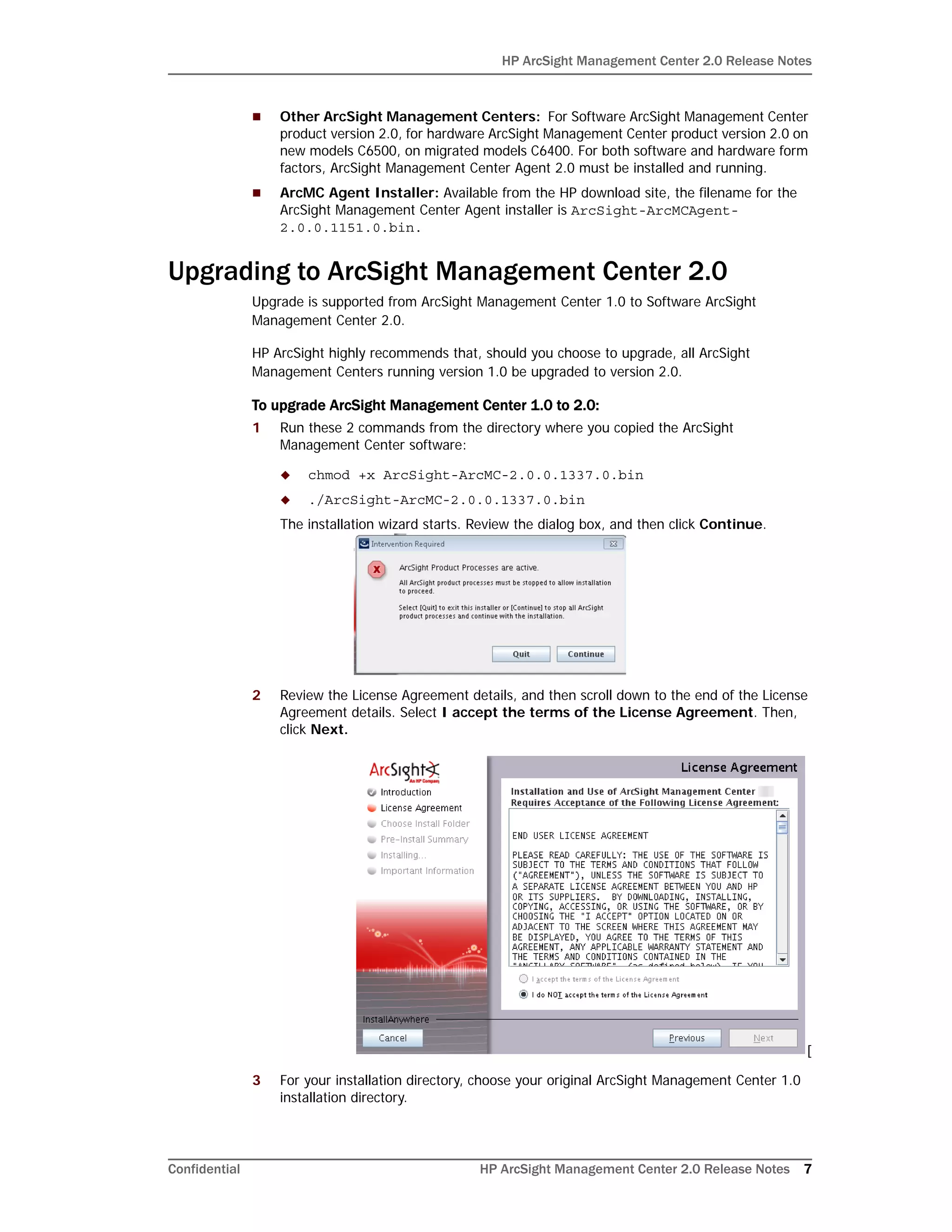
The installation wizard starts. Review the dialog box, and then click Continue.
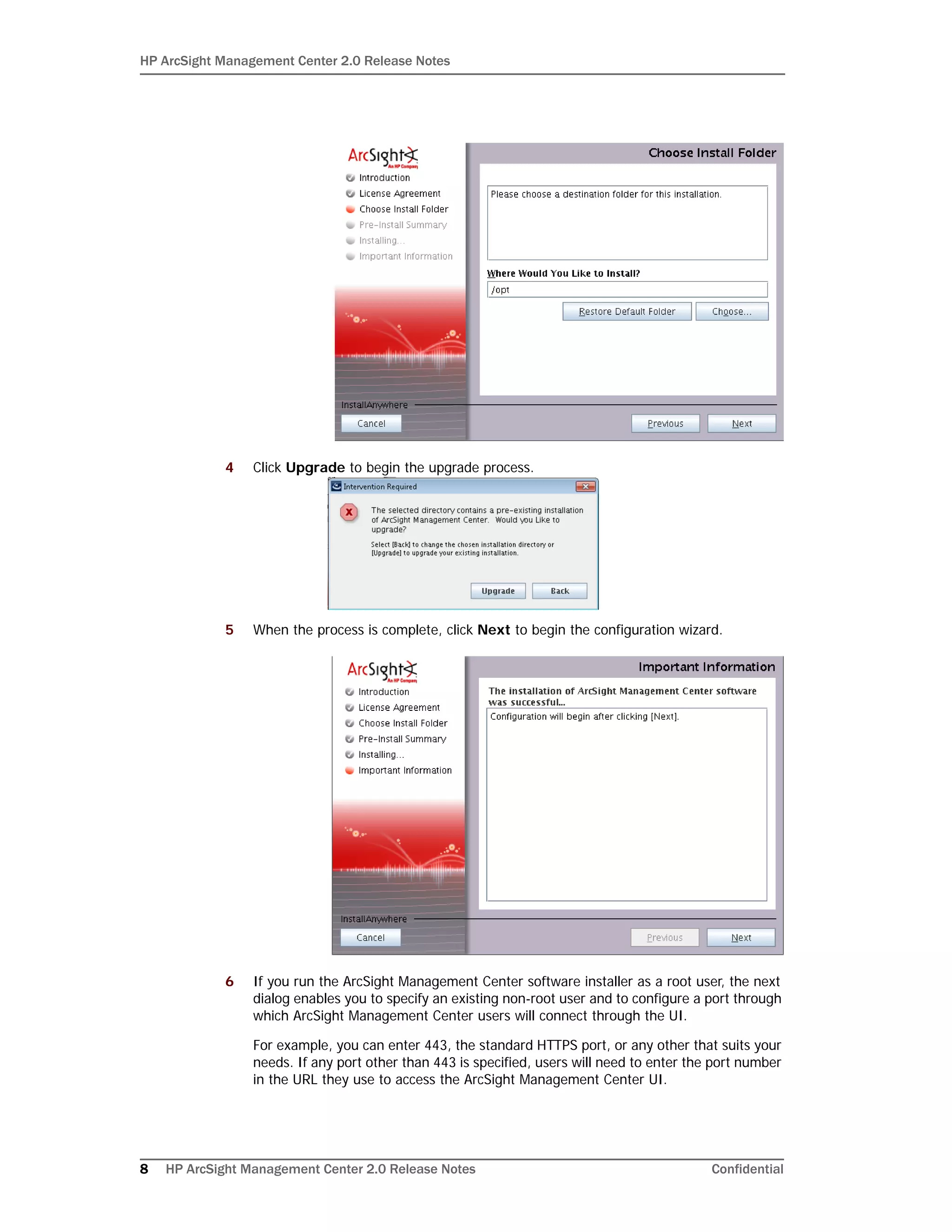
2 Review the License Agreement details, and then scroll down to the end of the License
Agreement details. Select I accept the terms of the License Agreement. Then,
click Next.
[
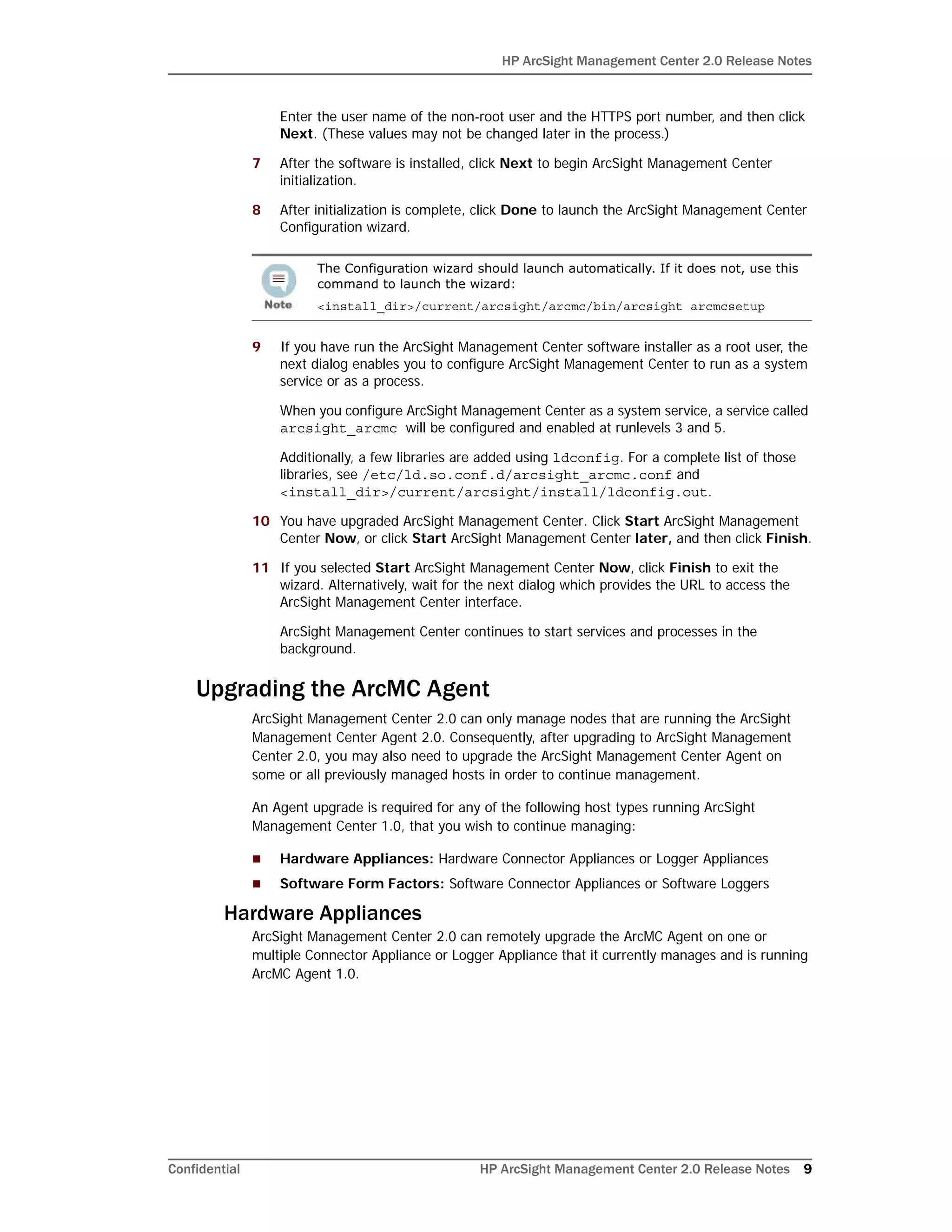
3 For your installation directory, choose your original ArcSight Management Center 1.0
installation directory.
HP ArcSight Management Center 2.0 Release Notes
8 HP ArcSight Management Center 2.0 Release Notes Confidential
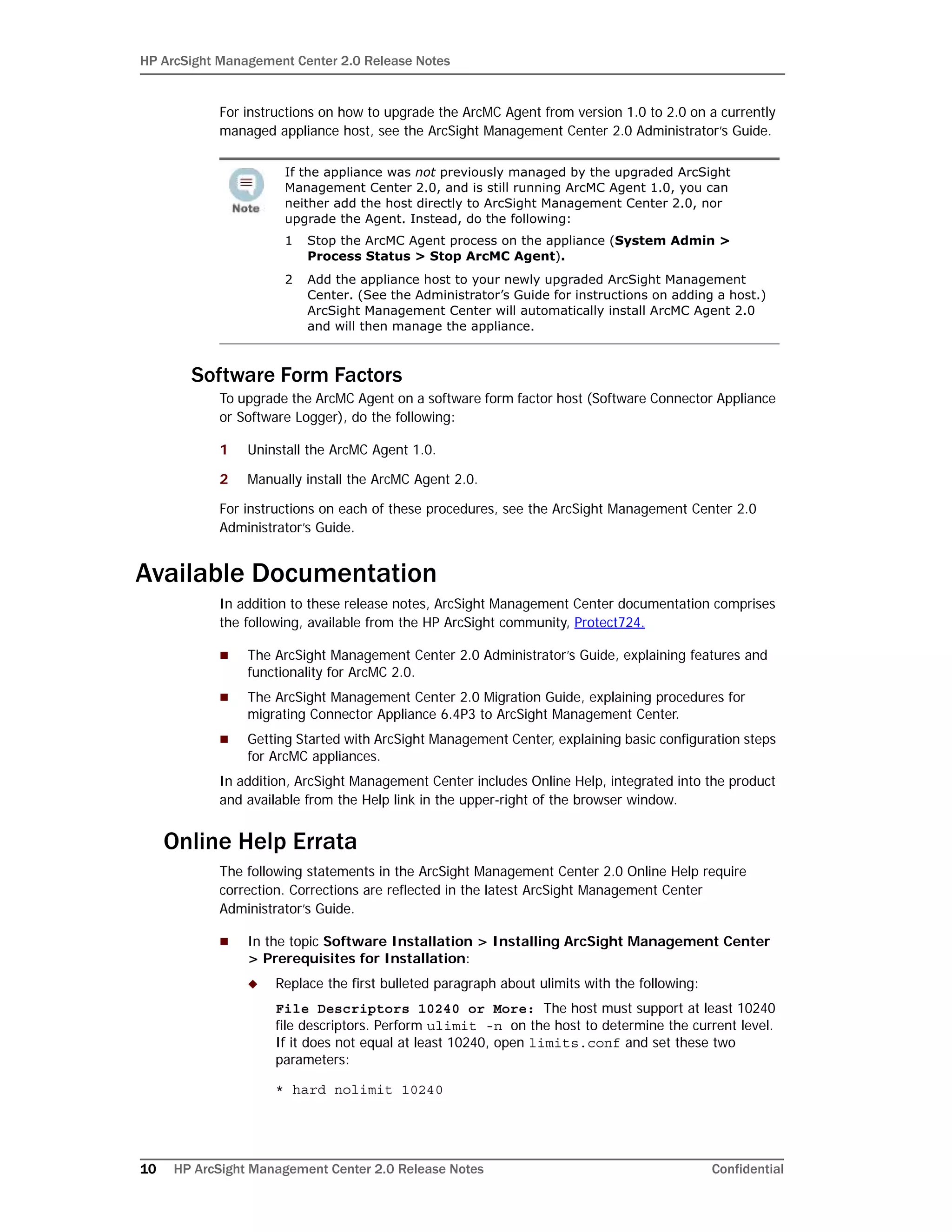
4 Click Upgrade to begin the upgrade process.
5 When the process is complete, click Next to begin the configuration wizard.
6 If you run the ArcSight Management Center software installer as a root user, the next
dialog enables you to specify an existing non-root user and to configure a port through
which ArcSight Management Center users will connect through the UI.
For example, you can enter 443, the standard HTTPS port, or any other that suits your
needs. If any port other than 443 is specified, users will need to enter the port number
in the URL they use to access the ArcSight Management Center UI.
HP ArcSight Management Center 2.0 Release Notes
Confidential HP ArcSight Management Center 2.0 Release Notes 9
Enter the user name of the non-root user and the HTTPS port number, and then click
Next. (These values may not be changed later in the process.)
7 After the software is installed, click Next to begin ArcSight Management Center
initialization.
8 After initialization is complete, click Done to launch the ArcSight Management Center
Configuration wizard.
9 If you have run the ArcSight Management Center software installer as a root user, the
next dialog enables you to configure ArcSight Management Center to run as a system
service or as a process.
When you configure ArcSight Management Center as a system service, a service called
arcsight_arcmc will be configured and enabled at runlevels 3 and 5.
Additionally, a few libraries are added using ldconfig. For a complete list of those
libraries, see /etc/ld.so.conf.d/arcsight_arcmc.conf and
<install_dir>/current/arcsight/install/ldconfig.out.
10 You have upgraded ArcSight Management Center. Click Start ArcSight Management
Center Now, or click Start ArcSight Management Center later, and then click Finish.
11 If you selected Start ArcSight Management Center Now, click Finish to exit the
wizard. Alternatively, wait for the next dialog which provides the URL to access the
ArcSight Management Center interface.
ArcSight Management Center continues to start services and processes in the
background.
Upgrading the ArcMC Agent
ArcSight Management Center 2.0 can only manage nodes that are running the ArcSight
Management Center Agent 2.0. Consequently, after upgrading to ArcSight Management
Center 2.0, you may also need to upgrade the ArcSight Management Center Agent on
some or all previously managed hosts in order to continue management.
An Agent upgrade is required for any of the following host types running ArcSight
Management Center 1.0, that you wish to continue managing:
 Hardware Appliances: Hardware Connector Appliances or Logger Appliances
 Software Form Factors: Software Connector Appliances or Software Loggers
Hardware Appliances
ArcSight Management Center 2.0 can remotely upgrade the ArcMC Agent on one or
multiple Connector Appliance or Logger Appliance that it currently manages and is running
ArcMC Agent 1.0.
The Configuration wizard should launch automatically. If it does not, use this
command to launch the wizard:
<install_dir>/current/arcsight/arcmc/bin/arcsight arcmcsetup
HP ArcSight Management Center 2.0 Release Notes
10 HP ArcSight Management Center 2.0 Release Notes Confidential
For instructions on how to upgrade the ArcMC Agent from version 1.0 to 2.0 on a currently
managed appliance host, see the ArcSight Management Center 2.0 Administrator’s Guide.
Software Form Factors
To upgrade the ArcMC Agent on a software form factor host (Software Connector Appliance
or Software Logger), do the following:
1 Uninstall the ArcMC Agent 1.0.
2 Manually install the ArcMC Agent 2.0.
For instructions on each of these procedures, see the ArcSight Management Center 2.0
Administrator’s Guide.
Available Documentation
In addition to these release notes, ArcSight Management Center documentation comprises
the following, available from the HP ArcSight community, Protect724.
 The ArcSight Management Center 2.0 Administrator’s Guide, explaining features and
functionality for ArcMC 2.0.
 The ArcSight Management Center 2.0 Migration Guide, explaining procedures for
migrating Connector Appliance 6.4P3 to ArcSight Management Center.
 Getting Started with ArcSight Management Center, explaining basic configuration steps
for ArcMC appliances.
In addition, ArcSight Management Center includes Online Help, integrated into the product
and available from the Help link in the upper-right of the browser window.
Online Help Errata
The following statements in the ArcSight Management Center 2.0 Online Help require
correction. Corrections are reflected in the latest ArcSight Management Center
Administrator’s Guide.
 In the topic Software Installation > Installing ArcSight Management Center
> Prerequisites for Installation:
 Replace the first bulleted paragraph about ulimits with the following:
File Descriptors 10240 or More: The host must support at least 10240
file descriptors. Perform ulimit -n on the host to determine the current level.
If it does not equal at least 10240, open limits.conf and set these two
parameters:
* hard nolimit 10240
If the appliance was not previously managed by the upgraded ArcSight
Management Center 2.0, and is still running ArcMC Agent 1.0, you can
neither add the host directly to ArcSight Management Center 2.0, nor
upgrade the Agent. Instead, do the following:
1 Stop the ArcMC Agent process on the appliance (System Admin >
Process Status > Stop ArcMC Agent).
2 Add the appliance host to your newly upgraded ArcSight Management
Center. (See the Administrator’s Guide for instructions on adding a host.)
ArcSight Management Center will automatically install ArcMC Agent 2.0
and will then manage the appliance.
HP ArcSight Management Center 2.0 Release Notes
Confidential HP ArcSight Management Center 2.0 Release Notes 11
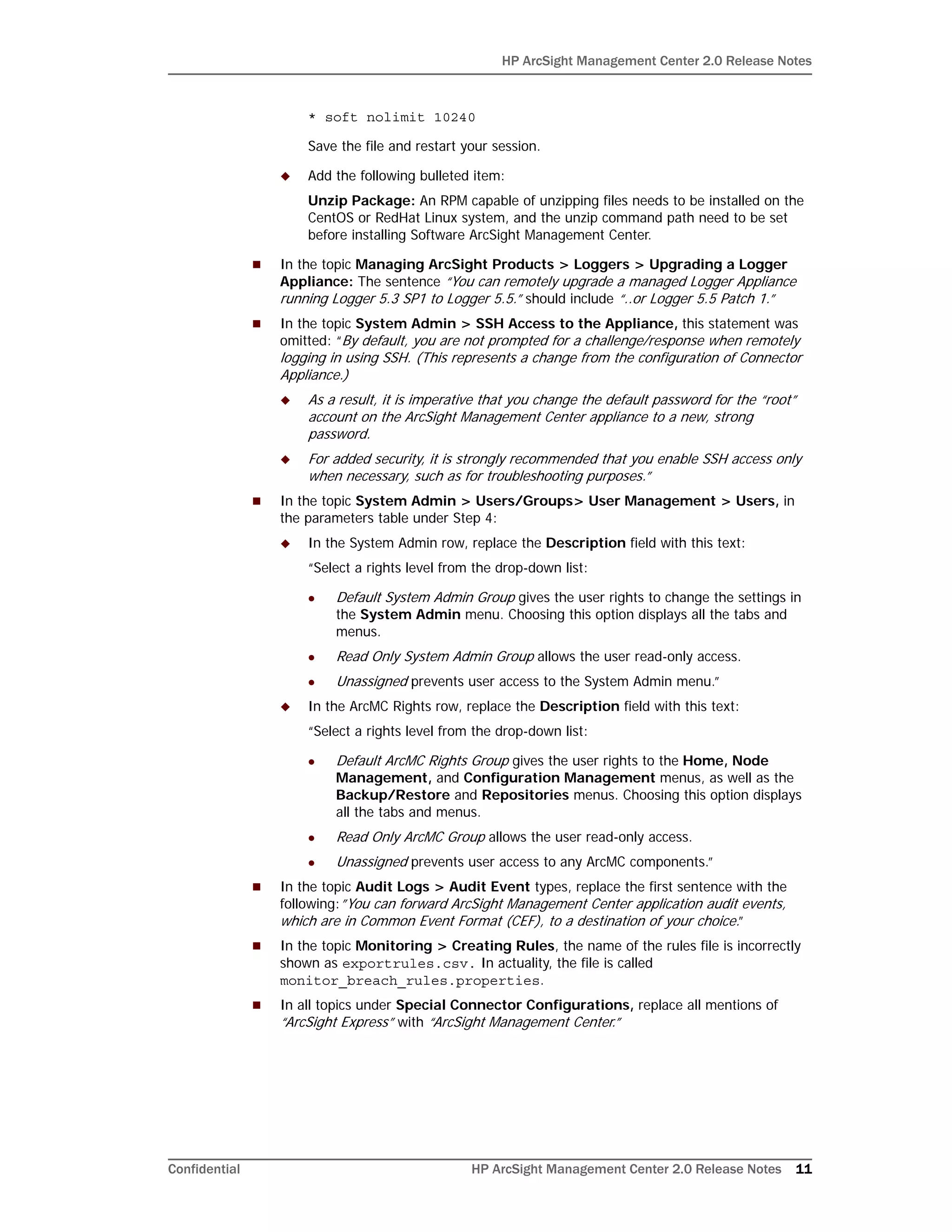
* soft nolimit 10240
Save the file and restart your session.
 Add the following bulleted item:
Unzip Package: An RPM capable of unzipping files needs to be installed on the
CentOS or RedHat Linux system, and the unzip command path need to be set
before installing Software ArcSight Management Center.
 In the topic Managing ArcSight Products > Loggers > Upgrading a Logger
Appliance: The sentence “You can remotely upgrade a managed Logger Appliance
running Logger 5.3 SP1 to Logger 5.5.” should include “..or Logger 5.5 Patch 1.”
 In the topic System Admin > SSH Access to the Appliance, this statement was
omitted: “By default, you are not prompted for a challenge/response when remotely
logging in using SSH. (This represents a change from the configuration of Connector
Appliance.)
 As a result, it is imperative that you change the default password for the “root”
account on the ArcSight Management Center appliance to a new, strong
password.
 For added security, it is strongly recommended that you enable SSH access only
when necessary, such as for troubleshooting purposes.”
 In the topic System Admin > Users/Groups> User Management > Users, in
the parameters table under Step 4:
 In the System Admin row, replace the Description field with this text:
“Select a rights level from the drop-down list:
 Default System Admin Group gives the user rights to change the settings in
the System Admin menu. Choosing this option displays all the tabs and
menus.
 Read Only System Admin Group allows the user read-only access.
 Unassigned prevents user access to the System Admin menu.”
 In the ArcMC Rights row, replace the Description field with this text:
“Select a rights level from the drop-down list:
 Default ArcMC Rights Group gives the user rights to the Home, Node
Management, and Configuration Management menus, as well as the
Backup/Restore and Repositories menus. Choosing this option displays
all the tabs and menus.
 Read Only ArcMC Group allows the user read-only access.
 Unassigned prevents user access to any ArcMC components.”
 In the topic Audit Logs > Audit Event types, replace the first sentence with the
following:”You can forward ArcSight Management Center application audit events,
which are in Common Event Format (CEF), to a destination of your choice.”
 In the topic Monitoring > Creating Rules, the name of the rules file is incorrectly
shown as exportrules.csv. In actuality, the file is called
monitor_breach_rules.properties.
 In all topics under Special Connector Configurations, replace all mentions of
“ArcSight Express” with “ArcSight Management Center.”
HP ArcSight Management Center 2.0 Release Notes
12 HP ArcSight Management Center 2.0 Release Notes Confidential
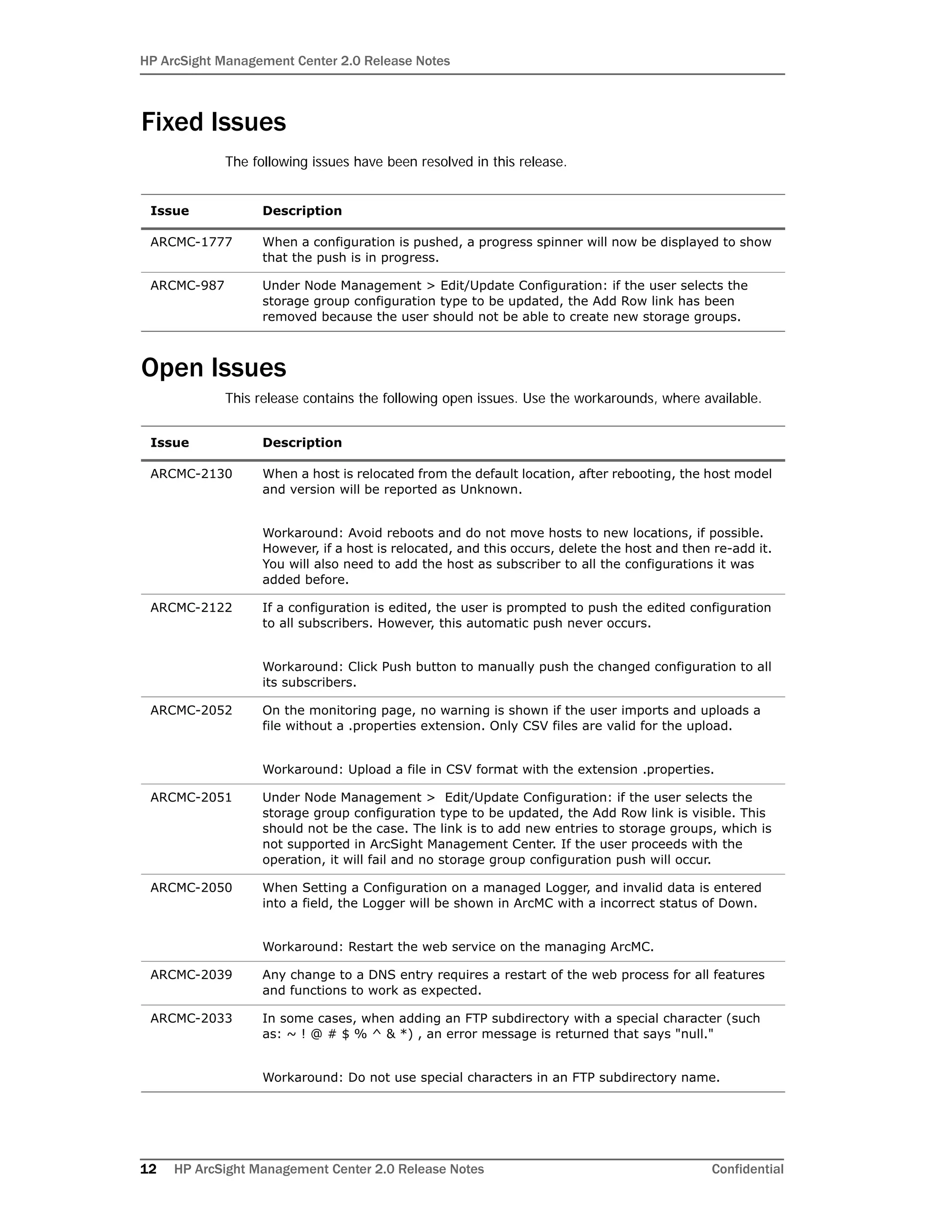
Fixed Issues
The following issues have been resolved in this release.
Open Issues
This release contains the following open issues. Use the workarounds, where available.
Issue Description
ARCMC-1777 When a configuration is pushed, a progress spinner will now be displayed to show
that the push is in progress.
ARCMC-987 Under Node Management > Edit/Update Configuration: if the user selects the
storage group configuration type to be updated, the Add Row link has been
removed because the user should not be able to create new storage groups.
Issue Description
ARCMC-2130 When a host is relocated from the default location, after rebooting, the host model
and version will be reported as Unknown.
Workaround: Avoid reboots and do not move hosts to new locations, if possible.
However, if a host is relocated, and this occurs, delete the host and then re-add it.
You will also need to add the host as subscriber to all the configurations it was
added before.
ARCMC-2122 If a configuration is edited, the user is prompted to push the edited configuration
to all subscribers. However, this automatic push never occurs.
Workaround: Click Push button to manually push the changed configuration to all
its subscribers.
ARCMC-2052 On the monitoring page, no warning is shown if the user imports and uploads a
file without a .properties extension. Only CSV files are valid for the upload.
Workaround: Upload a file in CSV format with the extension .properties.
ARCMC-2051 Under Node Management > Edit/Update Configuration: if the user selects the
storage group configuration type to be updated, the Add Row link is visible. This
should not be the case. The link is to add new entries to storage groups, which is
not supported in ArcSight Management Center. If the user proceeds with the
operation, it will fail and no storage group configuration push will occur.
ARCMC-2050 When Setting a Configuration on a managed Logger, and invalid data is entered
into a field, the Logger will be shown in ArcMC with a incorrect status of Down.
Workaround: Restart the web service on the managing ArcMC.
ARCMC-2039 Any change to a DNS entry requires a restart of the web process for all features
and functions to work as expected.
ARCMC-2033 In some cases, when adding an FTP subdirectory with a special character (such
as: ~ ! @ # $ % ^ & *) , an error message is returned that says "null."
Workaround: Do not use special characters in an FTP subdirectory name.
HP ArcSight Management Center 2.0 Release Notes
Confidential HP ArcSight Management Center 2.0 Release Notes 13
ARCMC-2021 On ArcMC appliances, the FTP configuration page (part of the System Admin UI)
erroneously doesn't let the user enter a port range (e.g. 11001-11020). It does
allow to enter a single port (e.g. 11001).
It is possible to configure a port range via the following steps:
1) In the ftp page of the sysadmin UI, configure a single port instead of the
desired port range, save the configuration
2) SSH to the appliance, login as root
3) Edit the file /opt/arcsight/ftpserver/res/conf/arcsight-ftpd.xml, modify the line
that defines the passive ports to specify the desired port range, for example:
<passive ports="11001-11020"/>
4) save the file
5) restart the ftp server to pick up the new port range:
/etc/init.d/arcsight_ftpd stop
/etc/init.d/arcsight_ftpd start
ARCMC-2011 If creating a WUC external configuration with all the parameters given on ArcMC,
please make sure all the parameters are also given on the connector side (while
creating the connector). Otherwise the push or compliance check may fail.
ARCMC-1979 If a node is being restarted after having it added onto ArcMC, the status that will
be displayed is "initialized" even though the node has not come up yet.
ARCMC-1894 In the System Admin UI License & update page, if an error occurs when uploading
a new license or update, the UI will report that an error occurred but it may not
always display the actual error message.
Workaround: Refresh the browser, go back to the License & Update page and click
on the "Last Update Status" link.
ARCMC-1613 [CONAPP-4161]
Changes will not take effect if the year portion of the date is updated manually,
using the ArcMC GUI. Instead, change the entire date, and not just the year.
ARCMC-1373 In some cases, on a migrated ArcMC, when setting a value for a Network
Configuration, ArcMC will report success when in actuality the value does not
change.
ARCMC-1284 If an attempt is made to add a "CEF encrypted syslog" destination using "choose
from existing destination" option, then there is no way to enter the shared key
value. Because of this, the destination is not registered correctly, resulting in
caching of the events.
Workaound: If user wants to add a "CEF encrypted syslog" destination, then
please only user "create a new destination" option
ARCMC-1220 In some cases, during the import hosts process, the last host in the uploaded
CSVfile is not imported.
Workaround: End the CSV file with a single, new blank line (a hard carriage
return).
ARCMC-1108 The Destinations button on the Connectors tab does not function when adding a
destination. Workaround: Restart the web process and try the button again.
Issue Description
HP ArcSight Management Center 2.0 Release Notes
14 HP ArcSight Management Center 2.0 Release Notes Confidential
ARCMC-1075 [CONAPP-4076]
In some cases, clicking the Previous button during the software upgrade may
return this error message: "upgrade installation failed:Failure occurred at the
following phase:init"
Workaround: If this occurs, click Quit on the error dialog to cancel the installation.
Then, restart the installation from the beginning.
ARCMC-1057 [CONAPP-4573]
An upgrade may fail if issued from the ArcMC GUI to a connector processing a
heavy load of events.
Workaround: If the upgrade fails from the ArcMC GUI by timing out, do one of the
following:
-Stop the event feed to the connector and let it process all the cached events.
Then perform an upgrade from the Connector Appliance GUI, OR,
-Back up the container, perform an emergency restore on it to the required build,
and then restore the backed up files to the same container.
ARCMC-1055 [CONAPP-4577]
Connectors on local containers may not be restored after applying the backup.
Workaround: To restore a connector from the backup configuration, restart it. To
restart a connector:
1. Click Setup > System Admin > Process Status.
2. From the list of connectors, select the connector to restart and then click the
Restart button.
ARCMC-1026 Turning interface homing on may result in a loss of connectivity to the appliance.
If interface homing was already turned on and is known to be working, it can be
left on.
Workaround: If interface homing was turned on and connectivity was lost, it can
be restored as follows:
1. In mouse/keyboard or iLO, log in to the console, and set the IP address of eth0
to its original address. This will cause the network service to be restarted and
should restore network connectivity.
2. Once network connectivity has been restored, open the appliance's web UI, log
in, and go to Setup > System Admin > Network > NICs.
3. Turn Interface homing off, and then restart the network service.
ARCMC-653 It is a common practice to use an internal certificate authority to sign all
certificates used within an organization. However, ArcSight Management Center
does not currently support importing the internal certificate authority's root
certificate into its trust store. Therefore, certificates signed by internal certificate
authorities will be treated as untrusted. Workaround: Import each individual host
certificate when prompted during the 'Add host' workflow.
ARCMC-652 A software connector added as a managed node will be displayed on the Hosts tab
as "Software" instead of "Software Connector".
Issue Description
HP ArcSight Management Center 2.0 Release Notes
Confidential HP ArcSight Management Center 2.0 Release Notes 15
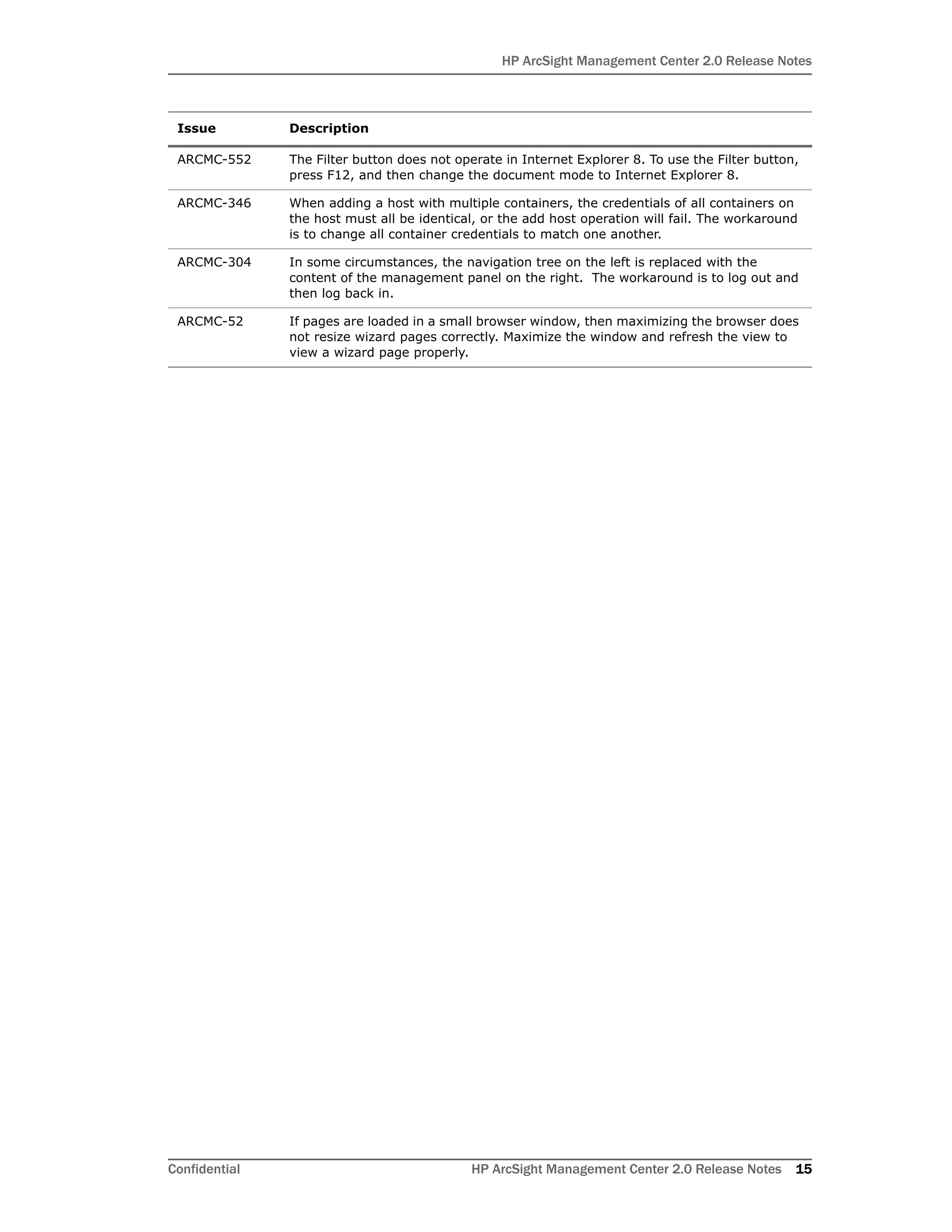
ARCMC-552 The Filter button does not operate in Internet Explorer 8. To use the Filter button,
press F12, and then change the document mode to Internet Explorer 8.
ARCMC-346 When adding a host with multiple containers, the credentials of all containers on
the host must all be identical, or the add host operation will fail. The workaround
is to change all container credentials to match one another.
ARCMC-304 In some circumstances, the navigation tree on the left is replaced with the
content of the management panel on the right. The workaround is to log out and
then log back in.
ARCMC-52 If pages are loaded in a small browser window, then maximizing the browser does
not resize wizard pages correctly. Maximize the window and refresh the view to
view a wizard page properly.
Issue Description
HP ArcSight Management Center 2.0 Release Notes
16 HP ArcSight Management Center 2.0 Release Notes Confidential

ArcSight Management Center 2.0 Release Notes

  • 1.
    Release Notes ArcSight ManagementCenter 2.0 July 22, 2014
  • 2.
    HP ArcSight ManagementCenter 2.0 Release Notes Copyright © 2014 Hewlett-Packard Development Company, L.P. Confidential computer software. Valid license from HP required for possession, use or copying. Consistent with FAR 12.211 and 12.212, Commercial Computer Software, Computer Software Documentation, and Technical Data for Commercial Items are licensed to the U.S. Government under vendor's standard commercial license. The information contained herein is subject to change without notice. The only warranties for HP products and services are set forth in the express warranty statements accompanying such products and services. Nothing herein should be construed as constituting an additional warranty. HP shall not be liable for technical or editorial errors or omissions contained herein. Follow this link to see a complete statement of copyrights and acknowledgements: http://www.hpenterprisesecurity.com/copyright The network information used in the examples in this document (including IP addresses and hostnames) is for illustration purposes only. This document is confidential. Revision History HP ArcSight Customer Support Date Product Version Description 7/22/14 2.0 Revised release notes. 5/19/14 2.0 Initial document release. 9/30/13 1.0 Initial document release. Phone 1-866-535-3285 (North America) +44 (0)870 141 7487 (EMEA) Support Web Site http://support.openview.hp.com Protect 724 Community https://protect724.hp.com
  • 3.
    Confidential HP ArcSightManagement Center 2.0 Release Notes 3 Contents HP ArcSight Management Center 2.0 Release Notes ..............................................................................5 New Features and Enhancements ...................................................................................... 5 Technical Requirements ................................................................................................... 6 Upgrading to ArcSight Management Center 2.0 ................................................................... 7 Available Documentation ................................................................................................ 10 Fixed Issues ................................................................................................................. 11 Open Issues ................................................................................................................. 11
  • 4.
    4 HP ArcSightManagement Center 2.0 Release Notes Confidential
  • 5.
    Confidential HP ArcSightManagement Center 2.0 Release Notes 5 HP ArcSight Management Center 2.0 Release Notes These release notes provide current information about HP ArcSight Management Center (ArcMC) 2.0.The following topics are discussed here: New Features and Enhancements HP ArcSight Management Center 2.0 includes these features and enhancements:  Full Connector Appliance 6.4P3 Functionality Now Included: ArcSight Management Center now includes all Connector Appliance 6.4P3 functionality and features.  New Appliance Form Factor: In addition to a software form factor, ArcSight Management Center is now available in a new hardware form factor (ArcMC Appliance).  Management of ArcSight Management Center 2.0: ArcSight Management Center 2.0 can now manage other instances of ArcSight Management Center 2.0, enabling you to deploy and manage your ArcSight Management Centers hierarchically.  Configuration Support for BlueCoat and WUC Connectors: Support has been added for configuration management of BlueCoat and WUC connectors.  Importing/Exporting Hosts: Add multiple hosts quickly and easily by importing them from a CSV file, and export hosts to a CSV file as well.  System Health Monitoring: The new monitoring dashboard displays the health of managed ArcSight products (Connectors, Loggers, Connector Appliances, and ArcMCs) and can be configured using a variety of criteria. You can create customized alerts for managed nodes.  Email Notifications: You can configure email notifications for down containers.  Managed Node Bulk ArcMC Agent Update: Easily and quickly update the ArcMC Agent on multiple managed nodes to the latest version.  Logger Appliance Remote Upgrade: Efficiently upgrade any managed Logger Appliance running 5.3 SP1 to version 5.5 or 5.5 Patch 1.  SNMP V3 Support: Support has been added for SNMP version 3. “New Features and Enhancements” on page 5 “Technical Requirements” on page 6 “Upgrading to ArcSight Management Center 2.0” on page 7 “Available Documentation” on page 10 “Fixed Issues” on page 12 “Open Issues” on page 12
  • 6.
    HP ArcSight ManagementCenter 2.0 Release Notes 6 HP ArcSight Management Center 2.0 Release Notes Confidential  FIPS Support: FIPS is fully supported in ArcSight Management Center 2.0.  Upgrade to ArcSight Management Center 2.0: Support is provided for upgrades from ArcSight Management Center 1.0 to Software ArcSight Management Center 2.0. The upgrade process is detailed in “Upgrading to ArcSight Management Center 2.0” on page 7.  Migration of Connector Appliance: Current installations of Connector Appliance and Software Connector Appliance can be migrated to ArcSight Management Center 2.0. For more information on Connector Appliance versions for which migration is supported, and for migration procedures, see the ArcSight Management Center 2.0 Migration Guide.  Simplified SSH Access: By default, you are not prompted for a challenge/response when remotely logging in to an ArcSight Management Center 2.0 appliance using SSH. (This represents a change from the configuration of Connector Appliance.)  As a result, it is imperative that you change the default password for the “root” account on an ArcSight Management Center appliance to a new, strong password.  For added security, it is strongly recommended that you enable SSH access only when necessary, such as for troubleshooting purposes. Technical Requirements For ArcSight Management Center The following outlines the minimum system requirements for ArcSight Management Center.  Server: Red Hat Enterprise Linux 6.4 and Linux 6.5 (64-bit) are certified and CentOS 6.4 and CentOS 6.5 are supported. Available from the HP download site, the filename for the ArcSight Management Center software installer is ArcSight-ArcMC- 2.0.0.1337.0.bin.  Client System: Windows 7 and 8; MacOS 10.8; Red Hat Enterprise Linux 6.4 and 6.5.  CPU: 1 or 2 Intel Xeon Quad Core or equivalent.  Memory: 8 GB RAM, 20 GB of disk space (for software form factor only).  Supported Client Browsers: Internet Explorer 9 or 10, Mozilla Firefox ESR 24, Google Chrome (version current as of 5/15/2014).  Supported Hardware Models: For new ArcMC appliance deployments, models C6502, C6504, C6508, C6515S, C6545P, C6500E, and C6500M. For migrated appliance deployments, models C6401M, C6404M, C6408M, C6504M and C6508M. For Managed ArcSight Products The supported version requirements for ArcSight products managed by ArcSight Management Center are as follows:  Software Connectors: v6.0.3 or later. Applies to software connectors running on Connector Appliance, Logger (L3XXX), or separate server.  Connector Appliances: For Software Connector Appliance, product version v6.4 P3. For hardware Connector Appliance, product version v6.4 P3, on models CX200, CX400, or CX500. For both software and hardware form factors, ArcSight Management Center Agent 2.0 must be installed and running.  Loggers: For Software Logger, product version v5.3 SP1, v5.5, or v5.5P1. For hardware Logger Appliance, product version v5.3 SP1, v5.5, or v5.5P1, on models LX200, LX400, or LX500. For both software and hardware form factors, ArcSight Management Center Agent 2.0 must be installed and running.
  • 7.
    HP ArcSight ManagementCenter 2.0 Release Notes Confidential HP ArcSight Management Center 2.0 Release Notes 7  Other ArcSight Management Centers: For Software ArcSight Management Center product version 2.0, for hardware ArcSight Management Center product version 2.0 on new models C6500, on migrated models C6400. For both software and hardware form factors, ArcSight Management Center Agent 2.0 must be installed and running.  ArcMC Agent Installer: Available from the HP download site, the filename for the ArcSight Management Center Agent installer is ArcSight-ArcMCAgent- 2.0.0.1151.0.bin. Upgrading to ArcSight Management Center 2.0 Upgrade is supported from ArcSight Management Center 1.0 to Software ArcSight Management Center 2.0. HP ArcSight highly recommends that, should you choose to upgrade, all ArcSight Management Centers running version 1.0 be upgraded to version 2.0. To upgrade ArcSight Management Center 1.0 to 2.0: 1 Run these 2 commands from the directory where you copied the ArcSight Management Center software:  chmod +x ArcSight-ArcMC-2.0.0.1337.0.bin  ./ArcSight-ArcMC-2.0.0.1337.0.bin The installation wizard starts. Review the dialog box, and then click Continue. 2 Review the License Agreement details, and then scroll down to the end of the License Agreement details. Select I accept the terms of the License Agreement. Then, click Next. [ 3 For your installation directory, choose your original ArcSight Management Center 1.0 installation directory.
  • 8.
    HP ArcSight ManagementCenter 2.0 Release Notes 8 HP ArcSight Management Center 2.0 Release Notes Confidential 4 Click Upgrade to begin the upgrade process. 5 When the process is complete, click Next to begin the configuration wizard. 6 If you run the ArcSight Management Center software installer as a root user, the next dialog enables you to specify an existing non-root user and to configure a port through which ArcSight Management Center users will connect through the UI. For example, you can enter 443, the standard HTTPS port, or any other that suits your needs. If any port other than 443 is specified, users will need to enter the port number in the URL they use to access the ArcSight Management Center UI.
  • 9.
    HP ArcSight ManagementCenter 2.0 Release Notes Confidential HP ArcSight Management Center 2.0 Release Notes 9 Enter the user name of the non-root user and the HTTPS port number, and then click Next. (These values may not be changed later in the process.) 7 After the software is installed, click Next to begin ArcSight Management Center initialization. 8 After initialization is complete, click Done to launch the ArcSight Management Center Configuration wizard. 9 If you have run the ArcSight Management Center software installer as a root user, the next dialog enables you to configure ArcSight Management Center to run as a system service or as a process. When you configure ArcSight Management Center as a system service, a service called arcsight_arcmc will be configured and enabled at runlevels 3 and 5. Additionally, a few libraries are added using ldconfig. For a complete list of those libraries, see /etc/ld.so.conf.d/arcsight_arcmc.conf and <install_dir>/current/arcsight/install/ldconfig.out. 10 You have upgraded ArcSight Management Center. Click Start ArcSight Management Center Now, or click Start ArcSight Management Center later, and then click Finish. 11 If you selected Start ArcSight Management Center Now, click Finish to exit the wizard. Alternatively, wait for the next dialog which provides the URL to access the ArcSight Management Center interface. ArcSight Management Center continues to start services and processes in the background. Upgrading the ArcMC Agent ArcSight Management Center 2.0 can only manage nodes that are running the ArcSight Management Center Agent 2.0. Consequently, after upgrading to ArcSight Management Center 2.0, you may also need to upgrade the ArcSight Management Center Agent on some or all previously managed hosts in order to continue management. An Agent upgrade is required for any of the following host types running ArcSight Management Center 1.0, that you wish to continue managing:  Hardware Appliances: Hardware Connector Appliances or Logger Appliances  Software Form Factors: Software Connector Appliances or Software Loggers Hardware Appliances ArcSight Management Center 2.0 can remotely upgrade the ArcMC Agent on one or multiple Connector Appliance or Logger Appliance that it currently manages and is running ArcMC Agent 1.0. The Configuration wizard should launch automatically. If it does not, use this command to launch the wizard: <install_dir>/current/arcsight/arcmc/bin/arcsight arcmcsetup
  • 10.
    HP ArcSight ManagementCenter 2.0 Release Notes 10 HP ArcSight Management Center 2.0 Release Notes Confidential For instructions on how to upgrade the ArcMC Agent from version 1.0 to 2.0 on a currently managed appliance host, see the ArcSight Management Center 2.0 Administrator’s Guide. Software Form Factors To upgrade the ArcMC Agent on a software form factor host (Software Connector Appliance or Software Logger), do the following: 1 Uninstall the ArcMC Agent 1.0. 2 Manually install the ArcMC Agent 2.0. For instructions on each of these procedures, see the ArcSight Management Center 2.0 Administrator’s Guide. Available Documentation In addition to these release notes, ArcSight Management Center documentation comprises the following, available from the HP ArcSight community, Protect724.  The ArcSight Management Center 2.0 Administrator’s Guide, explaining features and functionality for ArcMC 2.0.  The ArcSight Management Center 2.0 Migration Guide, explaining procedures for migrating Connector Appliance 6.4P3 to ArcSight Management Center.  Getting Started with ArcSight Management Center, explaining basic configuration steps for ArcMC appliances. In addition, ArcSight Management Center includes Online Help, integrated into the product and available from the Help link in the upper-right of the browser window. Online Help Errata The following statements in the ArcSight Management Center 2.0 Online Help require correction. Corrections are reflected in the latest ArcSight Management Center Administrator’s Guide.  In the topic Software Installation > Installing ArcSight Management Center > Prerequisites for Installation:  Replace the first bulleted paragraph about ulimits with the following: File Descriptors 10240 or More: The host must support at least 10240 file descriptors. Perform ulimit -n on the host to determine the current level. If it does not equal at least 10240, open limits.conf and set these two parameters: * hard nolimit 10240 If the appliance was not previously managed by the upgraded ArcSight Management Center 2.0, and is still running ArcMC Agent 1.0, you can neither add the host directly to ArcSight Management Center 2.0, nor upgrade the Agent. Instead, do the following: 1 Stop the ArcMC Agent process on the appliance (System Admin > Process Status > Stop ArcMC Agent). 2 Add the appliance host to your newly upgraded ArcSight Management Center. (See the Administrator’s Guide for instructions on adding a host.) ArcSight Management Center will automatically install ArcMC Agent 2.0 and will then manage the appliance.
  • 11.
    HP ArcSight ManagementCenter 2.0 Release Notes Confidential HP ArcSight Management Center 2.0 Release Notes 11 * soft nolimit 10240 Save the file and restart your session.  Add the following bulleted item: Unzip Package: An RPM capable of unzipping files needs to be installed on the CentOS or RedHat Linux system, and the unzip command path need to be set before installing Software ArcSight Management Center.  In the topic Managing ArcSight Products > Loggers > Upgrading a Logger Appliance: The sentence “You can remotely upgrade a managed Logger Appliance running Logger 5.3 SP1 to Logger 5.5.” should include “..or Logger 5.5 Patch 1.”  In the topic System Admin > SSH Access to the Appliance, this statement was omitted: “By default, you are not prompted for a challenge/response when remotely logging in using SSH. (This represents a change from the configuration of Connector Appliance.)  As a result, it is imperative that you change the default password for the “root” account on the ArcSight Management Center appliance to a new, strong password.  For added security, it is strongly recommended that you enable SSH access only when necessary, such as for troubleshooting purposes.”  In the topic System Admin > Users/Groups> User Management > Users, in the parameters table under Step 4:  In the System Admin row, replace the Description field with this text: “Select a rights level from the drop-down list:  Default System Admin Group gives the user rights to change the settings in the System Admin menu. Choosing this option displays all the tabs and menus.  Read Only System Admin Group allows the user read-only access.  Unassigned prevents user access to the System Admin menu.”  In the ArcMC Rights row, replace the Description field with this text: “Select a rights level from the drop-down list:  Default ArcMC Rights Group gives the user rights to the Home, Node Management, and Configuration Management menus, as well as the Backup/Restore and Repositories menus. Choosing this option displays all the tabs and menus.  Read Only ArcMC Group allows the user read-only access.  Unassigned prevents user access to any ArcMC components.”  In the topic Audit Logs > Audit Event types, replace the first sentence with the following:”You can forward ArcSight Management Center application audit events, which are in Common Event Format (CEF), to a destination of your choice.”  In the topic Monitoring > Creating Rules, the name of the rules file is incorrectly shown as exportrules.csv. In actuality, the file is called monitor_breach_rules.properties.  In all topics under Special Connector Configurations, replace all mentions of “ArcSight Express” with “ArcSight Management Center.”
  • 12.
    HP ArcSight ManagementCenter 2.0 Release Notes 12 HP ArcSight Management Center 2.0 Release Notes Confidential Fixed Issues The following issues have been resolved in this release. Open Issues This release contains the following open issues. Use the workarounds, where available. Issue Description ARCMC-1777 When a configuration is pushed, a progress spinner will now be displayed to show that the push is in progress. ARCMC-987 Under Node Management > Edit/Update Configuration: if the user selects the storage group configuration type to be updated, the Add Row link has been removed because the user should not be able to create new storage groups. Issue Description ARCMC-2130 When a host is relocated from the default location, after rebooting, the host model and version will be reported as Unknown. Workaround: Avoid reboots and do not move hosts to new locations, if possible. However, if a host is relocated, and this occurs, delete the host and then re-add it. You will also need to add the host as subscriber to all the configurations it was added before. ARCMC-2122 If a configuration is edited, the user is prompted to push the edited configuration to all subscribers. However, this automatic push never occurs. Workaround: Click Push button to manually push the changed configuration to all its subscribers. ARCMC-2052 On the monitoring page, no warning is shown if the user imports and uploads a file without a .properties extension. Only CSV files are valid for the upload. Workaround: Upload a file in CSV format with the extension .properties. ARCMC-2051 Under Node Management > Edit/Update Configuration: if the user selects the storage group configuration type to be updated, the Add Row link is visible. This should not be the case. The link is to add new entries to storage groups, which is not supported in ArcSight Management Center. If the user proceeds with the operation, it will fail and no storage group configuration push will occur. ARCMC-2050 When Setting a Configuration on a managed Logger, and invalid data is entered into a field, the Logger will be shown in ArcMC with a incorrect status of Down. Workaround: Restart the web service on the managing ArcMC. ARCMC-2039 Any change to a DNS entry requires a restart of the web process for all features and functions to work as expected. ARCMC-2033 In some cases, when adding an FTP subdirectory with a special character (such as: ~ ! @ # $ % ^ & *) , an error message is returned that says "null." Workaround: Do not use special characters in an FTP subdirectory name.
  • 13.
    HP ArcSight ManagementCenter 2.0 Release Notes Confidential HP ArcSight Management Center 2.0 Release Notes 13 ARCMC-2021 On ArcMC appliances, the FTP configuration page (part of the System Admin UI) erroneously doesn't let the user enter a port range (e.g. 11001-11020). It does allow to enter a single port (e.g. 11001). It is possible to configure a port range via the following steps: 1) In the ftp page of the sysadmin UI, configure a single port instead of the desired port range, save the configuration 2) SSH to the appliance, login as root 3) Edit the file /opt/arcsight/ftpserver/res/conf/arcsight-ftpd.xml, modify the line that defines the passive ports to specify the desired port range, for example: <passive ports="11001-11020"/> 4) save the file 5) restart the ftp server to pick up the new port range: /etc/init.d/arcsight_ftpd stop /etc/init.d/arcsight_ftpd start ARCMC-2011 If creating a WUC external configuration with all the parameters given on ArcMC, please make sure all the parameters are also given on the connector side (while creating the connector). Otherwise the push or compliance check may fail. ARCMC-1979 If a node is being restarted after having it added onto ArcMC, the status that will be displayed is "initialized" even though the node has not come up yet. ARCMC-1894 In the System Admin UI License & update page, if an error occurs when uploading a new license or update, the UI will report that an error occurred but it may not always display the actual error message. Workaround: Refresh the browser, go back to the License & Update page and click on the "Last Update Status" link. ARCMC-1613 [CONAPP-4161] Changes will not take effect if the year portion of the date is updated manually, using the ArcMC GUI. Instead, change the entire date, and not just the year. ARCMC-1373 In some cases, on a migrated ArcMC, when setting a value for a Network Configuration, ArcMC will report success when in actuality the value does not change. ARCMC-1284 If an attempt is made to add a "CEF encrypted syslog" destination using "choose from existing destination" option, then there is no way to enter the shared key value. Because of this, the destination is not registered correctly, resulting in caching of the events. Workaound: If user wants to add a "CEF encrypted syslog" destination, then please only user "create a new destination" option ARCMC-1220 In some cases, during the import hosts process, the last host in the uploaded CSVfile is not imported. Workaround: End the CSV file with a single, new blank line (a hard carriage return). ARCMC-1108 The Destinations button on the Connectors tab does not function when adding a destination. Workaround: Restart the web process and try the button again. Issue Description
  • 14.
    HP ArcSight ManagementCenter 2.0 Release Notes 14 HP ArcSight Management Center 2.0 Release Notes Confidential ARCMC-1075 [CONAPP-4076] In some cases, clicking the Previous button during the software upgrade may return this error message: "upgrade installation failed:Failure occurred at the following phase:init" Workaround: If this occurs, click Quit on the error dialog to cancel the installation. Then, restart the installation from the beginning. ARCMC-1057 [CONAPP-4573] An upgrade may fail if issued from the ArcMC GUI to a connector processing a heavy load of events. Workaround: If the upgrade fails from the ArcMC GUI by timing out, do one of the following: -Stop the event feed to the connector and let it process all the cached events. Then perform an upgrade from the Connector Appliance GUI, OR, -Back up the container, perform an emergency restore on it to the required build, and then restore the backed up files to the same container. ARCMC-1055 [CONAPP-4577] Connectors on local containers may not be restored after applying the backup. Workaround: To restore a connector from the backup configuration, restart it. To restart a connector: 1. Click Setup > System Admin > Process Status. 2. From the list of connectors, select the connector to restart and then click the Restart button. ARCMC-1026 Turning interface homing on may result in a loss of connectivity to the appliance. If interface homing was already turned on and is known to be working, it can be left on. Workaround: If interface homing was turned on and connectivity was lost, it can be restored as follows: 1. In mouse/keyboard or iLO, log in to the console, and set the IP address of eth0 to its original address. This will cause the network service to be restarted and should restore network connectivity. 2. Once network connectivity has been restored, open the appliance's web UI, log in, and go to Setup > System Admin > Network > NICs. 3. Turn Interface homing off, and then restart the network service. ARCMC-653 It is a common practice to use an internal certificate authority to sign all certificates used within an organization. However, ArcSight Management Center does not currently support importing the internal certificate authority's root certificate into its trust store. Therefore, certificates signed by internal certificate authorities will be treated as untrusted. Workaround: Import each individual host certificate when prompted during the 'Add host' workflow. ARCMC-652 A software connector added as a managed node will be displayed on the Hosts tab as "Software" instead of "Software Connector". Issue Description
  • 15.
    HP ArcSight ManagementCenter 2.0 Release Notes Confidential HP ArcSight Management Center 2.0 Release Notes 15 ARCMC-552 The Filter button does not operate in Internet Explorer 8. To use the Filter button, press F12, and then change the document mode to Internet Explorer 8. ARCMC-346 When adding a host with multiple containers, the credentials of all containers on the host must all be identical, or the add host operation will fail. The workaround is to change all container credentials to match one another. ARCMC-304 In some circumstances, the navigation tree on the left is replaced with the content of the management panel on the right. The workaround is to log out and then log back in. ARCMC-52 If pages are loaded in a small browser window, then maximizing the browser does not resize wizard pages correctly. Maximize the window and refresh the view to view a wizard page properly. Issue Description
  • 16.
    HP ArcSight ManagementCenter 2.0 Release Notes 16 HP ArcSight Management Center 2.0 Release Notes Confidential