Walkthrough A step by step guide for the new www.AnytimeCE.com  user.
Table of contents Selecting approved states. Selecting your trade. Selecting the right course for you. Trying a sample course. Registration for a course. Purchasing a course. Accessing and taking a course.
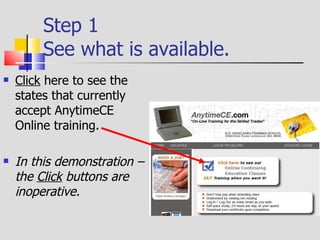
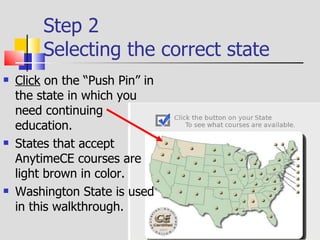
Step 1 Selecting the correct state Click  on the “Push Pin” in the state in which you need continuing education. States that accept AnytimeCE courses are light brown in color.  Washington State is used in this walkthrough.
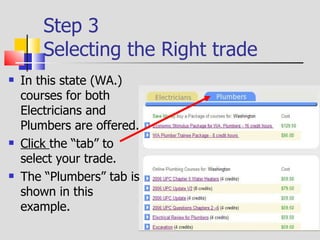
Step 2 Selecting the Right trade In this state (WA) courses for both Electricians and Plumbers are offered.  Click  the “tab” to select your trade.  The “Plumbers” tab is shown in this example.
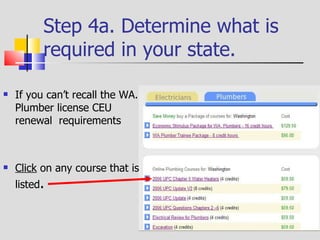
If you can’t recall your license CEU renewal requirements… Click  on any course that is listed .  Step 3a. Determine what is required in your state.
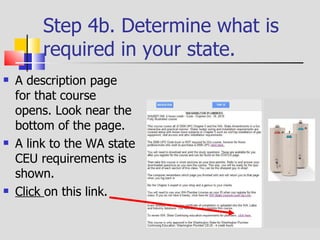
A description page for that course opens. Look near the bottom of the page.  A link to the WA state CEU requirements is shown.  Click  on this link. Step 3b. Determine what is required in your state.
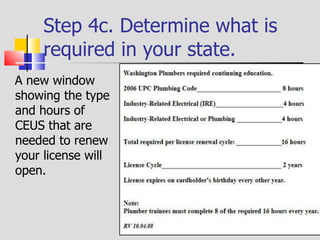
Step 3c. Determine what is required in your state. A new window showing the type and hours of CEUS that are needed to renew your license will open.
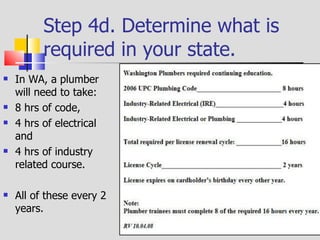
Step 3d. Determine what is required in your state. In WA, for example, a plumber needs: 8 hrs of code  4 hrs of electrical 4 hrs of industry related courses  All of these every 2 years
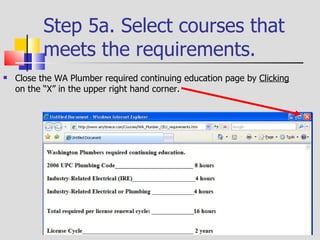
Step 4. Return to the courses. Close the WA Plumber required continuing education page by  Clicking  on the “X” in the upper right hand corner.
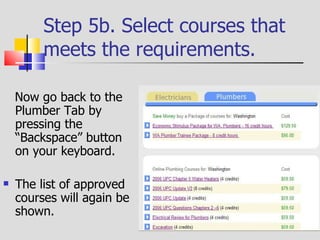
Step 5. Select courses that meets the requirements. Now go back to the Plumber Tab by pressing the “Backspace” button on your keyboard. The list of approved courses will again be shown.
Step 6. Review the basic types of courses offered. Illustrated Courses. These courses are well illustrated with graphics, pictures and photographs of the material covered. These courses are ideal for the tradesman that likes “doing” vs. reading. Non-Illustrated Courses. These courses are best for the tradesman that really likes to “get into” the code and reference books to look up answers to questions.
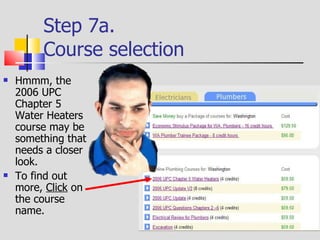
Step 7a.  Course selection Hmmm, the 2006 UPC Chapter 5 Water Heaters  course may be something that  needs a closer look. To find out more,  Click  on   the course name.
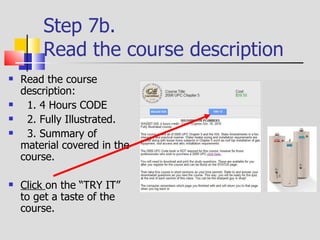
Step 7b.  Read the course description   Read the course description:  1. 4 Hours CODE  2. Fully Illustrated.  3. Summary of material covered in the course.  Click  on the “TRY IT” to get a taste of the course.
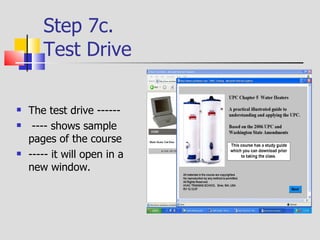
Step 7c.  Test Drive  The test drive ------ ---- shows sample pages of the course  ----- it will open in a new window.
Step 7c. Test drive Navigate through the sample course by  Clicking  on the “Next” button .
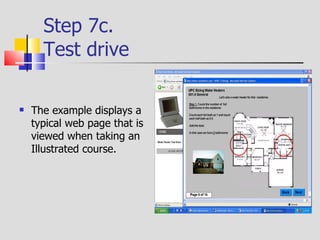
Step 7c. Test drive The example displays a typical web page that is viewed when taking an Illustrated course.
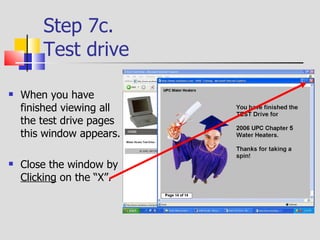
Step 7c. Test drive When you have finished viewing all the test drive pages this window appears. Close the window by  Clicking  on the “X”.
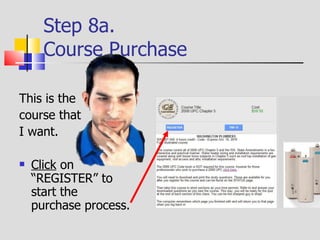
Step 8a.  Course Purchase This is the course that I want. Click  on “REGISTER” to start the purchase process.
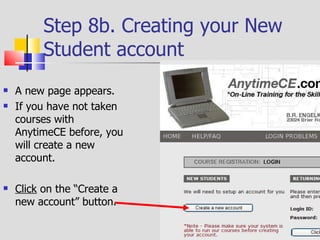
Step 8b. Creating your New Student account A new page appears. If you have not taken courses with AnytimeCE before, you will create a new account. Click  on the “Create a new account” button.
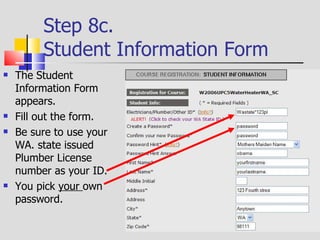
Step 8c.  Student Information Form The Student Information Form appears. Fill out the form. Be sure to use your WA. state issued Plumber License number as your ID. You pick  your  own password.
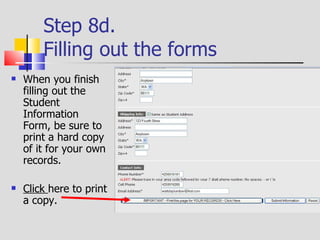
Step 8d.  Filling out the forms When you finish filling out the Student Information Form, be sure to print a hard copy of it for your own records.  Click  here to print a copy.
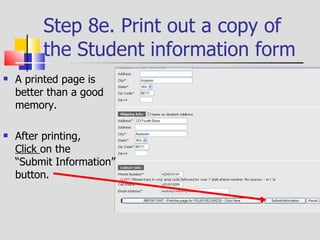
Step 8e. Print out a copy of the Student information form A printed page is better than a good memory. After printing,  Click  on the  “Submit Information” button.
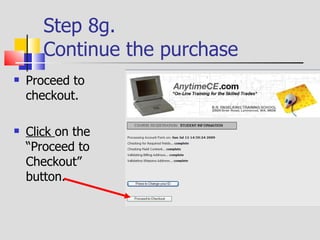
Step 8g.  Continue the purchase  Proceed to checkout. Click  on the “Proceed to Checkout ” button.
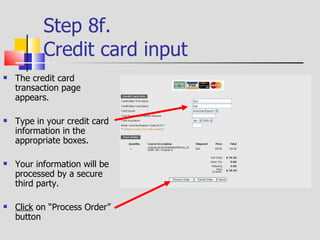
Step 8f.  Credit card input The credit card transaction page appears. Type in your credit card information in the appropriate boxes. Your information will be processed by a secure  third party. Click  on “Process Order” button
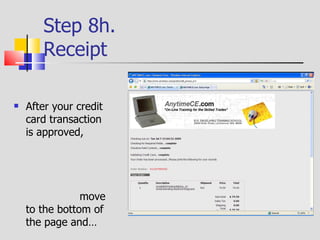
Step 8h.  Receipt After your credit card transaction is approved,  move to the bottom of the page and…
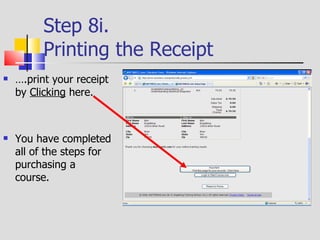
Step 8i.  Printing the Receipt … .print your receipt by  Clicking  here. You have completed all of the steps for purchasing a course.
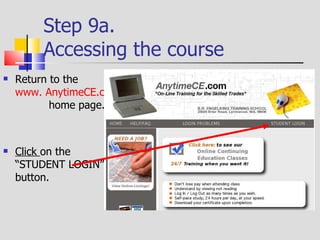
Step 9a. Accessing  the course   Return to the  www. AnytimeCE.com   home page. Click  on the  “STUDENT LOGIN” button.
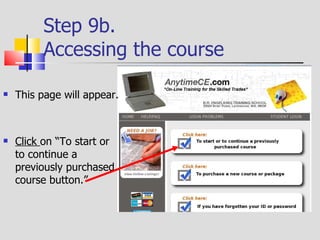
Step 9b.  Accessing  the course   This page will appear. Click  on “To start or to continue a previously purchased course button.”
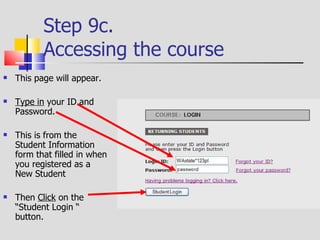
Step 9c.  Accessing  the course   This page will appear. Type in  your ID and Password. This is from the Student Information form that filled in when you registered as a New Student Then  Click  on the “Student Login “ button.
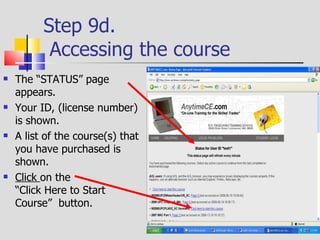
Step 9d.   Accessing  the course   The “STATUS” page appears. Your ID, (license number) is shown. A list of the course(s) that you have purchased is shown. Click  on the  “Click Here to Start Course”  button.
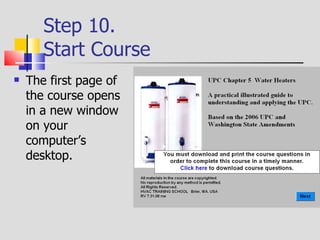
Step 10.  Start Course The first page of the course opens in a new window on your computer’s  desktop.
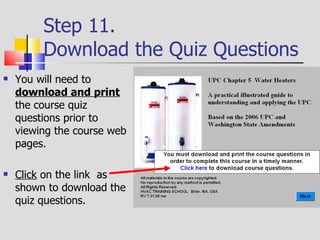
Step 11.  Download the Quiz Questions You will need to  download and print  the course quiz questions prior to viewing the course web pages. Click  on the link  as shown to download the quiz questions.
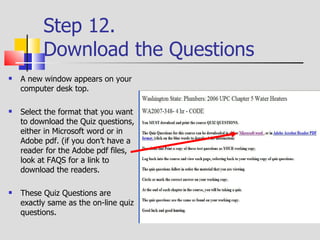
Step 12.  Download the Questions A new window appears on your computer desk top. Select the format that you want to download the Quiz questions, either in Microsoft word or in Adobe pdf. (if you don’t have a reader for the Adobe pdf files, look at FAQS for a link to download the readers. These Quiz Questions are exactly same as the on-line quiz questions.
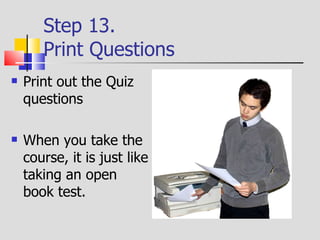
Step 13.  Print Questions Print out the Quiz questions When you take the course, it is just like taking an open book test.
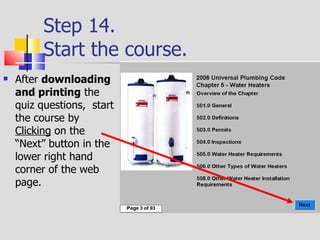
Step 14.  Start the course. After  downloading and printing  the quiz questions,  start the course by  Clicking  on the “Next” button in the lower right hand corner of the web page.
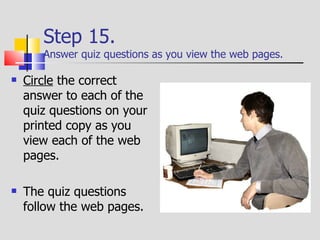
Step 15.  Answer quiz questions as you view the web pages. Circle  the correct answer to each of the quiz questions on your printed copy as you view each of the web pages. The quiz questions follow the web pages.
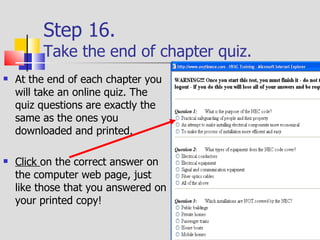
Step 16.  Take the end of chapter quiz. At the end of each chapter you will take an online quiz. The quiz questions are exactly the same as the ones you downloaded and printed. Click  on the correct answer on the computer web page, just like those that you answered on your printed copy!
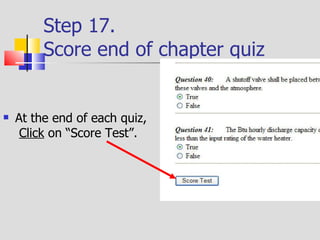
Step 17. Score end of chapter quiz At the end of each quiz,  Click  on “Score Test”.
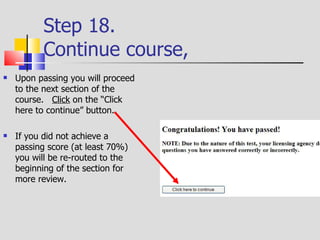
Step 18. Continue course,  Upon passing you will proceed to the next section of the course.  Click  on the “Click here to continue” button. If you did not achieve a passing score (at least 70%)  you will be re-routed to the beginning of the section for more review.
Step 19. Continue course to the end.  Continue viewing and studying each web page. At the end of each section, take the section quiz. Upon passing the last quiz, the following page appears. AnytimeCE will automatically notify the AHJ in your state  that you have successfully completed this continuing education course.

AnytimeCE Online Courses Tutorial

  • 1.
    Walkthrough A stepby step guide for the new www.AnytimeCE.com user.
  • 2.
    Table of contentsSelecting approved states. Selecting your trade. Selecting the right course for you. Trying a sample course. Registration for a course. Purchasing a course. Accessing and taking a course.
  • 3.
    Step 1 Selectingthe correct state Click on the “Push Pin” in the state in which you need continuing education. States that accept AnytimeCE courses are light brown in color. Washington State is used in this walkthrough.
  • 4.
    Step 2 Selectingthe Right trade In this state (WA) courses for both Electricians and Plumbers are offered. Click the “tab” to select your trade. The “Plumbers” tab is shown in this example.
  • 5.
    If you can’trecall your license CEU renewal requirements… Click on any course that is listed . Step 3a. Determine what is required in your state.
  • 6.
    A description pagefor that course opens. Look near the bottom of the page. A link to the WA state CEU requirements is shown. Click on this link. Step 3b. Determine what is required in your state.
  • 7.
    Step 3c. Determinewhat is required in your state. A new window showing the type and hours of CEUS that are needed to renew your license will open.
  • 8.
    Step 3d. Determinewhat is required in your state. In WA, for example, a plumber needs: 8 hrs of code 4 hrs of electrical 4 hrs of industry related courses All of these every 2 years
  • 9.
    Step 4. Returnto the courses. Close the WA Plumber required continuing education page by Clicking on the “X” in the upper right hand corner.
  • 10.
    Step 5. Selectcourses that meets the requirements. Now go back to the Plumber Tab by pressing the “Backspace” button on your keyboard. The list of approved courses will again be shown.
  • 11.
    Step 6. Reviewthe basic types of courses offered. Illustrated Courses. These courses are well illustrated with graphics, pictures and photographs of the material covered. These courses are ideal for the tradesman that likes “doing” vs. reading. Non-Illustrated Courses. These courses are best for the tradesman that really likes to “get into” the code and reference books to look up answers to questions.
  • 12.
    Step 7a. Course selection Hmmm, the 2006 UPC Chapter 5 Water Heaters course may be something that needs a closer look. To find out more, Click on the course name.
  • 13.
    Step 7b. Read the course description Read the course description: 1. 4 Hours CODE 2. Fully Illustrated. 3. Summary of material covered in the course. Click on the “TRY IT” to get a taste of the course.
  • 14.
    Step 7c. Test Drive The test drive ------ ---- shows sample pages of the course ----- it will open in a new window.
  • 15.
    Step 7c. Testdrive Navigate through the sample course by Clicking on the “Next” button .
  • 16.
    Step 7c. Testdrive The example displays a typical web page that is viewed when taking an Illustrated course.
  • 17.
    Step 7c. Testdrive When you have finished viewing all the test drive pages this window appears. Close the window by Clicking on the “X”.
  • 18.
    Step 8a. Course Purchase This is the course that I want. Click on “REGISTER” to start the purchase process.
  • 19.
    Step 8b. Creatingyour New Student account A new page appears. If you have not taken courses with AnytimeCE before, you will create a new account. Click on the “Create a new account” button.
  • 20.
    Step 8c. Student Information Form The Student Information Form appears. Fill out the form. Be sure to use your WA. state issued Plumber License number as your ID. You pick your own password.
  • 21.
    Step 8d. Filling out the forms When you finish filling out the Student Information Form, be sure to print a hard copy of it for your own records. Click here to print a copy.
  • 22.
    Step 8e. Printout a copy of the Student information form A printed page is better than a good memory. After printing, Click on the “Submit Information” button.
  • 23.
    Step 8g. Continue the purchase Proceed to checkout. Click on the “Proceed to Checkout ” button.
  • 24.
    Step 8f. Credit card input The credit card transaction page appears. Type in your credit card information in the appropriate boxes. Your information will be processed by a secure third party. Click on “Process Order” button
  • 25.
    Step 8h. Receipt After your credit card transaction is approved, move to the bottom of the page and…
  • 26.
    Step 8i. Printing the Receipt … .print your receipt by Clicking here. You have completed all of the steps for purchasing a course.
  • 27.
    Step 9a. Accessing the course Return to the www. AnytimeCE.com home page. Click on the “STUDENT LOGIN” button.
  • 28.
    Step 9b. Accessing the course This page will appear. Click on “To start or to continue a previously purchased course button.”
  • 29.
    Step 9c. Accessing the course This page will appear. Type in your ID and Password. This is from the Student Information form that filled in when you registered as a New Student Then Click on the “Student Login “ button.
  • 30.
    Step 9d. Accessing the course The “STATUS” page appears. Your ID, (license number) is shown. A list of the course(s) that you have purchased is shown. Click on the “Click Here to Start Course” button.
  • 31.
    Step 10. Start Course The first page of the course opens in a new window on your computer’s desktop.
  • 32.
    Step 11. Download the Quiz Questions You will need to download and print the course quiz questions prior to viewing the course web pages. Click on the link as shown to download the quiz questions.
  • 33.
    Step 12. Download the Questions A new window appears on your computer desk top. Select the format that you want to download the Quiz questions, either in Microsoft word or in Adobe pdf. (if you don’t have a reader for the Adobe pdf files, look at FAQS for a link to download the readers. These Quiz Questions are exactly same as the on-line quiz questions.
  • 34.
    Step 13. Print Questions Print out the Quiz questions When you take the course, it is just like taking an open book test.
  • 35.
    Step 14. Start the course. After downloading and printing the quiz questions, start the course by Clicking on the “Next” button in the lower right hand corner of the web page.
  • 36.
    Step 15. Answer quiz questions as you view the web pages. Circle the correct answer to each of the quiz questions on your printed copy as you view each of the web pages. The quiz questions follow the web pages.
  • 37.
    Step 16. Take the end of chapter quiz. At the end of each chapter you will take an online quiz. The quiz questions are exactly the same as the ones you downloaded and printed. Click on the correct answer on the computer web page, just like those that you answered on your printed copy!
  • 38.
    Step 17. Scoreend of chapter quiz At the end of each quiz, Click on “Score Test”.
  • 39.
    Step 18. Continuecourse, Upon passing you will proceed to the next section of the course. Click on the “Click here to continue” button. If you did not achieve a passing score (at least 70%) you will be re-routed to the beginning of the section for more review.
  • 40.
    Step 19. Continuecourse to the end. Continue viewing and studying each web page. At the end of each section, take the section quiz. Upon passing the last quiz, the following page appears. AnytimeCE will automatically notify the AHJ in your state that you have successfully completed this continuing education course.