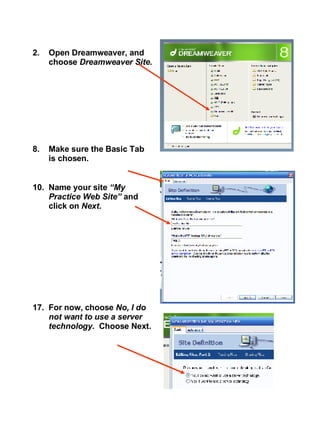
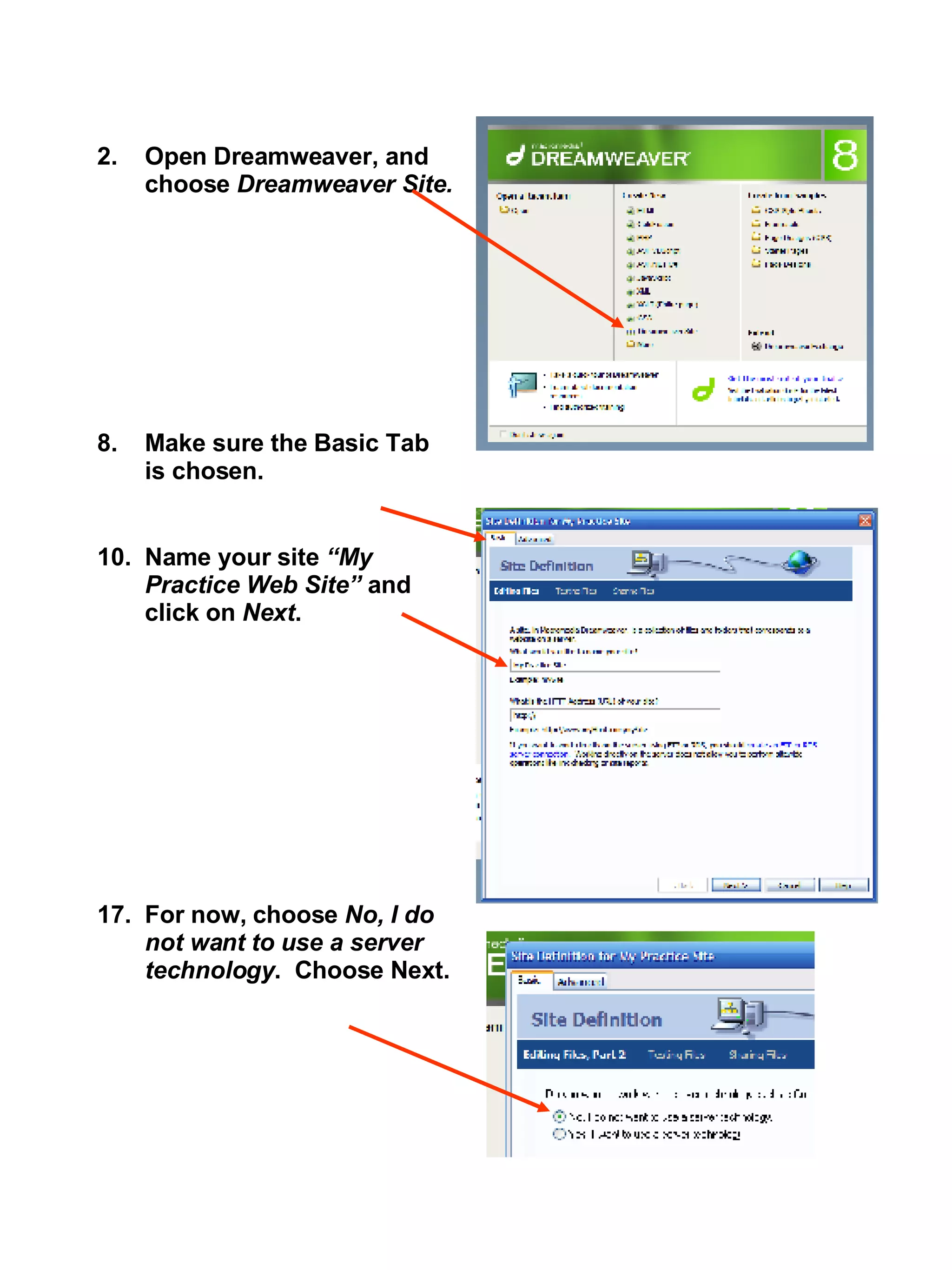
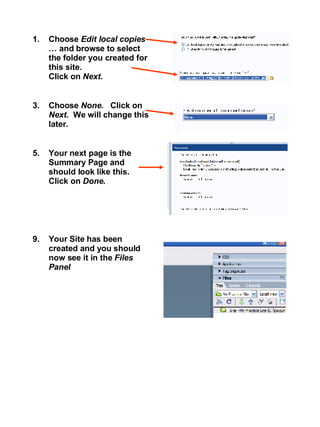
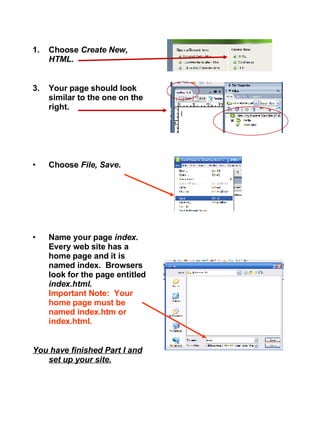
Open Dreamweaver, and choose  Dreamweaver Site. Make sure the Basic Tab is chosen. Name your site  “My Practice Web Site”  and click on  Next . For now, choose  No, I do not want to use a server technology .  Choose Next.
Choose  Edit local copies  … and browse to select the folder you created for this site.  Click on  Next . Choose  None.  Click on  Next.  We will change this later. Your next page is the Summary Page and should look like this.  Click on  Done . Your Site has been created and you should now see it in the  Files Panel
Choose  Create New, HTML . Your page should look similar to the one on the right. Choose  File, Save . Name your page  index .  Every web site has a home page and it is named index.  Browsers look for the page entitled  index.html .  Important Note:  Your home page must be named index.htm or index.html. You have finished Part I and set up your site.

Setup1

  • 1.
    Open Dreamweaver, andchoose Dreamweaver Site. Make sure the Basic Tab is chosen. Name your site “My Practice Web Site” and click on Next . For now, choose No, I do not want to use a server technology . Choose Next.
  • 2.
    Choose Editlocal copies … and browse to select the folder you created for this site. Click on Next . Choose None. Click on Next. We will change this later. Your next page is the Summary Page and should look like this. Click on Done . Your Site has been created and you should now see it in the Files Panel
  • 3.
    Choose CreateNew, HTML . Your page should look similar to the one on the right. Choose File, Save . Name your page index . Every web site has a home page and it is named index. Browsers look for the page entitled index.html . Important Note: Your home page must be named index.htm or index.html. You have finished Part I and set up your site.