ANDROID
DEVELOPMENT
SESSION 6 – GOOGLE MAPS V2, GPS LOCATION
AHMED EZZ EL - DIN
facebook.com/ahmed.e.hassan
1
SESSION CONTENT
• Downloading Google Play Services
• Google Maps API key
• Placing a Marker
• Changing Marker Color
• Custom Marker Icon
• Moving camera to location with animation
• Changing Map Type
• Current Location
• Zooming Buttons and Functionality
• Compass Functionality
• My Location Button
• Map Rotate Gesture
facebook.com/ahmed.e.hassan
2
INTRODUCTION
facebook.com/ahmed.e.hassan
3
Google Maps v1 not working anymore, welcome V2.
Before starting a new project, we need to go through some pre required steps.
• Downloading Google Play Services
• Getting the Google Maps API key
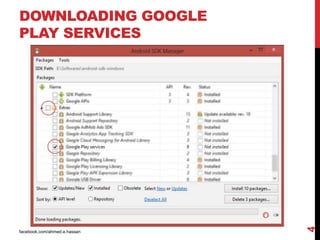
DOWNLOADING GOOGLE
PLAY SERVICES
facebook.com/ahmed.e.hassan
4
DOWNLOADING GOOGLE
PLAY SERVICES
facebook.com/ahmed.e.hassan
5
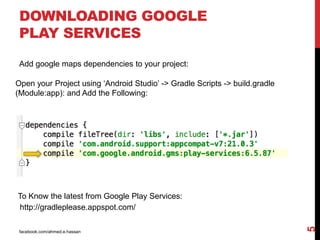
Add google maps dependencies to your project:
Open your Project using ‘Android Studio’ -> Gradle Scripts -> build.gradle
(Module:app): and Add the Following:
http://gradleplease.appspot.com/
To Know the latest from Google Play Services:
facebook.com/ahmed.e.hassan
6
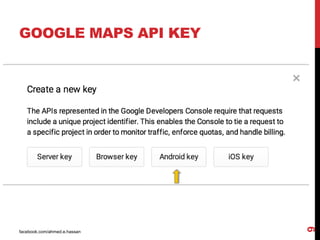
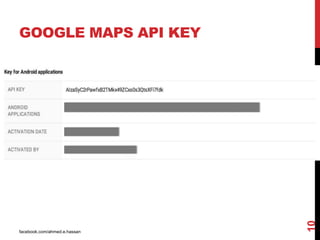
GOOGLE MAPS API KEY
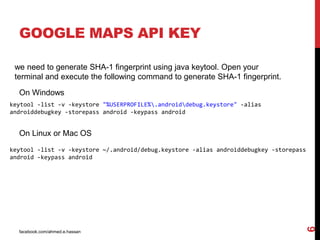
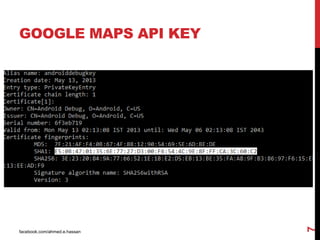
we need to generate SHA-1 fingerprint using java keytool. Open your
terminal and execute the following command to generate SHA-1 fingerprint.
On Windows
keytool -list -v -keystore "%USERPROFILE%.androiddebug.keystore" -alias
androiddebugkey -storepass android -keypass android
On Linux or Mac OS
keytool -list -v -keystore ~/.android/debug.keystore -alias androiddebugkey -storepass
android -keypass android
facebook.com/ahmed.e.hassan
7
GOOGLE MAPS API KEY
facebook.com/ahmed.e.hassan
8
GOOGLE MAPS API KEY
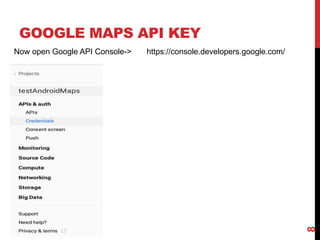
Now open Google API Console-> https://console.developers.google.com/
facebook.com/ahmed.e.hassan
9
GOOGLE MAPS API KEY
facebook.com/ahmed.e.hassan
10
GOOGLE MAPS API KEY
facebook.com/ahmed.e.hassan
11
PLACING MARKER
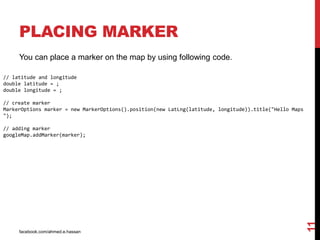
You can place a marker on the map by using following code.
// latitude and longitude
double latitude = ;
double longitude = ;
// create marker
MarkerOptions marker = new MarkerOptions().position(new LatLng(latitude, longitude)).title("Hello Maps
");
// adding marker
googleMap.addMarker(marker);
facebook.com/ahmed.e.hassan
12
CHANGING MARKER
COLOR
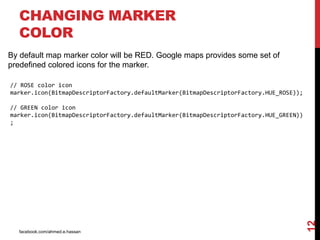
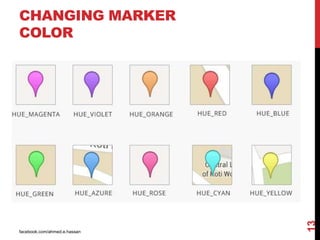
By default map marker color will be RED. Google maps provides some set of
predefined colored icons for the marker.
// ROSE color icon
marker.icon(BitmapDescriptorFactory.defaultMarker(BitmapDescriptorFactory.HUE_ROSE));
// GREEN color icon
marker.icon(BitmapDescriptorFactory.defaultMarker(BitmapDescriptorFactory.HUE_GREEN))
;
facebook.com/ahmed.e.hassan
13
CHANGING MARKER
COLOR
facebook.com/ahmed.e.hassan
14
CUSTOM MARKER ICON
Apart from maps native marker icons, you can use own image to show as a marker.
You can load the icon from any kind of supported sources.
fromAsset(String assetName) – Loading from assets folder
fromBitmap (Bitmap image) – Loading bitmap image
fromFile (String path) – Loading from file
fromResource (int resourceId) – Loading from drawable resource
// Changing marker icon
marker.icon(BitmapDescriptorFactory.fromResource(R.drawable.my_marker_icon)));
facebook.com/ahmed.e.hassan
15
MOVING CAMERA TO LOCATION
WITH ANIMATION
You may want to move camera to a particular position. Google maps provides
set of functions to achieve this.
CameraPosition cameraPosition = new CameraPosition.Builder().target(
new LatLng(17.385044, 78.486671)).zoom(12).build();
googleMap.animateCamera(CameraUpdateFactory.newCameraPosition(cameraPosition));
facebook.com/ahmed.e.hassan
16
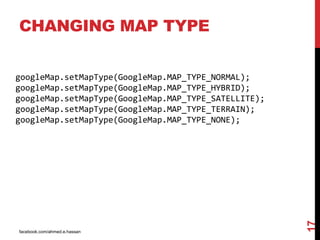
CHANGING MAP TYPE
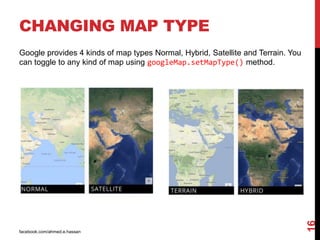
Google provides 4 kinds of map types Normal, Hybrid, Satellite and Terrain. You
can toggle to any kind of map using googleMap.setMapType() method.
facebook.com/ahmed.e.hassan
17
CHANGING MAP TYPE
googleMap.setMapType(GoogleMap.MAP_TYPE_NORMAL);
googleMap.setMapType(GoogleMap.MAP_TYPE_HYBRID);
googleMap.setMapType(GoogleMap.MAP_TYPE_SATELLITE);
googleMap.setMapType(GoogleMap.MAP_TYPE_TERRAIN);
googleMap.setMapType(GoogleMap.MAP_TYPE_NONE);
facebook.com/ahmed.e.hassan
18
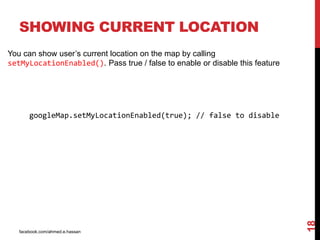
SHOWING CURRENT LOCATION
You can show user’s current location on the map by calling
setMyLocationEnabled(). Pass true / false to enable or disable this feature
googleMap.setMyLocationEnabled(true); // false to disable
facebook.com/ahmed.e.hassan
19
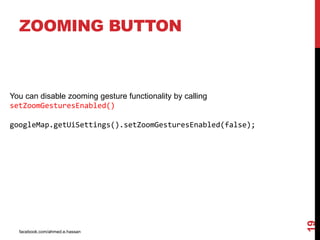
ZOOMING BUTTON
You can disable zooming gesture functionality by calling
setZoomGesturesEnabled()
googleMap.getUiSettings().setZoomGesturesEnabled(false);
facebook.com/ahmed.e.hassan
20
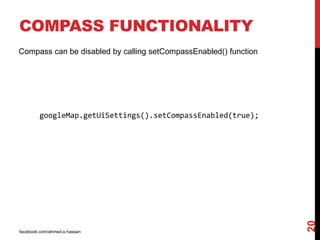
COMPASS FUNCTIONALITY
Compass can be disabled by calling setCompassEnabled() function
googleMap.getUiSettings().setCompassEnabled(true);
facebook.com/ahmed.e.hassan
21
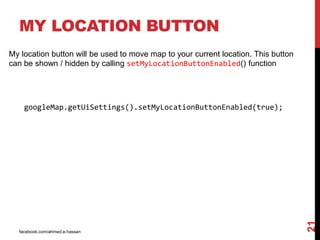
MY LOCATION BUTTON
My location button will be used to move map to your current location. This button
can be shown / hidden by calling setMyLocationButtonEnabled() function
googleMap.getUiSettings().setMyLocationButtonEnabled(true);
facebook.com/ahmed.e.hassan
22
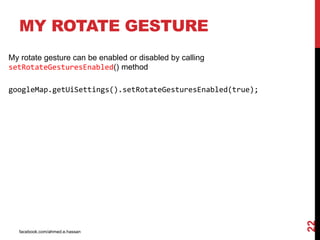
MY ROTATE GESTURE
My rotate gesture can be enabled or disabled by calling
setRotateGesturesEnabled() method
googleMap.getUiSettings().setRotateGesturesEnabled(true);

Android development session 6 - Google Maps v2