Android
GoogleMap V2
資管系研⼀一 鍾聖彥 TA
指導⽼老師 余仁朋 博⼠士
Agenda
•

Features

•

Showcase

•

How to begin
and develop?

•

Q&A
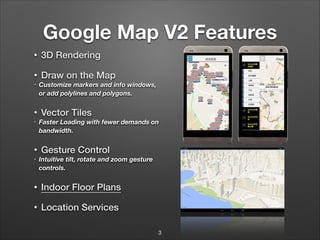
Google Map V2 Features
•

3D Rendering

•

Draw on the Map

•

•
•

•
•

Customize markers and info windows,
or add polylines and polygons.

Vector Tiles
Faster Loading with fewer demands on
bandwidth.

Gesture Control
Intuitive tilt, rotate and zoom gesture
controls.

•

Indoor Floor Plans

•

Location Services
3
Showcases(1/3)
Showcases(2/3)
Showcases(3/3)

More…
How to Begin and Develop?
Answer is step by step.And learning example.
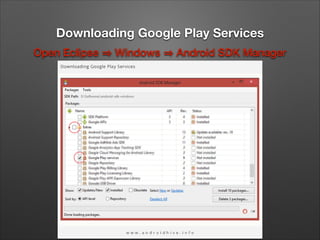
Downloading Google Play Services
Open Eclipse

Windows

Android SDK Manager
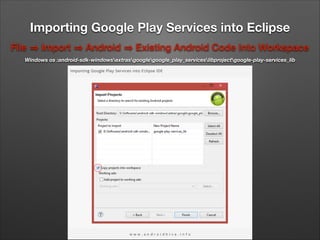
Importing Google Play Services into Eclipse
File

Import

Android

Existing Android Code Into Workspace

Windows os :android-sdk-windowsextrasgooglegoogle_play_serviceslibprojectgoogle-play-services_lib
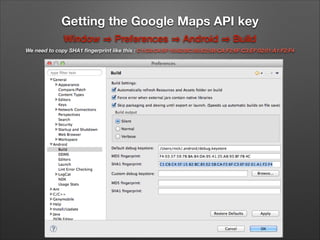
Getting the Google Maps API key
Window

Preferences

Android

Build

We need to copy SHA1 fingerprint like this : C1:C8:C4:5F:15:82:BC:85:E2:5B:CA:F2:6F:C3:EF:02:01:A1:F2:F4
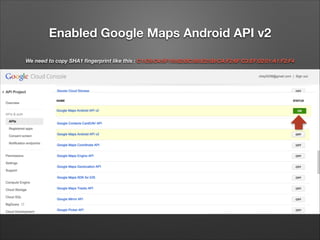
Now open
Google API Console
If you have no Google Account…please hurry to registry
Enabled Google Maps Android API v2
We need to copy SHA1 fingerprint like this : C1:C8:C4:5F:15:82:BC:85:E2:5B:CA:F2:6F:C3:EF:02:01:A1:F2:F4
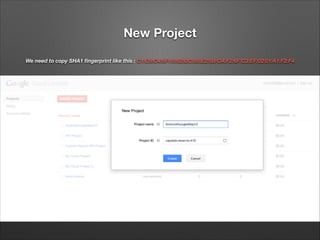
New Project
We need to copy SHA1 fingerprint like this : C1:C8:C4:5F:15:82:BC:85:E2:5B:CA:F2:6F:C3:EF:02:01:A1:F2:F4
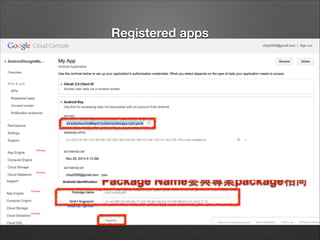
Registered apps
We need to copy SHA1 fingerprint like this : C1:C8:C4:5F:15:82:BC:85:E2:5B:CA:F2:6F:C3:EF:02:01:A1:F2:F4

Package Name要與專案package相同
⾛走上這條路都是為了它...
AIzaSyDacsY4MMgCfjc5A4IwLS6LQpz1ykIgzJk
Creating New Project

File

New

Android Application Project

We need to copy Map API Key like this : AIzaSyDacsY4MMgCfjc5A4IwLS6LQpz1ykIgzJk
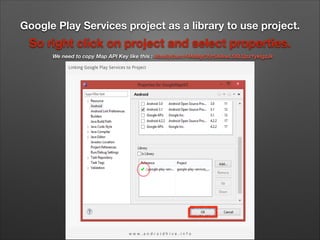
Google Play Services project as a library to use project.

So right click on project and select properties.
We need to copy Map API Key like this : AIzaSyDacsY4MMgCfjc5A4IwLS6LQpz1ykIgzJk
Add the Map Key in the manifest file.
We need to copy Map API Key like this : AIzaSyDacsY4MMgCfjc5A4IwLS6LQpz1ykIgzJk

<meta-data
android:name="com.google.android.maps.v2.API_KEY"
android:value="API_KEY"/>
<meta-data
android:name="com.google.android.gms.version"
android:value="@integer/google_play_services_version" />
Google maps needs following permissions and features.
ACCESS_NETWORK_STATE
– To check network state whether data can be downloaded or not

INTERNET
– To check internet connection status

WRITE_EXTERNAL_STORAGE
– To write to external storage as google maps store map data in external storage

ACCESS_COARSE_LOCATION
– To determine user’s location using WiFi and mobile cell data

ACCESS_FINE_LOCATION
– To determine user’s location using GPS

OpenGL ES V2
– Required for Google Maps V2
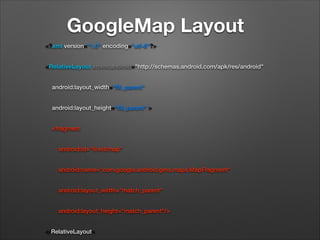
GoogleMap Layout
<?xml version="1.0" encoding="utf-8"?>
<RelativeLayout xmlns:android="http://schemas.android.com/apk/res/android"
    android:layout_width="fill_parent"
    android:layout_height="fill_parent" >
    <fragment
        android:id="@+id/map"
        android:name="com.google.android.gms.maps.MapFragment"
        android:layout_width="match_parent"
        android:layout_height="match_parent"/>
</RelativeLayout>
Let’s Coding.
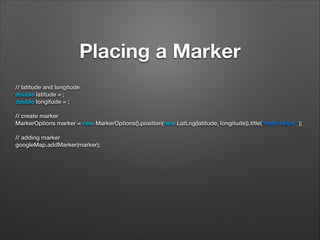
Placing a Marker
// latitude and longitude
double latitude = ;
double longitude = ;
 
// create marker
MarkerOptions marker = new MarkerOptions().position(new LatLng(latitude, longitude)).title("Hello Maps ");
 
// adding marker
googleMap.addMarker(marker);
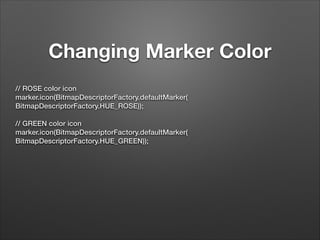
Changing Marker Color
// ROSE color icon
marker.icon(BitmapDescriptorFactory.defaultMarker(
BitmapDescriptorFactory.HUE_ROSE));
 
// GREEN color icon
marker.icon(BitmapDescriptorFactory.defaultMarker(
BitmapDescriptorFactory.HUE_GREEN));

!
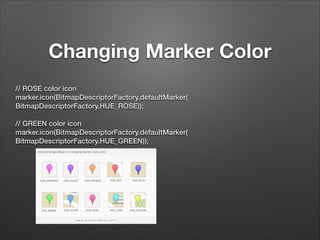
Changing Marker Color
// ROSE color icon
marker.icon(BitmapDescriptorFactory.defaultMarker(
BitmapDescriptorFactory.HUE_ROSE));
 
// GREEN color icon
marker.icon(BitmapDescriptorFactory.defaultMarker(
BitmapDescriptorFactory.HUE_GREEN));

!
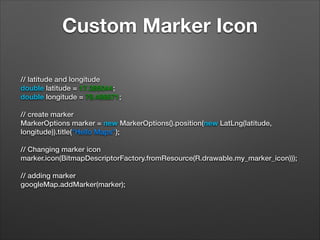
Custom Marker Icon
// latitude and longitude
double latitude = 17.385044;
double longitude = 78.486671;
 
// create marker
MarkerOptions marker = new MarkerOptions().position(new LatLng(latitude,
longitude)).title("Hello Maps");
 
// Changing marker icon
marker.icon(BitmapDescriptorFactory.fromResource(R.drawable.my_marker_icon)));
 
// adding marker
googleMap.addMarker(marker);
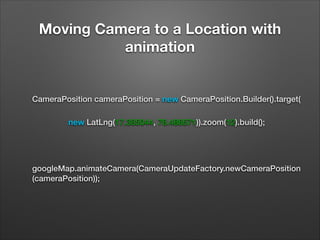
Moving Camera to a Location with
animation

CameraPosition cameraPosition = new CameraPosition.Builder().target(
                new LatLng(17.385044, 78.486671)).zoom(12).build();
 
googleMap.animateCamera(CameraUpdateFactory.newCameraPosition
(cameraPosition));
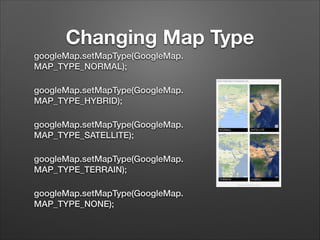
Changing Map Type
googleMap.setMapType(GoogleMap.
MAP_TYPE_NORMAL);
googleMap.setMapType(GoogleMap.
MAP_TYPE_HYBRID);
googleMap.setMapType(GoogleMap.
MAP_TYPE_SATELLITE);
googleMap.setMapType(GoogleMap.
MAP_TYPE_TERRAIN);
googleMap.setMapType(GoogleMap.
MAP_TYPE_NONE);
Q&A
Reference
https://developers.google.com/maps/documentation/
android/
!

https://developers.google.com/maps/showcase/
!

http://www.androidhive.info/2013/08/android-workingwith-google-maps-v2/
!

http://blog.xuite.net/alenliu/test/66754055

Android google mapv2