These are a few of my favourite things!
Training
Staying in touch
Jet Reports Tips & Tricks!
Presented by:
Janice TaylorMBA CGA CPA
Managing Director
Jet Reports Canada
Janice.taylor@jetreports.com
416-265-6600 ext 446
New Features
Training
Staying in touch
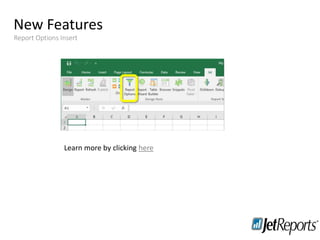
Report Options Insert
Learn more by clicking here
Jet Web Portal
Training
Staying in touch
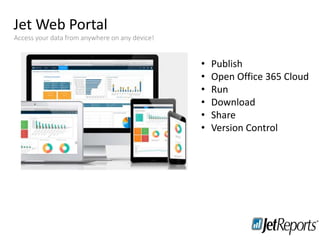
Access your data from anywhere on any device!
• Publish
• Open Office 365 Cloud
• Run
• Download
• Share
• Version Control
Jet Web Portal
Training
Staying in touch
Access your data from anywhere on any device!
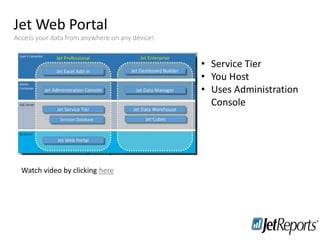
• Service Tier
• You Host
• Uses Administration
Console
Watch video by clicking here
New Features
Training
Staying in touch
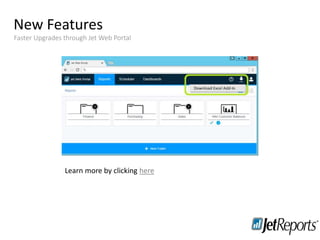
Faster Upgrades through Jet Web Portal
Learn more by clicking here
New Features
Training
Staying in touch
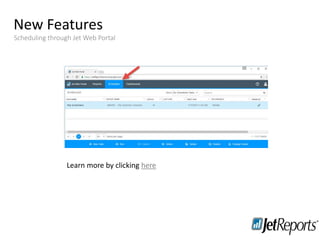
Scheduling through Jet Web Portal
Learn more by clicking here
New Features
Training
Staying in touch
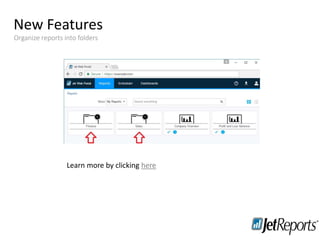
Organize reports into folders
Learn more by clicking here
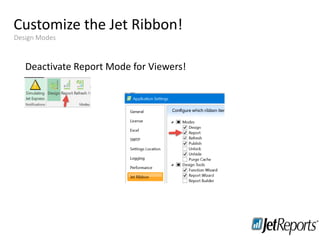
Customize the Jet Ribbon!
Training
Staying in touch
Design Modes
Deactivate Report Mode for Viewers!
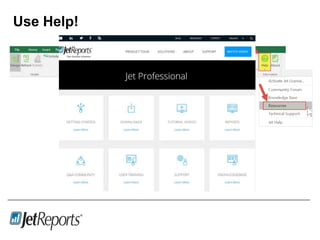
Use Help!
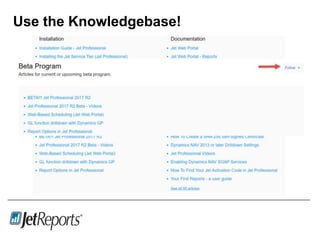
Use the Knowledgebase!
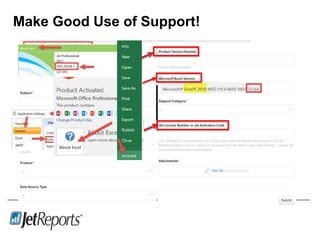
Make Good Use of Support!
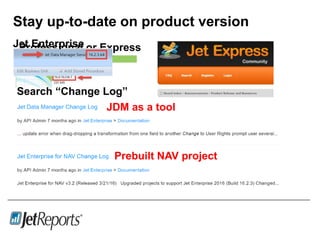
Stay up-to-date on product version
Search“Release Notes”
Professional or ExpressJet Enterprise
Search “Change Log”
JDM as a tool
Prebuilt NAV project
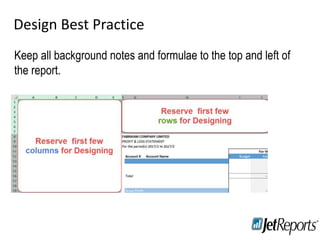
Design Best Practice
Training
Staying in touch
Keep all background notes and formulae to the top and left of
the report.
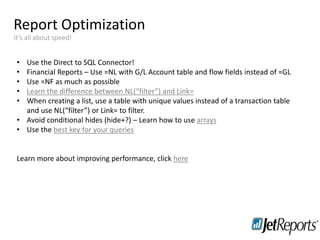
Report Optimization
It’s all about speed!
Training
Staying in touch
• Use the Direct to SQL Connector!
• Financial Reports – Use =NL with G/L Account table and flow fields instead of =GL
• Use =NF as much as possible
• Learn the difference between NL(“filter”) and Link=
• When creating a list, use a table with unique values instead of a transaction table
and use NL(“filter”) or Link= to filter.
• Avoid conditional hides (hide+?) – Learn how to use arrays
• Use the best key for your queries
Learn more about improving performance, click here
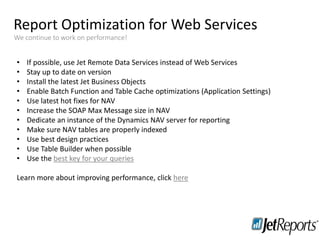
Report Optimization for Web Services
We continue to work on performance!
Training
Staying in touch
• If possible, use Jet Remote Data Services instead of Web Services
• Stay up to date on version
• Install the latest Jet Business Objects
• Enable Batch Function and Table Cache optimizations (Application Settings)
• Use latest hot fixes for NAV
• Increase the SOAP Max Message size in NAV
• Dedicate an instance of the Dynamics NAV server for reporting
• Make sure NAV tables are properly indexed
• Use best design practices
• Use Table Builder when possible
• Use the best key for your queries
Learn more about improving performance, click here
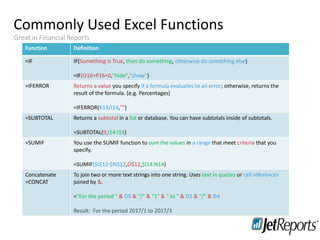
Commonly Used Excel Functions
Training
Staying in touch
Great in Financial Reports
Function Definition
=IF IF(Something is True, then do something, otherwise do something else)
=IF(O16+P16=0,"hide","show")
=IFERROR Returns a value you specify if a formula evaluates to an error; otherwise, returns the
result of the formula. (e.g. Percentages)
=IFERROR(K14/I14,"")
=SUBTOTAL Returns a subtotal in a list or database. You can have subtotals inside of subtotals.
=SUBTOTAL(9,I14:I15)
=SUMIF You use the SUMIF function to sum the values in a range that meet criteria that you
specify.
=SUMIF($I$12:$N$12,O$12,$I14:N14)
Concatenate
=CONCAT
To join two or more text strings into one string. Uses text in quotes or cell references
joined by &.
="For the period " & D5 & "/" & "1" & " to " & D5 & "/" & D4
Result: For the period 2017/1 to 2017/3
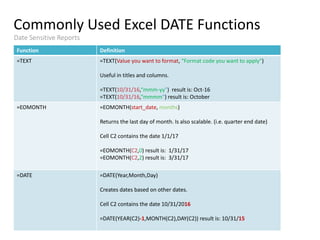
Commonly Used Excel DATE Functions
Training
Staying in touch
Date Sensitive Reports
Function Definition
=TEXT =TEXT(Value you want to format, “Format code you want to apply")
Useful in titles and columns.
=TEXT(10/31/16,“mmm-yy") result is: Oct-16
=TEXT(10/31/16,“mmmm") result is: October
=EOMONTH =EOMONTH(start_date, months)
Returns the last day of month. Is also scalable. (i.e. quarter end date)
Cell C2 contains the date 1/1/17
=EOMONTH(C2,0) result is: 1/31/17
=EOMONTH(C2,2) result is: 3/31/17
=DATE =DATE(Year,Month,Day)
Creates dates based on other dates.
Cell C2 contains the date 10/31/2016
=DATE(YEAR(C2)-1,MONTH(C2),DAY(C2)) result is: 10/31/15
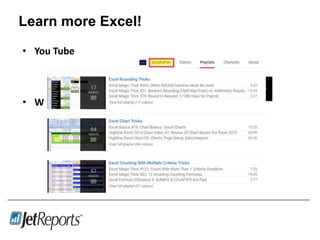
Learn more Excel!
• You Tube
• Websites
Jet Reports

Alliance 2017 - Jet Reports Tips and Trips

  • 1.
    These are afew of my favourite things! Training Staying in touch Jet Reports Tips & Tricks! Presented by: Janice TaylorMBA CGA CPA Managing Director Jet Reports Canada Janice.taylor@jetreports.com 416-265-6600 ext 446
  • 2.
    New Features Training Staying intouch Report Options Insert Learn more by clicking here
  • 3.
    Jet Web Portal Training Stayingin touch Access your data from anywhere on any device! • Publish • Open Office 365 Cloud • Run • Download • Share • Version Control
  • 4.
    Jet Web Portal Training Stayingin touch Access your data from anywhere on any device! • Service Tier • You Host • Uses Administration Console Watch video by clicking here
  • 5.
    New Features Training Staying intouch Faster Upgrades through Jet Web Portal Learn more by clicking here
  • 6.
    New Features Training Staying intouch Scheduling through Jet Web Portal Learn more by clicking here
  • 7.
    New Features Training Staying intouch Organize reports into folders Learn more by clicking here
  • 8.
    Customize the JetRibbon! Training Staying in touch Design Modes Deactivate Report Mode for Viewers!
  • 9.
  • 10.
  • 11.
    Make Good Useof Support!
  • 12.
    Stay up-to-date onproduct version Search“Release Notes” Professional or ExpressJet Enterprise Search “Change Log” JDM as a tool Prebuilt NAV project
  • 13.
    Design Best Practice Training Stayingin touch Keep all background notes and formulae to the top and left of the report.
  • 14.
    Report Optimization It’s allabout speed! Training Staying in touch • Use the Direct to SQL Connector! • Financial Reports – Use =NL with G/L Account table and flow fields instead of =GL • Use =NF as much as possible • Learn the difference between NL(“filter”) and Link= • When creating a list, use a table with unique values instead of a transaction table and use NL(“filter”) or Link= to filter. • Avoid conditional hides (hide+?) – Learn how to use arrays • Use the best key for your queries Learn more about improving performance, click here
  • 15.
    Report Optimization forWeb Services We continue to work on performance! Training Staying in touch • If possible, use Jet Remote Data Services instead of Web Services • Stay up to date on version • Install the latest Jet Business Objects • Enable Batch Function and Table Cache optimizations (Application Settings) • Use latest hot fixes for NAV • Increase the SOAP Max Message size in NAV • Dedicate an instance of the Dynamics NAV server for reporting • Make sure NAV tables are properly indexed • Use best design practices • Use Table Builder when possible • Use the best key for your queries Learn more about improving performance, click here
  • 16.
    Commonly Used ExcelFunctions Training Staying in touch Great in Financial Reports Function Definition =IF IF(Something is True, then do something, otherwise do something else) =IF(O16+P16=0,"hide","show") =IFERROR Returns a value you specify if a formula evaluates to an error; otherwise, returns the result of the formula. (e.g. Percentages) =IFERROR(K14/I14,"") =SUBTOTAL Returns a subtotal in a list or database. You can have subtotals inside of subtotals. =SUBTOTAL(9,I14:I15) =SUMIF You use the SUMIF function to sum the values in a range that meet criteria that you specify. =SUMIF($I$12:$N$12,O$12,$I14:N14) Concatenate =CONCAT To join two or more text strings into one string. Uses text in quotes or cell references joined by &. ="For the period " & D5 & "/" & "1" & " to " & D5 & "/" & D4 Result: For the period 2017/1 to 2017/3
  • 17.
    Commonly Used ExcelDATE Functions Training Staying in touch Date Sensitive Reports Function Definition =TEXT =TEXT(Value you want to format, “Format code you want to apply") Useful in titles and columns. =TEXT(10/31/16,“mmm-yy") result is: Oct-16 =TEXT(10/31/16,“mmmm") result is: October =EOMONTH =EOMONTH(start_date, months) Returns the last day of month. Is also scalable. (i.e. quarter end date) Cell C2 contains the date 1/1/17 =EOMONTH(C2,0) result is: 1/31/17 =EOMONTH(C2,2) result is: 3/31/17 =DATE =DATE(Year,Month,Day) Creates dates based on other dates. Cell C2 contains the date 10/31/2016 =DATE(YEAR(C2)-1,MONTH(C2),DAY(C2)) result is: 10/31/15
  • 18.
    Learn more Excel! •You Tube • Websites Jet Reports