Aegis
Ver si on 7. 1 8

User’s Guide
Service Desk, Client and Asset Management System
Copyright Notice
Copyright © 1993-2011 by Abacus Systems Pty Ltd. All rights reserved.

No part of the documentation may be reproduced, stored in a retrieval system or
transmitted in any form, or by any means, electronic, mechanical, photocopy, recording or
otherwise, without the prior consent of Abacus Systems Pty Ltd.

Information in this manual is subject to change without notice.

Aegis User Guide Rev 6.0 — 21 February, 2011


License Agreement
The software described in this manual is supplied under a license agreement and may
only be used in accordance with the terms of that agreement.

This is a legal agreement between you the end user and Abacus Systems Pty Ltd. This
Agreement permits the use of the accompanying Software. The Agreement, the
accompanying Software, All copyright, patent, trade secret, trademark, and other
intellectual and proprietary rights in the Software are and shall remain the valuable
properties of Abacus Systems Pty Ltd. By accepting this license, you are granted the right
to use the Software with the following rights and limitations:

For the multi-user license of the Software, you can install the Server Software on one
network server only. A separate multi-user license must be obtained for each network
server. You can install the Client Software on each computer, which have access to the
network server where the Server Software is installed.

For the single user license of the Software, the Server and Client Software must be
installed on one computer only.

Trademarks
All brand and product names are trademarks or registered trademarks of their respective
holders and are hereby acknowledged.

Product Development
Aegis is designed and developed by Abacus Systems Pty Ltd.
Copyright And Ownership
The Software is wholly owned by Abacus Systems Pty Ltd and is protected by
international copyright laws. Therefore, you must treat the Software like any other
copyrighted material (e.g., a book or musical recording) except that you may make a copy
of the Software solely for backup purposes. You may not copy the written materials
accompanying the Software without the written permission from Abacus Systems Pty Ltd.

Making illegal copies of the documentation and the Software, and reverse engineering,
de-compiling, disassembling, modifying, translating, making any attempt to discover the
source code of the Software, or creating derivative works from the Software is prohibited.

Other Restrictions
You may not rent, lease, distribute, or sub-license the Software or documentation. You
may not alter, modify or adapt the Software or documentation, including translating, de-
compiling, disassemble or create derivative and reverse engineered work. You may not
transfer the Software or documentation to another organization.

Limited Warranty
To the maximum extent permitted by applicable law, Abacus Systems Pty Ltd disclaims
all warranties, either express or implied, including but not limited to any implied warranties
of merchantability and fitness for a particular purpose, and all such warranties are
expressly and specifically disclaimed. Neither Abacus Systems Pty Ltd nor anyone else
who has been involved in the creation, production, or delivery of this software shall be
liable for any indirect, consequential, or incidental damages arising out of the use or
inability to use such software even if Abacus Systems Pty Ltd has been advised of the
possibility of such damages or claims.

In no event shall Abacus Systems Pty Ltd, its staff or supplier be liable for any damages
whatsoever (including without limitation, damages for loss of business profits, business
interruption, loss of business information, or other pecuniary loss) arising out of the use of
or inability to use the Software, even if Abacus Systems Pty Ltd has been advised of the
possibility of such damages.
i


Contents
     Introduction.......................................... 1

     Chapter 1 Introduction........................... 1
             What is Aegis?......................................................................1
                Aegis Service Desk .........................................................2
                Aegis Help Desk .............................................................2
                Aegis Defect Tracking......................................................3
                Aegis Client Management................................................3
                Web Version....................................................................3
             Add Ons................................................................................3
                Active Directory................................................................4
                Database Monitor............................................................4
                E-mail Server ..................................................................4
                Escalation........................................................................5
                Live Graphs.....................................................................5
                Report Scheduler.............................................................5
                System Alerts..................................................................5
                Tasks Scheduler..............................................................6
                Workstation Audit.............................................................6
             Product Comparison.............................................................7
             Supported Database...........................................................13
             How to Get Help.................................................................13
                On-line Help...................................................................14
             License Types.....................................................................14
                Concurrent License........................................................14
                Dedicated License.........................................................14
             Registering Aegis................................................................14
             Terms and Conventions......................................................15

     Installation...................................... . . . 16

     Chapter 2 Installation... . . . . . . . . . . . . . . . . . . . . .16
             Installing Aegis Windows Version.......................................16
                System Requirements...................................................16
                Installation Types...........................................................16
                Installing from CD..........................................................17
                Installing Add-Ons from CD...........................................20
ii   Contents
                          Installing Aegis Demo from Downloads.........................20
                          Installing Add-Ons from Downloads...............................22
                          Example Databases and Directories..............................22
                          INI File...........................................................................23
                       Installing AegisWeb............................................................25
                          System Requirements...................................................26
                          Installing from CD..........................................................26
                          Installing Demo from Downloads...................................27
                          Installing the .NET Framework......................................27
                          Installing MDAC.............................................................27
                          Installing Application......................................................27
                          ASPNET Account..........................................................28
                          AegisWeb Configuration File.........................................30
                          Sample Configuration Files............................................35
                          Using Your Existing Databases.....................................38
                          Creating MS SQL Server Login.....................................40
                          File/Directory Access Permission..................................40
                          Displaying Information in Logon Screen........................40
                          Changing Company Logo..............................................40
                          Starting AegisWeb.........................................................40
                          Disclaimer......................................................................41
                       Upgrading from Previous Version.......................................41
                          From Version 5.x and Version 4.x.................................41
                          From Version 3.7x.........................................................41
                          From Version 3.65.........................................................42
                          From Version 3.6 or earlier............................................42
                          Downloading Database Utilities.....................................42
                          Security Configurations..................................................42
                       Using MS SQL Server........................................................43
                          MS SQL Server Client Connection................................43
                          Connecting to MS SQL Server......................................43
                          User Id and Password...................................................44
                          Using MS SQL Single Login..........................................45
                          Converting To MS SQL Server......................................45
                          Converting Examples Databases to MS SQL Server....45
                       Using MySQL Server..........................................................46
                          MySQL Server Client Connection..................................46
                          Connecting to MySQL Server........................................46
                          User Id and Password...................................................47
                          Using MySQL Single Login............................................47
                          Converting To MySQL Server........................................47
                          Converting Examples Databases to MySQL Server......48
                       Printer Set Up ....................................................................48
                       Regional Settings................................................................48

                Guided Tour........................................ 49
Contents           iii
Chapter 3 Guided Tour......................... 49
       Starting Aegis.....................................................................49
       Opening the Example Database.........................................49
       The Main Aegis Window.....................................................51
       Menus.................................................................................51
       Tool Bar..............................................................................52
       Folders................................................................................54
           Incident Folders.............................................................54
           Problem Folders............................................................57
           RFC Folders..................................................................60
           CI Folders......................................................................62
           Client Folders.................................................................64
       Tools...................................................................................67
           Filters.............................................................................68
           Views.............................................................................71
           Sort Fields......................................................................74
           Cell Styles......................................................................77
           Quick Reports................................................................78
           Grid View.......................................................................78
       Information Area.................................................................81
       Filter Bar.............................................................................82
       Tab Pages..........................................................................83
       Status Bar...........................................................................83
       The Lookup Button.............................................................84
       Auto Complete....................................................................85
       Scrolling Records................................................................86
       Keyboard Shortcuts............................................................86
           Main Window.................................................................86
           Browsing Records..........................................................88
           Miscellaneous................................................................89

Index................................................. 90

Index................................................. 90
i
Preface
          Your Aegis software package comes with an installation program
          which will help you get the software up and running right away. If
          necessary, it will also guide you through the process of converting
          your existing databases to the current version or converting existing
          Access databases to MS SQL Server or MySQL databases.
          If you are evaluating a copy of Aegis downloaded from our web site,
          please follow the instructions given in the section Installing Demo
          from Downloads.
          Unless otherwise stated, the term Aegis refers to the Windows
          version of Aegis in this document.
Chapter 1
                        Introduction
What is Aegis?
         Aegis is an affordable and easy to use Service Desk, Client and Asset
         Management system. It is very easy to use, intuitive, affordable and
         packed with features Service Desk users have come to rely on.
         Aegis is designed specifically for tracking Incidents and Responses,
         Problems, Change Request, Clients and Contacts and Assets
         (configuration items/assets).
         Aegis simplifies the process of providing a high level of service to your
         customers. Whether you are servicing external customers or internal
         users, Aegis enables you to share information across your company.
         It's the ultimate competitive advantage, because what you know about
         your clients and how you respond to their needs directly affects your
         bottom line. It is a painless approach to providing a high level of
         support and service to your clients.
         With the inclusion of a web front end, it further simplifies the process
         of providing a quality customer service by enabling information
         sharing across your entire organization. Use the web front end to
         provide your external clients with a self-help facility and reduce
         support calls and cost. Give your clients the ability to log and view
         their own calls, search the knowledge base and view FAQs via the
         web without them calling your support center.
         Aegis can be used straight out of the box. It also comes with a very
         flexible built-in customization engine that allows it to be customized to
         suit different business practices across a wide range of industries.
         With Aegis, you don't need to dig around to locate customer
         information, products purchased by customers, resolutions to
         common problems and assets - it is all easily accessible from the
         familiar Windows Explorer interface. Aegis helps you to organize and
         manage customer issues and requests in a simple manner.
         Aegis handles the complex tasks for you behind the scenes, so you
         can focus on providing a first class service to your customers.
2 Chapter 1 Introduction
                   There is also a suite of optional add on modules designed to extend
                   and enhance the functionalities of Aegis to help you serve your
                   customers in a proactive manner.

Aegis Service Desk
                   Aegis Service Desk is an ITIL based service management system.
                   ITIL (the IT Infrastructure Library) is the most widely accepted
                   approach to IT service management in the world, ITIL provides a
                   comprehensive and consistent set of best practices for IT service
                   management, promoting a quality approach to achieving business
                   effectiveness and efficiency in the use of information systems.

                   Aegis Service Desk fully supports the ITIL standard within an IT
                   service environment. Comprehensive service management processes
                   are fully integrated in the single application, ensuring seamless
                   workflow between processes.
                   The following ITIL processes are fully integrated:

                       •   Incident Management

                       •   Problem Management

                       •   Change Management

                       •   Configuration (Asset) Management

                       •   Service Level Management
                   Aegis Service Desk includes all the functionalities of Aegis Help Desk,
                   Aegis Defect Tracking and Aegis Client Management.
                   The product code for Aegis Service Desk is ASD and will be used
                   through out this documentation to denote Aegis Service Desk.

Aegis Help Desk
                   Aegis Help Desk is a full-featured Help Desk, Client and Asset
                   Management system. It is very easy to use, intuitive, affordable and
                   packed with features Help Desk users have come to rely on. It will
                   work on Windows and also over the web. It is designed for
                   organizations that do not require the full ITIL based service
                   management system.

                   There are 3 main components in Aegis Help Desk – help desk
                   management, client management and asset management. The client
                   management component in Aegis Help Desk is a full client and
                   contact management system that rivals many standalone products.
                   The configuration management component keeps all your asset data
                   in one place and allows you to track asset allocations, components
Chapter 1 Introduction 3
              that made up an asset, asset service history and support calls for
              each asset
              The following ITIL processes are fully integrated:

                  •   Incident Management

                  •   Configuration (Asset) Management

                  •   Service Level Management
              Aegis Help Desk includes all the functionalities of Aegis Defect
              Tracking and Aegis Client Management.
              The product code for Aegis Help Desk is AHD and will be used
              through out this documentation to denote Aegis Help Desk.

Aegis Defect Tracking
              Aegis Defect Tracking is a complete incident and response tracking
              system. It is suitable for any company that needs to track product
              defects and client requests or enhancements. It will work on Windows
              and also over the web.
              The product code for Aegis Defect Tracking is ADT and will be used
              through out this documentation to denote Aegis Defect Tracking.

Aegis Client Management
              Aegis Client Management is a client relationship management system.
              Store and share all your customer and sales information in one central
              location. Never lose a contact detail or opportunity again.
              The product code for Aegis Client Management is ACM and will be
              used through out this documentation to denote Aegis Client
              Management.

Web Version
              Use the web front end to provide end users or your external clients
              with a self-help facility and reduce support calls and cost. Give your
              end users or clients the ability to log and view their own calls, search
              the knowledge base and view FAQs via the web without them calling
              your support center.


Add Ons
              Add on modules are optional and are purchased separately. They will
              add more functionality to the base products. The following add on
              modules are currently available.
4 Chapter 1 Introduction
Active Directory
                   The Active Directory add on uses the LDAP protocol to integrate with
                   Microsoft Active Directory. It synchronizes network user details with
                   the client and user records of Aegis. It will mirror any of the following
                   changes made to Active Directory.
                               •    Add new clients and users in Aegis.

                               •    Updates to existing clients and users.

                               •    Delete clients and users that are no longer in Active
                                    Directory.
                   The Active Directory integration is also tightly linked with role based
                   security profiles, such that any new Active Directory members can
                   automatically be assigned security profiles with minimal administration
                   overhead. This reduces maintenance costs, data duplication and
                   improves the accuracy and efficiency of your Aegis administration.

Database Monitor
                   The Database Monitor add on allows you to monitor an incident
                   database for new incidents, closed incidents and responses in the last
                   N minutes. You can also notify selected users when the number of
                   new incidents added, closed or number of responses is more than a
                   specified number in the last N minutes.

E-mail Server
                   The E-mail Server add-on allows you to log calls via Internet mail. You
                   can define different templates to use for different clients and users.
                   You can also include attachments when logging a call via the e-mail
                   server. This will create the attachment records in the database.
                   Templates are used for processing the e-mail message and contain
                   the following information:

                           •   The Template Id is the Subject line in the e-mail. The e-
                               mail server add-on will use the Subject line from the e-
                               mail to retrieve the template details for processing the e-
                               mail message body.

                           •   The field identifier and terminating characters. This allows
                               the e-mail server to parse the message body and retrieve
                               the appropriate field values.
Chapter 1 Introduction 5
                      •    Send an acknowledgement to the person who logs the
                           problem. You can merge fields from the incident record in
                           the acknowledgment. This allows you to inform the
                           user/client of the Reference # for the new incident
                           created.

Escalation
              The Escalation add on allows you to escalate an incident if it is not
              closed, if the last response has passed a specified interval or based
              on the client’s SLA.

              Escalation is based on filters and is system wide. All records selected
              by the filter except for closed incidents will be escalated if it satisfies
              the conditions defined.

              With escalation type, you can define which fields to update and how
              they should be updated. You can also notify selected users when an
              incident has been escalated.

Live Graphs
              The Live Graphs add on allows you to view graphs in real time. You
              can define any graphs to view, how often to flip between each graph
              and how often to refresh each graph.

Report Scheduler
              The Report Scheduler add on allows you to run reports at a given time
              and interval. You can send the report to a printer, file or e-mail it to a
              user. This can be very useful if you want reports (E.g. Status reports,
              outstanding issues etc) e-mailed to you automatically on a weekly or
              monthly basis. Normally, the reports are e-mailed to a user or sent to
              a file or printer. Other users can also access the reports generated by
              the report scheduler if they have the appropriate security. The reports
              can also be accessed from the web.

System Alerts
              The System Alerts add on allows you to notify users or external
              clients based on filters. You can merge fields from the records to
              create a custom message showing the exact details from the record
              that is required.
              Here is just a small sample of what you can do with system alerts:
6 Chapter 1 Introduction
                           •   Define a filter to select all client products where the
                               Maintenance End date is equal to or earlier than today.
                               Notify the client who owns the product via e-mail. You can
                               create custom message and merge fields from the
                               product record. This allows you to e-mail the product
                               description, the Maintenance End date, and the cost of
                               renewing the maintenance contract.

                           •   Notify the sales manager of all quotations and/or invoices
                               sent out today. You can merge fields from the quotation
                               and invoice records to show the client and the total
                               quotation or invoice amount.

                           •   Notify the project leader of all scheduled tasks for all
                               incidents. You can define the filter to select the task for a
                               given incident only (E.g. for a project or product type or
                               for a given client).

                           •   Notify the manager of all assets due for service or all
                               assets currently in service.

                           •   Notify the project leader of all time and cost estimates to
                               fix an incident.

                           •   Notify yourself of upcoming meetings or product
                               presentations with clients.

                           •   Notify a manager if a negative feedback is received from
                               a client.

                           •   Notify sales manager of sales opportunities, the potential
                               client and the potential sale amount.

                           •   Notify clients of any special offers for a given month.

Tasks Scheduler
                   The Tasks Scheduler add-on allows you to create recurring incidents.
                   You can define how the incidents are to be created by using Data
                   Entry Templates.

Workstation Audit
                   The Workstation Audit add-on allows you to audit workstations. All
                   information found will be created as asset components for the asset
                   designated as ‘Use for Workstation Audit’. The following are the
                   features that are available for workstation audit:

                           •   Scan for workstation hardware.

                           •   Scan for operating system version.
Chapter 1 Introduction 7
                 •   Scan for system configuration information, services, and
                     ODBC drivers.

                 •   Scan for authorized and unauthorized software.

                 •   Scan for unknown files.

                 •   View a list of all authorized and unauthorized software.
                     For unauthorized software, you can also notify the user
                     via e-mail to inform them that the software should be
                     removed.

                 •   View audit statistics, for example: how many workstations
                     are running Windows 2000 or Windows NT, how many
                     workstations are Pentium PCs, percentage of authorized
                     and unauthorized software.


Product Comparison
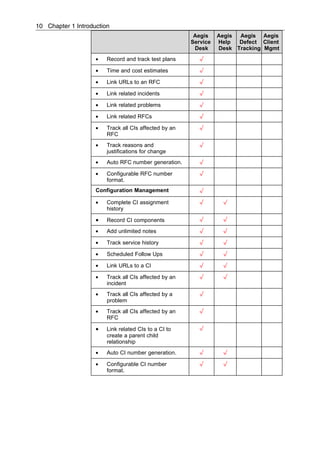
         The table below shows the features that are available in each product.

                                                Aegis    Aegis Aegis Aegis
                                               Service   Help  Defect Client
                                                Desk     Desk Tracking Mgmt
          Incident Management                     √       √       √

          •   Record multiple clients             √       √       √
              affected by an incident
          •   Complete incident assignment        √       √       √
              history
          •   Scheduled Follow Ups                √       √       √

          •   Track all e-mails                   √       √       √

          •   Record impact of an incident        √       √       √

          •   Add unlimited notes                 √       √       √

          •   Track parts used to resolve an      √       √       √
              incident
          •   Track release history               √       √       √

          •   Track all response history          √       √       √

          •   Schedule tasks                      √       √       √

          •   Record steps to reproduce an        √       √       √
              incident
          •   Time and cost estimates             √       √       √
8 Chapter 1 Introduction
                                                            Aegis    Aegis Aegis Aegis
                                                           Service   Help  Defect Client
                                                            Desk     Desk Tracking Mgmt
                    •      Link URLs to an incident           √       √       √

                    •      Link related incidents             √       √       √

                    •      Link related problems to an        √
                           incident
                    •      Link related change requests       √
                           (RFC) to an incident
                    •      Track all CIs affected by an       √       √
                           incident

                    •      Search for problems or known       √
                           errors
                    •      Create a problem from an           √
                           incident
                    •      Auto incident number               √       √       √
                           generation.
                    •      Configurable incident number       √       √       √
                           format.
                    Problem Management                        √

                    •      Record multiple clients            √
                           affected by a problem

                    •      Complete problem assignment        √
                           history
                    •      Scheduled Follow Ups               √

                    •      Track all e-mails                  √

                    •      Record impact of a problem         √

                    •      Add unlimited notes                √

                    •      Track parts used to resolve a      √
                           problem
                    •      Track responses to problem         √

                    •      Schedule tasks                     √

                    •      Time and cost estimates            √

                    •      Link URLs to a problem             √

                    •      Link related incidents             √

                    •      Link related problems              √
Chapter 1 Introduction 9
                                      Aegis    Aegis Aegis Aegis
                                     Service   Help  Defect Client
                                      Desk     Desk Tracking Mgmt
•   Link related change requests        √
    (RFC) to a problem
•   Track all CIs affected by a         √
    problem
•   Record work around                  √

•   Track root cause of a problem       √

•   Search for RFC                      √

•   Raise RFC from a problem            √

•   Auto problem number                 √
    generation.
•   Configurable problem number         √
    format.
Change Management                       √

•   Record multiple clients             √
    affected by an RFC
•   Approval log                        √

•   Complete RFC assignment             √
    history
•   Record back out plans               √

•   Scheduled Follow Ups                √

•   Track all e-mails                   √

•   Record impact of an RFC             √

•   Track implementation plans          √

•   Add unlimited notes                 √

•   Schedule outages                    √

•   Track parts used to resolve an      √
    RFC

•   Track release history               √

•   Track responses to RFC              √

•   Post implementation review          √

•   Schedule tasks                      √
10 Chapter 1 Introduction
                                                        Aegis    Aegis Aegis Aegis
                                                       Service   Help  Defect Client
                                                        Desk     Desk Tracking Mgmt
                    •   Record and track test plans       √

                    •   Time and cost estimates           √

                    •   Link URLs to an RFC               √

                    •   Link related incidents            √

                    •   Link related problems             √

                    •   Link related RFCs                 √

                    •   Track all CIs affected by an      √
                        RFC
                    •   Track reasons and                 √
                        justifications for change
                    •   Auto RFC number generation.       √

                    •   Configurable RFC number           √
                        format.
                    Configuration Management              √

                    •   Complete CI assignment            √       √
                        history

                    •   Record CI components              √       √

                    •   Add unlimited notes               √       √

                    •   Track service history             √       √

                    •   Scheduled Follow Ups              √       √

                    •   Link URLs to a CI                 √       √

                    •   Track all CIs affected by an      √       √
                        incident
                    •   Track all CIs affected by a       √
                        problem
                    •   Track all CIs affected by an      √
                        RFC

                    •   Link related CIs to a CI to       √
                        create a parent child
                        relationship
                    •   Auto CI number generation.        √       √

                    •   Configurable CI number            √       √
                        format.
Chapter 1 Introduction 11
                                     Aegis     Aegis Aegis Aegis
                                    Service    Help  Defect Client
                                     Desk      Desk Tracking Mgmt
SLA Management                         √          √

•   Define unlimited SLA for each      √          √
    client
•   Define your own breach             √          √
    statuses

•   Send notification when an SLA      √          √
    is breached or about to be
    breached.
Client Management                      √          √       √      √

•   Track all client activities        √          √              √

•   Scheduled Follow Ups               √          √       √      √

•   Track client feedback              √          √       √      √

•   Invoicing                          √          √              √

•   Add unlimited notes                √          √       √      √

•   Track client offers                √          √              √

•   Track products purchased by        √          √       √      √
    clients
•   Quotations                         √          √              √

•   Track returned merchandise         √          √              √

•   Track sales opportunities          √          √              √

•   Define unlimited SLAs              √          √

•   Link URLs to a client              √          √       √      √

•   Define unlimited contacts per      √          √       √      √
    client

•   Define client alerts               √          √       √      √

Field customization                    √          √       √      √

Form customization                     √          √       √      √

Folder customization                   √          √       √      √

Workflows                              √          √       √

E-mail notifications                   √          √       √

Triggers for auto record creation      √          √       √
12 Chapter 1 Introduction
                                                       Aegis    Aegis Aegis Aegis
                                                      Service   Help  Defect Client
                                                       Desk     Desk Tracking Mgmt
                    Define support hours and public      √       √       √
                    holidays
                    User define filters                  √       √       √      √

                    User define views                    √       √       √      √

                    User define sort fields              √       √       √      √

                    User define sell styles              √       √       √      √

                    Broadcast message                    √       √       √      √

                    Knowledge base                       √       √       √

                    FAQ                                  √       √       √

                    Group update                         √       √       √      √

                    Group response                       √       √       √

                    Group assignment                     √       √       √

                    Group delete                         √       √       √      √

                    Form letters                         √       √       √      √

                    User define list boxes               √       √       √      √

                    Security groups                      √       √       √      √

                    User groups                          √       √       √      √

                    Data entry templates                 √       √       √      √

                    E-mail templates                     √       √       √      √

                    E-mail reports                       √       √       √      √

                    Configurable preview pane            √       √       √      √

                    Call queues                          √       √       √

                    Job responses analysis               √       √       √

                    Job statistics analysis              √       √       √

                    User define graphs                   √       √       √

                    Audit history                        √       √       √      √

                    Attachments                          √       √       √      √

                    Service catalog                      √       √
Chapter 1 Introduction 13
                                                    Aegis     Aegis Aegis Aegis
                                                   Service    Help  Defect Client
                                                    Desk      Desk Tracking Mgmt
              Link CIs to services                    √

              Web access                              √          √       √

              Active Directory Add On   *1
                                                      √          √       √

              Database Monitor Add On*1               √          √       √

              E-mail Server Add On*1                  √          √       √

              Escalation Add On   *1
                                                      √          √       √

              Live Graphs Add on*1                    √          √       √

              Report Scheduler Add On        *1
                                                      √          √       √      √

              System Alerts Add On*1                  √          √       √      √

              Tasks Scheduler Add On*1                √          √       √

              Workstation Audit Add On        *1
                                                      √          √

         *1
              Add Ons are purchase separately.


Supported Database
         Aegis supports Microsoft Access databases by default and provides
         all necessary run-time components to manage Access databases as
         part of the package.
         MS SQL Server 7/2000/2005 are also supported. However, MS SQL
         Server is not included with Aegis - you must purchase and install the
         product separately.
         You can also use MySQL Server database. Since Aegis is not open
         source software, a license is required to use MySQL. This is the
         license requirement from the MySQL vendor.


How to Get Help
         This manual is your introduction to Aegis. Use it to familiarize yourself
         with the concepts, guide you around the system, and for practical
         advice on how to use Aegis. Use this guide with the example
         database supplied. In two or three sessions you should have a good
         understanding of how to use the system.
         Everyone using Aegis should read Chapter 3 Guided Tour. This
         chapter gives sufficient background for a casual user to get up and
         going quickly.
14 Chapter 1 Introduction
                   Aegis has extensive on line help available by pressing F1. Use the on
                   line help for detailed information about functions and fields.
                   For Technical support, log your technical support questions on our
                   web site at http://www.abacus-systems.com or you can e-mail us on
                   support@abacus-systems.com.

On-line Help
                   Aegis' on-line help system can be activated at any time by pressing
                   F1 or selecting Help from the menu.
                   The help system contains detailed explanations of all Aegis features
                   and facilities. These descriptions are, in some cases, more detailed
                   than the explanation in this User’s Guide. The on-line help is also
                   more up to date. Where a discrepancy exists between this manual
                   and the help, follow the explanation in the help system.
                   The on-line help contains a Search command. If the help you require
                   is not displayed immediately, use Search to locate the topic you want.


License Types
                   Aegis supports concurrent licensing and dedicated licensing. The
                   difference between the two licensing schemes is described below.

Concurrent License
                   Concurrent license allows you to add as many users as you like, all
                   with logon access, but only N users can be logged on at any one time.
                   N is the number of concurrent licenses purchased. For example, if you
                   purchase a 10 floating concurrent license, you can add as many users
                   as you like - all with logon access but only 10 users can logon at any
                   one time.

Dedicated License
                   Dedicated License means per user. For example, if you have 10 users
                   and want all of them to use Aegis, then you purchase a 10 dedicated
                   user license. You can add as many users as you like but only
                   nominate 10 users with logon access.


Registering Aegis
                   If you are using the full copy of Aegis, please register it on our web
                   site at www.abacus-systems.com. This is the only way we will know
                   who you are. All registered users will receive notification of new
                   releases of Aegis and information on other products when available.
Chapter 1 Introduction 15
Terms and Conventions
         The following common terms and conventions are used in this
         manual:
         Click          Press the left mouse button once while pointing to an
                        object on the screen.
         Double-click   Press the left mouse button twice in rapid succession
                        while pointing to an object on the screen.
         Right-click    Press the right mouse button once while pointing to
                        an object on the screen.
         Choose         Select a specific command or object using the
                        technique you prefer. For example, choose File |
                        Open Database may be executed using the mouse
                        (click once on File in the main menu and then click
                        Open Database) or by using the keyboard (press
                        ALT-F, then O).
         Select         Pick an object, usually from a list. You can click the
                        object with the mouse or use the ARROW KEYS to
                        highlight it and then press ENTER.
         Typographic conventions used in this manual are:
         Allocated      Italics are used for emphasis and to indicate the
                        names of certain objects such as filters.
         Edit | Copy    Bold is used to indicate menu selections.
         ENTER          Small capitals are used for names of keyboard keys.
         Details        This font is used for names of fields and screen
                        controls, and for names of files on disk.
         ASD            This code is used to denote the Aegis Service Desk
                        product.
         AHD            This code is used to denote the Aegis Help Desk
                        product.
         ADT            This code is used to denote the Aegis Defect
                        Tracking product.
         ACM            This code is used to denote the Aegis Client
                        Management product.
Chapter 2
                                 Installation
Installing Aegis Windows Version
              The Aegis installation program gives you the option to install the
              Windows version of Aegis either on a stand-alone computer or a
              network server. You will also have the option to install Aegis Add-Ons
              and AegisWeb.
              AegisWeb is a web front end that is designed to be used in either an
              intranet or Internet environment.
              Note that AegisWeb has different hardware and software
              requirements and requires the Aegis Server Component from
              the Windows version to be installed on the server.
              During set up, you will be prompted for information on how you want
              to install Aegis. Take the opportunity now to ensure a successful
              installation by reading the topics below.

System Requirements
              Aegis requires the following hardware and software configuration as a
              minimum:

                      •   Pentium III or higher processor.

                      •   Aegis will run on Windows 98/NT 4 (with service pack 5/
                          2000/Vista.

                      •   256MB RAM. Performance increases with more memory.

                      •   50MB disk space, plus room for your data. 20 MB total
                          disk space for moderately sized database is reasonable.

                      •   For the multi-user versions, any network that is 100%
                          Windows compatible.

Installation Types
                      The installation process requires two steps. You must install
                      Server Component first and then Client Component.
Chapter 2 Installation 17
             Server Component
                     The Server Component will install the standard Access
                     databases. For the multi-user version of Aegis, this option is
                     usually installed on a network server so the databases can be
                     shared. It does not install any programs on your system and
                     will not change your network server settings.
                     You must install the Server Component before the Client
                     Component. If you are upgrading from a previous version, all
                     your databases will NOT be overwritten. However, we do
                     recommend that you back up your existing databases before
                     installing a new release.

             Client Component
                     The Client Component installs the programs required to run
                     Aegis and set up a link to the database on the server.

Installing from CD
                     If you are installing the evaluation version downloaded from
                     our web site, please follow the instructions given in the
                     section Installing Demo from Downloads.
                     To install Aegis from CD, follow the instructions below:
                1. Insert the CD Rom into your CD Rom Drive.
                2. If auto run is enabled, you will come to the first screen of the
                   set up program. If auto run is not enabled, run Setup.exe from
                   the CD Rom.
                3. Select Aegis from the menu.
                4. See Multi User Installation and Single-user Installation.

             Multi User Installation
                     This option is for those users that will be accessing a central
                     database located on a network server and is only applicable if
                     you purchase a multi-user license of Aegis.
                     When running set up, you will choose to install the Server
                     Component on the network server where the shared database
                     will reside and install the Client Component on each
                     workstation that requires access to the database.
                     You will also need to give all the users the correct permission
                     to access the server directory on the network.
18 Chapter 2 Installation
                            It is strongly recommended that you close all programs before
                            running set up.

                   Installing the Server Component
                            You must install the Server Component before the Client
                            Component.
                       1. After you run Setup.exe, follow the screen prompts until you
                          get to the Choose Components screen. Select Server
                          Component then click Next to continue.
                       2. Enter a directory on your network server to install the Server
                          Component into then click Next to continue.
                       3. Follow the instructions in set up to complete the Server
                          Component installation.

                   Installing the Client Component
                            After the Server Component is installed, run Setup.exe again
                            to install the Client Component.
                            You must have administrator privileges if you are installing
                            the client on a Windows NT or Windows 2000 workstation.
                            If you are installing on Windows Vista, you must run setup as
                            Administrator even if you have administrator privileges.
                       1. Follow the screen prompts until you get to the Choose
                          Components screen. Select Client Component then click
                          Next to continue.
                       2. You will now be prompted for the Server Component directory
                          – NOT the destination directory for the Client Component.
                          This allows set up to create the appropriate drive-mappings to
                          the database on the server. The Server Component is usually
                          installed on the network server for the multi-user license of
                          Aegis. Select the directory where the Server Component is to
                          be installed then click Next to continue.
                       3. You will now be prompted for the directory where you want to
                          install the Client Component – this is usually a directory on
                          your workstation. Enter the directory and click Next to
                          continue.
                       4. Follow the instructions in set up to complete the Client
                          Component installation.
                            After the Client Component installation has completed, restart
                            Windows.
Chapter 2 Installation 19
Single User Installation
       This option is for those users who will not be using Aegis on a
       network and is only applicable if you purchase the single-user
       license of Aegis.
       When running set up, you will choose to install the Server and
       Client Components in a directory on your workstation.
       It is strongly recommended that you close all programs before
       running set up.

Installing the Server Component
       You must install the Server Component before the Client
       Component.
   1. Follow the screen prompts until you get to the Choose
      Components screen. Select Server Component then click
      Next to continue.
   2. Enter a directory on your workstation to install the Server
      Component into then click Next to continue.
   3. Follow the instructions in set up to complete the Server
      Component installation.

Installing the Client Component
       After the Server Component is installed, run Setup.exe again
       to install the Client Component.
       You must have administrator privileges if you are installing
       the Client Component on a Windows NT or Windows 2000
       workstation.
       If you are installing on Windows Vista, you must run setup as
       Administrator even if you have administrator privileges.


   1. Follow the screen prompts until you get to the Choose
      Components screen. Select Client Component then click
      Next to continue.
   2. You will now be prompted for the Server Component directory
      – NOT the destination directory for the Client Component.
      This allows set up to create the appropriate drive-mappings to
      the database on the workstation. The Server Component is
      usually installed on the workstation for the single-user license
      of Aegis. Select the directory where the Server Component is
      to be installed then click Next to continue.
20 Chapter 2 Installation
                        3. You will now be prompted for the directory where you want to
                           install the Client Component – this is usually a directory on
                           your workstation. Enter the directory and click Next to
                           continue.
                       4. Follow the instructions in set up to complete the Client
                          Component installation.
                           After the Client Component installation has completed, you
                           will be prompted to restart Windows.

Installing Add-Ons from CD
                   If you are installing an add-on demo downloaded from our web site,
                   please see Installing Add-Ons from Downloads on page 22.
                   It is strongly recommended that you close all programs before running
                   set up.
                       1. Insert the CD Rom into your CD Rom Drive.
                       2. If auto run is enabled, you will come to the first screen of the
                          set up program. If auto run is not enabled, run Setup.exe from
                          the CD Rom.
                       4. Select the add-on to install.
                       5. Follow the screen prompts until you get to the Select Aegis
                          Server Component Folder screen. You will now be
                          prompted for the Server Component directory – NOT the
                          destination directory for the add-on. Select the directory
                          where the Server Component is to be installed then click Next
                          to continue.

Installing Aegis Demo from Downloads
                   The demo comes with a license for 5 concurrent users. The
                   installation from downloads is slightly different from installing from CD
                   because the program files are compressed.
                   When running set up, you will choose to install the Server Component
                   on the network server where the shared database will reside and
                   install the Client Component on each workstation that requires access
                   to the database.
                   You will also need to give all the users the correct permission to
                   access the server directory on the network.
                   It is strongly recommended that you close all programs before running
                   set up.
                   To install the demo downloaded from our web site:
Chapter 2 Installation 21
  1. Create a temporary directory on your hard disk and save the
     files downloaded into it.
  2. Unzip all files into the temporary directory.
  3. Run Setup.exe from the temporary directory.

Installing the Server Component
      You must install the Server Component before the Client
      Component.
  1. After you run Setup.exe, follow the screen prompts until you
     get to the Choose Components screen. Select Server
     Component then click Next to continue.
  2. Enter a directory on your network server to install the Server
     Component into then click Next to continue.
  3. Follow the instructions in set up to complete the Server
     Component installation.

Installing the Client Component
      After the Server Component is installed, run Setup.exe again
      to install the Client Component.
      You must have administrator privileges if you are installing
      the client on a Windows NT or Windows 2000 workstation.
      If you are installing on Windows Vista, you must run setup as
      Administrator even if you have administrator privileges.
  1. Follow the screen prompts until you get to the Choose
     Components screen. Select Client Component then click
     Next to continue.
  2. You will now be prompted for the Server Component directory
     – NOT the destination directory for the Client Component.
     This allows set up to create the appropriate drive-mappings to
     the database on the server. The Server Component is usually
     installed on the network server for the multi-user license of
     Aegis. Select the directory where the Server Component is to
     be installed then click Next to continue.
  3. You will now be prompted for the directory where you want to
     install the Client Component – this is usually a directory on
     your workstation. Enter the directory and click Next to
     continue.
  4. Follow the instructions in set up to complete the Client
     Component installation.
22 Chapter 2 Installation
                            After the Client Component installation has completed, restart
                            Windows.

Installing Add-Ons from Downloads
                   It is strongly recommended that you close all programs before running
                   set up.
                   To install an add-on demo downloaded from our web site:
                       1. Create a temporary directory on your hard disk and save the
                          files downloaded into it.
                       2. Unzip the file into the temporary directory and run Setup.exe
                          from the temporary directory.
                       3. Follow the screen prompts until you get to the Select Aegis
                          Server Component Folder screen. You will now be
                          prompted for the Server Component directory – NOT the
                          destination directory for the add-on. Select the directory
                          where the Server Component is installed then click Next to
                          continue.

Example Databases and Directories
                   When you install the Aegis Server Component, it will install some
                   example databases (in MS Access format). The sub-directories
                   created are defaults and you are not forced to use the same directory
                   structure. Aegis uses an INI file to locate the databases.
                   For example, if you install the Aegis Server component into C:Aegis,
                   the example database will be installed in the following directories and
                   other sub-directories will be created as follows:

                   C:AegisDatabase
                            This directory contains all the databases used in Aegis.
                   C:AegisDatabaseClient
                            This directory contains the example client databases.
                   C:AegisDatabaseIncident
                            This directory contains the example incident databases.
                   C:AegisDatabaseListBox
                            This directory contains the example list box databases.
                   C:AegisDatabaseSys
                            This directory contains the system database.
Chapter 2 Installation 23
           C:AegisDatabasezDbt
                     This directory contains the MS Access database templates
                     and MS SQL and MySQL scripts.
           C:AegisDatabasezDbtMSAccess
                     This directory contains the MS Access database templates.
           C:AegisDatabasezDbtMSSql
                     This directory contains the scripts used for converting an MS
                     Access database to a SQL Server 2000 database.
           C:AegisDatabasezDbtMSSqlv7
                     This directory contains the scripts used for converting an MS
                     Access database to a SQL Server 7.0 database.
           C:AegisDatabasezDbtMySQL
                     This directory contains the scripts used for converting an MS
                     Access database to a MySQL Server database.
           The Client Component only creates the directory you specified for the
           programs.

INI File
           The Aegis INI file stores database configuration and path information,
           it is used locate the databases on your server or workstation.

           Database Section
           The [Database] section in the INI file contains the following keywords:

            Provider                   Specifies the database backend.

                                       •   For Access database, specify
                                           Provider=MSACCESS.

                                       •   For MS SQL Server database, specify
                                           Provider =MSSQL Provider=MSSQL7
                                           for MS SQL Server 7).

                                       •   For MySQL, specify Provider=MYSQL.
            Server                     This keyword is only applicable if you use
                                       MS SQL Server or MySQL databases.
                                       Define the MS SQL or MySQL server you
                                       wish to connect to in this keyword. For
                                       example: Server=Aegis.
24 Chapter 2 Installation
                     Authentication           This keyword is only applicable if you use
                                              MS SQL Server database. The valid values
                                              are Windows and SQL. If you specify
                                              Windows, Aegis will use Windows
                                              Authentication when connecting to the
                                              server. If you specify SQL, Aegis will use
                                              MS SQL Server Authentication when
                                              connecting to the server. If you use SQL
                                              Server Authentication, you must also
                                              specify the User Id and Password.
                     User Id                  This keyword is only applicable if you use
                                              MS SQL Server with SQL Server
                                              Authentication or MySQL databases. The
                                              User Id must be a valid user created in MS
                                              SQL Server or MySQL. You would
                                              normally give this user a very limited
                                              access to the Aegis SYS database only.
                     Password                 This keyword is only applicable if you use
                                              MS SQL Server with SQL Server
                                              Authentication or MySQL databases. The
                                              password must be a valid password for the
                                              user created in MS SQL Server or MySQL.
                                              If there no password for the user, you can
                                              leave this field blank.

                   Paths Section
                   The [Paths] section in the INI file contains the following keywords:

                     Server                   Specifies the full path name where the
                                              Server Component resides.
                     Work                     Specifies the full path name to the WORK
                                              directory.

                   Options Section
                   The [Options] section in the INI file contains the following keywords:

                     SmtpLog                  Specify the Smtp log file. All Smtp events
                                              will be written to a log file. To log all Smtp
                                              events, specify SmtpLog=Y under the
                                              Options section.
                     Pop3Log                  Specify the Pop3 log file. All Pop3 events
                                              will be written to a log file. To log all Pop3
                                              events, specify Pop3Log=Y under the
                                              Options section. This option is only used
                                              by the E-mail Server Add On.
Chapter 2 Installation 25
           PageSize                    This option allows you to define how many
                                       records to load on startup. If you specify
                                       PageSize=50, only 50 records will be
                                       loaded regardless of how many records
                                       there are in the database. When you click
                                       Next, another 50 records will be loaded.

          Incident Database Section
          A section will be created for each incident database opened. The
          section name is the full path name of the incident database. This
          section contains the following keywords:

           ClientDb                    Specifies the client database to be use with
                                       the incident database.
           ListBoxDb                   Specifies the list box database to be use
                                       with the incident database.
          If you do not specify -i command line option when you start Aegis, it
          will use the Aegis.ini file in the start up directory. To use a different INI
          file include the -i command line option, for example -iMyConfig.ini to
          create the MyConfig.ini file.
          In a multi-user environment, you would usually install Aegis'
          databases on the server. Each user's drive mappings to the server
          drive can be different and may cause a problem if you did not use a
          different INI file for each user. If you have different drive mappings for
          different users, use the -i command line option so that the correct path
          can be specified.


Installing AegisWeb
          AegisWeb is a web front end for Aegis. It has been developed using
          Microsoft’s .NET technology.
          You have to install AegisWeb on a web server running Microsoft’s
          Internet Information Services (IIS) and the .NET Framework. You will
          be given the option to install the .NET Framework as part of the set up
          program for AegisWeb.
          AegisWeb may be accessed by any users on your network using a
          standard web browser. No additional software installation is required
          on a client PC except for the web browser.
          Before you install AegisWeb, you must install the Windows version of
          Aegis. The web front end shares the same databases as the Windows
          version.
          You must have administrator privileges if you are installing on
          Windows NT or Windows 2000.
26 Chapter 2 Installation
                   It is strongly recommended that you close all programs before running
                   set up.

System Requirements
                   The minimum hardware and software requirements for AegisWeb are:

                   Hardware Requirements
                           •   Pentium III or higher processor.

                           •   512MB RAM. Performance increases with more memory.

                           •   100MB disk space, plus room for your data. 20 MB total
                               disk space for moderately sized database is reasonable.

                   Software Requirements
                           •   Windows NT 4 (Workstation or Server) with Service Pack
                               6a or Windows 2000 (Professional, Server, or Advanced
                               Server) with the latest Windows service pack and critical
                               updates available from the Microsoft Security Web site or
                               Windows XP (Home or Professional).

                           •   Internet Information Services (IIS) Version 5.0 or later
                               with FrontPage Server Extensions.

                           •   Internet Explorer 5.01 or later on the web server and on
                               each client PC.

                           •   Version 1.1 release of the Microsoft .NET Framework on
                               the web server.

Installing from CD
                           If you are installing the evaluation version downloaded from
                           our web site, please see Installing Demo from Downloads on
                           page 27.
                       1. Insert the CD Rom into your CD Rom Drive.
                       2. If auto run is enabled, you will come to the first screen of the
                          set up program. If auto run is not enabled, run Setup.exe from
                          the CD Rom.
                       3. Select AegisWeb from the menu.
                       4. Follow instructions in set up to complete the installation.
Chapter 2 Installation 27
Installing Demo from Downloads
              To install the demo downloaded from our web site:
                  1. Create a temporary directory on your hard disk and save the
                     downloaded files into it.
                      Unzip all files downloaded into the temporary directory.

                  2. Run Setup.exe from the temporary directory.
                  3. Follow instructions in set up to complete the installation.

Installing the .NET Framework
                      When you run Setup.exe, you will be prompted to install
                      the .NET Framework.
                      To install the .NET Framework, click the Install button. If you
                      already have the .NET Framework installed, click on the Skip
                      button. The .NET Framework installation will create a default
                      ASPNET account. See ASPNET Account on page 28.
                      After the .NET Framework installation has completed, run
                      Setup.exe again to continue.

Installing MDAC
                      When you run Setup.exe again after installing the .NET
                      Framework or skip the .NET Framework installation, you will
                      be prompted to install MDAC 2.7.
                      To install MDAC 2.7, click the Install button or click the Skip
                      button if you already have MDAC 2.7 installed.
                      After MDAC installation has completed, run Setup.exe again
                      to continue.

Installing Application
                      After the .NET Framework and MDAC is installed, you can
                      start installing the AegisWeb application.
                  1. When prompt to install the .NET Framework, click on the Skip
                     button.
                  2. When prompt to install MDAC, click on the Skip button again.
28 Chapter 2 Installation
                        3. You will now be prompted for the Server Component
                           directory. This is the Server Component directory for the
                           windows version of Aegis. This allows the set up program to
                           create the appropriate drive-mappings to the databases on
                           the server so that it can be use by the web front end. The
                           Server Component is usually installed on the network server
                           for the multi-user license of Aegis. Select the directory where
                           the Server Component is installed then click Next to continue.
                        4. You will now be prompted for the directory where you want to
                           install the AegisWeb application – this is usually a directory on
                           your web server. Enter the directory and click Next to
                           continue.
                        5. Follow the instructions in set up to complete the installation.
                            After the installation has completed, restart Windows.

ASPNET Account
                    AegisWeb is developed in ASP.NET. By default, ASP.NET runs its
                    worker process (Aspnet_wp.exe) with a weak account (the local
                    machine account, which is named ASPNET) to provide a more secure
                    environment.
                    On a domain controller, all user accounts are domain accounts and
                    are not local machine accounts. Therefore, Aspnet_wp.exe fails to
                    start because it cannot find a local account named
                    "localmachinenameASPNET". To provide a valid user account on the
                    domain controller, you must specify an explicit account in the
                    <processModel> section of the Machine.config file, or you must use
                    the SYSTEM account.
                    The ASPNET account is automatically created by the .NET
                    Framework installation if the server is not a domain controller. If you
                    install AegisWeb on a domain controller, the ASPNET account will not
                    be created. This is a known Microsoft bug.
                    If you install AegisWeb on a domain controller and try to run
                    AegisWeb, the browser displays the following error message:

                            •   Server Application Unavailable

                            •   The web application you are attempting to access on this
                                web server is currently unavailable.

                            •   Please hit the "Refresh" button in your web browser to
                                retry your request.
                    Furthermore, the following event is logged in the system application
                    event log:
Chapter 2 Installation 29
       aspnet_wp.exe could not be launched because the username
       and/or password supplied in the processModel section of the
       config file are invalid.
       aspnet_wp.exe could not be started.
       HRESULT for the failure: 80004005

To work around this problem, use one of the following methods:

       •   Create a weak account that has the correct permissions,
           and then configure the <processModel> section of the
           Machine.config file to use that account.

       •   Set the userName attribute to SYSTEM in the
           <processModel> section of the Machine.config file.

       •   Configure the <processModel> section of the
           Machine.config file to use an administrator account.
Allowing ASP.NET applications to run as SYSTEM or an administrator
account has serious security implications. If you use either of these
workarounds, code that is run in the Aspnet_wp.exe process will have
access to the domain controller and the domain settings. Executable
files that are started from the Aspnet_wp.exe process run in the same
context and also have access to the domain controller.

Therefore, Microsoft recommends that you use the first workaround.
To use the first workaround, follow these steps:
   1. Create a user account on the computer named ASPNET, and
      then add this account to the Users group.
   2. Grant the ASPNET account the Log on as a batch job user
      right. Make sure that this change appears in the Local
      Security Policy settings.

       NOTE : To grant the Log on as a batch job user right on this
       account, you may have to grant this user right in each of the
       following security policies (From the Control
       Panel/Administrative Tools):

       •   Domain Controller Security Policy
       •   Domain Security Policy
       •   Local Security Policy
           NOTE : You may have to reboot the server for these
           changes to take effect.
   3. Make sure that the ASPNET account has permission to
      access all of the necessary directories and files to start the
      Aspnet_wp.exe process and to serve the ASP.NET pages.
30 Chapter 2 Installation
                        4. Open the Machine.config file. This file should be in the
                           WinNTMicrosoft.NETFrameworkv1.0.3705CONFIG
                           directory.
                        5. In the <processModel> section of the Machine.config file,
                           change the userName and the password attributes to the
                           name and the password of the account that you created in
                           step 1. For example:
                                         userName="DomainNameASPNET"
                                         password="ASPNETpassword"
                        6. Save the changes to the Machine.config file.

AegisWeb Configuration File
                    The AegisWeb.cfg file stores database configuration and path
                    information. The set up program will attempt to create a path to the
                    example databases installed by the Windows version of Aegis if they
                    can be found.
                    Below are a list of options you can define in AegisWeb.cfg.

                    Paths Section
                    The [Paths] section in the configuration file contains the following
                    keywords:

                     Server                     Specifies the full path name where the
                                                Aegis Server Component resides (this is
                                                installed by the Windows version of Aegis).

                    Database Section
                    The [Database] section contains the following keywords:

                     Provider                   Specifies the database backend.

                                                •   For Access database, specify
                                                    Provider=MSACCESS.

                                                •   For MS SQL Server database, specify
                                                    Provider =MSSQL (Provider=MSSQL7
                                                    for MS SQL Server 7).

                                                •   For MySQL, specify Provider=MYSQL.
                     Server                     This keyword is only applicable if you use
                                                MS SQL Server or MySQL databases.
                                                Define the MS SQL or MySQL server you
                                                wish to connect to in this keyword. For
                                                example: Server=Aegis.
Chapter 2 Installation 31
 Authentication           This keyword is only applicable if you use
                          MS SQL Server database. The valid values
                          are Windows and SQL. If you specify
                          Windows, Aegis will use Windows
                          Authentication when connecting to the
                          server. If you specify SQL, Aegis will use
                          MS SQL Server Authentication when
                          connecting to the server. If you use SQL
                          Server Authentication, you must also
                          specify the User Id and Password.
 User Id                  This keyword is only applicable if you use
                          MS SQL Server with SQL Server
                          Authentication or MySQL databases. The
                          User Id must be a valid user created in MS
                          SQL Server or MySQL. You would
                          normally give this user a very limited
                          access to the Aegis SYS database only.
 Password                 This keyword is only applicable if you use
                          MS SQL Server with SQL Server
                          Authentication or MySQL databases. The
                          password must be a valid password for the
                          user created in MS SQL Server or MySQL.
                          If there no password for the user, you can
                          leave this field blank.
 IncidentDb               Specifies the incident database to use.
 ClientDb                 Specifies the client database to be use with
                          the incident database.
 ListBoxDb                Specifies the list box database to be use
                          with the incident database.

Database Set Section
The section allows you to define which databases to group under a
database set name. This section contains the following keywords:

 IncidentDb               Specifies the incident database to use.
 ClientDb                 Specifies the client database to be use with
                          the incident database.
 ListBoxDb                Specifies the list box database to be use
                          with the incident database.
For example, for MS Access databases you can create two database
sections as follows.
       [Database]
32 Chapter 2 Installation
                            IncidentDb=F:AegisDatabaseIncidentIncident.mdb
                            ClientDb=F:Aegis DatabaseClientClient.mdb
                            ListBoxDb=F:AegisDatabaseListBoxListBox.mdb
                            [DbSet1]
                            ClientDb=C:AegisDatabaseClientSet1.mdb
                            IncidentDb=C:AegisDatabaseIncidentSet1.mdb
                            ListBoxDb=C:AegisDatabaseListBoxSet1.mdb
                            [DbSet2]
                            ClientDb=C:AegisDatabaseClientSet2.mdb
                            IncidentDb=C:AegisDatabaseIncidentSet2.mdb
                            ListBoxDb=C:AegisDatabaseListBoxSet2.mdb
                   To use the default database, don’t include the DbSet keyword in the
                   URL. For example:
                            http://localhost/AegisWeb/logon.aspx
                   To use the first database set:
                            http://localhost/AegisWeb/logon.aspx?DbSet=DbSet1
                   To use the second database set:
                            http://localhost/AegisWeb/logon.aspx?DbSet=DbSet2

                   Directories Section
                   The [Directories] section contains the following keywords:

                    Attachments               You can upload attachments in AegisWeb.
                                              All attachments will be stored in the
                                              directory specified here. For example, if
                                              you include the following in AegisWeb.cfg:
                                              [Directories]
                                              Attachments = C:AegisAttachments
                                              All attachments you uploaded will be stored
                                              in C:AegisAttachments. To view the
                                              attachments, you must create a virtual
                                              directory for it. See section below.

                   Virtual Directories Section
                   Virtual directories are created in IIS (Internet Information Services)
                   under AegisWeb. You have to create virtual directories for
                   attachments and reports created by the Report Scheduler add on so
                   that users can view the files.

                    The [Virtual Directories] section contains the following keywords:
Chapter 2 Installation 33
 Attachments              This is the virtual directory name for
                          attachments and is created in IIS. For
                          example, if your Attachments directory is
                          C:AegisAttachments, when you create
                          this virtual directory for AegisWeb in IIS,
                          enter Attachments (or any name you like)
                          when prompted for the Alias field and
                          C:AegisAttachments when prompted for
                          the Directory. The entries in AegisWeb.cfg
                          will be:
                          [Virtual Directories]
                          Attachments = Attachments
 ReportScheduler          This is the virtual directory name for
                          reports created by the Report Scheduler
                          add on and is created in IIS. For example,
                          if the reports directory is C:AegisRps,
                          when you create this virtual directory for
                          AegisWeb in IIS, enter RPSReports (or any
                          name you like) when prompted for the Alias
                          field and C:AegisRps when prompted for
                          the Directory. The entries in AegisWeb.cfg
                          will be:
                          [Virtual Directories]
                          ReportScheduler = RPSReports

                          Note: You must only specify ONE section
                          name, for example:

                          [Virtual Directories]
                          Attachments = Attachments
                          ReportScheduler = RPSReports

                          Instead of:

                          [Virtual Directories]
                          Attachments = Attachments
                          [Virtual Directories]
                          ReportScheduler = RPSReports

Options Section
The [Options] section contains the following keywords:

 NotifySelf               Set this option to N if you do not wish to
                          receive notification when it is triggered by
                          yourself. For example, if you set up
                          notification to notify the person in the
                          Assigned To field and when you add a new
34 Chapter 2 Installation
                                        incident and allocate it to yourself, you will
                                        not receive a notification if this option is set
                                        to N.
                    SmtpServer          Specify the SMTP Server with this option.
                                        This is used for sending external email
                                        notifications.
                    SmtpSenderAddress   Specify the SMTP Sender E-mail Address.
                                        This is used when sending password to
                                        users. If you don’t define a value for this
                                        field, it will default to Aegis Help Desk or
                                        Aegis Defect Tracking and when sending
                                        password to user, you can get an error
                                        because some SMTP server requires a
                                        valid From address when sending e-mails.
                    OnExitGoto          You can go to another web site when you
                                        exit AegisWeb. Specify the complete URL
                                        (including http://www.) in the OnExitGoto
                                        option.
                    SessionTimeOut      Specify the session timeout in minutes.
                                        The value must be from 1 to 1440. The
                                        default is 20. If there’s no activity for the
                                        specified time, AegisWeb will timeout.
                    HideAll             Valid options are Y or N. If you specify Y,
                                        then all license information, company logo
                                        will be hidden. You will be presented with a
                                        simple logon window.
                    SystemName          Enter the system name. This option is only
                                        application if HideAll is set to Y. The
                                        system name will be shown on all windows
                                        instead of Aegis. You can use this option to
                                        make AegisWeb look more like your
                                        company support desk.
                    LogonWinLeft        This must be a number greater than zero.
                                        This is the left position of the logon
                                        window.
                    LogonWinTop         This must be a number greater than zero.
                                        This is the top position of the logon
                                        window.
                    LogonInfoLeft       This must be a number greater than zero.
                                        This is the left position of the information
                                        area. This is below the logon window
                                        where you can customize by editing the
                                        info.txt file in the AegisWeb directory.
Chapter 2 Installation 35
              LogonInfoTop              This must be a number greater than zero.
                                        This is the top position of the information
                                        area.
              LogonInfoHeight           This must be a number greater than zero.
                                        This is the height of the information area.


             Since you can include HTML in the info.txt file, you can set HideAll=Y,
             specify a system name (E.g. SystemName=Abacus Sytems Service
             Desk) and reposition the logon window and information area so it can
             look more like your corporate web site.

Sample Configuration Files
             For MS Access Database
             Below is a sample configuration file for MS Access.
                     [Paths]
                     Server=C: Aegis

                     [Database]
                     IncidentDb=C:AegisDatabaseIncidentEgIncident.mdb
                     ClientDb=C:Aegis DatabaseClientEgClient.mdb
                     ListBoxDb=C:AegisDatabaseListBoxEgListBox.mdb

                     [Directories]
                     Attachments=C:AegisWebAttachments

                     [Options]
                     NotifySelf=Y
                     SmtpServer=mail.abacus-systems.com
                     HomeURL=http://www.abacus-systems.com
                     ContactURL= http://www.abacus-systems.com/Contacts.htm

             For MS SQL Server 2000/2005 Database
             Below is a sample configuration file for MS SQL Server 2000/2005.
                     [Paths]
                     Server=C: Aegis

                     [Database]
                     Provider=MSSQL
                     Server=Aegis
                     IncidentDb=EgIncident
                     ClientDb=EgClient
                     ListBoxDb=EgListBox
36 Chapter 2 Installation
                            [Directories]
                            Attachments=C:AegisWebAttachments

                            [Options]
                            NotifySelf=Y
                            SmtpServer=mail.abacus-systems.com
                            HomeURL=http://www.abacus-systems.com
                            ContactURL= http://www.abacus-systems.com /Contacts.htm

                   If you use SQL Server Authentication, you must include the
                   Authentication, User Id and Password keywords in the [Database]
                   section as well. For example:

                            [Paths]
                            Server=C: Aegis

                            [Database]
                            Provider=MSSQL
                            Server=Aegis
                            Authentication=SQL
                            UserId=SqlUser
                            Password=Password
                            IncidentDb=EgIncident
                            ClientDb=EgClient
                            ListBoxDb=EgListBox


                   Where SqlUser is the MS SQL user you created in MS SQL Server
                   and Password is the password you defined for SqlUser. You would
                   normally give this user a very limited access to the Aegis SYS
                   database only.

                   For MS SQL Server 7.0 Database
                   Below is a sample configuration file for MS SQL Server 7.
                            [Paths]
                            Server=C: Aegis

                            [Database]
                            Provider=MSSQL7
                            Server=Aegis
                            IncidentDb=EgIncident
                            ClientDb=EgClient
                            ListBoxDb=EgListBox

                            [Directories]
                            Attachments=C:AegisWebAttachments

                            [Options]
Chapter 2 Installation 37
        NotifySelf=Y
        SmtpServer=mail.abacus-systems.com
        HomeURL=http://www.abacus-systems.com
        ContactURL= http://www.abacus-systems.com /Contacts.htm

If you use SQL Server Authentication, you must include the
Authentication, UserId and Password keywords in the [Database]
section as well. For example:

        [Paths]
        Server=C: Aegis

        [Database]
        Provider=MSSQL
        Server=Aegis
        Authentication=SQL
        UserId=SqlUser
        Password=Password
        IncidentDb=EgIncident
        ClientDb=EgClient
        ListBoxDb=EgListBox


Where SqlUser is the MS SQL user you created in MS SQL Server
and Password is the password you defined for SqlUser. You would
normally give this user a very limited access to the Aegis SYS
database only.

For MySQL Server Database
Below is a sample configuration file for MySQL Server.
        [Paths]
        Server=C: Aegis

        [Database]
        Provider=MYSQL
        Server=Aegis
        UserId=SqlUser
        Password=Password
        IncidentDb=EgIncident
        ClientDb=EgClient
        ListBoxDb=EgListBox

        [Directories]
        Attachments=C:AegisWebAttachments

        [Options]
        NotifySelf=Y
        SmtpServer=mail.abacus-systems.com
38 Chapter 2 Installation
                            HomeURL=http://www.abacus-systems.com
                            ContactURL= http://www.abacus-systems.com /Contacts.htm

                   Where SqlUser is the SQL user you created in MySQL and Password
                   is the password you defined for SqlUser. You would normally give this
                   user a very limited access to the Aegis SYS database only.

Using Your Existing Databases
                   The set up program will attempt to locate the example databases
                   installed by the Windows version of Aegis only. If you are currently
                   using the Windows version of Aegis and wish to use the databases on
                   the web, you must specify the full database path on the AegisWeb.cfg
                   file.
                   This can be done in the [Database] Section. Specify the Incident
                   database with the IncidentDb keyword, the Client database with the
                   ClientDb keyword and the List Box database with the ListBoxDb
                   keyword. For example:
                   For MS Access databases:
                            [Database]
                            IncidentDb=F:AegisDatabaseIncidentMyIncident.mdb
                            ClientDb=F:Aegis DatabaseClientMyClient.mdb
                            ListBoxDb=F:AegisDatabaseListBoxMyListBox.mdb

                   You must also have the appropriate security set up for the ASPNET
                   user to access the above directories.

                   For MS SQL Server 2000/2005 databases:
                            [Database]
                            Provider=MSSQL
                            Server=(local)
                            IncidentDb=MyIncident
                            ClientDb=MyClient
                            ListBoxDb=MyListBox

                            If you use SQL Server Authentication, you must include the
                            Authentication, UserId and Password keywords in the
                            [Database] section as well. For example:

                            [Database]
                            Provider=MSSQL
                            Server=(local)
                            Authentication=SQL
                            UserId=SqlUser
                            Password=Password
                            IncidentDb=MyIncident
Chapter 2 Installation 39
       ClientDb=MyClient
       ListBoxDb=MyListBox

       Where SqlUser is the MS SQL user you created in MS SQL
       Server and Password is the password you defined for
       SqlUser. You would normally give this user a very limited
       access to the Aegis SYS database only.

For MS SQL Server 7.0 databases:
       [Database]
       Provider=MSSQL7
       Server=(local)
       IncidentDb=MyIncident
       ClientDb=MyClient
       ListBoxDb=MyListBox

       If you use SQL Server Authentication, you must include the
       Authentication, UserId and Password keywords in the
       [Database] section as well. For example:

       [Database]
       Provider=MSSQL7
       Server=(local)
       Authentication=SQL
       UserId=SqlUser
       Password=Password
       IncidentDb=MyIncident
       ClientDb=MyClient
       ListBoxDb=MyListBox

       Where SqlUser is the MS SQL user you created in MS SQL
       Server and Password is the password you defined for
       SqlUser. You would normally give this user a very limited
       access to the Aegis SYS database only.

For MySQL Server databases:
       [Database]
       Provider=MYSQL
       Server=(local)
       UserId=SqlUser
       Password=Password
       IncidentDb=MyIncident
       ClientDb=MyClient
       ListBoxDb=MyListBox
40 Chapter 2 Installation
                            Where SqlUser is the MySQL user you created in MySQL and
                            Password is the password you defined for SqlUser. You
                            would normally give this user a very limited access to the
                            Aegis SYS database only.


Creating MS SQL Server Login
                   When you install the .NET Framework, it will create an ASPNET user
                   for Internet Information Services to run AegisWeb.
                   If you use MS SQL Server with Windows Authentication, you must
                   create a login for the ASPNET. You must also give this user the
                   appropriate permissions to access the Aegis databases.
                   Also give the NETWORK SERVICE user access to all the Aegis
                   databases.

File/Directory Access Permission
                   If you use MS Access database, you must give the ASPNET and
                   NETWORK SERVICE users read/write/create access to the database
                   and database directories.
                   You must also give the ASPNET and NETWORK SERVICE users
                   read/write/create access to the attachment directory specified in
                   AegisWeb.cfg.

Displaying Information in Logon Screen
                   You can define additional information to display when your users or
                   clients logon to AegisWeb. When you install AegisWeb, it will copy a
                   file called Info.txt into the destination directory. You can use any text
                   editor to edit this file to display different information.

Changing Company Logo
                   You can change the company logo shown on the logon screen by
                   copying your logo into the Images sub-directory. The file name must
                   be CoLogo.jpg and the maximum width should be 113 pixels and
                   height should be 73 pixels.

Starting AegisWeb
                   To run AegisWeb:
                       1. Start Internet Explorer.
                       2. If you are running AegisWeb internally within your company,
                          type in http://<Server Name>/AegisWeb/logon.aspx in
                          Internet Explorer where <Server Name> is the name of the
                          server where AegisWeb is installed.
Chapter 2 Installation 41
                 3. For your clients to run AegisWeb, they need to type in
                    http://<Web Site>/AegisWeb/logon.aspx where <Web Site> is
                    your company’s web site address. For example: www.abacus-
                    system.com/AegisWeb/logon.aspx.
             You should also open AegisPortal.html (in the AegisWeb directory)
             to look at the front end to access AegisWeb in different modes. You
             can disable the browser's menus and toolbar when starting
             AegisWeb. This is recommended so users cannot browse to another
             site while in AegisWeb.

Disclaimer
             The AegisWeb installation program will install a basic web site for the
             AegisWeb application. We make no attempt to suggest or
             recommend the overall security configuration of your web site and do
             not accept any responsibilities for the security of your web site.
             If you are going to deploy AegisWeb on a production Internet web
             server, you should consult your System/Network Administrator and
             Database Administrator to ensure that your AegisWeb web site is
             configured in accordance with the security policies of your
             organization.


Upgrading from Previous Version
             This section is only applicable for existing Aegis users, if you have
             never used Aegis before, please skip this section.
             If you are using an earlier version of Aegis, you must convert all your
             databases before you can use the latest version. Use the Database
             Utility provided to convert your databases. To run the Database Utility,
             select it from the program folder.
             See Downloading Database Utilities on page 42.

From Version 5.x and Version 4.x
             Choose File | Convert Database | To Current Version from the
             Database Utility menu then follow the instructions on the screen.

From Version 3.7x
             Choose File | Convert Database | To Current Version from the
             Database Utility menu.
             You must convert your databases in the following order:
                 1. System database (in AegisSysSys.mdb).
                 2. List box databases.
42 Chapter 2 Installation
                        3. Incident databases. When converting the incident database,
                           you will be prompted for the client database. This step is
                           required to convert all Client and Contact Codes to Client and
                           Contact names.
                        4. Client databases. The client database must be converted last
                           because it is required for the incident database convert.
                    When you are prompted for the database to convert, make sure you
                    select the database in the order shown above.

From Version 3.65
                    If you are using version 3.65, your databases must also be converted
                    in multiple steps as shown below:
                        1. Use the 32 bit Database Utility to convert it to v3.70.
                        2. Run the Database Utility from the current version to convert it
                           to the latest format.

From Version 3.6 or earlier
                    If you are using version 3.6 or earlier, your databases must be
                    converted in multiple steps as shown below:
                        1. Use the 16 bit Database Utility to convert it to version 3.60.
                        2. Use the 32 bit Database Utility to convert it to version 3.70.
                        3. Run the Database Utility from the current version to convert it
                           to the latest format.

Downloading Database Utilities
                    If you are using an older version of Aegis, you may have to convert
                    your databases in multiple steps with different versions of the
                    Database Utilities. These Database Utilities can be downloaded from
                    our web site. The URLs are:

                    For 16 bit Database Utility
                            http://www.abacus-systems.com/download/dbu16.exe

                    For 32 bit Database Utility
                            http://www.abacus-systems.com/download/dbu372.zip.

Security Configurations
                    You must reconfigure your security configurations to include any new
                    features in the latest release.
Chapter 2 Installation 43
Using MS SQL Server
            Aegis supports MS SQL Server 7/2000/2005 databases. However,
            MS SQL Server is not included with Aegis - you must purchase and
            install the product separately.

MS SQL Server Client Connection
            To use MS SQL Server, you must have the appropriate MS SQL
            Server software component install on your workstation and server.
            To access an MS SQL Server database, as a minimum, you must
            install the Client Connectivity component from the MS SQL Server
            CD. Then create an Alias for the SQL Server you are connecting to.
            For example, if your MS SQL Server is called ABACUS, you must
            create an Alias called ABACUS in the Client Connectivity
            configuration and include the following lines in your Aegis.INI file:
            If you use MS SQL Server 2000/2005:
                    [Database]
                    Provider=MSSQL
                    Server=ABACUS

            If you use MS SQL Server 7.0:
                    [Database]
                    Provider=MSSQL7
                    Server=ABACUS

Connecting to MS SQL Server
            MS SQL Server can use the Windows NT/2000 user information to
            validate the user. This option is only available when connecting to a
            MS SQL Server running on Windows NT/2000. The client needs to be
            part of a Windows NT domain or workgroup. The user needs to be
            validated as a Windows NT user before access is granted.
            You can also use SQL Server Authentication which is the standard
            MS SQL Server security validation. This is the default and the only
            available option when MS SQL Server is running on Windows 95/98.
            It is optional when the server is running on Windows NT/2000. The
            login must be added to the MS SQL Server before a user can log in.

            Using Windows NT/2000 Authentication
            There are no further steps required if you use Windows NT/2000
            authentication.
44 Chapter 2 Installation
                   Using SQL Server Authentication
                   If you use SQL Server authentication, there must be a way for Aegis
                   to connect to the Aegis’ system (Sys) database. The system
                   databases stores the user information.
                   The User Id and Password used for this is stored in the INI file as
                   described above.
                   To use SQL Server authentication when connecting to the server, the
                   INI file must contain the following:
                            [Database]
                            Provider=MSSQL
                            Server=<Server Name>
                            Authentication=SQL
                            User Id=<The User Id created in SQL Server>
                            Password=<The password for the user>

                   If you use MS SQL Server 7.0, change Provider to MSSQL7.
                   Since the User Id and Password is stored in the Aegis INI file, these
                   information can be exposed to unauthorized users.
                   To protect your MS SQL Server databases, you should do the
                   following:

                            •   Create a user with only read access to the Aegis system
                                database.

                            •   Use this User Id and Password in the Aegis INI file.
                   The User Id and Password specified in the Aegis INI file is only used
                   to connect to the system database. When you open an incident
                   database, Aegis will use the User Id and Password set up in Aegis to
                   connect to the incident database and all other databases.

User Id and Password
                   If you use MS SQL Server database with SQL Server authentication,
                   the User Id and Password in Aegis (which defaults to PASSWORD for
                   new users added) is tied in to MS SQL Server’s User Id and
                   Password.
                   If you change Aegis’ User Id/Password, it will not be change in MS
                   SQL Server. You will have to change it in MS SQL Server as well.
                   Also, if you added new users in future, you must also use MS SQL
                   Server to add these new users unless you create a Single Login in
                   Aegis. See Using MS SQL Single Login on page 45.
Chapter 2 Installation 45
Using MS SQL Single Login
            A single login can be defined for all users. This option is only valid if
            you use MS SQL Server with MS SQL Server authentication. This
            allows you to define a single login for all clients and users instead of
            having to define each one.
            You only have to create this user in MS SQL Server. If you don’t
            define a single login, for each Aegis user you added, you have to add
            the corresponding user in MS SQL Server.
            To define a single login, choose System | Configurations | Database|
            Single Login from the menu.

Converting To MS SQL Server
            This section is only applicable for existing Aegis users, if you have
            never used Aegis before, please skip this section.
            If you wish to convert your existing Access databases to MS SQL
            Server, you must convert your current Access databases to the latest
            version first. See Upgrading from Previous Version on page 41.
            Once you have converted all your Access databases to the latest
            version, you can then convert it to MS SQL Server format by following
            the steps below:
                1. Run the Database Utility from the Aegis program folder.
                2. Choose File | Convert Database | Access To MS SQL Server
                   from the Database Utility menu.
                3. Select a database and click on Open.
                4. Select the MS SQL Server and click on Connect.
                5. Change the Database Name, Data File Name, Log File Name
                   and Physical File Names if necessary and click on Convert.
                6. Repeat the above first all other databases.

Converting Examples Databases to MS SQL Server
            If you are evaluating Aegis and wish to try it on MS SQL Server, you
            can convert all the example databases to SQL Server format.
            To convert the example databases to SQL Server format:
                1. Run the Database Utility from the Aegis program folder.
                2. Choose File | Convert Database | Examples (Access) To MS
                   SQL Server.
                3. Select the MS SQL Server and click on Connect.
46 Chapter 2 Installation
                        4. Click on Convert.


Using MySQL Server
                   Aegis can also work with MySQL databases. However, MySQL
                   Server is not included with Aegis.
                   To use MySQL Server database, you must download MySQL Server
                   v5 or later.
                   Since Aegis is not open source software, a license is required to use
                   MySQL. This is the license requirement from the MySQL vendor.
                   Please contact us for latest pricing.

MySQL Server Client Connection
                   To use MySQL Server, you must have the appropriate MySQL Server
                   software component install on your workstation and server.
                   To access a MySQL Server database, you must also download
                   MySQL ODBC Connector 3.51 or later. The is used by Aegis to
                   connect to MySQL Server.

Connecting to MySQL Server
                   To connect to MySQL Server, you have to configure the Aegis INI file
                   and AegisWeb.Cfg (for AegisWeb).
                   The following entries must be inserted in to the Aegis INI file and
                   AegisWeb.Cfg file:
                   [Database]
                   Provider=MYSQL
                   Server=<Server Name>
                   User Id=<The User Id created in SQL Server>
                   Password=<The password for the user>
                   Where <Server Name> is the MySQL Server you wish to connect to.
                   If you use MySQL Server, there must be a way for Aegis to connect to
                   the Aegis’ system (Sys) database. The system database stores the
                   user information. The User Id and Password used for this is stored in
                   the INI file and AegisWeb.Cfg for AegisWeb.
                   Since the User Id and Password is stored in a text file, it can be
                   exposed to unauthorized users.
                   To protect your MySQL Server databases, you should do the
                   following:
Chapter 2 Installation 47
                •   Create a user with read only access to the Aegis system
                    database (Sys).

                •   Use this User Id and Password in the Aegis INI and
                    AegisWeb.Cfg file.
            The User Id and Password specified in the Aegis INI file is only used
            to connect to the system database. When you open an incident
            database, Aegis will use the User Id and Password set up in Aegis to
            connect to other databases.

User Id and Password
            If you use MySQL Server database, the User Id and Password in
            Aegis (which defaults to PASSWORD for new users added) is tied in
            to MySQL Server’s User Id and Password.
            If you change Aegis’ User Id/Password, it will not be change in
            MySQL Server. You will have to change it within MySQL Server as
            well.
            Also, if you added new users in future, you must also use add these
            new users unless you create a Single Login in Aegis. See Using
            MySQL Single Login on page 47.

Using MySQL Single Login
            A single login can be defined for all users. This option is only valid if
            you use MySQL Server. This allows you to define a single login for all
            clients and users instead of having to define each one.
            You only have to create this user in MySQL Server. If you don’t define
            a single login, for each Aegis user you added, you have to add the
            corresponding user in MySQL Server.
            To define a single login, choose System | Configurations | Database|
            Single Login from the menu.

Converting To MySQL Server
            This section is only applicable for existing Aegis users, if you have
            never used Aegis before, please skip this section.
            If you wish to convert your existing Access databases to MySQL
            Server, you must convert your current Access databases to the latest
            version first. See Upgrading from Previous Version on page 41.
            Once you have converted all your Access databases to the latest
            version, you can then convert it to MS SQL Server format by following
            the steps below:
                1. Run the Database Utility from the Aegis program folder.
48 Chapter 2 Installation
                        2. Choose File | Convert Database | Access To MySQL from the
                           Database Utility menu.
                      3. Select a database and click on Open.
                      4. Enter the MySQL Server name, User Name and Password
                         then click on Connect.
                      5. Change the Database Name if necessary and click on
                         Convert.
                      6. Repeat the above first all other databases.

Converting Examples Databases to MySQL Server
                  If you are evaluating Aegis and wish to try it on MySQL Server, you
                  can convert all the example databases to MySQL Server format.
                  To convert the example databases to MySQL Server format:
                      1. Run the Database Utility from the Aegis program folder.
                      2. Choose File | Convert Database | Examples (Access) To
                         MySQL.
                      3. Enter the MySQL Server name, User Name and Password
                         then click on Connect.
                      4. Click on Convert.


Printer Set Up
                  Aegis uses installed Windows Printers to print reports. If you have
                  already configured the Windows Default Printer (using the Windows
                  Control Panel or another application) then printing from Aegis is
                  enabled immediately after installation.


Regional Settings
                  Aegis will format Numbers, Currency, Date and Time according to
                  your Regional Options in Control Panel.
                  If you change your regional settings, it is recommended that you
                  restart Aegis for the new settings to take effect.
Chapter 3
                                    Guided Tour
                  This chapter takes you on a tour of Aegis using the example database
                  supplied. By the end of this chapter you will be able to find your way
                  around the system, add new clients and contacts, add new incidents,
                  new problems, raise a change request (RFC), responding to an
                  incident, problem or RFC, close an incident, problem or RFC, add
                  new CIs (Assets) and define relationship between CIs, use the tools
                  provided and generate reports.
                  Aegis is visual. The tabs and tool bars make a ‘point and click’
                  approach natural. All Aegis' functions are accessible through menus
                  and the keyboard.


Starting Aegis
Press TAB to      The installation process installs several icons that start Aegis. The
move from User    most general of these is the Aegis icon. Use this icon to start Aegis
Id to Password.   with no default User Id and Password.
                  To start Aegis:
                      1. Open the Aegis program folder and select Aegis.
                      2. The Logon window displayed.
                      3. Enter your User Id and Password. Upper or lower case letters
                         can be used. You must have logon access to log on to Aegis.
                         If you downloaded the demo version from our web site, enter
                         ADMIN for the User Id and PASSWORD for Password
                      4. Press ENTER or click OK to logon.
                  Everyone who uses Aegis should be assigned their own User Id by the
                  administrator (the password always defaults to PASSWORD when a
                  new user is added). Then, after the user starts Aegis for the first time,
                  they can set their own private Password.


Opening the Example Database
                  To open the example database:
50 Chapter 3 Guided Tour
                     1. Choose File | Open from the menu.
                     2. Double-click on EgIncident.mdb. If you are using Aegis Client
                        Management, double-click on EgClient.mdb.
                 To open the example database with access to all the features in
                 Aegis, double-click on the icon labeled Logon as ADMIN. The ADMIN user
                 is a predefined User Id with full access to all Aegis facilities.
Chapter 3 Guided Tour 51
The Main Aegis Window
The main window     To use Aegis effectively, you must be familiar with the main window
is the central      and how to access it’s extensive list of features from the main
working area in     window.
Aegis. From here
you can start any   When you start Aegis Service Desk and open the example incident
task.               database (EgIncident.mdb) you will see a window to the one shown
                    below. This is the main Aegis window and you can access everything
                    from here.
                    If you are using Aegis Help Desk, the window will look similar except the
                    Problems and RFCs folders will not be visible.
                    If you are using Aegis Defect Tracking, the Problems, RFCs and CIs
                    folders will not be visible. If you are using Aegis Client Management, only
                    the Clients folder will be visible.


Menus
                    All Aegis commands can be selected from the menus. To choose a
                    menu item:
Choosing a          Press ALT+ the underlined letter in the menu item you want. For
menu item with      example, press ALT+F to choose the File menu. To select an item
the keyboard.       from the File menu, type the underline letter or use UP ARROW or DOWN
                    ARROW to highlight the menu item and press ENTER to choose it.
Choosing a          Alternatively, point to a menu item with the mouse and click once with
menu item with      the left mouse button to choose it. Release the mouse button when
the mouse.          the required menu item is highlighted. The last menu item highlighted
                    is activated.
52 Chapter 3 Guided Tour
 Pop up menus.   Aegis supports pop up menus. To display a pop up menu:

                       • Click the right mouse button.
Click the right
mouse button to
display a pop up
menu.


Tool Bar
                   Use the tool bar to quickly select the action you want. All the buttons
                   on the tool bar are shortcuts for menu items.
                   Note that buttons may be disabled (shown dimmed) if you don’t have
                   access to the function for security reasons.

                          Creates a new database.

                          Open an existing database.

                          Add a new record.

                          Edit record.

                          Copy record.

                          View record.

                          Delete record.

                          E-mail record.

                          Reply e-mail.
Chapter 3 Guided Tour 53
Forward e-mail.

Print record.

Find record (turn on filter bar).

Clear filter bar.

Refresh data.

Count records.

Attachments.

Show all child records for a parent record or all records in a
sub-folder.

Tag/untag record.

Display record information.

Show preview pane.

Define filters.

Define views.

Define sort fields.

Define cell styles.

Broadcast message.

Knowledge base.

Frequently asked questions.

Call queue.

Define graphs.

Note-IT!

Exit Aegis
54 Chapter 3 Guided Tour
Folders
                 The folders on the left allow you to quickly navigate to different
                 sections of Aegis.


                                                           Incidents folder


                                                          Incidents - Responses
                                                          sub-folders


                 You can change the folder names and hide folders that you don’t use.
                 To change the folder names, choose System | Configurations |
                 Display | Folders from the menu.

                 The Problems and RFCs folders are only applicable for Aegis Service
                 Desk. The CIs (Assets) folder is only applicable for Aegis Service
                 Desk and Aegis Help Desk. If you are using Aegis Client
                 Management, only the Clients folder will be visible


Incident Folders
                 The Incidents folders on the left allow you to quickly navigate to
                 different sections of the Incident Management module of Aegis.
Chapter 3 Guided Tour 55
For each incident, there is a set of sub-folders that are child records
for the incident. You can add unlimited records in each child folder.
For example, you can add unlimited responses or notes for each
incident.


                                        Incidents folder


                                        Incidents - Responses
                                        sub-folders


 Incidents                 This folder shows all incidents or incidents
                           selected by the current filter.
 Affected Clients          This sub-folder shows other clients that are
                           affected by the incident.
 Assigned To History       This sub-sub-folder shows the incident
                           assignment history.
 Call Backs                This sub-folder shows all scheduled call
                           backs for the incident.
 E-mails                   This sub-folder shows all e-mail
                           correspondences for the incident.
56 Chapter 3 Guided Tour
                  Impact                    This sub-folder shows all impacts
                                            determined for the incident.
                  Notes                     This sub-sub-folder shows all notes added
                                            for the incident.
                  Parts Used                This sub-folder shows all the parts used to
                                            resolve the incident.
                  Release History           This sub-folder shows all the incident
                                            release history.
                  Responses                 This sub-folder shows all the work or action
                                            performed on the incident.
                  Scheduled Tasks           This sub-folder shows all scheduled tasks
                                            for the incident.
                  Steps To Reproduce        This sub-folder allows you to record the
                                            steps to reproduce the incident.
                  Time & Cost Estimates     This sub-folder shows the estimated time
                                            and cost to resolve the incident.
                  URLs                      This sub-folder shows the URLs linked to
                                            the incident.
                  Related Incidents         This sub-folder shows other incidents that
                                            are related to the current incident.
                  Related Problems          This sub-folder shows all problems that are
                                            linked to the incident.
                  Related RFCs              This sub-folder shows all RFCs raised or
                                            related to the incident.
                  Affected CIs              This sub-folder shows CIs (Assets) that are
                                            affected by the incident.

                 To display all incidents:
                    1. Click on the Incidents folder.

                 To view incident record:
                    1. Double click on an incident.
                    2. Or choose Tasks | View from the menu or click on the View
                       button on the tool bar to display the incident record.

                 To view response history for an incident:
                    1. Click on an incident to select it.
Chapter 3 Guided Tour 57
                2. Click on the Responses sub-folder. This will display all the
                   responses for the selected incident on the bottom grid.

            To view assignment history for an incident:
                1. Click on an incident to select it.
                2. Click on the Assigned To History sub-folder. This will display
                   all the assignment history for the selected incident on the
                   bottom grid.

            The Incidents folder is not applicable for Aegis Client Management.


Problem Folders
            The Problems folders on the left allow you to quickly navigate to
            different sections of the Problem Management module of Aegis.
            For each problem, there is a set of sub-folders that are child records
            for the problem. You can add unlimited records in each child folder.
            For example, you can schedule unlimited tasks, add unlimited
            responses and notes for each problem.
58 Chapter 3 Guided Tour


                                                     Problems folder


                                                     Problems - Responses
                                                     sub-folders


                  Problems              This folder shows all problems or problems
                                        selected by the current filter.
                  Affected Clients      This sub-folder shows other clients that are
                                        affected by the problem.
                  Assigned To History   This sub-sub-folder shows the problem
                                        assignment history.
                  Call Backs            This sub-folder shows all scheduled call
                                        backs for the problem.
                  E-mails               This sub-folder shows all e-mail
                                        correspondences for the problem.
                  Impact                This sub-folder shows all impacts
                                        determined for the problem.
                  Notes                 This sub-sub-folder shows all notes added
                                        for the problem.
Chapter 3 Guided Tour 59
Parts Used               This sub-folder shows all the parts used to
                         resolve the problem.
Responses                This sub-folder shows all the work or action
                         performed on the problem.
Scheduled Tasks          This sub-folder shows all scheduled tasks
                         for the problem.
Time & Cost Estimates    This sub-folder shows the estimated time
                         and cost to resolve the problem.
URLs                     This sub-folder shows the URLs linked to
                         the problem.
Related Incidents        This sub-folder shows all incidents that are
                         linked to the problem.
Related Problems         This sub-folder shows other problems that
                         are related to the current problem.
Related RFCs             This sub-folder shows all RFCs raised or
                         related to the problem.
Affected CIs             This sub-folder shows CIs (Assets) that are
                         affected by the problem.

To display all problems:
  1. Click on the Problems folder.

To view problem record:
  1. Double click on a problem.
  2. Or choose Tasks | View from the menu or click on the View
     button on the tool bar to display the problem record.

To view response history for a problem:
  1. Click on a problem to select it.
  2. Click on the Responses sub-folder. This will display all the
     responses for the selected problem on the bottom grid.

To view assignment history for a Problem:
  1. Click on a problem to select it.
  2. Click on the Assigned To History sub-folder. This will display
     all the assignment history for the selected problem on the
     bottom grid.
60 Chapter 3 Guided Tour
                 The Problems folder is only applicable for Aegis Service Desk.


RFC Folders
                   The RFCs folders on the left allow you to quickly navigate to different
                   sections of the RFC Management module of Aegis.
                   For each RFC, there is a set of sub-folders that are child records for
                   the RFC. You can add unlimited records in each child folder. For
                   example, you can add unlimited approval logs, responses and notes
                   for each RFC.


                                                            RFCs folder


                                                            RFCs - Responses
                                                            sub-folders
Chapter 3 Guided Tour 61
RFCs                    This folder shows all RFCs or RFCs
                        selected by the current filter.
Affected Clients        This sub-folder shows other clients that are
                        affected by the incident.
Approval Logs           This sub-folder the approval history for the
                        RFC.
Assigned To History     This sub-sub-folder shows the RFC
                        assignment history.
Back Out Plans          This sub-folder shows the RFC back out
                        plans.
Call Backs              This sub-folder shows all scheduled call
                        backs for the RFC.
E-mails                 This sub-folder shows all e-mail
                        correspondences for the RFC.
Impact                  This sub-folder shows all impacts
                        determined for the RFC.
Implementations         This sub-folder shows the implementation
                        plans for the RFC.
Notes                   This sub-sub-folder shows all notes added
                        for the RFC.
Outages                 This sub-folder shows the scheduled
                        outages for the RFC.
Parts Used              This sub-folder shows all the parts used to
                        resolve the RFC.
Release                 This sub-folder shows all release details for
                        the RFC.
Responses               This sub-folder shows all the work or action
                        performed on the RFC.
Reviews                 This sub-folder shows the post
                        implementation reviews for RFC.
Scheduled Tasks         This sub-folder shows all scheduled tasks
                        for the RFC.
Test                    This sub-folder shows the test plans and
                        results for the RFC.
Time & Cost Estimates   This sub-folder shows the estimated time
                        and cost to resolve the RFC.
62 Chapter 3 Guided Tour
                  URLs                       This sub-folder shows the URLs linked to
                                             the RFC.
                  Related Incidents          This sub-folder shows all incidents that are
                                             linked to the RFC.
                  Related Problems           This sub-folder shows all problems that are
                                             linked to the RFC.
                  Related RFCs               This sub-folder shows other RFCs that are
                                             related to the current RFC.
                  Affected CIs               This sub-folder shows CIs (Assets) that are
                                             affected by the RFC.

                 To display all RFCs:
                     1. Click on the RFCs folder.

                 To view RFC record:
                     1. Double click on a RFC.
                     2. Or choose Tasks | View from the menu or click on the View
                        button on the tool bar to display the RFC record.

                 To view response history for an RFC:
                     1. Click on an RFC to select it.
                     2. Click on the Responses sub-folder. This will display all the
                        responses for the selected RFC on the bottom grid.

                 To view assignment history for an RFC:
                     1. Click on an RFC to select it.
                     2. Click on the Assigned To History sub-folder. This will display
                        all the assignment history for the selected RFC on the bottom
                        grid.

                 The RFCs folder is only applicable for Aegis Service Desk.


CI Folders
                 The CIs (Assets) folders on the left allow you to quickly navigate to
                 different sections of the CI Management module of Aegis.
                 For each CI, there is a set of sub-folders that are child records for the
                 CI. You can add unlimited records in each child folder. For example,
                 you can add unlimited service history and notes for each CI.
Chapter 3 Guided Tour 63


                                   CIs folder


                                   CIs – Related CIs
                                   sub-folders


CIs                   This folder shows all CIs or CIs selected by
                      the current filter.
Assigned To History   This sub-sub-folder shows the CI
                      assignment history.
Audit History         This sub-sub-folder shows the CI audit
                      history.
Call Backs            This sub-folder shows all scheduled call
                      backs for the CI.
Components            The sub-folder shows all components that
                      made up a CI.
E-mails               This sub-folder shows all e-mail
                      correspondences for the CI.
Notes                 This sub-sub-folder shows all notes added
                      for the CI.
Service History       This sub-folder shows all the CI service
                      history.
URLs                  This sub-folder shows the URLs linked to
                      the CI.
64 Chapter 3 Guided Tour
                  Related Incidents           This sub-folder shows all incidents that are
                                              linked to the CI.
                   Related Problems           This sub-folder shows other problems that
                                              are related to the CI.
                   Related RFCs               This sub-folder shows all RFCs raised or
                                              related to the CI.
                   Related CIs                This sub-folder shows child CIs (Assets)
                                              that are related to the current CI.

                  To display all CIs:
                      1. Click on the CIs folder.

                  To view CI record:
                      1. Double click on a CI.
                      2. Or choose Tasks | View from the menu or click on the View
                         button on the tool bar to display the CI record.

                  To view assignment history for a CI:
                      1. Click on a CI select it.
                      2. Click on the Assigned To History sub-folder. This will display
                         all the assignment history for the selected CI on the bottom
                         grid.

                  The CIs folder is only applicable for Aegis Service Desk and Aegis
                  Help Desk.


Client Folders
                  The Clients folders on the left allow you to quickly navigate to different
                  sections of the Client Management module of Aegis.
                  For each Client, there is a set of sub-folders that are child records for
                  the Client. You can add unlimited records in each child folder. For
                  example, you can add unlimited activities or notes for each Client.
Chapter 3 Guided Tour 65

                          Clients folder
                          Clients - Activities
                          sub-folders


Clients      This folder shows all clients and contacts
             or clients and contacts selected by the
             current filter.
Activities   This sub-folder shows client activities.
Call Backs   This sub-folder shows all scheduled call
             backs for the client.
E-mails      This sub-folder shows all e-mail
             correspondences for the client.
Feedback     This sub-folder shows all feedback from
             the client.
66 Chapter 3 Guided Tour
                  Implementations       This sub-folder allows you to record any
                                        product implementation at client sites.
                  Invoices              This sub-folder shows all invoices for the
                                        client.
                  Logins                You can store all client logins information in
                                        this sub-folder. This makes it easy to
                                        lookup for application or system login Id
                                        and password when requested by a client.
                  Notes                 This sub-sub-folder shows all notes added
                                        for the client.
                  Offers                This sub-folder shows all offers made to
                                        the client.
                  Products              This sub-folder shows all products
                                        purchased by the client.
                  Quotations            This sub-folder shows all quotations for the
                                        client.
                  Release History       This folder allows you to track the releases
                                        or products sent to clients. You can track
                                        different products and version number of
                                        each product.
                  RMAs                  This sub-folder shows all returned
                                        merchandise from the client.
                  Sales Opportunities   This sub-folder shows all sales
                                        opportunities for the client.
                  SLAs                  This sub-folder shows all SLAs defined for
                                        the client.
                  URLs                  This sub-folder shows the URLs linked to
                                        the client.
                  Incidents             This sub-folder shows all incidents reported
                                        by the client.
                  Problems              This sub-folder shows all problems for the
                                        client.
                  RFCs                  This sub-folder shows all RFCs raised for
                                        the client.
                  CIs                   This sub-folder shows all CIs (Assets)
                                        assigned to the client.
Chapter 3 Guided Tour 67
        To display all Clients:
            1. Click on the Clients folder.

        To view Client record:
            1. Double click on a Client.
            2. Or choose Tasks | View from the menu or click on the View
               button on the tool bar to display the Client record.

        To view Client Activities:
            1. Click on a client to select it.
            2. Click on the Activities sub-folder. This will display all the
               activities for the selected client on the bottom grid.

        Note: If you are using Aegis Client Management, only this folder will
        be visible.


Tools
        Aegis provides you with a set of powerful tools to make your daily task
        easy. You can use these tools to select and sort records, define which
        fields to display on the window and apply cell styles to records.
        The following tools are available:

         Filters                    Filters are powerful facility in Aegis that
                                    allows you to do exactly that - filter your
                                    database to look at records of interest to
                                    you. Several predefined filters are supplied
                                    and you can add your own (provided you
                                    have been granted access). You can filter
                                    by any field or combination of fields.
         Views                      Views allow you to select specific fields to
                                    be displayed on the grid on the main
                                    window. You can define an unlimited
                                    number of views. All the views you defined
                                    will appear in the view list box on the main
                                    window.
         Sort Fields                User defined sort fields allow you to sort
                                    your records by more than one field. For
                                    example, you can sort your records by
                                    Incident No. in ascending order, followed
                                    by Status in descending order and Call
                                    Type in ascending order.
68 Chapter 3 Guided Tour
                  Cell Styles                  Cell Styles allow you to highlight records
                                               based on the value of a field. For example,
                                               if Priority is Low, set the color to green, if
                                               High, set it to red. You can define unlimited
                                               number of cell styles and link them to
                                               filters, views and sort fields.
                   Grid View                   The grid view allows you to change the
                                               layout of the grid.

                  The examples provided in the sections to follow are based on the
                  Incidents folder. These tools are also available for Clients, Problems,
                  RFCs and CIs.


Filters
                  Filters are powerful facility in Aegis that allows you to do exactly that -
                  filter your database to look at records of interest to you. Several
                  predefined filters are supplied and you can add your own (provided
                  you have been granted access). You can filter by any field or
                  combination of fields.
                  Filters can also be used in reports, graphs, import, export, broadcast
                  message and mail merge operation. You can define an unlimited
                  number of filters. All the filters you define will appear in the filter list
                  box on the main window.
                  The filter list box displays all the filters defined and allows a selected
                  filter to be applied to the records displayed. Only one filter can be in
                  effect at any one time.
                  When you exit Aegis, the current filter is saved and restored when you
                  run Aegis again.
                  Filter allows you to select only the records that interest you. For
                  example, you can define a filter to show only incidents allocated to
                  you or incidents for a particular client. You can create unlimited
                  number of filters for clients, incidents and assets.

                  To select a filter:
                      1. Click on the Filters drop down list box to display a list of filters.
                      2. Click on the filter you want.
Chapter 3 Guided Tour 69


                                     Filters

Select a filter     To display all the incidents allocated to the user ADMIN (the default
from the drop       logon User Id, select the filter called Assigned To Me from the drop down
down list to see    list. Only incidents allocated to you (as ADMIN) are now displayed.
only those
incidents you are
interested in.


                    Now you can work on just the incidents that concern you without
                    being distracted by all the other incidents in the database. Note that
                    the records are also colored. This filter has got cell style attached to it.
A filtered list     Notice that the Status of a number of incidents equals Closed. You are
makes it easy to    not interested in these any more. To eliminate Closed incidents from
concentrate on      the list select the filter called Closed Calls. This filter shows all
the incidents you
want.
                    unresolved calls for all users, not just incidents allocated to you.
70 Chapter 3 Guided Tour


                 The Assigned To Me and Opened Calls filters are provided in the example
                 database. Select <All Records> to remove filtering and see all the
                 incidents in the database.

                 To see the filter definition:
                     1. Choose Tools | Filters from the menu or click on the Filters
                        button on the tool bar.
                     2. If the Incidents folder is not visible, click on the Incidents bar.
                     3. Click on the Incidents folder to display all the filters defined for
                        incidents.
                     4. Click on Opened Calls and click Edit on the Tasks bar.
Chapter 3 Guided Tour 71


        This filter selects all incidents where the <Date Closed> system field is
        null (when you close a call, Aegis will set the <Date Closed> field to the
        date you close the call).

        To define filters:
            1. Choose Tools | Filters from the menu or click on the Filters
               button on the tool bar.
            2. Click on the Incidents folder to display all the filters defined for
               incidents.
            3. Click Add on the Tasks bar.

Views
        Views allow you to select specific fields to be displayed on the grid on
        the main window. You can define an unlimited number of views. All
        the views you defined will appear in the view list box on the main
        window.
        The grid on the main window displays all the views you have defined
        and are specific to each database. When you open another database,
        it has its own set of views.
72 Chapter 3 Guided Tour
                 The view list box displays all the views defined and allows a selected
                 view to be applied to the records displayed. Only one view can be in
                 effect at any one time.
                   When you exit Aegis, the current view is saved and restored when
                   you run Aegis again.
                   View allows you to display only the required fields. For example you
                   might only be interested in looking at the Reference Number, Status, Client
                   Name and Overview fields.

                   To select a view:
                       1. Click on the View drop down list box to display a list of views.
                       2. Click on the view you want.


                                                                 Views

                   View only works on the grid. All fields will still be shown on the details
                   page on the main window. By defining different views and filters, you
                   can effectively create many different reports.
                   If you regularly want to see a particular arrangement of columns on
                   the Incidents folder, then you can define the view you want and recall
                   it at any time.
                   For example, to display all the incidents by client, select the view
                   called By Client, Status, Priority, Date Reported from the view drop down list
                   (the second drop down list).
Chapter 3 Guided Tour 73


With this filter and view, you are currently viewing all opened calls
group by clients.

Dragging Columns
Frequently, the default column arrangement will show items that do
not interest you, and fail to show items that you want to see. There
are two ways to rearrange the display:

• Use the mouse to drag the column headings you want to see to
  the left. You can also drag column borders to the left to close up
  columns you want to suppress.

• Create a View that includes just the information you want, in the
  arrangement you want. Views can be saved and restored later.

Scrolling the Display
The column display of incidents and responses can be scrolled in
several different ways to show the information you want:

    • Click on the horizontal and vertical scroll bars to move the
      display left, right, up or down.

    • Press PAGE UP and PAGE DOWN to scroll the list up or down by a
      page.

    • Use the ARROW KEYS to move the display left or right and to
      move the highlight up and down.

To see the view definition:
    1. Choose Tools | Views from the menu or click on the Views
       button on the tool bar.
74 Chapter 3 Guided Tour
                     2. Click on the Incidents folder to display all the views defined for
                         incidents.
                        3. Click on By Client, Status, Priority, Date Reported and click Edit on
                           the Tasks bar.


                    To define views:
                        1. Choose Tools | Views from the menu or click on the Views
                           button on the tool bar.
                        2. Click on the Incidents folder to display all the views defined for
                           incidents.
                        3. Click Add on the Tasks bar.

Sort Fields
                    User defined sort fields allow you to sort your records by more than
                    one field. For example, you can sort your records by Incident No. in
                    ascending order, followed by Status in descending order and Call
                    Type in ascending order. You can define an unlimited number of sort
                    fields for any folder except the Incident Links folder. Only non MEMO
                    fields can be sorted.
                    The sort fields list box displays all the fields from the record (for the
                    folder you are currently viewing) and all user defined sort fields.
Chapter 3 Guided Tour 75
When you exit Aegis, the current sort field is saved, and restored
when you run Aegis again.
Carrying on from previous example on Views, the sort field drop down
list box is currently disabled because the incidents are currently
grouped by Clients. When the grid is in Group View, the sort fields will
be disabled.
To change it, click on the Grid View drop down list box and select
Normal.


                                                                       Grid View

You can now select how to sort the incidents by clicking on the Sort
Fields drop down list box then select Incident No. and Priority.

To select a sort field:
    1. Click on the Sort Fields drop down list box to display a list of
       fields from the record or the sort fields you have defined.
    2. Click on the sort field you want.


                          Sort Fields        Sort in Ascending Order

                                            Sort in Descending Order


Use the sort order buttons to select the sort order. If a user defined
sort field is selected, the sort order buttons will be disabled because it
is already defined for the individual fields.

You can also hold the Ctrl key and click on the grid header to sort the
grid by the selected column.
76 Chapter 3 Guided Tour
                 To change the sort order:
                     1. Click on the sort button, or
                     2. Press CTRL + UP ARROW to sort in ascending order or CTRL +
                        DOWN ARROW to sort in descending order.
                 Once you have selected a sort order, Aegis will re-sort and redisplay
                 the records.

                 To see the sort field definition:
                     1. Choose Tools | Sort Fields from the menu or click on the
                        Sort Fields button on the tool bar.
                     2. Click on the Incidents folder to display all the sort fields
                        defined for incidents.
                     3. Click on Incident No. and Priority and click Edit on the Tasks bar.
Chapter 3 Guided Tour 77
              To define sort fields:
                  1. Choose Tools | Sort Fields from the menu or click on the
                     Sort Fields button on the tool bar.
                  2. Click on the Incidents folder to display all the sort fields
                     defined for incidents.
                  3. Click Add on the Tasks bar.

Cell Styles
              Use cell styles to define how a column on the grid should be
              highlighted. For example, if Priority is Low, set the color to green, if High,
              set it to red. You can also link Cell Styles to Filters, Views and Sort
              Fields. You can define unlimited number of cell styles and link them to
              filters, views and sort fields.

              To apply a cell style to the grid:
                  1. Choose Tools | Cell Styles from the menu or click on the
                     Cell Styles button on the tool bar.
                  2. If the Incidents folder is not visible, click on the Incidents bar.
                  3. Click on the Incidents folder to display all the cell styles
                     defined for incidents.
                  4. Click on By Priority and click Use on the Tasks bar. To view the
                     definition click Edit on the Tasks bar.
              Here are some sample cell styles that can be defined.
78 Chapter 3 Guided Tour


                 To define cell styles:
                     1. Choose Tools | Cell Styles from the menu or click on the
                        Cell Styles button on the tool bar.
                     2. Click on the Incidents folder to display all the cell styles
                        defined for incidents.
                     3. Click Add on the Tasks bar.

Quick Reports
                 You can easily generate unlimited reports using the tools described
                 above.
                 To print a report, click on the Print button on the tool bar. You can
                 send the report to a preview window, printer, to a file or e-mail it to a
                 user or client.
                 If you print it to a file, you can print it to HTML format or text delimited.
                 If you want to export records to Excel, you can use filters, views and
                 sort fields and print it to an HTML file that can be opened by Excel.
                 Generating reports is as simple as select a filter, view, sort fields and
                 applying a cell style and clicking on the Print button on the tool bar.

Grid View
                 Grid view allows you to change the layout of the grid. To select a grid
                 view:
                     1. Click on the Grid View drop down list box.
                     2. Click on the grid view you want.
Chapter 3 Guided Tour 79


                                                            Grid View


Normal View
The grid will display records in rows. Rows will be represented
vertically and columns horizontally.


Group View
When set to Group View, a grouping area is created at the top of the
grid; any columns that are placed into this area become part of the
group, forming a new split. When in group view mode, grid columns
can be moved into or out of the grouping area by selecting and
dragging a column into or out of the grouping area.
80 Chapter 3 Guided Tour


                 Form View
                 The grid will display the record in a form view format.


                 Inverted View
                 The grid will flip the display, rows will be represented horizontally and
                 columns vertically.
Chapter 3 Guided Tour 81


Information Area
          The information area displays Client, Incident, Problem, RFC or CI
          information depending on which folder you are currently viewing. This
          is just below the Filters, Views, Sort Fields and Grid View list boxes.
          The information area provides you with a view of the Parent record
          when viewing sub-folder records. For example, when viewing client
          invoices, the information area shows you the client details.

          Client Information Area


          Incident Information Area


          Problem Information Area


          RFC Information Area
82 Chapter 3 Guided Tour
                 CI Information Area


Filter Bar
                 The filter bar allows you to search for records on any fields. To turn on
                 the filter bar, press CTRL + F or click on the Find button on the tool bar.


                                                     Filter Bar


                 To clear all the values you entered in the filter bar, press F4 or click on
                 the Clear Filter Bar button on the Tool Bar.
                 You can include the following compare operators in the filter bar.

                  =                          To search for an exact match use this
                                             operator. For example, if you enter = Open
                                             in the Status column, it will search for
                                             Open incidents only.
                  >                          Search for a value greater than what you
                                             entered. For example, if you enter > 50 in
                                             the Actual Cost column, it will search for all
                                             incidents where the Actual Cost is greater
                                             $50.00.
                  <                          Search for a value less than what you
                                             entered. For example, if you enter < 50 in
                                             the Actual Cost column, it will search for all
                                             incidents where the Actual Cost is less
                                             than $50.00.
                  >=                         Search for a value greater than or equal to
                                             what you entered. For example, if you
                                             enter >= 50 in the Actual Cost column, it
Chapter 3 Guided Tour 83
                                                will search for all incidents where the
                                                Actual Cost is greater than or equal to
                                                $50.00.
                     <=                         Search for a value less than or equal to
                                                what you entered. For example, if you
                                                enter <= 50 in the Actual Cost column, it
                                                will search for all incidents where the
                                                Actual Cost is less than or equal to $50.00.
                     <>                         Search for a value that is not equal to what
                                                you entered. For example, if you enter <>
                                                Open in the Status column, it will search
                                                for all incidents where the Status is not
                                                equal to Open.


Tab Pages
Click on the tabs
to view different
information.


                    The tab pages show the information in different ways depending on
                    your current task. The Incidents tab page shows all incident records
                    currently selected by a filter. The other tab pages show the full details
                    for the selected record. You can completely customize the tab pages.


Status Bar
                    Information in the status bar changes as you work, displaying help
                    text, indicators and other information.
84 Chapter 3 Guided Tour


                 Attachment Indicator
                 If the attachment indicator is visible, you can click on it to display a list
                 of attachments for the record.

                 Tag Indicator
                 If the current record is tagged, the tag indicator appears.

                 Bookmark Indicator
                 Shows you the current bookmark dropped for the selected record, if
                 any. You can drop up to nine bookmarks. Bookmarks are active only
                 for the current session. Next time you use Aegis all Bookmarks are
                 removed. Use bookmarks in conjunction with Find to locate records
                 and to jump quickly from one record to another. Bookmarks are only
                 available for incident records.


The Lookup Button
                 The presence of a Lookup button next to a field indicates that a list
                 box (lookup values) is attached to the field.
                 In edit mode (when a record is being added or edited) the Lookup
                 button provides access to the values in the List Box. If you are not in
                 edit mode, clicking on the Lookup button will display full details for the
                 field.
Chapter 3 Guided Tour 85


                                                                     LookUp Button

         To display the list box values during edit mode:
             1. Click the Lookup button for the field to display the list box or
             2. Press F2 or
             3. Double-Click on the field.
         To display the client details, press CTRL+D or right click on the
         lookup button.


Auto Complete
         Aegis also provides you with an Auto Complete feature that allows you
         to quickly add records to the database. Auto Complete will match up
         values as you type.
         To see how this works:
             1. Click on the Incidents folder.
             2. Press the INS key, click on the Add button on the Tool Bar or
                choose Record | Add.
86 Chapter 3 Guided Tour


                 The above window will be shown when you are adding or editing an
                 incident. Note that the fields shown are from the Example database.
                 You can completely change all the fields and window.
                     1. Go to the Client field and type in P, Aegis will fill the field with
                        Planet Software.
                     2. Press TAB to tab off the field. Aegis will fill in the Contact with
                        Daniel Lim. This is the populate option feature in Aegis.
                     3. Go to the Category field and type in E, Aegis will fill the field
                        with Enhancements.
                     4. Once you have entered all the required data, press F3.
                     5. To cancel your changes without saving, press ESC.


Scrolling Records
                 You can use the Up arrow and Down arrow keys to scroll through
                 data. Up arrow will read previous value and Down arrow will read the
                 next value.


Keyboard Shortcuts
                 The following are the keyboard shortcuts in Aegis.

Main Window
                  Ctrl + N                    Creates a new database.
Chapter 3 Guided Tour 87
Ctrl + O           Open a database.
Ctrl + Shift + C   Copy record to clipboard
Ctrl + Shift + A   Add a new activity from the Clients folder.
                   This is only applicable for the Clients
                   folder.
Ctrl + R           Go to Responses folder. This is only
                   applicable for the Incidents, Problems and
                   RFCs folders.
Ctrl + Shift + R   Add a new response for Incident, Problem
                   or RFC. This is only applicable for the
                   Incidents, Problems and RFCs folders.
Ctrl + Shift + C   Add a new CI component from the Assets
                   folder. This is only applicable for then
                   Assets folder.
Ctrl + Shift + I   Add a new incident for a client. This is only
                   applicable for then Clients folder.
Ctrl + Ins         Pop up the Add New menu.
Ctrl + F           Turn on the filter bar to find records.
F4                 Clear values entered in the filter bar.
Ctrl + H           Display change history. This option is only
                   applicable for the client, incident, CI and
                   response records.
Ctrl + S           Display all records in the select sub-folder.
                   This option is only available when you are
                   currently in a sub-folder, for example, the
                   ClientsActivities sub-folder. The
                   ClientsActivities sub-folder shows all
                   activities for a selected client, pressing Ctrl
                   + S will display all activities for all clients.
Space Bar          Tab/untag current record. This option is
                   only applicable for the client, incident and
                   CI records.
1 to 9             Drop bookmark. This option is only
                   applicable for the Incidents folder.
Ctrl + B           Broadcast message.
Ctrl + K           Search knowledge base.
Ctrl + Q           Display system queue.
88 Chapter 3 Guided Tour
                  Ctrl + X             Run an external program.
                   Ctrl + Up Arrow     Sort all records in ascending order. This
                                       option is only applicable for the client,
                                       incident and CI records.
                   Ctrl + Down Arrow   Sort all records in descending order. This
                                       option is only applicable for the client,
                                       incident and CI records.

Browsing Records
                   Home                Go to first record.
                   End                 Go to last record.
                   Up Arrow            Go to previous record.
                   Down                Go to next record.
                   Shift + Home        Go to first column on the grid.
                   Shift + End         Go to last column on the grid.
                   Ctrl + Home         Go to first record and first column on the
                                       grid.
                   Ctrl + End          Go to last record and last column on the
                                       grid.
                   Page Up             Display previous page of records.
                   Page Down           Display next page of records.
                   Ctrl + Shift + F    Find parent record. This short cut key is
                                       only applicable when you are currently on a
                                       sub-folder.
                   Alt + Up Arrow      Go to the previous parent record. For
                                       example, if you are currently on the
                                       Responses folder, pressing Alt + Up Arrow
                                       will display the previous incident record and
                                       all responses for it. You will still remain in
                                       the Responses folder.
                   Alt + Down Arrow    Go to the next parent record. For example,
                                       if you are currently on the Responses
                                       folder, pressing Alt + Down Arrow will
                                       display the next incident record and all
                                       responses for it. You will still remain in the
                                       Responses folder.
Chapter 3 Guided Tour 89
Miscellaneous
                F1                  Help.
                F2                  Look up record during data entry.
                F3                  Save a record during data entry.
                F5                  Refresh data.
                Ins                 Insert/add a new parent record (top grid).
                Shift + Ins         Add a new child record (bottom grid).
                Ctrl + T            Add new record using a template. Only
                                    applicable on the main window.
                Ctrl + E            Edit record.
                Ctrl + C            Copy record.
                Ctrl + Alt + V      View record.
                Delete              Delete a record.
                Ctrl + M            E-mail record.
                Ctrl + P            Print record.
                Ctrl + A            Attachments.
                Ctrl + S            Select record. This option is only applicable
                                    when Select appears on the Tasks Bar
                                    when display a list box during data entry.
                Cancel              Cancel changes during data entry.
                Alt + Left Arrow    Go to previous tab page.
                Alt + Right Arrow   Go to next tab page.
                Ctrl + I            Display record information.
                Ctrl + D            Display record details. For example, when
                                    editing incidents, you can press Ctrl + D on
                                    the Client field to show client details.
Index
A                                                 CI      82
Add Ons...................................        Client 81
     Active Directory...............4             Incident81
     Database Monitor............4                RFC     81
     E-mail Server...................4             Problem........................81
     Escalation........................5     K
     Live Graphs.....................5       Keyboard Shortcuts.............86
     System Alerts..................5            Browsing Records.........88
     Workstation Audit............6              Main Window.................86
      Report Scheduler ...........5              Miscellaneous................89
      Tasks Scheduler ............6          L
Aegis                                        License
     Starting 49                                 Agreement.......................2
Auto Complete.....................85         Logon
C                                                Password.......................49
Cell Styles............................77    Lookup Button......................84
E                                            M
example database................13           Main Window.......................51
Example Database...............49                Tab Pages.....................83
     Opening.........................49      Menus
F                                                Main Window.................51
Filter Bar..............................82   MS SQL Server........................
Filters 68                                       Client Connection..........43
Folders 54                                       Connecting To...............43
     CI        62                                SQL Server Authentication
     Client 64                                            ..........................44
     Incident54                                  Using 43
     Problem.........................57           Converting To...............45
     RFC       60                                 Windows Authentication
G                                                         ..........................43
Grid View.............................78     MySQL Server.........................
     Form 80                                     Client Connection..........46
     Group 79                                    Connecting To...............46
     Inverted.........................80         Using 46
     main window..................78              Converting To...............47
     Normal 79                               P
H                                            Pop Up menus.....................52
Help                                         Printer Setup........................48
     How to Get Help............13           Products...................................
     On line help...................14           Add Ons..........................3
I                                                Aegis Client Management3
Information Area..................81             Aegis Defect Tracking.....3
Chapter 3   91
     Aegis Help Desk..............2
     Aegis Service Desk.........2
     Comparison.....................7
     Supported Database......13
     Web Version....................3
R
Regional Settings.................48
Reports 78
    HTML 78
S
Scrolling the display.............73
Searching help.....................14
Sort Fields............................74
Status 69
Status Bar............................83
    Attachment Indicator.....84
    Bookmark Indicator........84
    Tag Indicator.................84
System Requirements..............
    Hardware.................16, 26
    Software........................26
T
tabs     49
Tool Bar...................................
    Main Window.................52
Tools 67
V
Views 71
    Suppressing Columns. . .73
     Dragging Columns........73

Scrolling Records................86

Aegis User guide v7 08

  • 1.
    Aegis Ver si on7. 1 8 User’s Guide Service Desk, Client and Asset Management System
  • 2.
    Copyright Notice Copyright ©1993-2011 by Abacus Systems Pty Ltd. All rights reserved. No part of the documentation may be reproduced, stored in a retrieval system or transmitted in any form, or by any means, electronic, mechanical, photocopy, recording or otherwise, without the prior consent of Abacus Systems Pty Ltd. Information in this manual is subject to change without notice. Aegis User Guide Rev 6.0 — 21 February, 2011 License Agreement The software described in this manual is supplied under a license agreement and may only be used in accordance with the terms of that agreement. This is a legal agreement between you the end user and Abacus Systems Pty Ltd. This Agreement permits the use of the accompanying Software. The Agreement, the accompanying Software, All copyright, patent, trade secret, trademark, and other intellectual and proprietary rights in the Software are and shall remain the valuable properties of Abacus Systems Pty Ltd. By accepting this license, you are granted the right to use the Software with the following rights and limitations: For the multi-user license of the Software, you can install the Server Software on one network server only. A separate multi-user license must be obtained for each network server. You can install the Client Software on each computer, which have access to the network server where the Server Software is installed. For the single user license of the Software, the Server and Client Software must be installed on one computer only. Trademarks All brand and product names are trademarks or registered trademarks of their respective holders and are hereby acknowledged. Product Development Aegis is designed and developed by Abacus Systems Pty Ltd.
  • 3.
    Copyright And Ownership TheSoftware is wholly owned by Abacus Systems Pty Ltd and is protected by international copyright laws. Therefore, you must treat the Software like any other copyrighted material (e.g., a book or musical recording) except that you may make a copy of the Software solely for backup purposes. You may not copy the written materials accompanying the Software without the written permission from Abacus Systems Pty Ltd. Making illegal copies of the documentation and the Software, and reverse engineering, de-compiling, disassembling, modifying, translating, making any attempt to discover the source code of the Software, or creating derivative works from the Software is prohibited. Other Restrictions You may not rent, lease, distribute, or sub-license the Software or documentation. You may not alter, modify or adapt the Software or documentation, including translating, de- compiling, disassemble or create derivative and reverse engineered work. You may not transfer the Software or documentation to another organization. Limited Warranty To the maximum extent permitted by applicable law, Abacus Systems Pty Ltd disclaims all warranties, either express or implied, including but not limited to any implied warranties of merchantability and fitness for a particular purpose, and all such warranties are expressly and specifically disclaimed. Neither Abacus Systems Pty Ltd nor anyone else who has been involved in the creation, production, or delivery of this software shall be liable for any indirect, consequential, or incidental damages arising out of the use or inability to use such software even if Abacus Systems Pty Ltd has been advised of the possibility of such damages or claims. In no event shall Abacus Systems Pty Ltd, its staff or supplier be liable for any damages whatsoever (including without limitation, damages for loss of business profits, business interruption, loss of business information, or other pecuniary loss) arising out of the use of or inability to use the Software, even if Abacus Systems Pty Ltd has been advised of the possibility of such damages.
  • 5.
    i Contents Introduction.......................................... 1 Chapter 1 Introduction........................... 1 What is Aegis?......................................................................1 Aegis Service Desk .........................................................2 Aegis Help Desk .............................................................2 Aegis Defect Tracking......................................................3 Aegis Client Management................................................3 Web Version....................................................................3 Add Ons................................................................................3 Active Directory................................................................4 Database Monitor............................................................4 E-mail Server ..................................................................4 Escalation........................................................................5 Live Graphs.....................................................................5 Report Scheduler.............................................................5 System Alerts..................................................................5 Tasks Scheduler..............................................................6 Workstation Audit.............................................................6 Product Comparison.............................................................7 Supported Database...........................................................13 How to Get Help.................................................................13 On-line Help...................................................................14 License Types.....................................................................14 Concurrent License........................................................14 Dedicated License.........................................................14 Registering Aegis................................................................14 Terms and Conventions......................................................15 Installation...................................... . . . 16 Chapter 2 Installation... . . . . . . . . . . . . . . . . . . . . .16 Installing Aegis Windows Version.......................................16 System Requirements...................................................16 Installation Types...........................................................16 Installing from CD..........................................................17 Installing Add-Ons from CD...........................................20
  • 6.
    ii Contents Installing Aegis Demo from Downloads.........................20 Installing Add-Ons from Downloads...............................22 Example Databases and Directories..............................22 INI File...........................................................................23 Installing AegisWeb............................................................25 System Requirements...................................................26 Installing from CD..........................................................26 Installing Demo from Downloads...................................27 Installing the .NET Framework......................................27 Installing MDAC.............................................................27 Installing Application......................................................27 ASPNET Account..........................................................28 AegisWeb Configuration File.........................................30 Sample Configuration Files............................................35 Using Your Existing Databases.....................................38 Creating MS SQL Server Login.....................................40 File/Directory Access Permission..................................40 Displaying Information in Logon Screen........................40 Changing Company Logo..............................................40 Starting AegisWeb.........................................................40 Disclaimer......................................................................41 Upgrading from Previous Version.......................................41 From Version 5.x and Version 4.x.................................41 From Version 3.7x.........................................................41 From Version 3.65.........................................................42 From Version 3.6 or earlier............................................42 Downloading Database Utilities.....................................42 Security Configurations..................................................42 Using MS SQL Server........................................................43 MS SQL Server Client Connection................................43 Connecting to MS SQL Server......................................43 User Id and Password...................................................44 Using MS SQL Single Login..........................................45 Converting To MS SQL Server......................................45 Converting Examples Databases to MS SQL Server....45 Using MySQL Server..........................................................46 MySQL Server Client Connection..................................46 Connecting to MySQL Server........................................46 User Id and Password...................................................47 Using MySQL Single Login............................................47 Converting To MySQL Server........................................47 Converting Examples Databases to MySQL Server......48 Printer Set Up ....................................................................48 Regional Settings................................................................48 Guided Tour........................................ 49
  • 7.
    Contents iii Chapter 3 Guided Tour......................... 49 Starting Aegis.....................................................................49 Opening the Example Database.........................................49 The Main Aegis Window.....................................................51 Menus.................................................................................51 Tool Bar..............................................................................52 Folders................................................................................54 Incident Folders.............................................................54 Problem Folders............................................................57 RFC Folders..................................................................60 CI Folders......................................................................62 Client Folders.................................................................64 Tools...................................................................................67 Filters.............................................................................68 Views.............................................................................71 Sort Fields......................................................................74 Cell Styles......................................................................77 Quick Reports................................................................78 Grid View.......................................................................78 Information Area.................................................................81 Filter Bar.............................................................................82 Tab Pages..........................................................................83 Status Bar...........................................................................83 The Lookup Button.............................................................84 Auto Complete....................................................................85 Scrolling Records................................................................86 Keyboard Shortcuts............................................................86 Main Window.................................................................86 Browsing Records..........................................................88 Miscellaneous................................................................89 Index................................................. 90 Index................................................. 90
  • 9.
    i Preface Your Aegis software package comes with an installation program which will help you get the software up and running right away. If necessary, it will also guide you through the process of converting your existing databases to the current version or converting existing Access databases to MS SQL Server or MySQL databases. If you are evaluating a copy of Aegis downloaded from our web site, please follow the instructions given in the section Installing Demo from Downloads. Unless otherwise stated, the term Aegis refers to the Windows version of Aegis in this document.
  • 11.
    Chapter 1 Introduction What is Aegis? Aegis is an affordable and easy to use Service Desk, Client and Asset Management system. It is very easy to use, intuitive, affordable and packed with features Service Desk users have come to rely on. Aegis is designed specifically for tracking Incidents and Responses, Problems, Change Request, Clients and Contacts and Assets (configuration items/assets). Aegis simplifies the process of providing a high level of service to your customers. Whether you are servicing external customers or internal users, Aegis enables you to share information across your company. It's the ultimate competitive advantage, because what you know about your clients and how you respond to their needs directly affects your bottom line. It is a painless approach to providing a high level of support and service to your clients. With the inclusion of a web front end, it further simplifies the process of providing a quality customer service by enabling information sharing across your entire organization. Use the web front end to provide your external clients with a self-help facility and reduce support calls and cost. Give your clients the ability to log and view their own calls, search the knowledge base and view FAQs via the web without them calling your support center. Aegis can be used straight out of the box. It also comes with a very flexible built-in customization engine that allows it to be customized to suit different business practices across a wide range of industries. With Aegis, you don't need to dig around to locate customer information, products purchased by customers, resolutions to common problems and assets - it is all easily accessible from the familiar Windows Explorer interface. Aegis helps you to organize and manage customer issues and requests in a simple manner. Aegis handles the complex tasks for you behind the scenes, so you can focus on providing a first class service to your customers.
  • 12.
    2 Chapter 1Introduction There is also a suite of optional add on modules designed to extend and enhance the functionalities of Aegis to help you serve your customers in a proactive manner. Aegis Service Desk Aegis Service Desk is an ITIL based service management system. ITIL (the IT Infrastructure Library) is the most widely accepted approach to IT service management in the world, ITIL provides a comprehensive and consistent set of best practices for IT service management, promoting a quality approach to achieving business effectiveness and efficiency in the use of information systems. Aegis Service Desk fully supports the ITIL standard within an IT service environment. Comprehensive service management processes are fully integrated in the single application, ensuring seamless workflow between processes. The following ITIL processes are fully integrated: • Incident Management • Problem Management • Change Management • Configuration (Asset) Management • Service Level Management Aegis Service Desk includes all the functionalities of Aegis Help Desk, Aegis Defect Tracking and Aegis Client Management. The product code for Aegis Service Desk is ASD and will be used through out this documentation to denote Aegis Service Desk. Aegis Help Desk Aegis Help Desk is a full-featured Help Desk, Client and Asset Management system. It is very easy to use, intuitive, affordable and packed with features Help Desk users have come to rely on. It will work on Windows and also over the web. It is designed for organizations that do not require the full ITIL based service management system. There are 3 main components in Aegis Help Desk – help desk management, client management and asset management. The client management component in Aegis Help Desk is a full client and contact management system that rivals many standalone products. The configuration management component keeps all your asset data in one place and allows you to track asset allocations, components
  • 13.
    Chapter 1 Introduction3 that made up an asset, asset service history and support calls for each asset The following ITIL processes are fully integrated: • Incident Management • Configuration (Asset) Management • Service Level Management Aegis Help Desk includes all the functionalities of Aegis Defect Tracking and Aegis Client Management. The product code for Aegis Help Desk is AHD and will be used through out this documentation to denote Aegis Help Desk. Aegis Defect Tracking Aegis Defect Tracking is a complete incident and response tracking system. It is suitable for any company that needs to track product defects and client requests or enhancements. It will work on Windows and also over the web. The product code for Aegis Defect Tracking is ADT and will be used through out this documentation to denote Aegis Defect Tracking. Aegis Client Management Aegis Client Management is a client relationship management system. Store and share all your customer and sales information in one central location. Never lose a contact detail or opportunity again. The product code for Aegis Client Management is ACM and will be used through out this documentation to denote Aegis Client Management. Web Version Use the web front end to provide end users or your external clients with a self-help facility and reduce support calls and cost. Give your end users or clients the ability to log and view their own calls, search the knowledge base and view FAQs via the web without them calling your support center. Add Ons Add on modules are optional and are purchased separately. They will add more functionality to the base products. The following add on modules are currently available.
  • 14.
    4 Chapter 1Introduction Active Directory The Active Directory add on uses the LDAP protocol to integrate with Microsoft Active Directory. It synchronizes network user details with the client and user records of Aegis. It will mirror any of the following changes made to Active Directory. • Add new clients and users in Aegis. • Updates to existing clients and users. • Delete clients and users that are no longer in Active Directory. The Active Directory integration is also tightly linked with role based security profiles, such that any new Active Directory members can automatically be assigned security profiles with minimal administration overhead. This reduces maintenance costs, data duplication and improves the accuracy and efficiency of your Aegis administration. Database Monitor The Database Monitor add on allows you to monitor an incident database for new incidents, closed incidents and responses in the last N minutes. You can also notify selected users when the number of new incidents added, closed or number of responses is more than a specified number in the last N minutes. E-mail Server The E-mail Server add-on allows you to log calls via Internet mail. You can define different templates to use for different clients and users. You can also include attachments when logging a call via the e-mail server. This will create the attachment records in the database. Templates are used for processing the e-mail message and contain the following information: • The Template Id is the Subject line in the e-mail. The e- mail server add-on will use the Subject line from the e- mail to retrieve the template details for processing the e- mail message body. • The field identifier and terminating characters. This allows the e-mail server to parse the message body and retrieve the appropriate field values.
  • 15.
    Chapter 1 Introduction5 • Send an acknowledgement to the person who logs the problem. You can merge fields from the incident record in the acknowledgment. This allows you to inform the user/client of the Reference # for the new incident created. Escalation The Escalation add on allows you to escalate an incident if it is not closed, if the last response has passed a specified interval or based on the client’s SLA. Escalation is based on filters and is system wide. All records selected by the filter except for closed incidents will be escalated if it satisfies the conditions defined. With escalation type, you can define which fields to update and how they should be updated. You can also notify selected users when an incident has been escalated. Live Graphs The Live Graphs add on allows you to view graphs in real time. You can define any graphs to view, how often to flip between each graph and how often to refresh each graph. Report Scheduler The Report Scheduler add on allows you to run reports at a given time and interval. You can send the report to a printer, file or e-mail it to a user. This can be very useful if you want reports (E.g. Status reports, outstanding issues etc) e-mailed to you automatically on a weekly or monthly basis. Normally, the reports are e-mailed to a user or sent to a file or printer. Other users can also access the reports generated by the report scheduler if they have the appropriate security. The reports can also be accessed from the web. System Alerts The System Alerts add on allows you to notify users or external clients based on filters. You can merge fields from the records to create a custom message showing the exact details from the record that is required. Here is just a small sample of what you can do with system alerts:
  • 16.
    6 Chapter 1Introduction • Define a filter to select all client products where the Maintenance End date is equal to or earlier than today. Notify the client who owns the product via e-mail. You can create custom message and merge fields from the product record. This allows you to e-mail the product description, the Maintenance End date, and the cost of renewing the maintenance contract. • Notify the sales manager of all quotations and/or invoices sent out today. You can merge fields from the quotation and invoice records to show the client and the total quotation or invoice amount. • Notify the project leader of all scheduled tasks for all incidents. You can define the filter to select the task for a given incident only (E.g. for a project or product type or for a given client). • Notify the manager of all assets due for service or all assets currently in service. • Notify the project leader of all time and cost estimates to fix an incident. • Notify yourself of upcoming meetings or product presentations with clients. • Notify a manager if a negative feedback is received from a client. • Notify sales manager of sales opportunities, the potential client and the potential sale amount. • Notify clients of any special offers for a given month. Tasks Scheduler The Tasks Scheduler add-on allows you to create recurring incidents. You can define how the incidents are to be created by using Data Entry Templates. Workstation Audit The Workstation Audit add-on allows you to audit workstations. All information found will be created as asset components for the asset designated as ‘Use for Workstation Audit’. The following are the features that are available for workstation audit: • Scan for workstation hardware. • Scan for operating system version.
  • 17.
    Chapter 1 Introduction7 • Scan for system configuration information, services, and ODBC drivers. • Scan for authorized and unauthorized software. • Scan for unknown files. • View a list of all authorized and unauthorized software. For unauthorized software, you can also notify the user via e-mail to inform them that the software should be removed. • View audit statistics, for example: how many workstations are running Windows 2000 or Windows NT, how many workstations are Pentium PCs, percentage of authorized and unauthorized software. Product Comparison The table below shows the features that are available in each product. Aegis Aegis Aegis Aegis Service Help Defect Client Desk Desk Tracking Mgmt Incident Management √ √ √ • Record multiple clients √ √ √ affected by an incident • Complete incident assignment √ √ √ history • Scheduled Follow Ups √ √ √ • Track all e-mails √ √ √ • Record impact of an incident √ √ √ • Add unlimited notes √ √ √ • Track parts used to resolve an √ √ √ incident • Track release history √ √ √ • Track all response history √ √ √ • Schedule tasks √ √ √ • Record steps to reproduce an √ √ √ incident • Time and cost estimates √ √ √
  • 18.
    8 Chapter 1Introduction Aegis Aegis Aegis Aegis Service Help Defect Client Desk Desk Tracking Mgmt • Link URLs to an incident √ √ √ • Link related incidents √ √ √ • Link related problems to an √ incident • Link related change requests √ (RFC) to an incident • Track all CIs affected by an √ √ incident • Search for problems or known √ errors • Create a problem from an √ incident • Auto incident number √ √ √ generation. • Configurable incident number √ √ √ format. Problem Management √ • Record multiple clients √ affected by a problem • Complete problem assignment √ history • Scheduled Follow Ups √ • Track all e-mails √ • Record impact of a problem √ • Add unlimited notes √ • Track parts used to resolve a √ problem • Track responses to problem √ • Schedule tasks √ • Time and cost estimates √ • Link URLs to a problem √ • Link related incidents √ • Link related problems √
  • 19.
    Chapter 1 Introduction9 Aegis Aegis Aegis Aegis Service Help Defect Client Desk Desk Tracking Mgmt • Link related change requests √ (RFC) to a problem • Track all CIs affected by a √ problem • Record work around √ • Track root cause of a problem √ • Search for RFC √ • Raise RFC from a problem √ • Auto problem number √ generation. • Configurable problem number √ format. Change Management √ • Record multiple clients √ affected by an RFC • Approval log √ • Complete RFC assignment √ history • Record back out plans √ • Scheduled Follow Ups √ • Track all e-mails √ • Record impact of an RFC √ • Track implementation plans √ • Add unlimited notes √ • Schedule outages √ • Track parts used to resolve an √ RFC • Track release history √ • Track responses to RFC √ • Post implementation review √ • Schedule tasks √
  • 20.
    10 Chapter 1Introduction Aegis Aegis Aegis Aegis Service Help Defect Client Desk Desk Tracking Mgmt • Record and track test plans √ • Time and cost estimates √ • Link URLs to an RFC √ • Link related incidents √ • Link related problems √ • Link related RFCs √ • Track all CIs affected by an √ RFC • Track reasons and √ justifications for change • Auto RFC number generation. √ • Configurable RFC number √ format. Configuration Management √ • Complete CI assignment √ √ history • Record CI components √ √ • Add unlimited notes √ √ • Track service history √ √ • Scheduled Follow Ups √ √ • Link URLs to a CI √ √ • Track all CIs affected by an √ √ incident • Track all CIs affected by a √ problem • Track all CIs affected by an √ RFC • Link related CIs to a CI to √ create a parent child relationship • Auto CI number generation. √ √ • Configurable CI number √ √ format.
  • 21.
    Chapter 1 Introduction11 Aegis Aegis Aegis Aegis Service Help Defect Client Desk Desk Tracking Mgmt SLA Management √ √ • Define unlimited SLA for each √ √ client • Define your own breach √ √ statuses • Send notification when an SLA √ √ is breached or about to be breached. Client Management √ √ √ √ • Track all client activities √ √ √ • Scheduled Follow Ups √ √ √ √ • Track client feedback √ √ √ √ • Invoicing √ √ √ • Add unlimited notes √ √ √ √ • Track client offers √ √ √ • Track products purchased by √ √ √ √ clients • Quotations √ √ √ • Track returned merchandise √ √ √ • Track sales opportunities √ √ √ • Define unlimited SLAs √ √ • Link URLs to a client √ √ √ √ • Define unlimited contacts per √ √ √ √ client • Define client alerts √ √ √ √ Field customization √ √ √ √ Form customization √ √ √ √ Folder customization √ √ √ √ Workflows √ √ √ E-mail notifications √ √ √ Triggers for auto record creation √ √ √
  • 22.
    12 Chapter 1Introduction Aegis Aegis Aegis Aegis Service Help Defect Client Desk Desk Tracking Mgmt Define support hours and public √ √ √ holidays User define filters √ √ √ √ User define views √ √ √ √ User define sort fields √ √ √ √ User define sell styles √ √ √ √ Broadcast message √ √ √ √ Knowledge base √ √ √ FAQ √ √ √ Group update √ √ √ √ Group response √ √ √ Group assignment √ √ √ Group delete √ √ √ √ Form letters √ √ √ √ User define list boxes √ √ √ √ Security groups √ √ √ √ User groups √ √ √ √ Data entry templates √ √ √ √ E-mail templates √ √ √ √ E-mail reports √ √ √ √ Configurable preview pane √ √ √ √ Call queues √ √ √ Job responses analysis √ √ √ Job statistics analysis √ √ √ User define graphs √ √ √ Audit history √ √ √ √ Attachments √ √ √ √ Service catalog √ √
  • 23.
    Chapter 1 Introduction13 Aegis Aegis Aegis Aegis Service Help Defect Client Desk Desk Tracking Mgmt Link CIs to services √ Web access √ √ √ Active Directory Add On *1 √ √ √ Database Monitor Add On*1 √ √ √ E-mail Server Add On*1 √ √ √ Escalation Add On *1 √ √ √ Live Graphs Add on*1 √ √ √ Report Scheduler Add On *1 √ √ √ √ System Alerts Add On*1 √ √ √ √ Tasks Scheduler Add On*1 √ √ √ Workstation Audit Add On *1 √ √ *1 Add Ons are purchase separately. Supported Database Aegis supports Microsoft Access databases by default and provides all necessary run-time components to manage Access databases as part of the package. MS SQL Server 7/2000/2005 are also supported. However, MS SQL Server is not included with Aegis - you must purchase and install the product separately. You can also use MySQL Server database. Since Aegis is not open source software, a license is required to use MySQL. This is the license requirement from the MySQL vendor. How to Get Help This manual is your introduction to Aegis. Use it to familiarize yourself with the concepts, guide you around the system, and for practical advice on how to use Aegis. Use this guide with the example database supplied. In two or three sessions you should have a good understanding of how to use the system. Everyone using Aegis should read Chapter 3 Guided Tour. This chapter gives sufficient background for a casual user to get up and going quickly.
  • 24.
    14 Chapter 1Introduction Aegis has extensive on line help available by pressing F1. Use the on line help for detailed information about functions and fields. For Technical support, log your technical support questions on our web site at http://www.abacus-systems.com or you can e-mail us on support@abacus-systems.com. On-line Help Aegis' on-line help system can be activated at any time by pressing F1 or selecting Help from the menu. The help system contains detailed explanations of all Aegis features and facilities. These descriptions are, in some cases, more detailed than the explanation in this User’s Guide. The on-line help is also more up to date. Where a discrepancy exists between this manual and the help, follow the explanation in the help system. The on-line help contains a Search command. If the help you require is not displayed immediately, use Search to locate the topic you want. License Types Aegis supports concurrent licensing and dedicated licensing. The difference between the two licensing schemes is described below. Concurrent License Concurrent license allows you to add as many users as you like, all with logon access, but only N users can be logged on at any one time. N is the number of concurrent licenses purchased. For example, if you purchase a 10 floating concurrent license, you can add as many users as you like - all with logon access but only 10 users can logon at any one time. Dedicated License Dedicated License means per user. For example, if you have 10 users and want all of them to use Aegis, then you purchase a 10 dedicated user license. You can add as many users as you like but only nominate 10 users with logon access. Registering Aegis If you are using the full copy of Aegis, please register it on our web site at www.abacus-systems.com. This is the only way we will know who you are. All registered users will receive notification of new releases of Aegis and information on other products when available.
  • 25.
    Chapter 1 Introduction15 Terms and Conventions The following common terms and conventions are used in this manual: Click Press the left mouse button once while pointing to an object on the screen. Double-click Press the left mouse button twice in rapid succession while pointing to an object on the screen. Right-click Press the right mouse button once while pointing to an object on the screen. Choose Select a specific command or object using the technique you prefer. For example, choose File | Open Database may be executed using the mouse (click once on File in the main menu and then click Open Database) or by using the keyboard (press ALT-F, then O). Select Pick an object, usually from a list. You can click the object with the mouse or use the ARROW KEYS to highlight it and then press ENTER. Typographic conventions used in this manual are: Allocated Italics are used for emphasis and to indicate the names of certain objects such as filters. Edit | Copy Bold is used to indicate menu selections. ENTER Small capitals are used for names of keyboard keys. Details This font is used for names of fields and screen controls, and for names of files on disk. ASD This code is used to denote the Aegis Service Desk product. AHD This code is used to denote the Aegis Help Desk product. ADT This code is used to denote the Aegis Defect Tracking product. ACM This code is used to denote the Aegis Client Management product.
  • 26.
    Chapter 2 Installation Installing Aegis Windows Version The Aegis installation program gives you the option to install the Windows version of Aegis either on a stand-alone computer or a network server. You will also have the option to install Aegis Add-Ons and AegisWeb. AegisWeb is a web front end that is designed to be used in either an intranet or Internet environment. Note that AegisWeb has different hardware and software requirements and requires the Aegis Server Component from the Windows version to be installed on the server. During set up, you will be prompted for information on how you want to install Aegis. Take the opportunity now to ensure a successful installation by reading the topics below. System Requirements Aegis requires the following hardware and software configuration as a minimum: • Pentium III or higher processor. • Aegis will run on Windows 98/NT 4 (with service pack 5/ 2000/Vista. • 256MB RAM. Performance increases with more memory. • 50MB disk space, plus room for your data. 20 MB total disk space for moderately sized database is reasonable. • For the multi-user versions, any network that is 100% Windows compatible. Installation Types The installation process requires two steps. You must install Server Component first and then Client Component.
  • 27.
    Chapter 2 Installation17 Server Component The Server Component will install the standard Access databases. For the multi-user version of Aegis, this option is usually installed on a network server so the databases can be shared. It does not install any programs on your system and will not change your network server settings. You must install the Server Component before the Client Component. If you are upgrading from a previous version, all your databases will NOT be overwritten. However, we do recommend that you back up your existing databases before installing a new release. Client Component The Client Component installs the programs required to run Aegis and set up a link to the database on the server. Installing from CD If you are installing the evaluation version downloaded from our web site, please follow the instructions given in the section Installing Demo from Downloads. To install Aegis from CD, follow the instructions below: 1. Insert the CD Rom into your CD Rom Drive. 2. If auto run is enabled, you will come to the first screen of the set up program. If auto run is not enabled, run Setup.exe from the CD Rom. 3. Select Aegis from the menu. 4. See Multi User Installation and Single-user Installation. Multi User Installation This option is for those users that will be accessing a central database located on a network server and is only applicable if you purchase a multi-user license of Aegis. When running set up, you will choose to install the Server Component on the network server where the shared database will reside and install the Client Component on each workstation that requires access to the database. You will also need to give all the users the correct permission to access the server directory on the network.
  • 28.
    18 Chapter 2Installation It is strongly recommended that you close all programs before running set up. Installing the Server Component You must install the Server Component before the Client Component. 1. After you run Setup.exe, follow the screen prompts until you get to the Choose Components screen. Select Server Component then click Next to continue. 2. Enter a directory on your network server to install the Server Component into then click Next to continue. 3. Follow the instructions in set up to complete the Server Component installation. Installing the Client Component After the Server Component is installed, run Setup.exe again to install the Client Component. You must have administrator privileges if you are installing the client on a Windows NT or Windows 2000 workstation. If you are installing on Windows Vista, you must run setup as Administrator even if you have administrator privileges. 1. Follow the screen prompts until you get to the Choose Components screen. Select Client Component then click Next to continue. 2. You will now be prompted for the Server Component directory – NOT the destination directory for the Client Component. This allows set up to create the appropriate drive-mappings to the database on the server. The Server Component is usually installed on the network server for the multi-user license of Aegis. Select the directory where the Server Component is to be installed then click Next to continue. 3. You will now be prompted for the directory where you want to install the Client Component – this is usually a directory on your workstation. Enter the directory and click Next to continue. 4. Follow the instructions in set up to complete the Client Component installation. After the Client Component installation has completed, restart Windows.
  • 29.
    Chapter 2 Installation19 Single User Installation This option is for those users who will not be using Aegis on a network and is only applicable if you purchase the single-user license of Aegis. When running set up, you will choose to install the Server and Client Components in a directory on your workstation. It is strongly recommended that you close all programs before running set up. Installing the Server Component You must install the Server Component before the Client Component. 1. Follow the screen prompts until you get to the Choose Components screen. Select Server Component then click Next to continue. 2. Enter a directory on your workstation to install the Server Component into then click Next to continue. 3. Follow the instructions in set up to complete the Server Component installation. Installing the Client Component After the Server Component is installed, run Setup.exe again to install the Client Component. You must have administrator privileges if you are installing the Client Component on a Windows NT or Windows 2000 workstation. If you are installing on Windows Vista, you must run setup as Administrator even if you have administrator privileges. 1. Follow the screen prompts until you get to the Choose Components screen. Select Client Component then click Next to continue. 2. You will now be prompted for the Server Component directory – NOT the destination directory for the Client Component. This allows set up to create the appropriate drive-mappings to the database on the workstation. The Server Component is usually installed on the workstation for the single-user license of Aegis. Select the directory where the Server Component is to be installed then click Next to continue.
  • 30.
    20 Chapter 2Installation 3. You will now be prompted for the directory where you want to install the Client Component – this is usually a directory on your workstation. Enter the directory and click Next to continue. 4. Follow the instructions in set up to complete the Client Component installation. After the Client Component installation has completed, you will be prompted to restart Windows. Installing Add-Ons from CD If you are installing an add-on demo downloaded from our web site, please see Installing Add-Ons from Downloads on page 22. It is strongly recommended that you close all programs before running set up. 1. Insert the CD Rom into your CD Rom Drive. 2. If auto run is enabled, you will come to the first screen of the set up program. If auto run is not enabled, run Setup.exe from the CD Rom. 4. Select the add-on to install. 5. Follow the screen prompts until you get to the Select Aegis Server Component Folder screen. You will now be prompted for the Server Component directory – NOT the destination directory for the add-on. Select the directory where the Server Component is to be installed then click Next to continue. Installing Aegis Demo from Downloads The demo comes with a license for 5 concurrent users. The installation from downloads is slightly different from installing from CD because the program files are compressed. When running set up, you will choose to install the Server Component on the network server where the shared database will reside and install the Client Component on each workstation that requires access to the database. You will also need to give all the users the correct permission to access the server directory on the network. It is strongly recommended that you close all programs before running set up. To install the demo downloaded from our web site:
  • 31.
    Chapter 2 Installation21 1. Create a temporary directory on your hard disk and save the files downloaded into it. 2. Unzip all files into the temporary directory. 3. Run Setup.exe from the temporary directory. Installing the Server Component You must install the Server Component before the Client Component. 1. After you run Setup.exe, follow the screen prompts until you get to the Choose Components screen. Select Server Component then click Next to continue. 2. Enter a directory on your network server to install the Server Component into then click Next to continue. 3. Follow the instructions in set up to complete the Server Component installation. Installing the Client Component After the Server Component is installed, run Setup.exe again to install the Client Component. You must have administrator privileges if you are installing the client on a Windows NT or Windows 2000 workstation. If you are installing on Windows Vista, you must run setup as Administrator even if you have administrator privileges. 1. Follow the screen prompts until you get to the Choose Components screen. Select Client Component then click Next to continue. 2. You will now be prompted for the Server Component directory – NOT the destination directory for the Client Component. This allows set up to create the appropriate drive-mappings to the database on the server. The Server Component is usually installed on the network server for the multi-user license of Aegis. Select the directory where the Server Component is to be installed then click Next to continue. 3. You will now be prompted for the directory where you want to install the Client Component – this is usually a directory on your workstation. Enter the directory and click Next to continue. 4. Follow the instructions in set up to complete the Client Component installation.
  • 32.
    22 Chapter 2Installation After the Client Component installation has completed, restart Windows. Installing Add-Ons from Downloads It is strongly recommended that you close all programs before running set up. To install an add-on demo downloaded from our web site: 1. Create a temporary directory on your hard disk and save the files downloaded into it. 2. Unzip the file into the temporary directory and run Setup.exe from the temporary directory. 3. Follow the screen prompts until you get to the Select Aegis Server Component Folder screen. You will now be prompted for the Server Component directory – NOT the destination directory for the add-on. Select the directory where the Server Component is installed then click Next to continue. Example Databases and Directories When you install the Aegis Server Component, it will install some example databases (in MS Access format). The sub-directories created are defaults and you are not forced to use the same directory structure. Aegis uses an INI file to locate the databases. For example, if you install the Aegis Server component into C:Aegis, the example database will be installed in the following directories and other sub-directories will be created as follows: C:AegisDatabase This directory contains all the databases used in Aegis. C:AegisDatabaseClient This directory contains the example client databases. C:AegisDatabaseIncident This directory contains the example incident databases. C:AegisDatabaseListBox This directory contains the example list box databases. C:AegisDatabaseSys This directory contains the system database.
  • 33.
    Chapter 2 Installation23 C:AegisDatabasezDbt This directory contains the MS Access database templates and MS SQL and MySQL scripts. C:AegisDatabasezDbtMSAccess This directory contains the MS Access database templates. C:AegisDatabasezDbtMSSql This directory contains the scripts used for converting an MS Access database to a SQL Server 2000 database. C:AegisDatabasezDbtMSSqlv7 This directory contains the scripts used for converting an MS Access database to a SQL Server 7.0 database. C:AegisDatabasezDbtMySQL This directory contains the scripts used for converting an MS Access database to a MySQL Server database. The Client Component only creates the directory you specified for the programs. INI File The Aegis INI file stores database configuration and path information, it is used locate the databases on your server or workstation. Database Section The [Database] section in the INI file contains the following keywords: Provider Specifies the database backend. • For Access database, specify Provider=MSACCESS. • For MS SQL Server database, specify Provider =MSSQL Provider=MSSQL7 for MS SQL Server 7). • For MySQL, specify Provider=MYSQL. Server This keyword is only applicable if you use MS SQL Server or MySQL databases. Define the MS SQL or MySQL server you wish to connect to in this keyword. For example: Server=Aegis.
  • 34.
    24 Chapter 2Installation Authentication This keyword is only applicable if you use MS SQL Server database. The valid values are Windows and SQL. If you specify Windows, Aegis will use Windows Authentication when connecting to the server. If you specify SQL, Aegis will use MS SQL Server Authentication when connecting to the server. If you use SQL Server Authentication, you must also specify the User Id and Password. User Id This keyword is only applicable if you use MS SQL Server with SQL Server Authentication or MySQL databases. The User Id must be a valid user created in MS SQL Server or MySQL. You would normally give this user a very limited access to the Aegis SYS database only. Password This keyword is only applicable if you use MS SQL Server with SQL Server Authentication or MySQL databases. The password must be a valid password for the user created in MS SQL Server or MySQL. If there no password for the user, you can leave this field blank. Paths Section The [Paths] section in the INI file contains the following keywords: Server Specifies the full path name where the Server Component resides. Work Specifies the full path name to the WORK directory. Options Section The [Options] section in the INI file contains the following keywords: SmtpLog Specify the Smtp log file. All Smtp events will be written to a log file. To log all Smtp events, specify SmtpLog=Y under the Options section. Pop3Log Specify the Pop3 log file. All Pop3 events will be written to a log file. To log all Pop3 events, specify Pop3Log=Y under the Options section. This option is only used by the E-mail Server Add On.
  • 35.
    Chapter 2 Installation25 PageSize This option allows you to define how many records to load on startup. If you specify PageSize=50, only 50 records will be loaded regardless of how many records there are in the database. When you click Next, another 50 records will be loaded. Incident Database Section A section will be created for each incident database opened. The section name is the full path name of the incident database. This section contains the following keywords: ClientDb Specifies the client database to be use with the incident database. ListBoxDb Specifies the list box database to be use with the incident database. If you do not specify -i command line option when you start Aegis, it will use the Aegis.ini file in the start up directory. To use a different INI file include the -i command line option, for example -iMyConfig.ini to create the MyConfig.ini file. In a multi-user environment, you would usually install Aegis' databases on the server. Each user's drive mappings to the server drive can be different and may cause a problem if you did not use a different INI file for each user. If you have different drive mappings for different users, use the -i command line option so that the correct path can be specified. Installing AegisWeb AegisWeb is a web front end for Aegis. It has been developed using Microsoft’s .NET technology. You have to install AegisWeb on a web server running Microsoft’s Internet Information Services (IIS) and the .NET Framework. You will be given the option to install the .NET Framework as part of the set up program for AegisWeb. AegisWeb may be accessed by any users on your network using a standard web browser. No additional software installation is required on a client PC except for the web browser. Before you install AegisWeb, you must install the Windows version of Aegis. The web front end shares the same databases as the Windows version. You must have administrator privileges if you are installing on Windows NT or Windows 2000.
  • 36.
    26 Chapter 2Installation It is strongly recommended that you close all programs before running set up. System Requirements The minimum hardware and software requirements for AegisWeb are: Hardware Requirements • Pentium III or higher processor. • 512MB RAM. Performance increases with more memory. • 100MB disk space, plus room for your data. 20 MB total disk space for moderately sized database is reasonable. Software Requirements • Windows NT 4 (Workstation or Server) with Service Pack 6a or Windows 2000 (Professional, Server, or Advanced Server) with the latest Windows service pack and critical updates available from the Microsoft Security Web site or Windows XP (Home or Professional). • Internet Information Services (IIS) Version 5.0 or later with FrontPage Server Extensions. • Internet Explorer 5.01 or later on the web server and on each client PC. • Version 1.1 release of the Microsoft .NET Framework on the web server. Installing from CD If you are installing the evaluation version downloaded from our web site, please see Installing Demo from Downloads on page 27. 1. Insert the CD Rom into your CD Rom Drive. 2. If auto run is enabled, you will come to the first screen of the set up program. If auto run is not enabled, run Setup.exe from the CD Rom. 3. Select AegisWeb from the menu. 4. Follow instructions in set up to complete the installation.
  • 37.
    Chapter 2 Installation27 Installing Demo from Downloads To install the demo downloaded from our web site: 1. Create a temporary directory on your hard disk and save the downloaded files into it. Unzip all files downloaded into the temporary directory. 2. Run Setup.exe from the temporary directory. 3. Follow instructions in set up to complete the installation. Installing the .NET Framework When you run Setup.exe, you will be prompted to install the .NET Framework. To install the .NET Framework, click the Install button. If you already have the .NET Framework installed, click on the Skip button. The .NET Framework installation will create a default ASPNET account. See ASPNET Account on page 28. After the .NET Framework installation has completed, run Setup.exe again to continue. Installing MDAC When you run Setup.exe again after installing the .NET Framework or skip the .NET Framework installation, you will be prompted to install MDAC 2.7. To install MDAC 2.7, click the Install button or click the Skip button if you already have MDAC 2.7 installed. After MDAC installation has completed, run Setup.exe again to continue. Installing Application After the .NET Framework and MDAC is installed, you can start installing the AegisWeb application. 1. When prompt to install the .NET Framework, click on the Skip button. 2. When prompt to install MDAC, click on the Skip button again.
  • 38.
    28 Chapter 2Installation 3. You will now be prompted for the Server Component directory. This is the Server Component directory for the windows version of Aegis. This allows the set up program to create the appropriate drive-mappings to the databases on the server so that it can be use by the web front end. The Server Component is usually installed on the network server for the multi-user license of Aegis. Select the directory where the Server Component is installed then click Next to continue. 4. You will now be prompted for the directory where you want to install the AegisWeb application – this is usually a directory on your web server. Enter the directory and click Next to continue. 5. Follow the instructions in set up to complete the installation. After the installation has completed, restart Windows. ASPNET Account AegisWeb is developed in ASP.NET. By default, ASP.NET runs its worker process (Aspnet_wp.exe) with a weak account (the local machine account, which is named ASPNET) to provide a more secure environment. On a domain controller, all user accounts are domain accounts and are not local machine accounts. Therefore, Aspnet_wp.exe fails to start because it cannot find a local account named "localmachinenameASPNET". To provide a valid user account on the domain controller, you must specify an explicit account in the <processModel> section of the Machine.config file, or you must use the SYSTEM account. The ASPNET account is automatically created by the .NET Framework installation if the server is not a domain controller. If you install AegisWeb on a domain controller, the ASPNET account will not be created. This is a known Microsoft bug. If you install AegisWeb on a domain controller and try to run AegisWeb, the browser displays the following error message: • Server Application Unavailable • The web application you are attempting to access on this web server is currently unavailable. • Please hit the "Refresh" button in your web browser to retry your request. Furthermore, the following event is logged in the system application event log:
  • 39.
    Chapter 2 Installation29 aspnet_wp.exe could not be launched because the username and/or password supplied in the processModel section of the config file are invalid. aspnet_wp.exe could not be started. HRESULT for the failure: 80004005 To work around this problem, use one of the following methods: • Create a weak account that has the correct permissions, and then configure the <processModel> section of the Machine.config file to use that account. • Set the userName attribute to SYSTEM in the <processModel> section of the Machine.config file. • Configure the <processModel> section of the Machine.config file to use an administrator account. Allowing ASP.NET applications to run as SYSTEM or an administrator account has serious security implications. If you use either of these workarounds, code that is run in the Aspnet_wp.exe process will have access to the domain controller and the domain settings. Executable files that are started from the Aspnet_wp.exe process run in the same context and also have access to the domain controller. Therefore, Microsoft recommends that you use the first workaround. To use the first workaround, follow these steps: 1. Create a user account on the computer named ASPNET, and then add this account to the Users group. 2. Grant the ASPNET account the Log on as a batch job user right. Make sure that this change appears in the Local Security Policy settings. NOTE : To grant the Log on as a batch job user right on this account, you may have to grant this user right in each of the following security policies (From the Control Panel/Administrative Tools): • Domain Controller Security Policy • Domain Security Policy • Local Security Policy NOTE : You may have to reboot the server for these changes to take effect. 3. Make sure that the ASPNET account has permission to access all of the necessary directories and files to start the Aspnet_wp.exe process and to serve the ASP.NET pages.
  • 40.
    30 Chapter 2Installation 4. Open the Machine.config file. This file should be in the WinNTMicrosoft.NETFrameworkv1.0.3705CONFIG directory. 5. In the <processModel> section of the Machine.config file, change the userName and the password attributes to the name and the password of the account that you created in step 1. For example: userName="DomainNameASPNET" password="ASPNETpassword" 6. Save the changes to the Machine.config file. AegisWeb Configuration File The AegisWeb.cfg file stores database configuration and path information. The set up program will attempt to create a path to the example databases installed by the Windows version of Aegis if they can be found. Below are a list of options you can define in AegisWeb.cfg. Paths Section The [Paths] section in the configuration file contains the following keywords: Server Specifies the full path name where the Aegis Server Component resides (this is installed by the Windows version of Aegis). Database Section The [Database] section contains the following keywords: Provider Specifies the database backend. • For Access database, specify Provider=MSACCESS. • For MS SQL Server database, specify Provider =MSSQL (Provider=MSSQL7 for MS SQL Server 7). • For MySQL, specify Provider=MYSQL. Server This keyword is only applicable if you use MS SQL Server or MySQL databases. Define the MS SQL or MySQL server you wish to connect to in this keyword. For example: Server=Aegis.
  • 41.
    Chapter 2 Installation31 Authentication This keyword is only applicable if you use MS SQL Server database. The valid values are Windows and SQL. If you specify Windows, Aegis will use Windows Authentication when connecting to the server. If you specify SQL, Aegis will use MS SQL Server Authentication when connecting to the server. If you use SQL Server Authentication, you must also specify the User Id and Password. User Id This keyword is only applicable if you use MS SQL Server with SQL Server Authentication or MySQL databases. The User Id must be a valid user created in MS SQL Server or MySQL. You would normally give this user a very limited access to the Aegis SYS database only. Password This keyword is only applicable if you use MS SQL Server with SQL Server Authentication or MySQL databases. The password must be a valid password for the user created in MS SQL Server or MySQL. If there no password for the user, you can leave this field blank. IncidentDb Specifies the incident database to use. ClientDb Specifies the client database to be use with the incident database. ListBoxDb Specifies the list box database to be use with the incident database. Database Set Section The section allows you to define which databases to group under a database set name. This section contains the following keywords: IncidentDb Specifies the incident database to use. ClientDb Specifies the client database to be use with the incident database. ListBoxDb Specifies the list box database to be use with the incident database. For example, for MS Access databases you can create two database sections as follows. [Database]
  • 42.
    32 Chapter 2Installation IncidentDb=F:AegisDatabaseIncidentIncident.mdb ClientDb=F:Aegis DatabaseClientClient.mdb ListBoxDb=F:AegisDatabaseListBoxListBox.mdb [DbSet1] ClientDb=C:AegisDatabaseClientSet1.mdb IncidentDb=C:AegisDatabaseIncidentSet1.mdb ListBoxDb=C:AegisDatabaseListBoxSet1.mdb [DbSet2] ClientDb=C:AegisDatabaseClientSet2.mdb IncidentDb=C:AegisDatabaseIncidentSet2.mdb ListBoxDb=C:AegisDatabaseListBoxSet2.mdb To use the default database, don’t include the DbSet keyword in the URL. For example: http://localhost/AegisWeb/logon.aspx To use the first database set: http://localhost/AegisWeb/logon.aspx?DbSet=DbSet1 To use the second database set: http://localhost/AegisWeb/logon.aspx?DbSet=DbSet2 Directories Section The [Directories] section contains the following keywords: Attachments You can upload attachments in AegisWeb. All attachments will be stored in the directory specified here. For example, if you include the following in AegisWeb.cfg: [Directories] Attachments = C:AegisAttachments All attachments you uploaded will be stored in C:AegisAttachments. To view the attachments, you must create a virtual directory for it. See section below. Virtual Directories Section Virtual directories are created in IIS (Internet Information Services) under AegisWeb. You have to create virtual directories for attachments and reports created by the Report Scheduler add on so that users can view the files. The [Virtual Directories] section contains the following keywords:
  • 43.
    Chapter 2 Installation33 Attachments This is the virtual directory name for attachments and is created in IIS. For example, if your Attachments directory is C:AegisAttachments, when you create this virtual directory for AegisWeb in IIS, enter Attachments (or any name you like) when prompted for the Alias field and C:AegisAttachments when prompted for the Directory. The entries in AegisWeb.cfg will be: [Virtual Directories] Attachments = Attachments ReportScheduler This is the virtual directory name for reports created by the Report Scheduler add on and is created in IIS. For example, if the reports directory is C:AegisRps, when you create this virtual directory for AegisWeb in IIS, enter RPSReports (or any name you like) when prompted for the Alias field and C:AegisRps when prompted for the Directory. The entries in AegisWeb.cfg will be: [Virtual Directories] ReportScheduler = RPSReports Note: You must only specify ONE section name, for example: [Virtual Directories] Attachments = Attachments ReportScheduler = RPSReports Instead of: [Virtual Directories] Attachments = Attachments [Virtual Directories] ReportScheduler = RPSReports Options Section The [Options] section contains the following keywords: NotifySelf Set this option to N if you do not wish to receive notification when it is triggered by yourself. For example, if you set up notification to notify the person in the Assigned To field and when you add a new
  • 44.
    34 Chapter 2Installation incident and allocate it to yourself, you will not receive a notification if this option is set to N. SmtpServer Specify the SMTP Server with this option. This is used for sending external email notifications. SmtpSenderAddress Specify the SMTP Sender E-mail Address. This is used when sending password to users. If you don’t define a value for this field, it will default to Aegis Help Desk or Aegis Defect Tracking and when sending password to user, you can get an error because some SMTP server requires a valid From address when sending e-mails. OnExitGoto You can go to another web site when you exit AegisWeb. Specify the complete URL (including http://www.) in the OnExitGoto option. SessionTimeOut Specify the session timeout in minutes. The value must be from 1 to 1440. The default is 20. If there’s no activity for the specified time, AegisWeb will timeout. HideAll Valid options are Y or N. If you specify Y, then all license information, company logo will be hidden. You will be presented with a simple logon window. SystemName Enter the system name. This option is only application if HideAll is set to Y. The system name will be shown on all windows instead of Aegis. You can use this option to make AegisWeb look more like your company support desk. LogonWinLeft This must be a number greater than zero. This is the left position of the logon window. LogonWinTop This must be a number greater than zero. This is the top position of the logon window. LogonInfoLeft This must be a number greater than zero. This is the left position of the information area. This is below the logon window where you can customize by editing the info.txt file in the AegisWeb directory.
  • 45.
    Chapter 2 Installation35 LogonInfoTop This must be a number greater than zero. This is the top position of the information area. LogonInfoHeight This must be a number greater than zero. This is the height of the information area. Since you can include HTML in the info.txt file, you can set HideAll=Y, specify a system name (E.g. SystemName=Abacus Sytems Service Desk) and reposition the logon window and information area so it can look more like your corporate web site. Sample Configuration Files For MS Access Database Below is a sample configuration file for MS Access. [Paths] Server=C: Aegis [Database] IncidentDb=C:AegisDatabaseIncidentEgIncident.mdb ClientDb=C:Aegis DatabaseClientEgClient.mdb ListBoxDb=C:AegisDatabaseListBoxEgListBox.mdb [Directories] Attachments=C:AegisWebAttachments [Options] NotifySelf=Y SmtpServer=mail.abacus-systems.com HomeURL=http://www.abacus-systems.com ContactURL= http://www.abacus-systems.com/Contacts.htm For MS SQL Server 2000/2005 Database Below is a sample configuration file for MS SQL Server 2000/2005. [Paths] Server=C: Aegis [Database] Provider=MSSQL Server=Aegis IncidentDb=EgIncident ClientDb=EgClient ListBoxDb=EgListBox
  • 46.
    36 Chapter 2Installation [Directories] Attachments=C:AegisWebAttachments [Options] NotifySelf=Y SmtpServer=mail.abacus-systems.com HomeURL=http://www.abacus-systems.com ContactURL= http://www.abacus-systems.com /Contacts.htm If you use SQL Server Authentication, you must include the Authentication, User Id and Password keywords in the [Database] section as well. For example: [Paths] Server=C: Aegis [Database] Provider=MSSQL Server=Aegis Authentication=SQL UserId=SqlUser Password=Password IncidentDb=EgIncident ClientDb=EgClient ListBoxDb=EgListBox Where SqlUser is the MS SQL user you created in MS SQL Server and Password is the password you defined for SqlUser. You would normally give this user a very limited access to the Aegis SYS database only. For MS SQL Server 7.0 Database Below is a sample configuration file for MS SQL Server 7. [Paths] Server=C: Aegis [Database] Provider=MSSQL7 Server=Aegis IncidentDb=EgIncident ClientDb=EgClient ListBoxDb=EgListBox [Directories] Attachments=C:AegisWebAttachments [Options]
  • 47.
    Chapter 2 Installation37 NotifySelf=Y SmtpServer=mail.abacus-systems.com HomeURL=http://www.abacus-systems.com ContactURL= http://www.abacus-systems.com /Contacts.htm If you use SQL Server Authentication, you must include the Authentication, UserId and Password keywords in the [Database] section as well. For example: [Paths] Server=C: Aegis [Database] Provider=MSSQL Server=Aegis Authentication=SQL UserId=SqlUser Password=Password IncidentDb=EgIncident ClientDb=EgClient ListBoxDb=EgListBox Where SqlUser is the MS SQL user you created in MS SQL Server and Password is the password you defined for SqlUser. You would normally give this user a very limited access to the Aegis SYS database only. For MySQL Server Database Below is a sample configuration file for MySQL Server. [Paths] Server=C: Aegis [Database] Provider=MYSQL Server=Aegis UserId=SqlUser Password=Password IncidentDb=EgIncident ClientDb=EgClient ListBoxDb=EgListBox [Directories] Attachments=C:AegisWebAttachments [Options] NotifySelf=Y SmtpServer=mail.abacus-systems.com
  • 48.
    38 Chapter 2Installation HomeURL=http://www.abacus-systems.com ContactURL= http://www.abacus-systems.com /Contacts.htm Where SqlUser is the SQL user you created in MySQL and Password is the password you defined for SqlUser. You would normally give this user a very limited access to the Aegis SYS database only. Using Your Existing Databases The set up program will attempt to locate the example databases installed by the Windows version of Aegis only. If you are currently using the Windows version of Aegis and wish to use the databases on the web, you must specify the full database path on the AegisWeb.cfg file. This can be done in the [Database] Section. Specify the Incident database with the IncidentDb keyword, the Client database with the ClientDb keyword and the List Box database with the ListBoxDb keyword. For example: For MS Access databases: [Database] IncidentDb=F:AegisDatabaseIncidentMyIncident.mdb ClientDb=F:Aegis DatabaseClientMyClient.mdb ListBoxDb=F:AegisDatabaseListBoxMyListBox.mdb You must also have the appropriate security set up for the ASPNET user to access the above directories. For MS SQL Server 2000/2005 databases: [Database] Provider=MSSQL Server=(local) IncidentDb=MyIncident ClientDb=MyClient ListBoxDb=MyListBox If you use SQL Server Authentication, you must include the Authentication, UserId and Password keywords in the [Database] section as well. For example: [Database] Provider=MSSQL Server=(local) Authentication=SQL UserId=SqlUser Password=Password IncidentDb=MyIncident
  • 49.
    Chapter 2 Installation39 ClientDb=MyClient ListBoxDb=MyListBox Where SqlUser is the MS SQL user you created in MS SQL Server and Password is the password you defined for SqlUser. You would normally give this user a very limited access to the Aegis SYS database only. For MS SQL Server 7.0 databases: [Database] Provider=MSSQL7 Server=(local) IncidentDb=MyIncident ClientDb=MyClient ListBoxDb=MyListBox If you use SQL Server Authentication, you must include the Authentication, UserId and Password keywords in the [Database] section as well. For example: [Database] Provider=MSSQL7 Server=(local) Authentication=SQL UserId=SqlUser Password=Password IncidentDb=MyIncident ClientDb=MyClient ListBoxDb=MyListBox Where SqlUser is the MS SQL user you created in MS SQL Server and Password is the password you defined for SqlUser. You would normally give this user a very limited access to the Aegis SYS database only. For MySQL Server databases: [Database] Provider=MYSQL Server=(local) UserId=SqlUser Password=Password IncidentDb=MyIncident ClientDb=MyClient ListBoxDb=MyListBox
  • 50.
    40 Chapter 2Installation Where SqlUser is the MySQL user you created in MySQL and Password is the password you defined for SqlUser. You would normally give this user a very limited access to the Aegis SYS database only. Creating MS SQL Server Login When you install the .NET Framework, it will create an ASPNET user for Internet Information Services to run AegisWeb. If you use MS SQL Server with Windows Authentication, you must create a login for the ASPNET. You must also give this user the appropriate permissions to access the Aegis databases. Also give the NETWORK SERVICE user access to all the Aegis databases. File/Directory Access Permission If you use MS Access database, you must give the ASPNET and NETWORK SERVICE users read/write/create access to the database and database directories. You must also give the ASPNET and NETWORK SERVICE users read/write/create access to the attachment directory specified in AegisWeb.cfg. Displaying Information in Logon Screen You can define additional information to display when your users or clients logon to AegisWeb. When you install AegisWeb, it will copy a file called Info.txt into the destination directory. You can use any text editor to edit this file to display different information. Changing Company Logo You can change the company logo shown on the logon screen by copying your logo into the Images sub-directory. The file name must be CoLogo.jpg and the maximum width should be 113 pixels and height should be 73 pixels. Starting AegisWeb To run AegisWeb: 1. Start Internet Explorer. 2. If you are running AegisWeb internally within your company, type in http://<Server Name>/AegisWeb/logon.aspx in Internet Explorer where <Server Name> is the name of the server where AegisWeb is installed.
  • 51.
    Chapter 2 Installation41 3. For your clients to run AegisWeb, they need to type in http://<Web Site>/AegisWeb/logon.aspx where <Web Site> is your company’s web site address. For example: www.abacus- system.com/AegisWeb/logon.aspx. You should also open AegisPortal.html (in the AegisWeb directory) to look at the front end to access AegisWeb in different modes. You can disable the browser's menus and toolbar when starting AegisWeb. This is recommended so users cannot browse to another site while in AegisWeb. Disclaimer The AegisWeb installation program will install a basic web site for the AegisWeb application. We make no attempt to suggest or recommend the overall security configuration of your web site and do not accept any responsibilities for the security of your web site. If you are going to deploy AegisWeb on a production Internet web server, you should consult your System/Network Administrator and Database Administrator to ensure that your AegisWeb web site is configured in accordance with the security policies of your organization. Upgrading from Previous Version This section is only applicable for existing Aegis users, if you have never used Aegis before, please skip this section. If you are using an earlier version of Aegis, you must convert all your databases before you can use the latest version. Use the Database Utility provided to convert your databases. To run the Database Utility, select it from the program folder. See Downloading Database Utilities on page 42. From Version 5.x and Version 4.x Choose File | Convert Database | To Current Version from the Database Utility menu then follow the instructions on the screen. From Version 3.7x Choose File | Convert Database | To Current Version from the Database Utility menu. You must convert your databases in the following order: 1. System database (in AegisSysSys.mdb). 2. List box databases.
  • 52.
    42 Chapter 2Installation 3. Incident databases. When converting the incident database, you will be prompted for the client database. This step is required to convert all Client and Contact Codes to Client and Contact names. 4. Client databases. The client database must be converted last because it is required for the incident database convert. When you are prompted for the database to convert, make sure you select the database in the order shown above. From Version 3.65 If you are using version 3.65, your databases must also be converted in multiple steps as shown below: 1. Use the 32 bit Database Utility to convert it to v3.70. 2. Run the Database Utility from the current version to convert it to the latest format. From Version 3.6 or earlier If you are using version 3.6 or earlier, your databases must be converted in multiple steps as shown below: 1. Use the 16 bit Database Utility to convert it to version 3.60. 2. Use the 32 bit Database Utility to convert it to version 3.70. 3. Run the Database Utility from the current version to convert it to the latest format. Downloading Database Utilities If you are using an older version of Aegis, you may have to convert your databases in multiple steps with different versions of the Database Utilities. These Database Utilities can be downloaded from our web site. The URLs are: For 16 bit Database Utility http://www.abacus-systems.com/download/dbu16.exe For 32 bit Database Utility http://www.abacus-systems.com/download/dbu372.zip. Security Configurations You must reconfigure your security configurations to include any new features in the latest release.
  • 53.
    Chapter 2 Installation43 Using MS SQL Server Aegis supports MS SQL Server 7/2000/2005 databases. However, MS SQL Server is not included with Aegis - you must purchase and install the product separately. MS SQL Server Client Connection To use MS SQL Server, you must have the appropriate MS SQL Server software component install on your workstation and server. To access an MS SQL Server database, as a minimum, you must install the Client Connectivity component from the MS SQL Server CD. Then create an Alias for the SQL Server you are connecting to. For example, if your MS SQL Server is called ABACUS, you must create an Alias called ABACUS in the Client Connectivity configuration and include the following lines in your Aegis.INI file: If you use MS SQL Server 2000/2005: [Database] Provider=MSSQL Server=ABACUS If you use MS SQL Server 7.0: [Database] Provider=MSSQL7 Server=ABACUS Connecting to MS SQL Server MS SQL Server can use the Windows NT/2000 user information to validate the user. This option is only available when connecting to a MS SQL Server running on Windows NT/2000. The client needs to be part of a Windows NT domain or workgroup. The user needs to be validated as a Windows NT user before access is granted. You can also use SQL Server Authentication which is the standard MS SQL Server security validation. This is the default and the only available option when MS SQL Server is running on Windows 95/98. It is optional when the server is running on Windows NT/2000. The login must be added to the MS SQL Server before a user can log in. Using Windows NT/2000 Authentication There are no further steps required if you use Windows NT/2000 authentication.
  • 54.
    44 Chapter 2Installation Using SQL Server Authentication If you use SQL Server authentication, there must be a way for Aegis to connect to the Aegis’ system (Sys) database. The system databases stores the user information. The User Id and Password used for this is stored in the INI file as described above. To use SQL Server authentication when connecting to the server, the INI file must contain the following: [Database] Provider=MSSQL Server=<Server Name> Authentication=SQL User Id=<The User Id created in SQL Server> Password=<The password for the user> If you use MS SQL Server 7.0, change Provider to MSSQL7. Since the User Id and Password is stored in the Aegis INI file, these information can be exposed to unauthorized users. To protect your MS SQL Server databases, you should do the following: • Create a user with only read access to the Aegis system database. • Use this User Id and Password in the Aegis INI file. The User Id and Password specified in the Aegis INI file is only used to connect to the system database. When you open an incident database, Aegis will use the User Id and Password set up in Aegis to connect to the incident database and all other databases. User Id and Password If you use MS SQL Server database with SQL Server authentication, the User Id and Password in Aegis (which defaults to PASSWORD for new users added) is tied in to MS SQL Server’s User Id and Password. If you change Aegis’ User Id/Password, it will not be change in MS SQL Server. You will have to change it in MS SQL Server as well. Also, if you added new users in future, you must also use MS SQL Server to add these new users unless you create a Single Login in Aegis. See Using MS SQL Single Login on page 45.
  • 55.
    Chapter 2 Installation45 Using MS SQL Single Login A single login can be defined for all users. This option is only valid if you use MS SQL Server with MS SQL Server authentication. This allows you to define a single login for all clients and users instead of having to define each one. You only have to create this user in MS SQL Server. If you don’t define a single login, for each Aegis user you added, you have to add the corresponding user in MS SQL Server. To define a single login, choose System | Configurations | Database| Single Login from the menu. Converting To MS SQL Server This section is only applicable for existing Aegis users, if you have never used Aegis before, please skip this section. If you wish to convert your existing Access databases to MS SQL Server, you must convert your current Access databases to the latest version first. See Upgrading from Previous Version on page 41. Once you have converted all your Access databases to the latest version, you can then convert it to MS SQL Server format by following the steps below: 1. Run the Database Utility from the Aegis program folder. 2. Choose File | Convert Database | Access To MS SQL Server from the Database Utility menu. 3. Select a database and click on Open. 4. Select the MS SQL Server and click on Connect. 5. Change the Database Name, Data File Name, Log File Name and Physical File Names if necessary and click on Convert. 6. Repeat the above first all other databases. Converting Examples Databases to MS SQL Server If you are evaluating Aegis and wish to try it on MS SQL Server, you can convert all the example databases to SQL Server format. To convert the example databases to SQL Server format: 1. Run the Database Utility from the Aegis program folder. 2. Choose File | Convert Database | Examples (Access) To MS SQL Server. 3. Select the MS SQL Server and click on Connect.
  • 56.
    46 Chapter 2Installation 4. Click on Convert. Using MySQL Server Aegis can also work with MySQL databases. However, MySQL Server is not included with Aegis. To use MySQL Server database, you must download MySQL Server v5 or later. Since Aegis is not open source software, a license is required to use MySQL. This is the license requirement from the MySQL vendor. Please contact us for latest pricing. MySQL Server Client Connection To use MySQL Server, you must have the appropriate MySQL Server software component install on your workstation and server. To access a MySQL Server database, you must also download MySQL ODBC Connector 3.51 or later. The is used by Aegis to connect to MySQL Server. Connecting to MySQL Server To connect to MySQL Server, you have to configure the Aegis INI file and AegisWeb.Cfg (for AegisWeb). The following entries must be inserted in to the Aegis INI file and AegisWeb.Cfg file: [Database] Provider=MYSQL Server=<Server Name> User Id=<The User Id created in SQL Server> Password=<The password for the user> Where <Server Name> is the MySQL Server you wish to connect to. If you use MySQL Server, there must be a way for Aegis to connect to the Aegis’ system (Sys) database. The system database stores the user information. The User Id and Password used for this is stored in the INI file and AegisWeb.Cfg for AegisWeb. Since the User Id and Password is stored in a text file, it can be exposed to unauthorized users. To protect your MySQL Server databases, you should do the following:
  • 57.
    Chapter 2 Installation47 • Create a user with read only access to the Aegis system database (Sys). • Use this User Id and Password in the Aegis INI and AegisWeb.Cfg file. The User Id and Password specified in the Aegis INI file is only used to connect to the system database. When you open an incident database, Aegis will use the User Id and Password set up in Aegis to connect to other databases. User Id and Password If you use MySQL Server database, the User Id and Password in Aegis (which defaults to PASSWORD for new users added) is tied in to MySQL Server’s User Id and Password. If you change Aegis’ User Id/Password, it will not be change in MySQL Server. You will have to change it within MySQL Server as well. Also, if you added new users in future, you must also use add these new users unless you create a Single Login in Aegis. See Using MySQL Single Login on page 47. Using MySQL Single Login A single login can be defined for all users. This option is only valid if you use MySQL Server. This allows you to define a single login for all clients and users instead of having to define each one. You only have to create this user in MySQL Server. If you don’t define a single login, for each Aegis user you added, you have to add the corresponding user in MySQL Server. To define a single login, choose System | Configurations | Database| Single Login from the menu. Converting To MySQL Server This section is only applicable for existing Aegis users, if you have never used Aegis before, please skip this section. If you wish to convert your existing Access databases to MySQL Server, you must convert your current Access databases to the latest version first. See Upgrading from Previous Version on page 41. Once you have converted all your Access databases to the latest version, you can then convert it to MS SQL Server format by following the steps below: 1. Run the Database Utility from the Aegis program folder.
  • 58.
    48 Chapter 2Installation 2. Choose File | Convert Database | Access To MySQL from the Database Utility menu. 3. Select a database and click on Open. 4. Enter the MySQL Server name, User Name and Password then click on Connect. 5. Change the Database Name if necessary and click on Convert. 6. Repeat the above first all other databases. Converting Examples Databases to MySQL Server If you are evaluating Aegis and wish to try it on MySQL Server, you can convert all the example databases to MySQL Server format. To convert the example databases to MySQL Server format: 1. Run the Database Utility from the Aegis program folder. 2. Choose File | Convert Database | Examples (Access) To MySQL. 3. Enter the MySQL Server name, User Name and Password then click on Connect. 4. Click on Convert. Printer Set Up Aegis uses installed Windows Printers to print reports. If you have already configured the Windows Default Printer (using the Windows Control Panel or another application) then printing from Aegis is enabled immediately after installation. Regional Settings Aegis will format Numbers, Currency, Date and Time according to your Regional Options in Control Panel. If you change your regional settings, it is recommended that you restart Aegis for the new settings to take effect.
  • 59.
    Chapter 3 Guided Tour This chapter takes you on a tour of Aegis using the example database supplied. By the end of this chapter you will be able to find your way around the system, add new clients and contacts, add new incidents, new problems, raise a change request (RFC), responding to an incident, problem or RFC, close an incident, problem or RFC, add new CIs (Assets) and define relationship between CIs, use the tools provided and generate reports. Aegis is visual. The tabs and tool bars make a ‘point and click’ approach natural. All Aegis' functions are accessible through menus and the keyboard. Starting Aegis Press TAB to The installation process installs several icons that start Aegis. The move from User most general of these is the Aegis icon. Use this icon to start Aegis Id to Password. with no default User Id and Password. To start Aegis: 1. Open the Aegis program folder and select Aegis. 2. The Logon window displayed. 3. Enter your User Id and Password. Upper or lower case letters can be used. You must have logon access to log on to Aegis. If you downloaded the demo version from our web site, enter ADMIN for the User Id and PASSWORD for Password 4. Press ENTER or click OK to logon. Everyone who uses Aegis should be assigned their own User Id by the administrator (the password always defaults to PASSWORD when a new user is added). Then, after the user starts Aegis for the first time, they can set their own private Password. Opening the Example Database To open the example database:
  • 60.
    50 Chapter 3Guided Tour 1. Choose File | Open from the menu. 2. Double-click on EgIncident.mdb. If you are using Aegis Client Management, double-click on EgClient.mdb. To open the example database with access to all the features in Aegis, double-click on the icon labeled Logon as ADMIN. The ADMIN user is a predefined User Id with full access to all Aegis facilities.
  • 61.
    Chapter 3 GuidedTour 51 The Main Aegis Window The main window To use Aegis effectively, you must be familiar with the main window is the central and how to access it’s extensive list of features from the main working area in window. Aegis. From here you can start any When you start Aegis Service Desk and open the example incident task. database (EgIncident.mdb) you will see a window to the one shown below. This is the main Aegis window and you can access everything from here. If you are using Aegis Help Desk, the window will look similar except the Problems and RFCs folders will not be visible. If you are using Aegis Defect Tracking, the Problems, RFCs and CIs folders will not be visible. If you are using Aegis Client Management, only the Clients folder will be visible. Menus All Aegis commands can be selected from the menus. To choose a menu item: Choosing a Press ALT+ the underlined letter in the menu item you want. For menu item with example, press ALT+F to choose the File menu. To select an item the keyboard. from the File menu, type the underline letter or use UP ARROW or DOWN ARROW to highlight the menu item and press ENTER to choose it. Choosing a Alternatively, point to a menu item with the mouse and click once with menu item with the left mouse button to choose it. Release the mouse button when the mouse. the required menu item is highlighted. The last menu item highlighted is activated.
  • 62.
    52 Chapter 3Guided Tour Pop up menus. Aegis supports pop up menus. To display a pop up menu: • Click the right mouse button. Click the right mouse button to display a pop up menu. Tool Bar Use the tool bar to quickly select the action you want. All the buttons on the tool bar are shortcuts for menu items. Note that buttons may be disabled (shown dimmed) if you don’t have access to the function for security reasons. Creates a new database. Open an existing database. Add a new record. Edit record. Copy record. View record. Delete record. E-mail record. Reply e-mail.
  • 63.
    Chapter 3 GuidedTour 53 Forward e-mail. Print record. Find record (turn on filter bar). Clear filter bar. Refresh data. Count records. Attachments. Show all child records for a parent record or all records in a sub-folder. Tag/untag record. Display record information. Show preview pane. Define filters. Define views. Define sort fields. Define cell styles. Broadcast message. Knowledge base. Frequently asked questions. Call queue. Define graphs. Note-IT! Exit Aegis
  • 64.
    54 Chapter 3Guided Tour Folders The folders on the left allow you to quickly navigate to different sections of Aegis. Incidents folder Incidents - Responses sub-folders You can change the folder names and hide folders that you don’t use. To change the folder names, choose System | Configurations | Display | Folders from the menu. The Problems and RFCs folders are only applicable for Aegis Service Desk. The CIs (Assets) folder is only applicable for Aegis Service Desk and Aegis Help Desk. If you are using Aegis Client Management, only the Clients folder will be visible Incident Folders The Incidents folders on the left allow you to quickly navigate to different sections of the Incident Management module of Aegis.
  • 65.
    Chapter 3 GuidedTour 55 For each incident, there is a set of sub-folders that are child records for the incident. You can add unlimited records in each child folder. For example, you can add unlimited responses or notes for each incident. Incidents folder Incidents - Responses sub-folders Incidents This folder shows all incidents or incidents selected by the current filter. Affected Clients This sub-folder shows other clients that are affected by the incident. Assigned To History This sub-sub-folder shows the incident assignment history. Call Backs This sub-folder shows all scheduled call backs for the incident. E-mails This sub-folder shows all e-mail correspondences for the incident.
  • 66.
    56 Chapter 3Guided Tour Impact This sub-folder shows all impacts determined for the incident. Notes This sub-sub-folder shows all notes added for the incident. Parts Used This sub-folder shows all the parts used to resolve the incident. Release History This sub-folder shows all the incident release history. Responses This sub-folder shows all the work or action performed on the incident. Scheduled Tasks This sub-folder shows all scheduled tasks for the incident. Steps To Reproduce This sub-folder allows you to record the steps to reproduce the incident. Time & Cost Estimates This sub-folder shows the estimated time and cost to resolve the incident. URLs This sub-folder shows the URLs linked to the incident. Related Incidents This sub-folder shows other incidents that are related to the current incident. Related Problems This sub-folder shows all problems that are linked to the incident. Related RFCs This sub-folder shows all RFCs raised or related to the incident. Affected CIs This sub-folder shows CIs (Assets) that are affected by the incident. To display all incidents: 1. Click on the Incidents folder. To view incident record: 1. Double click on an incident. 2. Or choose Tasks | View from the menu or click on the View button on the tool bar to display the incident record. To view response history for an incident: 1. Click on an incident to select it.
  • 67.
    Chapter 3 GuidedTour 57 2. Click on the Responses sub-folder. This will display all the responses for the selected incident on the bottom grid. To view assignment history for an incident: 1. Click on an incident to select it. 2. Click on the Assigned To History sub-folder. This will display all the assignment history for the selected incident on the bottom grid. The Incidents folder is not applicable for Aegis Client Management. Problem Folders The Problems folders on the left allow you to quickly navigate to different sections of the Problem Management module of Aegis. For each problem, there is a set of sub-folders that are child records for the problem. You can add unlimited records in each child folder. For example, you can schedule unlimited tasks, add unlimited responses and notes for each problem.
  • 68.
    58 Chapter 3Guided Tour Problems folder Problems - Responses sub-folders Problems This folder shows all problems or problems selected by the current filter. Affected Clients This sub-folder shows other clients that are affected by the problem. Assigned To History This sub-sub-folder shows the problem assignment history. Call Backs This sub-folder shows all scheduled call backs for the problem. E-mails This sub-folder shows all e-mail correspondences for the problem. Impact This sub-folder shows all impacts determined for the problem. Notes This sub-sub-folder shows all notes added for the problem.
  • 69.
    Chapter 3 GuidedTour 59 Parts Used This sub-folder shows all the parts used to resolve the problem. Responses This sub-folder shows all the work or action performed on the problem. Scheduled Tasks This sub-folder shows all scheduled tasks for the problem. Time & Cost Estimates This sub-folder shows the estimated time and cost to resolve the problem. URLs This sub-folder shows the URLs linked to the problem. Related Incidents This sub-folder shows all incidents that are linked to the problem. Related Problems This sub-folder shows other problems that are related to the current problem. Related RFCs This sub-folder shows all RFCs raised or related to the problem. Affected CIs This sub-folder shows CIs (Assets) that are affected by the problem. To display all problems: 1. Click on the Problems folder. To view problem record: 1. Double click on a problem. 2. Or choose Tasks | View from the menu or click on the View button on the tool bar to display the problem record. To view response history for a problem: 1. Click on a problem to select it. 2. Click on the Responses sub-folder. This will display all the responses for the selected problem on the bottom grid. To view assignment history for a Problem: 1. Click on a problem to select it. 2. Click on the Assigned To History sub-folder. This will display all the assignment history for the selected problem on the bottom grid.
  • 70.
    60 Chapter 3Guided Tour The Problems folder is only applicable for Aegis Service Desk. RFC Folders The RFCs folders on the left allow you to quickly navigate to different sections of the RFC Management module of Aegis. For each RFC, there is a set of sub-folders that are child records for the RFC. You can add unlimited records in each child folder. For example, you can add unlimited approval logs, responses and notes for each RFC. RFCs folder RFCs - Responses sub-folders
  • 71.
    Chapter 3 GuidedTour 61 RFCs This folder shows all RFCs or RFCs selected by the current filter. Affected Clients This sub-folder shows other clients that are affected by the incident. Approval Logs This sub-folder the approval history for the RFC. Assigned To History This sub-sub-folder shows the RFC assignment history. Back Out Plans This sub-folder shows the RFC back out plans. Call Backs This sub-folder shows all scheduled call backs for the RFC. E-mails This sub-folder shows all e-mail correspondences for the RFC. Impact This sub-folder shows all impacts determined for the RFC. Implementations This sub-folder shows the implementation plans for the RFC. Notes This sub-sub-folder shows all notes added for the RFC. Outages This sub-folder shows the scheduled outages for the RFC. Parts Used This sub-folder shows all the parts used to resolve the RFC. Release This sub-folder shows all release details for the RFC. Responses This sub-folder shows all the work or action performed on the RFC. Reviews This sub-folder shows the post implementation reviews for RFC. Scheduled Tasks This sub-folder shows all scheduled tasks for the RFC. Test This sub-folder shows the test plans and results for the RFC. Time & Cost Estimates This sub-folder shows the estimated time and cost to resolve the RFC.
  • 72.
    62 Chapter 3Guided Tour URLs This sub-folder shows the URLs linked to the RFC. Related Incidents This sub-folder shows all incidents that are linked to the RFC. Related Problems This sub-folder shows all problems that are linked to the RFC. Related RFCs This sub-folder shows other RFCs that are related to the current RFC. Affected CIs This sub-folder shows CIs (Assets) that are affected by the RFC. To display all RFCs: 1. Click on the RFCs folder. To view RFC record: 1. Double click on a RFC. 2. Or choose Tasks | View from the menu or click on the View button on the tool bar to display the RFC record. To view response history for an RFC: 1. Click on an RFC to select it. 2. Click on the Responses sub-folder. This will display all the responses for the selected RFC on the bottom grid. To view assignment history for an RFC: 1. Click on an RFC to select it. 2. Click on the Assigned To History sub-folder. This will display all the assignment history for the selected RFC on the bottom grid. The RFCs folder is only applicable for Aegis Service Desk. CI Folders The CIs (Assets) folders on the left allow you to quickly navigate to different sections of the CI Management module of Aegis. For each CI, there is a set of sub-folders that are child records for the CI. You can add unlimited records in each child folder. For example, you can add unlimited service history and notes for each CI.
  • 73.
    Chapter 3 GuidedTour 63 CIs folder CIs – Related CIs sub-folders CIs This folder shows all CIs or CIs selected by the current filter. Assigned To History This sub-sub-folder shows the CI assignment history. Audit History This sub-sub-folder shows the CI audit history. Call Backs This sub-folder shows all scheduled call backs for the CI. Components The sub-folder shows all components that made up a CI. E-mails This sub-folder shows all e-mail correspondences for the CI. Notes This sub-sub-folder shows all notes added for the CI. Service History This sub-folder shows all the CI service history. URLs This sub-folder shows the URLs linked to the CI.
  • 74.
    64 Chapter 3Guided Tour Related Incidents This sub-folder shows all incidents that are linked to the CI. Related Problems This sub-folder shows other problems that are related to the CI. Related RFCs This sub-folder shows all RFCs raised or related to the CI. Related CIs This sub-folder shows child CIs (Assets) that are related to the current CI. To display all CIs: 1. Click on the CIs folder. To view CI record: 1. Double click on a CI. 2. Or choose Tasks | View from the menu or click on the View button on the tool bar to display the CI record. To view assignment history for a CI: 1. Click on a CI select it. 2. Click on the Assigned To History sub-folder. This will display all the assignment history for the selected CI on the bottom grid. The CIs folder is only applicable for Aegis Service Desk and Aegis Help Desk. Client Folders The Clients folders on the left allow you to quickly navigate to different sections of the Client Management module of Aegis. For each Client, there is a set of sub-folders that are child records for the Client. You can add unlimited records in each child folder. For example, you can add unlimited activities or notes for each Client.
  • 75.
    Chapter 3 GuidedTour 65 Clients folder Clients - Activities sub-folders Clients This folder shows all clients and contacts or clients and contacts selected by the current filter. Activities This sub-folder shows client activities. Call Backs This sub-folder shows all scheduled call backs for the client. E-mails This sub-folder shows all e-mail correspondences for the client. Feedback This sub-folder shows all feedback from the client.
  • 76.
    66 Chapter 3Guided Tour Implementations This sub-folder allows you to record any product implementation at client sites. Invoices This sub-folder shows all invoices for the client. Logins You can store all client logins information in this sub-folder. This makes it easy to lookup for application or system login Id and password when requested by a client. Notes This sub-sub-folder shows all notes added for the client. Offers This sub-folder shows all offers made to the client. Products This sub-folder shows all products purchased by the client. Quotations This sub-folder shows all quotations for the client. Release History This folder allows you to track the releases or products sent to clients. You can track different products and version number of each product. RMAs This sub-folder shows all returned merchandise from the client. Sales Opportunities This sub-folder shows all sales opportunities for the client. SLAs This sub-folder shows all SLAs defined for the client. URLs This sub-folder shows the URLs linked to the client. Incidents This sub-folder shows all incidents reported by the client. Problems This sub-folder shows all problems for the client. RFCs This sub-folder shows all RFCs raised for the client. CIs This sub-folder shows all CIs (Assets) assigned to the client.
  • 77.
    Chapter 3 GuidedTour 67 To display all Clients: 1. Click on the Clients folder. To view Client record: 1. Double click on a Client. 2. Or choose Tasks | View from the menu or click on the View button on the tool bar to display the Client record. To view Client Activities: 1. Click on a client to select it. 2. Click on the Activities sub-folder. This will display all the activities for the selected client on the bottom grid. Note: If you are using Aegis Client Management, only this folder will be visible. Tools Aegis provides you with a set of powerful tools to make your daily task easy. You can use these tools to select and sort records, define which fields to display on the window and apply cell styles to records. The following tools are available: Filters Filters are powerful facility in Aegis that allows you to do exactly that - filter your database to look at records of interest to you. Several predefined filters are supplied and you can add your own (provided you have been granted access). You can filter by any field or combination of fields. Views Views allow you to select specific fields to be displayed on the grid on the main window. You can define an unlimited number of views. All the views you defined will appear in the view list box on the main window. Sort Fields User defined sort fields allow you to sort your records by more than one field. For example, you can sort your records by Incident No. in ascending order, followed by Status in descending order and Call Type in ascending order.
  • 78.
    68 Chapter 3Guided Tour Cell Styles Cell Styles allow you to highlight records based on the value of a field. For example, if Priority is Low, set the color to green, if High, set it to red. You can define unlimited number of cell styles and link them to filters, views and sort fields. Grid View The grid view allows you to change the layout of the grid. The examples provided in the sections to follow are based on the Incidents folder. These tools are also available for Clients, Problems, RFCs and CIs. Filters Filters are powerful facility in Aegis that allows you to do exactly that - filter your database to look at records of interest to you. Several predefined filters are supplied and you can add your own (provided you have been granted access). You can filter by any field or combination of fields. Filters can also be used in reports, graphs, import, export, broadcast message and mail merge operation. You can define an unlimited number of filters. All the filters you define will appear in the filter list box on the main window. The filter list box displays all the filters defined and allows a selected filter to be applied to the records displayed. Only one filter can be in effect at any one time. When you exit Aegis, the current filter is saved and restored when you run Aegis again. Filter allows you to select only the records that interest you. For example, you can define a filter to show only incidents allocated to you or incidents for a particular client. You can create unlimited number of filters for clients, incidents and assets. To select a filter: 1. Click on the Filters drop down list box to display a list of filters. 2. Click on the filter you want.
  • 79.
    Chapter 3 GuidedTour 69 Filters Select a filter To display all the incidents allocated to the user ADMIN (the default from the drop logon User Id, select the filter called Assigned To Me from the drop down down list to see list. Only incidents allocated to you (as ADMIN) are now displayed. only those incidents you are interested in. Now you can work on just the incidents that concern you without being distracted by all the other incidents in the database. Note that the records are also colored. This filter has got cell style attached to it. A filtered list Notice that the Status of a number of incidents equals Closed. You are makes it easy to not interested in these any more. To eliminate Closed incidents from concentrate on the list select the filter called Closed Calls. This filter shows all the incidents you want. unresolved calls for all users, not just incidents allocated to you.
  • 80.
    70 Chapter 3Guided Tour The Assigned To Me and Opened Calls filters are provided in the example database. Select <All Records> to remove filtering and see all the incidents in the database. To see the filter definition: 1. Choose Tools | Filters from the menu or click on the Filters button on the tool bar. 2. If the Incidents folder is not visible, click on the Incidents bar. 3. Click on the Incidents folder to display all the filters defined for incidents. 4. Click on Opened Calls and click Edit on the Tasks bar.
  • 81.
    Chapter 3 GuidedTour 71 This filter selects all incidents where the <Date Closed> system field is null (when you close a call, Aegis will set the <Date Closed> field to the date you close the call). To define filters: 1. Choose Tools | Filters from the menu or click on the Filters button on the tool bar. 2. Click on the Incidents folder to display all the filters defined for incidents. 3. Click Add on the Tasks bar. Views Views allow you to select specific fields to be displayed on the grid on the main window. You can define an unlimited number of views. All the views you defined will appear in the view list box on the main window. The grid on the main window displays all the views you have defined and are specific to each database. When you open another database, it has its own set of views.
  • 82.
    72 Chapter 3Guided Tour The view list box displays all the views defined and allows a selected view to be applied to the records displayed. Only one view can be in effect at any one time. When you exit Aegis, the current view is saved and restored when you run Aegis again. View allows you to display only the required fields. For example you might only be interested in looking at the Reference Number, Status, Client Name and Overview fields. To select a view: 1. Click on the View drop down list box to display a list of views. 2. Click on the view you want. Views View only works on the grid. All fields will still be shown on the details page on the main window. By defining different views and filters, you can effectively create many different reports. If you regularly want to see a particular arrangement of columns on the Incidents folder, then you can define the view you want and recall it at any time. For example, to display all the incidents by client, select the view called By Client, Status, Priority, Date Reported from the view drop down list (the second drop down list).
  • 83.
    Chapter 3 GuidedTour 73 With this filter and view, you are currently viewing all opened calls group by clients. Dragging Columns Frequently, the default column arrangement will show items that do not interest you, and fail to show items that you want to see. There are two ways to rearrange the display: • Use the mouse to drag the column headings you want to see to the left. You can also drag column borders to the left to close up columns you want to suppress. • Create a View that includes just the information you want, in the arrangement you want. Views can be saved and restored later. Scrolling the Display The column display of incidents and responses can be scrolled in several different ways to show the information you want: • Click on the horizontal and vertical scroll bars to move the display left, right, up or down. • Press PAGE UP and PAGE DOWN to scroll the list up or down by a page. • Use the ARROW KEYS to move the display left or right and to move the highlight up and down. To see the view definition: 1. Choose Tools | Views from the menu or click on the Views button on the tool bar.
  • 84.
    74 Chapter 3Guided Tour 2. Click on the Incidents folder to display all the views defined for incidents. 3. Click on By Client, Status, Priority, Date Reported and click Edit on the Tasks bar. To define views: 1. Choose Tools | Views from the menu or click on the Views button on the tool bar. 2. Click on the Incidents folder to display all the views defined for incidents. 3. Click Add on the Tasks bar. Sort Fields User defined sort fields allow you to sort your records by more than one field. For example, you can sort your records by Incident No. in ascending order, followed by Status in descending order and Call Type in ascending order. You can define an unlimited number of sort fields for any folder except the Incident Links folder. Only non MEMO fields can be sorted. The sort fields list box displays all the fields from the record (for the folder you are currently viewing) and all user defined sort fields.
  • 85.
    Chapter 3 GuidedTour 75 When you exit Aegis, the current sort field is saved, and restored when you run Aegis again. Carrying on from previous example on Views, the sort field drop down list box is currently disabled because the incidents are currently grouped by Clients. When the grid is in Group View, the sort fields will be disabled. To change it, click on the Grid View drop down list box and select Normal. Grid View You can now select how to sort the incidents by clicking on the Sort Fields drop down list box then select Incident No. and Priority. To select a sort field: 1. Click on the Sort Fields drop down list box to display a list of fields from the record or the sort fields you have defined. 2. Click on the sort field you want. Sort Fields Sort in Ascending Order Sort in Descending Order Use the sort order buttons to select the sort order. If a user defined sort field is selected, the sort order buttons will be disabled because it is already defined for the individual fields. You can also hold the Ctrl key and click on the grid header to sort the grid by the selected column.
  • 86.
    76 Chapter 3Guided Tour To change the sort order: 1. Click on the sort button, or 2. Press CTRL + UP ARROW to sort in ascending order or CTRL + DOWN ARROW to sort in descending order. Once you have selected a sort order, Aegis will re-sort and redisplay the records. To see the sort field definition: 1. Choose Tools | Sort Fields from the menu or click on the Sort Fields button on the tool bar. 2. Click on the Incidents folder to display all the sort fields defined for incidents. 3. Click on Incident No. and Priority and click Edit on the Tasks bar.
  • 87.
    Chapter 3 GuidedTour 77 To define sort fields: 1. Choose Tools | Sort Fields from the menu or click on the Sort Fields button on the tool bar. 2. Click on the Incidents folder to display all the sort fields defined for incidents. 3. Click Add on the Tasks bar. Cell Styles Use cell styles to define how a column on the grid should be highlighted. For example, if Priority is Low, set the color to green, if High, set it to red. You can also link Cell Styles to Filters, Views and Sort Fields. You can define unlimited number of cell styles and link them to filters, views and sort fields. To apply a cell style to the grid: 1. Choose Tools | Cell Styles from the menu or click on the Cell Styles button on the tool bar. 2. If the Incidents folder is not visible, click on the Incidents bar. 3. Click on the Incidents folder to display all the cell styles defined for incidents. 4. Click on By Priority and click Use on the Tasks bar. To view the definition click Edit on the Tasks bar. Here are some sample cell styles that can be defined.
  • 88.
    78 Chapter 3Guided Tour To define cell styles: 1. Choose Tools | Cell Styles from the menu or click on the Cell Styles button on the tool bar. 2. Click on the Incidents folder to display all the cell styles defined for incidents. 3. Click Add on the Tasks bar. Quick Reports You can easily generate unlimited reports using the tools described above. To print a report, click on the Print button on the tool bar. You can send the report to a preview window, printer, to a file or e-mail it to a user or client. If you print it to a file, you can print it to HTML format or text delimited. If you want to export records to Excel, you can use filters, views and sort fields and print it to an HTML file that can be opened by Excel. Generating reports is as simple as select a filter, view, sort fields and applying a cell style and clicking on the Print button on the tool bar. Grid View Grid view allows you to change the layout of the grid. To select a grid view: 1. Click on the Grid View drop down list box. 2. Click on the grid view you want.
  • 89.
    Chapter 3 GuidedTour 79 Grid View Normal View The grid will display records in rows. Rows will be represented vertically and columns horizontally. Group View When set to Group View, a grouping area is created at the top of the grid; any columns that are placed into this area become part of the group, forming a new split. When in group view mode, grid columns can be moved into or out of the grouping area by selecting and dragging a column into or out of the grouping area.
  • 90.
    80 Chapter 3Guided Tour Form View The grid will display the record in a form view format. Inverted View The grid will flip the display, rows will be represented horizontally and columns vertically.
  • 91.
    Chapter 3 GuidedTour 81 Information Area The information area displays Client, Incident, Problem, RFC or CI information depending on which folder you are currently viewing. This is just below the Filters, Views, Sort Fields and Grid View list boxes. The information area provides you with a view of the Parent record when viewing sub-folder records. For example, when viewing client invoices, the information area shows you the client details. Client Information Area Incident Information Area Problem Information Area RFC Information Area
  • 92.
    82 Chapter 3Guided Tour CI Information Area Filter Bar The filter bar allows you to search for records on any fields. To turn on the filter bar, press CTRL + F or click on the Find button on the tool bar. Filter Bar To clear all the values you entered in the filter bar, press F4 or click on the Clear Filter Bar button on the Tool Bar. You can include the following compare operators in the filter bar. = To search for an exact match use this operator. For example, if you enter = Open in the Status column, it will search for Open incidents only. > Search for a value greater than what you entered. For example, if you enter > 50 in the Actual Cost column, it will search for all incidents where the Actual Cost is greater $50.00. < Search for a value less than what you entered. For example, if you enter < 50 in the Actual Cost column, it will search for all incidents where the Actual Cost is less than $50.00. >= Search for a value greater than or equal to what you entered. For example, if you enter >= 50 in the Actual Cost column, it
  • 93.
    Chapter 3 GuidedTour 83 will search for all incidents where the Actual Cost is greater than or equal to $50.00. <= Search for a value less than or equal to what you entered. For example, if you enter <= 50 in the Actual Cost column, it will search for all incidents where the Actual Cost is less than or equal to $50.00. <> Search for a value that is not equal to what you entered. For example, if you enter <> Open in the Status column, it will search for all incidents where the Status is not equal to Open. Tab Pages Click on the tabs to view different information. The tab pages show the information in different ways depending on your current task. The Incidents tab page shows all incident records currently selected by a filter. The other tab pages show the full details for the selected record. You can completely customize the tab pages. Status Bar Information in the status bar changes as you work, displaying help text, indicators and other information.
  • 94.
    84 Chapter 3Guided Tour Attachment Indicator If the attachment indicator is visible, you can click on it to display a list of attachments for the record. Tag Indicator If the current record is tagged, the tag indicator appears. Bookmark Indicator Shows you the current bookmark dropped for the selected record, if any. You can drop up to nine bookmarks. Bookmarks are active only for the current session. Next time you use Aegis all Bookmarks are removed. Use bookmarks in conjunction with Find to locate records and to jump quickly from one record to another. Bookmarks are only available for incident records. The Lookup Button The presence of a Lookup button next to a field indicates that a list box (lookup values) is attached to the field. In edit mode (when a record is being added or edited) the Lookup button provides access to the values in the List Box. If you are not in edit mode, clicking on the Lookup button will display full details for the field.
  • 95.
    Chapter 3 GuidedTour 85 LookUp Button To display the list box values during edit mode: 1. Click the Lookup button for the field to display the list box or 2. Press F2 or 3. Double-Click on the field. To display the client details, press CTRL+D or right click on the lookup button. Auto Complete Aegis also provides you with an Auto Complete feature that allows you to quickly add records to the database. Auto Complete will match up values as you type. To see how this works: 1. Click on the Incidents folder. 2. Press the INS key, click on the Add button on the Tool Bar or choose Record | Add.
  • 96.
    86 Chapter 3Guided Tour The above window will be shown when you are adding or editing an incident. Note that the fields shown are from the Example database. You can completely change all the fields and window. 1. Go to the Client field and type in P, Aegis will fill the field with Planet Software. 2. Press TAB to tab off the field. Aegis will fill in the Contact with Daniel Lim. This is the populate option feature in Aegis. 3. Go to the Category field and type in E, Aegis will fill the field with Enhancements. 4. Once you have entered all the required data, press F3. 5. To cancel your changes without saving, press ESC. Scrolling Records You can use the Up arrow and Down arrow keys to scroll through data. Up arrow will read previous value and Down arrow will read the next value. Keyboard Shortcuts The following are the keyboard shortcuts in Aegis. Main Window Ctrl + N Creates a new database.
  • 97.
    Chapter 3 GuidedTour 87 Ctrl + O Open a database. Ctrl + Shift + C Copy record to clipboard Ctrl + Shift + A Add a new activity from the Clients folder. This is only applicable for the Clients folder. Ctrl + R Go to Responses folder. This is only applicable for the Incidents, Problems and RFCs folders. Ctrl + Shift + R Add a new response for Incident, Problem or RFC. This is only applicable for the Incidents, Problems and RFCs folders. Ctrl + Shift + C Add a new CI component from the Assets folder. This is only applicable for then Assets folder. Ctrl + Shift + I Add a new incident for a client. This is only applicable for then Clients folder. Ctrl + Ins Pop up the Add New menu. Ctrl + F Turn on the filter bar to find records. F4 Clear values entered in the filter bar. Ctrl + H Display change history. This option is only applicable for the client, incident, CI and response records. Ctrl + S Display all records in the select sub-folder. This option is only available when you are currently in a sub-folder, for example, the ClientsActivities sub-folder. The ClientsActivities sub-folder shows all activities for a selected client, pressing Ctrl + S will display all activities for all clients. Space Bar Tab/untag current record. This option is only applicable for the client, incident and CI records. 1 to 9 Drop bookmark. This option is only applicable for the Incidents folder. Ctrl + B Broadcast message. Ctrl + K Search knowledge base. Ctrl + Q Display system queue.
  • 98.
    88 Chapter 3Guided Tour Ctrl + X Run an external program. Ctrl + Up Arrow Sort all records in ascending order. This option is only applicable for the client, incident and CI records. Ctrl + Down Arrow Sort all records in descending order. This option is only applicable for the client, incident and CI records. Browsing Records Home Go to first record. End Go to last record. Up Arrow Go to previous record. Down Go to next record. Shift + Home Go to first column on the grid. Shift + End Go to last column on the grid. Ctrl + Home Go to first record and first column on the grid. Ctrl + End Go to last record and last column on the grid. Page Up Display previous page of records. Page Down Display next page of records. Ctrl + Shift + F Find parent record. This short cut key is only applicable when you are currently on a sub-folder. Alt + Up Arrow Go to the previous parent record. For example, if you are currently on the Responses folder, pressing Alt + Up Arrow will display the previous incident record and all responses for it. You will still remain in the Responses folder. Alt + Down Arrow Go to the next parent record. For example, if you are currently on the Responses folder, pressing Alt + Down Arrow will display the next incident record and all responses for it. You will still remain in the Responses folder.
  • 99.
    Chapter 3 GuidedTour 89 Miscellaneous F1 Help. F2 Look up record during data entry. F3 Save a record during data entry. F5 Refresh data. Ins Insert/add a new parent record (top grid). Shift + Ins Add a new child record (bottom grid). Ctrl + T Add new record using a template. Only applicable on the main window. Ctrl + E Edit record. Ctrl + C Copy record. Ctrl + Alt + V View record. Delete Delete a record. Ctrl + M E-mail record. Ctrl + P Print record. Ctrl + A Attachments. Ctrl + S Select record. This option is only applicable when Select appears on the Tasks Bar when display a list box during data entry. Cancel Cancel changes during data entry. Alt + Left Arrow Go to previous tab page. Alt + Right Arrow Go to next tab page. Ctrl + I Display record information. Ctrl + D Display record details. For example, when editing incidents, you can press Ctrl + D on the Client field to show client details.
  • 100.
    Index A CI 82 Add Ons................................... Client 81 Active Directory...............4 Incident81 Database Monitor............4 RFC 81 E-mail Server...................4 Problem........................81 Escalation........................5 K Live Graphs.....................5 Keyboard Shortcuts.............86 System Alerts..................5 Browsing Records.........88 Workstation Audit............6 Main Window.................86 Report Scheduler ...........5 Miscellaneous................89 Tasks Scheduler ............6 L Aegis License Starting 49 Agreement.......................2 Auto Complete.....................85 Logon C Password.......................49 Cell Styles............................77 Lookup Button......................84 E M example database................13 Main Window.......................51 Example Database...............49 Tab Pages.....................83 Opening.........................49 Menus F Main Window.................51 Filter Bar..............................82 MS SQL Server........................ Filters 68 Client Connection..........43 Folders 54 Connecting To...............43 CI 62 SQL Server Authentication Client 64 ..........................44 Incident54 Using 43 Problem.........................57 Converting To...............45 RFC 60 Windows Authentication G ..........................43 Grid View.............................78 MySQL Server......................... Form 80 Client Connection..........46 Group 79 Connecting To...............46 Inverted.........................80 Using 46 main window..................78 Converting To...............47 Normal 79 P H Pop Up menus.....................52 Help Printer Setup........................48 How to Get Help............13 Products................................... On line help...................14 Add Ons..........................3 I Aegis Client Management3 Information Area..................81 Aegis Defect Tracking.....3
  • 101.
    Chapter 3 91 Aegis Help Desk..............2 Aegis Service Desk.........2 Comparison.....................7 Supported Database......13 Web Version....................3 R Regional Settings.................48 Reports 78 HTML 78 S Scrolling the display.............73 Searching help.....................14 Sort Fields............................74 Status 69 Status Bar............................83 Attachment Indicator.....84 Bookmark Indicator........84 Tag Indicator.................84 System Requirements.............. Hardware.................16, 26 Software........................26 T tabs 49 Tool Bar................................... Main Window.................52 Tools 67 V Views 71 Suppressing Columns. . .73 Dragging Columns........73 Scrolling Records................86