Oracle® VM
             User's Guide for Release 3.0.3


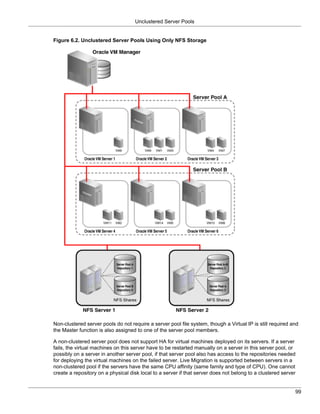
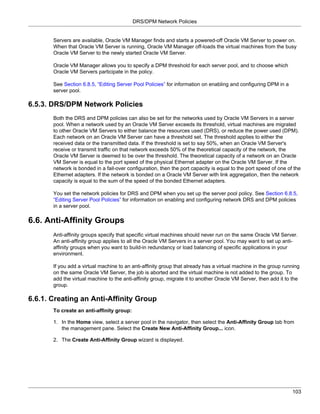
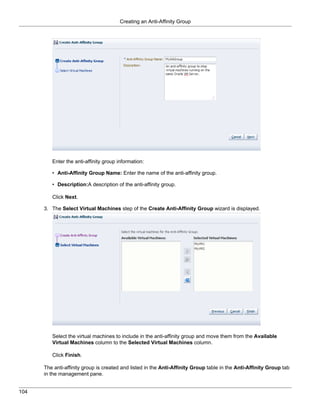
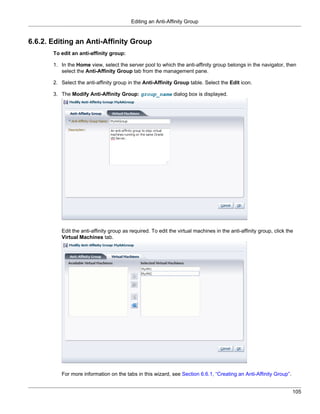
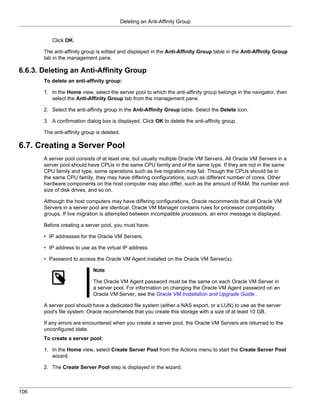
E18549-06
March 2012
Oracle® VM: User's Guide for Release 3.0.3
Copyright © 2011, 2012, Oracle and/or its affiliates. All rights reserved.

Oracle and Java are registered trademarks of Oracle and/or its affiliates. Other names may be trademarks of their respective owners.

This software and related documentation are provided under a license agreement containing restrictions on use and disclosure and are protected
by intellectual property laws. Except as expressly permitted in your license agreement or allowed by law, you may not use, copy, reproduce,
translate, broadcast, modify, license, transmit, distribute, exhibit, perform, publish or display any part, in any form, or by any means. Reverse
engineering, disassembly, or decompilation of this software, unless required by law for interoperability, is prohibited.

The information contained herein is subject to change without notice and is not warranted to be error-free. If you find any errors, please report them
to us in writing.

If this is software or related documentation that is delivered to the U.S. Government or anyone licensing it on behalf of the U.S. Government, the
following notice is applicable:

U.S. GOVERNMENT END USERS: Oracle programs, including any operating system, integrated software, any programs installed on the hardware,
and/or documentation, delivered to U.S. Government end users are “commercial computer software” pursuant to the applicable Federal Acquisition
Regulation and agency-specific supplemental regulations. As such, use, duplication, disclosure, modification, and adaptation of the programs,
including any operating system, integrated software, any programs installed on the hardware, and/or documentation, shall be subject to license
terms and license restrictions applicable to the programs. No other rights are granted to the U.S. Government.

This software or hardware is developed for general use in a variety of information management applications. It is not developed or intended for
use in any inherently dangerous applications, including applications that may create a risk of personal injury. If you use this software or hardware
in dangerous applications, then you shall be responsible to take all appropriate fail- safe, backup, redundancy, and other measures to ensure
its safe use. Oracle Corporation and its affiliates disclaim any liability for any damages caused by use of this software or hardware in dangerous
applications.

This software or hardware and documentation may provide access to or information on content, products and services from third parties. Oracle
Corporation and its affiliates are not responsible for and expressly disclaim all warranties of any kind with respect to third-party content, products,
and services. Oracle Corporation and its affiliates will not be responsible for any loss, costs, or damages incurred due to your access to or use of
third-party content, products, or services.
Table of Contents
Preface ............................................................................................................................................ vii
      1. Audience .............................................................................................................................. vii
      2. Documentation Accessibility .................................................................................................. vii
      3. Related Documents .............................................................................................................. vii
      4. Command Syntax ................................................................................................................. vii
      5. Conventions ........................................................................................................................ viii
1. Introduction to Virtualization ........................................................................................................... 1
      1.1. Introduction to Virtualization ................................................................................................. 1
            1.1.1. Brief History of Virtualization ..................................................................................... 1
            1.1.2. Hypervisor ............................................................................................................... 1
      1.2. Reasons to Use Virtualization .............................................................................................. 2
      1.3. Xen™ Technology .............................................................................................................. 3
      1.4. Oracle VM for x86 .............................................................................................................. 4
            1.4.1. Oracle VM Integrated Support ................................................................................... 6
2. Introduction to Oracle VM .............................................................................................................. 7
      2.1. Introduction to Oracle VM .................................................................................................... 7
      2.2. Oracle VM Features ............................................................................................................ 9
      2.3. Terminology ........................................................................................................................ 9
            2.3.1. Hypervisor ............................................................................................................... 9
            2.3.2. Domains, Guests and Virtual Machines ................................................................... 10
            2.3.3. Management Domain (dom0) .................................................................................. 10
            2.3.4. Domains (domU) .................................................................................................... 10
            2.3.5. Storage and Storage Repositories ........................................................................... 10
            2.3.6. Server Pools .......................................................................................................... 10
            2.3.7. Networks ................................................................................................................ 11
            2.3.8. Jobs and Events .................................................................................................... 11
      2.4. Servers and Server Pools .................................................................................................. 11
      2.5. Storage ............................................................................................................................. 12
            2.5.1. Plug-in-based Implementation ................................................................................. 12
            2.5.2. Usage of Storage Elements .................................................................................... 13
      2.6. Networking ........................................................................................................................ 13
      2.7. High Availability, Load Balancing and Power Management .................................................. 14
      2.8. Virtual Machines ............................................................................................................... 15
      2.9. Deployment Options .......................................................................................................... 16
      2.10. Oracle VM Pre-built Templates ........................................................................................ 18
      2.11. Managing Oracle VM Environment using Oracle Enterprise Manager 12c ............................ 18
3. Using Oracle VM Manager ........................................................................................................... 21
      3.1. Logging into the User Interface .......................................................................................... 21
      3.2. User Interface Overview .................................................................................................... 22
      3.3. Using the Global Links ...................................................................................................... 23
      3.4. Using the Menus ............................................................................................................... 23
            3.4.1. View Menu ............................................................................................................. 23
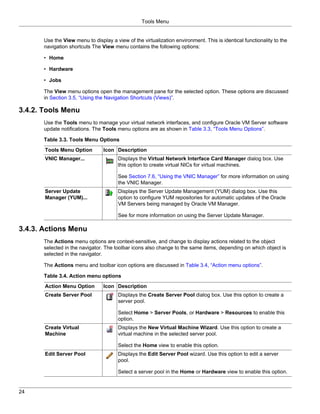
            3.4.2. Tools Menu ............................................................................................................ 24
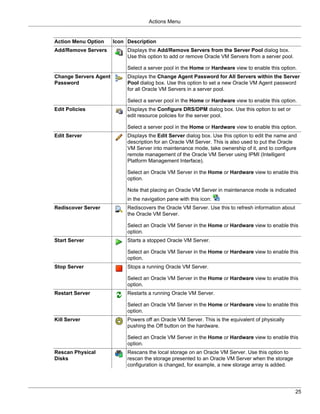
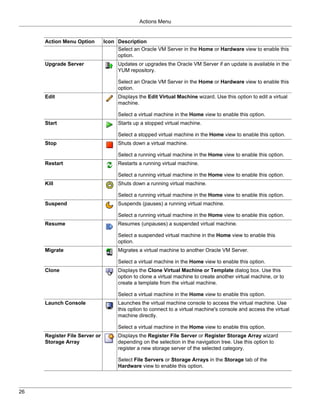
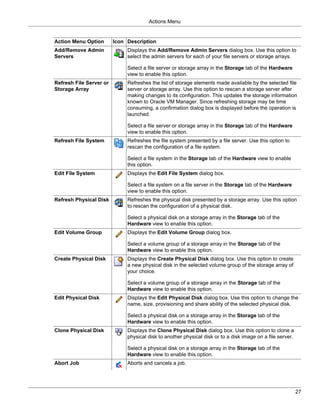
            3.4.3. Actions Menu ......................................................................................................... 24
            3.4.4. Help Menu ............................................................................................................. 28
      3.5. Using the Navigation Shortcuts (Views) .............................................................................. 28
            3.5.1. Home ..................................................................................................................... 28
            3.5.2. Hardware ............................................................................................................... 31
            3.5.3. Jobs ...................................................................................................................... 34
      3.6. Using the Toolbar ............................................................................................................. 35
      3.7. Using the Navigation Tree ................................................................................................. 36


                                                                                                                                                     iii
Oracle® VM


          3.8. Object Icon Colors ............................................................................................................ 37
     4. Managing Storage ........................................................................................................................ 39
          4.1. Storage Overview .............................................................................................................. 39
          4.2. Storage Types .................................................................................................................. 40
                4.2.1. Local Storage ......................................................................................................... 40
                4.2.2. Shared Network Attached Storage (NFS) ................................................................. 41
                4.2.3. iSCSI Storage Attached Network ............................................................................. 41
                4.2.4. Fibre Channel Storage Attached Network ................................................................ 42
          4.3. Storage Connect Plug-ins .................................................................................................. 42
                4.3.1. Installing Storage Connect Plug-ins ......................................................................... 43
          4.4. Storage Repositories ......................................................................................................... 43
          4.5. Storage Configuration Guidelines ....................................................................................... 44
          4.6. Preparing and Configuring Storage .................................................................................... 45
                4.6.1. Registering and Configuring File Servers ................................................................. 45
                4.6.2. Handling Unmanaged Storage Arrays ...................................................................... 48
                4.6.3. Registering and Configuring Storage Arrays ............................................................. 49
                4.6.4. Using Local Storage ............................................................................................... 57
                4.6.5. Removing Storage .................................................................................................. 58
          4.7. Enabling Multipath I/O Support .......................................................................................... 58
          4.8. Preparing and Configuring Storage Repositories ................................................................. 59
                4.8.1. Creating a Storage Repository ................................................................................ 61
                4.8.2. Presenting or Unpresenting a Storage Repository .................................................... 63
                4.8.3. Editing a Storage Repository ................................................................................... 63
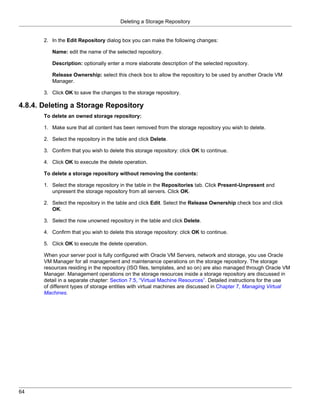
                4.8.4. Deleting a Storage Repository ................................................................................. 64
     5. Managing Networks ..................................................................................................................... 65
          5.1. Oracle VM Networking Overview ........................................................................................ 65
          5.2. Network Usage ................................................................................................................. 66
          5.3. Building a Network Environment ........................................................................................ 69
          5.4. Network Bonding ............................................................................................................... 70
          5.5. Network Bridges ................................................................................................................ 71
          5.6. VLAN Groups and VLAN Segments ................................................................................... 72
                5.6.1. Configuring VLANs ................................................................................................. 72
                5.6.2. Configuring VLAN Groups ....................................................................................... 73
          5.7. Creating Additional Networks ............................................................................................. 74
          5.8. Managing Bonded Interfaces ............................................................................................. 75
          5.9. Managing VLAN Groups .................................................................................................... 76
                5.9.1. Creating a VLAN Group .......................................................................................... 76
                5.9.2. Editing a VLAN Group ............................................................................................ 79
                5.9.3. Deleting a VLAN Group .......................................................................................... 80
          5.10. Managing Networks ......................................................................................................... 80
                5.10.1. Creating a Network ............................................................................................... 81
                5.10.2. Editing a Network ................................................................................................. 86
                5.10.3. Deleting a Network ............................................................................................... 88
                5.10.4. Configuring the Management Network on a VLAN .................................................. 88
                5.10.5. Dealing with Failed Network Operations ................................................................. 89
          5.11. Editing Network Data ....................................................................................................... 89
     6. Managing Server Pools ................................................................................................................ 93
          6.1. Server Pool Overview ........................................................................................................ 93
          6.2. Server Pool Clusters ......................................................................................................... 94
          6.3. Unclustered Server Pools .................................................................................................. 98
          6.4. High Availability (HA) ....................................................................................................... 100
          6.5. Server Pool Policies ........................................................................................................ 102
                6.5.1. Distributed Resource Scheduler (DRS) .................................................................. 102
                6.5.2. Distributed Power Management (DPM) .................................................................. 102


iv
Oracle® VM


           6.5.3. DRS/DPM Network Policies ..................................................................................               103
     6.6. Anti-Affinity Groups ..........................................................................................................   103
           6.6.1. Creating an Anti-Affinity Group ..............................................................................            103
           6.6.2. Editing an Anti-Affinity Group ................................................................................           105
           6.6.3. Deleting an Anti-Affinity Group ..............................................................................            106
     6.7. Creating a Server Pool ....................................................................................................       106
     6.8. Managing Server Pools ...................................................................................................         108
           6.8.1. Adding an Oracle VM Server to a Server Pool ........................................................                      109
           6.8.2. Removing an Oracle VM Server from a Server Pool ...............................................                           109
           6.8.3. Editing a Server Pool ............................................................................................        110
           6.8.4. Changing Oracle VM Agent Passwords on Oracle VM Servers ................................                                  111
           6.8.5. Editing Server Pool Policies ..................................................................................           112
           6.8.6. Deleting a Server Pool ..........................................................................................         115
     6.9. Managing Oracle VM Servers ..........................................................................................             115
           6.9.1. Discovering Oracle VM Servers .............................................................................               115
           6.9.2. Rediscovering an Oracle VM Server ......................................................................                  117
           6.9.3. Taking Ownership of an Oracle VM Server ............................................................                      117
           6.9.4. Editing Oracle VM Server Information ....................................................................                 118
           6.9.5. Starting an Oracle VM Server ...............................................................................              119
           6.9.6. Stopping an Oracle VM Server ..............................................................................               119
           6.9.7. Restarting an Oracle VM Server ............................................................................               120
           6.9.8. Selecting the Master Oracle VM Server .................................................................                   120
           6.9.9. Placing an Oracle VM Server into Maintenance Mode .............................................                           120
           6.9.10. Deleting an Oracle VM Server .............................................................................               121
           6.9.11. Updating and Upgrading Oracle VM Servers ........................................................                        121
7. Managing Virtual Machines .........................................................................................................      125
     7.1. Virtual Machines Overview ...............................................................................................         125
     7.2. Virtualization Modes (Domain Types) ...............................................................................               126
     7.3. Supported Guest Operating Systems ................................................................................                127
     7.4. Virtual Machine Installation Media ....................................................................................           127
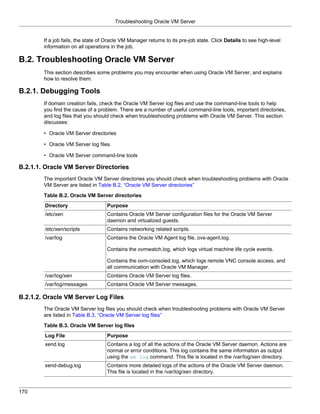
     7.5. Virtual Machine Resources ..............................................................................................          128
           7.5.1. Overview of Virtual Machine Resources in a Storage Repository ..............................                              128
           7.5.2. Storage Repository Contents and Structure ............................................................                    129
           7.5.3. Virtual Machine Templates ....................................................................................            130
           7.5.4. Assemblies ...........................................................................................................    132
           7.5.5. ISO Files (CD/DVD Images) ..................................................................................              133
           7.5.6. Virtual Disks .........................................................................................................   133
           7.5.7. Virtual Machine Configuration Files ........................................................................              135
     7.6. Using the VNIC Manager .................................................................................................          135
     7.7. Creating a Virtual Machine ..............................................................................................         135
     7.8. Cloning a Virtual Machine or Template .............................................................................               142
           7.8.1. Creating a Clone Definition ...................................................................................           144
     7.9. Managing Virtual Machines ..............................................................................................          145
           7.9.1. Starting a Virtual Machine .....................................................................................          145
           7.9.2. Migrating a Virtual Machine ...................................................................................           145
           7.9.3. Suspending a Virtual Machine ...............................................................................              146
           7.9.4. Resuming a Virtual Machine .................................................................................              147
           7.9.5. Shutting Down a Virtual Machine ...........................................................................               147
           7.9.6. Killing a Virtual Machine .......................................................................................         147
           7.9.7. Restarting a Virtual Machine .................................................................................            148
           7.9.8. Viewing Virtual Machine Details .............................................................................             148
           7.9.9. Editing a Virtual Machine ......................................................................................          148
           7.9.10. Deleting a Virtual Machine ..................................................................................            148
     7.10. Connecting to a Virtual Machine .....................................................................................            149


                                                                                                                                              v
Oracle® VM


          7.11. Installing Paravirtualized Drivers .....................................................................................                   150
          7.12. Setting Hard Partitioning for Virtual Machine CPUs ..........................................................                              151
     8. Converting Hosts .......................................................................................................................           155
          8.1. Converting a Host ...........................................................................................................               155
                 8.1.1. Using the P2V Utility .............................................................................................                155
                 8.1.2. Using the P2V Utility with a Kickstart File ...............................................................                        160
     A. P2V Parameters ........................................................................................................................            163
          A.1. P2V ................................................................................................................................        163
                 A.1.1. Options ................................................................................................................           164
     B. Troubleshooting .........................................................................................................................          167
          B.1. Working with the Jobs Framework ...................................................................................                         167
                 B.1.1. Jobs Overview .....................................................................................................                167
                 B.1.2. Jobs and Resource Locking ..................................................................................                       168
                 B.1.3. Locks and Multiple Users .....................................................................................                     168
                 B.1.4. Job Failure and Rollback ......................................................................................                    168
                 B.1.5. Jobs and Events ..................................................................................................                 168
                 B.1.6. Job States ...........................................................................................................             168
                 B.1.7. Starting A Job ......................................................................................................              169
                 B.1.8. Aborting A Job .....................................................................................................               169
                 B.1.9. Determining the Cause of a Job Failure .................................................................                           169
          B.2. Troubleshooting Oracle VM Server ..................................................................................                         170
                 B.2.1. Debugging Tools ..................................................................................................                 170
                 B.2.2. Using DHCP ........................................................................................................                171
                 B.2.3. Setting the Guest's Clock .....................................................................................                    171
                 B.2.4. Wallclock Time Skew Problems ............................................................................                          171
                 B.2.5. Mouse Pointer Tracking Problems .........................................................................                          172
                 B.2.6. Hardware Virtualized Guest Stops .........................................................................                         172
                 B.2.7. Hardware Virtualized Guest Devices Not Working as Expected ...............................                                         172
                 B.2.8. Firewall Blocks NFS Access .................................................................................                       172
                 B.2.9. Migrating Virtual Machines ....................................................................................                    173
          B.3. Troubleshooting Oracle VM Manager ...............................................................................                           173
                 B.3.1. Log Files .............................................................................................................            173
                 B.3.2. Cannot Start Virtual Machine Console ...................................................................                           173
                 B.3.3. Cannot Create a Virtual Machine from Installation Media ........................................                                   173
                 B.3.4. Cannot Change CD in the Virtual Machine .............................................................                              174
     C. Third Party Licenses ..................................................................................................................            175
          C.1. Open-OVF ......................................................................................................................             175
          C.2. Python-hashlib ................................................................................................................             179
          C.3. Python-zope-interface .....................................................................................................                 180
          C.4. Multiprocessing ...............................................................................................................             181
          C.5. Python-twisted-core .........................................................................................................               181
          C.6. PyYAML .........................................................................................................................            182
          C.7. Unzip .............................................................................................................................         183
          C.8. GPL and LGPL Licenses ................................................................................................                      184
     D. Glossary ...................................................................................................................................       191
     Index .............................................................................................................................................   195


vi
Preface

      Table of Contents
      1.   Audience ...................................................................................................................................... vii
      2.   Documentation Accessibility .......................................................................................................... vii
      3.   Related Documents ...................................................................................................................... vii
      4.   Command Syntax ......................................................................................................................... vii
      5.   Conventions ................................................................................................................................ viii

      The preface contains information on how to use the Oracle VM User's Guide.

1. Audience
      The Oracle VM User's Guide is intended for system administrators and end users who want to learn the
      fundamentals of virtualization, Oracle VM, and the provision and management of virtual machines.

2. Documentation Accessibility
      For information about Oracle's commitment to accessibility, visit the Oracle Accessibility Program website
      at http://www.oracle.com/pls/topic/lookup?ctx=acc&id=docacc.

Access to Oracle Support
      Oracle customers have access to electronic support through My Oracle Support. For information, visit
      http://www.oracle.com/pls/topic/lookup?ctx=acc&id=info or visit http://www.oracle.com/pls/topic/lookup?
      ctx=acc&id=trs if you are hearing impaired.

3. Related Documents
      For more information, see the following documents in the Oracle VM Release 3.0.3 documentation set:

      • Oracle VM Release Notes

      • Oracle VM Installation and Upgrade Guide

      • Oracle VM Getting Started Guide

      • Oracle VM Windows Paravirtual Drivers Installation Guide

      You can also get the latest information on Oracle VM by going to the Oracle VM Web site:

      http://www.oracle.com/us/technologies/virtualization/oraclevm

4. Command Syntax
      Oracle Linux command syntax appears in monospace font. The dollar character ($), number sign (#), or
      percent character (%) are Oracle Linux command prompts. Do not enter them as part of the command.
      The following command syntax conventions are used in this guide:

       Convention                            Description
       backslash                            A backslash is the Oracle Linux command continuation character. It is used in
                                             command examples that are too long to fit on a single line. Enter the command
                                             as displayed (with a backslash) or enter it on a single line without a backslash:


                                                                                                                                                           vii
Conventions


       Convention                 Description
                                  dd if=/dev/rdsk/c0t1d0s6 of=/dev/rst0 bs=10b 
                                  count=10000

       braces { }                 Braces indicate required items:
                                  .DEFINE {macro1}

       brackets [ ]               Brackets indicate optional items:
                                  cvtcrt termname [outfile]

       ellipses ...               Ellipses indicate an arbitrary number of similar items:
                                  CHKVAL fieldname value1 value2 ... valueN

       italics                    Italic type indicates a variable. Substitute a value for the variable:
                                  library_name

       vertical line |            A vertical line indicates a choice within braces or brackets:
                                  FILE filesize [K|M]


5. Conventions
       The following text conventions are used in this document:

       Convention                 Meaning
       boldface                   Boldface type indicates graphical user interface elements associated with an
                                  action, or terms defined in text or the glossary.
       italic                     Italic type indicates book titles, emphasis, or placeholder variables for which
                                  you supply particular values.
       monospace                  Monospace type indicates commands within a paragraph, URLs, code in
                                  examples, text that appears on the screen, or text that you enter.


viii
Chapter 1. Introduction to Virtualization

       Table of Contents
       1.1. Introduction to Virtualization .........................................................................................................     1
             1.1.1. Brief History of Virtualization .............................................................................................        1
             1.1.2. Hypervisor .......................................................................................................................   1
       1.2. Reasons to Use Virtualization ......................................................................................................         2
       1.3. Xen™ Technology ......................................................................................................................       3
       1.4. Oracle VM for x86 ......................................................................................................................     4
             1.4.1. Oracle VM Integrated Support ..........................................................................................              6

       This chapter provides introductory information on virtualization. It discusses why you would want to use
       virtualization, the technology provided, and a high level overview of Oracle VM.

1.1. Introduction to Virtualization
       The IT industry's focus on virtualization technology has increased considerably in the past few years.
       However, the concept has been around much longer, as you can read in the brief history below. This
       section also provides a high level view of the virtualization technology and methods that exist today, and
       highlights a number of reasons why organizations are embracing virtualization more and more.

1.1.1. Brief History of Virtualization
       The concept of virtualization is generally believed to have its origins in the mainframe days in the late
       1960s and early 1970s, when IBM invested a lot of time and effort in developing robust time-sharing
       solutions. Time-sharing refers to the shared usage of computer resources among a large group of users,
       aiming to increase the efficiency of both the users and the expensive computer resources they share.
       This model represented a major breakthrough in computer technology: the cost of providing computing
       capability dropped considerably and it became possible for organizations, and even individuals, to use
       a computer without actually owning one. Similar reasons are driving virtualization for industry standard
       computing today: the capacity in a single server is so large that it is almost impossible for most workloads
       to effectively use it. The best way to improve resource utilization, and at the same time simplify data center
       management, is through virtualization.

       Data centers today use virtualization techniques to make abstraction of the physical hardware, create
       large aggregated pools of logical resources consisting of CPUs, memory, disks, file storage, applications,
       networking, and offer those resources to users or customers in the form of agile, scalable, consolidated
       virtual machines. Even though the technology and use cases have evolved, the core meaning of
       virtualization remains the same: to enable a computing environment to run multiple independent systems at
       the same time.

1.1.2. Hypervisor
       If virtualization is defined as enabling multiple operating systems to run on a single host computer, then
       the essential component in the virtualization stack is the hypervisor. This hypervisor, also called Virtual
       Machine Monitor (VMM), creates a virtual platform on the host computer, on top of which multiple guest
       operating systems are executed and monitored. This way, multiple operating systems, which are either
       multiple instances of the same operating system, or different operating systems, can share the hardware
       resources offered by the host.

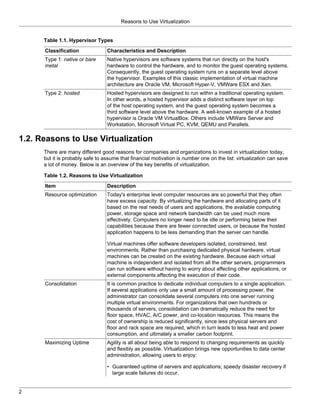
       Hypervisors are commonly classified as one of these two types, as show in Table 1.1, “Hypervisor Types”.


                                                                                                                                                         1
Reasons to Use Virtualization


      Table 1.1. Hypervisor Types
      Classification              Characteristics and Description
      Type 1: native or bare      Native hypervisors are software systems that run directly on the host's
      metal                       hardware to control the hardware, and to monitor the guest operating systems.
                                  Consequently, the guest operating system runs on a separate level above
                                  the hypervisor. Examples of this classic implementation of virtual machine
                                  architecture are Oracle VM, Microsoft Hyper-V, VMWare ESX and Xen.
      Type 2: hosted              Hosted hypervisors are designed to run within a traditional operating system.
                                  In other words, a hosted hypervisor adds a distinct software layer on top
                                  of the host operating system, and the guest operating system becomes a
                                  third software level above the hardware. A well-known example of a hosted
                                  hypervisor is Oracle VM VirtualBox. Others include VMWare Server and
                                  Workstation, Microsoft Virtual PC, KVM, QEMU and Parallels.

1.2. Reasons to Use Virtualization
      There are many different good reasons for companies and organizations to invest in virtualization today,
      but it is probably safe to assume that financial motivation is number one on the list: virtualization can save
      a lot of money. Below is an overview of the key benefits of virtualization.

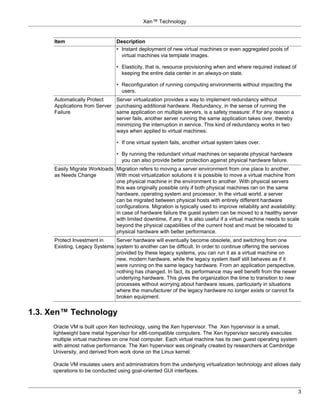
      Table 1.2. Reasons to Use Virtualization
      Item                        Description
      Resource optimization       Today's enterprise level computer resources are so powerful that they often
                                  have excess capacity. By virtualizing the hardware and allocating parts of it
                                  based on the real needs of users and applications, the available computing
                                  power, storage space and network bandwidth can be used much more
                                  effectively. Computers no longer need to be idle or performing below their
                                  capabilities because there are fewer connected users, or because the hosted
                                  application happens to be less demanding than the server can handle.

                                  Virtual machines offer software developers isolated, constrained, test
                                  environments. Rather than purchasing dedicated physical hardware, virtual
                                  machines can be created on the existing hardware. Because each virtual
                                  machine is independent and isolated from all the other servers, programmers
                                  can run software without having to worry about affecting other applications, or
                                  external components affecting the execution of their code.
      Consolidation               It is common practice to dedicate individual computers to a single application.
                                  If several applications only use a small amount of processing power, the
                                  administrator can consolidate several computers into one server running
                                  multiple virtual environments. For organizations that own hundreds or
                                  thousands of servers, consolidation can dramatically reduce the need for
                                  floor space, HVAC, A/C power, and co-location resources. This means the
                                  cost of ownership is reduced significantly, since less physical servers and
                                  floor and rack space are required, which in turn leads to less heat and power
                                  consumption, and ultimately a smaller carbon footprint.
      Maximizing Uptime           Agility is all about being able to respond to changing requirements as quickly
                                  and flexibly as possible. Virtualization brings new opportunities to data center
                                  administration, allowing users to enjoy:

                                  • Guaranteed uptime of servers and applications; speedy disaster recovery if
                                    large scale failures do occur.


2
Xen™ Technology


     Item                       Description
                                • Instant deployment of new virtual machines or even aggregated pools of
                                  virtual machines via template images.

                                • Elasticity, that is, resource provisioning when and where required instead of
                                  keeping the entire data center in an always-on state.

                                • Reconfiguration of running computing environments without impacting the
                                  users.
     Automatically Protect    Server virtualization provides a way to implement redundancy without
     Applications from Server purchasing additional hardware. Redundancy, in the sense of running the
     Failure                  same application on multiple servers, is a safety measure: if for any reason a
                              server fails, another server running the same application takes over, thereby
                              minimizing the interruption in service. This kind of redundancy works in two
                              ways when applied to virtual machines:

                                • If one virtual system fails, another virtual system takes over.

                                • By running the redundant virtual machines on separate physical hardware
                                  you can also provide better protection against physical hardware failure.
     Easily Migrate Workloads Migration refers to moving a server environment from one place to another.
     as Needs Change          With most virtualization solutions it is possible to move a virtual machine from
                              one physical machine in the environment to another. With physical servers
                              this was originally possible only if both physical machines ran on the same
                              hardware, operating system and processor. In the virtual world, a server
                              can be migrated between physical hosts with entirely different hardware
                              configurations. Migration is typically used to improve reliability and availability:
                              in case of hardware failure the guest system can be moved to a healthy server
                              with limited downtime, if any. It is also useful if a virtual machine needs to scale
                              beyond the physical capabilities of the current host and must be relocated to
                              physical hardware with better performance.
     Protect Investment in    Server hardware will eventually become obsolete, and switching from one
     Existing, Legacy Systems system to another can be difficult. In order to continue offering the services
                              provided by these legacy systems, you can run it as a virtual machine on
                              new, modern hardware, while the legacy system itself still behaves as if it
                              were running on the same legacy hardware. From an application perspective,
                              nothing has changed. In fact, its performance may well benefit from the newer
                              underlying hardware. This gives the organization the time to transition to new
                              processes without worrying about hardware issues, particularly in situations
                              where the manufacturer of the legacy hardware no longer exists or cannot fix
                              broken equipment.


1.3. Xen™ Technology
     Oracle VM is built upon Xen technology, using the Xen hypervisor. The Xen hypervisor is a small,
     lightweight bare metal hypervisor for x86-compatible computers. The Xen hypervisor securely executes
     multiple virtual machines on one host computer. Each virtual machine has its own guest operating system
     with almost native performance. The Xen hypervisor was originally created by researchers at Cambridge
     University, and derived from work done on the Linux kernel.

     Oracle VM insulates users and administrators from the underlying virtualization technology and allows daily
     operations to be conducted using goal-oriented GUI interfaces.


                                                                                                                  3
Oracle VM for x86


1.4. Oracle VM for x86
      Oracle VM for x86 (Oracle VM) is a platform that provides a fully equipped environment with all the latest
      benefits of virtualization technology. Oracle VM enables you to deploy operating systems and application
      software within a supported virtualization environment. The components of Oracle VM are:

      • Oracle VM Manager: Provides the graphical user interface, which is an Application Development
        Framework (ADF) application, with a familiar web-browser based interface, to manage Oracle VM
        Servers, virtual machines, and resources. Use Oracle VM Manager to:

        • Create virtual machines

        • Create server pools

        • Power on and off virtual machines

        • Manage networks and storage

        • Import virtual machines, ISO files, and templates

        • Manage high availability of Oracle VM Servers, server pools, and virtual machines

        • Perform live migration of virtual machines

      • Oracle VM Server: A managed virtualization environment or part of such an environment, designed to
        provide a lightweight, secure, server-based platform for running virtual machines. Oracle VM Server is
        based upon an updated version of the underlying Xen hypervisor technology, and includes Oracle VM
        Agent.

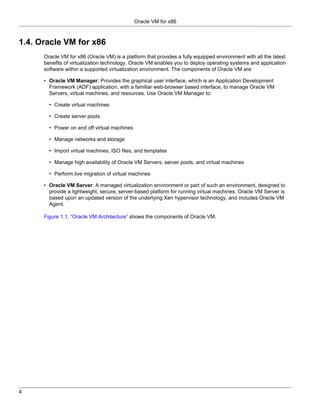
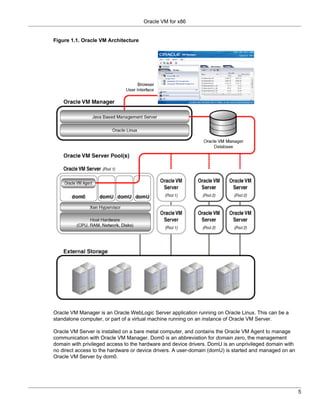
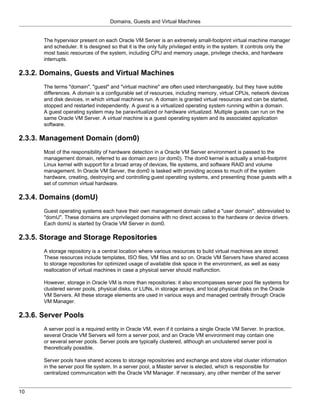
      Figure 1.1, “Oracle VM Architecture” shows the components of Oracle VM.


4
Oracle VM for x86


Figure 1.1. Oracle VM Architecture


Oracle VM Manager is an Oracle WebLogic Server application running on Oracle Linux. This can be a
standalone computer, or part of a virtual machine running on an instance of Oracle VM Server.

Oracle VM Server is installed on a bare metal computer, and contains the Oracle VM Agent to manage
communication with Oracle VM Manager. Dom0 is an abbreviation for domain zero, the management
domain with privileged access to the hardware and device drivers. DomU is an unprivileged domain with
no direct access to the hardware or device drivers. A user-domain (domU) is started and managed on an
Oracle VM Server by dom0.


                                                                                                        5
Oracle VM Integrated Support


1.4.1. Oracle VM Integrated Support
       Oracle has a unique position in the virtualization market as an Enterprise application, operating system
       and hardware vendor that delivers technologies across the stack. Owning the entire stack has various
       advantages:

       • integration and centralized management of all components

       • the ability to pre-package and distribute Oracle technologies via Oracle VM templates

       • integrated enterprise support across the entire technology stack, from application to hardware

       Oracle VM support is an add-on component of Oracle's enterprise support package that offers an end-to-
       end single vendor support solution from the application to the disk. A single support call covers the entire
       Oracle stack which expedites problem resolution. Using Oracle support allows an Oracle support service
       request (SR) to transition between support teams with issues that require cross stack collaboration. For
       example, if you open a service request for an application issue and the root cause is at the virtualization
       layer then the service request will transition between the application and virtualization teams.


6
Chapter 2. Introduction to Oracle VM


      Table of Contents
      2.1. Introduction to Oracle VM ............................................................................................................ 7
      2.2. Oracle VM Features .................................................................................................................... 9
      2.3. Terminology ................................................................................................................................ 9
            2.3.1. Hypervisor ....................................................................................................................... 9
            2.3.2. Domains, Guests and Virtual Machines ........................................................................... 10
            2.3.3. Management Domain (dom0) .......................................................................................... 10
            2.3.4. Domains (domU) ............................................................................................................ 10
            2.3.5. Storage and Storage Repositories ................................................................................... 10
            2.3.6. Server Pools .................................................................................................................. 10
            2.3.7. Networks ........................................................................................................................ 11
            2.3.8. Jobs and Events ............................................................................................................ 11
      2.4. Servers and Server Pools .......................................................................................................... 11
      2.5. Storage ..................................................................................................................................... 12
            2.5.1. Plug-in-based Implementation ......................................................................................... 12
            2.5.2. Usage of Storage Elements ............................................................................................ 13
      2.6. Networking ................................................................................................................................ 13
      2.7. High Availability, Load Balancing and Power Management .......................................................... 14
      2.8. Virtual Machines ....................................................................................................................... 15
      2.9. Deployment Options .................................................................................................................. 16
      2.10. Oracle VM Pre-built Templates ................................................................................................ 18
      2.11. Managing Oracle VM Environment using Oracle Enterprise Manager 12c ................................... 18

      This chapter contains introductory information about Oracle VM, its components, architecture, and
      deployment options.

2.1. Introduction to Oracle VM
      Oracle VM is a platform that provides a fully equipped environment with all the latest benefits of
      virtualization technology. Oracle VM enables you to deploy operating systems and application software
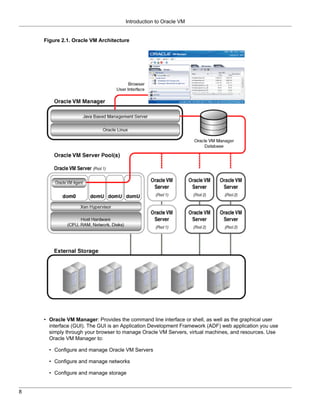
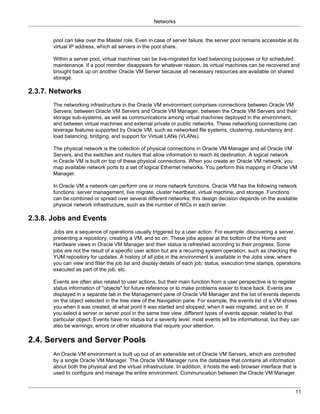
      within a supported virtualization environment. The components of Oracle VM are shown in Figure 2.1,
      “Oracle VM Architecture”.


                                                                                                                                                         7
Introduction to Oracle VM


    Figure 2.1. Oracle VM Architecture


    • Oracle VM Manager: Provides the command line interface or shell, as well as the graphical user
      interface (GUI). The GUI is an Application Development Framework (ADF) web application you use
      simply through your browser to manage Oracle VM Servers, virtual machines, and resources. Use
      Oracle VM Manager to:

      • Configure and manage Oracle VM Servers

      • Configure and manage networks

      • Configure and manage storage


8
Oracle VM Features


         • Configure and manage resources such as virtual machine images, virtual machine templates,
           assemblies, and installation media

         • Create virtual machines from installation media, a virtual machine template, an assembly, or a virtual
           machine image

         • Manage virtual machines, including powering on and off, deleting, and live migrating

         • Import virtual machines created with Oracle VM or another solution for server virtualization

       • Oracle VM Server: A managed virtualization environment providing a lightweight, secure, server
         platform which runs virtual machines. At least one Oracle VM Server is required, but several are needed
         to take advantage of clustering. Oracle VM Server is based upon an updated version of the underlying
         Xen hypervisor technology, and includes Oracle VM Agent. It also includes a Linux kernel with support
         for a broad array of devices, file systems, and software RAID volume management. The Linux kernel
         is run as dom0 to manage one or more domU virtual machines, each of which could be Linux, Oracle
         Solaris, or Microsoft Windows.

2.2. Oracle VM Features
       This section gives an overview of the Oracle VM Manager features used to manage Oracle VM Servers,
       virtual machines, storage repositories, networks, and resources. Oracle VM Manager provides the
       following main capabilities:

       • Manages the physical Oracle VM Servers and can, for example, reboot or rediscover the physical
         hardware.

       • Creates and configures server pools.

       • Creates and manages Oracle VM Server logical networks, for example, NIC port bonding, and
         configuring VLAN networks.

       • Creates and manages storage repositories.

       • Manages resources, including ISO files, virtual machine templates, virtual machine images, and virtual
         machine assemblies.

       • Manages the virtual machine life cycle. This includes creating virtual machines from either installation
         media or from templates, starting, logging in, shutting down, and deleting virtual machines.

       • Imports, clones and migrates virtual machines.

       • Performs load balancing of virtual machines in server pools.

       • Manages jobs in the Oracle VM environment.

       • Manages policies such as High Availability, Distributed Resource Scheduling, and Distributed Power
         Management.

2.3. Terminology
       This section contains definitions for the terms used throughout this Guide and terms used within Oracle
       VM.

2.3.1. Hypervisor


                                                                                                                    9
Domains, Guests and Virtual Machines


       The hypervisor present on each Oracle VM Server is an extremely small-footprint virtual machine manager
       and scheduler. It is designed so that it is the only fully privileged entity in the system. It controls only the
       most basic resources of the system, including CPU and memory usage, privilege checks, and hardware
       interrupts.

2.3.2. Domains, Guests and Virtual Machines
       The terms "domain", "guest" and "virtual machine" are often used interchangeably, but they have subtle
       differences. A domain is a configurable set of resources, including memory, virtual CPUs, network devices
       and disk devices, in which virtual machines run. A domain is granted virtual resources and can be started,
       stopped and restarted independently. A guest is a virtualized operating system running within a domain.
       A guest operating system may be paravirtualized or hardware virtualized. Multiple guests can run on the
       same Oracle VM Server. A virtual machine is a guest operating system and its associated application
       software.

2.3.3. Management Domain (dom0)
       Most of the responsibility of hardware detection in a Oracle VM Server environment is passed to the
       management domain, referred to as domain zero (or dom0). The dom0 kernel is actually a small-footprint
       Linux kernel with support for a broad array of devices, file systems, and software RAID and volume
       management. In Oracle VM Server, the dom0 is tasked with providing access to much of the system
       hardware, creating, destroying and controlling guest operating systems, and presenting those guests with a
       set of common virtual hardware.

2.3.4. Domains (domU)
       Guest operating systems each have their own management domain called a "user domain", abbreviated to
       "domU". These domains are unprivileged domains with no direct access to the hardware or device drivers.
       Each domU is started by Oracle VM Server in dom0.

2.3.5. Storage and Storage Repositories
       A storage repository is a central location where various resources to build virtual machines are stored.
       These resources include templates, ISO files, VM files and so on. Oracle VM Servers have shared access
       to storage repositories for optimized usage of available disk space in the environment, as well as easy
       reallocation of virtual machines in case a physical server should malfunction.

       However, storage in Oracle VM is more than repositories: it also encompasses server pool file systems for
       clustered server pools, physical disks, or LUNs, in storage arrays, and local physical disks on the Oracle
       VM Servers. All these storage elements are used in various ways and managed centrally through Oracle
       VM Manager.

2.3.6. Server Pools
       A server pool is a required entity in Oracle VM, even if it contains a single Oracle VM Server. In practice,
       several Oracle VM Servers will form a server pool, and an Oracle VM environment may contain one
       or several server pools. Server pools are typically clustered, although an unclustered server pool is
       theoretically possible.

       Server pools have shared access to storage repositories and exchange and store vital cluster information
       in the server pool file system. In a server pool, a Master server is elected, which is responsible for
       centralized communication with the Oracle VM Manager. If necessary, any other member of the server


10
Networks


       pool can take over the Master role. Even in case of server failure, the server pool remains accessible at its
       virtual IP address, which all servers in the pool share.

       Within a server pool, virtual machines can be live-migrated for load balancing purposes or for scheduled
       maintenance. If a pool member disappears for whatever reason, its virtual machines can be recovered and
       brought back up on another Oracle VM Server because all necessary resources are available on shared
       storage.

2.3.7. Networks
       The networking infrastructure in the Oracle VM environment comprises connections between Oracle VM
       Servers, between Oracle VM Servers and Oracle VM Manager, between the Oracle VM Servers and their
       storage sub-systems, as well as communications among virtual machines deployed in the environment,
       and between virtual machines and external private or public networks. These networking connections can
       leverage features supported by Oracle VM, such as networked file systems, clustering, redundancy and
       load balancing, bridging, and support for Virtual LANs (VLANs).

       The physical network is the collection of physical connections in Oracle VM Manager and all Oracle VM
       Servers, and the switches and routers that allow information to reach its destination. A logical network
       in Oracle VM is built on top of these physical connections. When you create an Oracle VM network, you
       map available network ports to a set of logical Ethernet networks. You perform this mapping in Oracle VM
       Manager.

       In Oracle VM a network can perform one or more network functions. Oracle VM has the following network
       functions: server management, live migrate, cluster heartbeat, virtual machine, and storage. Functions
       can be combined or spread over several different networks; this design decision depends on the available
       physical network infrastructure, such as the number of NICs in each server.

2.3.8. Jobs and Events
       Jobs are a sequence of operations usually triggered by a user action. For example: discovering a server,
       presenting a repository, creating a VM, and so on. These jobs appear at the bottom of the Home and
       Hardware views in Oracle VM Manager and their status is refreshed according to their progress. Some
       jobs are not the result of a specific user action but are a recurring system operation, such as checking the
       YUM repository for updates. A history of all jobs in the environment is available in the Jobs view, where
       you can view and filter the job list and display details of each job: status, execution time stamps, operations
       executed as part of the job, etc.

       Events are often also related to user actions, but their main function from a user perspective is to register
       status information of "objects" for future reference or to make problems easier to trace back. Events are
       displayed in a separate tab in the Management pane of Oracle VM Manager and the list of events depends
       on the object selected in the tree view of the Navigation pane. For example, the events list of a VM shows
       you when it was created, at what point it was started and stopped, when it was migrated, and so on. If
       you select a server or server pool in the same tree view, different types of events appear, related to that
       particular object. Events have no status but a severity level: most events will be informational, but they can
       also be warnings, errors or other situations that require your attention.

2.4. Servers and Server Pools
       An Oracle VM environment is built up out of an extensible set of Oracle VM Servers, which are controlled
       by a single Oracle VM Manager. The Oracle VM Manager runs the database that contains all information
       about both the physical and the virtual infrastructure. In addition, it hosts the web browser interface that is
       used to configure and manage the entire environment. Communication between the Oracle VM Manager


                                                                                                                     11
Storage


       and the Oracle VM Servers, in order to execute operations on and through the servers, is relayed via the
       Oracle VM Agent, which is present on all the servers in the environment.

       From within the Oracle VM Manager user interface, servers are discovered based on their IP address or
       host name. Additional servers can be installed and discovered at any time as the need for capacity grows.
       The Oracle VM Servers provide computing capacity to the virtual machines they host: CPU and RAM. They
       also host the storage plug-ins that are used to connect with shared, attached file-based and block-based
       storage offered by other hardware in the data center. For more details, see Section 2.5, “Storage” in this
       chapter, and Chapter 4, Managing Storage.

       Oracle VM Servers are members of a server pool. Server pools use a virtual IP address and elect one
       master server that handles interactions with the Oracle VM Manager. If the master server goes down,
       another server in the pool immediately takes over the master function and the server pool remains
       reachable at the virtual IP address. Virtual machines running on a failing server can be restored on another
       server in the pool. This is possible because all members of the server pool have access to the same
       shared storage, where virtual machine configuration, disks, templates etc. are stored.

       In a clustered server pool, which is the typical configuration, high availability is enabled for the servers
       as well as the virtual machines they host. Clustered server pools use a shared ocfs2 pool file system for
       the cluster heartbeating function, configuration and other clustering information. Clustering and ocfs2
       enable important advanced functionality such as shared block-based storage access, policies for fail over,
       load balancing and power management, etc. For details about server pools, clustering and ocfs2, see
       Chapter 6, Managing Server Pools.

       An Oracle VM environment can consist of several server pools. This is a design decision: like in any data
       center it may be preferred to subdivide resources into groups, isolate these from each other, and assign
       them to different users (departments, teams, administrators, customers and so on).

2.5. Storage
       To cover all aspects of Oracle VM storage we must discuss both the provisioning and the consumption
       side of the storage functionality. The following sections provide an answer to two major questions:

       • How does Oracle VM connect to its storage?

       • What storage elements are available within the Oracle VM environment?

2.5.1. Plug-in-based Implementation
       The entire Oracle VM storage implementation is based on Oracle Storage Connect plugins. The plug-ins
       are packaged and distributed as RPM packages and deployed on the Oracle VM Servers. They are divided
       in two major categories: storage array plug-ins for any block based storage, and file system plug-ins for
       any network file system based storage.

       For both categories, generic plug-ins are included. They offer standard functionality to discover, register
       and use NFS storage, iSCSI or Fibre Channel SANs, and local storage For more information about the
       types of storage supported in Oracle VM, see Section 4.2, “Storage Types”. The standard operations
       allowed via generic plug-ins are "passive", in the sense that they can detect and use storage elements
       offered to the Oracle VM Servers. Interactive management operations on the storage hardware is not
       possible with generic plug-ins.

       In addition, Oracle cooperates with storage partners and invites storage hardware vendors to develop
       Oracle Storage Connect plug-ins for their specific hardware. These vendor-specific plug-ins can only be
       used with a specific brand or product line of storage hardware but they offer additional operations from
       within Oracle VM Manager compared to generic plugins. For example, a generic storage array plug-in


12
Usage of Storage Elements


      can only detect LUNs on the storage host and has only a single access group to define which servers
      can access the storage elements. In contrast, a vendor-specific storage array plug-in allows interactive
      operations such as creating and modifying LUNs, and can configure various access groups for finer-
      grained storage access management. For detailed information about Oracle Storage Connect plug-ins, see
      Section 4.3, “Storage Connect Plug-ins”.

      The main benefits of the plug-in approach are:

      • Flexibility. Use and integrate with your existing storage infrastructure, choose between file-based
        and block-based solutions, and use local storage for testing purposes or virtual machines of minor
        importance. Use generic or vendor-specific plug-ins depending on your available hardware or any new
        hardware you select.

      • Scalability. Add more storage providers of your preferred type and present them to your server pools as
        your need for storage increases. Reduce the amount of storage again if the higher storage requirements
        are temporary. Provision your storage with redundancy and multipathing according to your requirements
        and preferences.

      • Extensibility. If you upgrade your storage, consider the added functionality of vendor-specific plugins. If
        you select hardware for which Oracle Storage Connect plug-ins are available, ask the manufacturer for
        the RPM and install the plug-in on the Oracle VM Servers with access to this storage hardware.

2.5.2. Usage of Storage Elements
      Whatever the Oracle VM Server configuration in your environment is, Oracle VM always requires a location
      to store environment resources that are essential to the creation and management of virtual machines.
      These resources include VM templates and assemblies, ISO files (virtual DVD images), VM configuration
      files and VM virtual disks. The location of such a group of resources is called a storage repository. You
      present a storage repository to the Oracle VM Servers that need access to those resources; typically all
      servers in a server pool.

      Storage repositories can be configured on an NFS file system or on a physical disk (LUN) of a storage
      array. However, for storage repositories on physical disk, the servers with access to it must be members of
      a clustered server pool. For unclustered server pools only file server storage is available. For details about
      the use of storage repositories, see Section 4.8, “Preparing and Configuring Storage Repositories”.

      Clustering adds another storage element to the environment: the server pool file system. During server
      pool creation, the server pool file system specified for the new server pool is accessed and formatted as
      an OCFS2 file system, whether the file system is accessed by the Oracle VM Servers as an NFS share, a
      FC LUN or iSCSI LUN. This formatting creates several management areas on the file system including a
      region for the global disk heartbeat. The server pool file system plays a key role in clustering and therefore
      in the high-availability configuration of the Oracle VM environment. For details about server pool clustering,
      see Section 6.2, “Server Pool Clusters”.

      The storage element that is most tangible and visible to all users of Oracle VM is the virtual machine disk.
      A VM disk is either a disk image file in a storage repository or a raw physical disk. If a physical disk (LUN)
      is used, it is attached directly to the VM in the same way it would be to a physical machine. For details
      about virtual machine operation, see Chapter 7, Managing Virtual Machines. Again, the availability of VM
      disks in a storage location with shared access from all Oracle VM Servers in the server pool is essential for
      VM high-availability.

2.6. Networking
      The networking infrastructure in the Oracle VM environment comprises connections between Oracle VM
      Servers, between Oracle VM Servers and Oracle VM Manager, between the Oracle VM Servers and their


                                                                                                                  13
High Availability, Load Balancing and Power Management


      storage sub-systems, as well as communications among virtual machines deployed in the environment,
      and between virtual machines and external private or public networks.

      These networking connections can leverage features supported by Oracle VM, such as networked file
      systems, clustering, redundancy and load balancing, bridging, and support for Virtual LANs (VLANs).

      In Oracle VM Manager, network configuration is the mapping of available network interfaces to a set of
      logical Ethernet networks. The physical network is the collection of physical connections in Oracle VM
      Manager and all Oracle VM Servers, and the switches and routers that allow information to reach its
      destination. A logical network in Oracle VM is built on top of these physical connections. Before you define
      the logical networks in Oracle VM Manager, you have to review the physical network configuration that
      you intend to use, such as VLAN and subnet usage. You also take into account the number of network
      interfaces available to your Oracle VM Servers. The minimum recommended number of ports required on a
      single Oracle VM Server is two, although one would suffice for test or demonstration purposes. If you have
      more than two ports on your Oracle VM Servers, you can design more redundancy or traffic isolation in
      your environment.

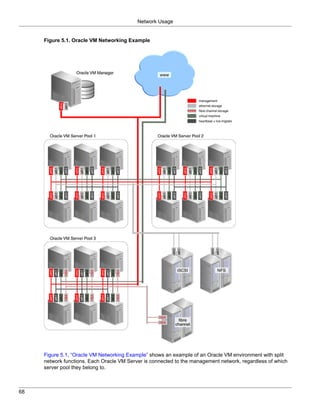
      Oracle VM identifies different network functions: server management, live migrate, cluster heartbeat,
      virtual machine, and storage. All network functions can either be on dedicated or shared physical networks
      (except for the virtual machine intra-server network). For example, a physical network can be dedicated to
      Virtual Machine or Storage only, or can be dedicated for all network functions. For details about network
      functions, see Section 5.2, “Network Usage”.

      After reviewing your physical network environment and deciding on the logical distribution and grouping of
      these physical objects, you create the logical constructs in Oracle VM Manager to implement your network
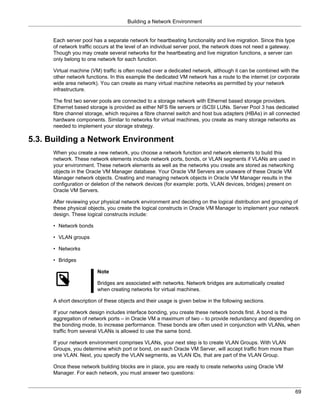
      design. These logical constructs include network bonds, VLAN groups, networks and bridges. If your
      network design includes interface bonding, or aggregations of two ports, you create these network bonds
      first. These bonds are often used in conjunction with VLANs, when traffic from several VLANs is allowed
      to use the same bond. If your network environment comprises VLANs, your next step is to create VLAN
      Groups, determining which port or bond, on each Oracle VM Server, will accept traffic from more which
      VLANs.

      After careful evaluation of the available network building blocks and required network functions, you create
      the necessary logical networks by choosing one of these types:

      • network with bonds and ports

      • network with VLANs only

      • hybrid network connecting bonds and ports, as well as VLAN interfaces

      • logical network on a single server (intra-server VM network)

      For details, see Section 5.3, “Building a Network Environment”, and the subsequent sections in the
      chapter.

2.7. High Availability, Load Balancing and Power Management
      Oracle VM has high-availability (HA) functionality built in at every level. Even though there is only one
      Oracle VM Manager in the environment, it distributes vital information over the servers it manages, so that
      in case of failure the Oracle VM Manager and its infrastructure database can be rebuilt. At the Oracle VM
      Server and virtual machine level, HA is based on clustering. Members of a clustered server pool use an
      exchangeable Master server role and a virtual IP to make sure the cluster remains reachable if an Oracle
      VM Server goes down. If a server is lost, another server can recover the same VM because all required
      data is available on shared storage. In case of predictable failures or scheduled maintenance, virtual
      machines can be moved to other members of the server pool using live migration.


14
Virtual Machines


      In addition, Oracle VM supports HA networking and storage, but these are configurations the system
      administrator must implement outside Oracle VM Manager (RAID, multipathing, etc.).

      Clustered server pools also support advanced management policies called Dynamic Power Management
      (DPM) and Dynamic Resource Scheduler (DRS). DPM is a policy that optimizes the use of the server
      pool members to conserve power. When DPM is enabled, the policy will periodically look for Oracle VM
      Servers that are under utilized and then live-migrate the virtual machines on that server to other servers
      in the pool. When live migration is complete, the server is shut down, conserving power. Conversely, if a
      server becomes overloaded, the policy will look for other servers to off load virtual machines from the busy
      server. If no other powered up Oracle VM Servers are available, then the policy will start up a powered-
      down server using its Wake-On-LAN capability, and begin live-migrating virtual machines to balance the
      overall load. It is a prerequisite that all the servers that participate in DPM have Wake-On-LAN enabled in
      the BIOS for the physical network interface that connects to the dedicated management network.Dynamic
      Resource Scheduler (DRS) uses the same underlying code as DPM. The difference is that DRS will only
      react to servers that exceed their thresholds for CPU and network usage, and take action to move virtual
      machines off servers. These thresholds are configurable in the DRS policy, which runs at a specified
      interval and monitors CPU and network usage over a sample time period. The calculated average load is
      compared to the threshold and determines if migrations need to be performed.

2.8. Virtual Machines
      A virtual machine (VM) can be defined as a virtualized operating system with its associated software and
      applications. It runs in one of three virtualization modes, also named domain types:

      • Hardware virtualized (HVM). An unmodified guest operating system executes in complete isolation.
        Instructions are trapped and emulated at the hardware level (Intel VT-x/VT-i and AMD-V), allowing
        excellent performance thanks to limited overhead for guest modifications.

      • Paravirtualized (PVM). A software interface similar but not identical to the underlying hardware is
        presented to the guest operating system. Paravirtualization provides hooks for guest instructions so
        that complicated tasks can be performed by the host instead of the virtual machine, where performance
        is worse. Paravirtualization requires that the guest kernel is ported to be made aware of the virtual
        environment.

      • Hardware virtualized with paravirtualized drivers (PVHVM). Similar to HVM but with additional
        paravirtualized drivers to off load more processes to the host and increase VM performance. This
        domain type is typically used to run Microsoft Windows guests with a limited performance penalty.

      Virtual machines can be created from different types of resources: either from a template or assembly
      containing preconfigured virtual machines, or from scratch using an ISO file (image) of an installation DVD.
      Booting a VM via PXE, or network boot for a PVM guest, is also possible.

      The creation of a VM from template is based on cloning: the template is imported as an archive, unpacked
      and stored as a VM configuration file with images of its disks, which are cloned to create a new instance
      in the form of a VM. In the same way, an existing VM can be cloned to create a new VM, and to a new
      template as well. Cloning is discussed in further detail in Section 7.8, “Cloning a Virtual Machine or
      Template”.

      Assemblies can be described as a template of a group of virtual machines, or a collection of multiple
      VM templates. In Oracle VM Manager, templates and assemblies appear in different tabs of the storage
      repository, but their VM configuration files and disk images are stored in the same location as those of
      other virtual machines and templates.

      Creating a VM from a virtual DVD (image file, ISO) is different depending on the virtualization mode. When
      creating an HVM guest, you can assign an ISO file located on a storage repository so that the new VM


                                                                                                                 15
Deployment Options


     immediately boots from the virtual DVD. Conversely, a PVM guest cannot simply boot from DVD out of
     nothing, and uses an ISO file mounted remotely, accessing it via NFS, HTTP or FTP.

     As mentioned in this section and in Section 2.5, “Storage”, virtual machine resources are stored in storage
     repositories. The contents and structure of storage repositories is described in detail in Section 7.5, “Virtual
     Machine Resources”.

     Once a VM is running, it can be accessed through a VNC console, which allows it to be used as a regular
     pc. All operations on the VM are executed through Oracle VM Manager, as described in Section 7.9,
     “Managing Virtual Machines”.

2.9. Deployment Options
     This section gives an overview of the deployment options for Oracle VM.


16
Deployment Options


Figure 2.2. Oracle VM Deployment


As shown in Figure 2.2, “Oracle VM Deployment”, an Oracle VM deployment, involves these components:


                                                                                                  17
Oracle VM Pre-built Templates


      • Oracle VM Manager: The host machine on which Oracle VM Manager is installed is known as the
        Oracle VM Manager host. It provides the interface where all virtual machine management tasks are
        performed. Operational commands are sent to the Oracle VM Servers through the Oracle VM Agent.

      • Oracle VM Server(s): An Oracle VM Server must always belong to a server pool, even if it is the only
        member.

        The information needed to keep the server pool operational is kept in shared storage and is available to
        all cluster nodes.

      • Server Pools: A server pool is an autonomous region that contains one or more Oracle VM Servers. A
        server pool presents a unified view of the storage in which the virtual machines reside. When clustering
        is activated, a server pool must have its own shared storage, unless an NFS share is used, as an NFS
        share can span multiple server pools.

      • Storage: A shared storage resource is mounted on each Oracle VM Server in a server pool to store
        virtual machines, external resources, and other data files. In order to perform live migration of virtual
        machines, each Oracle VM Server involved must have shared access to storage.

        See Chapter 4, Managing Storage for more information on creating different types of shared storage.

2.10. Oracle VM Pre-built Templates
      Oracle VM templates are self-contained and pre-configured virtual machines with key Oracle technologies.
      Each Oracle VM template is packaged using Oracle best practices, which eliminates installation and
      configuration costs, reduces risk and dramatically shortens deployment time lines.

      Oracle VM templates of many key Oracle products are available for download, including Oracle Linux,
      Oracle Solaris, Oracle Database, Fusion Middleware, and many more.

      Oracle VM template licensing includes a free download and free trial use with the option to purchase
      a product license. Oracle VM templates do not have time limits or feature limitations, that is, Oracle
      VM templates are full featured and do not have expiration dates. Oracle VM templates can be quickly
      transitioned from evaluation into production by purchasing Oracle technology licenses.

      You can download Oracle VM templates from the Oracle Technology Network:
      http://www.oracle.com/technetwork/server-storage/vm/templates-101937.html

      The password for the root user of all Oracle VM templates is ovsroot. The password for the oracle account
      in the OVM_os_version_ORACLE_11G template is oracle.

      Before using the downloaded templates, you must import them into Oracle VM Manager. See
      Section 7.5.3.1, “Importing a Virtual Machine Template” for information on importing templates.

      For more information on these templates, see
      http://download.oracle.com/otn_software/virtualization/README.templates


2.11. Managing Oracle VM Environment using Oracle Enterprise
Manager 12c
      You can manage your Oracle VM environment using Oracle Enterprise Manager 12c. You can discover
      Oracle VM Servers, create storage servers and file systems, create and edit virtual server pools, set up
      networks and create storage repositories. For more information, see the Oracle Enterprise Manager 12c
      documentation at:


18
Managing Oracle VM Environment using Oracle Enterprise Manager 12c


http://docs.oracle.com/cd/E24628_01/doc.121/e25179/cloud_setup.htm#CEGFJIHI


                                                                               19
20
Chapter 3. Using Oracle VM Manager

      Table of Contents
      3.1.   Logging into the User Interface ..................................................................................................            21
      3.2.   User Interface Overview ............................................................................................................          22
      3.3.   Using the Global Links ..............................................................................................................         23
      3.4.   Using the Menus .......................................................................................................................       23
              3.4.1. View Menu .....................................................................................................................       23
              3.4.2. Tools Menu ....................................................................................................................       24
              3.4.3. Actions Menu .................................................................................................................        24
              3.4.4. Help Menu .....................................................................................................................       28
      3.5.   Using the Navigation Shortcuts (Views) ......................................................................................                 28
              3.5.1. Home .............................................................................................................................    28
              3.5.2. Hardware .......................................................................................................................      31
              3.5.3. Jobs ..............................................................................................................................   34
      3.6.   Using the Toolbar .....................................................................................................................       35
      3.7.   Using the Navigation Tree .........................................................................................................           36
      3.8.   Object Icon Colors ....................................................................................................................       37

      Management for the Oracle VM environment is provided by Oracle VM Manager, a transaction-based
      framework that also includes an integrated database and a web-based management user interface.

      This chapter discusses using the Oracle VM Manager user interface.

3.1. Logging into the User Interface
      To open the Login page of Oracle VM Manager, enter the following address in a Web browser:

      http[s]://hostname:port/ovm/console

      Where, hostname refers to the host name or IP address of the Oracle VM Manager host, and port refers
      to the port number on which Oracle VM Manager is listening.

      To connect to Oracle VM Manager using Secure Sockets Layer (SSL) on a host named example.com, use:

      https://example.com:7002/ovm/console

      To connect to Oracle VM Manager on a host named example.com, use:

      http://example.com:7001/ovm/console

      Enter your Oracle VM Manager administration username in the Username field. This is the administration
      username you create during the Oracle VM Manager install. Enter the password for the Oracle VM
      Manager administration username in the Password field.

      To manage the local instance of Oracle VM Manager (installed on localhost), leave the Management
      Server URI field as the default, tcp://localhost. If you want to manage a remote instance of Oracle
      VM Manager, enter the hostname or IP address for that machine, for example:

      tcp://example.com

      Now you are logged in, you can create storage repositories, server pools, add Oracle VM Servers, and
      create virtual machines, import resources, and so on.


                                                                                                                                                           21
User Interface Overview


      The user interface displays context sensitive information, relevant to the selection in the navigator and
      content panes.

3.2. User Interface Overview
      The Oracle VM Manager user interface provides a set of work areas (management panes), buttons,
      menus, and tabs for access to various functions and configuration screens. Figure 3.1, “Oracle VM
      Manager User Interface” shows the main components of the Oracle VM Manager user interface.

      Figure 3.1. Oracle VM Manager User Interface


      The components of the Oracle VM Manager user interface are described in more detail in Table 3.1,
      “Oracle VM Manager User Interface components”.

      Table 3.1. Oracle VM Manager User Interface components

      User Interface Item                  Description
      Global Links                         Contain navigation and resources which are relevant to the whole
                                           Oracle VM Manager user interface. See Section 3.3, “Using the
                                           Global Links” for information on each global link.
      Menu                                 The menus available are View, Tools, Actions, and Help. See
                                           Section 3.4, “Using the Menus” for information on each menu item.
      Toolbar                              Allows quick access to a group of task icons. See Section 3.6, “Using
                                           the Toolbar” for information on each toolbar item.
      Navigation Pane                      Contains the navigation tree, and navigation shortcuts. See
                                           Section 3.7, “Using the Navigation Tree” and Section 3.5, “Using the
                                           Navigation Shortcuts (Views)” for more information on the navigation
                                           objects.
      Navigation Tree                      Shows hierarchy of physical and virtual components. Click on a
                                           component to open its default pane and related management panes.
                                           See Section 3.7, “Using the Navigation Tree” for more information on
                                           the navigation tree.


22
Using the Global Links


       User Interface Item                 Description
       Management Pane                     Contains the management panes for the selected view. The
                                           management panes that can be displayed are described under each
                                           view. See Section 3.5, “Using the Navigation Shortcuts (Views)” for a
                                           list of the panes that can be displayed in each view.
       Navigation Shortcuts (Views)        Allow quick access to all views, Home, Hardware, and Jobs. See
                                           Section 3.5, “Using the Navigation Shortcuts (Views)” for information
                                           on each navigation shortcut.

      The sections that follow describe each set of controls and their relationship to one another, in more detail.

3.3. Using the Global Links
      The global links are available on every page. The global links are as shown in Table 3.2, “Global Link Item
      Descriptions”:
      Table 3.2. Global Link Item Descriptions
       Global Link                         Description
       Home                                Displays the Home view. See Section 3.5.1, “Home” for more
                                           information on the Home view.
       Help                                Displays the Oracle VM Manager online help system in a separate
                                           window.
       About                               Displays the About Oracle VM dialog box which contains the release
                                           number. This is synonymous with the Help > About menu item.
       Logout                              Logs out of the Oracle VM Manager user interface and displays the
                                           Oracle VM Manager log in screen.
       Logged in as username               Displays the username of the user currently logged in.

3.4. Using the Menus
      Oracle VM Manager contains a set of standard menus: View, Tools, Actions and Help. Figure 3.2, “Action
      Menu options when an Oracle VM Server is selected” shows the Action menu options when an Oracle VM
      Server is selected in the Home view.
      Figure 3.2. Action Menu options when an Oracle VM Server is selected


      This section discusses each of the menu options.

3.4.1. View Menu

                                                                                                                   23
Tools Menu


      Use the View menu to display a view of the virtualization environment. This is identical functionality to the
      navigation shortcuts The View menu contains the following options:

      • Home

      • Hardware

      • Jobs

      The View menu options open the management pane for the selected option. These options are discussed
      in Section 3.5, “Using the Navigation Shortcuts (Views)”.

3.4.2. Tools Menu
      Use the Tools menu to manage your virtual network interfaces, and configure Oracle VM Server software
      update notifications. The Tools menu options are as shown in Table 3.3, “Tools Menu Options”.

      Table 3.3. Tools Menu Options
       Tools Menu Option        Icon Description
       VNIC Manager...                 Displays the Virtual Network Interface Card Manager dialog box. Use
                                       this option to create virtual NICs for virtual machines.

                                       See Section 7.6, “Using the VNIC Manager” for more information on using
                                       the VNIC Manager.
       Server Update                   Displays the Server Update Management (YUM) dialog box. Use this
       Manager (YUM)...                option to configure YUM repositories for automatic updates of the Oracle
                                       VM Servers being managed by Oracle VM Manager.

                                       See for more information on using the Server Update Manager.

3.4.3. Actions Menu
      The Actions menu options are context-sensitive, and change to display actions related to the object
      selected in the navigator. The toolbar icons also change to the same items, depending on which object is
      selected in the navigator.

      The Actions menu and toolbar icon options are discussed in Table 3.4, “Action menu options”.

      Table 3.4. Action menu options
       Action Menu Option       Icon Description
       Create Server Pool              Displays the Create Server Pool dialog box. Use this option to create a
                                       server pool.

                                       Select Home > Server Pools, or Hardware > Resources to enable this
                                       option.
       Create Virtual                  Displays the New Virtual Machine Wizard. Use this option to create a
       Machine                         virtual machine in the selected server pool.

                                       Select the Home view to enable this option.
       Edit Server Pool                Displays the Edit Server Pool wizard. Use this option to edit a server
                                       pool.

                                       Select a server pool in the Home or Hardware view to enable this option.


24
Actions Menu


Action Menu Option     Icon Description
Add/Remove Servers          Displays the Add/Remove Servers from the Server Pool dialog box.
                            Use this option to add or remove Oracle VM Servers from a server pool.

                            Select a server pool in the Home or Hardware view to enable this option.
Change Servers Agent        Displays the Change Agent Password for All Servers within the Server
Password                    Pool dialog box. Use this option to set a new Oracle VM Agent password
                            for all Oracle VM Servers in a server pool.

                            Select a server pool in the Home or Hardware view to enable this option.
Edit Policies               Displays the Configure DRS/DPM dialog box. Use this option to set or
                            edit resource policies for the server pool.

                            Select a server pool in the Home or Hardware view to enable this option.
Edit Server                 Displays the Edit Server dialog box. Use this option to edit the name and
                            description for an Oracle VM Server. This is also used to put the Oracle
                            VM Server into maintenance mode, take ownership of it, and to configure
                            remote management of the Oracle VM Server using IPMI (Intelligent
                            Platform Management Interface).

                            Select an Oracle VM Server in the Home or Hardware view to enable this
                            option.

                            Note that placing an Oracle VM Server in maintenance mode is indicated
                            in the navigation pane with this icon:
Rediscover Server           Rediscovers the Oracle VM Server. Use this to refresh information about
                            the Oracle VM Server.

                            Select an Oracle VM Server in the Home or Hardware view to enable this
                            option.
Start Server                Starts a stopped Oracle VM Server.

                            Select an Oracle VM Server in the Home or Hardware view to enable this
                            option.
Stop Server                 Stops a running Oracle VM Server.

                            Select an Oracle VM Server in the Home or Hardware view to enable this
                            option.
Restart Server              Restarts a running Oracle VM Server.

                            Select an Oracle VM Server in the Home or Hardware view to enable this
                            option.
Kill Server                 Powers off an Oracle VM Server. This is the equivalent of physically
                            pushing the Off button on the hardware.

                            Select an Oracle VM Server in the Home or Hardware view to enable this
                            option.
Rescan Physical             Rescans the local storage on an Oracle VM Server. Use this option to
Disks                       rescan the storage presented to an Oracle VM Server when the storage
                            configuration is changed, for example, a new storage array is added.


                                                                                                      25
Actions Menu


     Action Menu Option        Icon Description
                                    Select an Oracle VM Server in the Home or Hardware view to enable this
                                    option.
     Upgrade Server                 Updates or upgrades the Oracle VM Server if an update is available in the
                                    YUM repository.

                                    Select an Oracle VM Server in the Home or Hardware view to enable this
                                    option.
     Edit                           Displays the Edit Virtual Machine wizard. Use this option to edit a virtual
                                    machine.

                                    Select a virtual machine in the Home view to enable this option.
     Start                          Starts up a stopped virtual machine.

                                    Select a stopped virtual machine in the Home view to enable this option.
     Stop                           Shuts down a virtual machine.

                                    Select a running virtual machine in the Home view to enable this option.
     Restart                        Restarts a running virtual machine.

                                    Select a running virtual machine in the Home view to enable this option.
     Kill                           Shuts down a running virtual machine.

                                    Select a running virtual machine in the Home view to enable this option.
     Suspend                        Suspends (pauses) a running virtual machine.

                                    Select a running virtual machine in the Home view to enable this option.
     Resume                         Resumes (unpauses) a suspended virtual machine.

                                    Select a suspended virtual machine in the Home view to enable this
                                    option.
     Migrate                        Migrates a virtual machine to another Oracle VM Server.

                                    Select a virtual machine in the Home view to enable this option.
     Clone                          Displays the Clone Virtual Machine or Template dialog box. Use this
                                    option to clone a virtual machine to create another virtual machine, or to
                                    create a template from the virtual machine.

                                    Select a virtual machine in the Home view to enable this option.
     Launch Console                 Launches the virtual machine console to access the virtual machine. Use
                                    this option to connect to a virtual machine's console and access the virtual
                                    machine directly.

                                    Select a virtual machine in the Home view to enable this option.
     Register File Server or        Displays the Register File Server or Register Storage Array wizard
     Storage Array                  depending on the selection in the navigation tree. Use this option to
                                    register a new storage server of the selected category.

                                    Select File Servers or Storage Arrays in the Storage tab of the
                                    Hardware view to enable this option.


26
Actions Menu


Action Menu Option       Icon Description
Add/Remove Admin              Displays the Add/Remove Admin Servers dialog box. Use this option to
Servers                       select the admin servers for each of your file servers or storage arrays.

                              Select a file server or storage array in the Storage tab of the Hardware
                              view to enable this option.
Refresh File Server or        Refreshes the list of storage elements made available by the selected file
Storage Array                 server or storage array. Use this option to rescan a storage server after
                              making changes to its configuration. This updates the storage information
                              known to Oracle VM Manager. Since refreshing storage may be time
                              consuming, a confirmation dialog box is displayed before the operation is
                              launched.

                              Select a file server or storage array in the Storage tab of the Hardware
                              view to enable this option.
Refresh File System           Refreshes the file system presented by a file server. Use this option to
                              rescan the configuration of a file system.

                              Select a file system in the Storage tab of the Hardware view to enable
                              this option.
Edit File System              Displays the Edit File System dialog box.

                              Select a file system on a file server in the Storage tab of the Hardware
                              view to enable this option.
Refresh Physical Disk         Refreshes the physical disk presented by a storage array. Use this option
                              to rescan the configuration of a physical disk.

                              Select a physical disk on a storage array in the Storage tab of the
                              Hardware view to enable this option.
Edit Volume Group             Displays the Edit Volume Group dialog box.

                              Select a volume group of a storage array in the Storage tab of the
                              Hardware view to enable this option.
Create Physical Disk          Displays the Create Physical Disk dialog box. Use this option to create
                              a new physical disk in the selected volume group of the storage array of
                              your choice.

                              Select a volume group of a storage array in the Storage tab of the
                              Hardware view to enable this option.
Edit Physical Disk            Displays the Edit Physical Disk dialog box. Use this option to change the
                              name, size, provisioning and share ability of the selected physical disk.

                              Select a physical disk on a storage array in the Storage tab of the
                              Hardware view to enable this option.
Clone Physical Disk           Displays the Clone Physical Disk dialog box. Use this option to clone a
                              physical disk to another physical disk or to a disk image on a file server.

                              Select a physical disk on a storage array in the Storage tab of the
                              Hardware view to enable this option.
Abort Job                     Aborts and cancels a job.


                                                                                                            27
Help Menu


       Action Menu Option      Icon Description
                                    Select a running job in the Jobs view to enable this option.
       Delete                         Displays the Delete Confirmation dialog box. Use this option to delete the
                                      object selected in the navigator.
       Find                           Displays the Find dialog box. Use this option to search for server pools,
                                      Oracle VM Servers, and virtual machines.

3.4.4. Help Menu
       Use the Help menu to display the Oracle VM Manager online help, release number, and go to Oracle's
       home page. The Help menu options are as shown in Table 3.5, “Help Menu Options”.


       Table 3.5. Help Menu Options

       Help Menu Option        Icon Description
       Oracle VM Help                 Opens a new web browser window which contains the Oracle VM
                                      Manager online help system.
       Getting Started                Opens a new web browser window which contains the Getting Started
                                      chapter of the online help system. Read this section to quickly get started
                                      using Oracle VM Manager.
       Oracle.com                     Opens a new web browser window which contains the Oracle home page.

       About                          Displays the About Oracle VM dialog box which contains the release
                                      number.


3.5. Using the Navigation Shortcuts (Views)
       Each navigation shortcut defines a functional area of operations that can be performed in Oracle VM
       Manager, or a view. The navigation shortcuts display the default management pane for each view. The
       navigation shortcut options are Home, Hardware and Jobs.

3.5.1. Home
       Click Home to manage server pools, and virtual machines. To manage the physical objects, use the
       Hardware view. Use Home to create server pools, assign Oracle VM Servers to server pools, and create
       and configure virtual machines in server pools.

       The Home navigation shortcut displays the Home view.

       Figure 3.3, “Home View” shows the Home view.


28
Home


Figure 3.3. Home View


The Home view contains the tabs set out in Table 3.6, “Home View Tabs”.

Table 3.6. Home View Tabs

Management Pane Tab       Description
Info                      Displays a high-level view of server pools, Oracle VM Servers, and
                          virtual machines. The Info tab management pane contents change to
                          reflect information about the object selected in the tree. You can use this
                          management pane to view information about server pools, Oracle VM Servers
                          and virtual machines.

                          Select an object in the tree to display this tab.

                          See Chapter 6, Managing Server Pools for information about managing
                          and editing server pools, Section 6.9, “Managing Oracle VM Servers” for
                          information on managing and editing Oracle VM Servers, and Chapter 7,
                          Managing Virtual Machines for information on managing virtual machines.
Server Pools              Displays information about the server pools. Use this tab to edit server pool
                          policies, add or remove Oracle VM Servers from a server pool, edit information
                          about a server pool, and delete a server pool.

                          Select the Server Pools folder in the tree to display this tab.

                          For more information about managing server pools, see Section 6.8,
                          “Managing Server Pools”.
Repositories              Displays information about the storage repositories, and the resources in
                          each repository. Use this tab to discover, create, edit, view and delete storage
                          repositories.

                          You can also use this tab to create and manage the contents of storage
                          repositories; assemblies, ISO files, template files, virtual disks and virtual
                          machine configuration files. To view the contents of each storage repository,
                          select it in the Repositories table, and the sub-tabs display the contents of the
                          repository.

                          Select the Server Pools folder in the tree to display this tab.


                                                                                                         29
Home


     Management Pane Tab   Description
                           For more information on managing storage repositories and their contents, see
                           Chapter 4, Managing Storage.
     Templates             Displays information about the virtual machine templates in all storage
                           repositories. Use this tab to import, edit and delete templates.

                           To view configuration, network and storage information for a template, select
                           it in the Templates table, and the sub-tabs display this information about the
                           template.

                           Select the Server Pools folder in the tree to display this tab.

                           See Section 7.5.3, “Virtual Machine Templates” for information on working with
                           virtual machine templates.
     Servers               Lists the Oracle VM Servers in the server pool. You can perform actions on the
                           Oracle VM Servers using the tab's toolbar, such as start, stop, and edit. You
                           can also use the tab's toolbar to create a virtual machine on a selected Oracle
                           VM Server.

                           Select a server pool in the tree to display this tab.

                           See Section 6.9, “Managing Oracle VM Servers” for information on managing
                           Oracle VM Servers.
     Virtual Machines      Displays information about the virtual machines in the server pool, or on the
                           Oracle VM Server. You can perform actions on the virtual machines using the
                           tab's toolbar, such as start, stop, edit, migrate and clone.

                           Select a server pool or Oracle VM Server in the tree to display this tab.

                           The Virtual Machines tab is also displayed when you select the Unassigned
                           Virtual Machines folder.

                           See Section 7.9, “Managing Virtual Machines” for information on managing
                           virtual machines.
     Anti-Affinity Group   Displays information about the anti-affinity groups defined to keep selected
                           virtual machines on separate Oracle VM Servers. You can perform actions on
                           the anti-affinity groups using the tab's toolbar, such as create, edit and delete.

                           Select a server pool in the tree to display this tab.

                           See Section 6.6, “Anti-Affinity Groups” for information on anti-affinity groups.
     Policies              Displays information about server pool power and resource management
                           policies; Distributed Resource Scheduler (DRS), or Distributed Power
                           Management (DPM). You can create or edit a policy for the server pool using
                           the Edit icon in the tab's toolbar.

                           Select a server pool in the tree to display this tab.

                           See Section 6.5, “Server Pool Policies” for information on managing server
                           pool policies.
     Events                An Events tab is displayed for each object in the tree and displays events
                           related to that object.


30
Hardware


       Management Pane Tab       Description
                                 Select an object in the tree to display this tab.

3.5.2. Hardware
       Click Hardware to manage physical objects such as Oracle VM Servers and networks. The Hardware tab
       can also be used to manage server pools. To manage virtual objects, use the Home view.

       Figure 3.4, “Hardware View” shows the Hardware view.

       Figure 3.4. Hardware View


       The Hardware view contains the tabs set out in Table 3.7, “Hardware View Tabs”.

       Table 3.7. Hardware View Tabs
       Hardware View        Management Pane Description
       Tab                  Tab
       Hardware                                   Displays information on the physical hardware resources of
                                                  Oracle VM Servers in the server pool. When an Oracle VM
                                                  Server is discovered, it is listed in the Unassigned Servers
                                                  folder. When an Oracle VM Server is added to a server pool, it
                                                  is listed in the Resources folder.

                                                  See Section 6.9, “Managing Oracle VM Servers” for more
                                                  information on managing Oracle VM Servers.
                            Server Pools          Displays information about the server pools. Use this tab to edit
                                                  server pool policies, add or remove Oracle VM Servers from a
                                                  server pool, edit information about a server pool, and delete a
                                                  server pool.


                                                                                                                31
Hardware


     Hardware View   Management Pane Description
     Tab             Tab
                                     Select the Resources folder to display this tab.

                                        For more information about managing server pools, see
                                        Section 6.8, “Managing Server Pools”.
                     Networks           Displays information about the networks available to server
                                        pools. Use this tab to create, edit, and delete networks.

                                        Select a network in the table to view and edit information about
                                        the network ports and VLAN segments used in a network.
                                        These network options are displayed in sub-tabs.

                                        Select the Resources folder to display this tab.

                                        For more information on managing networks, see Chapter 5,
                                        Managing Networks.
                     VLAN Groups        Displays information about the VLAN Groups available to
                                        the server pool. Use this tab to create, edit and delete VLAN
                                        Groups.

                                        Select a VLAN Group in the table to view and edit information
                                        about the ports and VLAN Segments used in a VLAN Group.
                                        These options are displayed in sub-tabs.

                                        Select the Resources folder to display this tab.

                                        For more information on managing networks, see Chapter 5,
                                        Managing Networks.
                     Servers            Lists the Oracle VM Servers in the server pool. You can
                                        perform actions on the Oracle VM Servers using the tab's
                                        toolbar, such as start, stop, and edit. You can also use the
                                        tab's toolbar to create a virtual machine on a selected Oracle
                                        VM Server.

                                        Select a server pool in the tree to display this tab.

                                        See Section 6.9, “Managing Oracle VM Servers” for
                                        information on managing Oracle VM Servers.
                     Info               Displays information about the object select in the tree.
                     Bonding            Lists the bonded Ethernet ports on the selected Oracle VM
                                        Server. Use this tab to create, edit and delete bonds on
                                        Ethernet ports.

                                        Select an Oracle VM Server in the tree to display this tab.

                                        For more information on network bonding, see Section 5.4,
                                        “Network Bonding”.
                     Ethernet Ports     Lists the Ethernet ports on the selected Oracle VM Server that
                                        can be used for network bridges. Use this tab to edit the type
                                        of addressing (none, DHCP or static IP address) used for the
                                        Ethernet port.


32
Hardware


Hardware View   Management Pane Description
Tab             Tab
                                Select an Oracle VM Server in the tree to display this tab.

                                    For more information on network bridges, see Section 5.5,
                                    “Network Bridges”.
                Physical Disks      Lists the local storage available on the selected Oracle VM
                                    Server. Use this tab to edit, rescan, clone, and delete local
                                    storage. You can also use this tab to create or delete an
                                    OCFS2 file system on local storage.

                                    Select an Oracle VM Server in the tree to display this tab.

                                    For more information on local storage, see Section 4.2.1,
                                    “Local Storage”.
                Events              Displays information about the events related to the object
                                    selected in the tree.
Storage                             Displays information about file servers and storage arrays.

                                    See Chapter 4, Managing Storage for more information on
                                    managing storage.
                File Servers        Lists the file servers which contain file-based storage. Use this
                                    tab to register, edit, delete and discover file-based storage.

                                    Select File Servers in the tree to display this tab.

                                    For more information on file-based storage, see Section 4.2,
                                    “Storage Types”.
                File Servers        Lists the storage arrays. Use this tab to register, edit, delete
                                    and discover storage arrays.

                                    Select Storage Arrays in the tree to display this tab.

                                    For more information on storage arrays, see Section 4.2,
                                    “Storage Types”.
                Physical Disks      Lists the physical disks on the storage array. Use this tab to
                                    edit, clone and delete physical disks.

                                    Select a storage array in the tree to display this tab.
                Access Groups       Lists the access groups for the storage array. Use this tab to
                                    create, edit and delete storage array access groups. Also use
                                    this tab grant access to physical disks in the storage array to
                                    Oracle VM Servers using the access groups.

                                    Select a storage array in the tree to display this tab.
                Volume Groups       Lists the volume groups for the storage array. Use this tab to
                                    create, edit and delete storage array volume groups. Also use
                                    this tab grant access to physical disks in the storage array to
                                    Oracle VM Servers using the volume groups.

                                    Select a storage array in the tree to display this tab.


                                                                                                       33
Jobs


       Hardware View          Management Pane Description
       Tab                    Tab
                              Info                  Displays information about the storage.
                              Servers               Displays the Oracle VM Servers that have access to the disk in
                                                    the storage array. This is not available for file servers.

                                                    Select a disk in a storage array to display this tab.
                              Events                Displays information about the events related to the object
                                                    selected in the tree.

3.5.3. Jobs
       Click Jobs for information on current and past tasks, or jobs. A job is a set of one or more operations made
       in Oracle VM Manager. See Section B.1, “Working with the Jobs Framework” for more information on
       managing jobs.

       The Jobs view provides comprehensive information on all completed and in-progress jobs in the
       virtualization environment. The Jobs view is used to get a global view on jobs, to evaluate information on
       jobs completed or aborted, or to cancel a job in progress.

       Jobs can be displayed for all users, or just for the administrator.

       The Jobs calendar enables you to display the jobs for a particular date. Select a date in the Jobs calendar
       and the jobs for that date are displayed in the Jobs management pane.

       Figure 3.5, “Jobs View” shows the Jobs view.

       Figure 3.5. Jobs View


       The Jobs view contains the tabs set out in Table 3.8, “Jobs View Tabs”.


34
Using the Toolbar


      Table 3.8. Jobs View Tabs

      Management Pane Sub-tab                    Description
      Tab
      Jobs                                       Displays information on all jobs in a time-stamped list in the
                                                 Jobs table. Jobs can be sorted and viewed by any column
                                                 in the Jobs table. Click a column heading to resort the table
                                                 content. The table contents can be reordered using View >
                                                 Reorder Columns in the Jobs tab toolbar. The columns listed
                                                 in the Jobs table can be selected using View > Columns in the
                                                 Jobs tab toolbar.

                                                 You can select which columns to view, and order the columns
                                                 in the Jobs table using the View drop down menu.

                                                 Click Export to save a list of the jobs to a spreadsheet file.

                                                 Select an job in the tab and click Details to see the details of
                                                 the job.

                                                 To abort a job, select the job in the table and click Abort.
                            Job Detail           This tab is displayed on the Jobs tab. The Job detail tab
                                                 displays all the available information about the job selected in
                                                 the Jobs table.

                                                 If a message is associated with the job detail, it is displayed in
                                                 the message pane.
                            Job Operation        This tab is displayed on the Jobs tab. The Job operations tab
                                                 displays the operations performed as part of the job.
                            Job Events           This tab is displayed on the Jobs tab. The Job events tab
                                                 displays a list of the events performed during the job.
      Events Tab                                 Displays information about each event.

                                                 You can select which columns to view, and order the columns
                                                 in the Events table using the View drop down menu. You can
                                                 also use the View drop down menu, or the Query By Example
                                                 icon to search for events.

                                                 Click Export to save a list of the events to a spreadsheet file.

3.6. Using the Toolbar
      The toolbar is positioned just below the menu. The icons in the toolbar are arranged to support the work-
      flow required to the perform tasks associated with the object selected in a view.

      The menu and toolbar are used together to perform specific actions. Depending on the operation, the
      options in the Actions menu and the buttons in Toolbar change. For example, if you select an Oracle VM
      Server, the toolbar icons to manage Oracle VM Servers are displayed, as shown in figure Figure 3.6,
      “Toolbar Icons for Managing an Oracle VM Server”.

      Figure 3.6. Toolbar Icons for Managing an Oracle VM Server


                                                                                                                    35
Using the Navigation Tree


      In this case, you click the buttons in the toolbar to:

      • Create a new virtual machine

      • Edit the selected Oracle VM Server

      • Rediscover the selected Oracle VM Server

      • Start the selected Oracle VM Server

      • Stop the selected Oracle VM Server

      • Restart the selected Oracle VM Server

      • Kill (power off) the selected Oracle VM Server

      • Rescan the physical disks on the Oracle VM Server

      • Update the Oracle VM Server using the configured YUM server

      • Search for Oracle VM Servers, server pools, virtual machines and so on

      • Display the online help

      The options available in the toolbar mirror those available in the menus. See Section 3.4.3, “Actions Menu”
      for more information.

3.7. Using the Navigation Tree
      The navigation tree shows the relationship between managed objects. These objects are both physical
      and virtual, and include Oracle VM Servers, server pools, and virtual machines created using Oracle VM
      Manager. For example, the Home view shows the relationships between server pools, Oracle VM Servers,
      and the virtual machines hosted on those Oracle VM Servers.

      The content of the navigation tree changes, depending on the object you click in the tree.

      A sample of the navigation tree for the Home view is shown in figure Figure 3.7, “Navigation tree”.

      Figure 3.7. Navigation tree


      In this example, the server pool named MyServerPool contains three Oracle VM Servers, named
      MyServer1, MyServer2, and MyServer3. A stopped virtual machine named MyHVM and a running virtual
      machine named MyPVM is hosted on MyServer2.


36
Object Icon Colors


3.8. Object Icon Colors
      The icon for an object may be one of three colors: gray, yellow or red. These colors represent the status of
      the object and the color meanings are listed in table Table 3.9, “Object Icon Colors”.

      Table 3.9. Object Icon Colors

      Icon Color            Icon Example          Status
      Gray                                        Normal. No warning or error events.

      Yellow                                      The object has a warning event associated with it.

      Red                                         The object has an error event associated with it.


      To see the events associated with an object, select the object in the navigation tree. The object's
      management pane is displayed, and includes the Events tab. The Events tab lists all the events for that
      object.


                                                                                                                37
38
Chapter 4. Managing Storage

      Table of Contents
      4.1. Storage Overview ......................................................................................................................    39
      4.2. Storage Types ..........................................................................................................................   40
            4.2.1. Local Storage .................................................................................................................    40
            4.2.2. Shared Network Attached Storage (NFS) .........................................................................                    41
            4.2.3. iSCSI Storage Attached Network .....................................................................................               41
            4.2.4. Fibre Channel Storage Attached Network ........................................................................                    42
      4.3. Storage Connect Plug-ins ..........................................................................................................        42
            4.3.1. Installing Storage Connect Plug-ins .................................................................................              43
      4.4. Storage Repositories .................................................................................................................     43
      4.5. Storage Configuration Guidelines ...............................................................................................           44
      4.6. Preparing and Configuring Storage ............................................................................................             45
            4.6.1. Registering and Configuring File Servers .........................................................................                 45
            4.6.2. Handling Unmanaged Storage Arrays ..............................................................................                   48
            4.6.3. Registering and Configuring Storage Arrays .....................................................................                   49
            4.6.4. Using Local Storage .......................................................................................................        57
            4.6.5. Removing Storage ..........................................................................................................        58
      4.7. Enabling Multipath I/O Support ..................................................................................................          58
      4.8. Preparing and Configuring Storage Repositories .........................................................................                   59
            4.8.1. Creating a Storage Repository ........................................................................................             61
            4.8.2. Presenting or Unpresenting a Storage Repository ............................................................                       63
            4.8.3. Editing a Storage Repository ..........................................................................................            63
            4.8.4. Deleting a Storage Repository ........................................................................................             64

      To set up and configure the storage providers for your Oracle VM environment you need to be aware of
      the concepts and design ideas behind the entire storage architecture. That is precisely the information
      provided in the first topics of this chapter. Next, you will find the necessary instructions to prepare,
      configure and start using storage elements with Oracle VM.

      For information on managing and working with the contents of a storage repository, such as virtual
      machine templates, ISO files, assemblies, and so on, see Section 7.5, “Virtual Machine Resources”.

4.1. Storage Overview
      The particular way in which Oracle VM approaches storage is through plug-ins: Oracle has made storage
      configuration and integration as flexible and modular as possible by creating a Storage Connect plug-in for
      each different category and type of storage. These plug-ins are discussed in further detail in Section 4.3,
      “Storage Connect Plug-ins”.

      Storage in Oracle VM refers to two different types of disk storage: the space available for environment
      resources such as templates and ISO files, and the logical or physical disks used by virtual machines.

                               Note

                               In addition there is also disk space used for the pool file systems of clustered server
                               pools, but that is not the focus of this section.

      For virtual machine disks Oracle VM offers you two choices:

      • Virtual disks: disk image files on a file system.


                                                                                                                                                      39
Storage Types


       • Raw physical disks: LUNs accessed directly by the virtual machine.

       The design decision of virtual versus physical storage access depends on your server virtualization use
       cases as well as the existing storage hardware at your disposal. Virtual storage enables quick and easy
       on-the-fly configuration but introduces a higher level of abstraction. Physical storage access implies that
       virtual machine disk storage is mapped directly onto the LUNs configured in the physical storage hardware,
       which is exactly like the way physical servers access their storage. The advantage here is that existing
       procedures and storage management practices can be maintained.

       Storage can be configured locally, specifically using an OCFS2 file system on a local disk of the Oracle
       VM Server. However, it is far more performant and reliable to use a separate location for a storage
       repository, so that it can be addressed by and attached to all Oracle VM Servers in the server pool. This
       is also essential for live migration and HA configurations. Storage is configured with any of the following
       technologies:

       • Local disks

       • Shared Network Attached Storage - NFS

       • Shared iSCSI SANs: abstracted LUNs or raw disks accessible over existing network infrastructure

       • Fibre Channel SANs connected to one or more host bus adapters (HBAs)

                          Note

                          OCFS2 (Oracle Cluster File System) is used in all these storage configurations
                          except for server pools with no clustering enabled.

       To enable HA or live migration, you must make sure all Oracle VM Servers have access to the same
       storage resources. Specifically for live migration the Oracle VM Servers also must be part of the same
       server pool. Also note that server pools require access to a shared file system where server pool
       information is stored and retrieved, for example in case of failure and subsequent server role changes.
       The server pool file system can either be on an NFS share or on a LUN of a storage array. For more
       information about setting up file servers and storage arrays, see Section 4.6, “Preparing and Configuring
       Storage”.

4.2. Storage Types
       Oracle VM was designed to allow you to use a wide variety of storage types so you can adapt your
       configuration to your needs. Whether you have a limited hardware setup or a full rack of servers, whether
       you perform an installation for testing and temporary internal use or design a production environment that
       requires high availability in every area, Oracle VM offers support for a suitable storage solution.

       Making use of both generic and vendor-specific Storage Connect plug-ins, Oracle VM allows you to use
       the following types of storage:

       • Local Storage

       • Shared Network Attached Storage (NFS)

       • iSCSI Storage Attached Network

       • Fibre Channel Storage Attached Network

4.2.1. Local Storage
       Local storage consists of hard disks installed locally in your Oracle VM Server. In a default installation,
       Oracle VM Server will only use the first disk (/dev/sda), leaving other disks available for storage.


40
Shared Network Attached Storage (NFS)


      As long as no partition and data are present the device will be detected as a raw disk. The choice is yours
      to use the local disks either to provision logical storage volumes as disks for virtual machines or to install a
      storage repository. If you place a storage repository on the local disk, an OCFS2 file system is installed.

                          Note

                          Local storage can never be used for a server pool file system.

      Local storage is fairly easy to set up because no special hardware for the disk subsystem is required.
      Since the virtualization overhead in this setup is limited, and disk access is internal within one physical
      server, local storage offers reasonably high performance.

      However, the downsides are quickly revealed when you think about configurations with multiple Oracle
      VM Servers. Local storage by definition remains local and cannot be shared between different servers.
      Therefore, even if you set up a pool of multiple servers and use the advantages of clustering, virtual
      machines using local storage can never benefit from high availability: they cannot be migrated from one
      server to another.

                          Note

                          In Oracle VM, sharing a local physical disk between VMs is possible but not
                          recommended.

4.2.2. Shared Network Attached Storage (NFS)
      Network Attached Storage – typically NFS – is a commonly used file-based storage system that is very
      suitable for the installation of Oracle VM storage repositories. Storage repositories contain various
      categories of resources such as templates, virtual disk images, DVD iso files and virtual machine
      configuration files, which are all stored as files in the directory structure on the remotely located, attached
      file system.

      With Oracle VM you discover NFS storage via the server IP or host name and typically present storage
      to all the servers in a server pool to allow them to share the same resources. This, along with clustering,
      helps to enable high availability of your environment: virtual machines can be easily migrated between host
      servers for the purpose of load balancing or protecting important virtual machines from going off-line due to
      hardware failure.

      NFS storage is exposed to Oracle VM Servers in the form of shares on the NFS server which are mounted
      onto the Oracle VM Server's file system. Since mounting an NFS share can be done on any server in the
      network segment to which NFS is exposed, it is possible not only to share NFS storage between servers of
      the same pool but also across different server pools.

      In terms of performance, NFS is slower for virtual disk I/O compared to a logical volume or a raw disk. This
      is due mostly to its file-based nature. For better disk performance you should consider using block-based
      storage, which is supported in Oracle VM in the form of iSCSI or Fibre Channel SANs.

4.2.3. iSCSI Storage Attached Network
      With Internet SCSI, or iSCSI, you can connect storage entities to client machines, making the disks behave
      as if they are locally attached disks. iSCSI enables this connectivity by transferring SCSI commands over
      existing IP networks between what is called an initiator (the client) and a target (the storage provider).

      To establish a link with iSCSI SANs, all Oracle VM Servers can use configured network interfaces as iSCSI
      initiators. It is the user's responsibility to:


                                                                                                                    41
Fibre Channel Storage Attached Network


      • configure the disk volumes (iSCSI LUNs) offered by the storage servers

      • discover the iSCSI storage through Oracle VM Manager

      • set up access groups, which are groups of iSCSI initiators, through Oracle VM Manager, in order to
        determine which LUNs are available to which Oracle VM Servers

      Performance-wise an iSCSI SAN is better than file-based storage like NFS and it is often comparable to
      direct local disk access. Because iSCSI storage is attached from a remote server it is perfectly suited for
      a clustered server pool configuration where high availability of storage and the possibility to live migrate
      virtual machines are important factors.

      Provisioning of iSCSI storage can be done through open source target creation software at no additional
      cost, with dedicated high-end hardware or with anything in between. The generic iSCSI Storage Connect
      plug-in allows Oracle VM to use virtually all iSCSI storage providers. In addition, vendor-specific Storage
      Connect plug-ins exist for certain types of dedicated iSCSI storage hardware, allowing Oracle VM Manager
      to access additional interactive functionality otherwise only available through the management software of
      the storage provider. Examples are creating and deleting LUNs, extending existing LUNs and so on. Check
      with your storage hardware supplier if a Storage Connect plug-in is available. For installation and usage
      instructions, consult your supplier's plug-in documentation.

4.2.4. Fibre Channel Storage Attached Network
      Functionally, a fibre channel SAN is hardly different from an iSCSI SAN. Fibre channel is actually older
      technology and uses dedicated hardware instead: special controllers on the SAN hardware, host bus
      adapters or HBAs on the client machines, and special fibre channel cables and switches to interconnect
      the components.

      Like iSCSI, the Fibre Channel Protocol (FCP) is used to transfer SCSI commands between initiators and
      targets and establishes a connectivity that is almost identical to direct disk access. The same concepts
      from the iSCSI SAN, as described above, apply equally to the Fibre Channel SAN. Again, generic and
      vendor-specific Storage Connect plug-ins exist. Your storage hardware supplier will provide proper
      documentation with the Storage Connect plug-in.

4.3. Storage Connect Plug-ins
      Oracle VM Manager communicates with all storage through a set of plug-ins named Storage Connect.
      These plug-ins are not actually run from the Oracle VM Manager but rather live on some or all of the
      Oracle VM Servers. You can see these plug-in files in the local file system of an Oracle VM Server in the /
      opt/storage-connect/ directory. In the user interface of Oracle VM Manager you select an available plug-in
      when creating and configuring storage elements for use in your environment.

      Figure 4.1. Storage tab in Hardware view


42
Installing Storage Connect Plug-ins


       As you can see in the Storage tab of the Hardware view in Figure 4.1, “Storage tab in Hardware view”,
       storage elements are logically divided in File Servers and Storage Arrays. This distinction refers to the
       difference between file-based storage and block-based storage, or raw disks. Both types of storage are
       supported and Storage Connect plug-ins are available for each category described in Section 4.2, “Storage
       Types”.

       Furthermore, Storage Connect plug-ins are split up according to the functionality they offer: there are
       generic plug-ins and non-generic plug-ins, also referred to as vendor-specific plug-ins. Generic plug-ins
       offer a limited set of standard storage operations on virtually all storage hardware, such as discovering and
       operating on existing storage resources. We categorize these operations as 'passive' in the sense that they
       do not interact with the storage management but simply detect the available storage architecture and allow
       it to be used in the Oracle VM environment.

       Vendor-specific plug-ins include a much larger set of operations, which also includes direct, active
       interventions on the storage hardware: snapshot, clone, create LUNs, resize, and so on. To execute
       generic storage plug-in operations, only an access host or fibre channel connectivity is required (for iSCSI:
       typically a host name or IP address with a port number). The non-generic plug-in operations require an
       additional admin host, with optional administrative user name and password, granting Oracle VM Manager
       direct access to the configuration of the storage hardware.

4.3.1. Installing Storage Connect Plug-ins
       Vendor-specific (non-generic) storage connect plug-ins are available directly from your storage vendor.

       A complete list of plug-ins is available on the Oracle Technology Network.

       Storage connect plug-ins are delivered as an RPM, usually a single RPM, but your storage vendor may
       provide multiple RPMs. When you have the storage connect plug-in RPM from your storage vendor, install
       the RPM on your Oracle VM Servers.

                          Note

                          You must install the RPM on all the Oracle VM Servers that will use the particular
                          storage.

       To install the storage plug-in RPM, on the command line of the Oracle VM Server, enter
       # rpm -ivh filename.rpm

       If you are upgrading an existing storage connect plug, use the RPM upgrade parameter:
       # rpm -Uvh filename.rpm

       Read the install and configuration documentation for the storage connect plug-in from your storage vendor
       before you install and use it. There may be extra configuration required that is not documented here.

4.4. Storage Repositories
       For file-based storage abstraction, Oracle VM uses the concept of storage repositories. A storage
       repository is essentially logical disk space made available through a file system on top of physical storage
       hardware. If the storage repository is created on a file server, for example an NFS share, then a file system
       is already present; if the repository is created on a LUN, an OCFS2 file system is created first.

       A storage repository defines where Oracle VM resources may reside. Resources include virtual machine
       configuration files, templates for virtual machine creation, virtual machine assemblies, ISO files (DVD
       image files), shared and unshared virtual disks, and so on.


                                                                                                                  43
Storage Configuration Guidelines


      Before you begin configuring a storage repository, make sure that these requirements are met:

      • NFS-based repository: At least one Oracle VM Server must be discovered. For the creation of the
        storage repository the Oracle VM Agent on the server will act as the worker component performing the
        instructions given through Oracle VM Manager.

      • LUN-based repository: By design, a storage repository on a LUN is linked to a clustered server pool,
        because of the nature of the OCFS2 file system it uses. Consequently, a server pool must exist with
        clustering enabled, and at least one server must be present in the clustered pool.

        A repository on a local server storage also belongs in this category, since local disks are always
        discovered as LUNs. For more information about local storage and repositories, see Section 4.6.4,
        “Using Local Storage”.

                          Note

                          Only NFS storage repositories can be shared by multiple server pools.

      For detailed instructions about the configuration and management of storage repositories, see Section 4.8,
      “Preparing and Configuring Storage Repositories”.

4.5. Storage Configuration Guidelines
      It is important to plan your storage configuration in advance of deploying virtual infrastructure. Here are
      some guidelines to keep in mind:

      • Take care when adding, removing, and resizing LUNs as it may require a physical server reboot. Do
        not resize LUNs that are used as part of Logical disks; instead, create a new LUN and add it to the disk
        group.

      • Test your configuration, especially fail over, in a test environment before rolling into production. If your
        (SAN) array firmware is at a different release number than we have tested, confirm whether there are
        any differences. You may need to make changes to the multipath configuration files of Oracle VM
        Server.

      • Plan the size and type of storage that you are using by workload. For example:

        • Boot volumes can typically be on higher capacity drives as most operating systems have minimal I/O
          activity on the boot disk, but some of that I/O is memory paging, which is sensitive to response times.

        • Applications can be on larger, slower drives (e.g. RAID 5) unless they perform a lot of I/O. Write-
          intensive workloads should use RAID 10 on medium to fast drives. Ensure that log files are on
          different physical drives than the data they are protecting.

        • Infrastructure servers such as DNS tend to have low I/O needs. These servers can have larger, slower
          drives.

      • If using storage server features such as cloning and snapshots, use raw disks.

      • While it may be tempting to create a very large LUN when using logical disks, this can be detrimental to
        performance as each virtual machine queues I/Os to the same disks. Oracle recommend that storage
        repositories do not exceed 2TB.

      • Be sure to leave some disk space available to create smaller storage entities of, at least, 12GB each to
        use as server pool file systems. The server pool file system is used to hold the server pool and cluster


44
Preparing and Configuring Storage


         data, and is also used for cluster heartbeating. You create space for server pool file systems the same
         way as you create storage entities for storage repositories. For more information about the use and
         management of clusters and server pools, see Chapter 6, Managing Server Pools.

       • Place server pool file systems on a separate NFS server or use a small LUN, if possible. The OCFS2
         heartbeating function can be disturbed by I/O-intensive operations on the same physical storage. For
         example: importing a template or cloning a VM in a storage repository on the same NFS server where
         the server pool file system resides may cause a time-out in the heartbeat communication, which in turn
         leads to server fencing and reboot. To avoid unwanted rebooting, it is recommended that you choose a
         server pool file system location with sufficient and stable I/O bandwidth.

4.6. Preparing and Configuring Storage
       As described in Section 4.1, “Storage Overview”, Oracle VM Manager distinguishes between File
       Servers and Storage Arrays in the Storage tab of the Hardware view. Depending on your hardware and
       networking configuration, external storage may be detected during discovery of the Oracle VM Servers or a
       rescan of their physical disks. Local storage is always detected during this discovery operation.

       An external storage element is created on storage hardware: a server configured for NAS offering NFS
       shares, generic iSCSI targets and LUNs, or SAN devices from your preferred storage vendors. The server
       or disk subsystem offering the storage simply needs to be reachable by the Oracle VM Servers in the
       Oracle VM environment through a Fibre Channel or Ethernet network. The external storage is offered as
       a mount point (NFS share) or LUN (iSCSI and fibre channel) which can be discovered through Oracle VM
       Manager as a potential location for a repository, or a raw disk for use with a VM.

       The typical way to attach external storage to the Oracle VM environment is to create a new storage
       entity in Oracle VM Manager and point to the location of the external storage provider while selecting the
       appropriate Storage Connect plug-in.

       Subsequently, you may choose to configure a storage repository on one or more of the discovered
       storage entities in order to make storage resources available to servers and server pools in the Oracle VM
       environment.

       These preparation and configuration steps are covered in the following topics. Storage repository
       configuration is covered in Section 4.8, “Preparing and Configuring Storage Repositories”.

4.6.1. Registering and Configuring File Servers
       In Oracle VM, the term file server is used to indicated file-based storage made available to the environment
       from another physical server, as opposed to local storage. Describing the technology used to expose file
       systems, NFS shares and so on, is beyond the scope of this guide. The procedure below explains how
       you can bring the exposed file-based storage into Oracle VM, prepare it for the installation of a storage
       repository, and configure the file server and discovered file systems.

       To register a file server:

       1. Make sure that your storage server exposes a writable file system (through an NFS share or a Sun ZFS
          storage pool) to the storage network of your server pool.

       2. In Oracle VM Manager open the Hardware view and open the Storage tab in the navigation pane.

       3. In the navigation pane, select and right-click File Servers, then select Register File Server. The File
          Server Discovery dialog box is displayed, where you enter the information necessary for Oracle VM
          Manager to discover the external storage mount points.


                                                                                                                    45
Registering and Configuring File Servers


     4. Always enter the following information:

        • Name: the name you wish to use to identify the file server

        • Storage Plug-in: the storage plug-in corresponding to the type of file server (generic NFS or vendor-
          specific)

        • Access Host: the host name or IP address of the server offering the file system

        • Description: optional information you would like to add about this file server

     5. If you are adding a non-generic file server, for example a Sun ZFS Storage Appliance, also enter
        the additional plug-in options to enable Oracle VM Manager to access the file server's configuration
        management functions:

        • Admin Host: the host name or IP address where administrative access to the file server is allowed
          with appropriate credentials

        • Admin User Name: a user name with administrator access to the file server

        • Admin Password: the administrator password for the user name you entered

     6. Click Next to proceed to the admin server selection screen. If you are working with a non-clustered
        server pool, you may skip this screen.

     7. Use the arrow buttons to move the required Oracle VM Servers to the Selected Servers box.


46
Registering and Configuring File Servers


8. Click Next to proceed to the file systems selection screen. If certain file systems contain existing Virtual
   Machine resources, select the corresponding check boxes and choose a server from the list below
   to read the content of the selected file systems. This allows Oracle VM Manager to add the existing
   resources to the system.


9. Click Finish to complete the file server registration. The new file server appears in the navigation pane,
   under File Servers.

                       Note

                       If you created shares to be used as server pool file systems, these are
                       discovered in the same process. Since these file systems are relatively small, be
                       sure to keep those available for the server pools and create storage repositories
                       on the higher capacity file systems.

   At the end of the file server registration a refresh operation is triggered to make sure all file systems
   available on the file server appear in Oracle VM Manager. When the operation is complete, the
   available file systems appear in the navigation pane, under the file server to which they belong. The file
   systems also show up to the right of the File Servers overview table when you select that particular file
   server.


                                                                                                            47
Handling Unmanaged Storage Arrays


      Your file server and file systems are now ready to be used either for storage repositories or as server pool
      file systems. A server pool file system is selected during the creation of the server pool; to create storage
      repositories on your file systems, see Section 4.8, “Preparing and Configuring Storage Repositories”.

      Of course, you can always make changes to the storage configuration you just registered. The steps and
      options to do so are described below.
      To change the registered file server configuration:

      1. If you need to modify a file server, select it in the tree structure in the navigation pane, right-click it and
         choose one of these options:

         • Edit File Server: change file server settings such as name, access host, description and plug-in
           options; change admin server settings in the second section of the wizard

         • Refresh File Server: request an update of the file server configuration in case changes have been
           made to the disks and file systems

         • Add/Remove Admin Server: determine which Oracle VM Servers are responsible for information
           exchange with this file server

         • Delete File Server: remove the selected file server from your Oracle VM environment

      2. If you need to modify a file system, expand the file server it belongs to, select it in the tree structure in
         the navigation pane, right-click it and choose one of these options:

         • Edit File System: change the name and description of the file system

         • Refresh File System: request an update of the file system information to see if changes have been
           made to the size and contents

         • Delete File System: stop using the selected file system in your Oracle VM environment

4.6.2. Handling Unmanaged Storage Arrays
      The purpose of listing unmanaged storage arrays is that Oracle VM warns you when it detects storage in
      the environment for which no particular management mechanism is available or in case the appropriate
      management mechanism cannot be determined. In other words, the unmanaged storage arrays, for iSCSI
      and for fibre channel, are placeholders for physical disks of which the appropriate location in the storage
      management tree is unclear.


48
Registering and Configuring Storage Arrays


        It should be noted that the unmanaged arrays behave differently for iSCSI and fibre channel. For iSCSI
        the use of the unmanaged array in practice is temporary, but for fibre channel the situation is different.
        Because generic fibre channel arrays are simply detected when they are connected to the storage network,
        there is no mechanism to place them under a separate storage array based on a specific access host.
        Consequently, generic fibre channel LUNs will remain in the unmanaged fibre channel storage array, which
        has no access group.

        You may choose to delete the unmanaged storage elements from the Oracle VM environment in case you
        do not intend to use it. In the case of generic iSCSI storage arrays, it is preferable to register them in the
        correct way by following the procedures in Section 4.6.3, “Registering and Configuring Storage Arrays”. To
        properly register the storage entries, you should remove them from the unmanaged array. After registration
        these entries are displayed under a managed storage array of the appropriate type.

        Vendor-specific storage, which does not use a generic Storage Connect plug-in, must always be registered
        with its dedicated plug-in and appears under its own storage array entry in the storage management tree.

4.6.3. Registering and Configuring Storage Arrays
        In Oracle VM, the term storage array is used to indicate block-based storage made available to the
        environment from another physical server or possibly as local storage. Describing the technology used
        to expose raw disk space in the form of iSCSI targets and LUNs or the configuration of a SAN (storage
        attached network), is beyond the scope of this guide. The procedure below explains how you can bring the
        exposed block-based storage into Oracle VM and configure the storage array and physical disks either for
        the installation of a storage repository or direct attachment as physical disk to a VM (virtual machine).

                           Note

                           Oracle VM has a default Unmanaged Fibre Channel Storage Array. Since only a
                           single generic fibre channel storage array can exist, no additional arrays of this type
                           can be created. Consequently, the instructions below apply to storage arrays using
                           the following types of Storage Connect plug-ins:

                           • generic iSCSI

                           • vendor-specific iSCSI

                           • vendor-specific fibre channel

        The end-to-end procedure is broken down into three phases, discussed in the following sections.

4.6.3.1. Registering a New Storage Array

        This first phase covers purely the registration part, meaning how you discover the container of the storage
        elements you intend to use in your environment.
        To register a storage array:

        1. Make sure that your storage server exposes raw disks (Fibre Channel SAN volumes, iSCSI targets and
           LUNs) to the storage network of your server pool.

        2. In Oracle VM Manager open the Hardware view and open the Storage tab in the navigation pane.

        3. In the navigation pane, select and right-click Storage Arrays, then select Register Storage Array. The
           Storage Array Discovery dialog box is displayed, where you enter the information necessary for Oracle
           VM Manager to discover the external storage elements.


                                                                                                                     49
Registering and Configuring Storage Arrays


     4. Enter the following information:

        • Name: the name you wish to use to identify the storage array

        • Description: optional information you would like to add about this storage array

        • Storage Type: the array is either a SAN or an iSCSI storage server

        • Storage Plug-in: the storage plug-in corresponding to the type of storage array, which is either
          generic iSCSI, or a vendor-specific iSCSI or fibre channel plug-in

        • Access Host: the host name or IP address of the server or SAN hardware offering the storage
          elements

                                Note

                                This is not applicable to fibre channel storage arrays.

                                When adding iSCSI storage, add the access port as well. The default access
                                port for iSCSI is 3260.

     5. Depending on the selected storage type and plug-in, you may be required to enter additional
        information when registering your storage array:


        Table 4.1. Required Information for Registering Different Storage Types

         Information Field Required           generic iSCSI     vendor-           generic Fibre   vendor-
                                                                specific iSCSI    Channel         specific Fibre
                                                                                                  Channel
         Access host and port                 yes               yes               no              no
         Access credentials/Chap              no                optional          no              no
         Administration information           no                yes               no              yes
         Plug-in private data                 no                optional          no              optional

                            Note

                            When registering a vendor-specific storage array, be sure to double-check the
                            information you entered in the plug-in private data field. Once the storage array
50
Registering and Configuring Storage Arrays


                      is registered, this field can no longer be modified. If you need to update the plug-
                      in private data, you must unregister and re-register the storage array.

6. Click Next to proceed to the admin server selection screen. If you are working with a non-clustered
   server pool, you may skip this screen.

7. Use the arrow buttons to move the required Oracle VM Servers to the Selected Servers box. Click
   Finish to complete the storage array registration.


   The new storage array appears in the navigation pane, under Storage Arrays. At this point, the Storage
   Connect plug-in has established a link to the storage location. No new storage elements have been
   detected yet.

8. To discover the physical disks on the storage array, select it and click Refresh Storage Array. You can
   select the storage array either in the navigation pane or in the Storage Arrays management pane.

   When the operation is complete, the available physical disks appear in the navigation pane, under the
   storage array and volume group to which they belong. The physical disks also show up to the right of
   the Storage Arrays overview table when you select that particular array.


At this point the discovery phase of your storage array is complete: physical disks show up in the Storage
tab of the Hardware view. However, the Oracle VM Servers have no access to this storage yet. You must
first configure access to physical disks through access groups. The exception to this rule is again the


                                                                                                             51
Registering and Configuring Storage Arrays


       unmanaged fibre channel storage array, which offers its LUNs to all Oracle VM Servers connected to the
       fibre channel storage network.

4.6.3.2. Configuring Storage Array Access through Access Groups

       This section explains the second phase of storage array configuration, which is how you make the
       discovered storage usable by your Oracle VM Servers.

       Except for generic storage arrays, it is possible to create multiple access groups in order to arrange and
       restrict physical disk access according to your requirements. The generic iSCSI storage arrays have a
       single access group available by default, where you can simply add or remove storage initiators from your
       Oracle VM Servers.

       Note that generic fibre channel storage has no access groups and is always listed under the Unmanaged
       Fibre Channel Storage Array.

       Select the appropriate procedure for your type of storage array.

       To configure an access group for a non-generic iSCSI storage array:

       1. In the navigation pane under the Storage tab, select your storage array and go to the Access Groups
          tab.

       2. Click the Create Access Group button in the toolbar. The Create Access Group dialog box appears.

       3. In the Access Group tab, enter a name for your new access group and optionally provide a
          description.


       4. Select the Storage Initiators tab. It contains the available storage initiators for this type of storage on
          the Oracle VM Servers in your environment.

       5. Use the arrow buttons to move the required initiators to the Selected Storage Initiators box.


52
Registering and Configuring Storage Arrays


6. Select the Physical Disks tab. It contains the available storage elements on the storage array you are
   registering.

7. Use the arrow buttons to move the required disks to the Selected Physical Disks box. These disks will
   be presented to the Oracle VM Servers of which the iSCSI initiator is part of the access group.


8. Click OK to create the new access group with the selected initiators and physical disks. The new
   access group now appears in the Access Groups tab. When you select the access group, its initiators
   appear in the Storage Initiators table. The presented physical disks appear in the Physical Disks table.

9. After configuring the access group it is advisable to refresh the storage array to make sure that the
   current storage layout and access rules are in effect.

The selected physical disks in your non-generic storage array are now available to the Oracle VM Servers
in this access group. The access group configuration of a generic iSCSI storage array is simpler, as you
can see below.

To configure the access group for a generic iSCSI storage array:

1. In the navigation pane under the Storage tab, select your storage array and go to the Access Groups
   tab.

   The default access group for this storage array is already present, and all discovered physical disks in
   the generic storage array are listed.


                                                                                                           53
Registering and Configuring Storage Arrays


     2. Select the default access group and click the Edit Access Group button in the toolbar. The Edit
        Access Group dialog box appears. It contains the available storage initiators for this type of storage on
        the Oracle VM Servers in your environment.

     3. In the Access Group tab, you cannot modify the name of the default access group, but if required, you
        can provide a description for the access group.


     4. Select the Storage Initiators tab. It contains the available storage initiators for this type of storage on
        the Oracle VM Servers in your environment.

     5. Use the arrow buttons to move the required initiators to the Selected Storage Initiators box.


     6. For a generic storage array you can skip the Physical Disks tab. Click OK to save your changes to
        the default access group. When you select the access group in the Access Groups tab, its initiators
        appear in the Storage Initiators table. The disks listed in the Physical Disks table are all automatically
        presented to the selected Oracle VM Servers.


54
Registering and Configuring Storage Arrays


        7. After configuring the access group it is advisable to refresh the storage array to make sure that the
           current storage layout and access rules are in effect.

        The Oracle VM Servers in this access group now have the necessary permissions to use the physical
        disks of the storage array; they can be deployed either as disks for virtual machines (VMs) or for storage
        repositories. To create storage repositories on your physical disks, see Section 4.8, “Preparing and
        Configuring Storage Repositories”.

        Of course, you can always make changes to the storage configuration you just registered. The steps and
        options to do so are described below.

                            Note

                            In this section we consistently use the tree view in the navigation pane to access
                            various storage elements at different levels. You can also reach these elements
                            through the different tabs available to you when you select the storage array in the
                            navigation pane.

4.6.3.3. Updating the Configuration of a Storage Array
        The third and final phase of this section discusses the update options available after a storage array has
        been registered through Oracle VM Manager.
        To change the registered storage array configuration:

        1. If you need to modify a storage array, select it in the tree structure in the navigation pane, right-click it
           and choose one of these options:

           • Edit Storage Array: change storage array settings such as name, description, access host and port;
             change admin server settings in the second section of the wizard

           • Refresh Storage Array: request an update of the storage array configuration in case changes have
             been made to the available physical disk configuration

           • Add/Remove Admin Server: determine which Oracle VM Servers are responsible for information
             exchange with this storage array


                                                                                                                       55
Registering and Configuring Storage Arrays


        • Delete Storage Array: remove the selected storage array from your Oracle VM environment

     2. If you need to modify a physical disk on a storage array, expand the storage array and volume group,
        select the item in the tree structure in the navigation pane, right-click it and choose one of these
        options:

        • Edit Physical Disk: change the name, description and extra information of the physical disk or make
          it shareable

        • Clone Physical Disk: create a thin clone, sparse copy or non-sparse copy of the physical disk on
          the selected target. The options are explained in the table below:

           Clone Target                             Thin Clone           Sparse Copy         Non-sparse Copy
           Physical Disk                                                                     Yes
           Storage Array                            Yes
           Storage Repository                                            Yes                 Yes


          This applies specifically to a physical disk; for more information about VM cloning, see Section 7.8,
          “Cloning a Virtual Machine or Template”.

          For a definition of these clone target types, see Appendix D, Glossary.

        • Delete: stop using the selected physical disk in your Oracle VM environment

                              Warning

                              If you effectively delete a LUN from a registered storage array, make sure that
                              you delete it in Oracle VM Manager first, before you physically delete it from
                              the storage server. If you do not respect this order of operations, the system
                              will go into an unknown state, which can only be resolved by rebooting the
                              Oracle VM Servers the deleted LUN is connected to.

     3. If you need to modify the way Oracle VM Servers access the physical disks in your storage array,
        select the storage array in the tree structure in the navigation pane, go to the Access Groups tab in the
        management pane, and select the access group you wish to modify. Using the toolbar buttons near the
        top of the tab, choose one of these options:

        • Edit Access Group: change access group settings such as name, description, selected storage
          initiators and physical disks

        • Present/Unpresent Physical Disk: change the selection of physical disks to which this access
          group has access

        • Delete Access Group: remove the selected access group configuration


56
Using Local Storage


                              Note

                              For generic iSCSI storage arrays, only the selected storage initiators can be
                              modified. Other properties cannot be changed.

4.6.4. Using Local Storage
       If an Oracle VM Server has unused hard disks, they can be used as local storage for your environment.
       On condition that these spare disks are completely empty, meaning they have no partitions or file systems,
       they are included automatically in the local storage array of the Oracle VM Server.

       Note that local storage arrays are not listed under the Storage tab of the Hardware view. You can,
       however, see the local storage entities in locations where you can use them; for example when you create
       a storage repository, select a physical disk for a VM, list the physical disks accessible to an Oracle VM
       Server, or select a physical clone target.


       Local storage has the advantage that it is fast and easy to use, but users must be aware that there is
       no possibility to share this type of storage and that it cannot be used in a high-availability configuration.
       Consequently, if you need to store important data and run important virtual machines that require virtually
       uninterrupted uptime with a high degree of data loss prevention, it is recommended not to use local storage
       but to invest in attached storage with proper redundancy instead.

       In addition, local storage lacks flexibility in a clustered setup with multiple Oracle VM Servers in a server
       pool. Resources and VM disks that live on local storage cannot be shared with other servers, even if they
       are within the same server pool. This means that you cannot use a template, ISO or VM disk stored on a
       local repository on another Oracle VM Server, and that live migration of VMs with locally stored disks is
       impossible. We strongly advise you to take this into account when designing your Oracle VM environment.

       The configuration where local storage is most useful is where you have an unclustered server pool that
       contains only one Oracle VM Server. By configuring a storage repository (see Section 4.8, “Preparing and
       Configuring Storage Repositories”) on local storage you can set up an Oracle VM virtualized environment
       quickly and easily on a single server: all your resources, virtual machines and their disks are stored locally.
       Since there is only one Oracle VM Server, access to resources is guaranteed.

                          Note

                          Some properties of local storage elements may be edited through the Oracle VM
                          Server management pane: go to the Hardware view, select the applicable server
                          and open the Physical Disks tab in the management pane. Disks available to this
                          server are displayed.


                                                                                                                    57
Removing Storage


4.6.5. Removing Storage
      Before you can remove a storage server, you should delete any storage repositories and server pool file
      systems on it.

      If there is a storage repository on the storage server, all virtual machine resources such as virtual machine
      templates, virtual disks, assemblies and ISO files must be removed from the repository. If the storage
      repository is on a file server (NFS server), you should also release ownership of the storage repository
      before you delete the repository. Deleting an unowned storage repository only removes it from the Oracle
      VM Manager database; it does not delete any files in the repository. If the storage repository is on a
      storage array (physical disk), all of the contents of the storage repository must be deleted. Then the file
      system on which the storage repository resides must also be deleted.

      If there is a server pool file system on the storage server, the server pool must be deleted to delete the
      server pool file system.

      The storage server may now be shut down and decommissioned.

      For more information on working with virtual machine resources, see Section 7.5, “Virtual Machine
      Resources”. For more information on deleting a server pool, see Section 6.8.6, “Deleting a Server Pool”.
      For more information on releasing ownership of a storage repository, see Section 4.8.3, “Editing a Storage
      Repository”. For more information on deleting a storage repository, see Section 4.8.4, “Deleting a Storage
      Repository”.

4.7. Enabling Multipath I/O Support
      Multipathing is the technique of creating more than one physical path between the server CPU and its
      storage devices. It results in better fault tolerance and performance enhancement. Oracle VM supports
      multipath I/O out of the box. Oracle VM Servers are installed with multipathing enabled because it is a
      requirement for SAN disks to be discovered by Oracle VM Manager.

                         Note

                         Any system disks (disks that contain / or /boot) are blacklisted by Oracle VM
                         Manager and are not available for use in an Oracle VM environment.

      Multipath configuration information is stored in /etc/multipath.conf and contains specific settings for
      Oracle VM along with an extensive set of configuration details for commonly used SAN hardware. In most
      cases the user should not need to modify this file and is advised not to. Examining the contents of the file
      may be useful to better understand how it works in Oracle VM and what may need to be configured if your
      SAN is not using multipathing and your LUNs are not appearing.

      In case user action is required to enable multipathing, this sections explains how to do so. The required
      steps depend on the storage hardware implemented. Consequently, the steps below are intended as a
      guideline and priority should be given to the SAN hardware documentation.

                         Note

                         Not all steps apply to your environment. Consult the SAN hardware vendor's
                         documentation for a complete list of steps, the order in which to execute them, and
                         their relevance to your specific environment.

      General steps to configure multipathing:

      1. Design and document the multipathing configuration you intend to apply to the SAN hardware used in
         your Oracle VM environment.


58
Preparing and Configuring Storage Repositories


      2. Ensure that the drivers for your Host Bus Adapters (HBAs) are present. If not, install the drivers.

      3. Configure the appropriate zoning on the fibre channel switches.

      4. Configure LUN masking on the storage arrays.

      5. Configure path optimization features (ALUA or similar) on your disk subsystem, if so instructed by your
         vendor's documentation.

      6. Check the fabric information on each Oracle VM Server that has access to the SAN hardware. Use
         multipath -ll and related commands.

      7. Make the necessary changes to the file /etc/multipath.conf on the Oracle VM Servers.

                             Note

                             You must make the exact same changes to the multipath configuration file on all
                             Oracle VM Servers in your environment.

      8. Restart the multipath daemon (multipathd).

      9. Check the fabric information again to verify the configuration.

      10. If so instructed by the vendor's documentation, rebuild initrd.

      11. Reboot the Oracle VM Servers to verify that the SAN and multipathing configuration come up properly
          after a restart.

      For detailed information and instructions, consult the SAN hardware vendor's documentation.

                         Note

                         Booting from a multipath SAN is currently not supported; booting from SAN is only
                         possible in a single-path configuration.

4.8. Preparing and Configuring Storage Repositories
      You use Oracle VM Manager to create and configure storage repositories, and to present one or more
      storage repositories to Oracle VM Servers in a server pool. This chapter discusses the flow of the
      operations you perform after the discovery of your physical storage hardware, LUNs, file systems and so
      on, in order to make a storage repository available to the Oracle VM Servers in your server pool. Once
      the storage repository is accessible, you can start adding storage resources and building VMs with those
      resources.

      Depending on the configuration of Oracle VM Servers in your environment, restrictions may apply to the
      creation of storage repositories:

      • When using server pools without clustering functionality, two storage options are available: file servers
        (NFS) and local physical disks in a local storage array. Remember that local storage imposes severe
        restrictions, as described in Section 4.6.4, “Using Local Storage”.

      • Local storage, or unused disks in your Oracle VM Servers, are discovered as LUNs in a local storage
        array. If you want to use a single-server setup with local storage, be sure to deactivate clustering in your
        server pool. This eliminates the need for a server pool file system, which cannot be on a local disk by
        definition.

      • Only a server pool with multiple servers, active clustering and attached storage (NFS, iSCSI, fibre
        channel) can offer high availability, load balancing and similar advanced functionality.


                                                                                                                    59
Preparing and Configuring Storage Repositories


     Oracle VM Manager allows you to perform a number of management operations on the storage
     repositories under its control. Table 4.2, “Storage Repository Management Operations” describes the
     possible operations at the level of a storage repository. To access these functions in Oracle VM Manager,
     open the Home view, select Server Pools and go to the Repositories tab.

                          Note

                          Storage repositories are presented to individual servers, meaning that not all
                          repositories are necessarily available for example when you deploy a VM on
                          a specific Oracle VM Server. To see which servers have access to a storage
                          repository, select the repository in the table and verify the access status on the
                          right-hand side.

     Table 4.2. Storage Repository Management Operations
     Operation                      Description
     Create repository              See Section 4.8.1, “Creating a Storage Repository”.
     Present repository             1. Select a repository in the table and click Present-Unpresent.

                                    2. In the Present Repository dialog box, use the arrow buttons to determine
                                       to which Oracle VM Servers the current repository should be presented (or
                                       not presented).

                                    3. Click OK to save your changes.

                                    See Section 4.8.2, “Presenting or Unpresenting a Storage Repository”.
     Edit repository                1. Select a repository in the table and click Edit.

                                    2. In the Edit Repository dialog box you can make the following changes:

                                       Name: edit the name of the selected repository.

                                       Description: optionally enter a more elaborate description of the selected
                                       repository.

                                       Release Ownership: select this check box to allow the repository to be
                                       used by another Oracle VM Manager.

                                    3. Click OK to save the changes to the storage repository.

                                    See Section 4.8.3, “Editing a Storage Repository”.
     Delete repository              1. Select a repository in the table and click Delete.

                                    2. Click OK to execute the delete operation.

                                    See Section 4.8.4, “Deleting a Storage Repository”.
     Refresh repository             Select a repository in the table and click Refresh.

                                    Oracle VM Manager re-checks the disk contents of the selected repository. Any
                                    detected changes will be reflected in the various content tabs (Assemblies, ISO
                                    files, ...) of the storage repository.
     Discover existing              If for any reason a storage repository exists on one of your storage providers,
     repository                     but is not visible in Oracle VM Manager – for example if the Oracle VM
                                    Manager host was reinstalled or the storage provider went down or moved


60
Creating a Storage Repository


       Operation                   Description
                                   to a different address – you can click Discover to detect pre-existing storage
                                   repository contents on the storage providers controlled by Oracle VM Manager.

4.8.1. Creating a Storage Repository
       After you complete the preparation phase described above in Section 4.6.1, “Registering and Configuring
       File Servers” and Section 4.6.3, “Registering and Configuring Storage Arrays”, Oracle VM Manager is fully
       aware of the underlying physical storage providers available for use as a storage repository.
       To create a storage repository for your server pool:

       1. In Oracle VM Manager, open the Home view and select Server Pools in the navigator.

       2. In the management pane, open the Repositories tab.

       3. Click Create to create a new storage repository.

       4. In the Create Repository dialog box, enter the following information:

          • Repository Name: the name you wish to use to identify the repository

          • Repository Location: either a network file server or a physical disk

       5. If you selected Physical Disk as location, proceed to Physical Disk as the Repository Location [61].
          If you selected Network File Server as location, click the search icon to select a location in the Select
          Network File System dialog box:

          • Select a Network File Server from the list. The available file systems appear. Note that only a
            refreshed file system can be used.

          • Select the file system you wish to install the storage repository on. Click OK.


       6. Optionally provide this additional information:

          • Share Path: path to a subdirectory on the selected file system

          • Description: information you would like to add about this storage repository

          • Proceed to Present the storage repository to servers [62].

       7. If you selected Physical Disk as the Repository Location, click the search icon to select a location in the
          Select Physical Disk dialog box:


                                                                                                                      61
Creating a Storage Repository


        • Select a Storage Array and, if applicable, a Volume Group from the respective lists. The available
          disks appear.

        • Select the physical disk you wish to install the storage repository on. Click OK.


     8. Select from the list to which Server Pool this storage repository should be provided. Optionally enter
        additional information about this storage repository in the Description field.

                           Note

                           When you create a storage repository on a LUN, only clustered server pools can
                           be selected.

     9. Click Next to proceed to the second section of the wizard: Present to Servers.

        When the storage repository is prepared and created, it must also be made available for use by your
        Oracle VM Servers before it can be populated. Typically you present the storage repository to all the
        Oracle VM Servers in the server pool. However, should you wish to set up storage differently, Oracle
        VM Manager allows you to present a repository to a selection of Oracle VM Servers instead of the
        entire server pool. See also Section 4.8.2, “Presenting or Unpresenting a Storage Repository”

     10. In the Present to Servers dialog box, use the arrow buttons to move the required Oracle VM Servers
         from the left to the right pane.


     11. Click Finish to create the new storage repository and present it to the selected Oracle VM Servers. The
         new storage repository is displayed in the Repositories table in the management pane.

     At this point, the storage repository has been created, Oracle VM Manager has taken ownership, and the
     selected Oracle VM Servers have access in order to store virtual machines, ISO files, templates and so on.


62
Presenting or Unpresenting a Storage Repository


       To modify the configuration of servers with access to the storage repository, see Section 4.8.2, “Presenting
       or Unpresenting a Storage Repository”.

4.8.2. Presenting or Unpresenting a Storage Repository
       As part of the storage repository creation you can select the Oracle VM Servers to which the repository
       must be made available. However, you can modify this selection afterwards and present the repository to
       new servers or unpresent it from servers already selected earlier.

       Presenting the storage repository to an Oracle VM Server is the equivalent of mounting a file system.
       Essentially, when you present the repository to the Oracle VM Servers in your server pool, the repository
       file system is mounted by the root user on each Oracle VM Server. This is an essential factor in the HA
       configuration of the Oracle VM setup.
       To present a storage repository to your Oracle VM Servers:

       1. Open the Home view and select Server Pools in the navigator.

       2. In the management pane, open the Repositories tab.

       3. Select the storage repository of your choice and click Present-Unpresent to change the list of Oracle
          VM Servers with access to the repository.


       4. In the Present Repository dialog box, use the arrow buttons to move the required Oracle VM Servers
          between the presented and unpresented panes.

       5. Click OK to present the storage repository to the selected Oracle VM Servers.

                          Note

                          NFS-based storage repositories can be shared by multiple server pools controlled
                          by the same Oracle VM Manager. OCFS2-based storage repositories always
                          belong to a single clustered server pool. Therefore only members of that server pool
                          appear in either pane.

       Your external storage setup is now complete. The storage repository is available to your Oracle VM
       Servers. When the server pool is ready you can start creating virtual machines. For more information, see
       Chapter 6, Managing Server Pools.

4.8.3. Editing a Storage Repository
       To edit a storage repository:

       1. Select a repository in the table and click Edit.


                                                                                                                   63
Deleting a Storage Repository


       2. In the Edit Repository dialog box you can make the following changes:

          Name: edit the name of the selected repository.

          Description: optionally enter a more elaborate description of the selected repository.

          Release Ownership: select this check box to allow the repository to be used by another Oracle VM
          Manager.

       3. Click OK to save the changes to the storage repository.

4.8.4. Deleting a Storage Repository
       To delete an owned storage repository:

       1. Make sure that all content has been removed from the storage repository you wish to delete.

       2. Select the repository in the table and click Delete.

       3. Confirm that you wish to delete this storage repository: click OK to continue.

       4. Click OK to execute the delete operation.

       To delete a storage repository without removing the contents:

       1. Select the storage repository in the table in the Repositories tab. Click Present-Unpresent and
          unpresent the storage repository from all servers. Click OK.

       2. Select the repository in the table and click Edit. Select the Release Ownership check box and click
          OK.

       3. Select the now unowned repository in the table and click Delete.

       4. Confirm that you wish to delete this storage repository: click OK to continue.

       5. Click OK to execute the delete operation.

       When your server pool is fully configured with Oracle VM Servers, network and storage, you use Oracle
       VM Manager for all management and maintenance operations on the storage repository. The storage
       resources residing in the repository (ISO files, templates, and so on) are also managed through Oracle VM
       Manager. Management operations on the storage resources inside a storage repository are discussed in
       detail in a separate chapter: Section 7.5, “Virtual Machine Resources”. Detailed instructions for the use
       of different types of storage entities with virtual machines are discussed in Chapter 7, Managing Virtual
       Machines.


64
Chapter 5. Managing Networks

     Table of Contents
     5.1. Oracle VM Networking Overview ................................................................................................             65
     5.2. Network Usage .........................................................................................................................    66
     5.3. Building a Network Environment ................................................................................................            69
     5.4. Network Bonding .......................................................................................................................    70
     5.5. Network Bridges ........................................................................................................................   71
     5.6. VLAN Groups and VLAN Segments ...........................................................................................                  72
           5.6.1. Configuring VLANs .........................................................................................................        72
           5.6.2. Configuring VLAN Groups ...............................................................................................            73
     5.7. Creating Additional Networks .....................................................................................................         74
     5.8. Managing Bonded Interfaces .....................................................................................................           75
     5.9. Managing VLAN Groups ............................................................................................................          76
           5.9.1. Creating a VLAN Group ..................................................................................................           76
           5.9.2. Editing a VLAN Group ....................................................................................................          79
           5.9.3. Deleting a VLAN Group ..................................................................................................           80
     5.10. Managing Networks .................................................................................................................       80
           5.10.1. Creating a Network .......................................................................................................        81
           5.10.2. Editing a Network .........................................................................................................       86
           5.10.3. Deleting a Network .......................................................................................................        88
           5.10.4. Configuring the Management Network on a VLAN ..........................................................                           88
           5.10.5. Dealing with Failed Network Operations .........................................................................                  89
     5.11. Editing Network Data ...............................................................................................................      89

     Networking is a very broad concept with many different interpretations. Data center administrators typically
     have their own idea about what the best network configuration is in terms of performance, security and
     cost-effectiveness. In some cases physical network connections are readily available so bonding is
     preferred for fail over or higher bandwidth, while other configurations use VLANs for network segregation
     or to compensate for the lack of free NICs. Some will use Ethernet connections for storage while others
     have dedicated fibre channel hardware at their disposal.

     Generally speaking, data center operators tend to think essentially in terms of hardware: switches, routers,
     firewalls, cables, NICs (Network Interface Cards), and so on. The only widespread network virtualization
     concept to date is VLAN (Virtual LAN) technology. VLANs are also very frequently used in Oracle VM
     networking.

     The networking infrastructure in the Oracle VM environment comprises connections between Oracle VM
     Servers, between Oracle VM Servers and Oracle VM Manager, between the Oracle VM Servers and their
     storage sub-systems, as well as communications among virtual machines deployed in the environment,
     and between virtual machines and external private or public networks.

     These networking connections can leverage features supported by Oracle VM, such as networked file
     systems, clustering, redundancy and load balancing, bridging, and support for Virtual LANs (VLANs).

     This chapter discusses creating and using Oracle VM networks.

5.1. Oracle VM Networking Overview
     When you create an Oracle VM network, you map available network ports to a set of logical Ethernet
     networks. You perform this mapping in Oracle VM Manager.


                                                                                                                                                     65
Network Usage


     The physical network is the collection of physical connections in Oracle VM Manager and all Oracle VM
     Servers, and the switches and routers that allow information to reach its destination.

     A logical network in Oracle VM is built on top of these physical connections. Each physical connection is
     called a network port. Other names for this physical connection include network interface card, or NIC, or
     network interface.

     You define a name or alias for each logical network that you create. When you have created your
     networks, you connect the physical network ports to the logical networks.

     Before you define the logical networks in Oracle VM Manager, you have to review the physical network
     configuration that you intend to use, such as VLAN and subnet usage. You also take into account the
     number of network ports, or NICs, available to your Oracle VM Servers. The minimum recommended
     number of ports required on a single Oracle VM Server is two, although one would suffice for test or
     demonstration purposes. If you have more than two ports on your Oracle VM Servers, you can design
     more redundancy or traffic isolation in your environment.

     Oracle VM supports both 1Gbit and 10Gbit NICs. All network functions can either be on dedicated or
     shared physical networks, except for the virtual machine intra-server. For example, a physical network can
     be dedicated to Virtual Machine or Storage only, or can be used for all network functions.

5.2. Network Usage
     In Oracle VM a network can perform one or more network functions. Oracle VM has the following network
     functions:

     • Server Management: is used to manage the physical Oracle VM Servers in a server pool, for example,
       to update the Oracle VM Agent on the different Oracle VM Servers.

                          Note

                          In Oracle VM the management network interface and the public interface (i.e.
                          default route) are expected to be the same on each Oracle VM Server. Other
                          types of network usage are allowed on the same interface, for example through
                          the use of VLANs and/or network bridges.

     • Live Migrate: is used to migrate virtual machines from one Oracle VM Server to another in a server
       pool, without changing the status of the virtual machine.

     • Cluster Heartbeat: is used to verify if the Oracle VM Servers in a clustered server pool are up and
       running. The heartbeat function has a network component, where a TCP/IP communication channel
       is created with each Oracle VM Server. Each Oracle VM Server sends regular keep-alive packets and
       these packets are used to determine if each Oracle VM Server is alive.

                          Note

                          It is recommended to separate the cluster heartbeat function from networks with
                          high load, such as storage and live migration networks. If bandwidth drops too
                          low, heartbeating connectivity might be interrupted, which could lead to rebooting
                          of virtual machines and Oracle VM Servers.

     • Virtual Machine: is used for the network traffic between the different virtual machines in a server pool.
       The virtual machine role can be either standard Inter-Server (routable through standard switches), or
       Intra-Server (without a route to an external physical network and dedicated to the selected Oracle VM
       Server).


66
Network Usage


  Note that it is possible, and very likely, to have multiple networks with the Virtual Machine role in one
  Oracle VM Manager.

• Storage: is used for all storage transport in a server pool. It is used by the Oracle VM Servers to connect
  to Ethernet-based storage repositories and server pool file systems. As with the Virtual Machine role, it is
  possible to have multiple networks with the Storage role.

The first step in configuring your Oracle VM environment is to discover your Oracle VM Servers. This step
assumes that the Oracle VM Manager host and all of the Oracle VM Servers can communicate over the
same network, though the Oracle VM Servers and Oracle VM Manager can reside in different subnets.
When you discover the first Oracle VM Server, the management network is created automatically and
takes its name from the subnet to which the Oracle VM Server is connected. Each additional Oracle
VM Server discovered from the Oracle VM Manager either adds an entry into the existing management
network or creates a new management network if the server is connected to a subnet where no Oracle
VM Server was previously discovered. Each server in your Oracle VM environment can only have one
interface designated for management, belonging to a single management network object in the Oracle VM
Manager's database.

                   Warning

                   Although the Oracle VM Manager and its discovered and owned Oracle VM
                   Servers may be on different subnets as long as they can reach each other, Network
                   Address Translation (NAT) is not supported in this configuration. NAT would lead to
                   a discrepancy between the actual management IP of the Oracle VM Server and the
                   IP provided during discovery.

A network port on every Oracle VM Server is designated as the management interface during the
installation of the Oracle VM Server and is configured as a bonded interface. You can add or remove ports
in this bond, but you cannot change the bonding mode or remove the bond. Once a management network
is created, it can only be deleted again if no servers have ports in the management network anymore.

After your management networks are in place, you plan for the creation of other types of network. Note
that once a port is selected for a particular network, it cannot be selected again when creating additional
networks. You can use a combination of network bonding and VLAN Groups to create all the networks
needed for your environment, using your existing ports. Network bonding is covered in Section 5.3,
“Building a Network Environment”; VLAN Groups are covered in Section 5.6, “VLAN Groups and VLAN
Segments”.


                                                                                                              67
Network Usage


     Figure 5.1. Oracle VM Networking Example


     Figure 5.1, “Oracle VM Networking Example” shows an example of an Oracle VM environment with split
     network functions. Each Oracle VM Server is connected to the management network, regardless of which
     server pool they belong to.


68
Building a Network Environment


      Each server pool has a separate network for heartbeating functionality and live migration. Since this type
      of network traffic occurs at the level of an individual server pool, the network does not need a gateway.
      Though you may create several networks for the heartbeating and live migration functions, a server can
      only belong to one network for each function.

      Virtual machine (VM) traffic is often routed over a dedicated network, although it can be combined with the
      other network functions. In this example the dedicated VM network has a route to the internet (or corporate
      wide area network). You can create as many virtual machine networks as permitted by your network
      infrastructure.

      The first two server pools are connected to a storage network with Ethernet based storage providers.
      Ethernet based storage is provided as either NFS file servers or iSCSI LUNs. Server Pool 3 has dedicated
      fibre channel storage, which requires a fibre channel switch and host bus adapters (HBAs) in all connected
      hardware components. Similar to networks for virtual machines, you create as many storage networks as
      needed to implement your storage strategy.

5.3. Building a Network Environment
      When you create a new network, you choose a network function and network elements to build this
      network. These network elements include network ports, bonds, or VLAN segments if VLANs are used in
      your environment. These network elements as well as the networks you create are stored as networking
      objects in the Oracle VM Manager database. Your Oracle VM Servers are unaware of these Oracle VM
      Manager network objects. Creating and managing network objects in Oracle VM Manager results in the
      configuration or deletion of the network devices (for example: ports, VLAN devices, bridges) present on
      Oracle VM Servers.

      After reviewing your physical network environment and deciding on the logical distribution and grouping of
      these physical objects, you create the logical constructs in Oracle VM Manager to implement your network
      design. These logical constructs include:

      • Network bonds

      • VLAN groups

      • Networks

      • Bridges

                         Note

                         Bridges are associated with networks. Network bridges are automatically created
                         when creating networks for virtual machines.

      A short description of these objects and their usage is given below in the following sections.

      If your network design includes interface bonding, you create these network bonds first. A bond is the
      aggregation of network ports – in Oracle VM a maximum of two – to provide redundancy and depending on
      the bonding mode, to increase performance. These bonds are often used in conjunction with VLANs, when
      traffic from several VLANs is allowed to use the same bond.

      If your network environment comprises VLANs, your next step is to create VLAN Groups. With VLAN
      Groups, you determine which port or bond, on each Oracle VM Server, will accept traffic from more than
      one VLAN. Next, you specify the VLAN segments, as VLAN IDs, that are part of the VLAN Group.

      Once these network building blocks are in place, you are ready to create networks using Oracle VM
      Manager. For each network, you must answer two questions:


                                                                                                                   69
Network Bonding


     • What is the expected network function for your new network?

       Network functions are discussed in Section 5.2, “Network Usage”.

     • What are the building blocks for your new network?

     These building blocks determine the network type in Oracle VM Manager. The choices when creating a
     network are:

     • Create a network with ports and bonds

     • Create a network with VLANs only

     • Create a network with ports and bonds, and VLANs

     • Create a logical network on a single server

     If you create a network with ports, these ports, located on the Oracle VM Servers that will participate in the
     network, cannot be part of an already existing network.If you intend to use port bonding, create the bond(s)
     before creating your network. If you intend to allow traffic from several VLANs on a single port or bond,
     create the VLAN Groups before creating the network.

     When creating a VLAN Group, you provide the following information:

     • The port or bond for each server participating in the network

     • The VLAN ID for each VLAN allowed to use the network

     • IP addressing is desired, the IP address to assign to each port or VLAN interface specified respectively
       in the bullet points above.

     You can also create a network using a combination of VLAN interfaces, ports and bonds. If you choose
     this type of network, the bonds must be created first and the VLAN interfaces must already be part of an
     existing VLAN Group.

     Finally, you can create a network which is intended for a single server. This type of network allows
     communication between the virtual machines running on a single Oracle VM Server, and does not allow
     external network traffic. A computing environment made up of several virtual machines, where the virtual
     machines provide services to each other over the network, could benefit from this type of network, without
     requiring additional network ports on the Oracle VM Server.

     The next topics provide more information about network bonding, network bridges, VLAN Groups and
     VLAN segments. To create VLAN Groups, see Section 5.9, “Managing VLAN Groups”. To create networks,
     see Section 5.10, “Managing Networks”.

5.4. Network Bonding
      Network bonding refers to the combination of network interfaces on one host for redundancy and/or
     increased throughput. Redundancy is the key factor: we want to protect our virtualized environment from
     loss of service due to failure of a single physical link. This network bonding is the same as the Linux
     network bonding. Using network bonding in Oracle VM may require some switch configuration.

     In Oracle VM, there are three modes of network bonding:

     • Active-Passive: there is one NIC active while another NIC is asleep. If the active NIC goes down,
       another NIC becomes active.


70
Network Bridges


      • Link Aggregation: aggregated NICs act as one NIC which results in a higher throughput.

      • Load Balanced: the network traffic is equally balanced over the NICs of the machine.

      Figure 5.2. Network bonding


      During installation of Oracle VM Server, the network interface (selected when prompted for the
      management port) is configured as a bonded interface. The bond is created with only one interface. This is
      done because the reconfiguration of the management interface on the Oracle VM Servers is not supported.
      You can add a second interface to the already existing bond device without affecting the configuration
      of the original interface. This is illustrated in Figure 5.2, “Network bonding”, where a second network
      interface is added to bond0, the network bond created during installation. The bond interface now provides
      redundancy since the bonding mode is always set to active-passive for the management network.

      Figure 5.2, “Network bonding” also illustrates the configuration of a second bonded interface, bond1, which
      can be used for other network usage, such as the virtual machine function.

5.5. Network Bridges
      When creating a network with the virtual machine role, a bridge is created automatically on the port or
      bond added to the network for each Oracle VM Server participating in this network. All network packets
      generated by the virtual machines are sent to the bridge configured for the virtual machines' network. The
      bridge acts as a Layer 2 switch, and directs packets to other virtual machines running on the Oracle VM
      Server, or to the port or bond, if the packets' destination is outside of the Oracle VM Server.

      Though each virtual machine deployed within a network is usually assigned an IP address, either static
      or assigned using DHCP, there is no need to configure an IP address for the bridge on the Oracle VM
      Servers. When configuring your Virtual Machine network, if you specify an IP address for the port or bond
      you selected for this network, it is assigned to the bridge. You can choose not to assign an IP address to
      the selected port or bond. In this case, the bridge does not acquire an address but still functions as a Layer
      2 switch.


                                                                                                                 71
VLAN Groups and VLAN Segments


      Figure 5.3. Network bridge


      In Figure 5.3, “Network bridge”, two network ports are specified for the network with the virtual machine
      role. Therefore, these ports should be configured as a bonded interface. Since this network is configured
      with the virtual machine role, a bridge is automatically created on each Oracle VM Server in the network.
      Neither the bridge nor the ports in the virtual machine network, have IP addresses assigned to them,
      though you may assign IP addresses if you wish during network creation.

      Bridges are only created for networks with the virtual machine role.

5.6. VLAN Groups and VLAN Segments
      Oracle VM supports multiple virtual LANs, or VLANs, on the same network port or bond. Each VLAN is
      essentially an independent logical network operating with other VLANs over the same physical connection.
      This means that virtual machines deployed on different networks, connected through the same Oracle VM
      Server port (or bond), can have traffic directed to different VLANs. This feature is implemented using VLAN
      groups.

      Configuring VLANs involves creating one or more VLAN Groups, each of which can house multiple VLANs.
      Each VLAN is assigned a distinct VLAN identification. The VLAN ID is used by an attached VLAN switch
      to segregate traffic among the different VLANs operating on the same link. When a VLAN is configured, it
      functions exactly like a separate physical connection.

5.6.1. Configuring VLANs
      You must configure the VLANs needed to support your network before you can use them. This is usually
      accomplished using switch trunking. Trunking involves configuring ports on the switch to allow multiple
      VLAN traffic on these ports, to ensure that packets are correctly transmitted to their final destination.
      Consult your switch vendor's documentation for information regarding trunking.


72
Configuring VLAN Groups


5.6.2. Configuring VLAN Groups
      A VLAN Group is a logical grouping of VLANs, either tagged or untagged. If a VLAN is tagged, each packet
      transmitted to and from this VLAN contains a VLAN ID. Network traffic can contain a mix of tagged and
      untagged packets. If a packet does not contain a VLAN tag, the packet is destined to an untagged VLAN.

      You create a VLAN group to direct the traffic from several VLANs onto a single port or bond on each
      Oracle VM Server in the server pool. For example, if a port or bond is expected to carry traffic for VLAN
      with ID 2 and for VLAN with ID 3, you create a VLAN Group and specify the two VLANs, VLAN 2 and
      VLAN 3. These VLANs appear as VLAN segments in the VLAN Group. After creating the VLAN Group,
      you create a network and specify one of the VLAN segments present in the VLAN Group. Each packet
      transmitted from virtual machines on this network is tagged with the VLAN Id for the VLAN segment
      specified during network creation. If you specify untagged during network creation, the packets can still
      flow through the port or bond defined in the VLAN groups, but the packets are untagged. The Ethernet
      switch, to which the Oracle VM Servers are connected, is responsible to transmit the packets to the
      appropriate VLAN, tagged or untagged.

      Figure 5.4, “Networks with VLANs and VLAN Group” illustrates the case of two virtual machine networks,
      whose network traffic flows through the same bonded interface.

      Figure 5.4. Networks with VLANs and VLAN Group


      The VLAN Group needed to support the configuration shown in Figure 5.4, “Networks with VLANs and
      VLAN Group” contains two VLANs, with ID 2 and 3. The VLAN Group also contains two ports for each
      Oracle VM Server in the network. On each server, the ports are configured as a bond device. Once the
      VLAN Group is created, two virtual machine networks are added: the first network specifies the VLAN
      segment with ID 2 and the second network specifies the VLAN segment with ID 3, where both segments
      are defined in the VLAN Group. For each network, a bridge is defined for the specified VLAN segment,


                                                                                                                  73
Creating Additional Networks


      without an IP address since none is specified during configuration. Network packets from virtual machines
      deployed on VLAN segment 2 travel through the bridge and acquire a tag which identifies the packets as
      belonging to VLAN 2. Similarly, the packets issued from the virtual machines deployed on the network for
      VLAN segment 3 are tagged for VLAN3 with ID 3. The packets from both networks use either path to the
      switch if the bond is configured as active-active. The receiving ports on the Ethernet switch are configured
      using trunking or similar program to recognize network traffic for the two VLANs in the configuration. As
      such, the trunk ports will direct the packets to the correct VLAN on the switch, or other connected switches.

5.7. Creating Additional Networks
      Depending on the number of available network ports on your Oracle VM Servers, and whether or
      not you use VLANs, you can create additional networks and assign network functions to them. The
      exception would be the Management function, which is already assigned, and cannot be removed from
      the management network(s) created when the Oracle VM Servers were discovered. For example, if your
      Oracle VM Servers have two NICs, you create a second network with the Virtual Machine role. If your
      storage is connected to the Management network, you can add the Storage role to your Management
      network if your storage is connected to the same network as defined by the Management network.

      If you have more than two ports on your Oracle VM Servers, or if you are using VLANs, you can create
      additional networks with the Storage role. These networks connect your Oracle VM Servers to either iSCSI
      or NFS-based storage. Generally, all Oracle VM Servers that belong to the same pool access the same
      storage. For each network created, you select a port, bond or VLAN interface on each Oracle VM Server to
      participate in this network.

      You can also create a separate network for the Live Migrate function. After the initial server discovery,
      the Live Migrate role is assigned to the Management network. Oracle VM encrypts migration traffic using
      SSL, to protect sensitive data from exploitation and to eliminate the requirement for a dedicated network.
      Nonetheless, if you have sufficient network resources on your Oracle VM Servers within a server pool, you
      can choose to create a separate network for live migration.

      Similarly, the Cluster Heartbeat network function is assigned to the Management network upon discovering
      the first Oracle VM Server. The heartbeat communication does not generate a lot of traffic on the network,
      and therefore does not have much impact on the Management network. It is however susceptible to
      latency. For this reason, you can choose to create a separate network for the cluster heartbeat function.

                         Note

                         Though you can create several networks for the heartbeat and live migration
                         functions, each Oracle VM Server can only participate in one heartbeat and live
                         migration network.

      Network configuration is independent of your server pool configuration, but both entities must be taken
      into account when designing your overall networking infrastructure. Oracle VM Manager communicates
      with all Oracle VM Servers in the environment, using the management port, independent of how Oracle
      VM Servers are grouped to form server pools. Some network configuration in your environment might be
      dependent on the storage available to specific server pools. Virtual machines deployed from separate
      server pools might use the same external network. For this reason, it is best to plan your network design
      based on current network and storage setup as well as anticipated growth. Each server in a server pool
      should have identical network configuration.

      The next sections of this chapter describe how to use Oracle VM Manager to translate the network
      structure of your Oracle VM environment into VLAN Groups and networks. If you expect to use bonding
      of network ports in your environment, create those first. If your environment contains VLANs, create the
      VLAN Groups to support your VLAN setup. You can then specify the VLAN segments contained in these
      VLAN Groups when creating your networks.


74
Managing Bonded Interfaces


5.8. Managing Bonded Interfaces
     The management port on each Oracle VM Server is specified at installation time and is automatically
     configured as a bonded interface. You create additional bonds to add redundancy and if desired, load-
     balancing to your network environment. Once created, these bonds can be used as building blocks when
     building VLAN Groups or networks.

     This section discusses managing bonded interfaces and contains:

     • Creating bond ports

     • Making changes to bond ports

     • Deleting bond ports

     To create a bond port:

     1. In the Hardware view, select the Hardware tab.

     2. In the navigation pane, select the Oracle VM Server on which the bond port is to be created. If the
        server is already part of a server pool, it will be listed under Resources. Otherwise, find and select the
        server in the Unassigned Servers folder.

     3. In the management pane, select the Ethernet Ports tab. Make sure that the selected server's ports to
        be used for the bond port are not part of an existing bond, network or VLAN group. Verify that the ports
        are available.

     4. In the management pane, select the Bonding tab. Click Create to start the Bond Port creation wizard.

     5. In the right pane of the Create Bond Port window, select the ports to be part of the new bond.

        Note: You cannot add a port to a bond if the port has an IP address.

        You can also assign an IP address to this bond now, or wait to assign an IP address later, when using
        the bond to create VLAN Groups or networks. If you chose to assign an IP address now, select the
        Addressing type, and if applicable, the IP address and netmask.


     6. Optionally, add a description for this bond.


                                                                                                                75
Managing VLAN Groups


      7. Except for the bond in the management network for each Oracle VM Server, you can specify the
         bonding mode from the Bonding list. See Section 5.4, “Network Bonding”, for more information
         regarding network bonding modes.

      8. Click OK to complete the operation.
      Once you have created the bond port, you can make changes to its configuration. You can update its
      bonding mode, and add or remove ports as well as changing its description and IP addressing.
      To update a bond port:

      1. In the Hardware view, select the Hardware tab.
      2. In the navigation pane, browse the tree structure and select the Oracle VM Server on which the bond
         port is to be updated.

      3. In the management pane, select the Bonding tab.

      4. From the list of bond ports for the server, select the bond port to update.

      5. You can set or change the IP addressing, the description, or the ports that are part of the bond.

      6. Click OK to save and apply your changes.

      If the bond port is no longer in use in any VLAN Group or network, it can be deleted.
      To delete a bond port:

      1. In the Hardware view, select the Hardware tab.

      2. In the navigation pane, browse the tree structure and select the Oracle VM Server on which the bond
         port is to be deleted.

      3. In the management pane, select the Bonding tab.

      4. From the list of bond ports for the server, select the bond port to delete.

      5. Click Delete to delete the bond port.

5.9. Managing VLAN Groups
      Oracle VM supports multiple virtual LANs (VLANs) on the same NIC port. Each VLAN is essentially an
      independent logical network operating with other VLANs over the same physical connection. Using VLANs
      in an ideal way to minimize the number of required physical connections and NICs while concurrently
      separating traffic.Configuring networks to support VLAN traffic involves creating one or more VLAN
      Groups, each of which can house multiple VLANs. Each VLAN is assigned a distinct VLAN identification.
      The VLAN ID is used by an attached VLAN switch to segregate traffic among the different VLANs
      operating on the same link. When a VLAN is configured, it functions exactly like a separate physical
      connection.
      VLANs need to be configured in the physical switches before you can use them. See Section 5.6, “VLAN
      Groups and VLAN Segments” for more information about using VLANs in your networking environment.

5.9.1. Creating a VLAN Group
      To create a VLAN Group:

      1. In the Hardware view, select the Hardware tab.

      2. In the navigation pane, select Resources. In the management pane, select the VLAN Groups tab.

      3. Click Create to start the VLAN Group creation wizard.


76
Creating a VLAN Group


4. Enter a name in the Name field, and optionally a description in the Description field for the VLAN
   group and click Next.


5. Select the Oracle VM Servers that have ports or bonds for this VLAN group and click Next.


6. Select the port or bond of each Oracle VM Server that belongs to the network and click Next. The
   number between brackets next to the name of the Oracle VM Server corresponds with the NIC of the
   Oracle VM Server.


                                                                                                        77
Creating a VLAN Group


     7. Add all VLAN Ids which belong to the VLAN group, and optionally select Untagged VLAN. Each
        selected VLAN ID appears as a separate VLAN segment in the VLAN Group.


     8. In the next screen, you can set IP addressing to either the ports and bonds or to the VLAN interfaces
        that are part of this new VLAN Group. Generally, you do not specify IP addresses to VLAN interfaces
        that are part of a network for virtual machines.


78
Editing a VLAN Group


      9. Click Finish to complete the operation.

5.9.2. Editing a VLAN Group
      To edit a VLAN Group:

      1. In the Hardware view, select the Hardware tab.

      2. In the navigation pane, select Resources. In the management pane, select the VLAN Groups tab.

      3. From the list of VLAN Groups, select the VLAN Group you want to update and click the Update icon.
         The screens in the wizard are identical to the ones displayed in Section 5.9.1, “Creating a VLAN
         Group”.

      4. In the Edit VLAN Group screen you can change the name in the Name field, and the description in the
         Description field. Click Next.

      5. In the Select Servers screen, you can add or remove Oracle VM Servers participating in this VLAN
         group. Click Next.

      6. In the Select Ports screen, you can add or remove ports or bonds for the Oracle VM Servers in this
         VLAN Group. The number between brackets next to the name of the Oracle VM Server corresponds
         with the port of the Oracle VM Server. Click Next.

      7. In the Edit Segments screen, you can add or remove VLAN IDs from the VLAN Group and optionally
         select Untagged VLAN. Each selected VLAN ID appears as a separate VLAN segment in the VLAN
         Group. It is possible to combine VLAN Ids with Untagged VLANs, so, first select the proper VLAN IDs,
         and then select Untagged VLAN.

      8. In the Configure IP Address screen, you can update information for the ports or bond ports and for the
         VLAN interfaces that are currently part of the VLAN Group.

         Select the Ports tab to modify the IP addressing of ports or bond ports that are part of the VLAN
         Group. You can update the IP addressing type, the IP address if selecting a static address, and the
         netmask. If the VLAN Group contains bond ports, you can also modify the bonding mode for the bond
         ports.


                                                                                                              79
Deleting a VLAN Group


         Select the VLAN Interfaces tab to modify the IP addressing of the VLAN interfaces that are part of the
         VLAN Group. You can update the IP addressing type, the IP address if selecting a static address, and
         the netmask.

      9. Click Finish to complete the update.

5.9.3. Deleting a VLAN Group
      You can only delete a VLAN Group if none of the VLAN segments in the VLAN Group are currently being
      used by a network.
      To delete a VLAN Group:

      1. In the Hardware view, select the Hardware tab.

      2. In the navigation pane, select Resources. In the management pane, select the VLAN Groups tab.

      3. Select a VLAN Group in the table, and click Delete.

      4. Click OK to confirm the deletion of the VLAN Group.

         The VLAN Group is deleted.

5.10. Managing Networks
      The initial Oracle VM Server installation configures the bare minimum network configuration. This allows
      Oracle VM Servers to set up their networking sufficiently to establish communication with Oracle VM
      Manager.

      User created network devices (VLAN or a bond) on an Oracle VM Server are discovered by Oracle VM
      Manager, but these network devices are not associated with logical networks.

      The management network, created during the Oracle VM installation, has the following network functions:

      • Server Management

      • Live Migrate

      • Cluster Heartbeat

      When an Oracle VM Server is discovered, the port on which the Oracle VM Manager discovers the Oracle
      VM Server is added to this management network, and the port is configured as a bonded interface. See
      Section 5.4, “Network Bonding” for details about network bonding. You can add a port to this bond, and
      you can add or remove network functions for this network other than the management role. You can
      also remove the Oracle VM Server management interfaces from the management network temporarily if
      you wish to add them to a VLAN group and configure VLAN interfaces for management traffic and other
      network functions separately. Other changes are not permitted. You can make the allowed changes to
      the configuration of the management network at any time using Oracle VM Manager. See Section 5.11,
      “Editing Network Data” for details about changing a network configuration in Oracle VM Manager.

                         Note

                         In Oracle VM the management network interface and the public interface (i.e.
                         default route) are expected to be the same on each Oracle VM Server. Other types
                         of network usage are allowed on the same interface, for example through the use of
                         VLANs and/or network bridges.


80
Creating a Network


       Additional network configuration beyond what is done through the discovery process must be done using
       Oracle VM Manager.

       All network configurations are persistent on the Oracle VM Servers to allow HA to work without requiring
       Oracle VM Manager. This includes enough logical information to allow the configuration to be recreated on
       Oracle VM Manager in the event that the Oracle VM Manager database is lost. All network configuration is
       also persistent on Oracle VM Manager.

       When you build a new network, you use ports, bond ports or VLAN interfaces as building blocks for
       the network. For more information on network building blocks, see Section 5.3, “Building a Network
       Environment”. You must also select the network usage for your new network. For a discussion of network
       functions and rules associated with them, consult Section 5.7, “Creating Additional Networks”.

       This section discusses managing networks.

5.10.1. Creating a Network
       To create a network:

       1. In the Hardware view, go to the Hardware tab, and select the Resources folder.

       2. Select the Networks tab in the management pane.

       3. Click Create to start the Network Configuration wizard. The wizard offers the following choices:

          • Create a network with bonds/ports only

          • Create a network with VLANs only

          • Create a hybrid network with bonds/ports and VLANs

          • Create a logical network on a single server


       4. Select the type of network to create, based on your network infrastructure.

          • If you have created bonds previously, you can now use them to create a network.


                                                                                                               81
Creating a Network


        • If you select to create a network with VLANs only, you must have created a VLAN Group previously.
          See Section 5.8, “Managing Bonded Interfaces” for details on how to create a VLAN Group.

        • You can also choose to create a network with a combination of bonds and ports, and VLANs.

        • The last selection, to create a logical network on a single server, creates an intra-server on a single
          Oracle VM Server. See Section 5.3, “Building a Network Environment” for information about intra-
          server networks. To create a logical network on a single server, proceed with creating a logical
          network for a single Oracle VM Server [86]. For all other network types, continue with entering
          network information [82].

     5. Enter the following network information:

        • Name: A name for the network.

        • Description: A description of the network. This is an optional field.

        • Network Usage: Select one or more network functions:

          • Server Management

          • Live Migrate

          • Cluster Heartbeat

          • Virtual Machine

          • Storage


          See Section 5.2, “Network Usage” for more information regarding network functions.

     6. Depending on the network type you selected to create, fill out the applicable screens in the wizard as
        described below:

        • Select Servers screen


82
Creating a Network


  (applies to network type: bonds/ports, hybrid – skip for type VLAN only)

  Add the servers participating in this network. Click Next.


• Select Ports screen

  (applies to network type: bonds/ports, hybrid – skip for type VLAN only)

  Select the ports or bonds of each Oracle VM Server that participates in this network. The number
  between brackets next to the name of the Oracle VM Server corresponds with the NIC of the Oracle
  VM Server. Click Next.


• Select VLAN Segment screen

  (applies to network type: VLAN only, hybrid – skip for type bonds/ports)


                                                                                                 83
Creating a Network


       Select the VLAN Group from the list, then select the VLAN segment from the list. All VLAN Groups
       are available for selection, but VLAN segments already in use do not appear in the drop-down list.
       Click Next.


     • Configure IP Addresses screen – Ports tab

       (applies to network type: bonds/ports, hybrid – select other tab for VLAN only)

       Set the IP configuration for each port or bond. If you use static IP addresses, set the IP address,
       netmask and gateway. If you select DHCP, you still need to setup a DHCP server in your Oracle VM
       environment, since Oracle VM does not act as a DHCP server.

       If your network has the virtual machine function, you do not have to define the IP data, which is
       required for all other network functions. See Section 5.5, “Network Bridges” for details on creating
       bridges for virtual machine networks.

       If bonding is active, select the Bonding mode. See Section 5.4, “Network Bonding” for a description of
       the bonding modes.

       Note: You cannot change the bonding mode for Management networks.

       If you are creating a hybrid type network, select the VLAN Interfaces tab. If you are creating a
       network with bonds and ports only, click Finish to close the wizard and complete the network
       creation.


84
Creating a Network


• Configure IP Addresses screen – VLAN Interfaces tab

  (applies to network type: VLAN only, hybrid – skip for type bonds/ports)

  The VLAN interface selected for each port is listed, along with the IP addressing information. If IP
  information was supplied when creating the VLAN Group, this IP information is displayed. If no IP
  information was supplied when creating the VLAN Group, none is displayed.

  If the network you are creating contains the virtual machine network function only, you cannot change
  the IP information from the VLAN Interfaces tab. If the network you are creating contains any other
  network function, alone, or combined with the virtual machine network function, you can edit the IP
  information from the VLAN Interfaces tab.

  Click Finish to close the wizard and complete the network creation.


                                                                                                         85
Editing a Network


       7. If you are creating a logical network for a single Oracle VM Server:

          • In the Create Network screen, enter a name and optional description for the new network.

          • In the Select Server screen, choose the server from the drop-down list.

                              Note

                              The virtual machines deployed on a logical network for a single server, also
                              called an intra-server network, are only accessible through their console if no
                              other network is available.

       8. Click Finish to complete the network creation.

5.10.2. Editing a Network
       The following applies to all types of network except logical networks on a single server (intra-server
       networks).
       To edit a network:

       1. In the Hardware view, go to the Hardware tab, and select the Resources folder.

       2. Select the Networks tab in the management pane, select Networks and click Edit... to start the Edit
          Network wizard.

       3. Edit the network information and configuration as follows:

          • Name: Change the name of the network.

          • Description: Add or change a description for the network. This is an optional field.

          • Network Usage: Select or deselect one or more network functions:

             • Server Management

             • Live Migrate

             • Cluster Heartbeat

             • Virtual Machine

             • Storage

             See Section 5.2, “Network Usage” for more information regarding network functions.

       4. Depending on the network type you selected to edit, make changes in the applicable screens as
          described below. The screens in the wizard are identical to the ones displayed in Section 5.10.1,
          “Creating a Network”.

          • Select Servers screen

             (applies to network type: bonds/ports, hybrid – skip for type VLAN only)

             Select or deselect the servers participating in this network. Click Next.

          • Select Ports screen

             (applies to network type: bonds/ports, hybrid – skip for type VLAN only)


86
Editing a Network


     Select or deselect the ports or bonds of each Oracle VM Server that participates in this network. The
     number between brackets next to the name of the Oracle VM Server corresponds with the NIC of the
     Oracle VM Server. Click Next.

   • Select VLAN Segment screen

     (applies to network type: VLAN only, hybrid – skip for type bonds/ports)

     Select the VLAN Group from the list, then select the VLAN segment from the list. All VLAN Groups
     are available for selection, but VLAN segments already in use do not appear in the drop-down list.
     Click Next.

   • Configure IP Addresses screen – Ports tab

     (applies to network type: bonds/ports, hybrid – select other tab for VLAN only)

     Set or update the IP configuration for each port or bond. If you use static IP addresses, set the IP
     address, netmask and gateway. If you select DHCP, you still need to setup a DHCP server in your
     Oracle VM environment, since Oracle VM does not act as a DHCP server.

     If your network has the virtual machine function, you do not have to define the IP data, which is
     required for all other network functions. See Section 5.5, “Network Bridges” for details on creating
     bridges for virtual machine networks.

     If bonding is active, select the Bonding mode. See Section 5.4, “Network Bonding” for a description of
     the bonding modes.

     Note: You cannot change the bonding mode for Management networks.

     If you are editing a hybrid type network, select the VLAN Interfaces tab. If you are editing a network
     with bonds and ports only, skip the second tab and proceed completing the network updates [87].

   • Configure IP Addresses screen – VLAN Interfaces tab

     (applies to network type: VLAN only, hybrid – skip for type bonds/ports)

     The VLAN interface selected for each port is listed, along with the IP addressing information. If IP
     information was supplied when creating the VLAN Group, this IP information is displayed. If no IP
     information was supplied when creating the VLAN Group, none is displayed.

     If the network you are creating contains the virtual machine network function only, you cannot change
     the IP information from the VLAN Interfaces tab. If the network you are creating contains any other
     network function, alone, or combined with the virtual machine network function, you can edit the IP
     information from the VLAN Interfaces tab.

5. After verifying or making the necessary changes to the network, click Finish to complete the network
   updates.

                  Note

                  For logical networks on a single Oracle VM Server, you can only edit the
                  Description field. If you want to change servers, delete the network and re-create it
                  with a different server.


                                                                                                            87
Deleting a Network


5.10.3. Deleting a Network
       It may occur that a logical network becomes obsolete in Oracle VM. To keep your Oracle VM environment
       clean, it is recommended to remove all obsolete data, such as obsolete networks.

                         Note

                         You cannot remove a virtual machine network if there are running virtual machines
                         using the network.

       To delete a network:

       1. In the Hardware view, go to the Hardware tab, and select the Resources folder.

       2. Select the Networks tab in the management pane, select the network in the table and click Delete.

       3. On the Delete Confirmation dialog box, click OK to delete the network.

          The network is deleted.

5.10.4. Configuring the Management Network on a VLAN
       During the installation of the Oracle VM Servers you configure a management interface on each server.
       These interfaces are added to the default management network when the servers are discovered by
       Oracle VM Manager. During server installation you have two configuration options for the management
       network interface: standard or as part of a tagged VLAN.

                         Caution

                         The only supported method to obtain a management network on a tagged VLAN is
                         to specify the VLAN tag during the installation. For more information, see Installing
                         Oracle VM Server in the Oracle VM Installation and Upgrade Guide

       In case you installed the Oracle VM Servers with a management interface on a standard network, not on a
       VLAN, discovering the servers leads to the creation of a default management network with management IP
       addresses assigned to a bond0 port containing one Ethernet network interface each. You can use Oracle
       VM Manager to change this configuration and use the untagged VLAN for the management network. The
       procedure is described below.

                         Warning

                         Once the VLAN is associated with the management network, this association
                         cannot be broken. The original state of the management network and interfaces
                         cannot be restored. Plan this reconfiguration carefully.

       To reconfigure the management network from physical to untagged VLAN:

       1. In the Hardware view, select Resources in the navigation tree and select the Networks tab.

       2. Select the management network and click the Edit Network button. Remove the management
          interfaces of the Oracle VM Servers from the management network.

       3. Select the VLAN Groups tab. Create a new VLAN group.

       4. In the new VLAN group, add the network ports you removed from the management network earlier.
          Create the untagged VLAN segment you need for the management network. Include any additional


88
Dealing with Failed Network Operations


          VLAN segments for other networks for which you want to use a VLAN over the same network interface.
          Click Next.

       5. With the untagged VLAN the IP addresses must be assigned to the underlying network ports. The
          management IP address cannot be changed, so you may skip this wizard step and Click Finish.

       6. Return to the Networks tab and edit the management network again. Select the VLAN segment you
          wish to associate with the management network, which is the untagged VLAN segment.

          The restriction for the untagged VLAN still applies: the IP address must be on the underlying port, so it
          cannot be assigned to the VLAN interface. The physical network interface is now available to add other
          tagged VLAN interfaces to include in other networks.

       In case you installed the Oracle VM Servers with a management interface on a tagged VLAN, the bond0
       ports are included in a VLAN group during server discovery. The VLAN group is then associated with the
       management network via the appropriate VLAN tag or segment. Changing this configuration, for example
       to use the untagged VLAN or a physical network for the management network, is not supported in Oracle
       VMRelease 3.0.3.

5.10.5. Dealing with Failed Network Operations
       Network configuration is a complex operation involving many different elements in the physical and logical
       environment. A large number of instructions is sent to the Oracle VM Servers in the process, and in
       case one instruction in a whole sequence goes wrong, the resulting state of the network configuration is
       unpredictable. To avoid badly or partly configured network objects, which become unusable, Oracle VM
       Manager has a mechanism in place that is triggered when a network operation fails: a network discovery is
       launched for each Oracle VM Server that participated in the operation, and the commands that completed
       successfully are reflected in the network model displayed in the Oracle VM Manager user interface.

                         Note

                         The automatic network discovery is not instantaneous. The operations start as soon
                         as the job fails, but could take some time to finish: from a few seconds to a couple
                         of minutes. This will depend on how complicated the network configuration is and
                         how many Oracle VM Servers are involved.

                         To avoid resource locking issues and further failing operations, it is recommended
                         that you wait for the discovery operation to complete before you resume the
                         reconfiguration of the network.

       In case your network configuration returns a failed job, you have to manually go through all the physical
       and logical network elements involved and make the necessary changes one by one in Oracle VM
       Manager. Typical network elements include: network interfaces, Ethernet ports, bond ports, VLAN groups,
       VLAN segments and IP addresses. The amount of manual reconfiguration depends on the complexity of
       your network configuration and the number of Oracle VM Servers involved.

5.11. Editing Network Data
       To edit networking data, for example adding or removing network functions or updating port definitions,
       VLAN IDs, and so on, you use the Edit button in the respective management panes (Networks and VLAN
       Groups).
       To go to the Networks and VLAN Groups management pane:

       1. Select the Hardware view in the Navigation Tree.

       2. Select the Hardware tab, and select Resources.


                                                                                                                 89
Editing Network Data


     3. Select the Networks or VLAN Groups tab to view the respective management panes.

     Editing a network or VLAN group launches the same wizard as creating networks or VLAN Groups. Update
     the data in the respective steps of the wizards.

     In addition, you can modify most networking configuration data outside these wizards by going into the
     detailed tabs of the management panes instead of editing the top level network resources step by step.

     The table below describes some specific actions to take when editing network ports and bonds. You can
     update the IP address of ports, and add, remove, and delete bond ports in a network. The following table
     describes the methods to use for each type of network update.

     Function                   Method
     Update IP information for From the Hardware view, select the server which owns the port under
     ports                     Resources or under Unassigned Servers. Click the Ethernet Ports tab and
                               select the port you wish to update. Click Edit to update the IP information.

                                Note: You can remove Ethernet ports.
     Update bond information From the Hardware view, select the server which owns the bond under
                             Resources or under Unassigned Servers. Click on the Bonding tab and
                             select the bond you wish to update. Click Edit to update the bond. You can
                             update the IP information for the bond, the ports which are part of the bond and
                             the bonding mode. With this release of Oracle VM, you can only have two ports
                             in a bond.

                                Note: Do not change the bonding mode for the bond in the Management
                                network.
     Add a bond                 From the Hardware view, select the server for which you want to create a
                                bond. Click on Bonding tab and click Create to create the bond. You provide
                                the IP information for the bond, the ports which are part of the bond and the
                                bonding mode.
     Delete a bond              From the Hardware view, select the server for which you want to delete a
                                bond. Click on Bonding tab, select the bond and click Delete to remove the
                                bond


90
Editing Network Data


Similarly, network objects related to VLAN groups can also be updated through the detailed tabs of the
applicable management pane. If you select a VLAN group in the VLAN Groups tab, you can:

• select the Ports tab and edit details of a port related to this VLAN group

• select the VLAN Segments tab and remove VLAN IDs or simply verify which networks are using the
  VLANs in this group

You can only view the VLAN interfaces on the VLAN segment. To edit the address information, for
example, you must edit the VLAN group and set a static IP or DHCP in the last step of the wizard.


                                                                                                         91
92
Chapter 6. Managing Server Pools


      Table of Contents
      6.1.   Server Pool Overview ................................................................................................................ 93
      6.2.   Server Pool Clusters ................................................................................................................. 94
      6.3.   Unclustered Server Pools .......................................................................................................... 98
      6.4.   High Availability (HA) ............................................................................................................... 100
      6.5.   Server Pool Policies ................................................................................................................ 102
              6.5.1. Distributed Resource Scheduler (DRS) .......................................................................... 102
              6.5.2. Distributed Power Management (DPM) .......................................................................... 102
              6.5.3. DRS/DPM Network Policies .......................................................................................... 103
      6.6.   Anti-Affinity Groups ................................................................................................................. 103
              6.6.1. Creating an Anti-Affinity Group ...................................................................................... 103
              6.6.2. Editing an Anti-Affinity Group ........................................................................................ 105
              6.6.3. Deleting an Anti-Affinity Group ...................................................................................... 106
      6.7.   Creating a Server Pool ............................................................................................................ 106
      6.8.   Managing Server Pools ........................................................................................................... 108
              6.8.1. Adding an Oracle VM Server to a Server Pool ............................................................... 109
              6.8.2. Removing an Oracle VM Server from a Server Pool ....................................................... 109
              6.8.3. Editing a Server Pool .................................................................................................... 110
              6.8.4. Changing Oracle VM Agent Passwords on Oracle VM Servers ........................................ 111
              6.8.5. Editing Server Pool Policies .......................................................................................... 112
              6.8.6. Deleting a Server Pool .................................................................................................. 115
      6.9.   Managing Oracle VM Servers .................................................................................................. 115
              6.9.1. Discovering Oracle VM Servers ..................................................................................... 115
              6.9.2. Rediscovering an Oracle VM Server .............................................................................. 117
              6.9.3. Taking Ownership of an Oracle VM Server .................................................................... 117
              6.9.4. Editing Oracle VM Server Information ............................................................................ 118
              6.9.5. Starting an Oracle VM Server ....................................................................................... 119
              6.9.6. Stopping an Oracle VM Server ...................................................................................... 119
              6.9.7. Restarting an Oracle VM Server .................................................................................... 120
              6.9.8. Selecting the Master Oracle VM Server ......................................................................... 120
              6.9.9. Placing an Oracle VM Server into Maintenance Mode ..................................................... 120
              6.9.10. Deleting an Oracle VM Server ..................................................................................... 121
              6.9.11. Updating and Upgrading Oracle VM Servers ................................................................ 121

      A server pool is a domain of physical and virtual resources to host virtual machines, perform virtual
      machine migration, HA, and so on.

      This chapter describes how to create and manage server pools.

6.1. Server Pool Overview
      A server pool consists of one or more Oracle VM Servers, and represents a logical view of the storage
      where the virtual machines reside.

      A server pool is scalable. If you find a server pool does not have sufficient resources, such as CPU or
      memory, to run the virtual machines, you can expand the server pool by adding more Oracle VM Servers.
      See Section 6.8.1, “Adding an Oracle VM Server to a Server Pool”.


                                                                                                                                                   93
Server Pool Clusters


      Oracle VM's deployment architecture utilizes server pools, with shared access to storage across Oracle
      VM Servers in the server pool. Virtual machines are stored on the shared storage and placed on one of the
      Oracle VM Servers to balance the workloads of the server pool.

      Since the virtual machines are not bound to any specific Oracle VM Server in the server pool, virtual
      machines are not prevented from starting up simply because an individual Oracle VM Server happens to
      be down for maintenance or otherwise unavailable at the time. Further, since the load-balancing algorithm
      assures that a virtual machine is placed on the Oracle VM Server with the most resources available, it also
      helps assure the maximum aggregate performance from the server pool.

6.2. Server Pool Clusters
      Oracle VM works in concert with Oracle OCFS2 to provide shared access to server pool resources residing
      in an OCFS2 file system. This shared access feature is crucial in the implementation of high availability
      (HA) for virtual machines running on the Oracle VM Servers that belong to a server pool with clustering
      enabled.

      OCFS2 is a cluster file system for Linux, which allows multiple nodes (Oracle VM Servers) to access
      the same disk at the same time. OCFS2, which provides both performance and HA, is used in many
      applications that are cluster-aware or that have a need for shared file system facilities. With Oracle VM,
      OCFS2 ensures that Oracle VM Servers belonging to the same server pool access and modify resources
      in the shared repositories in a controlled manner.

      The OCFS2 software includes the core file system, which offers the standard file system interfaces and
      behavioral semantics and also includes a component which supports the shared disk cluster feature.
      The shared disk component resides mostly in the kernel and is referred to as the O2CB cluster stack. It
      includes:

      • A disk heartbeat to detect live servers

      • A network heartbeat for communication between the nodes

      • A Distributed Lock Manager (DLM) which allows shared disk resources to be locked and released by the
        servers in the cluster

      OCFS2 also offers several tools to examine and troubleshoot the OCFS2 components. For detailed
      information on OCFS2, see the OCFS2 documentation at:

      http://oss.oracle.com/projects/ocfs2/documentation/

      Oracle VM decouples storage repositories and clusters so that if a storage repository is taken off-line, the
      cluster is still available. A loss of one heartbeat device does not force an Oracle VM Server to self fence.

      When you create a server pool, you have a choice to activate the cluster function which offers these
      benefits:

      • Shared access to the resources in the repositories accessible by all Oracle VM Servers in the cluster.

      • Protection of virtual machines in the event of a failure of any Oracle VM Server in the server pool.

      To configure the server pool cluster and enable HA in a server pool, select the Activate Cluster check
      box when you create or edit a server pool. See Section 6.7, “Creating a Server Pool” and Section 6.8.3,
      “Editing a Server Pool” for more information on creating and editing a server pool.

      When you create a server pool, you specify:


94
Server Pool Clusters


• Server pool name and description

• A virtual IP address

• Whether or not to activate the cluster

• A server pool file system for the global heartbeat and other cluster information


During server pool creation, the server pool file system specified for the new server pool is accessed
and formatted as an OCFS2 file system. This formatting creates several management areas on the file
system including a region for the global disk heartbeat. Oracle VM formats the server pool file system as
an OCFS2 file system whether the file system is accessed by the Oracle VM Servers as an NFS share, a
FC LUN or iSCSI LUN.

The virtual IP address is used by Oracle VM Manager to communicate with the server that is designated
as the Master in the server pool. If the master changes, the virtual IP address is transferred to the new
Master, insuring that Oracle VM Manager continues to communicate with the Master.

The next step is to add Oracle VM Servers to the newly created server pool. When Oracle VM Servers are
added, Oracle VM:

1. Selects a Master Oracle VM Server.

2. Configures the Virtual IP address selected during pool creation as a virtual network interface on top of
   the management interface for the Master Oracle VM Server.

3. Creates the cluster configuration file and the cluster time-out file.

4. Pushes the configuration files to all Oracle VM Servers in the server pool.

5. Starts the cluster.

On each Oracle VM Server in the cluster, the cluster configuration file is located at /etc/ocfs2/cluster.conf,
and the cluster time-out file is located at /etc/sysconfig/o2cb.

Starting the cluster activates several services and processes on each of the Oracle VM Servers in the
cluster. The most important processes and services are discussed in Table 6.1, “Cluster services ”.

Table 6.1. Cluster services

Service                     Description
02net                       The o2net process creates TCP/IP intra-cluster node communication channels
                            on port 7777 and sends regular keep-alive packages to each node in the
                            cluster to validate if the nodes are alive. The intra-cluster node communication
                            uses the network with the Cluster Heartbeat role. By default, this is the Server
                            Management network. You can however create a separate network for this
                            function. See Section 5.2, “Network Usage” for information about the Cluster
                            Heartbeat role. Make sure the firewall on each Oracle VM Server in the cluster
                            allows network traffic on the heartbeat network. By default, the firewall is
                            disabled on Oracle VM Servers after installation.
o2hb-diskid                 The server pool cluster also employs a disk heartbeat check. The o2hb
                            process is responsible for the global disk heartbeat component of cluster. The
                            heartbeat feature uses a file in the hidden region of the server pool file system.
                            Each pool member writes to its own block of this region every two seconds,


                                                                                                             95
Server Pool Clusters


     Service                     Description
                                 indicating it is alive. It also reads the region to maintain a map of live nodes. If
                                 a server pool member's block is no longer updated, the Oracle VM Server is
                                 considered dead. If an Oracle VM Server dies, the Oracle VM Server is fenced.
                                 Fencing forcefully removes dead members from the server pool to make sure
                                 active pool members are not obstructed from accessing the fenced Oracle VM
                                 Server's resources.
     o2cb                        The o2cb service is central to cluster operations. When an Oracle VM Server
                                 boots, the o2cb service starts automatically. This service must be up for the
                                 mount of shared repositories to succeed.
     ocfs2                       The ocfs2 service is responsible for the file system operations. This service
                                 also starts automatically.
     ocfs2_dlm and               The DLM modules (ocfs2_dlm, ocfs2_dlmfs) and processes (user_dlm,
     ocfs2_dlmfs                 dlm_thread, dlm_wq, dlm_reco_thread, and so on) are part of the Distributed
                                 Lock Manager.

                                 OCFS2 uses a DLM to track and manage locks on resources across the
                                 cluster. It is called distributed because each Oracle VM Server in the cluster
                                 only maintains lock information for the resources it is interested in. If an Oracle
                                 VM Server dies while holding locks for resources in the cluster, for example, a
                                 lock on a virtual machine, the remaining Oracle VM Servers in the server pool
                                 gather information to reconstruct the lock state maintained by the dead Oracle
                                 VM Server.

                        Warning

                        Do not manually modify the cluster configuration files, or start and stop the cluster
                        services. Oracle VM Manager automatically starts the cluster on Oracle VM Servers
                        that belong to a server pool. Manually configuring or operating the cluster may lead
                        to cluster failure.

     When you create a repository on a shared disk, an OCFS2 file system is created on the shared disk.
     This occurs for local repositories as well. The resources in the repositories, for example, virtual machine
     configuration files, virtual disks, ISO files, templates and assemblies, can then be shared safely across the
     server pool. When a server pool member stops or dies, the resources owned by the departing server are
     recovered, and the change in status of the server pool members is propagated to all the remaining Oracle
     VM Servers in the server pool.

     Figure 6.1, “Server Pool clustering with OCFS2 features” illustrates server pool clustering, the disk and
     network heartbeats, and the use of the DLM feature to lock resources across the cluster.


96
Server Pool Clusters


Figure 6.1. Server Pool clustering with OCFS2 features


Figure 6.1, “Server Pool clustering with OCFS2 features” represents a server pool with three Oracle VM
Servers. The server pool file system associated with this server pool resides on an NFS share. During
server pool creation, the NFS share is accessed, a disk image is created on the NFS share and the disk
image is formatted as an OCFS2 file system. This technique allows all Oracle VM server pool file systems
to be accessed in the same manner, using OCFS2, whether the underlying storage element is an NFS
share, an iSCSI LUN or a Fibre Channel LUN.

After the server pool is created, the Oracle VM Servers are added to the server pool. At that time, the
cluster configuration is created, and the cluster state changes from off-line to heartbeating. Finally, the
server pool file system is mounted on all Oracle VM Servers in the cluster and the cluster state changes
from heartbeating to DLM ready. As seen in Figure 6.1, “Server Pool clustering with OCFS2 features”,
the heartbeat region is global to all Oracle VM Servers in the cluster, and resides on the server pool file
system. The network heartbeat, which is illustrated as a private network connection between the Oracle
VM Servers, is configured before creating the first server pool in your Oracle VM environment. Using


                                                                                                              97
Unclustered Server Pools


      the network heartbeat, the Oracle VM Servers establish communication channels with other Oracle VM
      Servers in the cluster, and send keep-alive packets to detect any interruption on the channels.

      For each newly added repository on a physical storage element, an OCFS2 file system is created on the
      repository, and the repository is usually presented to all Oracle VM Servers in the pool. Figure 6.1, “Server
      Pool clustering with OCFS2 features” shows one repository, Repository 3, which is accessible by Oracle
      VM Server 1 only. Any virtual machine whose resources reside on this repository cannot take advantage of
      the high availability feature afforded by the server pool.

      Note that repositories built on NFS shares are not formatted as OCFS2 file systems. See Section 4.8,
      “Preparing and Configuring Storage Repositories” for more information on repositories.

      Figure 6.1, “Server Pool clustering with OCFS2 features” shows several virtual machines with resources in
      shared Repositories 1 and 2. As virtual machines are created, started, stopped, or migrated, the resources
      for these virtual machines are locked by the Oracle VM Servers needing these resources. Each Oracle VM
      Server ends up managing a subset of all the locked resources in the server pool. A resource may have
      several locks against it. An exclusive lock is requested when anticipating a write to the resource while
      several read-only locks can exist at the same time on the same resource. Lock state is kept in memory on
      each Oracle VM Server as shown in the diagram. The distributed lock manager (DLM) information kept
      in memory is exposed to user space in the synthetic file system called dlmfs, mounted under /dlm. If an
      Oracle VM Server fails, its locks are recovered by the other Oracle VM Servers in the cluster and virtual
      machines running on the failed Oracle VM Server are restarted on another Oracle VM Server in the cluster.
      If an Oracle VM Server is no longer communicating with the cluster via the heartbeat, it can be forcibly
      removed from the cluster. This is called fencing. An Oracle VM Server can also fence itself if it realizes that
      it is no longer part of the cluster. The Oracle VM Server uses a machine reset to fence. This is the quickest
      way for the Oracle VM Server to rejoin the cluster.

6.3. Unclustered Server Pools
      When creating a server pool, you specify whether the servers in the pool will be part of a cluster or not. In
      most cases, you create a clustered server pool. You can create a non-clustered pool when all servers in
      the pool are expected to use only NFS shares as repositories. If your Oracle VM Servers are also expected
      to access repositories on physical disks, then these servers should be part of a clustered server pool.

      Figure 6.2, “Unclustered Server Pools Using Only NFS Storage” illustrates server pools in an unclustered
      configuration, with shared access to resources on NFS storage but no HA features for the servers.


98
Unclustered Server Pools


Figure 6.2. Unclustered Server Pools Using Only NFS Storage


Non-clustered server pools do not require a server pool file system, though a Virtual IP is still required and
the Master function is also assigned to one of the server pool members.

A non-clustered server pool does not support HA for virtual machines deployed on its servers. If a server
fails, the virtual machines on this server have to be restarted manually on a server in this server pool, or
possibly on a server in another server pool, if that server pool also has access to the repositories needed
for deploying the virtual machines on the failed server. Live Migration is supported between servers in a
non-clustered pool if the servers have the same CPU affinity (same family and type of CPU). One cannot
create a repository on a physical disk local to a server if that server does not belong to a clustered server


                                                                                                            99
High Availability (HA)


      pool. If you want to create a pool with one server, and use a physical disk attached to that server as a
      repository, you have to create a clustered pool and add this single server to the newly defined clustered
      pool.

                         Note

                         Converting non-clustered server pools to clustered server pools is not supported in
                         Release 3.0.3 of Oracle VM.

6.4. High Availability (HA)
      You can set up HA to help ensure the uninterrupted availability of a virtual machine. If HA is configured and
      a Oracle VM Server is restarted or shut down, the virtual machines running on it are either restarted on, or
      migrated to, another Oracle VM Server.

      The following prerequisites are requirement to implement HA:

      • The server pool must contain multiple Oracle VM Servers. HA cannot be implemented with a stand-alone
        Oracle VM Server.

      • All Oracle VM Servers must be Oracle VM Server Release 3.0 or above.

      To use HA, you must first enable HA on the server pool, then on all virtual machines, as shown in
      Figure 6.3, “Enabling HA”. If you enable HA on the server pool and then for virtual machines, when an
      Oracle VM Server is shut down or fails, the virtual machines are migrated or restarted on another available
      Oracle VM Server. HA must be enabled for both the server pool and for virtual machines.

      Figure 6.3. Enabling HA


      To automatically configure the server pool cluster and enable HA in a server pool, select the Activate
      Cluster check box when you create or edit a server pool. See Section 6.7, “Creating a Server Pool” and
      Section 6.8.3, “Editing a Server Pool” for more information on creating and editing a server pool.


100
High Availability (HA)


To enable HA on a virtual machine, select the Enable High Availability check box when you create or
edit a virtual machine. See Section 7.7, “Creating a Virtual Machine” and Section 7.9.9, “Editing a Virtual
Machine” for more information on creating and editing a virtual machine.

If HA is enabled, when you restart, shut down, or delete an Oracle VM Server in Oracle VM Manager, you
are prompted to migrate the running HA-enabled virtual machines to another available Oracle VM Server. If
you do not migrate the running virtual machines, Oracle VM attempts to find an available Oracle VM Server
on which to restart the virtual machines.

If there are no Oracle VM Servers available, the virtual machines are shut down (Powered Off) and are
restarted when an Oracle VM Server becomes available.

The possible HA scenarios are:

• If you shut down or restart an Oracle VM Server in Oracle VM Manager, you are prompted which
  virtual machines to migrate to another available Oracle VM Server. Any virtual machines which are not
  migrated, are restarted on an available Oracle VM Server.

• If an Oracle VM Server fails, all running virtual machines are restarted automatically on another available
  Oracle VM Server.

• If an Oracle VM Server fails and no other Oracle VM Servers are available, all running virtual machines
  are restarted when an Oracle VM Server becomes available.

Figure 6.4, “HA in effect for an Oracle VM Server failure” shows an Oracle VM Server failing and the virtual
machines restarting on other Oracle VM Servers in the server pool.


Figure 6.4. HA in effect for an Oracle VM Server failure


You should test your HA configuration to ensure it is properly configured in the event of a real failure.

Figure 6.5, “HA in effect for an Oracle VM Server restart or shut down” shows an Oracle VM Server
restarting or shutting down and the virtual machines migrating to other Oracle VM Servers in the server
pool.


                                                                                                            101
Server Pool Policies


       Figure 6.5. HA in effect for an Oracle VM Server restart or shut down


6.5. Server Pool Policies
       This section discusses the policies you can set to manage server pools, the Oracle VM Servers and virtual
       machines in server pools, and the networks used in a server pool.

6.5.1. Distributed Resource Scheduler (DRS)
       The Distributed Resource Scheduler (DRS) optimizes virtual machine resource utilization in a server pool.
       DRS automatically moves running virtual machines to another Oracle VM Server in a server pool if any of
       the Oracle VM Servers exceed a specified CPU threshold for a specified period of time. DRS continuously
       samples performance data from every Oracle VM Server and every virtual machine.

       The movement of virtual machines is policy-driven. When a threshold is reached, Oracle VM Manager live
       migrates the running virtual machine from one Oracle VM Server to another, without down time. Oracle
       VM Manager allows you to specify a DRS threshold for each server pool, and to choose which Oracle VM
       Servers participate in the policy.

       See Section 6.8.5, “Editing Server Pool Policies” for information on enabling and configuring the DRS in a
       server pool.

6.5.2. Distributed Power Management (DPM)
       Distributed Power Management (DPM) is used when there are periods of relative low resource utilization to
       increase the consolidation ratio on fewer Oracle VM Servers. DPM dynamically migrates virtual machines
       from under-utilized Oracle VM Servers. When there are Oracle VM Servers without virtual machines
       running the Oracle VM Server can be powered off, conserving power until the Oracle VM Server is needed
       again.

       DPM aims to keep only the minimum necessary number of Oracle VM Servers running. If a periodic check
       reveals that a Oracle VM Server's CPU utilization is operating at below a user-set level, virtual machines
       are live migrated to other Oracle VM Servers in the same server pool.

       When all virtual machines are migrated, the Oracle VM Server is shut down.

       If an Oracle VM Server exceeds the DPM policy CPU threshold, Oracle VM Manager looks for other Oracle
       VM Servers to migrate virtual machines to from the busy Oracle VM Server. If no powered Oracle VM


102
DRS/DPM Network Policies


       Servers are available, Oracle VM Manager finds and starts a powered-off Oracle VM Server to power on.
       When that Oracle VM Server is running, Oracle VM Manager off-loads the virtual machines from the busy
       Oracle VM Server to the newly started Oracle VM Server.

       Oracle VM Manager allows you to specify a DPM threshold for each server pool, and to choose which
       Oracle VM Servers participate in the policy.

       See Section 6.8.5, “Editing Server Pool Policies” for information on enabling and configuring DPM in a
       server pool.

6.5.3. DRS/DPM Network Policies
       Both the DRS and DPM policies can also be set for the networks used by Oracle VM Servers in a server
       pool. When a network used by an Oracle VM Server exceeds its threshold, virtual machines are migrated
       to other Oracle VM Servers to either balance the resources used (DRS), or reduce the power used (DPM).
       Each network on an Oracle VM Server can have a threshold set. The threshold applies to either the
       received data or the transmitted data. If the threshold is set to say 50%, when an Oracle VM Server's
       receive or transmit traffic on that network exceeds 50% of the theoretical capacity of the network, the
       Oracle VM Server is deemed to be over the threshold. The theoretical capacity of a network on an Oracle
       VM Server is equal to the port speed of the physical Ethernet adapter on the Oracle VM Server. If the
       network is bonded in a fail-over configuration, then the port capacity is equal to the port speed of one of the
       Ethernet adapters. If the network is bonded on a Oracle VM Server with link aggregation, then the network
       capacity is equal to the sum of the speed of the bonded Ethernet adapters.

       You set the network policies for DRS and DPM when you set up the server pool policy. See Section 6.8.5,
       “Editing Server Pool Policies” for information on enabling and configuring network DRS and DPM policies
       in a server pool.

6.6. Anti-Affinity Groups
       Anti-affinity groups specify that specific virtual machines should never run on the same Oracle VM Server.
       An anti-affinity group applies to all the Oracle VM Servers in a server pool. You may want to set up anti-
       affinity groups when you want to build-in redundancy or load balancing of specific applications in your
       environment.

       If you add a virtual machine to an anti-affinity group that already has a virtual machine in the group running
       on the same Oracle VM Server, the job is aborted and the virtual machine is not added to the group. To
       add the virtual machine to the anti-affinity group, migrate it to another Oracle VM Server, then add it to the
       group.

6.6.1. Creating an Anti-Affinity Group
       To create an anti-affinity group:

       1. In the Home view, select a server pool in the navigator, then select the Anti-Affinity Group tab from
          the management pane. Select the Create New Anti-Affinity Group... icon.

       2. The Create Anti-Affinity Group wizard is displayed.


                                                                                                                  103
Creating an Anti-Affinity Group


         Enter the anti-affinity group information:

         • Anti-Affinity Group Name: Enter the name of the anti-affinity group.

         • Description:A description of the anti-affinity group.

         Click Next.

      3. The Select Virtual Machines step of the Create Anti-Affinity Group wizard is displayed.


         Select the virtual machines to include in the anti-affinity group and move them from the Available
         Virtual Machines column to the Selected Virtual Machines column.

         Click Finish.

      The anti-affinity group is created and listed in the Anti-Affinity Group table in the Anti-Affinity Group tab
      in the management pane.


104
Editing an Anti-Affinity Group


6.6.2. Editing an Anti-Affinity Group
       To edit an anti-affinity group:

       1. In the Home view, select the server pool to which the anti-affinity group belongs in the navigator, then
          select the Anti-Affinity Group tab from the management pane.

       2. Select the anti-affinity group in the Anti-Affinity Group table. Select the Edit icon.

       3. The Modify Anti-Affinity Group: group_name dialog box is displayed.


          Edit the anti-affinity group as required. To edit the virtual machines in the anti-affinity group, click the
          Virtual Machines tab.


          For more information on the tabs in this wizard, see Section 6.6.1, “Creating an Anti-Affinity Group”.


                                                                                                                     105
Deleting an Anti-Affinity Group


          Click OK.

       The anti-affinity group is edited and displayed in the Anti-Affinity Group table in the Anti-Affinity Group
       tab in the management pane.

6.6.3. Deleting an Anti-Affinity Group
       To delete an anti-affinity group:

       1. In the Home view, select the server pool to which the anti-affinity group belongs in the navigator, then
          select the Anti-Affinity Group tab from the management pane.

       2. Select the anti-affinity group in the Anti-Affinity Group table. Select the Delete icon.

       3. A confirmation dialog box is displayed. Click OK to delete the anti-affinity group.

       The anti-affinity group is deleted.

6.7. Creating a Server Pool
       A server pool consists of at least one, but usually multiple Oracle VM Servers. All Oracle VM Servers in a
       server pool should have CPUs in the same CPU family and of the same type. If they are not in the same
       CPU family and type, some operations such as live migration may fail. Though the CPUs should be in
       the same CPU family, they may have differing configurations, such as different number of cores. Other
       hardware components on the host computer may also differ, such as the amount of RAM, the number and
       size of disk drives, and so on.

       Although the host computers may have differing configurations, Oracle recommends that all Oracle VM
       Servers in a server pool are identical. Oracle VM Manager contains rules for processor compatibility
       groups. If live migration is attempted between incompatible processors, an error message is displayed.

       Before creating a server pool, you must have:

       • IP addresses for the Oracle VM Servers.

       • IP address to use as the virtual IP address.

       • Password to access the Oracle VM Agent installed on the Oracle VM Server(s).

                             Note

                             The Oracle VM Agent password must be the same on each Oracle VM Server in
                             a server pool. For information on changing the Oracle VM Agent password on an
                             Oracle VM Server, see the Oracle VM Installation and Upgrade Guide .

       A server pool should have a dedicated file system (either a NAS export, or a LUN) to use as the server
       pool's file system. Oracle recommends that you create this storage with a size of at least 10 GB.

       If any errors are encountered when you create a server pool, the Oracle VM Servers are returned to the
       unconfigured state.
       To create a server pool:

       1. In the Home view, select Create Server Pool from the Actions menu to start the Create Server Pool
          wizard.

       2. The Create Server Pool step is displayed in the wizard.


106
Creating a Server Pool


Enter the server pool information:

• Server Pool Name: The name of the server pool.

  A server pool name must consist of alphanumeric characters, and must not contain spaces or special
  characters, except the underscore (_) or hyphen (-) characters. The maximum length of a server pool
  name is 200 characters.

• Virtual IP Address for the Pool: An IP address used to identify the master Oracle VM Server,
  which controls the other Oracle VM Server in the server pool. In the event that the master Oracle VM
  Server fails or is placed into maintenance mode, another Oracle VM Server is selected to perform the
  master role, and this IP address is then assigned to the new host.

• Keymap: The key mapping to be used when connecting to a virtual machine's console.

• Secure VM Migrate: Select whether to enable encrypted migration of virtual machines. When
  Secure VM Migrate is checked, virtual machines are migrated using SSL to protect the data during
  the migration process. Secure migration of a virtual machine may effect the time taken to perform the
  migration as the encryption and decryption of data requires more system resources and time.

• Activate Cluster: Select whether to enable clustering of the Oracle VM Servers in the server pool
  to enable HA. See Section 6.4, “High Availability (HA)” for more information on HA policies and
  configuration.

• Storage for Server Pool: Select the file system type to use for the server pool, either a Network
  File System, or a Physical Disk. The server pool file system is used to hold the server pool and
  cluster data, and is also used for cluster heartbeating. Oracle recommends that you create this
  storage with a size of at least 12 GB, as a NAS export or LUN.

  A server pool file system is exclusive, just like other storage. That is, in the same way that you
  cannot create two storage repositories on the same export path, the server pool file system cannot
  be shared with other server pools, or with storage repositories. Each fully qualified export path (for


                                                                                                       107
Managing Server Pools


           example, /export/myexport/one, /export/myexport/two) must be used for one, and only one, purpose,
           that is, for a storage repository, or a server pool file system.

           For information on creating storage, see Chapter 4, Managing Storage.

         • Network File System: The file system to use as the pool file system. Click the Search icon in
           the Storage Location field to search for a network file system. This field is displayed if you select
           Network File System in the previous field.

         • Physical Disk: The file system to use as the pool file system. Click the Search icon in the Storage
           Location field to search for a physical disk. This field is displayed if you select Physical Disk in the
           previous field.

         • Description: A description of the server pool. This field is optional.

         Click Next.

      3. The Add Servers step is displayed in the wizard.


         Select the Oracle VM Servers to add to the server pool from the Available Servers column and move
         them to the Selected Servers column.

         Click Finish.

      The server pool is created.

6.8. Managing Server Pools
      When you have created a server pool, you can perform a number of actions on it, like adding and removing
      Oracle VM Servers, and editing server pool policies. This section discusses the actions you can perform on
      a server pool.


108
Adding an Oracle VM Server to a Server Pool


6.8.1. Adding an Oracle VM Server to a Server Pool
       When you need more resources in a server pool (such as the number of CPUs and the size of memory),
       you can add more Oracle VM Servers. For example, when you want to run more virtual machines and the
       resources in the server pool are reaching capacity, you can add more Oracle VM Servers which increases
       the available resources.

       Adding Oracle VM Servers to a server pool requires the modification of both the cluster configuration
       information and the server pool information, on all Oracle VM Servers. This is performed automatically.

       Adding Oracle VM Servers to a server pool may trigger pending HA operations if there were previously
       insufficient resources to run all HA virtual machines.

                          Note

                          All Oracle VM Servers in a server pool must have the same Oracle VM Agent
                          password.

       To add Oracle VM Servers to a server pool:

       1. In the Home view, select the server pool in the Server Pools folder in the navigation pane. Select Add/
          Remove Servers from the Actions menu. The Add/Remove Servers from the Server Pool dialog
          box is displayed.


       2. Select the Oracle VM Servers you want to add to the server pool from the Available Servers list box
          and move them to the Selected Servers list box. Click OK.

       The server pool is updated to include new Oracle VM Servers.

6.8.2. Removing an Oracle VM Server from a Server Pool
       When you want to remove resources in a server pool, perhaps to be used elsewhere, you can remove an
       Oracle VM Server from a server pool. Removing an Oracle VM Server from a server pool does not delete
       it, but places it in the unconfigured state.

       Before you can remove an Oracle VM Server from a server pool, it must be suspended from participating
       in all server pool roles and all virtual machines stopped or migrated. To automatically migrate the running


                                                                                                                 109
Editing a Server Pool


       virtual machines and suspend all server pool roles, place the Oracle VM Server in maintenance mode. See
       Section 6.9.9, “Placing an Oracle VM Server into Maintenance Mode” for information on putting an Oracle
       VM Server into maintenance mode.

       Removing an Oracle VM Server from a server pool requires modification of both cluster configuration
       information and server pool information on all Oracle VM Servers in the server pool. This is performed
       automatically.

       To remove Oracle VM Servers from a server pool:

       1. In the Home view, select the server pool in the Server Pools folder in the navigation pane. Select Add/
          Remove Servers from the Actions menu. The Add/Remove Servers from the Server Pool dialog
          box is displayed.


       2. Select the Oracle VM Servers you want to remove from the server pool from the Available Servers list
          box and move them to the Selected Servers list box. Click OK.

       The server pool is updated and the Oracle VM Servers are removed and placed in the Unassigned Servers
       folder in the Hardware view.

6.8.3. Editing a Server Pool
       You can edit the configuration information of a server pool, including the server pool name, description,
       and key mapping. You can also change the master server, which controls the cluster, as well as whether
       the virtual machines are migrated securely. You cannot change the virtual IP address or the file system
       used for the server pool.

       To add or remove Oracle VM Servers from a server pool, see Section 6.8.1, “Adding an Oracle VM Server
       to a Server Pool” and Section 6.8.2, “Removing an Oracle VM Server from a Server Pool”.

       To edit a server pool:

       1. In the Home view, select the server pool in the Server Pools folder in the navigation pane. Select Edit
          Server Pool from the Actions menu. The Edit the Server Pool dialog box is displayed.


110
Changing Oracle VM Agent Passwords on Oracle VM Servers


      2. Edit the server pool information:

         • Server Pool Name: The name of the server pool.

            A server pool name must consist of alphanumeric characters, and must not contain spaces or special
            characters, except the underscore (_) or hyphen (-) characters. The maximum length of a server pool
            name is 200 characters.

         • Description: A description of the server pool.

         • Virtual IP: This field cannot be modified.

         • Pool File System: This field cannot be modified.

         • Keymap: The key mapping to use in the consoles for all virtual machines in the server pool.

         • Secure VM Migrate: Select whether to enable encrypted migration of virtual machines.

         Click OK.

      The server pool changes are automatically propagated to all Oracle VM Servers in the server pool by the
      server master.

6.8.4. Changing Oracle VM Agent Passwords on Oracle VM Servers
      Oracle VM Manager allows you to change the password for the Oracle VM Agent running on each Oracle
      VM Server. However, you must change the Oracle VM Agent password for all Oracle VM Servers in a
      server pool. This is why the password change can only be executed at the server pool level and is applied
      to all Oracle VM Servers in the server pool at the same time.
      To change the Oracle VM Agent password for all Oracle VM Servers in a server pool:

      1. Choose either of these views to display the list of server pools:

         • In the Home view, select Server Pools in the navigation pane.

         • In the Hardware view, select Resources in the navigation pane.


                                                                                                            111
Editing Server Pool Policies


       2. In the Server Pools tab in the management pane, select the server pool for which you want to change
          the Oracle VM Agent password. Click the Change Agent Password button.


       3. Enter the current password first. Then enter a new password and confirm it in the respective fields.

       4. Click OK to complete the operation. Oracle VM Manager logs into each Oracle VM Server in the server
          pool and changes the Oracle VM Agent password.

6.8.5. Editing Server Pool Policies
       When you select a server pool in the navigation pane, a Policies tab is available in the management pane.
       The Policies tab shows the power and resource utilization policy settings for the server pool. The two
       policies you can set are for:

       • Distributed Resource Scheduler (DRS): Optimizes virtual machine resource utilization in a server pool.

       • Distributed Power Management (DPM): Increases the consolidation ratio to use fewer Oracle VM
         Servers during periods of relative low resource utilization.

       The policy is also able to be set for networks used in a server pool. You can set the server pool to use
       either DRS, or DPM, but not both at the same time.

       See Section 6.5, “Server Pool Policies” for more information on these server pool policies.

       To set or edit a server pool policy:

       1. In the Home view, select the server pool in the Server Pools folder in the navigation pane. Select Edit
          Policies from the Actions menu.

       2. The Configure Policy step of the Configure DRS/DPM wizard is displayed.


112
Editing Server Pool Policies


   Enter the server pool policy information:

   • Policy Control:

     • Policy Type: You can choose from either DRS, DPM, or none. You cannot set both DRS and DPM
       to be active at the same time.

     • Time Period (Minutes): The time period for the policy job to run. This sets the policy job to run
       every n minutes, for example, 10 sets the policy job to run every 10 minutes. You can enter a
       number between 1 and 60.

   • Server CPU:

     • Enable: Set whether to enable or disable logging of CPU performance and utilization.

     • Threshold (%): The maximum amount of CPU percentage usage allowed before the policy must
       be enacted. You can enter between 0 and 99.

   • Servers: Select the Oracle VM Servers for which the policy is to be enabled by moving the selected
     Oracle VM Servers from the Available Servers to the Selected Servers shuttle box.

   Click Next.

3. The Select Networks step of the Configure DRS/DPM wizard is displayed.


                                                                                                           113
Editing Server Pool Policies


         Select the networks to be included in the policy. Click Next.

      4. The Network Settings step of the Configure DRS/DPM wizard is displayed.


114
Deleting a Server Pool


          Select whether to enable the policy on the network, and select the threshold at which the policy is to be
          enacted for the network. Click Finish.

       The policy is set for the server pool.

6.8.6. Deleting a Server Pool
       Before you can delete a server pool, you must delete all virtual machines and remove all Oracle VM
       Servers from the server pool.

       To delete a virtual machine, see Section 7.9.10, “Deleting a Virtual Machine”. To remove an Oracle VM
       Server from a server pool, see Section 6.8.2, “Removing an Oracle VM Server from a Server Pool”.
       To delete a server pool:

       1. In the Home view, select the server pool in the Server Pools folder in the navigation pane. Select
          Delete from the Actions menu.

          The Delete Confirmation dialog box is displayed.

       2. Select OK to delete the server pool.

       The server pool is deleted.

                           Tip

                           To delete a server pool which is HA-enabled, you must have an Admin server
                           assigned to any NFS file server-based storage. See Section 4.6.1, “Registering and
                           Configuring File Servers” for information on editing a file server to add an Admin
                           server.

6.9. Managing Oracle VM Servers
       Use Oracle VM Manager to manage Oracle VM Servers. Do not manage Oracle VM Servers directly using
       the Oracle VM Server command line.

       A server pool must contain at least one Oracle VM Server. After installing an Oracle VM Server, you must
       discover it in Oracle VM Manager before it can be added to a server pool.

       Before you discover Oracle VM Servers and add them to a server pool, you must:

       • Identify the IP address of the Oracle VM Server(s). If you installed Oracle VM Server with a static
         IP address (recommended), this is the IP address you use. If you installed Oracle VM Server with a
         dynamic IP address, log onto the Oracle VM Server and determine the IP address.

       • Identify the password to access the Oracle VM Agent installed on the Oracle VM Server.

6.9.1. Discovering Oracle VM Servers
       When an Oracle VM Server is installed and starts up, it listens for Oracle VM Manager server pool
       discovery events. Before you can add an Oracle VM Server to a server pool, it must first be discovered.
       To discover an Oracle VM Server:

       1. In the Hardware view, select Discover Servers from the Actions menu. The Discover Servers dialog
          box is displayed.


                                                                                                                 115
Discovering Oracle VM Servers


      2. Enter information about the Oracle VM Server(s) to be discovered:

         • Specify an IP Address (or range): The IP address of the Oracle VM Server. Click Add. If you want
           to discover more Oracle VM Servers, enter the IP address for each, and click Add to add the Oracle
           VM Server to the IP Addresses list box.

                              Tip

                              If you want to copy/paste an IP address into this field, copy the IP address
                              into your copy/paste buffer, then in the first IP address field paste the contents
                              of the buffer and press the Tab or Enter key on your keyboard.

         • IP Addresses: Lists the IP address(es) of the Oracle VM Server(s) to be discovered. Add IP
           addresses using the Specify an IP Address field. To remove an IP address select it and click
           Delete.

         • Oracle VM Agent Port: The port on which the Oracle VM Agent is listening. This is most likely the
           default port 8899.

         • Oracle VM Agent Password: The password to connect to the Oracle VM Agent. The password must
           be the same on all Oracle VM Servers.

         Click OK.

      The Oracle VM Servers are discovered and added to the Unassigned Servers folder. The newly discovered
      Oracle VM Server contains some basic information about itself, and about any immediate connectivity to a
      shared SAN, but it is considered to be in an unconfigured state. The Oracle VM Server cannot be used to
      perform any virtual machine, or active cluster operations. Physical network and storage configuration can
      be performed, and any subsequent storage discovery operations may also be performed.

      When an Oracle VM Server is discovered, it is configured to use the Oracle VM Manager host computer
      as the Network Time Protocol (NTP) time source. This ensures that all Oracle VM Servers are in sync with
      each other in the Oracle VM Manager environment.


116
Rediscovering an Oracle VM Server


                         Caution

                         Time synchronization will only work if the NTP service is configured correctly on the
                         Oracle VM Manager host. For more information and instructions, see Configuring
                         the NTP Service in the Oracle VM Installation and Upgrade Guide.

      The Utilization % column in the Servers tab does not report the utilization statistics of an Oracle VM
      Server that is in the Unassigned Servers folder . This field does not report utilization statistics unless an
      Oracle VM Server is included in a server pool.

                         Note

                         Discovered Oracle VM Servers do not use a Virtual IP address until they are
                         properly configured by being included in a server pool.

      When an Oracle VM Server has been discovered, it can be added to a server pool. See Section 6.8.1,
      “Adding an Oracle VM Server to a Server Pool” for information on adding an Oracle VM Server to a server
      pool.

6.9.2. Rediscovering an Oracle VM Server
      If the physical state of an Oracle VM Server changes, you should discover it again to update the
      configuration information in Oracle VM Manager.

      To rediscover an Oracle VM Server:

      1. Select the Oracle VM Server in the navigation pane.

      2. Select Rediscover Server from the Actions menu.

      The configuration information about the Oracle VM Server is updated in Oracle VM Manager.

6.9.3. Taking Ownership of an Oracle VM Server
      By default, the user to who adds the Oracle VM Server to Oracle VM Manager has ownership of that
      Oracle VM Server. If an Oracle VM Server is in the Unassigned Servers folder in the Hardware view and
      does not have ownership by your user, you need perform the following steps to take ownership and use
      the Oracle VM Server in a server pool.

      To take ownership of an Oracle VM Server:

      1. In the Hardware view, select the Oracle VM Server in the Unassigned Servers folder in the navigation
         pane. Select Edit Server from the Actions menu. The Edit Server dialog box is displayed.


                                                                                                                 117
Editing Oracle VM Server Information


       2. Select the Take Ownership check box to take ownership of the Oracle VM Server. Click OK.

       To relinquish ownership of the Oracle VM Server, repeat the same procedure and uncheck the Take
       Ownership check box.

       You cannot relinquish ownership of an Oracle VM Server while it is in a server pool, you must first
       remove it from a server pool. See Section 6.8.2, “Removing an Oracle VM Server from a Server Pool” for
       information on removing an Oracle VM Server from a server pool.

6.9.4. Editing Oracle VM Server Information
       You can edit the configuration information for an Oracle VM Server to change the name, description, any
       server pool roles, and to take it off-line to perform system maintenance.

       To edit the configuration information of an Oracle VM Server:

       1. In the Home view, select the Oracle VM Server in the navigation pane. Select Edit Server from the
          Actions menu. The Edit Server dialog box is displayed.

       2. Edit the information about the Oracle VM Server:

          • Name: The name of the Oracle VM Server.

          • Description: A description of the Oracle VM Server.

          • Maintenance Mode: Select whether to place the Oracle VM Server in maintenance mode. See
            Section 6.9.9, “Placing an Oracle VM Server into Maintenance Mode” for more information about
            Oracle VM Server maintenance mode.

          • Take Ownership: Select to take ownership of the Oracle VM Server. See Section 6.9.3, “Taking
            Ownership of an Oracle VM Server” for information on ownership of an Oracle VM Server.

                               Tip

                               You cannot edit the ownership of an Oracle VM Server if it is included in a
                               server pool.


118
Starting an Oracle VM Server


          • Configure Server IPMI: Select to enable the Intelligent Platform Management Interface (IPMI). IPMI
            allows you to remotely power off an Oracle VM Server, and to send a wake on lan message to power
            on an Oracle VM Server without having to physically press the power button. To configure IPMI enter
            the following information in the fields:

            • Username: The username for the IPMI.

            • Password: The password for the IPMI.

              To set or modify the IPMI password, you must also select the Change Password check box.

            • IP Address: The IP address of the IPMI.


          Click OK. The Oracle VM Server is updated.

6.9.5. Starting an Oracle VM Server
       When you start an Oracle VM Server, it is started using the Intelligent Platform Management Interface
       (IPMI), or Wake-on-LAN (WOL). If neither IPMI nor WOL have been configured, the job to start the
       Oracle VM Server cannot be completed. The Oracle VM Server must then be powered on manually. See
       Section 6.9.4, “Editing Oracle VM Server Information” for information on configuring IPMI.

       To start an Oracle VM Server:

       In the Home view, select the Oracle VM Server in the navigation pane. Select Start Server from the
       Actions menu.

       The Oracle VM Server is started.

6.9.6. Stopping an Oracle VM Server
       When you stop an Oracle VM Server, it is stopped using the Intelligent Platform Management Interface
       (IPMI), or a system power off command. Before you can stop an Oracle VM Server, you must stop any
       running virtual machines, or place the Oracle VM Server into maintenance mode to automatically migrate
       the running virtual machines.


                                                                                                            119
Restarting an Oracle VM Server


                          Warning

                          Make sure that the IPMI is properly configured on the Oracle VM Server, otherwise
                          it cannot be started again remotely. See Section 6.9.4, “Editing Oracle VM Server
                          Information” for IPMI configuration.

                          Alternatively, make sure that the Oracle VM Server are on the same subnet and
                          activate the Wake-on-LAN (WOL) feature in the Oracle VM Server BIOS. If an
                          Oracle VM Server cannot start through IPMI or WOL, it must be power-cycled
                          manually.

       To stop an Oracle VM Server:

       1. Stop or migrate any running virtual machines. To stop the virtual machines see Section 7.9.5, “Shutting
          Down a Virtual Machine”. To automatically migrate the virtual machines to other Oracle VM Servers in
          the server pool, place the Oracle VM Server into maintenance mode , see Section 6.9.9, “Placing an
          Oracle VM Server into Maintenance Mode” .

       2. In the Home view, select the Oracle VM Server in the navigation pane. Select Stop Server from the
          Actions menu.

       The Oracle VM Server is powered off.

6.9.7. Restarting an Oracle VM Server
       When you restart an Oracle VM Server, an operating system restart command is sent and the Oracle
       VM Server is restarted. Before you can restart an Oracle VM Server, you must stop any running virtual
       machines, or place the Oracle VM Server into maintenance mode to automatically migrate the running
       virtual machines.

       When the Oracle VM Server is restarted and rejoins the server pool, the master Oracle VM Server initiates
       any pending HA operations in the server pool. When Oracle VM Manager is notified that the Oracle VM
       Server is online and available, any pending state changes are reconciled before any policy actions are
       resumed.
       To restart an Oracle VM Server:

       1. Stop or migrate any running virtual machines. To stop the virtual machines see Section 7.9.5, “Shutting
          Down a Virtual Machine”. To automatically migrate the virtual machines to other Oracle VM Servers in
          the server pool, place the Oracle VM Server into maintenance mode , see Section 6.9.9, “Placing an
          Oracle VM Server into Maintenance Mode” .

       2. In the Home view, select the Oracle VM Server in the navigation pane. Select Restart Server from the
          Actions menu.

       The Oracle VM Server is restarted.

6.9.8. Selecting the Master Oracle VM Server
       You can select which Oracle VM Server performs the master Oracle VM Server role in a server pool with
       the Edit the Server Pool dialog box. See Section 6.8.3, “Editing a Server Pool” for information on using the
       Edit the Server Pool dialog box.

6.9.9. Placing an Oracle VM Server into Maintenance Mode
       An Oracle VM Server can be placed into maintenance mode to perform hardware or software
       maintenance. When an Oracle VM Server is placed in maintenance mode, any virtual machines running
       on the Oracle VM Server are automatically migrated to other Oracle VM Servers in the server pool, if they


120
Deleting an Oracle VM Server


       are available, otherwise they are stopped. If the Oracle VM Server is the master Oracle VM Server in the
       server pool, this role is moved to another Oracle VM Server in the server pool, if available.
       To place an Oracle VM Server into maintenance mode:

       1. In the Home view, select the Oracle VM Server in the navigation pane. Select Edit Server from the
          Actions menu. The Edit Server dialog box is displayed.

       2. Select the Maintenance Mode check box to place the Oracle VM Server into maintenance mode. Click
          OK.

       The Oracle VM Server is placed into maintenance mode. In the navigation pane, you can recognize a
       server in maintenance mode by its different icon:   .

       When you have finished performing maintenance on the Oracle VM Server and you are ready for it to
       rejoin the server pool, perform the same procedure and uncheck the Maintenance Mode check box.

6.9.10. Deleting an Oracle VM Server
       When you delete an Oracle VM Server, it is removed from the Oracle VM Manager repository and
       becomes unmanaged. The Oracle VM Server is not stopped, nor is anything physically done to the Oracle
       VM Server.

       Before you can delete an Oracle VM Server, you must stop any running virtual machines, or place the
       Oracle VM Server into maintenance mode to automatically migrate the running virtual machines. You must
       also remove the Oracle VM Server from the server pool.
       To delete an Oracle VM Server and remove it from Oracle VM Manager:

       1. Stop or migrate any running virtual machines. To stop the virtual machines see Section 7.9.5, “Shutting
          Down a Virtual Machine”. To automatically migrate the virtual machines to other Oracle VM Servers in
          the server pool, place the Oracle VM Server into maintenance mode, see Section 6.9.9, “Placing an
          Oracle VM Server into Maintenance Mode”.

       2. Remove the Oracle VM Server from the server pool. See Section 6.8.2, “Removing an Oracle VM
          Server from a Server Pool” for information on removing Oracle VM Server from server pools.

       3. Select the Hardware view. Select the Hardware tab in the navigation pane, and select the
          Unassigned Servers folder. Select the Oracle VM Server and select Delete from the Actions menu.

       4. The Delete Confirmation dialog box is displayed. Click OK.

       The Oracle VM Server is deleted from Oracle VM Manager.

6.9.11. Updating and Upgrading Oracle VM Servers
       Updates and upgrades to Oracle VM Servers can be automatically performed using a Yum repository.
       To access patch updates for Oracle VM, you should contact Oracle to purchase an Oracle VM Support
       contract and gain access to the Unbreakable Linux Network (ULN) which contains updates for Oracle VM.
       If you have access to ULN you can use this to set up your own Yum repository to use when updating your
       Oracle VM Servers. Setting up a Yum repository is beyond the scope of this documentation, however you
       can read about setting one up in an OTN article "Yum Repository Setup" at:

       http://www.oracle.com/technetwork/topics/linux/yum-repository-setup-085606.html

                          Tip

                          Make sure you subscribe to the Oracle VM Release 3.0.3 channel on ULN when
                          you set up your Yum repository.


                                                                                                              121
Updating and Upgrading Oracle VM Servers


      If you have a Yum repository configured for Oracle VM Server updates, you add this to Oracle VM
      Manager and perform the updates from within the Oracle VM Manager user interface.
      To add a Yum repository:

      1. Select Server Update Management (YUM) from the Tools menu. The Server Update Management
         (YUM) dialog box is displayed.


      2. Enter the following information about the Yum repository:

         • YUM Repository Name: A name for the Yum repository.

         • YUM Base URL: The URL to access the Yum repository, for example:
           http://example.com/yum/OracleVM/OVM3/3.0.3/base/x86_64

                              Note

                              The YUM Base URL should contain the RPMs and the repodata directory
                              created by the createrepo tool. If you are copying the RPMs from the Oracle
                              VM Server ISO media, or loop lounting the ISO file, make sure to include the
                              repodata directory (the Server directory), for example:

                              http://example.com/OVM3/Server/

         • Enable GPG Key: Whether to use a GPG key for the Yum repository. The GPG key (or GnuPG key)
           is the key used in the GNU project's implementation of the OpenPGP key management standard.
           The GPG key is used to check the validity of the Yum repository, and any packages (RPMs)
           downloaded from the repository.

         • YUM GPG Key: The GPG key for the Yum repository, for example:
           http://example.com/RPM-GPG-KEY-OVM-3.0

           The GPG key must be available via one of HTTP, FTP, FILE or HTTPS protocols.

           The GPG key for Oracle-signed updates from ULN is pre-installed on Oracle VM Server at /etc/pki/
           rpm-gpg/RPM-GPG-KEY-oracle. If you want to use this GPG key, enter:
           file:///etc/pki/rpm-gpg/RPM-GPG-KEY-oracle

           This field is only enabled when you select Enable GPG Key.


122
Updating and Upgrading Oracle VM Servers


3. Click OK.

The YUM repository is added and ready to use.

When an Oracle VM Server update is available, an event is posted to the Oracle VM Server and displayed
in the Update Required column in the Servers tab.

Figure 6.6. Update Required field in the Servers tab


To update an Oracle VM Server, the virtual machines on the Oracle VM Server must first be migrated
to another Oracle VM Server. You can manually migrate the virtual machines if you prefer, or have the
upgrade job perform the virtual machine migration automatically. If the Oracle VM Server is a master
Oracle VM Server, the master role is transferred to another Oracle VM Server in the server pool.
To update an Oracle VM Server:

1. Select the Oracle VM Server in the navigation pane and select Upgrade Server from the Actions
   menu. Confirm that you want to perform the upgrade. The Oracle VM Server is placed into
   maintenance mode, and the update performed. Any virtual machines on the Oracle VM Server are
   automatically migrated to another Oracle VM Server when it is put into maintenance mode. When the
   update is complete the Oracle VM Server is restarted and remains in maintenance mode.

2. To have the Oracle VM Server rejoin the server pool as a fully functioning member, edit the Oracle VM
   Server and take it out of maintenance mode.

For information on manually migrating virtual machines, see Section 7.9.2, “Migrating a Virtual Machine”.
For information on taking an Oracle VM Server out of maintenance mode, see Section 6.9.9, “Placing an
Oracle VM Server into Maintenance Mode”.


                                                                                                        123
124
Chapter 7. Managing Virtual Machines

      Table of Contents
      7.1. Virtual Machines Overview .......................................................................................................         125
      7.2. Virtualization Modes (Domain Types) .......................................................................................               126
      7.3. Supported Guest Operating Systems ........................................................................................                127
      7.4. Virtual Machine Installation Media ............................................................................................           127
      7.5. Virtual Machine Resources ......................................................................................................          128
            7.5.1. Overview of Virtual Machine Resources in a Storage Repository .....................................                               128
            7.5.2. Storage Repository Contents and Structure ....................................................................                    129
            7.5.3. Virtual Machine Templates ............................................................................................            130
            7.5.4. Assemblies ...................................................................................................................    132
            7.5.5. ISO Files (CD/DVD Images) ..........................................................................................              133
            7.5.6. Virtual Disks .................................................................................................................   133
            7.5.7. Virtual Machine Configuration Files ................................................................................              135
      7.6. Using the VNIC Manager .........................................................................................................          135
      7.7. Creating a Virtual Machine ......................................................................................................         135
      7.8. Cloning a Virtual Machine or Template .....................................................................................               142
            7.8.1. Creating a Clone Definition ...........................................................................................           144
      7.9. Managing Virtual Machines ......................................................................................................          145
            7.9.1. Starting a Virtual Machine .............................................................................................          145
            7.9.2. Migrating a Virtual Machine ...........................................................................................           145
            7.9.3. Suspending a Virtual Machine .......................................................................................              146
            7.9.4. Resuming a Virtual Machine .........................................................................................              147
            7.9.5. Shutting Down a Virtual Machine ...................................................................................               147
            7.9.6. Killing a Virtual Machine ...............................................................................................         147
            7.9.7. Restarting a Virtual Machine .........................................................................................            148
            7.9.8. Viewing Virtual Machine Details .....................................................................................             148
            7.9.9. Editing a Virtual Machine ..............................................................................................          148
            7.9.10. Deleting a Virtual Machine ..........................................................................................            148
      7.10. Connecting to a Virtual Machine .............................................................................................            149
      7.11. Installing Paravirtualized Drivers .............................................................................................         150
      7.12. Setting Hard Partitioning for Virtual Machine CPUs ..................................................................                    151

      In this chapter we describe in detail all types of virtual machine activities. A virtual machine is a guest
      operating system, for example, Linux, Windows, or Solaris, and it's associated application software. A
      virtual machine runs on an Oracle VM Server in a server pool. Full management of a virtual machine is
      performed using Oracle VM Manager.

      This chapter describes how to create and use virtual machines.

7.1. Virtual Machines Overview
      The terms domain, guest and virtual machine are often used interchangeably, but they have subtle
      differences. A domain is a configurable set of resources, including memory, virtual CPUs, network devices
      and disk devices, in which virtual machines run. A domain is granted virtual resources and can be started,
      stopped and restarted independently. A guest is a virtualized operating system running within a domain.
      A guest operating system may be paravirtualized, hardware virtualized, or hardware virtualized with
      paravirtualized drivers. Multiple guests can run on the same Oracle VM Server. A virtual machine is a
      guest operating system and its associated application software. For the sake of simplicity, in this Guide we


                                                                                                                                                     125
Virtualization Modes (Domain Types)


      use the term virtual machine to encompass domain, guest and virtual machine. They are synonymous with
      each other and may be used interchangeably.

      Virtual machines can be created using:

      • ISO files in a repository (hardware virtualized only)

      • Mounted ISO files on an NFS, HTTP or FTP server (paravirtualized only)

      • Virtual machine templates (by cloning a template)

      • Existing virtual machine (by cloning the virtual machine)

      • Virtual machine assemblies

      Virtual machines require most installation resources to be in a storage repository, managed by Oracle
      VM Manager, with the exception of mounted ISO files for paravirtualized guests. See Section 7.5, “Virtual
      Machine Resources” for information on importing and managing virtual machine resources.

      Before you create a virtual machine that requires network connectivity, or a paravirtualized machine which
      requires network connectivity to perform the operating system install, you should generate some virtual
      network interfaces using the VNIC Manager. See Section 7.6, “Using the VNIC Manager” for information on
      using the VNIC Manager.

7.2. Virtualization Modes (Domain Types)
      Virtual machines may run in one of two main modes, paravirtualized (PVM) or hardware virtualized (HVM).
      In paravirtualized mode, the kernel of the guest operating system is recompiled to be made aware of the
      virtual environment. This allows the paravirtualized guest to run at near native speed, since most memory,
      disk and network accesses are optimized for maximum performance.

      If support for hardware virtualization is available (either Intel VT or AMD-V), the guest operating system
      may run completely unmodified. This hardware virtualized guest is carefully monitored and trapped by
      Oracle VM Server when any instruction is executed which would violate the isolation with other guests or
      dom0. In the current implementation, there may be performance penalty for certain types of guests and
      access types, but hardware virtualization also allows many Microsoft Windows™ operating systems and
      legacy operating systems to run unmodified.

      The third virtualization mode is hardware virtualized, with paravirtualized drivers (PVHVM). This mode is
      identical to hardware virtualized, but with additional paravirtualized drivers installed in the guest's operating
      system to improve virtual machine performance.

      Oracle recommends you create paravirtualized virtual machines if possible, as the performance of a
      paravirtualized virtual machine is superior to that of a hardware virtualized guest.

      There are three virtual machine virtualization modes, or domain types, as shown in Table 7.1, “Domain
      Types”. When you create a virtual machine using the Virtual Machine wizard you must select which mode
      to use.

      Table 7.1. Domain Types

      Domain Type                 Description
      Hardware virtualized        Hardware virtualization, or fully virtualized. When you create an HVM guest,
      (HVM)                       you must supply an ISO file in a repository from which to create the virtual


126
Supported Guest Operating Systems


      Domain Type                 Description
                                  machine. See Section 7.5.5, “ISO Files (CD/DVD Images)” for information on
                                  importing an ISO file into a repository.

                                  To create HVM guests, you may need to activate the hardware virtualization in
                                  the BIOS of the server on which you install the Oracle VM Server.
      Hardware virtualized,       Identical to HVM, but with additional paravirtualized drivers for improved
      with paravirtualized        performance of the virtual machine. See Section 7.11, “Installing
      drivers (PVHVM)             Paravirtualized Drivers” for more information about using paravirtualized
                                  drivers. This Domain Type is used to run Microsoft Windows guest operating
                                  systems with an acceptable performance level.
      Paravirtualized (PVM)       Paravirtualized. Enables you to select a location for the mounted ISO file from
                                  which to create the virtual machine. Before you create the virtual machine
                                  using the paravirtualized method, mount the ISO file on an NFS share, or
                                  HTTP or FTP server. You supply the location of the mounted ISO file in the
                                  Boot Options step of the wizard.

                                  For information on creating a mounted ISO file, see Section 7.4, “Virtual
                                  Machine Installation Media”.

7.3. Supported Guest Operating Systems
      An operating system installed in a virtual machine is known as a guest operating system. Oracle VM
      supports a variety of guest operating systems. For a list of the supported guest operating systems, see the
      Oracle VM Release Notes .

7.4. Virtual Machine Installation Media
      Virtual machines require some form of installation media, whether it be a template, assembly, ISO file, or
      mounted ISO file. Different domain types may require slightly different installation source files. Table 7.2,
      “Virtual machine installation sources” lists the installation sources available for HVM and PVM guests.

      Table 7.2. Virtual machine installation sources

      Installation Source                                                HVM                    PVM
      Template (clone)                                                   Yes                    Yes
      ISO file in repository                                             Yes                    No
      Mounted ISO file on NFS, HTTP or FTP server                        No                     Yes
      Assembly                                                           Yes                    Yes

      When you create an HVM guest from an ISO file, you must supply an ISO file which has been preloaded
      into a storage repository that is presented to the Oracle VM Server on which the virtual machine is to be
      deployed. See Section 7.5.5, “ISO Files (CD/DVD Images)” for information on importing ISO files.

      When you create a PVM guest from an ISO file, you cannot use an ISO file from a repository to install the
      operating system. Instead, you must use a mounted ISO file. A mounted ISO file explodes the contents of
      the ISO file on to disk and makes the operating system installation tree available to the virtual machine.
      The mounted ISO file can be made available via an NFS, HTTP or FTP server. When you specify the
      location of the installation media in the Network Boot Path field in the Create Virtual Machine wizard,
      you enter the NFS, HTTP or FTP path to the mounted ISO file. The following examples show how to create
      and use mounted ISO files on an NFS share, and on an HTTP server.


                                                                                                                 127
Virtual Machine Resources


       Example 7.1. Creating an installation tree on an NFS share

       This example creates an installation tree for paravirtualized guests by mounting an ISO file. The installation
       tree is made available via an NFS share. On the NFS server, enter
       # mkdir -p /isos/EL5u6-x86_64
       # mount -o ro,loop /path/Enterprise-R5-U6-Server-x86_64-dvd.iso /isos/EL5u6-x86_64
       # exportfs *:/isos/EL5u6-x86_64/

       When you create the virtual machine, enter the installation location in the Network Boot Path field in the
       Create Virtual Machine wizard as:
       nfs:example.com:/isos/EL5u6-x86_64


       Example 7.2. Creating an installation tree on an HTTP server

       This example creates an installation tree from an ISO file that can be accessed via HTTP. On the HTTP
       server, enter
       # cd /var/www/html
       # mkdir EL5u6-x86_64
       # mount -o ro,loop /path/Enterprise-R5-U6-Server-x86_64-dvd.iso EL5u6-x86_64

       When you create the virtual machine, enter the installation location in the Network Boot Path field in the
       Create Virtual Machine wizard as:
       http://example.com/Enterprise-R5-U6-Server-x86_64-dvd.iso/

                          Tip

                          If you have multiple ISO files (CDs), you can mount each ISO file (CD) and copy the
                          contents into a single directory. All the ISO files are then available from the same
                          location.

7.5. Virtual Machine Resources
       The resources required to create virtual machines are stored in a storage repository. This section provides
       information on the structure of storage repositories, and describes how you manage virtual machine
       resources in storage repositories.

7.5.1. Overview of Virtual Machine Resources in a Storage Repository
       A storage repository is used to store virtual machine resources, so that these resources can be made
       available to Oracle VM Servers in a server pool, without having to copy the resources to each Oracle
       VM Server. The Oracle VM Servers in a server pool gain access to these virtual machine resources by
       having the storage repository presented to the them. If your storage is file-based storage, you can present
       a storage repository to multiple server pools.

       The types of virtual machine resources can be categorized as:

       • Virtual machine templates: Reusable virtual machine templates used to create multiple virtual
         machines.

       • Assemblies: Template containing a configuration of multiple virtual machines with their virtual disks and
         the inter connectivity between them.

       • ISO files: DVD/CD image files used to create virtual machines from scratch using the installation media.


128
Storage Repository Contents and Structure


       • Virtual disks: Virtual disks used by virtual machines to perform boot operations, to run the operating
         system, and to extend the storage capability of virtual machines.

       • Virtual machine files: Configuration files of your virtual machines.

       You access and manage virtual machine resources in a storage repository using the Home view, selecting
       Server Pools in the navigation pane, and selecting the Repositories tab in the management pane.

       The following sections describe the structure of a storage repository, and how to manage their contents.

7.5.2. Storage Repository Contents and Structure
       Each storage repository has a predefined structure, which is visible in Oracle VM Manager, and maps to
       the directory structure of the underlying physical storage. Figure 7.1, “Graphical User Interface view of
       storage repository contents” shows the repository as seen through the Oracle VM Manager user interface.
       The directory structure is listed in Table 7.3, “Storage Repository Directory Structure”.

       Figure 7.1. Graphical User Interface view of storage repository contents


       The directories listed in Table 7.3, “Storage Repository Directory Structure” are subdirectories of a storage
       repository file system. On disk they are, in fact, located under the path:

       /OVS/Repositories/repository_id/...

       Table 7.3. Storage Repository Directory Structure
       Directory Name              Description
       Templates                   This tab is one level up from the other tabs: it is placed alongside the
                                   Repositories tab to allow the user to manage templates within the managed
                                   environment more easily.

                                   This is the directory that contains guest virtual machine templates.

                                   See Section 7.5.3, “Virtual Machine Templates” for information on working with
                                   virtual machine templates.
       Assemblies                  Contains preconfigured sets of virtual machines, typically created with Oracle
                                   Assembly Builder.

                                   See Section 7.5.4, “Assemblies” for information on working with assemblies.
       ISO files                   Contains ISO files that can be mounted as virtual DVD drives on guest virtual
                                   machines.


                                                                                                                  129
Virtual Machine Templates


        Directory Name              Description
                                    See Section 7.5.5, “ISO Files (CD/DVD Images)” for information on working
                                    with ISO files.
        VirtualDisks                Contains virtual disks, which can be either dedicated to a virtual machine or
                                    shared by multiple virtual machines.

                                    See Section 7.5.6, “Virtual Disks” for information on working with virtual disks.
        VirtualMachines             Contains virtual machine configuration files.

                                    See Section 7.5.7, “Virtual Machine Configuration Files” for information on
                                    working with virtual machine configuration files.

7.5.3. Virtual Machine Templates
        A virtual machine template is a fully pre-installed, pre-configured virtual machine that can be repeatedly
        used to create new virtual machines. Typically, a virtual machine template might contain:

        • An operating system.

        • A file which contains the basic configuration information, such as the number of virtual CPUs, the
          amount of memory, the size of disk, and so on.

        • Pre installed applications.

        Virtual machine templates contain the configuration of a single virtual machine. Virtual machine templates
        are shared among users to create new virtual machines. New virtual machines inherit the same contents
        and configuration from the template. Typically, a virtual machine template contains basic configuration,
        such as the number of virtual CPUs, the size of memory, virtual disks, virtual network interfaces (VIFs), and
        so on. It may also contain some software applications.

        You can obtain or create a virtual machine template by:

        • Downloading an Oracle VM template from the Oracle Technology Network, and importing it into Oracle
          VM Manager. See Section 2.10, “Oracle VM Pre-built Templates” for more information on downloading
          a template.

        • Cloning an existing virtual machine or template as a template in Oracle VM Manager. For information on
          cloning virtual machine templates, see Section 7.8, “Cloning a Virtual Machine or Template”.

7.5.3.1. Importing a Virtual Machine Template
        Before you can use a virtual machine template, you must import it into Oracle VM Manager and make
        it available to your server pool(s). Virtual machine templates are stored in the server pool's storage
        repository by importing them from a web server into Oracle VM Manager.

        In a storage repository, templates are typically imported as an archive (.tgz, .tar or other). The archive
        contains a virtual machine configuration file (.cfg) file, and at least one virtual disk image (.img file).
                            Note

                            On disk, a template archive is unpacked after import. The .cfg file of the virtual
                            machine is always referenced from the Templates folder, but the virtual disk
                            image files (.img) are placed in the VirtualDisks folder. This makes the creation of
                            virtual machines from template a lot faster, which also applies to cloning of virtual
                            machines.


130
Virtual Machine Templates


        To import a virtual machine template:

        1. Place the archive containing the Oracle VM template in a location accessible from your Oracle VM
           environment using either of these protocols: HTTP, HTTPS or FTP.

        2. In the Home view click Server Pools in the navigation pane, then open the Templates tab in the
           management pane.

        3. Click Import to open the Import Template dialog box. Select or edit the following:

           • Repository: The storage repository in which to import the template.

           • Server: The Oracle VM Server to use the perform the template import.

           • Template URLs: The URLs for the templates. To import a multi-file template, enter each template
             component URL on a new line. The URL protocols supported are HTTP, HTTPS, and FTP.

           Click OK to import the template(s). When the import is complete, the new template(s) appear in the
           Templates table.

        4. Optionally, click Edit to change the name of the template and add a description.

        5. To remove a template from the storage repository, select it and click Delete.

        For information about creating a virtual machine from a template, see Section 7.8, “Cloning a Virtual
        Machine or Template”.

7.5.3.2. Using a Virtual Machine Template
        A virtual machine template can be used to create virtual machines, and to create new templates based
        on the original. To create a virtual machine, or another template from the original, you clone the template.
        You can either create a simple, or advanced clone, the latter giving you the opportunity to modify the
        configuration and deployment options for the template. If you used an advanced clone, you must first
        create a clone definition for the template, then use the clone definition to create a virtual machine, or
        another template. See Section 7.8, “Cloning a Virtual Machine or Template” for information on cloning.

7.5.3.3. Editing a Virtual Machine Template
        You can edit some basic meta information about a virtual machine template.
        To edit a virtual machine template:

        1. In the Home view click Server Pools in the navigation pane, then open the Templates tab in the
           management pane.

        2. Select a template to edit and click Edit... to display the Edit Template dialog box.

        3. Edit the following:

           • Template Name: The name of the template

           • Description: A description of the template.

           Click OK to save the template information.

7.5.3.4. Deleting a Virtual Machine Template
        You can delete a virtual machine template, and the virtual disks associated with it.


                                                                                                                  131
Assemblies


      To delete a virtual machine template:

      1. In the Home view click Server Pools in the navigation pane, then open the Templates tab in the
         management pane.

      2. Select a template to edit and click Delete... to display the Delete Confirmation dialog box.

      3. Select the virtual disks associated with the template you want to delete. Click OK to delete the
         template.

7.5.4. Assemblies
      An assembly is a kind of infrastructure template containing a configuration of multiple virtual machines with
      their virtual disks and even the inter connectivity between them. Assemblies can be created as a set of .ovf
      (Open Virtualization Format) and .img (disk image) files, or may all be contained in a single .ova (Open
      Virtualization Format Archive) file.

      To use an assembly, you must first import it into a repository, then create one or more templates from the
      assembly. You create one virtual machine template for each virtual machine in the assembly. You can then
      use the template(s) to deploy the virtual machines that originated from the assembly. You cannot deploy
      all virtual machines in an assembly in one step; you must deploy each virtual machine individually. To
      perform deployment of all virtual machines, including the associated networking configuration, you should
      use Oracle Enterprise Manager.

      For ease of use, you should use a single .ova file when working with assemblies in Oracle VM. You
      can also use the .ovf format with the associated disk image files, but you must import all the disk files
      individually as virtual disks, then import the .ovf file as an assembly before you can use the assembly to
      create a template.
      To import an assembly:

      1. Create or locate an assembly file. This should be a single .ova file, which contains the .ovf descriptive
         file(s), and disk image file(s) for the assembly. If you do not have the assembly in the archive (.ova)
         format, but instead have a series of virtual disk images and the .ovf file, you must first import all the
         virtual disk files, then continue with this procedure to import the .ovf file. See Section 7.5.6, “Virtual
         Disks” for information on importing virtual disk files.

      2. Place the assembly file in a location accessible from your Oracle VM Manager host computer using
         either of these protocols: HTTP, HTTPS or FTP.

      3. In the Home view click Server Pools in the navigation pane, then open the Repositories tab in the
         management pane.

      4. Select the storage repository of your choice and open the Assemblies tab below.

      5. Click Import to open the Import Assembly dialog box. Select an Oracle VM Server from the Server
         list to perform the import, and enter the URL to the assembly file you want to import.

      6. Click OK to import the assembly file. When the import is complete, the assembly file appears in the
         table. The virtual machines contained in the assembly are listed in the Assembly Virtual Machines
         pane.

      When the assembly file(s) are imported, you can use the assembly to create a template for each virtual
      machine in the assembly. Select the assembly and click the Create Template icon in the Assemblies
      sub-tab to create a template for a virtual machine in the assembly. The template is created in the same
      repository as the assembly is located. When you have created a template from the assembly, you can
      use the template to create and deploy virtual machines. See Section 7.5.3.2, “Using a Virtual Machine
      Template” for information on using a template to create a virtual machine.


132
ISO Files (CD/DVD Images)


7.5.5. ISO Files (CD/DVD Images)
       Virtual machines have no access to the physical DVD or CD-ROM drive. You can assign virtual drives to
       virtual machines by offering ISO files containing the image of a DVD or CD-ROM. These image files can be
       found in the ISOs tab of the storage repository.

       You can import ISO files from a web server into Oracle VM Manager. You can then select the installation
       media as an ISO file when you create a virtual machine. To create a virtual machine using an ISO file, see
       Section 7.7, “Creating a Virtual Machine”.

       To be able to use an ISO file with your virtual machine you must first import the file into an appropriate
       storage repository, namely one that can be accessed by the server pool where the virtual machine is to be
       created. If your storage repository uses file-based storage, you can make repository available to multiple
       server pools, therefore making an ISO file available to multiple server pools. If you are using storage array-
       based storage, you can only make a repository available to a single server pool. Virtual machines can only
       access ISO files that have been assigned to the server pool to which they belong.
       To import and make available an ISO file:

       1. Create or locate an ISO file that contains the disk image of the DVD or CD-ROM you want to make
          available to your virtual machines.

       2. Place the ISO file in a location accessible from your Oracle VM Manager host computer using either of
          these protocols: HTTP, HTTPS or FTP.

       3. In the Home view click Server Pools in the navigation pane, then open the Repositories tab in the
          management pane.

       4. Select the storage repository of your choice and open the ISOs tab below.

       5. Click Import to open the Import ISO dialog box. Select an Oracle VM Server from the Server list to
          perform the import, and enter the URL to the ISO file you want to import. The ISO file must be available
          via HTTP, HTTPS or FTP. For example, enter:

          http://example.com/isos/myiso.iso

       6. Click OK to import the ISO file. When the import is complete, the ISO file appears in the table.

       7. Select the ISO file you just imported and click Assign to open the Assign ISO to Server Pools dialog
          box.

       8. If you are using file-based storage for the storage repository, use the arrow buttons to move the server
          pools to the right pane to make the ISO file available to them.

       9. When finished, click OK. The pane to the right of the ISOs table displays the server pools to which the
          selected ISO file has been assigned.

       10. Optionally, click Edit to change the name of the ISO file and add a description.

       11. To remove an ISO file from the storage repository, select it and click Delete.

       12. To use an ISO as a virtual DVD drive with your virtual machine, you must add the ISO file in the storage
           configuration of your virtual machine first, and possibly modify its boot configuration. For details, see
           Section 7.7, “Creating a Virtual Machine”.

7.5.6. Virtual Disks

                                                                                                                 133
Virtual Disks


      A virtual machine needs at least one disk – that is, a disk to boot from and to run the operating system.
      Virtual disks can be part of a template, can be created as part of the virtual machine creation process,
      or can be created independently inside the storage repository. Virtual disks can be shared across virtual
      machines, or dedicated to one virtual machine. All virtual disks available in the storage repository appear in
      the Virtual Disks tab, regardless of how they are created.

      In addition to the standard create and delete operations, Oracle VM Manager also allows you to rename
      a virtual disk, make it shareable, and resize it, provided the storage repository has sufficient disk space to
      offer the requested size.
      To create a new virtual disk:

      1. In the Home view click Server Pools in the navigation pane, then open the Repositories tab in the
         management pane.

      2. Select the storage repository of your choice and open the Virtual Disks tab below.

      3. Click Create... to open the Create Virtual Disk dialog box. Enter the following information in the fields:

         • Virtual Disk Name: A name for the virtual disk.

         • Size (GB): The size of the disk, in GB.

         • Description: A description of the virtual disk.

         • Shareable: Whether the virtual disk is shareable. Shareable disks have read/write privileges in
           multiple virtual machines and should be used with caution.

      4. Click OK to create the new disk. It appears in the table.

      5. To remove a virtual disk from the storage repository, select it and click Delete.

      When you create a virtual machine from scratch, you are given the opportunity to either create a new
      virtual disk or use an existing one. The virtual disk you created above is available for selection. For more
      information about creating a virtual machine from scratch, see Section 7.7, “Creating a Virtual Machine”.

                          Note

                          The pane to the right of the Virtual Disks table displays the virtual machine to which
                          the selected virtual disk is attached.

      To import a virtual disk:

      1. In the Home view click Server Pools in the navigation pane, then open the Repositories tab in the
         management pane.

      2. Select the storage repository of your choice and open the Virtual Disks tab below.

      3. Click the Import Virtual Disk icon to display the Import Virtual Disk dialog box. Select an Oracle VM
         Server from the Server list to perform the import, and enter the URL to the virtual disk file you want to
         import.

      4. Click OK to import the virtual disk file. When the import is complete, the virtual disk file appears in the
         table.

      To edit a virtual disk:

      1. In the table of the Virtual Disks tab, select the virtual disk you wish to edit.


134
Virtual Machine Configuration Files


       2. Click Edit Virtual Disk to open the Edit Virtual Disk dialog box. Enter a new name for the selected
          virtual disk, a new size in GB, and optionally make it shareable. Click OK.

                           Note

                           When resizing a disk there is always a risk of data corruption. Also, the file system
                           on the virtual disk may not be aware of the resize operation, so you may have to run
                           a certain procedure to make the guest aware of the change in disk size.

7.5.7. Virtual Machine Configuration Files
       The final tab in the storage repository contents section is the VM Files tab. In the Create Virtual Machine
       wizard you specify which storage repository to use to store the configuration file of your virtual machine.
       Consider the VM Files tab to be the home location of all the virtual machines that have been created in the
       selected storage repository.

       When a virtual machine template is imported into a repository, the template is unpacked on disk and the
       virtual machine configuration file (.cfg) is saved to the Templates folder, and the virtual disk image files
       (.img) are saved in the VirtualDisks folder.
       As well as providing a convenient overview of the virtual machines you deployed, this tab also offers you
       the possibility to remove virtual machine configuration files from the storage repository by selecting the file
       and clicking Delete. After this, the virtual machine no longer exists, even if its virtual disks remain in the
       storage repository.

7.6. Using the VNIC Manager
       The VNIC Manager creates virtual NICs, which are used by virtual machines. Basically, you provide virtual
       network interfaces by defining a range of MAC addresses. Each MAC address corresponds with a single
       virtual NIC, which is used by a virtual machine.
       To create a VNIC:

       1. Select Vnic Manager... from the Tools menu.

       2. Click Next in the MAC Selector panel to get the next available MAC address.

          Alternatively you can enter a specific MAC address.

       3. Select the number of addresses that you want to create, and click Generate.

       4. Click OK to close the Vnic Manager.

       After the creation of the VNICs you are able to use them when you create virtual machines. For more
       information on creating virtual machines, see Chapter 7, Managing Virtual Machines.

                           Caution

                           If you run more than one Oracle VM Manager instance, you must not have
                           overlapping MAC address ranges. If you create a MAC address that is already in
                           the Oracle VM Manager database, an error message is displayed.

7.7. Creating a Virtual Machine
       Before you create a new virtual machine, make sure that the following resources are available:

       • A server pool. See Section 6.7, “Creating a Server Pool” for information on creating server pools.


                                                                                                                   135
Creating a Virtual Machine


      • An Oracle VM Server as part of the server pool.

      • Source file(s) in a repository from which to create the virtual machine. The source files can be any of the
        following:

        • Imported ISO file. See Section 7.5.5, “ISO Files (CD/DVD Images)” for more information on how to
          import ISO files.

        • Virtual machine template. See Section 7.5.3, “Virtual Machine Templates” for more information on how
          to import a virtual machine template.

        • Virtual machine assembly. See Section 7.5.4, “Assemblies” for more information on how to import an
          assembly.

      To create a virtual machine:

      1. Select the Home view and select Create Virtual Machine from the Actions menu.

      2. The Create Virtual Machine step is displayed in the wizard.


         Enter or select the following:

         • Server Pool: The server pool on which to create the virtual machine.

         • Repository: Select the repository in which to create the virtual machine configuration file.

         • Name: A name for the virtual machine.

            A virtual machine name must consist of alphanumeric characters, and must not contain spaces or
            special characters, except the underscore (_) or hyphen (-) characters. The maximum name length is
            200 characters. The name need not be unique.

         • Enable High Availability: Select to enable HA. See Section 6.4, “High Availability (HA)” for more
           information on HA.

         • Description: A description of your virtual machine.


136
Creating a Virtual Machine


• Server: A Oracle VM Server on which to run the virtual machine. If you do not have a preference
  as to which Oracle VM Server to use, select Any and the Oracle VM Server with the most available
  resources is selected to host the virtual machine.

• Operating System: The operating system of your virtual machine. This setting enables or disables
  certain virtual machine settings that your guest operating system may require.

• Domain Type: The domain type of the virtual machine. Oracle recommends you create
  paravirtualized virtual machines if possible, as the performance of a paravirtualized virtual machine is
  superior to that of a hardware virtualized guest.

  • Xen HVM: Hardware virtualization, or fully virtualized. When you select this option you must supply
    an ISO file in a repository (in the Create Storage step of the wizard) from which to create the virtual
    machine. See Section 7.5.5, “ISO Files (CD/DVD Images)” for information on importing an ISO file
    into a repository.

  • Xen HVM, PV Drivers: Identical to Xen HVM, but with additional paravirtualized drivers for
    improved performance of the virtual machine. See Section 7.11, “Installing Paravirtualized Drivers”
    for more information about using paravirtualized drivers. This Domain Type is used to run Microsoft
    Windows guest operating systems with an acceptable performance level.

  • Xen PVM: Paravirtualized. Enables you to select a location for the mounted ISO file from which
    to create the virtual machine. Before you create the virtual machine using the paravirtualized
    method, mount the ISO file on an NFS share, or HTTP or FTP server. You supply the location of
    the mounted ISO file in the Network Boot Path field in the Boot Options step of the wizard.

    For information on creating a mounted ISO file, see Section 7.4, “Virtual Machine Installation
    Media”.

• Maximum Memory (MB): The maximum size of the memory the virtual machine is to be allocated.
  When you edit a running virtual machine, this is the maximum amount of memory that can be
  allocated.

• Memory (MB): The size of the memory the virtual machine is to be allocated. This is the memory
  allocation to use when starting the virtual machine. You can change this when editing a running
  virtual machine, up to the value of the maximum memory set in the previous field. For HVM guests,
  increasing or decreasing the memory requires a restart of the virtual machine. For PVM guests, no
  restart is required.

• Processors: The number of processors to be used by the virtual machine. The number of
  processors is expressed in number of physical CPU cores, and is limited to 128.

• Priority: The CPU priority of the virtual machine. You can select a high (100), intermediate (50), or
  low (1) priority for the virtual CPUs, or a self-defined priority, by moving the slider. The higher the
  priority, the more physical CPU cycles are given to the virtual machine.

• Processor Cap %: Increase or decrease the percentage to which the virtual CPUs can receive
  scheduled time. This parameter defines the maximum percentage to which the virtual CPUs can
  receive scheduled time. You can select a high (100), intermediate (50), or low (1) percentage
  of scheduled time for the virtual CPUs, or a custom percentage, by moving the slider. Use this
  parameter to keep low priority virtual machines from consuming too many CPU cycles on a Virtual
  Machine Server.


                                                                                                        137
Creating a Virtual Machine


         The Priority and Processor Cap% parameters are passed to the hypervisor, which determines the
         percentage. These two parameters are always combined by the hypervisor and are a key factor for the
         performance of the virtual machine.

         Click Next.

      3. The Setup Networks step is displayed in the wizard.


         Select one or more VNICs from the Select a VNIC column and add them to the virtual machine. A
         virtual machine can have up to eight virtual network interfaces for emulated guests and up to 31 for
         PVM guests.

         A PVM guest requires network connectivity to perform the operating system install and must have a
         VNIC.

         To select VNICs from another network, select the network in the Select a Network for your VNIC drop
         down. The available VNICs for that network are then displayed in the Select a VNIC column.

         If you do not want to specify any network settings, check the Do not specify any VNICs or network
         box.

         Click Next.

      4. The Create Storage (Optional) step is displayed in the wizard.


138
Creating a Virtual Machine


   In the Create Storage (Optional) step, optionally create a virtual disk. Enter or select the following to
   create a virtual disk:

   • Repository: The repository on which the virtual disk is to be created.

   • Virtual Disk Name: The name of the virtual disk to be created and made available to the virtual
     machine. See Section 7.5.6, “Virtual Disks” for more information about using virtual disks.

   • Size (GB): The disk size in GB of the virtual disk.

   • Shareable: Whether the virtual disk should be shareable (read/write) with other virtual machines.

   • Description: A description of the virtual disk.

   • Allocation Type: Whether to use a Sparse Allocation or Non-sparse Allocation. Sparse Allocation
     creates a sparse disk, so the size of the disk is initially small and increases as it is used. Sparse
     allocation is faster than using Non-Sparse Allocation when creating a virtual machine. Non-Sparse
     Allocation creates the entire disk when the virtual machine is created, and so is slower than creating
     a sparse disk.

   Click Next.

                      Note

                      If your virtual machine needs more than one disk, you can create the disk(s)
                      afterwards in the repository, and add them to the virtual machine. See
                      Section 7.5.6, “Virtual Disks” for more information.

5. The Select Disks and ISOs step is displayed in the wizard.


                                                                                                          139
Creating a Virtual Machine


         Select the desired storage configuration of your virtual machine, such as virtual and physical disk(s)
         and ISO file(s).

         • ISOs: Select the ISO files to add to the virtual machine. ISO files are used to create HVM and
           PVHVM virtual machines. When creating a virtual machine from an ISO file, you must use a single
           file. Installations that span multiple ISO files are not supported. ISO files cannot be used to create
           PVM virtual machines.

         • Virtual Disks: Select the desired virtual disk(s) to add to the virtual machine.

         • Storage Select the physical disks to add to the virtual machine. The physical disks are the disks in a
           storage array. Physical disks can be shared by virtual machines.

         Click Next.

      6. The Setup Disk Order step is displayed in the wizard.


140
Creating a Virtual Machine


   Set the order the disks should appear in the virtual machine. The disk with the boot partition or
   installation media should be the first disk listed.

   An HVM guest can have up to four disks, including empty CD/DVD drives. A PVM or PVHVM guest can
   have up to 52 disks. Only one slot can contain an empty CD/DVD.

                      Tip

                      When editing a running virtual machine, you can change the CD/DVD using this
                      dialog box and the CD/DVD is mounted in the operating system.

   Click Next.

7. The Boot Options step is displayed in the wizard.


                                                                                                       141
Cloning a Virtual Machine or Template


         Select the boot media and order for your virtual machine.

         If you are creating a hardware virtualized virtual machine (HVM), you can choose the PXE boot option.
         If so, remember to put PXE first in the Select your boot options field, and change the boot order again
         after installation and before rebooting the VM. To use PXE, you must configure a PXE/tftp environment
         to offer the necessary boot media and instructions to the VM.

         If you are creating a paravirtualized virtual machine (PVM), you also have the Network option available
         (not shown in here). If so, specify Network to be at the top of the right hand side column, and enter the
         location of the mounted ISO file from which to perform the operating system installation in the Network
         Boot Path field (also not shown here), for example


         http://example.com/Enterprise-R5-U7-Server-x86_64-dvd.iso/


         For information on creating a mounted ISO file, see Section 7.4, “Virtual Machine Installation Media”.

         You cannot use the Network Boot Path field to boot a virtual machine using PXE. This field can only
         be used to specify the path to a mounted ISO file to use when installing a PVM guest.

         Click Finish.

      The virtual machine is created. The status of the virtual machine is Stopped. Now you can start and log in
      to the virtual machine.

      To access the virtual machine, select the Home view, and go to the Server Pools folder. Select the server
      pool and find the virtual machine in the Virtual Machines tab in the management pane.

      If you created a PVM, there are some steps you should take after the operating system installation is
      completed:

      1. Stop the virtual machine.

      2. Edit the virtual machine and remove PXE from the Boot Order column in the Boot Options step of the
         Edit Virtual Machine wizard.

      3. Start the virtual machine and complete the installation if necessary.

      To edit the virtual machine configuration information, see Section 7.9.9, “Editing a Virtual Machine”.

7.8. Cloning a Virtual Machine or Template
      Cloning a virtual machine or template enables you to create multiple virtual machines or templates based
      on the original. There are two methods of cloning virtual machines; a simple clone, and an advanced clone.
      A simple clone sets up the clone with the same configuration information as the original. An advanced
      clone enables you to create and use a clone definition with differing configuration from the original. For
      example, you can change the cloned virtual machine or template to deploy to a different server pool or
      repository, with changed memory, virtual CPU number, network settings, and so on. Figure Figure 7.2,
      “Cloning a virtual machine or template” shows the process of creating a clone of a virtual machine or
      template.


142
Cloning a Virtual Machine or Template


Figure 7.2. Cloning a virtual machine or template


To modify the clone parameters, such as virtual disks, network, memory, and so on, you should use a
clone definition, and use that clone definition to perform cloning. See Section 7.8.1, “Creating a Clone
Definition” to create a clone definition to during cloning.

A cold clone is a clone created from a stopped virtual machine. A cold clone performs a clone of the
virtual machine, with safe and consistent virtual disk status. This is useful for creating a virtual machine
or template from the original virtual machine. A hot clone is created from a running virtual machine. A hot
clone creates a clone with inconsistent disk status, and should only be used as a snapshot or back up of
a virtual machine, perhaps on a virtual machine that requires 100% uptime and cannot be shut down. If
you want to use the hot-cloned virtual machine, you should first repair any virtual disks, using a disk repair
utility such as fsck. Do not use hot cloning for virtual machines running an Oracle Database. Instead, you
should use an Oracle Database backup strategy, such as the rman utility.

A thin clone means copies the virtual machine files and only take up the amount of disk space actually
used, not the full specified disk size. Thin cloning can only be used when cloning from and to the same
repository, and when the storage used for the storage repository is non-generic (for example, a Sun 7000
or NetApp Storage Connect plug in). Thin cloning is the fastest and most efficient cloning method.

A clone can also be performed using two other file copy methods: sparse copy, and non-sparse copy.
These two cloning methods can be used when cloning from and to different repositories, and when the
storage used for the storage repository uses a generic Storage Connect plug in. These cloning methods
are slower than thin cloning, but more versatile.

To create a clone:

1. Select the virtual machine or template to clone and display the Clone Virtual Machine or Template
   dialog box. You display this dialog box from different locations, depending on whether you are cloning a
   virtual machine or a template.


                                                                                                           143
Creating a Clone Definition


          • Virtual Machine: In the Home view, select the virtual machine to clone in the navigation pane, right
            click and select Clone from the menu.

          • Virtual Machine Template: In the Home view click Server Pools in the navigation pane, then open
            the Templates tab in the management pane. Select the template to clone and click Clone

       2. Select the clone type radio button, either Simple Clone or Advanced Clone. Select or enter the
          following:

          • Clone Definition: Click Search to find the clone definition to use, or to create a new one to use.
            See Section 7.8.1, “Creating a Clone Definition”. This field is only displayed if you select Advanced
            Clone.

                                Tip

                                If you clone a virtual machine or template using the Simple Clone option, the
                                storage repository is locked for the duration of the cloning job; this may be
                                some time in some circumstances. To quickly create clones and not lock the
                                storage repository, use the Advanced Clone option with a clone definition.

          • Target Clone Type: Select the clone type, either Template or Virtual Machine, to specify the object
            to create from the clone.

          • Name: A name for the virtual machine or template.

          • Description: A description for the virtual machine or template.

          • Target Repository: The repository to store the clone files, such as virtual disks. This field is only
            displayed if you select Advanced Clone.

          • Target Server Pool: The server pool on which the clone is to be deployed.

            Click OK.

7.8.1. Creating a Clone Definition
       Cloning a virtual machine or template means making a copy of it, so that you can create multiple virtual
       machines or templates from the original. When you create an advanced clone a virtual machine or
       template, you must first create a clone definition to set up the clone parameters, such as networking, and
       the virtual disk, and ISO resources.

       To create a clone definition:

       1. Select the virtual machine or template and display the Clone Virtual Machine or Template dialog box
          by:

          • Virtual Machine: In the Home view, select the virtual machine to clone in the navigation pane, right
            click and select Clone... from the menu.

          • Virtual Machine Template: In the Home view click Server Pools in the navigation pane, then open
            the Templates tab in the management pane. Select the template to clone and click Clone...

       2. Select Create New Clone Definition and click Next.

       3. Enter a Name and Description for the clone definition, and click Next.


144
Managing Virtual Machines


       4. Select the virtual disks in the template that you want to include in the clone from the Disk column, and
          the type of storage on which to store the cloned virtual disks from the Clone Target Type drop down.
          Click Next.

       5. Select the storage location for the cloned virtual disks from the Clone Target drop down, and click
          Next.

       6. Select whether to use sparse or non-sparse files for the virtual disks, or to use thin cloning in the Clone
          Type drop down.

          If you select thin cloning of a virtual disk, you can create a cloned virtual disk with minimal disk space
          usage. The original virtual disk is used as a base read-only disk, and any copies created from this clone
          definition only require disk space to store differences in the new virtual disks.

          Click Next.

       7. Select the VNICs from the template that you want to include in your clone definition, and the Ethernet
          Network to which they should belong. Click Finish.

       The clone definition is now available to use to create a virtual machine, or template. See Section 7.8,
       “Cloning a Virtual Machine or Template” for information on using the clone definition to create a virtual
       machine or template.

       You cannot display a list of all the available clone definitions. To see the clone definitions for a virtual
       machine or template, select the virtual machine or template and display the Clone Virtual Machine or
       Template dialog box.

7.9. Managing Virtual Machines
       When you have created a virtual machine, there are a number of actions you can perform on them in
       Oracle VM Manager. This section describes the actions you can perform on virtual machines.

7.9.1. Starting a Virtual Machine
       After a virtual machine is created, you can start it. Starting a virtual machine is analogous to starting a
       computer by pressing the Power On button.
       To start a virtual machine:

       1. Select the Home view, and select the virtual machine in the Server Pools folder.

       2. Right-click on the virtual machine and select Start from the menu.

       The virtual machine is started.

7.9.2. Migrating a Virtual Machine
       Live migration is a process to move a running virtual machine from one Oracle VM Server to another, while
       applications on the existing virtual machine continue to run. Live migration ensures high availability of
       virtual machines. This feature is important, and useful, when the existing Oracle VM Server may be out of
       commission, or on a planned shutdown for maintenance purposes.

       You can only migrate one virtual machine at a time. Cross-server pool live migration is not allowed. You
       can only migrate virtual machines from one Oracle VM Server to another within the same server pool. You
       must use identical computers to perform live migrations, that is, the computer make and model number of
       both the source computer and the destination computer must be identical.


                                                                                                                      145
Suspending a Virtual Machine


       To migrate a virtual machine:

       1. Select the Home view, and select the virtual machine in the Server Pools folder.

       2. Right-click the virtual machine, and select Migrate from the context menu.

       3. The Migrate Virtual Machine: name dialog box is displayed.


          Select the Oracle VM Server to which you want to migrate your virtual machine and click OK.

          If the Oracle VM Server you want is not listed in the radio list at the top of the dialog box, click the
          arrow next to Why don't I see other servers to migrate to?. A list of all Oracle VM Servers registered
          with Oracle VM Manager is displayed. Click the arrow next to the Oracle VM Server you want for an
          explanation as to why it is not available as a migration target.

       The virtual machine is migrated.

7.9.3. Suspending a Virtual Machine
       Suspending a virtual machine is analogous to putting a computer into sleep mode. When a virtual machine
       is suspended, the current state of the operating system, and applications is saved, and the virtual machine
       put into a suspended mode. When you resume the virtual machine, the operating system and applications
       continue from the same point you suspended the virtual machine.

       The Oracle VM Server resources used by the virtual machine are not released. If you want to release these
       resources, you should shut down the virtual machine.
       To suspend a virtual machine:

       1. Select the Home view, and select the virtual machine in the Server Pools folder.

       2. Right-click on the virtual machine and select Suspend from the menu.

       The virtual machine state is saved and the virtual machine suspended.


146
Resuming a Virtual Machine


       To resume the virtual machine, see Section 7.9.4, “Resuming a Virtual Machine”.

7.9.4. Resuming a Virtual Machine
       Resuming a suspended virtual machine is analogous to waking up a computer that has been in sleep
       mode. When you resume a suspended virtual machine, the operating system and applications continue
       from the same point you suspended the virtual machine.

       The Oracle VM Server resources used by the virtual machine are not released. If you want to release these
       resources, you should shut down the virtual machine.
       To resume a virtual machine:

       1. Select the Home view, and select the virtual machine in the Server Pools folder.

       2. Right-click on the virtual machine and select Resume from the menu.

       The virtual machine state is retrieved and the virtual machine started.

7.9.5. Shutting Down a Virtual Machine
       When a virtual machine is not in use, you should shut it down to release system resources. Stopping a
       virtual machine is analogous to a normal shutdown of a physical computer.

       If you want to save the state of the virtual machine, you should suspend it. See Section 7.9.3, “Suspending
       a Virtual Machine” for information on suspending a virtual machine.
       To shut down a virtual machine:

       1. Select the Home view, and select the virtual machine in the Server Pools folder.

       2. Right-click on the virtual machine and select Stop from the menu.

                           Note

                           You can also shut down a virtual machine from within your virtual machine, the
                           same way you shut down a physical computer.

                           After issuing the stop command, the status of the VM is changed to "Stopped".
                           However, this only indicates that the command was acknowledged. There is no
                           guarantee that the VM is effectively shut down correctly. This is expected behavior
                           since an operating system running on a physical pc may also "hang" during the
                           shutdown sequence.

       If the virtual machine fails to shut down, you can power it off using the kill virtual machine option, which is
       similar to unplugging the power cable from a physical machine. To perform a power off (kill) of a virtual
       machine, see Section 7.9.6, “Killing a Virtual Machine”.

7.9.6. Killing a Virtual Machine
       To kill a virtual machine is equivalent to performing a power off of a virtual machine, similar to unplugging
       the power cable from a physical machine. This is not the recommended method of shutting down a virtual
       machine, but may be used if the shut down command fails to shut down the virtual machine.
       To kill a virtual machine:

       1. Select the Home view, and select the virtual machine in the Server Pools folder.


                                                                                                                    147
Restarting a Virtual Machine


       2. Right-click on the virtual machine and select Kill from the menu.

7.9.7. Restarting a Virtual Machine
       Restarting a virtual machine is analogous to rebooting a computer. You may need to restart a virtual
       machine if an operating system update requires you to restart the virtual machine, for example Microsoft
       Windows updates.
       To restart a virtual machine:

       1. Select the Home view, and select the virtual machine in the Server Pools folder.

       2. Right-click on the virtual machine and select Restart from the menu.

7.9.8. Viewing Virtual Machine Details
       You can view information about a virtual machine on the virtual machine's Info tab. The Info tab contains
       information about the configuration, networks and storage, and jobs associated with the virtual machine.
       To view details of a virtual machine:

       1. Select the Home view.

       2. Select the virtual machine from the Server Pools folder. The configuration information about the virtual
          machine is displayed in the Info tab.

       The Configuration management pane contains information about the virtual machine's operating system,
       processors, memory, repository location, and so on. The Networks & Storage management pane contains
       information on the virtual machine's network configuration, virtual disks, ISOs, repository contents, and so
       on. The Jobs management pane lists all the jobs associated with the virtual machine.

       All events associated with the virtual machine are displayed in the Events tab.

       To edit the virtual machine details, see Section 7.9.9, “Editing a Virtual Machine”.

7.9.9. Editing a Virtual Machine
       To edit a virtual machine:

       1. Select the Home view, and select the virtual machine from the Server Pools folder.

       2. Right-click the virtual machine and select Edit from the menu.

          The Edit Virtual Machine wizard starts. Follow the steps in the wizard to edit the virtual machine. See
          Section 7.7, “Creating a Virtual Machine” for the details of the wizard.

7.9.10. Deleting a Virtual Machine
       When you delete a virtual machine, all the files and data associated with this virtual machine are removed
       from Oracle VM Manager. Before deleting a virtual machine, make sure you do not need it any longer.

                          Note

                          Delete the virtual machine only when the virtual machine status is Stopped or
                          Error.


148
Connecting to a Virtual Machine


      To delete a virtual machine in the Stopped or Error status:

      1. Select the Home view, and select the virtual machine from the Server Pools folder.

      2. In the Toolbar, click the Delete button.

      3. Select any virtual disks associated with the virtual machine that you want to delete. Click OK to delete
         the virtual machine and the selected virtual disks.

7.10. Connecting to a Virtual Machine
      You can connect to a virtual machine using its console. The console is the remote control system of Oracle
      VM, and enables you to work and interact with your virtual machines.

      If you have VNC Viewer (from RealVNC), or TightVNC Viewer installed on your client computer, the
      Oracle VM Manager user interface finds the installation and uses it to create the connection with the virtual
      machine. Oracle recommends you install RealVNC on the client computer as it renders more quickly, has
      better keyboard support, and has less mouse control issues than Tight VNC.

      If no client viewer is available, the Oracle VM Manager user interface looks for TightVNC on the Oracle
      VM Manager host computer and uses this to create the connection with the virtual machine. See Oracle
      VM Installation and Upgrade Guide for information on installing TightVNC on the Oracle VM Manager host
      computer.
      To connect to a virtual machine's console:

      1. Select the Home view, and select the virtual machine in the Server Pools folder in the navigation pane.

      2. Select Launch Console from the Actions menu.

      3. A dialog box is displayed requesting to start a Java proxy to connect to the virtual machine. Click OK.


      4. If a VNC viewer is found, it is started. You can configure which VNC viewer to use with the Options
         > Configuration menu item of the Java proxy window. Enter the path to the VNC client and click OK.
         Use quotes around the path if it contains spaces.

                             Tip

                             If the console does not start, check that your web browser allows pop-ups to
                             be displayed. If you are using Microsoft Internet Explorer, add the base URL of
                             Oracle VM Manager (for example, http://example.com) to the list of trusted
                             sites in the security settings. You may also need to downgrade the security level
                             from medium to medium-low for the Trusted sites zone.


                                                                                                                 149
Installing Paravirtualized Drivers


         The virtual machine console is displayed. Log in and interact with the virtual machine as you would
         through any other VNC session. This example shows the initial installation screen for a virtual machine
         created with an Oracle Linux operating system ISO file.


         If required, enter the user name and password of the guest operating system to log in to the operating
         system.

      Depending on the method by which you created the virtual machine, you may need to continue with some
      further tasks before you can use the virtual machine.

      • If you created the virtual machine based on a template, you can directly use the guest operating system
        and applications installed in advance, without any further configuration.

      • If you created the virtual machine using the fully virtualized method, the installation of the guest
        operating system is triggered after your first login. Follow the installation wizard to install the guest
        operating system. For more information on creating virtual machines using the fully virtualized method,
        see Section 7.7, “Creating a Virtual Machine”.

                           Note

                           You must install the guest operating system using a single ISO file. If your
                           operating system installer consists of multiple ISO files, you cannot install it.

        For information on the supported guest operating systems, see the Oracle VM Release Notes.

7.11. Installing Paravirtualized Drivers
      For optimized performance, you can install paravirtualized drivers on hardware virtualized machines.
      Paravirtual drivers are optimized and improve the performance of the operating system in a virtual
      machine. These drivers enable high performance throughput of I/O operations in guest operating systems
      on top of the Oracle VM Server hosts.

      Creating hardware virtualized machines may require that you install paravirtual drivers for your hardware
      on the guest operating system.


150
Setting Hard Partitioning for Virtual Machine CPUs


      To install the paravirtual drivers for Windows operating systems, see the Oracle VM Windows Paravirtual
      Drivers Installation Guide .
      To install paravirtual drivers on an Oracle Linux guest operating system:

      1. Download the paravirtualized kernel on the virtual machine, for example for an Oracle Enterprise Linux
         5.5 64-bit guest, download:

         http://public-yum.oracle.com/repo/EnterpriseLinux/EL5/5/base/x86_64/kernel-
         xen-2.6.18-194.el5.x86_64.rpm

      2. Install the paravirtualized kernel on the virtual machine:
         # rpm -ivh kernel-xen-version.type.rpm
          Preparing...                ########################################### [100%]
             1:kernel-xen             ########################################### [100%]

      3. Back up the old initrd file, and make the new one with xennet, xenblk driver:
         # mv initrd-oldversion.el5xen.img initrd-oldversion.el5xen.img.old
         # mkinitrd initrd-newversion.el5xen.img newversion.el5xen --with=xenblk --with=xennet
           --preload=xenblk --preload=xennet

      4. Edit the /boot/grub/grub.conf file to be:
         default=0
         timeout=5
         splashimage=(hd0,0)/grub/splash.xpm.gz
         hiddenmenu
         title Enterprise Linux Enterprise Linux Server (version.el5xen)
                 root (hd0,0)
                 kernel /vmlinuz-version.el5xen ro root=LABEL=/
                 initrd /initrd-version.el5xen.img

      5. Modify the /etc/modprobe.conf file to include:
         alias scsi_hostadapter xenblk
         alias eth0 xennet

      6. Shut down the virtual machine. See Section 7.9.5, “Shutting Down a Virtual Machine” for information on
         shutting down a virtual machine.

      7. Edit the virtual machine and change the Domain Type to Xen PVM. See Section 7.9.9, “Editing a
         Virtual Machine” for information on editing a virtual machine.

      8. Start the virtual machine. See Section 7.9.1, “Starting a Virtual Machine” for information on starting a
         virtual machine.

7.12. Setting Hard Partitioning for Virtual Machine CPUs
      Oracle VM offers an advanced feature for hard partitioning, also known as CPU pinning. Hard partitioning
      means binding a virtual machine CPU to a physical CPU or core, and preventing it from running on other
      physical cores than the ones specified. This is done for Oracle CPU licensing purposes, since Oracle VM is
      licensed on a per-CPU basis.

                         Warning

                         Hard partitioning is the ONLY case where you are allowed to modify the virtual
                         machine configuration file manually. For all other changes to a virtual machine, use
                         the Oracle VM Manager user interface.


                                                                                                                151
Setting Hard Partitioning for Virtual Machine CPUs


                         Note

                         For more information about special Oracle licensing policies, please consult
                         the Oracle Technology Network and open the PDF document on the subject of
                         Partitioning.

      To set hard partitioning for a virtual machine:

      1. In the the Home view of Oracle VM Manager, use the navigation pane to select the virtual machine you
         wish to pin to the Oracle VM Server.

      2. In the Info tab of the management pane, look up the virtual machine ID and the storage repository
         containing the virtual machine configuration file.

      3. In the navigation pane, select Server Pools. In the management pane, open the Repositories tab.
         Look up the file system path of the storage repository containing the virtual machine configuration file.

      4. Log into the server hosting the storage repository.

      5. Using a text editor, open the virtual machine configuration file, which is located in this directory: /
         <repository file system path>/VirtualMachines/<virtual machine ID>/. For
         example, using the vi text editor, you open the vm.cfg file as follows:

         # vi /<repository file system path>/VirtualMachines/<virtual machine ID>/vm.cfg

         disk = ['file:/OVS/Repositories/0004fb0000030000a3ff6bbfe68511a6/VirtualDisks/
         0004fb0000120000dbafadb0e1e4115f.img,xvda,w']
         vif = ['mac=00:21:f6:00:00:00']
         uuid = '0004fb00-0006-0000-ebed-b32c30706fad'
         OVM_description = 'Oracle Linux 5 64bit quad-core 8GB'
         guest_os_type = 'Oracle Linux 5'
         OVM_simple_name = 'MyOL5VM'
         on_poweroff = 'destroy'
         vfb = ['type=vnc,vncunused=1,vnclisten=127.0.0.1']
         on_crash = 'restart'
         on_reboot = 'restart'
         vcpus = 4
         cpu_weight = 27500
         OVM_os_type = 'Oracle Linux 5'
         memory = 8192
         cpu_cap = 0
         OVM_high_availability = False
         bootloader = '/usr/bin/pygrub'
         maxmem = 2048
         name = '0004fb0000060000ebedb32c30706fad'

      6. To pin the virtual CPUs to specific physical cores of the host Oracle VM Server, make sure the vm.cfg
         file contains a line containing the parameter cpus = 'value'. For example:

         cpus = '0-3'
         -- or --
         cpus = '0,1'


         In the first case, only CPUs or cores 0, 1, 2 and 3 can be used for the virtual machine. In the second
         case, cores 0 and 1. If the virtual machine has 4 virtual CPUs, and you put cpus = '0' in the vm.cfg
         file, then all 4 virtual CPUs will be scheduled on the same physical core.

      7. Save vm.cfg the file. The virtual machine is now set up with hard partitioning.


152
Setting Hard Partitioning for Virtual Machine CPUs


Warning

Live-migration of CPU pinned virtual machines to another Oracle VM Server is not
permitted under the terms of the license. Consequently, DRS and DPM policies
should not be enabled for server pools containing CPU pinned guests.

Note

If your Oracle VM Servers support NUMA (non-uniform memory access), make sure
that the systems are running correctly in NUMA mode. In a clustered setup, a CPU
can access its local memory faster than non-local and shared memory. To make full
use of the performance advantages of NUMA, be sure to pin the virtual CPUs to the
physical CPUs in a single Oracle VM Server. For more information about NUMA,
consult your server hardware documentation.


                                                                                    153
154
Chapter 8. Converting Hosts

       Table of Contents
       8.1. Converting a Host ................................................................................................................... 155
            8.1.1. Using the P2V Utility .................................................................................................... 155
            8.1.2. Using the P2V Utility with a Kickstart File ....................................................................... 160

       This chapter discusses creating hardware virtualized guest images from existing physical computers
       running any of the operating systems supported by Oracle VM.

8.1. Converting a Host
       You can convert the operating system and application software on a computer to an Oracle VM hardware
       virtualized guest image using the Physical to Virtual (P2V) conversion utility. The P2V utility is included on
       the Oracle VM Server CD. The operating system must be one of the Oracle VM supported guest operating
       systems. See the Oracle VM Release Notes for a list of the supported guest operating systems. To perform
       a P2V conversion, the host computer must have a CPU that supports PAE (Physical Address Extension).

       The P2V conversion process creates a virtual machine configuration file (vm.cfg), allows you to make
       some modifications in terms of sizing of the virtual machine hardware, and then replicates the physical
       image and transfers it over the network to a storage repository using Oracle VM Manager. The image on
       your physical computer is not changed in any way.

       The P2V utility converts disks on the computer to virtual disk images. The first four virtual disk images are
       created as IDE disks (hda, hdb, hdc, and hdd) on the guest, using the original disk names. Up to seven
       additional disks are created as SCSI devices (sda, sdb, sdc, and so on). The disk entries in the vm.cfg file
       look similar to:
       disk = ['file:System-sda.img,hda,w',
       'file:System-sdb.img,hdb,w',
       'file:System-sdc.img,hdc,w',
       'file:System-sdd.img,hdd,w',
       'file:System-sde.img,sda,w',
       'file:System-sdf.img,sdb,w',
       'file:System-sdg.img,sdc,w',
       'file:System-sdh.img,sdd,w',
       'file:System-sdi.img,sde,w',
       'file:System-sdj.img,sdf,w',
       'file:System-sdk.img,sdg,w',
       ]

       The hardware virtualized guest created by the P2V utility must have it's own network configuration. If
       you use the same network configuration as the original computer, a network clash may occur as two
       computers on the network may have the same IP and MAC address. When the guest is started, make sure
       the network device is detected and a new network device is configured.

       You can run the P2V utility interactively, or as an automated process using a kickstart configuration file.
       When you use the P2V utility with a kickstart file, no user intervention is required.

8.1.1. Using the P2V Utility
       When you use the P2V utility, you are prompted for all required information.
       To create a virtual machine image of a computer:

       1. Insert the Oracle VM Server CDROM into the CDROM drive of the computer you want to image.


                                                                                                                                                155
Using the P2V Utility


                           Note

                           This procedure is for 64-bit computers. If you want to convert a 32-bit host
                           computer to a virtual machine template, you must use the Oracle VM 2.x CD.

      2. Start the computer with the Oracle VM Server CDROM.

      3. The Oracle VM Server screen is displayed.


         Figure 8.1. Oracle VM Server Installation Screen


         At the boot: prompt, enter:

         p2v


         Press Enter.

      4. The CD Found screen is displayed.


156
Using the P2V Utility


   Figure 8.2. CD Found Screen


   If you want to make sure the CDROM is error free, you can have the installer test it for errors. To test
   the CDROM, select OK and press Enter. The CDROM is tested and any errors are reported.

   To skip media testing and continue with the installation, select Skip and press Enter.

5. The P2V Network Configuration screen is displayed.


   Figure 8.3. P2V Network Configuration Screen


   Select your Ethernet driver from the list displayed.

   If your computer uses DHCP to assign its IP address, select Automatically obtain via DHCP.

   If your computer uses a static IP address, select Manually configure, and enter the IP address and
   netmask, gateway, domain and name server for your computer.

   Select OK and press Enter.

                                                                                                          157
Using the P2V Utility


      6. The disk selection screen is displayed.

         Figure 8.4. Disk Selection Screen


         Select the disk partition(s) on the computer to include in the guest image. Select OK and press Enter.

      7. The Other parameters for VM screen is displayed.

         Figure 8.5. Other Parameters for VM Screen


         Enter information about the guest image for:

         • VM (guest) name

         • VM (guest) memory

         • Number of virtual CPUs

         • Console password. This is no longer required, but you must enter a value.

         Select OK and press Enter.


158
Using the P2V Utility


8. A secure web server (HTTPS) is started. The IP address of the computer, and port number the web
   server is available on is displayed.


   Figure 8.6. Web Server Screen


   Open a web browser on another computer and enter the URL created using the information displayed
   on the computer running the P2V utility, for example

   https://192.168.2.6/

   You do not need to enter the port number as this is the default port number for HTTPs connections. A
   directory listing is displayed which contains the files created by the P2V utility. Take a note of the URLs
   for the vm.cfg and *.img files as you use them in the next step when importing the virtual machine into
   Oracle VM Manager.


   Figure 8.7. List of P2V files


   Log in to Oracle VM Manager and import the guest using the import template feature. When you import
   the guest, you should add the URLs for each virtual disk image and the virtual machine configuration
   file on a new line in Template URLs field in the Import Template dialog, as shown in Figure 8.8,
   “Importing a virtual machine using P2V”.


                                                                                                          159
Using the P2V Utility with a Kickstart File


          Figure 8.8. Importing a virtual machine using P2V


          See Section 7.5.3.1, “Importing a Virtual Machine Template” for information on importing templates.

       9. When the virtual machine template is added to the repository, you should terminate the P2V utility on
          the host computer. Press Control+C to terminate the P2V utility on the computer. Remove the Oracle
          VM Server CDROM from your CDROM drive. Restart the computer.

       The guest image is created and available in the repository as a hardware virtualized virtual machine
       template.

8.1.2. Using the P2V Utility with a Kickstart File
       You can use a kickstart file to automate the creation of a guest image of a physical computer using the
       P2V utility. When you use the P2V utility with a kickstart file, no user intervention is required. If there are
       any missing parameters in the kickstart file, you are prompted to enter them.

       To use a P2V kickstart file, you must create a file with the P2V configuration options and parameters and
       place it on a kickstart server. The kickstart server can be made available using NFS, FTP, or HTTP. The
       kickstart server is set up in the same way as a standard Oracle Linux or Red Hat kickstart server and is
       beyond the scope of this book.

       The following example P2V kickstart file starts sends the guest image to an instance of Oracle VM
       Manager via network device eth0, which obtained an IP address via DHCP:
       p2v
       cdrom
       lang en_US.UTF-8
       keyboard us
       target --ovmmanager
       network --device eth0 --bootproto dhcp
       diskimage --device /dev/sda --type IDE
       vm_options --name myGuest --mem 1024 --vcpus 1 --consolepasswd mypassword

       See Appendix A, P2V Parameters for detailed information on the P2V kickstart file options and parameters.
       To create an Oracle VM virtual machine image of a computer using the P2V utility with a kickstart
       file:

       1. Create a P2V kickstart file and copy it to your kickstart server.

       2. Insert the Oracle VM Server CDROM into your CDROM drive of the computer you want to image.


160
Using the P2V Utility with a Kickstart File


3. Restart the computer with the Oracle VM Server CDROM.

4. The Oracle VM Server screen is displayed. At the boot: prompt, enter p2v and the protocol and
   location for the kickstart file. For example, to use a kickstart file called ks.cfg on an HTTP server named
   http://example.com, enter:
   p2v ks=http://example.com/mypath/ks.cfg

   Press Enter.

5. If there are any missing parameters in the kickstart file, you are prompted to enter them.

6. If the kickstart file includes the directive to import the guest image to Oracle VM Manager, a secure
   web server (HTTPS) is started. A screen is displayed giving the IP address of the computer, and port
   number the web server is available on. Log in to Oracle VM Manager and import the guest using the
   import template feature as described in Section 8.1.1, “Using the P2V Utility”.

7. When the virtual machine template is added to the repository, you should terminate the P2V utility on
   the host computer. Press Control+C to terminate the P2V utility on the computer. Remove the Oracle
   VM Server CDROM from your CDROM drive. Restart the computer.

The guest image is created and available in the repository as a hardware virtualized virtual machine
template.


                                                                                                          161
162
Appendix A. P2V Parameters

     Table of Contents
     A.1. P2V ........................................................................................................................................ 163
          A.1.1. Options ........................................................................................................................ 164


     This appendix contains information about the Physical to Virtual (P2V) conversion utility and details the
     usage, syntax and parameters.

A.1. P2V
     The P2V conversion utility enables you to convert a computer's operating system (Linux and Windows) and
     applications to an Oracle VM hardware virtualized guest image. The P2V utility is included on the Oracle
     VM Server CD. You can access the P2V utility by restarting a computer with the Oracle VM Server CD.
     The Oracle VM Server startup screen is displayed. At the boot: prompt, enter:
     p2v

     You can use a P2V kickstart file to automate creation of hardware virtualized guest images from physical
     computers. This section discusses the options and parameters of the P2V kickstart file.

     The P2V utility converts disks on the computer to virtual disk images. The virtual disk images are created
     as IDE disks (hda, hdb, hdc, hdd, and so on) on the guest, using the original disk names. When you use a
     P2V kickstart file, up to four disks are automatically deployed in the guest. Any extra disks are converted
     and added to the guest configuration file (vm.cfg), although they are not deployed. To deploy the additional
     disks in the guest, edit the guest configuration file, remove the comments from the disk entries, and map
     the additional disks to SCSI device names, for example, sda, sdb, and sdc. The boot disk must always
     be mapped to device hda. Any files on the guest which contain references to these devices must also be
     changed, for example, the /etc/fstab file may contain references to /dev/hda1, /dev/sda1, and so on.

     When you use a P2V kickstart file, at least one network interface must use DHCP. This is required for the
     computer running the P2V utility to read the kickstart file over the network. The network configuration for
     this network interface cannot be modified from the kickstart file.

     If you want the P2V utility's web server to listen using a network interface other than the one used to initiate
     the kickstart session, the network configuration (DHCP or static IP address) for that network interface can
     be specified in the kickstart file.

     A number of screens may be displayed prior to the P2V utility starting with a kickstart file. You can
     suppress these screens to fully automate the P2V utility. Prior to the P2V utility starting, you may see up to
     four screens:

     • P2V Network Configuration screen

     • Language selection screen

     • Keyboard selection screen

     • Installation source screen

     The following examples show how to suppress these screens.


                                                                                                                                                    163
Options


       Example A.1. Suppressing the P2V Network Configuration Screen

       To suppress the P2V Network Configuration screen, supply the Ethernet device on the command line, for
       example:
       p2v ks=http://example.com/ks.cfg ksdevice=eth0

       Example A.2. Suppressing the Language Selection Screen

       To suppress the Language selection screen, supply the language kickstart parameter, for example:
       lang en_US.UTF-8

       Example A.3. Suppressing the Keyboard Selection Screen

       To suppress the Keyboard selection screen, supply the keyboard kickstart parameter, for example:
       keyboard us

       Example A.4. Suppressing the Installation Source Screen

       To suppress the Installation source screen, supply the source kickstart parameter, for example:
       cdrom

       Example A.5. P2V Kickstart File

       An example P2V kickstart file follows:
       p2v
       cdrom
       lang en_US.UTF-8
       keyboard us
       target --ovmmanager
       network --device eth0 --bootproto dhcp
       diskimage --device /dev/sda --type IDE
       vm_options --name myGuest --mem 1024 --vcpus 1 --consolepasswd mypassword


A.1.1. Options
       The following parameters are accepted in a P2V kickstart file.

       p2v                                Indicates the kickstart file is intended to automate a P2V conversion.
                                          This parameter is required in order to perform an automated P2V
                                          conversion and should be supplied at the Oracle VM Server boot:
                                          prompt instead of install, update, or rescue. It accepts no
                                          parameters.

       target [option]                    Sets the end destination for the guest image.

                                          The option parameter can only contain the following:
                                          --ovmmanager

                                          Sets the P2V utility to operate in HTTPS server mode to transfer the
                                          guest image to a running instance of Oracle VM Manager.

       diskimage [option...]              Denotes a disk to be included in the guest image. The P2V utility uses
                                          device mapper-based snapshotting to copy the disk as a system-
                                          *.img file on the target computer. There may be multiple diskimage
                                          directives in a P2V kickstart file, each resulting in a disk image in the
                                          guest image. The --device parameter must always be used with the
                                          diskimage directive to indicate which device should be imaged.


164
Options


                      The option parameter is one or more of the following:


                      --device path


                      The device to image. path must be the full path to the device. For
                      example:

                      diskimage --device /dev/sda


                      --type [IDE | SCSI | LVM | MDRAID]


                      Sets the type of disk. Must be one of IDE, SCSI, LVM, or MDRAID.
                      Devices /dev/hda, /dev/hdb, /dev/hdc, and /dev/hdd should be IDE.
                      Devices /dev/sd[a-zz] should be SCSI. A logical volume should be LVM.
                      Devices /dev/md[a-zz] should be MDRAID. For example:

                      diskimage --device /dev/hda --type IDE

network [option...]   Configures network information for the computer.

                      The option parameter is one or more of the following:


                      --bootproto [dhcp | bootp | static]


                      Sets the method by which the network configuration is determined. Must
                      be dhcp, bootp, or static. The default is dhcp. bootp and dhcp are
                      treated as the same.

                      dhcp uses a DHCP server to obtain the networking configuration, for
                      example:

                      network --bootproto dhcp


                      static requires all the necessary networking information. As the
                      name implies, this information is static and is used during and after the
                      installation. The entry for static networking is more complex, as you
                      must include all network configuration information on one line. You
                      must specify the IP address, netmask, gateway, and nameserver, for
                      example:

                      network --bootproto static --ip 10.0.2.15 --netmask 255.255.255.0
                      --gateway 10.0.2.254 --nameserver 10.0.2.1


                      The static method has the following restrictions:

                      • All static networking configuration information must be specified on
                        one line; you cannot wrap lines using a backslash.

                      • You can only specify one nameserver.


                      --ip ipaddress


                      The IP address for the computer.


                      --gateway ipaddress
                                                                                             165
                      The IP address for the default gateway.
Options


                               --nameserver ipaddress

                               The IP address for the primary nameserver.

                               --netmask netmask

                               The netmask for the computer.

      vm_options [option...]   Sets the configuration options for the guest.

                               --name name

                               The name of the guest.

                               --mem size

                               The memory allocation for the guest in Mb.

                               --vcpus number

                               The number of VCPUs for the guest.

                               --consolepasswd password

                               The console password for the guest. For example:
                               vm_options --name myGuest --mem 1024 --vcpus 1
                               --consolepasswd mypassword


166
Appendix B. Troubleshooting

      Table of Contents
      B.1. Working with the Jobs Framework ...........................................................................................              167
           B.1.1. Jobs Overview .............................................................................................................       167
           B.1.2. Jobs and Resource Locking ..........................................................................................              168
           B.1.3. Locks and Multiple Users .............................................................................................            168
           B.1.4. Job Failure and Rollback ..............................................................................................           168
           B.1.5. Jobs and Events ..........................................................................................................        168
           B.1.6. Job States ...................................................................................................................    168
           B.1.7. Starting A Job ..............................................................................................................     169
           B.1.8. Aborting A Job .............................................................................................................      169
           B.1.9. Determining the Cause of a Job Failure ........................................................................                   169
      B.2. Troubleshooting Oracle VM Server ..........................................................................................              170
           B.2.1. Debugging Tools ..........................................................................................................        170
           B.2.2. Using DHCP ................................................................................................................       171
           B.2.3. Setting the Guest's Clock .............................................................................................           171
           B.2.4. Wallclock Time Skew Problems ....................................................................................                 171
           B.2.5. Mouse Pointer Tracking Problems .................................................................................                 172
           B.2.6. Hardware Virtualized Guest Stops .................................................................................                172
           B.2.7. Hardware Virtualized Guest Devices Not Working as Expected .......................................                                172
           B.2.8. Firewall Blocks NFS Access .........................................................................................              172
           B.2.9. Migrating Virtual Machines ............................................................................................           173
      B.3. Troubleshooting Oracle VM Manager .......................................................................................                173
           B.3.1. Log Files .....................................................................................................................   173
           B.3.2. Cannot Start Virtual Machine Console ...........................................................................                  173
           B.3.3. Cannot Create a Virtual Machine from Installation Media ................................................                          173
           B.3.4. Cannot Change CD in the Virtual Machine ....................................................................                      174

      This chapter contains information on using the jobs framework, and troubleshooting Oracle VM.

      For additional information, see the Oracle support-oriented Web sites:

      • My Oracle Support, http://support.oracle.com

      • Oracle Virtualization Forum, http://forums.oracle.com/forums/forum.jspa?forumID=823

B.1. Working with the Jobs Framework
      Oracle VM Manager uses a job operations framework that supports a flexible approach to the configuration
      of physical and virtual objects. Oracle VM Manager maintains an accurate and consistent view of the
      virtualization environment while users perform separate and simultaneous jobs. Each configuration change
      (a transaction performed by a single user) is considered a job.

      The following sections describe jobs, and how resources are locked and released at the start and
      conclusion of each job, and how to manage jobs.

B.1.1. Jobs Overview
      A job is a configuration change that affects one or more physical or virtual objects. Examples of user
      operations that can be included in a job are:

      • Adding or deleting a server pool


                                                                                                                                                    167
Jobs and Resource Locking


       • Adding a VNIC to a virtual machine

       A single job can contain one or many individual operations. When a job is in progress, a yellow lock
       appears to the left of the resources included in the job.

B.1.2. Jobs and Resource Locking
       A single job can contain one or many individual operations. When a job is in progress, a yellow lock
       appears to the left of the resources included in the job.

       Objects involved in a job are locked to all other Oracle VM Manager users until the job is completed
       or aborted. Only a user with the same permission level on the object can unlock it. This assures that a
       consistent and accurate view is maintained for all users.

       The state of locked objects cannot be known until the locks are cleared. The state of Oracle VM Manager
       is always accurately reflected by the state of objects that are not locked.

B.1.3. Locks and Multiple Users
       A number of different users may perform jobs simultaneously, provided they are performed on different
       objects. For example, suppose User A has created a Finance-One server pool and begins a job by moving
       Oracle VM Servers into another server pool. At the same time, User B modifies the resources of the
       Commodities server pool. Each user has a separate job pane for jobs, and would see each other's objects
       as locked. The objects remain locked until the jobs are completed.

       Prior to completing a job, a lock can be cleared in two ways:

       • By logging out the user who initiated the lock. This action can be performed by the user, or by an Oracle
         VM Manager administrator.

       • By direct action of an Oracle VM Manager administrator.

       As a job completes, its progress is shown in the Jobs tab. All locks are cleared when a job completes.

B.1.4. Job Failure and Rollback
       Job operations are validated by Oracle VM Manager as they are added to the Job tab. The failure of any
       operation causes the following to happen:

       • The job is cancelled.

       • All operations specified by the job are cancelled.

       • The state of Oracle VM Manager is rolled back to the state it was prior to the start of the job.

       • All locks in the operation are released.

B.1.5. Jobs and Events
       When a job operation fails, one or more events may be generated and displayed in Oracle VM Manager.
       Events are flagged with yellow or red icons in the navigation tree.

       To get information on failed events, click the Events tab in the Jobs management pane.

B.1.6. Job States
       A job listed in the Job tab can have any of the states defined in Table B.1, “Job states”.


168
Starting A Job


       Table B.1. Job states
       Job State                   Definition
       Completed                   The job has completed.
       Running                     The job is in progress.
       Aborted                     The job has been aborted. Oracle VM Manager has rolled-back to its previous
                                   state and all locks have been released.
       Failed                      The job has failed. Oracle VM Manager has rolled-back to its previous state
                                   and all locks have been released.

B.1.7. Starting A Job
       A job begins when you make any change in Oracle VM Manager. Each change you make appears in the
       Job pane as a discrete operation. Job operations can be comparatively minor actions, such as renaming
       a virtual machine. Operations may also have a wider scope, such as the creation of a new network
       or storage device. Performing any of these actions changes the configuration of Oracle VM Manager.
       When a new job is started, information about the job is displayed in the Jobs pane at the bottom of the
       management pane to show the job's progress.

B.1.8. Aborting A Job
       If a job is running or fails to complete, you can abort the job to cancel it. Administrators can abort the jobs
       of all users.

       If you abort a job, all queued operations roll back to the pre-job state. Some job operations, such as
       renaming an object, complete quickly. Others, such as adjusting the memory used by a virtual machine,
       take longer.

       There are two ways to abort a job:

       • Using the Jobs view

       • Using the Jobs pane in any view, other than the Jobs view.

       Both procedures for aborting jobs are listed below.
       To abort a job using the Jobs view:

       1. Select the Jobs view.

       2. Select the Jobs tab.

       3. Select the job in the Jobs table.

       4. Click Abort in the toolbar.

       To abort a job using the Jobs pane:

       1. In any view, other than the Jobs view, select the job in the Jobs pane.

       2. Click Abort in the Abort column.

B.1.9. Determining the Cause of a Job Failure
       If a job succeeds, all operations associated with it performed in Oracle VM Manager. A Job Succeeded
       message appears in the Job Progress area.


                                                                                                                    169
Troubleshooting Oracle VM Server


        If a job fails, the state of Oracle VM Manager returns to its pre-job state. Click Details to see high-level
        information on all operations in the job.

B.2. Troubleshooting Oracle VM Server
        This section describes some problems you may encounter when using Oracle VM Server, and explains
        how to resolve them.

B.2.1. Debugging Tools
        If domain creation fails, check the Oracle VM Server log files and use the command-line tools to help
        you find the cause of a problem. There are a number of useful command-line tools, important directories,
        and log files that you should check when troubleshooting problems with Oracle VM Server. This section
        discusses:

        • Oracle VM Server directories

        • Oracle VM Server log files

        • Oracle VM Server command-line tools

B.2.1.1. Oracle VM Server Directories
        The important Oracle VM Server directories you should check when troubleshooting problems with Oracle
        VM Server are listed in Table B.2, “Oracle VM Server directories”
        Table B.2. Oracle VM Server directories
        Directory                   Purpose
        /etc/xen                    Contains Oracle VM Server configuration files for the Oracle VM Server
                                    daemon and virtualized guests.
        /etc/xen/scripts            Contains networking related scripts.
        /var/log                    Contains the Oracle VM Agent log file, ovs-agent.log.

                                    Contains the ovmwatch.log, which logs virtual machine life cycle events.

                                    Contains the ovm-consoled.log, which logs remote VNC console access, and
                                    all communication with Oracle VM Manager.
        /var/log/xen                Contains Oracle VM Server log files.
        /var/log/messages           Contains Oracle VM Server messages.

B.2.1.2. Oracle VM Server Log Files
        The Oracle VM Server log files you should check when troubleshooting problems with Oracle VM Server
        are listed in Table B.3, “Oracle VM Server log files”
        Table B.3. Oracle VM Server log files
        Log File                    Purpose
        xend.log                    Contains a log of all the actions of the Oracle VM Server daemon. Actions are
                                    normal or error conditions. This log contains the same information as output
                                    using the xm log command. This file is located in the /var/log/xen directory.
        xend-debug.log              Contains more detailed logs of the actions of the Oracle VM Server daemon.
                                    This file is located in the /var/log/xen directory.


170
Using DHCP


        Log File                   Purpose
        xen-hotplug.log            Contains a log of hotplug events. Hotplug events are logged if a device or
                                   network script does not start up or become available. This file is located in the /
                                   var/log/xen directory.
        qemu-dm.pid.log            Contains a log for each hardware virtualized guest. This log is created by the
                                   quemu-dm process. Use the ps command to find the pid (process identifier)
                                   and replace this in the file name. This file is located in the /var/log/xen
                                   directory.

B.2.1.3. Oracle VM Server Command-Line Tools
       The Oracle VM Server command-line tools you should use when troubleshooting problems with Oracle VM
       Server are listed in Table B.4, “Oracle VM Server command-line tools”.

       Table B.4. Oracle VM Server command-line tools

        Command-Line Tool          Purpose
        xentop                     Displays real-time information about Oracle VM Server and domains.
        xm dmesg                   Displays log information on the hypervisor.
        xm log                     Displays log information of the Oracle VM Server daemon.

B.2.2. Using DHCP
       It is recommended that you install Oracle VM Server on a computer with a static IP address. If your
       computers uses DHCP you should configure your DHCP server to assign static DHCP addresses. This
       makes sure your host always receives the same IP address. The behavior of the Oracle VM Server host is
       undefined if used in an environment where your IP address may change due to DHCP lease expiry.

B.2.3. Setting the Guest's Clock
       Paravirtualized guests may perform their own system clock management, for example, using the NTPD
       (Network Time Protocol daemon), or the hypervisor may perform system clock management for all guests.

       You can set paravirtualized guests to manage their own system clocks by setting the
       xen.independent_wallclock parameter to 1 in the /etc/sysctl.conf file. For example
       "xen.independent_wallclock = 1"

       If you want to set the hypervisor to manage paravirtualized guest system clocks, set
       xen.independent_wallclock to 0. Any attempts to set or modify the time in a guest will fail.

       You can temporarily override the setting in the /proc file. For example
       "echo 1 > /proc/sys/xen/independent_wallclock"

                          Note

                          This setting does not apply to hardware virtualized guests.


B.2.4. Wallclock Time Skew Problems
       Additional parameters may be needed in the boot loader (grub.conf) configuration file for certain operating
       system variants after the guest is installed. Specifically, for optimal clock accuracy, Linux guest boot


                                                                                                                   171
Mouse Pointer Tracking Problems


       parameters should be specified to ensure that the pit clock source is utilized. Adding clock=pit nohpet
       nopmtimer for most guests will result in the selection of pit as the clock source for the guest. Published
       templates for Oracle VM include these additional parameters.

       Proper maintenance of virtual time can be tricky. The various parameters provide tuning for virtual time
       management and supplement, but do not replace, the need for an ntp time service running within guest.
       Ensure that the ntpd service is running and that the /etc/ntpd.conf configuration file is pointing to valid time
       servers.

B.2.5. Mouse Pointer Tracking Problems
       If your mouse pointer fails to track your cursor in a VNC Viewer session in a hardware virtualized guest,
       add the following to the Oracle VM Server configuration file located at /etc/xen/xend-config.sxp to force the
       device model to use absolute (tablet) coordinates:
       usbdevice='tablet'

       Restart the Oracle VM Server for the changes to take effect. You may need to do this for each Oracle VM
       Server in the server pool.

B.2.6. Hardware Virtualized Guest Stops
       When running hardware virtualized guests, the QEMU process (qemu-dm) may have its memory usage
       grow substantially, especially under heavy I/O loads. This may cause the hardware virtualized guest
       to stop as it runs out of memory. If the guest is stopped, increase the memory allocation for dom0, for
       example from 512MB to 768MB.

B.2.7. Hardware Virtualized Guest Devices Not Working as Expected
       Some devices, such as sound cards, may not work as expected in hardware virtualized guests. In a
       hardware virtualized guest, a device that requires physical memory addresses instead uses virtualized
       memory addresses, so incorrect memory location values may be set. This is because DMA (Direct Memory
       Access) is virtualized in hardware virtualized guests.

       Hardware virtualized guest operating systems expect to be loaded in memory starting somewhere around
       address 0 and upwards. This is only possible for the first hardware virtualized guest loaded. Oracle VM
       Server virtualizes the memory address to be 0 to the size of allocated memory, but the guest operating
       system is actually loaded at another memory location. The difference is fixed up in the shadow page table,
       but the operating system is unaware of this.

       For example, a sound is loaded into memory in a hardware virtualized guest running Windows at an
       address of 100MB may produce garbage through the sound card, instead of the intended audio. This is
       because the sound is actually loaded at 100MB plus 256MB. The sound card receives the address of
       100MB, but it is actually at 256MB.

       An IOMMU (Input/Output Memory Management Unit) in the computer's memory management unit would
       remove this problem as it would take care of mapping virtual addresses to physical addresses, and enable
       hardware virtualized guests direct access to the hardware.

B.2.8. Firewall Blocks NFS Access
       Oracle VM Server blocks NFS access from any external computer (or guest) by default. This may cause
       problems when trying to create a guest using an NFS connection. To resolve this, disable the firewall with
       the following command:


172
Migrating Virtual Machines


       # service iptables stop


B.2.9. Migrating Virtual Machines
       You cannot migrate virtual machines on computers with hardware that is not identical. To migrate a virtual
       machines, you must have hardware that is the same make and model and the CPU must be in the same
       CPU family. You must also have the same Oracle VM Server release number.

B.3. Troubleshooting Oracle VM Manager
       This section describes some problems you may encounter when using Oracle VM Manager, and explains
       how to resolve them.

B.3.1. Log Files
       Oracle VM Manager messages are displayed in the User Interface, in the Jobs view, or under the object's
       Events tab.

       Table B.5, “Oracle VM Manager Log Files” lists any other log files for Oracle VM Manager.

       Table B.5. Oracle VM Manager Log Files

       Log File                                              Description
       /u01/app/oracle/ovm-manager-3/machine1/               The Oracle WebLogic application log, which
       base_adf_domain/servers/AdminServer/logs              contains Oracle VM Manager messages.

B.3.2. Cannot Start Virtual Machine Console
       If you launch the console of a virtual machine in Oracle VM Manager, and an error is displayed, you may
       not have installed the VNC viewer on the Oracle VM Manager host computer. To resolve this problem,
       install a VNC viewer on the Oracle VM Manager host. See Installing and Configuring a VNC Viewer for
       more information.

       You can also install a VNC viewer on the client accessing the Oracle VM Manager UI. Oracle recommends
       you also install a VNC viewer on the Oracle VM Manager host computer so that if a client does not have a
       VNC viewer, this problem does not occur.

B.3.3. Cannot Create a Virtual Machine from Installation Media
       The following message is displayed: "Error: There is no server supporting hardware virtualization in the
       selected server pool."

       To solve this problem, make sure the Oracle VM Server supports hardware virtualization.

       Follow these steps to check:

       a. Run the following command to check if hardware virtualization is supported by the CPU:
          # cat /proc/cpuinfo |grep -E 'vmx|smx'

          If any information that contains vmx or smx is displayed, it means that the CPU supports hardware
          virtualization. Here is an example of the returned message:
          flags : fpu tsc msr pae mce cx8 apic mtrr mca cmov pat pse36 clflush dts acpi mmx fxsr
          sse sse2 ss ht tm pbe nx lm constant_tsc pni monitor ds_cpl vmx est tm2 cx16 xtpr lahf_lm


                                                                                                                  173
Cannot Change CD in the Virtual Machine


                             Note

                             The /proc/cpuinfo command only shows virtualization capabilities starting with
                             Linux 2.6.15 (Intel) and Linux 2.6.16 (AMD). Use the uname -r command to
                             query your kernel version.

      b. Make sure you have enabled hardware virtualization in the BIOS.

      c. Run the following command to check if the operating system supports hardware virtualization:
         # xm info |grep hvm

         The following is an example of the returned message:
         xen_caps : xen-3.0-x86_64 xen-3.0-x86_32p hvm-3.0-x86_32 hvm-3.0-x

      If the CPU does not support hardware virtualization, use the paravirtualized method to create the virtual
      machine. See Section 7.7, “Creating a Virtual Machine”.

B.3.4. Cannot Change CD in the Virtual Machine
      To change the CD in a virtual machine:

      a. Unmount the first CD:
         # umount mount-point

      b. Select the second ISO file, and click Change CD.

      c. Mount the second CD:
         # mount /dev/cdrom mount-point


174
Appendix C. Third Party Licenses

     Table of Contents
     C.1.   Open-OVF ..............................................................................................................................       175
     C.2.   Python-hashlib ........................................................................................................................       179
     C.3.   Python-zope-interface .............................................................................................................           180
     C.4.   Multiprocessing .......................................................................................................................       181
     C.5.   Python-twisted-core .................................................................................................................         181
     C.6.   PyYAML .................................................................................................................................      182
     C.7.   Unzip .....................................................................................................................................   183
     C.8.   GPL and LGPL Licenses ........................................................................................................                184

     This Appendix includes the software licenses for third party software products included as part of Oracle
     VM.

C.1. Open-OVF
     Open-ovf is included with Oracle VM Server.

     The following files are available in source code form under the Eclipse Public License at:

     http://www.eclipse.org/org/documents/epl-v10.php

     The EPL license is reproduced below.

     All past Contributors to the Open-OVF disclaim all warranties and conditions, express and implied,
     including warranties or conditions of title and non-infringement, and implied warranties or conditions of
     merchantability and fitness for a particular purpose. In addition, such Contributors are not liable for any
     damages, including direct, indirect, special, incidental and consequential damages, such as lost profits.

     Oracle has modified the following files:

     setup.py
     py/ovf/__init__.py
     py/ovf/Ovf.py
     py/ovf/OvfCertificate.py
     py/ovf/OvfPlatform.py
     py/ovf/OvfFile.py
     py/ovf/OvfManifest.py
     py/ovf/OvfReferencedFile.py
     py/ovf/OvfSet.py
     py/ovf/OvfLibvirt.py
     py/ovf/OvfTransport.py
     py/ovf/env/EnvironmentSection.py
     py/ovfapi/__init__.py
     py/ovfapi/ovfapi.py
     py/ovfapi/ovfova.py
     py/scripts/chovf
     py/scripts/lsovf
     py/scripts/mkovf
     py/scripts/rmovf
     py/scripts/ova
     schemas/README.ORACLE


                                                                                                                                                          175
Eclipse License


      schemas/ovf-envelope.xsd
      schemas/ovf-environment.xsd
      schemas/CIM_ResourceAllocationSettingData.xsd
      schemas/CIM_VirtualSystemSettingData.xsd
      schemas/ovf-envelope-ovm.xsd

      The modifications made to the files are:

      • Update version and schemas to OVF spec 1.1.0

      • Support OVM extensions

      • Add XML namespace to elements in envelope and environment files

      • Support chunksize/compression attribute of File element

      • Support certificate file creation with user supplied X509 certificate and private key

      • Verify certificate as part of ova package validation

      • Extract the contents of the appliance to a specified location after validating the appliance

      • Add Oracle VM specific VirtualSystemTypes

        • 'DMTF:Oracle:OracleVM:PVM' for xenpv

        • 'DMTF:Oracle:OracleVM:HVM' for xenfv

      • Remove libvirt dependency

      • Other minor fixes

Eclipse License
      Eclipse Public License - v 1.0

      THE ACCOMPANYING PROGRAM IS PROVIDED UNDER THE TERMS OF THIS ECLIPSE PUBLIC
      LICENSE ("AGREEMENT"). ANY USE, REPRODUCTION OR DISTRIBUTION OF THE PROGRAM
      CONSTITUTES RECIPIENT'S ACCEPTANCE OF THIS AGREEMENT.

      1. DEFINITIONS

      "Contribution" means:

         a) in the case of the initial Contributor, the initial code and
         documentation distributed under this Agreement, and

         b) in the case of each subsequent Contributor:
          i) changes to the Program, and
          ii) additions to the Program;

      where such changes and/or additions to the Program originate from and are
      distributed by that particular Contributor. A Contribution 'originates' from a
      Contributor if it was added to the Program by such Contributor itself or
      anyone acting on such Contributor's behalf. Contributions do not include
      additions to the Program which: (i) are separate modules of software
      distributed in conjunction with the Program under their own license agreement,
      and (ii) are not derivative works of the Program.

      "Contributor" means any person or entity that distributes the Program.

      "Licensed Patents " mean patent claims licensable by a Contributor which are
      necessarily infringed by the use or sale of its Contribution alone or when
      combined with the Program.


176
Eclipse License


"Program" means the Contributions distributed in accordance with this
Agreement.

"Recipient" means anyone who receives the Program under this Agreement,
including all Contributors.

2. GRANT OF RIGHTS

  a) Subject to the terms of this Agreement, each Contributor hereby grants
  Recipient a non-exclusive, worldwide, royalty-free copyright license to
  reproduce, prepare derivative works of, publicly display, publicly perform,
  distribute and sublicense the Contribution of such Contributor, if any, and
  such derivative works, in source code and object code form.

  b) Subject to the terms of this Agreement, each Contributor hereby grants
  Recipient a non-exclusive, worldwide, royalty-free patent license under
  Licensed Patents to make, use, sell, offer to sell, import and otherwise
  transfer the Contribution of such Contributor, if any, in source code and
  object code form. This patent license shall apply to the combination of the
  Contribution and the Program if, at the time the Contribution is added by
  the Contributor, such addition of the Contribution causes such combination
  to be covered by the Licensed Patents. The patent license shall not apply
  to any other combinations which include the Contribution. No hardware per
  se is licensed hereunder.

  c) Recipient understands that although each Contributor grants the
  licenses to its Contributions set forth herein, no assurances are provided
  by any Contributor that the Program does not infringe the patent or other
  intellectual property rights of any other entity. Each Contributor
  disclaims any liability to Recipient for claims brought by any other
  entity based on infringement of intellectual property rights or otherwise.
  As a condition to exercising the rights and licenses granted hereunder,
  each Recipient hereby assumes sole responsibility to secure any other
  intellectual property rights needed, if any. For example, if a third party
  patent license is required to allow Recipient to distribute the Program,
  it is Recipient's responsibility to acquire that license before
  distributing the Program.

  d) Each Contributor represents that to its knowledge it has sufficient
  copyright rights in its Contribution, if any, to grant the copyright
  license set forth in this Agreement.

3. REQUIREMENTS

A Contributor may choose to distribute the Program in object code form under
its own license agreement, provided that:

  a) it complies with the terms and conditions of this Agreement; and

  b) its license agreement:
   i) effectively disclaims on   behalf of all Contributors all warranties
   and conditions, express and   implied, including warranties or conditions of
   title and non-infringement,   and implied warranties or conditions of
   merchantability and fitness   for a particular purpose;

   ii) effectively excludes on behalf of all Contributors all liability
   for damages, including direct, indirect, special, incidental and
   consequential damages, such as lost profits;

   iii) states that any provisions which differ from this Agreement are
   offered by that Contributor alone and not by any other party; and

   iv) states that source code for the Program is available from such
   Contributor, and informs licensees how to obtain it in a reasonable manner
   on or through a medium customarily used for software exchange.


                                                                                  177
Eclipse License


      When the Program is made available in source code form:

        a) it must be made available under this Agreement; and

        b) a copy of this Agreement must be included with each copy of the Program.

      Contributors may not remove or alter any copyright notices contained within
      the Program.

      Each Contributor must identify itself as the originator of its Contribution,
      if any, in a manner that reasonably allows subsequent Recipients to identify
      the originator of the Contribution.

      4. COMMERCIAL DISTRIBUTION

      Commercial distributors of software may accept certain responsibilities with
      respect to end users, business partners and the like. While this license is
      intended to facilitate the commercial use of the Program, the Contributor who
      includes the Program in a commercial product offering should do so in a manner
      which does not create potential liability for other Contributors. Therefore,
      if a Contributor includes the Program in a commercial product offering, such
      Contributor ("Commercial Contributor") hereby agrees to defend and indemnify
      every other Contributor ("Indemnified Contributor") against any losses,
      damages and costs (collectively "Losses") arising from claims, lawsuits and
      other legal actions brought by a third party against the Indemnified
      Contributor to the extent caused by the acts or omissions of such Commercial
      Contributor in connection with its distribution of the Program in a commercial
      product offering. The obligations in this section do not apply to any claims
      or Losses relating to any actual or alleged intellectual property
      infringement. In order to qualify, an Indemnified Contributor must: a)
      promptly notify the Commercial Contributor in writing of such claim, and b)
      allow the Commercial Contributor to control, and cooperate with the Commercial
      Contributor in, the defense and any related settlement negotiations. The
      Indemnified Contributor may participate in any such claim at its own expense.

      For example, a Contributor might include the Program in a commercial product
      offering, Product X. That Contributor is then a Commercial Contributor. If
      that Commercial Contributor then makes performance claims, or offers
      warranties related to Product X, those performance claims and warranties are
      such Commercial Contributor's responsibility alone. Under this section, the
      Commercial Contributor would have to defend claims against the other
      Contributors related to those performance claims and warranties, and if a
      court requires any other Contributor to pay any damages as a result, the
      Commercial Contributor must pay those damages.

      5. NO WARRANTY

      EXCEPT AS EXPRESSLY SET FORTH IN THIS AGREEMENT, THE PROGRAM IS PROVIDED ON AN
      "AS IS" BASIS, WITHOUT WARRANTIES OR CONDITIONS OF ANY KIND, EITHER EXPRESS OR
      IMPLIED INCLUDING, WITHOUT LIMITATION, ANY WARRANTIES OR CONDITIONS OF TITLE,
      NON-INFRINGEMENT, MERCHANTABILITY OR FITNESS FOR A PARTICULAR PURPOSE. Each
      Recipient is solely responsible for determining the appropriateness of using
      and distributing the Program and assumes all risks associated with its
      exercise of rights under this Agreement , including but not limited to the
      risks and costs of program errors, compliance with applicable laws, damage to
      or loss of data, programs or equipment, and unavailability or interruption of
      operations.

      6. DISCLAIMER OF LIABILITY

      EXCEPT AS EXPRESSLY SET FORTH IN THIS AGREEMENT, NEITHER RECIPIENT NOR ANY
      CONTRIBUTORS SHALL HAVE ANY LIABILITY FOR ANY DIRECT, INDIRECT, INCIDENTAL,
      SPECIAL, EXEMPLARY, OR CONSEQUENTIAL DAMAGES (INCLUDING WITHOUT LIMITATION
      LOST PROFITS), HOWEVER CAUSED AND ON ANY THEORY OF LIABILITY, WHETHER IN
      CONTRACT, STRICT LIABILITY, OR TORT (INCLUDING NEGLIGENCE OR OTHERWISE)
      ARISING IN ANY WAY OUT OF THE USE OR DISTRIBUTION OF THE PROGRAM OR THE
      EXERCISE OF ANY RIGHTS GRANTED HEREUNDER, EVEN IF ADVISED OF THE POSSIBILITY


178
Python-hashlib


      OF SUCH DAMAGES.

      7. GENERAL

      If any provision of this Agreement is invalid or unenforceable under
      applicable law, it shall not affect the validity or enforceability of the
      remainder of the terms of this Agreement, and without further action by the
      parties hereto, such provision shall be reformed to the minimum extent
      necessary to make such provision valid and enforceable.

      If Recipient institutes patent litigation against any entity (including a
      cross-claim or counterclaim in a lawsuit) alleging that the Program itself
      (excluding combinations of the Program with other software or hardware)
      infringes such Recipient's patent(s), then such Recipient's rights granted
      under Section 2(b) shall terminate as of the date such litigation is filed.

      All Recipient's rights under this Agreement shall terminate if it fails to
      comply with any of the material terms or conditions of this Agreement and does
      not cure such failure in a reasonable period of time after becoming aware of
      such noncompliance. If all Recipient's rights under this Agreement terminate,
      Recipient agrees to cease use and distribution of the Program as soon as
      reasonably practicable. However, Recipient's obligations under this Agreement
      and any licenses granted by Recipient relating to the Program shall continue
      and survive.

      Everyone is permitted to copy and distribute copies of this Agreement, but in
      order to avoid inconsistency the Agreement is copyrighted and may only be
      modified in the following manner. The Agreement Steward reserves the right to
      publish new versions (including revisions) of this Agreement from time to
      time. No one other than the Agreement Steward has the right to modify this
      Agreement. The Eclipse Foundation is the initial Agreement Steward. The
      Eclipse Foundation may assign the responsibility to serve as the Agreement
      Steward to a suitable separate entity. Each new version of the Agreement will
      be given a distinguishing version number. The Program (including
      Contributions) may always be distributed subject to the version of the
      Agreement under which it was received. In addition, after a new version of the
      Agreement is published, Contributor may elect to distribute the Program
      (including its Contributions) under the new version. Except as expressly
      stated in Sections 2(a) and 2(b) above, Recipient receives no rights or
      licenses to the intellectual property of any Contributor under this Agreement,
      whether expressly, by implication, estoppel or otherwise. All rights in the
      Program not expressly granted under this Agreement are reserved.

      This Agreement is governed by the laws of the State of New York and the
      intellectual property laws of the United States of America. No party to this
      Agreement will bring a legal action under this Agreement more than one year
      after the cause of action arose. Each party waives its rights to a jury trial
      in any resulting litigation.

       ___________________________________________


C.2. Python-hashlib
      Python-hashlib is included with Oracle VM Server.

      Oracle has not modified any files.

Python Software Foundation License
      PYTHON SOFTWARE FOUNDATION LICENSE VERSION 2
      --------------------------------------------

      1. This LICENSE AGREEMENT is between the Python Software Foundation
      ("PSF"), and the Individual or Organization ("Licensee") accessing and
      otherwise using this software ("Python") in source or binary form and
      its associated documentation.


                                                                                       179
Python-zope-interface


      2. Subject to the terms and conditions of this License Agreement, PSF
      hereby grants Licensee a nonexclusive, royalty-free, world-wide
      license to reproduce, analyze, test, perform and/or display publicly,
      prepare derivative works, distribute, and otherwise use Python
      alone or in any derivative version, provided, however, that PSF's
      License Agreement and PSF's notice of copyright, i.e., "Copyright (c)
      2001, 2002, 2003, 2004, 2005, 2006 Python Software Foundation; All Rights
      Reserved" are retained in Python alone or in any derivative version
      prepared by Licensee.

      3. In the event Licensee prepares a derivative work that is based on
      or incorporates Python or any part thereof, and wants to make
      the derivative work available to others as provided herein, then
      Licensee hereby agrees to include in any such work a brief summary of
      the changes made to Python.

      4. PSF is making Python available to Licensee on an "AS IS"
      basis. PSF MAKES NO REPRESENTATIONS OR WARRANTIES, EXPRESS OR
      IMPLIED. BY WAY OF EXAMPLE, BUT NOT LIMITATION, PSF MAKES NO AND
      DISCLAIMS ANY REPRESENTATION OR WARRANTY OF MERCHANTABILITY OR FITNESS
      FOR ANY PARTICULAR PURPOSE OR THAT THE USE OF PYTHON WILL NOT
      INFRINGE ANY THIRD PARTY RIGHTS.

      5. PSF SHALL NOT BE LIABLE TO LICENSEE OR ANY OTHER USERS OF PYTHON
      FOR ANY INCIDENTAL, SPECIAL, OR CONSEQUENTIAL DAMAGES OR LOSS AS
      A RESULT OF MODIFYING, DISTRIBUTING, OR OTHERWISE USING PYTHON,
      OR ANY DERIVATIVE THEREOF, EVEN IF ADVISED OF THE POSSIBILITY THEREOF.

      6. This License Agreement will automatically terminate upon a material
      breach of its terms and conditions.

      7. Nothing in this License Agreement shall be deemed to create any
      relationship of agency, partnership, or joint venture between PSF and
      Licensee. This License Agreement does not grant permission to use PSF
      trademarks or trade name in a trademark sense to endorse or promote
      products or services of Licensee, or any third party.

      8. By copying, installing or otherwise using Python, Licensee
      agrees to be bound by the terms and conditions of this License
      Agreement.

      ____________________________________________


C.3. Python-zope-interface
      Python-zope-interface is included with Oracle VM Server.

      Oracle has not modified any files.

Zope License
      Zope Public License (ZPL) Version 2.1

      A copyright notice accompanies this license document that identifies the
      copyright holders.

      This license has been certified as open source. It has also been designated
      as GPL compatible by the Free Software Foundation (FSF).

      Redistribution and use in source and binary forms, with or without
      modification, are permitted provided that the following conditions are met:

         1. Redistributions in source code must retain the accompanying copyright
            notice, this list of conditions, and the following disclaimer.
         2. Redistributions in binary form must reproduce the accompanying copyright


180
Multiprocessing


            notice, this list of conditions, and the following disclaimer in the
            documentation and/or other materials provided with the distribution.
         3. Names of the copyright holders must not be used to endorse or promote
            products derived from this software without prior written permission from
            the copyright holders.
         4. The right to distribute this software or to use it for any purpose does
            not give you the right to use Servicemarks (sm) or Trademarks (tm) of the
            copyright holders. Use of them is covered by separate agreement with the
            copyright holders.
         5. If any files are modified, you must cause the modified files to carry
            prominent notices stating that you changed the files and the date of any
            change.

      Disclaimer

      THIS SOFTWARE IS PROVIDED BY THE COPYRIGHT HOLDERS ``AS IS'' AND ANY EXPRESSED
      OR IMPLIED WARRANTIES, INCLUDING, BUT NOT LIMITED TO, THE IMPLIED WARRANTIES OF
      MERCHANTABILITY AND FITNESS FOR A PARTICULAR PURPOSE ARE DISCLAIMED. IN NO
      EVENT SHALL THE COPYRIGHT HOLDERS BE LIABLE FOR ANY DIRECT, INDIRECT,
      INCIDENTAL, SPECIAL, EXEMPLARY, OR CONSEQUENTIAL DAMAGES (INCLUDING, BUT NOT
      LIMITED TO, PROCUREMENT OF SUBSTITUTE GOODS OR SERVICES; LOSS OF USE, DATA, OR
      PROFITS; OR BUSINESS INTERRUPTION) HOWEVER CAUSED AND ON ANY THEORY OF
      LIABILITY, WHETHER IN CONTRACT, STRICT LIABILITY, OR TORT (INCLUDING NEGLIGENCE
      OR OTHERWISE) ARISING IN ANY WAY OUT OF THE USE OF THIS SOFTWARE, EVEN IF
      ADVISED OF THE POSSIBILITY OF SUCH DAMAGE.


C.4. Multiprocessing
      Multiprocessing is included with Oracle VM Server.

Multiprocessing License
      Multiprocessing
      Copyright (c) 2006-2008, R Oudkerk and Contributors

      All rights reserved.

      Redistribution and use in source and binary forms, with or without
      modification, are permitted provided that the following conditions
      are met:

      1. Redistributions of source code must retain the above copyright
         notice, this list of conditions and the following disclaimer.
      2. Redistributions in binary form must reproduce the above copyright
         notice, this list of conditions and the following disclaimer in the
         documentation and/or other materials provided with the distribution.
      3. Neither the name of author nor the names of any contributors may be
         used to endorse or promote products derived from this software
         without specific prior written permission.

      THIS SOFTWARE IS PROVIDED BY THE AUTHOR AND CONTRIBUTORS "AS IS" AND
      ANY EXPRESS OR IMPLIED WARRANTIES, INCLUDING, BUT NOT LIMITED TO, THE
      IMPLIED WARRANTIES OF MERCHANTABILITY AND FITNESS FOR A PARTICULAR PURPOSE
      ARE DISCLAIMED. IN NO EVENT SHALL THE AUTHOR OR CONTRIBUTORS BE LIABLE
      FOR ANY DIRECT, INDIRECT, INCIDENTAL, SPECIAL, EXEMPLARY, OR CONSEQUENTIAL
      DAMAGES (INCLUDING, BUT NOT LIMITED TO, PROCUREMENT OF SUBSTITUTE GOODS
      OR SERVICES; LOSS OF USE, DATA, OR PROFITS; OR BUSINESS INTERRUPTION)
      HOWEVER CAUSED AND ON ANY THEORY OF LIABILITY, WHETHER IN CONTRACT, STRICT
      LIABILITY, OR TORT (INCLUDING NEGLIGENCE OR OTHERWISE) ARISING IN ANY WAY
      OUT OF THE USE OF THIS SOFTWARE, EVEN IF ADVISED OF THE POSSIBILITY OF
      SUCH DAMAGE.


C.5. Python-twisted-core
      Python-twisted-core is included with Oracle VM Server.


                                                                                        181
Python-twisted-core License


Python-twisted-core License
      python-twisted-core:
      Copyright (c) 2001-2008
      Allen Short
      Andrew Bennetts
      Apple Computer, Inc.
      Benjamin Bruheim
      Bob Ippolito
      Canonical Limited
      Christopher Armstrong
      David Reid
      Donovan Preston
      Eric Mangold
      Itamar Shtull-Trauring
      James Knight
      Jason A. Mobarak
      Jean-Paul Calderone
      Jonathan Lange
      Jonathan D. Simms
      Jürgen Hermann
      Kevin Turner
      Mary Gardiner
      Matthew Lefkowitz
      Massachusetts Institute of Technology
      Moshe Zadka
      Paul Swartz
      Pavel Pergamenshchik
      Ralph Meijer
      Sean Riley
      Software Freedom Conservancy
      Travis B. Hartwell
      Thomas Herve
      Eyal Lotem
      Antoine Pitrou
      Andy Gayton

      Permission is hereby granted, free of charge, to any person obtaining
      a copy of this software and associated documentation files (the
      "Software"), to deal in the Software without restriction, including
      without limitation the rights to use, copy, modify, merge, publish,
      distribute, sublicense, and/or sell copies of the Software, and to
      permit persons to whom the Software is furnished to do so, subject to
      the following conditions:

      The above copyright notice and this permission notice shall be
      included in all copies or substantial portions of the Software.

      THE SOFTWARE IS PROVIDED "AS IS", WITHOUT WARRANTY OF ANY KIND,
      EXPRESS OR IMPLIED, INCLUDING BUT NOT LIMITED TO THE WARRANTIES OF
      MERCHANTABILITY, FITNESS FOR A PARTICULAR PURPOSE AND
      NONINFRINGEMENT. IN NO EVENT SHALL THE AUTHORS OR COPYRIGHT HOLDERS BE
      LIABLE FOR ANY CLAIM, DAMAGES OR OTHER LIABILITY, WHETHER IN AN ACTION
      OF CONTRACT, TORT OR OTHERWISE, ARISING FROM, OUT OF OR IN CONNECTION
      WITH THE SOFTWARE OR THE USE OR OTHER DEALINGS IN THE SOFTWARE.


C.6. PyYAML
      PyYAML is included with Oracle VM Server and Oracle VM Manager.

PyYAML License
      PyYAML

      Copyright (c) 2006 Kirill Simonov


182
Unzip


      Permission is hereby granted, free of charge, to any person obtaining a copy of
      this software and associated documentation files (the "Software"), to deal in
      the Software without restriction, including without limitation the rights to
      use, copy, modify, merge, publish, distribute, sublicense, and/or sell copies
      of the Software, and to permit persons to whom the Software is furnished to do
      so, subject to the following conditions:

      The above copyright notice and this permission notice shall be included in all
      copies or substantial portions of the Software.

      THE SOFTWARE IS PROVIDED "AS IS", WITHOUT WARRANTY OF ANY KIND, EXPRESS OR
      IMPLIED, INCLUDING BUT NOT LIMITED TO THE WARRANTIES OF MERCHANTABILITY,
      FITNESS FOR A PARTICULAR PURPOSE AND NONINFRINGEMENT. IN NO EVENT SHALL THE
      AUTHORS OR COPYRIGHT HOLDERS BE LIABLE FOR ANY CLAIM, DAMAGES OR OTHER
      LIABILITY, WHETHER IN AN ACTION OF CONTRACT, TORT OR OTHERWISE, ARISING FROM,
      OUT OF OR IN CONNECTION WITH THE SOFTWARE OR THE USE OR OTHER DEALINGS IN THE
      SOFTWARE.


C.7. Unzip
      Unzip is included with Oracle VM Server.

Unzip License
      This is version 2009-Jan-02 of the Info-ZIP license.
      The definitive version of this document should be available at
      ftp://ftp.info-zip.org/pub/infozip/license.html indefinitely and
      a copy at http://www.info-zip.org/pub/infozip/license.html.


      Copyright (c) 1990-2009 Info-ZIP.    All rights reserved.

      For the purposes of this copyright and license, "Info-ZIP" is defined as
      the following set of individuals:

         Mark Adler, John Bush, Karl Davis, Harald Denker, Jean-Michel Dubois,
         Jean-loup Gailly, Hunter Goatley, Ed Gordon, Ian Gorman, Chris Herborth,
         Dirk Haase, Greg Hartwig, Robert Heath, Jonathan Hudson, Paul Kienitz,
         David Kirschbaum, Johnny Lee, Onno van der Linden, Igor Mandrichenko,
         Steve P. Miller, Sergio Monesi, Keith Owens, George Petrov, Greg Roelofs,
         Kai Uwe Rommel, Steve Salisbury, Dave Smith, Steven M. Schweda,
         Christian Spieler, Cosmin Truta, Antoine Verheijen, Paul von Behren,
         Rich Wales, Mike White.

      This software is provided "as is," without warranty of any kind, express
      or implied. In no event shall Info-ZIP or its contributors be held liable
      for any direct, indirect, incidental, special or consequential damages
      arising out of the use of or inability to use this software.

      Permission is granted to anyone to use this software for any purpose,
      including commercial applications, and to alter it and redistribute it
      freely, subject to the above disclaimer and the following restrictions:

          1. Redistributions of source code (in whole or in part) must retain
             the above copyright notice, definition, disclaimer, and this list
             of conditions.

          2. Redistributions in binary form (compiled executables and libraries)
             must reproduce the above copyright notice, definition, disclaimer,
             and this list of conditions in documentation and/or other materials
             provided with the distribution. Additional documentation is not needed
             for executables where a command line license option provides these and
             a note regarding this option is in the executable's startup banner. The
             sole exception to this condition is redistribution of a standard
             UnZipSFX binary (including SFXWiz) as part of a self-extracting archive;


                                                                                        183
GPL and LGPL Licenses


              that is permitted without inclusion of this license, as long as the
              normal SFX banner has not been removed from the binary or disabled.

          3. Altered versions--including, but not limited to, ports to new operating
             systems, existing ports with new graphical interfaces, versions with
             modified or added functionality, and dynamic, shared, or static library
             versions not from Info-ZIP--must be plainly marked as such and must not
             be misrepresented as being the original source or, if binaries,
             compiled from the original source. Such altered versions also must not
             be misrepresented as being Info-ZIP releases--including, but not
             limited to, labeling of the altered versions with the names "Info-ZIP"
             (or any variation thereof, including, but not limited to, different
             capitalizations), "Pocket UnZip," "WiZ" or "MacZip" without the
             explicit permission of Info-ZIP. Such altered versions are further
             prohibited from misrepresentative use of the Zip-Bugs or Info-ZIP
             e-mail addresses or the Info-ZIP URL(s), such as to imply Info-ZIP
             will provide support for the altered versions.

          4. Info-ZIP retains the right to use the names "Info-ZIP," "Zip," "UnZip,"
             "UnZipSFX," "WiZ," "Pocket UnZip," "Pocket Zip," and "MacZip" for its
             own source and binary releases.


C.8. GPL and LGPL Licenses
      The following products are included with Oracle VM Server under the GPL (GNU General Public License)
      and LGPL (GNU Lesser General Public License) licenses:

      • liblockfile

      • lsscsi

      • pypxeboot

      • python-crypto

      • python-paramiko

      • python-pycurl

      • python-urlgrabber

      • socat

      • udhcp

      For binaries (i) that you receive from Oracle on physical media or where the source code was not available
      when you downloaded the binaries and (ii) that are licensed under any version of the GNU General Public
      License (GPL) or the GNU LGPL, you can receive a complete machine-readable copy of the source code
      by sending a written request to:

      Oracle America, Inc. Attn: Associate General Counsel, Development and Engineering Legal 500 Oracle
      Parkway, 7th Floor Redwood Shores, CA 94065

      Your request should include (i) the name of the covered binary, (ii) the name and version number of the
      Oracle product containing the covered binary, (iii) your name, (iv) your company name (if applicable), and
      (v) your return mailing and email address (if available).

      We may charge you a nominal fee to cover the cost of the media and distribution.

      Your request must be sent within three (3) years of the date you received the physical media containing the
      GPL or LGPL covered binary.

      For your convenience, some or all of the source code may also be found at the following URLs:


184
Election to use GPL v2 or LGPL v 2.1 instead of GPL v3 or LGPL v3 where applicable


      https://edelivery.oracle.com/oraclevm

      http://oss.oracle.com/oraclevm/server/3.0/SRPMS

Election to use GPL v2 or LGPL v 2.1 instead of GPL v3 or LGPL v3 where
applicable
      Oracle elects to use only the GNU Lesser General Public License version 2.1 (LGPL)/GNU General
      Public License version 2 (GPL) for any software where a choice of LGPL/GPL license versions are made
      available with the language indicating that LGPLv2.1/GPLv2 or any later version may be used, or where
      a choice of which version of the LGPL/GPL applies is unspecified. Where a choice is available between
      the GPL or the LGPL and any other license, and no specific election has been made with respect to that
      particular component, Oracle chooses the other license.

GNU License
                           GNU GENERAL PUBLIC LICENSE
                              Version 2, June 1991

       Copyright (C) 1989, 1991 Free Software Foundation, Inc.,
       51 Franklin Street, Fifth Floor, Boston, MA 02110-1301 USA
       Everyone is permitted to copy and distribute verbatim copies
       of this license document, but changing it is not allowed.

                                    Preamble

        The licenses for most software are designed to take away your
      freedom to share and change it. By contrast, the GNU General Public
      License is intended to guarantee your freedom to share and change free
      software--to make sure the software is free for all its users. This
      General Public License applies to most of the Free Software
      Foundation's software and to any other program whose authors commit to
      using it. (Some other Free Software Foundation software is covered by
      the GNU Lesser General Public License instead.) You can apply it to
      your programs, too.

        When we speak of free software, we are referring to freedom, not
      price. Our General Public Licenses are designed to make sure that you
      have the freedom to distribute copies of free software (and charge for
      this service if you wish), that you receive source code or can get it
      if you want it, that you can change the software or use pieces of it
      in new free programs; and that you know you can do these things.

        To protect your rights, we need to make restrictions that forbid
      anyone to deny you these rights or to ask you to surrender the rights.
      These restrictions translate to certain responsibilities for you if you
      distribute copies of the software, or if you modify it.

        For example, if you distribute copies of such a program, whether
      gratis or for a fee, you must give the recipients all the rights that
      you have. You must make sure that they, too, receive or can get the
      source code. And you must show them these terms so they know their
      rights.

        We protect your rights with two steps: (1) copyright the software, and
      (2) offer you this license which gives you legal permission to copy,
      distribute and/or modify the software.

        Also, for each author's protection and ours, we want to make certain
      that everyone understands that there is no warranty for this free
      software. If the software is modified by someone else and passed on, we
      want its recipients to know that what they have is not the original, so
      that any problems introduced by others will not reflect on the original
      authors' reputations.


                                                                                                          185
GNU License


        Finally, any free program is threatened constantly by software
      patents. We wish to avoid the danger that redistributors of a free
      program will individually obtain patent licenses, in effect making the
      program proprietary. To prevent this, we have made it clear that any
      patent must be licensed for everyone's free use or not licensed at all.

        The precise terms and conditions for copying, distribution and
      modification follow.

                         GNU GENERAL PUBLIC LICENSE
        TERMS AND CONDITIONS FOR COPYING, DISTRIBUTION AND MODIFICATION

        0. This License applies to any program or other work which contains
      a notice placed by the copyright holder saying it may be distributed
      under the terms of this General Public License. The "Program", below,
      refers to any such program or work, and a "work based on the Program"
      means either the Program or any derivative work under copyright law:
      that is to say, a work containing the Program or a portion of it,
      either verbatim or with modifications and/or translated into another
      language. (Hereinafter, translation is included without limitation in
      the term "modification".) Each licensee is addressed as "you".

      Activities other than copying, distribution and modification are not
      covered by this License; they are outside its scope. The act of
      running the Program is not restricted, and the output from the Program
      is covered only if its contents constitute a work based on the
      Program (independent of having been made by running the Program).
      Whether that is true depends on what the Program does.

        1. You may copy and distribute verbatim copies of the Program's
      source code as you receive it, in any medium, provided that you
      conspicuously and appropriately publish on each copy an appropriate
      copyright notice and disclaimer of warranty; keep intact all the
      notices that refer to this License and to the absence of any warranty;
      and give any other recipients of the Program a copy of this License
      along with the Program.

      You may charge a fee for the physical act of transferring a copy, and
      you may at your option offer warranty protection in exchange for a fee.

        2. You may modify your copy or copies of the Program or any portion
      of it, thus forming a work based on the Program, and copy and
      distribute such modifications or work under the terms of Section 1
      above, provided that you also meet all of these conditions:

         a) You must cause the modified files to carry prominent notices
         stating that you changed the files and the date of any change.

         b) You must cause any work that   you distribute or publish, that in
         whole or in part contains or is   derived from the Program or any
         part thereof, to be licensed as   a whole at no charge to all third
         parties under the terms of this   License.

         c) If the modified program normally reads commands interactively
         when run, you must cause it, when started running for such
         interactive use in the most ordinary way, to print or display an
         announcement including an appropriate copyright notice and a
         notice that there is no warranty (or else, saying that you provide
         a warranty) and that users may redistribute the program under
         these conditions, and telling the user how to view a copy of this
         License. (Exception: if the Program itself is interactive but
         does not normally print such an announcement, your work based on
         the Program is not required to print an announcement.)

      These requirements apply to the modified work as a whole. If
      identifiable sections of that work are not derived from the Program,


186
GNU License


and can be reasonably considered independent and separate works in
themselves, then this License, and its terms, do not apply to those
sections when you distribute them as separate works. But when you
distribute the same sections as part of a whole which is a work based
on the Program, the distribution of the whole must be on the terms of
this License, whose permissions for other licensees extend to the
entire whole, and thus to each and every part regardless of who wrote it.

Thus, it is not the intent of this section to claim rights or contest
your rights to work written entirely by you; rather, the intent is to
exercise the right to control the distribution of derivative or
collective works based on the Program.

In addition, mere aggregation of another work not based on the Program
with the Program (or with a work based on the Program) on a volume of
a storage or distribution medium does not bring the other work under
the scope of this License.

  3. You may copy and distribute the Program (or a work based on it,
under Section 2) in object code or executable form under the terms of
Sections 1 and 2 above provided that you also do one of the following:

   a) Accompany it with the complete corresponding machine-readable
   source code, which must be distributed under the terms of Sections
   1 and 2 above on a medium customarily used for software interchange; or,

   b) Accompany it with a written offer, valid for at least three
   years, to give any third party, for a charge no more than your
   cost of physically performing source distribution, a complete
   machine-readable copy of the corresponding source code, to be
   distributed under the terms of Sections 1 and 2 above on a medium
   customarily used for software interchange; or,

   c) Accompany it with the information you received as to the offer
   to distribute corresponding source code. (This alternative is
   allowed only for noncommercial distribution and only if you
   received the program in object code or executable form with such
   an offer, in accord with Subsection b above.)

The source code for a work means the preferred form of the work for
making modifications to it. For an executable work, complete source
code means all the source code for all modules it contains, plus any
associated interface definition files, plus the scripts used to
control compilation and installation of the executable. However, as a
special exception, the source code distributed need not include
anything that is normally distributed (in either source or binary
form) with the major components (compiler, kernel, and so on) of the
operating system on which the executable runs, unless that component
itself accompanies the executable.

If distribution of executable or object code is made by offering
access to copy from a designated place, then offering equivalent
access to copy the source code from the same place counts as
distribution of the source code, even though third parties are not
compelled to copy the source along with the object code.

  4. You may not copy, modify, sublicense, or distribute the Program
except as expressly provided under this License. Any attempt
otherwise to copy, modify, sublicense or distribute the Program is
void, and will automatically terminate your rights under this License.
However, parties who have received copies, or rights, from you under
this License will not have their licenses terminated so long as such
parties remain in full compliance.

  5. You are not required to accept this License, since you have not
signed it. However, nothing else grants you permission to modify or
distribute the Program or its derivative works. These actions are


                                                                              187
GNU License


      prohibited by law if you do not accept this License. Therefore, by
      modifying or distributing the Program (or any work based on the
      Program), you indicate your acceptance of this License to do so, and
      all its terms and conditions for copying, distributing or modifying
      the Program or works based on it.

        6. Each time you redistribute the Program (or any work based on the
      Program), the recipient automatically receives a license from the
      original licensor to copy, distribute or modify the Program subject to
      these terms and conditions. You may not impose any further
      restrictions on the recipients' exercise of the rights granted herein.
      You are not responsible for enforcing compliance by third parties to
      this License.

        7. If, as a consequence of a court judgment or allegation of patent
      infringement or for any other reason (not limited to patent issues),
      conditions are imposed on you (whether by court order, agreement or
      otherwise) that contradict the conditions of this License, they do not
      excuse you from the conditions of this License. If you cannot
      distribute so as to satisfy simultaneously your obligations under this
      License and any other pertinent obligations, then as a consequence you
      may not distribute the Program at all. For example, if a patent
      license would not permit royalty-free redistribution of the Program by
      all those who receive copies directly or indirectly through you, then
      the only way you could satisfy both it and this License would be to
      refrain entirely from distribution of the Program.

      If any portion of this section is held invalid or unenforceable under
      any particular circumstance, the balance of the section is intended to
      apply and the section as a whole is intended to apply in other
      circumstances.

      It is not the purpose of this section to induce you to infringe any
      patents or other property right claims or to contest validity of any
      such claims; this section has the sole purpose of protecting the
      integrity of the free software distribution system, which is
      implemented by public license practices. Many people have made
      generous contributions to the wide range of software distributed
      through that system in reliance on consistent application of that
      system; it is up to the author/donor to decide if he or she is willing
      to distribute software through any other system and a licensee cannot
      impose that choice.

      This section is intended to make thoroughly clear what is believed to
      be a consequence of the rest of this License.

        8. If the distribution and/or use of the Program is restricted in
      certain countries either by patents or by copyrighted interfaces, the
      original copyright holder who places the Program under this License
      may add an explicit geographical distribution limitation excluding
      those countries, so that distribution is permitted only in or among
      countries not thus excluded. In such case, this License incorporates
      the limitation as if written in the body of this License.

        9. The Free Software Foundation may publish revised and/or new versions
      of the General Public License from time to time. Such new versions will
      be similar in spirit to the present version, but may differ in detail to
      address new problems or concerns.

      Each version is given a distinguishing version number. If the Program
      specifies a version number of this License which applies to it and "any
      later version", you have the option of following the terms and conditions
      either of that version or of any later version published by the Free
      Software Foundation. If the Program does not specify a version number of
      this License, you may choose any version ever published by the Free Software
      Foundation.


188
GNU License


  10. If you wish to incorporate parts of the Program into other free
programs whose distribution conditions are different, write to the author
to ask for permission. For software which is copyrighted by the Free
Software Foundation, write to the Free Software Foundation; we sometimes
make exceptions for this. Our decision will be guided by the two goals
of preserving the free status of all derivatives of our free software and
of promoting the sharing and reuse of software generally.

                           NO WARRANTY

  11. BECAUSE THE PROGRAM IS LICENSED FREE OF CHARGE, THERE IS NO WARRANTY
FOR THE PROGRAM, TO THE EXTENT PERMITTED BY APPLICABLE LAW. EXCEPT WHEN
OTHERWISE STATED IN WRITING THE COPYRIGHT HOLDERS AND/OR OTHER PARTIES
PROVIDE THE PROGRAM "AS IS" WITHOUT WARRANTY OF ANY KIND, EITHER EXPRESSED
OR IMPLIED, INCLUDING, BUT NOT LIMITED TO, THE IMPLIED WARRANTIES OF
MERCHANTABILITY AND FITNESS FOR A PARTICULAR PURPOSE. THE ENTIRE RISK AS
TO THE QUALITY AND PERFORMANCE OF THE PROGRAM IS WITH YOU. SHOULD THE
PROGRAM PROVE DEFECTIVE, YOU ASSUME THE COST OF ALL NECESSARY SERVICING,
REPAIR OR CORRECTION.

  12. IN NO EVENT UNLESS REQUIRED BY APPLICABLE LAW OR AGREED TO IN WRITING
WILL ANY COPYRIGHT HOLDER, OR ANY OTHER PARTY WHO MAY MODIFY AND/OR
REDISTRIBUTE THE PROGRAM AS PERMITTED ABOVE, BE LIABLE TO YOU FOR DAMAGES,
INCLUDING ANY GENERAL, SPECIAL, INCIDENTAL OR CONSEQUENTIAL DAMAGES ARISING
OUT OF THE USE OR INABILITY TO USE THE PROGRAM (INCLUDING BUT NOT LIMITED
TO LOSS OF DATA OR DATA BEING RENDERED INACCURATE OR LOSSES SUSTAINED BY
YOU OR THIRD PARTIES OR A FAILURE OF THE PROGRAM TO OPERATE WITH ANY OTHER
PROGRAMS), EVEN IF SUCH HOLDER OR OTHER PARTY HAS BEEN ADVISED OF THE
POSSIBILITY OF SUCH DAMAGES.

                    END OF TERMS AND CONDITIONS

           How to Apply These Terms to Your New Programs

  If you develop a new program, and you want it to be of the greatest
possible use to the public, the best way to achieve this is to make it
free software which everyone can redistribute and change under these terms.

  To do so, attach the following notices to the   program. It is safest
to attach them to the start of each source file   to most effectively
convey the exclusion of warranty; and each file   should have at least
the "copyright" line and a pointer to where the   full notice is found.

   <one line to give the program's name and a brief idea of what it does.>
   Copyright (C) <year> <name of author>

   This program is free software; you can redistribute it and/or modify
   it under the terms of the GNU General Public License as published by
   the Free Software Foundation; either version 2 of the License, or
   (at your option) any later version.

   This program is distributed in the hope that it will be useful,
   but WITHOUT ANY WARRANTY; without even the implied warranty of
   MERCHANTABILITY or FITNESS FOR A PARTICULAR PURPOSE. See the
   GNU General Public License for more details.

   You should have received a copy of the GNU General Public License along
   with this program; if not, write to the Free Software Foundation, Inc.,
   51 Franklin Street, Fifth Floor, Boston, MA 02110-1301 USA.

Also add information on how to contact you by electronic and paper mail.

If the program is interactive, make it output a short notice like this
when it starts in an interactive mode:

   Gnomovision version 69, Copyright (C) year name of author
   Gnomovision comes with ABSOLUTELY NO WARRANTY; for details type `show w'.


                                                                               189
GNU License


         This is free software, and you are welcome to redistribute it
         under certain conditions; type `show c' for details.

      The hypothetical commands `show w' and `show c' should show the appropriate
      parts of the General Public License. Of course, the commands you use may
      be called something other than `show w' and `show c'; they could even be
      mouse-clicks or menu items--whatever suits your program.

      You should also get your employer (if you work as a programmer) or your
      school, if any, to sign a "copyright disclaimer" for the program, if
      necessary. Here is a sample; alter the names:

       Yoyodyne, Inc., hereby disclaims all copyright interest in the program
       `Gnomovision' (which makes passes at compilers) written by James Hacker.

       <signature of Ty Coon>, 1 April 1989
       Ty Coon, President of Vice

      This General Public License does not permit incorporating your program into
      proprietary programs. If your program is a subroutine library, you may
      consider it more useful to permit linking proprietary applications with the
      library. If this is what you want to do, use the GNU Lesser General
      Public License instead of this License.


190
Appendix D. Glossary
     A

     Affinity                 Specify that specific virtual machines should always run on the same host.

     Anti-affinity            Specify that specific virtual machines should never run on the same host.

     Assembly                 An infrastructure template containing a configuration of multiple virtual machines
                              with their virtual disks, and the inter-connectivity between them. Assemblies can be
                              created as a set of .ovf (Open Virtualization Format) and .img (disk image) files, or
                              may all be contained in a single .ova (Open Virtualization Format Archive) file.

     D

     Domain          A configurable set of resources, including memory, virtual CPUs, network devices and disk
                     devices, in which virtual machines run. A domain is granted virtual resources and can be
                     started, stopped and rebooted independently.

                     See also dom0 .

                     See also domU.

     dom0            An abbreviation for domain zero. The management domain with privileged access to the
                     hardware and device drivers. Dom0 is the first domain started by the Oracle VM Server at
                     boot time. Dom0 has more privileges than domU. It can access the hardware directly and can
                     manage the device drivers for other domains. It can also start new domains.

     domU            An unprivileged domain with no direct access to the hardware or device drivers. Each domU is
                     started by Oracle VM Server in dom0.

     G

     Guest                     A guest operating system that runs within a domain in Oracle VM Server. A guest
                               may be paravirtualized or hardware virtualized. Multiple guests can run on the same
                               Oracle VM Server.

     H

     Hardware virtualized machine          A virtual machine with an unmodified guest operating system. It is
                                           not recompiled for the virtual environment. There may be substantial
                                           performance penalties running as a hardware virtualized guest. Enables
                                           Microsoft Windows™ operating system to be run, as well as legacy
                                           operating systems. Hardware virtualization is only available on Intel VT
                                           or AMD SVM CPUs.

     Host computer                         The physical computer on which Oracle VM Server is installed.

     Hypervisor                            The hypervisor, monitor, or Virtual Machine Manager (VMM). It is the
                                           only fully privileged entity in the system. It controls only the most basic
                                           resources of the system, including CPU and memory usage, privilege
                                           checks, and hardware interrupts.

     M

     Management domain                     See dom0 .


                                                                                                                    191
master Oracle VM Server            A component of Oracle VM Agent. An application that acts as the
                                         contact point to Oracle VM Manager, and to other Oracle VM Agents.
                                         Provides virtual machine host load-balancing, and local persistence for
                                         Oracle VM Server.

                                         There is only one master Oracle VM Server in a server pool. A physical
                                         server can perform as the master Oracle VM Server, Utility Server and
                                         Virtual Machine Server simultaneously.

      N

      Non-Sparse Copy         A clone of the type "non-sparse copy" is a disk image file of a physical disk, taking
                              up the space equivalent to the full specified disk size, including empty blocks.

                              See also Sparse Copy.

      O

      Oracle VM Agent             An application installed with Oracle VM Server. It communicates with Oracle
                                  VM Manager for management of virtual machines. Oracle VM Manager
                                  manages the virtual machines running on Oracle VM Server by communicating
                                  with Oracle VM Agent. It contains three components: master Oracle VM
                                  Server, Utility Server, and Virtual Machine Server.

      Oracle VM Server            A self-contained virtualization environment designed to provide a lightweight,
                                  secure, server-based platform for running virtual machines. Oracle VM Server
                                  is based upon an updated version of the Xen hypervisor technology. Includes
                                  Oracle VM Agent to enable communication with Oracle VM Manager.

      Oracle VM Manager           Provides the user interface, which is an Application Development Framework
                                  (ADF) web application, to manage Oracle VM Server pools. Manages virtual
                                  machine life cycle, including creating virtual machines from templates or
                                  from installation media, deleting, powering off, uploading, deployment and
                                  live migration of virtual machines. Manages resources including ISO files,
                                  templates and shared virtual disks.

      P

      Paravirtualized machine            A virtual machine with a kernel that is recompiled to be made aware of
                                         the virtual environment. Runs at near native speed, with memory, disk
                                         and network access optimized for maximum performance.

      Q

      QEMU    Also referred to as qemu-dm, which is the process name. The virtualization process which allows
              full virtualization of a PC system within another PC system.

      S

      Server Pool        Logically an autonomous region that contains one or more physical Oracle VM Servers.
                         Presents a unified view of the storage where the virtual machines reside, and groups the
                         users of these virtual machines into a single community called a group, in which each
                         user is a server pool member.

      Sparse Copy        A clone of the type "sparse copy" is a disk image file of a physical disk, taking up only
                         the amount of space actually in use; not the full specified disk size.


192
See also Non-Sparse Copy.

T

Thin Clone        A thin clone is a clone of a physical disk that takes up only the amount of disk space
                  actually in use; not the full specified disk size.

U

Utility Server           A component of Oracle VM Agent. An application that handles I/O intensive
                         operations for virtual machines, server pools and servers, for example, copying,
                         moving and renaming files.

                         There can be more than one Utility Server in a server pool. A physical server can
                         perform as the master Oracle VM Server, Utility Server and Virtual Machine Server
                         simultaneously.

V

vif                                 A virtual network interface for bridging network interfaces between
                                    domUs and dom0. When a domU is started it is assigned a number.
                                    This number is used to bridge the network interface from ethn to vifn.0.

Virtual disk                        A file or set of files, usually on the host file system although it may also
                                    be a remote file system, that appears as a physical disk drive to the
                                    guest operating system.

Virtual Machine                     A guest operating system and the associated application software that
                                    runs within Oracle VM Server. May be paravirtualized or hardware
                                    virtualized machines. Multiple virtual machines can run on the same
                                    Oracle VM Server.

Virtual Machine Manager (VMM)       See Hypervisor.

Virtual Machine Server              A component of Oracle VM Agent. An application which runs Oracle
                                    VM Server virtual machines. It can start and stop virtual machines, and
                                    collect performance data for the host and guest operating systems.
                                    Enables communication between the master Oracle VM Server, Utility
                                    Server and Virtual Machine Servers.

                                    There can be more than one Virtual Machine Server in a server pool.
                                    A physical server can perform as the master Oracle VM Server, Utility
                                    Server and Virtual Machine Server simultaneously.

Virtual Machine Template            A template of a virtual machine. Contains basic configuration
                                    information such as the number of CPUs, memory size, hard disk size,
                                    and network interface card (NIC). Create virtual machines based on a
                                    virtual machine template using Oracle VM Manager.

VMM                                 See Virtual Machine Manager (VMM) .

X

Xen™     The Xen hypervisor is a small, lightweight, software virtual machine monitor, for x86-compatible
         computers. The Xen hypervisor securely executes multiple virtual machines on one physical
         system. Each virtual machine has its own guest operating system with almost native performance.


                                                                                                             193
The Xen hypervisor was originally created by researchers at Cambridge University, and derived
      from work done on the Linux kernel.


194
DHCP, 171
Index                                     discover server, 115
                                          Distributed Power Management, 102
Symbols                                   Distributed Resource Scheduler, 102
/OVS directory, 129                       DLM, 96
                                          dom0,
A                                            Explanation, 10
access group, 52                          domain, 10
admin server, 46, 51                      Domain,
Affinity,                                 domU, 10,
agent, 116                                DPM, 14, 102
   change password, 111                   DRS, 14, 102
Anti-affinity, 103,
Application Toolbar                       E
   Hardware, 31                           event, 11
   Home, 28
Architecture of Oracle VM Manager, 16     F
Assemblies, 132                           fencing, 98
Assembly, 132,                            fibre channel, 42
                                          file server, 45
B                                             vendor-specific, 46
Backup                                    File system
   virtual machine, 143                       server pool, 45
block-based storage, 49                   Firewall
bonding mode, 70                              Stopping, 172

C                                         G
Clock, 171                                Global links, 23
   Setting, 171                           guest, 10
Clone, 143                                Guest,
cloning virtual machines, 142             Guest clock
cluster, 10, 13, 94                         Setting, 171
   activate, 107                          Guest operating system, 191
   DLM, 96
   fencing, 98                            H
   heartbeat, 95, 96                      HA, 14, 100
   services, 95                              enabling, 106
Cold clone, 143                           hard partitioning, 151
Command line tools, 171                   Hardware virtualization
configurations of virtual machines, 148      Overview, 126
Console, 149                              Hardware virtualized machine,
Convert host to guest, 163                Hardware, Application Toolbar, 31
Converting Linux hosts, 155               heartbeat, 95
Converting VMWare Virtual Machines, 155   high availability, 14
CPU pinning, 151                          High Availability, 100
creating server pools, 106                Host computer,
creating virtual machines, 135            Hot clone, 143
                                          Hypervisor, 9,
D
Delete                                    I
  virtual machine, 135                    Import template, 130
Delete Oracle VM Server, 121              importing ISO files, 133
details of virtual machine, 148           initiator, 52, 53, 54


                                                                                195
Installation source screen, 163       network, 11, 13
installing paravirtual drivers, 150     bond, 69, 70, 75
IPMI, 119, 119, 119                     bonding modes, 70
iSCSI, 41                               bridge, 71
   initiator, 52, 54                    design, 14
ISO files                               elements, 69
   importing, 133                       features, 11
iso_pool, 129                           function, 11, 66, 74
                                        functions, 14
J                                       intra-server, 70
job, 11                                 logical, 66, 69
Job Operations tab, 168                 physical, 66
jobs                                    usage, 66
   events, 168                          VLAN, 69
   failure of, 168                      VLAN group, 76
   operations, 168                    NFS, 41, 45
   resource locks, 168                NFS access blocked, 172
   states of, 168                     Non-sparse copy, 143
                                      non-sparse copy,
                                      NTP, 116
K
Keyboard selection screen, 163
Kickstart file, 163
                                      O
kill a virtual machine, 147           OCFS2, 13, 94
                                      Oracle VM, 4, 7
                                      Oracle VM Agent,
L                                     Oracle VM Manager, 4, 8,
Language selection screen, 163          architecture, 16
Links, 23                               main features, 9
Linux host conversion, 155            Oracle VM Server,
live migration, 101                     Delete, 121
load balancing, 14                      Maintenance mode, 120
local storage, 40, 57
Log
   Oracle VM Server, 170
                                      P
LUN, 10                               P2V, 155, 163
                                      P2V kickstart file, 163
                                      P2V network configuration screen, 163
M                                     paravirtual drivers, 150
Maintenance mode, 120                 Paravirtualization
Management controller, 119               Overview, 126
Management domain, 10,                Paravirtualized machine,
master, 95                            Patch updates, 121
Master Oracle VM Server               physical disk, 10
  Select, 120                         Policies
master Oracle VM Server,                 DRS/DPM, 102
master server, 12, 120                   Network, 102
Master server                            Server pool, 102
  change, 110                         power management, 14
migrating virtual machines, 145       power off a virtual machine, 147
multipath, 58                         present repository, 63
multiple-users, and jobs, 168
                                      Q
N                                     QEMU, 172,
Navigation tree, 36


196
R                                  generic, 12
                                   iSCSI, 41
repository, 10, 43, 59
                                   local, 40, 57
   operations, 60
                                   LUN, 49
   present, 63
                                   NFS, 41
resource locking, 168
                                   plug-ins, 12
running_pool, 130
                                   plugin benefits, 13
                                   present repository, 63
S                                  repository, 10, 43, 59
SAN, 41, 49                        storage array, 49
Secure migrate, 107                types, 40
seed_pool, 129                     vendor-specific, 12
server, 11                         VM resources, 13
   change agent password, 111   storage array, 49
   delete, 121                     access group, 52
   discover, 115                   required information, 50
   edit configuration, 118         unmanaged, 48
   maintenance mode, 120        Storage Connect, 12, 42
   master, 120                     benefits, 13
   ownership, 117                  plug-in installation, 43
   rediscover, 117              storage initiator, 52, 53, 54
   restart, 120                 storage repository
   shutdown, 101                   operations, 60
   start, 119                   Suppress P2V screens, 164
   stop, 119                    System Clock
   update, 121                     Setting, 171
   upgrade, 121
server pool, 10, 11, 93         T
   activate cluster, 107
                                Template, 131
   add server, 110
                                   create, 131
   change agent password, 111
                                   import, 130
   cluster, 12, 13, 94
                                Thin clone, 143
   edit, 110
                                thin clone,
   edit policies, 112
   pool file system, 10, 13
   unclustered, 10, 98          U
   virtual IP, 95               unmanaged storage array, 48
Server pool                     Update Oracle VM Servers, 121
   edit, 110                    Upgrade Oracle VM Servers, 121
   file system, 45              user domain, 10
Server Pool,                    Utility Server,
server pools
   creating, 106                V
Servers concept, 16             vendor-specific storage, 46
sharedDisk, 130                 View menu, 23
Snapshot, 143                   vif,
Sparse copy, 143                Virtual disk,
sparse copy,                    virtual disks
SSL migration, 107                  creating, 133
states, jobs, 168               virtual IP, 12, 95
storage, 39                     Virtual machine
   block-based, 49                  console, 149
   fibre channel, 42                create, 131
   file server, 45                  create using template, 131


                                                                 197
delete, 135
virtual machine
    create, 135
Virtual Machine,
Virtual Machine Manager,       ,
Virtual Machine Server,
Virtual machine template, 131,
    importing, 130
virtual machines
    cloning, 142
    configuring, 148
    deleting, 148
    hard partitioning, 151
    killing, 147
    migrating, 145
    paravirtual drivers, 150
    restarting, 148
    resuming, 147
    shutting down, 147, 147
    starting, 145
    suspending, 146
Virtual Network Interface,
virtualization mode, 15
VLAN, 11, 69, 72
    group, 73
VLAN group, 72, 76
VLAN segment, 72
VM,
    assembly, 15
    clone, 15
    console, 16
    migration, 101
    template, 15
    virtualization modes, 15
VM Server,
VMM,           ,
VMware virtual machine conversion, 155
Vnic Manager, 135

W
Wallclock Time Skew, 171

X
Xen,
Xen hypervisor, 3, 193
xen.independent_wallclock
  Setting, 171

Y
Yum repository, 121
YUM repository, 121


198

Ovm user's guide

  • 1.
    Oracle® VM User's Guide for Release 3.0.3 E18549-06 March 2012
  • 2.
    Oracle® VM: User'sGuide for Release 3.0.3 Copyright © 2011, 2012, Oracle and/or its affiliates. All rights reserved. Oracle and Java are registered trademarks of Oracle and/or its affiliates. Other names may be trademarks of their respective owners. This software and related documentation are provided under a license agreement containing restrictions on use and disclosure and are protected by intellectual property laws. Except as expressly permitted in your license agreement or allowed by law, you may not use, copy, reproduce, translate, broadcast, modify, license, transmit, distribute, exhibit, perform, publish or display any part, in any form, or by any means. Reverse engineering, disassembly, or decompilation of this software, unless required by law for interoperability, is prohibited. The information contained herein is subject to change without notice and is not warranted to be error-free. If you find any errors, please report them to us in writing. If this is software or related documentation that is delivered to the U.S. Government or anyone licensing it on behalf of the U.S. Government, the following notice is applicable: U.S. GOVERNMENT END USERS: Oracle programs, including any operating system, integrated software, any programs installed on the hardware, and/or documentation, delivered to U.S. Government end users are “commercial computer software” pursuant to the applicable Federal Acquisition Regulation and agency-specific supplemental regulations. As such, use, duplication, disclosure, modification, and adaptation of the programs, including any operating system, integrated software, any programs installed on the hardware, and/or documentation, shall be subject to license terms and license restrictions applicable to the programs. No other rights are granted to the U.S. Government. This software or hardware is developed for general use in a variety of information management applications. It is not developed or intended for use in any inherently dangerous applications, including applications that may create a risk of personal injury. If you use this software or hardware in dangerous applications, then you shall be responsible to take all appropriate fail- safe, backup, redundancy, and other measures to ensure its safe use. Oracle Corporation and its affiliates disclaim any liability for any damages caused by use of this software or hardware in dangerous applications. This software or hardware and documentation may provide access to or information on content, products and services from third parties. Oracle Corporation and its affiliates are not responsible for and expressly disclaim all warranties of any kind with respect to third-party content, products, and services. Oracle Corporation and its affiliates will not be responsible for any loss, costs, or damages incurred due to your access to or use of third-party content, products, or services.
  • 3.
    Table of Contents Preface............................................................................................................................................ vii 1. Audience .............................................................................................................................. vii 2. Documentation Accessibility .................................................................................................. vii 3. Related Documents .............................................................................................................. vii 4. Command Syntax ................................................................................................................. vii 5. Conventions ........................................................................................................................ viii 1. Introduction to Virtualization ........................................................................................................... 1 1.1. Introduction to Virtualization ................................................................................................. 1 1.1.1. Brief History of Virtualization ..................................................................................... 1 1.1.2. Hypervisor ............................................................................................................... 1 1.2. Reasons to Use Virtualization .............................................................................................. 2 1.3. Xen™ Technology .............................................................................................................. 3 1.4. Oracle VM for x86 .............................................................................................................. 4 1.4.1. Oracle VM Integrated Support ................................................................................... 6 2. Introduction to Oracle VM .............................................................................................................. 7 2.1. Introduction to Oracle VM .................................................................................................... 7 2.2. Oracle VM Features ............................................................................................................ 9 2.3. Terminology ........................................................................................................................ 9 2.3.1. Hypervisor ............................................................................................................... 9 2.3.2. Domains, Guests and Virtual Machines ................................................................... 10 2.3.3. Management Domain (dom0) .................................................................................. 10 2.3.4. Domains (domU) .................................................................................................... 10 2.3.5. Storage and Storage Repositories ........................................................................... 10 2.3.6. Server Pools .......................................................................................................... 10 2.3.7. Networks ................................................................................................................ 11 2.3.8. Jobs and Events .................................................................................................... 11 2.4. Servers and Server Pools .................................................................................................. 11 2.5. Storage ............................................................................................................................. 12 2.5.1. Plug-in-based Implementation ................................................................................. 12 2.5.2. Usage of Storage Elements .................................................................................... 13 2.6. Networking ........................................................................................................................ 13 2.7. High Availability, Load Balancing and Power Management .................................................. 14 2.8. Virtual Machines ............................................................................................................... 15 2.9. Deployment Options .......................................................................................................... 16 2.10. Oracle VM Pre-built Templates ........................................................................................ 18 2.11. Managing Oracle VM Environment using Oracle Enterprise Manager 12c ............................ 18 3. Using Oracle VM Manager ........................................................................................................... 21 3.1. Logging into the User Interface .......................................................................................... 21 3.2. User Interface Overview .................................................................................................... 22 3.3. Using the Global Links ...................................................................................................... 23 3.4. Using the Menus ............................................................................................................... 23 3.4.1. View Menu ............................................................................................................. 23 3.4.2. Tools Menu ............................................................................................................ 24 3.4.3. Actions Menu ......................................................................................................... 24 3.4.4. Help Menu ............................................................................................................. 28 3.5. Using the Navigation Shortcuts (Views) .............................................................................. 28 3.5.1. Home ..................................................................................................................... 28 3.5.2. Hardware ............................................................................................................... 31 3.5.3. Jobs ...................................................................................................................... 34 3.6. Using the Toolbar ............................................................................................................. 35 3.7. Using the Navigation Tree ................................................................................................. 36 iii
  • 4.
    Oracle® VM 3.8. Object Icon Colors ............................................................................................................ 37 4. Managing Storage ........................................................................................................................ 39 4.1. Storage Overview .............................................................................................................. 39 4.2. Storage Types .................................................................................................................. 40 4.2.1. Local Storage ......................................................................................................... 40 4.2.2. Shared Network Attached Storage (NFS) ................................................................. 41 4.2.3. iSCSI Storage Attached Network ............................................................................. 41 4.2.4. Fibre Channel Storage Attached Network ................................................................ 42 4.3. Storage Connect Plug-ins .................................................................................................. 42 4.3.1. Installing Storage Connect Plug-ins ......................................................................... 43 4.4. Storage Repositories ......................................................................................................... 43 4.5. Storage Configuration Guidelines ....................................................................................... 44 4.6. Preparing and Configuring Storage .................................................................................... 45 4.6.1. Registering and Configuring File Servers ................................................................. 45 4.6.2. Handling Unmanaged Storage Arrays ...................................................................... 48 4.6.3. Registering and Configuring Storage Arrays ............................................................. 49 4.6.4. Using Local Storage ............................................................................................... 57 4.6.5. Removing Storage .................................................................................................. 58 4.7. Enabling Multipath I/O Support .......................................................................................... 58 4.8. Preparing and Configuring Storage Repositories ................................................................. 59 4.8.1. Creating a Storage Repository ................................................................................ 61 4.8.2. Presenting or Unpresenting a Storage Repository .................................................... 63 4.8.3. Editing a Storage Repository ................................................................................... 63 4.8.4. Deleting a Storage Repository ................................................................................. 64 5. Managing Networks ..................................................................................................................... 65 5.1. Oracle VM Networking Overview ........................................................................................ 65 5.2. Network Usage ................................................................................................................. 66 5.3. Building a Network Environment ........................................................................................ 69 5.4. Network Bonding ............................................................................................................... 70 5.5. Network Bridges ................................................................................................................ 71 5.6. VLAN Groups and VLAN Segments ................................................................................... 72 5.6.1. Configuring VLANs ................................................................................................. 72 5.6.2. Configuring VLAN Groups ....................................................................................... 73 5.7. Creating Additional Networks ............................................................................................. 74 5.8. Managing Bonded Interfaces ............................................................................................. 75 5.9. Managing VLAN Groups .................................................................................................... 76 5.9.1. Creating a VLAN Group .......................................................................................... 76 5.9.2. Editing a VLAN Group ............................................................................................ 79 5.9.3. Deleting a VLAN Group .......................................................................................... 80 5.10. Managing Networks ......................................................................................................... 80 5.10.1. Creating a Network ............................................................................................... 81 5.10.2. Editing a Network ................................................................................................. 86 5.10.3. Deleting a Network ............................................................................................... 88 5.10.4. Configuring the Management Network on a VLAN .................................................. 88 5.10.5. Dealing with Failed Network Operations ................................................................. 89 5.11. Editing Network Data ....................................................................................................... 89 6. Managing Server Pools ................................................................................................................ 93 6.1. Server Pool Overview ........................................................................................................ 93 6.2. Server Pool Clusters ......................................................................................................... 94 6.3. Unclustered Server Pools .................................................................................................. 98 6.4. High Availability (HA) ....................................................................................................... 100 6.5. Server Pool Policies ........................................................................................................ 102 6.5.1. Distributed Resource Scheduler (DRS) .................................................................. 102 6.5.2. Distributed Power Management (DPM) .................................................................. 102 iv
  • 5.
    Oracle® VM 6.5.3. DRS/DPM Network Policies .................................................................................. 103 6.6. Anti-Affinity Groups .......................................................................................................... 103 6.6.1. Creating an Anti-Affinity Group .............................................................................. 103 6.6.2. Editing an Anti-Affinity Group ................................................................................ 105 6.6.3. Deleting an Anti-Affinity Group .............................................................................. 106 6.7. Creating a Server Pool .................................................................................................... 106 6.8. Managing Server Pools ................................................................................................... 108 6.8.1. Adding an Oracle VM Server to a Server Pool ........................................................ 109 6.8.2. Removing an Oracle VM Server from a Server Pool ............................................... 109 6.8.3. Editing a Server Pool ............................................................................................ 110 6.8.4. Changing Oracle VM Agent Passwords on Oracle VM Servers ................................ 111 6.8.5. Editing Server Pool Policies .................................................................................. 112 6.8.6. Deleting a Server Pool .......................................................................................... 115 6.9. Managing Oracle VM Servers .......................................................................................... 115 6.9.1. Discovering Oracle VM Servers ............................................................................. 115 6.9.2. Rediscovering an Oracle VM Server ...................................................................... 117 6.9.3. Taking Ownership of an Oracle VM Server ............................................................ 117 6.9.4. Editing Oracle VM Server Information .................................................................... 118 6.9.5. Starting an Oracle VM Server ............................................................................... 119 6.9.6. Stopping an Oracle VM Server .............................................................................. 119 6.9.7. Restarting an Oracle VM Server ............................................................................ 120 6.9.8. Selecting the Master Oracle VM Server ................................................................. 120 6.9.9. Placing an Oracle VM Server into Maintenance Mode ............................................. 120 6.9.10. Deleting an Oracle VM Server ............................................................................. 121 6.9.11. Updating and Upgrading Oracle VM Servers ........................................................ 121 7. Managing Virtual Machines ......................................................................................................... 125 7.1. Virtual Machines Overview ............................................................................................... 125 7.2. Virtualization Modes (Domain Types) ............................................................................... 126 7.3. Supported Guest Operating Systems ................................................................................ 127 7.4. Virtual Machine Installation Media .................................................................................... 127 7.5. Virtual Machine Resources .............................................................................................. 128 7.5.1. Overview of Virtual Machine Resources in a Storage Repository .............................. 128 7.5.2. Storage Repository Contents and Structure ............................................................ 129 7.5.3. Virtual Machine Templates .................................................................................... 130 7.5.4. Assemblies ........................................................................................................... 132 7.5.5. ISO Files (CD/DVD Images) .................................................................................. 133 7.5.6. Virtual Disks ......................................................................................................... 133 7.5.7. Virtual Machine Configuration Files ........................................................................ 135 7.6. Using the VNIC Manager ................................................................................................. 135 7.7. Creating a Virtual Machine .............................................................................................. 135 7.8. Cloning a Virtual Machine or Template ............................................................................. 142 7.8.1. Creating a Clone Definition ................................................................................... 144 7.9. Managing Virtual Machines .............................................................................................. 145 7.9.1. Starting a Virtual Machine ..................................................................................... 145 7.9.2. Migrating a Virtual Machine ................................................................................... 145 7.9.3. Suspending a Virtual Machine ............................................................................... 146 7.9.4. Resuming a Virtual Machine ................................................................................. 147 7.9.5. Shutting Down a Virtual Machine ........................................................................... 147 7.9.6. Killing a Virtual Machine ....................................................................................... 147 7.9.7. Restarting a Virtual Machine ................................................................................. 148 7.9.8. Viewing Virtual Machine Details ............................................................................. 148 7.9.9. Editing a Virtual Machine ...................................................................................... 148 7.9.10. Deleting a Virtual Machine .................................................................................. 148 7.10. Connecting to a Virtual Machine ..................................................................................... 149 v
  • 6.
    Oracle® VM 7.11. Installing Paravirtualized Drivers ..................................................................................... 150 7.12. Setting Hard Partitioning for Virtual Machine CPUs .......................................................... 151 8. Converting Hosts ....................................................................................................................... 155 8.1. Converting a Host ........................................................................................................... 155 8.1.1. Using the P2V Utility ............................................................................................. 155 8.1.2. Using the P2V Utility with a Kickstart File ............................................................... 160 A. P2V Parameters ........................................................................................................................ 163 A.1. P2V ................................................................................................................................ 163 A.1.1. Options ................................................................................................................ 164 B. Troubleshooting ......................................................................................................................... 167 B.1. Working with the Jobs Framework ................................................................................... 167 B.1.1. Jobs Overview ..................................................................................................... 167 B.1.2. Jobs and Resource Locking .................................................................................. 168 B.1.3. Locks and Multiple Users ..................................................................................... 168 B.1.4. Job Failure and Rollback ...................................................................................... 168 B.1.5. Jobs and Events .................................................................................................. 168 B.1.6. Job States ........................................................................................................... 168 B.1.7. Starting A Job ...................................................................................................... 169 B.1.8. Aborting A Job ..................................................................................................... 169 B.1.9. Determining the Cause of a Job Failure ................................................................. 169 B.2. Troubleshooting Oracle VM Server .................................................................................. 170 B.2.1. Debugging Tools .................................................................................................. 170 B.2.2. Using DHCP ........................................................................................................ 171 B.2.3. Setting the Guest's Clock ..................................................................................... 171 B.2.4. Wallclock Time Skew Problems ............................................................................ 171 B.2.5. Mouse Pointer Tracking Problems ......................................................................... 172 B.2.6. Hardware Virtualized Guest Stops ......................................................................... 172 B.2.7. Hardware Virtualized Guest Devices Not Working as Expected ............................... 172 B.2.8. Firewall Blocks NFS Access ................................................................................. 172 B.2.9. Migrating Virtual Machines .................................................................................... 173 B.3. Troubleshooting Oracle VM Manager ............................................................................... 173 B.3.1. Log Files ............................................................................................................. 173 B.3.2. Cannot Start Virtual Machine Console ................................................................... 173 B.3.3. Cannot Create a Virtual Machine from Installation Media ........................................ 173 B.3.4. Cannot Change CD in the Virtual Machine ............................................................. 174 C. Third Party Licenses .................................................................................................................. 175 C.1. Open-OVF ...................................................................................................................... 175 C.2. Python-hashlib ................................................................................................................ 179 C.3. Python-zope-interface ..................................................................................................... 180 C.4. Multiprocessing ............................................................................................................... 181 C.5. Python-twisted-core ......................................................................................................... 181 C.6. PyYAML ......................................................................................................................... 182 C.7. Unzip ............................................................................................................................. 183 C.8. GPL and LGPL Licenses ................................................................................................ 184 D. Glossary ................................................................................................................................... 191 Index ............................................................................................................................................. 195 vi
  • 7.
    Preface Table of Contents 1. Audience ...................................................................................................................................... vii 2. Documentation Accessibility .......................................................................................................... vii 3. Related Documents ...................................................................................................................... vii 4. Command Syntax ......................................................................................................................... vii 5. Conventions ................................................................................................................................ viii The preface contains information on how to use the Oracle VM User's Guide. 1. Audience The Oracle VM User's Guide is intended for system administrators and end users who want to learn the fundamentals of virtualization, Oracle VM, and the provision and management of virtual machines. 2. Documentation Accessibility For information about Oracle's commitment to accessibility, visit the Oracle Accessibility Program website at http://www.oracle.com/pls/topic/lookup?ctx=acc&id=docacc. Access to Oracle Support Oracle customers have access to electronic support through My Oracle Support. For information, visit http://www.oracle.com/pls/topic/lookup?ctx=acc&id=info or visit http://www.oracle.com/pls/topic/lookup? ctx=acc&id=trs if you are hearing impaired. 3. Related Documents For more information, see the following documents in the Oracle VM Release 3.0.3 documentation set: • Oracle VM Release Notes • Oracle VM Installation and Upgrade Guide • Oracle VM Getting Started Guide • Oracle VM Windows Paravirtual Drivers Installation Guide You can also get the latest information on Oracle VM by going to the Oracle VM Web site: http://www.oracle.com/us/technologies/virtualization/oraclevm 4. Command Syntax Oracle Linux command syntax appears in monospace font. The dollar character ($), number sign (#), or percent character (%) are Oracle Linux command prompts. Do not enter them as part of the command. The following command syntax conventions are used in this guide: Convention Description backslash A backslash is the Oracle Linux command continuation character. It is used in command examples that are too long to fit on a single line. Enter the command as displayed (with a backslash) or enter it on a single line without a backslash: vii
  • 8.
    Conventions Convention Description dd if=/dev/rdsk/c0t1d0s6 of=/dev/rst0 bs=10b count=10000 braces { } Braces indicate required items: .DEFINE {macro1} brackets [ ] Brackets indicate optional items: cvtcrt termname [outfile] ellipses ... Ellipses indicate an arbitrary number of similar items: CHKVAL fieldname value1 value2 ... valueN italics Italic type indicates a variable. Substitute a value for the variable: library_name vertical line | A vertical line indicates a choice within braces or brackets: FILE filesize [K|M] 5. Conventions The following text conventions are used in this document: Convention Meaning boldface Boldface type indicates graphical user interface elements associated with an action, or terms defined in text or the glossary. italic Italic type indicates book titles, emphasis, or placeholder variables for which you supply particular values. monospace Monospace type indicates commands within a paragraph, URLs, code in examples, text that appears on the screen, or text that you enter. viii
  • 9.
    Chapter 1. Introductionto Virtualization Table of Contents 1.1. Introduction to Virtualization ......................................................................................................... 1 1.1.1. Brief History of Virtualization ............................................................................................. 1 1.1.2. Hypervisor ....................................................................................................................... 1 1.2. Reasons to Use Virtualization ...................................................................................................... 2 1.3. Xen™ Technology ...................................................................................................................... 3 1.4. Oracle VM for x86 ...................................................................................................................... 4 1.4.1. Oracle VM Integrated Support .......................................................................................... 6 This chapter provides introductory information on virtualization. It discusses why you would want to use virtualization, the technology provided, and a high level overview of Oracle VM. 1.1. Introduction to Virtualization The IT industry's focus on virtualization technology has increased considerably in the past few years. However, the concept has been around much longer, as you can read in the brief history below. This section also provides a high level view of the virtualization technology and methods that exist today, and highlights a number of reasons why organizations are embracing virtualization more and more. 1.1.1. Brief History of Virtualization The concept of virtualization is generally believed to have its origins in the mainframe days in the late 1960s and early 1970s, when IBM invested a lot of time and effort in developing robust time-sharing solutions. Time-sharing refers to the shared usage of computer resources among a large group of users, aiming to increase the efficiency of both the users and the expensive computer resources they share. This model represented a major breakthrough in computer technology: the cost of providing computing capability dropped considerably and it became possible for organizations, and even individuals, to use a computer without actually owning one. Similar reasons are driving virtualization for industry standard computing today: the capacity in a single server is so large that it is almost impossible for most workloads to effectively use it. The best way to improve resource utilization, and at the same time simplify data center management, is through virtualization. Data centers today use virtualization techniques to make abstraction of the physical hardware, create large aggregated pools of logical resources consisting of CPUs, memory, disks, file storage, applications, networking, and offer those resources to users or customers in the form of agile, scalable, consolidated virtual machines. Even though the technology and use cases have evolved, the core meaning of virtualization remains the same: to enable a computing environment to run multiple independent systems at the same time. 1.1.2. Hypervisor If virtualization is defined as enabling multiple operating systems to run on a single host computer, then the essential component in the virtualization stack is the hypervisor. This hypervisor, also called Virtual Machine Monitor (VMM), creates a virtual platform on the host computer, on top of which multiple guest operating systems are executed and monitored. This way, multiple operating systems, which are either multiple instances of the same operating system, or different operating systems, can share the hardware resources offered by the host. Hypervisors are commonly classified as one of these two types, as show in Table 1.1, “Hypervisor Types”. 1
  • 10.
    Reasons to UseVirtualization Table 1.1. Hypervisor Types Classification Characteristics and Description Type 1: native or bare Native hypervisors are software systems that run directly on the host's metal hardware to control the hardware, and to monitor the guest operating systems. Consequently, the guest operating system runs on a separate level above the hypervisor. Examples of this classic implementation of virtual machine architecture are Oracle VM, Microsoft Hyper-V, VMWare ESX and Xen. Type 2: hosted Hosted hypervisors are designed to run within a traditional operating system. In other words, a hosted hypervisor adds a distinct software layer on top of the host operating system, and the guest operating system becomes a third software level above the hardware. A well-known example of a hosted hypervisor is Oracle VM VirtualBox. Others include VMWare Server and Workstation, Microsoft Virtual PC, KVM, QEMU and Parallels. 1.2. Reasons to Use Virtualization There are many different good reasons for companies and organizations to invest in virtualization today, but it is probably safe to assume that financial motivation is number one on the list: virtualization can save a lot of money. Below is an overview of the key benefits of virtualization. Table 1.2. Reasons to Use Virtualization Item Description Resource optimization Today's enterprise level computer resources are so powerful that they often have excess capacity. By virtualizing the hardware and allocating parts of it based on the real needs of users and applications, the available computing power, storage space and network bandwidth can be used much more effectively. Computers no longer need to be idle or performing below their capabilities because there are fewer connected users, or because the hosted application happens to be less demanding than the server can handle. Virtual machines offer software developers isolated, constrained, test environments. Rather than purchasing dedicated physical hardware, virtual machines can be created on the existing hardware. Because each virtual machine is independent and isolated from all the other servers, programmers can run software without having to worry about affecting other applications, or external components affecting the execution of their code. Consolidation It is common practice to dedicate individual computers to a single application. If several applications only use a small amount of processing power, the administrator can consolidate several computers into one server running multiple virtual environments. For organizations that own hundreds or thousands of servers, consolidation can dramatically reduce the need for floor space, HVAC, A/C power, and co-location resources. This means the cost of ownership is reduced significantly, since less physical servers and floor and rack space are required, which in turn leads to less heat and power consumption, and ultimately a smaller carbon footprint. Maximizing Uptime Agility is all about being able to respond to changing requirements as quickly and flexibly as possible. Virtualization brings new opportunities to data center administration, allowing users to enjoy: • Guaranteed uptime of servers and applications; speedy disaster recovery if large scale failures do occur. 2
  • 11.
    Xen™ Technology Item Description • Instant deployment of new virtual machines or even aggregated pools of virtual machines via template images. • Elasticity, that is, resource provisioning when and where required instead of keeping the entire data center in an always-on state. • Reconfiguration of running computing environments without impacting the users. Automatically Protect Server virtualization provides a way to implement redundancy without Applications from Server purchasing additional hardware. Redundancy, in the sense of running the Failure same application on multiple servers, is a safety measure: if for any reason a server fails, another server running the same application takes over, thereby minimizing the interruption in service. This kind of redundancy works in two ways when applied to virtual machines: • If one virtual system fails, another virtual system takes over. • By running the redundant virtual machines on separate physical hardware you can also provide better protection against physical hardware failure. Easily Migrate Workloads Migration refers to moving a server environment from one place to another. as Needs Change With most virtualization solutions it is possible to move a virtual machine from one physical machine in the environment to another. With physical servers this was originally possible only if both physical machines ran on the same hardware, operating system and processor. In the virtual world, a server can be migrated between physical hosts with entirely different hardware configurations. Migration is typically used to improve reliability and availability: in case of hardware failure the guest system can be moved to a healthy server with limited downtime, if any. It is also useful if a virtual machine needs to scale beyond the physical capabilities of the current host and must be relocated to physical hardware with better performance. Protect Investment in Server hardware will eventually become obsolete, and switching from one Existing, Legacy Systems system to another can be difficult. In order to continue offering the services provided by these legacy systems, you can run it as a virtual machine on new, modern hardware, while the legacy system itself still behaves as if it were running on the same legacy hardware. From an application perspective, nothing has changed. In fact, its performance may well benefit from the newer underlying hardware. This gives the organization the time to transition to new processes without worrying about hardware issues, particularly in situations where the manufacturer of the legacy hardware no longer exists or cannot fix broken equipment. 1.3. Xen™ Technology Oracle VM is built upon Xen technology, using the Xen hypervisor. The Xen hypervisor is a small, lightweight bare metal hypervisor for x86-compatible computers. The Xen hypervisor securely executes multiple virtual machines on one host computer. Each virtual machine has its own guest operating system with almost native performance. The Xen hypervisor was originally created by researchers at Cambridge University, and derived from work done on the Linux kernel. Oracle VM insulates users and administrators from the underlying virtualization technology and allows daily operations to be conducted using goal-oriented GUI interfaces. 3
  • 12.
    Oracle VM forx86 1.4. Oracle VM for x86 Oracle VM for x86 (Oracle VM) is a platform that provides a fully equipped environment with all the latest benefits of virtualization technology. Oracle VM enables you to deploy operating systems and application software within a supported virtualization environment. The components of Oracle VM are: • Oracle VM Manager: Provides the graphical user interface, which is an Application Development Framework (ADF) application, with a familiar web-browser based interface, to manage Oracle VM Servers, virtual machines, and resources. Use Oracle VM Manager to: • Create virtual machines • Create server pools • Power on and off virtual machines • Manage networks and storage • Import virtual machines, ISO files, and templates • Manage high availability of Oracle VM Servers, server pools, and virtual machines • Perform live migration of virtual machines • Oracle VM Server: A managed virtualization environment or part of such an environment, designed to provide a lightweight, secure, server-based platform for running virtual machines. Oracle VM Server is based upon an updated version of the underlying Xen hypervisor technology, and includes Oracle VM Agent. Figure 1.1, “Oracle VM Architecture” shows the components of Oracle VM. 4
  • 13.
    Oracle VM forx86 Figure 1.1. Oracle VM Architecture Oracle VM Manager is an Oracle WebLogic Server application running on Oracle Linux. This can be a standalone computer, or part of a virtual machine running on an instance of Oracle VM Server. Oracle VM Server is installed on a bare metal computer, and contains the Oracle VM Agent to manage communication with Oracle VM Manager. Dom0 is an abbreviation for domain zero, the management domain with privileged access to the hardware and device drivers. DomU is an unprivileged domain with no direct access to the hardware or device drivers. A user-domain (domU) is started and managed on an Oracle VM Server by dom0. 5
  • 14.
    Oracle VM IntegratedSupport 1.4.1. Oracle VM Integrated Support Oracle has a unique position in the virtualization market as an Enterprise application, operating system and hardware vendor that delivers technologies across the stack. Owning the entire stack has various advantages: • integration and centralized management of all components • the ability to pre-package and distribute Oracle technologies via Oracle VM templates • integrated enterprise support across the entire technology stack, from application to hardware Oracle VM support is an add-on component of Oracle's enterprise support package that offers an end-to- end single vendor support solution from the application to the disk. A single support call covers the entire Oracle stack which expedites problem resolution. Using Oracle support allows an Oracle support service request (SR) to transition between support teams with issues that require cross stack collaboration. For example, if you open a service request for an application issue and the root cause is at the virtualization layer then the service request will transition between the application and virtualization teams. 6
  • 15.
    Chapter 2. Introductionto Oracle VM Table of Contents 2.1. Introduction to Oracle VM ............................................................................................................ 7 2.2. Oracle VM Features .................................................................................................................... 9 2.3. Terminology ................................................................................................................................ 9 2.3.1. Hypervisor ....................................................................................................................... 9 2.3.2. Domains, Guests and Virtual Machines ........................................................................... 10 2.3.3. Management Domain (dom0) .......................................................................................... 10 2.3.4. Domains (domU) ............................................................................................................ 10 2.3.5. Storage and Storage Repositories ................................................................................... 10 2.3.6. Server Pools .................................................................................................................. 10 2.3.7. Networks ........................................................................................................................ 11 2.3.8. Jobs and Events ............................................................................................................ 11 2.4. Servers and Server Pools .......................................................................................................... 11 2.5. Storage ..................................................................................................................................... 12 2.5.1. Plug-in-based Implementation ......................................................................................... 12 2.5.2. Usage of Storage Elements ............................................................................................ 13 2.6. Networking ................................................................................................................................ 13 2.7. High Availability, Load Balancing and Power Management .......................................................... 14 2.8. Virtual Machines ....................................................................................................................... 15 2.9. Deployment Options .................................................................................................................. 16 2.10. Oracle VM Pre-built Templates ................................................................................................ 18 2.11. Managing Oracle VM Environment using Oracle Enterprise Manager 12c ................................... 18 This chapter contains introductory information about Oracle VM, its components, architecture, and deployment options. 2.1. Introduction to Oracle VM Oracle VM is a platform that provides a fully equipped environment with all the latest benefits of virtualization technology. Oracle VM enables you to deploy operating systems and application software within a supported virtualization environment. The components of Oracle VM are shown in Figure 2.1, “Oracle VM Architecture”. 7
  • 16.
    Introduction to OracleVM Figure 2.1. Oracle VM Architecture • Oracle VM Manager: Provides the command line interface or shell, as well as the graphical user interface (GUI). The GUI is an Application Development Framework (ADF) web application you use simply through your browser to manage Oracle VM Servers, virtual machines, and resources. Use Oracle VM Manager to: • Configure and manage Oracle VM Servers • Configure and manage networks • Configure and manage storage 8
  • 17.
    Oracle VM Features • Configure and manage resources such as virtual machine images, virtual machine templates, assemblies, and installation media • Create virtual machines from installation media, a virtual machine template, an assembly, or a virtual machine image • Manage virtual machines, including powering on and off, deleting, and live migrating • Import virtual machines created with Oracle VM or another solution for server virtualization • Oracle VM Server: A managed virtualization environment providing a lightweight, secure, server platform which runs virtual machines. At least one Oracle VM Server is required, but several are needed to take advantage of clustering. Oracle VM Server is based upon an updated version of the underlying Xen hypervisor technology, and includes Oracle VM Agent. It also includes a Linux kernel with support for a broad array of devices, file systems, and software RAID volume management. The Linux kernel is run as dom0 to manage one or more domU virtual machines, each of which could be Linux, Oracle Solaris, or Microsoft Windows. 2.2. Oracle VM Features This section gives an overview of the Oracle VM Manager features used to manage Oracle VM Servers, virtual machines, storage repositories, networks, and resources. Oracle VM Manager provides the following main capabilities: • Manages the physical Oracle VM Servers and can, for example, reboot or rediscover the physical hardware. • Creates and configures server pools. • Creates and manages Oracle VM Server logical networks, for example, NIC port bonding, and configuring VLAN networks. • Creates and manages storage repositories. • Manages resources, including ISO files, virtual machine templates, virtual machine images, and virtual machine assemblies. • Manages the virtual machine life cycle. This includes creating virtual machines from either installation media or from templates, starting, logging in, shutting down, and deleting virtual machines. • Imports, clones and migrates virtual machines. • Performs load balancing of virtual machines in server pools. • Manages jobs in the Oracle VM environment. • Manages policies such as High Availability, Distributed Resource Scheduling, and Distributed Power Management. 2.3. Terminology This section contains definitions for the terms used throughout this Guide and terms used within Oracle VM. 2.3.1. Hypervisor 9
  • 18.
    Domains, Guests andVirtual Machines The hypervisor present on each Oracle VM Server is an extremely small-footprint virtual machine manager and scheduler. It is designed so that it is the only fully privileged entity in the system. It controls only the most basic resources of the system, including CPU and memory usage, privilege checks, and hardware interrupts. 2.3.2. Domains, Guests and Virtual Machines The terms "domain", "guest" and "virtual machine" are often used interchangeably, but they have subtle differences. A domain is a configurable set of resources, including memory, virtual CPUs, network devices and disk devices, in which virtual machines run. A domain is granted virtual resources and can be started, stopped and restarted independently. A guest is a virtualized operating system running within a domain. A guest operating system may be paravirtualized or hardware virtualized. Multiple guests can run on the same Oracle VM Server. A virtual machine is a guest operating system and its associated application software. 2.3.3. Management Domain (dom0) Most of the responsibility of hardware detection in a Oracle VM Server environment is passed to the management domain, referred to as domain zero (or dom0). The dom0 kernel is actually a small-footprint Linux kernel with support for a broad array of devices, file systems, and software RAID and volume management. In Oracle VM Server, the dom0 is tasked with providing access to much of the system hardware, creating, destroying and controlling guest operating systems, and presenting those guests with a set of common virtual hardware. 2.3.4. Domains (domU) Guest operating systems each have their own management domain called a "user domain", abbreviated to "domU". These domains are unprivileged domains with no direct access to the hardware or device drivers. Each domU is started by Oracle VM Server in dom0. 2.3.5. Storage and Storage Repositories A storage repository is a central location where various resources to build virtual machines are stored. These resources include templates, ISO files, VM files and so on. Oracle VM Servers have shared access to storage repositories for optimized usage of available disk space in the environment, as well as easy reallocation of virtual machines in case a physical server should malfunction. However, storage in Oracle VM is more than repositories: it also encompasses server pool file systems for clustered server pools, physical disks, or LUNs, in storage arrays, and local physical disks on the Oracle VM Servers. All these storage elements are used in various ways and managed centrally through Oracle VM Manager. 2.3.6. Server Pools A server pool is a required entity in Oracle VM, even if it contains a single Oracle VM Server. In practice, several Oracle VM Servers will form a server pool, and an Oracle VM environment may contain one or several server pools. Server pools are typically clustered, although an unclustered server pool is theoretically possible. Server pools have shared access to storage repositories and exchange and store vital cluster information in the server pool file system. In a server pool, a Master server is elected, which is responsible for centralized communication with the Oracle VM Manager. If necessary, any other member of the server 10
  • 19.
    Networks pool can take over the Master role. Even in case of server failure, the server pool remains accessible at its virtual IP address, which all servers in the pool share. Within a server pool, virtual machines can be live-migrated for load balancing purposes or for scheduled maintenance. If a pool member disappears for whatever reason, its virtual machines can be recovered and brought back up on another Oracle VM Server because all necessary resources are available on shared storage. 2.3.7. Networks The networking infrastructure in the Oracle VM environment comprises connections between Oracle VM Servers, between Oracle VM Servers and Oracle VM Manager, between the Oracle VM Servers and their storage sub-systems, as well as communications among virtual machines deployed in the environment, and between virtual machines and external private or public networks. These networking connections can leverage features supported by Oracle VM, such as networked file systems, clustering, redundancy and load balancing, bridging, and support for Virtual LANs (VLANs). The physical network is the collection of physical connections in Oracle VM Manager and all Oracle VM Servers, and the switches and routers that allow information to reach its destination. A logical network in Oracle VM is built on top of these physical connections. When you create an Oracle VM network, you map available network ports to a set of logical Ethernet networks. You perform this mapping in Oracle VM Manager. In Oracle VM a network can perform one or more network functions. Oracle VM has the following network functions: server management, live migrate, cluster heartbeat, virtual machine, and storage. Functions can be combined or spread over several different networks; this design decision depends on the available physical network infrastructure, such as the number of NICs in each server. 2.3.8. Jobs and Events Jobs are a sequence of operations usually triggered by a user action. For example: discovering a server, presenting a repository, creating a VM, and so on. These jobs appear at the bottom of the Home and Hardware views in Oracle VM Manager and their status is refreshed according to their progress. Some jobs are not the result of a specific user action but are a recurring system operation, such as checking the YUM repository for updates. A history of all jobs in the environment is available in the Jobs view, where you can view and filter the job list and display details of each job: status, execution time stamps, operations executed as part of the job, etc. Events are often also related to user actions, but their main function from a user perspective is to register status information of "objects" for future reference or to make problems easier to trace back. Events are displayed in a separate tab in the Management pane of Oracle VM Manager and the list of events depends on the object selected in the tree view of the Navigation pane. For example, the events list of a VM shows you when it was created, at what point it was started and stopped, when it was migrated, and so on. If you select a server or server pool in the same tree view, different types of events appear, related to that particular object. Events have no status but a severity level: most events will be informational, but they can also be warnings, errors or other situations that require your attention. 2.4. Servers and Server Pools An Oracle VM environment is built up out of an extensible set of Oracle VM Servers, which are controlled by a single Oracle VM Manager. The Oracle VM Manager runs the database that contains all information about both the physical and the virtual infrastructure. In addition, it hosts the web browser interface that is used to configure and manage the entire environment. Communication between the Oracle VM Manager 11
  • 20.
    Storage and the Oracle VM Servers, in order to execute operations on and through the servers, is relayed via the Oracle VM Agent, which is present on all the servers in the environment. From within the Oracle VM Manager user interface, servers are discovered based on their IP address or host name. Additional servers can be installed and discovered at any time as the need for capacity grows. The Oracle VM Servers provide computing capacity to the virtual machines they host: CPU and RAM. They also host the storage plug-ins that are used to connect with shared, attached file-based and block-based storage offered by other hardware in the data center. For more details, see Section 2.5, “Storage” in this chapter, and Chapter 4, Managing Storage. Oracle VM Servers are members of a server pool. Server pools use a virtual IP address and elect one master server that handles interactions with the Oracle VM Manager. If the master server goes down, another server in the pool immediately takes over the master function and the server pool remains reachable at the virtual IP address. Virtual machines running on a failing server can be restored on another server in the pool. This is possible because all members of the server pool have access to the same shared storage, where virtual machine configuration, disks, templates etc. are stored. In a clustered server pool, which is the typical configuration, high availability is enabled for the servers as well as the virtual machines they host. Clustered server pools use a shared ocfs2 pool file system for the cluster heartbeating function, configuration and other clustering information. Clustering and ocfs2 enable important advanced functionality such as shared block-based storage access, policies for fail over, load balancing and power management, etc. For details about server pools, clustering and ocfs2, see Chapter 6, Managing Server Pools. An Oracle VM environment can consist of several server pools. This is a design decision: like in any data center it may be preferred to subdivide resources into groups, isolate these from each other, and assign them to different users (departments, teams, administrators, customers and so on). 2.5. Storage To cover all aspects of Oracle VM storage we must discuss both the provisioning and the consumption side of the storage functionality. The following sections provide an answer to two major questions: • How does Oracle VM connect to its storage? • What storage elements are available within the Oracle VM environment? 2.5.1. Plug-in-based Implementation The entire Oracle VM storage implementation is based on Oracle Storage Connect plugins. The plug-ins are packaged and distributed as RPM packages and deployed on the Oracle VM Servers. They are divided in two major categories: storage array plug-ins for any block based storage, and file system plug-ins for any network file system based storage. For both categories, generic plug-ins are included. They offer standard functionality to discover, register and use NFS storage, iSCSI or Fibre Channel SANs, and local storage For more information about the types of storage supported in Oracle VM, see Section 4.2, “Storage Types”. The standard operations allowed via generic plug-ins are "passive", in the sense that they can detect and use storage elements offered to the Oracle VM Servers. Interactive management operations on the storage hardware is not possible with generic plug-ins. In addition, Oracle cooperates with storage partners and invites storage hardware vendors to develop Oracle Storage Connect plug-ins for their specific hardware. These vendor-specific plug-ins can only be used with a specific brand or product line of storage hardware but they offer additional operations from within Oracle VM Manager compared to generic plugins. For example, a generic storage array plug-in 12
  • 21.
    Usage of StorageElements can only detect LUNs on the storage host and has only a single access group to define which servers can access the storage elements. In contrast, a vendor-specific storage array plug-in allows interactive operations such as creating and modifying LUNs, and can configure various access groups for finer- grained storage access management. For detailed information about Oracle Storage Connect plug-ins, see Section 4.3, “Storage Connect Plug-ins”. The main benefits of the plug-in approach are: • Flexibility. Use and integrate with your existing storage infrastructure, choose between file-based and block-based solutions, and use local storage for testing purposes or virtual machines of minor importance. Use generic or vendor-specific plug-ins depending on your available hardware or any new hardware you select. • Scalability. Add more storage providers of your preferred type and present them to your server pools as your need for storage increases. Reduce the amount of storage again if the higher storage requirements are temporary. Provision your storage with redundancy and multipathing according to your requirements and preferences. • Extensibility. If you upgrade your storage, consider the added functionality of vendor-specific plugins. If you select hardware for which Oracle Storage Connect plug-ins are available, ask the manufacturer for the RPM and install the plug-in on the Oracle VM Servers with access to this storage hardware. 2.5.2. Usage of Storage Elements Whatever the Oracle VM Server configuration in your environment is, Oracle VM always requires a location to store environment resources that are essential to the creation and management of virtual machines. These resources include VM templates and assemblies, ISO files (virtual DVD images), VM configuration files and VM virtual disks. The location of such a group of resources is called a storage repository. You present a storage repository to the Oracle VM Servers that need access to those resources; typically all servers in a server pool. Storage repositories can be configured on an NFS file system or on a physical disk (LUN) of a storage array. However, for storage repositories on physical disk, the servers with access to it must be members of a clustered server pool. For unclustered server pools only file server storage is available. For details about the use of storage repositories, see Section 4.8, “Preparing and Configuring Storage Repositories”. Clustering adds another storage element to the environment: the server pool file system. During server pool creation, the server pool file system specified for the new server pool is accessed and formatted as an OCFS2 file system, whether the file system is accessed by the Oracle VM Servers as an NFS share, a FC LUN or iSCSI LUN. This formatting creates several management areas on the file system including a region for the global disk heartbeat. The server pool file system plays a key role in clustering and therefore in the high-availability configuration of the Oracle VM environment. For details about server pool clustering, see Section 6.2, “Server Pool Clusters”. The storage element that is most tangible and visible to all users of Oracle VM is the virtual machine disk. A VM disk is either a disk image file in a storage repository or a raw physical disk. If a physical disk (LUN) is used, it is attached directly to the VM in the same way it would be to a physical machine. For details about virtual machine operation, see Chapter 7, Managing Virtual Machines. Again, the availability of VM disks in a storage location with shared access from all Oracle VM Servers in the server pool is essential for VM high-availability. 2.6. Networking The networking infrastructure in the Oracle VM environment comprises connections between Oracle VM Servers, between Oracle VM Servers and Oracle VM Manager, between the Oracle VM Servers and their 13
  • 22.
    High Availability, LoadBalancing and Power Management storage sub-systems, as well as communications among virtual machines deployed in the environment, and between virtual machines and external private or public networks. These networking connections can leverage features supported by Oracle VM, such as networked file systems, clustering, redundancy and load balancing, bridging, and support for Virtual LANs (VLANs). In Oracle VM Manager, network configuration is the mapping of available network interfaces to a set of logical Ethernet networks. The physical network is the collection of physical connections in Oracle VM Manager and all Oracle VM Servers, and the switches and routers that allow information to reach its destination. A logical network in Oracle VM is built on top of these physical connections. Before you define the logical networks in Oracle VM Manager, you have to review the physical network configuration that you intend to use, such as VLAN and subnet usage. You also take into account the number of network interfaces available to your Oracle VM Servers. The minimum recommended number of ports required on a single Oracle VM Server is two, although one would suffice for test or demonstration purposes. If you have more than two ports on your Oracle VM Servers, you can design more redundancy or traffic isolation in your environment. Oracle VM identifies different network functions: server management, live migrate, cluster heartbeat, virtual machine, and storage. All network functions can either be on dedicated or shared physical networks (except for the virtual machine intra-server network). For example, a physical network can be dedicated to Virtual Machine or Storage only, or can be dedicated for all network functions. For details about network functions, see Section 5.2, “Network Usage”. After reviewing your physical network environment and deciding on the logical distribution and grouping of these physical objects, you create the logical constructs in Oracle VM Manager to implement your network design. These logical constructs include network bonds, VLAN groups, networks and bridges. If your network design includes interface bonding, or aggregations of two ports, you create these network bonds first. These bonds are often used in conjunction with VLANs, when traffic from several VLANs is allowed to use the same bond. If your network environment comprises VLANs, your next step is to create VLAN Groups, determining which port or bond, on each Oracle VM Server, will accept traffic from more which VLANs. After careful evaluation of the available network building blocks and required network functions, you create the necessary logical networks by choosing one of these types: • network with bonds and ports • network with VLANs only • hybrid network connecting bonds and ports, as well as VLAN interfaces • logical network on a single server (intra-server VM network) For details, see Section 5.3, “Building a Network Environment”, and the subsequent sections in the chapter. 2.7. High Availability, Load Balancing and Power Management Oracle VM has high-availability (HA) functionality built in at every level. Even though there is only one Oracle VM Manager in the environment, it distributes vital information over the servers it manages, so that in case of failure the Oracle VM Manager and its infrastructure database can be rebuilt. At the Oracle VM Server and virtual machine level, HA is based on clustering. Members of a clustered server pool use an exchangeable Master server role and a virtual IP to make sure the cluster remains reachable if an Oracle VM Server goes down. If a server is lost, another server can recover the same VM because all required data is available on shared storage. In case of predictable failures or scheduled maintenance, virtual machines can be moved to other members of the server pool using live migration. 14
  • 23.
    Virtual Machines In addition, Oracle VM supports HA networking and storage, but these are configurations the system administrator must implement outside Oracle VM Manager (RAID, multipathing, etc.). Clustered server pools also support advanced management policies called Dynamic Power Management (DPM) and Dynamic Resource Scheduler (DRS). DPM is a policy that optimizes the use of the server pool members to conserve power. When DPM is enabled, the policy will periodically look for Oracle VM Servers that are under utilized and then live-migrate the virtual machines on that server to other servers in the pool. When live migration is complete, the server is shut down, conserving power. Conversely, if a server becomes overloaded, the policy will look for other servers to off load virtual machines from the busy server. If no other powered up Oracle VM Servers are available, then the policy will start up a powered- down server using its Wake-On-LAN capability, and begin live-migrating virtual machines to balance the overall load. It is a prerequisite that all the servers that participate in DPM have Wake-On-LAN enabled in the BIOS for the physical network interface that connects to the dedicated management network.Dynamic Resource Scheduler (DRS) uses the same underlying code as DPM. The difference is that DRS will only react to servers that exceed their thresholds for CPU and network usage, and take action to move virtual machines off servers. These thresholds are configurable in the DRS policy, which runs at a specified interval and monitors CPU and network usage over a sample time period. The calculated average load is compared to the threshold and determines if migrations need to be performed. 2.8. Virtual Machines A virtual machine (VM) can be defined as a virtualized operating system with its associated software and applications. It runs in one of three virtualization modes, also named domain types: • Hardware virtualized (HVM). An unmodified guest operating system executes in complete isolation. Instructions are trapped and emulated at the hardware level (Intel VT-x/VT-i and AMD-V), allowing excellent performance thanks to limited overhead for guest modifications. • Paravirtualized (PVM). A software interface similar but not identical to the underlying hardware is presented to the guest operating system. Paravirtualization provides hooks for guest instructions so that complicated tasks can be performed by the host instead of the virtual machine, where performance is worse. Paravirtualization requires that the guest kernel is ported to be made aware of the virtual environment. • Hardware virtualized with paravirtualized drivers (PVHVM). Similar to HVM but with additional paravirtualized drivers to off load more processes to the host and increase VM performance. This domain type is typically used to run Microsoft Windows guests with a limited performance penalty. Virtual machines can be created from different types of resources: either from a template or assembly containing preconfigured virtual machines, or from scratch using an ISO file (image) of an installation DVD. Booting a VM via PXE, or network boot for a PVM guest, is also possible. The creation of a VM from template is based on cloning: the template is imported as an archive, unpacked and stored as a VM configuration file with images of its disks, which are cloned to create a new instance in the form of a VM. In the same way, an existing VM can be cloned to create a new VM, and to a new template as well. Cloning is discussed in further detail in Section 7.8, “Cloning a Virtual Machine or Template”. Assemblies can be described as a template of a group of virtual machines, or a collection of multiple VM templates. In Oracle VM Manager, templates and assemblies appear in different tabs of the storage repository, but their VM configuration files and disk images are stored in the same location as those of other virtual machines and templates. Creating a VM from a virtual DVD (image file, ISO) is different depending on the virtualization mode. When creating an HVM guest, you can assign an ISO file located on a storage repository so that the new VM 15
  • 24.
    Deployment Options immediately boots from the virtual DVD. Conversely, a PVM guest cannot simply boot from DVD out of nothing, and uses an ISO file mounted remotely, accessing it via NFS, HTTP or FTP. As mentioned in this section and in Section 2.5, “Storage”, virtual machine resources are stored in storage repositories. The contents and structure of storage repositories is described in detail in Section 7.5, “Virtual Machine Resources”. Once a VM is running, it can be accessed through a VNC console, which allows it to be used as a regular pc. All operations on the VM are executed through Oracle VM Manager, as described in Section 7.9, “Managing Virtual Machines”. 2.9. Deployment Options This section gives an overview of the deployment options for Oracle VM. 16
  • 25.
    Deployment Options Figure 2.2.Oracle VM Deployment As shown in Figure 2.2, “Oracle VM Deployment”, an Oracle VM deployment, involves these components: 17
  • 26.
    Oracle VM Pre-builtTemplates • Oracle VM Manager: The host machine on which Oracle VM Manager is installed is known as the Oracle VM Manager host. It provides the interface where all virtual machine management tasks are performed. Operational commands are sent to the Oracle VM Servers through the Oracle VM Agent. • Oracle VM Server(s): An Oracle VM Server must always belong to a server pool, even if it is the only member. The information needed to keep the server pool operational is kept in shared storage and is available to all cluster nodes. • Server Pools: A server pool is an autonomous region that contains one or more Oracle VM Servers. A server pool presents a unified view of the storage in which the virtual machines reside. When clustering is activated, a server pool must have its own shared storage, unless an NFS share is used, as an NFS share can span multiple server pools. • Storage: A shared storage resource is mounted on each Oracle VM Server in a server pool to store virtual machines, external resources, and other data files. In order to perform live migration of virtual machines, each Oracle VM Server involved must have shared access to storage. See Chapter 4, Managing Storage for more information on creating different types of shared storage. 2.10. Oracle VM Pre-built Templates Oracle VM templates are self-contained and pre-configured virtual machines with key Oracle technologies. Each Oracle VM template is packaged using Oracle best practices, which eliminates installation and configuration costs, reduces risk and dramatically shortens deployment time lines. Oracle VM templates of many key Oracle products are available for download, including Oracle Linux, Oracle Solaris, Oracle Database, Fusion Middleware, and many more. Oracle VM template licensing includes a free download and free trial use with the option to purchase a product license. Oracle VM templates do not have time limits or feature limitations, that is, Oracle VM templates are full featured and do not have expiration dates. Oracle VM templates can be quickly transitioned from evaluation into production by purchasing Oracle technology licenses. You can download Oracle VM templates from the Oracle Technology Network: http://www.oracle.com/technetwork/server-storage/vm/templates-101937.html The password for the root user of all Oracle VM templates is ovsroot. The password for the oracle account in the OVM_os_version_ORACLE_11G template is oracle. Before using the downloaded templates, you must import them into Oracle VM Manager. See Section 7.5.3.1, “Importing a Virtual Machine Template” for information on importing templates. For more information on these templates, see http://download.oracle.com/otn_software/virtualization/README.templates 2.11. Managing Oracle VM Environment using Oracle Enterprise Manager 12c You can manage your Oracle VM environment using Oracle Enterprise Manager 12c. You can discover Oracle VM Servers, create storage servers and file systems, create and edit virtual server pools, set up networks and create storage repositories. For more information, see the Oracle Enterprise Manager 12c documentation at: 18
  • 27.
    Managing Oracle VMEnvironment using Oracle Enterprise Manager 12c http://docs.oracle.com/cd/E24628_01/doc.121/e25179/cloud_setup.htm#CEGFJIHI 19
  • 28.
  • 29.
    Chapter 3. UsingOracle VM Manager Table of Contents 3.1. Logging into the User Interface .................................................................................................. 21 3.2. User Interface Overview ............................................................................................................ 22 3.3. Using the Global Links .............................................................................................................. 23 3.4. Using the Menus ....................................................................................................................... 23 3.4.1. View Menu ..................................................................................................................... 23 3.4.2. Tools Menu .................................................................................................................... 24 3.4.3. Actions Menu ................................................................................................................. 24 3.4.4. Help Menu ..................................................................................................................... 28 3.5. Using the Navigation Shortcuts (Views) ...................................................................................... 28 3.5.1. Home ............................................................................................................................. 28 3.5.2. Hardware ....................................................................................................................... 31 3.5.3. Jobs .............................................................................................................................. 34 3.6. Using the Toolbar ..................................................................................................................... 35 3.7. Using the Navigation Tree ......................................................................................................... 36 3.8. Object Icon Colors .................................................................................................................... 37 Management for the Oracle VM environment is provided by Oracle VM Manager, a transaction-based framework that also includes an integrated database and a web-based management user interface. This chapter discusses using the Oracle VM Manager user interface. 3.1. Logging into the User Interface To open the Login page of Oracle VM Manager, enter the following address in a Web browser: http[s]://hostname:port/ovm/console Where, hostname refers to the host name or IP address of the Oracle VM Manager host, and port refers to the port number on which Oracle VM Manager is listening. To connect to Oracle VM Manager using Secure Sockets Layer (SSL) on a host named example.com, use: https://example.com:7002/ovm/console To connect to Oracle VM Manager on a host named example.com, use: http://example.com:7001/ovm/console Enter your Oracle VM Manager administration username in the Username field. This is the administration username you create during the Oracle VM Manager install. Enter the password for the Oracle VM Manager administration username in the Password field. To manage the local instance of Oracle VM Manager (installed on localhost), leave the Management Server URI field as the default, tcp://localhost. If you want to manage a remote instance of Oracle VM Manager, enter the hostname or IP address for that machine, for example: tcp://example.com Now you are logged in, you can create storage repositories, server pools, add Oracle VM Servers, and create virtual machines, import resources, and so on. 21
  • 30.
    User Interface Overview The user interface displays context sensitive information, relevant to the selection in the navigator and content panes. 3.2. User Interface Overview The Oracle VM Manager user interface provides a set of work areas (management panes), buttons, menus, and tabs for access to various functions and configuration screens. Figure 3.1, “Oracle VM Manager User Interface” shows the main components of the Oracle VM Manager user interface. Figure 3.1. Oracle VM Manager User Interface The components of the Oracle VM Manager user interface are described in more detail in Table 3.1, “Oracle VM Manager User Interface components”. Table 3.1. Oracle VM Manager User Interface components User Interface Item Description Global Links Contain navigation and resources which are relevant to the whole Oracle VM Manager user interface. See Section 3.3, “Using the Global Links” for information on each global link. Menu The menus available are View, Tools, Actions, and Help. See Section 3.4, “Using the Menus” for information on each menu item. Toolbar Allows quick access to a group of task icons. See Section 3.6, “Using the Toolbar” for information on each toolbar item. Navigation Pane Contains the navigation tree, and navigation shortcuts. See Section 3.7, “Using the Navigation Tree” and Section 3.5, “Using the Navigation Shortcuts (Views)” for more information on the navigation objects. Navigation Tree Shows hierarchy of physical and virtual components. Click on a component to open its default pane and related management panes. See Section 3.7, “Using the Navigation Tree” for more information on the navigation tree. 22
  • 31.
    Using the GlobalLinks User Interface Item Description Management Pane Contains the management panes for the selected view. The management panes that can be displayed are described under each view. See Section 3.5, “Using the Navigation Shortcuts (Views)” for a list of the panes that can be displayed in each view. Navigation Shortcuts (Views) Allow quick access to all views, Home, Hardware, and Jobs. See Section 3.5, “Using the Navigation Shortcuts (Views)” for information on each navigation shortcut. The sections that follow describe each set of controls and their relationship to one another, in more detail. 3.3. Using the Global Links The global links are available on every page. The global links are as shown in Table 3.2, “Global Link Item Descriptions”: Table 3.2. Global Link Item Descriptions Global Link Description Home Displays the Home view. See Section 3.5.1, “Home” for more information on the Home view. Help Displays the Oracle VM Manager online help system in a separate window. About Displays the About Oracle VM dialog box which contains the release number. This is synonymous with the Help > About menu item. Logout Logs out of the Oracle VM Manager user interface and displays the Oracle VM Manager log in screen. Logged in as username Displays the username of the user currently logged in. 3.4. Using the Menus Oracle VM Manager contains a set of standard menus: View, Tools, Actions and Help. Figure 3.2, “Action Menu options when an Oracle VM Server is selected” shows the Action menu options when an Oracle VM Server is selected in the Home view. Figure 3.2. Action Menu options when an Oracle VM Server is selected This section discusses each of the menu options. 3.4.1. View Menu 23
  • 32.
    Tools Menu Use the View menu to display a view of the virtualization environment. This is identical functionality to the navigation shortcuts The View menu contains the following options: • Home • Hardware • Jobs The View menu options open the management pane for the selected option. These options are discussed in Section 3.5, “Using the Navigation Shortcuts (Views)”. 3.4.2. Tools Menu Use the Tools menu to manage your virtual network interfaces, and configure Oracle VM Server software update notifications. The Tools menu options are as shown in Table 3.3, “Tools Menu Options”. Table 3.3. Tools Menu Options Tools Menu Option Icon Description VNIC Manager... Displays the Virtual Network Interface Card Manager dialog box. Use this option to create virtual NICs for virtual machines. See Section 7.6, “Using the VNIC Manager” for more information on using the VNIC Manager. Server Update Displays the Server Update Management (YUM) dialog box. Use this Manager (YUM)... option to configure YUM repositories for automatic updates of the Oracle VM Servers being managed by Oracle VM Manager. See for more information on using the Server Update Manager. 3.4.3. Actions Menu The Actions menu options are context-sensitive, and change to display actions related to the object selected in the navigator. The toolbar icons also change to the same items, depending on which object is selected in the navigator. The Actions menu and toolbar icon options are discussed in Table 3.4, “Action menu options”. Table 3.4. Action menu options Action Menu Option Icon Description Create Server Pool Displays the Create Server Pool dialog box. Use this option to create a server pool. Select Home > Server Pools, or Hardware > Resources to enable this option. Create Virtual Displays the New Virtual Machine Wizard. Use this option to create a Machine virtual machine in the selected server pool. Select the Home view to enable this option. Edit Server Pool Displays the Edit Server Pool wizard. Use this option to edit a server pool. Select a server pool in the Home or Hardware view to enable this option. 24
  • 33.
    Actions Menu Action MenuOption Icon Description Add/Remove Servers Displays the Add/Remove Servers from the Server Pool dialog box. Use this option to add or remove Oracle VM Servers from a server pool. Select a server pool in the Home or Hardware view to enable this option. Change Servers Agent Displays the Change Agent Password for All Servers within the Server Password Pool dialog box. Use this option to set a new Oracle VM Agent password for all Oracle VM Servers in a server pool. Select a server pool in the Home or Hardware view to enable this option. Edit Policies Displays the Configure DRS/DPM dialog box. Use this option to set or edit resource policies for the server pool. Select a server pool in the Home or Hardware view to enable this option. Edit Server Displays the Edit Server dialog box. Use this option to edit the name and description for an Oracle VM Server. This is also used to put the Oracle VM Server into maintenance mode, take ownership of it, and to configure remote management of the Oracle VM Server using IPMI (Intelligent Platform Management Interface). Select an Oracle VM Server in the Home or Hardware view to enable this option. Note that placing an Oracle VM Server in maintenance mode is indicated in the navigation pane with this icon: Rediscover Server Rediscovers the Oracle VM Server. Use this to refresh information about the Oracle VM Server. Select an Oracle VM Server in the Home or Hardware view to enable this option. Start Server Starts a stopped Oracle VM Server. Select an Oracle VM Server in the Home or Hardware view to enable this option. Stop Server Stops a running Oracle VM Server. Select an Oracle VM Server in the Home or Hardware view to enable this option. Restart Server Restarts a running Oracle VM Server. Select an Oracle VM Server in the Home or Hardware view to enable this option. Kill Server Powers off an Oracle VM Server. This is the equivalent of physically pushing the Off button on the hardware. Select an Oracle VM Server in the Home or Hardware view to enable this option. Rescan Physical Rescans the local storage on an Oracle VM Server. Use this option to Disks rescan the storage presented to an Oracle VM Server when the storage configuration is changed, for example, a new storage array is added. 25
  • 34.
    Actions Menu Action Menu Option Icon Description Select an Oracle VM Server in the Home or Hardware view to enable this option. Upgrade Server Updates or upgrades the Oracle VM Server if an update is available in the YUM repository. Select an Oracle VM Server in the Home or Hardware view to enable this option. Edit Displays the Edit Virtual Machine wizard. Use this option to edit a virtual machine. Select a virtual machine in the Home view to enable this option. Start Starts up a stopped virtual machine. Select a stopped virtual machine in the Home view to enable this option. Stop Shuts down a virtual machine. Select a running virtual machine in the Home view to enable this option. Restart Restarts a running virtual machine. Select a running virtual machine in the Home view to enable this option. Kill Shuts down a running virtual machine. Select a running virtual machine in the Home view to enable this option. Suspend Suspends (pauses) a running virtual machine. Select a running virtual machine in the Home view to enable this option. Resume Resumes (unpauses) a suspended virtual machine. Select a suspended virtual machine in the Home view to enable this option. Migrate Migrates a virtual machine to another Oracle VM Server. Select a virtual machine in the Home view to enable this option. Clone Displays the Clone Virtual Machine or Template dialog box. Use this option to clone a virtual machine to create another virtual machine, or to create a template from the virtual machine. Select a virtual machine in the Home view to enable this option. Launch Console Launches the virtual machine console to access the virtual machine. Use this option to connect to a virtual machine's console and access the virtual machine directly. Select a virtual machine in the Home view to enable this option. Register File Server or Displays the Register File Server or Register Storage Array wizard Storage Array depending on the selection in the navigation tree. Use this option to register a new storage server of the selected category. Select File Servers or Storage Arrays in the Storage tab of the Hardware view to enable this option. 26
  • 35.
    Actions Menu Action MenuOption Icon Description Add/Remove Admin Displays the Add/Remove Admin Servers dialog box. Use this option to Servers select the admin servers for each of your file servers or storage arrays. Select a file server or storage array in the Storage tab of the Hardware view to enable this option. Refresh File Server or Refreshes the list of storage elements made available by the selected file Storage Array server or storage array. Use this option to rescan a storage server after making changes to its configuration. This updates the storage information known to Oracle VM Manager. Since refreshing storage may be time consuming, a confirmation dialog box is displayed before the operation is launched. Select a file server or storage array in the Storage tab of the Hardware view to enable this option. Refresh File System Refreshes the file system presented by a file server. Use this option to rescan the configuration of a file system. Select a file system in the Storage tab of the Hardware view to enable this option. Edit File System Displays the Edit File System dialog box. Select a file system on a file server in the Storage tab of the Hardware view to enable this option. Refresh Physical Disk Refreshes the physical disk presented by a storage array. Use this option to rescan the configuration of a physical disk. Select a physical disk on a storage array in the Storage tab of the Hardware view to enable this option. Edit Volume Group Displays the Edit Volume Group dialog box. Select a volume group of a storage array in the Storage tab of the Hardware view to enable this option. Create Physical Disk Displays the Create Physical Disk dialog box. Use this option to create a new physical disk in the selected volume group of the storage array of your choice. Select a volume group of a storage array in the Storage tab of the Hardware view to enable this option. Edit Physical Disk Displays the Edit Physical Disk dialog box. Use this option to change the name, size, provisioning and share ability of the selected physical disk. Select a physical disk on a storage array in the Storage tab of the Hardware view to enable this option. Clone Physical Disk Displays the Clone Physical Disk dialog box. Use this option to clone a physical disk to another physical disk or to a disk image on a file server. Select a physical disk on a storage array in the Storage tab of the Hardware view to enable this option. Abort Job Aborts and cancels a job. 27
  • 36.
    Help Menu Action Menu Option Icon Description Select a running job in the Jobs view to enable this option. Delete Displays the Delete Confirmation dialog box. Use this option to delete the object selected in the navigator. Find Displays the Find dialog box. Use this option to search for server pools, Oracle VM Servers, and virtual machines. 3.4.4. Help Menu Use the Help menu to display the Oracle VM Manager online help, release number, and go to Oracle's home page. The Help menu options are as shown in Table 3.5, “Help Menu Options”. Table 3.5. Help Menu Options Help Menu Option Icon Description Oracle VM Help Opens a new web browser window which contains the Oracle VM Manager online help system. Getting Started Opens a new web browser window which contains the Getting Started chapter of the online help system. Read this section to quickly get started using Oracle VM Manager. Oracle.com Opens a new web browser window which contains the Oracle home page. About Displays the About Oracle VM dialog box which contains the release number. 3.5. Using the Navigation Shortcuts (Views) Each navigation shortcut defines a functional area of operations that can be performed in Oracle VM Manager, or a view. The navigation shortcuts display the default management pane for each view. The navigation shortcut options are Home, Hardware and Jobs. 3.5.1. Home Click Home to manage server pools, and virtual machines. To manage the physical objects, use the Hardware view. Use Home to create server pools, assign Oracle VM Servers to server pools, and create and configure virtual machines in server pools. The Home navigation shortcut displays the Home view. Figure 3.3, “Home View” shows the Home view. 28
  • 37.
    Home Figure 3.3. HomeView The Home view contains the tabs set out in Table 3.6, “Home View Tabs”. Table 3.6. Home View Tabs Management Pane Tab Description Info Displays a high-level view of server pools, Oracle VM Servers, and virtual machines. The Info tab management pane contents change to reflect information about the object selected in the tree. You can use this management pane to view information about server pools, Oracle VM Servers and virtual machines. Select an object in the tree to display this tab. See Chapter 6, Managing Server Pools for information about managing and editing server pools, Section 6.9, “Managing Oracle VM Servers” for information on managing and editing Oracle VM Servers, and Chapter 7, Managing Virtual Machines for information on managing virtual machines. Server Pools Displays information about the server pools. Use this tab to edit server pool policies, add or remove Oracle VM Servers from a server pool, edit information about a server pool, and delete a server pool. Select the Server Pools folder in the tree to display this tab. For more information about managing server pools, see Section 6.8, “Managing Server Pools”. Repositories Displays information about the storage repositories, and the resources in each repository. Use this tab to discover, create, edit, view and delete storage repositories. You can also use this tab to create and manage the contents of storage repositories; assemblies, ISO files, template files, virtual disks and virtual machine configuration files. To view the contents of each storage repository, select it in the Repositories table, and the sub-tabs display the contents of the repository. Select the Server Pools folder in the tree to display this tab. 29
  • 38.
    Home Management Pane Tab Description For more information on managing storage repositories and their contents, see Chapter 4, Managing Storage. Templates Displays information about the virtual machine templates in all storage repositories. Use this tab to import, edit and delete templates. To view configuration, network and storage information for a template, select it in the Templates table, and the sub-tabs display this information about the template. Select the Server Pools folder in the tree to display this tab. See Section 7.5.3, “Virtual Machine Templates” for information on working with virtual machine templates. Servers Lists the Oracle VM Servers in the server pool. You can perform actions on the Oracle VM Servers using the tab's toolbar, such as start, stop, and edit. You can also use the tab's toolbar to create a virtual machine on a selected Oracle VM Server. Select a server pool in the tree to display this tab. See Section 6.9, “Managing Oracle VM Servers” for information on managing Oracle VM Servers. Virtual Machines Displays information about the virtual machines in the server pool, or on the Oracle VM Server. You can perform actions on the virtual machines using the tab's toolbar, such as start, stop, edit, migrate and clone. Select a server pool or Oracle VM Server in the tree to display this tab. The Virtual Machines tab is also displayed when you select the Unassigned Virtual Machines folder. See Section 7.9, “Managing Virtual Machines” for information on managing virtual machines. Anti-Affinity Group Displays information about the anti-affinity groups defined to keep selected virtual machines on separate Oracle VM Servers. You can perform actions on the anti-affinity groups using the tab's toolbar, such as create, edit and delete. Select a server pool in the tree to display this tab. See Section 6.6, “Anti-Affinity Groups” for information on anti-affinity groups. Policies Displays information about server pool power and resource management policies; Distributed Resource Scheduler (DRS), or Distributed Power Management (DPM). You can create or edit a policy for the server pool using the Edit icon in the tab's toolbar. Select a server pool in the tree to display this tab. See Section 6.5, “Server Pool Policies” for information on managing server pool policies. Events An Events tab is displayed for each object in the tree and displays events related to that object. 30
  • 39.
    Hardware Management Pane Tab Description Select an object in the tree to display this tab. 3.5.2. Hardware Click Hardware to manage physical objects such as Oracle VM Servers and networks. The Hardware tab can also be used to manage server pools. To manage virtual objects, use the Home view. Figure 3.4, “Hardware View” shows the Hardware view. Figure 3.4. Hardware View The Hardware view contains the tabs set out in Table 3.7, “Hardware View Tabs”. Table 3.7. Hardware View Tabs Hardware View Management Pane Description Tab Tab Hardware Displays information on the physical hardware resources of Oracle VM Servers in the server pool. When an Oracle VM Server is discovered, it is listed in the Unassigned Servers folder. When an Oracle VM Server is added to a server pool, it is listed in the Resources folder. See Section 6.9, “Managing Oracle VM Servers” for more information on managing Oracle VM Servers. Server Pools Displays information about the server pools. Use this tab to edit server pool policies, add or remove Oracle VM Servers from a server pool, edit information about a server pool, and delete a server pool. 31
  • 40.
    Hardware Hardware View Management Pane Description Tab Tab Select the Resources folder to display this tab. For more information about managing server pools, see Section 6.8, “Managing Server Pools”. Networks Displays information about the networks available to server pools. Use this tab to create, edit, and delete networks. Select a network in the table to view and edit information about the network ports and VLAN segments used in a network. These network options are displayed in sub-tabs. Select the Resources folder to display this tab. For more information on managing networks, see Chapter 5, Managing Networks. VLAN Groups Displays information about the VLAN Groups available to the server pool. Use this tab to create, edit and delete VLAN Groups. Select a VLAN Group in the table to view and edit information about the ports and VLAN Segments used in a VLAN Group. These options are displayed in sub-tabs. Select the Resources folder to display this tab. For more information on managing networks, see Chapter 5, Managing Networks. Servers Lists the Oracle VM Servers in the server pool. You can perform actions on the Oracle VM Servers using the tab's toolbar, such as start, stop, and edit. You can also use the tab's toolbar to create a virtual machine on a selected Oracle VM Server. Select a server pool in the tree to display this tab. See Section 6.9, “Managing Oracle VM Servers” for information on managing Oracle VM Servers. Info Displays information about the object select in the tree. Bonding Lists the bonded Ethernet ports on the selected Oracle VM Server. Use this tab to create, edit and delete bonds on Ethernet ports. Select an Oracle VM Server in the tree to display this tab. For more information on network bonding, see Section 5.4, “Network Bonding”. Ethernet Ports Lists the Ethernet ports on the selected Oracle VM Server that can be used for network bridges. Use this tab to edit the type of addressing (none, DHCP or static IP address) used for the Ethernet port. 32
  • 41.
    Hardware Hardware View Management Pane Description Tab Tab Select an Oracle VM Server in the tree to display this tab. For more information on network bridges, see Section 5.5, “Network Bridges”. Physical Disks Lists the local storage available on the selected Oracle VM Server. Use this tab to edit, rescan, clone, and delete local storage. You can also use this tab to create or delete an OCFS2 file system on local storage. Select an Oracle VM Server in the tree to display this tab. For more information on local storage, see Section 4.2.1, “Local Storage”. Events Displays information about the events related to the object selected in the tree. Storage Displays information about file servers and storage arrays. See Chapter 4, Managing Storage for more information on managing storage. File Servers Lists the file servers which contain file-based storage. Use this tab to register, edit, delete and discover file-based storage. Select File Servers in the tree to display this tab. For more information on file-based storage, see Section 4.2, “Storage Types”. File Servers Lists the storage arrays. Use this tab to register, edit, delete and discover storage arrays. Select Storage Arrays in the tree to display this tab. For more information on storage arrays, see Section 4.2, “Storage Types”. Physical Disks Lists the physical disks on the storage array. Use this tab to edit, clone and delete physical disks. Select a storage array in the tree to display this tab. Access Groups Lists the access groups for the storage array. Use this tab to create, edit and delete storage array access groups. Also use this tab grant access to physical disks in the storage array to Oracle VM Servers using the access groups. Select a storage array in the tree to display this tab. Volume Groups Lists the volume groups for the storage array. Use this tab to create, edit and delete storage array volume groups. Also use this tab grant access to physical disks in the storage array to Oracle VM Servers using the volume groups. Select a storage array in the tree to display this tab. 33
  • 42.
    Jobs Hardware View Management Pane Description Tab Tab Info Displays information about the storage. Servers Displays the Oracle VM Servers that have access to the disk in the storage array. This is not available for file servers. Select a disk in a storage array to display this tab. Events Displays information about the events related to the object selected in the tree. 3.5.3. Jobs Click Jobs for information on current and past tasks, or jobs. A job is a set of one or more operations made in Oracle VM Manager. See Section B.1, “Working with the Jobs Framework” for more information on managing jobs. The Jobs view provides comprehensive information on all completed and in-progress jobs in the virtualization environment. The Jobs view is used to get a global view on jobs, to evaluate information on jobs completed or aborted, or to cancel a job in progress. Jobs can be displayed for all users, or just for the administrator. The Jobs calendar enables you to display the jobs for a particular date. Select a date in the Jobs calendar and the jobs for that date are displayed in the Jobs management pane. Figure 3.5, “Jobs View” shows the Jobs view. Figure 3.5. Jobs View The Jobs view contains the tabs set out in Table 3.8, “Jobs View Tabs”. 34
  • 43.
    Using the Toolbar Table 3.8. Jobs View Tabs Management Pane Sub-tab Description Tab Jobs Displays information on all jobs in a time-stamped list in the Jobs table. Jobs can be sorted and viewed by any column in the Jobs table. Click a column heading to resort the table content. The table contents can be reordered using View > Reorder Columns in the Jobs tab toolbar. The columns listed in the Jobs table can be selected using View > Columns in the Jobs tab toolbar. You can select which columns to view, and order the columns in the Jobs table using the View drop down menu. Click Export to save a list of the jobs to a spreadsheet file. Select an job in the tab and click Details to see the details of the job. To abort a job, select the job in the table and click Abort. Job Detail This tab is displayed on the Jobs tab. The Job detail tab displays all the available information about the job selected in the Jobs table. If a message is associated with the job detail, it is displayed in the message pane. Job Operation This tab is displayed on the Jobs tab. The Job operations tab displays the operations performed as part of the job. Job Events This tab is displayed on the Jobs tab. The Job events tab displays a list of the events performed during the job. Events Tab Displays information about each event. You can select which columns to view, and order the columns in the Events table using the View drop down menu. You can also use the View drop down menu, or the Query By Example icon to search for events. Click Export to save a list of the events to a spreadsheet file. 3.6. Using the Toolbar The toolbar is positioned just below the menu. The icons in the toolbar are arranged to support the work- flow required to the perform tasks associated with the object selected in a view. The menu and toolbar are used together to perform specific actions. Depending on the operation, the options in the Actions menu and the buttons in Toolbar change. For example, if you select an Oracle VM Server, the toolbar icons to manage Oracle VM Servers are displayed, as shown in figure Figure 3.6, “Toolbar Icons for Managing an Oracle VM Server”. Figure 3.6. Toolbar Icons for Managing an Oracle VM Server 35
  • 44.
    Using the NavigationTree In this case, you click the buttons in the toolbar to: • Create a new virtual machine • Edit the selected Oracle VM Server • Rediscover the selected Oracle VM Server • Start the selected Oracle VM Server • Stop the selected Oracle VM Server • Restart the selected Oracle VM Server • Kill (power off) the selected Oracle VM Server • Rescan the physical disks on the Oracle VM Server • Update the Oracle VM Server using the configured YUM server • Search for Oracle VM Servers, server pools, virtual machines and so on • Display the online help The options available in the toolbar mirror those available in the menus. See Section 3.4.3, “Actions Menu” for more information. 3.7. Using the Navigation Tree The navigation tree shows the relationship between managed objects. These objects are both physical and virtual, and include Oracle VM Servers, server pools, and virtual machines created using Oracle VM Manager. For example, the Home view shows the relationships between server pools, Oracle VM Servers, and the virtual machines hosted on those Oracle VM Servers. The content of the navigation tree changes, depending on the object you click in the tree. A sample of the navigation tree for the Home view is shown in figure Figure 3.7, “Navigation tree”. Figure 3.7. Navigation tree In this example, the server pool named MyServerPool contains three Oracle VM Servers, named MyServer1, MyServer2, and MyServer3. A stopped virtual machine named MyHVM and a running virtual machine named MyPVM is hosted on MyServer2. 36
  • 45.
    Object Icon Colors 3.8.Object Icon Colors The icon for an object may be one of three colors: gray, yellow or red. These colors represent the status of the object and the color meanings are listed in table Table 3.9, “Object Icon Colors”. Table 3.9. Object Icon Colors Icon Color Icon Example Status Gray Normal. No warning or error events. Yellow The object has a warning event associated with it. Red The object has an error event associated with it. To see the events associated with an object, select the object in the navigation tree. The object's management pane is displayed, and includes the Events tab. The Events tab lists all the events for that object. 37
  • 46.
  • 47.
    Chapter 4. ManagingStorage Table of Contents 4.1. Storage Overview ...................................................................................................................... 39 4.2. Storage Types .......................................................................................................................... 40 4.2.1. Local Storage ................................................................................................................. 40 4.2.2. Shared Network Attached Storage (NFS) ......................................................................... 41 4.2.3. iSCSI Storage Attached Network ..................................................................................... 41 4.2.4. Fibre Channel Storage Attached Network ........................................................................ 42 4.3. Storage Connect Plug-ins .......................................................................................................... 42 4.3.1. Installing Storage Connect Plug-ins ................................................................................. 43 4.4. Storage Repositories ................................................................................................................. 43 4.5. Storage Configuration Guidelines ............................................................................................... 44 4.6. Preparing and Configuring Storage ............................................................................................ 45 4.6.1. Registering and Configuring File Servers ......................................................................... 45 4.6.2. Handling Unmanaged Storage Arrays .............................................................................. 48 4.6.3. Registering and Configuring Storage Arrays ..................................................................... 49 4.6.4. Using Local Storage ....................................................................................................... 57 4.6.5. Removing Storage .......................................................................................................... 58 4.7. Enabling Multipath I/O Support .................................................................................................. 58 4.8. Preparing and Configuring Storage Repositories ......................................................................... 59 4.8.1. Creating a Storage Repository ........................................................................................ 61 4.8.2. Presenting or Unpresenting a Storage Repository ............................................................ 63 4.8.3. Editing a Storage Repository .......................................................................................... 63 4.8.4. Deleting a Storage Repository ........................................................................................ 64 To set up and configure the storage providers for your Oracle VM environment you need to be aware of the concepts and design ideas behind the entire storage architecture. That is precisely the information provided in the first topics of this chapter. Next, you will find the necessary instructions to prepare, configure and start using storage elements with Oracle VM. For information on managing and working with the contents of a storage repository, such as virtual machine templates, ISO files, assemblies, and so on, see Section 7.5, “Virtual Machine Resources”. 4.1. Storage Overview The particular way in which Oracle VM approaches storage is through plug-ins: Oracle has made storage configuration and integration as flexible and modular as possible by creating a Storage Connect plug-in for each different category and type of storage. These plug-ins are discussed in further detail in Section 4.3, “Storage Connect Plug-ins”. Storage in Oracle VM refers to two different types of disk storage: the space available for environment resources such as templates and ISO files, and the logical or physical disks used by virtual machines. Note In addition there is also disk space used for the pool file systems of clustered server pools, but that is not the focus of this section. For virtual machine disks Oracle VM offers you two choices: • Virtual disks: disk image files on a file system. 39
  • 48.
    Storage Types • Raw physical disks: LUNs accessed directly by the virtual machine. The design decision of virtual versus physical storage access depends on your server virtualization use cases as well as the existing storage hardware at your disposal. Virtual storage enables quick and easy on-the-fly configuration but introduces a higher level of abstraction. Physical storage access implies that virtual machine disk storage is mapped directly onto the LUNs configured in the physical storage hardware, which is exactly like the way physical servers access their storage. The advantage here is that existing procedures and storage management practices can be maintained. Storage can be configured locally, specifically using an OCFS2 file system on a local disk of the Oracle VM Server. However, it is far more performant and reliable to use a separate location for a storage repository, so that it can be addressed by and attached to all Oracle VM Servers in the server pool. This is also essential for live migration and HA configurations. Storage is configured with any of the following technologies: • Local disks • Shared Network Attached Storage - NFS • Shared iSCSI SANs: abstracted LUNs or raw disks accessible over existing network infrastructure • Fibre Channel SANs connected to one or more host bus adapters (HBAs) Note OCFS2 (Oracle Cluster File System) is used in all these storage configurations except for server pools with no clustering enabled. To enable HA or live migration, you must make sure all Oracle VM Servers have access to the same storage resources. Specifically for live migration the Oracle VM Servers also must be part of the same server pool. Also note that server pools require access to a shared file system where server pool information is stored and retrieved, for example in case of failure and subsequent server role changes. The server pool file system can either be on an NFS share or on a LUN of a storage array. For more information about setting up file servers and storage arrays, see Section 4.6, “Preparing and Configuring Storage”. 4.2. Storage Types Oracle VM was designed to allow you to use a wide variety of storage types so you can adapt your configuration to your needs. Whether you have a limited hardware setup or a full rack of servers, whether you perform an installation for testing and temporary internal use or design a production environment that requires high availability in every area, Oracle VM offers support for a suitable storage solution. Making use of both generic and vendor-specific Storage Connect plug-ins, Oracle VM allows you to use the following types of storage: • Local Storage • Shared Network Attached Storage (NFS) • iSCSI Storage Attached Network • Fibre Channel Storage Attached Network 4.2.1. Local Storage Local storage consists of hard disks installed locally in your Oracle VM Server. In a default installation, Oracle VM Server will only use the first disk (/dev/sda), leaving other disks available for storage. 40
  • 49.
    Shared Network AttachedStorage (NFS) As long as no partition and data are present the device will be detected as a raw disk. The choice is yours to use the local disks either to provision logical storage volumes as disks for virtual machines or to install a storage repository. If you place a storage repository on the local disk, an OCFS2 file system is installed. Note Local storage can never be used for a server pool file system. Local storage is fairly easy to set up because no special hardware for the disk subsystem is required. Since the virtualization overhead in this setup is limited, and disk access is internal within one physical server, local storage offers reasonably high performance. However, the downsides are quickly revealed when you think about configurations with multiple Oracle VM Servers. Local storage by definition remains local and cannot be shared between different servers. Therefore, even if you set up a pool of multiple servers and use the advantages of clustering, virtual machines using local storage can never benefit from high availability: they cannot be migrated from one server to another. Note In Oracle VM, sharing a local physical disk between VMs is possible but not recommended. 4.2.2. Shared Network Attached Storage (NFS) Network Attached Storage – typically NFS – is a commonly used file-based storage system that is very suitable for the installation of Oracle VM storage repositories. Storage repositories contain various categories of resources such as templates, virtual disk images, DVD iso files and virtual machine configuration files, which are all stored as files in the directory structure on the remotely located, attached file system. With Oracle VM you discover NFS storage via the server IP or host name and typically present storage to all the servers in a server pool to allow them to share the same resources. This, along with clustering, helps to enable high availability of your environment: virtual machines can be easily migrated between host servers for the purpose of load balancing or protecting important virtual machines from going off-line due to hardware failure. NFS storage is exposed to Oracle VM Servers in the form of shares on the NFS server which are mounted onto the Oracle VM Server's file system. Since mounting an NFS share can be done on any server in the network segment to which NFS is exposed, it is possible not only to share NFS storage between servers of the same pool but also across different server pools. In terms of performance, NFS is slower for virtual disk I/O compared to a logical volume or a raw disk. This is due mostly to its file-based nature. For better disk performance you should consider using block-based storage, which is supported in Oracle VM in the form of iSCSI or Fibre Channel SANs. 4.2.3. iSCSI Storage Attached Network With Internet SCSI, or iSCSI, you can connect storage entities to client machines, making the disks behave as if they are locally attached disks. iSCSI enables this connectivity by transferring SCSI commands over existing IP networks between what is called an initiator (the client) and a target (the storage provider). To establish a link with iSCSI SANs, all Oracle VM Servers can use configured network interfaces as iSCSI initiators. It is the user's responsibility to: 41
  • 50.
    Fibre Channel StorageAttached Network • configure the disk volumes (iSCSI LUNs) offered by the storage servers • discover the iSCSI storage through Oracle VM Manager • set up access groups, which are groups of iSCSI initiators, through Oracle VM Manager, in order to determine which LUNs are available to which Oracle VM Servers Performance-wise an iSCSI SAN is better than file-based storage like NFS and it is often comparable to direct local disk access. Because iSCSI storage is attached from a remote server it is perfectly suited for a clustered server pool configuration where high availability of storage and the possibility to live migrate virtual machines are important factors. Provisioning of iSCSI storage can be done through open source target creation software at no additional cost, with dedicated high-end hardware or with anything in between. The generic iSCSI Storage Connect plug-in allows Oracle VM to use virtually all iSCSI storage providers. In addition, vendor-specific Storage Connect plug-ins exist for certain types of dedicated iSCSI storage hardware, allowing Oracle VM Manager to access additional interactive functionality otherwise only available through the management software of the storage provider. Examples are creating and deleting LUNs, extending existing LUNs and so on. Check with your storage hardware supplier if a Storage Connect plug-in is available. For installation and usage instructions, consult your supplier's plug-in documentation. 4.2.4. Fibre Channel Storage Attached Network Functionally, a fibre channel SAN is hardly different from an iSCSI SAN. Fibre channel is actually older technology and uses dedicated hardware instead: special controllers on the SAN hardware, host bus adapters or HBAs on the client machines, and special fibre channel cables and switches to interconnect the components. Like iSCSI, the Fibre Channel Protocol (FCP) is used to transfer SCSI commands between initiators and targets and establishes a connectivity that is almost identical to direct disk access. The same concepts from the iSCSI SAN, as described above, apply equally to the Fibre Channel SAN. Again, generic and vendor-specific Storage Connect plug-ins exist. Your storage hardware supplier will provide proper documentation with the Storage Connect plug-in. 4.3. Storage Connect Plug-ins Oracle VM Manager communicates with all storage through a set of plug-ins named Storage Connect. These plug-ins are not actually run from the Oracle VM Manager but rather live on some or all of the Oracle VM Servers. You can see these plug-in files in the local file system of an Oracle VM Server in the / opt/storage-connect/ directory. In the user interface of Oracle VM Manager you select an available plug-in when creating and configuring storage elements for use in your environment. Figure 4.1. Storage tab in Hardware view 42
  • 51.
    Installing Storage ConnectPlug-ins As you can see in the Storage tab of the Hardware view in Figure 4.1, “Storage tab in Hardware view”, storage elements are logically divided in File Servers and Storage Arrays. This distinction refers to the difference between file-based storage and block-based storage, or raw disks. Both types of storage are supported and Storage Connect plug-ins are available for each category described in Section 4.2, “Storage Types”. Furthermore, Storage Connect plug-ins are split up according to the functionality they offer: there are generic plug-ins and non-generic plug-ins, also referred to as vendor-specific plug-ins. Generic plug-ins offer a limited set of standard storage operations on virtually all storage hardware, such as discovering and operating on existing storage resources. We categorize these operations as 'passive' in the sense that they do not interact with the storage management but simply detect the available storage architecture and allow it to be used in the Oracle VM environment. Vendor-specific plug-ins include a much larger set of operations, which also includes direct, active interventions on the storage hardware: snapshot, clone, create LUNs, resize, and so on. To execute generic storage plug-in operations, only an access host or fibre channel connectivity is required (for iSCSI: typically a host name or IP address with a port number). The non-generic plug-in operations require an additional admin host, with optional administrative user name and password, granting Oracle VM Manager direct access to the configuration of the storage hardware. 4.3.1. Installing Storage Connect Plug-ins Vendor-specific (non-generic) storage connect plug-ins are available directly from your storage vendor. A complete list of plug-ins is available on the Oracle Technology Network. Storage connect plug-ins are delivered as an RPM, usually a single RPM, but your storage vendor may provide multiple RPMs. When you have the storage connect plug-in RPM from your storage vendor, install the RPM on your Oracle VM Servers. Note You must install the RPM on all the Oracle VM Servers that will use the particular storage. To install the storage plug-in RPM, on the command line of the Oracle VM Server, enter # rpm -ivh filename.rpm If you are upgrading an existing storage connect plug, use the RPM upgrade parameter: # rpm -Uvh filename.rpm Read the install and configuration documentation for the storage connect plug-in from your storage vendor before you install and use it. There may be extra configuration required that is not documented here. 4.4. Storage Repositories For file-based storage abstraction, Oracle VM uses the concept of storage repositories. A storage repository is essentially logical disk space made available through a file system on top of physical storage hardware. If the storage repository is created on a file server, for example an NFS share, then a file system is already present; if the repository is created on a LUN, an OCFS2 file system is created first. A storage repository defines where Oracle VM resources may reside. Resources include virtual machine configuration files, templates for virtual machine creation, virtual machine assemblies, ISO files (DVD image files), shared and unshared virtual disks, and so on. 43
  • 52.
    Storage Configuration Guidelines Before you begin configuring a storage repository, make sure that these requirements are met: • NFS-based repository: At least one Oracle VM Server must be discovered. For the creation of the storage repository the Oracle VM Agent on the server will act as the worker component performing the instructions given through Oracle VM Manager. • LUN-based repository: By design, a storage repository on a LUN is linked to a clustered server pool, because of the nature of the OCFS2 file system it uses. Consequently, a server pool must exist with clustering enabled, and at least one server must be present in the clustered pool. A repository on a local server storage also belongs in this category, since local disks are always discovered as LUNs. For more information about local storage and repositories, see Section 4.6.4, “Using Local Storage”. Note Only NFS storage repositories can be shared by multiple server pools. For detailed instructions about the configuration and management of storage repositories, see Section 4.8, “Preparing and Configuring Storage Repositories”. 4.5. Storage Configuration Guidelines It is important to plan your storage configuration in advance of deploying virtual infrastructure. Here are some guidelines to keep in mind: • Take care when adding, removing, and resizing LUNs as it may require a physical server reboot. Do not resize LUNs that are used as part of Logical disks; instead, create a new LUN and add it to the disk group. • Test your configuration, especially fail over, in a test environment before rolling into production. If your (SAN) array firmware is at a different release number than we have tested, confirm whether there are any differences. You may need to make changes to the multipath configuration files of Oracle VM Server. • Plan the size and type of storage that you are using by workload. For example: • Boot volumes can typically be on higher capacity drives as most operating systems have minimal I/O activity on the boot disk, but some of that I/O is memory paging, which is sensitive to response times. • Applications can be on larger, slower drives (e.g. RAID 5) unless they perform a lot of I/O. Write- intensive workloads should use RAID 10 on medium to fast drives. Ensure that log files are on different physical drives than the data they are protecting. • Infrastructure servers such as DNS tend to have low I/O needs. These servers can have larger, slower drives. • If using storage server features such as cloning and snapshots, use raw disks. • While it may be tempting to create a very large LUN when using logical disks, this can be detrimental to performance as each virtual machine queues I/Os to the same disks. Oracle recommend that storage repositories do not exceed 2TB. • Be sure to leave some disk space available to create smaller storage entities of, at least, 12GB each to use as server pool file systems. The server pool file system is used to hold the server pool and cluster 44
  • 53.
    Preparing and ConfiguringStorage data, and is also used for cluster heartbeating. You create space for server pool file systems the same way as you create storage entities for storage repositories. For more information about the use and management of clusters and server pools, see Chapter 6, Managing Server Pools. • Place server pool file systems on a separate NFS server or use a small LUN, if possible. The OCFS2 heartbeating function can be disturbed by I/O-intensive operations on the same physical storage. For example: importing a template or cloning a VM in a storage repository on the same NFS server where the server pool file system resides may cause a time-out in the heartbeat communication, which in turn leads to server fencing and reboot. To avoid unwanted rebooting, it is recommended that you choose a server pool file system location with sufficient and stable I/O bandwidth. 4.6. Preparing and Configuring Storage As described in Section 4.1, “Storage Overview”, Oracle VM Manager distinguishes between File Servers and Storage Arrays in the Storage tab of the Hardware view. Depending on your hardware and networking configuration, external storage may be detected during discovery of the Oracle VM Servers or a rescan of their physical disks. Local storage is always detected during this discovery operation. An external storage element is created on storage hardware: a server configured for NAS offering NFS shares, generic iSCSI targets and LUNs, or SAN devices from your preferred storage vendors. The server or disk subsystem offering the storage simply needs to be reachable by the Oracle VM Servers in the Oracle VM environment through a Fibre Channel or Ethernet network. The external storage is offered as a mount point (NFS share) or LUN (iSCSI and fibre channel) which can be discovered through Oracle VM Manager as a potential location for a repository, or a raw disk for use with a VM. The typical way to attach external storage to the Oracle VM environment is to create a new storage entity in Oracle VM Manager and point to the location of the external storage provider while selecting the appropriate Storage Connect plug-in. Subsequently, you may choose to configure a storage repository on one or more of the discovered storage entities in order to make storage resources available to servers and server pools in the Oracle VM environment. These preparation and configuration steps are covered in the following topics. Storage repository configuration is covered in Section 4.8, “Preparing and Configuring Storage Repositories”. 4.6.1. Registering and Configuring File Servers In Oracle VM, the term file server is used to indicated file-based storage made available to the environment from another physical server, as opposed to local storage. Describing the technology used to expose file systems, NFS shares and so on, is beyond the scope of this guide. The procedure below explains how you can bring the exposed file-based storage into Oracle VM, prepare it for the installation of a storage repository, and configure the file server and discovered file systems. To register a file server: 1. Make sure that your storage server exposes a writable file system (through an NFS share or a Sun ZFS storage pool) to the storage network of your server pool. 2. In Oracle VM Manager open the Hardware view and open the Storage tab in the navigation pane. 3. In the navigation pane, select and right-click File Servers, then select Register File Server. The File Server Discovery dialog box is displayed, where you enter the information necessary for Oracle VM Manager to discover the external storage mount points. 45
  • 54.
    Registering and ConfiguringFile Servers 4. Always enter the following information: • Name: the name you wish to use to identify the file server • Storage Plug-in: the storage plug-in corresponding to the type of file server (generic NFS or vendor- specific) • Access Host: the host name or IP address of the server offering the file system • Description: optional information you would like to add about this file server 5. If you are adding a non-generic file server, for example a Sun ZFS Storage Appliance, also enter the additional plug-in options to enable Oracle VM Manager to access the file server's configuration management functions: • Admin Host: the host name or IP address where administrative access to the file server is allowed with appropriate credentials • Admin User Name: a user name with administrator access to the file server • Admin Password: the administrator password for the user name you entered 6. Click Next to proceed to the admin server selection screen. If you are working with a non-clustered server pool, you may skip this screen. 7. Use the arrow buttons to move the required Oracle VM Servers to the Selected Servers box. 46
  • 55.
    Registering and ConfiguringFile Servers 8. Click Next to proceed to the file systems selection screen. If certain file systems contain existing Virtual Machine resources, select the corresponding check boxes and choose a server from the list below to read the content of the selected file systems. This allows Oracle VM Manager to add the existing resources to the system. 9. Click Finish to complete the file server registration. The new file server appears in the navigation pane, under File Servers. Note If you created shares to be used as server pool file systems, these are discovered in the same process. Since these file systems are relatively small, be sure to keep those available for the server pools and create storage repositories on the higher capacity file systems. At the end of the file server registration a refresh operation is triggered to make sure all file systems available on the file server appear in Oracle VM Manager. When the operation is complete, the available file systems appear in the navigation pane, under the file server to which they belong. The file systems also show up to the right of the File Servers overview table when you select that particular file server. 47
  • 56.
    Handling Unmanaged StorageArrays Your file server and file systems are now ready to be used either for storage repositories or as server pool file systems. A server pool file system is selected during the creation of the server pool; to create storage repositories on your file systems, see Section 4.8, “Preparing and Configuring Storage Repositories”. Of course, you can always make changes to the storage configuration you just registered. The steps and options to do so are described below. To change the registered file server configuration: 1. If you need to modify a file server, select it in the tree structure in the navigation pane, right-click it and choose one of these options: • Edit File Server: change file server settings such as name, access host, description and plug-in options; change admin server settings in the second section of the wizard • Refresh File Server: request an update of the file server configuration in case changes have been made to the disks and file systems • Add/Remove Admin Server: determine which Oracle VM Servers are responsible for information exchange with this file server • Delete File Server: remove the selected file server from your Oracle VM environment 2. If you need to modify a file system, expand the file server it belongs to, select it in the tree structure in the navigation pane, right-click it and choose one of these options: • Edit File System: change the name and description of the file system • Refresh File System: request an update of the file system information to see if changes have been made to the size and contents • Delete File System: stop using the selected file system in your Oracle VM environment 4.6.2. Handling Unmanaged Storage Arrays The purpose of listing unmanaged storage arrays is that Oracle VM warns you when it detects storage in the environment for which no particular management mechanism is available or in case the appropriate management mechanism cannot be determined. In other words, the unmanaged storage arrays, for iSCSI and for fibre channel, are placeholders for physical disks of which the appropriate location in the storage management tree is unclear. 48
  • 57.
    Registering and ConfiguringStorage Arrays It should be noted that the unmanaged arrays behave differently for iSCSI and fibre channel. For iSCSI the use of the unmanaged array in practice is temporary, but for fibre channel the situation is different. Because generic fibre channel arrays are simply detected when they are connected to the storage network, there is no mechanism to place them under a separate storage array based on a specific access host. Consequently, generic fibre channel LUNs will remain in the unmanaged fibre channel storage array, which has no access group. You may choose to delete the unmanaged storage elements from the Oracle VM environment in case you do not intend to use it. In the case of generic iSCSI storage arrays, it is preferable to register them in the correct way by following the procedures in Section 4.6.3, “Registering and Configuring Storage Arrays”. To properly register the storage entries, you should remove them from the unmanaged array. After registration these entries are displayed under a managed storage array of the appropriate type. Vendor-specific storage, which does not use a generic Storage Connect plug-in, must always be registered with its dedicated plug-in and appears under its own storage array entry in the storage management tree. 4.6.3. Registering and Configuring Storage Arrays In Oracle VM, the term storage array is used to indicate block-based storage made available to the environment from another physical server or possibly as local storage. Describing the technology used to expose raw disk space in the form of iSCSI targets and LUNs or the configuration of a SAN (storage attached network), is beyond the scope of this guide. The procedure below explains how you can bring the exposed block-based storage into Oracle VM and configure the storage array and physical disks either for the installation of a storage repository or direct attachment as physical disk to a VM (virtual machine). Note Oracle VM has a default Unmanaged Fibre Channel Storage Array. Since only a single generic fibre channel storage array can exist, no additional arrays of this type can be created. Consequently, the instructions below apply to storage arrays using the following types of Storage Connect plug-ins: • generic iSCSI • vendor-specific iSCSI • vendor-specific fibre channel The end-to-end procedure is broken down into three phases, discussed in the following sections. 4.6.3.1. Registering a New Storage Array This first phase covers purely the registration part, meaning how you discover the container of the storage elements you intend to use in your environment. To register a storage array: 1. Make sure that your storage server exposes raw disks (Fibre Channel SAN volumes, iSCSI targets and LUNs) to the storage network of your server pool. 2. In Oracle VM Manager open the Hardware view and open the Storage tab in the navigation pane. 3. In the navigation pane, select and right-click Storage Arrays, then select Register Storage Array. The Storage Array Discovery dialog box is displayed, where you enter the information necessary for Oracle VM Manager to discover the external storage elements. 49
  • 58.
    Registering and ConfiguringStorage Arrays 4. Enter the following information: • Name: the name you wish to use to identify the storage array • Description: optional information you would like to add about this storage array • Storage Type: the array is either a SAN or an iSCSI storage server • Storage Plug-in: the storage plug-in corresponding to the type of storage array, which is either generic iSCSI, or a vendor-specific iSCSI or fibre channel plug-in • Access Host: the host name or IP address of the server or SAN hardware offering the storage elements Note This is not applicable to fibre channel storage arrays. When adding iSCSI storage, add the access port as well. The default access port for iSCSI is 3260. 5. Depending on the selected storage type and plug-in, you may be required to enter additional information when registering your storage array: Table 4.1. Required Information for Registering Different Storage Types Information Field Required generic iSCSI vendor- generic Fibre vendor- specific iSCSI Channel specific Fibre Channel Access host and port yes yes no no Access credentials/Chap no optional no no Administration information no yes no yes Plug-in private data no optional no optional Note When registering a vendor-specific storage array, be sure to double-check the information you entered in the plug-in private data field. Once the storage array 50
  • 59.
    Registering and ConfiguringStorage Arrays is registered, this field can no longer be modified. If you need to update the plug- in private data, you must unregister and re-register the storage array. 6. Click Next to proceed to the admin server selection screen. If you are working with a non-clustered server pool, you may skip this screen. 7. Use the arrow buttons to move the required Oracle VM Servers to the Selected Servers box. Click Finish to complete the storage array registration. The new storage array appears in the navigation pane, under Storage Arrays. At this point, the Storage Connect plug-in has established a link to the storage location. No new storage elements have been detected yet. 8. To discover the physical disks on the storage array, select it and click Refresh Storage Array. You can select the storage array either in the navigation pane or in the Storage Arrays management pane. When the operation is complete, the available physical disks appear in the navigation pane, under the storage array and volume group to which they belong. The physical disks also show up to the right of the Storage Arrays overview table when you select that particular array. At this point the discovery phase of your storage array is complete: physical disks show up in the Storage tab of the Hardware view. However, the Oracle VM Servers have no access to this storage yet. You must first configure access to physical disks through access groups. The exception to this rule is again the 51
  • 60.
    Registering and ConfiguringStorage Arrays unmanaged fibre channel storage array, which offers its LUNs to all Oracle VM Servers connected to the fibre channel storage network. 4.6.3.2. Configuring Storage Array Access through Access Groups This section explains the second phase of storage array configuration, which is how you make the discovered storage usable by your Oracle VM Servers. Except for generic storage arrays, it is possible to create multiple access groups in order to arrange and restrict physical disk access according to your requirements. The generic iSCSI storage arrays have a single access group available by default, where you can simply add or remove storage initiators from your Oracle VM Servers. Note that generic fibre channel storage has no access groups and is always listed under the Unmanaged Fibre Channel Storage Array. Select the appropriate procedure for your type of storage array. To configure an access group for a non-generic iSCSI storage array: 1. In the navigation pane under the Storage tab, select your storage array and go to the Access Groups tab. 2. Click the Create Access Group button in the toolbar. The Create Access Group dialog box appears. 3. In the Access Group tab, enter a name for your new access group and optionally provide a description. 4. Select the Storage Initiators tab. It contains the available storage initiators for this type of storage on the Oracle VM Servers in your environment. 5. Use the arrow buttons to move the required initiators to the Selected Storage Initiators box. 52
  • 61.
    Registering and ConfiguringStorage Arrays 6. Select the Physical Disks tab. It contains the available storage elements on the storage array you are registering. 7. Use the arrow buttons to move the required disks to the Selected Physical Disks box. These disks will be presented to the Oracle VM Servers of which the iSCSI initiator is part of the access group. 8. Click OK to create the new access group with the selected initiators and physical disks. The new access group now appears in the Access Groups tab. When you select the access group, its initiators appear in the Storage Initiators table. The presented physical disks appear in the Physical Disks table. 9. After configuring the access group it is advisable to refresh the storage array to make sure that the current storage layout and access rules are in effect. The selected physical disks in your non-generic storage array are now available to the Oracle VM Servers in this access group. The access group configuration of a generic iSCSI storage array is simpler, as you can see below. To configure the access group for a generic iSCSI storage array: 1. In the navigation pane under the Storage tab, select your storage array and go to the Access Groups tab. The default access group for this storage array is already present, and all discovered physical disks in the generic storage array are listed. 53
  • 62.
    Registering and ConfiguringStorage Arrays 2. Select the default access group and click the Edit Access Group button in the toolbar. The Edit Access Group dialog box appears. It contains the available storage initiators for this type of storage on the Oracle VM Servers in your environment. 3. In the Access Group tab, you cannot modify the name of the default access group, but if required, you can provide a description for the access group. 4. Select the Storage Initiators tab. It contains the available storage initiators for this type of storage on the Oracle VM Servers in your environment. 5. Use the arrow buttons to move the required initiators to the Selected Storage Initiators box. 6. For a generic storage array you can skip the Physical Disks tab. Click OK to save your changes to the default access group. When you select the access group in the Access Groups tab, its initiators appear in the Storage Initiators table. The disks listed in the Physical Disks table are all automatically presented to the selected Oracle VM Servers. 54
  • 63.
    Registering and ConfiguringStorage Arrays 7. After configuring the access group it is advisable to refresh the storage array to make sure that the current storage layout and access rules are in effect. The Oracle VM Servers in this access group now have the necessary permissions to use the physical disks of the storage array; they can be deployed either as disks for virtual machines (VMs) or for storage repositories. To create storage repositories on your physical disks, see Section 4.8, “Preparing and Configuring Storage Repositories”. Of course, you can always make changes to the storage configuration you just registered. The steps and options to do so are described below. Note In this section we consistently use the tree view in the navigation pane to access various storage elements at different levels. You can also reach these elements through the different tabs available to you when you select the storage array in the navigation pane. 4.6.3.3. Updating the Configuration of a Storage Array The third and final phase of this section discusses the update options available after a storage array has been registered through Oracle VM Manager. To change the registered storage array configuration: 1. If you need to modify a storage array, select it in the tree structure in the navigation pane, right-click it and choose one of these options: • Edit Storage Array: change storage array settings such as name, description, access host and port; change admin server settings in the second section of the wizard • Refresh Storage Array: request an update of the storage array configuration in case changes have been made to the available physical disk configuration • Add/Remove Admin Server: determine which Oracle VM Servers are responsible for information exchange with this storage array 55
  • 64.
    Registering and ConfiguringStorage Arrays • Delete Storage Array: remove the selected storage array from your Oracle VM environment 2. If you need to modify a physical disk on a storage array, expand the storage array and volume group, select the item in the tree structure in the navigation pane, right-click it and choose one of these options: • Edit Physical Disk: change the name, description and extra information of the physical disk or make it shareable • Clone Physical Disk: create a thin clone, sparse copy or non-sparse copy of the physical disk on the selected target. The options are explained in the table below: Clone Target Thin Clone Sparse Copy Non-sparse Copy Physical Disk Yes Storage Array Yes Storage Repository Yes Yes This applies specifically to a physical disk; for more information about VM cloning, see Section 7.8, “Cloning a Virtual Machine or Template”. For a definition of these clone target types, see Appendix D, Glossary. • Delete: stop using the selected physical disk in your Oracle VM environment Warning If you effectively delete a LUN from a registered storage array, make sure that you delete it in Oracle VM Manager first, before you physically delete it from the storage server. If you do not respect this order of operations, the system will go into an unknown state, which can only be resolved by rebooting the Oracle VM Servers the deleted LUN is connected to. 3. If you need to modify the way Oracle VM Servers access the physical disks in your storage array, select the storage array in the tree structure in the navigation pane, go to the Access Groups tab in the management pane, and select the access group you wish to modify. Using the toolbar buttons near the top of the tab, choose one of these options: • Edit Access Group: change access group settings such as name, description, selected storage initiators and physical disks • Present/Unpresent Physical Disk: change the selection of physical disks to which this access group has access • Delete Access Group: remove the selected access group configuration 56
  • 65.
    Using Local Storage Note For generic iSCSI storage arrays, only the selected storage initiators can be modified. Other properties cannot be changed. 4.6.4. Using Local Storage If an Oracle VM Server has unused hard disks, they can be used as local storage for your environment. On condition that these spare disks are completely empty, meaning they have no partitions or file systems, they are included automatically in the local storage array of the Oracle VM Server. Note that local storage arrays are not listed under the Storage tab of the Hardware view. You can, however, see the local storage entities in locations where you can use them; for example when you create a storage repository, select a physical disk for a VM, list the physical disks accessible to an Oracle VM Server, or select a physical clone target. Local storage has the advantage that it is fast and easy to use, but users must be aware that there is no possibility to share this type of storage and that it cannot be used in a high-availability configuration. Consequently, if you need to store important data and run important virtual machines that require virtually uninterrupted uptime with a high degree of data loss prevention, it is recommended not to use local storage but to invest in attached storage with proper redundancy instead. In addition, local storage lacks flexibility in a clustered setup with multiple Oracle VM Servers in a server pool. Resources and VM disks that live on local storage cannot be shared with other servers, even if they are within the same server pool. This means that you cannot use a template, ISO or VM disk stored on a local repository on another Oracle VM Server, and that live migration of VMs with locally stored disks is impossible. We strongly advise you to take this into account when designing your Oracle VM environment. The configuration where local storage is most useful is where you have an unclustered server pool that contains only one Oracle VM Server. By configuring a storage repository (see Section 4.8, “Preparing and Configuring Storage Repositories”) on local storage you can set up an Oracle VM virtualized environment quickly and easily on a single server: all your resources, virtual machines and their disks are stored locally. Since there is only one Oracle VM Server, access to resources is guaranteed. Note Some properties of local storage elements may be edited through the Oracle VM Server management pane: go to the Hardware view, select the applicable server and open the Physical Disks tab in the management pane. Disks available to this server are displayed. 57
  • 66.
    Removing Storage 4.6.5. RemovingStorage Before you can remove a storage server, you should delete any storage repositories and server pool file systems on it. If there is a storage repository on the storage server, all virtual machine resources such as virtual machine templates, virtual disks, assemblies and ISO files must be removed from the repository. If the storage repository is on a file server (NFS server), you should also release ownership of the storage repository before you delete the repository. Deleting an unowned storage repository only removes it from the Oracle VM Manager database; it does not delete any files in the repository. If the storage repository is on a storage array (physical disk), all of the contents of the storage repository must be deleted. Then the file system on which the storage repository resides must also be deleted. If there is a server pool file system on the storage server, the server pool must be deleted to delete the server pool file system. The storage server may now be shut down and decommissioned. For more information on working with virtual machine resources, see Section 7.5, “Virtual Machine Resources”. For more information on deleting a server pool, see Section 6.8.6, “Deleting a Server Pool”. For more information on releasing ownership of a storage repository, see Section 4.8.3, “Editing a Storage Repository”. For more information on deleting a storage repository, see Section 4.8.4, “Deleting a Storage Repository”. 4.7. Enabling Multipath I/O Support Multipathing is the technique of creating more than one physical path between the server CPU and its storage devices. It results in better fault tolerance and performance enhancement. Oracle VM supports multipath I/O out of the box. Oracle VM Servers are installed with multipathing enabled because it is a requirement for SAN disks to be discovered by Oracle VM Manager. Note Any system disks (disks that contain / or /boot) are blacklisted by Oracle VM Manager and are not available for use in an Oracle VM environment. Multipath configuration information is stored in /etc/multipath.conf and contains specific settings for Oracle VM along with an extensive set of configuration details for commonly used SAN hardware. In most cases the user should not need to modify this file and is advised not to. Examining the contents of the file may be useful to better understand how it works in Oracle VM and what may need to be configured if your SAN is not using multipathing and your LUNs are not appearing. In case user action is required to enable multipathing, this sections explains how to do so. The required steps depend on the storage hardware implemented. Consequently, the steps below are intended as a guideline and priority should be given to the SAN hardware documentation. Note Not all steps apply to your environment. Consult the SAN hardware vendor's documentation for a complete list of steps, the order in which to execute them, and their relevance to your specific environment. General steps to configure multipathing: 1. Design and document the multipathing configuration you intend to apply to the SAN hardware used in your Oracle VM environment. 58
  • 67.
    Preparing and ConfiguringStorage Repositories 2. Ensure that the drivers for your Host Bus Adapters (HBAs) are present. If not, install the drivers. 3. Configure the appropriate zoning on the fibre channel switches. 4. Configure LUN masking on the storage arrays. 5. Configure path optimization features (ALUA or similar) on your disk subsystem, if so instructed by your vendor's documentation. 6. Check the fabric information on each Oracle VM Server that has access to the SAN hardware. Use multipath -ll and related commands. 7. Make the necessary changes to the file /etc/multipath.conf on the Oracle VM Servers. Note You must make the exact same changes to the multipath configuration file on all Oracle VM Servers in your environment. 8. Restart the multipath daemon (multipathd). 9. Check the fabric information again to verify the configuration. 10. If so instructed by the vendor's documentation, rebuild initrd. 11. Reboot the Oracle VM Servers to verify that the SAN and multipathing configuration come up properly after a restart. For detailed information and instructions, consult the SAN hardware vendor's documentation. Note Booting from a multipath SAN is currently not supported; booting from SAN is only possible in a single-path configuration. 4.8. Preparing and Configuring Storage Repositories You use Oracle VM Manager to create and configure storage repositories, and to present one or more storage repositories to Oracle VM Servers in a server pool. This chapter discusses the flow of the operations you perform after the discovery of your physical storage hardware, LUNs, file systems and so on, in order to make a storage repository available to the Oracle VM Servers in your server pool. Once the storage repository is accessible, you can start adding storage resources and building VMs with those resources. Depending on the configuration of Oracle VM Servers in your environment, restrictions may apply to the creation of storage repositories: • When using server pools without clustering functionality, two storage options are available: file servers (NFS) and local physical disks in a local storage array. Remember that local storage imposes severe restrictions, as described in Section 4.6.4, “Using Local Storage”. • Local storage, or unused disks in your Oracle VM Servers, are discovered as LUNs in a local storage array. If you want to use a single-server setup with local storage, be sure to deactivate clustering in your server pool. This eliminates the need for a server pool file system, which cannot be on a local disk by definition. • Only a server pool with multiple servers, active clustering and attached storage (NFS, iSCSI, fibre channel) can offer high availability, load balancing and similar advanced functionality. 59
  • 68.
    Preparing and ConfiguringStorage Repositories Oracle VM Manager allows you to perform a number of management operations on the storage repositories under its control. Table 4.2, “Storage Repository Management Operations” describes the possible operations at the level of a storage repository. To access these functions in Oracle VM Manager, open the Home view, select Server Pools and go to the Repositories tab. Note Storage repositories are presented to individual servers, meaning that not all repositories are necessarily available for example when you deploy a VM on a specific Oracle VM Server. To see which servers have access to a storage repository, select the repository in the table and verify the access status on the right-hand side. Table 4.2. Storage Repository Management Operations Operation Description Create repository See Section 4.8.1, “Creating a Storage Repository”. Present repository 1. Select a repository in the table and click Present-Unpresent. 2. In the Present Repository dialog box, use the arrow buttons to determine to which Oracle VM Servers the current repository should be presented (or not presented). 3. Click OK to save your changes. See Section 4.8.2, “Presenting or Unpresenting a Storage Repository”. Edit repository 1. Select a repository in the table and click Edit. 2. In the Edit Repository dialog box you can make the following changes: Name: edit the name of the selected repository. Description: optionally enter a more elaborate description of the selected repository. Release Ownership: select this check box to allow the repository to be used by another Oracle VM Manager. 3. Click OK to save the changes to the storage repository. See Section 4.8.3, “Editing a Storage Repository”. Delete repository 1. Select a repository in the table and click Delete. 2. Click OK to execute the delete operation. See Section 4.8.4, “Deleting a Storage Repository”. Refresh repository Select a repository in the table and click Refresh. Oracle VM Manager re-checks the disk contents of the selected repository. Any detected changes will be reflected in the various content tabs (Assemblies, ISO files, ...) of the storage repository. Discover existing If for any reason a storage repository exists on one of your storage providers, repository but is not visible in Oracle VM Manager – for example if the Oracle VM Manager host was reinstalled or the storage provider went down or moved 60
  • 69.
    Creating a StorageRepository Operation Description to a different address – you can click Discover to detect pre-existing storage repository contents on the storage providers controlled by Oracle VM Manager. 4.8.1. Creating a Storage Repository After you complete the preparation phase described above in Section 4.6.1, “Registering and Configuring File Servers” and Section 4.6.3, “Registering and Configuring Storage Arrays”, Oracle VM Manager is fully aware of the underlying physical storage providers available for use as a storage repository. To create a storage repository for your server pool: 1. In Oracle VM Manager, open the Home view and select Server Pools in the navigator. 2. In the management pane, open the Repositories tab. 3. Click Create to create a new storage repository. 4. In the Create Repository dialog box, enter the following information: • Repository Name: the name you wish to use to identify the repository • Repository Location: either a network file server or a physical disk 5. If you selected Physical Disk as location, proceed to Physical Disk as the Repository Location [61]. If you selected Network File Server as location, click the search icon to select a location in the Select Network File System dialog box: • Select a Network File Server from the list. The available file systems appear. Note that only a refreshed file system can be used. • Select the file system you wish to install the storage repository on. Click OK. 6. Optionally provide this additional information: • Share Path: path to a subdirectory on the selected file system • Description: information you would like to add about this storage repository • Proceed to Present the storage repository to servers [62]. 7. If you selected Physical Disk as the Repository Location, click the search icon to select a location in the Select Physical Disk dialog box: 61
  • 70.
    Creating a StorageRepository • Select a Storage Array and, if applicable, a Volume Group from the respective lists. The available disks appear. • Select the physical disk you wish to install the storage repository on. Click OK. 8. Select from the list to which Server Pool this storage repository should be provided. Optionally enter additional information about this storage repository in the Description field. Note When you create a storage repository on a LUN, only clustered server pools can be selected. 9. Click Next to proceed to the second section of the wizard: Present to Servers. When the storage repository is prepared and created, it must also be made available for use by your Oracle VM Servers before it can be populated. Typically you present the storage repository to all the Oracle VM Servers in the server pool. However, should you wish to set up storage differently, Oracle VM Manager allows you to present a repository to a selection of Oracle VM Servers instead of the entire server pool. See also Section 4.8.2, “Presenting or Unpresenting a Storage Repository” 10. In the Present to Servers dialog box, use the arrow buttons to move the required Oracle VM Servers from the left to the right pane. 11. Click Finish to create the new storage repository and present it to the selected Oracle VM Servers. The new storage repository is displayed in the Repositories table in the management pane. At this point, the storage repository has been created, Oracle VM Manager has taken ownership, and the selected Oracle VM Servers have access in order to store virtual machines, ISO files, templates and so on. 62
  • 71.
    Presenting or Unpresentinga Storage Repository To modify the configuration of servers with access to the storage repository, see Section 4.8.2, “Presenting or Unpresenting a Storage Repository”. 4.8.2. Presenting or Unpresenting a Storage Repository As part of the storage repository creation you can select the Oracle VM Servers to which the repository must be made available. However, you can modify this selection afterwards and present the repository to new servers or unpresent it from servers already selected earlier. Presenting the storage repository to an Oracle VM Server is the equivalent of mounting a file system. Essentially, when you present the repository to the Oracle VM Servers in your server pool, the repository file system is mounted by the root user on each Oracle VM Server. This is an essential factor in the HA configuration of the Oracle VM setup. To present a storage repository to your Oracle VM Servers: 1. Open the Home view and select Server Pools in the navigator. 2. In the management pane, open the Repositories tab. 3. Select the storage repository of your choice and click Present-Unpresent to change the list of Oracle VM Servers with access to the repository. 4. In the Present Repository dialog box, use the arrow buttons to move the required Oracle VM Servers between the presented and unpresented panes. 5. Click OK to present the storage repository to the selected Oracle VM Servers. Note NFS-based storage repositories can be shared by multiple server pools controlled by the same Oracle VM Manager. OCFS2-based storage repositories always belong to a single clustered server pool. Therefore only members of that server pool appear in either pane. Your external storage setup is now complete. The storage repository is available to your Oracle VM Servers. When the server pool is ready you can start creating virtual machines. For more information, see Chapter 6, Managing Server Pools. 4.8.3. Editing a Storage Repository To edit a storage repository: 1. Select a repository in the table and click Edit. 63
  • 72.
    Deleting a StorageRepository 2. In the Edit Repository dialog box you can make the following changes: Name: edit the name of the selected repository. Description: optionally enter a more elaborate description of the selected repository. Release Ownership: select this check box to allow the repository to be used by another Oracle VM Manager. 3. Click OK to save the changes to the storage repository. 4.8.4. Deleting a Storage Repository To delete an owned storage repository: 1. Make sure that all content has been removed from the storage repository you wish to delete. 2. Select the repository in the table and click Delete. 3. Confirm that you wish to delete this storage repository: click OK to continue. 4. Click OK to execute the delete operation. To delete a storage repository without removing the contents: 1. Select the storage repository in the table in the Repositories tab. Click Present-Unpresent and unpresent the storage repository from all servers. Click OK. 2. Select the repository in the table and click Edit. Select the Release Ownership check box and click OK. 3. Select the now unowned repository in the table and click Delete. 4. Confirm that you wish to delete this storage repository: click OK to continue. 5. Click OK to execute the delete operation. When your server pool is fully configured with Oracle VM Servers, network and storage, you use Oracle VM Manager for all management and maintenance operations on the storage repository. The storage resources residing in the repository (ISO files, templates, and so on) are also managed through Oracle VM Manager. Management operations on the storage resources inside a storage repository are discussed in detail in a separate chapter: Section 7.5, “Virtual Machine Resources”. Detailed instructions for the use of different types of storage entities with virtual machines are discussed in Chapter 7, Managing Virtual Machines. 64
  • 73.
    Chapter 5. ManagingNetworks Table of Contents 5.1. Oracle VM Networking Overview ................................................................................................ 65 5.2. Network Usage ......................................................................................................................... 66 5.3. Building a Network Environment ................................................................................................ 69 5.4. Network Bonding ....................................................................................................................... 70 5.5. Network Bridges ........................................................................................................................ 71 5.6. VLAN Groups and VLAN Segments ........................................................................................... 72 5.6.1. Configuring VLANs ......................................................................................................... 72 5.6.2. Configuring VLAN Groups ............................................................................................... 73 5.7. Creating Additional Networks ..................................................................................................... 74 5.8. Managing Bonded Interfaces ..................................................................................................... 75 5.9. Managing VLAN Groups ............................................................................................................ 76 5.9.1. Creating a VLAN Group .................................................................................................. 76 5.9.2. Editing a VLAN Group .................................................................................................... 79 5.9.3. Deleting a VLAN Group .................................................................................................. 80 5.10. Managing Networks ................................................................................................................. 80 5.10.1. Creating a Network ....................................................................................................... 81 5.10.2. Editing a Network ......................................................................................................... 86 5.10.3. Deleting a Network ....................................................................................................... 88 5.10.4. Configuring the Management Network on a VLAN .......................................................... 88 5.10.5. Dealing with Failed Network Operations ......................................................................... 89 5.11. Editing Network Data ............................................................................................................... 89 Networking is a very broad concept with many different interpretations. Data center administrators typically have their own idea about what the best network configuration is in terms of performance, security and cost-effectiveness. In some cases physical network connections are readily available so bonding is preferred for fail over or higher bandwidth, while other configurations use VLANs for network segregation or to compensate for the lack of free NICs. Some will use Ethernet connections for storage while others have dedicated fibre channel hardware at their disposal. Generally speaking, data center operators tend to think essentially in terms of hardware: switches, routers, firewalls, cables, NICs (Network Interface Cards), and so on. The only widespread network virtualization concept to date is VLAN (Virtual LAN) technology. VLANs are also very frequently used in Oracle VM networking. The networking infrastructure in the Oracle VM environment comprises connections between Oracle VM Servers, between Oracle VM Servers and Oracle VM Manager, between the Oracle VM Servers and their storage sub-systems, as well as communications among virtual machines deployed in the environment, and between virtual machines and external private or public networks. These networking connections can leverage features supported by Oracle VM, such as networked file systems, clustering, redundancy and load balancing, bridging, and support for Virtual LANs (VLANs). This chapter discusses creating and using Oracle VM networks. 5.1. Oracle VM Networking Overview When you create an Oracle VM network, you map available network ports to a set of logical Ethernet networks. You perform this mapping in Oracle VM Manager. 65
  • 74.
    Network Usage The physical network is the collection of physical connections in Oracle VM Manager and all Oracle VM Servers, and the switches and routers that allow information to reach its destination. A logical network in Oracle VM is built on top of these physical connections. Each physical connection is called a network port. Other names for this physical connection include network interface card, or NIC, or network interface. You define a name or alias for each logical network that you create. When you have created your networks, you connect the physical network ports to the logical networks. Before you define the logical networks in Oracle VM Manager, you have to review the physical network configuration that you intend to use, such as VLAN and subnet usage. You also take into account the number of network ports, or NICs, available to your Oracle VM Servers. The minimum recommended number of ports required on a single Oracle VM Server is two, although one would suffice for test or demonstration purposes. If you have more than two ports on your Oracle VM Servers, you can design more redundancy or traffic isolation in your environment. Oracle VM supports both 1Gbit and 10Gbit NICs. All network functions can either be on dedicated or shared physical networks, except for the virtual machine intra-server. For example, a physical network can be dedicated to Virtual Machine or Storage only, or can be used for all network functions. 5.2. Network Usage In Oracle VM a network can perform one or more network functions. Oracle VM has the following network functions: • Server Management: is used to manage the physical Oracle VM Servers in a server pool, for example, to update the Oracle VM Agent on the different Oracle VM Servers. Note In Oracle VM the management network interface and the public interface (i.e. default route) are expected to be the same on each Oracle VM Server. Other types of network usage are allowed on the same interface, for example through the use of VLANs and/or network bridges. • Live Migrate: is used to migrate virtual machines from one Oracle VM Server to another in a server pool, without changing the status of the virtual machine. • Cluster Heartbeat: is used to verify if the Oracle VM Servers in a clustered server pool are up and running. The heartbeat function has a network component, where a TCP/IP communication channel is created with each Oracle VM Server. Each Oracle VM Server sends regular keep-alive packets and these packets are used to determine if each Oracle VM Server is alive. Note It is recommended to separate the cluster heartbeat function from networks with high load, such as storage and live migration networks. If bandwidth drops too low, heartbeating connectivity might be interrupted, which could lead to rebooting of virtual machines and Oracle VM Servers. • Virtual Machine: is used for the network traffic between the different virtual machines in a server pool. The virtual machine role can be either standard Inter-Server (routable through standard switches), or Intra-Server (without a route to an external physical network and dedicated to the selected Oracle VM Server). 66
  • 75.
    Network Usage Note that it is possible, and very likely, to have multiple networks with the Virtual Machine role in one Oracle VM Manager. • Storage: is used for all storage transport in a server pool. It is used by the Oracle VM Servers to connect to Ethernet-based storage repositories and server pool file systems. As with the Virtual Machine role, it is possible to have multiple networks with the Storage role. The first step in configuring your Oracle VM environment is to discover your Oracle VM Servers. This step assumes that the Oracle VM Manager host and all of the Oracle VM Servers can communicate over the same network, though the Oracle VM Servers and Oracle VM Manager can reside in different subnets. When you discover the first Oracle VM Server, the management network is created automatically and takes its name from the subnet to which the Oracle VM Server is connected. Each additional Oracle VM Server discovered from the Oracle VM Manager either adds an entry into the existing management network or creates a new management network if the server is connected to a subnet where no Oracle VM Server was previously discovered. Each server in your Oracle VM environment can only have one interface designated for management, belonging to a single management network object in the Oracle VM Manager's database. Warning Although the Oracle VM Manager and its discovered and owned Oracle VM Servers may be on different subnets as long as they can reach each other, Network Address Translation (NAT) is not supported in this configuration. NAT would lead to a discrepancy between the actual management IP of the Oracle VM Server and the IP provided during discovery. A network port on every Oracle VM Server is designated as the management interface during the installation of the Oracle VM Server and is configured as a bonded interface. You can add or remove ports in this bond, but you cannot change the bonding mode or remove the bond. Once a management network is created, it can only be deleted again if no servers have ports in the management network anymore. After your management networks are in place, you plan for the creation of other types of network. Note that once a port is selected for a particular network, it cannot be selected again when creating additional networks. You can use a combination of network bonding and VLAN Groups to create all the networks needed for your environment, using your existing ports. Network bonding is covered in Section 5.3, “Building a Network Environment”; VLAN Groups are covered in Section 5.6, “VLAN Groups and VLAN Segments”. 67
  • 76.
    Network Usage Figure 5.1. Oracle VM Networking Example Figure 5.1, “Oracle VM Networking Example” shows an example of an Oracle VM environment with split network functions. Each Oracle VM Server is connected to the management network, regardless of which server pool they belong to. 68
  • 77.
    Building a NetworkEnvironment Each server pool has a separate network for heartbeating functionality and live migration. Since this type of network traffic occurs at the level of an individual server pool, the network does not need a gateway. Though you may create several networks for the heartbeating and live migration functions, a server can only belong to one network for each function. Virtual machine (VM) traffic is often routed over a dedicated network, although it can be combined with the other network functions. In this example the dedicated VM network has a route to the internet (or corporate wide area network). You can create as many virtual machine networks as permitted by your network infrastructure. The first two server pools are connected to a storage network with Ethernet based storage providers. Ethernet based storage is provided as either NFS file servers or iSCSI LUNs. Server Pool 3 has dedicated fibre channel storage, which requires a fibre channel switch and host bus adapters (HBAs) in all connected hardware components. Similar to networks for virtual machines, you create as many storage networks as needed to implement your storage strategy. 5.3. Building a Network Environment When you create a new network, you choose a network function and network elements to build this network. These network elements include network ports, bonds, or VLAN segments if VLANs are used in your environment. These network elements as well as the networks you create are stored as networking objects in the Oracle VM Manager database. Your Oracle VM Servers are unaware of these Oracle VM Manager network objects. Creating and managing network objects in Oracle VM Manager results in the configuration or deletion of the network devices (for example: ports, VLAN devices, bridges) present on Oracle VM Servers. After reviewing your physical network environment and deciding on the logical distribution and grouping of these physical objects, you create the logical constructs in Oracle VM Manager to implement your network design. These logical constructs include: • Network bonds • VLAN groups • Networks • Bridges Note Bridges are associated with networks. Network bridges are automatically created when creating networks for virtual machines. A short description of these objects and their usage is given below in the following sections. If your network design includes interface bonding, you create these network bonds first. A bond is the aggregation of network ports – in Oracle VM a maximum of two – to provide redundancy and depending on the bonding mode, to increase performance. These bonds are often used in conjunction with VLANs, when traffic from several VLANs is allowed to use the same bond. If your network environment comprises VLANs, your next step is to create VLAN Groups. With VLAN Groups, you determine which port or bond, on each Oracle VM Server, will accept traffic from more than one VLAN. Next, you specify the VLAN segments, as VLAN IDs, that are part of the VLAN Group. Once these network building blocks are in place, you are ready to create networks using Oracle VM Manager. For each network, you must answer two questions: 69
  • 78.
    Network Bonding • What is the expected network function for your new network? Network functions are discussed in Section 5.2, “Network Usage”. • What are the building blocks for your new network? These building blocks determine the network type in Oracle VM Manager. The choices when creating a network are: • Create a network with ports and bonds • Create a network with VLANs only • Create a network with ports and bonds, and VLANs • Create a logical network on a single server If you create a network with ports, these ports, located on the Oracle VM Servers that will participate in the network, cannot be part of an already existing network.If you intend to use port bonding, create the bond(s) before creating your network. If you intend to allow traffic from several VLANs on a single port or bond, create the VLAN Groups before creating the network. When creating a VLAN Group, you provide the following information: • The port or bond for each server participating in the network • The VLAN ID for each VLAN allowed to use the network • IP addressing is desired, the IP address to assign to each port or VLAN interface specified respectively in the bullet points above. You can also create a network using a combination of VLAN interfaces, ports and bonds. If you choose this type of network, the bonds must be created first and the VLAN interfaces must already be part of an existing VLAN Group. Finally, you can create a network which is intended for a single server. This type of network allows communication between the virtual machines running on a single Oracle VM Server, and does not allow external network traffic. A computing environment made up of several virtual machines, where the virtual machines provide services to each other over the network, could benefit from this type of network, without requiring additional network ports on the Oracle VM Server. The next topics provide more information about network bonding, network bridges, VLAN Groups and VLAN segments. To create VLAN Groups, see Section 5.9, “Managing VLAN Groups”. To create networks, see Section 5.10, “Managing Networks”. 5.4. Network Bonding Network bonding refers to the combination of network interfaces on one host for redundancy and/or increased throughput. Redundancy is the key factor: we want to protect our virtualized environment from loss of service due to failure of a single physical link. This network bonding is the same as the Linux network bonding. Using network bonding in Oracle VM may require some switch configuration. In Oracle VM, there are three modes of network bonding: • Active-Passive: there is one NIC active while another NIC is asleep. If the active NIC goes down, another NIC becomes active. 70
  • 79.
    Network Bridges • Link Aggregation: aggregated NICs act as one NIC which results in a higher throughput. • Load Balanced: the network traffic is equally balanced over the NICs of the machine. Figure 5.2. Network bonding During installation of Oracle VM Server, the network interface (selected when prompted for the management port) is configured as a bonded interface. The bond is created with only one interface. This is done because the reconfiguration of the management interface on the Oracle VM Servers is not supported. You can add a second interface to the already existing bond device without affecting the configuration of the original interface. This is illustrated in Figure 5.2, “Network bonding”, where a second network interface is added to bond0, the network bond created during installation. The bond interface now provides redundancy since the bonding mode is always set to active-passive for the management network. Figure 5.2, “Network bonding” also illustrates the configuration of a second bonded interface, bond1, which can be used for other network usage, such as the virtual machine function. 5.5. Network Bridges When creating a network with the virtual machine role, a bridge is created automatically on the port or bond added to the network for each Oracle VM Server participating in this network. All network packets generated by the virtual machines are sent to the bridge configured for the virtual machines' network. The bridge acts as a Layer 2 switch, and directs packets to other virtual machines running on the Oracle VM Server, or to the port or bond, if the packets' destination is outside of the Oracle VM Server. Though each virtual machine deployed within a network is usually assigned an IP address, either static or assigned using DHCP, there is no need to configure an IP address for the bridge on the Oracle VM Servers. When configuring your Virtual Machine network, if you specify an IP address for the port or bond you selected for this network, it is assigned to the bridge. You can choose not to assign an IP address to the selected port or bond. In this case, the bridge does not acquire an address but still functions as a Layer 2 switch. 71
  • 80.
    VLAN Groups andVLAN Segments Figure 5.3. Network bridge In Figure 5.3, “Network bridge”, two network ports are specified for the network with the virtual machine role. Therefore, these ports should be configured as a bonded interface. Since this network is configured with the virtual machine role, a bridge is automatically created on each Oracle VM Server in the network. Neither the bridge nor the ports in the virtual machine network, have IP addresses assigned to them, though you may assign IP addresses if you wish during network creation. Bridges are only created for networks with the virtual machine role. 5.6. VLAN Groups and VLAN Segments Oracle VM supports multiple virtual LANs, or VLANs, on the same network port or bond. Each VLAN is essentially an independent logical network operating with other VLANs over the same physical connection. This means that virtual machines deployed on different networks, connected through the same Oracle VM Server port (or bond), can have traffic directed to different VLANs. This feature is implemented using VLAN groups. Configuring VLANs involves creating one or more VLAN Groups, each of which can house multiple VLANs. Each VLAN is assigned a distinct VLAN identification. The VLAN ID is used by an attached VLAN switch to segregate traffic among the different VLANs operating on the same link. When a VLAN is configured, it functions exactly like a separate physical connection. 5.6.1. Configuring VLANs You must configure the VLANs needed to support your network before you can use them. This is usually accomplished using switch trunking. Trunking involves configuring ports on the switch to allow multiple VLAN traffic on these ports, to ensure that packets are correctly transmitted to their final destination. Consult your switch vendor's documentation for information regarding trunking. 72
  • 81.
    Configuring VLAN Groups 5.6.2.Configuring VLAN Groups A VLAN Group is a logical grouping of VLANs, either tagged or untagged. If a VLAN is tagged, each packet transmitted to and from this VLAN contains a VLAN ID. Network traffic can contain a mix of tagged and untagged packets. If a packet does not contain a VLAN tag, the packet is destined to an untagged VLAN. You create a VLAN group to direct the traffic from several VLANs onto a single port or bond on each Oracle VM Server in the server pool. For example, if a port or bond is expected to carry traffic for VLAN with ID 2 and for VLAN with ID 3, you create a VLAN Group and specify the two VLANs, VLAN 2 and VLAN 3. These VLANs appear as VLAN segments in the VLAN Group. After creating the VLAN Group, you create a network and specify one of the VLAN segments present in the VLAN Group. Each packet transmitted from virtual machines on this network is tagged with the VLAN Id for the VLAN segment specified during network creation. If you specify untagged during network creation, the packets can still flow through the port or bond defined in the VLAN groups, but the packets are untagged. The Ethernet switch, to which the Oracle VM Servers are connected, is responsible to transmit the packets to the appropriate VLAN, tagged or untagged. Figure 5.4, “Networks with VLANs and VLAN Group” illustrates the case of two virtual machine networks, whose network traffic flows through the same bonded interface. Figure 5.4. Networks with VLANs and VLAN Group The VLAN Group needed to support the configuration shown in Figure 5.4, “Networks with VLANs and VLAN Group” contains two VLANs, with ID 2 and 3. The VLAN Group also contains two ports for each Oracle VM Server in the network. On each server, the ports are configured as a bond device. Once the VLAN Group is created, two virtual machine networks are added: the first network specifies the VLAN segment with ID 2 and the second network specifies the VLAN segment with ID 3, where both segments are defined in the VLAN Group. For each network, a bridge is defined for the specified VLAN segment, 73
  • 82.
    Creating Additional Networks without an IP address since none is specified during configuration. Network packets from virtual machines deployed on VLAN segment 2 travel through the bridge and acquire a tag which identifies the packets as belonging to VLAN 2. Similarly, the packets issued from the virtual machines deployed on the network for VLAN segment 3 are tagged for VLAN3 with ID 3. The packets from both networks use either path to the switch if the bond is configured as active-active. The receiving ports on the Ethernet switch are configured using trunking or similar program to recognize network traffic for the two VLANs in the configuration. As such, the trunk ports will direct the packets to the correct VLAN on the switch, or other connected switches. 5.7. Creating Additional Networks Depending on the number of available network ports on your Oracle VM Servers, and whether or not you use VLANs, you can create additional networks and assign network functions to them. The exception would be the Management function, which is already assigned, and cannot be removed from the management network(s) created when the Oracle VM Servers were discovered. For example, if your Oracle VM Servers have two NICs, you create a second network with the Virtual Machine role. If your storage is connected to the Management network, you can add the Storage role to your Management network if your storage is connected to the same network as defined by the Management network. If you have more than two ports on your Oracle VM Servers, or if you are using VLANs, you can create additional networks with the Storage role. These networks connect your Oracle VM Servers to either iSCSI or NFS-based storage. Generally, all Oracle VM Servers that belong to the same pool access the same storage. For each network created, you select a port, bond or VLAN interface on each Oracle VM Server to participate in this network. You can also create a separate network for the Live Migrate function. After the initial server discovery, the Live Migrate role is assigned to the Management network. Oracle VM encrypts migration traffic using SSL, to protect sensitive data from exploitation and to eliminate the requirement for a dedicated network. Nonetheless, if you have sufficient network resources on your Oracle VM Servers within a server pool, you can choose to create a separate network for live migration. Similarly, the Cluster Heartbeat network function is assigned to the Management network upon discovering the first Oracle VM Server. The heartbeat communication does not generate a lot of traffic on the network, and therefore does not have much impact on the Management network. It is however susceptible to latency. For this reason, you can choose to create a separate network for the cluster heartbeat function. Note Though you can create several networks for the heartbeat and live migration functions, each Oracle VM Server can only participate in one heartbeat and live migration network. Network configuration is independent of your server pool configuration, but both entities must be taken into account when designing your overall networking infrastructure. Oracle VM Manager communicates with all Oracle VM Servers in the environment, using the management port, independent of how Oracle VM Servers are grouped to form server pools. Some network configuration in your environment might be dependent on the storage available to specific server pools. Virtual machines deployed from separate server pools might use the same external network. For this reason, it is best to plan your network design based on current network and storage setup as well as anticipated growth. Each server in a server pool should have identical network configuration. The next sections of this chapter describe how to use Oracle VM Manager to translate the network structure of your Oracle VM environment into VLAN Groups and networks. If you expect to use bonding of network ports in your environment, create those first. If your environment contains VLANs, create the VLAN Groups to support your VLAN setup. You can then specify the VLAN segments contained in these VLAN Groups when creating your networks. 74
  • 83.
    Managing Bonded Interfaces 5.8.Managing Bonded Interfaces The management port on each Oracle VM Server is specified at installation time and is automatically configured as a bonded interface. You create additional bonds to add redundancy and if desired, load- balancing to your network environment. Once created, these bonds can be used as building blocks when building VLAN Groups or networks. This section discusses managing bonded interfaces and contains: • Creating bond ports • Making changes to bond ports • Deleting bond ports To create a bond port: 1. In the Hardware view, select the Hardware tab. 2. In the navigation pane, select the Oracle VM Server on which the bond port is to be created. If the server is already part of a server pool, it will be listed under Resources. Otherwise, find and select the server in the Unassigned Servers folder. 3. In the management pane, select the Ethernet Ports tab. Make sure that the selected server's ports to be used for the bond port are not part of an existing bond, network or VLAN group. Verify that the ports are available. 4. In the management pane, select the Bonding tab. Click Create to start the Bond Port creation wizard. 5. In the right pane of the Create Bond Port window, select the ports to be part of the new bond. Note: You cannot add a port to a bond if the port has an IP address. You can also assign an IP address to this bond now, or wait to assign an IP address later, when using the bond to create VLAN Groups or networks. If you chose to assign an IP address now, select the Addressing type, and if applicable, the IP address and netmask. 6. Optionally, add a description for this bond. 75
  • 84.
    Managing VLAN Groups 7. Except for the bond in the management network for each Oracle VM Server, you can specify the bonding mode from the Bonding list. See Section 5.4, “Network Bonding”, for more information regarding network bonding modes. 8. Click OK to complete the operation. Once you have created the bond port, you can make changes to its configuration. You can update its bonding mode, and add or remove ports as well as changing its description and IP addressing. To update a bond port: 1. In the Hardware view, select the Hardware tab. 2. In the navigation pane, browse the tree structure and select the Oracle VM Server on which the bond port is to be updated. 3. In the management pane, select the Bonding tab. 4. From the list of bond ports for the server, select the bond port to update. 5. You can set or change the IP addressing, the description, or the ports that are part of the bond. 6. Click OK to save and apply your changes. If the bond port is no longer in use in any VLAN Group or network, it can be deleted. To delete a bond port: 1. In the Hardware view, select the Hardware tab. 2. In the navigation pane, browse the tree structure and select the Oracle VM Server on which the bond port is to be deleted. 3. In the management pane, select the Bonding tab. 4. From the list of bond ports for the server, select the bond port to delete. 5. Click Delete to delete the bond port. 5.9. Managing VLAN Groups Oracle VM supports multiple virtual LANs (VLANs) on the same NIC port. Each VLAN is essentially an independent logical network operating with other VLANs over the same physical connection. Using VLANs in an ideal way to minimize the number of required physical connections and NICs while concurrently separating traffic.Configuring networks to support VLAN traffic involves creating one or more VLAN Groups, each of which can house multiple VLANs. Each VLAN is assigned a distinct VLAN identification. The VLAN ID is used by an attached VLAN switch to segregate traffic among the different VLANs operating on the same link. When a VLAN is configured, it functions exactly like a separate physical connection. VLANs need to be configured in the physical switches before you can use them. See Section 5.6, “VLAN Groups and VLAN Segments” for more information about using VLANs in your networking environment. 5.9.1. Creating a VLAN Group To create a VLAN Group: 1. In the Hardware view, select the Hardware tab. 2. In the navigation pane, select Resources. In the management pane, select the VLAN Groups tab. 3. Click Create to start the VLAN Group creation wizard. 76
  • 85.
    Creating a VLANGroup 4. Enter a name in the Name field, and optionally a description in the Description field for the VLAN group and click Next. 5. Select the Oracle VM Servers that have ports or bonds for this VLAN group and click Next. 6. Select the port or bond of each Oracle VM Server that belongs to the network and click Next. The number between brackets next to the name of the Oracle VM Server corresponds with the NIC of the Oracle VM Server. 77
  • 86.
    Creating a VLANGroup 7. Add all VLAN Ids which belong to the VLAN group, and optionally select Untagged VLAN. Each selected VLAN ID appears as a separate VLAN segment in the VLAN Group. 8. In the next screen, you can set IP addressing to either the ports and bonds or to the VLAN interfaces that are part of this new VLAN Group. Generally, you do not specify IP addresses to VLAN interfaces that are part of a network for virtual machines. 78
  • 87.
    Editing a VLANGroup 9. Click Finish to complete the operation. 5.9.2. Editing a VLAN Group To edit a VLAN Group: 1. In the Hardware view, select the Hardware tab. 2. In the navigation pane, select Resources. In the management pane, select the VLAN Groups tab. 3. From the list of VLAN Groups, select the VLAN Group you want to update and click the Update icon. The screens in the wizard are identical to the ones displayed in Section 5.9.1, “Creating a VLAN Group”. 4. In the Edit VLAN Group screen you can change the name in the Name field, and the description in the Description field. Click Next. 5. In the Select Servers screen, you can add or remove Oracle VM Servers participating in this VLAN group. Click Next. 6. In the Select Ports screen, you can add or remove ports or bonds for the Oracle VM Servers in this VLAN Group. The number between brackets next to the name of the Oracle VM Server corresponds with the port of the Oracle VM Server. Click Next. 7. In the Edit Segments screen, you can add or remove VLAN IDs from the VLAN Group and optionally select Untagged VLAN. Each selected VLAN ID appears as a separate VLAN segment in the VLAN Group. It is possible to combine VLAN Ids with Untagged VLANs, so, first select the proper VLAN IDs, and then select Untagged VLAN. 8. In the Configure IP Address screen, you can update information for the ports or bond ports and for the VLAN interfaces that are currently part of the VLAN Group. Select the Ports tab to modify the IP addressing of ports or bond ports that are part of the VLAN Group. You can update the IP addressing type, the IP address if selecting a static address, and the netmask. If the VLAN Group contains bond ports, you can also modify the bonding mode for the bond ports. 79
  • 88.
    Deleting a VLANGroup Select the VLAN Interfaces tab to modify the IP addressing of the VLAN interfaces that are part of the VLAN Group. You can update the IP addressing type, the IP address if selecting a static address, and the netmask. 9. Click Finish to complete the update. 5.9.3. Deleting a VLAN Group You can only delete a VLAN Group if none of the VLAN segments in the VLAN Group are currently being used by a network. To delete a VLAN Group: 1. In the Hardware view, select the Hardware tab. 2. In the navigation pane, select Resources. In the management pane, select the VLAN Groups tab. 3. Select a VLAN Group in the table, and click Delete. 4. Click OK to confirm the deletion of the VLAN Group. The VLAN Group is deleted. 5.10. Managing Networks The initial Oracle VM Server installation configures the bare minimum network configuration. This allows Oracle VM Servers to set up their networking sufficiently to establish communication with Oracle VM Manager. User created network devices (VLAN or a bond) on an Oracle VM Server are discovered by Oracle VM Manager, but these network devices are not associated with logical networks. The management network, created during the Oracle VM installation, has the following network functions: • Server Management • Live Migrate • Cluster Heartbeat When an Oracle VM Server is discovered, the port on which the Oracle VM Manager discovers the Oracle VM Server is added to this management network, and the port is configured as a bonded interface. See Section 5.4, “Network Bonding” for details about network bonding. You can add a port to this bond, and you can add or remove network functions for this network other than the management role. You can also remove the Oracle VM Server management interfaces from the management network temporarily if you wish to add them to a VLAN group and configure VLAN interfaces for management traffic and other network functions separately. Other changes are not permitted. You can make the allowed changes to the configuration of the management network at any time using Oracle VM Manager. See Section 5.11, “Editing Network Data” for details about changing a network configuration in Oracle VM Manager. Note In Oracle VM the management network interface and the public interface (i.e. default route) are expected to be the same on each Oracle VM Server. Other types of network usage are allowed on the same interface, for example through the use of VLANs and/or network bridges. 80
  • 89.
    Creating a Network Additional network configuration beyond what is done through the discovery process must be done using Oracle VM Manager. All network configurations are persistent on the Oracle VM Servers to allow HA to work without requiring Oracle VM Manager. This includes enough logical information to allow the configuration to be recreated on Oracle VM Manager in the event that the Oracle VM Manager database is lost. All network configuration is also persistent on Oracle VM Manager. When you build a new network, you use ports, bond ports or VLAN interfaces as building blocks for the network. For more information on network building blocks, see Section 5.3, “Building a Network Environment”. You must also select the network usage for your new network. For a discussion of network functions and rules associated with them, consult Section 5.7, “Creating Additional Networks”. This section discusses managing networks. 5.10.1. Creating a Network To create a network: 1. In the Hardware view, go to the Hardware tab, and select the Resources folder. 2. Select the Networks tab in the management pane. 3. Click Create to start the Network Configuration wizard. The wizard offers the following choices: • Create a network with bonds/ports only • Create a network with VLANs only • Create a hybrid network with bonds/ports and VLANs • Create a logical network on a single server 4. Select the type of network to create, based on your network infrastructure. • If you have created bonds previously, you can now use them to create a network. 81
  • 90.
    Creating a Network • If you select to create a network with VLANs only, you must have created a VLAN Group previously. See Section 5.8, “Managing Bonded Interfaces” for details on how to create a VLAN Group. • You can also choose to create a network with a combination of bonds and ports, and VLANs. • The last selection, to create a logical network on a single server, creates an intra-server on a single Oracle VM Server. See Section 5.3, “Building a Network Environment” for information about intra- server networks. To create a logical network on a single server, proceed with creating a logical network for a single Oracle VM Server [86]. For all other network types, continue with entering network information [82]. 5. Enter the following network information: • Name: A name for the network. • Description: A description of the network. This is an optional field. • Network Usage: Select one or more network functions: • Server Management • Live Migrate • Cluster Heartbeat • Virtual Machine • Storage See Section 5.2, “Network Usage” for more information regarding network functions. 6. Depending on the network type you selected to create, fill out the applicable screens in the wizard as described below: • Select Servers screen 82
  • 91.
    Creating a Network (applies to network type: bonds/ports, hybrid – skip for type VLAN only) Add the servers participating in this network. Click Next. • Select Ports screen (applies to network type: bonds/ports, hybrid – skip for type VLAN only) Select the ports or bonds of each Oracle VM Server that participates in this network. The number between brackets next to the name of the Oracle VM Server corresponds with the NIC of the Oracle VM Server. Click Next. • Select VLAN Segment screen (applies to network type: VLAN only, hybrid – skip for type bonds/ports) 83
  • 92.
    Creating a Network Select the VLAN Group from the list, then select the VLAN segment from the list. All VLAN Groups are available for selection, but VLAN segments already in use do not appear in the drop-down list. Click Next. • Configure IP Addresses screen – Ports tab (applies to network type: bonds/ports, hybrid – select other tab for VLAN only) Set the IP configuration for each port or bond. If you use static IP addresses, set the IP address, netmask and gateway. If you select DHCP, you still need to setup a DHCP server in your Oracle VM environment, since Oracle VM does not act as a DHCP server. If your network has the virtual machine function, you do not have to define the IP data, which is required for all other network functions. See Section 5.5, “Network Bridges” for details on creating bridges for virtual machine networks. If bonding is active, select the Bonding mode. See Section 5.4, “Network Bonding” for a description of the bonding modes. Note: You cannot change the bonding mode for Management networks. If you are creating a hybrid type network, select the VLAN Interfaces tab. If you are creating a network with bonds and ports only, click Finish to close the wizard and complete the network creation. 84
  • 93.
    Creating a Network •Configure IP Addresses screen – VLAN Interfaces tab (applies to network type: VLAN only, hybrid – skip for type bonds/ports) The VLAN interface selected for each port is listed, along with the IP addressing information. If IP information was supplied when creating the VLAN Group, this IP information is displayed. If no IP information was supplied when creating the VLAN Group, none is displayed. If the network you are creating contains the virtual machine network function only, you cannot change the IP information from the VLAN Interfaces tab. If the network you are creating contains any other network function, alone, or combined with the virtual machine network function, you can edit the IP information from the VLAN Interfaces tab. Click Finish to close the wizard and complete the network creation. 85
  • 94.
    Editing a Network 7. If you are creating a logical network for a single Oracle VM Server: • In the Create Network screen, enter a name and optional description for the new network. • In the Select Server screen, choose the server from the drop-down list. Note The virtual machines deployed on a logical network for a single server, also called an intra-server network, are only accessible through their console if no other network is available. 8. Click Finish to complete the network creation. 5.10.2. Editing a Network The following applies to all types of network except logical networks on a single server (intra-server networks). To edit a network: 1. In the Hardware view, go to the Hardware tab, and select the Resources folder. 2. Select the Networks tab in the management pane, select Networks and click Edit... to start the Edit Network wizard. 3. Edit the network information and configuration as follows: • Name: Change the name of the network. • Description: Add or change a description for the network. This is an optional field. • Network Usage: Select or deselect one or more network functions: • Server Management • Live Migrate • Cluster Heartbeat • Virtual Machine • Storage See Section 5.2, “Network Usage” for more information regarding network functions. 4. Depending on the network type you selected to edit, make changes in the applicable screens as described below. The screens in the wizard are identical to the ones displayed in Section 5.10.1, “Creating a Network”. • Select Servers screen (applies to network type: bonds/ports, hybrid – skip for type VLAN only) Select or deselect the servers participating in this network. Click Next. • Select Ports screen (applies to network type: bonds/ports, hybrid – skip for type VLAN only) 86
  • 95.
    Editing a Network Select or deselect the ports or bonds of each Oracle VM Server that participates in this network. The number between brackets next to the name of the Oracle VM Server corresponds with the NIC of the Oracle VM Server. Click Next. • Select VLAN Segment screen (applies to network type: VLAN only, hybrid – skip for type bonds/ports) Select the VLAN Group from the list, then select the VLAN segment from the list. All VLAN Groups are available for selection, but VLAN segments already in use do not appear in the drop-down list. Click Next. • Configure IP Addresses screen – Ports tab (applies to network type: bonds/ports, hybrid – select other tab for VLAN only) Set or update the IP configuration for each port or bond. If you use static IP addresses, set the IP address, netmask and gateway. If you select DHCP, you still need to setup a DHCP server in your Oracle VM environment, since Oracle VM does not act as a DHCP server. If your network has the virtual machine function, you do not have to define the IP data, which is required for all other network functions. See Section 5.5, “Network Bridges” for details on creating bridges for virtual machine networks. If bonding is active, select the Bonding mode. See Section 5.4, “Network Bonding” for a description of the bonding modes. Note: You cannot change the bonding mode for Management networks. If you are editing a hybrid type network, select the VLAN Interfaces tab. If you are editing a network with bonds and ports only, skip the second tab and proceed completing the network updates [87]. • Configure IP Addresses screen – VLAN Interfaces tab (applies to network type: VLAN only, hybrid – skip for type bonds/ports) The VLAN interface selected for each port is listed, along with the IP addressing information. If IP information was supplied when creating the VLAN Group, this IP information is displayed. If no IP information was supplied when creating the VLAN Group, none is displayed. If the network you are creating contains the virtual machine network function only, you cannot change the IP information from the VLAN Interfaces tab. If the network you are creating contains any other network function, alone, or combined with the virtual machine network function, you can edit the IP information from the VLAN Interfaces tab. 5. After verifying or making the necessary changes to the network, click Finish to complete the network updates. Note For logical networks on a single Oracle VM Server, you can only edit the Description field. If you want to change servers, delete the network and re-create it with a different server. 87
  • 96.
    Deleting a Network 5.10.3.Deleting a Network It may occur that a logical network becomes obsolete in Oracle VM. To keep your Oracle VM environment clean, it is recommended to remove all obsolete data, such as obsolete networks. Note You cannot remove a virtual machine network if there are running virtual machines using the network. To delete a network: 1. In the Hardware view, go to the Hardware tab, and select the Resources folder. 2. Select the Networks tab in the management pane, select the network in the table and click Delete. 3. On the Delete Confirmation dialog box, click OK to delete the network. The network is deleted. 5.10.4. Configuring the Management Network on a VLAN During the installation of the Oracle VM Servers you configure a management interface on each server. These interfaces are added to the default management network when the servers are discovered by Oracle VM Manager. During server installation you have two configuration options for the management network interface: standard or as part of a tagged VLAN. Caution The only supported method to obtain a management network on a tagged VLAN is to specify the VLAN tag during the installation. For more information, see Installing Oracle VM Server in the Oracle VM Installation and Upgrade Guide In case you installed the Oracle VM Servers with a management interface on a standard network, not on a VLAN, discovering the servers leads to the creation of a default management network with management IP addresses assigned to a bond0 port containing one Ethernet network interface each. You can use Oracle VM Manager to change this configuration and use the untagged VLAN for the management network. The procedure is described below. Warning Once the VLAN is associated with the management network, this association cannot be broken. The original state of the management network and interfaces cannot be restored. Plan this reconfiguration carefully. To reconfigure the management network from physical to untagged VLAN: 1. In the Hardware view, select Resources in the navigation tree and select the Networks tab. 2. Select the management network and click the Edit Network button. Remove the management interfaces of the Oracle VM Servers from the management network. 3. Select the VLAN Groups tab. Create a new VLAN group. 4. In the new VLAN group, add the network ports you removed from the management network earlier. Create the untagged VLAN segment you need for the management network. Include any additional 88
  • 97.
    Dealing with FailedNetwork Operations VLAN segments for other networks for which you want to use a VLAN over the same network interface. Click Next. 5. With the untagged VLAN the IP addresses must be assigned to the underlying network ports. The management IP address cannot be changed, so you may skip this wizard step and Click Finish. 6. Return to the Networks tab and edit the management network again. Select the VLAN segment you wish to associate with the management network, which is the untagged VLAN segment. The restriction for the untagged VLAN still applies: the IP address must be on the underlying port, so it cannot be assigned to the VLAN interface. The physical network interface is now available to add other tagged VLAN interfaces to include in other networks. In case you installed the Oracle VM Servers with a management interface on a tagged VLAN, the bond0 ports are included in a VLAN group during server discovery. The VLAN group is then associated with the management network via the appropriate VLAN tag or segment. Changing this configuration, for example to use the untagged VLAN or a physical network for the management network, is not supported in Oracle VMRelease 3.0.3. 5.10.5. Dealing with Failed Network Operations Network configuration is a complex operation involving many different elements in the physical and logical environment. A large number of instructions is sent to the Oracle VM Servers in the process, and in case one instruction in a whole sequence goes wrong, the resulting state of the network configuration is unpredictable. To avoid badly or partly configured network objects, which become unusable, Oracle VM Manager has a mechanism in place that is triggered when a network operation fails: a network discovery is launched for each Oracle VM Server that participated in the operation, and the commands that completed successfully are reflected in the network model displayed in the Oracle VM Manager user interface. Note The automatic network discovery is not instantaneous. The operations start as soon as the job fails, but could take some time to finish: from a few seconds to a couple of minutes. This will depend on how complicated the network configuration is and how many Oracle VM Servers are involved. To avoid resource locking issues and further failing operations, it is recommended that you wait for the discovery operation to complete before you resume the reconfiguration of the network. In case your network configuration returns a failed job, you have to manually go through all the physical and logical network elements involved and make the necessary changes one by one in Oracle VM Manager. Typical network elements include: network interfaces, Ethernet ports, bond ports, VLAN groups, VLAN segments and IP addresses. The amount of manual reconfiguration depends on the complexity of your network configuration and the number of Oracle VM Servers involved. 5.11. Editing Network Data To edit networking data, for example adding or removing network functions or updating port definitions, VLAN IDs, and so on, you use the Edit button in the respective management panes (Networks and VLAN Groups). To go to the Networks and VLAN Groups management pane: 1. Select the Hardware view in the Navigation Tree. 2. Select the Hardware tab, and select Resources. 89
  • 98.
    Editing Network Data 3. Select the Networks or VLAN Groups tab to view the respective management panes. Editing a network or VLAN group launches the same wizard as creating networks or VLAN Groups. Update the data in the respective steps of the wizards. In addition, you can modify most networking configuration data outside these wizards by going into the detailed tabs of the management panes instead of editing the top level network resources step by step. The table below describes some specific actions to take when editing network ports and bonds. You can update the IP address of ports, and add, remove, and delete bond ports in a network. The following table describes the methods to use for each type of network update. Function Method Update IP information for From the Hardware view, select the server which owns the port under ports Resources or under Unassigned Servers. Click the Ethernet Ports tab and select the port you wish to update. Click Edit to update the IP information. Note: You can remove Ethernet ports. Update bond information From the Hardware view, select the server which owns the bond under Resources or under Unassigned Servers. Click on the Bonding tab and select the bond you wish to update. Click Edit to update the bond. You can update the IP information for the bond, the ports which are part of the bond and the bonding mode. With this release of Oracle VM, you can only have two ports in a bond. Note: Do not change the bonding mode for the bond in the Management network. Add a bond From the Hardware view, select the server for which you want to create a bond. Click on Bonding tab and click Create to create the bond. You provide the IP information for the bond, the ports which are part of the bond and the bonding mode. Delete a bond From the Hardware view, select the server for which you want to delete a bond. Click on Bonding tab, select the bond and click Delete to remove the bond 90
  • 99.
    Editing Network Data Similarly,network objects related to VLAN groups can also be updated through the detailed tabs of the applicable management pane. If you select a VLAN group in the VLAN Groups tab, you can: • select the Ports tab and edit details of a port related to this VLAN group • select the VLAN Segments tab and remove VLAN IDs or simply verify which networks are using the VLANs in this group You can only view the VLAN interfaces on the VLAN segment. To edit the address information, for example, you must edit the VLAN group and set a static IP or DHCP in the last step of the wizard. 91
  • 100.
  • 101.
    Chapter 6. ManagingServer Pools Table of Contents 6.1. Server Pool Overview ................................................................................................................ 93 6.2. Server Pool Clusters ................................................................................................................. 94 6.3. Unclustered Server Pools .......................................................................................................... 98 6.4. High Availability (HA) ............................................................................................................... 100 6.5. Server Pool Policies ................................................................................................................ 102 6.5.1. Distributed Resource Scheduler (DRS) .......................................................................... 102 6.5.2. Distributed Power Management (DPM) .......................................................................... 102 6.5.3. DRS/DPM Network Policies .......................................................................................... 103 6.6. Anti-Affinity Groups ................................................................................................................. 103 6.6.1. Creating an Anti-Affinity Group ...................................................................................... 103 6.6.2. Editing an Anti-Affinity Group ........................................................................................ 105 6.6.3. Deleting an Anti-Affinity Group ...................................................................................... 106 6.7. Creating a Server Pool ............................................................................................................ 106 6.8. Managing Server Pools ........................................................................................................... 108 6.8.1. Adding an Oracle VM Server to a Server Pool ............................................................... 109 6.8.2. Removing an Oracle VM Server from a Server Pool ....................................................... 109 6.8.3. Editing a Server Pool .................................................................................................... 110 6.8.4. Changing Oracle VM Agent Passwords on Oracle VM Servers ........................................ 111 6.8.5. Editing Server Pool Policies .......................................................................................... 112 6.8.6. Deleting a Server Pool .................................................................................................. 115 6.9. Managing Oracle VM Servers .................................................................................................. 115 6.9.1. Discovering Oracle VM Servers ..................................................................................... 115 6.9.2. Rediscovering an Oracle VM Server .............................................................................. 117 6.9.3. Taking Ownership of an Oracle VM Server .................................................................... 117 6.9.4. Editing Oracle VM Server Information ............................................................................ 118 6.9.5. Starting an Oracle VM Server ....................................................................................... 119 6.9.6. Stopping an Oracle VM Server ...................................................................................... 119 6.9.7. Restarting an Oracle VM Server .................................................................................... 120 6.9.8. Selecting the Master Oracle VM Server ......................................................................... 120 6.9.9. Placing an Oracle VM Server into Maintenance Mode ..................................................... 120 6.9.10. Deleting an Oracle VM Server ..................................................................................... 121 6.9.11. Updating and Upgrading Oracle VM Servers ................................................................ 121 A server pool is a domain of physical and virtual resources to host virtual machines, perform virtual machine migration, HA, and so on. This chapter describes how to create and manage server pools. 6.1. Server Pool Overview A server pool consists of one or more Oracle VM Servers, and represents a logical view of the storage where the virtual machines reside. A server pool is scalable. If you find a server pool does not have sufficient resources, such as CPU or memory, to run the virtual machines, you can expand the server pool by adding more Oracle VM Servers. See Section 6.8.1, “Adding an Oracle VM Server to a Server Pool”. 93
  • 102.
    Server Pool Clusters Oracle VM's deployment architecture utilizes server pools, with shared access to storage across Oracle VM Servers in the server pool. Virtual machines are stored on the shared storage and placed on one of the Oracle VM Servers to balance the workloads of the server pool. Since the virtual machines are not bound to any specific Oracle VM Server in the server pool, virtual machines are not prevented from starting up simply because an individual Oracle VM Server happens to be down for maintenance or otherwise unavailable at the time. Further, since the load-balancing algorithm assures that a virtual machine is placed on the Oracle VM Server with the most resources available, it also helps assure the maximum aggregate performance from the server pool. 6.2. Server Pool Clusters Oracle VM works in concert with Oracle OCFS2 to provide shared access to server pool resources residing in an OCFS2 file system. This shared access feature is crucial in the implementation of high availability (HA) for virtual machines running on the Oracle VM Servers that belong to a server pool with clustering enabled. OCFS2 is a cluster file system for Linux, which allows multiple nodes (Oracle VM Servers) to access the same disk at the same time. OCFS2, which provides both performance and HA, is used in many applications that are cluster-aware or that have a need for shared file system facilities. With Oracle VM, OCFS2 ensures that Oracle VM Servers belonging to the same server pool access and modify resources in the shared repositories in a controlled manner. The OCFS2 software includes the core file system, which offers the standard file system interfaces and behavioral semantics and also includes a component which supports the shared disk cluster feature. The shared disk component resides mostly in the kernel and is referred to as the O2CB cluster stack. It includes: • A disk heartbeat to detect live servers • A network heartbeat for communication between the nodes • A Distributed Lock Manager (DLM) which allows shared disk resources to be locked and released by the servers in the cluster OCFS2 also offers several tools to examine and troubleshoot the OCFS2 components. For detailed information on OCFS2, see the OCFS2 documentation at: http://oss.oracle.com/projects/ocfs2/documentation/ Oracle VM decouples storage repositories and clusters so that if a storage repository is taken off-line, the cluster is still available. A loss of one heartbeat device does not force an Oracle VM Server to self fence. When you create a server pool, you have a choice to activate the cluster function which offers these benefits: • Shared access to the resources in the repositories accessible by all Oracle VM Servers in the cluster. • Protection of virtual machines in the event of a failure of any Oracle VM Server in the server pool. To configure the server pool cluster and enable HA in a server pool, select the Activate Cluster check box when you create or edit a server pool. See Section 6.7, “Creating a Server Pool” and Section 6.8.3, “Editing a Server Pool” for more information on creating and editing a server pool. When you create a server pool, you specify: 94
  • 103.
    Server Pool Clusters •Server pool name and description • A virtual IP address • Whether or not to activate the cluster • A server pool file system for the global heartbeat and other cluster information During server pool creation, the server pool file system specified for the new server pool is accessed and formatted as an OCFS2 file system. This formatting creates several management areas on the file system including a region for the global disk heartbeat. Oracle VM formats the server pool file system as an OCFS2 file system whether the file system is accessed by the Oracle VM Servers as an NFS share, a FC LUN or iSCSI LUN. The virtual IP address is used by Oracle VM Manager to communicate with the server that is designated as the Master in the server pool. If the master changes, the virtual IP address is transferred to the new Master, insuring that Oracle VM Manager continues to communicate with the Master. The next step is to add Oracle VM Servers to the newly created server pool. When Oracle VM Servers are added, Oracle VM: 1. Selects a Master Oracle VM Server. 2. Configures the Virtual IP address selected during pool creation as a virtual network interface on top of the management interface for the Master Oracle VM Server. 3. Creates the cluster configuration file and the cluster time-out file. 4. Pushes the configuration files to all Oracle VM Servers in the server pool. 5. Starts the cluster. On each Oracle VM Server in the cluster, the cluster configuration file is located at /etc/ocfs2/cluster.conf, and the cluster time-out file is located at /etc/sysconfig/o2cb. Starting the cluster activates several services and processes on each of the Oracle VM Servers in the cluster. The most important processes and services are discussed in Table 6.1, “Cluster services ”. Table 6.1. Cluster services Service Description 02net The o2net process creates TCP/IP intra-cluster node communication channels on port 7777 and sends regular keep-alive packages to each node in the cluster to validate if the nodes are alive. The intra-cluster node communication uses the network with the Cluster Heartbeat role. By default, this is the Server Management network. You can however create a separate network for this function. See Section 5.2, “Network Usage” for information about the Cluster Heartbeat role. Make sure the firewall on each Oracle VM Server in the cluster allows network traffic on the heartbeat network. By default, the firewall is disabled on Oracle VM Servers after installation. o2hb-diskid The server pool cluster also employs a disk heartbeat check. The o2hb process is responsible for the global disk heartbeat component of cluster. The heartbeat feature uses a file in the hidden region of the server pool file system. Each pool member writes to its own block of this region every two seconds, 95
  • 104.
    Server Pool Clusters Service Description indicating it is alive. It also reads the region to maintain a map of live nodes. If a server pool member's block is no longer updated, the Oracle VM Server is considered dead. If an Oracle VM Server dies, the Oracle VM Server is fenced. Fencing forcefully removes dead members from the server pool to make sure active pool members are not obstructed from accessing the fenced Oracle VM Server's resources. o2cb The o2cb service is central to cluster operations. When an Oracle VM Server boots, the o2cb service starts automatically. This service must be up for the mount of shared repositories to succeed. ocfs2 The ocfs2 service is responsible for the file system operations. This service also starts automatically. ocfs2_dlm and The DLM modules (ocfs2_dlm, ocfs2_dlmfs) and processes (user_dlm, ocfs2_dlmfs dlm_thread, dlm_wq, dlm_reco_thread, and so on) are part of the Distributed Lock Manager. OCFS2 uses a DLM to track and manage locks on resources across the cluster. It is called distributed because each Oracle VM Server in the cluster only maintains lock information for the resources it is interested in. If an Oracle VM Server dies while holding locks for resources in the cluster, for example, a lock on a virtual machine, the remaining Oracle VM Servers in the server pool gather information to reconstruct the lock state maintained by the dead Oracle VM Server. Warning Do not manually modify the cluster configuration files, or start and stop the cluster services. Oracle VM Manager automatically starts the cluster on Oracle VM Servers that belong to a server pool. Manually configuring or operating the cluster may lead to cluster failure. When you create a repository on a shared disk, an OCFS2 file system is created on the shared disk. This occurs for local repositories as well. The resources in the repositories, for example, virtual machine configuration files, virtual disks, ISO files, templates and assemblies, can then be shared safely across the server pool. When a server pool member stops or dies, the resources owned by the departing server are recovered, and the change in status of the server pool members is propagated to all the remaining Oracle VM Servers in the server pool. Figure 6.1, “Server Pool clustering with OCFS2 features” illustrates server pool clustering, the disk and network heartbeats, and the use of the DLM feature to lock resources across the cluster. 96
  • 105.
    Server Pool Clusters Figure6.1. Server Pool clustering with OCFS2 features Figure 6.1, “Server Pool clustering with OCFS2 features” represents a server pool with three Oracle VM Servers. The server pool file system associated with this server pool resides on an NFS share. During server pool creation, the NFS share is accessed, a disk image is created on the NFS share and the disk image is formatted as an OCFS2 file system. This technique allows all Oracle VM server pool file systems to be accessed in the same manner, using OCFS2, whether the underlying storage element is an NFS share, an iSCSI LUN or a Fibre Channel LUN. After the server pool is created, the Oracle VM Servers are added to the server pool. At that time, the cluster configuration is created, and the cluster state changes from off-line to heartbeating. Finally, the server pool file system is mounted on all Oracle VM Servers in the cluster and the cluster state changes from heartbeating to DLM ready. As seen in Figure 6.1, “Server Pool clustering with OCFS2 features”, the heartbeat region is global to all Oracle VM Servers in the cluster, and resides on the server pool file system. The network heartbeat, which is illustrated as a private network connection between the Oracle VM Servers, is configured before creating the first server pool in your Oracle VM environment. Using 97
  • 106.
    Unclustered Server Pools the network heartbeat, the Oracle VM Servers establish communication channels with other Oracle VM Servers in the cluster, and send keep-alive packets to detect any interruption on the channels. For each newly added repository on a physical storage element, an OCFS2 file system is created on the repository, and the repository is usually presented to all Oracle VM Servers in the pool. Figure 6.1, “Server Pool clustering with OCFS2 features” shows one repository, Repository 3, which is accessible by Oracle VM Server 1 only. Any virtual machine whose resources reside on this repository cannot take advantage of the high availability feature afforded by the server pool. Note that repositories built on NFS shares are not formatted as OCFS2 file systems. See Section 4.8, “Preparing and Configuring Storage Repositories” for more information on repositories. Figure 6.1, “Server Pool clustering with OCFS2 features” shows several virtual machines with resources in shared Repositories 1 and 2. As virtual machines are created, started, stopped, or migrated, the resources for these virtual machines are locked by the Oracle VM Servers needing these resources. Each Oracle VM Server ends up managing a subset of all the locked resources in the server pool. A resource may have several locks against it. An exclusive lock is requested when anticipating a write to the resource while several read-only locks can exist at the same time on the same resource. Lock state is kept in memory on each Oracle VM Server as shown in the diagram. The distributed lock manager (DLM) information kept in memory is exposed to user space in the synthetic file system called dlmfs, mounted under /dlm. If an Oracle VM Server fails, its locks are recovered by the other Oracle VM Servers in the cluster and virtual machines running on the failed Oracle VM Server are restarted on another Oracle VM Server in the cluster. If an Oracle VM Server is no longer communicating with the cluster via the heartbeat, it can be forcibly removed from the cluster. This is called fencing. An Oracle VM Server can also fence itself if it realizes that it is no longer part of the cluster. The Oracle VM Server uses a machine reset to fence. This is the quickest way for the Oracle VM Server to rejoin the cluster. 6.3. Unclustered Server Pools When creating a server pool, you specify whether the servers in the pool will be part of a cluster or not. In most cases, you create a clustered server pool. You can create a non-clustered pool when all servers in the pool are expected to use only NFS shares as repositories. If your Oracle VM Servers are also expected to access repositories on physical disks, then these servers should be part of a clustered server pool. Figure 6.2, “Unclustered Server Pools Using Only NFS Storage” illustrates server pools in an unclustered configuration, with shared access to resources on NFS storage but no HA features for the servers. 98
  • 107.
    Unclustered Server Pools Figure6.2. Unclustered Server Pools Using Only NFS Storage Non-clustered server pools do not require a server pool file system, though a Virtual IP is still required and the Master function is also assigned to one of the server pool members. A non-clustered server pool does not support HA for virtual machines deployed on its servers. If a server fails, the virtual machines on this server have to be restarted manually on a server in this server pool, or possibly on a server in another server pool, if that server pool also has access to the repositories needed for deploying the virtual machines on the failed server. Live Migration is supported between servers in a non-clustered pool if the servers have the same CPU affinity (same family and type of CPU). One cannot create a repository on a physical disk local to a server if that server does not belong to a clustered server 99
  • 108.
    High Availability (HA) pool. If you want to create a pool with one server, and use a physical disk attached to that server as a repository, you have to create a clustered pool and add this single server to the newly defined clustered pool. Note Converting non-clustered server pools to clustered server pools is not supported in Release 3.0.3 of Oracle VM. 6.4. High Availability (HA) You can set up HA to help ensure the uninterrupted availability of a virtual machine. If HA is configured and a Oracle VM Server is restarted or shut down, the virtual machines running on it are either restarted on, or migrated to, another Oracle VM Server. The following prerequisites are requirement to implement HA: • The server pool must contain multiple Oracle VM Servers. HA cannot be implemented with a stand-alone Oracle VM Server. • All Oracle VM Servers must be Oracle VM Server Release 3.0 or above. To use HA, you must first enable HA on the server pool, then on all virtual machines, as shown in Figure 6.3, “Enabling HA”. If you enable HA on the server pool and then for virtual machines, when an Oracle VM Server is shut down or fails, the virtual machines are migrated or restarted on another available Oracle VM Server. HA must be enabled for both the server pool and for virtual machines. Figure 6.3. Enabling HA To automatically configure the server pool cluster and enable HA in a server pool, select the Activate Cluster check box when you create or edit a server pool. See Section 6.7, “Creating a Server Pool” and Section 6.8.3, “Editing a Server Pool” for more information on creating and editing a server pool. 100
  • 109.
    High Availability (HA) Toenable HA on a virtual machine, select the Enable High Availability check box when you create or edit a virtual machine. See Section 7.7, “Creating a Virtual Machine” and Section 7.9.9, “Editing a Virtual Machine” for more information on creating and editing a virtual machine. If HA is enabled, when you restart, shut down, or delete an Oracle VM Server in Oracle VM Manager, you are prompted to migrate the running HA-enabled virtual machines to another available Oracle VM Server. If you do not migrate the running virtual machines, Oracle VM attempts to find an available Oracle VM Server on which to restart the virtual machines. If there are no Oracle VM Servers available, the virtual machines are shut down (Powered Off) and are restarted when an Oracle VM Server becomes available. The possible HA scenarios are: • If you shut down or restart an Oracle VM Server in Oracle VM Manager, you are prompted which virtual machines to migrate to another available Oracle VM Server. Any virtual machines which are not migrated, are restarted on an available Oracle VM Server. • If an Oracle VM Server fails, all running virtual machines are restarted automatically on another available Oracle VM Server. • If an Oracle VM Server fails and no other Oracle VM Servers are available, all running virtual machines are restarted when an Oracle VM Server becomes available. Figure 6.4, “HA in effect for an Oracle VM Server failure” shows an Oracle VM Server failing and the virtual machines restarting on other Oracle VM Servers in the server pool. Figure 6.4. HA in effect for an Oracle VM Server failure You should test your HA configuration to ensure it is properly configured in the event of a real failure. Figure 6.5, “HA in effect for an Oracle VM Server restart or shut down” shows an Oracle VM Server restarting or shutting down and the virtual machines migrating to other Oracle VM Servers in the server pool. 101
  • 110.
    Server Pool Policies Figure 6.5. HA in effect for an Oracle VM Server restart or shut down 6.5. Server Pool Policies This section discusses the policies you can set to manage server pools, the Oracle VM Servers and virtual machines in server pools, and the networks used in a server pool. 6.5.1. Distributed Resource Scheduler (DRS) The Distributed Resource Scheduler (DRS) optimizes virtual machine resource utilization in a server pool. DRS automatically moves running virtual machines to another Oracle VM Server in a server pool if any of the Oracle VM Servers exceed a specified CPU threshold for a specified period of time. DRS continuously samples performance data from every Oracle VM Server and every virtual machine. The movement of virtual machines is policy-driven. When a threshold is reached, Oracle VM Manager live migrates the running virtual machine from one Oracle VM Server to another, without down time. Oracle VM Manager allows you to specify a DRS threshold for each server pool, and to choose which Oracle VM Servers participate in the policy. See Section 6.8.5, “Editing Server Pool Policies” for information on enabling and configuring the DRS in a server pool. 6.5.2. Distributed Power Management (DPM) Distributed Power Management (DPM) is used when there are periods of relative low resource utilization to increase the consolidation ratio on fewer Oracle VM Servers. DPM dynamically migrates virtual machines from under-utilized Oracle VM Servers. When there are Oracle VM Servers without virtual machines running the Oracle VM Server can be powered off, conserving power until the Oracle VM Server is needed again. DPM aims to keep only the minimum necessary number of Oracle VM Servers running. If a periodic check reveals that a Oracle VM Server's CPU utilization is operating at below a user-set level, virtual machines are live migrated to other Oracle VM Servers in the same server pool. When all virtual machines are migrated, the Oracle VM Server is shut down. If an Oracle VM Server exceeds the DPM policy CPU threshold, Oracle VM Manager looks for other Oracle VM Servers to migrate virtual machines to from the busy Oracle VM Server. If no powered Oracle VM 102
  • 111.
    DRS/DPM Network Policies Servers are available, Oracle VM Manager finds and starts a powered-off Oracle VM Server to power on. When that Oracle VM Server is running, Oracle VM Manager off-loads the virtual machines from the busy Oracle VM Server to the newly started Oracle VM Server. Oracle VM Manager allows you to specify a DPM threshold for each server pool, and to choose which Oracle VM Servers participate in the policy. See Section 6.8.5, “Editing Server Pool Policies” for information on enabling and configuring DPM in a server pool. 6.5.3. DRS/DPM Network Policies Both the DRS and DPM policies can also be set for the networks used by Oracle VM Servers in a server pool. When a network used by an Oracle VM Server exceeds its threshold, virtual machines are migrated to other Oracle VM Servers to either balance the resources used (DRS), or reduce the power used (DPM). Each network on an Oracle VM Server can have a threshold set. The threshold applies to either the received data or the transmitted data. If the threshold is set to say 50%, when an Oracle VM Server's receive or transmit traffic on that network exceeds 50% of the theoretical capacity of the network, the Oracle VM Server is deemed to be over the threshold. The theoretical capacity of a network on an Oracle VM Server is equal to the port speed of the physical Ethernet adapter on the Oracle VM Server. If the network is bonded in a fail-over configuration, then the port capacity is equal to the port speed of one of the Ethernet adapters. If the network is bonded on a Oracle VM Server with link aggregation, then the network capacity is equal to the sum of the speed of the bonded Ethernet adapters. You set the network policies for DRS and DPM when you set up the server pool policy. See Section 6.8.5, “Editing Server Pool Policies” for information on enabling and configuring network DRS and DPM policies in a server pool. 6.6. Anti-Affinity Groups Anti-affinity groups specify that specific virtual machines should never run on the same Oracle VM Server. An anti-affinity group applies to all the Oracle VM Servers in a server pool. You may want to set up anti- affinity groups when you want to build-in redundancy or load balancing of specific applications in your environment. If you add a virtual machine to an anti-affinity group that already has a virtual machine in the group running on the same Oracle VM Server, the job is aborted and the virtual machine is not added to the group. To add the virtual machine to the anti-affinity group, migrate it to another Oracle VM Server, then add it to the group. 6.6.1. Creating an Anti-Affinity Group To create an anti-affinity group: 1. In the Home view, select a server pool in the navigator, then select the Anti-Affinity Group tab from the management pane. Select the Create New Anti-Affinity Group... icon. 2. The Create Anti-Affinity Group wizard is displayed. 103
  • 112.
    Creating an Anti-AffinityGroup Enter the anti-affinity group information: • Anti-Affinity Group Name: Enter the name of the anti-affinity group. • Description:A description of the anti-affinity group. Click Next. 3. The Select Virtual Machines step of the Create Anti-Affinity Group wizard is displayed. Select the virtual machines to include in the anti-affinity group and move them from the Available Virtual Machines column to the Selected Virtual Machines column. Click Finish. The anti-affinity group is created and listed in the Anti-Affinity Group table in the Anti-Affinity Group tab in the management pane. 104
  • 113.
    Editing an Anti-AffinityGroup 6.6.2. Editing an Anti-Affinity Group To edit an anti-affinity group: 1. In the Home view, select the server pool to which the anti-affinity group belongs in the navigator, then select the Anti-Affinity Group tab from the management pane. 2. Select the anti-affinity group in the Anti-Affinity Group table. Select the Edit icon. 3. The Modify Anti-Affinity Group: group_name dialog box is displayed. Edit the anti-affinity group as required. To edit the virtual machines in the anti-affinity group, click the Virtual Machines tab. For more information on the tabs in this wizard, see Section 6.6.1, “Creating an Anti-Affinity Group”. 105
  • 114.
    Deleting an Anti-AffinityGroup Click OK. The anti-affinity group is edited and displayed in the Anti-Affinity Group table in the Anti-Affinity Group tab in the management pane. 6.6.3. Deleting an Anti-Affinity Group To delete an anti-affinity group: 1. In the Home view, select the server pool to which the anti-affinity group belongs in the navigator, then select the Anti-Affinity Group tab from the management pane. 2. Select the anti-affinity group in the Anti-Affinity Group table. Select the Delete icon. 3. A confirmation dialog box is displayed. Click OK to delete the anti-affinity group. The anti-affinity group is deleted. 6.7. Creating a Server Pool A server pool consists of at least one, but usually multiple Oracle VM Servers. All Oracle VM Servers in a server pool should have CPUs in the same CPU family and of the same type. If they are not in the same CPU family and type, some operations such as live migration may fail. Though the CPUs should be in the same CPU family, they may have differing configurations, such as different number of cores. Other hardware components on the host computer may also differ, such as the amount of RAM, the number and size of disk drives, and so on. Although the host computers may have differing configurations, Oracle recommends that all Oracle VM Servers in a server pool are identical. Oracle VM Manager contains rules for processor compatibility groups. If live migration is attempted between incompatible processors, an error message is displayed. Before creating a server pool, you must have: • IP addresses for the Oracle VM Servers. • IP address to use as the virtual IP address. • Password to access the Oracle VM Agent installed on the Oracle VM Server(s). Note The Oracle VM Agent password must be the same on each Oracle VM Server in a server pool. For information on changing the Oracle VM Agent password on an Oracle VM Server, see the Oracle VM Installation and Upgrade Guide . A server pool should have a dedicated file system (either a NAS export, or a LUN) to use as the server pool's file system. Oracle recommends that you create this storage with a size of at least 10 GB. If any errors are encountered when you create a server pool, the Oracle VM Servers are returned to the unconfigured state. To create a server pool: 1. In the Home view, select Create Server Pool from the Actions menu to start the Create Server Pool wizard. 2. The Create Server Pool step is displayed in the wizard. 106
  • 115.
    Creating a ServerPool Enter the server pool information: • Server Pool Name: The name of the server pool. A server pool name must consist of alphanumeric characters, and must not contain spaces or special characters, except the underscore (_) or hyphen (-) characters. The maximum length of a server pool name is 200 characters. • Virtual IP Address for the Pool: An IP address used to identify the master Oracle VM Server, which controls the other Oracle VM Server in the server pool. In the event that the master Oracle VM Server fails or is placed into maintenance mode, another Oracle VM Server is selected to perform the master role, and this IP address is then assigned to the new host. • Keymap: The key mapping to be used when connecting to a virtual machine's console. • Secure VM Migrate: Select whether to enable encrypted migration of virtual machines. When Secure VM Migrate is checked, virtual machines are migrated using SSL to protect the data during the migration process. Secure migration of a virtual machine may effect the time taken to perform the migration as the encryption and decryption of data requires more system resources and time. • Activate Cluster: Select whether to enable clustering of the Oracle VM Servers in the server pool to enable HA. See Section 6.4, “High Availability (HA)” for more information on HA policies and configuration. • Storage for Server Pool: Select the file system type to use for the server pool, either a Network File System, or a Physical Disk. The server pool file system is used to hold the server pool and cluster data, and is also used for cluster heartbeating. Oracle recommends that you create this storage with a size of at least 12 GB, as a NAS export or LUN. A server pool file system is exclusive, just like other storage. That is, in the same way that you cannot create two storage repositories on the same export path, the server pool file system cannot be shared with other server pools, or with storage repositories. Each fully qualified export path (for 107
  • 116.
    Managing Server Pools example, /export/myexport/one, /export/myexport/two) must be used for one, and only one, purpose, that is, for a storage repository, or a server pool file system. For information on creating storage, see Chapter 4, Managing Storage. • Network File System: The file system to use as the pool file system. Click the Search icon in the Storage Location field to search for a network file system. This field is displayed if you select Network File System in the previous field. • Physical Disk: The file system to use as the pool file system. Click the Search icon in the Storage Location field to search for a physical disk. This field is displayed if you select Physical Disk in the previous field. • Description: A description of the server pool. This field is optional. Click Next. 3. The Add Servers step is displayed in the wizard. Select the Oracle VM Servers to add to the server pool from the Available Servers column and move them to the Selected Servers column. Click Finish. The server pool is created. 6.8. Managing Server Pools When you have created a server pool, you can perform a number of actions on it, like adding and removing Oracle VM Servers, and editing server pool policies. This section discusses the actions you can perform on a server pool. 108
  • 117.
    Adding an OracleVM Server to a Server Pool 6.8.1. Adding an Oracle VM Server to a Server Pool When you need more resources in a server pool (such as the number of CPUs and the size of memory), you can add more Oracle VM Servers. For example, when you want to run more virtual machines and the resources in the server pool are reaching capacity, you can add more Oracle VM Servers which increases the available resources. Adding Oracle VM Servers to a server pool requires the modification of both the cluster configuration information and the server pool information, on all Oracle VM Servers. This is performed automatically. Adding Oracle VM Servers to a server pool may trigger pending HA operations if there were previously insufficient resources to run all HA virtual machines. Note All Oracle VM Servers in a server pool must have the same Oracle VM Agent password. To add Oracle VM Servers to a server pool: 1. In the Home view, select the server pool in the Server Pools folder in the navigation pane. Select Add/ Remove Servers from the Actions menu. The Add/Remove Servers from the Server Pool dialog box is displayed. 2. Select the Oracle VM Servers you want to add to the server pool from the Available Servers list box and move them to the Selected Servers list box. Click OK. The server pool is updated to include new Oracle VM Servers. 6.8.2. Removing an Oracle VM Server from a Server Pool When you want to remove resources in a server pool, perhaps to be used elsewhere, you can remove an Oracle VM Server from a server pool. Removing an Oracle VM Server from a server pool does not delete it, but places it in the unconfigured state. Before you can remove an Oracle VM Server from a server pool, it must be suspended from participating in all server pool roles and all virtual machines stopped or migrated. To automatically migrate the running 109
  • 118.
    Editing a ServerPool virtual machines and suspend all server pool roles, place the Oracle VM Server in maintenance mode. See Section 6.9.9, “Placing an Oracle VM Server into Maintenance Mode” for information on putting an Oracle VM Server into maintenance mode. Removing an Oracle VM Server from a server pool requires modification of both cluster configuration information and server pool information on all Oracle VM Servers in the server pool. This is performed automatically. To remove Oracle VM Servers from a server pool: 1. In the Home view, select the server pool in the Server Pools folder in the navigation pane. Select Add/ Remove Servers from the Actions menu. The Add/Remove Servers from the Server Pool dialog box is displayed. 2. Select the Oracle VM Servers you want to remove from the server pool from the Available Servers list box and move them to the Selected Servers list box. Click OK. The server pool is updated and the Oracle VM Servers are removed and placed in the Unassigned Servers folder in the Hardware view. 6.8.3. Editing a Server Pool You can edit the configuration information of a server pool, including the server pool name, description, and key mapping. You can also change the master server, which controls the cluster, as well as whether the virtual machines are migrated securely. You cannot change the virtual IP address or the file system used for the server pool. To add or remove Oracle VM Servers from a server pool, see Section 6.8.1, “Adding an Oracle VM Server to a Server Pool” and Section 6.8.2, “Removing an Oracle VM Server from a Server Pool”. To edit a server pool: 1. In the Home view, select the server pool in the Server Pools folder in the navigation pane. Select Edit Server Pool from the Actions menu. The Edit the Server Pool dialog box is displayed. 110
  • 119.
    Changing Oracle VMAgent Passwords on Oracle VM Servers 2. Edit the server pool information: • Server Pool Name: The name of the server pool. A server pool name must consist of alphanumeric characters, and must not contain spaces or special characters, except the underscore (_) or hyphen (-) characters. The maximum length of a server pool name is 200 characters. • Description: A description of the server pool. • Virtual IP: This field cannot be modified. • Pool File System: This field cannot be modified. • Keymap: The key mapping to use in the consoles for all virtual machines in the server pool. • Secure VM Migrate: Select whether to enable encrypted migration of virtual machines. Click OK. The server pool changes are automatically propagated to all Oracle VM Servers in the server pool by the server master. 6.8.4. Changing Oracle VM Agent Passwords on Oracle VM Servers Oracle VM Manager allows you to change the password for the Oracle VM Agent running on each Oracle VM Server. However, you must change the Oracle VM Agent password for all Oracle VM Servers in a server pool. This is why the password change can only be executed at the server pool level and is applied to all Oracle VM Servers in the server pool at the same time. To change the Oracle VM Agent password for all Oracle VM Servers in a server pool: 1. Choose either of these views to display the list of server pools: • In the Home view, select Server Pools in the navigation pane. • In the Hardware view, select Resources in the navigation pane. 111
  • 120.
    Editing Server PoolPolicies 2. In the Server Pools tab in the management pane, select the server pool for which you want to change the Oracle VM Agent password. Click the Change Agent Password button. 3. Enter the current password first. Then enter a new password and confirm it in the respective fields. 4. Click OK to complete the operation. Oracle VM Manager logs into each Oracle VM Server in the server pool and changes the Oracle VM Agent password. 6.8.5. Editing Server Pool Policies When you select a server pool in the navigation pane, a Policies tab is available in the management pane. The Policies tab shows the power and resource utilization policy settings for the server pool. The two policies you can set are for: • Distributed Resource Scheduler (DRS): Optimizes virtual machine resource utilization in a server pool. • Distributed Power Management (DPM): Increases the consolidation ratio to use fewer Oracle VM Servers during periods of relative low resource utilization. The policy is also able to be set for networks used in a server pool. You can set the server pool to use either DRS, or DPM, but not both at the same time. See Section 6.5, “Server Pool Policies” for more information on these server pool policies. To set or edit a server pool policy: 1. In the Home view, select the server pool in the Server Pools folder in the navigation pane. Select Edit Policies from the Actions menu. 2. The Configure Policy step of the Configure DRS/DPM wizard is displayed. 112
  • 121.
    Editing Server PoolPolicies Enter the server pool policy information: • Policy Control: • Policy Type: You can choose from either DRS, DPM, or none. You cannot set both DRS and DPM to be active at the same time. • Time Period (Minutes): The time period for the policy job to run. This sets the policy job to run every n minutes, for example, 10 sets the policy job to run every 10 minutes. You can enter a number between 1 and 60. • Server CPU: • Enable: Set whether to enable or disable logging of CPU performance and utilization. • Threshold (%): The maximum amount of CPU percentage usage allowed before the policy must be enacted. You can enter between 0 and 99. • Servers: Select the Oracle VM Servers for which the policy is to be enabled by moving the selected Oracle VM Servers from the Available Servers to the Selected Servers shuttle box. Click Next. 3. The Select Networks step of the Configure DRS/DPM wizard is displayed. 113
  • 122.
    Editing Server PoolPolicies Select the networks to be included in the policy. Click Next. 4. The Network Settings step of the Configure DRS/DPM wizard is displayed. 114
  • 123.
    Deleting a ServerPool Select whether to enable the policy on the network, and select the threshold at which the policy is to be enacted for the network. Click Finish. The policy is set for the server pool. 6.8.6. Deleting a Server Pool Before you can delete a server pool, you must delete all virtual machines and remove all Oracle VM Servers from the server pool. To delete a virtual machine, see Section 7.9.10, “Deleting a Virtual Machine”. To remove an Oracle VM Server from a server pool, see Section 6.8.2, “Removing an Oracle VM Server from a Server Pool”. To delete a server pool: 1. In the Home view, select the server pool in the Server Pools folder in the navigation pane. Select Delete from the Actions menu. The Delete Confirmation dialog box is displayed. 2. Select OK to delete the server pool. The server pool is deleted. Tip To delete a server pool which is HA-enabled, you must have an Admin server assigned to any NFS file server-based storage. See Section 4.6.1, “Registering and Configuring File Servers” for information on editing a file server to add an Admin server. 6.9. Managing Oracle VM Servers Use Oracle VM Manager to manage Oracle VM Servers. Do not manage Oracle VM Servers directly using the Oracle VM Server command line. A server pool must contain at least one Oracle VM Server. After installing an Oracle VM Server, you must discover it in Oracle VM Manager before it can be added to a server pool. Before you discover Oracle VM Servers and add them to a server pool, you must: • Identify the IP address of the Oracle VM Server(s). If you installed Oracle VM Server with a static IP address (recommended), this is the IP address you use. If you installed Oracle VM Server with a dynamic IP address, log onto the Oracle VM Server and determine the IP address. • Identify the password to access the Oracle VM Agent installed on the Oracle VM Server. 6.9.1. Discovering Oracle VM Servers When an Oracle VM Server is installed and starts up, it listens for Oracle VM Manager server pool discovery events. Before you can add an Oracle VM Server to a server pool, it must first be discovered. To discover an Oracle VM Server: 1. In the Hardware view, select Discover Servers from the Actions menu. The Discover Servers dialog box is displayed. 115
  • 124.
    Discovering Oracle VMServers 2. Enter information about the Oracle VM Server(s) to be discovered: • Specify an IP Address (or range): The IP address of the Oracle VM Server. Click Add. If you want to discover more Oracle VM Servers, enter the IP address for each, and click Add to add the Oracle VM Server to the IP Addresses list box. Tip If you want to copy/paste an IP address into this field, copy the IP address into your copy/paste buffer, then in the first IP address field paste the contents of the buffer and press the Tab or Enter key on your keyboard. • IP Addresses: Lists the IP address(es) of the Oracle VM Server(s) to be discovered. Add IP addresses using the Specify an IP Address field. To remove an IP address select it and click Delete. • Oracle VM Agent Port: The port on which the Oracle VM Agent is listening. This is most likely the default port 8899. • Oracle VM Agent Password: The password to connect to the Oracle VM Agent. The password must be the same on all Oracle VM Servers. Click OK. The Oracle VM Servers are discovered and added to the Unassigned Servers folder. The newly discovered Oracle VM Server contains some basic information about itself, and about any immediate connectivity to a shared SAN, but it is considered to be in an unconfigured state. The Oracle VM Server cannot be used to perform any virtual machine, or active cluster operations. Physical network and storage configuration can be performed, and any subsequent storage discovery operations may also be performed. When an Oracle VM Server is discovered, it is configured to use the Oracle VM Manager host computer as the Network Time Protocol (NTP) time source. This ensures that all Oracle VM Servers are in sync with each other in the Oracle VM Manager environment. 116
  • 125.
    Rediscovering an OracleVM Server Caution Time synchronization will only work if the NTP service is configured correctly on the Oracle VM Manager host. For more information and instructions, see Configuring the NTP Service in the Oracle VM Installation and Upgrade Guide. The Utilization % column in the Servers tab does not report the utilization statistics of an Oracle VM Server that is in the Unassigned Servers folder . This field does not report utilization statistics unless an Oracle VM Server is included in a server pool. Note Discovered Oracle VM Servers do not use a Virtual IP address until they are properly configured by being included in a server pool. When an Oracle VM Server has been discovered, it can be added to a server pool. See Section 6.8.1, “Adding an Oracle VM Server to a Server Pool” for information on adding an Oracle VM Server to a server pool. 6.9.2. Rediscovering an Oracle VM Server If the physical state of an Oracle VM Server changes, you should discover it again to update the configuration information in Oracle VM Manager. To rediscover an Oracle VM Server: 1. Select the Oracle VM Server in the navigation pane. 2. Select Rediscover Server from the Actions menu. The configuration information about the Oracle VM Server is updated in Oracle VM Manager. 6.9.3. Taking Ownership of an Oracle VM Server By default, the user to who adds the Oracle VM Server to Oracle VM Manager has ownership of that Oracle VM Server. If an Oracle VM Server is in the Unassigned Servers folder in the Hardware view and does not have ownership by your user, you need perform the following steps to take ownership and use the Oracle VM Server in a server pool. To take ownership of an Oracle VM Server: 1. In the Hardware view, select the Oracle VM Server in the Unassigned Servers folder in the navigation pane. Select Edit Server from the Actions menu. The Edit Server dialog box is displayed. 117
  • 126.
    Editing Oracle VMServer Information 2. Select the Take Ownership check box to take ownership of the Oracle VM Server. Click OK. To relinquish ownership of the Oracle VM Server, repeat the same procedure and uncheck the Take Ownership check box. You cannot relinquish ownership of an Oracle VM Server while it is in a server pool, you must first remove it from a server pool. See Section 6.8.2, “Removing an Oracle VM Server from a Server Pool” for information on removing an Oracle VM Server from a server pool. 6.9.4. Editing Oracle VM Server Information You can edit the configuration information for an Oracle VM Server to change the name, description, any server pool roles, and to take it off-line to perform system maintenance. To edit the configuration information of an Oracle VM Server: 1. In the Home view, select the Oracle VM Server in the navigation pane. Select Edit Server from the Actions menu. The Edit Server dialog box is displayed. 2. Edit the information about the Oracle VM Server: • Name: The name of the Oracle VM Server. • Description: A description of the Oracle VM Server. • Maintenance Mode: Select whether to place the Oracle VM Server in maintenance mode. See Section 6.9.9, “Placing an Oracle VM Server into Maintenance Mode” for more information about Oracle VM Server maintenance mode. • Take Ownership: Select to take ownership of the Oracle VM Server. See Section 6.9.3, “Taking Ownership of an Oracle VM Server” for information on ownership of an Oracle VM Server. Tip You cannot edit the ownership of an Oracle VM Server if it is included in a server pool. 118
  • 127.
    Starting an OracleVM Server • Configure Server IPMI: Select to enable the Intelligent Platform Management Interface (IPMI). IPMI allows you to remotely power off an Oracle VM Server, and to send a wake on lan message to power on an Oracle VM Server without having to physically press the power button. To configure IPMI enter the following information in the fields: • Username: The username for the IPMI. • Password: The password for the IPMI. To set or modify the IPMI password, you must also select the Change Password check box. • IP Address: The IP address of the IPMI. Click OK. The Oracle VM Server is updated. 6.9.5. Starting an Oracle VM Server When you start an Oracle VM Server, it is started using the Intelligent Platform Management Interface (IPMI), or Wake-on-LAN (WOL). If neither IPMI nor WOL have been configured, the job to start the Oracle VM Server cannot be completed. The Oracle VM Server must then be powered on manually. See Section 6.9.4, “Editing Oracle VM Server Information” for information on configuring IPMI. To start an Oracle VM Server: In the Home view, select the Oracle VM Server in the navigation pane. Select Start Server from the Actions menu. The Oracle VM Server is started. 6.9.6. Stopping an Oracle VM Server When you stop an Oracle VM Server, it is stopped using the Intelligent Platform Management Interface (IPMI), or a system power off command. Before you can stop an Oracle VM Server, you must stop any running virtual machines, or place the Oracle VM Server into maintenance mode to automatically migrate the running virtual machines. 119
  • 128.
    Restarting an OracleVM Server Warning Make sure that the IPMI is properly configured on the Oracle VM Server, otherwise it cannot be started again remotely. See Section 6.9.4, “Editing Oracle VM Server Information” for IPMI configuration. Alternatively, make sure that the Oracle VM Server are on the same subnet and activate the Wake-on-LAN (WOL) feature in the Oracle VM Server BIOS. If an Oracle VM Server cannot start through IPMI or WOL, it must be power-cycled manually. To stop an Oracle VM Server: 1. Stop or migrate any running virtual machines. To stop the virtual machines see Section 7.9.5, “Shutting Down a Virtual Machine”. To automatically migrate the virtual machines to other Oracle VM Servers in the server pool, place the Oracle VM Server into maintenance mode , see Section 6.9.9, “Placing an Oracle VM Server into Maintenance Mode” . 2. In the Home view, select the Oracle VM Server in the navigation pane. Select Stop Server from the Actions menu. The Oracle VM Server is powered off. 6.9.7. Restarting an Oracle VM Server When you restart an Oracle VM Server, an operating system restart command is sent and the Oracle VM Server is restarted. Before you can restart an Oracle VM Server, you must stop any running virtual machines, or place the Oracle VM Server into maintenance mode to automatically migrate the running virtual machines. When the Oracle VM Server is restarted and rejoins the server pool, the master Oracle VM Server initiates any pending HA operations in the server pool. When Oracle VM Manager is notified that the Oracle VM Server is online and available, any pending state changes are reconciled before any policy actions are resumed. To restart an Oracle VM Server: 1. Stop or migrate any running virtual machines. To stop the virtual machines see Section 7.9.5, “Shutting Down a Virtual Machine”. To automatically migrate the virtual machines to other Oracle VM Servers in the server pool, place the Oracle VM Server into maintenance mode , see Section 6.9.9, “Placing an Oracle VM Server into Maintenance Mode” . 2. In the Home view, select the Oracle VM Server in the navigation pane. Select Restart Server from the Actions menu. The Oracle VM Server is restarted. 6.9.8. Selecting the Master Oracle VM Server You can select which Oracle VM Server performs the master Oracle VM Server role in a server pool with the Edit the Server Pool dialog box. See Section 6.8.3, “Editing a Server Pool” for information on using the Edit the Server Pool dialog box. 6.9.9. Placing an Oracle VM Server into Maintenance Mode An Oracle VM Server can be placed into maintenance mode to perform hardware or software maintenance. When an Oracle VM Server is placed in maintenance mode, any virtual machines running on the Oracle VM Server are automatically migrated to other Oracle VM Servers in the server pool, if they 120
  • 129.
    Deleting an OracleVM Server are available, otherwise they are stopped. If the Oracle VM Server is the master Oracle VM Server in the server pool, this role is moved to another Oracle VM Server in the server pool, if available. To place an Oracle VM Server into maintenance mode: 1. In the Home view, select the Oracle VM Server in the navigation pane. Select Edit Server from the Actions menu. The Edit Server dialog box is displayed. 2. Select the Maintenance Mode check box to place the Oracle VM Server into maintenance mode. Click OK. The Oracle VM Server is placed into maintenance mode. In the navigation pane, you can recognize a server in maintenance mode by its different icon: . When you have finished performing maintenance on the Oracle VM Server and you are ready for it to rejoin the server pool, perform the same procedure and uncheck the Maintenance Mode check box. 6.9.10. Deleting an Oracle VM Server When you delete an Oracle VM Server, it is removed from the Oracle VM Manager repository and becomes unmanaged. The Oracle VM Server is not stopped, nor is anything physically done to the Oracle VM Server. Before you can delete an Oracle VM Server, you must stop any running virtual machines, or place the Oracle VM Server into maintenance mode to automatically migrate the running virtual machines. You must also remove the Oracle VM Server from the server pool. To delete an Oracle VM Server and remove it from Oracle VM Manager: 1. Stop or migrate any running virtual machines. To stop the virtual machines see Section 7.9.5, “Shutting Down a Virtual Machine”. To automatically migrate the virtual machines to other Oracle VM Servers in the server pool, place the Oracle VM Server into maintenance mode, see Section 6.9.9, “Placing an Oracle VM Server into Maintenance Mode”. 2. Remove the Oracle VM Server from the server pool. See Section 6.8.2, “Removing an Oracle VM Server from a Server Pool” for information on removing Oracle VM Server from server pools. 3. Select the Hardware view. Select the Hardware tab in the navigation pane, and select the Unassigned Servers folder. Select the Oracle VM Server and select Delete from the Actions menu. 4. The Delete Confirmation dialog box is displayed. Click OK. The Oracle VM Server is deleted from Oracle VM Manager. 6.9.11. Updating and Upgrading Oracle VM Servers Updates and upgrades to Oracle VM Servers can be automatically performed using a Yum repository. To access patch updates for Oracle VM, you should contact Oracle to purchase an Oracle VM Support contract and gain access to the Unbreakable Linux Network (ULN) which contains updates for Oracle VM. If you have access to ULN you can use this to set up your own Yum repository to use when updating your Oracle VM Servers. Setting up a Yum repository is beyond the scope of this documentation, however you can read about setting one up in an OTN article "Yum Repository Setup" at: http://www.oracle.com/technetwork/topics/linux/yum-repository-setup-085606.html Tip Make sure you subscribe to the Oracle VM Release 3.0.3 channel on ULN when you set up your Yum repository. 121
  • 130.
    Updating and UpgradingOracle VM Servers If you have a Yum repository configured for Oracle VM Server updates, you add this to Oracle VM Manager and perform the updates from within the Oracle VM Manager user interface. To add a Yum repository: 1. Select Server Update Management (YUM) from the Tools menu. The Server Update Management (YUM) dialog box is displayed. 2. Enter the following information about the Yum repository: • YUM Repository Name: A name for the Yum repository. • YUM Base URL: The URL to access the Yum repository, for example: http://example.com/yum/OracleVM/OVM3/3.0.3/base/x86_64 Note The YUM Base URL should contain the RPMs and the repodata directory created by the createrepo tool. If you are copying the RPMs from the Oracle VM Server ISO media, or loop lounting the ISO file, make sure to include the repodata directory (the Server directory), for example: http://example.com/OVM3/Server/ • Enable GPG Key: Whether to use a GPG key for the Yum repository. The GPG key (or GnuPG key) is the key used in the GNU project's implementation of the OpenPGP key management standard. The GPG key is used to check the validity of the Yum repository, and any packages (RPMs) downloaded from the repository. • YUM GPG Key: The GPG key for the Yum repository, for example: http://example.com/RPM-GPG-KEY-OVM-3.0 The GPG key must be available via one of HTTP, FTP, FILE or HTTPS protocols. The GPG key for Oracle-signed updates from ULN is pre-installed on Oracle VM Server at /etc/pki/ rpm-gpg/RPM-GPG-KEY-oracle. If you want to use this GPG key, enter: file:///etc/pki/rpm-gpg/RPM-GPG-KEY-oracle This field is only enabled when you select Enable GPG Key. 122
  • 131.
    Updating and UpgradingOracle VM Servers 3. Click OK. The YUM repository is added and ready to use. When an Oracle VM Server update is available, an event is posted to the Oracle VM Server and displayed in the Update Required column in the Servers tab. Figure 6.6. Update Required field in the Servers tab To update an Oracle VM Server, the virtual machines on the Oracle VM Server must first be migrated to another Oracle VM Server. You can manually migrate the virtual machines if you prefer, or have the upgrade job perform the virtual machine migration automatically. If the Oracle VM Server is a master Oracle VM Server, the master role is transferred to another Oracle VM Server in the server pool. To update an Oracle VM Server: 1. Select the Oracle VM Server in the navigation pane and select Upgrade Server from the Actions menu. Confirm that you want to perform the upgrade. The Oracle VM Server is placed into maintenance mode, and the update performed. Any virtual machines on the Oracle VM Server are automatically migrated to another Oracle VM Server when it is put into maintenance mode. When the update is complete the Oracle VM Server is restarted and remains in maintenance mode. 2. To have the Oracle VM Server rejoin the server pool as a fully functioning member, edit the Oracle VM Server and take it out of maintenance mode. For information on manually migrating virtual machines, see Section 7.9.2, “Migrating a Virtual Machine”. For information on taking an Oracle VM Server out of maintenance mode, see Section 6.9.9, “Placing an Oracle VM Server into Maintenance Mode”. 123
  • 132.
  • 133.
    Chapter 7. ManagingVirtual Machines Table of Contents 7.1. Virtual Machines Overview ....................................................................................................... 125 7.2. Virtualization Modes (Domain Types) ....................................................................................... 126 7.3. Supported Guest Operating Systems ........................................................................................ 127 7.4. Virtual Machine Installation Media ............................................................................................ 127 7.5. Virtual Machine Resources ...................................................................................................... 128 7.5.1. Overview of Virtual Machine Resources in a Storage Repository ..................................... 128 7.5.2. Storage Repository Contents and Structure .................................................................... 129 7.5.3. Virtual Machine Templates ............................................................................................ 130 7.5.4. Assemblies ................................................................................................................... 132 7.5.5. ISO Files (CD/DVD Images) .......................................................................................... 133 7.5.6. Virtual Disks ................................................................................................................. 133 7.5.7. Virtual Machine Configuration Files ................................................................................ 135 7.6. Using the VNIC Manager ......................................................................................................... 135 7.7. Creating a Virtual Machine ...................................................................................................... 135 7.8. Cloning a Virtual Machine or Template ..................................................................................... 142 7.8.1. Creating a Clone Definition ........................................................................................... 144 7.9. Managing Virtual Machines ...................................................................................................... 145 7.9.1. Starting a Virtual Machine ............................................................................................. 145 7.9.2. Migrating a Virtual Machine ........................................................................................... 145 7.9.3. Suspending a Virtual Machine ....................................................................................... 146 7.9.4. Resuming a Virtual Machine ......................................................................................... 147 7.9.5. Shutting Down a Virtual Machine ................................................................................... 147 7.9.6. Killing a Virtual Machine ............................................................................................... 147 7.9.7. Restarting a Virtual Machine ......................................................................................... 148 7.9.8. Viewing Virtual Machine Details ..................................................................................... 148 7.9.9. Editing a Virtual Machine .............................................................................................. 148 7.9.10. Deleting a Virtual Machine .......................................................................................... 148 7.10. Connecting to a Virtual Machine ............................................................................................. 149 7.11. Installing Paravirtualized Drivers ............................................................................................. 150 7.12. Setting Hard Partitioning for Virtual Machine CPUs .................................................................. 151 In this chapter we describe in detail all types of virtual machine activities. A virtual machine is a guest operating system, for example, Linux, Windows, or Solaris, and it's associated application software. A virtual machine runs on an Oracle VM Server in a server pool. Full management of a virtual machine is performed using Oracle VM Manager. This chapter describes how to create and use virtual machines. 7.1. Virtual Machines Overview The terms domain, guest and virtual machine are often used interchangeably, but they have subtle differences. A domain is a configurable set of resources, including memory, virtual CPUs, network devices and disk devices, in which virtual machines run. A domain is granted virtual resources and can be started, stopped and restarted independently. A guest is a virtualized operating system running within a domain. A guest operating system may be paravirtualized, hardware virtualized, or hardware virtualized with paravirtualized drivers. Multiple guests can run on the same Oracle VM Server. A virtual machine is a guest operating system and its associated application software. For the sake of simplicity, in this Guide we 125
  • 134.
    Virtualization Modes (DomainTypes) use the term virtual machine to encompass domain, guest and virtual machine. They are synonymous with each other and may be used interchangeably. Virtual machines can be created using: • ISO files in a repository (hardware virtualized only) • Mounted ISO files on an NFS, HTTP or FTP server (paravirtualized only) • Virtual machine templates (by cloning a template) • Existing virtual machine (by cloning the virtual machine) • Virtual machine assemblies Virtual machines require most installation resources to be in a storage repository, managed by Oracle VM Manager, with the exception of mounted ISO files for paravirtualized guests. See Section 7.5, “Virtual Machine Resources” for information on importing and managing virtual machine resources. Before you create a virtual machine that requires network connectivity, or a paravirtualized machine which requires network connectivity to perform the operating system install, you should generate some virtual network interfaces using the VNIC Manager. See Section 7.6, “Using the VNIC Manager” for information on using the VNIC Manager. 7.2. Virtualization Modes (Domain Types) Virtual machines may run in one of two main modes, paravirtualized (PVM) or hardware virtualized (HVM). In paravirtualized mode, the kernel of the guest operating system is recompiled to be made aware of the virtual environment. This allows the paravirtualized guest to run at near native speed, since most memory, disk and network accesses are optimized for maximum performance. If support for hardware virtualization is available (either Intel VT or AMD-V), the guest operating system may run completely unmodified. This hardware virtualized guest is carefully monitored and trapped by Oracle VM Server when any instruction is executed which would violate the isolation with other guests or dom0. In the current implementation, there may be performance penalty for certain types of guests and access types, but hardware virtualization also allows many Microsoft Windows™ operating systems and legacy operating systems to run unmodified. The third virtualization mode is hardware virtualized, with paravirtualized drivers (PVHVM). This mode is identical to hardware virtualized, but with additional paravirtualized drivers installed in the guest's operating system to improve virtual machine performance. Oracle recommends you create paravirtualized virtual machines if possible, as the performance of a paravirtualized virtual machine is superior to that of a hardware virtualized guest. There are three virtual machine virtualization modes, or domain types, as shown in Table 7.1, “Domain Types”. When you create a virtual machine using the Virtual Machine wizard you must select which mode to use. Table 7.1. Domain Types Domain Type Description Hardware virtualized Hardware virtualization, or fully virtualized. When you create an HVM guest, (HVM) you must supply an ISO file in a repository from which to create the virtual 126
  • 135.
    Supported Guest OperatingSystems Domain Type Description machine. See Section 7.5.5, “ISO Files (CD/DVD Images)” for information on importing an ISO file into a repository. To create HVM guests, you may need to activate the hardware virtualization in the BIOS of the server on which you install the Oracle VM Server. Hardware virtualized, Identical to HVM, but with additional paravirtualized drivers for improved with paravirtualized performance of the virtual machine. See Section 7.11, “Installing drivers (PVHVM) Paravirtualized Drivers” for more information about using paravirtualized drivers. This Domain Type is used to run Microsoft Windows guest operating systems with an acceptable performance level. Paravirtualized (PVM) Paravirtualized. Enables you to select a location for the mounted ISO file from which to create the virtual machine. Before you create the virtual machine using the paravirtualized method, mount the ISO file on an NFS share, or HTTP or FTP server. You supply the location of the mounted ISO file in the Boot Options step of the wizard. For information on creating a mounted ISO file, see Section 7.4, “Virtual Machine Installation Media”. 7.3. Supported Guest Operating Systems An operating system installed in a virtual machine is known as a guest operating system. Oracle VM supports a variety of guest operating systems. For a list of the supported guest operating systems, see the Oracle VM Release Notes . 7.4. Virtual Machine Installation Media Virtual machines require some form of installation media, whether it be a template, assembly, ISO file, or mounted ISO file. Different domain types may require slightly different installation source files. Table 7.2, “Virtual machine installation sources” lists the installation sources available for HVM and PVM guests. Table 7.2. Virtual machine installation sources Installation Source HVM PVM Template (clone) Yes Yes ISO file in repository Yes No Mounted ISO file on NFS, HTTP or FTP server No Yes Assembly Yes Yes When you create an HVM guest from an ISO file, you must supply an ISO file which has been preloaded into a storage repository that is presented to the Oracle VM Server on which the virtual machine is to be deployed. See Section 7.5.5, “ISO Files (CD/DVD Images)” for information on importing ISO files. When you create a PVM guest from an ISO file, you cannot use an ISO file from a repository to install the operating system. Instead, you must use a mounted ISO file. A mounted ISO file explodes the contents of the ISO file on to disk and makes the operating system installation tree available to the virtual machine. The mounted ISO file can be made available via an NFS, HTTP or FTP server. When you specify the location of the installation media in the Network Boot Path field in the Create Virtual Machine wizard, you enter the NFS, HTTP or FTP path to the mounted ISO file. The following examples show how to create and use mounted ISO files on an NFS share, and on an HTTP server. 127
  • 136.
    Virtual Machine Resources Example 7.1. Creating an installation tree on an NFS share This example creates an installation tree for paravirtualized guests by mounting an ISO file. The installation tree is made available via an NFS share. On the NFS server, enter # mkdir -p /isos/EL5u6-x86_64 # mount -o ro,loop /path/Enterprise-R5-U6-Server-x86_64-dvd.iso /isos/EL5u6-x86_64 # exportfs *:/isos/EL5u6-x86_64/ When you create the virtual machine, enter the installation location in the Network Boot Path field in the Create Virtual Machine wizard as: nfs:example.com:/isos/EL5u6-x86_64 Example 7.2. Creating an installation tree on an HTTP server This example creates an installation tree from an ISO file that can be accessed via HTTP. On the HTTP server, enter # cd /var/www/html # mkdir EL5u6-x86_64 # mount -o ro,loop /path/Enterprise-R5-U6-Server-x86_64-dvd.iso EL5u6-x86_64 When you create the virtual machine, enter the installation location in the Network Boot Path field in the Create Virtual Machine wizard as: http://example.com/Enterprise-R5-U6-Server-x86_64-dvd.iso/ Tip If you have multiple ISO files (CDs), you can mount each ISO file (CD) and copy the contents into a single directory. All the ISO files are then available from the same location. 7.5. Virtual Machine Resources The resources required to create virtual machines are stored in a storage repository. This section provides information on the structure of storage repositories, and describes how you manage virtual machine resources in storage repositories. 7.5.1. Overview of Virtual Machine Resources in a Storage Repository A storage repository is used to store virtual machine resources, so that these resources can be made available to Oracle VM Servers in a server pool, without having to copy the resources to each Oracle VM Server. The Oracle VM Servers in a server pool gain access to these virtual machine resources by having the storage repository presented to the them. If your storage is file-based storage, you can present a storage repository to multiple server pools. The types of virtual machine resources can be categorized as: • Virtual machine templates: Reusable virtual machine templates used to create multiple virtual machines. • Assemblies: Template containing a configuration of multiple virtual machines with their virtual disks and the inter connectivity between them. • ISO files: DVD/CD image files used to create virtual machines from scratch using the installation media. 128
  • 137.
    Storage Repository Contentsand Structure • Virtual disks: Virtual disks used by virtual machines to perform boot operations, to run the operating system, and to extend the storage capability of virtual machines. • Virtual machine files: Configuration files of your virtual machines. You access and manage virtual machine resources in a storage repository using the Home view, selecting Server Pools in the navigation pane, and selecting the Repositories tab in the management pane. The following sections describe the structure of a storage repository, and how to manage their contents. 7.5.2. Storage Repository Contents and Structure Each storage repository has a predefined structure, which is visible in Oracle VM Manager, and maps to the directory structure of the underlying physical storage. Figure 7.1, “Graphical User Interface view of storage repository contents” shows the repository as seen through the Oracle VM Manager user interface. The directory structure is listed in Table 7.3, “Storage Repository Directory Structure”. Figure 7.1. Graphical User Interface view of storage repository contents The directories listed in Table 7.3, “Storage Repository Directory Structure” are subdirectories of a storage repository file system. On disk they are, in fact, located under the path: /OVS/Repositories/repository_id/... Table 7.3. Storage Repository Directory Structure Directory Name Description Templates This tab is one level up from the other tabs: it is placed alongside the Repositories tab to allow the user to manage templates within the managed environment more easily. This is the directory that contains guest virtual machine templates. See Section 7.5.3, “Virtual Machine Templates” for information on working with virtual machine templates. Assemblies Contains preconfigured sets of virtual machines, typically created with Oracle Assembly Builder. See Section 7.5.4, “Assemblies” for information on working with assemblies. ISO files Contains ISO files that can be mounted as virtual DVD drives on guest virtual machines. 129
  • 138.
    Virtual Machine Templates Directory Name Description See Section 7.5.5, “ISO Files (CD/DVD Images)” for information on working with ISO files. VirtualDisks Contains virtual disks, which can be either dedicated to a virtual machine or shared by multiple virtual machines. See Section 7.5.6, “Virtual Disks” for information on working with virtual disks. VirtualMachines Contains virtual machine configuration files. See Section 7.5.7, “Virtual Machine Configuration Files” for information on working with virtual machine configuration files. 7.5.3. Virtual Machine Templates A virtual machine template is a fully pre-installed, pre-configured virtual machine that can be repeatedly used to create new virtual machines. Typically, a virtual machine template might contain: • An operating system. • A file which contains the basic configuration information, such as the number of virtual CPUs, the amount of memory, the size of disk, and so on. • Pre installed applications. Virtual machine templates contain the configuration of a single virtual machine. Virtual machine templates are shared among users to create new virtual machines. New virtual machines inherit the same contents and configuration from the template. Typically, a virtual machine template contains basic configuration, such as the number of virtual CPUs, the size of memory, virtual disks, virtual network interfaces (VIFs), and so on. It may also contain some software applications. You can obtain or create a virtual machine template by: • Downloading an Oracle VM template from the Oracle Technology Network, and importing it into Oracle VM Manager. See Section 2.10, “Oracle VM Pre-built Templates” for more information on downloading a template. • Cloning an existing virtual machine or template as a template in Oracle VM Manager. For information on cloning virtual machine templates, see Section 7.8, “Cloning a Virtual Machine or Template”. 7.5.3.1. Importing a Virtual Machine Template Before you can use a virtual machine template, you must import it into Oracle VM Manager and make it available to your server pool(s). Virtual machine templates are stored in the server pool's storage repository by importing them from a web server into Oracle VM Manager. In a storage repository, templates are typically imported as an archive (.tgz, .tar or other). The archive contains a virtual machine configuration file (.cfg) file, and at least one virtual disk image (.img file). Note On disk, a template archive is unpacked after import. The .cfg file of the virtual machine is always referenced from the Templates folder, but the virtual disk image files (.img) are placed in the VirtualDisks folder. This makes the creation of virtual machines from template a lot faster, which also applies to cloning of virtual machines. 130
  • 139.
    Virtual Machine Templates To import a virtual machine template: 1. Place the archive containing the Oracle VM template in a location accessible from your Oracle VM environment using either of these protocols: HTTP, HTTPS or FTP. 2. In the Home view click Server Pools in the navigation pane, then open the Templates tab in the management pane. 3. Click Import to open the Import Template dialog box. Select or edit the following: • Repository: The storage repository in which to import the template. • Server: The Oracle VM Server to use the perform the template import. • Template URLs: The URLs for the templates. To import a multi-file template, enter each template component URL on a new line. The URL protocols supported are HTTP, HTTPS, and FTP. Click OK to import the template(s). When the import is complete, the new template(s) appear in the Templates table. 4. Optionally, click Edit to change the name of the template and add a description. 5. To remove a template from the storage repository, select it and click Delete. For information about creating a virtual machine from a template, see Section 7.8, “Cloning a Virtual Machine or Template”. 7.5.3.2. Using a Virtual Machine Template A virtual machine template can be used to create virtual machines, and to create new templates based on the original. To create a virtual machine, or another template from the original, you clone the template. You can either create a simple, or advanced clone, the latter giving you the opportunity to modify the configuration and deployment options for the template. If you used an advanced clone, you must first create a clone definition for the template, then use the clone definition to create a virtual machine, or another template. See Section 7.8, “Cloning a Virtual Machine or Template” for information on cloning. 7.5.3.3. Editing a Virtual Machine Template You can edit some basic meta information about a virtual machine template. To edit a virtual machine template: 1. In the Home view click Server Pools in the navigation pane, then open the Templates tab in the management pane. 2. Select a template to edit and click Edit... to display the Edit Template dialog box. 3. Edit the following: • Template Name: The name of the template • Description: A description of the template. Click OK to save the template information. 7.5.3.4. Deleting a Virtual Machine Template You can delete a virtual machine template, and the virtual disks associated with it. 131
  • 140.
    Assemblies To delete a virtual machine template: 1. In the Home view click Server Pools in the navigation pane, then open the Templates tab in the management pane. 2. Select a template to edit and click Delete... to display the Delete Confirmation dialog box. 3. Select the virtual disks associated with the template you want to delete. Click OK to delete the template. 7.5.4. Assemblies An assembly is a kind of infrastructure template containing a configuration of multiple virtual machines with their virtual disks and even the inter connectivity between them. Assemblies can be created as a set of .ovf (Open Virtualization Format) and .img (disk image) files, or may all be contained in a single .ova (Open Virtualization Format Archive) file. To use an assembly, you must first import it into a repository, then create one or more templates from the assembly. You create one virtual machine template for each virtual machine in the assembly. You can then use the template(s) to deploy the virtual machines that originated from the assembly. You cannot deploy all virtual machines in an assembly in one step; you must deploy each virtual machine individually. To perform deployment of all virtual machines, including the associated networking configuration, you should use Oracle Enterprise Manager. For ease of use, you should use a single .ova file when working with assemblies in Oracle VM. You can also use the .ovf format with the associated disk image files, but you must import all the disk files individually as virtual disks, then import the .ovf file as an assembly before you can use the assembly to create a template. To import an assembly: 1. Create or locate an assembly file. This should be a single .ova file, which contains the .ovf descriptive file(s), and disk image file(s) for the assembly. If you do not have the assembly in the archive (.ova) format, but instead have a series of virtual disk images and the .ovf file, you must first import all the virtual disk files, then continue with this procedure to import the .ovf file. See Section 7.5.6, “Virtual Disks” for information on importing virtual disk files. 2. Place the assembly file in a location accessible from your Oracle VM Manager host computer using either of these protocols: HTTP, HTTPS or FTP. 3. In the Home view click Server Pools in the navigation pane, then open the Repositories tab in the management pane. 4. Select the storage repository of your choice and open the Assemblies tab below. 5. Click Import to open the Import Assembly dialog box. Select an Oracle VM Server from the Server list to perform the import, and enter the URL to the assembly file you want to import. 6. Click OK to import the assembly file. When the import is complete, the assembly file appears in the table. The virtual machines contained in the assembly are listed in the Assembly Virtual Machines pane. When the assembly file(s) are imported, you can use the assembly to create a template for each virtual machine in the assembly. Select the assembly and click the Create Template icon in the Assemblies sub-tab to create a template for a virtual machine in the assembly. The template is created in the same repository as the assembly is located. When you have created a template from the assembly, you can use the template to create and deploy virtual machines. See Section 7.5.3.2, “Using a Virtual Machine Template” for information on using a template to create a virtual machine. 132
  • 141.
    ISO Files (CD/DVDImages) 7.5.5. ISO Files (CD/DVD Images) Virtual machines have no access to the physical DVD or CD-ROM drive. You can assign virtual drives to virtual machines by offering ISO files containing the image of a DVD or CD-ROM. These image files can be found in the ISOs tab of the storage repository. You can import ISO files from a web server into Oracle VM Manager. You can then select the installation media as an ISO file when you create a virtual machine. To create a virtual machine using an ISO file, see Section 7.7, “Creating a Virtual Machine”. To be able to use an ISO file with your virtual machine you must first import the file into an appropriate storage repository, namely one that can be accessed by the server pool where the virtual machine is to be created. If your storage repository uses file-based storage, you can make repository available to multiple server pools, therefore making an ISO file available to multiple server pools. If you are using storage array- based storage, you can only make a repository available to a single server pool. Virtual machines can only access ISO files that have been assigned to the server pool to which they belong. To import and make available an ISO file: 1. Create or locate an ISO file that contains the disk image of the DVD or CD-ROM you want to make available to your virtual machines. 2. Place the ISO file in a location accessible from your Oracle VM Manager host computer using either of these protocols: HTTP, HTTPS or FTP. 3. In the Home view click Server Pools in the navigation pane, then open the Repositories tab in the management pane. 4. Select the storage repository of your choice and open the ISOs tab below. 5. Click Import to open the Import ISO dialog box. Select an Oracle VM Server from the Server list to perform the import, and enter the URL to the ISO file you want to import. The ISO file must be available via HTTP, HTTPS or FTP. For example, enter: http://example.com/isos/myiso.iso 6. Click OK to import the ISO file. When the import is complete, the ISO file appears in the table. 7. Select the ISO file you just imported and click Assign to open the Assign ISO to Server Pools dialog box. 8. If you are using file-based storage for the storage repository, use the arrow buttons to move the server pools to the right pane to make the ISO file available to them. 9. When finished, click OK. The pane to the right of the ISOs table displays the server pools to which the selected ISO file has been assigned. 10. Optionally, click Edit to change the name of the ISO file and add a description. 11. To remove an ISO file from the storage repository, select it and click Delete. 12. To use an ISO as a virtual DVD drive with your virtual machine, you must add the ISO file in the storage configuration of your virtual machine first, and possibly modify its boot configuration. For details, see Section 7.7, “Creating a Virtual Machine”. 7.5.6. Virtual Disks 133
  • 142.
    Virtual Disks A virtual machine needs at least one disk – that is, a disk to boot from and to run the operating system. Virtual disks can be part of a template, can be created as part of the virtual machine creation process, or can be created independently inside the storage repository. Virtual disks can be shared across virtual machines, or dedicated to one virtual machine. All virtual disks available in the storage repository appear in the Virtual Disks tab, regardless of how they are created. In addition to the standard create and delete operations, Oracle VM Manager also allows you to rename a virtual disk, make it shareable, and resize it, provided the storage repository has sufficient disk space to offer the requested size. To create a new virtual disk: 1. In the Home view click Server Pools in the navigation pane, then open the Repositories tab in the management pane. 2. Select the storage repository of your choice and open the Virtual Disks tab below. 3. Click Create... to open the Create Virtual Disk dialog box. Enter the following information in the fields: • Virtual Disk Name: A name for the virtual disk. • Size (GB): The size of the disk, in GB. • Description: A description of the virtual disk. • Shareable: Whether the virtual disk is shareable. Shareable disks have read/write privileges in multiple virtual machines and should be used with caution. 4. Click OK to create the new disk. It appears in the table. 5. To remove a virtual disk from the storage repository, select it and click Delete. When you create a virtual machine from scratch, you are given the opportunity to either create a new virtual disk or use an existing one. The virtual disk you created above is available for selection. For more information about creating a virtual machine from scratch, see Section 7.7, “Creating a Virtual Machine”. Note The pane to the right of the Virtual Disks table displays the virtual machine to which the selected virtual disk is attached. To import a virtual disk: 1. In the Home view click Server Pools in the navigation pane, then open the Repositories tab in the management pane. 2. Select the storage repository of your choice and open the Virtual Disks tab below. 3. Click the Import Virtual Disk icon to display the Import Virtual Disk dialog box. Select an Oracle VM Server from the Server list to perform the import, and enter the URL to the virtual disk file you want to import. 4. Click OK to import the virtual disk file. When the import is complete, the virtual disk file appears in the table. To edit a virtual disk: 1. In the table of the Virtual Disks tab, select the virtual disk you wish to edit. 134
  • 143.
    Virtual Machine ConfigurationFiles 2. Click Edit Virtual Disk to open the Edit Virtual Disk dialog box. Enter a new name for the selected virtual disk, a new size in GB, and optionally make it shareable. Click OK. Note When resizing a disk there is always a risk of data corruption. Also, the file system on the virtual disk may not be aware of the resize operation, so you may have to run a certain procedure to make the guest aware of the change in disk size. 7.5.7. Virtual Machine Configuration Files The final tab in the storage repository contents section is the VM Files tab. In the Create Virtual Machine wizard you specify which storage repository to use to store the configuration file of your virtual machine. Consider the VM Files tab to be the home location of all the virtual machines that have been created in the selected storage repository. When a virtual machine template is imported into a repository, the template is unpacked on disk and the virtual machine configuration file (.cfg) is saved to the Templates folder, and the virtual disk image files (.img) are saved in the VirtualDisks folder. As well as providing a convenient overview of the virtual machines you deployed, this tab also offers you the possibility to remove virtual machine configuration files from the storage repository by selecting the file and clicking Delete. After this, the virtual machine no longer exists, even if its virtual disks remain in the storage repository. 7.6. Using the VNIC Manager The VNIC Manager creates virtual NICs, which are used by virtual machines. Basically, you provide virtual network interfaces by defining a range of MAC addresses. Each MAC address corresponds with a single virtual NIC, which is used by a virtual machine. To create a VNIC: 1. Select Vnic Manager... from the Tools menu. 2. Click Next in the MAC Selector panel to get the next available MAC address. Alternatively you can enter a specific MAC address. 3. Select the number of addresses that you want to create, and click Generate. 4. Click OK to close the Vnic Manager. After the creation of the VNICs you are able to use them when you create virtual machines. For more information on creating virtual machines, see Chapter 7, Managing Virtual Machines. Caution If you run more than one Oracle VM Manager instance, you must not have overlapping MAC address ranges. If you create a MAC address that is already in the Oracle VM Manager database, an error message is displayed. 7.7. Creating a Virtual Machine Before you create a new virtual machine, make sure that the following resources are available: • A server pool. See Section 6.7, “Creating a Server Pool” for information on creating server pools. 135
  • 144.
    Creating a VirtualMachine • An Oracle VM Server as part of the server pool. • Source file(s) in a repository from which to create the virtual machine. The source files can be any of the following: • Imported ISO file. See Section 7.5.5, “ISO Files (CD/DVD Images)” for more information on how to import ISO files. • Virtual machine template. See Section 7.5.3, “Virtual Machine Templates” for more information on how to import a virtual machine template. • Virtual machine assembly. See Section 7.5.4, “Assemblies” for more information on how to import an assembly. To create a virtual machine: 1. Select the Home view and select Create Virtual Machine from the Actions menu. 2. The Create Virtual Machine step is displayed in the wizard. Enter or select the following: • Server Pool: The server pool on which to create the virtual machine. • Repository: Select the repository in which to create the virtual machine configuration file. • Name: A name for the virtual machine. A virtual machine name must consist of alphanumeric characters, and must not contain spaces or special characters, except the underscore (_) or hyphen (-) characters. The maximum name length is 200 characters. The name need not be unique. • Enable High Availability: Select to enable HA. See Section 6.4, “High Availability (HA)” for more information on HA. • Description: A description of your virtual machine. 136
  • 145.
    Creating a VirtualMachine • Server: A Oracle VM Server on which to run the virtual machine. If you do not have a preference as to which Oracle VM Server to use, select Any and the Oracle VM Server with the most available resources is selected to host the virtual machine. • Operating System: The operating system of your virtual machine. This setting enables or disables certain virtual machine settings that your guest operating system may require. • Domain Type: The domain type of the virtual machine. Oracle recommends you create paravirtualized virtual machines if possible, as the performance of a paravirtualized virtual machine is superior to that of a hardware virtualized guest. • Xen HVM: Hardware virtualization, or fully virtualized. When you select this option you must supply an ISO file in a repository (in the Create Storage step of the wizard) from which to create the virtual machine. See Section 7.5.5, “ISO Files (CD/DVD Images)” for information on importing an ISO file into a repository. • Xen HVM, PV Drivers: Identical to Xen HVM, but with additional paravirtualized drivers for improved performance of the virtual machine. See Section 7.11, “Installing Paravirtualized Drivers” for more information about using paravirtualized drivers. This Domain Type is used to run Microsoft Windows guest operating systems with an acceptable performance level. • Xen PVM: Paravirtualized. Enables you to select a location for the mounted ISO file from which to create the virtual machine. Before you create the virtual machine using the paravirtualized method, mount the ISO file on an NFS share, or HTTP or FTP server. You supply the location of the mounted ISO file in the Network Boot Path field in the Boot Options step of the wizard. For information on creating a mounted ISO file, see Section 7.4, “Virtual Machine Installation Media”. • Maximum Memory (MB): The maximum size of the memory the virtual machine is to be allocated. When you edit a running virtual machine, this is the maximum amount of memory that can be allocated. • Memory (MB): The size of the memory the virtual machine is to be allocated. This is the memory allocation to use when starting the virtual machine. You can change this when editing a running virtual machine, up to the value of the maximum memory set in the previous field. For HVM guests, increasing or decreasing the memory requires a restart of the virtual machine. For PVM guests, no restart is required. • Processors: The number of processors to be used by the virtual machine. The number of processors is expressed in number of physical CPU cores, and is limited to 128. • Priority: The CPU priority of the virtual machine. You can select a high (100), intermediate (50), or low (1) priority for the virtual CPUs, or a self-defined priority, by moving the slider. The higher the priority, the more physical CPU cycles are given to the virtual machine. • Processor Cap %: Increase or decrease the percentage to which the virtual CPUs can receive scheduled time. This parameter defines the maximum percentage to which the virtual CPUs can receive scheduled time. You can select a high (100), intermediate (50), or low (1) percentage of scheduled time for the virtual CPUs, or a custom percentage, by moving the slider. Use this parameter to keep low priority virtual machines from consuming too many CPU cycles on a Virtual Machine Server. 137
  • 146.
    Creating a VirtualMachine The Priority and Processor Cap% parameters are passed to the hypervisor, which determines the percentage. These two parameters are always combined by the hypervisor and are a key factor for the performance of the virtual machine. Click Next. 3. The Setup Networks step is displayed in the wizard. Select one or more VNICs from the Select a VNIC column and add them to the virtual machine. A virtual machine can have up to eight virtual network interfaces for emulated guests and up to 31 for PVM guests. A PVM guest requires network connectivity to perform the operating system install and must have a VNIC. To select VNICs from another network, select the network in the Select a Network for your VNIC drop down. The available VNICs for that network are then displayed in the Select a VNIC column. If you do not want to specify any network settings, check the Do not specify any VNICs or network box. Click Next. 4. The Create Storage (Optional) step is displayed in the wizard. 138
  • 147.
    Creating a VirtualMachine In the Create Storage (Optional) step, optionally create a virtual disk. Enter or select the following to create a virtual disk: • Repository: The repository on which the virtual disk is to be created. • Virtual Disk Name: The name of the virtual disk to be created and made available to the virtual machine. See Section 7.5.6, “Virtual Disks” for more information about using virtual disks. • Size (GB): The disk size in GB of the virtual disk. • Shareable: Whether the virtual disk should be shareable (read/write) with other virtual machines. • Description: A description of the virtual disk. • Allocation Type: Whether to use a Sparse Allocation or Non-sparse Allocation. Sparse Allocation creates a sparse disk, so the size of the disk is initially small and increases as it is used. Sparse allocation is faster than using Non-Sparse Allocation when creating a virtual machine. Non-Sparse Allocation creates the entire disk when the virtual machine is created, and so is slower than creating a sparse disk. Click Next. Note If your virtual machine needs more than one disk, you can create the disk(s) afterwards in the repository, and add them to the virtual machine. See Section 7.5.6, “Virtual Disks” for more information. 5. The Select Disks and ISOs step is displayed in the wizard. 139
  • 148.
    Creating a VirtualMachine Select the desired storage configuration of your virtual machine, such as virtual and physical disk(s) and ISO file(s). • ISOs: Select the ISO files to add to the virtual machine. ISO files are used to create HVM and PVHVM virtual machines. When creating a virtual machine from an ISO file, you must use a single file. Installations that span multiple ISO files are not supported. ISO files cannot be used to create PVM virtual machines. • Virtual Disks: Select the desired virtual disk(s) to add to the virtual machine. • Storage Select the physical disks to add to the virtual machine. The physical disks are the disks in a storage array. Physical disks can be shared by virtual machines. Click Next. 6. The Setup Disk Order step is displayed in the wizard. 140
  • 149.
    Creating a VirtualMachine Set the order the disks should appear in the virtual machine. The disk with the boot partition or installation media should be the first disk listed. An HVM guest can have up to four disks, including empty CD/DVD drives. A PVM or PVHVM guest can have up to 52 disks. Only one slot can contain an empty CD/DVD. Tip When editing a running virtual machine, you can change the CD/DVD using this dialog box and the CD/DVD is mounted in the operating system. Click Next. 7. The Boot Options step is displayed in the wizard. 141
  • 150.
    Cloning a VirtualMachine or Template Select the boot media and order for your virtual machine. If you are creating a hardware virtualized virtual machine (HVM), you can choose the PXE boot option. If so, remember to put PXE first in the Select your boot options field, and change the boot order again after installation and before rebooting the VM. To use PXE, you must configure a PXE/tftp environment to offer the necessary boot media and instructions to the VM. If you are creating a paravirtualized virtual machine (PVM), you also have the Network option available (not shown in here). If so, specify Network to be at the top of the right hand side column, and enter the location of the mounted ISO file from which to perform the operating system installation in the Network Boot Path field (also not shown here), for example http://example.com/Enterprise-R5-U7-Server-x86_64-dvd.iso/ For information on creating a mounted ISO file, see Section 7.4, “Virtual Machine Installation Media”. You cannot use the Network Boot Path field to boot a virtual machine using PXE. This field can only be used to specify the path to a mounted ISO file to use when installing a PVM guest. Click Finish. The virtual machine is created. The status of the virtual machine is Stopped. Now you can start and log in to the virtual machine. To access the virtual machine, select the Home view, and go to the Server Pools folder. Select the server pool and find the virtual machine in the Virtual Machines tab in the management pane. If you created a PVM, there are some steps you should take after the operating system installation is completed: 1. Stop the virtual machine. 2. Edit the virtual machine and remove PXE from the Boot Order column in the Boot Options step of the Edit Virtual Machine wizard. 3. Start the virtual machine and complete the installation if necessary. To edit the virtual machine configuration information, see Section 7.9.9, “Editing a Virtual Machine”. 7.8. Cloning a Virtual Machine or Template Cloning a virtual machine or template enables you to create multiple virtual machines or templates based on the original. There are two methods of cloning virtual machines; a simple clone, and an advanced clone. A simple clone sets up the clone with the same configuration information as the original. An advanced clone enables you to create and use a clone definition with differing configuration from the original. For example, you can change the cloned virtual machine or template to deploy to a different server pool or repository, with changed memory, virtual CPU number, network settings, and so on. Figure Figure 7.2, “Cloning a virtual machine or template” shows the process of creating a clone of a virtual machine or template. 142
  • 151.
    Cloning a VirtualMachine or Template Figure 7.2. Cloning a virtual machine or template To modify the clone parameters, such as virtual disks, network, memory, and so on, you should use a clone definition, and use that clone definition to perform cloning. See Section 7.8.1, “Creating a Clone Definition” to create a clone definition to during cloning. A cold clone is a clone created from a stopped virtual machine. A cold clone performs a clone of the virtual machine, with safe and consistent virtual disk status. This is useful for creating a virtual machine or template from the original virtual machine. A hot clone is created from a running virtual machine. A hot clone creates a clone with inconsistent disk status, and should only be used as a snapshot or back up of a virtual machine, perhaps on a virtual machine that requires 100% uptime and cannot be shut down. If you want to use the hot-cloned virtual machine, you should first repair any virtual disks, using a disk repair utility such as fsck. Do not use hot cloning for virtual machines running an Oracle Database. Instead, you should use an Oracle Database backup strategy, such as the rman utility. A thin clone means copies the virtual machine files and only take up the amount of disk space actually used, not the full specified disk size. Thin cloning can only be used when cloning from and to the same repository, and when the storage used for the storage repository is non-generic (for example, a Sun 7000 or NetApp Storage Connect plug in). Thin cloning is the fastest and most efficient cloning method. A clone can also be performed using two other file copy methods: sparse copy, and non-sparse copy. These two cloning methods can be used when cloning from and to different repositories, and when the storage used for the storage repository uses a generic Storage Connect plug in. These cloning methods are slower than thin cloning, but more versatile. To create a clone: 1. Select the virtual machine or template to clone and display the Clone Virtual Machine or Template dialog box. You display this dialog box from different locations, depending on whether you are cloning a virtual machine or a template. 143
  • 152.
    Creating a CloneDefinition • Virtual Machine: In the Home view, select the virtual machine to clone in the navigation pane, right click and select Clone from the menu. • Virtual Machine Template: In the Home view click Server Pools in the navigation pane, then open the Templates tab in the management pane. Select the template to clone and click Clone 2. Select the clone type radio button, either Simple Clone or Advanced Clone. Select or enter the following: • Clone Definition: Click Search to find the clone definition to use, or to create a new one to use. See Section 7.8.1, “Creating a Clone Definition”. This field is only displayed if you select Advanced Clone. Tip If you clone a virtual machine or template using the Simple Clone option, the storage repository is locked for the duration of the cloning job; this may be some time in some circumstances. To quickly create clones and not lock the storage repository, use the Advanced Clone option with a clone definition. • Target Clone Type: Select the clone type, either Template or Virtual Machine, to specify the object to create from the clone. • Name: A name for the virtual machine or template. • Description: A description for the virtual machine or template. • Target Repository: The repository to store the clone files, such as virtual disks. This field is only displayed if you select Advanced Clone. • Target Server Pool: The server pool on which the clone is to be deployed. Click OK. 7.8.1. Creating a Clone Definition Cloning a virtual machine or template means making a copy of it, so that you can create multiple virtual machines or templates from the original. When you create an advanced clone a virtual machine or template, you must first create a clone definition to set up the clone parameters, such as networking, and the virtual disk, and ISO resources. To create a clone definition: 1. Select the virtual machine or template and display the Clone Virtual Machine or Template dialog box by: • Virtual Machine: In the Home view, select the virtual machine to clone in the navigation pane, right click and select Clone... from the menu. • Virtual Machine Template: In the Home view click Server Pools in the navigation pane, then open the Templates tab in the management pane. Select the template to clone and click Clone... 2. Select Create New Clone Definition and click Next. 3. Enter a Name and Description for the clone definition, and click Next. 144
  • 153.
    Managing Virtual Machines 4. Select the virtual disks in the template that you want to include in the clone from the Disk column, and the type of storage on which to store the cloned virtual disks from the Clone Target Type drop down. Click Next. 5. Select the storage location for the cloned virtual disks from the Clone Target drop down, and click Next. 6. Select whether to use sparse or non-sparse files for the virtual disks, or to use thin cloning in the Clone Type drop down. If you select thin cloning of a virtual disk, you can create a cloned virtual disk with minimal disk space usage. The original virtual disk is used as a base read-only disk, and any copies created from this clone definition only require disk space to store differences in the new virtual disks. Click Next. 7. Select the VNICs from the template that you want to include in your clone definition, and the Ethernet Network to which they should belong. Click Finish. The clone definition is now available to use to create a virtual machine, or template. See Section 7.8, “Cloning a Virtual Machine or Template” for information on using the clone definition to create a virtual machine or template. You cannot display a list of all the available clone definitions. To see the clone definitions for a virtual machine or template, select the virtual machine or template and display the Clone Virtual Machine or Template dialog box. 7.9. Managing Virtual Machines When you have created a virtual machine, there are a number of actions you can perform on them in Oracle VM Manager. This section describes the actions you can perform on virtual machines. 7.9.1. Starting a Virtual Machine After a virtual machine is created, you can start it. Starting a virtual machine is analogous to starting a computer by pressing the Power On button. To start a virtual machine: 1. Select the Home view, and select the virtual machine in the Server Pools folder. 2. Right-click on the virtual machine and select Start from the menu. The virtual machine is started. 7.9.2. Migrating a Virtual Machine Live migration is a process to move a running virtual machine from one Oracle VM Server to another, while applications on the existing virtual machine continue to run. Live migration ensures high availability of virtual machines. This feature is important, and useful, when the existing Oracle VM Server may be out of commission, or on a planned shutdown for maintenance purposes. You can only migrate one virtual machine at a time. Cross-server pool live migration is not allowed. You can only migrate virtual machines from one Oracle VM Server to another within the same server pool. You must use identical computers to perform live migrations, that is, the computer make and model number of both the source computer and the destination computer must be identical. 145
  • 154.
    Suspending a VirtualMachine To migrate a virtual machine: 1. Select the Home view, and select the virtual machine in the Server Pools folder. 2. Right-click the virtual machine, and select Migrate from the context menu. 3. The Migrate Virtual Machine: name dialog box is displayed. Select the Oracle VM Server to which you want to migrate your virtual machine and click OK. If the Oracle VM Server you want is not listed in the radio list at the top of the dialog box, click the arrow next to Why don't I see other servers to migrate to?. A list of all Oracle VM Servers registered with Oracle VM Manager is displayed. Click the arrow next to the Oracle VM Server you want for an explanation as to why it is not available as a migration target. The virtual machine is migrated. 7.9.3. Suspending a Virtual Machine Suspending a virtual machine is analogous to putting a computer into sleep mode. When a virtual machine is suspended, the current state of the operating system, and applications is saved, and the virtual machine put into a suspended mode. When you resume the virtual machine, the operating system and applications continue from the same point you suspended the virtual machine. The Oracle VM Server resources used by the virtual machine are not released. If you want to release these resources, you should shut down the virtual machine. To suspend a virtual machine: 1. Select the Home view, and select the virtual machine in the Server Pools folder. 2. Right-click on the virtual machine and select Suspend from the menu. The virtual machine state is saved and the virtual machine suspended. 146
  • 155.
    Resuming a VirtualMachine To resume the virtual machine, see Section 7.9.4, “Resuming a Virtual Machine”. 7.9.4. Resuming a Virtual Machine Resuming a suspended virtual machine is analogous to waking up a computer that has been in sleep mode. When you resume a suspended virtual machine, the operating system and applications continue from the same point you suspended the virtual machine. The Oracle VM Server resources used by the virtual machine are not released. If you want to release these resources, you should shut down the virtual machine. To resume a virtual machine: 1. Select the Home view, and select the virtual machine in the Server Pools folder. 2. Right-click on the virtual machine and select Resume from the menu. The virtual machine state is retrieved and the virtual machine started. 7.9.5. Shutting Down a Virtual Machine When a virtual machine is not in use, you should shut it down to release system resources. Stopping a virtual machine is analogous to a normal shutdown of a physical computer. If you want to save the state of the virtual machine, you should suspend it. See Section 7.9.3, “Suspending a Virtual Machine” for information on suspending a virtual machine. To shut down a virtual machine: 1. Select the Home view, and select the virtual machine in the Server Pools folder. 2. Right-click on the virtual machine and select Stop from the menu. Note You can also shut down a virtual machine from within your virtual machine, the same way you shut down a physical computer. After issuing the stop command, the status of the VM is changed to "Stopped". However, this only indicates that the command was acknowledged. There is no guarantee that the VM is effectively shut down correctly. This is expected behavior since an operating system running on a physical pc may also "hang" during the shutdown sequence. If the virtual machine fails to shut down, you can power it off using the kill virtual machine option, which is similar to unplugging the power cable from a physical machine. To perform a power off (kill) of a virtual machine, see Section 7.9.6, “Killing a Virtual Machine”. 7.9.6. Killing a Virtual Machine To kill a virtual machine is equivalent to performing a power off of a virtual machine, similar to unplugging the power cable from a physical machine. This is not the recommended method of shutting down a virtual machine, but may be used if the shut down command fails to shut down the virtual machine. To kill a virtual machine: 1. Select the Home view, and select the virtual machine in the Server Pools folder. 147
  • 156.
    Restarting a VirtualMachine 2. Right-click on the virtual machine and select Kill from the menu. 7.9.7. Restarting a Virtual Machine Restarting a virtual machine is analogous to rebooting a computer. You may need to restart a virtual machine if an operating system update requires you to restart the virtual machine, for example Microsoft Windows updates. To restart a virtual machine: 1. Select the Home view, and select the virtual machine in the Server Pools folder. 2. Right-click on the virtual machine and select Restart from the menu. 7.9.8. Viewing Virtual Machine Details You can view information about a virtual machine on the virtual machine's Info tab. The Info tab contains information about the configuration, networks and storage, and jobs associated with the virtual machine. To view details of a virtual machine: 1. Select the Home view. 2. Select the virtual machine from the Server Pools folder. The configuration information about the virtual machine is displayed in the Info tab. The Configuration management pane contains information about the virtual machine's operating system, processors, memory, repository location, and so on. The Networks & Storage management pane contains information on the virtual machine's network configuration, virtual disks, ISOs, repository contents, and so on. The Jobs management pane lists all the jobs associated with the virtual machine. All events associated with the virtual machine are displayed in the Events tab. To edit the virtual machine details, see Section 7.9.9, “Editing a Virtual Machine”. 7.9.9. Editing a Virtual Machine To edit a virtual machine: 1. Select the Home view, and select the virtual machine from the Server Pools folder. 2. Right-click the virtual machine and select Edit from the menu. The Edit Virtual Machine wizard starts. Follow the steps in the wizard to edit the virtual machine. See Section 7.7, “Creating a Virtual Machine” for the details of the wizard. 7.9.10. Deleting a Virtual Machine When you delete a virtual machine, all the files and data associated with this virtual machine are removed from Oracle VM Manager. Before deleting a virtual machine, make sure you do not need it any longer. Note Delete the virtual machine only when the virtual machine status is Stopped or Error. 148
  • 157.
    Connecting to aVirtual Machine To delete a virtual machine in the Stopped or Error status: 1. Select the Home view, and select the virtual machine from the Server Pools folder. 2. In the Toolbar, click the Delete button. 3. Select any virtual disks associated with the virtual machine that you want to delete. Click OK to delete the virtual machine and the selected virtual disks. 7.10. Connecting to a Virtual Machine You can connect to a virtual machine using its console. The console is the remote control system of Oracle VM, and enables you to work and interact with your virtual machines. If you have VNC Viewer (from RealVNC), or TightVNC Viewer installed on your client computer, the Oracle VM Manager user interface finds the installation and uses it to create the connection with the virtual machine. Oracle recommends you install RealVNC on the client computer as it renders more quickly, has better keyboard support, and has less mouse control issues than Tight VNC. If no client viewer is available, the Oracle VM Manager user interface looks for TightVNC on the Oracle VM Manager host computer and uses this to create the connection with the virtual machine. See Oracle VM Installation and Upgrade Guide for information on installing TightVNC on the Oracle VM Manager host computer. To connect to a virtual machine's console: 1. Select the Home view, and select the virtual machine in the Server Pools folder in the navigation pane. 2. Select Launch Console from the Actions menu. 3. A dialog box is displayed requesting to start a Java proxy to connect to the virtual machine. Click OK. 4. If a VNC viewer is found, it is started. You can configure which VNC viewer to use with the Options > Configuration menu item of the Java proxy window. Enter the path to the VNC client and click OK. Use quotes around the path if it contains spaces. Tip If the console does not start, check that your web browser allows pop-ups to be displayed. If you are using Microsoft Internet Explorer, add the base URL of Oracle VM Manager (for example, http://example.com) to the list of trusted sites in the security settings. You may also need to downgrade the security level from medium to medium-low for the Trusted sites zone. 149
  • 158.
    Installing Paravirtualized Drivers The virtual machine console is displayed. Log in and interact with the virtual machine as you would through any other VNC session. This example shows the initial installation screen for a virtual machine created with an Oracle Linux operating system ISO file. If required, enter the user name and password of the guest operating system to log in to the operating system. Depending on the method by which you created the virtual machine, you may need to continue with some further tasks before you can use the virtual machine. • If you created the virtual machine based on a template, you can directly use the guest operating system and applications installed in advance, without any further configuration. • If you created the virtual machine using the fully virtualized method, the installation of the guest operating system is triggered after your first login. Follow the installation wizard to install the guest operating system. For more information on creating virtual machines using the fully virtualized method, see Section 7.7, “Creating a Virtual Machine”. Note You must install the guest operating system using a single ISO file. If your operating system installer consists of multiple ISO files, you cannot install it. For information on the supported guest operating systems, see the Oracle VM Release Notes. 7.11. Installing Paravirtualized Drivers For optimized performance, you can install paravirtualized drivers on hardware virtualized machines. Paravirtual drivers are optimized and improve the performance of the operating system in a virtual machine. These drivers enable high performance throughput of I/O operations in guest operating systems on top of the Oracle VM Server hosts. Creating hardware virtualized machines may require that you install paravirtual drivers for your hardware on the guest operating system. 150
  • 159.
    Setting Hard Partitioningfor Virtual Machine CPUs To install the paravirtual drivers for Windows operating systems, see the Oracle VM Windows Paravirtual Drivers Installation Guide . To install paravirtual drivers on an Oracle Linux guest operating system: 1. Download the paravirtualized kernel on the virtual machine, for example for an Oracle Enterprise Linux 5.5 64-bit guest, download: http://public-yum.oracle.com/repo/EnterpriseLinux/EL5/5/base/x86_64/kernel- xen-2.6.18-194.el5.x86_64.rpm 2. Install the paravirtualized kernel on the virtual machine: # rpm -ivh kernel-xen-version.type.rpm Preparing... ########################################### [100%] 1:kernel-xen ########################################### [100%] 3. Back up the old initrd file, and make the new one with xennet, xenblk driver: # mv initrd-oldversion.el5xen.img initrd-oldversion.el5xen.img.old # mkinitrd initrd-newversion.el5xen.img newversion.el5xen --with=xenblk --with=xennet --preload=xenblk --preload=xennet 4. Edit the /boot/grub/grub.conf file to be: default=0 timeout=5 splashimage=(hd0,0)/grub/splash.xpm.gz hiddenmenu title Enterprise Linux Enterprise Linux Server (version.el5xen) root (hd0,0) kernel /vmlinuz-version.el5xen ro root=LABEL=/ initrd /initrd-version.el5xen.img 5. Modify the /etc/modprobe.conf file to include: alias scsi_hostadapter xenblk alias eth0 xennet 6. Shut down the virtual machine. See Section 7.9.5, “Shutting Down a Virtual Machine” for information on shutting down a virtual machine. 7. Edit the virtual machine and change the Domain Type to Xen PVM. See Section 7.9.9, “Editing a Virtual Machine” for information on editing a virtual machine. 8. Start the virtual machine. See Section 7.9.1, “Starting a Virtual Machine” for information on starting a virtual machine. 7.12. Setting Hard Partitioning for Virtual Machine CPUs Oracle VM offers an advanced feature for hard partitioning, also known as CPU pinning. Hard partitioning means binding a virtual machine CPU to a physical CPU or core, and preventing it from running on other physical cores than the ones specified. This is done for Oracle CPU licensing purposes, since Oracle VM is licensed on a per-CPU basis. Warning Hard partitioning is the ONLY case where you are allowed to modify the virtual machine configuration file manually. For all other changes to a virtual machine, use the Oracle VM Manager user interface. 151
  • 160.
    Setting Hard Partitioningfor Virtual Machine CPUs Note For more information about special Oracle licensing policies, please consult the Oracle Technology Network and open the PDF document on the subject of Partitioning. To set hard partitioning for a virtual machine: 1. In the the Home view of Oracle VM Manager, use the navigation pane to select the virtual machine you wish to pin to the Oracle VM Server. 2. In the Info tab of the management pane, look up the virtual machine ID and the storage repository containing the virtual machine configuration file. 3. In the navigation pane, select Server Pools. In the management pane, open the Repositories tab. Look up the file system path of the storage repository containing the virtual machine configuration file. 4. Log into the server hosting the storage repository. 5. Using a text editor, open the virtual machine configuration file, which is located in this directory: / <repository file system path>/VirtualMachines/<virtual machine ID>/. For example, using the vi text editor, you open the vm.cfg file as follows: # vi /<repository file system path>/VirtualMachines/<virtual machine ID>/vm.cfg disk = ['file:/OVS/Repositories/0004fb0000030000a3ff6bbfe68511a6/VirtualDisks/ 0004fb0000120000dbafadb0e1e4115f.img,xvda,w'] vif = ['mac=00:21:f6:00:00:00'] uuid = '0004fb00-0006-0000-ebed-b32c30706fad' OVM_description = 'Oracle Linux 5 64bit quad-core 8GB' guest_os_type = 'Oracle Linux 5' OVM_simple_name = 'MyOL5VM' on_poweroff = 'destroy' vfb = ['type=vnc,vncunused=1,vnclisten=127.0.0.1'] on_crash = 'restart' on_reboot = 'restart' vcpus = 4 cpu_weight = 27500 OVM_os_type = 'Oracle Linux 5' memory = 8192 cpu_cap = 0 OVM_high_availability = False bootloader = '/usr/bin/pygrub' maxmem = 2048 name = '0004fb0000060000ebedb32c30706fad' 6. To pin the virtual CPUs to specific physical cores of the host Oracle VM Server, make sure the vm.cfg file contains a line containing the parameter cpus = 'value'. For example: cpus = '0-3' -- or -- cpus = '0,1' In the first case, only CPUs or cores 0, 1, 2 and 3 can be used for the virtual machine. In the second case, cores 0 and 1. If the virtual machine has 4 virtual CPUs, and you put cpus = '0' in the vm.cfg file, then all 4 virtual CPUs will be scheduled on the same physical core. 7. Save vm.cfg the file. The virtual machine is now set up with hard partitioning. 152
  • 161.
    Setting Hard Partitioningfor Virtual Machine CPUs Warning Live-migration of CPU pinned virtual machines to another Oracle VM Server is not permitted under the terms of the license. Consequently, DRS and DPM policies should not be enabled for server pools containing CPU pinned guests. Note If your Oracle VM Servers support NUMA (non-uniform memory access), make sure that the systems are running correctly in NUMA mode. In a clustered setup, a CPU can access its local memory faster than non-local and shared memory. To make full use of the performance advantages of NUMA, be sure to pin the virtual CPUs to the physical CPUs in a single Oracle VM Server. For more information about NUMA, consult your server hardware documentation. 153
  • 162.
  • 163.
    Chapter 8. ConvertingHosts Table of Contents 8.1. Converting a Host ................................................................................................................... 155 8.1.1. Using the P2V Utility .................................................................................................... 155 8.1.2. Using the P2V Utility with a Kickstart File ....................................................................... 160 This chapter discusses creating hardware virtualized guest images from existing physical computers running any of the operating systems supported by Oracle VM. 8.1. Converting a Host You can convert the operating system and application software on a computer to an Oracle VM hardware virtualized guest image using the Physical to Virtual (P2V) conversion utility. The P2V utility is included on the Oracle VM Server CD. The operating system must be one of the Oracle VM supported guest operating systems. See the Oracle VM Release Notes for a list of the supported guest operating systems. To perform a P2V conversion, the host computer must have a CPU that supports PAE (Physical Address Extension). The P2V conversion process creates a virtual machine configuration file (vm.cfg), allows you to make some modifications in terms of sizing of the virtual machine hardware, and then replicates the physical image and transfers it over the network to a storage repository using Oracle VM Manager. The image on your physical computer is not changed in any way. The P2V utility converts disks on the computer to virtual disk images. The first four virtual disk images are created as IDE disks (hda, hdb, hdc, and hdd) on the guest, using the original disk names. Up to seven additional disks are created as SCSI devices (sda, sdb, sdc, and so on). The disk entries in the vm.cfg file look similar to: disk = ['file:System-sda.img,hda,w', 'file:System-sdb.img,hdb,w', 'file:System-sdc.img,hdc,w', 'file:System-sdd.img,hdd,w', 'file:System-sde.img,sda,w', 'file:System-sdf.img,sdb,w', 'file:System-sdg.img,sdc,w', 'file:System-sdh.img,sdd,w', 'file:System-sdi.img,sde,w', 'file:System-sdj.img,sdf,w', 'file:System-sdk.img,sdg,w', ] The hardware virtualized guest created by the P2V utility must have it's own network configuration. If you use the same network configuration as the original computer, a network clash may occur as two computers on the network may have the same IP and MAC address. When the guest is started, make sure the network device is detected and a new network device is configured. You can run the P2V utility interactively, or as an automated process using a kickstart configuration file. When you use the P2V utility with a kickstart file, no user intervention is required. 8.1.1. Using the P2V Utility When you use the P2V utility, you are prompted for all required information. To create a virtual machine image of a computer: 1. Insert the Oracle VM Server CDROM into the CDROM drive of the computer you want to image. 155
  • 164.
    Using the P2VUtility Note This procedure is for 64-bit computers. If you want to convert a 32-bit host computer to a virtual machine template, you must use the Oracle VM 2.x CD. 2. Start the computer with the Oracle VM Server CDROM. 3. The Oracle VM Server screen is displayed. Figure 8.1. Oracle VM Server Installation Screen At the boot: prompt, enter: p2v Press Enter. 4. The CD Found screen is displayed. 156
  • 165.
    Using the P2VUtility Figure 8.2. CD Found Screen If you want to make sure the CDROM is error free, you can have the installer test it for errors. To test the CDROM, select OK and press Enter. The CDROM is tested and any errors are reported. To skip media testing and continue with the installation, select Skip and press Enter. 5. The P2V Network Configuration screen is displayed. Figure 8.3. P2V Network Configuration Screen Select your Ethernet driver from the list displayed. If your computer uses DHCP to assign its IP address, select Automatically obtain via DHCP. If your computer uses a static IP address, select Manually configure, and enter the IP address and netmask, gateway, domain and name server for your computer. Select OK and press Enter. 157
  • 166.
    Using the P2VUtility 6. The disk selection screen is displayed. Figure 8.4. Disk Selection Screen Select the disk partition(s) on the computer to include in the guest image. Select OK and press Enter. 7. The Other parameters for VM screen is displayed. Figure 8.5. Other Parameters for VM Screen Enter information about the guest image for: • VM (guest) name • VM (guest) memory • Number of virtual CPUs • Console password. This is no longer required, but you must enter a value. Select OK and press Enter. 158
  • 167.
    Using the P2VUtility 8. A secure web server (HTTPS) is started. The IP address of the computer, and port number the web server is available on is displayed. Figure 8.6. Web Server Screen Open a web browser on another computer and enter the URL created using the information displayed on the computer running the P2V utility, for example https://192.168.2.6/ You do not need to enter the port number as this is the default port number for HTTPs connections. A directory listing is displayed which contains the files created by the P2V utility. Take a note of the URLs for the vm.cfg and *.img files as you use them in the next step when importing the virtual machine into Oracle VM Manager. Figure 8.7. List of P2V files Log in to Oracle VM Manager and import the guest using the import template feature. When you import the guest, you should add the URLs for each virtual disk image and the virtual machine configuration file on a new line in Template URLs field in the Import Template dialog, as shown in Figure 8.8, “Importing a virtual machine using P2V”. 159
  • 168.
    Using the P2VUtility with a Kickstart File Figure 8.8. Importing a virtual machine using P2V See Section 7.5.3.1, “Importing a Virtual Machine Template” for information on importing templates. 9. When the virtual machine template is added to the repository, you should terminate the P2V utility on the host computer. Press Control+C to terminate the P2V utility on the computer. Remove the Oracle VM Server CDROM from your CDROM drive. Restart the computer. The guest image is created and available in the repository as a hardware virtualized virtual machine template. 8.1.2. Using the P2V Utility with a Kickstart File You can use a kickstart file to automate the creation of a guest image of a physical computer using the P2V utility. When you use the P2V utility with a kickstart file, no user intervention is required. If there are any missing parameters in the kickstart file, you are prompted to enter them. To use a P2V kickstart file, you must create a file with the P2V configuration options and parameters and place it on a kickstart server. The kickstart server can be made available using NFS, FTP, or HTTP. The kickstart server is set up in the same way as a standard Oracle Linux or Red Hat kickstart server and is beyond the scope of this book. The following example P2V kickstart file starts sends the guest image to an instance of Oracle VM Manager via network device eth0, which obtained an IP address via DHCP: p2v cdrom lang en_US.UTF-8 keyboard us target --ovmmanager network --device eth0 --bootproto dhcp diskimage --device /dev/sda --type IDE vm_options --name myGuest --mem 1024 --vcpus 1 --consolepasswd mypassword See Appendix A, P2V Parameters for detailed information on the P2V kickstart file options and parameters. To create an Oracle VM virtual machine image of a computer using the P2V utility with a kickstart file: 1. Create a P2V kickstart file and copy it to your kickstart server. 2. Insert the Oracle VM Server CDROM into your CDROM drive of the computer you want to image. 160
  • 169.
    Using the P2VUtility with a Kickstart File 3. Restart the computer with the Oracle VM Server CDROM. 4. The Oracle VM Server screen is displayed. At the boot: prompt, enter p2v and the protocol and location for the kickstart file. For example, to use a kickstart file called ks.cfg on an HTTP server named http://example.com, enter: p2v ks=http://example.com/mypath/ks.cfg Press Enter. 5. If there are any missing parameters in the kickstart file, you are prompted to enter them. 6. If the kickstart file includes the directive to import the guest image to Oracle VM Manager, a secure web server (HTTPS) is started. A screen is displayed giving the IP address of the computer, and port number the web server is available on. Log in to Oracle VM Manager and import the guest using the import template feature as described in Section 8.1.1, “Using the P2V Utility”. 7. When the virtual machine template is added to the repository, you should terminate the P2V utility on the host computer. Press Control+C to terminate the P2V utility on the computer. Remove the Oracle VM Server CDROM from your CDROM drive. Restart the computer. The guest image is created and available in the repository as a hardware virtualized virtual machine template. 161
  • 170.
  • 171.
    Appendix A. P2VParameters Table of Contents A.1. P2V ........................................................................................................................................ 163 A.1.1. Options ........................................................................................................................ 164 This appendix contains information about the Physical to Virtual (P2V) conversion utility and details the usage, syntax and parameters. A.1. P2V The P2V conversion utility enables you to convert a computer's operating system (Linux and Windows) and applications to an Oracle VM hardware virtualized guest image. The P2V utility is included on the Oracle VM Server CD. You can access the P2V utility by restarting a computer with the Oracle VM Server CD. The Oracle VM Server startup screen is displayed. At the boot: prompt, enter: p2v You can use a P2V kickstart file to automate creation of hardware virtualized guest images from physical computers. This section discusses the options and parameters of the P2V kickstart file. The P2V utility converts disks on the computer to virtual disk images. The virtual disk images are created as IDE disks (hda, hdb, hdc, hdd, and so on) on the guest, using the original disk names. When you use a P2V kickstart file, up to four disks are automatically deployed in the guest. Any extra disks are converted and added to the guest configuration file (vm.cfg), although they are not deployed. To deploy the additional disks in the guest, edit the guest configuration file, remove the comments from the disk entries, and map the additional disks to SCSI device names, for example, sda, sdb, and sdc. The boot disk must always be mapped to device hda. Any files on the guest which contain references to these devices must also be changed, for example, the /etc/fstab file may contain references to /dev/hda1, /dev/sda1, and so on. When you use a P2V kickstart file, at least one network interface must use DHCP. This is required for the computer running the P2V utility to read the kickstart file over the network. The network configuration for this network interface cannot be modified from the kickstart file. If you want the P2V utility's web server to listen using a network interface other than the one used to initiate the kickstart session, the network configuration (DHCP or static IP address) for that network interface can be specified in the kickstart file. A number of screens may be displayed prior to the P2V utility starting with a kickstart file. You can suppress these screens to fully automate the P2V utility. Prior to the P2V utility starting, you may see up to four screens: • P2V Network Configuration screen • Language selection screen • Keyboard selection screen • Installation source screen The following examples show how to suppress these screens. 163
  • 172.
    Options Example A.1. Suppressing the P2V Network Configuration Screen To suppress the P2V Network Configuration screen, supply the Ethernet device on the command line, for example: p2v ks=http://example.com/ks.cfg ksdevice=eth0 Example A.2. Suppressing the Language Selection Screen To suppress the Language selection screen, supply the language kickstart parameter, for example: lang en_US.UTF-8 Example A.3. Suppressing the Keyboard Selection Screen To suppress the Keyboard selection screen, supply the keyboard kickstart parameter, for example: keyboard us Example A.4. Suppressing the Installation Source Screen To suppress the Installation source screen, supply the source kickstart parameter, for example: cdrom Example A.5. P2V Kickstart File An example P2V kickstart file follows: p2v cdrom lang en_US.UTF-8 keyboard us target --ovmmanager network --device eth0 --bootproto dhcp diskimage --device /dev/sda --type IDE vm_options --name myGuest --mem 1024 --vcpus 1 --consolepasswd mypassword A.1.1. Options The following parameters are accepted in a P2V kickstart file. p2v Indicates the kickstart file is intended to automate a P2V conversion. This parameter is required in order to perform an automated P2V conversion and should be supplied at the Oracle VM Server boot: prompt instead of install, update, or rescue. It accepts no parameters. target [option] Sets the end destination for the guest image. The option parameter can only contain the following: --ovmmanager Sets the P2V utility to operate in HTTPS server mode to transfer the guest image to a running instance of Oracle VM Manager. diskimage [option...] Denotes a disk to be included in the guest image. The P2V utility uses device mapper-based snapshotting to copy the disk as a system- *.img file on the target computer. There may be multiple diskimage directives in a P2V kickstart file, each resulting in a disk image in the guest image. The --device parameter must always be used with the diskimage directive to indicate which device should be imaged. 164
  • 173.
    Options The option parameter is one or more of the following: --device path The device to image. path must be the full path to the device. For example: diskimage --device /dev/sda --type [IDE | SCSI | LVM | MDRAID] Sets the type of disk. Must be one of IDE, SCSI, LVM, or MDRAID. Devices /dev/hda, /dev/hdb, /dev/hdc, and /dev/hdd should be IDE. Devices /dev/sd[a-zz] should be SCSI. A logical volume should be LVM. Devices /dev/md[a-zz] should be MDRAID. For example: diskimage --device /dev/hda --type IDE network [option...] Configures network information for the computer. The option parameter is one or more of the following: --bootproto [dhcp | bootp | static] Sets the method by which the network configuration is determined. Must be dhcp, bootp, or static. The default is dhcp. bootp and dhcp are treated as the same. dhcp uses a DHCP server to obtain the networking configuration, for example: network --bootproto dhcp static requires all the necessary networking information. As the name implies, this information is static and is used during and after the installation. The entry for static networking is more complex, as you must include all network configuration information on one line. You must specify the IP address, netmask, gateway, and nameserver, for example: network --bootproto static --ip 10.0.2.15 --netmask 255.255.255.0 --gateway 10.0.2.254 --nameserver 10.0.2.1 The static method has the following restrictions: • All static networking configuration information must be specified on one line; you cannot wrap lines using a backslash. • You can only specify one nameserver. --ip ipaddress The IP address for the computer. --gateway ipaddress 165 The IP address for the default gateway.
  • 174.
    Options --nameserver ipaddress The IP address for the primary nameserver. --netmask netmask The netmask for the computer. vm_options [option...] Sets the configuration options for the guest. --name name The name of the guest. --mem size The memory allocation for the guest in Mb. --vcpus number The number of VCPUs for the guest. --consolepasswd password The console password for the guest. For example: vm_options --name myGuest --mem 1024 --vcpus 1 --consolepasswd mypassword 166
  • 175.
    Appendix B. Troubleshooting Table of Contents B.1. Working with the Jobs Framework ........................................................................................... 167 B.1.1. Jobs Overview ............................................................................................................. 167 B.1.2. Jobs and Resource Locking .......................................................................................... 168 B.1.3. Locks and Multiple Users ............................................................................................. 168 B.1.4. Job Failure and Rollback .............................................................................................. 168 B.1.5. Jobs and Events .......................................................................................................... 168 B.1.6. Job States ................................................................................................................... 168 B.1.7. Starting A Job .............................................................................................................. 169 B.1.8. Aborting A Job ............................................................................................................. 169 B.1.9. Determining the Cause of a Job Failure ........................................................................ 169 B.2. Troubleshooting Oracle VM Server .......................................................................................... 170 B.2.1. Debugging Tools .......................................................................................................... 170 B.2.2. Using DHCP ................................................................................................................ 171 B.2.3. Setting the Guest's Clock ............................................................................................. 171 B.2.4. Wallclock Time Skew Problems .................................................................................... 171 B.2.5. Mouse Pointer Tracking Problems ................................................................................. 172 B.2.6. Hardware Virtualized Guest Stops ................................................................................. 172 B.2.7. Hardware Virtualized Guest Devices Not Working as Expected ....................................... 172 B.2.8. Firewall Blocks NFS Access ......................................................................................... 172 B.2.9. Migrating Virtual Machines ............................................................................................ 173 B.3. Troubleshooting Oracle VM Manager ....................................................................................... 173 B.3.1. Log Files ..................................................................................................................... 173 B.3.2. Cannot Start Virtual Machine Console ........................................................................... 173 B.3.3. Cannot Create a Virtual Machine from Installation Media ................................................ 173 B.3.4. Cannot Change CD in the Virtual Machine .................................................................... 174 This chapter contains information on using the jobs framework, and troubleshooting Oracle VM. For additional information, see the Oracle support-oriented Web sites: • My Oracle Support, http://support.oracle.com • Oracle Virtualization Forum, http://forums.oracle.com/forums/forum.jspa?forumID=823 B.1. Working with the Jobs Framework Oracle VM Manager uses a job operations framework that supports a flexible approach to the configuration of physical and virtual objects. Oracle VM Manager maintains an accurate and consistent view of the virtualization environment while users perform separate and simultaneous jobs. Each configuration change (a transaction performed by a single user) is considered a job. The following sections describe jobs, and how resources are locked and released at the start and conclusion of each job, and how to manage jobs. B.1.1. Jobs Overview A job is a configuration change that affects one or more physical or virtual objects. Examples of user operations that can be included in a job are: • Adding or deleting a server pool 167
  • 176.
    Jobs and ResourceLocking • Adding a VNIC to a virtual machine A single job can contain one or many individual operations. When a job is in progress, a yellow lock appears to the left of the resources included in the job. B.1.2. Jobs and Resource Locking A single job can contain one or many individual operations. When a job is in progress, a yellow lock appears to the left of the resources included in the job. Objects involved in a job are locked to all other Oracle VM Manager users until the job is completed or aborted. Only a user with the same permission level on the object can unlock it. This assures that a consistent and accurate view is maintained for all users. The state of locked objects cannot be known until the locks are cleared. The state of Oracle VM Manager is always accurately reflected by the state of objects that are not locked. B.1.3. Locks and Multiple Users A number of different users may perform jobs simultaneously, provided they are performed on different objects. For example, suppose User A has created a Finance-One server pool and begins a job by moving Oracle VM Servers into another server pool. At the same time, User B modifies the resources of the Commodities server pool. Each user has a separate job pane for jobs, and would see each other's objects as locked. The objects remain locked until the jobs are completed. Prior to completing a job, a lock can be cleared in two ways: • By logging out the user who initiated the lock. This action can be performed by the user, or by an Oracle VM Manager administrator. • By direct action of an Oracle VM Manager administrator. As a job completes, its progress is shown in the Jobs tab. All locks are cleared when a job completes. B.1.4. Job Failure and Rollback Job operations are validated by Oracle VM Manager as they are added to the Job tab. The failure of any operation causes the following to happen: • The job is cancelled. • All operations specified by the job are cancelled. • The state of Oracle VM Manager is rolled back to the state it was prior to the start of the job. • All locks in the operation are released. B.1.5. Jobs and Events When a job operation fails, one or more events may be generated and displayed in Oracle VM Manager. Events are flagged with yellow or red icons in the navigation tree. To get information on failed events, click the Events tab in the Jobs management pane. B.1.6. Job States A job listed in the Job tab can have any of the states defined in Table B.1, “Job states”. 168
  • 177.
    Starting A Job Table B.1. Job states Job State Definition Completed The job has completed. Running The job is in progress. Aborted The job has been aborted. Oracle VM Manager has rolled-back to its previous state and all locks have been released. Failed The job has failed. Oracle VM Manager has rolled-back to its previous state and all locks have been released. B.1.7. Starting A Job A job begins when you make any change in Oracle VM Manager. Each change you make appears in the Job pane as a discrete operation. Job operations can be comparatively minor actions, such as renaming a virtual machine. Operations may also have a wider scope, such as the creation of a new network or storage device. Performing any of these actions changes the configuration of Oracle VM Manager. When a new job is started, information about the job is displayed in the Jobs pane at the bottom of the management pane to show the job's progress. B.1.8. Aborting A Job If a job is running or fails to complete, you can abort the job to cancel it. Administrators can abort the jobs of all users. If you abort a job, all queued operations roll back to the pre-job state. Some job operations, such as renaming an object, complete quickly. Others, such as adjusting the memory used by a virtual machine, take longer. There are two ways to abort a job: • Using the Jobs view • Using the Jobs pane in any view, other than the Jobs view. Both procedures for aborting jobs are listed below. To abort a job using the Jobs view: 1. Select the Jobs view. 2. Select the Jobs tab. 3. Select the job in the Jobs table. 4. Click Abort in the toolbar. To abort a job using the Jobs pane: 1. In any view, other than the Jobs view, select the job in the Jobs pane. 2. Click Abort in the Abort column. B.1.9. Determining the Cause of a Job Failure If a job succeeds, all operations associated with it performed in Oracle VM Manager. A Job Succeeded message appears in the Job Progress area. 169
  • 178.
    Troubleshooting Oracle VMServer If a job fails, the state of Oracle VM Manager returns to its pre-job state. Click Details to see high-level information on all operations in the job. B.2. Troubleshooting Oracle VM Server This section describes some problems you may encounter when using Oracle VM Server, and explains how to resolve them. B.2.1. Debugging Tools If domain creation fails, check the Oracle VM Server log files and use the command-line tools to help you find the cause of a problem. There are a number of useful command-line tools, important directories, and log files that you should check when troubleshooting problems with Oracle VM Server. This section discusses: • Oracle VM Server directories • Oracle VM Server log files • Oracle VM Server command-line tools B.2.1.1. Oracle VM Server Directories The important Oracle VM Server directories you should check when troubleshooting problems with Oracle VM Server are listed in Table B.2, “Oracle VM Server directories” Table B.2. Oracle VM Server directories Directory Purpose /etc/xen Contains Oracle VM Server configuration files for the Oracle VM Server daemon and virtualized guests. /etc/xen/scripts Contains networking related scripts. /var/log Contains the Oracle VM Agent log file, ovs-agent.log. Contains the ovmwatch.log, which logs virtual machine life cycle events. Contains the ovm-consoled.log, which logs remote VNC console access, and all communication with Oracle VM Manager. /var/log/xen Contains Oracle VM Server log files. /var/log/messages Contains Oracle VM Server messages. B.2.1.2. Oracle VM Server Log Files The Oracle VM Server log files you should check when troubleshooting problems with Oracle VM Server are listed in Table B.3, “Oracle VM Server log files” Table B.3. Oracle VM Server log files Log File Purpose xend.log Contains a log of all the actions of the Oracle VM Server daemon. Actions are normal or error conditions. This log contains the same information as output using the xm log command. This file is located in the /var/log/xen directory. xend-debug.log Contains more detailed logs of the actions of the Oracle VM Server daemon. This file is located in the /var/log/xen directory. 170
  • 179.
    Using DHCP Log File Purpose xen-hotplug.log Contains a log of hotplug events. Hotplug events are logged if a device or network script does not start up or become available. This file is located in the / var/log/xen directory. qemu-dm.pid.log Contains a log for each hardware virtualized guest. This log is created by the quemu-dm process. Use the ps command to find the pid (process identifier) and replace this in the file name. This file is located in the /var/log/xen directory. B.2.1.3. Oracle VM Server Command-Line Tools The Oracle VM Server command-line tools you should use when troubleshooting problems with Oracle VM Server are listed in Table B.4, “Oracle VM Server command-line tools”. Table B.4. Oracle VM Server command-line tools Command-Line Tool Purpose xentop Displays real-time information about Oracle VM Server and domains. xm dmesg Displays log information on the hypervisor. xm log Displays log information of the Oracle VM Server daemon. B.2.2. Using DHCP It is recommended that you install Oracle VM Server on a computer with a static IP address. If your computers uses DHCP you should configure your DHCP server to assign static DHCP addresses. This makes sure your host always receives the same IP address. The behavior of the Oracle VM Server host is undefined if used in an environment where your IP address may change due to DHCP lease expiry. B.2.3. Setting the Guest's Clock Paravirtualized guests may perform their own system clock management, for example, using the NTPD (Network Time Protocol daemon), or the hypervisor may perform system clock management for all guests. You can set paravirtualized guests to manage their own system clocks by setting the xen.independent_wallclock parameter to 1 in the /etc/sysctl.conf file. For example "xen.independent_wallclock = 1" If you want to set the hypervisor to manage paravirtualized guest system clocks, set xen.independent_wallclock to 0. Any attempts to set or modify the time in a guest will fail. You can temporarily override the setting in the /proc file. For example "echo 1 > /proc/sys/xen/independent_wallclock" Note This setting does not apply to hardware virtualized guests. B.2.4. Wallclock Time Skew Problems Additional parameters may be needed in the boot loader (grub.conf) configuration file for certain operating system variants after the guest is installed. Specifically, for optimal clock accuracy, Linux guest boot 171
  • 180.
    Mouse Pointer TrackingProblems parameters should be specified to ensure that the pit clock source is utilized. Adding clock=pit nohpet nopmtimer for most guests will result in the selection of pit as the clock source for the guest. Published templates for Oracle VM include these additional parameters. Proper maintenance of virtual time can be tricky. The various parameters provide tuning for virtual time management and supplement, but do not replace, the need for an ntp time service running within guest. Ensure that the ntpd service is running and that the /etc/ntpd.conf configuration file is pointing to valid time servers. B.2.5. Mouse Pointer Tracking Problems If your mouse pointer fails to track your cursor in a VNC Viewer session in a hardware virtualized guest, add the following to the Oracle VM Server configuration file located at /etc/xen/xend-config.sxp to force the device model to use absolute (tablet) coordinates: usbdevice='tablet' Restart the Oracle VM Server for the changes to take effect. You may need to do this for each Oracle VM Server in the server pool. B.2.6. Hardware Virtualized Guest Stops When running hardware virtualized guests, the QEMU process (qemu-dm) may have its memory usage grow substantially, especially under heavy I/O loads. This may cause the hardware virtualized guest to stop as it runs out of memory. If the guest is stopped, increase the memory allocation for dom0, for example from 512MB to 768MB. B.2.7. Hardware Virtualized Guest Devices Not Working as Expected Some devices, such as sound cards, may not work as expected in hardware virtualized guests. In a hardware virtualized guest, a device that requires physical memory addresses instead uses virtualized memory addresses, so incorrect memory location values may be set. This is because DMA (Direct Memory Access) is virtualized in hardware virtualized guests. Hardware virtualized guest operating systems expect to be loaded in memory starting somewhere around address 0 and upwards. This is only possible for the first hardware virtualized guest loaded. Oracle VM Server virtualizes the memory address to be 0 to the size of allocated memory, but the guest operating system is actually loaded at another memory location. The difference is fixed up in the shadow page table, but the operating system is unaware of this. For example, a sound is loaded into memory in a hardware virtualized guest running Windows at an address of 100MB may produce garbage through the sound card, instead of the intended audio. This is because the sound is actually loaded at 100MB plus 256MB. The sound card receives the address of 100MB, but it is actually at 256MB. An IOMMU (Input/Output Memory Management Unit) in the computer's memory management unit would remove this problem as it would take care of mapping virtual addresses to physical addresses, and enable hardware virtualized guests direct access to the hardware. B.2.8. Firewall Blocks NFS Access Oracle VM Server blocks NFS access from any external computer (or guest) by default. This may cause problems when trying to create a guest using an NFS connection. To resolve this, disable the firewall with the following command: 172
  • 181.
    Migrating Virtual Machines # service iptables stop B.2.9. Migrating Virtual Machines You cannot migrate virtual machines on computers with hardware that is not identical. To migrate a virtual machines, you must have hardware that is the same make and model and the CPU must be in the same CPU family. You must also have the same Oracle VM Server release number. B.3. Troubleshooting Oracle VM Manager This section describes some problems you may encounter when using Oracle VM Manager, and explains how to resolve them. B.3.1. Log Files Oracle VM Manager messages are displayed in the User Interface, in the Jobs view, or under the object's Events tab. Table B.5, “Oracle VM Manager Log Files” lists any other log files for Oracle VM Manager. Table B.5. Oracle VM Manager Log Files Log File Description /u01/app/oracle/ovm-manager-3/machine1/ The Oracle WebLogic application log, which base_adf_domain/servers/AdminServer/logs contains Oracle VM Manager messages. B.3.2. Cannot Start Virtual Machine Console If you launch the console of a virtual machine in Oracle VM Manager, and an error is displayed, you may not have installed the VNC viewer on the Oracle VM Manager host computer. To resolve this problem, install a VNC viewer on the Oracle VM Manager host. See Installing and Configuring a VNC Viewer for more information. You can also install a VNC viewer on the client accessing the Oracle VM Manager UI. Oracle recommends you also install a VNC viewer on the Oracle VM Manager host computer so that if a client does not have a VNC viewer, this problem does not occur. B.3.3. Cannot Create a Virtual Machine from Installation Media The following message is displayed: "Error: There is no server supporting hardware virtualization in the selected server pool." To solve this problem, make sure the Oracle VM Server supports hardware virtualization. Follow these steps to check: a. Run the following command to check if hardware virtualization is supported by the CPU: # cat /proc/cpuinfo |grep -E 'vmx|smx' If any information that contains vmx or smx is displayed, it means that the CPU supports hardware virtualization. Here is an example of the returned message: flags : fpu tsc msr pae mce cx8 apic mtrr mca cmov pat pse36 clflush dts acpi mmx fxsr sse sse2 ss ht tm pbe nx lm constant_tsc pni monitor ds_cpl vmx est tm2 cx16 xtpr lahf_lm 173
  • 182.
    Cannot Change CDin the Virtual Machine Note The /proc/cpuinfo command only shows virtualization capabilities starting with Linux 2.6.15 (Intel) and Linux 2.6.16 (AMD). Use the uname -r command to query your kernel version. b. Make sure you have enabled hardware virtualization in the BIOS. c. Run the following command to check if the operating system supports hardware virtualization: # xm info |grep hvm The following is an example of the returned message: xen_caps : xen-3.0-x86_64 xen-3.0-x86_32p hvm-3.0-x86_32 hvm-3.0-x If the CPU does not support hardware virtualization, use the paravirtualized method to create the virtual machine. See Section 7.7, “Creating a Virtual Machine”. B.3.4. Cannot Change CD in the Virtual Machine To change the CD in a virtual machine: a. Unmount the first CD: # umount mount-point b. Select the second ISO file, and click Change CD. c. Mount the second CD: # mount /dev/cdrom mount-point 174
  • 183.
    Appendix C. ThirdParty Licenses Table of Contents C.1. Open-OVF .............................................................................................................................. 175 C.2. Python-hashlib ........................................................................................................................ 179 C.3. Python-zope-interface ............................................................................................................. 180 C.4. Multiprocessing ....................................................................................................................... 181 C.5. Python-twisted-core ................................................................................................................. 181 C.6. PyYAML ................................................................................................................................. 182 C.7. Unzip ..................................................................................................................................... 183 C.8. GPL and LGPL Licenses ........................................................................................................ 184 This Appendix includes the software licenses for third party software products included as part of Oracle VM. C.1. Open-OVF Open-ovf is included with Oracle VM Server. The following files are available in source code form under the Eclipse Public License at: http://www.eclipse.org/org/documents/epl-v10.php The EPL license is reproduced below. All past Contributors to the Open-OVF disclaim all warranties and conditions, express and implied, including warranties or conditions of title and non-infringement, and implied warranties or conditions of merchantability and fitness for a particular purpose. In addition, such Contributors are not liable for any damages, including direct, indirect, special, incidental and consequential damages, such as lost profits. Oracle has modified the following files: setup.py py/ovf/__init__.py py/ovf/Ovf.py py/ovf/OvfCertificate.py py/ovf/OvfPlatform.py py/ovf/OvfFile.py py/ovf/OvfManifest.py py/ovf/OvfReferencedFile.py py/ovf/OvfSet.py py/ovf/OvfLibvirt.py py/ovf/OvfTransport.py py/ovf/env/EnvironmentSection.py py/ovfapi/__init__.py py/ovfapi/ovfapi.py py/ovfapi/ovfova.py py/scripts/chovf py/scripts/lsovf py/scripts/mkovf py/scripts/rmovf py/scripts/ova schemas/README.ORACLE 175
  • 184.
    Eclipse License schemas/ovf-envelope.xsd schemas/ovf-environment.xsd schemas/CIM_ResourceAllocationSettingData.xsd schemas/CIM_VirtualSystemSettingData.xsd schemas/ovf-envelope-ovm.xsd The modifications made to the files are: • Update version and schemas to OVF spec 1.1.0 • Support OVM extensions • Add XML namespace to elements in envelope and environment files • Support chunksize/compression attribute of File element • Support certificate file creation with user supplied X509 certificate and private key • Verify certificate as part of ova package validation • Extract the contents of the appliance to a specified location after validating the appliance • Add Oracle VM specific VirtualSystemTypes • 'DMTF:Oracle:OracleVM:PVM' for xenpv • 'DMTF:Oracle:OracleVM:HVM' for xenfv • Remove libvirt dependency • Other minor fixes Eclipse License Eclipse Public License - v 1.0 THE ACCOMPANYING PROGRAM IS PROVIDED UNDER THE TERMS OF THIS ECLIPSE PUBLIC LICENSE ("AGREEMENT"). ANY USE, REPRODUCTION OR DISTRIBUTION OF THE PROGRAM CONSTITUTES RECIPIENT'S ACCEPTANCE OF THIS AGREEMENT. 1. DEFINITIONS "Contribution" means: a) in the case of the initial Contributor, the initial code and documentation distributed under this Agreement, and b) in the case of each subsequent Contributor: i) changes to the Program, and ii) additions to the Program; where such changes and/or additions to the Program originate from and are distributed by that particular Contributor. A Contribution 'originates' from a Contributor if it was added to the Program by such Contributor itself or anyone acting on such Contributor's behalf. Contributions do not include additions to the Program which: (i) are separate modules of software distributed in conjunction with the Program under their own license agreement, and (ii) are not derivative works of the Program. "Contributor" means any person or entity that distributes the Program. "Licensed Patents " mean patent claims licensable by a Contributor which are necessarily infringed by the use or sale of its Contribution alone or when combined with the Program. 176
  • 185.
    Eclipse License "Program" meansthe Contributions distributed in accordance with this Agreement. "Recipient" means anyone who receives the Program under this Agreement, including all Contributors. 2. GRANT OF RIGHTS a) Subject to the terms of this Agreement, each Contributor hereby grants Recipient a non-exclusive, worldwide, royalty-free copyright license to reproduce, prepare derivative works of, publicly display, publicly perform, distribute and sublicense the Contribution of such Contributor, if any, and such derivative works, in source code and object code form. b) Subject to the terms of this Agreement, each Contributor hereby grants Recipient a non-exclusive, worldwide, royalty-free patent license under Licensed Patents to make, use, sell, offer to sell, import and otherwise transfer the Contribution of such Contributor, if any, in source code and object code form. This patent license shall apply to the combination of the Contribution and the Program if, at the time the Contribution is added by the Contributor, such addition of the Contribution causes such combination to be covered by the Licensed Patents. The patent license shall not apply to any other combinations which include the Contribution. No hardware per se is licensed hereunder. c) Recipient understands that although each Contributor grants the licenses to its Contributions set forth herein, no assurances are provided by any Contributor that the Program does not infringe the patent or other intellectual property rights of any other entity. Each Contributor disclaims any liability to Recipient for claims brought by any other entity based on infringement of intellectual property rights or otherwise. As a condition to exercising the rights and licenses granted hereunder, each Recipient hereby assumes sole responsibility to secure any other intellectual property rights needed, if any. For example, if a third party patent license is required to allow Recipient to distribute the Program, it is Recipient's responsibility to acquire that license before distributing the Program. d) Each Contributor represents that to its knowledge it has sufficient copyright rights in its Contribution, if any, to grant the copyright license set forth in this Agreement. 3. REQUIREMENTS A Contributor may choose to distribute the Program in object code form under its own license agreement, provided that: a) it complies with the terms and conditions of this Agreement; and b) its license agreement: i) effectively disclaims on behalf of all Contributors all warranties and conditions, express and implied, including warranties or conditions of title and non-infringement, and implied warranties or conditions of merchantability and fitness for a particular purpose; ii) effectively excludes on behalf of all Contributors all liability for damages, including direct, indirect, special, incidental and consequential damages, such as lost profits; iii) states that any provisions which differ from this Agreement are offered by that Contributor alone and not by any other party; and iv) states that source code for the Program is available from such Contributor, and informs licensees how to obtain it in a reasonable manner on or through a medium customarily used for software exchange. 177
  • 186.
    Eclipse License When the Program is made available in source code form: a) it must be made available under this Agreement; and b) a copy of this Agreement must be included with each copy of the Program. Contributors may not remove or alter any copyright notices contained within the Program. Each Contributor must identify itself as the originator of its Contribution, if any, in a manner that reasonably allows subsequent Recipients to identify the originator of the Contribution. 4. COMMERCIAL DISTRIBUTION Commercial distributors of software may accept certain responsibilities with respect to end users, business partners and the like. While this license is intended to facilitate the commercial use of the Program, the Contributor who includes the Program in a commercial product offering should do so in a manner which does not create potential liability for other Contributors. Therefore, if a Contributor includes the Program in a commercial product offering, such Contributor ("Commercial Contributor") hereby agrees to defend and indemnify every other Contributor ("Indemnified Contributor") against any losses, damages and costs (collectively "Losses") arising from claims, lawsuits and other legal actions brought by a third party against the Indemnified Contributor to the extent caused by the acts or omissions of such Commercial Contributor in connection with its distribution of the Program in a commercial product offering. The obligations in this section do not apply to any claims or Losses relating to any actual or alleged intellectual property infringement. In order to qualify, an Indemnified Contributor must: a) promptly notify the Commercial Contributor in writing of such claim, and b) allow the Commercial Contributor to control, and cooperate with the Commercial Contributor in, the defense and any related settlement negotiations. The Indemnified Contributor may participate in any such claim at its own expense. For example, a Contributor might include the Program in a commercial product offering, Product X. That Contributor is then a Commercial Contributor. If that Commercial Contributor then makes performance claims, or offers warranties related to Product X, those performance claims and warranties are such Commercial Contributor's responsibility alone. Under this section, the Commercial Contributor would have to defend claims against the other Contributors related to those performance claims and warranties, and if a court requires any other Contributor to pay any damages as a result, the Commercial Contributor must pay those damages. 5. NO WARRANTY EXCEPT AS EXPRESSLY SET FORTH IN THIS AGREEMENT, THE PROGRAM IS PROVIDED ON AN "AS IS" BASIS, WITHOUT WARRANTIES OR CONDITIONS OF ANY KIND, EITHER EXPRESS OR IMPLIED INCLUDING, WITHOUT LIMITATION, ANY WARRANTIES OR CONDITIONS OF TITLE, NON-INFRINGEMENT, MERCHANTABILITY OR FITNESS FOR A PARTICULAR PURPOSE. Each Recipient is solely responsible for determining the appropriateness of using and distributing the Program and assumes all risks associated with its exercise of rights under this Agreement , including but not limited to the risks and costs of program errors, compliance with applicable laws, damage to or loss of data, programs or equipment, and unavailability or interruption of operations. 6. DISCLAIMER OF LIABILITY EXCEPT AS EXPRESSLY SET FORTH IN THIS AGREEMENT, NEITHER RECIPIENT NOR ANY CONTRIBUTORS SHALL HAVE ANY LIABILITY FOR ANY DIRECT, INDIRECT, INCIDENTAL, SPECIAL, EXEMPLARY, OR CONSEQUENTIAL DAMAGES (INCLUDING WITHOUT LIMITATION LOST PROFITS), HOWEVER CAUSED AND ON ANY THEORY OF LIABILITY, WHETHER IN CONTRACT, STRICT LIABILITY, OR TORT (INCLUDING NEGLIGENCE OR OTHERWISE) ARISING IN ANY WAY OUT OF THE USE OR DISTRIBUTION OF THE PROGRAM OR THE EXERCISE OF ANY RIGHTS GRANTED HEREUNDER, EVEN IF ADVISED OF THE POSSIBILITY 178
  • 187.
    Python-hashlib OF SUCH DAMAGES. 7. GENERAL If any provision of this Agreement is invalid or unenforceable under applicable law, it shall not affect the validity or enforceability of the remainder of the terms of this Agreement, and without further action by the parties hereto, such provision shall be reformed to the minimum extent necessary to make such provision valid and enforceable. If Recipient institutes patent litigation against any entity (including a cross-claim or counterclaim in a lawsuit) alleging that the Program itself (excluding combinations of the Program with other software or hardware) infringes such Recipient's patent(s), then such Recipient's rights granted under Section 2(b) shall terminate as of the date such litigation is filed. All Recipient's rights under this Agreement shall terminate if it fails to comply with any of the material terms or conditions of this Agreement and does not cure such failure in a reasonable period of time after becoming aware of such noncompliance. If all Recipient's rights under this Agreement terminate, Recipient agrees to cease use and distribution of the Program as soon as reasonably practicable. However, Recipient's obligations under this Agreement and any licenses granted by Recipient relating to the Program shall continue and survive. Everyone is permitted to copy and distribute copies of this Agreement, but in order to avoid inconsistency the Agreement is copyrighted and may only be modified in the following manner. The Agreement Steward reserves the right to publish new versions (including revisions) of this Agreement from time to time. No one other than the Agreement Steward has the right to modify this Agreement. The Eclipse Foundation is the initial Agreement Steward. The Eclipse Foundation may assign the responsibility to serve as the Agreement Steward to a suitable separate entity. Each new version of the Agreement will be given a distinguishing version number. The Program (including Contributions) may always be distributed subject to the version of the Agreement under which it was received. In addition, after a new version of the Agreement is published, Contributor may elect to distribute the Program (including its Contributions) under the new version. Except as expressly stated in Sections 2(a) and 2(b) above, Recipient receives no rights or licenses to the intellectual property of any Contributor under this Agreement, whether expressly, by implication, estoppel or otherwise. All rights in the Program not expressly granted under this Agreement are reserved. This Agreement is governed by the laws of the State of New York and the intellectual property laws of the United States of America. No party to this Agreement will bring a legal action under this Agreement more than one year after the cause of action arose. Each party waives its rights to a jury trial in any resulting litigation. ___________________________________________ C.2. Python-hashlib Python-hashlib is included with Oracle VM Server. Oracle has not modified any files. Python Software Foundation License PYTHON SOFTWARE FOUNDATION LICENSE VERSION 2 -------------------------------------------- 1. This LICENSE AGREEMENT is between the Python Software Foundation ("PSF"), and the Individual or Organization ("Licensee") accessing and otherwise using this software ("Python") in source or binary form and its associated documentation. 179
  • 188.
    Python-zope-interface 2. Subject to the terms and conditions of this License Agreement, PSF hereby grants Licensee a nonexclusive, royalty-free, world-wide license to reproduce, analyze, test, perform and/or display publicly, prepare derivative works, distribute, and otherwise use Python alone or in any derivative version, provided, however, that PSF's License Agreement and PSF's notice of copyright, i.e., "Copyright (c) 2001, 2002, 2003, 2004, 2005, 2006 Python Software Foundation; All Rights Reserved" are retained in Python alone or in any derivative version prepared by Licensee. 3. In the event Licensee prepares a derivative work that is based on or incorporates Python or any part thereof, and wants to make the derivative work available to others as provided herein, then Licensee hereby agrees to include in any such work a brief summary of the changes made to Python. 4. PSF is making Python available to Licensee on an "AS IS" basis. PSF MAKES NO REPRESENTATIONS OR WARRANTIES, EXPRESS OR IMPLIED. BY WAY OF EXAMPLE, BUT NOT LIMITATION, PSF MAKES NO AND DISCLAIMS ANY REPRESENTATION OR WARRANTY OF MERCHANTABILITY OR FITNESS FOR ANY PARTICULAR PURPOSE OR THAT THE USE OF PYTHON WILL NOT INFRINGE ANY THIRD PARTY RIGHTS. 5. PSF SHALL NOT BE LIABLE TO LICENSEE OR ANY OTHER USERS OF PYTHON FOR ANY INCIDENTAL, SPECIAL, OR CONSEQUENTIAL DAMAGES OR LOSS AS A RESULT OF MODIFYING, DISTRIBUTING, OR OTHERWISE USING PYTHON, OR ANY DERIVATIVE THEREOF, EVEN IF ADVISED OF THE POSSIBILITY THEREOF. 6. This License Agreement will automatically terminate upon a material breach of its terms and conditions. 7. Nothing in this License Agreement shall be deemed to create any relationship of agency, partnership, or joint venture between PSF and Licensee. This License Agreement does not grant permission to use PSF trademarks or trade name in a trademark sense to endorse or promote products or services of Licensee, or any third party. 8. By copying, installing or otherwise using Python, Licensee agrees to be bound by the terms and conditions of this License Agreement. ____________________________________________ C.3. Python-zope-interface Python-zope-interface is included with Oracle VM Server. Oracle has not modified any files. Zope License Zope Public License (ZPL) Version 2.1 A copyright notice accompanies this license document that identifies the copyright holders. This license has been certified as open source. It has also been designated as GPL compatible by the Free Software Foundation (FSF). Redistribution and use in source and binary forms, with or without modification, are permitted provided that the following conditions are met: 1. Redistributions in source code must retain the accompanying copyright notice, this list of conditions, and the following disclaimer. 2. Redistributions in binary form must reproduce the accompanying copyright 180
  • 189.
    Multiprocessing notice, this list of conditions, and the following disclaimer in the documentation and/or other materials provided with the distribution. 3. Names of the copyright holders must not be used to endorse or promote products derived from this software without prior written permission from the copyright holders. 4. The right to distribute this software or to use it for any purpose does not give you the right to use Servicemarks (sm) or Trademarks (tm) of the copyright holders. Use of them is covered by separate agreement with the copyright holders. 5. If any files are modified, you must cause the modified files to carry prominent notices stating that you changed the files and the date of any change. Disclaimer THIS SOFTWARE IS PROVIDED BY THE COPYRIGHT HOLDERS ``AS IS'' AND ANY EXPRESSED OR IMPLIED WARRANTIES, INCLUDING, BUT NOT LIMITED TO, THE IMPLIED WARRANTIES OF MERCHANTABILITY AND FITNESS FOR A PARTICULAR PURPOSE ARE DISCLAIMED. IN NO EVENT SHALL THE COPYRIGHT HOLDERS BE LIABLE FOR ANY DIRECT, INDIRECT, INCIDENTAL, SPECIAL, EXEMPLARY, OR CONSEQUENTIAL DAMAGES (INCLUDING, BUT NOT LIMITED TO, PROCUREMENT OF SUBSTITUTE GOODS OR SERVICES; LOSS OF USE, DATA, OR PROFITS; OR BUSINESS INTERRUPTION) HOWEVER CAUSED AND ON ANY THEORY OF LIABILITY, WHETHER IN CONTRACT, STRICT LIABILITY, OR TORT (INCLUDING NEGLIGENCE OR OTHERWISE) ARISING IN ANY WAY OUT OF THE USE OF THIS SOFTWARE, EVEN IF ADVISED OF THE POSSIBILITY OF SUCH DAMAGE. C.4. Multiprocessing Multiprocessing is included with Oracle VM Server. Multiprocessing License Multiprocessing Copyright (c) 2006-2008, R Oudkerk and Contributors All rights reserved. Redistribution and use in source and binary forms, with or without modification, are permitted provided that the following conditions are met: 1. Redistributions of source code must retain the above copyright notice, this list of conditions and the following disclaimer. 2. Redistributions in binary form must reproduce the above copyright notice, this list of conditions and the following disclaimer in the documentation and/or other materials provided with the distribution. 3. Neither the name of author nor the names of any contributors may be used to endorse or promote products derived from this software without specific prior written permission. THIS SOFTWARE IS PROVIDED BY THE AUTHOR AND CONTRIBUTORS "AS IS" AND ANY EXPRESS OR IMPLIED WARRANTIES, INCLUDING, BUT NOT LIMITED TO, THE IMPLIED WARRANTIES OF MERCHANTABILITY AND FITNESS FOR A PARTICULAR PURPOSE ARE DISCLAIMED. IN NO EVENT SHALL THE AUTHOR OR CONTRIBUTORS BE LIABLE FOR ANY DIRECT, INDIRECT, INCIDENTAL, SPECIAL, EXEMPLARY, OR CONSEQUENTIAL DAMAGES (INCLUDING, BUT NOT LIMITED TO, PROCUREMENT OF SUBSTITUTE GOODS OR SERVICES; LOSS OF USE, DATA, OR PROFITS; OR BUSINESS INTERRUPTION) HOWEVER CAUSED AND ON ANY THEORY OF LIABILITY, WHETHER IN CONTRACT, STRICT LIABILITY, OR TORT (INCLUDING NEGLIGENCE OR OTHERWISE) ARISING IN ANY WAY OUT OF THE USE OF THIS SOFTWARE, EVEN IF ADVISED OF THE POSSIBILITY OF SUCH DAMAGE. C.5. Python-twisted-core Python-twisted-core is included with Oracle VM Server. 181
  • 190.
    Python-twisted-core License Python-twisted-core License python-twisted-core: Copyright (c) 2001-2008 Allen Short Andrew Bennetts Apple Computer, Inc. Benjamin Bruheim Bob Ippolito Canonical Limited Christopher Armstrong David Reid Donovan Preston Eric Mangold Itamar Shtull-Trauring James Knight Jason A. Mobarak Jean-Paul Calderone Jonathan Lange Jonathan D. Simms Jürgen Hermann Kevin Turner Mary Gardiner Matthew Lefkowitz Massachusetts Institute of Technology Moshe Zadka Paul Swartz Pavel Pergamenshchik Ralph Meijer Sean Riley Software Freedom Conservancy Travis B. Hartwell Thomas Herve Eyal Lotem Antoine Pitrou Andy Gayton Permission is hereby granted, free of charge, to any person obtaining a copy of this software and associated documentation files (the "Software"), to deal in the Software without restriction, including without limitation the rights to use, copy, modify, merge, publish, distribute, sublicense, and/or sell copies of the Software, and to permit persons to whom the Software is furnished to do so, subject to the following conditions: The above copyright notice and this permission notice shall be included in all copies or substantial portions of the Software. THE SOFTWARE IS PROVIDED "AS IS", WITHOUT WARRANTY OF ANY KIND, EXPRESS OR IMPLIED, INCLUDING BUT NOT LIMITED TO THE WARRANTIES OF MERCHANTABILITY, FITNESS FOR A PARTICULAR PURPOSE AND NONINFRINGEMENT. IN NO EVENT SHALL THE AUTHORS OR COPYRIGHT HOLDERS BE LIABLE FOR ANY CLAIM, DAMAGES OR OTHER LIABILITY, WHETHER IN AN ACTION OF CONTRACT, TORT OR OTHERWISE, ARISING FROM, OUT OF OR IN CONNECTION WITH THE SOFTWARE OR THE USE OR OTHER DEALINGS IN THE SOFTWARE. C.6. PyYAML PyYAML is included with Oracle VM Server and Oracle VM Manager. PyYAML License PyYAML Copyright (c) 2006 Kirill Simonov 182
  • 191.
    Unzip Permission is hereby granted, free of charge, to any person obtaining a copy of this software and associated documentation files (the "Software"), to deal in the Software without restriction, including without limitation the rights to use, copy, modify, merge, publish, distribute, sublicense, and/or sell copies of the Software, and to permit persons to whom the Software is furnished to do so, subject to the following conditions: The above copyright notice and this permission notice shall be included in all copies or substantial portions of the Software. THE SOFTWARE IS PROVIDED "AS IS", WITHOUT WARRANTY OF ANY KIND, EXPRESS OR IMPLIED, INCLUDING BUT NOT LIMITED TO THE WARRANTIES OF MERCHANTABILITY, FITNESS FOR A PARTICULAR PURPOSE AND NONINFRINGEMENT. IN NO EVENT SHALL THE AUTHORS OR COPYRIGHT HOLDERS BE LIABLE FOR ANY CLAIM, DAMAGES OR OTHER LIABILITY, WHETHER IN AN ACTION OF CONTRACT, TORT OR OTHERWISE, ARISING FROM, OUT OF OR IN CONNECTION WITH THE SOFTWARE OR THE USE OR OTHER DEALINGS IN THE SOFTWARE. C.7. Unzip Unzip is included with Oracle VM Server. Unzip License This is version 2009-Jan-02 of the Info-ZIP license. The definitive version of this document should be available at ftp://ftp.info-zip.org/pub/infozip/license.html indefinitely and a copy at http://www.info-zip.org/pub/infozip/license.html. Copyright (c) 1990-2009 Info-ZIP. All rights reserved. For the purposes of this copyright and license, "Info-ZIP" is defined as the following set of individuals: Mark Adler, John Bush, Karl Davis, Harald Denker, Jean-Michel Dubois, Jean-loup Gailly, Hunter Goatley, Ed Gordon, Ian Gorman, Chris Herborth, Dirk Haase, Greg Hartwig, Robert Heath, Jonathan Hudson, Paul Kienitz, David Kirschbaum, Johnny Lee, Onno van der Linden, Igor Mandrichenko, Steve P. Miller, Sergio Monesi, Keith Owens, George Petrov, Greg Roelofs, Kai Uwe Rommel, Steve Salisbury, Dave Smith, Steven M. Schweda, Christian Spieler, Cosmin Truta, Antoine Verheijen, Paul von Behren, Rich Wales, Mike White. This software is provided "as is," without warranty of any kind, express or implied. In no event shall Info-ZIP or its contributors be held liable for any direct, indirect, incidental, special or consequential damages arising out of the use of or inability to use this software. Permission is granted to anyone to use this software for any purpose, including commercial applications, and to alter it and redistribute it freely, subject to the above disclaimer and the following restrictions: 1. Redistributions of source code (in whole or in part) must retain the above copyright notice, definition, disclaimer, and this list of conditions. 2. Redistributions in binary form (compiled executables and libraries) must reproduce the above copyright notice, definition, disclaimer, and this list of conditions in documentation and/or other materials provided with the distribution. Additional documentation is not needed for executables where a command line license option provides these and a note regarding this option is in the executable's startup banner. The sole exception to this condition is redistribution of a standard UnZipSFX binary (including SFXWiz) as part of a self-extracting archive; 183
  • 192.
    GPL and LGPLLicenses that is permitted without inclusion of this license, as long as the normal SFX banner has not been removed from the binary or disabled. 3. Altered versions--including, but not limited to, ports to new operating systems, existing ports with new graphical interfaces, versions with modified or added functionality, and dynamic, shared, or static library versions not from Info-ZIP--must be plainly marked as such and must not be misrepresented as being the original source or, if binaries, compiled from the original source. Such altered versions also must not be misrepresented as being Info-ZIP releases--including, but not limited to, labeling of the altered versions with the names "Info-ZIP" (or any variation thereof, including, but not limited to, different capitalizations), "Pocket UnZip," "WiZ" or "MacZip" without the explicit permission of Info-ZIP. Such altered versions are further prohibited from misrepresentative use of the Zip-Bugs or Info-ZIP e-mail addresses or the Info-ZIP URL(s), such as to imply Info-ZIP will provide support for the altered versions. 4. Info-ZIP retains the right to use the names "Info-ZIP," "Zip," "UnZip," "UnZipSFX," "WiZ," "Pocket UnZip," "Pocket Zip," and "MacZip" for its own source and binary releases. C.8. GPL and LGPL Licenses The following products are included with Oracle VM Server under the GPL (GNU General Public License) and LGPL (GNU Lesser General Public License) licenses: • liblockfile • lsscsi • pypxeboot • python-crypto • python-paramiko • python-pycurl • python-urlgrabber • socat • udhcp For binaries (i) that you receive from Oracle on physical media or where the source code was not available when you downloaded the binaries and (ii) that are licensed under any version of the GNU General Public License (GPL) or the GNU LGPL, you can receive a complete machine-readable copy of the source code by sending a written request to: Oracle America, Inc. Attn: Associate General Counsel, Development and Engineering Legal 500 Oracle Parkway, 7th Floor Redwood Shores, CA 94065 Your request should include (i) the name of the covered binary, (ii) the name and version number of the Oracle product containing the covered binary, (iii) your name, (iv) your company name (if applicable), and (v) your return mailing and email address (if available). We may charge you a nominal fee to cover the cost of the media and distribution. Your request must be sent within three (3) years of the date you received the physical media containing the GPL or LGPL covered binary. For your convenience, some or all of the source code may also be found at the following URLs: 184
  • 193.
    Election to useGPL v2 or LGPL v 2.1 instead of GPL v3 or LGPL v3 where applicable https://edelivery.oracle.com/oraclevm http://oss.oracle.com/oraclevm/server/3.0/SRPMS Election to use GPL v2 or LGPL v 2.1 instead of GPL v3 or LGPL v3 where applicable Oracle elects to use only the GNU Lesser General Public License version 2.1 (LGPL)/GNU General Public License version 2 (GPL) for any software where a choice of LGPL/GPL license versions are made available with the language indicating that LGPLv2.1/GPLv2 or any later version may be used, or where a choice of which version of the LGPL/GPL applies is unspecified. Where a choice is available between the GPL or the LGPL and any other license, and no specific election has been made with respect to that particular component, Oracle chooses the other license. GNU License GNU GENERAL PUBLIC LICENSE Version 2, June 1991 Copyright (C) 1989, 1991 Free Software Foundation, Inc., 51 Franklin Street, Fifth Floor, Boston, MA 02110-1301 USA Everyone is permitted to copy and distribute verbatim copies of this license document, but changing it is not allowed. Preamble The licenses for most software are designed to take away your freedom to share and change it. By contrast, the GNU General Public License is intended to guarantee your freedom to share and change free software--to make sure the software is free for all its users. This General Public License applies to most of the Free Software Foundation's software and to any other program whose authors commit to using it. (Some other Free Software Foundation software is covered by the GNU Lesser General Public License instead.) You can apply it to your programs, too. When we speak of free software, we are referring to freedom, not price. Our General Public Licenses are designed to make sure that you have the freedom to distribute copies of free software (and charge for this service if you wish), that you receive source code or can get it if you want it, that you can change the software or use pieces of it in new free programs; and that you know you can do these things. To protect your rights, we need to make restrictions that forbid anyone to deny you these rights or to ask you to surrender the rights. These restrictions translate to certain responsibilities for you if you distribute copies of the software, or if you modify it. For example, if you distribute copies of such a program, whether gratis or for a fee, you must give the recipients all the rights that you have. You must make sure that they, too, receive or can get the source code. And you must show them these terms so they know their rights. We protect your rights with two steps: (1) copyright the software, and (2) offer you this license which gives you legal permission to copy, distribute and/or modify the software. Also, for each author's protection and ours, we want to make certain that everyone understands that there is no warranty for this free software. If the software is modified by someone else and passed on, we want its recipients to know that what they have is not the original, so that any problems introduced by others will not reflect on the original authors' reputations. 185
  • 194.
    GNU License Finally, any free program is threatened constantly by software patents. We wish to avoid the danger that redistributors of a free program will individually obtain patent licenses, in effect making the program proprietary. To prevent this, we have made it clear that any patent must be licensed for everyone's free use or not licensed at all. The precise terms and conditions for copying, distribution and modification follow. GNU GENERAL PUBLIC LICENSE TERMS AND CONDITIONS FOR COPYING, DISTRIBUTION AND MODIFICATION 0. This License applies to any program or other work which contains a notice placed by the copyright holder saying it may be distributed under the terms of this General Public License. The "Program", below, refers to any such program or work, and a "work based on the Program" means either the Program or any derivative work under copyright law: that is to say, a work containing the Program or a portion of it, either verbatim or with modifications and/or translated into another language. (Hereinafter, translation is included without limitation in the term "modification".) Each licensee is addressed as "you". Activities other than copying, distribution and modification are not covered by this License; they are outside its scope. The act of running the Program is not restricted, and the output from the Program is covered only if its contents constitute a work based on the Program (independent of having been made by running the Program). Whether that is true depends on what the Program does. 1. You may copy and distribute verbatim copies of the Program's source code as you receive it, in any medium, provided that you conspicuously and appropriately publish on each copy an appropriate copyright notice and disclaimer of warranty; keep intact all the notices that refer to this License and to the absence of any warranty; and give any other recipients of the Program a copy of this License along with the Program. You may charge a fee for the physical act of transferring a copy, and you may at your option offer warranty protection in exchange for a fee. 2. You may modify your copy or copies of the Program or any portion of it, thus forming a work based on the Program, and copy and distribute such modifications or work under the terms of Section 1 above, provided that you also meet all of these conditions: a) You must cause the modified files to carry prominent notices stating that you changed the files and the date of any change. b) You must cause any work that you distribute or publish, that in whole or in part contains or is derived from the Program or any part thereof, to be licensed as a whole at no charge to all third parties under the terms of this License. c) If the modified program normally reads commands interactively when run, you must cause it, when started running for such interactive use in the most ordinary way, to print or display an announcement including an appropriate copyright notice and a notice that there is no warranty (or else, saying that you provide a warranty) and that users may redistribute the program under these conditions, and telling the user how to view a copy of this License. (Exception: if the Program itself is interactive but does not normally print such an announcement, your work based on the Program is not required to print an announcement.) These requirements apply to the modified work as a whole. If identifiable sections of that work are not derived from the Program, 186
  • 195.
    GNU License and canbe reasonably considered independent and separate works in themselves, then this License, and its terms, do not apply to those sections when you distribute them as separate works. But when you distribute the same sections as part of a whole which is a work based on the Program, the distribution of the whole must be on the terms of this License, whose permissions for other licensees extend to the entire whole, and thus to each and every part regardless of who wrote it. Thus, it is not the intent of this section to claim rights or contest your rights to work written entirely by you; rather, the intent is to exercise the right to control the distribution of derivative or collective works based on the Program. In addition, mere aggregation of another work not based on the Program with the Program (or with a work based on the Program) on a volume of a storage or distribution medium does not bring the other work under the scope of this License. 3. You may copy and distribute the Program (or a work based on it, under Section 2) in object code or executable form under the terms of Sections 1 and 2 above provided that you also do one of the following: a) Accompany it with the complete corresponding machine-readable source code, which must be distributed under the terms of Sections 1 and 2 above on a medium customarily used for software interchange; or, b) Accompany it with a written offer, valid for at least three years, to give any third party, for a charge no more than your cost of physically performing source distribution, a complete machine-readable copy of the corresponding source code, to be distributed under the terms of Sections 1 and 2 above on a medium customarily used for software interchange; or, c) Accompany it with the information you received as to the offer to distribute corresponding source code. (This alternative is allowed only for noncommercial distribution and only if you received the program in object code or executable form with such an offer, in accord with Subsection b above.) The source code for a work means the preferred form of the work for making modifications to it. For an executable work, complete source code means all the source code for all modules it contains, plus any associated interface definition files, plus the scripts used to control compilation and installation of the executable. However, as a special exception, the source code distributed need not include anything that is normally distributed (in either source or binary form) with the major components (compiler, kernel, and so on) of the operating system on which the executable runs, unless that component itself accompanies the executable. If distribution of executable or object code is made by offering access to copy from a designated place, then offering equivalent access to copy the source code from the same place counts as distribution of the source code, even though third parties are not compelled to copy the source along with the object code. 4. You may not copy, modify, sublicense, or distribute the Program except as expressly provided under this License. Any attempt otherwise to copy, modify, sublicense or distribute the Program is void, and will automatically terminate your rights under this License. However, parties who have received copies, or rights, from you under this License will not have their licenses terminated so long as such parties remain in full compliance. 5. You are not required to accept this License, since you have not signed it. However, nothing else grants you permission to modify or distribute the Program or its derivative works. These actions are 187
  • 196.
    GNU License prohibited by law if you do not accept this License. Therefore, by modifying or distributing the Program (or any work based on the Program), you indicate your acceptance of this License to do so, and all its terms and conditions for copying, distributing or modifying the Program or works based on it. 6. Each time you redistribute the Program (or any work based on the Program), the recipient automatically receives a license from the original licensor to copy, distribute or modify the Program subject to these terms and conditions. You may not impose any further restrictions on the recipients' exercise of the rights granted herein. You are not responsible for enforcing compliance by third parties to this License. 7. If, as a consequence of a court judgment or allegation of patent infringement or for any other reason (not limited to patent issues), conditions are imposed on you (whether by court order, agreement or otherwise) that contradict the conditions of this License, they do not excuse you from the conditions of this License. If you cannot distribute so as to satisfy simultaneously your obligations under this License and any other pertinent obligations, then as a consequence you may not distribute the Program at all. For example, if a patent license would not permit royalty-free redistribution of the Program by all those who receive copies directly or indirectly through you, then the only way you could satisfy both it and this License would be to refrain entirely from distribution of the Program. If any portion of this section is held invalid or unenforceable under any particular circumstance, the balance of the section is intended to apply and the section as a whole is intended to apply in other circumstances. It is not the purpose of this section to induce you to infringe any patents or other property right claims or to contest validity of any such claims; this section has the sole purpose of protecting the integrity of the free software distribution system, which is implemented by public license practices. Many people have made generous contributions to the wide range of software distributed through that system in reliance on consistent application of that system; it is up to the author/donor to decide if he or she is willing to distribute software through any other system and a licensee cannot impose that choice. This section is intended to make thoroughly clear what is believed to be a consequence of the rest of this License. 8. If the distribution and/or use of the Program is restricted in certain countries either by patents or by copyrighted interfaces, the original copyright holder who places the Program under this License may add an explicit geographical distribution limitation excluding those countries, so that distribution is permitted only in or among countries not thus excluded. In such case, this License incorporates the limitation as if written in the body of this License. 9. The Free Software Foundation may publish revised and/or new versions of the General Public License from time to time. Such new versions will be similar in spirit to the present version, but may differ in detail to address new problems or concerns. Each version is given a distinguishing version number. If the Program specifies a version number of this License which applies to it and "any later version", you have the option of following the terms and conditions either of that version or of any later version published by the Free Software Foundation. If the Program does not specify a version number of this License, you may choose any version ever published by the Free Software Foundation. 188
  • 197.
    GNU License 10. If you wish to incorporate parts of the Program into other free programs whose distribution conditions are different, write to the author to ask for permission. For software which is copyrighted by the Free Software Foundation, write to the Free Software Foundation; we sometimes make exceptions for this. Our decision will be guided by the two goals of preserving the free status of all derivatives of our free software and of promoting the sharing and reuse of software generally. NO WARRANTY 11. BECAUSE THE PROGRAM IS LICENSED FREE OF CHARGE, THERE IS NO WARRANTY FOR THE PROGRAM, TO THE EXTENT PERMITTED BY APPLICABLE LAW. EXCEPT WHEN OTHERWISE STATED IN WRITING THE COPYRIGHT HOLDERS AND/OR OTHER PARTIES PROVIDE THE PROGRAM "AS IS" WITHOUT WARRANTY OF ANY KIND, EITHER EXPRESSED OR IMPLIED, INCLUDING, BUT NOT LIMITED TO, THE IMPLIED WARRANTIES OF MERCHANTABILITY AND FITNESS FOR A PARTICULAR PURPOSE. THE ENTIRE RISK AS TO THE QUALITY AND PERFORMANCE OF THE PROGRAM IS WITH YOU. SHOULD THE PROGRAM PROVE DEFECTIVE, YOU ASSUME THE COST OF ALL NECESSARY SERVICING, REPAIR OR CORRECTION. 12. IN NO EVENT UNLESS REQUIRED BY APPLICABLE LAW OR AGREED TO IN WRITING WILL ANY COPYRIGHT HOLDER, OR ANY OTHER PARTY WHO MAY MODIFY AND/OR REDISTRIBUTE THE PROGRAM AS PERMITTED ABOVE, BE LIABLE TO YOU FOR DAMAGES, INCLUDING ANY GENERAL, SPECIAL, INCIDENTAL OR CONSEQUENTIAL DAMAGES ARISING OUT OF THE USE OR INABILITY TO USE THE PROGRAM (INCLUDING BUT NOT LIMITED TO LOSS OF DATA OR DATA BEING RENDERED INACCURATE OR LOSSES SUSTAINED BY YOU OR THIRD PARTIES OR A FAILURE OF THE PROGRAM TO OPERATE WITH ANY OTHER PROGRAMS), EVEN IF SUCH HOLDER OR OTHER PARTY HAS BEEN ADVISED OF THE POSSIBILITY OF SUCH DAMAGES. END OF TERMS AND CONDITIONS How to Apply These Terms to Your New Programs If you develop a new program, and you want it to be of the greatest possible use to the public, the best way to achieve this is to make it free software which everyone can redistribute and change under these terms. To do so, attach the following notices to the program. It is safest to attach them to the start of each source file to most effectively convey the exclusion of warranty; and each file should have at least the "copyright" line and a pointer to where the full notice is found. <one line to give the program's name and a brief idea of what it does.> Copyright (C) <year> <name of author> This program is free software; you can redistribute it and/or modify it under the terms of the GNU General Public License as published by the Free Software Foundation; either version 2 of the License, or (at your option) any later version. This program is distributed in the hope that it will be useful, but WITHOUT ANY WARRANTY; without even the implied warranty of MERCHANTABILITY or FITNESS FOR A PARTICULAR PURPOSE. See the GNU General Public License for more details. You should have received a copy of the GNU General Public License along with this program; if not, write to the Free Software Foundation, Inc., 51 Franklin Street, Fifth Floor, Boston, MA 02110-1301 USA. Also add information on how to contact you by electronic and paper mail. If the program is interactive, make it output a short notice like this when it starts in an interactive mode: Gnomovision version 69, Copyright (C) year name of author Gnomovision comes with ABSOLUTELY NO WARRANTY; for details type `show w'. 189
  • 198.
    GNU License This is free software, and you are welcome to redistribute it under certain conditions; type `show c' for details. The hypothetical commands `show w' and `show c' should show the appropriate parts of the General Public License. Of course, the commands you use may be called something other than `show w' and `show c'; they could even be mouse-clicks or menu items--whatever suits your program. You should also get your employer (if you work as a programmer) or your school, if any, to sign a "copyright disclaimer" for the program, if necessary. Here is a sample; alter the names: Yoyodyne, Inc., hereby disclaims all copyright interest in the program `Gnomovision' (which makes passes at compilers) written by James Hacker. <signature of Ty Coon>, 1 April 1989 Ty Coon, President of Vice This General Public License does not permit incorporating your program into proprietary programs. If your program is a subroutine library, you may consider it more useful to permit linking proprietary applications with the library. If this is what you want to do, use the GNU Lesser General Public License instead of this License. 190
  • 199.
    Appendix D. Glossary A Affinity Specify that specific virtual machines should always run on the same host. Anti-affinity Specify that specific virtual machines should never run on the same host. Assembly An infrastructure template containing a configuration of multiple virtual machines with their virtual disks, and the inter-connectivity between them. Assemblies can be created as a set of .ovf (Open Virtualization Format) and .img (disk image) files, or may all be contained in a single .ova (Open Virtualization Format Archive) file. D Domain A configurable set of resources, including memory, virtual CPUs, network devices and disk devices, in which virtual machines run. A domain is granted virtual resources and can be started, stopped and rebooted independently. See also dom0 . See also domU. dom0 An abbreviation for domain zero. The management domain with privileged access to the hardware and device drivers. Dom0 is the first domain started by the Oracle VM Server at boot time. Dom0 has more privileges than domU. It can access the hardware directly and can manage the device drivers for other domains. It can also start new domains. domU An unprivileged domain with no direct access to the hardware or device drivers. Each domU is started by Oracle VM Server in dom0. G Guest A guest operating system that runs within a domain in Oracle VM Server. A guest may be paravirtualized or hardware virtualized. Multiple guests can run on the same Oracle VM Server. H Hardware virtualized machine A virtual machine with an unmodified guest operating system. It is not recompiled for the virtual environment. There may be substantial performance penalties running as a hardware virtualized guest. Enables Microsoft Windows™ operating system to be run, as well as legacy operating systems. Hardware virtualization is only available on Intel VT or AMD SVM CPUs. Host computer The physical computer on which Oracle VM Server is installed. Hypervisor The hypervisor, monitor, or Virtual Machine Manager (VMM). It is the only fully privileged entity in the system. It controls only the most basic resources of the system, including CPU and memory usage, privilege checks, and hardware interrupts. M Management domain See dom0 . 191
  • 200.
    master Oracle VMServer A component of Oracle VM Agent. An application that acts as the contact point to Oracle VM Manager, and to other Oracle VM Agents. Provides virtual machine host load-balancing, and local persistence for Oracle VM Server. There is only one master Oracle VM Server in a server pool. A physical server can perform as the master Oracle VM Server, Utility Server and Virtual Machine Server simultaneously. N Non-Sparse Copy A clone of the type "non-sparse copy" is a disk image file of a physical disk, taking up the space equivalent to the full specified disk size, including empty blocks. See also Sparse Copy. O Oracle VM Agent An application installed with Oracle VM Server. It communicates with Oracle VM Manager for management of virtual machines. Oracle VM Manager manages the virtual machines running on Oracle VM Server by communicating with Oracle VM Agent. It contains three components: master Oracle VM Server, Utility Server, and Virtual Machine Server. Oracle VM Server A self-contained virtualization environment designed to provide a lightweight, secure, server-based platform for running virtual machines. Oracle VM Server is based upon an updated version of the Xen hypervisor technology. Includes Oracle VM Agent to enable communication with Oracle VM Manager. Oracle VM Manager Provides the user interface, which is an Application Development Framework (ADF) web application, to manage Oracle VM Server pools. Manages virtual machine life cycle, including creating virtual machines from templates or from installation media, deleting, powering off, uploading, deployment and live migration of virtual machines. Manages resources including ISO files, templates and shared virtual disks. P Paravirtualized machine A virtual machine with a kernel that is recompiled to be made aware of the virtual environment. Runs at near native speed, with memory, disk and network access optimized for maximum performance. Q QEMU Also referred to as qemu-dm, which is the process name. The virtualization process which allows full virtualization of a PC system within another PC system. S Server Pool Logically an autonomous region that contains one or more physical Oracle VM Servers. Presents a unified view of the storage where the virtual machines reside, and groups the users of these virtual machines into a single community called a group, in which each user is a server pool member. Sparse Copy A clone of the type "sparse copy" is a disk image file of a physical disk, taking up only the amount of space actually in use; not the full specified disk size. 192
  • 201.
    See also Non-SparseCopy. T Thin Clone A thin clone is a clone of a physical disk that takes up only the amount of disk space actually in use; not the full specified disk size. U Utility Server A component of Oracle VM Agent. An application that handles I/O intensive operations for virtual machines, server pools and servers, for example, copying, moving and renaming files. There can be more than one Utility Server in a server pool. A physical server can perform as the master Oracle VM Server, Utility Server and Virtual Machine Server simultaneously. V vif A virtual network interface for bridging network interfaces between domUs and dom0. When a domU is started it is assigned a number. This number is used to bridge the network interface from ethn to vifn.0. Virtual disk A file or set of files, usually on the host file system although it may also be a remote file system, that appears as a physical disk drive to the guest operating system. Virtual Machine A guest operating system and the associated application software that runs within Oracle VM Server. May be paravirtualized or hardware virtualized machines. Multiple virtual machines can run on the same Oracle VM Server. Virtual Machine Manager (VMM) See Hypervisor. Virtual Machine Server A component of Oracle VM Agent. An application which runs Oracle VM Server virtual machines. It can start and stop virtual machines, and collect performance data for the host and guest operating systems. Enables communication between the master Oracle VM Server, Utility Server and Virtual Machine Servers. There can be more than one Virtual Machine Server in a server pool. A physical server can perform as the master Oracle VM Server, Utility Server and Virtual Machine Server simultaneously. Virtual Machine Template A template of a virtual machine. Contains basic configuration information such as the number of CPUs, memory size, hard disk size, and network interface card (NIC). Create virtual machines based on a virtual machine template using Oracle VM Manager. VMM See Virtual Machine Manager (VMM) . X Xen™ The Xen hypervisor is a small, lightweight, software virtual machine monitor, for x86-compatible computers. The Xen hypervisor securely executes multiple virtual machines on one physical system. Each virtual machine has its own guest operating system with almost native performance. 193
  • 202.
    The Xen hypervisorwas originally created by researchers at Cambridge University, and derived from work done on the Linux kernel. 194
  • 203.
    DHCP, 171 Index discover server, 115 Distributed Power Management, 102 Symbols Distributed Resource Scheduler, 102 /OVS directory, 129 DLM, 96 dom0, A Explanation, 10 access group, 52 domain, 10 admin server, 46, 51 Domain, Affinity, domU, 10, agent, 116 DPM, 14, 102 change password, 111 DRS, 14, 102 Anti-affinity, 103, Application Toolbar E Hardware, 31 event, 11 Home, 28 Architecture of Oracle VM Manager, 16 F Assemblies, 132 fencing, 98 Assembly, 132, fibre channel, 42 file server, 45 B vendor-specific, 46 Backup File system virtual machine, 143 server pool, 45 block-based storage, 49 Firewall bonding mode, 70 Stopping, 172 C G Clock, 171 Global links, 23 Setting, 171 guest, 10 Clone, 143 Guest, cloning virtual machines, 142 Guest clock cluster, 10, 13, 94 Setting, 171 activate, 107 Guest operating system, 191 DLM, 96 fencing, 98 H heartbeat, 95, 96 HA, 14, 100 services, 95 enabling, 106 Cold clone, 143 hard partitioning, 151 Command line tools, 171 Hardware virtualization configurations of virtual machines, 148 Overview, 126 Console, 149 Hardware virtualized machine, Convert host to guest, 163 Hardware, Application Toolbar, 31 Converting Linux hosts, 155 heartbeat, 95 Converting VMWare Virtual Machines, 155 high availability, 14 CPU pinning, 151 High Availability, 100 creating server pools, 106 Host computer, creating virtual machines, 135 Hot clone, 143 Hypervisor, 9, D Delete I virtual machine, 135 Import template, 130 Delete Oracle VM Server, 121 importing ISO files, 133 details of virtual machine, 148 initiator, 52, 53, 54 195
  • 204.
    Installation source screen,163 network, 11, 13 installing paravirtual drivers, 150 bond, 69, 70, 75 IPMI, 119, 119, 119 bonding modes, 70 iSCSI, 41 bridge, 71 initiator, 52, 54 design, 14 ISO files elements, 69 importing, 133 features, 11 iso_pool, 129 function, 11, 66, 74 functions, 14 J intra-server, 70 job, 11 logical, 66, 69 Job Operations tab, 168 physical, 66 jobs usage, 66 events, 168 VLAN, 69 failure of, 168 VLAN group, 76 operations, 168 NFS, 41, 45 resource locks, 168 NFS access blocked, 172 states of, 168 Non-sparse copy, 143 non-sparse copy, NTP, 116 K Keyboard selection screen, 163 Kickstart file, 163 O kill a virtual machine, 147 OCFS2, 13, 94 Oracle VM, 4, 7 Oracle VM Agent, L Oracle VM Manager, 4, 8, Language selection screen, 163 architecture, 16 Links, 23 main features, 9 Linux host conversion, 155 Oracle VM Server, live migration, 101 Delete, 121 load balancing, 14 Maintenance mode, 120 local storage, 40, 57 Log Oracle VM Server, 170 P LUN, 10 P2V, 155, 163 P2V kickstart file, 163 P2V network configuration screen, 163 M paravirtual drivers, 150 Maintenance mode, 120 Paravirtualization Management controller, 119 Overview, 126 Management domain, 10, Paravirtualized machine, master, 95 Patch updates, 121 Master Oracle VM Server physical disk, 10 Select, 120 Policies master Oracle VM Server, DRS/DPM, 102 master server, 12, 120 Network, 102 Master server Server pool, 102 change, 110 power management, 14 migrating virtual machines, 145 power off a virtual machine, 147 multipath, 58 present repository, 63 multiple-users, and jobs, 168 Q N QEMU, 172, Navigation tree, 36 196
  • 205.
    R generic, 12 iSCSI, 41 repository, 10, 43, 59 local, 40, 57 operations, 60 LUN, 49 present, 63 NFS, 41 resource locking, 168 plug-ins, 12 running_pool, 130 plugin benefits, 13 present repository, 63 S repository, 10, 43, 59 SAN, 41, 49 storage array, 49 Secure migrate, 107 types, 40 seed_pool, 129 vendor-specific, 12 server, 11 VM resources, 13 change agent password, 111 storage array, 49 delete, 121 access group, 52 discover, 115 required information, 50 edit configuration, 118 unmanaged, 48 maintenance mode, 120 Storage Connect, 12, 42 master, 120 benefits, 13 ownership, 117 plug-in installation, 43 rediscover, 117 storage initiator, 52, 53, 54 restart, 120 storage repository shutdown, 101 operations, 60 start, 119 Suppress P2V screens, 164 stop, 119 System Clock update, 121 Setting, 171 upgrade, 121 server pool, 10, 11, 93 T activate cluster, 107 Template, 131 add server, 110 create, 131 change agent password, 111 import, 130 cluster, 12, 13, 94 Thin clone, 143 edit, 110 thin clone, edit policies, 112 pool file system, 10, 13 unclustered, 10, 98 U virtual IP, 95 unmanaged storage array, 48 Server pool Update Oracle VM Servers, 121 edit, 110 Upgrade Oracle VM Servers, 121 file system, 45 user domain, 10 Server Pool, Utility Server, server pools creating, 106 V Servers concept, 16 vendor-specific storage, 46 sharedDisk, 130 View menu, 23 Snapshot, 143 vif, Sparse copy, 143 Virtual disk, sparse copy, virtual disks SSL migration, 107 creating, 133 states, jobs, 168 virtual IP, 12, 95 storage, 39 Virtual machine block-based, 49 console, 149 fibre channel, 42 create, 131 file server, 45 create using template, 131 197
  • 206.
    delete, 135 virtual machine create, 135 Virtual Machine, Virtual Machine Manager, , Virtual Machine Server, Virtual machine template, 131, importing, 130 virtual machines cloning, 142 configuring, 148 deleting, 148 hard partitioning, 151 killing, 147 migrating, 145 paravirtual drivers, 150 restarting, 148 resuming, 147 shutting down, 147, 147 starting, 145 suspending, 146 Virtual Network Interface, virtualization mode, 15 VLAN, 11, 69, 72 group, 73 VLAN group, 72, 76 VLAN segment, 72 VM, assembly, 15 clone, 15 console, 16 migration, 101 template, 15 virtualization modes, 15 VM Server, VMM, , VMware virtual machine conversion, 155 Vnic Manager, 135 W Wallclock Time Skew, 171 X Xen, Xen hypervisor, 3, 193 xen.independent_wallclock Setting, 171 Y Yum repository, 121 YUM repository, 121 198